
File Management in the Catalog Software
|
|
|
- Juniper Booker
- 9 years ago
- Views:
Transcription
1 1 Q u i c k S t a r t F o l d e r & F i l e M a n a g e m e n t P h o t o S u p r e m e Introduction Photo Supreme is a so-called Digital Asset Management tool. Photo Supreme makes it possible to manage your image files by categorizing them. It will categorize the files based on the available details of the file, this includes technical photo details, but also the location of the file on disk, etc. Apart from those properties you can add tags to the images, enrich the files with descriptions, or add custom information. This may sound like a very timeconsuming task, but once you ve worked through that yourself, you will benefit from the many advantages. With Photo Supreme at hand you will be able to quickly retrieve your images using all kinds of criteria or combinations. This manual is intended to give insight into how Photo Supreme treats files, and how you can manage files and folders in the Catalog. File Management in the Catalog Software Before we dive into the details of File Management, you need to understand how Catalog/DAM software, such as Photo Supreme, treats files and folders and how that differs from what you re used to in the operating system s file management. Photo Supreme works with a database: the Catalog. When you import files into Photo Supreme, the catalog then retains references to those files from the file system. Inside the application, you can now work with your files and use all the great features that Photo Supreme has to offer to do the cataloging. For Photo Supreme, the truth is in the database, and all the files that are displayed on screen are catalog entries that do or don t point the existing physical files on disk. I ll explain the do or don t part. Photo Catalog Software versus Photo Browser Software The biggest difference between Photo Cataloging (DAM) software and Photo Browser software is that the first stores information in its catalog about your images for future use while the latter works with immediate images as are present on disk. As a Photo Browser only works with the images that it can see on a disk you can use it to cull the contents of a folder on an external hard drive. But when the external hard drive is disconnected from the computer then the files become inaccessible for the Photo Browser and, as far as the Photo Browser is concerned, these files don t exist. However as Photo Cataloging Software stores the information about your images, it knows that these files exist, even when the external hard drive is disconnected. This means that since a Photo Browser can t keep a permanent index of files, its world is limited to that of the folder being visited. Only for that folder can it present you with a list of files. Consequently with Photo Browser Software, you can only work with one folder at the time. Photo Catalog Software relies on its Catalog database and hence its world is limited to the files and folders that you ve imported to it. While a Photo Browser can show you all 4 star rated images for the active folder, a Photo Catalog can show you all 4 star rated images for its entire catalog. Simply put: Photo Catalog Software is not restricted by the file system.

2 2 Q u i c k S t a r t F o l d e r & F i l e M a n a g e m e n t P h o t o S u p r e m e A perceived downside of using Photo Cataloging Software is that the software must first be made aware of the images, through importing them, as opposed to Photo Browser Software where the images are immediately available for viewing. However, the time spent doing the initial import process is quickly offset by the future time saved when browsing the cataloged images. As Photo Catalog Software is not restricted by the file system, it offers two major benefits over Photo Browsing software 1. Powerful search capabilities; you can now query information about all images in the catalog 2. Flexible organization abilities; you can group images together that reside in completely different folders, even different media, even disconnected media Folder Management After reading the previous section you now realize that all images that you work with in the application are database entries. You can navigate the content of the catalog by using different approaches. You can see the content based on Ratings, Color Labels, File Types, Catalog State, Catalog Label Assignments, and by Folder. The last option is what you ll use to browse through the folders in the catalog, just in the same way as you d use them in your favorite file system browser (Windows Explorer or Mac Finder or any other alternative). To enter the Folder view, click the FOLDERS button above the Catalog Explorer. That changes the Catalog Explorer, which now displays the Folder hierarchy as known to the catalog.

3 3 Q u i c k S t a r t F o l d e r & F i l e M a n a g e m e n t P h o t o S u p r e m e In this example, the images are stored on a Windows network share and are organized by year. Photo Supreme works with both Mac and Windows file systems. When using Photo Supreme for SQLServer you can use Mac and Windows file systems together in the same catalog. Folder icons can display in gray color or in red color. When you see a red-colored folder then that can have two meanings: 1. The folder does not exist on the file system; as explained in the previous chapter, Photo Supreme shows you the contents of the database and not the file system. When you delete a folder outside of the application, then Photo Supreme won t know about this and mark the folder as non-existing : red colored. If you think this folder should indeed be removed from the catalog select it, right click -> Remove 2. The folder is on a medium that is currently not available; as explained in the previous chapter, one of the biggest advantage of using a Photo Catalog Software is that you re not dependent on the file system. You can manage files that are on an external hard drive, USB stick, swappable media (CD/DVD), or any other swappable device. When you have images managed on such a device and that device is not currently connected then it is displayed with the red icon. When the device is then connected (or a DVD loaded in the drive) then the red label turns back to gray.

4 4 Q u i c k S t a r t F o l d e r & F i l e M a n a g e m e n t P h o t o S u p r e m e Setting a Top Level Folder In the screenshot above, you ll see that the network share is a root representation for all the image folders, but imagine that you store all your photos in a dedicated folder that is not at the drive s root level (e.g. in the dedicated Pictures folder of the Operating System). The list always starts at the root level and so you d have to expand each of the parent levels to access your image folder. That s where it comes in handy to define a custom Top Level Folder. By defining a top level folder, you re telling Photo Supreme to use that particular folder as the root of the FOLDERS explorer. All the levels that are above the custom top level folder, or at the same level (siblings) of the top level folder, will become invisible until you remove the custom top level folder again. To set a top level folder, right click on the folder that you d like to use as your root and select Make this the Top Level Folder.

5 5 Q u i c k S t a r t F o l d e r & F i l e M a n a g e m e n t P h o t o S u p r e m e This example saves me 3 clicks to expand the C:\, the C:\Users, the C:\Users\havezet folder. And I now have instant access to my image root folder. On Windows, the name of the drive is still displayed inside the brackets of the top level folder. You can set a separate top level folder for every drive. Marking Folders With Photo Supreme you can mark folders with a color label. By marking your folders you can give it a certain state that represents a status for that folder. Sample markings could be: Work Planned, Pending, Work in Progress etc. By color marking the folder you ll be able to quickly recognize the state of that folder. There are 9 different colors that you can use to mark your folder. To mark a folder, click on the folder icon of any folder in FOLDERS. That will open a popup with the different markers that you can set for that folder. The names of the colors can be set in the Preferences Catalog Section Folder state definitions Once a folder is marked you can also quickly find all images in marked folder in CATALOG By Catalog State In Marked Folder.

6 6 Q u i c k S t a r t F o l d e r & F i l e M a n a g e m e n t P h o t o S u p r e m e Folder Operations While you re working with the catalog in FOLDERS, it is possible to do physical folder operations directly on the file system. You can create folders, rename folders, delete folders, and move folders. This all without leaving the application. Any folder operation performed from within the Photo Supreme application will also instantly update the database to reflect these changes. Create a new Folder Right click on a folder and select Create Sub Folder for Then name your sub folder. Note; after adding a new subfolder, it will appear at the bottom. Only after closing and expanding that parent folder, it will be displayed at the alphabetical order. Rename an existing folder Remove or Delete a folder Right click on the folder that you d like to rename. Then select Edit Folder Name. You can now update the name. The folder will also be renamed on disk. There is an important difference between Remove and Delete. By removing a folder, it will be removed from the catalog. By deleting a folder, it will be deleted from the disk. To remove a folder, right click on that folder and select Remove To delete a folder from disk, right click on that folder and select Delete Move a folder Copying a folder Moving a folder can be done by either dragging the folder to a new parent or by using the Cut & Paste feature. To cut a folder, right click on the folder and select Cut. Then select the new parent, right click on that folder and select Paste To copy a folder to a new location, right click on the folder to be copied, select Copy. Then select the parent, right click on that folder and select Paste Folder Verification As you work with files in Photo Supreme or your favorite photo retouch software or any other software, it s bound to happen some day: you will get new files or folders on the file

7 7 Q u i c k S t a r t F o l d e r & F i l e M a n a g e m e n t P h o t o S u p r e m e system and those are not yet in the catalog. It s very tedious to find those by hand. The solution is simple: Folder Verification. Verifying catalog folders allows you to find changes that have taken place on the file system and that are out of sync with the catalog. Some examples: - a sub folder has been deleted on disk but it exists in the catalog - an image is found on the file system that is not yet in the catalog - a new folder is detected You can then specify, per type of result, what action should take place. This makes it very easy to manage changes that are made outside of the Photo Supreme scope. To start Folder Verification: 1. Open the FOLDERS branch by clicking that button 2. Right click on any folder in the Folders hierarchy 3. Select the Verify Folder option from the context menu. This will start the folder verification for that selected folder and its subfolders (if any). As the progress starts, Photo Supreme will search for all files in the folder(s) and verify if they still exist in the catalog or if there are files in the catalog that no longer exist on the file system. For every file that is found, a signature is stored in the database. If a signature is

8 8 Q u i c k S t a r t F o l d e r & F i l e M a n a g e m e n t P h o t o S u p r e m e already stored from an earlier run then that signature is compared to the current file and changes are reported. NOTE: Because on a first run, no signatures are available yet, the first run through the folder(s) will store such signatures and the process may take longer due to this. Physical Folder Mapping Folder in Photo Supreme are representations of that what s stored on the file system. What makes a Folder unique for Photo Supreme is: 1. The Medium Type (e.g. a Fixed drive or a Swappable drive) 2. The Medium Name (e.g. a volume name of a Windows Drive) 3. The Medium Serial number (a unique number that represents the hard drive) When you experience a hard drive failure and you re replacing the hard drive with a new one and then restore your backup then the files on the new hard drive will match the files from before the hard drive failure. But Photo Supreme will still show the root of this drive as a red icon. That is because the serial number of the drive changed. By pointing Photo Supreme to the folder on the new hard drive, you re telling it to update its details. Of course it s possible that you relocated a folder on the hard drive to a new location, outside of Photo Supreme. You can then also use the physical folder mapping feature to point Photo Supreme to the new location on disk. Whichever reason it is, right click on the folder in Photo Supreme. Then select Map to the Correct Physical Folder That opens a folder selection dialog. Select the correct folder that corresponds with this folder and then click OK. Then will update the folder details in the catalog with those read from the folder that you ve pointed to.

9 9 Q u i c k S t a r t F o l d e r & F i l e M a n a g e m e n t P h o t o S u p r e m e File Management Even though Photo Supreme manages images that are stored in the database, it is still possible to do file operations, directly on the File System. This in a transparent manner, as if you re working with a file browser. With Photo Supreme you can: 1. Lookup files on disk 2. Copy files 3. Rename files 4. Move files 5. Delete files File operations typically take place in the Folders view. To enter the Folder view, click the FOLDERS button above the Catalog Explorer. The Catalog Explorer now displays the content of the catalog, displayed in a folder hierarchy. Lookup a file Copy files Rename files From inside Photo Supreme you can select a file in the Operating System s file browser. This is Windows Explorer for Windows operated systems, or Finder for Mac systems. To open a file in the file browser, right click on a thumbnail and select Locate in Windows Explorer or Locate in Finder. That will open the file browser, open the relevant folder, and select/highlight the file. Right click on one or more selected thumbnails and select Copy. Then, in FOLDERS view, navigate to the folder where the files need to be copied to. There right click on the background (not on a thumbnail), and select Paste to this Folder You can rename a single file by selecting the file, then

10 10 Q u i c k S t a r t F o l d e r & F i l e M a n a g e m e n t P h o t o S u p r e m e - On Windows, press F2 - On Mac double click on the filename of the thumbnail That will make the file name editable. Enter a new name (remember to also add or keep the file extension) and press Enter to confirm the change You can also rename multiple files in one batch. In that case Photo Supreme uses so-called macro commands to help you generate the file names that you want. 1. Select the thumbnails that you want to rename 2. Right click on a selected thumb 3. Select Operations -> Rename Files 4. This opens the rename dialog where you can design a file name. It s beyond the context of this manual to explain macro commands, but for now it s important to know that each macro command will be converted to a matching value before the rename takes place. Macro Commands operate like generic variables. For instance; the macro command %FileName represents the name of the file. %FileExtension represents the file s extension. Of course you don t have to remember all these macros, you can select them from the drop down when clicking the down button. Move a file You can move a file by either using cut & paste or by dragging the file to another folder in FOLDERS view. Right click on one or more selected thumbnails and select Cut. Then, in FOLDERS view, navigate to the folder where the files need to be copied to. There right click on the background (not on a thumbnail), and select Paste to this Folder Removing or Deleting files Photo Supreme can either Remove or Delete files. Removing a file means that the file is removed from the catalog. Deleting a file means that the file is deleted from the file system.

11 11 Q u i c k S t a r t F o l d e r & F i l e M a n a g e m e n t P h o t o S u p r e m e To remove or delete a file from the catalog, select one or more thumbnails, then right click on a thumbnail and select Delete. This gives you all the appropriate delete operations. Here select the delete operation that you need.

USER MANAGEMENT. 2013 IDimager Systems DOCUMENT VERSION 0.21
 1 Quick Manual User Management Photo Supreme USER MANAGEMENT This documentation is provided or made accessible "AS IS" and "AS AVAILABLE" and without condition, endorsement, guarantee, representation,
This manual will also describe how to get Photo Supreme SQLServer up and running with an existing instance of SQLServer.
 1 Installation Manual SQL Server 2012 Photo Supreme Introduction Important note up front: this manual describes the installation of Photo Supreme with SQLServer. There is a free SQLServer version called
QUICK START MANUAL. 2015 IDimager Systems DOCUMENT VERSION 0.99
 1 Quick Start Manual Photo Supreme QUICK START MANUAL This documentation is provided or made accessible "AS IS" and "AS AVAILABLE" and without condition, endorsement, guarantee, representation, or warranty
Personal Cloud. Support Guide for Mac Computers. Storing and sharing your content 2
 Personal Cloud Support Guide for Mac Computers Storing and sharing your content 2 Getting started 2 How to use the application 2 Managing your content 2 Adding content manually 3 Renaming files 3 Moving
Managing documents, files and folders
 Managing documents, files and folders Your computer puts information at your fingertips. Over time, however, you might have so many files that it can be difficult to find the specific file you need. Without
File Management Where did it go? Teachers College Summer Workshop
 File Management Where did it go? Teachers College Summer Workshop Barbara Wills University Computing Services Summer 2003 To Think About The Beginning of Wisdom is to Call Things by the Right Names --
Google Drive: Access and organize your files
 Google Drive: Access and organize your files Use Google Drive to store and access your files, folders, and Google Docs, Sheets, and Slides anywhere. Change a file on the web, your computer, tablet, or
Tips and Tricks for increasing your efficiency in Microsoft Outlook
 Tips and Tricks for increasing your efficiency in Microsoft Outlook 1. Creating and managing folders Creating and managing folders in Outlook can help you keep track of important emails/ information and
Windows File Management A Hands-on Class Presented by Edith Einhorn
 Windows File Management A Hands-on Class Presented by Edith Einhorn Author s Notes: 1. The information in this document is written for the Windows XP operating system. However, even though some of the
Site Maintenance Using Dreamweaver
 Site Maintenance Using Dreamweaver As you know, it is possible to transfer the files that make up your web site from your local computer to the remote server using FTP (file transfer protocol) or some
Using Zimbra Briefcase
 Using Zimbra Briefcase The Zimbra Collaboration Suite has a built-in utility for storing and sharing files called Briefcase. Putting files into your Briefcase makes them available to you and others that
SURPASS HOSTING SERVICE GETTING STARTED AND OPERATIONS GUIDE
 SURPASS HOSTING SERVICE GETTING STARTED AND OPERATIONS GUIDE Welcome To Surpass Hosting Service. This document contains instructions to help you get up and running with your new service. The instructions
oit Manage Digital Images with Picasa March 2010
 Manage Digital Images with Picasa March 2010 1. Overview a. Navigate in Picasa... 2 b. Folders vs. Albums... 2 2. Add Images to Your Picasa Library a. Search Computer... 3 b. Moving Files... 3 c. Import
How to: Using archive files in Microsoft Outlook
 How to: Using archive files in Microsoft Outlook Preface This 'How To' will guide you in archiving or making a backup of your Outlook folders. Keep in mind that these are two different actions: A backup
Backups User Guide. for Webroot SecureAnywhere Essentials Webroot SecureAnywhere Complete
 Backups User Guide for Webroot SecureAnywhere Essentials Webroot SecureAnywhere Complete Webroot Software, Inc. 385 Interlocken Crescent Suite 800 Broomfield, CO 80021 www.webroot.com Version 8.0.1 Webroot
Making the Most of Files & Folders. Schoolwires Centricity2
 Making the Most of Schoolwires Centricity2 Table of Contents Introduction... 1 How Files are Stored in... 1 Access... 1 The Window... 2 Folders... 2 Files... 3 Using... 4 Link Existing Text to a File...
Windows XP Managing Your Files
 Windows XP Managing Your Files Objective 1: Understand your computer s filing system Your computer's filing system has three basic divisions: files, folders, and drives. 1. File- everything saved on your
General Product Questions... 3. Q. What is the Bell Personal Vault Vault?...4. Q. What is Bell Personal Vault Backup Manager?...4
 Frequently Asked Questions to be posted at: /faqs/ Table of Contents General Product Questions... 3 Q. What is the Bell Personal Vault Vault?...4 Q. What is Bell Personal Vault Backup Manager?...4 Q. What
Microsoft Outlook 2011 The Essentials
 Microsoft Outlook 2011 The Essentials Training User Guide Sue Pejic Training Coordinator Information Technology Services Email : [email protected] Mobile : 0419 891 113 Table of Contents Overview Outlook
Auto-Archiving your Emails in Outlook
 Changing the AutoArchive Settings for all your Mailbox Folders Changing the AutoArchive Settings for all your Mailbox Folders (cont.) One way to minimize the amount of server space you are using for your
Apple Mac Fundamentals: A Tutorial. Updated 24/4/2013 By Mac Thing [email protected] http://www.macthing.co.uk. Table of Contents:
 Apple Mac Fundamentals: A Tutorial. Updated 24/4/2013 By Mac Thing [email protected] http://www.macthing.co.uk Table of Contents: 1) The Macintosh HD 2) Your Home Directory 3) The Finder 4) The
Chronicle USER MANUAL
 Chronicle USER MANUAL 1st Edition 2 IN THIS MANUAL Part One The Chronicle Interface The Overview Screen The Bill Detail Screen Part Two Creating, Editing and Viewing Bills Creating Your First Bill Editing
A computer running Windows Vista or Mac OS X
 lab File Management Objectives: Upon successful completion of Lab 2, you will be able to Define the terms file and folder Understand file and memory storage capacity concepts including byte, kilobyte,
Lync Quick Start Guide for MAC OS
 Microsoft Lync is a unified communications platform that works ideally in a Windows Operating System, but is also feature- rich using a MAC OS. The purpose of this guide is to cover highlights of Lync
What is OneDrive for Business at University of Greenwich? Accessing OneDrive from Office 365
 This guide explains how to access and use the OneDrive for Business cloud based storage system and Microsoft Office Online suite of products via a web browser. What is OneDrive for Business at University
File Management and File Storage
 File Management and File Storage http://training.usask.ca Information Technology Services Division Table of Contents File Management at the University of Saskatchewan...3 Introduction...3 Creating Files
Digital photo management using iview MediaPro 3 and Capture One PRO
 Y O U R C O M P L E T E W O R K F L O W S O L U T I O N Digital photo management using iview MediaPro 3 and Capture One PRO How to integrate Phase One s Raw workflow software for color correction and Raw
Verizon Cloud Desktop Application Help Guide Version 4.1 72
 Verizon Cloud Desktop Application Help Guide Version 4.1 72 CONTENTS I. Getting started... 4 A. Verizon Cloud... 4 B. Main navigation... 5 C. System requirements... 5 D. Installing the application... 6
LEARNING RESOURCE CENTRE GUIDE TO OFFICE 365
 LEARNING RESOURCE CENTRE GUIDE TO OFFICE 365 LEARNING RESOURCE CENTRE OCTOBER 2014/2015 Table of Contents Explanation of One Drive and Microsoft Office Online... 3 How to create a document and folder...
Running Diagnostics... 9 Updating Your Software...11 Reading the LED Status Indicators... 13
 Contents Getting Started... 1 Using the Mac Reformatting Tool... 1 Installing the Software... 3 Safely Ejecting Drives... 8 Managing Your Drives... 9 Running Diagnostics... 9 Updating Your Software...11
Xythos on Demand Quick Start Guide For Xythos Drive
 Xythos on Demand Quick Start Guide For Xythos Drive What is Xythos on Demand? Xythos on Demand is not your ordinary online storage or file sharing web site. Instead, it is an enterprise-class document
User Support Resource
 User Support Resource Clearing Browser Cache To optimize your experience in the MyUNLV system, it may be necessary to clear your browser cache. While it is not necessary to clear you cache every time you
REAL ESTATE CLIENT MANAGEMENT QUICK START GUIDE
 REAL ESTATE CLIENT MANAGEMENT QUICK START GUIDE The purpose of the quick start guide is to help you get started using the Real Estate Client Management (RECM) product quickly. For a more in-depth quick
for Android Desktop and Conduit for Mac Quick Start Guide
 for Android Desktop and Conduit for Mac Quick Start Guide HanDBase is a Registered Trademark of DDH Software, Inc. All information contained in this manual and all software applications mentioned in this
Bates Gmail Labels, Filters, and Signatures
 Bates Gmail Labels, Filters, and Signatures Create and Apply Email Labels Use labels to categorize your messages. Labels are like folders, but with a twist: You can apply multiple labels to a message,
WIM Image Upgrade Instructions
 v2.1 v2.1 Publication Information 2015 Imagine Communications Corp. Proprietary and Confidential. Imagine Communications considers this document and its contents to be proprietary and confidential. Except
Create a PDF File. Tip. In this lesson, you will learn how to:
 Create a PDF File Now that you ve seen what an ETD looks like and how to browse the contents, it s time to learn how to convert your own thesis or dissertation into a PDF file. There are several different
Cloud Storage Service
 Cloud Storage Service User Guide (Web Interface, Android App) Table of Content System Requirements...4 1.1Web Browser... 4 1.2Mobile Apps... 4 Accessing Cloud Storage using a Web Browser... 4 The Web Home
Getting Started Guide - Desktop
 Getting Started Guide - Desktop 1. Sign Up PERSONAL OPENTEXT CORE ACCOUNT To get started sharing and collaborating on your files from a Mac or Windows browser, you ll need to sign up for your OpenText
What is File Management. Methods for Categorizing Data. Viewing Data on a Computer
 What is File Management As described earlier, file management is basically the process of designing new folders and assigning files to those folders. The main goal in file management is to have a system
Maintaining your company file
 Maintaining your company file Table of Contents Chapter 1: Backing up and restoring company files 46 To make a backup 49 To restore a backup 52 Chapter 2: Verifying company files 54 To verify your company
File Management Using Microsoft Windows
 File Management Using Microsoft Windows lab 2 Objectives: Upon successful completion of Lab 2, you will be able to Define the terms file and folder Understand file and memory storage capacity concepts
Submitting a Claim in New MIPS Sponsor of Day Care Homes (more detailed instructions found in back of document)
 Submitting a Claim in New MIPS Sponsor of Day Care Homes (more detailed instructions found in back of document) Log into MIPS (using same Authorization Number and Password as before). **Be sure to take
MICROSOFT OUTLOOK 2010 READ, ORGANIZE, SEND AND RESPONSE E-MAILS
 MICROSOFT OUTLOOK 2010 READ, ORGANIZE, SEND AND RESPONSE E-MAILS Last Edited: 2012-07-09 1 Read Emails... 4 Find the inbox... 4 Change new incoming e-mail notification options... 5 Read email... 6 Change
LESSON 4 - FILE MANAGEMENT
 LESSON 4 - FILE MANAGEMENT Objective Create a Folder Rename a Folder Create a folder structure Learn how to select files and folders Learn contiguous and non-contiguous selection Learn how to move or copy
In-Class Lab Assignment
 In-Class Lab Assignment Prepared by Ms. Delores J. Reaves Please bring copy to class!!!!! Introduction to Windows (the Operating System) Understanding File Management F ile management is the process of
NEW WEBMAIL QUESTIONS & INFO
 NEW WEBMAIL QUESTIONS & INFO QUESTIONS/ANSWERS Will I lose my mail? No Will I lose my contacts? No Will my calendars event be lost? No Will my user name and password stay the same? Yes Will I still be
Loss of data can happen in many ways. One of the most common causes is hard drive failure. Hard drives can die without warning.
 Backing up Important Data Data Backup Procedures for Medford High School Faculty & Staff Backup Procedures for saving to: Zip Drives CD-ROM Drives Floppy Disks Data Travelers And how to use the Windows
Sophos Anti-Virus for Mac OS X Help
 Sophos Anti-Virus for Mac OS X Help For networked and standalone Macs running Mac OS X version 10.4 or later Product version: 8 Document date: April 2012 Contents 1 About Sophos Anti-Virus...3 2 Scanning
Moving to Windows XP
 Moving to Windows XP Dann Foster, Julia Gray Information Technology Department Oakton Community College Moving to Window XP-v4b Page 1 of 11 Moving to Window XP-v4b Introduction Oakton is in the process
WebDisk Essentials How to Post & Retrieve Files From Your Own Online Storage Area
 WebDisk Essentials How to Post & Retrieve Files From Your Own Online Storage Area OTS PUBLICATION: WD2 REVISED 1-20-2012 [email protected] OFFICE OF TECHNOLOGY SERVICES =Shortcut =Advice =Caution What
1. Scope of Service. 1.1 About Boxcryptor Classic
 Manual for Mac OS X Content 1. Scope of Service... 3 1.1 About Boxcryptor Classic... 3 1.2 About this manual... 4 2. Installation... 5 2.1 Installing Boxcryptor Classic... 5 2.2 Licensing Boxcryptor Classic
Personal Geodatabase 101
 Personal Geodatabase 101 There are a variety of file formats that can be used within the ArcGIS software. Two file formats, the shape file and the personal geodatabase were designed to hold geographic
Centre for Learning and Academic Development. IT Training. File Management. Windows Vista. Version 1.0 www.skills.bham.ac.uk
 Centre for Learning and Academic Development IT Training File Management Windows Vista Version 1.0 www.skills.bham.ac.uk File Management Windows Vista Author: Phil Smith and Linda Clark Version: 1.0, August
Managing Files. On a PC, after you find your file, right click it and selet Rename from the pop-up menu.
 Managing Files File Types, Renaming Files The software you are using will automatically save your file as the type that applies to your current application. For Microsoft Word documents, for example, will
Cleaning out Outlook E mail
 Cleaning out Outlook E mail The following are tips to keeping Outlook E mail folder sizes to a minimum. If users have any questions, please call the Helpdesk on 619 4357. Empty the Deleted Items folder
Alfresco Online Collaboration Tool
 Alfresco Online Collaboration Tool USER MANUAL BECOMING FAMILIAR WITH THE USER INTERFACE... 4 MY DASHBOARD... 4 MY PROFILE... 6 VIEWING YOUR FULL PROFILE... 6 EDITING YOUR PROFILE... 7 CHANGING YOUR PASSWORD...
OFFICE 365 TRAINING GUIDE
 OFFICE 365 TRAINING GUIDE Presented by: GATEWAY UNIFIED SCHOOL DISTRICT 4411 MOUNTAIN LAKES BLVD, REDDING, CA 96003 gateway schools.org TABLE OF CONTENTS About Office 365... 2 Signing Into Email/Outlook
You must have at least Editor access to your own mail database to run archiving.
 Archiving An archive is a copy of a database you can create to store information no longer in use. Like a replica, an archive contains all documents and design elements in the original database, but unlike
Microsoft Access Basics
 Microsoft Access Basics 2006 ipic Development Group, LLC Authored by James D Ballotti Microsoft, Access, Excel, Word, and Office are registered trademarks of the Microsoft Corporation Version 1 - Revision
How to Edit Your Website
 How to Edit Your Website A guide to using your Content Management System Overview 2 Accessing the CMS 2 Choosing Your Language 2 Resetting Your Password 3 Sites 4 Favorites 4 Pages 5 Creating Pages 5 Managing
1. Open EndNote - The first time you open EndNote, you may be asked whether you want to integrate with EndNote Web > select Cancel.
 Introduction to EndNote X7 for Macs This workshop introduces the basics of using the EndNote software with Macs. Contents Create an EndNote Library How to move/adjust the preview window Add references
16.4.3 Lab: Data Backup and Recovery in Windows XP
 16.4.3 Lab: Data Backup and Recovery in Windows XP Introduction Print and complete this lab. In this lab, you will back up data. You will also perform a recovery of the data. Recommended Equipment The
Exchange Account (Outlook) Mail Cleanup
 Overview Exchange account users in the OET Domain each have a mailbox on the OET Microsoft Exchange Server. Exchange mailboxes have a physical size limit imposed by Microsoft which cannot be overridden
USER GUIDE. Unit 2: Synergy. Chapter 2: Using Schoolwires Synergy
 USER GUIDE Unit 2: Synergy Chapter 2: Using Schoolwires Synergy Schoolwires Synergy & Assist Version 2.0 TABLE OF CONTENTS Introductions... 1 Audience... 1 Objectives... 1 Before You Begin... 1 Getting
MICROSOFT OUTLOOK 2011 ORGANIZE E-MAIL MESSAGES
 MICROSOFT OUTLOOK 2011 ORGANIZE E-MAIL MESSAGES Lasted Edited: 2012-07-10 1 Mark Message as Read... 4 Categorize Messages... 5 Categorize an incoming e-mail... 5 Rename a category... 6 Place an e-mail
Contents. Getting Started...1. Managing Your Drives...14. Backing Up & Restoring Folders...28. Synchronizing Folders...48. Managing Security...
 Contents Getting Started.....................................................1 Using the Formatting Tool........................................1 Preparing the Software Manually..................................4
Table of Contents. Introduction... 1 Technical Support... 1
 E-commerce Table of Contents Introduction... 1 Technical Support... 1 Introduction... 1 Getting Started... 2 Data Synchronization... 2 General Website Settings... 2 Customer Groups Settings... 3 New Accounts
Windows 95/98: File Management
 Windows 95/98: File Management Windows Is This Document Right for You? This document is designed for Windows 95/98 users who have developed the skills taught in Windows 95/98: Getting Started (dws07).
EXTRACTING IOS DATABASE
 EXTRACTING IOS DATABASE USING IFUNBOX SOFTWARE THE PURPOSE OF THIS GUIDE This guide will allow you to access MoneyWiz for ios (either iphone or ipad) database on your device. This operation might be necessary
Data Backup Procedure for Mac Users (Mac OS 10.4)
 Data Backup Procedure for Mac Users (Mac OS 10.4) Teachers and Staff: It is important that you backup your documents before you leave for the summer. YOU are responsible for backing up your files. Please
SECURE EMAIL USER GUIDE OUTLOOK 2000
 WELLS FARGO AUTHENTICATION SERVICES DATED: MAY 2003 TABLE OF CONTENTS GENERAL INFORMATION... 1 INSTALLING THE WELLS FARGO ROOT CERTIFICATE CHAIN.. 2 INSTALLING THE CERTIFICATES INTO IE... 3 SETTING UP
OpenOffice Installation and Usage Guide
 OpenOffice Installation and Usage Guide Updated October 1, 2013 by Chad Edwards Revisions to this document will be applied as needed, based on frequently asked questions and support requests. For questions,
FC Manager Instructions
 FC Manager Instructions Overview of the dashboard window Overview This guide leads you through menus (options) available in FC Manager to help you navigate the program. Opening FC Manager 2.x After opening
Guide to using Cumulus software (a.k.a., the Cumulus "client")
 Guide to using Cumulus software (a.k.a., the Cumulus "client") January 2012 Stanford Law School s images database is in Cumulus a digital asset manager made by Canto Software http://www.canto.com. Stanford
Sophos Anti-Virus for Mac OS X Help
 Sophos Anti-Virus for Mac OS X Help For networked and standalone Macs running Mac OS X Product version: 9 Document date: June 2013 Sophos TOC 3 Contents About Sophos Anti-Virus...5 About the Scans window...5
Your First App Store Submission
 Your First App Store Submission Contents About Your First App Store Submission 4 At a Glance 5 Enroll in the Program 5 Provision Devices 5 Create an App Record in itunes Connect 5 Submit the App 6 Solve
How to Use AutoArchive to Manage the Size of Your Outlook Mailbox
 How to Use AutoArchive to Manage the Size of Your Outlook Mailbox Your Microsoft Office Outlook Mailbox grows over time as you create, send and receive items (messages, appointments, contacts, tasks, notes,
MICROSOFT OUTLOOK 2010 WORK WITH CONTACTS
 MICROSOFT OUTLOOK 2010 WORK WITH CONTACTS Last Edited: 2012-07-09 1 Access to Outlook contacts area... 4 Manage Outlook contacts view... 5 Change the view of Contacts area... 5 Business Cards view... 6
INSTALLATION MANUAL POSTGRESQL9
 1 Installation Manual PostgreSQL9 Photo Supreme INSTALLATION MANUAL POSTGRESQL9 This documentation is provided or made accessible "AS IS" and "AS AVAILABLE" and without condition, endorsement, guarantee,
Redtail Integration. Establishing the Redtail Connection. 1. From the Applications dropdown, choose Setup.
 In this user guide, we will demonstrate how to integrate your Redtail service into the emoney platform. This will allow the Advisor to import and link clients currently in Redtail into emoney. Establishing
Export / Import using itunes File Sharing
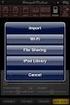 Export to itunes File Sharing Access Edit Mode Tap the pencil button on the bottom toolbar to access Edit Mode. Select a Button or a Folder Select to the button(s) you want to export/ import. A checkmark
Virtual Exhibit 5.0 requires that you have PastPerfect version 5.0 or higher with the MultiMedia and Virtual Exhibit Upgrades.
 28 VIRTUAL EXHIBIT Virtual Exhibit (VE) is the instant Web exhibit creation tool for PastPerfect Museum Software. Virtual Exhibit converts selected collection records and images from PastPerfect to HTML
Hosting Users Guide 2011
 Hosting Users Guide 2011 eofficemgr technology support for small business Celebrating a decade of providing innovative cloud computing services to small business. Table of Contents Overview... 3 Configure
ASUS WebStorage Client-based for Windows [Advanced] User Manual
![ASUS WebStorage Client-based for Windows [Advanced] User Manual](/thumbs/40/21159954.jpg "ASUS WebStorage Client-based for Windows [Advanced] User Manual") ASUS WebStorage Client-based for Windows [Advanced] User Manual 1 Welcome to ASUS WebStorage, your personal cloud space Our function panel will help you better understand ASUS WebStorage services. The
ASUS WebStorage Client-based for Windows [Advanced] User Manual 1 Welcome to ASUS WebStorage, your personal cloud space Our function panel will help you better understand ASUS WebStorage services. The
Department of Information Technology. Microsoft Outlook 2013. Outlook 101 Basic Functions
 Department of Information Technology Microsoft Outlook 2013 Outlook 101 Basic Functions August 2013 Outlook 101_Basic Functions070713.doc Outlook 101: Basic Functions Page 2 Table of Contents Table of
Gmail: Signatures, labels, and filters
 Gmail: Signatures, labels, and filters Here s how to set up your email signature, labels to organize your email (similar to folders), and filters to automate what happens to certain types of email. Create
STUDENT ADMINISTRATION TRAINING GUIDE SETTING YOUR BROWSER FOR PEOPLESOFT DOWNLOADS
 STUDENT ADMINISTRATION TRAINING GUIDE SETTING YOUR BROWSER FOR PEOPLESOFT DOWNLOADS Table of Contents How to check the browser version... 3 PC - Internet Explorer... 8 Internet Explorer V9 Compatibility
Outlook Web Access. PRECEDED by v\
 Outlook Web Access Logging in to OWA (Outlook Web Access) from Home 1. Login page http://mail.vernonct.org/exchange 2. To avoid these steps each time you login, you can add the login page to your favorites.