
Installation & Configuration Guide
|
|
|
- Derick Thompson
- 9 years ago
- Views:
Transcription
1 Installation & Configuration Guide Wave 4.0 June 2013
2 Wave 4.0 June 2013

3 Vertical Communications, Inc. reserves the right to revise this publication and to make changes in content without notice by Vertical Communications, Inc. All rights reserved. This publication contains proprietary and confidential information of Vertical Communications, Inc. The contents of this document may not be disclosed, copied or translated by third parties, in any form, or by any means known, or not now known or conceived, without prior explicit written permission from Vertical Communications, Inc. LIMIT OF LIABILITY/DISCLAIMER OF WARRANTY Vertical Communications, Inc. makes no representation or warranties with respect to the accuracy or completeness of the content of this publication and specifically disclaims any implied warranty of merchantability or fitness for any particular purpose, and shall not be liable for any loss of profit or any other commercial damage, including but not limited to, special, incidental, or consequential. TRADEMARKS Vertical Communications and the Vertical Communications logo and combinations thereof are trademarks of Vertical Communications, Inc. All other brand and product names are used for identification only and are the property of their respective holders. RESTRICTED RIGHTS LEGEND Use, duplication, or disclosure of the technical data contained in this document by the Government is subject to restrictions as set forth in subdivision (c) (1) (ii) of the Rights in Technical Data and Computer Software clause at DFARS and/or in similar or successor clauses in the FAR, or in the DOD or NASA FAR Supplement. Unpublished rights reserved under the Copyright Laws of the United States. Contractor/manufacturer is Vertical Communications, Inc., 10 Canal Park, Suite 602, Cambridge, MA Wave 4.0 June 2013
4 New for Release 4.0 Wave Edge 5000 Installation and Configuration Guide There are no Release 4.0 content changes for this version of the Wave Edge 5000 Installation and Configuration Guide. For details on what is new in the full release of Wave 4.0, please see the Wave 4.0 Release Notes. Wave 4.0 June 2013

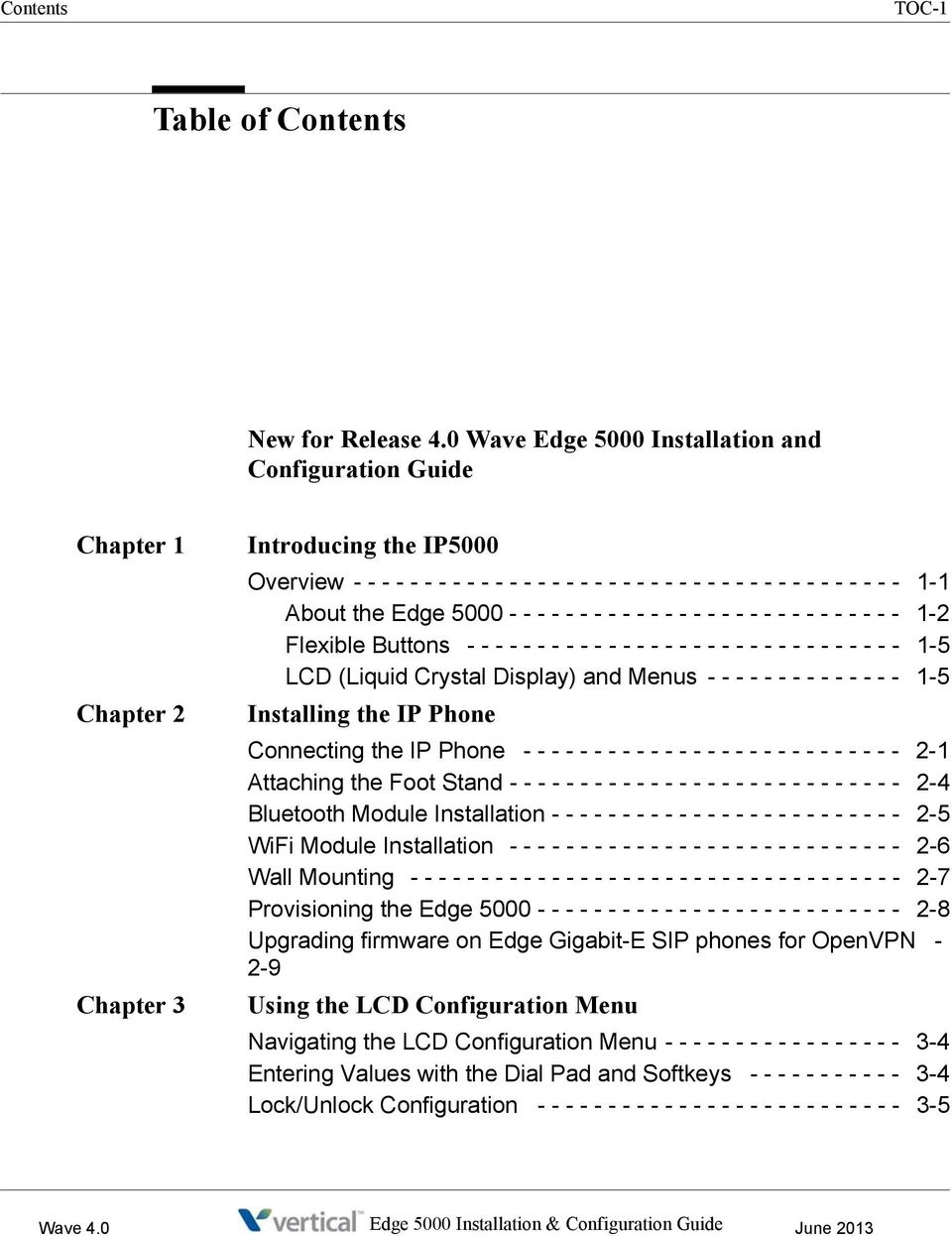
5 Contents TOC-1 Table of Contents New for Release 4.0 Wave Edge 5000 Installation and Configuration Guide Chapter 1 Chapter 2 Chapter 3 Introducing the IP5000 Overview About the Edge Flexible Buttons LCD (Liquid Crystal Display) and Menus Installing the IP Phone Connecting the IP Phone Attaching the Foot Stand Bluetooth Module Installation WiFi Module Installation Wall Mounting Provisioning the Edge Upgrading firmware on Edge Gigabit-E SIP phones for OpenVPN Using the LCD Configuration Menu Navigating the LCD Configuration Menu Entering Values with the Dial Pad and Softkeys Lock/Unlock Configuration Wave 4.0 Edge 5000 Installation & Configuration Guide June 2013
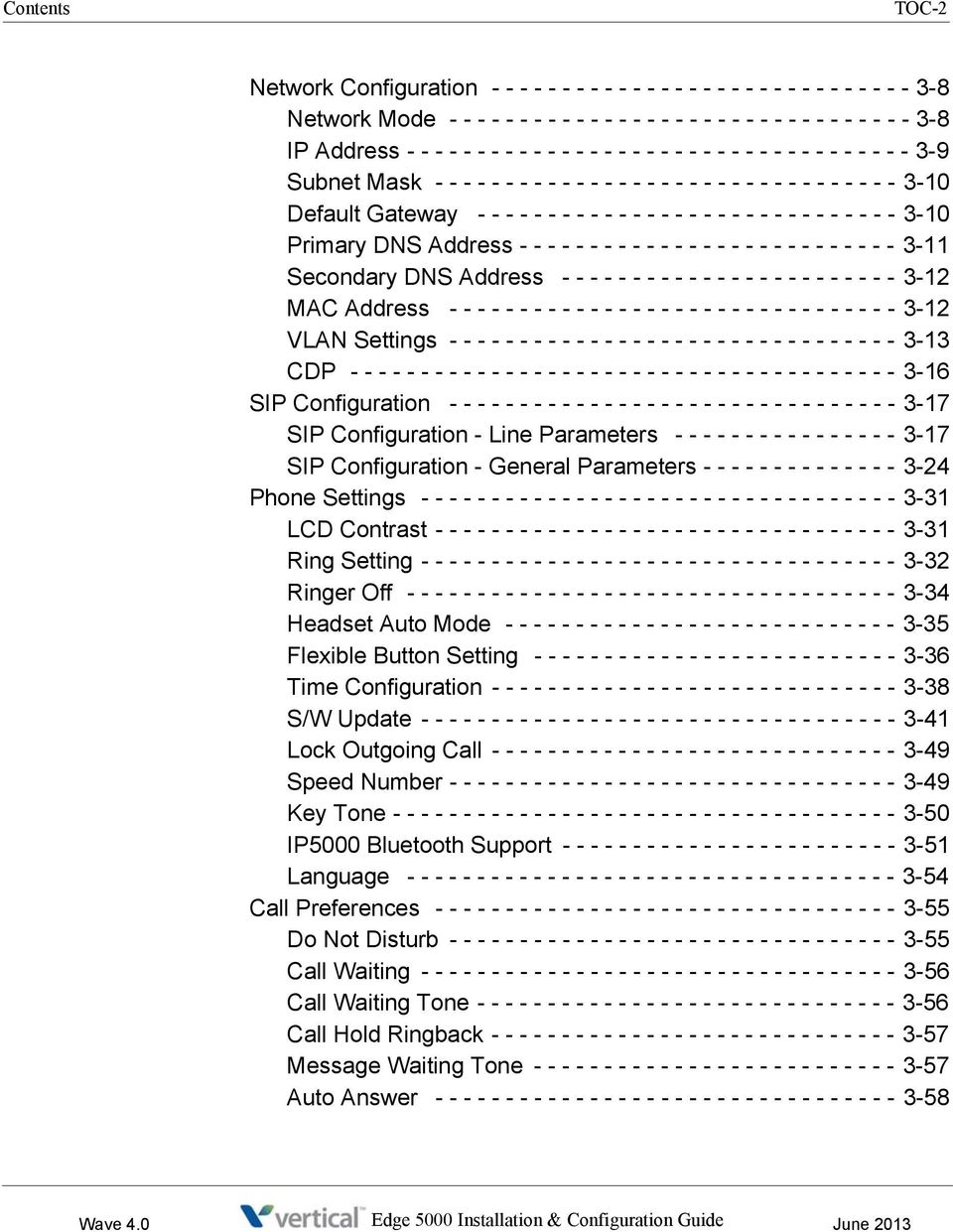
6 Contents TOC-2 Network Configuration Network Mode IP Address Subnet Mask Default Gateway Primary DNS Address Secondary DNS Address MAC Address VLAN Settings CDP SIP Configuration SIP Configuration - Line Parameters SIP Configuration - General Parameters Phone Settings LCD Contrast Ring Setting Ringer Off Headset Auto Mode Flexible Button Setting Time Configuration S/W Update Lock Outgoing Call Speed Number Key Tone IP5000 Bluetooth Support Language Call Preferences Do Not Disturb Call Waiting Call Waiting Tone Call Hold Ringback Message Waiting Tone Auto Answer Wave 4.0 Edge 5000 Installation & Configuration Guide June 2013
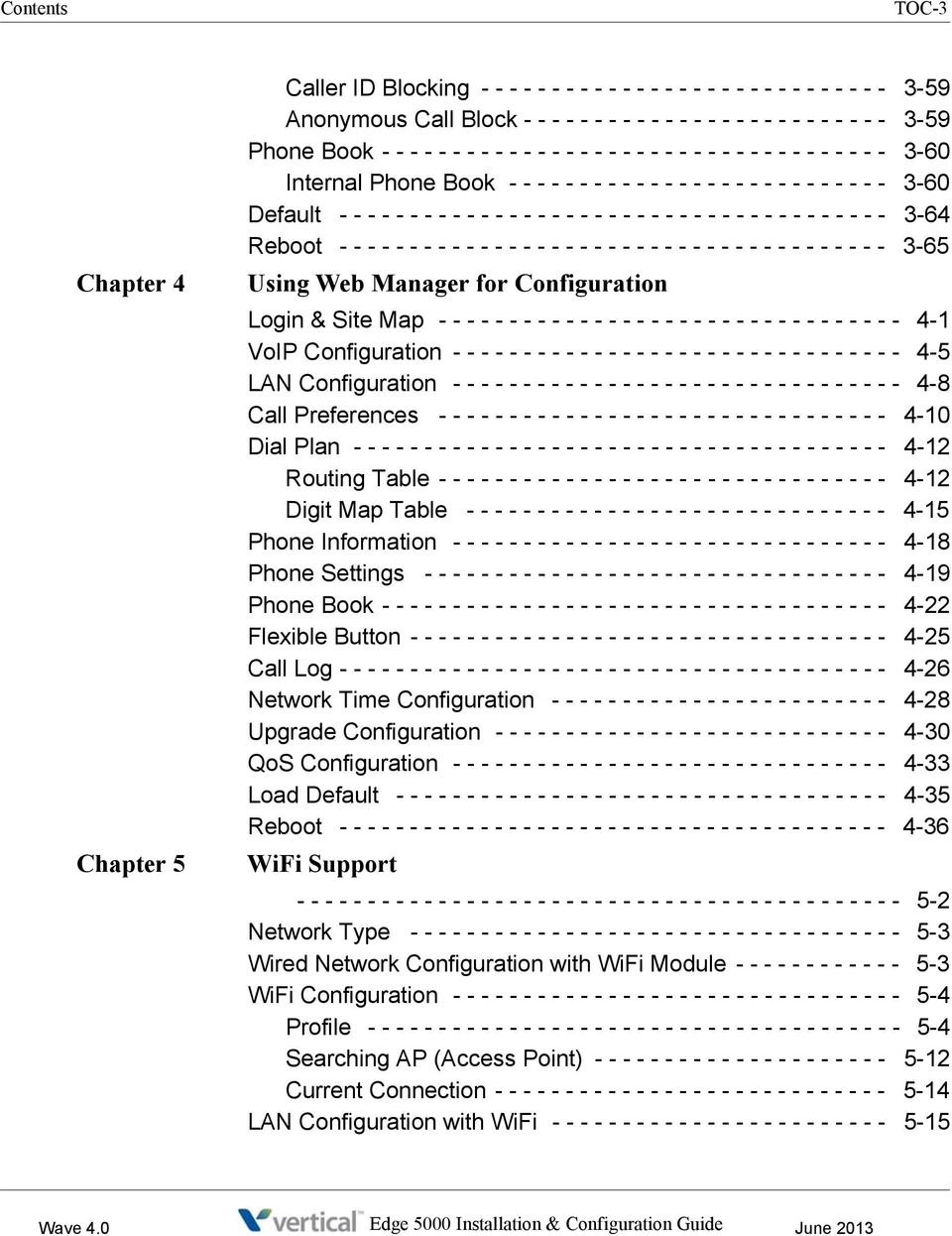
7 Contents TOC-3 Chapter 4 Chapter 5 Caller ID Blocking Anonymous Call Block Phone Book Internal Phone Book Default Reboot Using Web Manager for Configuration Login & Site Map VoIP Configuration LAN Configuration Call Preferences Dial Plan Routing Table Digit Map Table Phone Information Phone Settings Phone Book Flexible Button Call Log Network Time Configuration Upgrade Configuration QoS Configuration Load Default Reboot WiFi Support Network Type Wired Network Configuration with WiFi Module WiFi Configuration Profile Searching AP (Access Point) Current Connection LAN Configuration with WiFi Wave 4.0 Edge 5000 Installation & Configuration Guide June 2013
8 Contents TOC-4 Chapter 6 Appendix A Troubleshooting Troubleshooting Guide Default Settings Factory Default Configuration A-1 Appendix B Appendix C IP5000 Specifications Download LCD Messages Software Download Messages C-1 Configuration Download Messages C-2 Appendix D Using the Configuration File Configuration Parameters D-1 Sample - Blank Configuration File D-25 Time Zones Chart D-32 Appendix E Appendix F Dial Pad Mode Auto Provisioning Routine General F-1 DHCP F-1 TFTP Downloads F-2 HTTP/HTTPS Downloads F-3 SIP Server Check-in Request F-4 Appendix G Appendix H User Defined and Fixed Ring Tones IP Phone Icons Index Wave 4.0 Edge 5000 Installation & Configuration Guide June 2013

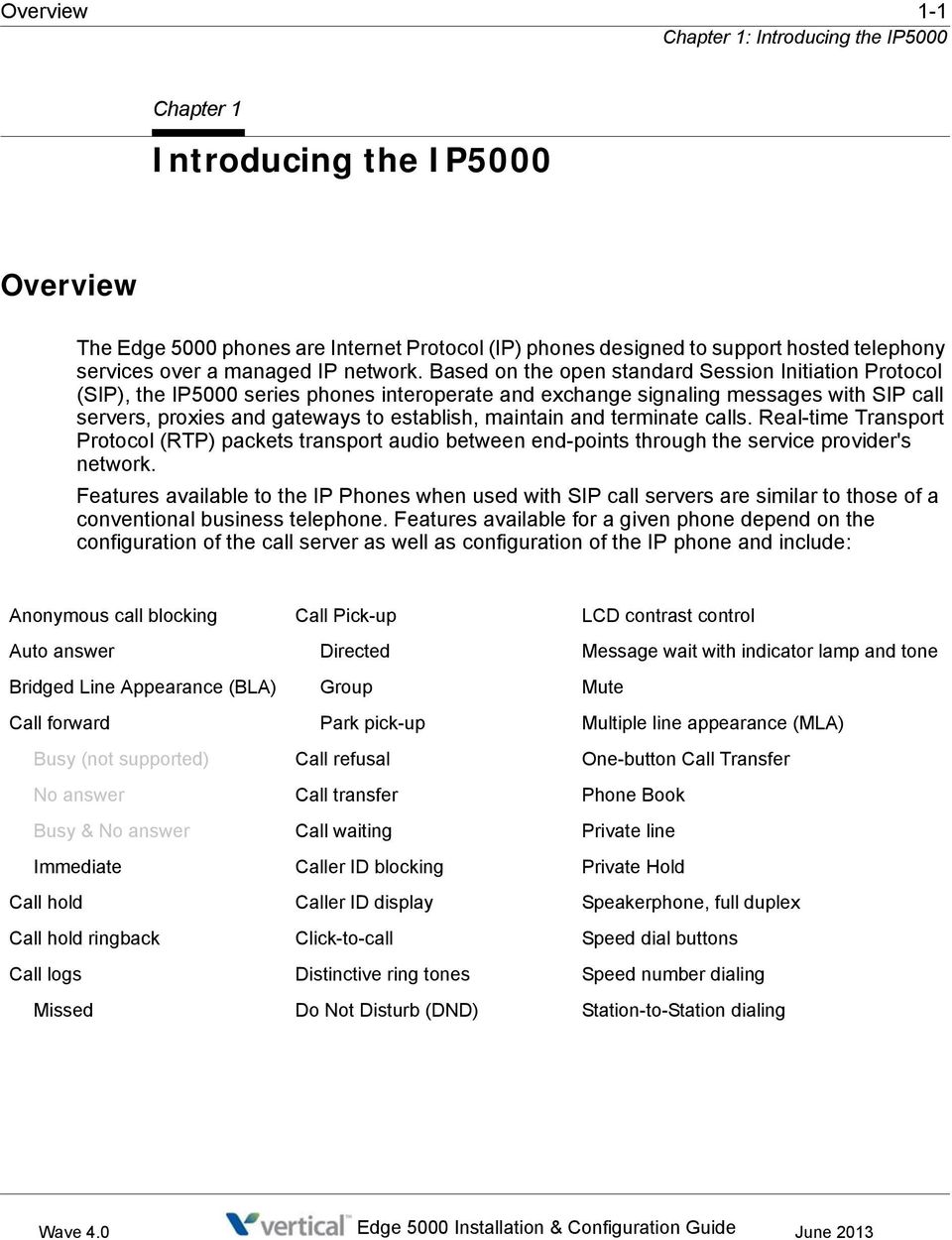
9 Overview 1-1 Chapter 1: Introducing the IP5000 Chapter 1 Introducing the IP5000 Overview The Edge 5000 phones are Internet Protocol (IP) phones designed to support hosted telephony services over a managed IP network. Based on the open standard Session Initiation Protocol (SIP), the IP5000 series phones interoperate and exchange signaling messages with SIP call servers, proxies and gateways to establish, maintain and terminate calls. Real-time Transport Protocol (RTP) packets transport audio between end-points through the service provider's network. Features available to the IP Phones when used with SIP call servers are similar to those of a conventional business telephone. Features available for a given phone depend on the configuration of the call server as well as configuration of the IP phone and include: Anonymous call blocking Call Pick-up LCD contrast control Auto answer Directed Message wait with indicator lamp and tone Bridged Line Appearance (BLA) Group Mute Call forward Park pick-up Multiple line appearance (MLA) Busy (not supported) Call refusal One-button Call Transfer No answer Call transfer Phone Book Busy & No answer Call waiting Private line Immediate Caller ID blocking Private Hold Call hold Caller ID display Speakerphone, full duplex Call hold ringback Click-to-call Speed dial buttons Call logs Distinctive ring tones Speed number dialing Missed Do Not Disturb (DND) Station-to-Station dialing Wave 4.0 Edge 5000 Installation & Configuration Guide June 2013
10 About the Edge Chapter 1: Introducing the IP5000 Incoming Outgoing Call Park Hands-free dialing Hotline/Warm-Line (Direct Call) Last call return Last number redial Volume control (handset, headset, speakerphone, and ring Wireless Network, WiFi Support 3-Way conference,centralized or local About the Edge 5000 For ease of use, the IP5000 phones are equipped with fixed buttons, flexible (programmable) buttons, an LCD display, softkeys, menu navigation buttons, and a dial pad. Wave 4.0 Edge 5000 Installation & Configuration Guide June 2013

11 About the Edge Chapter 1: Introducing the IP5000 Edge 5000 Installation & Configuration Guide Wave 4.0 June 2013
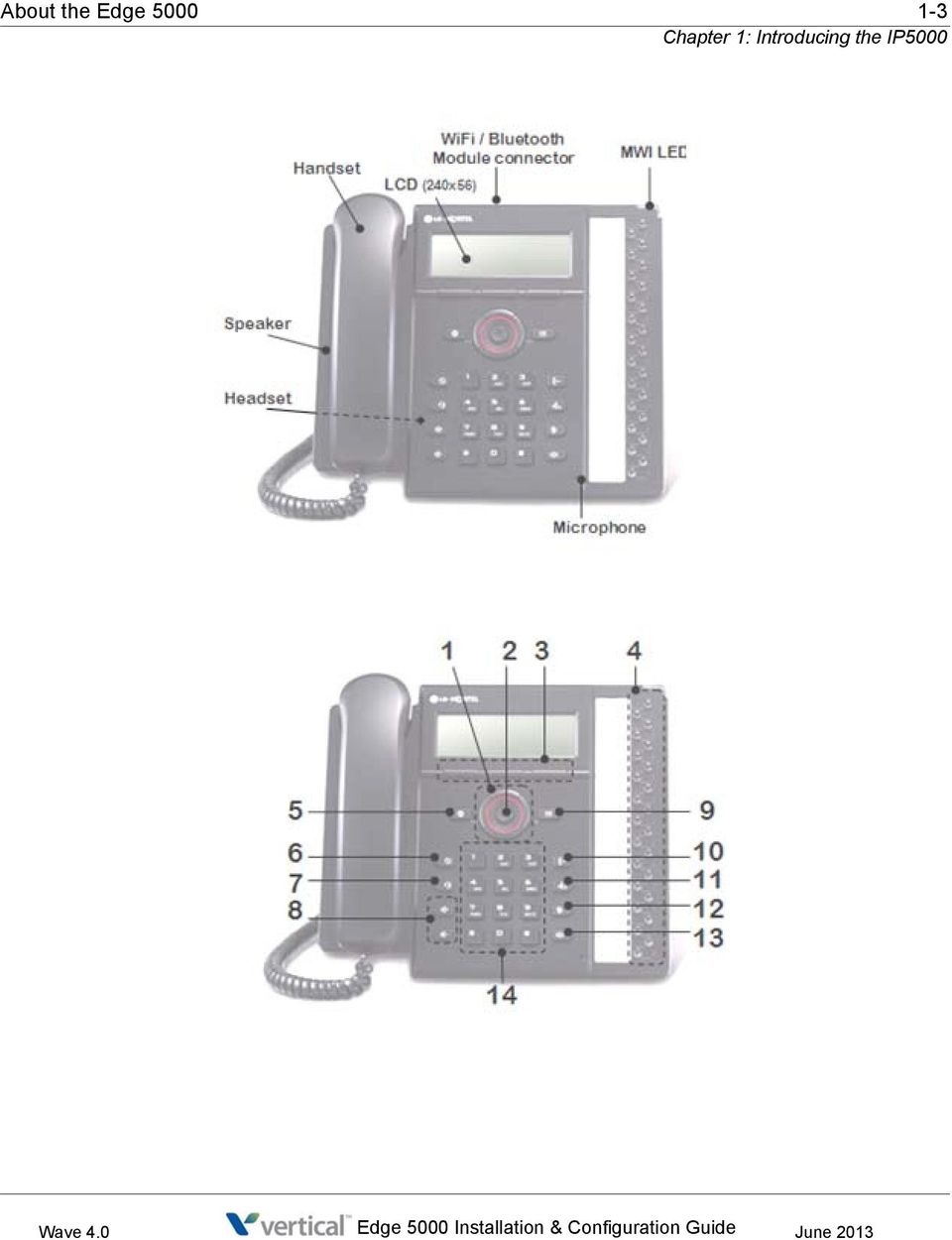
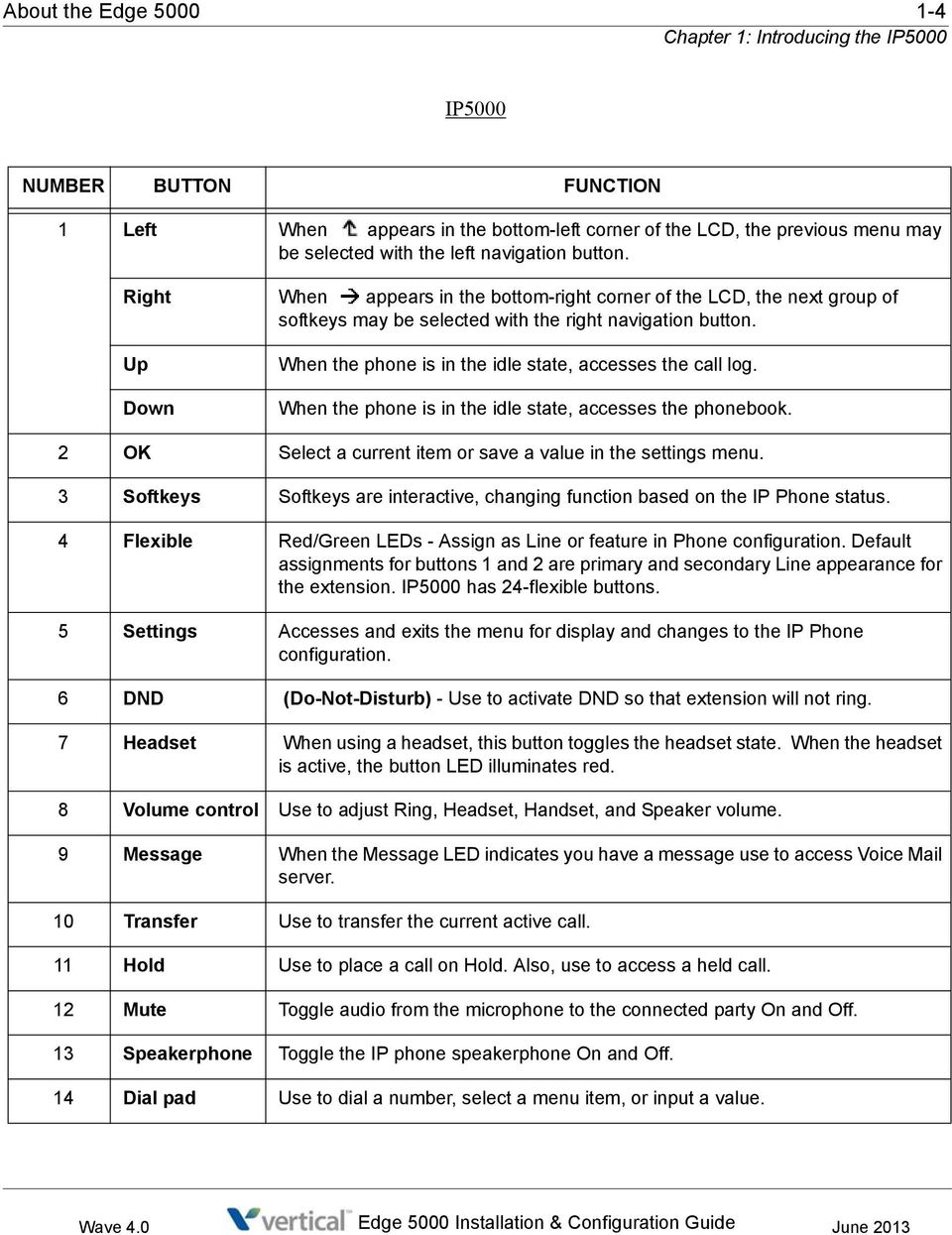
12 About the Edge Chapter 1: Introducing the IP5000 IP5000 NUMBER BUTTON FUNCTION 1 Left When appears in the bottom-left corner of the LCD, the previous menu may be selected with the left navigation button. Right When appears in the bottom-right corner of the LCD, the next group of softkeys may be selected with the right navigation button. Up Down When the phone is in the idle state, accesses the call log. When the phone is in the idle state, accesses the phonebook. 2 OK Select a current item or save a value in the settings menu. 3 Softkeys Softkeys are interactive, changing function based on the IP Phone status. 4 Flexible Red/Green LEDs - Assign as Line or feature in Phone configuration. Default assignments for buttons 1 and 2 are primary and secondary Line appearance for the extension. IP5000 has 24-flexible buttons. 5 Settings Accesses and exits the menu for display and changes to the IP Phone configuration. 6 DND (Do-Not-Disturb) - Use to activate DND so that extension will not ring. 7 Headset When using a headset, this button toggles the headset state. When the headset is active, the button LED illuminates red. 8 Volume control Use to adjust Ring, Headset, Handset, and Speaker volume. 9 Message When the Message LED indicates you have a message use to access Voice Mail server. 10 Transfer Use to transfer the current active call. 11 Hold Use to place a call on Hold. Also, use to access a held call. 12 Mute Toggle audio from the microphone to the connected party On and Off. 13 Speakerphone Toggle the IP phone speakerphone On and Off. 14 Dial pad Use to dial a number, select a menu item, or input a value. Wave 4.0 Edge 5000 Installation & Configuration Guide June 2013
13 Flexible Buttons 1-5 Chapter 1: Introducing the IP5000 Flexible Buttons The flexible buttons access lines and features based on the IP Phone configuration. Flexible buttons assigned for line access, which are called line buttons, represent a telephone line or a SIP user. A line may be private; calls to a private line signal at all appearances of the line but an active or held call is only visible and accessible by the original end-point. A shared line, also known as a BLA (Bridged Line Appearance), may appear at multiple phones and all calls are visible and accessible by all end-points with the line. Each line button employs LEDs to indicate status as shown below. Incoming call Orange* LED flashes at 60 ipm, fast flash Line in use at this phone Orange* LED On Call held at this phone Orange* LED flashes at 30 ipm, slow flash BLA in use at another phone Red LED On BLA Call held at another phone Red LED slow flash Line not registered w/server Red/Orange LED flashes color, red to orange at 30 ipm * When the LCD displays information for a line, such as when an incoming call first rings, the LED color is orange otherwise, the LED color will be green. Flexible buttons not assigned for line access may access features such as Speed dial, DND, Redial and others. Refer to "Flexible Button Setting" on page 1-5 for instructions on defining flexible buttons. LCD (Liquid Crystal Display) and Menus The IP5000 phones have an LCD used to display information to the user. The IP5000 has a 240 by 56 dot graphic LCD. These phones also have a top-bar status line to display icons, date and time. The bottom line of all of models shows choices associated with the three (3) context sensitive softkeys located just below the LCD. The top line provides various icons to assist the user in understanding the state of the phone. Refer to Appendix H for a description of the icons. Wave 4.0 Edge 5000 Installation & Configuration Guide June 2013

14 LCD (Liquid Crystal Display) and Menus 1-6 Chapter 1: Introducing the IP5000 Edge 5000 Installation & Configuration Guide Wave 4.0 June 2013

15 Connecting the IP Phone 2-1 Chapter 2: Installing the IP Phone Chapter 2 Installing the IP Phone Connecting the IP Phone The figure below shows the cable connections for your IP Phone. The LAN and desktop PC connections employ standard 5 cables terminated with RJ-45 connectors. The Edge 5000 series phones support PoE (Power over Ethernet) in accordance with the IEEE-802.1af standard. When connected to a PoE-compliant LAN port, the IP Phone derives power from the port. If the LAN port does not support PoE, use the AC/DC adaptor, available separately, for connection to power. The handset connects to the base with the supplied standard handset coiled cord. Use the chart below to make connections to the IP Phone. Wave 4.0 Edge 5000 Installation & Configuration Guide June 2013

16 Connecting the IP Phone 2-2 Chapter 2: Installing the IP Phone IP Phone Connections Wave 4.0 Edge 5000 Installation & Configuration Guide June 2013
17 Connecting the IP Phone 2-3 Chapter 2: Installing the IP Phone Wiring Chart 1 LAN Connect the IP Phone LAN port to the LAN wall jack with the provided LAN cable. 2 PC Connect the IP Phone PC port to your desktop PC with an RJ-45 terminated UTP-5 cable. 3 Power If the LAN port supports PoE, IEEE 802.3af compliant, Class 2, the AC/DC adapter is not required. If not supported, connect the IP Phone power port to the DC out of Power Adapter. Connect the Power Adapter AC plug to an AC wall jack. 4 Headset Connect Headset RJ-11 jack to the IP Phone headset jack. 5 Handset Connect the Handset coiled cord to the IP Phone base and handset. RJ-45 Pin Assignments LAN port PC port Pin 1 = TX+ Pin 1 = RX+ Pin 2 = TX- Pin 2 = RX- Pin 3 = RX+ Pin 3 = TX+ Pin 4 = optional: 48V (or GND) Pin 4 = No connection Pin 5 = optional: 48V (or GND) Pin 5 = No connection Pin 6 = RX- Pin 6 = TX- Pin 7 = optional: GND (or 48V) Pin 7 = No connection 8 = optional: GND (or 48V) Pin 8 = No connection RJ-45 Terminations Wave 4.0 Edge 5000 Installation & Configuration Guide June 2013

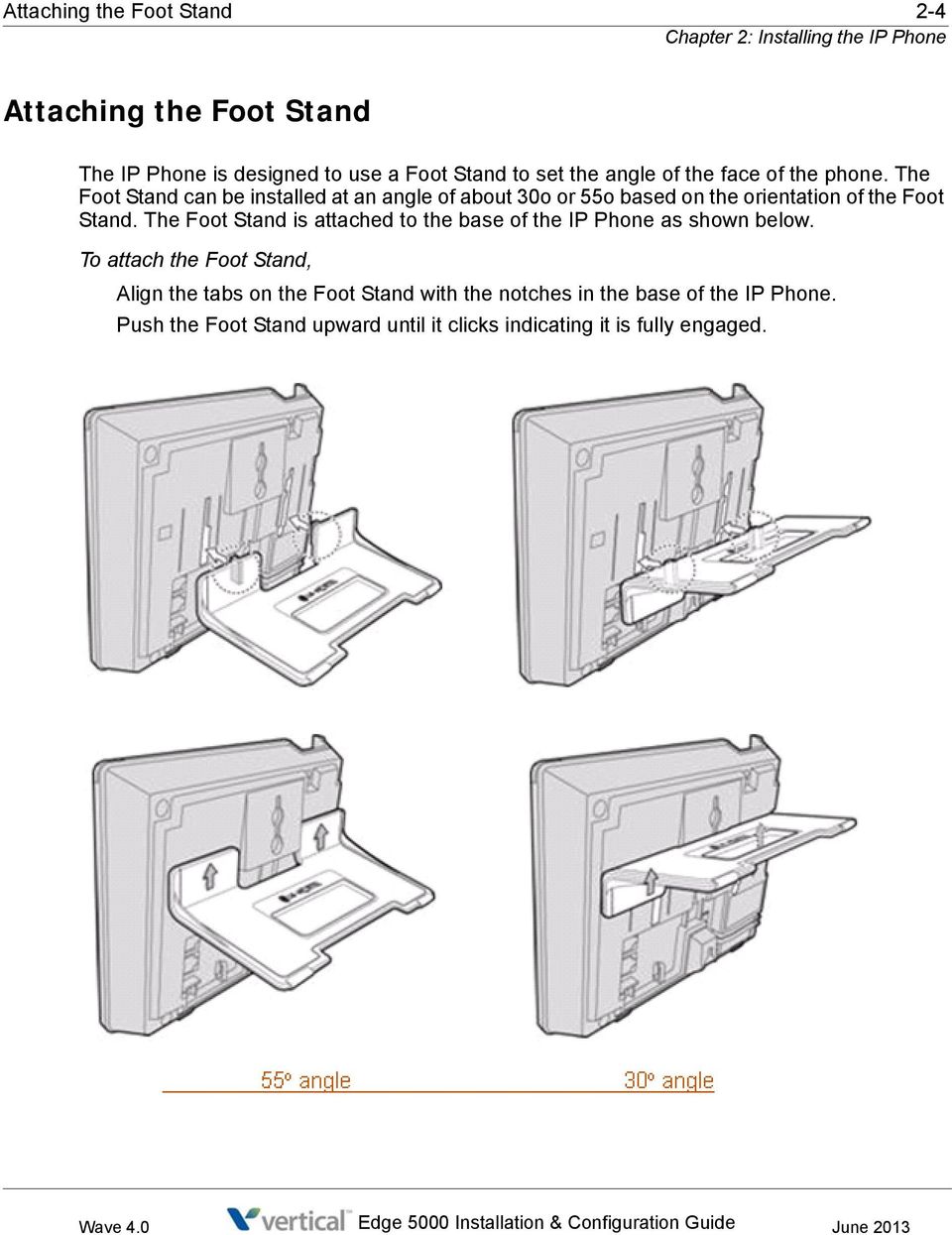
18 Attaching the Foot Stand 2-4 Chapter 2: Installing the IP Phone Attaching the Foot Stand The IP Phone is designed to use a Foot Stand to set the angle of the face of the phone. The Foot Stand can be installed at an angle of about 30o or 55o based on the orientation of the Foot Stand. The Foot Stand is attached to the base of the IP Phone as shown below. To attach the Foot Stand, Align the tabs on the Foot Stand with the notches in the base of the IP Phone. Push the Foot Stand upward until it clicks indicating it is fully engaged. Wave 4.0 Edge 5000 Installation & Configuration Guide June 2013
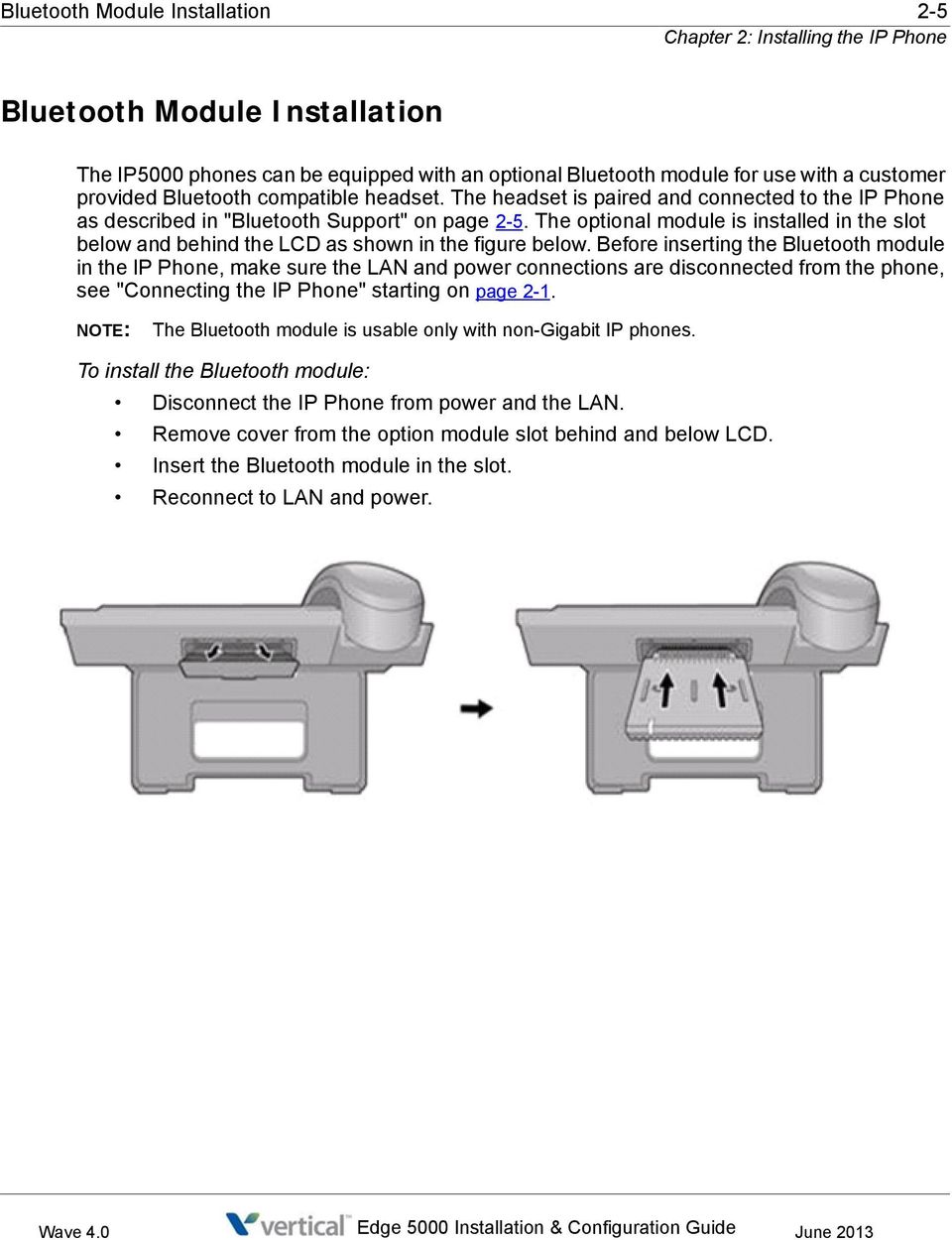
19 Bluetooth Module Installation 2-5 Chapter 2: Installing the IP Phone Bluetooth Module Installation The IP5000 phones can be equipped with an optional Bluetooth module for use with a customer provided Bluetooth compatible headset. The headset is paired and connected to the IP Phone as described in "Bluetooth Support" on page 2-5. The optional module is installed in the slot below and behind the LCD as shown in the figure below. Before inserting the Bluetooth module in the IP Phone, make sure the LAN and power connections are disconnected from the phone, see "Connecting the IP Phone" starting on page 2-1. NOTE: The Bluetooth module is usable only with non-gigabit IP phones. To install the Bluetooth module: Disconnect the IP Phone from power and the LAN. Remove cover from the option module slot behind and below LCD. Insert the Bluetooth module in the slot. Reconnect to LAN and power. Wave 4.0 Edge 5000 Installation & Configuration Guide June 2013
20 WiFi Module Installation 2-6 Chapter 2: Installing the IP Phone WiFi Module Installation The IP 5000 phones can be equipped with an optional WiFi module to allow connection to a wireless WiFi network. The WiFi Module is installed in the slot below and behind the LCD as shown in the following diagram. When installed, Network Configuration of the WiFi module is accomplished as described in Chapter 5. NOTE: The WiFi module is usable only with non-gigabit IP phones. To install the WiFi module: 1. Disconnect the IP Phone from power and the LAN. 2. Remove cover from the option module slot behind and below LCD. 3. Insert the WiFi module in the slot. 4. Reconnect to power. Wave 4.0 Edge 5000 Installation & Configuration Guide June 2013

21 Wall Mounting 2-7 Chapter 2: Installing the IP Phone Wall Mounting The IP5000 series phones incorporate wall mounting in the base of the phone housing. Using the instructions below and the illustration, wall mount the IP-5000 phone. Mark and drill two 7 MM. holes for plastic wall anchors with a vertical separation of 10 cm. Insert two (2) anchors into the holes, then insert and tighten the two (2) screws leaving about 2.5 mm exposed. Refer to the figure below. Attach all wiring to the IP Phone as described in "Connecting the IP Phone" starting on page 2-1. Slide the IP Phone over the screws and assure the phone is secure. Note it may be necessary to remove the phone and tighten or loosen the screws for a secure mounting. Also note, the Foot Stand must not be attached to the IP Phone when wall mounting. Remove the Handset hook from the phone as shown in the figure below. Reverse the hook and re-install in the IP Phone so that the hook catches the groove in the handset receiver. Complete all wiring as described in "Connecting the IP Phone" starting on page 2-1. Wave 4.0 Edge 5000 Installation & Configuration Guide June 2013
22 Provisioning the Edge Chapter 2: Installing the IP Phone Provisioning the Edge 5000 The Edge 5000 phones support "plug and play" installation employing the automated provisioning process described in Appendix F. After connecting to the LAN, desktop PC and power, refer to "Connecting the IP Phone" starting on page 2-1, the IP phone retrieves LAN settings including IP address, subnet mask and default gateway address from the local DHCP (Dynamic Host Control Protocol) server. In addition, the IP phone requests address information for the provisioning server where configuration and software files are maintained. The IP phone downloads the configuration and, if required, software files from the provisioning server. When complete, the IP phone automatically registers and subscribes for SIP call services using the information from the configuration files. Refer to Appendix C for more details. IP5000 series phones incorporate means for manual configuration when the automated process is not fully available. As a minimum, the IP5000 phones require the information below for proper operation. When not assigned through the automated provisioning process, manual entry of the below parameters is required for proper operation. - Line 1 SIP parameters including: Line 1 SIP call server IP address Line 1 Name (SIP user id) Line 1 Authentication user name Line 1 Authentication password In addition using static IP addressing requires manual entry of the following IP network configuration data. IP address of the IP phone Default gateway address Subnet mask Two methods are available for manual configuration. The LCD Configuration Menu permits local configuration using the dial pad and softkeys, see Chapter 3. The second method employs the IP5000 Web Manager, which allows access to the IP phone configuration using a Web browser, see Chapter 4. Manual configuration permits assignment of all parameters required to gain full operation of the IP phone. However, manual configuration is time consuming and is intended only to augment the automated process and to allow customizing user preferences. For configuration with the WiFi Module installed, refer to Chapter 5. Wave 4.0 Edge 5000 Installation & Configuration Guide June 2013
23 Upgrading firmware on Edge Gigabit-E SIP phones for OpenVPN 2-9 Chapter 2: Installing the IP Phone Upgrading firmware on Edge Gigabit-E SIP phones for OpenVPN IMPORTANT: In order to use OpenVPN Server on Edge Gigabit-ESIP phones, all phones must be upgraded with Wave 4.0 firmware, including new phones at the original factory-level firmware and previously-working phones. Gigabit-E SIP phones must be upgraded to the 4.0 firmware version prior to being deployed. If a phone has already been deployed, it must be brought back on-site for upgrade. Once a phone has been upgraded to the 4.0 firmware version, remote upgrades will be supported via VPN. Phones must be on-site because firmware versions prior to the 4.0 version require files to be transferred to the phone in less than 10 minutes. Starting with the 4.0 firmware version this limitation has been increased to 60 minutes. If a phone is deployed to a location that is far from the Wave Server, it is possible that a firmware upgrade will not complete in less than 10 minutes, so phones must be upgraded to the 4.0 firmware version on-site. You must use Wave s TFTP server to upgrade firmware on affected Gigabit-E SIP phones. While a non-wave TFTP server may upgrade firmware successfully, Vertical will not offer support for any problems that might arise. For information about updating firmware using Wave s TFTP server, see Appendix F, in the Wave Edge 5000 Installation and Configuration Guide. To verify the firmware version on the phone: 1. After upgrading to 4.0, press the Menu button on the phone. 2. Scroll to Information and press OK. 3. Scroll to S/W version and press OK. The version displayed should be: v0.9.13sve_f. Wave 4.0 Edge 5000 Installation & Configuration Guide June 2013
24 Upgrading firmware on Edge Gigabit-E SIP phones for OpenVPN 2-10 Chapter 2: Installing the IP Phone Edge 5000 Installation & Configuration Guide Wave 4.0 June 2013
25 3-1 Chapter 3: Using the LCD Configuration Menu Chapter 3 Using the LCD Configuration Menu This chapter provides detailed information to configure the IP5000 phones using the LCD Configuration Menu. The LCD displays the configuration menu and softkey functions. The softkeys and dial pad select menu items and input values. A configuration session begins by pressing the Settings ( ) button, which accesses the LCD Configuration Menu shown below. Select the desired menu item using one of the following methods: Use the dial pad to input the menu item number.this is the digit displayed in front of the item, OR Navigate with the [Next]-[Previous] softkeys to highlight the item and select with the [OK] softkey. Configuration Menu 1.Network Configuration 2.SIP Configuration 3.Phone Settings 4.Call Preferences 5.Directory 6.Set to Default 7.Lock/Unlock Config 8.Information 9.Reboot LCD Configuration Main Menu When the desired parameter is reached, enter data with the dial pad or select values with the softkeys. Refer to the "LCD Configuration Menu" below for the complete menu. The first three sections: "Navigating the Menu", "Entering Values", and "Lock/Unlock Configuration" give general information on the use of the LCD Menu. The remaining paragraphs of this section give descriptive and procedural information for each parameter of the menu. Information is organized to follow the structure of the menu as shown in the "LCD Configuration Wave 4.0 Edge 5000 Installation & Configuration Guide June 2013
26 3-2 Chapter 3: Using the LCD Configuration Menu Menu" below. The next menu applies to IP Phones using the wired network connection. When employing the WiFi module, the Network Configuration sub-menu is changed as described in Chapter 5 of this guide. Wave 4.0 Edge 5000 Installation & Configuration Guide June 2013
27 3-3 Chapter 3: Using the LCD Configuration Menu LCD Configuration Menu Wave 4.0 Edge 5000 Installation & Configuration Guide June 2013
28 Navigating the LCD Configuration Menu 3-4 Chapter 3: Using the LCD Configuration Menu Navigating the LCD Configuration Menu The IP phone must be idle to access the configuration menu and may be password protected (Locked). If locked, advanced configuration parameters can be viewed, however, data entry is not possible. Refer to "Lock/Unlock Configuration" on page 3-5. To access the configuration menu: Press the Settings ( ) button. To select an item: Dial the digit associated with the menu item, OR Use the [Next]-[Previous] softkeys to move the cursor to the item, then press the [OK] softkey. The bottom line of the display shows three (3) softkey functions at a time. Additional softkey functions are available when the right arrow,, appears in the bottom-right corner of the LCD. Use the right navigation button,, to view the additional softkeys. To return to a previous branch in the menu when the return arrow,, appears in the bottom left corner of the LCD: Press the left navigation button,. To exit the configuration menu: Press the Settings ( ) button. Entering Values with the Dial Pad and Softkeys Use the dial pad to input numbers, letters, special characters, and a period. The [Mode] softkey displays to indicate a parameter can accept an alphanumeric entry. Selecting the [Mode] softkey switches the dial pad mode. The dial pad mode displays in the upper-right corner as for numeric, for upper case characters and for lower case characters. Appendix E defines the relationship between the dial pad digits and characters. To enter characters with the dial pad, use the digit with the desired character. Press the same digit repeatedly until the desired character appears in the LCD. After entering a character, pause to allow the cursor to move to next character position. Wave 4.0 Edge 5000 Installation & Configuration Guide June 2013
29 Lock/Unlock Configuration 3-5 Chapter 3: Using the LCD Configuration Menu Other special entries include: - To enter a period or dot (ex., to input an IP address), press asterisk, ] on the dial pad. - To delete a letter in front of the cursor, press the backspace, [ ], softkey - To clear an entire string, press the [Clear] softkey. Prior to saving an entry, you may discard changes by pressing the left navigation button,, to move to the previous menu, or press the Settings ( ) button to exit the Settings menu. Lock/Unlock Configuration The LCD Configuration Menu can be protected for security using a four to eight digit password. With a password assigned, exiting the LCD Menu automatically locks the menu. Configuration data displays while the menu is locked, however, the menu must be unlocked using the password in order to change advanced parameters. NOTE: Changing some configuration options from the phone keypad interface (ex. Network mode, static or DHCP) requires unlocking this feature and entering a password. The DEFAULT password for the MBX IP system is five twos (22222). Parameters under the "Phone Settings" item listed below are not subject to the lock feature, allowing the user access without the need to enter a password. - LCD - Ring Type - Ringer - Headset - Flexible settings - Time Configuration - Speed Number Dialing - Key Tone - Bluetooth - Language With the menu locked, the padlock icon appears in the upper line of the LCD as shown below. Locked Display Unlocked Display Wave 4.0 Edge 5000 Installation & Configuration Guide June 2013
30 Lock/Unlock Configuration 3-6 Chapter 3: Using the LCD Configuration Menu To assign a password: Press the Settings ( ) button. Press the digit, or move the cursor to 7.Lock/Unlock Config using the [Next]-[Previous] softkeys and press the [OK] softkey. If a password has been previously established, the previous password must be entered, then press the [Change] softkey. Enter your new password using the dial pad and press the [OK] softkey. A password is composed of four (4) to eight (8) digits. To confirm your password, input the new password again and press the [OK] softkey to save your entry. Move to another parameter with the navigation buttons and continue the session or press the Settings ( ) button to exit the configuration session, which will lock the LCD Menu automatically if a password is assigned. NOTE: The [None] softkey removes a password. A password consists of four (4) to eight (8) digits. Assigning a new password automatically unlocks the LCD Configuration Menu. To unlock the LCD Menu: Press the Settings ( ) button. Press the digit, or move the cursor to 7.Lock/Unlock Config using the Enter the password (4 to 8 digits) and press the [OK] softkey, the Unlocked message appears for approximately 2 seconds and the LCD Menu is unlocked. Wave 4.0 Edge 5000 Installation & Configuration Guide June 2013
31 Network Configuration 3-7 Chapter 3: Using the LCD Configuration Menu Move to another parameter with the navigation buttons and continue the session or press the Settings ( ) button to exit the configuration session. NOTE: Network Configuration - With a password assigned, exiting the LCD Configuration Menu automatically locks the menu. - Entering an invalid password returns an error message followed by the "Enter Password" display. Under Network Configuration are the Network mode (DHCP or static), various IP addresses, DNS (Domain Name Service), and other LAN parameters. In addition, the IP phone MAC (Media Access Control) address can be viewed. When using the WiFi Module refer to Chapter 5 for the Network Configuration sub-menus. NOTE: Changing network parameters requires a reboot of the IP phone; when you exit the LCD Configuration Menu, you will receive a reboot notice. (The IP phone must reboot to utilize the new values entered.) Network Mode The IP phone is capable of obtaining all of its IP configuration data from a DHCP server. When a DHCP server is not available, static addressing is used for the Network Mode. Selecting static addressing requires manual entry of other IP network parameters including: - IP address of the phone - Default gateway IP address - Subnet mask - DNS address To set the Network Mode: Press the Settings ( ) button. If the LCD Menu is locked, use the unlock procedure on page 3-5. Press the digit, or move the cursor to 1.Network Configuration using the Press the digit, or move the cursor to 1.Network Mode using [Next]-[Previous] softkeys and press the [OK] softkey. Wave 4.0 Edge 5000 Installation & Configuration Guide June 2013
32 IP Address 3-8 Chapter 3: Using the LCD Configuration Menu Select the Network Mode using [Next]-[Previous] softkeys and press the [OK] softkey to save your selection. Move to another parameter with the navigation buttons and continue the session or press the Settings ( ) button to exit the configuration session. NOTE: An asterisk, ], is displayed in front of the current selection. Changing the Network Mode requires a reboot of the IP phone; when you exit the LCD Configuration Menu, you will receive a reboot notice. The IP phone must reboot to utilize the new values entered. IP Address Selecting static addressing for the Network mode requires manual entry of an IP address for the IP phone. The IP phone requires a valid available IP address for proper operation. To set the IP Address: Press the Settings ( ) button. If the LCD Menu is locked, use the unlock procedure on page 3-5. Press the digit, or move the cursor to 1.Network Configuration using the Press the digit, or move the cursor to 2.IP Address using the [Next]-[Previous] softkeys and press the [OK] softkey. Input the IP Address using the dial pad and press the [OK] softkey to save your entry. Move to another parameter with the navigation buttons and continue the session or press the Settings ( ) button to exit the configuration session. NOTE: The IP Address can be changed only in static mode and not if DHCP mode is active. In DHCP mode, the IP phone retrieves an IP address from the DHCP server. Changing the IP Address requires a reboot of the IP phone; when you leave the menu, you will receive a reboot notice. The IP phone must reboot to utilize the new values entered. Wave 4.0 Edge 5000 Installation & Configuration Guide June 2013
33 Subnet Mask 3-9 Chapter 3: Using the LCD Configuration Menu Subnet Mask Selecting static addressing for the Network mode requires manual entry of a subnet mask for the IP phone. The IP phone requires a valid subnet for proper operation. To enter the Subnet Mask: Press the Settings ( ) button. If the LCD Menu is locked, use the unlock procedure on page 3-5. Press the digit, or move the cursor to 1.Network Configuration using the Press the digit, or move the cursor to 3.Subnet Mask using the [Next]-[Previous] softkeys and press the [OK] softkey. Input the Subnet Mask using the dial pad and press the [OK] softkey to save your configuration. Move to another parameter with the navigation buttons and continue the session or press the Settings ( ) button to exit the configuration session. NOTE: The Subnet Mask can be changed only in static mode and not if DHCP mode is active. In DHCP mode, the IP phone retrieves a subnet mask from the DHCP server. Changing the Subnet Mask requires a reboot of the IP phone; when you leave the menu, you will receive a reboot notice. The IP phone must reboot to utilize the new values entered. Default Gateway Selecting static addressing for the Network mode requires manual entry of a default gateway address for the IP phone. The IP phone requires a valid default gateway address for proper operation. To assign the Default Gateway address: Press the Settings ( ) button. If the LCD Menu is locked, use the unlock procedure.on page 3-5. Press the digit, or move the cursor to 1.Network Configuration using the Press the digit, or move the cursor to 4.Default Gateway using the Wave 4.0 Edge 5000 Installation & Configuration Guide June 2013
34 Primary DNS Address 3-10 Chapter 3: Using the LCD Configuration Menu Input the Default Gateway IP address using the dial pad and press the [OK] softkey to save your entry. Move to another parameter with the navigation buttons and continue the session or press the Settings ( ) button to exit the configuration session. NOTE: The Default Gateway address can be changed only in static mode and not if DHCP mode is active. In DHCP mode, the IP phone retrieves a default gateway address from the DHCP server Changing the Default Gateway address requires a reboot of the IP phone; when you leave the menu, you will receive a reboot notice. The IP phone must reboot to utilize the new values entered. Primary DNS Address Using an FQDN (Fully Qualified Domain Name) for any of the servers in the IP phone configuration requires entry of a primary DNS IP address. The IP phone contacts the primary DNS server to resolve the FQDN to an IP address. To assign the Primary DNS Address: Press the Settings ( ) button. If the LCD Menu is locked, use the unlock procedure on page 3-5. Press the digit, or move the cursor to 1.Network Configuration using the Press the digit, or move the cursor to 5.Primary DNS Address using the Input the Primary DNS Address using the dial pad and press the [OK] softkey to save your entry. Move to another parameter with the navigation buttons and continue the session or press the Settings ( ) button to exit the configuration session. NOTE: Changing the Primary DNS Address requires a reboot of the IP phone; when you leave the menu, you will receive a reboot notice. The IP phone must reboot to utilize the new values entered. Wave 4.0 Edge 5000 Installation & Configuration Guide June 2013
35 Secondary DNS Address 3-11 Chapter 3: Using the LCD Configuration Menu Secondary DNS Address With an FQDN assigned as any of the servers in the IP phone configuration, the IP phone contacts the primary DNS server to resolve the FQDN to an IP address. Should the primary not respond, the IP phone contacts a secondary DNS for FQDN resolution. This is an optional but recommended setting. To assign the Secondary DNS Address: Press the Settings ( ) button. If the LCD Menu is locked, use the unlock procedure on page 3-5. Press the digit, or move the cursor to 1.Network Configuration using the Press the digit, or move the cursor to 6.Secondary DNS Address using the Input the Secondary DNS Address using the dial pad and press the [OK] softkey to save your entry. Move to another parameter with the navigation buttons and continue the session or press the Settings ( ) button to exit the configuration session. NOTE: Changing the Secondary DNS Address requires a reboot of the IP phone; when you leave the menu, you will receive a reboot notice. The IP phone must reboot to utilize the new values entered. MAC Address IEEE specifications require manufacturers of data equipment to store a unique 6-byte MAC or Ethernet address in the permanent memory of each network device. To view the MAC Address: Press the Settings ( ) button. Press the digit, or move the cursor to 1.Network Configuration using the Press the digit, or move the cursor to 7.MAC Address using the [Next]-[Previous] softkeys and press the [OK] softkey. Wave 4.0 Edge 5000 Installation & Configuration Guide June 2013
36 VLAN Settings 3-12 Chapter 3: Using the LCD Configuration Menu View the MAC Address of the IP phone. Move to another parameter with the navigation buttons and continue the session or press the Settings ( ) button to exit the configuration session. VLAN Settings VLAN settings define the Ethernet frame priority and VLAN identification in accordance with IEEE 802.1p/Q standards. Separate VLAN tags are assigned for the IP Phone PC port and the LAN (voice) port. With a VLAN Id assigned, only frames with the assigned Id are accepted, and all SIP and voice frames sent by the IP5000 include the VLAN Id assigned to the LAN port. NOTE: For proper operation, other network elements (LAN switches and default gateway) must support and be configured with proper VLAN parameters. VLAN settings are overwritten if CDP is enabled. Changing the VLAN parameters requires a reboot of the IP phone; when you leave the menu, you will receive a reboot notice. The IP phone must reboot to utilize the new values entered. VLAN Priority (LAN) The VLAN Priority (LAN) establishes the priority for Ethernet frames from the IP5000 voice port including signaling and voice packets. Setting the VLAN ID to zero (0) disables VLAN framing and the IP Phone uses only standard Ethernet frames. To assign VLAN Priority for the LAN (voice) port: Press the Settings ( ) button. If the LCD Menu is locked, use the unlock procedure on page 3-5. Press the digit, or move the cursor to 1.Network Configuration using the Press the digit, or move the cursor to 8.VLAN Settings using the [Next]-[Previous] softkeys and press the [OK] softkey. Press the digit, or move the cursor to 1.VLAN Priority (LAN) using the Input the VLAN Priority for the LAN port using the dial pad and press the [OK] softkey to save your entry. Move to another parameter with the navigation buttons and continue the session or press the Settings ( ) button to exit the configuration session. Wave 4.0 Edge 5000 Installation & Configuration Guide June 2013
37 VLAN Settings 3-13 Chapter 3: Using the LCD Configuration Menu NOTE: Changing the VLAN Priority requires a reboot of the IP Phone; when you leave the menu, you will receive a reboot notice. The IP Phone must reboot to utilize the new values entered. The recommended value for VLAN Priority (LAN) port is 5. To disable VLANs, assign the VLAN ID as zero (0). VLAN ID (LAN) The VLAN ID (LAN) assigns the identification for Ethernet frames for the IP Phone voice port including signaling and voice payloads. Setting the VLAN ID to zero (0) disables the VLAN framing and the IP Phone uses only standard Ethernet frames. To assign the VLAN ID for the LAN (voice) port: Press the Settings ( ) button. If the LCD Menu is locked, use the unlock procedure on page 3-5. Press the digit, or move the cursor to 1.Network Configuration using the Press the digit, or move the cursor to 8.VLAN Settings using the [Next]-[Previous] softkeys and press the [OK] softkey. Press the digit, or move the cursor to 2.VLAN ID (LAN) using the Input the VLAN ID for the LAN port using the dial pad and press the [OK] softkey to save your entry. Move to another parameter with the navigation buttons and continue the session or press the Settings ( ) button to exit the configuration session. NOTE: Changing the VLAN ID requires a reboot of the IP Phone; when you leave the menu, you will receive a reboot notice. The IP Phone must reboot to utilize the new values entered. To disable VLANs, assign the VLAN ID as zero (0). VLAN Priority (PC) The VLAN Priority (PC) establishes the priority for Ethernet frames for the IP Phone PC port. Setting the VLAN ID to zero (0) disables VLAN framing and the IP Phone uses only standard Ethernet frames. To assign the VLAN Priority for the PC port: Press the Settings ( ) button. If the LCD Menu is locked, use the unlock procedure on page 3-5. Wave 4.0 Edge 5000 Installation & Configuration Guide June 2013
38 VLAN Settings 3-14 Chapter 3: Using the LCD Configuration Menu Press the digit, or move the cursor to 1.Network Configuration using the Press the digit, or move the cursor to 8.VLAN Settings using the [Next]-[Previous] softkeys and press the [OK] softkey. Press the digit, or move the cursor to 3.VLAN Priority (PC) using the Input the VLAN Priority for the PC port using the dial pad and press the [OK] softkey to save your entry. Move to another parameter with the navigation buttons and continue the session or press the Settings ( ) button to exit the configuration session. NOTE: Changing the VLAN priority for the PC port requires a reboot of the IP Phone; when you leave the menu, you will receive a reboot notice. The IP Phone must reboot to utilize the new values entered. To disable VLANs, assign the VLAN ID as zero (0). The recommended value for the VLAN Priority for the PC port is 3. VLAN ID (PC) The VLAN ID (PC) assigns the identification for Ethernet frames for the IP Phone PC port. Setting the VLAN ID to zero (0) disables VLAN framing and the IP Phone uses only standard Ethernet frames. To assign the VLAN ID (PC) port: Press the Settings ( ) button. If the LCD Menu is locked, use the unlock procedure on page 3-5. Press the digit, or move the cursor to 1.Network Configuration using the Press the digit, or move the cursor to 8.VLAN Settings using the [Next]-[Previous] softkeys and press the [OK] softkey. Press the button, or move the cursor to 4.VLAN ID (PC) using the Wave 4.0 Edge 5000 Installation & Configuration Guide June 2013
39 CDP 3-15 Chapter 3: Using the LCD Configuration Menu Input the VLAN ID (PC) port using the dial pad and press the [OK] softkey to save your entry. Move to another parameter with the navigation buttons and continue the session, or press the Settings ( ) button to exit the configuration session. NOTE: Changing the VLAN ID (PC) port requires a reboot of the IP Phone; when you leave the menu, you will receive a reboot notice. The IP Phone must reboot to utilize the new values entered. To disable VLANs, assign the VLAN ID as zero (0). CDP IP Phones can be assigned to employ the Cisco Discovery Protocol to determine if VLANs are to be used and the associated VLAN Id. The CDP selection displays only if 'function_cdp' is enabled in the configuration file, see Appendix D. As a default, the CDP selection displays. To set the CDP status when 'function_cdp' is enabled: Press the Settings ( ) button. If the LCD Menu is locked, use the unlock procedure. Refer to page 3-5. Press the digit, or move the cursor to 1.Network Configuration using the Press the digit, or move the cursor to 9.CDP using the [Next]-[Previous] softkeys and press the [OK] softkey. Select the desired softkey ([Yes] or [No]) to enable or disable CDP. Move to another parameter with the navigation buttons and continue the session or press the Settings ( ) button to exit the configuration session. NOTE: Changing the CDP status requires a reboot of the IP Phone; when you leave the menu, you will receive a reboot notice. The IP Phone must reboot to utilize the new values entered. When CDP is enabled, VLAN settings are overwritten. Wave 4.0 Edge 5000 Installation & Configuration Guide June 2013
40 SIP Configuration 3-16 Chapter 3: Using the LCD Configuration Menu SIP Configuration The SIP Configuration selection establishes parameters for each line appearance, SIP User Id, allowing the IP Phone to register and, if required, subscribe for the line appearance with the appropriate call server. Additionally, general Voice over IP (VoIP) characteristics are assigned, which affect characteristics associated with all lines. Lines are assigned to the IP Phone flexible buttons in consecutive order from the first button. For each line, the following parameters are available: - call server IP address - authorization Id and password - line type - special line attributes As a default, the maximum number of lines is two and only the first two line appearances are available using the LCD Menu. When the IP Phone requires more than two (2) lines, use the Web Manager or configuration file to change the number of lines and line parameters. NOTE: For proper operation, assign the first line button as an appearance of the user's line. For features where the IP Phone uses one-button line access such as Speed Dial, the IP Phone employs the first line button. SIP Configuration - Line Parameters Assign parameters in this section for each SIP line appearance. Call Server Address The Call Server Address is the IP address or FQDN of the IP Phone host call server. Different call servers can be defined for each line. To assign the Call Server address: Press the Settings ( ) button. If the LCD Menu is locked, use the unlock procedure on page page 3-5. Press the digit, or move the cursor to 2.SIP Configuration using the Press the digit, or move the cursor to 1.Line Configuration using the Enter the line button number or move the cursor using the [Next]-[Previous] softkeys and press the [OK] softkey to select a line button. Press the digit, or move the cursor to 1.Call Server Address using the Wave 4.0 Edge 5000 Installation & Configuration Guide June 2013
41 SIP Configuration - Line Parameters 3-17 Chapter 3: Using the LCD Configuration Menu Input the Call Server Address or FQDN using the dial pad and press the [OK] softkey to save your entry. Move to another parameter with the navigation buttons and continue the session or press the Settings ( ) button to exit the configuration session. NOTE: Changing the Call Server Address requires a reboot of the IP Phone; when you leave the menu, you will receive a reboot notice. The IP Phone must reboot to utilize the new values entered. To enter alphanumeric characters select the [Mode] softkey. Refer to Appendix E for the character mapping of dial pad digits. Proxy Port The Proxy Port defines the TCP/UDP port number employed for SIP signaling transport. In common practice, port number '5060' is used. To change the Proxy Port number: Press the Settings ( ) button. If the LCD Menu is locked, use the unlock procedure on page 3-5. Press the digit, or move the cursor to 2.SIP Configuration using the Press the digit, or move the cursor to 1.Line Configuration using the Enter the line button number or move the cursor using the [Next]-[Previous] softkeys and press the [OK] softkey to select a line button. Press the digit, or move the cursor to 2.Proxy Port using the [Next]-[Previous] softkeys and press the [OK] softkey. Input the Proxy Port number using the dial pad and press the [OK] softkey to save your entry. Move to another parameter with the navigation buttons and continue the session or press the Settings ( ) button to exit the configuration session. NOTE: Changing the Proxy Port requires a reboot of the IP Phone; when you leave the menu, you will receive a reboot notice. The IP Phone must reboot to utilize the new values entered. Wave 4.0 Edge 5000 Installation & Configuration Guide June 2013
42 SIP Configuration - Line Parameters 3-18 Chapter 3: Using the LCD Configuration Menu Display Name When assigned, the Display Name is used in SIP headers as the caller id name. To enter the Display Name: Press the Settings ( ) button. If the LCD Menu is locked, use the unlock procedure on page 3-5. Press the digit, or move the cursor to 2.SIP Configuration using the Press the digit, or move the cursor to 1.Line Configuration using the Enter the line button number or move the cursor using the [Next]-[Previous] softkeys and press the [OK] softkey to select a line button. Press the digit, or move the cursor to 3.Display Name using the [Next]-[Previous] softkeys and press the [OK] softkey. Input the Display Name using the dial pad and press the [OK] softkey to save your entry. Move to another parameter with the navigation buttons and continue the session or press the Settings ( ) button to exit the configuration session. NOTE: To enter alphanumeric characters select the [Mode] softkey. Refer to Appendix E for the character mapping of dial pad digits. Name The Name is used in SIP headers as the SIP user id or account assigned in the call server. A name is required for proper operation and must match the user id or account assigned in the call server. To enter the Name: Press the Settings ( ) button. If the LCD Menu is locked, use the unlock procedure on page 3-5. Press the digit, or move the cursor to 2.SIP Configuration using the Press the digit, or move the cursor to 1.Line Configuration using the Enter the line button number or move the cursor using the [Next]-[Previous] softkeys and press the [OK] softkey to select a line button. Wave 4.0 Edge 5000 Installation & Configuration Guide June 2013
43 SIP Configuration - Line Parameters 3-19 Chapter 3: Using the LCD Configuration Menu Press the digit, or move the cursor to 4.Name using the [Next]-[Previous] softkeys and press the [OK] softkey. Input the Name using the dial pad and press the [OK] softkey to save your entry. Move to another parameter with the navigation buttons and continue the session or press the Settings ( ) button to exit the configuration session. NOTE: To enter alphanumeric characters select the [Mode] softkey. Refer to Appendix E for the character mapping of dial pad digits. Authentication User Name Authentication of the line appearance with the SIP call server uses the Authentication User Name. To assign the Authentication User Name: Press the Settings ( ) button. If the LCD Menu is locked, use the unlock procedure on page 3-5. Press the digit, or move the cursor to 2.SIP Configuration using the Press the digit, or move the cursor to 1.Line Configuration using the Enter the line button number or move the cursor using the [Next]-[Previous] softkeys and press the [OK] softkey to select a line button. Press the digit, or move the cursor to 5.Auth. Username using the Input the Authentication User Name using the dial pad and press the [OK] softkey to save your entry. Move to another parameter with the navigation buttons and continue the session or press the Settings ( ) button to exit the configuration session. NOTE: To enter alphanumeric characters select the [Mode] softkey. Refer to Appendix E for the character mapping of dial pad digits. Wave 4.0 Edge 5000 Installation & Configuration Guide June 2013
44 SIP Configuration - Line Parameters 3-20 Chapter 3: Using the LCD Configuration Menu Authentication Password Authentication of the line appearance with the SIP call server uses the Authentication Password in conjunction with the user name. To assign the Authentication Password: Press the Settings ( ) button. If the LCD Menu is locked, use the unlock procedure on page 3-5. Press the digit, or move the cursor to 2.SIP Configuration using the Press the digit, or move the cursor to 1.Line Configuration using the Enter the line button number or move the cursor using the [Next]-[Previous] softkeys and press the [OK] softkey to select a line button. Press the button, or the move cursor to 6.Auth. Password using the Input the Authentication Password using the dial pad and press the [OK] softkey to save your entry. Move to another parameter with the navigation buttons and continue the session or press the Settings ( ) button to exit the configuration session. NOTE: To enter alphanumeric characters select the [Mode] softkey. Refer to Appendix E for the character mapping of dial pad digits. Registration Status The status of the line registration with the SIP call server can be viewed. The status is displayed as OK, NOK (Not OK) or undefined. The latter displays when no call server address is assigned. To view the Registration status for a line: Press the Settings ( ) button. Press the digit, or move the cursor to 2.SIP Configuration using the Press the digit, or move the cursor to 1.Line Configuration using the Enter the line button number or move the cursor using the [Next]-[Previous] softkeys and press the [OK] softkey to select a line button. Wave 4.0 Edge 5000 Installation & Configuration Guide June 2013
45 SIP Configuration - Line Parameters 3-21 Chapter 3: Using the LCD Configuration Menu Press the button, or move the cursor to 7.Reg. Status using the [Next]-[Previous] softkeys, view the registration status. Move to another parameter with the navigation buttons and continue the session or press the Settings ( ) button to exit the configuration session. Line Type Each line button represents a SIP user id or account in the call server. A line must have a Line Type assignment. The three line types available are private, shared or BLA (Bridged Line Appearance). A private line generally appears on line buttons of one phone but may appear at multiple phones as a Multiple Line Appearance (MLA). While incoming calls on a private line ring at all phones with an appearance, an active or held private line call is accessible only to the associated phone. In addition, the status of an active or held private line call displays only at the associated phone. Only the active user may transfer or conference calls on a private line. A BLA appears at line buttons of more than one phone. All phones with an appearance can access incoming and held calls on the BLA and receive status information for the call. Note for proper operation, assign the line as a BLA in the call server as well as the IP Phone. Each line button employs LEDs to indicate status of the line as shown below. Incoming call Orange* LED flashes at 60 ipm, fast flash Line in use at this phone Orange* LED On Call held at this phone Orange* LED flashes at 30 ipm, slow flash BLA in use at another phone Red LED On BLA Call held at another phone Red LED slow flash Line not registered w/server Red/Orange LED flashes color, red to orange at 30 ipm * When the LCD displays information for a line, such as when an incoming call first rings, the LED color is orange otherwise, the LED color will be green. To assign the Line Type: Press the Settings ( ) button. If the LCD Menu is locked, use the unlock procedure on page 3-5. Press the digit, or move the cursor to 2.SIP Configuration using the Press the digit, or move the cursor to 1.Line Configuration using the Wave 4.0 Edge 5000 Installation & Configuration Guide June 2013
46 SIP Configuration - Line Parameters 3-22 Chapter 3: Using the LCD Configuration Menu Enter the line button number or move the cursor using the [Next]-[Previous] softkeys and press the [OK] softkey to select a line button. Press the digit, or move the cursor to 8.Line Type using the [Next]-[Previous] softkeys and press the [OK] softkey. Select the type for the line using the [Next]-[Previous] softkeys and press the [OK] softkey to save your entry. Move to another parameter with the navigation buttons and continue the session or press the Settings ( ) button to exit the configuration session. NOTE: Changing the Line Type requires a reboot of the IP Phone; when you leave the menu, you will receive a Reboot notice. The IP Phone must reboot to utilize the new values entered. An asterisk, ], is displayed in front of the current selection. MADN Directory Number A shared line requires entry of the associated DN (Directory Number). Note assign a DN only for a shared line type. To assign the DN for a shared line, Press the Settings ( ) button. If the LCD Menu is locked, use the unlock procedure on page 3-5. Press the digit, or move the cursor to 2.SIP Configuration using the Press the digit, or move the cursor to 1.Line Configuration using the Enter the line button number or move the cursor using the [Next]-[Previous] softkeys and press the [OK] softkey to select a line button. Press the digit, or move the cursor to 9.Directory Number using [Next]-[Previous] softkeys and press the [OK] softkey. Input the Directory Number for the shared line using the dial pad and press the [OK] softkey to save your entry. Move to another parameter with the navigation buttons and continue the session or press the Settings ( ) button to exit the configuration session. NOTE: Assign a Directory Number only for a shared line. Do not assign a Directory Number for a private line. Wave 4.0 Edge 5000 Installation & Configuration Guide June 2013
47 SIP Configuration - General Parameters 3-23 Chapter 3: Using the LCD Configuration Menu SIP Configuration - General Parameters Parameters in this section assign the overall SIP operation. Outbound Proxy Address With the Outbound Proxy Address defined, the IP Phone sends all requests to the proxy instead of the SIP call server configured in Call Server Address on page The address may be in the form of an IP address or a FQDN. To assign an Outbound Proxy Address Press the Settings ( ) button. If the LCD Menu is locked, use the unlock procedure on page 3-5. Press the digit, or move the cursor to 2.SIP Configuration using the Press the digit, or move the cursor to 2.Outbound Proxy Addr. using the Input the Outbound Proxy Address using the dial pad and press the [OK] softkey to save your entry. Move to another parameter with the navigation buttons and continue the session or press the Settings ( ) button to exit the configuration session. NOTE: - To enter alphanumeric characters select the [Mode] softkey. Refer to Appendix E for the character mapping of dial pad digits. - Changing the Outbound Proxy Address requires a reboot of the IP Phone; when you leave the menu, you will receive a reboot notice. (The IP Phone must reboot to utilize the new values entered.) Wave 4.0 Edge 5000 Installation & Configuration Guide June 2013
48 SIP Configuration - General Parameters 3-24 Chapter 3: Using the LCD Configuration Menu Outbound Proxy Port With the Outbound Proxy Server defined, the associated port must be defined as the Outbound Proxy Port. All SIP requests are sent to the assigned port instead of the proxy port configured in Proxy Port on page To assign the Outbound Proxy Port: Press the Settings ( ) button. If the LCD Menu is locked, use the unlock procedure on page 3-5. Press the digit, or move the cursor to 2.SIP Configuration using the Press the digit, or move the cursor to 3.Outbound Proxy Port using the Input the Outbound Proxy Port using the dial pad and press the [OK] softkey to save your entry. Move to another parameter with the navigation buttons and continue the session or press the Settings ( ) button to exit the configuration session. NOTE: Changing the Outbound Proxy Port requires a reboot of the IP Phone; when you leave the menu, you will receive a reboot notice. The IP Phone must reboot to utilize the new values entered. Backup Proxy Address When employing an outbound proxy, a backup proxy can be defined for use should the primary proxy fail to respond. The Backup Proxy Address is an IP address or a FQDN. To assign a Backup Proxy Address: Press the Settings ( ) button. If the LCD Menu is locked, use the unlock procedure on page 3-5. Press the digit, or move the cursor to 2.SIP Configuration using the Press the digit, or move the cursor to 4.Backup Proxy Address using the Wave 4.0 Edge 5000 Installation & Configuration Guide June 2013
49 SIP Configuration - General Parameters 3-25 Chapter 3: Using the LCD Configuration Menu Input the Backup Proxy Address using the dial pad and press the [OK] softkey to save your entry. Move to another parameter with the navigation buttons and continue the session or press the Settings ( ) button to exit the configuration session. NOTE: Changing the Backup Proxy Address requires a reboot of the IP Phone; when you leave the menu, you will receive a reboot notice. The IP Phone must reboot to utilize the new values entered. To enter alphanumeric characters select the [Mode] softkey. Refer to Appendix E for the character mapping of dial pad digits. Backup Proxy Port The Backup Proxy Port defines the port used when sending SIP messages to the backup proxy defined under Backup Proxy Address on page To assign the Backup Proxy Port: Press the Settings ( ) button. If the LCD Menu is locked, use the unlock procedure on page 3-5. Press the digit, or move the cursor to 2.SIP Configuration using the Press the digit, or move the cursor to 5.Backup Proxy Port using the Next]-[Previous] softkeys and press the [OK] softkey. Input the Backup Proxy Port using the dial pad and press the [OK] softkey to save your entry. Move to another parameter with the navigation buttons and continue the session or press the Settings ( ) button to exit the configuration session. NOTE: Changing the Backup Proxy Port requires a reboot of the IP Phone; when you leave the menu, you will receive a reboot notice. The IP Phone must reboot to utilize the new values entered. Wave 4.0 Edge 5000 Installation & Configuration Guide June 2013
50 SIP Configuration - General Parameters 3-26 Chapter 3: Using the LCD Configuration Menu Local UDP Port The Local UDP Port defines the port, normally 5060, the IP Phone uses to send and receive SIP signaling packets. In some instances, particularly when behind a firewall, the normal port may not be available. If port 5060 is not available, a different port can be defined. To set the Local UDP Port: Press the Settings ( ) button. If the LCD Menu is locked, use the unlock procedure on page 3-5. Press the digit, or move the cursor to 2.SIP Configuration using the Press the digit, or move the cursor to 6.Local UDP Port using the Input the Local UDP Port using the dial pad and press the [OK] softkey to save your entry. Move to another parameter with the navigation buttons and continue the session or press the Settings ( ) button to exit the configuration session. NOTE: Changing the Local UDP Port requires a reboot of the IP Phone; when you leave the menu, you will receive a reboot notice. The IP Phone must reboot to utilize the new values entered. RTP Start Port When a SIP call is established, Real-Time Transport Protocol (RTP) packets transport media and digitized voice. The port used for RTP packets is usually 23000, but a different port may be defined. To assign an RTP Start Port: Press the Settings ( ) button. If the LCD Menu is locked, use the unlock procedure on page 3-5. Press the digit, or move the cursor to 2.SIP Configuration using the Press the digit, or move the cursor to 7.RTP Start Port using the [Next]-[Previous] softkeys and press the [OK] softkey. Wave 4.0 Edge 5000 Installation & Configuration Guide June 2013
51 SIP Configuration - General Parameters 3-27 Chapter 3: Using the LCD Configuration Menu Input the RTP Start Port using the dial pad and press the [OK] softkey to save your entry. Move to another parameter with the navigation buttons and continue the session or press the Settings ( ) button to exit the configuration session. NOTE: Changing the RTP Start Port requires a reboot of the IP Phone; when you leave the menu, you will receive a reboot notice. The IP Phone must reboot to utilize the new values entered. Proxy Registration If Proxy Registration is set to [Yes], the IP Phone will register with the appropriate call or proxy server upon initial power-up, during a reboot and at periodic intervals based on the timer defined in Register Expires on page To enable Proxy Registration: Press the Settings ( ) button. If the LCD Menu is locked, use the unlock procedure on page 3-5. Press the digit, or move the cursor to 2.SIP Configuration using the Press the button, or move the cursor to 8.Proxy Registration using the To enable registration, press the [Yes] softkey or, to disable SIP registration, press the [No] softkey. Move to another parameter with the navigation buttons and continue the session or press the Settings ( ) button to exit the configuration session. Register Expires To assure a connection with the proxy or SIP call server, the IP Phone periodically re-registers. Unless defined by the host server during registration, the Register Expires timer determines the interval between registration attempts and is set from 0 to 6400 seconds, default 3600 seconds. To modify the Register Expires timer: Press the Settings ( ) button. If the LCD Menu is locked, use the unlock procedure on page 3-5. Wave 4.0 Edge 5000 Installation & Configuration Guide June 2013
52 SIP Configuration - General Parameters 3-28 Chapter 3: Using the LCD Configuration Menu Press the digit, or move the cursor to 2.SIP Configuration using the Press the digit, or move the cursor to 9.Register Expires using the Input the registration expiration time using the dial pad and press the [OK] softkey to save your entry. Move to another parameter with the navigation buttons and continue the session or press the Settings ( ) button to exit the configuration session. VMS Address The Voice Mail Server (VMS) address is the IP address or phone number of the user's voice mail system. To assign the VMS Address: Press the Settings ( ) button. If the LCD Menu is locked, use the unlock procedure on page 3-5. Press the digit, or move the cursor to 2.SIP Configuration using the Press the digits, or move the cursor to 10.VMS Address using the [Next]-[Previous] softkeys and press the [OK] softkey to save your entry. Input the VMS Address using the dial pad and press the [OK] softkey to save your entry. Move to another parameter with the navigation buttons and continue the session or press the Settings ( ) button to exit the configuration session. NOTE: To enter alphanumeric characters select the [Mode] softkey. Refer to Appendix E for the character mapping of dial pad digits. Wave 4.0 Edge 5000 Installation & Configuration Guide June 2013
53 SIP Configuration - General Parameters 3-29 Chapter 3: Using the LCD Configuration Menu Domain The Domain specifies the domain for SIP service when the provider desires to use a specific SIP domain for the IP Phone. To assign the Domain Press the Settings ( ) button. If the LCD Menu is locked, use the unlock procedure on page 3-5. Press the digit, or move the cursor to 2.SIP Configuration using the Press the digits, or move the cursor to 11.Domain using the [Next]-[Previous] softkeys and press the [OK] softkey. Input the Domain name using the dial pad and press the [OK] softkey to save your entry. Move to another parameter with the navigation buttons and continue the session or press the Settings ( ) button to exit the configuration session. NOTE: To enter alphanumeric characters select the [Mode] softkey. Refer to Appendix E for the character mapping of dial pad digits. STUN Server When the phone is located behind NAT and a STUN server exists, this menu sets the STUN server IP address or FQDN. To assign the STUN server Press the Settings ( ) button. If the LCD Menu is locked, use the unlock procedure on page 3-5. Press the digit, or move the cursor to 2.SIP Configuration using the Press the digits, or move the cursor to 12.Stun Server using the Input the Stun Server using the dial pad and press the [OK] softkey to save your entry. Move to another parameter with the navigation buttons and continue the session or press the Settings ( ) button to exit the configuration session. NOTE: To enter alphanumeric characters select the [Mode] softkey. Refer to Appendix E for the character mapping of dial pad digits. Wave 4.0 Edge 5000 Installation & Configuration Guide June 2013
54 Phone Settings 3-30 Chapter 3: Using the LCD Configuration Menu Phone Settings Under the Phone Settings menu item the user parameters listed below can be changed. - LCD contrast - Ring setting - Ringer - Headset auto mode - Flexible button settings - Time Configuration - S/W Update - Outgoing Call Lock - Speed Number Dialing - Key Tone - Bluetooth - Language With the exception of S/W Update, these settings are not password protected. The user may access these parameters even if the LCD Configuration Menu is locked. LCD Contrast The contrast of the LCD is adjustable for best viewing angle. To adjust the LCD contrast: Press the Settings ( ) button. Press the digit, or move the cursor to 3.Phone Settings using the Press the digit, or move the cursor to 1.LCD Contrast using the [Next]-[Previous] softkeys and press the [OK] softkey. Press the [Down] softkey to decrease the contrast, or press the [Up] softkey to increase the contrast. Move to another parameter with the navigation buttons and continue the session or press the Settings ( ) button to exit the configuration session. Wave 4.0 Edge 5000 Installation & Configuration Guide June 2013
55 Ring Setting 3-31 Chapter 3: Using the LCD Configuration Menu Ring Setting The IP Phone uses one of 14 ring signals (Ring Types) or no ring ("Ringer Off") for incoming call notification. Each line and Phone Book record may have a different ring type assigned including "Ringer Off" and "Set as Default". The "Default Ring Type" is used when a ring type is "Set as Default" or not defined for a line or Phone Book record. By assigning different ring signals to closely located phones, lines or Phone Book records, the user can identify the ringing phone, line or caller. Ring types 1 through 4 and 101 to 105 are fixed in the IP Phone memory and may be selected by the user. An additional five tones, Ring Type 201 to 205, use an RTTTL (Ring Tone Text Transfer Language) format text file, which must be downloaded to the IP Phone prior to selection. Refer to Appendix G for additional details on RTTTL ring tones. For each line, the ring signal can be immediate or delayed by up to 10 seconds. Delayed ring is defined in one-second increments from 0 to 10 seconds. By assigning different ring signals to closely located phones lines or Phone Book records, the user can identify the ringing phone, line or caller. Default Ring Type To select the Default Ring Type for the IP Phone: Press the Settings ( ) button. Press the digit, or move the cursor to 3.Phone Settings using the Press the digit, or move the cursor to 2.Ring Setting using the [Next]-[Previous] softkeys and press the [OK] softkey. Press the digit, or move the cursor to 1.Default Ring Type using the Select the Ring Type using the [Next] softkey. Press the [Play] softkey to hear the selected tone. Press the [OK] softkey to change to the selected Ring Type. Move to another parameter with the navigation buttons and continue the session or press the Settings ( ) button to exit the configuration session. NOTE: The Edge 5000 series phone uses one of 14 ring types, nine fixed in memory and the remaining 5 user-defined, as the phone or default ring, see Appendix G. Each line and Phone Book entry may use a different type. Wave 4.0 Edge 5000 Installation & Configuration Guide June 2013
56 Ring Setting 3-32 Chapter 3: Using the LCD Configuration Menu Line Ring Setting To adjust the Ring type (tone) for a line: Press the Settings ( ) button. Press the digit, or move the cursor to 3.Phone Settings using the Press the digit, or move the cursor to 2.Ring Setting using the [Next]-[Previous] softkeys and press the [OK] softkey. Dial the line number plus one (2 for Line 1, 3 for Line 2, etc.), or move the cursor to Line n Configuration using the The value of n is the line button number. Press the digit, or move the cursor to 1.Ring Type using the [Next]-[Previous] softkeys and press the [OK] softkey. Select the Ring Type using the [Next] softkey. Press the [Play] softkey to hear the selected tone. The Ringer Off selection turns the ringer off for incoming calls on the line. The "Set as Default" uses the Default Ring Type for incoming calls on the line, see SNTP Server Address on page Press the [OK] softkey to save the selection. Move to another parameter with the navigation buttons and continue the session or press the Settings ( ) button to exit the configuration session. NOTE: If no Ring Type or "Set as Default" is assigned for a line, the "Default Ring Type" is used. The Ring Type can be set to any of the 14 Ring types, "Set as Default" or "Ringer Off". When set as Ringer Off, the phone will not ring for incoming calls on the line. For Ring Type, an asterisk, ], displays in front of the current selection. Delayed Ring To set delayed ring for a line: Press the Settings ( ) button. Press the digit, or move the cursor to 3.Phone Settings using the Press the digit, or move the cursor to 2.Ring Setting using the [Next]-[Previous] softkeys and press the [OK] softkey. Wave 4.0 Edge 5000 Installation & Configuration Guide June 2013
57 Ringer Off 3-33 Chapter 3: Using the LCD Configuration Menu Dial the line number plus one (2 for Line 1, 3 for Line 2, etc.), or move the cursor to Line n Configuration using the [Next]-[Previous] softkeys and press the [OK] softkey. The value of n is the line button number. Press the digit, or move the cursor to 2.Delayed Ring using the Enter the delay time as 0 to 10 seconds in 1-second increments. A zero (0) provides no delay; the ring signal is immediate. Press the [OK] softkey to save to the delayed ring setting. Move to another parameter with the navigation buttons and continue the session or press the Settings ( ) button to exit the configuration session. Ringer Off The IP Phones can be programmed not to ring when an incoming call is received. To set the Ringer Off parameter: Press the Settings ( ) button. Press the digit, or move the cursor to 3.Phone Settings using the Press the digit, or move the cursor to 3.Ringer Off using the [Next]-[Previous] softkeys and press the [OK] softkey. Press the [Yes] softkey to enable Ringer Off, or press the [No] softkey to disable Ringer Off. Move to another parameter with the navigation buttons and continue the session or press the Settings ( ) button to exit the configuration session. Wave 4.0 Edge 5000 Installation & Configuration Guide June 2013
58 Headset Auto Mode 3-34 Chapter 3: Using the LCD Configuration Menu Headset Auto Mode The Edge 5000 phones support use of a headset that has a standard 2.5 mm plug. With Headset Auto Mode enabled, pressing a line button automatically connects audio to the headset. Also, redial, Speed dial, Speed number dialing and click-to-call places calls with audio through the headset. To enable Headset Auto Mode: Press the Settings ( ) button. Press the digit, or move the cursor to 3.Phone Settings using the Press the digit, or move the cursor to 4.Headset Auto Mode using the Press the [Yes] softkey to enable the Headset Auto Mode or press the [No] softkey to disable the Headset Auto Mode. Move to another parameter with the navigation buttons and continue the session or press the Settings ( ) button to exit the configuration session. Wave 4.0 Edge 5000 Installation & Configuration Guide June 2013
59 Flexible Button Setting 3-35 Chapter 3: Using the LCD Configuration Menu Flexible Button Setting The flexible buttons not assigned as line buttons can access various functions. The table below indicates the available functions with a description of each. Feature Description 0 No Function Unassigned 1 Speed Dial Function Dials the assigned number 2 Phone Book Function Views the personal phone book 3 Call Log Function Views the call log list 4 Mute Function Toggles the Mute feature on and off 5 Headset Function Toggles the Headset on and off 6 Redial Function Dials the last number dialed by the user. 7 Return Call Function Dials the number of the last answered call 8 Set Call Forwarding Sets the call forwarding configuration 9 Conference Function 1. Initiates a conference call 2. Joins calls in a conference 3. Terminates the conference call 10 Transfer Function Initiates a call transfer 11 Hold Function Places an active call on hold 12 Do not disturb Toggles the DND on and off 13 Set Ringer Off Toggles the ringer on and off 14 Message Function Views the number of new and old messages stored in the Voice Mail server, and dials the Voice Mail server by pressing the [Dial] softkey To assign a function to a flexible button: Press the Settings ( ) button. Press the digit, or move the cursor to 3.Phone Settings using the Press the digit, or move the cursor to 5.Flexible Button using the [Next]-[Previous] softkeys and press the [OK] softkey. Wave 4.0 Edge 5000 Installation & Configuration Guide June 2013
60 Flexible Button Setting 3-36 Chapter 3: Using the LCD Configuration Menu Select the desired flexible button. Select a function using the [Next]-[Previous] softkey and press the [OK] softkey. Refer to the table above for "Flexible Button Functions". If the selected function is Speed dial or Message, enter the speed number or voice mail number and press the [OK] softkey. Each flexible button can have its own label, enter the label and press the [OK] softkey to save the entry. Move to another parameter with the navigation buttons and continue the session or press the Settings ( ) button to exit the configuration session. NOTE: - Only flexible buttons not assigned as line buttons can be assigned a function. For proper operation, Flexible button 1 should be assigned as the user's primary extension line appearance. - The Edge 5000 has 24 flexible buttons. - An Expansion Module may be connected to the IP Phone expanding the number of Flexible buttons available with the IP Phone by To enter alphanumeric characters select the [Mode] softkey. Refer to Appendix E for the character mapping of dial pad digits. Wave 4.0 Edge 5000 Installation & Configuration Guide June 2013
61 Time Configuration 3-37 Chapter 3: Using the LCD Configuration Menu Time Configuration Within the Time Configuration menu, the IP Address or FQDN of the desired Simple Network Time Protocol (SNTP) server and the local time zone are defined. In addition, Daylight Savings Time (DST) is enabled. The following SNTP server addresses or other private SNTP server addresses may be used for Time Configuration: - clock.via.net - ntp.nasa.gov - tick.ucla.edu SNTP Server Address SNTP is a standard protocol that permits a network device to obtain the network's current time. For operation with SNTP, the IP Phones require an SNTP server IP address or FQDN. To assign the SNTP Server Address: Press the Settings ( ) button. Press the digit, or move the cursor to 3.Phone Settings using the Press the digit, or move the cursor to 6.Time Configuration using the Press the digit, or move the cursor to 1.SNTP Server Address using the Input the SNTP Server Address using the dial pad and press the [OK] softkey to save the entry. Move to another parameter with the navigation buttons and continue the session or press the Settings ( ) button to exit the configuration session. NOTE: To enter alphanumeric characters select the [Mode] softkey. Refer to Appendix E for the character mapping of dial pad digits. Time Zone For proper operation of the clock, the IP Phone requires the local time zone. To enter the Time Zone: Press the Settings ( ) button. Wave 4.0 Edge 5000 Installation & Configuration Guide June 2013
62 Time Configuration 3-38 Chapter 3: Using the LCD Configuration Menu Press the digit, or move the cursor to 3.Phone Settings using the Press the digit, or move the cursor to 6.Time Configuration using the Press the digit, or move the cursor to 2.Time Zone using the [Next]-[Previous] softkeys and press the [OK] softkey. Select the Time Zone desired using the [Next]-[Previous] softkeys and press the [OK] softkey to save the entry. Move to another parameter with the navigation buttons and continue the session or press the Settings ( ) button to exit the configuration session. NOTE: An asterisk, ], displays in front of the current selection. Select the nearest region as shown in the Time Zones Chart on page D-32. DST Auto Adjustment The IP Phone automatically adjusts for DST when enabled. To enable/disable automatic day light savings time: Press the Settings ( ) button. Press the digit, or move the cursor to 3.Phone Settings using the Press the digit, or move the cursor to 6.Time Configuration using the Press the digit, or move the cursor to 3.DST Auto Adjustment using the Press the [Yes] softkey to enable DST Auto Adjustment, or press the [No] softkey to disable DST Auto Adjustment. Move to another parameter with the navigation buttons and continue the session or press the Settings ( ) button to exit the configuration session. Wave 4.0 Edge 5000 Installation & Configuration Guide June 2013
63 Time Configuration 3-39 Chapter 3: Using the LCD Configuration Menu Time Format The format of the LCD time display can be set to display time in the 12-hour format or 24-hour format. In addition, the LCD time display can be disabled. To set the display format for time: Press the Settings ( ) button. Press the digit, or move the cursor to 3.Phone Settings using the Press the digit, or move the cursor to 6.Time Configuration using the Press the digit, or move the cursor to 4.Time Format using the [Next]-[Previous] softkeys and press the [OK] softkey. Press the [Next]-[Previous] softkeys to select the Time Format and press the [OK] softkey to set the format. Move to another parameter with the navigation buttons and continue the session or press the Settings ( ) button to exit the configuration session. NOTE: An asterisk, ], displays in front of the current selection. Date Format The format of the LCD date displays in the one of the formats below: MM/DD (01/22) DD/MM (22/01) DD Month (22 Jan) Month DD (Jan 22) None To set the date display format: Press the Settings ( ) button. Press the digit, or move the cursor to 3.Phone Settings using the Wave 4.0 Edge 5000 Installation & Configuration Guide June 2013
64 S/W Update 3-40 Chapter 3: Using the LCD Configuration Menu Press the digit, or move the cursor to 6.Time Configuration using the [Next]-[Previous] softkeys and press the [OK] softkey. Press the digit, or move the cursor to 5.Date Format using the [Next]-[Previous] softkeys and press the [OK] softkey. Press the [Next]-[Previous] softkeys to select the display format and press the [OK] softkey to set the format. Move to another parameter with the navigation buttons and continue the session or press the Settings ( ) button to exit the configuration session. NOTE: An asterisk, ], displays in front of the current selection. S/W Update Within the S/W Update selection, the type of provisioning (TFTP/HTTPS), the Server Address, HTTPS Verification settings and DHCP Options can be viewed and changed. Provisioning Type The 5000 phone supports two provisioning protocols: - Trivial File Transfer Protocol (TFTP) - a simple transfer mechanism using UDP but lacks security and TFTP ports are often blocked at firewalls. - Hyper-Text Transfer Protocol/Secure (HTTP/S) - employs TCP and using SSL (Secure Sockets Layer) encryption is a more secure method. In addition, ports employed by HTTPS are commonly available. To assign the provisioning protocol: Press the Settings ( ) button. If the LCD Menu is locked, use the unlock procedure. Refer to page 3-5. Press the digit, or move the cursor to 3.Phone Settings using the Press the digit, or move the cursor to 7.S/W Update using the [Next]-[Previous] softkeys and press the [OK] softkey. Press the digit, or move the cursor to 1.Provisioning Type using the Wave 4.0 Edge 5000 Installation & Configuration Guide June 2013
65 S/W Update 3-41 Chapter 3: Using the LCD Configuration Menu Select the Provisioning Type (TFTP or HTTPS) using the [Next]-[Previous] softkeys and press the [OK] softkey to save your entry. Move to another parameter with the navigation buttons and continue the session or press the Settings ( ) button to exit the configuration session. NOTE: Changing the Provisioning Type requires a reboot of the IP Phone; when you leave the menu, you will receive a reboot notice. The IP Phone must reboot to utilize the new values entered. An asterisk, ], displays in front of the current selection. TFTP Server Address With TFTP provisioning selected, the IP address or FQDN of the TFTP server must be defined. The TFTP Server Address may be retrieved automatically from the DHCP server or set manually. To enter a TFTP Server Address: Press the Settings ( ) button. If the LCD Menu is locked, use the unlock procedure on page 3-5. Press the digit, or move the cursor to 3.Phone Settings using the Press the digit, or move the cursor to 7.S/W Update using the [Next]-[Previous] softkeys and press the [OK] softkey. Press the digit, or move the cursor to 2.TFTP Server Address using the Input the TFTP Server Address using the dial pad, and press the [OK] softkey to save your entry. Move to another parameter with the navigation buttons and continue the session or press the Settings ( ) button to exit the configuration session. NOTE: Changing the TFTP address requires a reboot of the IP Phone; when you leave the menu, you will receive a reboot notice. The IP Phone must reboot to utilize the new values entered. Wave 4.0 Edge 5000 Installation & Configuration Guide June 2013
66 S/W Update 3-42 Chapter 3: Using the LCD Configuration Menu HTTPS Provisioning The HTTP/HTTPS server URL is a required parameter for HTTP/HTTPS provisioning. Normally, HTTP employs TCP port 80, and HTTPS employ port 443. In addition, if required by the HTTP/HTTPS server for authentication, a Username and Password are assigned. NOTE: When using HTTPS, the server must support SSL (Secure Sockets Layer) for proper operation. Provisioning URL The Provisioning URL is the URL of the HTTP/HTTPS server. To assign the provisioning server URL: Press the Settings ( ) button. If the LCD Menu is locked, use the unlock procedure on page 3-5. Press the digit, or move the cursor to 3.Phone Settings using the Press the digit, or move the cursor to 7.S/W Update using the [Next]-[Previous] softkeys and press the [OK] softkey. Press the digit, or move the cursor to 3.HTTPS Provisioning using the Press the digit, or move the cursor to 1.Provisioning URL using the Input the provisioning server URL using the dial pad and press the [OK] softkey to save the entry. Move to another parameter with the navigation buttons and continue the session or press the Settings ( ) button to exit the configuration session. NOTE: - Changing the provisioning server URL requires a reboot of the IP Phone; when you leave the menu, you will receive a reboot notice. (The IP Phone must reboot to utilize the new values entered.) - To enter alphanumeric characters select the [Mode] softkey. Refer to Appendix E for the character mapping of dial pad digits. Username In some cases, the HTTP/HTTPS server requires a Username (Id) and Password for authentication prior to allowing file access. To set the Username: Press the Settings ( ) button. If the LCD Menu is locked, use the unlock procedure on page 3-5. Wave 4.0 Edge 5000 Installation & Configuration Guide June 2013
67 S/W Update 3-43 Chapter 3: Using the LCD Configuration Menu Press the digit, or move the cursor to 3.Phone Settings using the Press the digit, or move the cursor to 7.S/W Update using the [Next]-[Previous] softkeys and press the [OK] softkey. Press the digit, or move the cursor to 3.HTTPS Provisioning using the Press the digit, or move the cursor to 2.Username using the [Next]-[Previous] softkeys and press the [OK] softkey. Input the Username using the dial pad, and press the [OK] softkey to save your entry. Move to another parameter with the navigation buttons and continue the session or press the Settings ( ) button to exit the configuration session. NOTE: - Changing the Username requires a reboot of the IP Phone; when you leave the menu, you will receive a reboot notice. The IP Phone must reboot to utilize the new values entered. - To enter alphanumeric characters select the [Mode] softkey. Refer to Appendix E for the character mapping of dial pad digits. Password In some cases, the HTTP/HTTPS server requires a Username (Id) and Password for authentication prior to allowing file access. To set the Password: Press the Settings ( ) button. If the LCD Menu is locked, use the unlock procedure on page 3-5. Press the digit, or move the cursor to 3.Phone Settings using the Press the digit, or move the cursor to 7.S/W Update using the [Next]-[Previous] softkeys and press the [OK] softkey. Press the digit, or move the cursor to 3.HTTPS Provisioning using the Press the digit, or move the cursor to 3.Password using the [Next]-[Previous] softkeys and press the [OK] softkey. Wave 4.0 Edge 5000 Installation & Configuration Guide June 2013
68 S/W Update 3-44 Chapter 3: Using the LCD Configuration Menu Input the Password using the dial pad, and press the [OK] softkey to save your entry. Move to another parameter with the navigation buttons and continue the session or press the Settings ( ) button to exit the configuration session. NOTE: - Changing the Password requires a reboot of the IP Phone; when you leave the menu, you will receive a reboot notice. The IP Phone must reboot to utilize the new values entered. - To enter alphanumeric characters select the [Mode] softkey. Appendix E for the character mapping of dial pad digits. HTTPS URL DHCP Option Number An unused DHCP option can be used to define the HTTPS provisioning server URL. As a default, the IP Phone uses DHCP option 160. To modify the DHCP option used for the HTTPS URL: Press the Settings ( ) button. If the LCD Menu is locked, use the unlock procedure on page 3-5. Press the digit, or move the cursor to 3.Phone Settings using the Press the digit, or move the cursor to 7.S/W Update using the [Next]-[Previous] softkeys and press the [OK] softkey. Press the digit, or move the cursor to 3.HTTPS Provisioning using the Press the digit, or move the cursor to 4.DHCP Option Number using the Input the DHCP option, 1 to 255, using the dial pad, and press the [OK] softkey to save your entry. Move to another parameter with the navigation buttons and continue the session or press the Settings ( ) button to exit the configuration session. NOTE: Changing the DHCP option requires a reboot of the IP Phone; when you leave the menu, you will receive a reboot notice. The IP Phone must reboot to utilize the new values entered. Wave 4.0 Edge 5000 Installation & Configuration Guide June 2013
69 S/W Update 3-45 Chapter 3: Using the LCD Configuration Menu Certificate Verification The IP5000 series IP Phones can verify specific characteristics of the HTTPS server and the Certificate of Authority stored on the server. Verifiable characteristics are: - Valid Certificate signature - HTTPS server name - Certificate of Authority expiration date If the verification fails, IP Phones terminate the HTTPS session. To modify the verification options: Press the Settings ( ) button. If the LCD Menu is locked, use the unlock procedure on page 3-5. Press the digit, or move the cursor to 3.Phone Settings using the Press the digit, or move the cursor to 7.S/W Update using the [Next]-[Previous] softkeys and press the [OK] softkey. Press the digit, or move the cursor to 3.HTTPS Provisioning using the Press the digit, or move cursor to 5.Check Certificate using the [Next]-[Previous] softkeys and press the [OK] softkey. Select the desired option using the dial pad digits 1-3 or the [Next]-[Previous] softkeys and press the [OK] softkey. 1. Check Valid Cert. 2. Check Server Name 3. Check Expiration For each option, press the [Yes] softkey to enable the check, or press the [No] softkey to disable the check Move to another parameter with the navigation buttons and continue the session or press the Settings ( ) button to exit the configuration session. NOTE: Changing the verification options requires a reboot of the IP Phone; when you leave the menu, you will receive a reboot notice. (The IP Phone must reboot to utilize the new values entered.) The display will indicate the present value (Yes or No) for each option. Wave 4.0 Edge 5000 Installation & Configuration Guide June 2013
70 S/W Update 3-46 Chapter 3: Using the LCD Configuration Menu S/W Download Flag When Power is applied or a reboot is processed, the IP-Phone automatically checks and downloads IP Phone Software from the defined provisioning server. The IP Phone will download software if the software versions are different and the S/W Download flag is enabled. Note this menu item displays only when the Download Flag function is enabled in the Web Manager, see Phone Settings on page 4-19, or configuration file, see Appendix D. To set the S/W Download Flag: Press the Settings ( ) button. If the LCD Menu is locked, use the unlock procedure on page 3-5. Press the digit, or move the cursor to 3.Phone Settings using the Press the digit, or move the cursor to 7.S/W Update using the [Next]-[Previous] softkeys and press the [OK] softkey. Press button, or move cursor to 4.S/W Download Flag using the [Next]-[Previous] softkeys and press the [OK] softkey. Press the [Yes] softkey to enable the S/W Download, or press the [No] softkey to disable the S/W Download. Move to another parameter with the navigation buttons and continue the session or press the Settings ( ) button to exit the configuration session NOTE: Changing the S/W Download Flag requires a reboot of the IP Phone; when you leave the menu, you will receive a reboot notice. The IP Phone must reboot to utilize the new values entered. Config Download Flag When Power is applied or a reboot is processed, the IP-Phone automatically downloads a Global (system) and a Phone specific (MAC) Configuration file from the defined provisioning server. To download the configuration files during provisioning, the Config Download flag must be enabled. Note this menu item displays only if the Download Flag function is enabled using the Web Manager, see Phone Settings on page 4-19, or the configuration file, see Appendix D. To set the Config Download Flag: Press the Settings ( ) button. If the LCD Menu is locked, use the unlock procedure on page 3-5. Press the digit, or move the cursor to 3.Phone Settings using the Wave 4.0 Edge 5000 Installation & Configuration Guide June 2013
71 S/W Update 3-47 Chapter 3: Using the LCD Configuration Menu Press the digit, or move the cursor to 7.S/W Update using the [Next]-[Previous] softkeys and press the [OK] softkey. Press button, or move cursor to 5.Config Download Flag using the Press the [Yes] softkey to enable the Configuration Download, or press the [No] softkey to disable the Configuration Download. Move to another parameter with the navigation buttons and continue the session or press the Settings ( ) button to exit the configuration session. NOTE: Changing the Config Download Flag requires a reboot of the IP Phone; when you leave the menu, you will receive a reboot notice. The IP Phone must reboot to use the new values entered. DHCP Option The IP Phone supports DHCP Options 66 & 150 (TFTP server) and a custom Option, default 160, for the HTTP/HTTPS URL to define the provisioning server. In some situations, it is useful to disable use of the DHCP Options. To set the DHCP Options flag: Press the Settings ( ) button. If the LCD Menu is locked, use the unlock procedure on page 3-5. Press the digit, or move the cursor to 3.Phone Settings using the Press the digit, or move the cursor to 7.S/W Update using the [Next]-[Previous] softkeys and press the [OK] softkey. Press the digit, or move the cursor to 6.DHCP Option using the [Next]-[Previous] softkeys and press the [OK] softkey. Select the DHCP Option desired using [Next]-[Previous] softkeys and press the [OK] softkey to save the entry. Options available include "Don't use any Option", "Option 66/150 only", "Option 160 only" and "Option 66/150, 160 both". Move to another parameter with the navigation buttons and continue the session or press the Settings ( ) button to exit the configuration session. NOTE: - Changing the DCHP Options requires a reboot of the IP Phone; when you leave the menu, you will receive a reboot notice. The IP Phone must reboot to utilize the new values entered. - An asterisk, ], displays in front of the current selection. Wave 4.0 Edge 5000 Installation & Configuration Guide June 2013
72 Lock Outgoing Call 3-48 Chapter 3: Using the LCD Configuration Menu Lock Outgoing Call The IP Phone can be configured to allow outgoing calls only if a password is entered. When enabled, the LCD screen will display the password request and the password must be entered prior to connecting for outgoing call. To activate this feature, the LCD password must be set, refer to "Lock/Unlock Configuration" on page 3-5 and Lock Outgoing Call must be enabled. To enable/disable the Lock Outgoing Call feature: Press the Settings ( ) button. If the LCD Menu is locked, use the unlock procedure on page 3-5. Press the digit, or move the cursor to 3.Phone Settings using the Press the digit, or move cursor to 8.Lock Outgoing Call using the Press the [Yes] softkey to enable the Lock Outgoing Call, or press the [No] softkey to disable the Lock Outgoing Call. Move to another parameter with the navigation buttons and continue the session or press the Settings ( ) button to exit the configuration session. Speed Number Each IP5000 series phone includes a Phone Book that supports up to 100 entries. Each Phone Book record includes a two (2) digit Speed number, see Phone Book on page 60. When enabled, dialing the Speed Number (00-99) sends the contact information from the associated Phone Book record. To enable/disable Speed Number operation: Press the Settings ( ) button. Press the digit, or move the cursor to 3.Phone Settings using the Press the digit, or move the cursor to 9.Speed Number using the Wave 4.0 Edge 5000 Installation & Configuration Guide June 2013
73 Key Tone 3-49 Chapter 3: Using the LCD Configuration Menu Press the [Yes] softkey to enable the Speed Number, or press the [No] softkey to disable the Speed Number. Move to another parameter with the navigation buttons and continue the session or press the Settings ) button to exit the configuration session. When enabled, dialing an empty Speed Number terminates the call and the empty status of the Speed Number displays for approximately 2 seconds. Key Tone Normally, when a button on the phone is pressed a tone is generated to confirm to the user that the phone has recognized the key depression. If desired, this tone can be disabled. To enable/disable the Key Tone: Press the Settings ( ) button. Press the digit, or move the cursor to 3.Phone Settings using the Press the digits, or move the cursor to 10.Key Tone using the Press the [Yes] softkey to enable the Key Tone, or press the [No] softkey to disable the Key Tone. Move to another parameter with the navigation buttons and continue the session or press the Settings ( ) button to exit the configuration session. Wave 4.0 Edge 5000 Installation & Configuration Guide June 2013
74 IP5000 Bluetooth Support 3-50 Chapter 3: Using the LCD Configuration Menu IP5000 Bluetooth Support The IP5000 can be equipped with a Bluetooth module allowing use of a headset that supports Bluetooth connections in place of a wired headset, see Bluetooth Module Installation on page 2-5 details. Prior to using a Bluetooth headset, it must be paired and can then be connected with the Bluetooth module. This section describes how to pair, connect, disconnect and delete a Bluetooth headset. Note that the Bluetooth menu is only available when a Bluetooth module is installed in the IP phone NOTE: An asterisk, ], displays in front of the current headset selection. When the Bluetooth module is installed, the icon is displayed in upper part of the IP8830 or IP8840 LCD. When one or more, maximum five (5), Bluetooth headsets are paired, the icon is displayed and, when connected, the icon is displayed. When a Bluetooth headset is connected, a wired headset cannot be used and the Headset button will control the Bluetooth headset. Pairing a Bluetooth headset A Bluetooth headset must be paired with the Bluetooth module before it can be connected (activated). Up to five (5) headsets may be paired with the IP Phone at one time. To Pair and connect a new headset with the IP Phone: Press the Settings ( ) button. Press the digit, or move the cursor to 3.Phone Settings using the [Next]-[Previous] softkeys, and press the [OK] softkey. Press the digits, or move the cursor to 11.Bluetooth using the [Next]-[Previous] softkeys, and press the [OK] softkey. Press the digit, or move the cursor to 1.Headset Management using the [Next]-[Previous] softkeys, and press the [OK] softkey. This will display a list of previously paired headsets. If no headsets are paired with the IP Phone, press the [Search] softkey, the IP Phone will search for nearby Bluetooth headsets. If one or more Bluetooth headsets are already paired with the IP Phone, press the [ ] softkey and select the [Add] softkey to add another headset. Wave 4.0 Edge 5000 Installation & Configuration Guide June 2013
75 IP5000 Bluetooth Support 3-51 Chapter 3: Using the LCD Configuration Menu Select a Bluetooth headset from the list of headsets found using the [Next]-[Previous] softkeys, and select the [Pair] softkey. When the "Enter PIN Code" is displayed, input the PIN associated with the headset and press [OK] softkey. Move to another parameter with the navigation buttons and continue the session or press the Settings ( ) button to exit the configuration session. NOTE: If the PIN entered is valid, the Bluetooth headset is paired and automatically connected to the IP Phone. Connect or Disconnect a Paired Headset When one or more headsets are paired with the IP8830 or IP8840 phone, the headset must be connected prior to use. When it is desired to change the active headset, the presently active headset must be disconnected prior to connecting the new headset. The following procedure describes the steps required to connect or disconnect a headset that is paired to the IP Phone. To connect a headset that is already paired or disconnect an active headset: Press the Settings ( ) button. Press the digit, or move the cursor to 3.Phone Settings using the [Next]-[Previous] softkeys, and press the [OK] softkey. Press the digits, or move the cursor to 11.Bluetooth using the [Next]-[Previous] softkeys, and press the [OK] softkey. Press the digit, or move the cursor to 1.Headset Management using the [Next]-[Previous] softkeys, and press the [OK] softkey. This displays a list of previously paired headsets. Select a Bluetooth headset from the list of headsets found using the [Next]-[Previous] softkeys. Wave 4.0 Edge 5000 Installation & Configuration Guide June 2013
76 IP5000 Bluetooth Support 3-52 Chapter 3: Using the LCD Configuration Menu Press the [Connect] softkey to activate the previously paired headset or press the [Discon] to deactivate the headset. Move to another parameter with the navigation buttons and continue the session or press the Settings ( ) button to exit the configuration session. NOTE: An asterisk, ], displays in front of the current headset selection. Deleting a Headset from the Paired List A Bluetooth headset can be removed from the Paired list. To remove a headset from the Paired list: Press the Settings ( ) button. Press the digit, or move the cursor to 3.Phone Settings using the [Next]-[Previous] softkeys, and press the [OK] softkey. Press the digits, or move the cursor to 10.Bluetooth using the [Next]-[Previous] softkeys, and press the [OK] softkey. Press the digit, or move the cursor to 1.Headset Management using the [Next]-[Previous] softkeys, and press the [OK] softkey. This will display a list of previously paired headsets. Select a Bluetooth headset from the list of headsets found using the [Next]-[Previous] softkeys. Press the [Delete] softkey to remove the headset from the Paired list Move to another parameter with the navigation buttons and continue the session or press the Settings ( ) button to exit the configuration session. NOTE: A Bluetooth headset must be disconnected as described in Connect or Disconnect a Paired Headset on page 3-52 before it can be removed from the Paired list. Wave 4.0 Edge 5000 Installation & Configuration Guide June 2013
77 Language 3-53 Chapter 3: Using the LCD Configuration Menu Bluetooth Module Information To assure the operation of the Bluetooth module, the address information for the module can be viewed from the Bluetooth menu item. To view the active headset information: Press the Settings ( ) button. Press the digit, or move cursor to 3.Phone Settings using the [Next]-[Previous] softkeys, and press the [OK] softkey. Press the digits, or move cursor to 11.Bluetooth using the [Next]-[Previous] softkeys, and press the [OK] softkey. Press the digit, or move cursor to 2.Local Device Info using the [Next]-[Previous] softkeys, and press the [OK] softkey. Move to another parameter with the navigation buttons and continue the session or press the Settings ( ) button to exit the configuration session. Language The IP Phone firmware includes an xml file, which, among other things, determines the languages available to the phone. When the xml file contains more than one (1) language, the Language parameter will be available. To select an available language: Press the Settings ( ) button. Press the digit, or move cursor to 3.Phone Settings using the [Next]-[Previous] softkeys, and press the [OK] softkey. Press the digits, or move cursor to 12.Language using the [Next]-[Previous] softkeys, and press the [OK] softkey. Select a Language from the list using the [Next]-[Previous] softkeys, and press the [OK] softkey. Move to another parameter with the navigation buttons and continue the session or press the Settings ( ) button to exit the configuration session. NOTE: An asterisk, ], displays in front of the current language selection. Wave 4.0 Edge 5000 Installation & Configuration Guide June 2013
78 Call Preferences 3-54 Chapter 3: Using the LCD Configuration Menu Call Preferences Call Preferences define various call handling features of the IP Phones. Do Not Disturb When the DND (Do Not Disturb) feature is active, the IP Phone does not notify the user of an incoming call. The IP Phone does not ring and the associated line LED does not flash. This allows you to work without interruption from an incoming call. The call server configuration determines routing of the incoming call while your phone is in DND. To activate DND, DND must be enabled. To enable the DND operation: Press the Settings ( ) button. If the LCD Menu is locked, use the unlock procedure on page 3-5. Press the digit, or move the cursor to 4.Call Preferences using the Press the digit, or move the cursor to 1.Do Not Disturb using the [Next]-[Previous] softkeys and press the [OK] softkey. Press the [Yes] softkey to enable DND, or press the [No] softkey to disable DND. Move to another parameter with the navigation buttons and continue the session or press the Settings ( ) button to exit the configuration session. Wave 4.0 Edge 5000 Installation & Configuration Guide June 2013
79 Call Waiting 3-55 Chapter 3: Using the LCD Configuration Menu Call Waiting With Call Waiting configured, while on a call the IP Phone alerts the user of an incoming call. The line button flashes to indicate the new call, and an optional beep tone is delivered over the existing conversation, see Call Waiting Tone on page In addition, the LCD displays the incoming caller id during the ring signal so you know who is calling before you interrupt the current call. If Call Waiting is disabled, the IP Phone will reject the new call. The call server configuration determines routing of the incoming call. To enable/disable Call Waiting: Press the Settings ( ) button. If the LCD Menu is locked, use the unlock procedure on page 3-5. Press the digit, or move the cursor to 4.Call Preferences using the Press the digit, or move the cursor to 2.Call Waiting using the [Next]-[Previous] softkeys and press the [OK] softkey. Press the [Yes] softkey to enable Call Waiting, or press the [No] softkey to disable Call Waiting. Move to another parameter with the navigation buttons and continue the session or press the Settings ( ) button to exit the configuration session. Call Waiting Tone While off-hook, the IP Phone can provide a tone over the existing conversation to indicate a call waiting. To receive the tone, Call Waiting must also be enabled. Refer to Call Waiting on page To enable/disable Call Waiting Tone: Press the Settings ( ) button. If the LCD Menu is locked, use the unlock procedure on page 3-5. Press the digit, or move the cursor to 4.Call Preferences using the Press the digit, or move the cursor to 3.Call Waiting Tone using the Wave 4.0 Edge 5000 Installation & Configuration Guide June 2013
80 Call Hold Ringback 3-56 Chapter 3: Using the LCD Configuration Menu Press the [Yes] softkey to enable Call Waiting Tone, or press the [No] softkey to disable Call Waiting Tone. Move to another parameter with the navigation buttons and continue the session or press the Settings ( ) button to exit the configuration session. Call Hold Ringback With Call Hold Ringback enabled, the IP Phone rings as a reminder of calls on hold when the user returns the IP Phone to idle. To enable/disable Call Hold Ringback: Press the Settings ( ) button. If the LCD Menu is locked, use the unlock procedure on page 3-5. Press the digit, or move the cursor to 4.Call Preferences using the Press the digit, or move the cursor to 4.Call Hold Ringback using the Next]-[Previous] softkeys and press the [OK] softkey. Press the [Yes] softkey to enable hold hornbook, or press the [No] softkey to disable hold ringback. Move to another parameter with the navigation buttons and continue the session or press the Settings ( ) button to exit the configuration session. Message Waiting Tone When notification of a new message is received, the Message LED flashes. As an option, a 'stutter' dial tone provides an audible indication for a message waiting. When the user goes off-hook to place a call, the user receives stutter dial tone. To enable/disable stutter dial tone for a message wait indication: Press the Settings ( ) button. If the LCD Menu is locked, use the unlock procedure on page 3-5. Press the digit, or move the cursor to 4.Call Preferences using the Wave 4.0 Edge 5000 Installation & Configuration Guide June 2013
81 Auto Answer 3-57 Chapter 3: Using the LCD Configuration Menu Press the digit, or move the cursor to 5.Msg Waiting Tone using the Press the [Yes] softkey to enable stutter dial tone, or press the [No] softkey to disable stutter dial tone. Move to another parameter with the navigation buttons and continue the session or press the Settings ( ) button to exit the configuration session. Auto Answer When idle, the IP Phone can connect an incoming caller to the speakerphone or headset automatically. To enable/disable Auto Answer: Press the Settings ( ) button. If the LCD Menu is locked, use the unlock procedure on page 3-5. Press the digit, or move the cursor to 4.Call Preferences using the Press the digit, or move the cursor to 6.Auto Answer using the [Next]-[Previous] softkeys and press the [OK] softkey. Press the [Yes] softkey to enable Auto Answer, or press the [No] softkey to disable Auto Answer. Move to another parameter with the navigation buttons and continue the session or press the Settings ( ) button to exit the configuration session. Wave 4.0 Edge 5000 Installation & Configuration Guide June 2013
82 Caller ID Blocking 3-58 Chapter 3: Using the LCD Configuration Menu Caller ID Blocking The IP Phone normally sends the assigned display name as the SIP caller id for outgoing calls. Optionally, the IP Phone can send "anonymous" as the caller id in SIP message headers. To enable/disable blocking of caller id: Press the Settings ( ) button. If the LCD Menu is locked, use the unlock procedure on page 3-5. Press the digit, or move the cursor to 4.Call Preferences using the Press the digit, or move the cursor to 7.Caller ID Blocking using the Press the [Yes] softkey to enable blocking of outgoing caller id, or press the [No] softkey to disable blocking of outgoing caller id. Move to another parameter with the navigation buttons and continue the session or press the Settings ( ) button to exit the configuration session. Anonymous Call Block The IP5000 series phone can block incoming calls with an anonymous caller id. To enable/disable Anonymous Call Blocking: Press the Settings ( ) button. If the LCD Menu is locked, use the unlock procedure on page 3-5. Press the digit, or move the cursor to 4.Call Preferences using the Press the digit, or move the cursor to 8.Anonymous Call Block using the Press the [Yes] softkey to enable or press the [No] softkey to disable Anonymous Call Blocking. Move to another parameter with the navigation buttons and continue the session or press the Settings ( ) button to exit the configuration session. Wave 4.0 Edge 5000 Installation & Configuration Guide June 2013
83 Phone Book 3-59 Chapter 3: Using the LCD Configuration Menu Phone Book The IP Phone supports an internal Phone Book. The internal Phone Book is stored and managed at the IP Phone. Internal Phone Book IP Phones include an internal Phone Book of names and numbers or SIP user ids for up to 100 contacts. The Phone Book menu is accessed through the LCD Menu, with the Down navigation button or, when assigned, a Phone Book flexible button. In the Phone Book menu, records may be added, edited, deleted or searched. The phone number or SIP user id in the Phone Book is the contact information used with Speed Number dialing, see Key Tone on page Each contact can have a Ring type assigned. When a call is received from the contact, the specified ring signal is employed. Adding a Phone Book Record To add a new contact: Press the Settings ( ) button. Press the digit, or move the cursor to 5.Directory using the [Next]-[Previous] softkeys and press the [OK] softkey. Press the digit, or move the cursor to 1.Phone Book using the [Next]-[Previous] softkeys and press the [OK] softkey. Press the [Add] softkey after moving to the next group of softkeys using the right navigation button,. Enter a Name for the new contact and press the [OK] softkey. Enter a Number or SIP user id for the contact and press the [OK] softkey. Wave 4.0 Edge 5000 Installation & Configuration Guide June 2013
84 Internal Phone Book 3-60 Chapter 3: Using the LCD Configuration Menu Select the Ring type to use when receiving a call from this contact. Enter a Speed Number (00-99) for the new contact and press the [OK] softkey. The IP Phone adds the new contact to the Phone Book and returns to the Phone Book list. NOTE: To enter alphanumeric characters select the [Mode] softkey. Refer to Appendix E for the character mapping of dial pad digits. If no Ring type is defined for a Phone Book entry, the Default Ring Type is used. Editing a record To edit a Phone Book record: Press the Settings ( ) button. Press the digit, or move the cursor to 5.Directory using the [Next]-[Previous] softkeys and press the [OK] softkey. Press the digit, or move the cursor to 1.Phone Book using the [Next]-[Previous] softkeys and press the [OK] softkey. Select a contact to edit using the [Next]-[Previous] softkeys. Press the [Edit] softkey after moving to the next group of softkeys using the right navigation button,. Enter the new Name for the contact and press the [OK] softkey. Wave 4.0 Edge 5000 Installation & Configuration Guide June 2013
85 Internal Phone Book 3-61 Chapter 3: Using the LCD Configuration Menu Enter the new Number for the contact and press the [OK] softkey. Select the Ring type to use when receiving a call from this contact. Enter the new Speed Number for the contact and press the [OK] softkey. The IP Phone modifies the contact in the Phone Book and returns to the Phone Book list. NOTE: To enter alphanumeric characters select the [Mode] softkey. Refer to Appendix E for the character mapping of dial pad digits. If no Ring type is defined for a Phone Book entry, the Default Ring Type is used. Deleting a Phone Book Record To delete a Phone Book record: Press the Settings ( ) button. Press the digit, or move the cursor to 5.Directory using the [Next]-[Previous] softkeys and press the [OK] softkey. Press the digit, or move the cursor to 1.Phone Book using the [Next]-[Previous] softkeys and press the [OK] softkey. Select a contact to delete using the [Next]-[Previous] softkeys. Select the [Delete] softkey and confirm by selecting the [Yes] softkey. Caution this action deletes the record from the Phone Book. The IP Phone deletes the contact from the Phone Book and returns to the Phone Book list. Wave 4.0 Edge 5000 Installation & Configuration Guide June 2013
86 Internal Phone Book 3-62 Chapter 3: Using the LCD Configuration Menu Deleting All Records To delete all Phone Book records: Press the Settings ( ) button. Press the digit, or move the cursor to 5.Directory using the [Next]-[Previous] softkeys and press the [OK] softkey. Press the digit, or move the cursor to 1.Phone Book using the [Next]-[Previous] softkeys and press the [OK] softkey. Press the [Del.All] softkey after moving to the next group of softkey using the right navigation button,. Press the [Yes] softkey to confirm deletion of all contacts. The IP Phone deletes all contacts from the Phone Book and returns to the Phone Book list. Searching the Phone Book To search for the Phone Book using either Name or Number: Press the Settings ( ) button. Press the digit, or move the cursor to 5.Directory using the [Next]-[Previous] softkeys and press the [OK] softkey. Press the digit, or move the cursor to 1.Phone Book using the [Next]-[Previous] softkeys and press the [OK] softkey. Press the [Find] softkey after moving to the next group of softkeys using the right navigation button,. Input a search keyword, and press the [OK] softkey. The search result displays showing the Speed number name and number. NOTE: To enter alphanumeric characters select the [Mode] softkey. Refer to Appendix E for the character mapping of dial pad digits. Wave 4.0 Edge 5000 Installation & Configuration Guide June 2013
87 Default 3-63 Chapter 3: Using the LCD Configuration Menu Dialing from the Phone Book To dial a number from the Phone Book: Press the Settings ( ) button. Press the digit, or move the cursor to 5.Directory using the [Next]-[Previous] softkeys and press the [OK] softkey. Press the digit, or move the cursor to 1.Phone Book using the [Next]-[Previous] softkeys and press the [OK] softkey. Select a contact to dial using the [Next]-[Previous] softkeys. Press the [Dial] softkey to place the call. To dial a contact using the Down Navigation or Phone Book flexible button, see Flexible Button Setting on page 3-36: Press the Down navigation of Phone Book flexible button while the IP Phone is idle. Select a contact to dial using the [Next]-[Previous] softkeys, Press the [Dial] softkey to place the call. Default The IP Phone configuration can be returned to the original factory defaults, see Appendix A. To return to the default configuration: Press the Settings ( ) button. If the LCD Menu is locked, use the unlock procedure on page 3-5. Press the button, or move the cursor to 6.Default using the [Next]-[Previous] softkeys, and press the [OK] softkey. Press the [Yes] softkey to set the IP Phone to the default configuration, or press the [No] softkey to cancel. Move to another parameter with the navigation buttons and continue the session or press the Settings ( ) button to exit the configuration session. NOTE: Returning the configuration to default requires a reboot of the IP Phone; when you leave the menu, you will receive a reboot notice. The IP Phone must reboot to utilize the new values entered. Returning the IP Phone to the default configuration deletes all previous customized settings. Wave 4.0 Edge 5000 Installation & Configuration Guide June 2013
88 Reboot 3-64 Chapter 3: Using the LCD Configuration Menu Reboot After changing certain parameters, the IP Phone will require a reboot to utilize the settings. These settings include the following: - Network Configuration settings - Call Server Address settings - Software Update settings - Default settings To reboot the IP Phone: Press the Settings ( ) button. If the LCD Menu is locked, use the unlock procedure on page 3-5. Press the digit, or move the cursor to 9.Reboot using the [Next]-[Previous] softkeys, and press the [OK] softkey. Press the [Yes] softkey to reboot the IP Phone, or press the [No] softkey to cancel this menu. If you press [No] in the above step, move to another parameter with the navigation buttons and continue the session or press the Settings ( ) button to exit the configuration session without activating the changes. Any parameter changes will update during the next reboot. Wave 4.0 Edge 5000 Installation & Configuration Guide June 2013
89 Reboot 3-65 Chapter 3: Using the LCD Configuration Menu Edge 5000 Installation & Configuration Guide Wave 4.0 June 2013
90 Reboot 3-66 Chapter 3: Using the LCD Configuration Menu Edge 5000 Installation & Configuration Guide Wave 4.0 June 2013
91 Login & Site Map 4-1 Chapter 4: Using Web Manager for Configuration Chapter 4 Using Web Manager for Configuration The Web Manager is a web-based tool for configuring the IP Phone parameters. The Web Manager has access to parameters not available through the LCD Configuration Menu. Appendix A includes information on parameter availability. In addition to remote access to the IP Phone configuration, Web Manager is a more convenient tool when configuring a number of IP Phones or parameters of a single IP Phone. Pointing your Web browser at the IP Phone IP address and port number 8000 will access Web Manager. Thus, an IP address in the IP Phone is necessary prior to attempting access to Web Manager. In addition, the IP address must be available to the Web browser host. The IP address of the IP5000 series phones is available through the LCD, see Chapter 5. The section below describes the login procedure and site map structure. The remaining sections describe the parameters on each Web page in the order shown in the page link area of the site map. Login & Site Map Point your browser at the IP5000 series phone IP address and port 8000, < which returns the IP Phone Login page as shown below. Wave 4.0 Edge 5000 Installation & Configuration Guide June 2013
92 Login & Site Map 4-2 Chapter 4: Using Web Manager for Configuration Edge 5000 Installation & Configuration Guide Wave 4.0 June 2013
93 Login & Site Map 4-3 Chapter 4: Using Web Manager for Configuration Click LOGIN; the password page displays as below. Wave 4.0 Edge 5000 Installation & Configuration Guide June 2013
94 Login & Site Map 4-4 Chapter 4: Using Web Manager for Configuration Enter a valid User name and Password to display the Web Manager Site map shown below. The default User name is private and the Password is lip. On the left is the Web Manager page-link window and in the main screen is a more detailed site map. Select the desired page from either the page-link or the site map window. Wave 4.0 Edge 5000 Installation & Configuration Guide June 2013
95 VoIP Configuration 4-5 Chapter 4: Using Web Manager for Configuration VoIP Configuration Wave 4.0 Edge 5000 Installation & Configuration Guide June 2013
96 VoIP Configuration 4-6 Chapter 4: Using Web Manager for Configuration At the top of the VoIP screen is a table indicating the SIP lines available. Selecting a line from the list will display the characteristics assigned for the line. Within the VoIP screen, adjustable parameters are: - Line based parameters Proxy Server Address is the IP address or FQDN of the SIP call server or SIP proxy. Proxy Port is the server port for incoming requests and outgoing responses Display Name is the name used as part of the IP Phone caller ID. The display name assigned for Line1 displays on the LCD display. Name is the name used during registration. The name is generally the telephone number or the SIP user Id. Authentication Name is the user id for authentication of the line appearance with the call server. Authentication Password is the password for authentication of the line appearance with the call server. Line Type is the type of line (private, shared (BLA), see page Ring Type sets the ring tone for incoming calls on the line. The Ring Type can be "Set as Default", "Ringer Off" or Ring type 1 to 4, 101 to 105 or 201 to 205. The default ring is configured under the Phone Settings, see page Delayed Ring delays audible notification (ring) for a line. The delay is set in 1-second increments from 0 (no delay) to 10 seconds. - General Parameters Outbound Proxy Address is the IP address or FQDN of the outbound proxy server to receive SIP requests in place of the line-based Proxy Server. Outbound Proxy Port is the port of the outbound proxy server Backup Proxy Address is the IP address or FQDN of the backup proxy server, used when the connection with the primary proxy times-out. Backup Proxy Port is the port of the backup proxy server Domain is the domain for SIP service when the service provider desires to use a specific SIP domain. VMS Address is the address (IP or phone number) of the Voice Mail Server. Proxy Registration enables SIP registration to the proxy; this parameter is ignored if an Outbound Proxy Address is not defined. Registration Timer is the interval, in seconds, between SIP registration renewal attempts. Local UDP Port is the UDP port used on the LAN for sending and receiving SIP packets. Wave 4.0 Edge 5000 Installation & Configuration Guide June 2013
97 VoIP Configuration 4-7 Chapter 4: Using Web Manager for Configuration Start RTP Port is the port for Real-time Transport Protocol (voice) packets. Codec selects the priority for audio codecs. Centralized Conference - This parameter enables or disables server control and processing of conferences. When enabled, the server provides a single RTP stream for the conference. When disabled, the IP Phone processes separate RTP streams for each participant, maximum 3-parties. A URL is required for Centralized conference. - URL is the URL of the conference server. BLF - This parameter enables or disables use of the BLF function that provides a location for BLF (Busy Lamp Field) indications for all line types. A URL is required. - URL defines the server where the IP Phone can retrieve BLF information. STUN Server Address, STUN server IP address or FQDN. To modify a parameter: Select the parameter and modify the value. Select the button. NOTE: Changing the proxy server address, proxy port by line and outbound proxy, backup proxy, VMS address or local UDP port requires a reboot of the IP Phone. When you leave the menu, you will receive a reboot notice. The IP Phone must reboot to utilize the new values entered. Wave 4.0 Edge 5000 Installation & Configuration Guide June 2013
98 LAN Configuration 4-8 Chapter 4: Using Web Manager for Configuration LAN Configuration When the WiFi Module is installed, refer to Chapter 5 for LAN Configuration. When the WiFi module is not installed, the LAN screen the adjustable parameters are: - LAN Configuration Network Selection is the IP address mode for the IP Phone. The radial button selects static or DHCP address mode. IP Address is the IP Phone IP address. Subnet Mask is the IP Phone subnet mask. Default Gateway is the IP Phone default gateway IP address. Mac Address is the MAC address of the IP Phone, view only. Primary DNS is the IP address of DNS server. Secondary DNS is the IP address of an auxiliary DNS server. Wave 4.0 Edge 5000 Installation & Configuration Guide June 2013
99 LAN Configuration 4-9 Chapter 4: Using Web Manager for Configuration Domain Name is the domain name for the IP Phone. CDP enables and disables use of discovery protocol for VLAN ID. To modify the Network Selection (IP address mode): Select the radial button for Static or DHCP address assignment. When complete, select the button to load new values to the IP Phone memory. To modify any of the addressing information Select the appropriate box and enter the new value. Changes can only be made if static network mode is selected. When complete, select the button to load new values to the IP Phone memory. NOTE: The MAC address is fixed and cannot be modified. The IP address, subnet mask, etc. can only be changed if the static Network Mode is assigned. Changing any value in the LAN screen requires a reboot of the IP Phone. When you leave the menu, you will receive a Reboot notice. The IP Phone must reboot to utilize the new values entered. Wave 4.0 Edge 5000 Installation & Configuration Guide June 2013
100 Call Preferences 4-10 Chapter 4: Using Web Manager for Configuration Call Preferences The IP Phone supports various user preferences as listed below. - Call Preferences Caller ID Blocking enables and disables blocking the outgoing caller id. When enabled, the IP Phone sends the anonymous id. Anonymous Call Block, when enabled, blocks incoming calls with an anonymous caller id. Call Waiting Function, when enabled, visually notifies the user of an incoming call while in a conversation. If disable, when in a conversation, a new call is refused and the call server routes the call. Wave 4.0 Edge 5000 Installation & Configuration Guide June 2013
101 Call Preferences 4-11 Chapter 4: Using Web Manager for Configuration Call Waiting Tone, when the IP Phone is in use with call waiting enabled, a beep tone delivered over the existing call indicates an incoming call. Call Hold Ringback, when enabled, rings the phone if the user returns to idle with a call on hold. Message Waiting Tone, when enabled, stutter dial tone notifies the user a new message is waiting. Stutter dial tone notification is in addition to the visual flashing Message LED notification. Auto Answer, when enabled, will activate the speakerphone or headset automatically if an incoming call is received. - Call Forwarding NOTE: Use ViewPoint to forward calls on "no answer or busy". Conditions define the condition for Call Forward (Busy, No-Answer, Busy & No-Answer, unconditional, or not used). Address to Forward defines the destination to receive forwarded calls. No-Answer Time sets the delay for no-answer forward. - Direct Call (Hotline/Warm-Line) Direct Call, when enabled, places a call to a predefined destination automatically when the phone goes off hook. Direct Call Number defines the destination for a direct call. Direct Call Timer sets a delay timer for Warm-Line operation. The timer specifies the period before placing a direct call. The timer is set in 1 second increments from zero (0) to ten (10) seconds. For Hotline operation, set the timer to zero (0) seconds. To modify parameters on the Call Preferences screen: Select the desired parameter and enter new values, or select values from the drop-down menus. When complete, select the button to load new values to the IP Phone memory. Wave 4.0 Edge 5000 Installation & Configuration Guide June 2013
102 Dial Plan 4-12 Chapter 4: Using Web Manager for Configuration Dial Plan The IP Phone incorporates a Dial Plan, which monitors the user-dialed digits for patterns matching the dial plan number. If a match occurs, the phone modifies the digits and processes the call using instructions in the dial plan. Either a Routing Table or a Digit Map Table defines the dial plan. Routing Table In the Routing Table up to fifty (50) dial plan numbers may be defined. Each table entry includes instructions for modifying the dialed number. Specific entries for the Routing Table are: - Number is the digit pattern to match with the user-dialed digits. - TRNC defines the number of digits to delete, truncate, from the dialed number. Wave 4.0 Edge 5000 Installation & Configuration Guide June 2013
103 Routing Table 4-13 Chapter 4: Using Web Manager for Configuration - Pre defines digits to insert in the front of the truncated number. - Post defines the digits to insert at the end of the truncated number. - Pause defines the position in the number where, if matched, the phone will pause for additional digits before processing the call. The pause duration is programmable under the [Dial] section of the configuration file and has a default of 3 seconds. - Extra - IP address of phone to send a call if a match occurs. The call is placed to the IP address in place of the modified number. In addition to the dial pad digits, special characters can be defined. - A '?' matches any single digit. - A "~" matches a string of characters of any length. - A "," locates the position of a Pause. - A "." returns dial tone" The following are examples of dial plans using the Routing Table. Simple Dial Plan Customer requirements: Process the call after any 7 digit number is dialed or if the Operator is dialed at digit '0'. Number TRNC Pre Post Pause Extra 0?????? 0 NULL NULL?, ??????? 0 NULL NULL NULL From the above table, if the user dials 0 as the first digit, the IP Phone will pause for additional digits. After the pause, if no additional digits are dialed, the phone places a call to the Operator. In addition, after the user dials any seven digits, the call is processed. Wave 4.0 Edge 5000 Installation & Configuration Guide June 2013
104 Routing Table 4-14 Chapter 4: Using Web Manager for Configuration Complex Dial Plan Customer requirements: Process the call after the local operator at 0, long distance operator at 00, a four-digit local extension number starting with 3,4 or 5, a seven-digit local number prefixed by an 8, two-digit number preceded by star ('*'), a ten digit long distance number prefixed by 91, or an international number starting with 9011 is dialed. Number TRNC Pre Post Pause Extra 0? 0 NULL NULL?, NULL NULL NULL ??? 0 NULL NULL NULL ??? 0 NULL NULL NULL ??? 0 NULL NULL NULL ??????? 0 NULL NULL NULL *?? 0 NULL NULL NULL ?????????? 0 NULL NULL NULL ~ 0 NULL NULL NULL nd Dial Tone Customer requirements: To provide second dial tone after a '9' is dialed, establish a Dial Plan as below. Number TRNC Pre Post Pause Extra 9.~ 0 NULL NULL?, To change Routing Table parameters: Assure the Routing Table radial button is selected under the Dial Plan Type Enter the desired values into the respective boxes. Select the button. Wave 4.0 Edge 5000 Installation & Configuration Guide June 2013
105 Digit Map Table 4-15 Chapter 4: Using Web Manager for Configuration To delete an entry from the Current Routing Table: Select the check box in front of the desired entry. Click the button. To delete all the entries: Enter 'all' as the index. Click the button. Digit Map Table Using the Digit Map Table, a string of 512 characters may be entered to define the dial plan. Within the string individual numbers are entered, separated by a ' '. In addition to dial pad digits, special characters may be entered as follows: - An 'x' matches any single digit, (0 to 9). - A 'T' inserts a timed pause for additional digits. - A '.' matches any number of occurrences of a digit, including zero occurrences and includes special character matches. - A '+' matches any number of occurrences of the previous match, including special characters. Wave 4.0 Edge 5000 Installation & Configuration Guide June 2013
106 Digit Map Table 4-16 Chapter 4: Using Web Manager for Configuration - The '[ ]' matches a digit from a group of digits. This character combination is used with "." to define a range, [2-6] matches any digit from 2 to 6 inclusive. The dial plan can include modification of a matching dialed number before call set-up. The Digit Map Process defines the modification procedures for a number. The process may include: - TRNC defines the number of digits to delete from the dialed number. - Pre defines digits to insert in the front of the truncated number. - Post defines the digits to insert at the end of the truncated number. The following are examples of Dial Plans using the digit map tables. Simple Dial Plan Customer requirement: Process the call after any 7 digit number is dialed or if the Operator is dialed at digit '0'. Digit map routing entry The digit map of this Dial Plan is (0T xxxxxxx). From this map, if the user dials '0' as the first digit, the IP Phone will wait for the pause time for additional digits. After the pause, if no additional digits are dialed, the phone places a call to the Operator. In addition, after the user dials any seven digits, the call is processed. Complex Dial Plan Customer requirement: Process the call after the local operator at 0, long distance operator at 00, a four-digit local extension number starting with 3,4 or 5, a seven-digit local number prefixed by an 8, two-digit number preceded by star ('*'), a ten digit long distance number prefixed by 91, or an international number starting with 9011 is dialed. Digit map routing entry The dial plan for this is (0T 00T [3-5]xxx 8xxxxxxx *xx 91xxxxxxxxxx 9011x.T). 2nd Dial Tone A second 512-character string map is employed to provide 2nd Dial Tone. Customer requirements: To provide second dial tone after a '9' is dialed, establish a Dial Plan as below. In the Digit Map (2nd Dial Tone) text box, the dial plan for this is (9 ). Wave 4.0 Edge 5000 Installation & Configuration Guide June 2013
107 Digit Map Table 4-17 Chapter 4: Using Web Manager for Configuration To change Digit Map Table parameters: Assure the Digit Map radial button is selected under the Dial Plan Type Enter the desired values into the Digit Map (Routing) box. Select the button. To set-up or change a Digit Map to provide second dial-tone Enter the digits in the Digit Map (2nd Dial Tone) box. Click the button. To modify a Digit Map process: Enter the digits in the Digit Map (Process) boxes. Click the button. To delete a Digit Map process: Select the DEL check box. Click the button. Wave 4.0 Edge 5000 Installation & Configuration Guide June 2013
108 Phone Information 4-18 Chapter 4: Using Web Manager for Configuration Phone Information The Phone Information screen displays the version information of the IP 5000 phone and the phone name. In addition, it is possible to change the Web Manager password through this screen. To change the phone name: Enter the desired name. When complete, select the button to load new values to IP Phone memory. To change the password: Enter the existing password. Enter the new password and confirm. When complete, select the button to load new values to IP Phone memory. Wave 4.0 Edge 5000 Installation & Configuration Guide June 2013
109 Phone Settings 4-19 Chapter 4: Using Web Manager for Configuration Phone Settings Wave 4.0 Edge 5000 Installation & Configuration Guide June 2013
110 Phone Settings 4-20 Chapter 4: Using Web Manager for Configuration In the Phone Settings screen, the following parameters may be modified. - Phone Settings Frame Duration sets the interval to send/receive RTP packets in milli-seconds. Headset Auto Mode enables headset operation. DTMF Relay selects the method for DTMF signaling (in-band, out-of-band or negotiate). DTMF Payload sets the RFC 2833 payload type for DTMF signals. DTMF Duration sets the duration of DTMF signals sent from the phone in milli-seconds. The Number of Lines sets the number of flexible buttons allocated for lines. The minimum is one (1). The maximum number of line buttons is the maximum number of buttons available on the IP Phone. Lock Outgoing Call locks the IP Phone, requiring password entry to place a call. Use Speed Number enables or disables use 2-digit dialing to dial Phone Book contacts. Key Tone enables or disables the tone generated when a button on the IP Phone is pressed. - Functions Private Hold enables private hold for a call on a shared line. Barge-In enables the barge-in feature for the shared call. Download Flag enables the display of the S/W and configuration download flags functions under the LCD Configuration Menu. One-touch Pickup normally, pressing a line button will connect the call to the speakerphone or headset. Disabling One-touch Pickup causes the IP Phone to display the call status when a line button is pressed; the call does not connect to the speakerphone or handset unless the button is pressed a second time. This may be useful when the user cannot distinguish LED colors. - Ring Settings Ringer Type sets the default ring type, select one of 14 ring signals for audible notification of incoming calls, Ringer turns the ring signal On or Off. Wave 4.0 Edge 5000 Installation & Configuration Guide June 2013
111 Phone Settings 4-21 Chapter 4: Using Web Manager for Configuration - User Define Rings (RTTTL) Add and delete user-defined rings (RTTTL text format), see Appendix G. The Browse button can be used to find and upload an RTTTL file for use. The RTTTL file must be uploaded before it can be assigned for use as the Ring Type. Up to five (5) RTTTL ring types, no greater than 512 characters, may be stored in the IP Phone. To modify Phone Setting parameters: Select the parameter. Enter the new value or select a value from the drop-down menu. When complete select button. NOTE: Changing DTMF Payload, Frame Duration or DTMF Relay requires a reboot of the IP Phone. When you leave the menu, you will receive a Reboot notice. The IP Phone must reboot to utilize the new values entered. Wave 4.0 Edge 5000 Installation & Configuration Guide June 2013
112 Phone Book 4-22 Chapter 4: Using Web Manager for Configuration Phone Book Internal Phone Book The IP Phone includes an internal Phone Book with 100 contact records. Calls to a contact are made using the Speed number (00-99). The contact number or SIP user id is maintained in the Phone Book. In the Phone Book menu, records may be added, edited, deleted or searched. To add a Phone Book entry: Click the button and enter the new values in the Phone Book Entry screen. The Address field is the contact's phone number or SIP user id. Wave 4.0 Edge 5000 Installation & Configuration Guide June 2013
113 Phone Book 4-23 Chapter 4: Using Web Manager for Configuration When complete, select the button to store the record. To modify an entry: Select Modify for the desired record and enter the new values in the Phone Book Entry screen. When complete, select to store the modified record. To place a call using the Phone Book: Click the button for the desired contact. To delete specific entries from the Phone Book: Click the 'Clear' box for the desired records and select the button to delete checked records. To delete all entries from Phone Book: Select the button. Wave 4.0 Edge 5000 Installation & Configuration Guide June 2013
114 Phone Book 4-24 Chapter 4: Using Web Manager for Configuration The Phone Book can be downloaded or uploaded to and from a *.csv formatted file. To Upload/download: Click and locate the desired csv file in your PC. Select upload or download, as desired. An example Phone Book and resulting file are shown below. Phone Book Speed Number Name Phone Number Information 1 Lee Masters 1000 [email protected] 2 support 2000 [email protected] 3 lmh 3000 germany sample *.csv file SpeedNumber,Name,PhoneNumber,Information 1,Lee Masrers,1000,[email protected] 2,support,2000,[email protected] 3,lmh,3000,germany Wave 4.0 Edge 5000 Installation & Configuration Guide June 2013
115 Flexible Button 4-25 Chapter 4: Using Web Manager for Configuration Flexible Button The IP5000 has 24 flexible buttons. The buttons not used for lines can be assigned to various functions. In addition, an Expansion Module can be connected to the IP 5000 phone to expand the number of flexible buttons by 12. Refer to Flexible Button Setting on page 3-36 for available functions. To change button functions: Select the function from the drop-down menu next to button. - For a Speed dial button, enter the contact number or user id. - For a Message button, enter the address or phone number of the Voice Mail Server. Click the button to store changes. Wave 4.0 Edge 5000 Installation & Configuration Guide June 2013
116 Call Log 4-26 Chapter 4: Using Web Manager for Configuration Call Log To delete the function assigned to all flexible buttons, except line buttons: Select the button. Caution, selecting Clear All will delete all flexible button assignments, except for line buttons. The Call Log is a list of all calls (incoming, outgoing or missed) at the extension. The log indicates the type of call (IC, OG and M), the contacts name and contact information, time and duration of the call, and state of the call. From the Call log, the user can call a contact or store a call log record directly to the Phone Book. The Call Log will be lost if the phone loses power or reboots. Wave 4.0 Edge 5000 Installation & Configuration Guide June 2013
117 Call Log 4-27 Chapter 4: Using Web Manager for Configuration To add a number from the Call Log to the Phone Book list: Select the button. To delete all Call logs: Select the button. Caution: selecting the button will delete all records in the Call Log. To call a party from the Call Log: Click the button associated with the desired Call log record. Wave 4.0 Edge 5000 Installation & Configuration Guide June 2013
118 Network Time Configuration 4-28 Chapter 4: Using Web Manager for Configuration Network Time Configuration Wave 4.0 Edge 5000 Installation & Configuration Guide June 2013
119 Network Time Configuration 4-29 Chapter 4: Using Web Manager for Configuration The Network Time screen allows you to set up the configuration for time and daylight savings time. Within Network Time Configuration, the following parameters can be set. - Network Time Configuration SNTP Server Address is the IP address or FQDN of the SNTP (Simple Network Time Protocol) server. Time Zone defines the local time zone of the IP Phone. DST Usage enables or disables Daylight Savings Time. - Time Format sets the format of the LCD time display, off, 12- or 24-hour. - Date Format sets the format of the LCD date display using radial button selection. In addition, the format of the date display can be customized using the "Format" text box by entering the desired format with the characters shown below the text box. - DST Configuration The DST configuration sets the format for daylight savings time. The start and end for DST can be configured in the Month/Day/Time format or the North American standard, Month/Week/Day/Time format. Known SNTP servers that can be used: - ntp.nasa.gov - clock.via.net - tick.ucla.edu To modify parameters on the Network Time screen, select the desired parameter and enter new values or select values from the drop-down menus. When complete, select to load new values in the IP Phone memory. Wave 4.0 Edge 5000 Installation & Configuration Guide June 2013
120 Upgrade Configuration 4-30 Chapter 4: Using Web Manager for Configuration Upgrade Configuration Wave 4.0 Edge 5000 Installation & Configuration Guide June 2013
121 Upgrade Configuration 4-31 Chapter 4: Using Web Manager for Configuration In the Upgrade screen, the results of the most recent download attempt are displayed at the top of the screen. Upgrade result messages are defined in Appendix C. A log displays any error conditions for the configuration file download. In addition, the following parameters can be modified: - Upgrade Configuration TFTP/HTTPS sets the protocol of the server where configuration and software files are stored. TFTP Server Address assigns the IP address or FQDN of the TFTP server where configuration and software files are located. With the "Received by DHCP on boot" box checked, the IP Phone only uses the TFTP server retrieved with DHCP option 66 or 150. HTTPS URL is the URL of the HTTP/HTTPS server where configuration and software files are located. When the "Received by DHCP on boot" box is checked, the IP Phone uses the DHCP Option defined to retrieve the URL. If the option is present, the provisioning type is changed automatically to HTTP/HTTPS using the URL from the DHCP option, default 160. HTTPS Port sets the port of the HTTP/HTTPS server. Port 80 is commonly used for HTTP and 443 is used for HTTPS. ID assigns the user name for HTTPS authentication. Password sets the password for HTTPS authentication. MAC Cfg. Format defines the format of the MAC (Phone specific) configuration filename; "$MAC" is replaced with the MAC address of the IP Phone and must be included as part of the file name or path to the configuration file on the HTTP/HTTPS server. Verifying Cert. boxes enable verifying the Certificate of Authority (CA) on the HTTPS server. When "Verified Cert." is checked, the phone checks the CA signature. When "Server name verification" is checked, the phone checks whether the name of the server sending the CA is valid. When "Expiration" is checked, the IP Phone checks the certification expiration date. Root CA defines a CA other than the internal CAs, which include Versign, to use for verifying the CA from the server. When the CA is not available in the IP Phone memory, paste the Root CA in this area of web page. File to Upgrade defines the files (software and configuration) to download during a reboot. Decryption Key sets the hexadecimal key required to decrypt configuration files. Wave 4.0 Edge 5000 Installation & Configuration Guide June 2013
122 Upgrade Configuration 4-32 Chapter 4: Using Web Manager for Configuration Smart Upgrade enables periodic checks for new software on the provisioning server. Two methods of smart upgrade are available; one checks the server at a specified interval, the second checks daily at the time specified. In the first drop-down menu next to "Use Smart Upgrade", select enable or disable. In the second drop-down menu, select the files to upgrade CFG, SW or CFG_SW_both. Select the method (interval or daily) with the radial button and enter the interval or time in the 24-hour format including hour and minute. If the IP Phone finds a new version of software during the smart upgrade, the IP Phone either downloads the file or displays the availability of the new version and awaits user confirmation to download. To await user confirmation, check the "when new found, confirm downloading" box To modify the upgrade configuration: Select the parameter and enter the new value, select a value from the drop-down menu or select the check box. When finished, select the button. NOTE: If the "Received by DHCP on boot" box is checked, then an address entered into the TFTP server address or HTTPS URL is ignored and only the server information retrieved from the DHCP server is used. The radial button next to the provisioning server type (TFTP or HTTPS), must be checked. If no type is selected, file download is disabled. Changes made to the Upgrade screen require a reboot of the IP Phone. When you leave the menu, you will receive a Reboot notice. The IP Phone must reboot to utilize the new values entered. Wave 4.0 Edge 5000 Installation & Configuration Guide June 2013
123 QoS Configuration 4-33 Chapter 4: Using Web Manager for Configuration QoS Configuration Diffserv Configuration On the QoS screen, the DiffServ Code Point (DSCP) and VLAN parameters are defined. DSCP or ToS establishes the priority of voice packets. Compatible routers apply the DSCP for packet priority, handling higher priority packets first. However, at congested routers, higher priority packets are discarded first. Thus, a median value for DSCP is recommended. IEEE 802.1Q The VLAN tag defines the priority for Ethernet frames and the VLAN ID based on IEEE 802.1p/Q. The IP Phone PC and LAN (voice) ports use separate VLAN tags. With a VLAN ID assigned, only frames with the Id are accepted and frames sent by the IP Phone include the LAN port Id and priority. In addition, the PC, LAN switch ports and the default gateway must be assigned to employ the VLAN tags for proper operation. Wave 4.0 Edge 5000 Installation & Configuration Guide June 2013
124 QoS Configuration 4-34 Chapter 4: Using Web Manager for Configuration Jitter Buffer Configuration A jitter buffer stores incoming packets to allow for re-sequencing out-of order packets. The Jitter Buffer configuration controls the size of the buffer used. The minimum, normal and maximum delays expected can be changed. Using larger values produce less packet loss as the IP Phone waits longer to receive packets before processing. Note that large values may delay voice packet processing and smaller values may produce more packet loss but quicker voice packet processing. To modify the QoS configuration: Select the parameter and either enter a new value or select a value from the drop-down menu. When complete, select to load the new values in the IP Phone memory. NOTE: Modifications made to the IEEE 802.1p/Q configuration require a reboot of the IP Phone. When you leave the menu, you will receive a Reboot notice. The IP Phone must reboot to utilize the new values entered. If CDP is enabled, manual VLAN settings are overwritten during a reboot of the IP Phone. To use manually defined VLAN settings, disable CDP, see page 4-8. Wave 4.0 Edge 5000 Installation & Configuration Guide June 2013
125 Load Default 4-35 Chapter 4: Using Web Manager for Configuration Load Default The Load Default page permits the IP Phone configuration to be returned to factory default values. Refer to Default Settings on page A-1 for details. To set the IP Phone memory to the default configuration: Select and confirm. The IP Phone loads the default configuration and reboots. Wave 4.0 Edge 5000 Installation & Configuration Guide June 2013
126 Reboot 4-36 Chapter 4: Using Web Manager for Configuration Reboot The Reboot screen is used to reboot the IP Phone manually. To reboot the IP Phone: Select the button. The IP Phone saves and loads any changes in the configuration to active memory and reboots using the updated configuration. Wave 4.0 Edge 5000 Installation & Configuration Guide June 2013
127 5-1 Chapter 5: WiFi Support Chapter 5 WiFi Support The IP5000 can be equipped with a WiFi Module that supports a wireless network in place of a wired Ethernet network. This chapter describes how to configure the Network configuration parameters for a WiFi Module. The WiFi menu is only available when a WIFI module is installed in the IP phone and the Network Type is set to Wireless. Prior to using a wireless connection with theip5000, it must be linked with WiFi Access Point (AP).Troubleshooting Guide. NOTE: - When the WIFI module is installed, the RSSI icon,, is displayed in upper part of the IP5000 LCD. - Only one network connection can be supported at a time, either wired or wireless. - Changing the Network Type requires an immediate reboot of the IP Phone to activate the appropriate Network Configuration menu. After the reboot, the IP Phone will apply the appropriate wired or wireless Network Configuration menu. Refer to the following diagram for the Network Configuration menu when the WiFi module is installed. Wave 4.0 Edge 5000 Installation & Configuration Guide June 2013
128 5-2 Chapter 5: WiFi Support Network Configuration Tree with WiFi Module Wave 4.0 Edge 5000 Installation & Configuration Guide June 2013
129 Network Type 5-3 Chapter 5: WiFi Support Network Type When the WiFi Module is installed, Network Type selects the wired or wireless network interface and, based on the type, the appropriate Network Configuration menu is provide as shown in the diagram above. To change the Network Type, Press the Settings ( ) button. If the LCD Menu is locked, use the unlock procedure on page 3-5. Press the digit, or move the cursor to 1.Network Configuration using the Press the digit, or move the cursor to 1.Network Type using [Next]-[Previous] softkeys and press the [OK] softkey. Select the Network Type using the [Next]-softkey and press the [OK] softkey. Selections available are Wired Network and Wireless Network. Press the Settings ( ) button to exit the configuration session and agree to the reboot to save the Network Type setting. NOTE: Changing the Network Type requires an immediate reboot of the IP phone; when you exit the LCD Configuration Menu, you will receive a reboot notice. (The IP phone must reboot to utilize the new value entered and select the appropriate Network Configuration menu.) Wired Network Configuration with WiFi Module When the WiFi Module is installed and the Wired Network type is selected, Network Configuration is accomplished as outlined in "Network Mode" on page 3-8 with an additional step. Use the steps below in place of the first two (2) steps shown in "Network Configuration" in "Network Configuration" on page 3-8. Press the Settings ( ) button. If the LCD Menu is locked, use the unlock procedure on page 3-5. Press the digit, or move the cursor to 1.Network Configuration using the Press the digit, or move the cursor to 2.Network Configuration using [Next]-[Previous] softkeys and press the [OK] softkey. Follow the procedures described in "Network Configuration" on page 3-8 from the 3rd step. Wave 4.0 Edge 5000 Installation & Configuration Guide June 2013
130 WiFi Configuration 5-4 Chapter 5: WiFi Support WiFi Configuration The WiFi Configuration Menu is presented when the WiFi Module is installed and the Wireless Network Type is selected as described on page 5-3. Note you must reboot the IP Phone after changing the Network Type to display the appropriate menus. Under WiFi Configuration, the WiFi Network Profile is configured, the IP Phone can be forced to search for available APs, and the current configuration can be viewed. Profile Profile configures the settings for the WiFi Module interface including SSID (Service Set Identification), security and security keys. SSID An SSID, is the name used to identify a particular WiFi (IEEE ) network. The SSID can be up to 32 characters. To set the SSID value Press the Settings ( ) button. If the LCD Menu is locked, use the unlock procedure on page 3-5. Press the digit, or move the cursor to 1.Network Configuration using the Press the digit, or move the cursor to 2.WIFI Configuration using Press the digit, or move the cursor to 1.Profile using [Next]-[Previous] softkeys and press the [OK] softkey. Press the digit, or move the cursor to 1.SSID using [Next]-[Previous] softkeys and press the [OK] softkey. Input the SSID using the dial pad and press the [OK] softkey to save your entry. The SSID can be up to 32 characters. Move to another parameter with the navigation buttons and continue the session or press the Settings ( ) button to exit the configuration session. Enter SSID Ip5000 Aug 17 4:32 Mode OK NOTE: - Changing the SSID requires a reboot of the IP phone; when you exit the LCD Configuration Menu, you will receive a reboot notice. The IP phone must reboot to use the new values entered. - To enter alphanumeric characters select the [Mode] softkey. Refer to Appendix E for the character mapping of dial pad digits. Wave 4.0 Edge 5000 Installation & Configuration Guide June 2013
131 Profile 5-5 Chapter 5: WiFi Support Security Mode The WiFi standards (IEEE ) provide several alternate security modes including WEP (Wired Equivalent Privacy) and WPA-PSK (WiFi Protected Access-Pre-Shared Key). Under Security Mode selections available are: None WEP64, Wired Equivalent Privacy, 64 bit WEP128, Wired Equivalent Privacy, 128 bit WPA-PSK, WPA2-PSK, WPA security modes support TKIP and AES encryption methods of the IEEE standard. To set the Security Mode Press the Settings ( ) button. If the LCD Menu is locked, use the unlock procedure on page 3-5. Press the digit, or move the cursor to 1.Network Configuration using the Press the digit, or move the cursor to 2.WIFI Configuration using [Next]-[Previous] softkeys and press the [OK] softkey. Press the digit, or move the cursor to 1.Profile using [Next]-[Previous] softkeys and press the [OK] softkey. Press the digit, or move the cursor to 2.Security Mode using [Next]-[Previous] softkeys and press the [OK] softkey. Dial the digit for the appropriate Security Mode or move the cursor to 1.None, 2.WEP 64, 3.WEP 128, 4.WPA-PSK or 5.WPA2-PSK using [Next]-softkeys and press the [OK] softkey. Move to another parameter with the navigation buttons and continue the session or press the Settings ( ) button to exit the configuration session NOTE: Enter SSID Ip5000 Aug 17 4:32 Mode Changing the Security Mode requires a reboot of the IP phone; when you exit the LCD Configuration Menu, you will receive a reboot notice. (The IP phone must reboot to utilize the new values entered.) OK Wave 4.0 Edge 5000 Installation & Configuration Guide June 2013
132 Profile 5-6 Chapter 5: WiFi Support Security Key Setting The Security Key Setting defines the key employed with the security mode protocol assigned (WPA or WEP). The Key available when selecting the Security Key menu, automatically selects the correct key protocol based on the Security Mode selected in the "Security Mode" section above. NOTE: Changing the Security Key Setting requires a reboot of the IP phone; when you exit the LCD Configuration Menu, you will receive a reboot notice.(the IP phone must reboot to utilize the new values entered.) WPA Security Key The 5000 series IP Phones support both the TKIP (Temporal Key Integrity Protocol) and AES (Advanced Encryption Standard) encryption methods defined in IEEE i standard for WPA security. The Key may be 64 hexadecimal digits or 8 to 63 ASCII characters. To set WPA-PSK and WPA2-PSK Press the Settings ( ) button. If the LCD Menu is locked, use the unlock procedure on page 3-5. Press the digit, or move the cursor to 1.Network Configuration using the Press the digit, or move the cursor to 2.WIFI Configuration using [Next]-[Previous] softkeys and press the [OK] softkey. Press the digit, or move the cursor to 1.Profile using [Next]-[Previous] softkeys and press the [OK] softkey. Press the digit, or move the cursor to 3.Security Key Setting using [Next]-[Previous] softkeys and press the [OK] softkey. Press the digit, or move the cursor to 1.KEY using [Next]-[Previous] softkeys and press the [OK] softkey. WPA Key Setting Jan 17 4:32 Input the WPA Key using the dial pad and 1.KEY press the [OK] softkey to save your entry. Mode OK Move to another parameter with the navigation buttons and continue the session or press the Settings ( ) button to exit the configuration session Jan 17 4:32 Enter WPA Key Setting c Mode OK Wave 4.0 Edge 5000 Installation & Configuration Guide June 2013
133 Profile 5-7 Chapter 5: WiFi Support WEP Security Key WEP is a deprecated algorithm to enhance security of the WiFi wireless network. Four (4) WEP keys can be defined and the active key selected using the WEP Security Key setting. The WEP key can be WEP64 or WEP128 based on the Security Mode defined. For WEP64 a 10-digit hexadecimal key is required. For WEP128 a 26-digit hexadecimal key is required. To enter a WEP key and select the active key, Press the Settings ( ) button. If the LCD Menu is locked, use the unlock procedure on page 3-5. Press the digit, or move the cursor to 1.Network Configuration using the Press the digit, or move the cursor to 2.WIFI Configuration using [Next]-[Previous] softkeys and press the [OK] softkey. Press the digit, or move the cursor to 1.Profile using [Next]-[Previous] softkeys and press the [OK] softkey. Press the digit, or move the cursor to 3.Security Key Setting using [Next]-[Previous] softkeys and press the [OK] softkey. Press the digit for the desired key (1 to 4) or, to define the active Key, press the 5 digit or move the cursor to select the appropriate entry using Input the WEP Key using the dial pad. For WEP64 bit mode use 10-hex digits and for WEP128 bit mode use 26-hex digits. To define the active Key, use the [Next]-[Previous] softkeys to select the desired Key number (1-4) and press the [OK] softkey to save your entry. Move to another parameter with the navigation buttons and continue the session or press the Settings ( ) button to exit the configuration session. NOTE: WEP Key Setting 1.KEY 1 Jan 17 4:32 Mode Changing the Security Key Setting requires a reboot of the IP phone; when you exit the LCD Configuration Menu, you will receive a reboot notice. (The IP phone must reboot to utilize the new values entered.) OK Jan 17 4:32 Enter WEP Key Setting abcde Mode OK Jan 17 4:32 Enter WEP Key Setting abcde Mode OK Wave 4.0 Edge 5000 Installation & Configuration Guide June 2013
134 Profile 5-8 Chapter 5: WiFi Support Network Mode The IP phone is capable of obtaining all of its IP configuration data from a DHCP server. When a DHCP server is not available, static addressing is used for the Network Mode. Selecting Static addressing requires manual entry of other IP network parameters including: - IP address of the phone - Default gateway IP address - Subnet mask - DNS address To set the Network Mode: Press the Settings ( ) button. If the LCD Menu is locked, use the unlock procedure on page 3-5. Press the digit, or move the cursor to 1.Network Configuration using the Press the digit, or move the cursor to 2.WIFI Configuration using [Next]-[Previous] softkeys and press the [OK] softkey. Press the digit, or move the cursor to 1.Profile using [Next]-[Previous] softkeys and press the [OK] softkey. Press the digit, or move the cursor to 4.Network Mode using [Next]-[Previous] softkeys and press the [OK] softkey. Select the Network Mode using [Next]-[Previous] softkeys and press the [OK] softkey to save your selection. Move to another parameter with the navigation buttons and continue the session or press the Settings ( ) button to exit the configuration session. NOTE: Network Mode *Static Previous - An asterisk, *, is displayed in front of the current selection. Jan 17 4:32 - Changing the Network Mode requires a reboot of the IP phone; when you exit the LCD Configuration Menu, you will receive a reboot notice. (The IP phone must reboot to utilize the new values entered.) Next OK Wave 4.0 Edge 5000 Installation & Configuration Guide June 2013
135 Profile 5-9 Chapter 5: WiFi Support IP Address Selecting static addressing for the Network mode requires manual entry of an IP address for the WiFi Module. The WiFi Module requires a valid available IP address for proper operation. To set the IP Address: Press the Settings ( ) button. If the LCD Menu is locked, use the unlock procedure on page 3-5. Press the digit, or move the cursor to 1.Network Configuration using the Press the digit, or move the cursor to 2.WIFI Configuration using [Next]-[Previous] softkeys and press the [OK] softkey. Press the digit, or move the cursor to 1.Profile using [Next]-[Previous] softkeys and press the [OK] softkey. Press the digit, or move the cursor to 5.IP Address using [Next]-[Previous] softkeys and press the [OK] softkey. Input the IP Address using the dial pad and press the [OK] softkey to save your entry. Jan 17 4:32 Move to another parameter with the navigation buttons and continue the session IP Address or press the Settings ( ) button to exit the Clear OK configuration session. NOTE: - Changing the IP Address requires a reboot of the IP phone; when you exit the LCD Configuration Menu, you will receive a reboot notice. (The IP phone must reboot to utilize the new values entered.) - The IP address can be changed only in static mode and not if DHCP mode is active. In DHCP mode, the IP phone retrieves an IP address from the DHCP server. Subnet Mask Selecting static addressing for the Network mode requires manual entry of a subnet mask for the WiFi Module. The WiFi Module requires a valid subnet for proper operation. To enter the Subnet Mask: Press the Settings ( ) button. If the LCD Menu is locked, use the unlock procedure on page 3-5. Press the digit, or move the cursor to 1.Network Configuration using the Press the digit, or move the cursor to 2.WIFI Configuration using [Next]-[Previous] softkeys and press the [OK] softkey. Wave 4.0 Edge 5000 Installation & Configuration Guide June 2013
136 Profile 5-10 Chapter 5: WiFi Support Press the digit, or move the cursor to 1.Profile using [Next]-[Previous] softkeys and press the [OK] softkey. Press the digit, or move the cursor to 6.Subnet Mask using [Next]-[Previous] softkeys and press the [OK] softkey. Input the Subnet Mask using the dial pad and press the [OK] softkey to save your entry. Move to another parameter with the navigation buttons and continue the session or press the Settings ( ) button to exit the configuration session. Default Gateway Selecting static addressing for the Network mode requires manual entry of a default gateway address for the WiFi Module. The WiFi Module requires a valid default gateway address for proper operation. To assign the Default Gateway address: Press the Settings ( ) button. If the LCD Menu is locked, use the unlock procedure on page 3-5. Press the digit, or move the cursor to 1.Network Configuration using the Press the digit, or move the cursor to 2.WIFI Configuration using [Next]-[Previous] softkeys and press the [OK] softkey. Press the digit, or move the cursor to 1.Profile using [Next]-[Previous] softkeys and press the [OK] softkey. Press the digit, or move the cursor to 7.Default Gateway using [Next]-[Previous] softkeys and press the [OK] softkey. Input the Default Gateway using the dial pad and press the [OK] softkey to save your entry. Move to another parameter with the navigation buttons and continue the session or press the Setting ( ) button to exit the configuration session. NOTE: Subnet Mask Default Gateway Jan 17 4:32 - The Default Gateway address can be changed only in static mode and not if DHCP mode is active. In DHCP mode, the IP phone retrieves a default gateway address from the DHCP server. - Changing the Default Gateway address requires a reboot of the IP phone; when you leave the menu, you will receive a reboot notice. (The IP phone must reboot to utilize the new values entered.) Clear OK Jan 17 4:32 Clear OK Wave 4.0 Edge 5000 Installation & Configuration Guide June 2013
137 Profile 5-11 Chapter 5: WiFi Support Primary DNS Address Using an FQDN (Fully Qualified Domain Name) for any of the servers in the IP phone configuration requires entry of a primary DNS IP address. The IP phone contacts the primary DNS server to resolve the FQDN to an IP address. To assign the Primary DNS Address: Press the Settings ( ) button. If the LCD Menu is locked, use the unlock procedure on page 3-5. Press the digit, or move the cursor to 1.Network Configuration using the Press the digit, or move the cursor to 2.WIFI Configuration using [Next]-[Previous] softkeys and press the [OK] softkey. Press the digit, or move the cursor to 1.Profile using [Next]-[Previous] softkeys and press the [OK] softkey. Press the digit, or move the cursor to 8.Primay DNS using [Next]-[Previous] softkeys and press the [OK] softkey. Input the Primary DNS using the dial pad and press the [OK] softkey to save your entry. Move to another parameter with the navigation buttons and continue the session or press the Settings ( ) button to exit the configuration session. NOTE: Jan 17 4:32 Primary DNS Address Clear OK Changing the Primary DNS Address requires a reboot of the IP phone; when you leave the menu, you will receive a reboot notice. (The IP phone must reboot to utilize the new values entered.) Secondary DNS Address With an FQDN assigned as any of the servers in the IP phone configuration, the IP phone contacts the primary DNS server to resolve the FQDN to an IP address. Should the primary not respond, the IP phone contacts a secondary DNS for FQDN resolution. This is an optional but recommended setting. To assign the Secondary DNS Address: Press the Settings ( ) button. If the LCD Menu is locked, use the unlock procedure on page 3-5. Press the digit, or move the cursor to 1.Network Configuration using the Press the digit, or move the cursor to 2.WIFI Configuration using [Next]-[Previous] softkeys and press the [OK] softkey. Wave 4.0 Edge 5000 Installation & Configuration Guide June 2013
138 Searching AP (Access Point) 5-12 Chapter 5: WiFi Support Press the digit, or move the cursor to 1.Profile using [Next]-[Previous] softkeys and press the [OK] softkey. Press the digit, or move the cursor to 9.Secondary DNS using [Next]-[Previous] softkeys and press the [OK] softkey. Input the Secondary DNS using the dial pad and press the [OK] softkey to save your entry. Move to another parameter with the navigation buttons and continue the session or press the Settings ( ) button to exit the configuration session. NOTE: Changing the Secondary DNS Address requires a reboot of the IP phone; when you leave the menu, you will receive a reboot notice. (The IP phone must reboot to utilize the new values entered.) Searching AP (Access Point) Using this menu, you can see the wireless AP list around and connect AP what you want. The results show RSSI Value, Channel, Security mode, and AP SSID. To view Search AP lists and set wireless configuration. Press the Settings ( ) button. If the LCD Menu is locked, use the unlock procedure on page 3-5. Press the digit, or move the cursor to 1.Network Configuration using the Press the digit, or move the cursor to 2.WIFI Configuration using [Next]-[Previous] softkeys and press the [OK] softkey. Press the digit, or move the cursor to 2.Searching AP using [Next]-[Previous] softkeys and press the [OK] softkey. Jan 17 4:32 Secondary DNS Address Clear OK WIFI Configuration 1.Profile Previous Next OK 4:32 After 'Searching' the list of detected WiFi Networks is displayed. Use the Up and Down Navigation buttons to scroll through the list of APs. WIFI Networks Detected 1. Ch01 Detail WPA ip5000 Search OK 4:32 Wave 4.0 Edge 5000 Installation & Configuration Guide June 2013
139 Searching AP (Access Point) 5-13 Chapter 5: WiFi Support From the list: Press the [Detail] softkey to display information for the selected AP. Use the [Next]-[Previous] softkeys to display the following: - BSSID - RSSI - Rate OR Press the [OK] softkey and follow the LCD instructions to input the WiFi Network Configuration settings including: - Security Key - Network Mode - IP Address - Subnet Mask - Default Gateway - Primary DNS - Secondary DNS See the sections above for entry instructions. Move to another parameter with the navigation buttons and continue the session or press the Settings ( ) button to exit the configuration session NOTE: - The maximum number of Access Points supported is 30 and are arranged in the list based on received signal strength, highest to lowest. - RSSI is indicated for five (5) levels as shown in Appendix H. Jan 17 4:32 SSID : ip5000 BSSID : xx:xx:xx:xx:xx:xx Previous Next - Changing any of the WiFi Network Configurations settings requires a reboot of the IP phone; when you leave the menu, you will receive a reboot notice. (The IP phone must reboot to utilize the new values entered.) Wave 4.0 Edge 5000 Installation & Configuration Guide June 2013
140 Current Connection 5-14 Chapter 5: WiFi Support Current Connection The Current Connection menu displays the characteristics of the currently connected WiFi network. The LED in the upper right corner of the WiFi module will illuminate to indicate a WiFi connection. Information displayed includes SSID, BSSID, Channel, RSSI, Security, Date Rate, Network Mode, IP Address, Subnet Mask, Default Gateway, Primary DNS Address, Secondary DNS Address, and MAC address as shown in the "Network Configuration" diagram on page 5-2. To view Current Connection information: Press the Settings ( ) button. If the LCD Menu is locked, use the unlock procedure on page 3-5. Press the digit, or move the cursor to 1.Network Configuration using the Press the digit, or move the cursor to 2.WIFI Configuration using [Next]-[Previous] softkeys and press the [OK] softkey. Press the digit, or move the cursor to 3.Current Connection using [Next]-[Previous] softkeys and press the [OK] softkey. Detailed information on the current WiFi connection is displayed, use the Up/Down navigation buttons to scroll through the various items. Move to another parameter with the navigation buttons and continue the session or press the Settings ( ) button to exit the configuration session NOTE: Jan 17 4:32 WIFI Configuration 1.Profile Previous Next OK -The maximum number of Access Points supported is 30 and are arranged in the list based on received signal strength, highest to lowest. - The Current Connection information is view only and individual parameters cannot be changed through the Current Connection menu item. Wave 4.0 Edge 5000 Installation & Configuration Guide June 2013
141 LAN Configuration with WiFi 5-15 Chapter 5: WiFi Support LAN Configuration with WiFi Wave 4.0 Edge 5000 Installation & Configuration Guide June 2013
142 LAN Configuration with WiFi 5-16 Chapter 5: WiFi Support In the LAN screen with a WiFi Module installed the adjustable parameters are: - LAN Configuration Network type is defined with the radial buttons, select Wired Network or Wireless Network. Network Selection is the IP address mode for the IP Phone. The radial button selects static or DHCP address mode. IP address is the IP address of the Phone (wired connection) or WiFi module (wireless connection). Subnet Mask is the subnet mask for the connection wired or wireless. Default Gateway is the default gateway IP address for the connection wired or wireless. Mac Address is the MAC address of the IP Phone or WiFi Module based on the selected Network Type, view only. Primary DNS is the IP address of the primary DNS server. Secondary DNS is the IP address of an auxiliary DNS server. Domain Name is the domain name for the IP Phone. - WiFi Settings, displayed only with Wireless network enabled. SSID is the Service Set Identifier for the WiFi Module. The SSID must not exceed 32 characters. Security is a security mode for the WiFi Module. Select None, WEP64, WEP128, WPA-PSK and WPA2-PSK. WEP Key is the security Key values when WEP security mode is used. Multiple keys can be assigned and the active Key is selected with the radial button in front of the Key. For WEP 64 ten (10) hex digits are required, for WEP 128 or 26 hex digits must be entered. WPA Key is the Key value when WPA-PSK or WPA2-PSK security mode is used. - Current Connection: Displays current connection information with AP. Wave 4.0 Edge 5000 Installation & Configuration Guide June 2013
143 LAN Configuration with WiFi 5-17 Chapter 5: WiFi Support To modify the LAN Settings: Select the radial button, enter the value in the text box or select a value from a drop down menu. When complete, select the button to load new values to the IP Phone memory. NOTE: - Changing the Network Type requires an immediate reboot of the IP Phone. When you exit the menu, you will receive a Reboot notice. The IP Phone must reboot to utilize the new value entered and change to the appropriate Network Configuration menu. - Changing any value in the LAN screen requires a reboot of the IP Phone. When you leave the menu, you will receive a Reboot notice. The IP Phone must reboot to utilize the new values entered. - The IP address, subnet mask, etc. can only be changed if the static Network Mode is assigned. -The MAC address is fixed and cannot be modified. - The Current Connection display information only and these items cannot be changed in the Current Configuration menu. Wave 4.0 Edge 5000 Installation & Configuration Guide June 2013
144 LAN Configuration with WiFi 5-18 Chapter 5: WiFi Support Edge 5000 Installation & Configuration Guide Wave 4.0 June 2013
145 6-1 Chapter 6: Troubleshooting Chapter 6 Troubleshooting The 5000-series phones provide the means to quickly view the Network parameters (IP address, default gateway address, and subnet-mask), server IP addresses (call server, TFTP server, and SNTP server), and results of the last file download attempt. Press the Settings ( ) button. Press the digit, or move cursor to 8.Information using the [Next]-[Previous] softkeys, and press the [OK] softkey. Wave 4.0 Edge 5000 Installation & Configuration Guide June 2013
146 Troubleshooting Guide 6-2 Chapter 6: Troubleshooting Press the [Next] softkey to view the next information. The download information displays results of the most recent download attempt, see Appendix C for a list of the messages. Press the button to exit the menu. Troubleshooting Guide Symptom LCD Off Handset off-hook, no dial tone Button LEDs flash red then orange Phone displays DHCP Searching constantly, more than 2 minutes. Phone displays VLAN Changed. Reboot?. Corrective Action 1. Switch power source ON 2. Check/replace AC/DC adapter 3. Check/correct input power from the LAN 1. Assure the Network Type is properly selected for Wired of Wireless; a WiFi module must be installed for selection of wireless. 2. Assure the RJ-45 LAN cable is connected correctly. 3. Make sure that the call server IP Address is correct. Line not registered with the call server, 1. Check phone configuration 2. Check network connections 3. Check call server. DHCP server is not responding. 1. Check DHCP server. 2. Check VLAN settings. To exit the DHCP Searching mode, press Settings button 3 times, the phone will complete the boot and return to idle. The downloaded configuration file has changed the VLAN settings. After the next reboot, the phone will use the new settings. Select [Yes] to reboot now using the new settings. Select [No], the Phone will not use the changed VLAN settings until the next reboot. Wave 4.0 Edge 5000 Installation & Configuration Guide June 2013
147 Troubleshooting Guide 6-3 Chapter 6: Troubleshooting Network setting error Symptom If the Wave server has a different IP address than that provided by the DHCP server When I attempt to make a call, I can t hear 1. Verify the Network Type is correct, wired or wireless 2. Network Mode: DHCP Make sure Network Mode is DHCP. Make sure the RJ-45 LAN cable is connected securely to your IP Phone and LAN, switch, or router. Make sure that all network ports, routers, or switches are working. Make sure your network supports DHCP. 3. Network Mode: Static Make sure Network Mode is static. If you entered the IP Address through a phone, make sure you reset your IP Phone. Corrective Action The phone must be configured manually. Verify the following configuration settings: Configuration Menu->Phone Settings->S/W Update->Provisioning Type = TFTP Configuration Menu->Phone Settings->S/W Update->TFTP ServerAddress = Wave IP address Configuration Menu->Phone Settings->S/W Update->S/W Download Flag = Yes Configuration Menu->Phone Settings->S/W Update->Config Download Flag = Yes Configuration Menu->Phone Settings->S/W Update->DHCP Option = Don t use any option 1. Check all cables and connections. 2. Make sure the call server IP Address is correct. Wave 4.0 Edge 5000 Installation & Configuration Guide June 2013
148 Troubleshooting Guide 6-4 Chapter 6: Troubleshooting When I attempted to reboot or change software, the IP Phone locks up. WiFi module does not work Phone lock-up maybe caused by an error in transport during the software upgrade. To correct this problem: 1. Disconnect power from the IP Phone. 2. Press and hold the [Up] and 2 button while reapplying power. 3. Release the buttons when the Message LED extinguishes. 4. When the BootC screen appears, enter the digits 1, 2, 3 and Follow the prompts to configure IP parameters for the IP Phone. 6. At the Server Addr? prompt, enter the TFTP server address where the IP Phone can find the BootC firmware. If already correct, press the [Next] button. 7. At the Do you want to apply default? prompt select the [Yes] softkey to use default or [No] softkey to use previously assigned parameters. The IP Phone will reboot and return to normal operation. 1. Verify configuration of the WiFi Module. 2. Verify the AP is properly configured and operational. 3. Verify the WiFi module is properly installed. Wave 4.0 Edge 5000 Installation & Configuration Guide June 2013
149 Factory Default Configuration A-1 Appendix A: Default Settings Appendix A Default Settings IMPORTANT: The default configuration depends on the current s/w version. So, the default action on sve_e can't have an affect on the sve_u. (Each version has its own default configuration.) A soft or hard reboot is needed after default settings are applied. The correct test procedure is >>> downgrade or upgrade the s/w; reload the default settings; then reboot the phone. Factory Default Configuration Factory default configurations are settings for the configuration, which are set at the factory. The table below gives the default values for configurable parameters. Config File Parameter/Field Default Value Section Name [LAN] Network mode DHCP IP address Subnet mask Default gateway Primary DNS address Secondary DNS address TFTP server address Not assigned ToS (Type of Service)* 0 PC port VLAN priority 3 PC port VLAN id 0 LAN port VLAN priority 5 LAN port VLAN id 0 CDP enabled Wave 4.0 Edge 5000 Installation & Configuration Guide June 2013
150 Factory Default Configuration A-2 Appendix A: Default Settings [VOIP] Call server address line Proxy port line Display name line 1 Not assigned Name line 1 Not assigned Auth. user name line 1 Not assigned Auth. password line 1 Not assigned Wave 4.0 Edge 5000 Installation & Configuration Guide June 2013
151 Factory Default Configuration A-3 Appendix A: Default Settings Config File Section Name Parameter/Field [VOIP] Line 1 line type Private Line 1 BLA primary line Ring Type for line 1 Delayed ring for line 1 Not assigned default ring 0 seconds Call server address line Proxy port line Display name line 2 Name line 2 Auth. user name line 2 Auth. password line 2 Line 2 line type Line 2 BLA primary line Ring Type for line 2 Delayed ring for line 2 Outbound proxy address Not assigned Not assigned Not assigned Not assigned Private Outbound proxy port 5060 Backup proxy address Backup proxy port 5060 Domain Not assigned default ring 0 seconds Start RTP port VMS address prack mode** User name Replaces header** Not assigned Not assigned Not assigned Not assigned disabled Not assigned enabled Local UDP port 5060 Register expires SIP session timer** 0 SIP T1 timer** SIP T2 timer** Stun server address** Number of lines* 2 Preferred codec* 3600 seconds 500 msec msec. Not assigned Default Value G729/G723/PCMU/PCMA/G722 Wave 4.0 Edge 5000 Installation & Configuration Guide June 2013
152 Factory Default Configuration A-4 Appendix A: Default Settings Config File Section Name Parameter/Field Default Value [VOIP] Centralized conference* Enabled w/call server as URL BLF* De-register* Disabled, no URL assigned enabled [ROUTE] Interface type* Not assigned Port** Destination* Truncation* Prefix number* Suffix number* Pause* IP address* [DSP]* Handsfree gain 6 Handset gain 6 Wired Headset gain 6 Ring volume 6 LCD Contrast 4 Ringer off VAD** Not assigned Not assigned Not assigned Not assigned Not assigned Not assigned Not assigned Ringer on Off Frame duration* 20 Headset auto mode* DTMF relay* DTMF payload* 101 DTMF duration** disabled negotiate 120 milli-seconds default ring Ring type 1 Key tone enabled Undefined cadence (0)** 2000, 4000, 0, 0, 0, 0 External call cadence (1)** 800, 400, 800, 4000, 0, 0 Group call cadence (2)** 400, 200, 400, 200, 800, 4000 Internal call cadence (3)** 300, 200, 1000, 200, 300, 4000 Wave 4.0 Edge 5000 Installation & Configuration Guide June 2013
153 Factory Default Configuration A-5 Appendix A: Default Settings Config File Section Name Parameter/Field [DSP]* ACD call cadence (4)** 500, 0, 0, 0, 0, 0 Default Value Priority call cadence (5)** Emergency call cadence (6)** Community-1 call cadence (7)** Community-2 call cadence (8)** Community-3 call cadence (9)** Community-4 call cadence (10)** Auto answer call cadence (11)** Jitter buffer, (min, max, nom.)* 30, 60, 120 msec. [FWRD] Call forward Not assigned [DIAL] Dial mode Number Dial plan pause timer** 3 seconds Inter-digit timer** 6 seconds [SYSTEM] Language English Lock outgoing call unlock Speed number enabled Web server** enabled telnet_server** enabled Phone password Function private_hold* disabled Function barge_in* disabled Function cdp enabled Function download_flag* disabled Function onetouch_pickup* enabled Function dnd* enabled Web Manger login name* private Web Manager login password* lip [NETTIME] NTP server address Not assigned Synchronization Interval** 24 hours Time zone 3 (PACIFIC STANDARD) DST enable On DST format* North American standard format Wave 4.0 Edge 5000 Installation & Configuration Guide June 2013
154 Factory Default Configuration A-6 Appendix A: Default Settings Config File Section Name Parameter/Field Default Value [NETTIME] DST start configuration* March, 2 nd week, Sunday at 2 am DST end configuration* November, 1 st week, Sunday at 2am Time format 24-hour Date format DD Mon (21 Feb) [PROVISION] Provisioning type TFTP DHCP option 66/150 enabled HTTPS URL Not assigned HTTPS URL DHCP option 160 Use TFTP DHCP option* enabled Use HTTP/S DHCP option* enabled ID Not assigned Password Not assigned Phone specific file name* $MAC HTTPS certification Authority, server name & expiration Decryption key* Not assigned Smart upgrade* Upgrade at midnight S/W download flag enabled Config download flag enabled Phone Book URL** Not assigned [PROG] Flex buttons 1 & 2 private lines [CALL] Caller id block disabled Anonymous caller id block disabled Call waiting enabled Call waiting tone enabled Call hold ringback tone enabled Message waiting tone Auto answer Forwarding condition* Forwarding address* Forwarding no-answer time* Direct call* enabled disabled 0 off Not assigned 10 seconds disabled Wave 4.0 Edge 5000 Installation & Configuration Guide June 2013
155 Factory Default Configuration A-7 Appendix A: Default Settings Config File Section Name Parameter/Field [CALL] Direct call number* Not assigned Direct call timer* 5 seconds Default Value Wave 4.0 Edge 5000 Installation & Configuration Guide June 2013
156 Factory Default Configuration A-8 Appendix A: Default Settings Edge 5000 Installation & Configuration Guide Wave 4.0 June 2013
157 B-1 Appendix B: IP5000 Specifications Appendix B IP5000 Specifications The table below provides the basic specifications of the IP Phone. Item Network Interface PC/Workstation Interface IP5000 RJ-45 IEEE Ethernet/Fast Ethernet switch port. RJ-45 IEEE Ethernet/Fast Ethernet switch port. NOTE: On a Gigabit Ethernet (Gig-E) phone, the LAN and PC ports are 10/100/1000 Ethernet ports; on a non-gig-e phone, these ports are 10/100 Ethernet ports. Power LED Indicators 802.3af or AC/DC Power Adapter. Message Indicator, Speakerphone, Mute, DND, Headset, Red LED 24 Programmable Buttons w/red/green LED LCD Physical Size (H x W x D) Weight AC/DC Adaptor Operation Temperature Storage Temperature Operation Humidity Audio 240 x 56 dot graphic 206 x 235 x 51.2 cm 8.1 x 9.25 x 2 inches 771g Output: 48VDC, 0.3A (max) Input: VAC, 50/60 Hz 0-40 o C o C % RH, non-condensing Acoustic Echo Canceller & Voice Active Detection Wave 4.0 Edge 5000 Installation & Configuration Guide June 2013
158 B-2 Appendix B: IP5000 Specifications Codecs G.711, G.723.1/a, G.729a/b, and G.722 Wave 4.0 Edge 5000 Installation & Configuration Guide June 2013
159 Software Download Messages C-1 Appendix C: Download LCD Messages Appendix C Download LCD Messages The following tables provide the messages displayed for the most recent s/w and configuration download attempts. Software Download Messages Message Description LOAD FLAG OFF S/W load is disabled NULL SERVER ADDR TFTP/WEB server address is VER FILE XFER ERR IMAGE XFER ERR VER FILE NOT FOUND VER STRING ERR IMAGE NOT FOUND IMAGE SIZE ERR INVALID ID OR PW NEW VERSION LOADED UPDATE NOT NEEDED Downloading a new version of S/W has failed Check the TFTP/WEB server The version file doesn t exist in TFTP/WEB server The version file contains an erroneous format The S/W image doesn t exist in TFTP/WEB server The S/W image size is 0 or larger than maximum size The current Id or password for authentication is invalid S/W was successfully loaded The current version is the latest Wave 4.0 Edge 5000 Installation & Configuration Guide June 2013
160 Configuration Download Messages C-2 Appendix C: Download LCD Messages Configuration Download Messages Message LOAD FLAG OFF Config file load is disabled. Description NO SERVER ADDR TFTP/WEB server address is CFG XFER ERR FILE SIZE ERR FILE NOT FOUND INVALID FILE OR DECRYPT KEY PARAMETER ERR INVALID ID OR PW DOWNLOAD OK Downloading the configuration file has failed; check the TFTP/WEB server status The configuration file size is 0 or there is an error during transfer from the TFTP server The configuration file doesn t exist in TFTP/WEB server The received configuration file is an invalid format or encrypted with an unknown key The configuration file contains an erroneous value; the value has been automatically converted to previous value The current Id or password for authentication is invalid Configuration was successfully downloaded Wave 4.0 Edge 5000 Installation & Configuration Guide June 2013
161 Configuration Parameters D-1 Appendix D: Using the Configuration File Appendix D Using the Configuration File Configuration Parameters During automated provisioning with the Config. Download flag, see Upgrade Configuration on page 4-30 enabled, IP Phones attempt to download a global and a phone specific configuration file from a TFTP or Web server supporting HTTP/HTTPS. The global file "sysconf_5000_sip.cfg", is typically for parameters with the same value for all IP Phones connecting to the server. Parameters such as Network mode, Provisioning, Daylight savings time mode are typical globally settings. The phone-specific configuration file as a default uses the MAC address of the phone or WiFi module when the WiFi module is installed and configured for the file name, for example 00405a When using HTTP/S, the IP Phone can be assigned with a name for the phone specific file in place of the MAC address but the MAC address must be included in the file name or path. Parameters specified in the phone specific configuration file override those defined in the global configuration file. Both the global and MAC configuration files can configure any of the parameters of the IP Phone; the only difference is the MAC file values have priority over the global file. Each is an ASCII file with parameters (fields) grouped under the various sections of the configuration file, see "Configuration Parameters" starting on the next page. By assigning values after the field name, the IP Phone configuration parameters are established. A field listed in the configuration file with no value will return the value of the associated parameter to default. If a value is changed for a field marked with an asterisk in the Configuration Parameters table (starting on page D-2), the reboot flag will be enabled and the IP Phone will reboot after initialization is complete. The first line of the configuration file (global or phone specific) must be "IP5000 configuration information (v1.0)" as shown in "Sample Configuration File" on page D-25. The IP Phone supports SSL and allows assignment of a user name and password to authorize access to the HTTPS files. In addition, using HTTP/HTTPS the configuration files can be encrypted using a 32-byte key, which must be assigned to the phone or passed via the configuration file; the phone will use the 3DES algorithm to decrypt the file. In DHCP mode, the values from the DHCP server have a higher priority than the values in the sysconf_88xx_sip.cfg and phone-specific configuration files. The table below shows the configuration parameters by Section and Field name along with descriptive information. The 2nd table on page D-32 shows selections available for the Wave 4.0 Edge 5000 Installation & Configuration Guide June 2013
162 Configuration Parameters D-2 Appendix D: Using the Configuration File time zones. The illustration on page D-25 provides a blank configuration file. List a field in the configuration file only if the field requires an assignment other than default. If a field is erased or commented-out, it will have no affect on the IP Phone memory; the phone will use the existing value in memory. Deleting an unused field line from the configuration file also reduces traffic between the provisioning server and the IP Phone during a boot cycle. Wave 4.0 Edge 5000 Installation & Configuration Guide June 2013
163 Configuration Parameters D-3 Appendix D: Using the Configuration File Configuration Parameters Section Field Name Description LAN network type Establishes the use of the wired or, if the WiFi Module is installed, wireless network. Valid values are Wired or Wireless Default is wired. network_mode ipaddress defaultgateway subnetmask dns1_address Sets use of DHCP or static addressing. In static mode, IP parameters are set manually. In DHCP, the IP Phone requests addresses from the local DHCP server including Options below: Option #1: Subnet Mask Option #2 : Time offset in secs of the local time zone from GMT. Option #3 : Default gateway (router) IP address Option #6 : DNS server IP address Option #42 : SNTP server IP address Option #50 : IP address of the phone Option #66 : TFTP server name Option #150 : TFTP server IP address, has priority over Option #66 when set Option #160 : HTTPS URL for provisioning, has priority over Option #66 and #150 Valid values are static and dhcp. Default is dhcp. The phone s IP address. Valid value is an IP address. Default is The phone's default gateway. Valid value is an IP address. Default is " " The phone s subnet-mask. Valid value is a subnet-mask. Default is IP address of the primary DNS server used to resolve names to IP addresses. Valid value is an IP address. Default is blank. Wave 4.0 Edge 5000 Installation & Configuration Guide June 2013
164 Configuration Parameters D-4 Appendix D: Using the Configuration File Section Field Name Description LAN dns2_address Optional IP address for a secondary DNS server; used if the primary DNS server is unavailable. Valid value is an IP address. Default is blank. domain_name tftp_server_address tos pc_802_priority phone_802_priority Not used Defines the IP address or URL of a TFTP provisioning server. The valid value is an IP address or FQDN. The default is blank Sets Type of Service (ToS) value for SIP packets. Valid values are 00 to FF (Hex). Default is 0. Establishes the IEEE priority for Ethernet frames at the PC port of the IP Phone. Valid values are 0 to 7. Default is 3. Establishes the IEEE priority for Ethernet frames at the voice port, including signaling and voice packets, of the IP Phone. Valid values are 0 to 7. Default is 5. pc_vlan_id Assigns unique identifier of the VLAN for the PC port. A 0 disables VLANS. Valid values are 0 to 4094 Default is 0, disable. phone_vlan_id Assigns unique identifier of the VLAN for the LAN (voice) port. A 0 disables VLANS. Valid values are 0 to 4094 Default is 0, disable. WiFi ssid Assigns the Service Set Identifier for the WiFi Network. Valid value is up to 32 characters. Default is unassigned. security mode Defines the security mode as WEP or WPA. Valid values are 1-None, 2-WEP64, 3-WEP128, 4-WPA-PSK or WPA2-PSK. Default is 0, None. Wave 4.0 Edge 5000 Installation & Configuration Guide June 2013
165 Configuration Parameters D-5 Appendix D: Using the Configuration File Section Field Name Description WiFi wep key 1 Assigns the WEP Key value for Key 1. Valid value is 10 hex digits for WEP64 or 26 digits for WEP128. Default is null. wep key 2 Assigns the WEP Key value for Key 2. Valid value is 10 hex digits for WEP64 or 26 digits for WEP128. Default is null. wep key 3 Assigns the WEP Key value for Key 3. Valid value is 10 hex digits for WEP64 or 26 digits for WEP128. Default is null. wep key 4 Assigns the WEP Key value for Key 4. Valid value is 10 hex digits for WEP64 or 26 digits for WEP128. Default is null. wep key index wpa key network mode Assigns the active WEP security Key when WEP security is assigned. Valid values are 1 to 4. Default is unassigned. Assigns the WPA security Key when WPA-PSK or WPA2-PSK security mode is assigned. Valid value is up to 64 hex digits or 8 to 63 ASCII characters. Default is null. Sets use of DHCP or static, manual, addressing when connecting over a WiFi network. In static mode, IP parameters are set manually. In DHCP, the IP Phone requests addresses from the local DHCP server including Options below: Option #1 :Subnet Mask Option #2: Time offset in secs of local time zone from GMT. Option #3 :Default gateway (router) IP address Option #6 :DNS server IP address Option #42 :SNTP server IP address Option #50 :IP address of the phone Option #66 :TFTP server name Option #150 :TFTP server IP address, has priority over Option #66 when set Option #160 :HTTPS URL for provisioning, has priority over Option #66 and #150 Valid values are static and dhcp. Default is. Wave 4.0 Edge 5000 Installation & Configuration Guide June 2013
166 Configuration Parameters D-6 Appendix D: Using the Configuration File Section Field Name Description WiFi IPAddress The IP address of the WiFi Module Valid value is an IP address or FQDN Default is " " defaultgateway subnetmask dns1 address dns2 address The default gateway for the WiFi network Valid value is an IP address Default is " " The subnet-mask for the WiFi Module Default is " " IP address of the primary DNS server used to resolve names to IP addresses. Valid value is an IP address. Default is " " Optional IP address for a secondary DNS server; used if the primary DNS server is unavailable. Valid value is an IP address. Default is " " NETTIME sntp_server_address Sets the IP address or FQDN of the SNTP server from which the phone obtains time data. Valid value is an IP address or FQDN. Default is blank, interval timezone time_format date_format Sets interval, in hours, between time sync with SNTP server. Valid values are 0 to 120 hours. Default is 1. Sets the time zone for the phone. Valid values are time zones shown on page Default is 3, Pacific Standard time. Sets the LCD display format for time. Valid values are 0 (off), 1 (12-hour) or 2 (24-hour). Default is 2. Sets the LCD display format for date. Valid values are (MM: 2-digit month), (M: month), (DD: 2-digit day), (D: day), (YYYY: 4-digit year), (YY: 2-digit year), (m: month abbreviation), (d: day of week), '/', ',', '-'. Default is DD m (21 Feb). Wave 4.0 Edge 5000 Installation & Configuration Guide June 2013
167 Configuration Parameters D-7 Appendix D: Using the Configuration File Section Field Name Description NETTIME dst_auto_adjust Enables automatic daylight savings time (DST) adjustment by the phone. Valid values are 0 (disabled) or 1 (enabled). Default is 1. dst_start_month dst_start_day dst_start_day_of_week dst_start_week_of_month dst_start_time dst_stop_month dst_stop_day Sets month DST starts. Valid values are 1 to 12, with 1 being January and 12 being December. Default is 3 in the United States. Sets day of the month DST starts. Valid values are the following: 1 to 31 (for day of the month) 0 (use value in the dst_start_day_of_week parameter) Default is 0. Sets day of the week DST begins. Valid values are 1 to 7 (1 is Sunday; 7 is Saturday). Default is 1 in the United States. Sets week of month DST begins. Valid values are 1 to 6 and 7. One (1) is the first week; each subsequent number is the subsequent week. Seven (7) is the last week of the month regardless of which week the last week is. Default is 2 for the United States. Sets the hour of the day DST begins. Valid values are 0 to 23. The default is 2 for the United States. Sets month DST ends. Valid values are 1 to 12 with 1 being January and 12 being December. The default is 11 for the United States. Sets day of the month DST ends. Valid values are as follows: 1 to 31 (for the days of the month) 0 (use the value in the dst_stop_day_of_week parameter) The default is 0. Wave 4.0 Edge 5000 Installation & Configuration Guide June 2013
168 Configuration Parameters D-8 Appendix D: Using the Configuration File Section Field Name Description NETTIME dst_stop_day_of_week Sets day of the week DST ends. Valid values are 1 to 7, with 1 being Sunday and 7 being Saturday. The default is 1 for the United States. dst_stop_week_of_month dst_stop_time Sets week of month DST ends. Valid values are 1 to 6 and 7, with 1 being the first week, each number thereafter being subsequent weeks. Seven (7) represents the last week in the month The default is 1 for the United States. Sets the hour of the day DST ends. Valid values are 0 to 23. The default is 2 for the United States. VOIP outbound_proxy_server When defined, sends all SIP requests to the outbound proxy server instead of to the linen_proxy_address. The media stream is not routed through the outbound proxy. The valid value is an IP address or FQDN. Default is blank. outbound_proxy_port backup_proxy_server back_proxy_port message_url Defines the port number of the outbound proxy server. Valid values are 1024 to Default is Defines a backup proxy server in case the outbound proxy server fails. The valid value is an IP address or FQDN. Default is blank. Defines the port number of the backup proxy server. Valid values are 1024 to Default is Defines the voice mail address, IP address or phone number format. The valid value is an IP address or telephone number. Default is blank. Wave 4.0 Edge 5000 Installation & Configuration Guide June 2013
169 Configuration Parameters D-9 Appendix D: Using the Configuration File Section Field Name Description VOIP SIP_service_domain Specifies the SIP service domain. The valid value is an IP address or FQDN. The default is blank. preferred_codec rtp_port outbound_proxy_register prack_mode user_param replaces_mode local_udp_port timer_register_expires timer_session Defines the order of priority of codecs for negotiation. Valid values are g729, g723, g722, pcmu and pcma. The default order of priority is g729 g723 pcmu pcma g722. Defines the RTP port for media packets. Valid values are from to The default is Enables use of proxy server for SIP requests. Valid values are enable or disable. The default is enable. Disables the use of ACK response to provide reliable response to SIP requests. Valid values are enable or disable. Default is disable. Defines user=phone parameter in the To, From, and Contact headers of REGISTER messages. Valid values are disable and enable. Default is disable. Enables use of the SIP Replace header. Valid values are enable or disable. Default is enable. Defines UDP port used for SIP messages. Valid values are from 1024 to Default is Defines time, in seconds, that a registration expires and re-registration is required. The Expire header in the registration message includes this value. A value of 0 is a de-registration. Valid values are 0 to Default is Specifies the SIP session timer, in seconds. Valid values are 0 to 640. Default is 0. Wave 4.0 Edge 5000 Installation & Configuration Guide June 2013
170 Configuration Parameters D-10 Appendix D: Using the Configuration File Section Field Name Description VOIP timer_t1 Sets the lowest value, in milliseconds, for the retransmission of SIP messages. Valid values are 100 to 640. Default is 250. timer_t2 max_line_num centralized_conference conference_url blf_url de_register stun_server Sets the highest value, in milliseconds, for the retransmission of SIP messages. Valid values are 641 to Default is Sets the number of flexible buttons allocated for SIP lines. Valid values are: IP-5000 phone 1 to 24 or 1 to 36 (w/exp. module) Default is 2. Enables use of a centralized conference server to process audio for the conference. Valid values are enable or disable Default is enable. Specifies the URI for the centralized conference server. The valid value is a URI of less than 50 characters. Default is the call server address. Specifies the URI for the BLF server. The valid value is a URI of less than 50 characters. Default is the call server address. Enables de-registration of each line during a reboot prior to re-registering. Valid values are enable or disable Default is enable. Sets the STUN server IP address or FQDN Valid value is an IP address or FQDN. Default is blank. Wave 4.0 Edge 5000 Installation & Configuration Guide June 2013
171 Configuration Parameters D-11 Appendix D: Using the Configuration File Section Field Name Description VOIP line1_proxy_address ~ linen_proxy_address line1_proxy_port ~ linen_proxy_port line1_displayname ~ linen_displayname line1_name ~ linen_name line1_authname ~ linen_authname line1_password ~ linen_password Each line requires the address of the SIP proxy server. The linen_proxy_address and the linen_proxy_port parameters assign the proxy address and port to each line. The value of "n" can be from 1 to the max_line_num. Valid value is an IP address or FQDN. Default is blank. Assigns the port number for the SIP proxy server. The n variable is the line button and can be from 1 to the max_line_num. Valid values are 1024 to The default is Specifies the caller identification for the line, the phone sends the caller id for the line. The n variable is the line button and can be from 1 to the max_line_num. Valid value is up to 50 characters. The default is blank. Defines the SIP user id that is often a number or SIP address for use when registering. Enter a number without dashes, enter as , or a SIP address without the host name. The n variable is the line button and can be from 1 to the max_line_num. Valid value is up to 50 characters. The default is blank. Specifies the name for authentication if the proxy server challenges the line registration. It is required only if a proxy server requires authentication. The n variable is the line button and can be from 1 to the max_line_num. Valid value is up to 50 characters. The default is blank. Specifies the password for authentication if the proxy server challenges the line registration. The n variable is the line button and can be from 1 to the max_line_num. Valid value is up to 50 characters. The default is blank. Wave 4.0 Edge 5000 Installation & Configuration Guide June 2013
172 Configuration Parameters D-12 Appendix D: Using the Configuration File Section Field Name Description VOIP line1_type ~ linen_type line1_extension ~ linen_extension line1_ring_type~ linen_ring_type line1_delayed_ring~ linen_delayed_ring Defines the type of line. The n variable is the line button and can be from 1 to the max_line_num. Valid values are as follows: private: Calls to the line are presented to all appearances of the line but, an active call is visible and accessible through the original endpoints involved in setting up the call. shared (BLA): Calls to the line are presented to all call appearances of the line and are visible and accessible by all authorized endpoints. Default is private. n/a Specifies the ring type for the line. The n variable is the line button and can be from 1 to the max_line_num. Ring type can be a value from -1 to 4, 101 to 105, or 201 to 205: 1, use the default ring type 0, ringer off 1-4, ring type 1 to 4 (tone ring), , ring type 101 to 105 (wav file ring), , ring type 201 to 205 (user defined ring), Valid values are -1 or 0 to 4, 101 to 105, or 201 to 205. The default is -1. Specifies a delay in the audible ring for the line. The n variable is the line button and can be from 1 to the max_line_num. Delayed ring is adjustable from 0 to 10 seconds in 1-second increments. Valid values are 0 to 10 seconds. The default is 0. Wave 4.0 Edge 5000 Installation & Configuration Guide June 2013
173 Configuration Parameters D-13 Appendix D: Using the Configuration File Section Field Name Description ROUTE add Defines a dial plan using a Routing Table. This parameter adds entries to the table. If a dialed number matches an entry, the number is modified and the call processed. An entry may include 0 to 9, * and # and the following special characters. ~ a wild card character that matches any multiple characters.? any dialed digit.. represents virtual dial tone, locates the position of a 3-sec. pause in the prefix number. Valid values are up to 50 entries with below information. The default is blank. intf -- Must be SIP. port -- Must be 0. nums -- Sets the digit pattern for a match. The valid value is a sequence of digits 0 to 9, *, #, ~,?,. or NULL. trunc -- Specifies the number of digits to be stripped before further processing. Valid values are 0 to 31. pre -- Specifies digits to add in front of the truncated number. Valid values are 0 to 9, *, #,., ~ or NULL. post -- Specifies the number to add at the back of the truncated number. Valid values are 0 to 9, *, #,., ~ or NULL. pause -- Locates the position of a 3 seconds pause before processing the number. A, locates the pause in the entry. Valid values are?,, or NULL. ip-addr -- Specifies an IP address as the destination when a match occurs without regard to the proxy address. The valid value is an IP address DSP handsfree Specifies the gain level for the phone s handsfree speaker. Valid values are 1 through 11. The default is 6. handset Specifies the gain level for the phone s handset. Valid values are 1 through 11. The default is 6. Wave 4.0 Edge 5000 Installation & Configuration Guide June 2013
174 Configuration Parameters D-14 Appendix D: Using the Configuration File Section Field Name Description DSP headset Specifies the gain level for the wired headset connected to the phone. Valid values are 1 through 11. The default is 6. ring lcd ringer_off VAD ring_type Specifies the gain level for the phone s ring. Valid values are 1 through 11. The default is 6. Specifies the contrast level for the phone s LCD. Valid values are 1 through 7. The default is 4. Toggles the ringer on and off. Valid values are 1 (on) and 0 (off). The default is 1 (on). Sets voice activation detection (VAD). Valid values are 1 (on) and 0 (off). The default is 0. Specifies the default ring type for the IP Phone. Ring type can be a value from 1 to 4, 101 to 105, or 201 to 205: 1-4, ring type 1 to 4 (tone ring), , ring type 101 to 105 (wav file ring), , ring type 201 to 205 (user defined ring), Valid values are 1 to 4, 101 to 105, and 201 to 205. The default is 1. ringdata Sets the user defined ring (RTTTL-format), see Appendix G. The valid value is a maximum of 255 characters for each ring. The maximum number of ringdata is 5. Default is blank. dtmf_payload dtmf_duration Sets the DTMF payload type for RFC2833. Valid values are 96 through 255. The default is 101. Sets the DTMF duration. Valid values are 50 through 300 ms. The default is 120. Wave 4.0 Edge 5000 Installation & Configuration Guide June 2013
175 Configuration Parameters D-15 Appendix D: Using the Configuration File Section Field Name Description DSP cadence0 Sets the ring cadence for calls with undefined in Alert Info header. The valid value is a six value time array (on off on off on off). The valid range is 0 to milliseconds total time. The default is cadence1 cadence2 cadence3 cadence4 cadence5 cadence6 Sets the ring cadence for calls with External call in Alert Info header. The valid value is a six value time array (on off on off on off). The valid range is 0 to milliseconds total time. The default is Sets the ring cadence for calls with Group call in Alert Info header. The valid value is a six value time array (on off on off on off). The valid range is 0 to milliseconds total time. The default is Sets the ring cadence for calls with Internal call in Alert Info header. The valid value is a six value time array (on off on off on off). The valid range is 0 to milliseconds total time. The default is Sets the ring cadence for calls with ACD call in Alert Info header. The valid value is a six value time array (on off on off on off). The valid range is 0 to milliseconds total time. The default is Sets the ring cadence for calls with priority call in Alert Info header. The valid value is an eight value time array (on off on off on off on off). The valid range is 0 to milliseconds total time. The default is Sets the ring cadence for calls with emergency call in Alert Info header. The valid value is an eight value time array (on off on off on off on off). The valid range is 0 to milliseconds total time. The default is Wave 4.0 Edge 5000 Installation & Configuration Guide June 2013
176 Configuration Parameters D-16 Appendix D: Using the Configuration File Section Field Name Description DSP cadence7 Sets the ring cadence for calls with community - 1 call in Alert Info header. The valid value is an eight value time array (on off on off on off on off). The valid range is 0 to milliseconds total time. The default is cadence8 cadence9 cadence10 cadence11 frame_duration jitterbuffer_min_delay Sets the ring cadence for calls with community - 2 call in Alert Info header. The valid value is an eight value time array (on off on off on off on off). The valid range is 0 to milliseconds total time. The default is Sets the ring cadence for calls with community - 3 call in Alert Info header. The valid value is an eight value time array (on off on off on off on off). The valid range is 0 to milliseconds total time. The default is Sets the ring cadence for calls with community - 4 call in Alert Info header. The valid value is an eight value time array (on off on off on off on off). The valid range is 0 to milliseconds total time. The default is Sets the ring cadence for calls with auto answer call in Alert Info header. The valid value is an eight value time array (on off on off on off on off). The valid range is 0 to milliseconds total time. The default is Sets the RTP frame duration in milliseconds. Valid values are 10 to 100. The default is 20. Sets the minimum jitter buffer size, in milliseconds. The Jitter buffer parameters control the buffer size for out-of-sequence packets. Using larger values produce less packet loss as the IP Phone will wait longer for receipt of packets. However, large values may delay voice packet processing. Smaller values may produce more packet loss but quicker voice packet processing. Valid values are 0 to 150. The default is 30. Wave 4.0 Edge 5000 Installation & Configuration Guide June 2013
177 Configuration Parameters D-17 Appendix D: Using the Configuration File Section Field Name Description DSP jitterbuffer_nom_delay Sets the nominal jitter buffer size, in milliseconds. Valid values are 0 to 150. The default is 60. jitterbuffer_max_delay headset_mode dtmf key_tone Sets the maximum jitter buffer size, in milliseconds. Valid values are 0 to 150. The default is 120. Toggles the headset mode on and off. Valid values are disable and enable. The default is disable. Sets the method to determine RFC 2833 payload type. Valid values are: inband Always generate in-band DTMF. nego Negotiate RFC2833 with remote side. rfc2833 Always generate DTMF digits out-of-band RFC2833. info Always generate DTMF digits out-of-band in INFO message. Default is nego. Controls the Key tone operation. If enabled, when a button on the IP Phone is pressed the key tone is heard. Valid values are enable and disable. The default is enable FWRD condition Sets conditions for call forward. The valid values are: forwarding_address noanswer_time 1 Disables forwarding feature. 0 Condition not defined by configuration file, user can define condition. 4 Forward all calls The default is 0 (not defined by configuration file). Sets the address to receive forwarded calls. The valid value is a maximum of 60 characters. The default is blank. Sets the no-answer time, in seconds, for no-answer forward. Valid values are 1 to 30. The default is 10. Wave 4.0 Edge 5000 Installation & Configuration Guide June 2013
178 Configuration Parameters D-18 Appendix D: Using the Configuration File Section Field Name Description DIAL dial_mode Sets the default dial mode. Valid values are number (digits), IP address or URL. The default is number. pause_timer inter_digit_timer dialplan digitmap digitmap_tone digitmap_emergency digitmap_process Specifies the pause timer, in seconds, for the dial plan. Valid values are 1 to 30. The default is 3. Sets the time delay before dialed digits are sent for normal dialing, in seconds. Valid values are 1 to 30. The default is 6. Specifies the dial plan type. Valid values are digitmap or routing. The default is routing. Defines a digit map string for the dial plan, The valid value is a maximum 512-character string. Default is x.t x+#. Defines the digit map string to deliver second dial tone for a dial plan. The valid value is a maximum 512-character string. Default is blank. Defines the emergency call number. Valid value is a string up to 750 characters. The default is blank. Defines the digit map process for a dial plan. Valid values are: num: the digitmap string, maximum 512-characters. trunc: number of digits to strip, 0 to 30. prefix: digits to insert in front of the number, maximum 32 digits. post: digits to insert at the end of the number, maximum 32 digits. The default is blank. Wave 4.0 Edge 5000 Installation & Configuration Guide June 2013
179 Configuration Parameters D-19 Appendix D: Using the Configuration File Section Field Name Description PROG add - prog func num label - prog string Specifies the flexible button number being assigned. Valid values are IP to 24 The default is blank. Specifies the function for flexible buttons not assigned as a line. Valid values are: 1 Speed Dial 2 Phonebook 3 Call Log 4 Mute 5 Headset 6 Last number redial 7 Last call return 8 Forward 9 Conference 10 Transfer 11 Hold 12 DND 13 Ringer Off 14 Message The default is blank. Specifies the number for a Speed dial or Message button. The default is blank. Specifies the flexible button number being assigned. Valid values are IP to 24 The default is blank. Specifies the label for flexible buttons. The maximum length is 15-characters, 12 display on IP8840, 10 display on IP8812LSS. The default is blank. CALL callnum_in_line Defines the number of active calls on a line. Valid value is 1-3. The default value is 3. Wave 4.0 Edge 5000 Installation & Configuration Guide June 2013
180 Configuration Parameters D-20 Appendix D: Using the Configuration File Section Field Name Description CALL caller_id_blk Controls caller ID blocking. When enabled, the phone sends the anonymous caller id. Valid values are enable or disable. The default is disable. anonymous_call_blk call_waiting call_waiting_tone call_hold_ringback msg_waiting_tone auto_answer call_direct call_direct_number call_direct_timer Controls blocking incoming calls with an anonymous caller id. Valid values are enable or disable. The default is disable. Controls visual notification of incoming call while busy. Valid values are enable or disable. Default is enable. Controls audible notification when Call Waiting is enabled Valid values are enable or disable. Default is enable. Sets Held call ringback. If a user returns to idle with a call on hold, the held line will ring. Valid values are enable and disable. Default is enable. Controls stutter dial tone when there is a message waiting. Valid values are enable or disable. Default is enable. Controls answering an incoming call automatically activating the speakerphone or headset. Valid values are enable or disable. Default is enable. Controls Hotline/Warm-Line operation. Going off-hook automatically places a call to the designated party. Valid values are enable or disable. Default is disable. Defines the destination for a direct call. Valid value is extension number. The default is blank. Sets the delay for Warm Line operation. After the timer expires, the direct call is made. Set to zero (0) for Hotline. Valid values are 0 to 10 seconds delay. Default is 5. Wave 4.0 Edge 5000 Installation & Configuration Guide June 2013
181 Configuration Parameters D-21 Appendix D: Using the Configuration File Section Field Name Description SYSTEM phone_name Assigns a name to the phone for idle mode display. Valid value is a string of up to 15 characters. The default is blank. lang lock_outgoing_call use_speed_number web_server telnet_server function private_hold function barge_in function_dnd function cdp Specifies the language displayed in the LCD. Support for a given language is limited by the LCD type and the xml file. Valid values are as follows: 0 English 1 French 2 Korean 3 Danish Default is 0 (English). Unlocks the phone so a password is not required to place an outgoing call. Valid values are 0 to unlock or 1 to lock. Default is 0 (unlock). Assigns use of 2-digit Speed number dialing. Valid values are 0 to disable or 1 to enable. Default is 1 (enable). Enables access to the Web Manager. Valid values are 0 to disable or 1 to enable. Default is 1 enable. Enables access to the telnet server. Valid values are 0 to disable or 1 to enable. Default is 1 enable. Disables the private hold for a shared call. Valid values are disable or enable. Default is disable. Disables barge-in for a shared call. Valid values are disable or enable. Default is disable. Disables dnd function for the phone. Valid values are disable or enable. Default is enable. Enables cdp on reboot to define VLAN. Valid values are enable or disable. Default is enable. Wave 4.0 Edge 5000 Installation & Configuration Guide June 2013
182 Configuration Parameters D-22 Appendix D: Using the Configuration File Section Field Name Description SYSTEM function onetouch_pickup Enables call answer or resume from hold by pressing line button. With the parameter disabled, pressing the line button displays the line status. Valid values are enable or disable. The default is enable. function download_flag phone_password Enables display of Config and S/W download flag under LCD Menu Phone Settings Valid values are disable or enable. Default is disable. Assigns password for LCD Configuration Menu and Phone Unlock. Valid value is 4 to 8 digits string. Default is blank. PROVISION type Defines the protocol of the provisioning server Valid values are 0 for TFTP or 1 for HTTPS Default is 0 (TFTP). cfg_download sw_download dhcp_get_tftp dhcp_get_http https_url https_opt Enables download of configuration file from the provisioning server. Valid values are enable or disable. Default is enable. Enables download of firmware from the provisioning server. Valid values are enable or disable. Default is enable. Enables use of DHCP options 66 or 150 for definition of the TFTP sever. Valid values are enable or disable. Default is enable. Enables use of HTTP/S DHCP option, default 160, for definition of HTTP/S URL Valid values are enable or disable. Default is enable. Defines the HTTP/S provisioning server URL The valid value is a URL of less than 255 characters. The default is blank. Defines the DHCP Option for the HTTP/HTTPS server URL. Valid values are 1 to 255. Default is 160. Wave 4.0 Edge 5000 Installation & Configuration Guide June 2013
183 Configuration Parameters D-23 Appendix D: Using the Configuration File Section Field Name Description PROVISION https_id Specifies the ID for authenticating to an HTTPS session. The valid value is under 50 characters. The default is blank. https_password https_macform verifying_cert smartup_enable smartup_option smartup_interval smartup_time smartup_confirm Specifies the password for authenticating to an HTTPS session. The valid value is under 50 characters. The default is blank. Specifies the filename of phone specific configuration file. The name or path must include $MAC, which is replaced by the MAC address during provisioning. The valid value is a maximum of 50 characters and includes $MAC. The default is $MAC. Defines a hexadecimal value composed of a 3-bit field flag for HTTPS certification verification. 0x01 checks valid certification authority. 0x02 checks whether a server name is valid. 0x04 checks whether a certification is expired. Valid values are 0 to 7. Default is 7 Enables Smart Update, to check for and download configuration and/or firmware periodically. Valid values are enable or disable. Default is enable. Defines the files to upgrade (configuration files and S/W files) Valid values are 1 = Cfg, 2 = S/W and 3 = both Default is 3. Specifies the interval, in seconds, between firmware checks. Valid values are 0 to seconds. Default is Specifies the time of the day for daily firmware checks. Valid values are 0 to 23 o clock including hour and minutes. Default is 00:00. Enables user confirmation of firmware download from the provisioning server. Valid values are enable or disable. Default is enable. Wave 4.0 Edge 5000 Installation & Configuration Guide June 2013
184 Configuration Parameters D-24 Appendix D: Using the Configuration File Section Field Name Description PROVISION decrypt_key Defines the decryption key. Valid value The default is blank. phonebook_url Defines the http server url for the external (Remote) Phone Book. The valid value is a URL of less than 255 characters. The default is blank. Wave 4.0 Edge 5000 Installation & Configuration Guide June 2013
185 Sample - Blank Configuration File D-25 Appendix D: Using the Configuration File Sample - Blank Configuration File ;========================================================================= ;IP88XX configuration information(v1.0) ;copyright Vertical since 2010 ;========================================================================= ;Description for configuration file ;configuration file has following format ; SECTION-NAME is placed in brackets as shown below and includes LAN, VOIP, DSP, etc... ;name is the parameter or field name as shown below ;value is the value assigned for the parameter. If left blank, the value will be set to default. ;A blank space must be inserted as a separator between the assigned value and the start of any comments, ;. ;comments start with ';' and end with carriage return. ;========================================================================= [LAN] ;Lan configuration network type network_mode ipaddress defaultgateway subnetmask dns1_address dns2_address domain_name tftp_server_address tos pc_802_priority phone_802_priority pc_vlan_id phone_vlan_id Wave 4.0 Edge 5000 Installation & Configuration Guide June 2013
186 Sample - Blank Configuration File D-26 Appendix D: Using the Configuration File [WIFI] ;WiFi configuration ssid security_mode wep_key1 wep_key2 wep_key3 wep_key4 wep_key_index wpa_key network_mode ipaddress defaultgateway subnetmask dns1_address dns2_address [NETTIME] ;SNTP, Timezone and DST Configurations sntp_server_address interval timezone time_format date_format dst_auto_adjust dst_start_month dst_start_day dst_start_day_of_week dst_start_week_of_month dst_start_time dst_stop_month dst_stop_day dst_stop_day_of_week dst_stop_week_of_month dst_stop_time Wave 4.0 Edge 5000 Installation & Configuration Guide June 2013
187 Sample - Blank Configuration File D-27 Appendix D: Using the Configuration File [VOIP] ;VoIP configurations outbound_proxy_server outbound_proxy_port backup_proxy_server backup_proxy_port message_url SIP_service_domain preferred_codec rtp_port outbound_proxy_register outbound_proxy_mode prack_mode user param replaces mode local_udp_port timer_register_expires timer_session timer_t1 timer_t2 max_line_num centralized_conference conference_url blf blf_url de_register stun_server line1_proxy_address linen_proxy_address line1_proxy_port linen_proxy_port line1_displayname Wave 4.0 Edge 5000 Installation & Configuration Guide June 2013
188 Sample - Blank Configuration File D-28 Appendix D: Using the Configuration File linen_displayname line1_name linen_name line1_authname linen_authname line1_password linen_password line1_type linen_type line1_extension linen_extension line1_ring_type linen_ring_type line1_delayed_ring linen_delayed_ring [ROUTE] ;Call Routing Table Configurations ;add intf <port> nums [trunc pre post pause ip-addr] add sip 0 ~ 0 null null null [DSP] ;DSP configurations handsfree handset headset ring lcd ringer_off VAD ring_type ringdata dtmf_payload dtmf_duration cadence0 Wave 4.0 Edge 5000 Installation & Configuration Guide June 2013
189 Sample - Blank Configuration File D-29 Appendix D: Using the Configuration File cadence1 cadence2 cadence3 cadence4 cadence5 cadence6 cadence7 cadence8 cadence9 cadence10 cadence11 frame_duration jitterbuffer_min_delay jitterbuffer_nom_delay jitterbuffer_max_delay headset_mode dtmf key_tone [FWRD] ;Forwarding Configurations condition forwarding_address noanswer_time [DIAL] ;Dial Configurations dial_mode pause_timer inter_digit_timer dialplan digitmap digitmap_tone digitmap_emergency digitmap_process Wave 4.0 Edge 5000 Installation & Configuration Guide June 2013
190 Sample - Blank Configuration File D-30 Appendix D: Using the Configuration File [PROG] ;add prog func [num] ; prog = programmable button number, 8820:3~12, 8830:3~ :3~10 ; func = 0 for no function ; 1 for Speed Dial ; 2 for Phone Book ; 3 for Call Log ; 4 for Mute ; 5 for Headset ; 6 for Redial ; 7 for Return ; 8 for FWRD ; 9 for CONF ; 10 for TRNS ; 11 for Hold ; 12 for DND ; 13 Ringer Off ; 14 Message ; num = phone number when a func is PhoneNum, max.50 length string. ;label prog name ; prog = 8820:2~12(24), 8830:2~24(36), 8840:2~10(22) ; name = phone label. [CALL] ;Call Preference Configurations call_num_in_line caller_id_blk anonymous_call_blk call_waiting call_waiting_tone call_hold_ringback msg_waiting_tone auto_answer call_direct call_direct_number Wave 4.0 Edge 5000 Installation & Configuration Guide June 2013
191 Sample - Blank Configuration File D-31 Appendix D: Using the Configuration File call_direct_timer [SYSTEM] ;System Configurations phone_name lang lock_outgoing_call use_speed_number web_server_port web_server telnet_server function private_hold function barge_in function cdp function download_flag function onetouch_pickup function dnd phone_password [PROVISION] ;Provisioning Configurations type cfg_download sw_download dhcp_get_tftp dhcp_get_http https_url https_opt https_id https_password https_macform verifying_cert smartup_enable smartup_option smartup_interval smartup_time smartup_confirm decrypt_key phonebook_url Wave 4.0 Edge 5000 Installation & Configuration Guide June 2013
192 Time Zones Chart D-32 Appendix D: Using the Configuration File Time Zones Chart Country No Country No GMT-12:00 International Date Line, West 60 GMT+01:00 Oslo, Norway 30 GMT-11:00 Midway/Samoa 61 GMT+01:00 Paris, France 31 GMT-10:00 Hawaii 1 GMT+01:00 Rome, Italy 32 GMT-09:00 Alaska 62 GMT+01:00 Stockholm, Sweden 33 GMT-08:00 Los Angeles, California 2 GMT+01:00 Vienna, Austria 34 GMT-08:00 Pacific Standard 3 GMT+02:00 Athens, Greece 35 GMT-07:00 Mountain Standard 4 GMT+02:00 Harare, Zimbabwe 36 GMT-06:00 Central Standard 5 GMT+02:00 Helsinki, Finland 37 GMT-06:00 Mexico City, Mexico 6 GMT+02:00 Istanbul, Turkey 38 GMT-06:00 Saskatc., Canada 7 GMT+02:00 Jerusalem, Israel 39 GMT-05:00 Bogotá, Colombia 8 GMT+03:00 Kuwait 40 GMT-05:00 Eastern Standard 9 GMT+03:00 Moscow, Russia 41 GMT-05:00 Lima, Peru 10 GMT+03:00 Nairobi, Kenya 42 GMT-05:00 New York, NY 11 GMT+03:00 Riyadh, Saudi Arabia 43 GMT-04:00 Atlantic Standard 12 GMT+03:30 Tehran, Iran 44 GMT-04:00 Caracas, Venezuela 13 GMT+04:00 Abu Dhabi, UAE 45 GMT-04:00 La Paz, Bolivia 14 GMT+04:00 Tbilisi, Georgia 46 GMT-03:30 New Found land 15 GMT+04:30 Kabul, Afghanistan 47 GMT-03:00 Brasilia, Brazil 16 GMT+05:00 Islamabad, Pakistan 64 GMT-03:00 Buenos Aires, Argentina 17 GMT+05:30 New Delhi, India 48 GMT-03:00 Georgetown, Guyana 18 GMT+06:00 Dhaka, Bangladesh 65 GMT-02:00 Inuuk, Greenland 63 GMT+06:30 Yangon, Myanmar 66 GMT-01:00 Azores, Portugal 19 GMT+07:00 Bangkok, Thailand 49 GMT-01:00 Cape Verde 20 GMT+07:00 Jakarta, Indonesia 50 GMT 00:00 Casablanca, Morocco 21 GMT+08:00 Beijing, China 51 GMT 00:00 Lisbon, Portugal 22 GMT+09:00 Seoul, Korea 52 GMT 00:00 London, England 23 GMT+09:00 Tokyo, Japan 53 GMT+01:00 Amsterdam, Netherlands 24 GMT+09:30 Darwin, Australia 54 GMT+01:00 Berlin, Germany 25 GMT+10:00 Guam Standard 55 GMT+01:00 Bern, Switzerland 26 GMT+11:00 Solomon Islands 67 GMT+01:00 Brussels, Belgium 27 GMT+12:00 Marshall Islands 56 GMT+01:00 Central European 28 GMT+12:00 Auckland, Wellington 57 GMT+01:00 Copenhagen, Denmark 59 GMT+13:00 Nuku alofa 58 GMT+01:00 Madrid, Spain 29 Wave 4.0 Edge 5000 Installation & Configuration Guide June 2013
193 E-1 Appendix E: Dial Pad Mode Appendix E Dial Pad Mode The Edge 5000 dial pad inputs digits or alphanumeric characters for specified entries such as hostname. The table below provides the input information for dial pad mode. Alphanumeric Character Set Digit Upper Case [A] Dial Pad Mode Lower Case [a] Symbols [S] : : : / 2 A B C a b c $ % 3 D E F d e f ^ & _ 4 G H I g h i ( )? 5 J K L j k l - +, / 6 M N O m n o < > = 7 P Q R S p q r s ; : 8 T U V t u v ` 9 W X Y Z w x y z { } 0.,?!.,?!.,?! *. *. *. * # Space ( ) Space ( ) # [ ] Wave 4.0 Edge 5000 Installation & Configuration Guide June 2013
194 E-2 Appendix E: Dial Pad Mode Edge 5000 Installation & Configuration Guide Wave 4.0 June 2013
195 General F-1 Appendix F: Auto Provisioning Routine Appendix F Auto Provisioning Routine General The IP5000 series terminals incorporate software routines to automatically provision the configuration and software of the phone. The basic routine employs CDP, if enabled, to initialize LAN settings, DHCP to gather basic network and provisioning server information, downloads configuration and software files from the provisioning server, and registers and subscribes with the SIP call server using the configuration data. The files with the configuration data can be encrypted to protect sensitive customer data. The phone attempts contact with the provisioning server to download configuration files then checks for software updates. For more details on the configuration files, see Appendix D. Note downloads can be disabled separately for the configuration and software files. As a default, the phone will employ TFTP as the download protocol. Optionally, the phone can employ HTTP/HTTPS as the provisioning server protocol. If the DHCP server returns a URL for the HTTP/S Option (default Opt. #160), the IP Phone shifts provisioning protocol to HTTP/HTTPS using the URL provided to access the server. DHCP During the initial and subsequent boot-up cycles, the phone requests various data options from the DHCP server. The following lists the requested options. - DHCP Option #1 Subnet Mask - DHCP Option #2 Time offset in seconds of the local time zone from GMT. - DHCP Option #3 Default Gateway (router) IP Address - DHCP Option #6 DNS Server IP Address - DHCP Option #42 SNTP Server IP Address - DHCP Option #50 IP address of the phone - DHCP Option #66 TFTP Server Name - DHCP Option #150 TFTP Server IP Address has priority over Option 66 when set. - DHCP Option #160 default HTTP/HTTPS URL for provisioning Wave 4.0 Edge 5000 Installation & Configuration Guide June 2013
196 TFTP Downloads F-2 Appendix F: Auto Provisioning Routine TFTP Downloads When TFTP is employed, the IP Phone will contact the server provided from the DHCP server using the name or IP address from DHCP Option #66 or #150 or the TFTP server in memory when the DHCP option is not available. The IP Phone will request the TFTP server send the global configuration file ("sysconf_8830_sip.cfg"). Data from an unencrypted file is transferred to the phone memory. If the file is not readable, the phone attempts to decrypt the file using the decryption key ("decrypt_key"). If decryption is unsuccessful, an error is logged and the file ignored. Changes in the provisioning data from the global configuration file are transferred to the phone memory and the download process is repeated for the phone-specific configuration file. Configuration data in the phone specific file overwrites data from the global file. If a value is changed for a field marked with an asterisk in Configuration Parameters on page D-1, the reboot flag will be enabled and the IP Phone will reboot after the download cycle is completed. By default, the phone specific file uses the MAC address of the phone as the file name with no file extension. After completing download of the configuration files, the IP Phone requests the software version file from the server. This file, which is named "IP_8830_VER_SIP2" is an ASCII text file that identifies the software version available on the server as well as the names of software files to be downloaded. The phone compares the software version identified in the file with the version in the phone. If different, the files identified in the version file are downloaded. Typically, the files required for download include the main firmware file and an xml file but may include other files as needed for the upgrade. These files along with the version file are available from Vertical. If desired, comments may be added to the version file using "#" as the leading character of the comment line. If software download is required, the IP Phone will enable the reboot flag and after completing the download cycle, the IP Phone reboots. Wave 4.0 Edge 5000 Installation & Configuration Guide June 2013
197 HTTP/HTTPS Downloads F-3 Appendix F: Auto Provisioning Routine HTTP/HTTPS Downloads When HTTP/HTTPS is employed, the IP Phone will contact the URL defined in the memory or in the HTTPS DHCP Option, default #160. When the DHCP option is populated, the phone employs HTTP/HTTPS instead of the default TFTP mode. If the server uses HTTPS, the phone will establish an open SSL link. During the SSL handshake, the phone may optionally verify that the validity of the HTTPS Certificate of Authority (CA). The IP Phone verifies that the CA is from a valid authority such as Verisign, the server providing the CA is correct and the certificate has not expired. The latter is verifiable only if an SNTP server provides time to the IP Phone. Each of these three verifications is enabled by default but can be disabled using the configuration file or manual configuration. The IP Phone supports several standard CAs including Verisign. In addition, a CA may be copied to the phone using the Web Manager. If the HTTP/HTTPS server requires authentication, the IP Phone uses the HTTPS ID and Password assigned; the IP Phone supports the basic and digest method. At this point, the phone will follow the same routine as for TFTP. The IP Phone requests the global configuration file ("sysconf_8830_sip.cfg" for the IP8830). If the file is provided as an unencrypted file, data is transferred to memory. If the file is not readable, the phone attempts to decrypt the file using the decryption key in memory ("decrypt_key"). Changes in the provisioning data from the global configuration file are transferred to the phone memory and the download process is repeated for the phone-specific file. Configuration data in the phone specific file overwrites data from the global file. Note if a value is changed for a field marked with an asterisk in the "Configuraton Parameters" table, the reboot flag will be enabled and the IP Phone will reboot after the download cycle is completed. By default, the phone specific file uses the MAC address of the phone as the file name with no file extension. For HTTP/S, a different file name can be assigned in the phone to use as file name but the MAC address must be included as part of the file name or path. After completing download of the configuration files, the IP Phone requests the software version file from the server. This file, which is named "IP_8830_VER_SIP2" based on the IP Phone model, is an ASCII text file that identifies the software version available on the server as well as the names of the files for download. The phone first requests the file "mac address"/ip_88xx_ver_sip2, if not found, the file IP_88xx_VER_SIP2 is requested. The phone compares the software version identified in the file with the version in the phone. If different, the files identified in the version file are downloaded. Typically, the files required for download include the main firmware file and an xml file but may include other files as needed for the upgrade. These files along with the version file are available from Vertical. If desired, comments may be added to the version file using "#" as the leading character of the comment line. If the software download is required, after completion of the download cycle the IP Phone reboots. Wave 4.0 Edge 5000 Installation & Configuration Guide June 2013
198 SIP Server Check-in Request F-4 Appendix F: Auto Provisioning Routine SIP Server Check-in Request Upon receipt of a SIP check-in or resync request from the SIP server (Notify check sync event message), the IP Phone initiates the reboot process. The phone must be idle to initiate provisioning, if busy, upon return to idle, the process starts. During the process, the IP Phone downloads any configuration file changes as well as new software regardless of the settings for the software and configuration download flags. Wave 4.0 Edge 5000 Installation & Configuration Guide June 2013
199 G-1 Appendix G: User Defined and Fixed Ring Tones Appendix G User Defined and Fixed Ring Tones The IP5000 phone support 14 ring tones that are assigned to the phone (default ring type), lines and Phone Book entries. Of these, four (4) are stored PCM tones and an additional five (5) tones are stored in memory as *.wav files. Note Ring type 1 is used in conjunction with the cadences to establish the audible ring for a call. The remaining five (5) Ring Types can be downloaded using an RTTTL text formatted file. An RTTTL file can be downloaded from a number of Web sites including or constructed using RTTTL to generate a text file, which is downloaded to the phone. With RTTTL, a melody is constructed by building musical notes. Each melody is named, and multiple musical notes and commands, which consist of duration, scale and beat, are defined. The IP Phone plays the melody in a loop, replaying the melody until the call is answered or abandoned. The text representation of a tone is <name> <sep> [<default>] <sep> <note-command> delimiter <name> := ten (10) character name, use Ring Type names, 201, 202, 203, 204, 205 <sep>: = "," comma <defaults>: = "d= l o= l b= " where: d = default duration: "1" l -Full note "2" l - ½ note "4" l - ¼ note "8" l - 1/8 note "16" l - 1/16 note "32" l - 1/32 note o = default scale: "5" l - note A is 440 Hz "6" l - note A is 880 Hz "7" l - note A is 1.76 KHz "8" l - note A is 3.52 KHz b = default beats per minute, If not specified, defaults are: Wave 4.0 Edge 5000 Installation & Configuration Guide June 2013
200 G-2 Appendix G: User Defined and Fixed Ring Tones d = 4, ¼ note o = 6, note A = 880Hz b = 63 beats per minute <note-command>: = [<duration>] <note> [<scale>] [<special duration>] <delimiter> <duration> = same as for default <note> = musical note "P" l for pause "C" l "C#" l "D" l "D#" l "E" l "F" l "F#" l "G" l "G#" l "A" l "A#" l "H" l <special-duration> = "." dotted note <delimiter> = ":" colon An example of an RTTTL melody: "205:d=1,o=6,b=60:1a6,2e6" or "205:d=4,o=6,b=60:1a,2e" Ring type 205 = full note A at 880Hz followed by a ½ note E at 880Hz both at 60 beats. For additional information about constructing Ring types with RTTTL, go to Wave 4.0 Edge 5000 Installation & Configuration Guide June 2013
201 H-1 Appendix H: IP Phone Icons Appendix H IP Phone Icons The Edge 5000 displays various icons in the upper line of the LCD to assist the user in understanding the status of the phone. Below is a list of icons and their meaning. LOWER LINE ICONS Forward icon indicates calls to the line are forwarded to another destination. Message icon indicates there are messages waiting for the line. DND icon indicates the line is in DND and will not notify you of incoming calls on the line. Hold icon indicates there are calls on hold for the line Busy icon indicates the line has an active call Ring icon indicates the line has an incoming call Available icon indicates the line is available for use Unavailable icon indicates the line is not available for use Phone Book icon indicates the Phone Book is being displayed Conference icon indicates the line is presently in a conference call Wave 4.0 Edge 5000 Installation & Configuration Guide June 2013
202 H-2 Appendix H: IP Phone Icons UPPER LINE ICONS LAN or Network connection icon indicates the status of the LAN connection to the IP Phone. If the icon is blinking, the LAN connection is faulty. This icon displays as the first icon on the left PC Port icon, when displayed, indicates a device, generally, a PC is connected to the PC port of the IP Phone. RSSI icon indicates the signal strength received by the WiFi Module. The RSSI levels indications are: Level 1: -85dBm - Level 2: -76dBm - 85dBm Level 3: -66dBm - 75dBm Level 4: -75dBm - 65dBm Level 5: 0dBm - 55dBm No WiFi icon indicates the wireless network is not connected. Only one of the following Bluetooth icons may display based on status Bluetooth paired icon, indicates one or more (maximum 5) headsets are paired with the module but none are active. Bluetooth connected icon indicates headset is connected to IP Phone. Forward icon indicates calls to the extension are forwarded Message icon, indicates one or more messages waiting in Voice Mail. DND icon indicates the IP Phone is in DND and will not notify you of incoming calls. Hold icon indicates extension has calls on hold. Locked icon indicates the IP Phone is locked and a password is required to place calls. Wave 4.0 Edge 5000 Installation & Configuration Guide June 2013
203 Index IND-1 Index IP5000 Specifications, B-1 IP Phone Icons, H-1 L LAN Configuration (Web Mgr), 4-8 LAN Configuration with WiFi, 5-15 List of Features, 1-1 Lock/Unlock Configuration, 3-5 Login & Site Map (Web Mgr), 4-1 A About the Edge 5000, 1-2 Attaching the Foot Stand, 2-4 B Bluetooth Module Installation, 2-5 C Call Log (Web Mgr), 4-26 Call Preferences, 3-55 Call Preferences (Web Mgr), 4-10 Configuration Download, C-2 Configuration Parameters, D-1 Connecting the IP Phone, 2-1 D Dial Pad Mode, E-1 Dial Plan (Web Mgr), 4-12 F Flexible Button (Web Mgr), 4-25 H HTTP/HTTPS Downloads, F-3 I IP5000 Bluetooth Support, 3-51 N Network Configuration, 3-8 P Phone Book, 3-60 Phone Settings, 3-31 Phone Settings (Web Mgr), 4-19 Provisioning the Edge 5000, 2-8 Q QoS Configuration, 4-33 R Reboot, 3-65 Ring Tones, G-1 S Searching AP (Access Point), 5-12 SIP Configuration, 3-17 SIP Server Check-in Request, F-4 Software Download Messages, C-1 T TFTP Downloads, F-2 Time Zones Chart, D-32 Troubleshooting Guide, 5-2 Wave 4.0 Edge 5000 Installation & Configuration Guide June 2013
204 Index IND-2 U Upgrade Configuration (Web Mgr), 4-30 V VoIP Configuration (Web Mgr), 4-5 W Wall Mounting, 2-7 WiFi Configuration, 5-4 WiFi Module Installation, 2-6 WiFi Support, 5-1 Wave 4.0 Edge 5000 Installation & Configuration Guide June 2013
IP Phone. Installer Guide. LIP-8002/8002A SIP (Session Initiation Protocol) ipecs
 IP Phone SIP (Session Initiation Protocol) ipecs Please read this manual carefully before installation. Retain it for future reference. Regulatory and Safety Notices 1. Radio Frequency Emissions FCC Compliance
IP Telephone Installer Guide
 IP Telephone LIP-6812 & 6830 SIP (Session Initiation Protocol) SIP4B Please read this manual carefully before installation. Retain it for future reference. LGN68126830-1224IG-01.05 June, 07 Regulatory
Setting Up the Cisco Unified IP Phone
 CHAPTER 3 This chapter includes the following topics, which help you install the Cisco Unified IP Phone on an IP telephony network: Before You Begin, page 3-1 Understanding the Cisco Unified IP Phone 7962G
Setting Up the Cisco Unified IP Phones
 CHAPTER 3 This chapter includes the following topics, which help you install the Cisco Unified IP Phones on an IP telephony network: Before You Begin, page 3-1 Understanding the Cisco Unified IP Phone
How To Use An Ip Phone On A Cell Phone On An Ipphone On A Sim Sim Sim (Cisco) Or Ip Phone (Ip Phone) On A Iphone Or Ipphone (Ipphone) On An Iphon Or Ip
 USER GUIDE Cisco Small Business SPA 300 Series IP Phones Models 301 and 303 Contents Chapter 1: Getting Started 6 About This Document 6 Overview of the Cisco Small Business 300 Series IP Phones 8 Caring
USER GUIDE. Cisco Small Business. SPA 303 IP Phone for 8x8 Virtual Office
 USER GUIDE Cisco Small Business SPA 303 IP Phone for 8x8 Virtual Office May 2011 Cisco and the Cisco Logo are trademarks of Cisco Systems, Inc. and/or its affiliates in the U.S. and other countries. A
LG 8820 IP Phone. User Guide. for Bell Aliant Call Servers
 LG 8820 IP Phone User Guide for Bell Aliant Call Servers Please read this guide carefully before operating your set. Retain this guide for future reference. 1 Regulatory and Safety Notices 1. Radio Frequency
USER GUIDE Cisco Small Business
 USER GUIDE Cisco Small Business SPA 300 Series IP Phones Models 301 and 303 August 2013 Cisco and the Cisco logo are trademarks or registered trademarks of Cisco and/or its affiliates in the U.S. and other
USER GUIDE Cisco Small Business
 USER GUIDE Cisco Small Business Cisco Unified Communications Manager Express for IP Phone Models 30X August 2013 Cisco and the Cisco logo are trademarks or registered trademarks of Cisco and/or its affiliates
How To Set Up A Gxp280 Ip Phone On A Cell Phone On Your Computer Or Ip Phone (Siphone) On A Sim Sim Sim Or Ipro (Cell Phone) On Your Ipro Or Ipo (Cellphone) On
 GXP280 Small Business IP Phone Quick Installation Guide Part Number: 9620001302A Document Version Number: 1.0 1 GXP280 IP Phone Quick Installation Guide WARNING: Please DO NOT power cycle the GXP280 when
USER GUIDE Cisco Small Business
 USER GUIDE Cisco Small Business IP Phone Model SPA92X, SPA94X, and SPA962 Contents Chapter 1: Getting Started 6 Overview of the Cisco SPA9000 Voice System IP Phones 6 SPA921/922 IP Phone 8 SPA941/942 IP
USER GUIDE Cisco Small Business
 USER GUIDE Cisco Small Business Cisco Unified Communications Manager Express for IP Phone Models 30X June 2010 Cisco and the Cisco Logo are trademarks of Cisco Systems, Inc. and/or its affiliates in the
USER GUIDE. Cisco Small Business Pro. SPA 504G IP Phone for 8x8 Virtual Office
 USER GUIDE Cisco Small Business Pro SPA 504G IP Phone for 8x8 Virtual Office Cisco and the Cisco Logo are trademarks of Cisco Systems, Inc. and/or its affiliates in the U.S. and other countries. A listing
USER GUIDE Cisco Small Business
 USER GUIDE Cisco Small Business IP Phone Models SPA50X (SPCP) Contents Chapter 1: Getting Started 4 About This Document 4 Overview of the Cisco Small Business IP Phones 6 Caring for Your Phone 7 Understanding
GXP-2020 6-line SIP Enterprise Phone Quick Installation Guide
 1 GXP-2020 6-line SIP Enterprise Phone Quick Installation Guide WARNING: Please DO NOT power cycle the GXP-2020 when LED lights are flashing during system boot up or firmware upgrade. You may corrupt firmware
Cisco SPA 525G. Quick Start guide. Business
 Cisco SPA 525G Quick Start guide Business Cisco Small Business SPA IP Phone Model SPA 525G/SPA 525G2 Package Contents IP telephone (Fig. 1) Desk Stand RJ-45 Ethernet Cable Setup CD-ROM Quick Start Guide
DPH-140S SIP Phone Quick User Guide
 DPH-140S SIP Phone Quick User Guide Version 1.0 TABLE OF CONTENTS 1.0 INTRODUCTION... 1 2.0 PACKAGE CONTENT... 1 3.0 LIST OF FIGURES... 2 4.0 SUMMARY OF KEY FUNCTIONS... 3 5.0 CONNECTING THE IP PHONE...
NetComm V90 VoIP Phone Quick Start Guide Draft Release 0.1
 NetComm V90 VoIP Phone Quick Start Guide Draft Release 0.1 Copyright NetComm Ltd Overview NetComm V90 SIP VoIP Phone User Guide Table of Contents Overview... 3 V90 VoIP Phone Specification...4 Shipping
Note: these functions are available if service provider supports them.
 Key Feature New Feature Remote Maintenance: phone can be diagnosed and configured by remote. Zero Config: automated provisioning and software upgrading even through firewall/nat. Centralized Management:
P160S SIP Phone Quick User Guide
 P160S SIP Phone Quick User Guide Version 2.2 TABLE OF CONTENTS 1.0 INTRODUCTION... 1 2.0 PACKAGE CONTENT... 1 3.0 LIST OF FIGURES... 2 4.0 SUMMARY OF KEY FUNCTIONS... 3 5.0 CONNECTING THE IP PHONE... 4
LIP-8002/8002A IP Phone
 LIP-8002/8002A IP Phone for ipecs Please read this guide carefully before operating your set. Retain this guide for future reference. Regulatory and Safety Notices LIP-8002/8002A 1. Radio Frequency Emissions:
Cisco SPA302D Mobility Enhanced Cordless Handset
 USER GUIDE Cisco SPA30D Mobility Enhanced Cordless Handset Contents Chapter 1: Getting Started 1 Overview 1 Understanding Your Cisco SPA30D Cisco SPA30D Display Screen 4 Turning the Handset On and Off
Quick start guide to your IP phone
 Quick start guide to your IP phone IP Phone Models SPA501G, SPA502G, SPA504G, SPA508G, and SPA509G Welcome Thank you for choosing the Cisco Small Business IP Phone. This guide describes how to install
Features of Your Cisco Unified IP Phone
 Cisco Unified IP Phone 8961, page 1 Cisco Unified IP Phone 9951, page 9 Cisco Unified IP Phone 9971, page 18 General Phone Information, page 27 Cisco Unified IP Phone 8961 The following sections describe
Model SPA 303G Quick Start Guide
 mydatavo Model SPA 303G Quick Start Guide Welcome Thank you for choosing Datavo as your business solutions provider. This guide describes how to install your phone and how to perform some basic tasks.
Polycom SoundPoint IP 650
 Polycom SoundPoint IP 650 User Guide For training/documentation, please visit us @ http://customertraining.verizonbusiness.com or call 1 800 662 1049 2009 Verizon. All Rights Reserved. The Verizon and
FON-350i Telephone. Start Guide
 FON-350i Telephone Start Guide FON-350i Telephone Start Guide Revision 2 5 April 2012 27-400-166715-20120405 Copyright 2012 Fortinet, Inc. All rights reserved. Contents and terms are subject to change
How To Use An Ip Phone On A Cell Phone On An Ip Cell Phone
 USER GUIDE Cisco Small Business Cisco SPA50X and SPA51X SIP IP Phones Models SPA501G, SPA502G, SPA504G, SPA508G, SPA509G, SPA512G, and SPA514G Contents Chapter 1: Getting Started 6 About This Document
Wireless VoIP Phone User s Manual
 Wireless VoIP Phone User s Manual Table of Contents Chapter 1 Overview of the WiFi phone... 5 1.1 Front Panel and Keypad...5 1.2 Removing and Installing the Battery...7 1.3 Charging the WIFI PHONE...8
Polycom SoundPoint IP 550
 Polycom SoundPoint IP 550 User Guide For training/documentation, please visit us @ http://customertraining.verizonbusiness.com or call 1 800 662 1049 2009 Verizon. All Rights Reserved. The Verizon and
Ultra-elegant Gigabit IP Phone
 Ultra-elegant Gigabit IP Phone SIP-T48G Quick Start Guide (V7340) wwwyealinkcom Applies to firmware version 3573040 or later Packaging Contents The following items are included in your package If you find
Setting Up the Cisco IP Phone
 CHAPTER 3 This chapter includes this following topics, which help you install the Cisco IP Phone on an IP telephony network: Before You Begin, page 3-1 Installing the Cisco IP Phone, page 3-6 Adjusting
USER GUIDE Cisco Small Business
 USER GUIDE Cisco Small Business Cisco SPA50X and SPA51X SIP IP Phones Models SPA501G, SPA502G, SPA504G, SPA508G, SPA509G, SPA512G, and SPA514G Contents Chapter 1: Getting Started 6 About This Document
Quick Start Guide to Your IP Phone
 Quick Start Guide to Your IP Phone SPA 300 Series IP Phone Models SPA 301 and SPA 303 SPA 300 Series IP phone Phone stand RJ-45 Ethernet cable Quick start guide Product CD-ROM Welcome Thank you for choosing
How To Program A Talkswitch Phone On A Cell Phone On An Ip Phone On Your Ip Phone (For A Sim Sim) On A Pc Or Ip Phone For A Sim Phone On Iphone Or Ipro (For An Ipro) On
 TALKSWITCH DOCUMENTATION ADDING IP PHONES TO TALKSWITCH RELEASE 6.50 CT.TS005.008104 ANSWERS WITH INTELLIGENCE COPYRIGHT INFORMATION Copyright 2011 Fortinet, Inc. All rights reserved. Fortinet, FortiGate,
USER GUIDE Cisco Small Business
 USER GUIDE Cisco Small Business SPA50X and SPA51X Series SPCP IP Phones Models SPA501G, SPA502G, SPA504G, SPA508G, SPA509G, SPA512G, and SPA514G Contents Chapter 1: Getting Started 4 About This Document
Cisco Unified IP Phone 8961, 9951, and 9971 User Guide for Cisco Unified Communications Manager 8.0 (SIP)
 Cisco Unified IP Phone 8961, 9951, and 9971 User Guide for Cisco Unified Communications Manager 8.0 (SIP) Americas Headquarters Cisco Systems, Inc. 170 West Tasman Drive San Jose, CA 95134-1706 USA http://www.cisco.com
Optus VoIP IP Handset Quick Start Guide.
 Optus VoIP IP Handset Quick Start Guide. Congratulations on your new IP Handset The Linksys SPA-942 is a functionally powerful and easy to use business phone featuring a high resolution graphical display,
Cisco IP Phones User Guides
 Cisco IP Phones User Guides Cisco Small Business Cisco SPA50X and SPA51X SIP IP Phones Models SPA501G, SPA502G, SPA504G, SPA508G, SPA509G, SPA512G, and SPA514G Contents Chapter 1: Getting Started 6 About
SIP-T22P User s Guide
 SIP-T22P User s Guide Thank you for choosing this T-22 Enterprise IP Phone. This phone is especially designed for active users in the office environment. It features fashionable and sleek design, and abundant
USER GUIDE Cisco Small Business
 USER GUIDE Cisco Small Business Cisco SPA50X and SPA51X SIP IP Phones Models SPA501G, SPA502G, SPA504G, SPA508G, SPA509G, SPA512G, and SPA514G Contents Chapter 1: Getting Started 6 About This Document
Optus VoIP IP Handset Quick Start Guide.
 Optus VoIP IP Handset Quick Start Guide. Congratulations on your new IP Handset The Linksys SPA-942 is a functionally powerful and easy to use business phone featuring a high resolution graphical display,
Cisco Unified IP Phone User Guide for Cisco Unified Communications Manager 8.5 (SCCP and SIP)
 Cisco Unified IP Phone User Guide for Cisco Unified Communications Manager 8.5 (SCCP and SIP) For Cisco Unified IP Phone 8941 and 8945 Americas Headquarters Cisco Systems, Inc. 170 West Tasman Drive San
USER GUIDE Cisco Small Business
 USER GUIDE Cisco Small Business SPA50X and SPA51X Series SPCP IP Phones Models SPA501G, SPA502G, SPA504G, SPA508G, SPA509G, SPA512G, and SPA514G Contents Chapter 1: Getting Started 4 About This Document
Quick start guide to your IP phone
 Quick start guide to your IP phone IP Phone Model SPA 525G/ SPA 525G2 Note The features available on your phone depend on the type of system to which your phone is connected. Contact your system administrator
Carrier VoIP Nortel IP Phone 2004 User Guide (CICM) Release: CICM 10.1 Document Revision: 09.01. www.nortel.com NN10300-009
 Nortel IP Phone 2004 User Guide (CICM) Release: CICM 10.1 Document Revision: 09.01 www.nortel.com NN10300-009. Release: CICM 10.1 Publication: NN10300-009 Document status: Standard Document release date:
How To Use A Cisco Small Business Pro Ip Phone 50X (Ip Phone)
 USER GUIDE Cisco Small Business Cisco Unified Communications Manager Express for IP Phone Models SPA 50X (SPCP) FCC and IC Statement Federal Communication Commission Interference Statement This equipment
Wireless VoIP Phone. Table of Contents. User s Manual
 Wireless VoIP Phone User s Manual Table of Contents Chapter 1 Overview the WiFi Phone... 6 1.1 Front Panel and Keypad... 6 1.2 Removing and Installing the Battery... 8 1.4 Powering the WiFi Phone On and
USER GUIDE. Cisco Small Business Pro. SPA 500 Series IP Phones Models 504G, 508G, and 509G. Provided by
 USER GUIDE Cisco Small Business Pro SPA 500 Series IP Phones Models 504G, 508G, and 509G Provided by Understanding Your Phoneʼs Lines and Buttons Use the following graphic and table to identify the parts
VoIP Handset User Manual. Digital Voice Quality Business Grade Handset Easy Plug & Play
 Digital Voice Quality Business Grade Handset Easy Plug & Play Table of Contents 1.0 Getting Started... 1 1.1 Unpacking the box... 1 1.2 Assembling the Phone... 2 2.0 Phone Button Features... 3 3.0 Phone
FortiFone QuickStart Guide for FON-450i/460i and FON-550i/560i
 FortiFone QuickStart Guide for FON-450i/460i and FON-550i/560i FortiFone QuickStart Guide for FON-450i/460i and FON-550i/560i August 27, 2015 Copyright 2015 Fortinet, Inc. All rights reserved. Fortinet,
How To Use An Ip Phone With A Sim Sim Sims 2 (Iphone) Or Ip Phone (Ip Phone) With A Microsoft Ip Phone 2 (Ipphone) With An Ipro (Ipro) Or Sims 1 (Ip
 Thomson Telecom S.A.S with a capital of 130 037 460 RCS 390 546 059 Copyright THOMSON 2005 All rights reserved 09/2005-1 www.speedtouchpartner.com ST2030 TM SIP European Community Declaration of Conformity
Polycom SoundPoint IP 600 SIP 1.5
 Polycom SoundPoint IP 600 SIP 1.5 Quick Reference Guide Written by: Customer Training and Documentation (CTD) http://customertraining.verizonbusiness.com Introduction........................................
Aastra 673xi / 675xi. Telephony with SIP Phones at the Aastra 800/OpenCom 100 Communications System User Guide
 Aastra 673xi / 675xi Telephony with SIP Phones at the Aastra 800/OpenCom 100 Communications System User Guide Welcome to Aastra Thank you for choosing this Aastra product. Our product meets the strictest
Cisco Unified IP Phone 8961, 9951, and 9971 User Guide for Cisco Unified Communications Manager 7.1(3) (SIP)
 Cisco Unified IP Phone 8961, 9951, and 9971 User Guide for Cisco Unified Communications Manager 7.1(3) (SIP) Americas Headquarters Cisco Systems, Inc. 170 West Tasman Drive San Jose, CA 95134-1706 USA
Model No. KX-TGP500. Model No. KX-TGP550
 Panasonic Telephone Systems KX-TGP500/KX-TGP550 KX-TGP500, KXTGP500, TGP500, KX-TGP550, KXTGP550, TGP550 www.voicesonic.com Phone 877-289-2829 User Guide SIP Cordless Phone Model No. KX-TGP500 Model No.
Nortel IP Phone 1140E User Guide
 Nortel IP Phone 1140E User Guide NN10300-023 Document status: Standard Document version: 0103 Document date: 13 April 2007 All Rights Reserved The information in this document is sourced in Canada, the
Ipiphony Phone System. User Manual. 1 P a g e
 Ipiphony Phone System User Manual 1 P a g e About this Guide This guide explains how to use the basic features of your new Aastra phones. Not all features listed are available by default. Contact your
Cisco Unified IP Phone User Guide for Cisco Unified Communications Manager 8.5 (SCCP and SIP)
 Cisco Unified IP Phone User Guide for Cisco Unified Communications Manager 8.5 (SCCP and SIP) For Cisco Unified IP Phone 6921, 6941, 6945, and 6961 Americas Headquarters Cisco Systems, Inc. 170 West Tasman
Using the Cisco IP Phone 7940/7960
 CHAPTER 3 Using the Cisco IP Phone 7940/7960 Your Cisco IP Phone 7940/7960 provides features you might not have had before on an office phone. You can learn how to use these features by exploring the available
Cisco Unified IP Phone 8961, 9951, and 9971 User Guide for Cisco Unified Communications Manager 8.6 (SIP)
 Cisco Unified IP Phone 8961, 9951, and 9971 User Guide for Cisco Unified Communications Manager 8.6 (SIP) Americas Headquarters Cisco Systems, Inc. 170 West Tasman Drive San Jose, CA 95134-1706 USA http://www.cisco.com
Introducing Your Cisco IP Phone
 CHAPTER 1 A Cisco IP Phone is a full-feature telephone that provides voice communication over the same data network that your computer uses. This phone functions much like a traditional analog phone, allowing
Cisco Model SPA 303 Quick Start Guide
 Cisco Model SPA 303 Quick Start Guide Welcome Thank you for choosing the Cisco Small Business IP phone. This guide describes how to install your phone and how to perform some basic tasks. 1 Installing
PLANET is a registered trademark of PLANET Technology Corp. All other trademarks belong to their respective owners.
 Trademarks Copyright PLANET Technology Corp. 2004 Contents subject to revise without prior notice. PLANET is a registered trademark of PLANET Technology Corp. All other trademarks belong to their respective
How To Use A Cisco Phone With A Cell Phone On A Small Business Ip Phone (Pa300) Or A Small Cell Phone (Ppa500) With A Microsoft Ip Phone (Spa500) On A Business Plan (Small Business)
 USER GUIDE Cisco Small Business Cisco SPA300 Series and SPA500 Series IP Phones with Cisco Unified Communications UC320W Phone Models: SPA301, SPA303, SPA501G, SPA502G, SPA504G, SPA508G, SPA509G, SPA525G,
VCX Telephone Guide. Telephones 3102 Business Telephone 2102 Business Telephone 3101 Basic Telephone 2101 Basic Telephone
 VCX Telephone Guide Telephones 3102 Business Telephone 2102 Business Telephone 3101 Basic Telephone 2101 Basic Telephone Attendant Consoles 3105 Attendant Console VCX Complement Attendant Software VCX
Polycom SoundPoint 650 Quick Guide
 Polycom SoundPoint 650 Quick Guide ISC Networking & Telecommunications University of Pennsylvania October 2009, v.2 Contents Icons and Indicator Lights Telephone Icons 4 Envelope/Message Waiting Icon.4
Cisco IP 7961 Telephone & Unity Voicemail User s Guide
 Cisco IP 7961 Telephone & Unity Voicemail User s Guide Office of Information Technology Telecommunications and Network Operations Table of Contents General Information...1 Understanding Lines vs. Calls...2
Wave ISM 1.5 SP3. Wave Phone User Guide
 Wave ISM 1.5 SP3 Wave Phone User Guide Release 1.5 SP3 Vertical Communications, Inc. reserves the right to revise this publication and to make changes in content without notice. 2009 by Vertical Communications,
How To Set Up A 9339 Voip Phone For The First Time
 Interquartz 9339HS VoIP Phone Quick Start User Guide Rev 3a 1/16 9339HS VoIP Phone Quick Start Up Guide The 9339HS VoIP (Voice over Internet Protocol) Phone provides a cost-saving solution for small business/home
WLAN600 Wireless IP Phone Administrator s Guide
 WLAN600 Wireless IP Phone Administrator s Guide Trademark Acknowledgement All brand names are trademarks or registered trademarks of their respective companies. Disclaimer This document is supplied by
Cisco IP Phone 7960 / 7940 Quick Reference Guide
 Cisco IP Phone 7960 / 7940 Quick Reference Guide CONTENTS CALLS... 5 Placing a Call... 5 Dialing... 5 Answering a Call... 5 Ending a Call... 5 Muting a Call... 5 Placing a Call on Hold... 5 TRANSFERS...
Title page. IP Phone 1140E. User Guide. Business Communications Manager
 Title page Business Communications Manager IP Phone 1140E User Guide Revision history Revision history November 2005 Preliminary 0.22. This document is up-issued to support Nortel Business Communications
Wave 4.5. Wave ViewPoint Mobile 2.0. User Guide
 Wave 4.5 Wave ViewPoint Mobile 2.0 User Guide 2014 by Vertical Communications, Inc. All rights reserved. Vertical Communications and the Vertical Communications logo and combinations thereof and Applications
Cisco SPA300 Series and SPA500 Series IP Phones with Cisco Unified Communications UC320W
 USER GUIDE Cisco Small Business Cisco SPA300 Series and SPA500 Series IP Phones with Cisco Unified Communications UC320W Phone Models: SPA301, SPA303, SPA501G, SPA502G, SPA504G, SPA508G, SPA509G, SPA525G,
For customers in AL, FL, GA, KS, SC, TN. wowforbusiness.com MATRIX USER GUIDE. For Cisco SPA504 & SPA509 IP Phones MGCP.U.1304.O
 wowforbusiness.com MATRIX USER GUIDE For Cisco SPA504 & SPA509 IP Phones MGCP.U.1304.O Matrix User Guide Table of Contents Getting Started...3 CommPortal...3 Support...3 Understanding Your Phone s Lines
SOYO G668 VOIP IP PHONE USER MANUAL
 SOYO G668 VOIP IP PHONE USER MANUAL Inglos Networks Industrial Global Solutions Teléfono: +1 (585) 217-9864, Fax: + 1 (585) 872-9627, Email: [email protected] Table of Content SAFETY INFORMATION... 1 INTRODUCTION...
DT700 Phone User Manual For UNIVERGE Sphericall and is3000-sip@net Platforms
 DT700 Phone User Manual For UNIVERGE Sphericall and is3000-sip@net Platforms ................................... DT700 Phone User Manual For UNIVERGE Sphericall and is3000-sip@net Platforms P A R T N
Setting Up the Cisco Unified IP Phone
 CHAPTER 3 This chapter includes the following topics, which help you install the Cisco Unified IP Phone on an IP telephony network: Before You Begin, page 3-1 Understanding the Cisco Unified IP Phone 6901
Model No. KX-TGP500. Model No. KX-TGP550
 User Guide SIP Cordless Phone Model No. KX-TGP500 Model No. KX-TGP550 Model shown is KX-TGP500. Model shown is KX-TGP550. Thank you for purchasing a Panasonic product. You can configure some of the features
P-2024. Quick Start Guide. VoIP Analog Telephone Adaptor DEFAULT LOGIN. IP Address http://192.168.5.1 Password 1234. Version 3.60 7/2007 Edition 1
 P-2024 VoIP Analog Telephone Adaptor Quick Start Guide Version 3.60 7/2007 Edition 1 DEFAULT LOGIN IP Address http://192.168.5.1 Password 1234 Copyright 2007. All rights reserved. Overview Use your P-2024
QB-241/ QB-242 VoIP Phone. User Manual V 1.10
 QB-241/ QB-242 VoIP Phone User Manual V 1.10 Preface About this product The use of this equipment may be subject to local rules and regulations. The following rules and regulations may be relevant in
VCX Business Telephone Guide
 VCX Business Telephone Guide VCX V7000 IP Telephony Solution System Release 7.0 Part Number 900-0330-01 Rev AC Published February 2006 http://www.3com.com/ 3Com Corporation 350 Campus Drive Marlborough,
Cisco Unified IP Phone User Guide for Cisco Unified Communications Manager 8.5 (SCCP and SIP)
 Cisco Unified IP Phone User Guide for Cisco Unified Communications Manager 8.5 (SCCP and SIP) For Cisco Unified IP Phone 6921, 6941, 6945, and 6961 Americas Headquarters Cisco Systems, Inc. 170 West Tasman
Zed One Hosted VoIP Telephony User Guide. A document to provide end user guidance on enterprise-class Hosted VoIP Telephony solution.
 Zed One Hosted VoIP Telephony User Guide A document to provide end user guidance on enterprise-class Hosted VoIP Telephony solution. Contents Unity Desktop Client Quick Start User Guide... 3 Broadworks
Cisco SPA 500 Series IP Phones
 Cisco SPA 500 Series IP Phones Cisco Small Business Pro SPA 500 Series IP Phones Models 502G, 504G, 508G, and 509G Cisco SPA 500 Series IP Phones User Guide 1 P age Table of Contents Getting Started...
User Guide for the Polycom SoundStation IP 6000 Phone
 User Guide for the Polycom SoundStation IP 6000 Phone UC Software 4.0.1 March 2012 1725-15645-001 Rev.F Trademark Information POLYCOM, the Polycom Triangles logo and the names and marks associated with
Quick Start Guide. Cisco SPA232D Mobility Enhanced ATA
 Quick Start Guide Cisco SPA232D Mobility Enhanced ATA Package Contents Analog Telephone Adapter Ethernet Cable Phone Cable Power Adapter Quick Start Guide Product CD-ROM Welcome Thank you for choosing
How To Use A 9608 Phone On A Cell Phone On Sim Sims 2 (Satellite) On A Sims 3 (Cell Phone) On An Iphone Or Ipad Or Ipa 2 (Cellphone) On Sims 4
 AVAYA 9608 SIP DESKPHONE INSTRUCTIONS MESSAGE WAITING INDICATOR YOUR PHONE 9608 PHONE INSTRUCTIONS If there are messages in your Avaya Voice Mailbox, the light on the top right corner of your telephone
silhouette Cloud-Based Phone System Mitel IP Phone User Reference Guide Release 5.0 Final
 silhouette Cloud-Based Phone System Mitel IP Phone User Reference Guide Release 5.0 Final Contents Introduction...1 Setting your language...1 Setting your language for the web interface...1 Setting your
IP Phone 1140E User Guide. BCM Business Communications Manager
 IP Phone 1140E User Guide BCM Business Communications Manager Document Status: Standard Document Version: 03.02 Document Number: NN40050-105 Date: November 2006 Copyright Nortel Networks Limited 2006,
Wave IP 4.5. Wave Spectralink Phone Configuration Guide
 Wave IP 4.5 Wave Spectralink Phone Configuration Guide 2014 by Vertical Communications, Inc. All rights reserved. Vertical Communications and the Vertical Communications logo and combinations thereof and
Office of Telecommunications. Using Your Temple University Voice Over IP Phone
 Office of Telecommunications Using Your Temple University Voice Over IP Phone Version 2.0 January 2015 Table of Contents Page Aastra 6737i Telephone... 5 Feature Overview... 5 Key Descriptions... 7 Aastra
OfficeSuite Cloud-Based Phone System Mitel IP Phone User Reference Guide Release 5.0 Final
 OfficeSuite Cloud-Based Phone System Mitel IP Phone User Reference Guide Release 5.0 Final Note: The information contained in this document is the property of Broadview Networks Inc. and is disclosed to
CPEi 800/825 Series. User Manual. * Please see the Introduction Section
 CPEi 800/825 Series User Manual * Please see the Introduction Section Contents Introduction...iii Chapter 1: CPEi 800/825 User Guide Overview... 1-1 Powerful Features in a Single Unit... 1-2 Front of the
User Guide - Allworx Phones
 User Guide - Allworx Phones Model 9112 Model 9102 Warranties and Specifications This equipment has been tested and found to comply with the limits for a Class B digital device, pursuant to Part 15 of the
SIP-6002 User Guide SIP-6002. User Guide
 SIP-6002 User Guide 1 Directory 1. Welcome---------------------------------------------------------------------------------3 2. Installation-------------------------------------------------------------------------------3
CISCO IP 7962 Series QUICK REFRENCE
 CISCO IP 7962 Series QUICK REFRENCE 1. Programmable Buttons 2. Phone Screen 3. Foot stand Button 4. Messages Button 5. Directies Button 6. Help Button 7. Settings Button 8. Services Button 9. Volume Button
Cisco Unified IP Phone User Guide for Cisco Unified Communications Manager 8.5 (SCCP and SIP)
 Cisco Unified IP Phone User Guide for Cisco Unified Communications Manager 8.5 (SCCP and SIP) For Cisco Unified IP Phone 8941 and 8945 Americas Headquarters Cisco Systems, Inc. 170 West Tasman Drive San
An Overview of the Cisco Unified Wireless IP Phone 7921G
 CHAPTER1 An Overview of the Cisco Unified Wireless IP Phone 7921G The Cisco Unified Wireless IP Phone 7921G provides wireless voice communication over an Internet Protocol (IP) network. Like traditional