
Apple s Time Capsule
|
|
|
- Melvyn Adams
- 10 years ago
- Views:
Transcription
1 FOREVERWARM CONSULTING INC Self-Help Series How to setup Apple s Time Capsule in your Microsoft Windows based Small Business or Home Office A step-by-step guide to installing Apple s Time Capsule in your Microsoft Windows environment. Guy Moss Copyright Material Version 2.0 Page 1
2 Apple, Time Capsule, Microsoft, Windows and other software and hardware manufacturers are trademarks of their respective products. This has been an amazing answer to many many months of prayer (literally). I couldn t see the time capsule as a drive on my daughters XP laptop and she had maxed her hard drive (how many random pics does a kid need??????). I had no idea what mapping a drive was but your instructions made it a walk in the park. Problem solved and money saved not having to buy her a Mac. Thanx! -Ef Page 2
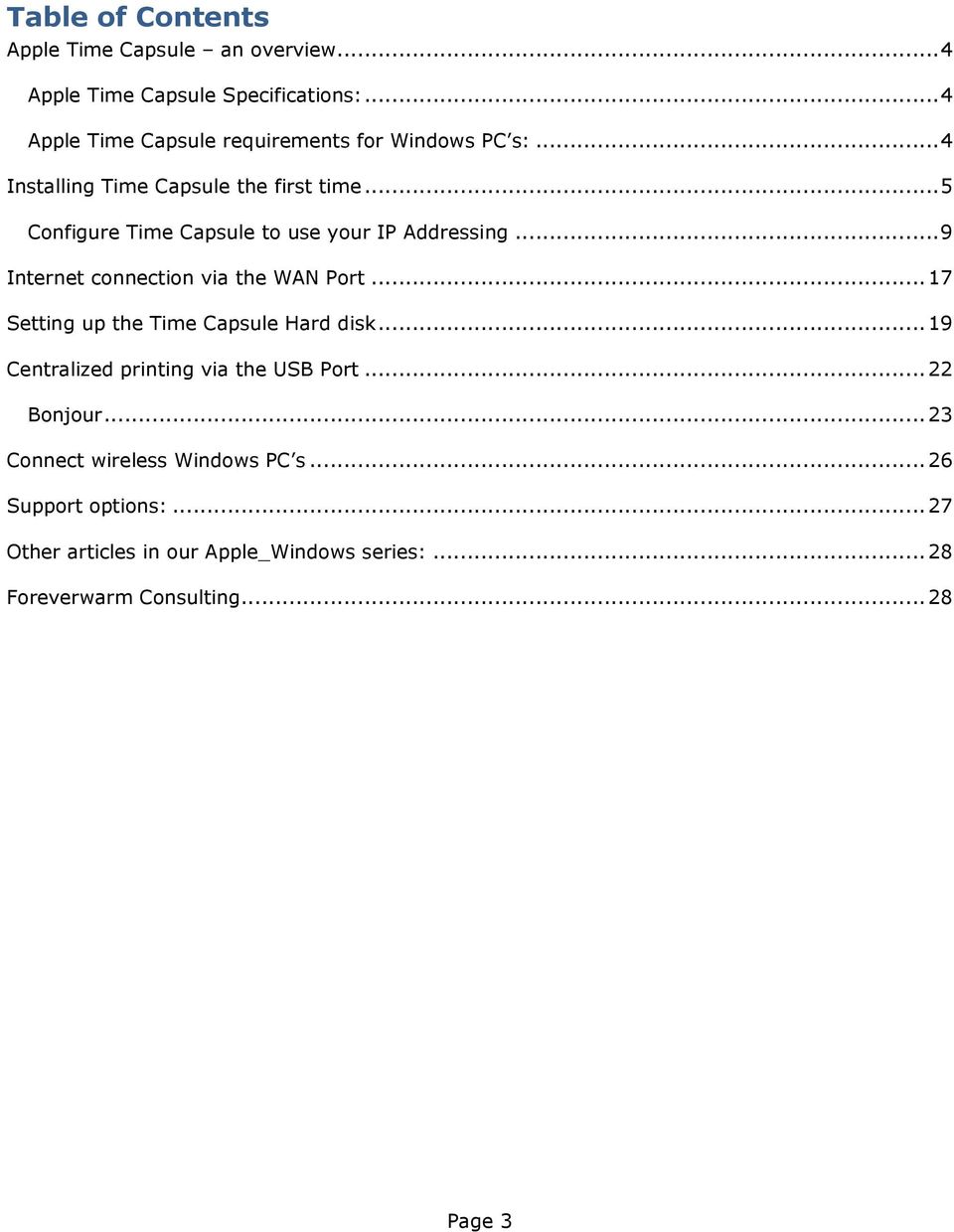
3 Table of Contents Apple Time Capsule an overview... 4 Apple Time Capsule Specifications:... 4 Apple Time Capsule requirements for Windows PC s:... 4 Installing Time Capsule the first time... 5 Configure Time Capsule to use your IP Addressing... 9 Internet connection via the WAN Port Setting up the Time Capsule Hard disk Centralized printing via the USB Port Bonjour Connect wireless Windows PC s Support options: Other articles in our Apple_Windows series: Foreverwarm Consulting Page 3
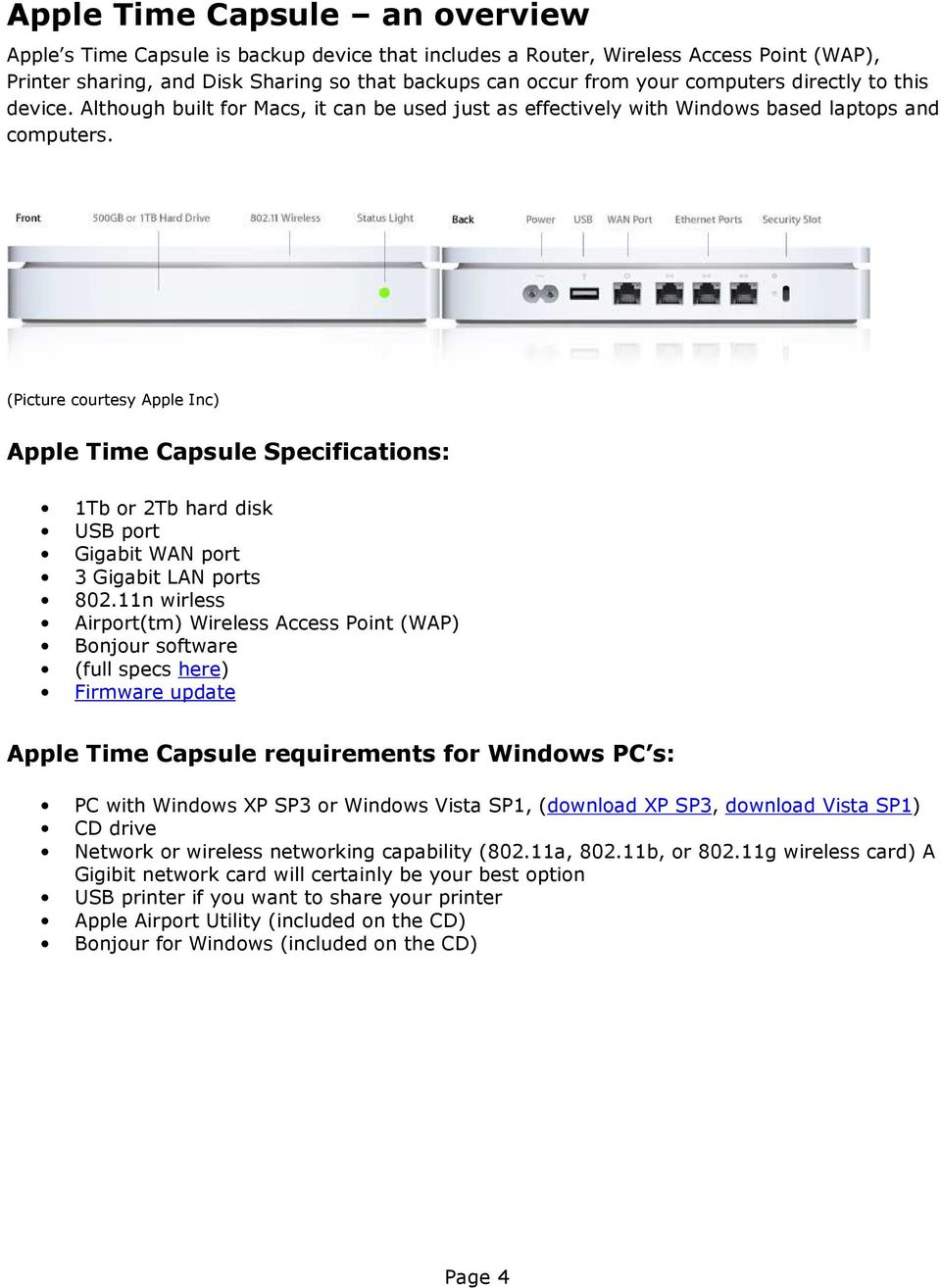
4 Apple Time Capsule an overview Apple s Time Capsule is backup device that includes a Router, Wireless Access Point (WAP), Printer sharing, and Disk Sharing so that backups can occur from your computers directly to this device. Although built for Macs, it can be used just as effectively with Windows based laptops and computers. (Picture courtesy Apple Inc) Apple Time Capsule Specifications: 1Tb or 2Tb hard disk USB port Gigabit WAN port 3 Gigabit LAN ports n wirless Airport(tm) Wireless Access Point (WAP) Bonjour software (full specs here) Firmware update Apple Time Capsule requirements for Windows PC s: PC with Windows XP SP3 or Windows Vista SP1, (download XP SP3, download Vista SP1) CD drive Network or wireless networking capability (802.11a, b, or g wireless card) A Gigibit network card will certainly be your best option USB printer if you want to share your printer Apple Airport Utility (included on the CD) Bonjour for Windows (included on the CD) Page 4
5 Installing Time Capsule the first time Here are Step-by-Step instructions for setting up Time Capsule in your Windows environment. The screen shots and instructions are Windows XP based however they apply to Vista and Windows 7 environments as well. These instructions are as if you've just taken the Time Capsule out of the box and set it up for the first time. Cabling Plug in your network cables first, then the power cable. There is no on/off switch as this device is meant to be always on. Once the Time Capsule is powered up, insert the CD that came with your Time Capsule and you will see the Airport setup screen. Click next. Page 5

6 Accept the license agreement and the information window. Select where you want the files to be installed. C:\Program Files\Airport is the default and unless you have a reason to change this, simply click Next At this last screen you can click Finish Page 6

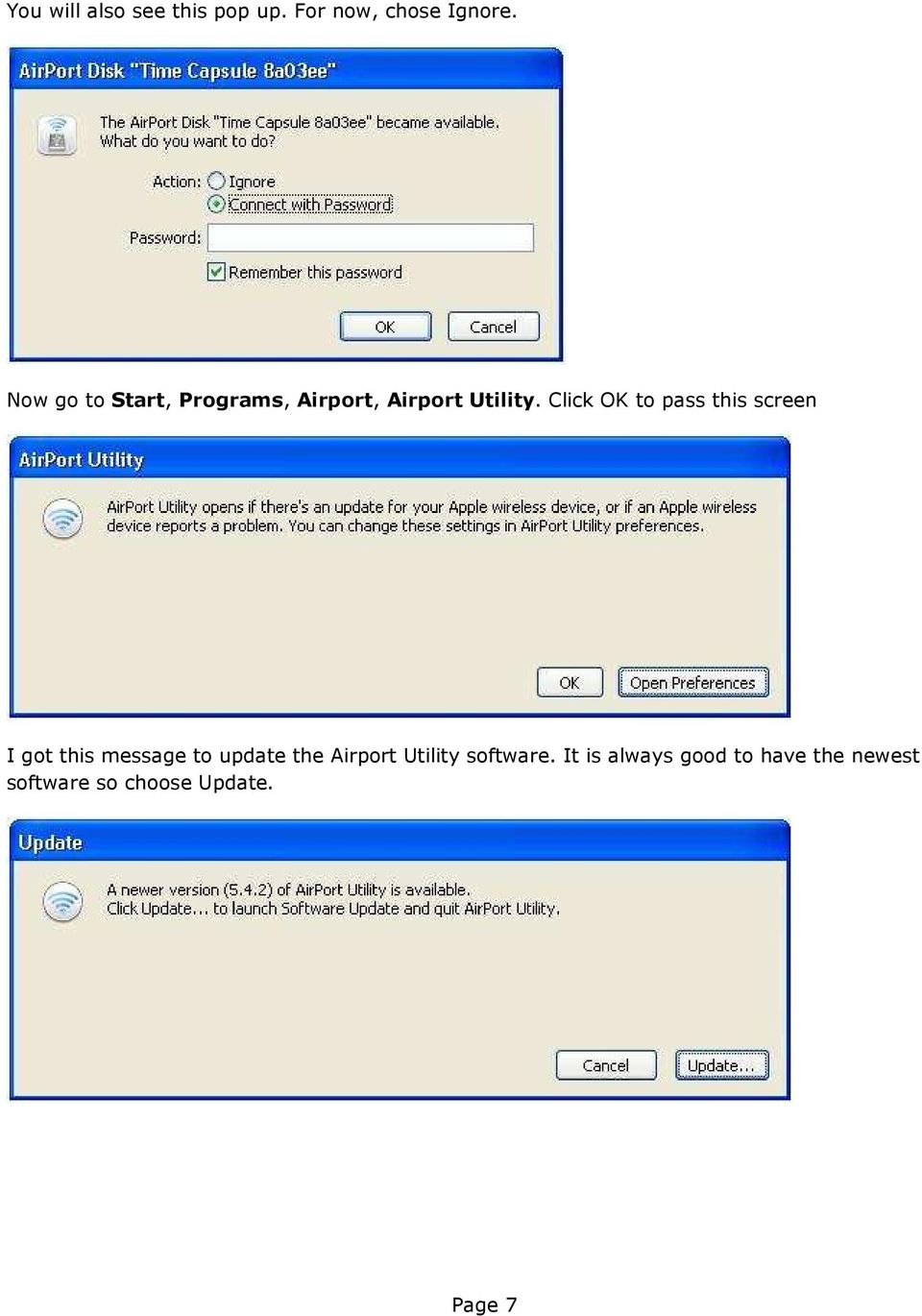
7 You will also see this pop up. For now, chose Ignore. Now go to Start, Programs, Airport, Airport Utility. Click OK to pass this screen I got this message to update the Airport Utility software. It is always good to have the newest software so choose Update. Page 7
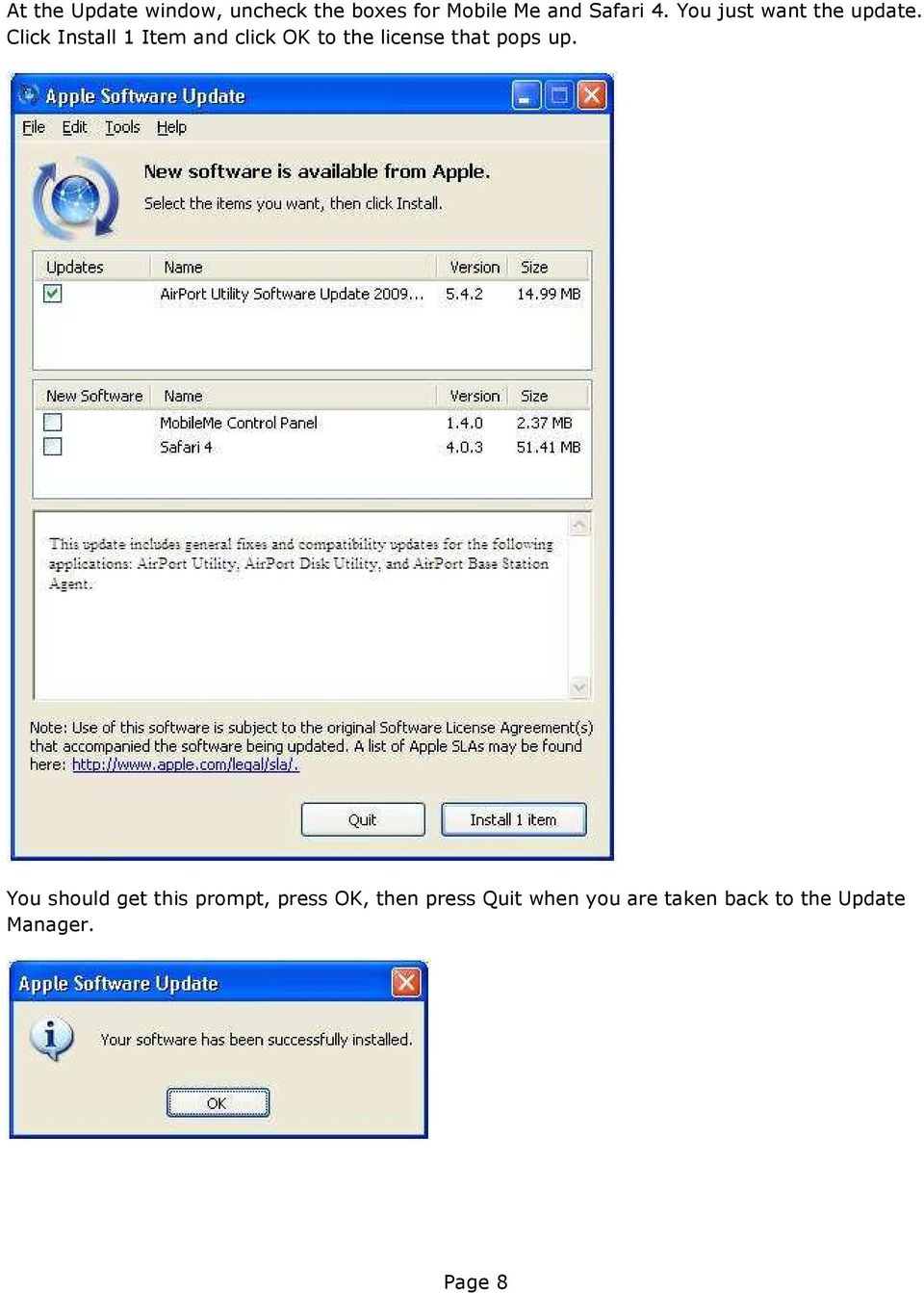
8 At the Update window, uncheck the boxes for Mobile Me and Safari 4. You just want the update. Click Install 1 Item and click OK to the license that pops up. You should get this prompt, press OK, then press Quit when you are taken back to the Update Manager. Page 8
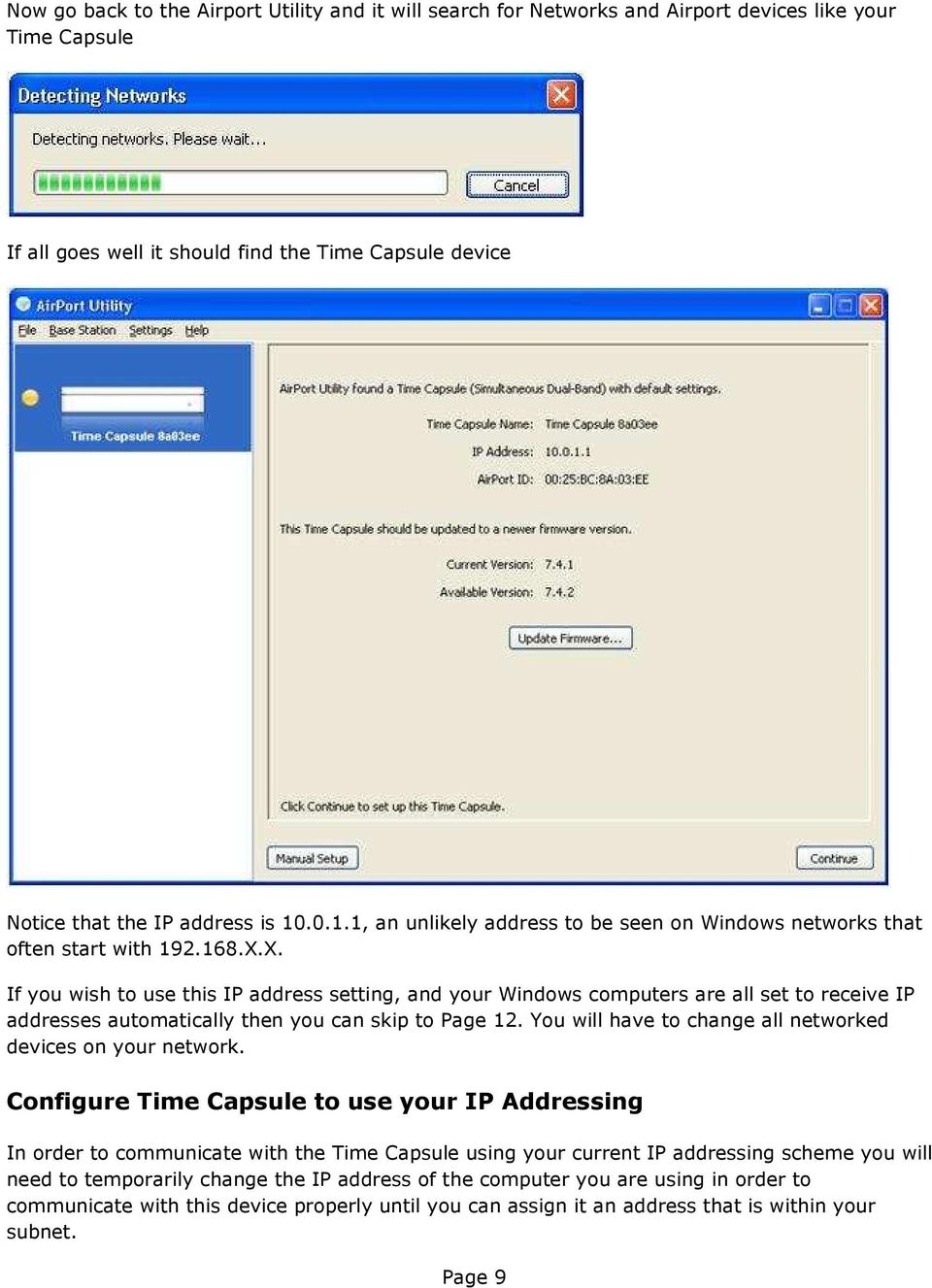
9 Now go back to the Airport Utility and it will search for Networks and Airport devices like your Time Capsule If all goes well it should find the Time Capsule device Notice that the IP address is , an unlikely address to be seen on Windows networks that often start with X.X. If you wish to use this IP address setting, and your Windows computers are all set to receive IP addresses automatically then you can skip to Page 12. You will have to change all networked devices on your network. Configure Time Capsule to use your IP Addressing In order to communicate with the Time Capsule using your current IP addressing scheme you will need to temporarily change the IP address of the computer you are using in order to communicate with this device properly until you can assign it an address that is within your subnet. Page 9
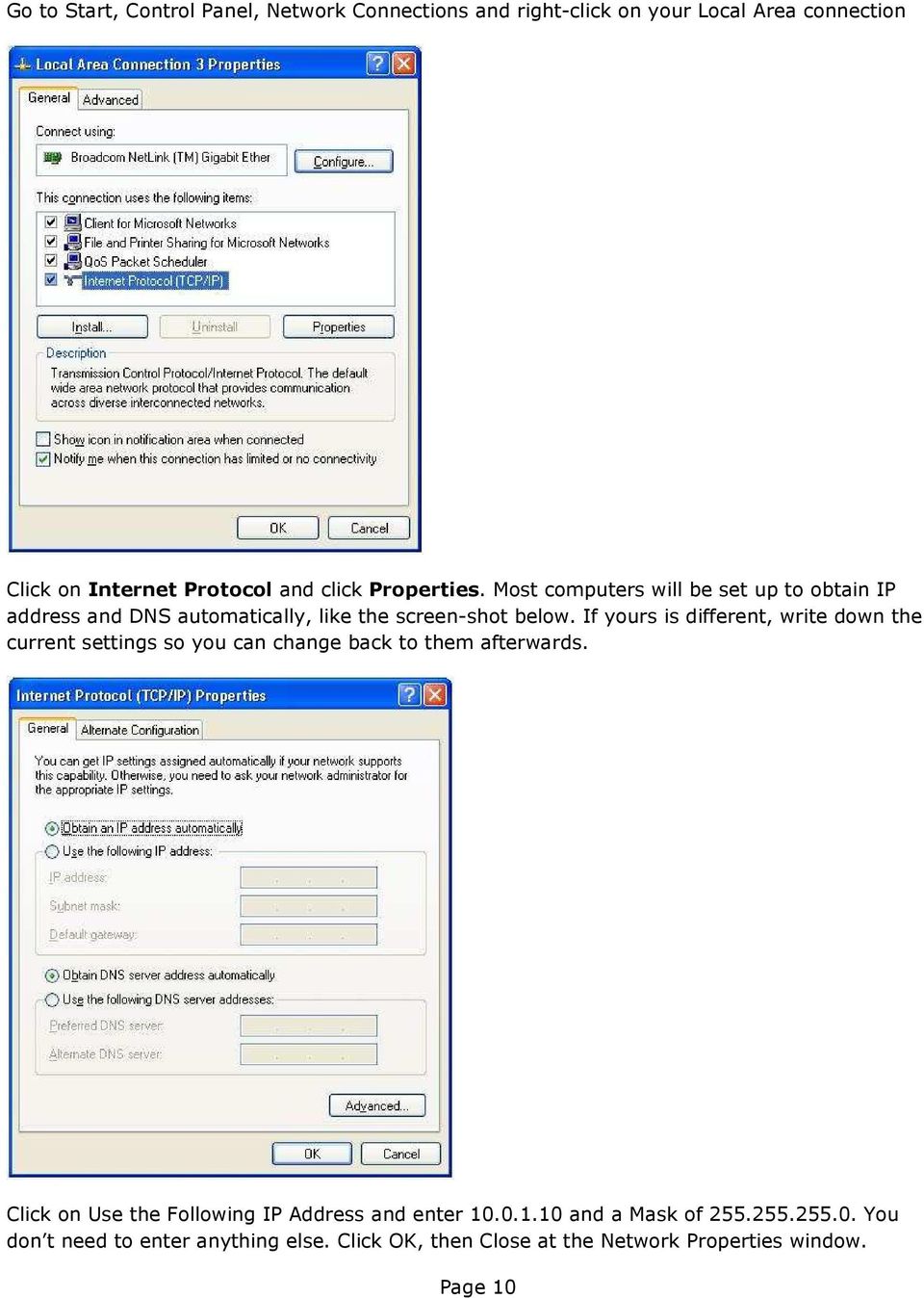
10 Go to Start, Control Panel, Network Connections and right-click on your Local Area connection Click on Internet Protocol and click Properties. Most computers will be set up to obtain IP address and DNS automatically, like the screen-shot below. If yours is different, write down the current settings so you can change back to them afterwards. Click on Use the Following IP Address and enter and a Mask of You don t need to enter anything else. Click OK, then Close at the Network Properties window. Page 10
11 NOTE: You will not be able to see any other devices or the Internet during this phase! Now go back to the Airport Utility and update the Time Capsule firmware by clicking Update Firmware Click continue at the popup shown below and select Do not show this warning again if you re comfortable with knowing the Time Capsule will go offline temporarily each time you update the settings. Page 11
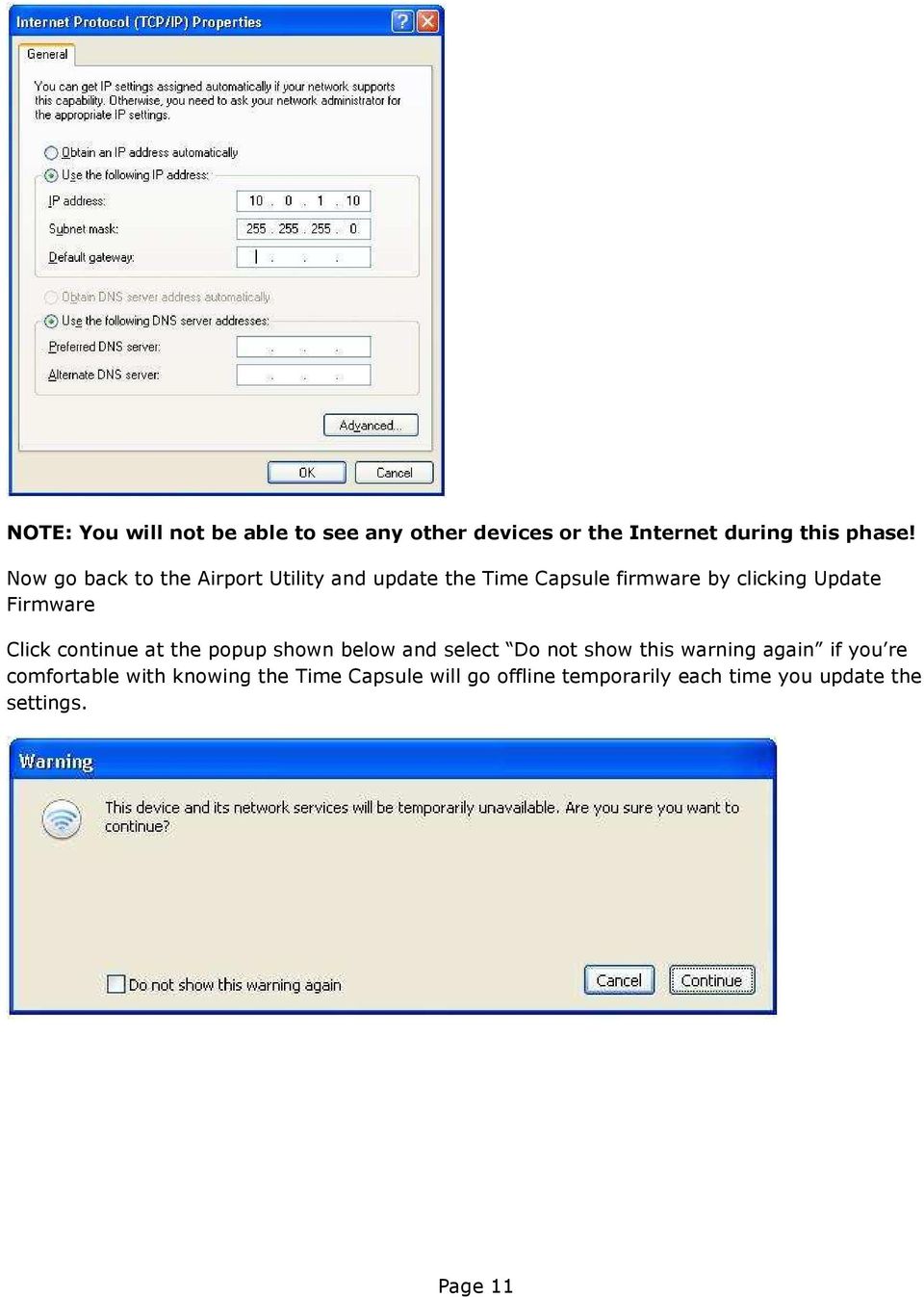
12 Again if all goes well you should now see the following screen, click Continue Note: At Foreverwarm we always assign a static IP to devices other than desktops, using a standard addressing map. We like to assign a wireless device using.11 as the forth octet (eg ). If you re ok to let the network assign the IP address automatically you can skip this section. Page 12
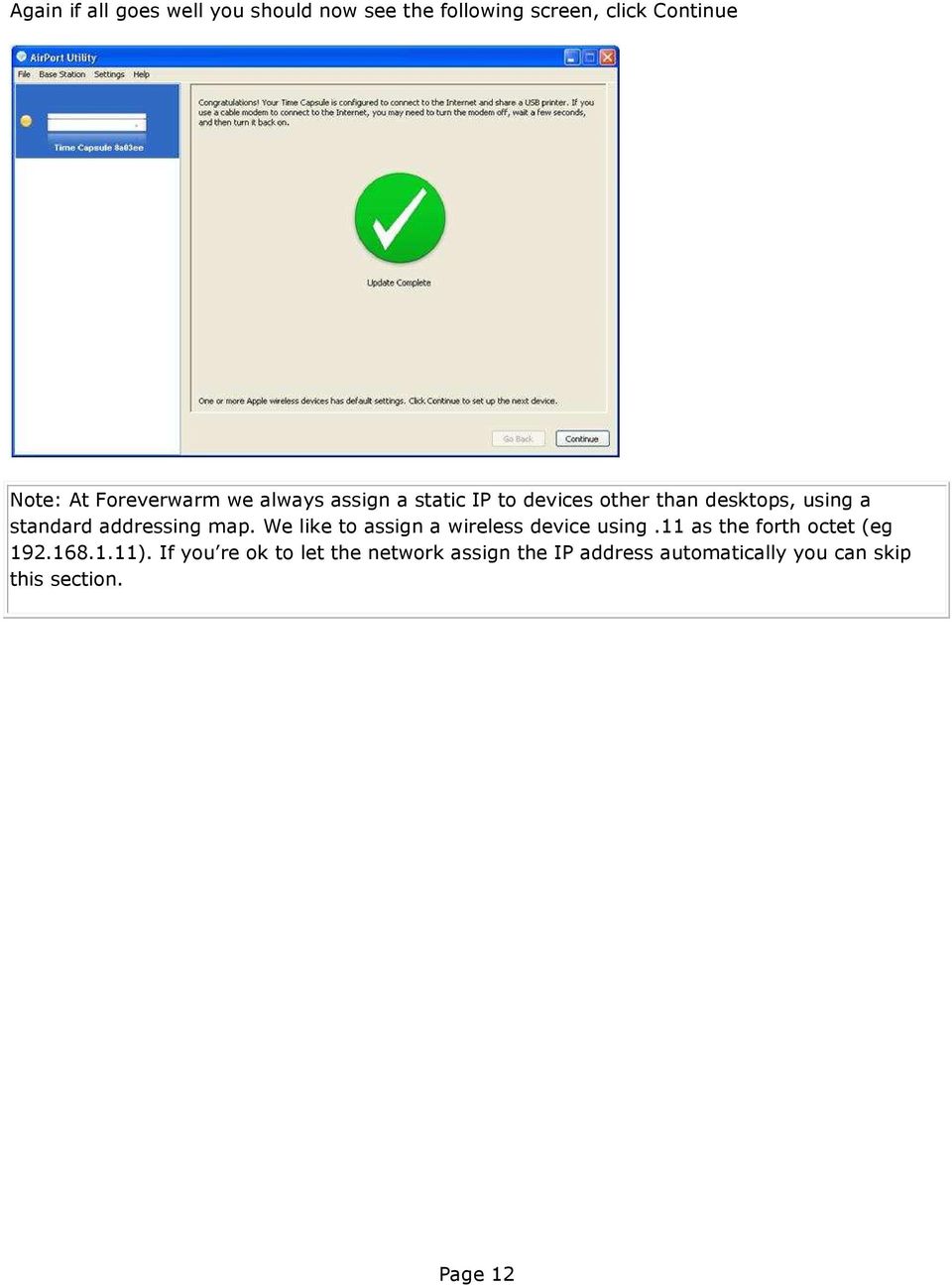
13 Now let s change the IP Address to match the network you are working on. Click Manual Setup. (If you are not performing a manual setup, leave IPv4 to DHCP) Click the Internet icon at the top, then under the Internet Connection tab change Configure IPv4 to Manually. Enter an IP address that is unused on your network and the appropriate mask (probably ). If you are not using this as your router, then add your router address and DNS server (usually either your internal server or the router IP). Then click Update Page 13
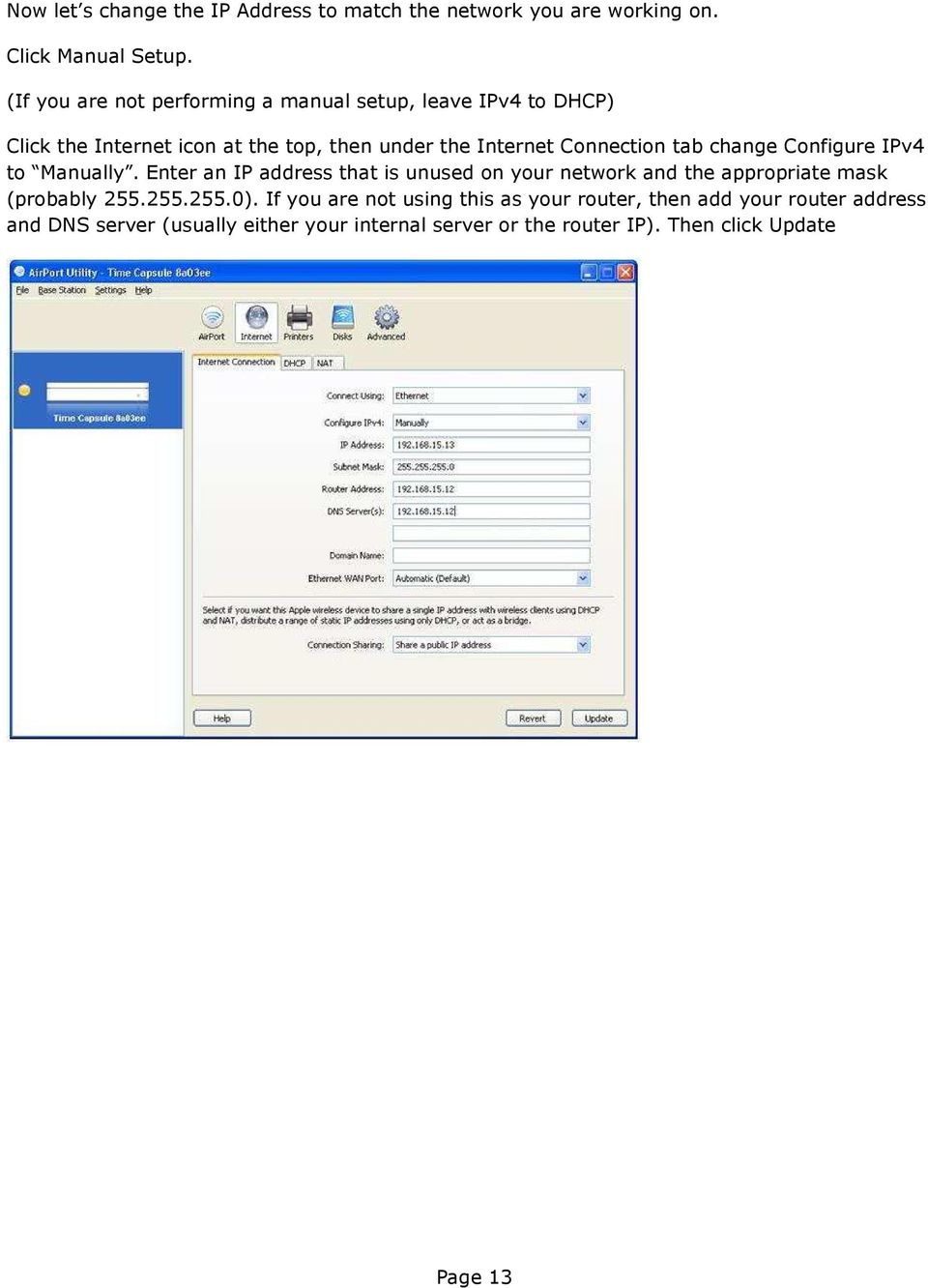
14 Change the default password to your network standard or something you can remember. Click the SNMP over WAN and uncheck Allow SNMP over WAN Page 14
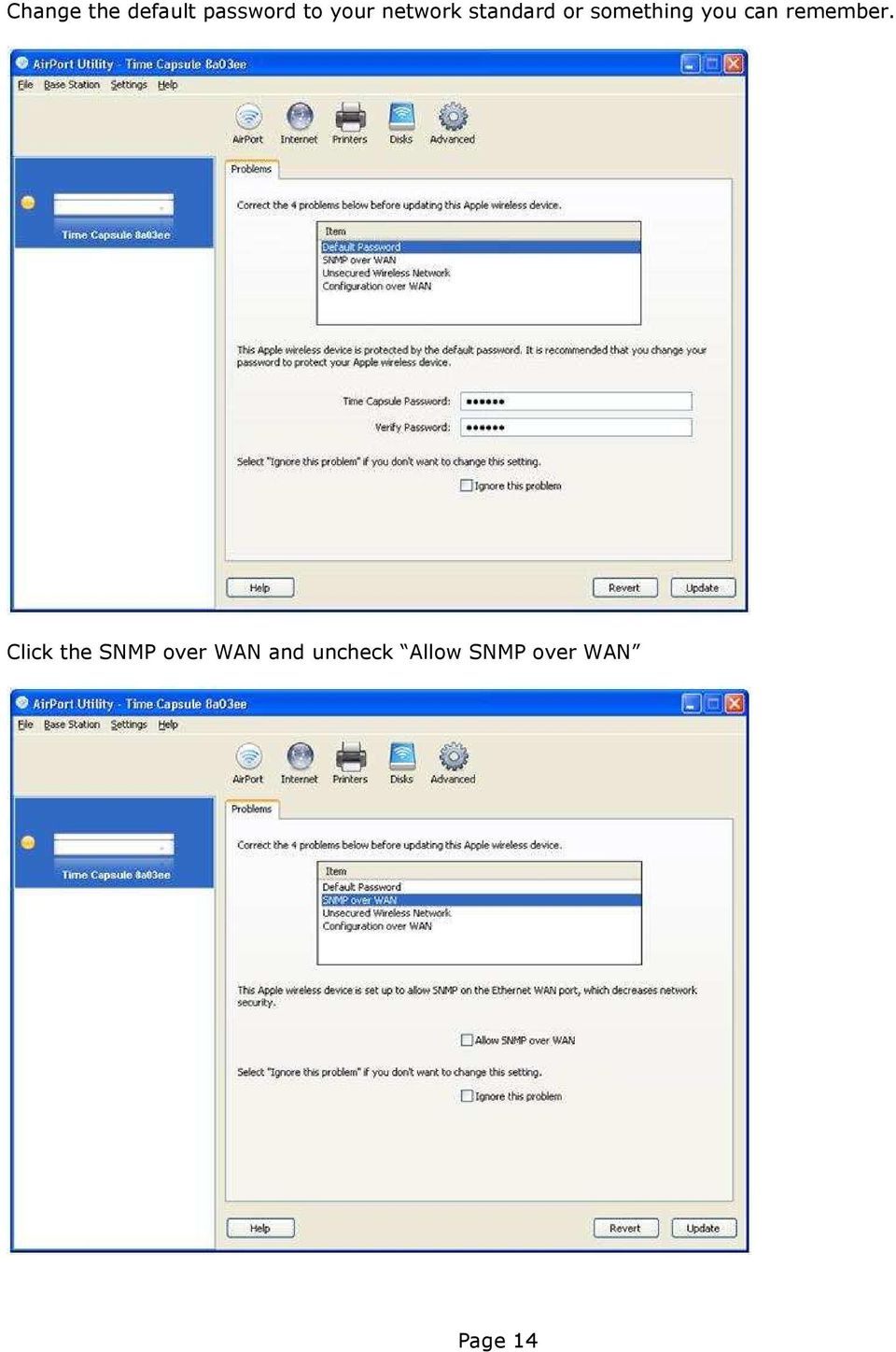
15 Click Unsecured Wireless Network and click Change Security. This will take you to the Wireless Tab. Make the appropriate changes and click Update. I would at least change the default Wireless Network Name (usually referred to as the SSID) and select a wireless security option such as WPA2 Personal. This takes you back to the problems page, with the last issue being the ability to configure the device over the WAN or Internet. If this is for a home then I would uncheck the box, however for small business with external technical support such as Foreverwarm does (and this device being used as a router) this needs to be enabled. Just make sure the administrative password has been changed and the technician knows what it is. Page 15

16 If you choose to allow Configuration over WAN then you must also check the box to Ignore this problem. Now you will need to change your IP address back to what it was before, under Network Properties, in order to communicate with the Time Capsule again. You should now be able to connect to the wireless portion of the Time Capsule, and the light on the front of the Time Capsule should be green. If not you need to go back to the Utility and fix whatever problems exist. Page 16


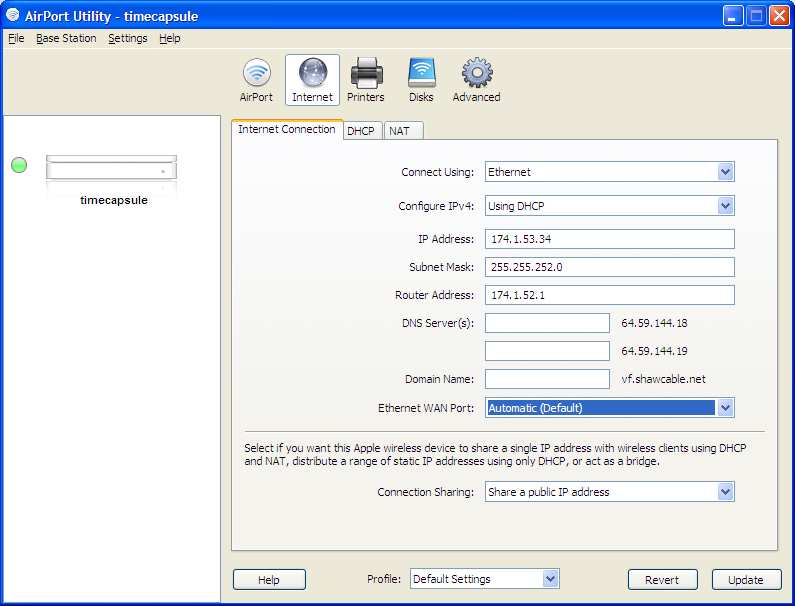
17 Internet connection via the WAN Port Time Capsule is a multi-function device that is meant to replace your router and external hard drive. IT can become your router so that all your office or home computers can share the Internet connection. Instructions: The Time Capsule will most likely detect and attach to your Internet connection automatically. If not, connect your DSL or cable modem to the Ethernet WAN port on your Apple Time Capsule and perform a Base Station, Restart. TIP: You may also need to restart your Internet modem if you received one from your Internet provider. If so, then restart the Time Capsule first and the Internet modem afterwards. When you open up the AirPort Utility and select your Time Capsule, then the Internet Icon, you should see the pre-populated numbers that the Time Capsule received via your Internet Connection. Page 17
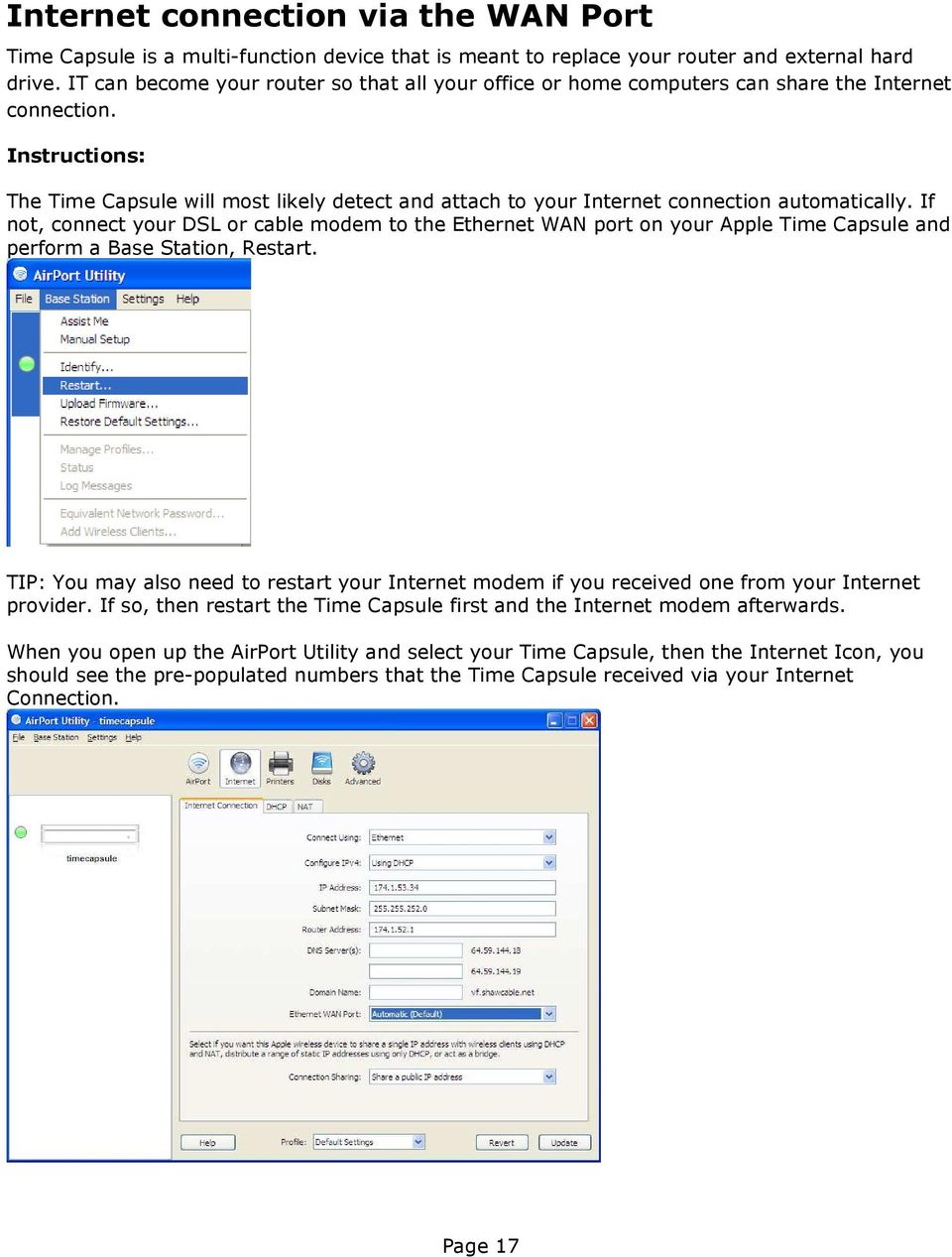
18 If your Internet connection does not use DHCP (most home and small businesses do), change Configure IPv4 to Manual. Then add the IP numbers for your connection, Subnet, Gateway (which Time Capsule calls the Router Address), and DNS, and reset the Time Capsule. Unless specifically requested to do so by your Internet provider, DO NOT change the Ethernet WAN Port speed settings. Page 18
19 Setting up the Time Capsule Hard disk From the Airport Utility, select the Airport Icon and the Time Capsule tab. Change the Time Capsule name to something that makes sense, or follow your network standards. Now move to the Disks Icon and the File Sharing tab. Change Secure Shared Disks to With a device password and enter the password. Enter your Workgroup name, you can find this by right-clicking on My Computer, selecting properties and then the Computer Name tab. Your workgroup will show on this page. Enter your WINS server name or IP address, if you have one, and click Update If you are mapping a drive from the computer that is running the Airport Utility, select the Airport Base Station agent on your task bar and click the name of your Time Capsule. Under Action select Connect with Password, put in your password and click the Remember this password box. Click OK. Page 19

20 From any other computer, go to My Computer and in the address bar enter \\{time capsule name} (eg: \\timecapsule.local) Don t forget to put the.local at the end or you may not be able to see the Time Capsule. At the username/password prompt, enter the username admin and the password you used for Disks access. You should now see the empty Data drive Page 20

21 If you want to map to this drive directly, right-click on it and select Map Network Drive. Be sure to select Connect using a different username and enter the username/password you used to get to the Time Capsule, in the format timecapsulename\username and your password. If you ve made it this far, CONGRATULATIONS! If something didn t go right and the Time Capsule is unavailable, check some of the support options shown below or leave a comment on the website Page 21
22 Centralized printing via the USB Port Plug your printer USB cable into the USB port on the back of the Apple Time Capsule and you can now share that printer throughout your network. This means it is now available from all Windows computers. Note: Multifunction printer/scanner/fax devices will NOT work through the Time Capsule. Instructions: Open up the Airport Utility and click on Manual Setup for your device Click on the Printers icon. You notice that USB Printer shows as <None Found> Attach your printer USB cable to the back of the Time Capsule, then power up your printer. My HP Deskjet did not show as recognized until I clicked the time capsule device on the left and selected Manual again. Page 22
23 Assign a name to the printer DO NOT select Share printers over WAN, or Share printers over the Internet using Bonjour. This is a security risk and this printer is for your internal office only. Click update, and even though it says you don t need to, perform an update and restart. Go back and make sure the printer still shows as recognized. Bonjour Once a printer is recognized on the Time Capsule you will need to create a connection to it from every Windows PC that will use it. If you haven t already done so, install Bonjour from the Apple CD to every computer. Once installed, start the Bonjour Printer Wizard Click next and you should see your shared printer on the list, click Next Page 23

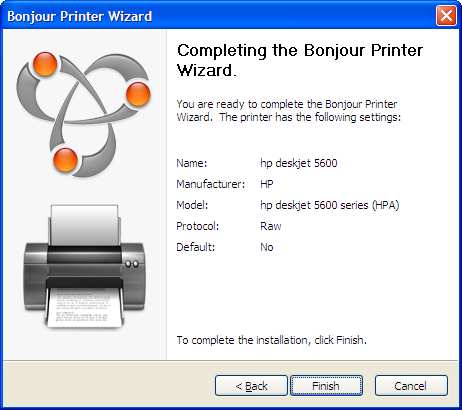
24 Select the printer driver automatically selected, if it is correct, or click Have Disk to install the drivers from another source. At the final screen click Finish Now, if you go to your Printers and Faxes area in Windows you see the shared printer. If you are in the List Details view then you will see the location is your Time Capsule. Page 24
25 Congratulations! You can now print via the Apple Time Capsule! Page 25
26 Connect wireless Windows PC s Any wireless computers should now be able to connect to the Time Capsule using the password you set up. Right-click your wireless connection in your Task Tray, or your Wireless Connection under Network Connections, and select View Available Wireless Connections. Select your Time Capsule wireless network from the list and press Connect. Enter the wireless password you set up. Any computers that do not have a wireless connection should be cabled directly to the back of the Time Capsule, or if you have more than three networked devices you will need to attach a network switch to one of the LAN ports on the back of the Time Capsule. Congratuations! Your Apple Time Capsule has now become the central hub of your Windows network. Page 26
27 Support options: Selecting a previous version of Time Capsule firmware: 1. Open AirPort Utility 2. From the AirPort Utility menu, hold Control key in Windows XP and Vista) and choose Check for Updates Select the specific firmware version you require. 4. Click Download. 5. Select your base station and choose Manual Setup from the Base Station menu, or doubleclick on the AWD icon. 6. Choose Base Station > Upload Firmware. 7. Select a firmware version and click OK. Here's Apple's official support page for the Time Capsule (Note: these are of course based on the Mac OS): Setting up Time Capsule for the first time Backing up with Time Capsule for the first time Time Capsule: initial backup is interrupted Restoring files from a backup Here's some other places you can go if your run into problems. Start by downloading the newest firmware: Firmware update Try Apple's Support Forum for the Time Capsule. Reviewthe Time Capsule User Manual. Go to an Apple store (find one Here) and talk to a Genius, or have an Apple Expert call you. (Realize though that they will usually be Mac focused) TIP: Grant Conners also adds: If you have followed this tutorial but still cannot access your Time Capsule s hdd, try setting your WINS server to the ip address of your TC. This can be done by: Click on the Start button; Click on Network Connections ; Select your wireless network device; (or your wired network card if you are using an ethernet connection) Click on the Internet Protocol TCP/IP Properties; Click on the Advanced tab; Then click on the WINS tab. Enter IP address of your TC Hit Ok, Ok, Ok. You should now see your TC under My Computer Until I changed this setting in Windows XP, I could not use the TC as a networked drive. Page 27
28 Other articles in our Apple_Windows series: How to setup Activesync on your iphone or ipod Touch How to use AppleTV with Windows Foreverwarm Consulting Foreverwarm Consulting is a full-service IT services provider based out of Vancouver, Canada. We provide peace of mind to small businesses with 2 to 25 computer through both onsite and Virtual Remote technical support. Additionally we provide self-manageable websites and maintain an ever expanding blog of technical articles, news, and how-to s. In our spare time we host and coordinate wine tastings and samplings with good friends. We hope that this article has helped you and provided value. If you have any questions or suggestions for future articles please contact us by . FOREVERWARM CONSULTING INC 551 Austin Avenue, Coquitlam, BC V3K 6R [email protected] Website: Blog: Page 28
1. Hardware Installation
 4 Port 10/100M Internet Broadband Router with USB Printer server Quick Installation Guide #4824904AXZZ0 1. Hardware Installation A. System Requirement Before you getting started, make sure that you meet
SATO Network Interface Card Configuration Instructions
 SATO Network Interface Card Configuration Instructions Table of Contents 1. Reset of wired/wireless interface card... 3 2. Installing the All-In-One Utility (recommended)... 4 3. Configuring wired/wireless
Setting Up Your FTP Server
 Requirements:! A computer dedicated to FTP server only! Linksys router! TCP/IP internet connection Steps: Getting Started Configure Static IP on the FTP Server Computer: Setting Up Your FTP Server 1. This
CMP-102U. Quick Installation Guide
 CMP-102U Quick Installation Guide V1.0 http://www.cnet.com.tw 1 CMP-102U Supports One High-speed USB2.0 Port MFP Server Supports 10/100Mbps Fast Ethernet Network Quick Installation Guide 1 Package Contents:
STATIC IP SET UP GUIDE VERIZON 7500 WIRELESS ROUTER/MODEM
 STATIC IP SET UP GUIDE VERIZON 7500 WIRELESS ROUTER/MODEM Verizon High Speed Internet for Business Verizon High Speed Internet for Business SETTING UP YOUR NEW STATIC IP CONNECTION AND IP ADDRESS(ES) This
Using a simple crossover RJ45 cable, you can directly connect your Dexter to any computer.
 Dexter is a network device using the Ethernet protocol to connect and communicate with other devices on the network: Computers, routers, DHCP servers. Thus you have to setup your Dexter and your network
Contents. Section A Networking Basics... 1. 1 Learning the Basics... 3. Section B Wired Ethernet Networking... 17
 Contents Section A Networking Basics...................................... 1 1 Learning the Basics............................................. 3 Selecting a network connection........................................
NetLINE Wireless Broadband Gateway
 NetLINE Setup Guide Farallon s NetLINE connects to your cable/dsl modem, allowing computers on your local wired and wireless networks to share a single broadband connection to the Internet. This Setup
2 Setting Up the Hardware for a Wired Ethernet Network... 13. 3 Setting Up the Software for an Ethernet Network... 21
 Contents 1 Networking Basics............................................... 1 Selecting a network connection........................................ 2 Wired Ethernet network...........................................
Quick Start Guide. RV 120W Wireless-N VPN Firewall. Cisco Small Business
 Quick Start Guide Cisco Small Business RV 120W Wireless-N VPN Firewall Package Contents Wireless-N VPN Firewall Ethernet Cable Power Adapter Quick Start Guide Documentation and Software on CD-ROM Welcome
Wireless G Broadband quick install
 Wireless G Broadband Router quick install guide Model 503693 INT-503693-QIG-0608-02 Thank you for purchasing the INTELLINET NETWORK SOLUTIONS Wireless G Broadband Router, Model 503693. This quick install
Actiontec GT784WN Router
 Table of Contents General Information...1 Verify Computer Settings...1 Router Installation...3 Configuring Your Router...3 Configuring Your Computer...7 Configuring Your Email...9 General Information Router
Omni 56K USB Lite Quick Start Guide
 Omni 56K USB Lite Quick Start Guide ZyXEL TOTAL INTERNET ACCESS SOLUTION 1. Hardware Installation Connect your modem to your analog phone or fax. Use the phone cord included to connect to the phone jack
STATIC IP SET UP GUIDE
 STATIC IP SET UP GUIDE VERIZON D-LINK 2750B & ACTIONTEC GT784 WNV WIRELESS GATEWAY Verizon High Speed Internet for Business Verizon High Speed Internet for Business YOUR NEW STATIC IP CONNECTION AND SET
Model:BL-WDR3750 750Mbps Wireless Dual Band 11AC Router
 Quick Installation Guide Model:BL-WDR3750 750Mbps Wireless Dual Band 11AC Router 1.Connecting the device Note: Please use wired network connections only to configure the Router. 1 Connect the WAN port
ENPS-MF1. 1 USB Port. Multifunctional Print Server. Quick Installation Guide V1.0
 ENPS-MF1 1 USB Port Multifunctional Print Server V1.0 Specifications or features are subject to change without prior notice. All brand names or trademarks are the property of their respective owners. Packing
Network Setup Guide. Introduction. Setting up for use over LAN
 Network Setup Guide This manual contains the setup information required to use the machine over wired LAN. If you use the machine with USB connection, refer to your setup sheet. Introduction To use the
Prestige 623R-T. Quick Start Guide. ADSL Dual-link Router. Version 3.40
 Prestige 623R-T ADSL Dual-link Router Quick Start Guide Version 3.40 February 2004 Introducing the Prestige The Prestige 623R-T ADSL Dual-link Router is the ideal all-in-one device for small networks connecting
Software Installation Guide
 Software Installation Guide This manual explains how to install the software over a USB or network connection. Network connection is not available for models SP 200/200S/203S/203SF/204SF. To manually configure
UBIQUITI BRIDGE CONFIGURATION PROCEDURE (PowerStation & NanoStation Units ONLY)
 UBIQUITI BRIDGE CONFIGURATION PROCEDURE (PowerStation & NanoStation Units ONLY) Hardware Installation 1. Initial placement for programming and configuration purposes should be performed in an indoor environment.
User s Manual. Copyright 2010 Vantec Thermal Technologies. All Rights Reserved.
 Copyright 2010 Vantec Thermal Technologies. All Rights Reserved. User s Manual Package Contents: 1 NextStar FX Gigabit NAS Adapter x1 2 AC Adapter x1 3 Installation Guide x1 4 Rubber Feet x4 5 User s CD
You may refer the Quick Installation Guide in the package box for more information.
 Hardware Installation: 1. Turn off your modem. 2. Use one Ethernet cable to connect your modem to WAN port (Blue) port of BR-6228nC. 3. Use another Ethernet cable to connect your PC to one LAN Port (Yellow)
Chapter 2 Preparing Your Network
 Chapter 2 Preparing Your Network This document describes how to prepare your network to connect to the Internet through a router and how to verify the readiness of your broadband Internet service from
Prestige 314 Read Me First
 Prestige 314 Read Me First Console WAN 10M PORT Prestige Rear Panel Connections CONNECTION Use an RS-232 console cable. Use the cable that came with your broadband modem. LAN 10/100M Port Number COMPUTER
Exploring the world of Canon EOS photography. EOSmagazineQ. from July-September 2009. Wireless world Communication without cables
 Exploring the world of Canon EOS photography EOSmagazineQ from July-September 2009 Wireless world Communication without cables Technique Wireless Transmitters DIGITAL 00-00 Wireless world Canon s wireless
P-2612HNU-Fx. 802.11n ADSL2+ VoIP IAD DEFAULT LOGIN DETAILS. Firmware V3.00 Edition 1, 1/2010. Password: 1234 User Name: admin Password: 1234
 P-2612HNU-Fx 802.11n ADSL2+ VoIP IAD Firmware V3.00 Edition 1, 1/2010 DEFAULT LOGIN DETAILS IP Address: User Login: Administrator Login: http://192.168.1.1 User Name: user Password: 1234 User Name: admin
Internet Guide. Prepared for 55 John Street
 Internet Guide Prepared for 55 John Street I. Internet Service How do I connect to the Internet? WiFi (Wireless Connectivity) is available throughout the building. In order to connect, you will need a
Turn off all of your network devices, including your computer, Modem and the Router.
 Note The product model shown in this part is TL-R460, as an example. Turn off all of your network devices, including your computer, Modem and the Router. Connect the WAN port on your Router to the Modem
TL-PS310U Single USB 2.0 Port MFP and Storage Server
 TL-PS310U Single USB 2.0 Port MFP and Storage Server Rev: 2.0.0 1910010313 Contents Chapter 1 Introduction... 1 1.1 Product Overview...1 1.2 Network Management...1 1.3 Components and Features...1 1.4 Hardware
Please use only wired network connections to configure the Router.
 Note Please use only wired network connections to configure the Router. Power down all of your network devices, including your computer(s) and the Modem Router. If you currently use a modem, disconnect
Please use only wired network connections to configure the router.
 Note Please use only wired network connections to configure the router. Connect the WAN port on your Router to the Modem s LAN port with an Ethernet cable. Note If connecting the TL-WR543G to the WISP
Connecting the DG-102S VoIP Gateway to your network
 Contents of Package: DG-102S VoIP Station Gateway Power adapter CD-ROM, including User s Manual Quick Install Guide Requirements: RS-232 Console Cable Two RJ-45 CAT-5 Straight-Through Cables For more information
Prestige 660R-6x Read Me First
 Prestige 660R-6x Read Me First Prestige Rear Panel Connections DSL PORT CONNECTION Connect the DSL port on the Prestige to the wall jack using the included DSL cable (telephone wire). Connect the micro
DI-634M. Check Your Package Contents. This product can be set up using any current web browser, i.e., Internet Explorer 6 or Netscape Navigator 7.
 This product can be set up using any current web browser, i.e., Internet Explorer 6 or Netscape Navigator 7. DI-634M 108G MIMO Wireless Router Before You Begin 1. If you purchased this router to share
Using Cisco UC320W with Windows Small Business Server
 Using Cisco UC320W with Windows Small Business Server This application note explains how to deploy the Cisco UC320W in a Windows Small Business Server environment. Contents This document includes the following
NOTICE. All brand and product names are the trademarks of their respective owners. Copyright 2011 All rights reserved.
 X7N USER MANUAL NOTICE This document contains proprietary information protected by copyright, and this Manual and all the accompanying hardware, software, and documentation are copyrighted. No part of
DSL Self-install Kit Instructions
 DSL Self-install Kit Instructions Cover and installation notes Page 1 1. Verify your system requirements Page 2 2. Verify the contents of your DSL Self-Install kit Page 2 3. Install filters on your telephone
Configuring NXT Hardware with Mercury Inside into Doors.NET TM Application Note
 1.0 Installing the Mercury SCP Gateway The MSC/SCP gateway must be installed to interface with Mercury hardware. This gateway must be chosen during the installation of the software, or it can be added
c. Securely insert the Ethernet cable from your cable or DSL modem into the Internet port (B) on the WGT634U. Broadband modem
 Start Here Follow these instructions to set up your router. Verify That Basic Requirements Are Met Assure that the following requirements are met: You have your broadband Internet service settings handy.
Configuring a BEC 7800TN Wireless ADSL Modem
 Configuring a BEC 7800TN Wireless ADSL Modem Setting Up the PC Logging into BEC Configuring Wireless Setup Setup Static IP Setup Main Port Finished Firmware Update ATTENTION! Before the modem is programmed
Prestige 650R-31/33 Read Me First
 Prestige 650R-31/33 Read Me First Prestige Rear Panel Connections PORT DSL CONSOLE LAN 10/100M POWER Connect to a telephone jack using a telephone wire. CONNECTION Connect to a serial port (COM port) on
Designing AirPort Extreme Networks
 Designing AirPort Extreme Networks Contents 1 Getting Started 5 About AirPort 5 How AirPort Works 6 How Wireless Internet Access Is Provided 6 Configuring AirPort Extreme Base Station Internet Access
Linksys E2500 Wireless-N Router Configuration Guide
 Linksys E2500 Wireless-N Router Configuration Guide Revision 1.0 Copyright 2012 Maretron, LLP All Rights Reserved Maretron, LLP 9014 N. 23 rd Ave #10 Phoenix, AZ 85021-7850 http://www.maretron.com Maretron
DNS-312H Network Attached Storage
 This product can be set up using any current web browser, i.e., Internet Explorer 5x, and Netscape Navigator 4x or above. DNS-312H Network Attached Storage Before You Begin 1. If you purchased this storage
Networking. General networking. Networking overview. Common home network configurations. Wired network example. Wireless network examples
 Networking General networking Networking overview A network is a collection of devices such as computers, printers, Ethernet hubs, wireless access points, and routers connected together for communication
BT Business Total Broadband Fibre User Guide
 BT Business Total Broadband Fibre User Guide Fibre Contents Learn about 4 Your Fibre Hub and BT Business Total Broadband Fibre service. Extra features 7 Setting up extra features once you re online security,
Internet for Everyone In-Room Instructions January 2011 Version 1.3
 Internet for Everyone In-Room Instructions January 2011 Version 1.3 Everywhere Internet 2006 Page 1 of 17 Connecting your computer to the Everywhere Internet network in your room 1. You need a network
Iomega Home Media Network Hard Drive
 Page 1 of 75 Iomega Home Media Network Hard Drive Iomega, the stylized "i" logo, and all Iomega brand blocks are either registered trademarks or trademarks of Iomega Corporation in the United States and/or
Linksys Gateway SPA2100-SU Manual
 Linksys Gateway SPA2100-SU Manual Manuel de l'utilisateur Table of Contents Looking for Basic Setup Instructions?... 3 Most Recent Version of this Manual... 3 Advanced Setup Instructions... 4 Wiring Your
USER GUIDE AC2400. DUAL BAND GIGABIT Wi Fi ROUTER. Model# E8350
 USER GUIDE AC2400 DUAL BAND GIGABIT Wi Fi ROUTER Model# E8350 Table of Contents Product overview E8350..................................... 1 Setting Up Your E-Series Router Where to find more help.........................
DSL Installation Guide
 DSL Installation Guide Thank you for choosing Integra Telecom s DSL service! Introduction This guide will walk you through the DSL installation process and will help you configure a computer to access
Network Storage Link
 A Division of Cisco Systems, Inc. WIRED Network Storage Link for USB 2.0 Disk Drives User Guide Model No. NSLU2 Copyright and Trademarks Specifications are subject to change without notice. Linksys is
Prestige 324. Prestige 324. Intelligent Broadband Sharing Gateway. Version 3.60 January 2003 Quick Start Guide
 Prestige 324 Intelligent Broadband Sharing Gateway Version 3.60 January 2003 Quick Start Guide 1 Introducing the Prestige The Prestige is a broadband sharing gateway with a built-in four-port 10/100 Mbps
Frequently Asked Questions
 FAQs Frequently Asked Questions Connecting your Linksys router to the Internet 1 What computer operating systems does my Linksys router support? 1 Why can t I connect my computer or device to my router?
Prestige 324 Quick Start Guide. Prestige 324. Intelligent Broadband Sharing Gateway. Version V3.61(JF.0) May 2004 Quick Start Guide
 Prestige 324 Intelligent Broadband Sharing Gateway Version V3.61(JF.0) May 2004 Quick Start Guide 1 1 Introducing the Prestige The Prestige is a broadband sharing gateway with a built-in four-port 10/100
Static Business Class HSI Basic Installation NETGEAR 7550
 Static Business Class HSI Basic Installation Table of Contents Multiple LAN Support... 3 Full BHSI Install Summary... 7 Physical Connections... 8 Auto Configuration... 9 Auto Configuration... 9 Gateway
Software Installation Guide
 Software Installation Guide This manual explains how to install the software over a USB or network connection. Network connection is not available for models SP 200/200S/203S/203SF/204SF. Flowchart The
How to convert a wireless router to be a wireless. access point
 How to convert a wireless router to be a wireless access point Thanks for purchasing Edimax Wireless Router. This instruction can be applied if you want to keep your wired router and you need Edimax Wireless
How to Remotely View Security Cameras Using the Internet
 How to Remotely View Security Cameras Using the Internet Introduction: The ability to remotely view security cameras is one of the most useful features of your EZWatch Pro system. It provides the ability
Installing the Microsoft Network Driver Interface
 Installing the Microsoft Network Driver Interface Overview This guide explains how to install the PictureTel Live200 Microsoft Network Driver Interface (NDIS) software you have downloaded from PictureTel's
Open Source and License Source Information
 BlackArmor NAS 220 BlackArmor NAS 220 User Guide 2010 Seagate Technology LLC. All rights reserved. Seagate, Seagate Technology, the Wave logo, and FreeAgent are trademarks or registered trademarks of Seagate
1-Port Wireless USB 2.0 Print Server Model # APSUSB201W. Quick Installation Guide. Ver. 2A
 1-Port Wireless USB 2.0 Print Server Model # APSUSB201W Quick Installation Guide Ver. 2A Section 1 Step 1Connect one end of the Ethernet cable to the RJ-45 port of the Print Server and attach the other
What is a Home Network? A home network is a collection of two or more home computers connected together through a wired or wireless connection.
 Building A Home Network What is a Home Network? A home network is a collection of two or more home computers connected together through a wired or wireless connection. Why should I network my computers
Windows Domain Network Configuration Guide
 Windows Domain Network Configuration Guide Windows Domain Network Configuration Guide for CCC Pathways Copyright 2008 by CCC Information Services Inc. All rights reserved. No part of this publication may
NF5 VOIP Setup Guide (for Generic)
 NF5 VOIP Setup Guide (for Generic) Configuring your NF5 for VOIP Service The following steps will take you through the process of setting up your VOIP connection. Step 1: Checking Computer Network Settings:
Software and Settings Instructions
 SoelTech Automation Inc. Software and Settings Instructions Select the blue disclosure button that is associated with the network name you want to connect the Mobile GDO to (Blue >). It would normally
Option nv, Gaston Geenslaan 14, B-3001 Leuven Tel +32 16 317 411 Fax +32 16 207 164 http://www.option.com Page 1 of 14
 Page 1 of 14 ! " #!"#$ % &&' Page 2 of 14 1 INTRODUCTION One of the highly desirable features of the GlobeSurfer III device is the ability to network together Printers and External Hard Disk drives (aka
HL2170W Windows Network Connection Repair Instructions
 Difficulty printing from your PC can occur for various reasons. The most common reason a networked Brother machine may stop printing, is because the connection between the computer and the Brother machine
If no telephone is needed, please connect the LINE port of the Modem Router to the wall jack using the telephone line directly.
 Note Please use only wired network connections to configure the Router. Power down all of your network devices, including your computer(s) and the Modem Router. If you currently use a modem, disconnect
Chapter 15: Advanced Networks
 Chapter 15: Advanced Networks IT Essentials: PC Hardware and Software v4.0 1 Determine a Network Topology A site survey is a physical inspection of the building that will help determine a basic logical
Multifunctional Broadband Router User Guide. Copyright Statement
 Copyright Statement is the registered trademark of Shenzhen Tenda Technology Co., Ltd. Other trademark or trade name mentioned herein are the trademark or registered trademark of above company. Copyright
Point to Point Broadband Internet Service Business
 Point to Point Broadband Internet Service Business [Type the company name] USER GUIDE VERSION 1.012010 [Type the document subtitle] Table of Contents Welcome to Point to Point Broadband!... 2 Disclaimer.
your Gateway Windows network installationguide 802.11b wireless series Router model WBR-100 Configuring Installing
 your Gateway Windows network installationguide 802.11b wireless series Router model WBR-100 Installing Configuring Contents 1 Introduction...................................................... 1 Features...........................................................
Check Your Package Contents. CD-ROM containing Manual and Warranty
 This product can be set up using any current web browser, i.e., Internet Explorer 6 or Netscape Navigator 6.2.3. DVA-G3340S Wireless VoIP Router Before You Begin If you purchased this Router to share your
ACT High Speed WiMAX Internet
 ACT High Speed WiMAX Internet Internet Configuration Manual This manual walks you through the steps of configuring your computer for High Speed WiMAX Internet service with Windows 7, Vista, XP, 2000, And
Use this guide if you are no longer able to scan to Sharpdesk. Begin with section 1 (easiest) and complete all sections only if necessary.
 Use this guide if you are no longer able to scan to Sharpdesk Instructions: Begin with section 1 (easiest) and complete all sections only if necessary. 1 Section 1 Complete pages 3-5. Scan to the desired
BlackArmor NAS 110 User Guide
 BlackArmor NAS 110 User Guide BlackArmor NAS 110 User Guide 2010 Seagate Technology LLC. All rights reserved. Seagate, Seagate Technology, the Wave logo, and FreeAgent are trademarks or registered trademarks
Remote Desktop How-To. How to log into your computer remotely using Windows XP, etc.
 Remote Desktop How-To How to log into your computer remotely using Windows XP, etc. Overview How XP Remote Desktop works, its features Unattended usage, drag n drop between computers How to set it all
Quick-Start Guide 007-SE01-001. Gigaset. Residential Wireless Gateway SE567/SE568. Gigaset Communications GmbH is a trademark licensee of Siemens AG
 Quick-Start Guide 007-SE01-001 Gigaset Residential Wireless Gateway SE567/SE568 Gigaset Communications GmbH is a trademark licensee of Siemens AG Before you begin... Verify that the following items came
EnGenius ERB9250 300M Range Extender. Quick Start Guide
 EnGenius ERB9250 300M Range Extender Quick Start Guide Package Contents One ERB9250 300M Range Extender One 12V/1A power adapter Two 2dBi 2.4GHz SMA antennas One Ethernet cable One CD-ROM with user s manual
by using the Setup Wizard in CD Disk
 How to configure Access Point as Wireless Bridge by using the Setup Wizard in CD Disk Thanks for purchasing Edimax Wireless Access Point. We hope this instruction can help you setup the Wireless Bridge
Easy Setup Guide for the Sony Network Camera
 -878-191-11 (1) Easy Setup Guide for the Sony Network Camera For setup, a computer running the Microsoft Windows Operating System is required. For monitoring camera images, Microsoft Internet Explorer
If you never used nor intend to use the wired-connection, then please disregard the following info.
 Version date: 21/04/2015 Dear library users, In the library you can connect to the internet in two ways, using wireless or a wired-connection. The wired-connection is faster, allows you to connect to the
ipad Installation and Setup
 ipad Installation and Setup INDEX ipad Features Page 2 Charging.. Page 2 User Guide... Page 3 Setup for ipad use in the office (Office wireless network) Setup Office computers Verify Remote Desktop is
Turn off all of your network devices, including your computer, Modem and the Router.
 Note Please use only wired network connections to configure the Router. Turn off all of your network devices, including your computer, Modem and the Router. Connect the WAN port on your Router to the Modem
3.5 EXTERNAL NETWORK HDD. User s Manual
 3.5 EXTERNAL NETWORK HDD User s Manual Table of Content Before You Use Key Features H/W Installation Illustration of Product LED Definition NETWORK HDD Assembly Setup the Network HDD Home Disk Utility
Quick Installation Guide
 V2.01 IP Wired / Wireless Camera Quick Installation Guide (For Windows OS) Model: FI8602/FI8602W ShenZhen Foscam Intelligent Technology Co., Ltd Packing List Quick Installation Guide 1) IP CAMERA X 1 2)
Sharing files on Windows XP with Mac OS X clients
 apple 1 Getting started Sharing files on Windows XP with Mac OS X clients Do you need to exchange files between Macs and Windows PCs? With built-in support for Windows SMB/CIFS protocol, Mac OS X lets
MFC8890DW Vista Network Connection Repair Instructions
 Difficulty printing from your PC can occur for various reasons. The most common reason a networked Brother machine may stop printing, is because the connection between the computer and the Brother machine
InventoryControl for use with QuoteWerks Quick Start Guide
 InventoryControl for use with QuoteWerks Quick Start Guide Copyright 2013 Wasp Barcode Technologies 1400 10 th St. Plano, TX 75074 All Rights Reserved STATEMENTS IN THIS DOCUMENT REGARDING THIRD PARTY
Internet and Email Help. Table of Contents:
 Internet and Email Help The following tips are provided to assist you in troubleshooting and managing your Plex Internet and email services. For additional issues or concerns, you may also call our Product
BT Business Total Broadband User Guide
 BT Business Total Broadband User Guide Contents To install your BT Business Hub, follow your handy Quick Start guide. This User Guide contains more detailed set-up and service information, including troubleshooting.
How to Set Up a Wireless Network. How to configure a wireless network for a computer science programming contest using PC 2
 How to Set Up a Wireless Network How to configure a wireless network for a computer science programming contest using PC 2 Checklist: The procedure to set up a wireless network is not difficult at all.
User Guide. E-Series Routers
 User Guide E-Series Routers Table of Contents Table of Contents Product overview E900/E1200/E1500/E2500/E3200 1 Back view 1 Bottom view 1 E4200 2 Top view 2 Back view 2 Setting Up Your E-Series Router
This guide is intended to help you troubleshoot problems connecting a wireless device to the Gogo Biz network.
 This guide is intended to help you troubleshoot problems connecting a wireless device to the Gogo Biz network. TABLE OF CONTENTS Windows Operating System... 3 Blackberry... 5 Android... 6 Apple Macbook...
Quick Installation Guide DAP-1360. Wireless N 300 Access Point & Router
 DAP-1360 Wireless N 300 Access Point & Router BEFORE YOU BEGIN Delivery Package Access point DAP-1360 Power adapter DC 12V Ethernet cable (CAT 5E) (brochure). If any of the items are missing, please contact
Print Server Application Guide. This guide applies to the following models.
 Print Server Application Guide This guide applies to the following models. TL-WR842ND TL-WR1042ND TL-WR1043ND TL-WR2543ND TL-WDR4300 CONTENTS Chapter 1. Overview... 1 Chapter 2. Before Installation...
DSL Self-install Kit Instructions. SpeedStream 4100
 DSL Self-install Kit Instructions SpeedStream 4100 Cover and installation notes Page 1 1. Verify your system requirements Page 2 2. Verify the contents of your DSL Self-Install kit Page 2 3. Install filters
DIAL-UP INTERNET ACCESS
 APPLICATION NOTE AN-15 DIAL-UP INTERNET ACCESS Dial-up Internet Access solves your Internet access needs while you re out of the office or on the road. This optional service complements the high-speed
If you are unable to set up your Linksys Router by using one of the above options, use the steps below to manually configure your router.
 This article describes how to manually configure a Linksys Router for broadband DSL that uses PPPoE (Point-to-Point Protocol over Ethernet) for authentication. For automatic configuration options, please