
VisorALARM-Manager Application Quick Guide. (Ver. 1.3) Dm 380-I. V:3.0
|
|
|
- Audra Charles
- 9 years ago
- Views:
Transcription
1 VisorALARM-Manager Application Quick Guide. (Ver. 1.3) Dm 380-I. V: Installation Requirements 1.1. PC Pentium III processor or higher. Minimum RAM memory: 128 Mbytes Operating system: Windows XP TM, Windows 2000 TM. Free hard disk space: 40 Mbytes Minimum screen resolution: 1024x768, 256 colors. Ethernet 10/100BT network card VisorALARM Check that the VisorALARM firmware release is or higher. 2. Executing VisorALARM-Manager and connecting to a VisorALARM Before executing the VisorALARM-Manager application, you need IP connectivity between the PC and VisorALARM (the steps required to achieve connectivity are described in the VisorALARM-Manager Quick Setup Guide.) The initial application screen is as follows: Figure 1 Enter the IP address for the VisorALARM you wish to access on this screen. Once the connection is established, you need to authenticate with the VisorALARM: 1
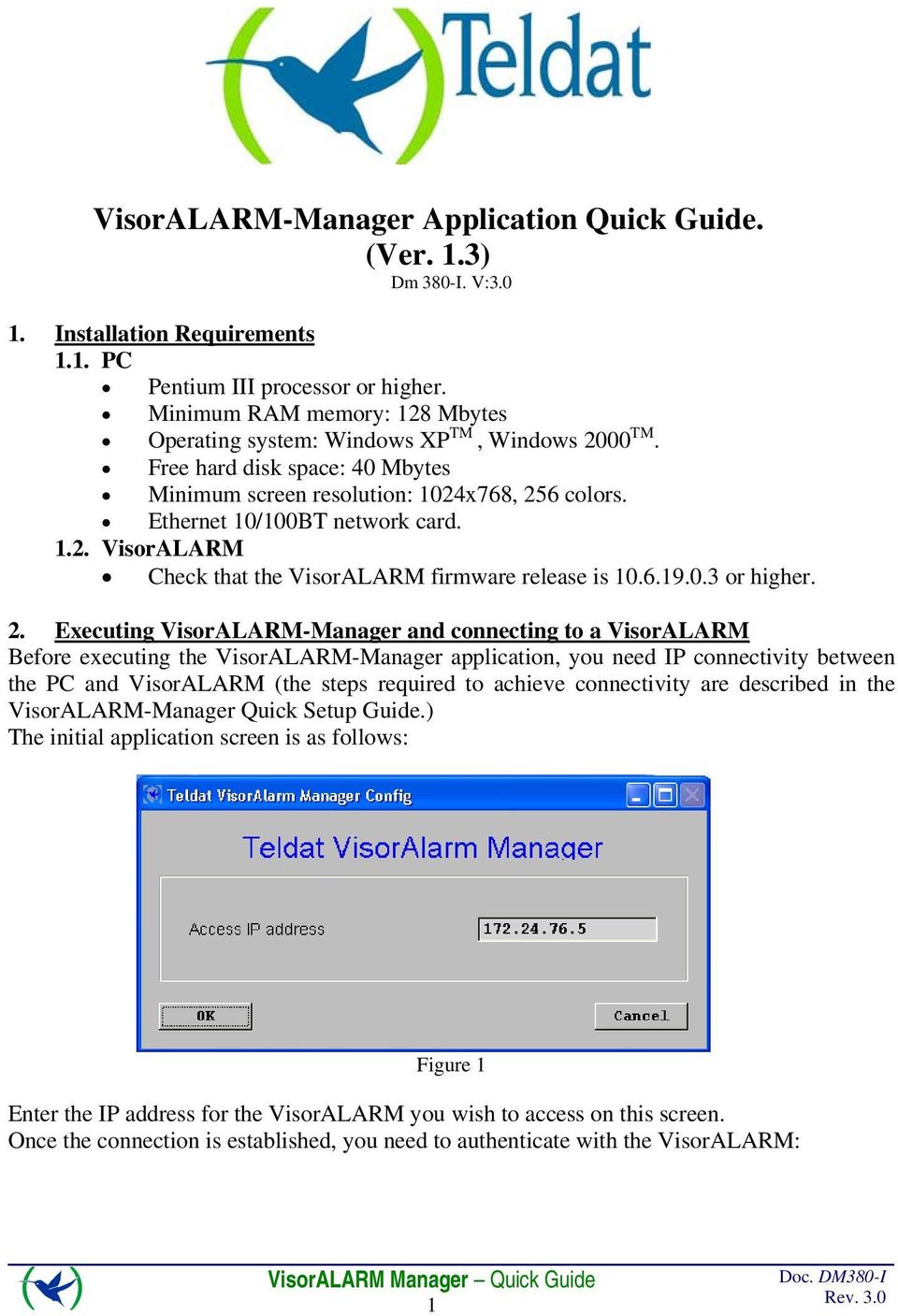
2 Figure 2 Enter the user and device password in the above screen. Once authentication has completed, the application main screen appears. Figure 3 2
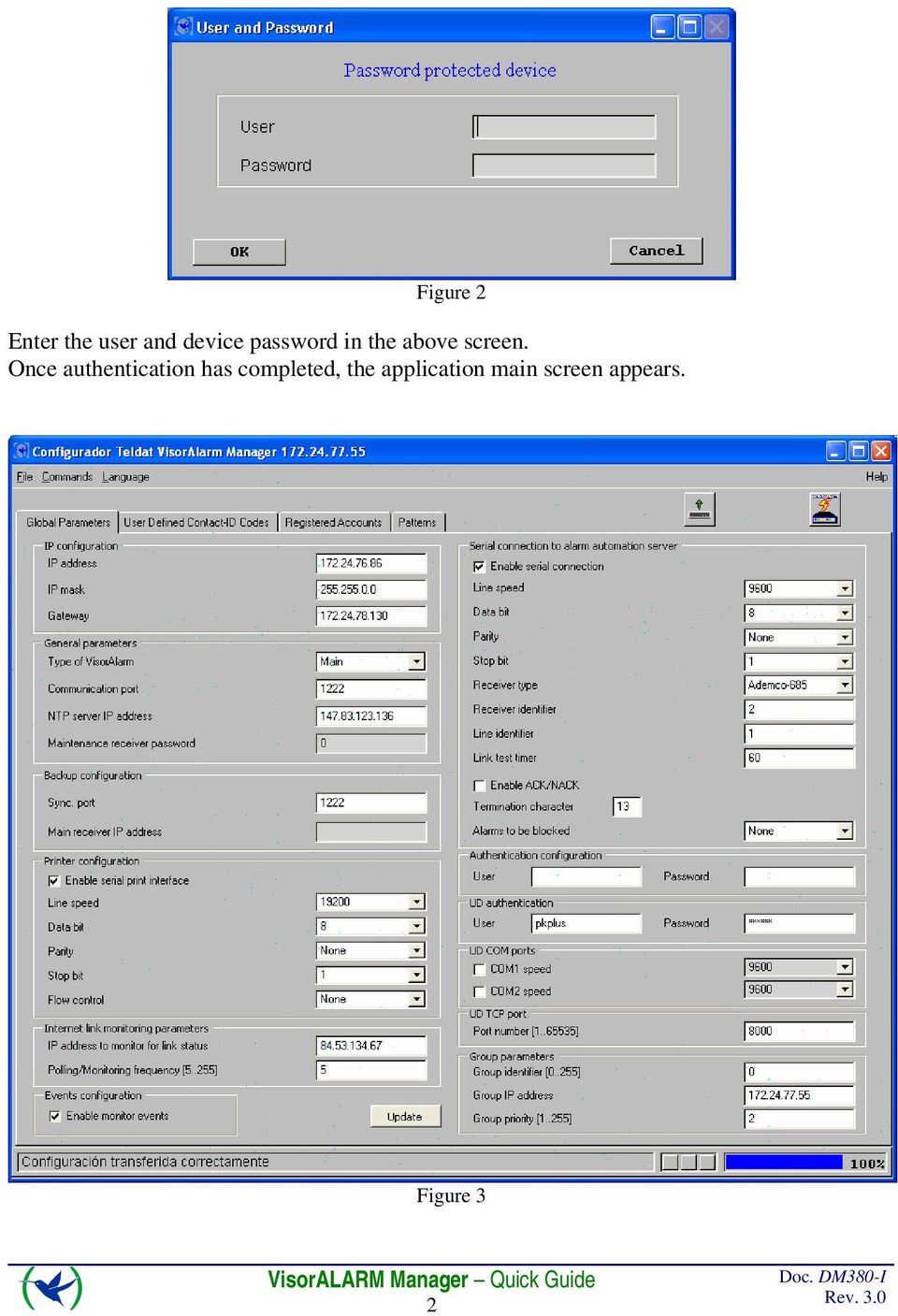
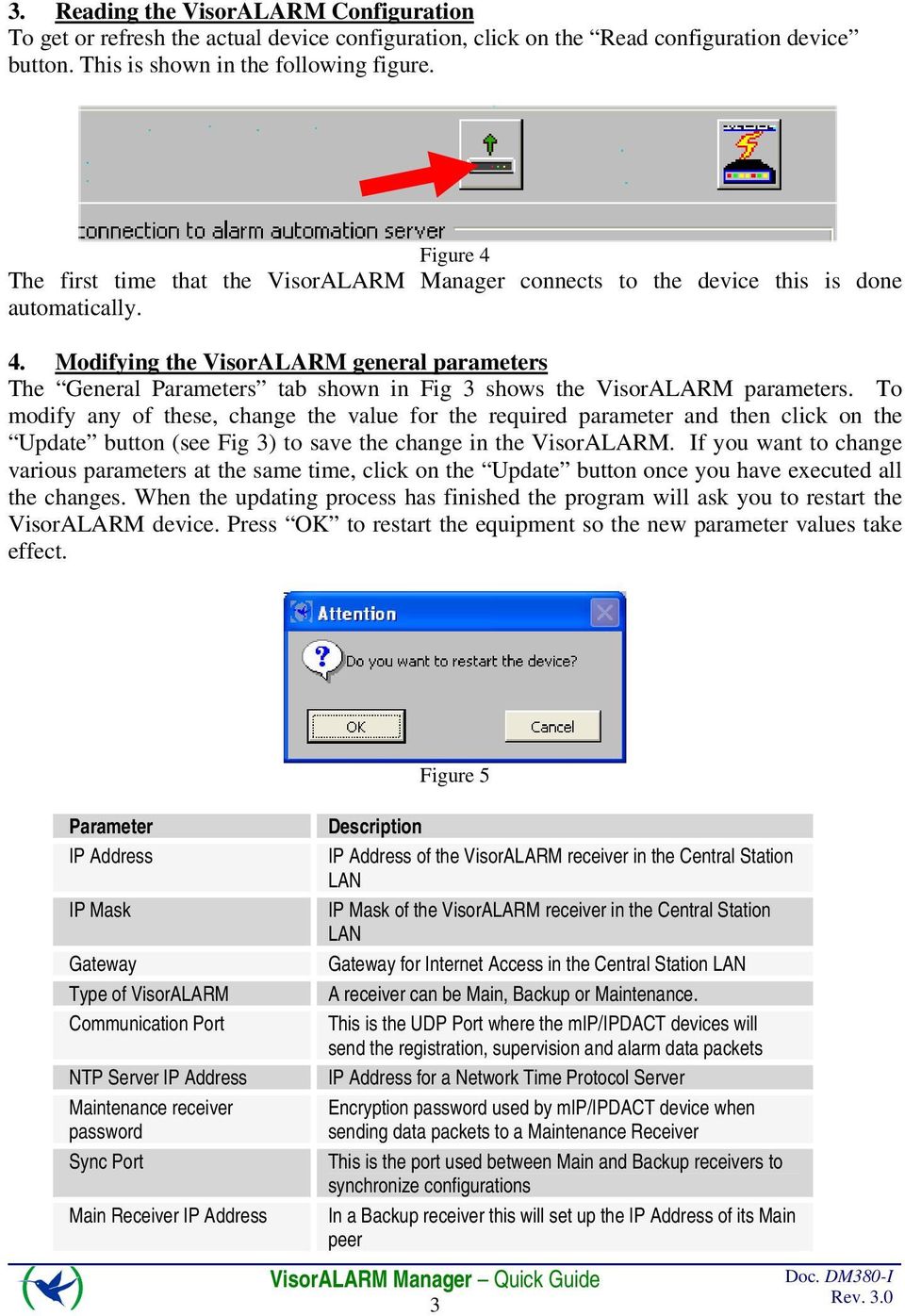
3 3. Reading the VisorALARM Configuration To get or refresh the actual device configuration, click on the Read configuration device button. This is shown in the following figure. Figure 4 The first time that the VisorALARM Manager connects to the device this is done automatically. 4. Modifying the VisorALARM general parameters The General Parameters tab shown in Fig 3 shows the VisorALARM parameters. To modify any of these, change the value for the required parameter and then click on the Update button (see Fig 3) to save the change in the VisorALARM. If you want to change various parameters at the same time, click on the Update button once you have executed all the changes. When the updating process has finished the program will ask you to restart the VisorALARM device. Press OK to restart the equipment so the new parameter values take effect. Figure 5 Parameter IP Address IP Mask Gateway Type of VisorALARM Communication Port NTP Server IP Address Maintenance receiver password Sync Port Main Receiver IP Address Description IP Address of the VisorALARM receiver in the Central Station LAN IP Mask of the VisorALARM receiver in the Central Station LAN Gateway for Internet Access in the Central Station LAN A receiver can be Main, Backup or Maintenance. This is the UDP Port where the mip/ipdact devices will send the registration, supervision and alarm data packets IP Address for a Network Time Protocol Server Encryption password used by mip/ipdact device when sending data packets to a Maintenance Receiver This is the port used between Main and Backup receivers to synchronize configurations In a Backup receiver this will set up the IP Address of its Main peer 3
4 Printer: Line Speed Printer: Data bits Printer: Stop bits Printer: Flow Control Internet Link: Monitoring address Internet Link: Frequency Enable monitor events Serial Port: Line Speed Serial Port: Data bits Serial Port: Stop bits Serial Port: Flow Control Serial Port: Receiver Type Serial Port: Receiver Identifier Serial Port: Line Identifier Serial Port: Link Test Timer Serial Port: Enable ACK/NACK Serial Port: ACK Char Serial Port: Header Char Serial Port:: Termination Char Serial Port: NACK Char User Password UD authentication UD COM Ports: COM1 Speed Baud rate for the Serial Printer connected to WAN2/PRN Number of data bits for the Serial Printer connected to WAN2/PRN Number of stop bits for the Serial Printer connected to WAN2/PRN Specifies if the communications with the Serial Printer require Hardware Flow Control IP Address for a server in Internet used to check that the receiver has Internet Access Number of seconds between two polls from the receiver to the Monitoring Address. Enables/Disables monitoring events in the receiver Baud rate for the Serial Port where automation software is connected Number of data bits for the Serial Port where automation software is connected Number of stop bits for the Serial Port where automation software is connected Specifies if the communications with the Serial Port where automation software is connected require Hardware Flow Control Emulated receiver, the currently supported emulation types are Ademco 685, Surgard MLR2000, Surgard DLR2 and Radionics Number for this receiver in the automation software Number for the unique line of this receiver in the automation software. Specifies the time interval that the receiver waits between polls to the automation software through the serial port. For the Ademco 685 emulation specifies if the VisorALARM receiver must wait for acknowledgments when a signal is sent to the automation software through the serial port. ACK char used for the Acknowledgement when using Radionics 6500 emulation Header char used for start of frames when using Radionics 6500 emulation Termination char used to end the frames when using Radionics 6500 emulation NACK char used for the Negative acknowledgements when using Radionics 6500 emulation The user name for management purposes. This is always manager Password for the manager User and Password to be used for access to the remote UD server. Baud rate for the UD expansion board COM1 port 4

5 UD COM Ports: COM2 Speed UD TCP Port Number Group parameters: Group Identifier Group parameters: Group IP Address Group parameters: Priority Baud rate for the UD expansion board COM2 port Server TCP Port for remote upload/download Identifier for the cluster of equipments that form the receiver in a high availability configuration. IP Address for the cluster of equipments that form the receiver in a high availability configuration. This is the IP address that must be taken into account for any other element in the network. Priority for this equipment in the cluster that form the receiver in a high availability configuration. The equipment with the lower priority will be the active one in a normal situation. 5
6 5. Modifying User Defined Contact-ID Codes The User Defined Contact-ID Codes tab show in Fig 6 shows the set of Contact-ID codes that are used when the receiver generates internal signals. Figure 6 Note that neither the mip/ipdact devices nor VisorALARM change the signals sent by a Control Panel. This User-Defined Codes apply only to internally generated signals. Code Signaled when Account mip registration A new mip/ipdact device is registered Device accn mip installation error The mip/ipdact cannot be registered because a device Device accn with another serial number is actually registered mip deleted A mip/ipdact has been deleted from the system Device accn configuration mip loss of contact Communication with a mip/ipdact device has been lost Device accn VisorALARM network error mip goes to backup mip configuration error Group member down VisorALARM cannot access Internet. The poll to the monitor-ip-address server has failed The backup receiver has received polls from a mip/ipdact device but the receiver has not detected the main failure yet. The mip/ipdact device has been programmed with a Main Receiver address that corresponds to a Backup one. One equipment from the cluster of equipments that form the receiver is down Device accn Device accn 6

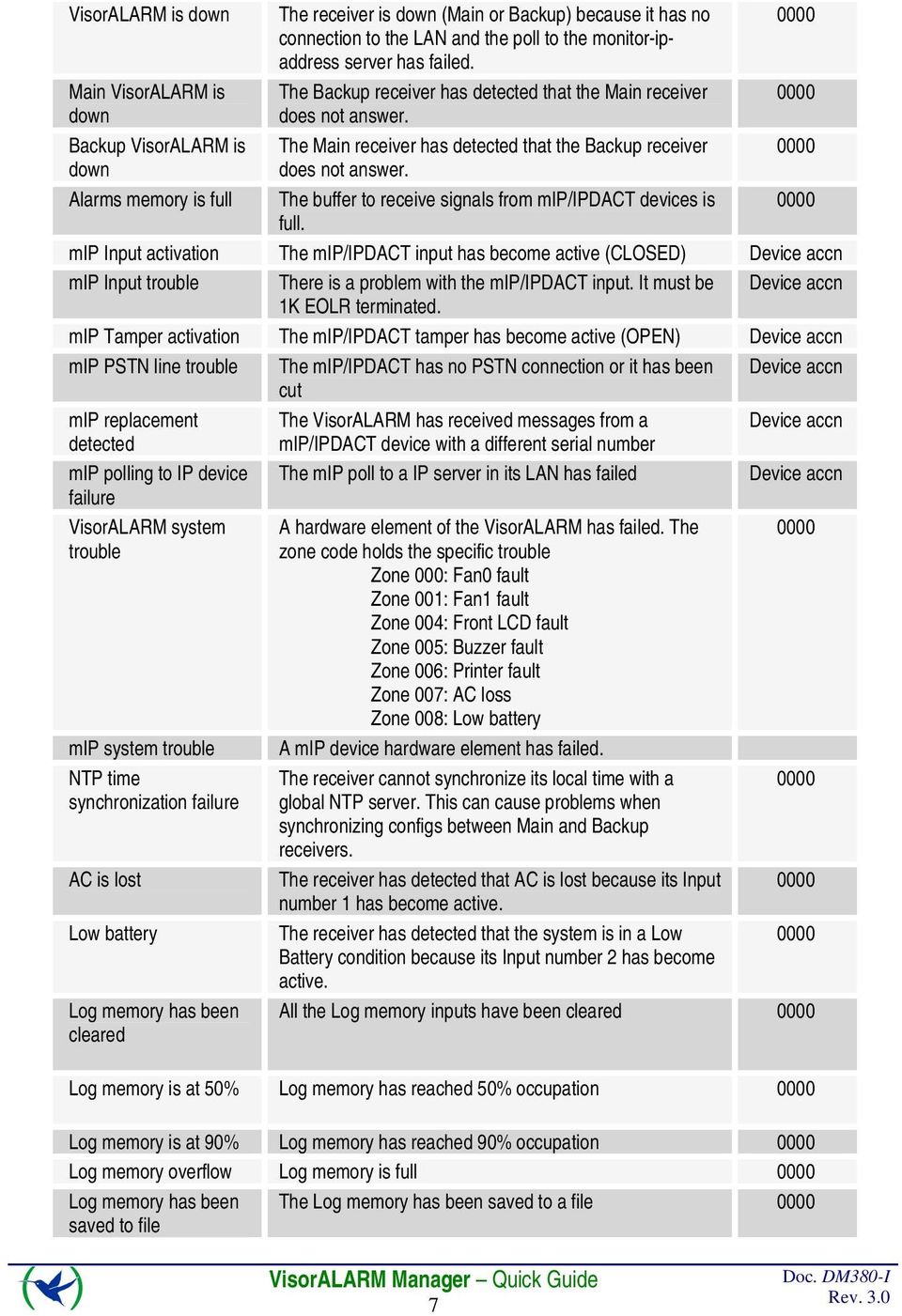
7 VisorALARM is down Main VisorALARM is down Backup VisorALARM is down Alarms memory is full The receiver is down (Main or Backup) because it has no connection to the LAN and the poll to the monitor-ipaddress server has failed. The Backup receiver has detected that the Main receiver does not answer. The Main receiver has detected that the Backup receiver does not answer. The buffer to receive signals from mip/ipdact devices is full. mip Input activation The mip/ipdact input has become active (CLOSED) Device accn mip Input trouble There is a problem with the mip/ipdact input. It must be Device accn 1K EOLR terminated. mip Tamper activation The mip/ipdact tamper has become active (OPEN) Device accn mip PSTN line trouble The mip/ipdact has no PSTN connection or it has been Device accn cut mip replacement The VisorALARM has received messages from a Device accn detected mip/ipdact device with a different serial number mip polling to IP device failure The mip poll to a IP server in its LAN has failed Device accn VisorALARM system trouble mip system trouble NTP time synchronization failure AC is lost Low battery Log memory has been cleared A hardware element of the VisorALARM has failed. The zone code holds the specific trouble Zone 000: Fan0 fault Zone 001: Fan1 fault Zone 004: Front LCD fault Zone 005: Buzzer fault Zone 006: Printer fault Zone 007: AC loss Zone 008: Low battery A mip device hardware element has failed. The receiver cannot synchronize its local time with a global NTP server. This can cause problems when synchronizing configs between Main and Backup receivers. The receiver has detected that AC is lost because its Input number 1 has become active. The receiver has detected that the system is in a Low Battery condition because its Input number 2 has become active. All the Log memory inputs have been cleared Log memory is at 50% Log memory has reached 50% occupation Log memory is at 90% Log memory has reached 90% occupation Log memory overflow Log memory is full Log memory has been saved to file The Log memory has been saved to a file 7
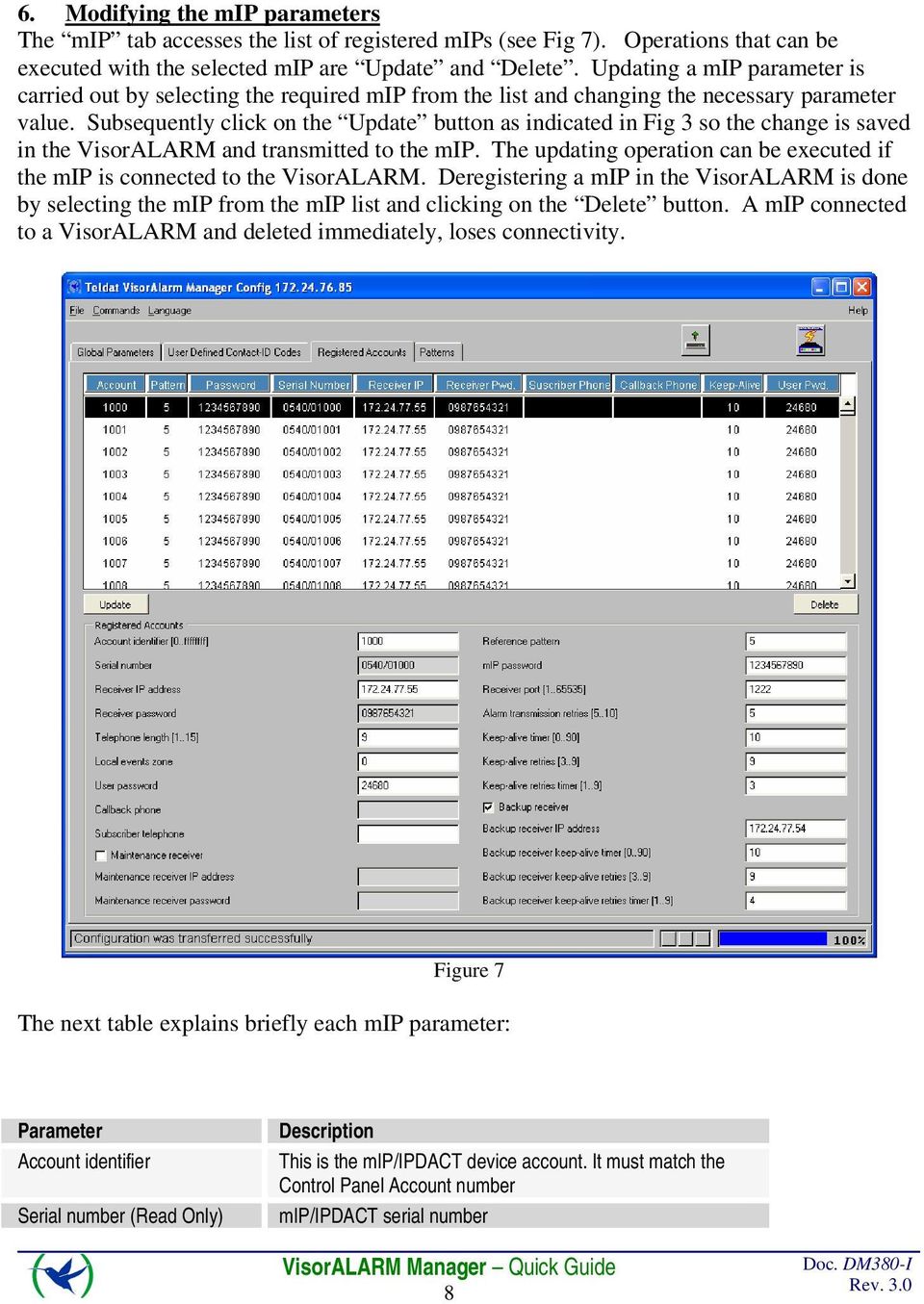
8 6. Modifying the mip parameters The mip tab accesses the list of registered mips (see Fig 7). Operations that can be executed with the selected mip are Update and Delete. Updating a mip parameter is carried out by selecting the required mip from the list and changing the necessary parameter value. Subsequently click on the Update button as indicated in Fig 3 so the change is saved in the VisorALARM and transmitted to the mip. The updating operation can be executed if the mip is connected to the VisorALARM. Deregistering a mip in the VisorALARM is done by selecting the mip from the mip list and clicking on the Delete button. A mip connected to a VisorALARM and deleted immediately, loses connectivity. Figure 7 The next table explains briefly each mip parameter: Parameter Account identifier Serial number (Read Only) Description This is the mip/ipdact device account. It must match the Control Panel Account number mip/ipdact serial number 8
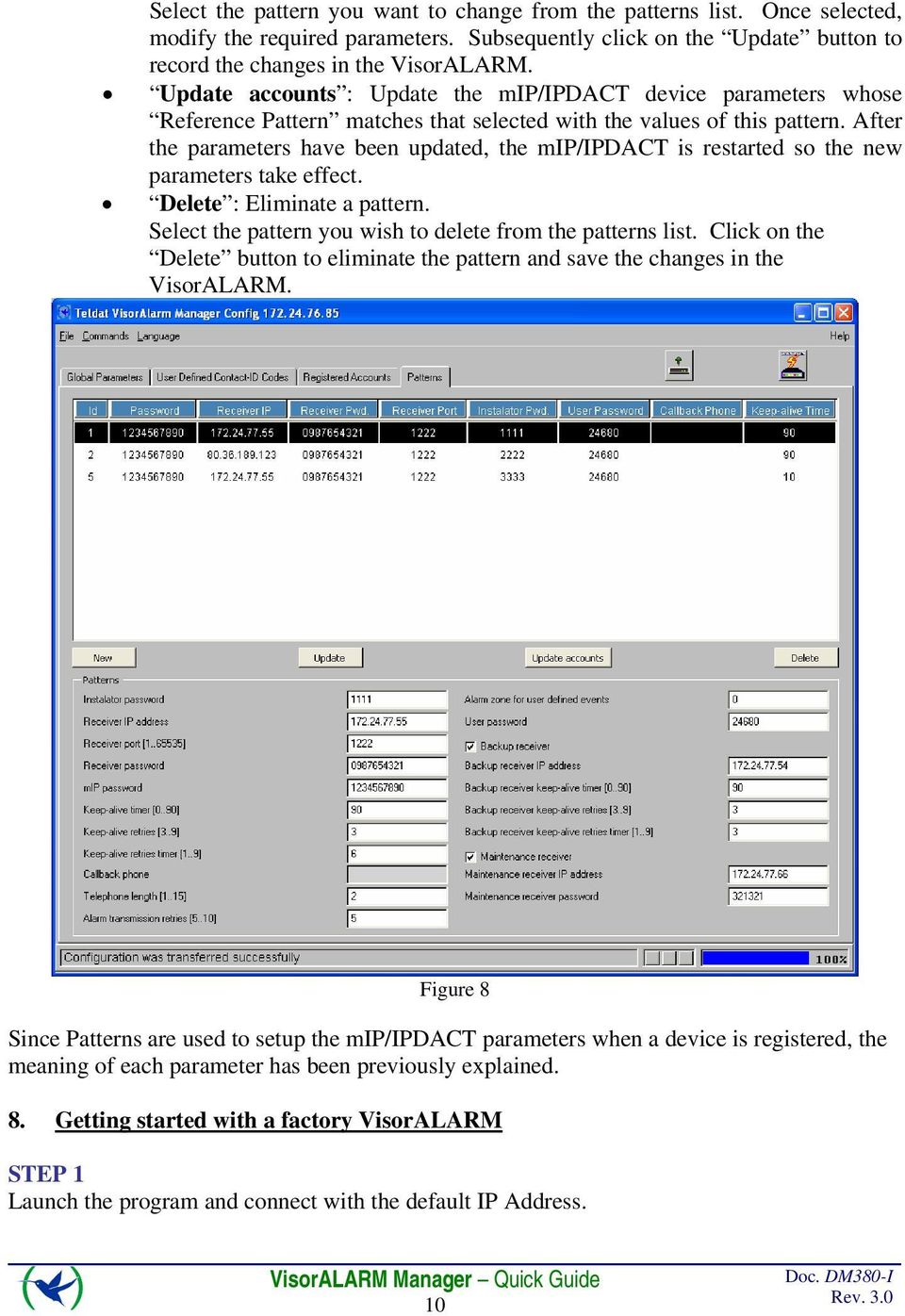
9 Receiver Port Telephone length Alarm transmission retries Local events zone User Password Callback phone Subscriber telephone Maintenance Receiver Maintenance Password Reference pattern mip Password Receiver IP Address Receiver Password (Read only) Keep alive timer Keep alive retries Keep alive retries timer Backup IP Address Backup Keep alive timer Backup Keep alive retries Backup Keep alive retries timer UDP port on the receiver where the device sends the registration, supervision and alarm data packets Number of digits that the Control Panel dials for the Central Station Phone Number. Number of times that a UDP data packet holding an alarm is transmitted if no acknowledgement is received This is the base number for the zone field that appears in all the events generated by a MIP that do not come from the Alarm Panel. mip/ipdact device Management password (terminal/telnet/configuration tool) Phone number that the Control Panel dials when a callback to the device is requested Control Panel Phone Number IP address for the Maintenance receiver Encryption password for the data packets that the mip/ipdact sends to the Maintenance receiver This is the identifier for the cfg-pattern that the mip/ipdact has been registered with Encryption password for the data packets that the mip/ipdact sends to the Main or Backup receiver IP address for the Main receiver Encryption password for the data packets that the receiver sends to the mip/ipdact receiver. This parameter only can be changed though a registration operation. Time elapsed between mip/ipdact polls to the Main receiver. Number of poll retries in order to consider that the link with the Main receiver is down. Time elapsed between mip/ipdact poll retries to the Main receiver. IP address for the Backup receiver Time elapsed between mip/ipdact polls to the Backup receiver Number of polls retries in order to consider that the link with the Backup receiver is down. Time elapsed between mip/ipdact poll retries to the Backup receiver. 7. Modifying pattern parameters The Patterns tab displays a list of configuration patterns (see Fig 8). Operations you can execute over a pattern are as follows: New : Create a new pattern. Fill out all the parameters for the new pattern and click on New. The pattern then appears on the list with the specified parameters. Update : Change a pattern s parameters. 9

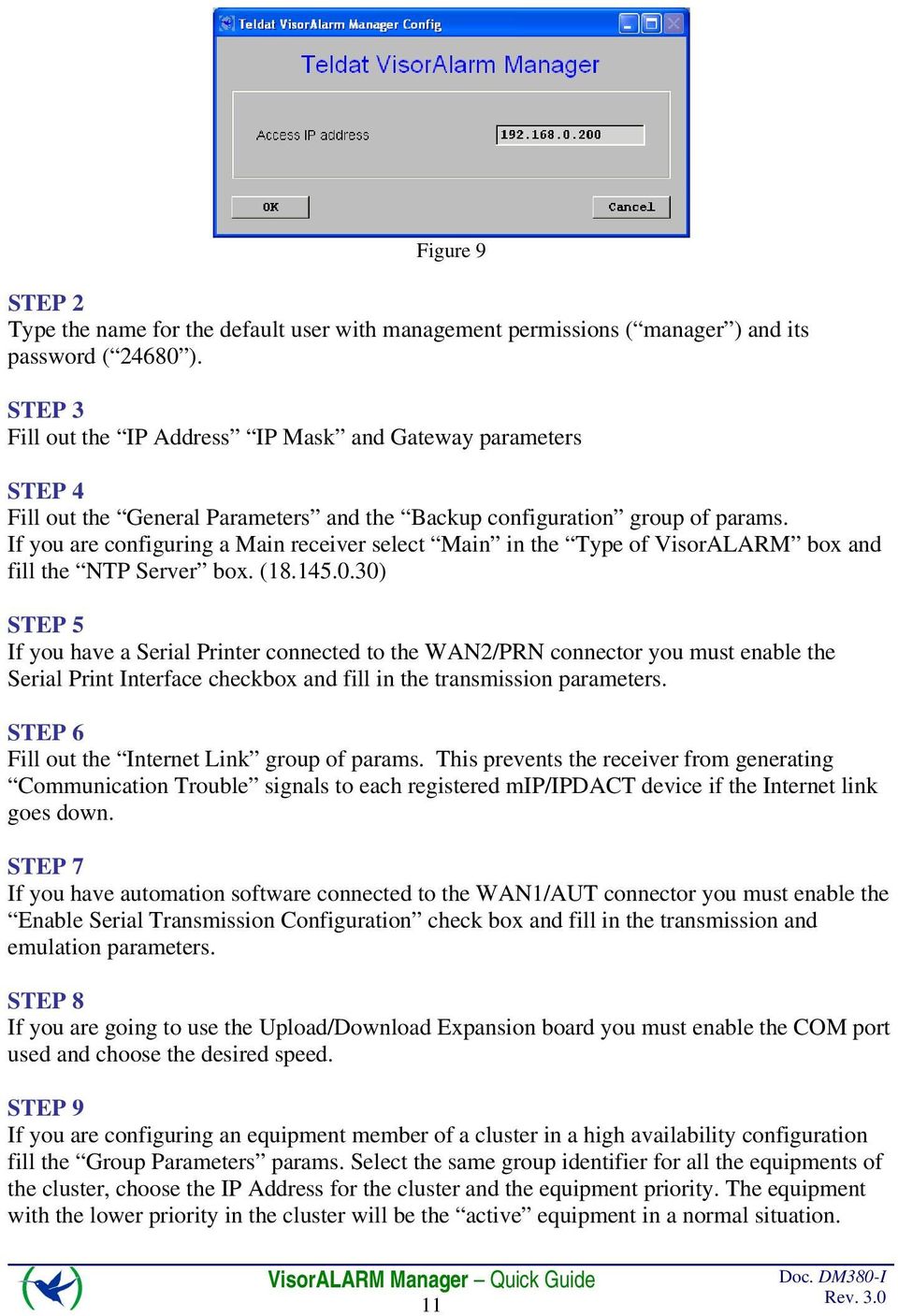
10 Select the pattern you want to change from the patterns list. Once selected, modify the required parameters. Subsequently click on the Update button to record the changes in the VisorALARM. Update accounts : Update the mip/ipdact device parameters whose Reference Pattern matches that selected with the values of this pattern. After the parameters have been updated, the mip/ipdact is restarted so the new parameters take effect. Delete : Eliminate a pattern. Select the pattern you wish to delete from the patterns list. Click on the Delete button to eliminate the pattern and save the changes in the VisorALARM. Figure 8 Since Patterns are used to setup the mip/ipdact parameters when a device is registered, the meaning of each parameter has been previously explained. 8. Getting started with a factory VisorALARM STEP 1 Launch the program and connect with the default IP Address. 10
11 Figure 9 STEP 2 Type the name for the default user with management permissions ( manager ) and its password ( ). STEP 3 Fill out the IP Address IP Mask and Gateway parameters STEP 4 Fill out the General Parameters and the Backup configuration group of params. If you are configuring a Main receiver select Main in the Type of VisorALARM box and fill the NTP Server box. ( ) STEP 5 If you have a Serial Printer connected to the WAN2/PRN connector you must enable the Serial Print Interface checkbox and fill in the transmission parameters. STEP 6 Fill out the Internet Link group of params. This prevents the receiver from generating Communication Trouble signals to each registered mip/ipdact device if the Internet link goes down. STEP 7 If you have automation software connected to the WAN1/AUT connector you must enable the Enable Serial Transmission Configuration check box and fill in the transmission and emulation parameters. STEP 8 If you are going to use the Upload/Download Expansion board you must enable the COM port used and choose the desired speed. STEP 9 If you are configuring an equipment member of a cluster in a high availability configuration fill the Group Parameters params. Select the same group identifier for all the equipments of the cluster, choose the IP Address for the cluster and the equipment priority. The equipment with the lower priority in the cluster will be the active equipment in a normal situation. 11
12 STEP 10 Press the Update button. This will save the parameters to the receiver. When the program asks you to reset the device, select Yes. STEP 11 Go to the Pattern tab and fill in the parameters to register new mip/ipdact devices. Press the New button. The receiver is now ready to accept new mip/ipdact registrations. Use the mip/ipdact Configuration Tool to configure these devices. 12

IPRS-7 IP/GPRS PC Receiver Software Quick Start V1.2
 IPRS-7 IP/GPRS PC Receiver Software Quick Start V1.2 Overview Introduction Before You Begin Installation The IPRS-7 Main Page Configuring the IPRS-7 (IPRS-7 splash screen pictured) Introduction The IPRS-7
OSM 2007 MONITORING SOFTWARE
 OSM 2007 MONITORING SOFTWARE Contents Preparation...3 Software Installation...4 Configuring OSM...6 Connecting a Device...16 Connecting to Station Monitoring Software...19 Troubleshooting...23 Installing
1 Getting Started. Before you can connect to a network
 1 Getting Started This chapter contains the information you need to install either the Apple Remote Access Client or Apple Remote Access Personal Server version of Apple Remote Access 3.0. Use Apple Remote
Follow these steps to prepare the module and evaluation board for testing.
 2 Getting Started 2.1. Hardware Installation Procedure Follow these steps to prepare the module and evaluation board for testing. STEP1: Plug the EG-SR-7100A module into the sockets on the test board.
GlobalSCAPE DMZ Gateway, v1. User Guide
 GlobalSCAPE DMZ Gateway, v1 User Guide GlobalSCAPE, Inc. (GSB) Address: 4500 Lockhill-Selma Road, Suite 150 San Antonio, TX (USA) 78249 Sales: (210) 308-8267 Sales (Toll Free): (800) 290-5054 Technical
TRBOnet Enterprise 3.0
 TRBOnet Enterprise 3.0 Installation and Configuration Guide TRBOnet Enterprise Installation and Configuration Guide 2 Contents: Architecture Overview 1 1.1. Architecture Overview 1 1.2. System Diagram
Crow Limited Warranty. Print Version 017
 Crow Limited Warranty (Crow) warrants this product to be free from defects in materials and workmanship under normal use and service for a period of one year from the last day of the week and year whose
3.5 EXTERNAL NETWORK HDD. User s Manual
 3.5 EXTERNAL NETWORK HDD User s Manual Table of Content Before You Use Key Features H/W Installation Illustration of Product LED Definition NETWORK HDD Assembly Setup the Network HDD Home Disk Utility
Ethernet Interface Manual Thermal / Label Printer. Rev. 1.01 Metapace T-1. Metapace T-2 Metapace L-1 Metapace L-2
 Ethernet Interface Manual Thermal / Label Printer Rev. 1.01 Metapace T-1 Metapace T-2 Metapace L-1 Metapace L-2 Table of contents 1. Interface setting Guiding...3 2. Manual Information...4 3. Interface
Ethernet Port Quick Start Manual
 Ethernet Port Quick Start Manual THIS MANUAL CONTAINS TECHNICAL INFORMATION FOR THE ETHERNET PORT OF EDI SIGNAL MONITORS with Ethernet Version 1.5 firmware. DETAILS OF THE ECCOM OPERATION ARE DESCRIBED
TELL AMR-08. Monitoring Receiver. Programming Manual
 TELL AMR-08 Monitoring Receiver Programming Manual 28 / 01 / 2014 CONTENT 1. INTRODUCTION...3 2. SYSTEM STRUCTURE...3 2.1 CPM card...3 2.2 LC telephone line card (optional)...4 2.3 PWR power supply card...4
IP Communicator IPDACT
 IP Communicator IPDACT Installation Manual Document DM373-I Version 2.0 March, 2007 Table of contents I - Chapter. Introduction... I-1 I - 1. IPDACT Introduction... I-1 I - 1.1. User Scenario... I-1 I
DSA-1000 / PRT-1000 Device Server / Thermal Printer
 LevelOne DSA-1000 / PRT-1000 Device Server / Thermal Printer User Manual V2.0 TABLE OF CONTENTS 1. INTRODUCTION...- 3-2. DEVICE OVERVIEW...- 7-3. HARDWARE SETUP...- 10-4. SYSTEM CONFIGURATION...- 12 -,
Chapter 6 Using Network Monitoring Tools
 Chapter 6 Using Network Monitoring Tools This chapter describes how to use the maintenance features of your Wireless-G Router Model WGR614v9. You can access these features by selecting the items under
Iridium Extreme TM Satellite Phone. Data Services Manual
 Iridium Extreme TM Satellite Phone Data Services Manual Table of Contents 1 OVERVIEW... 1 2 HOW IT WORKS... 1 3 BEFORE INSTALLING... 2 4 USB DRIVER INSTALLATION... 3 5 MODEM INSTALLATION AND CONFIGURATION...
CPEi 800/825 Series. User Manual. * Please see the Introduction Section
 CPEi 800/825 Series User Manual * Please see the Introduction Section Contents Introduction...iii Chapter 1: CPEi 800/825 User Guide Overview... 1-1 Powerful Features in a Single Unit... 1-2 Front of the
Maintaining the Content Server
 CHAPTER 7 This chapter includes the following Content Server maintenance procedures: Backing Up the Content Server, page 7-1 Restoring Files, page 7-3 Upgrading the Content Server, page 7-5 Shutting Down
User Manual Network Interface
 User Manual Network Interface Rev. 1.00 SRP-350plusll SRP-352plusll http://www.bixolon.com Table of Contents 1. Manual Information...3 2. Specifications...3 2-1 Hardware version...3 2-2 Configuration Tool...3
Important Notes for WinConnect Server VS Software Installation:
 Important Notes for WinConnect Server VS Software Installation: 1. Only Windows Vista Business, Windows Vista Ultimate, Windows 7 Professional, Windows 7 Ultimate, Windows Server 2008 (32-bit & 64-bit),
3.5 Mobile LAN Disk. User Guide
 3.5 Mobile LAN Disk User Guide Contents 1. Hardware...2 1.1 Power...2 1.2 Ports...2 1.3 Reset Button...2 1.4 LEDs...2 1.5 Front View...3 1.6 Rear View...3 2. Installation....... 4 2.1 Requirements 4 2.2
APPLICATION NOTE. The DMP Software Family DMP COMPUTER SOFTWARE PROGRAMS
 APPLICATION NOTE Contents The DMP Software Family... 1 Stand-Alone Link Software... 1 Add-on Modules for Link Software... 1 System Link End-User Panel Management Software... 2 Simple Registration and Activation...
Connecting the DG-102S VoIP Gateway to your network
 Contents of Package: DG-102S VoIP Station Gateway Power adapter CD-ROM, including User s Manual Quick Install Guide Requirements: RS-232 Console Cable Two RJ-45 CAT-5 Straight-Through Cables For more information
OCS Training Workshop LAB14. Email Setup
 OCS Training Workshop LAB14 Email Setup Introduction The objective of this lab is to provide the skills to develop and trouble shoot email messaging. Overview Electronic mail (email) is a method of exchanging
Vantage RADIUS 50. Quick Start Guide Version 1.0 3/2005
 Vantage RADIUS 50 Quick Start Guide Version 1.0 3/2005 1 Introducing Vantage RADIUS 50 The Vantage RADIUS (Remote Authentication Dial-In User Service) 50 (referred to in this guide as Vantage RADIUS)
ezvsp User's Manual ( Version 2.1d ) Sollae Systems Co., Ltd.
 ezvsp User's Manual ( Version 2.1d ) Sollae Systems Co., Ltd. Contents Chapter 1 Overview 1 1.1 Introduction 1 2.2 Key Features 2 Chapter 2 Installation 3 2.1 Ready to install ezvsp 3 2.2 Install ezvsp
IP SERIAL DEVICE SERVER
 IP SERIAL DEVICE SERVER ( 1 / 2 / 4 serial port ) Installation guide And User manual Version 1.0 1Introduction... 5 1.1Direct IP mode...5 1.2Virtual COM mode...5 1.3Paired mode...6 1.4Heart beat... 6
ETHERNET WEATHER STATION CONNECTIONS Application Note 33
 ETHERNET WEATHER STATION CONNECTIONS Application Note 33 With WeatherLink and a Device Server INTRODUCTION It is possible to substitute an Ethernet connection for the direct USB or serial connection that
Protecting the Home Network (Firewall)
 Protecting the Home Network (Firewall) Basic Tab Setup Tab DHCP Tab Advanced Tab Options Tab Port Forwarding Tab Port Triggers Tab DMZ Host Tab Firewall Tab Event Log Tab Status Tab Software Tab Connection
Central Management System
 Central Management System Software Installation Guide Ver. 1.5.0.101115.001 ... ii System Introduction... 3 Client/Server Architecture...3 System Requirements... 4 System Setup...4 Multiple Monitor Configuration...5
Configuring the CyberData VoIP 4-Port Zone Controller with Audio Out
 NetVanta Unified Communications Technical Note Configuring the CyberData VoIP 4-Port Zone Controller with Audio Out Introduction The CyberData Voice over Internet Protocol (VoIP) zone controller enables
Guide to Installing BBL Crystal MIND on Windows 7
 Guide to Installing BBL Crystal MIND on Windows 7 Introduction The BBL Crystal MIND software can not be directly installed on the Microsoft Windows 7 platform, however it can be installed and run via XP
IP Alarm System Resiliency on Disaster Recovery and ISP changes. A better alternative to DNS-based solutions
 IP Alarm System Resiliency on Disaster Recovery and ISP changes A better alternative to DNS-based solutions INDEX OVERVIEW... 2 FIRELITE IP ALARM SYSTEM DESCRIPTION... 3 AUTOMATIC DISASTER RECOVERY...
MAX T1/E1. Quick Start Guide. VoIP Gateway. Version 1.0
 MAX T1/E1 TM VoIP Gateway Quick Start Guide Version 1.0 Contents INTRODUCTION 1 Hardware Needed Software Needed 1 1 NET2PHONE MAX SET UP Hardware Set Up Software Set Up Set Up Internet Protocol (IP) Address
Dominion KX II-101-V2
 Dominion KX II-101-V2 Quick Setup Guide Thank you for your purchase of the Dominion KX II-101-V2, the economical, full-featured, single-port digital KVM-over-IP device. For details on using the KX II-101-V2,
Firmware version: 1.10 Issue: 7 AUTODIALER GD30.2. Instruction Manual
 Firmware version: 1.10 Issue: 7 AUTODIALER GD30.2 Instruction Manual Firmware version: 2.0.1 Issue: 0.6 Version of the GPRS transmitters configurator: 1.3.6.3 Date of issue: 07.03.2012 TABLE OF CONTENTS
Network Management Card. User Manual
 User Manual 1 Contents Contents 2 Chapter 1 Overview 3 1.1 NMC package contents 4 1.2 NMC CD Resources 4 1.3 Features 4 1.4 NMC Applications 5 Chapter 2 NMC parameters setting via serial COM port 6 2.1
User s Manual Network Management Card
 User s Manual Network Management Card RMCARD202 Intelligent Network Management Card allows a UPS system to be managed, monitored, and configured Version 1.0 E-K01-SNMP005-0 TABLE OF CONTENTS Introduction
Chapter 6 Using Network Monitoring Tools
 Chapter 6 Using Network Monitoring Tools This chapter describes how to use the maintenance features of your RangeMax Wireless-N Gigabit Router WNR3500. You can access these features by selecting the items
IP Power Stone 4000 User Manual
 IP Power Stone 4000 User Manual Two Outlet Remote AC Power Controller Multi Link, Inc. 122 Dewey Drive Nicholasville, KY 40356 USA Sales and Tech Support 800.535.4651 FAX 859.885.6619 techsupport@multi
Cloud Services ADM. Agent Deployment Guide
 Cloud Services ADM Agent Deployment Guide 10/15/2014 CONTENTS System Requirements... 1 Hardware Requirements... 1 Installation... 2 SQL Connection... 4 AD Mgmt Agent... 5 MMC... 7 Service... 8 License
Infinity C Reference Guide
 1 2! Infinity C Reference Guide Table of Contents Components... 1 Hardware Setup... 5 SmartDrive Configuration... 12 Startup... 15 Login... 16 System Configuration... 19 DICOM Setup... 20 Monitoring Status...
How do I configure the wireless printer using a USB or Ethernet cable and install the printer driver in Windows?
 How do I configure the wireless printer using a USB or Ethernet cable and install the printer driver in Windows? STEP I: Gather the wireless network settings of your wireless access point or wireless router
ABUS WIRELESS ALARM SYSTEM
 ABUS WIRELESS ALARM SYSTEM These installation instructions are published by Security-Center GmbH & Co. KG, Linker Kreuthweg 5, D-86444 Affing/Mühlhausen. All rights including translation reserved. Reproductions
Immotec Systems, Inc. SQL Server 2005 Installation Document
 SQL Server Installation Guide 1. From the Visor 360 installation CD\USB Key, open the Access folder and install the Access Database Engine. 2. Open Visor 360 V2.0 folder and double click on Setup. Visor
Palomar College Dial-up Remote Access
 Palomar College Dial-up Remote Access Instructions for Windows 95/98 and Windows 2000 Following are instructions to implement dialup access to the Palomar College network, email and Internet. The minimum
TECHNICAL NOTE TNOI27
 TECHNICAL NOTE TNOI27 Title: FTP Synchronization Product(s): G3, DSP and Enhanced Modular Controller ABSTRACT The purpose of this document is to describe the G3 s FTP feature and the configuration steps
NESS-APX. Training Manual
 NESS-APX IP Reporting Module Training Manual NESS-APX IP Monitoring Module Training Manual Rev1 N55 Product Part No. 106-201 Document Part No. 890-433 Innovative Electronic Solutions www.ness.com.au NSW
Ethernet. Customer Provided Equipment Configuring the Ethernet port.
 Installing the RDSP-3000A-NIST Master Clock. Ethernet Connect the RJ-45 connector to a TCP/IP network. Equipment The following equipment comes with the clock system: RDSP-3000A-NIST Master Clock Module.
Andover Continuum Remote Communication Configuration Guide
 Andover Continuum Remote Communication Configuration Guide 2010, Schneider Electric All Rights Reserved No part of this publication may be reproduced, read or stored in a retrieval system, or transmitted,
Additional Requirements for ARES-G2 / RSA-G2. One Ethernet 10 Base T/100 Base TX network card required for communication with the instrument.
 TA Instruments TRIOS Software Installation Instructions Installation Requirements Your TRIOS Instrument Control software includes all the components necessary to install or update the TRIOS software, as
1 Serial RS232 to Ethernet Adapter Installation Guide
 Installation Guide 10/100 Mbps LED (amber color ) Link/Activity LED (green color ) 1. Introduction Thank you for purchasing this 1-port RS232 to Ethernet Adapter (hereinafter referred to as Adapter ).
Dual Bay Home Media Store. User Manual
 Dual Bay Home Media Store User Manual CH3HNAS2 V1.0 CONTENTS Chapter 1: Home Page... 3 Setup Wizard... 3 Settings... 3 User Management... 3 Download Station... 3 Online User Manual... 3 Support... 3 Chapter
F453. TiF453. User guide 10/11-01 PC
 F453 TiF453 User guide 10/11-01 PC 2 TiF453 User guide Contents 1. Hardware and Software requirements 4 2. Installation 4 1.1 Minimum Hardware requirements 4 1.2 Minimum Software requirements 4 3. Fundamental
Important. Please read this User s Manual carefully to familiarize yourself with safe and effective usage.
 Important Please read this User s Manual carefully to familiarize yourself with safe and effective usage. About This Manual This manual describes how to install and configure RadiNET Pro Gateway and RadiCS
NMS300 Network Management System
 NMS300 Network Management System User Manual June 2013 202-11289-01 350 East Plumeria Drive San Jose, CA 95134 USA Support Thank you for purchasing this NETGEAR product. After installing your device, locate
Ultra Thin Client TC-401 TC-402. Users s Guide
 Ultra Thin Client TC-401 TC-402 Users s Guide CONTENT 1. OVERVIEW... 3 1.1 HARDWARE SPECIFICATION... 3 1.2 SOFTWARE OVERVIEW... 4 1.3 HARDWARE OVERVIEW...5 1.4 NETWORK CONNECTION... 7 2. INSTALLING THE
How To Check If Your Router Is Working Properly
 Chapter 6 Using Network Monitoring Tools This chapter describes how to use the maintenance features of your RangeMax Dual Band Wireless-N Router WNDR3300. You can access these features by selecting the
Wireless VoIP Phone User s Manual
 Wireless VoIP Phone User s Manual Table of Contents Chapter 1 Overview of the WiFi phone... 5 1.1 Front Panel and Keypad...5 1.2 Removing and Installing the Battery...7 1.3 Charging the WIFI PHONE...8
SIP Proxy Server. Administrator Installation and Configuration Guide. V2.31b. 09SIPXM.SY2.31b.EN3
 SIP Proxy Server Administrator Installation and Configuration Guide V2.31b 09SIPXM.SY2.31b.EN3 DSG, DSG logo, InterPBX, InterServer, Blaze Series, VG5000, VG7000, IP590, IP580, IP500, IP510, InterConsole,
USER MANUAL GUIMGR Graphical User Interface Manager for FRM301/FRM401 Media Racks
 USER MANUAL GUIMGR Graphical User Interface Manager for FRM301/FRM401 Media Racks CTC Union Technologies Co., Ltd. Far Eastern Vienna Technology Center (Neihu Technology Park) 8F, No. 60 Zhouzi St. Neihu,
User Manual Revision 1.400 English Converter / Adapter Ethernet to RS232 / RS485 (Order Code: HD67038-2 HD67038-2-M HD67038-25 HD67038-25-M)
 Document code: MN67038-2_ENG Revision 1.400 Page 1 of 25 User Manual Revision 1.400 English Converter / Adapter Ethernet to RS232 / RS485 (Order Code: HD67038-2 HD67038-2-M HD67038-25 HD67038-25-M) for
Nokia Siemens Networks. CPEi-lte 7212. User Manual
 Nokia Siemens Networks CPEi-lte 7212 User Manual Contents Chapter 1: CPEi-lte 7212 User Guide Overview... 1-1 Powerful Features in a Single Unit... 1-2 Front of the CPEi-lte 7212... 1-2 Back of the CPEi-lte
NortechCommander Software Operating Manual MAN-00004 R6
 NortechCommander Software Operating Manual MAN-00004 R6 If the equipment described herein bears the symbol, the said equipment complies with the applicable European Union Directive and Standards mentioned
TruePort Windows 2000/Server 2003/XP User Guide Chapter
 TruePort Windows 2000/Server 2003/XP User Guide Chapter 0 This document provides the procedure for installing and using TruePort on Windows 2000/Server 2003/XP. Table of Contents What is TruePort?...3
Fireware How To Logging and Notification
 Fireware How To Logging and Notification How do I set up a Log Server? Introduction The Log Server collects logs from a WatchGuard Firebox. The log message format is XML (plain text). The information collected
Prestige 324 Quick Start Guide. Prestige 324. Intelligent Broadband Sharing Gateway. Version V3.61(JF.0) May 2004 Quick Start Guide
 Prestige 324 Intelligent Broadband Sharing Gateway Version V3.61(JF.0) May 2004 Quick Start Guide 1 1 Introducing the Prestige The Prestige is a broadband sharing gateway with a built-in four-port 10/100
QNAP SYSTEMS INC. QNAP Digital Signage Player Web Console Manual
 QNAP SYSTEMS INC. QNAP Digital Signage Player Web Console Manual Table of Content 1 Introduction... 3 1.1 Purpose... 3 1.2 Support Browser... 3 2 System Administration... 3 2.1 Login Page... 3 2.2 Overview
Active Directory Management. Agent Deployment Guide
 Active Directory Management Agent Deployment Guide Document Revision Date: June 12, 2014 Active Directory Management Deployment Guide i Contents System Requirements...1 Hardware Requirements...1 Installation...3
Broadband Services from MTNL. User's Guide
 Broadband Services from MTNL User's Guide 1 Dear Customer, Welcome to the world of TRIBAND the true broadband service from MTNL. This Users Guide contains general information to help you utilise our services
DUKANE Intelligent Assembly Solutions
 PC Configuration Requirements: Configuration Requirements for ipc Operation The hardware and operating system of the PC must comply with a list of minimum requirements for proper operation with the ipc
MN-700 Base Station Configuration Guide
 MN-700 Base Station Configuration Guide Contents pen the Base Station Management Tool...3 Log ff the Base Station Management Tool...3 Navigate the Base Station Management Tool...4 Current Base Station
This section will focus on basic operation of the interface including pan/tilt, video, audio, etc.
 Catalogue Basic Operation... 2 For Internet Explorer... 2 For Other Non-IE Web Browsers... 5 Camera Settings... 6 System... 6 About... 6 PT Setting... 7 Backup and Restore Setup... 8 NTP Setting... 8 System
Keri USB-A Connection and Configuration
 Step 1 - Connect the KPC-1 cable to the K-USB. NOTE: The form of the USB converter may vary, so the unit you receive may not be identical to the one displayed here. Step 2 Plug the USB Connector of the
Moxa Device Manager 2.0 User s Guide
 First Edition, March 2009 www.moxa.com/product 2009 Moxa Inc. All rights reserved. Reproduction without permission is prohibited. Moxa Device Manager 2.0 User Guide The software described in this manual
ACCESS 9340 and 9360 Meter Ethernet Communications Card 9340-60-ETHER
 User s Guide PMCM-ETHCC-0208 2/2008 ACCESS 9340 and 9360 Meter Ethernet Communications Card 9340-60-ETHER TABLE OF CONTENTS INTRODUCTION... 2 Supported Ethernet Protocols... 2 Hardware... 2 Meter Firmware...
How To Check If Your Router Is Working Properly On A Nr854T Router (Wnr854) On A Pc Or Mac) On Your Computer Or Ipad (Netbook) On An Ipad Or Ipa (Networking
 Chapter 7 Using Network Monitoring Tools This chapter describes how to use the maintenance features of your RangeMax NEXT Wireless Router WNR854T. These features can be found by clicking on the Maintenance
NStar Build 648. Release Notes. Page 1 of 17
 NStar Build 648 Release Notes Page 1 of 17 This page is left blank intentionally Page 2 of 17 NStar Build 648 Release Notes Release notes NStar Build 648 Overview These release
PePWave Surf Series PePWave Surf Indoor Series: Surf 200, AP 200, AP 400
 PePWave Surf Series PePWave Surf Indoor Series: Surf 200, AP 200, AP 400 PePWave Surf Outdoor Series: Surf AP 200/400-X, PolePoint 400-X, Surf 400-DX User Manual Document Rev. 1.2 July 07 COPYRIGHT & TRADEMARKS
- 1 - SmartStor Cloud Web Admin Manual
 - 1 - SmartStor Cloud Web Admin Manual Administrator Full language manuals are available in product disc or website. The SmartStor Cloud Administrator web site is used to control, setup, monitor, and manage
WRE2205. User s Guide. Quick Start Guide. Wireless N300 Range Extender. Default Login Details. Version 1.00 Edition 1, 06/2012
 WRE2205 Wireless N300 Range Extender Version 1.00 Edition 1, 06/2012 Quick Start Guide User s Guide Default Login Details LAN IP Address http://192.168.1.2 User Name admin Passwordwww.zyxel.com 1234 Copyright
User Manual of Web Client
 User Manual of Web Client 1 Index Chapter 1 Software Installation... 3 Chapter 2 Begin to Use... 5 2.1 Login and Exit... 5 2.2 Preview Interface Instruction... 6 2.3 Preview Image... 7 Chapter 3 Playback...
Voice Gateway with Router
 Voice User Guide Model No. SPA3102 Copyright and Trademarks Specifications are subject to change without notice. Linksys is a registered trademark or trademark of Cisco Systems, Inc. and/or its affiliates
TSM Studio Server User Guide 2.9.0.0
 TSM Studio Server User Guide 2.9.0.0 1 Table of Contents Disclaimer... 4 What is TSM Studio Server?... 5 System Requirements... 6 Database Requirements... 6 Installing TSM Studio Server... 7 TSM Studio
How To Install Sedar On A Workstation
 SEDAR Client Installation Guide Version 1.2 January 27, 2014 10 Contents About This Guide... 2 Assumptions... 3 Date Format Synchronization... 3 Before You Begin the Installation Test of the SEDAR Client...
SMC7004ABR Barricade Broadband Router Installation Instructions
 SMC7004ABR Barricade Broadband Router Installation Instructions SPECIAL NOTE: Part D Upgrading the Firmware in Your Barricade MUST occur in ALL installations for multiple VPN sessions to work!!! SPECIAL
Quick Note 32. Using Digi RealPort with a Digi TransPort Router. UK Support September 2012
 Quick Note 32 Using Digi RealPort with a Digi TransPort Router UK Support September 2012 1 Contents 1 Introduction... 3 1.1 Outline... 3 1.2 Assumptions... 3 1.3 Version... 3 2 Configuration & scenario...
3.1 RS-232/422/485 Pinout:PORT1-4(RJ-45) RJ-45 RS-232 RS-422 RS-485 PIN1 TXD PIN2 RXD PIN3 GND PIN4 PIN5 T+ 485+ PIN6 T- 485- PIN7 R+ PIN8 R-
 MODEL ATC-2004 TCP/IP TO RS-232/422/485 CONVERTER User s Manual 1.1 Introduction The ATC-2004 is a 4 Port RS232/RS485 to TCP/IP converter integrated with a robust system and network management features
Option nv, Gaston Geenslaan 14, B-3001 Leuven Tel +32 16 317 411 Fax +32 16 207 164 http://www.option.com Page 1 of 14
 Page 1 of 14 ! " #!"#$ % &&' Page 2 of 14 1 INTRODUCTION One of the highly desirable features of the GlobeSurfer III device is the ability to network together Printers and External Hard Disk drives (aka
Linksys Gateway SPA2100-SU Manual
 Linksys Gateway SPA2100-SU Manual Manuel de l'utilisateur Table of Contents Looking for Basic Setup Instructions?... 3 Most Recent Version of this Manual... 3 Advanced Setup Instructions... 4 Wiring Your
Avigilon Control Center Server User Guide
 Avigilon Control Center Server User Guide Version 4.10 PDF-SERVER-D-Rev1 Copyright 2011 Avigilon. All rights reserved. The information presented is subject to change without notice. No copying, distribution,
Configuring the Network Automation Engine (NAE)
 Technical Bulletin Issue Date March 31, 2003 Configuring the Network Automation Engine (NAE) Configuring the Network Automation Engine (NAE)...3 Introduction... 3 Key Concepts... 5 NAE System Configuration
4-441-095-12 (1) Network Camera
 4-441-095-12 (1) Network Camera SNC easy IP setup Guide Software Version 1.0 Before operating the unit, please read this manual thoroughly and retain it for future reference. 2012 Sony Corporation Table
User s Manual TCP/IP TO RS-232/422/485 CONVERTER. 1.1 Introduction. 1.2 Main features. Dynamic DNS
 MODEL ATC-2000 TCP/IP TO RS-232/422/485 CONVERTER User s Manual 1.1 Introduction The ATC-2000 is a RS232/RS485 to TCP/IP converter integrated with a robust system and network management features designed
Temperature Alert. LAN-based Temperature and Humidity Data Logger
 Temperature Alert LAN-based Temperature and Humidity Data Logger LAN-based Temperature and Humidity Monitoring - Supports Simultaneous WiFi and Hardwired Interfaces -20 C to +60 C (-4 F to +140 F) Standard
How to Program a Commander or Scout to Connect to Pilot Software
 How to Program a Commander or Scout to Connect to Pilot Software Commander and Scout are monitoring and control products that can transfer physical environmental conditions and alarm sensor electrical
X Series Application Note 43:
 X Series Application Note 43: Using the Remote Viewing & Web Pages of the X - Series & GR Series Recorders The Remote Viewing function of the X-Series and GR Series Recorders provide the user with the
How To Create An Easybelle History Database On A Microsoft Powerbook 2.5.2 (Windows)
 Introduction EASYLABEL 6 has several new features for saving the history of label formats. This history can include information about when label formats were edited and printed. In order to save this history,
DCOM settings for computer-to-computer communication between OPC servers and OPC clients
 DCOM settings for computer-to-computer communication between OPC servers and OPC clients 1. Introduction Under OPC DA, the "dcomcnfg" service program is used for computer-to-computer communication between
IPR512: IP Monitoring Receiver Getting Started
 PR512: P Monitoring Receiver Getting Started The following instructions explain the basic connections and programming required to get your Paradox P Monitoring Receiver up and running. They also guide
GW400 VoIP Gateway. User s Guide
 GW400 VoIP Gateway User s Guide P/N: 956YD30001 Copyright 2006. All Rights Reserved. Document Version: 1.0 All trademarks and trade names are the properties of their respective owners. i Table of Contents