
Turbo CASH TUTORIAL FOR SERVICE ENTITIES NOT TRADING IN STOCK ITEMS
|
|
|
- Alannah Hopkins
- 10 years ago
- Views:
Transcription
1 Turbo TurboCASH CASH TUTORIAL FOR SERVICE ENTITIES NOT TRADING IN STOCK ITEMS

2 With thanks to: Philip Copeman Pieter Valentijn (Delphidreams) Malcolm Cheyne (TurboCASH Australia) Sylvain Ntumba Faizel Razak Sylvain Mboumba The staff of Liandor Trust ISBN Tutorial: Dan Van Zyl 29 February Philip Copeman This document contains proprietary information that is protected by copyright law. All rights are reserved. No part of this document may be reproduced, transmitted, transcribed, stored in a retrieval system or translated into any language in any form or by any means, that is electronic, mechanical, magnetic, optical, chemical, manual or otherwise, in whole or in part, without the prior written consent of Philip Copeman.

3 WELCOME to TurboCASH Thank you for choosing the TurboCASH 3.7 program. This program, although easy to use, is an exceptionally powerful accounting program. This program allows you to set up your accounting system according to your own requirements. TurboCASH 3.7 can be customised to accommodate virtually any business requirements. The program is so versatile, that, if your business expands and you change to another form of ownership, (e.g., from sole proprietor to partnership, close corporation or company) or even if need to you register or de-register for VAT/GST/Sales Tax, TurboCASH can accommodate these changes with ease. The key to the TurboCASH program is in the setting up of the parameters. Failure to setup the program correctly will yield incorrect results. When TurboCASH is set up correctly, you, as the user, will enjoy the benefits of increased financial control of your enterprise. Each business entity is different from the next. It is for this reason that the TurboCASH program was developed with built-in flexibility. This book attempts to provide the user with the key to the TurboCASH program. This is a work-through tutorial, providing hands-on knowledge of the TurboCASH system. We strongly recommend that you work through the tutorial to familiarise yourself with the TurboCASH program, the thinking and the concepts behind it. We have included the following Sets of Books on the TurboCASH installation CD, which will be installed, on your system: HANDYMAN A SA - This is a Set of Books in which the transactions in of this Tutorial is posted and updated. You may use this Set of Books to generate reports to check that you have worked correctly through the Chapters. HANDYMAN B SA - This is the same as for HANDYMAN A SA. The transactions are entered into the batches, but is not updated or posted to the ledger. If you are not registered for VAT/GST/Sales Tax, the following tutorials are available: Accounting Made Easy - No Tax Tutorial for Retail Entities - No Tax Totorial for Service Entities - No Tax The book starts with a table of contents, which can be used as a quick reference to the relevant page/s. This is a step by step guide to performing all the actions associated with TurboCASH. In order to facilitate quick referencing, the table of contents is comprehensively numbered. To access more detailed information, on any topic in this book, or on any other issue in the TurboCASH program, you may click on the key on your keyboard to access the Help Files in TurboCASH. The book has been structured in such a way that if you follow the step by step procedures, you will be able to run your company s Set of Books with TurboCASH. The Chart of Accounts represented in this book is a basic generalised one. It is up to you to expand and change the Chart of Accounts as per your particular business requirements (for example, you may need an account called commissions paid ). Work as carefully and as accurately as possible, trying to find a mistake can be a nightmare. Unless you are familiar with TurboCASH, it is recommended that you work through the tutorials before starting to create your own personalised Set of Books. As you work through the tutorials, screen shots have been supplied to ensure that you can see exactly what information to enter in which field. These are called screen dumps, and are appropriately placed in the text for your convenience.

4 The following icons have also been placed in the text for your convenience: Create, edit or to perform a specific action. Click or select using the mouse. Enter or press a key on the keyboard. Next action or step. Leave a field blank. Go to the next field. In our experience 95% of all TurboCASH problems are caused by: 1. Inadequate setting up of the program 2. Inadequate knowledge of the program 3. Inadequate computer hardware 4. Most of all - inaccurate data capture (finger problems!). We call this the GIGO effect. Garbage In - Garbage Out.

5 THIS TUTORIAL AT A GLANCE CHAPTER 1 INSTALLING AND REGISTERING TurboCASH CHAPTER 2 CREATING A SET OF BOOKS CHAPTER 3 COMPLETING YOUR SETUP PROCEDURES CHAPTER 4 SETTING UP ACCOUNTS CHAPTER 5 ENTERING YOUR OPENING BALANCES CHAPTER 6 PROCESSING TRANSACTIONS AND REPORTS CHAPTER 7 BANK RECONCILIATION CHAPTER 8 BUDGETING CHAPTER 9 REPORTS CHAPTER 10 REPORT WRITER CHAPTER 11 LIST OF SHORTCUT KEYBOARD KEYS

6 TABLE OF CONTENTS CHAPTER 1 - INSTALLING AND REGISTERING TurboCASH HARDWARE AND SOFTWARE REQUIREMENTS Updating TurboCASH INSTALLING TurboCASH Autorun Installation If the Set-up Program does not initiate automatically STARTING AND REGISTERING TurboCASH Starting TurboCASH Registering TurboCASH CHAPTER 2 - CREATING A SET OF BOOKS AND SETUP CREATE A SET OF BOOKS USING THE CREATION WIZARD ENTER BASIC INFORMATION AND SELECT DEFAULTS Company Information Reporting Dates Batch Type Groups CHAPTER 3 - COMPLETING YOUR SETUP PROCEDURES COMPLETING YOUR SETUP PROCEDURES SETUP - PREFERENCES Backup Path Font Colours Data Parameters Define Labels Printer Theme Style Theme SETUP - SYSTEM PARAMETERS Access Control Batch Types Company Info Groups Financial Categories Internet Reporting Dates Statements CHAPTER 4 - SETTING UP ACCOUNTS PLANNING YOUR CHART OF ACCOUNTS EDITING YOUR CHART OF ACCOUNTS Edit Bank Accounts Edit General Ledger Accounts Creating a New Income / Expense Account Creating a New Balance Sheet Account Edit Creditor Accounts Edit Debtor Accounts Edit Tax Accounts PRINTING LISTS OF ACCOUNTS, DEBTORS AND CREDITORS Chart of Accounts Debtors Listing Creditors Listing CHAPTER 5 - ENTERING YOUR OPENING BALANCES ENTERING YOUR OPENING BALANCES CAPTURING YOUR TRIAL BALANCE GENERATING A TRIAL BALANCE CHAPTER 6 - PROCESSING TRANSACTIONS AND REPORTS INTRODUCTION CAPTURING YOUR CASHBOOK Entering your Payments Entering your Receipts CAPTURING YOUR SALES Entering your Invoices Updating Sales to the Ledger RECEIVING PAYMENTS FROM YOUR DEBTORS

7 Entering Payments from your Debtors Posting the Receipts Batch CAPTURING THE REST OF YOUR PAYMENTS Entering the Rest of your Payments Posting the Payments Batch PETTY CASH PAYMENTS Entering your Petty Cash Payments Posting the Petty Cash Batch REPEATING TRANSACTIONS Entering Repeating Transactions Updating Repeating Transactions IMPORTANT REPORTS Trial Balance Income Statement Balance Sheet Debtors Age Analysis Debtors Statements Other Debtors / Creditors Reports Batch Type Details Report General Ledger Reports CHAPTER 7 - BANK RECONCILIATION INTRODUCTION TO THE BANK RECONCILIATION BANK RECONCILIATION IN TurboCASH Hints when doing the Bank Reconciliation: Reconciling your Cashbook with Bank Statements BANK CHARGES CHECKING YOUR BANK RECONCILIATION CHAPTER 8 - BUDGETING BUDGETING ENTERING THE BUDGET FIGURES GENERATING A BUDGET REPORT CHAPTER 9 - REPORTS INTRODUCTION TO REPORTS SUMMARY OF STANDARD REPORTS GENERATING REPORTS Send to Screen Send to Printer Send to File Send to Send to Fax CHAPTER 10 - REPORT WRITER INTRODUCTION TO USER REPORTS HOW TO WRITE AN INCOME / EXPENSE REPORT Setting up the Report Header Setting up the Row Types Setting up the Column Headings GENERATING THE USER REPORT CHAPTER 11 - LIST OF SHORTCUT KEYS Function Keys on the TurboCASH Main Program... Function Keys on the Batch Entry Screens... Alt and Function Keys... Ctrl and Function Keys... Ctrl and Alphabetical Character Keys

8 CHAPTER 1 - INSTALLING AND REGISTERING TurboCASH In This Chapter CHAPTER 1 - INSTALLING AND REGISTERING TurboCASH HARDWARE AND SOFTWARE REQUIREMENTS Updating TurboCASH INSTALLING TurboCASH Autorun Installation If the Set-up Program does not initiate automatically STARTING AND REGISTERING TurboCASH Starting TurboCASH Registering TurboCASH... 13

9 HARDWARE AND SOFTWARE REQUIREMENTS 1.1- HARDWARE AND SOFTWARE REQUIREMENTS In order to run TurboCASH you will need, as a minimum, the following: An IBM compatible computer running Microsoft Windows 95B, Windows 98, Windows 2000, Windows ME, Windows NT, Windows XP or Vista. 32 MB of RAM (64MB strongly recommended) for a single user and 128 MB for a multi-user. 36 Speed or higher CD ROM SVGA screen (800x600 screen resolution). Approximately 80MB hard disk space. Recent decreases in the cost of hardware have made even the simplest of modern machines, orders of magnitude better than older machines. TurboCASH is a database. It will run more securely on a better machine. The costs saved by using an old machine will soon be at risk given the time and effort that it will take to construct a Set of Books and re-enter the data Updating TurboCASH TurboCASH will only update the program. Sets of books will only be converted when you open them with the current version. Database changes in TurboCASH are small. Versions prior to TurboCASH 3.6i (2000, 2.01, 2.02, and 2.03) Up to 2001 can only be converted by TurboCASH 3.6 Earlier versions will need to go through a two step process. Early TurboCASH --> >3.6i -->3.7--> latest!! WARNING!! MAKE SUFFICIENT BACKUPS AND PRINT ALL THE NECESSARY REPORTS BEFORE UNINSTALLING YOUR PREVIOUS VERSION OF TurboCASH (Version 2.01, 2.02, 2.03 or TurboCASH 2000) INSTALLING TurboCASH Autorun Installation If you have autorun enabled on your personal computer, insert the TurboCASH Version 3.7 disk in your CDROM drive and wait for it to run automatically. The following screen is automatically displayed: You may also select the following options to be installed from this screen: TurboCASH Tutorial for Service Entities - 9


10 CHAPTER 1 - INSTALLING AND REGISTERING TurboCASH Install Screen Saver - A Demo Screen saver of the TurboCASH program. Install OpenOffice V2 - The world s leading Open Source Office Software. It includes a powerful Word processor, Spreadsheet, Presentations, Drawing, Formula Editor and a HTML Editor for web pages. It is also compatible with Microsoft Office. It can open any file created with Microsoft and save files in the Microsoft Office format. It uses XML as its data standard. In fact, this document was created using OpenOffice.org V2.0. Install TurboCASH (Version 2.03), which is a DOS based accounting system. Install Mozilla - This is an award winning open source Web Browser and client. You can now get browsing and facilities without the many viruses that target Microsoft's Internet Explorer. Because it is open source, it can also be used as a developer s tool. Browse the CD - A number of extras are included on this CD. You may also select to install Acrobat Reader and WinZip. To install TurboCASH, with the Sets of Books, etc. for your country, select the language for the Installation. Click on the Install TurboCASH T3 option. The Select Setup Language screen is displayed: If you install TurboCASH from a downloaded file (Saved on your system as an.exe file), the installation process will start from the Select Setup Language screen. Select the language of your choice and click on the OK button. The TurboCASH Setup Wizard screen will be displayed. Click on the Next button. The License Agreement will be displayed. Read the License Agreement carefully by scrolling down. Select I accept the terms in the license agreement and click on the Next button. (Note: If you do not accept the terms in the license agreement, and click on the Cancel button, you will cancel or terminate the Setup process). The Select Destination Location screen will be displayed. TurboCASH will install the program in the C:\TCASH3 directory or folder by default. Should you wish to select a different directory or folder to install TurboCASH, click on the Browse button and select the destination directory. The Select Start Menu Folder screen will be displayed. TurboCASH will install the program in the C:\Programs\TurboCASH folder by default. Should you wish to select a different directory or folder for the Start menu, you may enter a different name than TurboCASH or click on the Browse button and select the Start menu folder. Click on the Next button. The Select Additional Tasks screen will be displayed. You may select to create an icon on your Desktop and / or the Quick Launch menu of your system. You may, if these icons have been installed, click on these icons to start or launch the TurboCASH program. Click the Next button. The Ready to Install screen will be displayed. Make sure that the correct directory or folder in which TurboCASH is to be installed, and that the correct Start menu folder and Additional Tasks (Desktop icon and Quick Launch icon) is selected. Click on the Next button. Once the setup process is finished, click on the Finish button. Vista requires Run in administrator privileges If you have downloaded the TurboCASHSetupFull3756m.exe file, or install from the setup.exe file on the CD, you need to right-click on the icon, and select the Run as administrator option on the context menu. If you did not select the Run as administrator option to install TurboCASH, and the Launch TurboCASH field is selected on the last Installation screen, Vista may produce an error message, Unable to execute file Create process failed; code 740. The requested operation requires elevation. nd launch TurboCASH manually. To do this, please refer to the next Starting TurboCASH section TurboCASH Tutorial for Service Entities


11 Autorun Installation The TurboCASH program will be started if you did not remove the tick on the Launch TurboCASH field of the Completing the TurboCASH Setup wizard screen before clicking on the Finish button If the Set-up Program does not initiate automatically You will have the following two options: On your Start - Run menu type the following path X:\TURBOCASH3SETUP.EXE where X:\ is the letter representing the CD-ROM drive on your computer, e.g.: The path, which you type in the Open field, is not case sensitive. If you click on the OK button, the TurboCASH Set-up program will be initiated. Or Locate and open the folder TurboCASH3 on the TurboCASH CD. Double-click on the setup icon to start the TurboCASH installation process STARTING AND REGISTERING TurboCASH Starting TurboCASH To start TurboCASH, double click on the icon created for you on your Desktop. Or select TurboCASH on the Start Menu - Programs TurboCASH TurboCASH The following screen will display a progress indicator. The TurboCASH program will be launched. If your program is not registered, you will be asked if you wish to register the program. In Vista you need to right click on the TurboCASH icon and select the Run as administrator option, each time you need to launch TurboCASH. To fix this, set the following: Run as administrator settings Vista Operating System 1. Right-click on the TurboCASH icon (on the Desktop, Start Menu or Quick Launch Toolbar) and select Properties on the context menu. The TurboCASH Properties (Shortcut) tab will be displayed. 2. Click on the Compatibility tab. TurboCASH Tutorial for Service Entities - 11


12 CHAPTER 1 - INSTALLING AND REGISTERING TurboCASH 3. In the Privilege Level area, select (tick) the Run this program as an administrator field. 4. Click on the Apply button. Click on the OK button. Once you have opened TurboCASH, you see a main menu bar at the top of the screen. At first only the items under the File menu are open to you. Before you can select any of the menu options, you will need to Open a Set of Books (File - Open Set of Books) TurboCASH Tutorial for Service Entities


13 Registering TurboCASH Registering TurboCASH If you start TurboCASH via one of the above-mentioned options, TurboCASH will display a confirmation screen asking you if you wish to now register your copy of TurboCASH. If you do not register, you will receive this message every time you start TurboCASH. If you click on the Yes button, the Register your TurboCASH screen is displayed: If you have not initiated this Registration screen at this stage, you may later access this screen from the Help Register your TurboCASH menu option. You may register to get your serial number and unlocking code via the following options: Telephonically during office hours (Mondays to Fridays from 08h30 to 16h30) by phoning TurboCASH on Telephone number Register on the Internet on the following options while connected to the Internet: Click on the the Get it Online button of the Register your TurboCASH screen. Click on the Register button of the Welcome screen Click on the Register option on our Website at Enter our Website address in the address bar of your Web Browser and click on the Register link. Once you have received your serial number and an unlocking code, enter the Company Name (the owner of this copy of TurboCASH to be registered. You may also enter your personal name if you are the owner of the business). Once the details and codes are entered, click on the OK button. If for any reason you cannot be unlocked or registered immediately, you can continue to work in TurboCASH. You will not lose your data or the company parameters that you have set up in TurboCASH. TurboCASH Tutorial for Service Entities - 13

14 CHAPTER 2 - CREATING A SET OF BOOKS AND SETUP In This Chapter CHAPTER 2 - CREATING A SET OF BOOKS AND SETUP CREATE A SET OF BOOKS USING THE CREATION WIZARD ENTER BASIC INFORMATION AND SELECT DEFAULTS Company Information Reporting Dates Batch Type Groups... 20


15 CREATE A SET OF BOOKS USING THE CREATION WIZARD 2.1- CREATE A SET OF BOOKS USING THE CREATION WIZARD Upon initiating the TurboCASH program a menu bar at the top of your screen will be displayed. To create a Set of Books only takes a few minutes. The creation wizard will help you to create a new Set of Books. 8 Click on the File menu option and select the Create Set of Books menu option. You may also press the F10 key on your keyboard. The Creation Wizard screen is displayed giving you 5 options to create a Set of Books. 8 Check that it is selected and click on the Next button. On the next screen, TurboCASH will ask you: Which Chart of Accounts you wish to use? 8 For the purposes of this tutorial, select HANDYMAN and click on the Next button. On the next screen, TurboCASH will ask you to enter the Name for a new Set of Books". TurboCASH Tutorial for Service Entities - 15


16 CHAPTER 2 - CREATING A SET OF BOOKS AND SETUP For the purposes of this tutorial, type in your own name. Click on the Next button, or press the Enter key on your keyboard. On the following screen TurboCASH, will give you the following options to select: For the purpose of this tutorial, see that "Do you sell Stock?" option is not selected. 8 Click on the Finish button. TurboCASH will now ask you to confirm that you wish to create this Set of Books. 8 Click on the Yes button to confirm TurboCASH Tutorial for Service Entities


17 ENTER BASIC INFORMATION AND SELECT DEFAULTS 2.2- ENTER BASIC INFORMATION AND SELECT DEFAULTS TurboCASH will automatically launch the screens from the Setup menu as selected in step to set the basic information and defaults for the Set of Books to enable you Company Information To enter and set the Company Information and Defaults: The Company Information screen is automatically displayed: Enter the relevant details of your company in the available fields. you are registered as a company, a close corporation or a non-profit organisation, the Company Reg. No.: Ifrelevant registration number must be entered. If you are registered as a VAT/GST/Sales Tax vendor, the VAT/GST/Sales Tax registration Tax Reg. No.: number must be entered. For the purpose of this manual, the relevant company details are already entered in the HANDYMAN Set of Books we have selected. Click on the Options button. The Options screen is displayed: On this screen you may set your Tax Method (Invoice Based or Payments Based) if you are registered for VAT/GST/Sales Tax. You may also select your default output options for screen, printer, file, fax or . We recommend that we use screen for this tutorial. Click on the Set Windows Date Format/Style button to set the date format of your operating system. TurboCASH Tutorial for Service Entities - 17


18 CHAPTER 2 - CREATING A SET OF BOOKS AND SETUP If the Set Windows Date Format/Style button does not launch your operating system's (version of Windows ), Regional Settings, you need to open the in the Control Panel to set the format of the Short Date and the correct Currency Symbol. It is important to check your Windows Date Format, since this format will determine the format in which you will enter your dates for your transactions. It will also determine the format in which your dates will be displayed in the lookup facilities, screens, reports, debtor statements, etc. The date for 1 March 2008 may be displayed in one of the following formats: YY/MM/DD - 08/03/01 DD/MM/YY - 01/03/08 YYYY/MM/DD /03/01 DD/MM/YYYY - 01/03/2008 The DD/MM/YYYY (01/03/2008) is the format, which is used in this tutorial. Click on the OK button to save your changes TurboCASH Tutorial for Service Entities


19 Reporting Dates Reporting Dates To Set the Reporting Dates: The Reporting Dates screen is automatically displayed: This is the number of accounting periods in your financial year. We recommend that you use Number: Start date: 12 for 12 months of the year. Type 12. This is the start date of your financial year. The format of the date is DD/MM/YYYY or the Windows format that you have set. Usually your financial year will start on either 01/01/YYYY, or 01/03/YYYY, or 01/07/YYYY. For this example type 01/03/2008 and press the Enter key or use the date picker to select the start date by clicking on the down arrow on the right-hand side of this field. Open for Posting? Post to Last year? Leave the fields next to Post to last year? and Open for posting? ticked. Press the Enter key and click on the OK button. The program will automatically calculate the month end dates for you Batch Type Batch Types are the journals in which you will enter (capture) the source documents of your transactions. You may enter all your invoices in the sales journal, deposits or receipts in the receipts journal, cheques or payments in the payments journal, etc. After you have entered, your transactions from the source documents, you need to check them and post or update these batches to the ledger. TurboCASH Tutorial for Service Entities - 19


20 CHAPTER 2 - CREATING A SET OF BOOKS AND SETUP To check the Batch Types: The Batch Type screen is automatically displayed: Check the batch types and click on the Close button Groups To set the Groups: The Groups screen is automatically displayed: Check the Account Groups and click on the OK button. If you did not remove the tick in the Do you sell Stock? option in step of this chapter, the Documents Setup, Stock Information and Salesperson screens will be displayed Close or exit these screens for the purposes of this tutorial. You may also press the Esc key on your keyboard to exit these screens TurboCASH Tutorial for Service Entities

21 CHAPTER 3 - COMPLETING YOUR SETUP PROCEDURES In This Chapter CHAPTER 3 - COMPLETING YOUR SETUP PROCEDURES COMPLETING YOUR SETUP PROCEDURES SETUP - PREFERENCES Backup Path Font Colours Data Parameters Define Labels Printer Theme Style Theme SETUP - SYSTEM PARAMETERS Access Control Batch Types Company Info Groups Financial Categories Internet Reporting Dates Statements
22 CHAPTER 3 - COMPLETING YOUR SETUP PROCEDURES 3.1- COMPLETING YOUR SETUP PROCEDURES We have created a Set of Books and done the basic setup processes for it. It is good practice to check all the available menus in Setup, before moving to the next step. This will take a few minutes of your time, but it will save you problems in future. We will therefore discuss the Setup menu options briefly. Before you may start with this process you need to Open your Set of Books. To Open your Set of Books: Click on the File - Open Set of Books main menu option or click on the Open icon. You may also press the Alt and O keys on your keyboard. Select the Set of Books which you were creating and click on the Open button SETUP - PREFERENCES Backup Path This option allows you to select the drive and / or the folders on which you wish to make your Backups. This is normally your Stiffy Drive, but you could also make backups in any available folder or directory on your hard drive Font This option allows you to select any one of the available fonts, for use in viewing and printing reports, statements and lists. Some of the fancy fonts may look good, but our experience shows that they are not as practical as a simple one such as Arial Colours This option allows you to choose between Classic, Brilliant, Pastel, New South Africa Pink, Windows Default and Windows 2004 colour schemes Data Parameters This option allows you to set the options for debit and credit amounts to be displayed on your reports. You can also set the number of decimals to be stored in the Set of Books in TurboCASH and to be displayed for the amounts on reports. If you wish to display a separator in large numbers (e.g., to display 1000 as 1,000) you may specify the symbol (e.g. comma). You may also select to display the default currency symbol of your Windows operating system on screens and reports. A new feature has been added where you may select to enter transactions from a bank statement into a screen similar to the Batch Entry screen or to import bank statements from a valid file format Define Labels This option allows you to define label specifications in order to print debtors and creditors names and addresses onto labels. You need to set the label specifications such as the number of labels across and down, and their height and width, gap between labels, etc Printer This option allows you to select the default printer for this program. You may have two or more printers on your system, for example a Dot-Matrix and a Laser printer and wish to print some reports on the Dot-Matrix printer and others on the Laser printer. If this is the case, it is recommended that you select the printer with which you intend to print most of your reports TurboCASH Tutorial for Service Entities
23 Printer Should you have more than one printer; clicking on the "Printer Setup" icon, you can access a "select printer" screen. From this screen, it is also possible to access the setup page for pre-printed paper used with dot-matrix printers Theme Style This option allows you to choose between WindowsXP (default) and OfficeXP themes Theme This option allows you to choose between Classic, Beach, ClassicBMP, Dolphins, Future House, Gotham, Motor Madness, Ruby, Sumarai, Sands of Time, Space, Vista, Vista2, Wasteland and Random themes. The Ruby theme is used for screen captures in this book SETUP - SYSTEM PARAMETERS Access Control This option allows you to set the security options for a specific Set of Books. User passwords and access levels may also be set. You may have as many users to work on a Set of Books as you wish. You may set differing passwords for each user, in order that they are enabled to perform only the function/s assigned to them. Many new features have been added to access control, i.e.: Standard Security - Create users and set passwords and addresses for each user. Allow or block access to System Setup, Global Processes, and Bank Reconciliation. menu options, to which users have no access, can also be hidden. Reports Access - Allow or block access to print and view Debtor, Creditor, General Ledger, Stock and / or User Reports. Batches Access - Allow or block access to posting of transactions, entering transactions in batches specific batches or journals.. Block Accounts - Allow or block access to specific accounts for each of your users. Edit Master Files - Allow or block access to create, edit or delete General Ledger, Debtor, Creditor, Tax and / or Bank Accounts as well as to create, edit and delete Stock Items and / or User Reports. Mode - Set the mode or profile or an user to allow access to all functions (invoicing and accounting), only accounting or only Point-of-Sale functions Batch Types This option allows you to create batch to capture and enter your transactions. The Sales, Purchases, Receipts, Payments and General Journals are standard defaults. You can create any additional batches by adding them to this list. If you have more than one Bank Account, you need to create a payments and receipts batch for each one. If you were initially short of batch types, you may enter additional batch types to accommodate your reporting requirements. These will not be retroactive, so thorough setting up is preferable. You can also set the batch defaults to reduce incorrect capturing of transactions. For example, in a Sales Journal, only debit entries may be entered. Batch defaults such as contra accounts, contra account per line, inclusive (of VAT/GST/Sales Tax) or exclusive capture and increment reference numbers, and can only be set from within the batch. The setting of the defaults will be discussed in later Chapters. The new features, which have been added to configure batches or journals, may be taken into account when you need to create or add your batch or journal types. This will enable faster and more accurate processing of transactions. TurboCASH Tutorial for Service Entities - 23
24 CHAPTER 3 - COMPLETING YOUR SETUP PROCEDURES Some of these features are: No Tax - You may now hide the tax column and the Tax Code lookup facility if you are not registered for VAT/GST/Sales Tax or if VAT/GST/Sales Tax is not applicable to all transactions in the batch or journal. Lookup Facilities - You may now select to show all Accounts or only General Ledger, Debtor or Creditor Accounts. Contra Account per Line - easier processing of transactions with this setting. Contra Accounts are now visible in the Contra Account column Company Info This option allows you to enter all your business' details such as the address, address, contact numbers, company and tax registration numbers. These will be displayed on all reports, statements and lists. You may also select the applicable Tax method, and the default output options for reports, statements and lists. It is also important to set the Windows default date and currency formats Groups This option allows you to set up to 2 Reporting Groups for your general ledger accounts, debtors and creditors. These reporting groups will allow you to select the applicable reporting category within the available reporting groups. When you generate reports, you may also select the Report Options screen to generate reports for a specific reporting group Financial Categories This option allows you to link your available reporting groups (which you have already set up on the Account Groups tab) to one of the Assets, Capital, Expenses, Income, or Liabilities categories. It is important to base this linkage, to the respective categories, on the accounting equation Internet This option allows you to set your Internet in order to send reports, statements and lists to any person or institution by . You need to specify your 's outgoing mail server as your Internet Service Provider has set up your account on your computer system. You may also test your server, and view the test log file from this option. If you have set up any users on the system, the user's User ID and his / her address, that is logged on in the Set of Books and his /her address will be displayed in this screen. Note this option will only be available to the users that have been granted access for System Setup under Access Control, but all users, with a valid address will be able to send reports, statements and lists on the Internet. In this version of TurboCASH, you may configure and set up a Network Server. You may also update the data and transactions to the Network Server and restore a Set of Books from a remote Network Sever Reporting Dates This option allows you to set the starting date of your financial year and the number of accounting periods (months?) into which your year is divided. If you do not wish to post any transactions to last year, you may remove the tick from that field. This is a very useful feature if you have finished entering all transactions, for a specific year or period and want to ensure that users cannot post transactions to the "closed periods". You will still be able to generate reports for these "closed periods" Statements This option allows you to select the paper type, size and any message that you may wish to appear on your statements. The setup options for Documents, Stock Information, Salespersons and Point-of-Sales are only applicable to Retail entities trading in Stock Items TurboCASH Tutorial for Service Entities
25 CHAPTER 4 - SETTING UP ACCOUNTS In This Chapter CHAPTER 4 - SETTING UP ACCOUNTS PLANNING YOUR CHART OF ACCOUNTS EDITING YOUR CHART OF ACCOUNTS Edit Bank Accounts Edit General Ledger Accounts Creating a New Income / Expense Account Creating a New Balance Sheet Account Edit Creditor Accounts Edit Debtor Accounts Edit Tax Accounts PRINTING LISTS OF ACCOUNTS, DEBTORS AND CREDITORS Chart of Accounts Debtors Listing Creditors Listing... 38
26 CHAPTER 4 - SETTING UP ACCOUNTS 4.1- PLANNING YOUR CHART OF ACCOUNTS A Chart of Accounts or the list of accounts consists of the account numbers. Each of these accounts is linked to a certain account type. It is important to note the types of accounts, which will be reflecting in your List of Accounts Report as you will create, edit and delete them in the following Edit - Accounts menu option: Menu Option Bank Accounts General Ledger Accounts Creditors Accounts Debtors Accounts Tax Accounts Brief description of the Account Type Bank accounts should be linked to a Receipts and Payment Journal batch type. Accounts are aligned to either an income / expense or balance sheet type. Creditor accounts containing the details of the creditors, remittance advice messages and terms. Debtor accounts containing the details of the debtors, statement messages and terms. Accounts containing the Tax percentages and dates for which those tax percentages are effective. Plan your Chart of Accounts according to the following guidelines: Increment each account number by either 5 or 10 to cater for future additions. If possible, list your accounts in alphabetical order. Group similar accounts in similar predefined ranges e.g for Fixed Assets. List your accounts in the order in which you would like them reported. TurboCASH allows for 999 main accounts. Each account may also have up to 999 sub-accounts. This should be enough for most businesses. The Chart of Accounts should be carefully planned so that the accounts fall in the required ranges. The following ranges are an example that you should try to follow. It is NOT the Chart of Accounts you will be using - it is merely a guide as to the ranges. Description Total Chart Income Accounts Expenses Capital Fixed Assets Accumulated Depreciation Current Assets Current Liabilities Tax Control Account Bank Account + Positive balance Bank Account Negative balance (O/D) 26 - TurboCASH Tutorial for Service Entities Range Group Income Expenses Capital Fixed Assets Fixed Assets Current Assets Current Liabilities Current Liabilities Current Assets Current Liabilities
27 PLANNING YOUR CHART OF ACCOUNTS TurboCASH Tutorial for Service Entities - 27

28 CHAPTER 4 - SETTING UP ACCOUNTS 4.2- EDITING YOUR CHART OF ACCOUNTS Edit Bank Accounts You will be using this option whenever you wish to create a new bank account, change the descriptions of an existing account, or to delete an existing account. Ensure that your Bank Account is entered through the "Bank Account" section; otherwise the bank reconciliation will not work. You may have more than one Bank Account and wish to add this to your Chart of Accounts. TurboCASH will have set up a Bank Account for you in your selected template. (We have used account number Current Bank Account). If you wish to add another Bank Account remember that in planning your Chart of Accounts you would like accounts of a similar nature to be grouped together. Also Bank Accounts must be linked to a unique Payments and Receipts Batch. Before you can create a new Bank Account you will first need to create a new Payments and Receipts Batch. To create new Payments and Receipt Batches: Click on the Setup - System Parameters - Batch Types menu option. The Batch Type screen is displayed: In the field next to the Add button type in the name for your Payments Batch (In our Example we will use Call Account Payments ). Click on the Add button. Create a Receipts Batch in a similar manner ( Call Account Receipts ). Click on the Close button. The next step is to create your new Bank Account for the Call Account TurboCASH Tutorial for Service Entities
29 Edit Bank Accounts To create a new Bank Account: Click on the Edit - Accounts - Bank Account menu option. The lookup facility screen listing your available Bank Accounts as well as the screen on which you will be creating, editing or deleting a Bank Account will be displayed. Press the Esc key, or click on the Close button on the title bar to exit the lookup facility for Bank Accounts. Your cursor should be flashing in the Account Number field. Account Number: Enter 830 and press the Enter key. TurboCASH will ask you to confirm if you wish to create this account? Click on the Yes button. Leave blank. Account Group 2: Leave blank for the purposes of this tutorial. Payments: Select your Call Account Payments batch. Select your Call Account Receipts batch. Sub-account: Description: Account Group 1: Receipts: Enter the name for the new account Call Account and press the Enter key. Select Current Assets from the available groups. Click on the OK button to save your changes. Now you are ready to enter or edit your General ledger Accounts (Chart of Accounts). TurboCASH Tutorial for Service Entities - 29

30 CHAPTER 4 - SETTING UP ACCOUNTS Edit General Ledger Accounts You will be using this option whenever you wish to create a new general ledger account, change the descriptions of an existing account, or to delete an existing account. Each of these general ledger accounts are either an Income or Expense (Income Statement account) or an Assets and Liabilities (Balance Sheet account) Creating a New Income / Expense Account We will first use the following example to create an Income / Expenses Account. To create a new Income / Expenses General Ledger Account: Click on the Edit - Accounts - General Ledger menu option. The lookup facility screen listing your available Accounts as well as the screen on which you will be creating, editing or deleting a General Ledger Account will be displayed. Press the Esc key, or click on the Close button on the title bar to exit the lookup facility for the Accounts. Your cursor should be flashing in the Account Number field. DO NOT enter your Bank Account or VAT/GST/Sales Tax sub-accounts through this section. It is very important that they are entered through the respective bank and tax account sections. Account Number: Enter 215 and press the Enter key. TurboCASH will ask you to confirm if you wish to create this account? Click on the Yes button. Leave blank. Account Group 2: Leave blank. Income / Expenses: Tick this field unless the account you are creating is a Balance Sheet account. All Income Sub-account: Description: Account Group 1: Enter the name for the new account Maintenance and press the Enter key. Select Expenses from the available Account Reporting Group 1. and Expense accounts should have a tick. Click on the OK button to save your changes. This account should now appear in your list of accounts Creating a New Balance Sheet Account Please remember NOT TO TICK these accounts in the Income / Expense field. These are also General Ledger accounts - enter them in exactly the same way as you entered the income and expense accounts. As we have to take on our opening balances from our previous accounting records in the next Chapter of this tutorial, create a suspense account to take on our opening balances. Remember to select Current Liabilities for the Reporting Group 1 and once again not to tick the Income / Expenses field. Create a Suspense Account - Account Number 999. Now you are ready to enter or edit your Creditors (Suppliers) TurboCASH Tutorial for Service Entities

31 Edit Creditor Accounts Edit Creditor Accounts You will be using this option whenever you wish to create a new creditor account, change the name, contact details addresses, messages, accounting information and terms of an existing account, or to delete an existing account. To create a new Creditor Account: Click on the Edit - Accounts - Creditor menu option. The Creditor Accounts screen is displayed: Click on the New button. The General Information screen is displayed: For this example we will be using one creditor, A-ONE Suppliers. The following 3 screens (tabs) displays additional useful information for the Creditor Account to manage creditor accounts: Appointments - any events or appointments have been scheduled in the Input - Calendar menu option for the that Creditor Account all the events or appointments will be listed. Documents - any documents have been processed for that Creditors Account, all purchase documents (Orders, Purchases and Supplier Returns documents) issued for that Creditors Account will be listed. (this is dealt with in the Manual for Retail Entities). Transactions - any transactions have been processed for the that Creditor Account all the Debit and Credit transactions will be listed. TurboCASH Tutorial for Service Entities - 31
32 CHAPTER 4 - SETTING UP ACCOUNTS Creating A-ONE Suppliers General Information Account Number: Enter 1AONES and press the Enter key. TurboCASH will ask you to confirm if you wish to create this account? Name: Address, Address 2, Addess 3 and Postal Code Phone 1: Phone 2: Fax: Contact Person: Click on the Yes button. A-ONE Suppliers PO Box 31318, Marshalltown, Johannesburg, 2000 (011) (011) [email protected] No contact person will be available at this stage. You may click on the Contacts tab to create a contact person and enter the necessary contact information, if the contact has different Fax, Telephone numbers or an address as entered on the General Information screen. Should you already have entered a contact person in the Edit - Contact Persons or the Contacts facility on the Input - Calendar menu option, you may select the Contact Person. Click on the Remittance tab. Delivery Address: You may wish to enter the physical address of the supplier if different from the postal address. Remittance Message: You may enter the message to be displayed on the Remittance Advises, e.g. Less 2.5% early settlement discount. Click on the Accounting Information tab. Account Disabled: Open Item Account: Not implemented yet. Leave blank. Read the explanation of open item accounting in Debtors Receipts if you wish to change this option. If you leave this blank, the Balance will be brought forward when posting. Due days Credit Limit: Enter Charge Amount: Tax Reference: Creditor Group 1: Creditor Group 2: Use default account: Leave blank. Leave blank. Leave blank. Leave blank. Leave blank. Leave blank. Click on the OK button to save the changes. Now you are ready to create your Debtors (Customers) TurboCASH Tutorial for Service Entities

33 Edit Debtor Accounts Edit Debtor Accounts You will be using this option whenever you wish to create a new debtor account, change the name, contact details addresses, messages, accounting information and terms of an existing account, or to delete an existing account. To create a new Debtor Account: Click on the Edit - Accounts - Debtor menu option. The Debtor Accounts screen is displayed: Click on the New button. The General Information screen is displayed: For this example we will be using one debtor, Mr Mike Davies. The following 3 screens (tabs) displays additional useful information for the Debtor Account to manage debtor accounts: Appointments - any events or appointments have been scheduled in the Input - Calendar menu option for the that Debtor Account all the events or appointments will be listed. Documents - any documents have been processed for that Debtors Account, all sales documents (Quotes, Invoices and Credit Notes) issued for that Debtors Account will be listed. (this is dealt with in the Manual for Retail Entities). Transactions - any transactions have been processed for the that Debtor Account all the Debit and Credit transactions will be listed. TurboCASH Tutorial for Service Entities - 33
34 CHAPTER 4 - SETTING UP ACCOUNTS Creating Debtor Mr Mike Davies General Information Account Number: Name: Address, Address 2 and Postal Code: Phone 1: Phone 2: Fax: Contact Person: Enter 0DAVIE Mr Mike Davies PO Box 333, Halfway House, 1685 (011) (011) [email protected] No contact person will be available at this stage. You may click on the Contacts tab to create a contact person and enter the necessary contact information, if the contact has different Fax, Telephone numbers or an address as entered on the General Information screen. Should you already have entered a contact person in the Edit - Contact Persons or the Contacts facility on the Input - Calendar menu option, you may select the Contact Person. Salesperson: Leave blank. Click on the Statements tab. Delivery Address: You may wish to enter the physical address of the customer if different from the postal address. Statement Message: You may enter the message to be displayed on the Debtor Statements, e.g. Please refer any queries to our accounts department. Click on the Accounting Information tab. Account Disabled: Open Item Account: Tick. Leave blank. You may tick this at a later stage if you no longer do business with this customer. Read the explanation of open item accounting in Debtors Receipts if you wish to change this option. If you leave this blank, the Balance will be brought forward when posting. Due days Credit Limit: Enter Charge Amount: Tax Reference: Selling Price: Customer Discount: Monthly Interest on Overdue Amounts: Debtor Group 1: Debtor Group 2: Use default account: Leave blank. Leave blank. Leave blank. Leave blank. Leave blank. Leave blank. Leave blank. Leave blank. Leave blank. Click on the OK button to save the changes. TurboCASH will ask you to confirm if you wish to create this account? Click on the Yes button. You are now ready to create your Tax Accounts TurboCASH Tutorial for Service Entities

35 Edit Tax Accounts Edit Tax Accounts You use this option whenever you wish to create a new tax account for VAT/GST/Sales Tax where you have to charge a percentage of Tax on your sales (Output Tax) and may claim some percentage on your purchases (Input Tax). For the purposes of this tutorial, we will be using VAT based on 14% tax. Being registered for VAT/GST/Sales Tax, you will have two basic accounts, i.e. Output Tax that is charged when selling services or goods (not trading stock), and Input tax when you purchase from another registered VAT/GST/Sales Tax vendor. Within these Tax types you may need to create additional sub-accounts to accommodate the various classifications and / or tax percentages to assist you in completing your VAT/GST/Sales Tax returns and make correct payments to the Tax authorities. TurboCASH will have setup an Output VAT/GST/Sales Tax and an Input VAT/GST/Sales Tax account as sub-accounts of the VAT/GST/Sales Tax Control Account as Current Liabilities for you in the templates. For the purposes of this tutorial, we will be creating an Input VAT/GST/Sales Tax account for Capital Goods, as we will be purchasing some Furniture (Capital Goods) in Chapter 6. To create a new Tax Account: Click on the Edit - Accounts - Tax Account menu option. The lookup facility screen listing your available Tax Accounts as well as the screen on which you will be creating, editing or deleting a tax account will be displayed. Press the Esc key, or click on the Close button on the title bar to exit the lookup facility for the Tax Accounts. Your cursor should be flashing in the Account Number field. Account Number: Enter 850 and press the Enter key. The name of the VAT/GST/Sales Tax Control Account will be displayed. Sub-account: Description: Enter 030. TurboCASH will ask you to confirm if you wish to create this account? Click on the Yes button. Enter the name for the new account Input VAT/GST/Sales Tax - Capital Goods and press the Enter key. Account Group 1: Current Liabilities should be displayed. Account Group 2: Valid From: Select the starting date from which the applicable tax rate is valid. Select the end date until which the applicable tax rate is valid. If the date is not To: Leave blank. ascertainable, use a date far in the future. Percentage: Enter the percentage applicable to this tax account (14.00). Click on the OK button to save your changes. This account should now appear in your list of accounts. TurboCASH Tutorial for Service Entities - 35

36 CHAPTER 4 - SETTING UP ACCOUNTS 4.3- PRINTING LISTS OF ACCOUNTS, DEBTORS AND CREDITORS We recommend that you print your Chart of Accounts and Debtors and Creditors details to check that everything you have setup is, in fact, correct. In accounting it is best to follow the rule: check, recheck and check again. It is easier to find and fix any mistakes at this stage, rather than when you have captured transactions Chart of Accounts To generate a List of your Accounts: Click on the Reports - General Ledger - Chart of Accounts menu option. The Account List Options screen is displayed: Select the following options: Send Report To: Select Screen. Sequence: Select Account Number. From: Click on the Lookup button to launch the lookup facility screen listing your available General Ledger Accounts. Select the first account. To: Show Sub-accounts: Click on the Lookup button to launch the lookup facility screen listing your available General Ledger Accounts. Select the last account. Tick. Click on the OK button to generate your Chart of Accounts. Check that all the reporting groups are correct and that all the types are correct i.e. the income and expense account types should be "Inc/Exp.", the Bank Account type should be "Bank Account" and the VAT/GST/Sales Tax sub-accounts type should be "Tax Account" TurboCASH Tutorial for Service Entities

37 Debtors Listing Debtors Listing To generate a List of your Debtors: Click on the Reports - Debtor - Listing menu option. The Debtor Listing Options screen is displayed: Select the following options: Send Report To: Select Screen. Sequence: Select Account Number. From Account: Click on the Lookup button to launch the lookup facility screen listing your available Debtor Accounts. Select the first account. To: Show Details: Click on the Lookup button to launch the lookup facility screen listing your available Debtor Accounts. Select the last account. Tick this option to view all the details of the debtor accounts. It is good practice to retrieve a detailed report to check that you have entered all the details and set the accounting information correctly. Click on the OK button to generate a list of your Debtor Accounts. TurboCASH Tutorial for Service Entities - 37

38 CHAPTER 4 - SETTING UP ACCOUNTS Creditors Listing To generate a List of your Creditors: Click on the Reports - Creditor - Listing menu option. The Creditor Listing Options screen is displayed: Select the following options: Send Report To: Select Screen. Sequence: Select Account Number. From Account: Click on the Lookup button to launch the lookup facility screen listing your available Creditor Accounts. Select the first account. To: Show Details: Click on the Lookup button to launch the lookup facility screen listing your available Creditor Accounts. Select the last account. Tick this option to view all the details of the creditor accounts. It is good practice to retrieve a detailed report to check that you have entered all the details and set the accounting information correctly. Click on the OK button and a list of your Creditors Accounts will be displayed. YOU ARE NOW READY TO ENTER YOUR OPENING BALANCES AND TO PROCESS TRANSACTIONS TurboCASH Tutorial for Service Entities
39 CHAPTER 5 - ENTERING YOUR OPENING BALANCES In This Chapter CHAPTER 5 - ENTERING YOUR OPENING BALANCES ENTERING YOUR OPENING BALANCES CAPTURING YOUR TRIAL BALANCE GENERATING A TRIAL BALANCE... 45
40 CHAPTER 5 - ENTERING YOUR OPENING BALANCES 5.1- ENTERING YOUR OPENING BALANCES FOR THIS TUTORIAL WE WILL USE THE HANDYMAN SET OF BOOKS. TO BEGIN THE TUTORIAL PLEASE GO TO THE MAIN SPEED TOOLBAR - CLICK ON THE OPEN SPEEDBUTTON OR ICON AND SELECT THE SET OF BOOKS CALLED HANDYMAN. (It is in the TCASH3/ Bin/Tutorials/SAEngTutorials directory on your system). We advise you to follow this tutorial carefully when setting up your new Set of Books, expanding on the Chart of Accounts, adding your debtors and creditors to suit your particular company. TurboCASH may be started at any point (not necessarily the same day as you start your business). You will, possibly, need to enter the balances for all your existing ledger accounts from your manual Set of Books. These balances are called opening balances. It is advisable to enter your opening balances at the time of setting up the system. Opening balances are obtained from your latest trial balance or balance sheet. If your company has been running for some time, it is a good idea to enter the balance sheet or trial balance figures from the previous year into the system. For example, if your financial year starts on 01/03/2008, enter your opening balances into the system using the date 29/02/2008. This will give you a prior year to this year comparison. If you enter your trial balance figures from your previous financial year, TurboCASH will calculate your net profit/loss, putting it to the Retained Income account. (It will not carry the expense figures over to the current year.) If you do not enter any opening balances, your set of accounts will not be complete. However, if it is a brand new business you are starting, it will obviously not be necessary to enter any opening balances, as you will not have any. The opening balances for your debtors and creditors must be entered for each individual debtor and creditor - you cannot simply enter the total from the trial balance. You need to inform the program of who owes you what. The total debtors and creditors figures should equal the debtors and creditors control figures, as per your financial statements. The opening balances are captured in the General Journal TurboCASH Tutorial for Service Entities
41 CAPTURING YOUR TRIAL BALANCE 5.2- CAPTURING YOUR TRIAL BALANCE To enter Opening Balances from your Trial Balance: Click on the Batch Entry icon. (You may also press the F2 key). The Batch Type screen will be displayed. Select the General Jnl and click on the Open button. The General Journal screen will be displayed. The first time you enter transactions in a General Journal, you should set it up according to your requirements. This should be done for each journal, but only needs to be done once, unless your requirements change. Click on the F10:Setup icon to set your batch up. The Options for this batch screen is displayed: Set up the General Journal as follows: Contra Account: The relevant contra account for the batch (i.e. the account to which TurboCASH will create a balancing entry). Click on the Lookup button and select the suspense account, i.e. 999 Suspense Account. Contra Account per Line: Reverse Contra: No Tax: If you tick this field, TurboCASH will ask to allocate a contra account for each transaction. As this will be a batch in which you wish to enter both debits and credits DO NOT tick this field. Leave blank. Select No tax option, as no VAT/GST/Sales Tax (Output VAT/GST/Sales Tax and Input VAT/GST/Sales Tax) is applicable to the opening balance transactions. Increment Reference Number: Inclusive mode: If you tick this field, TurboCASH will treat all amounts as inclusive of If you tick this field, TurboCASH will increment the reference number by 1 on each subsequent line. DO NOT tick this option. VAT/GST/Sales Tax. Tick this option. Consolidate Balancing: Repeat Details: If you tick this field, TurboCASH will repeat the detail entered in the Description If you tick this field, TurboCASH will consolidate all balancing entries into 1 entry, if you have used an account more than once. As for the take-on of opening balances, it is NOT necessary to tick this option, since you will be entering both debits and credits from your Trial Balance and will not be asking TurboCASH to balance the batch. column on each subsequent line. Tick this option otherwise TurboCASH will always default to the top of the page. Amount Entry: Set to Allow both, since you will enter amounts in both the debit and credit column. TurboCASH Tutorial for Service Entities - 41


42 CHAPTER 5 - ENTERING YOUR OPENING BALANCES Click on the Advanced tab. Should you wish to take-on the opening balances for Debtor Accounts, and Creditor Accounts, separately (in separate journals), you set the Account Lookup Type option as General Ledger. When you take-on the opening balances for Debtor Accounts, you may then select the Debtor option for Account code lookup type. Once you take-on the opening balances for Creditor option for Account code lookup type. Leave all fields blank, and make sure that the default option, Account codes lookup type, is set to All for this exercise. Should you have many Debtor Accounts, for which you need to take on opening balances, and / or if you need to use the Ageing facility in TurboCASH, it is advisable to enter the Debtor opening balances in a separate journal. In this case, you may then select Debtor to list only the Debtor Accounts when taking on the Debtor Opening Balances. Search for Take-on Opening Balances in the Help File. The same would apply to Creditor opening balances. Click on the OK button. Example: The opening Trial Balance for this tutorial is as follows: The Balance of the Debtor's Control Account may include many individual Debtor Accounts in the Debtor's Ledger. You need to obtain a list of the individual Debtor Accounts with outstanding balances. An example of a list of debtor accounts in the Debtor's ledger is as follows: For the purposes of this tutorial, only the outstanding closing balances as at 29 February 2008 for each of the Debtor Accounts will be taken on as opening balances. If you have many Debtor Accounts and if you wish to optimise the debtor's ageing facility in TurboCASH, search for Take-on Opening Balances - Debtors in the Help File to read more TurboCASH Tutorial for Service Entities

43 CAPTURING YOUR TRIAL BALANCE Capture the first transaction as follows: Reference: Date: Description: Account: Tax: Amount: JNL 1 29/02/2008 Opening Balance Take-on 505 (for Capital) Since No Tax (VAT/GST/Sales Tax) is applicable, to the opening balance transactions in this tutorial, we have selected to hide the Tax column in the Setup Options CR Use the same reference number, date and details for all the entries. Repeat as above for capturing the rest of the Trial Balance. After capturing the Trial Balance, the transactions should reflect as follows: When entering the opening balance for the Debtors Control Account (Account number G700), TurboCASH will not allow you to select the Debtors Control Account. The reason for this is that you cannot post any transactions to the Debtor's Control Account in the General Ledger. You need to select the individual Debtor Accounts in the Debtor's Ledger, to take on each individual Debtor's opening balance. When posting the transactions for the opening balances in the General Journal, the Debtor's Control Account in the General Ledger will automatically be updated with the total of all the individual transactions posted to the Debtor's Ledger. It is not necessary to "balance" your batch, as your Trial Balance should already be in balance. You will note that there is an amount indicating the difference between the debit and credit entries at the end of the Debit Amount column. This amount (and the Reference Total at the bottom of the screen) should reflect a zero after entering all your transactions. Click on the F9:Process icon, or press the F9 key on your keyboard, and select the Change Alias option from the Process the batch options screen. When you click on the OK button of the Process the batch screen, the Change the Alias screen will reflect [General Jnl]. Change this description to Opening Balance and press the Enter key. TurboCASH Tutorial for Service Entities - 43
44 CHAPTER 5 - ENTERING YOUR OPENING BALANCES The title for the Batch Entry screen General Jnl - [General Jnl] will change to General Jnl - [Opening Balance]. The alias option allows you to identify a batch by a unique name. You may select a batch type report for the Opening Balance General Journal from the Batch List lookup facility at a later stage. You will also be able to select the batch by alias or batch name if you need to reverse the posted batch. You will also be able to select the batch by alias or batch name if you need to reverse the posted batch. Click on the F8:List icon, or press the F8 key on your keyboard, to generate a list of the transactions in the batch. It is recommended that the source document (e.g. trial balance or balance sheet and income statement, etc.) be attached to this List of the transactions (take-on of opening balances) and that it be retained for record and audit purposes. Click on the F6:Post icon, or press the F6 key on your keyboard. TurboCASH will ask you to confirm that you are posting transactions to the previous financial year. Click on the Yes button, or press the Enter key to continue posting. TurboCASH will now post all the transactions to the General Ledger. If you do not have financial statements from which to enter opening balances but need to start using TurboCASH, enter the opening balances of your debtors and creditors and your bank balance, as per your Cashbook. To do this, enter the amounts owing to you as debits to the debtors and create a "sundry debtor" to credit, so as to keep your batch in balance. Do the same for the creditors. Enter your bank balance (Cashbook balance), using a suspense account as the contra account. When you receive your financial statements, debit the sundry debtor with the debtors control figure, credit the sundry creditor with the creditors control figure and enter the bank balance against the suspense account. In this way you can start using TurboCASH before receiving your financial statements and entering your opening balances. By using your Cashbook balance as your opening bank balance you have already taken into account all payments and receipts, and can ignore any cheques or deposits on your bank statement from the previous month, when doing your first month's bank reconciliation. AT THIS POINT YOU HAVE COMPLETED YOUR setup, CHARTED YOUR ACCOUNTS, CAPTURED YOUR DEBTORS AND CREDITORS AND ENTERED YOUR OPENING BALANCES INTO THE TurboCASH PROGRAM TurboCASH Tutorial for Service Entities
45 GENERATING A TRIAL BALANCE 5.3- GENERATING A TRIAL BALANCE It is good practice to print a Trial Balance in TurboCASH at this point and check it with the Trail Balance of your previous accounting records from which you have entered your transactions. This printed Trial Balance could be retained with your working papers and the previous trial balance for record and audit purposes. To generate a Trial Balance: Click on the Reports - General Ledger - Trial Balance menu option. (You may also press the Ctrl and T keys). The Trial Balance Options screen is displayed: You may select to include the amounts of unposted batches in the trial balance. If you select the Unposted Batches option, a tick field will be activated on which you may select to view only the amounts entered in unposted batches. Select the following options: Send Report To: From: Select Screen. Click on the Lookup button to launch the lookup facility screen listing your available accounting Periods. To: Select the start date from which you wish to include the balances i.e. 01/03/2008. Click on the Lookup button to launch the lookup facility screen listing your available accounting Periods. Show Sub-accounts: Select the end date until which you wish to include the balances i.e. 31/03/2008. Tick this option to view the balances of your sub-accounts. If this option is not ticked, no sub-accounts will be displayed and a summary of the net values for the main account will be displayed. Include Zero Balances: Last Year Only: Unposted Batches: Do not tick this option, as we will see only the balances of the accounts we have entered the opening balances. If this option is ticked, all accounts listed in your chart of accounts will be displayed and balances will only be displayed for those accounts with transactions. Do not tick this option. If you tick this option, only Last Year balances will be displayed. Leave blank. Click on the OK button. TurboCASH will ask you to confirm, whether you would like to include opening balances. Click on the Yes button. If you have clicked on the No button, you will not be able to view any balances, as we have entered them in the previous financial year in this tutorial. TurboCASH Tutorial for Service Entities - 45

46 CHAPTER 5 - ENTERING YOUR OPENING BALANCES The trial balance for the opening balances is displayed as follows: If you need to check the individual balances of the Debtor's Accounts in the Debtor's Control Account (G700), you need to generate Debtor's Age Analysis report. If you wish to display the amounts in the trial balance (or any other report) as 5, in stead of (display a comma between the thousands and hundreds, etc.) you may set the separator symbol in the Setup - Preferences - Data Parameters menu option. The totals should balance with the previous financial year. Check that the totals are in balance and that the correct balances correspond with the balances on your source trial balance TurboCASH Tutorial for Service Entities
47 CHAPTER 6 - PROCESSING TRANSACTIONS AND REPORTS In This Chapter CHAPTER 6 - PROCESSING TRANSACTIONS AND REPORTS INTRODUCTION CAPTURING YOUR CASHBOOK Entering your Payments Entering your Receipts CAPTURING YOUR SALES Entering your Invoices Updating Sales to the Ledger RECEIVING PAYMENTS FROM YOUR DEBTORS Entering Payments from your Debtors Posting the Receipts Batch CAPTURING THE REST OF YOUR PAYMENTS Entering the Rest of your Payments Posting the Payments Batch PETTY CASH PAYMENTS Entering your Petty Cash Payments Posting the Petty Cash Batch REPEATING TRANSACTIONS Entering Repeating Transactions Updating Repeating Transactions IMPORTANT REPORTS Trial Balance Income Statement Balance Sheet Debtors Age Analysis Debtors Statements Other Debtors / Creditors Reports Batch Type Details Report General Ledger Reports
48 CHAPTER 6 - PROCESSING TRANSACTIONS AND REPORTS 6.1- INTRODUCTION In this tutorial, we will not generate any invoices, goods received notes, supplier returns, or credit notes. You will, however, be able to print all the other reports, including debtors' statements and creditors' remittance advises. Invoices will be made manually on site and captured at the end of the day. As in manual bookkeeping, you will be using the batch types - Sales Jnl, Purchases Jnl, General Jnl, Payments Jnl, Receipts Jnl (which have already been set up), as your "books" of prime entry. Examples of industries and professions, which do not trade in stock, are Lawyers, Architects and Town Planners, Accountants, Certain Medical Professionals, Consultants, etc CAPTURING YOUR CASHBOOK For this tutorial assume that you purchase some fixed assets, such as a desk at (inclusive of VAT/GST/Sales Tax) and 2 chairs at (inclusive of VAT/GST/Sales Tax) for your office on 1st of March The owner also handed a cheque of from his personal bank account which you need to deposit into the current account of the business in order increase his Capital. You will need to make out the following cheques on 1 March 2008: Cheque Office Decorators to (Inclusive of VAT/GST/Sales Tax) for 1 desk. Cheque Office Suppliers to (Inclusive of VAT/GST/Sales Tax) for 2 chairs. The cheque counterfoils (cheque requisitions) will be used to capture the transactions in the Payments Journal of the bank account from which the cheque is issued. The invoices or slips received from the supplier also need to be retained for Tax and VAT/GST/Sales Tax purposes. An amount of 5000 is received from the owner, for which the following receipt is issued: Receipts are usually issued for all moneys received in cash and cheques received. A deposit number D5000 of being the Owner's Capital Contribution received from the owner will be used to capture the transactions in the Receipts Journal of the bank account in which the owner's cheque is deposited TurboCASH Tutorial for Service Entities


49 CAPTURING YOUR CASHBOOK Remember that your Cashbook is made up of a Payments Journal and a Receipts Journal. Cheques issued will be captured in the Payments Journal. Deposits will be captured in the Receipts Journal. TurboCASH Tutorial for Service Entities - 49
50 CHAPTER 6 - PROCESSING TRANSACTIONS AND REPORTS Entering your Payments To enter your Payment Transactions: Click on the Batch Entry icon. (You may also press the F2 key). The Batch Type screen will be displayed. Select the Payments Jnl and click on the Open button. The Payments Journal screen will be displayed. The first time you enter a transaction in the Payments Journal you should set it up according to your requirements. This should be done for each journal, but only needs to be done once, unless your requirements change. Click on the F10:Setup icon to set your batch up. The Options for this batch screen is displayed: You will note that the contra account is automatically set to the Bank Account. You cannot change this in the Payments or Receipts Journals. Set up the Payments Journal as follows: Reverse Contra: No Tax: Increment Reference Number: Inclusive mode: Consolidate Balancing: Repeat Details: Amount Entry: Leave blank. Leave blank for the purposes of this tutorial. You may at a later stage select this option, if there are no tax (Input VAT/GST/Sales Tax) applicable to all the transactions you need to enter in the payments batch (e.g. payment of creditor accounts). Tick. Tick. Tick. Leave blank. Tick on Debit TurboCASH Tutorial for Service Entities
51 Entering your Payments Once setup; click on the Advanced tab. Leave all fields blank, and make sure that the default option, Account codes lookup type, is set to All for this exercise. Once setup; click on the OK button. You are now ready to record your first cheque. Capture your cheques from your cheque stubs in your chequebook or from your cheque requisitions, using the cheque number as the reference number. Reference: Date: Description: Account: Tax: Amount: /03/ x Desk Type "fur" for furniture and select the correct sub-account and press the Enter key you will note that TurboCASH highlights this account in the scroll bar or insert the account number - 600/010 and press the Enter key. Input VAT/GST/Sales Tax - Capital Goods DR The amount is a debit as it is the amount for the fixed asset account. When you balance the batch, TurboCASH will create the credit to the Bank Account. Ensure that the F7:Inclusive icon is reflecting inclusive. This should be so as we set the batch to inclusive mode. When you select a VAT/GST/Sales Tax type, always check the bottom right-hand corner for the inclusive and exclusive amounts. The amount of will change to This is because the cost of the desk is and should be posted to the furniture and equipment account. The VAT/GST/Sales Tax amount (70.00) must be posted to the Input VAT/GST/Sales Tax account. You are now ready for cheque no Reference: Date: Description: Account: Tax: Amount: /03/ x Chairs 600/010 - Furniture and Fittings and press the Enter key. Input VAT/GST/Sales Tax - Capital Goods DR TurboCASH Tutorial for Service Entities - 51

52 CHAPTER 6 - PROCESSING TRANSACTIONS AND REPORTS After capturing your cheques, the Payments Journal is displayed as follows: F7: Inclusive button - Amounts in the bold font indicate that it is entered Inclusive of VAT/GST/Sales Tax. If the F7: Exclusive button is displayed, the amounts are entered as Exclusive if VAT/GST/Sales Tax and will be displayed in the normal or regular font. In Payments and Receipt Batches the Amounts are displayed as Exclusive of VAT/GST/Sales Tax when the cursor is not in the amount field. You can enter transactions in a batch daily and only post at the end of the month. Your transactions will not be lost when you exit a batch or close TurboCASH. You may also choose to post after every balanced entry. For the purposes of this tutorial, DO NOT balance or post the batch at this point. Press the Esc key to exit this batch or journal TurboCASH Tutorial for Service Entities

53 Entering your Receipts Entering your Receipts To enter your Receipts Transactions: Click on the Batch Entry icon. (You may also press the F2 key). The Batch Type screen will be displayed. Select the Receipts Jnl and click on the Open button. The Receipts Journal screen will be displayed. From the first transaction, the Receipts Journal should be setup according to your requirements. You only need do this once, unless your requirements change. Click on the F10:Setup icon to set your batch up. The Options for this batch screen is displayed: You will note that the contra account is automatically set to the Bank Account. You cannot change this in the Payments or Receipts Journals. Set up the Receipts Journal as follows: Reverse Contra: No Tax: Leave blank. Select this option for the purposes of this tutorial. This will hide the tax column and tax lookup facility. You may at a later stage deselect this option, if there are any tax (Output VAT/GST/Sales Tax) applicable to any transaction or all the transactions you need to enter in the receipts batch (e.g. cash sales accounts). Increment Reference Number: Inclusive mode: Consolidate Balancing: Tick. Tick. Tick. Repeat Details: Amount Entry: Tick on Credit. Leave blank. You may select this option if you need to enter many transactions of the same nature (e.g. Payment Received - Thank you) This will repeat the Description to the next line or transaction. TurboCASH Tutorial for Service Entities - 53

54 CHAPTER 6 - PROCESSING TRANSACTIONS AND REPORTS Once setup; click on the Advanced tab. Leave all fields blank, and make sure that the default option, Account codes lookup type, is set to All for this exercise. Once setup; click on the OK button. You are now ready to record your first deposit. Capture deposits from the deposit book or slips. Number each page of the deposit book separately and use this number as your reference number. It is important that this reference does/will not coincide with your cheque numbers. If you have pre-numbered deposit slips, it is wise to prefix your deposit number with D. You may also prefix your cheque numbers with C. Reference: Date: Description: Account: Tax: Amount: D /03/2008 Cash from owner. Type "cap" for capital and press the Enter key - you will note that TurboCASH highlights this account in the scroll bar or insert the account number Capital and press the Enter key. Since No Tax (VAT/GST/Sales Tax) is applicable, to the receipt transactions in this tutorial, we have selected to hide the Tax column in the Setup Options CR The amount is a credit for the members loan account. When you balance the batch, TurboCASH will create the debit to the bank account. After capturing your receipts, the Receipts Journal is displayed as follows: For the purposes of this tutorial, DO NOT balance or post the batch at this point. Press the Esc key to exit this batch or journal TurboCASH Tutorial for Service Entities
55 CAPTURING YOUR SALES CAPTURING YOUR SALES Entering your Invoices For this tutorial, assume that you will be writing out your invoices manually and simply capturing the details such as the invoice number, date of the invoice, details of the services or goods sold, the amount and VAT/GST/Sales Tax, if you are registered as a VAT/GST/Sales Tax vendor in the Sales Journal. The hand written invoices in this Chapter are only applicable to the selling of services and items, which does not constitute your trading stock items to Debtor's on credit. In this case, you need to manually produce hand-written invoices, which are captured in the Sales Journal. If you are selling trading stock items, from your stock item code file, TurboCASH will generate invoices, in which case you do not have to write out hand written invoices as in this example. To generate invoices in TurboCASH for stock items, you need to set TurboCASH up for stock items (see TurboCASH 3.7 Tutorial for Retail Entities). Once TurboCASH is setup for stock items, you may generate invoices, quotes and credit notes for your stock items. You may also generate invoices in TurboCASH for services rendered. We need to capture the following 3 hand-written invoices: To capture the transactions from an invoice: 1. Enter the invoice number as the reference number. 2. Enter or select the date. 3. Enter the description of the sale. 4. Select the Debtor Account 5. Select the applicable Output VAT/GST/Sales Tax or Tax Code (Account). If you are not registered for VAT/GST/Sales Tax, select the No Tax Code. 6. Enter the amounts of the transaction on the invoice. TurboCASH Tutorial for Service Entities - 55
56 CHAPTER 6 - PROCESSING TRANSACTIONS AND REPORTS To enter your Sales Transactions: Click on the Batch Entry icon. (You may also press the F2 key). The Batch Type screen will be displayed. Select the Sales Jnl and click on the Open button. The Sales Journal screen will be displayed. Click on the F10:Setup icon to set your batch up. The Options for this batch screen is displayed: Set up the Sales Journal as follows: Contra Account: Contra Account per Line: Reverse Contra: No Tax: Increment Reference Number: Inclusive mode: Consolidate Balancing: Click on the Lookup button and select the Sales Account Leave blank. Leave blank. Leave blank. Tick. Tick. Tick. Repeat Details: Amount Entry: Tick on Debit. Leave blank. Once set up; click on the Advanced tab. Select the Debtor option for the Account code lookup type, since you only need to select Debtor Accounts when you enter transactions for sales on credit to Debtors only. Once set up; click on the OK button TurboCASH Tutorial for Service Entities

57 Entering your Invoices If you wish to allocate different transactions to different sales accounts, setup one contra account per line. You are now ready to capture the first invoice. Reference: INV001 Date: 05/03/2008 Description: Repairs to roof Account: 0DAVIE Tax: Output VAT/GST/Sales Tax Amount: DR (Ensure that the F7:Inclusive icon is reflecting the Inclusive mode) After capturing your first invoice, the Batch Entry screen for the Sales Journal should reflect as follows: F7: Inclusive button - Amounts in the bold font indicate that it is entered Inclusive of VAT/GST/Sales Tax. If the F7: Exclusive button is displayed, the amounts are entered as Exclusive if VAT/GST/Sales Tax and will be displayed in the normal or regular font. Capture the other 2 invoices in the same way. Reference: Date Description: Account: Tax: Amount: INV002 07/03/2008 Installing of built-in cupboard 0SMITH Output VAT/GST/Sales Tax DR (Inclusive) INV003 10/03/2008 Painting outside of house 0DAVIE Output VAT/GST/Sales Tax DR (Inclusive) (Ensure that the F7:Inclusive icon is reflecting the Inclusive mode). After capturing all your invoices, the Batch Entry screen for the Sales Journal should reflect as follows: You have now captured all your sales invoices for the month and may proceed with posting. TurboCASH Tutorial for Service Entities - 57

58 CHAPTER 6 - PROCESSING TRANSACTIONS AND REPORTS Updating Sales to the Ledger Once you have completed entering these invoices, and you are sure they are correct, click on the F5:Balance icon, or press the F5 key on your keyboard. TurboCASH will generate balancing entries to the Sales Account and the Output VAT/GST/Sales Tax Account. The description given is "BALANCING ENTRY Sales Jnl". It is a good idea to over type this description as it is not very meaningful to an outside auditor or accountant. If you over type these it will definitely make it easier to trace and reconcile transactions. Over type the description with "Sales Invoices INV001 - INV003" in the description column. Over type the VAT/GST/Sales Tax description with "VAT/GST/Sales Tax Sales Invoices INV001 - INV003" in the description column. Do not over type the ******** as it will indicate that these are contra transactions. After over typing the balancing entries, the Sales Journal should display as follows: Click on the F9:Process icon, or press the F9 key on your keyboard, and select the Change Alias option from the Process the batch options screen. When you click on the OK button of the Process the batch screen, the Change the Alias screen will reflect [Sales Jnl]. Change this description to Sales and press the Enter key. The title for the Batch Entry screen Sales Jnl - [Sales Jnl] will change to Sales Jnl - [Sales ]. This will make it easier to identify this specific Sales Journal at a later stage (e.g. Sales for March 2008). Click on the F8:List icon, or press the F8 key on your keyboard, to generate a list of the transactions in the batch. It is recommended that the source documents (e.g. sales invoices, etc.) be attached to this List of the transactions and that it be retained for record and audit purposes. Click on the F6:Post icon, or press the F6 key on your keyboard. TurboCASH will post the entries to debit the individual debtor accounts, credit the total sales to the sales account and credit the VAT/GST/Sales Tax amount to the Output VAT/GST/Sales Tax account TurboCASH Tutorial for Service Entities
59 Updating Sales to the Ledger These transactions can also be viewed in the traditional T-Account format on the Tools - T-Account Viewer menu option. The Sales Journal transactions in the traditional T-Accounts format are as follows: Debtor Accounts in the Debtor s Ledger: Accounts in the General Ledger: Debits = Credits The Debit transactions in the Debtors Ledger (i.e. individual Debtor Accounts) is equal to the Credit transactions in the General Ledger (i.e. Sales and Output VAT/GST/Sales Tax Accounts). TurboCASH Tutorial for Service Entities - 59
60 CHAPTER 6 - PROCESSING TRANSACTIONS AND REPORTS RECEIVING PAYMENTS FROM YOUR DEBTORS Entering Payments from your Debtors Mr Mike Davies paid against INV001 for which receipt number 0002 was issued, and Mr Roger Smith paid for which receipt number 0003 was issued. An example of the receipts is as follows: Both amounts were deposited on 16/03/2008 using deposit slip no. D5001. The total amount deposited is An example of the deposit slip is as follows and must be entered in the Receipts Journal: All the deposits on one deposit slip must have the same reference. This is very important. If this is not done, bank reconciliation will be difficult, if not impossible. To enter your Receipts Transactions: Click on the Batch Entry icon. (You may also press the F2 key). The Batch Type screen will be displayed. Select the Receipts Jnl and click on the Open button. The Receipts Journal screen will be displayed. Enter the receipt for Mr Mike Davies. Reference: Date: Description: Account: Tax: Amount: D /03/2008 Payment Received - Thank you 0DAVIE Since No Tax (VAT/GST/Sales Tax) is applicable, to the receipt transactions in this tutorial, we have selected to hide the Tax column in the Setup Options CR 60 - TurboCASH Tutorial for Service Entities

61 Entering Payments from your Debtors An Open Item Selection screen will appear listing all invoices as well as the opening balance for Mr Davies. You need to select the invoice which, he is paying, e.g. INV001. Select the correct amount and press the Enter key. This links his payment to that invoice. (N.B.: this will only appear in TurboCASH version 3.04 and later.) If a transaction for a debtor in the receipts journal is linked to an transaction on the Open Item Selection screen, the transaction will be displayed in a yellow background colour. Now capture the deposit from Mr Roger Smith. Because Mr Smith is not an open-item debtor, you won't need to link the payment to an invoice. Reference: D5001 Date: 16/03/2008 Description: Payment Received - Thank you Account: 0SMITH Tax: Since No Tax (VAT/GST/Sales Tax) is applicable, to the receipt transactions in this tutorial, we have selected to hide the Tax column in the Setup Options. Amount: CR It is important to type something similar to "Payment Received" in the detail column, as this will appear on the debtor statement and it must be useful information for the debtor. Do not charge tax on this transaction as you have already charged Output VAT/GST/Sales Tax when you captured the sale to the debtor. You have now captured all your receipts for the month and may proceed with posting. TurboCASH Tutorial for Service Entities - 61

62 CHAPTER 6 - PROCESSING TRANSACTIONS AND REPORTS Posting the Receipts Batch Click on the F5:Balance icon, or press the F5 key on your keyboard. TurboCASH will create the balancing entry to the Bank Account. The description for the balancing entry is given as "BALANCING ENTRY Receipts Jnl". It is a good idea to over type this description as it is not very meaningful to an outside auditor or accountant. If you over type these it will definitely make it easier to trace and reconcile transactions. Over type the description with "Deposit Slips D D5001" in the description column. Do not over type the ******** as it will indicate that these are contra transactions. Click on the F9:Process icon, or press the F9 key on your keyboard, and select the Change Alias option from the Process the batch options screen. When you click on the OK button of the Process the batch screen, the Change the Alias screen will reflect [Receipts Jnl]. Change this description to Deposits and press the Enter key. The title for the Batch Entry screen Receipts Jnl - [Receipts Jnl] will change to Receipts Jnl - [Deposits032008]. The alias option allows you to identify a batch by a unique name. You may select a batch type report for a specific Receipts Journal from the Batch List lookup facility at a later stage. You will also be able to select the batch by alias or batch name if you need to reverse the posted batch. This will make it easier to identify this specific Receipts Journal at a later stage (e.g. Deposits for March 2008). Click on the F8:List icon, or press the F8 key on your keyboard, to generate a list of the transactions in the batch. It is recommended that the source documents (e.g. deposit slips and /or copies of receipts, etc.) be attached to this List of the transactions and that it be retained for record and audit purposes. Click on the F6:Post icon, or press the F6 key on your keyboard. TurboCASH will post the entries to credit the general ledger account (Capital) and the individual debtor accounts, and debit the bank account TurboCASH Tutorial for Service Entities
63 Posting the Receipts Batch These transactions can also be viewed in the traditional T-Account format on the Tools - T-Account Viewer menu option. The Receipts Journal transactions in the traditional T-Accounts format are as follows: Debtor Accounts in the Debtor s Ledger: Accounts in the General Ledger: Debits = Credits The Debit transactions in the General Ledger (i.e. Bank Account and Capital Account) is equal to the Credit transactions in the Debtors Ledger (i.e. individual Debtor Accounts). If you did not tick the Consolidate Balancing in the Options for this batch screen, TurboCASH will create three balancing entries, one for each of the receipt entries made. If you would like this as a consolidated entry (i.e. one contra entry) then you need to setup the batch as such. To do this click on the F10:Setup icon and ensure that there is a tick next to Consolidate Balancing. Also note that TurboCASH has generated ******** as a reference number in the Reference column for the balancing entries. DO NOT CHANGE THIS, OTHERWISE THIS ENTRY WILL NOT APPEAR ON YOUR BANK RECONCILIATION. TurboCASH Tutorial for Service Entities - 63


64 CHAPTER 6 - PROCESSING TRANSACTIONS AND REPORTS 6.5- CAPTURING THE REST OF YOUR PAYMENTS Entering the Rest of your Payments Capture the following cheques issued on 31 March 2008 in the Payments Journal: To enter your Payments Transactions: Click on the Batch Entry icon. (You may also press the F2 key). The Batch Type screen will be displayed. Select the Payments Jnl and click on the Open button. The Payments Journal screen will be displayed. Enter the following transactions (summary from the cheque counterfoils): Ref. no Date 31/03/ /03/ /03/ /03/ /03/2008 Description Rent - April Debbie Smith Petrol - Mercedes-Benz Waltons - Paper and pens Cash Petty Cash - Increase Float Account Rent Salary Fuel & Oil Stationery Petty Cash Tax Input VAT/GST/ Sales Tax No Tax No Tax Input VAT/GST/ Sales Tax No Tax Dr After entering all your cheques, the screen should reflect your transactions as follows: F7: Inclusive button - Amounts in the bold font indicate that it is entered Inclusive of VAT/GST/Sales Tax. If the F7: Exclusive button is displayed, the amounts are entered as Exclusive if VAT/GST/Sales Tax and will be displayed in the normal or regular font. You have now captured all your cheques for the month and may proceed with posting TurboCASH Tutorial for Service Entities

65 Posting the Payments Batch Posting the Payments Batch To facilitate the easy correction of errors, it is a good idea to reconcile your bank before posting your Payments and Receipts Journals. If you are working on a network version of TurboCASH you cannot reconcile unposted items created on the client machines. Once you have completed entering these cheques, and you are sure they are correct, click on the F5:Balance icon, or press the F5 key on your keyboard. TurboCASH will generate balancing entries to the Input VAT/GST/Sales Tax - Capital Goods and the Input VAT/GST/Sales Tax - Standard Rate and the Bank Account. The description given is "BALANCING ENTRY Payments Jnl". It is a good idea to over type this description as it is not very meaningful to an outside auditor or accountant. If you over type these it will definitely make it easier to trace and reconcile transactions. Over type the description with "Payments Cheques " in the description column. Over type the VAT/GST/Sales Tax description with "Input VAT/GST/Sales Tax - Capital Cheques " in the description column. Over type the VAT/GST/Sales Tax description with "Input VAT/GST/Sales Tax - Standard Cheques " in the description column. Do not over type the ******** as it will indicate that these are contra transactions. Click on the F9:Process icon, or press the F9 key on your keyboard, and select the Change Alias option from the Process the batch options screen. When you click on the OK button of the Process the batch screen, the Change the Alias screen will reflect [Payments Jnl]. Change this description to Cheques and press the Enter key. The title for the Batch Entry screen Payments Jnl - [Payments Jnl] will change to Payments Jnl [Cheques032008]. The alias option allows you to identify a batch by a unique name. You may select a batch type report for a specific Payments Journal from the Batch List lookup facility at a later stage. You will also be able to select the batch by alias or batch name if you need to reverse the posted batch. This will make it easier to identify this specific Payments Journal at a later stage (e.g. Cheques for March 2008). Click on the F8:List icon, or press the F8 key on your keyboard, to generate a list of the transactions in the batch. It is recommended that the source documents (e.g. payment requisitions and / or invoices, slips, etc. received from suppliers, etc.) be attached to this List of the transactions and that it be retained for record and audit purposes. Click on the F6:Post icon, or press the F6 key on your keyboard. TurboCASH will post the entries to debit the individual General Ledger accounts, Input VAT/GST/Sales Tax - Capital Goods and Input VAT/GST/Sales Tax - Standard Rate accounts, and credit the total of all the cheques to the Bank Account. TurboCASH Tutorial for Service Entities - 65
66 CHAPTER 6 - PROCESSING TRANSACTIONS AND REPORTS These transactions can also be viewed in the traditional T-Account format on the Tools - T-Account Viewer menu option. The Payments Journal transactions in the traditional T-Accounts format are as follows: Debit Transactions in the General Ledger: Credit Transactions in the General Ledger: Debits = Credits The Debit transactions (i.e. Assets + Expenses + Tax (Input VAT/GST/Sales Tax)) is equal to the Credit transactions (i.e. payment transactions from the Bank Account). Once again, if you want consolidated balancing entries do so by setting up your Payments batch with a tick next to Consolidate Balances. THE NEXT STEP IS TO RECONCILE YOUR BANK. TURN TO CHAPTER 8 TO DO THIS TurboCASH Tutorial for Service Entities

67 PETTY CASH PAYMENTS 6.6- PETTY CASH PAYMENTS Entering your Petty Cash Payments For the purposes of this tutorial, we assume that you have paid the following expenses from your petty cash: To enter your Petty Cash Payment Transactions: Click on the Batch Entry icon. (You may also press the F2 key). The Batch Type screen will be displayed. Select the Petty Cash Jnl and click on the Open button. The Petty Cash Journal screen will be displayed. Click on the F10:Setup icon to set your batch up. The Options for this batch screen is displayed: When you balance the batch, TurboCASH will create the debit entry to the selected contra account. If you are VAT/GST/Sales Tax registered, setup your account exactly as shown, to ensure accurate reporting. Set up the Petty Cash Journal as follows: Contra Account: Contra Account per Line: Reverse Contra: No Tax: Increment Reference Number: Inclusive mode: Consolidate Balancing: Repeat Details: Amount Entry: Click on the Lookup button and select the Petty Cash Account Tick. Leave blank. Leave blank. Tick. Tick. Tick. Leave blank. Tick on Credit. TurboCASH Tutorial for Service Entities - 67

68 CHAPTER 6 - PROCESSING TRANSACTIONS AND REPORTS Once set up; click on the Advanced tab. Select the General Ledger option for the Account code lookup type, since you do not need to select Debtor or Creditor Accounts when you enter transactions for petty cash payments. Once set up; click on the OK button. You are now ready to capture your first petty cash voucher. Ref. No. PCV001 PCV002 Date 31/03/ /03/2008 Description Paper from Waltons Fix a Puncture at ABC Service Station Account Stationery Maintenance Tax Input VAT/GST/ Sales Tax No Tax Amount Capture your petty cash vouchers from your petty cash voucher book or from your requisitions. Use your petty cash voucher number as the reference number. Reference: Date: Description: Account: Contra Account: Tax: Amount: PCV001 31/03/2008 Waltons Paper Type 720 or Petty Cash and select the correct Petty Cash account. Type 230 or Stationery to select the correct account, for this payment. Input VAT/GST/Sales Tax - Standard Goods CR Ensure that the F7:Inclusive icon is reflecting "inclusive". This should be so as we set the batch to the inclusive mode. After capturing your first petty cash payment, the Batch Entry screen for the Petty Cash Journal should reflect as follows: F7: Inclusive button - Amounts in the bold font indicate that it is entered Inclusive of VAT/GST/Sales Tax. If the F7: Exclusive button is displayed, the amounts are entered as Exclusive if VAT/GST/Sales Tax and will be displayed in the normal or regular font TurboCASH Tutorial for Service Entities

69 Entering your Petty Cash Payments When you enter a transaction and the cursor is in the - Account field, you need to select the correct contra account to be credited with the petty cash payment. This should at all times be the Petty Cash Account. Contra Account field, you need to select the correct account to be debited with the petty cash payment. You are now ready to enter your next petty cash voucher no. PCV002. Reference: PCV002 Date: 31/03/2008 Description: ABC Service Centre - Fix Puncture Account: Type 720 or Petty Cash and select the correct Petty Cash account. Contra Account: Type or Maintenance to select the correct account, for this payment. Tax: No Tax Amount: CR After capturing all your petty cash vouchers, the Petty Cash Journal will look as follows: For the purposes of this tutorial, we will post the batch. TurboCASH Tutorial for Service Entities - 69

70 CHAPTER 6 - PROCESSING TRANSACTIONS AND REPORTS Posting the Petty Cash Batch Once you have completed entering these petty cash vouchers, and you are sure that they are correct, click on the F5:Balance icon, or press the F5 key on your keyboard. TurboCASH will generate balancing entries to the selected contra accounts and the Input VAT/GST/Sales Tax - Standard Rate and the Petty Cash Account. The description given is "BALANCING ENTRY Petty Cash". It is a good idea to over type this description as it is not very meaningful to an outside auditor or accountant. If you over type these it will definitely make it easier to trace and reconcile transactions. Over type the description with "Petty Cash Payments PCV001-PCV002" in the description column. Over type the VAT/GST/Sales Tax description with "Input VAT/GST/Sales Tax-Petty Cash Payments March 2008" in the description column. Do not over type the ******** as it will indicate that these are contra transactions. Click on the F9:Process icon, or press the F9 key on your keyboard, and select the Change Alias option from the Process the batch options screen. When you click on the OK button of the Process the batch screen, the Change the Alias screen will reflect [Petty Cash]. Change this description to PettyCash and press the Enter key. The title for the Batch Entry screen Petty Cash - [Petty Cash] will change to Petty Cash - [PettyCash032008] to indicate that it is the Petty Cash transactions for March Click on the F8:List icon, or press the F8 key on your keyboard, to generate a list of the transactions in the batch. It is recommended that the source documents (e.g. petty cash vouchers and / or invoices, slips, etc. received from suppliers, etc.) be attached to this List of the transactions and that it be retained for record and audit purposes. Click on the F6:Post icon, or press the F6 key on your keyboard. TurboCASH will post the entries to debit the individual General Ledger accounts, Input VAT/GST/Sales Tax - Standard Rate accounts, and credits the individual entries of all the Petty Cash Vouchers to the Petty Cash Account.Petty Cash Account. If you have not selected the Consolidate Balancing option in the Options for this batch screen (Setup), TurboCASH will generate the contra account for each transaction entered in the batch. In this case, the Petty Cash Batch Entry screen will display the balancing entries as follows: 70 - TurboCASH Tutorial for Service Entities
71 Posting the Petty Cash Batch If this batch were not setup with Contra Account per Line, the transactions would have posted incorrectly as follows: DR Stationery CR Input VAT/GST/Sales Tax CR Petty Cash Account This will have an incorrect posting to your VAT/GST/Sales Tax account, where the Input VAT/GST/Sales Tax is credited instead of debited. With the Contra Account per Line the transactions are posted correctly as follows: DR Stationery DR Input VAT/GST/Sales Tax CR Petty Cash Account This will have the correct posting to your VAT/GST/Sales Tax account, where the Input VAT/GST/Sales Tax is debited to the Input VAT/GST/Sales Tax account. Always remember that VAT/GST/Sales Tax is taken from the Contra Account. These transactions can also be viewed in the traditional T-Account format on the Tools - T-Account Viewer menu option. The Petty Cash Journal transactions in the traditional T-Accounts format are as follows: Debit Transactions in the General Ledger: Credit Transactions in the General Ledger: Debits = Credits The Debit transactions (i.e. Expenses + Tax (Input VAT/GST/Sales Tax)) is equal to the Credit transactions (i.e. payment transactions from the Petty Cash Account). TurboCASH Tutorial for Service Entities - 71
72 CHAPTER 6 - PROCESSING TRANSACTIONS AND REPORTS 6.7- REPEATING TRANSACTIONS TurboCASH has a Repeating Transactions facility available to enable you to enter transactions, which occur on a periodic basis. They may be weekly, monthly, quarterly or annually, etc. You may enter the transactions once and, when due, copy them into the normal batch, edit (if amounts have changed), delete or add an entry. This facility will save you lots of time. You may identify those transactions in your business and enter them in this facility. A few examples of these entries are: For entry in the General Journal or alternative batch type. For entry in the Payments Journal Depreciation of fixed assets Payroll Journals or integration Debit orders to third parties. For entry in the Receipts Journal Debit orders from third parties For this tutorial assume that you will write-off some depreciation on your fixed assets. You will need to make out the following entries for your depreciation on 31/03/2008: Furniture and Equipment: per month. Motor Vehicles: Mercedes-Benz per month. Motor Vehicles: Delivery Van per month. For the Reference we will use DE0301 (You may use any reference number) - in this case we used the prefix DEP to indicate Depreciation Journals and 0301 to indicate the first entry for depreciation for the month of March. As the reference and the date will be the same and No Tax is applicable for each of these three entries, only the details you need to capture in the account and amount fields are listed Entering Repeating Transactions To enter Repeating Transactions: Click on the Edit - Repeating Transactions menu option. The Batch Type screen will be displayed. Select the General Jnl batch type and click on the Open button. To indicate that you have selected a Repeating Batch or Journal, note the following: 1. ***Repeating Transactions*** is displayed after the name of the batch type. 2. No alias for the batch will be displayed in the screen heading (title bar). 3. The transactions lines are displayed in a pink shade as background TurboCASH Tutorial for Service Entities
73 Entering Repeating Transactions Click on the F10:Setup icon to set your batch up. The Options for this batch screen is displayed: Set up the Repeating Transactions General Journal for depreciation transactions as follows: Contra Account: Contra Account per Line: No Tax: Reverse Contra: Increment Reference Number: Inclusive mode: Consolidate Balancing: Repeat Details: Amount Entry: Click on the Lookup button and select the Depreciation Account Leave blank. Tick. Leave blank Tick. Tick. Tick. Leave blank. Tick on Credit. Once setup; click on the Advanced tab. Select the General Ledger option for the Account code lookup type, since you do not need to select Debtor or Creditor Accounts when you enter transactions for depreciation. Once setup; click on the OK button. The Tax column will not be displayed. Since No Tax (VAT/GST/Sales Tax) is applicable, to the depreciation transactions in this tutorial, we have selected to hide the Tax column in the Advanced Setup Options. TurboCASH Tutorial for Service Entities - 73

74 CHAPTER 6 - PROCESSING TRANSACTIONS AND REPORTS You are now ready to capture your first repeating entry transaction. Reference: Date: Description: Account: Amount: DE /03/2008 Depreciation-Furniture and Fittings. 600/020 Furniture and Fittings - Accumulated Depreciation CR Once finished, capture your second entry. Reference: Date: Description: Account: Amount: DE /03/2008 Depreciation-Motor Vehicles-Merc 610/020 Motor Vehicles - Accumulated Depreciation CR Once finished, capture your third transaction. Reference: DE0303 Date: 31/03/2008 Description: Depreciation-Motor Vehicles-Delivery van Account: 610/020 Motor Vehicles - Accumulated Depreciation Amount: CR The Repeating Transactions for General Journal screen should now reflect as follows: Click on the F5:Balance icon, or press the F5 key on your keyboard. TurboCASH will generate a balancing entry to the Depreciation Contra Account. The description for the balancing entry is given as "BALANCING ENTRY General Jnl". It is a good idea to over type this description as it is not very meaningful to an outside auditor or accountant. If you over type these it will definitely make it easier to trace and reconcile transactions. Over type the description with "Depreciation Fixed Assets" in the description column. Do not over type the ******** as it will indicate that these are contra transactions. Press the Esc key to exit this repeating batch TurboCASH Tutorial for Service Entities

75 Updating Repeating Transactions Updating Repeating Transactions To Post or Update the Repeating Transactions Batch: Click on the Batch Entry icon. (You may also press the F2 key). The Batch Type screen will be displayed. Select the General Jnl and click on the Open button. The General Journal screen will be displayed. Note that there will be no alias displayed on the screen title bar as this is a normal batch. Click on the F9:Process icon and the Process the batch screen will be displayed. Select the Repeating Transactions option and click on the OK button. TurboCASH will display the following screen on the Batch Entry screen: If you enter a reference number into the New Reference number field, the reference numbers will not be incremented. The reference number entered, will apply to all repeating transactions which will be imported or generated into the batch (journal). Select This Year in the Year field. Select the period (month, i.e. March 2008) in which to repeat or copy the transactions. In our example we leave the description blank. You may enter your own, if necessary. Leave the New Reference field blank, for the purposes of this tutorial. Click on the OK button. All the transactions you have entered in the repeating Batch Entry for the General Journal will be copied into the normal batch. The screen in our example should reflect as follows: The correct period and the description you have entered when you copied this batch will be reflected in the date and Description fields. Always check that the amounts are the same before posting this batch. For instance if you have sold your Mercedes-Benz, you may need to delete the entry for the next months. If you have purchased new assets you may change the amount or add a new entry. You may do it on this screen, but it is recommended that you edit your repeating transactions in the Edit - Repeating Transactions menu option to avoid having to change the same issues every time you wish to update a repeating batch. If the batch is not balanced or in balance, you need to click on the F5:Balance icon to balance the batch. Click on the F9:Process icon, or press the F9 key on your keyboard, and select the Change Alias option from the Process the batch options screen. When you click on the OK button of the Process the batch screen, the Change the Alias screen will reflect [General Jnl]. Change this description to Depreciation and press the Enter key. TurboCASH Tutorial for Service Entities - 75
76 CHAPTER 6 - PROCESSING TRANSACTIONS AND REPORTS The title for the Batch Entry screen General Jnl - [General Jnl] will change to General Jnl [Depreciation032008]. The alias option allows you to identify a batch by a unique name. You may select a batch type report for the Depreciation General Journal from the Batch List lookup facility at a later stage. You will also be able to select the batch by alias or batch name if you need to reverse the posted batch. Click on the F8:List icon, or press the F8 key on your keyboard, to generate a list of the transactions in the batch. It is recommended that the source documents (e.g. working papers, calculation of depreciation, etc.) be attached to this List of the transactions and that it be retained for record and audit purposes. Once you are satisfied that all the entries are correct, click on the F6:Post icon, or press the F6 key on your keyboard. TurboCASH will update and post the transactions to the ledger accounts. These transactions can also be viewed in the traditional T-Account format on the Tools - T-Account Viewer menu option. The General Journal for Depreciation transactions in the traditional T-Accounts format is as follows: Debit Transactions in the General Ledger: Credit Transactions in the General Ledger: Debits = Credits The Debit transactions (i.e. Depreciation Expense Account) are equal to the Credit transactions (i.e. Accumulated Depreciation Account for each Fixed Asset (e.g. for Furniture & Fittings and Motor Vehicles)). The Accumulated Depreciation Account is a contra Fixed Asset Account, which is used to display the net value of the Fixed Assets (Cost Price less Accumulated Depreciation). This should be reported in the Balance Sheet as follows: Since you have updated your batches, you may generate any of the reports to view what your profits and losses are and any detailed transactions, etc. and evaluate your business on any of these reports TurboCASH Tutorial for Service Entities
77 IMPORTANT REPORTS 6.8- IMPORTANT REPORTS How to display the trial balance, income and expenses report, and a balance sheet are discussed in detail. Some other reports such as debtor age analysis and debtors statements are detailed. Thereafter, all the reports for this tutorial are printed. It is a good idea to look through each report, making sure that you understand it Trial Balance Your transactions for the month are now complete and you can obtain a trial balance through TurboCASH. To generate a Trial Balance: Click on the Reports - General Ledger - Trial Balance menu option. (You may also press the Ctrl and T keys). The Trial Balance Options screen is displayed: You may select to include the amounts of unposted batches in the trial balance. If you select the Unposted Batches option, a tick field will be activated on which you may select to view only the amounts entered in unposted batches. Select the following options: Send Report To: Select Screen. From: Click on the Lookup button to launch the lookup facility screen listing your available accounting Periods. To: Select the start date from which you wish to include the balances i.e. 01/03/2008. Click on the Lookup button to launch the lookup facility screen listing your available accounting Periods. Show Sub-accounts: Select the end date until which you wish to include the balances i.e. 31/03/2008. Tick this option to view the balances of your sub-accounts. If this option is not ticked, no sub-accounts will be displayed and a summary of the net values for the main account will be displayed. Include Zero Balances: Last Year Only: Unposted Batches: Do not tick this option, as we will see only the balances of the accounts we have entered the opening balances. If this option is ticked, all accounts listed in your chart of accounts will be displayed and balances will only be displayed for those accounts with transactions. Do not tick this option. If you tick this option, only Last Year balances will be displayed. Leave blank. Click on the OK button. TurboCASH will ask you to confirm, whether you would like to include opening balances. Click on the Yes button. If you have clicked on the No button, you will not be able to view any opening balances, as we have entered them in the previous financial year in this tutorial. TurboCASH Tutorial for Service Entities - 77
78 CHAPTER 6 - PROCESSING TRANSACTIONS AND REPORTS If you wish to view last year's figures as comparative figures, you need to select the end date (in the "date to" field) as 28/02/2009, since the opening balances were entered on 29/02/2008 When clicking on the OK button for any report, TurboCASH will check for unposted items and display the number of unposted batches. You may select to view the details of the unposted batches. This is an important facility as these transactions will not be included in your reports. You may select to turn this feature off, or on again, in the No Warning Unposted Special Settings on the Setup - Preferences - Data Parameters menu option. The Trial Balance for the selected period is displayed: Your profit should be Press the Esc key to return to the main menu or click on the Close button in the Trial Balance TurboCASH Tutorial for Service Entities

79 Income Statement Income Statement The Income and Expenses report will reflect all your Accounts, which were created with a tick in the Income / Expenses field when you have created the in the Edit - Accounts - General Ledger menu option on the General Ledger Accounts option. To generate an Income Statement: Click on the Reports - General Ledger - Income Statement menu option. (You may also press the Ctrl and I keys). The Income Statement Options screen is displayed: Select the following options: Send Report To: Select Screen. Sequence: Select Account Group 1. Show Sub-accounts: From: To: Show Decimal: Include Zero Balances: Show Last Year: Show Budget: Show Variance: Leave blank. Select the start date 01/03/2008. Select the end date 31/03/2008. Tick. Leave blank. Leave blank. Leave blank. Leave blank. Click on the OK button. TurboCASH will ask you to confirm whether you wish to include opening balances. Click on the Yes button. TurboCASH Tutorial for Service Entities - 79
80 CHAPTER 6 - PROCESSING TRANSACTIONS AND REPORTS The Income and Expense report is displayed: Should you wish to list the Expenses before Income on the Income Statement, you may select the option on the Setup - System Parameters Financial Categories menu option to display the Income Statement in this format. Once again, we can see our net profit reflected as You will note that cheques entered for the Furniture and Fittings and the Petty Cash Advance are not included in this Statement, as they are balance sheet accounts TurboCASH Tutorial for Service Entities

81 Balance Sheet Balance Sheet Before you can generate a Balance Sheet, you need to link your Reporting Groups (Account Groups) in the Setup - System Parameters - Financial Categories menu option to the Financial Categories (Capital, Assets, Liabilities, Income and Expenses). To generate a Balance Sheet: Click on the Reports - General Ledger - Balance Sheet menu option. (You may also press the Ctrl and B keys). The Balance Sheet Options screen is displayed: Select the following options: Send Report To: Select Screen. Sequence: Select Account Group 1. Show Decimal: Tick. From: Select the start date 01/03/2008. To: Select the end date 31/03/2008. Show Sub-accounts: Include Zero Balances: Leave blank. Leave blank. Click on the OK button. TurboCASH will ask you to confirm whether you wish to include opening balances. Click on the Yes button. TurboCASH Tutorial for Service Entities - 81

82 CHAPTER 6 - PROCESSING TRANSACTIONS AND REPORTS The Balance Sheet is displayed: Should you wish to list the Liabilities before Capital on the Balance Sheet, you may select the option on the Setup System Parameters Financial Categories menu option to display the Balance Sheet in this format. Once again, we can see our net profit reflected as This Balance Sheet displays your Total Assets and Total Liabilities. In other words what the business owns and what it owes to other parties such as owners, Creditors and the Revenue Authorities for VAT/GST/Sales Tax TurboCASH Tutorial for Service Entities

83 Debtors Age Analysis Debtors Age Analysis To see who your debtors are and how much and for how long they owe you, you need a debtors age analysis. This will tell you the amount each debtor owes and for what period i.e. whether for over 30 days, 60 days or 90 days. To generate a Debtors Age Analysis report: Click on the Reports - Debtor - Age Analysis menu option. The Debtor Age Analysis Options screen is displayed: Reporting Group is only applicable if Debtor Reporting Groups 1 and / or 2 are created in the Setup - System Parameters - Groups menu option and if these groups are linked to the Debtor Accounts in the Edit - Accounts Debtors (Accounting Information) screen. Select the following options: Send Report To: Select Screen. Show Account Detail: Sort by Name: Show Transactions: Ignore Zero Balances: Use Open Item: Show all debtors: From Account: To: Minimum Amount: Reporting Group: Date of Ageing: Leave blank. Tick. Tick. Leave blank. Leave blank. Leave blank. Select 0DAVIE. Select 0SMITH. Leave blank. Select None. Select 31/03/2008. The month(s ) to dates will automatically be calculated according to the period increment specified (e.g. 1 as for the purposes of this tutorial). Click on the OK button. Mr Davies should owe and Mr Smith Report total = This should be equal to the debtors' control account in the trial balance. TurboCASH Tutorial for Service Entities - 83

84 CHAPTER 6 - PROCESSING TRANSACTIONS AND REPORTS Debtors Statements At the end of every month you would want to send out statements to all your debtors to remind them of what they owe you. To generate Debtors Statements: Click on the Reports - Debtor - Statements menu option. The Debtor Statements options screen is displayed: Select the following options: Send Report To: Select Screen. From Account: Select 0DAVIE. To: Select 0SMITH. Show Contact Person: Use Open Item: Sort by Name: Show Tax Transactions: Minimum Amount: Date of Statements: Leave blank. Leave blank. Tick. Leave blank. Leave blank. Select 31/03/2008. The month(s ) to dates will automatically be calculated according to the period increment specified (e.g. 1 as for the purposes of this tutorial). Click on the OK button. The Debtor Statements will be displayed. You may select to fax the statement, or to send it via . The configuration of Internet and fax facilities is not covered here TurboCASH Tutorial for Service Entities

85 Debtors Statements You may select to print your statements on to A4 paper (blank or Pink Software s Pre-printed laser paper) or Pink Software s Pre-printed self -carbonated continuous paper. Please call us for further assistance in this regard. You could use the minimum amount field to only print statements for debtors owing you over a certain amount e.g. if you typed 100 in that field, you would only print statements for debtors owing you more than If your debtors are Open Item debtors, Open Item should be ticked Other Debtors / Creditors Reports In addition to the Debtors Age Analysis report and Debtors Statements, you may also print list the details and print labels of all or a selection of your debtor accounts. You may also print the details of all your transactions for all or a selection of your debtor accounts. The following menu options for available reports are also available to manage your creditor accounts: TurboCASH Tutorial for Service Entities - 85

86 CHAPTER 6 - PROCESSING TRANSACTIONS AND REPORTS Batch Type Details Report TurboCASH also allows you to generate Batch Type Details Report for all your batch types or a specific batch type (Sales Journal, Purchase Journal, Receipts Journal, Payments Journal, etc.) which you have created in the Setup - Batch Type menu option. This report will display the detail of all the transactions entered in the batches for a specific selected period. To generate a Batch Type Details report: Click on the Reports - Batch Type menu option. The Batch Type Report Options screen is displayed: Select the following options: Select Screen. Which Year: Select This Year. Batch Type: Select Payments Journal. Use Periods: Tick. From Reporting Date: Select 01/03/2008. To: Select 31/03/2008. Send Report To: Each Period Separately: Each Batch Separately: Show Balancing Entries: Show Contra: Leave blank. Leave blank. Tick. Tick. Click on the OK button TurboCASH Tutorial for Service Entities

87 Batch Type Details Report The Batch Type Details Report is displayed: General Ledger Reports There are also a host of General Ledger reports available on the Reports - General Ledger menu option to manage your business activities, performance and transactions. Generate some of these reports and to see how the transactions are displayed in the Set of Books. TurboCASH Tutorial for Service Entities - 87
88 CHAPTER 7 - BANK RECONCILIATION In This Chapter CHAPTER 7 - BANK RECONCILIATION INTRODUCTION TO THE BANK RECONCILIATION BANK RECONCILIATION IN TurboCASH Hints when doing the Bank Reconciliation: Reconciling your Cashbook with Bank Statements BANK CHARGES CHECKING YOUR BANK RECONCILIATION... 92
89 INTRODUCTION TO THE BANK RECONCILIATION 7.1- INTRODUCTION TO THE BANK RECONCILIATION TurboCASH allows you to match your Cash-book with your bank statement. You will always find that the bank costs and interest paid/received does not appear in your Cash-book. The same applies for debit orders and electronic payments as well as moneys paid directly into your bank account by your customers or other parties. This bank reconciliation helps you to identify these transactions and enter them into your general ledger. The bank reconciliation is carried out for a number of reasons, such as: It checks to see that the transactions, which you have entered into TurboCASH, are the same as the transactions, which went through your bank. It checks to see that these transactions which went through the bank are the same as those going through your TurboCASH program. It checks to see whether you or the bank is, in fact, correct. It will list all your outstanding cheques and receipts, thus giving you a reconciled bank balance, which would be the actual amount you would have in the bank, had all your transactions gone through the bank. For the purposes of this tutorial, you have received the following bank statement: 7.2- BANK RECONCILIATION IN TurboCASH Hints when doing the Bank Reconciliation: Check that you have all the pages and that they run sequentially. Use the last day of the month and amount as per the bank statement - this will be your closing date (include items until) and bank balance. Start at the beginning of the bank statement and not in the middle. Use a ruler to make it easier to do the reconciliation line by line and "tick" every reconciled item on your statement. If you find an error, go back to your Cash-book and try to correct it immediately. Do not simply carry on doing the reconciliation. TurboCASH allows you to do your bank reconciliation even if all your batches have not been posted. You may post or update your batches after your reconciliation is completed, unless you are working on a Client Machine in a network environment. TurboCASH Tutorial for Service Entities - 89
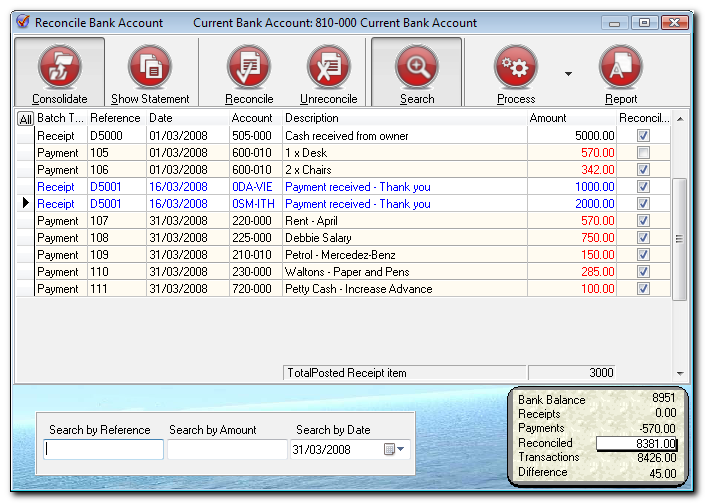
90 CHAPTER 7 - BANK RECONCILIATION Reconciling your Cashbook with Bank Statements If you have entered any repeating transactions for your payments and receipts batches, copy them to a normal batch to a normal batch, as they will not be reflected in the above list of Cashbook transactions if they are not at this stage updated or posted to the ledger. You may update the normal batch once you completed the bank reconciliation, unless you work on a Client Machine in a network environment. To do a Bank Reconciliation: Click on the Reconciliation or click on the Input - Reconcile Bank menu option. Select the Cashbook you wish to reconcile, i.e. Current Bank Account. Press the Enter key. The Reconcile Bank Account screen will be displayed. Include Items Until: Bank Balance: Select 31/03/2008. Enter (closing balance of your bank statement). Click on the OK button and the Reconcile Bank screen displaying the name of your current account will be displayed listing all your transactions in this Cashbook for the selected period i.e. 01 to 31 March. These entries represent your unreconciled items. Before beginning your bank reconciliation you may set up the following functions: SEARCH: Click on the Search button and a window will appear at the bottom of the Reconcile Bank Account screen. This allows you to search for an entry by Date, Reference or Amount. CONSOLIDATE: If you click on this option TurboCASH will consolidate all items with the same reference number and give you a total (e.g. Reference D type the reference number in the Search by reference column and press the Enter key. You will notice that if anyone of the two entries with the same reference number are selected, they appear highlighted in a different colour and the total i.e for the entries appears below the list of unreconciled items in the field Total Posted Receipt Item ) TurboCASH Tutorial for Service Entities
91 Reconciling your Cashbook with Bank Statements To Reconcile Items (let us use our tutorial): Type in the reference: D5000 (as per your reference in the Cashbook) and press the Enter key - The amount (5 000) and entry will be highlighted in a different colour. If your TurboCASH corresponds with your bank statement, press the Enter key. You will notice that a tick appears next to the entry. If you can't remember the reference number, you can reconcile by amount. Just click to the amount field and enter the amount. TurboCASH will "tick" each reconciled transaction in your Cashbook. Ensure that you mark your bank statement accordingly. You are now ready for the next line on your bank statement. Reference: Amount: Press the Enter key to tick. Continue until you get to the bank charges. Once you are happy that you have ticked all possible entries - click on the arrow on the Process button and select the Apply Reconciled option. All reconciled items will disappear from the list and you will be left with a list of unreconciled items BANK CHARGES You would only know what your bank charges are when you actually receive your bank statement from the bank. Any bank charges that have to be paid must be entered into your "Payments Journal", and only interest received must be entered into your "Receipts Journal". It is always a good idea to use a reference number such as "9000" onwards, so as not to overwrite your cheque numbers or deposit reference numbers. If it may overlap with your cheque or deposit numbers you may wish to precede the number with BS for bank statement. You now need to go back to your Payments Journal and enter your bank charges. Press the Esc key to exit the reconciliation. (NB. Before exiting the batch, make sure that you have clicked on the Apply Reconciled option on the Process button to save the ticks and reconcile the ticked items.) Click on the Batch Entry icon. (You may also press the F2 key). The Batch Type screen will be displayed. Select the Payments Jnl and click on the Open button. The Payments Journal screen will be displayed. Enter the following transaction: Reference: Date: Account: Tax: Amount: BS /03/2008 Bank Charges Select No Tax for the purposes of this tutorial. VAT/GST/Sales Tax may be applicable to some charges on your bank statement, if you are registered as a VAT/GST/Sales Tax vendor DR In practice, it is easier to enter any bank charges, debit orders, interest, etc. into your Payments or Receipts Journals before starting the reconciliation. Balance the batch. Remember to over type the description BALANCING ENTRY Payments Jnl with Bank Charges Bank Statement 5. TurboCASH Tutorial for Service Entities - 91
92 CHAPTER 7 - BANK RECONCILIATION Post the batch. Press the Esc key to exit the batch or journal. Go back to your bank reconciliation and reconcile your bank charges. The Difference in the bottom righthand corner of the Reconcile Bank Account screen should now reflect a nil balance. Once you have completed your bank reconciliation, you must check that your Cashbook is, in fact, in balance CHECKING YOUR BANK RECONCILIATION To generate a Bank Reconciliation report: Click on the Reports - Reconciliation menu option. Select the Cashbook you wish to reconcile. Select the Date as 31/03/2008 to include items until. Enter as the Bank Balance. Click on the OK button. The Cashbook reconciliation report is displayed: TurboCASH will subtract any unreconciled payments and add any unreconciled receipts from the bank balance according to the bank statement, thus giving a reconciled balance. If there is a difference between the reconciled balance and the balance according to TurboCASH, there is an error, in the Payments or the Receipts Journals. Search for the error and correct it TurboCASH Tutorial for Service Entities
93 CHECKING YOUR BANK RECONCILIATION Here are only a few examples that can possibly cause a difference: Your closing bank balance is incorrectly entered on the Reconcile Bank Account screen (Input - Reconcile Bank menu option) or on the Reconcile Bank Account report options screen (Reports - Reconciliation menu option). Incorrect date entered ("Include Items Until" field) Reconcile Bank Account report options screen (Reports - Reconciliation menu option). Errors in posting - they should have been detected when your bank reconciliation was done. If everything else fails you may sometimes have to look at your Cash-book and link up the source documents to check if you have entered all your transactions correctly. You could also have posted an amount incorrectly e.g. as and entered it as You may need to generate a Cash-book report from the Reports - General Ledger - Transactions menu option to trace some errors. If the descriptions BALANCING ENTRIES Receipts Jnl and BALANCING ENTRIES Payments Jnl were not changed to a meaningful description such as Deposit Slips D5000 to D5001 and Payments Cheques 105 to 111, it will be difficult to trace any errors. If the description BALANCING ENTRIES Payments Jnl", has been changed, to Bank Statement 5 for example, it will be easy to find the applicable statement if needed. TurboCASH Tutorial for Service Entities - 93
94 CHAPTER 8 - BUDGETING In This Chapter CHAPTER 8 - BUDGETING BUDGETING ENTERING THE BUDGET FIGURES GENERATING A BUDGET REPORT... 96

95 BUDGETING 8.1- BUDGETING The budget facility is used to enter and edit budget figures in TurboCASH, which can be compared with actual income and expenses. Budgets are a guide as to what you want to achieve; for instance what income you expect to generate (sales forecasts and income from other sources) and a plan for your expenses you need to incur to achieve that income. Budget figures can be flexible so as to take into account seasonal trends in business. For the purposes of this tutorial, we need to enter the following budget: Account Allocation Description 010 Sales Annual Monthly Bank Charges Depreciation /010 Fuel & Oil /020 Maintenance Rent Salaries Stationery NET PROFIT The net profit need not be entered into the computer as it has already been worked out automatically ENTERING THE BUDGET FIGURES To enter your Budget figures: Click on the Edit - Budgets menu option. The lookup facility screen listing all your available Accounts as well as the Budget Accounts screen on which you will be entering, or editing your budget figures will be displayed. Select the first account Sales and press the Enter key. The lookup facility will close and the Sales account number will be displayed in the account field. Enter the Annual amount of and press the Enter key. TurboCASH Tutorial for Service Entities - 95
96 CHAPTER 8 - BUDGETING The will depict a credit. For a debit amount just insert the annual amount without the. The amount will automatically be divided this amount into 12 months in the debit or credit fields, depending on whether a or Credit sign have been entered in the Amount field. Each month can be overwritten so that the budget can be flexed month by month to accommodate seasonal trends and spending patterns of your business. The system will keep a running total for you, so that as you are flexing the monthly budget, you can see the effect on the annual amount. Opening Balances are for Balance Sheet items with a carried forward balance from the previous year. Click on the OK button to save the Budget figure. The lookup facility screen will be displayed and you are ready to enter your next figure. Continue on your own using the budget on the previous page until you have completed entering your budget figures. Since Stock is not applicable to this tutorial, do not enter any budget figures for cost of sales. You may at any time preview your entries for a specific account by clicking on the Preview button. The specific account will be viewed on the Budget Performance report. When you are finished entering all your budget figures, press the Esc key or click on the Cancel button GENERATING A BUDGET REPORT Budget figures are displayed as comparative figures on the Trial Balance, Income Statement and User Reports (if User Reports were set up to display budget figures). In addition to this, you may also generate a Budget Performance report. To generate a Budget Performance report: Click on the Reports - General Ledger - Budget Performance menu option. The Budget Performance Report options screen will be displayed. Select the following options: Send Report To: Select either Screen or Printer (you decide). From Account: Press your Home key (beginning of your Chart of Accounts). To Account: Press your End key (End of your Chart of Accounts). From: Select the Start Date. To: Select the End Date. Show Sub-accounts: Tick. Include Zero Balances: Leave blank. Click on the OK button to generate the report. This report shows the actual figures you achieved versus the budget figures you aimed to achieve. This report is a valuable tool to check expected income against actual sales. I.e. did you make your targets? If your expenses are more than your budgeted figures, you may look at the spending pattern or maybe curb some spending. The factors are unique to each business; variances need to be analysed and proactive steps taken to address them TurboCASH Tutorial for Service Entities
97 CHAPTER 9 - REPORTS In This Chapter CHAPTER 9 - REPORTS INTRODUCTION TO REPORTS SUMMARY OF STANDARD REPORTS GENERATING REPORTS Send to Screen Send to Printer Send to File Send to Send to Fax
98 CHAPTER 9 - REPORTS 9.1- INTRODUCTION TO REPORTS TurboCASH allows you to generate a wide range of reports, each with various options to select. These reports are an exceptionally powerful tool for use in managing and controlling all aspects of your business. TurboCASH can report on your transactions and balances for up to two years (this year and the previous year). Reports are grouped into the various types. All reports are generated on the Reports main menu option SUMMARY OF STANDARD REPORTS The following standard reports on the Reports menu option may be generated: Reports Batch Types Creditor Contact Listing Debtors General Ledger Reconciliation Tax User Reports Brief Description Reports on all your transactions entered and updated on the system, for each entry type or for a specific entry type or specified period. For example, all your sales journal, purchase journal, general journals, etc. transactions will be grouped together. Reports on the age analysis, lists, printing of labels, remittance advises and the detailed transactions, for all your creditors or a selection of them for a specified period. Lists of all your contacts. Reports on the age analysis, lists, printing of labels, statements and the detailed transactions, for all your debtors or a selection of them for a specified period. Reports on the budget performance, chart of accounts, cash flow, detailed transactions, movements and financial statements such as the trial balance, income statement and balance sheet, for all your accounts or a selection of them for a specified period. Reports on the bank reconciliation as at a specific end of a period. Reports can be generated for a specific period for all your Tax (VAT/GST/Sales Tax) or for all or a specific tax code such as Input VAT/GST/Sales Tax; Output VAT/GST/Sales Tax, Zero rated VAT/GST/Sales Tax, etc. as well as detailed or received. All reports which you have created in the Edit - User Reports menu option. Document Listing, Stock, Sales Analysis, Point-of-Sales and Purchase Analysis reports are only applicable to Retail entities, trading in Stock Items GENERATING REPORTS As the principles to generate reports are basically the same on all report option screens, it is a good idea to discuss the output media (Send Report To) in this chapter. To generate a report, click on the Reports main menu options and select the specific report you wish to generate. You can generate these any of these reports on the following mediums: Send Report To Screen Printer File Fax Brief Description Displays the report on your screen, from where you can page and scroll through the report. You may also print the report or save it after you have previewed it. Prints the report directly to the printer specified in the Setup - Preferences - Printer menu option. TurboCASH Report Export utility allows you to Save the report in a directory and in certain formats, you specify. Send the report over the Internet as an message. Send the report as a Fax to a specified recipient. Send to Screen On the top of the report generated on your screen, a row of icons or command buttons is displayed. At the bottom of the screen the length of the report, as well as the current page displayed on your screen are shown. By Clicking on the First, Previous, Next and Last icon you can page through your report. You may also use the horizontal and vertical scroll bars to view the rest of the current page. If you click on the Print button, the Select the Printer screen will be displayed. The printer you have selected in the Setup - Preferences - Printer menu option will be displayed. You may select any other available printer on your system, by clicking on the drop-down list. You may also select the number of copies of the generated report to be printed on this screen. When you click on the OK button, the selected printer displayed on the screen will print the report. If you click on the Save icon (second command button), The TurboCASH Export Report screen will be displayed. On this screen you can specify the Directory, the name for your report and the file type or format in which you wish to save your report. The following file types or formats are available to save your report in: 98 - TurboCASH Tutorial for Service Entities
99 Send to Screen File Type Html (Hypertext Mark-up Language) Text Comma Separate Value Rich Text Microsoft Excel Windows Metafile File Extension *.htm.*txt *.csv *.RTF.xls *Wmf You may also have other available file types or formats on your system, depending on the other software that you have installed on your system, such as Lotus, etc. When you are finished to look at the report on screen, printed or saved it on your system, you may close the report by clicking on the Close icon or on the Close button on the top right-hand corner of your screen. You may also press the Esc key on your keyboard. The benefit of printing and saving a report from this screen is that you first view your reports on screen to make sure that you have selected the correct options. It could be a good idea to print and save from this option until you are used to the various options to select Send to Printer If you have selected the Send To Printer option and you click on the OK button, the report will be printed automatically by the printer you have selected in the Setup - Preferences - Printer menu option, without having a chance to preview the report. If you wish to print more than one copy of the report, you may select the number of copies to be printed before you click on the OK button. For all the other report output options, you cannot select the number of copies, since they will only be generated in 1 copy Send to File If you have selected the "Send To" file option and you click on the OK button, the very same TurboCASH Report Export screen as discussed above will be displayed. You will not be able to preview the report before you can save it Send to If you have selected the Send to option and you click on the OK button, the Sending and Fax Report screen will be displayed. Your should already be set up in the Setup - Internet menu option. Enter the subject and select the address from your address book and click on the Send button Send to Fax If you have selected the Send to Fax option and you click on the OK button, the Sending and Fax Report screen will be displayed. Your Fax drivers should already be set up in your Windows operating system. TurboCASH has also included i.efax Setup and Drivers on the TurboCASH installation wizard and on a folder on the installation CD. In addition to these reports and those user reports, which you can use, you also have the further option as to export these reports or data in these reports via the Export utility to further analyse your data in spreadsheets, word processing, presentation programs, etc. You can use the reports and exported data to draft powerful presentations, business plans, etc. TurboCASH Tutorial for Service Entities - 99
100 CHAPTER 10 - REPORT WRITER In This Chapter CHAPTER 10 - REPORT WRITER INTRODUCTION TO USER REPORTS HOW TO WRITE AN INCOME / EXPENSE REPORT Setting up the Report Header Setting up the Row Types Setting up the Column Headings GENERATING THE USER REPORT
101 INTRODUCTION TO USER REPORTS INTRODUCTION TO USER REPORTS In addition to the standard reports, which TurboCASH provide on the Reports menu option, you may use the powerful facility to create and customise your own reports to meet your specific requirements. The Report Writer, if used correctly, can supply you with information such as: Balance sheets, Income statements, Profit and Loss reports tailored to meet your requirements, Quarterly reports, Half yearly reports, Monthly income statements, This year versus last year comparisons, Budget versus actual comparisons, and a host of others. The Report Writer allows for up to 15 columns if you are using wide paper and 7 columns if you are using A4 paper. The Report Writer works similarly to a Lotus spreadsheet, whereby you have columns and rows. Values, formulae and references may be entered into cells. The columns are numbered from A to H (if 7 columns are required) and A to O for the wider paper. The number of rows is infinite. It is important that you plan your reports carefully to ensure that the correct reports are generated. An example of a quarterly report is as follows: TurboCASH Tutorial for Service Entities - 101

102 CHAPTER 10 - REPORT WRITER HOW TO WRITE AN INCOME / EXPENSE REPORT If you have ranged your accounts using the Groups Facilities in the Setup menu, then numerous reports may be written. To write an Income / Expenses report: Click on the Edit - User Reports menu option. Select New - if you are writing a new report from the Select a user report screen and click on the OK button. The Report Writer screen is displayed: While designing the user report, you may at any time click on the Preview button on the Report Writer screen to view the layout, etc Setting up the Report Header The first step is to define the Report Header. The report header will display the headings and the number of columns as well as the number of decimals to be displayed in the report. Enter the following: Field Report name Report title 1 Report title 2 No of Columns Display Decimals Compress Print Description Enter Inc&Exp as the name of the report. You will use this name to generate the user report or select this name if you need to delete the user report. Enter the main heading e.g. Income & Expense Report. This is your sub-heading e.g. for the period ending #E, the #E will mean that TurboCASH will recognise the date you require when you print your report. Enter 2 for the purposes of this tutorial. Select to display the decimals of any amounts and percentages on the user report. Leave blank TurboCASH Tutorial for Service Entities

103 Setting up the Row Types Setting up the Row Types Once finished with the Report Header, the cursor is in the Row Type field. The following screen is displayed on which you need to select the type (properties) for each row. Since you will need to select the properties for each of the rows, the properties for each row is briefly discussed. Row Type Description Account The Accounts lookup facility will be displayed on which you need to select an account. Any balances, budgets, etc. for the selected account will be displayed in each of the columns of the selected row. Blank The entire row will be blank. Column Line A line as specified as a _ (single line) or as a = (double line) will be displayed in each of the columns of the selected row. Group 1 and Only the total balances, budget figures of all accounts linked to Account Group 1 or Group 2 Account Group 2 will be displayed. Group 1 Detail The individual balances, budget figures of all accounts linked to Account Group 1 or and Group 1 Account Group 2 will be displayed. Each account will be listed on the User Report. Detail Single Line A line as specified as a _ (single line) or as a = (double line) will be displayed right across the entire report of the selected row. Text The text entered will be displayed as a label on the left-hand side of the report. Select and enter the following for the rows to be displayed in the Income and Expense Report for the purposes of this tutorial: Row Row Type Description Column A Column B 1 Text Enter Income 2 Account Select Sales Account 3 4 Text Group Detail 1 Enter Less Expenses Column Line Text Column Line Text Column Line Select Expenses Enter _ Enter Total Expenses Enter _ Enter Net Profit Enter = A4 B4 A2+A6 B2+B6 Once you are finished to define the rows, you need to set the properties for each of the columns. For the purposes of this tutorial, we have selected 2 columns. In the first column (Column A), we wish to display the actual income and expenses and in the second column (Column B), we wish to display the budget figures as entered in the Edit - Budgets menu option (see Chapter 8). TurboCASH Tutorial for Service Entities - 103
104 CHAPTER 10 - REPORT WRITER Setting up the Column Headings When the cursor is placed in Column A, the Column Header for Column A will be displayed: Select and enter the following for Column A: Field Description Column Type Select This Year Column Header Enter Actual in the first column and 2008/2009 in the adjacent field. Method Absolute or Relative, select Absolute. Absolute returns the balances for the months specified, irrespective of the date of the report. Relative is dependent on the date specified for the report. Date from To Select the date (accounting period) From and To on the Periods lookup facility. Note that if "Relative" was selected, you cannot select the dates (accounting periods). If relative is selected, the Date from and To fields will be displayed as Relative from and To. In this case you need to enter 0 in both the Relative from and To fields, which refers to the current month of the specified date. 11 (11 prefixed with a minus sign) refers to 12 months to the date specified. When the cursor is placed in Column B, the Column Header for Column B will be displayed. Select and enter the following for Column B: Field Description Column Type Select Budget Column Header Enter Budget in the first column and 2008/2009 in the adjacent field. Method Absolute or Relative, select Absolute. Absolute returns the balances for the months specified, irrespective of the date of the report. Relative is dependent on the date specified for the report. Date from To Select the date (accounting period) From and To on the Periods lookup facility. Note that if "Relative" was selected, you cannot select the dates (accounting periods). If relative is selected, the Date from and To fields will be displayed as Relative from and To. In this case you need to enter 0 in both the Relative from and To fields, which refers to the current month of the specified date. 11 (11 prefixed with a minus sign) refers to 12 months to the date specified TurboCASH Tutorial for Service Entities
105 GENERATING THE USER REPORT GENERATING THE USER REPORT If you have ranged your accounts using the Groups Facilities in the Setup menu, then numerous reports may be written. To print your User Report: Click on the Reports - User Reports menu option. Select Inc & Exp. on the Select a Report screen. Select 31/03/2008 as the Date of Report. Select either Screen or Printer (if a printout is required). Click on the OK button and your report will be generated. TurboCASH will calculate all your columns and rows automatically. The Income and Expense Report as per example in this tutorial should reflect as follows: In this example, the Net Profit should at any stage balance with the Income Statement if generated in the Reports - General Ledger - Income Statement menu option. TurboCASH Tutorial for Service Entities - 105
106 CHAPTER 11 - LIST OF SHORTCUT KEYS In This Chapter CHAPTER 11 - LIST OF SHORTCUT KEYS Function Keys on the TurboCASH Main Program... Function Keys on the Batch Entry Screens... Alt and Function Keys... Ctrl and Function Keys... Ctrl and Alphabetical Character Keys
107 Function Keys on the TurboCASH Main Program 11.1Key F1 F2 F4 F5 Function Keys on the TurboCASH Main Program F10 Creation Wizard Menu Option Help Input - Batch Entries Tools - Calculator Setup - System Parameters Company Info File - Create Set of Books F11 Close Set of Books File - Close Set of Books 11.2Key F5 F6 F7 F8 F9 F Key F4 11.4Key F3 F Key B Description Help Batch Entry Calculator Company Info Function Keys on the Batch Entry Screens Description Balance Post Exclusive / Inclusive List Process Setup Function Balance the Batch Post the Batch Enter VAT/GST/Sales Tax Exclusive or Inclusive List the Batch Process the Batch Setup entry defaults for the batch. Alt and Function Keys Description Exit TurboCASH Menu Option File - Exit TurboCASH Function Exits your TurboCASH program. Ctrl and Function Keys Description Search Delete a Set of Books Menu Option Tools - Search File - Delete Set of Books Function Launches the Investigator to search for data in a Set of Books. To permanently remove a selected Set of Books from your System. Ctrl and Alphabetical Character Keys I General Ledger Transactions Income Statement L Open Item Link Menu Option Reports - General Ledger Balance Sheet. Reports - General Ledger Transactions Reports - General Ledger Income Statement Input - Open Item Link R S Reconcile Bank Save As Input - Reconcile Bank File - Save As T Trial Balance Reports - General Ledger Trial Balance E Function Access the Help files. Enter transactions in your respective Batch Types. Access the Calculator. Enter or edit information regarding the company and to set defaults for the company. Launches the Creation Wizard screen on which you may select an option to create, copy, or convert a Set of Books. Close an open Set of Books. Description Balance Sheet Function Options to generate a Balance Sheet. Options to generate General Ledger Transactions. Options to generate an Income Statement. Options to link receipts to specific invoices for Debtors and payments for Creditors to certain supplier invoices or purchases. Perform the Bank Reconciliation. Save your Set of Books in a selected directory or location. Options to generate a Trial Balance. TurboCASH Tutorial for Service Entities - 107
ACCOUNTING MADE EASY. TurboCASH 3.756 TUTORIAL
 ACCOUNTING MADE EASY TurboCASH 3.756 TUTORIAL With thanks to: Philip Copeman Selwyn Wacks Pieter Valentijn (Delphidreams) Malcolm Cheyne (TurboCASH Australia) Sylvain Ntumba Faizel Razak Sylvain Mboumba
Integrated Accounting System for Mac OS X and Windows
 Integrated Accounting System for Mac OS X and Windows Program version: 6.2 110111 2011 HansaWorld Ireland Limited, Dublin, Ireland Preface Books by HansaWorld is a powerful accounting system for the Mac
Partner. Sage Pastel. Accounting. Installation Guide
 Sage Pastel Accounting Partner Installation Guide Sage Pastel: +27 11 304 3000 Sage Pastel Intl: +27 11 304 3400 www.pastel.co.za www.sagepastel.com [email protected] [email protected] Sage Pastel Accounting
Getting Started with POS. Omni POS Getting Started Manual. switched on accounting
 Omni POS Getting Started Manual switched on accounting i i Getting Started with Omni POS Table Of Contents Overview...1 Setting up POS...2 Initial Steps...2 Tellers...2 POS Clearing Account...3 Printing...4
Getting Started 7. The Customer Ledger 19
 Contents Contents 1 Getting Started 7 Introduction 8 Starting Sage 50 9 Sage 50 Desktop Views 10 Settings 11 Company Preferences 1 Currency & the Euro 15 Customer & Supplier Defaults 16 Finance Rates 18
Contents. Hardware Configuration... 27 Uninstalling Shortcuts Black...29
 Contents Getting Started...1 Check your Computer meets the Minimum Requirements... 1 Ensure your Computer is Running in Normal Sized Fonts... 7 Ensure your Regional Settings are Correct... 9 Reboot your
BIGPOND ONLINE STORAGE USER GUIDE Issue 1.1.0-18 August 2005
 BIGPOND ONLINE STORAGE USER GUIDE Issue 1.1.0-18 August 2005 PLEASE NOTE: The contents of this publication, and any associated documentation provided to you, must not be disclosed to any third party without
Integrated Accounting System for Mac OS X
 Integrated Accounting System for Mac OS X Program version: 6.3 110401 2011 HansaWorld Ireland Limited, Dublin, Ireland Preface Standard Accounts is a powerful accounting system for Mac OS X. Text in square
Omni Getting Started Manual. switched on accounting
 Omni Getting Started Manual switched on accounting Omni Getting Started Table of Contents Install & Register... 3 Install and Register... 3 Omni Programs... 3 Users... 4 Creating Companies... 5 Create
Software Installation and Creating a New Company
 Chapter 1 Software Installation and Creating a New Company OBJECTIVES: 1 System Requirements 2 Software Installation 3 Starting QuickBooks and Creating a New Company 4 Backing up Company Data 5 QuickBooks
A Guide To Using. Box-Office 2000. Version 2. By Nortech Software. The main booking screen
 A Guide To Using Box-Office 2000 Version 2 By Nortech Software The main booking screen Contents Features 4 Event Bookings...4 Ticket Book Printing & Layouts...4 Installation 5 Requirements...5 Software
INSTALL/UPGRADE GUIDE: Amicus Small Firm Accounting
 INSTALL/UPGRADE GUIDE: Amicus Small Firm Accounting Contents Basics...2 Single-User Install...4 Multi-User Network Install...5 Getting Started (first time install)...7 Updating Templates (if upgrading)...9
Getting Started with Sage 50 Accounts 2012
 Getting Started with Sage 50 Accounts 2012 Making the most of your software Hello, Thank you for purchasing Sage 50 Accounts 2012. This guide will help you to get started and make the most of your software.
Welcome to the new Sage 50 Accounts
 Welcome to the new Sage 50 Accounts What s new Easy install guide Getting started For more support, visit the Sage 50 Accounts Help Centre: sage.co.uk/new50accounts Contents New and improved features
Integrated Invoicing and Debt Management System for Mac OS X
 Integrated Invoicing and Debt Management System for Mac OS X Program version: 6.3 110401 2011 HansaWorld Ireland Limited, Dublin, Ireland Preface Standard Invoicing is a powerful invoicing and debt management
PopupProtect User Guide
 Having the power to block or allow popup and popunder advertising www.contentwatch.com 2004 All rights reserved. 2369 West Orton Circle, Salt Lake City, UT 84119 Table of Contents Welcome and Installation
February 2010 Version 6.1
 HansaWorld University Point Of Sales (POS) Training Material HansaWorld Ltd. February 2010 Version 6.1 Table Of Contents INTRODUCTION...5 What is Point Of Sales?...5 THE 4 DIFFERENT WAYS OF USING POS...6
How To Use Standard Pos On A Pc Or Macbook Powerbook 2.5.2.2 (Powerbook 2)
 Integrated Point of Sales System for Mac OS X Program version: 6.3.22 110401 2012 HansaWorld Ireland Limited, Dublin, Ireland Preface Standard POS is a powerful point of sales system for small shops and
Stellar Phoenix. SQL Database Repair 6.0. Installation Guide
 Stellar Phoenix SQL Database Repair 6.0 Installation Guide Overview Stellar Phoenix SQL Database Repair software is an easy to use application designed to repair corrupt or damaged Microsoft SQL Server
FrontDesk Installation And Configuration
 Chapter 2 FrontDesk Installation And Configuration FrontDesk v4.1.25 FrontDesk Software Install Online Software Activation Installing State Related Databases Setting up a Workstation Internet Transfer
MGC WebCommander Web Server Manager
 MGC WebCommander Web Server Manager Installation and Configuration Guide Version 8.0 Copyright 2006 Polycom, Inc. All Rights Reserved Catalog No. DOC2138B Version 8.0 Proprietary and Confidential The information
RoboMail Mass Mail Software
 RoboMail Mass Mail Software RoboMail is a comprehensive mass mail software, which has a built-in e-mail server to send out e-mail without using ISP's server. You can prepare personalized e-mail easily.
TimeValue Software Due Date Tracking and Task Management Software
 User s Guide TM TimeValue Software Due Date Tracking and Task Management Software File In Time Software User s Guide Copyright TimeValue Software, Inc. (a California Corporation) 1992-2010. All rights
Appointment Scheduler
 EZClaim Appointment Scheduler User Guide Last Update: 11/19/2008 Copyright 2008 EZClaim This page intentionally left blank Contents Contents... iii Getting Started... 5 System Requirements... 5 Installing
Centran Version 4 Getting Started Guide KABA MAS. Table Of Contents
 Page 1 Centran Version 4 Getting Started Guide KABA MAS Kaba Mas Welcome Kaba Mas, part of the world-wide Kaba group, is the world's leading manufacturer and supplier of high security, electronic safe
Introduction to MS WINDOWS XP
 Introduction to MS WINDOWS XP Mouse Desktop Windows Applications File handling Introduction to MS Windows XP 2 Table of Contents What is Windows XP?... 3 Windows within Windows... 3 The Desktop... 3 The
User Manual V1.3. NCB File Converter. @alahlincb. /alahlincb. 9 2000 1000 www.alahli.com
 User Manual V1.3 NCB File Converter @alahlincb /alahlincb 9 2000 1000 www.alahli.com The National Commercial Bank File Converter User Manual Copyright 2013 The National Commercial Bank Page 2 of 44 Table
MAS 90. Installation and System Administrator's Guide 4WIN1010-02/04
 MAS 90 Installation and System Administrator's Guide 4WIN1010-02/04 Copyright 1998-2004 Best Software, Inc. All rights reserved. Rev 02 Contents Chapter 1 Introduction 1 How to Use This Manual 1 Graphic
NDA-30141 ISSUE 1 STOCK # 200893. CallCenterWorX-Enterprise IMX MAT Quick Reference Guide MAY, 2000. NEC America, Inc.
 NDA-30141 ISSUE 1 STOCK # 200893 CallCenterWorX-Enterprise IMX MAT Quick Reference Guide MAY, 2000 NEC America, Inc. LIABILITY DISCLAIMER NEC America, Inc. reserves the right to change the specifications,
SHARP Digital Signage Software Pro PN-SS05 OPERATION MANUAL
 SHARP Digital Signage Software Pro PN-SS05 Version 4.1 OPERATION MANUAL Contents Introduction... 2 Precautions on Use...2 Trademarks...2 How to Read this Manual...3 Definitions...3 Installing/Launching...
Sage Accounting A Step by Step Guide
 Sage Accounting A Step by Step Guide Integra Accounting Limited Chartered Certified Accountants 5 Station Road Hinckley Leicestershire LE10 1AW Tel: 01455 238551 Email: [email protected]
[ Learning Outcomes ] [ Learning Objectives ]
![[ Learning Outcomes ] [ Learning Objectives ]](/thumbs/27/9494072.jpg "[ Learning Outcomes ] [ Learning Objectives ]") S A G E P A S T E L P A R T N E R V 1 2 P o i n t o f S a l e [ Point of Sale ] [ Learning Outcomes ] In this module, you are going to explore the Sage Pastel V12 Point of Sale add-on module. You will
S A G E P A S T E L P A R T N E R V 1 2 P o i n t o f S a l e [ Point of Sale ] [ Learning Outcomes ] In this module, you are going to explore the Sage Pastel V12 Point of Sale add-on module. You will
SOS Suite Installation Guide
 SOS Suite Installation Guide rev. 8/31/2010 Contents Overview Upgrading from SOS 2009 and Older Pre-Installation Recommendations Network Installations System Requirements Preparing for Installation Installing
Batch & Document Management. User Guide
 Batch & Document Management User Guide Version 9.18 Last Updated: November 2009 Table of Contents Overview 4 Introduction 4 Summary of Features 4 Key Benefits 5 Installation / Upgrade / Security 6 System
Chapter 2: Clients, charts of accounts, and bank accounts
 Chapter 2: Clients, charts of accounts, and bank accounts Most operations in BankLink Practice are client specific. These include all work on coding transactions, reporting, and maintaining chart of accounts
Sage Simply Accounting. Getting Started Guide 2012. First Step
 Sage Simply Accounting Getting Started Guide 2012 First Step Sage Simply Accounting Getting Started Guide First Step 2012 Getting Started... 1 Setting Up Your Company... 3 Setting Up Customers and Vendors...
INTRODUCTION SAHAJ ACCOUNTING
 INTRODUCTION Welcome to SAHAJ ACCOUNTING software, not just accounting, complete business solutions. Whether you plan to manage your personal accounts or the finances of your business, you can use SAHAJ
Vodafone PC SMS 2010. (Software version 4.7.1) User Manual
 Vodafone PC SMS 2010 (Software version 4.7.1) User Manual July 19, 2010 Table of contents 1. Introduction...4 1.1 System Requirements... 4 1.2 Reply-to-Inbox... 4 1.3 What s new?... 4 2. Installation...6
Accounting. Getting Started Guide
 Accounting Getting Started Guide Sage 50 Canadian Edition Getting Started Guide Getting Started...1 Setting Up Your Company...3 Setting Up Customers and Suppliers...8 Setting Up Items... 10 Essential Tasks...
Including Accounts Receivable, Budget Planning and Equipment Register. Revision History... 2. New and Updated Functionality in FMS 6.146...
 FMS 6.146 Including Accounts Receivable, Budget Planning and Equipment Register Contents Revision History... 2 New and Updated Functionality in FMS 6.146... 2 Enhancements in FMS 6.146... 2 Resizing of
AFN-SchoolStoreManagerGuide-032703
 032703 2003 Blackbaud, Inc. This publication, or any part thereof, may not be reproduced or transmitted in any form or by any means, electronic, or mechanical, including photocopying, recording, storage
STATISTICA VERSION 9 STATISTICA ENTERPRISE INSTALLATION INSTRUCTIONS FOR USE WITH TERMINAL SERVER
 Notes: STATISTICA VERSION 9 STATISTICA ENTERPRISE INSTALLATION INSTRUCTIONS FOR USE WITH TERMINAL SERVER 1. These instructions focus on installation on Windows Terminal Server (WTS), but are applicable
Accounts Production Installation Guide
 Accounts Production Installation Guide Copyright statement Sage (UK) Limited and Sage Hibernia Limited, 2014. All rights reserved. If this documentation includes advice or information relating to any matter
User Guide. Customer Appointment Manager. Standard & Pro Versions. Overview. New in this Version
 Customer Appointment Manager User Guide Standard & Pro Versions Thank you for choosing Customer Appointment Manager. Everything you ll need to promptly serve your customers is right at your fingertips
How To Install Database Oasis On A Computer Or Computer (For Free)
 INSTALLATION INSTRUCTIONS Table of Contents Installation Instructions 1 Table of Contents 1 System Requirements 2 Installation 3 Selecting where to Install the Professional Server 3 Installing Prerequisites
Horizon Debt Collect. User s and Administrator s Guide
 Horizon Debt Collect User s and Administrator s Guide Microsoft, Windows, Windows NT, Windows 2000, Windows XP, and SQL Server are registered trademarks of Microsoft Corporation. Sybase is a registered
2002 Blackbaud, Inc. This publication, or any part thereof, may not be reproduced or transmitted in any form or by any means, electronic, or
 041902 2002 Blackbaud, Inc. This publication, or any part thereof, may not be reproduced or transmitted in any form or by any means, electronic, or mechanical, including photocopying, recording, storage
SOFTWARE INSTALLATION INSTRUCTIONS
 AUDITGARD LGA Electronic Combination Lock SOFTWARE INSTALLATION INSTRUCTIONS Implementation Package The AuditGard Software implementation package includes: 707013 AuditGard Software Install CD 42145 Programming/Audit
Results CRM 2012 User Manual
 Results CRM 2012 User Manual A Guide to Using Results CRM Standard, Results CRM Plus, & Results CRM Business Suite Table of Contents Installation Instructions... 1 Single User & Evaluation Installation
Introduction 1-1 Installing FAS 500 Asset Accounting the First Time 2-1 Installing FAS 500 Asset Accounting: Upgrading from a Prior Version 3-1
 Contents 1. Introduction 1-1 Supported Operating Environments................ 1-1 System Requirements............................. 1-2 Security Requirements........................ 1-3 Installing Server
Batch Eligibility Long Term Care claims
 Hewlett Packard Enterprise Provider Electronic Solutions software lets Connecticut Medical Assistance Program providers verify patient s eligibility and submit and correct claims for services all electronically.
AFN-AccountsPayableGuide-111506
 111506 2006 Blackbaud, Inc. This publication, or any part thereof, may not be reproduced or transmitted in any form or by any means, electronic, or mechanical, including photocopying, recording, storage
TheFinancialEdge. Fast! Guide
 TheFinancialEdge Fast! Guide 101811 2011 Blackbaud, Inc. This publication, or any part thereof, may not be reproduced or transmitted in any form or by any means, electronic, or mechanical, including photocopying,
Getting Started with Vision 6
 Getting Started with Vision 6 Version 6.9 Notice Copyright 1981-2009 Netop Business Solutions A/S. All Rights Reserved. Portions used under license from third parties. Please send any comments to: Netop
ASTROW HR. Installation & Operation & Programming MANUAL
 ASTROW HR Installation & Operation & Programming MANUAL 2007 A.S.E. R&D EUROPE. Printed in Belgium. All rights reserved. NOTICE Information in this document is subject to change without notice and does
Virtual CD v10. Network Management Server Manual. H+H Software GmbH
 Virtual CD v10 Network Management Server Manual H+H Software GmbH Table of Contents Table of Contents Introduction 1 Legal Notices... 2 What Virtual CD NMS can do for you... 3 New Features in Virtual
Software Installation and Creating a New Company
 Chapter 1 Software Installation and Creating a New Company OBJECTIVES 1. System Requirements. 2. Download QuickBooks 2014. 3. Install Software from CD. 4. Starting QuickBooks. 5. Creating a New Company.
Empowered by Innovation. Setting Up and Using Fax Mail. P/N 1770087 July 2006 Printed in U.S.A.
 Empowered by Innovation Setting Up and Using Fax Mail P/N 1770087 July 2006 Printed in U.S.A. This manual has been developed by NEC Unified Solutions, Inc. It is intended for the use of its customers and
Secure Website and Reader Application User Guide
 Secure Website and Reader Application User Guide February 2005 IMPORTANT NOTICE Copyright Medibank Private Limited All rights reserved. No part of this document (including its appendices and Schedules)
Tabs3, PracticeMaster, and the pinwheel symbol ( trademarks of Software Technology, Inc. Portions copyright Microsoft Corporation
 Tabs3 Trust Accounting Software Reseller/User Tutorial Version 16 for November 2011 Sample Data Copyright 1983-2013 Software Technology, Inc. 1621 Cushman Drive Lincoln, NE 68512 (402) 423-1440 http://www.tabs3.com
COMBOGARDPRO. 39E Electronic Combination Lock SOFTWARE INSTALLATION INSTRUCTIONS
 COMBOGARDPRO 39E Electronic Combination Lock SOFTWARE INSTALLATION INSTRUCTIONS IMPLEMENTATION PACKAGE The ComboGard Pro Software implementation package includes: 707012 ComboGard Pro Software Install
RentMaster Frequently Asked Questions
 RentMaster Frequently Asked Questions How do I...? How do I do my end of month procedure as a property manager. At the end of the month a property manager normally pays their landlord clients. Prior to
View Payments. User Guide. Online Merchant Services
 View Payments User Guide Online Merchant Services Copyright Statement Copyright 2010 by American Express Company. All rights reserved. No part of this document may be reproduced in any form or by any electronic
Magaya Software Installation Guide
 Magaya Software Installation Guide MAGAYA SOFTWARE INSTALLATION GUIDE INTRODUCTION Introduction This installation guide explains the system requirements for installing any Magaya software, the steps to
OFFSITE BACKUP & RESTORE USER/ ADMINISTRATOR GUIDE
 OFFSITE BACKUP & RESTORE USER/ ADMINISTRATOR GUIDE Offsite Backup & Restore\User/Admin Guide\Updated on 3/15/2006. Version 1.1 1 Offsite Backup & Restore Offsite Backup & Restore is a client-server application
Nortel Networks Call Center Reporting Set Up and Operation Guide
 Nortel Networks Call Center Reporting Set Up and Operation Guide www.nortelnetworks.com 2001 Nortel Networks P0919439 Issue 07 (24) Table of contents How to use this guide... 5 Introduction...5 How this
Installation and Program Essentials
 CS PROFESSIONAL SUITE ACCOUNTING PRODUCTS Installation and Program Essentials version 2010.x.x TL 22538 (5/25/10) Copyright Information Text copyright 1998 2010 by Thomson Reuters/Tax & Accounting. All
Introduction to Client Online. Factoring Guide
 Introduction to Client Online Factoring Guide Contents Introduction 3 Preparing for Go live 3 If you have any questions 4 Logging In 5 Welcome Screen 6 Navigation 7 Navigation continued 8 Viewing Your
Introduction to Mamut Point of Sale
 // Mamut Point of Sale Introduction to Mamut Point of Sale Contents News in Mamut Point of Sale version 3.5... 2 Mamut Point of Sale... 3 Definitions of words and expressions used in the program... 7 Getting
EasyBooks Professional
 EasyBooks Professional Introduction EasyBooks Professional is a Multi Client Bookkeeping System that provides separate Cashbook, Customer and Supplier systems for different clients or separate business
Stellar Phoenix. Access Database Repair 5.0 Installation Guide
 Stellar Phoenix Access Database Repair 5.0 Installation Guide Overview Stellar Phoenix Access Database Repair, a secure and easy to use application is designed for repairing corrupt Microsoft Access (.mdb,.accdb)
Getting Started with WebEx Access Anywhere
 Getting Started with WebEx Access Anywhere This guide provides basic instructions to help you start using WebEx Access Anywhere quickly. This guide assumes that you have a user account on your meeting
TOPS v3.2.1 Calendar/Scheduler User Guide. By TOPS Software, LLC Clearwater, Florida
 TOPS v3.2.1 Calendar/Scheduler User Guide By TOPS Software, LLC Clearwater, Florida Document History Version Edition Date Document Software Trademark Copyright First Edition Second Edition 02 2007 09-2007
Accounts. Step by Step Data Setup Wizard and How to Guide. online
 online Accounts Step by Step Data Setup Wizard and How to Guide Main Tel. 0845 450 7304 Support Tel. 0844 484 9412 Email [email protected] Free 30day trial www.liquidaccounts.com Page 1 Online Accounts
Point of Sale 2015 Enterprise. Installation Guide
 Point of Sale 2015 Enterprise Installation Guide Contents About this guide 3 System Requirements - Microsoft SQL Server 2008 R2 Express 3 System Requirements - POS Enterprise 2015 (Administrator) 3 System
How To Use Cleanersmate Software On A Pc Or Mac Or Macbook Or Macintosh (For Pc Or Pc) With A Computer Or Mac (For Mac) With An Ipa Or Mac Xp (For A Mac) On A Computer With
 User Guide Installation... 2 Using CleanersMate... 3 Initial Settings... 3 Clients... 3 Clients Summary Screen... 4 Adding a New Client... 4 Deleting an Existing Client... 4 Editing an Existing Client...
SUCCESS TAX SOLUTIONS, INC. STSPro Professional Tax Software 2012 Desktop User Guide
 SUCCESS TAX SOLUTIONS, INC STSPro Professional Tax Software 2012 Desktop User Guide 1 This page left intentionally blank. 2 Contents Chapter One: Getting Started... 6 Who We Are... 6 System Requirements
CODESOFT Installation Scenarios
 CODESOFT Installation Scenarios NOTES: CODESOFT is a separate install from existing versions of CODESOFT. You will need to make note of your current settings (default directories, etc.) so you can duplicate
GP REPORTS VIEWER USER GUIDE
 GP Reports Viewer Dynamics GP Reporting Made Easy GP REPORTS VIEWER USER GUIDE For Dynamics GP Version 2015 (Build 5) Dynamics GP Version 2013 (Build 14) Dynamics GP Version 2010 (Build 65) Last updated
Installing the Microsoft Network Driver Interface
 Installing the Microsoft Network Driver Interface Overview This guide explains how to install the PictureTel Live200 Microsoft Network Driver Interface (NDIS) software you have downloaded from PictureTel's
Instruction manual. testo easyheat Configuration and Analysis software
 Instruction manual testo easyheat Configuration and Analysis software en 2 General Information General Information This documentation includes important information about the features and application of
InventoryControl for use with QuoteWerks Quick Start Guide
 InventoryControl for use with QuoteWerks Quick Start Guide Copyright 2013 Wasp Barcode Technologies 1400 10 th St. Plano, TX 75074 All Rights Reserved STATEMENTS IN THIS DOCUMENT REGARDING THIRD PARTY
Chapter 13: Producing reports
 This Chapter covers how to produce the various kinds of report available in BankLink Practice, as well as options common to all reports: Standard report options Cash flow reports Profit and loss reports
Launch Create Store. Import Orders Enter Orders Manually Process Orders. Note: Ctrl+click on a number to jump to that topic.
 Order Manager Version 5 QUICK START GUIDE Updated 1/6/11 About the Quick Start Guide This Quick Start Guide is designed to help users get started with the Order Manager as rapidly as possible. Although
Installation / Migration Guide for Windows 2000/2003 Servers
 PSQL v9 SP1 (9.1) & Installation / Migration Guide for Windows 2000/2003 Servers Ebix, Inc. Corporate Headquarters Concourse Parkway, Suite 3200 Atlanta, GA 30328 USA Phone: 678-281-2020 Fax: 678-281-2019
Legal Notes. Regarding Trademarks. 2012 KYOCERA Document Solutions Inc.
 Legal Notes Unauthorized reproduction of all or part of this guide is prohibited. The information in this guide is subject to change without notice. We cannot be held liable for any problems arising from
Installation Instruction STATISTICA Enterprise Small Business
 Installation Instruction STATISTICA Enterprise Small Business Notes: ❶ The installation of STATISTICA Enterprise Small Business entails two parts: a) a server installation, and b) workstation installations
Microsoft Dynamics GP. Cashbook Bank Management
 Microsoft Dynamics GP Cashbook Bank Management Copyright Copyright 2010 Microsoft. All rights reserved. Limitation of liability This document is provided as-is. Information and views expressed in this
Microsoft Dynamics GP. Cashbook Bank Management
 Microsoft Dynamics GP Cashbook Bank Management Copyright Copyright 2007 Microsoft Corporation. All rights reserved. Complying with all applicable copyright laws is the responsibility of the user. Without
MODULE 2: SMARTLIST, REPORTS AND INQUIRIES
 MODULE 2: SMARTLIST, REPORTS AND INQUIRIES Module Overview SmartLists are used to access accounting data. Information, such as customer and vendor records can be accessed from key tables. The SmartList
StrikeRisk v6.0 IEC/EN 62305-2 Risk Management Software Getting Started
 StrikeRisk v6.0 IEC/EN 62305-2 Risk Management Software Getting Started Contents StrikeRisk v6.0 Introduction 1/1 1 Installing StrikeRisk System requirements Installing StrikeRisk Installation troubleshooting
QIAsymphony Management Console User Manual
 April 2012 QIAsymphony Management Console User Manual For use with software version 4.0 Sample & Assay Technologies Trademarks QIAGEN, QIAsymphony, Rotor-Gene (QIAGEN Group). InstallShield (Informer Technologies,
SQL Server 2008 R2 Express Installation for Windows 7 Professional, Vista Business Edition and XP Professional.
 SQL Server 2008 R2 Express Installation for Windows 7 Professional, Vista Business Edition and XP Professional. 33-40006-001 REV: B PCSC 3541 Challenger Street Torrance, CA 90503 Phone: (310) 303-3600
Sage 50. Sage 50 Accounting U.S. Edition. Resource guide for Sage Business Care customers. Sage Learning Services
 Sage 50 Accounting U.S. Edition Sage 50 Resource guide for Sage Business Care customers Learn how to set up and use basic accounting functions, including sales, purchases, inventory, and payroll. Sage
GUARD1 PLUS SE Administrator's Manual
 GUARD1 PLUS SE Administrator's Manual Version 4.4 30700 Bainbridge Road Solon, Ohio 44139 Phone 216-595-0890 Fax 216-595-0991 [email protected] www.guard1.com i 2010 TimeKeeping Systems, Inc. GUARD1 PLUS
Installation Instruction STATISTICA Enterprise Server
 Installation Instruction STATISTICA Enterprise Server Notes: ❶ The installation of STATISTICA Enterprise Server entails two parts: a) a server installation, and b) workstation installations on each of
NTI Backup Now EZ v2 User s Guide
 NTI Backup Now EZ v2 User s Guide GMAA00423010 11/12 2 Copyright statement This guide is copyrighted by Toshiba Corporation with all rights reserved. Under the copyright laws, this guide cannot be reproduced
email-lead Grabber Business 2010 User Guide
 email-lead Grabber Business 2010 User Guide Copyright and Trademark Information in this documentation is subject to change without notice. The software described in this manual is furnished under a license
BillQuick Agent 2010 Getting Started Guide
 Time Billing and Project Management Software Built With Your Industry Knowledge BillQuick Agent 2010 Getting Started Guide BQE Software, Inc. 2601 Airport Drive Suite 380 Torrance CA 90505 Support: (310)
IBM FileNet eforms Designer
 IBM FileNet eforms Designer Version 5.0.2 Advanced Tutorial for Desktop eforms Design GC31-5506-00 IBM FileNet eforms Designer Version 5.0.2 Advanced Tutorial for Desktop eforms Design GC31-5506-00 Note