
Using Telephony Quick Reference Guide
|
|
|
- Nickolas Potter
- 10 years ago
- Views:
Transcription


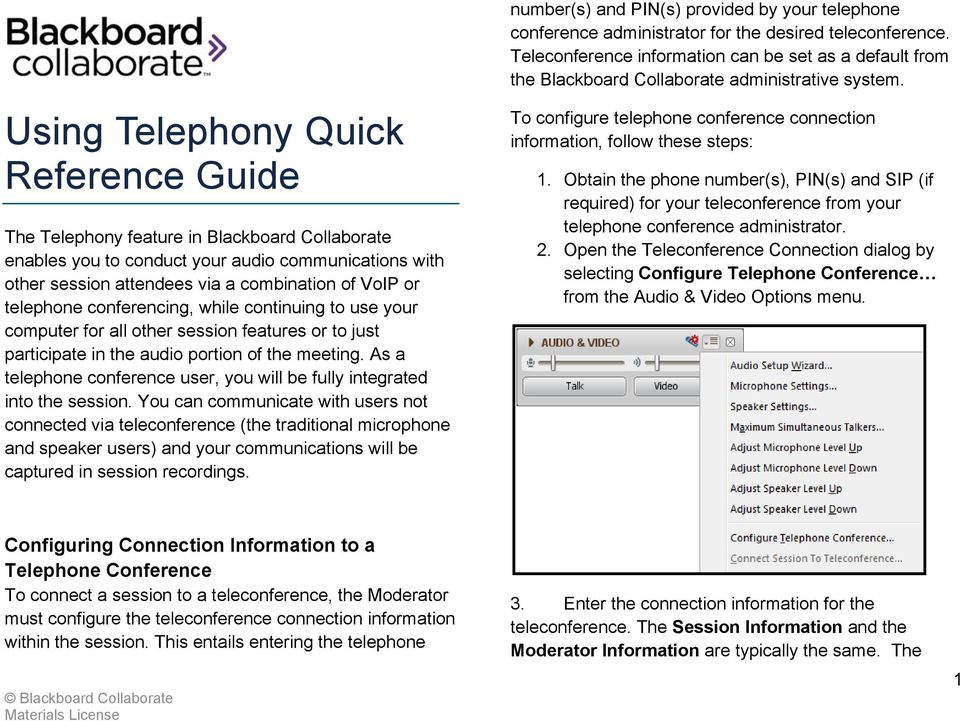
1 Using Telephony Quick Reference Guide The Telephony feature in Blackboard Collaborate enables you to conduct your audio communications with other session attendees via a combination of VoIP or telephone conferencing, while continuing to use your computer for all other session features or to just participate in the audio portion of the meeting. As a telephone conference user, you will be fully integrated into the session. You can communicate with users not connected via teleconference (the traditional microphone and speaker users) and your communications will be captured in session recordings. number(s) and PIN(s) provided by your telephone conference administrator for the desired teleconference. Teleconference information can be set as a default from the Blackboard Collaborate administrative system. To configure telephone conference connection information, follow these steps: 1. Obtain the phone number(s), PIN(s) and SIP (if required) for your teleconference from your telephone conference administrator. 2. Open the Teleconference Connection dialog by selecting Configure Telephone Conference from the Audio & Video Options menu. Configuring Connection Information to a Telephone Conference To connect a session to a teleconference, the Moderator must configure the teleconference connection information within the session. This entails entering the telephone 3. Enter the connection information for the teleconference. The Session Information and the Moderator Information are typically the same. The 1

2 Blackboard Collaborate session will connect to the call using the Session Information. Connecting the Session to the Telephone Conference Once you have configured the connection information, the Moderator must now establish the bridge (connection) between the session and the telephone conference. (Note: this is needed only if this wasn t already done in Step 4 above) To connect the session to the telephone conference, follow the steps below: 1. Select Connect Session to Teleconference from the Audio & Video Options menu 4. Save the teleconference information. If you want to connect to the teleconference immediately, click on the Save & Connect button. If you want to configure but not connect to the teleconference, click on the Save button. 2. The session calls and connects. Click on Confirm when the Confirm Connection dialog box appears.


3 Joining a Teleconference Now that the session has connected to the teleconference, any session attendee (Moderator and Participant) can join a teleconference. To join a teleconference, follow the steps below: 1. Click the Teleconference button to access the conference number and PIN. 3. Note that a new Participant called Teleconference appears in the Participants List. 2. Using your telephone, dial the teleconference telephone number displayed in the Connect to Teleconference dialog. 3. Enter the teleconference PIN when prompted to do so by the teleconference (if required). 4. When you ve successfully connected to the teleconference, click on OK in the Connect to Teleconference dialog. The Telephone button will change to blue and the word Teleconferencing will appear in the Audio & Video window to confirm you are communicating via the call. 3

4 Adjusting the Sound & Muting the Teleconference While you are in your session, you can prevent the audio from the teleconference from entering the session by muting the teleconference. This will prevent everyone who is on the audio conference from talking to others in the session on VoIP. However, the teleconference participants will continue to hear and talk to each other and will still receive audio from the session. Figure 1 Muted To mute the teleconference: 1. Using the Participant Option menu, remove Audio permission for the Teleconference Participant. Figure 2 Not Muted

5 Disconnecting the Session from the Teleconference Only a Moderator can disconnect the session from the telephone conference. To disconnect, select Disconnect Session from Teleconference from the Audio & Video Options menu. Click Yes to confirm. Audio Activity Indicators Activity Indicator Description Indicates session attendee has turned on the microphone by clicking the Talk button. Tips for using Telephony Manage participant interaction using the same session etiquette as if participants are on VoIP or Telephony or a mix of both. Ask participants to raise their hands before speaking. This will facilitate better communications and will let you know who on the Teleconference is speaking Mute teleconference users during the presentations to avoid interruptions and the broadcast of unwanted audio. Remind users on the audio conference to mute their telephone while they are not speaking to minimize distractions for the users on the teleconference. As a best practice, use the Moderator PIN in the Session Information field in the Teleconference Connection dialogue box so that as soon as the session joins the conference those on the teleconference no longer hear music and a Moderator in the teleconference is not explicitly needed. A telephone icon next to a Moderator or Participant indicates that attendee is currently connected to the telephone conference and that the Teleconference bridge is not muted. A telephone icon that is grayed out with a red x means the teleconference has been muted by the Moderator. 5

Using Telephony Quick Reference Guide for Moderators
 Using Telephony Quick Reference Guide for Moderators The Telephony feature in Blackboard Collaborate enables you to conduct your audio communications with other session attendees via a combination of VoIP
Chapter 9 Telephone Conferencing
 Chapter 9 Telephone Conferencing The Telephony feature of Elluminate Live! enables you to conduct your audio communications with other session attendees via telephone conferencing, while continuing to
Sonera Meeting Services Microsoft Office 365 dial-in service. Quick Start Guide
 Sonera Meeting Services Microsoft Office 365 dial-in service Quick Start Guide Revised: September 2015 Contents Introduction... 2 System Requirements... 2 What s New in This Guide... 2 Tips for Using Audio
How to Set Up a Blackboard Collaborate Telephone Conference Bridge
 How to Set Up a Blackboard Collaborate Telephone Conference Bridge (revised: 21 September 2011) LINGOs has been able to successfully configure a telephone conference bridge with Blackboard Collaborate
Using Cisco WebEx Web Conferencing you have the ability to add a teleconference to your web conference.
 U S E R G U I D E Cisco WebEx Audio Controls Guide and Release Notes for FR29 Using Cisco WebEx Web Conferencing you have the ability to add a teleconference to your web conference. Audio controls are
Audio shares a panel with Video in the CCC Confer interface. The panel has the following components relevant to Audio:
 VoIP AUDIO FEATURE The Audio feature enables you to participate in conversations during a Blackboard Collaborate Web Conferencing session using a microphone and speakers (or headset) via Voice over Internet
Using the rphone pod in an Adobe Connect meeting room V.2
 Using the rphone pod in an Adobe Connect meeting room V.2 Table of contents Using the rphone in an Adobe Connect meeting room Using the rphone in an Adobe Connect meeting room Using the rphone pod in an
Host - Dialing In To An Adobe Connect Meeting
 Host - Dialing In To An Adobe Connect Meeting This How-To Guide will walk a Connect Meeting Room Host through the process of starting the Audio option within a Connect Meeting room. NOTE: The Attendees
Microsoft Office Live Meeting Audio Controls Users' Guide
 Microsoft Office Live Meeting Audio Controls Users' Guide InterCall s Reservationless-Plus SM Audio Integration For more information: www.intercallapac.com Australia 1800 468 225 +61 2 8295 9000 Hong Kong
Cisco WebEx Web Conferencing, provided by InterCall Audio Controls User Guide
 Cisco WebEx Web Conferencing, provided by InterCall Audio Controls User Guide For more information: In the U.S.: 800.374.2441 www.intercall.com [email protected] In Canada: 877.333.2666 www.intercall.ca
GUIDELINES MEETING ONE AUDIO CONFERENCING INTEGRATION WITH ADOBE CONNECT.
 GUIDELINES MEETING ONE AUDIO CONFERENCING INTEGRATION WITH ADOBE CONNECT. Updated 16 th September 2015 Page: 1 CONTENTS ENABLE AUDIO CONFERENCING ON YOUR LICENSE... 3 ADMINISTRATOR TO ENABLE ADAPTER...
Microsoft Office Live Meeting Audio Controls Users' Guide
 Microsoft Office Live Meeting Audio Controls Users' Guide For more information: 877.333.2666 www.intercall.ca InterCall s Reservationless-Plus SM Audio Integration Office Live Meeting s integrated audio
AUDIO l VIDEO END-USER GUIDE. Fernwood 3E02 Conference Room System New Touch Panel
 AUDIO l VIDEO END-USER GUIDE Fernwood 3E02 Conference Room System New Touch Panel Conference Room 3E02 is equipped to provide: Audio Teleconferencing Video Conferencing (with Room Support assistance).
Web Conferencing with WebEx
 Web Conferencing with WebEx Setting Up an Unrestricted Meeting 1. Browse to https://purdue.webex.com. 2. In the upper right, click Log In. 3. Log in with your Purdue Career Account. 4. Click the Meeting
Microsoft Office Live Meeting Audio Controls Users' Guide
 Microsoft Office Live Meeting Audio Controls Users' Guide Information Hotline 0871 7000 170 +44 (0)1452 546742 [email protected] Reservations 0870 043 4167 +44 (0)1452 553456 [email protected]
Blackboard Collaborate Classroom in Desire2Learn. Presenters
 Blackboard Collaborate Classroom in Desire2Learn Presenters Copyright 2014 Information Technology Services Kennesaw State University This document may be downloaded, printed, or copied, for educational
Microsoft Office Live Meeting Audio Controls Set Up
 Microsoft Office Live Meeting Audio Controls Set Up Audio Options When using your InterCall Reservationless-Plus SM account, you can connect to the conference upon entering the meeting by using the Join
InterCall Centers Audio Controls Users Guide
 InterCall Centers Audio Controls Users Guide Using the InterCall Centers suite of services, powered by WebEx, you have the ability to add an InterCall Reservationless-Plus teleconference to the web portion
Lync 2013 for Windows. Conferencing Quick Reference
 Lync 2013 for Windows Conferencing Quick Reference 102713 Contents Information for Lync Meetings and Conference Calls... 3 Schedule a Phone Conference or Lync Meeting... 4 Set Meeting Options... 4 Meet
Student Guide - Student Groups and Adobe Connect in Canvas
 Student Guide - Student Groups and Adobe Connect in Canvas Creating an Adobe Connect Conference 1. Use Chrome or Firefox as your browser. Make sure you are on the latest version. 2. Connect your headset
Participate in an Adobe Connect Meeting For Meeting Participants
 Participate in an Adobe Connect Meeting For Meeting Participants Contents Contents... 1 Connection Test:... 2 Join a meeting:... 3 Change your status:... 3 Meeting Audio:... 3 Audio Setup Wizard:... 3
Conferencing User Guide
 Welcome Conferencing is an easy to use, on demand, audio conferencing service to help enhance your business productivity. Included at no extra charge with your Business Advantage Plus and Business Advantage
AUDIO l VIDEO END-USER GUIDE. Fernwood 3D12 Conference Room System New Touch Panel
 AUDIO l VIDEO END-USER GUIDE Fernwood 3D12 Conference Room System New Touch Panel Conference Room 3D12 is equipped to provide: Audio Teleconferencing Video Conferencing Room Computer with Adobe Connect
How to Join or Accept a GoToMeeting Videoconferencing Request
 How to Join or Accept a GoToMeeting Videoconferencing Request 1. Join a Session Join a session from your invitation email 1. Open the calendar invitation you received from the organizer. 2. Click the Join
A.P. Moller Maersk s Conferencing Services Audio Controls User Guide
 A.P. Moller Maersk s Conferencing Services Audio Controls User Guide When using A.P. Moller Maersk s Conferencing Services suite of solutions, powered by WebEx, you have the ability to add a Reservationless-Plus
Quick Start Guide. Web Conferencing & Secure Instant Messaging via Microsoft Office Communications Server 2007. Apptix Live Support: 866-428-0128
 Quick Start Guide Web Conferencing & Secure Instant Messaging via Microsoft Office Communications Server 2007 Apptix Live Support: 866-428-0128 Quick Start Guide / Introduction Page 2 of 6 Quick Start
InterCall Centres Audio Controls Users Guide
 InterCall Centres Audio Controls Users Guide Using the InterCall Centres suite of services, powered by WebEx, you have the ability to add an InterCall Reservationless-Plus teleconference to the web portion
Lync Quick Start Guide for MAC OS
 Microsoft Lync is a unified communications platform that works ideally in a Windows Operating System, but is also feature- rich using a MAC OS. The purpose of this guide is to cover highlights of Lync
Hosted VoIP Outlook TAPI Integration
 Hosted VoIP Outlook TAPI Integration P a g e 1 This Document The purpose of this document is to describe how to download and install the TAPI (Telephony Application Program Interface) available at the
PRELIMINARY MEETING PREPARATION For the best quality and experience during your WebEx Meeting, you should have the following:
 HOSTING AN NJIT WEBEX MEETING PRELIMINARY MEETING PREPARATION For the best quality and experience during your WebEx Meeting, you should have the following: Technical Needs: A headset/mic combo unit (preferably
Audio Help for Webinar Attendees. GoToWebinar User Guide. Virtual Operating System (VMware, Parallels, etc.)
 Virtual Operating System (VMware, Parallels, etc.) An error message will appear if you are attempting to join a Webinar using VoIP through a virtualized operating system, such as VMware, Parallels, etc.
Using BT MeetMe with Skype for Business Online
 Using BT MeetMe with Skype for Business Online User Guide BT Conferencing Last modified: July 2015 Version: 3.1 Contents Introduction 2 Why, when, and what Scheduling and inviting 3 Scheduling a conference
Quick Reference Guide Jabber Calls (Mac)
 Quick Reference Guide Jabber Calls (Mac) Calls You can use Jabber to make and receive phone calls instead of using your desk phone (ie: video phone). When you use Jabber on your computer for calls, your
Adobe Connect Mobile 2.0 Getting Started for participants using mobile phones. 2012 Adobe Systems Incorporated. All Rights Reserved.
 Adobe Connect Mobile 2.0 Getting Started for participants using mobile phones 1 Adobe Connect Mobile: Enter Server URL Tap to type the URL for your meeting, or select from the list of meetings you ve attended
Using BT MeetMe with Microsoft Lync Online
 Using BT MeetMe with Microsoft Lync Online User Guide BT Conferencing Last modified: 12 Nov 2014 Version: 2.0.0 Contents Introduction 2 Why, when, and what Scheduling & inviting 3 Scheduling a conference
Bb Collaborate Online Rooms Faculty Support Guide
 Bb Collaborate Online Rooms Faculty Support Guide D2L Services West Chester University of Pennsylvania www.wcupa.edu/d2l 610-436-3350, option 2 Anderson Hall [email protected] D2L v10.5 BB Collaborate 12.6.4
OCS Client Installation - Quick Start Guide. Web Conferencing & Secure Instant Messaging via Microsoft Office Communications Server 2007
 OCS Client Installation - Quick Start Guide Web Conferencing & Secure Instant Messaging via Microsoft Office Communications Server 2007 MailStreet Live Support: 866-461-0851 Document Revision: March, 2010
USER GUIDE BroadData Conferencing Reservationless Audio Conferencing - Online Call Manager
 USER GUIDE BroadData Conferencing Reservationless Audio Conferencing - Online Call Manager Online Call Manager adds the power of the Internet to your audio meeting. It turns your meeting into an integrated
ORGANIZER QUICK START GUIDE
 NOTES ON USING GoToWebinar GoToWebinar organizers may hold webinars for up to 1,000 attendees. The Webinar process can be broken into 3 stages: Webinar Planning, Webinar Presentation and Webinar Follow-up.
Web Conferencing. Contents. Adobe Connect Web Conferencing. Revision Date: November 18, 2013 Prepared by: William Fisher
 Web Conferencing Adobe Connect Web Conferencing Revision Date: November 18, 2013 Prepared by: William Fisher Contents Overview... 2 Account Request... 2 Installation... 2 Creating a Meeting... 2 Adding
Web Conferencing with Microsoft Lync TM. Quick Start Guide
 Web Conferencing with Microsoft Lync TM Quick Start Guide Web Conferencing with Microsoft Lync i Contents Participate in Online Meetings with Lync Web App... 1 Check Your Meeting Readiness... 1 Join the
Web Manual: Go To Meeting April 2015
 Web Manual: Go To Meeting Table of Contents Getting Started... 3 What is GoToMeeting?... 3 Activating Your Account... 3 What You Need for Set-up... 3 Changing Account Details (Name, Email, Time Zone, Password)...
Mobile Web Conferencing: Session Management Tips for Moderators
 Mobile Web Conferencing: Session Management Tips for Moderators Blackboard Collaborate Mobile Web Conferencing is designed for active learners who are on the go. Session attendees can participate in web
For Organizers (Hosts) at OSU
 Adobe Connect Pro 9.1 Overview For Organizers (Hosts) at OSU Getting Started 1. Access Adobe Connect Pro Central via this URL: http://oregonstate.adobeconnect.com 2. Login using your email address and
How to Host WebEx Meetings
 How to Host WebEx Meetings Instructions for ConnSCU Faculty and Staff using ConnSCU WebEx BEFORE YOU BEGIN PLEASE READ! On 7/30/15, the ConnSCU WebEx site was upgraded to a new version. Although the new
Scheduling a Blackboard Collaborate Web Conferencing Session using the Building Block 4.0 Quick Reference Guide
 Scheduling a Blackboard Collaborate Web Conferencing Session using the Building Block 4.0 Quick Reference Guide The Building Block 4.0 enables Blackboard Learn 9.1 customers to easily and seamlessly integrate
2. Contact the host directly for further assistance.
 Issue Solution Meeting Access I can t find my meeting URL If you cannot find the URL for your meeting, try one of the following tasks: 1. Check the email invitation for the URL to the meeting that the
Get Started in Web Conference Classes: Set Up WebEx
 Get Started in Web Conference Classes: Set Up WebEx Don t miss class on your first day because of technical issues. Make sure you and your computer are ready for web conference classes with this guide.
Conference Instructions
 Toll-Free Customer Service: (844) 844-1322 Online Support: [email protected] Step 1-Setup Conference Call Conference Instructions Organize your conference call by notifying all participants
ONcbx Feature Guide UC Desktop Client
 1 Getting Started 1.1 Installation The Quick Start Guide contains the essential information for getting started with the Oxford Networks BroadTouch Business Communicator. Once you receive an email indicating
WebEx Meeting Center with Collaboration Meeting Rooms (CMR Cloud) User Guide 3.0
 WebEx Meeting Center with Collaboration Meeting Rooms (CMR Cloud) User Guide 3.0 First Published: August 01, 2014 Last Modified: August 21, 2015 Americas Headquarters Cisco Systems, Inc. 170 West Tasman
Comparing What s New in Blackboard Collaborate 12 to Blackboard Collaborate 11
 Comparing What s New in Blackboard Collaborate 12 to Blackboard Collaborate 11 Audio Echo Cancellation Blackboard Collaborate web conferencing has built-in echo cancellation which allows you to participate
VISUAL QUICK START GUIDE ADOBE CONNECT PRO 8
 VISUAL QUICK START GUIDE ADOBE CONNECT PRO 8 Getting started with Adobe Connect meetings Create and Access Your Meetings 1. Navigate to : https://brookdalecc.adobeconnect.com in your web browser. 2. Log
eyebeam Quick Start Guide
 Installation and Basic Operations Guide to eyebeam Xten s Full-Featured Video SIP Softphone Xten Networks, Inc. Research and Development Facility Suite 188, 4664 Lougheed Highway Burnaby, BC Canada V5C
Unify OpenScape UC Web Client User Manual
 Unify OpenScape UC Web Client User Manual Contents Introduction... 1 E164 Numbers... 1 Dialling out... 1 Logging in to the Unify OpenScape Web Client... 2 Using the Unify OpenScape Web Client Main Toolbar...
Instructions to set up ReadyTalk to work with Adobe Connect
 1 Instructions to set up ReadyTalk to work with Adobe Connect 1. Why do this? For several years we ve been using Adobe Connect for the visuals and ReadyTalk for the audio in online meetings. The voice
Bb Collaborate Online Rooms Faculty Support Guide
 Bb Collaborate Online Rooms Faculty Support Guide D2L Services West Chester University of Pennsylvania www.wcupa.edu/d2l 610-436-3350, option 2 Anderson Hall, room 20 [email protected] v10.3 June 2014 Contents
MICROSOFT OFFICE LIVE MEETING AUDIO CONTROLS USERS GUIDE
 MICROSOFT OFFICE LIVE MEETING AUDIO CONTROLS USERS GUIDE Microsoft Office Live Meeting s integrated audio controls enable you to control your InterCall Reservationless-Plus SM audio conference from within
Getting Started with Zoom
 Getting Started with Zoom The Institute of Agriculture has recently purchased a site license for a new cloud-based video conferencing service known as Zoom. If you have ever connected to a GoToMeeting,
OfficeSuite Simplicity Phone and System Features. General Settings. Phone status (Icon is i ) Time and date (The Settings icon is a wrench)
 OfficeSuite Simplicity Phone and System Features General Settings Phone status (Icon is i ) Press OK and use the navigation keys to select the Status menu. Select item SIP Account Status to view the associated
What is My Teamwork? What s new in this release? MY TEAMWORK 5.0 QUICK START GUIDE
 MY TEAMWORK 5.0 QUICK START GUIDE What is My Teamwork? My Teamwork is a converged communications solution that combines presence-aware instant messaging with the ability to make phone calls, conference
Using Lync Web App 080813
 080813 Using Lync Web App Contents What Is It?... 3 Required Plug ins... 3 Information for Online Meetings and Conference Calls... 4 Join a Meeting... 4 Access Meeting Audio... 6 Add a Person to a Conference
Using Adobe Acrobat Connect@Hunter College. How to Host a Meeting - User s Guide
 Note: For the purpose of consistency between the Hunter College written and web documentation and the Adobe Connect pro Software terminology, we will use meeting to represent a virtual class session, host
Audio and Web Conferencing
 Audio and Web Conferencing 1 Moderator Touch Tone Commands 3 System Requirements 4 Browsers Operating Systems Plug-ins Internet Connection Hardware Joining your Web Conference 5 Ending your Web Conference
Technology Thi nk T ank March 23 & 24 , 2010
 GoToMeeting Accessibility Technology Think Tank March h23 & 24, 2010 Managing and Scheduling Meetings Inviting Attendees My Meetings Window (PC and Mac) Schedule A Meeting From a PC Right Click on the
How To Record A Voip Conference On A Computer Or Laptop (For A Free) On A Pc Or Mac) On An Ipod Or Ipod (For Free)
 Setting up VOIP conferencing on a PC You must have your computer and an internet connection. Your computer must have a supported sound card (most computers do). It is recommended that you use a computer
CISCO WebEx Guide for participants of WebEx meetings. Unified Communications
 Unified Communications CISCO WebEx Guide for participants of WebEx meetings Version: January 2014 TABLE OF CONTENTS Introducing WebEx... 2 How to join a WebEx meeting... 2 How to join a WebEx meeting as
Avaya Flare Experience for Windows Quick Reference
 Avaya Flare Experience for Windows Quick Reference Making voice calls Making a voice call using the dialpad 1. Click the Call button under the center spotlight or press the CONTROL + D keys on your keyboard
Canvas Conferencing for Students
 Canvas Conferencing for Students Minimum Requirements A laptop or desktop computer with (at least) 2G of memory and a 1Ghz processor. A web browser running Flash 11.2 (or above). Any web browser capable
GCI Conference Bridge 2
 Conference Bridge For assistance: Call 1-800-770-2121 E-mail [email protected] TABLE OF CONTENTS Administer Participants... 3 Manage Scheduled Conference... 3 Manage Personal Accounts... 3 Microsoft
Presence & IM. Quick Reference Guide. Build your Contacts list. Getting started. What does your Presence status mean?
 Getting started Status Area: Update presence status, location, or add a message View Tabs: View your contacts, activity feed, conversation or phone Lync Options: View or edit Lync options Quick Reference
Audio Web Conferencing Elluminate Live and Skype Guidelines for Use
 Audio Web Conferencing Elluminate Live and Skype Guidelines for Use UNITAR will use Audio Web Conferencing (AWC) to let Mentors and Fellows speak and communicate with each other in real time during their
VoIP Audio Setup - PC Users
 VoIP Audio Setup - PC Users To select and test your Mic & Speakers settings 1. Right-click the icon in the PC system tray and select Preferences. 2. Select Audio. Microphone Setup - It is recommended that
Verizon Collaboration Plug-In for Microsoft Outlook User Guide
 Verizon Collaboration Plug-In for Microsoft Outlook User Guide Version 4.11 Last Updated: July 2011 2011 Verizon. All Rights Reserved. The Verizon and Verizon Business names and logos and all other names,
Lync 2013 - Online Meeting & Conference Call Guide
 Lync 2013 - Online Meeting & Conference Call Guide Alteva Hosted Lync Version:00 QUICK LINKS Schedule an Online Meeting Change Meeting Access and Presenter Options Join from a Computer with Lync Installed
Setting Up a One-Click Meeting
 Chapter 10 10 Setting Up a One-Click Meeting If you want to... get an overview of starting a One-Click Meeting from your WebEx service Web site specify settings for your One-Click Meeting install WebEx
Introduction to Adobe Connect Video Conferencing System
 Introduction to Adobe Connect Video Conferencing System Adobe Connect is the Australian National University's web conferencing solution for staff and students. It has been integrated with the University's
Microsoft Lync 2010 Voice and Video Training
 Microsoft Lync 2010 Voice and Video Training Objectives This course covers the following voice and video features of the Lync 2010 client. Make a Call Answer a Call Manage a Call Forward a Call Follow
Make Voice Calls and Share Documents using Skype*
 Make Voice Calls and Share Documents using Skype* Intel Easy Steps 1 2012 Intel Corporation Using Skype for making Voice Calls and Sharing Documents In the previous activity Using Skype to Communicate
REDBACK CONFERENCING COMPREHENSIVE USER GUIDE AUDIO & WEB CONFERENCING. Version 2.26
 REDBACK CONFERENCING COMPREHENSIVE USER GUIDE AUDIO & WEB CONFERENCING Version 2.26 1 Table of Contents Moderator Teleconference Touch Tone Commands... 3 Web Conferencing Moderator User Guide.. 4 Moderator
MICROSOFT OFFICE LIVE MEETING GUIDE TO RECORDING MEETINGS
 MICROSOFT OFFICE LIVE MEETING GUIDE TO RECORDING MEETINGS In partnership with Microsoft, InterCall provides Live Meeting web conferencing services. This guide makes several references to the service name,
1. If you do not already have a BlueJeans account, you can create one for free at https://nyu.bluejeans.com/.
 Setting up a meeting 1. If you do not already have a BlueJeans account, you can create one for free at https://nyu.bluejeans.com/. 2. When you log in, you will be given the option to use your personal
CALL MANAGER Voice over IP Features and Requirements with Quick Start Guide
 CALL MANAGER Voice over IP Features and Requirements with Quick Start Guide Conferencing is one of the best ways to keep you connected. InterCall is constantly working to make this easier and more cost
Quick Start: Use voice and video
 Quick Start: Use voice and video If you have a microphone and speakers, you re ready to use Microsoft Lync 2010 communications software for voice calls. You can also plug in any device recommended by your
Instructions for using Tandberg Audio Video equipment in Conference Room
 Instructions for using Tandberg Audio Video equipment in Conference Room The conference room is equipped with the following: Dell Optiplex 745 Computer and LCD monitor Mobile cart also has hookup for a
Getting Started. Sign in and get started. If you re already logged on to your organization s network, sign in by starting Lync.
 Getting Started Sign in and get started If you re already logged on to your organization s network, sign in by starting Lync. 1. On the Windows taskbar, click Start, click All Programs, click Microsoft
Scopia Desktop for Windows Installation and Configuration
 Scopia Desktop for Windows Installation and Configuration Prepared by ITS Teaching Services Version 1.1 Updated 2 December 2011 Scopia Desktop is a software application that allows a personal computer,
Advanced and Customized Net Conference With Cisco WebEx Meeting Center Meeting Tips
 Advanced and Customized Net Conference With Cisco WebEx Meeting Center Meeting Tips Meeting Tips for WebEx Meeting Center provides tips and techniques that you can use to conduct more efficient meetings
Avaya one-x Communicator User Reference
 Avaya one-x Communicator User Reference November 2009 Table Of Contents Introduction...1 Log into the server...3 Log out of the server...5 Use your feature buttons...7 Use Avaya one-x Communicator with
Table of Contents. Begin Here: Getting Started with WebEx. What is WebEx? Why would I use it?
 Table of Contents Begin Here: Getting Started with WebEx... 1 Scheduling a Meeting from the WebEx Website... 4 Scheduling a Meeting from Outlook 2010... 5 Selecting Audio Conference Settings... 6 Joining
GreenLight Web Quick Guide - Host
 This guide provides the basic information necessary to create, start, and host a GreenLight Web conference. Call (800) 839-9976 if we can be of any assistance. Thank you for using GreenLight Collaboration!
1. Open a web browser and navigate to:
 Getting Started: Installing and initial Login 1. Open a web browser and navigate to: 2. Click on the appropriate link for your operating system and install the software according to the on-screen instructions.
Connecting With Lifesize Cloud
 There are several different ways to connect to a Lifesize Cloud video conference meeting. This guide will provide you instructions for each way. Ways to Join a Lifesize Cloud Video Conference After getting
USER GUIDE - SAMETIME (Audio/Video Conferencing) Configure Lotus Same time for Video/Audio Conferencing
 IBM Sametime is a client server application that provides real-time communication and collaboration facility. The capabilities include presence information, instant messaging, screen sharing, audio/video