
PV TALENT Position Description and Applicant Tracking System. Our Tradition Your Opportunity
|
|
|
- Noreen Turner
- 10 years ago
- Views:
Transcription
1 PV TALENT Position Description and Applicant Tracking System Our Tradition Your Opportunity

2 Creating a Student Job Posting


3 Let s Take a at» The job posting request is a separate action from the position description in the Position Management System (PMS)» A current AND approved position description must be in the system before a job posting request can be submitted» If the last update on the position description is more than one year old then a updated position is required before the job posting request will be approved» Specific details will populate from the approved position description to help develop the job posting request

4
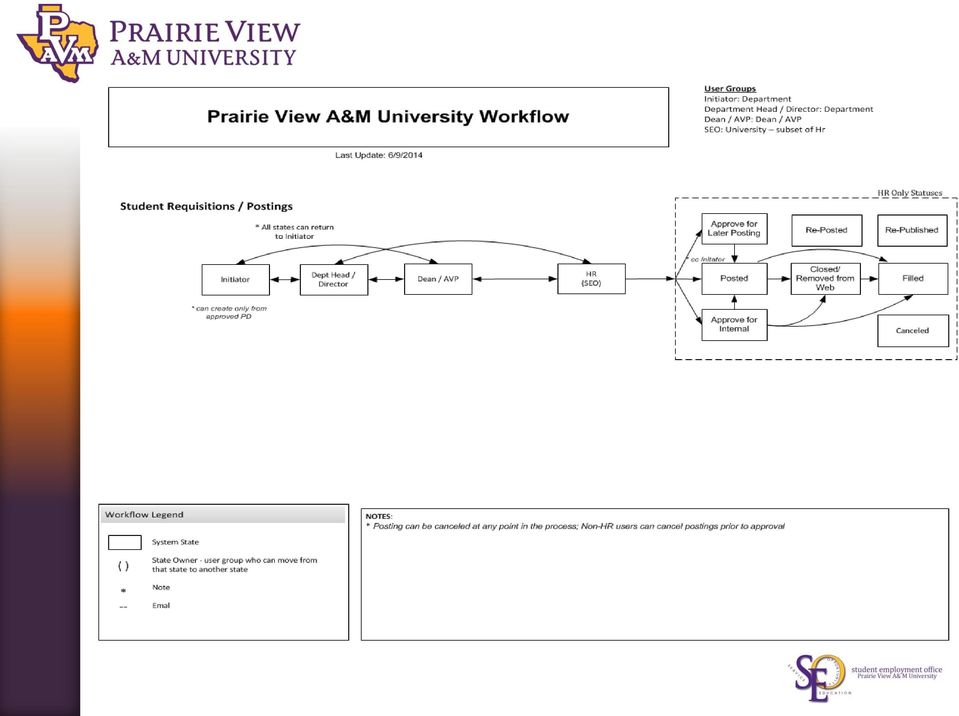


5 Job Postings The above blue background informs the end-user that he is in the Applicant Tracking portal for PVTALENT. Observe the Three Bold White Tabs: 1. Home 2. Postings 3. Hiring Proposals Click on Postings, navigate to Students and click. Next, click on Create New Posting. Click on New Position Description.

6 Job Postings Student Position Descriptions You are now on the Student Position Descriptions screen. Hover over the Position Title you created under Position Descriptions. Go to Actions and select Create From.

7 Job New Postings You are now on the New Posting screen. Notice all the information is pre-populated from the Position Description screens. Applicant Workflow: Establish the next step in the workflow, which should be Under Review by Dept. References: If reference are required, select the box and choose what state in the workflow the candidate should submit the references. This is optional. Online Applications: This box should always be checked.

8 Job Position Postings Details You are now on the Position Details screen. Notice the green box at the top of the screen. Classification Details Department Information

9 Job Postings Position Details, cont d. You are now on the Position Details screen. Notice the green box at the top of the screen. Position Information Job Duties Click Next.

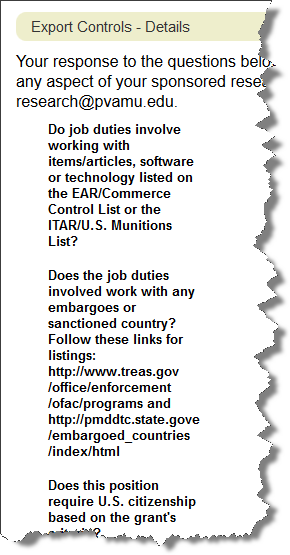

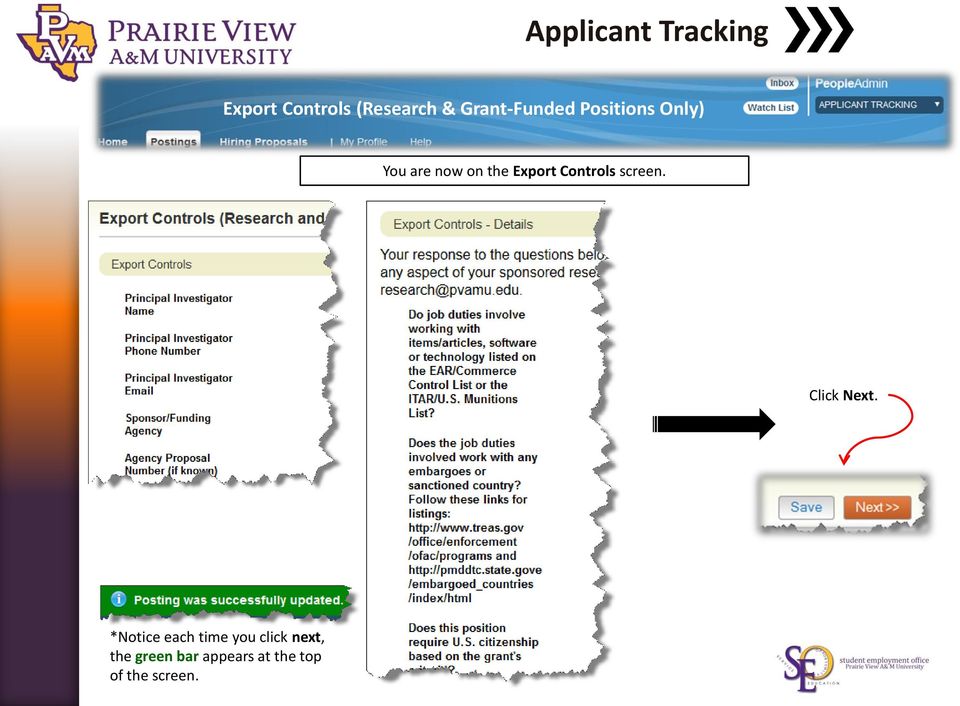
10 Job Postings Export Controls (Research & Grant-Funded Positions Only) You are now on the Export Controls screen. Click Next. *Notice each time you click next, the green bar appears at the top of the screen.

11 Job Posting Postings Details You are now on the Posting Details screen. Enter the appropriate information in the required fields. *Notice each time you click next, the Editing Posting menu appears on the left of the screen. Applicant Reviewer: Select a reviewer from the drop-down menu. You may choose more than one. Click Next.

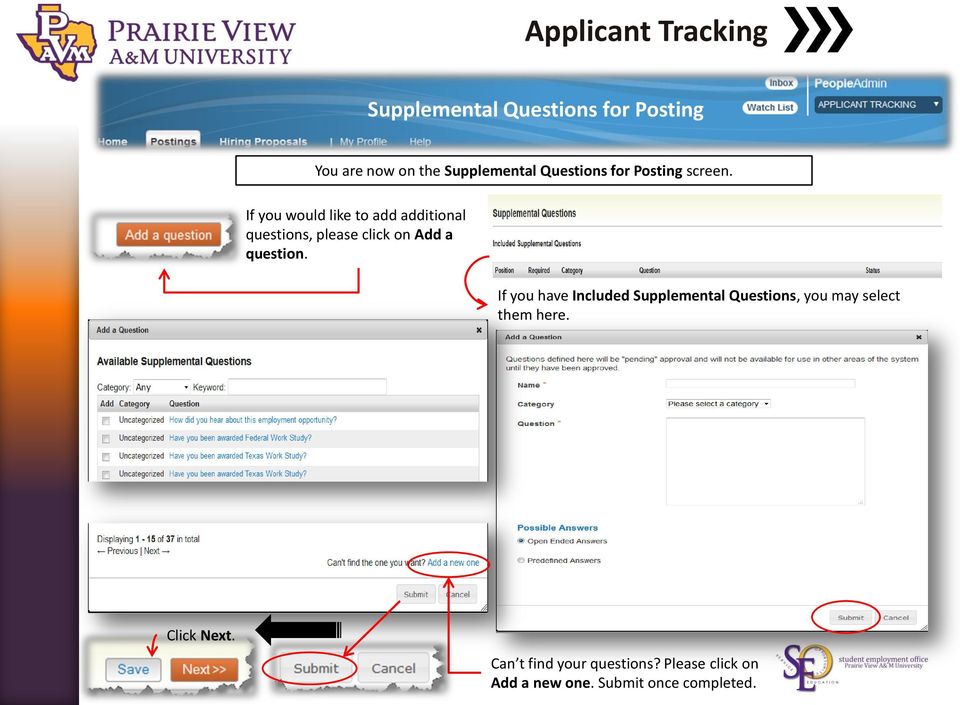
12 Supplemental Questions Job Postings for You are now on the Supplemental Questions for Posting screen. If you would like to add additional questions, please click on Add a question. If you have Included Supplemental Questions, you may select them here. Click Next. Can t find your questions? Please click on Add a new one. Submit once completed.

13 Applicant Job Documents Postings You are now on the Applicant Documents screen. Click Next. You may select the order, type of document and requirement as you deem necessary. 1. Resume Applicant s experience and education 2. Cover Letter Stating your case for the position 3. Transcripts Official educational history 4. Curriculum Vitae Lifetime overview of applicant s experience and qualifications 5. Teaching Philosophy Your perspective/philosophy of teaching 6. Writing Sample Illustrates your ability to write 7. Unofficial Transcripts Unofficial educational history 8. Other documents 1 miscellaneous items that may state your case for employment 9. Other documents 2 miscellaneous items that may state your case for employment 10. Other documents 3 miscellaneous items that may state your case for employment 11. Multi Media videos, images, URLs 12. Award Letter Displays the student s award by term 13. Detailed Class Schedule student s class schedule 14. Certificate of New Hire Orientation Certificate showing completion of new hire orientation

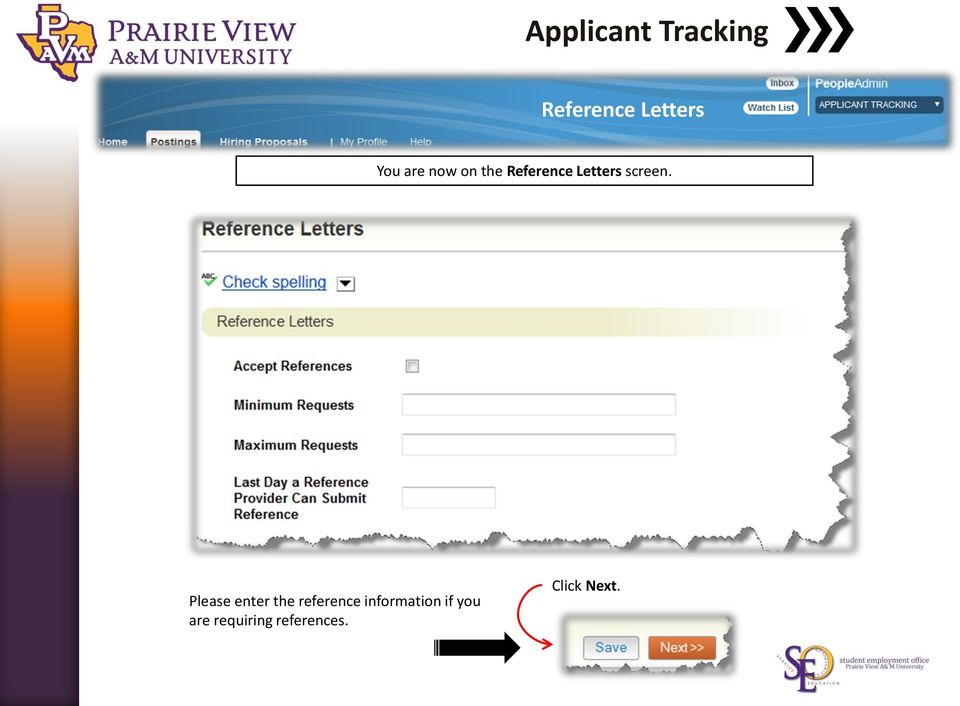
14 Reference Job Postings Letters You are now on the Reference Letters screen. Please enter the reference information if you are requiring references. Click Next.

15 Posting Job Documents Postings You are now on the Posting Documents screen. You may choose, upload new, create new, or choose existing. Click Next.


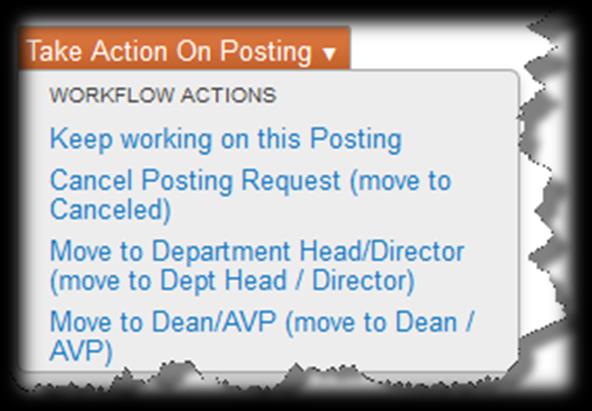
16 Posting: XXX, where XXX is the Job Position Postings Title Click on Edit to make corrections and then click Next until you return to the New Position Description screen. You must clear any before you continue. Please note the symbols below: Everything is completed Missing information Click on Take Action On Posting and move the request to the appropriate approver.

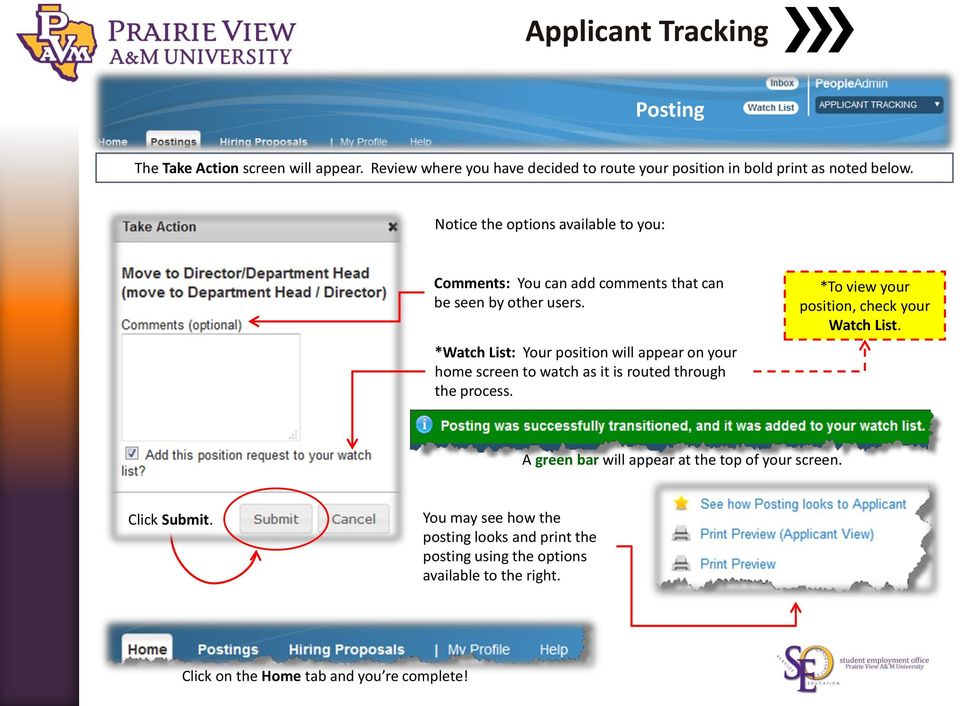
17 Job Postings The Take Action screen will appear. Review where you have decided to route your position in bold print as noted below. Notice the options available to you: Comments: You can add comments that can be seen by other users. *Watch List: Your position will appear on your home screen to watch as it is routed through the process. *To view your position, check your Watch List. A green bar will appear at the top of your screen. Click Submit. You may see how the posting looks and print the posting using the options available to the right. Click on the Home tab and you re complete!
18 End of this Section

Student Manager s Guide to the Talent Management System
 Department of Human Resources 50 Student Manager s Guide to the Talent Management System 1 Table of Contents Topic Page SYSTEM INTRODUCTION... 3 GETTING STARTED... 4 NAVIGATION WITHIN THE TALENT MANAGEMENT
PeopleAdmin User s Guide. Human Resources Department
 PeopleAdmin User s Guide Human Resources Department Introduction Welcome to the Clayton State University Online Position Management (PM) and Application Tracking System (ATS). The Department of Human Resources
Online Employment System User Manual
 Troy University Online Employment System User Manual People Admin Version 7 Human Resources April 2014 Table of Contents Introduction... 2 User Types and Access... 2 Creating a User Account... 3 Homepage...
Agile Applicant Tracking System. Hiring Manager
 Agile Applicant Tracking System Hiring Manager 2/27/2014 Section Page Change Password 3 Forgot Password? 4 Logging Into System 2 Printed or Scanned Candidate Information 10 Routed Candidates and Messages
UTRGV PeopleAdmin Applicant Tracking System
 UTRGV PeopleAdmin Applicant Tracking System Quick Links: How do I access PeopleAdmin? How do I navigate through PeopleAdmin? How do I login to PeopleAdmin? How do I perform as a Search Committee Member
Applicant Workflow Hiring Managers
 Applicant Workflow Hiring Managers Below is a visual diagram for the staff applicant flows and statuses in the Santa Clara University Online Recruitment System. The applicant workflow process: 1. The Applicant
Website for online application/self service is: https://ess.countyofdane.com
 Login with your county login and password. Website for online application/self service is: https://ess.countyofdane.com 1 Step 2. You must open a posting below and click to continue the application process
ISU s Classification and Hiring System Creating a Posting Managing Applicants Hiring Process
 ISU s Classification and Hiring System PeopleAdmin 7 User Manual Creating a Posting Managing Applicants Hiring Process PeopleAdmin Manual Table of Contents PeopleAdmin 7 Basics What s New with PeopleAdmin
QT9 Quality Management Software
 QT9 Supplier Portal Support is Free. Please contact us via the Contact Support help icon on the top of the screen or at our contact information below: QT9 Software Toll Free: (866) 913-5022 Email: [email protected]
Perform this procedure when you need to add a recurring payment option, or when you need to change or withdraw it.
 Purpose Use this procedure to add, change, or remove recurring payments. Trigger Perform this procedure when you need to add a recurring payment option, or when you need to change or withdraw it. Prerequisites
Sign in. Select Search Committee View
 Applicant Tracking for Search Committees Thank you for agreeing to serve on a search committee at Youngstown State University. The following information will enable you to utilize our online applicant
Add Title. Electronic Services Verification Instructions
 Add Title Electronic Services Verification Instructions Electronic Services Verification Instructions Access CHAMPS Enter Daily Tasks What to do if the Client is Not in the Home Log services for Multiple
Teacher References archived classes and resources
 Archived Classes At the end of each school year, the past year s academic classes are archived, meaning they re still kept in finalsite, but are put in an inactive state and are not accessible by students.
How To Post To A Job Posting On A Miamio State University Website
 Full Time Faculty and Staff Postings (Postings include approval of the Position Authorization and Recruitment Plan) Missouri State University Applicant Tracking System Revised January 2012 Office of Human
TalentValue Applicant Tracking System
 TalentValue Applicant Tracking System Training Workbook TalentValue [email protected] 954.356.2132 All Rights Reserved 1 INTRODUCTION The TalentValue Applicant Tracking System (ATS) is a part of
RIT Job Zone Guide. How Do I Start To Use RIT Job Zone?
 RIT Job Zone Guide RIT Job Zone is the web-based system used by RIT s Office of Cooperative Education and Career Services and selected employers to post job opportunities for co-op, graduating students
Jobs4Saints User Guide: How to Post a Position
 Jobs4Saints User Guide: How to Post a Position Jobs4Saints can be accessed from the following site: https://www.myinterfase.com/marymount/employer/ Below is the log-in screen for employers. Please log
PeopleAdmin. Creating a Posting for HR Users
 PeopleAdmin Creating a Posting for HR Users Applicant Tracking This guide provides instructions on Creating a Posting utilized to post a vacant position. The position description serves as the basis for
@chubb Agency Portal FREQUENTLY ASKED QUESTIONS
 FREQUENTLY ASKED QUESTIONS Why did Chubb redesign the @chubb agency portal? Our goal is to make it easier for you to service your Chubb customers and provide pertinent information regarding our products
Onboard new employees
 WELCOME VIDEO EMPLOYEE HANDBOOK TRAINING Onboard new employees 1 A one stop shop for new hires SharePoint can help new employees hit the ground running on day one. Give new employees easy access to onboarding
Kenexa: The New Applicant Tracking System For Hiring Mangers
 Kenexa: The New Applicant Tracking System For Hiring Mangers PeopleAdmin (TechJobs) Transition Save applications if interviewing or hiring from TechJobs Move applicants to final status Notify Human Resources
Jobs at CU APPLICANT TRACKING STEP-BY-STEP GUIDE. Posting Jobs & Managing Applicants 1
 Jobs at CU APPLICANT TRACKING STEP-BY-STEP GUIDE Posting Jobs & Managing Applicants 1 INTRODUCTION Welcome to Jobs at CU, the University of Colorado s online position description, employment application
Creating a Website with Google Sites
 Creating a Website with Google Sites This document provides instructions for creating and publishing a website with Google Sites. At no charge, Google Sites allows you to create a website for various uses,
Texas Woman s University RedDot Webspinner s Manual Revised 7/23/2015. [email protected]
 Texas Woman s University RedDot Webspinner s Manual Revised 7/23/2015 [email protected] 1 Contents CONNECTING TO YOUR SITE... 3 MAIN MENU... 4 REPEATED CONTENT AREAS... 4 OPENING PAGE LAYOUTS AND EXISTING
Part-Time Staff Employment Postings. Missouri State University Applicant Tracking System
 Part-Time Staff Employment Postings Missouri State University Applicant Tracking System Office of Human Resources December 2011 Revised November 2011 Postings Sign On 3 Creating a New Posting 3 Posting
SUPERVISOR S GUIDE TO REVIEWING AND MANAGING APPLICATIONS HMC APPLICANT TRACKING SYSTEM TABLE OF CONTENTS INTRODUCTION... 2
 SUPERVISOR S GUIDE TO REVIEWING AND MANAGING APPLICATIONS HMC APPLICANT TRACKING SYSTEM BROWSER ADVICE: PeopleAdmin works best with Firefox or Chrome. If you use Internet Explorer, some functions may not
Thomas Jefferson University Hospital Department of Nursing Instructions for Completing Online Pool Orientation
 Thomas Jefferson University Hospital Department of Nursing Instructions for Completing Online Pool Orientation In Order to attend Jefferson s 1 day classroom pool orientation you must complete the following
ivisions Self Service Web Portal
 ivisions Self Service Web Portal LOGIN to ivisions Web Portal: Go to: Internet Explorer or Google Chrome Type: http://10.10.160.220/ivisions/ Click: Star to Bookmark to Bookmarks Bar User Information =
1. Go to Here! Note: the Forgot or to have. a password 3. Enter. Guide
 Online Employment Application Guide How to Create Your Applicant Profile Before Applying for a Job 1. Go to http://jobs..marin.edu and click Create/Manage Application in the left navigation menu. 2. Click
Getting Started. Send a file in 3 easy steps Quickly organize and share your files
 Getting Started Send a file in 3 easy steps Quickly organize and share your files Getting Started with Citrix ShareFile Welcome to ShareFile! You can use your ShareFile account to easily and securely exchange
Recruiter s Resource Guide
 Recruiter s Resource Guide First Edition 1.29.2015 Contents Section One Recruiting... 3 Accessing Team Georgia Careers... 4 My Setup Preferences... 5 Creating a Requisition... 6 Approving a Requisition...
PeopleAdmin. Mott s Applicant Tracking System. Manager s Guide (Staff & FT Faculty) Mott Community College
 Mott Community College PeopleAdmin Mott s Applicant Tracking System Manager s Guide (Staff & FT Faculty) Created by: Staffing & Recruiting, Mott Human Resources Office 2011 Manager s Guide (Staff & FT
USER S GUIDE San Diego Community College District Online Applicant Tracking System
 USER S GUIDE San Diego Community College District Online Applicant Tracking System PeopleAdmin, Inc. 816 Congress Avenue Suite 1800 Austin, TX 78701 TABLE OF CONTENTS INTRODUCTION... 1 GETTING STARTED...
Click a topic in the Table of Contents to jump to a topic and use Ctrl + Home to return to this page.
 Table of Contents Click a topic in the Table of Contents to jump to a topic and use Ctrl + Home to return to this page. RECRUITING WORKFLOW... 1 CREATE JOB OPENING... 2 TEMPORARY JOB OPENING... 2 POSITION
Student & Alumni User Guide
 INDEX 1-2 Activating and Building Your Profile 3 Your HireTigers Homepage 4-5 Building Your Profile from a Resume 6-7 Scheduling Career Counseling Appointments 8-9 Updating Your Account Settings 10 Updating
ICIMS Hiring Manager User Guide. University of Massachusetts Medical School
 ICIMS Hiring Manager User Guide University of Massachusetts Medical School 3/21/2012 Table of Contents Introduction and Overview..3 Glossary of Terms....4 Icons....5 Logging into icims.....6 General Navigation...7
HR Partner Services. Cornerstone. Applicant Tracking System User Guide
 HR Partner Services Cornerstone Applicant Tracking System User Guide Table of Contents USER- Logging into Cornerstone ATS... 2 Creating a Requisition for Posting... 3 General section... 3 Job Ad... 7 Applicant
Concur Travel and Expense Integration. 2011 Concur, all rights reserved. Concur is a registered trademark of Concur Technologies, Inc.
 Concur Travel and Expense Integration Travel and Expense Integration This presentation shows the integration of Travel and Expense depicting the End to End Travel and Expense solution. These slides can
The ApplyYourself Web Center is located at https://webcenter.applyyourself.com/ Enter log in information here.
 ApplyYourself Application System Basic Functions ApplyYourself is the Graduate School s online application system, where graduate programs selfmanage applications. Below are basic instructions on how to
FIT College Online. User guide. Step 6: Navigation (step by step) guide to learning topics
 FIT College Online. User guide. Step 1: Watch tutorial Video Step 2: Top Navigation Bar Step 3: Left Navigation Bar Step 4: Learning Topics Step 5: Learning Topic Overview Tutorial Step 6: Navigation (step
Niner Talent User s Guide. Part 2: SPA Applicant Tracking
 Niner Talent User s Guide Part 2: SPA Applicant Tracking TOC Title Section 2: Applicant Tracking... 5 Overview... 5 Introduction... 5 Purpose... 5 How to Create a New Job Posting... 6 Applicant Tracking
Selection Manager: Quick Start Guide
 VERSION 1103 01.24.12 SELECTION MANAGER GUIDE Selection Manager: Quick Start Guide PART 1: GENERAL INFORMATION Selection Manager is the hiring official s interface for USA Staffing. In Selection Manager,
STAFF HIRING PROCESS ******************************************* Posting a Position
 Hiring Manager creates a job posting on-line. STAFF HIRING PROCESS ******************************************* Posting a Position 1. From the www.cmich.edu webpage, select CentralLink in the upper right
Oregon s Health CO-OP Creating Electronic Payments
 Oregon s Health CO-OP Creating Electronic Payments Oregon s Health CO-OP Creating Electronic Payments 1) Logging in.....page 3 2) Creating Payment Profile.Page 8 3) Setting up Recurring Payments Page 11
Washington State Educator Electronic Certificate System (E-Certification) Educator User Guide
 Washington State Educator Electronic Certificate System (E-Certification) Educator User Guide October 13, 2015 Table of Contents 1.0 Welcome Log In Instructions... 3 1.1 Home Page... 4 1.2 Welcome Educator...
Albright College Self Service
 Getting Started Albright College Self Service -To access Self Service go to the Albright College Home page at www.albright.edu and select Self Service from the Quick Links drop down menu. You can also
Tableau Quick Tips Guide November 2015
 Tableau Quick Tips Guide November 2015 Fannie Mae Connect uses Tableau software to enable data display and analysis. This document provides guidance on how to get the most out of Tableau reports. The reference
PeopleAdmin. Mott s Applicant Tracking System. Manager s Guide (Part-time Faculty) Mott Community College
 Mott Community College PeopleAdmin Mott s Applicant Tracking System Manager s Guide (Part-time Faculty) Created by: Staffing & Recruiting, Mott Human Resource Office 2011 Manager s Guide (Part Time Faculty)
Onboarding for Administrators
 This resource will walk you through the quick and easy steps for configuring your Paylocity Onboarding module and managing events. Login Launch Events Complete Tasks Create Records Configure Events Module
NOVA. NA TS Management Portal (NOVA's Applicant Tracking System) PeopleAdmin Getting Started Guide. Northern Virginia.
 NOVA Northern Virginia Community College NA TS Management Portal (NOVA's Applicant Tracking System) PeopleAdmin Getting Started Guide No 'Wft Community College Table of Contents Logging into PeopleAdmin...2
Table of Contents. Begin Here: Getting Started with WebEx. What is WebEx? Why would I use it?
 Table of Contents Begin Here: Getting Started with WebEx... 1 Scheduling a Meeting from the WebEx Website... 4 Scheduling a Meeting from Outlook 2010... 5 Selecting Audio Conference Settings... 6 Joining
YOU MUST DO THIS TO APPLY TO COLLEGE!
 Seniors: YOU MUST DO THIS TO APPLY TO COLLEGE! Read and Follow the Directions in this packet! Guide for Senior Year Provided by CGHS College Counseling Department For Seniors Now that you are prepared
Frequently Asked Questions (FAQs)
 Candidate Help Frequently Asked Questions (FAQs) Job Search Your Candidate Profile Hiring Process How to Apply Related Information Job Search What is a basic search? The Basic Search feature allows you
Manchester City Council Online Application Form Guidance
 Version 0.01 Online application form guidance Contents 1 Introduction 2 2 Registering for the online recruitment system 3 3 Overview of Personal Data section 3 3.1 Personal Data 5 3.2 Communication data
PeopleAdmin 7 System Email Templates. PeopleAdmin 7 Email Templates
 Emails to Applicants... 2 Applicant User Name... 2 Notify Applicant to Revisit Application... 2 Reference Confirmation to Applicant... 3 Applicant Password Reset Request... 3 Application Submitted... 3
WELCOME TO CORNERSTONE ONDEMAND LMS FUNCTIONALITY TRAINING
 Slide 1 WELCOME TO CORNERSTONE ONDEMAND LMS FUNCTIONALITY TRAINING Curriculum Management / Mandatory Training Slide 2 Objectives: At the end of this session, you should be able to: Create a curriculum
Online Student Services at Thomas Edison State College Student User Guide Access the newly redesigned Online Student Services at:
 Online Student Services at Thomas Edison State College Student User Guide Access the newly redesigned Online Student Services at: https://webadvisor1.tesc.edu/webadvisor/webadvisor At Thomas Edison State
Applicant Tracking & Recruitment Overview
 711 E. Carefree Hwy Ste 202 Phoenix, AZ 85085 Phone: 623-434-3436 Applicant Tracking & Recruitment Overview Applicant Tracking Allows you to create and track applicants within the system. By enabling the
STEPfwd Quick Start Guide
 CERT/Software Engineering Institute June 2016 http://www.sei.cmu.edu Table of Contents Welcome to STEPfwd! 3 Becoming a Registered User of STEPfwd 4 Learning the Home Page Layout 5 Understanding My View
Creating a Website with Google Sites
 Creating a Website with Google Sites This document provides instructions for creating and publishing a website with Google Sites. At no charge, Google Sites allows you to create a website for various uses,
Degree Works User Guide for Advisers
 Degree Works User Guide for Advisers September 2015 Contents Access Degree Works... 2 Access Student/s Records... 2 Navigation... 2 Notes... 2 Student Information Header... 3 Audit Types... 3 Student View...
MSA Online Application User s Guide
 MSA Online Application User s Guide July 2015 Contents MSA Online Application User s Guide... 1 Purpose... 3 General Tips for Navigation... 3 Registering for an EA ID & password... 6 Engineers Australia
Creating a Participants Mailing and/or Contact List:
 Creating a Participants Mailing and/or Contact List: The Limited Query function allows a staff member to retrieve (query) certain information from the Mediated Services system. This information is from
DAIDS Learning Portal: Getting Started Guide
 DAIDS Learning Portal: Getting Started Guide Welcome to the DAIDS Learning Portal! We offer easy access to a wide variety of DAIDS training courses, resources, and support all in one place. Use this Getting
Prevue Online How-To Guide Managing a Branch Account
 How to Manage a Branch Account This guide is intended for use by the Main Account that has established Branch accounts. The Main Account may need to edit Branch Account information such as allowing sharing
Using VoiceThread in Your Online Course (Faculty) Step 1: Create a Link for Yourself to Voicethread (1X per course)
 Using VoiceThread in Your Online Course (Faculty) Step 1: Create a Link for Yourself to Voicethread (1X per course) 1. Navigate to the MyGateway course where you wish to add VoiceThread. You will first
Your Archiving Service
 It s as simple as 1, 2, 3 This email archiving setup guide provides you with easy to follow instructions on how to setup your new archiving service as well as how to create archiving users and assign archiving
Information for Job Seekers
 Information for Job Seekers The Workforce Planning Board and Conestoga College would like to invite you to participate in Today's Portal for Tomorrow's Job, a Virtual Job Fair from November 18th 22nd.
Recruiting Solutions: Approve Job Openings HCM 9.0 Business Process Guide
 Recruiting Solutions: Approve Job Openings HCM 9.0 Business Process Guide Table of Contents Page Introduction... 1 Recruitment Workflow... 2 Email Request for Approval... 3 Approve Job... 5 Last Revised:
LMS USER GUIDE WELCOME KIT
 WELCOME KIT WELCOME 02 WELCOME 03 WELCOME TO TRAINING CENTER LEARNING MANAGEMENT SYSTEM Welcome to the new Customer Training Learning Management System (LMS). The new LMS is designed to provide you with
BLACKBOARD CONTENT COLLECTION FACULTY TRAINING GUIDE
 BLACKBOARD CONTENT COLLECTION FACULTY TRAINING GUIDE Table of Contents About the Guide... 1 Overview... 2 Navigating the Content Collection... 3 Accessing the Content Collection... 3 Content Collection
Data Entry Training Module
 Data Entry Training Module Estimated Training Time: 1 Hours Data entry training is for users that are planning on entering data into the InsightVision application on scorecards that have already been created.
Administrator Instructions for Link2CDMS Contractor Document Management System
 Table of Contents Administrator Instructions for Link2CDMS Contractor Document Management System Getting Started... 2 Viewing Your Approvals Dashboard... 2 Specifying Contractor Approval Status... 7 Adding
Your No-Nonsense Guide to Facebook Ads
 Your No-Nonsense Guide to Facebook Ads If you are in business, Facebook can play an important role in your marketing your business. It helps you connect and build relationships through updated posts. In
Adding Links to Resources
 Adding Links to Resources Use the following instructions to add resource links to your Moodle course. If you have any questions, please contact the helpdesk at. Adding URL links 1. Log into your Moodle
LMS 365 Learning Module Builder Add-in User Guide VERSION 1.5.0.X
 LMS 365 Learning Module Builder Add-in User Guide VERSION 1.5.0.X CONTENTS LMS 365 Learning Module Builder Add-in User Guide Version 1.5.0.x... 1 Contents... 2 1. The LMS365 Learning Module Builder Add-in...
Secure File Transfer Training Guide. Secure File Transfer Training Guide. Author: Glow Team Page 1 of 15 Ref: GC265_v1.1
 Secure File Transfer Training Guide Internet Explorer Version Ref: GC265_v1.1 Author: Glow Team Page 1 of 15 Ref: GC265_v1.1 Contents Introduction... 3 Prerequisites for this guide... 3 What is Secure
FAQ for Students. Note: The new password must be between six and 12 characters long.
 What is MY Portal? MY Portal is a secure website that provides access to news, announcements, personal information, registration and online billing services, collaboration areas, Blackboard and email.
Tutorial for Applicants (Faculty Positions)
 Tutorial for Applicants (Faculty Positions) After reviewing this tutorial, you should be able to: Complete an application for employment on CUNYfirst, CUNY s applicant tracking system. Attach supplemental
The HR department has provided these training materials to assist with your understanding and use of this system.
 PEOPLEADMIN PERFORMANCE APPRAISAL PROCESS SUPERVISOR ROLE Welcome to the University of Dayton Online Employment and Performance Management System. The Human Resources department has implemented this system
SES PAS Senior Executive Service (SES) Performance Appraisal System (PAS)
 Job Aid: Create the Executive Development Plan (EDP) Creating the Developmental Plan Step 1: From within your performance plan, navigate to the Developmental Plan tool bar in the left column Step 2: Click
Integrated Research Application System (IRAS)
 Integrated Research Application System (IRAS) Guidance on electronic submission of supporting documentation with applications and storing files in IRAS. New functionality is being phased in to IRAS to
SuccessFactors Onboarding Phase 1 Hiring Coordinator Reference Guide Last revised 10.15.15
 Page 1 WebEx Getting Started Guide Last revision: March 27, 2015 SuccessFactors Onboarding Phase 1 Hiring Coordinator Reference Guide Last revised 10.15.15 Table of Contents To skip directly to a section
The purpose of this User Guide is to provide users with guidance on the following:
 LEAD MANAGEMENT Introduction The purpose of this User Guide is to provide users with guidance on the following: Creating a Lead Importing Leads Managing Leads Completing a Lead Not Proceeding Re-opening
MLS 204: FlexMLS Contact Management & Client Portals
 MLS 204: FlexMLS Contact Management & Client Portals Class Objectives By the end of this session you should be able to: Add, Edit & Manage your contacts information. Easily add and maintain your automatic
ARCONICS CONTENT MANAGEMENT SYSTEM FOR UL
 ARCONICS CONTENT MANAGEMENT SYSTEM FOR UL MENU OPTION CLASSIFICATION MANAGER Creating a new classification / menu 1. Click Classification manager 2. Click on the plus sign beside WWW to expand the folders
Success Factors Recruitment Management
 Success Factors Recruitment Management TODAY S AGENDA In this training we will introduce you to: The Recruiting system Creating Job Requisitions Requisition Approval Process Accessing Candidate Applications
Lesson 3.3 Creating a Marketing Campaign Element. Objective At the end of this lesson, you should be able to: Create a Campaign Element
 Lesson 3.3 Creating a Marketing Campaign Element Objective At the end of this lesson, you should be able to: Create a Campaign Element Summary Campaign Elements are a group of print ads, product promotions,
Double-click an appointment to view the details.
 Calendar The GroupWise calendar allows you to do everything from scheduling appointments to marking all-day events to checking off tasks. Click the Calendar tab on the Navigation bar or click Calendar