
Server. Version 3.7 Users Guide. Revised 5/28/03
|
|
|
- Douglas Harrell
- 10 years ago
- Views:
Transcription
1 Server Version 3.7 Users Guide Revised 5/28/03

2 Copyright by Wavelink Corporation. All rights reserved. This manual may not be reproduced, in whole or in part, without prior written permission from Wavelink Corporation. Wavelink is a registered trademark of Wavelink Corporation. Symbol, Spectrum One, and Spectrum24 are registered trademarks of Symbol Technologies, Inc. Microsoft, MS, MS-DOS, Windows, Windows NT, Visual C++, Visual Basic, are either registered trademarks or trademarks of Microsoft Corporation in the USA and other countries. Winzip, Winzip Self Extractor are either registered trademarks or trademarks of Niko Mak Computing, Inc. in the USA and other countries. Wavelink Studio Users Manual Revision 5/28/03
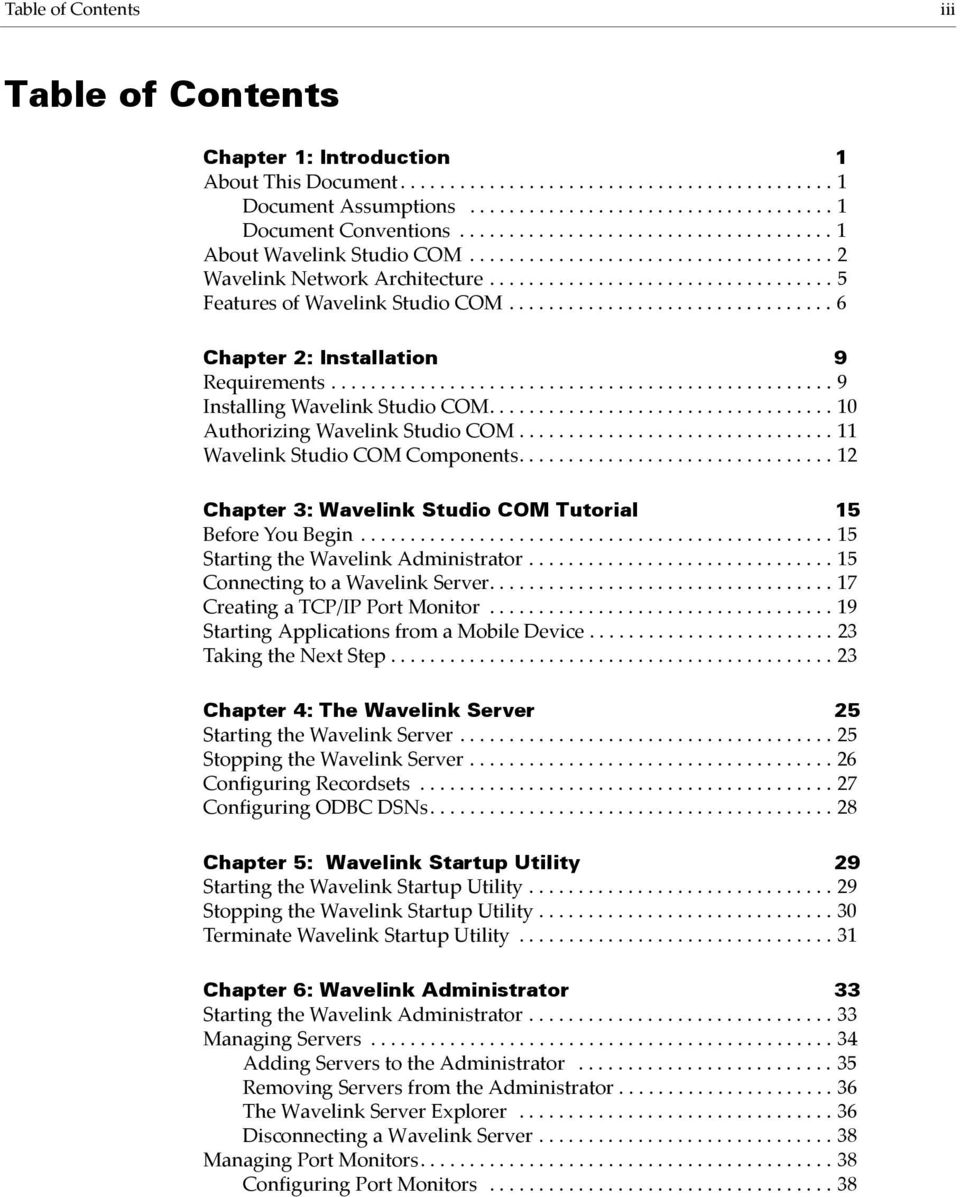
3 Table of Contents iii Table of Contents Chapter 1: Introduction 1 About This Document Document Assumptions Document Conventions About Wavelink Studio COM Wavelink Network Architecture Features of Wavelink Studio COM Chapter 2: Installation 9 Requirements Installing Wavelink Studio COM Authorizing Wavelink Studio COM Wavelink Studio COM Components Chapter 3: Wavelink Studio COM Tutorial 15 Before You Begin Starting the Wavelink Administrator Connecting to a Wavelink Server Creating a TCP/IP Port Monitor Starting Applications from a Mobile Device Taking the Next Step Chapter 4: The Wavelink Server 25 Starting the Wavelink Server Stopping the Wavelink Server Configuring Recordsets Configuring ODBC DSNs Chapter 5: Wavelink Startup Utility 29 Starting the Wavelink Startup Utility Stopping the Wavelink Startup Utility Terminate Wavelink Startup Utility Chapter 6: Wavelink Administrator 33 Starting the Wavelink Administrator Managing Servers Adding Servers to the Administrator Removing Servers from the Administrator The Wavelink Server Explorer Disconnecting a Wavelink Server Managing Port Monitors Configuring Port Monitors
4 iv Wavelink Mobile Manager 5.2 Stopping Port Monitors Port Monitors and AutoDiscovery Adding Port Monitors Removing Port Monitors Managing Mobile Device Connections Disconnecting Mobile Devices Bridge Access Routines Chapter 7: Managing Applications 59 Wavelink Program Manager Wavelink Program Manager: A User Scenario Wavelink Program Manager Administrator Configuring User Accounts Configuring Applications Configuring Application Groups Chapter 8: Wavelink Log Reader 69 Selecting a Debug Level Debug Level Descriptions Log File Naming Conventions Viewing Log Files Wavelink Server Log Files Wavelink API Log Files Filtering Log Files Printing Log Files Appendix A:The Microsoft Remote Registry Service 77 Allowing Remote Registry Configuration Appendix B:Wavelink Client Install Utility 83 Preparing a Mobile Device for the Client Utility Downloading a Wavelink Client Index 85

5 Chapter 1: Introduction 1 Chapter 1: About This Document Introduction Wavelink Studio COM is a comprehensive, software-based solution that lets you easily create and run wireless applications directly from your Windows 95/98 or Windows NT/2000 host. Wavelink Corporation strives to provide clear and thorough documentation for Wavelink Studio COM. If you have any comments or suggestions to improve this manual, please direct them to: Wavelink Studio COM Documentation NE 122 nd Way / Third Floor Kirkland, WA Phone: (425) Fax: (425) [email protected] Document Assumptions To use this manual effectively, it is recommended that you understand the following: Basic operations of Windows operating systems, which includes how to configure and navigate Windows operating system Basic configurations of servers on your organization s network Basic operations of your organization s wireless network components If you plan on using one or more of the companion documents to this manual, such as the Wavelink Development Library, it is recommended that you understand the following: Basic concepts and terminology associated with the OLE/COM programming model Working knowledge of your chosen development language Document Conventions This document uses the following typographical conventions:

6 2 Wavelink Studio COM Courier New. Any time you interact with a Wavelink Studio COM option, such as a button, or type specific information into an text box, such as a file pathname, that option appears in the Courier New text style. This text style is also used for keyboard commands that you press. Examples: Click Next to continue. Press CTRL+ALT+DELETE. Bold. Any time this document refers to an option, such as descriptions of the choices in a dialog box, that option appears in the Bold text style. Examples: Click Open from the File menu. Click Download from the HexFiles menu. Italics. Any time this document refers to another section within the manual, that section appears in the Italic text style. Example: See the Troubleshooting section for possible causes of this problem. Angle Brackets. Any time this document uses a placeholder, representing an actual value such as a directory or class name, that section is enclosed by angle brackets. Example: <classname>.<methodname>(token) Square Brackets. Any time this document references an optional element, that section is enclosed by square brackets. About Wavelink Studio COM Wavelink Studio COM includes the following components: Wavelink Development Library

7 Chapter 1: Introduction 3 Wavelink Widget Extension Wavelink Server Wavelink Administrator Wavelink Startup Utility Wavelink Log Reader Wavelink Studio Client Wavelink Virtual Client The following sections describe these components in more detail. Wavelink Development Library The Wavelink Development Library is a COM-based Dynamic Link Library (DLL). With this library, you can develop powerful and efficient wireless applications. The Wavelink Development Library consists of 8 objects and over 150 methods designed specifically for wireless application development. Some examples of what you can accomplish with the Wavelink Development Library include: Building applications that filter barcode inputs based on type and length Saving commonly-used application methods directly to a mobile device to create true client/server network efficiency Using multi-toned audio indicators to enhance existing wireless applications The Wavelink Development Library is designed to be easy to use, regardless of which programming environment you prefer. Just include the Wavelink Development Library DLL within your OLE-compliant programming language such as Visual C++ or Visual Basic. With that one step, the Wavelink Development Library expands the power of your programming language, giving you the methods and functions you need to create wireless applications.

8 4 Wavelink Studio COM Wavelink Studio COM also includes a version of the development library specifically for C development in non-ole compliant development environments. This version s functionality mirrors the OLE counterpart. Wavelink Widget Extension The Wavelink Widget Extension is a plug-in for the Wavelink Development Library that contains all COM widget components of the API. Wavelink Server The Wavelink Server is a system service/command-line application that lets you run your Studio-built applications in real-time, without a controller or wireless network. When you start the Wavelink Server, wireless network users can immediately use your applications on their mobile devices. Wavelink Administrator The Wavelink Administrator is a Windows-based application that includes three utilities to help you manage Wavelink Servers on both a local and remote basis: Wavelink Program Manager. This application lets you manage your wireless applications and user accounts. With the Wavelink Program Manager, you can add user IDs and passwords for network security, configure mobile device start-up menus, and limit application access by creating application groups available only to specific accounts. Wavelink Authorization Utility. This utility allows you to quickly upgrade the user limit for a Wavelink Server. Mobile Device Client install utility. This utility allows you to download the Wavelink Studio Client to both local and remote mobile devices once they connect to their configuration cradles. Wavelink Startup Utility The Wavelink Startup Utility is a system service/command-line application that allows you to manage a Wavelink Server from a remote host. Wavelink Log Reader The Wavelink Log Reader is a Windows-based utility you use to view log files that a Wavelink Server and API generates. With this utility, you can quickly

9 Chapter 1: Introduction 5 filter log files, allowing you to find the statistical or debugging information you need immediately. Wavelink Client The Wavelink Studio Client is the terminal resident software that unleashes the full computing power of a mobile device. With the Wavelink Studio Client installed, wireless applications perform with client-server efficiency while taking full advantage of all device features. Wavelink Virtual Client The Wavelink Virtual Client is a testing application that simulates a mobile device on your desktop. With the Virtual Client, you can accurately run wireless applications without the actual presence of a wireless network. The Virtual Client allows you to test wireless applications under different conditions before you install the application on a wireless network. Wavelink Network Architecture The basic architecture of a typical wireless network using Wavelink Studio COM is displayed in the following diagram. Figure 1-1. Wavelink Studio COM Architecture Diagram Each mobile device contains the Wavelink Client, which manages both mobile device features and basic front-end application functions, such as user input. This use of the Wavelink Client improves network-to-device performance without compromising direct access to the features of the mobile device.

10 6 Wavelink Studio COM Each time a mobile device connects to the wireless network and requests access to an application, a Wavelink Server creates an application instance for that mobile device. Using individual Port or Serial Monitors, the Wavelink Server then manages the interaction between the mobile device user and the requested application. Features of Wavelink Studio COM Wavelink Studio COM offers several features that help you implement wireless network applications. Client-server architecture. Wavelink Studio COM uses an event-driven, client-server architecture for efficient network communications. This architecture allows Wavelink Studio COM to maximize individual wireless network packets while minimizing network traffic. With Wavelink Studio COMʹs architecture, you can take full advantage of a mobile device s features to create feature-rich applications. Host-driven applications. With Wavelink Studio COM, you develop and run applications directly from your host computer. You can make any revisions to a wireless application from one central location, saving you from updating mobile devices individually and allowing you to immediately implement application changes. Limited learning curve. With Wavelink Studio COM, developing wireless applications has never been easier. The Wavelink Development Library lets you create custom wireless applications using the programming language of your choice without learning any additional interface languages. Real-time performance. Wavelink Studio COM provides real-time connection between wireless applications and all mobile devices for total information accuracy. With Wavelink Studio COM, you have access to the most current data about wireless applications. One-to-one application relationship. Most wireless application solutions require all users to share a single application instance. This type of solution forces you to design applications that can accommodate multiple users, which can complicate your application s code and slow its performance. Wavelink Studio COM, however, is multi-processed, providing users their own application instance. This one-to-one

11 Chapter 1: Introduction 7 relationship between user and application simplifies programming and improves application performance. AutoDiscovery technology. With Wavelink Studio COM s AutoDiscovery technology, you can implement your applications immediately without first configuring any mobile device. When users activate their mobile devices, the Wavelink Client automatically discovers a list of available Port Monitors. The user can then select the Port Monitor that opens the desired application. Remote administration. The Wavelink Administrator lets you simultaneously manage multiple Wavelink Servers on both local and remote hosts. Type the hostʹs computer name or IP address and click Connect to fully manage a Wavelink Server regardless of its location on the network. Hardware support. Wavelink Studio COM is compatible with a wide range of wireless hardware by Symbol Technologies. Wavelink Studio COM functions with Spectrum One and Spectrum24 networks, softwareand hardware-based network controllers (both TCP/IP- and serial-based), and a variety of mobile devices.
12 8 Wavelink Studio COM

13 Chapter 2: Installation 9 Chapter 2: Installation This section contains information on the following topics: Hardware requirements for the Studio COM components Installation procedure for Wavelink Studio COM Requirements Before you install Wavelink Studio COM, please ensure that your network meets the following hardware and software components. Full Installation Requirements If you install the entire Wavelink Studio COM package, your host computer must meet the following requirements: 486DX2 processor or better 12MB hard disk space 16MB RAM Windows 95 or better (including Windows 98, Windows NT 3.51, Windows NT 4.0, and Windows 2000/XP) Component Requirements If you decide to do a custom installation of Wavelink Studio COM, use the following table to determine the appropriate hardware requirements for a host. NOTE The amount of RAM a host requires depends on the memory requirements of your custom applications. Software Component Wavelink Development Library DLLs (OLE and C versions) Sample program and application template files Table 2-1: Hard Disk Requirements Hardware Requirements 200K 300K
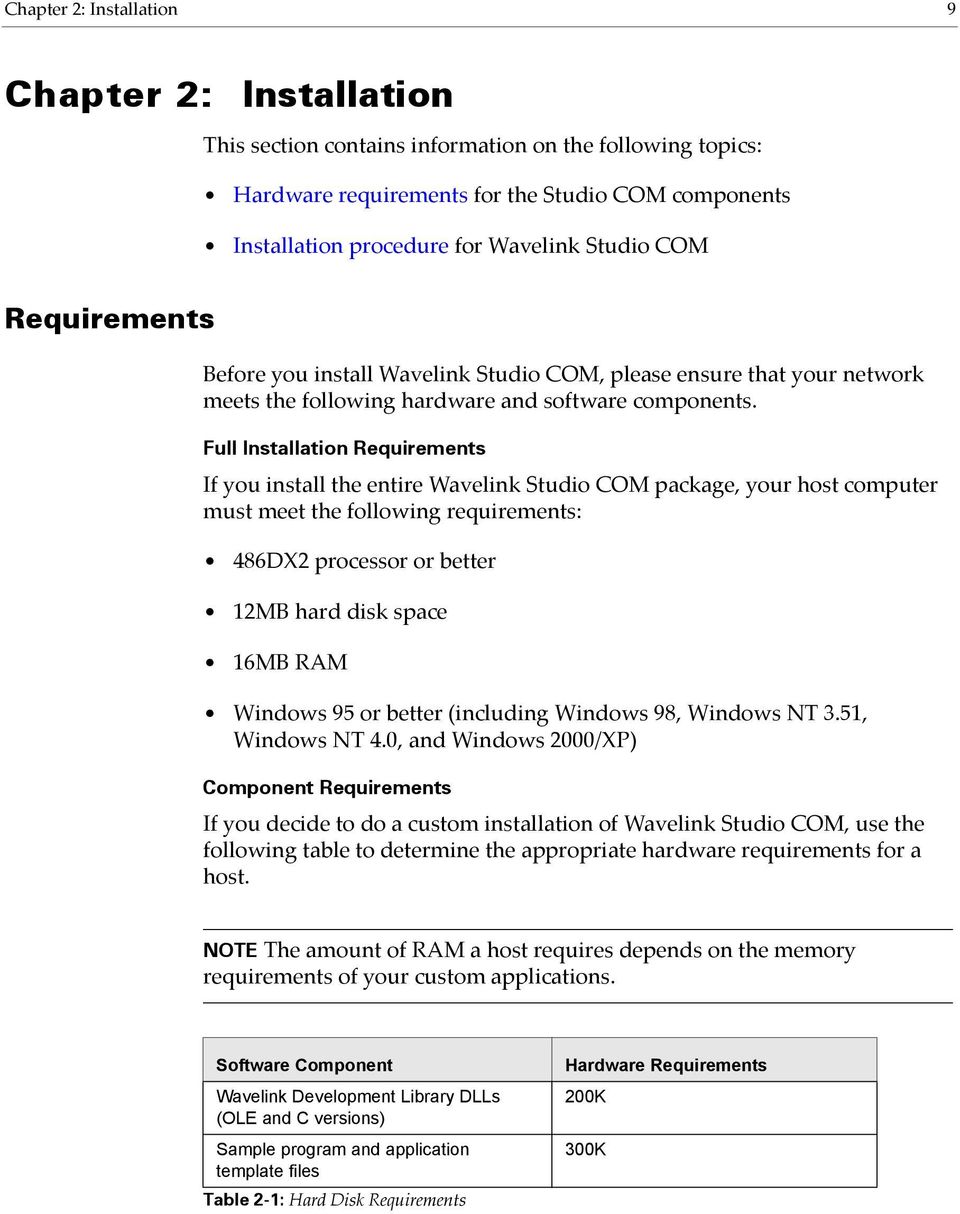
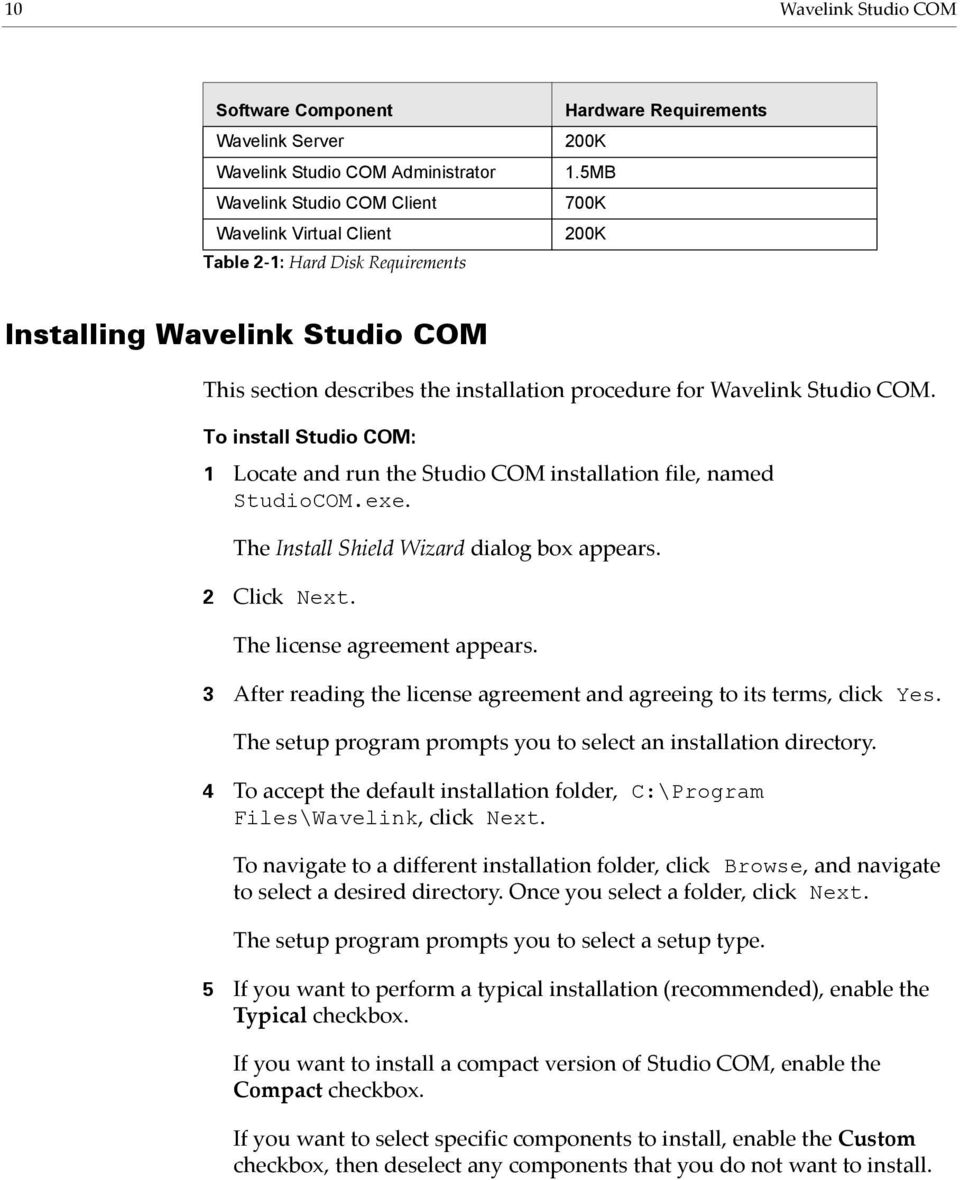
14 10 Wavelink Studio COM Software Component Wavelink Server Wavelink Studio COM Administrator Wavelink Studio COM Client Wavelink Virtual Client Table 2-1: Hard Disk Requirements Hardware Requirements 200K 1.5MB 700K 200K Installing Wavelink Studio COM This section describes the installation procedure for Wavelink Studio COM. To install Studio COM: 1 Locate and run the Studio COM installation file, named StudioCOM.exe. The Install Shield Wizard dialog box appears. 2 Click Next. The license agreement appears. 3 After reading the license agreement and agreeing to its terms, click Yes. The setup program prompts you to select an installation directory. 4 To accept the default installation folder, C:\Program Files\Wavelink, click Next. To navigate to a different installation folder, click Browse, and navigate to select a desired directory. Once you select a folder, click Next. The setup program prompts you to select a setup type. 5 If you want to perform a typical installation (recommended), enable the Typical checkbox. If you want to install a compact version of Studio COM, enable the Compact checkbox. If you want to select specific components to install, enable the Custom checkbox, then deselect any components that you do not want to install.
15 Chapter 2: Installation 11 6 Click Next. 7 Select the program folder for Wavelink applications. To use the default program folder, Wavelink Studio, click Next. To use a different program folder, type a name or select one from the list, then click Next. The setup program installs Wavelink Studio COM on your system. 8 After the installation is complete, click Finish. To run the Administrator: If you used the default program folder, select Wavelink Studio > Wavelink Studio Administrator from the Start menu. Authorizing Wavelink Studio COM By default, Wavelink Studio COM is authorized for only 2 concurrent users for a 30-day trial period. You can use the Wavelink Authorization Utility to add new users to Wavelink Studio COM, as well as increase the amount of time Wavelink Studio COM will operate on your network. To change the authorization settings in Wavelink Studio COM: 1 Open the Administrator. 2 Select Authorization from the Utilities menu. The Authorization dialog box appears. Figure 2-1. The Authorization Dialog Box

16 12 Wavelink Studio COM 3 Make sure the name in the Licensee Name field contains the name of the organization licensing Wavelink Studio COM. If this name is incorrect, type the new name in the field. 4 Select an authorization version from the Platform Version list. There are three authorization versions available: Wavelink Studio NT/95. Select this version if you are installing Wavelink Studio for the first time. Wavelink Studio User Pack. Select this version if you are adding to your current Wavelink Studio user base. Wavelink Studio Roaming 10-day User Pack. Select this version if you are only temporarily adding to your current Wavelink Studio COM user base. 5 Type the serial number for your copy of Wavelink Studio COM in the Serial Number field. 6 Type the total number of authorized Wavelink Studio COM users in the User Limit field. 7 Type the authorization code in the Authorization field. 8 Type the expiration date for the authorization code in the Expiration Date field. 9 Click OK. NOTE Once you click OK, the Total Users field displays the total number of concurrent Wavelink Studio COM users your system supports. Wavelink Studio COM Components After you finish installing Wavelink Studio COM, the following applications appear under the Wavelink Studio program folder in the Start menu: Wavelink Administrator. Starts the Windows-based Wavelink Administrator application that manages Wavelink Servers.

17 Chapter 2: Installation 13 Wavelink Log Reader. Starts the Wavelink Log Reader application used to view and filter Wavelink Server log files. Wavelink Server. Starts the Wavelink Server. Wavelink Startup Utility. Starts the Wavelink Startup Utility, which allows remote initialization of the local Wavelink Server on Windows NT/ 2000 (as a system service) and on Windows 95/98 (as a hidden desktop application). Wavelink Suite Web site. An Internet hyperlink to the official Web site of Wavelink Studio (requires an existing Internet account and browser). Wavelink Virtual Client. Starts the Wavelink Studio Virtual Client program for testing and demonstrating wireless applications. The following sub directories and their contents also reside in the Wavelink Studio COM installation directory: /Bin. This directory contains the component applications for Wavelink Studio COM, such as the Wavelink Administrator. This directory also includes the hex image files of the Wavelink Studio Client for Spectrum One and Spectrum24. /Development/Include. This directory contains the header files for the non-ole and OLE versions of the Wavelink Development Library. /Development/Lib. This directory contains the non-ole Wavelink Development Library compile-time link file and the type library for both the OLE version of the Wavelink Development Library and the Program Manager Administrator. /Help. This directory contains the online help and content files for both Wavelink Studio COM and the Wavelink Development Library. /LogFiles. This directory contains any log files the Wavelink Server generates. /Samples. This directory contains the compiled code and source code for a variety of sample Wavelink applications.

18 14 Wavelink Studio COM /Templates. This directory contains application template wizards for both the non-ole and OLE based Wavelink Development Libraries. /VirtualClient. This directory contains the necessary application files for the Wavelink Virtual Client.

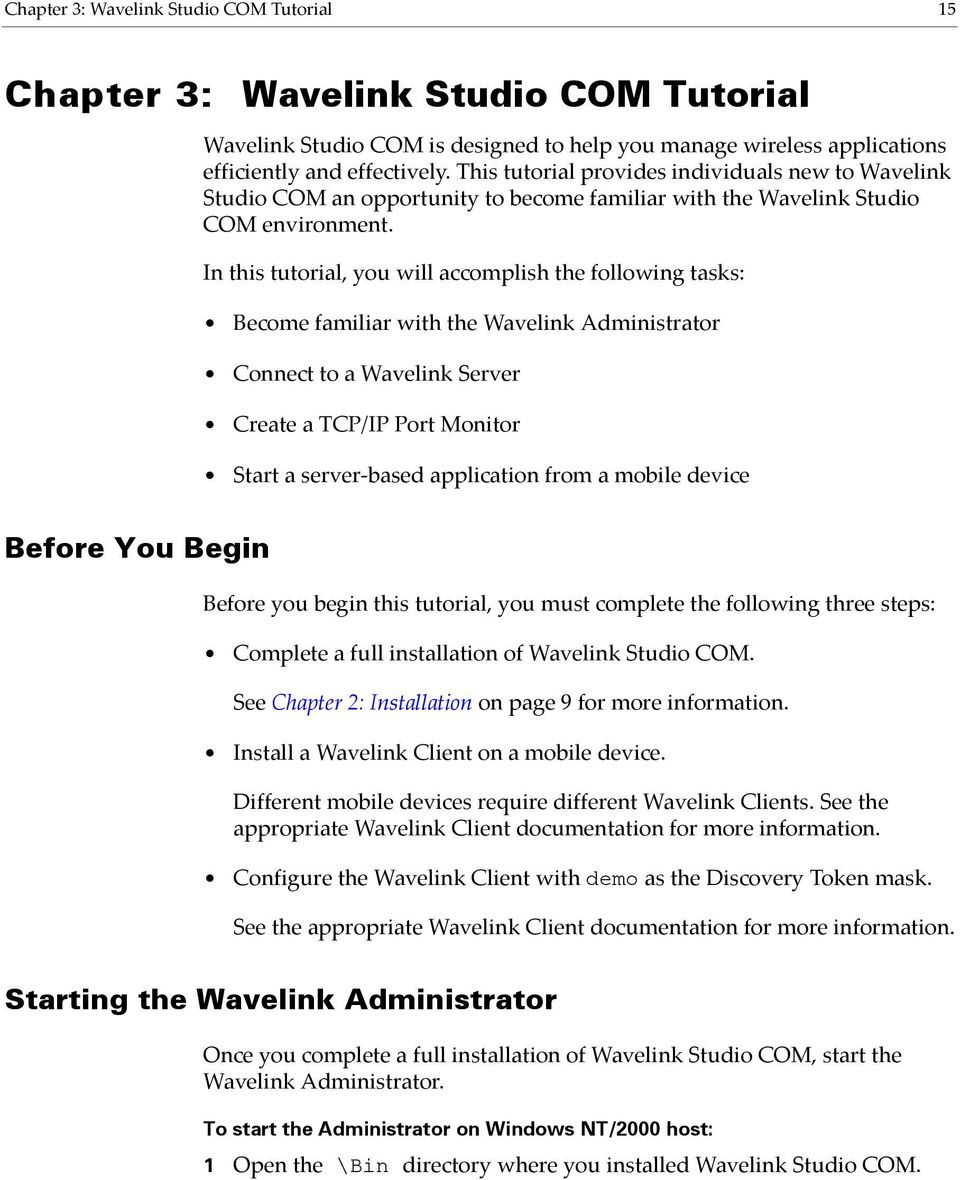
19 Chapter 3: Wavelink Studio COM Tutorial 15 Chapter 3: Wavelink Studio COM Tutorial Wavelink Studio COM is designed to help you manage wireless applications efficiently and effectively. This tutorial provides individuals new to Wavelink Studio COM an opportunity to become familiar with the Wavelink Studio COM environment. In this tutorial, you will accomplish the following tasks: Become familiar with the Wavelink Administrator Connect to a Wavelink Server Create a TCP/IP Port Monitor Start a server-based application from a mobile device Before You Begin Before you begin this tutorial, you must complete the following three steps: Complete a full installation of Wavelink Studio COM. See Chapter 2: Installation on page 9 for more information. Install a Wavelink Client on a mobile device. Different mobile devices require different Wavelink Clients. See the appropriate Wavelink Client documentation for more information. Configure the Wavelink Client with demo as the Discovery Token mask. See the appropriate Wavelink Client documentation for more information. Starting the Wavelink Administrator Once you complete a full installation of Wavelink Studio COM, start the Wavelink Administrator. To start the Administrator on Windows NT/2000 host: 1 Open the \Bin directory where you installed Wavelink Studio COM.
20 16 Wavelink Studio COM 2 Launch the WLStartup.exe executable. This launches the Wavelink Startup Utility, which allows you to start Wavelink Servers that reside on local and remote hosts. See Chapter 5: Wavelink Startup Utility on page 29 for more information. 3 Launch the Administrator by selecting Wavelink Studio > Wavelink Studio Administrator from the Start menu. To start the Administrator on a Windows 95/98 host: 1 Open the \Bin directory where you installed Wavelink Studio COM. 2 Launch the WLStartup.exe executable. This launches the Wavelink Startup Utility, which allows you to start Wavelink Servers that reside on local and remote hosts. See the Chapter 5: Wavelink Startup Utility on page 29 for more information. 3 Launch the Administrator by selecting Wavelink Studio > Wavelink Studio Administrator from the Start menu. After you double-click the Administrator icon from your host, the following screen appears:

21 Chapter 3: Wavelink Studio COM Tutorial 17 Figure 3-1. The Wavelink Administrator The Administrator consists of three components: A menu bar, with different menus available depending on which Wavelink features are currently in use A toolbar, containing button shortcuts to several Wavelink features A workspace, where data about wireless applications is displayed See Chapter 6: Wavelink Administrator on page 33 for more information. Connecting to a Wavelink Server After you start the Administrator, the next step is to connect to a Wavelink Server. In this tutorial, you will connect to the Wavelink Server that resides on your local host. To connect to a Wavelink Server: 1 Click the New Server Connection icon from the Administrator toolbar.
22 18 Wavelink Studio COM A new dialog box appears, containing a list of available computers on your network that host Wavelink Servers. Figure 3-2. The Connect to Wavelink Server Dialog Box 2 Select localhost from the Server Host Name list. 3 Click Connect. The Administrator will now connect to the Wavelink Server on your local host machine. After you connect to the Wavelink Server, a Wavelink Server Explorer window will appear in the Administrator s workspace. This window displays the current Port Monitors and mobile device connections to the server in a tree format. You can expand or collapse each branch on this tree by clicking the plus (+) sign or minus (-) signs that appear next to each element of the tree.
23 Chapter 3: Wavelink Studio COM Tutorial 19 Figure 3-3. The Wavelink Administrator with a Wavelink Explorer window open Creating a TCP/IP Port Monitor Your next task is to create a TCP/IP Port Monitor that your mobile devices can use to connect to the wireless network. First, you must assign a port to the monitor. To assign a port to the Port Monitor: 1 Make sure the Wavelink Server Explorer window of your local Wavelink Server is active. 2 Click the New Wavelink Monitor icon from the Administrator toolbar. The following dialog box appears.
24 20 Wavelink Studio COM Figure 3-4. The Create a New Wavelink Monitor-Step One Dialog Box 3 Select the TCP/IP Network option. 4 Click Next>. The following dialog box appears. Figure 3-5. The Create a New Wavelink Monitor-Step Two (TCP/IP) Dialog Box 5 Type 2050 in the TCP/IP Port Number field. This number will be the port assigned to this Port Monitor.
25 Chapter 3: Wavelink Studio COM Tutorial 21 6 Click Next>. The following dialog box appears. Figure 3-6. The Create a New Wavelink Monitor-Step Three Dialog Box To assign an application to the Port Monitor: 1 Select the WavelinkPM.exe program from the Initial Wavelink Application list. This program starts the Wavelink Program Manager application. When users start the Program Manager, they receive a list of wireless applications available to them from the Wavelink Server. The contents of this list changes depending on how you assign wireless applications to your users. See Chapter 7: Managing Applications on page 59 for more information on the Wavelink Program Manager. 2 Check the Reset monitor upon server startup option. When you enable this option, the Port Monitor will start automatically each time the Wavelink Server restarts. 3 Click Next>. The following dialog box appears.
26 22 Wavelink Studio COM Figure 3-7. The Create a New Wavelink Monitor-Step Four Dialog Box To configure the Port Monitor: 1 Type 00:00:10 in the Inactive Period field. This value sets the Port Monitor to disconnect any mobile device that has been inactive for 10 minutes. 2 Type 00:01:00 in the Maximum Session field. This value sets the Port Monitor to disconnect any mobile device that has been connected to the network for one hour. 3 Type demo in the Discovery Token field. Any mobile device that contains the Discovery Token mask, demo, will be able to communicate to the network through this Port Monitor. See Port Monitors and AutoDiscovery on page 42 for more information on Discovery Tokens. 4 Select the Primary option. 5 Click Finish. You have now successfully created a Wavelink Port Monitor on your host.
27 Chapter 3: Wavelink Studio COM Tutorial 23 Starting Applications from a Mobile Device With Wavelink Studio COM installed on a local host, and a Wavelink Client installed on a mobile device, you are now ready to open and run server-based applications from a mobile device. To start a server-based application on a mobile device: 1 Ensure the Wavelink Server is running on your local host. 2 Activate the mobile device and launch the Wavelink Client. 3 Follow the on-screen directions to connect the mobile device to the Wavelink Server. The Wavelink Client will attempt to connect with the Wavelink Server. Once it connects, the Wavelink Program Manager will appear, with a list of demonstration applications you can use on your mobile device. Taking the Next Step You have now successfully completed the Wavelink Studio COM Tutorial. Now that you have learned more about how to configure Port Monitors and activate server-based applications from a mobile device, you are ready to begin to implement server-based solutions across your wireless network. Please refer to the rest of this manual to learn more about how you can customize Wavelink Studio COM to maximize your wireless application solutions.
28 24 Wavelink Studio COM
29 Chapter 4: The Wavelink Server 25 Chapter 4: The Wavelink Server The Wavelink Server allows your mobile device users access to Wavelink applications residing on your host computer. The Wavelink Server operates in two different ways, depending on the host operating system: On Windows NT/2000, the Wavelink Server operates as a system service. As a system service, the Wavelink Server does not appear on the host s taskbar, and automatically starts each time the host restarts. The Wavelink Server also runs regardless of whether a user is logged on to the host computer. On Windows 95/98, the Wavelink Server operates as a hidden desktop application. As a hidden desktop application, the Wavelink Server does not appear on a host s taskbar, and you must restart the Wavelink Server each time the host s restarts. Also, the Wavelink Server will not operate until a user logs on to the host computer. Starting the Wavelink Server You can start the Wavelink Server in three ways: from the Administrator, from the Wavelink directory, or from the Services control panel. To start the Wavelink Server from the Administrator: NOTE This method requires that you activate the Wavelink Startup Utility. 1 Launch the Administrator by selecting Wavelink Studio > Wavelink Studio Administrator from the Start menu. 2 Click Server from the Administrator toolbar. Alternatively, you can select Open from the Server menu. A new dialog box appears, containing a list of available computers on your network that host Wavelink Servers.
30 26 Wavelink Studio COM 3 Select the desired Wavelink Server from the list. 4 Click Connect. The Wavelink Server will start and connect to the Administrator. To start the Wavelink Server from the Wavelink directory: 1 Open the Wavelink directory. 2 Double-click the Wavelink Server icon. If you installed the Wavelink Server on a host using Windows NT/2000, you can also start the Wavelink Server using the Services control panel. To start the Wavelink Server using the Services control panel: 1 Open the Services control panel. 2 Select the Wavelink Server application. 3 Click Start. Once you have opened the Services control panel, you can also decide if you want the Wavelink Server to start automatically. See your Windows NT/2000 documentation for more information on the options available within the Services control panel. Stopping the Wavelink Server You can stop the Wavelink Server in three ways: from the Wavelink Administrator, from the Task Manager or Close Program List, or from the Services control panel. To stop the Wavelink Server from the Administrator: 1 Launch the Administrator by selecting Wavelink Studio > Wavelink Studio Administrator from the Start menu. 2 Select Terminate Current Server from the Server menu. NOTE It is recommended that you always stop the Wavelink Server from the Administrator whenever possible.
31 Chapter 4: The Wavelink Server 27 To stop the Wavelink Server without the Administrator: 1 If you use Windows NT/2000, open the Task Manager. If you use Windows 95/98, open the Close Program List. 2 Select Wavelink Server from the list. 3 Click End Task. If you are using Windows NT/2000, you can also stop the Wavelink Server from the Services control panel: To start the Wavelink Server using the Services control panel: 1 Open the Services control panel. 2 Select the Wavelink Server application. 3 Click Stop. NOTE The Wavelink Server will automatically stop when Wavelink Studio COM is uninstalled. Configuring Recordsets If you run the Wavelink Server as a service on Windows NT/2000, and your application accesses a database, the host must have a place to store recordsets. To create a location for a local Wavelink Server to store recordsets: 1 Open the System control panel. 2 Select the Environment tab. 3 Type the name of the folder where the recordsets will reside in the Variable field. 4 Type the path where you want the Temp folder to reside in the Value field. 5 Click Set.
32 28 Wavelink Studio COM Configuring ODBC DSNs If you run the Wavelink Server as a service under Windows NT and use an ODBC DSN, you need to configure the DSN as a system DSN (instead of as a user DSN). You can start the Wavelink Server as a user service by configuring options in Services Startup in the Control Panel on Windows NT/2000. NOTE A user service cannot interact with the desktop. Consequently, the Wavelink Server will not display message boxes and can crash if a message box occurs. For this reason, if you plan to configure your server in this way, you must thoroughly debug your applications.
33 Chapter 5: Wavelink Startup Utility 29 Chapter 5: Wavelink Startup Utility With the Wavelink Startup Utility, you can use the Administrator to start the Wavelink Server on both local and remote hosts. Also, if an Administrator connects to a host that has a stopped Wavelink Server, the Wavelink Startup Utility will automatically re-start that Wavelink Server. The Wavelink Startup Utility operates in two different ways, depending on the host operating system: On Windows NT/2000, the Wavelink Startup Utility operates as a system service. As a system service, the Wavelink Startup Utility does not appear on the host s taskbar, and automatically starts each time the host restarts. The Wavelink Startup Utility also runs regardless of whether a user is logged on to the host computer. On Windows 95/98, the Wavelink Startup Utility operates as a hidden desktop application. As a hidden desktop application, the Wavelink Startup Utility does not appear on the host s taskbar, and you must restart the Wavelink Startup Utility each time the host restarts. Also, the Wavelink Startup Utility will not operate until a user logs on to the host computer. Starting the Wavelink Startup Utility You can start the Wavelink Startup Utility in two ways: from the Wavelink directory, or from the Services control panel. If you installed the Wavelink Startup Utility on a host using Windows NT/ 2000, you can also start the Wavelink Startup Utility using the Services control panel. To start the Wavelink Startup Utility: 1 Open the \Bin directory where you installed Wavelink Studio COM. 2 Launch the WLStartup.exe executable. To start the Wavelink Startup Utility using the Services control panel: 1 Open the Services control panel.
34 30 Wavelink Studio COM 2 Select the Wavelink Startup Utility application. 3 Click Start. Once you have opened the Services control panel, you can also decide if you want the Wavelink Startup Utility to start automatically. See your Windows NT/2000 documentation for more information on the options available within the Services control panel. Stopping the Wavelink Startup Utility You can stop the Wavelink Startup Utility in three ways: from the Wavelink Administrator, from the Task Manager or Close Program List, or from the Services control panel. NOTE If you decide to disable the Wavelink Startup Utility, you can only start the Wavelink Server locally you cannot start the Wavelink Server remotely. See Starting the Wavelink Startup Utility on page 29 for more information on starting the Wavelink Server when the Wavelink Startup Utility is disabled. To stop the Wavelink Startup Utility from the Administrator: 1 Start the Administrator by double-clicking on the Administrator icon located in the Wavelink program group. 2 Select Terminate Remote Startup Utility from the Server menu. NOTE It is recommended that you always stop the Wavelink Startup Utility from the Administrator whenever possible. To stop the Wavelink Startup Utility without the Administrator: 1 If you use Windows NT/2000, open the Task Manager. If you use Windows 95/98, open the Close Program List. 2 Select Wavelink Startup Utility from the list. 3 Click End Task.
35 Chapter 5: Wavelink Startup Utility 31 If you are using Windows NT, you can stop the Wavelink Startup Utility from the Services control panel: To start the Wavelink Startup Utility using the Services control panel: 1 Open the Services control panel. 2 Select the Wavelink Startup Utility application. 3 Click Stop. Terminate Wavelink Startup Utility When you enable the Wavelink Startup Utility, both local and remote Administrators can start a Wavelink Server. If you decide to disable the Wavelink Startup Utility, you must use the Terminate Wavelink Startup Utility. To use the Terminate Wavelink Startup Utility, select Terminate Wavelink Startup Utility from the Utilities menu. The Wavelink Startup Utility will immediately shut down. NOTE When you disable the Wavelink Startup Utility, the only method to start the Wavelink Server on the local host is by manually clicking the Wavelink Server icon from the Wavelink program group. Even the local Wavelink Administrator will not be able to start the Wavelink Server. See Starting the Wavelink Server on page 25 for more information.
36 32 Wavelink Studio COM
37 Chapter 6: Wavelink Administrator 33 Chapter 6: Wavelink Administrator The Wavelink Administrator is the central application you use to configure and manage Wavelink Servers and wireless applications. Starting the Wavelink Administrator To start the Wavelink Administrator: Launch the Administrator by selecting Wavelink Studio > Wavelink Studio Administrator from the Start menu. Figure 6-1. The Wavelink Administrator The Wavelink Administrator is composed of three components: A menu bar, with different menus available depending on which Wavelink features are currently in use A toolbar, containing button shortcuts to several Wavelink features A workspace, where data about wireless applications are displayed
38 34 Wavelink Studio COM Managing Servers You can use the Administrator to view and modify the Wavelink Servers on your network. To connect to a Wavelink Server: NOTE This method requires that you first activate the Wavelink Startup Utility. 1 Click the New Server Connection icon from the Administrator toolbar. Alternatively, you can select Open from the Server menu. A new dialog box appears, containing a list of available computers on your network that host Wavelink Servers. Figure 6-2. The Connect to Wavelink Server Dialog Box 2 Select the desired Wavelink Server from the list. 3 Click Connect. The Administrator connects to the Wavelink Server. If you connect to a computer that does not have the Wavelink Server running, the following dialog box appears.
39 Chapter 6: Wavelink Administrator 35 Figure 6-3. The Cannot Connect to a Wavelink Server Dialog Box Click Yes to start the Wavelink Server on the host. NOTE If you disable the Wavelink Start-Up Utility on a remote host, you can only start the Wavelink Server locally. See the Starting the Wavelink Server section for more information. Adding Servers to the Administrator You can add additional Wavelink Servers to the Administrator at any time. To add additional servers to the Administrator: 1 Open the Connect to Wavelink Server dialog box by clicking Server from the Administrator toolbar. 2 Click Add. The Add New Server to Connection List dialog box appears. Figure 6-4. Add A New Server to Connection List Dialog Box 3 Type either the host file name or the IP address of the computer that hosts the Wavelink Server that you want to add.
40 36 Wavelink Studio COM 4 Click Add Server. To cancel without adding an additional server, click Cancel. NOTE Add only hosts that have a Wavelink Server installed, otherwise the Wavelink Administrator cannot connect with the selected host. Removing Servers from the Administrator To remove a Wavelink Server from the available servers list: 1 Open the Connect to Wavelink Server dialog box by clicking Server from the Administrator toolbar. 2 Select the computer that hosts the Wavelink Server that you want to remove. 3 Click Delete. The following confirmation dialog box appears. Figure 6-5. The Remove Server Confirmation Dialog Box 4 Click OK. The computer will then be removed from the list of available servers. The Wavelink Server Explorer Each Wavelink Server connected to the Administrator appears in its own Wavelink Server Explorer window.
41 Chapter 6: Wavelink Administrator 37 Figure 6-6. The Wavelink Administrator with a Wavelink Server Explorer window open Each Wavelink Server Explorer window displays the current Port Monitors and mobile device connections to that server in a tree format. You can expand or collapse each branch on a tree by clicking the plus (+) sign or minus (-) signs that appear next to each element of the tree. Refreshing Wavelink Server Explorer Windows Wavelink Server Explorer windows display wireless network information in near real-time consequently, each window automatically refreshes to display the most current information available. However, you can manually refresh a Wavelink Server Explorer window at any time. You can manually refresh a Wavelink Server Explorer window in two ways: Select the desired Wavelink Server Explorer window, and then click Refresh View from the Administrator toolbar. Select the desired Wavelink Server Explorer window, and then select Refresh from the View menu.
42 38 Wavelink Studio COM Arranging Wavelink Server Explorer Windows If you connect to more than one Wavelink Server, you will have several Wavelink Server Explorer windows open at the same time. You can arrange these windows either by moving each window individually or by using the different options found under the Window menu. Disconnecting a Wavelink Server You can disconnect from a Wavelink Server at any time. To disconnect from a Wavelink server, close the Wavelink Server Explorer window for that server. You can also select the desired Wavelink Explorer window and then select Close from the Server menu. NOTE If you only disconnect from a Wavelink Server, that server will continue to run on its host computer. See Stopping the Wavelink Server on page 26 for information on how to completely stop a Wavelink Server. Managing Port Monitors A Port Monitor is a software component that handles communication between a mobile device and a Wavelink Server. As the name suggests, Port Monitors focus on a specific TCP/IP or serial port, where they await requests from mobile devices to start a specific application. Port Monitors operate on a one-to-one ratio one Port Monitor connects to only one port and only one application. NOTE If you do not specify an application, Wavelink assigns the Wavelink Program Manager application to the Port Monitor. Configuring Port Monitors Port Monitor configuration is divided into three categories: general, application, and AutoDiscovery.
43 Chapter 6: Wavelink Administrator 39 To configure the general options of a Port Monitor: 1 Double-click the Port Monitor s icon from the appropriate Wavelink Server Explorer window. The following Monitor Information dialog box appears. Figure 6-7. The Monitor Information dialog This dialog box consists of three tabs: General Monitor Information, Application Information, and Discovery Settings. 2 Click the General Monitor Information tab. The top section of this tab displays the current Port Monitor type (either TCP/IP or serial) and the specific port assigned to the Port Monitor. The bottom section of this tab displays the timeout values for the port number. 3 Type the timeout value for mobile device inactivity in the Inactive Period field. This value determines how long a mobile device can remain inactive before the Port Monitor terminates the connection. This value consists of days, hours, and minutes, and must be entered in the following format: DD:HH:MM.
44 40 Wavelink Studio COM 4 Type the timeout value for mobile device maximum connection time in the Maximum Session field. This value determines how long a mobile device can remain connected to an application before the Port Monitor terminates the connection. This value consists of days, hours, and minutes, and must be entered in the following format: DD:HH:MM. 5 Select the Initialize Monitor Upon Server Startup option to automatically start the Port Monitor each time the Wavelink Server starts. 6 Click OK. 7 To configure the application options of a Port Monitor: 8 Open the Port Monitor Information dialog box by double-clicking the Port Monitor s icon from the appropriate Wavelink Server Explorer window. 9 Click the Application Information tab. Figure 6-8. The Application Information Tab 10 Select an application for the Port Monitor from the Initial Application Information list. This list contains all applications currently available to Port Monitors. You can also click Browse to manually select another application. To add additional applications, see Configuring Applications on page 65.
45 Chapter 6: Wavelink Administrator Type any command-line arguments for the application in the Application Arguments field. 12 Click OK. To configure the AutoDiscovery options of a Port Monitor: NOTE These options are only available to Port Monitors using TCP/IP ports. NOTE See Port Monitors and AutoDiscovery on page 42 for more information on Wavelink Studio COM s AutoDiscovery features. 1 Open the Port Monitor Information dialog box by double-clicking the Port Monitor s icon from the appropriate Wavelink Server Explorer window. 2 Click the Discovery Settings tab. Figure 6-9. The Discovery Settings Tab 3 Type the discovery token for the Port Monitor in the Discovery Token field. Ses Port Monitors and AutoDiscovery on page 42 for more information. 4 Select a priority level for the Port Monitor by selecting either the Primary Level Monitor or Secondary Level Monitor options.
46 42 Wavelink Studio COM 5 Click OK. Stopping Port Monitors You can stop a Port Monitor at any time. NOTE It is highly recommended that you disconnect all mobile devices using a Port Monitor before you shut down a Port Monitor. To stop a Port Monitor: 1 Open the Port Monitor Information dialog box by double-clicking the Port Monitor s icon from the appropriate Wavelink Server Explorer window. 2 Click the General Monitor Information tab. 3 Click Shutdown. 4 Click OK. Port Monitors and AutoDiscovery This section discusses how you can use Wavelink s powerful AutoDiscovery technology to reduce the time it takes to configure mobile devices. Discovery Tokens Wavelink s AutoDiscovery feature uses Discovery Tokens to minimize mobile device configuration. NOTE See Configuring Port Monitors on page 38 for more information on assigning Discovery Tokens to Port Monitors. With traditional wireless networks, you must assign each mobile device a network address and a TCP/IP port that belongs to a specific computer on your network. Wavelink s AutoDiscovery technology eliminates the need for this timeconsuming configuration by allowing you to assign each Port Monitor a Discovery Token name, instead of a network address and a TCP/IP port. Then, you assign each mobile device a Discovery Token mask.
47 Chapter 6: Wavelink Administrator 43 NOTE A Discovery Token can be any alphanumeric combination, up to 18 characters in length. When a network user starts a mobile device, that mobile device broadcasts its Discovery Token mask to the wireless network. Any Port Monitor whose Discover Token name matches that mobile device s Discovery Token mask will respond and become available to the mobile device. Port Monitor Priority Levels In addition to assigning Port Monitors a Discovery Token name, you can also assign Port Monitors a priority level. There are two levels of priority available: primary and secondary. A primary Port Monitor automatically connects with a mobile device with the correct Discovery Token mask. NOTE If more than one primary Port Monitors have the correct Discovery Token mask and attempt to connect to a mobile device, that mobile device will connect to the first Port Monitor that attempts to connect. If you assigned a Port Monitor a secondary status, any mobile device that connects to that Port Monitor will wait 10 seconds to see if a primary Port Monitor is available. If a primary Port Monitor is not available, the mobile device will connect with the secondary Port Monitor. Discovery Token Wildcards In addition to assigning specific Discovery Token names to Port Monitors, you can also assign Port Monitors the wildcard character, the asterisk (*). Instead of just connecting to a specific Port Monitor, mobile devices will display a list of Port Monitors that contain the wildcard character in their Discovery Token name. mobile devices users can then select the Port Monitor of their choice. NOTE By default, each Wavelink client is initially configured with a wildcard Discovery Token mask.
48 44 Wavelink Studio COM Adding Port Monitors You can add as many Port Monitors as you need to support the mobile device and applications on a wireless network. You can add one of two types of Port Monitors: TCP/IP and serial. NOTE As you create new Port Monitors, you can return to a previous dialog box by clicking <Back. You can also cancel the installation process at any time by clicking Cancel. TCP/IP Port Monitors To add a TCP/IP Port Monitor: 1 Select the desired Wavelink Server from the Administrator workspace. 2 Click New Wavelink Monitor from the Administrator toolbar. Alternatively, you can select Start New Monitor from the Network Configuration menu. The following dialog box appears. Figure The Create a New Wavelink Monitor Step One Dialog Box 3 Select the TCP/IP Network option.
49 Chapter 6: Wavelink Administrator 45 4 Click Next>. The following dialog box appears. Figure The Create a New Wavelink Monitor Step Two (TCP/IP) Dialog Box 5 Type the specific TCP/IP port number in the TCP/IP Port Number field. NOTE You can assign any port number to a Port Monitor. However, to avoid using well-known ports, it is recommended that you select port numbers that are greater than Click Next>. The following dialog box appears.
50 46 Wavelink Studio COM Figure The Create a New Wavelink Monitor Step Three Dialog Box 7 Select an application for this Port Monitor from the Initial Wavelink Application list. If you do not see the desired application in this list, you can click Browse to navigate to the specific application. 8 Type any application arguments for this application in the Application Arguments field. 9 Check the Reset monitor upon server startup check box if you want the Port Monitor to automatically start each time the Wavelink Server restarts. If you do not select this option, you must reconfigure the Port Monitor each time the Wavelink Server restarts. 10 Click Next>. The following dialog box appears.
51 Chapter 6: Wavelink Administrator 47 Figure The Create A New Wavelink Monitor Step Four Dialog Box 11 Type the timeout value for mobile device inactivity in the Inactive Period field. This value determines how long a mobile device can remain inactive before the Port Monitor terminates the connection. This value consists of days, hours, and minutes, and must be entered in the following format: DD:HH:MM. 12 Type the timeout value for mobile device maximum connection time in the Maximum Session field. This value determines how long a mobile device can remain connected to an application before the Port Monitor terminates the connection. This value consists of days, hours, and minutes, and must be entered in the following format: DD:HH:MM. 13 Type the discovery token for the Port Monitor in the Discovery Token field. 14 Select a priority level for the Port Monitor by selecting either the Primary Level Monitor or Secondary Level Monitor options. 15 Click Finish.
52 48 Wavelink Studio COM Serial Port Monitors To add a serial Port Monitor: 1 Select the desired Wavelink Server from the Administrator workspace. 2 Click New Wavelink Monitor from the Administrator toolbar. Alternatively, you can select Start New Monitor from the Network Configuration menu. The following dialog box appears. Figure The Creating a New Wavelink Monitor Step One Dialog Box 3 Select the Serial Network option to create a new TCP/IP Port Monitor. The following dialog box appears.
53 Chapter 6: Wavelink Administrator 49 Figure The Creating a New Wavelink Monitor Step Two (Serial) Dialog Box 4 Select a serial port for this Port Monitor from the Possible Serial Port Numbers list. 5 Select the baud rate for the serial port from the Available Baud Rates list. NOTE The default selection in this list is Do not alter this rate unless you also change the connecting Serial Access Bridge to match the altered rate. 6 Click Next>. The following dialog box appears.
54 50 Wavelink Studio COM Figure The Creating a New Wavelink Monitor Step Three Dialog Box 7 Select an application for this Port Monitor from the Initial Wavelink Application list. If you do not see the desired application in this list, you can click Browse to navigate to the specific application. 8 Type any application arguments for this application in the Application Arguments field. 9 Check the Reset monitor upon server startup check box if you want the Port Monitor to automatically start any time the Wavelink Server restarts. If you do not select this option, you must reconfigure the Port Monitor each time the Wavelink Server restarts. 10 Click Next>. The following dialog box appears.
55 Chapter 6: Wavelink Administrator 51 Figure The Create A New Wavelink Monitor Step Four Dialog Box 11 Type the timeout value for mobile device inactivity in the Inactive Period field. This value determines how long a mobile device can remain inactive before the Port Monitor terminates the connection. This value consists of days, hours, and minutes, and must be entered in the following format: DD:HH:MM. 12 Type the timeout value for mobile device maximum connection time in the Maximum Session field. This value determines how long a mobile device can remain connected to an application before the Port Monitor terminates the connection. This value consists of days, hours, and minutes, and must be entered in the following format: DD:HH:MM. 13 Click Finish. Removing Port Monitors You can remove Port Monitors from a Wavelink Server at any time.
56 52 Wavelink Studio COM NOTE It is recommended that you disconnect all mobile devices using a Port Monitor before you remove that Port Monitor. To remove a Port Monitor: 1 Select the Wavelink Server that contains the Port Monitor you want to remove. 2 Click Terminate Monitor from the Administrator toolbar. Alternatively, you can select Delete Monitor from the Network Configuration menu. The following dialog box appears. Figure The Remove a Network Monitor For Host dialog 3 Select the Port Monitor that you want to delete. 4 Click Shutdown. The following dialog box appears. Figure The Remove a Network Monitor Confirmation dialog
57 Chapter 6: Wavelink Administrator 53 5 Click OK. Managing Mobile Device Connections The Wavelink Administrator displays each mobile device connected to a Port Monitor in the appropriate Wavelink Server Explorer window. These mobile device appear as mobile device icons, with their unique device ID listed next to them. You can view detailed information about a mobile device at any time. To view information on a mobile device, double-click the mobile device s icon. The following dialog box appears. Figure The Wavelink Connection Information dialog This dialog box consists of two tabs: General Connection Information and Application Information. The General Information tab displays the following information: Type of device TCP/IP Terminal ID Terminal Emulator version
58 54 Wavelink Studio COM Terminal type Port Monitor s number Screen width and height The Application Information tab displays the following information: The name of the application The host process ID of the application NOTE You can use the host process ID to kill an application that is malfunctioning without disconnecting the connections on your network. When you finish viewing the information for a device connection, click OK to return to the Wavelink Server Explorer window. Disconnecting Mobile Devices You can remotely disconnect a specific mobile device from the network directly from the Wavelink Administrator. To disconnect a mobile device: 1 Double-click the mobile device icon to open the Wavelink Connection Information dialog box. 2 Click Shutdown. The mobile device will be immediately disconnected from the network. Bridge Access Routines The Wavelink Administrator provides integrated support of BAR commands. Defining BAR Commands Many of Symbol Technologies Serial Access Bridges (SABs), such as the SAB II, provide support for Bridge Access Routines (BARs). These BAR commands provide direct access to SAB features. For example, using BAR commands, you can remotely reset an SAB or alter its communication frequencies.
59 Chapter 6: Wavelink Administrator 55 NOTE Symbol Technologies SAB-Lite does NOT support BAR commands. The Wavelink Administrator s BAR commands will not function when using SAB-Lite. Accessing BAR Commands To access the BAR command options for a BAR-compliant SAB, right-click the SAB s serial Port Monitor and select Bridge Access Routines from the menu that appears. A dialog box appears, containing four tabs: General, Statistics, Topology, and Frequency. General Tab The General tab displays the software version of the SAB and the serial port to which the SAB is connected. You can also reset the SAB from the General tab by clicking Reset Bridge. Figure The General Tab Statistics Tab The Statistics tab displays a variety of statistical information captured by the SAB.
60 56 Wavelink Studio COM Figure The Statistics Tab NOTE See the documentation included with your SAB for more information on the statistics displayed in this tab. You can also reset statistics values from the Statistics tab by clicking Reset Bridge Statistics. Topology Tab The Topology tab provides a real-time hierarchical map of the mobile device connected to the SAB along with each device s Unit ID.
61 Chapter 6: Wavelink Administrator 57 Figure The Topology Tab The types of wireless devices that appear in the Topology tab are as follows: Pseudo-Base. Either the current SAB itself or a configuration cradle. Hardware Base. An active transceiver unit. Uninitialized Base. An uninitialized transceiver unit. These units include tranceivers that are powered down, physically removed from the network, or restarting. On Air Remote. An active mobile device. Uninitialized Remote. An uninitialized mobile device. These terminals include devices that are powered down, physically removed from the network, restarting, or being reconfigured. In Cradle Remote. An mobile device that is placed within a configuration cradle but that is not currently being reconfigured. To remove any devices from the Topology map, select the device you want to remove then press Delete on your keyboard.
62 58 Wavelink Studio COM NOTE The topology entries for both transceivers and mobile devices remain even after you remove devices from the network, or reconfigure them with a new unit ID. If you remove or reconfigure devices, be sure to manually remove the unit s old entry from the topology map. Frequency Tab The Frequency tab displays the current frequencies the SAB uses. Figure The Frequency Tab The Remote Frequencies list displays the available frequencies in the local area that an SAB and a mobile device can use to communicate with each other. The frequency currently in use is highlighted. The Base Frequencies list displays the available frequencies in the local area that a transceiver unit and SAB can use to communicate with each other. The frequency currently in use is highlighted. To change either the remote or base frequencies, select the desired frequency from each list and click Set New Frequencies. The frequency change will take place immediately.
63 Chapter 7: Managing Applications 59 Chapter 7: Managing Applications You can assign one and only one application to each Port Monitor on your network. The Port Monitor will start this application each time a mobile device connects to your network using that Port Monitor. If you develop your own applications for your wireless network, please keep in mind the following: You must develop your applications with user sign-on features if you want user verification as part of your application security. NOTE If you do not include user sign-on features, mobile device users can access any wireless applications on your network without any limitations. Your users will have access only to the application assigned to the Port Monitor, unless you specifically design that application to open other applications. NOTE If your users can access only the application assigned to the Port Monitor, the only way they can switch applications is by logging off of the network, reconfiguring their port assignment, and then logging back on to the network. Wavelink Program Manager You can use the Wavelink Program Manager to simplify the management of your network users and your applications. With the Wavelink Program Manager, you divide your wireless applications into specific application groups. Then, you assign each user a sign-on name and password that gives them access only to the application groups they need. When these users enter their sign-on name and password, their assigned application groups will appear in the startup menu of the Wavelink Program Manger.
64 60 Wavelink Studio COM NOTE mobile device users can connect only to applications that belong to an application group. Wavelink Program Manager: A User Scenario This section describes one possible way of using the Wavelink Program Manager to manage your wireless applications. In this scenario, the XYZ Company is using Wavelink to manage its wireless applications for its main shipping warehouse. They have used Wavelink to design four applications: one for shipping, one for picking, one for receiving, and one for returns. To ensure that workers at the warehouse access only the applications they need, they divide their wireless applications into two Application Groups: the Shipping group, which contains the shipping and picking applications, and the Returns group, which contains the receiving and returns applications. Workers who handle shipping are assigned to the Shipping group, while those that handle returns are assigned to the Returns group. When workers who handle shipping need to ship an order, they log on to the network using an mobile device. The Wavelink Program Manager then verifies their assigned application group and displays the shipping and picking applications. The workers then select the appropriate application for the job at hand. After one application is no longer needed, the workers close that application and return to the Wavelink Program Manager, where they can select the next application they need. Wavelink Program Manager Administrator You manage user profiles and application groups with the Wavelink Program Manager Administrator (PMA). The PMA can manage Wavelink Program Managers on both local and remote hosts.
65 Chapter 7: Managing Applications 61 NOTE The PMA requires remote registry access to control remote Wavelink Program Managers. Windows 95/98 does not support remote registry access unless you install the Microsoft Remote Registry Service. See Appendix A: The Microsoft Remote Registry Service on page 77 for more information. The PMA contains two tabs: Wavelink User Information. The Wavelink User Information tab allows you to add, configure, and remove user accounts. This tab also allows you to set the host computer that the PMA manages. Wavelink Application Information. The Wavelink Application Information tab allows you to add, configure, and remove application groups. To add user accounts: 1 Click Program Manager Administrator from the Administrator toolbar. Alternatively, you can select Program Manager Administrator from the Wavelink Utilities menu. The following dialog box appears.
66 62 Wavelink Studio COM Figure 7-1. The Wavelink Program Manager Administrator Dialog Box 2 Select a host from the Wavelink Server Host list. You can also click Browse to have the PMA display a list of available remote hosts. NOTE In some cases, searching your network for available hosts can take several minutes to complete.
67 Chapter 7: Managing Applications 63 3 Type the name of the new user account in the Current Wavelink User field. The Current Wavelink User field also contains a list of all available Wavelink users. You can access this list by clicking the down arrow located on the right-hand side of this field. 4 Click Add. The new user account will appear in the Current Wavelink User field. To set the password and select applications for this user account, see Configuring User Accounts on page 64. To edit an existing user account: 1 Open the PMA by clicking Program Manager Administrator from the Administrator toolbar. Alternatively, you can select Program Manager from the Wavelink Utilities menu. 2 Select the user account you want to edit from the Current Wavelink User field. 3 Edit the user account as necessary. 4 Click Apply. To delete user accounts: 1 Open the PMA by clicking Program Manager Administrator from the Administrator toolbar. Alternatively, you can select Program Manager Administrator from the Wavelink Utilities menu. 2 Select the user account you want to delete from the Current Wavelink User field. 3 Click Delete. A confirmation dialog box will appear, asking you to confirm that you want to delete this user account. 4 Click Yes.
68 64 Wavelink Studio COM Configuring User Accounts Once you create a new user account, you can assign a password and application groups to that account. To assign a password to an account: 1 Open the PMA by clicking Program Manager Administrator from the Administrator toolbar. Alternatively, you can select Program Manager Administrator from the Wavelink Utilities menu. 2 Select the desired user account from the Current Wavelink User field. 3 Click Password. The following dialog box appears. Figure 7-2. The Change User Password Dialog Box 4 Type the current password for the account in the Original User Password field. By default, the password for any account will be the same as the account name. 5 Type the new password for the account in the New User Password field. 6 Confirm the new password by re-typing it in the Confirm New Password field. 7 Click OK. The new password will now be assigned to the user account.
69 Chapter 7: Managing Applications 65 To assign application groups to an account: 1 Open the PMA by clicking Program Manager Administrator from the Administrator toolbar. Alternatively, you can select Program Manager Administrator from the Wavelink Utilities menu. 2 Select the desired user account from the Current Wavelink User field. 3 Select the application groups you want to assign to this user account from the Available list found in the Wavelink Application Group section of the PMA. 4 Click [>]. The selected application groups now appear in the Assigned list. NOTE To remove application groups from a user account, select the application group from the Assigned list and click [<]. Configuring Applications In addition to creating user accounts, you can also use the PMA to add, configure, and remove applications. NOTE You must assign all applications used with Wavelink to at least one application group. You configure applications from the Wavelink Application Information tab of the PMA. To add an application to the PMA: 1 Open the PMA by clicking Program Manager Administrator from the Administrator toolbar. Alternatively, you can select Program Manager Administrator from the Wavelink Utilities menu. 2 Click the Wavelink Application Information tab.
70 66 Wavelink Studio COM The following dialog box appears. Figure 7-3. The Wavelink Application Information Tab 3 Type the name of the application s menu option in the Menu Option field. This name identifies the application in the Wavelink Program Manager startup menu. 4 Type the path to the application in the Application Path field.
71 Chapter 7: Managing Applications 67 Alternatively, you can click Browse to navigate to the application. 5 Type any additional command line arguments in the Arguments field. 6 Select an application group for the new application from the Application Group list. NOTE You must assign each application to at least one application group. 7 Click Add. To edit an application: 1 Open the PMA by clicking Program Manager Administrator from the Administrator toolbar. Alternatively, you can select Program Manager Administrator from the Wavelink Utilities menu. 2 Click the Wavelink Application Information tab. 3 Select the application from the Menu Option field. 4 Edit the application as needed. 5 Click Add. To delete an application: 1 Open the PMA by clicking Program Manager Administrator from the Administrator toolbar. Alternatively, you can select Program Manager Administrator from the Wavelink Utilities menu. 2 Click the Wavelink Application Information tab. 3 Select the application from the Menu Option field. 4 Click Delete. A dialog box appears, asking you to confirm that you want to delete this application. 5 Click Yes.
72 68 Wavelink Studio COM Configuring Application Groups You can add or remove application groups from Wavelink at any time. To add a new application group: 1 Open the PMA by clicking Program Manager Administrator from the Administrator toolbar. Alternatively, you can select Program Manager Administrator from the Wavelink Utilities menu. 2 Click the Wavelink Application Information tab. 3 Type the name of the new application group in the Wavelink Group Information field. 4 Click Add. To delete an application group: 1 Open the PMA by clicking Program Manager Administrator from the Administrator toolbar. Alternatively, you can select Program Manager Administrator from the Wavelink Utilities menu. 2 Click the Wavelink Application Information tab. 3 Select the application group from the Wavelink Group Information list. 4 Click Delete. A dialog box appears, asking you to confirm that you want to delete this application group. 5 Click Yes.
73 Chapter 8: Wavelink Log Reader 69 Chapter 8: Wavelink Log Reader The Wavelink Server generates log files that help you view and troubleshoot the activity of your wireless applications. You view these logs with the Wavelink Log Reader. The Wavelink Server creates these log files based on one of five different debug levels from level Zero to level Four. The higher the debug level, the more data is logged. Selecting a Debug Level By default, Wavelink Servers on your network are set at debug level two. You can change the debug level at any time. To change the debug level: 1 Select Run from the Start menu on your desktop taskbar. 2 Type the path to the Wavelink Server you want to start in the Open field. The Wavelink Server is typically stored in the \bin directory of the WavelinkSuite folder. For example, a typical path might read: C:\..\WavelinkSuite\bin\wlserver.exe 3 At the end of the path, type -n -d followed by the desired debug level. For example, if you wanted to set the debug level to level three, the path would read: C:\..\WavelinkSuite\bin\server.exe -n d3 4 Click OK. Debug Level Descriptions The four debug modes of the Wavelink and their descriptions are as follows: Level Zero: No logging. The Wavelink Server will not save events to either the system event log or the Server log file.
74 70 Wavelink Studio COM Level One: Application Status. Only application starting and application stopping messages will be saved to both the system event log and the Server log file. Level Two: Hard Errors. All hard errors encountered, which prevent the Wavelink Server from executing, are saved to the Server log file. An example of a hard error is an invalid authorization code. The same information that is logged within the Level Two debug mode will also appear within the system application event log when using the Wavelink Server as a service in Windows NT/2000. Please see the Windows NT Online Help for more information on viewing the system event log. Level Three: Warnings, Hard Errors. In addition to logging hard errors, Level Three will log any system warnings encountered by the Wavelink Server. A system warning is classified as any resource error that does not prevent the Wavelink Server from initially starting. Possible errors that can be logged in this mode range from failed connections between a mobile device and a Port Monitor to system memory limitations. The same information that is logged within the Level Three debug mode will also appear within the system application event log when using the Wavelink Server as a service in Windows NT/2000. Please see the Windows NT/2000 online help for more information on viewing the system event log. Level Four: Messages, Warnings, Hard Errors. The most comprehensive of the four available debug modes, Level Four logs all of the information included within the previous three levels plus any general server status messages. For example, in this mode a successful mobile device connection or similar message will be logged to the Server log file. In addition to server messages, this debug mode will also log user application messages within individual wireless connection log files. Any startup application or spawned application messages, such as function executions for a single mobile device user, will appear within a connection log file. Log File Naming Conventions By default, Wavelink saves log files in the \LogFiles sub-directory of the WavelinkSuite folder. Each log file begins with the letters WLSVR followed by the year, month, date, and time the Wavelink Server generated the file. Server log files also contain the.wls file extension.
75 Chapter 8: Wavelink Log Reader 71 Each wireless connection log file begins with the letters WLAPI followed by the unit ID (which will end with the letter x ), hour, minute, and second the file was generated. Wireless connection log files contain the.api file extension. Viewing Log Files With the Wavelink Log Reader, you can view either Wavelink Server or application-generated log files. The Wavelink Log Reader also lets you filter log file information by message type and debug level. To view a log file: 1 Click Wavelink Studio Log Reader from the Administrator toolbar. The following dialog box appears. Figure 8-1. The Wavelink Log Reader 2 Click Open Studio Log File. A dialog box containing the available log files appears.
76 72 Wavelink Studio COM 3 Select the desired log file. By default, only Wavelink Server log files with the.wls extension are available. To select an API log file, select Wavelink Library Log Files (.API) from the File of Type list. 4 Click OK. Once a file has been opened the information for the log file will appear within the Wavelink Log Reader. The information displayed within the Wavelink Log Reader window will depend upon the log file type. See the Wavelink Server Log Files and Wavelink API Log Files sections for information about the data each log file contains. Wavelink Server Log Files When you open a Wavelink Server log file, the log reader displays the log file information. Figure 8-2. A Wavelink Server Log
77 Chapter 8: Wavelink Log Reader 73 The information contained in each Wavelink Server log file is as follows: Time Stamp. The exact time in hours, minutes, seconds, and milliseconds, when the entry occurred. Message Type. The entry message type classification. The available message types are General, Memory, and Resource. General messages relate to basic Wavelink Server status messages, such as connection and sub-process startup status. Memory messages relate to host memory status messages, such as memory allocation failure. Resource messages concern host resource access such as failure in creating file handles. Server Module. The particular sub-module of the Wavelink Server in which the entry corresponds. For example, an entry can relate to the main Wavelink Server, a TCP/IP monitor, or a spawned child application. Message. The message field provides detailed information concerning the status or action of the log entry. Wavelink API Log Files When you open a Wavelink API log file, the log reader changes to display the log file information.
78 74 Wavelink Studio COM Figure 8-3. A Wavelink API Log File The information contained in each Wavelink API log file is as follows: Time Stamp. The exact time, in hours, minutes, seconds, and milliseconds that the entry occurred. Terminal ID. The Terminal ID of the mobile device that is using the instance of the application being logged. A virtual client connection is displayed in the sample screen shot above. API Function. The name of the API function executed. Message. The status of the API function called. Filtering Log Files You can filter log files at any time to highlight specific information.
79 Chapter 8: Wavelink Log Reader 75 To filter a log file: 1 Open the Wavelink Log Reader by clicking Wavelink Studio Log Reader from the Administrator toolbar. 2 Open a log file following the steps described in the Viewing Log Files section. 3 Click Filter Log File Messages. The following dialog box appears. Figure 8-4. Filter Message By Dialog Box 4 Select one or more options from the Debug Level section of the dialog box. There are three options available: Error, Warning, and Information. See the Debug Levels Description section for more information about these options. 5 Select one or more options from the Message Type section of the dialog box. There are three options available: General, Memory, and Resource. General messages relate to basic Wavelink Server status messages, such as connection and sub-process startup status Memory messages relate to host memory status messages, such as memory allocation failure Resource messages concern host resource access such as failure in creating file handles
80 76 Wavelink Studio COM 6 Click OK. To turn on all log filters: NOTE If you choose to filter all options, nothing will appear within the Wavelink Log Reader window. 1 Open the Wavelink Log Reader by clicking Wavelink Studio Log Reader from the Administrator toolbar. 2 Open a log file following the steps described in the Viewing Log Files section. 3 Click Filter Log File Messages. 4 Click Select All. 5 Click OK. To turn off all log filters: 1 Open the Wavelink Log Reader by clicking Wavelink Studio Log Reader from the Administrator toolbar. 2 Open a log file following the steps described in the Viewing Log Files section. 3 Click Filter Log File Messages. 4 Click Clear All. 5 Click OK. Printing Log Files To print a log file: 1 Open the Wavelink Log Reader by clicking Wavelink Studio Log Reader from the Administrator toolbar. 2 Open a log file following the steps described in the Viewing Log Files section. 3 Click Print Log File.
81 Appendix A: The Microsoft Remote Registry Service 77 Appendix A: The Microsoft Remote Registry Service The Microsoft Remote Registry Service allows you to configure the server host system to allow for remote configuration. NOTE The information in this section applies to systems running Windows 95. To install the Microsoft Remote Registry service: 1 Open the Network control applet from within the main system control panel. A Network dialog box appears.
82 78 Wavelink Studio COM Figure A-1. The Network Control Panel Dialog Box 2 Click Add. The Select Network Component dialog box appears.
83 Appendix A: The Microsoft Remote Registry Service 79 Figure A-2. Select Network Component Type Dialog Box 3 Select the Service option from the network components listed, then click Add. The Select Network Service dialog box appears. Figure A-3. Select Network Service Dialog
84 80 Wavelink Studio COM 4 Click Have Disk. A standard Windows browse dialog box will appear (not shown). Either manually type the complete path to the Microsoft Remote Registry service in the Copy manufacturer s files from: entry field, or click Browse and navigate to the path. The exact path of the service will vary depending on your exact version of Windows. For most builds of Windows 95/98, the path to the Microsoft Remote Registry service will be Admin\Nettools\Remotreg, beginning from the root of the drive that contains your Windows 95/98 CD-ROM. You can also locate the path to the service by searching for the term REMOTREG on your Windows 95/98 CD-ROM. 5 Click OK. Another Select Network Service dialog box will appear with the Microsoft Remote Registry service selected. 6 Click OK. The service then appears within the list of installed network components. 7 Restart your machine. Once you restart your machine after installing the Microsoft Remote Registry service, you can use the Registry Management Station to open and edit the registries of remote Wavelink SNC hosts. Allowing Remote Registry Configuration If you want to allow remote hosts the same access to the local system s registry, you must first enable the proper access control and password settings. The host must have user-level access control for the Microsoft Remote Registry service to function properly and allow remote users to open and edit the local registry. To alter the access control level for the host: 1 Select the Access Control tab from the Network control panel.
85 Appendix A: The Microsoft Remote Registry Service 81 2 Select the User-level access control option and type the name of your Windows NT/2000 domain in the Domain field. 3 Click OK. 4 Open the Password control panel and select the Remote Administration tab. A dialog box appears. Figure A-4. The Remote Administration Tab of the Passwords Control Panel 5 Select the Enable remote administration of this server check box. The Management Stations: window will contain a list of all users or groups who are authorized to edit the local system registry. To add a user or group, click Add.
86 82 Wavelink Studio COM A selection dialog box will appear which will allow you to add users or groups to the Management Stations list from the domain specified within the Access Control Level tab of the Network control panel. To remove a user, select the user from the Management Station s list and click Remove. See the Windows online help for more information on setting remote administration. Once you set both the access control level and appropriate administrator authorizations, the remote users can open and edit the local registry.
87 Appendix B: Wavelink Client Install Utility 83 Appendix B: Wavelink Client Install Utility The Wavelink Client Install Utility lets you easily download the Wavelink Client to any Symbol DOS mobile devices you use with Wavelink Studio COM. When you use the Wavelink Client Install Utility, you install one of several Wavelink Client images on a mobile device. Each image corresponds to a specific network type. For more information about the specific client files to download, visit Preparing a Mobile Device for the Client Utility To download the Wavelink Client to a mobile device, you must first connect a mobile device to a configuration cradle attached to a host computer. Once you connect the mobile device, set it to Command mode. NOTE This information applies to Symbol DOS devices. See the mobile device documentation for more information on setting up a configuration cradle or setting a mobile device to Command mode. After you connect the mobile device, please refer to the Wavelink Client documentation to ensure that the mobile device is fully prepared for the Wavelink Client download. Downloading a Wavelink Client To download a Wavelink Client with the Wavelink Client Utility: 1 Click Load Wavelink Client from the Administrator toolbar. Alternatively, you can select Load Client from the Utilities menu. The following dialog box appears.
88 84 Wavelink Studio COM Figure 0-1. The Wavelink Client Install Utility Dialog Box 2 Type the path of a Wavelink Client in the Wavelink Client File field. Alternatively, you can click [ ] to navigate to where the Wavelink Client resides. NOTE The Wavelink Client resides in the \Bin subdirectory by default. 3 Select the baud rate for the client-to-host connection from the Baud Rate list. 4 Select the Comm port the mobile device will use from the Available Comm Ports list. 5 Select the parity of the connection from the Parity list. 6 Select either the 7 Data Bits or 8 Data Bits option. 7 Click Send. The download status bar will then indicate download progress. When the indicator reaches 100 percent, the installation is complete.
89 Index 85 Index A Administrator 33 adding servers 35 connecting servers 34 disconnecting servers 38 managing servers 34 removing servers 36 starting 33 application groups adding 68 configuring 68 deleting 68 applications adding 65 configuring 65 Auto-Discovery( 7 B Bridge Access Routines 54 accessing 55 defining 54 Bridge Access Routines (BAR) frequency 58 C creating serial port monitors 48 creating TCP/IP port monitors 44 D databases 27 debug levels 69 descriptions 69 directory structure 13 discovery tokens 42 I installating 9 L log file naming conventions 70 log files 72 API log files 73 filtering 74 printing 76 viewing 71 Wavelink API 73 Wavelink Server 72 M manual about 1 assumptions 1 Mobile Units connection information 53 disconnecting 54 O ODBC DSNs 28 OLE/COM 4 P port monitors 38 adding 44 autodiscovery 42 configuring 38 discovery token wildcards 43 discovery tokens 42 priority levels 43 removing 51 stopping 42 Program Manager 59 Program Manager Administrator 59 remote administration limitations 60
90 86 Wavelink Studio COM R recordsets 27 Remote Registry Service 77 reset monitor 46, 50 RF user adding 63 deleting 63 S Serial Access Bridge 54 Bridge Access Routines 54 Serial Access Bridge (SAB) frequency 58 Startup Utility 4 T Terminate Startup Utility 31 typographical conventions 1 U user accounts configuring 64 V Visual Basic 3 Visual C++ 3 W Wavelink Administrator description 4 Wavelink Authorization Utility 11 Wavelink Client 5, 83 downloading 83 preparing Mobile Units 83 Wavelink Client Install Utility 83 Wavelink Development Library description 3 Wavelink Log Reader debug levels 69 filtering 74 Wavelink Server 25 connecting 34 databases 27 description 4 disconnecting 38 recordsets 27 removing 36 starting 25 stopping 26 Wavelink Server Explorer 36 arranging 38 refreshing 37 Wavelink Startup Utility 4, 29 starting 29 stopping 30, 31 Wavelink Studio components 2, 12 description 1 directory structure 13 features 6 installing 9 network architecture 5 requirements 9 Wavelink Studio Log Reader 4, 69 Wavelink Virtual Client 5 Wavelink Widget Extension description 4
Studio 5.0 User s Guide
 Studio 5.0 User s Guide wls-ug-administrator-20060728-05 Revised 8/8/06 ii Copyright 2006 by Wavelink Corporation All rights reserved. Wavelink Corporation 6985 South Union Park Avenue, Suite 335 Midvale,
VRC 7900/8900 Avalanche Enabler User s Manual
 VRC 7900/8900 Avalanche Enabler User s Manual WLE-VRC-20030702-02 Revised 7/2/03 ii Copyright 2003 by Wavelink Corporation All rights reserved. Wavelink Corporation 6985 South Union Park Avenue, Suite
Sage ERP MAS 90 Sage ERP MAS 200 Sage ERP MAS 200 SQL. Installation and System Administrator's Guide 4MASIN450-08
 Sage ERP MAS 90 Sage ERP MAS 200 Sage ERP MAS 200 SQL Installation and System Administrator's Guide 4MASIN450-08 2011 Sage Software, Inc. All rights reserved. Sage, the Sage logos and the Sage product
Administrator s Guide
 Administrator s Guide Citrix Network Manager for MetaFrame XPe Version 1.0 Citrix Systems, Inc. Information in this document is subject to change without notice. Companies, names, and data used in examples
Crystal Reports Installation Guide
 Crystal Reports Installation Guide Version XI Infor Global Solutions, Inc. Copyright 2006 Infor IP Holdings C.V. and/or its affiliates or licensors. All rights reserved. The Infor word and design marks
User Manual. Onsight Management Suite Version 5.1. Another Innovation by Librestream
 User Manual Onsight Management Suite Version 5.1 Another Innovation by Librestream Doc #: 400075-06 May 2012 Information in this document is subject to change without notice. Reproduction in any manner
Getting Started with Vision 6
 Getting Started with Vision 6 Version 6.9 Notice Copyright 1981-2009 Netop Business Solutions A/S. All Rights Reserved. Portions used under license from third parties. Please send any comments to: Netop
Guide to Installing BBL Crystal MIND on Windows 7
 Guide to Installing BBL Crystal MIND on Windows 7 Introduction The BBL Crystal MIND software can not be directly installed on the Microsoft Windows 7 platform, however it can be installed and run via XP
MGC WebCommander Web Server Manager
 MGC WebCommander Web Server Manager Installation and Configuration Guide Version 8.0 Copyright 2006 Polycom, Inc. All Rights Reserved Catalog No. DOC2138B Version 8.0 Proprietary and Confidential The information
CentreWare Internet Services Setup and User Guide. Version 2.0
 CentreWare Internet Services Setup and User Guide Version 2.0 Xerox Corporation Copyright 1999 by Xerox Corporation. All rights reserved. XEROX, The Document Company, the digital X logo, CentreWare, and
Silect Software s MP Author
 Silect MP Author for Microsoft System Center Operations Manager Silect Software s MP Author User Guide September 2, 2015 Disclaimer The information in this document is furnished for informational use only,
Virtual CD v10. Network Management Server Manual. H+H Software GmbH
 Virtual CD v10 Network Management Server Manual H+H Software GmbH Table of Contents Table of Contents Introduction 1 Legal Notices... 2 What Virtual CD NMS can do for you... 3 New Features in Virtual
MAS 90. Installation and System Administrator's Guide 4WIN1010-02/04
 MAS 90 Installation and System Administrator's Guide 4WIN1010-02/04 Copyright 1998-2004 Best Software, Inc. All rights reserved. Rev 02 Contents Chapter 1 Introduction 1 How to Use This Manual 1 Graphic
Citrix Access Gateway Plug-in for Windows User Guide
 Citrix Access Gateway Plug-in for Windows User Guide Access Gateway 9.2, Enterprise Edition Copyright and Trademark Notice Use of the product documented in this guide is subject to your prior acceptance
3 Setting up Databases on a Microsoft SQL 7.0 Server
 3 Setting up Databases on a Microsoft SQL 7.0 Server Overview of the Installation Process To set up GoldMine properly, you must follow a sequence of steps to install GoldMine s program files, and the other
Legal Notes. Regarding Trademarks. 2012 KYOCERA Document Solutions Inc.
 Legal Notes Unauthorized reproduction of all or part of this guide is prohibited. The information in this guide is subject to change without notice. We cannot be held liable for any problems arising from
Pearl Echo Installation Checklist
 Pearl Echo Installation Checklist Use this checklist to enter critical installation and setup information that will be required to install Pearl Echo in your network. For detailed deployment instructions
SC-T35/SC-T45/SC-T46/SC-T47 ViewSonic Device Manager User Guide
 SC-T35/SC-T45/SC-T46/SC-T47 ViewSonic Device Manager User Guide Copyright and Trademark Statements 2014 ViewSonic Computer Corp. All rights reserved. This document contains proprietary information that
Inmagic ODBC Driver 8.00 Installation and Upgrade Notes
 Inmagic ODBC Driver 8.00 Installation and Upgrade Notes Thank you for purchasing the Inmagic ODBC Driver for DB/Text. This document is for new and upgrade customers. Use the Inmagic ODBC Driver to develop
STATISTICA VERSION 11 CONCURRENT NETWORK LICENSE WITH BORROWING INSTALLATION INSTRUCTIONS
 data analysis data mining quality improvement web-based analytics Notes STATISTICA VERSION 11 CONCURRENT NETWORK LICENSE WITH BORROWING INSTALLATION INSTRUCTIONS 1. The installation of the Concurrent network
VERITAS Backup Exec 9.1 for Windows Servers Quick Installation Guide
 VERITAS Backup Exec 9.1 for Windows Servers Quick Installation Guide N109548 Disclaimer The information contained in this publication is subject to change without notice. VERITAS Software Corporation makes
Sage 100 ERP. Installation and System Administrator s Guide
 Sage 100 ERP Installation and System Administrator s Guide This is a publication of Sage Software, Inc. Version 2014 Copyright 2013 Sage Software, Inc. All rights reserved. Sage, the Sage logos, and the
Nortel Networks Call Center Reporting Set Up and Operation Guide
 Nortel Networks Call Center Reporting Set Up and Operation Guide www.nortelnetworks.com 2001 Nortel Networks P0919439 Issue 07 (24) Table of contents How to use this guide... 5 Introduction...5 How this
Installing the Microsoft Network Driver Interface
 Installing the Microsoft Network Driver Interface Overview This guide explains how to install the PictureTel Live200 Microsoft Network Driver Interface (NDIS) software you have downloaded from PictureTel's
VMware/Hyper-V Backup Plug-in User Guide
 VMware/Hyper-V Backup Plug-in User Guide COPYRIGHT No part of this publication may be reproduced, stored in a retrieval system, or transmitted in any form or by any means, electronic, mechanical, photocopying,
Network FAX Driver. Operation Guide
 Network FAX Driver Operation Guide About this Operation Guide This Operation Guide explains the settings for the Network FAX driver as well as the procedures that are required in order to use the Network
Centran Version 4 Getting Started Guide KABA MAS. Table Of Contents
 Page 1 Centran Version 4 Getting Started Guide KABA MAS Kaba Mas Welcome Kaba Mas, part of the world-wide Kaba group, is the world's leading manufacturer and supplier of high security, electronic safe
Out n About! for Outlook Electronic In/Out Status Board. Administrators Guide. Version 3.x
 Out n About! for Outlook Electronic In/Out Status Board Administrators Guide Version 3.x Contents Introduction... 1 Welcome... 1 Administration... 1 System Design... 1 Installation... 3 System Requirements...
Avalanche Enabler 5.3 User Guide
 Avalanche Enabler 5.3 User Guide 30/05/2012 ii Copyright 2012 by Wavelink Corporation. All rights reserved. Wavelink Corporation 10808 South River Front Parkway, Suite 200 South Jordan, Utah 84095 Telephone:
Installation Instruction STATISTICA. Concurrent Network License with Borrowing Domain Based Registration
 Installation Instruction STATISTICA Concurrent Network License with Borrowing Domain Based Registration Notes: ❶ The installation of the Concurrent network version entails two parts: a) a server installation,
LPR for Windows 95/98/Me/2000/XP TCP/IP Printing User s Guide. Rev. 03 (November, 2001)
 LPR for Windows 95/98/Me/2000/XP TCP/IP Printing User s Guide Rev. 03 (November, 2001) Copyright Statement Trademarks Copyright 1997 No part of this publication may be reproduced in any form or by any
Moxa Device Manager 2.3 User s Manual
 User s Manual Third Edition, March 2011 www.moxa.com/product 2011 Moxa Inc. All rights reserved. User s Manual The software described in this manual is furnished under a license agreement and may be used
Upgrading from Call Center Reporting to Reporting for Contact Center. BCM Contact Center
 Upgrading from Call Center Reporting to Reporting for Contact Center BCM Contact Center Document Number: NN40010-400 Document Status: Standard Document Version: 02.00 Date: June 2006 Copyright Nortel Networks
National Fire Incident Reporting System (NFIRS 5.0) NFIRS Data Entry/Validation Tool Users Guide
 National Fire Incident Reporting System (NFIRS 5.0) NFIRS Data Entry/Validation Tool Users Guide NFIRS 5.0 Software Version 5.3 Prepared for: Directorate of Preparedness and Response (FEMA) Prepared by:
RSView 32 ACTIVE DISPLAY SYSTEM GETTING RESULTS GUIDE. PUBLICATION VW32AD-GR001E-EN-E July 2011 Supersedes Publication VW32AD-GR001D-EN-E
 RSView 32 ACTIVE DISPLAY SYSTEM GETTING RESULTS GUIDE PUBLICATION VW32AD-GR001E-EN-E July 2011 Supersedes Publication VW32AD-GR001D-EN-E Contact Rockwell Copyright Notice Trademark Notices Customer Support
DP-313 Wireless Print Server
 DP-313 Wireless Print Server Quick Installation Guide TCP/IP Printing (LPR for Windows 95/98/Me/2000) Rev. 03 (August, 2001) Copyright Statement Trademarks Copyright 1997 No part of this publication may
System Administration Training Guide. S100 Installation and Site Management
 System Administration Training Guide S100 Installation and Site Management Table of contents System Requirements for Acumatica ERP 4.2... 5 Learning Objects:... 5 Web Browser... 5 Server Software... 5
Installation Guide for Workstations
 Installation Guide for Workstations Copyright 1998-2005, E-Z Data, Inc. All Rights Reserved. No part of this documentation may be copied, reproduced, or translated in any form without the prior written
2X ApplicationServer & LoadBalancer Manual
 2X ApplicationServer & LoadBalancer Manual 2X ApplicationServer & LoadBalancer Contents 1 URL: www.2x.com E-mail: [email protected] Information in this document is subject to change without notice. Companies,
Remote Access Server - Dial-Out User s Guide
 Remote Access Server - Dial-Out User s Guide 95-2345-05 Copyrights IBM is the registered trademark of International Business Machines Corporation. Microsoft, MS-DOS and Windows are registered trademarks
Installation and Program Essentials
 CS PROFESSIONAL SUITE ACCOUNTING PRODUCTS Installation and Program Essentials version 2010.x.x TL 22538 (5/25/10) Copyright Information Text copyright 1998 2010 by Thomson Reuters/Tax & Accounting. All
Installation Instructions Release Version 15.0 January 30 th, 2011
 Release Version 15.0 January 30 th, 2011 ARGUS Software: ARGUS Valuation - DCF The contents of this document are considered proprietary by ARGUS Software, the information enclosed and any portion thereof
Remote Management System
 RMS Copyright and Distribution Notice November 2009 Copyright 2009 ARTROMICK International, Inc. ALL RIGHTS RESERVED. Published 2009. Printed in the United States of America WARNING: ANY UNAUTHORIZED
Lepide Software. LepideAuditor for File Server [CONFIGURATION GUIDE] This guide informs How to configure settings for first time usage of the software
![Lepide Software. LepideAuditor for File Server [CONFIGURATION GUIDE] This guide informs How to configure settings for first time usage of the software](/thumbs/33/16328811.jpg "Lepide Software. LepideAuditor for File Server [CONFIGURATION GUIDE] This guide informs How to configure settings for first time usage of the software") Lepide Software LepideAuditor for File Server [CONFIGURATION GUIDE] This guide informs How to configure settings for first time usage of the software Lepide Software Private Limited, All Rights Reserved
Lepide Software LepideAuditor for File Server [CONFIGURATION GUIDE] This guide informs How to configure settings for first time usage of the software Lepide Software Private Limited, All Rights Reserved
Integrated Virtual Debugger for Visual Studio Developer s Guide VMware Workstation 8.0
 Integrated Virtual Debugger for Visual Studio Developer s Guide VMware Workstation 8.0 This document supports the version of each product listed and supports all subsequent versions until the document
SmartSync Monitor Help
 1.0 (Build 15) 2 Table of Contents Foreword 0 Part I Welcome to SmartSync Monitor 3 Part II Getting Started 4 1 Copyright... 4 2 System... requirements and installation 4 3 Uninstalling... 5 6 Part III
BitDefender Security for Exchange
 Quick Start Guide Copyright 2011 BitDefender 1. About This Guide This guide will help you install and get started with BitDefender Security for Exchange. For detailed instructions, please refer to the
Network Administrator s Guide and Getting Started with Autodesk Ecotect Analysis
 Autodesk Ecotect Analysis 2011 Network Administrator s Guide and Getting Started with Autodesk Ecotect Analysis This document describes how to install and activate Autodesk Ecotect Analysis 2011 software
Sage Intelligence Financial Reporting for Sage ERP X3 Version 6.5 Installation Guide
 Sage Intelligence Financial Reporting for Sage ERP X3 Version 6.5 Installation Guide Table of Contents TABLE OF CONTENTS... 3 1.0 INTRODUCTION... 1 1.1 HOW TO USE THIS GUIDE... 1 1.2 TOPIC SUMMARY...
Interworks. Interworks Cloud Platform Installation Guide
 Interworks Interworks Cloud Platform Installation Guide Published: March, 2014 This document contains information proprietary to Interworks and its receipt or possession does not convey any rights to reproduce,
Network Scanner Tool R3.1. User s Guide Version 3.0.04
 Network Scanner Tool R3.1 User s Guide Version 3.0.04 Copyright 2000-2004 by Sharp Corporation. All rights reserved. Reproduction, adaptation or translation without prior written permission is prohibited,
FOR WINDOWS FILE SERVERS
 Quest ChangeAuditor FOR WINDOWS FILE SERVERS 5.1 User Guide Copyright Quest Software, Inc. 2010. All rights reserved. This guide contains proprietary information protected by copyright. The software described
INSTALL AND CONFIGURATION GUIDE. Atlas 5.1 for Microsoft Dynamics AX
 INSTALL AND CONFIGURATION GUIDE Atlas 5.1 for Microsoft Dynamics AX COPYRIGHT NOTICE Copyright 2012, Globe Software Pty Ltd, All rights reserved. Trademarks Dynamics AX, IntelliMorph, and X++ have been
BIGPOND ONLINE STORAGE USER GUIDE Issue 1.1.0-18 August 2005
 BIGPOND ONLINE STORAGE USER GUIDE Issue 1.1.0-18 August 2005 PLEASE NOTE: The contents of this publication, and any associated documentation provided to you, must not be disclosed to any third party without
One step login. Solutions:
 Many Lotus customers use Lotus messaging and/or applications on Windows and manage Microsoft server/client environment via Microsoft Active Directory. There are two important business requirements in this
Upgrading to Document Manager 2.7
 Upgrading to Document Manager 2.7 22 July 2013 Trademarks Document Manager and Document Manager Administration are trademarks of Document Logistix Ltd. TokOpen, TokAdmin, TokImport and TokExRef are registered
Moxa Device Manager 2.0 User s Guide
 First Edition, March 2009 www.moxa.com/product 2009 Moxa Inc. All rights reserved. Reproduction without permission is prohibited. Moxa Device Manager 2.0 User Guide The software described in this manual
Installation Instruction STATISTICA Enterprise Server
 Installation Instruction STATISTICA Enterprise Server Notes: ❶ The installation of STATISTICA Enterprise Server entails two parts: a) a server installation, and b) workstation installations on each of
WhatsUp Gold v16.2 Installation and Configuration Guide
 WhatsUp Gold v16.2 Installation and Configuration Guide Contents Installing and Configuring Ipswitch WhatsUp Gold v16.2 using WhatsUp Setup Installing WhatsUp Gold using WhatsUp Setup... 1 Security guidelines
Wavelink Avalanche Mobility Center Java Console User Guide. Version 5.3
 Wavelink Avalanche Mobility Center Java Console User Guide Version 5.3 Revised 17/04/2012 ii Copyright 2012 by Wavelink Corporation. All rights reserved. Wavelink Corporation 10808 South River Front Parkway,
Lepide Event Log Manager. Users Help Manual. Lepide Event Log Manager. Lepide Software Private Limited. Page 1
 Users Help Manual Lepide Event Log Manager Lepide Software Private Limited. Page 1 Users Help Manual for Lepide Event Log Manager Lepide Software Private Limited, All Rights Reserved This User Guide and
InventoryControl for use with QuoteWerks Quick Start Guide
 InventoryControl for use with QuoteWerks Quick Start Guide Copyright 2013 Wasp Barcode Technologies 1400 10 th St. Plano, TX 75074 All Rights Reserved STATEMENTS IN THIS DOCUMENT REGARDING THIRD PARTY
Citrix EdgeSight for Load Testing User s Guide. Citrix EdgeSight for Load Testing 3.8
 Citrix EdgeSight for Load Testing User s Guide Citrix EdgeSight for Load Testing 3.8 Copyright Use of the product documented in this guide is subject to your prior acceptance of the End User License Agreement.
How To Use Senior Systems Cloud Services
 Senior Systems Cloud Services In this guide... Senior Systems Cloud Services 1 Cloud Services User Guide 2 Working In Your Cloud Environment 3 Cloud Profile Management Tool 6 How To Save Files 8 How To
Welcome to MaxMobile. Introduction. System Requirements
 MaxMobile 10.5 for Windows Mobile Smartphone Welcome to MaxMobile Introduction MaxMobile 10.5 for Windows Mobile Smartphone provides you with a way to take your customer information on the road. You can
Partner. Sage Pastel. Accounting. Installation Guide
 Sage Pastel Accounting Partner Installation Guide Sage Pastel: +27 11 304 3000 Sage Pastel Intl: +27 11 304 3400 www.pastel.co.za www.sagepastel.com [email protected] [email protected] Sage Pastel Accounting
DiskPulse DISK CHANGE MONITOR
 DiskPulse DISK CHANGE MONITOR User Manual Version 7.9 Oct 2015 www.diskpulse.com [email protected] 1 1 DiskPulse Overview...3 2 DiskPulse Product Versions...5 3 Using Desktop Product Version...6 3.1 Product
Web Filter. SurfControl Web Filter 5.0 Installation Guide. www.surfcontrol.com. The World s #1 Web & E-mail Filtering Company
 Web Filter SurfControl Web Filter 5.0 Installation Guide www.surfcontrol.com The World s #1 Web & E-mail Filtering Company NOTICES NOTICES Copyright 2005 SurfControl plc. All rights reserved. No part
Installation and Program Essentials
 CS PROFESSIONAL SUITE ACCOUNTING PRODUCTS Installation and Program Essentials version 2015.x.x TL 28970 3/26/2015 Copyright Information Text copyright 1998 2015 by Thomson Reuters. All rights reserved.
WhatsUp Gold v16.3 Installation and Configuration Guide
 WhatsUp Gold v16.3 Installation and Configuration Guide Contents Installing and Configuring WhatsUp Gold using WhatsUp Setup Installation Overview... 1 Overview... 1 Security considerations... 2 Standard
In the same spirit, our QuickBooks 2008 Software Installation Guide has been completely revised as well.
 QuickBooks 2008 Software Installation Guide Welcome 3/25/09; Ver. IMD-2.1 This guide is designed to support users installing QuickBooks: Pro or Premier 2008 financial accounting software, especially in
VERITAS Backup Exec TM 10.0 for Windows Servers
 VERITAS Backup Exec TM 10.0 for Windows Servers Quick Installation Guide N134418 July 2004 Disclaimer The information contained in this publication is subject to change without notice. VERITAS Software
SHARP Digital Signage Software Pro PN-SS05 OPERATION MANUAL
 SHARP Digital Signage Software Pro PN-SS05 Version 4.1 OPERATION MANUAL Contents Introduction... 2 Precautions on Use...2 Trademarks...2 How to Read this Manual...3 Definitions...3 Installing/Launching...
Installation Instruction STATISTICA Enterprise Small Business
 Installation Instruction STATISTICA Enterprise Small Business Notes: ❶ The installation of STATISTICA Enterprise Small Business entails two parts: a) a server installation, and b) workstation installations
WhatsUp Gold v16.1 Installation and Configuration Guide
 WhatsUp Gold v16.1 Installation and Configuration Guide Contents Installing and Configuring Ipswitch WhatsUp Gold v16.1 using WhatsUp Setup Installing WhatsUp Gold using WhatsUp Setup... 1 Security guidelines
SYSTEM REQUIREMENTS...
 Contents INTRODUCTION... 1 BillQuick HR Setup Checklist... 2 SYSTEM REQUIREMENTS... 3 HARDWARE REQUIREMENTS... 3 SOFTWARE REQUIREMENTS... 3 Operating System Requirements... 3 Other System Requirements...
Personal Call Manager User Guide. BCM Business Communications Manager
 Personal Call Manager User Guide BCM Business Communications Manager Document Status: Standard Document Version: 04.01 Document Number: NN40010-104 Date: August 2008 Copyright Nortel Networks 2005 2008
Remote Network Accelerator
 Remote Network Accelerator Evaluation Guide LapLink Software 10210 NE Points Drive Kirkland, WA 98033 Tel: (425) 952-6000 www.laplink.com LapLink Remote Network Accelerator Evaluation Guide Page 1 of 19
STATISTICA VERSION 9 STATISTICA ENTERPRISE INSTALLATION INSTRUCTIONS FOR USE WITH TERMINAL SERVER
 Notes: STATISTICA VERSION 9 STATISTICA ENTERPRISE INSTALLATION INSTRUCTIONS FOR USE WITH TERMINAL SERVER 1. These instructions focus on installation on Windows Terminal Server (WTS), but are applicable
HYPERION SYSTEM 9 N-TIER INSTALLATION GUIDE MASTER DATA MANAGEMENT RELEASE 9.2
 HYPERION SYSTEM 9 MASTER DATA MANAGEMENT RELEASE 9.2 N-TIER INSTALLATION GUIDE P/N: DM90192000 Copyright 2005-2006 Hyperion Solutions Corporation. All rights reserved. Hyperion, the Hyperion logo, and
Core Protection for Virtual Machines 1
 Core Protection for Virtual Machines 1 Comprehensive Threat Protection for Virtual Environments. Installation Guide e Endpoint Security Trend Micro Incorporated reserves the right to make changes to this
Magaya Software Installation Guide
 Magaya Software Installation Guide MAGAYA SOFTWARE INSTALLATION GUIDE INTRODUCTION Introduction This installation guide explains the system requirements for installing any Magaya software, the steps to
WatchGuard Mobile User VPN Guide
 WatchGuard Mobile User VPN Guide Mobile User VPN establishes a secure connection between an unsecured remote host and a protected network over an unsecured network using Internet Protocol Security (IPSec).
DeviceLock Management via Group Policy
 User Manual DeviceLock Management via Group Policy SmartLine Inc 1 Contents Using this Manual...3 1. General Information...4 1.1 Overview...4 1.2 Applying Group Policy...5 1.3 Standard GPO Inheritance
Non-ThinManager Components
 Non-ThinManager Components Microsoft Terminal Servers play an important role in the ThinManager system. It is recommended that you become familiar with the documentation provided by Microsoft about their
CODESOFT Installation Scenarios
 CODESOFT Installation Scenarios NOTES: CODESOFT is a separate install from existing versions of CODESOFT. You will need to make note of your current settings (default directories, etc.) so you can duplicate
STATISTICA VERSION 12 STATISTICA ENTERPRISE SMALL BUSINESS INSTALLATION INSTRUCTIONS
 STATISTICA VERSION 12 STATISTICA ENTERPRISE SMALL BUSINESS INSTALLATION INSTRUCTIONS Notes 1. The installation of STATISTICA Enterprise Small Business entails two parts: a) a server installation, and b)
Troubleshooting File and Printer Sharing in Microsoft Windows XP
 Operating System Troubleshooting File and Printer Sharing in Microsoft Windows XP Microsoft Corporation Published: November 2003 Updated: August 2004 Abstract File and printer sharing for Microsoft Windows
Citrix EdgeSight for Load Testing User s Guide. Citrx EdgeSight for Load Testing 2.7
 Citrix EdgeSight for Load Testing User s Guide Citrx EdgeSight for Load Testing 2.7 Copyright Use of the product documented in this guide is subject to your prior acceptance of the End User License Agreement.
NETWRIX ACCOUNT LOCKOUT EXAMINER
 NETWRIX ACCOUNT LOCKOUT EXAMINER ADMINISTRATOR S GUIDE Product Version: 4.1 July 2014. Legal Notice The information in this publication is furnished for information use only, and does not constitute a
Sophos for Microsoft SharePoint startup guide
 Sophos for Microsoft SharePoint startup guide Product version: 2.0 Document date: March 2011 Contents 1 About this guide...3 2 About Sophos for Microsoft SharePoint...3 3 System requirements...3 4 Planning
BillQuick Agent 2010 Getting Started Guide
 Time Billing and Project Management Software Built With Your Industry Knowledge BillQuick Agent 2010 Getting Started Guide BQE Software, Inc. 2601 Airport Drive Suite 380 Torrance CA 90505 Support: (310)
Kaspersky Security Center Web-Console
 Kaspersky Security Center Web-Console User Guide CONTENTS ABOUT THIS GUIDE... 5 In this document... 5 Document conventions... 7 KASPERSKY SECURITY CENTER WEB-CONSOLE... 8 SOFTWARE REQUIREMENTS... 10 APPLICATION
NETWORK PRINT MONITOR User Guide
 NETWORK PRINT MONITOR User Guide Legal Notes Unauthorized reproduction of all or part of this guide is prohibited. The information in this guide is subject to change without notice. We cannot be held liable
There are numerous ways to access monitors:
 Remote Monitors REMOTE MONITORS... 1 Overview... 1 Accessing Monitors... 1 Creating Monitors... 2 Monitor Wizard Options... 11 Editing the Monitor Configuration... 14 Status... 15 Location... 17 Alerting...
Backing up IMail Server using Altaro Backup FS
 Backing up IMail Server using Altaro Backup FS Purpose The purpose of this document is to provide guidelines and procedures for backing up IMail server system data and user data in case of a hardware or
Administrators Help Manual
 Administrators Help Manual Lepide Active Directory Self Service Lepide Software Private Limited Page 1 Administrators Help Manual for Active Directory Self-Service Lepide Active Directory Self Service
Spector 360 Deployment Guide. Version 7.3 January 3, 2012
 Spector 360 Deployment Guide Version 7.3 January 3, 2012 Table of Contents Deploy to All Computers... 48 Step 1: Deploy the Servers... 5 Recorder Requirements... 52 Requirements... 5 Control Center Server
User Guide Win7Zilla
 User Guide Win7Zilla Table of contents Section 1: Installation... 3 1.1 System Requirements... 3 1.2 Software Installation... 3 1.3 Uninstalling Win7Zilla software... 3 Section 2: Navigation... 4 2.1 Main
Sysax Multi Server User manual
 Sysax Multi Server User manual Table of Contents 1. Introduction to Sysax Multi Server... 1 1.1. Introduction to Sysax Multi Server... 2 2. Minimum System Requirements... 4 2.1. System Requirements...