
Financial Data Access with SQL, Excel & VBA
|
|
|
- Rosemary Sutton
- 10 years ago
- Views:
Transcription
1 Computational Finance and Risk Management Financial Data Access with SQL, Excel & VBA Guy Yollin Instructor, Applied Mathematics University of Washington Guy Yollin (Copyright 2012) Data Access with SQL, Excel & VBA Introduction to VBA 1 / 50
2 Outline 1 Introduction to VBA 2 VBA macro recorder: simple example 3 VBA macro recorder: extending the simple example 4 The Excel VBA object model 5 The Application object, the Range object, the Cells property 6 The VBE, the Object Browser, the Developers Reference 7 The Colorful Stats project Guy Yollin (Copyright 2012) Data Access with SQL, Excel & VBA Introduction to VBA 2 / 50

3 Lecture references John Walkenbach Excel 2010 Power Programming with VBA Sams, 2010 Chapter 7-11 J. Green, S. Bullen, R. Bovey, M. Alexander Excel 2007 VBA Programmer s Reference Wiley, 2007 Chapter 1 Duane Birnbaum and Michael Vine Excel VBA Programming for the Absolute Beginner, 3rd Edition Thomson Course Technology, 2007 Chapter 1 Guy Yollin (Copyright 2012) Data Access with SQL, Excel & VBA Introduction to VBA 3 / 50

4 Outline 1 Introduction to VBA 2 VBA macro recorder: simple example 3 VBA macro recorder: extending the simple example 4 The Excel VBA object model 5 The Application object, the Range object, the Cells property 6 The VBE, the Object Browser, the Developers Reference 7 The Colorful Stats project Guy Yollin (Copyright 2012) Data Access with SQL, Excel & VBA Introduction to VBA 4 / 50

5 VBA VBA VBA (Visual Basic for Applications) is a scripting language built into Microsoft Office applications MS Office applications that support VBA: Excel Access Word Powerpoint Outlook Almost anything you can do with an office application, you can automate through VBA Guy Yollin (Copyright 2012) Data Access with SQL, Excel & VBA Introduction to VBA 5 / 50

6 Usefulness of VBA Excel is a common tool for quantitative data analysis, review, and storage VBA can enhance Excel in the following ways: Automation of labor-intensive tasks Formatting tables Creating graphs Updating data from databases or the web Advanced analytics Custom worksheet function development Analysis requiring sophisticated workflows Analysis requiring an interface to external software Guy Yollin (Copyright 2012) Data Access with SQL, Excel & VBA Introduction to VBA 6 / 50

7 Logistics of VBA programming VBA Coding : The VBA code that you write (or record) is stored in a VBA module VBA modules are stored in an Excel workbook You use the Visual Basic Editor (VBE) to view and edit VBA code You can use the Macro Recorder to record a sequence of user actions and create a VBA procedure to reproduce them The terms macro and procedure are synonymous in the VBA context J. Walkenbach, Excel 2010 Power Programming with VBA Guy Yollin (Copyright 2012) Data Access with SQL, Excel & VBA Introduction to VBA 7 / 50

8 Logistics of VBA programming VBA Code : VBA Code is structured as procedures A VBA Sub procedure is a series of statements than can be executed in a number of ways macro button of the developer tab Visual Basic Editor shortcut key quick access toolbar another procedure form control embedded on a worksheet A VBA Function procedure returns a single value (or an array) and can be called from another VBA procedure or used in a worksheet formula J. Walkenbach, Excel 2010 Power Programming with VBA Guy Yollin (Copyright 2012) Data Access with SQL, Excel & VBA Introduction to VBA 8 / 50


9 First VBA program Guy Yollin (Copyright 2012) Data Access with SQL, Excel & VBA Introduction to VBA 9 / 50

10 Outline 1 Introduction to VBA 2 VBA macro recorder: simple example 3 VBA macro recorder: extending the simple example 4 The Excel VBA object model 5 The Application object, the Range object, the Cells property 6 The VBE, the Object Browser, the Developers Reference 7 The Colorful Stats project Guy Yollin (Copyright 2012) Data Access with SQL, Excel & VBA Introduction to VBA 10 / 50


11 The Developer ribbon Make sure you can access the Developer ribbon Guy Yollin (Copyright 2012) Data Access with SQL, Excel & VBA Introduction to VBA 11 / 50


12 Macro recording example Problem A common problem is that the column width is not properly adjusted when CSV files are first opened Solution Record a macro to adjust the column widths place the macro in the PERSONAL.XLSB file (this is a place to store macros that can be shared across workbooks) create an button for the macro on the quick launch toolbar Guy Yollin (Copyright 2012) Data Access with SQL, Excel & VBA Introduction to VBA 12 / 50


13 Turn on macro recorder Click Record Macro to begin the process In the Record Macro dialog, provide a macro name and description, a shortcut key assignment (if desired), and a location to store the macro Guy Yollin (Copyright 2012) Data Access with SQL, Excel & VBA Introduction to VBA 13 / 50


14 Adjust column width Perform Excel tasks Click Stop Recording when finished Guy Yollin (Copyright 2012) Data Access with SQL, Excel & VBA Introduction to VBA 14 / 50


15 Add macro to the Quick Access Toolbar Right click the Quick Access Toolbar and select customize Select macros from the dropdown list, choose the desired macro, modify the button, and click OK Guy Yollin (Copyright 2012) Data Access with SQL, Excel & VBA Introduction to VBA 15 / 50

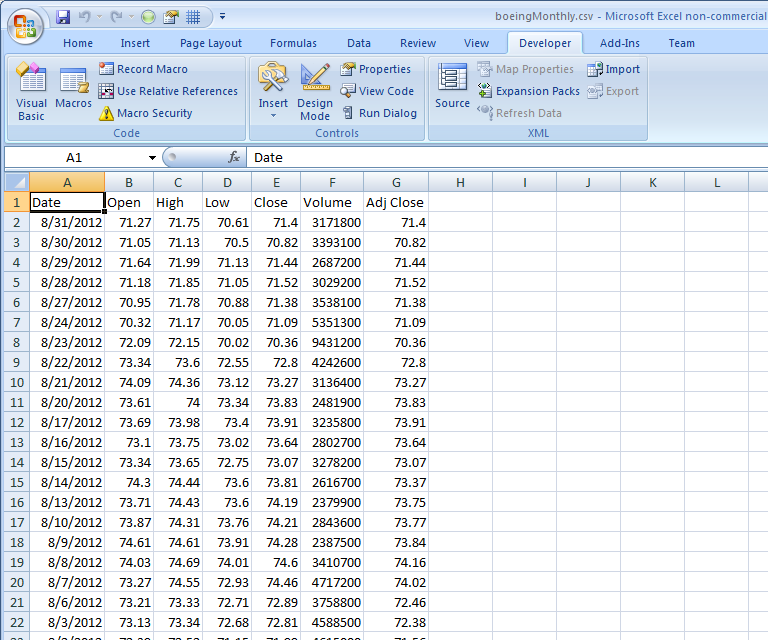
16 Launch macro from Quick Access Toolbar Click the button on the Quick Access Toolbar to run macro Macro can also be run via the assigned shortcut key Ctrl+Shift+C for the AutoAdjustColumns macro Guy Yollin (Copyright 2012) Data Access with SQL, Excel & VBA Introduction to VBA 16 / 50


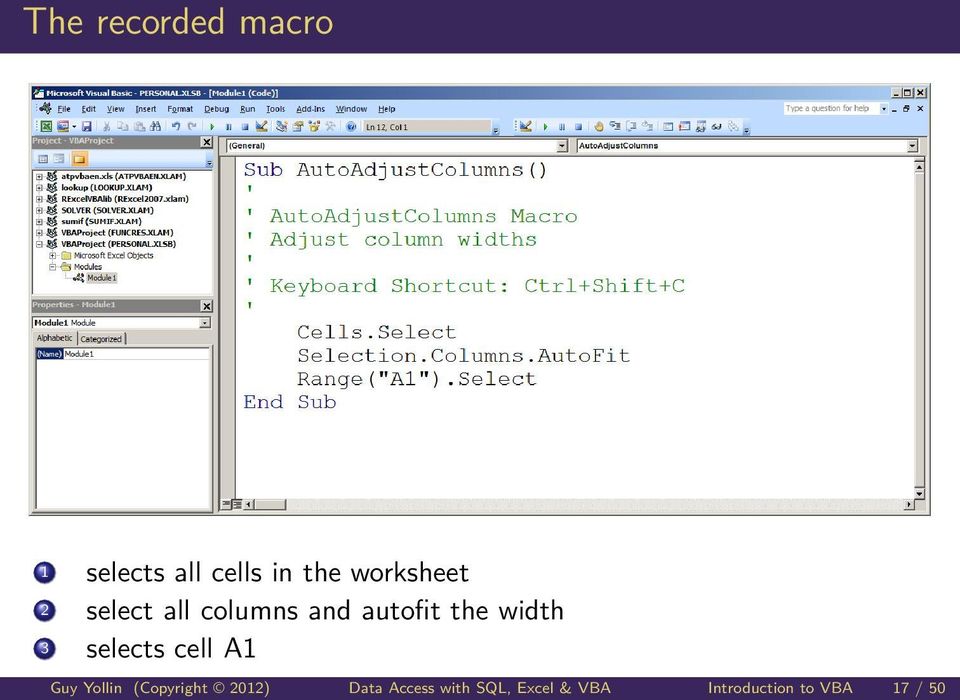
17 The recorded macro 1 selects all cells in the worksheet 2 select all columns and autofit the width 3 selects cell A1 Guy Yollin (Copyright 2012) Data Access with SQL, Excel & VBA Introduction to VBA 17 / 50
18 Outline 1 Introduction to VBA 2 VBA macro recorder: simple example 3 VBA macro recorder: extending the simple example 4 The Excel VBA object model 5 The Application object, the Range object, the Cells property 6 The VBE, the Object Browser, the Developers Reference 7 The Colorful Stats project Guy Yollin (Copyright 2012) Data Access with SQL, Excel & VBA Introduction to VBA 18 / 50


19 Typical table formating Bold column names First row shaded background Border around table cells Column width adjusted Guy Yollin (Copyright 2012) Data Access with SQL, Excel & VBA Introduction to VBA 19 / 50

20 Macro Recorder workflow The basic process for getting started with VBA with the aid of the Macro Recorder is as follows : 1 Record the actions that you want to code 2 Review the code and find the lines that perform those actions 3 Delete the rest of the code 4 Modify the recorded code 5 Add variables, control structures, and other code that the Macro Recorder cannot record Getting Started with VBA in Excel Guy Yollin (Copyright 2012) Data Access with SQL, Excel & VBA Introduction to VBA 20 / 50

21 Border code from macro recorder Selection. Borders ( xldiagonaldown ). LineStyle = xlnone Selection. Borders ( xldiagonalup ). LineStyle = xlnone With Selection. Borders ( xledgeleft ). L i n e S t y l e = x l C o n t i n u o u s. C o l o r I n d e x = x l A u t o m a t i c. TintAndShade = 0. Weight = x l T h i n End With With Selection. Borders ( xledgetop ). L i n e S t y l e = x l C o n t i n u o u s. C o l o r I n d e x = x l A u t o m a t i c. TintAndShade = 0. Weight = x l T h i n End With With Selection. Borders ( xledgebottom ). L i n e S t y l e = x l C o n t i n u o u s. C o l o r I n d e x = x l A u t o m a t i c. TintAndShade = 0. Weight = x l T h i n End With With S e l e c t i o n. B o r d e r s ( x l E d g e R i g h t ). L i n e S t y l e = x l C o n t i n u o u s. C o l o r I n d e x = x l A u t o m a t i c. TintAndShade = 0. Weight = x l T h i n End With With S e l e c t i o n. B o r d e r s ( x l I n s i d e V e r t i c a l ). L i n e S t y l e = x l C o n t i n u o u s. C o l o r I n d e x = x l A u t o m a t i c. TintAndShade = 0. Weight = x l T h i n End With With Selection. Borders ( xlinsidehorizontal ). L i n e S t y l e = x l C o n t i n u o u s. C o l o r I n d e x = x l A u t o m a t i c. TintAndShade = 0. Weight = x l T h i n End With... Guy Yollin (Copyright 2012) Data Access with SQL, Excel & VBA Introduction to VBA 21 / 50
22 Significant border code ' remove any d i a g o n a l l i n e S e l e c t i o n. B o r d e r s ( xldiagonaldown ). L i n e S t y l e = xlnone S e l e c t i o n. B o r d e r s ( x l D i a g o n a l U p ). L i n e S t y l e = xlnone ' box o u t s i d e o f s e l e c t i o n S e l e c t i o n. B o r d e r s ( x l E d g e L e f t ). L i n e S t y l e = x l C o n t i n u o u s S e l e c t i o n. B o r d e r s ( xledgetop ). L i n e S t y l e = x l C o n t i n u o u s S e l e c t i o n. B o r d e r s ( xledgebottom ). L i n e S t y l e = x l C o n t i n u o u s S e l e c t i o n. B o r d e r s ( x l E d g e R i g h t ). L i n e S t y l e = x l C o n t i n u o u s ' box i n t e r i o r o f s e l e c t i o n S e l e c t i o n. B o r d e r s ( x l I n s i d e V e r t i c a l ). L i n e S t y l e = x l C o n t i n u o u s S e l e c t i o n. B o r d e r s ( x l I n s i d e H o r i z o n t a l ). L i n e S t y l e = x l C o n t i n u o u s Guy Yollin (Copyright 2012) Data Access with SQL, Excel & VBA Introduction to VBA 22 / 50
23 Title bold/background from macro recorder Sub TestMacro ( ) ' ' TestMacro Macro ' ' With S e l e c t i o n. I n t e r i o r. P a t t e r n = x l S o l i d. P a t t e r n C o l o r I n d e x = x l A u t o m a t i c. ThemeColor = xlthemecolordark1. TintAndShade = PatternTintAndShade = 0 End With S e l e c t i o n. Font. Bold = True End Sub Note, top row was already selected for the macro recording Guy Yollin (Copyright 2012) Data Access with SQL, Excel & VBA Introduction to VBA 23 / 50
24 Significant title bold/background code Sub TestMacro ( ) ' ' TestMacro Macro ' ' S e l e c t i o n. I n t e r i o r. P a t t e r n = x l S o l i d S e l e c t i o n. TintAndShade = S e l e c t i o n. Font. Bold = True End Sub set interior pattern to solid set TintAndShade (-1=darkest, 1=lightest) set Bold property of Font object to True Guy Yollin (Copyright 2012) Data Access with SQL, Excel & VBA Introduction to VBA 24 / 50
25 Final table formatting procedure Sub FormatTable ( ) ' s e l e c t the c u r r e n t r e g i o n A c t i v e C e l l. C u r r e n t R e g i o n. S e l e c t ' draw b o r d e r around a l l c e l l s S e l e c t i o n. B o r d e r s ( xldiagonaldown ). L i n e S t y l e = xlnone S e l e c t i o n. B o r d e r s ( x l D i a g o n a l U p ). L i n e S t y l e = xlnone S e l e c t i o n. B o r d e r s ( x l E d g e L e f t ). L i n e S t y l e = x l C o n t i n u o u s S e l e c t i o n. B o r d e r s ( xledgetop ). L i n e S t y l e = x l C o n t i n u o u s S e l e c t i o n. B o r d e r s ( xledgebottom ). L i n e S t y l e = x l C o n t i n u o u s S e l e c t i o n. B o r d e r s ( x l E d g e R i g h t ). L i n e S t y l e = x l C o n t i n u o u s S e l e c t i o n. B o r d e r s ( x l I n s i d e V e r t i c a l ). L i n e S t y l e = x l C o n t i n u o u s S e l e c t i o n. B o r d e r s ( x l I n s i d e H o r i z o n t a l ). L i n e S t y l e = x l C o n t i n u o u s ' s e l e c t the top row o f the c u r r e n t r e g i o n S e l e c t i o n. Rows ( 1 ). S e l e c t ' make column t i t l e s b o l d with a l i g h t g r a y background S e l e c t i o n. Font. Bold = True S e l e c t i o n. I n t e r i o r. P a t t e r n = x l S o l i d S e l e c t i o n. I n t e r i o r. TintAndShade = 0.15 ' a d j u s t the column w i d t h s C a l l AutoAdjustColumns End Sub Guy Yollin (Copyright 2012) Data Access with SQL, Excel & VBA Introduction to VBA 25 / 50
26 Outline 1 Introduction to VBA 2 VBA macro recorder: simple example 3 VBA macro recorder: extending the simple example 4 The Excel VBA object model 5 The Application object, the Range object, the Cells property 6 The VBE, the Object Browser, the Developers Reference 7 The Colorful Stats project Guy Yollin (Copyright 2012) Data Access with SQL, Excel & VBA Introduction to VBA 26 / 50
27 Object-oriented, event-driven paradigm Excel VBA is based on an object-oriented, event-driven paradigm Objects Properties Methods Events Object represents elements of an application a worksheet, a chart, a range Objects have properties that you can get and set; properties are attributes of an object that describe its characteristics Range("A1").Font.Bold = True Note that a property can return an object Objects have methods or actions they can perform Range("A1").ClearContents Events are actions recognized by an object and can be responded to by an event procedure Guy Yollin (Copyright 2012) Data Access with SQL, Excel & VBA Introduction to VBA 27 / 50
28 Object-oriented, event-driven paradigm Object hierarchy Object collections Excel object classes are arranged in a hierarchy Application Workbooks collection Workbook Worksheets collection Worksheet Range Objects of the same class are grouped together in an collection object Workbooks Worksheets Charts Sheets QueryTables Guy Yollin (Copyright 2012) Data Access with SQL, Excel & VBA Introduction to VBA 28 / 50
29 Simplified Excel object model The Excel VBA object model largely emulates the user interface Guy Yollin (Copyright 2012) Data Access with SQL, Excel & VBA Introduction to VBA 29 / 50
30 Referencing items in the hierarchy To reference items in the object hierarchy, a period (dot) is used as a separator character parent.child object.property object.method Application.Workbooks("Book1.xlsx") Workbooks("Book1.xlsx").Worksheets(1) Worksheets("Sheet1").Range("A1").Value Range("A1").ClearContents If you omit a specific reference to an object, Excel uses the appropriate active object (note: it is the programmers responsibility to make sure an appropriate object is active) To refer to a member in a collection, use the member s name or its index number Guy Yollin (Copyright 2012) Data Access with SQL, Excel & VBA Introduction to VBA 30 / 50
31 Illustration of VBA object hierarchy The Excel VBA object model largely emulates the user interface Guy Yollin (Copyright 2012) Data Access with SQL, Excel & VBA Introduction to VBA 31 / 50
32 Abbreviated references Note the following line of code: Range ( "A1" ) = 42 Is interpreted as: A p p l i c a t i o n. ActiveWorkbook. A c t i v e S h e e t. Range ( "A1" ). Value = 42 Because: The Value property is the default property of the Range object ActiveSheet is assumed ActiveWorkbook is assumed Application is assumed Guy Yollin (Copyright 2012) Data Access with SQL, Excel & VBA Introduction to VBA 32 / 50
33 Outline 1 Introduction to VBA 2 VBA macro recorder: simple example 3 VBA macro recorder: extending the simple example 4 The Excel VBA object model 5 The Application object, the Range object, the Cells property 6 The VBE, the Object Browser, the Developers Reference 7 The Colorful Stats project Guy Yollin (Copyright 2012) Data Access with SQL, Excel & VBA Introduction to VBA 33 / 50
34 Important Application object properties ( 300) ActiveCell ActiveSheet ActiveChart ActiveWorkbook ActiveWindow RangeSelection Selection Returns a Range object that represents the active cell Returns an object that represents the active sheet (the sheet on top) Returns a Chart object that represents the active chart Returns a Workbook object that represents the workbook in the active window (the window on top) Returns a Window object that represents the active window (the window on top) Returns a Range object that represents the selected cells Returns the selected object in the active window (Range object or chart object) see Developer s Guide to the Excel 2010 Application Object Guy Yollin (Copyright 2012) Data Access with SQL, Excel & VBA Introduction to VBA 34 / 50
35 Important properties and methods of the Range object Properties Value Text Formula Address Font Methods Select Copy Clear Get/set cell values (default property for Range object) Returns formatted text in a cell Get/Set formula in a cell Returns text string of cell address Returns a Font object Selects a range Copy a range deletes contents and formatting ClearContents deletes contents but leaves formatting see Developer s Guide to the Excel 2010 Range Object Guy Yollin (Copyright 2012) Data Access with SQL, Excel & VBA Introduction to VBA 35 / 50
36 Other important properties Cells Offset Returns a Range object that represents the cells in the specified range Worksheets("Sheet2").Cells(2, 3) Returns a Range object that represents a range that s offset from the specified range Range("A1").Offset(1, 2) Both the Cells and Offset properties are useful in looping statements where the row and column inputs (offsets) could be based on loop counters Guy Yollin (Copyright 2012) Data Access with SQL, Excel & VBA Introduction to VBA 36 / 50
37 Outline 1 Introduction to VBA 2 VBA macro recorder: simple example 3 VBA macro recorder: extending the simple example 4 The Excel VBA object model 5 The Application object, the Range object, the Cells property 6 The VBE, the Object Browser, the Developers Reference 7 The Colorful Stats project Guy Yollin (Copyright 2012) Data Access with SQL, Excel & VBA Introduction to VBA 37 / 50

38 Object Browser From the VBE, you can press F2 to open the Object Browser Search or browser for classes, methods, properties, and events Guy Yollin (Copyright 2012) Data Access with SQL, Excel & VBA Introduction to VBA 38 / 50

39 Developer Reference From the Object Browser, you can click the question mark to open the Developer Reference to the selected section Guy Yollin (Copyright 2012) Data Access with SQL, Excel & VBA Introduction to VBA 39 / 50

40 Developer Reference Guy Yollin (Copyright 2012) Data Access with SQL, Excel & VBA Introduction to VBA 40 / 50

41 Help on methods, properties, and events Guy Yollin (Copyright 2012) Data Access with SQL, Excel & VBA Introduction to VBA 41 / 50
42 The Visual Basic Editor (VBE) Guy Yollin (Copyright 2012) Data Access with SQL, Excel & VBA Introduction to VBA 42 / 50

43 Immediate window From the VBE, you can press Ctrl+G to make the immediate window visible The Immediate window is extremely useful for executing VBA statements directly and for debugging code Guy Yollin (Copyright 2012) Data Access with SQL, Excel & VBA Introduction to VBA 43 / 50
44 Outline 1 Introduction to VBA 2 VBA macro recorder: simple example 3 VBA macro recorder: extending the simple example 4 The Excel VBA object model 5 The Application object, the Range object, the Cells property 6 The VBE, the Object Browser, the Developers Reference 7 The Colorful Stats project Guy Yollin (Copyright 2012) Data Access with SQL, Excel & VBA Introduction to VBA 44 / 50

45 The Colorful Stats project The Colorful Stats project is an introductory VBA exercise developed in chapter 1 of Excel VBA Programming for the Absolute Beginner Colorful Stats is implemented as an event procedure Event procedures are self-contained blocks of code that require some type of stimulus in order to run. The stimulus often comes directly from the user (for example, a mouse click), but may also result from another piece of code D. Birnbaum, Excel VBA Programming for the Absolute Beginner Guy Yollin (Copyright 2012) Data Access with SQL, Excel & VBA Introduction to VBA 45 / 50

46 Add a control to a worksheet Click the Insert Controls button on the developer ribbon Select a control (in this case an ActiveX command button) Note the Design Mode button is now depressed Click and drag on the worksheet to set the control s size and location Guy Yollin (Copyright 2012) Data Access with SQL, Excel & VBA Introduction to VBA 46 / 50

47 Edit control properties Click the Controls Property button (or double click on the control) to open the Properties dialog Edit the desired properties like Caption, Name, etc. Guy Yollin (Copyright 2012) Data Access with SQL, Excel & VBA Introduction to VBA 47 / 50

48 Edit event procedure Click View Code (or double click the control) to open the VBE Select the type of event to respond to (e.g. click) and edit the code for the event procedure Exit Design Mode and test the application Guy Yollin (Copyright 2012) Data Access with SQL, Excel & VBA Introduction to VBA 48 / 50
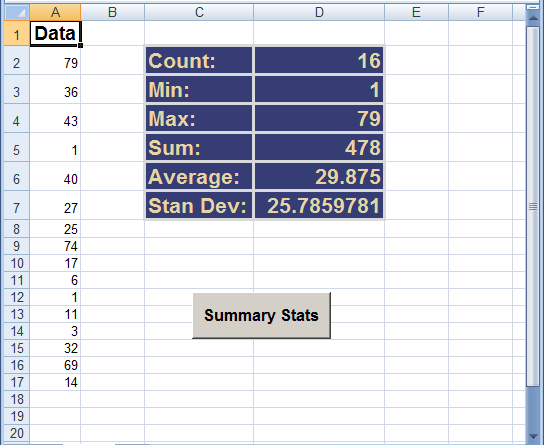
49 Colorful Stats source code P r i v a t e Sub cmdcalculate_click ( ) ' ' Add f o r m u l a s f o r summary s t a t s ' With A c t i v e S h e e t End ' These formulas are e nte red i n t o the new worksheet.. range ( "D2" ). Formula = "=COUNT( " & ActiveWindow. Selection. Address & " ) ". range ( "D3" ). Formula = "=MIN( " & ActiveWindow. Selection. Address & " ) ". range ( "D4" ). Formula = "=MAX( " & ActiveWindow. Selection. Address & " ) ". range ( "D5" ). Formula = "=SUM( " & ActiveWindow. Selection. Address & " ) ". range ( "D6" ). Formula = "=AVERAGE( " & ActiveWindow. Selection. Address & " ) ". range ( "D7" ). Formula = "=STDEV( " & ActiveWindow. Selection. Address & " ) " ' ' Add l a b e l s and s t a t s '. r a n g e ( "C2" ). Value = " Count : ". r a n g e ( "C3" ). Value = " Min : ". r a n g e ( "C4" ). Value = "Max : ". r a n g e ( "C5" ). Value = "Sum : ". r a n g e ( "C6" ). Value = " Average : ". r a n g e ( "C7" ). Value = " Stan Dev : ". r a n g e ( "C2 : D7" ). S e l e c t With ' ' Format the l a b e l s and s t a t s. ' With S e l e c t i o n. Font. S i z e = 16. Font. Bold = True. Font. Color = RGB(232, 211, 162) ' Husky Gold. Font. Name = " A r i a l ". Columns. A u t o F i t. I n t e r i o r. C o l o r = RGB( 5 4, 60, 116) ' Husky P u r p l e. Borders. Weight = xlthick. Borders. Color = RGB(216, 217, 218) ' Husky Gray End With r a n g e ( "A1" ). S e l e c t End Sub Guy Yollin (Copyright 2012) Data Access with SQL, Excel & VBA Introduction to VBA 49 / 50
50 Computational Finance and Risk Management Guy Yollin (Copyright 2012) Data Access with SQL, Excel & VBA Introduction to VBA 50 / 50
Microsoft Excel 2013: Macro to apply Custom Margins, Titles, Gridlines, Autofit Width & Add Macro to Quick Access Toolbar & How to Delete a Macro.
 Microsoft Excel 2013: Macro to apply Custom Margins, Titles, Gridlines, Autofit Width & Add Macro to Quick Access Toolbar & How to Delete a Macro. Do you need to always add gridlines, bold the heading
MS Excel. Handout: Level 2. elearning Department. Copyright 2016 CMS e-learning Department. All Rights Reserved. Page 1 of 11
 MS Excel Handout: Level 2 elearning Department 2016 Page 1 of 11 Contents Excel Environment:... 3 To create a new blank workbook:...3 To insert text:...4 Cell addresses:...4 To save the workbook:... 5
Integrating Microsoft Word with Other Office Applications
 Integrating Microsoft Word with Other Office Applications The Learning Center Staff Education 257-79226 http://www.mc.uky.edu/learningcenter/ Copyright 2006 Objectives After completing this course, you
DATA 301 Introduction to Data Analytics Microsoft Excel VBA. Dr. Ramon Lawrence University of British Columbia Okanagan
 DATA 301 Introduction to Data Analytics Microsoft Excel VBA Dr. Ramon Lawrence University of British Columbia Okanagan [email protected] DATA 301: Data Analytics (2) Why Microsoft Excel Visual Basic
Programming in Access VBA
 PART I Programming in Access VBA In this part, you will learn all about how Visual Basic for Applications (VBA) works for Access 2010. A number of new VBA features have been incorporated into the 2010
USC Marshall School of Business Marshall Information Services
 USC Marshall School of Business Marshall Information Services Excel Dashboards and Reports The goal of this workshop is to create a dynamic "dashboard" or "Report". A partial image of what we will be creating
Microsoft Excel Basics
 COMMUNITY TECHNICAL SUPPORT Microsoft Excel Basics Introduction to Excel Click on the program icon in Launcher or the Microsoft Office Shortcut Bar. A worksheet is a grid, made up of columns, which are
Automate tasks with Visual Basic macros
 Automate tasks with Visual Basic macros If you're not familiar with macros, don't let the term frighten you. A macro is simply a recorded set of keystrokes and instructions that you can use to automate
Word 2010: Mail Merge to Email with Attachments
 Word 2010: Mail Merge to Email with Attachments Table of Contents TO SEE THE SECTION FOR MACROS, YOU MUST TURN ON THE DEVELOPER TAB:... 2 SET REFERENCE IN VISUAL BASIC:... 2 CREATE THE MACRO TO USE WITHIN
Excel macros made easy
 IT Training Excel macros made easy Jane Barrett, IT Training & Engagement Team Information System Services Version 1.1 Scope Learning outcomes Understand the concept of what a macro is and what it does.
Microsoft Access 2010 handout
 Microsoft Access 2010 handout Access 2010 is a relational database program you can use to create and manage large quantities of data. You can use Access to manage anything from a home inventory to a giant
Excel & Visual Basic for Applications (VBA)
 Excel & Visual Basic for Applications (VBA) The VBA Programming Environment Recording Macros Working with the Visual Basic Editor (VBE) 1 Why get involved with this programming business? If you can't program,
Excel 2003 Tutorial I
 This tutorial was adapted from a tutorial by see its complete version at http://www.fgcu.edu/support/office2000/excel/index.html Excel 2003 Tutorial I Spreadsheet Basics Screen Layout Title bar Menu bar
Spreadsheet - Introduction
 CSCA0102 IT and Business Applications Chapter 6 Spreadsheet - Introduction Spreadsheet A spreadsheet (or spreadsheet program) is software that permits numerical data to be used and to perform automatic
3 What s New in Excel 2007
 3 What s New in Excel 2007 3.1 Overview of Excel 2007 Microsoft Office Excel 2007 is a spreadsheet program that enables you to enter, manipulate, calculate, and chart data. An Excel file is referred to
Migrating to Excel 2010 from Excel 2003 - Excel - Microsoft Office 1 of 1
 Migrating to Excel 2010 - Excel - Microsoft Office 1 of 1 In This Guide Microsoft Excel 2010 looks very different, so we created this guide to help you minimize the learning curve. Read on to learn key
Microsoft' Excel & Access Integration
 Microsoft' Excel & Access Integration with Office 2007 Michael Alexander and Geoffrey Clark J1807 ; pwiueyb Wiley Publishing, Inc. Contents About the Authors Acknowledgments Introduction Part I: Basic
Basic Microsoft Excel 2007
 Basic Microsoft Excel 2007 The biggest difference between Excel 2007 and its predecessors is the new layout. All of the old functions are still there (with some new additions), but they are now located
Advanced Presentation Features and Animation
 There are three features that you should remember as you work within PowerPoint 2007: the Microsoft Office Button, the Quick Access Toolbar, and the Ribbon. The function of these features will be more
Excel Reports User Guide
 Excel Reports User Guide Copyright 2000-2006, E-Z Data, Inc. All Rights Reserved. No part of this documentation may be copied, reproduced, or translated in any form without the prior written consent of
How to Use Excel for Law Firm Billing
 How to Use Excel for Law Firm Billing FEATURED FACULTY: Staci Warne, Microsoft Certified Trainer (MCT) (801) 463-1213 [email protected] Staci Warne, Microsoft Certified Trainer (MCT) Staci Warne
Excel Project Creating a Stock Portfolio Simulation
 Background Vocabulary Excel Project Creating a Stock Portfolio Simulation 1. What is a stock? A stock is a share in the ownership of a corporation, a large business organization. A stock, also, represents
Advanced Microsoft Excel 2010
 Advanced Microsoft Excel 2010 Table of Contents THE PASTE SPECIAL FUNCTION... 2 Paste Special Options... 2 Using the Paste Special Function... 3 ORGANIZING DATA... 4 Multiple-Level Sorting... 4 Subtotaling
Microsoft Excel Training - Course Topic Selections
 Microsoft Excel Training - Course Topic Selections The Basics Creating a New Workbook Navigating in Excel Moving the Cell Pointer Using Excel Menus Using Excel Toolbars: Hiding, Displaying, and Moving
VBA PROGRAMMING FOR EXCEL FREDRIC B. GLUCK 608-698-6304
 VBA PROGRAMMING FOR EXCEL FREDRIC B. GLUCK [email protected] [email protected] 608-698-6304 Text VBA and Macros: Microsoft Excel 2010 Bill Jelen / Tracy Syrstad ISBN 978-07897-4314-5 Class Website
Introduction to Microsoft Access 2003
 Introduction to Microsoft Access 2003 Zhi Liu School of Information Fall/2006 Introduction and Objectives Microsoft Access 2003 is a powerful, yet easy to learn, relational database application for Microsoft
Sample Table. Columns. Column 1 Column 2 Column 3 Row 1 Cell 1 Cell 2 Cell 3 Row 2 Cell 4 Cell 5 Cell 6 Row 3 Cell 7 Cell 8 Cell 9.
 Working with Tables in Microsoft Word The purpose of this document is to lead you through the steps of creating, editing and deleting tables and parts of tables. This document follows a tutorial format
In this session, we will explain some of the basics of word processing. 1. Start Microsoft Word 11. Edit the Document cut & move
 WORD PROCESSING In this session, we will explain some of the basics of word processing. The following are the outlines: 1. Start Microsoft Word 11. Edit the Document cut & move 2. Describe the Word Screen
Excel 2007 A Beginners Guide
 Excel 2007 A Beginners Guide Beginner Introduction The aim of this document is to introduce some basic techniques for using Excel to enter data, perform calculations and produce simple charts based on
Appendix A How to create a data-sharing lab
 Appendix A How to create a data-sharing lab Creating a lab involves completing five major steps: creating lists, then graphs, then the page for lab instructions, then adding forms to the lab instructions,
Excel basics. Before you begin. What you'll learn. Requirements. Estimated time to complete:
 Excel basics Excel is a powerful spreadsheet and data analysis application, but to use it most effectively, you first have to understand the basics. This tutorial introduces some of the tasks and features
Microsoft Access 2010 Part 1: Introduction to Access
 CALIFORNIA STATE UNIVERSITY, LOS ANGELES INFORMATION TECHNOLOGY SERVICES Microsoft Access 2010 Part 1: Introduction to Access Fall 2014, Version 1.2 Table of Contents Introduction...3 Starting Access...3
Analyzing Excel Data Using Pivot Tables
 NDUS Training and Documentation Analyzing Excel Data Using Pivot Tables Pivot Tables are interactive worksheet tables you can use to quickly and easily summarize, organize, analyze, and compare large amounts
STC: Descriptive Statistics in Excel 2013. Running Descriptive and Correlational Analysis in Excel 2013
 Running Descriptive and Correlational Analysis in Excel 2013 Tips for coding a survey Use short phrases for your data table headers to keep your worksheet neat, you can always edit the labels in tables
Task Force on Technology / EXCEL
 Task Force on Technology EXCEL Basic terminology Spreadsheet A spreadsheet is an electronic document that stores various types of data. There are vertical columns and horizontal rows. A cell is where the
WEBFOCUS QUICK DATA FOR EXCEL
 WEBFOCUS QUICK DATA FOR EXCEL BRIAN CARTER INFORMATION BUILDERS SUMMIT 2008 USERS CONFERENCE JUNE 2008 Presentation Abstract: Even with the growing popularity and evolvement of Business Intelligence products
Tommy B. Harrington 104 Azalea Drive Greenville, NC 27858 Email: [email protected]
 M o s t U s e f u l E x c e l C o m m a n d s Tommy B. Harrington 104 Azalea Drive Greenville, NC 27858 Email: [email protected] Computer Training YOU Can Understand! Most Useful Excel Commands
EXCEL VBA ( MACRO PROGRAMMING ) LEVEL 1 21-22 SEPTEMBER 2015 9.00AM-5.00PM MENARA PJ@AMCORP PETALING JAYA
 EXCEL VBA ( MACRO PROGRAMMING ) LEVEL 1 21-22 SEPTEMBER 2015 9.00AM-5.00PM MENARA PJ@AMCORP PETALING JAYA What is a Macro? While VBA VBA, which stands for Visual Basic for Applications, is a programming
Planning and Managing Projects with Microsoft Project Professional 2013
 Project management deliverables (e.g. reports); WBS deliverables can be used for report timing Steps to Create a Project from an Existing Template: 1. Click File then New. 2. Select any of the featured
Excel 2007 Basic knowledge
 Ribbon menu The Ribbon menu system with tabs for various Excel commands. This Ribbon system replaces the traditional menus used with Excel 2003. Above the Ribbon in the upper-left corner is the Microsoft
Basic Excel Handbook
 2 5 2 7 1 1 0 4 3 9 8 1 Basic Excel Handbook Version 3.6 May 6, 2008 Contents Contents... 1 Part I: Background Information...3 About This Handbook... 4 Excel Terminology... 5 Excel Terminology (cont.)...
Writing Macros in Microsoft Excel 2003
 Writing Macros in Microsoft Excel 2003 Introduction A macro is a series of instructions which can be issued using a single command. The macro can be invoked in various different ways - from the keyboard
Macros in Word & Excel
 Macros in Word & Excel Description: If you perform a task repeatedly in Word or Excel, you can automate the task by using a macro. A macro is a series of steps that is grouped together as a single step
Computer Skills Microsoft Excel Creating Pie & Column Charts
 Computer Skills Microsoft Excel Creating Pie & Column Charts In this exercise, we will learn how to display data using a pie chart and a column chart, color-code the charts, and label the charts. Part
Microsoft Excel 2007. Introduction to Microsoft Excel 2007
 Microsoft Excel 2007 Introduction to Microsoft Excel 2007 Excel is an electronic spreadsheet to organize your data into rows and columns. One can use it to perform basic to advanced level mathematical
How To Create A Report In Excel
 Table of Contents Overview... 1 Smartlists with Export Solutions... 2 Smartlist Builder/Excel Reporter... 3 Analysis Cubes... 4 MS Query... 7 SQL Reporting Services... 10 MS Dynamics GP Report Templates...
Getting Started with Excel 2008. Table of Contents
 Table of Contents Elements of An Excel Document... 2 Resizing and Hiding Columns and Rows... 3 Using Panes to Create Spreadsheet Headers... 3 Using the AutoFill Command... 4 Using AutoFill for Sequences...
ECDL. European Computer Driving Licence. Spreadsheet Software BCS ITQ Level 2. Syllabus Version 5.0
 European Computer Driving Licence Spreadsheet Software BCS ITQ Level 2 Using Microsoft Excel 2010 Syllabus Version 5.0 This training, which has been approved by BCS, The Chartered Institute for IT, includes
Excel 2010: Create your first spreadsheet
 Excel 2010: Create your first spreadsheet Goals: After completing this course you will be able to: Create a new spreadsheet. Add, subtract, multiply, and divide in a spreadsheet. Enter and format column
Intro to Excel spreadsheets
 Intro to Excel spreadsheets What are the objectives of this document? The objectives of document are: 1. Familiarize you with what a spreadsheet is, how it works, and what its capabilities are; 2. Using
INTRODUCTION 5 COLLABORATION RIBBON 5 SELECT THE UPDATING METHOD 6 MAKE YOUR PROJECT COLLABORATIVE 8 PROCESSING RECEIVED TASK UPDATES 9
 Contents Contents INTRODUCTION 5 COLLABORATION RIBBON 5 SELECT THE UPDATING METHOD 6 MAKE YOUR PROJECT COLLABORATIVE 8 PROCESSING RECEIVED TASK UPDATES 9 IMPORT UPDATES 12 CUSTOM TEXT FIELDS MAPPING 13
Excel Reports and Macros
 Excel Reports and Macros Within Microsoft Excel it is possible to create a macro. This is a set of commands that Excel follows to automatically make certain changes to data in a spreadsheet. By adding
Construction Administrators Work Smart with Excel Programming and Functions. OTEC 2014 Session 78 Robert Henry
 Construction Administrators Work Smart with Excel Programming and Functions OTEC 2014 Session 78 Robert Henry Cell References C O P Y Clicking into the Formula Bar or the Active Cell will cause color coded
Microsoft Excel 2013: Using a Data Entry Form
 Microsoft Excel 2013: Using a Data Entry Form Using Excel's built in data entry form is a quick and easy way to enter data into an Excel database. Using the form allows you to: start a new database table
Import Data to Excel Start Excel.
 Step-By-Step EXERCISE 5-1 Import Data to Excel Start Excel. Excel can import data, or bring it in from other sources and file formats. Importing Open the data fi le data is useful because it prevents you
Excel 2003 A Beginners Guide
 Excel 2003 A Beginners Guide Beginner Introduction The aim of this document is to introduce some basic techniques for using Excel to enter data, perform calculations and produce simple charts based on
Rows & Columns. Workbooks & Worksheets
 + O + N + P + S F12 + W + Q Esc + C + X + V + Z + Y + A + F Ctrl + H + Tab +, + Y The Fundamentals + Option + R Open File New File Print Save File Save File As Close File Close Excel Exit Dialog Copy Cut
Windows 10: A Beginner s Guide
 Windows 10: A Beginner s Guide Copyright 2014 Conceptual Kings. All are rights reserved. This book or any portion thereof may not be reproduced or used in any manner whatsoever without the express written
Part A: Introduction to Excel VBA
 Learn Advance Forecasting Technique With MS Excel Previous Back to Home Back to TOC Next Part A: Introduction to Excel VBA Download This Tutorial >> Click Here! Mi piace 5 Tw eet 0 6 In this Part you will
Microsoft Office 2007 Orientation Objective 1: Become acquainted with the Microsoft Office Suite 2007 Layout
 Microsoft Office 2007 Orientation Objective 1: Become acquainted with the Microsoft Office Suite 2007 Layout Microsoft Suite 2007 offers a new user interface. The top portion of the window has a new structure
EXCEL Tutorial: How to use EXCEL for Graphs and Calculations.
 EXCEL Tutorial: How to use EXCEL for Graphs and Calculations. Excel is powerful tool and can make your life easier if you are proficient in using it. You will need to use Excel to complete most of your
NAVIGATION TIPS. Special Tabs
 rp`=j~êëü~ää=påüççä=çñ=_ìëáåéëë Academic Information Services Excel 2007 Cheat Sheet Find Excel 2003 Commands in Excel 2007 Use this handout to find where Excel 2003 commands are located in Excel 2007.
Microsoft Office Access 2007 Basics
 Access(ing) A Database Project PRESENTED BY THE TECHNOLOGY TRAINERS OF THE MONROE COUNTY LIBRARY SYSTEM EMAIL: [email protected] MONROE COUNTY LIBRARY SYSTEM 734-241-5770 1 840 SOUTH ROESSLER
Explore commands on the ribbon Each ribbon tab has groups, and each group has a set of related commands.
 Quick Start Guide Microsoft Excel 2013 looks different from previous versions, so we created this guide to help you minimize the learning curve. Add commands to the Quick Access Toolbar Keep favorite commands
Software Application Tutorial
 Software Application Tutorial Copyright 2005, Software Application Training Unit, West Chester University. No Portion of this document may be reproduced without the written permission of the authors. For
Basic Pivot Tables. To begin your pivot table, choose Data, Pivot Table and Pivot Chart Report. 1 of 18
 Basic Pivot Tables Pivot tables summarize data in a quick and easy way. In your job, you could use pivot tables to summarize actual expenses by fund type by object or total amounts. Make sure you do not
Sample- for evaluation purposes only! Advanced Excel. TeachUcomp, Inc. A Presentation of TeachUcomp Incorporated. Copyright TeachUcomp, Inc.
 A Presentation of TeachUcomp Incorporated. Copyright TeachUcomp, Inc. 2012 Advanced Excel TeachUcomp, Inc. it s all about you Copyright: Copyright 2012 by TeachUcomp, Inc. All rights reserved. This publication,
MICROSOFT OFFICE ACCESS 2007 - NEW FEATURES
 MICROSOFT OFFICE 2007 MICROSOFT OFFICE ACCESS 2007 - NEW FEATURES Exploring Access Creating and Working with Tables Finding and Filtering Data Working with Queries and Recordsets Working with Forms Working
To create a histogram, you must organize the data in two columns on the worksheet. These columns must contain the following data:
 You can analyze your data and display it in a histogram (a column chart that displays frequency data) by using the Histogram tool of the Analysis ToolPak. This data analysis add-in is available when you
Advanced Excel Charts : Tables : Pivots : Macros
 Advanced Excel Charts : Tables : Pivots : Macros Charts In Excel, charts are a great way to visualize your data. However, it is always good to remember some charts are not meant to display particular types
ACCESS 2007. Importing and Exporting Data Files. Information Technology. MS Access 2007 Users Guide. IT Training & Development (818) 677-1700
 Information Technology MS Access 2007 Users Guide ACCESS 2007 Importing and Exporting Data Files IT Training & Development (818) 677-1700 [email protected] TABLE OF CONTENTS Introduction... 1 Import Excel
Excel 2007: Basics Learning Guide
 Excel 2007: Basics Learning Guide Exploring Excel At first glance, the new Excel 2007 interface may seem a bit unsettling, with fat bands called Ribbons replacing cascading text menus and task bars. This
Microsoft Excel 2010 Training
 Microsoft Excel 2010 Training Microsoft Excel 101 Instructor: Debbie Minnerly Course goals Find popular commands quickly on the ribbon. Learn how to use the File menu (Microsoft Office Backstage view).
HOUR 9. Formatting Worksheets to Look Great
 HOUR 9 Formatting Worksheets to Look Great Excel makes it easy to make even simple worksheets look professional. AutoFormat quickly formats your worksheet within the boundaries you select. If you want
Creating Web Pages With Dreamweaver MX 2004
 Creating Web Pages With Dreamweaver MX 2004 1 Introduction Learning Goal: By the end of the session, participants will have an understanding of: What Dreamweaver is, and How it can be used to create basic
As in the example above, a Budget created on the computer typically has:
 Activity Card Create a How will you ensure that your expenses do not exceed what you planned to invest or spend? You can create a budget to plan your expenditures and earnings. As a family, you can plan
Plotting: Customizing the Graph
 Plotting: Customizing the Graph Data Plots: General Tips Making a Data Plot Active Within a graph layer, only one data plot can be active. A data plot must be set active before you can use the Data Selector
Overview of sharing and collaborating on Excel data
 Overview of sharing and collaborating on Excel data There are many ways to share, analyze, and communicate business information and data in Microsoft Excel. The way that you choose to share data depends
RIT Installation Instructions
 RIT User Guide Build 1.00 RIT Installation Instructions Table of Contents Introduction... 2 Introduction to Excel VBA (Developer)... 3 API Commands for RIT... 11 RIT API Initialization... 12 Algorithmic
Q&As: Microsoft Excel 2013: Chapter 2
 Q&As: Microsoft Excel 2013: Chapter 2 In Step 5, why did the date that was entered change from 4/5/10 to 4/5/2010? When Excel recognizes that you entered a date in mm/dd/yy format, it automatically formats
Analyzing Data Using Excel
 Analyzing Data Using Excel What you will do: Create a spreadsheet Use formulas and basic formatting Import text files Save worksheets as web pages Add interactivity to web worksheets Use pivot tables Create
Microsoft Office Access 2007 which I refer to as Access throughout this book
 Chapter 1 Getting Started with Access In This Chapter What is a database? Opening Access Checking out the Access interface Exploring Office Online Finding help on Access topics Microsoft Office Access
Content Author's Reference and Cookbook
 Sitecore CMS 6.2 Content Author's Reference and Cookbook Rev. 091019 Sitecore CMS 6.2 Content Author's Reference and Cookbook A Conceptual Overview and Practical Guide to Using Sitecore Table of Contents
Working with Macros and VBA in Excel 2007
 Working with Macros and VBA in Excel 2007 With the introduction of Excel 2007 Microsoft made a number of changes to the way macros and VBA are approached. This document outlines these special features
Sage Intelligence Report Designer Add-In
 Sage Intelligence Report Designer Add-In Q: What is Sage Intelligence Reporting? A: Sage Intelligence Reporting helps you to easily control, automate and analyze your data to make better informed decision,
Highline Excel 2016 Class 26: Macro Recorder
 Highline Excel 2016 Class 26: Macro Recorder Table of Contents Macro Recorder Examples in this video... 2 1) Absolute Reference Macro: Format report that always has the same number of columns and rows...
Word 2007: Basics Learning Guide
 Word 2007: Basics Learning Guide Exploring Word At first glance, the new Word 2007 interface may seem a bit unsettling, with fat bands called Ribbons replacing cascading text menus and task bars. This
Microsoft Office Word 2010: Level 1
 Microsoft Office Word 2010: Level 1 Workshop Objectives: In this workshop, you will learn fundamental Word 2010 skills. You will start by getting acquainted with the Word user interface, creating a new
MS WORD 2007 (PC) Macros and Track Changes Please note the latest Macintosh version of MS Word does not have Macros.
 MS WORD 2007 (PC) Macros and Track Changes Please note the latest Macintosh version of MS Word does not have Macros. Record a macro 1. On the Developer tab, in the Code group, click Record Macro. 2. In
User Services. Intermediate Microsoft Access. Use the new Microsoft Access. Getting Help. Instructors OBJECTIVES. July 2009
 User Services July 2009 OBJECTIVES Develop Field Properties Import Data from an Excel Spreadsheet & MS Access database Create Relationships Create a Form with a Subform Create Action Queries Create Command
Email Basics. a. Click the arrow to the right of the Options button, and then click Bcc.
 Email Basics Add CC or BCC You can display the Bcc box in all new messages that you compose. In a new message, do one of the following: 1. If Microsoft Word is your e-mail editor a. Click the arrow to
Microsoft Word 2010 Prepared by Computing Services at the Eastman School of Music July 2010
 Microsoft Word 2010 Prepared by Computing Services at the Eastman School of Music July 2010 Contents Microsoft Office Interface... 4 File Ribbon Tab... 5 Microsoft Office Quick Access Toolbar... 6 Appearance
2. Building Cross-Tabs in Your Reports Create a Cross-Tab Create a Specified Group Order Filter Cross-Tab by Group Keep Groups Together
 Crystal Reports Level 2 Computer Training Solutions Course Outline 1. Creating Running Totals Create a Running Total Field Modify a Running Total Field Create a Manual Running Total on Either Detail Data
This chapter is completely devoid of any hands-on training material. It
 In This Chapter Gaining a conceptual overview of VBA Finding out what you can do with VBA Chapter 1 What Is VBA? Discovering the advantages and disadvantages of using VBA Taking a mini-lesson on the history
Excel for Data Cleaning and Management
 Excel for Data Cleaning and Management Background Information This workshop is designed to teach skills in Excel that will help you manage data from large imports and save them for further use in SPSS
Microsoft Excel 2010 Part 3: Advanced Excel
 CALIFORNIA STATE UNIVERSITY, LOS ANGELES INFORMATION TECHNOLOGY SERVICES Microsoft Excel 2010 Part 3: Advanced Excel Winter 2015, Version 1.0 Table of Contents Introduction...2 Sorting Data...2 Sorting
How to Excel with CUFS Part 2 Excel 2010
 How to Excel with CUFS Part 2 Excel 2010 Course Manual Finance Training Contents 1. Working with multiple worksheets 1.1 Inserting new worksheets 3 1.2 Deleting sheets 3 1.3 Moving and copying Excel worksheets
How To Create A Powerpoint Intelligence Report In A Pivot Table In A Powerpoints.Com
 Sage 500 ERP Intelligence Reporting Getting Started Guide 27.11.2012 Table of Contents 1.0 Getting started 3 2.0 Managing your reports 10 3.0 Defining report properties 18 4.0 Creating a simple PivotTable
4) How many peripheral devices can be connected to a single SCSI port? 4) A) 8 B) 32 C) 1 D) 100
 FALL 07-08 COMP100 MIDTERM-2 EXAM /FACULTY OF ECON. AND ADMINISTRATIVE SCIENCES OF EUL Student Registration No: Instructor: Prof.Dr.Hüseyin Oğuz Student Name-Surname: Dept. of Computer Information Systems
Instructions for Creating an Outlook E-mail Distribution List from an Excel File
 Instructions for Creating an Outlook E-mail Distribution List from an Excel File 1.0 Importing Excel Data to an Outlook Distribution List 1.1 Create an Outlook Personal Folders File (.pst) Notes: 1) If