
Using USB Flash Drives
|
|
|
- Beverly Hunter
- 10 years ago
- Views:
Transcription
1 Using USB Flash Drives What is a USB flash drive? Since it was first released in 2000, the USB drive has come to become one of the most essential tools for storing and transporting data in an easily portable form. Today, these small devices are capable of storing vast amounts of data. In addition to their portability and storage space, USB drives are also reliable and fairly easy to use. Connecting the USB Drive to your computer All modern USB drives connect to computers through the USB 2.0 port. These ports are an almost universal feature on modern computers and are usually found on the sides of computers. To connect the USB flash drive into the computer, go through the following steps: 1) Find the USB 2.0 port. This is usually found on the side of the computer and looks like this. This is what a typical USB port looks like. The red arrows point to the slot ends of the USB port that must be aligned opposite the slot end on the USB drive to connect it 2) After you have located the USB 2.0 port, connect the USB drive to the computer by aligning the slot in the USB drive and the slot in the USB 2.0 port opposite each other. 3) If the USB drive does not slide into the port easily, then the USB drive is not being put in correctly and this can be solved by flipping the USB drive over so that the side that was facing down is now facing up.

2 Using the USB Drive After the USB drive is connected into the computer, the computer should recognize the device and a window similar to that shown below will automatically appear on the screen. This screen will give you options for what you want to do with the thumb drive. A window similar to this appears when the USB drive is connected into the computer. The red arrow points to the option which allows you to view everything in the USB drive. NOTE: If the computer does not recognize the USB drive automatically and the AutoPlay window does not show up, then you can still open up and use the USB drive by clicking on the Start button. In the window that opens, click on the Computer icon on the right side of the screen. A new window will appear and the USB drive should be listed. Clicking this will allow the USB drive to be opened. To view the files that are already on the flash drive scroll down until you see an icon of a folder that says Open folder to view files next to it. Click on this and a new window should open up giving you a view of everything that is on the thumb drive.

3 New folders can also be created on the USB drive. This is done in the same way that new folders are created on the desktop. Right click where you want to place a new folder. A toolbar similar to that below should appear. Select New in the window that appears and finally select Folder and a new folder should appear. The new folder name should be open. This allows you to change the name to whatever you wish. After right clicking to create a new folder, a toolbar similar to the one circled in the picture above should appear. Of these options, select new to create a folder. Then select folder. To copy files from the USB drive to the computer, select the file or highlight the files you wish to copy over to the computer. Then right click the mouse. In the window that shows up, select copy. Then go to wherever you wish to put the files (i.e. Documents, the desktop, another USB drive, etc.) and right click again. In the window that appears, select paste and the files should transfer over. There are multiple ways to save files from the computer to the USB drive. One way this can be done is by going through the following steps:

4 1) First right click the Start button in the lower-left corner of the screen. A box similar to that below will appear right above the Start button. In this box that appears, select the option explore. This box appears after right clicking on the Start button. 2) After selecting Explore, a new window will appear. On the left side of this window, will be a bar similar to that shown below showing the organizational structure of the computer. Navigate through this bar until you find the location of whatever files you wish to transfer to the USB drive.

5 This window is similar to what should appear when you select explore after right clicking on the Start Button. Notice the bar on the left with the red arrow pointing to it is what shows the organizational structure of the computer. 3) Once you have found the files you wish to transfer to the USB drive highlight them and right click on them. Select copy in the window that appears 4) Finally use the bar on the left to locate and select the USB drive under the folder labeled Computer. Then right click in the location that you wish to place the file(s) in the USB drive and select paste. Properly Disconnecting the Thumb Drive Do NOT pull out the USB drive without properly disconnecting it first. To prevent possibly damaging or destroying the thumb drive. To properly disconnect the thumb drive, go through the following steps: 1) First make sure all programs and files on the USB drive have been closed unless they have been saved on the computer. 2) At the bottom-right corner of the screen, find the icon that looks like a USB port plug-in with a checkmark inside a green circle next to it.

6 NOTE: If you cannot see the icon, click the leftward pointing arrow at the far left edge of that toolbar and the icon should appear when the toolbar expands. In this picture, the abovementioned icon used to disconnect the USB drive has red arrows pointing to it. If the icon is not initially present on the toolbar, the arrow to expand the toolbar has been circled in red. 3) Click on the icon mentioned in the previous step. A box should appear giving you a list of items that can be disconnected. 4) Click the item labeled USB Mass Storage device like it is shown in the picture below. The item listed as USB Mass Storage is the item you click on to remove the USB drive. NOTE: If you have multiple USB drives plugged into the computer, then you will have to know which drive (port) each USB drive is plugged into because that is the only thing differentiating the separate USB drives in the list. 5) A new window should appear saying that it is now safe to remove the USB drive. NOTE: If another window appears saying that the USB drive cannot be disconnected, then go back and make sure all programs and files on the USB drive are no longer running or being used.

Windows Movie Maker 2012
 Windows Movie Maker 2012 Open Windows Movie Maker A shortcut for Movie Maker should be on the desktop, but if it is not, you can search for the program by touching the right edge of the screen and swiping
Accessing vlabs using the VMware Horizon View Client for OSX
 Accessing vlabs using the VMware Horizon View Client for OSX This document will demonstrate how to download, install, and connect to a virtual lab desktop from a personal Mac OSX computer using the VMware
Introduction to Computers: Session 3 Files, Folders and Windows
 Introduction to Computers: Session 3 Files, Folders and Windows Files and folders Files are documents you create using a computer program. For example, this document is a file, made with a program called
Using a USB Flash Drive to Back Up Your Data Files on a Mac Computer
 Using a USB Flash Drive to Back Up Your Data Files on a Mac Computer Your GWU-provided flash drive has a storage capacity of 1 GB and is provided as a means for you to back up data files, including email
To Backup and/or Transfer Data Using a USB Flash Drive or External Hard Drive (Windows XP to Windows 7)
 **There are multiple ways to backup and/or transfer data from one computer to another. In this guide, I will outline the two most popular ways to do so in our District.** To Backup and/or Transfer Data
Simple Computer Backup
 Title: Simple Computer Backup (Win 7 and 8) Author: Nancy DeMarte Date Created: 11/10/13 Date(s) Revised: 1/20/15 Simple Computer Backup This tutorial includes these methods of backing up your PC files:
Using Your Polyvision Digital Whiteboard and Walk-and-Talk
 Using Your Polyvision Digital Whiteboard and Walk-and-Talk What is Walk-and-Talk? The Walk-and-Talk Digital Whiteboard is a remote control operated interactive system that connects to your computer. You
Designed for Vodafone
 Quick Start Guide Vodafone Mobile Connect USB Modem Designed for Vodafone Welcome to your new USB data modem, designed for Vodafone with 3G and 3G Broadband. We ll now take you through the simple process
Double-click an appointment to view the details.
 Calendar The GroupWise calendar allows you to do everything from scheduling appointments to marking all-day events to checking off tasks. Click the Calendar tab on the Navigation bar or click Calendar
Windows 7 for beginners
 Windows 7 for beginners Hardware Hardware: the physical parts of a computer. What s in the computer? CPU: the central processing unit processes information (the brain) Hard drive: where all of your software
How to use a SMART Board
 1 How to use a SMART Board Basic instructions on how to set up the SMART Board and how to use the SMART Board with both PC and Mac laptops. Contents Page 2: SMART Board Set Up Instructions Page 3: SMART
Password Protection Application for Verbatim USB Flash Drives
 Introduction User Manual Verbatim EasyLock Password Protection Application for Verbatim USB Flash Drives Version 1.00 Copyright 2010 Verbatim Americas, LLC. All rights reserved. All other brands and product
AUDITVIEW USER INSTRUCTIONS
 The AuditGard AuditView software allows the Manager to view, save, and print the audit records. The AuditGard lock maintains the last 512 lock events in non-volatile memory. Accessing the audit records
SnagIt Add-Ins User Guide
 Version 8.1 User Guide By TechSmith Corp. User Guide User Guide Contents User s Guide 1 Overview...1 Word, PowerPoint, and Excel Add-Ins...2 Outlook Add-In...2 Internet Explorer / Windows Explorer Add-In...2
Copy Documents from your Computer (H Drive) to a Flash Drive
 Copy Documents from your Computer (H Drive) to a Flash Drive Why? You are moving to another school district and want to take your files with you You are moving to another school and want to make sure you
SES PAS Senior Executive Service (SES) Performance Appraisal System (PAS)
 Job Aid: Create the Executive Development Plan (EDP) Creating the Developmental Plan Step 1: From within your performance plan, navigate to the Developmental Plan tool bar in the left column Step 2: Click
SMART Ink 1.5. Windows operating systems. Scan the following QR code to view the SMART Ink Help on your smart phone or other mobile device.
 SMART Ink 1.5 Windows operating systems User s guide Scan the following QR code to view the SMART Ink Help on your smart phone or other mobile device. Trademark notice SMART Ink, SMART Notebook, SMART
Practical Application How to Use a Flash Drive
 Practical Application How to Use a Flash Drive Practical application How to Use a Flash Drive Page 1 of 6 About this Practical Application Prerequisite Skills To use this Application you will need be comfortable
EPSON Stylus. Start Here
 EPSON Stylus C84 EPSON Stylus Start Here C84 CPD-16675R1 4043482-00 XXX 1 Unpack 1 Remove everything from the box. Paper support Printer Manual Power cord Ink cartridges CD-ROM 2 Remove all the blue tape
The SMART Board Interactive Whiteboard
 The SMART Board Interactive Whiteboard 1. Press the power button, the indicator ring flashes green to indicate that the projector lamp is starting up. The What would you like to do? menu will be displayed.
Task Card #2 SMART Board: Notebook
 Task Card #2 SMART Board: Notebook Objectives: Participants will learn how to utilize the SMART Notebook. Table of Contents: Launching The SMART Notebook Page 1 Entering Text Page 1 Top Toolbar Page 2
Setting up and using an external USB Flash Drive (Thumb Drive) on your Mac
 Setting up and using an external USB Flash Drive (Thumb Drive) on your Mac IMPORTANT! Backup your flash drive data! 1. Plug in the external flash drive into a USB port with enough power. This is usually
Macintosh System OSX #1
 Recipes4Success Macintosh System OSX #1 2007. All Rights Reserved. This Material is copyrighted under United States copyright laws. Tech4Learning, Inc. is the exclusive owner of the copyright. Distribution
College of Continuing Education Video Production Room
 College of Continuing Education Video Production Room To Begin a Session: Step 1: Turn on the Station by pressing the red switch near the desktop monitor. By doing this the following equipment will be
As you look at an imac you will notice that there are no buttons on the front of the machine as shown in figure 1.
 Apple imac When you first sit down to use an Apple Macintosh Computer, or Mac for short, you may seem intimidated by using something other than Microsoft Windows, but once you use a Mac, you might find
Managing Documents in the Citrix XenApp Remote Desktop
 Introduction Managing Documents in the Citrix XenApp Remote Desktop What is a Citrix XenApp Remote Desktop? It is a virtualized instance of MS Windows with only enough software to run TAS in a controlled
Getting to Know Your Mobile Internet Key
 Thank you for choosing the Huawei E3276 4G LTE Mobile Internet Key. With your Mobile Internet Key, you can enjoy a full high speed Internet experience on the go. This guide shows you how to set-up and
Flash MX Image Animation
 Flash MX Image Animation Introduction (Preparing the Stage) Movie Property Definitions: Go to the Properties panel at the bottom of the window to choose the frame rate, width, height, and background color
INFORMATION SYSTEMS SERVICE NETWORKS AND TELECOMMUNICATIONS SECTOR. User Guide for the RightFax Fax Service. Web Utility
 INFORMATION SYSTEMS SERVICE NETWORKS AND TELECOMMUNICATIONS SECTOR User Guide for the RightFax Fax Service Web Utility August 2011 CONTENTS 1. Accessing the Web Utility 2. Change Password 3. Web Utility:
HITT101 H-ITT Audience Response System 101
 HITT101 H-ITT Audience Response System 101 Hardware Setup First Time Hardware Setup - WARNING this does take a few minutes Please note that the first time you insert the USB cable from the H-ITT receiver
Quick Start Guide Vodafone Mobile Connect USB Stick. Designed for Vodafone
 Quick Start Guide Vodafone Mobile Connect USB Stick Designed for Vodafone Welcome to the world of mobile communications 1 Welcome 2 Set up your USB Stick 3 Start the software 4 Software overview 5 Connect
COMPUTER BASICS. Gordon Kelley Academic Success Center Vines Building, Room 202 [email protected] 788.7675
 COMPUTER BASICS Gordon Kelley Academic Success Center Vines Building, Room 202 [email protected] 788.7675 Topics Windows Desktop What is a Window? Files, Folders, and Paths Creating a Folder Star ting Applications
STANDARD OPERATING PROCEDURE FOR USE OF LOG TAG ANALYZERS AS PART OF THE INTER HOSPITAL TRANSFER PROGRAM
 STANDARD OPERATING PROCEDURE FOR USE OF LOG TAG ANALYZERS AS PART OF THE INTER HOSPITAL TRANSFER PROGRAM WITHIN THE PROVINCE OF NEWFOUNDLAND AND LABRADOR USING THE GOLDEN HOUR 24 / 2 SHIPPING CONTAINER
Quick Start Guide Vodafone Mobile Connect USB Modem
 Quick Start Guide Vodafone Mobile Connect USB Modem Designed for Vodafone Welcome to your new USB data modem, designed for Vodafone with 3G and 3G Broadband. We ll now take you through the simple process
1 managing your photos
 managing your photos on the move where are my photos? how do I set up an allbum? adding a photo to an album? 4 how do I enable Photostream? 5 how do I manage my photos between my devices and camera? 6
Using Websense Data Endpoint Client Software
 1 Using Websense Data Endpoint Client Software Related topics: Disabling the endpoint client, page 3 Viewing contained files, page 5 Viewing logs, page 6 Updating the endpoint client, page 7 Your organization
HOW TO TRANSFER FILES BETWEEN EEN IDL7000 PVR AND USB2 DEVICE
 HOW TO TRANSFER FILES BETWEEN EEN IDL7000 PVR AND USB2 DEVICE CONTENTS CONTENTS...2 FOREWORD...3 TRANSFERRING FILES BETWEEN IDL7000M PVR AND USB2 DEVICE...4 CONNECTING AN EXTERNAL USB2 DEVICE...4 COPYING
First Time On-Campus VLab Setup Windows XP Edition
 First Time On-Campus VLab Setup Windows XP Edition General: This guide is a step-by-step walkthrough of downloading, installing and configuring VMware View Client for the University of Cincinnati s VLab
Inviting Someone to Skype for Business (Lync) Via Email Meet Right Now
 Inviting Someone to Skype for Business (Lync) Via Email Meet Right Now Perform the following process 10 15 minutes before your online meeting appointment. Reminders: Skype for Business must be installed
POLARIS INSTALLATION
 POLARIS INSTALLATION BELS runs the Polaris 4.1 Integrated Library System (ILS)- the same system as BCCLS. BELS users will connect to Polaris via a terminal server using Remote Desktop Connection (RDC).
File Management and File Storage
 File Management and File Storage http://training.usask.ca Information Technology Services Division Table of Contents File Management at the University of Saskatchewan...3 Introduction...3 Creating Files
Managing Contacts in Outlook
 Managing Contacts in Outlook This document provides instructions for creating contacts and distribution lists in Microsoft Outlook 2007. In addition, instructions for using contacts in a Microsoft Word
Clickers Basic Windows Training Session. Downloading TurningPoint: 5.3.1 Software
 Clickers Basic Windows Training Session Today s Session 1. Clickers Overview 2. Exercises (Hands On) Downloading TurningPoint: 5.3.1 Software TurningPoint software is available for free to all University
Create a Poster Using Publisher
 Contents 1. Introduction 1. Starting Publisher 2. Create a Poster Template 5. Aligning your images and text 7. Apply a background 12. Add text to your poster 14. Add pictures to your poster 17. Add graphs
Installing Global Logger USB Drivers
 Installing Global Logger USB Drivers For 32-bit Windows 8, skip to the section labeled, Continue with Driver Installation. For 64-bit Windows 8, start the process here. At the time of this writing, the
The Benefits of USB Flash Drives
 The Benefits of USB Flash Drives A USB flash drive also known as USB drive, pen drive, thumb drive, key drive or jump drive is an excellent way to transfer photos from one computer to another. USB Flash
Using Microsoft Producer for PowerPoint to Record Accounting Lectures
 Using Microsoft Producer for PowerPoint to Record Accounting Lectures A presentation to the 2007 Conference of the Teachers of Accounting at Two-Year Colleges May 17-19, Indianapolis, IN Presenter: Lou
AUDITVIEW USER INSTRUCTIONS
 COMBOGARDPRO AUDITVIEW USER INSTRUCTIONS The ComboGard Pro AuditView software allows the Manager to view, save, and print the audit records. The ComboGard Pro lock maintains the last 63 lock events in
MXQ basics. Setting Up Your MXQ Android Box... 2. Remote Essentials... 4. Using Your MXQ Android Box... 6. Setting up Wireless...
 MXQ basics Contents Setting Up Your MXQ Android Box... 2 Remote Essentials... 4 Using Your MXQ Android Box... 6 Setting up Wireless... 6 Changing Display Settings... 7 Setting the Time Zone... 9 Using
Mimio Interactive. Pad and Bar. Technology Integration Department. Last update: 2/15/2013
 Mimio Interactive Technology Integration Department Last update: 2/15/2013 Getting Started 1. Mimio Bars or Pads (MS Science, and HS) may be checked out from the library. 2. You must have mimio software
Export / Import using itunes File Sharing
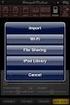 Export to itunes File Sharing Access Edit Mode Tap the pencil button on the bottom toolbar to access Edit Mode. Select a Button or a Folder Select to the button(s) you want to export/ import. A checkmark
We cannot use an ordinary Ethernet cable. That is the cable which plugs into the Broadband slot.
 Setting up an Ethernet Crossover Network to move Folders and Files between two computers without the need to use peripherals. I have looked at this since many members now have a Desktop and a laptop. One
BUS-WATCH R1001/R4001 Quick Guide Series
 Part 1: Video File Source Connection To Review stored video, you must first connect a PC to a video file source. There are 2 ways to connect to the stored video files: Through the Removable Hard Drive
Logging in to Google Chrome
 Logging in to Google Chrome By logging in to Google Chrome, you will be able to quickly access any saved applications, bookmarks, and resources from any location. Please remember...if you are using a lab
Audience Response System (Turning Point) A Quick Start Guide
 Audience Response System (Turning Point) A Quick Start Guide What is Turning Point? Turning Point is an audience response system and by downloading a plug-in for PowerPoint it enables you to add interactivity
User Support Manual KIDS IEP AND DATA MANAGEMENT SOFTWARE PROGRAM. Customized Relational Technology, Inc.
 Customized Relational Technology, Inc. 17726-J Oak Park Ave., Tinley Park, IL 60477 Phone: (708) 532-7022 Fax: (708) 532-7028 Toll Free: (866) 640-KIDS (5437) Email: [email protected] User Support Manual
Royal Mail Despatch Manager Online Printer Installation Guide
 Royal Mail Despatch Manager Online Printer Installation Guide Getting you started Thank you for opting to use Royal Mail s Despatch Manager Online (DMO) system. To help get you started successfully please
Coyote SP - Installation Notes
 Step 1 - Setup E-mail Support: Coyote SP - Installation Notes Coyote SP Installation Steps 1) Insert the Coyote SP installation CD. 2) Follow Setup Instructions. 2) If Setup won t appear, click Windows
Viewing Imaged Travel Expense Reports in the Travel Reimbursement System
 Viewing Imaged Travel Expense Reports in the Travel Reimbursement System Effective September 15, 2008, the Travel & Entertainment Office converted the handling of Travel Expense Reports from paper to electronic
TIPS FOR USING OS X 10.8 MOUNTAIN LION
 Mac OS X Tutorial 10.8 Mountain Lion 1 TIPS FOR USING OS X 10.8 MOUNTAIN LION LAUNCHPAD Launchpad is an application launcher first introduced in OS X 10.7 Lion and improved upon in Mountain Lion. Launchpad
Using Remote Web Workplace Version 1.01
 Using Remote Web Workplace Version 1.01 Remote web workplace allows you to access your Windows XP desktop through Small Business Server 2003 from a web browser. 1. Connect to the Internet in your remote
Verbatim Secure Data USB Drive. User Guide. User Guide Version 2.0 All rights reserved
 Verbatim Secure Data USB Drive User Guide User Guide Version 2.0 All rights reserved Table of Contents Table of Contents... 2 1. Introduction to Verbatim Secure Data USB Drive... 3 2. System Requirements...
Pdf - print version. Lab Objectives: When you are finished with this lab you should be able to:
 1 of 5 Pdf - print version LAB EXERCISE 2 File Management in Windows Summary: This lab is a continuation of the concepts and techniques introduced in Lab1, which introduced you to the Windows interface
Digital Camera. LCD Screen. Canon Power Shot A530. Features: Features:
 Digital Camera Canon Power Shot A530 Features: Special Note: The cameras have been configured for 1600 x 1200 pixels with Normal resolution. This is more than adequate for all classroom projects and will
Enhancing Lectures with an Audience Response System: Workshop Guide
 Enhancing Lectures with an Audience Response System: Workshop Guide Getting Started with the Turning Point Audience Response Software The Turning Point Software is free to download for PC and Mac systems.
Using OwnCloud. OwnCloud is a very easy to use file storage and sharing system that you can access anywhere you have an internet connection.
 Using OwnCloud OwnCloud is a very easy to use file storage and sharing system that you can access anywhere you have an internet connection. 1. Contact the IT Department to set up your account. 2. Once
Wireless Network Adapter Installation
 Belkin 54 Mbps Wireless Network Adapter Installation Version 1.0 Copyright Copyright 2013 Watthour Engineering Co., Inc.. All rights reserved. Information in this document is subject to change without
Surf it Easy. User Guide
 Surf it Easy User Guide User Manual Version 1.1 2004 CoSoSys SRL Surf it Easy User Manual Table of Contents Table of Contents... I 1. Introduction... 1 2. System Requirements... 2 3. Installation... 2
How To Use A Magistrate Desktop Computer
 Windows 7 Tips and Tricks 2013 Fall Magistrates Conference (This page left blank) Magistrate Laptops Page 2 Purpose: Magistrates desktop computers are being replaced with a laptop, external monitor, docking
An Introduction to Box.com
 An Introduction to Box.com Box is an online file sharing and cloud content management service and it provides features such as: Security controls Space Mobility Online collaboration Mobile access Version
FX-BTCVT Bluetooth Commissioning Converter Commissioning Guide
 FX-BTCVT Bluetooth Commissioning Converter Commissioning Guide FX-BTCVT-1 (Bluetooth Commissioning Converter) Code No. LIT-12011665 Issued December 5, 2014 Refer to the QuickLIT website for the most up-to-date
Computer Basics: Tackling the mouse, keyboard, and using Windows
 Computer Basics: Tackling the mouse, keyboard, and using Windows Class Description: Interested in learning how to use a computer? Come learn the computer basics at the Muhlenberg Community Library. This
Interfacing PC ChargePayment Server with Focus
 Interfacing PC ChargePayment Server with Focus When you have decided to use the PC Charge Payment Server software with Focus, this feature will allow you to process credit cards through your credit card
Mac OS X guide for Windows users
 apple 1 Getting started Mac OS X guide for Windows users So you ve made the switch? Moving to the Mac or coming back after a long time on Windows? This quick guide explain all the basics of the modern
Creating a Web Site with Publisher 2010
 Creating a Web Site with Publisher 2010 Information Technology Services Outreach and Distance Learning Technologies Copyright 2012 KSU Department of Information Technology Services This document may be
WebEx Sharing Resources
 WebEx Sharing Resources OTS PUBLICATION: WX0 REVISED: 4/8/06 04 TOWSON UNIVERSITY OFFICE OF TECHNOLOGY SERVICES =Shortcut =Advice =Caution Introduction During a WebEx session, the host has the ability
Reducing Usage on a Service Plan
 Reducing Usage on a Service Plan When purchasing a service plan you should carefully choose your data allowances based on the amount you estimate for business or personal use. However, people rarely account
Using Your Online Help System
 Using Your Online Help System GS-2993A Universal Imaging Corporation 502 Brandywine Parkway, West Chester, PA 19380 USA Tel: (610) 344-9410 Fax: (610) 344-9515 Copyright, Notices, and Trademarks 1998,
Lesson 2. From computer to USB
 Lesson 2 From computer to USB How do I save my designs from my computer to a USB Flash drive to stitch out on my BERNINA? So now you have designs on your computer and want to put them onto your BERNINA
Quick Start Guide Vodafone Mobile Connect USB Stick
 Quick Start Guide Vodafone Mobile Connect USB Stick Welcome to the world of mobile communications 1 Welcome 2 Set up your USB Stick 3 Start the software 4 Software overview 5 Connect 6 SMS text messaging
Home Station ADSL. You may also use the following address (regardless of whether you have changed the primary address or not):
 TABLE OF CONTENTS 1 Introduction 1 2 User interface overview 2 3 LAN and WLAN settings 8 4 Setting the Internet connection 11 5 Settings and status of devices connected to your router 13 6 Configure applications
Using a USB Flash Drive to Back Up Your Data Files on a Windows Computer
 Using a USB Flash Drive to Back Up Your Data Files on a Windows Computer Your GWU-provided flash drive has a storage capacity of 1 GB and is provided as a means for you to back up data files, including
Computer Backup Issues For Windows 8
 Computer Backup Issues For Windows 8 Backup Basic information backup Copy your personal information from the hard drive to another media / location CD (700 MB) DVD (4.7 GB) Flash drive (16 GB ± $10) External
Quick Start Guide Vodafone Mobile Broadband USB Stick. Designed for Vodafone
 Quick Start Guide Vodafone Mobile Broadband USB Stick Designed for Vodafone Welcome to the world of mobile communications 1 Welcome 2 Set up your USB Stick 3 Start the software 4 Software overview (Microsoft
Problems with Host On-Demand
 Problems with Host On-Demand Host On-Demand If you can connect to the Internet, but Host On-Demand will not launch, there are several things to do before calling the NSB Helpdesk for assistance: Ask others
Protecting Your Computer from Viruses and Spyware
 Protecting Your Computer from Viruses and Spyware PROTECTING YOUR COMPUTER FROM VIRUSES AND SPYWARE A virus is a program that runs on your computer without asking permission and makes copies of itself.
First Time On-Campus Remote Desktop Connection ipad Edition
 First Time On-Campus Remote Desktop Connection ipad Edition General: This guide is a step-by-step guide for configuring and using an ipad to remotely connect to a work computer from on campus. This guide
Select the name of the application and click on Force Quit.
 Mac and Windows Differences 1. Mouse buttons. The Mac mouse has a single button whereas a Windows mouse has two buttons. To display a contextual menu in a Mac environment, control+click on an object, unless
Undergraduate Academic Affairs \ Student Affairs IT Services. VPN and Remote Desktop Access from a Windows 7 PC
 Undergraduate Academic Affairs \ Student Affairs IT Services VPN and Remote Desktop Access from a Windows 7 PC Last edited: 4 December 2015 Contents Inform IT Staff... 1 Things to Note... 1 Setting Up
Crown Field Support Engineering
 Crown Field Support Engineering Issue Date: 17 January 2014 Ref. No: GEN Go Online #0002 Subject: Basic Go Online w/ Audio Architect (Network Based Product) Applicability: The following step by step instructions
Downloading and installing SMART Notebook Software
 Connected Classrooms Program: Interactive Classrooms Project 03 June 2009 Downloading and installing SMART Notebook Software Step-by-step instructions for Windows and Apple Macs DET has licensed the SMART
Restoring your Computer from a Backup in Windows 8 (File History)
 Restoring your Computer from a Backup in Windows 8 (File History) Introduction 1. The File History tool in Windows 8 and Windows 8.1 is used to restore files and folders to your computer from a backup.
such as USB drives, connected servers, DVDs, CDs, configure file labels, and the information that appears in the Finder window sidebar.
 What Operating System (OS) do I have? Click once on the Apple apple menu in the upper left corner on your desktop Click on About this Mac - information is displayed such as the Processor speed and the
Create Video Lectures with Panopto
 Create Video Lectures with Panopto Table of Contents Adding Panopto to your BeachBoard Course Navigation... 2 Installation & Setup for Windows... 2 Windows Specifications... 2 Windows Install.NET Framework
Macintosh: Microsoft Outlook Web Access
 Macintosh: Microsoft Outlook Web Access Q: How big is my mailbox? How large is each message? A: In Microsoft Outlook Web Access, you can t view the total size of your mailbox. However, you can view the
Quick Start Guide Vodafone Mobile Connect USB Stick. Designed for Vodafone
 Quick Start Guide Vodafone Mobile Connect USB Stick Designed for Vodafone Welcome to the world of mobile communications 1 Welcome 2 Set up your USB Stick 3 Start the software 4 Software overview 5 Connect