
LP Series Lighting Control Panel Programming Instructions
|
|
|
- Patricia Evans
- 10 years ago
- Views:
Transcription
1 Help menu to scroll up to select to scroll down LP Series Lighting Control Panel Programming Instructions This guide leads you through programming the LP8 and LP24 series lighting control panels. Use this guide with the LP8 Programming Record Sheet to keep track of system operation and programmed parameters. Keep this manual in the panel enclosure cover door pocket for future reference, along with the completed Programming Record Sheet / Relay Schedule and any other manuals or drawings that apply to the lighting panel installation. For panel hardware installation, see the Quick Start Installation Guide. For wiring instructions, see the Installation and Wiring Reference. THE USER INTERFACE KEYPAD The left side of the keypad is for navigating around the screen. This guide will instruct you to move to the right, left, up, or down as required. You can press at any screen for guidance in making selections. Users Guide The right side of the keypad is for scrolling through choices and making selections. This guide will instruct you to scroll through choices and to make a selection. Navigating Programming to move up to move right to move left to move down Copyright 2008 Watt Stopper/Legrand, All rights reserved. LP Series Lighting Control Panel Programming Instructions This guide leads you through programming the LP8 and LP24 series lighting control panels. Use this guide with the LP8 Programming Record Sheet to keep track of system operation and programmed parameters. Keep this manual in the panel enclosure cover door pocket for future reference, along with the completed Programming Record Sheet / Relay Schedule and any other manuals or drawings that apply to the lighting panel installation. For panel hardware installation, see the Quick Start Installation Guide. For wiring instructions, see the Installation and Wiring Reference. More information can be found on line at Users Guide The User Interface keypad The left side of the keypad is for navigating around the screen. This guide will instruct you to move to the right, left, up, or down as required. You can press at any screen for guidance in making selections. The right side of the keypad is for scrolling through choices and making selections. This guide will instruct you to scroll through choices and to make a selection. Navigating Programming to move up to move right to move left to move down to scroll up to select to scroll down Help menu Copyright 2008 Watt Stopper/Legrand, All rights reserved.

2 Table of Contents The User Interface keypad...1 To get started...3 Overriding Channels...3 SET TIME AND DATE - setup...4 Daylight Savings time (dst) - setup...5 Program Holiday dates - setup...6 Program Holiday date Range - setup...7 Select location for astronomic clock - setup...9 Assigning Relays to Channels - setup...10 Clearing the Memory - setup...11 Pre-Programmed Control Scenarios Summary of Lighting Control Scenarios...13 Switched and Scheduled Interior Lighting Options...14 Manual ON/Scheduled OFF (Interior Lights) Scheduled ON/OFF (Interior Lights) AS Manual On/Auto Off (Interior Lights with AS-100 Switch) AS Auto On/Off (Interior Lights with AS-100 Switch) Photocell Control Options...15 Photocell ON/OFF (Exterior Lights Security) Photocell and Schedule ON/OFF (Exterior Lights) Astronomic Control Options...15 Astronomic ON/OFF (Exterior Lights Security) Astronomic & Scheduled ON/OFF (Exterior Lights) Sample Scenario Application...16 Sample Operation Summary and Programming Record Sheet Manual ON/Schedule OFF - program...18 ScheduleD ON/OFF - program...20 AS manual on/auto off - program...22 as AUTOMATIC ON/OFF - program...24 ASTRONOMIC ON/OFF - program...26 ASTRONOMIC and scheduled ON/OFF - program...28 Photocell ON/OFF - program...30 PHOTOCELL and scheduled ON/OFF - program...31 COPYING A SCHEDULE - program...33 Spanning Midnight with a schedule...34 Midnight Scheduling Example Day Spanning...34 Diagnostics...38 Program Testing...38 Troubleshooting...38 Firmware Version...38

3 To get started any button on the user interface to illuminate the Main Screen. When the LP8 leaves the factory each relay is assigned to one of the 8 channels. Channel..Relay Channel.. Relay A... 1 B...2 C... 3 D...4 E... 5 F...6 G... 7 H...8 setup Overriding Channels When using the panel s default programming (as shipped from the factory) overriding a channel will override one relay. The default channel/relay mapping is shown above. To change channel/ relay associations use the clock SETUP screen called Assign Relays/Channel. To cycle a channel ON/OFF from the user interface keypad use the following procedure. Use the navigation arrows to highlight the status ON/ OFF next to the desired channel Use the programming arrows to cycle the channel ON/OFF Page 3

4 SET TIME AND DATE - setup Use this feature to set the current time and date. With SETUP flashing With SET TIME AND DATE flashing Set the HOUR > Set > Time in the LP8 is entered in Military or 24 hour format where 13 hours equals 1:00 PM. To set the MONTH > To set the DAY > To set the YEAR > With SAVE flashing Page 4

5 Daylight Savings time (dst) - setup Note that the LP8 ships with Daylight Savings Time enabled for the United States. Follow the steps below to change DST settings. setup With SETUP flashing With DAYLIGHT SAVING TIME flashing To tell the clock to follow Daylight Savings Transitions (DST), YES or NO To tell the clock to put the transition dates in automatically (Use Auto Dates?), Yes or No If you select NO... Change the beginning and ending dates on this screen. To set the MONTH > To set the DAY > To set the YEAR > With SAVE flashing Page 5

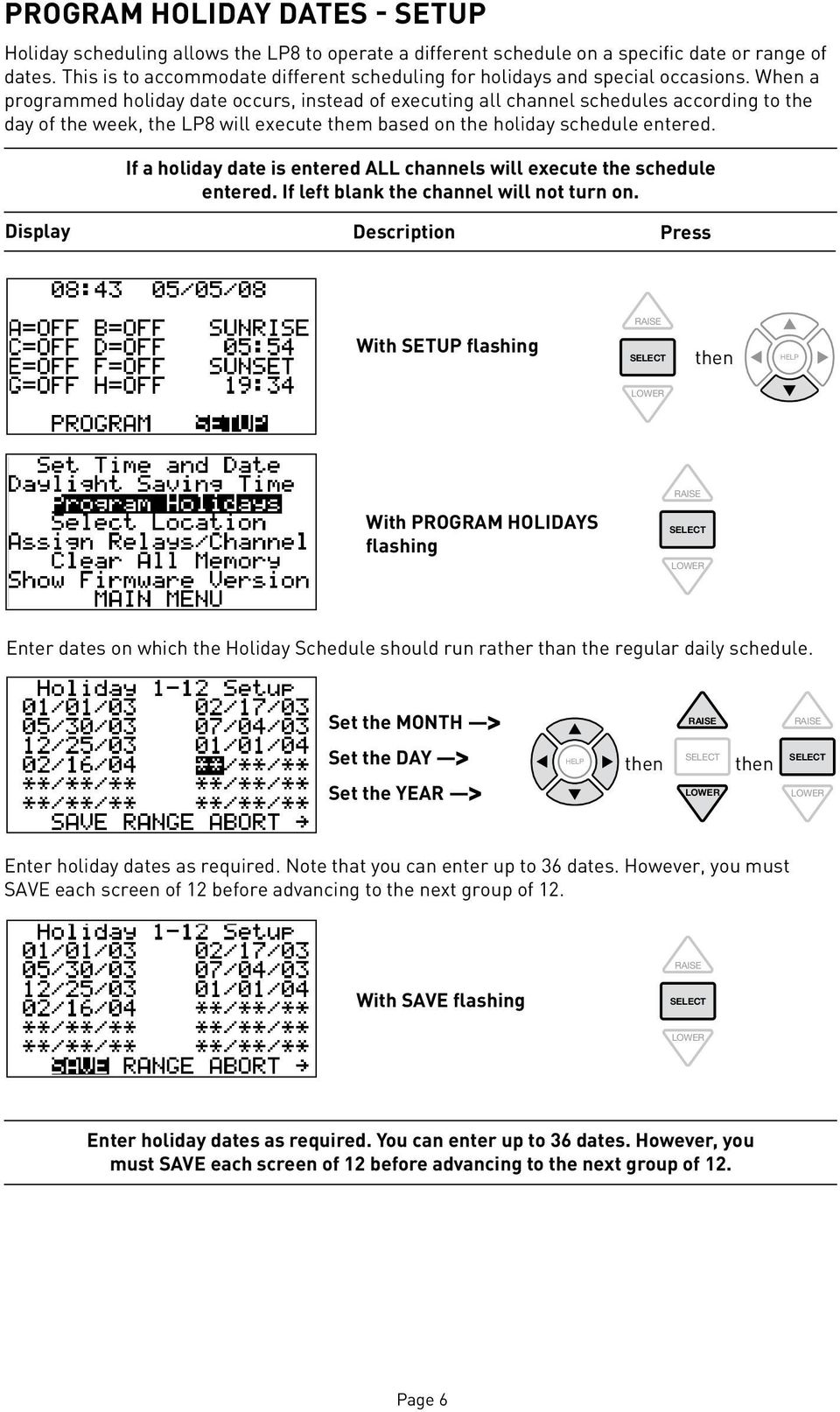
6 Program Holiday dates - setup Holiday scheduling allows the LP8 to operate a different schedule on a specific date or range of dates. This is to accommodate different scheduling for holidays and special occasions. When a programmed holiday date occurs, instead of executing all channel schedules according to the day of the week, the LP8 will execute them based on the holiday schedule entered. If a holiday date is entered ALL channels will execute the schedule entered. If left blank the channel will not turn on. With SETUP flashing With PROGRAM HOLIDAYS flashing Enter dates on which the Holiday Schedule should run rather than the regular daily schedule. Set the MONTH > Set the DAY > Set the YEAR > Enter holiday dates as required. Note that you can enter up to 36 dates. However, you must SAVE each screen of 12 advancing to the next group of 12. With SAVE flashing Enter holiday dates as required. You can enter up to 36 dates. However, you must SAVE each screen of 12 advancing to the next group of 12. Page 6
7 Program Holiday date Range - setup For holiday periods you may enter ranges of dates rather than individual dates. setup With SETUP flashing With PROGRAM HOLIDAYS flashing With SAVE flashing With RANGE flashing Set the MONTH > Set the DAY > Set the YEAR > Page 7

8 Set the MONTH > Set the DAY > Set the YEAR > When finished setting ranges With SAVE flashing Page 8

9 Select location for astronomic clock - setup Setting the correct geographic location is important when using the astronomic function. You can enter the location by selecting the closest city from a list of States, Provinces, Countries, and Cities or enter it manually using global coordinates. To manually enter the coordinates you must know the latitude, longitude, and hours ahead or behind GMT (Greenwich Mean Time) for the panel s location. setup With SETUP flashing With LOCATION flashing To change State: with ALABAMA flashing, scroll up or down to view States, Provinces and Territories With desired location flashing To set City: with the first city in the selected State flashing, scroll up or down With desired city flashing With SAVE flashing Page 9

10 Assigning Relays to Channels - setup Group relays into a Channel that will follow the same Schedule. Schedules control Channels; they do not control relays directly. See the Installation & Wiring Reference for instructions on grouping relays for Smartwired switch control. With SETUP flashing With ASSIGN RELAYS/ CHANNEL flashing With relay 1 channel flashing, or to desired CHANNEL (A-H) The display automaticlly advances to the next relay channel each time you press. To move to a specific relay channel, use the navigation keypad. Repeat above sequence as required for all relays With SAVE flashing Page 10

11 Clearing the Memory - setup This feature allows you to clear all memory in the LP8 clock and reset data to factory defaults. CAUTION! Performing this function will completely clear ALL data in the Clock s memory. setup With SETUP flashing With CLEAR ALL MEMORY flashing To abort this procedure: With ABORT flashing To clear memory: With ABORT flashing To clear memory: With CLEAR flashing To return to main menu: PRESS ANY KEY Page 11

12 Page 12

13 Pre-Programmed Control Scenarios Scheduling is simplified through an occupied/unoccupied approach. Lighting events happen based on whether the area is scheduled to be occupied or unoccupied at any given time. For exterior lighting, ON/OFF events may also depend on whether or not it is dark outside. Summary of Lighting Control Scenarios Each channel may be assigned one of the seven scenarios described in the following sections for each day of the week, plus holidays. Following is a list of the scenarios and the options that are programmable for any particular day and channel. Scenario Name Programmable Options Manual On/Sched Off Occupied times for each day and holiday Blink off (Yes/No) Time delay override time (1-240 min) Scheduled On/Off Same as above AS Manual On/Auto Off Occupied times for each day and holiday Sweep interval (Repeating off) (1-240 min) AS Auto On/Off Occupied times for each day and holiday Sweep interval (Repeating off) (1-240 min) Photocell On/Off No additional data. Connect #EM24-A2 photocell to LP8 panel. Photo & Sched On/Off Occupied times for each day and holiday Connect #EM24-A2 photocell to LP8 panel Astronomic On/Off SETUP Location (state/province/city or global coordinates and time zone) Minutes (0-120) or sunset = dark (same # of minutes or sunrise = light ) Astro & Sched On/Off Same as Astronomic, plus Occupied times for each day and holiday The type of scenario chosen for each channel depends on how the space in the building is used. Questions to ask when selecting scenarios include: Is it an interior or exterior space? Should occupants turn lights on when they arrive, or should lights turn on automatically? Do occupants need to be warned when lights are about to turn off? Should exterior lighting stay on all night, or turn off the building is closed? scenarios CAUTION Do not use THE BLINK WARNING FOR OUTPUTS CONTROLLING HID LAMPS, AIR CONDITIONING, FANS AND OTHER SIMILAR LOADS. Page 13

14 Switched and Scheduled Interior Lighting Options The following pre-programmed control scenarios are commonly used in interior lighting applications. These scenarios are ideally suited for applications where occupants need manual or other local control options such as switches, occupancy sensors or other signaling devices, as well as automated functions provided according to schedules. Manual ON/Scheduled OFF (Interior Lights) Program: page 18 A channel assigned this scenario does not turn on its relay(s). The relays must be turned on by one of the local control switch device options illustrated in the Installation & Wiring Reference manual. Relays are automatically turned off at the end of scheduled occupancy. A relay can be overridden ON or OFF, regardless of occupancy, at any time throughout the day. If turned OFF the relay will remain off until its turned back ON. If a relay is turned on by a device outside of the occupancy time, the relay remains on for the length of the Time Delay. It is important to program a Time Delay for every day, otherwise relays that are overridden ON will remain on until manually switched off or until the next scheduled end of occupancy. To ensure that an override time limit is always active, enter a Time Delay for every day of the week and holiday. For days when occupancy is not expected, program a schedule with an occupancy time of Open/On 00:00 thru 00:00 and enter a Time Delay of at least 10 minutes. You can enable a Blink Warning that momentarily turns off the relay, immediately turns it back on, to alert occupants 5 minutes the lights are turned off. If switch is activated within the 5 minutes, the relay will remain ON for the Time Delay period. Data required by the Clock: A Occupancy times by day of week B Override time delay (in 10-minute increments, up to 240 minutes) C Blink off? Yes/No Scheduled ON/OFF (Interior Lights) Program: page 20 A channel assigned this scenario turns on its assigned relay(s) whenever the building is scheduled to be occupied. It turns them off when the building is scheduled to be unoccupied. Operation during unoccupied time periods and Time Delay programming requirements are the same as Manual ON/Scheduled OFF. Data required by the Clock: A Occupancy times by day of week B Override time delay (in 10-minute increments, up to 240 minutes) C Blink off? Yes/No AS Manual On/Auto Off (Interior Lights with AS-100 Switch) Program: page 22 In this scenario, lighting is turned on manually using AS-100 Automatic Control switches. During the scheduled unoccupied times, a Sweep OFF function is active. The Sweep OFF is programmed by entering a Sweep Interval (Repeating off) time (1-240 minutes) for each day. With Blink off? set to yes, each time the Sweep OFF (Repeating off) triggers, the channel turns off its relay(s) for one second, back on. This brief power interruption blinks the lights and signals each AS switch on the branch circuits to begin a 5-minute delay off countdown. During this countdown, occupants can press their AS switch to keep the lights on until the next OFF sweep. If the switch button is not pressed during the 5-minute delay countdown, the switch automatically turns the lights off at the end of the countdown. With Blink off? set to no the relays will receive a 5 second power interruption which turns off the lighting. If the area controlled by the channel is normally unoccupied the entire day (e.g., weekends), a schedule with a Sweep Interval value must be programmed for that day even though there may not be an occupancy time entered (Open 00:00 thru 00:00). If a Sweep Interval time is not entered, the relay turns off at midnight of the last scheduled day and the AS-100 switches will not be able to turn the lighting on until midnight of the following scheduled day. Page 14

15 Data required by the Clock for AS Manual On/Auto Off: A Occupancy times by day of week B Sweep interval (Repeating off) the time from one OFF sweep to the next (in 10-minute increments, up to 240 minutes) C Blink off? Yes/No AS Auto On/Off (Interior Lights with AS-100 Switch) Program: page 24 In this scenario, lighting is turned on automatically by the AS switch receiving a signal from the panel. During the scheduled occupied times, the lighting can be controlled ON/OFF by the occupant using the button on the AS switch. All other functionality and programming requirements are same as AS Manual On/Auto Off. Photocell Control Options If an EM24-A2 Photocell is connected to the system, the following exterior lighting scenarios may be used. Photocell ON/OFF (Exterior Lights Security) Program: page 30 A channel assigned to this scenario turns on its relay(s) when the photocell signals it is dark outside. It turns off the relay(s) when the photocell signals it is light. No additional data is required by the clock. Photocell and Schedule ON/OFF (Exterior Lights) Program: page 31 A channel assigned this scenario turns on its relay(s) when the building is scheduled to be occupied and the photocell signals that it is dark outside. It turns off the relay(s) either when the building is scheduled unoccupied or when the photocell signals it is light. Data required by the clock: A Occupancy times by day of week. Astronomic Control Options Using the LP8 s built-in timeclock, the Astronomic functions automatically calculate sunrise and sunset times according to the panel s location as programmed in SETUP Select Location. Astronomic ON/OFF (Exterior Lights Security) Program: page 26 A channel assigned this scenario turns on its assigned relay(s) when it is dark outside and turns them off when it is light. Dark is defined by the user as a number of minutes or sunset. The sunrise darkness threshold mirrors the sunset programming, meaning that if you set dark for 20 minutes BEFORE sunset, the morning light begins 20 minutes AFTER sunrise. No compensation is made for rainy or overcast days. Data required by the Clock: A Building location (nearest city/state/ province or geographic coordinates, entered in SETUP screen) B Time or sunset that the lights should turn on (in 10-minute increments, up to 120 minutes). The lights will turn off the number of minutes or sunset and the same number of minutes or sunrise example: 30 minutes sunset / 30 minutes sunrise (see illustration). DAY Light NIGHT Dark = 30min sunset (and lasts until 30 minutes sunrise) scenarios Page 15

16 Astronomic & Scheduled ON/OFF (Exterior Lights) Programming: page 28 A channel assigned this scenario turns on its relay(s) when it is dark outside and the building is occupied. It will turn off when the building is scheduled to be unoccupied. Generally, lights turn on in the evening, off at night when the building is not occupied, back on in the early morning until it becomes light. Data required by the Clock: A Building location (nearest city/state or province, entered in SETUP screen) B Occupancy times by day of week C Time in minutes or sunset that the lights should turn on Sample Scenario Application An office building is used for the sample application illustrated in the Programming Record sheet on the next page. In this application, the LP8 panel contains two relays controlling open office space lighting. Two relays control hallways and common area lighting. Another relay controls the branch circuits to individual office lighting, with Automatic Control Switches in those offices. There is also a relay for exterior security lighting and two for parking lot lighting and signage. The sample Programming Record Sheet on the next page summarizes the data required by the Clock for each channel in our sample application. Channel A is assigned a Manual ON/Sched OFF scenario for the open office areas. The lights will be turned ON by occupants using a switch. They can be turned off by the occupant using a switch or automatically per the time schedule. Overrides will be in effect if the occupant manually turns lighting on at the switch during unoccupied times. Channel B is assigned a Scheduled ON/Scheduled OFF scenario for corridors and common areas. The lighting turns on and off per the times scheduled. Overrides will be in effect if the occupant manually turns lighting on at a switch during unoccupied times. Channel C is assigned an AS Manual On/Auto Off scenario for multiple private offices. Occupants use the AS-100 switch to turn on the lights in their offices. During unoccupied times, the LP8 panel periodically blinks the lights, starting a 5-minute delay off countdown at the AS-100 switches. If no occupant overrides it, the AS switch will turn off the lights. The sweep off scenario is repeated at the programmed sweep interval until the scheduled occupied time. Channel D is assigned an Astro ON/OFF scenario for exterior security lighting. The on and off times are based on the clock s astronomical function which determines sunrise and sunset according to geographical location. Note: A similar operation can be achieved by connecting an exterior photocell to the LP8 and programming a Photocell On/Off scenario. Channel E is assigned an Astro and Scheduled ON/OFF scenario for parking lot lighting and exterior building lights. The time this lighting turns on is based on the clock s astronomical function as above, but the lights will turn off at a scheduled time. The lights will turn back on in the early morning if it is scheduled to turn on and the astronomical function determines that it is still dark. Note: A similar operation can be achieved by connecting an exterior photocell to the LP8 and programming a Photo & Sched On/Off scenario. Page 16

17 3 4 L-5 L-8 Lobby lighting Corrodor lighting Sample Operation Summary and Programming Record Sheet 5 L-9 Private offices, Breakroom lighting Following is the Operation Summary for the relay and channel schedules and the Programming 6 L-12 Exterior & Pole security lights Record Sheet for the sample application. 7 L-14 Exterior building lights LP8 Lighting Control Panel Operation Summary 8 L-16 Parking lot pole lights Relay Schedule Channel Schedule Relay Supply Load Chan L-3 L-4 L-5 L-8 L-9 Open office west Open office east Lobby lighting Corrodor lighting Private offices, Breakroom lighting A B C D E Open office lighting Lobby & Corrodor lighting Private offices, Breakroom lighting Exterior security lighting Exterior building, parking lighting Relays 1,2 3, ,8 6 L-12 Exterior & Pole security lights F 7 L-14 Exterior building lights G 8 L-16 Parking lot pole lights H Channel Schedule LP8 Lighting Control Panel Chan. Relays Programming Record Sheet PROGRAM Channel Automation Scenarios Technical Support: A Open office lighting 1,2 0####r# 7/14/03 Chan. Day(s) Automation Scenario (check one) Schedule Times Data B Lobby & Corrodor xlighting Manual On/Sched Off 3,4 On/ Off/ Blink off? No Yes Photo & Sched On/Off Scheduled On/Off Open: thru: Time Delay/Sweep Interval: min. A M-F C Private offices, Breakroom Man On/AS Sweep lighting Off Astronomic On/Off Astro 5& Sched On/Off On/ Off/ Photocell On/Off On min. Sunset Open: thru: D Exterior security x lighting Manual On/Sched Off 6 On/ Off/ Blink off? No Yes Photo & Sched On/Off Scheduled On/Off Open: 0700 thru: 1200 Time Delay/Sweep Interval: min. 120 E Exterior A Saturday building, parking Man On/AS lighting Astronomic Sweep Off 7,8On/Off Astro & Sched On/Off On/ Off/ Photocell On/Off On min. Sunset Open: thru: F x Manual On/Sched Off On/ Off/ Blink off? No Yes Photo & Sched On/Off Scheduled On/Off Open: 0000 thru: 0000 Time Delay/Sweep Interval: min. A Sunday 120 G Astronomic On/Off Man On/AS Sweep Off Holiday Astro & Sched On/Off On/ Off/ Photocell On/Off On min. Sunset Open: thru: H Manual On/Sched Off On/ Off/ Blink off? No Yes Photo & Sched On/Off x Scheduled On/Off Open: 0600 thru: 2200 Time Delay/Sweep Interval: min. 120 B M-F Astronomic On/Off Man On/AS Sweep Off Astro & Sched On/Off On/ Off/ Photocell On/Off On min. Sunset Open: thru: Technical Support: Manual On/Sched Off Photo & Sched On/Off x Scheduled On/Off 0####r# 7/14/03 Astronomic On/Off Man On/AS Sweep Off Astro & Sched On/Off Photocell On/Off Manual On/Sched Off M-F Scheduled On/Off Saturday x Man On/AS Sweep Off Photocell On/Off Manual On/Sched Off Scheduled On/Off Man On/AS Sweep Off Photocell On/Off Photo & Sched On/Off Astronomic On/Off Astro & Sched On/Off Photo & Sched On/Off Astronomic On/Off Astro & Sched On/Off Photo & Sched On/Off Astronomic On/Off Astro & Sched On/Off Photo & Sched On/Off x Astronomic On/Off Astro & Sched On/Off On/ Off/ Blink off? No Yes Open: thru: Time Delay/Sweep Interval: min. B Saturday B C C D x Manual On/Sched Off Sunday Scheduled On/Off Man On/AS Sweep Off Holiday Photocell On/Off Manual On/Sched Off Sunday Scheduled On/Off Man On/AS Sweep Off Holiday x Photocell On/Off M-F S-S Holiday On/ Off/ On min. Sunset Open: thru: On/ Off/ Blink off? No Yes Open: thru: Time Delay/Sweep Interval: min On/ Off/ On min. Sunset Open: thru: On/ Off/ Blink off? No Yes Open: 0600 thru: 2200 Time Delay/Sweep Interval: min. 120 On/ Off/ On min. Sunset Open: thru: On/ Off/ Blink off? No Yes Open: 0000 thru: 0000 Time Delay/Sweep Interval: min. 120 On/ Off/ On min. Sunset Open: thru: On/ Off/ Open: thru: Blink off? No Yes Time Delay/Sweep Interval: min. 30 On/ Off/ On min. Sunset Open: thru: E M-F Manual On/Sched Off Scheduled On/Off Man On/AS Sweep Off Photocell On/Off Manual On/Sched Off Scheduled On/Off Man On/AS Sweep Off Photocell On/Off Manual On/Sched Off Scheduled On/Off Man On/AS Sweep Off Photocell On/Off Photo & Sched On/Off Astronomic On/Off Astro & Sched On/Off x Photo & Sched On/Off Astronomic On/Off Astro & Sched On/Off On/ Off/ Open: thru: Blink off? No Yes Time Delay/Sweep Interval: min. On/ Off/ On min.. Sunset Open: thru: On/ Off/ Open: thru: Photo & Sched On/Off E Saturday Astronomic On/Off x Astro & Sched On/Off Blink off? No Yes Time Delay/Sweep Interval: min. On/ Off/ On min. Sunset Open: thru: On/ Off/ Open: thru: Blink off? No Yes Time Delay/Sweep Interval: min. On/ Off/ Dark = min. Sunset Open: thru: PROGRAM Page 17

18 Manual ON/Schedule OFF - program Before you begin entering channel programming, it is important to complete the Programming Record Sheet (shipped in the panel door) for your installation. Programming is simply taking data from the sheet and entering it into the Clock. If a schedule needs to run past midnight, see Spanning Midnight with a schedule. With PROGRAM flashing To select a channel A-H To change the day of the week With MANUAL ON/SCHED OFF flashing Programming the LP8 is simplified using a building Open/Closed approach. Lighting events happen based on whether the area is scheduled to be Open (occupied) or Closed (unoccupied) for any given time. For exterior lighting, ON/OFF events may also depend on whether or not it is Dark outside (see photocell and astronomic Program Scenarios on page 15). OPEN: Page 18

19 PROGRAM THRU: Repeat for second schedule OPEN/THRU period or continue to next step. If entering two on and off times for the day, enter the earliest on/off time on the first row. If only using one on/off time enter it on the first row. TIME DELAY: To select number of minutes Time delay is the number of minutes a relay stays ON being turned on by a switch during unoccupied periods BLINK BEFORE OFF? YES or NO If this schedule will be used for multiple days, proceed to the COPYING A SCHEDULE section. If you are making adjustments to one day s schedule or the other days are different, continue. With SAVE flashing Page 19

20 ScheduleD ON/OFF - program Before you begin entering channel programming, it is important to complete the Programming Record Sheet (shipped in the panel door) for your installation. Programming is simply taking data from the sheet and entering it into the Clock. If a schedule needs to run past midnight, see Spanning Midnight with a schedule. With PROGRAM flashing To select a channel A-H To change the day of the week With MANUAL ON/SCHED OFF flashing, scroll to SCHEDULED ON/OFF ON: THRU: Repeat for second schedule OPEN/THRU period or continue to next step. If entering two on and off times for the day, enter the earliest on/off time on the first row. If only using one on/off time enter it on the first row. Page 20

21 PROGRAM TIME DELAY: To select number of minutes Time delay is the number of minutes a relay will remain ON being turned on by a switch during unoccupied periods BLINK BEFORE OFF? YES or NO If this schedule will be used for multiple days, proceed to the COPYING A SCHEDULE section. If you are making adjustments to one day s schedule or the other days are different, continue. With SAVE flashing Page 21
22 AS manual on/auto off - program Before you begin entering channel programming, it is important to complete the Programming Record Sheet (shipped in the panel door) for your installation. Programming is simply taking data from the sheet and entering it into the Clock. If a schedule needs to run past midnight, see Spanning Midnight with a schedule. With PROGRAM flashing To select a channel A-H To change the day of the week With MANUAL ON/SCHED OFF flashing, scroll to AS MANUAL ON/AUTO OFF OPEN: THRU: Repeat for second schedule OPEN/THRU period or continue to next step. If entering two on and off times for the day, enter the earliest on/off time on the first row. If only using one on/off time enter it on the first row. Page 22
23 PROGRAM Repeating off is the number of minutes that the LP8 panel will wait automatically pulsing the AS Switches again. This will repeat until the Channel once again enters an OPEN (occupied) time period. IMPORTANT: if you want the sweep to continue through the night and until the next OPEN time, make sure that a schedule that includes a sweep interval (Repeating off) is programmed for the next day as well. REPEATING OFF: To select number of minutes BLINK BEFORE OFF? YES or NO Yes indicates that you will be using the 5 minute blink timer built into the AS Switch which is the recommended mode. If NO is selected, the relay(s) will turn off at the indicated time with no prior warning. Refer to the AS Switch Installation Instructions for more information. If this schedule will be used for multiple days, proceed to the COPYING A SCHEDULE section. If you are making adjustments to one day s schedule or the other days are different, continue. With SAVE flashing Page 23
24 as AUTOMATIC ON/OFF - program Before you begin entering channel programming, it is important to complete the Programming Record Sheet (shipped in the panel door) for your installation. Programming is simply taking data from the sheet and entering it into the Clock. If a schedule needs to run past midnight, see Spanning Midnight with a schedule. With PROGRAM flashing To select a channel A-H To change the day of the week With MANUAL ON/SCHED OFF flashing, scroll to AS AUTO ON/OFF ON: THRU: Repeat for second schedule OPEN/THRU period or continue to next step. If entering two on and off times for the day, enter the earliest on/off time on the first row. If only using one on/off time enter it on the first row. Page 24
25 PROGRAM REPEATING OFF (Sweep Interval): To select number of minutes BLINK BEFORE OFF? YES or NO Yes indicates that you will be using the 5 minute blink timer built into the AS Switch which is the recommended mode. If NO is selected, the relay(s) will turn off at the indicated time with no prior warning. Refer to the AS Switch Installation Instructions for more information. If this schedule will be used for multiple days, proceed to the COPYING A SCHEDULE section. If you are making adjustments to one day s schedule or the other days are different, continue. With SAVE flashing Page 25
26 ASTRONOMIC ON/OFF - program Before you begin entering channel programming, it is important to complete the Programming Record Sheet (shipped in the panel door) for your installation. Programming is simply taking data from the sheet and entering it into the Clock. With PROGRAM flashing To select a channel A-H To change the day of the week With MANUAL ON/SCHED OFF flashing, scroll to ASTRONOMIC ON/OFF To set minutes or sunset = Dark, or leave at 000 default To set BEFORE or AFTER If this schedule will be used for multiple days, proceed to the COPYING A SCHEDULE section. If you are making adjustments to one day s schedule or the other days are different, continue. Page 26
27 PROGRAM With SAVE flashing Page 27
28 ASTRONOMIC and scheduled ON/OFF - program Before you begin entering channel programming, it is important to complete the Programming Record Sheet (shipped in the panel door) for your installation. Programming is simply taking data from the sheet and entering it into the Clock. If a schedule needs to run past midnight, see Spanning Midnight with a schedule. With PROGRAM flashing To select a channel A-H To change the day of the week With MANUAL ON/SCHED OFF flashing, scroll to ASTRO & SCHED ON/OFF ON: THRU: Page 28
29 PROGRAM To set minutes or sunset = Dark, or leave at 000 default To set BEFORE or AFTER If this schedule will be used for multiple days, proceed to the COPYING A SCHEDULE section. If you are making adjustments to one day s schedule or the other days are different, continue. With SAVE flashing Page 29
30 Photocell ON/OFF - program Before you begin entering channel programming, it is important to complete the Programming Record Sheet (shipped in the panel door) for your installation. Programming is simply taking data from the sheet and entering it into the Clock. This scenario requires that the optional EM24-A2 photocell be connected to the panel. The photocell will use actual light level readings to tell the panel when it is DARK outside. With PROGRAM flashing To select a channel A-H To change the day of the week With MANUAL ON/SCHED OFF flashing, scroll to PHOTOCELL ON/OFF Yes indicates that you will be using the 5 minute blink timer built into the AS Switch which is the recommended mode. If NO is selected, the relay(s) will turn off at the indicated time with no prior warning. Refer to the AS Switch Installation Instructions for more information. If this schedule will be used for multiple days, proceed to the COPYING A SCHEDULE section. If you are making adjustments to one day s schedule or the other days are different, continue. With SAVE flashing Page 30
31 PROGRAM PHOTOCELL and scheduled ON/OFF - program Before you begin entering channel programming, it is important to complete the Programming Record Sheet (shipped in the panel door) for your installation. Programming is simply taking data from the sheet and entering it into the Clock. If a schedule needs to run past midnight, see Spanning Midnight with a schedule. With PROGRAM flashing To select a channel A-H To change the day of the week With MANUAL ON/SCHED OFF flashing, scroll to PHOTO & SCHED ON/OFF Exterior lighting will turn on only when it is dark outside and the schedule is in an OPEN period. ON: Page 31
32 THRU: If this schedule will be used for multiple days, proceed to the COPYING A SCHEDULE section. If you are making adjustments to one day s schedule or the other days are different, continue. With SAVE flashing Page 32
33 COPYING A SCHEDULE - program The Copy function allows you to copy a program/schedule you have created for one day of the week to other days that will follow the same schedule. With PROGRAM flashing Begin at the Channel and Day for the schedule you would like to copy Navigate to the bottom of the screen With COPY flashing Mark the days on which you want to use this schedule With SAVE flashing PROGRAM-COPY Page 33
34 Spanning Midnight with a schedule Midnight Scheduling Example Day Spanning In some cases, a building s occupied hours may need to span from one day into the next. For example, a restaurant may open for dinner at 5 p.m. and stay open until 2 a.m. Use Day Spanning schedules to accomodate this need. With a standard schedule, the channel turns on the specified relays at the beginning of the ON minute and turns them off at the end of the scheduled thru minute. With Day Spanning schedules, the channel will not turn off the relay if it is scheduled thru 23:59 on one day, and the ON schedule for the very next day is set for 00:00 (midnight). For business hours of 5 p.m. to 2 a.m., Tuesday through Saturday, enter these 6 schedules: ON: 17:00 thru: 23:59 ON: 00:00 thru: 00:00 ON: 00:00 thru: 02:00 ON: 17:00 thru: 23:59 ON: 00:00 thru: 02:00 ON: 00:00 thru: 00:00 MON 23:59 TUE 23:59 WED 23:59 THU 23:59 FRI 23:59 SAT 23:59 SUN 23:59 MON 00:00 TUE 00:00 WED 00:00 THU 00:00 FRI 00:00 SAT 00:00 SUN 00:00 After setting Channel, Day and SCHEDULED ON/OFF, set the ON time Set THRU: to 23:59 Leave the second ON: and THRU: times at 00:00. Set Time Delay and Blink off? With COPY flashing Mark WED Page 34
35 Day Spanning example... continued With SAVE flashing With PROGRAM flashing Select the same channel (B for this example) Select the next Day (Wednesday for this example) Channel B s Wednesday schedule (as copied from Tuesday) appears. Change the first ON: time to 00:00 Change the first THRU: time to 02:00 PROGRAM-SPAN Page 35
36 Day Spanning example... continued Change the second ON time to 17:00 Change the second THRU time to 23:59 Navigate to the bottom of the screen, with COPY flashing Mark THUR, FRI, SAT, SUN With SAVE flashing With PROGRAM flashing Select the same channel (B for this example) Page 36
37 Day Spanning example... continued Select the LAST Day (Sunday for this example) Channel B s Sunday schedule (as copied from Wednesday) appears. Leave the first ON: time at 00:00 Leave the first THRU: time at 02:00 Change the second ON time to 00:00 Change the second THRU time to 00:00 Navigate to the bottom of the screen. With SAVE flashing The Day Spanning schedules are complete for this example programming. The display returns to the main screen. PROGRAM-SPAN Page 37
38 Diagnostics Main Screen Program Testing When scheduling is completed, be sure to return to the Main screen. The clock must be displaying this screen for the schedules to operate. Check the time and date at the top of the screen. Verify that relays are properly assigned to the desired channels by overriding channels as described on page 3. Resolve assignment issues using Assign Relays/Channel, which is accessed through the SETUP screen. Confirm that each Channel has the proper scenario and time entries. Select Program and sequence through the days of the week for each Channel. Make certain the data is complete for each day of the week. When finished reviewing Channel A, go to B, and so on. When you have confirmed the data for each Channel, you can run a real-time test. Simply set the Clock for 2 minutes a scheduled action, return to the Channel Status screen and confirm the actual operation. Troubleshooting See the Quick Start Intstallation Guide and the Installation & Wiring Reference for detailed troubleshooting information. Firmware Version If you are working with Technical Support to solve an issue, you may be asked what version of firmware is in the panel. This information is available from the Show Firmware Version function accessed through the SETUP screen. With SETUP flashing With SHOW FIRMWARE VERSION flashing This screen lists all the boards in the panel and the firmware version of each. The example shown is a normal panel with 2 Relay Driver Cards (8 relays), a Power Supply and an optional Group Switch card. If Board Not Installed appears, but the board is physically installed in the panel, cycle power to the panel and check this screen again. If all installed boards still do not appear, advise Technical Support. Page 38
39 Page 39
40 2800 De La Cruz Boulevard, Santa Clara, CA Technical Support: r1 06/2008 Please Recycle Page 40
GE Total Lighting Control
 GE Total Lighting Control ProSys Lighting Control System Catalog Number RCLK8PS ProSys Softwired Clock DESCRIPTION The ProSys Lighting Control System is a small network of relay panels and occupant control
LiteKeeper 4 & 8 Programming Guide and User Manual
 LiteKeeper 4 & 8 Programming Guide and User Manual Table of Contents Safety Instructions... 3 Chapter 1: Introduction... 4 p1 How It Works... 4 What are relays?... 4 What are inputs?... 4 How do I program
7 Using the Alarm Ready Schedule
 7 Using the Alarm Ready Schedule Feature 7.1 Definition An Alarm Ready Schedule is defined as an interval of time during which the Verbatim autodialer is ARMED and Ready to respond to alarm conditions.
YOUR CONTROL PANEL PANEL
 YOUR CONTROL PANEL PANEL To change your pass code, please contact Frontpoint Support at: 877-602-5276 [email protected] Frontpoint Support: 877-602-5276 The Control Panel: System Codes After
Trinchero Family Estates Building: Operation User s Guide
 Trinchero Family Estates Building: Operation User s Guide Heating Ventilating and Air Conditioning Controls The building air handlers operate in accordance to a pre programmed software time clock. They
Blue Easy Reader Thermostat 1F95EZ-0671. Homeowner s Guide
 Blue Easy Reader Thermostat 1F95EZ-0671 Homeowner s Guide Message to Homeowners Congratulations on choosing the Emerson Blue Easy Reader Thermostat. Blue Easy Reader is designed to be the easiest thermostat
SECURITY SYSTEM NOTES
 SECURITY SYSTEM NOTES Installing/Service Company For Service Call Central Station Duress Code FUNCTION CODES Function Code Controls Function EMERGENCY ACTIVATION KEYS (check if enabled) Fire Auxiliary
Control/Communicator Installation Manual
 DAS NETWORX NX-8 Control/Communicator Installation Manual Page General Description... 2 Ordering Information... 2 Option Definitions... 2 Programming the LED Code Pads... 4 Programming the NX-8... 8 Types
LIGHTING CONTROL PANEL
 LIGHTING CONTROL PANEL Installation Guide & User Manual THIS PAGE LEFT INTENTIONALLY BLANK 2 WARRANTY STATEMENT Automated Controls & Systems (ACS) warranties its equipment against defects in workmanship
Using Your. Security System With Icon Keypad S5020, S5021, S5022
 Using Your Security System With Icon Keypad S5020, S5021, S5022 Contents 1 Overview Your Security System... 1 How Your Security System Works... 2 Your System's Programming... 3 Getting Used to Your System...
PRT-CTRL-SE. Protege System Controller Reference Manual
 PRT-CTRL-SE Protege System Controller Reference Manual The specifications and descriptions of products and services contained in this document were correct at the time of printing. Integrated Control Technology
TABLE 1: Wiring Terminals. Connect to... 1C 1H 2C 2H 1H1C 2H1C 2H2C 3H2C
 Installation TURN OFF POWER TO THE SYSTEM AT THE MAIN POWER PANEL TO AVOID ELECTRICAL SHOCK. Installation should be carried out by an electrician or a qualified technician. 1.1 Find a Location for the
SECURITY SYSTEM NOTES
 SECURITY SYSTEM NOTES Installing/Service Company For Service Call Central Station Duress Code FUNCTION CODES Function Code Controls Function This system is is not partitioned. EMERGENCY ACTIVATION KEYS
How To Set Off An Alarm On A Car With A Car Alarm On It
 AUTO SECURITY SYSTEM USER S OPERATION GUIDE FCC ID NOTICE This device complies with Part 15 of the FCC rules. Operation is subject to the following conditions: 1. This device may not cause harmful interference,
Understanding the Code Pad lights...4. Code Pad tones...5. Fully arming the system On MODE...6. Fully arming the system - Quick Arm MODE...
 TABLE OF CONTENTS...Glossary of terms...2...code Pad Diagram...3 Understanding the Code Pad lights...4 Code Pad tones...5 Fully arming the system On MODE...6 Fully arming the system - Quick Arm MODE...6
Challenger Version 8 Basic Alarm System.
 Challenger Version 8 Basic Alarm System. This document provides details of the programming requirements for getting a basic alarm system that uses PIN codes to arm/disarm/reset etc., up and running. A
Quantum Q-AdminTM Guide
 Quantum Q-AdminTM Guide Table of Contents Getting Started How to Use This Guide............... 4 Quick Reference Guide: Frequently Used Q-AdminTM Features................. 5 Quantum System Diagram............
EDA-Z5008 & Z5020. Radio Fire Alarm System. User Manual
 EDA-Z5008 & Z5020 Radio Fire Alarm System User Manual Electro-Detectors Ltd. Electro House, Edinburgh Way Harlow, Essex, CM20 2EG UK Tel: 01279 635668. Fax 01279 450185 Email: [email protected]
MicroTech Remote Monitoring and Control Panel
 Operation Manual OM-121 Group: Controls and Network Systems Part Number: 578998Y-01 Date: November, 1996 MicroTech Remote Monitoring and Control Panel Applied Rooftop and Self-contained Air Conditioning
MTS Power Products MIAMI FL 33142 ATS-22AG. Automatic Transfer Switch And Control PLC Operator s Manual
 MTS Power Products MIAMI FL 33142 ATS-22AG Automatic Transfer Switch And Control PLC Operator s Manual Dedicated Single Phase Transfer Switch With Touch Screen Controls Normal Power Connections Emergency
NetworX NX-6V2. LED Keypad User Manual
 NetworX NX-6V2 LED Keypad User Manual POWER Light is on when AC power is present; flashes to indicate a low battery condition. ARMED Light is on when armed; off when disarmed; flashes to indicate a previous
SECURITY SYSTEM NOTES. EMERGENCY ACTIVATION KEYS (check if enabled) PROGRAMMED FUNCTIONS
 SECURITY SYSTEM NOTES Installing/Service Company For Service Call Installation Date / / Central Station Duress Code EMERGENCY ACTIVATION KEYS (check if enabled) Fire Auxiliary Emergency Police PROGRAMMED
Electra Elite and InfoSet are registered trademarks of NEC America, Inc.
 reserves the right to change the specifications, functions, or features, at any time, without notice. has prepared this document for the use by its employees and customers. The information contained herein
Firmware version: 1.10 Issue: 7 AUTODIALER GD30.2. Instruction Manual
 Firmware version: 1.10 Issue: 7 AUTODIALER GD30.2 Instruction Manual Firmware version: 2.0.1 Issue: 0.6 Version of the GPRS transmitters configurator: 1.3.6.3 Date of issue: 07.03.2012 TABLE OF CONTENTS
NELSON VOLTAGE MONITOR INSTALLATION & PROGRAMMING MANUAL
 NELSON VOLTAGE MONITOR INSTALLATION & PROGRAMMING MANUAL CONTENTS GENERAL INFORMATION...3 INSTALLATION...3 FIELD WIRING...4 PROGRAMMING...4 Circuit Monitor Options...5 Power Frequency...5 Alarm Silence
NetworX Series. NX- 4/8 Code Pad. User Manual (Australian Version)
 NetworX Series NX- 4/8 Code Pad User Manual (Australian Version) Table Of Contents Code Pad Diagram... Inside Front Glossary of Terms...2 Understanding the Code Pad lights...3 Code Pad Tones...4 Fully
Using Your. Security System. With LED Keypad S5030, S5031, S5032
 Using Your Security System With LED Keypad S5030, S5031, S5032 Contents 1 Overview Your Security System... 1 How Your Security System Works... 2 Your System's Programming... 3 Getting Used to Your System...
STERILIZERS, LABORATORY DRYING OVENS
 TS9026 TS9053 TS9135 TS9430 TS 9000 SERIES: STERILIZERS, LABORATORY DRYING OVENS Series TS9000 consists of four different cabinets available in sizes from 26 litres to 430 litres. Interior housing and
NX-8 Installation manual Page 1 Date 13/03/04
 NetworX NX-8 Installation Manual NX-8 Installation manual Page 1 Date 13/03/04 CONTENTS CONTENTS...2 GENERAL INFORMATION...4 ORDERING INFORMATION...4 FEATURE DEFINITIONS...5 PROGRAMMING THE NX-8 KEYPADS...12
Master Time Clock MTC-200 MTC-400 MTC-600. Users Manual
 Master Time Clock MTC-200 MTC-400 MTC-600 Users Manual Toll Free (888)713-0373 Phone (972)987-4408 FAX (877)720-9291 www.midwest-time.com [email protected] TABLE OF CONTENTS TOPIC PAGE GENERAL DESCRIPTION
POWER POWER ABC DEF GHI JKL ABC DEF GHI JKL COMMAND YZ COMMAND POWER ABC DEF GHI JKL COMMAND YZ USER'S GUIDE
 POWER POWER POWER ABC DEF GHI JKL ABC DEF GHI JKL MNO PQR STU VWX MNO PQR STU VWX YZ COMMAND YZ COMMAND ABC DEF GHI JKL MNO PQR STU VWX COMMAND YZ USER'S GUIDE Security Command User's Guide for 9XR Command
Master Programming Manual for TotalCare, CareSoft Elite, CareSoft Pro, Ion Pro and CareClear Pro Models
 Master Programming Manual for TotalCare, CareSoft Elite, CareSoft Pro, Ion Pro and CareClear Pro Models Effective December 2014 Button appearance and position may be different than actual valve. Cycle
SPECIAL CONTROL BUTTON FUNCTIONS
 Operating Guide 1 2 3 CONTENTS Page No. OPERATING YOUR ALARM 5 General Information 5 Arming the Alarm 5 Disarming the Alarm 6 Arming in Stay Mode 7 Disarming Stay Mode 8 Bypassing Zones 8 Manual Panic,
Maintenance and Service. The Alpha II Command Center YOUR ALARM COMPANY IS CALL BEFORE TEST
 The Alpha II Command Center Your security system helps to secure life, property and investments against fire, theft and bodily harm. The Alpha II Command Center is an advanced digital arming station that
Elite 8D/Lite Version 8 Zone Controller. Arrowhead Alarm Products Ltd. Operating Guide. Proudly Designed and Manufactured in New Zealand
 Elite 8D/Lite Version 8 Zone Controller 8 Arrowhead Alarm Products Ltd Operating Guide 1 Proudly Designed and Manufactured in New Zealand 2 CONTENTS Page No. INTRODUCTION 4 About your Alarm 4 OPERATING
9452/9453 Installation and User Guide
 9452/9453 Installation and User Guide Compatible Equipment 9425 Remote Keypad 9040 Internal Sounder 660 Speech Communicator 8440 4-Channel Minicom 496330 Issue 1 1 of 10 9452/3 Introduction The 9452 and
Lighting Management solutions
 Lighting Management solutions Best practice guide for office buildings PUTTING A STOP TO ENERGY WASTE INTRODUCTION Table of contents 1 Lighting control Best Practice Guide for Office Buildings 2 Guide
Ademco Vista-20P/First Alert FA-168C Basic Commands
 Zones 64 total Ademco Vista-20P/First Alert FA-168C Basic Commands Wireless Yes, Zones 09 to 48 + 16 Keyfob Zones (Zones 49 to 64) Batteries Downloadable Partitions 2 12 volt Rechargable inside main Panel,
Accenta/Optima. User Guide. Servicing Organisation (Installer) name: Telephone Number: Date of Installation: Account Number: Honeywell Security
 Accenta/Optima User Guide ZONE 1 2 3 4 5 6 7 8 9 Chime Omit Prog PA 0 1 2 3 4 5 6 7 8 9 CHIME OMIT RESET PROG SET Accenta + TA PA DAY POWER PA! " # $ % & 0 1 2 3 5 6 7 8 Chime Omit Reset Prog 4 9 Set PA
VEHICLE SECURITY SYSTEM G25/G20
 VEHICLE SECURITY SYSTEM G25/G20 Limited Lifetime Warranty This vehicle security system is warranted to the original purchaser, to be free from defects in material and workmanship. The manufacturer will
MC-E Installation Instructions & Programming Guide
 MC-E Installation Instructions & Programming Guide 1 3 5 7 9 11 13 15 17 19 21 23 25 27 29 31 33 35 37 39 41 43 45 47 2 4 6 8 10 12 14 16 18 20 22 24 26 28 30 32 34 36 38 40 42 44 46 48 YEL RED GND 1 3
Lighting Control in the Office Space
 Lighting Control in the Office Space Lutron Electronics Co., Inc. 2008 AIA/CES Program Registration This program is registered with the AIA/CES for continuing professional education. As such, it does not
ON-GUARD. Guard Management System. Table of contents : Introduction Page 2. Programming Guide Page 5. Frequently asked questions Page 25 - 1 -
 ON-GUARD Guard Management System Table of contents : Introduction Page 2 Programming Guide Page 5 Frequently asked questions Page 25-1 - Introduction On Guard tm is designed to exceed all the requirements
2 4PI175 issue 1_6/01. How to unset system in alarm. Programs 1, 2 and 3. Access codes. How to operate Personal Attack
 Access codes Contents Unset system indications - - - - - - - - - - - System indication - - - - - - - - - - - - Access codes - - - - - - - - - - - - - - - - How to operate Personal - - - - - - How to unset
USER S MANUAL. SMDC-16 Digital Control Communicator and SMPC-32 Personal Control
 SMDC-16 USER S MANUAL SMDC-16 Digital Control Communicator and SMPC-32 Personal Control Table of Contents General Descriptions Page Description of Your Alarm System 3 Description of Keypads 3 Keypad Maintenance
SECURIT 800L+ CONTROL PANEL
 USER MANUAL SECURIT 800L+ CONTROL PANEL COMPANY PROFILE IntelliSense have been successfully making security products for over 20 years and lead the security industry throughout the world with many innovative
PROGRAMMING & OPERATING INSTRUCTIONS CL5000 AUDIT TRAIL
 PROGRAMMING & OPERATING INSTRUCTIONS CL5000 AUDIT TRAIL 1 CODES AND OPERATION CODES The factory set Master Code is #1234. This should be changed immediately after installation (see Program 10). The Master
GRAFIK 5000TM/6000 /7000TM System Onsite Startup
 369625c 1 04.04.13 GRAFIK 5000TM/6000 /7000TM System What Standard GRAFIK 5000TM/6000 /7000TM Startup includes: Three visits to the job site during normal business hours. A pre-wire visit, a Startup visit,
HILLS Series LED Code Pad User Manual
 HILLS Series LED Code Pad User Manual Not all features may be available on your system Check with your installer to find out which features are programmed Page 2 TABLE OF CONTENTS Code Pad Diagrams...2
EURO User Manual. Castle Care-Tech 2012 (RINS1531) Issue 2. Page 1
 Contents Introduction 1 Using EURO Panel with Code or Tag 7-9 Intelligent Setting 13 Silencing the Alarm 20 Setting Individual Areas 14-17 Chime Facility 22 Omitting Inputs 18-19 Keypad Hold Up/Personal
IMS-640 VoIP Intercom Master Station Operating Instructions
 IMS-64 VoIP Intercom Master Station Operating Instructions MicroComm DXL MicroComm DXL IMS-64 VoIP Intercom Master Station Operating Instructions November, 29 Printed in Canada 29 Harding Instruments MN-DXL-IMS-64-Pv1
NortechCommander Software Operating Manual MAN-00004 R6
 NortechCommander Software Operating Manual MAN-00004 R6 If the equipment described herein bears the symbol, the said equipment complies with the applicable European Union Directive and Standards mentioned
How To Control A Car Alarm On A Car With A Remote Control System
 MODEL CA100 REMOTE CONTROL AUTO ALARM SYSTEM INSTALLATION & OPERATION INSTRUCTIONS WIRING DIAGRAM Black Antenna Wire 6 Pin 6 Pin Mini Connector Valet Switch Blue LED Indicator Blue Wire: (-) 200mA Unlock
D-MAX WEB GUIDE CONTROLLER WITH OPERATOR INTERFACE PANEL QUICK START SETUP MANUAL
 1/1 D-MAX.D1 1A Manual S1 D-MAX OPERATOR INTERFACE (Application Home Screen Is Shown) D-MAX CONTROLLER 04/14/2008 2008 Fife Corporation. All rights reserved. Figure Sheet 2-249 This page is intentionally
PS236 Getac Camera. Operation Guide
 PS236 Getac Camera Copyright and Copies. The Software (including any copy thereof) is owned by Getac or its suppliers and is protected by copyright and patent laws. The Software copy is licensed to you
OWNERS MANUAL. Status Monitor. for Windows 95, 98, ME, NT 4, 2000 & XP. SIGNALCRAFTERS TECH, INC. www.signalcrafters.com
 OWNERS MANUAL Status Monitor for Windows 95, 98, ME, NT 4, 2000 & XP SIGNALCRAFTERS TECH, INC. www.signalcrafters.com 57 Eagle Rock Avenue, East Hanover, NJ 07936 Tel: 973-781-0880 or 800-523-5815 Fax:
For more detailed information, see your Vantage Vue Console manual.
 For more detailed information, see your Vantage Vue Console manual. Current Weather Mode Moon phase, alarm & forecast icons Wind Rose Compass Antenna icon shows active transmission Graph of selected variable
PROGRAMMING GUIDE. MARKS USA 365 Bayview Ave., Amityville, NY 11701 631-225-5400 1-800-526-0233 Fax 631-225-6136 www.marksusa.com
 PROGRAMMING GUIDE MARKS USA 365 Bayview Ave., Amityville, NY 11701 631-225-5400 1-800-526-0233 Fax 631-225-6136 www.marksusa.com Congratulations, you have just purchased the i-qwik PROX Series lockset
Owner s Manual RBC-AMS41E. Remote controller with weekly timer. Owner s Manual
 Owner s Manual Remote controller with weekly timer RBC-AMS41E Owner s Manual Remote controller Mode d emploi Télécommande Bedienungsanleitung Fernbedienung Manuale di istruzioni Telecomando Manual del
x10* CP290 HOME CONTROL INTERFACE PROGRAMMING GUIDE FOR ADVANCED PROGRAMMERS
 x10* CP290 HOME CONTROL INTERFACE PROGRAMMING GUIDE FOR ADVANCED PROGRAMMERS 1 TABLE OF CONTENTS 3. Introduction. 6. Programming. 7. RS-232 connections. a. Byte format. 9. Download Base Housecode. IO.
LIGHTING CONTROL SYSTEM
 LIGHTING CONTORL SYSTEM LIGHTING CONTROL SYSTEM Intelligence to the n th Degree Close your eyes and imagine A lighting control system with intelligence that is distributed throughout a building Lighting
HILLS Series LED Code Pad User Manual
 HILLS Series LED Code Pad User Manual Not all features may be available on your system Check with your installer to find out which features are programmed Page 2 TABLE OF CONTENTS Code Pad Diagrams...2
Central Controller G-50A/GB-50A Web Browser Operation Manual (For System Maintenance Engineer)
 Mitsubishi Electric Building Air-conditioner Control System Central Controller G-50A/GB-50A Web Browser Operation Manual (For System Maintenance Engineer) Contents 1 Introduction...1 1-1 Conventions Used
WIRING HARNESS FOR AS635P4. BLUE PLUG RED, BLUE, BLACK, WHITE - Plug in dual stage sensor harness
 WIRING HARNESS FOR AS635P4 ANTENNA NOT USED 5 PIN WHITE PLUG 2 PIN WHITE PLUG GREEN - PARKING BRAKE INPUT (-) BLUE - NOT USED 3 PIN BLUE PLUG RED, BLUE, BLACK, WHITE - Plug in dual stage sensor harness
EZ DUPE DVD/CD Duplicator
 EZ DUPE DVD/CD Duplicator User s Manual Version 3.0 0 TABLE OF CONTENTS Introduction 2 Setup 11 LCD Front Panel Overview 2 o Auto Start Time 11 Menu Overview 3-5 o Display Mode 12 Functions 6 o Button
Reference Guide. Vantage PRO2 Quick
 3465 Diablo Avenue, Hayward, CA 94545-2778 U.S.A. 510-732-9229 Fax: 510-732-9188 E-mail: [email protected] www.davisnet.com Vantage PRO2 Quick Reference Guide Part Number: 07395.235 Rev C (1/6/2012) 2012
AGRI-ALERT 800T / AGRI-ALERT 800 ALARM SYSTEM USER MANUAL
 AGRI-ALERT 800T / AGRI-ALERT 800 ALARM SYSTEM USER MANUAL Manufacturer: Viatron Electronics 3514 1st Street, St-Hubert (Quebec) Canada J3Y 8Y5 WARNING: the warranty can be void if the Agri-Alert 800T or
Time switch D21-1-channel 4 126 31 / 32 / 33-047 61 / 63 / 6047 60. General information. Overview. Set language
 Time switch D21-1-channel 4 126 31 / 32 / 33-047 61 / 63 / 6047 60! Safety notes GB This product should be installed in line with installation rules, preferably by a qualified electrician. Incorrect installation
CM921 - User Guide. Description. Features. 1 day Wireless Programmable Room Thermostat with LoT technology WHAT IS A PROGRAMMABLE ROOM THERMOSTAT?
 WHAT IS A PROGRAMMABLE ROOM THERMOSTAT?...an explanation for householders A programmable room thermostat is both a programmer and a room thermostat. A programmer allows you to set On and Off time periods
How To Set A Timer On A Gg System
 ZONE ZONE 2 ZONE ZONE ZONE 5 ZONE 6 ZONE 7 ZONE Power PA XR2/ XR2+ Intruder alarm system Operating Instructions ZONE ZONE 2 ZONE ZONE ZONE 5 ZONE 6 ZONE 7 ZONE 0 2 5 6 7 9 Omit Prog Remote LED keypad 0
ODYSSEY. Security System Owner s Manual. Kit No. 08E51-SHJ-100 08E55-SHJ-100. 2004 American Honda Motor Co., Inc. - All Rights Reserved.
 Kit No. 08E5-SHJ-00 08E55-SHJ-00 Security System Owner s Manual ODYSSEY 004 American Honda Motor Co., Inc. - All Rights Reserved. Contents Introduction... 3 Emergency Disarming During the Panic Alarm Activation...
The following information can be output as speech: status of the teacher / student connection. time markers of the timers.
 1 V2 software 1.1 Update from V1 to V2 Additional files must be installed when updating from software version 1 to version 2. In version 2.xx, the volume settings are stored in the model memory. The volume
CONTENTS QUICK SETUP & INSTALLATION USER MANUAL. SUPA8 Quick Setup & User Manual
 SUPA8 Quick Setup & User Manual QUICK SETUP & INSTALLATION CONTENTS FACTORY DEFAULTS... 1 INSTALLATION OF THE SECURITY SYSTEM... 2 COMMISSIONING THE DIALLER PANEL... 5 ZONE INPUT CONNECTIONS... 7 PANEL
FA701 Series. User s Guide. K6249-2V2 5/09 Rev. A
 FA701 Series TouchCenter Keypads User s Guide K6249-2V2 5/09 Rev. A Table of Contents ABOUT THE TOUCHCENTER... 5 Introduction... 5 2 The TouchCenter Interface... 5 Navigating through the TouchCenter...
Conventional Fire Detection and Extinguishant Control System Specification
 Conventional Fire Detection and Extinguishant Control System Specification Page 1 of 9 Scope Furnish a complete 24VDC Conventional, electrically supervised, combined fire detection and extinguishant release
PS535F Getac Camera. Operation Guide
 PS535F Getac Camera Copyright and Copies. The Software (including any copy thereof) is owned by Getac or its suppliers and is protected by copyright and patent laws. The Software copy is licensed to you
How To Set The Sensor On A Powerpoint 3.5 (Powerpoint) On A Blackberry 2.5A (Powerplant) On An Iphone Or Ipad (Powerplant) On The Blackberry 3.2 (
 VMBGPOD Touch panel with Oled display for VELBUS system 1 Binairy format: bits Description
CM927 - User Guide. Description. Features. 7 day Wireless Programmable Room Thermostat with LoT Technology WHAT IS A PROGRAMMABLE ROOM THERMOSTAT?
 WHAT IS A PROGRAMMABLE ROOM THERMOSTAT?...an explanation for householders A programmable room thermostat is both a programmer and a room thermostat. A programmer allows you to set On and Off time periods
Operation manual. Daikin Altherma hybrid heat pump EHYHBH05AA EHYHBH08AA EHYHBX08AA. Operation manual Daikin Altherma hybrid heat pump.
 EHYHBH05AA EHYHBH08AA EHYHBX08AA English Table of contents Table of contents 1 About this document 2 2 About the system 2 2.1 Components in a typical system layout... 2 3 Operation 3 3.1 Overview: Operation...
Ethernet Radio Configuration Guide
 Ethernet Radio Configuration Guide for Gateway, Endpoint, and Repeater Radio Units April 20, 2015 Customer Service 1-866-294-5847 Baseline Inc. www.baselinesystems.com Phone 208-323-1634 FAX 208-323-1834
Trilogy Series DL3500 Programming Instructions
 ALARM LOCK Trilogy Series DL3500 Programming Instructions ALARM LOCK AL-DTM DATA TRANSFER MODULE AR-IR1 PRINTER DL3500 Trilogy Series Standalone Access Control System ALARM LOCK 2000 WI1005A 08/00 1 Features
THE CS TIMECLOCK WEB INTERFACE
 THE CS TIMECLOCK WEB INTERFACE Document Date: May 2011 Document Status: Version 1.10 Program Status: Implemented in CS TimeClocks version 1.22e and later. 2012 by CapeSoft Software TABLE OF CONTENTS INTRODUCTION...
Tebis application software
 Tebis application software Input products / ON / OFF output / RF dimmer Electrical / Mechanical characteristics: see product user manual Product reference Product designation TP device RF devices WYC81xQ
AUTOMATIC TRANSFER SWITCH CONTROL UNIT OPERATOR S MANUAL
 ATS-220 AUTOMATIC TRANSFER SWITCH CONTROL UNIT OPERATOR S MANUAL For Use in 208 to 240 Volts Single and 3 Phase ATS Systems With 110Volt AC or DC Control Motors and selenoids 4501 NW 27 ave Miami FL 33142
Master User Guide Premier Elite 24/48/88/168/640
 Master User Guide Premier Elite 24/48/88/168/640 INS177-7 Overview Premier Elite Series Master User Guide Contents 1. Overview... 4 Introduction... 4 Keypads... 6 Emergency Keys... 7 The Quick Arm Keys...
Solution 16 plus. User Guide Security System
 Solution 16 plus EN Security System Copyright Notice Unless otherwise indicated, this publication is the copyright of Bosch Security Systems Pty Ltd ( Bosch ). All rights are reserved.you may download
SECTION 26 09 26 LOW VOLTAGE LIGHTING CONTROLS
 SECTION 26 09 26 LOW VOLTAGE LIGHTING CONTROLS PART 1 - GENERAL 1.01 RELATED DOCUMENTS: A. The Conditions of the Contract and applicable requirements of Division 1, "General Requirements", and Section
SFC-200 SERIES LCD FIRE ALARM PANEL
 SFC-200 SERIES LCD FIRE ALARM PANEL User Guide LT-954SUM SFC-200 Series LCD Version User Guide Contents Introduction... 1 About this Manual... 1 Technical Support... 1 Main Display... 1 The Buzzer and
CHAPTER 2: USING THE CAMERA WITH THE APP
 TABLE OF CONTENTS OVERVIEW... 1 Front of your camera... 1 Back of your camera... 2 ACCESSORIES... 3 CHAPTER 1: Navigating the Mobile Application... 4 Device List: How to Use this Page... 4 My Messages:
PAR+ES Controller. Operation Manual MANUAL LOCAL MAXI A B C D E F M1 M2
 PAR+ES Controller Operation Manual MODE OFF MANUAL LOCAL MAXI A B C D E F M M PROGRAMMING S OPERATING S P/N: 65777-0 65777 Rev B (PAR+ES operations manual (of ENG)) source.indd /0/007 8:40:7 AM Contents
Destiny 4100. Destiny 4100. Owners Manual
 Destiny 4100 Destiny 4100 Owners Manual TABLE OF CONTENTS INTRODUCTION Control Panel...3 Detection Devices...3 Telephone Keypads...3 GLOSSARY... 4-5 LOCAL PHONE ACCESS Using Your Telephones As Keypads...6
Keep it Simple Timing
 Keep it Simple Timing Support... 1 Introduction... 2 Turn On and Go... 3 Start Clock for Orienteering... 3 Pre Start Clock for Orienteering... 3 Real Time / Finish Clock... 3 Timer Clock... 4 Configuring
FireSeeker Fire Alarm Control Panel Model FS-250 Programming Manual
 FireSeeker Fire Alarm Control Panel Model FS-250 Programming Manual P/N 315-049403-1 Siemens Building Technologies Fire Safety Table Of Contents Introduction...1 The Access levels...1 User Level...1 Maintenance
Operation manual. Daikin Altherma ground source heat pump EGSQH10S18AA9W. Operation manual Daikin Altherma ground source heat pump.
 English Table of contents Table of contents 1 About this document 2 2 About the system 2 2.1 Components in a typical system layout... 2 3 Operation 3 3.1 Overview: Operation... 3 3.2 The user interface
XR1. Intruder alarm system Operating Instructions. Unset system indications. Set System indication
 h m mi R s t P o S t A XR EP 9 XR G panel with built-in keypad 2 5 6 7 Power A tack 0 2 5 6 7 9 Intruder alarm system Operating Instructions These operating instructions cover the following intruder system:
VISTA-50P VISTA-50PUL
 S e c u r i t y S y s t e m User's Manual VISTA-50P VISTA-50PUL N5943-6 7/95 TABLE OF CONTENTS SYSTEM OVERVIEW... 3 A Partitioned System... 3 Zones... 3 Fire Protection... 4 Burglary Protection... 4 Alarms...
http://waterheatertimer.org/paragon-timers-and-manuals.html EL71 - Single Channel & EL72 - Two Channel Electronic Time Controls General Instructions
 http://waterheatertimer.org/paragon-timers-and-manuals.html EL71 - Single Channel & EL72 - Two Channel Electronic Time Controls General Instructions Table of Contents INTRODUCTION....................3
616, 626, 636 & 646 Keypads
 616, 626, 636 & 646 Keypads User s Manual TABLE OF CONTENTS 1.0 BASIC OPERATION...2 2.0 ACCESS CODES...4 3.0 ARMING & DISARMING...6 4.0 PANIC ZONES...13 5.0 KEY ACCESS PROGRAMMING.14 6.0 ADDITIONAL FEATURES...15
Video Baby Monitor System. User Guide
 Video Baby Monitor System User Guide What s inside Welcome!... 2 Getting started... 3 Tour of the system... 7 Everyday use...13 Cameras... 14 Motion/Alerts... 18 Recording... 21 Playing Back Pictures and
BLOCK OCCUPANCY DETECTOR WITH SEMAPHORE OPERATION BOD1/DAP4-BR
 BLOCK OCCUPANCY DETECTOR WITH SEMAPHORE OPERATION BOD1/DAP4-BR This Block Occupancy Detector recognises the current drawn by moving trains within a block, and can operate a number of built-in programs