
Mobile database software for iphone, ipod touch and ipad devices
|
|
|
- Allyson Doris Johns
- 10 years ago
- Views:
Transcription
1 Mobile database software for iphone, ipod touch and ipad devices Organize your life with the most powerful iphone database app yet. Use Tap Forms to securely keep track of your movies, books, recipes, inventory and more.
2 Contents Introduction 3 Key Features 3 Installation 4 Operation 4 Toolbars 4 Using Tap Forms 6 Forms 6 Favorites 7 Search 7 Files 7 Tools 8 Backup and Restore 9 Exporting 9 Webserver 10 Security 11 Forms 12 Included Sample Forms 12 Select a Form 13 Editing Forms 14 Fields 15 Included Fields 15 Field Definitions 16 Example #1 Tasting Log 19 Example #2 - Trip Log 21 Tips on Using Tap Forms 26 Additional Help 27 Appendix 27 Icon Set 27 Sample Forms 28 Field Types 28
3 Introduction Tap Forms is a Mobile Personal Information Manager tool for tracking all of your personal data and ideas. Tap Forms uses SQLite to store and manage all of your data in a safe and secure environment. The use of custom data forms allows you to organize your data easily, for storing and recalling at any time. Key Features Safe and Secure uses strong AES-256 bit encryption for encrypted fields Get started quickly over 25 forms ready to use Easy to use searching and data sorting built in Favorites - keeps important data only a few taps away Customizable 17 field types, reordering of fields, custom field names Powerful relational linking, and customizable pick lists Share a single record or a complete CSV data file Import/Export built-in FTP and Web servers, and Dropbox support 3
4 Installation If you have not download Tap Forms yet, simply visit the App store and search for Tap Forms. You will find two versions, the full iphone version (which works on the ipad) and a lite version, which is a fully functioning version that you can use for evaluation, with the only limit being that it can hold only 15 records. And yes, the full ipad version is almost ready to release, so look for it soon in the App store! Once you see how powerful and useful Tap Forms is, you can easily download the full version and start creating your custom data forms! If you are downloading the app within itunes, don t forget to check sync and or apply to update and sync the app to your device. Once installed you should see the app icon, which you can tap to start the app. Operation When you open Tap Forms, you are presented with a sample data form. Explore this sample data file to see some of the field types and get a feel for how to get around inside the app. Toolbars The following toolbar icons are used throughout the application. Simply tap these icons to perform the desired operation. 4
5 Navigation Bar Back title Add Action These buttons may change, depending on where you are in the app. The left side is normally for navigation, the center is the Title area, and the right side is for Actions. The button functions may include: Action, Add, Delete, Edit, Search, Save, Help, Done, and many more. Tab Bar The bottom tab bar buttons access the 5 main areas of Tap Forms. Forms access your list of active forms Favorites one tap access to your favorite records! Search search across all forms Files import, export, and Dropbox functions Tools app settings, security, customization, and font selections These 5 areas will be discussed further in the following sections. 5
6 Using Tap Forms Tap Forms is a fully customizable, easy to use database application. It leverages many of the iphone s built in features, and has a similar look and feel as many of the common iphone apps, such as photos, maps, contacts, browsers, etc. The beauty is that Tap Forms ties them all together using Forms as the main user interface! Forms Forms are the templates that are used to store all the data you need while you re on the go. They are easily customized to fit your lifestyle and needs. Tap Forms ships with over 25 built-in forms, which you can use as is, duplicate and edit it as needed, or simply create your own new forms from scratch. Forms have a few key features, along with your fields which contain your data. Icon to indicate the type of form Title what you see in the list of forms Category a grouping feature to help organize your forms Sort & Group a way to organize the data inside your forms Hide Form nice for Link to Field forms (more later) Fields your data! Icons are used to indicate the type of form being used, or as a simple reminder for a specific type of data. There are over 175 icons included to give your forms a unique identifier. See appendix. You can also choose a photo from your photo library or use the camera to take a photo to be used as an icon. Each form has Title which serves as a way to help you identify the data stored in the form. Your forms are divided into Categories for organization purposes. There are 4 categories by default, and you can easily edit or create new categories as needed. Tap the Tools icon and select Categories to modify or create new categories for your forms. You can also drag categories up and down to re-order them. Sorting and Grouping allow for a way to arrange your data, such as; Group by city and sort by last name. Hide Form is a way to remove forms from the main view, if not needed, i.e. for linked forms, where you do not want to see the child form. 6
7 Fields are customized containers used to store your specific data. There are 17 field types for various types of data, each with an easy to use data entry device, and specific tools, like mask field (for password fields). More on fields later! Two other key areas of Tap Forms are the Favorites and Search functions described below. Favorites This is an area where quick access is desired. Tag any record as a favorite by tapping the star in the upper right corner, and it flags this record as a favorite. It can be any number of records, from any number of forms. Then with one tap of the star on the bottom toolbar, you are presented with a list of your favorite records grouped by the forms they belong to! Search Search is another tool which allows you to find data easily and quickly. Maybe you want to see all of your favorite wines from a specific winery. Search for their name and you will get a condensed list of those items for review. Files Importing and exporting is accomplished using the built in Web and FTP servers. Or by using Dropbox, you can get easy access to all your files stored in yoru Dropbox account. When you export your records, they are saved as a CSV file into the Exports folder. If you tap on a file listed in one of these folders, you will see a preview of your data. (More on specifics a little later) 7
8 Tools The following Tools are accessed by tapping the Tools icon in the lower right corner. These tools control how Tap Forms operates. The first section contains the About screen and a small set of app store recommendations provided by a local group of Calgary based iphone app developers. General customization is done with the next three choices, listed below. Customize Forms allows you to edit any of the built in forms, duplicate them (to save the originals), delete forms that are no longer needed, or create your own forms from scratch. Edit Categories allows you to edit category names, create new ones or reorder existing categories, as needed. Edit Pick Lists can help you save time by creating lists of commonly used terms or data. Any Text field can have a pick list associated with it. This saves you having to type the same words or phrases over and over. Backup and Restore - The next three choices are for backup and restore purposes, and handling of data files (to be discussed a little later). Font Settings lets you select font styles and sizes used for displaying record lists, record detail screens, and the font used when editing Note fields. Security 2 levels of security will be covered later on. Switch Language allows you to select your desired language. Tap Forms has been translated into 15 languages so far. Lastly, if you like Tap Forms, tell others using the built-in and Facebook buttons. 8
9 Backup and Restore So, once you enter all this data, how do you protect it and save it to your desktop or laptop computer? While the itunes sync should back up your program and data, Tap Forms provides an altermate method using an open-source utility called SyncDocs. SyncDocs provides an interface for transferring files between Tap Forms and your desktop computer. This allows you to save the actual TapForms_db.sqlite SQLite database file, audio recordings, and photos Exporting For general users, the simplest way to get data to the desktop (or other Tap Forms user) is to records, individually or as a CSV file, which can then be opened with many software packages, such as Microsoft Excel. You can a single record, which is embedded in an message, or all the records for a single form as a CSV file attachment. Photos and audio-recordings are included in the single-record , but not the CSV file . Tap the Action button in the upper right corner to bring up the menu for sending the record or records. Action Menu Send single record Send all records (for one form) If you want to send multiple files at the same time, you still need to do this export step for each form s data, but then you can use the built in webserver to access multiple files all at once! See below. 9
10 Webserver From the Files tab, simply tap on the power icon button to activate the web server. A web address will appear, when on, using port For files to show up they must be exported first. So from the desired form, tap the Action button and tap Export Records to put the CSV file in the Exports folder. See above. From your desktop web browser, enter the address displayed by Tap Forms. You should see the following screen which will allow you to copy files to your desktop, and upload files to be imported into Tap Forms. Import files must be properly formatted, and the best way to ensure this is to create a few records and export them, then add your additional data, and then re-import as desired. The is also an FTP server that can be used to transfer files to and from the desktop. You must switch to the FTP server from the Tools tab. Then on the Files tab, turn it on with the power button icon. Visit our website for more tips on importing and exporting Tap Forms data files. 10
11 Security One of the main things for a new user to decide on is the security level needed for your data. If you have a lock code on your iphone or device, that may be all you need. If you are going to store Bank Account info you might want the more robust security offered by Tap Forms. You can access these settings from the Tools menu. Auto lockout timer Stop repeated attempts Up to 30 digit alphanumeric Passcode Lock is a typical 4 digit lock code, used by standard iphone devices. Auto-lock allows for a method of locking Tap Forms if you leave your device unattended for a few minutes, if you don t already auto-lock your iphone device. (good for mischievous co-workers!) Lock-out will delay potential hackers from repeatedly trying to guess your password. Encryption Key is a 30 character alphanumeric password which provides Strong AES-256 bit security. CAUTION you must remember this password!! Write it down and put it in a safe place! If you have to delete and re-install Tap Forms you will loose your data if you forget your encryption key. 11
12 Forms Understanding forms is a key part in making Tap Forms work for you. And luckily, it is very simple. A form is like a file folder, which can hold any sheets of paper. The sheets of paper are called records, and the data on the sheet, are the fields. So for example, my car repairs would be filed in a single folder. And my insurance papers would have their own folder, and so forth. So decide what you want to track, and create or use existing forms that help you keep that data separated and organized. Built-in Forms Passport information Security alarm codes Vehicle registration information Daily journal Drivers license Credit card numbers Loyalty card information Bank accounts Memberships Software serial numbers Online accounts access Home insurance Vehicle insurance Government health number Frequent flyer numbers Log book School homework tracker Investment account numbers Garage door passcode Important dates Audio dictation Locker combination Calling cards Select a Form From the Forms tab, you tap the plus [+] button in the upper right corner to add a new form. You will see a list of all available forms to choose from grouped by Category and sorted alphabetcially within each category. You can tap the form you wish to fill out, or you can tap New and start a new form from scratch. 12
13 Editing Forms From any form, you can tap the Action button in the upper right corner. On the action menu, choose Customize Form to edit the form, change the titles and the icon, or add, delete or change the field order. Change the Icon or Title Select a form Category Select Sort & Group Settings Hide the form on Forms tab Swipe up to see more fields Tap red - to enter the delete mode Grab right hand bars to re-order fields Tap on the field name to edit Tap green + to add a field Once you save these edits, your form is updated, and the master forms list also maintains these changes. Any new forms created from scratch are also saved in the master forms list. Caution If you want to keep the original form unedited, open the form for customizing, then tap the Action button in the upper right corner. From the action menu tap Duplicate Form to save the original form unedited. 13
14 Fields Fields are the lowest level of data stored in Tap Forms. For example, a single phone number is a field, while a contact, with phone number, address, , and account data is a record (with multiple fields). The beauty of Tap Forms is that you get to decide what data you want to track! The following fields are available to add to forms for tracking your data. Included Fields The last two fields listed have special functions. The File Attachment field allows you to link a field to a file in the Files tab area. The Link to Form field is for creating a one-to-many relationship between forms. A good example is a Trip Log form that links to a Hotel form, listing all the hotels you stayed at, or a Car Rental form, listing your various car rentals separately for each trip. Text Number Date Time Date & Time Contact Check mark Note Photo Audio recording Website addresses address Phone number Rating GPS location with integrated map File Attachment Link to Form (one-to-many) 14
15 Field Types Text Used for simple names and titles, typically one line of text. Number Various data formats for numbers, currency, percentage, etc. Date Set date using the Date picker or a Calendar picker, or tap Today To use today s date. Button in bottom middle changes pick mode. Time Set time using Time Picker or tap Now to use current time. Date & Time Date and Time picker combined to one line. Contact Select from your built in contacts data. Brings in the Name and Picture (if available) Check Mark On/off check mark Note Long text field, like a memo, or built in Notes app. 15
16 Photo Select from your saved photos or take a new photo. Audio Recording Record and play back audio messages. Website Address Website links with mobile icons (if available) with built in web browser. Address Tapping an address will address a new message to the intended recipient right from within Tap Forms without leaving the app. Phone Numbers Enter directly, and dial the phone right from within Tap Forms. Rating 0 to 5 stars. 16
17 GPS location with Map Pinpoint your current location or search for other locations. You can also drag and drop the pin around and Tap Forms will find the street address for you. File Attachment Connect to files. Nice for attaching PDF files to a record. Link to Form One-to-Many relationship building. This field links one form to another, as shown below. Example Brewery Form with beers from each brewery listed in the second form called Beer. So the individual Beers (3 in this case) are tied to the specific Brewery, via the linked form. First record Data in Beer field Second record Data in Beer field In this example, the Beer form is marked as Hidden, so you don t see it from the main Forms list. To edit the form, drill down to a single record, and tap the Action button, in the upper right corner, then select Customize Form from the popup menu. Or use Tools and Customize Forms to access and modify the hidden form. 17
18 Example #1 Beer Tasting Log Often we go through life tasting various foods and drinks. Wouldn t it be great to be able to jot down the vendor, brand or restaurant for that wonderful dish? For this example, we will create a Beer Tasting Log, which could easily be modified for a Wine Log or Food Log. Decide on a Form name For this example we will use Beer Tasting Decide on a Form Category We will use Personal as our category. Decide on fields to track 1. Beer Name Text 2. Rating Rating 3. Brewer Text 4. Beer Style Text Pick List 5. Tasting Date Date 6. Notes Note 7. Picture Photo On the right is a sneak peak of our final form, displaying a data record, which should give us a good feel for what we are about to create! Ask yourself, can Pick lists be used? In our case, Yes for Beer Style. This will help organize our data, by providing for consistent data entry. Decide on Sorting and Grouping For our example we will want to Group on Beer Style and maybe Sort by Rating. Create the Pick List We will need this before we enter the fields, so let s do this first. From the Tools tab, select Edit Pick Lists, and tap the plus [+] button to start a new list. Call it Beer Styles and enter your desired values. Okay, you are now ready to create your Tap Forms database! 18
19 Create the Form We will start from scratch, since there are no forms close to what we want. Tap the plus [+] icon in the upper right corner, then tap the New button to start a new form. 1. Select an Icon (or a photo) 2. Enter the title Beer Tasting. 3. Select Personal as the category. 4. Skip the Sort & Group for now (we will do that later). 5. Leave Hide Form setting as off (default). 6. Enter the fields, listed above. Tap the green plus [+] or Add a Field... row to create a new field. For the Beer Style field, tap Field Options and in the Pick List setting, select the Beer Styles Pick List created above. Re-order the fields as desired by dragging up and down, the 3 bars to the right of the field name. For this example we want to see the Beer Name and the Rating in our master list of records so they must be the first two fields. If you place a photo or a check mark field as the first field, Tap Forms will use the 2nd and 3rd fields for the list view and the photo or check mark will appear to the left of the next two fields. Check mark fields are live on the list view if they re the first field. This makes it easy to build a simple to-do style list. Decide on Sorting and Grouping Once the fields are entered, we will want to group by Beer Style and sort by Rating. And presto! We have our first Tap Forms database! Test enter a few records After we have a few records, we can view our data and tweak the form as needed. As shown on the right, grouped by Style, and sorted by Rating 19
20 Example #2 - Trip Log This example will demonstrate the Link to Form field type and the power of Tap Forms. The goal for our Trip Log is to create a tool that a traveling sales person could use while on the road making sales calls. We want to document our trip, to help isolate costs and to help plan for future trips. For this example, we will track the following: 1. Hotels 2. Costs 3. Events Since we want the individual hotels, events and costs tied to the master trip record, we will use the Link-to- Form field type and hide the related child forms, so we have a clean form list and tight data linking, for later use. So let s define our fields for Trip Log. Trip Trip Name Depart Date Return Date Hotels Costs Events Costs Item Name Cost Type Price Date Description Events Event Name Start Time Location Notes Hotels Hotel Name Phone Number Confirmation Arrival Date Checkout Date Costs Comments 20
21 We could benefit from using a pick list for Cost Type, so create a simple pick list, as before. From the Tools tab, tap Edit Pick Lists, and create a new pick list. We want to include item names like Food, Gas, Parking, Misc. Now we can get started creating our forms. We want to create the (3) linked forms first, so that when we pick the Link-to-Form field type in our master form, we can pick the desired linked form. We will call these forms Hotels, Costs, and Events respectively. Here is a sneak peak at our finished forms. For the main Trip Log form we have the following. Hotels Costs Events (Meetings) We have our Trip name, Depart and Return dates, and the (3) linked forms. Any linked form will contain their own icons, indicating the form type, and or data used. Here we have Hotels, Costs, and Events. Tap any of the (3) linked forms and you will see the data listed above. So, let s get started. Create the Forms We will start from scratch, since this is a custom solution. And, we will start with the linked forms first. From the Tools tab, select Customize Forms. Tap the plus [+] icon in the upper right corner to start a new form. 21
22 1. Select an Icon (or a photo). We want a little house icon, or something similar. 2. Enter the title Hotels. 3. Select Business as the category. 4. Skip the Sort & Group for now (we will do that later). 5. Change the Hide Form setting to on. 6. Enter the fields, listed as shown. Tap the green plus [+] to enter a new field. Order the fields as desired by dragging the bars to the right of the field you want to move. For this example we want to see the Hotel Name and the Phone No. in our master list of records so they must be the first two fields. We can now go back and set the sort order. Select Hotel Name for the First Sort Field, since we now have the fields completed. Easy right? NEXT FORM!!! From the Tools tab, select Customize Forms. Tap the plus [+] icon in the upper right corner to start a new form. 1. Select an Icon (or a photo). We want a cost icon, or similar. 2. Enter the title Costs. 3. Select Business as the category. 4. Skip the Sort & Group for now (we will do that later). 5. Change the Hide Form setting to on. 6. Enter the fields, listed as shown. Tap the green plus [+] to enter a new field or tap the Add a Field... row. Make sure you set the Cost Type field options to use our Cost Type pick list! Order the fields as desired by dragging the bars to the right of the field you want to move. For this example we want to see the Item Name and the Cost Type in our master list of records so they must be the first two fields. We can now go back and set the sort order, and select Item Name for the First Sort Field, since we now have the fields completed. 22
23 Last Linked Form From the Tools menu, select Customize Forms. Tap the plus [+] icon in the upper right corner to start a new form. 1. Select an Icon (or a photo). We want a calendar icon. 2. Enter the title Events. 3. Select Business as the category. 4. Skip the Sort & Group for now (we will do that later). 5. Change the Hide Form setting to on. 6. Enter the fields, listed as shown. Tap the green plus [+] to enter a new field. Order the fields as desired by dragging the bars to the right of the field you want to move. For this example we want to see the Event Name and the Start Time in our master list of records so they must be the first two fields. We can now go back and set the sort order, and select Start Time for the First Sort Field, since we now have the fields completed. On to the Main Form So now that we have our (3) Link-to forms, we can create our main form. From the Tools menu, select Customize Forms. Tap the plus [+] icon in the upper right corner to start a new form. 1. Select an Icon (or a photo). We want a travel icon. 2. Enter the title Trip Log. 3. Select Business as the category. 4. Skip the Sort & Group for now (we will do that later). 5. Leave the Hide Form setting to off (default). 6. Enter the fields, listed as shown. Tap the green plus [+] to enter a new field. You will have (3) regular fields, Trip name, Depart date, and Return date and (3) link-to-form fields, Hotels, Costs, and Events. When you tap on these fields, you can set the field properties, and tap Link To Form to select which form the field is linked to. 23
24 Order the fields as desired by dragging the bars to the right of the field you want to move. For this example we want to see the Trip Name and the Depart Date in our master list of records so they must be the first two fields. And finally we can select Sort and Group and select by Trip Name to finish our main form. Not to bad! So enter a few records, and your data should look like the following: Trip record showing: (2) Hotel items (3) Cost items (2) Event items Tap these (3) to see data below. 24
25 Tips on Using Tap Forms To Improve Your Time and Data Management Use Tap Forms Often Once you get familiar with Tap Forms you will want to use it daily! We are being bombarded with digital data these days, and Tap Forms will keep you from drowning in that sea of data. Use the Built-in Form Templates Use the built-in forms to speed up your prep time. Use the Customize Forms area under the Tools tab to duplicate a form, delete unused fields and add a few more. Then go to the Forms tab and tap the plus [+] button at the upper-right of the screen to select a form for which you would like to start entering your data. Use Filtering and Sorting Use the filtering and sorting to make it easier to find your data. Keeping your data condensed and grouped properly. This helps you to keep your search time to a minimum and makes you more productive. Customize your Data Files Everyone is different. Spend a few minutes to scribble down what works for you. Most likely, there is a way for Tap Forms to help you! If you get stuck, visit the website forum for answers. Recommend Features As you will see, Tap Forms is very powerful, and has been well thought out. But, if you have a good idea, submit it to the developer, and Tap Forms will get even better!! 25
26 Additional Help For general info, you can find us at For support issues, comments, or questions please Or visit our forum at And you can also follow us on Twitter: Thanks for using Tap Forms and Happy Tapping! Appendix Icon Set 26
27 Sample Forms Passport information Security alarm codes Vehicle registration information Daily journal Drivers license Credit card numbers Loyalty card information Bank accounts Memberships Software serial numbers Online accounts access Home insurance Vehicle insurance Government health number Frequent flyer numbers Log book School homework tracker Investment account numbers Garage door passcode Important dates Audio dictation Locker combination Calling cards Field Types Text Numbers Dates Time Date & Time Contacts Check marks Notes Photos Audio Recordings (voice memos) Website addresses addresses Phone numbers Ratings GPS location with integrated map File Attachments Link to Form (one-to-many) 27
Use Office 365 on your iphone or ipad
 Use Office 365 on your iphone or ipad Quick Start Guide Check email Set up your iphone or ipad to send and receive mail from your Office 365 account. Check your calendar wherever you are Always know where
Staying Organized with the Outlook Journal
 CHAPTER Staying Organized with the Outlook Journal In this chapter Using Outlook s Journal 362 Working with the Journal Folder 364 Setting Up Automatic Email Journaling 367 Using Journal s Other Tracking
Foxit MobilePDF for ios Quick Guide
 for ios 1 Contents Chapter 1 Description... 3 Chapter 2 Main Menu... 5 Chapter 3 File Management... 7 Chapter 4 Viewing PDF Files... 8 Chapter 5 Annotation... 13 Chapter 6 Signatures... 18 Chapter 7 Text
Secure Work Space for Android. User Guide
 User Guide Published: 2015-10-07 SWD-20151007211003333 Contents... 4 About Secure Work Space for BES12...4 About Work Space Manager for BES12... 4 Switch between your personal space and work space... 4
Chronicle USER MANUAL
 Chronicle USER MANUAL 1st Edition 2 IN THIS MANUAL Part One The Chronicle Interface The Overview Screen The Bill Detail Screen Part Two Creating, Editing and Viewing Bills Creating Your First Bill Editing
Your familiar Windows, taken to the next level.
 Your familiar Windows, taken to the next level. Your advanced guide to Windows 8.1 For Windows 8.1 Update The familiar, made better. With the new Windows, you have everything you need to work efficiently.
Password Memory 6 User s Guide
 C O D E : A E R O T E C H N O L O G I E S Password Memory 6 User s Guide 2007-2015 by code:aero technologies Phone: +1 (321) 285.7447 E-mail: [email protected] Table of Contents Password Memory 6... 1
Foxit MobilePDF Business for ios Quick Guide
 for ios 1 Contents Foxit MobilePDF Business Chapter 1 Description... 3 Chapter 2 Main Menu... 5 Chapter 3 File Management... 6 Chapter 4 Viewing PDF Files... 7 Chapter 5 Annotation... 11 Chapter 6 Signatures...
Timeless Time and Expense Version 3.0. Copyright 1997-2009 MAG Softwrx, Inc.
 Timeless Time and Expense Version 3.0 Timeless Time and Expense All rights reserved. No parts of this work may be reproduced in any form or by any means - graphic, electronic, or mechanical, including
Creating Online Surveys with Qualtrics Survey Tool
 Creating Online Surveys with Qualtrics Survey Tool Copyright 2015, Faculty and Staff Training, West Chester University. A member of the Pennsylvania State System of Higher Education. No portion of this
Password Depot for Android
 Password Depot for Android Table Of Contents Table Of Contents... 2 User interface... 3 Action Bar... 3 Overflow Menu... 4 Entry menu... 5 Context Bar... 6 Settings... 7 Creating a password file... 8 Opening
Personal Cloud. Support Guide for Mac Computers. Storing and sharing your content 2
 Personal Cloud Support Guide for Mac Computers Storing and sharing your content 2 Getting started 2 How to use the application 2 Managing your content 2 Adding content manually 3 Renaming files 3 Moving
Lotus Notes Traveler User and Troubleshooting Guide for ios Devices. Manage the Settings for your Mail, Calendar, and Contacts Apps
 Traveler User Tips 1. All email is accessed through the Mail app, while calendar entries are accessed through the Calendar app, and contacts can be located in the Contacts app on an ios device. 2. Your
Frog VLE Update. Latest Features and Enhancements. September 2014
 1 Frog VLE Update Latest Features and Enhancements September 2014 2 Frog VLE Update: September 2014 Contents New Features Overview... 1 Enhancements Overview... 2 New Features... 3 Site Backgrounds...
Inventory Web Pro Version 1.06. User Guide 20120728
 Inventory Web Pro Version 1.06 User Guide 20120728 2 P A G E 1. Overview... 3 1.1. General Introduction... 3 1.2. Getting Started with Inventory Web Pro... 3 1.2.1. Sign Up... 4 1.2.2. Subscribe to a Plan...
Law School Computing Services User Memo
 Law School Computing Services User Memo Accessing and Using Shared No. 37 7/28/2015 Email Accounts in Outlook Overview: Many Law School departments and organizations use shared email accounts. Shared email
Lync Quick Start Guide for MAC OS
 Microsoft Lync is a unified communications platform that works ideally in a Windows Operating System, but is also feature- rich using a MAC OS. The purpose of this guide is to cover highlights of Lync
Lync 2013 Quick Reference Lync Meetings. Join a Lync Meeting. Schedule a Lync Meeting. Do I need a PIN, work number or extension? Set meeting options
 Join a Lync Meeting 1. In the meeting request, click Join Lync Meeting or click Join Online in the meeting reminder. 2. On the Join Meeting Audio window, select one of the options: Use Lync (full audio
CinePlay 1.1.2. User Manual
 CinePlay User Manual 1 CinePlay 1.1.2 User Manual CinePlay is a professional ios video player complete with timecode overlays, markers, masking, safe areas and much more. It is ideal for dailies, portfolios,
Use Office 365 on your Windows Phone
 Use Office 365 on your Windows Phone Quick Start Guide Check email Set up your Windows Phone to send and receive mail from your Office 365 account. Check your calendar wherever you are Always know where
Dictamus Manual. Dictamus is a professional dictation app for iphone, ipod touch and ipad. This manual describes setup and use of Dictamus version 10.
 Dictamus Manual Dictamus is a professional dictation app for iphone, ipod touch and ipad. This manual describes setup and use of Dictamus version 10. Table of Contents Settings! 3 General! 3 Dictation!
Connect for iphone. Aug, 2012 Ver 5.3b AWest. 1 P age
 Connect for iphone Aug, 2012 Ver 5.3b AWest 1 P age About the Connect for iphone App... 3 iphone app system requirements... 3 Required Software... 3 Blackboard Requirements... 3 iphone App Installation,
FirstClass for Mobile - Email
 FirstClass for Mobile - Email There is a FirstClass app that is available for iphone, ipad, and ipod Touch. WiFi or 3G connectivity is required to use the FirstClass app. NOTE: FirstClass email is not
Outlook 2010 Essentials
 Outlook 2010 Essentials Training Manual SD35 Langley Page 1 TABLE OF CONTENTS Module One: Opening and Logging in to Outlook...1 Opening Outlook... 1 Understanding the Interface... 2 Using Backstage View...
Using the Jive for ios App
 Using the Jive for ios App TOC 2 Contents App Overview...3 System Requirements... 4 Release Notes...5 Which Version Am I Using?... 6 Connecting to Your Community... 11 Getting Started...12 Using Your Inbox...13
Reference Guide TEAM. Pogoplug Team. Reference Guide. 2012 Cloud Engines Inc., All Rights Reserved.
 Reference Guide Pogoplug Team Reference Guide Table of Contents Table of Contents 1. What s Included 2. Getting Started 3. Customizing the Pogoplug Interface a. Custom UI b. Custom Domain Name c. Custom
Online Services User Guide
 Online Services User Guide Welcome to online banking! Whether you re online or using a mobile device, access your accounts whenever and wherever it s convenient for you. Log In: BankMidwest.com Online
Intellect Platform - Tables and Templates Basic Document Management System - A101
 Intellect Platform - Tables and Templates Basic Document Management System - A101 Interneer, Inc. 4/12/2010 Created by Erika Keresztyen 2 Tables and Templates - A101 - Basic Document Management System
Life after Microsoft Outlook
 Welcome to Gmail What's different, at a glance... Now that you've switched from Microsoft Outlook to Google Apps, here are some tips on beginning to use Gmail as your new mail program. In Microsoft Outlook,
Salesforce Classic Guide for iphone
 Salesforce Classic Guide for iphone Version 37.0, Summer 16 @salesforcedocs Last updated: July 12, 2016 Copyright 2000 2016 salesforce.com, inc. All rights reserved. Salesforce is a registered trademark
Module One: Getting Started... 6. Opening Outlook... 6. Setting Up Outlook for the First Time... 7. Understanding the Interface...
 2 CONTENTS Module One: Getting Started... 6 Opening Outlook... 6 Setting Up Outlook for the First Time... 7 Understanding the Interface...12 Using Backstage View...14 Viewing Your Inbox...15 Closing Outlook...17
ZeusPOS User s Manual TABLE OF CONTENTS
 ZeusPOS User s Manual TABLE OF CONTENTS ZeusPOS Configuration Pag. Getting Started.. 2 Store Setup.. 4 Software Activation... 5 Employee Setup... 6 Table Setup.. 7 Menu Categories.. 8 Menu Setup.. 9 Items
What is OneDrive for Business at University of Greenwich? Accessing OneDrive from Office 365
 This guide explains how to access and use the OneDrive for Business cloud based storage system and Microsoft Office Online suite of products via a web browser. What is OneDrive for Business at University
Appointment Scheduler
 EZClaim Appointment Scheduler User Guide Last Update: 11/19/2008 Copyright 2008 EZClaim This page intentionally left blank Contents Contents... iii Getting Started... 5 System Requirements... 5 Installing
Lync 2013 User Instructions
 Lync 2013 User Instructions 4/2/2014 What is Microsoft Lync? Microsoft Lync 2013 is an instant messenger that can be used for sending instant messages, having a voice or video chat and for conducting corporate
Life after Microsoft Outlook Google Apps
 Welcome Welcome to Gmail! Now that you ve switched from Microsoft Outlook to, here are some tips on beginning to use Gmail. Google Apps What s Different? Here are some of the differences you ll notice
Password Depot for ios
 Password Depot for ios Table Of Contents First steps... 1 Creating a password file... 1 Creating new entries... 3 Adding entries / groups... 3 Copying or relocating entries / groups... 3 Deleting entries
Microsoft Access Basics
 Microsoft Access Basics 2006 ipic Development Group, LLC Authored by James D Ballotti Microsoft, Access, Excel, Word, and Office are registered trademarks of the Microsoft Corporation Version 1 - Revision
New Features in Outlook Web Access
 New Features in Feature and functionality Logon Screen Navigation Description User logon screen for Navigation in resembles navigation in Microsoft Office Outlook 2007. Drag-and-Drop Move items by dragging
Outlook XP Email Only
 Outlook XP Email Only Table of Contents OUTLOOK XP EMAIL 5 HOW EMAIL WORKS: 5 POP AND SMTP: 5 TO SET UP THE POP AND SMTP ADDRESSES: 6 TO SET THE DELIVERY PROPERTY: 8 STARTING OUTLOOK: 10 THE OUTLOOK BAR:
Microsoft Outlook 2013 -And- Outlook Web App (OWA) Using Office 365
 1 C H A P T E R Microsoft Outlook 2013 -And- Outlook Web App (OWA) Using Office 365 1 MICROSOFT OUTLOOK 2013 AND OUTLOOK WEB ACCESS (OWA) Table of Contents Chapter 1: Signing Into the Microsoft Email System...
Grapevine Mail User Guide
 Grapevine Mail User Guide Table of Contents Accessing Grapevine Mail...2 How to access the Mail portal... 2 How to login... 2 Grapevine Mail user guide... 5 Copying your contacts to the new Grapevine Mail
Personal Cloud. Support Guide for Mobile Apple Devices
 Personal Cloud Support Guide for Mobile Apple Devices Storing and sharing your content 2 Getting started 2 How to use the application 2 Managing your content 2 Adding content manually 2 Downloading files
1-Step Appraisals Jewelry Appraisal Software
 User Guide for 1-Step Appraisals Jewelry Appraisal Software Version 5.02 Page Table of Contents Installing 1-Step Appraisals... Page 3 Getting Started... Page 4 Upgrading from a Previous Version... Page
user guide phone 2015 by Sysco. All rights reserved.
 user guide phone 2015 by Sysco. All rights reserved. welcome to sysco counts Time is money in the foodservice business and every second counts literally! Sysco Counts simplifies taking inventory and ordering
Dynamics CRM for Outlook Basics
 Dynamics CRM for Outlook Basics Microsoft Dynamics CRM April, 2015 Contents Welcome to the CRM for Outlook Basics guide... 1 Meet CRM for Outlook.... 2 A new, but comfortably familiar face................................................................
About SharePoint Server 2007 My Sites
 SharePoint How To s / My Sites of 6 About SharePoint Server 007 My Sites Use your My Site to store files and collaborate with your co-workers online. My Sites have public and private pages. Use your public
Sage CRM 7.2 Release Preview
 March 2013 7.2 Release Preview Overview The release of 7.2 delivers a host of exciting new features and enhancements that help you leverage the latest trends in mobility, Social CRM, and business collaboration.
Welcome to the Notability User Guide Find what you re looking for quickly using the search icon.
 Welcome to the Notability User Guide Find what you re looking for quickly using the search icon. Table of Contents: Page 1: Table of contents Page 2: Intro and Handwriting Page 3: Writing and Typing Page
Outlook Web App OWA. Let s take a look at the new features and functionality available on OWA. Feature & Functionality Description User experience
 Outlook Web App OWA Let s take a look at the new features and functionality available on OWA. Feature & Functionality Description User experience Logon Screen User logon screen for Outlook Web App (OWA)
Edline Manual Teacher Guide Version: September 2011
 Edline Manual Teacher Guide Version: September 2011 Copyright Statements: Edline software is a trademark of Edline. Copyright 2011. Microsoft Windows names and logos are registered trademarks of the Microsoft
Decision Support AITS University Administration. Web Intelligence Rich Client 4.1 User Guide
 Decision Support AITS University Administration Web Intelligence Rich Client 4.1 User Guide 2 P age Web Intelligence 4.1 User Guide Web Intelligence 4.1 User Guide Contents Getting Started in Web Intelligence
Introduction... 2. Download and Install Mobile Application... 2. About Logging In... 4. Springboard... 4. Navigation... 6. List Pages...
 Contents Introduction... 2 Download and Install Mobile Application... 2 About Logging In... 4 Springboard... 4 Navigation... 6 List Pages... 6 Example: Edit Contact... 7 View Pages... 12 Example: Companies...
Zipit Chat. Functional Specification / User Manual
 Zipit Chat Functional Specification / User Manual 1 Table of Contents 1. Zipit Chat Overview... 4 How to download... 4 Supported version... 4 2. Functionalities... 4 Get Started... 4 Login... 7 Payment
White Noise Help Guide for iphone, ipad, and Mac
 White Noise Help Guide for iphone, ipad, and Mac Created by TMSOFT - www.tmsoft.com - 12/08/2011 White Noise allows you to create the perfect ambient sound environment for relaxation or sleep. This guide
Switching to Gmail from Microsoft Outlook
 Welcome to Gmail What's different, at a glance... Now that you've switched from Microsoft Outlook to Google Apps, here are some tips on beginning to use Gmail as your new mail program. In Microsoft Outlook,
RingCentral Office@Hand from AT&T Desktop App for Windows & Mac. User Guide
 RingCentral Office@Hand from AT&T Desktop App for Windows & Mac User Guide RingCentral Office@Hand from AT&T User Guide Table of Contents 2 Table of Contents 3 Welcome 4 Download and install the app 5
NetPortal All your documents, direct to your iphone
 Copyright Stratospherix 2010 Apple, the Apple logo, ipod, ipod touch, and itunes are trademarks of Apple Inc., registered in the U.S. and other countries. iphone is a trademark of Apple Inc. App Store
INTRODUCTION TO CLOUD STORAGE
 University of North Carolina at Chapel Hill Libraries Carrboro Cybrary Chapel Hill Public Library Durham County Public Library INTRODUCTION TO CLOUD STORAGE GETTING STARTED PAGE 02 Class Overview What
NJCU WEBSITE TRAINING MANUAL
 NJCU WEBSITE TRAINING MANUAL Submit Support Requests to: http://web.njcu.edu/its/websupport/ (Login with your GothicNet Username and Password.) Table of Contents NJCU WEBSITE TRAINING: Content Contributors...
Connecting to your Database!... 3
 Connecting to your Database!... 3 Connecting to Access Databases!... 3 Connecting to SQL Server!... 8 Connecting to Oracle!... 10 Connecting to MySQL!... 11 Connecting to Sybase!... 12 Connecting to IBM
Student Office 365 Outlook Web App OWA Quick Guide. Getting you up to speed quickly.
 Student Office 365 Outlook Web App OWA Quick Guide Getting you up to speed quickly. Information Services 9-5-2014 Contents Logging into the CWU Student Outlook Web App... 3 Getting Started with Office
Getting started with OneDrive
 Getting started with OneDrive What is OneDrive? OneDrive is an online storage area intended for business purposes. Your OneDrive library is managed by the University. You can use it to share documents
Frequently Asked Questions
 Frequently Asked Questions Contents Installing Lync 2010 Setting Up Devices Managing Contacts Using Lync 2010 as a Phone Using Lync 2010 with Office Outlook Scheduling Meetings Inviting People to Meetings
Making and Exporting a Backup
 Save and Restore Backups using itunes File Sharing on iphone/ipod touch Making and Exporting a Backup Hiding the keyboard Launch Proloquo4Text by tapping on its icon. If the keyboard is visible, tap the
Microsoft Windows SharePoint
 Microsoft Windows SharePoint SharePoint Basics Introduction What is Microsoft SharePoint? SharePoint is a tool to connect people and information. It provides a central site for sharing information with
Guide 3 - SkyDrive Pro
 Guide 3 - SkyDrive Pro 1. SkyDrive Pro on the web 2. SkyDrive Pro on your PC 3. SkyDrive Pro on your ipad Microsoft Office 365 is the new messaging and storage solution for the City of Edinburgh educational
In order to take advantage of the free GVSU business plan, you must download oovoo from GVSU s oovoo website:
 How to oovoo Download oovoo In order to take advantage of the free GVSU business plan, you must download oovoo from GVSU s oovoo website: www.gvsu.edu/oovoo If you already have an oovoo account, you will
Webmail Instruction Guide
 Webmail Instruction Guide This document is setup to guide your through the use of the many features of our Webmail system. You may either visit www.safeaccess.com or webmail.safeaccess.com to login with
How To Restore Your Data On A Backup By Mozy (Windows) On A Pc Or Macbook Or Macintosh (Windows 2) On Your Computer Or Mac) On An Pc Or Ipad (Windows 3) On Pc Or Pc Or Micro
 Online Backup by Mozy Restore Common Questions Document Revision Date: June 29, 2012 Online Backup by Mozy Common Questions 1 How do I restore my data? There are five ways of restoring your data: 1) Performing
>> smart cross connect Users Guide. November 2014.
 >> smart cross connect Users Guide November 2014. >> Table of Contents 1 Overview 1.1 Getting Around 1.2 Pairing your smart with smart cross connect 2 In-Car Mode 2.1 Car Info 2.2 Navigation 2.2.1 Addresses
Your First App Store Submission
 Your First App Store Submission Contents About Your First App Store Submission 4 At a Glance 5 Enroll in the Program 5 Provision Devices 5 Create an App Record in itunes Connect 5 Submit the App 6 Solve
Go paperless with OneNote 2016
 Go paperless with OneNote 2016 Published September 2015 OneNote makes your paper notebooks, index cards, and sticky notes obsolete, taming the paper jungle and raising your note taking to a whole new level.
Use Office 365 on your iphone
 Use Office 365 on your iphone Quick Start Guide Check email Set up your iphone to receive your O365 email. Check your calendar wherever you are Always know where you have to be by syncing your calendar
Utilizing SASED OneDrive Cloud Storage
 Utilizing SASED OneDrive Cloud Storage Technology Department 5/29/15 The purpose of this document is to provide guidance on how to transfer and access SASED documents and folders on your SASED provided
Outlook Live Basics. for Students
 Outlook Live Basics for Students 2 Outlook Live for Support Staff Outlook Live for Support Staff 3 Getting Started... 6 Signing into your Outlook Account... 6 Migrating your Account... 8 Address Book...
Mail in Outlook Web App
 Page 1 of 7 Mail in Outlook Web App When you open Outlook Web App, the first thing you ll see is your Inbox. This is where messages sent to you arrive, and this is where you ll probably spend the most
Fleet Manager Quick Guide (Non Maintenance Mode)
 Fleet Manager Quick Guide (Non Maintenance Mode) Launch Fleet Manager: Open the Fleet Manager Application by: 1. Double clicking the icon located on the desktop - or 2. Via Start > Programs > MobileView
Google Apps Migration
 Academic Technology Services Google Apps Migration Getting Started 1 Table of Contents How to Use This Guide... 4 How to Get Help... 4 Login to Google Apps:... 5 Import Data from Microsoft Outlook:...
Strategic Asset Tracking System User Guide
 Strategic Asset Tracking System User Guide Contents 1 Overview 2 Web Application 2.1 Logging In 2.2 Navigation 2.3 Assets 2.3.1 Favorites 2.3.3 Purchasing 2.3.4 User Fields 2.3.5 History 2.3.6 Import Data
Query 4. Lesson Objectives 4. Review 5. Smart Query 5. Create a Smart Query 6. Create a Smart Query Definition from an Ad-hoc Query 9
 TABLE OF CONTENTS Query 4 Lesson Objectives 4 Review 5 Smart Query 5 Create a Smart Query 6 Create a Smart Query Definition from an Ad-hoc Query 9 Query Functions and Features 13 Summarize Output Fields
B&SC Office 365 Email
 B&SC Office 365 Email Microsoft Office 365 In its continuous efforts to provide the highest quality student experience, Bryant & Stratton College is giving students access to a new tool for accessing email.
CheckBook Pro 2 Help
 Get started with CheckBook Pro 9 Introduction 9 Create your Accounts document 10 Name your first Account 11 Your Starting Balance 12 Currency 13 Optional password protection 14 We're not done yet! 15 AutoCompletion
Export / Import using itunes File Sharing
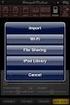 Export to itunes File Sharing Access Edit Mode Tap the pencil button on the bottom toolbar to access Edit Mode. Select a Button or a Folder Select to the button(s) you want to export/ import. A checkmark
ACS CLIENT SOFTWARE USER MANUAL
 ACS CLIENT SOFTWARE USER MANUAL 1 ACS USER GUIDE 1.1 System Requirement Recommended System Requirement OS CPU VGA RAM HDD WindowXP, Vista Pentium 4, 2Ghz 1024*768, 64MB 24bit color graphic card 1GB 20MB
DroboAccess User Manual
 DroboAccess User Manual Release 8.2 The DroboAccess developers June 02, 2016 CONTENTS 1 DroboAccess 8.2 User Manual Introduction 1 2 Configuration of DroboAccess 8.2 3 2.1 Users, passwords and share management................................
Chapter 1 Kingsoft Office for Android: A Close Look. Compatible with Microsoft Office: With Kingsoft Office for Android, users are allowed to create,
 Introduction From the globally respected software company Kingsoft, comes an extraordinary new Office software for your Android mobile or tablet device. Utilizing decades of leading innovation, Kingsoft
Outlook Web Access End User Guide
 Outlook Web Access End User Guide Page 0 Outlook Web Access is an online, limited version of an Outlook client which can be used to access an exchange account from a web browser, without having an Outlook
DocuSign for Salesforce User Guide v6.2 Published: November 16, 2015
 DocuSign for Salesforce User Guide v6.2 Published: November 16, 2015 Copyright Copyright 2003-2015 DocuSign, Inc. All rights reserved. For information about DocuSign trademarks, copyrights and patents
How To Build An Intranet In Sensesnet.Com
 Sense/Net 6 Evaluation Guide How to build a simple list-based Intranet? Contents 1 Basic principles... 4 1.1 Workspaces... 4 1.2 Lists... 4 1.3 Check-out/Check-in... 5 1.4 Version control... 5 1.5 Simple
Backups User Guide. for Webroot SecureAnywhere Essentials Webroot SecureAnywhere Complete
 Backups User Guide for Webroot SecureAnywhere Essentials Webroot SecureAnywhere Complete Webroot Software, Inc. 385 Interlocken Crescent Suite 800 Broomfield, CO 80021 www.webroot.com Version 8.0.1 Webroot
SJRWMD Cloud-Based Email Quick-Start Guide
 SJRWMD Cloud-Based Email Quick-Start Guide Your email account is now in the Microsoft cloud, also known as Office 365. This change from onpremise email provisioning to the cloud allows the agency to provide
Store & Share Quick Start
 Store & Share Quick Start What is Store & Share? Store & Share is a service that allows you to upload all of your content (documents, music, video, executable files) into a centralized cloud storage. You
Core Essentials. Outlook 2010. Module 1. Diocese of St. Petersburg Office of Training [email protected]
 Core Essentials Outlook 2010 Module 1 Diocese of St. Petersburg Office of Training [email protected] TABLE OF CONTENTS Topic One: Getting Started... 1 Workshop Objectives... 2 Topic Two: Opening and Closing
Google Drive: Access and organize your files
 Google Drive: Access and organize your files Use Google Drive to store and access your files, folders, and Google Docs, Sheets, and Slides anywhere. Change a file on the web, your computer, tablet, or
How To Use Senior Systems Cloud Services
 Senior Systems Cloud Services In this guide... Senior Systems Cloud Services 1 Cloud Services User Guide 2 Working In Your Cloud Environment 3 Cloud Profile Management Tool 6 How To Save Files 8 How To
This document is provided "as-is". Information and views expressed in this document, including URLs and other Internet Web site references, may
 This document is provided "as-is". Information and views expressed in this document, including URLs and other Internet Web site references, may change without notice. Some examples depicted herein are
Setting Up groov Mobile Apps. Introduction. Setting Up groov Mobile Apps. Using the ios Mobile App
 Introduction Using the ios Mobile App Opto 22 s free groov View apps for ios and Android allow you to use View for one or more groovs on your smartphone or tablet in full-screen mode without the address
Microsoft Outlook 2010
 Microsoft Outlook 2010 Prepared by Computing Services at the Eastman School of Music July 2010 Contents Microsoft Office Interface... 4 File Ribbon Tab... 5 Microsoft Office Quick Access Toolbar... 6 Appearance