
11/16/92 AT&T. AT&T Door Phone Controller. Installation and Operation Manual
|
|
|
- Natalie Chambers
- 10 years ago
- Views:
Transcription
1 11/16/92 AT&T AT&T Door Phone Controller Installation and Operation Manual

2 1992, AT&T All Rights Reserved Printed in U.S.A. CIC# II Issue 3, November 1992 NOTICE Every effort was made to ensure that the information in this manual was complete and accurate at the time of printing. However, information is subject to change. COMPATIBILITY The AT&T Door Phone Controller is recommended for use with any AT&T business telephone system. It is also intended to be used with the AT&T Door Phone Speaker. WARRANTY INFORMATION AT&T provides a limited warranty to this product. Refer to Warranty Information in Appendix F. Partner, Spirit, Merlin, System, Dimension, Horizon, Touch-Tone and Comkey are registered trademarks of AT&T. ii VG
3 AT&T Door Phone Controller Compatibility Chart Dedicated Dedicated Port Trunk Station Station Mode Trunk Trunk Saver Saver Access Access Auto Loop Ground Loop Loop Aux. Alert Ringdown Start Start Start Start (Analog) (Analog) System (Section 4) (Section 4) (Section 6) (Section 3/6) (Section 5) (Section 5) see Notes 8,7 see Note 4 DIP Switches Home Use (single line NO NO NO YES NO NO service) PARTNER YES NO YES see Note 11 see Notes11,12 PARTNER YES NO YES PLUS see Note 11 see Notes 11,12 Spirit YES NO YES 308/616, see Note 4 see Notes 4,6 1224/2448 YES see Notes 11,12 YES see Notes 11,12 YES see Notes 4,6 Merlin YES NO YES YES NO 206/410/820 See Notes 4,5 see Notes 4,5 see Notes 4,5 Merlin II YES see Notes 4,5 NO YES see Notes 4,5,9 Merlin YES NO YES Plus see Notes 4,5 see Notes 4,5 Merlin YES NO YES 1030/3070 see Notes 4,5 see Notes 4,5,9 System 25 YES YES see Notes 1,4 see Notes 1,4 YES see Notes 2,7 YES see Notes 4,5,9 YES see Notes 4,5 YES see Notes 4,5,9 NO YES NO YES NO YES YES YES see Notes 2,7 see Note 1 NO YES see Note 13 NO NO YES NO YES YES see Not e 1 System 75 NO NO NO NO NO YES see Note 14 System 85 NO YES see Note 14 see Note 4 Dimension NO YES see Note 14 see Note 4 Horizon YES YES see Note 14 see Note 4 see Note 4 NO NO YES YES NO NO YES YES YES see Notes 4,6,7 Comkey YES NO YES see Note 14 see Note 4 see Note 4 YES see Notes 4,6,7 YES see Note 4 YES NO YES NO

4 Application Notes (for Compatibility Chart) When used in any mode of a System 25, if the user initiates a call to the door and he wishes to enter the Option Selection mode, pressing three pound keys followed by the digit 3 (i.e., # # # 3, not # # 3) must be entered. Actually, the first # does not seem to be recognized at any time during the call. However, it should be noted that only # # 3 is needed to enter the Option Selection mode when the call is initiated from the door button press. When sharing a trunk port on a System 25, that port must be configured as an 805 PBX/Centrex, not an 801 Loop trunk. This is the only way to transmit a hook flash to that port. On the Merlin 1030/3070 tip and ring station application, there is a preset delay such that the Merlin system will disregard DTMF for the first 12 seconds of the connection. In this mode, users have the choice of either changing that time period or waiting for it to time out for each call. In general, the ring-cadence option selection applies only if there is an auxiliary alert device connected. All of the EKTS/PBX s will absorb the ringing signal from the AT&T Door Phone Controller and generate their own ring cadence to the telephone sets. When using the AT&T Door Phone Controller in any configuration with a Merlin System, the pound key must be pressed twice (##) for each pound (#) sent to the unit when dialing from a multi-button set. Port Saver/Trunk Saver operation will not work for Tip/Ring sets. A switch-hook flash is not passed to the trunk port from these sets. A trunk shared with the AT&T Door Phone Controller should not be placed in a trunk pool with other trunks. When the AT&T Door Phone Controller shares a C.O. trunk, Trunk Saver operation is recommended. iv

5 Application Notes (for Compatibility Chart) continued Tip/Ring telephone sets connected to the Merlin System through a BTMI cannot use Port Saver/ Trunk Saver operation. The BTMI wiii not transmit the required hook-flash signal. System 75 requires a pound (#) to be dialed at the end of every dial string. This is required to send the dialed number to the trunk port. Tip/Ring telephone sets cannot be used in this mode to access the AT&T Door Phone. For PARTNER telephone sets not equipped with a Recall button, FEATURE 03 must be dialed to send a hook-flash signal to the trunk port. In the Ringdown mode, no number should be programmed in the AT&T Door Phone for it to dial when the door button is pressed. The PARTNER Plus system should be programmed to alert the desired stations when the door phone goes off-hook on its station port. The information for this system is based on engineering judgment. v

6 Contents 1 Introduction 1-1 Using This Features Terms You Manual Should Know Installation Procedures 2-1 Important Safety Information General Information Introduction Door Phone Controller Back Panel Connections Prior to Installation AT&T Door Phone Controller Location Installation Connecting Door Speaker, Door Switch to the AT&T Door Phone Button, and Controller Connecting Power Operation and Controls Information Connecting the AT&T Door Phone Controller to Your Telephone Equipment Door Ajar Installation for Home/Residential 3-1 Overview 3-2 DIP Switch Selections 3-2 Installation 3-3 Option Selection 3-5 Operation Basic Door Answer Function 3-7 vii

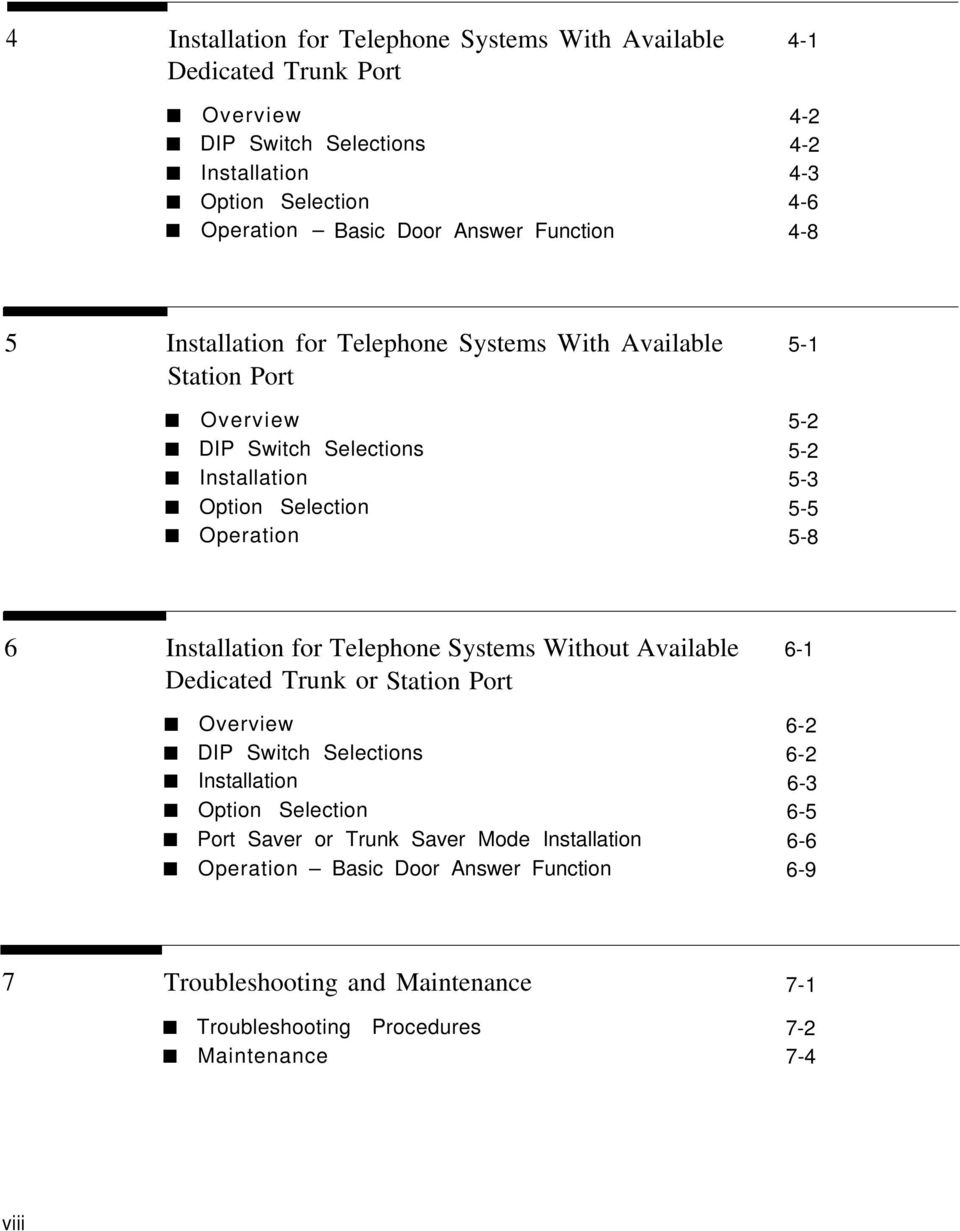
7 4 Installation for Telephone Systems With Available 4-1 Dedicated Trunk Port Overview DIP Switch Selections Installation Option Selection Operation Basic Door Answer Function Installation for Telephone Systems With Available 5-1 Station Port Overview DIP Switch Selections Installation Option Selection Operation Installation for Telephone Systems Without Available 6-1 Dedicated Trunk or Station Port Overview 6-2 DIP Switch Selections 6-2 Installation 6-3 Option Selection 6-5 Port Saver or Trunk Saver Mode Installation 6-6 Operation Basic Door Answer Function Troubleshooting and Maintenance 7-1 Troubleshooting Procedures 7-2 Maintenance 7-4 viii
8 A DIP Switch Settings A-1 B Option Selection Mode Definitions B-1 C Specifications C-1 D Using the AT&T Door Phone Controller With an D-1 Answering Machine E AT&T Auxiliary Alert Option E-1 F FCC Regulations and Warranty F-1 ix

9 Figures 1 Introduction Front View of the AT&T Door Phone Controller 1-4 and Control Panel 2 Installation Procedures Door Phone Controller Back Panel Connections Typical AT&T Door Phone Controller Installation Mounting AT&T Door Phone Controller to Wall Connections for AT&T Door Phone Speaker, Door Button and Door Ajar Devices Connections for Remote Door Open Switch (optional) Connections for Electric Door Strike Plate (optional) Connections for Auxiliary Alert Device (optional) Plug the AT&T Door Phone Controller Power Cord and Transformer to 120 VAC Outlet Configuration of Telephone Equipment Flow Chart Installation-Home/Residential Home/Residential DIP Switch Settings Connecting AT&T Door Phone Controller to 3-4 Standard Telephone Equipment x

10 4 Installation-Dedicated Trunk Port DIP Switch Setting for PBX with Dedicated Trunk 4-3 Port 4-2a. Connecting Door Phone Controller to Standard 4-4 Telephone Equipment 4-2b. Using Modified Modular Cable for Ground Start 4-5 Installations 5 Installation-Dedicated Station Port DIP Switch Configuration for Telephone System 5-3 with Dedicated Station Access, Station Mode 5-2. Connecting the AT&T Door Phone Controller to a 5-4 Telephone System with Dedicated Analog Station Port 6 Installation-No Dedicated Trunk/Station Port DIP Switch Setting for PBX With Shared Trunk Port Connecting The AT&T Door Phone Controller to 6-4 a Telephone System With Shared Trunk Port D Using the Door Phone Controller With An Answering D-1 Machine D-1. Installation Method Used For Answering Only D-2 Telephone Calls D-2. Installation Method Used For Answering Both Door D-2 and Telephone Calls E Appendix-Auxiliary Alert Device Connections E-1 E-1. Connections For Auxiliary Alert Device E-3 xi

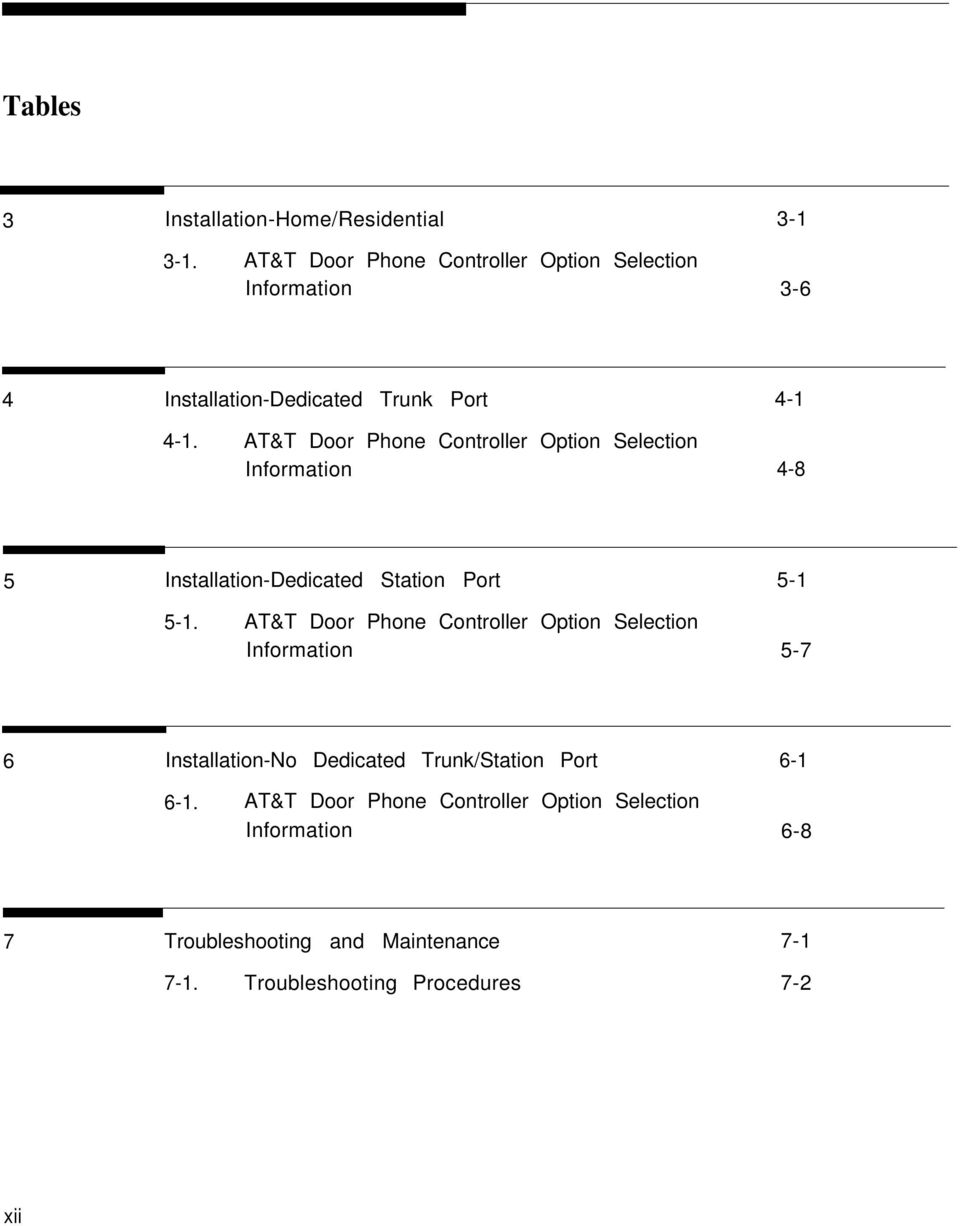
11 Tables 3 Installation-Home/Residential AT&T Door Phone Controller Option Selection Information Installation-Dedicated Trunk Port AT&T Door Phone Controller Option Selection Information Installation-Dedicated Station Port AT&T Door Phone Controller Option Selection Information Installation-No Dedicated Trunk/Station Port AT&T Door Phone Controller Option Selection Information Troubleshooting and Maintenance Troubleshooting Procedures 7-2 xii
12 Introduction 1 Introduction 1-1
13 Using This Manual This manual will help you install, program and operate the AT&T Door Phone Controller. It contains important information on what features are available and how to use them. We urge you to read this manual prior to installing the AT&T Door Phone Controller; this will ensure that you are using the product to its fullest capability. Section 1 (this section) provides basic information on what the AT&T Door Phone Controller is and what are its features. Also included is a GIossary of Terms, a necessity for persons not familiar with telephone equipment operation and installation. Section 2, Installation, provides important installation information. This section has step-by-step procedures for connecting the AT&T Door Phone Controller to such optional equipment as Remote door unlocking devices Door ajar switch Auxiliary alert device Remote open button Section 2 also provides an easy to use flow chart, which directs the installer to the next appropriate section, depending on what type of telephone equipment (residential, PBX, etc.) will be used along with your AT&T Door Phone Controller. Sections 3 through 6 after reading Section 2 and the flow chart at the end of that section, the installer is referred to one of these sections. Depending on which section is referenced, all the necessary programming, switch setting and operating information will also be included. Section 7 provides troubleshooting tips for when installation is complete and the AT&T Door Phone Controller is not operating correctly. Tear-out Reference Card at the end of this manual provides all the necessary option selection information along with complete DIP switch settings and their definitions. 1-2 Introduction

14 The AT&T Door Phone Controller The AT&T Door Phone Controller provides multi-functional control for communications to a dedicated door-speaker unit and a remote door-unlocking device. The AT&T Door Phone Controller (see Figure 1-1) can be used alone, or it can be used along with a PBX (Private Branch Exchange) or communications system to alert personnel within a residence or building that someone is requesting attention at the entrance. Operating the unit is simple: when the push button on the door speaker is pressed, the AT&T Door Phone Controller unit signals a telephone station(s) and can activate an auxiliary alerting device (such as a door bell, chime, or tone generator) within the home or building. Upon hearing the ringing telephone and/or alerting device, answer the phone and have a two-way phone conversation with the person at the door. The person inside the building can also remotely unlock the door, either by entering a numeric code (Door Code) on the telephone s touch-tone keypad, or by pressing a button. Features Control for remote door unlocking Voice communications with door speaker Door ajar detect Interface for door bell, chime, or tone generator Selectable option functions (from touch tone telephone) Introduction 1-3

15 SPEAKER VOLUME TALK BACK VOLUME DIP SWITCH LED Figure 1-1. Front View of the AT&T Door Phone Controller and Control Panel 1-4 Introduction

16 Terms You Should Know AuxiliaryAlert A door speaker s push button can activate a bell/chime within the building. Cadence Telephone Ringing cycle, i.e., 2 second ringing, 4 second no ringing. C.O. line Central Office telephone line carrier into building. EKTS (Electronic Key Telephone System) Small business telephone communications system. Ground Start One method by which a business telephone system (PBX) signals the telephone company that you have gone off-hook. Used in most business applications contact your telephone company to determine if you have Ground or Loop Start. Loop Start One method of signaling the telephone company that your telephone has gone off-hook used for most residential and communication system applications. Contact your telephone company to determine if you have Ground or Loop Start. PBX (Private Branch Exchange) Business telephone system. Ringdown In Station mode, the activation of the door speaker s push button will cause the AT&T Door Phone Controller to dial the number of a predetermined telephone station number (PBX or EKTS must be installed). When the telephone is answered, there is direct two-way communication with the door speaker. Trunk Port PBX connection for Central Office or trunk lines. Station Port PBX connection for station sets. Hook-Flash This causes telephone equipment to go on hook for a duration usually less than a second (not long enough to be considered as calling for the circuit to be released.) Introduction 1-5

17 Installation Procedures 2 Installation Procedures 2-1

18 2-2 Installation Procedures

19 Important Safety Instructions When using your telephone equipment, basic safety precautions should always be followed to reduce the risk of fire, electric shock and injury to persons, including the following: 1. Read and understand all instructions Follow all warnings and instructions marked on the product. Unplug this product from the wall outlet before cleaning. Do not use liquid cleaners or aerosol cleaners. Use a damp cloth for cleaning. Do not use this product near water, for example, near a bath tub, wash bowl, kitchen sink, or laundry tub, in a wet basement, or near a swimming pool. Do not place this product on an unstable cart, stand, or table. The product may fall, causing serious damage to the product. Slots and openings in the cabinet and the back or bottom are provided for ventilation. To avoid overheating, these openings must not be blocked or covered. The openings should never be blocked by placing the product on the bed, sofa, rug, or other similar surface. This product should never be placed near or over a radiator or heat register. This product should not be placed in a built-in installation unless proper ventilation is provided. This product should be operated only from the type of power source indicated on the marking label. If you are not sure of the type of power supply to your home, consult your dealer or local power company. Installation Procedures 2-3

20 8. WARNING: RISK OF ELECTRICAL SHOCK EQUIPMENT MUST BE PROPERLY GROUNDED. Your AT&T equipment requires a properly grounded three-prong power receptacle for safe operation. Have the receptacle checked by a qualified electrician before connecting this equipment. Do not cut or remove the third (ground) prong from the power transformer. Do not use two-prong extension cords or adapters to defeat the safety features of this equipment. If you have a two-prong receptacle, it must be replaced with a three-prong receptacle, installed by a qualified electrician. 9. Do not allow anything to rest on the power cord. Do not locate this product where the cord will be abused by persons walking on it. 10. Do not overload wall outlets and extension cords as this can result in the risk of fire or electric shock. 11. Never push objects of any kind into this product through cabinet slots as they may touch dangerous voltage points or short out parts that could result in a risk of fire or electric shock. Never spill liquid of any kind on the product. 12. To reduce the risk of electric shock, do not disassemble this product, but take it to a qualified serviceman when some service or repair work is required. Opening or removing covers may expose you to dangerous voltages or other risks. Incorrect reassembly can cause electric shock when the appliance is subsequently used. 13. Unplug this product from the wall outlet and refer servicing to qualified service personnel under the following conditions: A. When the power supply cord or plug is damaged or frayed. B. If liquid has been spilled into the product. 2-4 Installation Procedures
21 C. If the product has been exposed to rain or water. D. If the product does not operate normally by following the operating instructions. Adjust only those controls that are covered by the operating instructions, because improper adjustment of other controls may result in damage and will often require extensive work by a qualified technician to restore the product to normal operation. E. If the product has been dropped or the cabinet has been damaged. F. If the product exhibits a distinct change in performance Avoid using a telephone (other than a cordless type) during an electrical storm. There may be a remote risk of electric shock from lightning. Do not use the telephone to report a gas leak in the vicinity of the leak. SAVE THESE INSTRUCTIONS. General Information Please adhere to the following precautions: 1. Never install telephone wiring during a lightning storm. 2. Never install telephone jacks in wet locations unless the jack is specifically designed for wet locations. 3. Never touch uninsulated telephone wires or terminals unless the telephone line has been disconnected at the network interface. 4. Use caution when installing or modifying telephone lines. Installation Procedures 2-5
22 Introduction Contact a licensed electrician for installation of optional devices such as an electric strike plate and auxiliary alert device which may require electrical wiring. For the electric strikeplate, a low voltage device (24 volts or less) is recommended. This section provides instructions for installing your AT&T Door Phone Controller. Provided are installation instructions for an optional electric door strike plate, door ajar contacts, and an auxiliary alert device. These optional components must be installed prior to the installation of your AT&T Door Phone Controller. (Refer to the respective installation manuals for specific mounting and wiring instructions.) The flow-chart provided in Figure 2-9, will help direct you to the next appropriate section for attaching the AT&T Door Phone Controller to the telephone equipment in your home or business (also see Compatibility Chart on page iii). Inside the AT&T Door Phone Controller shipping carton you will find: The AT&T Door Phone Controller unit Mounting template (along the edge of the Tear-out Reference Card) Power cord and attached transformer Two mounting screws Two 6-conductor modular-to-modular 6 foot long cables Terminal strip connector Instruction Manual (this manual) Door Phone Controller Back Panel Connections The 14-contact terminal strip The AT&T Door Phone Controller back panel (see Figure 2-1) can be unplugged from the back has two RJ11 modular connectors and one 14-contact hard panel. wire terminal strip. These connections provide: Auxiliary Alert Contacts (2) output to optional door bell/chime device. Door Latch Contacts (3) output to an electric door strike. Remote Open Button Contacts (2) input from a remote (inside) door open button. 2-6 Installation Procedures
23 Door Ajar Switch Contacts (2) input from door ajar device. Door Bell Button Contacts (2) input from door bell/chime button. Shield Contact (1) used for shielding audio speaker wires. Speaker Contacts (2) provides audio connection to door speaker(s). Host system RJ11 (J1 Host) modular jack interface This jack is provided for connection to your own telephone set, or business telephone system (PBX or EKTS) (the host system). Central Office RJ11 (J2) modular jack interface This jack is provided for connection to a C.O. telephone line (from telephone company s central office). WARNING: RISK OF ELECTRICAL SHOCK EQUIPMENT MUST BE PROPERLY GROUNDED. Your AT&T equipment requires a properly grounded three-prong power receptacle for safe operation. Have the receptacle checked by a qualified electrician before connecting this equipment. Do not cut or remove the third (ground) prong from the power transformer. Do not use two-prong extension cords or adapters to defeat the safety features of this equipment. If you have a two-prong receptacle, it must be replaced with a three-prong receptacle, installed by a qualified electrician. Installation Procedures 2-7
24 AT&T DOOR PHONE CONTROLLER BACK PANEL RJ11 CONNECTORS 14-POSITION TERMINAL STRIP (REMOVABLE) Figure 2-1. Door Phone Controller Back Panel Connections Prior To Installation NOTE: Consider 1. Never install the following items before installation: telephone wiring during a lightning storm Never install telephone jacks in wet locations unless the jack is specifically designed for wet locations. Never touch uninsulated telephone wires or terminals unless the telephone line has been disconnected at the network interface. 4. Use caution when installing or modifying telephone lines. 2-8 Installation Procedures
25 AT&T Door Phone Controller Location You need to determine exactly where you want the unit installed and how you want it configured. Another consideration is what components will be used with the AT&T Door Phone Controller. Here are some questions that must be answered prior to installation: Do you currently have a door speaker installed? Do you have a business telephone system (PBX or EKTS)? Do you have a remote door unlock mechanism (electric door strike) installed? Do you have an auxiliary alert system (door chime) currently installed? Do you have a door ajar switch installed? The AT&T Door Phone Controller is designed to control the functions of the components mentioned above, and how you answer these questions will determine how the AT&T Door Phone Controller will be installed, optioned, and operated. When selecting options for your AT&T Door Phone Controller, e.g., to change the door-unlock security code, the AT&T Door Phone Controller unit must be DIP switch selected to Option Selection mode. For this reason you may want to install the AT&T Door Phone Controller unit in a secure area which has access only by authorized personnel. If you are installing the unit in a business environment (currently have PBX/EKTS), you may wish to install the unit along with the telephone equipment. (See Figure 2-2 for a typical installation diagram.) Installation Procedures 2-9
26 22-24 GAUGE WIRE AUX. ALERT DEVICE AT&T DOOR PHONE CONTROLLER (Secure Location) TELEPHONE EXTENSION GAUGE WIRE DOOR AJAR SWITCH MODULAR PHONE CABLE EXISTING DOOR SPEAKER PHONE W/ PUSH BUTTON LINES SHIELDED TWISTED PAIR SPEAKER WIRES TELEPHONE EQUIP GAUGE WIRE ATTENDENT POSITION ELECTRIC DOOR STRIKE PLATE DEVICE Figure 2-2. Typical AT&T Door Phone Controller Installation 2-10 Installation Procedures
27 Installation Mounting Instructions The AT&T Door Phone Controller can be placed on a flat table or shelf, or mounted to a wall. Wall Mount Instructions The AT&T Door Phone Controller is shipped with a keyhole mounting template and mounting screws. Follow the steps below to mount the Door Phone Controller to a wall. When moving AT&T Door Phone Controller or adding/ removing cables from back panel, unplug transformer from 120V outlet. Also unplug the terminal strip and modular phone connectors on the back panel. 1. Place template (tear-out page at end of manual) over desired wall mounting location and mark screw positions. 2. Use a Philips screwdriver to screw each of the two screws into the marked screw positions. IMPORTANT: Do not drive screws all the way into wall; adequate space (5/16'') must be left to position the AT&T Door Phone Controller bottom panel keyholes over screw heads. 3. Mount the AT&T Door Phone Controller over the protruding screw heads and seat unit firmly to the wall. See Figure 2-3. WARNING: RISK OF ELECTRICAL SHOCK EQUIPMENT MUST BE PROPERLY GROUNDED. Your AT&T equipment requires a properly grounded three-prong power receptacle for safe operation. Have the receptacle checked by a qualified electrician before connecting this equipment. Do not cut or remove the third (ground) prong from the power transformer. Do not use two-prong extension cords or adapters to defeat the safety features of this equipment. If you have a two-prong receptacle, it must be replaced with a three-prong receptacle, installed by a qualified electrician. Installation Procedures 2-11
28 4. When the AT&T Door Phone Controller is securely mounted to the wall, then all cables and wires can be connected to the terminal strip and then plugged into the back panel. DOOR PHONE CONTROLLER BACK PANEL KEYHOLE MOUNTING SLOTS 5/16'' TYPICAL 8.1'' MOUNTING SCREWS Figure 2-3. Mounting AT&T Door Phone Controller to Wall 2-12 Installation Procedures
29 Connecting Door Speaker, Door Button, and Door Ajar Switch to the AT&T Door Phone Controller Use the diagram in Figure 2-4 and follow the steps below: Polarity of wires is not important. Total wire length should not exceed 1500 feet. Door Ajar switch should be closed when door is closed. If a door ajar switch will not be used, you must leave a jumper installed across the two Door Ajar Switch terminals Run shielded twisted pair wires (22 24AWG) from the Speaker terminals on the rear panel of the AT&T Door Phone Controller (13 & 14) to the installed Door Speaker (1 & 2). Connect the shield to the Shield terminal on the controller (12). Run 2 wires (22 24AWG) from the Door Bell Button terminals (10 & 11) to the door bell push button on the installed door speaker/push button assembly (3 & 4). Run 2 wires (22-24AWG) from the optional Door Ajar Switch terminals (8 & 9) to the installed door ajar switch. Remote Door Open Switch (optional) A remote door open switch (normally-open contact) provides additional means for opening an electric door opening device. To connect wires for a remote door open switch use the diagram in Figure 2-5 and follow the steps below. 1. Install the remote door open button in desired location using manufacturer s installation instructions. 2. Run 2 wires (22 24AWG) from the installed (normallyopen contact) remote door open switch to the Remote Door Open terminals (6 & 7) on the AT&T Door Phone Controller back panel (polarity of wires is not important). Installation Procedures 2-13
30 AT&T DOOR PHONE CONTROLLER BACK PANEL SHIELDED, TWISTED PAIR, 24 AWG. AT&T DOOR SPEAKER AND DOOR BELL BUTTON APPROX FT. MAXIMUM LENGTH JUMPER THE TWO DOOR AJAR SWITCH TERMINALS IF DOOR AJAR DEVICE IS NOT USED DOOR AJAR SWITCH NOTE: MAGNETIC SWITCH IS CLOSED WHEN DOOR IS CLOSED Figure 2-4. Connections for AT&T Door Phone Speaker, Door Button and Door Ajar Devices 2-14 Installation Procedures
31 AT&T DOOR PHONE CONTROLLER BACK PANEL MOMENTARY PUSH BUTTON NORMALLY OPEN Figure 2-5. Connections for Remote Door Open Switch (optional) Electric Door Strike Plate Device (optional) If your Electric Door Strike Plate has more than a 1 Amp current draw, then an external relay arrangement is required. An electric door strike plate is used to automatically open a closed or locked door. A low-voltage device (24V or less) is recommended. The AT&T Door Phone Controller can provide an open or closed contact when requested to interface to and to operate your electric door strike plate device. Once an electric door strike plate has been installed, it can be controlled by the AT&T Door Phone Controller unit, either from entering the appropriate digits from a touch tone phone or from the Remote Open switch (push button). Follow the steps below and refer to Figure 2-6 for wiring the door strike plate device to the AT&T Door Phone Controller. Installation Procedures 2-15
32 Do not include strike plate wires within the same cable as others wires connecting to the AT&T Door Phone Controller Have the electric door strike piate device installed as instructed by the manufacturers installation manual. Check electric installation codes and local ordinances for exact wiring requirements in your area. Normally Open (N.O.), Normally Closed (N.C.), and Common (C.) relay contacts are accessible at the Door Phone Controller terminal block. Wire these to the door strike plate device and its power source as instructed by your manufacturer s installation manual. If no instructions exist, wire the above relay contacts to the existing door open button (see #3 below). AT&T DOOR PHONE CONTROLLER BACK PANEL ELECTRIC DOOR STRIKE PLATE DEVICE WITH POWER SOURCE Figure 2-6. Connections for Electric Door Strike Plate (optional) 2-16 Installation Procedures
33 3. Verify all connections when connecting the door strike contacts on the AT&T Door Phone Controller to existing door open buttons. Make sure of the following: NOTE: One or the other will apply, not both. The NO and C contacts are connected in parallel to a normally-open button. The NC and C contacts are connected in series to a normally-closed button. Auxiliary Alert Device (optional) If the Auxiliary Alert Device has more than a 1 Amp draw, then an external relay arrangement will be required. 2. The Normally Open (N.O.) and Common (C.) relay con- tact, located on the Door Phone Controller back panel (see Figure 2-7), are accessible at the Door Phone Controller terminal block. Wire these to the auxiliary alert device and it s power source as instructed by the manufacturer s installation manual. See Appendix E for specific auxiliary alert device installation information. In most configurations, the Door Phone Controller will cause a telephone to ring when the doorbell button is pushed. An auxiliary alert device (chime, bell, horn, tone generator, etc.) can also be used as an alert to notify the person inside the building that the doorbell button has been pushed (Auxiliary Alert Mode). A low-voltage device (24V or less) is recommended. Follow the steps below (refer to Figure 2-7) for wiring auxiliary alert device (door bell/chime) to the Door Phone Controller: 1. Install the auxiliary alert device (door bell/chime) as instructed by the manufacturer s installation manual. Connecting Power When the Door Phone Controller has been mounted to a wall or placed on a shelf and all cables and wires have been connected to the back panel, plug the transformer into a 120 VAC outlet. See Figure 2-8. Installation Procedures 2-17
34 AT&T DOOR PHONE CONTROLLER BACK PANEL DOOR BELL/CHIME (AUXILIARY ALERT DEVICE) WITH POWER SOURCE Figure 2-7. Connections for Auxiliary Alert Device (optional) 2-18 Installation Procedures
35 Figure 2-8. Plug the AT&T Door Phone Controller Power Cord and Transformer to 120 VAC Outlet Installation Procedures 2-19
36 Operation and Controls Information Door Ajar Function Default Condition After the door has been opened by the four digit code or the remote push button, the Door Phone Controller will wait for the Door Ajar Call-back time-out to elapse. At this point if the door is still open, the Door Phone Controller will call back the phone/chime for the duration of the ring/chime duration and then repeat after the Door Ajar Call-back time-out has elapsed again. If the phone is answered during that time, a Door Ajar Tone will be heard. The Door Ajar Tone will cease when any DTMF Digit is pressed, or the user speaks or hangs-up. Alternate Condition If the door is ever opened and the Door Ajar Call-back time-out has elapsed, the Door Phone Controller will call back the phone/chime for the duration of the ring/chime duration and then repeat after the Door Ajar Call-back time-out has elapsed again. If the phone is answered during that time, a Door Ajar Tone will be heard. The Door Ajar Tone will cease when any DTMF digit is pressed, or the user speaks or hangs-up. Speaker Volume Control You can adjust the volume level of the door speaker by adjusting the Speaker Volume Control on the Door Phone Controller front panel (see Figure 1-1). Talk Back Volume Control You can adjust the volume level from the door speaker to an inside telephone extension by adjusting the Talk Back Volume Control (see Figure 1-1) Installation Procedures
37 LED When the AT&T Door Phone Controller is powered on and functioning normally, the LED (Figure 1-1) should continually blink 2.5 times a second. If there is a malfunction the LED will blink faster than 4 times a second (see Troubleshooting section) or go out completely. If the LED is not lit, check power to unit first before calling for repair. Installation Procedures 2-21
38 Connecting the AT&T Door Phone Controller to Your Telephone Equipment Use the flow chart in Figure 2-9 to assist in configuring the AT&T Door Phone Controller to your residential or business-type telephone equipment. Answer each appropriate question in the flow chart and refer to the section specified within this manual. Then proceed with the necessary installation and option selection requirements. NOTE: If you are installing the AT&T Door Phone Controller into a typical Home/Residential environment (no PBX) refer to Section 3 now. NO REFER TO SECTION 3 RESIDENTIAL INSTALLATION Do you have a Business Telephone System? YES YES Spare Trunk Port Available*? YES REFER TO SECTION 4 PBX WITH DEDICATED TRUNK PORT REFER TO SECTION 5 PBX WITH STATION PORT NO Spare Station Port Available*? *You must refer to your telephone system owner manual for description of this port. NO REFER TO SECTION 6 PBX WITHOUT DEDICATED TRUNK OR STATION PORT Figure 2-9. Configuration of Telephone Equipment Flow Chart 2-22 Installation Procedures
39 Installation for Home/Residential (Trunk Saver Mode - Loop Start) 3 Installation Home/Residential 3-1
40 Overview You may also use the AT&T Door Phone Controller with a dedicated phone. This section provides installation and operation information for applications such as residences or small businesses which do not have a telephone system. When your AT&T Door Phone Controller is installed with standard telephone equipment (no PBX), the unit may operate in Shared Line Mode which permits a single telephone set to be shared between the AT&T Door Phone Controller and an outside line (to a Central Office). Thus, the standard telephone equipment can be used for normal call operations as well as servicing the door. DIP Switch Selections To customize the AT&T Door Phone Controller to your specific installation and option requirements, you must properly set the 8 position DIP switch located on the AT&T Door Phone Controller front panel (see Figure 1-1). CAUTION: Do not connect to the modular jacks on the AT&T Door Phone Controller until after the DIP switches have been properly set. Complete information about the DIP switch settings can be found in Appendix A. When using the Door Phone Controller with a small business or residential telephone equipment (no PBX installed), the DIP switches must be set as shown in Figure 3-1 (all OFF). 3-2 Installation Home/Residential
41 LEGEND ON Off On NOTE: The Forced Disconnect Timeout option does not apply when DIP switch position 8 is ON. I I ON for Option Selection Mode Only Figure 3-1. Home/Residential DIP Switch Settings Installation When moving the Door Phone Connect the Door Phone Controller using the information in Controller or adding or removing Section 2. Refer to Figure 3-2. cables from the back panel, unplug the transformer from 120V outlet. Also unplug the terminal strip and modular phone connectors on the back panel. Installation Home/Residential 3-3
42 AT&T DOOR PHONE CONTROLLER BACK PANEL TO DOOR SPEAKER TO DOORBELL BUTTON TO DOOR AJAR SWITCH TO REMOTE DOOR OPEN SWITCH TO DOOR STRIKE PLATE DEVICE OPTIONAL TO C.O. (Outside Line) TO AUXILIARY ALERT DEVICE (DOOR BELL/CHIME) TO TELEPHONES Figure 3-2. Connecting AT&T Door Phone Controller to Standard Telephone Equipment 3-4 Installation Home/Residential
43 Option Selection Refer to Appendix B for a detailed explanation of each of these options. The final step of the installation procedure is selecting options for your AT&T Door Phone Controller. The selection of these options must be done while in the Option Selection Mode. This mode lets you control such things as: Delay Before Door Ajar Call-Back Ring/Chime Cadence Ring/Chime Duration Door Unlock Code Door Unlock Duration Enable Door Code Door Ajar Mode Forced Disconnect Time-Out Reset Options to Factory Defaults Follow the steps below to select options for the Door Phone Controller. 1. Select Option Selection Mode by setting position 8 of the Door Phone Controller DIP switch to the ON position (see Figure 1-1). Any or all options may be reselected in any order. 2. Once the DIP switch has been set, you must make connection to the door speaker by hook-flashing the phone (within 5 seconds) and entering ##3 on the telephone keypad (option selection mode is active as soon as you hear a distinctive dial tone). 3. Use Table 3-1 to make each option selection. Installation Home/Residential 3-5
44 Table 3-1. AT&T Door Phone Controller Option Selection Information Options Mode Option/ Listen Listen Verify Press Press For Default Delay Before To Select Option 00 Single 000 to 255 for 0 to 255 Double 30 sec. Door Ajar Beep seconds of delay after strike Beep Call-back To Verify 01 plate release stops until AT&T Door Phone Controller calls back to indicate that door is ajar Ring/Chime To Select Option 10 Single 24 (for 2 sec. on 4 sec. off Double 2 sec./ Cadence Beep cadence) or Beep 4 sec. To Verify (for 1 sec. on 5 sec. off cadence) Ring/Chime To Select Option 20 Single 00 to 99 (0 to 99 second(s) Double 30 sec. Duration Beep ring/chime) Beep To Verify 21 Door Unlock To Select Option 30 Single 4 digits (first digit must be Double 6736 Code Beep 0,3,4,5,6,7 or 8 Beep OPEN To Verify 31 remaining digits can be set from 0 to 9) Door Unlock To Select Option 40 Single 00 to 99 (door lock active Double 4 sec. Duration Beep time in sec.) Beep To Verify 41 Enable Door To Select Option 50 Single 1 Enable door code Double 1 Code Beep 0 Disable door code Beep (Enabled) To Verify 51 Door Ajar To Select Option 50 Single 2 For callback after strike Double 2 Mode Beep plate release only Beep To Verify 51 3 For callback anytime door is opened Forced To Select Option 60 Single 010 to 255 (unit disconnects Double 120 sec. Disconnect Beep in 10 to 255 sec.) Beep Time-Out To Verify 61 Reset Options To Select Option 70 Single ## (to restore factory default Double N/A to Factory Beep conditions) Beep Defaults To Verify 71 NOTE: The Door Ajar Delay (Option Selection) will begin when the call to the door speaker is disconnected Installation Home/Residential
45 The Forced Disconnect Time-out option does not apply when setting options (unless 2 minutes elapse without a Touch-Tone selection) 4. To exit option selection mode, press ##3 on the telephone keypad (you will hear 2 beeps). Hang up the phone. 5. Set position 8 of the AT&T Door switch back to the OFF position. Phone Controller DIP Operation Basic Door Answer Function Visitor Presses Door Speaker Button When a visitor presses the door speaker push button, the AT&T Door Phone Controller will signal the telephone equipment inside your home or building to ring, and activate a door-bell/chime device (optional). Any additional presses on the door speaker push button will be ignored until the option selected ring/chime duration has expired (with the exception that a confirmation tone will still be sent to the speaker when the door button is pressed). Answering a Call from the Door Speaker The person inside the building can simply answer the ringing phone and establish two-way communications with the door speaker. To open the door, the person inside the building either enters the Door Code on the telephone s keypad or presses the customer provided door-unlock push button. Either of these actions will activate the customer provided electric door strike plate device. Installation Home/Residential 3-7
46 As an alternative response when the telephone or door bell/chime is heard, the person inside the building can press the door-unlock push button, which will stop the ringing and will open the door. This allows the door to be unlatched without the use of a phone. Calling the Door Speaker from Inside the Building To initiate a call to the door, the person within the building simply takes the telephone off-hook and hook-flashes the telephone within the first 4 seconds. At this point, there will be direct two-way communication from within the building to the door speaker. Telephone Line In Use When Visitor Presses Door Speaker Button Once the push button is pressed, you can Hook Flash to the door speaker and then back to the original call only once, unless the push button is pressed again. If you forget to hook-flash back to the original call, the AT&T Door Phone Controller will call you back. If a visitor presses the door speaker button while an existing call is already taking place on the C.O. line, the AT&T Door Phone Controller will generate a door alert signal to indicate a visitor needs attention at the entrance. The person inside the building can hook-flash the phone and be in direct two-way communication to the door speaker. Then normal AT&T Door Phone Controller functions can take place. When door phone functions have been completed, i.e., door has been remotely opened, hook-flashing the phone again within the forced disconnect timeout (or pressing 9) will return the line back to the original call. This feature operates much like a call-waiting function. 3-8 Installation Home/Residential
47 Telephone Line In Use With Door When Incoming Call Arrives If there is a call in progress between the door speaker and a person inside the building and a C.O. call comes in, the person inside the building (not the door speaker) will hear a call waiting tone. The person inside the building can hook-flash the phone (or dial 9) and communicate with the incoming caller. When the call is complete, the person inside the building hangs up the phone or to speak with the person at the door speaker again, the person inside the building must hook-flash the phone (within 4 seconds after picking up the receiver). Installation Home/Residential 3-9
48 Installation for Telephone System With Available Dedicated Trunk Port 4 Installation - Dedicated Trunk Port 4-1
49 Overview This section provides installation and operation information for installations with a telephone system that has an available Dedicated Trunk port. DIP Switch Selections Complete information about the DIP switch settings can be found in Appendix A. To customize the AT&T Door Phone Controller to your specific installation and option requirements, you must properly set the 8-position DIP switch located on the AT&T Door Phone Controller front Panel (see Figure 4-1). CAUTION: Do not connect to the modular jacks on the AT&T Door Phone Controller until after the DIP switches have been properly set. Use the Flow Chart in Figure When using the AT&T Door Phone Controller with a telephone 4-1 to properly set the DIP system which has an available dedicated trunk, set the DIP switch. switch as shown in Figure 4-1. Prior to setting this DIP switch, you must know if the dedicated trunk is Loop Start or Ground Start; this information can be obtained from your local telephone company. 4-2 Installation - Dedicated Trunk Port
50 LEGEND LOOP START ON The C.O. (Trunk Saver Mode) Off On Immediately after cut-thru (Dialing Trunk) to AT&T Door Phone Controller, what do you want to be connected to...? ON for Option Selection Mode Only... The DOOR (Port Saver Mode) LOOP START ON Figure 4-1. DIP Switch Setting for PBX with Dedicated Trunk Port Installation When moving the AT&T Door Phone Controller or adding or removing cables from the back panel, unplug transformer from 120V outlet. Also unplug the terminal strip and modular cords. Complete information regarding each DIP switch position can be found in Appendix A. To customize the AT&T Door Phone Controller use the information supplied in Section 2 and the diagram in Figure 4-2a. For ground start installations, also see Figure 4-2b. phone connectors on the back panel. Install the AT&T Door Phone Controller using the information supplied in Section 2 and the diagram in Figure 4-2a. For ground start installations, also see Figure 4-2b. Installation - Dedicated Trunk Port 4-3
51 AT&T DOOR PHONE CONTROLLER BACK PANEL TERMINAL BLOCK HARD WIRE CONNECTOR NOT USED TO DOOR SPEAKER TO DOOR BELL BUTTON TO DOOR AJAR SWITCH TO REMOTE DOOR OPEN SWITCH TO DOOR STRIKE PLATE DEVICE OPTIONAL TO AUXILIARY ALERT DEVICE (DOOR BELL/CHIME) TELEPHONE SYSTEM TRUNK PORT STATION PORT NOTE: For Ground Start installations see Figure 4-2b. TO C.O. TRUNK PORT TO C.O. TRUNK PORT STATION PORT Figure 4-2a. Connecting Door Phone Controller to Standard Telephone Equipment 4-4 Installation - Dedicated Trunk Port
52 TO AT&T DOOR PHONE CONTROLLER J1 CONNECTORS TO SHIELD TERMINAL (12) ON AT&T DOOR PHO NE CONTROLLER TELEPHONE SYSTEM GROUND TERMINAL TRUNK PORT STATION PORT TO C.O. TRUNK PORT TRUNK PORT STATION PORT NOTE: For Ground Start installations: Connect the green wire to Tip and the red wire to Ring. TELEPHONE SYSTEM Figure 4-2b. Ground Start Installations Installation - Dedicated Trunk Port 4-5
53 Option Selection Refer to Appendix B for a detailed explanation of each of these options. The final step of the installation procedure is selecting options for your AT&T Door Phone Controller. The selection of these options must be done while in the Option Selection Mode. This mode lets you control such things as: Delay Before Door Ajar Call-Back Ring/Chime Cadence Ring/Chime Duration Door Unlock Code Door Unlock Duration Enable Door Code Door Ajar Mode Forced Disconnect Time-Out Reset Options to Factory Defaults 4-6 Installation - Dedicated Trunk Port
54 Follow the steps below to select options for your AT&T Door Phone Controller. CAUTION: Never connect an AT&T DOOR PHONE CONTROLLER with the DIP Switches optioned for TRUNK access to a STATION LINE! Doing so may cause damage to the STATION LINE and/or the AT&T DOOR PHONE CONTROLLER! 1. Any or all options may be 3. reselected in any order, The Forced Disconnect 4. Time-out option does not apply when setting options (unless 2 minutes elapse without a Touch-Tone selection) Select Option Selection Mode by setting position 8 of the AT&T Door Phone Controller DIP switch to the ON position (see Figure 1-1). Once the DIP switch has been set, you must make connection to the door speaker by accessing the trunk connected to the AT&T Door Phone Controller. At this point you must enter ##3 on the telephone keypad (option selection mode is active as soon as you hear a distinctive dial tone). Use Table 4-1 to make each option selection. To exit option selection mode, press ##3 on the telephone keypad, you will hear 2 beeps. Hang up the phone. Set position 8 of the AT&T switch (Figure 1-1) back to Door Phone Controller DIP the OFF position. Installation - Dedicated Trunk Port 4-7
55 Operation Basic Door Answer Function Table 4-1. AT&T Door Phone Controller Option Selection Information Options Mode Option/ Listen Listen Verify Press For Press For Default Delay Before To Select Option 00 Single 000 to 255 for 0 to 255 Double 30 sec. Door Ajar Beep seconds of delay after strike Beep Call-back To Verify 01 plate release stops until AT&T Door Phone Controller calls back to indicate that door is ajar Ring/Chime To Select Option 10 Single 24 (for 2 sec. on 4 sec. off Double 2 sec./ Cadence Beep cadence) or Beep 4 sec. To Verify (for 1 sec. on 5 sec. off cadence) Ring/Chime To Select Option 20 Single 00 to 99 (0 to 99 second(s) Double 30 sec. Duration Beep ring/chime) Beep To Verify 21 Door Unlock To Select Option 30 Single 4 digits (first digit must be Double 6736 Code Beep 0,3,4,5,6,7 or 8 Beep OPEN To Verify 31 remaining digits can be set from 0 to 9) Door Unlock To Select Option 40 Single 00 to 99 (door lock active Double 4 sec. Duration Beep time in sec.) Beep To Verify 41 Enable Door To Select Option 50 Single 1 Enable door code Double 1 Code Beep 0 Disable door code Beep (Enabled) To Verify 51 Door Ajar To Select Option 50 Single 2 For callback after strike Double 2 Mode Beep plate release only Beep To Verify 51 3 For callback anytime door is opened Forced To Select Option 60 Single 010 to 255 (unit disconnects Double 120 sec. Disconnect Beep in 10 to 255 sec.) Beep Time-Out To Verify 61 Reset Options To Select Option 70 Single ## (to restore factory default Double N/A to Factory Beep conditions) Beep Defaults To Verify 71 NOTE: The Door Ajar Delay (Option Selection) will begin when the call to the door speaker is disconnected. 4-8 Installation - Dedicated Trunk Port
56 Visitor Presses Door Speaker Button When a visitor presses the door speaker push button, the AT&T Door Phone Controller will signal the telephone equipment inside your building to ring and activate a door-bell/chime (optional). Any additional presses on the door speaker push button will be ignored (with the exception that a confirmation tone will still be sent to the speaker when the door button is pressed). Answering a Call From the Door Speaker When a person inside the building hears the telephone ring and/or the door bell/chime sound, he can simply respond by answering the ringing phone. At this point, the AT&T Door Phone Controller will establish two-way communication with the door speaker. To open the door, the person inside the building either enters the Door Code on the telephone s keypad or presses the door-unlock push button. Either of these actions will activate the customer provided electric door strike plate device. As an alternative response to hearing the telephone or door bell/chime, the person inside the building can press the door-unlock push button which will stop the ringing and will open the door. This allows the door to be unlatched without the use of a phone. Calling the Door Speaker To initiate a call to the Door Speaker, the person inside the building simply takes the telephone off-hook and accesses the trunk connected to the AT&T Door Phone Controller. Installation - Dedicated Trunk Port 4-9
57 Installation for PBX Equipment With Available Station Port 5 Installation - Dedicated Station Port 5-1
58 Overview This section provides installation and operation information for installations which use on-premise telephone system that has an available Dedicated Analog Station Port. DIP Switch Selections Complete information about the DIP switch settings can be found in Appendix A. To customize the AT&T Door Phone Controller to your specific installation and option requirements, you must properly set the 8-position DIP switch located on the AT&T Door Phone Controller front panel (see Figure 5-1). CAUTION: Do NOT connect to the modular jacks on the AT&T Door Phone Controller until after the DIP switches have been properly set. Use the flow chart in Figure 5-1 to properly set the DIP switch. When using the AT&T Door Phone Controller with a telephone system which has an available dedicated station port, set the DIP switch as shown in Figure 5-1. Prior to setting this DIP switch, you must know if the telephone system is configured for auxiliary alert mode or ringdown mode (see page 1-5 for explanation of ringdown and auxiliary modes). 5-2 Installation - Dedicated Station Port
59 LEGEND AUX. ALERT MODE ON Off On NO Will you configure your telephone system for Ringdown? ON for Option Selection Mode Only YES ON RINGDOWN MODE Figure 5-1. DIP Switch Configuration for Telephone System with Dedicated Station Access, Station Mode Installation When moving the AT&T Door Phone Controller or adding or removing cables from the back panel, unplug transformer from 120V outlet. Also unplug the terminal strip and modular phone connectors on the back panel. To customize the AT&T Door Phone Controller for this type of installation, you must properly configure the 8-position DIP switch located on the Door Phone Controller front panel (see Figure 1-1). Use the Flow Chart in Figure 5-1 to properly set the DIP switch. Installation - Dedicated Station Port 5-3
60 Install the AT&T Door Phone Controller using the information in Section 2. Refer to Figure 5-2. AT&T DOOR PHONE CONTROLLER BACK PANEL TERMINAL BLOCK HARD WIRE CONNECTOR NOT USED TO DOOR SPEAKER TO DOOR BELL BUTTON TO DOOR AJAR SWITCH TO REMOTE DOOR OPEN SWITCH TO DOOR STRIKE PLATE DEVICE TO AUXILIARY ALERT DEVICE (DOOR BELL/CHIME) OPTIONAL TELEPHONE SYSTEM ANALOG STATION PORT TO C.O. TRUNK PORT STATION PORT Figure 5-2. Connecting the AT&T Door Phone Controller to a Telephone System with Dedicated Analog Station Port 5-4 Installation - Dedicated Station Port
61 Option Selection Refer to Appendix B for a detailed explanation of each of these options. The final step of the installation procedure is selecting options for your AT&T Door Phone Controller. The selection of these options must be done while in the Option Selection Mode. This mode lets you control such things as: Delay before Door Ajar Call-Back Ring/Chime Cadence Ring/Chime Duration Door Unlock Code Door Unlock Duration Enable Door Code Door Ajar Mode Forced Disconnect Time-Out Reset Options to Factory Defaults Phone Number Storage Memory 1 Phone Number Storage Memory 2 Installation - Dedicated Station Port 5-5
62 Follow the steps below to select options for the AT&T Door Phone Controller. CAUTION: Never connect an AT&T DOOR PHONE CONTROLLER with the DIP Switches optioned for TRUNK access to a STATION LINE! Doing so may cause damage to the STATION LINE and/or the AT&T DOOR PHONE CONTROLLER! 1. Select Option Selection Mode by setting position 8 of the AT&T Door Phone Controller DIP switch (see Figure 1-1) to the ON position. 2. Once the DIP switch has been set, you must make connection to the door speaker by calling the extension number assigned to the Door Phone Station Port. At this point you must enter ##3 on the telephone keypad (option selection mode is active as soon as you hear a dial tone). Any or all options may be reselected in any order. The Forced Disconnect Time-out option does not apply when setting options (unless 2 minutes elapse without a Touch-Tone selection). 3. Use Table 5-1 to make each option selection. 4. To exit option selection mode, press ##3 on the telephone keypad. You will hear 2 beeps. Hang up the phone. 5. Set position 8 of the AT&T Door Phone Controller DIP switch back to the OFF position. 5-6 Installation - Dedicated Station Port
63 Table 5-1. AT&T Door Phone Controller Option Selection Information Mode Option/ Listen Options Verify Press For Press Listen For Default Delay Before Door To Select Option 00 Single 000 to 255 for 0 to 255 seconds Double 30 sec. Beep of delay after strike plate Beep Ajar Call-back To Verify 01 release stops until AT&T Door Phone Controller calls back to indicate that door is ajar Ring/Chime To Select Option 10 Single 24 (for 2 sec. on 4 sec. off Double 2 sec./ Beep cadence) or Beep 4 sec. Cadence To Verify (for 1 sec. on 5 sec. off cadence) Ring/Chime To Select Option 20 Single 00 to 99 (0 to 99 second(s) Double 30 sec. Beep ring/chime) Beep Duration To Verify 21 Door Unlock Code To Select Option 30 Single 4 digits (first digit must be Double 6736 Beep 0,3,4,5,6,7 or 8; Beep OPEN To Verify 31 remaining digits can be set from 0 to 9) Door Unlock To Select Option 40 Single 00 to 99 (door lock active time Double 4 sec. Beep in sec.) Beep Duration To Verify 41 Enable Door Code To Select Option 50 Single 1 Enable door code Double 1 Beep 0 Disable door code Beep (Enabled) To Verify 51 Door Ajar Mode To Select Option 50 Single 2 For callback after strike Double Beep plate release only Beep 2 To Verify 51 3 For callback anytime door is opened Forced Disconnect To Select Option 60 Single 10 to 255 (unit disconnects in Double 120 sec. Beep 10 to 255 sec.) Beep Time-Out To Verify 61 Reset Options to To Select Option 70 Single ## (to restore factory default Double N/A Beep conditions) Beep Factory Defaults To Verify 71 Phone Number To Select Option 80 Single 0 to 20 numerical digits and Double # Beep ( = 2 second pause) # Beep Storage Memory 1 To Verify 81 terminates entry Phone Number To Select Option 90 Single 0 to 20 numerical digits and Double # Beep ( = 2 second pause) # Beep Storage Memory 2 To Verify 91 terminates entry Installation - Dedicated Station Port 5-7
64 Operation Auxiliary Alert Mode Basic Door Answer Function Visitor Presses Door Speaker Button Answering a Call Sent From the Door Phone The telephone system must pass Touch Tones to the station port connected to the AT&T Door Phone Controller in order for the Door Code to be recognized. Complete installation instructions for adding an Auxiliary Alert option can be found in Appendix E. Calling the Door Speaker When a visitor presses the door speaker push button, the Door Phone Controller will activate an auxiliary alert (door-bell/chime). Any additional presses on the door speaker push button will be ignored (with the exception that a confirmation tone will still be sent to the speaker when the door button is pressed). When a person inside the building hears the door bell/chime sound, he can simply respond by dialing the Door Phone Controller station number. At this point, the AT&T Door Phone Controller will establish two-way communications with the door speaker. To open the door, the person inside the building either enters the Door Code on the telephone s keypad or, presses the customer provided door-unlock push button. Either of these actions will activate the customer provided electric door release. As an alternative response to hearing the door bell/chime, the person inside the building can press the door-unlock push button which will stop the auxiliary contacts and will open the door. This allows the door to be unlatched without the use of a phone. To initiate a call to the Door Speaker, the person inside the building simply takes the telephone off-hook and dials the station phone number of the door speaker. Ringdown Mode Basic Door Answer Function Visitor Presses Door Speaker Button When a visitor presses the door speaker push button, the AT&T Door Phone Controller will activate a door-bell/chime (optional), go off-hook, and dial the pre-selected stored phone 5-8 Installation - Dedicated Station Port
65 number, 1 or 2 (these can be selected by pressing ##1 or ##2 once connection to the speaker has been made). Any additional presses on the door speaker push button will be ignored while the Door Phone Controller is off-hook. Answering a Call Sent From the Door Phone When a person answers the ringing telephone, the Door Phone Controller will establish two-way communications with the door speaker. To open the door, the person inside the building either enters the Door Code on the telephone s keypad or presses the customer provided door-unlock push button. Opening door will terminate station mode access. Either of these actions will close the metallic contacts which activate the customer provided electric door release. Calling the Door Speaker To initiate a call to the Door Speaker, the person inside the building simply takes the telephone off-hook and dials the station phone number of the door speaker. Installation - Dedicated Station Port 5-9
66 Installation for Telephone System Without Available Dedicated Trunk or Station Port 6 Installation - No Dedicated Trunk/Station Port 6-1
67 Overview Ground start trunks will NOT operate properly with this shared trunk installation. This section provides installation and operation information for installations which use a telephone system that does not have an available Dedicated Trunk or Station Port. By configuring the telephone system to the instructions in this section, your telephone system equipment will operate in Trunk/Port share mode. DIP Switch Selections Complete information about the DIP switch settings can be found in Appendix A. To customize the AT&T Door Phone Controller to your specific installation and option requirements, you must properly set the 8-position DIP switch located on the AT&T Door Phone Controller front panel (see Figure 1-1). Use the flow chart in Figure 6-1 to help configure the DIP switch for either Trunk Saver or Port Saver Mode. A trunk shared with the AT&T Door Phone should never be configured in a telephone system with other trunks in a common pool or group. 6-2 Installation - No Dedicated Trunk/Station Port
68 LEGEND LOOP START ON The C.O. (Trunk Saver Mode) Off On Immediately after cut-thru (Dialing Trunk) to AT&T Door Phone Controller, what do you want to be connected to...? ON for Option Selection Mode Only... The DOOR (Port Saver Mode) ON LOOP START Figure 6-1. DIP Switch Setting for PBX With Shared Trunk Port Installation When moving the AT& T Door Phone Controller or adding or removing cables from the back panel, unplug transformer from 120V outlet, Also unplug the terminal strip and modular phone connectors on the back panel. Complete information regarding each of the DIP switch positions can be found in Appendix A. Install the AT&T Door Phone Controller using the information in Section 2. Refer to Figure 6-2. To customize the AT&T Door Phone Controller for this type of installation, you must properly set the 8-position DIP switch located on the AT&T Door Phone Controller front panel (see Figure 1-1). Use the Flow Chart in Figure 6-1 to properly set the DIP switch. CAUTION: Do NOT connect to the modular jacks on the AT&T Door Phone Controller until after the DIP switches have been properly set. Installation - No Dedicated Trunk/Station Port 6-3
69 AT&T DOOR PHONE CONTROLLER BACK PANEL TERMINAL BLOCK "HARD WIRE" CONNECTOR TO DOOR SPEAKER TO DOOR BELL BUTTON TO DOOR AJAR SWITCH TO REMOTE DOOR OPEN SWITCH TO C.O. (TELEPHONE LINE) TO DOOR STRIKE PLATE DEVICE TO AUXILIARY ALERT DEVICE (DOOR BELL/CHIME) OPTIONAL TELEPHONE SYSTEM TRUNK PORT (LOOP START) STATION PORT TO C.O. TRUNK PORT STATION PORT Figure 6-2. Connecting the AT&T Door Phone Controller to a Telephone System With Shared Trunk Port 6-4 Installation - No Dedicated Trunk/Station Port
70 Option Selection Refer to Appendix B for a detailed explanation of each of these options. The final step of the installation procedure is selecting options for your AT&T Door Phone Controller. The selection of these options must be done while in the Option Selection Mode. This mode lets you control such things as: Delay Before Door Ajar Call-Back Ring/Chime Cadence Ring/Chime Duration Door Unlock Code Door Unlock Duration Enable Door Code Door Ajar Mode Forced Disconnect Time-Out Reset Options to Factory Defaults Installation - No Dedicated Trunk/Station Port 6-5
71 Port Saver or Trunk Saver Mode Installation Refer to the following instructions for Port Saver Mode or Trunk Saver Mode installation. Port Saver Mode Follow the steps below to set the AT&T Door Phone Controller for Port Saver Mode. CAUTION: Never connect an AT&T DOOR PHONE CONTROLLER with the DIP Switches optioned for TRUNK access to a STATION LINE! Doing so may cause damage to the STATION LINE and/or the AT&T DOOR PHONE CONTROLLER! Any or all options may be 4. reselected in any order. The Forced Disconnect Time-out option does not apply when setting options (unless 2 5. minutes elapse without a Touch-Tone selection) Select Option Selection Mode by setting position 8 of the AT&T Door Phone Controller DIP switch (see Figure 1-1) to the ON position. Access the trunk (allocated for the AT&T Door Phone Controller), and make connection to the door speaker by dialing 1 or 2 within 4 seconds. At this point you must enter ##3 on the telephone keypad (Option Selection Mode is active as soon as you hear a distinctive dial tone if you don t hear a distinctive dial tone, check to see if switch 8 is DOWN). Use Table 6-1 to make each option selection. To exit Option Selection Mode, press ##3 on the telephone keypad. You will hear 2 beeps. Hang up phone. Set position 8 of the AT&T Door Phone Controller DIP switch back to the OFF position. 6-6 Installation - No Dedicated Trunk/Station Port
72 Trunk Saver Mode Follow the steps below to set the AT&T Door Phone Controller for Trunk Saver Mode. CAUTION: Never connect an AT&T DOOR PHONE CONTROLLER with the DIP Switches optioned for TRUNK access to a STATION LINE! Doing so may cause damage to the STATION LINE and/or the AT&T DOOR PHONE CONTROLLER! Any or all options may be 2. reselected in any order. The Forced Disconnect Time-out option does not apply when setting options (unless 2 minutes elapse without a Touch-Tone selection) Select Option Selection Mode by setting position 8 of the AT&T Door Phone Controller DIP switch (see Figure 1-1) to the ON position. Access the Trunk (allocated for AT&T Door Phone Controller) and make connection to the door speaker by Hook-Flashing the phone. At this point you must enter ##3 on the telephone keypad (Option Selection Mode is active as soon as you hear a distinctive dial tone if you don t hear a distinctive dial tone, check to see if switch 8 is DOWN). Use Table 6-1 to make each option selection. To exit Option Selection Mode, press ##3 on the telephone keypad, you will hear 2 beeps. Hang up phone. Set position 8 of the AT&T Door Phone Controller DIP switch back to the OFF position. Installation - No Dedicated Trunk/Station Port 6-7
73 Table 6-1. AT&T Door Phone Controller Option Selection Information Options Mode Option/ Listen Listen Verify Press For Press For Default Delay Before To Select Option 00 Single 000 to 255 for 0 to 255 Double 30 sec. Door Ajar Beep seconds of delay after strike Beep Call-back To Verify 01 plate release stops until AT&T Door Phone Controller calls back to indicate door is ajar Ring/Chime To Select Option 10 Single 24 (for 2 sec. on 4 sec. off Double 2 sec./ Cadence Beep cadence) or Beep 4 sec. To Verify (for 1 sec. on 5 sec. off cadence) Ring/Chime To Select Option 20 Single 00 to 99 (0 to 99 second(s) Double 30 sec. Duration Beep ring/chime) Beep To Verify 21 Door Unlock To Select Option 30 Single 4 digits (first digit must be Double 6736 Code Beep 0,3,4,5,6,7 or 8; Beep OPEN To Verify 31 remaining digits can be set from 0 to 9) Door Unlock To Select Option 40 Single 00 to 99 (door lock active Double 4 sec. Duration Beep time in sec.) Beep To Verify 41 Enable Door To Select Option 50 Single 1 Enable door code Double 1 Code Beep 0 Disable door code Beep (Enabled) To Verify 51 Door Ajar To Select Option 50 Single 2 For callback after strike Double 2 Mode Beep plate release only Beep To Verify 51 3 For callback anytime door is opened Forced To Select Option 60 Single 010 to 255 (unit disconnects Double 120 sec. Disconnect Beep in 10 to 255 sec.) Beep Time-Out To Verify 61 Reset Options To Select Option 70 Single ## (to restore factory default Double N/A to Factory Beep conditions) Beep Defaults To Verify 71 NOTE: The Door Ajar Delay (Option Selection) will begin when the call to the door speaker is disconnected. 6-8 Installation - No Dedicated Trunk/Station Port
74 Operation Basic Door Answer Function Visitor Presses Door Speaker Button When a visitor presses the door speaker push button, the AT&T Door Phone Controller will signal the telephone equipment inside your building to ring, and activate an auxiliary alert (door-bell/chime) (optional). Any additional presses on the door speaker push button will be ignored (with the exception that a confirmation tone will still be sent to the speaker when the door button is pressed). Answering a Call From the Door Speaker When a person inside the building hears the telephone ring and/or the door bell/chime sound, he can respond by answering the ringing phone. At this point, the AT&T Door Phone Controller will establish two-way communication with the door speaker. To open the door, the person inside the building either enters the Door Code on the telephone s keypad or presses the customer provided door-unlock push button. Either of these actions will activate the customer provided electric door strike plate device. As an alternative response to hearing the telephone or door bell/chime, the person inside the building can press the doorunlock push button which will stop the ringing and will open the door. This allows the door to be unlatched without the use of a phone. Installation - No Dedicated Trunk/Station Port 6-9
75 Calling the Door Speaker From Inside the Building Your PBX must be capable of relaying the hook-flash from the station set to the trunk port. To initiate a call to the door in the Trunk Saver mode, the person within the building simply takes the telephone off-hook, accesses the trunk connected to the AT&T Door Phone Controller, and hook-flashes the telephone within the first 5 seconds. At this point, there will be direct two-way communication from within the building to the door speaker. To initiate a call to the door in the Port Saver mode, the person within the building simply takes the telephone off-hook, accesses the trunk connected to the AT&T Door Phone Controller, and dials 1 within the first 4 seconds. At this point, there will be direct two-way communication from within the building to the door speaker. (Alternatively, the person may dial a 9 within the first 4 seconds after accessing the trunk in order to be immediately connected to the C.O. line.) Telephone Line In Use When a Visitor Presses Door Speaker Button Once the doorbell push button is pressed, you can "Hook- Flash" to the door speaker and then back to the original call only once, unless the push button is pressed again. If you forget to hook-flash back to the original call, the AT&T Door Phone Controller will call you back. If a visitor presses the door speaker button while an existing call is already taking place on the line, the AT&T Door Phone Controller will generate a door alert signal to indicate a visitor needs attention at the entrance. The person using the line can hook-flash the phone and be in direct two-way communication to the door speaker. The other party will be placed on hold. At this point, normal AT&T Door Phone Controller functions can take place. When the door phone functions have been completed, i.e., door has been remotely opened, hook-flashing phone again (or pressing 9) will return line to original call. This feature operates much like a call-waiting function Installation - No Dedicated Trunk/Station Port
76 Telephone Line In Use With Door When a Call Arrives If there is a call in progress between the door speaker and a station user and a call (C.O.) comes in, the person inside the building (not the door speaker) will hear a call waiting tone. The station user can hook-flash the phone (or dial 9) and communicate with the incoming caller. When the call is complete, the station user hangs up the phone. To speak with the door phone again, the station user must either hook-flash the phone (within 4 seconds of picking up the receiver) if installed for Trunk Saver Mode or dial 1 if installed for Port Saver Mode. Placing a Call Through the C.O. From Inside Building To initiate a call through the C.O. in the Trunk Saver Mode, the person within the building simply takes the telephone off-hook, accesses the trunk connected to the AT&T Door Phone controller, and then dials the desired phone number. This is normal procedure for placing an outside call. To initiate a call through the C.O. in the Port Saver Mode, the person within the building simply takes the telephone off-hook, then accesses the trunk connected to the AT&T Door Phone Controller. At this point the caller will hear a dial tone from the Door Phone Controller. Dialing a 9, or waiting 4 seconds, will switch the caller to the C.O. and the regular phone number is dialed. Installation - No Dedicated Trunk/Station Port 6-11
77 Troubleshooting and Maintenance 7 Troubleshooting and Maintenance 7-1
78 Troubleshooting Procedures Table 7-1. Troubleshooting Procedures Trouble Possible Cause Possible Solution LED off constantly Check power connection. If power connection is good, then return for repair. LED on constantly Brown-out condition or software Unplug and plug back in. frozen. LED blinking more than four Internal software error; may still Unplug and plug back in; if times a second work. problem continues return for repair. Talkback volume, but no Volume control turned down or Verify setting of controls and speaker volume DIP switches incorrectly set for DIP switches. mode of operation. Speaker volume, but no Volume control turned down. Verify setting. talkback volume No page or talkback volume Shorted or open speaker lead Remove short or open. connection. Unit disconnects after a Check forced disconnect Change time-out (option certain time time-out selection. selection). Dial tone heard from the DIP switches incorrect for mode Verify Mode of operation. speaker of operation. Telephone system Program telephone system for returns dial tone after Door no dial tone on this extension. Phone goes on-hook. Cannot hear your own voice DIP switch incorrect. Correct. in telephone ear piece Plugged wires into wrong jack. Correct. Station mode seizes line then Forced disconnect timeout set Enter Option Selection Mode disconnects before AT&T to low. (##3), and enter new Forced Door Phone Controller is Disconnect Timeout Duration. accessed Station line plugged into J2. Correct, move to J1. Cannot access AT&T Door J1 and J2 swapped. Check connections and correct Phone Controller in trunk if needed. saver mode Getting door-ajar callback Bad door ajar switch. Fix or adjust. when door is actually closed Open door ajar switch wiring. Fix. 7-2 Troubleshooting and Maintenance
79 Table 7-1. Troubleshooting Procedures (Continued) Trouble Possible Cause Possible Solution Getting door-ajar callback Missing jumper on terminal Jumper pins 8 & 9 of terminal when door ajar switch is not block. block. used Receive C.O. call waiting Door Phone Controller optioned Verify DIP switch positions. tone when accessing the for dedicated mode instead of Door Phone Controller but Trunk Saver or Port Saver Mode. cannot dial and/or hook-flash to connect to call PBX does not relay the hook- Use in dedicated mode. flash. Cannot open door remotely Door Unlock option disabled If error tone, verify Door Open using Touch Tone door or Code and Door Unlock enable unlatch function Wrong Door Code. option. Check all wiring from AT&T Door Phone Controller to electric strike plate device (see manufacturer s instructions). Disconnect wires from the terminal block Door Unlatch Contacts. Use volt/ohm meter to check continuity between NO and C terminals while activating Touch-Tone door unlatch function. If continuity test fails, return AT&T Door Phone Controller for repair. Cannot open door remotely Check all wiring from AT&T Disconnect wires from the using remote door open Door Phone Controller to electric terminal block Remote Open button strike plate device, also check Button and Door Unlatch operation of electric strike plate Contacts. Use volt/ohm meter device (see manufacturer s instructions). to check continuity between both wires from the remote open button while activating the button. If continuity test of button is good, button is OK. Now reconnect button wires to Remote Button Contacts, and check continuity of Door Unlatch Contacts (between NO and C) while activating remote door open button. If continuity test fails, return AT&T Door Phone Controller for repair. Troubleshooting and Maintenance 7-3
80 Table 7-1. Troubleshooting Procedures (Continued) Trouble Possible Cause Possible Solution Cannot open door remotely Improper wiring to existing door Verify all connections when using either Remote Door strike device. May be caused connecting the door strike Open Button or the Door by improper connection and use contacts on the AT&T Door Code of NO (Normally-Open), NC Phone Controller to existing (Normally Closed), and C door open buttons. Make sure (Common) door latch relay of the following: contacts, especially when interfacing these contacts to existing door configurations. 1. The NO and C contacts are connected in parallel to a normally-open button. 2. The NC and C contacts are connected in series to a normally-open button. Selected options are not Incorrect or inappropriate values Use Verify mode to confirm operating as expected were entered. selected options without changing the values. Carefully consider the consequences of options chosen. Maintenance Periodic maintenance is not required. Units requiring repair are returned to AT&T for service. 7-4 Troubleshooting and Maintenance
81 Appendix A DIP Switch Settings Setting the DIP Switch Positions NOTE: All switches are OFF when shipped from the factory. The AT&T Door Phone Controller s basic operating modes are selected on the 8-position DIP switch at the front of the unit (see Figure 1-1). Positions 1 through 5 are used to set up the way the AT&T Door Phone Controller will interface with your telephone equipment. Position 8 is used to access Option Selection Mode. Positions 6 & 7 are not used. The definition of each switch position is given below: Switch 1 Selects between Trunk Access and Station Access. Trunk Access = OFF; Station Access = ON. Switch 2 Selects between Dedicated Trunk or Shared Trunk. This switch only has meaning when Trunk Access is selected with Switch 1. Shared Trunk = OFF; Dedicated Trunk = ON. Switch 3 Selects between Trunk Saver or Port Saver. This switch only has meaning when Trunk Access is selected with Switch 1 and Shared Trunk is selected with Switch 2. Trunk Saver= OFF; Port Saver = ON. Switch 4 Selects between Loop Start and Ground Start. This switch only has meaning when Trunk Access is selected with Switch 1. Loop Start = OFF; Ground Start = ON. Switch 5 Selects between Auxiliary Alert or Ringdown. This switch only has meaning when Station Access is selected with Switch 1. Auxiliary Alert = OFF; Ringdown = ON. DIP Switch Settings A-1
82 Switch 6 Not used. Switch 7 Not used. Switch 8 Selects between Option Selection Mode and Normal Operation. This switch acts as a Option Selection security switch. If this switch is ON, any user can activate Option Selection Mode by keying in ##3 on a touch-tone telephone set which connects directly to the AT&T Door Phone Controller. When this switch is OFF, Option Selection Mode cannot be activated. Normal Mode = OFF; Option Selection Mode = ON. A-2 DIP Switch Settings
83 Appendix B Option Selection Mode Definitions The information below provides detailed information regarding each of the settable options for the AT&T Door Phone Controller. Ring/Chime Cadence Ring/Chime Duration Door Unlock Code Door Unlock Duration Enable Door Code Door Ajar Mode Forced Disconnect Timeout Provides an alternate ring (on/off) cycle from how it would ring for a normal call. For instance, you can configure the telephone to ring for 2 seconds and then be silent for 4 seconds, or ring for 1 second and then be silent for 5 seconds. This option provides a maximum duration of telephone ringing cycles (in seconds) before the AT&T Door Phone Controller will disconnect. This option determines what your door unlock combination will be. The default is set for 6736, but for security reasons it is recommended you change this to your own four-number combination. This option determines the amount of time the door unlock function will be activated. The default is 4 seconds. This option can be set so the door access code is disabled. Once it is disabled, entering the door unlock code will not provide a door unlock function. This option provides the choice of either having the Door Ajar call back any time the door is opened, or only after it has been opened via the strike plate release. Note: When the Door Ajar switch senses that the door has been opened and closed again, the door open relay will cease being energized. This option sets the maximum time in which two-way communications can take place between the door speaker and the telephone. Setting this option to less than 30 seconds is not advised. Option Selection Mode Definitions B-1
84 Reset Option Selections to Factory Defaults Phone Number Storage Memory 1 Phone Number Storage Memory 2 Delay Before Door Ajar Call Back This option is useful when current option selections are unknown. Note that this function will reset the Door Unlock Code to the default value, but it will not reset Phone Number Storage Memory 1 or Phone Number Storage Memory 2 (see below). Defaults to dialing phone number #1. This option is used in what is called Ringdown Mode to auto-dial a particular extension or outside-line phone number. The AT&T Door Phone Controller has two memory locations for holding user stored telephone numbers. Phone numbers can be for telephones within the same building or off-premises. These memory locations are used exclusively in Ringdown Mode. Only one memory location is active at a time. To select the active location for the phone number, a telephone connection to the AT&T Door Phone Controller must be made (by calling the extension number of the Door Phone). Once connected dial in ##1, this selects Memory Location 1; if you were to dial in ##2, you would select Memory Location 2. See above explanation. This option determines the length of time allowed for the door to shut after it has been opened by the strike plate release. If the door is still ajar at the end of this period, the controller will call back and an alarm tone will be heard in the receiver when the phone is answered. B-2 Option Selection Mode Definitions
85 Appendix C Specifications Electrical Standards The Door Answer Controller meets: U.L. listing requirements F.C.C. part 15, class B requirements F.C.C. part 68 requirements Electrostatic Discharge Your AT&T Door Phone Controller complies with the ESD requirements in BELL Pub All user accessible connectors and controls have electrostatic discharge protection. Power Supply The AT&T Door Phone Controller is powered by an UL listed wall mount transformer with a strain relieved cord. It functions over an input power range of 96 VAC to 129 VAC. Your AT&T Door Phone Controller has a green LED power indicator. A flashing state of 2.5 per second indicates normal power to the unit and normal microprocessor operation. A constant ON state indicates a brown-out condition or microprocessor failure. A constant OFF state indicates there is no power to the unit. Page and Talk-Back Amplifier Paging output power is 2 watts 3.35 Vrms (sine wave). Talk-back input sensitivity: speaker leads, tip and ring output with 600 microvrms at the level will be -17 dbm. Auxiliary Alert Relay Contact Closures rated at 1 amp. Door Latch Contacts Relay Contact Closures rated at 2 amps. Specifications C-1
86 Ring Generator Your AT&T Door Phone Controller provides a ring generator signal which can ring devices that respond to either 20 Hz or 60 Hz frequencies. The ringer will automatically adapt to a 50 Hz line by ringing at 25 Hz. A Ringer Equivalence (REN) of 2 is supported by the AT&T Door Phone Controller. C.O. Line Jack Input has a REN of 0.5, Type B. Mechanical The AT&T Door Phone Controller s control unit PCB is mounted in a molded plastic enclosure with a metal back panel. The front panel is protected by a flip down cover. You have access to controls and connections on the front panel and back panel. Front Panel The front panel controls and indicators consist of: one page volume control one talkback volume control one 8 position DIP switch one power indicator (green LED) Back Panel The back panel connections consist of: one strain relieved cord approximately 6 feet in length attached to a wall mount transformer one RJ11 jack for the telephone/pbx interface one RJ11 jack for Central Office interface one connector mounted terminal strip. Dimensions and Weight Length: 10.5'', Width: 9.5'', Height: 2.5'', Weight: 5.5 Lbs. C-2 Specifications
87 Appendix D Using the Door Phone Controller With An Answering Machine Installation Information This Appendix provides two methods for configuring an answering machine to the AT&T Door Phone Controller. The first method diagrams how to connect the AT&T Door Phone Controller with an answering machine so that only regular telephone calls are answered by the answering machine (see Figure A-1). The second method diagramed will allow the answering machine to answer both regular telephone calls and calls from the Door Speaker (see Figure A-2). CAUTION: When using your answering machine to answer both door and telephone calls, make sure to set your answering machine to allow for a limited length in- coming message. Do not use an answering machine that cannot limit the incoming message length. When configuring the AT&T Door Phone Controller to answer both the door and telephone calls, be sure to change your outgoing message accordingly. Using With an Answering Machine D-1
88 TYPICAL ANSWERING MACHINE AT&T DOOR PHONE CONTROLLER (SHARED TRUNK MODE) TO J2 TO J1 TO TEL. TO TEL. CONNECTOR CONNECTOR LINE JACK SET JACK TO PHONE C.O. TELEPHONE OR TELEPHONE SYSTEM TRUNK Figure D-1. Installation Method Used For Answering Only Telephone Calls AT&T DOOR PHONE CONTROLLER (SHARED TRUNK MODE) TYPICAL ANSWERING MACHINE TO J2 CONNECTOR TO J1 CONNECTOR TO TEL. LINE JACK TO TEL. SET JACK CAUTION: SET ANSWERING MACHINE FOR A LIMITED LENGTH INCOMMING MESSAGE ONLY! TO PHONE C.O. TELEPHONE OR TELEPHONE SYSTEM TRUNK Figure D-2. Installation Method Used For Answering Both Door and Telephone Calls D-2 Using With an Answering Machine
89 Appendix E Auxiliary Alert Option Installation Instructions The following instructions utilize the WP91683 L1 Power Supply for the AT&T Door Phone Controller external alert feature. APPLICATION INFORMATION The WP91683 L1 Power Supply is the interface 48VDC to operate external alert features for the for providing AT&T Door Phone Controller such as bells, horns, lamps, strobes, and chimes. The WP91683 L1 Power Supply is a plug-in power supply capable of providing 48VDC at up to 200 milliamps. The power supply operates from a 115/120 volt AC standard single or duplex receptacle. HOW IT WORKS The AT&T Door Phone, in conjunction with a telephone system, provides a means to alert a customer that a doorbell button has been pressed. In response the customer can answer and talk to the door from a telephone within the customers premises. The alerting device function can be provided by an external alert device powered by the WP91683 L1 Power Supply. The AT&T Door Phone s AUX. ALERT contact closure is used by the WP91683 L1 Power Supply to provide 48 Volts DC to activate the external alert device. INSTALLATION These instructions apply to the use of a four-conductor modular cord only Locate the WP91683 L1 Power Supply as close as possible to the AT&T Door Phone Controller (the nearest wall receptacle, DO NOT PLUG IN YET). Run a standard 2-pair wire DIW or equivalent between the AT&T Door Phone Controller and a 103A connecting block. Connect jack on the 103A block to the jack Auxiliary Alert Device Connections E-1
90 marked Control on the WP91683 L1 Power Supply with DW4A modular cords or equivalent (see Figure E-1). A) Connect one end of the wire to the AT&T Door Phone Controller as follows: Connect the black and yellow leads to the Aux. Alert terminals of the Door Phone Controller. B) Connect the other end of the wire to the 103A connecting block. Connect the leads as follows: A standard 4-conductor modular 3. cord set can be used for limited distances (25 feet and under) for connections between the WP91683 L1 Power Supply power jack and alerter (signal) only On the 110-type connector, connect Terminal 2 to the black wire, and connect Terminal 6 to the yellow wire (see Figure E-1). Place alerter where desired. Run 2-pair DIW from alerter (signal) to power supply. Connect 4-conductor modular plugs to both ends of 2-pair wire DIW as follows: Position 1 - Black Wire Position 2 - Red Wire Position 3 - Green Wire Position 4 - Yellow Wire Place one modular plug into modular jack on alerter (SIGNAL). Place the second modular plug into the WP91683 L1 Power Supply jack marked POWER. Plug WP91683 L1 Power Supply into wall receptacle. Test to see that external alert is operating by pressing the button on the AT&T Door Phone Speaker. E-2 Auxiliary Alert Device Connections
91 AT&T DOOR PHONE CONTROLLER BACK PANEL 2 PAIR DIW OR EQUIVALENT AWG. BLACK YELLOW CONNECTOR JACK A CONECTOR BLOCK AT&T AUXILIARY ALERT DEVICE 48VDC DW4A CORD (OR EQUIVALENT) EXTERNAL ALERT SIGNAL Figure E-1. Connections For Auxiliary Alert Device POWER CONTROL PEC COMCODE DW4A CORD (OR EQUIVALENT) Auxiliary Alert Device Connections E-3
92 Appendix F FCC Regulations and Warranty FCC Regulations Pertaining to this Equipment FCC (PART 15) Radio Frequency Interference The AT&T Door Phone Controller generates and uses radio frequency energy and if not installed and used in strict accordance with the manufacturer s instructions, may cause interference to radio and television reception. NOTE: The AT&T Door Phone Controller has been tested and found to comply with the limits for a Class B digital device, pursuant to Part 15 of the FCC Rules. These limits are designed to provide reasonable protection against harmful interference in a residential installation. The AT&T Door Phone Controller generates, uses and can radiate radio frequency energy and, if not installed and used in accordance with the instructions, may cause harmful interference to radio communications. However, there is no guarantee that interference will not occur in a particular installation. If the AT&T Door Phone Controller does cause interference to radio or television reception, which can be determined by turning the AT&T Door Phone Controller unit off and on, the user is encouraged to try to correct the interference by one or more of the following measures: Reorient or relocate the radio or TV receiving antenna. Relocate the unit to increase the separation with respect to the radio or TV receiver or vice-versa. Plug the unit into a different outlet so that it and the radio or TV receiver are on different branch circuits. If necessary, the user should consult the dealer or an experienced radio/television technician for additional suggestions. The user may find the following booklet, How To Identify and Resolve Radio-TV Interference Problems, helpful. This booklet was prepared by the Federal Government Printing Office, Washington, DC Stock order No FCC (PART 68) This equipment is registered with the Federal Communications Commission (FCC) in accordance with Part 68 of its Rules. The FCC requires that the manufacturer provide you with the following information: FCC Regulations and Warranty F-1
93 1. Connection and Use with Nationwide Telephone Network The FCC requires that you connect your telephone equipment to the nationwide telephone network through a modular telephone outlet or jack. The modular telephone outlet or jack to which the equipment must be connected is a USOC RJ11C. If this equipment causes harm to the telephone network, the telephone company will notify you in advance that temporary discontinuance of service may be required. If advance notice isn t practical, the telephone company will notify the customer as soon as possible. Also, you will be advised of your right to file a complaint with the FCC if you believe it is necessary. The telephone company may make changes in its facilities, equipment, operations, or procedures that could affect the operation of the equipment. If this happens, the telephone company will provide advance notice in order for you to make the necessary modifications in order to maintain uninterrupted service. If trouble is experienced with this equipment, please contact your dealer for repair and(or) warranty information. If the trouble is causing harm to the telephone network, the telephone company may request you remove the equipment from the network until the problem is resolved. Registered equipment may not be used on telephone company Coin Telephone Lines. Equipment may be used with Party Lines in areas where state tariffs permit such connections and when equipment is adaptable for such use. 2. Information You May Need to Supply the Telephone Company Upon request of your local telephone company, you are required to provide them with the following information: A. The lines to which you will connect the telephone equipment. B. The FCC registration number and Ringer Equivalence Number (REN). Both numbers are listed on the equipment label. The REN is useful to determine how many devices you may connect to your telephone line and still have them ring when your telephone line is called. In most, but not all areas, the sum of all RENs per line should be 5 or less. You may want to contact your local telephone company. The local telephone company must also be notified upon final disconnection of the equipment from the local telephone company lines. F-2 FCC Regulations and Warranty
94 Warranty Information Limited Warranty and Limitation of Liability AT&T warrants to you that the product will be free from defects in material and workmanship when title passes to you. If you notify AT&T that the product has failed to operate as warranted within one year of the date title passes to you, AT&T will, at its option, repair or replace the component or components of the product that failed to operate as warranted. Any repair or replacement components may be new or refurbished and will be provided on an exchange basis. If AT&T determines that the product cannot be replaced, AT&T will refund the purchase price to you. If you purchased the product directly from AT&T, AT&T will perform warranty repair on your premises in accordance with the terms and conditions of AT&T s Business Day or Around-the-Clock warranty plans. The details of AT&T s warranty plans may be obtained from AT&T. If you purchased the product from an authorized dealer, you will be covered by AT&T s authorized dealer warranty plan during the warranty period. Contact your authorized dealer for details of AT&T s authorized dealer warranty plan. AT&T s obligation to repair, replace or refund as set forth above is your exclusive remedy. The limited warranties provided above do not cover damages, defects, malfunctions or product failures caused by: Failure to follow AT&T s installation, operation or maintenance instructions; Unauthorized modification or alteration of the product or its components; Product abuse, misuse or the negligent under the reasonable control of AT&T; Actions of third parties and acts of God surges (e.g., lightning). acts of persons not other than power FCC Regulations and Warranty F-3
95 This limited warranty applies only to the product purchased directly from AT&T or purchased directly from an authorized AT&T dealer. This limited warranty does not apply to products purchased or operated outside the United States. You may be required to provide AT&T with proof of purchase before AT&T will perform any warranty repair or provide any warranty replacements. EXCEPT AS SPECIFICALLY SET FORTH ABOVE, AT&T, ITS AFFILIATES, SUPPLIERS AND DEALERS MAKE NO WARRANTIES, EXPRESS OR IMPLIED, AND SPECIFICALLY DISCLAIM ANY WARRANTY OF MERCHANTABILITY OR FITNESS FOR A PARTICULAR PURPOSE. EXCEPT FOR PERSONAL INJURY, THE LIABILITY OF AT&T, ITS AFFILIATES, SUPPLIERS AND DEALERS FOR ANY CLAIM, LOSS, DAMAGE OR EXPENSE FROM ANY CAUSE WHATSOEVER, REGARDLESS OF THE FORM OF THE ACTION, WHETHER IN CONTRACT, TORT OR OTHERWISE, SHALL NOT EXCEED THE LESSER OF DIRECT DAMAGES PROVEN OR THE REPAIR OR REPLACEMENT COST OF THE SYSTEM OR THE SYSTEM S PURCHASE PRICE. IN NO EVENT SHALL AT&T, ITS AFFILIATES, SUPPLIERS AND DEALERS BE LIABLE FOR INCIDENTAL, RELIANCE, CONSEQUENTIAL OR ANY OTHER INDIRECT LOSS OR DAMAGE (INCLUDING LOST PROFITS OR REVENUES SUSTAINED OR INCURRED IN CONNECTION WITH THE SYSTEM). THIS LIMITATION OF LIABILITY SHALL SURVIVE FAILURE OF THE EXCLUSIVE REMEDY SET FORTH IN THE LIMITED WARRANTY ABOVE. F-4 FCC Regulations and Warranty
96 AT&T Door Phone Controller Option Selection To Select Options: (1) Set DIP switch location 8 to the ON position. (2) Dial door speaker phone number or extension. (3) Dial ##3. (4) Program any or all of the following functions, in any order: Options Mode Option/ Listen Listen Verify Press For Press For Default Delay Before To Select Option 00 Single 000 to 255 for 0 to 255 Double 30 sec. Door Ajar Beep seconds of delay after strike Beep Call-back To Verify 01 plate release stops until Door Phone Controller calls back to indicate that door is ajar Ring/Chime To Select Option 10 Single 24 (for 2 sec. on 4 sec. off Double 2 sec./ Cadence Beep cadence) or Beep 4 sec. To Verify (for 1 sec. on 5 sec. off cadence) Ring/Chime To Select Option 20 Single 00 to 99 (0 to 99 second(s) Double 30 sec. Duration Beep ring/chime) Beep To Verify 21 Door Unlock To Select Option 30 Single 4 digits (first digit must be Double 6736 Code Beep 0,3,4,5,6,7 or 8; Beep OPEN To Verify 31 remaining digits can be set from 0 to 9) Door Unlock To Select Option 40 Single 00 to 99 (door lock active Double 4 sec. Duration Beep time in sec.) Beep To Verify 41 Enable Door To Select Option 50 Single 1 Enable door code Double 1 Code Beep 0 Disable door code Beep (Enabled) To Verify 51 Door Ajar To Select Option 50 Single 2 For callback after strike Double 2 Mode Beep plate release only Beep To Verify 51 3 For callback anytime door is opened Forced To Select Option 60 Single 010 to 255 (unit disconnects Double 120 sec. Disconnect Beep in 10 to 255 sec.) Beep Time-Out To Verify 61 Reset Options To Select Option 70 Single ## (to restore factory default Double N/A to Factory Beep conditions) Beep Defaults To Verify 71 Phone To Select Option 80 Single 0 to 20 numerical digits and Double # Number Beep ( = 2 second pause) # Beep Storage To Verify 81 terminates entry Memory 1 Phone To Select Option 90 Single 0 to 20 numerical digits and Double # Number Beep ( = 2 second pause) # Beep Storage To Verify 91 terminates entry Memory 2 After Selecting Options: (1) Press ##3. (2) Hang up after hearing a double beep confirmation. (3) Set DIP location 8 back to the OFF position, to prevent unauthorized re-programming. (See other side for DIP Switch Settings.)
97 AT&T NOTE: All switches are OFF when shipped from the factory. Door Phone Controller DIP Switch Settings The Door Phone Controller s operating modes are selected on the 8-position DIP switch at the front of the unit. Positions 1 through 5 are used to set up the way the Door Phone Controller will interface with your telephone equipment. Position 8 is used to access Option Selection Mode. Positions 6 & 7 are not used. Definition are given below: Switch 1 Selects between Trunk Access and Station Access. Trunk Access = OFF, Station Access = ON. CAUTION: Damage to the PBX Station Card may result if switch position #1 is incorrectly set. Double check that switch position #1 is set to ON for Station Port Access. Switch 2 Switch 3 Switch 4 Switch 5 Switch 6 Switch 7 Switch 8 Selects between Dedicated Trunk or Shared Trunk. This switch only has meaning when Trunk Access is selected with Switch 1. Shared Trunk = OFF, Dedicated Trunk = ON. Selects between Trunk Savor or Port Saver. This switch only has meaning when Trunk Access is selected with Switch 1 and Shared Trunk is selected with Switch 2. Trunk Saver = OFF, Port Saver = ON. Selects between Loop Start and Ground Start. This switch only has meaning when Trunk Access is selected with Switch 1. Loop Start = OFF, Ground Start = ON. Selects between Auxiliary Alert or Ringdown. This switch only has meaning when Station Access is selected with Switch 1. Auxiliary Alert = OFF, Ringdown = ON. Not used. Not used. Selects between Option Selection Mode and Normal Operation. This switch acts as a Option Selection security switch. If this switch is ON, any user can activate Option Selection Mode by keying in ##3 on a touch-tone telephone set which connects directly to the Door Phone Controller. When this switch is OFF, Option Selection Mode cannot be activated. Normal Mode = OFF, Option Selection Mode = ON. (See other side for DTMF Option Selection.)
98 1992 AT&T CIC# All rights reserved. Printed in U.S.A. 0II Issue 3, November 1992 Graphics AT&T 1988
PagePac Door Phone Controller V-5324001 Installation and Operation Manual
 PagePac by ISSUE 1 PagePac Door Phone Controller V-5324001 Installation and Operation Manual 947177 Contents 1 Introduction 1-1 Using This Manual 1-2 The PagePac Door Phone Controller 1-3 Features 1-3
FUTURE CALL PICTURE CARE PHONE MODEL: FC-1007 USER MANUAL
 FUTURE CALL PICTURE CARE PHONE MODEL: FC-1007 USER MANUAL Please follow instructions for repairing if any otherwise do not alter or repair any parts of device except specified. IMPORTANT SAFETY INSTRUCTIONS
Panasonic. Proprietary Telephone for Electronic Modular Switching System MODEL NO. KX-17030. Illustrated Model: White 1
 Panasonic Proprietary Telephone for Electronic Modular Switching System MODEL NO. KX-17030 Illustrated Model: White 1 KX-T7030 is compatible with all of the Panasonic Electronic Modular Switching Systems
Big Button Plus 20200
 Big Button Plus 20200 Congratulations on your selection of the Big Button Plus 20200 from Northwestern Bell Phones. This quality telephone, like all Genuine BELL products, has been designed to give you
B100. single-line business telephone
 users guide B100 single-line business telephone B100 TELEPHONE DIAGRAM TABLE OF CONTENTS 1) FEATURES......2 1.1 FLASH 1.2 LAST NUMBER REDIAL 1.3 MUTE 1.4 HANDSET VOLUME CONTROL 1.5 DATA PORT 1.6 HEARING
Doorbell Intercom Security System
 Doorbell Intercom Security System POWER IN USE OFF A B C LOCK CALL TALK Installation Guide Model WHDB-301 EXPLANATION OF GRAPHIC WARNING SYMBOLS This symbol is intended to alert the user to the presence
ITC-BTTN Cellular Bluetooth Gateway. Owner s Manual 1
 ITC-BTTN Cellular Bluetooth Gateway Owner s Manual 1 2 Table of Contents Introduction...3 Package Contents...3 XLink Connections Diagram...4 Setup...5 Pairing your Bluetooth Cell Phone to the XLink...6
GSM Door Phone System
 GSM Door Phone System System Installation, Setting and Operation Manual User Manual (263-S V1) Please read this user manual completely before operating this system and keep it in a safe place for future
6002TA Analog Port Terminal Adapter User Manual
 6002TA Analog Port Terminal Adapter User Manual Contents Introduction... 1 Operation... 3 Placing a Call... 3 Answering a Call... 3 Switching a Call Between the POTS Port and Speakerphone or Handset...
Owner s Instruction Manual. 2500/2554 Telephones Message Waiting
 Owner s Instruction Manual 2500/2554 Telephones Message Waiting THANK YOU FOR PURCHASING THIS TELEPHONE We want you to know all about your new telephone, how to install it, the features it provides, and
Wireless Phone Jack System
 926 Manual V2.0(1J9643) 6/10/99 1:39 PM Page 1 RC926 Wireless Phone Jack System (Digital Satellite System # D916) The Wireless Phone Jack System works with most telephone line devices, such as: Answering
Product Manual. Precision Inbound Call Routing Fast Outbound Line Hunting Streamlined Telecommunications
 MJNOVIS Expanding Communications Product Manual Precision Inbound Call Routing Fast Outbound Line Hunting Streamlined Telecommunications 1 LINE 2 3 4 1 2 3 4 5 6 7 8 9 10 11 12 LINE 2 LINE 3 LINE 4 MULTI-LINK
RC930 Manual 6/10/99 1:23 PM Page 1. Wireless Modem Jack
 RC930 Manual 6/10/99 1:23 PM Page 1 Wireless Modem Jack Table of Contents Safety Precautions...1 Important Notes...4 Getting Started...5 System Installation...5 Connecting to Computer...6 Trouble Shooting...7
B220. two-line business speakerphone
 users guide B220 two-line business speakerphone HEADSET PROGRAM REDIAL FLASH RELEASE HEADSET JACK B220 TELEPHONE DIAGRAM PRGM REDIAL FLASH RELEASE FIGURE 1 /HEADSET TABLE OF CONTENTS 1) FEATURES......2
XPanel V2. Remote Control Panel. User Manual. XILICA Audio Design
 XPanel V2 Remote Control Panel User Manual XILICA Audio Design Important Safety Instructions 1. READ THESE INSTRUCTIONS All the safety and operating instructions should be read before the product is operated.
Add Door Phones to Your Phone System
 Universal Door Phone System Material Code/Comcode # 408466563 (controller) and # 408466548 (speaker) PEC # 5324-001 Add Door Phones to Your Phone System The Door Entry Controller system dramatically expands
Universal Paging Access Module
 Universal Paging Access Module Installation and Use Manual Issue 1, October 1999 1999 Bogen Communications, Inc. All rights reserved. 54-2003-01 9910 LUUPAM: PEC Code: 5335-701 COM Code: 405891698 LUPS:
ReadyNet Easy Jack 2 Voice/Data and Data Only Owner s Manual PX-211d and PX-211v
 ReadyNet Easy Jack 2 Voice/Data and Data Only Owner s Manual PX-211d and PX-211v Phonex Broadband Corporation dba ReadyNet 6952 High Tech Drive Midvale, Utah 84047 801.566.0100 Phone 801.566.0880 Fax www.readynetsolutions.com
InTouch TM 5000. Internet Call Waiting with VoiceAnnounce. Caller ID. Users Guide
 InTouch TM 5000 Internet Call Waiting with VoiceAnnounce Users Guide Caller ID 1 2 Table of Contents If you have questions about the operation and use of your InTouch 5000, be sure to check out the troubleshooting
users guide B120D line powered speakerphone with Caller ID
 users guide B120D line powered speakerphone with Caller ID B120D TELEPHONE DIAGRAM CALLER ID DISPLAY MESSAGE WAITING INDICATOR REVIEW KEYS DELETE DELETE REVIEW PROGRAM REDIAL FLASH RELEASE PRGM REDIAL
ADA COMPLIANT BOX STYLE TELEPHONE INSTALLATION, PROGRAMMING AND OPERATING INSTRUCTIONS FOR MODEL PBX
 ADA COMPLIANT BOX STYLE TELEPHONE INSTALLATION, PROGRAMMING AND OPERATING INSTRUCTIONS FOR MODEL PBX INSTALLATION INSTRUCTIONS Step 1. Determine the position for the Hands-free phone in the elevator phone
AT&T. PARTNER Plus Door Phone. Installation and Operation Manual
 AT&T PARTNER Plus Door Phone Installation and Operation Manual Copyright 1990 AT&T All Rights Reserved Printed in U.S.A. CIC# 999-500-317 OII722050-051 Issue 1 October 1990 PARTNER Plus Door Phone is a
OWNER S INSTRUCTION MANUAL
 OWNER S INSTRUCTION MANUAL 2-LINE PHONE 9225 MODEL IR-9225 THANK YOU FOR PURCHASING THE 2-LINE PHONE 9225 We want you to know all about your new Telephone,how to install it, the features it provides, and
Panasonic. With Speaker Phone. Proprietary Telephone for Electronic Modular Switching System MODEL NO. KX-T7020. Illustrated Model: White
 Panasonic Proprietary Telephone for Electronic Modular Switching System MODEL NO. KX-T7020 With Speaker Phone Illustrated Model: White KX-T7020 is compatible with all of the Panasonic Electronic Modular
RCR-22 AM/MW 2 bands Digital Clock Radio instruction manual
 RCR-22 AM/MW 2 bands Digital Clock Radio instruction manual Important safety instructions 1. Read and understand all safety and operating instructions before the radio is operated. 2. Retain instruction:
Analog Door Phone Model LUADS MAT Code #408466555
 Analog Door Phone Model LUADS MAT Code #408466555 Installation and Use Manual Telephone line powered Two-way, hands-free communication Vandal-resistant brushed stainless steel faceplate with mounting gasket
12-Volt 10-Amp Regulated Power Supply
 22-506.fm Page 1 Friday, August 6, 1999 12:55 PM Cat. No. 22-506 OWNER S MANUAL Please read before using this equipment. 12-Volt 10-Amp Regulated Power Supply 22-506.fm Page 2 Friday, August 6, 1999 12:55
Quick Reference Guide
 Panasonic Telephone Systems Panasonic KX-T7667 Digital Proprietary Telephone Quick Reference Guide Important Information www.voicesonic.com Phone: 877-89-89 Panasonic KX-T7667, Panasonic KXT7667, KX T7667,
ANI-9005. Instruction Manual DIGITAL INDOOR/OUTDOOR TV ANTENNA OMNI-DIRECTIONAL WITH AMPLIFIER INTRODUCTION:
 INTRODUCTION: This is a specially designed new concept antenna for digital indoor, outdoor analogue, and terrestrial HDTV broadcasting reception. It is the best solution for home reception and digital
Quick Reference Guide Digital Proprietary Telephone
 Quick Reference Guide Digital Proprietary Telephone Model No. KX-DT321 Thank you for purchasing a Digital Proprietary Telephone (DPT). Please read this manual carefully before using this product and save
LINE POWERED ADA TELEPHONE USER S MANUAL Use With Part Numbers 11-580, 11-581, 11-582, 11-583, 11-585,11-586 and 11-589
 LINE POWERED ADA TELEPHONE USER S MANUAL Use With Part Numbers 11-580, 11-581, 11-582, 11-583, 11-585,11-586 and 11-589 6200 Brent Drive, Toledo, Ohio 43611 Phone: 800-837-1066 Fax: 419-729-5764 Email:
Wireless Phone Jack System
 43-160.fm Page 1 Thursday, August 12, 1999 2:25 PM Cat. No. 43-160 OWNER S MANUAL Please read before using this equipment. Wireless Phone Jack System 43-160.fm Page 2 Thursday, August 12, 1999 2:25 PM
Dock-N-Talk U S E R S G U I D E. Forming a New World of Communication. SM
 Dock-N-Talk U S E R S G U I D E Forming a New World of Communication. SM 2 UNIVERSAL DOCKING STATION USER S GUIDE INTRODUCTION...3 INSTALLATION...5 Line Pair Switch... 6 Extension Telephone Sets... 7 Warning:
Single Day Alarm Clock with. Bluetooth and USB Play-through
 Single Day Alarm Clock with Bluetooth and USB Play-through MODEL : BSC 200 READ THIS INSTRUCTION MANUAL BEFORE OPERATING THE APPLIANCE. SAVE THIS MANUAL FOR FUTURE REFERENCE. TABLE OF CONTENTS IMPORTANT
Evolution Digital HD Set-Top Box Important Safety Instructions
 Evolution Digital HD Set-Top Box Important Safety Instructions 1. Read these instructions. 2. Keep these instructions. 3. Heed all warnings. 4. Follow all instructions. 5. Do not use this apparatus near
CAUTION RISK OF ELECTRIC SHOCK NO NOT OPEN
 Evolution Digital HD Set-Top Box Important Safety Instructions 1. Read these instructions. 2. Keep these instructions. 3. Heed all warnings. 4. Follow all instructions. 5. Do not use this apparatus near
Four-Line Intercom Speakerphone 944
 1 USER S MANUAL Part 2 Four-Line Intercom Speakerphone 944 Please also read Part 1 Important Product Information AT&T and the globe symbol are registered trademarks of AT&T Corp. licensed to Advanced American
HP UPS R1500 Generation 3
 HP UPS R1500 Generation 3 Installation Instructions Part Number 650952-001 NOTE: The rating label on the device provides the class (A or B) of the equipment. Class B devices have a Federal Communications
Quick Reference Guide
 Important Information Quick Reference Guide Model Proprietary Telephones KX-T7720/KX-T7730 KX-T7731/KX-T7735 KX-T7736/KX-T7750 When you ship the product: Carefully pack and send it prepaid, adequately
MITEL. Single-Line. Phone User Guide
 MITEL Single-Line Phone User Guide Single-Line Phone Quick Reference Guide This guide provides information for frequently used features. For more information about these and other features, refer to the
IMPORTANT SAFETY INSTRUCTIONS
 IMPORTANT SAFETY INSTRUCTIONS Before you install or use the apparatus, you must read and understand these Important Safety Instructions. At all times when using the apparatus you must follow these Important
MPA-101. WARNING: Improper installation could result in damage to the amplifier and/or speakers. Read all instructions before installation.
 MPA-101 WARNING: Improper installation could result in damage to the amplifier and/or speakers. Read all instructions before installation. The lightning flash with arrowhead, within an equilateral triangle,
All-Digital Telephone Answering System with Voice Day/Time Stamp
 in some countries. Southwestern Bell Freedom Phone Retail Sales assumes no responsibility for damages or penalties incurred resulting from the use of this product in a manner or location other than that
AC-115 Compact Networked Single Door Controller. Installation and User Manual
 AC-115 Compact Networked Single Controller Installation and User Manual December 2007 Table of Contents Table of Contents 1. Introduction...5 1.1 Key Features... 6 1.2 Technical Specifications... 7 2.
Quick Start Guide. VSP735 SIP Endpoint Deskset
 Quick Start Guide VSP735 SIP Endpoint Deskset Important Safety Information This symbol is to alert you to important operating or servicing instructions that may appear on the product or in this user s
466-1936 Rev E October 2004 ZZZ*(6HFXULW\FRP. Part No: 60-883-95R. CareGard. User Guide
 ) *(6HFXULW\ 466-1936 Rev E October 2004 ZZZ*(6HFXULW\FRP Part No: 60-883-95R CareGard User Guide FCC Notices FCC Part 15 Information to the User Changes or modifications not expressly approved by GE Security
Operating Instructions
 PLEASE READ BEFORE USE AND SAVE. Integrated Telephone System Model No. KX-T7FXW Pulse-or-tone dialing capability Operating Instructions Preparation Basic Operation Advanced Operation Useful Information
LF-IRX. Limited Warranty LF-IRX. Remote Control Extender OWNER S MANUAL
 Limited Warranty OWNER S MANUAL Audiovox Corporation (Audiovox) warrants this product against defects in materials or workmanship for one (1) year from the date of purchase. During this period, this product
Automatic Phone-Out Home Monitoring Systems
 Automatic Phone-Out Home Monitoring Systems Power Outage and Freeze Alarm Model Number: THP202 Power Outage, Freeze and Flood Alarm Product Description Model Number: THP201 These monitoring systems are
Call Waiting ID Telephone OWNER S MANUAL MODEL BT118 1107
 Call Waiting ID Telephone OWNER S MANUAL MODEL BT118 1107 Table of Contents SETTING UP AND INSTALLING YOUR PHONE... 1 Introduction... 1 Important Safety Instructions... 1 Parts Checklist... 2 Controls
esata External Storage
 esata External Storage Operation Manual DA-ES110 Before reading this manual This operation manual contains basic instruction on installing and using esata External Storage, an IDIS product. Users who are
About the HotWire 7900 10-Slot Standalone Shelf
 TM HotWire Model 7900 10-Slot Standalone Shelf Installation Instructions Document Number 7900-A2-GN10-10 About the HotWire 7900 10-Slot Standalone Shelf The HotWire 7900 10-Slot Standalone Shelf is designed
INSTALLATION INSTRUCTIONS
 INSTALLATION INSTRUCTIONS DPC100 Doorbell / Paging Controller DESCRIPTION The DPC100 is a Doorbell / Paging Controller that can be combined with a MRC88CTL to provide whole-house paging and doorbell capability.
Operating Instructions
 Integrated Telephone System Model No. KX-TS05HGW PLEASE READ BEFORE USE AND SAVE. Pulse-or-tone dialing capability Operating Instructions Preparation Basic Operation Advanced Operation Useful Information
Installation & Operation Manual for EC-8 Phone Line Consolidator
 Installation & Operation Manual for EC-8 Phone Line Consolidator For Use With Talk-A-Phone Hands-Free Emergency Phones Section Page Getting Started 2 Hardware Installation 3 Software Programming 5 Operation
PagePac PAGEPAL V-5335700
 PagePac Issue 3 by PAGEPAL V-5335700 INTRODUCTION The PagePal unit interfaces most telephone systems (PBX, KTS, Centrex) to virtually any public address audio system. In addition, PagePal furnishes inputs
Operating Guide Manuel de l utilisateur
 Operating Guide Manuel de l utilisateur Model RF-110 Modèle RF-110 English Thank you for purchasing this Ringmaster; please read this operating guide carefully before use and keep it for future reference.
The Bouncer Bluetooth Stereo Speaker
 The Bouncer Bluetooth Stereo Speaker 1 Welcome to JLab! Thank you for purchasing The Bouncer Bluetooth Speaker! Enjoy your music wirelessly from any smartphone, tablet, laptop, or other Bluetooth enabled
AT&T MERLIN COMMUNICATIONS SYSTEM ADMINISTRATION MANUAL: MODELS 206 AND 410 WITH FEATURE PACKAGE 1
 AT&T MERLIN COMMUNICATIONS SYSTEM ADMINISTRATION MANUAL: MODELS 206 AND 410 WITH FEATURE PACKAGE 1 Table of Contents Page How to Use This Manual The MERLIN Voice Terminal Setting the Control Unit Model
HOME THEATER SYSTEM. Instruction Manual. Model ASR150. Please read the instruction manual carefully before using your unit.
 SURROUND SOUND HOME THEATER SYSTEM Instruction Manual Model ASR150 Please read the instruction manual carefully before using your unit. For support visit : www.1800customersupport.com GENERAL TABLE OF
Basic Alarm BD-5000. A. What You Will Need: 1. One 9-volt alkaline or lithium battery (not included). 2. Phillips screwdriver (not included) 2
 Basic Alarm BD-5000 1 Model BD-5000 Thank you for purchasing the Basic Alarm BD-5000. If you should ever have any questions or concerns about this product, feel free to contact us. Our phone number, web
AT&T SPIRIT. Communications System User Manual
 AT&T SPIRIT Communications System User Manual Table of Contents How to Use this Manual 2 Key to Symbols 4 Ringing Patterns 5 Groups (2448 System) 5 Indicator Light Patterns 5 Parts of the Telephones 6
VPP T1250 Emergency Telephones Installation & Operation Manual
 VPP T1250 Emergency Telephones Installation & Operation Manual T1250B T1250S T1250E Janus is a brand of Avire Avire Inc 415 Oser Avenue, Suite Q, Hauppauge, New York 11788 Phone: 631 864 3699 Toll Free:
NOTE: Additional user information for your printer may be available in the "Manuals" section at support.dell.com.
 CAUTION: General Safety Instructions Use the following safety guidelines to help ensure your own personal safety and to help protect your equipment and working environment from potential damage. NOTE:
Installation and Operation Guide
 Video Intercom System Door Station Installation and Operation Guide Model No. VL-GC002A Thank you for purchasing a Panasonic Door Station. Please read this Installation and Operation Guide before using
Conference Phone UserÕs Manual. Part No. 54-2070-01R1 Printed in Korea. 2002 Bogen Communications, Inc.
 Part No. 54-2070-01R1 Printed in Korea. 2002 Bogen Communications, Inc. UserÕs Manual Notice Every effort was made to ensure that the information in this guide was complete and accurate at the time of
Caller-ID on your TV!
 TM Caller-ID on your TV! User s Manual and Installation Guide Copyright 1998 NetMedia Inc., All rights reserved. Rev. 061898 Thank you for your purchase of Caller-TV! You are now ready to enjoy the convenience
User Guide VERIZON WIRELESS HOME PHONE CONNECT
 User Guide VERIZON WIRELESS HOME PHONE CONNECT label Welcome to Verizon Wireless Thank you for choosing Verizon Wireless Home Phone Connect. You re now connected to America s most reliable wireless network.
MITEL. Single-Line. Phone User Guide
 MITEL Single-Line Phone User Guide Single-Line Phone Quick Reference Guide This guide provides information for frequently used features. For more information about these and other features, refer to the
PR-D9W. GB Version 1
 PR-D9W Version 1 Table of contents Important safety instructions... 2-3 Introduction... 4 Controls... 5-8 Using your weather alert radio for the first time... 9 Operating your radio Search tuning AM/FM...
BOSE. Link AL8 HOMEWIDE WIRELESS AUDIO LINK
 BOSE Link AL8 HOMEWIDE WIRELESS AUDIO LINK Français English SAFETY INFORMATION Please read this owner s guide Please take the time to follow the instructions in this owner s guide carefully. It will help
VIDEO DOOR PHONE SYSTEM
 ENGLISH VIDEO DOOR PHONE SYSTEM USER MANUAL Manual covers IH-692 Master and IH-692 Slave Monitors PRECAUTIONS BEFORE INSTALLATION Connect this unit ONLY to other compatible units. Do not connect it to
Quick Reference Guide
 Important Information Quick Reference Guide Model No. KX-T7710 When using the KX-T7710, keep the following conditions in mind. If there is any problem, unplug the extension line and connect a known working
AD-01 Slave Auto Dialer. Owner s Manual
 AD-01 Slave Auto Dialer Owner s Manual AD-01 Slave Manual.indd 1 10/15/2009 10:20:44 AM 2 AD-01 Slave Manual.indd 2 10/15/2009 10:20:44 AM Features: Programmable entry/exit delay time; select up to 9 (32
DAR-101. GB Version 1
 DAR-101 Version 1 Table of contents Important security notice... 2-3 Introduction... 4 Controls and connections... 5-9 Battery operation... 10 Using the AC adaptor / Charging the batteries... 11 Setting
Model 70A00-1. GSM Cellular Communications Center
 Home Automation, Inc. Model 70A00-1 GSM Cellular Communications Center Operation Manual Document Number 70I00-1 Rev A August, 2009 Contents Description... 1 Use with security systems...1 Everyday use...2
2.4 GHz Dual Handset Cordless Telephone Answering System 2255 with Caller ID/Call Waiting
 USER S MANUAL Part 2 2.4 GHz Dual Handset Cordless Telephone Answering System 2255 with Caller ID/Call Waiting Please also read Part 1 Important Product Information AT&T and the globe symbol are registered
OWNER S INSTRUCTION MANUAL CALLER ID TYPE II MULTI-FEATURE TELEPHONE MODEL 2730
 OWNER S INSTRUCTION MANUAL CALLER ID TYPE II MULTI-FEATURE TELEPHONE MODEL 2730 1 THANK YOU FOR PURCHASING THE 2730 CALLER ID TYPE II MULTI-FEATURE TELEPHONE We want you to know all about your new Telephone,
Life Is Calling. Meet Your New CaptionCall Phone. Spoken Words into Captions. Free Service Means No Cost to You. 2 CaptionCall
 setup guide Life Is Calling Meet Your New CaptionCall Phone We d like to introduce you to CaptionCall. Your new CaptionCall phone looks and works pretty much like an ordinary telephone, but with one big
PCM2000 Configuration Guide
 2000 Configuration Guide 2012 Bogen Communications, Inc. All rights reserved. Specifications subject to change without notice. 54501901C 1209 2 Contents SECTION I APPLICATION CONFIGURATIONS...431 Configuration
AA9604 Auto Attendant
 AA9604 Auto Attendant Operation Manual 10AA96V4M.2.13.EN1 DSG, DSG logo, AA9604, VL880, VL880L, IM1200, IM2400, IL1000 and IL5000 are trademarks of DSG Technology. Windows and Outlook Express are trademarks
How To Use A U.S. Cell Phone At Home
 U.S. Cellular Home Phone 1 Contents Getting to Know Your Device...5 Appearance... 5 LED Indicators... 6 Device Installation...7 Before You Begin... 7 Installing the Battery... 7 Installing the Power Adapter...
OM2260VW2 USER MANUAL VERIZON WIRELESS HOME PHONE CONNECT
 OM2260VW2 USER MANUAL VERIZON WIRELESS HOME PHONE CONNECT Welcome to Verizon Wireless Thank you for choosing Verizon Wireless Home Phone Connect. You re now connected to the power of America s most reliable
Home Gateway. User s Installation Guide. In This Guide
 Explorer 4250 Home Gateway User s Installation Guide In This Guide Safety Information... 2 Safety First... 6 Explorer eclub... 6 Explorer 4250 Home Gateway Serial Number... 6 What s On the Front Panel?...
User Guide. BlackBerry Remote Stereo Gateway
 User Guide BlackBerry Remote Stereo Gateway MAT-17698-001 PRINTSPEC-021 SWD-324580-0416090732-001 Contents Basics...3 About the BlackBerry Remote Stereo Gateway...3 Components...4 LED notification...5
Mercury Helios 2 ASSEMBLY MANUAL & USER GUIDE
 Mercury Helios 2 ASSEMBLY MANUAL & USER GUIDE TABLE OF CONTENTS INTRODUCTION...1 1.1 MINIMUM SYSTEM REQUIREMENTS 1.1.1 Apple Mac Requirements 1.1.2 PC Requirements 1.1.3 Supported PCIe Cards 1.2 PACKAGE
Mini-PBX Telephone Switching System User and Installation Guide
 Mini-PBX Telephone Switching System User and Installation Guide Model: TSS308GE-A NZ Imported, Distributed and Serviced by: Atlas Gentech (NZ) Limited 87 Carbine Road Mt Wellington Auckland NZ Ph: (09)
Enterphone Solo. User/Installation Manual Part No. 421-2001
 Enterphone Solo User/Installation Manual Viscount Communication and Control Systems Inc. 4585 Tillicum Street, Burnaby, B.C., Canada V5J 5K9 Phone: (604) 327-9446 Toll Free: 1-800-476-3774 Fax: (604) 327-3859
AM/FM ALARM CLOCK RADIO
 AM/FM ALARM CLOCK RADIO Instruction Manual JL-206 Please read this manual carefully before operating and save it for future reference. Have a question? Please visit http:// INTRODUCTION Thank you for purchasing
User s manual. 1856 Speakerphone/ answering system with caller ID/call waiting
 User s manual 1856 Speakerphone/ answering system with caller ID/call waiting Congratulations on purchasing your new AT&T product. Before using this AT&T product, please read the Important product information
CelluLine CGW-TS GSM Cellular Gateway. Installation and Programming Manual
 CelluLine CGW-TS GSM Cellular Gateway Installation and Programming Manual CelluLine CGW-TS GSM Cellular Gateway Installation and Programming Manual CGWTS-M001A Version 1, Release 1, December 2004 NOTICE
IP DSLAM IDL-2402. Quick Installation Guide
 IP DSLAM IDL-2402 Quick Installation Guide Table of Contents Package Contents... 3 Overview... 4 Setup the IDL series IP DSLAM... 5 Safety Instruction... 5 Hardware Installation... 6 WEB Configuration...
OASIS-PLUS 120V READ ALL INSTRUCTIONS BEFORE OPERATING READ ALL INSTRUCTIONS BEFORE OPERATING OZONE IS A POWERFUL OXIDIZER AND MUST BE USED WITH CARE
 OASIS-PLUS 120V INFORMATION & OPERATING INSTRUCTIONS READ ALL INSTRUCTIONS BEFORE OPERATING READ ALL INSTRUCTIONS BEFORE OPERATING OZONE IS A POWERFUL OXIDIZER AND MUST BE USED WITH CARE 56041852 WARNING:
Digital Phone Installation & User Guide
 Digital Phone Installation & User Guide Telephone #1 Voicemail PIN Telephone #2 Voicemail PIN skybeam high speed internet digital phone We would like you to verify that the 911 address we have for you
Automated Telephone System
 Model SP- 308C (3 CO lines + 8 extensions) Model SP- 416C (4 CO lines + 16 extensions) Model SP- 432 (4 CO lines + 32 extensions) TABLE OF CONTENTS Section 1 SYSTEM FEATURES ------------------------------------------3
User Guide for Cisco Unified IP Phones 7961G and 7941G
 User Guide for Cisco Unified IP Phones 7961G and 7941G Common Phone Tasks Softkey Definitions View online help on the phone Press. Place a call Redial a number Switch to the handset during a call Switch
Advantium 2 Plus Alarm
 ADI 9510-B Advantium 2 Plus Alarm INSTALLATION AND OPERATING INSTRUCTIONS Carefully Read These Instructions Before Operating Carefully Read These Controls Corporation of America 1501 Harpers Road Virginia
G.A.L. HANDS FREE EMERGENCY TELEPHONE MODEL GAL-6400
 I. GENERAL G.A.L. HANDS FREE EMERGENCY TELEPHONE MODEL GAL-6400 The GAL-6400 Hands Free Emergency Telephone permits a pre-programmed number to be dialed when the "push to call" button is depressed on the
DC-8706K Auto Dial Alarm System
 DC-8706K Auto Dial Alarm System User Guide Basic Contents: 1x the host unit; 1x wireless door (window) magnet; 1x wireless infrared detector; 2x remote control; 1x siren; 1x phone core; 1x AC to DC power