
SARA Scanning and Reading Appliance
|
|
|
- Leslie Alexander
- 10 years ago
- Views:
Transcription
1 SARA Scanning and Reading Appliance User s Guide Freedom Scientific October 2009 Part # Rev B

2 PUBLISHED BY Freedom Scientific st Court North St. Petersburg, Florida USA Information in this document is subject to change without notice. No part of this publication may be reproduced or transmitted in any form or any means, electronic or mechanical, for any purpose, without the express written permission of Freedom Scientific. Copyright 2008 Freedom Scientific, All Rights Reserved. Federal Communications Commission Notice This equipment has been tested and found to comply with the limits for a Class B digital device, pursuant to Part 15 of the FCC Rules. These limits are designed to provide reasonable protection against harmful interference in a residential installation. This equipment generates, uses, and can radiate radio frequency energy and, if not installed and used in accordance with the instructions, may cause harmful interference to radio communications. However, there is no guarantee that interference will not occur in a particular installation. If this equipment does cause harmful interference to radio or television reception, which can be determined by turning the equipment off and on, the user is encouraged to try to correct the interference by one or more of the following measures: Reorient or relocate the receiving antenna. Increase the separation between the equipment and receiver. Connect the equipment into an outlet on a circuit different from that to which the receiver is connected. Consult the dealer or an experienced radio or television technician for help. SARA s Top Panel

3 1. Scan/Record Key 2. Play/Pause Key 3. Left Double Arrow 4. Left Arrow 5. Top Arrow 6. Select Key SARA s Front Panel 7. Down Arrow 8. Right Arrow 9. Right Double Arrow 10. Menu Button 11. Help Key

4 1. Power button 2. Volume Rocker 3. Function Key 1 4. Function Key 2 5. Function Key 3 6. Function Key 4 7. Voice Rate Rocker 8. Headset Jack

5 Table of Contents Introduction 1 Welcome to SARA! 1 Features 2 What s in the Box? 3 What SARA Cannot Read 4 How to Set Up SARA 4 Scanning and Reading with SARA 5 Powering SARA On and Off 5 Scanning and Reading with SARA 6 Adjusting Voice Volume 7 Adjusting Reading Speeds 7 Getting Help 8 Using the Movement Keys 8 To Skim through a Document while Reading 9 Cycling through Documents you are Reading 10 Using the Function Keys 10 Using the Menus 12

6 Using the Settings Wizard 13 Working with Files 14 Opening a New Blank Document 14 Opening a Saved Document 15 Opening a Document from a CD or USB Drive 16 Listening to an Audio File 17 Navigating an Audio File 18 Reading Public Domain Books 19 Closing a Document 19 Saving a Document 20 Saving a Document with a Different Name 21 Saving a Document on a CD or USB Drive 21 Deleting a Document 22 Using the Menus for Other Settings 23 Go To Menu 23 Voice Settings 24 Reading Voice and Menu Voice 24 Enabled Languages 25 Scanning Settings 26 Scanning Order 26 Scanning Mode 26 Scanning Contrast 27

7 Visual Settings 28 Text Font 28 Text Size 29 Text Color 29 Spotlight Color 29 Spacing 29 Advanced Settings 30 Key Assignments 30 Key Announcements 32 Save to CD Format 33 Save to USB Format 34 Autoplay Audio CD 34 Grade 2 Braille 35 Restore Factory Settings 35 Updating SARA 36 Attachments for SARA 37 Using a Headset or Speakers with SARA 37 Using a Monitor with SARA 37 Using a Braille Display with SARA 38 Optional Keyboard Covers 39

8 Warranty Information 40 Technical Support 43 Web Site 44 Keyboard Layout Diagram for Creating Tactile Images 45

9 Welcome to SARA! Introduction Freedom Scientific s Scanning and Reading Appliance (SARA) is a stand-alone device designed to help the blind and those with low vision read printed materials. You can use SARA to read almost anything, including mail, important documents, hardcover and paperback books, and more. SARA uses the latest in optical character recognition technology to scan pages and then reads the contents of that page to you with clear, crisp, human-sounding synthesized speech. SARA contains a host of features that let you customize your reading experience. A built-in CD drive lets you read your favorite books on CD. SARA even allows you to read DAISY (Digital Accessible Information System) format digital talking books. This user s guide is intended to show you how easy it is to scan and read using SARA. It contains information on SARA and the keypad, as well as a few getting started keys. Not only can you easily set up SARA and attach a headset, but you can also connect it to a computer monitor. For advanced users, there are menus you can use to set a variety of choices like reading and menu voices, language, visual settings, and managing a nearly unlimited number of files. 1

10 Features 2 The colorful SARA is so simple to use that it works right out of the box. Major features of SARA include: Reads books, magazines, newspapers, bills, and more. Reads DAISY audio books. Reads audio book CDs. Reads columns and sidebars as well as text. Large buttons perform all the basic functions any user needs. A colorful keypad with tactile symbols and shapes conveys each button s use. Press the Help key followed by any of the other keys, to find out what their function is. Easy-to-use menus can also be used to control scanning and reading. Front-mounted stereo speakers make SARA easy to hear. RealSpeak Solo voices can be changed to suit your preferences, including reading speed and volume. Spell words to get a better understanding of what is being spoken. SARA remembers hundreds of thousands of pages.

11 Built-in CD-RW player allows you to read books saved on a compact disc. You can also save books to a blank CD. Access reading material stored on a USB device, such as a USB thumb drive or external hard drive. Connect to a computer monitor for colorful, large print to complement the speech. What s in the Box? SARA Scanning and Reading Appliance Power cord (110 or 220 V) Power adapter Large print user s guide Basic training audio recording Headset Test page for scanning 3

12 What SARA Cannot Read SARA cannot read handwritten or hand-printed material. If there is a signature on a typewritten letter, SARA reads the letter but not the signature. If the signature is written over other printed words, for example the closing "Sincerely yours," the letters touched by the signature are not read correctly. SARA may have trouble reading some printed forms because borders are often used to surround the text. SARA sometimes ignores text that is too close to vertical or horizontal lines or words surrounded by a box. For example, you will have difficulty using SARA to read box scores on the sports or stock market pages of a newspaper. Even if SARA reads most of the text correctly, it may be hard to determine the meaning. How to Set Up SARA To set up SARA, first plug the square end of the AC power cord into the power adapter (the black rectangular box). Next, connect the small, circular end of the power adapter cable to the back of SARA. The correct socket is on the far right side when facing the back of the unit. Finally, plug the AC power cord into a wall outlet. The unit is now ready to use. If you want to use the headset that comes with SARA, plug it into the headset jack on the lower right of the front panel. 4

13 Powering SARA On and Off Scanning and Reading with SARA The POWER button is the small, circular green button located on the far left of the lower vertical surface on the front of SARA. Press this button once to turn the power on. While SARA is warming up, there is an intermittent tone to indicate it is active. When the unit is ready, it says, "Welcome to SARA. The reading voice is currently set to Samantha. Press the red Scan key to scan. Press the green Read key to begin reading. Press the yellow help key, followed by any other key, to learn what it does." This is SARA's default start up message. If you have changed the reading voice, you will hear a different name spoken. Refer to "Key Announcements" on page 29 for information on customizing this start up message. Warning: Do not disconnect the power cord or unplug SARA while the unit is powering off. Press the POWER button to turn off your SARA unit. SARA will prompt you to press the POWER button again to power down or any other key to cancel. If you do not press a button within 30 seconds, SARA will automatically cancel the shut down. 5

14 Note: Any unsaved documents will be discarded when you shut down. To save your documents, stop SARA from shutting down and save your documents. See Saving a Document on page 19 for more information. Scanning and Reading with SARA 1. Lift the cover of the scanner. 2. Place your reading material print side down on the scanner s glass plate. Square the page against the raised left and front edges around the glass. 3. Close the scanner cover. Warning: If you have a thick document such as a book, the back part of the top of the scanner cover will raise up to level off as it rests on the book. Do not press down on the scanner. Placing pressure on the lid can shatter or dislodge the glass in the scanner, voiding the product warranty. 4. Press the SCAN key, which is the red oval key with a raised circle in the upper left of the keypad. SARA says, "Scanning" as it begins scanning and plays an intermittent tone while scanning and recognizing text. When SARA is finished analyzing the page, reading begins automatically. Tip: If you want to cancel the scan, press the SCAN key again. 6

15 5. To stop reading, press the READ key, which is the green key with a raised play and pause symbol below the SCAN key. Press the Read key again to resume reading. Adjusting Voice Volume To the right of the Power button on the front panel is an orange rocker key with a raised loud speaker on it that controls the volume of SARA s speech. This is called the VOLUME ROCKER. Press on the left side of the bar to lower the volume and on the right side to raise the volume. SARA says softer or louder so that you can adjust the volume to your preferred level. Adjusting Reading Speeds SARA has another orange rocker key on the front edge, just to the left of the headset jack on the right. It has a raised rabbit symbol on it to represent speed. This is the VOICE RATE ROCKER. If you press the left side of the bar you hear SARA say slower each time you press it. Pressing on the right side of the bar increases the voice rate and you hear SARA say faster. Press the VOICE RATE ROCKER key until you find a comfortable reading speed. 7

16 Getting Help Press the HELP key followed by one of the other keys for an explanation of that key s function. Using the Movement Keys To move around on a page you are reading, use the four blue arrow keys in the center of the keypad. The UP and DOWN ARROWS move one line up or down. The LEFT and RIGHT ARROWS move you one word in the direction of the arrow. 8

17 Press the blue SELECTOR key, located in the center of the arrow keys, to read the current word. Press the SELECTOR key a second time to spell the current word. Press the SELECTOR key a third time to spell the current word using the phonetic alphabet (where A is Alpha, B is Bravo, and so on). The factory setting for the blue DOUBLE ARROW keys moves forward or backward by pages. You can change the movement unit of the DOUBLE ARROWS by selecting Double Arrow Movement from the Key Assignments submenu in the Advanced submenu. You can select page, sentence, paragraph, or none. Use the up and down arrow keys to select an option, and then press the SELECTOR key. Tip: For more information on using SARA s menus, see Using the Menus on page 12. To Skim through a Document while Reading You can skim read through a document by using the arrows while SARA is already reading. The LEFT and RIGHT ARROWS move by sentence and the DOUBLE ARROWS move by paragraph. SARA continues to read at the next unit you have selected. 9

18 Cycling through Documents you are Reading 10 You can have more than one document open simultaneously. It is possible to cycle through these documents using FUNCTION Key 1. This key is located beside the VOLUME ROCKER on the front of the SARA. Press the key once to move from one open file to another. Using the Function Keys Four small, circular function keys are located in the center of the front panel, between the VOLUME ROCKER and VOICE RATE ROCKER. FUNCTION Key 1 is the farthest of the four keys on the left. FUNCTION Key 2 is the next key to the right, and so on. You can assign a variety of different commands to these keys from the Key Assignments submenu in the Advanced submenu. For more information, see Function Keys 1 through 4 on page 31. By default, each function key performs the following command: Function Key 1 Cycles through all documents that you currently have opened. If you find you have too many documents open, you can close them by using the Close Document command on the File submenu. Function Key 2 Erases the current page. When you press this key, SARA asks you to press it again if you wish to delete the page. If not, simply press any other key to cancel this command.

19 Function Key 3 Cycles through the various reading languages you have selected. Function Key 4 Allows you to choose whether SARA divides columns or ignores columns when scanning. Note: Some commands are not available when an audio file is playing. 11

20 12 Using the Menus SARA has a menu that allows you to work with files, set voice and scanning options, choose visual settings, and select languages you want to use. Use the MENU key to access the menu. The MENU key is the rectangular brown key on the upper right of the keyboard. Press the MENU key once to open the menu. Pressing the MENU key while in any of the menus closes the item and returns you to the document. Once the menu is open: Use the UP and DOWN ARROWS to select menu items. SARA reads each menu item as you move to it. Use the SELECTOR key to open submenus and to accept menu choices, similar to pressing the ENTER key on a computer. Press the LEFT ARROW to close a submenu if it is open or close a list and return to the menu. When you are in a list, the DOUBLE ARROWS move up or down a list by 10 items. Press the MENU key to close the menus and return to the document. Tip: Press the HELP key followed by any other key to have its function explained.

21 Using the Settings Wizard The Settings Wizard offers a convenient way to configure SARA without having to go through several menus to locate the options you want. To launch the wizard, press the MENU key to open the menu, use the UP or DOWN ARROW keys to navigate to Settings Wizard, then press the SELECTOR key. The wizard consists of a series of pages which allow you to change various settings including the font type and point size; foreground and background color for displayed text; foreground and background color for the spotlight; the reading voice name and rate; the menu voice name and rate; how SARA announces keys at startup; and the format used when saving files to a CD or a USB drive. Use the UP and DOWN ARROW keys to change a setting and the RIGHT and LEFT ARROW keys to go to the next or previous page. If you are on the last page, pressing RIGHT ARROW will close the wizard and apply your new settings. Press the MENU key from any page in the wizard to cancel and return to the currently open document without changing settings. 13
22 Working with Files You can use the File submenu to open documents, close documents, play audio files (such as DAISY books), read public domain books, save documents, and delete documents. To access the File submenu, press the MENU key, and then press the SELECTOR key to choose File. To choose a command, use the UP and DOWN ARROW keys to select it, and then press the SELECTOR key. Opening a New Blank Document To open a new document, select New Document from the File submenu. You can then scan a new page. SARA adds the page to the document. You can continue scanning pages to add to this document and then save them as a single file (see Saving a Document on page 19). 14
23 Tip: Do not use one document to store all of your scanned pages. Not only will it become increasingly difficult to locate important information in a timely manner, but SARA will take longer to save or open the file. The ability to save and manage multiple files is a key function of SARA to help improve organization. Once you have scanned a document, such as a newspaper article, or a piece of mail, save it with a unique file name related to the information it contains. When you are ready to scan something different, remember to open a new document and repeat the process. You will find it much easier to locate information stored in smaller, well-named files. Opening a Saved Document To open a document that you have saved, select Open Document from the File submenu. SARA displays a list of all files in memory. Use the UP and DOWN ARROWS to move by item and the DOUBLE ARROWS to move through the list by ten items. SARA speaks the names of the files available as you move through them. After you hear the name of the desired document, press the SELECTOR key to open it. Note: If you have read the document previously, you are moved to the text location where you left off. 15
24 Opening a Document from a CD or USB Drive If you have reading material on a CD or USB drive, such as a thumb drive or external hard drive, you can open the file and read it with SARA. Insert the disc in the slot on the front of the SARA or connect a USB drive to one of the USB ports on the back of the SARA, open the File submenu, and select Open from Media. The following file formats are supported: OBX, ARK, RTF, TXT, DOC, PDF, HTML, and XML. If more than one device is available, for instance, a CD is inserted and a USB drive is connected at the same time, you are first placed in a list of all available drives. Use the UP and DOWN ARROW keys to select the drive you want to open files from, and press the SELECTOR key to list the files on that drive. Note: Files you want to read with SARA on a CD or USB drive cannot be stored in folders. You can also open TIFF, JPEG, and PCX image files. When you open image files, SARA scans and recognizes the text and then inserts it into a new document. You must save this document if you want to keep it (see Saving a Document on page 20). To remove the disc, press the Eject button to the left of the CD drive. 16
25 Listening to an Audio File To begin playing an audio file, including DAISY books, insert the audio CD into the slot on the front of the SARA. By default, SARA automatically places you in a list of all the audio tracks or DAISY books on the CD so you can choose the one you want to listen to. If the CD only contains one title, SARA automatically opens and begins playing it. If you have turned off the Autoplay Audio CD feature, or you want to open a different book, open the File submenu and select Play Audio from CD. Select the title of the CD by pressing the Selector key. SARA opens the selected title and places you in a list of the available CD tracks. SARA only lists audio tracks that are supported. The following file formats are supported: MP3, WAV, audio MPG, unprotected WMA, and CDA Note: Titles can be the actual book title or a unique, invented title. Some titles also indicate how many CDs are part of the book. For example, a long book may be recorded onto several CDs. Some CDs also contain more than one book. If you listened to this book before, you are immediately placed at the spot where you last stopped listening when you open the book. Press the green READ/PLAY key with the raised play and pause symbols on it to begin listening to the audio file. Press this key again to pause. Tip: Press the HELP button followed by one of the other buttons for an explanation of that button s function while accessing an audio file. 17
26 Note: SARA will only play audio files from a CD. It will not open audio files stored on a USB drive. Navigating an Audio File While playing an audio file, you can use the LEFT DOUBLE ARROWS to rewind or the RIGHT DOUBLE ARROWS to fast forward the audio file by five seconds. After you rewind or fast forward, SARA immediately begins playing the audio from the new position. To increase or decrease the playback speed of the audio file, use the VOICE RATE ROCKER. When the file is stopped, you can use the UP and DOWN ARROWS to select the track you want to listen to. Press the READ/PLAY key to play that track. When you are finished listening to an audio file, select Close Document from the File submenu. You can only have one audio file open at a time, but you can freely switch to other documents that are open. Note: While most audio files simply list the track numbers, DAISY books display topics, or chapters, in a tree view. You can navigate by using the UP and DOWN ARROWS. You can also use the RIGHT and LEFT ARROWS to expand and close the topics. 18
27 Reading Public Domain Books SARA includes many classic literary works for your reading enjoyment. To read one of these books, open the File submenu and select Public Domain Books. If you have assigned the Public Domain Book function to a Function key, press that function key. Depending on the enabled languages and available books, another submenu listing the languages you can choose from may be available. If more than one dialect of a language is enabled, and a collection of books for that language is available, the book collection will be the same. For example, the book collection for British English and U.S. English is the same because both are English dialects. Note: If there are collections available for other languages that you have enabled, these also appear on the submenu. Use the UP and DOWN ARROWS, or the DOUBLE ARROW keys, to select the book you want to read and press the SELECTOR key. When SARA opens the book, it reads it using the dialect you selected previously from the submenu. You can navigate these books the same way as documents that you scan. Closing a Document To close a document, open the File submenu and select Close Document. If the document has not been saved prior to closing, SARA will ask if you would like to save the document. 19
28 Upon closing a document, you are returned to another open document if any are open. If no other documents are open, a new untitled document is created. Saving a Document To save the current document, select Save Document from the File submenu. If the file has not been saved previously, you are prompted to press the SCAN/RECORD key to record a file name. To record a name for the document, speak in the general direction of the microphone located on the right front of the SARA next to the speaker. This process is similar to recording a greeting on an answering machine. Begin speaking when you hear the tone. Your file name can be 5 seconds long. The recording ends automatically and is played back. SARA then prompts you to press the SELECTOR key to accept the file name or to press the SCAN/RECORD key again to redo the recording. You can re-record the file name until you are satisfied. The file is not saved until you press the SELECTOR key to accept your recorded file name. By default, documents opened from a USB device are saved to the USB device unless you save the document using Save As from the File submenu. 20
29 Saving a Document with a Different Name You can save a document under a different name. To save the currently open document with a different name, select Save As from the File submenu. Press the SCAN/RECORD key, and speak a new name for the document. When you are finished, press the SELECTOR key. A version of the document with the original name is retained in memory. Saving a Document on a CD or USB Drive You can save the currently open document on a CD or on an external USB drive, such as a thumb drive or external hard drive. Insert a blank, writable CD-R or CD-RW disc into the slot on the front of SARA or connect a USB drive to one of the USB ports on the back of the SARA. Then, select Save to Media from the File submenu. If more than one device is available, for instance, a CD is inserted and a USB drive is connected at the same time, you are first placed in a list of all available drives. Use the UP and DOWN ARROW keys to select the drive you want to save the file to, and press the SELECTOR key. Press the SCAN/RECORD key, and speak a name for the document. When you are finished, press the SELECTOR key. SARA will copy the file to the blank CD or USB drive, which ever you selected. 21
30 By default, SARA saves the document as an OpenBook 8.0 (.OBX) file, if you save the file to a CD, or as a Rich Text (RTF) document, if you save to a USB drive. You can also choose to save the file as an OpenBook (.ARK), plain text (.TXT), or rich text (.RTF) document using the Save to CD Format submenu, or as an OpenBook 8.0 (.OBX) or plain text (.TXT) document using the Save to USB Format submenu (see page 33) in the Advanced submenu. The file name is saved as a sound (.wav) file. Tip: You can save additional documents on the CD in later sessions. Deleting a Document To delete a document saved in memory, select Delete a Document from the File submenu. Use the UP and DOWN ARROWS to move to the file you want to delete. Press the SELECTOR key to delete the file. SARA will ask you if you want to delete the file. You can use the LEFT ARROW to go back to the menu without deleting the file, or press the SELECTOR key to delete the file. 22
31 Using the Menus for Other Settings To access the submenus described in this section, press the MENU key. Then, use the UP and DOWN ARROWS to make a selection and press the SELECTOR key. Go To Menu The Go To submenu allows you to quickly move from place to place in the current document or audio CD. The available commands include: Top of Document Moves you to the beginning of the current document or audio track list. Bottom of Document Moves you to the end of the current document or audio track list. Next Page Moves you to the next page of the current document. Previous Page Moves you to the previous page of the current document. Next Paragraph Moves you to the beginning of the next paragraph. Previous Paragraph Moves you to the beginning of the previous paragraph. Next Sentence Moves you to the beginning of the next sentence. 23
32 24 Previous Sentence Moves you to the beginning of the previous sentence. Voice Settings The Voice Settings submenu allows you to change your reading and menu voice settings. You can change the speech rate and the voice. The speaking language determines the voices that are available. You can also select the reading language by choosing the Reading Voice command. Reading Voice and Menu Voice Open the Voice Settings submenu and select Reading Voice to change the voice SARA uses while reading, or select Menu Voice to change the voice SARA uses when navigating menus. The following voice options are available: Voice Rate - The voice rate can be set between 100 and 500 words per minute. You can change this setting using either the VOICE RATE ROCKER bar on the front right of the unit or the menu. The rate adjusts in units of 20 words per minute. When you go to the menu, SARA announces the current rate for either the reading or menu voice. Voice Selection - When you select the Voice Selection command, a list of the voices available for the current language displays. Use the UP and DOWN ARROW to move through the list of voices. Press the SELECTOR key to choose the voice you want to use.
33 Voice Language - Changing the voice language automatically changes the scanning language and the list of available voices. While in the document, you can return to the menu to change languages. Enabled Languages Select Enabled Languages from the Voice Settings submenu to open a list of the languages installed on SARA. If a language is activated, you hear the word checked. Use the SELECTOR key to check or uncheck the language. You can enable as many of these languages as you like. Once a language is enabled, you can choose it for the reading voice. Tip: You can press FUNCTION Key 3 to cycle through your enabled languages. 25
34 Scanning Settings The Scanning Settings submenu allows you to change the scanning order, scanning mode, and scanning contrast. Scanning Order Select Scanning Order from the Scanning Settings submenu to choose whether SARA should divide columns or ignore them. The default setting is Divide Columns. For example, if you are scanning a newspaper, you would want to have Divide Columns selected so SARA recognizes the columns instead of reading straight across the page. If you want to read across columns of text, select Ignore Columns. Tip: You can also press FUNCTION Key 4 to toggle between Divide Columns and Ignore Columns. Scanning Mode Select Scanning Mode from the Scanning Settings submenu to choose one of the following modes: Scan and Read Selected by default, SARA stops reading when you press the SCAN key and begins scanning. When the scan is complete, SARA begins reading the new page. 26
35 Scan in Background - Allows you to continue reading the current document while SARA scans a page. Scan and Replace SARA replaces the current page with the newly scanned page. You can use this mode to rescan or replace a page in a multi-page document. BuckScan SARA scans and recognizes United States paper currency. Denominations supported include $1, $2, $5, $10, $20, $50, and $100. To scan a bill, place it horizontally along the edge of the glass plate s left front corner and press the SCAN key. Scanning Contrast Use Scanning Contrast to control the dark-to-light contrast ratio in the scanned document. The following choices are available: Automatic Contrast - SARA will individually evaluate each page to determine the best contrast setting for maximum accuracy. This is the easiest setting but it adds to the scanning time. This is the default setting. Normal Contrast - This setting will work for most books and memos, or anything else that has reasonably good black print on white paper. 27
36 Darken Page - This setting is useful when the print on the page is too light. When SARA reads a light page, letters seem to break up. An example of this is when SARA reads iii instead of the letter m. Lighten Page - Choose this option if the letters are becoming glued together. An example of this is when SARA reads the letter m instead of the letters r and n. You can fine-tune the contrast level by choosing one of the numbers 0 through 16. Darken Page is equivalent to a value of 4, Normal Contrast is 8, and Lighten Page is 12. Visual Settings Use the Visual Settings submenu when SARA is attached to a computer monitor to change the font, size, color, and spacing of displayed text. For instructions on how to connect a monitor to SARA, see Using a Monitor with SARA on page 37. Text Font Select Text Font from the Visual Settings submenu to change the font of the displayed text. 28
37 Text Size Select Text Size from the Visual Settings submenu to increase or decrease the size of the displayed text. The available sizes are expressed in points. Text Color Select Text Color from the Visual Settings submenu to choose from several different foreground/background color combinations for displayed text. Spotlight Color Select Spotlight Color from the Visual Settings submenu to choose from several different foreground/background color combinations for the spotlight, which highlights each word as SARA reads. Having the spotlight color set differently from the text color makes it easier to locate the highlighted text. Spacing Select Spacing from the Visual Settings submenu to change the spacing of displayed text. Six different text spacing options are available. Each level provides increasing amounts of space between words and letters. 29
38 Advanced Settings From the Advanced submenu, you can change how certain keys behave, change the start up message, set the document format used when saving to a CD, and reset SARA to factory defaults. Key Assignments The Key Assignments submenu allows you to change the behavior of the double arrow keys and the function keys. Double Arrow Movement Select Double Arrow Movement from the Key Assignments submenu to change how far in the document you will move each time you press the double arrow keys. The keys can be set to move by sentence, paragraph, page, or none. The default setting is page. 30
39 Function Keys 1 through 4 You can assign different commands to the four function keys located on the front panel of the SARA. To do this, open the Advanced submenu, then the Key Assignments submenu, and select one of the four available function keys. A list of possible commands that you can assign to the selected function key is displayed. Use the UP and DOWN ARROW keys to move to the command that you want to assign to the key, and then press the SELECTOR key. After you have assigned the command, press the LEFT ARROW key to close the list. Note: Some commands are not available when playing an audio book. The available commands include: Toggle Language Cycles through your enabled languages. Divide Columns Toggle Switches between Divide Columns and Ignore Columns. Delete Page Erases the current page. Document Toggle Cycles through currently open documents. Go to Top of Document Moves you to the beginning of the current document or audio track list. Go to Bottom of Document Moves you to the end of the current document or audio track list. 31
40 Scanning Mode Toggle Switches between Scan and Read mode, Scan in Background mode, and Scan and Replace mode. Public Domain Books Opens a list of Public Domain books available for the language and dialect you have currently selected. Key Announcements The Key Announcements submenu allows you to change the message that you hear after SARA is powered on. Use the UP and DOWN ARROW keys to move to the type of message you want to hear and press the SELECTOR key. The available options are: Speak Visual Cues - selected by default. After SARA has finished starting, the following message is spoken, "Welcome to SARA. The reading voice is currently set to Samantha. Press the red Scan key to scan. Press the green Read key to begin reading. Press the yellow help key, followed by any other key, to learn what it does." Speak Orientation cues - When selected, SARA speaks the following message after starting, "Welcome to SARA. The reading voice is currently set to Samantha. Press the Scan key, located at the top left of the keypad, to scan. Press the Read key, located directly below the Scan key, to begin reading. Press the Help key, located at the bottom right of the keypad, followed by any key to learn what it does." 32
41 None - When selected, SARA speaks the following message after starting, "Welcome to SARA. The reading voice is currently set to Samantha." Note: If you have selected a different reading voice, you will hear that voice name spoken instead of Samantha, which is the default reading voice. You can change the reading voice by opening the Voice Settings submenu, Reading Voice submenu, and choosing Voice Selection. Save to CD Format Use this submenu to specify the format your documents are saved in when you save to a CD using the Save to Media command from the File submenu. By default, documents are saved to CD in OpenBook 8.0 (.OBX) format. However, if you or someone else needs to access your saved documents on a computer that does not have OpenBook installed, you can choose to have SARA save your documents in plain text (.TXT) or rich text (.RTF) format which can be opened by most common word processing applications. You can also choose to save your files in ARK format if you will be opening them in a version of OpenBook prior to 8.0. Use the UP and DOWN ARROW keys to move to the document format you want, and press the SELECTOR key. Once selected, any documents you save to a CD will be saved in the document format you specified. 33
42 Save to USB Format Use this submenu to specify the format your documents are saved in when you save to a USB drive using the Save to Media command from the File submenu. By default, documents are saved to USB in Rich Text (RTF) format. You can also choose to save your documents in OpenBook 8.0 (OBX) format, or plain text (TXT) format. Use the UP and DOWN ARROW keys to move to the document format you want, and press the SELECTOR key. Once selected, any documents you save to a USB drive will be saved in the document format you specified. Autoplay Audio CD Enabled by default, when you insert an audio CD, SARA automatically displays the list of audio tracks, if it is a music CD, or a list of titles if the CD contains DAISY audio. If you choose to turn off this option, you must open the File submenu and select Play Audio from CD in order to play a file. Refer to Listening to an Audio File on page 17 for more information on listening to audio. 34
43 Grade 2 Braille If you are using SARA with a Freedom Scientific Focus braille display or PAC Mate Portable Braille Display, enable this option to have text sent to your display in grade 2 (contracted) braille. By default, this setting is off, which means text is displayed in computer braille. In computer braille, each character is represented by a single braille cell. In grade 2 braille, certain combinations of letters are combined into a shorter form, and more information is displayed at one time. Note: Grade 2 braille is only available in English documents. Restore Factory Settings Select this option to reset all of SARA's settings to their factory defaults. Any settings you have modified such as voice settings, function key assignments, file saving options, as well as scanning and visual settings are reset to the way they were when you received your SARA. When you select this option, you will be asked if you are sure you want to reset to factory defaults. Press the SELECTOR key to reset or the LEFT ARROW key to cancel. You will receive a message confirming that SARA has been reset to factory defaults. 35
44 Updating SARA This command lets you add updated information from Freedom Scientific for your SARA. If you receive an update disc, insert it into the slot on the front of SARA. Press the MENU key, and then use the arrow keys to move to Update from DVD, and press the SELECTOR key. SARA will ask you if any files need to be saved and will then perform the update. When the update is complete, the unit will turn itself off and restart on its own. When you hear, Welcome to SARA, the update is complete. To remove the disc, press the Eject button to the left of the drive. 36
45 Using a Headset or Speakers with SARA Attachments for SARA There is a headset jack on the front panel on the far right. Just plug in the headset that comes with SARA to enjoy listening to SARA read without disturbing others in the area. While the headset is plugged in, the speakers are turned off. You can also connect external speakers using the audio out jack on the right of the back panel of the SARA next to the power plug. Using a Monitor with SARA You can connect a monitor to SARA so that you can see the text you are reading. You can change the font, size, color, and spacing of the displayed text in the Visual Settings submenu. To connect a monitor to SARA, do the following: 1. Turn off the power for both the monitor and SARA. 2. Turn SARA so that the back of the unit is facing you. 37
46 3. In the bottom row of connections, the second connector (square and protruding a bit) is a blue port for a typical computer monitor. Connect the monitor display cable to the blue monitor port. Tip: If the cable connector does not seem to fit well, turn the cable connector over. 4. Tighten the screws on the connector. The monitor is ready to use. Using a Braille Display with SARA You can connect a Freedom Scientific Focus braille display or PAC Mate Portable Braille Display to SARA so you can receive tactile access to the text you are reading. Controls on these braille displays allow you to navigate through documents and menus. To connect a braille display to SARA, plug the USB cable that came with your display into one of the USB ports on the back of the unit next to the blue monitor connector. It is not necessary to turn off the power before doing this. SARA automatically detects the display and you can immediately begin using braille. By default, text is displayed in computer braille. To read in grade 2, open the Advanced submenu and select Grade 2 Braille. 38
47 Optional Keyboard Covers A basic and advanced set of keyboard covers is sold separately. The covers allow you to conceal certain, non-essential SARA buttons to help users focus on basic functionality. To order these keyboard covers, contact Freedom Scientific Sales at (800) or [email protected]. 39
48 40 Warranty Information Freedom Scientific, warrants that the magnetic media the software is recorded on, the product's Documentation, and any hardware provided by Freedom Scientific, are free from defects in materials and workmanship under normal use. Freedom Scientific warrants that the product performs substantially in accordance with the specifications set forth in the Documentation, and processes a specific sample data (the "Recognition Test Image") with the specified standard of accuracy. Some documents may be processed with a high degree of accuracy. However, poor quality documents, certain typefaces, complex layout, or lower resolutions may make it difficult or impossible for the product to process pages with satisfactory accuracy. As a result, Freedom Scientific performance warranty is based on the system's handling of the Recognition Test Image. Duration of the Warranty The warranty described above is made for a period of one (1) year from the date the products are delivered to you as the first user. Repair or Replacement Freedom Scientific will repair or replace any hardware, software, documentation, or magnetic media that proves defective in materials, workmanship, or must be corrected to achieve warranted performance, without additional charge, on an exchange basis, as described below.
49 Final Remedy If Freedom Scientific is unable to replace defective hardware, documentation, or defective media, or if Freedom Scientific is unable to make the product perform to its specifications within a reasonable time, Freedom Scientific will either replace the entire package with a similar product or refund the purchase price of the package. Exclusions Freedom Scientific does not warrant that the product will meet your requirements or that its operation will be uninterrupted or error free. The warranty does not cover a component or part of the product that has been subjected to damage or abuse, or that has been altered or changed in any way by you or others. Freedom Scientific is not responsible for problems caused by changes in the operating characteristics of the computer hardware or operating system, or any upgrades or modifications to these items that are made after the delivery of Freedom Scientifics product to you. Warranty Limitations and Freedom Scientific Liability Any implied warranties, including any warranties of merchantability or fitness for a particular purpose, are limited to the term of this express warranty. Note: Some states do not allow limitations on how long an implied warranty lasts, so the above limitation may not apply to you. 41
50 FREEDOM SCIENTIFIC shall not, in any case, be liable for special, incidental, consequential, indirect or other similar damages arising from any breach of these warranties even if Freedom Scientific or its agent has been advised of the possibility of such damages. Note: Some states do not allow the exclusion or limitation of incidental or consequential damages, so the above limitation or exclusion may not apply to you. Your Obligations You may call the Freedom Scientific Technical Support Department for assistance or authorization to return any defective item to Freedom Scientific during the warranty period. Technical Support hours are 8:30 A.M. to 7:00 P.M. Eastern Time, Freedom Scientific holidays excepted and the telephone number is (727) Collect calls will not be accepted. The Technical Support representative will help you diagnose and correct any apparent problem. You may be asked to run certain diagnostic tests. If a Freedom Scientific Technical Support representative is unable to correct your problem by telephone, you will be given a return authorization number and an address for returning the defective item for warranty service or replacement. You must include proof of your purchase date such as a copy of your receipt or invoice. Also, you are responsible for any shipping and insurance costs associated with returning the defective item. 42
51 Other Warranty Conditions The warranties set forth above are in lieu of all other warranties, whether oral, written, express, or implied, and the remedies set forth above are your sole and exclusive remedies. Only an authorized officer of Freedom Scientific may make modifications to this warranty, or make additional warranties binding on Freedom Scientific. Accordingly, additional statements such as advertising or presentations, whether oral or written, do not constitute warranties by Freedom Scientific and should not be relied upon as such. This Warranty gives you specific legal rights, and you may also have other rights that vary from state to state. Technical Support Our Technical Support staff provides assistance for the initial setup of SARA and other Freedom Scientific products. Ongoing Technical Support is available for those users who purchase and register SARA. Before calling Technical Support, please visit our Web site at or us at Our Technical Support phone number is (727) When calling Technical Support, please have your SARA serial number ready. 43
52 Web Site Freedom Scientific has an Internet Web site that has additional sources of technical support and information. You can use your computer to download software programs, technical bulletins, and product updates from these sources. You can find the Freedom Scientific Web site at SARA has a 30-day money back guarantee and a standard one year warranty against manufacturers defect from date of receipt. Please call Technical Support at (727) and talk to a specialist who will assist you in troubleshooting any problem. 44
53 Keyboard Layout Diagram for Creating Tactile Images 45
2GB MP3 Player USER GUIDE
 DO NOT FORMAT UNIT under FAT. 2GB MP3 Player USER GUIDE Jazwares, Inc. 2010 CONTENTS Please read the instructions along with the MP3 Player carefully before you use it, so that you can operate it conveniently.
User Guide USB 2.0 LAPTOP DOCKING STATION WITH VIDEO N2953
 USB 2.0 LAPTOP DOCKING STATION WITH VIDEO 410-1864-001B / ACP51US 1 YEAR LIMITED WARRANTY: We pride ourselves on the quality of our products. For complete warranty details and a list of our worldwide offices,
USB2VGA. Instruction Manual. USB to VGA Adapter. USB 2.0 to VGA External Multi Monitor Video Adapter
 USB to VGA Adapter USB2VGA Instruction Manual USB 2.0 to VGA External Multi Monitor Video Adapter FCC Compliance Statement This equipment has been tested and found to comply with the limits for a Class
Alarm Clock USER GUIDE
 Alarm Clock USER GUIDE Jazwares, Inc. 2012 CONTENTS Please read the instructions along with the Alarm Clock carefully before you use it, so that you can operate it conveniently. WELCOME & Warnings Page
Optical Wireless Mouse. User s Manual
 Optical Wireless Mouse Model : OM4000W User s Manual 110935-109154 Rev. 061101 User s Record: To provide quality customer service and technical support, it is suggested that you keep the following information
LabelWriter. Print Server. User Guide
 LabelWriter Print Server User Guide Copyright 2010 Sanford, L.P. All rights reserved. 08/10 No part of this document or the software may be reproduced or transmitted in any form or by any means or translated
Lenovo Miix 2 8. User Guide. Read the safety notices and important tips in the included manuals before using your computer.
 Lenovo Miix 2 8 User Guide Read the safety notices and important tips in the included manuals before using your computer. Notes Before using the product, be sure to read Lenovo Safety and General Information
HDMI or Component Standalone Capture Device 1080p
 HDMI or Component Standalone Capture Device 1080p USB2HDCAPS *actual product may vary from photos DE: Bedienungsanleitung - de.startech.com FR: Guide de l'utilisateur - fr.startech.com ES: Guía del usuario
DMX USB PRO. User Manual. www.enttec.com
 DMX USB PRO User Manual www.enttec.com Firmware V1.43 February 2007 Package Contents Your DMX USB PRO package should contain these items: DMX USB PRO (Part No. 70304) Driver for Windows software on the
Duplex ID Card & License Scanner. User Guide
 Duplex ID Card & License Scanner User Guide CE Conformity and FCC Statement This equipment has been tested and found to comply with the limits of the European Council Directive on the approximation of
7 High-Resolution Digital Photo Frame
 TM 16-1003 User s Guide 7 High-Resolution Digital Photo Frame One demo photo included, as illustrated Please read this user s guide before using your new photo frame. Package contents Photo Frame AC Adapter
Getting Started. rp5800, rp5700 and rp3000 Models
 Getting Started rp5800, rp5700 and rp3000 Models Copyright 2011 Hewlett-Packard Development Company, L.P. The information contained herein is subject to change without notice. Microsoft, Windows, and Windows
SMART Board Interactive Whiteboard Setup with USB Cable
 SMART Board Interactive Whiteboard Setup with USB Cable The instructions below are for the SMART Board interactive whiteboard 500 series and apply to both desktop and laptop computers. Ready Light USB
ITC-BTTN Cellular Bluetooth Gateway. Owner s Manual 1
 ITC-BTTN Cellular Bluetooth Gateway Owner s Manual 1 2 Table of Contents Introduction...3 Package Contents...3 XLink Connections Diagram...4 Setup...5 Pairing your Bluetooth Cell Phone to the XLink...6
Wolverine 35mm Film to Digital Converter. Model F2D USER MANUAL
 Wolverine 35mm Film to Digital Converter Model F2D USER MANUAL Version 1.01 December 2008 TABLE OF CONTENTS DESCRIPTION PAGE Table of Contents 1 Before Using the F2D Converter 3 FCC Certifications 3 Warning
Laser Wireless Rechargeable Mouse. User s Manual
 Laser Wireless Rechargeable Mouse Model #: LM8000WR User s Manual Rev. 060801 User s Record: To provide quality customer service and technical support, it is suggested that you keep the following information
PEARL Portable Reading Camera
 PEARL Portable Reading Camera Quick Start Guide Freedom Scientific, Inc. 440528-001 Rev. D Freedom Scientific, Inc., 11800 31 st Court North, St. Petersburg, Florida 33716-1805, USA www.freedomscientific.com
Soft Call Recorder v3 Manual Version 2.007 08
 Soft Call Recorder v3 Manual Version 2.007 08 Soft Call Recorder Manual Vidicode 2008 1 2 Soft Call Recorder Manual Vidicode 2008 Contents 1 Introduction... 5 2 Getting started...... 7 2.1 Software installation...7
Operating Instructions - Recovery, Backup and Troubleshooting Guide
 Personal Computer Operating Instructions - Recovery, Backup and Troubleshooting Guide Please create your recovery discs immediately after setup. Please read this manual carefully before using your product.
Portable 1:5 USB Flash Drive Duplicator and Eraser
 Portable 1:5 USB Flash Drive Duplicator and Eraser USBDUP15 *actual product may vary from photos DE: Bedienungsanleitung - de.startech.com FR: Guide de l'utilisateur - fr.startech.com ES: Guía del usuario
USB 2.0 4-Port Hub with USB Power Cable. User s Manual
 USB 2.0 4-Port Hub with USB Power Cable Model: UH2500 User s Manual 251104-109159 Rev. 061107 User s Record: To provide quality customer service and technical support, it is suggested that you keep the
Verbatim PowerBay Single USB and esata External Hard Drive Version 1.00
 Verbatim PowerBay Single USB and esata External Hard Drive Version 1.00 User Manual Table of Contents Introduction... 2 Controls, Connectors and Indicators... 2 About the Hard Drive... 2 Locating the Drive
Quick 1.3MP WebCam with Night Vision
 Quick 1.3MP WebCam with Night Vision Model #: WC1100BLU, WC1200RED WC1300BLK, WC1400YLW User s Manual PID # 031362/3/4/5-109281 Rev. 100524 All brand name and trademarks are the property of their respective
Ethernet Radio Configuration Guide
 Ethernet Radio Configuration Guide for Gateway, Endpoint, and Repeater Radio Units April 20, 2015 Customer Service 1-866-294-5847 Baseline Inc. www.baselinesystems.com Phone 208-323-1634 FAX 208-323-1834
ASUS GX900 Gaming Mouse
 ASUS GX900 Gaming Mouse User Manual 15G06S002000 E5887 First Edition (V1) July 20 Copyright 20 ASUSTeK Computer Inc. All Rights Reserved. No part of this manual, including the products and software described
User s Manual. Bluetooth Calculator Keypad. Page
 User s Manual Bluetooth Calculator Keypad Page Regulatory Compliance This device complies with Part 15 of the FCC Rules. Operation is subject to the following two conditions: (1) This device may not cause
Business Audio System: Music & Messaging MP3 Player. by Grace Digital Audio. User Guide. Model No. GDI-USBM10
 Business Audio System: Music & Messaging MP3 Player by Grace Digital Audio User Guide Model No. GDI-USBM10 User Guide Contents Introduction 2 Safety & General Use Information 2 Features 3 Set Up & Operation
Chicago Gaming Company, 4616 W. 19th Street, Cicero, IL 60804 (708)780-0070
 Owner s Manual Chicago Gaming Company, 4616 W. 19th Street, Cicero, IL 60804 (708)780-0070 & 2005 UltraCade Technologies All Rights Reserved ARCADE LEGENDS TM 1. LEGAL INFORMATION 1.1 SAFETY NOTICES The
Dual-Cool Notebook Cooler Pad. User s Manual
 Dual-Cool Notebook Cooler Pad Model #: CF4500U User s Manual Rev. 060801 User s Record: To provide quality customer service and technical support, it is suggested that you keep the following information
Plantronics.Audio 995 User Guide
 Plantronics.Audio 995 User Guide Welcome Congratulations on purchasing your new Plantronics.Audio 995. This User Guide contains instructions for setting up and using the.audio 995. Please refer to the
1789 Norwood Avenue Itasca, Illinois 60143-1095 630-893-1600 Customer Service: 1-800-945-4545 http://www.fellowes.com
 1789 Norwood Avenue Itasca, Illinois 60143-1095 630-893-1600 Customer Service: 1-800-945-4545 http://www.fellowes.com Australia Tullamarine, Vic. Benelux Vianen, NL Canada Markham, Ont. France Rennes,
User Manual AUDIO OUT OFF 9V DC USB POWER. Digital On-Hold Audio System with analog line capability
 MP On-Hold Audio System User Manual memory card IMPEDANCE PHONE LINES on speaker off ON OFF 9V DC USB AUDIO OUT 8Ω 6Ω // /4 POWER Digital On-Hold Audio System with analog line capability al /06 Before
2 Port USB Keyboard Mouse Switch Cable with File Transfer for PC and Mac
 2 Port USB Keyboard Mouse Switch Cable with File Transfer for PC and Mac SVKMS2 *actual product may vary from photos DE: Bedienungsanleitung - de.startech.com FR: Guide de l'utilisateur - fr.startech.com
Installation & Operation Manual HANDS-FREE BLUETOOTH MEDIA INTEGRATION KIT. Perfect for ANDROID TM
 GET CONNECTED Installation & Operation Manual HANDS-FREE BLUETOOTH MEDIA INTEGRATION KIT TranzIt BLU HF ISFM2351 Perfect for ANDROID TM Note to Readers, The information contained within the following documentation
reflecta Super 8 Scanner
 reflecta Super 8 Scanner User Manual 1 FEDERAL COMMUNICATIONS COMMISSION (FCC) STATEMENT This Equipment has been tested and found to comply with the limits for a class B digital device, pursuant to Part
SMART Board User Guide for PC
 SMART Board User Guide for PC What is it? The SMART Board is an interactive whiteboard available in an increasing number of classrooms at the University of Tennessee. While your laptop image is projected
Getting Started. Table of Contents. Quick User Guide - English
 Getting Started This Quick User Guide helps you get started with the IRIScan TM Anywhere Wifi. Please read this guide before operating this scanner and its software. All information is subject to change
8 Digital Photo Frame Instructional Manual
 8 Digital Photo Frame Instructional Manual aluratek.com mnl M10126 ADMPF108F Copyright 2012 Aluratek, Inc. All Rights Reserved. Table of Contents Frame Close-up... Remote Control Close-up... Package Contents...
10 Magni Tablet User Guide
 10 Magni Tablet User Guide MODEL NUMBER: Wireless Mobile Internet Tablet Powered by SYTAB10ST Top View Front View Bottom View Side View SYTAB10ST Getting to Know Your New Tablet: MINI Micro SD Micro SD
ebook Reader PRO Instructional Manual AEBK01F / AEBK01WF
 ebook Reader PRO Instructional Manual AEBK01F / AEBK01WF mnl M10138 / M10119 Copyright 2009 Aluratek, Inc. All Rights Reserved. aluratek.com Table of Contents Chapter 1: Introduction 1.1 Overview 1.2 Features
XTEND 900 MHZ WIRELESS MODEM For use with VEEDER-ROOT EMR³ DATALINK INSTALLATION INSTRUCTIONS Manual 577013-859, Rev. B
 INTRODUCTION This Installation Guide Contains the necessary information to Connect the Wireless Modems to the EMR³ Interconnect Box and the Office Computer for running the EMR³ Datalink Program. For Specific
Eclipse 180 User s Manual
 Eclipse 180 User s Manual Congratulations on purchasing your Eclipse Personal Media Player! To get the most out of your purchase, please take the time to carefully read through this manual. Foreword If
USB Dual Handset Adapter for Nortel 1100-Series IP Phones
 1021 USB Dual Handset Adapter for Nortel 1100-Series IP Phones User Guide Document#: 90-00039 [email protected] [email protected] www.algosolutions.com Table of Contents Algo 1021 USB Dual
TL-PS310U Single USB 2.0 Port MFP and Storage Server
 TL-PS310U Single USB 2.0 Port MFP and Storage Server Rev: 2.0.0 1910010313 Contents Chapter 1 Introduction... 1 1.1 Product Overview...1 1.2 Network Management...1 1.3 Components and Features...1 1.4 Hardware
3-IN-1 DIGITAL MUSIC PLAYER
 3-IN-1 DIGITAL MUSIC PLAYER 1 Gateway digital music player 3-IN-1 DIGITAL MUSIC PLAYER Contents Preparing to Use Features 6 Package content 6 Product overview 7 LCD Panel 7 Button function table 8 Using
Evolution Digital HD Set-Top Box Important Safety Instructions
 Evolution Digital HD Set-Top Box Important Safety Instructions 1. Read these instructions. 2. Keep these instructions. 3. Heed all warnings. 4. Follow all instructions. 5. Do not use this apparatus near
CAUTION RISK OF ELECTRIC SHOCK NO NOT OPEN
 Evolution Digital HD Set-Top Box Important Safety Instructions 1. Read these instructions. 2. Keep these instructions. 3. Heed all warnings. 4. Follow all instructions. 5. Do not use this apparatus near
Table of Contents Function Keys of Your RF Remote Control Quick Setup Guide Advanced Features Setup Troubleshooting
 Congratulations on your purchase of the AT&T U-verse TV Point Anywhere RF Remote Control. This product has been designed to provide many unique and convenient features to enhance your AT&T U-verse experience.
INSTALL GUIDE Making Your Mobile Life Easier.
 Targus USB Bluetooth Adapter Making Your Mobile Life Easier. Visit our Web site at: www.targus.com Features and specifications are subject to change without notice 2005 Targus Group International, Inc.
HP Advanced Wireless Docking Station. User Guide
 HP Advanced Wireless Docking Station User Guide Copyright 2014, 2015 Hewlett-Packard Development Company, L.P. Intel is a trademark of Intel Corporation in the U.S. and other countries. Windows and Windows
3.5 mm Audio Jack. Manual innoxplore ix B24 A2DP Stereo Bluetooth Audio Adapter Dongle 3.5mm Audio Jack [ix B24] Contents
![3.5 mm Audio Jack. Manual innoxplore ix B24 A2DP Stereo Bluetooth Audio Adapter Dongle 3.5mm Audio Jack [ix B24] Contents](/thumbs/40/20932712.jpg "3.5 mm Audio Jack. Manual innoxplore ix B24 A2DP Stereo Bluetooth Audio Adapter Dongle 3.5mm Audio Jack [ix B24] Contents") 3.5 mm Audio Jack Manual innoxplore ix B24 A2DP Stereo Bluetooth Audio Adapter Dongle 3.5mm Audio Jack [ix B24] Contents 1 Safety Information.. 2 1.1. Electronic Devices 2 1.2 Aircraft..2 1.3 Medical Instruments..2
3.5 mm Audio Jack Manual innoxplore ix B24 A2DP Stereo Bluetooth Audio Adapter Dongle 3.5mm Audio Jack [ix B24] Contents 1 Safety Information.. 2 1.1. Electronic Devices 2 1.2 Aircraft..2 1.3 Medical Instruments..2
Addonics T E C H N O L O G I E S. NAS Adapter. Model: NASU2. 1.0 Key Features
 1.0 Key Features Addonics T E C H N O L O G I E S NAS Adapter Model: NASU2 User Manual Convert any USB 2.0 / 1.1 mass storage device into a Network Attached Storage device Great for adding Addonics Storage
ValuPrompt Computer Prompter Instruction Manual
 ValuPrompt Computer Prompter Instruction Manual For Technical Information Please Call Voice: (604) 985-2250 Toll Free: 877-TEKSKIL (835-7545) Toll Free Fax: 877-576-8361 Or Visit Our Website tekskil.com
Package Checklist. Overview. Features. USB Data Link Cable User s Manual. USB Data Link Cable User s Manual 1
 USB Data Link Cable User s Manual Congratulations on your purchase of the USB Data Link Cable adapter. This unique cable allows you to easily connect two computers with USB port and instantly transfer
AVerMedia AVerKey imicro User s Manual
 FCC NOTICE This device has been tested and found to comply with the limits for a Class B digital device, pursuant to Part 15 of the FCC Rules. These limits are designed to provide reasonable protection
Using Windows CE Applications in the Pathfinder
 Using Windows CE Applications in the Pathfinder Prentke Romich Company 1022 Heyl Rd. Wooster, Ohio 44691 Phone: 1-800-262-1984 14002v1.02 PRC Service Disclaimer Prentke Romich Company is not responsible
User manual. Your best protection against theft and loss. (Android) Made for
 User manual Made for Your best protection against theft and loss (Android) Warranty SCOPE OF THE WARRANTY Subject to legal provisions, the responsibility of SECU4 under this warranty is limited to the
Laptop USB KVM Switch USER MANUAL CS661
 Laptop USB KVM Switch USER MANUAL CS661 FCC Information This equipment has been tested and found to comply with the limits for a Class B digital device, pursuant to Part 15 of the FCC Rules. These limits
USB 2.0 Peripheral Switch USER MANUAL US221A / US421A
 USB 2.0 Peripheral Switch USER MANUAL US221A / US421A FCC Information This equipment has been tested and found to comply with the limits for a Class B digital device, pursuant to Part 15 of the FCC Rules.
Addonics. DVD±R/RW DigiCopier. Users Guide Revision 1.0
 Addonics T E C H N O L O G I E S DVD±R/RW DigiCopier Users Guide Revision 1.0 FCC Warning Statement This equipment has been tested and found to comply with the limits for a class B digital device pursuant
ISDN 970 Telephone USER MANUAL. Copyright 1999 Lucent Technologies Inc. All rights reserved. Printed in Mexico. Issue L3 847937794
 ISDN 970 Telephone USER MANUAL Copyright 1999 Lucent Technologies Inc. All rights reserved. Printed in Mexico. Issue L3 847937794 Table of Contents ABOUT ISDN... 3 ISDN TERMS... 3 A GUIDE TO THIS MANUAL...
Networking. General networking. Networking overview. Common home network configurations. Wired network example. Wireless network examples
 Networking General networking Networking overview A network is a collection of devices such as computers, printers, Ethernet hubs, wireless access points, and routers connected together for communication
SMART Board User Guide for Mac
 SMART Board User Guide for Mac What is it? SMART Board is an interactive whiteboard available in an increasing number of classrooms at the University of Tennessee. While your laptop image is projected
USB to VGA Adapter USB2VGAE2. Instruction Manual. USB 2.0 to VGA Multi Monitor External Video Adapter
 USB to VGA Adapter USB2VGAE2 Instruction Manual USB 2.0 to VGA Multi Monitor External Video Adapter *Please ensure that the driver installation is complete prior to the physical installation of the USB
BT-105 Transceiver Product Family. Includes DIGIT and ATFS-2. User Manual
 BT-105 Transceiver Product Family Includes DIGIT and ATFS-2 User Manual Table of Contents BT-105... 4 Description... 4 Setup and Pairing... 5 Resetting the Pairing... 5 Turning off the BT-105... 6 Modes...
15 Digital Photo Frame Instructional Manual
 15 Digital Photo Frame Instructional Manual aluratek.com mnl M10054 ADMPF315F Copyright 2011 Aluratek, Inc. All Rights Reserved. Table of Contents Frame Close-up... Remote Control Close-up... Package Contents...
ReadyNet Easy Jack 2 Voice/Data and Data Only Owner s Manual PX-211d and PX-211v
 ReadyNet Easy Jack 2 Voice/Data and Data Only Owner s Manual PX-211d and PX-211v Phonex Broadband Corporation dba ReadyNet 6952 High Tech Drive Midvale, Utah 84047 801.566.0100 Phone 801.566.0880 Fax www.readynetsolutions.com
Kinivo 301BN HDMI Switch
 Kinivo 301BN HDMI Switch User Manual 2012 Kinivo LLC. All rights reserved. Kinivo is a trademark of Kinivo LLC. Bluetooth word mark and the Bluetooth logo are registered trademarks of Bluetooth SIG. All
BTX180 Wireless Bluetooth Speaker
 BTX180 Wireless Bluetooth Speaker User Manual 2012 Kinivo LLC. All rights reserved. Kinivo is a trademark of Kinivo LLC. Bluetooth word mark and the Bluetooth logo are registered trademarks of Bluetooth
CINEMATE 1 SR DIGITAL HOME THEATER SPEAKER SYSTEM. Operating Guide Guía del usuario Guide d utilisation
 CINEMATE 1 SR DIGITAL HOME THEATER SPEAKER SYSTEM Operating Guide Guía del usuario Guide d utilisation Notice This equipment has been tested and found to comply with the limits for a Class B digital device,
466-1936 Rev E October 2004 ZZZ*(6HFXULW\FRP. Part No: 60-883-95R. CareGard. User Guide
 ) *(6HFXULW\ 466-1936 Rev E October 2004 ZZZ*(6HFXULW\FRP Part No: 60-883-95R CareGard User Guide FCC Notices FCC Part 15 Information to the User Changes or modifications not expressly approved by GE Security
Rapier V1. Laser Gaming Mouse. User Guide English
 Rapier V1 Laser Gaming Mouse User Guide English Contents Welcome 3 Whats in the Pack 3 Key Features 3 Button Assignment 3 Rapier V1 Installation 4 Software Introduction 4 Rapier V1 Gamer Toolkit 4 Funtion
Caller-ID on your TV!
 TM Caller-ID on your TV! User s Manual and Installation Guide Copyright 1998 NetMedia Inc., All rights reserved. Rev. 061898 Thank you for your purchase of Caller-TV! You are now ready to enjoy the convenience
Installation Guide USB Laptop KVM Switch GCS661U
 Installation Guide USB Laptop KVM Switch 1 GCS661U 2 Table of Contents Table of Contents 3 Package Contents 4 System Requirements 5 Overview 6 Before You Start 7 Software Installation 8 Hardware Installation
EZ-USB 2.0 CardBus Card
 EZ-USB 2.0 CardBus Card User Manual www.apricorn.com Table of Contents Introduction...... 1 Installation....... 2-3 Drivers (Windows XP & Windows 2000).. 4 Drivers (Windows 98, 98SE, ME)... 5 Attaching
USB to DVI Video Adapter
 USB2DVI Instruction Manual USB to DVI Video Adapter USB 2.0 to DVI External Multi Monitor Video Adapter FCC Compliance Statement This equipment has been tested and found to comply with the limits for a
Wireless Travel Mouse with 5-Buttons User Manual
 Wireless Travel Mouse with 5-Buttons User Manual Product Features 1. Radio frequency 27MHz wireless transmission 2. Use of 256 ID codes to prevent interference between several wireless mice being used
Wireless Mouse USER GUIDE. for Mac. www.targus.com/us/formac ONE YEAR LIMITED WARRANTY N2953
 AMW43US / 410-1514-001C N2953 www.targus.com/us/formac 2008 Manufactured or imported by Targus Group International, Inc. (for U.S. sales: 1211 North Miller Street, Anaheim, CA 92806 USA, for Australia
Intelli-Time Alarm Clock model 13027
 Instruction Manual Intelli-Time Alarm Clock model 13027 CONTENTS Unpacking Instructions... 2 Package Contents... 2 Product Registration... 2 Features & Benefits... 3 Clock Setup... 4 Intelli-Time Clock...
Instruction Guide. 2/4/6-port PCI USB 2.0 card PCI225USB PCI425USB PCI625USB2I. The Professionals Source For Hard-to-Find Computer Parts
 USB 2.0 CARD 2/4/6-port PCI USB 2.0 card PCI225USB PCI425USB PCI625USB2I Instruction Guide *PCI225USB shown * Actual product may vary from photo The Professionals Source For Hard-to-Find Computer Parts
USB 3.0 to HDMI Adapter with 3-Port USB 3.0 Hub USB 3.0 to VGA Adapter with 3-Port USB 3.0 Hub
 USB 3.0 to HDMI Adapter with 3-Port USB 3.0 Hub USB 3.0 to VGA Adapter with 3-Port USB 3.0 Hub USB32HDEH3 / USB32VGAEH3 *actual product may vary from photos DE: Bedienungsanleitung - de.startech.com FR:
TABLE OF CONTENTS INTRODUCTION 2 PACKAGE CONTENTS. 3 TECHNICAL REQUIREMENTS... 3 PRODUCT SUPPORT... 3 SPECIFICATIONS 4 INSTALLATION GUIDE...
 MANUAL TABLE OF CONTENTS INTRODUCTION 2 PACKAGE CONTENTS. 3 TECHNICAL REQUIREMENTS... 3 PRODUCT SUPPORT... 3 SPECIFICATIONS 4 INSTALLATION GUIDE... 5 DEVICE LAYOUT 6 SOFTWARE GUIDE 7 LEGAL INFORMATION...
4 Port PCI Express Low Profile High Speed USB Card
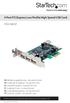 4 Port PCI Express Low Profile High Speed USB Card PEXUSB4DP DE: Bedienungsanleitung - de.startech.com FR: Guide de l'utilisateur - fr.startech.com ES: Guía del usuario - es.startech.com IT: Guida per
Indoor/Outdoor Color Camera with Built-in 2.4 GHz Wireless Transmitter, plus X10 controlled power supply, and Video Receiver.
 Indoor/Outdoor Color Camera with Built-in 2.4 GHz Wireless Transmitter, plus X10 controlled power supply, and Video Receiver. OWNER'S MANUAL VR36A XC18A XM13A MODEL VK69A (INCLUDES XC18A CAMERA, XM13A
Getting Started. HP Retail Systems
 Getting Started HP Retail Systems Copyright 2012, 2013 Hewlett-Packard Development Company, L.P. The information contained herein is subject to change without notice. Microsoft and Windows are U.S. registered
VS-0202 VS-0204. User Manual
 User Manual VS-0202 VS-0204 Read this guide thoroughly and follow the installation and operation procedures carefully in order to prevent any damage to the units and/or any devices that connect to them.
ADEMCO 4500 Thermostat
 ADEMCO 4500 Thermostat User Guide N7972V1 5/05 Rev. A TABLE OF CONTENTS About the 4500 Thermostat...1 Saving Money on Energy Bills...1 The 4500 Thermostat Provides Comfort and Convenience...1 How the 4500
USB Scrolling Optical Mini Mouse
 USB Scrolling Optical Mini Mouse Owner s Manual Please read before using this equipment. ˆ Contents Features... 3 System Requirements... 4 FCC Declaration of Conformity... 5 The FCC Wants You to Know...
Owner's Manual STEREO EARPHONES WITH BLUETOOTH WIRELESS TECHNOLOGY. Model: CBH515-OD PLEASE READ BEFORE OPERATING THIS EQUIPMENT.
 Size: 148.5(W) x 210(H)mm (A5) STEREO EARPHONES WITH BLUETOOTH WIRELESS TECHNOLOGY Owner's Manual PLEASE READ BEFORE OPERATING THIS EQUIPMENT. Model: CBH515-OD FCC INFORMATION: This equipment has been
How To Set Up A Cell Phone With A Cellphone From A Celltower.Com
 Model 29875 Digital Answering System (with English or Spanish Voice Prompts) User s Guide 2 Equipment Approval Information Your telephone equipment is approved for connection to the Public Switched Telephone
C6 Easy Imaging Total Computer Backup. User Guide
 C6 Easy Imaging Total Computer Backup User Guide Clickfree and the Clickfree logo are trademarks or registered trademarks of Storage Appliance Corporation. Other product names used in this guide are recognized
Wireless Optical Travel Mouse
 Wireless Optical Travel Mouse User s Manual PLEASE READ THESE INSTRUCTIONS CAREFULLY BEFORE INSTALLING THIS DEVICE. Table of Contents FCC Statement Page 3 Introduction.. Page 6 Package Contents.. Page
User s Manual Model KB990W
 Wireless Internet Keyboard & Optical Mouse User s Manual Model KB990W FCC Statement This device complies with part 15 of FCC Rules. Operation is subject to the following two conditions: (1) this device
Verbatim PowerBay 4-Bay RAID Multi-Interface Drive Version 1.00
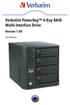 Verbatim PowerBay 4-Bay RAID Multi-Interface Drive Version 1.00 User Manual Table of Contents Introduction... 2 Package Contents... 2 Controls, Connectors and Indicators... 2 About the Hard Drive... 4
PCI USB 2.0 Card. 3 Port PCI USB 2.0 Card PCI330USB2. Instruction Manual. Actual product my vary from photo
 PCI USB 2.0 Card 3 Port PCI USB 2.0 Card PCI330USB2 Instruction Manual Actual product my vary from photo FCC Compliance Statement This equipment has been tested and found to comply with the limits for
Alarm Clock USER GUIDE
 Alarm Clock USER GUIDE Jazwares, Inc. 2010 1 CONTENTS Please read the instructions along with the alarm clock carefully before you use it, so that you can operate it conveniently. WELCOME, Safety Tips
Net USER GUIDE MEDIA SHARING DEVICE
 FCC DECLARATION OF CONFORMANCE This device complies with Part 15 of the FCC Rules. Operation is subject to the following two conditions: (1) this device may not cause harmful interference, and (2) this
High Speed File Share Cable USER GUIDE
 High Speed File Share Cable USER GUIDE Visit our Website at www.targus.com/emea Features and specifications are subject to change without notice. 2008 Targus Group International, Inc. and Targus, Inc.