
CDA-7894RB CDA-7893R
|
|
|
- Kathryn Little
- 10 years ago
- Views:
Transcription
1 R CDA-7894RB CDA-7893R EN FM/MW/LW/RDS CD Receiver DE OWNER'S MANUAL Please read before using this equipment. BEDIENUNGSANLEITUNG Lesen Sie diese Bedienungsanleitung bitte vor Gebrauch des Gerätes. FR MODE D'EMPLOI Veuillez lire avant d utiliser cet appareil. MANUAL DE OPERACIÓN Léalo antes de utilizar este equipo. ISTRUZIONI PER L USO Si prega di leggere prima di utilizzare il attrezzatura. ES ANVÄNDARHANDLEDNING Innan du använder utrustningen bör du läsa igenom denna användarhandledning. IT ALPINE ELECTRONICS MARKETING, INC Nishi Gotanda, Shinagawa-ku, Tokyo , Japan Phone ALPINE ELECTRONICS OF AMERICA, INC Gramercy Place, Torrance, California 90501, U.S.A. Phone ALPINE-1 ( ) ALPINE ELECTRONICS OF CANADA, INC Warden Ave., Suite 203, Markham, Ontario L3R 9Z6, Canada Phone ALPINE-1 ( ) ALPINE ELECTRONICS OF AUSTRALIA PTY. LTD. 6-8 Fiveways Boulevarde Keysborough, Victoria 3173, Australia Phone ALPINE ELECTRONICS GmbH Kreuzerkamp 7, Ratingen, Germany Phone ALPINE ELECTRONICS OF U.K., LTD. 13 Tanners Drive, Blakelands, Milton Keynes MK14 5BU, U.K. Phone ALPINE ELECTRONICS FRANCE S.A.R.L. (RCS PONTOISE B ) 98, Rue de la Belle Etoile, Z.I. Paris Nord Il, B.P , Roissy Charles de Gaulle Cedex, France Phone ALPINE ITALIA S.p.A. Viale C. Colombo 8, Trezzano Sul Naviglio (MI), Italy Phone ALPINE ELECTRONICS DE ESPAÑA, S.A. Portal de Gamarra 36, Pabellón, Vitoria (Alava)-APDO 133, Spain Phone SE Meiyi Printing Factory, Dalian, China No. 28 Chang Qing Street, Xi Gang District, Dalian, China Designed by ALPINE Japan Printed in China (Y) 68P01434K93-B

2 CHM-S630 CHA-S634 CD changer for CDA-7894RB/CDA-7893R CD-Wechsler für CDA-7894RB/CDA-7893R Changeur CD pour CDA-7894RB/CDA-7893R Cambiador de CD para CDA-7894RB/CDA-7893R Caricatore CD per CDA-7894RB/CDA-7893R CD-växlare för CDA-7894RB/CDA-7893R CHA-1214 CD changer for CDA-7894RB/CDA-7893R CD-Wechsler für CDA-7894RB/CDA-7893R Changeur CD pour CDA-7894RB/CDA-7893R Cambiador de CD para CDA-7894RB/CDA-7893R Caricatore CD per CDA-7894RB/CDA-7893R CD-växlare för CDA-7894RB/CDA-7893R Alpine CD Changers Give You More! More musical selections, more versatility, more convenience. The CHA-S634 is a high-performance 6-disc changer with a new M DAC, CD-R/RW PLAY BACK, MP3 PLAY BACK and CD TEXT. The CHA-1214 Ai-NET model holds 12 discs, and the CHM-S630 M-Bus model is a super-compact 6-disc changer with a CD-R/RW PLAY BACK. Von Alpine CD-Wechslern haben Sie mehr! Mehr Musikauswahl, mehr Vielseitigkeit, mehr Komfort. Der CHA-S634 ist ein Hochleistungs-Wechsler für 6 CDs mit dem neuen M-DAC, mit CD-R/RW- und MP3-Wiedergabefunktion und mit CD-TEXT. Der CHA-1214 ist ein Ai-NET-Modell für 12 CDs. Der M-Bus-kompatible CHM-S630 ist ein superkompakter Wechsler für 6 CDs mit CD-R/RW-Wiedergabefunktion. Changeurs de CD Alpine : vous avez le choix! Plus de sélections musicales, plus de souplesse, plus de confort. Le modèle CHA-S634 est un changeur 6 disques ultra performant équipé des nouvelles fonctions M DAC, CD-R/RW PLAY BACK, MP3 PLAY BACK et CD TEXT. Le modèle CHA-1214 Ai-NET contient 12 disques. Le modèle CHM-S630 M-Bus est un changeur 6 disques super compact doté de la fonction CD-R/RW PLAY BACK. Los cambiadores Alpine de CD le ofrecen más! Más selecciones musicales, más versatilidad y más ventajas. CHA-S634 es un cambiador de seis discos de alto rendimiento con nuevo M DAC, CD-R/RW PLAY BACK, MP3 PLAY BACK y CD TEXT. El modelo CHA-1214 Ai-NET alberga 12 discos y el modelo CHM-S630 M-Bus es un cambiador de seis discos de tamaño reducido con un CD-R/RW PLAY BACK. I caricatori CD Alpine danno di più! Più scelta, più versatilità, più comodità. Il modello CHA-S634 è un caricatore a 6 dischi ad elevate prestazioni dotato di un nuovo M DAC, CD-R/RW PLAY BACK, MP3 PLAY BACK e CD TEXT. Il modello CHA-1214 Ai-NET è in grado di contenere 12 dischi, il modello CHM-S630 M-Bus è un caricatore a 6 dischi ultra compatto dotato di un CD-R/RW PLAY BACK. Alpines CD-växlare ger mer! Fler musikval, mer variation, större bekvämlighet. CHA-S634 är en växlare för 6 skivor med mycket höga prestanda och en ny M D/A-omvandlare samt uppspelning av CD-R/RW, MP3 och CD TEXT. CHA-1214 Ai-NET rymmer 12 skivor. CHM-S630 M-Bus är en mycket kompakt växlare med kapaciteten 6 skivor med uppspelning av CD-R/RW PLAY BACK.

3 Contents Operating Instructions WARNING WARNING...2 CAUTION...2 PRECAUTIONS...2 Basic Operations Detaching the Front Panel... 4 Attaching the Front Panel... 4 Initial System Start-Up... 4 Turning Power On and Off... 5 Display Angle Adjustment... 5 Adjusting Volume/Balance (Between Left and Right)/ Fader (Between Front and Rear)/Defeat... 5 Blackout Mode On and Off(CDA-7894RB only)... 5 Changing the Audio Level Display Pattern... 5 Setting the Bass Control... 6 Setting the Treble Control... 6 Adjusting the built-in Crossover... 6 About the Time Correction... 7 Bass Focus... 8 Time Correction... 9 Setting the MX Mode... 9 Quick Searching Function Displaying the Title/Text Titling Discs Erasing Disc Title Radio Operations Manual Tuning Automatic Seek Tuning Manual Storing of Station Presets Automatic Memory of Station Presets Tuning to Preset Stations RDS Operations Setting RDS Reception Mode and Receiving RDS Stations Recalling Preset RDS Stations Receiving RDS Regional (Local) Stations PI SEEK Setting Receiving Traffic Information PTY (Programme Type) Tuning Receiving Traffic Information While Playing CD or Radio Priority PTY(Programme Type) Displaying Radio Text CD Player Operation Opening and Closing the Movable display Playback Music Sensor (Skip) Fast Forward and Backward Repeat Play M.I.X. (Random Play) Scanning Programmes Controlling CD Changer (Optional) Multi-Changer Selection ENGLISH MP3 Operation Playing MP3 Files Music Sensor (Skip) Fast Forward and Backward Selecting Folders File Search Repeat Play M.I.X. (Random Play) Scanning Programmes Setting the Range of MP3 File Selection Playing MP3 Data About MP SETUP Operation Adjusting Source Signal Levels Switching the Tuner Mode Changing Lighting Colour(CDA-7893R only) Dimmer Control Subwoofer On and Off Sound(Beep) Guide Function Turning Mute Mode On/Off Scroll Setting Setting the AUX Mode(V-Link) Connecting to an External Amplifier Setting the External Input Defeat Mode Demonstration DAB Operation Using DAB Receiver for the Ensemble Seek Tuning (Optional) Changing the Service Changing the Service Component Memorizing the Service Receiving the Memorized Service Memorizing the Ensemble Automatically PTY (Programme Type) Tuning Turning ON/OFF Traffic News Announcement Setting the Announcement Select Mode Changing the Display Mode Displaying the Regional Label Receiving Announcement Information of DAB Local Stations Setting for Automatic Change from DAB to RDS Setting ON/OFF for DRC (Dynamic Range Control) Remote Control Operation Controls on Remote Control(CDA-7894RB only) Battery Replacement(CDA-7894RB only) Information In Case of Difficulty Specifications Installation and Connections Warning Caution Precautions Installation Connection EN

4 WARNING WARNING This symbol means important instructions. Failure to heed them can result in serious injury or death. DO NOT OPERATE ANY FUNCTION THAT TAKES YOUR ATTENTION AWAY FROM SAFELY DRIVING YOUR VEHICLE. Any function that requires your prolonged attention should only be performed after coming to a complete stop. Always stop the vehicle in a safe location before performing these functions. Failure to do so may result in an accident. KEEP THE VOLUME AT A LEVEL WHERE YOU CAN STILL HEAR OUTSIDE NOISE WHILE DRIVING. Failure to do so may result in an accident. DO NOT DISASSEMBLE OR ALTER. Doing so may result in an accident, fire or electric shock. USE ONLY IN CARS WITH A 12 VOLT NEGATIVE GROUND. (Check with your dealer if you are not sure.) Failure to do so may result in fire, etc. KEEP SMALL OBJECTS SUCH AS BATTERIES OUT OF THE REACH OF CHILDREN. Swallowing them may result in serious injury. If swallowed, consult a physician immediately. USE THE CORRECT AMPERE RATING WHEN REPLACING FUSES. Failure to do so may result in fire or electric shock. DO NOT BLOCK VENTS OR RADIATOR PANELS. Doing so may cause heat to build up inside and may result in fire. USE THIS PRODUCT FOR MOBILE 12V APPLICATIONS. Use for other than its designed application may result in fire, electric shock or other injury. DO NOT PLACE HANDS, FINGERS OR FOREIGN OBJECTS IN INSERTION SLOTS OR GAPS. Doing so may result in personal injury or damage to the product. CAUTION This symbol means important instructions. Failure to heed them can result in injury or material property damage. HALT USE IMMEDIATELY IF A PROBLEM APPEARS. Failure to do so may cause personal injury or damage to the product. Return it to your authorized Alpine dealer or the nearest Alpine Service Centre for repairing. DO NOT MIX NEW BATTERIES WITH OLD BATTERIES. INSERT WITH THE CORRECT BATTERY POLARITY. When inserting the batteries, be sure to observe proper polarity (+ and ) as instructed. Rupture or chemical leakage from the battery may cause fire or personal injury. KEEP FINGERS AWAY WHILE THE MOTORIZED FRONT PANEL OR MOVING MONITOR IS IN MOTION. Failure to do so may result in personal injury or damage to the product. PRECAUTIONS Temperature Be sure the temperature inside the vehicle is between +60 C (+140 F) and 10 C (+14 F) before turning your unit on. Moisture Condensation You may notice the CD playback sound wavering due to condensation. If this happens, remove the disc from the player and wait about an hour for the moisture to evaporate. Damaged Disc Do not attempt to play cracked, warped, or damaged discs. Playing a bad disc could severely damage the playback mechanism. Maintenance If you have problems, do not attempt to repair the unit yourself. Return it to your Alpine dealer or the nearest Alpine Service Station for servicing. 2-EN

5 Never Attempt the Following Do not grip or pull out the disc while it is being pulled back into the player by the automatic reloading mechanism. Do not attempt to insert a disc into the unit when the unit power is off. Handling the Detachable Front Panel Do not expose to rain or water. Do not drop or apply shock. Correct Handling Do not drop the disc while handling. Hold the disc by its edge so that no fingerprints are left on the surface. Do not affix tape, paper, or gummed labels to the disc. Do not write on the disc. CORRECT Inserting Discs Your player accepts only one disc at a time for playback. Do not attempt to load more than one disc. Make sure the label side is facing up when you insert the disc. Your player will automatically eject any disc that is inserted incorrectly. If the player continues to eject a correctly inserted disc, push the Reset switch with a pointed object such as a ballpoint pen. Playing a disc while driving on a very bumpy road may result in skips, but this will not scratch the disc or damage the player. New Discs As a protective measure to prevent the CD from jamming, the CD player will automatically eject discs with irregular surfaces or inserted incorrectly. When a new disc is inserted into the player and ejected after initial loading, using your finger, feel around the inside of the centre hole and outside edge of the disc. If you feel any small bumps or irregularities, this could inhibit proper loading of the disc. To remove the bumps, rub the inside edge of the hole and outside edge of the disc with a ballpoint pen or other such instrument, then insert the disc again. Bumps Centre Hole Centre Hole New Disc Outside (Bumps) Irregular Shaped Discs Be sure to use round shape discs only for this unit and never use any special shape discs. Use of special shape discs may cause damage to the mechanism. INCORRECT CORRECT Disc Cleaning Fingerprints, dust, or soil on the surface of the disc could cause the CD player to skip. For routine cleaning, wipe the playing surface with a clean, soft cloth from the centre of the disc to the outer edge. If the surface is heavily soiled, dampen a clean, soft cloth in a solution of mild neutral detergent before cleaning the disc. Disc Accessories There are various accessories available on the market for protecting the disc surface and improving sound quality. However, most of them will influence the thickness and/or diameter of the disc. Using such accessories can cause the disc to be out of standard specifications and may create operational problems. We recommend not using these accessories on discs played in Alpine CD players. Transparent Sheet Disc Stabilizer Installation Location Make sure the CDA-7894RB/CDA-7893R will not be installed in a location subjected to: Direct sun and heat High humidity and water Excessive dust Excessive vibrations 3-EN

6 Basic Operations POWER DISP/B.OUT (CDA-7894RB only) RESET Controllable With Remote Control The CDA-7893R can be controlled with an optional Alpine remote control. For details, consult your Alpine dealer. Point the optional remote control transmitter at the remote control sensor. Remote control sensor MODE (Rotary encoder) ANGLE89 Detaching the Front Panel 1 Press and hold the POWER button for at least 3 seconds to turn off the power. 2 Press the (Release) button at left side until the front panel pops out. 3 Grasp the left side of the front panel and pull it out. Connectable to Remote Control Interface Box You can operate this unit from the vehicle's control unit when an Alpine Remote Control Interface Box (optional) is connected. For details, contact your Alpine dealer. Initial System Start-Up S The front panel may become hot in normal usage (especially the connector terminals), this is not a malfunction. To protect the front panel, place it in the supplied carrying case. Attaching the Front Panel 1 First, insert the right side of the front panel into the main unit. Align the groove on the front panel with the projection on the main unit. 2 Push the left side of the front panel until it locks firmly into the main unit. 2 1 Be sure to press the RESET switch when using the unit for the first time, after installing the CD changer, etc., or after changing the car battery. 1 Make sure that the power of the unit is off. If the power is on, press and hold the POWER button for at least 3 seconds to turn off the unit. 2 Press the RESET switch with a ballpoint pen, or any other pointed object. About Demonstration This unit is equipped a Demonstration function. Soon after resetting the unit or after turning the unit on the first time, the demonstration starts automatically. To cancel the demonstration, refer to Demonstration on page 26. S Before attaching the front panel, make sure that there is no dirt or dust on the connector terminals and no foreign object between the front panel and the main unit. Attaching the front panel carefully, holding the sides of the front panel to avoid pushing buttons by mistake. 4-EN

7 Turning Power On and Off 1 Press the POWER button to turn on the unit. The unit can be turned on by pressing any other button except the eject c button. The volume level gradually increases to the previous level you were listening to before the unit was turned off. Press and hold the POWER button again for at least 3 seconds. The very first time the power is turned on, the volume will start from level 12. Display Angle Adjustment Movable display The movable display may be adjusted to 3 different angles depending upon user preference. 1 Press the ANGLE 89 button to adjust the angle of the movable display. S The display will close a half minute after the ignition key is turned to the OFF position. The adjusted angle of the display is stored in memory. There is no need to re-adjust the angle when the power is turned back on. CAUTION Keep hands (or any other object) away from the display while it is opening or closing to avoid damage or injury. The back of the movable display will get very warm under normal operating conditions. This is not a malfunction. Do not touch. Adjusting Volume/Balance (Between Left and Right)/Fader (Between Front and Rear)/Defeat 1 Press the MODE (Rotary encoder) button repeatedly to choose the desired mode. Each press changes the modes as follows: Volume Subwoofer Balance Fader Defeat Volume :0~35 Balance :L15~R15 Fader :R15~F15 Subwoofer :0~+15 S If the Rotary encoder is not turned in 5 seconds after selecting the BALANCE, FADER, DEFEAT and SUBWOOFER modes, the unit automatically sets in the VOLUME mode. When the subwoofer is set to OFF, the level of the subwoofer cannot be adjusted. 2 Turn the Rotary encoder until the desired sound is obtained in each mode. By setting Defeat ON, previously adjusted setting of Bass, Treble will return to the factory defaults, but MX will be turned off. Blackout Mode On and Off (CDA-7894RB only) When the Blackout mode is turned on, the display will turn off to reduce power consumption. This additional power enhances the sound quality. 1 Press and hold the B.OUT button for at least 3 seconds to start the blackout mode. By doing so the display will turn off. If any button on the unit is pressed during the blackout mode, the function will be displayed for 5 seconds to show the operation before returning to Blackout mode. To cancel the blackout mode, press and hold the B.OUT button for at least 3 seconds. Changing the Audio Level Display Pattern You can select the display pattern mode from three display patterns. You can also deactivate the display. 1 Press the DISP (DISPLAY) button to select the desired Display pattern mode. Each press changes the display patterns. Pattern1 Pattern2 Pattern3 Display OFF 5-EN

8 Basic Operation Setting the Treble Control g DN BAND Rotary encoder You can change the Treble Frequency emphasis to create your own tonal preference. 1 Press the CENTER f button select on the TREBLE (treble Centre frequency) control mode. BASS TREBLE normal mode f UP X-OVER CENTER f Setting the Bass Control You can change the Bass Frequency emphasis to create your own tonal preference. 1 Press the CENTER f button to select the BASS (bass Centre frequency) control mode. BASS TREBLE normal mode 2-1 Setting the bass Centre frequency: Press the g DN or f UP button to select the desired bass centre frequency. 60Hz 70Hz 80Hz 90Hz 100Hz 180Hz 150Hz 130Hz Emphasizes the displayed Bass frequency ranges. 2-2 Setting the bass Band Width (Q-Factor): Press the BAND button to select the desired bass Band Width. B.Width1 B.Width2 B.Width3 B.Width4 (Wide)... (Narrow) Changes the bass boost band width to narrow or wide. A wide setting will boost a wide range of frequencies above and below the centre frequency. A narrower setting will boost only frequencies near the centre frequency. 2-3 Setting the bass Level: Turn the Rotary encoder to select the desired bass Level (-7~+7). You can emphasize or weaken the bass frequency. S If no buttons are pressed within 15 seconds, the Bass control setting will be turned off automatically. The settings of the Bass Level will be individually memorized for each source (FM, MW (LW), CD, etc.) until the setting is changed. Once you set Bass frequency and Bass Band Width for one of sources (FM, MW (LW), CD, etc.), this setting becomes effective for all those sources. This function is inoperable when DEFEAT is ON. 2-1 Setting the treble Centre frequency: Press g DN or f UP button to select the desired treble centre frequency. 10.0kHz 12.5kHz 15.0kHz 17.5kHz Emphasizes the displayed Treble frequency ranges. 2-2 Setting the treble Level: Turn the Rotary encoder to select the desired Treble Level (-7~+7). You can emphasize the treble frequency. S If no buttons are pressed within 15 seconds, the Treble control setting will be turned off automatically. The settings of the Treble Level will be individually memorized for each source (FM, MW (LW), CD, etc.) until the setting is changed. Once you set Treble frequency for one of sources (FM, MW (LW), CD, etc.), this setting becomes effective for all those sources. This function is inoperable when DEFEAT is ON. Adjusting the built-in Crossover The High and Low Pass Filters on this unit can be adjusted to suit your personal taste. 1 Press and hold the X-OVER button for at least 2 seconds. HPF <Press momentarily> LPF <Press momentarily> <Press for at least 2 seconds> normal mode When the subwoofer output of this unit is turned OFF, LPF and phase are deactivated. 2 Press the DN g or f UP button to select the desired setting. 1. HPF (Setting the High Pass Filter): FLAT (OFF) 80Hz 120Hz 160Hz Outputs all frequencies higher than that selected according to your preference. 6-EN

9 2. LPF (Setting the Low Pass Filter): FLAT (OFF) 80Hz 120Hz 160Hz Outputs all frequencies lower than that selected according to your preference. (Only available when using the subwoofer output from this unit.) S If HPF, LPF, Bass Control and Treble Control are all set to ON, depending on the Bass Control and Treble Control settings, you may not be able to reinforce the sound effect. Except when the HPF and LPF is turned OFF, the subwoofer is in monaural mode. When the subwoofer is set to OFF, LPF mode and change of phase does not work. If no buttons are pressed within 15 seconds, the display for setup menu disappears while an ordinary menu appears on the display. These functions are inoperative when an external, Ai-NET processor is connected. About the Time Correction The distance between the listener and the speakers in a car vary widely due to the special conditions of the mobile environment. This difference in the distances from the speakers to the listener creates a shift in the sounds image and frequency characteristics. This is caused by the time delay between the sound reaching the listener s right versus the left ear. To correct this, the CDA-7894RB/CDA-7893R is able to delay the audio signal to the speakers closest to the listener. This effectively creates a perception of increased distance for those speakers. The listener can be placed at an equal distance between the left and right speakers for optimum staging. The adjustment will be made for each speaker in a step of 0.1 ms. Example 1. Listening Position: Front Left Seat Adjust the time correction level of the front left speaker to a high value and the rear right to zero or a low value. 5.1ms Here we calculate the time correction value for the front left speaker in the diagram at the left. Conditions: Farthest Speaker listening position: 2.25 m (88-9/16") Front left speaker listening position: 0.5 m (19-11/16") Calculation: L = 2.25 m 0.5 m = 1.75 m (68-7/8") Time correction = * 1000 = 5.1 (ms) *Speed of sound: 343 m/s (765 mph) at 20 C In other words, giving the front left speaker a time correction value of 5.1 ms makes it seem as if the distance to the front left speaker is the same as the distance to the farthest speaker. The sound is not balanced because the distance between the listening position and the various speakers is different. The difference in distance between the front left speaker and the rear right speaker is 1.75 m (68-7/8"). Time correction eliminates the differences in the time required for the sound to reach the listening position. The time of the front left speaker is corrected by 5.1 ms so that its sound reaches the listening position at the same time as the sound of other speakers. Example 2. Listening Position: All Seats Adjust the time correction level of each speaker to almost the same level. 1 Sit in the listening position (driver s seat, etc.) and measure the distance (in meters) between your head and the various speakers. 2 Calculate the difference between the distance to the farthest speaker and the other speakers. L = (distance to farthest speaker) (distance to other speakers) 3 Divide the distances calculated for the speakers by the speed of sound (343 m/s (765 mph) at 20 C). These values are the time correction values for the different speakers. Tips * Subwoofer speaker. You cannot change the Time Correction value for the subwoofer, but you can set the subwoofer's apparent position to the front by adjusting the Time Correction value of the front and rear speakers. For details, refer to the "Tips" on page m 2.25m 7-EN

10 Basic Operation SOURCE BAND Rotary encoder 5 After setting, press the T.CORR to return to the normal mode. S Any manual time correction adjustments will also affect corrections made in Bass Focus. Time Correction mode is automatically cancelled if no buttons are pressed within 15 seconds. MX T.CORR Example of Steps 2 and 3 Setting (1) After entering corrections for the front (left and right) speakers in STEP 15, the time difference is 1.5 ms for both front-left and front-right speakers. Bass Focus The time difference between the front-rear/left-right speakers, can be adjusted at the same time. With an initial delay of 0.1 ms for each of the 0 to 99 steps, audible time correction can be done. 1.5ms 1.5ms 1 Press the T.CORR button to select the Bass Focus mode. Bass Focus mode Time correction mode Normal mode 2 Press the BAND button to select the front-rear / leftright speakers. FL RL FR RR FL RL FR RR (2) After entering corrections for the left (front and rear) speakers in STEP 15, the time difference becomes 3.0 ms* for the front left speaker and 1.5 ms for the left rear speaker. * Because the time difference was already set to 1.5 ms for the front left speaker in STEP 1, the additional correction in STEP 15 makes the time difference of the front left speaker 3.0 ms. Front (left-right) speakers Left (front-rear) speakers 1.5ms 1.5ms 3.0ms 1.5ms 1.5ms FL RL FR RR FL RL FR RR Rear (left-right) speakers Right (front-rear) speakers 3 Turn the Rotary encoder to adjust the front-rear / leftright delay. 4 For setting another channel (speaker), repeat the steps 2 and 3. Tips * Subwoofer speaker. Delay (turn the rotary encoder) the audio signal to the front (left and right) speakers to make the apparent position of the subwoofer to be at the front. In doing this, the apparent position between the front (left and right) speakers and subwoofer will appear equal to the driver. After performing above, you can change the positions of left and right speakers by delaying the time. 8-EN

11 Time Difference Table Number of Steps Time Difference (ms) Number of Steps Time Correction Time Difference (ms) Number of Steps Before performing the following procedures, refer to "About the Time Correction" (page 7). 1 Make time corrections by pressing the T.CORR button. Each press changes the modes as follows: Bass Focus mode Time correction mode Normal mode Time Difference (ms) 2 Select a speaker to be adjusted by pressing the BAND button. F L F R R L R R 3 Adjust the desired time correction value by turning the Rotary encoder. 4 For setting another speaker, repeat the step 2 and 3. 5 After setting, press the Rotary encoder to return to the normal mode. Time Correction mode is automatically cancelled if no buttons are pressed within 15 seconds. 3 Press and hold the MX button for at least 2 seconds to select the MX mode. 4 Turn the Rotary encoder to select your preferred mode or OFF. FM (MX level 1 to 3): The medium to high frequencies become more clear, and produces well balanced sound in all the bands. CD (MX level 1 to 3): CD mode processes a large quantity of data. This data is used to reproduce the sound cleanly by making use of the data quantity. MP3/DAB (MX level 1 to 3): This corrects information that was omitted at the time of compression. This reproduces a well-balanced sound close to the original. DVD (Video CD) (MX level 1 to 2): The dialog portion of the video is reproduced more clearly. DVD (CD) (MX level 1): This disk contains a large quantity of data such as music clip. MX uses this data to reproduce the sound accurately. AUX (MX level 1): Choose the MX mode (MP3, MUSIC, or MOVIE) that corresponds to the media connected. 5 After setting, press the Rotary encoder to return to the normal mode. S To cancel MX mode for all music sources, press the MX button to turn MX off. MX mode is automatically cancelled if no buttons are pressed within 15 seconds. You cannot set the MX mode while RDS and DAB are active. Setting to MX OFF makes MX mode of each music source OFF. This function is inoperable when DEFEAT is ON. By Setting the Defeat of the external input (page 26) to ON, operation is bypassed. Each music source, such as radio, CD, and MP3 can have its own MX setting. On disks with both MP3 and CD-DA, when the source changes from MP3 to CD-DA or CD-DA to MP3, the MX-mode switching process may take a little time before a piece is played due to. MX mode does not function when MX is ON for MW, LW radio. Setting the MX Mode MX (Media Xpander) makes vocals or instruments sound distinct regardless of the music source. The radio, CD and MP3 will be able to reproduce the music clearly even in cars with a lot of road noise. 1 Press the MX button to select MX ON. 2 Press the SOURCE button to select the source you want to MX (Media Xpander)-correct. 9-EN

12 Basic Operation SOURCE -/J Rotary encoder /Q.S. About Title and Text Title: With this device, it is possible to input the CD name (refer to page 11). This inputted name is referred to as a title. You cannot input or display titles on MP3 discs. Text: Text compatible CDs contain text information such as the disc name and track name. Such text information is referred to as text. You can easily select tracks and files. 1 Press the SOURCE button to set the desired source mode. ( CD mode is explained here as an example) 2 When setting the CD mode, press and hold the Q.S. button for at least 2 seconds. The mode changes to the Q.S. (Quick Search) setting. 3 Select a desired track by turning the Rotary encoder to the right or left. CD/Changer mode: Track can be selected. MP3 mode: File number can be selected. 4 When the setting is completed, the Q.S. mode is canceled by pressing the Rotary encoder. The Q.S. mode is automatically canceled after 10 seconds if no buttons are pressed during step 2 and 3. Displaying the Title/Text It is possible to display the CD title if the title has been previously inputted. For details, see Titling Discs (page 11). Text information, such as the disc name and the track name, will be displayed if playing a CD text compatible disc. It is also possible to display the folder name, the file name, and the ID3 tag, etc. while playing MP3 files. 1 Press the TITLE button. The mode will change every time the button is pressed. CD mode: g DN f UP TITLE ELAPSED TIME DISPLAY TEXT DISPLAY (DISC NAME) 1 Quick Searching Function TEXT DISPLAY (TRACK NAME) 1 TITLE DISPLAY MP3 mode: ELAPSED TIME DISPLAY FOLDER NAME DISPLAY FILE NAME DISPLAY ID3 TAG DISPLAY 2 FRAME DISPLAY 3 Displayed during playback of a disc with CD Text. NO TEXT will be displayed when the CD contains no text data. If an MP3 file contains ID3 tag information, all the ID3 tag information is displayed (e.g., track name, artist name, and album name). All other tag data is ignored. "NO TAG" will be displayed when an MP3 file contains no ID3 tag information. The recording sampling rate and bit rate of the MP3 file are displayed. S Some characters may not be displayed correctly with this device, depending on the character type. The CD changer must also be CD Text compatible for the Text information to be displayed. When the Scroll Setting (refer to page 24) is set to SCR MANUAL, press and hold the TITLE button for at least 3 seconds to scroll the Text information only once (TEXT DISPLAY, FOLDER NAME DISPLAY, FILE NAME DISPLAY or ID3 TAG DISPLAY mode). NO SUPPORT is displayed when the desired text information cannot be displayed on this unit. If the title was not previously input, NO TITLE is displayed. 10-EN

13 Titling Discs It is possible to title your favourite CD's. You cannot input or display titles on MP3 discs. 1 Press the TITLE button and select the title display mode. For details, see Displaying the Title/Text (page 10). 2 Press and hold the TITLE button for at least 3 seconds. The first character will blink. 3 Turn the Rotary encoder to select the desired letter/ numeral/symbol available for naming. 4 Press the Rotary encoder to store the first character. The first character will stop blinking and the display will automatically advance to the next character. When that character begins to blink, you may choose the next letter or symbol of your title. 5 Repeat the steps 3 to 4 above to complete the titling. Pressing the Rotary encoder after entering the 8th character, automatically stores the title into memory. When entering a title of less than 8 characters (for example, 3 character title): After entering 3 characters to complete your title, the 4th character space will be blinking. Go to step 6 to complete the title. 6 Press the TITLE button to record the title. Erasing Disc Title 1 Press the TITLE button to select the titling mode. Then, press and hold the button for at least 3 seconds. 2 Press and hold the -/J button for at least 2 seconds to activate the title scanning mode. The title in the display will blink. 3 Press the g DN or f UP button repeatedly until the title you want to erase is displayed. 4 Press and hold the -/J button for at least 2 seconds to erase the title displayed. 5 Press the TITLE button to cancel the title erasing mode. You cannot erase CD-TEXT. S You can enter 18 CD titles on this unit. If you try to store beyond the limit, the display will show FULL DATA. At this point, no more titles can be stored. The CD Changer title length or memory capacity varies depending upon the model being used. To input a new title, one of the previously inputted titles must first be deleted. When you want to erase a title, enter the " " symbol into all spaces. The operations described in steps 3 to 5 must be made within 10 seconds. The input mode will be cancelled if no action is taken for over 10 seconds. Removing power from the unit may delete these titles. Use caution when manipulating the power cord. 11-EN

14 Radio Operations SOURCE TUNE/A.ME BAND 4 Press the g DN or f UP button to automatically seek a station downward or upward respectively. The unit will stop at the next station it finds. Press the same button again to seek the next station. g DN f UP Manual Tuning 1 Press the SOURCE button to select the radio mode. 2 Press the BAND button repeatedly until the desired radio band is displayed. Each press changes the band: 3 Press the TUNE button repeatedly until "DX SEEK" and "SEEK" disappear from the display. The initial mode is DX SEEK. F Preset buttons (1 through 6) FM1 FM2 FM3 MW LW Manual Storing of Station Presets 1 Select the radio band and tune in a desired radio station you wish to store in the preset memory. 2 Press the F button so that the "FUNC" indicator light goes out. Press and hold the Preset buttons (1 through 6) that you want to store the station on for at least 2 seconds. The selected station is stored. The display shows the band, preset No. with a triangle (9) and station frequency memorized. 3 Repeat the procedure to store up to 5 other stations onto the same band. To use this procedure for other bands, simply select the band desired and repeat the procedure. A total of 30 stations can be stored in the preset memory (6 stations for each band; FM1, FM2, FM3, MW and LW). If you store a station in a preset memory which already has a station, the current station will be cleared and replaced with the new station. 4 Press the g DN or f UP button to move downward or upward one step respectively until the desired station frequency is displayed. The ST indicator appears on the display when a Stereo FM station is tuned in. Automatic Seek Tuning 1 Press the SOURCE button to select the radio mode. 2 Press the BAND button repeatedly until the desired radio band is displayed. Each press changes the band: FM1 FM2 FM3 MW LW 3 Press the TUNE button to illuminate the DX and SEEK indicators in the display. The SEEK indicator illuminates. With the DX mode activated, both strong and weak stations will be tuned in the Auto-Seek operation. Press again to return to the local mode. The DX indicator will turn off and the SEEK indicator will illuminate for a few seconds. Now, only strong stations will be tuned. 12-EN

15 Automatic Memory of Station Presets 1 Press the BAND button repeatedly until the desired radio band is displayed. 2 Press and hold the A.ME button for at least 2 seconds. The tuner will automatically seek and store 6 strong stations in the selected band in order of signal strength. The frequency on the display continues to change while the automatic memory is in progress. When the automatic memory has been completed, the tuner goes to the station stored in the preset location No. 1. If no stations are stored, the tuner will return to the original station you were listening to before the auto memory procedure began. Tuning to Preset Stations 1 Press the BAND button repeatedly until the desired band is displayed. 2 Press the F button so that the "FUNC" indicator light goes out. Then press the station preset button that has your desired radio station in memory. The display shows the band, preset number with a triangle and frequency of the station selected. 13-EN

16 RDS Operations g DN f UP BAND T.INFO F/SETUP AF PTY Setting RDS Reception Mode and Receiving RDS Stations The RDS (Radio Data System) is a radio information system using the 57 khz subcarrier of regular FM broadcast. The RDS allows you to receive a variety of information such as traffic information, station names, and to automatically re-tune to a stronger transmitter that is broadcasting the same programme. 1 Press the F button so that the "FUNC" indicator lights up. 2 Press the AF button to activate the RDS mode. 3 Press the g DN or f UP button to tune in the desired RDS station. When the BAND button is pressed and held for at least 2 seconds while the PS (Programme Service Name) or Radio Text display is being displayed, the display shows the station frequency for 5 seconds, then returns to the previous display. 4 Press the AF button again to deactivate the RDS mode. 5 Press the F button to activate the normal mode. The "FUNC" indicator light goes out. Tips When the unit receives the PTY31 (Emergency Broadcast) signal, the unit will show "ALARM" in the display automatically. The RDS digital data includes the followings: PI Programme Identification PS Programme Service Name AF List of Alternative Frequencies TP Traffic Programme TA Traffic Announcement PTY Programme Type EON Enhanced Other Networks Recalling Preset RDS Stations 1 Press the F button so that the "FUNC" indicator lights up. 2 Press the AF button to activate the RDS mode. 3 Press the F button to activate the normal mode. The "FUNC" indicator light goes out. 4 Make sure that the "FUNC" indicator light goes out, then press the preset button in which your desired RDS station is preset. If the preset station's signal is weak, the unit automatically searches and tunes to a stronger station in the AF (Alternative Frequencies) list. 5 If the preset station and the stations in the AF list cannot be received: When the PI SEEK setting is on (refer to "PI SEEK Setting" on page 15), the unit searches again for a station in the PI (Programme Identification) list. If there are still no stations receivable in the area, the unit displays the frequency of the preset station and the preset indicator disappears. If the signal level of the Regional (Local) station being tuned becomes too weak to receive, press the same preset button to tune in a Regional station in other district. For presetting the RDS stations, refer to the Radio Operation section. The RDS stations can be preset in the F1,F2 and F3 bands only. Receiving RDS Regional (Local) Stations 1 Press and hold the SETUP button for at least 3 seconds to activate the setting mode. 2 Press the g DN or f UP button to select the RDS REG mode. 3 Press the BAND button to turn on or off the RDS REG (Regional) mode. In the RDS REG OFF mode, the unit automatically keeps receiving the related local RDS station. 4 Press the SETUP button to deactivate the setting mode. 14-EN

17 PI SEEK Setting 1 Press and hold the SETUP button for at least 3 seconds. 2 Press the f UP or g DN button to select "PI SEEK." 3 Press the BAND button to toggle the mode between "PI SEEK ON" and "PI SEEK OFF." 4 Press the SETUP button to set the selected mode. Receiving Traffic Information 1 Press the T.INFO button repeatedly until the T.INFO indicator appears in the display. 2 Press the g DN or f UP button to select your desired traffic information station. When a traffic information station is tuned in, the TP indicator lights up. Traffic information is heard only when it is being broadcast. If traffic information is not being broadcast, the unit is set in the standby mode. When a traffic information broadcast begins, the unit automatically receives it and the display shows "TRF-INFO" for a few seconds and returns to the PS display. When the traffic information broadcast is over, the unit will automatically set in the standby mode. S If the traffic information broadcast signal falls below a certain level, the unit remains in the receiving mode for 1 minute. If the signal remains below a certain level for over 1 minute, the "T.INFO" indicator blinks. If you do not want to listen to the traffic information being received, lightly press the T.INFO button to skip that traffic information message. The T. INFO mode will remain in the ON position to receive the next traffic information message. If the volume level is changed while receiving traffic information, the changed volume level will be memorized. When traffic information is received next time, the volume level will be automatically adjusted to the level memorized. In the T.INFO mode, the SEEK tuning selects only the TP stations. PTY (Programme Type) Tuning 1 Press the F button so that the "FUNC" indicator lights up. 2 Press the PTY button to activate the PTY mode, while the unit is in Radio (FM receiving) mode. The Programme Type of the station being currently received will be displayed for 5 seconds. If there is no receivable PTY broadcast, "NO PTY" will be displayed for 5 seconds. If no RDS station can be received, the display shows "NO PTY." If no button is pressed within 5 seconds after pressing the PTY button, the PTY mode will be automatically cancelled. 3 Press the g DN and f UP buttons within 5 seconds after activating the PTY mode to choose the desired programme type while the PTY (programme type) is being displayed. Each press scrolls the programme type by one. LIGHT M CLASSICS OTHER M 4 Press the PTY button within 5 seconds after selecting the programme type to start searching for a station in the selected programme type. The chosen programme type indicator blinks during searching and lights when a station is found. If no PTY station is found, "NO PTY" will be displayed for 2 seconds. 5 Press the F button to activate the normal mode. The "FUNC" indicator light goes out. Operate the unit while the "FUNC" indicator is lights up. If no buttons are pressed within 5 seconds, the "FUNC" indicator light goes out. Receiving Traffic Information While Playing CD or Radio 1 Press the T.INFO button repeatedly until the T.INFO indicator appears in the display. 2 Press the g DN and f UP buttons to select a traffic information station if necessary. When a traffic information broadcast starts, the unit automatically mutes the CD player/changer or the regular FM broadcast. When the traffic information broadcast finishes, the unit automatically returns to the original source play before the traffic information broadcast began. When traffic information stations cannot be received: In the tuner mode: When the TP signal can no longer be received for over 1 minute, the "T.INFO" indicator blinks. In the CD mode: When the TP signal can no longer be received, the traffic information station of another frequency will be selected automatically. The receiver is equipped with the EON (Enhanced Other Networks) function in order to keep track of additional alternate frequencies to the AF list. The EON indicator appears while an RDS EON station is being received. If the station being received does not broadcast the traffic information, the receiver automatically tunes in the related station that broadcasts the traffic information when it occurs. 3 Press the T.INFO button to deactivate the Traffic Information mode. The T.INFO indicator disappears. 15-EN

18 RDS Operations g DN 5 Press the F button to activate the normal mode. The "FUNC" indicator light goes out. Operate the unit while the"func" indicator is lights up. If no buttons are pressed within 5 seconds, the "FUNC" indicator light goes out. Displaying Radio Text f UP TITLE F P.PTY Text messages from a radio station can be displayed. 1 Press the TITLE button while receiving FM in the radio mode to select the Radio Text display. Priority PTY (Programme Type) This function allows presetting of a programme type such as music category, news, etc. You can listen to a programme in the preset programme type as the unit automatically gives priority to the preset programme type when it begins broadcasting, and interrupts the programme you are currently listening. This feature is functional when your unit is set to a mode other than the LW and MW. 1 Press the F button. The "FUNC" indicator lights up. 2 Press the P. PTY button to activate the PRIORITY PTY mode. "PRIO-PTY" is displayed for 2 seconds and then the programme type for 3 seconds. The initial setting is "NEWS." If no buttons are pressed within 5 seconds after pressing the P. PTY button, the PRIORITY PTY mode is automatically cancelled. 3 Press the g DN or f UP button within 5 seconds while "NEWS" is being displayed to choose a desired programme type. Then press P. PTY button. The PRIORITY PTY function will activate. 4 Press the P. PTY button to activate the PRIORITY PTY mode again. To change the programme category, perform the step 3. To disable the PRIORITY PTY function, press and hold the P. PTY button for at least 2 seconds. In the PRIORITY PTY function, unlike in the T.INFO function, the volume does not increase during operation. The display will change every time the button is pressed. PS(Programme Service Name)mode Radio Text display The display shows "WAITING" for a few seconds, then starts scrolling the text message. S If there is no receivable text message or the unit cannot receive a text message properly, the display shows "NO TEXT" for 2 seconds. When the BAND button is pressed and held for at least 2 seconds while the PS (Programme Service Name) or Radio Text display is being displayed, the display shows the station frequency for 5 seconds, then returns to the previous display. 16-EN

19 CD Player Operation - / J When a disc is already inserted, press the SOURCE button to switch to the CD mode. The mode will change every time the button is pressed. TUNER CD CD CHANGER ( Only when the CD changer is connected) Opening and Closing the Movable display 1 Press the c button. The movable display will open. (Movable display fully opened) To close the movable display, press the c button again. The movable display will close. S Do not apply shock to the movable display when it is open as it may result in malfunction of the unit. The display may be dim during low temperatures and immediately after turning on the power. The brightness will return to normal as time elapses. The display will stop at the set angle when closing. CAUTION Keep hands (or any other object) away from the display while it is opening or closing to avoid damage or injury. The back of the movable display will get very warm under normal operating conditions. This is not a malfunction. Do not touch. Playback 1 Press the c button. The movable display will open. Insert a disc with the label side facing up. 2 Insert a disc with the label side facing up. The disc will be pulled into the unit automatically. The movable display will close and playback will begin. c 3 To pause playback, press the -/J button. Pressing the -/J button again will resume playback. 4 To eject the disc, press the c button. S If the CD does not eject, press c button again for at least 3 seconds with the movable display open. Do not insert or remove a CD when loading or ejecting a CD, as malfunction may result. About the usable discs. We recommend using only compact discs containing the marks shown below. You can play CD-Rs (CD-Recordable)/CD-RWs (CD- ReWritable) for audio use on this unit. You can also play CD-Rs/CD-RWs containing MP3 formatted audio files. Some of the following CDs may not play on this unit: Flawed CDs, CDs with fingerprints, CDs exposed to extreme temperatures or sunlight (e.g., left in the car or this unit), CDs recorded under unstable conditions, CDs on which a recording failed and a re-recording was attempted. Use discs with MP3 files written in the format compliant with ISO 9660 level 1 or level 2. For details, see page 22. On handling Compact Discs (CD/CD-R/ CD-RW) Do not touch the surface. Do not expose the disc to direct sunlight. Do not affix stickers or labels and do not write on the surface. Clean the disc when it is dusty. Make sure that there are no bumps around thedisc. Do not use commercially available disc accessories. Do not leave the disc in the car or the unit for a long time. Never expose the disc to direct sunlight. Heat and humidity may damage the CD and you may not be able to play it again. To customers using CD-R/CD-RW If a CD-R/CD-RW cannot be played back, make sure close session (finalization) has been performed. Finalize the CD-R/CD-RW if necessary, and attempt playback again. 17-EN

20 CD Player Operation SOURCE g DN BAND f UP Select buttons (1 through 6) REPEAT M.I.X. Music Sensor (Skip) 1 Momentarily press the g DN button once during CD play to return to the beginning of the current track. If you wish to access a track further back, repeatedly press until you reach the desired track. Press the f UP button once to advance to the beginning of the next track. If you wish to access a track further ahead, press repeatedly until the desired track is reached. The music sensor feature is functional in the play or pause mode. Fast Forward and Backward 1 Press and hold the g DN or f UP button to quickly move backward or forward until you reach the desired section of the track. Repeat Play 1 Press the REPEAT button to play back repeatedly the track being played. The track will be played repeatedly. Press the REPEAT button again and select OFF to deactivate the repeat play. SCAN S If a CD Changer is connected and the RPT ALL mode is selected, the unit repeatedly plays back all tracks on the disc selected. RPT RPT ALL (off) M.I.X. (Random Play) 1 Press the M.I.X. button in the play or pause mode. The tracks on the disc will be played back in a random sequence. To cancel M.I.X. play, press the M.I.X. button again to turn off the M.I.X. S If a CD Changer equipped with the ALL M.I.X. function is connected, ALL M.I.X. will also be selectable. In this mode, the tracks on all the CDs in the current magazine will be included in the random playback sequence. M.I.X. ALL M.I.X. (off) In case a 6-disc CD changer is connected: In CD changer mode, press the F button to illuminate the "FUNC" indicator and go to step 1 within 5 seconds. In case a 12-disc CD changer is connected: In CD changer mode, press the F button twice to illuminate the "FUNC" indicator and go to step 1 within 5 seconds. Scanning Programmes 1 Press the SCAN button to activate the Scan mode. The first 10 seconds of each track will be played back in succession. To stop scanning, press the SCAN button to deactivate the Scan mode. S In case a 6-disc CD changer is connected: In CD changer mode, press the F button to illuminate the "FUNC" indicator and go to step 1 within 5 seconds. In case a 12-disc CD changer is connected: In CD changer mode, press the F button twice to illuminate the "FUNC" indicator and go to step 1 within 5 seconds. In case a 6-disc CD changer is connected: In CD changer mode, press the F button to illuminate the "FUNC" indicator and go to step 1 within 5 seconds. In case a 12-disc CD changer is connected: In changer mode, press the F button twice to illuminate the "FUNC" indicator and go to step 1 within 5 seconds. 18-EN

21 Controlling CD Changer (Optional) An optional 6-disc or 12-disc CD Changer may be connected to the CDA-7894RB/CDA-7893R if it is Ai- NET compatible. With a CD Changer connected to the Ai-NET input of the CDA-7894RB/CDA-7893R, the CD Changer will be controllable from the CDA-7894RB/ CDA-7893R. Using the KCA-400C (Multi-Changer Switching device) or the KCA-410C (Versatile Link Terminal) multiple changers can be controlled by the CDA-7894RB/CDA- 7893R. See the Multi-Changer Selection section on this page for selecting the CD Changers. S The controls on the CDA-7894RB/CDA-7893R for CD Changer operation are operative only when a CD Changer is connected. The changer indicator illuminates when a CD changer is connected. The DVD changer (optional) is controllable from the CDA- 7894RB/CDA-7893R as well as the CD changer. If a changer compatible with MP3 is connected, the changer is also controllable from the CDA-7894RB/CDA-7893R of the built-in MP3. Multi-Changer Selection Alpine's Ai-NET system will support up to 6 CD Changers. When operating two or more changers, the KCA-400C (Multi-Changer Switching device) must be used. If you use 1 Switching device, you can connect up to 4 CD Changers. If you use 2 Switching devices, you can connect up to 6 CD Changers. When using KCA-410C (Versatile Link Terminal), you can connect two changers and two external outputs (AUX). 1 Press the SOURCE button on the CDA-7894RB/CDA- 7893R to activate the CD Changer mode. Alternatively, press the SOURCE button on the Remote Control (RUE-4187) to activate the CD Changer mode. (The remote control is sold separately for the CDA-7893R.) SOURCE BAND 1 Press the SOURCE button to activate the CHANGER mode. The display shows the disc number and track number. S The source indicator varies depending on the connected source. Press the BAND button to switch the Disc mode in the CD/ Changer mode. 2 Press the Disc Select buttons (1 through 6) corresponding to one of the discs loaded in the CD Changer. The selected disc number appears in the display and CD playback starts. S After selecting the desired disc, you can operate in the same way as for the CDA-7894RB/CDA-7893R CD player. For details, please see the CD Operation section. If the "FUNC" indicator is illuminated the Disc Select buttons become nonfunctional. When a 12-disc CD Changer is connected: To select discs numbered from 1 to 6, the procedure is the same as for the 6-disc CD Changer. To select discs numbered from 7 to 12, first press the F button. This changes the D indicator to d. Then press the desired Preset button. With the F button activated, the Preset buttons 1 to 6 will represent discs 7 to 12 respectively. 2 Press the BAND button on the CDA-7894RB or the RUE-4187 to activate the CD Changer Selection mode. 3 The CD Changer Selection mode remains active for 8 seconds after step 2 is performed. Press the BAND button until the desired CD Changer indicator appears on the display. If the selected CD Changer is not connected, the display will show NO CHGR. Alternatively press the BAND button on the Remote Control until the desired changer indicator appears on the display. 4 To operate the selected changer, see CD Player Operation section. For further details about the external input (AUX) when using KCA-410C, see Setting the AUX Mode (V-Link)" on page EN
22 MP3 Operation SOURCE g DN -/J BAND Rotary encoder F/SETUP FOLDER UP REPEAT SCAN f UP FOLDER DN FILE SEARCH M.I.X. c Music Sensor (Skip) 1 Momentarily press the g DN button once during CD play to return to the beginning of the current file. If you wish to access the beginning of a file further back, repeatedly press until you reach the desired file. Press the f UP button once to advance to the beginning of the next file. If you wish to access the beginning of a file further ahead, press repeatedly until the desired file is reached. The music sensor feature is functional in the play or pause mode. Playing MP3 Files You can play CD-ROMs, CD-Rs, and CD-RWs containing MP3 files on this unit. Use the format compliant with ISO 9660 level 1 or level 2. For further information about playing or storing MP3 files, refer to pages 22 before using the unit. 1 Press the c button. The movable display will open. Insert a disc containing an MP3 file with the label side facing up. 2 The disc will be pulled into the unit automatically. The movable display will close and playback will begin. When a disc is already inserted, press the SOURCE button to switch to the CD mode. The mode will change every time the button is pressed. TUNER CD CD CHANGER ( Only when the CD changer is connected) 3 To pause playback, press the -/J button. Pressing the -/J button again will resume playback. 4 To eject the disc, press the c button. S The unit can play discs containing both audio data and MP3 data. The MP3 indicator is lit during MP3 playback. The track display for CD audio data playback is the track numbers recorded on the disc. Fast Forward and Backward 1 Press and hold the g DN or f UP button to quickly move backward or forward until you reach the desired section of the file. Selecting Folders 1 Press the F button so that the "FUNC" indicator blinks. 2 Press the FOLDER DN or FOLDER UP button to select the folder. If a CD changer applicable to MP3 is connected: In CD changer mode, press the F button twice to blink the FUNC indicator and go to step 1 within 5 seconds. File Search You can locate all the files on a disc and play them. 1 Press the F button so that the "FUNC" indicator blinks. 2 Press the FILE SEARCH button during playback. The unit switches to File Search Mode. 3 Turn the Rotary encoder to select the desired file. 4 Press the Rotary encoder to execute the setting. The selected file starts to play. S During search, press the FILE SEARCH button to cancel the File Search mode. If a CD changer applicable to MP3 is connected: In CD changer mode, press the F button twice to blink the FUNC indicator and go to step 1 within 5 seconds. 20-EN
23 Repeat Play 1 Press the REPEAT button to play back repeatedly the track being played. The file will be played repeatedly. Press the REPEAT button again and select OFF to deactivate the repeat play. S If a CD changer applicable to MP3 is connected and the RPT ALL mode is selected, the unit repeatedly plays back all files on the selected disc. RPT RPT ALL (off) When you select FOLDER and set to RPT ALL in the "Setting the Range of MP3 File Selection" section on this page, the Files will be repeatedly played back. If a CD changer applicable to MP3 is connected: In CD changer mode, press the F button once to illuminate the FUNC indicator and go to step 1 within 5 seconds. M.I.X. (Random Play) 1 Press the M.I.X. button in the play or pause mode. The files on the disc will be played back in a random sequence. To cancel M.I.X. play, press the M.I.X. button again to turn off the M.I.X. S When you select "FOLDER" and set to M.I.X. in the "Setting the Range of MP3 File Selection" section on this page, the Files in the Folder are played back in random sequence. After all the files have been played back, play does not shift to the next Folder. In case an MP3 compatible CD changer is connected: In CD changer mode, press the F button once to illuminate the "FUNC" indicator and go to step 1 within 5 seconds. Scanning Programmes 1 Press the SCAN button to activate the Scan mode. The first 10 seconds of each file will be played back in succession. To stop scanning, press the SCAN button and deactivate the Scan mode. S When you select "FOLDER" in the "Setting the Range of MP3 File Selection" section on this page, the first 10 seconds of each File in the Folder will be played back. If a CD changer applicable to MP3 is connected: In CD changer mode, press the F button once to illuminate the "FUNC" indicator and go to step 1 within 5 seconds. Setting the Range of MP3 File Selection You can set the range of MP3 file selection to entire disc contents or folder contents only. 1 Press and hold the SETUP button for at least 3 seconds. 2 Press the f UP or g DN button to select DISC/ FOLDER (file selection range). 3 Press the BAND button to toggle the mode between DISC ALL and FOLDER. DISC ALL : plays all the files on one disc FOLDER : plays files in the selected folder only. S The initial setting at the factory is DISC ALL. If a changer compatible with MP3 is used, the range of MP3 file selection applies to REPEAT, M.I.X. and SCAN modes only. In normal mode, the unit plays all files on a disc even when you set the range of MP3 selection to "folder contents only." 4 Press the SETUP button to set the selected mode. Playing MP3 Data You can select either playback only of CD data, or playback of formatted CD data and MP3 files. When a disc contains CD or the MP3 file data, playback starts from the CD data portion of the disc. 1 Press and hold the SETUP button for at least 3 seconds. 2 Press the f UP or g DN button to select "CD- DA/MP3." 3 Press the BAND button to toggle the mode between CD-DA and CD-DA/MP3. CD-DA: Only CD data can be played back. CD-DA/MP3: Both CD data and MP3 file tracks can be played back. 4 Press the SETUP button to return to normal mode. S The initial setting at the factory is CDA-DA. Perform this setting before inserting a disc. If a disc has already been inserted, perform the setting after you remove the disc. (If you use an MP3 changer, you have to change discs.) 21-EN
24 MP3 Operation About MP3 CAUTION Except for personal enjoyment, duplicating audio data (including MP3 data) or distributing, transferring, or copying it, whether for free or for a fee, without the permission of the copyright holder is strictly prohibited by the Copyright Act and by international treaty. What is MP3? MP3, whose official name is "MPEG Audio Layer 3", is a compression standard prescribed by the ISO, the International Standardization Organization and MPEG which is a joint activity institution of the IEC. MP3 files contain compressed audio data. MP3 encoding is capable of compressing the audio data at extremely high ratios shrinking music files by as much as one-tenth their original size. This is achieved while still maintaining near CD quality. The MP3 format realizes such high compression ratios by eliminating the sounds that are either inaudible to the human ear or masked by other sounds. Method for creating MP3 files The software used to create MP3 files is widely sold or free from various sources. For details on creating MP3 files, refer to the user's manual for that software. The MP3 files that can be played back by this device have the file extension "mp3." Files with no extension cannot be played back. Supported playback sampling rates and bit rates Sampling rates: 32 khz khz, bit rates: kbps Note that for sampling rates such as khz, this device's frame display (Page 10) may not display correctly. ID3 tags This device supports ID3 tag v1. If ID3 tag data is in an MP3 file, this device can display the title (track title), artist name, and album name ID3 tag data. This device can only display single-byte alphanumeric characters and the underscore. For non-supported characters, "NO SUPPORT" is displayed. Producing MP3 discs MP3 files are prepared, then written to a CD-R or CD-RW using CD-R writing software. A disc can hold up to 510 files/folders (including Root Folders). Media supported The media that this device can play back are CD-ROMs, CD-Rs, and CD-RWs. Corresponding File Systems This device supports discs formatted with ISO9660 Level 1 or Level 2. Under the ISO9660 standard, there are some restrictions to remember. The maximum nested folder depth is 8 (including the root directory). File/folder names are limited to 31 characters (including the extension). Valid characters for folder/file names are letters A-Z (all caps), numbers 0-9, and '_' (underscore). This device also can playback discs in Joliet and other standards that conform to ISO9660. However, sometimes the file names, folder names, etc. are not displayed correctly. Formats supported This device supports CD-ROM XA, Mixed Mode CD, Enhanced CD (CD-Extra) and Multi-Session. This device can not correctly play back discs recorded with Track At Once or packet writing. Order of tracks The unit plays the files in the order that the writing software writes them. Therefore, the playing order may not be the same as the order you input. The playback order of the folders and files is as follows. Folder Terminology Bit rate This is the "sound" compression rate specified for encoding. The higher the bit rate, the higher the sound quality, but also the larger the files. Sampling rate This value shows how many times per second the data is sampled (recorded). For example, music CDs use a sampling rate of 44.1 khz, so the sound level is sampled (recorded) 44,100 times per second. The higher the sampling rate, the higher the sound quality, but also the larger the volume of data. Encoding Converting music CDs, WAVE (AIFF) files, and other sound files into the specified audio compression format. ID3 tag Song information such as track titles, artist names, album names, etc., written into MP3 files MP3 file EN
25 SETUP Operation g DN BAND S The initial setting at the factory is "NORMAL." If you find the sound is very noisy while listening to the tuner in the HI-FI mode, we recommend you change to the NORMAL mode. 4 When the setting is completed, press the SETUP button to return to the normal mode. f UP SETUP Changing Lighting Colour (CDA-7893R only) Adjusting Source Signal Levels If the difference in volume level between the CD player and FM radio is too great, adjust the FM signal level as follows. 1 Press and hold the SETUP button for at least 3 seconds. 2 Press the g DN or f UP button to select the FM- LV (FM LEVEL) mode. 3 Press the BAND button to select the FM signal level HI (High) or LO (Low) to make the signal levels between the FM band and CD player closer. 4 Press the SETUP button to return to normal mode. "Setting the Range of MP3 File Selection" and "Playing MP3 Data" in the "SETUP" mode section are described in MP3 Operation on page 21. Switching the Tuner Mode The CDA-7894RB/CDA-7893R incorporates the MAX TUNE Pro for the highest quality tuner audio. Moreover, you can choose between 3 settings to suit your own personal sound preferences usage. 1 Press and hold the SETUP button for at least 3 seconds. 2 Press the f UP or g DN button to select AMBER." 3 Press the BAND button to toggle the mode between AMBER ON (amber) and AMBER OFF (green). 4 Press the SETUP button to set the selected mode. Dimmer Control Set the DIMMER control to AUTO to decrease the illumination brightness of the unit with the head lights of the vehicle ON. This mode is useful if you feel the unit's backlighting is too bright at night. 1 Press and hold the SETUP button for at least 3 seconds. 2 Press the f UP or g DN button to select DIM (DIMMER). 3 Press the BAND button to select the Dimmer mode. Each press toggles between DIM AUTO and DIM MANUAL. 4 Press the SETUP button to activate the normal mode. 1 Press and hold the SETUP button for at least 3 seconds. 2 Press the g DN or f UP button to select NORMAL. 3 Press the BAND button to switch the TUNER mode. NORMAL HI-FI STABLE NORMAL : Standard setting HI-FI : Sound quality priority setting STABLE : Noiseless priority setting 23-EN
26 SETUP Operation Turning Mute Mode On/Off SOURCE g DN BAND f UP SETUP Rotary encoder/mode If a device having the interrupt feature is connected, audio will be automatically muted whenever the interrupt signal is received from the device. This function can be turned ON or OFF from the head unit by following procedure below. 1 Press and hold the SETUP button for at least 3 seconds. 2 Press the f UP or g DN button to select the MUTE mode. Subwoofer On and Off 1 Press and hold the SETUP button for at least 3 seconds. 2 Press the g DN or f UP button to select the SUB-W mode. 3 Press the BAND button to select Subwoofer ON or OFF. 4 Press the SETUP button after setting the SUB-W ON. 5 Press the MODE button repeatedly to select the SUB-W mode. SUB-W BALANCE VOLUME DEFEAT FADER Press the g DN or f UP button after selecting the SUB-W mode, and the subwoofer output phase is toggled SUBW NOR (0 ) or SUBW REV (180 ). 6 Turn the Rotary encoder until the desired sound is obtained in each mode. S Initial mode is "Subwoofer ON." Set to "Subwoofer OFF" unless the subwoofer is used. Sound (Beep) Guide Function This function will give audible feedback with varying tones depending upon the button pressed. 1 Press and hold the SETUP button for at least 3 seconds. 2 Press the f UP or g DN button to select BEEP. 3 Press the BAND button to toggle the mode between BEEP ON and BEEP OFF. The initial setting at the factory is BEEP ON. 4 Press the SETUP button to set the selected mode. 3 Press the BAND button to turn on or off the MUTE mode. Each press toggles between the MUTE ON and OFF modes. The initial setting at the factory is MUTE ON. 4 Press the SETUP button again to return to normal operation. Scroll Setting This CD player can scroll the disc and track names recorded on CD-TEXT discs, as well as the text information of MP3 files, folder names, and ID3 tags. 1 Press and hold the SETUP button for at least 3 seconds. 2 Press the f UP or g DN button to select SCR(SCROLL). 3 Press the BAND button to toggle mode between SCR AUTO and MANUAL. SCR AUTO: the CD text information, the text information of folder and file names, and the ID3 tags are scrolled automatically. SCR MANUAL: the display is scrolled only when a disc is loaded or when a track is changed, etc. 4 When the setting is completed, press the SETUP button to return to the normal mode. S Initial mode is SCR MANUAL. The unit scrolls CD text names, folder names, file names or ID3 tag display. The disc titles input manually (refer to page 11) cannot be scrolled. 24-EN
27 Setting the AUX Mode (V-Link) You can input TV/video sound by connecting an optional Ai-NET/RCA Interface cable (KCA-121B) or Versatile Link Terminal (KCA-410C) to this component. 1 Press and hold the SETUP button for at least 3 seconds. 2 Press the f UP or g DN button to select AUX. 3 Press the BAND button to toggle the mode between AUX ON and AUX OFF. S The initial setting at the factory is AUX OFF. You can set the AUX mode display by pressing the g DN or f UP button after AUX IN ON is set, select the AUX mode display setting, and then press the BAND button. When connecting the KCA-410C, you can set two AUX mode displays. 4 Press the SETUP button to return to normal mode. 5 To adjust the volume, etc., first press the SOURCE button and select the AUX mode, then make the necessary adjustment. When using the Versatile Link Terminal (KCA-410C), you can connect two external inputs. To select the mode, press the BAND button on the unit. Connecting to an External Amplifier When an external amplifier is connected, sound quality can be improved by stopping the power supply of the built-in amplifier. The power output is set to OFF by the following procedure. 1 Press and hold the SETUP button for at least 3 seconds. 2 Press the f UP or g DN button to select "PWR- IC". 3 Press the BAND button to toggle the mode between PWR-IC ON and PWR-IC OFF. PWR-IC OFF: When activating the speakers, this setting can be performed by connecting between the front and rear pre-amplifier of the unit and the external amplifier. In this setting, nothing is output to the speakers. Amplifier Amplifier Front left Front right Rear left Rear right PWR-IC ON : The speakers are driven by the built-in amplifier. Speakers SPEAKER RIGHT FRONT Front right SPEAKER RIGHT REAR Rear right SPEAKER LEFT REAR Rear left SPEAKER LEFT FRONT Front left No sound is produced by the system when the power output is set to OFF. 4 Press the SETUP button to return to normal mode. 25-EN
28 SETUP Operation Demonstration g DN BAND This unit has a Demonstration feature which simulates the display functions. f UP SETUP Setting the External Input Defeat Mode When inputting external devices to this unit, turning DEFEAT ON will bypass BASS,TREBLE and MX, i.e., sound for external devices is output at the default setting. 1 Press and hold the SETUP button for at least 3 seconds. 1 Press and hold the SETUP button for at least 3 seconds. 2 Press the f UP or g DN button to select the DEMO mode. 3 Press the BAND button to turn on or off the DEMO mode. Each press toggles between DEMO ON and DEMO OFF. If no button is pressed for 30 seconds, the DEMO mode activates. S The initial setting at the factory is DEMO ON. To quit DEMO mode, set to DEMO OFF. 4 Press the SETUP button again to return to normal operation. 2 Press the f UP or g DN button to select "INT." 3 Press the BAND button to toggle the mode between INT ON and INT OFF. When using Initial mode, set this to ON. When the Initial mode is not selected, set this to OFF. 4 Press the SETUP button to return to normal mode. 26-EN
29 DAB Operation SOURCE BAND Dynamic Label Display: the Ensemble Label is displayed for 2 seconds, then the Service Label is displayed for 2 seconds, and then the display is changed to the Dynamic Label after receiving the broadcasting station. g DN F P/S f UP Using DAB Receiver for the Ensemble Seek Tuning (Optional) DAB (Digital Audio Broadcasting) offers excellent sound quality even in a moving vehicle, enabling you to receive various types of information, including weather and traffic information, and it also displays information sent from the broadcasting stations. You can also let urgent broadcasts or announcements interrupt a current broadcast. S If you connect the DAB Receiver Box TUA-T100DAB (separately sold), you can control DAB for the reception of broadcast. CD quality sound can be obtained from DAB broadcasts, although quality may differ on some services. Some broadcasting stations may perform test broadcasts. When DAB reception is poor, metallic noise may occur. This is not a malfunction. 1 Press the SOURCE button to select DAB. 2 Press the BAND button to select DAB1, DAB2, or DAB3. 3 If you press and hold the g DN or f UP button while receiving DAB1, 2, or 3, it starts searching for ensemble automatically. By selecting the mode in the Changing the Display Mode section (see page 29), the display shows the status of the broadcasting stations that have been received as follows: Channel No. Display: the channel numbers of received stations are displayed. Ensemble Label Display: the Ensemble Label of received station is displayed. Service Label Display: the Ensemble Label is displayed for 2 seconds and then the Service Label is displayed after receiving the broadcasting station. Component Label Display: the Ensemble Label is displayed for 2 seconds, then the Service Label is displayed for 2 seconds, and then the display is changed to the Component Label after receiving the broadcasting station. 4 If you want to see the frequency display, press and hold the BAND button for at least 3 seconds (the frequency is displayed for 5 seconds), and then you return to the display that you selected with the steps described under the section Changing the Display Mode (see page 29). Tips When you use DAB, you can select a desired ensemble which may contain one or more services, any of which can be received. Furthermore, each service contains a Service Component, which itself can contain any number of Primary or Secondary services, depending on the Service Component. Several different kinds of service can therefore be selected. Changing the Service Services are received within the ensemble that you are currently receiving. 1 While receiving the ensemble, momentarily press the g DN or f UP button, and select the service that you desire. The selected service label is displayed for 2 seconds, and then you return to the display that you select with the steps described under the section Changing the Display Mode (see page 29). Changing the Service Component You can change Audio Services of the Service Component between the Primary and Secondary, when listening to an Audio Service that has a Secondary Service Component. 1 Press the F button to turn on the FUNC indicator. 2 Press the P/S button to change the Service Component between the Primary and Secondary broadcast. Every time you press the button the selection toggles. The Component label is displayed for 2 seconds, and then you return to the display that you selected with the steps described under the section Changing the Display Mode (see page 29). If there exists a Secondary Service Component within a service, the indicator S blinks on the display. When receiving the Secondary Service Component, the indicator S remains lit. 27-EN
30 DAB Operation g DN Memorizing the Service 1 Select the service that you want to memorize. 2 Press any one of the Preset buttons (1 through 6) for at least 2 seconds while the FUNC indicator light goes out. The selected service is memorized. 3 To memorize more, repeat the above steps 1 and 2. S You can memorize up to 18 stations (6 stations for each band; DAB1, DAB2, DAB3). If you select a preset button that has already memorized a service, the new selection takes it over. When you are not receiving DAB, the service is not memorized. (Memorize the service when the DAB reception is good) Receiving the Memorized Service 1 Press the BAND button to select your desired band. 2 Press one of the Preset buttons (1 through 6). The selected service is received. By selecting the mode in the Changing the Display Mode section (see page 29), the display shows the status of the broadcasting stations that have been received as follows: Channel No. Display: the channel numbers of received stations are displayed. Ensemble Label Display: the Ensemble Label of received station is displayed. Service Label Display: the Ensemble Label is displayed for 2 seconds and then the Service Label is displayed after receiving the broadcasting station. Component Label Display: the Ensemble Label is displayed for 2 seconds, then the Service Label is displayed for 2 seconds, and then the display is changed to the Component Label after receiving the broadcasting station. Dynamic Label Display: the Ensemble Label is displayed for 2 seconds, then the Service Label is displayed for 2 seconds, and then the display is changed to the Dynamic Label after receiving the broadcasting station. 28-EN A.ME BAND f UP TITLE T.INFO F PTY Preset buttons (1 through 6) When you receive the Secondary Service Component, you memorize the service, but when you call out this memorized service, the Primary Service Component will be called out. Memorizing the Ensemble Automatically 1 Press the BAND button to select the band that you want to receive. 2 Press and hold the A.ME button for at least 2 seconds. The ensemble is searched for, and six ensembles are automatically received and memorized with the preset buttons (1 through 6). When memorization has completed, the Ensemble that was memorized last is received. By selecting the mode in the Changing the Display Mode section (see page 29), the display shows the status of the broadcasting stations that have been received as follows: Channel No. Display: the channel numbers of received stations are displayed. Ensemble Label Display: the Ensemble Label of received station is displayed. Service Label Display: the Ensemble Label is displayed for 2 seconds and then the Service Label is displayed after receiving the broadcasting station. Component Label Display: the Ensemble Label is displayed for 2 seconds, then the Service Label is displayed for 2 seconds, and then the display is changed to the Component Label after receiving the broadcasting station. Dynamic Label Display: the Ensemble Label is displayed for 2 seconds, then the Service Label is displayed for 2 seconds, and then the display is changed to the Dynamic Label after receiving the broadcasting station. If no ensemble is received, the one that has been received before you perform this automatic memorization is received. PTY (Programme Type) Tuning 1 Press the F button to turn on the FUNC indicator. 2 Press the PTY button to go to the PTY Select mode. 3 Press the f UP or g DN button to select your desired programme type. 4 After selecting a programme type, and when the FUNC indicator is turn on, press the PTY button to go to the PTY Search mode. The selected programme type is searched for. To cancel the PTY Search mode during the PTY search, press the PTY button. 5 When the station is received, the received programme type is displayed for 5 seconds. If no station is found, NO PTY is displayed for 5 seconds. Above functions can be performed only for services within an Ensemble.
31 Turning ON/OFF Traffic News Announcement When you set to ON, you can automatically receive the Traffic News. 1 Press the T.INFO button to set ON/OFF for the Traffic News. You can also set the RDS stations at the same time. This operation can also be performed by turning the Traffic News ON/OFF in the "Setting the Announcement Select Mode" section on this page. Setting the Announcement Select Mode 1 Press the T.INFO button for at least 2 seconds to turn ON the Announcement Select mode. 2 Press the g DN or f UP button to select ANNOUN, and then press the BAND button to set it ON. 3 After turning ON the ANNOUN, press the g DN or f UP button to select your desired Announcement. ANNOUN (Announcement) ALLSEL (All Select) TRAFFIC (Traffic News) TRAVEL (Transport News) WARNING (Warning) NEWS (News) WEATHER (Weather) EVENT (Event) SPECIAL (Special Event) RA INFO (Radio Info) SPORT N (Sports news) FINANCE (Financial news) 4 Press the BAND button to set ON/OFF for the selected Announcement. Repeat Steps 3 and 4 to set more. 5 To set the Announcement Select mode OFF, press the T.INFO button for at least 2 seconds. S When one of the selections between ALLSEL (All Select) and FINANCE (Financial news) is set ON, no announcement interrupts are made if you set OFF for the ANNOUN (Announcement). If you set ON/OFF with the ALLSEL (All Select) selection, you can set ON/OFF for the selections from TRAFFIC (Traffic News) to FINANCE (Financial news). Tips When an urgent broadcast is received, the mode automatically changes to the DAB mode to receive the Alarm Announcement. If you adjust the volume level at this time, that volume level is memorized, and that volume level is applied the next time you receive an urgent broadcast. If the announcement that you select in Step 3 interrupts, the selected announcement Label is displayed. If you adjust the volume level at this time, that volume level is memorized, and that volume level is applied the next time announcement interrupts. Changing the Display Mode You can display information that is sent from broadcasting stations, such as the channel number or the service name that you are receiving or listening. 1 While receiving DAB, press the TITLE button to change the display mode. Channel No. Display Ensemble Label Display Service Label Display Component Label Display 1 Dynamic Label Display 2 1: You can display this only when the broadcasting station supplies the Service Component Label. Otherwise, NO COMPO is displayed. 2: If you set SCR AUTO for Scroll Setting, the character information that is sent from the broadcasting station is scrolled when it displayed. If you are set to SCR MANUAL while displaying the Dynamic Label and press and hold the TITLE button for at least 3 seconds, you can scroll the character information once. NO TEXT is displayed when broadcating stations which contain no Dynamic Label are received. However, when a station is waiting for its reception, WAITING is displayed. 29-EN
32 DAB Operation g DN f UP BAND TITLE SETUP Displaying the Regional Label The regional name of the ensemble that you are listening is displayed. 1 Press TITLE button for at least 3 seconds. REGIONAL is displayed for two seconds, and then the Regional Label is displayed for 5 seconds, and then you return to the display that you selected with the steps described under the section Changing the Display Mode on page 29. S If no Regional Label is received, NO REGON is displayed. When you are in the Dynamic Label mode, you cannot display the Regional Label. Receiving Announcement Information of DAB Local Stations 1 Press the SETUP button for at least 3 seconds. 2 Press the g DN or f UP button to select DAB REG INT. 3 Press the BAND button to select ON or OFF for DAB REG. ON: You can automatically receive the announcement interrupt of the regional you are currently in. OFF: Announcement interrupt is valid for all regionals. 4 Press SETUP button to return to the normal mode. Setting for Automatic Change from DAB to RDS When the DAB reception is poor, you can set this selection ON to automatically change to the RDS station (a station that can be received) within the same broadcasting station until good reception is achieved. You can switch this for voice only (except Service label/ Dynamic label display). The display and operation remain as for DAB. 1 Press the SETUP button for at least 3 seconds. 2 Press the g DN or f UP button to select RDS/ DAB SW. 3 Press the BAND button to select either ON or OFF. 4 Press the SETUP button to return to the normal mode. When reception is being changed from DAB to RDS, the DAB indicator blinks. Setting ON/OFF for DRC (Dynamic Range Control) If you set this ON when receiving the sound of a wide Dynamic Range, the DRC (Dynamic Range Control) gain increases when the source sound is small, and the DRC (Dynamic Range Control) gain decreases when the source sound is large, making the Dynamic Range narrower to give you better and more comfortable sound even in the vehicle that produces a large noise. 1 Press the SETUP button for at least 3 seconds. 2 Press the g DN or f UP button to select DAB DRC. 3 Press the BAND button to select either ON or OFF. 4 Press the SETUP button to return to the normal mode. When a radio programme is set to ON, sound other than what you previously set may be produced depending on the broadcast. In this case, turn the programme OFF. 30-EN
33 Remote Control Operation ! " # Controls on Remote Control (CDA-7894RB Only) Although the remote control is not supplied with the CDA-7893R you can use it, if purchased separately. 1 Power Button Press the button to turn the power on/off. 2 Source Button Press to select the audio source. 3 -/J Button Press the button to switch between the Play and Pause modes for CD. 4 ANGLE 89 Buttons Press the button to adjust the angle of the movable display. 5 Band/Programme Button Radio mode: BAND Button Press the button and the band will change as shown below. FM1 FM2 FM3 MW LW CD/Changer mode: To switch the disc mode. 6 Volume Adjustment Buttons To increase the volume level: Press the Lbutton To decrease the volume level: Press the Kbutton 7 8 Button Radio mode: Pressing the button will select, in ascending order, stations programmed into the radio's presets as shown below g DN Button Radio mode: SEEK (DN) Button CD mode: Press the button to go back to the beginning of the current track. 9 f UP Button Radio mode: SEEK (UP) Button CD mode: Press the button to advance to the beginning of the next track.! 9 Button Radio mode: Pressing the button will select, in descending order, stations programmed into the radio's presets as shown below CD (MP3) mode: Press the Folder Select (DN) Button to select the folder. CD Changer mode: DISC Select (DN) Button Press the button to select a disc in descending order. " Mute Button Press the button to lower the volume by 20 db instantly. Press the button again to cancel. # Audio Processor Button Press the button to call the external audio processor mode. For the operation of external audio processor, refer to the Owner's Manual of the external audio processor you purchased. ** This button is used in conjunction with an optional Ai-NET processor. CD (MP3) mode: Press the Folder Select (UP) Button to select the folder. CD Changer mode: DISC Select (UP) Button Press the button to select a disc in ascending order. 31-EN
34 Remote Control Operation Battery Replacement (CDA-7894RB only) Applicable battery: Use two AAA sized dry batteries or equivalent. 1 Opening the battery cover Slide out the battery cover while firmly pressing the direction of arrow. 2 Replacing the battery Put the batteries in the case observing the polarities as illustrated. 3 Closing the cover Push the cover as illustrated until a click is heard. 32-EN
35 Information In Case of Difficulty If you encounter a problem, please turn the power off, then on again. If the unit is still not functioning normally, please review the items in the following checklist. This guide will help you isolate the problem if the unit is at fault. Otherwise, make sure the rest of your system is properly connected or consult your authorized Alpine dealer. Basic No function or display. Vehicle's ignition is off. - If connected following instructions, the unit will not operate with the vehicle's ignition off. Improper power lead connections. - Check power lead connections. Blown fuse. - Check the fuse on the battery lead of the unit; replace with the proper value if necessary. Internal micro-computer malfunctioned due to interference noise etc. - Press the RESET switch with a ballpoint pen or other pointed article. Radio Unable to receive stations. No antenna or open connection in cable. - Make sure the antenna is properly connected; replace the antenna or cable if necessary. Unable to tune stations in the seek mode. You are in a weak signal area. - Make sure the tuner is in the DX mode. If the area you are in is a primary signal area, the antenna may not be grounded and connected properly. - Check your antenna connections; make sure the antenna is properly grounded at its mounting location. The antenna may not be the proper length. - Make sure the antenna is fully extended; if broken, replace the antenna with a new one. Broadcast is noisy. The antenna is not the proper length. - Extend the antenna fully; replace it if it is broken. The antenna is poorly grounded. - Make sure the antenna is grounded properly at its mounting location. CD CD Player/Changer not functioning. Out of operating temperature range +50 C (+120 F) for CD. - Allow the vehicle's interior (or trunk) temperature to cool. CD playback sound is wavering. Moisture condensation in the CD Module. - Allow enough time for the condensation to evaporate (about 1 hour). CD insertion not possible. A CD is already in the CD player. - Eject the CD and remove it. The CD is being improperly inserted. - Make sure the CD is being inserted following instructions in the CD Player Operation section. Unable to fast forward or backward the CD. The CD has been damaged. - Eject the CD and discard it; using a damaged CD in your unit can cause damage to the mechanism. CD playback sound skips due to vibration. Improper mounting of the unit. - Securely re-mount the unit. Disc is very dirty. - Clean the disc. Disc has scratches. - Change the disc. The pick-up lens is dirty. - Do not use a commercial available lens cleaner disc. Consult your nearest ALPINE dealer. CD playback sound skips without vibration. Dirty or scratched disc. - Clean the disc; damaged disc should be replaced. Error displays (built-in CD player only) Mechanical error - Press the c button. After the error indication disappears, insert the disc again. If the above-mentioned solution does not solve the problem, consult your nearest ALPINE dealer. CD-R/CD-RW playback not possible Close session (finalization) has not been performed. - Perform finalization and attempt playback again. MP3 MP3 is not played back. Writing error occurred. The CD format is not compatible. - Make sure the CD has been written in a supported format. Refer to "About MP3" on pages 22, then rewrite in the format supported by this device. 33-EN
36 Information Indication for CD Player HI TEMP Protective circuit is activated due to high temperature. - The indicator will disappear when the temperature returns to within operation range. Indication for CD Changer HI TEMP Protective circuit is activated due to high temperature. - The indicator will disappear when the temperature returns to within operation range. NO DISC No CD is inserted. - Insert a CD. Although a disc is inserted, NO DISC is displayed and the unit does not start to play or eject the disc. - Remove the disc by following these steps: 1) Press the c button. The movable display will open. 2) Press the c button again for at least 3 seconds while the movable display is open. ERROR - 01 Malfunction in the CD Changer. - Consult your Alpine dealer. Press the magazine eject button and pull out the magazine. Check the indication. Insert the magazine again. If the magazine cannot be pulled out, consult your Alpine dealer. Magazine ejection not possible. - Press the magazine eject button. If the magazine does not eject, consult your Alpine dealer. ERROR Mechanism error. 1) Press the c button and eject the CD. If not ejecting, consult your Alpine dealer. 2) When the error indication remains after ejecting, press the c button again. If the error indication still does not turn off after pressing the c button for a few times, consult your Alpine dealer. When the ERROR is displayed: In case that the disc cannot be ejected by pressing the c button, press the RESET switch (refer to page 4) and press the c button again. If not ejecting, consult your Alpine dealer. ERROR - 02 A disc is left inside the CD Changer. - Press the Eject button to activate the eject function. When the CD Changer finishes the eject function, insert an empty CD magazine into the CD Changer to receive the disc left inside the CD Changer. NO MAGZINE No magazine is loaded into the CD Changer. - Insert a magazine. NO DISC No indicated disc. - Choose another disc. 34-EN
37 Specifications FM TUNER SECTION Tuning Range MHz Mono Usable Sensitivity 0.7 µv Alternate Channel Selectivity 90 db Signal-to-Noise Ratio 65 db Stereo Separation 35 db Capture Ratio 2.0 db MW TUNER SECTION Tuning Range 531 1,602 khz Sensitivity (IEC Standard) 25.1 µv/28 db LW TUNER SECTION Tuning Range khz Sensitivity (IEC Standard) 31.6 µv/30 db CD SECTION Frequency Response 5 20,000 Hz (±1 db) Wow & Flutter (% WRMS) Below measurable limits Total Harmonic Distortion 0.008% (at 1 khz) Dynamic Range 95 db (at 1 khz) Signal-to-Noise Ratio 105 db Channel Separation 85 db (at 1 khz) GENERAL Power Requirement 14.4 V DC (11 16 V allowable) Maximum Power Output 60 W 4 Maximum Pre-Output Voltage 5 V/10k ohms (CDA-7894RB only) 2 V/10k ohms (CDA-7893R only) Maximum Subwoofer Output 4 V/10k ohms Voltage (CDA-7893R only) Bass ±14 db at 60 Hz Treble ±14 db at 10 khz Weight 1.8 kg (3 lbs. 15 oz) CHASSIS SIZE Width 178 mm (7") Height 50 mm (2") Depth 155 mm (6-1/8") NOSEPIECE SIZE Width 170 mm (6 11/16") Height 46 mm (1-13/16") Depth 18 mm (11/16") PICKUP Wave length Laser power 795 nm CLASS I Due to continuous product improvement, specifications and design are subject to change without notice. REMOTE CONTROL (CDA-7894RB only) Battery Type "AAA" sized dry battery Battery Quantity 2 Dimensions (W H D) 42 mm (1-21/32") 121 mm (4-25/32") 23 mm (29/32") Weight (without battery) 50 g (1.8 oz) CAUTION CLASS 1 LASER PRODUCT (Bottom side of player) 35-EN
38 Installation and Connections Before installing or connecting the unit, please read the following and pages 2 and 3 of this manual thoroughly for proper use. Warning MAKE THE CORRECT CONNECTIONS. Failure to make the proper connections may result in fire or product damage. USE ONLY IN CARS WITH A 12 VOLT NEGATIVE GROUND. (Check with your dealer if you are not sure.) Failure to do so may result in fire, etc. BEFORE WIRING, DISCONNECT THE CABLE FROM THE NEGATIVE BATTERY TERMINAL. Failure to do so may result in electric shock or injury due to electrical shorts. DO NOT SPLICE INTO ELECTRICAL CABLES. Never cut away cable insulation to supply power to other equipment. Doing so will exceed the current carrying capacity of the wire and result in fire or electric shock. DO NOT DAMAGE PIPE OR WIRING WHEN DRILLING HOLES. When drilling holes in the chassis for installation, take precautions so as not to contact, damage or obstruct pipes, fuel lines, tanks or electrical wiring. Failure to take such precautions may result in fire. DO NOT USE BOLTS OR NUTS IN THE BRAKE OR STEERING SYSTEMS TO MAKE GROUND CONNECTIONS. Bolts or nuts used for the brake or steering systems (or any other safety-related system), or tanks should NEVER be used for installations or ground connections. Using such parts could disable control of the vehicle and cause fire etc. DO NOT INSTALL IN LOCATIONS WHICH MIGHT HINDER VEHICLE OPERATION, SUCH AS THE STEERING WHEEL OR GEARSHIFT. Doing so may obstruct forward vision or hamper movement etc. and results in serious accident. Caution HAVE THE WIRING AND INSTALLATION DONE BY EXPERTS. The wiring and installation of this unit requires special technical skill and experience. To ensure safety, always contact the dealer where you purchased this product to have the work done. USE SPECIFIED ACCESSORY PARTS AND INSTALL THEM SECURELY. Be sure to use only the specified accessory parts. Use of other than designated parts may damage this unit internally or may not securely install the unit in place. This may cause parts to become loose resulting in hazards or product failure. ARRANGE THE WIRING SO IT IS NOT CRIMPED OR PINCHED BY A SHARP METAL EDGE. Route the cables and wiring away from moving parts (like the seat rails) or sharp or pointed edges. This will prevent crimping and damage to the wiring. If wiring passes through a hole in metal, use a rubber grommet to prevent the wire's insulation from being cut by the metal edge of the hole. DO NOT INSTALL IN LOCATIONS WITH HIGH MOISTURE OR DUST. Avoid installing the unit in locations with high incidence of moisture or dust. Moisture or dust that penetrates into this unit may result in product failure. Precautions Be sure to disconnect the cable from the ( ) battery post before installing your CDA-7894RB/CDA-7893R. This will reduce any chance of damage to the unit in case of a short-circuit. Be sure to connect the colour coded leads according to the diagram. Incorrect connections may cause the unit to malfunction or damage to the vehicle's electrical system. When making connections to the vehicle's electrical system, be aware of the factory installed components (e.g. on-board computer). Do not tap into these leads to provide power for this unit. When connecting the CDA-7894RB/CDA-7893R to the fuse box, make sure the fuse for the intended circuit of the CDA- 7894RB/CDA-7893R has the appropriate amperage. Failure to do so may result in damage to the unit and/or the vehicle. When in doubt, consult your ALPINE dealer. The CDA-7894RB/CDA-7893R uses female RCA-type jacks for connection to other units (e.g. amplifier) having RCA connectors. You may need an adaptor to connect other units. If so, please contact your authorized ALPINE dealer for assistance. Be sure to connect the speaker ( ) leads to the speaker ( ) terminal. Never connect left and right channel speaker cables to each other or to the vehicle body. IMPORTANT Please record the serial number of your unit in the space provided below and keep it as a permanent record. The serial number plate is located on the bottom of the unit. SERIAL NUMBER: INSTALLATION DATE: INSTALLATION TECHNICIAN: PLACE OF PURCHASE: 36-EN
39 Installation Metal plate Detachable Front panel 3 Slide the CDA-7894RB/CDA-7893R into the dashboard. When the unit is in place, make sure the locking pins are fully seated in the down position. This can be done by pressing firmly in on the unit while pushing the locking pin down with a small screwdriver. This ensures that the unit is properly locked and will not accidentally come out from the dashboard. Install the Detachable Front Panel. Caution When you install this unit in your car, do not remove the Detachable Front Panel. If the Detachable Front Panel is removed during installation, you might press too hard and warp the metal plate that holds it in place. 1 Bracket Mounting sleeve (Included) Dashboard Rubber Cap (Included) Hex Bolt (Included) CDA-7894RB/CDA-7893R Lock pin Removal 1 Remove the detachable front panel. 2 Use a small screwdriver (or similar tool) to push the locking pins to the "up" position (see above drawing). As each pin is unlocked, gently pull out on the unit to make sure it does not re-lock before unlocking the second pin. 3 Pull the unit out, keeping it unlocked as you do so. <JAPANESE CAR> 2 Slide mounting sleeve from main unit (see "Removal" on this page). Slide the mounting sleeve into the dashboard. Metal Mounting Strap Screw Front frame Bolt Stud Hex Nut (M5) CDA-7894RB/CDA-7893R Screws (M5 8) (Included) CDA-7894RB/CDA-7893R When your vehicle has the Bracket, mount the long hex bolt onto the rear panel of the CDA-7894RB/CDA- 7893R and put the Rubber Cap on the hex bolt. If your vehicle does not have the Mounting Support, reinforce the head unit with the metal mounting strap (not supplied). Connect all the leads of the CDA-7894RB/ CDA-7893R according to details described in the CONNECTION section. For the screw *, provide a proper screw to the chassis installing location. Mounting Bracket 37-EN
40 Installation and Connections Connection ISO Antenna Convertor Plug Antenna (Pink/Black) AUDIO INTERRUPT IN 1 2 ISO Antenna Plug To vehicle phone (Blue/White) REMOTE TURN-ON 3 To amplifier or equalizer (Orange) DIMMER (Red) IGNITION 5 4 To the instrument cluster illumination lead To power antenna (Blue) (Black) POWER ANT GND 6 9 Ignition Key choke coil 7 (Yellow) BATTERY! 8 Battery > CDA-7894RB only " : CD Changer (Ai-NET) (Sold Separately) Speakers ; Amplifier Front? / <? Amplifier Rear # Ai-NET NORM EQ/DIV $ (Green) (Green/Black) (White) (White/Black) = & ( ) ~? Amplifier Speakers Rear Left Front Left Subwoofers % (Gray/Black) (Gray) (Violet/Black) (Violet) +, -. Front Right Rear Right 38-EN
41 1 Antenna Receptacle Connect to the supplied ISO antenna convertor plug. 2 Audio Interrupt In Lead (Pink/Black) Connect this lead to the Audio Interface output of a cellular phone which provides ground shorting when a call is received. 3 Remote Turn-On Lead (Blue/White) Connect this lead to the remote turn-on lead of your amplifier or signal processor. 4 Dimmer Lead (Orange) This lead may be connected to the vehicle s instrument cluster illumination lead. This will enable the vehicle s dimmer control to dim the backlighting of the unit. 5 Switched Power Lead (Ignition) (Red) Connect this lead to an open terminal on the vehicle s fuse box or another unused power source which provides (+) 12V only when the ignition is turned on or in the accessory position. 6 Power Antenna Lead (Blue) Connect this lead to the +B terminal of your power antenna, if applicable. This lead should be used only for controlling the vehicle's power antenna. Do not use this lead to turn on an amplifier or a signal processor, etc. 7 Fuse Holder (20A) 8 Battery Lead (Yellow) Connect this lead to the positive (+) post of the vehicle's battery. For the battery lead and battery connection Use an extension battery lead (20A)(sold separately) and connect it directly to the positive (+) side of the vehicle's battery. 9 ISO Power Supply Connector! Ground Lead (Black) Connect this lead to a good chassis ground on the vehicle. Make sure the connection is made to bare metal and is securely fastened using the sheet metal screw provided. " Ai-NET Connector Connect this to the output or input connector of other product (CD changer, Equalizer, etc.) equipped with Ai- NET. # System Switch When connecting a processor using Ai-NET, place this switch in the EQ/DIV position. When no device is connected, leave the switch in the NORM position. Be sure to turn the power off to the unit before changing the switch position. $ Power Supply Connector % ISO Connector (Speaker Output) & Left Rear (+) Speaker Output Lead (Green) ( Left Rear ( ) Speaker Output Lead (Green/Black) ) Left Front (+) Speaker Output Lead (White) ~ Left Front ( ) Speaker Output Lead (White/Black) + Right Front ( ) Speaker Output Lead (Grey/Black), Right Front (+) Speaker Output Lead (Grey) - Right Rear ( ) Speaker Output Lead (Violet/Black). Right Rear (+) Speaker Output Lead (Violet) / Remote Control Interface Connector To remote control interface box. : Ai-NET Cable (Included with CD Changer) ; Front Output RCA Connectors RED is right and WHITE is left. < Rear Output RCA Connectors RED is right and WHITE is left. = Subwoofer Output RCA Connectors RED is right and WHITE is left. > DC/DC Converter (CDA-7894RB only) S Do not install the converter at a location subjected to water such as under the floor mat or air conditioner. This may cause a malfunction. Do not bundle the DC/DC converter cable with other audio cables. Doing so may induce noise into your system. Keep the DC/DC converter away from the Antenna cables and the rear side of the unit, otherwise noise may be generated when receiving radio broadcast.? RCA Extension Cable (Sold Separately) To prevent external noise from entering the audio system. Locate the unit and route the leads at least 10 cm away from the car harness. Keep the battery power leads as far away from other leads as possible. Connect the ground lead securely to a bare metal spot (remove any paint, dirt or grease if necessary) of the car chassis. If you add an optional noise suppressor, connect it as far away from the unit as possible. Your Alpine dealer carries various noise suppressors, contact them for further information. Your Alpine dealer knows best about noise prevention measures so consult your dealer for further information. 39-EN
42 40-EN
43 Händlerstemple Tips der Polizei: [ Stellen Sie Ihr Fahrzeug stets gut sichtbar ab. [ Verschließen Sie Türen, Fenster, Schiebedach und Kofferraum immer, auch bei nur kurzer Abwesenheit. [ Lassen Sie keine Wertsachen sichtbar im Auto liegen. [ Wird Ihr Fahrzeug aufgebrochen, wenden Sie sich sofort an die nächste Polizeidienststelle. [ Belassen Sie Ihr Fahrzeug nach einem Aufbruch im Originalzustand. [ Informieren Sie sich über technische Sicherungsmöglichkeiten bei einer Kriminalpolizeilichen Beratungsstelle. Gerät 1 Modell-Nr.: Hersteller: Seriennummer: A L Kaufdatum: Preis:
44 R Car Audio and Navigation Systems GERÄTE-PASS Fahrzeugmarke: AUDIO SYSTEME Typ: Amtl. Kennzeichen: Name des Halters: Straße: Wohnort: Bitte füllen Sie diesen Pass vollständig aus und bewahren Sie ihn außerhalb des Fahrzeugs auf: Im Falle eines Diebstahls wird für Sie die Schadensabwicklung mit der Versicherung einfacher, und Sie erleichtern der Polizei die Fahndung nach den Tätern.
CDA-7998R. FM/MW/LW/RDS CD Player. OWNER'S MANUAL Please read before using this equipment.
 R EN CDA-7998R FM/MW/LW/RDS CD Player DE OWNER'S MANUAL Please read before using this equipment. BEDIENUNGSANLEITUNG Lesen Sie diese Bedienungsanleitung bitte vor Gebrauch des Gerätes. FR MODE D'EMPLOI
Contents ENGLISH. Operating Instructions CD/MP3/WMA WARNING. Getting Started. Sound Setting. Radio. Other Functions RDS
 ENGLISH Contents Operating Instructions WARNING WARNING... 3 CAUTION... 3 PRECAUTIONS... 3 Getting Started Turning Power On and Off... 6 Initial System Start-Up... 6 Opening and Closing the Movable Display...
Operation Manual for Users
 Operation Manual for Users Model No.: FLTAMFMRCD!!!!!!!!!! ATTENTION!!!!!!!!!! THE RESET BUTTON MUST BE PRESSED TO ENSURE PROPER OPERATION. SEE INSTRUCTION MANUAL Table of Contents Table of Contents ---------------------------------------------------------------------------------------------
Controls (front) 1. Loudspeaker 2. Light button 3. Band button 4. Auto tune button 5. Alarm button 6. LCD display
 GB Contents Controls... 2-4 Mains operation... 5 Operating your radio... 6 Selecting a station DAB... 7 Display modes DAB... 8 Finding new stations - DAB... 9 Secondary services DAB... 9 Manual tuning
MDM-7741R. FM/MW/LW/RDS MD Receiver. OWNER'S MANUAL Please read before using this equipment.
 R MDM-7741R FM/MW/LW/RDS MD Receiver OWNER'S MANUAL Please read before using this equipment. BEDIENUNGSANLEITUNG Lesen Sie diese Bedienungsanleitung bitte vor Gebrauch des Gerätes. EN DE MODE D'EMPLOI
FM/AM CD Receiver CDA-9827. FM/AM CD Receiver CDA-9825
 R FM/AM CD Receiver CDA-9827 EN FR FM/AM CD Receiver CDA-9825 ES OWNER'S MANUAL Please read before using this equipment. ES MODE D'EMPLOI Veuillez lire avant d'utiliser cet appareil. MANUAL DE OPERACIÓN
Mobile Multimedia Station IVA-D100 DIGITAL VIDEO
 R Mobile Multimedia Station IVA-D100 EN FR DIGITAL VIDEO OWNER'S MANUAL Please read before using this equipment. MODE D'EMPLOI Veuillez lire avant d utiliser cet appareil. MANUAL DE OPERACIÓN Léalo antes
CR9986 ROBERTS. Dual Alarm CD Clock Radio. Sound for Generations. Please read this manual before use
 ROBERTS Sound for Generations CR9986 Dual Alarm CD Clock Radio Please read this manual before use Contents Contents... Controls... - Switching on and setting the time... 4 Listening to the radio... 5 Compact
Infotainment Manual Model Year 2015 Edition: March 2014 KTA-2701/5-VX-en. VAUXHALL Movano
 Infotainment Manual Model Year 2015 Edition: March 2014 KTA-2701/5-VX-en VAUXHALL Movano 0-1 Infotainment Manual Model Year 2015 Edition: March 2014 KTA-2701/5-VX-en Contents Introduction... 2 Radio...
MDM-7741. FM/AM MD Receiver. OWNER'S MANUAL Please read before using this equipment. MODE D'EMPLOI Veuillez lire avant d utiliser cet appareil.
 R MDM-7741 FM/AM MD Receiver OWNER'S MANUAL Please read before using this equipment. MODE D'EMPLOI Veuillez lire avant d utiliser cet appareil. EN FR MANUAL DE OPERACIÓN Léalo antes de utilizar este equipo.
CDA-7998/CDA-7897. OWNER'S MANUAL Please read before using this equipment. MODE D'EMPLOI Veuillez lire avant d'utiliser cet appareil.
 R EN FM/AM CD Player FM/AM CD Receiver CDA-7998/CDA-7897 FR ES OWNER'S MANUAL Please read before using this equipment. MODE D'EMPLOI Veuillez lire avant d'utiliser cet appareil. MANUAL DE OPERACIÓN Léalo
KDC-V7090R KDC-7090R CD-RECEIVER INSTRUCTION MANUAL B64-1902-00 (EN) COMPACT DIGITAL AUDIO
 KDC-V7090R KDC-7090R CD-RECEIVER INSTRUCTION MANUAL COMPACT B64-1902-00 (EN) DIGITAL AUDIO Contents English Safety precautions...3 Handling Compact discs...6 General features Power...8 Switching Modes...8
KDC-7080R KDC-7080RV CD-RECEIVER INSTRUCTION MANUAL B64-1596-00 (EW) COMPACT DIGITAL AUDIO
 KDC-7080R KDC-7080RV CD-RECEIVER INSTRUCTION MANUAL COMPACT DIGITAL AUDIO B64-1596-00 (EW) Contents English Before use Safety precautions...3 Handling Compact discs...6 General features Power...7 Switching
INSTRUCTION MANUAL K100C
 INSTRUCTION MANUAL K100C MP3/WMA CD PLAYER WITH AM/FM RADIO BEFORE USE Before operating the unit, please read this manual thoroughly and retain it for future reference 1. OPERATING INSTRUCTIONS ---------------------------------------------
ŠkodaAuto CAR RADIO BEAT SIMPLY CLEVER
 ŠkodaAuto CAR RADIO BEAT SIMPLY CLEVER Contents 1 Contents Radio....................................... Radio - Overview............................. Important information........................ Anti-theft
MP3/WMA CD Receiver CDA-9856
 R MP3/WMA CD Receiver CDA-9856 EN FR OWNER S MANUAL Please read before using this equipment. MODE D EMPLOI Veuillez lire avant d utiliser cet appareil. MANUAL DE OPERACIÓN Léalo antes de utilizar este
CMP30. User Manual. www.audac.eu
 CMP30 User Manual www.audac.eu 2 Index Introduction 4 Precautions 5 Safety requirements 5 Caution servicing 5 EC Declaration of Conformity 5 Waste of Electrical and Electronic Equipment (WEEE) 6 Caution
SMART MAP PRO. Prog. Ver. V3.00. Database Ver. 3.00 NVD-V003 OWNER'S MANUAL Please read before using this disc.
 DVD NAVIGATION MAP/NAVIGATIONSKARTEN-DVD/CARTE DE NAVIGATION DVD DVD MAPPE PER LA NAVIGAZIONE/MAPA DE NAVEGACIÓN DEL DVD/DVD NAVIGATIEKAART DVD NAVIGERINGSKARTA/DVD-NAVIGATIONSKORT R EN Prog. Ver. V3.00
Digital Radio/DAB+/FM RDS digital clock radio with dual alarm Operating instruction
 381SE1D-A Digital Radio/DAB+/FM RDS digital clock radio with dual alarm Operating instruction GB Contents Controls... 2-3 Using the clock radio for the first time... 4 Operating your clock radio... 5 Selecting
Owner s Manual AWM910 JENSEN AWM910 COMPACT DISC PLAYER RADIO CD COMPACT MUSIC SYSTEM MUTE AUX BAND AUX IN PUSH PUSH PWR VOL ALARM T/F AUD SPK A SPK B
 AWM910 Owner s Manual COMPACT DISC PLAYER PUSH 1 2 3 4 5 6 RPT SCAN RDM H M PUSH PWR VOL ALARM SET ON/OFF EQ T/F AUD RADIO CD COMPACT MUSIC SYSTEM MUTE AUX BAND CD AUX IN A B A+B JENSEN AWM910 Thank You!
THE NEW GENERATION IN TECHNOLOGY. NI-3103A Alarm Clock w/fm Radio ipod & iphone Docking. Operating Instructions
 THE NEW GENERATION IN TECHNOLOGY NI-3103A Alarm Clock w/fm Radio ipod & iphone Docking Operating Instructions Table of Contents Important Safeguards... 3 Parts... 6 Controls... 6 To Set Up... 7 ipod/iphone
CD/USB RECEIVER CDE-171R/CDE-171RR/CDE-171RM CDE-170R/CDE-170RR/CDE-170RM
 FOR CAR USE ONLY/NUR FÜR AUTOMOBIL GEBRAUCH/POUR APPLICATION AUTOMOBILE UNIQUEMENT/PARA USO EN AUTOMÓVILES/SOLO PER L UTILIZZO IN AUTOMOBILE/ENDAST FÖR BILBRUK/ALLEEN VOOR GEBRUIK IN DE AUTO/ ТОЛЬКО ДЛЯ
CD/USB RECEIVER WITH ADVANCED BLUETOOTH CDE-193BT DIGITAL MEDIA RECEIVER WITH ADVANCED BLUETOOTH UTE-92BT
 FOR CAR USE ONLY/NUR FÜR AUTOMOBIL GEBRAUCH/POUR APPLICATION AUTOMOBILE UNIQUEMENT/PARA USO EN AUTOMÓVILES/SOLO PER L UTILIZZO IN AUTOMOBILE/ENDAST FÖR BILBRUK/ALLEEN VOOR GEBRUIK IN DE AUTO/ ТОЛЬКО ДЛЯ
AVR 158. Audio/video receiver. Quick-Start Guide ENGLISH
 158 Audio/video receiver ENGLISH Quick-Start Guide 158 Introduction, Speaker Placement and Connection Introduction Thank you for choosing a harman kardon product! This quick-start guide contains all the
Operation Manual $ English \ Multi-CD control DSP High power CD/MP3/WMA/MD. FM/AM œ @ð CD è d DSP àœ% CD/ MP3/WMA/MD t FH-P9200MP
 Operation Manual $ Multi-CD control DSP High power CD/MP3/WMA/MD player with FM/AM tuner FM/AM œ @ð CD è d DSP àœ% CD/ MP3/WMA/MD t FH-P9200MP English \ Contents Thank you for buying this Pioneer product.
Single Day Alarm Clock with. Bluetooth and USB Play-through
 Single Day Alarm Clock with Bluetooth and USB Play-through MODEL : BSC 200 READ THIS INSTRUCTION MANUAL BEFORE OPERATING THE APPLIANCE. SAVE THIS MANUAL FOR FUTURE REFERENCE. TABLE OF CONTENTS IMPORTANT
KCE-635UB. USB Multimedia Interface. BEDIENUNGSANLEITUNG Lesen Sie diese Bedienungsanleitung bitte vor Gebrauch des Gerätes.
 KCE-635UB USB Multimedia Interface DE OWNER S MANUAL Please read before using this equipment. BEDIUNGSANLEITUNG Lesen Sie diese Bedienungsanleitung bitte vor Gebrauch des Gerätes. FR MODE D'EMPLOI Veuillez
Car Radio CD USB SD Bluetooth
 Car Radio CD USB SD Bluetooth www.blaupunkt.com Helsinki 220 BT 1 011 200 210 / 1 011 200 211 London 120 1 011 300 311 / 1 011 300 312 Sydney 220 BT 1 011 200 110 / 1 011 200 111 Melbourne 120 1 011 300
DEH-2330R DEH-2300R DEH-2300RB DEH-1330R DEH-1300R
 High power CD player with RDS tuner Operation Manual DEH-2330R DEH-2300R DEH-2300RB DEH-1330R DEH-1300R ENGLISH ESPAÑOL DEUTSCH FRANÇAIS ITALIANO NEDERLANDS Contents Key Finder... 2 - Head Unit Before
ROBERTS CRD-37. Sound for Generations. DAB / FM RDS / CD Clock radio with MP3 / WMA playback facility. Please read this manual before use
 ROBERTS Sound for Generations CRD-37 DAB / FM RDS / CD Clock radio with MP3 / WMA playback facility Please read this manual before use Contents CRD-37 Clock Radio features... Controls... 3-4 Using your
CD RECEIVER KD-G312. For canceling the display demonstration, see page 7. INSTRUCTIONS GET0260-015A [B]
![CD RECEIVER KD-G312. For canceling the display demonstration, see page 7. INSTRUCTIONS GET0260-015A [B]](/thumbs/24/3658863.jpg "CD RECEIVER KD-G312. For canceling the display demonstration, see page 7. INSTRUCTIONS GET0260-015A [B]") CD RECEIVER KD-G312 For canceling the display demonstration, see page 7. INSTRUCTIONS GET0260-015A [B] Thank you for purchasing a JVC product. Please read all instructions carefully before operation, to
CD RECEIVER KD-G312 For canceling the display demonstration, see page 7. INSTRUCTIONS GET0260-015A [B] Thank you for purchasing a JVC product. Please read all instructions carefully before operation, to
TR7322U-OR RDS / MP3-USB TUNER (24 Volt)
 www.vdo.com TR7322U-OR RDS / MP3-USB TUNER (24 Volt) OWNER'S MANUAL Safety Information Safety Information Thank you for purchasing this product, please read the manual carefully before operating, and reserve
Opel Astra Infotainment System
 Opel Astra Infotainment System Contents Introduction... 4 Radio... 28 CD Player... 44 AUX input... 50 USB port... 52 Digital picture frame... 56 Navigation... 59 Voice recognition... 104 Phone... 118
DAB2+ Dear Customer, Congratulations with your new Argon DAB2+
 Dear Customer, Quality has always been our driving force and founding Argon Audio is a natural extension of this philosophy. We have 20 years' experience in creating and specifying high quality products,
INSTRUCTIONS Please read all instructions carefully before using
 Car Multimedia System XM-2DTSB79 AUX IR MIC RESET USB INSTRUCTIONS Please read all instructions carefully before using Touch calibration If touch calibration error occurs, you can adjust the touch coordinate
ŠkodaOctavia Tour CAR RADIO SYMPHONY SIMPLY CLEVER
 ŠkodaOctavia Tour CAR RADIO SYMPHONY SIMPLY CLEVER Contents 1 Contents Radio....................................... Radio - Overview............................. Important information........................
Multi-Channel AV Master Unit ENGLISH. Before Using This Product. Owner s Manual AVM-P9000. This product conforms to new cord colors.
 Multi-Channel AV Master Unit ENGLISH Before Using This Product Owner s Manual AVM-P9000 This product conforms to new cord colors. Contents Before Using This Product... 3 Key Finder... 3 About This Product...
RCR-22 AM/MW 2 bands Digital Clock Radio instruction manual
 RCR-22 AM/MW 2 bands Digital Clock Radio instruction manual Important safety instructions 1. Read and understand all safety and operating instructions before the radio is operated. 2. Retain instruction:
H203D 中文 GB Version 1
 H203D 中 GB文 Version 1 Contents Installing batteries... 4 Using the AC adapter (not supplied)... 5 Setting the clock... 6-7 Updating your radio - DAB... 8 Selecting a station - DAB... 9 Secondary services
Controls. LCD Display. Tuning Up Time Set and Station Scan
 PR-D8 GB Revision 3 1 1 2 4 5 7 9 10 12 14 16 18 20 22 24 25 26 27 29 31 33 35 36 37 38 Controls Stereo Built-in Microphone (Left Channel) LCD Display Stereo Built-in Microphone (Right channel) Power/Auto
CD RECEIVER WITH ADVANCED BLUETOOTH CDE-177BT
 FOR CAR USE ONLY/NUR FÜR AUTOMOBIL GEBRAUCH/POUR APPLICATION AUTOMOBILE UNIQUEMENT/PARA USO EN AUTOMÓVILES/SOLO PER L UTILIZZO IN AUTOMOBILE/ENDAST FÖR BILBRUK/ALLEEN VOOR GEBRUIK IN DE AUTO/ ТОЛЬКО ДЛЯ
DAB+ Digital Alarm Clock Radio with Dock for iphone
 DAB+ Digital Alarm Clock Radio with Dock for iphone BCR33DABIP The Gold Technical Support Line: 1902 215 259 (Charges will apply at $2.95 per minute) www.bushaustralia.com.au Safety Instructions Ensure
MP3/WMA/AAC CD Receiver CDA-105
 R MP3/WMA/AAC CD Receiver CDA-105 EN FR ES OWNER S MANUAL Please read before using this equipment. MODE D EMPLOI Veuillez lire avant d utiliser cet appareil. MANUAL DE OPERACIÓN Léalo antes de utilizar
CDE-9881R/ CDE-9881RB
 FOR CAR USE ONLY/NUR FÜR AUTOMOBIL GEBRAUCH/POUR APPLICATION AUTOMOBILE UNIQUEMENT/ PARA USO EN AUTOMÓVILES/SOLO PER L UTILIZZO IN AUTOMOBILE/ENDAST FÖR BILBRUK R RDS MP3/WMA/AAC CD Receiver CDE-9881R/
DNX9210BT. What Do You Want To Do? Click the icon of the media you want to play. With one-click, you can jump to the section of each media!
 DNX9210BT What Do You Want To Do? Thank you for purchasing the KENWOOD GPS NAVIGATION SYSTEM. In this manual, you will learn various convenient functions of the system. GPS NAVIGATION SYSTEM INSTRUCTION
RADIO mode display. RDS mode display MAIN SUB. VRX6570Rz 9
 RADIO mode display COLOR LCD DISPLAY INFORMATION PANEL MAIN SUB RDS mode display COLOR LCD DISPLAY INFORMATION PANEL VRX6570Rz 9 CD/MD Changer mode display COLOR LCD DISPLAY INFORMATION PANEL MAIN SUB
DAB+ / FM Tuner Model: TU-201
 DAB+ / FM Tuner Model: TU-201 Instruction Manual www.pulse-audio.co.uk 1 Safety Information The lightning bolt within a triangle is intended to alert the user to the presence of dangerous voltage levels
ROBERTS. Enjoy Listening. DAB / FM RDS Digital Clock Radio with large display. Please read this manual before use
 ROBERTS Enjoy Listening DAB / FM RDS Digital Clock Radio with large display Please read this manual before use Contents Controls... -3 Using the clock radio for the fi rst time...4 Operating your clock
MANUAL PC1000R [email protected]
 MANUAL PC1000R [email protected] Features The APart PC1000R is a professional multisource CD/USB/SD card music player, equipped with balanced and unbalanced analog outputs, coaxial and optical digital
RX-6010RBK / RX-6012RSL
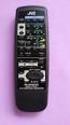 SLEEP TEST SUBWOOFER + MODE EFFECT CENTER + SOUND TV/VIDEO CD-DISC DVD CD TV VOL TV CH TV VCR AUDIO VCR CH + TV SOUND TAPE/CDR VOLUME REMOTE REAR L + MENU REAR R + ENTER VCR /DIGITAL FM/AM MUTING STANDBY
************* OWNER'S MANUAL BAMF800/2 BAMF1250/2 BAMF1800/2 BAMF2200/2 BAMF2600/2 BAMF1200/4 BAMF1600/4 BAMF2000/1D BAMF4000/1D BAMF5500/1D
 ************* OWNER'S MANUAL BAMF800/2 BAMF1250/2 BAMF1800/2 BAMF2200/2 BAMF2600/2 BAMF1200/4 BAMF1600/4 BAMF2000/1D BAMF4000/1D BAMF5500/1D INTRODUCTION Power Acoustik amplifiers provide high-performance
Table of Contents. System Requirement of MP3 Player:... 4. Connection and Downloading... 7. Downloading DRM10 Files... 8.
 Table of Contents Instructions... 1 Precautions... 2 System requirements... 4 System Requirement of MP3 Player:... 4 Introduction... 5 Features... 5 Charging the Battery... 6 Connection and Downloading...
DR 70 Portable Digital DAB+ and FM Radio Receiver User Manual English Please read carefully before using this product
 DR 70 Portable Digital DAB+ and FM Radio Receiver User Manual Please read carefully before using this product 15 1 Table of Contents 1 Table of Contents... 16 2 Safety Instructions:... 17 3 Specification:...
High Power Receiver CR-W400U Operating Instructions
 High Power Receiver CR-W400U Operating Instructions Please read these instructions carefully before using this product and save this manual for future use. Panasonic welcomes you to our ever growing family
CAR RADIO BLUES OWNER'S MANUAL
 CAR RADIO BLUES OWNER'S MANUAL Contents 1 Contents Radio........................................ Radio - Overview............................. Important information........................ Anti-theft
Quick Connection and Setup Guide
 3-300-262-13(1) Read this first Quick Connection and Setup Guide Quick start guide to main features GB HDD Network Audio System NAS-SC55PKE 2008 Sony Corporation Printed in Malaysia Table of Contents Checking
Owner's Manual for your BMW Business CD Car Radio. For your listening enjoyment.
 Owner's Manual for your BMW Business CD Car Radio. For your listening enjoyment. 2n This Owner's Manual is intended to familiarize you with the details of your BMW car radio. In addition, we recommend
/&' 79 7; /% ) &RORU 7HOHYLVLRQ (QJOLVK
 245U Using the On Screen Displays Many features available on this TV can be accessed via the On Screen Display menu system. Use the remote control as shown below to access and adjust features as desired.
ilx-007 ALPINE ELECTRONICS OF AMERICA, INC. 19145 Gramercy Place, Torrance, California 90501, U.S.A. Phone 1-800-ALPINE-1 (1-800-257-4631)
 R ilx-007 EN OWNER S MANUAL Please read before using this equipment. MODE D EMPLOI Veuillez lire avant d utiliser cet appareil. MANUAL DE OPERACIÓN Léalo antes de utilizar este equipo. Thank you for purchasing
IMPORTANT SAFETY INSTRUCTIONS. When using this electronic device, basic precautions should always be taken, including the following:
 IMPORTANT SAFETY INSTRUCTIONS When using this electronic device, basic precautions should always be taken, including the following: 1. Read all instructions before using the product. 2. Do not use this
Rider's Manual Audio system BMW Professional 2000
 Rider's Manual Audio system BMW Professional 2000 BMW Motorrad The Ultimate Riding Machine Motorcycle data/dealership details Motorcycle data Dealership details Model Person to contact in Service department
SIMPLY CLEVER. ŠkodaAuto CAR RADIO BLUES
 SIMPLY CLEVER ŠkodaAuto CAR RADIO BLUES Contents 1 Contents Radio....................................... Radio - Overview............................. Important information........................ Anti-theft
PR-D9W. GB Version 1
 PR-D9W Version 1 Table of contents Important safety instructions... 2-3 Introduction... 4 Controls... 5-8 Using your weather alert radio for the first time... 9 Operating your radio Search tuning AM/FM...
KTC-D500E DIGITAL TV TUNER
 KTC-D500E DIGITAL TV TUNER INSTRUCTION MANUAL C B64-3808-00/00 (E) Contents Safety precautions 3 Notes 4 Getting Started 5 Switching to Digital TV Screen ÅıÇ 5 Functions During Digital TV Screen Åı 5 Functions
User Manual AUDIO OUT OFF 9V DC USB POWER. Digital On-Hold Audio System with analog line capability
 MP On-Hold Audio System User Manual memory card IMPEDANCE PHONE LINES on speaker off ON OFF 9V DC USB AUDIO OUT 8Ω 6Ω // /4 POWER Digital On-Hold Audio System with analog line capability al /06 Before
To prevent possible hearing damage, do not listen to high volume levels for long periods.
 To prevent possible hearing damage, do not listen to high volume levels for long periods. Fully understand user manual before use. Ensure your player is at low volume levels or power off when not in use.
CAR RADIO STOCKHOLM 230 DAB 1 011 402 220 001. Enjoy it. Operating and installation instructions
 CAR RADIO STOCKHOLM 230 DAB 1 011 402 220 001 Enjoy it. Operating and installation instructions Controls 1 2 3 4 5 6 7 8 9 16 15 14 13 12 11 10 1 button Unlock the detachable control panel 2 MENU button
TMX-R680A OWNER S MANUAL. Mobile Overhead Monitor PUSH
 TMX-R680A Mobile Overhead Monitor OWNER S MANUAL PUSH ! WARNING It is dangerous and illegal for the driver to watch the TV/Video while driving the vehicle. The driver may be distracted from looking ahead
CD / DAB / FM Digital Sound System with dock for ipod and iphone
 Enjoy Listening ROBERTS CD / DAB / FM Digital Sound System with dock for ipod and iphone Please read this manual before use Contents Introduction...2-9 Sound 00 Sound System features...3 Controls and connections...4-5
REVIVE DAB/FM ALARM CLOCK RADIO
 kitsound.co.uk REVIVE DAB/FM ALARM CLOCK RADIO USER MANUAL JB. 3208 / Made in China. KitSound 2014. Christchurch, Dorset. BH23 4FL We are craftspeople. We are musicians. We are KitSound And we all commit
Business Audio System: Music & Messaging MP3 Player. by Grace Digital Audio. User Guide. Model No. GDI-USBM10
 Business Audio System: Music & Messaging MP3 Player by Grace Digital Audio User Guide Model No. GDI-USBM10 User Guide Contents Introduction 2 Safety & General Use Information 2 Features 3 Set Up & Operation
Car Radio CD USB SD Bluetooth. Toronto 420 BT 1 011 202 420 / 1 011 202 421 San Francisco 320 1 011 202 320 / 1 011 202 321. www.blaupunkt.
 Car Radio CD USB SD Bluetooth www.blaupunkt.com Toronto 420 BT 1 011 202 420 / 1 011 202 421 San Francisco 320 1 011 202 320 / 1 011 202 321 www.blaupunkt.com Operating and installation instructions Controls
User Manual. Listen to your favourite songs on the radio on the road & in a car
 Technaxx FMT500 Transmitter User Manual The Declaration of Conformity is under the Internet link: www.technaxx.de/ (in bottom bar Konformitätserklärung ); Before using the device, read the user manual
(2012 10 24) manual_tocomsat duo LITE.indd 20-1 2012-10-24 7:44:57
 (2012 10 24) manual_tocomsat duo LITE.indd 20-1 2012-10-24 7:44:57 TABLE OF CONTENTS Table of Contents Table of Contents Safety Warning General Information Package Contents & Features Front Panel Rear
Always there to help you. Register your product and get support at www.philips.com/welcome PD7001B. Question? Contact Philips.
 Always there to help you Register your product and get support at www.philips.com/welcome Question? Contact Philips PD7001B User manual Contents 1 Important 3 Safety and notice 3 Safety 3 Compliance 4
User Manual. DXS-1000 Player
 User Manual DXS-1000 Player Table of contents 1. Safety instructions... 3 1.1. FOR SAFE AND EFFICIENT OPERATION... 3 2. Operation... 4 3. Software Display... 8 2 / 9 1. Safety instructions This device
CAR MULTIMEDIA LAS VEGAS 530. Enjoy it. Operating instructions
 CAR MULTIMEDIA LAS VEGAS 530 Enjoy it. Operating instructions Controls Device 13 1 12 2 3 4 11 5 6 7 8 10 9 1 DIS button Short press: Adjust the display brightness Long press: Switch off the display 2
Albrecht DR314. DAB/DAB+/FM Radio 1.) User Manual
 Albrecht DR314 DAB/DAB+/FM Radio 1.) User Manual -1- Important Safety Notes TO PREVENT FIRE OR SHOCK HAZARD, DO NOT USE THIS PLUG WITH AN EXTENSION CORD, RECEPTACLE OR OTHER OUTLET UNLESS THE BLADES CAN
Contents of the Guide
 BeoCenter 1 Guide Contents of the Guide 3 The following is an index to the contents of the separate Reference book with page references: How to set up BeoCenter 1, 4 Connect your TV cables, 5 Connect
CDE-HD148BT CD RECEIVER WITH ADVANCED BLUETOOTH CDE-147BT
 EN R CD/HD Radio /ADVANCED BLUETOOTH WITH SiriusXM Tuner CDE-HD148BT CD RECEIVER WITH ADVANCED BLUETOOTH CDE-147BT FR ES Works With This HD Radio receiver enables: (CDE-HD148BT only) OWNER S MANUAL Please
DAB1001. Wireless Digital Radio Interface. Installation & User Guide
 DAB1001 Wireless Digital Radio Interface Installation & User Guide Contents Contents... 2 Introduction... 3 Contents of Package... 4 Installation... 5 Product Overview... 5 Installation Procedure... 5
FM/AM Cassette Car Stereo
 3-868-290-11 (1) FM/AM Cassette Car Stereo Operating Instructions US Owner s Record The model and serial numbers are located on the bottom of the unit. Record the serial number in the space provided below.
HOME THEATER SYSTEM. Instruction Manual. Model ASR150. Please read the instruction manual carefully before using your unit.
 SURROUND SOUND HOME THEATER SYSTEM Instruction Manual Model ASR150 Please read the instruction manual carefully before using your unit. For support visit : www.1800customersupport.com GENERAL TABLE OF
PG-01instruction manual
 PG-01instruction manual DIGITAL RADIO fairbank house ashley road altrincham WA14 2DP united kingdom t: +44 (0)161 924 0300 f: +44 (0)161 924 0319 e: [email protected] www.intempodigital.com PG-01
HANTZ + PARTNER The Upgrade Company! www.hantz.com
 Quick Start Guide X3000 HD Network Media Player X3000 HD NETWORK MEDIA PLAYER POWER HANTZ + PARTNER The Upgrade Company! www.hantz.com A Get to know your HELIOS X3000 Thank you for purchasing the HELIOS
Compaq ipaq Personal Mini-CD Player PM-1. User Guide
 Compaq ipaq Personal Mini-CD Player PM-1 User Guide Notice 2001 Compaq Computer Corporation COMPAQ and the Compaq logo registered in U.S. Patent and Trademark Office. ipaq is a trademark of Compaq Information
RD-11 ROBERTS. FM RDS/DAB digital radio with. Sound for Generations. Please read this manual before use
 ROBERTS Sound for Generations RD- FM RDS/DAB digital radio with Please read this manual before use Contents Controls... Battery operation... 3 Mains operation... 3 Operating your radio - DAB... 4 Selecting
ATS-505. GB Version 1
 ATS-505 GB Version 1 Control Locations Power/Sleep Power On/off/Alarm off/sleep function Display Switch between radio frequency and time while radio is power on Mode Mode set up (please see below mode
DAB Radio. Instruction Manual L55DAB10
 DAB Radio Instruction Manual L55DAB10 L55DAB10_IB_110810_Zell.indd 1 L55DAB10_IB_110810_Zell.indd 2 Contents Unpacking...5 Product Overview...6 Top View... 6 Rear View... 6 Power Source...7 Battery Power...
RD-27 ROBERTS. FM RDS/DAB digital radio with. Sound for Generations. Please read this manual before use
 ROBERTS RD-7 Sound for Generations FM RDS/DAB digital radio with Please read this manual before use Contents Controls... Battery operation... 3 Mains operation... 3 Operating your radio - DAB... 4 Selecting
Operation Manual CD RECEIVER DEH-P6000UB. English
 Operation Manual CD RECEIVER DEH-P6000UB English Contents Thank you for buying this Pioneer product. Please read through these operating instructions so you will know how to operate your model properly.
DAB DIGITAL RADIO MODEL: CANVAS USER MANUAL
 DAB DIGITAL RADIO MODEL: CANVAS USER MANUAL 1 Welcome 2 Your DAB Digital Radio 2.1 In The Box 2.2 Front View 2.3 Top View 2.4 Rear View 3 Quick Setup 4 Features POWER button 4.5 FM mode choosing menu options
SIMPLY CLEVER RADIO BLUES OWNER'S MANUAL
 SIMPLY CLEVER RADIO BLUES OWNER'S MANUAL Table of Contents 1 Table of Contents General information...................... 2 Owner's Manual.................................... 2 Symbols in the text of the
Mini Hi-Fi Component System
 3-860-707-14(1) Mini Hi-Fi Component System Operating Instructions Owner s Record The model and serial numbers are located on the rear panel. Record the serial number in the space provided below. Refer
Model No.: MR-140. REMARK: FINISH SIZE IS 145x210mm. Effected 31 / May / 07
 Model No.: MR-0 HI-POWER x Watts INT RPT RDM 6 This product is sold and serviced exclusively by Prospec Electronic Inc. and must be returned to Prospec for in and out of warranty repairs. It can not be
Operating Instructions
 PLEASE READ BEFORE USE AND SAVE. Integrated Telephone System Model No. KX-T7FXW Pulse-or-tone dialing capability Operating Instructions Preparation Basic Operation Advanced Operation Useful Information
CR9971 2 Band Auto Set Dual Alarm Clock Radio ROBERTS. Sound for Generations. Please read this manual before use
 ROBERTS Sound for Generations CR9971 2 Band Auto Set Dual Alarm Clock Radio Please read this manual before use Contents Contents... 1 Controls...2-5 Switching on... 6 Setting the time manually... 6 Setting
Register your product and get support at. www.philips.com/welcome AS111. User manual
 Register your product and get support at www.philips.com/welcome AS111 User manual Contents 1 Important 4 Safety 4 English 2 Your docking speaker for AndroidTM 5 Introduction 5 What's in the box 5 Overview