
RADIO mode display. RDS mode display MAIN SUB. VRX6570Rz 9
|
|
|
- Basil Grant
- 9 years ago
- Views:
Transcription
1 RADIO mode display COLOR LCD DISPLAY INFORMATION PANEL MAIN SUB RDS mode display COLOR LCD DISPLAY INFORMATION PANEL VRX6570Rz 9

2 CD/MD Changer mode display COLOR LCD DISPLAY INFORMATION PANEL MAIN SUB TV mode display COLOR LCD DISPLAY INFORMATION PANEL MAIN SUB 10 VRX6570Rz

3 DAB mode display COLOR LCD DISPLAY INFORMATION PANEL VRX6570Rz 11

4 5. REMOTE CONTROL When the panel is open Remote control unit Inserting the Batteries 1. Turn the remote control unit over, then slide the rear cover in the direction of the arrow. 2. Insert the AA (SUM-3, IECR-6/1.5V) batteries that came with the remote control unit facing in the directions shown in the figure, then close the rear cover. Notes: Using batteries improperly can cause them to explode. Take note of the following points: When replacing batteries, replace both batteries with new ones. Do not short-circuit, disassemble or heat batteries. Do not dispose of batteries into fire or flames. Dispose of spent batteries properly. 12 VRX6570Rz

5 Functions of Remote Control Unit Buttons Button FUNC Mode Radio (RDS) CD changer MD changer Switches among Radio, DAB, CD changer, MD changer and TV. TV BAND DISC UP TOP Switches reception band. Moves to the next disc in increasing order. Switches reception band. ª VOLUME º SEARCH Increases and decreases volume (in all modes). Moves preset channels up and down. Moves tracks up and down. When pressed and held for 1 second: Fast-forward/ Fast-backward. Moves preset channels up and down. PLAY/PAUSE No function. Switches between playback and pause. No function. MUTE Turns mute on and off. TA TA on and off. DISP MONI Turns on and off the monitor. fi PS/AS SCN Preset scan. When pressed and held for 2 seconds: Auto store. Scan play. When pressed and held for 1 second: Disc scan play. Preset scan. When pressed and held for 2 seconds: Auto store. fl AF RPT AF function on and off. When pressed and held for 1 second: REG function on and off Repeat play. When pressed and held for 1 second: Disc repeat play. No function. PTY RDM TV/VTR PTY standby mode on and off. Random play. When pressed and held for 1 second: Disc random play. Switches between TV and VTR. 38 WIDE No function. No function. Switches the TV mode. Notes: The remote control unit does not work when the panel is closed. Some of the corresponding buttons on the main unit and remote control unit have different functions. VRX6570Rz 13

6 6. DCP The control panel can be detached to prevent theft. When detaching the control panel, store it in the DCP (DETACHABLE CONTROL PANEL) case to prevent scratches. We recommend taking the DCP with you when leaving the car. 2. Lock the DCP/Operation Panel at the upper center until a click is heard. POWER button Removing the DCP 1. Turn the power off. 2. Deeply push in the DCP RELEASE lever 6 to release the DCP/Operation Panel. DCP/RALEASE lever 3. Press the power button 1 to turn on the power. 3. Pull the DCP toward you and remove it. DCP/Operation Panel CAUTION The DCP can easily be damaged by shocks. After removing it, be careful not to drop it or subject it to strong shocks. If the Operation Panel is kept open, the DCP may drop due to vibration of the car. This results in damage to the DCP. So close the Operation Panel or remove the DCP to store into the case. The connector connecting the main unit and the DCP is an extremely important part. Be careful not to damage it by pressing on it with fingernails, screwdrivers, etc. If the DCP is dirty, wipe off the dirt with a soft, dry cloth only. Attaching the DCP 1. Hold the DCP/Operation Panel with its rear side facing the main unit and, as shown in the figure below, put the lower edge of the panel onto the corresponding edge of the main unit. 14 VRX6570Rz

7 7. CAUTIONS ON HANDLING LCD panel/generalities For a longer service life, be sure to read the following cautions. Be sure to store the LCD panel inside the main unit when parking the car outdoors for long period of time. The LCD panel will operate properly in a temperature range of 0 to 60 C. Don t allow any liquids on the set from drinks, umbrellas etc. Doing so may damage the internal circuitry. Do not disassemble or modify the set in any way. Doing so may result in damage. Do not draw the LCD panel out and use it as a tray. Also, subjecting the LCD panel to shocks may result in breakage, deformation or other damage. Do not let cigarettes burn the display. Doing so may damage or deform the cabinet. If a problem should occur, have the set inspected at your store of purchase. Do not insert objects or poke in the space between the LCD panel and the main unit when the panel is tilted. Do not place anything on the display when the panel is tilted. The remote controller may not work if the remote control sensor is exposed to direct sunlight. In extremely cold weather, the display movement may slow down and the display may darken, but this is not a malfunction. The display will work normally when the temperature increases. Small black and shiny spots inside the LCD panel are normal for LCD products. The LCD panel may stop temporarily when it opens or closes, when the engine stops or when it is cold. Cleaning Cleaning the cabinet Use a soft, dry cloth and gently wipe off the dirt. For tough dirt, apply some neutral detergent diluted in water to a soft cloth, wipe off the dirt gently, then wipe again with a dry cloth. Cleaning the LCD panel The LCD panel tends to collect dust, so wipe it off occasionally with a soft cloth. The surface is easily scratched, so do not rub it with hard objects. Do not use benzene, thinner, car cleaner, etc., as these substances may damage the cabinet or cause the paint to peel. Also, leaving rubber or plastic products in contact with the cabinet for long periods of time may cause stains. VRX6570Rz 15

8 8. OPERATIONS Basic Operations Be sure to read this chapter referring to the front diagrams of chapter 2. CONTROLS on page 5 (unfold). CAUTION When the unit is turned on, starting and stopping the engine with its volume raised to the maximum level may harm your hearings. Be careful about adjusting the volume. Use this unit after starting the engine. Adjusting the volume Operate the VOLUME button 2 in the direction of the arrows w (up) or z (down) to adjust the volume; w: Increases the volume. z: Decreases the volume. The volume level indicated in the display is in a range from 0 (minimum) to 33 (maximum). CAUTION Turning on and off the power Be careful about using this unit for a long time without running the engine. If you drain the car s battery too far, you may not be able to start the engine and this can reduce the service life of the battery. 1. Press the POWER button The illumination and display on the unit light up. The unit automatically remembers its last operation mode and will automatically switch to display that mode. 3. Press and hold the POWER button 1 for 1 second or longer to turn off the power for the unit. About the SYSTEM CHECK The confirmation of connected equipment must be performed for this unit only when the wiring connection is complete and power is turned on to the unit first. When the power is supplied, SYSTEM and PUSH PWR appear alternately in the display. Press the POWER button 1, the system check starts inside the unit. When COMPLETE appears, press once again the POWER button 1. Selecting a mode 1. Press the FUNC button 1 to change the mode of operation. 2. Each time you press the FUNC button 1, the mode of operation changes in the following order: Radio mode DAB mode CD changer mode MD changer mode TV mode Radio mode... External equipment not connected with CeNET is not selected. While driving, keep the volume at a level at which external sounds can be heard. Switching the display When the panel is closed: Press the DISP to select the desired display. Each time you press the DISP the display switches in the following order: Notes: Once selected, the preferred display becomes the default display. When a function adjustment such as volume is made, the display momentarily switches to that function s display, then returns back to the preferred display several seconds after the adjustment. 16 VRX6570Rz

9 Basic Operations If a title has been input, it is shown in the SUB display. If no title has been input, appears in the display. To input a title, refer to the subsection Entering titles in Other Functions section. For CD, MD and TV, some special characters of the title, the PS name of the RDS, and the DAB service label will not be displayed on the Information Panel of the DCP. In this case, those characters will only be left blank. When CT data is not received, CT--:-- appears in the display. Showing a mode display When the panel is open: Press the TITLE button to show the Title List display. In the Title List display, the titles of items stored in the PRESET buttons # 1 to 6 are listed. In the RDS tuner mode, a PS name is displayed. In the DAB mode, a service label is displayed. For detailed information, refer to the section Title list play. Opening and turning the display Notes: Do not place any object on the open display. Do not drop any object on the movable part. Do not expose the display to shocks. 1. Press the OPEN button! to open the Color LCD display. If the Color LCD display is left horizontally in the open position for 10 seconds or longer, it is automatically drawn in. 2. Turn the Color LCD display upwards to a good view angle. When the monitor is turned upwards, a picture appears in the display. The Information Panel 4 display disappears. CAUTION Do not turn the display unless it is completely open. When adjusting the angle of the display be careful no to let your fingers get caught by the panel or instrument panel of the vehicle. 3. To store the Color LCD display in the source unit, turn it to the horizontal position until a click is heard. Turning on and off the monitor Pressing the DISP turns the monitor on and off. When a button is pressed or during security monitoring, the monitor-off mode is canceled. Mute Each time you press the MUTE button $, mute is turned on and off. MUTE appears when mute is turned on. Setting the Z-enhancer This unit comes with 3 types of sound tone effect stored in memory. Select the one you prefer. The factory default setting is Z-EHCR OFF. When a Z-enhancer comes on (1-3), Z-EHCR appears in the display. Z-EHCR 1 (Z-Enhancer 1): Setting emphasizing bass. Z-EHCR 2 (Z-Enhancer 2): Setting emphasizing treble. Z-EHCR 3 (Z-Enhancer 3): Setting emphasizing bass and treble. Z-EHCR OFF (Z-Enhancer off): Neither bass nor treble are emphasized by the Z-enhancer. Incapable of operation when connecting DSP (DPH7500Z). VRX6570Rz 17

10 Basic Operations When the panel is closed: Each time you press the Z-EHCR button 9, the tone effect changes in the following order: Z-EHCR 1 Z-EHCR 2 Z-EHCR 3 Z-EHCR OFF Z-EHCR 1... When the panel is open: 1. Press the A-M button to change into the AUDIO-MODE display. to select Z-EHCR. Press the ENT at the center of the JOYSTICK to change into the Z-enhancer selecting display. 3. Operate the JOYSTICK upward or downward to select out of: TYPE 1 (Z-Enhancer 1) TYPE 2 (Z-Enhancer 2) TYPE 3 (Z-Enhancer 3) OFF (Z-Enhancer off), and press the ENT at the center of the JOY- STICK to set a desired Z-enhancer. 4. When the setting is finished, operate the JOY- STICK rightward or leftward to move the cursor to the MENU. Then press the ENT at the center of the JOYSTICK to return to the AUDIO-MODE display. To return from the AUDIO-MODE display to the STANDARD display, press the A-M button once again. Adjusting the Z-enhancer This function is enabled only when the panel is open. 1. Press the A-M button to change into the AUDIO-MODE display. to select Z-EH LVL level. Press the ENT at the center of the JOYSTICK to change into the Z-enhancer adjusting display. 3. Operate the JOYSTICK upward or downward to adjust the Z-enhancer level. When Z-Enhancer 1 is selected, you can adjust the bass in the range of ±2. When Z-Enhancer 2 is selected, you can adjust the treble in the range of ±2. When Z-Enhancer 3 is selected, you can adjust the bass and treble in the range of ±2. 4. When the adjustment is finished, operate the JOYSTICK rightward or leftward to move the cursor to MENU. Then press the ENT at the center of the JOYSTICK to return to the AUDIO-MODE display. Adjusting the bass and treble Notes: This function is enabled only when the panel is open. This function can be adjusted only when the Z- enhancer is OFF. 1. Press the A-M button to change into the AUDIO-MODE display. to select BAS/TRE. Then press the ENT at the center of the JOYSTICK to change into the BASS/TREBLE adjusting display. 3. Operate the JOYSTICK rightward or leftward to adjust the BASS or TREBLE. 4. Operate the JOYSTICK upward or downward to adjust a level (adjustment range: from -6 to 6). 5. When the adjustment is finished, operate the JOYSTICK rightward or leftward to move the cursor to MENU. Then press the ENT at the center of the JOYSTICK to return to the AUDIO-MODE display. Adjusting the balance and fader This function is enabled only when the panel is open. 1. Press the A-M button to change into the AUDIO-MODE display. to select BAL/FAD. Then press the ENT at the center of the JOYSTICK to change into the BAL/FAD adjusting display. 3. Operate the JOYSTICK rightward or leftward to select BALANCE or FADER. 4. Operate the JOYSTICK upward or downward to make an adjustment. Adjusting range of the balance: L13 to R13 Adjusting range of the fader: front 12 / rear When the adjustment is finished, operate the JOYSTICK rightward or leftward to move the cursor to MENU. Then press the ENT at the center of the JOYSTICK to return to the AUDIO-MODE display. 18 VRX6570Rz

11 Basic Operations Turning on/off the loudness The loudness effect emphasizes the bass and treble to create a natural sound tone. When you are listening to music at a low volume, it is recommended to use the loudness effect. This function is enabled only when the panel is open. 1. Press the A-M button for 1 second or longer to select Loudness ON. The LD indicator lights in the display. 2. Press the A-M button for 1 second or longer to select Loudness OFF. The LD indicator goes off. When using a sold separately digital sound processor (DPH7500z), a feature called auto loudness is selected. This function is different from the loudness effect. For further details on the auto loudness feature, refer to the subsection Output adjustment of auto loudness, subwoofer and playback band. CT (Clock Time) function The CT function receives CT data sent from an RDS station and displays the time. Press the DISP to switch to CT display. If CT is not being received, CT--:-- appears in the display. CT data is not transmitted in some countries and by some broadcast stations. Also, in some areas, the CT may not be displayed accurately. VRX6570Rz 19

12 Radio Operations Listening to the radio 1. Press the FUNC button 1 and select the RA- DIO mode. The frequency or PS is displayed. PS: Programme service name 2. Press the BAND button % and select the radio band. Each time the button is pressed, the radio reception band changes in the following order: FM1 FM2 FM3 AM (MW/LW) FM Press the right or left side of the SEARCH button 2 to tune in the desired station. Tuning There are 3 types of tuning mode available, seek tuning, manual tuning and preset tuning. Seek tuning There are 2 types of seek tuning: DX SEEK and LOCAL SEEK. DX SEEK can tune in to receivable broadcast stations; LOCAL SEEK can tune in to only broadcast stations with a good reception condition. 1. Press the BAND button % and select the desired band. (FM or AM (MW, LW)) 2. Tune in to a station. If MANU is lit in the display (or when the panel is closed, if the indicator SRCH is not lit) press and hold the BAND button % for 1 second or longer. MANU in the display goes off (or when the panel is open the indicator SRCH lights) and seek tuning is now available. If TA is lit in the display, TP stations are automatically sought. DX SEEK Press the right or left side of the SEARCH button 2 to automatically seek a station. When the right side of the SEARCH button 2 is pressed, the station is sought in the direction of higher frequencies; when the left side of the SEARCH button 2 is pressed, the station is sought in the direction of lower frequencies. When seek tuning starts, DX SEEK appears in the display. LOCAL SEEK If you press and hold the right or left side of the SEARCH button 2 for 1 second, local seek tuning is carried out. Broadcast stations with good reception condition are selected. When local seeking starts, LO SEEK appears in the display. Manual tuning There are 2 ways available: Quick tuning and step tuning. When you are in the step tuning mode, the frequency changes one step at a time. In quick tuning mode, you can quickly tune the desired frequency. 1. Press the BAND button % and select the desired band. (FM or AM (MW/LW)) If MANU is not lit in the display (or when the panel is closed, if the indicator SRCH is lit), press and hold the BAND button % for 1 second or longer. MANU appears in the display (or when the panel is closed, the indicator SRCH goes off) and manual tuning is now available. 2. Tune into a station. Quick tuning: Press and hold the right or left side of the SEARCH button 2 for 1 second or longer to tune in a station. Step tuning: Press the right or left side of the SEARCH button 2 to manually tune in a station. Manual tuning is cancelled if you do not operate the unit for 7 seconds or longer. Recalling a preset station A total of 24 preset positions (6-FM1, 6-FM2, 6- FM3, 6-AM) exists to store individual radio stations in memory. Pressing the corresponding PRESET button # recalls the stored radio frequency automatically. 1. Press the BAND button % and select the desired band. (FM or AM (MW/LW)) 2. Press the corresponding PRESET button # to recall the stored station. Press and hold one of the PRESET buttons # for 2 seconds or longer to store that station into preset memory. Manual memory 1. Press the BAND button % and select the desired band. (FM or AM (MW/LW)) 2. Select the desired station with seek tuning, manual tuning, or preset tuning. 3. Press and hold one of the PRESET buttons # for 2 seconds or longer to store the current station into preset memory. 20 VRX6570Rz

13 Radio Operations Auto store Auto store is a function for storing up to 6 stations that are automatically tuned in sequentially. If 6 receivable stations cannot be received, a previously stored station remains unoverwritten at the memory position. 1. Press the BAND button % and select the desired band. (FM or AM (MW/LW)) 2. Press and hold the PS/AS button 5 for 2 seconds or longer. The stations with good reception are stored automatically to the preset channels. If auto store is performed in the FM bands, the stations are stored in FM3 even if FM1 or FM2 was chosen for storing stations. Preset scan Preset scan receives the stations stored in preset memory in order. This function is useful when searching for desired station in memory. 1. Press the PS/AS button When the desired station is tuned in, press the PS/AS button 5 again to continue receiving that station. VRX6570Rz 21

14 RDS Operations RDS (Radio Data System) This unit has a built in RDS decoder system that supports broadcast stations transmitting RDS data. This system can display the name of the broadcast station being received (PS) and can automatically switch to the broadcast station with the best reception as you move long distances (AF switching). Also, if a traffic announcement or programme type information is broadcast from an RDS station, no matter what mode you are in, this broadcast is received. Additionally, if EON information is received, this information enables automatic renewal of other preset stations on the same network and interruption of traffic announcement and/or chosen program type from other stations (TP). This function is not available in some areas. When using the RDS function, always set the radio to FM mode. AF : Alternative Frequency PS : Programme Service Name PTY :Programme Type EON : Enhanced Other Network TP : Traffic Programme RDS interrupt does not function during AM radio reception or in TV mode. AF function The AF function switches to a different frequency on the same network in order to maintain optimum reception. The factory default setting is ON. Switching OFF the AF function Press the AF button 7. The AF indicator goes off. Switching ON the AF function Press the AF button 7. The AF indicator lights. If the reception of the current broadcast station deteriorates durably, SEARCH lights in the display and the radio searches for the same programme on another frequency. When the reception deteriorates, the AF indicator flickers. AF function between RDS and DAB When the same programme is broadcast by both RDS and DAB, and this function is ON, the unit switches automatically to the broadcast with the better reception. This function only operates when the DAH9500z DAB unit, sold separately, is connected. 1. Press the ADJ button to show the adjustment selection display. to select LINKACT. 3. Operate the JOYSTICK rightward or leftward to select ON or OFF. After selection, press the ENT at the center of the JOYSTICK. ON: AF switching between DAB and RDS enabled. OFF: AF switching between DAB and RDS disabled. 4. Press the ADJ button to return to the previous mode. REG (Regional programme) function When the REG function is ON, the optimum regional station can be received. When this function is OFF, if the regional station area switches as you drive, a regional station for that region is received. The factory default setting is OFF. Notes: This function is disabled when a national station such as BBC 2 FM is being received. The REG function ON/OFF setting is valid when the AF function is ON. Turning the REG function ON When REG is not lit in the display, press and hold the AF button 7 for 2 seconds or longer. REG lights in the display. Turning the REG function OFF Press and hold the AF button 7 for 2 seconds or longer. REG in the display goes off. Manually tuning a regional station in the same network This function can be used when a regional broadcast of the same network is received. 1. This function is valid when the AF function is ON and the REG function is OFF. 2. Press any one of the PRESET buttons # to call out a regional station. 3. Each time you press the same PRESET button #, the unit switches from a local station to the other on the same network. 22 VRX6570Rz

15 RDS Operations TA (Traffic Announcement) In TA standby mode, when a traffic announcement broadcast starts, the traffic announcement broadcast is received as top priority regardless of the function mode so you can listen to it. Traffic programme (TP) automatic tuning is also possible. RDS interrupt does not function during AM radio reception or in TV mode. This function can only be used when TP is lit in the display. When TP is lit, this means that the RDS broadcast station being received has traffic announcement programmes. Setting TA standby mode If you press the TA button 0 when only TP is lit in the display, TP and TA light in the display and the unit is set into TA standby mode until a traffic announcement is broadcast. When a traffic announcement broadcast starts, TRA INFO appears in the display. If you press the TA button 0 while a traffic announcement broadcast is being received, the traffic announcement broadcast reception is cancelled and the unit goes into TA standby mode. Cancelling TA standby mode With TP and TA are lit in the display, press the TA button 0. The TA in the display goes off and TA standby mode is cancelled. If TP is not lit, pressing the TA button 0 searches for a TP station. Searching for a TP station When TP is not lit, if you press the TA button 0, TA lights in the display and the unit automatically searches a TP station. If a TP station is not received, the unit continues the search operation. Pressing the TA button 0 again makes the TA indicator go off and stops TP station searching. Auto store function for TP stations You can automatically store up to 6 TP stations into preset memory. If the number of TP that can be received is less than 6, broadcast stations already stored in memory are left without being overwritten. 1. With TA lit in the display, press the PS/AS button 5 for 2 seconds or more. 2. The TP stations with the good reception condition are stored into preset memory. Even if you select FM1 or FM2, a TP station is stored into memory for FM3. PTY This function enables you to listen to a broadcast of the selected programme type when it starts, even if the unit operates on a function mode other than radio. RDS interrupt does not function during AM radio reception or in TV mode. Some countries do not yet have PTY broadcast. In TA standby mode, a TP station has priority over a PTY broadcast station. Selecting PTY 1. When you press the PTY button 8, the unit goes into PTY select mode. 2. Press any one of the PRESET buttons # to select a desired PTY. Alternatively, when the panel is closed, operate the SEARCH button 2 upward or downward to select a desired PTY. Below are the factory default settings stored for the PRESET buttons #. Preset PTY item number ENGLISH Contents 1 NEWS News 2 INFO Information 3 POP M Pop music 4 SPORT Sports 5 CLASSICS Classics 6 M,O,R,M Middle of the road music 3. The PTY select mode is cancelled automatically 7 seconds after a PTY is selected. Cancelling PTY standby mode When you press the PTY button 8 for 1 second or longer, the indicator PTY goes off and PTY standby mode is cancelled. Cancelling a PTY interrupt broadcast Press the PTY button 8, during the PTY interrupt broadcast to display the subsidiary, the PTY interrupt is cancelled and the unit returns to PTY standby mode. PTY seek 1. Press the PTY button 8, the PTY select mode is turned on. 2. Select a desired PTY. 3. Press the right or left side of the SEARCH button 2. If you press the right side, the unit seeks a PTY broadcast moving up the frequencies; if you press the left side, it seeks moving down the frequencies. VRX6570Rz 23

16 RDS Operations If no station with the selected PTY broadcast can be received, the unit returns to the MAIN mode. PTY preset memory 1. When you press the PTY button 8, the PTY select mode is turned on. 2. Select a desired PTY. 3. If you press and hold any one of the PRESET buttons # for 2 seconds or longer, the selected PTY is stored into that preset channel memory. The 29 types of PTY below can be selected. ENGLISH NEWS AFFAIRS INFO SPORT EDUCATE DRAMA CULTURE SCIENCE VARIED POP M ROCK M M,O,R, M LIGHT M CLASSICS OTHER M WEATHER FINANCE CHILDREN SOCIAL A RELIGION PHONE IN TRAVEL HOBBIES JAZZ COUNTRY NATIONAL OLDIES FOLK M DOCUMENT PTY item Contents News Today s events Information Sports Education Drama Culture Science Variety Pop music Rock music Middle of the road music Light music Classics Other music Weather Finance For children Social affairs Religion Phone in Travel Hobbies Jazz Country National Oldies Folk music Documentaries Operating the PTY SELECT display when the panel is open 1. Press the PTY button 8 to select the PTY SELECT display. 2. In the PTY SELECT display, PTY is selected and PTY memory can be adjusted. Operate the JOYSTICK rightward or leftward to select PTY ITEM or PRESET (by moving the cursor). 3. When PTY ITEM is selected, PTY selection is carried out. Operate the JOYSTICK upward or downward to select a desired PTY. Press the ENT at the center of the JOYSTICK to set the selected PTY ITEM. (The PTY ITEM thus set is listed at the lower right of the display.) 4. When PRESET is selected, PTY preset memory can be called for and stored. 5. Operate the JOYSTICK upward or downward to select Preset Nos. 1 to Press the ENT at the center of the JOYSTICK to call for the preset PTY ITEM. Press the ENT at the center of the JOYSTICK for 2 seconds to store the PTY ITEM currently selected to any Preset No. selected (listed at the lower right of the display). 7. After adjustment is finished, operate the JOY- STICK rightward or leftward to move the cursor to MENU, and press the ENT at the center of the JOYSTICK to return to the STANDARD display. Emergency broadcast If an emergency broadcast is received, all the function mode operations are stopped. ALARM appears in the display and the emergency broadcast can be heard. RDS interrupt does not function during AM radio reception or in TV mode. Cancelling an emergency broadcast If you press the AF Button 7, emergency broadcast reception is cancelled. 24 VRX6570Rz

17 RDS Operations Switching the PTY display language This function is enabled only when the panel is open. You can select one of 4 languages (English, German, Swedish or French) for the PTY displayed in the display. The factory default setting is GB (English). 1. Press the ADJ button to show the adjustment selection display. to select "PTY LANG". After that, select a desired language by operating the JOY- STICK rightward or leftward and then press the ENT at the center of the JOYSTICK to change the setting. GB : English F : French D : German S : Swedish 3. Press the ADJ button. The unit returns to the previous mode. Volume setting of TA, emergency broadcast (ALARM) and PTY The volume for TA, ALARM and PTY interrupts can be set during TA, ALARM or PTY interrupt. The factory default setting is 15. During a TA, ALARM or PTY interrupt, operate the VOLUME button 2 upward or downward to set the volume to the desired level (00 to 33). When the TA, ALARM or PTY interrupt ends, the volume returns to the level it had before the interrupt. VRX6570Rz 25

18 CD Changer Operations CD changer functions When an optional CD changer is connected through the CeNET cable, this unit controls all CD changer functions. This unit can control a total of 2 changers (MD and/or CD). Press the FUNC button 1 and select the CD changer mode to start play. If 2 CD changers are connected, press the FUNC button 1 to select the CD changer for play. If NO MAG appears in the display, insert the magazine into the CD changer. LOADING appears in the display while the player loads (checks) the magazine. If NO DISC appears in the display, eject the magazine and insert discs into each slot. Then, reinsert the magazine back into the CD changer. CAUTION CD-ROM discs cannot be played in the CD changer. Pausing play 1. Press the PLAY/PAUSE button 3 to pause play. PAUSE appears in the display. 2. To resume play, press the PLAY/PAUSE button 3 again. Displaying CD titles This unit can display title data for CD-text CDs and user titles input with this unit. Each time you press and hold the DISP for 1 second or longer, the title display changes in the following order. When the panel is closed: User title (disc) CD-text title (disc) CD-text title (track) User title (disc)... When the panel is open: User title (disc) CD-text title (disc & track) User title (disc)... If the CD playing is not a CD-text CD or no user title has been input, appears in the display. Scrolling a CD-text title When a CD-text title is longer than 16 characters (8 characters when the panel is closed), you can scroll the display as follows. When the panel is closed: 1. Display the CD-text title (disc or track). 2. Press and hold the BAND button % for 1 second or longer. The titles scroll. When the panel is open: 1. Display the CD-text title (disc & track). 2. Press and hold the TITLE button for 1 second or longer to scroll the disc title. 3. To scroll the track title, press for 1 second or longer the TITLE button within 30 seconds after scrolling the disc title. Notes: If the disc title is shorter than 16 characters, the track titles begin to scroll immediately. If the track title is shorter than 16 characters, the track titles does not scroll. Selecting a CD Each of the DIRECT buttons # corresponds to a disc loaded into the magazine. Selecting a disc from 1 to 6 Press the corresponding DIRECT button (1 to 6) # to select the desired disc. Selecting a disc from 7 to 12 (only when a 12 disc CD changer is used.) Press the corresponding DIRECT button (7 to 12) # for 1 second or more, then select the desired disc. Selecting a track Track-up 1. Press the right side of the SEARCH button 2 to move ahead to the beginning of the next track. 2. Each time you press the right side of the SEARCH button 2, the track advances ahead to the beginning of the next track. Track-down 1. Press the left side of the SEARCH button 2 to move back to the beginning of the current track. 2. Press the left side of the SEARCH button 2 twice to move to the beginning of the previous track. 26 VRX6570Rz

19 CD Changer Operations Fast-forward/Fast-backward Fast-forward Press and hold the right side of the SEARCH button 2 for 1 second or longer. Fast-backward Press and hold the left side of the SEARCH button 2 for 1 second or longer. Top function The top function plays from the first track (track No. 1) of the disc. When playing a disc 1 to 6 Press the DIRECT button # (1 to 6) with the same number as the CD playing. When playing a disc 7 to 12 (only when a 12 disc CD changer is used.) Press the DIRECT button # (7 to 12) with the same number as the CD playing for 1 second or longer. Scan play The scan play locates and plays the first 10 seconds of each track on a disc automatically. This function continues on the disc until it is cancelled or the mode is changed. The scan play is useful when you want to select a desired track. 1. Press the SCN button 5 to start scan play. 2. Press the SCN button 5 again to cancel the scan play. Current track continues to play. Disc scan play The disc scan play locates and plays the first 10 seconds of the first track on each disc in the currently selected CD changer. This function continues automatically until it is cancelled or the mode is changed. The disc scan play is useful when you want to select a desired CD. 1. Press the SCN button 5 for 1 second or longer to start disc scan play. 2. Press the SCN button 5 again to cancel disc scan play. Normal disc play continues on the current track. Repeat play The repeat play continuously plays the current track. This function continues automatically until it is cancelled or the mode is changed. 1. Press the RPT button 7, to make repeat play starts. RPT lights in the display. 2. To cancel repeat play, press the RPT button 7 again. RPT goes off from the display and the unit returns to normal play. Disc repeat play After all tracks in the current disc have been played, the disc repeat play automatically replays the current disc over from the first track. This function continues automatically until it is cancelled or the mode is changed. 1. When you press the RPT button 7 for 1 second or longer, disc repeat play starts. D-RPT lights in the display. 2. To cancel disc repeat play, press the RPT button 7 again. D-RPT goes off from the display and the unit returns to normal play from the track being played. Random play The random play selects and plays individual tracks on the disc in no particular order. This function continues automatically until it is cancelled or the mode is changed. 1. When you press the RDM button 8, random play starts. RDM lights in the display. 2. To cancel random play, press the RDM button 8 again. RDM goes off from the display and the unit returns to normal play. Disc random play The disc random play selects and plays individual tracks or discs automatically in no particular order. This function continues automatically until it is cancelled or the mode is changed. 1. When you press the RDM button 8 for 1 second or longer, disc random play starts. D- RDM lights in the display. 2. To cancel disc random play, press the RDM button 8 again. D-RDM goes off from the display and the unit returns to normal play from the track being played. VRX6570Rz 27

20 MD Changer Operations MD changer functions When an optional MD changer is connected through the CeNET cable, this unit controls all MD changer functions. This unit can control a total of 2 changers (MD and/or CD). Press the FUNC button 1 and select the MD changer mode to start play. If 2 MD changers are connected, press the FUNC button 1 to select the MD changer for play. If NO DISC appears in the display, load MDs into the MD changer. Pausing play 1. Press the PLAY/PAUSE button 3 to pause play. PAUSE appears in the display. 2. To resume play, press the PLAY/PAUSE button 3 again. Switching disc titles and track titles This unit can display disc titles and track titles already entered on MDs. Titles up to 128 characters long can be displayed by scrolling the titles. Titles cannot be entered for MDs with this unit. When the panel is closed: 1. Press the DISP to show the SUB display. The disc title or track title is displayed. 2. Each time you press and hold the DISP for 1 second or longer, the display toggles between the disc title and the track title. When the panel is open: Both disc and track titles are displayed. Scrolling titles When a title is longer than 16 characters (or 8 characters if the panel is closed), you can scroll through it with the following operation. When the panel is closed: 1. Display the MD title (disc or track). 2. Press the BAND button % for 1 second or longer. The display scrolls through the title. When the panel is open: 1. Press the TITLE button for 1 second or longer to scroll through the disc title. 2. To scroll the track title, press for 1 second or longer the TITLE button within 30 seconds after scrolling the disc title. Notes: When the disc title is within 16 characters, the title is scrolled immediately. If the track title is shorter than 16 characters, the track titles does not scroll. Selecting an MD Each of the DIRECT button # corresponds to an MD loaded into the MD changer. Press the DIRECT button # (1 to 6) and select the desired MD. Selecting a track Track-up 1. Press the right side of the SEARCH button 2 to move ahead to the beginning of the next track. 2. Each time you press the right side of the SEARCH button 2, the track advances ahead to the beginning of the next track. Track-down 1. Press the left side of the SEARCH button 2 to move back to the beginning of the current track. 2. Press the left side of the SEARCH button 2 twice to move to the beginning of the previous track. Fast-forward/Fast-backward Fast-forward Press and hold the right side of he SEARCH button 2 for 1 second or longer. Fast-backward Press and hold the left side of he SEARCH button 2 for 1 second or longer. Top function The top function plays from the first track (track No. 1) of the disc. Press the DIRECT button # (1 to 6) with the same number that the MD playing. If an MD is not loaded in a slot of the MD changer, pressing the DIRECT button # corresponding to its disc number is invalid. 28 VRX6570Rz

21 MD Changer Operations Scan play The scan play locates and plays the first 10 seconds of each track on a disc automatically. This function continues on the disc until it is cancelled or the mode is changed. The scan play is useful when you want to select a desired track. 1. When you press the SCN button 5, scan play starts. 2. Press the SCN button 5 again to cancel the play. Current track continues to play. Disc scan play The disc scan play locates and plays the first 10 seconds of the first track on each disc in the currently selected MD changer. This function continues automatically until it is cancelled or the mode is changed. The disc scan play is useful when you want to select a desired MD. 1. When you press the SCN button 5 for 1 second or longer, disc scan play starts. 2. To cancel disc scan play, press the SCN button 5 again. Normal disc play continues on the current track. Random play The random play selects and plays individual tracks on the disc in no particular order. This function continues automatically until it is cancelled or the mode is changed. 1. When you press the RDM button 8, random play starts. RDM lights in the display. 2. To cancel random play, press the RDM button 8 again. RDM goes off from the display and the unit returns to normal play. Disc random play The disc random play selects and plays individual tracks or discs automatically in no particular order. This function continues automatically until it is cancelled or the mode is changed. 1. When you press the RDM button 8 for 1 second or longer, random play starts. D-RDM lights in the display. 2. To cancel random play, press the RDM button 8 again. D-RDM goes off from the display and the unit returns to normal play from the track being played. Repeat play The repeat play continuously plays the current track. This function continues automatically until it is cancelled or the mode is changed. 1. When you press the RPT button 7, repeat play starts. RPT lights in the display. 2. To cancel repeat play, press the RPT button 7 again. RPT goes off from the display and the unit returns to normal play. Disc repeat play After all the tracks on the current disc have been played, the disc repeat play automatically replays the current disc over from the first track. This function continues automatically until it is cancelled or the mode is changed. 1. When you press the RPT button 7 for 1 second or longer, disc repeat play starts. D-RPT lights in the display. 2. To cancel disc repeat play, press the RPT button 7 again. D-RPT goes off from the display and the unit returns to normal play from the track being played. VRX6570Rz 29
22 TV Operations TV functions When an optional TV tuner is connected through the CeNET cable, this unit controls all TV tuner functions. To watch TV requires a TV tuner. WARNING For your safety, the driver should not watch the TV or operate the controls while driving. Please note that watching and operating the TV while driving are prohibited by law in some countries. Watching TV Notes: For your safety, the VRX6570Rz has a safety function which turns off the picture when the car is moving, so only the audio can be heard. The picture can only be watched when the car is stopped and the parking break is applied. After setting a country to be received, tune in to a station. For setting the country, see the subsection Setting the TV area. 1. Press the FUNC button 1 and select the TV mode. 2. Press the BAND button % to select the desired TV band (TV1 or TV2). Each time the button is pressed, the input selection toggles between TV1 and TV2. 3. Press the right or left side of the SEARCH button 2 to tune in the desired TV station. Watching a video The TV tuner has a VTR input terminal to which 1 external device can be connected. Connect a 12V video cassette player (VCP) or video cassette recorder (VCR) to the TV tuner input terminal. 1. Press the PTY/RDM button 8 and select the VTR. 2. To return to the TV broadcast, press the PTY/ RDM button 8 again. Tuning There are 3 types of tuning mode available, seek tuning, manual tuning and preset tuning. Seek tuning 1. Press the BAND button % and select the desired TV band (TV1 or TV2). If MANU is lit in the display (or when the panel is closed, if the indicator SRCH is not lit), press and hold the BAND button % for 1 second or longer. MANU in the display goes off (or when the panel is closed, the indicator SRCH lights) and seek tuning is now available. 2. Press the right or left side of the SEARCH button 2 to automatically seek a station. Press the right side of the SEARCH button 2 to automatically tune up the frequency band to the next available TV station; press the left side to automatically tune down. Manual tuning There are 2 ways available: Quick tuning and step tuning. When you are in the step tuning mode, the frequency changes one step at a time. In quick tuning mode, you can quickly tune the desired frequency. 1. Press the BAND button % and select the desired band. (TV1 or TV2) If MANU is not lit in the display (or when the panel is closed, if the indicator SRCH is lit), press and hold the BAND button % for 1 second or longer. MANU appears in the display (or when the panel is closed, the indicator SRCH goes off) and manual tuning is now available. 2. Tune into a station. Quick tuning: Press and hold the right or left side of the SEARCH button 2 for 1 second or longer to tune in a station. Step tuning: Press the right or left side of the SEARCH button 2 to manually tune in a station. Manual tuning is cancelled if you do not operate the unit for 7 seconds longer. Recalling a preset station A total of 12 TV stations can be stored (6-TV1 and 6-TV2). This allows you to select your favorite TV stations and store them in memory for later recall. 1. Press the BAND button % and select the desired TV band. (TV1 or TV2) 30 VRX6570Rz
23 TV Operations 2. To recall a stored TV station, press the desired PRESET button # to select that station. Press and hold one of the PRESET buttons # for 2 seconds or longer to store the current station into the preset memory. Manual memory 1. Select the desired station with seek tuning, manual tuning or preset tuning. 2. Press and hold one of the PRESET buttons # for 2 seconds or longer to store the current station to that preset memory. Auto store Auto store selects 6 TV stations automatically and stores each one into a preset memory. If there are not 6 stations with good reception, stations previously stored in memory remain and only the strong stations are stored into memory. 1. Press the BAND button % and select the desired TV band. (TV1 or TV2) 2. Press and hold the AS/PS button 5 for 2 seconds or longer. The stations with good reception are automatically stored to the PRE- SET buttons #. Preset scan Preset scan allows the user to view each preset position before it automatically advances to the next preset. This function is useful for searching for desired TV station in memory. 1. Press the AS/PS button When the desired channel is received, press the AS/PS button 5 again. Switching the VTR system between NTSC and PAL This function is enabled only when the panel is open. Switch to the VTR mode you use. 1. Press the ADJ button to switch to the adjustment selection display. to move the cursor to VTR N/P. 3. Operate the JOYSTICK rightward or leftward to move the cursor to select NTSC or PAL. 4. Press the ENT at the center of the JOYSTICK to set the selected VTR mode. Setting the TV area This function is enabled only when the panel is open. When you select the TV area (TV reception area), the TV tuner area setting changes. 1. Press the ADJ button to switch to the adjustment selection display. to move the cursor to TV AREA and press the ENT at the center of the JOYSTICK to display a list of country name. 3. Operate the JOYSTICK upward or downward to select a desired country. Then press the ENT at the center of the JOYSTICK to set it. 4. When the setting is finished, operate the JOY- STICK rightward or leftward to move the cursor MENU. Then press the ENT at the center of the JOYSTICK to return to the adjustment selection display. Setting the TV diver This function is enabled only when the panel is open. Normally use the TV diver with the ON position. You can change the reception setting for the TV antenna connected to the TV tuner. 1. Press the ADJ button to switch to the adjustment selection display. to select TV DIVER. 3. Operate the JOYSTICK rightward or leftward to select ON or OFF and press the ENT at the center of the JOYSTICK to set the selected reception setting. ON: Sets reception emphasizing the visual. OFF: Sets the diver setting to OFF. 4. Press the ADJ button to return to the previous mode. VRX6570Rz 31
24 TV Operations Adjusting the brightness and tone of color Notes: This operation is available only when the car is stopped and the parking brake is applied. This function is not available when the display is stored. The HUE setting can be adjusted only when the NTSC mode is selected. 1. Press the BAND button % to switch to the adjustment selection display. to select the option MONI ADJ (by moving the cursor). 3. Press the ENT at the center of the JOYSTICK. 4. Operate the JOYSTICK rightward or leftward to select BRIGHT, COLOR or HUE (by moving the cursor). BRIGHT : Adjust the brightness of the display. COLOR : Adjusts the color saturation. HUE : Adjusts the tone of color (red is emphasized or green is emphasized.) 5. Operate the JOYSTICK upward or downward to adjust a level. 6. When the adjustment is made, operate the JOYSTICK rightward or leftward to move the cursor to MENU. Then press the ENT at the center of the JOYSTICK to return to the adjustment selection display. Changing over TV display size This function is available only when the panel is open. 1. Press the AF button 7 to change over the TV display size. Each time you press the AF button 7, the TV display size changes in the following order: NORMAL WIDE F. WIDE CIN- EMA NORMAL 2. Operate the JOYSTICK rightward or leftward to select a display mode to be set. Press the ENT at the center of the JOYSTICK to set it. NORMAL : (normal display) There is a black area at both right and left ends of a display. In case of normal TV broadcasting (4:3), the image can be shown without being cut or deformed. WIDE : (wide mode) The image at right and left ends in a display elongates horizontally. F. WIDE : (full wide mode) The whole image elongates horizontally. CINEMA : (cinema mode) The image at both top and bottom in a display disappears. Notes: When a normal 4:3 size image, not being a wide one, is viewed by displaying it fully on a wide TV display in a wide mode or a full-wide mode, a part of the peripheral image will be lacking or deformed. In deference to the intention of producer, an original image can be viewed in a normal mode. During superimposed display, it becomes a fullwide mode. 32 VRX6570Rz
25 Digital Radio/DAB Operations About DAB programmes The Digital Audio Broadcasting (hereinafter referred to as DAB ) system transmits several programmes on one frequency simultaneously, by compressing audio signals. The group of programmes, which is transmitted on a single frequency is called ensemble. Some DAB stations have several ensembles and broadcast diversified programmes. The number of programmes and the contents which an ensemble provides depend on the broadcast stations and times. Since DAB programmes are broadcast on several different frequencies, the same programme can be enjoyed over large areas. A DAB station has multiple programmes on one frequency. When you turn the unit on and select DAB mode, the programme that starts is the one that was selected before when the power was turned off. If this programme is not available, another programme is selected automatically. Programmes have their own names, just like PS on RDS. For sophisticated audio quality, the receiver needs to tune on a DAB Ensemble. While the receiver is being tuned in to the DAB Ensemble, the Audio outputs are muted. The tuning time is not fixed. Listening to the DAB 1. Press the FUNC button 1 and select the DAB mode. 2. Press the right or left side of the SEARCH button 2 to tune in the desired station. Tuning There are 3 types of tuning mode available, seek tuning, manual tuning and preset tuning. Seek tuning 1. Press the FUNC button 1 to select DAB mode. 2. Press and hold right or left for 1 second or longer using the SEARCH button 2. The unit stops the seek tuning when it cannot find a DAB station. The display returns to the previous mode. Manual tuning 1. Press the FUNC button 1 to select DAB mode. 2. Press and hold the BAND button % for 1 second or longer. 3. Select right or left to select a station using the SEARCH button 2. The unit stops the seek tuning when it cannot find a DAB station. The display returns to the previous mode. Manual tuning is cancelled if you do not operate the unit for 7 seconds or longer. Recalling a preset station This unit has another preset memory function for DAB stations. Up to 18 stations (6 for each [MEM1], [MEM2] and [MEM3]) can be preset in the PRESET buttons #. 1. Press the FUNC button 1 to select DAB mode. 2. Press the BAND button % to select anyone of [MEM1], [MEM2] and [MEM3]. Each time you press the BAND button %, the display changes in the following order: [MEM1] [MEM2] [MEM3] [MEM1] Press the corresponding the PRESET button # to recall the stored station. Press and hold one of the PRESET buttons # for 2 seconds or longer to store that station into preset memory. Manual memory 1. Press the FUNC button 1 to select DAB mode. 2. Press the BAND button % to select anyone of [MEM1], [MEM2] and [MEM3]. 3. Select the desired station using seek tuning, manual tuning or preset tuning, using the SEARCH button Press and hold one of the PRESET buttons # for 2 seconds or longer to store the current station into preset memory. VRX6570Rz 33
26 Digital Radio/DAB Operations Switching programmes 1. Press the FUNC button 1 to receive a DAB station. 2. Select right or left to switch programmes in a DAB station using the SEARCH button 2. Programmes may not be switched depending on DAB station or broadcasting time. Programme scan This function scans through each receivable programme in a DAB station being received for 10 seconds sequentially. This is useful when you want to search for a desired programme. 1. Press the FUNC button 1 to receive a DAB station. 2. Press the PS/AS button 5. The unit starts scanning each programme for 10 seconds sequentially. 3. When a programme which you want to listen is tuned in, press the PS/AS button 5 once again. AF function The AF function switches to a different frequency on the same network in order to maintain optimum reception. The factory default setting is ON. Switching OFF the AF function Press the AF button 7, the AF indicator goes off. Switching ON the AF function Press the AF button 7, the AF indicator lights. If the reception of the current broadcast station deteriorates, SEARCH lights in the display and the radio searches for the same programme on another frequency. When AF is ON, if the reception of an RDS broadcast deteriorates, the AF indicator flickers. AF function between RDS and DAB Refer to the item of RDS tuner. TA (Traffic Announcement) In TA standby mode, when a traffic announcement broadcast starts, the traffic announcement broadcast is received as top priority regardless of the function mode so you can listen to it. Traffic programme (TP) automatic tuning is also possible. RDS interrupt does not function during AM radio reception or in TV mode. This function can only be used when TP is lit in the display. When TP is lit, this means that the RDS broadcast station being received has traffic announcement programmes. Setting TA standby mode If you press the TA button 0 when only TP is lit in the display, TP and TA light in the display and the unit is set into TA standby mode until a traffic announcement is broadcast. When a traffic announcement broadcast starts, TRA INFO appears in the display. If you press the TA button 0 while a traffic announcement broadcast is being received, the traffic announcement broadcast reception is cancelled and the unit goes into TA standby mode. Cancelling TA standby mode With TP and TA lit in the display, press the TA button 0. The TA indicator in the display goes off and TA standby mode is cancelled. If TP is not lit, pressing the TA button 0 searches for a TP station. Searching for a TP station When TP is not lit, if you press the TA button 0, the TA in the display lights and the unit automatically searches a TP station. Information standby mode When the INFORMATION programme selected in the INFO SEL display of the adjustment mode starts, the unit switches to the selected IN- FORMATION programme automatically. For details on Information select, refer to the procedure below. 1. Press the TA button 0, for 1 second or longer, INFO lights in the display and the unit is set to INFORMATION standby mode until INFOR- MATION starts. * If you press the TA button 0 while the INFOR- MATION programme is being broadcast, the programme broadcast is cancelled and the unit enters INFORMATION standby mode. 2. To cancel INFORMATION standby mode, press the TA button 0 again for 1 second or longer. Only in case of DAB connection, this can be operated even in the RDS tuner mode. 34 VRX6570Rz
27 Digital Radio/DAB Operations Information select This function allows selecting a type of INFOR- MATION on INFORMATION interrupt mode. You can set any of the 6 types of INFO below: TRAFFIC, WARNING, NEWS INFO, WEATHER, EVENTS, SP. EVENT This function is enabled only when the panel is open. 1. Press the ADJ button. to select INFO SEL. Press the ENT at the center of the JOYSTICK to change into the INFO selecting display. 3. Operate the JOYSTICK upward or downward to select a desired INFORMATION. ON and OFF items are displayed to the right. 4. Operate the JOYSTICK rightward or leftward to select ON and press the ENT at the center of the JOYSTICK to set it. 5. When the setting is finished, operate the JOY- STICK rightward or leftward to move the cursor to the MENU. Then press the ENT at the center of the JOYSTICK to return to the adjustment display. PTY This function enables you to listen to the selected programmes type, irrespective of the function mode. RDS interrupt does not function during AM radio reception or in TV mode. DAB and RDS have the same PTY. You can select one PTY from DAB or RDS. PTY broadcast are not yet available in all countries. In INFO standby mode, INFO stations have priority over PTY stations. In TA standby mode, TP stations have priority over PTY broadcasting station. Selecting PTY 1. When you press the PTY button 8, the unit goes into PTY select mode. 2. Press any one of the PRESET buttons # to select the desired PTY. Alternatively, when the panel is closed, operate the SEARCH button 2 upward or downward to select a desired PTY. Below are the factory default settings stored for PRESET buttons #. Preset PTY item number ENGLISH Contents 1 NEWS News 2 INFO Information 3 POP M Pop music 4 SPORT Sports 5 CLASSICS Classics 6 M,O,R,M Middle of the road music 3. The PTY select mode is cancelled automatically 7 seconds after a PTY is selected. Cancelling PTY standby mode Press the PTY button 8 for 1 second or longer to turn off PTY in the display and cancel the PTY standby mode. PTY seek 1. Press the PTY button 8, the PTY select mode is turned on. 2. Select a desired PTY. 3. Press the right or left side of SEARCH button 2. If you press the right side, the unit seeks a PTY broadcast moving up the frequencies; if you press the left side, it seeks moving down the frequencies. If no station with the selected PTY broadcast can be received, the unit returns to PTY select mode. PTY preset memory 1. Press the PTY button 8, the PTY select mode is turned on. 2. Select a desired PTY. 3. If you press and hold any one of the PRESET buttons # for 2 seconds or longer, the selected PTY is stored into that preset channel memory. VRX6570Rz 35
28 Digital Radio/DAB Operations The following 29 types of PTY can be selected. ENGLISH NEWS AFFAIRS INFO SPORT EDUCATE DRAMA CULTURE SCIENCE VARIED POP M ROCK M M,O,R, M LIGHT M CLASSICS OTHER M WEATHER FINANCE CHILDREN SOCIAL A RELIGION PHONE IN TRAVEL HOBBIES JAZZ COUNTRY NATIONAL OLDIES FOLK M DOCUMENT PTY item Contents News Today s events Information Sports Education Drama Culture Science Variety Pop music Rock music Middle of the road music Light music Classics Other music Weather Finance For children Social affairs Religion Phone in Travel Hobbies Jazz Country National Oldies Folk music Documentaries Operating the PTY SELECT display when the panel is open 1. Press the PTY button 8 to select the PTY SELECT display. 2. In the PTY SELECT display, PTY is selected and PTY memory can be adjusted. Operate the JOYSTICK rightward or leftward to select PTY ITEM or PRESET (by moving the cursor). 3. When PTY ITEM is selected, PTY selection is carried out. Operate the JOYSTICK upward or downward to select a desired PTY. Press the ENT at the center of the JOYSTICK to set the selected PTY ITEM. (The PTY ITEM thus set is listed at the lower right of the display.) 4. When PRESET is selected, PTY preset memory can be called for and stored. 5. Operate the JOYSTICK upward or downward to select Preset Nos.1 to Press the ENT at the center of the JOYSTICK to call for the preset PTY ITEM. Press the ENT at the center of the JOYSTICK for 2 seconds to store the PTY ITEM currently selected to any Preset No. selected (listed at the lower right). 7. After adjustment is finished, operate the JOY- STICK rightward or leftward to move the cursor to MENU, and press the ENT at the center of the JOYSTICK to return to STAN- DARD display. Emergency broadcast If an emergency broadcast is received, all the function mode operations are stopped. ALARM appears in the display and the emergency broadcast can be heard. RDS interrupt does not function during AM radio reception or in TV mode. Cancelling an emergency broadcast If you press the AF Button 7, emergency broadcast reception is cancelled. Volume setting of TA, emergency broadcast (ALARM), information and PTY The volume for TA, ALARM, information and PTY interrupts can be set during TA, ALARM or PTY interrupts. The factory default setting is 15. During a TA, ALARM or PTY interrupt, operate the VOLUME button 2 upward or downward to set the volume to the desired level (00 to 33). When the TA, ALARM, information or PTY interrupt ends, the volume returns to the level it had before the interrupt. 36 VRX6570Rz
29 Digital Radio/DAB Operations Dynamic Label Function A dynamic label (hereinafter referred to as DLS ) is a text data associated with each DAB service. This set can display DLS up to 128 characters in a display. This function is enabled only when the panel is open. DLS display mode Press the TITLE button for 1 second or longer to place in the DLS display mode. To cancel the DLS mode and return to the previous display, press the TITLE button again. If there is a DLS data in the reception service, DLS text is displayed in the text displaying area. A mark Î appears at the head of a whole text sentence (page), and a RETURN mark is indicated at the end point. DLS memory Up to six DLS, currently being received, can be stored. By pressing the PRESET button # 1 to 6 for 2 seconds or longer, the DLS page currently being displayed is stored. Operating the JOY- STICK rightward or leftward moves a cursor to either P1 through P6, and pressing the ENT at the center of the JOYSTICK for 2 seconds stores it. DLS Calling To call the DLS stored in the DLS memory, press the PRESET button #. The DLS in the DLS memory is displayed by 16 characters (2 lines) at the intervals of 5 seconds (automatic calling). To display at shorter intervals, press the PRE- SET button # while waiting for successive DLS character string to be displayed, the following DLS character string is displayed (manual calling). With the DLS memory being called, move the cursor to UPDATE and press the ENT at the center of the JOYSTICK. The display is changed into the DLS display being received. VRX6570Rz 37
30 NAVI Operations NAVI functions When Clarion Navigation (hereinafter referred to as NAVI) is connected, the following functions are enabled: Showing the NAVI display; NAVI operation using the unit key; NAVI guidance sound interruption; Remote operation of navigation functions by the remote controller through the optic sensor. While interrupting the NAVI audio signal, an audio sound level is decreased and the NAVI guidance sound output is mixed. NAVI guidance sound interruption is possible even when the panel is closed, however in this case, only the Audio Display is showed. In a system which is connected with DSP and which uses an external amplifier, the guidance sound is not mixed. Use an external speaker for NAVI exclusive use to reproduce a NAVI sound. Setting Clarion NAVI as external input equipment Be sure to perform this setting after connecting Clarion NAVI. 1. When the panel is open, press the ADJ button to show the adjustment selection display. to select INPUT. A menu bar is shown to the right to select the following items: NAVI : Setting when Clarion NAVI is connected; CCD : Setting when Clarion CCD camera is connected to this unit; RGB : Setting when a RGB image of other company s equipment is input; COM : Setting when a composite image of other company s equipment is input. 3. Operate the JOYSTICK rightward or leftward to select NAVI. Press ENT at the center of the JOYSTICK to set connection of Clarion NAVI. Operate this button to change over between NAVI and AV displays. When the NAVI Display/NAVI guidance sound interruption setting (NAVI operation) is turned to the NAVI/NAVI mode on this unit, the audio sound level is decreased. When the NAVI display is shown with the panel open, the following buttons are assigned to NAVI control functions, which correspond to the same functions as that of the same buttons on the NAVI remote controller. JOYSTICK MENU button VIEW button 25 IN button OUT button SHORT button & RTN button * RPT/RPT+ button ( ROUTE button ) ICON button These buttons become normal audio operating buttons when changing into the AV display using the NVG/AV button!. NAVI operation Changeover between NAVI display and Audio/ Visual (hereinafter referred to as AV) displays. When the panel is open, the NVG/AV button! has the same function as the NVG/AV button! on the NAVI remote controller to set a screen mode and a NAVI interruption. 38 VRX6570Rz
31 Rear Vision Camera Monitoring the rear vision camera The rear vision camera can be connected to this unit. For the power supply of the camera, mount the power box sold separately (CCA-147). Notes: This function is not available when the display is stored. When the TV tuner and CCD camera are to be connected to this unit, connect the CCD camera to the CCD input terminal on this unit. Setting CCD as an external input equipment Be sure to perform this setting after connecting the CCD. 1. When the panel is open, press the ADJ button to show the adjustment selection display. to select INPUT. A menu bar is shown to the right to select the following items: NAVI : Setting when Clarion NAVI is connected; CCD : Setting when Clarion CCD camera is connected to this unit; RGB : Setting when a RGB image of other company s equipment is input; COM : Setting when a composite image of other company s equipment is input. 3. Operate the JOYSTICK rightward or leftward to select CCD. Press the ENT at the center of the JOYSTICK to set connection of the CCD. Connecting other company s image equipment RGB type or composite type images from other company s equipment can be displayed on this unit Be sure to perform this setting after connecting the RGB type or composite type image equipment to the RGB terminal. 1. When the panel is open, press the ADJ button to show the adjustment selection display. to select INPUT. A menu bar is shown to the right to select the following items: NAVI : Setting when Clarion NAVI is connected; CCD : Setting when Clarion CCD camera is connected to this unit; RGB : Setting when a RGB image of other company s equipment is input; COM : Setting when a composite image of other company s equipment is input. 3. Operate the JOYSTICK rightward or leftward to select RGB or COM. To connect an RGB equipment: If the image equipment to connect is RGB type, select RGB. Equipment capable to be connected should have positive polarity signal of 0.7 V p-p for RGB, and negative polarity signal of 0.3 V p-p for synchronous signal. To connect a composite type equipment: If the image equipment to connect is a Composite type, select COM. 4. Then, press the ENT at the center of the JOY- STICK to set the connection. Display changeover When the panel is open, it is possible to change over between AV display and external equipment display using the NVG/AV button!. In the external equipment display, those buttons in the panel (JOYSTICK, MENU 25, VIEW, IN, OUT ) are disabled. VRX6570Rz 39
32 Other Functions Always turning on the button illumination on the operation panel The following operation is enabled when the panel is open. The button illumination on the operation panel when the display is turned upward, can be switched between ON and OFF. ON : Button illumination on the operation panel turns on for 5 seconds; OFF : Button illumination is always on when the power is turned on; 1. When the panel is open, press the ADJ button to show the adjustment selection display. and select AUTO ILL to show ON and OFF in the menu bar. 3. Operate the JOYSTICK rightward or leftward to select either position to be set and press the ENT at the center of the JOYSTICK for setting. 4. Press the ADJ button to return to the previous mode. To set ON again, switch OFF to ON manually. Entering titles Titles up to 10 characters long can be stored in memory and displayed for TV stations and CDs. The numbers of titles that can be entered for each mode are as follows. Mode TV mode CD changer mode CDC655z connected CDC655Tz connected CDC1255z connected Number of titles 15 titles Number of titles 60 titles 100 titles 50 titles You cannot enter titles with the unit in Seek, Preset Scan, Auto store (TUNER, TV, DAB), Scan, Repeat or Random (CD changer, MD changer) mode. Cancel each of those operations before entering titles. 1. Press the FUNC button 1 to select the mode you want to enter a title (CD changer or TV). 2. Select and play a CD in the CD changer or tune in to a TV station for which you want to enter the title. 3. If you press and hold the TITLE button for 1 second or longer, the display switches to the title input mode display. 4. Operate the JOYSTICK upward or downward, rightward or leftward and move the cursor to the character to be entered. Press the ENT at the center of the JOYSTICK. When the cursor is at the lower/upper limit of the display, operate the JOYSTICK upward or downward, the character string of the following line appears. --> : Space <-- : Backspace --I-- : Centering 5. Repeat the step 4 to enter the complete title. 6. Press and hold the ENT at the center of the JOYSTICK for 2 seconds or longer to store the title into memory and cancel title input mode. Title list play You can display a list of titles, then select the disc or broadcast station to listen to from that list. You can not display a title list with the unit in Seek, Preset Scan, Auto store (Tuner, TV or DAB), Scan, Repeat or Random (CD changer or MD changer) mode. Cancel those operation modes before to display a title list. 1. With the unit in radio, CD/MD changer, TV or DAB mode, press the TITLE button. A title list is displayed. The following functions can be carried out in a title list display. TUNER: PS name (for RDS) of frequency stored in the presets 1 to 6 or frequency is displayed; DAB: Service label of a channel stored in the presets 1 to 6 is displayed. When there is not any service label, is displayed. CD/MD changer: DISC titles for discs 1 to 6 are displayed (By changing over a display page in case of 12-CD changer, disc 7 to 12 can be displayed). When there is not any disc in a changer, is displayed. TV: A title of a channel stored in the presets 1 to 6 or a channel number is displayed. to select one of the items 1 to 6. Press ENT at the center of the JOYSTICK to reproduce the selected broadcast station or disc. In case of 12-CD changer, move the cursor to disc 6 and then operate the JOYSTICK downward to change over to a list display of discs 7 to Press the TITLE button again to return to the STANDARD display. 40 VRX6570Rz
33 Other Functions Cellular phone interrupt setting If you connect this unit and your cellular phone with a separately sold cable, you can listen to your telephone calls on your car speakers. The factory default setting is OFF. 1. Press the ADJ button to switch to the adjustment selection display. to select out of TEL SW, ON, OFF, and MUTE, which are displayed in the menu bar. OFF: This unit continues normal operation even when the cellular phone is used. When the setting is OFF, disconnect the cellular phone from the cable or turn off the power of the cellular phone. ON: You can listen to your telephone calls from the speakers connected to this unit. When listening to your calls on your car speakers, you can adjust the volume by operating the VOLUME button 2. MUTE: The sound from this unit is muted during telephone calls. 3. Operate the JOYSTICK rightward or leftward to select a desired mode, and then press the ENT at center of the JOYSTICK to set it. 4. Press the ADJ button again to return to the STANDARD display. 3. Operate the JOYSTICK rightward or leftward to select a desired mode, and then press the ENT at the center of the JOYSTICK to set it. 4. Press the ADJ button again to return to the STANDARD display. Setting the car speaker output for the cellular phone The factory default setting is RIGHT. To output the telephone calls, set the cellular phone interrupt to ON. 1. Press the ADJ button to switch to the adjustment selection display. to select TEL SP. LEFT and RIGHT are displayed in the menu bar. LEFT: Telephone calls can be heard on the left speaker connected to this unit. RIGHT: Telephone calls can be heard on the right speaker connected to this unit. VRX6570Rz 41
34 DSP operations DSP control function If the DSP (DPH7500z), sold separately, is connected to this unit using the CeNET cable, all the functions of the DSP can be controlled. When the DSP is connected, an external amplifier is required. DSP control can all be operated only when the panel is open. DSP functions There are 2 modes available in DPH7500z, easy mode and professional mode. Choose one of them and adjust the sound field and the sound quality. Functions common to each mode: Such as auto loudness, subwoofer etc. Easy mode: Adjustment using the graphic equalizer function and the DSP function. Professional mode: Adjustment using the space equalizer function and the parametric equalizer function. When the easy mode is selected, adjustment for the professional mode cannot be made. On the contrary, when the professional mode is selected, adjustment for the easy mode cannot be made. For details on functions of each mode, refer to the owner s manual supplied with the DPH7500z. Hereafter the graphic equalizer is referred to as a G.EQ, the space equalizer referred to as S.EQ and the parametric equalizer referred to as P.EQ. Operations common to each mode Output adjustment of auto loudness, subwoofer and playback band 1. Press the ADJ button to switch to the adjustment selection display. to select SOUND and press the ENT at the center of the JOYSTICK to change into the Sound adjustment display. In the Sound adjustment display A.LD LEVEL, W.OUT, W.LPF, HPF, T.TONE are listed. Operate the JOYSTICK rightward or leftward to select an item to be adjusted. 3. To make an adjustment on: Auto loudness adjustment Operate the JOYSTICK upward or downward to adjust an auto loudness level (0 to 10). Woofer out adjustment Select woofer output out of STEREO, MONO, or OFF. Operate the JOYSTICK upward or downward to select a desired item, and then press the ENT at the center of the JOYSTICK to set it. Woofer LPF adjustment Select woofer LPF slope out of 50Hz, 80Hz, 120Hz. Operate the JOYSTICK upward or downward to select a desired item, and then press the ENT at the center of the JOYSTICK to set it. HPF adjustment Select HPF slope out of 50Hz, 80Hz, 120Hz, or OFF. Operate the JOYSTICK upward or downward to select a desired item, and then press the ENT at the center of the JOYSTICK to set it. Test Tone Output Select Test Tone Output Operate the JOYSTICK upward or downward to select a desired item, and then press the ENT at the center of the JOYSTICK to produce a test tone. 42 VRX6570Rz
35 DSP operations 4. After adjustment (setting), operate the JOY- STICK rightward or leftward to move the cursor to MENU and press the ENT at the center of the JOYSTICK to return to the adjustment selection display. 5. Press the ADJ button again to return to the STANDARD display. Selecting the easy mode or the professional mode The factory default setting is EASY. 1. Press the ADJ button to switch to the adjustment selection display. to select DSP/EQ. EASY and PRO items are displayed in the menu bar. 3. Operate the JOYSTICK rightward or leftward to select a desired mode and press the ENT at the center of the JOYSTICK to set the mode thus selected. 4. After setting, press the ADJ button again to return to the STANDARD display. Woofer level adjustment You can adjust an output sound level of subwoofer. 1. Press the A-M button to show the AUDIO- MODE display. to select W-VOL and press the ENT at the center of the JOYSTICK to show the woofer level adjusting display. 3. Operate the JOYSTICK upward or downward to adjust the level (0 to 14). 4. After adjustment, operate the JOYSTICK rightward or leftward to select MENU and press the ENT at the center of the JOYSTICK to return to the AUDIO-MODE display. Easy mode/setting the listening position Selection of listening position 1. Press the A-M button to show the AUDIO- MODE display. to select POSITION. SELECT" and DETAIL are displayed in the menu bar. 3. Operate the JOYSTICK rightward or leftward to select SELECT, and press the ENT at the center of the JOYSTICK to show Position selecting display. 4. Operate the JOYSTICK upward or downward and press the ENT at the center of the JOYSTICK to select a desired position. 5. Operate the JOYSTICK rightward or leftward to move the cursor to MENU, and press the ENT at the center of the JOYSTICK to return to the AUDIO-MODE display. Detail adjustment of listening position 1. Press the A-M button to show the AUDIO- MODE display. to select POSITION. SELECT" and DETAIL are displayed in the menu bar. 3. Operate the JOYSTICK rightward or leftward to select DETAIL, and press the ENT at the center of the JOYSTICK to show Position Detail adjusting display. 4. Operate the JOYSTICK rightward or leftward to select BALANCE or FADER. 5. Operate the JOYSTICK upward or downward to make an adjustment. 6. Operate the JOYSTICK rightward or leftward to move the cursor to MENU, and press the ENT at the center of the JOYSTICK to return to the AUDIO-MODE display. VRX6570Rz 43
36 DSP operations Easy mode/g.eq operations The adjustment made in easy mode is not reflected in the adjustment in professional mode. Respectively, the adjustment made in professional mode is not reflected in the adjustment in easy mode. G.EQ effect ON/OFF The factory default setting is ON. 1. Press the A-M button to show the AUDIO- MODE display. to select EQ ON/OFF. ON and OFF items are displayed in the menu bar. 3. Operate the JOYSTICK rightward or leftward to select ON or OFF and press the ENT at the center of the JOYSTICK to set it. 4. After the setting, press the A-M button again to return to the STANDARD display. If the G.EQ effect is set to OFF, the adjustment made in G.EQ operations is not reflected in the music source. Calling G.EQ BASIC Pattern/USER Pattern 1. Press the A-M button to show the AUDIO- MODE display. to select EQ MODE. BASIC and USER items are displayed in the menu bar. 3. Operate the JOYSTICK rightward or leftward to select the item thus called, and press the ENT at the center of the JOYSTICK to show BASIC pattern selecting display or USER pattern selection/memory display. 4. In the Pattern selecting display, operate the JOYSTICK rightward or leftward to select P1 to P6, and press the ENT at the center of the JOYSTICK to call corresponding G.EQ pattern. In this display, pressing the No. button in correspondence to the PRESET button # can also call the G.EQ pattern. After selecting P1 to P6 by the JOYSTICK, press ENT at the center of the JOYSTICK for 2 seconds or longer to copy the selected pattern to the USER pattern. Operate the JOYSTICK rightward or leftward to select EDIT, and press the ENT at the center of the JOYSTICK to show G.EQ adjusting display, in which the properties of currently selected pattern can be adjusted. By pressing the BAND button % in BASIC pattern selecting display or USER pattern selection/memory display you can switch between the two patterns, BASIC and USER. 5. Operate the JOYSTICK rightward or leftward to select MENU, and press the ENT at the center of the JOYSTICK to return to the AUDIO-MODE display. Setting and storing G.EQ Properties/Memory into USER Pattern 1. Repeat the steps 1 to 3 of the previous procedure (Calling G.EQ BASIC Pattern/USER Pattern) to show BASIC pattern selecting display or USER pattern selection/memory display. 2. Operate the JOYSTICK leftward and rightward to select EDIT, and press the ENT at the center of the JOYSTICK to show the G.EQ adjusting display. 3. When some frequency to be adjusted is selected by operating the JOYSTICK rightward or leftward in the G.EQ adjusting display, a gain setting value at the selected frequency is displayed. 4. Operate the JOYSTICK upward or downward to adjust the G.EQ GAIN. By pressing the PRESET buttons # once in the G.EQ adjusting display, the setting value for currently stored USER pattern is obtained. 5. After making adjustments to a desired pattern by repeating the operations of items 3 and 4, operate the JOYSTICK rightward or leftward to move the cursor to RTN, and press the ENT at the center of the JOYSTICK to change over to the BASIC/USER pattern selection/memory display. 6. Operate the JOYSTICK rightward or leftward in the BASIC/USER pattern selection/memory display to select USER memory P1 to P6 to be stored, and press the ENT at the center of the JOYSTICK for 2 seconds or longer to store the adjusted G.EQ pattern to the USER memory. By pressing the PRESET button # 1 to 6 for 2 seconds or longer in the G.EQ adjusting display, the G.EQ pattern can be stored in the USER memory. 7. To set a title of the stored USER pattern, operate the JOYSTICK rightward or leftward to select TITLE and press the ENT at the center of the JOYSTICK to change into the Title Input display. For title inputting method, refer to the section Entering titles. 44 VRX6570Rz
37 DSP operations 8. Operate the JOYSTICK rightward or leftward to select MENU and press the ENT at the center of the JOYSTICK to change into the AUDIO-MODE display. Easy mode/dsp operations DSP effect ON/OFF The factory default setting is ON. 1. Press the A-M button to show the AUDIO- MODE display. to select DSP ON/OFF. ON and OFF items are displayed in the menu bar. 3. Operate the JOYSTICK rightward and leftward to select ON or OFF and press the ENT at the center of the JOYSTICK to set it. If the DSP effect is set to OFF, the adjustment made in DSP operations is not reflected in the music source. Calling DSP BASIC Pattern/USER Pattern 1. Press the A-M button to show the AUDIO- MODE display. to select DSP MODE. BASIC 1, BA- SIC 2 and USER items are displayed in the menu bar. 3. Operate the JOYSTICK rightward or leftward to select the item thus called, and press the ENT at the center of the JOYSTICK to show BASIC pattern selecting display or USER pattern selection/memory display. 4. In the pattern selecting display, operate the JOYSTICK rightward or leftward to select P1 to P6, and press the ENT at the center of the JOYSTICK to call corresponding DSP mode. In this display, pressing the No. button in correspondence to the PRESET button # can also call the DSP mode. After selecting P1 to P6 by operating the JOY- STICK, press the ENT at the center of the JOYSTICK for 2 seconds or longer to copy the selected pattern to the USER pattern. Operate the JOYSTICK rightward or leftward to select EDIT, and press the ENT at the center of the JOYSTICK to show DSP adjusting display, in which the properties of currently selected pattern can be adjusted. By pressing the BAND button % in BASIC pattern selecting display or USER pattern selection/memory display you can switch between the two patterns, BASIC and USER. 5. Operate the JOYSTICK rightward or leftward to select MENU, and press the ENT at the center of the JOYSTICK to return to the AUDIO-MODE display. Setting and storing DSP Properties/ Memory into USER Pattern 1. Repeat the steps 1 to 3 of the previous procedure (Calling DSP BASIC Pattern/USER Pattern) to show BASIC pattern selecting display or USER pattern selection/memory display. to select EDIT, and press the ENT at the center of the JOYSTICK to show the DSP adjusting display. 3. Select an item to be adjusted by operating the JOYSTICK rightward or leftward in the DSP adjusting display. EF EFFECT DL DELAY R.M REAR MIX R.S ROOM SIZE LV LIVENESS R.T REVERB TIME HI HIGH 4. Operate the JOYSTICK upward or downward to set each adjusting value. By pressing the PRESET button # once in the DSP adjusting display, the setting value for currently stored USER pattern is obtained. 5. After making adjustments to a desired pattern by repeating the operations of items 3 and 4, operate the JOYSTICK rightward or leftward to move the cursor to RTN, and press the ENT at the center of the JOYSTICK to change over to the BASIC/USER pattern selection/memory display. 6. Operate the JOYSTICK rightward or leftward in the BASIC/USER pattern selection/ memory display to select USER memory P1 to P6 to be stored, and press the ENT at the center of the JOYSTICK for 2 seconds or longer to store the adjusted DSP pattern to the USER memory. By pressing the PRESET button # 1 to 6 for 2 seconds or longer in the DSP adjusting display, the DSP pattern can be stored in the USER memory. VRX6570Rz 45
38 DSP operations 7. To set a title of the stored USER pattern, operate the JOYSTICK rightward or leftward to select TITLE and press the ENT at the center of the JOYSTICK to change into the Title Input display. For title inputting method, refer to the section Entering titles. 8. Operate the JOYSTICK rightward or leftward to select MENU and press the ENT at the center of the JOYSTICK to change into the AUDIO-MODE display. Professional mode/s.eq operations The adjustment made in professional mode is not reflected in the adjustment in easy mode. On the contrary, the adjustment made in easy mode is not reflected in the adjustment in professional mode. S.EQ effect ON/OFF The factory default setting is ON. 1. Press the A-M button to show the AUDIO- MODE display. to select S.EQ ON/OFF. ON and OFF items are displayed in the menu bar. 3. Operate the JOYSTICK rightward or leftward to select ON or OFF and press the ENT at the center of the JOYSTICK to set it. If the S.EQ effect is set to OFF, the adjustment made in S.EQ operations is not reflected in the music source. Calling S.EQ BASIC Pattern/USER Pattern 1. Press the A-M button to show the AUDIO- MODE display. to select S.EQ MODE. BASIC and USER items are displayed in the menu bar. 3. Operate the JOYSTICK rightward or leftward to select the item thus called, and press the ENT at the center of the JOYSTICK to show BASIC pattern selecting display or USER pattern selection/memory display. 4. In the pattern selecting display, operate the JOYSTICK rightward or leftward to select P1 to P6, and press the ENT at the center of the JOYSTICK to call corresponding S.EQ pattern. In this display, pressing the No. button in correspondence to the PRESET button # can also call the S.EQ pattern. After selecting P1 to P6 by operating the JOY- STICK rightward or leftward, press the ENT at the center of the JOYSTICK for 2 seconds or longer to copy the selected pattern to the USER pattern. Operate the JOYSTICK rightward or leftward to select EDIT, and press the ENT at the center of the JOYSTICK to show the S.EQ adjusting display, in which the properties of currently selected pattern can be adjusted. By pressing the BAND button % in BASIC pattern selecting display or USER pattern selection/memory display you can switch between the two patterns, BASIC and USER. 5. Operate the JOYSTICK rightward or leftward to select MENU, and press the ENT at the center of the JOYSTICK to return to the AUDIO- MODE display. Setting and storing S.EQ Properties/ Memory into USER Pattern 1. Repeat the steps 1 to 3 of the previous procedure (Calling S.EQ BASIC Pattern/USER Pattern) to show BASIC pattern selecting display or USER pattern selection/memory display. to select S.EQ EDIT, and press the ENT at the center of the JOYSTICK to show the S.EQ adjusting display. 3. Select an item to be adjusted by operating the JOYSTICK rightward or leftward in the S.EQ adjusting display. DIFF DIFFUSE C.WD CAR WIDTH C.LG CAR LENGTH 4. Operate the JOYSTICK upward or downward to set each adjusting value. By pressing the PRESET buttons # once in the S.EQ adjusting display, the setting value for currently stored USER pattern is obtained. 5. After making adjustments to a desired pattern by repeating the steps 3 and 4, operate the JOYSTICK rightward or leftward to move the cursor to RTN, and press the ENT at the center of the JOYSTICK to change over to the BASIC/USER pattern selection/memory display. 6. Operate the JOYSTICK rightward or leftward in the BASIC/USER pattern selection/memory display to select USER memory P1 to P6 to be stored, and press the ENT at the center of the 46 VRX6570Rz
39 DSP operations JOYSTICK for 2 seconds or longer to store the adjusted S.EQ pattern to the USER memory. By pressing the PRESET buttons # 1 to 6 for 2 seconds or longer in the S.EQ adjusting display, the S.EQ pattern can be stored in the USER memory. 7. To set a title of the stored USER pattern, operate the JOYSTICK rightward or leftward to select TITLE and press the ENT at the center of the JOYSTICK to change into the Title Input display. For title inputting method, refer to the section Entering titles. 8. Operate the JOYSTICK rightward or leftward to select MENU and press the ENT at the center of the JOYSTICK to change into the AUDIO-MODE display. Professional mode/p.eq operations P.EQ effect ON/OFF The factory default setting is ON. 1. Press the A-M button to show the AUDIO- MODE display. to select P.EQ ON/OFF, ON and OFF items are displayed in the menu bar. 3. Operate the JOYSTICK rightward or leftward to select ON or OFF and press the ENT at the center of the JOYSTICK to set it. If the P.EQ effect is set to OFF, the adjustment made in P.EQ operations is not reflected in the music source. Calling P.EQ BASIC Pattern/USER Pattern 1. Press the A-M button to show the AUDIO- MODE display. to select P.EQ MODE. BASIC and USER items are displayed in the menu bar. 3. Operate the JOYSTICK rightward or leftward to select the item thus called, and press the ENT at the center of the JOYSTICK to show BASIC pattern selecting display or USER pattern selection/memory display. 4. In the pattern selecting display, operate the JOYSTICK rightward or leftward to select P1 to P6, and press the ENT at the center of the JOYSTICK to call corresponding P.EQ pattern. In this display, pressing the No. button in correspondence to the PRESET button # can also call the P.EQ pattern. After selecting P1 to P6 by operating the JOY- STICK, press the ENT at the center of the JOYSTICK for 2 seconds or longer to copy the selected pattern to the USER pattern. Operate the JOYSTICK rightward or leftward to select EDIT, and press the ENT at the center of the JOYSTICK to show P.EQ adjusting display, in which the properties of currently selected pattern can be adjusted. By pressing the BAND button % in BASIC pattern selecting display or USER pattern selection/memory display you can switch between the two patterns, BASIC and USER. 5. Operate the JOYSTICK rightward or leftward to select MENU, and press the ENT at the center of the JOYSTICK to return to the AUDIO-MODE display. Setting and storing P.EQ Properties/ Memory into USER Pattern 1. In the Basic adjustment display or in the User setting display, press the A-M button to show the AUDIO-MODE display. to select EDIT, and press the ENT at the center of the JOYSTICK to show the P.EQ adjusting display. 3. Select an item to be adjusted by operating the JOYSTICK rightward or leftward in the P.EQ adjusting display. 4. Operate the JOYSTICK upward or downward to set each adjusting value. By pressing the PRESET buttons # once in the P.EQ adjusting display, the setting value for currently stored USER pattern is obtained. 5. After making adjustments to a desired pattern by repeating the operations of items 3 and 4, operate the JOYSTICK rightward or leftward to move the cursor to RTN, and press the ENT at the center of the JOYSTICK to change over to the BASIC/USER pattern selection/memory display. 6. Operate the JOYSTICK rightward or leftward in the BASIC/USER pattern selection/ memory display to select USER memory P1 to P6 to be stored, and press the ENT at the center of the JOYSTICK for 2 seconds or longer to store the adjusted P.EQ pattern to the USER memory. VRX6570Rz 47
40 DSP operations By pressing the PRESET buttons # 1 to 6 for 2 seconds or longer in the P.EQ adjusting display, the P.EQ pattern can be stored in the USER memory. 7. To set a title of the stored USER pattern, operate the JOYSTICK rightward or leftward to select TITLE and press the ENT at the center of the JOYSTICK to change into the Title Input display. For title inputting method, refer to the section Entering titles. 8. Operate the JOYSTICK rightward or leftward to select MENU and press the ENT at the center of the JOYSTICK to change into the AUDIO-MODE display. 48 VRX6570Rz
41 9. IN CASE OF DIFFICULTY Problem Cause Measure Power does not turn on. (No sound is produced.) Fuse is blown. Incorrect wiring. Replace with a fuse of the same amperage. If the fuse blows again, consult your store of purchase. Consult your store of purchase. Nothing happens when buttons are pressed. Display is not accurate. The microprocessor has malfunctioned due to noise, etc. Turn off the power, then press the RELEASE lever 6 and remove the DCP. Press the RESET button for about 2 seconds with a thin rod. TV GENERAL The remote controller does not work. The image is not displayed. The display is dark. DCP or main unit connectors are dirty. The display is not open. Direct rays of the sun fall on the light-receptive part of the remote controller. The batteries of the remote controller unit are dead or there is no battery in the remote controller unit. The parking brake is not pulled. The brightness control is too low. The operating condition is not good. The headlight of the vehicle is lit. Wipe the dirt off with a soft cloth moistened with cleaning alcohol. The remote controller does not work unless the display is open. When direct rays of the sun fall on the lightreceptive part of the remote controller, it may not work. Check the batteries of the remote controller unit. Check that the parking brake is applied. Adjust the brightness properly. The temperature inside the vehicle may be 0 C or less. Set to an appropriate temperature (25 C or so) and check it again. The display is made dark at night to prevent the glare (When the headlight of the vehicle is lit in the daytime, the display gets dark). The color of the display is light or a shade of color is not good. The color is not adjusted adequately. Check that COL and HUE are adjusted properly. When the VTR is connected, the image is disturbed. Improper NTSC/PAL setting Set the NTSC/PAL properly according to the VTR. VRX6570Rz 49
42 TV Problem When the TV tuner is connected, the image gets unclear. The TV tuner has a double or triple image. The TV tuner has spots or stripes in the image. There are red, green, and blue points in the display. Cause Bad receiving condition Bad receiving condition Presence of jamming Measure A radio wave may not reach sufficiently due to obstruction of mountains or buildings. Check it again at a place where a radio wave can be received properly. It may be under the influence of radio wave reflected by mountains or buildings. Check it again after changing place or direction. It may be under the influence from automobiles, streetcar, power cable, neon sign, and so forth. Check it again after changing place. This is not a failure, but a phenomenon peculiar to a liquid crystal panel (The LCD panel is produced according to technology with very high precision. Note that, though there are effective pixels of 99.99% or more, pixel missing or normally lit pixels account for 0.01%). 50 VRX6570Rz
43 10. ERROR DISPLAYS If an error occurs, one of the following displays is displayed. Take the measures described to eliminate the problem. Error Display Cause Measure ERROR 2 A CD is caught inside the CD deck and is not ejected. This is a failure of CD deck s mechanism and consult your store of purchase. CD ERROR 3 A CD cannot be played due to scratches, etc. Replace with a non-scratched, non-warped-disc. ERROR 6 A CD is loaded upside-down inside the CD deck and does not play. Eject the disc then reload it properly. CD CHANGER ERROR 2 ERROR 3 ERROR 6 A CD inside the CD changer is not loaded. A CD inside the CD changer cannot be played due to scratches, etc. A CD inside the CD changer cannot be played because it is loaded upside-down. This is a failure of CD changer s mechanism and consult your store of purchase. Replace with a non-scratched, non-warpeddisc. Eject the disc then reload it properly. ERROR H Displayed when the temperature in the MD changer is too high and playback has been stopped automatically. Lower the surrounding temperature and wait for a while to cool off MD changer. MD CHANGER ERROR 2 ERROR 3 ERROR 6 An MD inside the MD changer is not loaded. An MD inside the MD changer cannot be played due to scratches, etc. An MD inside the MD changer cannot be played because it is loaded upside-down. This is a failure of MD changer s mechanism and consult your store of purchase. Replace with a non-scratched, non-warpeddisc. Eject the disc then reload it properly. Displayed when a non-recorded MD is loaded in the MD changer. Load a pre-recorded MD in the MD changer. If an error display other than the ones described above appears, press the RESET button. If the problem persists, turn off the power and consult your store of purchase. VRX6570Rz 51
44 11. SPECIFICATIONS FM (UKW) Tuner Frequency range: 87.5 MHz to 108 MHz (0.05 MHz steps) AM Tuner Frequency range: MW: 531 khz to 1602 khz (9 khz steps) LW: 153 khz to 279 khz (3 khz steps) Audio Amplifier Rated power output: 17 W 4 (20 Hz to 20 khz, 1%, 4 Ω) Maximum power output: 40 W 4 (EIAJ) Speaker impedance: 4 Ω (4 to 8 Ω) Input RGB input: Video: 0.7 +/- 0.2 Vp-p (input impedance 75 Ω) Synchronize: 0.3 V (+0.9 / -0.1) Vp-p (input impedance: 75 Ω) Video input: 1.0 +/- 0.2 Vp-p (input impedance 75 Ω) Video input: Mini DIN 8P General Power source voltage: 14.4 V DC (10.8 to 15.6 V allowable) Ground: Negative Current consumption: 4.0 A (1 W) Auto Antenna Rated Current: 500 ma less Dimensions of the Main Unit: 178 mm Width 50 mm Height 157 mm Depth Weight of the Main Unit: 1.7 kg Dimensions of the Remote Control Unit: 44 mm Width 110 mm Height 27 mm Depth Weight of the Remote Control Unit: 30 g (including battery) LCD Monitor Screen Size: 6.5-inch wide type (142 mm Width 78 mm Height) Display method: Transmission type TN liquid crystal display Drive method: TFT (thin-film transistor) active matrix driving Pixels: 280,800 ( ) Notes: Specifications comply with EIAJ Standards. Specifications and design are subject to change without notice for further immprovement. 52 VRX6570Rz
45 VRX6570Rz Installation and Wire connection manual Contents 1. BEFORE STARTING PACKAGE CONTENTS GENERAL CAUTIONS CAUTIONS ON INSTALLATION INSTALLING THE MAIN UNIT REMOVING THE MAIN UNIT CAUTIONS ON WIRING WIRE CONNECTION SAMPLE SYSTEMS BEFORE STARTING 1. This set is exclusively for use in cars with a negative ground 12 V power supply. 2. Read these instructions carefully. 3. Be sure to disconnect the battery terminal before starting. This is to prevent short circuits during installation. (Figure 1) 2. PACKAGE CONTENTS 1 Main unit 2 Manuals Owner s manual & Installation manual Warranty card 3 Power supply lead 4 Bag for accessories of the main unit (No. 1) Flat head screw (M5 8)...4 Sems hexagonal bolt (M5 8) Bag for accessories of the main unit (No. 2) Hook plate...2 Cord clamp Spacer Special screw 6 Universal mounting bracket 7 Remote control unit 8 Battery (for remote control unit) 9 Outer Escutcheon 0 DCP Case VRX6570Rz 53
46 3. GENERAL CAUTIONS 1. Do not open the case. There are no user serviceable parts inside. If you drop anything into the unit during installation, consult your dealer or an authorized CLARION service centre. 2. Use a soft, dry cloth to clean the case. Never use a rough cloth, thinner, benzine, or alcohol, etc. For tough dirt, apply a little cold or warm water to a soft cloth and wipe off the dirt gently. 4. CAUTIONS ON INSTALLATION 1. Prepare all articles necessary for installing the main unit before starting. 2. This model is used with the LCD panel slid forwards (shell loading system). On some types of cars, the LCD panel may touch the dashboard or shift lever, in which case it cannot be installed. Check that the set will not hamper operation of the shift lever before choosing the place of installation.(figure 2) 5. Use the enclosed screws for installation. Using other screws can cause damage. (Figure 4) 3. Install the unit within 30 of the horizontal plane. (Figure 3) 6. The source unit has mounting screw holes for NISSAN (N marks) and TOYOTA (T marks) vehicles, and for Clarion installation kit (C marks). When you use a mounting kit sold separately, affix the screws to the marks above according to the type of the vehicle. (Figure 5) 4. If you have to do any work on the car body, such as drilling holes, consult your car dealer beforehand. 54 VRX6570Rz
47 5. INSTALLING THE MAIN UNIT Universal Mount 1. Place the universal mounting bracket into the instrument panel, use a screwdriver to bend each stopper of the universal mounting bracket inward, then secure the stopper as shown in Figure Wire as shown in Section Insert the main unit into the universal mounting bracket until it locks. 4. Mount the outer escutcheon so that all the hooks are locked. Notes: 1) Some car models require special mounting kits for proper installation. Consult your Clarion dealer for details. 2) Fasten the front stopper securely to prevent the main unit from coming loose. VRX6570Rz 55
48 Fixed Mount (TOYOTA, NISSAN and other ISO/DIN equipped vehicles) This unit is designed for fixed installation in the dashboard. If the vehicle is equipped with a factory-installed radio, install the main unit with the parts and screws marked ( ). (Figure 8) If the vehicle is not equipped with a factory-installed radio, obtain an installation kit to install the main unit in the following procedure. 1. Remove the screws from both side of the main unit. Then, at either side, lift the leaf spring until the engaging claws are released from the holes, and slide the spring to the direction of arrow to remove it. Repeat the same for the other side to remove the springs from the both sides. (Figure 7) 2. Secure the mounting brackets to the chassis as shown in Figure 8. Holes are pre-tapped for TOYOTA and NISSAN vehicles; modification, such as drilling new holes, of the mounting brackets may be required for other models. 3. Wire as shown in Section Secure the unit in the dashboard, and then reassemble the dashboard and the centre panel. Note 1: In some cases, the centre panel may require some modification (trimming, filling, etc.). Note 2: If a hook on the installation bracket interferes with the unit, bend and flatten it with a nipper or a similar tool. 56 VRX6570Rz
49 6. REMOVING THE MAIN UNIT 1. When the rear of the main unit has been secured with the method shown in Figure 6 unfasten the special screw. 2. Remove the outer escutcheon. 3. Insert the hook plate between the spring and the universal mounting bracket, fit tab B of the spring into hole A of the hook plate, then pull the main unit out by the hook plate. (Insert both the right and left edges of the hook plate.) (Figure 9) Keep the hook plate. You cannot remove the main unit without disengaging the hook plate. VRX6570Rz 57
50 7. CAUTIONS ON WIRING 1. Be sure to turn the power off before wiring. 2. Be particularly careful where you route the wires. Keep them well away from the engine, and exhaust pipe, etc. Heat may damage the wires. 3. If the fuse should blow, check to see if the wiring is correct. If it is, replace the fuse with a new one with the same amperage rating as the original. 4. When any fuse is to be replaced, pull out the fuse (15A) at the rear of the main unit and put in a new one (Fig.10). CAUTION After the connection, fix the lead by a clamp or insulation tape for protection. Figure VRX6570Rz
51 8. WIRE CONNECTION 1 2 Rear view of the Main unit B-2 B-3 B-5 B-1 B-4 B-6 B-7 B-8 1 A-7 A-8 A-4 A-6 A No. Description B-1 REAR RIGHTB B-2 REAR RIGHTv B-3 FRONT RIGHTB B-4 FRONT RIGHTv B-5 FRONT LEFTB B-6 FRONT LEFTv B-7 REAR LEFTB B-8 REAR LEFTv A V MAIN POWER ( 2) A-5 AUTO ANTENNA ( 1) A-6 ILLUMINATION A V ACCESSORY ( 2) A-8 GROUND 1 NAVI/CCD terminal 2 RGB INPUT 3 VIDEO INPUT (for TV tuner) 4 Radio antenna jack ( 4) 5 CeNET terminal 6 Fuse (15A) 7 Phone mute (Brown) 8 Spare terminal (Yellow) 9 ISO CONNECTOR 1:When the unit is installed in a 1998 or later Volkswagen model, make sure to interrupt the <<Remote>> output. Disconnect the <<blue/white>> wire and insulate the front ends of this lead. A breakdown may occur if the lead is not disconnected, or front ends are not insulated. 2:In certain vehicles - Volkswagen/Opel/Vauxhall - it is necessary to exchange the accessory <<Red>> and the main power <<Yellow>> connection, to avoid overload and loss of memory. 3:Connecting the PHONE MUTE Terminal The lead included with the unit must be connected to the specified position of the vehicle s ISO connector in order to use the triggered audio mute for cellular telephones function. 4:Use the attached extension lead when necessary. Note : Before making any installation, disconnect the car battery - (negative) cable. VRX6570Rz 59
52 Connecting the Accessories Connection to the external amplifier The external amplifier cannot be connected unless the DSP is connected. For detailed information, refer to the instruction manual of the DSP. Connection to the security camera for vehicle The rear vision camera for vehicle can be connected to the system expansion terminal on the main unit. For detailed information, refer to the instruction sheet or manual for the rear vision camera. Notes: A power supply box (sold separately) is required for connection of the main unit and the security camera. While the CCD camera is used, the navigation cannot be turned on. Connection to the DSP When the DSP is connected, use the Ce NET connector. The external amplifier is required when connecting the DSP. When the DSP is connected, voice of navigation is output from the speakers exclusive to the navigation. Connection to car navigation equipment When Clarion car navigation equipment is used, connect it to the system expansion terminal (CCD/ NAVI) and the RGB terminal of the main unit. For detailed information, refer to the operating instructions provided with car navigation equipment. When the NAVI is connected, the CCD camera cannot be connected. When the Clarion NAVI is to be connected, set the INPUT to the NAVI position. If the specified lead of the cellular phone is connected to the phone mute lead of the source unit, the audio mute is available when the cellular telephone is used. For audio mute setting in cellular telephone use, see page 41. DAB (Digital Audio Broadcasting) When the DAB is to be connected, use the Ce NET connector. For detailed information, refer to the instruction manual of the DAB. TV Tunner When the TV TUNER is to be connected, connect the Ce NET connector and RCA PIN (yellow). For detailed information, refer to the instruction manual of the TV TUNER. 60 VRX6570Rz
53 9. SAMPLE SYSTEMS Sample System 1 When the DSP is connected, voice of navigation is output from the external speakers. When the DSP is not connected, voice of navigation is mixed. When a video composite source is used, connect it to the 8-pin Mini-DIN video jack. When a RGB source is used, connect it to the 8-pin DIN RGB jack. In case a CLARION navigation system is used, connect it to both input. To enable the correct input, it is necessary to configure the VRX6570Rz as described on page 39. When the navigation is connected, the CCD cannot be connected. When the navigation is not connected, the CCD is connected to the VRX6570Rz. AMP built-in, line out no out put. When two CD changers or MD changers are connected, CCA is required. VRX6570Rz 61
54 Sample System 2 When the DSP is connected, voice of navigation is output from the external speakers. When the DSP is not connected, voice of navigation is mixed. AMP built-in, line out no output. When a video composite source is used, connect it to the 8-pin Mini-DIN video jack. When a RGB source is used, connect it to the 8-pin DIN RGB jack. In case a CLARION navigation system is used, connect it to both input. To enable the correct input, it is necessary to configure the VRX6570Rz as described on page 39. When the navigation is connected, the CCD cannot be connected. When the navigation is not connected, the CCD is connected to the VRX6570Rz. When two CD changers or MD changers are connected, CCA is required. 62 VRX6570Rz
55 The VTR cannot be connected to the VRX6570Rz. The VTR is connected to the TTX7502z. When DSP is connected, external amplifier is required. On the other hand, when external amplifier is connected, the DSP is required. VRX6570Rz 63
56 Memo 64 VRX6570Rz
Operation Manual for Users
 Operation Manual for Users Model No.: FLTAMFMRCD!!!!!!!!!! ATTENTION!!!!!!!!!! THE RESET BUTTON MUST BE PRESSED TO ENSURE PROPER OPERATION. SEE INSTRUCTION MANUAL Table of Contents Table of Contents ---------------------------------------------------------------------------------------------
KDC-7080R KDC-7080RV CD-RECEIVER INSTRUCTION MANUAL B64-1596-00 (EW) COMPACT DIGITAL AUDIO
 KDC-7080R KDC-7080RV CD-RECEIVER INSTRUCTION MANUAL COMPACT DIGITAL AUDIO B64-1596-00 (EW) Contents English Before use Safety precautions...3 Handling Compact discs...6 General features Power...7 Switching
ŠkodaAuto CAR RADIO BEAT SIMPLY CLEVER
 ŠkodaAuto CAR RADIO BEAT SIMPLY CLEVER Contents 1 Contents Radio....................................... Radio - Overview............................. Important information........................ Anti-theft
KDC-V7090R KDC-7090R CD-RECEIVER INSTRUCTION MANUAL B64-1902-00 (EN) COMPACT DIGITAL AUDIO
 KDC-V7090R KDC-7090R CD-RECEIVER INSTRUCTION MANUAL COMPACT B64-1902-00 (EN) DIGITAL AUDIO Contents English Safety precautions...3 Handling Compact discs...6 General features Power...8 Switching Modes...8
ŠkodaOctavia Tour CAR RADIO SYMPHONY SIMPLY CLEVER
 ŠkodaOctavia Tour CAR RADIO SYMPHONY SIMPLY CLEVER Contents 1 Contents Radio....................................... Radio - Overview............................. Important information........................
Owner s Manual AWM910 JENSEN AWM910 COMPACT DISC PLAYER RADIO CD COMPACT MUSIC SYSTEM MUTE AUX BAND AUX IN PUSH PUSH PWR VOL ALARM T/F AUD SPK A SPK B
 AWM910 Owner s Manual COMPACT DISC PLAYER PUSH 1 2 3 4 5 6 RPT SCAN RDM H M PUSH PWR VOL ALARM SET ON/OFF EQ T/F AUD RADIO CD COMPACT MUSIC SYSTEM MUTE AUX BAND CD AUX IN A B A+B JENSEN AWM910 Thank You!
/&' 79 7; /% ) &RORU 7HOHYLVLRQ (QJOLVK
 245U Using the On Screen Displays Many features available on this TV can be accessed via the On Screen Display menu system. Use the remote control as shown below to access and adjust features as desired.
Digital Radio/DAB+/FM RDS digital clock radio with dual alarm Operating instruction
 381SE1D-A Digital Radio/DAB+/FM RDS digital clock radio with dual alarm Operating instruction GB Contents Controls... 2-3 Using the clock radio for the first time... 4 Operating your clock radio... 5 Selecting
Controls (front) 1. Loudspeaker 2. Light button 3. Band button 4. Auto tune button 5. Alarm button 6. LCD display
 GB Contents Controls... 2-4 Mains operation... 5 Operating your radio... 6 Selecting a station DAB... 7 Display modes DAB... 8 Finding new stations - DAB... 9 Secondary services DAB... 9 Manual tuning
INSTRUCTIONS Please read all instructions carefully before using
 Car Multimedia System XM-2DTSB79 AUX IR MIC RESET USB INSTRUCTIONS Please read all instructions carefully before using Touch calibration If touch calibration error occurs, you can adjust the touch coordinate
TR7322U-OR RDS / MP3-USB TUNER (24 Volt)
 www.vdo.com TR7322U-OR RDS / MP3-USB TUNER (24 Volt) OWNER'S MANUAL Safety Information Safety Information Thank you for purchasing this product, please read the manual carefully before operating, and reserve
DEH-2330R DEH-2300R DEH-2300RB DEH-1330R DEH-1300R
 High power CD player with RDS tuner Operation Manual DEH-2330R DEH-2300R DEH-2300RB DEH-1330R DEH-1300R ENGLISH ESPAÑOL DEUTSCH FRANÇAIS ITALIANO NEDERLANDS Contents Key Finder... 2 - Head Unit Before
INSTRUCTION MANUAL K100C
 INSTRUCTION MANUAL K100C MP3/WMA CD PLAYER WITH AM/FM RADIO BEFORE USE Before operating the unit, please read this manual thoroughly and retain it for future reference 1. OPERATING INSTRUCTIONS ---------------------------------------------
INSTRUCTION MANUAL CD/MP3 PLAYER WITH FM RADIO AND USB READER
 English INSTRUCTION MANUAL CD/MP3 PLAYER WITH FM RADIO AND USB READER Please read and follow these instructions before using your unit. OVERVIEW OF THE PLAYER 1 2 3 10 8 4 5 6 9 7 11 12 13 14 15 16 17
DX-395. FM/AM/SW1/SW2 PLL Synthesized Receiver OWNER S MANUAL. Cat. No. 20-225. Please read before using this equipment.
 20-225.fm Page 1 Wednesday, August 4, 1999 10:07 AM Cat. No. 20-225 OWNER S MANUAL Please read before using this equipment. DX-395 FM/AM/SW1/SW2 PLL Synthesized Receiver 20-225.fm Page 2 Wednesday, August
Owner's Manual for your BMW Business CD Car Radio. For your listening enjoyment.
 Owner's Manual for your BMW Business CD Car Radio. For your listening enjoyment. 2n This Owner's Manual is intended to familiarize you with the details of your BMW car radio. In addition, we recommend
Contents of the Guide
 BeoCenter 1 Guide Contents of the Guide 3 The following is an index to the contents of the separate Reference book with page references: How to set up BeoCenter 1, 4 Connect your TV cables, 5 Connect
THE NEW GENERATION IN TECHNOLOGY. NI-3103A Alarm Clock w/fm Radio ipod & iphone Docking. Operating Instructions
 THE NEW GENERATION IN TECHNOLOGY NI-3103A Alarm Clock w/fm Radio ipod & iphone Docking Operating Instructions Table of Contents Important Safeguards... 3 Parts... 6 Controls... 6 To Set Up... 7 ipod/iphone
DAB1001. Wireless Digital Radio Interface. Installation & User Guide
 DAB1001 Wireless Digital Radio Interface Installation & User Guide Contents Contents... 2 Introduction... 3 Contents of Package... 4 Installation... 5 Product Overview... 5 Installation Procedure... 5
CR9986 ROBERTS. Dual Alarm CD Clock Radio. Sound for Generations. Please read this manual before use
 ROBERTS Sound for Generations CR9986 Dual Alarm CD Clock Radio Please read this manual before use Contents Contents... Controls... - Switching on and setting the time... 4 Listening to the radio... 5 Compact
Multi-Channel AV Master Unit ENGLISH. Before Using This Product. Owner s Manual AVM-P9000. This product conforms to new cord colors.
 Multi-Channel AV Master Unit ENGLISH Before Using This Product Owner s Manual AVM-P9000 This product conforms to new cord colors. Contents Before Using This Product... 3 Key Finder... 3 About This Product...
High Power Receiver CR-W400U Operating Instructions
 High Power Receiver CR-W400U Operating Instructions Please read these instructions carefully before using this product and save this manual for future use. Panasonic welcomes you to our ever growing family
RD-11 ROBERTS. FM RDS/DAB digital radio with. Sound for Generations. Please read this manual before use
 ROBERTS Sound for Generations RD- FM RDS/DAB digital radio with Please read this manual before use Contents Controls... Battery operation... 3 Mains operation... 3 Operating your radio - DAB... 4 Selecting
Tiny Audio C3. English TINY AUDIO C3. Please read carefully before using this product
 English TINY AUDIO C3 Please read carefully before using this product 1 Safety Instructions: 1. Do not use this radio near water. 2. Clean with dry cloth. 3. Do not block any ventilation openings. 4. Do
Mini Hi-Fi Component System
 3-860-707-14(1) Mini Hi-Fi Component System Operating Instructions Owner s Record The model and serial numbers are located on the rear panel. Record the serial number in the space provided below. Refer
DR 70 Portable Digital DAB+ and FM Radio Receiver User Manual English Please read carefully before using this product
 DR 70 Portable Digital DAB+ and FM Radio Receiver User Manual Please read carefully before using this product 15 1 Table of Contents 1 Table of Contents... 16 2 Safety Instructions:... 17 3 Specification:...
CAR RADIO BLUES OWNER'S MANUAL
 CAR RADIO BLUES OWNER'S MANUAL Contents 1 Contents Radio........................................ Radio - Overview............................. Important information........................ Anti-theft
PG-01instruction manual
 PG-01instruction manual DIGITAL RADIO fairbank house ashley road altrincham WA14 2DP united kingdom t: +44 (0)161 924 0300 f: +44 (0)161 924 0319 e: [email protected] www.intempodigital.com PG-01
H203D 中文 GB Version 1
 H203D 中 GB文 Version 1 Contents Installing batteries... 4 Using the AC adapter (not supplied)... 5 Setting the clock... 6-7 Updating your radio - DAB... 8 Selecting a station - DAB... 9 Secondary services
Anti Shock CD / USB / SD Card Reader / Remote Control Player RM-CD
 Anti Shock CD / USB / SD Card Reader / Remote Control Player RM-CD DESCRIPTION OF CONTROLS: POWER: ON: Press Power button to switch on the power. OFF: Press and hold to switch off the power. CD / USB /
AVR 158. Audio/video receiver. Quick-Start Guide ENGLISH
 158 Audio/video receiver ENGLISH Quick-Start Guide 158 Introduction, Speaker Placement and Connection Introduction Thank you for choosing a harman kardon product! This quick-start guide contains all the
Owner s Manual RCD-M40 / RCD-M40DAB CD RECEIVER. Contents Connections Playback Settings Tips Appendix. Front panel Display Rear panel Remote Index
 . Contents Connections Playback Settings Tips Appendix RCD-M40 / RCD-M40DAB CD RECEIVER Owner s Manual You can print more than one page of a PDF onto a single sheet of paper. 1 Accessories 5 Inserting
DAB+ / FM Tuner Model: TU-201
 DAB+ / FM Tuner Model: TU-201 Instruction Manual www.pulse-audio.co.uk 1 Safety Information The lightning bolt within a triangle is intended to alert the user to the presence of dangerous voltage levels
RD-27 ROBERTS. FM RDS/DAB digital radio with. Sound for Generations. Please read this manual before use
 ROBERTS RD-7 Sound for Generations FM RDS/DAB digital radio with Please read this manual before use Contents Controls... Battery operation... 3 Mains operation... 3 Operating your radio - DAB... 4 Selecting
(2012 10 24) manual_tocomsat duo LITE.indd 20-1 2012-10-24 7:44:57
 (2012 10 24) manual_tocomsat duo LITE.indd 20-1 2012-10-24 7:44:57 TABLE OF CONTENTS Table of Contents Table of Contents Safety Warning General Information Package Contents & Features Front Panel Rear
Single Day Alarm Clock with. Bluetooth and USB Play-through
 Single Day Alarm Clock with Bluetooth and USB Play-through MODEL : BSC 200 READ THIS INSTRUCTION MANUAL BEFORE OPERATING THE APPLIANCE. SAVE THIS MANUAL FOR FUTURE REFERENCE. TABLE OF CONTENTS IMPORTANT
Contents ENGLISH. Operating Instructions CD/MP3/WMA WARNING. Getting Started. Sound Setting. Radio. Other Functions RDS
 ENGLISH Contents Operating Instructions WARNING WARNING... 3 CAUTION... 3 PRECAUTIONS... 3 Getting Started Turning Power On and Off... 6 Initial System Start-Up... 6 Opening and Closing the Movable Display...
SIMPLY CLEVER. ŠkodaAuto CAR RADIO BLUES
 SIMPLY CLEVER ŠkodaAuto CAR RADIO BLUES Contents 1 Contents Radio....................................... Radio - Overview............................. Important information........................ Anti-theft
User Manual. Listen to your favourite songs on the radio on the road & in a car
 Technaxx FMT500 Transmitter User Manual The Declaration of Conformity is under the Internet link: www.technaxx.de/ (in bottom bar Konformitätserklärung ); Before using the device, read the user manual
CAR CD/MP3 PLAYER/FM-AM RADIO /Bluetooth(For TE-615s Only) MODEL: TE-605s/ TE-615s
 CAR CD/MP3 PLAYER/FM-AM RADIO /Bluetooth(For TE-615s Only) MODEL: TE-605s/ TE-615s Take the time to read this user manual. Familiarity with the manual will help you to obtain the best performance from
REVIVE DAB/FM ALARM CLOCK RADIO
 kitsound.co.uk REVIVE DAB/FM ALARM CLOCK RADIO USER MANUAL JB. 3208 / Made in China. KitSound 2014. Christchurch, Dorset. BH23 4FL We are craftspeople. We are musicians. We are KitSound And we all commit
PERSONAL music center II
 PERSONAL music center II Owner s Guide Guía de usario Notice d utilisation Français English INTRODUCTION Thank you By choosing a Bose PERSONAL music center II, you have opened the door to a variety of
CMP30. User Manual. www.audac.eu
 CMP30 User Manual www.audac.eu 2 Index Introduction 4 Precautions 5 Safety requirements 5 Caution servicing 5 EC Declaration of Conformity 5 Waste of Electrical and Electronic Equipment (WEEE) 6 Caution
SIMPLY CLEVER RADIO BLUES OWNER'S MANUAL
 SIMPLY CLEVER RADIO BLUES OWNER'S MANUAL Table of Contents 1 Table of Contents General information...................... 2 Owner's Manual.................................... 2 Symbols in the text of the
Rider's Manual Audio system BMW Professional 2000
 Rider's Manual Audio system BMW Professional 2000 BMW Motorrad The Ultimate Riding Machine Motorcycle data/dealership details Motorcycle data Dealership details Model Person to contact in Service department
Getting to Know Xsight... 3. Home Screen and Everyday Use... 9. Settings... 11. PC Setup... 17. 2 www.oneforall.com
 User Manual English English Getting to Know Xsight........................................ 3 Unpacking and Setting Up Xsight............................................................. 3 Using Xsight
Infotainment Manual Model Year 2015 Edition: March 2014 KTA-2701/5-VX-en. VAUXHALL Movano
 Infotainment Manual Model Year 2015 Edition: March 2014 KTA-2701/5-VX-en VAUXHALL Movano 0-1 Infotainment Manual Model Year 2015 Edition: March 2014 KTA-2701/5-VX-en Contents Introduction... 2 Radio...
ŠkodaAuto CAR RADIO SWING SIMPLY CLEVER
 ŠkodaAuto CAR RADIO SWING SIMPLY CLEVER Contents 1 Contents General information................. Equipment overview.......................... Important information........................ Anti-theft protection..........................
Opel Astra Infotainment System
 Opel Astra Infotainment System Contents Introduction... 4 Radio... 28 CD Player... 44 AUX input... 50 USB port... 52 Digital picture frame... 56 Navigation... 59 Voice recognition... 104 Phone... 118
RX-6010RBK / RX-6012RSL
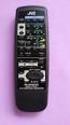 SLEEP TEST SUBWOOFER + MODE EFFECT CENTER + SOUND TV/VIDEO CD-DISC DVD CD TV VOL TV CH TV VCR AUDIO VCR CH + TV SOUND TAPE/CDR VOLUME REMOTE REAR L + MENU REAR R + ENTER VCR /DIGITAL FM/AM MUTING STANDBY
Operation Manual. Model No.: MR-18.3 COMPACT
 COMPACT DIGITAL AUDIO Operation Manual Model No.: MR-8.3 This product is sold and serviced exclusively by Prospec Electronics Inc. and must be returned to Prospec for in and out of warranty repairs. It
Operation Manual $ English \ Multi-CD control DSP High power CD/MP3/WMA/MD. FM/AM œ @ð CD è d DSP àœ% CD/ MP3/WMA/MD t FH-P9200MP
 Operation Manual $ Multi-CD control DSP High power CD/MP3/WMA/MD player with FM/AM tuner FM/AM œ @ð CD è d DSP àœ% CD/ MP3/WMA/MD t FH-P9200MP English \ Contents Thank you for buying this Pioneer product.
Controls. LCD Display. Tuning Up Time Set and Station Scan
 PR-D8 GB Revision 3 1 1 2 4 5 7 9 10 12 14 16 18 20 22 24 25 26 27 29 31 33 35 36 37 38 Controls Stereo Built-in Microphone (Left Channel) LCD Display Stereo Built-in Microphone (Right channel) Power/Auto
Model : TCM-3 Instruction Manual. Compact Disc CD/CD-R/CD-RW/MP3 Player with PLL MW/FM Radio, Radio Data System
 Model : TCM-3 Instruction Manual Compact Disc CD/CD-R/CD-RW/MP3 Player with PLL MW/FM Radio, Radio Data System LOCATIONS OF CONTROLS 1. POWER ON/OFF 2. FUNCTION SELECT BUTTON 3. VOL UP/VOL DOWN 4. MODE
KTC-D500E DIGITAL TV TUNER
 KTC-D500E DIGITAL TV TUNER INSTRUCTION MANUAL C B64-3808-00/00 (E) Contents Safety precautions 3 Notes 4 Getting Started 5 Switching to Digital TV Screen ÅıÇ 5 Functions During Digital TV Screen Åı 5 Functions
ROBERTS. Enjoy Listening. DAB/FM RDS digital portable radio. Please read this manual before use
 ROBERTS Enjoy Listening DAB/FM RDS digital portable radio Please read this manual before use Contents Controls... 2-3 Battery operation...4 Using the AC adaptor...5 Operating your radio - DAB...6 Selecting
Digital Photo Picture Frame. Operation Manual
 Digital Photo Picture Frame Operation Manual 20070309 CONGRATULATIONS on your purchase of a Polaroid 7 LCD Digital Photo Picture Frame. Please read carefully and follow all warnings and instructions in
AM / FM Tuner + RDS. Model: TU-101. www.pulse-audio.co.uk
 AM / FM Tuner + RDS Model: TU-101 www.pulse-audio.co.uk 1 Safety Information The lightning bolt within a triangle is intended to alert the user to the presence of dangerous voltage levels within the product
Nokia Bluetooth Stereo Headset BH-221
 Nokia Bluetooth Stereo Headset BH-221 Issue 2.0 2 Introduction About your headset With the Nokia Bluetooth Stereo Headset BH-221, you can handle calls hands-free, enjoy your favourite music, and listen
CAR RADIO SWING OWNER'S MANUAL
 CAR RADIO SWING OWNER'S MANUAL B1Z-6000F Contents 1 Contents General information................. Operating instructions....................... Symbols in the text of the operating instructions Equipment
In-Car Digital Radio Adaptor User Guide
 S1000-DAB In-Car Digital Radio Adaptor User Guide Table of Content INTRODUCTION... 1 CONTENTS OF PACKAGE... 2 INSTALLATION...3 OVERVIEW OF CONTROLS AND CONNECTORS... 5 STARTING UP THE SYSTEM... 7 USING
SIMPLY CLEVER. Radio Swing Owner's Manual
 SIMPLY CLEVER Radio Swing Owner's Manual Table of Contents General information Owner's Manual 2 Symbols in the text of the operating instructions 2 Equipment overview 2 Important information 2 Anti-theft
Userʼs Manual. 7 Color LCD TV & Monitor V7000
 Userʼs Manual 7 Color LCD TV & Monitor V7000 Dear Customers Thank you for purchasing the ikan V7000 7 LCD TFT Monitor. This product employs new integrate circuitry, and a high quality TFT LCD panel. It
SW10. User Guide. Smart Watch. Please read the manual before use.
 SW10 Smart Watch User Guide www. ScinexUSA.com Please read the manual before use. 1 About this manual You can use this Watch as a companion device to most Android and IOS mobile devices. This user manual
Contents. 5. Navigating the Software Menus 25 The Basics 25 Diagrams of Top Level Sub Menus 27. 6. Tips and Troubleshooting 34
 Contents 1. Quick Start 1 Features 1 What You Need to Begin 2 Installing the Battery 2 The Basic Controls 3 Play Music 5 Listen to the FM Radio 7 Voice recording 8 Headphone/Earphone 9 2. Playing Music
ABOUT YOUR SATELLITE RECEIVER
 2 Satellite Receiver ABOUT YOUR SATELLITE RECEIVER This chapter gives you an overview and a description of your satellite receiver. SATELLITE RECEIVER OVERVIEW SINGLE AND DUAL MODES REMOTE CONTROL SATELLITE
How to use the Panasonic NVGS300/280 digital video camera - New version
 How to use the Panasonic NVGS300/280 digital video camera - New version Before you begin on page 1 Switching on on page 2 Inserting cassette on page 5 Recording on page 6 Playback on page 9 Transferring
Kanguru Micro MP3 PRO USB2.0 User s Manual
 Kanguru Micro MP3 PRO USB2.0 User s Manual MP3/WMA Player + Digital Voice Recorder FM Tuner + USB Flash Drive Copyright 2005, All Rights Reserved. This manual applies to 1.1 or later versions of the Kanguru
ENGLISH (Original instructions) Job Site DAB Radio BMR101. INSTRUCTION MANUAL IMPORTANT: Read Before Using.
 ENGLISH (Original instructions) Job Site DAB Radio BMR0 INSTRUCTION MANUAL IMPORTANT: Read Before Using. ENGLISH (Original instructions) Symbols The following show the symbols used for the equipment. Be
Model No.: MR-4.2 EST.JBL(MR4.2)-061129-I/B. 145x210mm. Revised 31 / May / 04
 EST.JBL(MR4.)-06-I/B Model No.: MR-4. MOD MR - 4. 4CHx45Watts SEL INT RPT 4 RDM 5 6 This product is sold and serviced exclusively by Prospec Electronic Inc. and must be returned to Prospec for in and out
An explanation of symbols in the Guide and Reference book TV LIST. Buttons on the Beo4 remote control. Display on the Beo4 remote control
 BeoVision 6 Guide The Guide and the Reference book This Guide contains information about the daily use of your Bang & Olufsen product. The Reference book contains information about more advanced operation
CAUTION RISK OF ELECTRIC SHOCK DO NOT OPEN
 BeoLab 4 Guide CAUTION RISK OF ELECTRIC SHOCK DO NOT OPEN CAUTION: To reduce the risk of electric shock, do not remove cover (or back). No User-serviceable parts inside. Refer servicing to qualified service
DAB/FM personal digital radio with OLED display
 DAB/FM personal digital radio with OLED display ROBERTS Enjoy Listening Please read this manual before use Contents Controls... 3-4 Using the AC adaptor... 5-6 Keylock function... 7-8 Navigation... 9-10
OWNER S MANUAL. Marine Audio System. Model 2641272
 Model 2641272 OWNER S MANUAL Marine Audio System PLL Synthesizer Stereo Radio Digital Compact Disc Player Automatically Memory Storing Fold Down Full Detachable Panel Auxiliary Input Function CD Changer
DVR GUIDE. Using your DVR/Multi-Room DVR. 1-866-WAVE-123 wavebroadband.com
 DVR GUIDE Using your DVR/Multi-Room DVR 1-866-WAVE-123 wavebroadband.com Table of Contents Control Live TV... 4 Playback Controls... 5 Remote Control Arrow Buttons... 5 Status Bar... 5 Pause... 6 Rewind...
Movie Cube N150H. User s Manual
 Movie Cube N150H User s Manual (v1.0) TABLE OF CONTENTS 1. Main Features... 4 1.1 Front panel... 4 1.2 Back panel... 4 2. Remote Control... 5 3. Welcome Page... 6 4. Installation Guide... 6 5. Program...
ROBERTS. Enjoy Listening. DAB / FM RDS Digital Clock Radio with large display. Please read this manual before use
 ROBERTS Enjoy Listening DAB / FM RDS Digital Clock Radio with large display Please read this manual before use Contents Controls... -3 Using the clock radio for the fi rst time...4 Operating your clock
DNX9210BT. What Do You Want To Do? Click the icon of the media you want to play. With one-click, you can jump to the section of each media!
 DNX9210BT What Do You Want To Do? Thank you for purchasing the KENWOOD GPS NAVIGATION SYSTEM. In this manual, you will learn various convenient functions of the system. GPS NAVIGATION SYSTEM INSTRUCTION
The RIDZ 8x2 Audio Switcher
 The RIDZ 8x2 Audio Switcher Engineering Manual Support Number 800-765-2930 International 712-852-2813 Table of Contents General Information for the RIDZ (8 x 2) Switcher..... 3 Input 9 on the RIDZ Switcher....6
4.3-inch Back-Up Camera
 TM 4.-inch Back-Up Camera Model No.: PKC0BU4 Owner s Manual and Warranty Information Read these instructions completely before using this product. Retain this Owner s Manual for future reference. INTRODUCTION
Fit Clip Plus Portable Media Player
 Fit Clip Plus Portable Media Player User Guide BL 8GB Thank you for purchasing a Fit Clip Plus Portable Media Player! To get the most out of your Fit Clip Plus, please read this entire user guide carefully.
Intercom and Music System Operation & User s Guide
 Intercom and Music System Operation & User s Guide dmc1 System Master dmc1 System Master with dmc1 iplay Dock for ipod - MP3 Player & Player USA & Canada (800) 421-1587 & (800) 392-0123 (760) 438-7000
Touch Nightball DAB Radio
 Touch Nightball DAB Radio DAB/FM Radio Alarm Clock Nightball DRAFT 1.indd 1 7/11/07 17:13:21 co n t e n t s Introducing the Touch Nightball DAB Radio 3 What is DAB Digital Radio? 3 Where to put your radio
DAB DIGITAL RADIO MODEL: CANVAS USER MANUAL
 DAB DIGITAL RADIO MODEL: CANVAS USER MANUAL 1 Welcome 2 Your DAB Digital Radio 2.1 In The Box 2.2 Front View 2.3 Top View 2.4 Rear View 3 Quick Setup 4 Features POWER button 4.5 FM mode choosing menu options
Model No.: MR-140. REMARK: FINISH SIZE IS 145x210mm. Effected 31 / May / 07
 Model No.: MR-0 HI-POWER x Watts INT RPT RDM 6 This product is sold and serviced exclusively by Prospec Electronic Inc. and must be returned to Prospec for in and out of warranty repairs. It can not be
VideoMate V200/V200F Analog Standalone TV Box Start Up Guide
 VideoMate V200/V200F Analog Standalone TV Box Start Up Guide Compro Technology, Inc. www.comprousa.com 1 Table of Contents About This Guide... 3 VideoMate V200/V200F TV Box Contents... 4 Install V200/V200F
Multimedia. User Guide
 Multimedia User Guide Copyright 2006 Hewlett-Packard Development Company, L.P. Microsoft and Windows are U.S. registered trademarks of Microsoft Corporation. The information contained herein is subject
Jabra CRUISER2. User manual. www.jabra.com MUTE VOL - VOL + jabra
 Jabra CRUISER2 VOL - VOL + MUTE jabra User manual www.jabra.com Contents THANK YOU...2 ABOUT YOUR JABRA CRUISER2...2 WHAT YOUR SPEAKERPHONE CAN DO...3 GETTING STARTED...4 CHARGE YOUR SPEAKERPHONE...4 TURNING
Smart Music Control Application CONTENTS. Smart Music Control Application. User Guide CONTENTS 1 GETTING STARTED 1 MEDIA PLAYER MODE 1
 Smart Music Control Application JVC KENWOOD Corporation Smart Music Control Application User Guide CONTENTS CONTENTS 1 GETTING STARTED 1 How to Install Smart Music Control App 1 Preparing the Music Player
AVH-5200DVD AVH-5200BT
 Operation Manual DVD RDS AV RECEIVER AVH-5200DVD AVH-5200BT English Contents Thank you for purchasing this PIONEER product. To ensure proper use, please read through this manual before using this product.
DAB+ Digital Alarm Clock Radio with Dock for iphone
 DAB+ Digital Alarm Clock Radio with Dock for iphone BCR33DABIP The Gold Technical Support Line: 1902 215 259 (Charges will apply at $2.95 per minute) www.bushaustralia.com.au Safety Instructions Ensure
The only warranties for Hewlett-Packard products and services are set forth in the express statements accompanying such products and services.
 The only warranties for Hewlett-Packard products and services are set forth in the express statements accompanying such products and services. Nothing herein should be construed as constituting an additional
ENLTV-FM3. PCI TV Tuner Adapter with FM Radio. User s Guide
 ENLTV-FM3 PCI TV Tuner Adapter with FM Radio User s Guide User s Notice No part of this manual, including the products and software described in it, may be reproduced, transmitted, transcribed, stored
AM/FM PLL Clock/Table Radio
 12-1632.fm Page 1 Wednesday, May 10, 2000 10:57 AM Cat. No. 12-1632 OWNER S MANUAL Please read before using this equipment. AM/FM PLL Clock/Table Radio 12-1632.fm Page 2 Wednesday, May 10, 2000 10:57 AM
HANTZ + PARTNER The Upgrade Company! www.hantz.com
 Quick Start Guide X3000 HD Network Media Player X3000 HD NETWORK MEDIA PLAYER POWER HANTZ + PARTNER The Upgrade Company! www.hantz.com A Get to know your HELIOS X3000 Thank you for purchasing the HELIOS
QUICK REFERENCE MANUAL
 PIONEER PLASMA DISPLAY SYSTEM QUICK REFERENCE MANUAL PDP-501HD: PLASMA DISPLAY PANEL PDP-501R: MEDIA RECEIVER PDP-501S-LR: SPEAKERS TABLE OF CONTENTS 1.0 CHOOSE THE INSTALLATION SITE...2 2.0 SET UP THE
DVB-T 730. User s Manual
 EPG Program Reservation There are 10 program timers to bring up reminder for a reserved program. 20 seconds before the start of the reserved program, a pop-up window will remind viewer. If no further instruction,
24 Wide Screen LED Monitor with HDMI
 24 Wide Screen LED Monitor with HDMI USER MANUAL L24LE11B_MANUAL_EN_R1 Please read this manual carefully before using, and keep it for future reference. TABLE OF CONTENTS GETTING STARTED Monitor Stand