
Online Appointment Bookings EXACT v11.5
|
|
|
- Sybil Rodgers
- 10 years ago
- Views:
Transcription
1 User's Guide Online Appointment Bookings EXACT v11.5 Online Appointment Bookings EXACT v /03/2015 page 1 of 133

2 Copyright 2015 Software of Excellence International. All rights reserved. The software contains proprietary information of Software of Excellence International; it is provided under a license agreement containing restrictions on use and disclosure and is also protected by copyright law. Reverse engineering of the software is prohibited. Due to continued product development this information may change without notice. The information and intellectual property contained herein is confidential between Software of Excellence International and the client and remains the exclusive property of Software of Excellence International. If you find any problems in the documentation, please report them to us in writing. Software of Excellence International does not warrant that this document is error-free. Microsoft Word, Microsoft Office, Excel, Windows, Windows XP, Windows 7, Windows Vista, Windows NT and MS-DOS are trademarks of the Microsoft Corporation. Software of Excellence International Unit A3, 34 Triton Drive, Albany, North Shore 0632 Auckland, New Zealand Tel: Software of Excellence International Website: Subscribers' Portal: Partnered with Henry Schein Software of Excellence UK Medcare South, Bailey Drive, Gillingham Business Park, Gillingham, Kent ME8 0PZ United Kingdom Tel: UK Support Tel: (Option 4) [email protected] Web: Software of Excellence Australia and New Zealand (APAC) Level 2, Suite 3, 39 Railway Road, Blackburn, VIC 3130 Australia Tel: Fax: APAC Support Web: Online Appointment Bookings EXACT v /03/2015 page 2 of 133

3 Contents Contents... 3 List of procedures... 5 Online Appointment Bookings 8 Overview of Online Appointment Bookings Purpose of Online Appointment Bookings Benefits of Online Appointment Bookings Features of Online Appointment Bookings Requirements for Online Appointment Bookings Using Online Appointment Bookings Using New Patient online booking Using Existing Patient online booking Using Recall Patient online booking Manually recalling Patients Workaround: To send ONLY a Hygienist recall link to a Patient Using Planned Treatment online booking Using the Online Appointments Tab Dealing with possible duplicate patient records Viewing online appointment bookings in the appointment book Configuring Online Appointment Bookings Checklist-Configure Online Appointment Bookings Enabling the Online Appointments tab in the Appointment Book Configuring New Patient online appointment booking Configuring Existing Patient online booking Configuring Recalls online appointment booking Configuring Planned Treatment online appointment booking Configuring Online Recalls Configuring Online Recalls within EXACT Configuring Online Recalls on the booking website EXACT Online Booking Website Builder Overview of EXACT Online Booking Website Builder Configuring the online booking website Patient use of the Booking Website Configuring your Practice Manager website Tasks for Practice Manager website configuration Linking EXACT to the Online Bookings website Log in and out of your Practice Manager website The Practice Manager Website screen Online Appointment Bookings EXACT v /03/2015 page 3 of 133

4 Publishing your profile changes Viewing completion status of your configuration Viewing your credits usage for portal bookings Changing your account password Changing your account address Configuring your Clinic Profile General Information Media Specialist Dental Services Opening Hours Private Treatment Fees NHS Treatment Fees (UK) Awards and accreditations Editing Clinical Profile - Location information Configuring Marketing Tools Clinic Offers Clinic Reviews Patient Leads Configuring and monitoring Payments Configuring Practitioners and staff Practitioners Adding a New Practitioner Displaying editable Practitioner Profiles Viewing missing fields from Practitioner configuration Editing a Practitioner Profile Editing Practitioner portrait image Editing Practitioner Education Editing Practitioner Private Treatment Fees Editing Practitioner Current Timetable Editing Practitioner Treatments Available View Practitioner Appointment Settings Staff Adding a new Staff member Editing and Deleting a staff member Configuring Settings Recall Settings and Demo Opening a Recall Demo Online Appointment Bookings EXACT v /03/2015 page 4 of 133

5 Customise widget Customise Marketing Bar Appointment Stacking Mini Site settings Account settings Social Settings, enabling Thank You pages Medical History Form upload Cancellation policy Complaints Procedure Leads Viewing statistics and report Appointment statistics Appointment Report Paid appointments Recall statistics Support and Contact information Index List of procedures To manually recall Patients To send ONLY a Hygienists Recall URL link to a Patient for booking an appointment via the Online Recalls system To send an directly from the Patient File To use the Planned Treatment Online Booking (procedure) To locate and merge a possible duplicate record that has been indicated To configure online appointment bookings To enable the Online Appointments tab in the Appointment Book, per user To configure the New Patient appointment Times, Providers and /SMS Templates To configure the Recalls appointment Times, Providers and /SMS Templates for Existing Patient online bookings. 52 To configure the Recalls appointment Times, Providers and /SMS Templates To configure the planned appointment Times, Providers and /SMS Templates To set up Online Appointment recall parameters within EXACT To configure the Recall Parameters screen To identify which online booking software your practice uses To configure the online booking website To book appointments on the EXACT online booking website (patients) To log into your Practice Manager Website To log out of your Practice Manager website To publish your site changes to make them Live on your booking site Online Appointment Bookings EXACT v /03/2015 page 5 of 133

6 To see your percentage completion To view the credits usage for portal bookings To change your account password To change your account address To edit the general information for the site To upload images and videos of your Practice To specify specialist dental services To specify opening hours for the Practice To edit the default Private Treatment Fees To add a new treatment To delete a New treatment To specify which NHS Treatment Fees apply to your practice To edit Dental Practice Awards and Accreditations To edit Location information To add clinic special offers to the website To add clinic reviews to the website To access the Practitioners List To add a New Practitioner To display the editable Practitioners List, from where to edit their profiles To view missing fields from Practitioner configuration To edit a Practitioner Profile To add or edit a Practitioner portrait image To add or edit Practitioner Education details To edit Practitioner Private Treatment Fees To Add a treatment for a Practitioner To delete a New treatment To edit Practitioner Current Timetable To edit whether Practitioners are available or unavailable per treatment To view Practitioner Appointment Settings To access the Staff List To add a new staff member To edit a staff member To delete a staff member To simulate the website (run a demonstration) To simulate the website (run a Recall Demonstration) To customise your widget To customise your marketing bar To configure Appointment Stacking To access mini site settings Online Appointment Bookings EXACT v /03/2015 page 6 of 133

7 To access your Account settings To configure Social Settings To upload a Medical History Form To create an online Cancellation Policy Statement To create an online Complaints Procedure Statement To configure Leads To view the Appointment Statistics Report To view the Appointment Report To view the Paid Appointments Statistics To view Recall Statistics Online Appointment Bookings EXACT v /03/2015 page 7 of 133

8 ONLINE APPOINTMENT BOOKINGS The Online Appointment Bookings software enables new patients, existing patients, recall patients and patients with planned treatment to independently book appointments at their convenience from an online booking page. Patients receive automated confirmation from EXACT that the appointments have been registered in the practice's appointment book. Receptionists view patient bookings in the appointment book and in the Online Appointments tab. Where online bookings appear in the appointment book they are differentiated by coloured icons: New Existing Recall Planned treatment Statistics for online bookings can be tracked in the Feature Usage Report. Overview Purpose (see "Purpose of Online Appointment Bookings" on page 10) Benefits (see "Benefits of Online Appointment Bookings" on page 11) Primary Features (see "Features of Online Appointment Bookings" on page 12) Requirements (see "Requirements for Online Appointment Bookings" on page 14) Using Workflow, screens and procedures Creating an Online Booking (patient) (on page 17) Using New Patient online booking (on page 17) Using Existing Patient online booking (on page 20) (requires EXACT Online Booking Website Builder) Using Recall Patient online booking (on page 21) Using Planned Treatment online booking (on page 30) Using the Online Appointments Tab (on page 38) Viewing online appointment bookings in the appointment book (on page 43) Configuring Setting up and customising Configure appointment book, providers, type of patient booking, integration with website: Checklist-Configure Online Appointment Bookings (on page 46) Enabling the Online Appointments tab in the Appointment Book (on page 48) Configuring New Patient online appointment booking (on page 50) Configuring Existing Patient online booking (on page 52) (requires EXACT Online Booking Website Builder) Configuring Recall Patient online appointment booking (see "Configuring Recalls online appointment booking" on page 54) Configuring Planned Treatment online booking (see "Configuring Planned Treatment online appointment booking" on page 56) Configuring Online Recalls (on page 59) Configure the online website (2 options): Configure with the EXACT Online Booking Website Builder (see "EXACT Online Booking Website Builder" on page 61) (within EXACT), or Configuring your Practice Manager website (on page 72) Online Appointment Bookings EXACT v /03/2015 page 8 of 133

9 Resources Videos, PDFs Video - Online Appointment Booking Video - Online Recalls User Guide Training Competencies Checklist Tv11.3).pdf Bookings website options: EXACT Online Bookings Website Builder Configuring your Practice Manager website Online Appointment Bookings EXACT v /03/2015 page 9 of 133

10 Overview of Online Appointment Bookings Includes introductory information on Purpose, Benefits, Features and Requirements. Purpose of Online Appointment Bookings Online Appointment Booking facilitates patient self-booking in these situations: New patients: Patients who are not yet registered with the practice can self-book through the online booking site. See Using New Patient online booking (on page 17) Configuring New Patient online appointment booking (on page 50) Existing patients: These patients are already registered within EXACT. They have the option of self-booking appointments through the online website. See Using Existing Patient online booking (on page 20) Configuring Existing Patient online booking (on page 52) IMPORTANT: The Existing Patient online booking functionality is only available for users of the EXACT Online Booking Website Builder (on page 61) Recall patients: EXACT provides an automated means of recalling existing patients and prompting them to self-book online. See Using Recall Patient online booking (on page 21) Configuring Recall Patient online appointment booking (see "Configuring Recalls online appointment booking" on page 54) Planned Treatment patients: Those patients due for planned treatment who will not or cannot commit to future booking/s when they depart reception can be SMSed or ed a link to a booking web page that is pre-populated with their planned treatment. From here they can self-book at their convenience. See Using Planned Treatment online booking (on page 30) Configuring Planned Treatment online appointment booking (on page 56) Online Appointment Bookings EXACT v /03/2015 page 10 of 133

11 Benefits of Online Appointment Bookings Benefits include: Practice automation: All three categories of online bookings (new patients, recalls and planned treatment) are primarily automated, removing much of the administrative burden from Practice personnel. Practice integration: Receptionists action is seamless within the EXACT software and they do no work outside of the appointment screen. Practice appearance: The use of cellular phone and Internet reflects well on the Practice as it indicates a modern practice using current technology and the latest medical techniques. Immediacy of patient actions: The online booking procedure is consistent with other Internet procedures so not only do patients experience it as normal, but they are also accustomed to respond quickly. Patient convenience: With minimal effort, patients can book appointments 24/7 regardless of the Practice business hours or load on the Practice phone lines. They also appreciate having the opportunity to consult with family members and employers before committing to the most appropriate booking. Patient empowerment: Patients feel empowered to make decisions in their own time, on their own terms, without the inherent pressure of a discussion. Improved marketing and business success: Because the call to action is immediate, convenient and empowers patients, The dental practice retains patients who would otherwise make no decision on planned treatment and/or neglect to call back. The percentage Recalls improves and fewer patients slip away. Marketing efforts for new patients have a higher hit-rate. or SMS targetted-contact campaigns are particularly successful. The online module can be used to successfully increase patient uptake of new treatments, and further information such as special offers can be added to the communications. Online Appointment Bookings EXACT v /03/2015 page 11 of 133


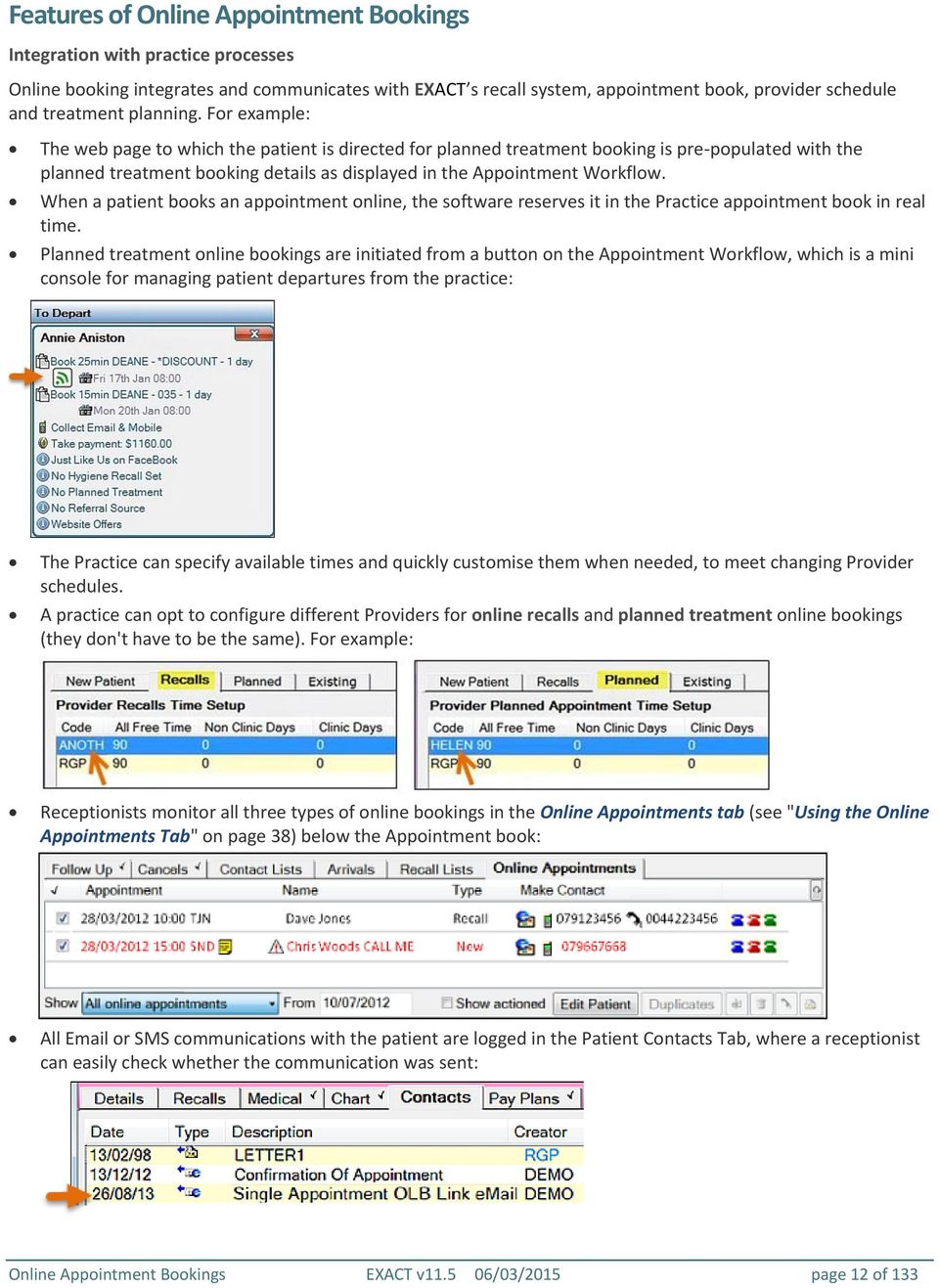
12 Features of Online Appointment Bookings Integration with practice processes Online booking integrates and communicates with EXACT s recall system, appointment book, provider schedule and treatment planning. For example: The web page to which the patient is directed for planned treatment booking is pre-populated with the planned treatment booking details as displayed in the Appointment Workflow. When a patient books an appointment online, the software reserves it in the Practice appointment book in real time. Planned treatment online bookings are initiated from a button on the Appointment Workflow, which is a mini console for managing patient departures from the practice: The Practice can specify available times and quickly customise them when needed, to meet changing Provider schedules. A practice can opt to configure different Providers for online recalls and planned treatment online bookings (they don't have to be the same). For example: Receptionists monitor all three types of online bookings in the Online Appointments tab (see "Using the Online Appointments Tab" on page 38) below the Appointment book: All or SMS communications with the patient are logged in the Patient Contacts Tab, where a receptionist can easily check whether the communication was sent: Online Appointment Bookings EXACT v /03/2015 page 12 of 133
13 Icons differentiate different kinds of online bookings: Practice corporate appearance and branding For existing patients, the software automatically sends recall messages via or text with a link prompting the patient to access a Practice-branded online booking facility. The patient-facing website is modern and user-friendly. Communications to patients can also be branded with the Practice logo, and can include further information such as contact details, directions, map or parking information, special offers, or dental news. Online Appointment Bookings EXACT v /03/2015 page 13 of 133

14 Requirements for Online Appointment Bookings EXACT Online Booking Website Builder: This enables booking-website setup from within EXACT, and makes Existing Patient online booking possible. See specific requirements here: Overview (see "Overview of EXACT Online Booking Website Builder" on page 61) From EXACT version 11.5, existing online bookings users can optionally upgrade to the EXACT Online Booking Website Builder (on page 61) - please arrange with your Support Desk if you'd like to upgrade. Hardware and software prerequisites: The Practice needs a constant, reliable Internet connection to allow real time communication between the bookings website and EXACT. The Practice needs functional software. The Practice must have a valid and unique Practice ID, so that it can be identified in Online Recalls. EXACT version or later for new patient and recall patients, and version 11.3 SP3 or later for the planned treatment patients. Contact Software of Excellence to purchase the Online Appointments module, and for help configuring the bookings website. The EXDOC e ( ) module must be registered in EXACT. Configuration requirements for online recalls and bookings: (See also: Checklist-Configure Online Appointment Bookings (on page 46)) The Online Appointments module must be registered in EXACT. and/or SMS templates must be configured for confirming the bookings. This includes o Welcome/Confirmation - sent to Patients when they successfully book online. You can opt to have a separate template for welcoming new patients and confirming their booking. o Welcome/Confirmation SMS - SMS message sent when a booking is made. You can opt to have a separate template for welcoming new patients and confirming their booking. o Recall - This template must contain the [recall.url] merge field, so that when sent out to patients, the required link to the online booking website is in the text of the message for the patient to click on or copy into their browser. o Recall SMS - This template must contain the [recall.url] merge field, so that when sent out to patients, the required link to the online booking website is in the text of the message for the patient to click on or copy into their browser. o Sending - When ed to planned treatment patients, the required link to the online booking website is in the text of the message for the patient to click on or copy into their browser. o Sending SMS - When SMSed to planned treatment patients, the required link to the online booking website is in the text of the message for the patient to click on or copy into their browser. Recall parameters must be configured with the appropriate services for the types of appointments booked. For the providers who are to have online bookings, the appointment book(s) must be correctly configured, with blocks set up for the providers so that available time can be identified (online bookings cannot be made without this configuration) Online Recalls (see "Configuring Online Recalls within EXACT" on page 59) must be configured from the Recalls Parameters screen. (Technical) The site needs to have the SOE Database server, Framework service and the SOE Transport service running on the main server. Configuration requirements for planned treatment online booking Online Appointment Bookings EXACT v /03/2015 page 14 of 133


15 Requirements for Planned Treatment Online Booking: EXACT version 11.3 SP3 or later. The Online Bookings Recall Module must be registered for the dental practice. When a practice upgrades to EXACT v11.3 SP3 any Providers who are already configured for Online Recalls will be automatically configured for Planned Treatment online bookings. However, a practice can opt to differentiate Providers for online recalls and planned treatment online bookings. Providers must be configured appropriately (see "Configuring Planned Treatment online appointment booking" on page 56) for planned treatment online bookings. Only the patients of these Providers will be able to book their planned treatment online (the option is not available in the Appointment Workflow for other patients). The practice must have Appointment Workflow configured because a Planned Treatment Online Booking link can only be sent from its Departure Task List at the point of Patient checkout. There is no other way to send it. and SMS templates must be set, and they must contain the following merge field: [patient.planned.url]. Patient requirements: o A Patient requires an Appointment for Today s Date. o The Patient requires a Treatment Plan on the Chart Tab, and a minimum of one appointment Planned, with time specified for the Service. o Only Patient planned appointments on the Chart Tab that are marked as To Be Booked will show in the Departure Task List, so Providers must know to tick this checkbox. They also need to ensure that the Appointment has an Expected Time (duration): o If there is more than one appointment marked as To Be Booked in the Treatment Plan, only the first Online Appointment Bookings EXACT v /03/2015 page 15 of 133

16 appointment will show the Planned Treatment hyperlink button. o If the first appointment in a series is booked manually, the Planned Treatment URL hyperlink button will move to the next appointment to be booked in the Departure Task List. Online Appointment Bookings EXACT v /03/2015 page 16 of 133

17 Using Online Appointment Bookings This section describes dental practice procedures with online appointment bookings. Using New Patient online booking New Patients are not yet registered within EXACT. They access the booking website from various sources including online search, word of mouth and marketing information. On the booking website new patients can book into the appointment gaps per Provider that have been made available for this purpose by means of the New Patient online bookings setup (see "Configuring New Patient online appointment booking" on page 50). Patients using the online booking site need to click the correct button: By default the website displays with the New Patient tab selected, but patients who are already registered at this practice can select the Existing Patient tab. Data sent to EXACT Patient File When a NEW patient successfully books an appointment on the portal, the software sends the following information to populate a new Patient File in EXACT: Data Mandatory? Field in EXACT First name Yes First Name Last Name Yes Family Name Date Of Birth Yes Birth date Land line number No Hm Ph Mobile number Yes Mobile address Yes When last visited the dentist No Appointment notes Where last seen No Appointment notes Information about your immediate dental needs No Appointment notes Receptionists can see the new patient booking Receptionists can see new patient bookings in the appointment book and in the Online Appointments tab (see Using the Online Appointments Tab (on page 38)). Appointment Book: Online Appointment Bookings EXACT v /03/2015 page 17 of 133

18 Statistics are tracked in the Feature Usage Report New Patient booking statistics are tracked in in the Feature Usage Report: Online Appointment Bookings EXACT v /03/2015 page 18 of 133

19 Online Appointment Bookings EXACT v /03/2015 page 19 of 133

20 Using Existing Patient online booking This functionality is only available if your practice uses the EXACT Online Booking Website Builder (on page 61). (If you use the earlier online booking system we can upgrade you painlessly - please contact your Support Desk for instructions) See also: Overview of the EXACT Online Booking Website Builder (see "Overview of EXACT Online Booking Website Builder" on page 61). Patient booking on the Booking Website (see "Patient use of the Booking Website" on page 66) Existing Patients are already registered within EXACT. The booking website is a convenient means for them to self-book appointments. On the booking website existing patients can book into the appointment gaps per Provider that have been made available for this purpose by means of the Existing Patient online booking configuration (see "Configuring Existing Patient online booking" on page 52). Patients using the online booking site need to click the correct button: By default the website displays with the New Patient tab selected, but patients who are already registered at this practice can select the Existing Patient tab. Receptionists can see the existing patient booking Receptionists can see Existing Patient bookings in the appointment book and in the Online Appointments tab (see Using the Online Appointments Tab (on page 38)). Existing Patients recording new information What happens when existing patients enter information that contradicts records (such as a changed address)? The new details don't automatically overwrite current details, but are stored in the "Notes about this appointment" area, accessible when you Edit the appointment. Online Appointment Bookings EXACT v /03/2015 page 20 of 133

21 Using Recall Patient online booking Recall patients are recalled by means of EXACT automation, and the recall includes a link to the booking website. For setup see Configuring Recalls online appointment booking (on page 54) Overview of the process The Recall Patient online booking functions as follows: 1. Each day EXACT identifies patients due for recall appointments, according to criteria that have been customised by the Practice. 2. EXACT sends an appointment recall message (SMS, , or both) to patients due for a recall appointment. This contains a merge field link with the web address for a Practice-branded online (Internet) booking service. 3. The recalled patients log into the Internet booking site (even outside of clinic hours) and select an appointment time that suits them, from available appointment time blocks that the Practice has specified as available for the Providers at the practice. 4. The booking software confirms the booking with the Practice (EXACT) in real time, updating the Appointment Book. 5. EXACT sends an automated SMS reply or message to the Patient confirming the appointment. This message can be customised with information such as a map, parking instructions, dentist photo, and even further special offers. Receptionists can see the recall patient booking Receptionists can see recall patient bookings in the appointment book and in the Online Appointments tab (see Using the Online Appointments Tab (on page 38)). Appointment book: Online Appointment Bookings EXACT v /03/2015 page 21 of 133
22 Apart from the appointment time search by the patient, the whole process can be performed automatically, freeing practice personnel from these administrative tasks. Statistics are tracked in the Feature Usage Report Recall Patient online booking statistics are tracked in in the Feature Usage Report: Manually recalling Patients For detailed information on recalls see the Recall Manager. Online Appointment Bookings EXACT v /03/2015 page 22 of 133
23 Your Practice may not necessarily be fully automated for recalls, in which case you need to manually recall patients. To manually recall Patients 1. Go to Administration > Manage Recalls. EXACT will automatically detect if there is an outstanding list to run, and display the list for you. A message will display for each of the months in the specified period, informing you how many patients met the recall parameters. The main screen displays figures and a colour graphical display per month: 2. (Optional, if instructions have been typed) Click the My Recalls Procedure button to view custom instructions on what to do next: Example of a 'My Recalls Procedure': Online Appointment Bookings EXACT v /03/2015 page 23 of 133

24 3. Double-click a line (month) in the Recall Lists screen to display its entries and Contact options: The Month View displays the details of its recall patients.! You can optionally filter the list and then perform bulk actions on the resulting patients. Online Appointment Bookings EXACT v /03/2015 page 24 of 133
25 This screen has all of the tools that you need to contact the listed patients. Hyperlinks Month Selector Column headers First Name / Last Name Note: all line entries in this screen are hyperlinks. The functionality is the same as for the Appointment Book Recalls Tab. Use this to change the month. The default sort order is Last Name, alphabetical. Click a column header to sort the list by that parameter. Click a First or Last name to open the Patient Information tab. You can then edit any Patient fields that need updating. Online Appointment Bookings EXACT v /03/2015 page 25 of 133


26 Dates These are the Recall dates. Coloured icons represent the same colour recall statuses as for the Effectiveness Tooltip display. Click any of these dates for editable information for the recall. If you edit these fields and click Update, it will immediately update the display. Prior contacts with patients are recorded as icons in the Prior Contacts Column. Click a Prior Contact icon to display details of the contact. Click any of these hyperlinks to display a contact screen from which to contact the patient. A small star behind the icon indicates the preferred method of contact. Home Address. Recall is by letter Business phone Home phone Home phone, SMS Mobile phone Mobile phone, SMS 4. You can manually contact patients by any of the means described above or simply use the recall list as a phone list and contact the patient by phone. Alternatively, you can utilise EXACT's significant automation capabilities and have your software perform all recall communications and bookings. SEE ALSO: Recall Manager Workaround: To send ONLY a Hygienist recall link to a Patient Workaround: This is a workaround for an issue where a practice tries to send a patient an online booking URL for just a Hygienist booking, but the patient receives a URL for Hygienist plus Dentist booking. Online Appointment Bookings EXACT v /03/2015 page 26 of 133
![Please Note: The email/sms Template must contain the [Recall.URL] Merge field.](/docs-images/27/11972689/images/27-0.png "You cannot use Administration>Manage Recalls - this list will always send a URL for booking DENTIST and HYG Recall appointment if there are dates set in both fields on the Patients Recall Tab.")
27 Please Note: The /sms Template must contain the [Recall.URL] Merge field. You cannot use Administration>Manage Recalls - this list will always send a URL for booking DENTIST and HYG Recall appointment if there are dates set in both fields on the Patients Recall Tab. To send ONLY a Hygienists Recall URL link to a Patient for booking an appointment via the Online Recalls system 1. Open Administration > Contact Lists. 2. Click the Create List Button to display the Create Contact List screen: 3. From the Select Patients List, choose Recall List HYG. 4. Type a description for the List. For example, HYG-Only Recalls. 5. Tick Use list for appointment booking. 6. Click OK to display the Patient Query screen, where you can specify the parameters for: Without an Appointment within x period, and the Recall Period: Online Appointment Bookings EXACT v /03/2015 page 27 of 133
28 7. Click OK, then click YES to confirm: 8. Then Tick Hygiene Recall ONLY and click OK: 9. On the Next screen you have an option to choose whether or not to update patient recalls on the Recall List as they are marked as Complete. If (like most practices) you are setting your Recall Dates in surgery following the patients appointment, leave this Un-checked: 10. Click OK to run the List, and then you ll see the Result Screen: 11. Click OK to see the List of Patients who fit the Criteria. Online Appointment Bookings EXACT v /03/2015 page 28 of 133

29 12. From the list of patients, either generate a Single /sms message for the Patient you have highlighted, or choose Multiple s/sms's. Multiple s/sms reminders are then generated to be sent to All Patients on the list. These include only a Hygiene Recall URL Link within the message, for patients to book their Appointment via the Online Recall System - Even if they have both a Dentist and a Hygienist Recall set in their Patient File. To send an directly from the Patient File If you send an directly from the Patient File you will see this Screen: You can then again choose either Dentist Recall, Hygiene Recall, or both. Please Note: The /sms Template must contain the [Recall.URL] Merge field. You cannot use Administration>Manage Recalls - this list will always send a URL for booking DENTIST and HYG Recall appointment if there are dates set in both fields on the Patients Recall Tab. Online Appointment Bookings EXACT v /03/2015 page 29 of 133
30 Using Planned Treatment online booking A patient can book planned treatment online if that patient's Provider has been appropriately configured. For Setup see Configuring Planned Treatment online booking (see "Configuring Planned Treatment online appointment booking" on page 56) Receptionists can see the planned treatment patient booking Receptionists can see planned treatment patient bookings in the appointment book and in the Online Appointments tab (see Using the Online Appointments Tab (on page 38)). Appointment Book: Requirements for planned treatment online booking: The practice must have Appointment Workflow configured because a Planned Treatment Online Booking link can only be sent from its Departure Task List at the point of Patient checkout. There is no other way to send it. A Patient requires an Appointment for Today s Date. The Patient requires a Treatment Plan on the Chart Tab, and a minimum of one appointment Planned, with Online Appointment Bookings EXACT v /03/2015 page 30 of 133

31 time specified for the Service. Only Patient planned appointments on the Chart Tab that are marked as To Be Booked will show in the Departure Task List, so Providers must know to tick this checkbox. They must also ensure that the planned treatment has an estimated time (duration). EXACT calculates the sum of the planned services per appointment, and this displays in the Edit Appointment screen Expected Time field: To use the Planned Treatment Online Booking (procedure) PROVIDER procedure 1. When charting, the Provider needs to specify to Book this Appointment: A) Double-click the Appointment to open the Edit Appointment window. B) Check (tick) the Book this Appointment checkbox and complete all other details in the screen. C) Check that the appointment has an Expected Time (duration), calculated automatically as the sum of the services' Estimated Times. D) Click OK. Online Appointment Bookings EXACT v /03/2015 page 31 of 133


32 RECEPTIONIST procedure 2. When the patient departs through reception the Receptionist attempts to book the planned treatment appointment manually in the appointment book. If the patient cannot or will not commit to a booking, the Receptionist opts to send the planned treatment booking URL If the patient has no and/or SMS contacts recorded, the Receptionist will first need to record them: NOTE: EXACT will pop up a warning if the Receptionist clicks the online bookings button without having these contacts recorded: In this case the Receptionist can either open the Patient File to record the details, or click the Collect and Mobile prompt in the Departure Task List: Online Appointment Bookings EXACT v /03/2015 page 32 of 133
33 TIP: When both the Collect prompt and the online bookings button both appear, first collect the contact details: 4. With contacts recorded, the Receptionist clicks the online bookings button to open the Send Online Booking Link by SMS/ window: 5. The Receptionist checks (ticks) any combination of these checkboxes and then clicks Send. The following processes then occur: o The SMS/ with the booking URL is sent to the patient. o The online bookings prompt disappears from the Departure Task List: Online Appointment Bookings EXACT v /03/2015 page 33 of 133


34 o The patient details display in the Follow Up tab under the category OLB Link Sent: o The booking URL is populated with details of the planned treatment booking requirement, ready for patient booking. PATIENT procedure 6. When the patient selects an appointment gap, the software displays a Confirmation page with Provider details. Once the patient confirms, the software prompts the patient to check for a confirmation message. RECEPTIONIST monitoring 7. The following processes then occur, that the Receptionist can optionally monitor: o The booking is made in the appointment book, and displays an online booking icon: Online Appointment Bookings EXACT v /03/2015 page 34 of 133

35 You can mouseover the icon for appointment details: o The patient is removed from the Follow Up tab: Online Appointment Bookings EXACT v /03/2015 page 35 of 133


36 o The patient displays in the Online Appointments tab: (If you cannot locate this tab, it may need to be enabled. See Enabling the Online Appointments tab in the Appointment Book (on page 48)) o Note that you can filter the Online Appointments tab by means of Planned Treatment Bookings: o The booking becomes a statistic in the Feature Usage Report: Online Appointment Bookings EXACT v /03/2015 page 36 of 133
37 Online Appointment Bookings EXACT v /03/2015 page 37 of 133
38 Using the Online Appointments Tab The Online Appointments Tab displays all patient online bookings, and provides a means for Practice users to manage these bookings. Can you see the Online Appointments tab? This tab only appears for a user when The Practice has registered the Online Appointments module, and The Online Appointments tab has been enabled in the Appointment book (see "Enabling the Online Appointments tab in the Appointment Book" on page 48) for that user. Content in this tab Online bookings will remain in this list until the appointment date/time has been reached. The content in some the columns is hyperlinked, as explained below. Once in use the tab will look similar to this: Column: Tick Box Column: Appointment A tick box to indicate that the actions for dealing with the appointment have been carried out. Appointment Date / Time / Provider code / Notes icon. Click Date-Time to display the Edit Appointment window. Click the Notes icon to display the notes that the patient entered when making the appointment on the portal. Column: Name Possible Duplicate Record icon Patient long name. CALL ME indicator: If the patient has indicated that they want a call back the row appears in Red and the word CALL ME displays next to the patient name. Click the Name to display the Edit Patient window (so long as there is no possibility of a duplicate record.) If there is a possible duplicate, follow the procedure for Creating New Patient Records from online appointments (see "Dealing with possible duplicate patient records" on page 39). Online Appointment Bookings EXACT v /03/2015 page 38 of 133
39 Column: Type Column: Make Contact This is the type of appointment generated by a patient. New: New Patient (not registered at the Practice) requesting an appointment. Existing: A registered patient making an unplanned appointment. Recall: Patient using the recall link Planned treatment: Treatment has been planned by a clinician. icon. Click to the patient. Mobile phone icon and number. If CTI has been set up you can click to dial the patient. If not set up, click to display the Call Patient dialogue. Landline phone icon and number. If the booking was made via an online recall, the landline number displayed is the patient's home number, or if the patient does not have a home number, this is a work number. Telephone status indicators. These are customisable status indicators that will vary across Practices. Initially they are grey, but they can be clicked to change colour and thereby indicate status. Show (drop down) Optionally filter by choosing one of the Show options and the From date. The list will always sort by date and time Select (tick) to display completed bookings. De-select (un-tick) to display incomplete bookings. The default state is ticked (display completed bookings). Dealing with possible duplicate patient records Override of the minimum mandatory fields setting The EXACT software has a mechanism for defining the minimum mandatory patient fields that must be recorded for a patient record. EXACT ignores this setting when creating a New patient from an online booking. Existing Patients recording new information What happens when existing patients enter information that contradicts records (such as a changed address)? The new details don't automatically overwrite current details, but are stored in the "Notes about this appointment" area, accessible when you Edit the appointment. Possible duplicate patient records Online Appointment Bookings EXACT v /03/2015 page 39 of 133
40 There is a possibility that the newly created record may belong to a patient that already has a record with the practice. To avoid any duplications, the system checks for matches at the time the new record is created: Matching First Name AND Last Name and/or Matching Date of birth and/or Matching Mobile number and/or Matching address If any of these conditions are met, the duplicate record warning displays in the Online Appointments Tab, and the matching records display in red text: To locate and merge a possible duplicate record that has been indicated 1. Highlight / select the row in the Online Appointments Tab: You will see the Duplicates button become available: 2. Click the Duplicates button or click the Possible Duplicate Record icon to display the Duplicate Patients dialogue: The top portion of the screen displays the new patient details and the bottom portion of the screen displays the Online Appointment Bookings EXACT v /03/2015 page 40 of 133


41 existing records that could possibly be the same patient. Specific fields in the existing record that match the new record display in red text. 3. Decide - is this a duplicate or a New patient? (Optionally click the View Patient button to view the patient file). 4. If this is not the same patient, click the Continue button to return to the Possible Duplicates window. 5. If this is the same patient, click the Merge button... to display the Merge Patient Details: (To cancel the merge and return to the Possible Duplicate Patient screen, click the Cancel button). 6. To merge the existing patient and the new online bookings patient, click the OK button. You will see a request for confirmation, with a warning that the operation is irreversible: Selecting Yes causes the following system to do the following: a. Merge the two records. b. Associate the appointment to the existing patient record and retain it in the appointment tab. c. Erase the now redundant new record. d. Add a pop up NOTE to the destination Patient. This note includes any details which could not be successfully merge into the Patients file, so that the user can make an informed decision and enter these extra details if they are applicable. For example, here the Mobile phone number needs to be manually checked: Online Appointment Bookings EXACT v /03/2015 page 41 of 133

42 7. Use the pop up note guideline and check that the two records have merged successfully. NOTE ON MANUALLY MERGING TWO PATIENTS: When EXACT merges an online booking Patient with an existing Patient record, the new record is automatically deleted. However, if a practitioner manually merges two patients by means of the Merge button in the Patients File, the source patient file is NOT deleted, so in this case the practitioner needs to manually mark the source patient file as Inactive. Online Appointment Bookings EXACT v /03/2015 page 42 of 133
43 Viewing online appointment bookings in the appointment book Online Booking icons display in the top right corner of the appointment: New Patient online booking Existing patient online booking Recall Appointment online booking Planned Treatment online booking Online Appointment Bookings EXACT v /03/2015 page 43 of 133


44 Configuring Online Appointment Bookings EXACT Online Booking Website Builder: From EXACT version 11.5, online appointment booking practices can optionally upgrade to the EXACT Online Booking Website Builder. Reasons to upgrade: With the EXACT Online Booking Website Builder, All configuration is within EXACT; there is no need to go online for configuration. Users gain the advantage of Existing Patient online booking (see "Configuring Existing Patient online booking" on page 52) - existing patients who are registered with the practice can independently go to the website and book appointments in appointment booking periods that have been made available for this purpose. Because the EXACT Online Booking Website Builder is built into EXACT, o Tighter integration between EXACT and online bookings is possible (existing patient booking is an example). o Going forward the website builder can evolve concurrently with EXACT to directly suit EXACT users. To configure online appointment bookings Check that you meet all requirements for online appointment bookings (on page 14), then go to Configure > Online Appointments... There are two aspects to configuring appointment bookings: Configuring booking rules to integrate with the appointment book Setting up the website through which patients will make bookings Configuring booking rules to integrate with the appointment book: Configuration is primarily from the Online Booking Configuration screen (Configure > Online Appointments). Online Appointment Bookings EXACT v /03/2015 page 44 of 133
45 1. Configuring New Patient online booking (see "Configuring New Patient online appointment booking" on page 50) 2. Configuring Recall Patient online booking (see "Configuring Recalls online appointment booking" on page 54) 3. Configuring Planned Treatment online booking (see "Configuring Planned Treatment online appointment booking" on page 56) Available only to users of the EXACT Online Booking Website Builder: 4. Configuring Existing Patient online booking (on page 52) Web Setup button: Setup your booking website from within the EXACT software (see "Configuring the online booking website" on page 63). Setting up the website through which patients will make bookings: Prior to v11.5 this was only by means of the Practice Manager website (see "Configuring your Practice Manager website" on page 72) After v11.5 this setup can be done from within EXACT by means of the EXACT Online Booking Website Builder (on page 61). Please contact your Support Desk if you are interested in upgrading to the EXACT Online Website Builder. Online Appointment Bookings EXACT v /03/2015 page 45 of 133
46 Checklist-Configure Online Appointment Bookings Check that you complete each of these configuration requirements, or that they have already been correctly configured elsewhere in EXACT: Configuration requirement / task See also: Prerequisites: EXACT version 11.5 or later. The Practice has a valid and unique Practice ID, so that it can be identified in Online Recalls. The EXDOC e module is registered in Practice Information. For EXDOC e you have either an Internet connection through a local area network (LAN), or a dialup account with an Internet Service Provider (ISP). For EXDOC e you have At least one workstation with both hardware and software to connect to the Internet. Patients who are to receive s as both and as SMS messages on their cell phones have the appropriate SMS checkboxes selected in their Patient details. (If using ) Correctly configure all parameters for Setup (If using SMS) Configure SMS Replies including keywords. - EXDOC e module - Registering EXACT - Practice Information (You can set this up from this dialog: Specifying Internet connection via Dialup or LAN) Refer to your System Administrator or IT consultant) Patient Contact Lists Patient details Configuring Parameters Configuring SMS Replies Online Appointment Bookings Purchase and register the Online Bookings module. Purchase and register the Online Recalls module For each receptionist who will manage online bookings, enable the Online Appointments tab display in the activity bar of the Appointment Book. This is the area that will display all online bookings, integrated with the Appointment Book. Enabling the Online Appointments tab in the Appointment Book (on page 48) Online Appointment Bookings EXACT v /03/2015 page 46 of 133
47 Configure the New Patients Online Bookings per Provider. This includes Appointment time per patient type, Free time available for new online patient appointment bookings, and the Welcome/Confirmation Templates for and SMS. Configure the Existing Patients Online Bookings per Provider. This includes Appointment time per patient type, Free time available for existing patient appointment bookings and the SMS and Confirmation templates that will be used. Configure the Recalls Online Bookings per Provider. This includes Free time available for recall patient appointment bookings, and the Confirmation Templates for and SMS. Configure the Planned Treatment Online Bookings per Provider. This includes Free time available for planned treatment appointment bookings, Confirmation Templates for and SMS, and Sending Templates for and SMS (for sending the booking URL). Configure the Recall parameters with the appropriate services for the types of appointments booked. Configure the Practice and the Online Recalls on the booking website. This is the web interface that patients will see. Configuring New Patient online appointment booking (on page 50) Configuring Existing Patient online booking (on page 52) Configuring Recalls online appointment booking (on page 54) Configuring Planned Treatment online booking (see "Configuring Planned Treatment online appointment booking" on page 56) Configuring Online Recalls within EXACT (on page 59) Configuring Online Recalls on the booking website (on page 60) Online Booking website Depending which booking website software you use, see either of the following: The EXACT Online Booking Website Builder (see "EXACT Online Booking Website Builder" on page 61) - or - Configuring your Practice Manager website (on page 72) Online Appointment Bookings EXACT v /03/2015 page 47 of 133
48 Enabling the Online Appointments tab in the Appointment Book The purpose of this step is to display the Online Appointments tab in the Appointment Book's activity bar: All online appointments created by patients will then display in this tab area. Prerequisite: The Online Appointments module must have been registered. Important: This procedure applies per user, so it must be repeated for each user of the Online Appointments tab. To enable the Online Appointments tab in the Appointment Book, per user 1. Open the Appointment Book for the current user. 2. Click the Configure button at bottom right. 3. In the Appointment Book Setup Wizard, tick Select tabs for your activity bar, and then click Next: You will see a statement: 4. Click Next to continue. 5. In the Select Tabs window, select Online Appointments and click the arrow button to move it to the right pane: Online Appointment Bookings EXACT v /03/2015 page 48 of 133

49 Select Online Appointments in the right pane and use the Up / Down arrows to position the Online Appointments tab (the order of tabs in the right pane will be the ordering of the tabs in the Appointment Book Activity Bar): For example, the current ordering in the image above will order the Activity Bar tabs as follows: 6. Click the Finish button and check that the Online Appointments tab appears in the Appointment Book activity bar. 7. Important: Repeat this procedure for every user who will manage Online Appointments. Online Appointment Bookings EXACT v /03/2015 page 49 of 133

50 Configuring New Patient online appointment booking Configuration is per Provider In the Online Booking Configuration screen a New Patient tab enables configuration per Provider. Configuration parameters for each Provider include: Free Time available for new online patients (no appointments booked for that period, allowing for new patient booking into the free time) SMS and Confirmation Templates (confirmation of patient booking) To configure the New Patient appointment Times, Providers and /SMS Templates 1. Select Configuration > Online Booking to open the Online Booking Configuration screen. 2. Select the New Patient tab. 3. Practice Manager users only: Order of Appointments: In the case of a combined recall, this sets the order of appointments. Maximum Minutes between appointments: Determines the gap between multiple appointments, should they be booked. Emergency contact Error notifications are sent to this address. 4. Select the +1 button to open a window in which to configure a Provider for the New Patient online booking: Provider: Select a Provider for whom you will set up the availability for bookings. Note that you can optionally populate these fields by selecting the Copy settings from Provider button and then selecting the other Provider from the popup window: Appointment Time: Either set a default appointment duration in minutes or type in the default patient service Online Appointment Bookings EXACT v /03/2015 page 50 of 133
51 code (each service is configured with a service duration that EXACT will note as the appointment duration) 5. Configure the Free time available for new online patients. Specific clinic: Check (tick) this checkbox if you are limiting online bookings to one specific clinic. All unbooked non-clinic time: Check (tick) this checkbox if you are limiting online bookings to all time available outside of clinics. All unbooked time: Check (tick) this checkbox if you are limiting online bookings to all free time, whether in or out of clinics. 6. Setup Welcome\Confirmation Templates (where the new patient is welcomed and receives confirmation of the booking) in SMS and . Either use the same templates as for other booking types or create templates especially for new patient online booking. Online Appointment Bookings EXACT v /03/2015 page 51 of 133
52 Configuring Existing Patient online booking This functionality is only available if your practice has upgraded to the EXACT Online Booking Website Builder (on page 61). (If you use the earlier online booking system we can switch you over painlessly - please contact the Support Desk for details) See also: Overview of the EXACT Online Booking Website Builder (see "Overview of EXACT Online Booking Website Builder" on page 61). Patient booking on the Booking Website (see "Patient use of the Booking Website" on page 66) Configuration is per Provider In the Online Booking Configuration screen an Existing Patient tab enables configuration per Provider. Configuration parameters for each Provider include: Free Time available for online recall patients (no appointments booked for that period, allowing for online recall patient booking into the free time) SMS and Confirmation Templates (confirmation of patient booking) To configure the Recalls appointment Times, Providers and /SMS Templates for Existing Patient online bookings 1. Select Configuration > Online Booking to open the Online Booking Configuration screen. 2. Select the Existing Patient tab. 3. Select the +1 button at bottom right to open the configuration window: Online Appointment Bookings EXACT v /03/2015 page 52 of 133
53 Provider: Select a Provider for whom you will set up the availability for bookings. Note that you can optionally populate these fields by selecting the Copy settings from Provider button and then selecting the other Provider from the popup window: Appointment Time per patient type Free time available for new online patients Confirmation Templates Either set a default appointment duration in minutes or type in the default patient service code (each service is configured with a service duration that EXACT will note as the appointment duration). Existing patient service: Specific clinic: Check (tick) this checkbox if you are limiting online bookings to one specific clinic. All unbooked non-clinic time: Check (tick) this checkbox if you are limiting online bookings to all time available outside of clinics. All unbooked time: Check (tick) this checkbox if you are limiting online bookings to all free time, whether in or out of clinics. Setup (where the new patient is welcomed and receives confirmation of the booking) in SMS and . For example: 4. Select OK. Either use the same templates as for other booking types or create templates especially for existing patient online booking. EXACT will start to upload available times for the existing patients to book into. Online Appointment Bookings EXACT v /03/2015 page 53 of 133
54 Configuring Recalls online appointment booking Configuration is per Provider In the Online Booking Configuration screen a Recalls tab enables configuration per Provider. Configuration parameters for each Provider include: Free Time available for online recall patients (no appointments booked for that period, allowing for online recall patient booking into the free time) SMS and Confirmation Templates (confirmation of patient booking) To configure the Recalls appointment Times, Providers and /SMS Templates 1. Select Configuration > Online Booking to open the Online Booking Configuration screen. 2. Open the Recalls tab. 3. Practice Manager users only: Order of Appointments: In the case of a combined recall, this sets the order of appointments. Maximum Minutes between appointments: Determines the gap between multiple appointments, should they be booked. Emergency contact Error notifications are sent to this address. 4. Select the +1 button to open a window in which to configure a Provider for the Recalls online booking: Provider: Select a Provider for whom you will set up the availability for bookings. Note that you can optionally populate these fields by selecting the Copy settings from Provider button and then selecting the other Provider from the popup window: 5. Configure the Free time available for Recall online patients. Specific clinic: Check (tick) this checkbox if you are limiting online bookings to one specific clinic. Online Appointment Bookings EXACT v /03/2015 page 54 of 133
55 All unbooked non-clinic time: Check (tick) this checkbox if you are limiting online bookings to all time available outside of clinics. All unbooked time: Check (tick) this checkbox if you are limiting online bookings to all free time, whether in or out of clinics. 6. Setup Confirmation Templates (where the patient receives confirmation of the booking) in SMS and . Either use the same templates as for other booking types or create templates especially for Recalls online booking. Important: Ensure that you include the [recall.url] merge field, as this is required for the patient to make an online booking. You can either type this in, or select it from the All or Recall merge field lists Online Appointment Bookings EXACT v /03/2015 page 55 of 133
56 Configuring Planned Treatment online appointment booking Configuration is per Provider In the Online Booking Configuration screen a Planning tab enables configuration per Provider. Configuration parameters for each Provider include: Free Time (no appointments booked for that period, allowing for planned treatment online booking into the free time) SMS and Confirmation Templates (confirmation of patient booking) SMS and Sending Templates (for sending the patient a link to an online booking web page populated with the patient's planned treatment details). Default Sending templates for sending the web address are provided in the software. You can use these as is, customise them, or create new templates. To configure the planned appointment Times, Providers and /SMS Templates 1. Select Configuration > Online Booking to open the Online Booking Configuration screen. 2. Select the Planned tab. 3. Practice Manager users only: Order of Appointments: In the case of a combined recall, this sets the order of appointments. Maximum Minutes between appointments: Determines the gap between multiple appointments, should they be booked. Emergency contact Error notifications are sent to this address. 4. Select the +1 button to open a window in which to configure a Provider for the planned treatment booking: Provider: Select a Provider for whom you will set up the availability for bookings. Note that you can optionally populate these fields by selecting the Copy settings from Provider button and then selecting the other Provider from the popup window: Online Appointment Bookings EXACT v /03/2015 page 56 of 133

57 5. Configure the Free time available for planned treatment appointments: Specific clinic: Check (tick) this checkbox if you are limiting online bookings to one specific clinic. All unbooked non-clinic time: Check (tick) this checkbox if you are limiting online bookings to all time available outside of clinics. All unbooked time: Check (tick) this checkbox if you are limiting online bookings to all free time, whether in or out of clinics. 6. Setup Confirmation Templates (where the patient receives confirmation of the booking) in SMS and . Either use the same templates as for other booking types or create templates especially for treatment planning online booking. 7. Setup the Sending Templates (where the patient is sent an online booking link to a web page populated with the patient's planned treatment details). Either use the default templates provided for SMS and , or create custom templates. Default Sending Templates: Default SMS Sending Template ( PLND_OLB_SMS): Online Appointment Bookings EXACT v /03/2015 page 57 of 133
![Default Email Sending Template ( PLND_OLB_EMAIL): Merge field requirement for custom templates IMPORTANT: Notice the [patient.planned.url] merge field in the above SMS and Email default templates.](/docs-images/27/11972689/images/58-0.png "It propagates the planned treatment details to the booking website so that patients book specifically for their planned treatment.")
58 Default Sending Template ( PLND_OLB_ ): Merge field requirement for custom templates IMPORTANT: Notice the [patient.planned.url] merge field in the above SMS and default templates. It propagates the planned treatment details to the booking website so that patients book specifically for their planned treatment. This merge field needs to be inserted in any custom planned treatment booking template that you create. Online Appointment Bookings EXACT v /03/2015 page 58 of 133
59 Configuring Online Recalls Online Recalls / Bookings needs to be configured correctly, but is also dependent on multiple EXACT configuration requirements (see Requirements for Online Recalls / Bookings). Configuration involves registering the Online Appointments module, liaising with Software Of Excellence to set up the Practice's online bookings website, setting up online recalls and bookings, and configuring free time for the appropriate Providers in the Practice. Configuring Online Recalls within EXACT (Assumes that you have Registered the Online Appointments Module) To set up Online Appointment recall parameters within EXACT Set this up by means of the Recall Parameters Screen. To configure the Recall Parameters screen 1. Open the Recall Manager. 2. Click the Configure Recalls button: The Recall Parameters Screen displays: NOTE: Each time that you upgrade the EXACT software, existing settings will propagate into the upgraded Recall Manager. 3. Configure the different Recall Parameters as indicated below: Online Appointment Bookings EXACT v /03/2015 page 59 of 133
60 Recall Types Dentist and Hygienist, with Providers listed for each. This table is a summary. To configure Dentist and Hygienists, see: Edit Recall Type for Dentist or Hygienist TIP: You can manually override the default assignment of Providers to Dentist / Hygienist Recall Type. For example, you can re-assign Therapists to the Hygienist Recall Type for practical recall reasons, as they are not permitted to do diagnostics. Merge Fields Click to open a Merge Fields Window. From here you can see how the merge fields will appear in patient communications. This includes: Combinations of Dentist and Hygienist recalls. Family recalls. Combined dentist and Hygienist Service (co-ordinated duties) - this must be activated. Click in this field to see the selection controls. IMPORTANT: This screen provides a means of specifying whether Dentist and Hygienist recall appointments should be booked separately or in combination, which affects how Receptionists book recalls in the Appointment Book. See: Editing the Merge Fields Online Recalls Click this button to open a screen for configuring the times during which patients can book recalls online. See: Using Recall Patient online booking (on page 21) Configuring Recalls online appointment booking (on page 54) Online Appointment Bookings (on page 8) Automation Configure EXACT to automatically send recalls by available means such as SMS, and EasyPost. Configuring Online Recalls on the booking website Depending which software you use, see either: EXACT Online Booking Website Builder (on page 61)(configuring the website from within EXACT) Or Configuring your Practice Manager website (on page 72) To identify which online booking software your practice uses Check Configure > Online Appointments... If your practice uses the EXACT Online Booking Website Builder you will see a Web Setup button and an Existing Patients tab: Online Appointment Bookings EXACT v /03/2015 page 60 of 133
61 EXACT Online Booking Website Builder Use the EXACT online booking website builder to configure your dental practice online booking website from within EXACT. This includes configuration for new patients, existing patients (see "Configuring Existing Patient online booking" on page 52), recall patient bookings and planned treatment bookings. See also: User Guide It is available from EXACT v11.5 onwards, as an upgrade to the Practice Manager booking website (see "Configuring your Practice Manager website" on page 72), which is configured outside of EXACT. The advantages of upgrading to the EXACT online booking website builder are listed here: Overview (see "Overview of EXACT Online Booking Website Builder" on page 61). Overview of EXACT Online Booking Website Builder Purpose: Historically EXACT dental practices logged into an external website in order to configure settings for their online booking websites. From version 11.5 EXACT's Online Booking Website Builder enables dental practices to configure their online booking websites from within EXACT, without leaving the EXACT software. Benefits: All configuration tasks can be conducted within EXACT; there is no need to go to an external website for configuration. Users gain the advantage of Existing Patient online booking (see "Configuring Existing Patient online booking" on page 52), which is not possible with the earlier software. (Existing patients who are registered with the practice can independently go to the website and book appointments in appointment booking periods that have been made available for this purpose) Customise, add and remove booking reasons that patients will see as options (reasons are not constrained to limited preset options - create any reasons that suit your bookings). Because the EXACT Online Booking Website Builder is built into EXACT, o Our software developers can build upon the tight integration between EXACT and online bookings (Existing Patient online booking is an example). o Going forward the website builder will evolve in step with EXACT to directly suit the needs of our EXACT users. Features: Customise the website colour scheme and fonts. Incorporate a practice logo. Online Appointment Bookings EXACT v /03/2015 page 61 of 133
62 Create a practice bio/overview, including opening hours. The software automatically populates your web page with a Google map based on your physical address. Cater to all forms of patient booking: o New Patients (Private/NHS/Payors) - this is only possible in the upgraded software o Existing Patients (Private/NHS/Payors) o Recall Bookings o Planned Treatment Bookings Requirements: To upgrade to this software please liaise with your Support Team, who will provide instructions. You cannot simply upload images that you need to use on your booking website (such as your practice logo and identifying images per Provider). Images must be o 30KB or less in size o Located on a webserver that you can access without a password - because the website will link to these images 24/7, they must be constantly available from their online location without any access restrictions. Examples of images on a webserver: on your main practice website, on a freely accessible Flickr page, a shared Google Drive folder, or a shared Dropbox folder. Online Appointment Bookings EXACT v /03/2015 page 62 of 133
63 Configuring the online booking website SEE ALSO: Overview of Online Booking Website Builder (see "Overview of EXACT Online Booking Website Builder" on page 61) To configure the online booking website 1. Liaise with your Support Team, who will upgrade your online bookings software to the EXACT Online Booking Website Builder. 2. Select Configure > Online Appointments and select the Web Setup button: If your screen does not have the Web Setup button and the Existing Patient tab, you don't have the upgraded software - please contact your Support Team to enable the upgrade. 3. The Web Setup - Online Bookings window displays: 4. Complete all setup options as described below and then click the OK button. Online Appointment Bookings EXACT v /03/2015 page 63 of 133

64 Practice logo Customise widget Display 'Call Me' option As the instructions state: The logo image must be 30 KB or less in size, and be on a web server that the system can access continuously without a password or access restrictions. Examples of webserver locations: on your main practice website, on a freely accessible Flickr page, a shared Google Drive folder, or a shared Dropbox folder. Enter a web address to your logo and click the Connect to Picture button to display the image and check that the connection functions. Select a colour scheme from the defaults, or select a custom colour. Select a font. If you leave this checkbox un-checked... Booking patients will see no Call Me Back option. If you check (tick) this... The booking patient will see a Call me Back checkbox: Appointment Stacking If you leave this checkbox un-checked (default)... By default the software shows only those appointment gaps at the top of a series of gaps. In this way you constrain bookings to fill up in an orderly manner, without leaving large blank gaps, and the practice appears to be professionally busy. For example, booking gaps exist tomorrow from 8.00am through to 3.00pm, but with Appointment Stacking disabled, a patient will only see the 08.00am slot If you check (tick) this... Select this checkbox if you want to show all available appointment gaps to patients using the booking site. Online Appointment Bookings EXACT v /03/2015 page 64 of 133

65 Open Recalls If you leave this checkbox un-checked... When Recall patients go to book their recall appointments, they will see only the available appointment slots after their recall due date. If you check (tick) this... When Recall patients go to book their recall appointments, they can book from all available slots, not just the appointment slots after their recall due date. Prevent same day bookings Booking reason(s) Check this to stop patients booking for today, forcing them to book at earliest from tomorrow. Customise, add and remove booking reasons that New and Existing patients will see as options on the booking website. Providers button Configure identifying images for Providers (e.g. photos, cartoons, symbols): The image must be 30 KB or less in size, and be on a web server that the system can access continuously without a password or access restrictions. Location examples: on your main practice website, on a freely accessible Flickr page, a shared Google Drive folder, or a shared Dropbox folder. For each Provider, enter a web address to the image and then click the Connect to Picture button to display the image and check that the connection functions. Practice Information Type up general information about the practice, opening times, services, specials, location, etc. Contact On the booking site patients will see this address as the optional contact address. Online Appointment Bookings EXACT v /03/2015 page 65 of 133
66 See also: Patient booking on the Booking Website (see "Patient use of the Booking Website" on page 66) for an idea of what patients see, and how they book. Patient use of the Booking Website (this is a patient activity) To book appointments on the EXACT online booking website (patients) 1. Go to the practice booking website. By default it opens at the New Patient tab, but you can select the Existing Patient tab if you are already a registered patient at this practice. 2. Complete the fields on this page as described below: Tabs By default the website displays with the New Patient tab selected, but you can select the Existing Patient tab if you are already registered at this practice: Provider By default this displays as Any provider, but you can can select from the drop down menu: Online Appointment Bookings EXACT v /03/2015 page 66 of 133


67 Reason Select a reason from the drop down menu: (These reasons are customisable in the configuration screen (see "Configuring the online booking website" on page 63)) Select a booking period When you click a period/slot, you will be asked to select the Enter patient information button to continue: 3. Select Enter patient information to display the next screen: Online Appointment Bookings EXACT v /03/2015 page 67 of 133
68 As you successfully complete each field you'll see a green 'tick' against it: Online Appointment Bookings EXACT v /03/2015 page 68 of 133

69 When all fields display a green tick the blue button changes to a Verify Appointment button. 4. Select the Verify Appointment button. A 'Please Wait' message displays: When the or SMS has been sent to you (the patient), the verification code screen displays: Online Appointment Bookings EXACT v /03/2015 page 69 of 133

70 5. Type in the code that you received by or SMS. If the code is correct, the Book now button appears: 6. Click the Book Now button. You will see the submission message: 'Your appointment is submitted, but not confirmed'. 7. Wait up to a few minutes. When the appointment has been successfully scheduled in the practice appointment book you will see the scheduled message: 'Your appointment is scheduled. We look forward to seeing you.' Online Appointment Bookings EXACT v /03/2015 page 70 of 133
71 Online Appointment Bookings EXACT v /03/2015 page 71 of 133

72 Configuring your Practice Manager website PDF version: Configuring your Practice Manager website Practice Manager website and the booking mini site view larger gerwebsite-welcome.png The Practice Manager site is the means for you to edit settings, create time-limited special offers and view information and statistics on your online bookings. Access is password protected. Patients do not see this site. view larger nisite-v11.3_1000px.png Patients follow your marketing, recalls or planned treatment link to a simplified, aesthetically appealing bookings "mini site" where they independently create online bookings. The site setup procedure When you request the Online Bookings Appointment module, Software Of Excellence creates your basic Practice Manager website and then sends instructions on how you can access and log into it. You then configure the site with settings and media particular to your Practice and Providers. IMPORTANT: Configuration changes in the Practice Manager website are not made Live on the booking site until you select publish profile changes: Once active, the site software communicates with your EXACT software, synchronising all information Live (it is updated in real time). This is most apparent in online bookings appearing in your Appointment Book. Purpose of these configuration instructions This document describes the procedures for configuring your Practice Manager website. TIP: Even if you find the configuration interface self-explanatory, you may still want to use this document to anticipate the information and media required for configuration. Where to start? Refer to the Tasks List for Practice Manager website configuration (see "Tasks for Practice Manager website configuration" on page 73) - this lists the types of settings that you need to configure and may help you to identify the required information. Online Appointment Bookings EXACT v /03/2015 page 72 of 133
73 Tasks for Practice Manager website configuration What do you need to do? Use this list to gather together the information and media that you will need for configuring your practice website. At any time you can View the completion status of your configuration (see "Viewing completion status of your configuration" on page 80) that includes percentage completed and a list of outstanding tasks. Task: Please refer to your Software of Excellence representative to link EXACT to the Online Bookings website. Log in and log out. Get to know the Practice Manager screen Publish any Profile changes that you have saved to make them Live on your booking site (saving changes does not automatically publish them). View the completion status of your site, and where you still need to configure Check the credits status for your site (Optional) Change your site password If you need to change your account address (this is the to which all correspondence will go) See: Linking EXACT to the Online Bookings website (on page 77) Log in and out (see "Log in and out of your Practice Manager website" on page 77) The Practice Manager screen (see "The Practice Manager Website screen" on page 79) Publishing your Profile changes (on page 80) Viewing completion status of your configuration (on page 80) Viewing your credits usage for portal bookings (on page 81) Changing your account password (on page 81) Changing your account address (on page 82) Specify your Practice ID. This identifies you as a unique, bona fide Practice. Record Practice details such as your official website, , Phone number, and a general text description of your Practice. Specify whether the Practice accepts Dental Insurances. Configuring General Information (see "General Information" on page 84) Specify the types of payments that are accepted by the Practice (Cash, different types of Credit Card). Specify details for the practice Facebook, Twitter, LinkedIn and/or Google+ accounts Online Appointment Bookings EXACT v /03/2015 page 73 of 133
74 Images and Videos. Upload JPG images for the following (optional): practice logo, external front view of the practice, the waiting room, and the treatment room. These would normally be photos, but could also be artist impressions, architectural drawings or any other graphic representations. They must be in JPG format. Add clinic videos. Specify which specialist dental services are offered by your practice For each day of the week, specify the default hours during which the Practice is open for appointment bookings. These hours need not be broad blocks of time; you can specify multiple separate time slots such as 08h00-10h00, 13h00-14h30, 18h00-19h00, customised per day. You can also optionally customise hours per Practitioner (see "Editing Practitioner Current Timetable" on page 108). Specify private treatment fees for treatments and services. These can optionally be in the form of a single figure, or in the form of a price range (from minumum fee to maximum fee). A list is provided but you can also create your own treatments and specify prices. Add private treatments to the default list, and specify their fees/fee range. (UK) Add NHS treatment fees Add Awards and/or Accreditations for display on the booking site, including an image upload per award/accreditation. Configuring Media (see "Media" on page 85) Configuring Specialist Dental Services (see "Specialist Dental Services" on page 86) Configuring Opening Hours (see "Opening Hours" on page 87) Configuring Private Treatment Fees (see "Private Treatment Fees" on page 88) NHS Treatment Fees (see "NHS Treatment Fees (UK)" on page 91) Configuring Awards and Accreditations (see "Awards and accreditations" on page 92) Provide details of your Practice Location, including address, Ward, and a Google Map. Describe how to get to the Practice, and include any information that may be helpful to patients. Identify and comment on Parking at the Practice. This includes onsite parking, offsite parking, or no parking. Configuring Location information (see "Editing Clinical Profile - Location information" on page 93) Specify whether the Practice has disabled access. Online Appointment Bookings EXACT v /03/2015 page 74 of 133
75 Create or remove clinic special offers (with start and end dates) that will display to patients who book through the site during that period. This is an effective marketing tool that can be edited easily and quickly. Adding Clinic Offers (see "Clinic Offers" on page 95) Configure clinic reviews Clinic Reviews (on page 97) Configure patient Leads Patient Leads (on page 97) Configure the Payment Gateway Configure booking payments Unused Unused Add a new Practitioner Adding a New Practitioner (on page 98) Display a list of Practitioners who are configured for patient online bookings, sort the list by column, and optionally search for Practitioners View missing fields from Practitioner profiles so that you can target them for completion Edit each Practitioner's details with ID code, name, Biography, languages spoken, whether they offer sedation treatment, and type of Practitioner (General Dental, Dental Hygienist or Dental Therapist). Upload and edit a Practitioner portrait image. Edit a Practitioner's education and postgraduate qualifications. Create/edit a Practitioner's private treatment fees. These can be copied from the Practice's generic fees or customised per Practitioner. You can create treatments especially for a Practitioner. Edit a Current Timetable per Practitioner. This can be the same as the Clinic generic hours, or customised for the Practitioner. Specify for each Practitioner whether they are Available or Unavailable for each treatment offered at the Practice. View the private appointment default duration per Practitioner (this is an editable setting in EXACT). Add a new staff member Displaying editable Practitioner Profiles (on page 99) Viewing missing fields from Practitioner configuration (on page 100) Editing Practitioner Profiles (see "Editing a Practitioner Profile" on page 101) Editing Practitioner portrait image (on page 102) Editing Practitioner Education (on page 104) Editing Practitioner Private Treatment Fees (on page 105) Editing Practitioner Current Timetable (on page 108) Editing Practitioner Treatments Available (on page 109) View Practitioner Appointment Settings (on page 110) Adding a new Staff member (on page 111) Online Appointment Bookings EXACT v /03/2015 page 75 of 133
76 Edit and delete a staff member View a demonstration of how the patient bookings website appears (per Practitioner). Optionally choose to display the calendar in the website from today's date or from the date that the link was sent to the patient. Optionally display the call back calendar at the beginning of the booking process. Editing and Deleting a staff member (on page 113) Recall Settings and Demo (Practice Manager Website) (see "Recall Settings and Demo" on page 114) and Opening a Recall Demo (on page 115) Add a calendar widget to your normal Practice website, or to any other website. The calendar widget can be customised for size and colour, and you can Preview it before committing to it. Customise widget (on page 118) Add a booking page hyperlink to your normal Practice website, or to any other website or electronic media. Customise the marketing bar that appears across the top of your booking website. Customise Marketing Bar (on page 119) Configure appointment stacking options Appointment Stacking (on page 120) Change address, Password and / or upload a portrait image for your Account. Configure Social settings that relate to your online corporate interactive communications, such as Thank You pages on the booking site Upload a Medical History Form Create an online Cancellation Policy Statement that displays to patients both at the end of the Booking procedure and in s sent from the booking site. Create an online Complaints Procedure that displays to patients both at the end of the Booking procedure and in s sent from the booking site. Account settings (on page 121) Social Settings, enabling Thank You pages (on page 122) Medical History Form upload (on page 122) Cancellation Policy (on page 123) Complaints Procedure (on page 125) Configure patient Leads Leads (on page 125) View online appointment statistics over the last 30 days. Appointment statistics (on page 126) View and optionally filter a report of appointments. Appointment Report (on page 127) View a record of paid appointments Paid appointments (on page 129) Online Appointment Bookings EXACT v /03/2015 page 76 of 133

77 View Recall statistics that provide a breakdown per month in terms of number of recalls Sent, number Opened, number Clicked, and number / percentage booked. View support information and a web form for sending an to the web developer Support (this applies to the web developer, not to Software of Excellence). Recall statistics (on page 129) Support and Contact information (on page 131) Linking EXACT to the Online Bookings website EXACT needs to be correctly configured to communicate; if these settings are not correct in EXACT, you will not be able the find the practice on the Online Bookings website. The API settings must be correctly configured The SoeiDental.Transport Service must be restarted Important: Please refer to your Software of Excellence representative to link EXACT to the Online Bookings website. Log in and out of your Practice Manager website This requires website address (URL), Username and Password, as supplied by Software Of Excellence. To log into your Practice Manager Website 1. Go to the website address (URL) supplied by Software Of Excellence. 2. Enter your details into the Username and Password fields and click the Login button: (Note the Lost password hyperlink. Click and follow instructions if ever you forget your password) The Welcome page will display: Online Appointment Bookings EXACT v /03/2015 page 77 of 133
78 3. Check that your Practice is correctly identified in the Welcome box at top left: 4. Optionally start your configuration tasks by clicking the hyperlinks under the Welcome message: 5. See The Practice Manager Website screen (on page 79) for a description of the general screen layout. 6. See Tasks List for Practice Manager website configuration (see "Tasks for Practice Manager website configuration" on page 73) for a global view of the tasks that need to be completed (includes links to screens) To log out of your Practice Manager website Click the Logout hyperlink in your Practice identification area: This will log you out and re-display the Login screen. Online Appointment Bookings EXACT v /03/2015 page 78 of 133

79 The Practice Manager Website screen Your custom dental practice identification area, including logo and name. The Logout hyperlink is also in this area. Navigation bar with hierarchical links to setup screens: Configure your Clinic Profile (see "Configuring your Clinic Profile" on page 83) Configure Marketing Tools (see "Configuring Marketing Tools" on page 95) Configure and monitor Payments (see "Configuring and monitoring Payments" on page 97) Configure Practitioners (see "Configuring Practitioners and staff" on page 97) Configure Settings (see "Configuring Settings" on page 114) View Appointment Report and statistics (see "Viewing statistics and report" on page 126) Contact Support and view Support information (see "Support and Contact information" on page 131) Privacy Policy and Terms of Use for the online booking software (not EXACT) - click to read. 'Breadcrumbs trail' where you can click back to the screens that you navigated to reach your current location. Display and editing area. The content varies depending which link you have clicked. Online Appointment Bookings EXACT v /03/2015 page 79 of 133

80 Each time that you make changes and save them, you will also need to click publish profile changes (see "Publishing your profile changes" on page 80) to update your Live booking site (saving changes does not automatically publish them). Display the percentage completeness of your Practice Manager website configuration. Click missing fields to see a list of incomplete screens/fields. Each of these is a hyperlink to the screen with missing information. See Viewing completion status of your configuration (on page 80). Click to view credit usage for portal bookings. See Viewing the credits left for portal bookings (see "Viewing your credits usage for portal bookings" on page 81). Click to view the Appointment statistics (All Appointments Report for the last 30 days). You can also access this report from the Statistics > Appointment statistics (on page 126) section in the left navigation panel. Publishing your profile changes IMPORTANT: Changes that you save in your site are not automatically updated on the booking site. You need to publish the changes to activate them for user viewing on the booking site. To publish your site changes to make them Live on your booking site 1. Save any information that you have changed. 2. Click the publish profile settings hyperlink in the Go Live box at top left of the screen: 3. Click Yes, publish. You will see a message 'Changes were successfully published." 4. Run the demonstration (see "Opening a Recall Demo" on page 115) in the Recall settings and demo screen (see "Recall Settings and Demo" on page 114), and check that the details are now Live (updated). Viewing completion status of your configuration To see your percentage completion The configuration % Completion displays at top centre of the screen: Click the missing fields hyperlink a hyperlink to the appropriate setup page: for a list of tasks that you have yet to complete, where each task is Online Appointment Bookings EXACT v /03/2015 page 80 of 133
81 Viewing your credits usage for portal bookings To view the credits usage for portal bookings Remaining booking credits are conveniently displayed in the page header. Click this header to see a full audit trail of credits additions and deductions: Changing your account password To change your account password 1. In the left navigation pane select Settings > Account Settings. Online Appointment Bookings EXACT v /03/2015 page 81 of 133
82 2. Enter your Old password then New password and Repeat new password. 3. Select the Save button. Changing your account address To change your account address 1. In the left navigation pane select Settings > Account Settings. Online Appointment Bookings EXACT v /03/2015 page 82 of 133

83 2. Type the new address. 3. Select the Save button. Configuring your Clinic Profile Clinic Profile configuration tasks: Editing General Information (see "General Information" on page 84) Editing Media (see "Media" on page 85) Editing Specialist Dental Services (see "Specialist Dental Services" on page 86) Editing Opening Hours (see "Opening Hours" on page 87) Editing Private Treatment Fees (see "Private Treatment Fees" on page 88) Editing NHS Treatment Fees (see "NHS Treatment Fees (UK)" on page 91) (UK only) Editing Awards and Accreditations (see "Awards and accreditations" on page 92) Editing Location information (see "Editing Clinical Profile - Location information" on page 93) Online Appointment Bookings EXACT v /03/2015 page 83 of 133
84 General Information To edit the general information for the site 1. Open Clinic Profile > Edit General Information: 2. Complete the fields and tick boxes. Online Appointment Bookings EXACT v /03/2015 page 84 of 133
85 3. Click the Save button. 4. Run the demonstration (see "Opening a Recall Demo" on page 115) and check your changes. 5. If necessary, edit again, and run the demonstration again. 6. Publish (see "Publishing your profile changes" on page 80) by clicking the Go Live publish profile changes button. Media Use this screen to upload images (photos/drawings/other) for the practice logo, external front view of the practice, the waiting room, and the treatment room. You can optionally use all of these options or only some of them. Important: Images need to be in JPG format. To upload images and videos of your Practice 1. Store the images in JPG format in a folder where you can access them. 2. Go to Clinic Profile > Media, where you have the option to upload both images and videos 3. When you click to Change Image, you will see further instructions: Once uploaded, zoom and move image around to set as desired and click save to confirm. 4. Upload images and videos. 5. Run the demonstration (see "Opening a Recall Demo" on page 115) from Recall settings and demo (on page 114) and check your changes. 6. If necessary, edit again, and run the demonstration again. 7. When the site looks satisfactory in the demo, Publish (see "Publishing your profile changes" on page 80) by Online Appointment Bookings EXACT v /03/2015 page 85 of 133
86 clicking the Go Live publish profile changes button. Specialist Dental Services Use this screen to specify the specialist dental services offered by your practice. To specify specialist dental services 1. Open Clinic Profile > Specialist Dental Services. 2. Tick the appropriate services. 3. Click the Save button. 4. Run the demonstration (see "Opening a Recall Demo" on page 115) from the Recall settings and demo (on page 114) screen, and check your changes. 5. If necessary, edit again, and run the demonstration again. 6. Publish (see "Publishing your profile changes" on page 80) by clicking the Go Live publish profile changes button. Online Appointment Bookings EXACT v /03/2015 page 86 of 133

87 Opening Hours For each day of the week, specify the hours during which the Practice is open for online bookings. These hours need not be broad blocks of time; you can specify multiple separate time slots such as 08h00-10h00, 13h00-14h30, 18h00-19h00, customised per day. Note: You can customise available times per Practitioner in the Practitioner Current timetable (see "Editing Practitioner Current Timetable" on page 108) screen, or you can choose to apply the Practice opening hours to specific practitioners. To specify opening hours for the Practice 1. Go to Clinic Profile > Opening Hours: 2. Add opening hour time slots to the booking calendar as follows: Notice that when you Save, a red "X" appears next to the time slot: Online Appointment Bookings EXACT v /03/2015 page 87 of 133

88 3. If necessary, delete time slots as follows: o First Save, so that the red "X" becomes visible alongside the time slot. o Click the red "X". The slot immediately disappears: 4. Run the demonstration (see "Opening a Recall Demo" on page 115) and check your changes. 5. If necessary, edit again, and run the demonstration again. 6. Publish (see "Publishing your profile changes" on page 80) by clicking the Go Live publish profile changes button. Private Treatment Fees Use this screen to specify the default private treatment fees for the Practice, in your local currency. You can then optionally customise Practitioner private treatment fees by means of the Practitioner Private Treatment Fees (see "Editing Practitioner Private Treatment Fees" on page 105) screen. To edit the default Private Treatment Fees 1. Open Clinic Profile > Private Treatment Fees: Online Appointment Bookings EXACT v /03/2015 page 88 of 133
89 2. Type fees for specific payments:... and for treatments where there is a fees range: 3. Click the Save button. 4. Publish (see "Publishing your profile changes" on page 80) by clicking the Go Live publish profile changes button. Online Appointment Bookings EXACT v /03/2015 page 89 of 133
90 To add a new treatment 1. Click the Add Treatment button 2. Specify a Treatment Code (required) and whether the Price has a range (the range is optional; leave the checkbox unselected if you want to apply a specific single price): 3. Click the Add button. 4. You will see the new treatment appear under a new Optional section 5. Click the Save button. 6. Publish (see "Publishing your profile changes" on page 80) by clicking the Go Live publish profile changes button. To delete a New treatment 1. Click the Delete hyperlink alongside the treatment: 2. When prompted, click OK: 3. Click the Save button. 4. Publish (see "Publishing your profile changes" on page 80) by clicking the Go Live publish profile changes button. Online Appointment Bookings EXACT v /03/2015 page 90 of 133
91 NHS Treatment Fees (UK) Use this screen to specify which UK regional NHS Fees apply. These fees are then accessible from your booking site: To specify which NHS Treatment Fees apply to your practice 1. In the left navigation pane select Clinic Profile > NHS Treatment Fees. The Select Treatment Fees screen displays: 2. Select the appropriate option. 3. Optionally scroll through the details. 4. Click the Save button. Online Appointment Bookings EXACT v /03/2015 page 91 of 133

92 Awards and accreditations Use Awards and Accreditations to establish patient confidence and trust in your dental practice. Scanning requirement: If your awards / accreditations are in printed format, you will need to scan them and save in JPG format to a folder where they are accessible. To edit Dental Practice Awards and Accreditations 1. Open Clinic Profile > Awards and Accreditations: Optionally check (tick) standard options and select the Save accreditation button. 2. To add a new Award or Accreditation Click the New button to display the Add dialogue: Select either Award or Accreditation: Online Appointment Bookings EXACT v /03/2015 page 92 of 133

93 Type a Title and Browse for the image: Click the Add button. You will see a success notification. Note that the image now has a Delete icon next to it. Check that this is the correct Award image: 3. To delete a new award or accreditation: Note: There is no confirmation prompt on deletion, so do this carefully. Click the Remove button alongside the Award/Accreditation: The award disappears and the Award successfully removed notice displays immediately: 4. Publish (see "Publishing your profile changes" on page 80) by clicking the Go Live publish profile changes button. Editing Clinical Profile - Location information Your Location is particularly important if you have new patients booking through the website. Use this screen to: Provide details of your Practice Location, including address, Ward, and a Google Map. Describe how to get to the Practice, and include any information that may be helpful to patients. Online Appointment Bookings EXACT v /03/2015 page 93 of 133

94 Identify and comment on Parking at the Practice. This includes onsite parking, offsite parking, or no parking. Specify whether the Practice has disabled access. To edit Location information 1. Note that the red asterisk indicates required information. 2. Open Clinic Profile > Location Information: 3. Specify Parking as either Onsite, Offsite, or None. If Offsite, type parking instructions: 4. Specify whether your Practice has Disabled access: 5. Optionally type any location instructions, considerations, tips, cautions, etc: 6. Check that the Google Map is correct. 7. Click the Save button. 8. Publish (see "Publishing your profile changes" on page 80) by clicking the Go Live publish profile changes button. 9. Check the Location instructions on your website. Online Appointment Bookings EXACT v /03/2015 page 94 of 133

95 Configuring Marketing Tools Adding Clinic Offers (see "Clinic Offers" on page 95) Clinic Reviews (on page 97) Patient Leads (on page 97) Clinic Offers Use this screen to create or remove clinic special offers (with start and end dates) that will display to patients who book through the site during that period. This is an effective marketing tool that can be easily and quickly edited. To add clinic special offers to the website 1. Go to Marketing Tools > Clinic Offers: 2. Click the New Button (any one). 3. In the dialogue that appears, specify a Title, the descriptive content, and the Start / End dates: Online Appointment Bookings EXACT v /03/2015 page 95 of 133

96 4. Click the Add button. You will see a notice: Offer successfully added. The new offer is listed with a Remove button and an Edit button : 5. Make a note to return to this screen and either Edit or Remove the offer when the offer period elapses. (The Edit screen is the same as the New screen) 6. Run the demonstration (see "Opening a Recall Demo" on page 115) and check your changes. Here is an example of what a patient would see during Step 3 of the booking procedure: 7. If necessary, edit again, and run the demonstration again. 8. Publish (see "Publishing your profile changes" on page 80) by clicking the Go Live publish profile changes button. Online Appointment Bookings EXACT v /03/2015 page 96 of 133


97 Clinic Reviews After a new patient has booked in via the booking portal and has has had their appointment, the booking software will ask them to leave a review of the practice, which gets placed in Clinic Reviews. The clinic may also add its own reviews. To add clinic reviews to the website Go to Marketing Tools > Clinic Reviews: Patient Leads This is not used in the Software of Excellence software. Configuring and monitoring Payments This is not used in the Software of Excellence software. Configuring Practitioners and staff Practitioners (on page 98) Staff (on page 111) Online Appointment Bookings EXACT v /03/2015 page 97 of 133
98 Practitioners Practitioners need to be initially set up by Software of Excellence and then edited by the practice. To access the Practitioners List Go to Practitioners and Staff > Practitioners Once populated the Practitioners list displays both active and inactive practitioners: When you edit a Practitioner you will see multiple sub-screens: Adding a New Practitioner To add a New Practitioner 1. Please contact Software of Excellence, who will create Practitioners for you. 2. You can then edit each practitioner to appropriately populate with data. For editing, see the following topics: Displaying editable Practitioner Profiles (on page 99) Viewing missing fields from Practitioner configuration (on page 100) Editing a Practitioner Profile (on page 101) Editing Practitioner portrait image (on page 102) Online Appointment Bookings EXACT v /03/2015 page 98 of 133

99 Editing Practitioner Education (on page 104) Editing Practitioner Private Treatment Fees (on page 105) Editing Practitioner Treatments Available (on page 109) View Practitioner Appointment Settings (on page 110) Displaying editable Practitioner Profiles To display the editable Practitioners List, from where to edit their profiles Go to Practitioners and Staff > Practitioners Note that the Practitioners list may span multiple pages. SEE ALSO: Displaying editable Practitioner Profiles (on page 99) Viewing missing fields from Practitioner configuration (on page 100) Editing a Practitioner Profile (on page 101) Editing Practitioner portrait image (on page 102) Editing Practitioner Education (on page 104) Editing Practitioner Private Treatment Fees (on page 105) Editing Practitioner Treatments Available (on page 109) View Practitioner Appointment Settings (on page 110) Online Appointment Bookings EXACT v /03/2015 page 99 of 133

100 Viewing missing fields from Practitioner configuration With multiple Practitioners it is easy to forget which Practitioner has which missing information, so the software provides a mechanism to check for missing fields. To view missing fields from Practitioner configuration 1. Go to Practitioners > Practitioner Profiles 2. For any Practitioner, click the missing Fields link (if one exists). The link expands into a block with a list of missing fields: Online Appointment Bookings EXACT v /03/2015 page 100 of 133
101 Editing a Practitioner Profile To edit a Practitioner Profile 1. Go to Practitioners > Practitioner Profiles to display the list of Practitioners who have been configured for the website. 2. Click a Practitioner Edit icon to display the Edit screen: You need to complete at least all compulsory fields (identified with red asterisk) before Saving. The Practitioner ID is the ID registered in EXACT. Online Appointment Bookings EXACT v /03/2015 page 101 of 133


102 Editing Practitioner portrait image On the bookings website Clients will see a practitioner image at the top of the page: To add or edit a Practitioner portrait image (Requires a JPG image of the Practitioner) 1. Go to Practitioners > Practitioner Profiles. 2. Click a Practitioner Edit icon to display the Edit screen. 3. Select Image to display the selection dialogue: 4. Click Change image. You will see a message: 5. Select Upload a file and browse for an appropriate JPG image. 6. The image displays as a Preview, but is not necessarily correctly sized or positioned: Online Appointment Bookings EXACT v /03/2015 page 102 of 133
103 7. Click the image and then use the positioning and resizing controls that appear: 8. If this is suitable, click the Save button. 9. Run the demonstration (see "Opening a Recall Demo" on page 115) and check your changes. 10. If necessary, edit again, and run the demonstration again. 11. Publish (see "Publishing your profile changes" on page 80) by clicking the Go Live publish profile changes button. Online Appointment Bookings EXACT v /03/2015 page 103 of 133

104 Editing Practitioner Education On the bookings website Clients will see practitioner credentials under the Credentials tab: To add or edit Practitioner Education details 1. Go to Practitioners > Practitioner Profiles. 2. Click a Practitioner Edit icon to display the Edit screen. 3. Select Education and postgraduate qualifications to display the input dialogue: 4. Type details in the Year and Qualifications boxes. 5. Click the Save Qualifications button. 6. Run the demonstration (see "Opening a Recall Demo" on page 115) and check your changes. 7. If necessary, edit again, and run the demonstration again. 8. Publish (see "Publishing your profile changes" on page 80) by clicking the Go Live publish profile changes button. Online Appointment Bookings EXACT v /03/2015 page 104 of 133

105 Editing Practitioner Private Treatment Fees Default Private Treatment Fees are set for the Practice (see "Private Treatment Fees" on page 88), but under each Practitioner Profile it is possible to Copy the Practice default Private Treatments and fees (see "Private Treatment Fees" on page 88) to the Practitioner. Add Private Treatments. Customize fees. On the booking website your private fees will appear under the Fees tab: To edit Practitioner Private Treatment Fees 1. Go to Practitioners > Practitioner Profiles. 2. Click a Practitioner Edit icon to display the Edit screen. 3. Select Private Treatment Fees to display the Private Treatment Fees screen: Online Appointment Bookings EXACT v /03/2015 page 105 of 133
106 4. You now have options: Click the Copy from Clinic Profile button to copy the Practice defaults to this Practitioner. - and / or - Click the Add Treatment button to add a treatment (procedure below). 5. Enter any custom fees required for this practitioner. 6. Click the Save treatment fees button. 7. Publish (see "Publishing your profile changes" on page 80) by clicking the Go Live publish profile changes button. To Add a treatment for a Practitioner 1. Click the Add Treatment button. 2. Specify a Treatment Code (required) and whether the Price has a range (the range is optional; leave the checkbox unselected if you want to apply a specific single price): 3. Click the Add button. 4. You will see the new treatment appear under a new Optional section Online Appointment Bookings EXACT v /03/2015 page 106 of 133
107 5. Click the Save button. 6. Publish (see "Publishing your profile changes" on page 80) by clicking the Go Live publish profile changes button. To delete a New treatment 1. Click the Delete hyperlink alongside the treatment: 2. When prompted, click OK: 3. Click the Save button. 4. Publish (see "Publishing your profile changes" on page 80) by clicking the Go Live publish profile changes button. Online Appointment Bookings EXACT v /03/2015 page 107 of 133

108 Editing Practitioner Current Timetable Default working hours are defined for the clinic as a whole (see "Opening Hours" on page 87), and it is also possible to Apply the clinic defaults to a Practitioner. Customise the working hours for a Practitioner. On the booking website the Clients will see the bookings page as follows: To edit Practitioner Current Timetable 1. Go to Practitioners > Practitioner Profiles. 2. Click a Practitioner Edit icon to display the Edit screen. 3. Select Current timetable to display the Current Timetable screen: 4. (Optional) Click the Copy from Clinic Profile button to apply the clinic default hours to the Practitioner. 5. To edit each working day of the week, add opening hour time slots to the booking calendar as follows: 6. Click the Save button. 7. Notice that when you Save, a red "X" appears next to the time slot. Online Appointment Bookings EXACT v /03/2015 page 108 of 133

109 8. Run the demonstration (see "Opening a Recall Demo" on page 115) and check your changes. 9. If necessary, edit again, and run the demonstration again. 10. Publish (see "Publishing your profile changes" on page 80) by clicking the Go Live publish profile changes button. You will see a green message "Schedule successfully saved." A red "X" will appear next to the time slot, as a means of deleting that slot, if necessary. 11. If necessary, delete time slots as follows: o First Save, so that the red "X" becomes visible alongside the time slot. o Click the red "X". The slot immediately disappears: 12. Run the demonstration (see "Opening a Recall Demo" on page 115) and check your changes. 13. If necessary, edit again, and run the demonstration again. 14. Publish (see "Publishing your profile changes" on page 80) by clicking the Go Live publish profile changes button. Editing Practitioner Treatments Available Use this screen to define whether a Practitioner is available or unavailable per treatment. On the booking website the Clients will see available and unavailable treatments as follows: To edit whether Practitioners are available or unavailable per treatment 1. Go to Practitioners > Practitioner Profiles. 2. Click a Practitioner Edit icon to display the Edit screen. 3. Select Treatments available to display the Treatments available screen: Online Appointment Bookings EXACT v /03/2015 page 109 of 133
110 4. For each treatment, click to change, to toggle between available / unavailable: 5. Run the demonstration (see "Opening a Recall Demo" on page 115) and check your changes. 6. If necessary, edit again, and run the demonstration again. 7. Publish (see "Publishing your profile changes" on page 80) by clicking the Go Live publish profile changes button. View Practitioner Appointment Settings Appointment settings are configured in EXACT software, and are read-only in the Practice Manager website. To view Practitioner Appointment Settings 1. Go to Practitioners > Practitioner Profiles. 2. Click a Practitioner Edit icon to display the Edit screen. 3. Select Appointment Settings to display the Appointment Settings screen: Note: If you hover over the content, the tooltip states "You can change this via EXACT". Online Appointment Bookings EXACT v /03/2015 page 110 of 133
111 Staff Staff can be set up directly by the dental practice. To access the Staff List Go to Practitioners and Staff > Staff The Staff List displays. Initially it is unpopulated: Once populated the Staff list displays both active and inactive practitioners: Adding a new Staff member To add a new staff member 1. Go to Practitioners and Staff > Staff The Staff List displays. Initially it is unpopulated. Notice the New person button. (Once populated the Staff list displays both active and inactive practitioners, and it still has the New person button) 2. Select the New person button. The Add new person screen displays Title, Name and a Template field. Select the appropriate template for the new staff member (in this example, Receptionist): Online Appointment Bookings EXACT v /03/2015 page 111 of 133
112 Further fields will display, depending on the template that you selected. For example: 3. Upload a portrait image file (Requires a JPG image of the staff member). 4. Click the image and then use the positioning and resizing controls that appear: Add biography details to suit. 5. If the image and information is suitable, click the Save button. 6. Run the demonstration (see "Opening a Recall Demo" on page 115) and check your changes. 7. If necessary, edit again, and run the demonstration again. 8. Publish (see "Publishing your profile changes" on page 80) by clicking the Go Live publish profile changes button. Online Appointment Bookings EXACT v /03/2015 page 112 of 133
113 Editing and Deleting a staff member To edit a staff member 1. Go to Practitioners and Staff > Staff The Staff List displays: 2. Click the Edit icon alongside the appropriate staff member. 3. Edit fields as appropriate and then Save. 4. Publish (see "Publishing your profile changes" on page 80) by clicking the Go Live publish profile changes button. To delete a staff member 1. Go to Practitioners and Staff > Staff The Staff List displays. 2. Click the Delete icon alongside the appropriate staff member. 3. When prompted, select Yes: 4. Publish (see "Publishing your profile changes" on page 80) by clicking the Go Live publish profile changes button. Online Appointment Bookings EXACT v /03/2015 page 113 of 133
114 Configuring Settings Recall settings and demo (on page 114) Customise widget (on page 118) Customise Marketing Bar (on page 119) Appointment Stacking (on page 120) Mini Site settings (on page 120) Account settings (on page 121) Medical History Form upload (on page 122) Cancellation policy (on page 123) Complaints Procedure (on page 125) Leads (on page 125) See also: Saving a hyperlink to the booking page Recall Settings and Demo This is a useful simulation tool, where you can view a demonstration of how the patient bookings website appears (per Practitioner). The simulation is clearly labelled as a DEMO, and does not actually make any bookings: Optionally choose to display the calendar in the website from today's date or from the date that the link was sent to the patient. Optionally display the call back calendar at the beginning of the booking process. To simulate the website (run a demonstration) Online Appointment Bookings EXACT v /03/2015 page 114 of 133
115 1. In the left navigation panel, go to Settings > Recall Settings and demo: 2. (Optional) Select a Practitioner. 3. (Optional) Check (tick) the available checkboxes to simulate settings in the demo, and Save settings. 4. Click the Open Recall demo button: See: Opening a Recall Demo (on page 115) Opening a Recall Demo To simulate the website (run a Recall Demonstration) 1. In the left navigation panel, go to Settings > Recall Settings and demo: 2. (Optional) Select a Practitioner. 3. (Optional) Check (tick) the available checkboxes to simulate settings in the demo, and Save settings. 4. Click the Open Recall Demo button: The DEMO RECALL simulation opens. The process has three steps: 1) Select appointment date and time 2) Review the booking 3) Confirm the booking. STEP 1 SELECT APPOINTMENT: Online Appointment Bookings EXACT v /03/2015 page 115 of 133
116 e. Optionally Choose a specific date or go to the next day. f. Select an appointment. STEP 2 REVIEW THE BOOKING: If you select YES for medical history change: Online Appointment Bookings EXACT v /03/2015 page 116 of 133


117 STEP 3 CONFIRM THE BOOKING: To recommend the practitioner: Online Appointment Bookings EXACT v /03/2015 page 117 of 133

118 Customise widget This utility enables you to add a calendar widget to your normal Practice website, or to any other website. The calendar widget can be customised for size and colour, and you can Preview it before committing to it. You can also add a hyperlink from any site to the booking site. Sample widget on booking site, using default colour: To customise your widget 1. In the left navigation pane go to Settings > Customise Widget: 2. Modify settings. 3. Use the Preview button to check customisations. 4. Select the Save button. 5. Run the demonstration (see "Opening a Recall Demo" on page 115) and check your changes. Online Appointment Bookings EXACT v /03/2015 page 118 of 133

119 6. If necessary, edit again, and run the demonstration again. 7. Publish (see "Publishing your profile changes" on page 80) by clicking the Go Live publish profile changes button. Customise Marketing Bar Sample marketing bar: To customise your marketing bar 1. In the left navigation pane go to Settings > Customise Marketing Bar: 2. Change any parameters that you wish. 3. Select the Save button to update the text in the Your embed code text box. 4. Copy the text from the text box and paste it into your site. 5. Run the demonstration (see "Opening a Recall Demo" on page 115) and check your changes. 6. If necessary, edit again, and run the demonstration again. 7. Publish (see "Publishing your profile changes" on page 80) by clicking the Go Live publish profile changes button. Online Appointment Bookings EXACT v /03/2015 page 119 of 133
120 Appointment Stacking This will display every available slot in the diary. When stacking is turned off it will only display the first gap in a slot. For example if 2pm to 4pm was available and the appointments were 30 minutes: Stacking turned off will only show 2pm as being available. Stacking turned on it will show 2.00, 2.30, 3.00, 3.30 etc. To configure Appointment Stacking 1. In the left navigation pane go to Settings > Appointment Stacking: 2. Select from the drop down menu (default is 0 - Don't stack at all). 3. Select the Save button. 4. Run the demonstration (see "Opening a Recall Demo" on page 115) and check your changes. 5. If necessary, edit again, and run the demonstration again. 6. Publish (see "Publishing your profile changes" on page 80) by clicking the Go Live publish profile changes button. 7. NOTE: You may need to wait as long as 10 minutes to see the changes on the booking site. Mini Site settings This is a separate optional module that you need to purchase from your booking site representative, with the initial setup performed by Software Of Excellence. To access mini site settings In the left navigation pane select Settings > Mini site settings. For now the primary settings for the mini site are not accessible, and this page simply has a notification: Online Appointment Bookings EXACT v /03/2015 page 120 of 133
121 Account settings This is the means to change your administrative address, login password, and portrait/image. To access your Account settings 1. In the left navigation pane select Settings > Account Settings. 2. Change any fields as necessary and then select the Save button. Online Appointment Bookings EXACT v /03/2015 page 121 of 133
122 Social Settings, enabling Thank You pages Social settings relate to your online corporate interactive communications, such as Thank You pages on the booking site: To configure Social Settings 1. In the left navigation panel, go to Settings > Social settings: 2. Select / check each check box that applies. 3. Click the Save button. 4. Run the demonstration (see "Opening a Recall Demo" on page 115) and check your changes. 5. If necessary, edit again, and run the demonstration again. 6. Publish (see "Publishing your profile changes" on page 80) by clicking the Go Live publish profile changes button. The selected options will be created automatically from your Profile and Account information. Medical History Form upload The Medical History Form is your means of soliciting historical information on new patients. To upload a Medical History Form 1. Ensure that the Medical History Form is located in an accessible folder. 2. Go to Settings > Medical History Form upload: 3. Browse for the form, locate it and then click the Update button. You will see a confirmation notice: "File successfully uploaded". You will also see a new Current file hyperlink just below the heading. If you click this hyperlink you will have the option of downloading the file: Online Appointment Bookings EXACT v /03/2015 page 122 of 133

123 Cancellation policy The Cancellation Policy is a statement that appears to patients At the end of the Booking procedure In s sent from the booking site In the Policies Tab on the bookings page: Online Appointment Bookings EXACT v /03/2015 page 123 of 133
124 Configuration is simply a matter of typing or pasting the text into a text box. To create an online Cancellation Policy Statement 1. (Recommended) Type up a Cancellation Policy Statement in a text file offline, and then copy it to the online form. 2. In the left navigation panel, go to Settings > Cancellation Policy: 3. Type or paste into the text box. 4. Click the Save policy button. 5. Run the demonstration (see "Opening a Recall Demo" on page 115) and check your changes. 6. If necessary, edit again, and run the demonstration again. 7. Publish (see "Publishing your profile changes" on page 80) by clicking the Go Live publish profile changes button. Online Appointment Bookings EXACT v /03/2015 page 124 of 133
125 Complaints Procedure The Complaints Procedure is a statement that appears to patients both At the end of the Booking procedure, and In s sent from the booking site. Configuration is simply a matter of typing or pasting the text into a text box. To create an online Complaints Procedure Statement 1. (Recommended) Type up a Complaints Procedure Statement in a text file offline, and then copy it to the online form. 2. In the left navigation panel go to Settings > Complaints Procedure: 3. Type or paste into the text box. 4. Click the Save Complaints button. 5. Run the demonstration (see "Opening a Recall Demo" on page 115) and check your changes. 6. If necessary, edit again, and run the demonstration again. 7. Publish (see "Publishing your profile changes" on page 80) by clicking the Go Live publish profile changes button. Leads This is optional functionality that is enabled by a booking site representative (not by Software of Excellence). To configure Leads 1. In the left navigation panel go to Settings > Leads: Check (tick) options as appropriate. 2. Select the Save button. 3. Run the demonstration (see "Opening a Recall Demo" on page 115) and check your changes. 4. If necessary, edit again, and run the demonstration again. 5. Publish (see "Publishing your profile changes" on page 80) by clicking the Go Live publish profile changes button. Online Appointment Bookings EXACT v /03/2015 page 125 of 133

126 Viewing statistics and report Appointment statistics (on page 126) Appointment Report (on page 127) Paid appointments (on page 129) Recall statistics (on page 129) This section provides a means of viewing information on your online bookings. Appointment statistics This report graphs appointments over the last 30 days. To view the Appointment Statistics Report In the left navigation panel, go to Settings > Appointment Statistics Report: Summary statistics for last month recall appointments, widget appointments and portal appointments: Online Appointment Bookings EXACT v /03/2015 page 126 of 133


127 Appointment Report This is an information resource to monitor the effectiveness of your online bookings. To view the Appointment Report 1. In the left navigation panel, go to Statistics > Appointment report: 2. Set all parameters and then select the Filter button to display results (see parameters images below). 3. Optionally press the Download button to download the filtered report in XLS (Microsoft Excel) format: Report parameters: From date To date Online Appointment Bookings EXACT v /03/2015 page 127 of 133

128 Insurance (UK example): Reason for Visit: Origin: Appt status Practitioner: Online Appointment Bookings EXACT v /03/2015 page 128 of 133
129 Paid appointments This software has not yet been formally rolled out. The reporting fields for Paid Appointments Statistics include Numeric ID, ID, Date created, Patient Last name, Reason for the appointment, the Amount, and whether it has been paid. To view the Paid Appointments Statistics In the left navigation panel, go to Statistics > Paid appointments: You have the option to filter the statistics by Appointment ID. Recall statistics The Recall Statistics provides a breakdown per month in terms of number of recalls Sent, number Opened, number Clicked, and number / percentage booked. NOTE: Records are calculated by the months in which recall s were sent. For example, a recall to John Smith is sent on 29 March, and although Mr Smith responds on 3 April, his record is listed for March. To view Recall Statistics 1. In the left navigation panel go to Statistics > Recall Statistics: 2. (Optional) Select the number of entries to display: Online Appointment Bookings EXACT v /03/2015 page 129 of 133

130 3. (Optional) Search by practitioner: 4. (Optional) Search by means of the Search box. Type the search string and then press <Enter> on your keyboard: Online Appointment Bookings EXACT v /03/2015 page 130 of 133

131 Support and Contact information This information applies to the website developer. The Support and Contact process is not for Software of Excellence. Select Support for web developer support details. The Contact link opens a web form for submitting a message to the website developer: A red asterisk indicates required fields that you must complete before clicking Send to send the message. Online Appointment Bookings EXACT v /03/2015 page 131 of 133
132 Index A Account settings 76, 114, 121 Adding a New Practitioner 75, 98 Adding a new Staff member 75, 111 Appointment Report 76, 126, 127 Appointment Stacking 76, 114, 120 Appointment statistics 76, 80, 126 Awards and accreditations 74, 83, 92 B Benefits of Online Appointment Bookings 8, 11 C Cancellation policy 76, 114, 123 Changing your account address 73, 82 Changing your account password 73, 81 Checklist-Configure Online Appointment Bookings 8, 14, 46 Clinic Offers 75, 95 Clinic Reviews 75, 95, 97 Complaints Procedure 76, 114, 125 Configuring and monitoring Payments 79, 97 Configuring Existing Patient online booking 8, 10, 20, 44, 45, 47, 52, 61 Configuring Marketing Tools 79, 95 Configuring New Patient online appointment booking 8, 10, 17, 45, 47, 50 Configuring Online Appointment Bookings 44 Configuring Online Recalls 8, 59 Configuring Online Recalls on the booking website 47, 60 Configuring Online Recalls within EXACT 14, 47, 59 Configuring Planned Treatment online appointment booking 8, 10, 15, 30, 45, 47, 56 Configuring Practitioners and staff 79, 97 Configuring Recalls online appointment booking 8, 10, 21, 45, 47, 54, 60 Configuring Settings 79, 114 Configuring the online booking website 45, 63, 67 Configuring your Clinic Profile 79, 83 Configuring your Practice Manager website 8, 45, 47, 60, 61, 72 Creating an Online Booking (patient) 8 Customise Marketing Bar 76, 114, 119 Customise widget 76, 114, 118 D Dealing with possible duplicate patient records 38, 39 Displaying editable Practitioner Profiles 75, 98, 99 E Editing a Practitioner Profile 75, 98, 99, 101 Editing and Deleting a staff member 76, 113 Editing Clinical Profile - Location information 74, 83, 93 Editing Practitioner Current Timetable 74, 75, 87, 108 Editing Practitioner Education 75, 99, 104 Editing Practitioner portrait image 75, 98, 99, 102 Editing Practitioner Private Treatment Fees 75, 88, 99, 105 Editing Practitioner Treatments Available 75, 99, 109 Enabling the Online Appointments tab in the Appointment Book 8, 36, 38, 46, 48 EXACT Online Booking Website Builder 8, 10, 14, 20, 45, 47, 52, 60, 61 F Features of Online Appointment Bookings 8, 12 G General Information 73, 83, 84 L Leads 76, 114, 125 Linking EXACT to the Online Bookings website 73, 77 Log in and out of your Practice Manager website 73, 77 M Manually recalling Patients 22 Media 74, 83, 85 Online Appointment Bookings EXACT v /03/2015 page 132 of 133
133 Medical History Form upload 76, 114, 122 Mini Site settings 114, 120 N NHS Treatment Fees (UK) 74, 83, 91 O Online Appointment Bookings 60 ONLINE APPOINTMENT BOOKINGS 8 Opening a Recall Demo 76, 80, 85, 86, 88, 96, 103, 104, 109, 110, 112, 115, 118, 119, 120, 122, 124, 125 Opening Hours 74, 83, 87, 108 Overview of EXACT Online Booking Website Builder 14, 20, 52, 61, 63 Overview of Online Appointment Bookings 10 P Paid appointments 76, 126, 129 Patient Leads 75, 95, 97 Patient use of the Booking Website 20, 52, 66 Practitioners 97, 98 Private Treatment Fees 74, 83, 88, 105 Publishing your profile changes 73, 80, 85, 86, 88, 89, 90, 93, 94, 96, 103, 104, 106, 107, 109, 110, 112, 113, 119, 120, 122, 124, 125 Purpose of Online Appointment Bookings 8, 10 R Recall Settings and Demo 76, 80, 85, 86, 114 Recall statistics 77, 126, 129 Requirements for Online Appointment Bookings 8, 14, 44 S Social Settings, enabling Thank You pages 76, 122 Specialist Dental Services 74, 83, 86 Staff 97, 111 Support and Contact information 77, 79, 131 T Tasks for Practice Manager website configuration 72, 73, 78 The Practice Manager Website screen 73, 78, 79 U Using Existing Patient online booking 8, 10, 20 Using New Patient online booking 8, 10, 17 Using Online Appointment Bookings 17 Using Planned Treatment online booking 8, 10, 30 Using Recall Patient online booking 8, 10, 21, 60 Using the Online Appointments Tab 8, 12, 17, 20, 21, 30, 38 V View Practitioner Appointment Settings 75, 99, 110 Viewing completion status of your configuration 73, 80 Viewing missing fields from Practitioner configuration 75, 98, 99, 100 Viewing online appointment bookings in the appointment book 8, 43 Viewing statistics and report 79, 126 Viewing your credits usage for portal bookings 73, 80, 81 W Workaround To send ONLY a Hygienist recall link to a Patient 26 Online Appointment Bookings EXACT v /03/2015 page 133 of 133
Online Booking Website Builder EXACT v11.10
 User's Guide Online Booking Website Builder EXACT v11.10 Online Booking Website Builder v11.10 09/12/2015 page 1 of 14 Copyright 2015 Software of Excellence International. All rights reserved. The software
Appointment Workflow Manager EXACT version 11.3 SP7
 User's Guide Appointment Workflow Manager EXACT version 11.3 SP7 Appointment Workflow Manager v11.3 SP7, 25/11/2014 page 1 of 72 Copyright 2014 Software of Excellence International. All rights reserved
Recall Manager A business tool for recalling patients
 User's Guide Recall Manager A business tool for recalling patients EXACT version 11.3 SP6 Recall Manager EXACT v11.3 SP6, 16/09/2014 page 1 of 94 Copyright 2014 Software of Excellence International. All
User's Guide. EXACT Scheduler. Scheduling EXACT events for one-time or repeat actions. Scheduler rev 1, 22/07/2013 page 1 of 19
 User's Guide EXACT Scheduler Scheduling EXACT events for one-time or repeat actions Scheduler rev 1, 22/07/2013 page 1 of 19 Copyright 2013 Software of Excellence International. All rights reserved The
Medical Tab and History Updates
 User's Guide Medical Tab and History Updates Medical information at your fingertips from anywhere in the Patient screen Video - Medical Tab and History Upgrade (requires portal Login) Medical Tab and History
EXACT Dental Practice Competencies Checklist
 EXACT Dental Practice Competencies Checklist Check off / self-evaluate your EXACT skills EXACT version 10.16, NZ See the Online Help for detailed information: http://help.soeidental.com/10.16/help-nz/index.htm#main.htm
User's Guide. Clinipad UK. EXACT v11.6. Clinipad EXACT v11.6 01/05/2015 page 1 of 78
 User's Guide Clinipad UK EXACT v11.6 Clinipad EXACT v11.6 01/05/2015 page 1 of 78 Copyright 2015 Software of Excellence International. All rights reserved. The software contains proprietary information
EXACT Network Backups
 User's Guide EXACT Network Backups EXACT Network Backups rev 1, 17/02/2014 page 1 of 16 Copyright 2014 Software of Excellence International. All rights reserved The software contains proprietary information
ManageMyHealth SMS Text Message Service User Guide. Medtech32. Version 20.0 (March 2012)
 ManageMyHealth SMS Text Message Service User Guide Medtech32 Version 20.0 (March 2012) IMPORTANT NOTE Medtech recommends that all Medtech upgrades and database back-up and restore processes are performed
Release Notes DAISY 4.0
 2010 Release Notes DAISY 4.0 NEW FEATURES Inactivate/Reactivate accounts and patients Enhanced treatment planning AutoRemind electronic appointment confirmation Copyright 2010. DAISY is a registered trademark
CCH Portal. Release Notes
 CCH Portal Release Notes Legal Notice Disclaimer CCH Software has made every effort to ensure the accuracy and completeness of these Release Notes. However, CCH Software, its staff and agents will not
Table of Contents INTRODUCTION...2 HOME PAGE...3. Announcements... 6 Personalize... 7 Reminders... 9 Recent Items... 11 SERVICE CATALOG...
 Table of Contents INTRODUCTION...2 HOME PAGE...3 Announcements... 6 Personalize... 7 Reminders... 9 Recent Items... 11 SERVICE CATALOG...12 REQUEST...14 Request List View... 15 Creating a New Incident...
Table of Contents INTRODUCTION... 2 HOME... 3. Dashboard... 5 Reminders... 8 Announcements... 12 Preferences... 13 Recent Items... 15 REQUESTS...
 Table of Contents INTRODUCTION... 2 HOME... 3 Dashboard... 5 Reminders... 8 Announcements... 12 Preferences... 13 Recent Items... 15 REQUESTS... 16 Request List View... 17 Requests based on Filters...
Optum Patient Portal. 70 Royal Little Drive. Providence, RI 02904. Copyright 2002-2013 Optum. All rights reserved. Updated: 3/7/13
 Optum Patient Portal 70 Royal Little Drive Providence, RI 02904 Copyright 2002-2013 Optum. All rights reserved. Updated: 3/7/13 Table of Contents 1 Patient Portal Activation...1 1.1 Pre-register a Patient...1
Editor Manual for SharePoint Version 1. 21 December 2005
 Editor Manual for SharePoint Version 1 21 December 2005 ii Table of Contents PREFACE... 1 WORKFLOW... 2 USER ROLES... 3 MANAGING DOCUMENT... 4 UPLOADING DOCUMENTS... 4 NEW DOCUMENT... 6 EDIT IN DATASHEET...
Corporate Telephony Toolbar User Guide
 Corporate Telephony Toolbar User Guide 1 Table of Contents 1 Introduction...6 1.1 About Corporate Telephony Toolbar... 6 1.2 About This Guide... 6 1.3 Accessing The Toolbar... 6 1.4 First Time Login...
Accounts Production Installation Guide
 Accounts Production Installation Guide Copyright statement Sage (UK) Limited and Sage Hibernia Limited, 2014. All rights reserved. If this documentation includes advice or information relating to any matter
Oracle Taleo Enterprise Scheduling Center Configuration Guide
 Oracle Taleo Enterprise Scheduling Center Configuration Guide Feature Pack 15A Part Number: E64232-01 June 19, 2015 Scheduling Center Configuration Guide Part Number: E64232-01 Copyright 2015, Oracle and/or
Avaya Network Configuration Manager User Guide
 Avaya Network Configuration Manager User Guide May 2004 Avaya Network Configuration Manager User Guide Copyright Avaya Inc. 2004 ALL RIGHTS RESERVED The products, specifications, and other technical information
Acclipse Document Manager
 Acclipse Document Manager Administration Guide Edition 22.11.2010 Acclipse NZ Ltd Acclipse Pty Ltd PO Box 2869 PO Box 690 Level 3, 10 Oxford Tce Suite 15/40 Montclair Avenue Christchurch, New Zealand Glen
User's Guide. SMS Replies. EXACT version 11.3 SP6. Leveraging SMS text-messaging for your Practice. SMS Replies v11.3 SP6, 16/09/2014 page 1 of 79
 User's Guide SMS Replies EXACT version 11.3 SP6 Leveraging SMS text-messaging for your Practice SMS Replies v11.3 SP6, 16/09/2014 page 1 of 79 Copyright 2014 Software of Excellence International. All rights
PaperClip. em4 Cloud Client. Setup Guide
 PaperClip em4 Cloud Client Setup Guide Copyright Information Copyright 2014, PaperClip Inc. - The PaperClip32 product name and PaperClip Logo are registered trademarks of PaperClip Inc. All brand and product
User Guide for TASKE Desktop
 User Guide for TASKE Desktop For Avaya Aura Communication Manager with Aura Application Enablement Services Version: 8.9 Date: 2013-03 This document is provided to you for informational purposes only.
Agency Manager Professional Software Manual
 Agency Manager Professional Software Manual Table Of Contents Navigation Pane... 4 Management Console... 5 Company Details... 5 Company Bank Details... 6 VAT Rate... 6 Currency Setting... 7 Database Users...
ewebextra OfficeMate Integration User s Guide
 ewebextra OfficeMate Integration User s Guide April 2014 2014 Eyefinity, Inc. All rights reserved. Eyefinity, OfficeMate, ewebextra, and ExamWRITER are registered trademarks of Eyefinity, Inc. All other
How To Use Cleanersmate Software On A Pc Or Mac Or Macbook Or Macintosh (For Pc Or Pc) With A Computer Or Mac (For Mac) With An Ipa Or Mac Xp (For A Mac) On A Computer With
 User Guide Installation... 2 Using CleanersMate... 3 Initial Settings... 3 Clients... 3 Clients Summary Screen... 4 Adding a New Client... 4 Deleting an Existing Client... 4 Editing an Existing Client...
ADP Workforce Now Security Guide. Version 2.0-1
 ADP Workforce Now Security Guide Version 2.0-1 ADP Trademarks The ADP logo, ADP, and ADP Workforce Now are registered trademarks of ADP, Inc. Third-Party Trademarks Microsoft, Windows, and Windows NT are
AdventNet ManageEngine SupportCenter Plus :: User Guide. Table Of Contents INTRODUCTION... 3 REQUEST... 4. Creating a New Request...
 Table Of Contents INTRODUCTION... 3 REQUEST... 4 Creating a New Request... 5 Quick Create...5 Contact Details...5 Classifying Request Category...5 Prioritizing Request...6 Describe Request...6 Add Attachments
Table of Contents INTRODUCTION... 2 HOME PAGE... 3. Announcements... 7 Personalize & Change Password... 8 Reminders... 9 SERVICE CATALOG...
 Table of Contents INTRODUCTION... 2 HOME PAGE... 3 Announcements... 7 Personalize & Change Password... 8 Reminders... 9 SERVICE CATALOG... 11 Raising a Service Request... 12 Edit the Service Request...
Table of Contents INTRODUCTION... 2 HOME PAGE... 3. Announcements... 7. Personalize & Change Password... 8. Reminders... 10 SERVICE CATALOG...
 Table of Contents INTRODUCTION... 2 HOME PAGE... 3 Announcements... 7 Personalize & Change Password... 8 Reminders... 10 SERVICE CATALOG... 12 Raising a Service Request... 12 Edit the Service Request...
ORACLE USER PRODUCTIVITY KIT USAGE TRACKING ADMINISTRATION & REPORTING RELEASE 3.6 PART NO. E17087-01
 ORACLE USER PRODUCTIVITY KIT USAGE TRACKING ADMINISTRATION & REPORTING RELEASE 3.6 PART NO. E17087-01 FEBRUARY 2010 COPYRIGHT Copyright 1998, 2009, Oracle and/or its affiliates. All rights reserved. Part
Wimba Pronto. Version 3.1. Administrator Guide
 Wimba Pronto Version 3.1 Administrator Guide Wimba Pronto 3.1 Administrator Guide Overview 1 Accessing the Wimba Pronto Administration Interface 2 Managing Multiple Institutions 3 General Features 4 Configuring
Appointment reminders (template based, sent automatically)
 MEDTECH SMS WEBINAR SMS messaging is an increasingly popular service for improving patient communication and practice efficiency. Appointment reminders (template based, sent automatically) If a practice
Note: With v3.2, the DocuSign Fetch application was renamed DocuSign Retrieve.
 Quick Start Guide DocuSign Retrieve 3.2.2 Published April 2015 Overview DocuSign Retrieve is a windows-based tool that "retrieves" envelopes, documents, and data from DocuSign for use in external systems.
Assistant Enterprise. User Guide. www.lumosnetworks.com 3-27-08
 Assistant Enterprise User Guide www.lumosnetworks.com 3-27-08 Assistant Enterprise (Toolbar) Guide Copyright Notice Trademarks Copyright 2007 BroadSoft, Inc. All rights reserved. Any technical documentation
Affiliated Provider Billing/Coding
 Affiliated Provider Billing/Coding ED BILLING USING FIRSTNET Table of Contents Affiliated Provider ED Billing...2 icentra FirstNet...2 Accessing FirstNet...2 To access FirstNet:...2 Checking In as a Provider...2
File Management Utility User Guide
 File Management Utility User Guide Legal Notes Unauthorized reproduction of all or part of this guide is prohibited. The information in this guide is subject to change without notice. We cannot be held
How To Log On To The Help Desk On Manageengine Service Desk Plus On Pc Or Mac Or Macbook Or Ipad (For Pc Or Ipa) On Pc/ Mac Or Ipo (For Mac) On A Pc Or Pc Or Mp
 Service Desk Plus: User Guide Introduction ManageEngine ServiceDesk Plus is comprehensive help desk and asset management software that provides help desk agents and IT managers, an integrated console to
NDA-30141 ISSUE 1 STOCK # 200893. CallCenterWorX-Enterprise IMX MAT Quick Reference Guide MAY, 2000. NEC America, Inc.
 NDA-30141 ISSUE 1 STOCK # 200893 CallCenterWorX-Enterprise IMX MAT Quick Reference Guide MAY, 2000 NEC America, Inc. LIABILITY DISCLAIMER NEC America, Inc. reserves the right to change the specifications,
Contents INDEX...61 ECRM...1
 ecrm Guide 111011 2011 Blackbaud, Inc. This publication, or any part thereof, may not be reproduced or transmitted in any form or by any means, electronic, or mechanical, including photocopying, recording,
Amicus Link Guide: Outlook/Exchange E-mail
 Amicus Link Guide: Outlook/Exchange E-mail Applies to: Amicus Premium 2015 Synchronize your Amicus and Outlook e-mail. Choose a client-side link with your local Microsoft Outlook or a Server-side link
Web Portal User Guide. Version 6.0
 Web Portal User Guide Version 6.0 2013 Pitney Bowes Software Inc. All rights reserved. This document may contain confidential and proprietary information belonging to Pitney Bowes Inc. and/or its subsidiaries
GP REPORTS VIEWER USER GUIDE
 GP Reports Viewer Dynamics GP Reporting Made Easy GP REPORTS VIEWER USER GUIDE For Dynamics GP Version 2015 (Build 5) Dynamics GP Version 2013 (Build 14) Dynamics GP Version 2010 (Build 65) Last updated
Rosetta Course. Rosetta Stone Manager Administrator's Guide Copyright 2012 Rosetta Stone Ltd. All rights reserved. 7000712 1.0.
 7000712 1.0.1 en-us AG_CRS_ONL Rosetta Course Rosetta Stone Manager Administrator's Guide Copyright 2012 Rosetta Stone Ltd. All rights reserved. This document is provided for informational purposes only,
ewebextra OfficeMate Integration User s Guide
 ewebextra OfficeMate Integration User s Guide September 2013 2013 Eyefinity, Inc. All rights reserved. Eyefinity, OfficeMate, ewebextra, and ExamWRITER are registered trademarks of Eyefinity, Inc. All
Baylor Secure Messaging. For Non-Baylor Users
 Baylor Secure Messaging For Non-Baylor Users TABLE OF CONTENTS SECTION ONE: GETTING STARTED...4 Receiving a Secure Message for the First Time...4 Password Configuration...5 Logging into Baylor Secure Messaging...7
Recruiter s Resource Guide
 Recruiter s Resource Guide First Edition 1.29.2015 Contents Section One Recruiting... 3 Accessing Team Georgia Careers... 4 My Setup Preferences... 5 Creating a Requisition... 6 Approving a Requisition...
Vision 360 Appointments
 Vision 360 Vision 360 Appointments 2e Copyright INPS Ltd 2014 The Bread Factory, 1A Broughton Street, Battersea, London, SW8 3QJ T: +44 (0) 207 5017000 F:+44 (0) 207 5017100 W: www.inps.co.uk Copyright
SMS for REST Professional
 RockendSMS Enhanced Integration SMS for REST Professional RockendSMS has newly designed and developed an upgrade to the way you send SMS through REST Professional V14 and above (RockendSMS Enhanced Integration).
eopf Release E Administrator Training Manual
 eopf Release E Administrator Training Manual i The United States Office Of Personnel Management eopf Administrator Training Manual for eopf v5 eopf Version 4.1, July 2007, March 2008, March 2009; eopf
Telephony Toolbar Corporate. User Guide
 Telephony Toolbar Corporate User Guide Release 7.1 March 2011 Table of Contents 1 About This Guide...7 1.1 Open Telephony Toolbar - Corporate... 7 1.2 First Time Login... 8 1.3 Subsequent Use... 11 2 Using
Intellect Platform - Tables and Templates Basic Document Management System - A101
 Intellect Platform - Tables and Templates Basic Document Management System - A101 Interneer, Inc. 4/12/2010 Created by Erika Keresztyen 2 Tables and Templates - A101 - Basic Document Management System
kalmstrom.com Business Solutions
 HelpDesk OSP User Manual Content 1 INTRODUCTION... 3 2 REQUIREMENTS... 4 3 THE SHAREPOINT SITE... 4 4 THE HELPDESK OSP TICKET... 5 5 INSTALLATION OF HELPDESK OSP... 7 5.1 INTRODUCTION... 7 5.2 PROCESS...
Appointment Scheduler
 Appointment Scheduler User s Guide While every attempt is made to ensure both accuracy and completeness of information included in this document, errors can occur, and updates or improvements may be implemented
Creating a Content Group and assigning the Encrypt action to the Group.
 Product Guide Revision A SaaS Email Encryption Enablement for Customers, Domains, and Users Email Encryption Customers who are provisioned for SaaS Email Encryption can easily configure their Content Policies
Chapter 8: BankLink Coding Reports, BankLink Notes
 Chapter 8: BankLink Coding Reports, BankLink Notes You can use the BankLink Coding Report to list transactions and send them to those clients who can assign the codes themselves. You can also produce a
Enterprise Toolbar User s Guide. Revised March 2015
 Revised March 2015 Copyright Notice Trademarks Copyright 2007 DSCI, LLC All rights reserved. Any technical documentation that is made available by DSCI, LLC is proprietary and confidential and is considered
User's Guide. ControlPoint. Change Manager (Advanced Copy) SharePoint Migration. v. 4.0
 User's Guide ControlPoint Change Manager (Advanced Copy) SharePoint Migration v. 4.0 Last Updated 7 August 2013 i Contents Preface 3 What's New in Version 4.0... 3 Components... 3 The ControlPoint Central
Richmond Systems. Self Service Portal
 Richmond Systems Self Service Portal Contents Introduction... 4 Product Overview... 4 What s New... 4 Configuring the Self Service Portal... 6 Web Admin... 6 Launching the Web Admin Application... 6 Setup
Chapter 1 Kingsoft Office for Android: A Close Look. Compatible with Microsoft Office: With Kingsoft Office for Android, users are allowed to create,
 Introduction From the globally respected software company Kingsoft, comes an extraordinary new Office software for your Android mobile or tablet device. Utilizing decades of leading innovation, Kingsoft
Lead Management User Guide
 Lead Management User Guide Page No Introduction 2 Lead Management Configuration and Import Process 4 Admin Console - Lead Management Set-up 5 Importing data into Lead Management Downloading and using the
BIGPOND ONLINE STORAGE USER GUIDE Issue 1.1.0-18 August 2005
 BIGPOND ONLINE STORAGE USER GUIDE Issue 1.1.0-18 August 2005 PLEASE NOTE: The contents of this publication, and any associated documentation provided to you, must not be disclosed to any third party without
How to Create User-Defined Fields and Tables
 SAP Business One How-To Guide PUBLIC How to Create User-Defined Fields and Tables Applicable Release: SAP Business One 8.8 All Countries English July 2009 Table of Contents Creating User-Defined Fields
AT&T Conferencing Add-in for Microsoft Outlook v10.5
 AT&T Conferencing Add-in for Microsoft Outlook v10.5 July 2014 2014 AT&T Intellectual Property. All rights reserved. AT&T, the AT&T logo and all other AT&T marks contained herein are trademarks of AT&T
Upgrading to Document Manager 2.7
 Upgrading to Document Manager 2.7 22 July 2013 Trademarks Document Manager and Document Manager Administration are trademarks of Document Logistix Ltd. TokOpen, TokAdmin, TokImport and TokExRef are registered
Business Objects Version 5 : Introduction
 Business Objects Version 5 : Introduction Page 1 TABLE OF CONTENTS Introduction About Business Objects Changing Your Password Retrieving Pre-Defined Reports Formatting Your Report Using the Slice and Dice
EMIS Web. Patient Access (EMIS Access)
 EMIS Web Patient Access (EMIS Access) Copyright Egton Medical Information Systems Ltd 2014 Controlled Document Version 19: 27 June 2014 Published by EMIS Documentation No part of this document may be sold,
CRM Add-On (For WPL) Realtyna Inc.
 1 CRM Add-On (For WPL) Realtyna Inc. Contents of this manual are applicable to the WPL CRM Add-On. Details of this manual may be different based on the customizations or software you have. Contents Introduction...
// Mamut Business Software. Complete CRM, Sales Management and Web Solutions
 // Mamut Business Software Complete CRM, Sales Management and Web Solutions Produced and distributed by: Mamut Software Ltd. a Visma company. 90 Long Acre Covent Garden London WC2E 9RZ Tel: 020 7153 0900
Oracle CRM Foundation
 Oracle CRM Foundation Concepts and Procedures Release 11i November 2000 Part No. A86099-02 Oracle CRM Foundation Concepts and Procedures, Release 11i Part No. A86099-02 Copyright 1996, 2000, Oracle Corporation.
How to use the Service Directory and send ereferrals and other Documents securely
 How to use the Service Directory and send ereferrals and other Documents securely User Guide 2012 This publication is protected by copyright, remains the property of DCA and is provided under specific
PUBLIC. How to Use E-Mail in SAP Business One. Solutions from SAP. SAP Business One 2005 A SP01
 PUBLIC How to Use E-Mail in SAP Business One Solutions from SAP SAP Business One 2005 A SP01 February 2007 Contents Purpose... 3 Sending an E-Mail... 4 Use... 4 Prerequisites... 4 Procedure... 4 Adding
WatchDox Administrator's Guide. Application Version 3.7.5
 Application Version 3.7.5 Confidentiality This document contains confidential material that is proprietary WatchDox. The information and ideas herein may not be disclosed to any unauthorized individuals
Welcome to MaxMobile. Introduction. System Requirements
 MaxMobile 10.5 for Windows Mobile Smartphone Welcome to MaxMobile Introduction MaxMobile 10.5 for Windows Mobile Smartphone provides you with a way to take your customer information on the road. You can
Using Webmail. Technical Manual: User Guide. Document Updated: 1/07. The Webmail Window. Displaying and Hiding the Full Header.
 Using Webmail Technical Manual: User Guide The Webmail Window To save an attachment: 1. Click once on the attachment name. Or, if there are multiple attachments, click the Save icon to save all attachments
Single Sign-On Guide for Blackbaud NetCommunity and The Patron Edge Online
 Single Sign-On Guide for Blackbaud NetCommunity and The Patron Edge Online 062212 2012 Blackbaud, Inc. This publication, or any part thereof, may not be reproduced or transmitted in any form or by any
PCS Clinical Audit Tool User Guide
 PCS Clinical Audit Tool User Guide Version 3.4 PART 1 INSTALLATION AND CONFIGURATION Company Contacts Sydney (Head Office) Pen Computer Systems Level 6, The Barrington 10-14 Smith St PARRAMATTA NSW 2150
Oracle CRM Foundation
 Oracle CRM Foundation Implementation Guide Release 11i November 2000 Part No. A86122-02 Oracle CRM Foundation Implementation Guide, Release 11i Part No. A86122-02 Copyright 1996, 2000, Oracle Corporation.
Room Bookings for 2013
 Overview Room Bookings is managed by the Class Management Office (CMO) in close cooperation with other University areas. Web Room Booking is an easy to use, online room booking system which allows staff
Clickfree Software User Guide
 Clickfree Software User Guide Last Revised: Nov 2, 2011 Clickfree_backup_software_user_guide_v1.0 Clickfree and the Clickfree logo are trademarks or registered trademarks of Storage Appliance Corporation.
Appointment List. 70 Royal Little Drive. Providence, RI 02904. Copyright 2002-2013 Optum. All rights reserved. Updated: 3/13
 Appointment List 70 Royal Little Drive Providence, RI 02904 Copyright 2002-2013 Optum. All rights reserved. Updated: 3/13 Table of Contents 1 Appointment List Overview...1 1.1 Appointment List Actions...1
Velocity Web Services Client 1.0 Installation Guide and Release Notes
 Velocity Web Services Client 1.0 Installation Guide and Release Notes Copyright 2014-2015, Identiv. Last updated June 24, 2015. Overview This document provides the only information about version 1.0 of
henry schein secure chart patient portal
 henry schein secure chart patient portal s e t u p a n d u s e r g u i d e Contents Henry Schein Secure Chart Patient Portal Overview... 2 Setting Up the Henry Schein Secure Chart Patient Portal... 3 Activating
Taleo Enterprise. Taleo Scheduling Center Configuration Guide
 Taleo Enterprise Taleo Scheduling Center Feature Pack 12B April 26, 2012 Confidential Information and Notices Confidential Information The recipient of this document (hereafter referred to as "the recipient")
Using Intelligent Inventory with DVM Manager
 Using Intelligent Inventory with DVM Manager Revised March 26, 2014 2014 ImproMed, LLC. All rights reserved. No part of this publication may be reproduced, transmitted, transcribed, stored in a retrieval
Chapter 15: Forms. User Guide. 1 P a g e
 User Guide Chapter 15 Forms Engine 1 P a g e Table of Contents Introduction... 3 Form Building Basics... 4 1) About Form Templates... 4 2) About Form Instances... 4 Key Information... 4 Accessing the Form
Table of Contents. Manual for Core Staff - Equipment/Scheduling Core Facilities
 Table of Contents 1. Overview 2. How do I manage my account? 3. Equipment Scheduling Workflow Overview 4. Equipment Scheduling Walk Through a. How do I access the list of calendars available for scheduling?
EMAIL CAMPAIGNS...5 LIST BUILDER FORMS...
 Basic User Guide Table of Contents INTRODUCTION...1 CAMPAIGNER FEATURES...1 WHO SHOULD READ THIS GUIDE?...1 GETTING STARTED...2 LOGGING IN TO CAMPAIGNER...2 DASHBOARD...3 Modify Your Dashboard...4 EMAIL
ImproMed Triple Crown / IDEXX Laboratories Integration User Guide
 ImproMed Triple Crown / IDEXX Laboratories Integration User Guide Proprietary Information IDEXX, IDEXX InterLink, IDEXX SmartService, LabREXX, VetConnect, and IDEXX VetLab are trademarks or registered
Help Menu. Kakapo Systems Ltd 1
 Help Menu 1. Introducing Unity 2. Initial Login and Setup 3. Getting Started 3.1. Resizing Unity 3.2. Maximising and Minimising 3.2.1. Using Unity From the System Tray 4. Call Control 4.1. Make a Call
Microsoft Office Communicator 2007 R2 Getting Started Guide. Published: December 2008
 Microsoft Office Communicator 2007 R2 Getting Started Guide Published: December 2008 Information in this document, including URL and other Internet Web site references, is subject to change without notice.
How To Set Up A Xerox Econcierge Powered By Xerx Account
 Xerox econcierge Account Setup Guide Xerox econcierge Account Setup Guide The free Xerox econcierge service provides the quickest, easiest way for your customers to order printer supplies for all their
Shavlik Patch for Microsoft System Center
 Shavlik Patch for Microsoft System Center User s Guide For use with Microsoft System Center Configuration Manager 2012 Copyright and Trademarks Copyright Copyright 2014 Shavlik. All rights reserved. This
User Manual for Web. Help Desk Authority 9.0
 User Manual for Web Help Desk Authority 9.0 2011ScriptLogic Corporation ALL RIGHTS RESERVED. ScriptLogic, the ScriptLogic logo and Point,Click,Done! are trademarks and registered trademarks of ScriptLogic
Kaseya 2. User Guide. Version 7.0. English
 Kaseya 2 Patch Management User Guide Version 7.0 English September 3, 2014 Agreement The purchase and use of all Software and Services is subject to the Agreement as defined in Kaseya s Click-Accept EULATOS
Using SQL Reporting Services with Amicus
 Using SQL Reporting Services with Amicus Applies to: Amicus Attorney Premium Edition 2011 SP1 Amicus Premium Billing 2011 Contents About SQL Server Reporting Services...2 What you need 2 Setting up SQL