
USER S GUIDE. messenger
|
|
|
- Carmel Malone
- 10 years ago
- Views:
Transcription
1 DECLARATION OF CONFORMITY FOR EUROPEAN CUSTOMERS Hereby, Globalstar Europe Satellite Services Ltd., declares that this SPOT Satellite GPS Messenger, is in compliance with the essential requirements and other relevant provisions of Directive 1995/5/EC. The declaration of conformity may be consulted at , SPOT, LLC. For more information visit The official language of this User's Guide is English. The translations are provided for your convenience only. In the case of any contradiction between a translation and the English, the English version shall take precedence. USER S GUIDE satellite gps messenger USERG-ENG-10V3 4 4
2 INTERNET ( ) u v HOW SPOT WORKS GPS satellites provide signals. The SPOT onboard GPS chip determines your GPS location and sends your location and preselected message to communication satellites. GPS SATELLITE SYSTEM COMMERCIAL SATELLITE SYSTEM w Communication satellites relay your message to specific satellite antennas around the world. CELL PHONES (SMS) x y Satellite antennas and a global network route your location and message to the appropriate network. Your location and messages are delivered according to your instructions via , text message, or emergency notification to the GEOS Rescue Coordination Center. SPOT MESSENGER ANTENNAS EMERGENCY RESPONSE CENTER Powered by Google Maps When SPOT sends a text or message to one of your contacts or to the GEOS Rescue Coordination Center, it includes your GPS coordinates and a web link ( only) to view your location using Google Maps. 4 3
3 Section 1: WELCOME Life is full of adventures. Now you have a way to share yours and be prepared wherever you roam. You have just purchased the best peace of mind available for the active outdoor adventurer or smartly-prepared individual. SPOT is the world s first satellite messenger. SPOT uses the GPS satellite system to determine your location and global communication satellites to transmit that information to your chosen contacts. Section 2: Getting Started Before you start, here are a few important things to remember to get maximum reliability from SPOT: u v w SPOT needs a clear view of the sky to obtain a GPS signal and provide the most accurate location information. It is not reliable indoors, in a cave, or in very dense woods. Orienting SPOT so that the SPOT logo is facing up toward the sky will improve performance as the antenna is located under the logo. Keep the Messenger at least 12 inches away from other GPS devices as SPOT can interfere with signal reception of other GPS devices. SPOT gives you and your loved ones peace of mind by allowing you to: Notify them or the GEOS International Emergency Rescue Coordination Center of your GPS location. Send for assistance in time of need around the world. Be completely independent of mobile phone or other land-based radio coverage. To begin using SPOT, we recommend you spend a few minutes reading through this User s Guide, then visit findmespot.com to learn more about SPOT, select a service plan and activate your SPOT Satellite GPS Messenger. 4 5
4 Service Activation SPOT activation requires a combination of hardware and online steps, outlined below. Complete all steps in each row before moving on. With your SPOT Satellite GPS Messenger At Findmespot.com Initial System Test: Perform an initial system test to evaluate your entire messaging system, from the operational condition of the SPOT to the readiness of those you ve chosen to receive your messages. 1) Go outside to where SPOT has a clear view of the sky in all directions. What you need: - SPOT - 3 AAA Energizer Ultimate Lithium 8x Batteries (L92) (included) - User s Guide Install the included batteries: 1) Loosen 2 screws holding the battery cover in place 2) Write down the ESN and Authorization code for use during service activation. 3) Install 3 AAA Energizer Ultimate Lithium 8x Batteries (L92) as shown. 4) Replace cover, then tighten screws with a screwdriver or coin. It is important that you tighten the battery cover to keep SPOT waterproof. What you need: - Personal information - Emergency Contact information - SMS (Text) and contacts for messaging - Credit card information - SPOT electronic serial number (ESN) and authorization code. These codes are located inside the battery compartment. Account setup: 1) Log onto choose your country or language, and select the SPOT Account tab. Click the Activate link. 2) Follow the online instructions to choose a service plan and activate your SPOT. 3) Select additional services, such as Track Progress. 4) When entering contact information, add your own or phone number to the Check-In/OK contact list for use in the system test. 2) Press and hold the ON/OFF button until the function light blinks green. 3) Press and hold the Check-In/OK button until the function light blinks green. 4) Leave SPOT outdoors. The GPS indicator light blinks green as SPOT acquires a GPS fix. Once SPOT aquires your GPS location, the Message Sending light and GPS light will blink green in unison for ~15 seconds to notify you that your message is being transmitted with GPS location. The Message Sending light will continue to blink green over the remainder of the 20 minute message cycle and for one (1) hour after the end of the message cycle (this is to provide you with additional time to check if your most recent message was transmitted). The Check-In/OK function light will turn off once the message cycle is complete. 5) Verify that the message was received in the or SMS account(s) that you set up during activation in your Check-In/OK contact list. 6) You can also view your messages in your account at findmespot.com If the GPS light blinks red, SPOT does not have a clear view of the GPS satellites and you must move to an area with a clearer view of the sky for proper operation. Then repeat steps 2 through 5. You can update the names and contact information anytime via your account on the SPOT website. Leave your personal contact information as one of the contacts for future system testing and GPS Acquisition before each trip. 6 7
5 Section 3: Using SPOT power To turn SPOT on simply press and hold the ON/OFF button until the button blinks green. SPOT performs a self-diagnostic test. When power is ON, the button will blink green every 3 seconds. This is helpful for making SPOT more visible in the dark. To turn SPOT off, press and hold the ON/OFF button until the light stops blinking. Light indicators SPOT uses lights to tell you what it s doing. Take a moment to become familiar with these lights. Function lights Each button has a backlight that blinks when that button is active. To activate (or if applicable, cancel) any function, you must press and hold the button until the function light starts blinking (approximately 3 seconds). HELP/ SPOT ASSIST CHECK-IN/OK CUSTOM MESSAGE TRACK PROGRESS SOS GPS Light The GPS light notifies you whether SPOT is able to see the GPS satellites and obtain your GPS location. Request help from your friends and family at your GPS location. Or ask for help from professional assistance organizations instead of friends and family. Let contacts know where you are and that you re okay with a pre-programmed message. Let contacts know where you are and send a preprogrammed message. MESSAGE FUNCTIONS Automatically send and save your location and allow contacts to track your progress using Google Maps. Alert emergency responders to your GPS location. Green The GPS light blinks green while SPOT sees the GPS satellites and is looking for a GPS location. Once the GPS location is obtained, the GPS light and Message Sending light blink green approximately 15 seconds to notify you that your message was sent with your GPS location. Red The GPS light blinks red if SPOT doesn t see the GPS satellites and /or can t find your GPS location. You should move to a location with a clearer view of the sky. 8 9
6 Message Sending Light The Message Sending light notifies you whether or not your most recent message was transmitted. Green The Message Sending light blinks green after SPOT transmits the most recent message. Red The Message Sending light blinks red if SPOT didn t send the most recent message. The Message Sending Light will continue to blink as appropriate for each function until the next scheduled message (Track Progress, Help/SPOT Assist, SOS) and/or until one (1) hour after the message cycle is complete (Check-In/OK, Custom Message, Track Progress, Help/SPOT Assist). Self Test SPOT performs a self-test when you initially turn on your SPOT. If all visible lights flash red, the SPOT self-test has found a failure, and SPOT will not send a message. If the On/Off light, GPS light and Message Sending light all blink red, SPOT has a GPS failure, but SPOT may still be able to transmit an SOS or Help/SPOT Assist message without your GPS location. Visit GPS Performance SPOT uses an advanced GPS chipset with extremely high sensitivity to give you maximum performance. While the SPOT message transmitter is also very high quality, there may be times when SPOT will have a GPS signal, but the message won t be able to reach the satellites due to environmental blockage. Make sure that you have a clear view of the sky at all times. Keeping Your Contacts In Touch Up to 10 contacts can be added for receipt of your Check-In/OK, Custom Message and Help messages, and you can update these at any time on the website by logging in to your account. You can specify any combination of text/sms messages or for the contacts. SOS messages will go to the GEOS Rescue Coordination Center. In the event of an SOS message, GEOS will attempt to contact your primary and secondary SOS contacts. These contacts are required to activate the account. You can change these at any time under the SOS section at findmespot.com. Changing your other contacts will not change your contacts for SOS. In some regions, you may choose to send your Help messages to SPOT Assist service providers instead of friends and family. With this option, you will also need to identify a primary and secondary SPOT Assist contact, this may be the same or different as your SOS contacts. The recommendation is to use your mobile phone as your SPOT Assist primary contact, and someone not traveling with you, with knowledge of your itinerary, as your SPOT Assist secondary contact. Additional Services At you can also purchase additional service options, such as Track Progress, which allows you to automatically track your progress as you travel, or the GEOS Alliance Global Search and Rescue Member Benefit. In some regions you can also purchase access to enhanced services such as product replacement services, SPOT Assist for roadside or boating, or other valuable options. To learn more, visit Spot, LLC ( is not affiliated with Spot Image (
7 Check-in/OK and Custom Message Let your contacts know where you are and how you re doing; or mark a single waypoint to review later. Your contacts will receive SMS/text or messages with your GPS coordinates. messages also include a link to view your location using Google Maps. Check-In/OK and Custom Message functions work the same way. This gives you the flexibility to send different messages to different contacts, or tailor messages for a specific purpose such as arranging pick-up at the end of your adventure. MESSAGE CYCLE SPOT will send your message and GPS location to the SPOT network three times over 20 minutes for maximum reliability (only one or SMS/text message will actually be sent to your contacts). If SPOT cannot get a GPS signal, it will not send your Check-In/OK or Custom Message. USING THE CHECK-in/OK OR CUSTOM MESSAGE FUNCTION Press and hold the Check-In/OK or Custom Message button until the function button blinks green. The GPS light will blink green when SPOT sees the GPS satellites and continue while obtaining your GPS location. Once your GPS location is obtained, SPOT sends your message and GPS location. The GPS light and Message Sending light will both blink green for approximately 15 seconds. The Message Sending light continues to blink green after it transmits the most recent message and for one (1) hour after the end of the message cycle. Let SPOT work until the end of the message cycle when the Check-In/OK or Custom Message light stops blinking. If no GPS signal is found, the GPS light will blink red. You should move to a location with a clearer view of the sky. SPOT will keep looking for your GPS location for up to 15 minutes. If no GPS location is found in 15 minutes, SPOT does not send your message. To try again, simply press and hold the function button. The Message Sending Light will blink red for one (1) hour after completion of the message cycle to notify you that your message was not transmitted. The Message Sending light continues to blink for one (1) hour after the end of the message cycle to give you additional time to verify the status of your Check-In/OK or Custom Message. In a hurry? You can dismiss the light by activating any other function or turning SPOT off and then on. To Cancel You cannot cancel a Check-In/OK or Custom Message, but you can stop any unsent messages by turning SPOT off at any time, or by pressing any other function button. Unsent messages are automatically disabled when you activate SOS, Help/SPOT Assist or Track Progress. How SPOT prioritizes check-in/ok and Custom Messages Check-In/OK and Custom Messages are the lowest priority SPOT messages if you press the Help, Track Progress, or SOS buttons while in Check-In/OK or Custom Message modes, SPOT will cancel any unsent Check-In/OK or Custom Messages and begin sending Help/SPOT Assist, Track Progress or SOS messages. Quick Check You can send a Check-In/OK or Custom Message while you re in Tracking. If Tracking is active, it will be suspended long enough to send the Check-In/OK or Custom Message, then resume once the Check-In/OK or Custom Message cycle is complete. This lets you easily update your contacts of your whereabouts while in tracking. For example, if you d like to send an okay message at the start of a trip to let your friends know to follow your whereabouts on SPOT Adventures, simply start Track Progress, then press Check-In/OK. SPOT will send a Check-In/OK message then continue tracking
8 help / spot assist For non-life threatening situations, ask for help from friends and family or professional assistance providers using SPOT Assist. Your contacts will receive SMS/text or messages with your GPS coordinates. messages also include a link to view your location using Google Maps. SPOT Assist service partners will receive your SPOT Assist message and current GPS location. Message Cycle SPOT will send your message and current GPS location every 5 minutes for an hour for redundancy and overall reliability. If SPOT cannot get a GPS signal, it will still attempt to send your message without a GPS location. USING THE HELP FUNCTION Press and hold the Help button until the function button blinks green. The GPS light will blink green when SPOT sees the GPS satellites and continue for up to 4 minutes while obtaining your GPS location. Once your GPS location is obtained, SPOT will send your message with GPS location. The GPS light and Message Sending light will both blink green for approximately 15 seconds. The Message Sending light continues to blink green until the next scheduled message or until one (1) hour after the end of the message cycle to notify you that your most recent message was transmitted. The Message Sending light continues to blink for one (1) hour after the end of the Help/SPOT Assist message cycle to give you additional time to verify the status of your most recent message. In a hurry? You can dismiss the Message Sending light by activating any other function or by turning SPOT off and then on. TO CANCEL Press and hold the Help button until it blinks red. Let SPOT work until the Help button stops blinking red. The Message Sending light will blink green indicating it has sent the Cancel message. How SPOT prioritizes Help Help/SPOT Assist messages are a priority for SPOT. When you select Help/SPOT Assist or SOS, you will disable Check-In/OK, Custom Message and Track Progress functions. You will be able to activate Combined Help and SOS mode. If you have signed up for SPOT Assist, SPOT Assist will not be available, but Help messages will still be transmitted to designated friends & family. SPOT strongly recommends that you do not utilize Combined Help and SOS mode, as your friends and family could interfere with rescue efforts; see additional warnings in the FAQ section of If no GPS signal is found, the GPS light will blink red. You should move to a location with a clearer view of the sky. SPOT will keep looking for your GPS location for up to 4 minutes. If no GPS location is found in 4 minutes, SPOT sends your message without GPS location. The GPS light blinks red and the Message Sending light blinks green together for approximately 15 seconds. The Message Sending light will continue blinking until the next scheduled message or until one (1) hour after the end of the message cycle
9 SOS For life-threatening or other critical situations, alert the GEOS International Emergency Rescue Coordination Center (IERCC). GEOS notifies the appropriate emergency responders based on your location and personal information which may include local police, highway patrol, the Coast Guard, your country s embassy or consulate, other emergency response centers, or search & rescue teams. Message Cycle SPOT sends your emergency profile information and current GPS location to GEOS every 5 minutes until cancelled or the batteries run out. If SPOT cannot get a GPS signal, it will still attempt to send your message without a GPS location. There is no test mode. If you activate the SOS function, the GEOS Rescue Coordination Center will treat it as a real emergency. USING THE SOS FUNCTION Press and hold the SOS button until it blinks green. The GPS light will blink green when SPOT sees the GPS satellites and while obtaining your GPS location. If no GPS location is found in 4 minutes, SPOT sends your message without GPS location. The GPS light blinks red and the Message Sending light blinks green for approximately 15 seconds. The Message Sending light will continue blinking green until the next scheduled message. TO CANCEL: Press and hold the SOS button until it blinks red. Let SPOT work until the SOS button stops blinking red. The Message Sending light will blink green indicating it has sent the Cancel message. How SPOT prioritizes SOS SOS messages are the top priority for SPOT. When you select Help/SPOT Assist or SOS, you will disable Check-In/OK, Custom Message and Track Progress functions. Help messages will still be transmitted to designated friends and family in Combined Help and SOS mode, but if you have signed up for SPOT Assist, SPOT Assist will not be available. Please note that SPOT strongly recommends that you do not utilize Combined Help and SOS mode, as your friends and family could interfere with rescue efforts; see additional warnings in the FAQ section of Once your GPS location is obtained, SPOT sends your message and GPS location. The GPS light and Message Sending light will both blink green for approximately 15 seconds. The Message Sending light continues to blink green until the next scheduled message to notify you that your most recent message was transmitted. If no GPS signal is found, the GPS light will blink red. You should move to a location with a clearer view of the sky. The first message will be sent within (1) minute after activation with or without your GPS location. For all subsequent messages, SPOT will keep looking for your GPS location for up to 4 minutes
10 Track Progress Send your location to allow contacts to track your progress in near real-time using Google Maps or SPOT Adventures, giving them a virtual breadcrumb trail of your adventure. Also automatically mark your waypoints to review later. Your contacts can see your progress on the web links that you create in your SPOT account. Additional service fees may apply. See account information at findmespot.com to learn more. MESSAGE CYCLE Track Progress messages are sent every 10 minutes for 24 hours or until cancelled. You can re-engage Track Progress at any time to restart the cycle. With each message, SPOT will include your GPS location for the 2 previous track positions for a seamlessly reliable breadcrumb trail. If SPOT cannot get a GPS signal, it will not send your message, but will try again at the next scheduled interval. USING THE TRACK PROGESS FUNCTION: Press and hold the Track Progress button until it blinks green. The GPS light will blink green when SPOT sees the GPS satellites and while obtaining your GPS location. Once your GPS location is obtained, SPOT will send your waypoint. The GPS light and Message Sending light will both blink green for approximately 15 seconds. The Message Sending light continues to blink green until the next scheduled message or until one (1) hour after the end of the message cycle to notify you that your most recent message was transmitted. If no GPS signal is found, the GPS light will blink red. You should move to a location with a clearer view of the sky. SPOT will keep looking for your GPS location for up to 4 minutes. The Message Sending light continues to blink for one (1) hour after the end of the Track Progress message cycle to give you additional time to verify the status of your most recent message. In a hurry? You can dismiss the light by activating any other function or by turning SPOT off and then on. TO CANCEL: You can stop any unsent messages by pressing and holding the Track Progress button until the light turns off, or by turning off SPOT. How SPOT prioritizes Track Progress Messages Help and SOS are prioritized over Track Progress - if you press the Help or SOS buttons while tracking, SPOT will cancel any unsent messages and begin sending Help/SPOT Assist or SOS messages. Track Progress is prioritized over Check-In/OK and Custom Message. If you are in Check-In/OK or Custom Message mode and press Track Progress, it will start tracking and cancel your unsent Check-In/OK or Custom Messages. Quick Check You can send a Check-In/OK or Custom Message while you re in Tracking. If Tracking is active, it will be suspended long enough to send the Check-In/OK or Custom Message, then resume once the Check-In/ OK or Custom Message cycle is complete. This lets you easily update your contacts of your whereabouts while in tracking. For example, if you d like to send an okay message at the start of a trip to let your friends know to follow your whereabouts on SPOT Adventures simply start Track Progress, then press Check-In/OK. SPOT will send a Check-In/OK message then continue tracking. If no GPS location is found in 4 minutes, SPOT will not send this particular waypoint. Both the GPS light and the Message Sending light will blink red for approximately 15 seconds. SPOT will rest for up to 6 minutes and try again at the time of the next scheduled message. The Message Sending light will continue blinking until the next scheduled message or until one (1) hour after the end of the message cycle
11 FUNction overview Section 4: System Function and Indicators 20 Function Check-In/OK and Custom Message Help/SPOT Assist SOS Combined Help and SOS Track Progress Operation - Messages scheduled 3 times over 20 minutes to contacts on your contact list. - Message not sent if GPS location cannot be determined. - Suspends Track Progress until message is sent, then Track Progress resumes automatically. - Messages scheduled every 5 minutes for one hour with updated location to your friends and family, or SPOT Assist provider. - Message scheduled even if GPS location cannot be determined. - Overrides Check-In/OK, Custom Message, and Track Progress. - Messages scheduled every 5 minutes until cancelled (or batteries are depleted) with updated location to GEOS Rescue Coordination Center. - Message scheduled even if GPS location cannot be determined. - Overrides Check-In/OK, Custom Message, and Track Progress. - SOS messages scheduled every 5 minutes to GEOS Rescue Coordination Center until cancelled (or batteries are depleted) with updated location. - Help messages scheduled every 5 minutes for one hour with updated location to your contacts. - Message scheduled even if GPS location cannot be determined. - Overrides Check-In/OK, Custom Message, and Track Progress. Note: SPOT strongly recommends that you do not utilize Combined Help and SOS mode, as your friends and family could interfere with rescue efforts; see additional warnings in the FAQ section of - Updated location and two previous locations scheduled for transmission. to your account every 10 minutes for 24 hours. - Message not sent if GPS location cannot be determined. SPOT: The Center of Your Connected Adventures SPOT is continually working to enhance its customers experience and add new services to the SPOT web service. For example, is a new, fun, easy way to share your adventures with your friends or with the world. Visit findmespot.com frequently to find out about new and improved services that make it easy to share your life and adventures with others. Not all services are available in all languages or regions. SPOT Message Schedule SPOT is designed to provide outstanding quality and reliability. With a perfect view of the entire sky, the SPOT is designed to transmit virtually every message. In everyday conditions, the view of the sky is often blocked due to hills, buildings, or other obstructions so it is normal for some messages to be blocked. That is why the SPOT automatically sends multiple messages in every mode, giving you excellent overall reliability. In some modes this means multiple attempts to send the same message, while in other modes it means regularly updating GPS coordinates and sending a new message. Placement of your SPOT unit can make a difference. Experiment with placement until you are familiar with the reliability of your operating environment. Message Indicators For all functions, SPOT lets you know what it is doing. Indicator GPS Message Sending Check-In/OK or Custom Message Help SOS Track Progress On/Off Blinking Green Searching for GPS signal. Message transmission schedule in progress. Check-In/OK message sequence in progress. SPOT in Help/SPOT Assist mode. SOS is engaged. SPOT in Track Progress mode. On Blinking Red GPS location fix failed. Move to a new location. Last message was not sent. N/A Help/SPOT Assist has been cancelled. SOS has been cancelled. N/A Low battery. 21
12 Function Check-In/OK Custom Message Track Progress Help/ SPOT Assist SOS Emergency IMPORTANT NOTES: How the Lights BLINK - By Function Message Function Light Function light blinks green until the message cycle is completed or cancelled. IF SPOT FINDS YOUR GPS LOCATION GPS Light GPS Light blinks green. Message Sending Light green after transmitting the most recent message as appropriate for each function and for one (1) hour after the message cycle ends. Message Status Message and location transmitted to the satellites. 1) The blinking green light in each function button lets you know that you have successfully engaged that function. 2) after you engage the function, SPOT looks for a GPS signal and location as indicated by the blinking green light. 3) Once the GPS location is obtained, SPOT sends your message and the GPS and Message Sending lights blink green together for 15 seconds, indicating a successful GPS fix and starting the message sending cycle. Function Check-In/OK Custom Message Track Progress Help/SPOT Assist SOS IMPORTANT NOTES: Function Button Light Green Green Green Green IF SPOT DOESN T FIND YOUR GPS LOCATION GPS Light Red Red. SPOT looks for GPS for 4 minutes, then rests for 6 minutes. Red. SPOT looks for GPS for 4 minutes then rests for 1 minute. Red. SPOT looks for GPS for 4 minutes then rests for 1 minute. Message Sending Light Red Red Green Green Message Status Message not sent Message not sent Message sent without GPS Message sent without GPS To Try Again Move to an area with a clear view of the sky. Press selected function again. Move to an area with a clear view of the sky. SPOT will try to get a GPS location during the next message interval. Move to an area with a clear view of the sky. SPOT will try to get a GPS location during the next message interval. Move to an area with a clear view of the sky. SPOT will try to get a GPS location during the next message interval. Check-In/Ok OR CUSTOM MESSAGE: SPOT must get a GPS signal before sending your Check-In/OK or Custom Message. If no GPS signal is found, the GPS light blinks red and SPOT deactivates the function without sending any messages. TRACK PROGRESS: SPOT must get a GPS signal before sending your waypoint. However, SPOT will stay in the Track Progress function, and again look for a GPS signal at the next scheduled message interval. HELP/SPOT ASSIST: SPOT sends Help/SPOT Assist messages even without a GPS location. SPOT will again look for a GPS signal prior to sending the next scheduled message (~4-5 minutes), and repeat the entire message cycle. SOS: SPOT sends SOS Emergency messages even without a GPS location. SPOT will again look for a GPS signal prior to sending the next scheduled message (~4-5 minutes after the first message), and repeat the entire message cycle
13 24 Section 5: Care and Support (See FAQ section on for more information.) BATTERY LIFE AND USAGE Battery Life and Usage To obtain reliable performance use only AAA Energizer Ultimate Lithium 8x batteries (L92). The ON/OFF light will blink red when SPOT is low on battery power for your current usage environment. Colder conditions and extreme heat can impact battery life. Always carry extra batteries with you. Test your SPOT device before each trip by sending a Check-In/OK message. BATTERY When utilizing LIFE AND fully charged USAGE AAA Energizer Ultimate Lithium 8x batteries (L92) you can anticipate To the obtain following reliable battery performance life: use only AAA Energizer Ultimate Lithium 8x batteries (L92). The ON/OFF light will blink red when SPOT is low on battery power for your current usage environment. mode 100% Clear View of Sky 50% Clear View of the Sky Colder conditions and extreme heat can impact battery life. Always carry extra 50% batteries OBSTRUCTED with you. Test your SPOT Power device On before each trip by sending ~ 3 months a Check-In/OK message. ~ 3 months When SOS (or utilizing Help/SPOT fully Assist charged if reactivated) AAA Energizer Ultimate ~ 6 dayslithium 8x batteries (L92) you ~ can 3 days anticipate the following Track battery Progresslife: ~ 7 days ~ 3 1/2 days Check-In / Custom Message ~ 700 messages ~ 350 messages Stored Several years with properly installed AAA Energizer Ultimate Lithium 8x batteries (L92) SPOT performance and battery life may be degraded in operating environments where the SPOT GPS chip must take a longer time to acquire your GPS location, such as trying to send a message indoors or under extreme canopies. For optimal performance, utilize SPOT logo side up in locations with a clear view of the sky. If in an emergency situation where you only have alkaline or different non-rechargeable AAA lithium batteries available, SPOT may be able to intermittently transmit messages but performance will be degraded. To SPOT ensure 2 is designed proper low to battery be rugged indicator for outdoor operation, use. Dropping Spot LLC recommends the unit on hard that surfaces new batteries will not are damage the installed. SPOT unit, Removing but can cause batteries a loss and of reinstalling power and even them, damage or installing the batteries used batteries in some will instances. shorten your Power loss notification turns off your before SPOT the stopping batteries any go current dead. mode of operation. If dropped, SPOT recommends replacing the batteries with new batteries. To ensure proper low battery indicator operation, Spot LLC recommends that new batteries are installed. Removing batteries and reinstalling them, or installing used batteries will shorten your notification before the batteries go dead. Coverage SPOT works around the world, including virtually all of North America, Europe, Australia and portions of South America, Northern Africa and Asia, as well as hundreds or thousands of miles off-shore of these areas. It is important that you check coverage for your destination before traveling. In Russia, GPS performance is limited (degraded) in accordance with Russian regulations regarding GPS accuracy for devices utilized in Russia. Operating Conditions and Climate Your SPOT is designed to go anywhere. However, like all electronic devices, it has its limits. SPOT relies on GPS and low earth orbit satellites to fix your location and send your messages. To work, the SPOT logo (which is directly above the transmitter) needs to have an unobstructed view of the sky, either outdoors or in a glass-enclosed area such as a vehicle dashboard or glass sunroof. For safety, keep the following in mind regarding the care and usage of SPOT: Waterproof to a depth of 1 meter for up to 30 minutes. Operating temperatures: -22 F to +140 F (-30 C to 60 C) Operating altitude: -328 ft to 21,320 ft (-100m to 6,500m) Humidity and Salt Fog rated. Visit findmespot.com for the latest information on certification to OSHA Intrinsically Safe to Class 1, Division 1, Group A-D standards. If you exceed 700 mph (Mach 1) GPS accuracy degrades. Contacts Additional charges may apply in some regions. Standard text messaging charges from your mobile phone provider may also apply. Cleaning Follow these general rules when cleaning the outside of your SPOT: Make sure the power is OFF. Use a damp, soft, lint-free cloth. Avoid excess moisture near buttons or openings. Do not use aerosol sprays, solvents, alcohol or abrasives. Do not attempt to open the SPOT case. Troubleshooting The SPOT performs a self-diagnostic test each time it is powered on. SPOT recommends that you send and verify a Check-In/OK message before each trip. This also allows you to evaluate your entire messaging system, from the operational condition of the SPOT to the readiness of those on your contact list. 25
14 WEB BROWSER REQUIREMENTS For optimal performance, you must have a compatible web browser to access your SPOT user account at The following are compatible web browsers: FireFox 3 Internet Explorer 7 & 8 Safari 3 & 4 It is possible that other browers such as Chrome 2.0 and Opera 9/10.0 will also work to access the website and your user account, but compatibility is not assured. Check the FAQ section of the website or contact SPOT Customer Care for the most recent list of compatible browsers. Learn More The SPOT website is updated regularly with training videos and answers to Frequently Asked Questions (FAQs). For additional questions or support Visit or call: North American Customers: OK1-SPOT ( ). European Customers: Tel: FCC/IC Notice This equipment has been tested and found to comply with the limits for a Class B digital device, pursuant to Part 15 of the FCC Rules. Operation is subject to the following two conditions: (1) This device may not cause harmful interference, and (2) this device must accept any interference received, including interference that may cause undesired operation. This device complies with the requirements for radio astronomy site avoidance as specified by the Globalstar National Science Foundation agreement of It is compliant with CFR This device automatically adjusts its transmission frequency according to its location and is compliant with international regulatory requirements. N10451 ROHS and WEEE compliant Certified to FCC and CE emissions, immunity and safety regulations. Meets FCC part 25 regulations, Canada type approval, CISPR Publication 22 (1985 1st Edition), RTTE Directive (1999/EC) and IEC safety standard. LIMITED Warranty Your SPOT has a Limited Warranty for 12 months (24 months for European Customers) from the date of purchase against defects in materials and workmanship only. For full details regarding the Limited Warranty and warranty claim procedures, visit or EXCEPT AS PROVIDED ABOVE, THE PRODUCT IS SOLD AS IS WITHOUT ANY EXPRESS OR IMPLIED WARRANTIES FOR THE PRODUCT WHATSOEVER, INCLUDING, WITHOUT LIMITATION, ANY IMPLIED WARRANTIES REGARDING THE CONDITION, DESIGN, SPECIFICATIONS, WORKMANSHIP, MERCHANTABILITY OR FITNESS FOR A PARTICULAR PURPOSE OF THE PRODUCT, OR ANY WARRANTIES THAT THE PRODUCT IS FREE FROM LATENT DEFECTS OR DEFICIENCIES, OR THAT THE PRODUCT IS FREE FROM INFRINGEMENT OF ANY PATENT, TRADEMARK, COPYRIGHT OR PROPRIETARY RIGHT OF ANY THIRD PARTY AND SUCH WARRANTIES ARE HEREBY EXPRESSLY DISCLAIMED. THIS LIMITED WARRANTY PROVIDES THE SOLE AND EXCLUSIVE REMEDY FOR ANY DEFECTS IN THE PRODUCT. IN NO EVENT SHALL WE BE LIABLE FOR ANY INDIRECT, CONSEQUENTIAL, SPECIAL, INCIDENTAL OR PUNITIVE DAMAGES, WHETHER IN CONTRACT, TORT, NEGLIGENCE, STRICT LIABILITY OR OTHERWISE. OUR LIABILITY IS LIMITED TO THE AMOUNT YOU PAID FOR THE PRODUCT THAT IS THE SUBJECT OF A CLAIM. THE APPLICABILITY OF THE ABOVE LIMITATIONS AND EXCLUSIONS MAY VARY FROM STATE TO STATE, OR COUNTRY TO COUNTRY. Spot, LLC ( is not affiliated with Spot Image (
powered by spot functionality GPS Security SyStem 100% Satellite technology quick-start guide service activation required
 powered by spot functionality GPS Security SyStem 100% Satellite technology quick-start guide service activation required Welcome Purchasing SPOT HUG was the first step in helping protect your boat from
powered by spot functionality 100% satellite technology quick-start guide service activation required
 powered by spot functionality GPS security system 100% satellite technology quick-start guide service activation required Welcome Purchasing SPOT HUG was the first step in helping protect your boat from
Intelli-Time Alarm Clock model 13027
 Instruction Manual Intelli-Time Alarm Clock model 13027 CONTENTS Unpacking Instructions... 2 Package Contents... 2 Product Registration... 2 Features & Benefits... 3 Clock Setup... 4 Intelli-Time Clock...
Atomic Alarm Clock model 13131W2
 Instruction Manual Atomic Alarm Clock model 13131W2 CONTENTS Unpacking Instructions... 2 Package Contents... 2 Product Registration... 2 Features & Benefits... 3 Clock Setup... 4 Atomic Clock... 5 Set
safe, smart, protected
 safe, smart, protected en Safety, Regulatory, &Legal Charging Dock Operation Charging Dock Operation The charging dock is designed for tabletop use. To be compliant with RF exposure guidelines and to
Wireless Mouse USER GUIDE. for Mac. www.targus.com/us/formac ONE YEAR LIMITED WARRANTY N2953
 AMW43US / 410-1514-001C N2953 www.targus.com/us/formac 2008 Manufactured or imported by Targus Group International, Inc. (for U.S. sales: 1211 North Miller Street, Anaheim, CA 92806 USA, for Australia
CUSTOMER SERVICE CONTACTS
 EN CUSTOMER SERVICE CONTACTS Global Help Desk +358 2 284 11 60 Suunto USA Phone +1 (800) 543-9124 Canada Phone +1 (800) 776-7770 Suunto website www.suunto.com COPYRIGHT This publication and its contents
User manual. Your best protection against theft and loss. (Android) Made for
 User manual Made for Your best protection against theft and loss (Android) Warranty SCOPE OF THE WARRANTY Subject to legal provisions, the responsibility of SECU4 under this warranty is limited to the
HANDS-FREE BLUETOOTH CONTROLLER for SMART READY TABLETS AND COMPUTERS
 HANDS-FREE BLUETOOTH CONTROLLER for SMART READY TABLETS AND COMPUTERS Operating Manual 2 CONTENTS Before Turning on Your PED... 4 Power... 5 ON... 5 OFF... 5 Modes... 6 Changing the MODE... 7 Connecting
SPOT GEN3 USER GUIDE S.O.S.
 SPOT GEN3 USER GUIDE S.O.S. Tracking Check In Help/SPOT Assist 1 HOW SPOT WORKS SECTION 1: WELCOME 1 Welcome to the SPOT Family! SPOT devices provide satellite-based messaging capability so everyone who
User s Manual. Bluetooth Calculator Keypad. Page
 User s Manual Bluetooth Calculator Keypad Page Regulatory Compliance This device complies with Part 15 of the FCC Rules. Operation is subject to the following two conditions: (1) This device may not cause
TM Advanced Tracking Technologies, Inc. 2003 ATTI All rights reserved
 TM Advanced Tracking Technologies, Inc. 2003 ATTI All rights reserved Copyright 2003, Advanced Tracking Technologies, Inc. All rights reserved. No part of this publication may be reproduced or transmitted
Targus Bluetooth Keyboard for Tablets
 1 BLUETOOTH KEYBOARD for Tablets 410-2153-001B / AKB33US 1 YEAR LIMITED WARRANTY: We pride ourselves on the quality of our products. For complete warranty details and a list of our worldwide offices, please
532-095002. TIMEX is a registered trademark of Timex Corporation. 2003 Timex Corporation.
 532-095002 TIMEX is a registered trademark of Timex Corporation. 2003 Timex Corporation. Timex Fitness Sensors Heart Rate Sensor Speed + Distance Sensor Watches are for more than keeping time. Digital
Thermometer model 00754
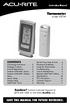 Instruction Manual Thermometer model 00754 CONTENTS Unpacking Instructions... Package Contents... Product Registration... Features & Benefits: Sensor... Features & Benefits: Display... 3 Setup... 4 Sensor
ARCHOS (www.archos.com/support).
 1 ! www.archos.com/register, ARCHOS.. ARCHOS, (www.archos.com/register).. ARCHOS (www.archos.com/support)., Windows, Windows Help Start ( ), Help and Support.. ARCHOS. 2 ,.! /, : ARCHOS 9,,,,,. -.,. ARCHOS
Quick Start Guide. Model #s: 360050 / 360051 / 360052 / 360053 / 360055 Lit# 98-1572/02-10
 Quick Start Guide Model #s: 360050 / 360051 / 360052 / 360053 / 360055 Lit# 98-1572/02-10 Full Instruction Manual available online at: http://www.bushnell.com/manuals/gps Control & Display Guide MARK/Backlight
Laser Wireless Rechargeable Mouse. User s Manual
 Laser Wireless Rechargeable Mouse Model #: LM8000WR User s Manual Rev. 060801 User s Record: To provide quality customer service and technical support, it is suggested that you keep the following information
Wireless Indoor/ Outdoor Thermometer
 Wireless Indoor/ Outdoor Thermometer Owner s Manual Please read before using this equipment. ˆ Contents FCC Information... 3 FCC Declaration of Conformity... 5 Preparation... 5 Installing Batteries...
ES-3305P V2 / ES-3308P V2. Quick Installation Guide. 09-2013 / v1.0
 ES-3305P V2 / ES-3308P V2 Quick Installation Guide 09-2013 / v1.0 1 COPYRIGHT Copyright Edimax Technology Co., Ltd. all rights reserved. No part of this publication may be reproduced, transmitted, transcribed,
Self Help Guides. Setup Exchange Email with Outlook
 Self Help Guides Setup Exchange Email with Outlook Setting up Exchange Email Connection This document is to be used as a guide to setting up an Exchange Email connection with Outlook; 1. Microsoft Outlook
Journey/Travel Management Training Program
 Journey/Travel Management Training Program Introduction All-Can Engineering & Surveys (1976) Ltd. is involved in operations that span the entire province of Alberta. Transportation is an integral part
Vehicle Monitoring Quick Reference Guide
 Vehicle Monitoring Quick Reference Guide Powered by Delphi Welcome You re about to experience a powerful device that will deliver a new level of convenience and peace of mind with your vehicle. When combined
Directed Passive Keyless Entry System (PKE) Model 2102T Owner s Guide
 Directed Passive Keyless Entry System (PKE) Model 2102T Owner s Guide 2012 Directed, Vista, CA G2102T Contents Government regulations...4 Warning! Safety first...6 Important information...6 System maintenance...6
Model: 308-1412 Manual DC: 080215 WIRELESS COLOR FORECAST STATION
 Model: 308-1412 Manual DC: 080215 WIRELESS COLOR FORECAST STATION FRONT VIEW SENSOR TX141TH-Bv2 LED TX Sensor Battery Cover Sensor Battery Compartment 2 AA Buttons Battery Compartment 3 AAA BACK VIEW Battery
Quick Start Guide: Iridium GO! Advanced Portal
 Quick Start Guide: Iridium GO! Advanced Portal Contents Set-Up... 3 Overview... 4 Main Tab 1: General... 5 Status.... 5 Settings... 8 Audio.... 8 GPS.... 9 Tab 2: Communication... 9 Wi-Fi... 9 Satellite...
User Guide Microsoft Screen Sharing for Lumia Phones (HD-10)
 User Guide Microsoft Screen Sharing for Lumia Phones (HD-10) Issue 1.1 EN User Guide Microsoft Screen Sharing for Lumia Phones (HD-10) Contents Safety 3 About your accessory 4 Keys and parts 5 Connect
Table of Contents Function Keys of Your RF Remote Control Quick Setup Guide Advanced Features Setup Troubleshooting
 Congratulations on your purchase of the AT&T U-verse TV Point Anywhere RF Remote Control. This product has been designed to provide many unique and convenient features to enhance your AT&T U-verse experience.
User Guide for the Kidde RemoteLync. Remote Notification Device
 User Guide for the Kidde RemoteLync Remote Notification Device 120V AC 3 Color LED Indicator Voice Message System For questions concerning your device, please call our Product Support Line at 1-800-880-6788.
Wireless Keyboard and Optical Mouse Bundle
 Wireless Keyboard and Optical Mouse Bundle Enjoy the freedom of wireless optical precision User Manual F8E832-BNDL TABLE OF CONTENTS Introduction....................................1 Compatible Equipment............................2
Self Help Guides. Create a New User in a Domain
 Self Help Guides Create a New User in a Domain Creating Users & Groups This document is to be used as a guide to creating users and/or groups in a Domain Server environment; 1. Windows Server Domain exists,
ReadyNet Easy Jack 2 Voice/Data and Data Only Owner s Manual PX-211d and PX-211v
 ReadyNet Easy Jack 2 Voice/Data and Data Only Owner s Manual PX-211d and PX-211v Phonex Broadband Corporation dba ReadyNet 6952 High Tech Drive Midvale, Utah 84047 801.566.0100 Phone 801.566.0880 Fax www.readynetsolutions.com
User Guide Microsoft Screen Sharing for Lumia Phones (HD-10)
 User Guide Microsoft Screen Sharing for Lumia Phones (HD-10) Issue 1.1 EN-US User Guide Microsoft Screen Sharing for Lumia Phones (HD-10) Contents Safety 3 About your accessory 4 Keys and parts 5 Connect
This equipment has been tested and found to comply with the limits for a Class B digital device, pursuant to part 15 of the FCC Rules.
 Power Max Level 2 Charging Station en Installation and Operating Instructions This equipment has been tested and found to comply with the limits for a Class B digital device, pursuant to part 15 of the
BlackBerry Desktop Manager Version: 1.0.1. User Guide
 BlackBerry Desktop Manager Version: 1.0.1 User Guide SWD-857131-0929025909-001 Contents Basics... 2 About BlackBerry Desktop Manager... 2 System requirements: BlackBerry Desktop Manager... 2 Set up your
Atomic Projection Alarm with Indoor and Outdoor Temperature
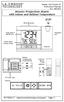 Model: WS-5220U-IT Instruction Manual DC: 082415 Atomic Projection Alarm with Indoor and Outdoor Temperature SNOOZE button Time, Alarm + WWVB Icon Projection arm Indoor Temp., Outdoor Temp. Battery Compartment
u-traq autopro GPS Vehicle Tracking System Product # 1020-PRO User s Guide Installation and Operating Instructions
 u-traq autopro GPS Vehicle Tracking System Product # 1020-PRO User s Guide Installation and Operating Instructions Table of Contents Before Installing 2 GPS Fundamentals 3 Checking the Contents of the
Precise innovation presents: USer manual
 Precise innovation presents: USer manual Let the FUn Begin! The goal of Caref is simple to give parents greater peace of mind and children a greater sense of freedom when they should be focusing as much
AVerMedia AVerKey imicro User s Manual
 FCC NOTICE This device has been tested and found to comply with the limits for a Class B digital device, pursuant to Part 15 of the FCC Rules. These limits are designed to provide reasonable protection
Quick Start Guide. Control & Display Guide. Direction to Location Battery Level Indicator. Local Time. Satellite Locked Icon MARK Button.
 Record Your Track Find Your Way Back Quick Start Guide Direction to Location Battery Level Indicator Local Time POWER Button TRIP/DATA Button Location Memory (1 of 5 icons shown) Satellite Locked Icon
PIR-1 Owner s Manual
 PIR-1 Owner s Manual PIR-1 Owner s Manual 2010 Universal Remote Control, Inc. The information in this manual is copyright protected. No part of this manual may be copied or reproduced in any form without
1. INTRODUCTION TO SUUNTO SMART BELT 2. GETTING STARTED WITH SUUNTO SMART BELT
 EN TABLE OF CONTENTS 1. INTRODUCTION TO SUUNTO SMART BELT... 3 2. GETTING STARTED WITH SUUNTO SMART BELT... 3 3. DOWNLOADING AND ANALYZING DATA RECORDED WITH SUUNTO SMART BELT... 7 4. ERRORS AND WARNINGS...
Atomic Projection Alarm Clock model 13021
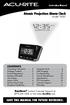 Instruction Manual Atomic Projection Alarm Clock model 13021 CONTENTS Unpacking Instructions... 2 Package Contents... 2 Product Registration... 2 Features & Benefits... 3 Clock Setup... 5 Atomic Clock...
Quick Start Guide: ios and Android Iridium GO! App
 Quick Start Guide: ios and Android Iridium GO! App Wi-Fi connectivity Your smartphone or tablet device MUST be connected via Wi-Fi to Iridium GO! (ex. Iridium-06088 ) in order for the Iridium GO! application
Owner s Guide. ca6554
 PROFESSIONAL SERIES Owner s Guide For Models: ca6554 Deluxe Vehicle Security and Remote Start System with 2 Way Confirming LCD Remote Control IMPORTANT NOTE: The operation of the Security and Convenience
Schlage Control Smart Locks
 Schlage Control Smart Locks with Engage technology User guide Schlage Control Smart Locks with Engage technology User Guide Contents 3 Warranty 4 Standard Operation 4 Operation from the Inside 4 Operation
Alarm Clock USER GUIDE
 Alarm Clock USER GUIDE Jazwares, Inc. 2012 CONTENTS Please read the instructions along with the Alarm Clock carefully before you use it, so that you can operate it conveniently. WELCOME & Warnings Page
Automatic Phone-Out Home Monitoring Systems
 Automatic Phone-Out Home Monitoring Systems Power Outage and Freeze Alarm Model Number: THP202 Power Outage, Freeze and Flood Alarm Product Description Model Number: THP201 These monitoring systems are
Energy Smart Electric Water Heater Controller
 Installation, Operation and Troubleshooting Instructions Energy Smart Electric Water Heater Controller Table of Contents Installation and Setup, 2 Operation, 5 Troubleshooting, 7 Regulatory Notices, 11
iosafe Solo External Hard Drive
 Users Manual & Limited Warranty iosafe Solo External Hard Drive USB 2.0 Fireproof Waterproof FloSafe Cooling Technology Data Recovery Service 910-10841-00 REV 7.1 2 COPYRIGHTS Copyright iosafe, Inc. 2009.
BlackBerry Web Desktop Manager. Version: 5.0 Service Pack: 4. User Guide
 BlackBerry Web Desktop Manager Version: 5.0 Service Pack: 4 User Guide Published: 2012-10-03 SWD-20121003174218242 Contents 1 Basics... 5 Log in to the BlackBerry Web Desktop Manager... 5 Connect your
Optical Wireless Mouse. User s Manual
 Optical Wireless Mouse Model : OM4000W User s Manual 110935-109154 Rev. 061101 User s Record: To provide quality customer service and technical support, it is suggested that you keep the following information
User Manual (English)
 User Manual (English) Table of Contents General Safety Information...2 Fueltank UNO Components...3 Charging the Fueltank UNO...4 Using the Fueltank UNO...5 Power Saving Mode...6 Checking the Fueltank UNO
IDE ATA/133 Controller
 IDE ATA/133 Controller 2 Port PCI ATA-133 IDE Adapter Card PCIIDE2 Actual product may vary from photo FCC Compliance Statement This equipment has been tested and found to comply with the limits for a Class
Solar Weather Station Model: BAR806 / BAR806A
 Solar Weather Station Model: BAR806 / BAR806A EN CONTENTS USER MANUAL Overview... 2 Front view... 2 Back view... 3 Remote sensor... 3 Getting started... 3 Solar panel... 3 Insert batteries... 4 Remote
BTX180 Wireless Bluetooth Speaker
 BTX180 Wireless Bluetooth Speaker User Manual 2012 Kinivo LLC. All rights reserved. Kinivo is a trademark of Kinivo LLC. Bluetooth word mark and the Bluetooth logo are registered trademarks of Bluetooth
Model: 616-146v2 Quick Setup Guide DC: 071015 Atomic Projection Alarm with Indoor and Outdoor Temperature
 Model: 616-146v2 Quick Setup Guide DC: 071015 Atomic Projection Alarm with Indoor and Outdoor Temperature Snooze/Backlight BUTTONS Time, Alarm with Snooze, & Calendar Projection Arm Rotates 180 Indoor/Outdoor
User Guide. BLUETOOTH WIRELESS KEYBOARD for ipad
 BLUETOOTH WIRELESS KEYBOARD for ipad 410-2119-001A / AKB32US 1 YEAR LIMITED WARRANTY: We pride ourselves on the quality of our products. For complete warranty details and a list of our worldwide offices,
Regulatory Compliance. IC Certification. FCC Certification. Declaration of Conformity
 VP6495 Regulatory Compliance This device complies with Part 15 of the FCC Rules. Operation is subject to the following two conditions: (1) This device may not cause harmful interference, and (2) This device
Targus Wireless RF Mouse USER S GUIDE. Making Your Mobile Life Easier.
 Targus Wireless RF Mouse Visit our Web site at: www.targus.com Features and specifications are subject to change without notice. 2004 Targus Group International and Targus, Inc.. 400-0111-001B USER S GUIDE
Conference Phone UserÕs Manual. Part No. 54-2070-01R1 Printed in Korea. 2002 Bogen Communications, Inc.
 Part No. 54-2070-01R1 Printed in Korea. 2002 Bogen Communications, Inc. UserÕs Manual Notice Every effort was made to ensure that the information in this guide was complete and accurate at the time of
Magnetic Stripe Reader-Writer. Magnetic Stripe Reader-Writer. RS232 & USB-RS232 Interface Quickstart Manual
 Magnetic Stripe Reader-Writer RS232 & USB-RS232 Quickstart Manual ID TECH 10721 Walker Street Cypress, California 90630 (714) 761-6368 www.idtechproducts.com 80058504-002 Rev. C R01/08 Magnetic Stripe
User s Manual. 2014 VTech Printed in China 91-009683-001 US
 User s Manual TM Fire Command Rescue Center 2014 VTech Printed in China 91-009683-001 US INTRODUCTION Thank you for purchasing the VTech Go! Go! Smart Wheels Fire Command Rescue Center playset learning
AXIS 291 1U Video Server Rack Installation Guide
 AXIS 291 1U Video Server Rack Installation Guide About This Document This document describes how to install Axis blade video servers in the AXIS 291 1U Video Server Rack. Updated versions of this document
DELORME. Getting Started with. Earthmate GPS BT-20. Bluetooth
 DELORME Getting Started with GPS BT-20 Bluetooth Earthmate Table of Contents Overview... 2 Hardware Features... 2 Using the Earthmate GPS BT-20... 3 Charging the Battery... 4 Troubleshooting... 4 Hardware
u-traq autopro GPS Vehicle Tracking System Product # 1020-PRO User s Guide Installation and Operating Instructions
 u-traq autopro GPS Vehicle Tracking System Product # 1020-PRO User s Guide Installation and Operating Instructions Before Installing Table of Contents Before Installing 2 GPS Fundamentals 3 Checking the
BES10 Self-Service. Version: 10.2. User Guide
 BES10 Self-Service Version: 10.2 User Guide Published: 2014-09-10 SWD-20140908171306471 Contents 1 BES10 Self-Service overview... 4 2 Log in to BES10 Self-Service... 5 3 Activating your device...6 Create
WIRELESS WATER LEAK DETECTOR
 ITEM #0422362 WIRELESS WTER LEK DETECTOR MODEL #ST812-2 Español p. XX REQUIRES: IRIS Smart Hub FOR FUTURE REFERENCE TTCH YOUR RECEIPT HERE ND SVE THIS MNUL Z-Wave is a registered trademark of Sigma Designs
InHome Water Leak Detection Package
 InHome Water Leak Detection Package For Model Numbers ILD10A-L and ILD10A-B Installation Guide / Wiring Diagram For Creating Water Leak Detection-based Events with Line-Powered or Battery-Powered Sensors
BroadBand PowerShield. User Manual
 BroadBand PowerShield User Manual 990-0375G 12/2006 Chapter 1 General Information The PowerShield provides a power source for broadband telephony and other DC applications. Safety This Safety Guide contains
BlackBerry Mobile Voice System - BlackBerry MVS Client
 BlackBerry Mobile Voice System - BlackBerry MVS Client BlackBerry Device Software 5.0 User Guide Version: 5.2 SWD-1249531-0316085151-001 Contents Basics... 2 About the BlackBerry MVS Client... 2... 3 basics...
User Guide. Soft-Touch TM Bluetooth Laser Mouse N2953
 Soft-Touch TM Bluetooth Laser Mouse 410-XXXXXXXXXXX 1 YEAR LIMITED WARRANTY: We pride ourselves on the quality of our products. For complete warranty details and a list of our worldwide offices, please
COMPLETE MANUAL. Version: Optic. September 2015 (English), version 1.0. EnergyOT Optic Developed and Manufactured by Genoa Spark, lda Made in Portugal
 Version: Optic COMPLETE MANUAL September 2015 (English), version 1.0. EnergyOT Optic Developed and Manufactured by Genoa Spark, lda Made in Portugal Specifications are subject to change without notice.
ST815 Illumination Sensor with LCD
 ST815 Illumination Sensor with LCD The Illumination Sensor with LCD (refer to as Illumination Sensor hereafter) is a Z-Wave TM enabled device which is fully compatible with any Z-Wave TM enabled network.
mysensors mysensors Wireless Sensors and Ethernet Gateway Quick Start Guide Information to Users Inside the Box mysensors Ethernet Gateway Quick Start
 mysensors Information to Users mysensors Wireless Sensors and Ethernet Gateway Quick Start Guide This equipment has been tested and found to comply with the limits for a Class B digital devices, pursuant
Compatibility Matrix March 05, 2010
 BlackBerry Enterprise Server Express Compatibility Matrix March 05, 2010 2010 Research In Motion Limited. All rights reserved. www.rim.com Page: 1 Operating Systems - BlackBerry Enterprise Server Express
SUBARU STARLINK YOUR SUBARU CONNECTED Safety & Security OWNER S MANUAL. Love. It s what makes a Subaru, a Subaru. MY16StarlinkS&S_OMportrait.
 SUBARU STARLINK YOUR SUBARU CONNECTED Safety & Security OWNER S MANUAL 2016 Love. It s what makes a Subaru, a Subaru. MY16StarlinkS&S_OMportrait.indd 1 5/11/15 3:31 PM TM Foreword... 2 Welcome to SUBARU
Contents. Product Code -------------------------------------------------------15. Page 1
 Contents Important Safety Instructions -------------------------------------2 BT HP01 --------------------------------------------------------------4 BT HP01 Anatomy ---------------------------------------------------5
BlackBerry Enterprise Server for Microsoft Exchange. Compatibility Matrix January 31, 2011
 BlackBerry Enterprise Server for Microsoft Exchange Compatibility Matrix January 31, 2011 2010 Research In Motion Limited. All rights reserved. www.rim.com Page: 1 Operating Systems: BlackBerry Enterprise
Temperature & Humidity SMS Alert Controller
 Temperature & Humidity SMS Alert Controller Version 7 [Windows XP/Vista/7] GSMS THR / GSMS THP Revision 110507 [Version 2.2.14A] ~ 1 ~ SMS Alarm Messenger Version 7 [Windows XP/Vista/7] SMS Pro series
Compatibility Matrix. VPN Authentication by BlackBerry. Version 1.7.1
 Compatibility Matrix VPN Authentication by BlackBerry Version 1.7.1 Published: 2015-07-09 SWD-20150709134854714 Contents Introduction... 4 Legend...5 VPN Authentication server... 6 Operating system...6
How To Use A U.S. Cell Phone At Home
 U.S. Cellular Home Phone 1 Contents Getting to Know Your Device...5 Appearance... 5 LED Indicators... 6 Device Installation...7 Before You Begin... 7 Installing the Battery... 7 Installing the Power Adapter...
User Guide for the Wireless Headset (HS-11W) 9235346 Issue 1
 User Guide for the Wireless Headset (HS-11W) 9235346 Issue 1 DECLARATION OF CONFORMITY We, NOKIA CORPORATION declare under our sole responsibility that the product HS-11W is in conformity with the provisions
BlackBerry Mobile Conferencing
 BlackBerry Mobile Conferencing BlackBerry Device Software 5.0 User Guide Version: 3.0 SWD-1908281-0130021643-001 Contents Conference call basics... 2 About BlackBerry Mobile Conferencing... 2 Join a conference
StorTrends 3400 Hardware Guide for Onsite Support
 StorTrends 3400 Hardware Guide for Onsite Support MAN-3400-SS 11/21/2012 Copyright 1985-2012 American Megatrends, Inc. All rights reserved. American Megatrends, Inc. 5555 Oakbrook Parkway, Building 200
Usage, Installation, Warranty and Service Information
 T13C Table Updater for Seating Management U S E R M A N UA L Usage, Installation, Warranty and Service Information Long Range Systems, LLC 4550 Excel Parkway, Suite 200 Addison, TX 75001 800.437.4996 www.lrsus.com
User s Manual Model KB990W
 Wireless Internet Keyboard & Optical Mouse User s Manual Model KB990W FCC Statement This device complies with part 15 of FCC Rules. Operation is subject to the following two conditions: (1) this device
Atomic Dual Alarm Clock models 13022 / 13035
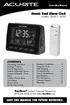 Instruction Manual Atomic Dual Alarm Clock models 13022 / 13035 CONTENTS Unpacking Instructions... 2 Package Contents... 2 Product Registration... 2 Features & Benefits: Sensor... 2 Features & Benefits:
ZigBee Extender 3. Features. Supported Models and Requirements. Important Safety Instructions. What Is Included: Specifications
 ZigBee Extender 3 Features The Card Access ZigBee Extender 3 operates as a ZigBee (IEEE 802.15.4) router and mesh extender. The Extender is designed to improve ZigBee signal latency that can occur when
RedBlack CyBake Online Customer Service Desk
 RedBlack CyBake Online Customer Service Desk Publication Date: June 2014 Copyright Copyright 2014 RedBlack Software Ltd. All rights reserved. Complying with all applicable copyright laws is the responsibility
INSTRUCTION Manual FABCSS1 SERIES
 INSTRUCTION Manual FABCSS1 SERIES IMPORTANT SAFEGUARDS This device should only be used for bark deterrent training of dogs. Not recommended for use in close proximity to other dogs. Please note in some
BlackBerry Enterprise Server Express for Microsoft Exchange
 BlackBerry Enterprise Server Express for Microsoft Exchange Compatibility Matrix December 19, 2013 2013 BlackBerry. All rights reserved. Page: 1 Operating Systems: BlackBerry Enterprise Server and BlackBerry
Duplex ID Card & License Scanner. User Guide
 Duplex ID Card & License Scanner User Guide CE Conformity and FCC Statement This equipment has been tested and found to comply with the limits of the European Council Directive on the approximation of
SanDisk Connect Wireless Flash Drive QUICK START GUIDE
 SanDisk Connect Wireless Flash Drive QUICK START GUIDE GET STARTED 1. Charge your Wireless Drive Plug the Drive into a computer or USB-AC adaptor. A full charge can take up to 2 hours. 2) Turn on the
BlackBerry Web Desktop Manager. User Guide
 BlackBerry Web Desktop Manager User Guide Published: 2012-01-26 SWD-1952106-0126040849-001 Contents 1 About the BlackBerry Web Desktop Manager... 3 About the BlackBerry Business Cloud Services... 3 2 Getting
External Hard Drive esata & USB 2.0 Combo. User Guide English
 External Hard Drive esata & USB 2.0 Combo User Guide English Contents Introduction 3 Controls, Connectors and Indicators 3 Front Panel Area 3 Rear Panel Area 3 About the Hard Drive 4 Locating the Drive
Tracking Key II User s Guide. www.landairsea.com
 Tracking Key II User s Guide www.landairsea.com LandAirSea Tracking Key II User s Guide Contents Warranty Information & System Requirements. 2 Quick Start Guide.... 3 Registering Device and Activating
SoftRAID 5 QUICK START GUIDE. for OWC ThunderBay
 SoftRAID 5 QUICK START GUIDE for OWC ThunderBay TABLE OF CONTENTS INTRODUCTION...1 1.1 MINIMUM SYSTEM REQUIREMENTS 1.2 FEATURES 1.3 ABOUT THIS MANUAL SYSTEM SETUP...2 2.1 GETTING STARTED 2.2 INITIALIZING,