
Cloud Services. Anti-Spam. Admin Guide
|
|
|
- Florence Lamb
- 10 years ago
- Views:
Transcription
1 Cloud Services Anti-Spam Admin Guide 10/23/2014

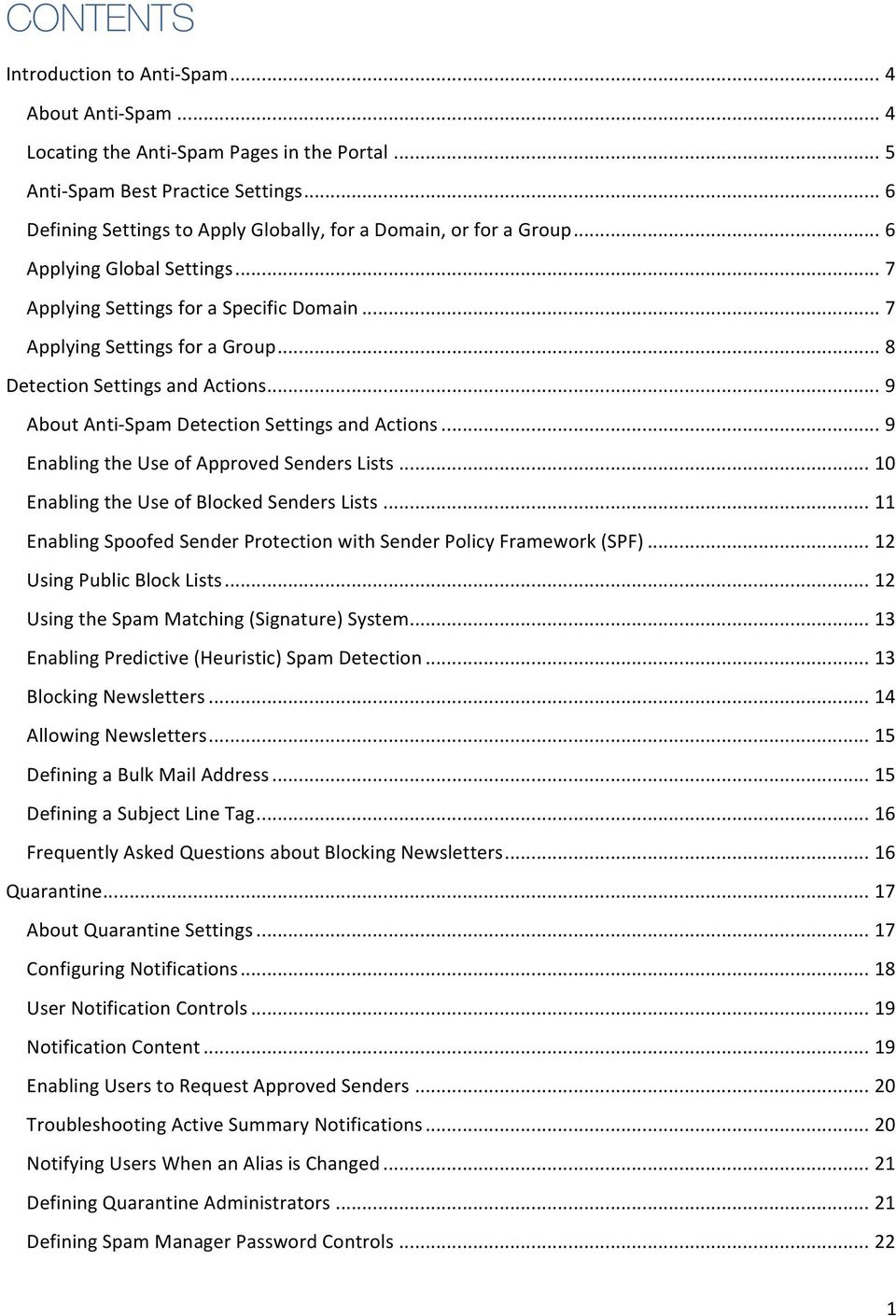
2 CONTENTS Introduction to Anti- Spam... 4 About Anti- Spam... 4 Locating the Anti- Spam Pages in the Portal... 5 Anti- Spam Best Practice Settings... 6 Defining Settings to Apply Globally, for a Domain, or for a Group... 6 Applying Global Settings... 7 Applying Settings for a Specific Domain... 7 Applying Settings for a Group... 8 Detection Settings and Actions... 9 About Anti- Spam Detection Settings and Actions... 9 Enabling the Use of Approved Senders Lists Enabling the Use of Blocked Senders Lists Enabling Spoofed Sender Protection with Sender Policy Framework (SPF) Using Public Block Lists Using the Spam Matching (Signature) System Enabling Predictive (Heuristic) Spam Detection Blocking Newsletters Allowing Newsletters Defining a Bulk Mail Address Defining a Subject Line Tag Frequently Asked Questions about Blocking Newsletters Quarantine About Quarantine Settings Configuring Notifications User Notification Controls Notification Content Enabling Users to Request Approved Senders Troubleshooting Active Summary Notifications Notifying Users When an Alias is Changed Defining Quarantine Administrators Defining Spam Manager Password Controls
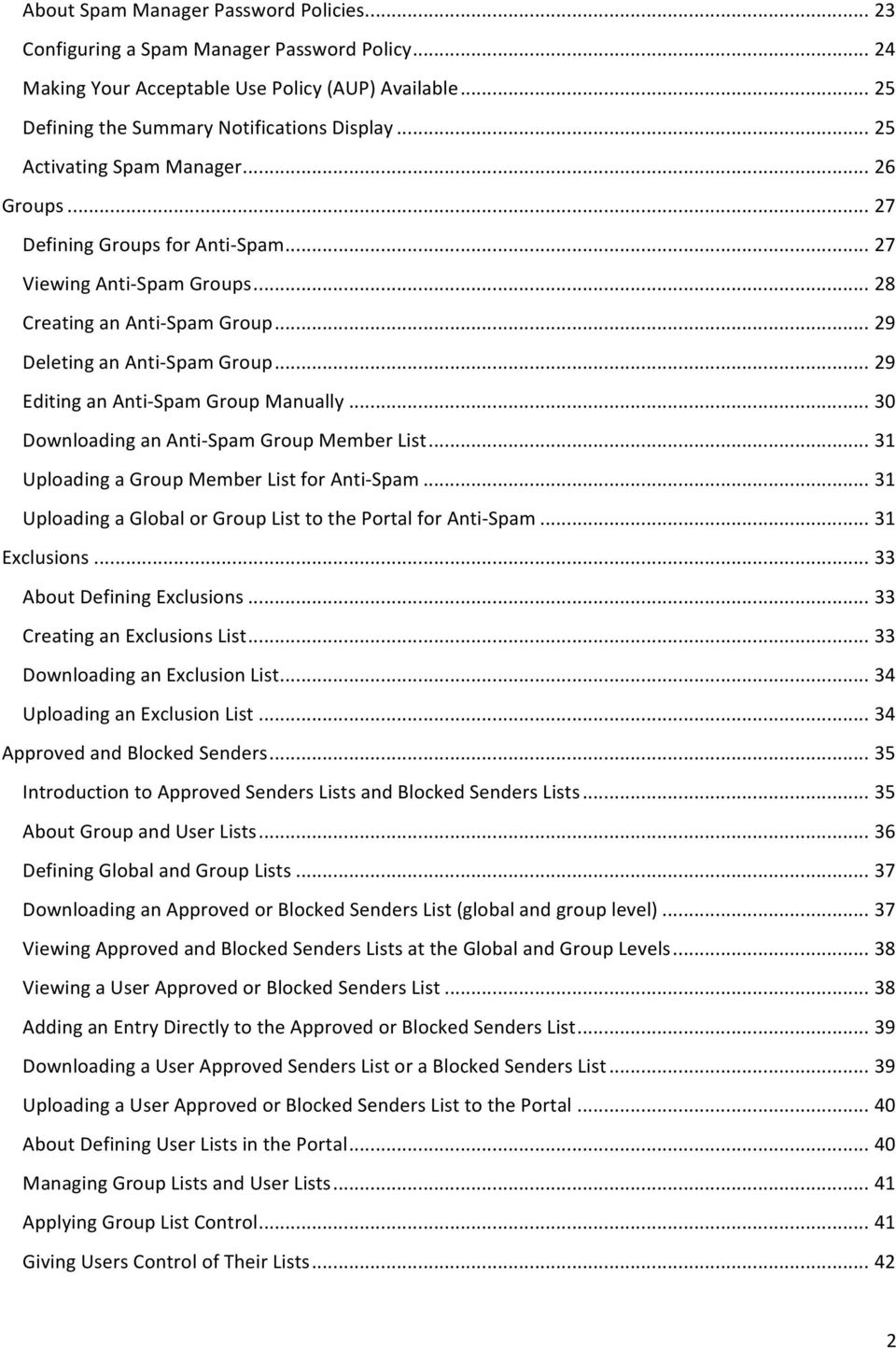
3 About Spam Manager Password Policies Configuring a Spam Manager Password Policy Making Your Acceptable Use Policy (AUP) Available Defining the Summary Notifications Display Activating Spam Manager Groups Defining Groups for Anti- Spam Viewing Anti- Spam Groups Creating an Anti- Spam Group Deleting an Anti- Spam Group Editing an Anti- Spam Group Manually Downloading an Anti- Spam Group Member List Uploading a Group Member List for Anti- Spam Uploading a Global or Group List to the Portal for Anti- Spam Exclusions About Defining Exclusions Creating an Exclusions List Downloading an Exclusion List Uploading an Exclusion List Approved and Blocked Senders Introduction to Approved Senders Lists and Blocked Senders Lists About Group and User Lists Defining Global and Group Lists Downloading an Approved or Blocked Senders List (global and group level) Viewing Approved and Blocked Senders Lists at the Global and Group Levels Viewing a User Approved or Blocked Senders List Adding an Entry Directly to the Approved or Blocked Senders List Downloading a User Approved Senders List or a Blocked Senders List Uploading a User Approved or Blocked Senders List to the Portal About Defining User Lists in the Portal Managing Group Lists and User Lists Applying Group List Control Giving Users Control of Their Lists
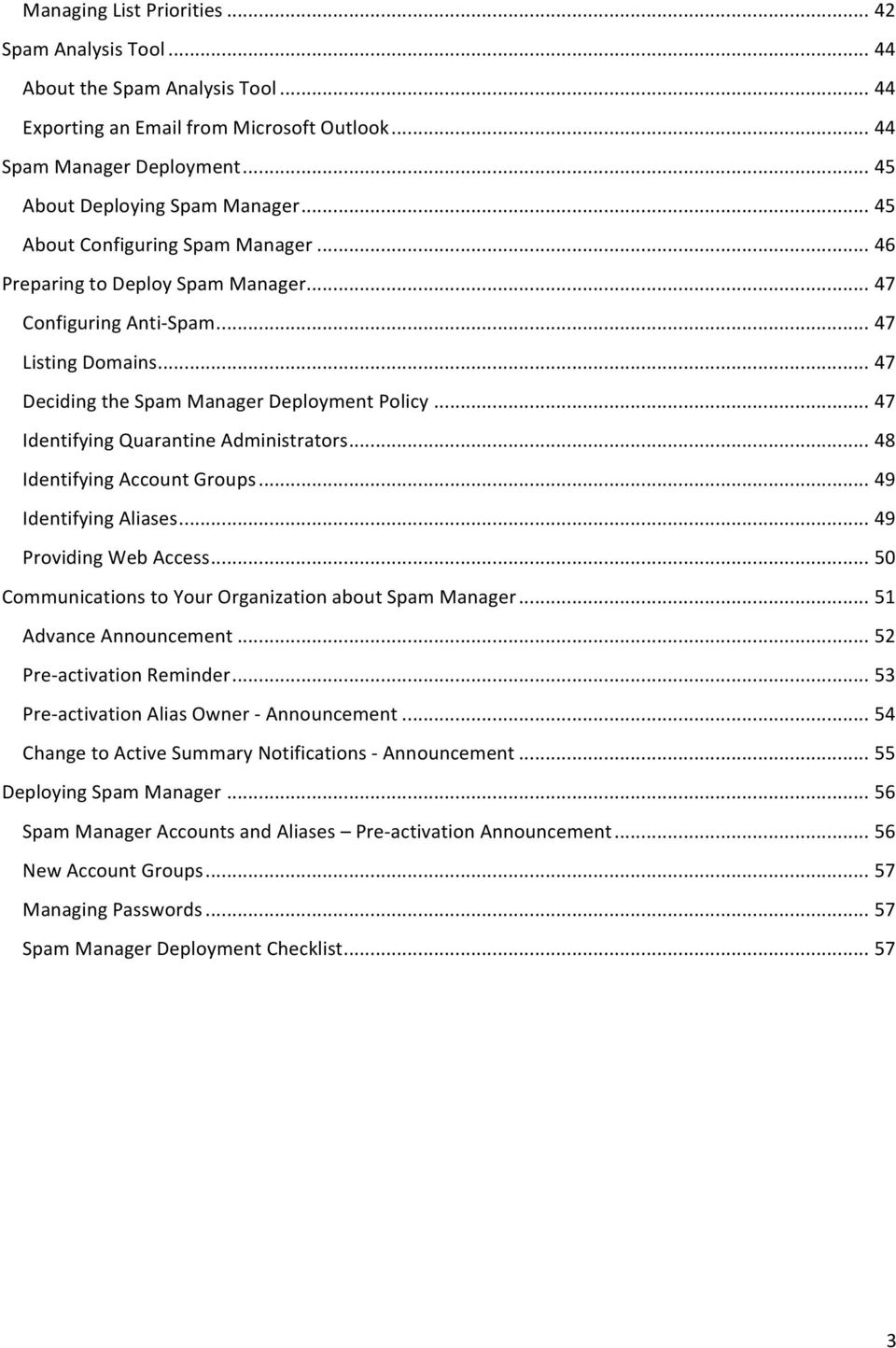
4 Managing List Priorities Spam Analysis Tool About the Spam Analysis Tool Exporting an from Microsoft Outlook Spam Manager Deployment About Deploying Spam Manager About Configuring Spam Manager Preparing to Deploy Spam Manager Configuring Anti- Spam Listing Domains Deciding the Spam Manager Deployment Policy Identifying Quarantine Administrators Identifying Account Groups Identifying Aliases Providing Web Access Communications to Your Organization about Spam Manager Advance Announcement Pre- activation Reminder Pre- activation Alias Owner - Announcement Change to Active Summary Notifications - Announcement Deploying Spam Manager Spam Manager Accounts and Aliases Pre- activation Announcement New Account Groups Managing Passwords Spam Manager Deployment Checklist
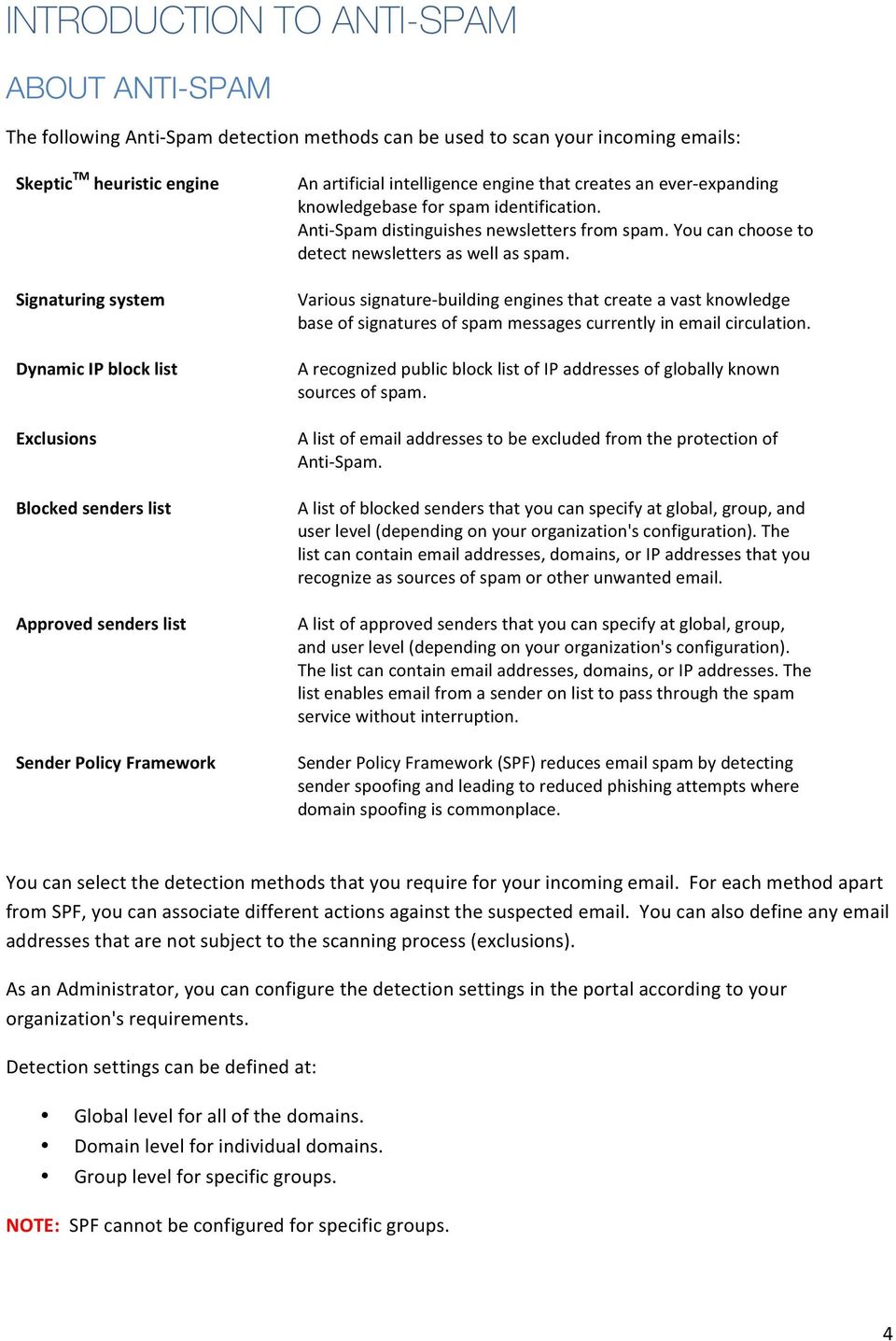
5 INTRODUCTION TO ANTI-SPAM ABOUT ANTI-SPAM The following Anti- Spam detection methods can be used to scan your incoming s: Skeptic TM heuristic engine Signaturing system Dynamic IP block list Exclusions Blocked senders list Approved senders list Sender Policy Framework An artificial intelligence engine that creates an ever- expanding knowledgebase for spam identification. Anti- Spam distinguishes newsletters from spam. You can choose to detect newsletters as well as spam. Various signature- building engines that create a vast knowledge base of signatures of spam messages currently in circulation. A recognized public block list of IP addresses of globally known sources of spam. A list of addresses to be excluded from the protection of Anti- Spam. A list of blocked senders that you can specify at global, group, and user level (depending on your organization's configuration). The list can contain addresses, domains, or IP addresses that you recognize as sources of spam or other unwanted . A list of approved senders that you can specify at global, group, and user level (depending on your organization's configuration). The list can contain addresses, domains, or IP addresses. The list enables from a sender on list to pass through the spam service without interruption. Sender Policy Framework (SPF) reduces spam by detecting sender spoofing and leading to reduced phishing attempts where domain spoofing is commonplace. You can select the detection methods that you require for your incoming . For each method apart from SPF, you can associate different actions against the suspected . You can also define any addresses that are not subject to the scanning process (exclusions). As an Administrator, you can configure the detection settings in the portal according to your organization's requirements. Detection settings can be defined at: Global level for all of the domains. Domain level for individual domains. Group level for specific groups. NOTE: SPF cannot be configured for specific groups. 4
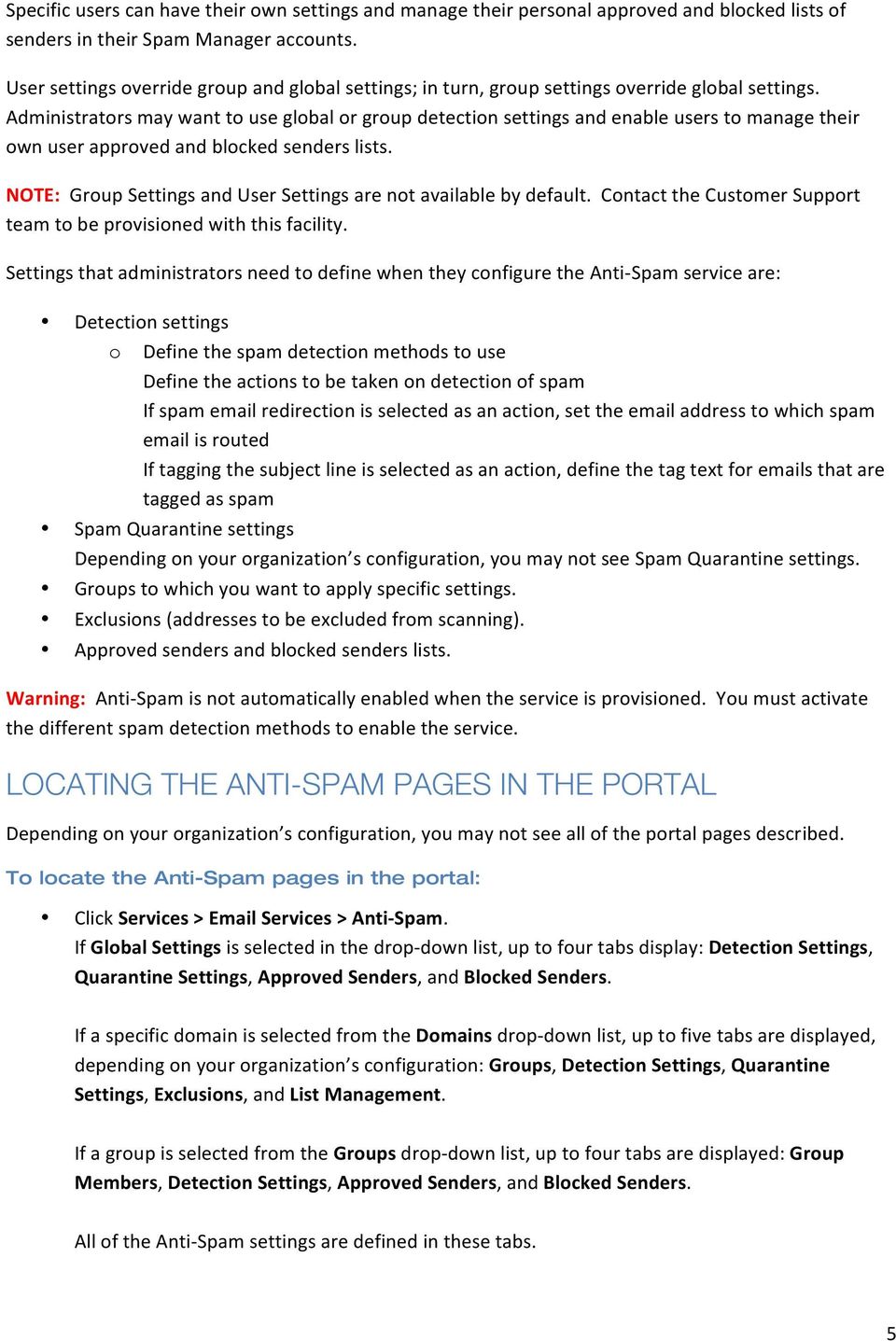
6 Specific users can have their own settings and manage their personal approved and blocked lists of senders in their Spam Manager accounts. User settings override group and global settings; in turn, group settings override global settings. Administrators may want to use global or group detection settings and enable users to manage their own user approved and blocked senders lists. NOTE: Group Settings and User Settings are not available by default. Contact the Customer Support team to be provisioned with this facility. Settings that administrators need to define when they configure the Anti- Spam service are: Detection settings o Define the spam detection methods to use Define the actions to be taken on detection of spam If spam redirection is selected as an action, set the address to which spam is routed If tagging the subject line is selected as an action, define the tag text for s that are tagged as spam Spam Quarantine settings Depending on your organization s configuration, you may not see Spam Quarantine settings. Groups to which you want to apply specific settings. Exclusions (addresses to be excluded from scanning). Approved senders and blocked senders lists. Warning: Anti- Spam is not automatically enabled when the service is provisioned. You must activate the different spam detection methods to enable the service. LOCATING THE ANTI-SPAM PAGES IN THE PORTAL Depending on your organization s configuration, you may not see all of the portal pages described. To locate the Anti-Spam pages in the portal: Click Services > Services > Anti- Spam. If Global Settings is selected in the drop- down list, up to four tabs display: Detection Settings, Quarantine Settings, Approved Senders, and Blocked Senders. If a specific domain is selected from the Domains drop- down list, up to five tabs are displayed, depending on your organization s configuration: Groups, Detection Settings, Quarantine Settings, Exclusions, and List Management. If a group is selected from the Groups drop- down list, up to four tabs are displayed: Group Members, Detection Settings, Approved Senders, and Blocked Senders. All of the Anti- Spam settings are defined in these tabs. 5
7 ANTI-SPAM BEST PRACTICE SETTINGS When you are provisioned with the Anti- Spam service, the service is enabled with default settings. We recommend that you evaluate the tagged spam that you receive using these settings, and how these settings work for your organization s mail flow. When you are confident that the service is only detecting spam , change to the best practice settings. To change to the best-practice settings: 2. Select Global Settings or a specific domain from the Domains drop- down list. 3. In the Detection Settings tab, we recommend modifying the relevant settings as follows: Blocked senders list (IP addresses only) Blocked senders list (domains and addresses only) Dynamic IP block list Signaturing system Skeptic TM heuristics Set to Block and delete the mail. Set to Block and delete the mail. Set to Block and delete the mail. Set to Block and delete the mail. Set to Tag the subject line but allow mail through. Once you are happy that only spam is being detected with this setting, change it to Block and delete. DEFINING SETTINGS TO APPLY GLOBALLY, FOR A DOMAIN, OR FOR A GROUP You can configure and apply default Anti- Spam settings to all domains, or you can apply custom settings to an individual domain by using the Domains drop- down list. Most often you will configure the Anti Spam service using your global settings and making fewer changes on a domain- level basis. If you have defined any groups, you can also apply specific settings for each group. To define whether settings apply globally, for a domain, or for a group: 1. Click Services > Services > Anti- Spam. 2. Select the domain or group to work with from the drop- down list at top left. 3. Specify the required settings; they are applied at the level that you selected in the previous step. When you select a domain or group to work with, the settings from the next highest level are inherited. You can then make your required amendments to apply for the domain or group. Different tabs are available at the various levels, reflecting the settings that are available at each level. 6

8 APPLYING GLOBAL SETTINGS You can configure and apply default Anti- Spam settings to all domains. Use the Domains drop- down list. Most often you will configure Anti- Spam using your global settings and making fewer changes on a domain- level basis. To apply global settings: 2. Ensure that Global Settings is selected in the Domains drop- down list: Up to four tabs are displayed (Detection Settings, Quarantine Settings, Approved Senders, and Blocked Senders) depending on your organization s configuration. Any settings at this level apply globally across all of your domains. APPLYING SETTINGS FOR A SPECIFIC DOMAIN For each domain name that is registered for Anti- Spam you can override Global Settings and apply different rules and settings to it. You can configure Groups, Detection Settings, Quarantine Settings, Exclusions, and List Management settings. To apply settings for a specific domain: 2. Select the domain from the Domains drop- down list. To reduce the number of domains in the list, you can enter the first three or more characters of the domain name. Only those that contain those starting characters are listed. Up to five tabs display (Groups, Detection Settings, Quarantine Settings, Exclusions, and List Management) depending on your organization s configuration. 3. In the Detection Settings and Quarantine Settings pages, ensure that the Use custom settings option is selected. If it is not selected, all fields in these pages remain inactive and unable to be edited. The fields in these pages inherit the global settings until you make any changes. When you select Save & Exit on this screen, the changes you make are applied only to the selected domain. The Groups, Exclusions, and List Management pages are active and editable. Changes to approved senders and blocked senders lists can only be made at global or group level. When you select a specific domain to work with, the name of the domain is displayed as a heading. 7

9 APPLYING SETTINGS FOR A GROUP If you have defined a group, you may want to configure the Detection Settings, Approved Senders, and Blocked Senders for the group. In this manner you can create different groups that use different levels of detection and that respond to detection in different ways. To apply settings for a group: 2. Select the domain that the group is in, from the Domains drop- down list. 3. Select the group from the Groups drop- down list. Four tabs display: Group Members, Detection Settings, Approved Senders, and Blocked Senders. The name of the domain and group displays in the page heading. The Detection Settings page presents a further option to Use custom settings. Unless this is selected, all fields in this page are inactive and cannot be edited. If this option is selected, all fields become active and inherit the domain settings until you make any changes. The available settings are the same as those at global and domain level. NOTE: The changes you make here are applied only to the selected group (provided the changes are saved). 8

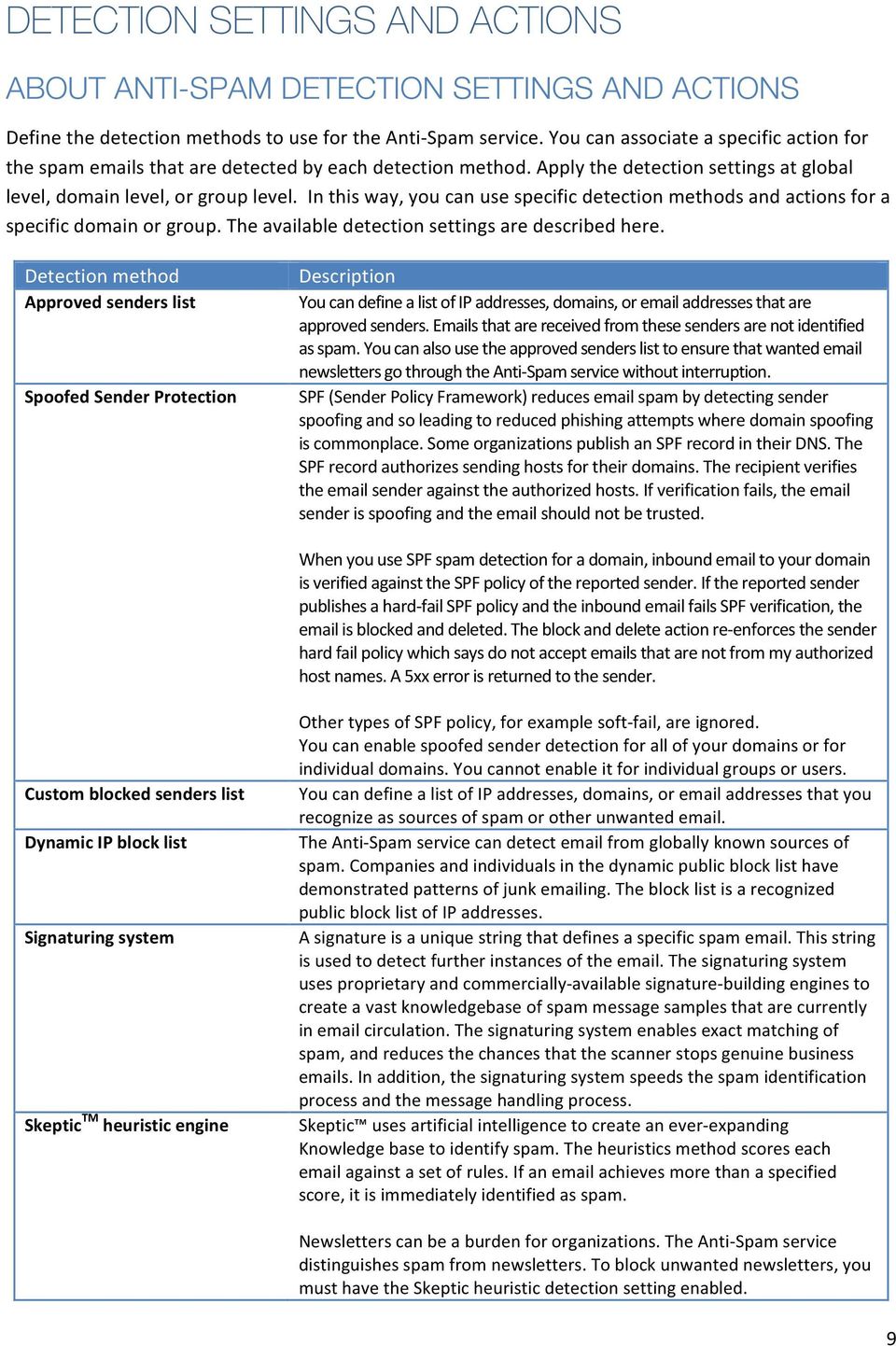
10 DETECTION SETTINGS AND ACTIONS ABOUT ANTI-SPAM DETECTION SETTINGS AND ACTIONS Define the detection methods to use for the Anti- Spam service. You can associate a specific action for the spam s that are detected by each detection method. Apply the detection settings at global level, domain level, or group level. In this way, you can use specific detection methods and actions for a specific domain or group. The available detection settings are described here. Detection method Approved senders list Spoofed Sender Protection Description You can define a list of IP addresses, domains, or addresses that are approved senders. s that are received from these senders are not identified as spam. You can also use the approved senders list to ensure that wanted newsletters go through the Anti- Spam service without interruption. SPF (Sender Policy Framework) reduces spam by detecting sender spoofing and so leading to reduced phishing attempts where domain spoofing is commonplace. Some organizations publish an SPF record in their DNS. The SPF record authorizes sending hosts for their domains. The recipient verifies the sender against the authorized hosts. If verification fails, the sender is spoofing and the should not be trusted. When you use SPF spam detection for a domain, inbound to your domain is verified against the SPF policy of the reported sender. If the reported sender publishes a hard- fail SPF policy and the inbound fails SPF verification, the is blocked and deleted. The block and delete action re- enforces the sender hard fail policy which says do not accept s that are not from my authorized host names. A 5xx error is returned to the sender. Custom blocked senders list Dynamic IP block list Signaturing system Skeptic TM heuristic engine Other types of SPF policy, for example soft- fail, are ignored. You can enable spoofed sender detection for all of your domains or for individual domains. You cannot enable it for individual groups or users. You can define a list of IP addresses, domains, or addresses that you recognize as sources of spam or other unwanted . The Anti- Spam service can detect from globally known sources of spam. Companies and individuals in the dynamic public block list have demonstrated patterns of junk ing. The block list is a recognized public block list of IP addresses. A signature is a unique string that defines a specific spam . This string is used to detect further instances of the . The signaturing system uses proprietary and commercially- available signature- building engines to create a vast knowledgebase of spam message samples that are currently in circulation. The signaturing system enables exact matching of spam, and reduces the chances that the scanner stops genuine business s. In addition, the signaturing system speeds the spam identification process and the message handling process. Skeptic uses artificial intelligence to create an ever- expanding Knowledge base to identify spam. The heuristics method scores each against a set of rules. If an achieves more than a specified score, it is immediately identified as spam. Newsletters can be a burden for organizations. The Anti- Spam service distinguishes spam from newsletters. To block unwanted newsletters, you must have the Skeptic heuristic detection setting enabled. 9
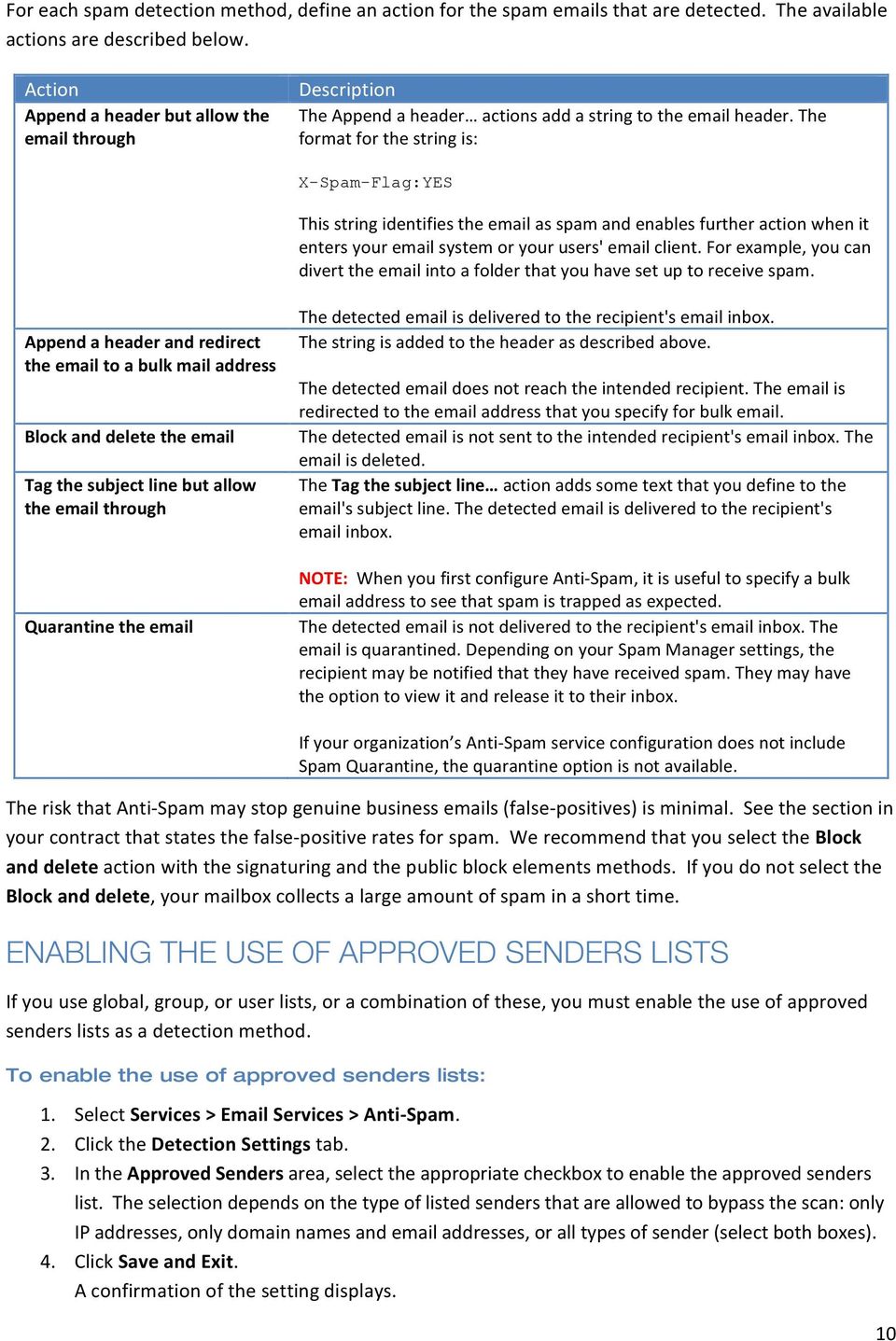
11 For each spam detection method, define an action for the spam s that are detected. The available actions are described below. Action Append a header but allow the through Description The Append a header actions add a string to the header. The format for the string is: X-Spam-Flag:YES This string identifies the as spam and enables further action when it enters your system or your users' client. For example, you can divert the into a folder that you have set up to receive spam. Append a header and redirect the to a bulk mail address Block and delete the Tag the subject line but allow the through Quarantine the The detected is delivered to the recipient's inbox. The string is added to the header as described above. The detected does not reach the intended recipient. The is redirected to the address that you specify for bulk . The detected is not sent to the intended recipient's inbox. The is deleted. The Tag the subject line action adds some text that you define to the 's subject line. The detected is delivered to the recipient's inbox. NOTE: When you first configure Anti- Spam, it is useful to specify a bulk address to see that spam is trapped as expected. The detected is not delivered to the recipient's inbox. The is quarantined. Depending on your Spam Manager settings, the recipient may be notified that they have received spam. They may have the option to view it and release it to their inbox. If your organization s Anti- Spam service configuration does not include Spam Quarantine, the quarantine option is not available. The risk that Anti- Spam may stop genuine business s (false- positives) is minimal. See the section in your contract that states the false- positive rates for spam. We recommend that you select the Block and delete action with the signaturing and the public block elements methods. If you do not select the Block and delete, your mailbox collects a large amount of spam in a short time. ENABLING THE USE OF APPROVED SENDERS LISTS If you use global, group, or user lists, or a combination of these, you must enable the use of approved senders lists as a detection method. To enable the use of approved senders lists: 2. Click the Detection Settings tab. 3. In the Approved Senders area, select the appropriate checkbox to enable the approved senders list. The selection depends on the type of listed senders that are allowed to bypass the scan: only IP addresses, only domain names and addresses, or all types of sender (select both boxes). 4. Click Save and Exit. A confirmation of the setting displays. 10
12 ENABLING THE USE OF BLOCKED SENDERS LISTS Whether you use global, group, or user lists, or a combination of these, you must enable the use of blocked senders lists. When you enable use of blocked senders lists, you must define an action for any that is identified as originating from a blocked sender. NOTE: Group Settings and User Settings are not available by default. Contact Customer Support to be provisioned with this facility. To enable the use of blocked senders lists: 2. Click the Detection Settings tab. 3. Under Responsive Spam Detection, select the appropriate checkbox to enable the blocked senders list depending on which type of senders in your lists are allowed to bypass the scan: only IP addresses, only domain names and addresses, or all types of sender (select both boxes). 4. For each Use blocked senders list checkbox that you have selected, select an action for the detected spam from the Action drop- down list. 5. Click Save and Exit. A confirmation message displays. 11

13 ENABLING SPOOFED SENDER PROTECTION WITH SENDER POLICY FRAMEWORK (SPF) SPF reduces spam by detecting sender spoofing and leading to reduced phishing attempts where domain spoofing is commonplace. Some organizations publish an SPF record in their DNS. The SPF record authorizes sending hosts for their domains. The recipient verifies the sender against the authorized hosts. If verification fails, the sender is spoofing and the should not be trusted. When you use SPF spam detection for a domain, inbound to your domain is verified against the SPF policy of the reported sender. If the reported sender publishes a hard- fail SPF policy and the inbound fails SPF verification, the is blocked and deleted. The block and delete action re- enforces the sender hard fail policy which says do not accept s that are not from my authorized host names. A 5xx error is returned to the sender. Other types of SPF policy, for example soft- fail, are ignored. You can enable SPF for all of your domains or for individual domains. You cannot enable it for individual groups or users. To enable the spoofed sender detection: 1. Click Services > Services > Anti- Spam > Detection Settings. 2. Select Global Settings or select a domain from the drop- down list. 3. In the Spoofed Sender Detection section, check the Use SPF check box. 4. Click Save and Exit. Confirmation of the setting displays. USING PUBLIC BLOCK LISTS A public block list is a list of information about known spammers. The Anti- Spam service uses a dynamic IP block list as part of its protection. To enable the use of a public block list: 2. Click the Detection Settings tab. 3. In the Responsive Spam Detection area, check the Dynamic IP public block list box. 4. Specify an Action from the drop- down list, to be used for any s sent by senders on the public block list. 5. Click Save and Exit. A confirmation of the settings displays. 12

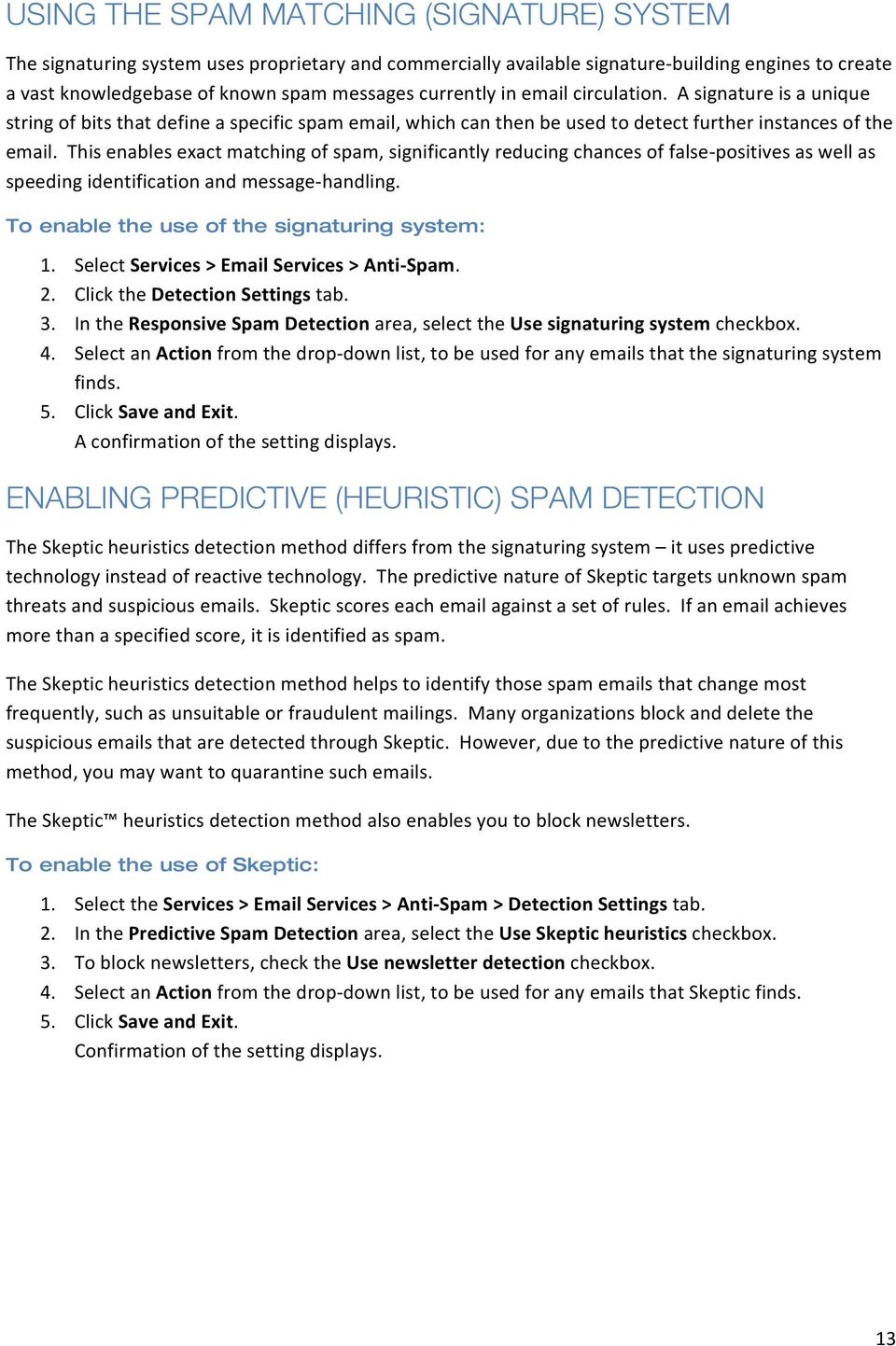
14 USING THE SPAM MATCHING (SIGNATURE) SYSTEM The signaturing system uses proprietary and commercially available signature- building engines to create a vast knowledgebase of known spam messages currently in circulation. A signature is a unique string of bits that define a specific spam , which can then be used to detect further instances of the . This enables exact matching of spam, significantly reducing chances of false- positives as well as speeding identification and message- handling. To enable the use of the signaturing system: 2. Click the Detection Settings tab. 3. In the Responsive Spam Detection area, select the Use signaturing system checkbox. 4. Select an Action from the drop- down list, to be used for any s that the signaturing system finds. 5. Click Save and Exit. A confirmation of the setting displays. ENABLING PREDICTIVE (HEURISTIC) SPAM DETECTION The Skeptic heuristics detection method differs from the signaturing system it uses predictive technology instead of reactive technology. The predictive nature of Skeptic targets unknown spam threats and suspicious s. Skeptic scores each against a set of rules. If an achieves more than a specified score, it is identified as spam. The Skeptic heuristics detection method helps to identify those spam s that change most frequently, such as unsuitable or fraudulent mailings. Many organizations block and delete the suspicious s that are detected through Skeptic. However, due to the predictive nature of this method, you may want to quarantine such s. The Skeptic heuristics detection method also enables you to block newsletters. To enable the use of Skeptic: 1. Select the Services > Services > Anti- Spam > Detection Settings tab. 2. In the Predictive Spam Detection area, select the Use Skeptic heuristics checkbox. 3. To block newsletters, check the Use newsletter detection checkbox. 4. Select an Action from the drop- down list, to be used for any s that Skeptic finds. 5. Click Save and Exit. Confirmation of the setting displays. 13
15 BLOCKING NEWSLETTERS You can block newsletters globally, for a domain, or for a group. To block newsletters globally: 1. Select the Services > Services > Anti- Spam > Detection Settings tab. 2. Ensure that Global Settings is selected in the drop- down list at the top of the page. 3. In the Predictive Spam Detection area, ensure that the Use Skeptic heuristics checkbox is checked. 4. To block newsletters, check the Use newsletter detection checkbox. 5. Select an Action from the drop- down list, to be used for any s that Skeptic finds. 6. Click Save and Exit. Confirmation of the setting displays. To block newsletters for a domain: 1. Select the Services > Services > Anti- Spam > Detection Settings tab. 2. Select the required domain from the drop- down list at the top of the page. 3. In the Predictive Spam Detection area, ensure that the Use Skeptic heuristics checkbox is checked. 4. To block newsletters for the selected domain, check the Use newsletter detection checkbox. 5. Select an Action from the drop- down list, to be used for any s that Skeptic finds. 6. Click Save and Exit. Confirmation of the setting displays. To block newsletters for a group: 1. Select the Services > Services > Anti- Spam > Detection Settings tab. 2. Select the domain to which the group belongs from the drop- down list at the top of the page. 3. Select the required group from the Groups drop- down list. 4. In the Predictive Spam Detection area, ensure that the Use Skeptic heuristics checkbox is checked. 5. To block newsletters for the selected domain, check the Use newsletter detection checkbox. 6. Select an Action from the drop- down list, to be used for any s that Skeptic finds. 7. Click Save and Exit. Confirmation of the setting displays. 14

16 ALLOWING NEWSLETTERS You can allow newsletters globally, for a domain, or for a group. To allow newsletters globally: 1. Select the Services > Services > Anti- Spam > Detection Settings tab. 2. Ensure that Global Settings is selected in the drop- down list at the top of the page. 3. In the Predictive Spam Detection area, uncheck the Use newsletter detection checkbox. 4. Click Save and Exit. Confirmation of the setting displays. To allow newsletters for a domain: 1. Select the Services > Services > Anti- Spam > Detection Settings tab. 2. Select the required domain from the drop- down list at the top of the page. 3. In the Predictive Spam Detection area, uncheck the Use newsletter detection checkbox. 4. Click Save and Exit. Confirmation of the setting displays. To allow newsletters for a group: 1. Select the Services > Services > Anti- Spam > Detection Settings tab. 2. Select the domain to which the group belongs from the drop- down list at the top of the page. 3. Select the required group from the Groups drop- down list. 4. In the Predictive Spam Detection area, uncheck the Use newsletter detection checkbox. 5. Click Save and Exit. Confirmation of the setting displays. DEFINING A BULK MAIL ADDRESS If a spam detection method includes the action to Append a header and redirect to a bulk mail address, you must define the address to which the spam mail is redirected. To define a bulk address: 2. Click the Detection Settings tab. 3. In the Bulk Mail Address area, enter the address to which to redirect the spam mail. This field is inactive unless one of the spam detection actions is Append a header and redirect to a bulk mail address. 4. Click Save and Exit. Confirmation of the setting displays. 15

17 DEFINING A SUBJECT LINE TAG You can define the text that is used in the subject line of a suspected spam when the action Tag the subject line but allow mail through is selected. The default tag is SPAM: as a prefix to the subject line. You can define whether to put the tag before or after the subject line text. To define a subject line tag: 2. Click the Detection Settings tab. 3. In the Subject Line Text area, enter the text to appear on the subject line of s tagged as spam. This field is inactive unless the Predictive Spam Detection action is Tag the subject line but allow mail through. 4. Select where to place the inserted text by selecting one option from: Put this text in front of the subject line Put this text at the end of the subject line 5. Click Save and Exit. A confirmation of the setting displays. FREQUENTLY ASKED QUESTIONS ABOUT BLOCKING NEWSLETTERS Question What is the difference between spam and newsletters? Why do I receive newsletters that I did not request? How can I stop receiving s from a third party? How can Anti- Spam help me block newsletters? How do I block newsletters? Can I still receive selected newsletters if I block newsletters? Answer Spam is defined as any unsolicited commercial from unknown sources. The sender obtains the address without the recipient's approval. Examples include phishing s, advance- fee fraud scams (419s), and s touting pharmaceuticals. Newsletters are commercial s. To receive a newsletter you need to subscribe to a mailing list. You may opt in unwittingly as part of a software installation, download registration, or membership registration. Examples of web sites that opt users into newsletters include Facebook, LinkedIn, and updates from company web sites. You may have opted into an newsletter without realizing it. A company may pass your details to third parties unless you actively select an option to stop it doing so. If you do not opt out, you indirectly authorize the sender. Click the unsubscribe link that is provided in the newsletter. Unsubscribing can be time consuming especially if you have signed up to multiple third- party newsletters. Be aware that some spam messages may use an unsubscribe link to harvest your address when you click on it. Anti- Spam can differentiate between spam and newsletters. You may want to eradicate all newsletters from your inbox. To help you block all newsletters, there is an option to block newsletters at global, domain or group level. You configure newsletter detection in the portal. Go to Services > Services > Anti- Spam > Detection Settings. Activate the service at global level, domain level, or group level. Yes. You can add the sender of required newsletters to your approved senders list. 16

18 QUARANTINE ABOUT QUARANTINE SETTINGS NOTE: Depending on your organization s configuration of the Anti- Spam service, you may not have access to the quarantine service. Therefore, the Quarantine Settings pages are not visible in the portal. For further details, contact Customer Support. The spam mail that the Anti- Spam service detects is held in Spam Manager. From there the mail can be viewed, released to the original recipient s inbox, or deleted. Individual users or other nominated individuals can handle the messages in Spam Manager, depending on the deployment policy chosen. Similarly, the contents of Spam Manager may be reviewed regularly or checked only occasionally for specific messages. The quarantine settings you can define within the portal include: Specifying notifications Defining a default language for Spam Manager notifications Defining Quarantine Administrators Enabling ClientNet users to request additions to the global approved senders list Aliases Specify whether, when an account is created, a welcome message is generated and summary notifications are enabled. Notifications provide information to your users and ask them to register with and log on to Spam Manager. You can also specify whether the users should receive active summary notifications. Such notifications contain Release links to release the directly from the notification. Specify the default language for the content of welcome messages and notifications. Quarantine Administrators are users of Spam Manager who have extended privileges to perform administrative functions in Spam Manager. Specify whether your users can request that senders of suspect s can be added to the organization s global approved senders list. Specify whether your Spam Manager users are informed when the Quarantine Administrator in Spam Manager creates aliases. For example, if a user has multiple addresses, each with their own Spam Manager account, they can be aliased to a single account. The spam that is sent to any of their addresses is managed using a single Spam Manager account. Quarantine settings can be defined to apply at global and domain level. 17
19 CONFIGURING NOTIFICATIONS When you create an account, you can specify whether a welcome message is generated and whether summary notifications are enabled. Welcome messages ask users to register with and log on to Spam Manager. Summary notifications contain a list of received spam s. They may provide a link for the user to log on to Spam Manager to view them. Active summary notifications contain Release links, for users to release an directly from the notification without repeatedly logging on to Spam Manager. If welcome messages and notifications are not sent, deployment is silent; that is, a designated Quarantine Administrator accesses the user s Spam Manager account on the user s behalf. To configure Spam Manager notifications: 2. Click the Quarantine Settings tab. 3. In the Notifications area, check Users receive welcome messages and summary notifications to enable this feature. Typically, this setting to send welcome messages and summary notifications is applied to all new accounts that are created in Spam Manager. This notification setting can be overridden when a Quarantine Administrator creates an account. Also, where notifications are enabled for a Spam Manager user s account, that user may also be able to switch notifications off themselves. 4. If you have selected to send notifications, specify the frequency with which summary notifications are sent, by selecting an option from the drop- down list. This setting only affects the default configuration for new accounts. If this setting is changed after the activation of Spam Manager, it does not affect existing accounts. 5. Specify the default language for the welcome messages and notifications that are triggered by Spam Manager. If a user selects a different language for the Spam Manager display, the default setting for notifications is overridden. Spam Manager is not associated with a specific domain or client. Spam Manager can detect the appropriate language for the logon screen using the Web browser s localization settings. 6. Click Save and Exit. A confirmation message displays. NOTE: You can permit new users to override these notification settings if required. 18

20 USER NOTIFICATION CONTROLS The Users can override notification defaults setting determines whether users can override the default notification setting. If the setting is enabled, users are given notification options in their Spam Manager accounts. Note: This setting only affects the default configuration for new accounts and does not affect existing accounts. To permit users to override default notification settings: 2. Select Quarantine Settings. 3. Check the Users can override notification defaults checkbox to permit users to amend their notification settings, if required. NOTIFICATION CONTENT The notification content setting enables users to receive active summary notifications. Active summary notifications enable users to release blocked s directly into their inbox from the notifications without continually logging on to Spam Manager. When active summary notifications are enabled, the notification that is sent contains the same information as the regular Spam Manager notification: subject line and date. A Release link appears next to each spam . If a user receives active summary notifications, you can disable access to their Spam Manager accounts. An account is still created for them, which a Quarantine Administrator can manage, but the user need have no visibility of it. If access to Spam Manager accounts is disabled, those users notifications do not contain a link to log on to Spam Manager. The Release link in active summary notifications is only displayed in notifications where clients allow HTML. This is especially pertinent on mobile devices. If this setting is enabled for users without HTML , their notifications do not contain the Release link. In this case, it is advisable to let users access their Spam Manager accounts or designate a Quarantine Administrator to manage their spam . For security reasons, a user can only release an once from an active summary notification. It prevents a malicious user from releasing an multiple times; thereby performing a denial of service (DoS) attack. The can be released multiple times from Spam Manager. Or the Quarantine Administrator can release it on behalf of the user. Active summary notifications can be set for the whole organization or per domain. By default, active summary notifications are disabled. Ensure that the Notifications setting enables users to receive active summary notifications. 19
21 To enable active summary notifications: 2. Select the Quarantine Settings tab. 3. In the Notification content section, ensure the box Users can release s directly from notifications is checked. 4. Define whether or not users can access Spam Manager using the Disable access to Spam Manager for users checkbox. 5. Click Save and Exit. A confirmation message displays. ENABLING USERS TO REQUEST APPROVED SENDERS You can enable Spam Manager users to request that the sender of an that is identified as spam is added to the organization s global approved senders list. Then, the user has the option to request an approved sender when they release the from Spam Manager. NOTE: If your users control their own approved and blocked senders lists at user level in Spam Manager, the Approved Senders Request Facility does not need to be enabled. To enable users to request approved senders: 2. Select Quarantine Settings. 3. To enable users to request additions to the approved senders list, in the Approved sender request facility section. 4. Enter the address to which approved senders list requests are sent. This address should be the address of the person who is responsible for managing the approved senders lists in the portal. 5. Click Save & Exit. The address is validated to check that it is a valid address format and has a domain that belongs to you. TROUBLESHOOTING ACTIVE SUMMARY NOTIFICATIONS Issue A user has tried to release an , but is directed to the Spam Manager logon page A user receives standard spam notification s instead of active ones Some entries in a user s active summary notification do not have a release link Answer The user s Spam Manager account may have been deleted. The user can still have an active summary notification in their inbox. If a release link is clicked, Spam Manager detects that there is no such account and redirects them to the logon page. If a new user has never logged into Spam Manager and set up a password, they receive the standard notification. Once they log on for the first time, the user will receive active summary notifications in future. If you enable active summary notifications in the portal before a scheduled notification is sent out, some s do not have the release link. This is because the s were flagged as spam before the feature was enabled and the release link was not assigned to them. All subsequent s within the active summary notifications contain the release link. 20
22 Issue A Spam Manager Quarantine Administrator clicks the release link for another user s account and a message says that the has been deleted A user s cannot be released Answer If the has not been deleted from Spam Manager, it is likely that the Administrator revoked access for that user s account since the active summary notification was sent out. The has already been deleted. The quarantine period has expired. The user s access permissions have been revoked. Active summary notifications have been disabled since the notification was sent, or some other change to the Spam Manager configuration has been made that causes the release not to be possible. NOTIFYING USERS WHEN AN ALIAS IS CHANGED Aliases are used to: Direct all spam that is sent to a user with multiple addresses to a single Spam Manager account. Manage spam sent to a distribution list address, using a single Spam Manager account. By their nature, aliases operate in the background and users check any spam using Spam Manager as required. If Administrators make any changes to aliases, it may be useful for the users who are affected to be made aware of those changes. To notify users when a change is made to an alias: 2. Select Quarantine Settings. 3. In the Aliases section, check the box Users are always informed when administrators change settings which affect their aliases. 4. Click Save and Exit. DEFINING QUARANTINE ADMINISTRATORS Quarantine Administrators are users of Spam Manager who have extended privileges. These privileges allow them to perform some administrative functions in Spam Manager, including: Viewing details of Spam Manager accounts Creating accounts Deleting accounts Creating aliases and account groups to direct the spam of a distribution list or group of users to a single account Logging on to another user's Spam Manager account and managing their spam. You can enter up to 65 Quarantine Administrator addresses. 21
23 To define Quarantine Administrators: 2. Select Quarantine Settings. 3. Enter the addresses of the Quarantine Administrators. Multiple addresses must be separated with a semi- colon. NOTE: The Spam Manager Quarantine Administrator Guide describes the Quarantine Administrator role and tasks. DEFINING SPAM MANAGER PASSWORD CONTROLS This procedure describes how to ensure that all newly created users must change their passwords when they first use the service. It also explains how to force an individual user to change their password. To define Spam Manager password controls: 2. Select Quarantine Settings. 3. In the Password Controls section, under Password policy, the current policy in use is displayed. This is Basic, Standard, Enhanced, or Custom. Custom displays if any changes have been made to the default settings inserted by any of the templates. 4. Check Initial password change. Any new users that are created after you check this box must change their password when they first log on to Spam Manager. This new password must comply with the password policy that you have put in place. When you enable this option, the password change is not enforced for any accounts already in existence, even if they have not yet logged on to Spam Manager. 5. To force an individual user to change their password, enter their address in the box, and select the Single account password change option. You must select Save & Exit to force the user to change their password. 6. To force all users to change their passwords when they next log on, select All accounts password change. 7. Select Save & Exit. 22
24 ABOUT SPAM MANAGER PASSWORD POLICIES Password controls are used to enable and enforce your password policy for Spam Manager. You can select from three default templates to form the basis for a password policy. These policies are intended as a starting guideline only. We recommend that you customize these settings to your organization s requirements and to fit in with your Acceptable Use and Security policies. Basic Standard Enhanced These settings are for minimal security and would (for example) permit weak passwords to be used which can be easily guessed or cracked. This setting is the default setting for the system when it is first provisioned. We recommend that you adjust these settings to your requirements, or select the Standard or Enhanced security settings level. These settings offer increased security, which you may consider to be sufficient for your requirements. This setting includes mandatory numeric characters in passwords. The security levels of some of the settings have increased values. These settings are for enhanced security. All of the features are turned on. The security levels of appropriate items are set to an advanced security level. The system still maintains a manageable level of usability. The following tables show the default password settings. Character requirements Basic Standard Enhanced Minimum characters required in a password Character requirements Alphabetic P P P Character requirements Numeric O P P Character requirements Non- alphanumeric O O P Repeated requirements and sequences in passwords Basic Standard Enhanced Maximum length of sequences of repeated characters Maximum number of characters in alphabetic, numeric, or keyboard order Not Set Not Set 3 Other content in passwords Basic Standard Enhanced Use of words in a dictionary (including common substitutions) Allowed Not Allowed Not Allowed Use of part of the user address (including common substitutions) Not Allowed Not Allowed Not Allowed Re- use and changes Basic Standard Enhanced Number of password resets before a user can re- use the same password Maximum number of password changes in 24 hours Password expiry Basic Standard Enhanced Password expiry time 90 days 30 days 30 days Time before expiry to alert users 7 days 7 days 7 days 23
25 Spam Manager lockouts (Standard Accounts) Basic Standard Enhanced Number of incorrect password entries before lockout Lockout period 30 minutes 4 hours 1 day Spam Manager lockouts (Administrator Accounts) Basic Standard Enhanced Number of incorrect password entries before lockout Lockout period 1 hour 8 hours Permanent CONFIGURING A SPAM MANAGER PASSWORD POLICY Three preset password policies are available: Basic, Standard, and Enhanced. The settings for the currently selected policy are shown in Anti- Spam > Quarantine Settings > Password Controls > Password policy. The custom policy displays if any changes you make changes to the default settings provided by the three template policies. To configure a Spam Manager password policy: 2. Select Quarantine Settings. 3. Click Configure password policy. 4. Select the radio button for the template to be used as a starting point for your password policy: Basic, Standard, or Enhanced. The page populates with the default settings for that policy. If this is the first time of viewing this configuration screen since the service was provisioned, the Basic setting is probably already selected. 5. To change this, select Standard or Enhanced. To enable the policy settings to be editable, check the Customize selected policy checkbox. 6. Specify the minimum length for your users passwords, using the drop- down list in the Character requirements section. The character types that are required in passwords can be selected by checking the boxes - alphabetic, numeric, and non- alphanumeric characters. If a box is not checked, that type of character can still be used in passwords, but its use is not enforced. 7. Character repetition controls the number of times a particular character is repeated (for example, dddd). Specify the maximum number of repeated characters that are allowed in passwords by using the drop- down list. 8. Character sequences controls the number of alphabetic (e.g., defg), numeric (e.g., 4567), and keyboard (e.g., qwerty) characters that are allowed in sequence. Select the maximum number of characters in the sequence that can be used by using the drop- down list. These character sequences take into account several languages, which includes English, where they affect the alphabet or keyboard layout. 9. From the drop- down list, select whether any words in a standard dictionary can be used in passwords. Also select whether a user can include in their password part of the address they use when logging on to Spam Manager. Both of these conditions include substituting characters with commonly used alternatives. Examples include the use of the number 3 for the letter E, or the use of the number 1 instead of the letters I or L. 24
26 10. Set the options for reuse of the same password, and how frequently users can reset their password. You can use these options to prevent users from resetting their password repeatedly until they can use the password with which they began. 11. Password expiry settings are selected using the drop- down lists. The password expiry time is the time that elapses after a password is set up until it expires. When it expires, the user is allowed to log on using the old password, but is immediately prompted to change it. It can be helpful to prompt users in advance of their password expiring, to give them the opportunity to think of a new password. Set this advance warning time as required. 12. When a user or administrator logs on to Spam Manager, you can limit the number of attempts to key in the correct password. This is to stop password cracking systems from persisting in trying random passwords until they gain access to the system. When the user or administrator is locked out, they cannot gain access to Spam Manager until the lockout expires, even if they use the correct logon credentials. The most extreme setting for the administrator lockout is Permanent. Administrators who are locked out in this way must contact the Support team to have their account unlocked before they can log on to Spam Manager. 13. Select Save & Exit to apply the password control settings. You are returned to the Password Controls configuration screen. MAKING YOUR ACCEPTABLE USE POLICY (AUP) AVAILABLE You can make your Acceptable Use Policy (AUP) available online for your users to read by a link in Spam Manager and also in summary notifications. To make your Acceptable Use Policy available: 2. Select Quarantine Settings. 3. In the Acceptable Use Policy section, check Users can view your company Acceptable Use Policy (AUP). 4. In the field labeled Specify URL link to your AUP, enter the URL for the location of the AUP document. 5. To specify where to place the link to the AUP, check one or both of the following: Spam Manager and Notifications. 6. Click Save & Exit to apply the settings. DEFINING THE SUMMARY NOTIFICATIONS DISPLAY Spam Manager users can view the subject lines of s, preview text content, and delete s. In summary notifications, the subject line of s can be displayed. These options are particularly relevant in countries where legislation does not allow these components to be displayed if the recipient has not read the whole . In these countries these items must not be viewed without the being received in the normal way. 25
27 To define what is visible in summary notifications: 1. Select Configuration > Services > Anti- Spam. 2. Select Quarantine Settings. 3. In the Visibility section, check the items that you want to be visible to your users. 4. Click Save & Exit to apply the settings. ACTIVATING SPAM MANAGER Once we have provisioned your organization with Spam Manager and you have completed the preparation, configuration, communication, and account creation stages, you can activate Spam Manager for your selected domains. NOTE: You are advised not to apply the Quarantine the mail action to the Signaturing System detection method. This technology has an extremely low false- positive rate and significantly reduces the number of messages directed to Spam Manager accounts. The suggested action for this detection method is Block and delete the mail. To activate Spam Manager: 1. Log on to the portal. 2. Select Services > Services > Anti- Spam. 3. In the Detection Settings tab, either: Activate Quarantine settings for all domains, select Global Settings from the drop- down list Activate Quarantine settings for an individual domain, select the domain from the drop- down list, and ensure that the Use custom settings option is selected. You can activate any of the domains that you have told us about. 4. For spam identified by a particular detection method to be sent to Spam Manager, select Quarantine the mail from the Action drop- down list below that detection method. 5. If you use custom settings for individual domains, repeat steps 2 and 3 for all domains that you want to activate. 6. Click Save. NOTE: If the Quarantine the mail option does not appear as an action for the selected domain, check that the domain was included in the list given to us. 26
28 GROUPS DEFINING GROUPS FOR ANTI-SPAM Defining groups enables you to apply specific detection settings, actions for suspect mail, and approved and blocked senders lists for the members of a group. A group consists of a number of addresses within a domain. You cannot define a group whose members are in different domains. An address can only belong to one group. You can define up to 20 groups. Groups can contain one or more addresses You can assign up to 150 addresses across all of your groups. NOTE: Groups can be created from Services > Services > Platform. To define a group: 1. From the Global Settings drop down list, select a domain name. 2. Click the Groups tab. 3. Click Create new group. The Create Group dialog box displays. 4. In the Create Group dialog box, in the Group Name box, type a name. 5. To find addresses to add to the group, enter them in the Search Addresses box and click Search. Results display in the Available Addresses box. 6. Select one or more addresses from the search results and click Add to group. The addresses display in the Group Members list. 7. Click Save to create the group and confirm its members. When a group is defined, a Groups drop- down list becomes available alongside the Domains drop- down list. When you select a group from the list, the settings relevant to groups are presented under the following tabs: Group Members, Detection Settings, Approved Senders, and Blocked Senders. The Groups tab is available at domain level and provides a summary of the settings for the groups in the selected domain. NOTE: Group Settings are not available by default. Contact Customer Support to be provisioned with this facility. 27
29 VIEWING ANTI-SPAM GROUPS Once you have set up groups, you can inspect them and their members in the following ways. These procedures explain how to view groups, search within them and sort search results. To view your existing groups: 2. From the Domains drop- down list, select the domain the group is in. 3. Click the Groups tab. The Groups tab is only available at domain level. 4. The groups that have been defined for the selected domain are listed, along with the number of group members in each. The Domain and Exclusion entries are always present in the list. The group counter includes these entries. To navigate to a specific group: Use the Previous and Next navigation controls and scroll through the list. To search for a group that contains a specific address: Use the Find Address search box. Enter the first part of the address and click Search. The group is listed that contains the address. To show all results again after a specific search: Leave the search box blank and click Search. To display the group members for a group: Click the name of the group. The Group Members page displays. addresses that are marked with * are users who have been granted control of their personal user approved and blocked senders lists. To sort the entries: Click the Group or Group Members column headings, as required. To change the number of entries displayed on the page: Use the Entries per page drop- down list. 28
30 CREATING AN ANTI-SPAM GROUP For each domain name you maintain, you can create user groups consisting of selected addresses. To create a group: 2. From the Domains drop- down list, select the domain to create the group for. 3. Click the Groups tab. 4. Click Create new group. The Create Group window displays. 5. Enter a name for the group in the Group Name box. The group name must not be longer than 50 characters. Group names can only contain alphanumeric characters and spaces. 6. To display the addresses in the domain, leave the search box blank and click Search. The users in the domain display in the Available Addresses list box. To reduce the number of addresses in the list, be more specific with your search text. addresses that are marked with * indicate users who have been granted control of user approved and blocked senders lists. 7. Locate and select an address to add to the group and click Add to group. The address displays in the Group Members box. 8. Click Save. The group name displays in the Groups tab and displays in the Groups drop- down list. NOTE: Users cannot be added to groups if they are already on an exclusion list. DELETING AN ANTI-SPAM GROUP Occasionally you may want to remove groups from the Anti- Spam service. Deleting a group does not delete the users within the group. You are not asked to confirm the deletion, so be certain that you want to delete the selected group. To delete a group: 1. Select Configuration > Services > Anti- Spam. 2. From the Domains drop- down list, select the domain to which the group you want to delete belongs. 3. Click the Groups tab. 4. Select the checkbox to the left of the group you want to delete. 5. Click Delete selected group. The group is deleted. 29
31 EDITING AN ANTI-SPAM GROUP MANUALLY You can edit the addresses in a group manually, or by downloading the existing list, editing the list offline, and then uploading the revised list to the portal. Editing can also include the group s name. To edit an address in a group manually: 2. From the Domains drop- down list, select the domain to which the group belongs. 3. Do one of the following: Click the Groups tab and click the group name in the Group column. Select the group from the Groups drop- down list and click the Group Members tab. The Group Members page displays. 4. To display the existing addresses in the group, leave the search box blank and click Search. The existing group members are listed in the Group Members box, and all of the users in the domain are listed in the Available Addresses box. To reduce the number of addresses in the list, be more specific with your search text. 5. Use the Add to group and Remove from group options to edit the addresses in the group as required. 6. Click Save and Exit. To edit the name of a group: 1. From the Domains drop- down list, select the domain that the group is in. 2. Do one of the following: Click the Groups tab and click the group name in the Group column. Select the group from the Groups drop- down list and click the Group Members tab. The Group Members page displays. 3. Enter the new name in the Group Name box. 4. Click Save and Exit. 30
32 DOWNLOADING AN ANTI-SPAM GROUP MEMBER LIST You can download a.csv (comma- separated value, also known as comma- delimited) file of group members to edit existing members, add new members offline, and upload the list back to the portal. When you save the list, ensure that it is saved in.csv format. To download a group member list: 2. From the Domains drop- down list, select the domain that the relevant group is in. 3. Click the Groups tab. 4. To the right of the group name, click Download. A dialog box displays asking you whether to open or save the CSV file. The download operation may take some time to complete depending on the size of the list. UPLOADING A GROUP MEMBER LIST FOR ANTI-SPAM You can create or edit a list of group members offline and upload the list to the portal. Two options are available for uploading lists into the portal: Merge existing addresses with uploaded addresses Delete existing addresses and replace with uploaded addresses By selecting this option, the uploaded list merges into the existing list. This option provides a useful way to add new addresses to an existing list. When you merge, if duplicate addresses exist within both the uploaded list and existing list, the portal displays the duplicates and gives you the option to cancel the list merge process. By selecting this option the uploaded list replaces the existing list. Warning: Any addresses in the existing list that are not in the uploaded list are lost. Addresses must be entered in the form of a full address. Enter the addresses in the first column. Only the addresses that belong to the selected domain and that are registered are valid. Wildcards cannot be used. To upload a group member list: 2. From the Domains drop- down list, select the domain that the relevant group is in. 3. Click the Groups tab. 4. To the right of the group name, click Upload. The Upload Group Member Addresses window displays. 5. Use the Browse option to locate the folder in which to save the CSV file, and enter the file name. 6. Select the appropriate option in the On upload area, depending on whether the new addresses should replace or be merged with any existing addresses (duplicate entries are ignored). 7. Click Upload. The upload operation may take some time to complete, depending on the size of the list. UPLOADING A GLOBAL OR GROUP LIST TO THE PORTAL 31
33 FOR ANTI-SPAM You can create or edit a list of approved or blocked senders offline, and upload the list to the portal. Two options are available for uploading lists into the portal: Merge existing addresses with uploaded addresses Delete existing addresses and replace with uploaded addresses By selecting this option, the uploaded list merges into the existing list. This option provides a useful way to add new addresses to an existing list. When you merge, if duplicate addresses exist within both the uploaded list and existing list, the portal displays the duplicates and gives you the option to cancel the list merge process. By selecting this option the uploaded list replaces the existing list. Warning: Any addresses in the existing list that are not in the uploaded list are lost. The maximum file size for each list is 2 MB. To upload a list: 2. Click the Approved Senders or Blocked Senders tab, as appropriate. 3. Click Upload. The Upload Approved Addresses or Upload Blocked Addresses (as appropriate) displays. 4. Enter the file path and name to upload or click Browse to locate the file. 5. Select the appropriate option in the On upload area, depending on whether the new addresses should replace or be merged with any existing addresses (duplicate entries are ignored). 6. Click Upload. 7. Click Finish. The new list entries are added to the list that appears in the Approved Senders or Blocked Senders tab. 32
34 EXCLUSIONS ABOUT DEFINING EXCLUSIONS You can define a list of addresses to be excluded from the protection of the Anti- Spam service. This list can only be defined at domain level. You cannot specify this setting to affect your Anti- Spam configuration globally or at group level. The exclusions list can contain up to 500 addresses. Before you can populate the exclusions list, you must ensure that all relevant addresses are registered. Settings for exclusions override any other Anti- Spam settings for that user. For example, assume that companyx.com is in a blocked senders list for a specific group of users and is also in the exclusions list. Mail that is sent from that domain is not blocked, even for the users who are subject to the blocked senders list. An address cannot be added to the exclusions list if it already belongs to a group. NOTE: The functionality for exclusions is part of the Group Settings functionality. Depending on your organization s configuration, you may not have access to Group Settings. CREATING AN EXCLUSIONS LIST You may want to exclude some addresses from Anti- Spam protection. To do so, you can define an exclusion list containing the address you require. To create an exclusion list: 2. From the Domains drop- down list, select the appropriate domain for the user you want to exclude from Anti- Spam. 3. Click the Exclusions tab. 4. To display the addresses in the domain, leave the search box blank and click Search. The users in the domain are listed in the Existing Addresses box. To reduce the number of addresses in the list, be more specific with your search text. Addresses that belong to a group are not listed and cannot be added to the exclusions list. 5. Locate and select the address to add to the exclusions list and click Add to list. 6. The address is displayed in the Exclusion List box. 7. Click Save and Exit. A confirmation message is displayed. NOTE: You cannot select any addresses currently set as an alias. 33
35 DOWNLOADING AN EXCLUSION LIST You can download a.csv (comma- separated values, also known as comma delimited) file of the users to exclude from the Anti- Spam service to edit existing addresses, add new addresses offline, and upload the list back to the portal. When saving the list ensure that it is saved in.csv format. To download an exclusion list: 2. From the Domains drop- down list, select the appropriate domain for the user you want to exclude from Anti- Spam. 3. Click the Exclusions tab. 4. Click Download addresses. A dialog box asks you whether to open or save the CSV file. The download operation may take some time to complete depending on the size of the list. UPLOADING AN EXCLUSION LIST You can create or edit a list of users to be excluded from the Anti- Spam service offline and upload the list to the portal. Two options are available for uploading lists into the portal: Delete existing addresses and replace with uploaded addresses Merge existing addresses with uploaded addresses By selecting this option the uploaded list replaces the existing list. Any addresses in the existing list that are not in the uploaded list are lost. By selecting this option, the uploaded list merges into the existing list. This option provides a useful way to add new addresses to an existing list. When you merge, if duplicate addresses exist within both the uploaded list and existing list, the portal displays the duplicates and gives you the option to cancel the list merge process. Addresses must be entered in the form of a full address. Enter the addresses in the first column. Only the addresses that belong to the selected domain and that are registered are valid. Wildcards cannot be used. To upload an exclusion list: 2. From the Domains drop- down list, select the domain containing the user you want to exclude from Anti- Spam. 3. Click the Exclusions tab. 4. To the right of the group name, click Upload addresses. The Upload Exclusion List window displays. 5. Use the Browse option to locate the folder in which to save the CSV file, and enter the file name. 6. Select the appropriate option in the On Upload area, depending on whether the new addresses should replace or be merged with any existing addresses (duplicate entries are ignored). 7. Click Upload. The upload operation may take some time to complete, depending on the size of the list. 34
36 APPROVED AND BLOCKED SENDERS INTRODUCTION TO APPROVED SENDERS LISTS AND BLOCKED SENDERS LISTS You can define a list of approved senders or blocked senders for your organization. An approved sender is identified by their IP address, domain name, or address that you want to receive from, even though they may be on the public block list or a custom blocked list. A blocked sender is an IP address, domain name, or address that you want to block s from. You can define approved and blocked senders lists in the following ways: by adding entries to the list manually; or by downloading the existing list from the portal, editing it offline, and uploading the revised list to the portal. You can define approved and blocked senders lists at global, group, and user levels. A similar interface is used in the portal to define and manage both global and group approved and blocked senders lists. However, defining user approved and blocked senders lists in the portal is slightly different from defining global and group lists: Global approved and blocked senders lists can contain up to 3000 entries each. You cannot add a user on the exclusion list as an approved or blocked sender. You should not put your domain name in your own approved senders list. An example is if you use an external mailing company to contact your internal users and they spoof your domain name within the sent address. By including your own domain name, you open the organization up to a security exploit. This occurs because spammers sometimes spoof the sending address to match the target domain (you) in an attempt to bypass Anti- Spam scanning. Instead, include your partners sending IP addresses. You cannot define approved senders and blocked senders lists at domain level. If required, you can define a domain as a group and define the lists for the domain in that way. These validation rules apply to all approved senders and blocked senders list entries: address Domain name IP address Full addresses with valid domain names, such as [email protected], are valid Partial addresses, such as broberts@shopping, are not valid The * wildcard is not valid within an address Full domain names, such as example.com are valid Top- level domains, such as com or uk, are valid Partial domains with the top- level domain present, such as messagelabs.com, are valid Subdomains, such as name.domain.com are valid Partial domains without the top- level domain, for example message labs or webcam, are not valid The * wildcard is not valid within a domain name A series of basic IP address validation rules prevent any invalid IP addresses being entered into the spam lists The * wildcard is valid to match the number in the last part of a dotted- quad IP address. For example * can be used to represent all the host IP addresses on the /24 network. Two wildcards cannot be used in an IP address IPv6 IP addresses are not valid 35
37 ABOUT GROUP AND USER LISTS NOTE: Depending on your organization s configuration, you may not have access to Group Settings and User Settings. For more information, contact the Customer Support team. If you have created groups, you can create specific approved senders and blocked senders lists to apply to the members of the group. For example, a particular group can receive s from an address that is on the organization s global blocked senders list. Group lists are defined in the same way as global lists, in the portal. First select the domain the group is in, then select the group. You can then define the group list as required. You must define the group list from scratch group lists are not inherited from global lists. User lists enable individuals to have specific approved and blocked senders lists applied for their particular requirements. You can set up user lists to work in several ways: You define the user lists to apply for individual users, and you manage the lists in the portal Users define and manage their own lists in Spam Manager A Quarantine Administrator defines and manages the lists to apply for individual users in Spam Manager In each of these scenarios, you must give user list control to the individual users. Users can still see and manage the lists that apply to them in Spam Manager, even if administrators define and manage their lists for them. You can use a combination of global, group, and user lists. For example, you can enable some users to manage their own lists and manage those of others yourself. You can also define a user s lists initially and the individual user can manage them in Spam Manager thereafter. The flexibility of applying lists at global, group, and user levels enables you to configure your settings exactly to your organizational needs. Group lists are always managed in the portal by an administrator. When using group and user approved and blocked senders lists, be aware of the following guidelines: As soon as you give list control to a group or user, the global and domain lists no longer apply to those group members or individual users. Group or user lists replace global and domain lists. If list control is then deactivated, the global and/or domain list automatically applies again. Users cannot include IP addresses in their user lists. They can only add addresses and domain names. If a user list is inherited from a group list, the user may see an IP address in the list. The user cannot add an IP address. If a group member is enabled to have user lists, the group list is inherited for their user list. They (or an administrator) can then customize the lists. If a user who is enabled with user lists is added to a group, the user becomes subject to the group list. The user s user list functionality in Spam Manager is disabled. Their user lists and settings are remembered. If the user is then removed from the group, the original user lists and settings apply. 36
38 Where User Settings are active for users to manage their own lists in Spam Manager, the Administrator can still see and amend the user lists in the portal. When you define either an approved senders list or a blocked senders list, the other list is also custom. If a custom approved senders list is defined for a group or user, then the blocked senders list is custom. The group or user is no longer protected by the global blocked senders list. Likewise, if a custom blocked senders list is selected for a group or user, then the approved senders list is also custom. The group or user does not receive mail from approved senders on the global approved senders list. The maximum number of entries in your group, user approved, and blocked senders lists is 3000 in each. User lists are defined differently than global and group lists in the portal. DEFINING GLOBAL AND GROUP LISTS Global and group lists are defined in the same way in the portal. First, select either Global Settings from the Domains drop- down list or the relevant group from the Groups drop- down list. Once you have defined a group list, you must apply group list control for the group. DOWNLOADING AN APPROVED OR BLOCKED SENDERS LIST (GLOBAL AND GROUP LEVEL) You can download a CSV file of approved senders or blocked senders. Then you can edit existing entries and insert new entries before you upload it back to the portal. When you save the list, ensure that it is saved in CSV format. To download a list from the portal: 2. Click the Approved Senders or Blocked Senders tab, as appropriate. 3. Click Download. A dialog box asks you whether to open or save the file. 37
39 VIEWING APPROVED AND BLOCKED SENDERS LISTS AT THE GLOBAL AND GROUP LEVELS Occasionally you may need to check the content of approved and blocked senders lists at the global and group levels. The following procedures describe how to view lists, how to search for individual items within a list and how to sort results. To view an approved or blocked senders list: 2. Click the Approved Senders or Blocked Senders tab, as required. The global or group senders list displays: Both approved and blocked senders are listed in the same window. Each sender's domain or address displays, along with whether it is an approved or blocked sender. To search for a specific entry: In the Domain/ /IP box, use the Search box to locate a specific entry. Type at least the first few characters of the sender domain, address, or IP address. To show all results again after a specific search: Leave the search box blank and click Search. To sort the entries: Click the column heading to sort on. VIEWING A USER APPROVED OR BLOCKED SENDERS LIST Occasionally you may need to check the content of users' approved and blocked senders lists. The following procedures describe how to view lists, how to search for individual items within a list and how to sort results. To view a user's approved or blocked senders list: 2. From the Domains drop- down list, select the domain that contains the user to which to apply the list. 3. Select the List Management tab. 4. In the Approved and Blocked Senders Lists area search box, enter the part of the user s address before symbol. 5. Click Display. The User Approved and Blocked Senders List displays. Both approved and blocked senders are listed in the same window. Each sender s domain or address displays, along with whether it is an approved or blocked sender. 38
40 To search for a specific entry: In the Domain/ /IP box, use the Search box to locate a specific entry. Type at least the first few characters of the sender domain, address, or IP address. To show all results again after a specific search: Leave the search box blank and click Search. To sort the entries: Click the column heading to sort on. ADDING AN ENTRY DIRECTLY TO THE APPROVED OR BLOCKED SENDERS LIST This procedure describes how to add entries directly to either the Approved Senders list or the Blocked Senders list. An alternative method involves editing and uploading a.csv file: see Downloading a User Approved Senders List or a Blocked Senders List below. To add an entry directly to the Approved Senders list or Blocked Senders list: 2. Click the Approved Senders or Blocked Senders tab, as appropriate. 3. Click the Add Entry option. The Domain/ /IP and Description fields become editable. 4. In the Domain/ /IP field enter one of the three identifiers: address, domain name, or (if working at the global level) IP address. 5. In the Description field, enter brief details. 6. To add the entry to the list, click Update. The entry is added to the list. DOWNLOADING A USER APPROVED SENDERS LIST OR A BLOCKED SENDERS LIST You can download a.csv (comma- separated values, also known as comma delimited) file of a user approved and blocked senders list to edit existing entries, insert new entries into the list, and upload it back to the portal. When you save the list, ensure that it is saved in.csv format. To download a list from the portal: 2. From the Domains drop- down list, select the domain that contains the user to which to apply the list. 3. Select the List Management tab. 4. In the Approved and Blocked Senders Lists area search box, enter the part of the user s address before the "@" symbol. 5. Click Display. The User Approved and Blocked Senders List displays. 6. Click the Approved Senders or Blocked Senders tab, as appropriate. 7. Navigate to the user s approved and blocked senders list. 8. Click Download. A dialog box asks you whether to open or save the file. 39
41 UPLOADING A USER APPROVED OR BLOCKED SENDERS LIST TO THE PORTAL You can create or edit a user approved and blocked senders list offline and upload it to the portal. Two options are available for uploading lists into the portal: Delete existing addresses and replace with uploaded addresses Merge existing addresses with uploaded addresses By selecting this option the uploaded list replaces the existing list. Any addresses in the existing list that are not in the uploaded list are lost. By selecting this option, the uploaded list merges into the existing list. This option provides a useful way to add new addresses to an existing list. When you merge, if duplicate addresses exist within both the uploaded list and existing list, the portal displays the duplicates and gives you the option to cancel the list merge process. Enter the address or domain in the first column. Enter the description in the second column. Enter Blocked or Approved in the third column. To upload a list: 2. From the Domains drop- down list, select the domain that contains the user to which to apply the list. 3. Select the List Management tab. 4. In the Approved and Blocked Senders Lists area search box, enter the part of the user s address before symbol. 5. Click Display. The User Approved and Blocked Senders List displays. 6. Click Upload. The Upload User Addresses box is displayed. 7. Enter the file path and name to upload, or click Browse to locate the file. 8. Select the appropriate option in the On Upload area, depending on whether the new addresses should replace or be merged with any existing addresses (duplicate entries are ignored). 9. Click Upload. 10. Click Finish. New list entries are added to the User Approved and Blocked Senders List. ABOUT DEFINING USER LISTS IN THE PORTAL User approved and blocked senders lists can be defined so that individual users can have specific lists applied for their particular requirements. User approved and blocked senders lists can be defined by any of the following: A user in Spam Manager A Quarantine Administrator in Spam Manager An administrator in the portal A combination of these methods In each case, after you give user list control to the individual users, the users can still see and manage the lists that apply to them in Spam Manager. This is true even if administrators define and manage their lists for them. In the portal, user lists are defined slightly differently than global and group lists. 40
42 MANAGING GROUP LISTS AND USER LISTS NOTE: Depending on your organization s configuration, you may not have access to Group Settings and User Settings. For more information, contact Customer Support. Once you have defined your group and user approved and blocked senders lists, you must apply the control of these to the specified groups and users. Until group and user list control is applied, the defined lists are not used. If you use group and user lists, you may be able to specify how these are prioritized with the global lists. Typically, the group lists and the user lists merge with the global lists, and the global lists have priority if there are conflicts. NOTE: When you give list control to a group or a user, the global list or the domain list no longer applies to those group members or individual users. The group or the user list replaces or merges with the global list or the domain list (depending on your list priority settings). If list control is then deactivated, the global list or the domain list automatically applies again. APPLYING GROUP LIST CONTROL After you define your groups and the approved and blocked senders lists for those groups, you must set list control for each group. Until group list control is set, the group lists are not applied for the group members. To apply group list control: 2. From the Domains drop- down list, select the domain that contains the group to which to apply the group list. 3. Select the List Management tab. 4. Click Group List Control. The Group List Control area displays. 5. List all available groups in the domain in the Existing groups box by leaving the search box blank and clicking Search. You can be more specific with your search text by reducing the number of groups in the list. 6. Select the group to be given group list control and click Add to list. The group displays in the Group List Control box. 7. Click Save and Exit. 41
43 GIVING USERS CONTROL OF THEIR LISTS You can enable individual users with their own user approved and blocked senders lists. The user or a Quarantine Administrator can define and manage the user list in Spam Manager. An Administrator can also define and manage user lists in the portal. When you give users control of their user lists, the Approved Senders and Blocked Senders tabs are visible in the users Spam Manager accounts. Users can then add, delete, and edit entries in their lists in Spam Manager. NOTE: A Spam Manager User Guide is also available. To give a user control of their user approved and blocked senders lists: 2. From the Domains drop- down list, select the domain in which the user to whom you want to give control is located. 3. Select the List Management tab. 4. Click User List Control. The User List Control area displays. 5. List all available addresses in the domain in the Existing Addresses box by leaving the search box blank and clicking Search. Or be more specific with your search text to reduce the number of addresses in the list. 6. Select the address to be given user list control and click Add to list. The address displays in the list in the User Control box. 7. Click Save and Exit. The user can now manage their approved senders and blocked senders lists in Spam Manager. MANAGING LIST PRIORITIES When group and user lists are defined, you can specify whether they replace the global lists or merge with the global lists for those group members or users. Typically, the group lists and the user lists merge with the global lists and the global lists have priority if there are conflicts. For example, companyx.com is on the global blocked senders list, and a user also has it on their approved senders list. Typically, the lists are merged and the global list has priority. So s from companyx.com do not reach the user, even though the user has the domain as an approved sender. Depending on your organization s configuration, you may be able to specify one of the following scenarios for your group or your user lists: Group or user lists merge with the global lists and the global lists have priority if there are conflicts (typical) Group or user lists merge with the global lists and the group or user lists have priority if there are conflicts Group or user lists replace the global lists NOTE: Depending on your organization s configuration, you may not be able to specify priorities for your lists. In this case, your group and user lists merge with the global lists and the global lists have priority if there are conflicts. The settings for managing list priorities are not visible in the portal. 42
44 To manage user list priorities: 1. From the Domains drop- down list, select the domain in which the user to whom you want to give control is located. 2. Select the List Management tab. 3. Click User List Control. The User List Control area displays. 4. Do one of the following: To have the user list replace the global list for the selected users click Replace. To merge the global and user lists, click Merge. Then specify which priority to use when conflicts arise by selecting either Global list or User list from the drop- down list, as required. 5. Click Save and Exit. To manage group list priorities: 1. From the Domains drop- down list, select the domain in which the user to whom you want to give control is located. 2. Select the List Management tab. 3. Click Group List Control. The Group List Control area displays. 4. Do one of the following: To have the group list replace the global list for the selected groups, click Replace. To merge the global and group lists, click Merge. Then specify which priority to use when conflicts arise by selecting either Global list or Group list from the drop- down list, as required. 5. Click Save and Exit. 43
45 SPAM ANALYSIS TOOL ABOUT THE SPAM ANALYSIS TOOL NOTE: Depending on your organization s configuration, you may not see all of the functionality that is described here. The Spam Analysis Tool is a self- service tool that is accessed in the portal in the Tools section. To determine if a particular message is legitimate (false positive) or spam (false negative), check the sample with the Spam Analysis Tool. To submit an sample for checking by the Spam Analysis Tool: 1. Export the message you want analyzed from your application to your desktop in.eml or.msg format. NOTE: If a user within your organization has a message that requires analysis, that user must forward the message to you as an attachment. In particular, the user must export the message to their desktop in.eml or.msg format. Then, the user must forward the.eml or.msg file to you as an attachment that you can then export to your desktop. 2. Navigate to Tools > Spam Analysis Tool in the portal. 3. Click Browse. A file folder navigation window displays. 4. On your desktop, locate the.eml or.msg message file for analysis and select Open. 5. Click Check to submit the sample for analysis. The Spam Analysis Tool performs an analysis of your sample and returns a message that confirms the results of the check. Exporting an from Microsoft Outlook Use one of the following procedures to export an file from Microsoft Outlook. To export an from Outlook using drag and drop: 1. In your Outlook window, select the you want to export. 2. Click and drag the message to your desktop, which creates an.msg file. To export an from Outlook using the "Save as" function: 1. Open the message you want to export. 2. From the window, select the Save as menu item. 3. Save the to your desktop in.msg or.eml format. 4. Make note of the location where you save the file. 44
46 Spam Manager Deployment ABOUT DEPLOYING SPAM MANAGER The Anti- Spam service checks all entering your organization. is scanned for spam by a variety of means, including the Skeptic heuristics engine and proprietary signature scanners. Spam is also compared against public and company blocked and approved senders lists. You can configure Anti- Spam to deal with found by the various detection methods using the portal. Detected spam can be blocked and deleted, tagged, forwarded to a bulk address, or it can be quarantined. Quarantined s do not reach the user s inbox, but can be stored in Spam Manager and deleted or released to the user s normal inbox. Depending on your organization s security policy, the text content of detected s may be viewed. The s in Spam Manager can be managed by individual users or by other nominated individuals, depending on the deployment policy chosen. s in Spam Manager are stored for 14 days before being deleted automatically. Users can review these s as frequently as they want. Users can receive periodic notifications when spam is received. Notifications either provide a link to log on to Spam Manager or contain Release links for users to release individual s without repeatedly logging on to Spam Manager. There are several ways of deploying Spam Manager within your organization and decisions need to be made about these before you activate the Anti- Spam quarantine service. The stages to ensure that Spam Manager is deployed in an effective manner for your organization are as follows: Stage Description More Information Preparation Ensure that the Anti- Spam service has been configured and tested. Plan the deployment of Spam Manager and gather some essential information. NOTE: Ensure that Address Registration is set up for your organization. See Preparing to Deploy Spam Manager Configuration Communication Creation of accounts and aliases Creation of aliases from LDAP Activation Implement the decisions made about the deployment of Spam Manager in the Anti- Spam and Spam Quarantine configuration pages in the portal. Notify users about the upcoming rollout of Spam Manager, and its implications. Create any new accounts that need to override the default notification setting. Set up account groups, for example, for group addresses. Set up alias accounts for users with multiple accounts to manage spam in a single owner account. Import into Spam Manager any aliased addresses specified in Active Directory. This will create accounts for primary addresses, and their associated aliases, so that users can manage spam in a single owner account. In the portal, switch on Spam Manager for the selected domains. See About Anti- Spam Detection Settings and Actions See Communications to Your Organization about Spam Manager See Spam Manager Accounts and Aliases Pre- activation Announcement See Activating Spam Manager 45
47 Use the deployment checklist to record when stages have been completed during the deployment of Spam Manager. ABOUT CONFIGURING SPAM MANAGER Spam Manager is configured in the portal. The Anti- Spam service should be configured and fine- tuned before you deploy Spam Manager to your users. The following general quarantine settings are defined within the portal: Defining an action that spam should be quarantined Define quarantine as an action for spam identified by the various detection methods (in Services > Services > Anti- Spam > Detection Settings). Specifying notifications Specify whether a welcome message is generated and summary notifications are enabled when an account is created. Notifications provide information to your users and ask them to register with and log on to Spam Manager (in Services > Services > Anti- Spam > Quarantine Settings). Defining a default language for Spam Manager Specify the default language used in both Spam Manager and the content of welcome messages and notifications (in Services > Services > Anti- Spam > Quarantine Settings). Defining Quarantine Administrators Quarantine Administrators are users of Spam Manager who have extended privileges to perform administrative functions in Spam Manager (in Services > Services > Anti- Spam > Quarantine Settings). Enabling the portal users to request additions to the approved senders list Specify whether your users can request that senders of suspect s can be added to the approved senders list (in Services > Services > Anti- Spam > Quarantine Settings). Enabling users to manage personal approved and blocked senders lists Specify whether users with Spam Manager accounts can define and manage their own approved and blocked senders lists (in Services > Services > Anti- Spam > List Management). Notifying users of aliasing Specify whether the Spam Manager users are informed when aliases are created by the Quarantine Administrator in Spam Manager (in Services > Services > Anti- Spam > Quarantine Settings). 46
48 PREPARING TO DEPLOY SPAM MANAGER CONFIGURING ANTI-SPAM Anti- Spam should be configured and fine- tuned before you deploy Spam Manager to your users. See About Anti- Spam Detection Settings and Actions. See Anti- Spam Best Practice Settings. LISTING DOMAINS Provide a list of all the domains for which Spam Manager should be activated to your client services rep. The number of addresses that are associated with each domain should also be recorded. Domain example.com examplecorp.com example.de Number of users per domain 5, DECIDING THE SPAM MANAGER DEPLOYMENT POLICY Decide how Spam Manager how quarantined s will be handled before deploying Spam Manager. The deployment policy decisions to make are whether individual users can manage their own Spam Manager accounts or whether you will create account groups to manage the spam for multiple users. The issues to consider with regard to these options are as follows: Direct management All users can register with and log on to Spam Manager. They will receive periodic notifications of their spam messages so that they can manage this spam themselves. The notifications either request the user to log into Spam Manager to view or release the s, or contain a Release link for users to release them without needing to log into Spam Manager (active summary notifications). Users may also be able to define and manage their own approved and blocked senders lists. Silent deployment Users are not asked to register with and log on to Spam Manager, and they do not receive notifications. A Quarantine Administrator can access and manage users Spam Manager accounts on their behalf. Targeted deployment Some targeted users (for example, key personnel) are given access to their Spam Manager accounts, while silent deployment is used for others. You must consider your requirements regarding the kinds of Spam Manager accounts that can be used for grouping multiple addresses into a single Spam Manager account: Aliases addresses that are managed by the account of another address (the owner address). In this way, spam that is sent to each of the aliased addresses is managed by and uses the settings of the owner account. Account groups A single account to manage the spam sent to a number of designated addresses. The settings for the individual accounts still apply and group members can still access their individual accounts, if necessary. 47
49 Under the direct management policy, you may set up both kinds of account before activation of the Spam Manager service. You can also set these up once Spam Manager has been activated. Under the targeted deployment policy, you can create accounts that override the default notification setting to give access to targeted users when the default is silent deployment. NOTE: You can implement a mix of deployment policies; for example, to have silent deployment for some users, with other users managing their own Spam Manager accounts, and some account groups. You can also deploy Spam Manager silently to direct all spam to one or more account groups. IDENTIFYING QUARANTINE ADMINISTRATORS Depending on your organization's deployment policy, you may need to establish one or more Quarantine Administrators. Quarantine Administrators are users who have extended privileges within their Spam Manager accounts. A Quarantine Administrator may be responsible for a single domain or multiple domains. The tasks that Quarantine Administrators can perform for the domains to which they have permission include: Displaying details of Spam Manager accounts Creating accounts Creating account groups Creating aliases Accessing different accounts Showing the identity, last access date, and status of accounts. Generating new user accounts and specifying whether to enable the sending of welcome messages and notifications. Consolidating the spam that is sent to a number of designated addresses into a single account group. The settings for the individual accounts still apply and users can still access their individual accounts, if necessary. Account groups help to manage spam to distribution lists and other group addresses. Consolidating multiple addresses under a single address (the owner address). In this way, spam sent to each of the aliased addresses is managed by and uses the settings of the owner account. Aliases are useful where an individual has several addresses within your organization. Accessing the account of another user, and being able to work as if logged on as that user. Deleting accounts Deleting selected accounts NOTE: Quarantine Administrators tasks are described in the Spam Manager Quarantine Administrator Guide. The guide includes a table showing how the Quarantine Administrators tasks relate to the stages of deployment that are described here. You should identify the most appropriate people to become Quarantine Administrators, according to your organization's deployment policy. Remember that Quarantine Administrators occupy a trusted role. Record the details of the Quarantine Administrators, so that you can use this information later. Quarantine Administrators are created in the portal during the configuration stage. An example list: Name address Domain Alex White [email protected] example.com Kay Smith [email protected] examplecorp.com 48
50 IDENTIFYING ACCOUNT GROUPS You should identify all group addresses that are visible externally within the Spam Manager domains; for example, and You can then nominate a single member of each group to be responsible for managing the Spam Manager account for that group. This avoids all members of a group receiving notifications from the Spam Manager account associated with the group address. The settings for the individual accounts still apply and users can still access their individual accounts, as necessary. You can also set up account groups to enable a single owner to manage the spam of several individual's accounts. The following table provides an example for collating account group information. Group address Owner address Domain [email protected] Joe Smith [email protected] example.com [email protected] Lisa Jones [email protected] examplecorp.com [email protected] Steve Wilkins [email protected] example.com [email protected] Steve Wilkins [email protected] example.com [email protected] Steve Wilkins [email protected] example.com When the configuration is completed, a Quarantine Administrator can set up the necessary account groups to direct spam sent to the members of a group to the owner s Spam Manager account. This should be completed before Spam Manager is activated. IDENTIFYING ALIASES Depending on your deployment policy, you may want to identify any aliases that are required. Aliasing lets you (and Spam Manager users) consolidate multiple addresses under a single address (the owner address). In this way, spam sent to each of the aliased addresses is managed by and uses the settings of the owner account. This is useful, for example, where an individual has several addresses within your organization. An example list of alias owners: Name Owner address Alias addresses Domain Helen Wright [email protected] [email protected] example.com [email protected] [email protected] Mark Harvey [email protected] [email protected] example.com [email protected] [email protected] [email protected] When the configuration stage is complete, a Quarantine Administrator can set up the necessary aliases to direct the spam from all accounts to the owner s Spam Manager account. This should be completed before Spam Manager is activated. 49
51 PROVIDING WEB ACCESS Users access their Spam Manager accounts through a web browser. The following browsers are recommended: Microsoft Internet Explorer version 5.5 or above Netscape version 6.2 or above Mozilla version 2 or above (includes Firefox version 3) Support for other browsers cannot be guaranteed. You will need to ensure that: Each user s web browser has secure browsing enabled (using SSL) Each user s web browser has cookies enabled for the Spam Manager Web site Any internal security features, such as firewalls or web access control services, are set to allow access to the Spam Manager web site Depending on your organization s security policy, you may want to configure web browsers to retain authentication information ( address and password) for each Spam Manager account. 50
52 COMMUNICATIONS TO YOUR ORGANIZATION ABOUT SPAM MANAGER A series of timed and targeted communications should be sent to those people within your organization who use Spam Manager. The people who need to be prepared for the introduction of Spam Manager: Quarantine Administrators o Quarantine Administrators play a key role in the successful deployment of Spam Manager. They need to be briefed on their role and responsibilities according to the deployment policy that will be implemented within your organization. Training should be provided on the Spam Manager Quarantine Administrator functions, based on the content of the Spam Manager Quarantine Administrator Guide. Once the Quarantine Administrators are set up in the portal during the configuration stage, they need to be provided with the Spam Manager URL. Then they can register with Spam Manager and request a password. Users for whom Spam Manager accounts are created Your choice of deployment policy determines the users who you send these communications to. For example, you may decide to inform only a subset of users of the presence of Spam Manager. Examples of the types of communication that need to be sent are given in the following sections. These examples relate to regular users of Spam Manager and also to those individuals nominated to manage the spam of a group. When Spam Manager is activated, users for whom accounts are created may receive an automatic welcome message, depending on the options that you select during the configuration and the account creation stages. Advising your users before Spam Manager is activated and before any welcome message is received facilitates a smooth transition to the deployment of Spam Manager. 51
53 ADVANCE ANNOUNCEMENT The first communication should be a general announcement about the upcoming introduction of Spam Manager, outlining Spam Manager's purpose, functionality, and benefits. The communication may include or reference the Spam Manager User Guide. The following is an example of an advance announcement From: IT Administrator To: All Users Subject: Spam Manager - A New Way To Manage Spam As you may know, <organization> has taken measures to deal with the increasing problem of spam (unsolicited junk ). We have rolled out the Anti- Spam service from <securityservicesupplier>, the most accurate and effective anti- spam service available. We are pleased to announce a new anti- spam feature that will benefit all of our users: Spam Manager. Spam Manager identifies spam messages on your behalf and directs them to your own personal Spam Manager account. Our anti- spam service is extremely accurate already, but Spam Manager gives you a way to review the messages that the system has identified as spam. You can access your Spam Manager account via a web browser. Spam Manager will normally hold messages for 14 days before they are automatically deleted. You will be able to set up notifications to let you know when you have messages in your Spam Manager account. (If you choose not to enable notifications, or not to let users control notifications, remove the preceding sentence.) If Spam Manager captures a message that you want to receive, you can release such a message to your normal inbox. (If are deploying active summary notifications, remove this paragraph.) If Spam Manager captures a message that you want to receive to your inbox, you can release it from the active summary notification without logging into Spam Manager. You can still log into Spam Manager to release such a message if you prefer. (If are NOT deploying active summary notifications, remove this paragraph.) We intend to introduce the Spam Manager service on <date> and will issue a reminder closer to this time. If you wish to learn more about Spam Manager, read the additional information in the user guide <attached/on this intranet page>, and in <organization> s Security and Acceptable Use policies <attached/on this intranet page>. 52
54 PRE-ACTIVATION REMINDER The second communication should be a reminder of the activation date to all users. It should set expectations about Spam Manager and be sent out just before you activate Spam Manager. An example of a pre- activation reminder is: From: IT Administrator To: All Users Subject: Spam Manager- Going Live <Date> Recently we announced that we would introduce a new anti- spam feature to benefit all our users: Spam Manager. This is a reminder to all users that the new Spam Manager service will be deployed on <date/time>. Your will not be affected, and you will need to take no action until you receive messages directly from the Spam Manager service. These messages will inform you of what you need to do to use your Spam Manager account. Do not be concerned if you do not receive a message from Spam Manager. This probably indicates that the service has not yet captured any spam on your behalf. Spam Manager will direct spam messages to your personal Spam Manager account. Our anti- spam service is very accurate already, but Spam Manager gives you a way to review messages sent to you that the system has identified as spam. You can access your Spam Manager account via a web browser. Spam Manager normally holds captured messages for 14 days before they are automatically deleted. You will be able to set up notifications to let you know when you have messages in your Spam Manager account. (If you choose not to enable notifications, or not to let users control notifications, remove the preceding sentence.) If Spam Manager captures a message that you want to receive, you can release such a message to your normal inbox by logging on to Spam Manager. (If you have deployed active summary notifications, delete this paragraph.) If Spam Manager captures a message that you want to receive, you can release such a message to your normal inbox using the link in your active summary notifications or by logging on to Spam Manager. (If you have NOT deployed active summary notifications, delete this paragraph.) If you receive messages wrongly detected as spam on a regular basis, you may have the option to notify the administrator. The administrator can decide whether to add the sender to an approved list, ensuring that, in future, similar messages will not be redirected to your Spam Manager account. Should you encounter any problems using Spam Manager, check the Spam Manager online help and the Spam Manager User Guide. If these do not address your issue then please contact the <organization> helpdesk. 53
55 PRE-ACTIVATION ALIAS OWNER - ANNOUNCEMENT Shortly after a pre- activation general announcement is sent, you should send a follow- up communication to individuals who are responsible for handling the spam for aliased accounts. These communications should be customized for each individual. An example of a pre- activation alias owner announcement is given below. From: IT Administrator To: <Owner Name> Subject: Spam Manager Responsibilities for <group name> List <Group Owner> In addition to managing your own address, <owner s work address>, through Spam Manager, you have been nominated to manage the Spam Manager account for the <group name/address> group. Due to your involvement with this list, you are the most appropriate person to be responsible for it. Once Spam Manager is activated you will see that <group address> is added as an alias to your Spam Manager account. This can be reviewed by the following steps: Log on to your Spam Manager account. Select the Options tab at the top of the page. Click Manage Aliases. Having the group list aliased to your Spam Manager account should not place any additional burden on you. It can be managed in the same way that you manage your own address. Should you encounter any problems using Spam Manager, check the Spam Manager online help and the Spam Manager User Guide. If these do not address your issue, contact the <organization> helpdesk. 54
56 CHANGE TO ACTIVE SUMMARY NOTIFICATIONS - ANNOUNCEMENT This informs users that you are moving from the standard notifications to active summary notifications. Active summary notifications enable users to release wanted s using a link within the notification. The user does not then need to log into Spam Manager to release s. (Initial creation of the account is still needed and the user will need to create a password.) An example of an announcement about changing to active summary notifications: From: IT Administrator To: All Users Subject: Spam Manager- An update to the way you manage Spam We are excited to announce a new anti- spam feature that will benefit all of our users: Active summary notifications. Your current Spam Manager setup identifies spam s on your behalf and directs them to your own personal Spam Manager account. Our anti- spam service is extremely accurate already, but Spam Manager gives you a way to review your messages that the system has identified as spam. You access your Spam Manager account via a web browser. The spam summary notifications you are used to have been improved: If Spam Manager captures a message that you want to receive in your inbox, you can release the directly from the new active summary notification without the need to log on to Spam Manager. You can still log on to Spam Manager to release a message if you prefer. To learn more about Spam Manager, read the additional information in the user guide <attached/on this intranet page>, and in <organization> s Security and Acceptable Use policies <attached/on this intranet page>. 55
57 DEPLOYING SPAM MANAGER SPAM MANAGER ACCOUNTS AND ALIASES PRE-ACTIVATION ANNOUNCEMENT New Spam Manager accounts for your organization's users can be created either manually or automatically: Manually when a Quarantine Administrator creates a new account, the Quarantine Administrator may override the default settings for welcome messages and notifications Automatically in the following circumstances: o When a user responds to a welcome message from Spam Manager by requesting a password. If welcome messages are enabled, a welcome message is sent to an address that has no account, when it receives its first spam. o When a Quarantine Administrator sets up a group or aliased account and the address of the owner does not yet exist o When a Quarantine Administrator accesses an account that does not yet exist. To access another account search for an address in Spam Manager > Administration > Access Different Account. o When a user receives an active summary notification allowing them to release an directly from the notification Accounts are created in Spam Manager > Administration. For details, see the Spam Manager Quarantine Administrator Guide. Warning: Where accounts are created automatically, they use the default Spam Manager settings. You may not be able to override the default settings for welcome messages and notifications for these accounts. The first accounts to be created are those for the Quarantine Administrators that are identified in the preparation stage. Quarantine Administrators should be able to access Spam Manager before it is activated for all regular users. Once the Quarantine Administrator s accounts are created they can complete this stage of Spam Manager deployment by creating the rest of the necessary accounts. Depending on your deployment policy, before Spam Manager is activated, the Quarantine Administrators may need to: Manually, create Spam Manager accounts that override the default notification setting (usually to give access to targeted users when the default is silent deployment). Set up account groups and aliases: o To direct the spam of any group address to a nominated owner. o To consolidate the spam of a user with multiple addresses into a single owner account (alias). When you have created your accounts, you can activate Spam Manager for your selected domains. 56
58 NEW ACCOUNT GROUPS You might want to create a new externally visible account group after the initial activation of Spam Manager. Perform the following tasks before the list is created and the address made public: Identify a group owner to handle the spam for the group. Ask a Quarantine Administrator to create an account group to be managed by the group owner. MANAGING PASSWORDS For security reasons, passwords should be changed periodically. You should configure Spam Manager with the minimum password security requirements to comply with your security policy, including the frequency of changing passwords. See the Spam Manager Quarantine Administrator Guide for details. SPAM MANAGER DEPLOYMENT CHECKLIST Use this checklist to record completed activities during deployment of Spam Manager. Step Process Date completed 1. Preparation Set up the Anti- Spam service in the portal. Compile a list of domains and the number of addresses and give to your client services representative. Decide deployment policy for Spam Manager. Decide who will be Quarantine Administrators. Identify account groups and aliases - and record these on the template. Provide web access - check browser configuration. Decide support policy for users and publish support procedures and policies 2. Configuration Implement deployment policy and establish Quarantine Administrators in Services > Service > Anti Spam > Quarantine Settings and List Management. 3. Pre- activation account and alias creation Quarantine Administrators create any accounts that need to override defaults for welcome messages and notifications. Quarantine Administrators set up aliases and account groups. 4. Communication Decide who you need to communicate with, and what those users need to be told. Decide whether the user guide will be sent by , posted on an Intranet, or both. Send advance announcement. Send pre- activation reminder. Send pre- activation alias announcement to each nominated owner of an alias or group address. 5. Activation Activate domains in Services > Service > Anti Spam > Detection Settings. 57
Admin Guide Boundary Defense for Email Email Anti-Virus & Anti-Spam
 Admin Guide Boundary Defense for Email Email Anti-Virus & Anti-Spam DOCUMENT REVISION DATE: October, 2010 Boundary Defense for Email Admin Guide / Table of Contents Page 2 of 34 Table of Contents 1 INTRODUCTION...
Email AntiSpam. Administrator Guide and Spam Manager Deployment Guide
 Email AntiSpam Administrator Guide and Spam Manager Deployment Guide AntiSpam Administration and Spam Manager Deployment Guide Documentation version: 1.0 Legal Notice Legal Notice Copyright 2013 Symantec
IBM Express Managed Security Services for Email Security. Anti-Spam Administrator s Guide. Version 5.32
 IBM Express Managed Security Services for Email Security Anti-Spam Administrator s Guide Version 5.32 Table of Contents 1. Service overview... 3 1.1 Welcome... 3 1.2 Anti-Spam (AS) features... 3 1.3 How
Spam Manager User Guide. Boundary Defense for Email Anti-Spam End User Guide
 Spam Manager User Guide Boundary Defense for Email Anti-Spam End User Guide DOCUMENT REVISION DATE: Feb 2012 Spam Manager User Guide / Table of Contents Page 2 of 24 Table of Contents OVERVIEW... 3 1 ABOUT
Spam Manager. User Guide
 Spam Manager User Guide Spam Manager User Guide Documentation version: 1.0 Legal Notice Legal Notice Copyright 2013 Symantec Corporation. All rights reserved. Symantec, the Symantec Logo, the Checkmark
Email Quick Reference. Administrator Guide
 Email Quick Reference Administrator Guide Email Services Quick Reference Documentation version: 1.0 Legal Notice Legal Notice Copyright 2015 Symantec Corporation. All rights reserved. Symantec, the Symantec
Email Data Protection. Administrator Guide
 Email Data Protection Administrator Guide Email Data Protection Administrator Guide Documentation version: 1.0 Legal Notice Legal Notice Copyright 2015 Symantec Corporation. All rights reserved. Symantec,
Policy Based Encryption Z. Administrator Guide
 Policy Based Encryption Z Administrator Guide Policy Based Encryption Z Administrator Guide Documentation version: 1.2 Legal Notice Legal Notice Copyright 2012 Symantec Corporation. All rights reserved.
Cloud Services. Cloud Control Panel. Admin Guide
 Cloud Services Cloud Control Panel Admin Guide 10/18/2014 CONTENTS Description of Policy Based Encryption... 2 Policy Based Encryption and Email Content Control... 2 Features Summary... 3 Creating an Encryption
Purchase College Barracuda Anti-Spam Firewall User s Guide
 Purchase College Barracuda Anti-Spam Firewall User s Guide What is a Barracuda Anti-Spam Firewall? Computing and Telecommunications Services (CTS) has implemented a new Barracuda Anti-Spam Firewall to
Policy Based Encryption Gateway. Administration Guide
 Policy Based Encryption Gateway Administration Guide Document Revision Date: Sept. 11, 2012 Policy Based Encryption Gateway Admin Guide i Contents Description of Policy Based Encryption... 1 Policy Based
Portal Administration. Administrator Guide
 Portal Administration Administrator Guide Portal Administration Guide Documentation version: 1.0 Legal Notice Legal Notice Copyright 2013 Symantec Corporation. All rights reserved. Symantec, the Symantec
ModusMail Software Instructions.
 ModusMail Software Instructions. Table of Contents Basic Quarantine Report Information. 2 Starting A WebMail Session. 3 WebMail Interface. 4 WebMail Setting overview (See Settings Interface).. 5 Account
SaskTel Hosted Exchange Administrator Guide
 SaskTel Hosted Exchange Administrator Guide Customer Center Administration Portal At least the first of the following tasks (Accept the Terms of Service) needs to be completed before the company portal
Symantec Hosted Mail Security. Console and Spam Quarantine User Guide
 Symantec Hosted Mail Security Console and Spam Quarantine User Guide Symantec Hosted Mail Security Console and Spam Quarantine User Guide The software described in this book is furnished under a license
Distributor Control Center Private Label/Channel Administrators
 March 13, 2014 Distributor Control Center Private Label/Channel Administrators Version 2.6.3 Everyone.net Table of Contents Distributor Control Center... 1 1 The Distributor Control Center... 4 1.1 Introduction...
Policy Based Encryption E. Administrator Guide
 Policy Based Encryption E Administrator Guide Policy Based Encryption E Administrator Guide Documentation version: 1.2 Legal Notice Legal Notice Copyright 2012 Symantec Corporation. All rights reserved.
Policy Based Encryption E. Administrator Guide
 Policy Based Encryption E Administrator Guide Policy Based Encryption E Administrator Guide Documentation version: 1.2 Legal Notice Legal Notice Copyright 2012 Symantec Corporation. All rights reserved.
Quarantine Central for end users: FAQs
 Quarantine Central for end users: FAQs About is a leading hosted email services company. Founded in 1994, was one of the first companies to offer hosted email security services to the North American market.
Comprehensive Anti-Spam Service
 Comprehensive Anti-Spam Service Chapter 1: Document Scope This document describes how to implement and manage the Comprehensive Anti-Spam Service. This document contains the following sections: Comprehensive
How does the Excalibur Technology SPAM & Virus Protection System work?
 How does the Excalibur Technology SPAM & Virus Protection System work? All e-mail messages sent to your e-mail address are analyzed by the Excalibur Technology SPAM & Virus Protection System before being
How to Use Red Condor Spam Filtering
 What is Spam Filtering? Spam filtering is used to detect unsolicited and unwanted email. By looking for certain words in an email's subject line, or through suspicious word patterns or word frequencies
PANDA CLOUD EMAIL PROTECTION 3.3.0 / Administrator s Manual / 1
 PANDA CLOUD EMAIL PROTECTION 3.3.0 / Administrator s Manual / 1 Contents 1 INTRODUCTION TO PANDA CLOUD EMAIL PROTECTION... 5 1.1 WHAT IS PANDA CLOUD EMAIL PROTECTION?... 5 1.2 FUNCTIONALITIES... 5 2 PANDA
Intercept Anti-Spam Quick Start Guide
 Intercept Anti-Spam Quick Start Guide Software Version: 6.5.2 Date: 5/24/07 PREFACE...3 PRODUCT DOCUMENTATION...3 CONVENTIONS...3 CONTACTING TECHNICAL SUPPORT...4 COPYRIGHT INFORMATION...4 OVERVIEW...5
Apps4Rent Hosted Exchange Spam Management Interface Guide.
 Spam Management Interface Guide. Apps4Rent Hosted Exchange Spam Management Interface Guide. NOTE: This document contains functionalities and procedures which are mainly used to manage your spam settings
E-MAIL FILTERING FAQ
 V8.3 E-MAIL FILTERING FAQ COLTON.COM Why? Why are we switching from Postini? The Postini product and service was acquired by Google in 2007. In 2011 Google announced it would discontinue Postini. Replacement:
Using Barracuda Spam Firewall
 Using Barracuda Spam Firewall Creating your Barracuda account Your Barracuda account has been created for you if you are a current Hartwick College student, staff or faculty member. Setting Your Password.
Forefront Online Protection for Exchange (FOPE) User documentation
 Forefront Online Protection for Exchange (FOPE) User documentation About Your FOPE Quarantine Mailbox Applies To: Forefront Online Protection for Exchange This document will help you get started with the
Barracuda Email Security Service User Guide
 Barracuda Email Security Service User Guide The Barracuda Email Security Service is a cloud-based email security service that protects both inbound and outbound email against the latest spam, viruses,
Email Protection for your account
 User Guide Revision A SaaS Email Protection Email Protection for your account The Email Protection service works in the cloud to protect your email account from spam, viruses, worms, phishing scams, and
How To Manage Your Spam On Graymail On Pc Or Macodeo.Com
 User Guide Revision E SaaS Email Protection Email Protection for your account The Email Protection service works in the cloud to protect your email account from spam, viruses, worms, phishing scams, and
SaaS Email Encryption Enablement for Customers, Domains and Users Quick Start Guide
 SaaS Email Encryption Enablement for Customers, Domains and Users Quick Start Guide Email Encryption Customers who are provisioned for SaaS Email Encryption can easily configure their Content Policies
WatchGuard QMS End User Guide
 WatchGuard QMS End User Guide WatchGuard QMS Overview The WatchGuard QMS device enables spam messages from the WatchGuard XCS to be directed to a local quarantine area that provides spam storage for each
Overview. Accessing the User Interface. Logging In. Resetting your Password
 Overview The message filtering service lets a company easily provide real-time spam and virus filtering, attack blocking, and email-traffic monitoring across a user deployment of any size. Users receive
Spam Manager. Quarantine Administrator Guide
 Spam Manager Quarantine Administrator Guide Spam Manager Quarantine Administrator Guide Documentation version: 1.0 Legal Notice Legal Notice Copyright 2013 Symantec Corporation. All rights reserved. Symantec,
More Details About Your Spam Digest & Dashboard
 TABLE OF CONTENTS The Spam Digest What is the Spam Digest? What do I do with the Spam Digest? How do I view a message listed in the Spam Digest list? How do I release a message from the Spam Digest? How
Preface... 4. Introduction to Proofpoint Essentials... 5
 July 2014 Preface... 4 About this Guide... 4 Intended Audience and Prerequisite Knowledge... 4 Other Sources of Information... 4 Contacting Proofpoint Essentials Support... 4 Knowledge Base... 5 Support
Quarantined Messages 5 What are quarantined messages? 5 What username and password do I use to access my quarantined messages? 5
 Contents Paul Bunyan Net Email Filter 1 What is the Paul Bunyan Net Email Filter? 1 How do I get to the Email Filter? 1 How do I release a message from the Email Filter? 1 How do I delete messages listed
SCORECARD EMAIL MARKETING. Find Out How Much You Are Really Getting Out of Your Email Marketing
 EMAIL MARKETING SCORECARD Find Out How Much You Are Really Getting Out of Your Email Marketing This guide is designed to help you self-assess your email sending activities. There are two ways to render
Symantec Hosted Mail Security Getting Started Guide
 Symantec Hosted Mail Security Getting Started Guide Redirecting Your MX Record You have successfully activated your domain within the Symantec Hosted Mail Security Console. In order to begin the filtration
Configuration Information
 This chapter describes some basic Email Security Gateway configuration settings, some of which can be set in the first-time Configuration Wizard. Other topics covered include Email Security interface navigation,
Mimecast Services for Outlook (MSO4)
 Mimecast Services for Outlook (MSO4) End User Quick Start Guide for Outlook 2010/2013 Mimecast Services for Outlook (MSO 4) is a software application that integrates with your Microsoft Outlook. Once installed,
eprism Email Security Appliance 6.0 Intercept Anti-Spam Quick Start Guide
 eprism Email Security Appliance 6.0 Intercept Anti-Spam Quick Start Guide This guide is designed to help the administrator configure the eprism Intercept Anti-Spam engine to provide a strong spam protection
ESET Mobile Security Business Edition for Windows Mobile
 ESET Mobile Security Business Edition for Windows Mobile Installation Manual and User Guide Click here to download the most recent version of this document Contents 1. Installation...3 of ESET Mobile Security
Frequently Asked Questions
 Frequently Asked Questions Table of Contents DNS Settings... 3 MX record... 3 SPF record... 3 Configuring Outbound... 3 Smart host configuration for Exchange 2003... 3 Smart host configuration for Exchange
Green House Data Spam Firewall Administrator Guide
 Green House Data Spam Firewall Administrator Guide Spam Firewall Administrator Guide... 2 Navigating the Web Interface... 2 How to Drill Down from the DOMAINS Page to Account Level... 2 Message Logs...
Policy Based Encryption Gateway. Administration Guide
 Policy Based Encryption Gateway Administration Guide Policy Based Encryption Gateway Admin Guide 1 Contents Description of Policy Based Encryption... 2 Policy Based Encryption and Email Content Control...
Barracuda Spam Firewall
 Barracuda Spam Firewall Overview The Barracuda Spam Firewall is a network appliance that scans every piece of email our organization receives. Its main purposes are to reduce the amount of spam we receive
Encrypted Email Users Guide. Revised 6/8/2015
 Encrypted Email Users Guide Revised 6/8/2015 Contents Encrypted email service overview Registering, activating and maintaining an account Online Help Accessing the encrypted email portal screens Downloading
Avira Exchange Security Small Business Edition. Quick Guide
 Avira Exchange Security Small Business Edition Quick Guide Table of contents Table of contents 1 Introduction...3 2 System requirements...4 3 The Avira Exchange Console...5 3.1 Virus Scanner status...6
How To Use The Mail Control Console On A Pc Or Macbook 2.5.3 (For A Macbook)
 MX Control Console & Spam Quarantine Report User Guide Product Version: 2.5 Release Date: Document Version: ed_eug_2.5.3_gr Copyright 2004 MX Logic, Inc. RESTRICTION ON USE, PUBLICATION, OR DISCLOSURE
Microsoft and Windows are either registered trademarks or trademarks of Microsoft Corporation in the United States and/or other countries.
 2001 2014 EdgeWave. All rights reserved. The EdgeWave logo is a trademark of EdgeWave Inc. All other trademarks and registered trademarks are hereby acknowledged. Microsoft and Windows are either registered
Deploying Layered Email Security. What is Layered Email Security?
 Deploying Layered Email Security This paper is intended for users of Websense Email Security who want to add Websense Hosted Email Security to deploy a layered email security solution. In this paper: Review
Admin Quick Start Guide Email Protection Service Anti-Virus & Anti-Spam
 Admin Quick Start Guide Email Protection Service Anti-Virus & Anti-Spam DOCUMENT REVISION DATE: January, 2010 Email Protection Admin Quick Start Guide / Table of Contents Page 2 of 17 Table of Contents
Trend Micro Hosted Email Security. Best Practice Guide
 Trend Micro Hosted Email Security Best Practice Guide Hosted Email Security Best Practice Guide Trend Micro Incorporated reserves the right to make changes to this document and to the products described
Tufts Technology Services (TTS) Proofpoint Frequently Asked Questions (FAQ)
 Tufts Technology Services (TTS) Proofpoint Frequently Asked Questions (FAQ) What is Proofpoint?... 2 What is an End User Digest?... 2 In my End User Digest I see an email that is not spam. What are my
Using the University s Spam and Virus E-mail Filtering Service
 Using the University s Spam and Virus E-mail Filtering Service Technology Help Desk 412 624-HELP [4357] http://technology.pitt.edu Overview The University of Pittsburgh s spam and virus e-mail filtering
GlobalSign Enterprise PKI Support. GlobalSign Enterprise Solution EPKI Administrator Guide v2.4
 GlobalSignEnterprisePKISupport GlobalSignEnterpriseSolutionEPKIAdministratorGuidev2.4 1 TABLE OF CONTENTS GETTING STARTED... 3 ESTABLISHING EPKI SERVICE... 3 EPKI ADMINISTRATOR/USER CERTIFICATE... 4 ESTABLISHING
Microsoft Outlook 2010 contains a Junk E-mail Filter designed to reduce unwanted e-mail messages in your
 Overview of the Junk E-mail Filter in Outlook (Much of this text is extracted from the Outlook Help files.) Microsoft Outlook 2010 contains a Junk E-mail Filter designed to reduce unwanted e-mail messages
Cloud. Hosted Exchange Administration Manual
 Cloud Hosted Exchange Administration Manual Table of Contents Table of Contents... 1 Table of Figures... 4 1 Preface... 6 2 Telesystem Hosted Exchange Administrative Portal... 7 3 Hosted Exchange Service...
Spambrella SaaS Email Encryption Enablement for Customers, Domains and Users Quick Start Guide
 January 24, 2015 Spambrella SaaS Email Encryption Enablement for Customers, Domains and Users Quick Start Guide Spambrella and/or other noted Spambrella related products contained herein are registered
Trustwave SEG Cloud Customer Guide
 Trustwave SEG Cloud Customer Guide Legal Notice Copyright 2015 Trustwave Holdings, Inc. All rights reserved. This document is protected by copyright and any distribution, reproduction, copying, or decompilation
eprism Email Security Suite
 FAQ V8.3 eprism Email Security Suite 800-782-3762 www.edgewave.com 2001 2012 EdgeWave. All rights reserved. The EdgeWave logo is a trademark of EdgeWave Inc. All other trademarks and registered trademarks
How To Read A Quarantine Email On Hb.Com
 HB Spam Filtering Account Revised 10/22/08 Each faculty and staff member has a spam account while at HB. You should log in on a daily basis to review any messages. 1. Logging in Go to the following website
Active Directory Self-Service FAQ
 Active Directory Self-Service FAQ General Information: [email protected] Online Support: [email protected] CionSystems Inc. Mailing Address: 16625 Redmond Way, Ste M106 Redmond, WA. 98052 http://www.cionsystems.com
FuseMail- Exchange ControlPanel Admin Guide Feb.27-14 V1.0. Exchange ControlPanel Administration Guide
 Exchange ControlPanel Administration Guide Table of Contents Top Level Portal Administration... 4 Signing In to Control Panel... 4 Restoring Account Password... 5 Change Account Details... 7 Viewing Account
Mailbox control panel. User guide
 Mailbox control panel User guide Close this window Mailbox control panel user guide Mailbox control panels enable you to configure your settings for a specific mailbox with ease, with features ranging
PureMessage for Microsoft Exchange Help. Product version: 4.0
 PureMessage for Microsoft Exchange Help Product version: 4.0 Document date: July 2013 Contents 1 About PureMessage for Microsoft Exchange...3 2 Key concepts...4 3 Administration console...7 4 Monitoring...9
http://connectwise.reflexion.net/login?domain=connectwise.net
 ConnectWise Total Control: Managed Email Threat Protection Version: 1.5 Creation Date: 11-September-2009 Last Updated: 24-August-2012 LOGGING IN An e-mail will be or has sent with your username and password.
Quick Start Policy Patrol Mail Security 10
 Quick Start Policy Patrol Mail Security 10 This guide will help you start using Policy Patrol Mail Security as quickly as possible. For more detailed instructions, consult the Policy Patrol manual. Step
Outlook 2010 Essentials
 Outlook 2010 Essentials Training Manual SD35 Langley Page 1 TABLE OF CONTENTS Module One: Opening and Logging in to Outlook...1 Opening Outlook... 1 Understanding the Interface... 2 Using Backstage View...
Barracuda Spam Firewall User s Guide
 Barracuda Spam Firewall User s Guide 1 Copyright Copyright 2005, Barracuda Networks www.barracudanetworks.com v3.2.22 All rights reserved. Use of this product and this manual is subject to license. Information
emarketing Manual- Creating a New Email
 emarketing Manual- Creating a New Email Create a new email: You can create a new email by clicking the button labeled Create New Email located at the top of the main page. Once you click this button, a
Hosting Control Panel (CP) Admin Guide
 Hosting Control Panel (CP) Admin Guide Document Revision Date: May 16, 2013 Hosting CP Admin Guide / TOC Page i Contents HOW TO USE THIS HOSTING CP ADMIN GUIDE... 1 GET STARTED WITH EXCHANGE... 1 Other
How To Manage Your Quarantine Email On A Blackberry.Com
 Barracuda Spam Firewall User s Guide 1 Copyright Copyright 2005, Barracuda Networks www.barracudanetworks.com v3.2.22 All rights reserved. Use of this product and this manual is subject to license. Information
Barracuda Spam Firewall User s Guide
 Barracuda Spam Firewall User s Guide 1 Copyright Copyright 2004, Barracuda Networks www.barracudanetworks.com All rights reserved. Use of this product and this manual is subject to license. Information
SECURE MESSAGING PLATFORM
 SECURE MESSAGING PLATFORM WEB ADMIN CONSOLE ADMIN USER GUIDE Introduction... 2 Customer Management... 3 Dashboard... 3 User Account... 5 General & Feature Settings... 7 Secure Message Disclaimers... 9
K7 Mail Security FOR MICROSOFT EXCHANGE SERVERS. v.109
 K7 Mail Security FOR MICROSOFT EXCHANGE SERVERS v.109 1 The Exchange environment is an important entry point by which a threat or security risk can enter into a network. K7 Mail Security is a complete
Migration Quick Reference Guide for Administrators
 Migration Quick Reference Guide for Administrators 10 Easy Steps for Migration Maximize Performance with Easy Settings Changes Communicating with Your Users Reporting Spam Resources Page 1 10 Easy Steps
Core Essentials. Outlook 2010. Module 1. Diocese of St. Petersburg Office of Training [email protected]
 Core Essentials Outlook 2010 Module 1 Diocese of St. Petersburg Office of Training [email protected] TABLE OF CONTENTS Topic One: Getting Started... 1 Workshop Objectives... 2 Topic Two: Opening and Closing
eprism Email Security Suite
 V8.4 eprism Email Security Suite 800-782-3762 www.edgewave.com 2001 2012 EdgeWave. All rights reserved. The EdgeWave logo is a trademark of EdgeWave Inc. All other trademarks and registered trademarks
Creating a Content Group and assigning the Encrypt action to the Group.
 Product Guide Revision A SaaS Email Encryption Enablement for Customers, Domains, and Users Email Encryption Customers who are provisioned for SaaS Email Encryption can easily configure their Content Policies
HertSFX. User Guide V2.04. Hertfordshire s Secure File Exchange Portal. (Jan 2014) HertSFX User Guide V2.04 Jan 2014 Page 1 of 17
 Hertfordshire s Secure File Exchange Portal User Guide V2.04 (Jan 2014) HertSFX User Guide V2.04 Jan 2014 Page 1 of 17 CONTENTS 1. About HertSFX... 3 2. HertSFX Limitations... 3 3. Getting Started... 3
Email Services Deployment. Administrator Guide
 Email Services Deployment Administrator Guide Email Services Deployment Guide Documentation version: 1.0 Legal Notice Legal Notice Copyright 2013 Symantec Corporation. All rights reserved. Symantec, the
Deployment Guide. For the latest version of this document please go to: http://www.exchangedefender.com/documentation.php
 Deployment Guide For the latest version of this document please go to: http://www.exchangedefender.com/documentation.php ExchangeDefender Introduction The purpose of this guide is to familiarize you with
GREEN HOUSE DATA. E-Mail Services Guide. Built right. Just for you. greenhousedata.com. Green House Data 340 Progress Circle Cheyenne, WY 82007
 GREEN HOUSE DATA Built right. Just for you. E-Mail Services Guide greenhousedata.com 1 Green House Data 340 Progress Circle Cheyenne, WY 82007 Table of Contents Getting Started on Business Class Email
External End User Training Guide: Secure Email Extract
 External End User Training Guide: Secure Email Extract Version 6 August 12, 2013 Prepared by 7/29/2013: Kris Chromey, Training Coordinator Michelle Tuscher, Vault Implementation Coordinator Edited for
Using Webmail. Technical Manual: User Guide. Document Updated: 1/07. The Webmail Window. Displaying and Hiding the Full Header.
 Using Webmail Technical Manual: User Guide The Webmail Window To save an attachment: 1. Click once on the attachment name. Or, if there are multiple attachments, click the Save icon to save all attachments
MDaemon configuration recommendations for dealing with spam related issues
 Web: Introduction MDaemon configuration recommendations for dealing with spam related issues Without a doubt, our most common support queries these days fall into one of the following groups:- 1. Why did
EFFECTIVE SPAM FILTERING WITH MDAEMON
 EFFECTIVE SPAM FILTERING WITH MDAEMON Introduction The following guide provides a recommended method for increasing the overall effectiveness of MDaemon s spam filter to reduce the level of spam received
Junk Email Filtering System. User Manual. Copyright Corvigo, Inc. 2002-03. All Rights Reserved. 509-8282-00 Rev. C
 Junk Email Filtering System User Manual Copyright Corvigo, Inc. 2002-03. All Rights Reserved 509-8282-00 Rev. C The Corvigo MailGate User Manual This user manual will assist you in initial configuration
Secure Messaging Service
 Secure Messaging Service Powered by Trend Micro Email Security Platform for Service Providers Service Provider s Guide Trend Micro Incorporated reserves the right to make changes to this document and
Implementing MDaemon as an Email Security Gateway to Exchange Server
 Implementing MDaemon as an Email Security Gateway to Exchange Server Introduction MDaemon is widely deployed as a very effective antispam/antivirus gateway to Exchange. For optimum performance, we recommend