
|
|
|
- Buddy McLaughlin
- 10 years ago
- Views:
Transcription
1 56 Black Box Network Services Black Box Network Services 1 Network Management Software User Manual Version L A 11/03

2 2 Black Box Network Services TRADEMARKS All applied-for and registered trademarks are the property of their respective owners. FEDERAL COMMUNICATIONS COMMISSION AND CANADIAN DEPARTMENT OF COMMUNICATIONS RADIO FREQUENCY INTERFERENCE STATEMENTS This equipment generates, uses, and can radiate radio frequency energy and if not installed and used properly, that is, in strict accordance with the manufacturer s instructions, may cause interference to radio communication. It has been tested and found to comply with the limits for a Class A computing device in accordance with the specifications in subpart J of Part 15 of FCC rules, which are designed to provide reasonable protection against such interference when the equipment is operated in a commercial environment. Operation of this equipment in a residential area is likely to be cause interference, in which case the user at his own expense will be required to take whatever measures may be necessary to correct the interference. Changes or modifications not expressly approved by the party responsible for compliance could void the user s authority to operate the equipment. This digital apparatus does not exceed the Class A limits for radio noise emission from digital apparatus set out in the Radio Interference Regulation of the Canadian Department of Communications. Le présent appareil numérique n émet pas de bruits radioélectriques dépassant les limites applicables aux appareils numéirques de las classe A prescrites dans le Règlement sur le brouillage radioélectrique publié par le ministère des Communications du Canada. NORMAS OFICIALES MEXICANAS (NOM) ELECTRICAL SAFETY STATEMENT 1. Todas las instrucciones de seguridad y operación deberán ser leídas antes de que el aparato eléctrico sea operado. 2. Las instrucciones de seguridad y operación deberán ser guardadas para referencia futura. 3. Todas las advertencias en el aparato eléctrico y en sus instrucciones de operación deben ser respetadas. 4. Todas las instrucciones de operación y uso deben ser seguidas. 5. El aparato eléctrico no deberá ser usado cerca del agua por ejemplo, cerca de la tina de baño, lavabo, sótano mojado o cerca de una alberca, etc. 6. El aparato eléctrico debe ser usado únicamente con carritos o pedelstales que sean recomendados por el fabricante. 7. El aparato eléctrico debe ser montado a la pared o al techo sólo como sea recomendado por el fabricante. 8. Servicio El usuario no debe intentar dar servicio al equipo eléctrico más allá a lo descrito en las instrucciones de operación. Todo otro servicio deberá ser referido a personal de servicio calificado. 9. El aparato eléctrico debe ser situado de tal manera que su posición no interfiera su uso. La colocación del aparato eléctrico sobre una cama, sofá, alfombra or superficie similar puede bloquea la ventilación, no se debe colocar en libreros o gabinetes que impidan el flujo de aire por los orificios de ventilación. 10. El equipo eléctrico deber ser situado fuera del alcance de fuentes de calor como radiadores, registros de calor, estufas u ostros aparatos (incluyendo amplificadores) que producen calor. 11. El aparato eléctrico deberá ser connectado a una fuente de poder sólo del tipo descrito en el instructivo de operación, o como se indique en el aparato. 12. Precación debe ser tomada de tal manera que la tierra fisica y la polarización del equipo no sea eliminada. 13. Los cables de la fuente de poder deben ser guiados de tal manera que no sean pisados ni pellizcados por objetos colocados sobre o contra ellos, poniendo particular atención a los contactos y receptáculos donde salen del aparato. 14. El equipo eléctrico debe ser limpiado únicamente de acuerdo a las recomendaciones del fabricante. 15. En caso de existir, una antena externa deberá ser localizada lejos de las lineas de energia. 16. El cable de corriente deberá ser desconectado del cuando el equipo no sea usado por un largo periodo de tiempo. 17. Cuidado debe ser tomado de tal manera que objectos liquidos no sean derramados sobre la cubierta u orificios de ventilación. 18. Servicio por personal calificado deberá ser provisto cuando: A: El cable de poder o el contacto ha sido dañado; u B: Objectos han caído o líquido ha sido derramado dentro del aparato; o C: El aparato ha sido expuesto a la lluvia; o D: El aparato parece no operar normalmente o muestra un cambio en su desempeño; o E: El aparto ha sido tirado o su cubierta ha sido dañada. Black Box Network Services 55 Jabber - The number of packets received by a port with a length greater than 1522 bytes and have either a FCS or an alignment error. Alignment - The number of packets received by a port with a length between 64 and 1522 bytes, and have a bad FCS with a non-integral number of bytes. Technical Support Contact Information If you encounter problems in installing or operating this product, contact Black Box Technical Support. In order for Black Box Technical Support to best assist you, please make sure you have the following information when calling Black Box s Technical Support : Management Software version number. Version of software on the management card. Management station hardware specifications (RAM, operating system, and CPU). Phone: (724) Fax: (724) Address: Black Box Network Services 1000 Park Drive Lawrence, PA [email protected] URL:

3 54 Black Box Network Services a Received (Rx) Errored Packets Error - The total number of Alignment Error, FCS Error, Fragments, Oversized and Jabber packets received by a port. Dropped - The number of good packets dropped due to lack of resources during reception by a port. FCS - The number of packets received by a port with a length between 64 and 1522 bytes that have a bad FCS with an integral number of bytes. Pause - The number of PAUSE frames received by a port. Symbol - The number a valid length packet was received by a port and at least one invalid data symbol was detected. CRC Align - The total number of packets received by a port with CRC and alignment errors. a Transmitted (Tx) Collisions Total - The number of collisions experienced by a port during packet transmissions. Single - The number of packets successfully transmitted by a port that experienced exactly one collision. Multiple - The number of packets successfully transmitted by a port that experienced multiple collisions. Late - The number of times that a collision is detected later than 512 bit-times into the transmission. Excessive - The number of packets not transmitted by a port because the packet experienced 16 transmission attempts. a Received (Rx) Size Errors Undersized - The number of good packets received by a port with a length less than 64 bytes. Oversized - The number of good packets received by a port with a length greater than 1522 bytes. Fragments - The number of packets received by a port with a length less than 64 bytes and have either a FCS or an alignment error. Black Box Network Services 3 Contents Management Software Overview and Installation...5 General Description...5 Dynamic Fiber Conversion System Overview...6 SNMP Management of the DFCS...6 Stand-Alone Windows 9X/ME/XP/NT/2K Installation...7 Chassis Cascading Operation...8 Running Management Software...10 Overview...10 Starting Management Software for Windows...11 IP Selection Window...12 Preferences Window...13 Chassis Overview Window...14 Cluster Parameters Window...17 Trap Log Window...18 DFCS MGT - SNMP and Telnet Management Module...20 DFCS 19-Module & 5-Module Chassis Power Supply Windows...22 DFCS 10/100T-Fx Module...24 DFCS 10/100/1000T Module...26 DFCS Giga-Tx Module...28 DFCS 100Tx-Fx Module...30 DFCS Tx-2Fx/Tx-2Tx Redundant Ethernet Modules...32 DFCS 10T-10FL Module...34 DFCS 4Tx/L2 Module...36 DFCS Fiber-Fiber Modules...40 DFCS T1/E1 Module...42 DFCS Empty Slot...44 Appendix A...46 Configuring the DFCS MGT...46 IP and Control Preferences...47 Setting IP Parameters...48 Setting Chassis Name and Number...48 Setting MGT Passwords...49 Setting SNMP Preferences...50 MGT Agent Software Update...51 Appendix B...53 DFCS MIB Statistics Data Display...53

4 4 Black Box Network Services Black Box Network Services 53 Appendix B DFCS MIB Statistics Data Display This section displays SNMP MIB data collected for the following statistics. a Transmitted (Tx) Good Packet Total Octets - The total number of good bytes of data transmitted by a port. Good Packets - The total number of Unicast, Multicast and Broadcast packets transmitted by a port. Unicast - The number of Unicast packets transmitted by a port. Multicast - The number of Multicast packets transmitted by a port. Broadcast - The number of Broadcast packets transmitted by a port. a Received (Rx) Good Packets Total Octets - The number of good bytes of data received by a port. Good Packets - The total number of Unicast, Multicast and Broadcast packets received by a port. Total Packets - The total number of Good and Error packets received by a port. Unicast - The number of Unicast packets received by a port. Multicast - The number of Multicast packets received by a port. Broadcast - The number of Broadcast packets received by a port. a Transmitted (Tx) Errored Packet Error - The total number of Excessive Collision and Late Collision packets transmitted by a port. Dropped - The number of packets dropped due to lack of resources during transmission by a port. Bad Events - The total number of Dropped Transmitted and Dropped Received packets on a port. Pause - The number of PAUSE frames transmitted by a port. Deferred - The number of packets transmitted by a port for which the first transmission attempt was delayed because the medium was busy.

5 52 Black Box Network Services Black Box Network Services 5 Management Software Overview and Installation General Description Black Box s Management Software is a general purpose SNMP-based graphical network management program. It was designed to operate standalone under Microsoft Windows 9X/ME/XP/NT/2K as well as under popular network management environments such as HP OpenView. The Management Software provides an efficient, user-friendly way to configure and manage devices installed on a single network or on a series of networks. It provides an intuitive graphical display of each managed device along with the device s real-time status information. The Management Software is capable of monitoring device operation and parameters, setting programmable parameters, and monitoring and logging exceptional events via trap management and alarms. This User Manual describes the Management Software s management of the DFCS family of media converters. The DFCS family of media converters is designed to convert between different media types such as copper to fiber, single-mode to multimode fiber, or between different protocols such as Ethernet (10 Mbps), Fast Ethernet (100 Mbps), and Gigabit Ethernet (1000 Mbps). Management of the DFCS products is accomplished via a SNMP and Telnet Management Module (MGT) that interfaces to the networking hardware and is controlled by the Management Software (or other network management software) via the Simple Network Management Protocol (SNMP) or Telnet. Connected through the backplane to the modules in the chassis, the MGT reports the status and configuration of individual boards. The network administrator can view this status and configuration and change the device configuration through the Management Software s SNMP commands.

6 6 Black Box Network Services Dynamic Fiber Conversion System Overview The DFCS family is an In-Band or Out-of-Band SNMP-managed media converter family. Supporting 10, 100, 10/100, Gigabit Ethernet, T1, E1, OC-3 and OC-12 technologies, the DFCS family is suitable for LAN and MAN networks where copper to fiber, multimode fiber to single-mode fiber, or dual fiber to single-fiber conversions are required. All DFCS modules are hot-swappable and support four mounting options. They can be mounted in a 19-Module (2U, 3.5 inch high) or 5-Module (1U, 1.75 inch high) rack-mountable chassis (19-inch or 23-inch) with any combination of redundant AC and 48VDC power supplies. They can also be mounted in a 2-Module AC or 48VDC powered chassis or in a 1-Module AC powered chassis. SNMP Management of the DFCS Management is accomplished by using an optional SNMP and Telnet Management Module (MGT), which is capable of managing 16 chassis using a single IP address. The MGT can be accessed via Telnet or by using Black Box s SNMP-based Management Software or other SNMP-based software package. The intuitive Management Software provides network administrators with real-time detailed port and module information as well as parameter configuration and event monitoring. The Management Software can be used as a stand-alone application under Windows 9X/ME/XP/NT/2K or integrated with applications such as HP OpenView. Using Management Software, the user can configure switch-selectable static parameters. The configurable parameters on various DFCS modules include Link Propagate (Link Loss Carry Forward), Link Segment, Remote Fault Detection, and Symmetrical Fault Detection. By using the software management system, these parameters can be configured to override the module s physical switch settings. Fixed module parameters that can be monitored include the module type and model, manufacturing information, hardware and software revisions and serial numbers. Dynamic real-time parameters that can be monitored include link and data receive/transmit transfer status as well as voltage, current and temperature for each power supply. Black Box Network Services 51 Enter Choice, Management Options Screen(0), Help(h), Exit(x) > 6 Change Traphost Address 1: Backspace over the existing value, type the new value (in x.x.x.x format), and press <ENTER>. To enter the IP addresses of additional trap-receiving management stations, repeat this process for Traphost Addresses 2-8. To save the new values, press 0 to return to the Management Options menu, then press 6 to Save MGT Preference Changes. MGT Agent Firmware Update Updating the MGT Firmware allows administrators to upgrade the firmware within the management module and take advantage of new features. To update the MGT Firmware, type 10 at the Management Options menu. The MGT will display the following: Enter Choice, Help(h), Exit(x) > 10 UPDATE: Are you sure? [Y/N] > Y Please Xmodem file now: From your terminal program, use the Xmodem protocol to send the new DFCS.xxx file to the MGT (xxx represents the release level of the firmware). Once the file transfer begins, the data will upload to the MGT. The process will take about four minutes over a serial connection. When the upload is complete, the MGT will display: File received correctly Flash Server: Decoding Program File Flash Server: Program Decoded Flash Server: Checking Program Address Range Flash Server: Program Range ok Flash Server: Erasing Flash Flash Server: Flash Erased Flash Server: Programming Flash Flash Server: Flash Programmed Flash Server: Verifying Flash Program Flash Server: Flash Program Verified Flash Server: REBOOTING MGT TO LOAD NEW PROGRAM!!* The MGT will then restart using the new agent software.

7 50 Black Box Network Services 1: sysname (also Chassis Name) MGT 2: syscontact Black Box (724) : syslocation Lawrence, PA USA 4: Read Community Name public 5: Write Community Name public 6: Traphost Address : Traphost Address : Traphost Address : Traphost Address : Traphost Address : Traphost Address : Traphost Address : Traphost Address : Restore SNMP Configuration Defaults Enter Choice, Management Options Screen(0), Help(h), Exit(x) > Setting the SNMP Read and Write Community Names The SNMP Read Community Name is necessary for reading data from the MGT. The name can be any 1-31 character alphanumeric string. To set the SNMP Read Community Name, type 4 at the SNMP Preferences Screen. Enter Choice, Management Options Screen(0), Help(h), Exit(x) > 4 Change Read Community Name: public Backspace over the existing value, type the new value, and press <ENTER>. The SNMP Write Community Name is necessary for writing data to the MGT. The name can be any 1-31 character alphanumeric string. To set the SNMP Write Community Name, type 5 at the SNMP Preferences Screen. Enter Choice, Management Options Screen(0), Help(h), Exit(x) > 5 Change Write Community Name: public Backspace over the existing value, type the new value, and press <ENTER>. To save the new values, press 0 to return to the Management Options menu, then press 6 to Save MGT Preference Changes. Setting the SNMP Trap IP Addresses SNMP traps are used to report events that occur during the operation of a network that require the attention of the network administrator. The MGT is capable of sending SNMP traps to up to eight different SNMP management stations. To enter the IP address of the first trap monitoring station, type 6 at the SNMP Preferences Screen. Black Box Network Services 7 By using SNMP, the Management Software is capable of monitoring and reporting events and alarms. Some of the events that can be monitored include module or chassis insertion/removal, link up/link down, power supply out of voltage or temperature range. All these events can selectively be enabled or disabled to cause SNMP traps and alert the network administrator. Stand-Alone Windows 9X/ME/XP/NT/2K Installation System Requirements IBM or compatible PC with 500MHz CPU or better Microsoft Windows 9X/ME/XP/NT/2K (workstation or server) CD-ROM Ethernet Network Interface Card 64MB RAM 30MB hard drive space SVGA monitor with 800x600 resolution (1280x1024 recommended) Windows compatible mouse Windows 9X/ME Installation 1. Run the batch file install9x.bat on the CD-ROM to automatically copy the necessary files to c:\dfcs. 2. In the c:\dfcs\bin directory on your hard drive is a batch file called DFCS.bat. Create a shortcut to this file in a convenient location, such as the desktop. Windows NT/2K/XP Installation 1. You must first install SNMP services for your operating system. Refer to your operating system documentation or search for SNMP service under Windows Help for additional information. 2. Run the batch file installnt.bat on the CD-ROM to automatically copy the necessary files to c:\dfcs. 3. If using HP OpenView, use the DFCS.reg file to register Management Software with HP OpenView. 4. In the c:\dfcs\bin directory on your hard drive is a batch file called DFCS.bat. Create a shortcut to this file in a convenient location, such as the desktop.

8 8 Black Box Network Services DFCS Chassis Cascading The DFCS 2-Module, 5-Module and 19-Module Power Chassis have the ability to communicate directly with other DFCS 2-Module, 5-Module and 19-Module Power Chassis via the pair of multi-chassis management ports located on the front of the SNMP or Telnet Management Module (MGT). This gives administrators the ability to communicate with up to 16 chassis using a single IP address. If desired, separate IP addresses may be assigned to each cascaded MGT, thus controlling the multiple chassis as a group and at the same time providing redundancy in case of failure of the main MGT or its connection to the managing workstation. Cascading two or more 2-Module, 5-Module or 19-Module Power Chassis 1. Locate the Management Link Cable (model number LMC3001A). This cable will be used to link each pair of chassis by connecting their MGT modules together. 2. Plug one end of the management link cable into the MGT connector at the front of the unit. 3. Plug the other end of the management link cable into the connector at front of next MGT unit. 4. Repeat steps 1-3 until all of the MGT units have been cascaded together. Up to 16 chassis may be cascaded together using this method. 5. When using a multi-chassis configuration, each chassis must have a unique chassis number. Refer to Appendix A for instructions on assigning a unique chassis number to each Management Module. Black Box Network Services 49 To set the Chassis Name, or sysname, press 5 at the IP Address and Control Preferences screen: Enter Choice, Management Options Screen(0), Help(h), Exit(x) > 5 Change Chassis Name: <1-31 character alphanumeric> To save the new values, press 0 to return to the Management Options menu, then press 6 to Save MGT Preference Changes. Setting MGT Passwords The MGT is shipped from the factory with no password protection. It is highly recommended that the network administrator set a new password in order to prevent unauthorized access to the unit. To set the password for telnet access, type 9 at the IP Address and Control Preferences screen: Enter Choice, Management Options Screen(0), Help(h), Exit(x) > 9 Enter New Telnet Password > <password> Please enter again to verify > <password> To set the password for ftp access, type 10 at the IP Address and Control Preferences screen: Enter Choice, Management Options Screen(0), Help(h), Exit(x) > 10 Enter New FTP Password > <password> Please enter again to verify > <password> To set the password for serial access, type 11 at the IP Address and Control Preferences screen: Enter Choice, Management Options Screen(0), Help(h), Exit(x) > 11 Enter New Serial Password > <password> Please enter again to verify > <password> To save the new values, press 0 to return to the Management Options menu, then press 6 to Save MGT Preference Changes. SNMP Preferences Because the MGT uses SNMP-based management, the SNMP Preferences must be properly set for full functionality. To set the MGT s SNMP preferences, press 4 from the Management Options menu. The following menu should appear: SNMP Preferences Screen DFCS, Serial Agent v1.6 Chassis Number = 1

9 48 Black Box Network Services Setting IP Parameters To configure the IP address of the MGT, press 1 at the IP Address and Control Preferences screen: Enter Choice, Management Options Screen(0), Help(h), Exit(x) > 1 Change IP: Backspace over the existing value, type the new value (in x.x.x.x format), and press <ENTER>. To configure the subnet mask of the MGT, press 2 at the IP Address and Control Preferences screen: Enter Choice, Management Options Screen(0), Help(h), Exit(x) > 2 Change Subnet: Backspace over the existing value, type the new value (in x.x.x.x format), and press <ENTER>. To configure the gateway of the MGT, press 3 at the IP Address and Control Preferences screen: Enter Choice, Management Options Screen(0), Help(h), Exit(x) > 3 Change Gateway: Backspace over the existing value, type the new value (in x.x.x.x format), and press <ENTER>. To save the new values, press 0 to return to the Management Options menu, then press 6 to Save MGT Preference Changes. Black Box Network Services 9 Figure 1. DFCS 19-Module Power Chassis in a cascaded configuration Setting the Chassis Number and Name In a multi-chassis configuration, each chassis must be assigned a unique number. In this configuration, multiple chassis are cascaded together and are monitored and controlled from a single MGT IP address. The numbers must be in the range 1 to 16, where 1 is the master MGT. In a single-chassis configuration, set this entry to 1. The Chassis Name, or sysname, allows the network manager to identify the MGT by a common name. The name can be any 1-31 character alphanumeric string. To set the Chassis Number, press 4 at the IP Address and Control Preferences screen: Enter Choice, Management Options Screen(0), Help(h), Exit(x) > 4 Change Chassis Number: <1-16>

10 10 Black Box Network Services Running Management Software Overview When viewing, monitoring or controlling any managed unit under Management Software, the user will encounter the following screen types: Introduction IP Selection Preferences Chassis View Cluster Parameters Trap Log Module Details Introduction The Introduction screen provides the version number and Black Box s technical support contact information. IP Selection The IP Selection window provides the means to select, add, modify, and/or delete IP addresses of the MGTs and their respective chassis and modules that are to be managed. Preferences The Preferences window allows users to set specific parameters for communication between Management Software and their DFCS chassis. Chassis View The Chassis View window provides a graphical view of the monitored chassis and converter modules. It shows a representation of the unit and displays the active LEDs on the unit. Sixteen buttons at the bottom of the screen provide chassis selection for cascaded chassis groups. Clicking on one of the Module Selector buttons brings up the Module Details window for that individual Slide-in-Module. Cluster Parameters The Cluster Parameters window displays all the essential system parameters which are collected from the controlling the MGT. The parameters include Systems Name, Location, Description, Object ID and Up Time. Other Black Box Network Services 47 Type the password and hit <ENTER>. The MGT should respond with the Management Options menu. If there is no password, the MGT will skip the above message and go straight to the Management Options menu. Management Options DFCS, Serial Agent v1.6 Network Management 1: Chassis and Module Management 2: Set Module Name MGT Preferences 3: IP and Control Preferences 4: SNMP Preferences 5: Abandon MGT Preference Changes 6: Save MGT Preference Changes 7: Restore Factory Defaults 8: Restart MGT 9: Other Networking Features MGT Maintenance 10: Firmware Update IP Address = Chassis Number = 1 Enter Choice, Help(h), Exit(x) > IP and Control Preferences An IP address is required for the SNMP manager to address the MGT. Its initial factory setting is To configure the IP address and control parameters, press 3 from the Management Options menu. The following menu should appear: IP and Control Preferences Screen DFCS, Serial Agent v1.6 1: Set MGT IP : Set MGT Subnet Mask : Set Gateway : Chassis Number 1 5: Chassis Name (also sysname) MGT 6: Enable/Disable Telnet Enabled 7: Enable/Disable FTP Enabled 8: Enable/Disable Soft-switch Reload Disabled 9: Telnet Password * 10: FTP Password * 11: Serial Password * 12: Restore MGT Configuration Defaults Enter Choice, Management Options Screen(0), Help(h), Exit(x) >

11 46 Black Box Network Services Appendix A Configuring the DFCS MGT When using the DFCS for the first time, initial configuration is required. To configure, attach the MGT to a serial RS-232 equipped PC with terminal emulation software such as HyperTerminal. To attach, use a straight through serial cable with a DB-9 male connector to connect to the MGT (Model ). Attach other end of the cable to the serial RS-232 port of the PC. Set the PC s serial port to the following: bits per second 57,600 stop bits 1 data bits 8 parity NONE Power the chassis containing the DFCS MGT and press <ENTER> to bring up a command line prompt at the attached PC. If a password has been set, the following information will be displayed: OS Initialized and Running Task Creation Complete - Beginning Discovery: Black Box DFCS, Serial Agent v1.6 Copyright 2003 Black Box Password Entry Black Box Network Services 11 parameters include IP Address, IP Subnet Mask, MAC Address, Chassis Type and Support Contact Information. Trap Log The Trap Log window allows the user to enable SNMP traps to be invoked upon the occurrence of specific events. Traps can be configured to be ignored or monitored. They can also be configured to invoke a pop-up trap window upon the occurrence of a monitored event. Module Details The Module Details windows provide specific module manufacturing and status information as well as configuration buttons that allow the user to control and set parameters to override the individual hardware switch settings. Changing (and applying) fields on the Details screen changes the configuration for the module. Starting Management Software for Windows To start using the Management Software client application under Windows follow the instructions below. 1. Click on the DFCS.bat short cut that was created earlier in the installation to start the Management Software application. 2. In the Introduction Window, click on Continue to open the IP Selection window. Black Box Technical Support: (724) Park Drive. Sales/Products: (877) 877-BBOX Lawrence, PA On the web at: IP Address MAC 00:06:87:00:0A:2C Please enter the password > Figure 2. Management Software Introduction Screen

12 12 Black Box Network Services Black Box Network Services 45 IP Selection Window The IP Selection window allows the user to select a specific Management Module (MGT) to be managed by selecting its IP address (abbreviated to IP throughout this user manual) from the IP Selection window. The previous IP address is displayed as well. The IP Table can be manipulated in the following ways: 1. Add a new IP to the list via the Add button 2. Insert a new IP to the list via the Insert button 3. Modify an existing IP via the Edit button 4. Delete an IP from the list via the Delete Single button 5. Clear the IP list via the Clear All button Once an IP is ready to be used, highlight it by left-clicking on the IP and then use the Select IP button to redirect SNMP queries to the new IP address. A chassis view is then displayed. Note: There are no default IP addresses defined in the program. A new IP address must be added before a chassis can be viewed. This screen also contains buttons to exit Management Software, open the Chassis View window, view the Trap screen, and modify Management Software preferences. Figure 3. IP Selection Window

13 44 Black Box Network Services DFCS Empty Slot Black Box Network Services 13 Preferences Window The Preferences window allows users to set the following parameters for communications between Management Software and the DFCS chassis: Polling interval frequency at which Management Software retrieves SNMP data from a chassis SNMP Timeout maximum time allowed for a response from a chassis before initiating a retry Number of Retries maximum number of polling retry attempts following a SNMP Timeout before generating an error Additionally, the Preference window allows a user to enter the SNMP Read Community Name and the SNMP Write Community Name. These should be respectively equivalent to the MGT SNMP Preferences for Read Community Name and Write Community Name as set from the MGT Management Options menu. Figure 23. Empty Slot Window When a blank or unused slot is selected, this window will indicate that the slot is empty. Figure 4. Preferences Window

14 14 Black Box Network Services Chassis Overview Window The Chassis View window provides a graphic representation of the different chassis devices. For the DFCS product family, the 19-Module, 5-Module and 2-Module chassis views are available. 19-Module Chassis View This Chassis view shows the following areas: The 19-Module Chassis. This section shows the plug-in modules with their real-time activities represented by LEDs. Any installed power supplies are represented symbolically by a status button. Viewing the details of any module or power supply is achieved by pointing and left-clicking on the module s numbered selection button located below the module or the power supply s selection button located next to the power supply. The Chassis Selection Section shows and allows selection of any one of up to 16 cascaded chassis. The Action Buttons are (left to right at top of window): exit the Management Software program, open the IP selection window, open the cluster parameters window, open the traps window, change the window size and refresh the screen. The Polling Status at the bottom of the screen shows the polling status, selected IP, description, and chassis number. Black Box Network Services 43 a Identifier - Provided a user-defined description of the module LED Section a Power LED - Monitors the power status of the module a Fiber Link - Monitors the Link of the Fiber port a Test Mode - Indicates whether the module is in test mode or normal mode a UTP Link - Monitors the Link of the UTP port Modes of Operation This section displays the different parameters of the module. Each parameter display includes three fields: The field on the left depicts the hardware switch setting on the module itself. The pull-down menu field on the right allows overriding the hardware setting. The field in the center shows the actual parameter used by the module. It should be noted that after changing a parameter using the pull-down menu field, the user MUST press the Apply button. This operation modifies the parameter used by the module. The following parameters can be monitored and configured: a Line Setting a Loopback and Encoding a Force Fiber all 1 s a Force UTP all 1 s Manufacturing Info Section This section provides manufacturing information about the module including its serial number, manufacture date, hardware and software revisions. Support Information This section provides a URL link to the support pages on Black Box s web site. It also provides phone numbers for product and technical support. Figure Module Chassis Screen

15 42 Black Box Network Services DFCS T1/E1 Module Black Box Network Services 15 5-Module Chassis View This Chassis view shows the following areas: The 5-Module Chassis section shows the plug-in modules with their realtime activities represented by LEDs. Viewing the details of any module or power supply is achieved by pointing and left-clicking on the module s selection button located below the module, or the power supply s selection button located next to the power supply. The Chassis Selection section shows and allows selection of any one of up to 16 cascaded chassis. The Action Buttons are (left to right at top of window): exit the Management Software program, open the IP selection window, open the cluster parameters window, open the traps window, change the window size and refresh the screen.. The Polling Status at the bottom of the screen shows the polling status, selected IP, description, and chassis number. Figure 22. DFCS T1/E1 Module Window The DFCS T1/E1 module provides T1/E1 copper to fiber conversion. The Action Buttons are (left to right at top of window): close the window, apply mode and identifier changes, refresh screen data, reset the module. The DFCS T1/E1 window includes the following sections: General Information Section This section provides general information about the module: a Chassis Number- Reports the chassis location (number) a Slot Number - Reports the slot location within a chassis a Model Number - Reports the model number of the module a Description - Provides a description of the module Figure 6. 5-Module Chassis Screen

16 16 Black Box Network Services 2-Module Chassis View This Chassis view shows the following areas: The 2-Module Chassis section shows the plug-in modules with their realtime activities represented by LEDs. Viewing the details of any module or power supply is achieved by pointing and left-clicking on the module s selection button located below the module, or the power supply s selection button located next to the power supply. The Chassis Selection section shows and allows selection of any one of up to 16 cascaded chassis. The Action Buttons are (left to right at top of window): exit the Management Software program, open the IP selection window, open the cluster parameters window, open the traps window, and refresh the screen. The Polling Status at the bottom of the screen shows the polling status, selected IP, description, and chassis number. Black Box Network Services 41 LED Section a Power LED - Monitors the power status of the module a Fiber Link - Monitors the Link of the Fiber port 1 a Fiber Link - Monitors the Link of the Fiber port 2 Modes of Operation This section displays the different parameters of the module. Each parameter display includes three fields: The field on the left depicts the hardware switch setting on the module itself. The pull-down menu field on the right allows overriding the hardware setting. The field in the center shows the actual parameter used by the module. It should be noted that after changing a parameter using the pull-down menu field, the user MUST press the Apply button. This operation modifies the parameter used by the module. The following parameters can be monitored and configured: a Link Propagate (LP) or Link Segment (LS) a Remote Fault Detection (RFD) Manufacturing Info Section This section provides manufacturing information about the module including its serial number, manufacture date, hardware and software revisions. Support Information This section provides a URL link to the support pages on Black Box s web site. It also provides phone numbers for product and technical support. Figure 7. 2-Module Chassis Screen

17 40 Black Box Network Services DFCS Fiber to Fiber Modules Black Box Network Services 17 Cluster Parameters Window The Cluster Parameters screen displays all of the essential system parameters which are collected from the controlling Management Module (MGT): System Name System Location System Description System Object ID System Up time IP Address Subnet Mask MAC Address Chassis Type System Contact Information Figure 21. DFCS Fiber to Fiber Module Window The DFCS Fiber to Fiber products provide fiber to fiber conversion. They convert typically between multimode and single-mode fibers or between singlemode fibers requiring different wavelength or different optical power levels. The Action Buttons are (left to right at top of window): close the window, apply mode and identifier changes, refresh screen data, reset the module. The DFCS Fiber to Fiber window includes the following sections: General Information Section This section provides general information about the module: a Chassis Number- Reports the chassis location (number) a Slot Number - Reports the slot location within a chassis a Model Number - Reports the model number of the module a Description - Provides a description of the module a Identifier - Provided a user-defined description of the module Figure 8. Cluster Parameters Window

18 18 Black Box Network Services Black Box Network Services 39 Trap Log Window Figure 9. Trap Log Window Traps are normal infrequent events that occur during the operation of a network that require special attention from the network administrator. Management Software can be configured to monitor and log the presence of various types of SNMP traps. This can be done by clicking in the box next to the desired type of trap. It can also be configured to cause a window to pop-up when a trap occurs. Management Software and the DFCS media converters are capable of monitoring, logging and invoking trap conditions for specific user-selectable events. The Action Buttons are (left to right at top of window): close the window, delete a highlighted trap from the window, clear the entire trap log. Some of the possible events are: a Module Insertion / Removal a Module Link up / down Figure 20. DFCS 4-Port 10/100 Tx Ethernet Switch MIB Statistics Window The Action Buttons are (left to right at top of window): close the window, refresh screen data, open main screen, open Port VLAN / Port Access Control Screen. The MIB Statistics window includes the following sections: General Information Section This section provides general information about the module: Port Polling Configuration This section allows configuring of Port Polling parameters for MIB statistics collection and display. The following parameters can be set: a Port Selection- Allows selection of port to collect statistics on a Polling Rate - Allows selection of statistics poll and display rate in seconds a View Values - Allows selection to view statistics either in cumulative mode or since last reset See Appendix B for MIB Statistics Definitions.

19 38 Black Box Network Services Black Box Network Services 19 Figure 19. DFCS 4-Port 10/100 Tx Ethernet Switch Port VLAN and Port Access Control Configuration Window The Action Buttons are (left to right at top of window): close the window, apply mode changes, refresh screen data, open main screen, and open MIB statistics screen. The DFCS 4Tx Port VLAN and Port Access Control configuration window includes the following sections: General Information Section This section provides the same information as in the main module window. a Module switch change a Software Configuration change a Hardware Configuration change a Power Application / Removal (of individual power supply) a Power Supply Temperature or Voltage out-of-range a Chassis Insertion / Removal a Primary / Secondary Link up / down (when in Redundancy mode) a Standby Link up / down (when in Redundancy mode) a FTP Session start / stop a Telnet Session start / stop Port VLAN Section This section allows enabling or disabling traffic flows between ports on the module. Factory default is all Port VLAN combinations set to enabled (traffic can flow between all ports). To change current settings, click on the appropriate Enable/Disable button(s), then use the Apply Mode Changes action button at the top of the window to apply the changes. Port Access Control Section This section allows disabling or enabling of all packet traffic flow on individual ports. Note that Port Access Control must be enabled for a port in order for other ports to connect to it according to the Port VLAN configuration settings. Factory default is all Port Access Control configurations set to enabled (traffic can flow across all ports). To change current settings choose the appropriate new Forced Setting selection(s) from the pull down menus, then use the Apply Mode Changes action button at the top of the window to apply the changes.

20 20 Black Box Network Services DFCS MGT - SNMP and Telnet Management Module Figure 10. DFCS MGT Window The DFCS MGT monitors, controls and manages up to 16 managed chassis and their individual modules. The MGT features a serial configuration port, front-plane or backplane Ethernet port and a pair of multi-chassis management ports. The Action Buttons are (left to right at top of window): close the window, apply mode and identifier changes, refresh screen data, reset the module. The DFCS MGT window includes the following sections: General Information Section This section provides general information about the module: a Chassis Number- Reports the chassis location (number) a Slot Number - Reports the slot location within a chassis a Model Number - Reports the model number of the module a Description - Provides a description of the module a Identifier - Provided a user-defined description of the module Black Box Network Services 37 LED Section a Power LED - Monitors the power status of the module a Port 1 Link at 100Mbps a Port 1 Link at 10Mbps a Port 2 Link at 100Mbps a Port 2 Link at 10Mbps a Port 3 Link at 100Mbps a Port 3 Link at 10Mbps a Port 4 Link at 100Mbps a Port 4 Link at 10Mbps Modes of Operation This section displays the different parameters of the module. Each parameter display includes three fields: The field on the left depicts the hardware switch setting on the module itself. The pull-down menu field on the right allows overriding the hardware setting. The field in the center shows the actual parameter used by the module. It should be noted that after changing a parameter using the pull-down menu field, the user MUST press the Apply button. This operation modifies the parameter used by the module. The following parameters can be monitored and configured: a Backplane A Enable/Disable Control a Backplane B Enable/Disable Control a Port 1 UTP Auto-Negotiation, 10/100, and Full/Half-Duplex Control a Port 2 UTP Auto-Negotiation, 10/100, and Full/Half-Duplex Control a Port 3 UTP Auto-Negotiation, 10/100, and Full/Half-Duplex Control a Port 4 UTP Auto-Negotiation, 10/100, and Full/Half-Duplex Control Manufacturing Info Section This section provides manufacturing information about the module including its serial number, manufacture date, hardware and software revisions. Support Information This section provides a URL link to the support pages on Black Box s web site. It also provides phone numbers for product and technical support.

21 36 Black Box Network Services DFCS 4Tx/L2 Module Black Box Network Services 21 LED Section a Power LED - Monitors the power status of the MGT a Power Supply 1-3 LEDs (3 LEDs) - Monitors the status of up to three chassis-based power supplies. (Number of LEDs active dependent on number of internal power supplies supported by chassis being managed) a Master / Slave - Displays the role of the MGT as a Master module or a Slave module in a multi-chassis configuration a Management LED - Monitors the polling function of the MGT a UTP Link - Monitors the Ethernet front-plane or backplane port connection Manufacturing Info Section This section provides manufacturing information about the module including its serial number, manufacture date, hardware and software revisions. Utilization Data This scale displays the data traffic through the MGT in bytes per second. Figure 18. DFCS 4-Port 10/100 Tx Ethernet Switch Module Window The DFCS 4Tx/L2 provides 10/100 Ethernet switching. The Action Buttons are (left to right at top of window): close the window, apply mode and identifier changes, refresh screen data, reset the module. The DFCS 4Tx/L2 window includes the following sections: General Information Section This section provides general information about the module: a Chassis Number- Reports the chassis location (number) a Slot Number - Reports the slot location within a chassis a Model Number - Reports the model number of the module a Description - Provides a description of the module a Identifier - Provided a user-defined description of the module
22 22 Black Box Network Services DFCS 19-Module & 5-Module Chassis Power Supply Windows Black Box Network Services 35 LED Section a Power LED - Monitors the power status of the module a Fiber Link - Monitors the Link of the Fiber port a UTP Link - Monitors the Link of the UTP port Modes of Operation This section displays the different parameters of the module. Each parameter display includes three fields: The field on the left depicts the hardware switch setting on the module itself. The pull-down menu field on the right allows overriding the hardware setting. The field in the center shows the actual parameter used by the module. It should be noted that after changing a parameter using the pull-down menu field, the user MUST press the Apply button. This operation modifies the parameter used by the module. The following parameters can be monitored and configured: a Link Control - Link Propagate (LP), Link Segment (LS) or Remote Fault Detection (RFD) Figure 11. DFCS Power Supply Window The Action Buttons are (left to right at top of window): close the window, apply mode and identifier changes, refresh screen data, reset the module. The DFCS 19-Module & 5-Module Chassis Power Supply Module windows includes the following sections: General Information Section This section provides general information about the 19-Module Chassis: a Chassis Number - Reports the chassis location (number) a Slot Number - Reports the slot location within a chassis: For the 19-Module Chassis: - Slot 20 refers to the right power supply (as viewed from the front) - Slot 21 refers to the center power supply - Slot 22 refers to the left power supply (as viewed from the front) For the 5-Module Chassis: - Slot 6 refers to the right power supply (as viewed from the front) Manufacturing Info Section This section provides manufacturing information about the module including its serial number, manufacture date, hardware and software revisions. Support Information This section provides a URL link to the support pages on Black Box s web site. It also provides phone numbers for product and technical support.
23 34 Black Box Network Services DFCS 10T-10FL Module Black Box Network Services 23 - Slot 7 refers to the left power supply (as viewed from the front) a Module Type - A number describing the module type a Model Number - Reports the model number of the module a Description - Provides a description of the module a Identifier - Provided a user-defined description of the module Status Section This section displays the status of the power supply unit: a Input Voltage - Applied / Not applied a Fan Status - Active / Not Active Power Supply Output Voltage Status Shows in a graphical and numerical form the output voltage of the power supply, where Volts is the safe voltage range. When enabled, voltage outside of this range will cause a trap to be generated. Figure 17. DFCS 10T-10FL UTP to Fiber Module Window The DFCS 10T-10FL provides 10Base-T to 10Base-FL fiber conversion. The Action Buttons are (left to right at top of window): close the window, apply mode and identifier changes, refresh screen data, reset the module. The DFCS 10T-10FL window includes the following sections: General Information Section This section provides general information about the module: a Chassis Number- Reports the chassis location (number) a Slot Number - Reports the slot location within a chassis a Model Number - Reports the model number of the module a Description - Provides a description of the module a Identifier - Provided a user-defined description of the module Power Supply Output Current Status Shows in a graphical and numerical form the output current of the power supply, where 0-20 Amps is the safe current range. When enabled, current overload will cause a trap to be generated. Power Supply Temperature Status Shows in a graphical and numerical form the temperature of the power supply, where 0-50 degrees C is the safe range. When enabled, temperature outside this range will cause a trap to be generated. Manufacturing Info Section This section provides manufacturing information about the module including its serial number, manufacture date, hardware and software revisions. Fan Status This scale displays speed of the fan. Support Information This section provides a URL link to the support pages on Black Box s web site. It also provides phone numbers for product and technical support.
24 24 Black Box Network Services DFCS 10/100T-Fx Module Figure 12. DFCS 10/100T-Fx UTP to Fiber Module Window The DFCS 10/100T-Fx provides 10/100Base-Tx to 100Base-Fx fiber conversion. The Action Buttons are (left to right at top of window): close the window, apply mode and identifier changes, refresh screen data, reset the module. The DFCS 10/100T-Fx window includes the following sections: General Information Section This section provides general information about the module: a Chassis Number- Reports the chassis location (number) a Slot Number - Reports the slot location within a chassis a Model Number - Reports the model number of the module a Description - Provides a description of the module a Identifier - Provided a user-defined description of the module Black Box Network Services 33 LED Section a Power LED - Monitors the power status of the module a Port A Select - Green if Port A is currently active redundant port a Port A Link - Monitors Port A link activity when active redundant port a Auto-Negotiation - Monitors the UTP negotiation mode of Port C a Port C Link - Monitors Port C UTP link activity a Full Duplex - Monitors the UTP duplex mode of Port C a 100Mbps/10Mbps - Monitors the UTP speed of Port C a Port B Select - Green if Port B is currently active redundant port a Port B Link - Monitors Port B link activity when active redundant port Modes of Operation This section displays the different parameters of the module. Each parameter display includes three fields: The field on the left depicts the hardware switch setting on the module itself. The pull-down menu field on the right allows overriding the hardware setting. The field in the center shows the actual parameter used by the module. It should be noted that after changing a parameter using the pull-down menu field, the user MUST press the Apply button. This operation modifies the parameter used by the module. The following parameters can be monitored and configured: a Link Control - Link Propagate (LP), Link Segment (LS), Remote Fault Detection (RFD), and Symmetrical Fault Detection (SFD) a UTP Auto-Negotiation / Manual Control a UTP Full/Half-Duplex Control a Return to Port A Control Manufacturing Info Section This section provides manufacturing information about the module including its serial number, manufacture date, hardware and software revisions. Support Information This section provides a URL link to the support pages on Black Box s web site. It also provides phone numbers for product and technical support.
25 32 Black Box Network Services DFCS Tx-2Fx/Tx-2Tx Redundant Fast Ethernet Modules Figure 16. DFCS Tx-2Fx/Tx-2Tx Redundant Fast Ethernet Module Window The DFCS Tx-2Fx and Tx-2Tx Fast Ethernet Modules provide 100Base-Tx to Dual-redundant Port 100Base-Fx fiber conversion or Dualredundant Port 100Base-Tx support. The Action Buttons are (left to right at top of window): close the window, apply mode and identifier changes, refresh screen data, reset the module. The DFCS Redundant Ethernet window includes the following sections: General Information Section This section provides general information about the module: a Chassis Number- Reports the chassis location (number) a Slot Number - Reports the slot location within a chassis a Model Number - Reports the model number of the module a Description - Provides a description of the module a Identifier - Provided a user-defined description of the module Black Box Network Services 25 LED Section a Power LED - Monitors the power status of the module a Fiber Full/Half-Duplex - Monitors the duplex mode of the Fiber port a Fiber Link- Monitors the Link of the Fiber port a Backplane Link - Monitors the Link of the backplane port a Auto-Negotiation - Monitors the Negotiation mode of the UTP port a UTP 100 Mbps - Monitors the data rate of the UTP port a UTP 10 Mbps - Monitors the data rate of the UTP port a UTP Full/Half-Duplex - Monitors the duplex mode of the UTP port a UTP Link - Monitors the Link of the UTP port Modes of Operation This section displays the different parameters of the module. Each parameter display includes three fields: The field on the left depicts the hardware switch setting on the module itself. The pull-down menu field on the right allows overriding the hardware setting. The field in the center shows the actual parameter used by the module. It should be noted that after changing a parameter using the pull-down menu field, the user MUST press the Apply button. This operation modifies the parameter used by the module. The following parameters can be monitored and configured: a Link Control - Link Propagate (LP), Link Segment (LS), or Remote Fault Detection (RFD) a Fiber Full/Half-Duplex Control a Backplane Enable/Disable Control a UTP Auto-Negotiation, 10/100, and Full/Half-Duplex Control Manufacturing Info Section This section provides manufacturing information about the module including its serial number, manufacture date, hardware and software revisions. Support Information This section provides a URL link to the support pages on Black Box s web site. It also provides phone numbers for product and technical support.
26 26 Black Box Network Services DFCS 10/100/1000T Module Figure 13. DFCS Gigabit UTP to Fiber Module Window The DFCS 10/100/1000T provides 10/100/1000T to 1000X fiber conversion. The Action Buttons are (left to right at top of window): close the window, apply mode changes, refresh screen data, open main screen, open MIB statistics screen. The DFCS 10/100/1000T window includes the following sections: General Information Section This section provides general information about the module: a Chassis Number- Reports the chassis location (number) a Slot Number - Reports the slot location within a chassis a Model Number - Reports the model number of the module a Description - Provides a description of the module a Identifier - Provided a user-defined description of the module Black Box Network Services 31 LED Section a Power LED - Monitors the power status of the module a Fiber Link - Monitors the Link of the Fiber port a Auto-Negotiation - Monitors the Negotiation mode of the UTP port a UTP Full/Half-Duplex - Monitors the duplex mode of the UTP port a UTP Link - Monitors the Link of the UTP port Modes of Operation This section displays the different parameters of the module. Each parameter display includes three fields: The field on the left depicts the hardware switch setting on the module itself. The pull-down menu field on the right allows overriding the hardware setting. The field in the center shows the actual parameter used by the module. It should be noted that after changing a parameter using the pull-down menu field, the user MUST press the Apply button. This operation modifies the parameter used by the module. The following parameters can be monitored and configured: a Link Control - Link Propagate (LP), Link Segment (LS), or Remote Fault Detection (RFD) a UTP Auto-Negotiation or Manual Full/Half-Duplex Control Manufacturing Info Section This section provides manufacturing information about the module including its serial number, manufacture date, hardware and software revisions. Support Information This section provides a URL link to the support pages on Black Box s web site. It also provides phone numbers for product and technical support.
27 30 Black Box Network Services DFCS 100Tx-Fx Module Figure 15. DFCS 100 UTP to Fiber Module Window The DFCS 100Tx-Fx provides 100Base-Tx to 100Base-Fx fiber conversion. The Action Buttons are (left to right at top of window): close the window, apply mode and identifier changes, refresh screen data, reset the module. The DFCS 100Tx-Fx window includes the following sections: General Information Section This section provides general information about the module: a Chassis Number- Reports the chassis location (number) a Slot Number - Reports the slot location within a chassis a Model Number - Reports the model number of the module a Description - Provides a description of the module a Identifier - Provided a user-defined description of the module Black Box Network Services 27 LED Section a Power LED - Monitors the power status of the module a Fiber Full/Half-Duplex - Monitors the duplex mode of the Fiber port a Fiber Link- Monitors the Link of the Fiber port a Auto-Negotiation - Monitors the Negotiation mode of the UTP port a UTP 10 Mbps - Monitors the data rate of the UTP port a UTP 100 Mbps - Monitors the data rate of the UTP port a UTP 1000 Mbps - Monitors the data rate of the UTP port a UTP Full/Half-Duplex - Monitors the duplex mode of the UTP port Modes of Operation This section displays the different parameters of the module. Each parameter display includes three fields: The field on the left depicts the hardware switch setting on the module itself. The pull-down menu field on the right allows overriding the hardware setting. The field in the center shows the actual parameter used by the module. It should be noted that after changing a parameter using the pull-down menu field, the user MUST press the Apply button. This operation modifies the parameter used by the module. The following parameters can be monitored and configured: a Link Control - Link Propagate (LP), Link Segment (LS), Remote Fault Detection (RFD), or Symmetrical Fault Detection (SFD) a Backplane Enable / Disable Control a Fiber Port - Auto-Negotiation, Manual Select a UTP Port - Port Selection, Auto-Negotiation and Full/Half-Duplex Control, Auto Crossover, Manual Select Manufacturing Info Section This section provides manufacturing information about the module including its serial number, manufacture date, hardware and software revisions. Support Information This section provides a URL link to the support pages on Black Box s web site. It also provides phone numbers for product and technical support.
28 28 Black Box Network Services DFCS Giga-Tx Module Figure 14. DFCS Gigabit UTP to Fiber Module Window The DFCS Giga-Tx provides Gigabit 1000Base-T Unshielded Twisted Pair (UTP) to 1000Base-X fiber conversion. The Action Buttons are (left to right at top of window): close the window, apply mode and identifier changes, refresh screen data, reset the module. The DFCS Giga-Tx window includes the following sections: General Information Section This section provides general information about the module: a Chassis Number- Reports the chassis location (number) a Slot Number - Reports the slot location within a chassis a Model Number - Reports the model number of the module a Description - Provides a description of the module a Identifier - Provided a user-defined description of the module Black Box Network Services 29 LED Section a Power LED - Monitors the power status of the module. a Fiber Link - Monitors the Link of the Fiber port a UTP Full/Half-Duplex - Monitors the duplex mode of the converter a UTP Link - Monitors the Link of the UTP port Modes of Operation This section displays the different parameters of the module. Each parameter display includes three fields: The field on the left depicts the hardware switch setting on the module itself. The pull-down menu field on the right allows overriding the hardware setting. The field in the center shows the actual parameter used by the module. It should be noted that after changing a parameter using the pull-down menu field, the user MUST press the Apply button. This operation modifies the parameter used by the module. The following parameters can be monitored and configured: a Link Control -Link Propagate (LP), Link Segment (LS), or Remote Fault Detection (RFD) a Pause Enable / Disable a UTP Auto-Negotiation and Full/Half-Duplex Control Manufacturing Info Section This section provides manufacturing information about the module including its serial number, manufacture date, hardware and software revisions. Support Information This section provides a URL link to the support pages on Black Box s web site. It also provides phone numbers for product and technical support.
Remote Port USB 2.0 4-Port User Guide
 September 2006 IC248A Remote Port USB 2.0 4-Port User Guide CUSTOMER SUPPORT INFORMATION Order toll-free in the U.S. 24 hours, 7 A.M. Monday to midnight Friday: 877-877-BBOX FREE technical support, 24
Voice Magic Plus MARCH 2001 CP179A CUSTOMER SUPPORT INFORMATION
 MARCH 2001 CP179A Voice Magic Plus CUSTOMER SUPPORT INFORMATION Order toll-free in the U.S.: Call 877-877-BBOX (outside U.S. call 724-746-5500) FREE technical support 24 hours a day, 7 days a week: Call
Fiber Optic Converter I Fiber Optic Converter II
 JANUARY 1997 LT222A Fiber Optic Converter I Fiber Optic Converter II POWER DATA RX TX CONFIG DATA RX TX CUSTOMER SUPPORT INFORMATION Order toll-free in the U.S. 24 hours, 7 A.M. Monday to midnight Friday:
Copyright 2004. Black Box Corporation. All rights reserved.
 Copyright 2004. Black Box Corporation. All rights reserved. 1000 Park Drive Lawrence, PA 15055-1018 724-746-5500 Fax 724-746-0746 JULY 2004 LR9603A Pure Networking Broadband Router Quick Install Guide
Monitor Access Unit JUNE 1999 TS760A TS761A TS765A TS766A CUSTOMER SUPPORT INFORMATION
 JUNE 1999 TS760A TS761A TS765A TS766A Monitor Access Unit MON 2 1 2 3 4 5 6 7 8 MON 1 CUSTOMER SUPPORT INFORMATION Order toll-free in the U.S. 24 hours, 7 A.M. Monday to midnight Friday: 877-877-BBOX FREE
BLACK BOX Works with the Black Box ServReach KVM Gate (KVIP1000A), ServReach KVM Cube (KVIP1001A), or as a standalone device.
 PRP1000A Power Reboot Pod User s Manual Switch on or off, or power cycle 1 to 99 servers. BLACK BOX Works with the Black Box ServReach KVM Gate (KVIP1000A), ServReach KVM Cube (KVIP1001A), or as a standalone
Use this HDMI and HDCP-compliant USB converter for streaming media files stored on BLACK your PC to BOX an HD screen with HDMI input.
 AC346A USB to HD Pro Use this HDMI and HDCP-compliant USB converter for streaming media files stored on BLACK your PC to BOX an HD screen with HDMI input. Customer Support Information Order toll-free in
Quick Start Guide. Rackmount Remote Power Manager. Use this guide to quickly set up your power manager. Customer Support Information
 PS580A-R2 PS581A-R2 PS582A-R2 PS583A-R2 PS568A-R2 PS569A-R2 Rackmount Remote Power Manager Quick Start Guide Use this guide to quickly set up your power manager. Customer Support Information Order toll-free
This Web smart switch provides 24 10-/100-/1000-Mbps ports. BLACK BOX
 24-Port Web Smart Gigabit Ethernet Switch This Web smart switch provides 24 10-/100-/1000-Mbps ports. BLACK BOX Supports Gigabit speed on all ports. Customer Support Information Order toll-free in the
BLACK BOX. Switch between two or four different HDMI sources to a single display. 2 x 1 or 4 x 1 HDMI Switch 4K VSW-HDMI2X1-4K VSW-HDMI4X1-4K
 VSW-HDMI2X1-4K VSW-HDMI4X1-4K 2 x 1 or 4 x 1 HDMI Switch 4K Switch between two or four different HDMI sources to a single display. BLACK BOX Supports up to 4 K (UHD) resolutions (3840 x 2160). Automatically
Black Box Tech Support: FREE! Live. 24/7.
 Black Box Tech Support: FREE! Live. 24/7. Tech support the way it should be. Great tech support is just 20 seconds away at 724-746-5500 or blackbox.com. About Black Box Black Box Network Services is your
High specification KVM switches that interface precisely with the Black Box ServView Rack Tray series.
 NETWORK SERVICES KVT8CATUV KVT1IP8CATUV KVT16CATUV KVT1IP16CATUV KVT4IP16CATUV KVM Modules for ServView Rack Tray High specification KVM switches that interface precisely with the Black Box ServView Rack
User Manual. ipad, Chromebook, Tablet, and Laptop Lockers. Mobile, secure, and powered storage for up to 40 computing devices.
 UD10KP UD20KP UD30KP UD10KP-C UD20KP-C UD30KP-LD UD10KP-LD UD20KP-LD UD40KP ipad, Chromebook, Tablet, and Laptop s User Manual Mobile, secure, and powered storage for up to 40 computing devices. Customer
2-Port DVI Switch with Audio, Serial Control & Long Cable Equalization
 2-Port DVI Switch with Audio, Serial Control & Long Cable Equalization AC1032A-2A Rev A CUSTOMER SUPPORT INFORMATION Order toll-free in the U.S. 24 hours, 7 A.M. Monday to midnight Friday: 877-877-BBOX
Black Box Tech Support: FREE! Live. 24/7.
 Black Box Tech Support: FREE! Live. 24/7. Tech support the way it should be. Great tech support is just 30 seconds away at 724-746-5500 or blackbox.com. About Black Box Black Box Network Services is your
Remote Console Port + Remote Power Manager. Quick Start Guide
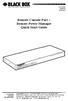 JULY 2006 SW549A SW549AE Remote Console Port + Remote Power Manager Quick Start Guide Remote Console Port + Remote Power Manager PWR CLEAR SET ON STATUS RDY DCD ACTIVITY 1 2 3 4 5 6 CUSTOMER SUPPORT INFORMATION
Send VGA output to one local monitor and to as many as nine remote monitors BLACK up to 250 BOX feet (76.2 m) away.
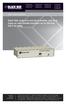 AC056A-R4 AC057A-K-R4 AC056AE-R3 AC159A-R2 AC056A-K-R4 AC058A-R3 AC057AE-R2 AC159A-R3 AC057A-R4 AC056AE-R2 AC057AE-R3 AC160A-R2 AC160A-R3 VGA Video Splitters Send VGA output to one local monitor and to
JANUARY 2001 TS825A TS826. Microscanner Pro
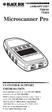 JANUARY 2001 TS825A TS826 Microscanner Pro CUSTOMER SUPPORT INFORMATION Order toll-free in the U.S.: Call 877-877-BBOX (outside U.S. call 724-746-5500) FREE technical support 24 hours a day, 7 days a week:
VDSL Line Driver DECEMBER 2006 ME0010A-VDSL-R2
 DECEMBER 2006 ME0010A-VDSL-R2 VDSL Line Driver CUSTOMER Order toll-free in the U.S. 24 hours, 7 A.M. Monday to midnight Friday: 877-877-BBOX SUPPORT FREE technical support, 24 hours a day, 7 days a week:
Turns a VGA monitor into a video monitor with remote switching capability. BLACK BOX
 November 2009 AC328A-R3 Video to VGA Portable Turns a VGA monitor into a video monitor with remote switching capability. BLACK BOX Customer Support Information Order toll-free in the U.S.: Call 877-877-BBOX
10BASE-T Extender. 10BASE-T Extender FEBRUARY 1999 LZ6000A-R4. Jabber Link Test Activity. Power. Collision. Power 10BASE-T.
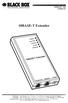 FEBRUARY 1999 LZ6000A-R4 10BASE-T Extender Jabber Link Test Activity Power Collision 10BASE-T Extender Single UTP 10BASE-T Power CUSTOMER SUPPORT INFORMATION Order toll-free in the U.S. 24 hours, 7 A.M.
Network Power Switch Jr.
 SEPTEMBER 2001 SWI080A Network Power Switch Jr. CUSTOMER SUPPORT INFORMATION Order toll-free in the U.S.: Call 877-877-BBOX (outside U.S. call 724-746-5500) FREE technical support 24 hours a day, 7 days
Veri-NAC the fastest to deploy, easiest to use
 LVN5220A LVN5230A LVN5250A-R2 LVN5400A-R2 LVN5600A-R2 LVN5800A-R2 Veri-NAC Quick Start Guide Veri-NAC the fastest to deploy, easiest to use BLACK BOX network access control (NAC) appliance for intrusion
USB Director RS422/RS485 Hub 2-Port USB Director RS422 Hub 4-Port NT 4.0 Software Support Upgrade
 APRIL 1999 IC160A IC161A TD150 USB Director RS422/RS485 Hub 2-Port USB Director RS422 Hub 4-Port NT 4.0 Software Support Upgrade USB Director USB RS-422 Hub SYSTEM STATUS USB Director USB RS-422/485 Hub
Transform your wired projector into a high-end wireless projector.
 Chapter June 2009 AC1131A Wireless Video Presentation System II User s Manual Transform your wired projector into a high-end wireless projector. Includes plug-and-show, 4-to-1 split screen, and PDA wireless
Copyright 2008. Black Box Corporation. All rights reserved.
 Copyright 2008. Black Box Corporation. All rights reserved. 1000 Park Drive Lawrence, PA 15055-1018 724-746-5500 Fax 724-746-0746 FEBRUARY 2008 40416-R2 40417-R2 Flexie Telco Switch CUSTOMER SUPPORT INFORMATION
Extend Ethernet with full-duplex transmission up to 5.696 Mbps more than BLACK four miles over BOX a pair of copper wires.
 December 2009 LR0201A-KIT G.SHDSL Two-Wire Ethernet Network Extender Extend Ethernet with full-duplex transmission up to 5.696 Mbps more than BLACK four miles over BOX a pair of copper wires. Complies
VDSL Line Driver DECEMBER 2004 ME0010A-VDSL ME0011A-VDSL
 DECEMBER 2004 ME0010A-VDSL ME0011A-VDSL VDSL Line Driver CUSTOMER Order toll-free in the U.S. 24 hours, 7 A.M. Monday to midnight Friday: 877-877-BBOX SUPPORT FREE technical support, 24 hours a day, 7
8-Port Serial Host Adapter PCI
 APRIL 2004 IC142C IC190C-R2 8-Port Serial Host Adapter PCI CUSTOMER SUPPORT INFORMATION Order toll-free in the U.S.: Call 877-877-BBOX (outside U.S. call 724-746-5500) FREE technical support 24 hours a
Extend Ethernet with full-duplex transmission up to 10.8 Mbps over two pairs BLACK of copper. BOX
 LR0202A-KIT G.SHDSL Four-Wire Ethernet Network Extender Kit Extend Ethernet with full-duplex transmission up to 10.8 Mbps over two pairs BLACK of copper. BOX Complies with ITU-T Rec. G.991.2 G.shdsl.bis
PC 422/485 Serial Interface
 JUNE 2000 IC030C-R2 IC170C PC 422/485 Serial Interface CUSTOMER SUPPORT INFORMATION Order toll-free in the U.S. 24 hours, 7 A.M. Monday to midnight Friday: 877-877-BBOX FREE technical support, 24 hours
Digi-Mux HS FEBRUARY 1996 MX700A CUSTOMER SUPPORT INFORMATION
 FEBRUARY 1996 MX700A Digi-Mux HS Digi-Mux HS CH1 CH2 POWER TD RD TD RD CH3 TD RD CH4 TD RD MAIN TD RD DCD SYNC LOSS LOCAL LOOP TEST CUSTOMER SUPPORT INFORMATION Order toll-free in the U.S.: Call 877-877-BBOX
Multi-Rate Ethernet Extender
 DECEMBER 2006 LB200A Multi-Rate Ethernet Extender CUSTOMER Order toll-free in the U.S. 24 hours, 7 A.M. Monday to midnight Friday: 877-877-BBOX SUPPORT FREE technical support, 24 hours a day, 7 days a
User Manual. 30-Device ipad, Chromebook, Tablet, and Laptop Cart. Mobile, secure, and powered storage for up to 30 computing devices.
 LCC30H-A LCC30H-AT2 LCC30HC LCC30H-A-HASP LCC30H-AT LCC30H-ACT2 LCC30HCT LCC30H-AC-HASP LCC30H-AC LCC30H LCC30HT2 LCC30H-AT-HASP LCC30H-ACT LCC30HT LCC30HCT2 30-Device ipad, Chromebook, Tablet, and Laptop
Connect, control, and manage up to 16 serial RS-232/485 devices BLACK BOX via a single USB port on your PC.
 IC162A USB to Multi RS-232/485 Interface Converter Connect, control, and manage up to 16 serial RS-232/485 devices BLACK BOX via a single USB port on your PC. Customer Support Information Order toll-free
2-Port RS-232 PCI Bus Serial Host Adapter
 AUGUST 2001 IC140C-R2 IC143C IC191C 2-Port RS-232 PCI Bus Serial Host Adapter CUSTOMER SUPPORT INFORMATION Order toll-free in the U.S. 24 hours, 7 A.M. Monday to midnight Friday: 877-877-BBOX FREE technical
Network Management Software
 Network Management Software User s Manual Version 3.2 www.blackbox.com TRADEMARKS All applied-for and registered trademarks are the property of their respective owners. FEDERAL COMMUNICATIONS COMMISSION
Expand existing, leased line, polled networks without adding computer ports BLACK or communications links.
 codes codes codes March TLB704A 2009 codes codes codes RS-232 Buffered Modem Sharing Device, 4-Port Expand existing, leased line, polled networks without adding computer ports BLACK or BOX communications
Copyright 2005. Black Box Corporation. All rights reserved.
 Copyright 2005. Black Box Corporation. All rights reserved. 1000 Park Drive Lawrence, PA 15055-1018 724-746-5500 Fax 724-746-0746 FEBRUARY 2005 LGC1713A-SX LGC1713A-LX 1000BASE-T to MM SX Media Converter
Express Ethernet Switches
 August, 2002 LB9021A LB9022A Express Ethernet Switches CUSTOMER SUPPORT INFORMATION Order toll-free in the U.S. 24 hours, 7 A.M. Monday to midnight Friday: 877-877-BBOX FREE technical support, 24 hours
Provides first-class HD video transmission
 HD over IP Encoder/Decoder VX-HDV-IP VX-HDV-IP-SDI VX-HDV-IP-HDMI VX-HDV-IP-RM VX-HDV-IP-PSU Provides first-class HD video transmission VX-HDV-IP, rev. 1 FCC and IC RFI Statement FEDERAL COMMUNICATIONS
USB Single-Port Hub (RS-422/485)
 USB Single-Port Hub (RS-422/485) SEPTEMBER 2001 IC266A CUSTOMER SUPPORT INFORMATION Order toll-free in the U.S.: Call 877-877-BBOX (outside U.S. call 724-746-5500) FREE technical support 24 hours a day,
Gigabit Compact Media Converter
 LGC5134A-R4 LGC5135A-R4 LGC5137A-R2 LGC5138A-R2 NOVEMBER 2009 LGC5139A-R2 LGC5140A-R2 LGC5141A-R2 LGC5142A-R2 Gigabit Compact Media Converter CUSTOMER SUPPORT INFORMATION Order toll-free in the U.S.: 877-877-BBOX
DeeSel.1 Industrial Ethernet Extender Multi-Drop Unit, G-SHDSL 2-Wire, 5.7 Mbps
 LB532A-M DeeSel.1 Industrial Ethernet Extender Multi-Drop Unit, G-SHDSL 2-Wire, 5.7 Mbps Get multi-drop Ethernet extension over twisted pair with distances of 4.3 miles per hop. Black Box Ethernet Extenders
FOM Line Driver ST FOM Line Driver SM
 FERURY 1998 ME540-ST ME540-SM FOM Line Driver ST FOM Line Driver SM CUSTOMER SUPPORT INFORMTION Order toll-free in the U.S.: Call 877-877-OX (outside U.S. call 724-746-5500) FREE technical support 24 hours
RS-232/485 Converter
 Code: IC620A MARCH 1998 IC620A-F IC623A-M IC620A-M IC624A-F IC623A-F IC624A-M RS-232/485 Converter SuperSwitch 8 10/100 CUSTOMER SUPPORT INFORMATION Order toll-free in the U.S. 24 hours, 7 A.M. Monday
CAT5 Multi Video System (Video/Audio/RS232)
 DECEMBER 2006 AC1060A AC1061A AC1062A AC1065A AC1066A CAT5 Multi Video System (Video/Audio/RS232) Copyright 2006. Black Box Corporation. All rights reserved. 1000 Park Drive Lawrence, PA 15055 1018 724
T1/E1 Fiberoptic Line Driver (T1/E1 FOLD)
 MT610A-ST MT610A-SM MT610AE-ST MT610AE-SM JUNE 1998 MT611A-ST MT611A-SM MT611AE-ST MT611AE-SM MT613AE-FC MT613A-ST-D48 T1/E1 Fiberoptic Line Driver (T1/E1 FOLD) TEST NORM LOC REM T1 Fiber Optic Line Driver
DSLAM Chassis: 1-x-4-Slot or 2-x-12-Slot DSL Access Multiplexor Uplink Module
 JANUARY 2001 LRA1200A-4 LRA1200A-12 LRA1203C DSLAM Chassis: 1-x-4-Slot or 2-x-12-Slot DSL Access Multiplexor Uplink Module CUSTOMER SUPPORT INFORMATION Order toll-free in the U.S.: Call 877-877-BBOX (outside
Video to VGA Converter/Switch
 June 2004 AC135A-R2 Video to VGA Converter/Switch With Audio, RS-232 Control, and PC VGA input CUSTOMER SUPPORT INFORMATION Order toll-free in the U.S. 24 hours, 7 A.M. Monday to midnight Friday: 877-877-BBOX
Short-Haul Modem-FSK RS-485 Modules
 AUGUST 1997 ME840A-M ME840A-S MD3317 MD3318 Short-Haul Modem-FSK RS-485 Modules R R CD SHM-FSK RxD TxD LPBK PWR CUSTOMER SUPPORT INFORMATION Order toll-free in the U.S. 24 hours, 7 A.M. Monday to midnight
Pure Networking Broadband Router Users Guide
 JULY 2004 LR9603A Pure Networking Broadband Router Users Guide CUSTOMER SUPPORT INFORMATION Order toll-free in the U.S.: Call 877-877-BBOX (outside U.S. call 724-746-5500) FREE technical support 24 hours
Copyright 2007. Black Box Corporation. All rights reserved.
 Copyright 2007. Black Box Corporation. All rights reserved. 1000 Park Drive Lawrence, PA 15055-1018 724-746-5500 Fax 724-746-0746 MARCH 2007 KV7012A KV7013A 2- and 4-Port ServSwitch DT Pro KVM Switch CUSTOMER
Gigabit 1000BASE-SX/LX PCI 64-/32-Bit Fiber NICs
 March 2010 LH1660C-SC LH1660C-LC Gigabit 1000BASE-SX/LX PCI 64-/32-Bit Fiber NICs Fully complies with all IEEE 802.3z and 1000BASE-SX/LX standards to BLACK provide BOX a reliable Gigabit Ethernet connection.
Secure Site Manager 8 Secure Site Manager 16 User s Guide
 JANUARY 2007 SW551A SW552A Secure Site Manager 8 Secure Site Manager 16 User s Guide CUSTOMER SUPPORT INFORMATION Order toll-free in the U.S.: Call 877-877-BBOX (outside U.S. call 724-746-5500) FREE technical
Internet Access Router
 JANUARY 1997 LR0002A-BSDN LR0002A-BV35 LR0002A-TSDN LR0002A-TV35 LR0002A-BUDN LR0002A-BV36 LR0002A-TUDN LR0002A-TV36 LR0002A-BCSU LR0002A-BX21 LR0002A-TCSU LR0002A-TX21 LR0002A-BV24 LR0002A-B530 LR0002A-TV24
Extend 10/100Base-TX Ethernet up to 10,000 feet (3 km)
 LB410A LB411A LBNC412A High Speed Ethernet Extender Extend 10/100Base-TX Ethernet up to 10,000 feet (3 km) Over a single twisted-pair, Cat 5e/6/7, or even coaxial cable Black Box Ethernet Extenders TABLE
RS-232/422/485 2-Port PCI Card, Opto-Isolated
 RS-232/422/485 2-Port PCI Card, Opto-Isolated MAY 2002 IC973C CUSTOMER SUPPORT INFORMATION Order toll-free in the U.S.: Call 877-877-BBOX (outside U.S. call 724-746-5500) FREE technical support 24 hours
LR120A, LR121A, LR122A, LR125A WAN Access Routers. Getting Started Guide
 LR120A, LR121A, LR122A, LR125A WAN Access Routers Getting Started Guide Compliance Information Radio and TV Interference The WAN Access Router generates and uses radio frequency energy, and if not installed
A high performance KVM extender that can transmit up to two high resolution DisplayPort video streams plus high speed USB and digital/ analog audio.
 NETWORK SERVICES ACU5800A Wizard DP Extender A high performance KVM extender that can transmit up to two high resolution DisplayPort video streams plus high speed USB and digital/ analog audio. Allows
Welcome to the ServSwitch Family!
 THE SERVSWITCH FAMILY Welcome to the ServSwitch Family! Thank you for purchasing a BLACK BOX ServSwitch brand KVM remote access product. We appreciate your business, and we think you ll appreciate the
USER MANUAL GUIMGR Graphical User Interface Manager for FRM301/FRM401 Media Racks
 USER MANUAL GUIMGR Graphical User Interface Manager for FRM301/FRM401 Media Racks CTC Union Technologies Co., Ltd. Far Eastern Vienna Technology Center (Neihu Technology Park) 8F, No. 60 Zhouzi St. Neihu,
Terminal Server User Guide
 MARCH 2004 Term Server 16-37687-R2 Term Server 8-37688-R2 Rack Term Server 16-40870-R2 Rack Term Server 8-40871-R2 102 Term Server- 41872-R2 104 Term Server - 41874-R2 Terminal Server User Guide CUSTOMER
1101 and 1102 Secure Device Servers
 LES1101A-R2 LES1102A 1101 and 1102 Secure Device Servers Securely monitor, access, and control the computers, networking devices, telecommunications equipment, and power supplies in your data room or communications
Remote Console Manager User s Manual
 LES1202A LES1204A-3G-R2 LES1203A-M LES1204A-R2 _ Remote Console Manager User s Manual Securely monitor, access, control, and manage your remote computers, networking devices, telecommunications equipment,
Chapter 3 Management. Remote Management
 Chapter 3 Management This chapter describes how to use the management features of your ProSafe 802.11a/g Dual Band Wireless Access Point WAG102. To access these features, connect to the WAG102 as described
Chapter 4 Management. Viewing the Activity Log
 Chapter 4 Management This chapter describes how to use the management features of your NETGEAR WG102 ProSafe 802.11g Wireless Access Point. To get to these features, connect to the WG102 as described in
Management Software. Web Browser User s Guide AT-S106. For the AT-GS950/48 Gigabit Ethernet Smart Switch. Version 1.0.0. 613-001339 Rev.
 Management Software AT-S106 Web Browser User s Guide For the AT-GS950/48 Gigabit Ethernet Smart Switch Version 1.0.0 613-001339 Rev. A Copyright 2010 Allied Telesis, Inc. All rights reserved. No part of
Network Management Card. User Manual
 User Manual 1 Contents Contents 2 Chapter 1 Overview 3 1.1 NMC package contents 4 1.2 NMC CD Resources 4 1.3 Features 4 1.4 NMC Applications 5 Chapter 2 NMC parameters setting via serial COM port 6 2.1
2-Port RS-232/422/485 PCI Host Adapter
 AUGUST 2000 IC133C-R2 IC187C 2-Port RS-232/422/485 PCI Host Adapter CUSTOMER SUPPORT INFORMATION Order toll-free in the U.S. 24 hours, 7 A.M. Monday to midnight Friday: 877-877-BBOX FREE technical support,
Supports http and SNMP interface for switch management.
 LGB2118A LGB2124A Gigabit Smart Switch Eco Fanless Supports http and SNMP interface for switch management. BLACK BOX The LGB2118A has (16) 10-/100-/1000-Mbps TP ports and (2) Gigabit SFP ports. The LGB2124A
Quick Installation Guide TK-RP08. H/W: v1.0r
 Quick Installation Guide TK-RP08 H/W: v1.0r Table of of Contents Contents... 1. Before You Start... 2. How to Install... 3. Operation and Configuration... 1 1 2 5 Troubleshooting... 7 Version 04.10.2008
4-, 8-, and 16-Port ServSwitch EC Series IP KVM Switch
 JANUARY 2006 KV9304A KV9308A KV9316A 4-, 8-, and 16-Port ServSwitch EC Series IP KVM Switch CUSTOMER SUPPORT INFORMATION Order toll-free in the U.S.: Call 877-877-BBOX (outside U.S. call 724-746-5500)
TDP43ME NetPS. Network Printer Server. Control Center. for Ethernet Module
 Panduit Corp. 2010 TDP43ME NetPS PA26306A01 Rev. 01 11-2010 Network Printer Server Control Center for Ethernet Module NOTE: In the interest of higher quality and value, Panduit products are continually