
Pure Networking Broadband Router Users Guide
|
|
|
- Susan Weaver
- 10 years ago
- Views:
Transcription
1 JULY 2004 LR9603A Pure Networking Broadband Router Users Guide CUSTOMER SUPPORT INFORMATION Order toll-free in the U.S.: Call BBOX (outside U.S. call ) FREE technical support 24 hours a day, 7 days a week: Call or fax Mailing address: Black Box Corporation, 1000 Park Drive, Lawrence, PA Web site: [email protected]

2

3 FCC AND IC RFI STATEMENTS/CE NOTICE FEDERAL COMMUNICATIONS COMMISSION AND INDUSTRY CANADA RADIO FREQUENCY INTERFERENCE STATEMENTS This equipment generates, uses, and can radiate radio-frequency energy, and if not installed and used properly, that is, in strict accordance with the manufacturer s instructions, may cause interference to radio communication. It has been tested and found to comply with the limits for a Class A computing device in accordance with the specifications in Subpart B of Part 15 of FCC rules, which are designed to provide reasonable protection against such interference when the equipment is operated in a commercial environment. Operation of this equipment in a residential area is likely to cause interference, in which case the user at his own expense will be required to take whatever measures may be necessary to correct the interference. Changes or modifications not expressly approved by the party responsible for compliance could void the user s authority to operate the equipment. This digital apparatus does not exceed the Class A limits for radio noise emission from digital apparatus set out in the Radio Interference Regulation of Industry Canada. Le présent appareil numérique n émet pas de bruits radioélectriques dépassant les limites applicables aux appareils numériques de la classe A prescrites dans le Règlement sur le brouillage radioélectrique publié par Industrie Canada. EUROPEAN UNION DECLARATION OF CONFORMITY This equipment complies with the requirements of the European EMC Directive 89/336/EEC. 1
4 PURE NETWORKING BROADBAND ROUTER NORMAS OFICIALES MEXICANAS (NOM) ELECTRICAL SAFETY STATEMENT INSTRUCCIONES DE SEGURIDAD 2 1. Todas las instrucciones de seguridad y operación deberán ser leídas antes de que el aparato eléctrico sea operado. 2. Las instrucciones de seguridad y operación deberán ser guardadas para referencia futura. 3. Todas las advertencias en el aparato eléctrico y en sus instrucciones de operación deben ser respetadas. 4. Todas las instrucciones de operación y uso deben ser seguidas. 5. El aparato eléctrico no deberá ser usado cerca del agua por ejemplo, cerca de la tina de baño, lavabo, sótano mojado o cerca de una alberca, etc.. 6. El aparato eléctrico debe ser usado únicamente con carritos o pedestales que sean recomendados por el fabricante. 7. El aparato eléctrico debe ser montado a la pared o al techo sólo como sea recomendado por el fabricante. 8. Servicio El usuario no debe intentar dar servicio al equipo eléctrico más allá a lo descrito en las instrucciones de operación. Todo otro servicio deberá ser referido a personal de servicio calificado. 9. El aparato eléctrico debe ser situado de tal manera que su posición no interfiera su uso. La colocación del aparato eléctrico sobre una cama, sofá, alfombra o superficie similar puede bloquea la ventilación, no se debe colocar en libreros o gabinetes que impidan el flujo de aire por los orificios de ventilación. 10. El equipo eléctrico deber ser situado fuera del alcance de fuentes de calor como radiadores, registros de calor, estufas u otros aparatos (incluyendo amplificadores) que producen calor. 11. El aparato eléctrico deberá ser connectado a una fuente de poder sólo del tipo descrito en el instructivo de operación, o como se indique en el aparato.
5 NOM STATEMENT 12. Precaución debe ser tomada de tal manera que la tierra fisica y la polarización del equipo no sea eliminada. 13. Los cables de la fuente de poder deben ser guiados de tal manera que no sean pisados ni pellizcados por objetos colocados sobre o contra ellos, poniendo particular atención a los contactos y receptáculos donde salen del aparato. 14. El equipo eléctrico debe ser limpiado únicamente de acuerdo a las recomendaciones del fabricante. 15. En caso de existir, una antena externa deberá ser localizada lejos de las lineas de energia. 16. El cable de corriente deberá ser desconectado del cuando el equipo no sea usado por un largo periodo de tiempo. 17. Cuidado debe ser tomado de tal manera que objectos liquidos no sean derramados sobre la cubierta u orificios de ventilación. 18. Servicio por personal calificado deberá ser provisto cuando: A: El cable de poder o el contacto ha sido dañado; u B: Objectos han caído o líquido ha sido derramado dentro del aparato; o C: El aparato ha sido expuesto a la lluvia; o D: El aparato parece no operar normalmente o muestra un cambio en su desempeño; o E: El aparato ha sido tirado o su cubierta ha sido dañada. 3

6 PURE NETWORKING BROADBAND ROUTER TRADEMARKS USED IN THIS MANUAL Macintosh is a registered trademark of Apple Computer, Inc. pcanywhere is a registered trademark of Dynamic Microprocessor Associates, Inc. Linux is a registered trademark of Linus Torvalds. Microsoft, Windows, and Windows NT are either registered trademarks or trademarks of Microsoft Corporation in the United States and/or other countries. Netscape Navigator is a registered trademark of Netscape Communications Corporation. Sun is a registered trademark of Sun Microsystems, Inc. Any other trademarks mentioned in this manual are acknowledged to be the property of the trademark owners. 4

7 CONTENTS Contents Chapter Page 1. Specifications Introduction Overview The Router s Back Panel The Router s Front Panel What s Included What You Need to Supply Getting Started Quick Setup Wizard Setup Time Zone Broadband Type Cable Modem Fixed-IP xdsl PPPoE xdsl PPTP xdsl General Setup System Time Zone Password Settings Remote Management WAN Dynamic IP PPPoE PPTP Static IP Address Bridge DNS DDNS L2TP Telstra Big Pond LAN Interface UPnP

8 PURE NETWORKING BROADBAND ROUTER Contents (continued) Chapter Page Print Server NAT Address Mapping Virtual Server Special Applications ALG Settings Firewall Access Control URL Blocking Schedule Rule Intrusion Detection DMZ Status Information Status and Information Internet Connection Device Status Security Log DHCP Client Log Tools Configuration Tools Firmware Upgrade Reset Print Server Install the Print Server Network Driver Add a Network Printer Appendix A. How to Manually Find Your PC s IP and MAC Addresses Appendix B. Troubleshooting B.1 Calling Black Box B.2 Shipping and Packaging Appendix C. Glossary

9 1. Specifications Memory: Flash: 2-MB NOR; RAM: 16-MB SDRAM CHAPTER 1: Specifications Protocols Supported: TCP/IP, UDP, ICMP, PPPoE, PPTP, NAT/PAT, DHCP, PAP/CHAP/MS-CHAP, L2TP, PPTP, IPSec passthrough Throughput: 40 Mbps Standards: IEEE BASE-T, IEEE 802.3u 100BASE-TX User Controls: (1) Reset button Connectors: LAN: (4) RJ-45; WAN: (1) RJ-45; Printer: (2) USB Type A Indicators: (11) LEDs: (1) Power, (1) WAN 10/100, (1) WAN LNK/ACT, (4) LAN 10/100, (4) LAN LNK/ACT Power: 120 VAC, 60 Hz, external Size: 1.2"H x 7.4"W x 3.9"D (3 x 18.8 x 9.9 cm) Weight: 0.6 lb. (0.3 kg) 7

10 PURE NETWORKING BROADBAND ROUTER 2.1 Overview 2. Introduction The Pure Networking Broadband Router is an incredibly fast router with 40-Mbps LAN-to-WAN throughput. It enables multiple users (up to 253!) to share one broadband Internet connection through an ADSL or cable modem. Configure your Internet connection settings in the Pure Networking Broadband Router. Then plug your PC into the LAN port, and you re ready to share files and access the Internet. You can even access private LAN servers from the public network. Plus, remote management allows configuration and upgrades from a remote site (over the Internet). Monitor the router s status, such as DHCP client log, security log, and device/connection status. An easy-to-use, Web-based GUI simplifies configuration and management. As your network grows, you can connect another hub or switch to the router s four LAN ports and one WAN port, allowing you to easily expand your network. The router is also equipped with a print server that supports LPD printing protocol, so you can share your printer with all Intranet users. The router gives you firewall protection between network users and the Internet. It also supports advanced features, such as special applications, DMZ, virtual servers, access control, and bridge mode. 8

11 CHAPTER 2: Introduction 2.2 The Router s Back Panel Figure 2-1 shows the Pure Networking Broadband Router s back panel. It has a power connector, two USB Type A printer ports, four LAN ports, a WAN port, and a reset button. Numbers 1 5 in Figure 2-1 correspond to numbers 1 5 in Table 2-1. ➀ ➁ ➂ ➃ ➄ Figure 2-1. Back panel. Table 2-1. The router s back-panel connectors and buttons. Connector or Button Function ➀ Power connector Connect the router s 12-VDC power supply here. ➁ (2) USB Type A printer ports Connect the router to printers via these ports. ➂ (4) RJ-45 LAN ports Use the four LAN ports to connect LAN PCs, printer servers, hubs, and switches to the router. ➃ (1) RJ-45 WAN port The WAN port connects to the segment that links your xdsl or cable modem to the Internet. If the modem port is an uplink port, use a crossover cable to link the WAN port to the modem. If the modem port is a regular port, use a straightthrough cable to link the WAN port to the modem. 9

12 PURE NETWORKING BROADBAND ROUTER Table 2-1 (continued). The router s back-panel connectors and buttons. Connector or Button Function ➄ Reset button The Reset button has a dual function. 1. If problems occur with your router, press the router s Reset button with a pencil tip for less than four seconds. The router will reboot itself, keeping your original configuration. 2. If problems persist, you experience extreme problems, or you forgot your password, press the Reset button for longer than four seconds. The router will reset itself to factory-default settings. 2.3 The Router s Front Panel On the router s front panel, there are LEDs that inform you of the router s current status (see Figure 2-2). Numbers 1 5 in Figure 2-2 correspond to numbers 1 5 in Table 2-2. ➁ ➃ ➀ ➂ ➄ Figure 2-2. Front-panel LEDs. 10
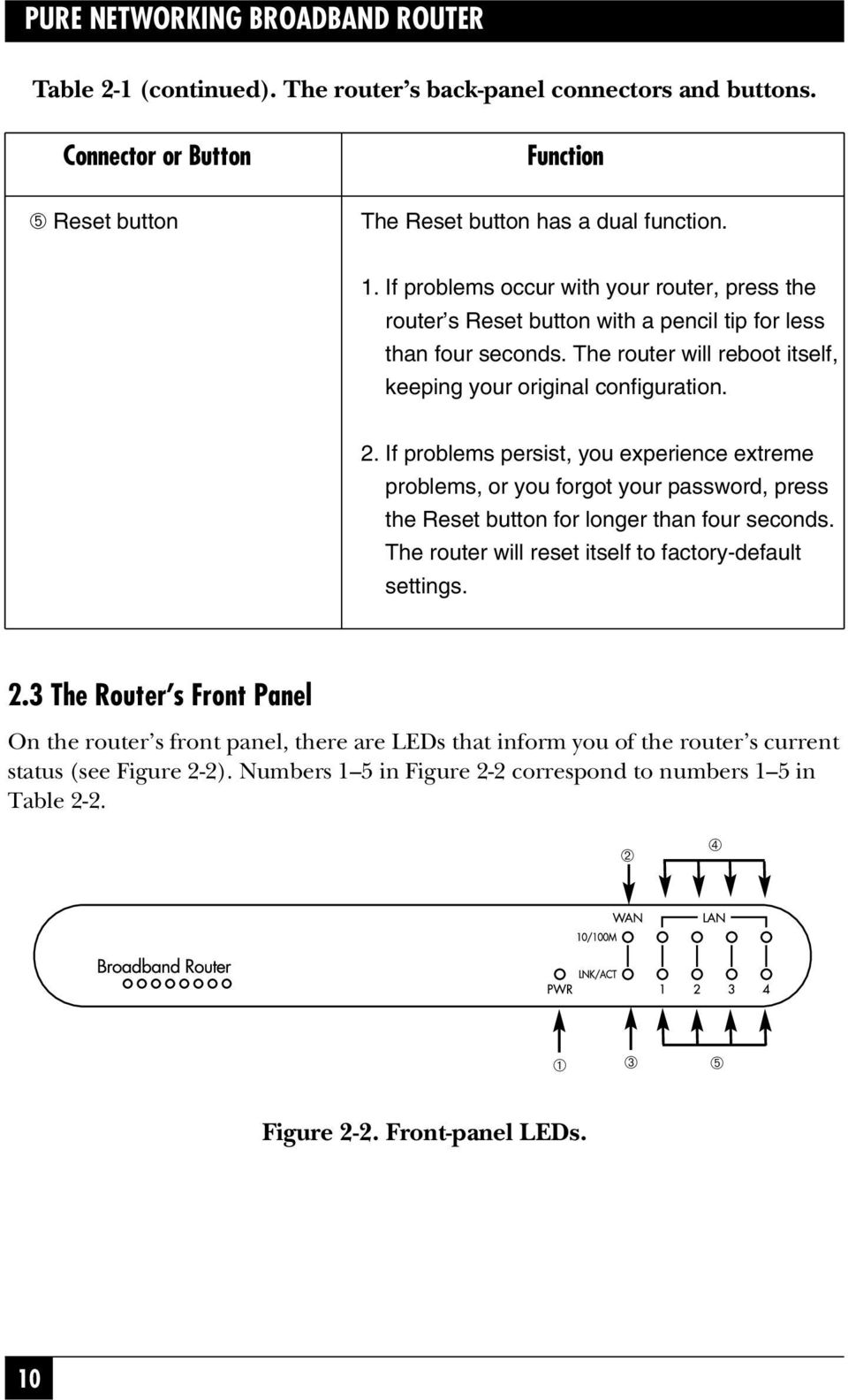
13 CHAPTER 2: Introduction Table 2-2. The router s front-panel LEDs. LED Light Status Description ➀ PWR On The router s power supply is on. Off The router s power supply is off. ➁ WAN Green The WAN port is running at 100 Mbps. 10/100M Yellow The WAN port is running at 10 Mbps. Off Flashing No WAN connection. Data is being sent to the WAN port. ➂ WAN On WAN is connected. LNK/ACT Off No WAN connection. Flashing WAN port has activity (ACT), data is being sent. ➃ LAN Green The LAN port is running at 100 Mbps. 10/100M (Ports 1 4) Yellow The LAN port is running at 10 Mbps. Off Flashing No LAN connection. Data is being sent to the LAN port. ➄ LAN On LAN is connected. LNK/ACT (Ports 1-4) Off No LAN connection. Flashing LAN port has activity (ACT), data is being sent. 11

14 PURE NETWORKING BROADBAND ROUTER 2.4 What s Included Your package should contain the following items. (1) Pure Networking Broadband Router (1) Straight-through UTP cable (1) Power adapter (1) CD-ROM containing print server drivers This users manual If anything is missing or damaged, please contact Black Box at What You Need to Supply (1) External xdsl (ADSL) or cable modem with an Ethernet port (RJ-45). (1) Network Interface Card (NIC) for each PC. Each PC should have a Web browser installed (Internet Explorer 4.0 or higher, or Netscape Navigator 4.7 or higher). 12

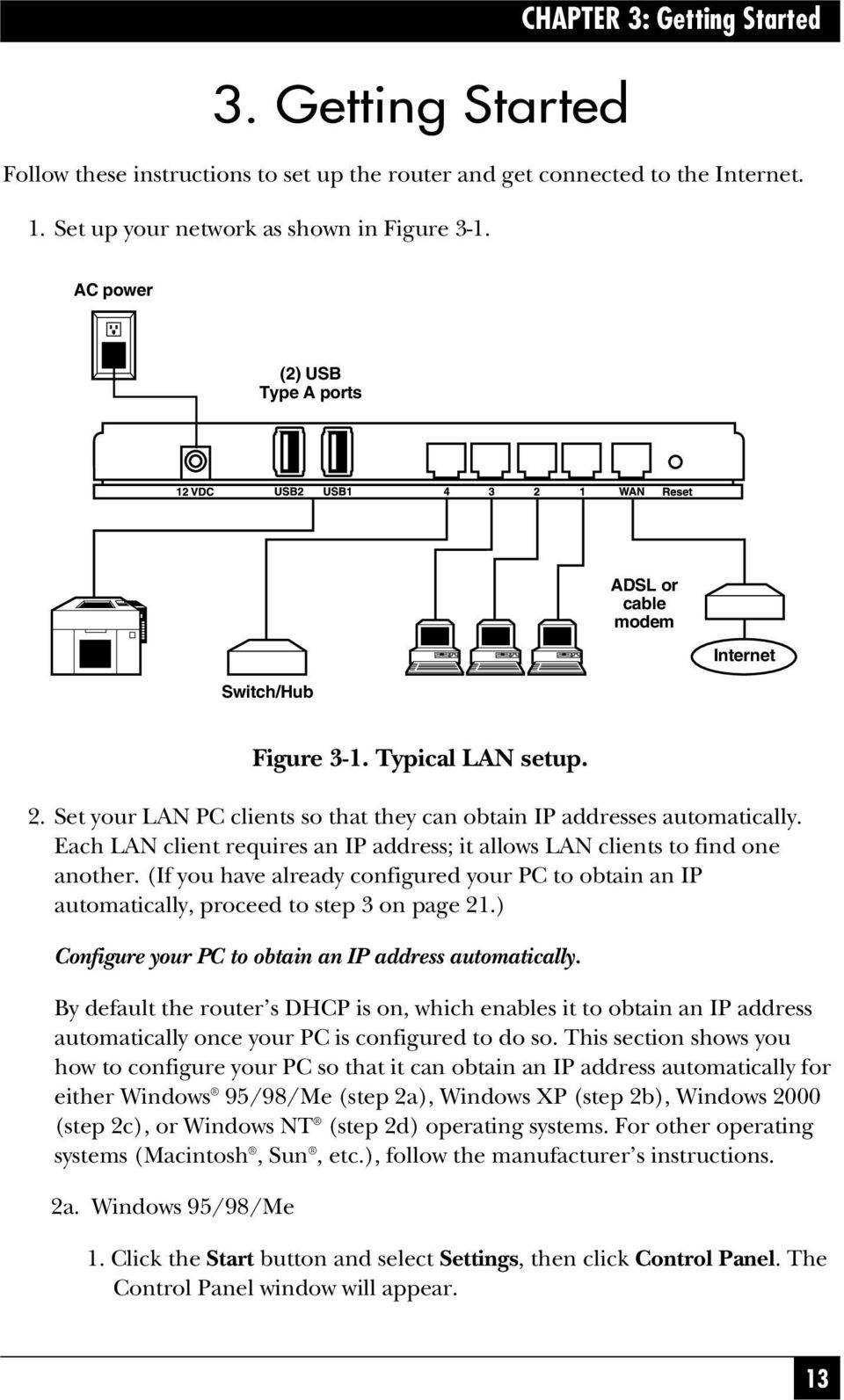
15 3. Getting Started CHAPTER 3: Getting Started Follow these instructions to set up the router and get connected to the Internet. 1. Set up your network as shown in Figure 3-1. AC power (2) USB Type A ports Switch/Hub ADSL or cable modem Internet Figure 3-1. Typical LAN setup. 2. Set your LAN PC clients so that they can obtain IP addresses automatically. Each LAN client requires an IP address; it allows LAN clients to find one another. (If you have already configured your PC to obtain an IP automatically, proceed to step 3 on page 21.) Configure your PC to obtain an IP address automatically. By default the router s DHCP is on, which enables it to obtain an IP address automatically once your PC is configured to do so. This section shows you how to configure your PC so that it can obtain an IP address automatically for either Windows 95/98/Me (step 2a), Windows XP (step 2b), Windows 2000 (step 2c), or Windows NT (step 2d) operating systems. For other operating systems (Macintosh, Sun, etc.), follow the manufacturer s instructions. 2a. Windows 95/98/Me 1. Click the Start button and select Settings, then click Control Panel. The Control Panel window will appear. 13
16 PURE NETWORKING BROADBAND ROUTER 2. Double-click the Network icon. The Network window will appear. 3. Check your list of Network Components. If TCP/IP is not installed, click the Add button to install it now. If TCP/IP is installed, go to step In the Network Component Type dialog box, select Protocol and click the Add button. 5. In the Select Network Protocol dialog box, select Microsoft and TCP/IP and then click the OK button to start installing the TCP/IP protocol. You may need your Windows CD to complete the installation. 6. After installing TCP/IP, go back to the Network dialog box. Select TCP/IP from the list of Network Components, then click on the Properties button. Figure 3-2 appears. Figure 3-2. TCP/IP properties. 14

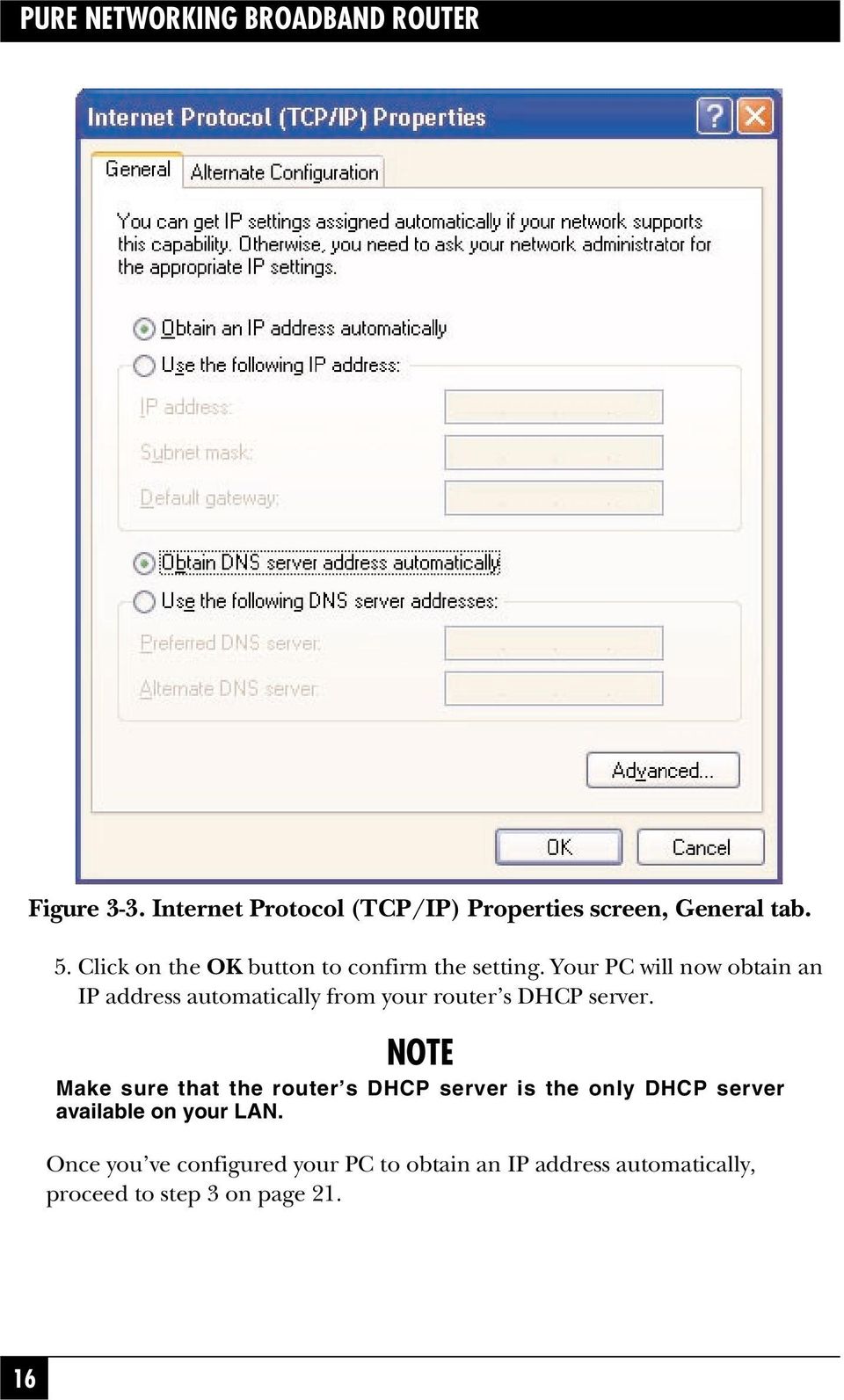
17 CHAPTER 3: Getting Started 7. Check each of the tabs and verify the following settings. Bindings: Check client for Microsoft Networks, and File and Printer Sharing for Microsoft Networks. Advanced: Select the router s configuration. NetBIOS: Select the NetBIOS protocol. DNS Configuration: Select Disable DNS. Gateway: All fields are blank. WINS Configuration: Select Disable WINS Resolution. IP Address: Select Obtain IP Address Automatically. 8. Reboot the PC. Your PC will now obtain an IP address automatically from your Pure Networking Broadband Router s DHCP server. NOTE Make sure that the Pure Networking Broadband Router s DHCP server is the only DHCP server available on your LAN. Once you ve configured your PC to obtain an IP address automatically, proceed to step 3 on page 21. 2b. Windows XP 1. Click on the Start button and select Settings, then click on Network Connections. The Network Connections window will appear. 2. Double-click on the Local Area Connection icon. The Local Area Connection window will appear. 3. Check your list of Network Components. You should see Internet Protocol [TCP/IP] on your list. Select it, and click on the Properties button. Figure 3-3 appears. 4. In the Internet Protocol (TCP/IP) Properties window, select Obtain an IP address automatically and Obtain DNS server address automatically as shown in Figure

18 PURE NETWORKING BROADBAND ROUTER Figure 3-3. Internet Protocol (TCP/IP) Properties screen, General tab. 5. Click on the OK button to confirm the setting. Your PC will now obtain an IP address automatically from your router s DHCP server. NOTE Make sure that the router s DHCP server is the only DHCP server available on your LAN. Once you ve configured your PC to obtain an IP address automatically, proceed to step 3 on page
19 CHAPTER 3: Getting Started 2c. Windows Click the Start button and select Settings, then Control Panel. The Control Panel window will appear. 2. Double-click the Network and Dial-up Connections icon. In the Network and Dial-up Connection window, double-click the Local Area Connection icon. The Local Area Connection window will appear. 3. In the Local Area Connection window, click on the Properties button. 4. Check your list of Network Components. You should see Internet Protocol (TCP/IP) on your list. Select it and click on the Properties button. 5. In the Internet Protocol (TCP/IP) Properties window, select Obtain an IP Address Automatically and Obtain DNS Server Address Automatically as shown in Figure

20 PURE NETWORKING BROADBAND ROUTER Figure 3-4. Internet protocol (TCP/IP) properties, General tab. 6. Click on OK to confirm the setting. Your PC will now obtain an IP address automatically from your Pure Networking Broadband Router s DHCP server. NOTE Make sure that the Pure Networking Broadband Router s DHCP server is the only DHCP server available on your LAN. Once you ve configured your PC to obtain an IP address automatically, proceed to step 3 on page

21 CHAPTER 3: Getting Started 2d. Windows NT 1. Click the Start button and select Settings, then Control Panel. The Control Panel window will appear. 2. Double-click on the Network icon. The Network window will appear. Select the Protocol tab from the Network window. 3. Check to see if the TCP/IP Protocol is on your list of Network Protocols. If TCP/IP is not installed, click on the Add button to install it now. If TCP/IP is installed, go to step 5 below. 4. In the Select Network Protocol window, select the TCP/IP Protocol and click on the OK button to start installing the TCP/IP protocol. You may need your Windows CD to complete the installation. 5. After you install TCP/IP, go back to the Network window. Select TCP/IP from the list of Network Protocols, then click the Properties button. Figure 3-5 appears. 19
22 PURE NETWORKING BROADBAND ROUTER OK 20 Figure 3-5. Microsoft TCP/IP properties. 6. Check each of the tabs and verify the following settings. IP Address: Select Obtain an IP address from a DHCP server. DNS: Leave all fields blank. WINS Address: Leave all fields blank. Routing: Leave all fields blank. 7. Click on the OK button to confirm the setting. Your PC will now obtain an IP address automatically from your Pure Networking Broadband Router s DHCP server.
23 CHAPTER 3: Getting Started Once you ve configured your PC to obtain an IP address automatically, proceed to step 3 (below). 3. Once you have configured your PCs to obtain an IP address automatically, the router s DHCP server will automatically give your LAN clients an IP address. By default, the Pure Networking Broadband Router s DHCP server is enabled so that you can obtain an IP address automatically. To see if you have obtained an IP address, see Appendix A. NOTE Make sure that the Pure Networking Broadband Router s DHCP server is the only DHCP server available on your LAN. If there is another DHCP on your network, then you ll need to switch one of the DHCP servers off. 4. Once your PC has obtained an IP address from your router, enter the default IP address (the Pure Networking Broadband Router s IP address) into your PC s Web browser and press Enter. See Figure 3-6. Figure 3-6. Entering the default IP address. 5. The screen shown in Figure 3-7 will appear. This site contains the router s Web-based management screens that allow you to configure your Pure Networking Broadband Router. Click on LOGIN. NOTE By default there is no password. For security reasons, we recommend that you add a password as soon as possible (see Figure 3-7). 21
24 PURE NETWORKING BROADBAND ROUTER Figure 3-7. The Enter Your Password screen. 6. The Home page shown in Figure 3-8 will appear. The Home page is divided into four sections: Quick Setup Wizard, General Setup, Status Information, and Tools. 22
25 CHAPTER 3: Getting Started Address Quick Setup Wizard (Chapter 4) Figure 3-8. Home page. If you want to use the Pure Networking Broadband Router only as an Internet access device, then you only need to configure the screens in the Setup Wizard section. General Setup (Chapter 5) If you want to use the Pure Networking Broadband Router s advanced features, you ll need to configure the Quick Setup Wizard and the General Setup section. Or, you can just configure the General Setup section, since the General Setup/WAN and the Quick Setup Wizard contain the same configurations. Status Information (Chapter 6) Use the Status Information section to monitor the router s current status information. 23
26 PURE NETWORKING BROADBAND ROUTER Tools (Chapter 7) If you want to reset the router (because of problems), save your configurations, or upgrade the firmware, go to Chapter 7. Table 3-1 describes the router s four Home page options. Table 3-1. Home page selections. Menu Description Quick Setup Wizard Select your Internet connection type. Then, using the drop-down menus, fill in the configurations necessary to connect to your Internet Service Provider (ISP). General Setup This section contains configurations for the Pure Networking Broadband Router s advanced functions such as bridge, address mapping, virtual server, access control, hacker attack prevention, DMZ, special applications, and other functions to meet your LAN requirements. Status Information In this section, you can see the Pure Networking Broadband Router s system information, Internet connection, device status, security log, and DHCP client log information. 24
27 CHAPTER 3: Getting Started Table 3-1 (continued). Home page selections. Menu Description Tools This section contains the router s tools, including configuration tools, firmware upgrade, and reset. Configuration tools allow you to backup (save), restore, or restore to factory-default configuration for your Pure Networking Broadband Router. The firmware upgrade tool allows you to upgrade your Pure Networking Broadband Router s firmware. The reset tool allows you to reset your router. Logout Selecting Logout will return you to the Home page (it has the Login button). 7. Click on Quick Setup Wizard (see Chapter 4) to start configuring settings required by your ISP so that you can access the Internet. The other sections (General Setup, Status Information, and Tools) do not need to be configured unless you wish to implement or monitor more advanced features or information. Select the section (Quick Setup Wizard, General Setup, Status Information, or Tools) you wish to configure and proceed to the corresponding chapter. Use the selections on the Home screen s top right-hand page (see Figure 3-9) to navigate around the Web-based management user interface. Figure 3-9. Home page menu bar. 25
28 PURE NETWORKING BROADBAND ROUTER 4.1 Setup 4. Quick Setup Wizard The Quick Setup Wizard is designed to get you using the Pure Networking Broadband Router as quickly as possible. You are required to fill in only the information necessary to access the Internet. Once you click on the Quick Setup Wizard in the Home page, you should see the screen shown in Figure Time Zone The Time Zone allows your router to base its time on the settings configured here. This will affect functions such as log entries and firewall settings. 26 Figure 4-1. Set Time Zone screen. Table 4-1 describes the router s time zone options.
29 CHAPTER 4: Quick Setup Wizard Table 4-1. Time Zone screen parameters. Parameter Description Set Time Zone Use the drop-down menu to select the time zone of the country you are currently in. The router will set its time based on your selection. Enable Daylight Savings The router can also take Daylight Savings into account. If you want to use this function, check the Enable Function box to enable the Daylight Savings configuration. Start Daylight Savings Time Use the drop-down menu to select the day you want to start Daylight Savings Time. End Daylight Savings Time Use the drop-down menu to select the day you want to end Daylight Savings Time. Next button Click on this button to save your changes and go on to the next screen. Click on the Next button to proceed to Broadband Type. 4.3 Broadband Type In this screen, you ll select one of four types of connections that you ll use to connect your Pure Networking Broadband Router s WAN port to your ISP (see Figure 4-2). NOTE Different Internet Service Providers (ISPs) require different methods of connecting to the Internet. Check with your ISP for the type of connection it requires. 27
30 PURE NETWORKING BROADBAND ROUTER Figure 4-2. Selecting the broadband type. Table 4-2 lists the ways that the router selects addresses and connections. Table 4-2. Broadband type parameters. Menu Type of Connection Cable Modem Your ISP will automatically give you an IP address. Fixed-IP xdsl Your ISP has given you an IP address already. PPPoE xdsl Your ISP requires you to use a Point-to-Point Protocol over Ethernet (PPPoE) connection. PPTP xdsl Your ISP requires you to use a Point-to-Point Tunneling Protocol (PPTP) connection. Back button Click on this button to go back to the previous screen. 28
31 CHAPTER 4: Quick Setup Wizard Click on one of the WAN types and then proceed to the manual s relevant subsection (4.3.1, 4.3.2, 4.3.3, or 4.3.4). Click on the Back button to return to the previous screen CABLE MODEM Choose Cable Modem if your ISP will automatically give you an IP address. Some ISPs may also require you to fill in additional information, such as Host Name and MAC address (see Figure 4-3). NOTE The Host Name and MAC address section is optional. You can skip this section if your ISP does not require these settings for you to connect to the Internet. Figure 4-3. IP Address Info, Cable Modem. Table 4-3 lists the cable modem s host name and MAC address options. 29
32 PURE NETWORKING BROADBAND ROUTER Table 4-3. Cable modem parameters. Parameter Description Host Name If your ISP requires a host name, type in the host name provided by your ISP. Leave it blank if your ISP does not require a host name. MAC Address Your ISP may require a particular MAC address in order for you to connect to the Internet. This MAC address is the PC s MAC address that your ISP had originally established your Internet connection to. Type in the MAC address in this section. Clone MAC Address button Or, use the Clone MAC Address button to replace the WAN MAC address with the MAC address of the PC you are currently using. To find out what the PC s MAC address is, see Appendix A. (See the Glossary for an explanation of MAC address.) Release button Click on this button to release the WAN IP address. Renew button Click on this button to renew the WAN IP address. Back button Click on this button to go back to the previous screen. OK button Click on this button to save your changes and go on to the next screen. Click on the OK button when you have finished the configuration above. The configuration for the cable modem connection is complete. You can start using the router now. If you want to use some of the advanced features supported by this router, see Chapters 6, 7, and FIXED-IP XDSL Select Fixed-IP xdsl if your ISP has given you a specific IP address to use. Your ISP should provide all the information required in this section. See Figure
33 CHAPTER 4: Quick Setup Wizard Figure 4-4. IP Address Info, Fixed-IP xdsl. Table 4-4 describes the Fixed-IP xdsl options. Table 4-4. The router s fixed-ip xdsl parameters. Parameter Description IP Type in the IP address that your ISP has given you. Gateway IP Type in the ISP s IP address gateway. DNS Type in the ISP s DNS server IP address. Subnet Mask Type in the subnet mask provided by your ISP (for example, ). Back button Click on this button to go back to the previous screen. 31
34 PURE NETWORKING BROADBAND ROUTER Table 4-4 (continued). The router s fixed-ip xdsl parameters. Parameter Description OK button Click on this button to save your changes and go on to the next screen. Click on the OK button when you have finished adding the information. The configuration for the Fixed-IP xdsl connection is complete. You can start using the router now. If you want to use some of the advanced features supported by this router, see Chapters 6, 7, and PPPOE XDSL Select PPPoE xdsl if your ISP requires the PPPoE protocol to connect you to the Internet. Your ISP should provide all the information required in this section (see Figure 4-5). Figure 4-5. IP Address Info, PPPoE. 32
35 CHAPTER 4: Quick Setup Wizard Table 4-5 lists the parameters you must select to activate the PPPoE protocol. Table 4-5. PPPoE parameters. Parameter Description User Name Type in the user name provided by your ISP for the PPPoE connection. Password Type in the password provided by your ISP for the PPPoE connection. Please retype your password Type in the password again to reconfirm. Service Name This is optional. Type in the service name if your ISP requires it; otherwise, leave it blank. MTU This is optional. Type in the maximum size of your transmission packet to the Internet. Leave it as is if you to not wish to set a maximum packet size. Maximum Idle Time Type in an idle time threshold (minutes) for the WAN port. This means that if no packets have been sent (no one using the Internet) during this specified period, the router will automatically disconnect the connection with your ISP. Auto-reconnect If you check the Auto-reconnect function, then when the WAN connection is disconnected, the router will automatically reconnect when a user requests access to the Internet. Back button Click on this button to go back to the previous screen. OK button Click on this button to save your changes and go on to the next screen. 33
36 PURE NETWORKING BROADBAND ROUTER NOTE Idle time 0 means no timeout; for example, no time restriction (always On). Click on the OK button when you have finished the configuration above. The configuration for the PPPoE connection is complete. You can start using the router now. If you want to use some of the advanced features supported by this router, see Chapters 6, 7, and PPTP XDSL Select PPTP xdsl if your ISP requires the PPTP protocol for connecting you to the Internet. Your ISP should provide all the information required in this section. See Figure 4-6. Figure 4-6. IP Address Info, PPTP. Table 4-6 lists the options you must select to enable the PPTP protocol. 34
37 CHAPTER 4: Quick Setup Wizard Table 4-6. PPTP protocol parameters. Parameter Description IP Address Type in the IP address that your ISP has given you to establish a PPTP connection. Subnet Mask Type in the subnet mask provided by your ISP (for example, ). Default Gateway Type in the ISP gateway s IP address. User ID Type in the user name provided by your ISP for the PPTP connection. This is sometimes called a connection ID. Password Type in the password provided by your ISP for the PPTP connection. PPTP Gateway If your LAN has a PPTP gateway, then type in that PPTP gateway IP address here. If you do not have a PPTP gateway, then enter the ISP s Gateway IP address. Idle Time Out You can type in an idle time threshold (minutes) for the WAN port. This means that if no packets have been sent (no one is using the Internet) throughout this specified period, then the router will automatically disconnect the connection with your ISP. Back button Click on this button to go back to the previous screen. OK button Click on this button to save your changes and go on to the next screen. NOTE Idle time 0 means no time out; for example, no time restriction (always On). 35
38 PURE NETWORKING BROADBAND ROUTER Click on the OK button when you have finished the configuration above. The configuration for the PPTP connection is complete. You can start using the router now. If you want to use some of the advanced features supported by this router, see Chapters 6, 7, and 8. 36
39 5. General Setup CHAPTER 5: General Setup Once you click on the General Setup button from the Home page, you should see the screen shown in Figure 5-1. If you have already configured the Quick Setup Wizard, you do not need to configure anything in the General Setup screen for you to start using the Internet. The General Setup screen contains advanced features that allow you to configure the router to meet your network s needs such as wireless, bridge, address mapping, virtual server, access control, hacker attack prevention, special applications, DMZ, and other functions. Figure 5-1. General Setup screen. Table 5-1 provides a general description of the advanced functions available. 37
40 PURE NETWORKING BROADBAND ROUTER Table 5-1. Advanced functions parameters. Menu Description System This section allows you to set the Pure Networking Broadband Router s system time zone, password, and remote management. WAN This section allows you to select the connection method in order to establish a connection with your ISP. LAN You can specify the LAN segment s IP address, subnet mask, enable/disable DHCP, and select an IP range for your LAN. You also can configure the print server. NAT Configure the Address Mapping, Virtual Server, and Special Applications functions in this section. This allows you to specify what user/packet can pass your router s NAT. Firewall The Firewall section allows you to configure Access Control, Intrusion Detection, and DMZ. Select one of the above General Setup selections and proceed to the manual s relevant sub-section (Section 5.1 through 5.5). 38
41 5.1 System CHAPTER 5: General Setup The system screen allows you to specify a time zone, change the system password, and specify a remote management user for the router. See Figure 5-2. Figure 5-2. System Settings. Table 5-2 lists the router s available system settings. 39
42 PURE NETWORKING BROADBAND ROUTER Table 5-2. System parameters. Parameter Description Time Zone Using the drop-down menu, select your country s time zone. The router will set its time based on your selection. Password Settings Type in a password in order to access the Webbased management Web site. Remote Management Type in a Host IP address that can perform remote management functions TIME ZONE The Time Zone allows your router to reference or base its time on the settings configured here, which will affect functions such as log entries and firewall settings. See Figure Figure 5-3. Selecting the time zone.
43 CHAPTER 5: General Setup Table 5-3 lists the router s time zone options. Table 5-3. Time zone parameters. Parameter Description Set Time Zone Use the drop-down menu to select your country s time zone. The router will set its time based on your selection. Enable Daylight Savings The router can also take daylight savings time into account. If you want to use this function, you must check the enable box. Start Daylight Savings Time Use the drop-down menu to select the day you want to start Daylight Savings Time. End Daylight Savings Time Use the drop-down menu to select the day you want to end Daylight Savings Time. Apply button Click on this button to save your changes. Cancel button Click on this button to cancel your changes. Click on the Apply button at the bottom of the screen to save the above configurations. You can now configure other advanced sections or start using the router (with the advanced settings in place). 41
44 PURE NETWORKING BROADBAND ROUTER PASSWORD SETTINGS You can change the password required to log into the router s system Web-based management. By default, there is no password. Assign a password to the administrator as soon as possible and store it in a safe place. Passwords can contain up to 12 alphanumeric characters and are case-sensitive. See Figure 5-4. Figure 5-4. Choosing a password. Table 5-4 describes how to set the router s password. 42
45 CHAPTER 5: General Setup NOTE By default there is no password. Table 5-4. Password settings parameters. Parameter Description Current Password Type in your current password for the remote management administrator to login to the Pure Networking Broadband Router. New Password Type in your new password. Re-Enter Password for Verification Type in your new password again for verification purposes. Idle Time Out Type in the time (in minutes) that the router will wait for Web-based activity before logging out. Apply button Click on this button to save your changes. Cancel button Click on this button to cancel your changes. NOTE If you forget your password, you ll have to reset the router to the factory default (no password) with the Reset button (see the router s back panel). NOTE Idle time 0 means no timeout; for example, no time restriction. Click on the Apply button at the bottom of the screen to save the above configurations. You can now configure other advanced sections or start using the router (with the advanced settings in place). 43
46 PURE NETWORKING BROADBAND ROUTER REMOTE MANAGEMENT The remote management function allows you to designate a host in the Internet. This lets you configure the Pure Networking Broadband Router from a remote site. Type in the designated host IP Address (see the NOTES, below) in the Host IP Address field. See Figure 5-5. NOTES 1. This must be a real-world registered IP address. 2. This function will only work for a Fixed IP Static address from your ISP. Dynamically allocated IP addresses from your ISP will not work. Figure 5-5. Managing the router remotely. Table 5-5 describes how to enable the host address from the Remote Management screen. 44
47 CHAPTER 5: General Setup Table 5-5. Host address parameters. Parameter Description Host Address Type in the host IP address in the Internet that will have management/configuration access to the Pure Networking Broadband Router from a remote site. If you are at home and your home IP address has been designated as the Remote Management host IP address for this router (located in your company office), then you are able to configure this router from your home. If the host address is left as , anyone can access the router s Web-based configuration from a remote location if they know the password. Enabled Clicking on this box enables the remote management function. Apply button Click on this button to save your changes. Cancel button Click on this button to cancel your changes. NOTE When you want to access the Web-based management from a remote site, you must enter the router s WAN IP address into your Web browser followed by port number You ll also need to know the password set in the Password Setting screen to access the router s Web-based management. (For example, in Figure 5-6, the WAN IP address is and the port number is 8080.) Figure 5-6. Type in the WAN IP address. Click on Apply to save the configurations. You can now configure other advanced sections or start using the router (with the advanced settings in place). 45
48 PURE NETWORKING BROADBAND ROUTER 5.2 WAN Use the WAN Settings screen if you have already configured the Quick Setup Wizard section and you would like to change your Internet connection type. The WAN Settings screen allows you to specify the type of WAN port connection you want to establish with your ISP. In the WAN Settings screen, you can also command the router to act as a bridge. The WAN settings offer the following selections for the router s WAN port: Dynamic IP, PPPoE, PPTP, Static IP Address, Bridge, DNS, and DDNS. See Figure 5-7. Figure 5-7. Connecting to a WAN. Table 5-6 describes the ways that the router can connect to the service provider. 46
49 CHAPTER 5: General Setup Table 5-6. WAN settings parameters. Parameter Description Dynamic IP Click on this button if your ISP will automatically give you an IP address. PPPoE Click on this button if your ISP requires a PPPoE connection. PPTP Click on this button if your ISP requires you to use a Point-to-Point Tunneling Protocol (PPTP) connection. Static IP Address Click on this button if your ISP has given you an IP address already. Bridge Click on this button if the router can be used as a bridge between LANs. DNS Select this option from the menu to specify a DNS server that you want to use. DDNS Select this option from the menu to specify a DDNS server that you want to use, and configure the user name and password provided by your DDNS service provider. More Configuration button Click on this button to save your changes and go on to the next screen. Once you have made a selection, click on the More Configuration button DYNAMIC IP Choose the Dynamic IP selection if your ISP will automatically give you an IP address. Some ISPs may also require you to fill in additional information, such as host name, domain name, and MAC address. 47
50 PURE NETWORKING BROADBAND ROUTER PPPOE Select PPPoE if your ISP requires the PPPoE protocol for connecting to the Internet. Your ISP should provide all the information required in this section PPTP Select PPTP if your ISP requires the PPTP protocol for connecting to the Internet. Your ISP should provide all the information required in this section STATIC IP ADDRESS Select Static IP Address if your ISP has given you a specific IP address for you to use. Your ISP should provide all the information required in this section BRIDGE The bridge mode screen allows you to set your Pure Networking Broadband Router to bridge mode and assign an IP address for management purposes. When the bridge mode is selected, the router in effect becomes a switch, transferring packets from the WAN port to the LAN port and vice versa without any NAT involvement. In bridge mode, the original WAN MAC is ignored, and the original LAN MAC address will be used as the MAC address. These values will be restored when you set the device to operating modes other than the bridge mode. See Figure 5-8. Figure 5-8. Configuring the router as a bridge. 48
51 CHAPTER 5: General Setup Table 5-7 describes the IP address and subnet mask settings. Table 5-7. Bridge mode parameters. Parameter Description IP Address Type in an IP address for the bridge mode. This IP address allows you to access the Web-based management if you decide to switch back to the router mode. Subnet Mask Type in the subnet mask for the bridge mode management. Apply Click on this button to save your changes. Cancel Click on this button to cancel your changes. Click Apply to save the configurations. You can now configure other advanced sections or start using the router (with the advanced settings in place). Bridge mode Figure 5-9 demonstrates how you can use the bridge mode. The router basically becomes a hub/switch, allowing you to connect LAN clients to your Local Area Network. Switch/hub Figure 5-9. Bridge mode configuration. 49
52 PURE NETWORKING BROADBAND ROUTER DNS A Domain Name System (DNS) server is an index of IP addresses and Web addresses. If you type a Web address into your browser, a DNS server will find that name in its index and the matching IP address. Most ISPs provide a DNS server for speed and convenience. If your service provider connects you to the Internet with dynamic IP settings, it is likely that the DNS server IP address is provided automatically. However, if there is a DNS server that you would rather use, you need to specify the IP address of that DNS server here. See Figure Figure Choosing a DNS server. Table 5-8 describes the DNS server settings. 50
53 CHAPTER 5: General Setup Table 5-8. DNS parameters. Parameter Description Domain Name Server (DNS) Address Type in the ISP s DNS server IP address. Or, you can specify your own preferred DNS server IP address. Secondary DNS Address (optional) This is an optional parameter. You can type in another DNS server s IP address as a backup. The secondary DNS will be used if the above DNS fails. Apply button Click on this button to save your changes. Cancel button Click on this button to cancel your changes. Click on the Apply button at the bottom of the screen to save the configurations. You can now configure other advanced sections or start using the router (with the advanced settings in place) DDNS DDNS allows you to map the static domain name to a dynamic IP address. You must get an account, password, and your static domain name from the DDNS service providers. This router supports DynDNS and TZO. See Figure
54 PURE NETWORKING BROADBAND ROUTER Figure Selecting DDNS from the UPnP screen. Table 5-9 lists the DDNS options, including the default values. Table 5-9. DDNS parameters. Parameter Default Description Dynamic DNS Disable Enable or disable the DDNS function. Provider DynDNS Select a DDNS service provider. Domain Name Type in the static domain name that uses DDNS. Account/ Type in the account that your DDNS service provider assigned to you. Password/Key Type in the password you set for the DDNS service account above. 52
55 CHAPTER 5: General Setup Table 5-9 (continued). DDNS parameters. Parameter Default Description Apply button Click on this button to save your changes. Cancel button Click on this button to cancel your changes. Click on the Apply button at the bottom of the screen to save the configurations. You can now configure other advanced sections or start using the router (with the advanced settings in place) L2TP Select L2TP if your ISP requires the L2TP protocol for connecting to the Internet. Your ISP should provide all the information required in this section. See Figure Figure L2TP screen. Table 5-10 describes the router s L2TP settings. 53
56 PURE NETWORKING BROADBAND ROUTER Table L2TP parameters. Parameter Description Obtain an IP address automatically The ISP requires you to obtain an IP address by DHCP before connecting to the L2TP server. Clone MAC button Click on this button to use the MAC address. Use the following IP address The ISP gives you a static IP to be used to connect to the L2TP server. IP Address Type in the IP address that your ISP has given you to establish an L2TP connection. Subnet Mask Type in the subnet mask provided by your ISP (for example, ). Default Gateway Type in the ISP gateway s IP address. User ID Type in the user name provided by your ISP for the PPTP connection. This is sometimes called a connection ID. Password Type in the password provided by your ISP for the PPTP connection. L2TP Gateway If your LAN has an L2TP gateway, type in that L2TP gateway IP address here. If you do not have an L2TP gateway, type in the ISP s gateway IP address. MTU This is optional. Type in the maximum size of your transmission packet to the Internet. Leave it as is if you do not want to set a maximum packet size. 54
57 CHAPTER 5: General Setup Table 5-10 (continued). L2TP parameters. Parameter Description Connection Type Select an option from the drop-down menu. If you select Continuous, the router will always connect to the ISP. If the WAN line breaks down and links again, the router will auto-reconnect to the ISP. If you select Connect On Demand, the router will auto-connect to the ISP when someone wants to use the Internet and stay connected until the WAN idle timeout. The router will close the WAN connection if the time period that no one is using the Internet exceeds the idle time. If you select Manual, the router will connect to the ISP only when you click Connect manually from the Web user interface. The WAN connection will not disconnect because of the idle timeout. If the WAN line breaks down and later links again, the router will not auto-connect to the ISP. Connect button Click on this button to connect to the ISP. Disconnect button Click on this button to disconnect from the ISP. Idle Time Out Type in an idle time threshold (minutes) for the WAN port. This means that if no packets have been sent (no one is using the Internet) throughout this specified period, then the router will automatically disconnect from your ISP. OK button (not visible in Figure 5-12) Click on this button to save your changes. 55
58 PURE NETWORKING BROADBAND ROUTER NOTE This idle timeout function may not work because of some network application software s abnormal activities, computer virus, or hacker attacks from the Internet. For example, some software sends network packets to the Internet in the background, even when you are not using the Internet. Turn off your computer when you are not using it. This function also may not work with some ISPs. Make sure this function can work properly when you use it for the first time, especially if your ISP charges you by time used. Click on OK when you have finished the configuration above. You have now completed the configuration for the L2TP connection. Start using the router now, or if you want to use some of the advanced features supported by this router, see Chapters 6, 7, and TELSTRA BIG POND Select Telstra Big Pond (see Figure 5-13) if your ISP requires the Telstra Big Pond protocol for connecting to the Internet. Your ISP should provide all the information required in this section. Telstra Big Pond is used by the ISP in Australia. Figure Screen required for use in Australia. 56
59 CHAPTER 5: General Setup Refer to Table 5-11 if you re connecting to the Internet via Telstra Big Pond. Table Telstra Big Pond parameters. Parameter Description User Name Type in the user name provided by your ISP for the Telstra Big Pond connection. Password Type in the password provided by your ISP for the Telstra Big Pond connection. User decides login server manually Check this box if you want to assign the IP for the Telstra Big Pond s login server manually. Login Server Type in the IP for the login server. Apply button Click on this button to save your changes. Cancel button Click on this button to cancel your changes. Click on the Apply button when you have finished the configuration above. Use the router now, or use some of the advanced features described in Chapters 6, 7, and 8. 57
60 PURE NETWORKING BROADBAND ROUTER 5.3 LAN The LAN Settings screen allows you to set up the LAN interface IP, DHCP server parameters, UPnP, and print server. See Figure Figure Setting LAN options INTERFACE The LAN Port screen allows you to specify a private IP address for your router s LAN ports. See Figure NOTE You cannot change the subnet mask. It will always be
61 CHAPTER 5: General Setup Figure LAN interface screen. Table 5-12 lists the LAN interface settings options. Table LAN port parameters. Parameter Default Description IP address Type in the router s LAN port IP address. (Your LAN client s default gateway IP address.) IP Subnet Mask Type in a subnet mask for your LAN segment. 59
62 PURE NETWORKING BROADBAND ROUTER Table 5-12 (continued). LAN port parameters. Parameter Default Description DHCP Server Enabled You can enable or disable the DHCP server. By enabling the DHCP server, the router will automatically give your LAN clients an IP address. If the DHCP is not enabled, then you ll have to manually set your LAN client s IP addresses. Make sure the LAN client is in the same subnet as the Pure Networking Broadband Router if you want the router to be your LAN client s default gateway. IP Address Pool Type in a particular IP address range Start IP for your DHCP server to issue IP addresses End IP to your LAN Clients. Domain Name Type in a domain name for your LAN. Lease Time The DHCP, when enabled, will temporarily give your LAN clients an IP address. In the Lease Time setting, use the drop-down menu to specify the time period that the DHCP lends an IP address to your LAN clients. The DHCP will change your LAN client s IP address when it reaches this time threshold period. Apply button Click on this button to save your changes. Cancel button Click on this button to cancel your changes. 60
63 CHAPTER 5: General Setup NOTE By default the IP range is from Start IP to End IP If you want your PC to have a static/fixed IP address, then you ll have to choose an IP address outside this IP address pool. Click on the Apply button to save the configurations. You can now configure other advanced sections or start using the router (with the advanced settings in place) UPNP With UPnP, all PCs in your intranet will discover the router automatically. You do not have to do any configuration for your PC. You can access the Internet through this router easily. See Figure Figure UPnP router discovery. Table 5-13 describes how to enable or disable UPnP. 61
64 PURE NETWORKING BROADBAND ROUTER Table UPnP parameters. Parameter Default Description UPnP Feature Disable Click on Enable or Disable to enable or disable the UPnP feature. After you enable the UPnP feature, all client systems that support UPnP, like Windows XP, can discover this router automatically and access the Internet through the router without any configuration. The NAT Traversal function provided by UPnP can let applications that support UPnP smoothly connect to Internet sites without any incompatibility problem due to the NAT port translation. Apply button Click on this button to save your changes. Cancel button Click on this button to cancel your changes. Click on the Apply button to save the configurations. You can now configure other advanced sections or start using the router (with the advanced settings in place) PRINT SERVER The router provides a print server function that can let you share a printer among all PCs in your Intranet. It supports LPD printing protocol. LPD printing protocol can be used in Windows, Linux, and other operating systems that provide LPD printing. For Windows users, we provide a print server network driver. You have to install the driver before using the router as a print server. See Figure
65 CHAPTER 5: General Setup Figure Connecting to a print server. Table 5-14 describes how to enable a print server. Table Print server parameters. Parameter Description LPD Printing Support Click on this box to enable/disable the print server s LPD printing. Queue Name Type in the LPD print server s queue name. Apply button Click on this button to save your changes. Cancel button Click on this button to cancel your changes. Click on the Apply button to save the configurations. You can now configure other advanced sections or start using the router (with the advanced settings in place). 63
66 PURE NETWORKING BROADBAND ROUTER 5.4 NAT Network Address Translation (NAT) allows multiple users at your local site to access the Internet through a single public IP address or multiple public IP addresses. NAT provides firewall protection from hacker attacks and allows you to map private IP addresses to public IP addresses for key services, such as Web sites and FTP. See Figure Figure NAT settings screen. Table 5-15 describes the three NAT options. Table NAT parameters. Parameter Description Address Mapping You can have different services (for example, , FTP, Web, etc.) going to different service servers/clients in your LAN. Address mapping allows you to redirect a particular range of service port numbers (from the Internet/WAN ports) to a particular LAN IP address. 64
67 CHAPTER 5: General Setup Table 5-15 (continued). NAT parameters. Parameter Description Virtual Server You can have different services (for example, , FTP, Web, etc.) going to different service servers/ clients in your LAN. The virtual server allows you to redirect a particular service port number (from the Internet/WAN port) to a particular LAN IP address and its service port number. Special Applications Some applications require multiple connections, such as Internet games, videoconferencing, Internet telephony, and others. In this section, you can configure the router to support these types of applications. Click on one of the three NAT selections and proceed to Section 5.4.1, 5.4.2, and ADDRESS MAPPING The Address Mapping (also called Port Forwarding) function allows you to redirect a particular range of server port numbers (from the Internet/WAN ports) to a particular LAN IP address. It helps you to host some servers behind the router NAT firewall. NOTE The Address Mapping/Port Forwarding screen is not shown in this manual. Table 5-16 lists the Address Mapping options. 65
68 PURE NETWORKING BROADBAND ROUTER Table Address Mapping parameters. Parameter Description Enable Port Forwarding This enables you to redirect ports to a specific server. Private IP This is the private IP for the server behind the NAT firewall. Type This is the protocol type to be forwarded. You can choose to forward TCP or UDP packets only or select both to forward both TCP and UDP packets. Port Range The ports range to be forwarded to the private IP. Comment This setting s description. Add Port Forwarding into the table Type in the Private IP, Type, Port Range, and Comment for the setting to be added, then click on Add. This Port Forwarding setting will be added into the Current Port Forwarding table. If you make a typing mistake before adding it and want to retype it again, click on Clear to clear the fields. Remove Port Forwarding from the table If you want to remove some Port Forwarding settings from the Current Port Forwarding table, select the Port Forwarding settings you want to remove in the table and then click on Delete Selected. If you want to remove all Port Forwarding settings from the table, click on the Delete All button. Click on Reset to clear your current selections. Apply button Click on this button to save your changes. Cancel button Click on this button to cancel your changes. 66
69 CHAPTER 5: General Setup Click on the Apply button to save the configurations. You can now configure other advanced sections or start using the router (with the advanced settings in place) VIRTUAL SERVER Use the Virtual Server function when you want different servers/clients in your LAN to handle different services/internet application types (for example, , FTP, Web server, etc.) from the Internet. Computers use port numbers to recognize a particular service/internet application type. The virtual server allows you to redirect a particular service port number (from the Internet/WAN port) to a particular LAN private IP address and its service port number. (See the Glossary for an explanation of the port number.) See Figure Figure Configuring the router as a virtual server. Table 5-17 describes the router s virtual server options. 67
70 PURE NETWORKING BROADBAND ROUTER Table Virtual Server parameters. Parameter Description Private IP Type in the LAN client/host IP address that the private port number packet will be sent to. Private Port Type in the port number (of the above private IP host) that the below public port number will be changed to when the packet enters your LAN (to the LAN Server/Client IP). Type Click on the port number protocol type (TCP or UDP). If you are unsure, then leave it set to the default TCP protocol. Public Port Type in the service (service/internet application) port number from the Internet that will be redirected to the above private IP address host in your LAN. Apply button Click on this button to save your changes. (Scroll down in the screen to see this button.) Cancel button Click on this button to cancel your changes. (Scroll down in the screen to see this button.) NOTES 1. You need to give your LAN PC clients a fixed/static IP address for the virtual server to work properly. 2. The virtual server function will have priority over the DMZ function if there is a conflict between the virtual server and the DMZ settings. Click on the Apply button to save the configurations. You can now configure other advanced sections or start using the router (with the advanced settings in place). 68
71 CHAPTER 5: General Setup Virtual Server Application Figure 5-20 demonstrates one of the ways you can use the virtual server function. Use the virtual server when you want the Web server located in your private LAN to be accessible to Internet users. The following configuration means that any request coming from the Internet to access your Web server will be translated to your LAN s Web server ( ). NOTE For the virtual server to work properly, Internet/remote users must know your global IP address. (For Web sites, you will need to have a fixed/static global/public IP address.) Configuration Configuration Global IP: Global IP: : : : : ADSL or cable modem Internet Figure Using a virtual server SPECIAL APPLICATIONS Some applications, such as Internet games and videoconferencing, Internet telephony and others, require multiple connections. In this section, you can configure the router to support multiple connections for these types of applications. See Figure
72 PURE NETWORKING BROADBAND ROUTER Figure Special Applications screen. Table 5-18 lists the router s special applications options. 70
73 CHAPTER 5: General Setup Table Special applications parameters. Parameter Trigger Port Description Type in the outgoing (outbound) port number for this particular application. Trigger Type Click on TCP or UDP to select whether the outbound port protocol is TCP or UDP. Public Port Type in the incoming (inbound) port or port range for this type of application (for example, , 47624). Public Type Click on the inbound port protocol type (TCP or UDP). Enabled Check the enabled box to enable this particular special application configuration. Popular Applications This section lists the more popular applications that require multiple connections. Select an application from the popular applications drop-down menu. Copy to drop-down menu Select a location (1 10) in the Copy to drop-down menu. Copy to button Click on this button to list the public ports required for this popular application in the location (1 10) you specified. NOTES 1. The range of the Trigger Port is from 0 to Individual port numbers are separated by a comma (for example, 47624, 5775, 6541, etc.). To add a port range, use a hyphen to separate the two- port-number range (for example, ). 3. Only one LAN client can use a particular Special Application at a time. 71
74 PURE NETWORKING BROADBAND ROUTER Click on the Apply button to save the configurations. You can now configure other advanced sections or start using the router (with the advanced settings in place). Special Applications If you need to run applications that require multiple connections, specify the port (outbound) normally associated with that application in the Trigger Port field. Then select the protocol type (TCP or UDP) and enter the public ports associated with the trigger port to open them up for inbound traffic. Table 5-19 lists the port settings for this example. Table Trigger/public port settings. ID Trigger Port Trigger Type Public Port Public Type Comment UDP , TCP MSN Game Zone UDP 6112 UDP Battle.net In the example above, when you trigger port (outbound) for MSN Game Zone, then the router will allow incoming packets for ports and to be directed to you. NOTE Only one LAN client can use a particular special application at a time. 72
75 CHAPTER 5: General Setup ALG SETTINGS Select applications for gateways operating at the ISO s Application layer. (See Figure 5-19.) Table 5-20 tells you how to enable or disable Application Layer Gateway (ALG). Table ALG parameters. Parameter Description Enable Select to enable Application Layer Gateway for an application. The router will then let that application correctly pass through the NAT gateway. Apply button Click on this button to save your changes. Click on Apply at the bottom of the screen to save the above configurations. You can now configure other advanced sections or start using the router with the advanced settings in place. 73
76 PURE NETWORKING BROADBAND ROUTER 5.5 Firewall The Pure Networking Broadband Router provides extensive firewall protection. This restricts connection parameters, thus limiting the risk of hacker attack. However, for applications that require unrestricted access to the Internet, you can configure a specific client/server as a Demilitarized Zone (DMZ). See Figure NOTE To enable the Firewall settings, select Enable and click Apply. Figure Security Settings (Firewall) screen. 74
77 CHAPTER 5: General Setup Table 5-21 lists the router s firewall functions. Table Security settings options. Parameter Description Access Control Enables you to specify which hosts can or cannot have access to certain Internet applications. URL Blocking Enables you to specify which URLs can not be accessed by users. Schedule Rule Assign time ranges for schedules. Intrusion Detection The router s firewall can block common hacker attacks and alert you by if attacks occur. DMZ The DMZ function allows you to redirect all packets going to your WAN port IP address to a particular IP address in your LAN. Enable button Click on this button to enable the firewall module. Disable button Click on this button to disable the firewall module. Apply button Click on this button to apply the firewall setting ACCESS CONTROL If you want to restrict users from accessing certain Internet applications/services (for example, Internet Web sites, , FTP etc.), then this is the place to set that configuration. Access control allows users to define the traffic type permitted in your LAN. You can control which PC client uses what services and also the time period in which they can have access to these services. See Figure
78 PURE NETWORKING BROADBAND ROUTER Figure Controlling user access to the Internet. Table 5-22 describes access control options and entering blocked MAC addresses. Table Access control parameters. Parameter Enable Filtering Function Add PC MAC Filtering Table Apply button Description Click on Yes to deny access to specific addresses or port numbers. Click on No to allow access to all ports. Adds an access control rule for users by IP addresses. Type in the client PCs MAC addresses that you want to block from accessing the Internet. Click on this button to save the filtering selection. 76
79 CHAPTER 5: General Setup Click on the Apply button to save the configurations. You can now configure other advanced sections or start using the router (with the advanced settings in place). See Figure Figure Access Control Add PC screen. Table 5-23 describes how to enter Access Control Add PC options. 77
80 PURE NETWORKING BROADBAND ROUTER Table Add PC parameters. Parameter Description Client PC Description Type in the PC s name. Client PC IP Address Type in the IP address range that you wish to apply to this access control rule. This is the user s IP address(es) for which you want to set up an access control rule. You can select a range of users simply by typing the starting user s last digit (octet) IP address and the last user s last octet IP address in the appropriate boxes. If you want to select only one user, then type in the user s last digit IP address in both boxes. Client PC Service You can block the clients from accessing some Internet services by checking the services you want to block. Protocol Click on UDP or TCP to select the UDP or TCP protocol type you want to block. Port Range Type in up to five port ranges. The router will block clients from accessing Internet services that use these ports. Scheduling Rule From the drop-down box, you can select one of the scheduling rules you set previously. The router will block the clients during the time in the scheduling rule. Clear Click on this button to clear the screen settings. Apply Clicking on Apply (scroll to see it) saves the changes. NOTE You need to give your LAN PC clients a fixed/static IP address for the access control rule to work properly. 78
81 CHAPTER 5: General Setup Click on the Apply button to save the configurations. You can now configure other advanced sections or start using the router (with the advanced settings in place). Access Control Application In Figure 5-25, LAN client B cannot access any Web sites ever (Web sites use Port 80). However, LAN client A is unable to access Web sites (and any other service that uses ports between 80 and 999) between Saturday 8 am to Sunday 8 pm. Configuration Configuration IP: :2 IP: Port: Port Block Time: Block Block Time: Always Day: Saturday Day: Sunday Sunday Sunday Time: 8 am Time: 8 pm 8 pm 8 pm ADSL or cable modem Internet Client B Client A Web site server Figure Restrict or allow access to various Web site servers URL BLOCKING You can block access to some Web sites from particular PCs by entering a full URL address or just a keyword for the Web site. To specify particular PCs, go to the Access Control page (Figure 5-23) and select the URL Blocking option (left side of the screen). Figure 5-26 will appear. 79
82 PURE NETWORKING BROADBAND ROUTER Table 5-24 describes the URL keyword. Figure Blocking Web site access. Table URL blocking parameters. Parameter Description Rule Number Assign a site number for each blocked Web site. URL/Keyword Type in the full URL address or the keyword for the Web site that you want to block. Apply button Click on this button (scroll down in the screen to see the button) to save your changes. Click on the Apply button to save the configurations. You can now configure other advanced sections or start using the router (with the advanced settings in place). 80
83 CHAPTER 5: General Setup SCHEDULE RULE You can set up a time schedule that denies access to the router at specified times of the day or night. For example, a user may only have access to the router between 8 am and 5 pm. To configure this time, click on Add Schedule Rule in Figure Figure Add Schedule Rule screen. Table 5-25 lists schedule rule options. Table Add Schedule Rule parameters. Parameter Rule Name Description Type in the scheduled time period s name. Rule Comment Type in a comment to identify the scheduled time. Edit Use this to modify the scheduled time range. 81
84 PURE NETWORKING BROADBAND ROUTER Table 5-25 (continued). Add Schedule Rule parameters. Parameter Description Delete Delete the time schedule rule. Add Schedule Rule Click Add Schedule Rule to add a time period (schedule) to enable or disable access to the Internet. Apply button Click on this button to save your changes. Cancel button Click on this button to cancel the changes. Click on the Apply button to save the configurations. You can now configure other advanced sections or start using the router (with the advanced settings in place). See Figure
85 CHAPTER 5: General Setup Figure Edit Schedule Rule screen. Table 5-26 explains how to edit the router s time schedule to allow or deny access to the Internet at scheduled times of day or night. Table Edit Schedule Rule parameters. Parameter Description Name Type in the name of the schedule rule. Comment You can type in a comment that identifies the schedule rule. Activate Time Period Type in the schedule rule start and end times for each day of the week. 83
86 PURE NETWORKING BROADBAND ROUTER Table 5-26 (continued). Edit Schedule Rule parameters. Parameter Apply button Description Scroll down in the screen to see this button, then click on it to save the schedule rule. Click on the Apply button to save the configurations and go back to the Schedule Rule screen (Figure 5-27) INTRUSION DETECTION The Pure Networking Broadband Router s firewall can block common hacker attacks, including Denial of Service, Ping of Death, and RIP defect. If Internet attacks occur, the router can also alert you by . See Figures 5-29, 5-30, and Figure Intrusion Detection screen, part #1. 84
87 CHAPTER 5: General Setup Tables 5-27 through 5-29 describe the router s firewall options. Figures 5-29 through 5-31 show one continuous screen. Table Intrusion detection/stateful packet inspection parameters. Parameter Description Intrusion Detection Feature SPI and Anti-DoS Firewall Protection Protects from any Denial of Service attacks. RIP defect Protection from RIP defect. Discard Ping to WAN Port The router s WAN port will not respond to any Ping requests. Stateful Packet Inspection The router will analyze all selected protocols packets according to the sessions state and block all abnormal packets. Packet Fragmentation Check this box to enable packet fragmentation. TCP Connection Check this box to enable TCP connection. UDP Session Check this box to enable UDP session. FTP Service Check this box to enable FTP service. H 323 Service Check this box to enable H 323 service. TFTP Service Check this box to enable TFTP service. Scroll down in Figure 5-29 to see the screen section shown in Figure
88 PURE NETWORKING BROADBAND ROUTER Figure Intrusion Detection screen, part #2. Table Hacker alerts/connection policy parameters. Parameter Description Hacker Alerts Address Type in the address that you would like the alert warning to be sent to if an attack occurs. SMTP Server Address Type in the SMTP server s IP address. 86
89 CHAPTER 5: General Setup Table 5-28 (continued). Hacker alerts/connection policy parameters. Parameter Description POP3 Server Address Type in the selected POP3 server s address IP address. User name Type in the selected POP3 server s user name. Password Type in the selected POP3 server s password. Connection Policy Set up the time that the router will maintain the connection, and also the idle timeout. All timeout sessions will be removed to protect the router from DoS attacks. Fragmentation half-open wait Type in a time (in seconds). TCP SYN wait Type in a time (in seconds). TCP FIN wait Type in a time (in seconds). TCP connection idle timeout Type in a time (in seconds). UDP session idle timeout Type in a time (in seconds). H 323 data channel idle timeout Type in a time (in seconds). Scroll down in Figure 5-30 to see the screen section shown in Figure
90 PURE NETWORKING BROADBAND ROUTER Figure Intrusion Detection screen, part #3. Table DoS Detect Criteria. Parameter DoS Detect Criteria Description Set up the criteria for abnormal events. Any abnormal event that happens more often than the allowed criteria will be treated as a DoS attack. The router will record this event in the security log and alert the user by . Total incomplete TCP/UDP sessions HIGH Type in the maximum session number. 88
91 CHAPTER 5: General Setup Table 5-29 (continued). DoS Detect Criteria. Parameter Description Total incomplete TCP/UDP sessions LOW Type in the maximum session number. Incomplete TCP/UDP sessions (per min) HIGH Type in the maximum session number. Incomplete TCP/UDP sessions (per min) LOW Type in the maximum session number. Maximum incomplete TCP/UDP sessions number from same host Type in the maximum session number. Incomplete TCP/UDP sessions detect sensitive time period Type in the maximum session number. Maximum half-open fragmentation packet number from same host Type in the maximum packet number. Half-open fragmentation detect sensitive time period Type in the maximum time period. Flooding cracker block time Type in the maximum block time. Apply button Click on this button to save the changes. Cancel Click on this button to cancel the changes. Click on the Apply button to save the configurations. You can now configure other advanced sections or start using the router (with the advanced settings in place). 89
92 PURE NETWORKING BROADBAND ROUTER DMZ If you have a local client PC that cannot run an Internet application (for example, online games) properly from behind the NAT firewall, then you can open the client up to unrestricted two-way Internet access by defining a DMZ host. The DMZ function allows you to redirect all packets going to your WAN port IP address to a particular IP address in your LAN. The difference between the Virtual Server and the DMZ function is that the Virtual Server redirects a particular service/internet application (for example, FTP, Web sites) to a particular LAN client/server, whereas DMZ redirects all packets (regardless of services) going to your WAN IP address to a particular LAN client/server. See Figure Figure DMZ (Demilitarized Zone) screen. Table 5-30 lists the DMZ options. 90
93 CHAPTER 5: General Setup Table DMZ parameters. Parameter Description Enable DMZ Click on Yes to enable DMZ. Click on No to disable DMZ. Public IP Address Type in the WAN port s IP address or any other public IP addresses given to you by your ISP. Client PC IP Address Type in a particular host s IP address in your LAN that will receive all the packets originally going to the WAN port/public IP address(es) above. Apply button Click on this button to save your changes. Cancel button Click on this button to cancel the changes. NOTES 1. If there is a conflict between the virtual server and the DMZ setting, the virtual server function will have priority over the DMZ function. 2. You need to give your LAN PC clients a fixed/static IP address for DMZ to work properly. Click on the Apply button to save the configurations. You can now configure other advanced sections or start using the router (with the advanced settings in place). 91
94 PURE NETWORKING BROADBAND ROUTER 6. Status Information The status information section allows you to monitor the router s current status. You can use the status information page to monitor the router s WAN/LAN interfaces connection status, the current firmware and hardware version numbers, any illegal attempts to access your network, and information on all DHCP client PCs currently connected to your network. Table 6-1 lists the router s available status information options. Table 6-1. Status information parameters. Parameter Description Status and Information Shows the router s system information. Internet Connection View the router s current Internet connection status and other related information. Device Status View the Pure Networking Broadband Router s current setting status. Security Log View any attempts that have been made to illegally gain access to your network. DHCP Client Log View your LAN client s information that is currently linked to the Pure Networking Broadband Router s DHCP server. Select one status information selections and proceed to the relevant sub-section (Section 6.1 through 6.5). 92
95 6.1 Status and Information CHAPTER 6: Status Information The status and information section allows you to view the router s system information. See Figure 6-1. Figure 6-1. System information screen. Table 6-2 describes the status and information screen information. Table 6-2. Status and information parameters. Parameter Information Description You can see the router s system information, such as the router s LAN MAC address, WAN MAC address, hardware version, boot code version, and runtime code version. 93
96 PURE NETWORKING BROADBAND ROUTER 6.2 Internet Connection View the Pure Networking Broadband Router s current Internet connection status and other related information. See Figure 6-2. Figure 6-2. Internet Connection screen. Table 6-3 describes the Internet connection screen. Table 6-3. Internet connection parameters. Parameter Description Internet Connection This page displays whether the WAN port is connected to a cable/dsl connection. It also displays the router s WAN port s WAN IP address, subnet mask, and ISP gateway as well as the primary DNS and secondary DNS being used. 94
97 CHAPTER 6: Status Information Table 6-3 (continued). Internet connection parameters. Parameter Release button Description Press this button to disconnect from the Internet. Renew button Press this button to reconnect to the Internet. NOTE When the WAN port is a Dynamic IP connection, the Release and Renew buttons will release the Pure Networking Broadband Router s WAN IP address. Renew will get another IP address from the DHCP server. If the WAN port uses PPPoE, Release will disconnect the PPP session, and Renew will initialize another PPP session. 6.3 Device Status View the Pure Networking Broadband Router s current configuration settings. The Device Status screen displays the configuration settings you ve configured in Chapters 4 and 5. See Figure 6-3. Figure 6-3. Device Status screen. 95
98 PURE NETWORKING BROADBAND ROUTER Table 6-4 describes the device status options. Table 6-4. Device status parameters. Parameter Description Device Status 6.4 Security Log This page shows the router s current device settings. It displays the Pure Networking Broadband Router LAN port s current LAN IP address and subnet mask. It also shows whether the DHCP server and firewall functions are enabled/disabled. The firewall status is shown as Enabled (the default setting) if the firewall is enabled (regardless of whether you ve configured any firewall features). Printer status is also displayed. View any attempts that have been made to illegally gain access to your network. See Figure 6-4. Security Log 96 Figure 6-4. Security Log screen.
99 CHAPTER 6: Status Information Table 6-5 describes the security log options. Table 6-5. Security log parameters. Parameter Description Security Log This page shows the router s current security log. It displays any illegal attempts to access your network. The security log can be saved to a local file for further processing. It can also be cleared or refreshed to get the most updated information. When the system is powered down, the security log will disappear if it s not saved to a local file. Save button This button saves the current security log settings. Clear button This button clears the security log settings. Refresh button This button refreshes the screen. 6.5 DHCP Client Log View your LAN client s information that s currently linked to the Pure Networking Broadband Router s DHCP server. See Figure
100 PURE NETWORKING BROADBAND ROUTER Figure 6-5. DHCP Client Log screen. Table 6-6 provides information about the DHCP clients in your network. Table 6-6. DHCP client parameters. Parameter Description DHCP Client Log This page shows all DHCP clients (LAN PCs) currently connected to your network. Numbers of DHCP Clients displays the number of LAN clients that are currently linked to the Pure Networking Broadband Router s DHCP server. The DHCP client log displays the IP address and the MAC address of each LAN client. Refresh button Click on this button to refresh the screen and get the most updated information. 98
101 CHAPTER 7: Tools 7. Tools This page includes the basic configuration tools, such as Configuration Tools (save or restore configuration settings), Firmware Upgrade (upgrade system firmware), and Reset. See Figure 7-1. Table 7-1 lists the Tools menu options. Figure 7-1. Tools Settings screen. Table 7-1. Tools settings parameters. Parameter Description Configuration Tools You can save the router s current configuration, restore the router s saved configuration files, and restore the router s factory-default settings. 99
102 PURE NETWORKING BROADBAND ROUTER Table 7-1 (continued). Tools settings parameters. Parameter Description Firmware Upgrade This page allows you to upgrade the router s firmware. Reset Press this button to reset the router s system if any problem exists. Select one of the Tools Settings selections and proceed to Section 7.1, 7.2, or Configuration Tools The Configuration Tools screen allows you to back up the router s current configuration setting. Saving the configuration settings provides added protection and convenience if problems occur with the router and you have to reset it to its factory default. When you save the Configuration setting, you can reload the saved configuration into the router through the Restore selection. If extreme problems occur, you can use the Restore to Factory Default selection; this will set all configurations to their original default settings (for example, when you first purchased the router). See Figure
103 CHAPTER 7: Tools Figure 7-2. Configuration Tools screen. Table 7-2 describes the router s configuration tools. Table 7-2. Configuration Tools parameters. Parameter Backup Restore Restore to Factory Default Description This saves the Pure Networking Broadband Router s current configuration to a file named backup_config.exe on your PC. This restores the saved configuration to the router. Forces the Pure Networking Broadband Router to perform a power reset and restore the original factory settings. 101
104 PURE NETWORKING BROADBAND ROUTER Table 7-2 (continued). Configuration Tools parameters. Parameter More Configuration button Description Click on this button to save the configuration and go on to the next screen. NOTE Click on the More Configuration button after making a selection; follow the instructions. 7.2 Firmware Upgrade This page allows you to upgrade the router s firmware. See Figure 7-3. Figure 7-3. Firmware Upgrade screen. 102
105 CHAPTER 7: Tools This tool allows you to upgrade the router s system firmware. To upgrade the firmware, you ll need to download the firmware file to your local hard disk and enter that file name and path in the appropriate field on this page. Table 7-3 describes the firmware upgrade procedure. Table 7-3. Firmware upgrade parameters. Parameter Upgrade Target Browse button Apply button Description Use the drop-down menu to scroll through the available firmware files. Click on this button to find the firmware file on your PC. Click on this button (scroll down to see it) to begin the upgrade. Once you ve selected the new firmware file, click on the Apply button to start the upgrade process. (You may have to wait a few minutes for the upgrade to complete.) Once the upgrade is complete, you can start using the router. 7.3 Reset If the system stops responding correctly, or in some way stops functioning, you can perform a reset. Your settings will not be changed. To perform the reset, click on the Apply button. You will be asked to confirm your decision. The reset will be complete when the power light stops blinking. Once the reset process is complete, you may start using the router again. The reset function reboots your router s system. See Figure
106 PURE NETWORKING BROADBAND ROUTER Table 7-4 describes the reset options. Figure 7-4. Reset screen. Table 7-4. Reset parameters. Apply Parameter Description Click on this button to perform a reset. Cancel Click on this button to cancel the reset. 104
107 8. Print Server 8.1 Install the Print Server Network Driver 1. In Windows, open the Command Prompt program. CHAPTER 8: Print Server 2. Type WEClient.exe at the prompt, and the PrintServer Network Driver Setup Program window will appear. See Figure 8-1. Figure 8-1. PrintServer Network Driver Setup Program window. 105
108 PURE NETWORKING BROADBAND ROUTER 3. Click on the Next button and specify the destination folder where the utility will be installed. See Figure 8-2. Or, click on the Cancel button to cancel the setup. Destination Folder D:\...\PrintServer Network driver Browse Figure 8-2. Choose Destination Location window. Table 8-1 lists the button functions shown in Figure 8-2. Table 8-1. Destination Location window parameters. Parameter Description Browse Click on this button to browse through the available destination folders. Back Click on this button to go back to the previous screen. Next Click on this button to save your changes and go on to the next screen. Cancel Click on this button to cancel your changes. 106
109 CHAPTER 8: Print Server 4. Click on the Next button and specify the program folder where the program icons will be added. See Figure 8-3. Figure 8-3. Select Program Folder window. Table 8-2 describes the program folder options. Table 8-2. Program folder parameters. Parameter Description Program Folders Type in the program folder name. Existing Folders Scroll through the existing folders list. Back button Click on this button to go back to the previous screen. Next button Click on this button to save the changes and go on to the next screen. Cancel button Click on this button to cancel the changes. 107
110 PURE NETWORKING BROADBAND ROUTER 5. Click on the Next button to start installation. The Utilities Installation window (not shown here) appears on your screen. 6. The program will finish installing all the utilities and drivers. So far you ve only completed the installation phase and prepared to use the print server. Next, you ll add a remote port for the print server. Click on the Add button to add a remote port. See Figure 8-4. Or, click on the Delete button to cancel, or the Exit button to exit. Figure 8-4. Remote Port Setup window. 7. You have to assign a print server name and enter the print server s IP address. You can only select P1 or P2 (the router has only two print ports). After filling in the data, click OK to proceed. See Figure 8-5. Or, click on Cancel to cancel the changes without saving. IP Address: Figure 8-5. Create Remote Port window. 108
111 CHAPTER 8: Print Server 8. After adding a remote port for the print server, you can see the remote port s name in the remote port list. The remote port s name consists of the print server name and the port number, which are separated by a hyphen. For example, if you assign PtrSvr as the print server name and select port P1, then the remote port s name will be PtrSvr-P1. You can click Add to add another remote port. Click Delete to delete a selected remote port. When you have finished setting the remote port, click Exit to exit the setup tool. See Figure 8-6. X Figure 8-6. Remote Port Setup window. 9. Print server client tool installation is complete. You can start using the print server. 109
112 PURE NETWORKING BROADBAND ROUTER 8.2 Add a Network Printer After installing the print server client tool, you need to add the network printer to your PC. 1. Click the Start button. Choose Setting and Printers. 2. Double-click on Add Printer. See Figure 8-7. Click on Next to continue. >> Figure 8-7. Add Printer window. 110
113 CHAPTER 8: Print Server 3. Select Local Printer and click Next. See Figure 8-8. Figure 8-8. Add Printer Wizard. 4. Select the suitable printer manufacturer and model, then click Next. See Figure 8-9. Figure 8-9. Choosing a Printer. 111
114 PURE NETWORKING BROADBAND ROUTER 5. Choose the print server s remote port that was created in Section 8.1 and click Next. See Figure Figure Choosing the Print Server s remote port. 6. Complete the rest of the questions that will appear on-screen to finish the network printer setup. 112
115 APPENDIX A: How to Manually Find Your PC s IP and MAC Addresses Appendix A. How to Manually Find Your PC s IP and MAC Addresses 1. In Windows, open the Command Prompt program. See Figure A-1. Add Printer Wizard Figure A-1. Command Prompt program window #1. 2. Type ipconfig/all and press Enter. See Figure A-2. Figure A-2. Command Prompt program window #2. 113
116 PURE NETWORKING BROADBAND ROUTER Your PC s IP address is the IP address (in this case, ). The router s IP address is the Default Gateway (in this case, ). Your PC s MAC address is the Physical Address (in this case, FC-FE-02- DB). 114
117 Appendix B. Troubleshooting B.1 Calling Black Box If you determine that your Pure Networking Broadband Router is malfunctioning, do not attempt to alter or repair the unit. It contains no user-serviceable parts. Contact Black Box at Before you do, make a record of the history of the problem. We will be able to provide more efficient and accurate assistance if you have a complete description, including: the nature and duration of the problem. when the problem occurs. the components involved in the problem. APPENDIX B: Troubleshooting any particular application that, when used, appears to create the problem or make it worse. B.2 Shipping and Packaging If you need to transport or ship your Pure Networking Broadband Router: Package it carefully. We recommend that you use the original container. If you are shipping the Pure Networking Broadband Router for repair, make sure you include everything that came in the original package. Before you ship, contact Black Box to get a Return Authorization (RA) number. 115
118 PURE NETWORKING BROADBAND ROUTER Appendix C. Glossary Bridge: A bridge is an intelligent, internetworking device that forwards or filters packets between different networks based on Data Link layer (MAC) address information. Default Gateway (Router): Every non-router IP device needs to configure a default gateway s IP address. When the device sends out an IP packet, if the destination is not on the same network, the device has to send the packet to its default gateway, which will then send it out toward the destination. DHCP: Dynamic Host Configuration Protocol. This protocol automatically gives every computer on your home network an IP address. DNS Server IP Address: DNS stands for Domain Name System, which allows Internet servers to have a domain name (such as and one or more IP addresses (such as ). A DNS server keeps a database of Internet servers and their respective domain names and IP addresses so that when a domain name is requested (as in typing broadbandrouter.com into your Internet browser), the user is sent to the proper IP address. The DNS server IP address used by the computers on your home network is the location of the DNS server your ISP has assigned to you. DSL Modem: DSL stands for Digital Subscriber Line. A DSL modem uses your existing phone lines to transmit data at high speeds. Ethernet: A standard for computer networks. Ethernet networks are connected by special cables and hubs. They move data around at up to 10/100 Mbps. Idle Timeout: After there is no traffic to the Internet for a pre-configured amount of time, the connection will automatically be disconnected. IP Address and Network (Subnet) Mask: IP stands for Internet Protocol. An IP address consists of a series of four numbers separated by periods that identifies a single, unique Internet computer host in an IP network. (Example: ) It consists of 2 portions: the IP network address and the host identifier. The IP address is a 32-bit binary pattern that can be represented as four cascaded decimal numbers separated by. For example, an address follows this pattern: aaa.aaa.aaa.aaa, where each aaa can be anything from 000 to 255, or as four cascaded binary numbers separated by. : bbbbbbbb.bbbbbbbb.bbbbbbbb.bbbbbbbb, where each b can either be 0 or
119 APPENDIX C: Glossary A network mask is also a 32-bit binary pattern. It consists of consecutive leading 1 s followed by consecutive trailing 0 s, like this: Therefore, sometimes a network mask can also be described simply as x number of leading 1 s. When both are represented side by side in their binary forms, all bits in the IP address that correspond to 1 s in the network mask become part of the IP network address, and the remaining bits correspond to the host ID. For example, if the IP address for a device is, in its binary form, , and if its network mask is , it means the device s network address is , and its host ID is This is a convenient and efficient method for routers to route IP packets to their destination. ISP: Internet Service Provider. An ISP is a business that provides connectivity to the Internet for individuals and other businesses or organizations. ISP Gateway Address: The ISP Gateway Address is an IP address for the Internet router located at the ISP s office. LAN: Local Area Network. A LAN is a group of computers and devices connected together in a relatively small area (such as a house or an office). Your home network is considered a LAN. MAC (Media Access Control) Address: A MAC address is the hardware address of a device connected to a network. The MAC address is a unique identifier for a device with an Ethernet interface. It consists of two parts: three bytes of data that corresponds to the Manufacturer ID (unique for each manufacturer), plus three bytes that are often used as the product s serial number. NAT: Network Address Translation. This process allows all of the computers on your home network to use one IP address. Using the Pure Networking Broadband Router s NAT capability, you can access the Internet from any computer on your home network without having to purchase more IP addresses from your ISP. 117
120 PURE NETWORKING BROADBAND ROUTER Port: Network clients (LAN PC) use port numbers to distinguish one network application/protocol from another. Below is a list of common applications and protocol/port numbers: Application Protocol Port Number Telnet TCP 23 FTP TCP 21 SMTP TCP 25 POP3 TCP 110 H.323 TCP 1720 SNMP UCP 161 SNMP Trap UDP 162 HTTP TCP 80 PPTP TCP 1723 pcanywhere TCP 5631 pcanywhere UDP 5632 PPPoE: Point-to-Point Protocol over Ethernet. Point-to-Point Protocol is a secure data transmission method originally created for dialup connections; PPPoE is for Ethernet connections. PPPoE relies on two widely accepted standards, Ethernet and the Point-to-Point Protocol. It is a communications protocol for transmitting information over Ethernet between different manufacturers. Protocol: A protocol is a set of rules for interaction agreed upon between multiple parties so that when they interface with each other based on such a protocol, the interpretation of their behavior is well defined and can be made objectively, without confusion or misunderstanding. Router: A router is an intelligent network device that forwards packets between different networks based on network layer address information such as IP addresses. Subnet Mask: A subnet mask, which may be a part of the TCP/IP information provided by your ISP, is a set of ten numbers (for example, ) configured like an IP address. It is used to create IP address numbers used only within a particular network (as opposed to valid IP address numbers recognized by the Internet, which must be assigned by InterNIC). 118
121 APPENDIX C: Glossary TCP/IP, UDP: Transmission Control Protocol/Internet Protocol (TCP/IP) and Unreliable Datagram Protocol (UDP). TCP/IP is the standard protocol for data transmission over the Internet. Both TCP and UDP are Transport layer protocol. TCP performs proper error detection and error recovery, and thus is reliable. UDP, on the other hand, is not reliable. They both run on top of the IP (Internet Protocol), a Network layer protocol. WAN: Wide Area Network. A network that connects computers located in geographically separate areas (for example, in different buildings, cities, or countries). The Internet is a WAN. Web-based management Graphical User Interface (GUI): Many devices support a graphical user interface that is based on the Web browser. This means the user can use the familiar Netscape Navigator or Microsoft Internet Explorer to control/configure or monitor the device being managed. 119
122 Copyright Black Box Corporation. All rights reserved Park Drive Lawrence, PA Fax
Copyright 2004. Black Box Corporation. All rights reserved.
 Copyright 2004. Black Box Corporation. All rights reserved. 1000 Park Drive Lawrence, PA 15055-1018 724-746-5500 Fax 724-746-0746 JULY 2004 LR9603A Pure Networking Broadband Router Quick Install Guide
Fiber Optic Converter I Fiber Optic Converter II
 JANUARY 1997 LT222A Fiber Optic Converter I Fiber Optic Converter II POWER DATA RX TX CONFIG DATA RX TX CUSTOMER SUPPORT INFORMATION Order toll-free in the U.S. 24 hours, 7 A.M. Monday to midnight Friday:
Remote Port USB 2.0 4-Port User Guide
 September 2006 IC248A Remote Port USB 2.0 4-Port User Guide CUSTOMER SUPPORT INFORMATION Order toll-free in the U.S. 24 hours, 7 A.M. Monday to midnight Friday: 877-877-BBOX FREE technical support, 24
USB Director RS422/RS485 Hub 2-Port USB Director RS422 Hub 4-Port NT 4.0 Software Support Upgrade
 APRIL 1999 IC160A IC161A TD150 USB Director RS422/RS485 Hub 2-Port USB Director RS422 Hub 4-Port NT 4.0 Software Support Upgrade USB Director USB RS-422 Hub SYSTEM STATUS USB Director USB RS-422/485 Hub
Wireless Broadband Router. Manual
 Wireless Broadband Router Manual 1 Introduction... 4 Features... 4 Minimum Requirements... 4 Package Content... 4 Note... 4 Get to know the Broadband Router... 5 Back Panel... 5 Front Panel... 6 Setup
BR-6104K / BR-6104KP Fast Ethernet Broadband Router User s Manual
 BR-6104K / BR-6104KP Fast Ethernet Broadband Router User s Manual 1 Introduction... 4 Features... 4 Minimum Requirements... 4 Package Content... 4 Note... 4 Get to know the Broadband Router... 4 Back Panel...
User Manual. 30-Device ipad, Chromebook, Tablet, and Laptop Cart. Mobile, secure, and powered storage for up to 30 computing devices.
 LCC30H-A LCC30H-AT2 LCC30HC LCC30H-A-HASP LCC30H-AT LCC30H-ACT2 LCC30HCT LCC30H-AC-HASP LCC30H-AC LCC30H LCC30HT2 LCC30H-AT-HASP LCC30H-ACT LCC30HT LCC30HCT2 30-Device ipad, Chromebook, Tablet, and Laptop
Voice Magic Plus MARCH 2001 CP179A CUSTOMER SUPPORT INFORMATION
 MARCH 2001 CP179A Voice Magic Plus CUSTOMER SUPPORT INFORMATION Order toll-free in the U.S.: Call 877-877-BBOX (outside U.S. call 724-746-5500) FREE technical support 24 hours a day, 7 days a week: Call
Use this HDMI and HDCP-compliant USB converter for streaming media files stored on BLACK your PC to BOX an HD screen with HDMI input.
 AC346A USB to HD Pro Use this HDMI and HDCP-compliant USB converter for streaming media files stored on BLACK your PC to BOX an HD screen with HDMI input. Customer Support Information Order toll-free in
Multi-Rate Ethernet Extender
 DECEMBER 2006 LB200A Multi-Rate Ethernet Extender CUSTOMER Order toll-free in the U.S. 24 hours, 7 A.M. Monday to midnight Friday: 877-877-BBOX SUPPORT FREE technical support, 24 hours a day, 7 days a
Monitor Access Unit JUNE 1999 TS760A TS761A TS765A TS766A CUSTOMER SUPPORT INFORMATION
 JUNE 1999 TS760A TS761A TS765A TS766A Monitor Access Unit MON 2 1 2 3 4 5 6 7 8 MON 1 CUSTOMER SUPPORT INFORMATION Order toll-free in the U.S. 24 hours, 7 A.M. Monday to midnight Friday: 877-877-BBOX FREE
BLACK BOX Works with the Black Box ServReach KVM Gate (KVIP1000A), ServReach KVM Cube (KVIP1001A), or as a standalone device.
 PRP1000A Power Reboot Pod User s Manual Switch on or off, or power cycle 1 to 99 servers. BLACK BOX Works with the Black Box ServReach KVM Gate (KVIP1000A), ServReach KVM Cube (KVIP1001A), or as a standalone
Quick Start Guide. Rackmount Remote Power Manager. Use this guide to quickly set up your power manager. Customer Support Information
 PS580A-R2 PS581A-R2 PS582A-R2 PS583A-R2 PS568A-R2 PS569A-R2 Rackmount Remote Power Manager Quick Start Guide Use this guide to quickly set up your power manager. Customer Support Information Order toll-free
High specification KVM switches that interface precisely with the Black Box ServView Rack Tray series.
 NETWORK SERVICES KVT8CATUV KVT1IP8CATUV KVT16CATUV KVT1IP16CATUV KVT4IP16CATUV KVM Modules for ServView Rack Tray High specification KVM switches that interface precisely with the Black Box ServView Rack
Black Box Tech Support: FREE! Live. 24/7.
 Black Box Tech Support: FREE! Live. 24/7. Tech support the way it should be. Great tech support is just 20 seconds away at 724-746-5500 or blackbox.com. About Black Box Black Box Network Services is your
BLACK BOX. Switch between two or four different HDMI sources to a single display. 2 x 1 or 4 x 1 HDMI Switch 4K VSW-HDMI2X1-4K VSW-HDMI4X1-4K
 VSW-HDMI2X1-4K VSW-HDMI4X1-4K 2 x 1 or 4 x 1 HDMI Switch 4K Switch between two or four different HDMI sources to a single display. BLACK BOX Supports up to 4 K (UHD) resolutions (3840 x 2160). Automatically
Remote Console Port + Remote Power Manager. Quick Start Guide
 JULY 2006 SW549A SW549AE Remote Console Port + Remote Power Manager Quick Start Guide Remote Console Port + Remote Power Manager PWR CLEAR SET ON STATUS RDY DCD ACTIVITY 1 2 3 4 5 6 CUSTOMER SUPPORT INFORMATION
Gigabit Compact Media Converter
 LGC5134A-R4 LGC5135A-R4 LGC5137A-R2 LGC5138A-R2 NOVEMBER 2009 LGC5139A-R2 LGC5140A-R2 LGC5141A-R2 LGC5142A-R2 Gigabit Compact Media Converter CUSTOMER SUPPORT INFORMATION Order toll-free in the U.S.: 877-877-BBOX
This Web smart switch provides 24 10-/100-/1000-Mbps ports. BLACK BOX
 24-Port Web Smart Gigabit Ethernet Switch This Web smart switch provides 24 10-/100-/1000-Mbps ports. BLACK BOX Supports Gigabit speed on all ports. Customer Support Information Order toll-free in the
10BASE-T Extender. 10BASE-T Extender FEBRUARY 1999 LZ6000A-R4. Jabber Link Test Activity. Power. Collision. Power 10BASE-T.
 FEBRUARY 1999 LZ6000A-R4 10BASE-T Extender Jabber Link Test Activity Power Collision 10BASE-T Extender Single UTP 10BASE-T Power CUSTOMER SUPPORT INFORMATION Order toll-free in the U.S. 24 hours, 7 A.M.
VDSL Line Driver DECEMBER 2006 ME0010A-VDSL-R2
 DECEMBER 2006 ME0010A-VDSL-R2 VDSL Line Driver CUSTOMER Order toll-free in the U.S. 24 hours, 7 A.M. Monday to midnight Friday: 877-877-BBOX SUPPORT FREE technical support, 24 hours a day, 7 days a week:
Transform your wired projector into a high-end wireless projector.
 Chapter June 2009 AC1131A Wireless Video Presentation System II User s Manual Transform your wired projector into a high-end wireless projector. Includes plug-and-show, 4-to-1 split screen, and PDA wireless
Network Power Switch Jr.
 SEPTEMBER 2001 SWI080A Network Power Switch Jr. CUSTOMER SUPPORT INFORMATION Order toll-free in the U.S.: Call 877-877-BBOX (outside U.S. call 724-746-5500) FREE technical support 24 hours a day, 7 days
Black Box Tech Support: FREE! Live. 24/7.
 Black Box Tech Support: FREE! Live. 24/7. Tech support the way it should be. Great tech support is just 30 seconds away at 724-746-5500 or blackbox.com. About Black Box Black Box Network Services is your
User Manual. ipad, Chromebook, Tablet, and Laptop Lockers. Mobile, secure, and powered storage for up to 40 computing devices.
 UD10KP UD20KP UD30KP UD10KP-C UD20KP-C UD30KP-LD UD10KP-LD UD20KP-LD UD40KP ipad, Chromebook, Tablet, and Laptop s User Manual Mobile, secure, and powered storage for up to 40 computing devices. Customer
Send VGA output to one local monitor and to as many as nine remote monitors BLACK up to 250 BOX feet (76.2 m) away.
 AC056A-R4 AC057A-K-R4 AC056AE-R3 AC159A-R2 AC056A-K-R4 AC058A-R3 AC057AE-R2 AC159A-R3 AC057A-R4 AC056AE-R2 AC057AE-R3 AC160A-R2 AC160A-R3 VGA Video Splitters Send VGA output to one local monitor and to
JANUARY 2001 TS825A TS826. Microscanner Pro
 JANUARY 2001 TS825A TS826 Microscanner Pro CUSTOMER SUPPORT INFORMATION Order toll-free in the U.S.: Call 877-877-BBOX (outside U.S. call 724-746-5500) FREE technical support 24 hours a day, 7 days a week:
Veri-NAC the fastest to deploy, easiest to use
 LVN5220A LVN5230A LVN5250A-R2 LVN5400A-R2 LVN5600A-R2 LVN5800A-R2 Veri-NAC Quick Start Guide Veri-NAC the fastest to deploy, easiest to use BLACK BOX network access control (NAC) appliance for intrusion
Turns a VGA monitor into a video monitor with remote switching capability. BLACK BOX
 November 2009 AC328A-R3 Video to VGA Portable Turns a VGA monitor into a video monitor with remote switching capability. BLACK BOX Customer Support Information Order toll-free in the U.S.: Call 877-877-BBOX
2-Port DVI Switch with Audio, Serial Control & Long Cable Equalization
 2-Port DVI Switch with Audio, Serial Control & Long Cable Equalization AC1032A-2A Rev A CUSTOMER SUPPORT INFORMATION Order toll-free in the U.S. 24 hours, 7 A.M. Monday to midnight Friday: 877-877-BBOX
Copyright 2008. Black Box Corporation. All rights reserved.
 Copyright 2008. Black Box Corporation. All rights reserved. 1000 Park Drive Lawrence, PA 15055-1018 724-746-5500 Fax 724-746-0746 FEBRUARY 2008 40416-R2 40417-R2 Flexie Telco Switch CUSTOMER SUPPORT INFORMATION
VDSL Line Driver DECEMBER 2004 ME0010A-VDSL ME0011A-VDSL
 DECEMBER 2004 ME0010A-VDSL ME0011A-VDSL VDSL Line Driver CUSTOMER Order toll-free in the U.S. 24 hours, 7 A.M. Monday to midnight Friday: 877-877-BBOX SUPPORT FREE technical support, 24 hours a day, 7
Copyright 2007. Black Box Corporation. All rights reserved.
 Copyright 2007. Black Box Corporation. All rights reserved. 1000 Park Drive Lawrence, PA 15055-1018 724-746-5500 Fax 724-746-0746 MARCH 2007 KV7012A KV7013A 2- and 4-Port ServSwitch DT Pro KVM Switch CUSTOMER
DSLAM Chassis: 1-x-4-Slot or 2-x-12-Slot DSL Access Multiplexor Uplink Module
 JANUARY 2001 LRA1200A-4 LRA1200A-12 LRA1203C DSLAM Chassis: 1-x-4-Slot or 2-x-12-Slot DSL Access Multiplexor Uplink Module CUSTOMER SUPPORT INFORMATION Order toll-free in the U.S.: Call 877-877-BBOX (outside
Sweex Wireless BroadBand Router + 4 port switch + print server
 Sweex Wireless BroadBand Router + 4 port switch + print server Advantages Internet Sharing - A broadband internet connection makes it possible for several PCs to use the internet simultaneously. Wireless
XRT-401C XRT-402C XRT-204C
 XRT-401C XRT-402C XRT-204C Copyright Copyright (C) 2003 PLANET Technology Corp. All rights reserved. The products and programs described in this User s Manual are licensed products of PLANET Technology,
Extend Ethernet with full-duplex transmission up to 5.696 Mbps more than BLACK four miles over BOX a pair of copper wires.
 December 2009 LR0201A-KIT G.SHDSL Two-Wire Ethernet Network Extender Extend Ethernet with full-duplex transmission up to 5.696 Mbps more than BLACK four miles over BOX a pair of copper wires. Complies
8-Port Serial Host Adapter PCI
 APRIL 2004 IC142C IC190C-R2 8-Port Serial Host Adapter PCI CUSTOMER SUPPORT INFORMATION Order toll-free in the U.S.: Call 877-877-BBOX (outside U.S. call 724-746-5500) FREE technical support 24 hours a
Digi-Mux HS FEBRUARY 1996 MX700A CUSTOMER SUPPORT INFORMATION
 FEBRUARY 1996 MX700A Digi-Mux HS Digi-Mux HS CH1 CH2 POWER TD RD TD RD CH3 TD RD CH4 TD RD MAIN TD RD DCD SYNC LOSS LOCAL LOOP TEST CUSTOMER SUPPORT INFORMATION Order toll-free in the U.S.: Call 877-877-BBOX
2-Port RS-232 PCI Bus Serial Host Adapter
 AUGUST 2001 IC140C-R2 IC143C IC191C 2-Port RS-232 PCI Bus Serial Host Adapter CUSTOMER SUPPORT INFORMATION Order toll-free in the U.S. 24 hours, 7 A.M. Monday to midnight Friday: 877-877-BBOX FREE technical
Connect, control, and manage up to 16 serial RS-232/485 devices BLACK BOX via a single USB port on your PC.
 IC162A USB to Multi RS-232/485 Interface Converter Connect, control, and manage up to 16 serial RS-232/485 devices BLACK BOX via a single USB port on your PC. Customer Support Information Order toll-free
Extend Ethernet with full-duplex transmission up to 10.8 Mbps over two pairs BLACK of copper. BOX
 LR0202A-KIT G.SHDSL Four-Wire Ethernet Network Extender Kit Extend Ethernet with full-duplex transmission up to 10.8 Mbps over two pairs BLACK of copper. BOX Complies with ITU-T Rec. G.991.2 G.shdsl.bis
Express Ethernet Switches
 August, 2002 LB9021A LB9022A Express Ethernet Switches CUSTOMER SUPPORT INFORMATION Order toll-free in the U.S. 24 hours, 7 A.M. Monday to midnight Friday: 877-877-BBOX FREE technical support, 24 hours
Prestige 324. Prestige 324. Intelligent Broadband Sharing Gateway. Version 3.60 January 2003 Quick Start Guide
 Prestige 324 Intelligent Broadband Sharing Gateway Version 3.60 January 2003 Quick Start Guide 1 Introducing the Prestige The Prestige is a broadband sharing gateway with a built-in four-port 10/100 Mbps
Secure Site Manager 8 Secure Site Manager 16 User s Guide
 JANUARY 2007 SW551A SW552A Secure Site Manager 8 Secure Site Manager 16 User s Guide CUSTOMER SUPPORT INFORMATION Order toll-free in the U.S.: Call 877-877-BBOX (outside U.S. call 724-746-5500) FREE technical
PC 422/485 Serial Interface
 JUNE 2000 IC030C-R2 IC170C PC 422/485 Serial Interface CUSTOMER SUPPORT INFORMATION Order toll-free in the U.S. 24 hours, 7 A.M. Monday to midnight Friday: 877-877-BBOX FREE technical support, 24 hours
Internet Access Router
 JANUARY 1997 LR0002A-BSDN LR0002A-BV35 LR0002A-TSDN LR0002A-TV35 LR0002A-BUDN LR0002A-BV36 LR0002A-TUDN LR0002A-TV36 LR0002A-BCSU LR0002A-BX21 LR0002A-TCSU LR0002A-TX21 LR0002A-BV24 LR0002A-B530 LR0002A-TV24
Prestige 324 Quick Start Guide. Prestige 324. Intelligent Broadband Sharing Gateway. Version V3.61(JF.0) May 2004 Quick Start Guide
 Prestige 324 Intelligent Broadband Sharing Gateway Version V3.61(JF.0) May 2004 Quick Start Guide 1 1 Introducing the Prestige The Prestige is a broadband sharing gateway with a built-in four-port 10/100
Internet Broadband Router XRT-501. Quick Installation Guide
 Internet Broadband Router XRT-501 Quick Installation Guide Table of Contents 1. Requirements... 3 2. Before Startup... 3 2.1 Physical Installation... 3 2.2 Configuration... 4 3. Quick Installation... 5
Broadband Router ALL1294B
 Broadband Router ALL1294B Broadband Internet Access 4-Port Switching Hub User's Guide Table of Contents CHAPTER 1 INTRODUCTION... 1 Broadband Router Features... 1 Package Contents... 3 Physical Details...
Expand existing, leased line, polled networks without adding computer ports BLACK or communications links.
 codes codes codes March TLB704A 2009 codes codes codes RS-232 Buffered Modem Sharing Device, 4-Port Expand existing, leased line, polled networks without adding computer ports BLACK or BOX communications
Copyright 2005. Black Box Corporation. All rights reserved.
 Copyright 2005. Black Box Corporation. All rights reserved. 1000 Park Drive Lawrence, PA 15055-1018 724-746-5500 Fax 724-746-0746 FEBRUARY 2005 LGC1713A-SX LGC1713A-LX 1000BASE-T to MM SX Media Converter
TW100-BRF114 Firewall Router. User's Guide. Cable/DSL Internet Access. 4-Port Switching Hub
 TW100-BRF114 Firewall Router Cable/DSL Internet Access 4-Port Switching Hub User's Guide Table of Contents CHAPTER 1 INTRODUCTION...1 TW100-BRF114 Features...1 Package Contents...3 Physical Details...
TW100-BRV204 VPN Firewall Router
 TW100-BRV204 VPN Firewall Router Cable/DSL Internet Access 4-Port Switching Hub User's Guide Table of Contents CHAPTER 1 INTRODUCTION... 1 TW100-BRV204 Features... 1 Package Contents... 3 Physical Details...
Provides first-class HD video transmission
 HD over IP Encoder/Decoder VX-HDV-IP VX-HDV-IP-SDI VX-HDV-IP-HDMI VX-HDV-IP-RM VX-HDV-IP-PSU Provides first-class HD video transmission VX-HDV-IP, rev. 1 FCC and IC RFI Statement FEDERAL COMMUNICATIONS
Broadband Router ESG-103. User s Guide
 Broadband Router ESG-103 User s Guide FCC Warning This equipment has been tested and found to comply with the limits for Class A & Class B digital device, pursuant to Part 15 of the FCC rules. These limits
1. Hardware Installation
 4 Port 10/100M Internet Broadband Router with USB Printer server Quick Installation Guide #4824904AXZZ0 1. Hardware Installation A. System Requirement Before you getting started, make sure that you meet
USB Single-Port Hub (RS-422/485)
 USB Single-Port Hub (RS-422/485) SEPTEMBER 2001 IC266A CUSTOMER SUPPORT INFORMATION Order toll-free in the U.S.: Call 877-877-BBOX (outside U.S. call 724-746-5500) FREE technical support 24 hours a day,
DeeSel.1 Industrial Ethernet Extender Multi-Drop Unit, G-SHDSL 2-Wire, 5.7 Mbps
 LB532A-M DeeSel.1 Industrial Ethernet Extender Multi-Drop Unit, G-SHDSL 2-Wire, 5.7 Mbps Get multi-drop Ethernet extension over twisted pair with distances of 4.3 miles per hop. Black Box Ethernet Extenders
LevelOne. User Manual. FBR-1430 VPN Broadband Router, 1W 4L V1.0
 LevelOne FBR-1430 VPN Broadband Router, 1W 4L User Manual V1.0 Table of Contents CHAPTER 1 INTRODUCTION... 1 VPN BROADBAND ROUTER FEATURES... 1 Internet Access Features... 1 Advanced Internet Functions...
Wireless G Broadband quick install
 Wireless G Broadband Router quick install guide Model 503693 INT-503693-QIG-0608-02 Thank you for purchasing the INTELLINET NETWORK SOLUTIONS Wireless G Broadband Router, Model 503693. This quick install
Extend 10/100Base-TX Ethernet up to 10,000 feet (3 km)
 LB410A LB411A LBNC412A High Speed Ethernet Extender Extend 10/100Base-TX Ethernet up to 10,000 feet (3 km) Over a single twisted-pair, Cat 5e/6/7, or even coaxial cable Black Box Ethernet Extenders TABLE
RS-232/485 Converter
 Code: IC620A MARCH 1998 IC620A-F IC623A-M IC620A-M IC624A-F IC623A-F IC624A-M RS-232/485 Converter SuperSwitch 8 10/100 CUSTOMER SUPPORT INFORMATION Order toll-free in the U.S. 24 hours, 7 A.M. Monday
Broadband Router User s Manual
 Broadband Router User s Manual Table of Contents Chapter 1 Introduction...4 1.1 The Broadband Router......4 1.2 Physical Features of Broadband Router...4 1.3 Non-Physical Features of Broadband Router..
Load Balancer LB-2. User s Guide
 Load Balancer LB-2 User s Guide TABLE OF CONTENTS 1: INTRODUCTION...1 Internet Features...1 Other Features...3 Package Contents...4 Physical Details...4 2: BASIC SETUP...8 Overview...8 Procedure...8 3:
Load Balancing Router. User s Guide
 Load Balancing Router User s Guide TABLE OF CONTENTS 1: INTRODUCTION... 1 Internet Features... 1 Other Features... 3 Package Contents... 4 Physical Details... 4 2: BASIC SETUP... 8 Overview... 8 Procedure...
BR-6214K. Fast Ethernet Broadband Router. User s Manual
 BR-6214K Fast Ethernet Broadband Router User s Manual Copyright by Edimax Technology Co, LTD. all rights reserved. No part of this publication may be reproduced, transmitted, transcribed, stored in a retrieval
CAT5 Multi Video System (Video/Audio/RS232)
 DECEMBER 2006 AC1060A AC1061A AC1062A AC1065A AC1066A CAT5 Multi Video System (Video/Audio/RS232) Copyright 2006. Black Box Corporation. All rights reserved. 1000 Park Drive Lawrence, PA 15055 1018 724
ZyWALL 5. Internet Security Appliance. Quick Start Guide Version 3.62 (XD.0) May 2004
 ZyWALL 5 Internet Security Appliance Quick Start Guide Version 3.62 (XD.0) May 2004 Introducing the ZyWALL The ZyWALL 5 is the ideal secure gateway for all data passing between the Internet and the LAN.
Building Networks For People. DIR-100 Ethernet Broadband Router User Manual
 Building Networks For People DIR-100 Ethernet Broadband Router User Manual CONTENTS About This User s Guide... iii Before You Start... iii Installation Notes... iv Installation Information... v INTRODUCTION...1
your Gateway Windows network installationguide 802.11b wireless series Router model WBR-100 Configuring Installing
 your Gateway Windows network installationguide 802.11b wireless series Router model WBR-100 Installing Configuring Contents 1 Introduction...................................................... 1 Features...........................................................
FOM Line Driver ST FOM Line Driver SM
 FERURY 1998 ME540-ST ME540-SM FOM Line Driver ST FOM Line Driver SM CUSTOMER SUPPORT INFORMTION Order toll-free in the U.S.: Call 877-877-OX (outside U.S. call 724-746-5500) FREE technical support 24 hours
Chapter 2 Preparing Your Network
 Chapter 2 Preparing Your Network This document describes how to prepare your network to connect to the Internet through a router and how to verify the readiness of your broadband Internet service from
CPEi 800/825 Series. User Manual. * Please see the Introduction Section
 CPEi 800/825 Series User Manual * Please see the Introduction Section Contents Introduction...iii Chapter 1: CPEi 800/825 User Guide Overview... 1-1 Powerful Features in a Single Unit... 1-2 Front of the
Chapter 1 Configuring Basic Connectivity
 Chapter 1 Configuring Basic Connectivity This chapter describes the settings for your Internet connection and your wireless local area network (LAN) connection. When you perform the initial configuration
How to Configure a DIR-120 Broadband Router
 CONTENTS About This User s Guide...iv Before You Start...iv Installation Notes...v Installation Information...vi INTRODUCTION... 1 Router Description and Operation...1 Front Panel...3 Rear Panel...4 CONNECTING
Multifunctional Broadband Router User Guide. Copyright Statement
 Copyright Statement is the registered trademark of Shenzhen Tenda Technology Co., Ltd. Other trademark or trade name mentioned herein are the trademark or registered trademark of above company. Copyright
Short-Haul Modem-FSK RS-485 Modules
 AUGUST 1997 ME840A-M ME840A-S MD3317 MD3318 Short-Haul Modem-FSK RS-485 Modules R R CD SHM-FSK RxD TxD LPBK PWR CUSTOMER SUPPORT INFORMATION Order toll-free in the U.S. 24 hours, 7 A.M. Monday to midnight
Wireless Router Setup Manual
 Wireless Router Setup Manual NETGEAR, Inc. 4500 Great America Parkway Santa Clara, CA 95054 USA 208-10082-02 2006-04 2006 by NETGEAR, Inc. All rights reserved. Trademarks NETGEAR is a trademark of Netgear,