
JIJIS EMPLOYER PORTAL USER MANUAL
|
|
|
- Angelina Anderson
- 10 years ago
- Views:
Transcription
1 JIJIS EMPLOYER PORTAL USER MANUAL

2 Table of Content A. Change Password... 3 B. Change Company Info... 4 C. Submit Job Posting Request... 5 D. View Approved Job Posting... 8 E. Edit Approved Job Posting... 9 F. Close a posted job G. Import information from an existing Job H. View Online Application I. View Candidate Details J. Classifying Application K. Copying Application to other Job or Clipboard Page 2 of 16

3 A. Change Password You are suggested to change your login password at once after first login to secure your access information. To change your password, please follow the below steps: Step 1: Press Start Change Password Step 2: You are required to provide the old password and input the new password twice. Press Save to change the password immediately Page 3 of 16


4 B. Change Company Info You are allowed to update your company profile that you had submitted for registration. To change the company information, please follow the below steps: Step 1: Press Start Setting Change Company Info Step 2: Edit the company info if necessary and click Save Tips on changing company info: Some fields are not editable (Name of business, Name alias, BR # and BR Expiry Date). If you need to update any of them, you need to contact the JIJIS Admin directly. Info will only be updated on Student Portal only after the JIJIS Admin accepted your changing company info request. If your change request is rejected, the information on the form will be reverted back to the old information. Any job opening on Student Portal will be on hold when your change request is pending for approval. Page 4 of 16

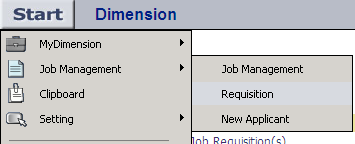
5 C. Submit Job Posting Request Before posting any job to Student Portal, you are required to submit the posting request to JIJIS Admin first. To submit a new request, please follow the below steps: Step 1: Click requisition tab on the main page or press Start Job Management Requisition Step 2: Press New on the Job Requisition interface Step 3: Confirm the declaration of posting job to JIJIS Student Portal. Page 5 of 16


6 Step 4: Fill in information tab by tab (Information, Job Description, Job Criteria, Applicant Channel) Step 5: After filling all required job information, you may click Preview to screen the job posting. Step 6: After previewing the job posting, click Save Page 6 of 16

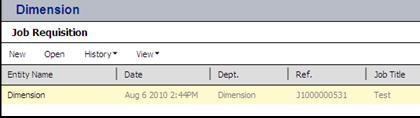
7 Step 7: There will be a confirmation box about the job requisition flow. Click OK. Step 8: The job requisition will be shown in the Job Requisition section, before JIJIA Admin approved/rejected the job requisition, you are allowed to click Open to edit the request still. Note: The saved job requisition will be passed to JIJIS Admin to approve. Once the job is approved, the job will be shown on the Job Management section and the Institute Front End on the Application Open Date. Page 7 of 16

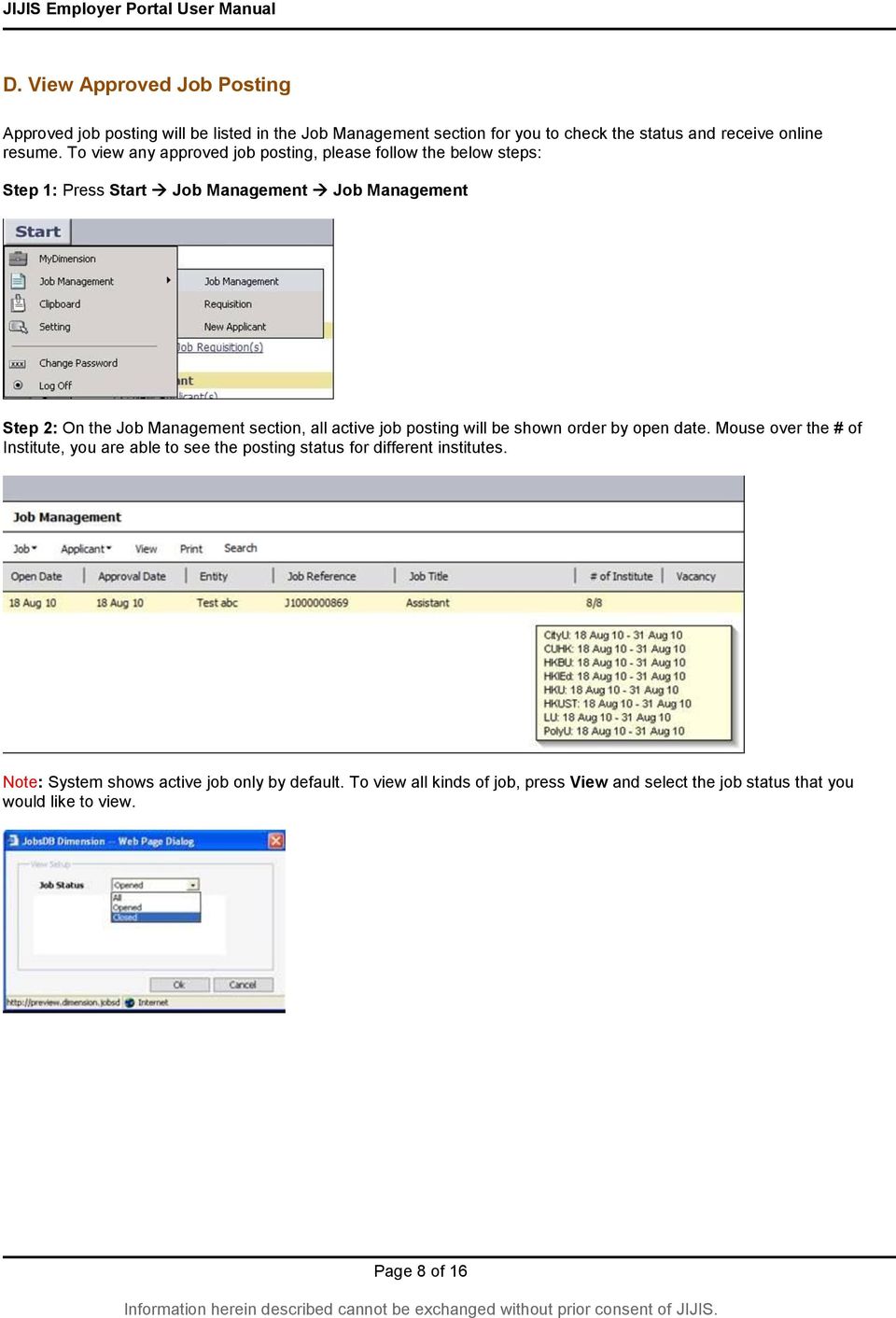
8 D. View Approved Job Posting Approved job posting will be listed in the Job Management section for you to check the status and receive online resume. To view any approved job posting, please follow the below steps: Step 1: Press Start Job Management Job Management Step 2: On the Job Management section, all active job posting will be shown order by open date. Mouse over the # of Institute, you are able to see the posting status for different institutes. Note: System shows active job only by default. To view all kinds of job, press View and select the job status that you would like to view. Page 8 of 16

9 E. Edit Approved Job Posting Approved job posting will be posted to corresponding Student Portal within the posting period. You are allowed to edit the job content still by the below steps: Step 1: Approved jobs will be shown on the Job Management. Go to the Job Management section by pressing Start Job Management Job Management. Select the job you want to amend then press Job Edit. Step 2: Modify content and press Save. The new job information will be saved and updated on related Student Portal immediately. Note: There are 3 fields (Job Description, Application Method and Application Information) require JIJIA Admin Approval. If you edit these three fields, the edit job requisition will be sent to JIJIS Admin. Any job pending for approval will be shown as on hold on Student Portal. Page 9 of 16

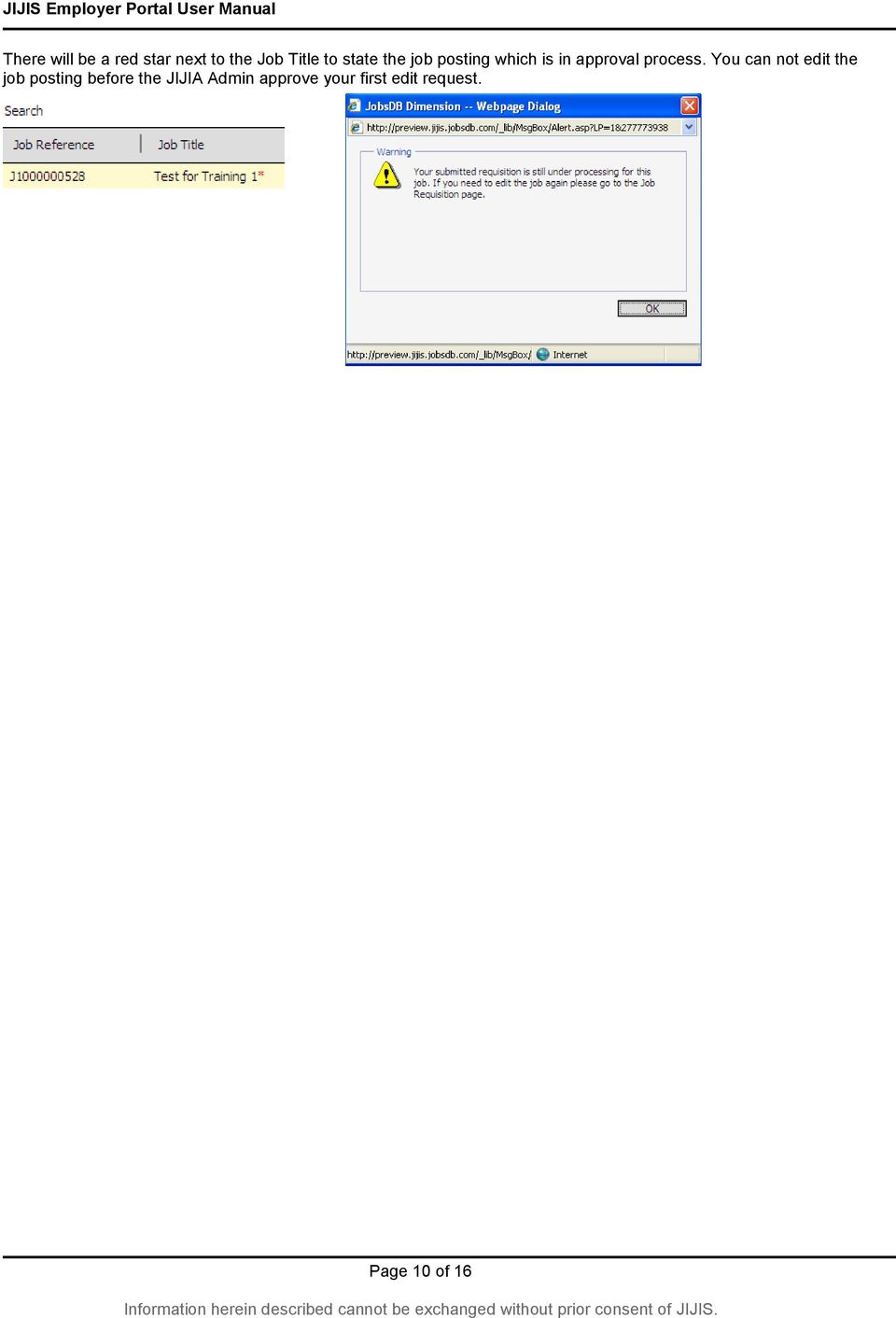
10 There will be a red star next to the Job Title to state the job posting which is in approval process. You can not edit the job posting before the JIJIA Admin approve your first edit request. Page 10 of 16
11 F. Close a posted job After hiring the suitable candidate for your job posting, you should close the job accordingly. To close a job opening,, please follow the below steps: Step 1: Go to the Job Management section by pressing Start Job Management Job Management. Select the job and click Job Close Step 2: Double check the information and press Save to confirm Page 11 of 16


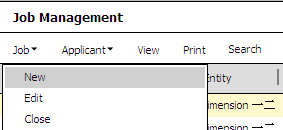
12 G. Import information from an existing Job If you need to post a new job posting with content similar to any previously posted job, you can import the content by the below steps: Step 1: On the Job Management section press Job New Step 2: Press Import Step 3: Select the department and job you want to copy and click Apply. Step 4: Press Yes to confirm or No to cancel Note: For importing information from a previous job, be reminded to update a correct Job Start Date, Application Open Date and End Date for your new job Page 12 of 16

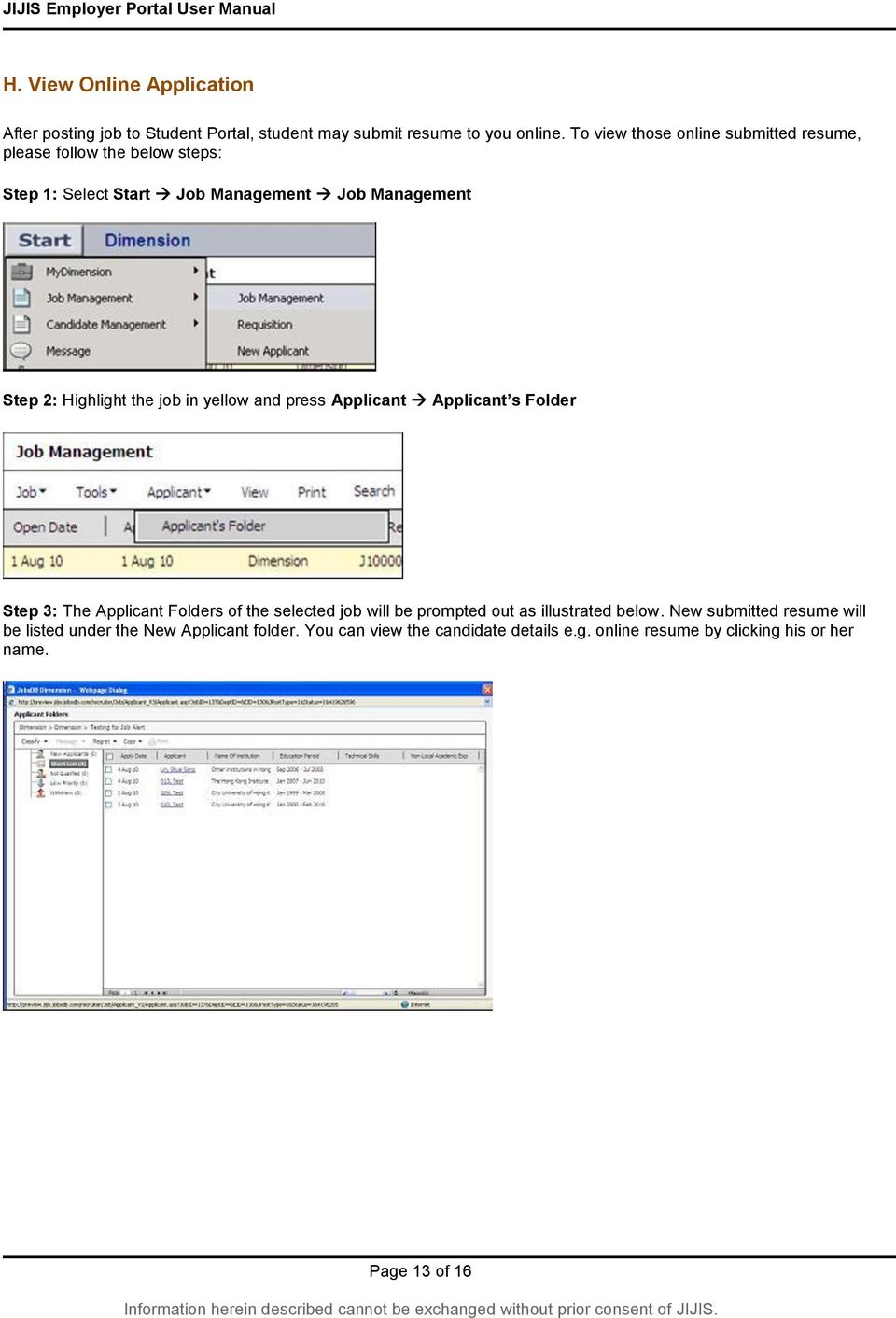
13 H. View Online Application After posting job to Student Portal, student may submit resume to you online. To view those online submitted resume, please follow the below steps: Step 1: Select Start Job Management Job Management Step 2: Highlight the job in yellow and press Applicant Applicant s Folder Step 3: The Applicant Folders of the selected job will be prompted out as illustrated below. New submitted resume will be listed under the New Applicant folder. You can view the candidate details e.g. online resume by clicking his or her name. Page 13 of 16
14 I. View Candidate Details Apart from the online resume form, you are allowed to further details of the candidate as well. There are three divisions in the candidate profile, a navigation pane on the left, the function row on the top and the content detail shown area on the right. There is a navigation pane on the left, it shows the sections of the candidate info: Section Tab Profile Home Application Information Ack Regret Status History Sent History Attachment Comments Application History Searchable Regret Description Basic Info of candidate Resume that the candidate submitted Acknowledgement sent to candidate for this job Regret sent to candidate in this job Candidate status history of this job sent to the candidate history Attachment that the candidate submitted Comment that given to this candidate Jobs that the candidate applied in this company Candidate is allowed to be searched or not Any regret sent to candidate in this company The top function row allows employer to do the following actions on this candidate: Menu Classify Comment Copy - Copy to Job - Copy to My Clipboard Refresh Print Next or Previous Feature Classify the candidate to different process folder Give comment on this candidate Copy candidate to other job Copy candidate to your own clipboard Refresh the candidate profile page Print the Candidate Profile Go to next / previous candidate Page 14 of 16


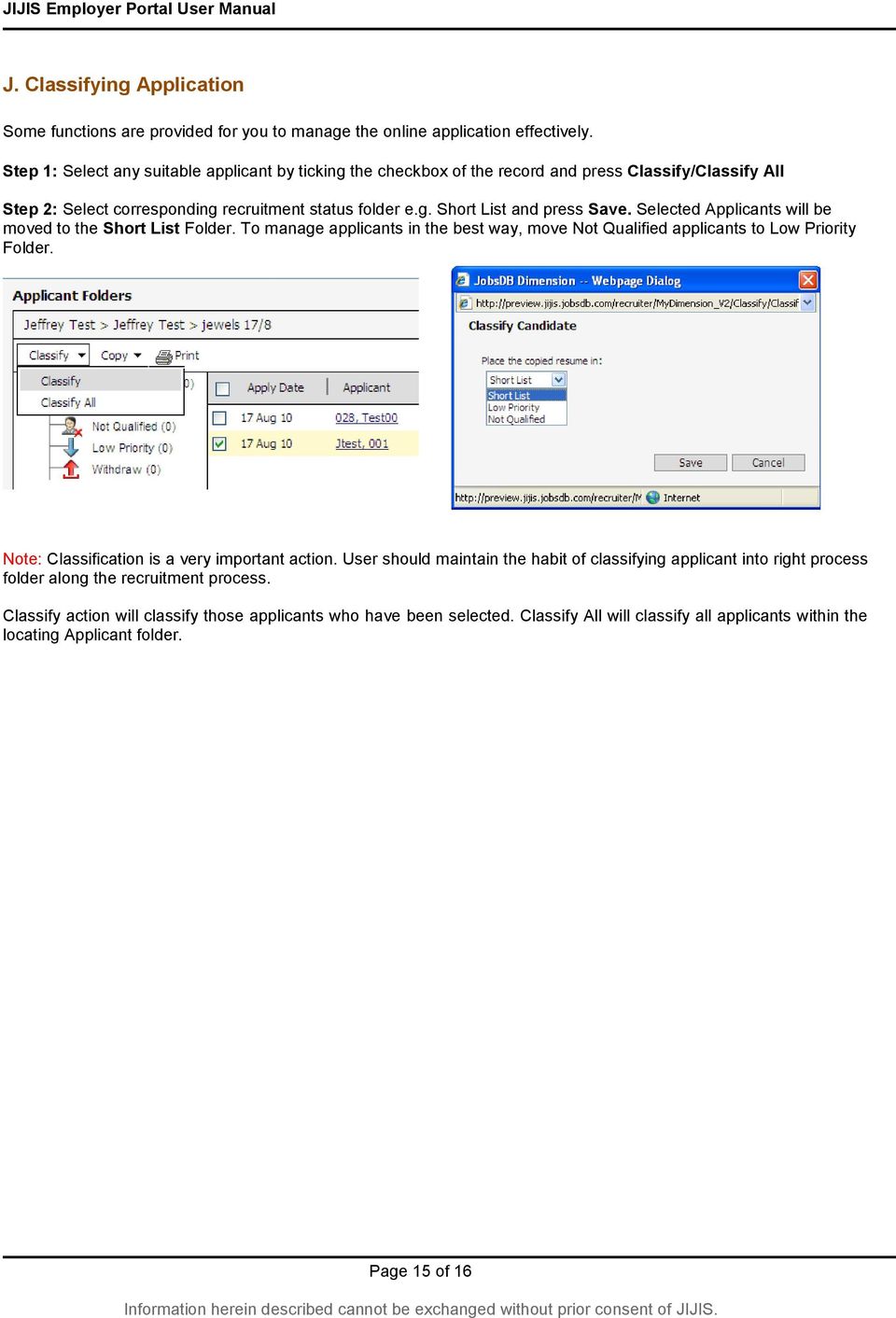
15 J. Classifying Application Some functions are provided for you to manage the online application effectively. Step 1: Select any suitable applicant by ticking the checkbox of the record and press Classify/Classify All Step 2: Select corresponding recruitment status folder e.g. Short List and press Save. Selected Applicants will be moved to the Short List Folder. To manage applicants in the best way, move Not Qualified applicants to Low Priority Folder. Note: Classification is a very important action. User should maintain the habit of classifying applicant into right process folder along the recruitment process. Classify action will classify those applicants who have been selected. Classify All will classify all applicants within the locating Applicant folder. Page 15 of 16

16 K. Copying Application to other Job or Clipboard Step 1: For applicant suits for another opening, you may select the applicant and press Copy/Copy All. You may it to either another Job, your own clipboard for future s reference. Copy action will copy those applicants who have been selected. Copy All will copy all applicants within the locating Applicant folder. Page 16 of 16

Recruiter s Resource Guide
 Recruiter s Resource Guide First Edition 1.29.2015 Contents Section One Recruiting... 3 Accessing Team Georgia Careers... 4 My Setup Preferences... 5 Creating a Requisition... 6 Approving a Requisition...
Jobs for Govs User Guide for Employers
 Jobs for Govs User Guide for Employers This outline will show employers how to recruit students at our partner schools. In order to recruit students from a partner school you need to be linked to that
SiVA Overview Guide. Creating an Advertisement 1. To create a new advertisement, click Advertisements tab and then click Create Advertisement link.
 SiVA is an end-to-end Recruitment Management System with advanced and powerful features for improving the efficiency of your recruitment process. Summary of SiVA Tabs Home - the home page provides shortcuts
Applicant Tracking System Job Aids. Prepared by:
 Applicant Tracking System Job Aids Prepared by: Contents System Navigation and My Setup Information for Users... 1 Creating Requisitions... 4 Duplicating Requisitions... 6 Requesting an Approval... 7 Viewing
The Peer Reviewer s Guide to Editorial Manager
 The Peer Reviewer s Guide to Editorial Manager Registering with EM The Register option is found in the main toolbar. New users simply click on REGISTER. [Note: You may have been proxy registered as a review
OCCMS Pay Equity Union Settlement Budget
 OCCMS Pay Equity Union Settlement Budget Budgets in OCCMS... 2 Entering Legal Name of Your CMSM/DSSAB... 3 Entering General Ledgers (GLs)... 3 Producing and Viewing Cheque Requisitions... 5 Customizing
Remedy ITSM Service Request Management Quick Start Guide
 Remedy ITSM Service Request Management Quick Start Guide Table of Contents 1.0 Getting Started With Remedy s Service Request Management. 3 2.0 Submitting a Service Request.7 3.0 Updating a Service Request
ManageMyHealth SMS Text Message Service User Guide. Medtech32. Version 20.0 (March 2012)
 ManageMyHealth SMS Text Message Service User Guide Medtech32 Version 20.0 (March 2012) IMPORTANT NOTE Medtech recommends that all Medtech upgrades and database back-up and restore processes are performed
Recruiting Module for Hiring Managers
 For additional information, please contact your HR Manager. 1. Logging into the Taleo System 2. Viewing a Requisition 3. Viewing a Candidate Profile 4. From Applicant to Hire: Overview 5. Changing a Step/Status
Online Statements. About this guide. Important information
 Online Statements About this guide This guide shows you how to: View online statements, including CommBiz Activity Statements (Billing summaries) and online statements for Transaction Accounts, Credit
DISCOVER LOCAL TALENT WITH JOBS BANK
 www.jobsbank.gov.sg USER GUIDE FOR EMPLOYERS DISCOVER LOCAL TALENT WITH JOBS BANK The portal that links you to local individuals CONTENTS PREFACE PART I : NAVIGATING THE JOBS BANK MAIN PORTAL A. ACCESS
Off-Campus Employer JobX Training Guide
 Off-Campus Employer JobX Training Guide Student Employment Services Training Topics: 1. Introduction 2. Login 3. Add a job 4. Edit a job 5. Review on-line applications 6. Send Hiring Correspondence to
Schools CPD Online General User Guide Contents
 Schools CPD Online General User Guide Contents New user?...2 Access the Site...6 Managing your account in My CPD...8 Searching for events...14 Making a Booking on an Event...20 Tracking events you are
Affiliated Provider Billing/Coding
 Affiliated Provider Billing/Coding RADIOLOGY BILLING Table of Contents Accessing icentra...2 Opening PowerChart...2 Finding and Selecting a Patient...2 Selecting a patient on the Patient List:...2 Searching
Check current version of Remote Desktop Connection for Mac.. Page 2. Remove Old Version Remote Desktop Connection..Page 8
 CONTENTS SECTION 1 Check current version of Remote Desktop Connection for Mac.. Page 2 SECTION 2 Remove Old Version Remote Desktop Connection..Page 8 SECTION 3 Download and Install Remote Desktop Connection
Posting a Job Order on SaskJobs For assistance call your Canada-Saskatchewan Career and Employment Services Office
 Posting a Job Order on SaskJobs For assistance call your Canada-Saskatchewan Career and Employment Services Office 1. Access the job posting page on www.saskjobs.ca 2. Click on Employer Login 3. The login
peoplefluent APPLICANT TRACKING SYSTEM
 FIND AND VIEW A REQUISITION The ATS Home Screen shows a list of your requisitions in the workflow pane on the left. This screen shot shows all Open requisitions. Use the drop-down menu to choose a different
QuickBooks Business Accounting Software 2013-2006 for Windows
 QuickBooks Business Accounting Software 2013-2006 for Windows Account Conversion Instructions for Web Connect to Direct Connect QuickBooks Business Accounting Software 2008 2010 for Windows Account Connect
Managed Security Web Portal USER GUIDE
 Managed Security Web Portal USER GUIDE CONTENTS 1.0 Introduction 4 2.0 Login 4 3.0 Portal Layout 4 3.1 Home Tab 5 3.2 Web Filtering Tab 5 3.3 SSL VPN Users Tab 6 4.0 Web Filtering Administration 7 4.1
Using the Content Distribution Manager GUI
 CHAPTER 3 Using the Content Distribution Manager GUI The Content Distribution Manager is the central location from which much of the work of creating and managing ACNS networks and hosted content can be
Event Planner Portal Quick Reference Guide
 Event Planner Portal Quick Reference Guide Table of Contents 1 Overview 1 About this guide 1 Who is this Quick Reference Guide designed for? 2 What s in it for me? 2 How long will it take me to go through
Terminal Four. Content Management System. Moderator Access
 Terminal Four Content Management System Moderator Access Terminal Four is a content management system that will easily allow users to manage their college web pages at anytime, anywhere. The system is
brought to you by Assignment & Tracking System 4.0 SkillsBank 5 CornerStone 2 Employability & Work Maturity Skills 2 Administrator Guide
 brought to you by Assignment & Tracking System 4.0 SkillsBank 5 CornerStone 2 Employability & Work Maturity Skills 2 TM TM TM Administrator Guide System Administrator Guide An ATS user who is granted special
Preview of the Attestation System for the Medicare Electronic Health Record (EHR) Incentive Program
 Preview of the Attestation System for the Medicare Electronic Health Record (EHR) Incentive Program The Medicare EHR Incentive Program provides incentive payments to eligible professionals, eligible hospitals
Recruitment Management System USER GUIDE
 Recruitment Management System USER GUIDE ICIPE Candidates Contents Introduction to Interface Elements... 1 User Session Management... 1 Registering... 1 Logging in to the site... 2 Forgot Username or Password...
Customer Ad Proofing Portal
 Customer Ad Proofing Portal User Guide The Day Publishing Company - Customer Ad Proofing Portal 2 Introduction The customer ad proofing portal allows advertising customers to view electronic proofs and
Titan Apps. Drive (Documents)
 Titan Apps Drive (Documents) University of Wisconsin Oshkosh 7/11/2012 0 Contents What is Titan Apps?... 1 Need Help with Titan Apps?... 1 What other resources can I use to help me with Titan Apps?...
Patient Portal Training Manual
 Patient Portal Training Manual The Patient Portal is a secure website that will allow patients to access medical information from the Electronic Medical Record (EMR), send messages to their providers or
For use with Position Manager Version 10.0. Hiring Manager Portal
 Hiring Manager Reference Manual For use with Position Manager Version 10.0 Hiring Manager Portal Updated March 1, 2007 Table of Contents Overview of the Position Manager Applicant Tracking System. 3 Applicant
Alcohol & Drug Information System (ADIS) FullADIS AGENCY TRAINING. Information, Analysis & Reporting Unit [email protected].
 Alcohol & Drug Information System (ADIS) FullADIS AGENCY TRAINING Information, Analysis & Reporting Unit [email protected] August 2013 FullADIS Training - Introduction FullADIS Training What
Or log on to your account via the Employers / Recruiters button located on the right side of the screen.
 Log On to your account via the log on area on the left side of the screen. Or log on to your account via the Employers / Recruiters button located on the right side of the screen. Employer / Recruiter
Student Guide to ebear powered by Symplicity
 Student Guide to ebear powered by Symplicity Center for Career Development C-224 Montebello Complex 443.885.3110 [email protected] www.morgan.edu/careerdevelopment TABLE OF CONTENTS LOGGING IN...2 HOME
System Administration and Log Management
 CHAPTER 6 System Overview System Administration and Log Management Users must have sufficient access rights, or permission levels, to perform any operations on network elements (the devices, such as routers,
How to configure functional mailboxes in Outlook
 How to configure functional mailboxes in Outlook 1 Contents Purpose... 3 Document Support Boundaries... 3 Outlook 2010 - adding a functional account as a separate account... 4 Missing emails when I open
Enter your User Id and Password and click the Log In button to launch the application.
 Working with CECAS How to Log In to CECAS Training Site In your internet browser, go to the following IP address: training.nccecas.org/cecas Enter your User Id and Password and click the Log In button
www.etenders.gov.ie Electronic Tender Management System Quick User Guide Supplier
 Electronic Tender Management System Quick User Guide Supplier Page 1 Contents 1. Using the system 1.1 1.2 Supplier registration Finding published tenders 2. Responding to a public advertisement / notice
How to use Event Manager: Creating an Event without a Template
 How to use Event Manager: Creating an Event without a Template Contents: Page 2 Changing the HR Status Page 5 Enter Event Manager and Create a New Event Page 9 Creating Time Slots for the Event Page 12
Create a requisition for a job
 Create a requisition for a job This quick guide describes the key steps in creating a requisition for a new job posting and creating teams. Other resources for hiring administrators are available at http://www.uvic.ca/hr/services/home/hiring/index.php
Welcome to the Cleveland State University Job Posting and Application Site Tutorial!
 Welcome to the Cleveland State University Job Posting and Application Site Tutorial! 1 Basic Navigation This tutorial will take approximately 20 minutes. 1) Use the forward and back navigation buttons
EXTERNAL GUIDE GUIDE FOR TAX PRACTITIONERS ON EFILING
 GUIDE FOR TAX PRACTITIONERS ON TABLE OF CONTENTS 1 PURPOSE 3 2 INTRODUCTION 3 3 LEGISLATION BACKGROUND 3 4 OFFENCES 3 5 REGISTRATION PROCESS 4 6 TAX PRACTITIONER USER FUNCTIONALITY 10 6.1 REGISTER NEW
EVault User Guide. For more on the EVault service, visit the IT KB at http://kb.mcgill.ca/it/evault.
 EVault User Guide Enterprise Vault (EVault) is email storing software that can be used with your Microsoft Exchange Server mailbox to store your email items and free up space in your inbox (for McGill
Supervisor Website Training Manual
 Supervisor Website Training Manual Welcome to Eastern Connecticut State University s Student Employment Website! Making the connection between student applicants and supervisors easier than ever. The On-Campus
FermiWorks New Employee Onboarding 09.18.14
 Welcome to Fermilab! One important part of onboarding is to enter your account information into FermiWorks, Fermilab s Human Resources Management System. FermiWorks is a one-stop shop for all of your human
FuseMail- Exchange ControlPanel Admin Guide Feb.27-14 V1.0. Exchange ControlPanel Administration Guide
 Exchange ControlPanel Administration Guide Table of Contents Top Level Portal Administration... 4 Signing In to Control Panel... 4 Restoring Account Password... 5 Change Account Details... 7 Viewing Account
Technology One ECM 4.02 INTRODUCTION TO ECM QUICK GUIDE
 Technology One ECM 4.02 INTRODUCTION TO ECM QUICK GUIDE QUALITY ENDORSEMENT - ISO9001:2000 Quality Management Systems - Requirements COPYRIGHT All rights reserved. No part of this publication may be reproduced,
(CP) Claim Processing Electronic Select Short Cut Key (F12) Type in Menu Id:
 Manual Section 4 Claim Processing (CP) Claim Processing Electronic Select Short Cut Key (F12) Type in Menu Id: CP and enter The # symbol will generate the next Claim ID Process Type: Proof (This will check
Using SSH Secure File Transfer to Upload Files to Banner
 Using SSH Secure File Transfer to Upload Files to Banner Several Banner processes, including GLP2LMP (Create PopSelect Using File), require you to upload files from your own computer to the computer system
Grapevine Mail User Guide
 Grapevine Mail User Guide Table of Contents Accessing Grapevine Mail...2 How to access the Mail portal... 2 How to login... 2 Grapevine Mail user guide... 5 Copying your contacts to the new Grapevine Mail
How To Use Thecontinuus Provider Portal
 PROVIDER PORTAL USER GUIDE OCTOBER 13, 2014 TOGETHER ADMINISTRATION OFFICE phone: 608-647-4729 toll free: 1-877-376-6113 fax: 608-647-4754 web: www.continuus.org email: [email protected] CONTENTS System
Big Lots Vendor Compliance Web Portal User Guide - Vendor
 Big Lots Vendor Compliance Web Portal User Guide - Vendor https://visibility.inovis.com/dataquality/xclient/biglots 1. To login to the system for the first time: Open the New User Notification Invite e-mail
EchoSign Integration
 EchoSign Integration CURA Technical Support Email: [email protected] Phone: 1.888.322.2362 x 555 EchoSign Integration Page 2 Table of Contents Getting Started With EchoSign... 3 Sending Documents
Scanned image. If multiple scanner installed in the computer then click here to select desired scanner. Select Resolution, Color, and Scan Type.
 Objectives & Goals Scanning & Document Management Opening & Understanding Multi Scan/Select Scanning & Drag/Drop Documents Set Document Details Set Reminders, Actions and Links Create New Document From
MC Talent Management System. Goals Module Guidebook
 MC Talent Management System Goals Module Guidebook A. Signing On and Off of the System B. Employee Center Home Page - Left Pane - Center Pane - Right Pane C. Accessing and Creating the Goal Plan D. Navigating
QUICK REFERENCE GUIDE
 QUICK REFERENCE GUIDE Signing Contracts within SWIFT External Revised Apr. 26, 2013; Jan. 10, 2013 Introduction After a Contract Document is approved by the state, it is routed to the Vendor Contact for
PeopleAdmin. Creating a Posting for HR Users
 PeopleAdmin Creating a Posting for HR Users Applicant Tracking This guide provides instructions on Creating a Posting utilized to post a vacant position. The position description serves as the basis for
ICIMS Hiring Manager User Guide. University of Massachusetts Medical School
 ICIMS Hiring Manager User Guide University of Massachusetts Medical School 3/21/2012 Table of Contents Introduction and Overview..3 Glossary of Terms....4 Icons....5 Logging into icims.....6 General Navigation...7
How to apply for a job
 How to apply for a job A how to guide for candidates Effective 29 August 2013 auspost.com.au Searching for jobs To begin searching a job with Australia Post, please follow the instructions below. Click
Junk E-mail Settings. Options
 Outlook 2003 includes a new Junk E-mail Filter. It is active, by default, and the protection level is set to low. The most obvious junk e-mail messages are caught and moved to the Junk E-Mail folder. Use
Room Bookings for 2013
 Overview Room Bookings is managed by the Class Management Office (CMO) in close cooperation with other University areas. Web Room Booking is an easy to use, online room booking system which allows staff
REGISTER OF COMPANIES, ENTERPRISES AND BUSINESS
 RWANDA BUSINESS REGISTRY PROJECT REGISTER OF COMPANIES, ENTERPRISES AND BUSINESS NAMES USER MANUAL Online user Version: 1.0 March 9 th 2010 NORWAY REGISTERS DEVELOPMENT AS TABLE OF CONTENTS 1 INTRODUCTION...
User Guide Concur Expense Service Service Update
 User Guide Concur Expense Service Service Update Concur Technologies, Inc. Curtin University - Concur User Guide Page 1 of 16 Using Concur Expense Service Welcome to Concur Expense Service. Concur Expense
User Manual for ADP Manager Self Service
 User Manual for ADP Manager Self Service 1 Introduction to Manager Self Service (MSS) University System of Georgia Training Manual In Manager Self Service (MSS), Employee related data may be entered, updated,
Portal View Login to Griffith Portal
 Portal View Login to Griffith Portal Bank Details appears in Employment Folder navigate via the Menu on left hand side or select Links on the right Add/update bank accounts Add/update pay distributions
Citrix Client Install Instructions
 Citrix Client Install Instructions If you are using Citrix remotely, Information Technology Services recommends updating Citrix client to the newest version available online. You must be an administrator
How to Use JCWHosting Reseller Cloud Storage Solution
 How to Use JCWHosting Reseller Cloud Storage Solution Go to https://www.internetspace.co.za and log in with your Cloud Reseller account username and password. How to Use create a cloud account for your
Sign in. Select Search Committee View
 Applicant Tracking for Search Committees Thank you for agreeing to serve on a search committee at Youngstown State University. The following information will enable you to utilize our online applicant
2200 Lucien Way, STE 201, Maitland, FL 32751. RECRUITview equest Aggregator. HRsoft equest Setup and Workflow
 2200 Lucien Way, STE 201, Maitland, FL 32751 RECRUITview equest Aggregator HRsoft equest Setup and Workflow CONTENTS HRsoft - equest Integration... 2 A. equest Setup... 2 I. equest Setup... 2 II. HRsoft
Establish an Import Letter of Credit
 Establish an Import Letter of Credit 01. From the Manage Import LCs screen with the Transactions tab selected: To establish an Import LC similar to a previous one or a template, click the radio button
Supply Chain Finance WinFinance
 Supply Chain Finance WinFinance Customer User Guide Westpac Banking Corporation 2009 This document is copyright protected. Apart from any fair dealing for the purpose of private study, research criticism
Teacher References archived classes and resources
 Archived Classes At the end of each school year, the past year s academic classes are archived, meaning they re still kept in finalsite, but are put in an inactive state and are not accessible by students.
EMC Documentum Webtop
 EMC Documentum Webtop Version 6.5 User Guide P/N 300 007 239 A01 EMC Corporation Corporate Headquarters: Hopkinton, MA 01748 9103 1 508 435 1000 www.emc.com Copyright 1994 2008 EMC Corporation. All rights
OUTLOOK WEB APP (OWA): MAIL
 Office 365 Navigation Pane: Navigating in Office 365 Click the App Launcher and then choose the application (i.e. Outlook, Calendar, People, etc.). To modify your personal account settings, click the Logon
UCB erequest IIS Requestor - Quick Reference Guide
 UCB erequest - CONTENTS 1 INTRODUCTION... 3 2 HOW TO REGISTER AND LOG-IN... 3 2.1 REGISTER TO RECEIVE AN EXTERNAL REQUESTOR USER ID AND PASSWORD... 3 2.2 LOGIN WITH USER ID AND PASSWORD... 5 3 HOW TO SUBMIT
Lot Provider Supply of 1 Neutral vendor Capita Business Services Specialist contractors and interim managers
 UK SBS Procurement: Framework Guide Contingent Labour One Framework ref: RM960 Description The Contingent Labour ONE (CL1) framework provides access to a complete range of contingent labour services -
BrassRing Beginner Training
 BrassRing Beginner Training Last Updated: February 2011 2010 Eaton Corporation. All rights reserved. Table of Contents Lesson 1: Overview of e-requisition Process Course Introduction Requisition Process
As your financial institution completes its system conversion, you
 QuickBooks Business Accounting Software 2007 2009 for Windows Account Conversion Instructions Converting from Direct Connect to Web Connect As your financial institution completes its system conversion,
Guidelines for Using the Web Help Desk
 BURBANK SCHOOL DISTRICT 111 Guidelines for Using the Web Help Desk Technology Department 1/7/2013 The purpose of this document is to provide guidance on how to navigate the Burbank School District 111
Sales Person Commission
 Sales Person Commission Table of Contents INTRODUCTION...1 Technical Support...1 Overview...2 GETTING STARTED...3 Adding New Salespersons...3 Commission Rates...7 Viewing a Salesperson's Invoices or Proposals...11
15R1 Enterprise Email Integration and Functionality
 Help Documents 15R1 Enterprise Email Integration and Functionality The integration of email within Enterprise allows Enterprise users to mirror their Microsoft Outlook. or other SMTP or IMAP email, including
This is a training module for Maximo Asset Management V7.1. In this module, you learn to use the E-Signature user authentication feature.
 This is a training module for Maximo Asset Management V7.1. In this module, you learn to use the E-Signature user authentication feature. Page 1 of 16 When you complete this module, you can perform these
SQ TRADING STATION User Guide & Installation
 SQ TRADING STATION User Guide & Installation Table of content 1. Downloading the SQ Trading Station 2 2. Launching the SQ Trading Station 3 3. The SQ Trading Station User Interface 4 4. How to place a
CONTENTS. Introduction... 3. Outlook at a glance... 3. Configure Outlook 2010 on-campus... 3. Creating Folders... 4. Sorting Emails...
 OFFICE OF INFORMATION TECHNOLOGY Academic Technology Unit Microsoft Outlook 2010 Basics Workbook CONTENTS Introduction... 3 Outlook at a glance... 3 Configure Outlook 2010 on-campus... 3 Creating Folders...
Profile. 2 On the Expense Settings menu on the left
 Section 1: Getting Started Step 1: Log on to Concur Expense 1 In the User Name field, enter your user name. 2 In the Password field, enter your password. 3 Click Login. If you are not sure how to start
JOOMLA 2.5 MANUAL WEBSITEDESIGN.CO.ZA
 JOOMLA 2.5 MANUAL WEBSITEDESIGN.CO.ZA All information presented in the document has been acquired from http://docs.joomla.org to assist you with your website 1 JOOMLA 2.5 MANUAL WEBSITEDESIGN.CO.ZA BACK
There are several ways of creating a PDF file using PDFCreator.
 it Information Information Technology Services Introduction Using you can convert virtually any file from any application into Adobe Portable Document Format (PDF). Documents in Adobe PDF preserve the
Procedure Guide: Daily Use Cyber Recruiter 6.6 December 2007
 Procedure Guide: Daily Use Cyber Recruiter 6.6 December 2007 Visibility Software Procedure Guide: Daily Use Page 1 of 17 Table of Contents PURPOSE...3 FLOW CHART...4 REQUISITION POSTING PROCEDURE (R)...5
ODBC Driver Version 4 Manual
 ODBC Driver Version 4 Manual Revision Date 12/05/2007 HanDBase is a Registered Trademark of DDH Software, Inc. All information contained in this manual and all software applications mentioned in this manual
Jobs4Saints User Guide: How to Post a Position
 Jobs4Saints User Guide: How to Post a Position Jobs4Saints can be accessed from the following site: https://www.myinterfase.com/marymount/employer/ Below is the log-in screen for employers. Please log
Blackbaud FundWare Accounts Receivable Guide VOLUME 1 SETTING UP ACCOUNTS RECEIVABLE
 Blackbaud FundWare Accounts Receivable Guide VOLUME 1 SETTING UP ACCOUNTS RECEIVABLE VERSION 7.50, JULY 2008 Blackbaud FundWare Accounts Receivable Guide Volume 1 USER GUIDE HISTORY Date Changes June 2000
Web Content Management Training Manualv3
 City & County of San Francisco Powered by Innovation DT City & County of Sa Departme Techno Powered by Innova DEPARTMENT OF TECHNOLOGYDT Web Content Management Training Manualv3 Department of Technology
electronic Declaration of Interests System (edis) User Guide
 electronic Declaration of Interests System (edis) User Guide Registering, logging on, and basic use Contents 1 Registering with the system... 2 2 Logging in and out... 4 2.1 Logging in... 4 2.2 Logging
E-Z Frame-MaximEyes EHR Integration Users Guide For E-Z Frame Versions 3.0.2.0 and Higher
 E-Z Frame-MaximEyes EHR Integration Users Guide For E-Z Frame Versions 3.0.2.0 and Higher This guide will explain the workflow and interactions between E-Z Frame and MaximEyes EHR once the two systems