
|
|
|
- Rosalyn Palmer
- 10 years ago
- Views:
Transcription
1

2 Trend Micro Incorporated reserves the right to make changes to this document and to the product/service described herein without notice. Before installing and using the product/service, review the readme files, release notes, and/or the latest version of the applicable documentation, which are available from the Trend Micro website at: Trend Micro, the Trend Micro t-ball logo, TrendLabs, OfficeScan, and Smart Protection Network are trademarks or registered trademarks of Trend Micro Incorporated. All other product or company names may be trademarks or registered trademarks of their owners. Copyright Trend Micro Incorporated. All rights reserved. Document Part No.: APEM36294/ Release Date: March 2014 Protected by U.S. Patent No.: Patents pending.
3 This documentation introduces the main features of the product/service and/or provides installation instructions for a production environment. Read through the documentation before installing or using the product/service. Detailed information about how to use specific features within the product/service may be available at the Trend Micro Online Help Center and/or the Trend Micro Knowledge Base. Trend Micro always seeks to improve its documentation. If you have questions, comments, or suggestions about this or any Trend Micro document, please contact us at [email protected]. Evaluate this documentation on the following site:
4

5 Table of Contents Preface Preface... v About Trend Micro... vi Product Documentation... vi Audience... vi Document Conventions... vii Chapter 1: Introduction How Does Trend Micro Smart Protection Server Work? The Need for a New Solution Smart Protection Network Solutions New in this Release Key Features and Benefits Trend Micro Smart Protection Network File Reputation Services Web Reputation Services Smart Feedback Chapter 2: Using Smart Protection Server Using the Product Console Accessing the Product Console Using Smart Protection Using Reputation Services Configuring the Approved and Blocked URL Lists Configuring C&C Contact Alert Services Enabling Smart Feedback Updates Configuring Manual Updates Configuring Scheduled Updates i

6 Trend Micro Smart Protection Server 3.0 Administrator's Guide Pattern File Updates Program File Updates Configuring an Update Source Administrative Tasks SNMP Service Proxy Settings Support Changing the Product Console Password Chapter 3: Monitoring Smart Protection Server Using the Summary Screen Tabs Widgets Logs Blocked Web Access Log Update Log Reputation Service Log Log Maintenance Notifications Notifications SNMP Trap Notifications Chapter 4: Getting Help Using the Support Portal Known Issues Hot Fixes, Patches, and Service Packs Threat Encyclopedia Contacting Trend Micro Speeding Up the Support Call TrendLabs Appendix A: Command Line Interface (CLI) Commands Appendix B: Glossary ii

7 Preface Preface Welcome to the Smart Protection Server Administrator's Guide. This document contains information about product settings. Topics include: About Trend Micro on page vi Product Documentation on page vi Audience on page vi Document Conventions on page vii v

8 Trend Micro Smart Protection Server 3.0 Administrator's Guide About Trend Micro Trend Micro Incorporated provides virus protection, antispam, and content-filtering security software and services. Trend Micro helps customers worldwide stop malicious code from harming their computers. Product Documentation The Smart Protection Server documentation consists of the following: DOCUMENTATION Installation and Upgrade Guide Administrator's Guide Online Help Readme file DESCRIPTION Helps you plan for installation, upgrades, and deployment. Helps you configure all product settings. Provides detailed instructions on each field and how to configure all features through the user interface. Contains late-breaking product information that might not be found in the other documentation. Topics include a description of features, installation tips, known issues, and product release history. The documentation is available at: Audience The Smart Protection Server documentation is written for IT managers and administrators. The documentation assumes that the reader has in-depth knowledge of computer networks. The documentation does not assume the reader has any knowledge of virus/malware prevention or spam prevention technology. vi

9 Preface Document Conventions The Smart Protection Server User's Guide uses the following conventions. TABLE 1. Document Conventions CONVENTION ALL CAPITALS Bold Navigation > Path Note DESCRIPTION Acronyms, abbreviations, and names of certain commands and keys on the keyboard Menus and menu commands, command buttons, tabs, and options The navigation path to reach a particular screen For example, File > Save means, click File and then click Save on the interface Configuration notes Tip Recommendations or suggestions WARNING! Critical actions and configuration options vii

10

11 Chapter 1 Introduction This chapter introduces and describes Trend Micro Smart Protection Server features. Topics include: How Does Trend Micro Smart Protection Server Work? on page 1-2 New in this Release on page 1-7 Key Features and Benefits on page 1-10 Trend Micro Smart Protection Network on page

12 Trend Micro Smart Protection Server 3.0 Administrator's Guide How Does Trend Micro Smart Protection Server Work? Trend Micro Smart Protection Server is a next-generation, in-the-cloud based, advanced protection solution. At the core of this solution is an advanced scanning architecture that leverages malware prevention signatures that are stored in-the-cloud. This solution leverages file reputation and web reputation technology to detect security risks. The technology works by off loading a large number of malware prevention signatures and lists that were previously stored on endpoints to Trend Micro Smart Protection Server. Using this approach, the system and network impact of the ever-increasing volume of signature updates to endpoint is significantly reduced. The Need for a New Solution In the current approach to file-based threat handling, patterns (or definitions) required to protect an endpoint are, for the most part, delivered on a scheduled basis. Patterns are delivered in batches from Trend Micro to endpoints. When a new update is received, the virus/malware prevention software on the endpoint reloads this batch of pattern definitions for new virus/malware risks into memory. If a new virus/malware risk emerges, this pattern once again needs to be updated partially or fully and reloaded on the endpoint to ensure continued protection. Over time, there has been a significant increase in the volume of unique emerging threats. The increase in the volume of threats is projected to grow at a near-exponential rate over the coming years. This amounts to a growth rate that far outnumbers the volume of currently known security risks. Going forward, the volume of security risks represents a new type of security risk. The volume of security risks can impact server and workstation performance, network bandwidth usage, and, in general, the overall time it takes to deliver quality protection - or "time to protect". A new approach to handling the volume of threats has been pioneered by Trend Micro that aims to make Trend Micro customers immune to the threat of virus/malware volume. The technology and architecture used in this pioneering effort leverages technology that off load the storage of virus/malware signatures and patterns to the 1-2

13 Introduction cloud. By off loading the storage of these virus/malware signatures to the cloud, Trend Micro is able to provide better protection to customers against the future volume of emerging security risks. Smart Protection Network Solutions The cloud-based query process makes use of two network-based technologies: Trend Micro Smart Protection Network : A globally scaled, Internet-based, infrastructure that provides services to users who do not have immediate access to their corporate network. Smart Protection Server: Smart Protection Server exists in the local network. This is made available for users who have access to their local corporate network. These servers are designed to localize operations to the corporate network to optimize efficiency. Note Install multiple Smart Protection Servers to ensure the continuity of protection in the event that connection to a Smart Protection Server is unavailable. These two network-based solutions host the majority of the virus/malware pattern definitions and web reputation scores. Trend Micro Smart Protection Network and Smart Protection Server make these definitions available to other endpoints on the network for verifying potential threats. Queries are only sent to Smart Protection Servers if the risk of the file or URL cannot be determined by the endpoint. Endpoints leverage file reputation and web reputation technology to perform queries against Smart Protection Servers as part of their regular system protection activities. In this solution, agents send identification information, determined by Trend Micro technology, to Smart Protection Servers for queries. Agents never send the entire file when using file reputation technology. The risk of the file is determined using identification information. Pattern Files The cloud-based query process makes use of a small local pattern file combined with a real-time cloud query system. The cloud query system verifies files, URLs, and other 1-3

14 Trend Micro Smart Protection Server 3.0 Administrator's Guide components against a Smart Protection Server during the verification process. Smart Protection Servers use several algorithms for an efficient process that uses minimal network bandwidth usage. There are three pattern files: Smart Scan Pattern: This pattern is downloaded to and available on Smart Protection Servers and Trend Micro Smart Protection Network. This file is updated hourly. Smart Scan Agent Pattern: This pattern is stored locally on the endpoint for scans that do not require Smart Protection Servers. This file is updated daily. Web Blocking List: Smart Protection Servers download this pattern from Trend Micro ActiveUpdate servers. This pattern is used for Web Reputation queries. Pattern Update Process Pattern updates are a response to security threats. Smart Protection Network and Smart Protection Servers download the Smart Scan Pattern file from ActiveUpdate servers. Trend Micro products that support Smart Protection Servers download Smart Scan Agent Patterns from ActiveUpdate servers. Endpoints within your intranet download Smart Scan Agent Pattern files from Trend Micro products that support Smart Protection Servers. External endpoints are endpoints 1-4

15 Introduction that are outside of the intranet and unable to connect to Smart Protection Servers or Trend Micro products that support Smart Protection Servers. FIGURE 1-1. Pattern update process The Query Process Endpoints that are currently in your intranet use Smart Protection Servers for queries. Endpoints that are currently not in your intranet can connect to Trend Micro Smart Protection Network for queries. While a network connection is required for utilizing Smart Protection Servers, endpoints without access to network connection still benefit from Trend Micro technology. Smart 1-5

16 Trend Micro Smart Protection Server 3.0 Administrator's Guide Scan Agent Pattern and scan technology that reside on endpoints protect endpoints that do not have access to a network connection. Agents installed on endpoints first perform scanning on the endpoint. If the agent cannot determine the risk of the file or URL, the agent verifies the risk by sending a query to a Smart Protection Server. TABLE 1-1. Protection behaviors based on access to intranet LOCATION PATTERN FILE AND QUERY BEHAVIOR Access to intranet Pattern Files: Endpoints download the Smart Scan Agent Pattern file from Trend Micro products that support Smart Protection Servers. Queries: Endpoints connect to Smart Protection Server for queries. Without access to intranet Pattern Files: Endpoints do not download the latest Smart Scan Agent Pattern file unless connection to a Trend Micro product that support Smart Protection Servers is available. Queries: Endpoints scan files using local resources such as the Smart Scan Agent Pattern file. Advanced filtering technology enables the agent to "cache" the query result. This improves scan performance and eliminates the need to send the same query to Smart Protection Servers more than once. An agent that cannot verify a file's risk locally and cannot connect to any Smart Protection Servers after several attempts will flag the file for verification and temporarily allow access to the file. When connection to a Smart Protection Server is restored, all the files that have been flagged are re-scanned. Then, the appropriate scan action is performed on files that have been confirmed as a threat to your network. Tip Install multiple Smart Protection Servers to ensure the continuity of protection in the event that connection to a Smart Protection Server is unavailable. 1-6

17 Introduction FIGURE 1-2. Query process New in this Release Trend Micro Smart Protection Server includes the following new features and enhancements: 1-7

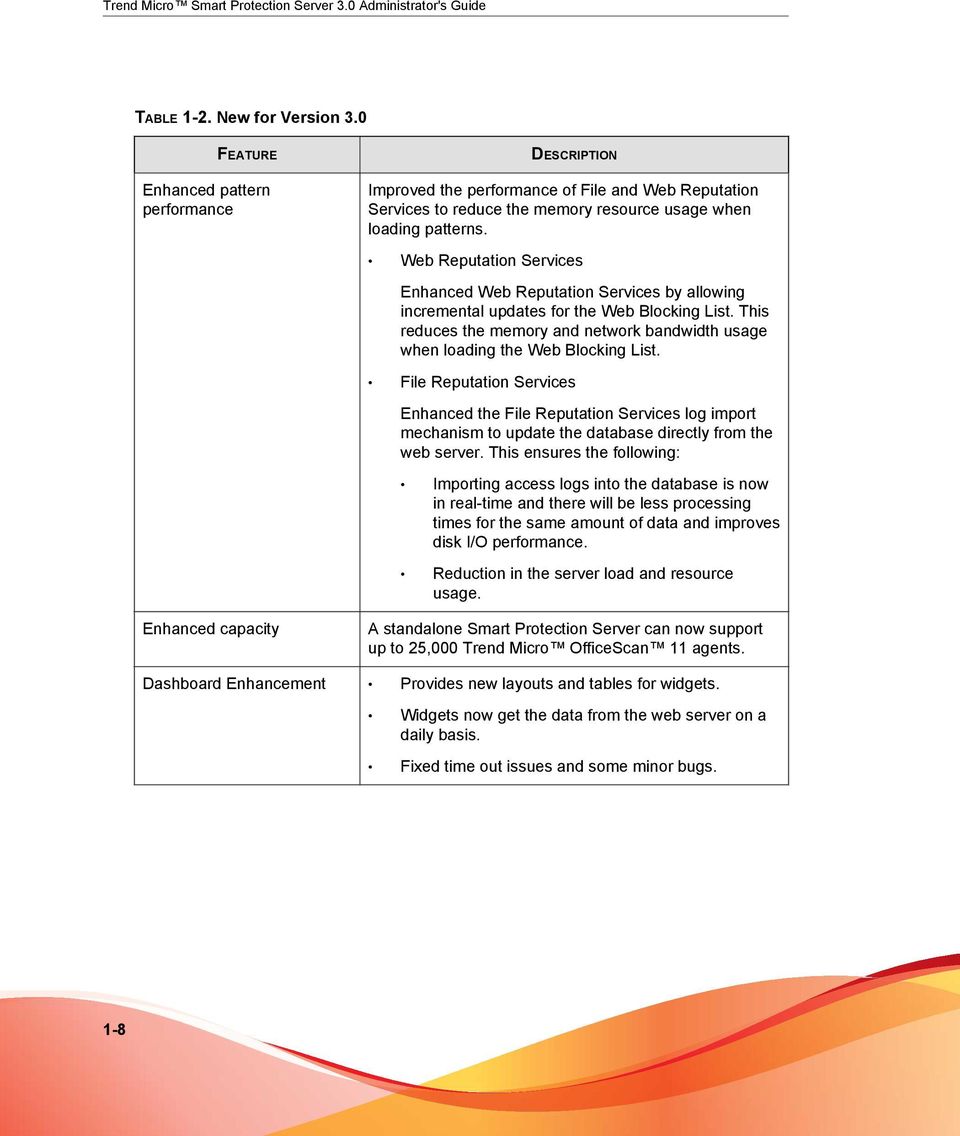
18 Trend Micro Smart Protection Server 3.0 Administrator's Guide TABLE 1-2. New for Version 3.0 FEATURE Enhanced pattern performance DESCRIPTION Improved the performance of File and Web Reputation Services to reduce the memory resource usage when loading patterns. Web Reputation Services Enhanced Web Reputation Services by allowing incremental updates for the Web Blocking List. This reduces the memory and network bandwidth usage when loading the Web Blocking List. File Reputation Services Enhanced the File Reputation Services log import mechanism to update the database directly from the web server. This ensures the following: Importing access logs into the database is now in real-time and there will be less processing times for the same amount of data and improves disk I/O performance. Reduction in the server load and resource usage. Enhanced capacity A standalone Smart Protection Server can now support up to 25,000 Trend Micro OfficeScan 11 agents. Dashboard Enhancement Provides new layouts and tables for widgets. Widgets now get the data from the web server on a daily basis. Fixed time out issues and some minor bugs. 1-8
19 Introduction FEATURE New management information base (MIB) for system information DESCRIPTION Provided the capability to query Smart Protection Server system information directly from a third-party MIB browser tool. These are: SNMP MIB-2 System ( ) SNMP MIB-2 Interfaces ( ) For more information, refer to Supported MIB on page New Command Line Interface (CLI) Commands Provided new commands for the following: Setting up an NTP server (configure ntp) Changing the service port (configure port) Important Use this command only if there is a conflict with the current service port. For more information, refer to Command Line Interface (CLI) Commands on page A-1. Enhanced virtual machine capabilities Smart Protection Server now supports VMware VMXNET 3 network adapter in an IPv6 environment. Fixed the IPv6 Microsoft Hyper-V network adapter issue with Linux Kernel version

20 Trend Micro Smart Protection Server 3.0 Administrator's Guide TABLE 1-3. New for Version 2.6 Patch 1 FEATURE Deep Discovery Advisor integration and the Virtual Analyzer list DESCRIPTION Smart Protection Servers can integrate with Deep Discovery Advisor to obtain the Virtual Analyzer C&C server list. The Deep Discovery Advisor Virtual Analyzer evaluates potential risks in a secure environment and, through use of advanced heuristics and behavioral testing methods, assigns a risk level to the analyzed threats. The Virtual Analyzer populates the Virtual Analyzer list with any threat that attempts to connect to a possible C&C server. The Virtual Analyzer list is highly company-specific and provides a more customized defense against targeted attacks. Smart Protection Servers retrieve the list from Deep Discovery Advisor and can evaluate all possible C&C threats against both the Global Intelligence and the local Virtual Analyzer list. TABLE 1-4. New for Version 2.6 FEATURE Dashboard Enhancement Fixed some minor issues DESCRIPTION The dashboard can now be displayed on devices that do not support Adobe Flash Player. Trend Micro fixed some minor issues. Key Features and Benefits Trend Micro Smart Protection Server provides the following features and benefits: File Reputation Technology The corporate network will be better positioned to handle the threat of volume. The overall "time to protect" against emerging threats is greatly decreased. The kernel memory consumption on workstations is significantly lowered and increases minimally over time. 1-10

21 Introduction Streamlines administration and simplifies management. The bulk of pattern definition updates only need to be delivered to one server instead of many workstations. This reduces the bulk of the impact of a pattern update on many workstations. Protects against web-based and blended attacks. Stops viruses/malware, Trojans, worms, plus new variants of these security risks. Detects and removes spyware/grayware (including hidden rootkits). Web Reputation Technology Protects against web-based and blended attacks. Privacy sensitive customers do not need to worry about revealing confidential information through Web Reputation queries to the Smart Protection Network. Smart Protection Server response time to queries is reduced when compared to queries to Smart Protection Network. Installing a Smart Protection Server in your network reduces the gateway bandwidth load. Trend Micro Smart Protection Network The Trend Micro Smart Protection Network is a next-generation cloud-client content security infrastructure designed to protect customers from security risks and web threats. It powers both local and hosted solutions to protect users whether they are on the network, at home, or on the go, using light-weight agents to access its unique inthe-cloud correlation of , web and file reputation technologies, and threat databases. Customers protection is automatically updated and strengthened as more products, services and users access the network, creating a real-time neighborhood watch protection service for its users. 1-11
22 Trend Micro Smart Protection Server 3.0 Administrator's Guide File Reputation Services File Reputation Services checks the reputation of each file against an extensive in-thecloud database. Since the malware information is stored in the cloud, it is available instantly to all users. High performance content delivery networks and local caching servers ensure minimum latency during the checking process. The cloud-client architecture offers more immediate protection and eliminates the burden of pattern deployment besides significantly reducing the overall agent footprint. Web Reputation Services With one of the largest domain-reputation databases in the world, Trend Micro Web reputation technology tracks the credibility of web domains by assigning a reputation score based on factors such as a website's age, historical location changes and indications of suspicious activities discovered through malware behavior analysis. It will then continue to scan sites and block users from accessing infected ones. Web reputation features help ensure that the pages that users access are safe and free from web threats, such as malware, spyware, and phishing scams that are designed to trick users into providing personal information. To increase accuracy and reduce false positives, Trend Micro Web reputation technology assigns reputation scores to specific pages or links within sites instead of classifying or blocking entire sites, since often, only portions of legitimate sites are hacked and reputations can change dynamically over time. Web reputation features help ensure that the web pages that users access are safe and free from web threats, such as malware, spyware, and phishing scams that are designed to trick users into providing personal information. Web reputation blocks web pages based on their reputation ratings. When enabled, Web reputation helps deter users from accessing malicious URLs. Smart Feedback Trend Micro Smart Feedback provides continuous communication between Trend Micro products as well as the company's 24/7 threat research centers and technologies. Each new threat identified through a single customer's routine reputation check automatically updates all Trend Micro threat databases, blocking any subsequent customer encounters of a given threat. By continuously processing the threat intelligence 1-12
23 Introduction gathered through its extensive global network of customers and partners, Trend Micro delivers automatic, real-time protection against the latest threats and provides "better together" security, much like an automated neighborhood watch that involves the community in protection of others. Because the threat information gathered is based on the reputation of the communication source, not on the content of the specific communication, the privacy of a customer's personal or business information is always protected. 1-13
24
25 Chapter 2 Using Smart Protection Server This chapter provides Trend Micro Smart Protection Server configuration information. Topics include: Using the Product Console on page 2-2 Using Smart Protection on page 2-3 Updates on page 2-9 Administrative Tasks on page 2-15 Proxy Settings on page 2-19 Changing the Product Console Password on page

26 Trend Micro Smart Protection Server 3.0 Administrator's Guide Using the Product Console The product console consists of the following elements: Main menu: Provides links to the Summary, Smart Protection, Updates, Logs, and Administration screens. Work area: View summary information and component status, configure settings, update components, and perform administrative tasks. MENU Summary Smart Protection Updates Logs DESCRIPTION Displays customized information about Smart Protection Servers, traffic, and detections when you add widgets. Provides options for configuring reputation services, an approved/ block URL list, and Smart Feedback. Provides options for configuring scheduled updates, manual program updates, program package uploads, and the update source. Provides options for querying logs and log maintenance. 2-2
27 Using Smart Protection Server MENU Administration DESCRIPTION Provides options to configure SNMP service, notifications, proxy settings, and collecting diagnostic information for troubleshooting. Accessing the Product Console After logging on to the web console, the initial screen displays the status summary for Smart Protection Servers. Procedure 1. Open a web browser and type the URL indicated on the initial CLI banner after installation. 2. Type admin for the user name and the password in the corresponding fields. 3. Click Log on. Using Smart Protection This version of Smart Protection Server includes File Reputation and Web Reputation Services. Using Reputation Services Enable Reputation Services from the product console to allow other Trend Micro products to use smart protection. Enabling File Reputation Services Enable File Reputation Services to support queries from endpoints. 2-3

28 Trend Micro Smart Protection Server 3.0 Administrator's Guide Procedure 1. Go to Smart Protection > Reputation Services, and then go to the File Reputation tab. 2. Select the Enable File Reputation Service check box. 3. Click Save. The Server Address can now be used for File Reputation queries by other Trend Micro products that support Smart Protection Servers. Enabling Web Reputation Services Enable Web Reputation Services to support URL queries from endpoints. These are the options available on this screen. Enable Web Reputation Service: Select to support Web Reputation queries from endpoints. Server Address: Used by other Trend Micro products for Web Reputation queries. Filter Priority: Select to specify the priority when filtering URLs. 2-4

29 Using Smart Protection Server Procedure 1. Go to Smart Protection > Reputation Services, and then go to the Web Reputation tab. 2. Select the Enable Web Reputation Service check box. 3. (Optional) Specify the priority of the Approved/Blocked URL List when filtering URLs. 4. Click Save. The Server Address can now be used for File Reputation queries by other Trend Micro products that support Smart Protection Server. Configuring the Approved and Blocked URL Lists The Approved/Blocked URL List allows you to specify a custom list of approved and/or blocked URLs. This list is used for Web Reputation. These are the options available on this screen. Search Rule: Select to search for a string in the list of rules. Test URL: Select to search for the rules that the URL will trigger. The URL must start with or 2-5

30 Trend Micro Smart Protection Server 3.0 Administrator's Guide Procedure 1. Go to Smart Protection > Approved/Blocked URL List. 2. Click Add. The Add rule screen displays. 3. Select the Enable this rule check box. 4. Select one of the following: URL: to specify a URL and apply to all of the URL s subsites or only one page. URL with keyword: to specify a string and use regular expressions. Click Test to view the results of applying this rule to the most common 20 URLs and the previous day's top 100 URLs in the Web Access Log. 5. Select one of the following: 2-6
31 Using Smart Protection Server All endpoints: to apply to all endpoints. Specify a range: to apply to a range of IP addresses, domain names, and computer names. Note This supports both IPv4 and IPv6 addresses. 6. Select Approve or Block. 7. Click Save. Configuring C&C Contact Alert Services Trend Micro Command & Control (C&C) Contact Alert Services provides enhanced detection and alert capabilities to mitigate the damage caused by advanced persistent threats and targeted attacks. C&C Contact Alert Services are integrated with Web Reputation Services which determines the action taken on detected callback addresses based on the web reputation security level. These are the options available on this screen. Server: The server name or IP address of the Deep Discovery Advisor server, which provides the Virtual Analyzer C&C list. API key: The API key of the Deep Discovery Advisor. The API key can be found in the About page of the Deep Discovery Advisor web console. Test connection: Use this button to verify that the server name or IP address and API key of the Deep Discovery Advisor is correct. Register: Use this button to register Smart Protection Server to Deep Discovery Advisor. Unregister: Use this button to unregister Smart Protection Server from Deep Discovery Advisor. Enable Virtual Analyzer C&C list: Enable this option to allow Smart Protection Server to use the custom C&C list analyzed by the Deep Discovery Advisor server. 2-7
32 Trend Micro Smart Protection Server 3.0 Administrator's Guide Sync Now: Use this button to get an updated Virtual Analyzer C&C list from Deep Discovery Advisor. Procedure 1. Type the server name or IP address of the Deep Discovery Advisor server. Note The server name supports FQDN formats and the IP address supports IPv4 format. 2. Type the API key. 3. Click Register to connect to the Deep Discovery Advisor server. Note Administrators can test the connection to the server before registering to the server. 4. Select Enable Virtual Analyzer C&C list to allow supported servers to use the custom C&C list analyzed by the local Deep Discovery Advisor server. Note 5. Click Save. The Enable Virtual Analyzer C&C list option is only available after establishing a successful connection to the Deep Discovery Advisor server. Enabling Smart Feedback Trend Micro Smart Feedback shares anonymous threat information with Trend Micro Smart Protection Network, allowing Trend Micro to rapidly identify and address new threats. You can disable Smart Feedback anytime through this console. Procedure 1. Go to Smart Protection > Smart Feedback. 2-8

33 Using Smart Protection Server Note Make sure that the Smart Protection Server has Internet connection before enabling Smart Feedback. 2. Select Enable Trend Micro Smart Feedback. 3. Select your industry. 4. Click Save. Updates The effectiveness of Smart Protection Server depends upon using the latest pattern files and components. Trend Micro releases new versions of the Smart Scan Pattern files hourly. Tip Trend Micro recommends updating components immediately after installation. 2-9
34 Trend Micro Smart Protection Server 3.0 Administrator's Guide Configuring Manual Updates You can perform manual updates for the Smart Scan Pattern and Web Blocking List. Procedure 1. Go to Updates. 2. Click Pattern or Program from the drop down menu. 3. Click Update Now or Save and Update Now to apply updates immediately. Configuring Scheduled Updates Smart Protection Server can perform scheduled updates for the Smart Scan Pattern and Web Blocking List. Procedure 1. Go to Updates. 2. Click Pattern or Program from the drop down menu. 3. Specify the update schedule. 4. Click Save. Pattern File Updates Update pattern files to help ensure that the latest information is applied to queries. These are the options available on this screen: Enable scheduled updates: Select to configure automatic updates every hour or every 15 minutes. Update Now: Click to immediately update all pattern files. 2-10
35 Using Smart Protection Server Program File Updates Update to the latest version of the product program to take advantage of product enhancements. These are the options available on this screen. Operating System: Select to update operating system components. Smart Protection Server: Select to update the product server program file. Widget Components: Select to update widgets. Enable scheduled updates: Select to update program files daily at a specified time or weekly. Download only: Select to download updates and receive a prompt to update program files. Update automatically after download: Select to apply all updates to the product after download regardless of whether a restart or reboot is required. Do not automatically update programs that require a restart or reboot: Select to download all updates and only install programs that do not require a restart or reboot. Upload: Click to upload and update a program file for Smart Protection Server. Browse: Click to locate a program package. Save and Update Now: Click to apply settings and perform an update immediately. There are three ways to update the program file: scheduled updates, manual updates, and by uploading the component. Enabling Scheduled Updates Procedure 1. Go to Updates > Program. 2. Select Enable scheduled updates and select the update schedule. 2-11

36 Trend Micro Smart Protection Server 3.0 Administrator's Guide 3. Select one of the following update methods: Download only: Select this check box to download program files without installing them. A message appears on the web product console when program file updates are available for installation. Update automatically after download: Select this check box to automatically install program file updates once the updates have been downloaded. 4. Click Save. Do not automatically update programs that require a restart or reboot: Select this check box to receive a prompt on the web product console if the update requires a restart or reboot. Program updates that do not require a restart or reboot will be installed automatically. 2-12
37 Using Smart Protection Server Performing Manual Updates Procedure 1. Go to Updates > Program. 2. Select one of the following update methods: Download only: Select this check box to download program files without installing them. A message appears on the web product console when program file updates are available for installation. Update automatically after download: Select this check box to automatically install program file updates once the updates have been downloaded. Do not automatically update programs that require a restart or reboot: Select this check box to receive a prompt on the web product console if the update requires a restart or reboot. Program updates that do not require a restart or reboot will be installed automatically. 3. Click Save and Update Now. Uploading Files to Perform Manual Updates Procedure 1. Go to Updates > Program. Important Make sure the Smart Protection Server is not performing an update before continuing. If you have to update the program or a component, disable scheduled component updates first before continuing. 2. Under Upload Component, click Browse... to locate the program file for manual program updates. 2-13
38 Trend Micro Smart Protection Server 3.0 Administrator's Guide Note Locate the program file that you downloaded from the Trend Micro website or obtained from Trend Micro. 3. Locate the file and click Open. 4. Click Upload. Note If you disabled scheduled scan to update the program or a component, enable it again after uploading and updating. Configuring an Update Source Use this screen to specify the update source for File Reputation and Web Reputation. The default update source is the Trend Micro ActiveUpdate Server. These are the options available on this screen. Trend Micro ActiveUpdate Server: Select to download updates from Trend Micro ActiveUpdate Server. Other update source: Select to specify an update source such as Trend Micro Control Manager. Procedure 1. Go to Updates > Source and select either the File Reputation tab or the Web Reputation tab. 2. Select Trend Micro ActiveUpdate Server or select Other update source and type a URL. 3. Click Save. 2-14
39 Using Smart Protection Server Administrative Tasks Administrative tasks allow you to configure SNMP Service settings, notifications, proxy server settings, or download diagnostic information. SNMP Service Smart Protection Server supports SNMP to provide further flexibility in monitoring the product. Configure settings and download the Management Information Base (MIB) file from the SNMP Service screen. These are the options available on this screen. Enable SNMP Service: Select to use SNMP. Community name: Specify an SNMP community name. Enable IP restriction: Select to enable IP address restriction. Note Classless Inter-Domain Routing (CIDR) is not supported for IP restriction. Prevent unauthorized access to the SNMP service by enabling IP address restriction. IP address: Specify an IP address for using the SNMP service to monitor Health Status. Subnet Mask: Specify a netmask to define the IP address range for using the SNMP service to monitor computer status. Smart Protection Server MIB: Click to download the Smart Protection Server MIB file. Save: Click to retain the settings. Cancel: Click to discard changes. Configuring SNMP Service Configure SNMP Service settings to allow SNMP managing systems to monitor Smart Protection Server status. 2-15
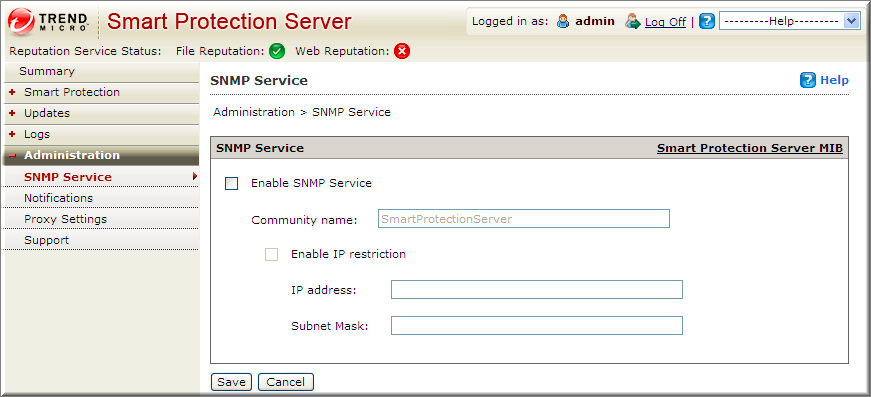
40 Trend Micro Smart Protection Server 3.0 Administrator's Guide Procedure 1. Go to Administration > SNMP Service. 2. Select the Enable SNMP Service check box. 3. Specify a Community name. 4. Select the Enable IP restriction check box to prevent unauthorized access to the SNMP service. Note Classless Inter-Domain Routing (CIDR) is not supported for IP restriction. 5. Specify an IP address. 6. Specify a subnet mask. 7. Click Save. Downloading the MIB File Download the MIB file from the web console to use SNMP Service. 2-16
41 Using Smart Protection Server Procedure 1. Go to Administration > SNMP Service. 2. Click Smart Protection Server MIB to download the MIB file. A confirmation prompt displays. 3. Click Save. The Save As screen displays. 4. Specify the save location. 5. Click Save. Smart Protection Server MIB The following table provides a description of the Smart Protection Server MIB. OBJECT NAME OBJECT IDENTIFIER (OID) DESCRIPTION Trend-MIB:: TBLVersion Trend-MIB:: TBLLastSuccessfulUpdate Trend-MIB:: LastUpdateError Trend-MIB:: LastUpdateErrorMessage Returns the current Smart Scan Pattern version Returns the date and time of the last successful Smart Scan Pattern update Returns the status of the last Smart Scan Pattern update. 0: Last pattern update was successful. <error code>: Last pattern update was unsuccessful Returns an error message if the last Smart Scan Pattern update was unsuccessful. 2-17
42 Trend Micro Smart Protection Server 3.0 Administrator's Guide OBJECT NAME OBJECT IDENTIFIER (OID) DESCRIPTION Trend-MIB:: WCSVersion Trend-MIB:: WCSLastSuccessfulUpdate Trend-MIB:: WCSLastUpdateError Trend-MIB:: WCSLastUpdateErrorMess age Trend-MIB:: LastVerifyError Trend-MIB:: WCSLastVerifyError Returns the current Web Blocking List version Returns the date and time of the last successful Web Blocking List update Returns the status of the last Web Blocking List update. 0: Last pattern update was successful. <error code>: Last pattern update was unsuccessful Returns an error message if the last Web Blocking List update was unsuccessful Returns the status of file reputation query. 0: File reputation query is behaving as expected. <error code>: File reputation query is not behaving as expected Returns the status of web reputation query. 0: Web reputation query is behaving as expected. <error code>: Web reputation query is not behaving as expected. 2-18
43 Using Smart Protection Server OBJECT NAME OBJECT IDENTIFIER (OID) DESCRIPTION Trend-MIB:: LastVerifyErrorMessage Trend-MIB:: WCSLastVerifyErrorMessa ge Returns an error message if the last health status of a File Reputation query was unsuccessful Returns an error message if the last health status of a Web Reputation query was unsuccessful. Supported MIB The following table provides a description of other supported MIBs. OBJECT NAME OBJECT IDENTIFIER (OID) DESCRIPTION SNMP MIB-2 System The system group includes information about the system on which the entity resides. Object in this group are useful for fault management and configuration management. See IETF RFC SNMP MIB-2 Interfaces The interfaces object group contains information about each interface on a network device. This group provides useful information on fault management, configuration management, performance management and accounting management. See IETF RFC Proxy Settings If you use a proxy server in the network, configure proxy settings. These are the options available on this screen. 2-19
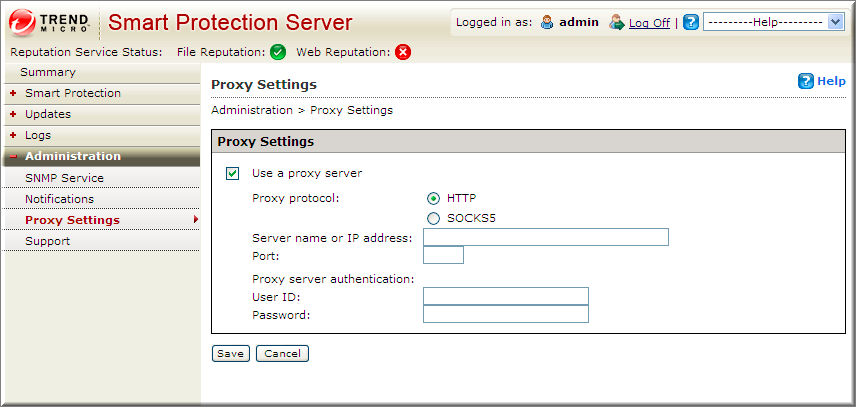
44 Trend Micro Smart Protection Server 3.0 Administrator's Guide Use a proxy server: Select if your network uses a proxy server. HTTP: Select if your proxy server uses HTTP as the proxy protocol. SOCKS5: Select if your proxy server uses SOCKS5 as the proxy protocol. Server name or IP address: Type the proxy server name or IP address. Port: Type the port number. User ID: Type the user ID for the proxy server if your proxy server requires authentication. Password: Type the password for the proxy server if your proxy server requires authentication. Configuring Proxy Settings Procedure 1. Go to Administration > Proxy Settings. 2. Select the Use a proxy server for updates check box. 3. Select HTTP or SOCKS5 for the Proxy protocol. 2-20
45 Using Smart Protection Server Note Smart Protection Server no longer supports SOCKS4 proxy configurations. 4. Type the server name or IP address. 5. Type the port number. 6. If your proxy server requires credentials, type the User ID and Password. 7. Click Save. Support Use the web console to download diagnostic information for troubleshooting and support. Click Start to begin collecting diagnostic information. Downloading System Information for Support Procedure 1. Go to Administration > Support. 2. Click Start. The download progress screen appears. 3. Click Save when the prompt for the downloaded file appears. 4. Specify the location and file name. 5. Click Save. Changing the Product Console Password The product console password is the primary means to protect Smart Protection Server from unauthorized changes. For a more secure environment, change the console 2-21
46 Trend Micro Smart Protection Server 3.0 Administrator's Guide password on a regular basis and use a password that is difficult to guess. The admin account password can be changed through the Command Line Interface (CLI). Use the "configure password" command from the CLI to make changes. Tip To design a secure password consider the following: Include both letters and numbers. Avoid words found in any dictionary (of any language). Intentionally misspell words. Use phrases or combine words. Use a combination of uppercase and lowercase letters. Use symbols. Procedure 1. Log on to the CLI console with the admin account. 2. Type the following to enable administrative commands: enable 2-22
47 Using Smart Protection Server 3. Type the following command: configure password admin 4. Type the new password. 5. Type the new password a second time to confirm the password. 2-23
48
49 Chapter 3 Monitoring Smart Protection Server Monitor Trend Micro Smart Protection Server with logs and from the Summary screen with widgets. Topics include: Using the Summary Screen on page 3-2 Logs on page 3-12 Notifications on page

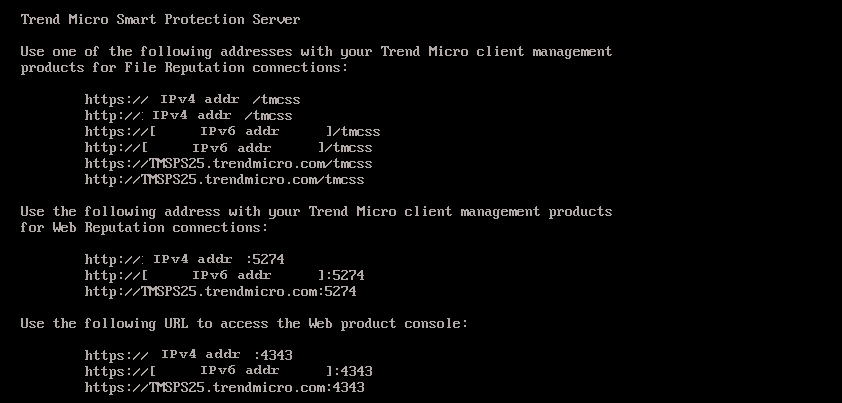
50 Trend Micro Smart Protection Server 3.0 Administrator's Guide Using the Summary Screen The Summary screen can display customized information about Smart Protection Servers, traffic, and detections. Smart Protection Server supports both HTTP and HTTPS protocols for File Reputation Service connections and HTTP protocol for Web Reputation Service connections. HTTPS provides a more secure connection while HTTP uses less bandwidth. Smart Protection Server addresses are displayed on the Command Line Interface (CLI) console banner. The Summary screen consists of the following user interface elements: Server Visibility: Click to add servers to the Server Visibility list or configure proxy server settings for connection to servers in the Server Visibility list. Editing server information is the same for all widgets. Note Smart Protection Server Addresses are used with Trend Micro products that manage endpoints. Server Addresses are used for configuring endpoint connections to Smart Protection Servers. Tabs provide a container for widgets. For details, see Tabs on page
51 Monitoring Smart Protection Server Widgets are the core components of the dashboard. For details, see Widgets on page 3-5. Tabs Tabs provide a container for widgets. Each tab on the Summary screen can hold up to 20 widgets. The Summary screen itself supports up to 30 tabs. Tab Tasks The following table lists all the tab-related tasks: TASK Add a tab Edit tab settings Play Tab Slide Show Move tab Click the plus icon ( STEPS ) on top of the Summary screen. The New Tab window displays. For details about this window, see New Tab Window on page 3-4. Click Tab Settings. A window similar to the New Tab window opens, where you can edit settings. Click Play Tab Slide Show. The information in the selected tabs will change similar to a slide show. Use drag-and-drop to change a tab s position. Delete tab Click the delete icon ( ) next to the tab title. Deleting a tab also deletes all the widgets in the tab. 3-3
52 Trend Micro Smart Protection Server 3.0 Administrator's Guide New Tab Window The New Tab window opens when you add a new tab in the Summary screen. This window includes the following options: OPTION STEPS Title Layout Type the name of the tab. Choose from the available layouts. 3-4
53 Monitoring Smart Protection Server OPTION Slide Show Auto-fit STEPS The information in the selected tabs will change similar to a slide show. If you enable this option, you can select which tabs you want to appear in your slide show, and you can also control the speed at which your slide show plays. Auto-fit adjusts a widget to fit the size of a box. Widgets Widgets allow you to customize the information displayed on the Summary screen. New widgets can be added to the web console. Widgets can be dragged and dropped to customize the order in which they display. Available widget packages can be downloaded and updated by using the Program Update screen. After updating the widget package, the new widget can be added from the Summary screen. Widget Tasks The following table lists widget-related tasks: 3-5
54 Trend Micro Smart Protection Server 3.0 Administrator's Guide TASK Add a widget STEPS Open a tab and then click Add Widgets at the top right corner of the tab. The Add Widgets screen displays. Refresh widget data Click the refresh icon ( ). Configure server settings Click the triangle icon ( ) and then click Server Settings ( ) to include/exclude the widget from getting information from the server. You can also click Check Server Visibility to add servers from the Server Visibility list or configure proxy server settings to establish connection with the servers in the Server Visibility list. View help Click the triangle icon ( ) and then click Help ( ). Delete a widget Click the triangle icon ( ) and then click Close Widget ( ). This action removes the widget from the tab that contains it, but not from the other tabs that contain it or from the widget list in the Add Widgets screen. Move a widget Use drag-and-drop to move a widget to a different location within the tab. 3-6

55 Monitoring Smart Protection Server TASK Resize a widget STEPS To resize a widget, point the cursor to the right edge of the widget. When you see a thick vertical line and an arrow (as shown in the following image), hold and then move the cursor to the left or right. Only widgets on multi-column tabs can be resized. These tabs have any of the following layouts and the highlighted sections contain widgets that can be resized. Available Widgets The following widgets are available in this release. Real Time Status Use the real time status widget to monitor the Smart Protection Server status. 3-7
56 Trend Micro Smart Protection Server 3.0 Administrator's Guide Note When this widget displays on the Summary screen, the product console session will not expire. The Computer Status is updated every minute which means the session will not expire due to the requests sent to the server. However, the session will still expire if the tab that is currently displayed does not contain this widget. TABLE 3-1. Widget Data DATA Service Protocol Host Computer Status DESCRIPTION Services provided by the Smart Protection Server. This displays the protocols supported by services. File reputation supports both HTTP and HTTPS protocols. Web reputation supports HTTP. HTTPS provides a more secure connection while HTTP uses less bandwidth. File reputation and Web reputation service addresses. These addresses are used with Trend Micro products that support Smart Protection Servers. The addresses are used for configuring connections to Smart Protection Servers. The following items are displayed under Health Status: File Reputation Query: displays whether File reputation is functioning as expected. Web Reputation Query: displays whether Web reputation is functioning as expected. ActiveUpdate: displays whether ActiveUpdate is functioning as expected. Average CPU load: displays the computer load average for the past 1, 5, and 15 minutes generated by the kernel. Free memory: displays the available physical memory on the computer. Swap disk usage: displays the swap disk usage. Free space: displays the available free disk space on the computer. 3-8
57 Monitoring Smart Protection Server Active Users for File Reputation The Active Users widget displays the number of users that have made file reputation queries to the Smart Protection Server. Each unique client computer is considered an active user. Note This widget displays information in a 2-D graph and is updated every hour or click the refresh icon ( ) at any time to update the data. TABLE 3-2. Widget Data Users Date DATA DESCRIPTION The number of users that sent queries to Smart Protection Servers. The date of the query. HTTP Traffic Report for File Reputation The HTTP Traffic Report widget displays the total amount of network traffic in kilobytes (KB) that has been sent to the Smart Protection Server from file reputation queries generated by clients. The information in this widget is updated hourly and the data is displayed in a 3-D graph. You can also click the refresh icon ( ) at any time to update the data. Note On the 3-D graph, right-clicking the graph provides options to reset the graph or display the graph in 2D, 3D, 100%, and best fit. You can also click the server name to display the values for each day on the graph. TABLE 3-3. Widget Data DATA Traffic (KB) DESCRIPTION The network traffic generated by queries. 3-9
58 Trend Micro Smart Protection Server 3.0 Administrator's Guide DATA DESCRIPTION Date The date of the queries. Top 10 Blocked Computers for File Reputation This widget displays the top 10 computer IP addresses which have been classified as infected computers after Smart Protection Server receives a known virus from file reputation query. Information in this widget is displayed in a table, which includes the computer IP address and the total number of detections on each computer. The information in this widget is updated hourly or you can click the refresh icon ( ) at any time to update the data. Use this widget to track computers with the most number of infections on your network. Note If you enable more than one Smart Protection Server in this widget, this widget will calculate the total number of detections on the selected Smart Protection Server and display the top 10 infected computers from the selected Smart Protection Servers in the list. TABLE 3-4. Widget Data DATA DESCRIPTION IP Detections The IP address of the computer. The number of security threats detected by this computer. Active Users for Web Reputation The Active Users widget displays the number of users that have made web reputation queries to the Smart Protection Server. Each unique client computer is considered an active user. 3-10
59 Monitoring Smart Protection Server Note This widget displays information in a 2-D graph and is updated every 5 minutes or click the refresh icon ( ) at any time to update the data. TABLE 3-5. Widget Data Users Date DATA DESCRIPTION The number of users that sent queries to Smart Protection Servers. The date of the query. HTTP Traffic Report for Web Reputation The HTTP Traffic Report widget displays the total amount of network traffic in kilobytes (KB) that has been sent to the Smart Protection Server from web reputation queries generated by clients. The information in this widget is updated hourly and the data is displayed in a 3-D graph. You can also click the refresh icon ( ) at any time to update the data. Note On the 3-D graph, right-clicking the graph provides options to reset the graph or display the graph in 2D, 3D, 100%, and best fit. You can also click the server name to display the values for each day on the graph. TABLE 3-6. Widget Data DATA Traffic (KB) Date DESCRIPTION The network traffic generated by queries. The date of the queries. Top 10 Blocked Computers for Web Reputation This widget displays the top 10 computer IP addresses which have been classified as blocked computers after the Smart Protection Server receives a URL for web reputation 3-11
60 Trend Micro Smart Protection Server 3.0 Administrator's Guide query. Information in this widget is displayed in a table, which includes the computer IP address and the total number of blocked URLs on each computer. The information in this widget is updated daily or you can click the refresh icon ( ) at any time to update the data. Use this widget to track computers who access the most number of blocked sites on your network. Note If you enable more than one Smart Protection Server in this widget, this widget will calculate the total number of detections on the selected Smart Protection Server and display the top 10 blocked computers from the selected Smart Protection Servers in the list. TABLE 3-7. Widget Data DATA DESCRIPTION IP Detections The IP address of the computer. The number of blocked URLs from this computer. Logs Use logs to monitor the status of Smart Protection Server. To view log information, perform a query. Blocked Web Access Log The Blocked Web Access Log screen displays information for Web Reputation queries that return malicious results. These are the options available on this screen. Keyword: Specify keywords to use when searching for URLs. Date Range: Select a date range. Display Log: Use the following to filter your log query: All: Displays logs of all blocked sites. 3-12
61 Monitoring Smart Protection Server Blocked: Displays logs of sites that were blocked because the sites matched an entry on the user-defined, blocked URL list. Virtual Analyzer C&C: Displays logs of sites that were blocked because the sites matched a URL or IP address on the Virtual Analyzer C&C list. Web blocking: Displays logs of sites that were blocked because the sites matched an URL or IP address on the Web blocking list and Global Intelligence C&C list. C&C List Source: Displays logs of sites that were blocked because it is in the Global Intelligence or Virtual Analyzer list. Log Details: Date and time: The date and time of the blocked URL event. URL: The URL that was blocked by Web Reputation. Filter: The list that triggered blocking the URL or IP address. This could be the user-defined blocked URL list, Virtual Analyzer C&C list, or the Trend Micro Web Blocking List. C&C List Source: This can either be the Global Intelligence list or the Virtual Analyzer list. Client GUID: The GUID of the computer that attempted to access the blocked URL. Server GUID: The GUID of the Trend Micro product that supports Smart Protection Servers. Client IP: The IP address of the computer that attempted to access the blocked URL. Computer: The name of the computer that attempted to access the blocked URL. User: The endpoint user name. Domain: The domain name of the endpoint. Product Entity: The Trend Micro product that detected the URL. 3-13
62 Trend Micro Smart Protection Server 3.0 Administrator's Guide Update Log The Update Log screen displays information about pattern or program file updates. These are the options available on this screen. Date Range: Select the date range that the update took place. Type: Select the type of update to display. Log Details: Date and time: The date and time the server was updated. Component Name: The component that was updated. Result: This can either be successful or unsuccessful. Description: This describes the update event. Update Method: This shows either conventional or smart scan. Reputation Service Log The Reputation Service Log screen displays service status information for Web Reputation and File Reputation. These are the options available on this screen. Service: Specify the service. Result: Specify the result type. Date Range: Select a date range. Log Details: Date and time: The date and time the reputation checked the service status for Web Reputation or File Reputation. Service: This can either be Web Reputation or File Reputation. Result: This can either be successful or unsuccessful. 3-14
63 Monitoring Smart Protection Server Description: This describes the service status for Web Reputation or File Reputation. Log Maintenance Perform log maintenance to delete logs that are no longer needed. These are the options available on this screen. Pattern Update Log: Select to purge pattern update log entries. Program Update Log: Select to purge update log entries. Blocked Web Access Log: Select to purge URL query entries. Reputation Service Log: Select to purge reputation service event entries. Delete all logs: Select to delete all logs. Purge logs older than the following number of days: Select to purge older logs. Enable scheduled purge: Select to schedule automatic purge. Procedure 1. Go to Logs > Log Maintenance. 2. Select the log types to purge. 3. Select to delete all logs or logs older than a specified number of days. 4. Select a purge schedule or click Purge Now. 5. Click Save. 3-15
64 Trend Micro Smart Protection Server 3.0 Administrator's Guide Notifications You can configure Smart Protection Server to send message or Simple Network Management Protocol (SNMP) trap notifications to designated individuals when there is a status change in services or updates. Notifications Configure notification settings to notify administrators through messages when there is a status change in services or updates. These are the options available on this screen. SMTP server: Type the SMTP server IP address. Port number: Type the SMTP server port number. From: Type an address for the sender field of notifications. Services: Select to send notifications for status changes in File Reputation, Web Reputation, and Pattern Update. To: Type an address, or multiple addresses, to send notifications for this event. Subject: Type a new subject or use the default subject text for this event. Message: Type a new message or use the default message text for this event. File Reputation Status Change: Select to send a notification for status changes and specify the recipient for this notification. Web Reputation Status Change: Select to send a notification for status changes and specify the recipient for this notification. Pattern Update Status Change: Select to send a notification for status changes and specify the recipient for this notification. Updates: Select to send notifications for all program related notifications. 3-16
65 Monitoring Smart Protection Server Program Update Download was Unsuccessful: Select to send a notification if the program update did not download successfully and specify the recipient for this notification. Program Update Available: Select to send a notification if a program update is available that requires confirmation and specify the recipient for this notification. Program Update Status: Select to send a notification a program has been updated and specify the recipient for this notification. Program Update Restarted Smart Protection Server or Related Services: Select to send a notification if the program update process restarted Smart Protection Server or related services and specify the recipient for this notification. Default Message: Click to revert the Subject and Message fields to Trend Micro default text. Configuring Notifications Procedure 1. Go to Administration > Notifications and then go to the tab. 3-17

66 Trend Micro Smart Protection Server 3.0 Administrator's Guide The tab for notifications appears. 2. Select the Services check box to receive an notification for status changes for all the services or select specific services from the options shown: File Reputation Status Change: Select to send a notification for status changes and specify the recipient, subject, and message. Web Reputation Status Change: Select to send a notification for status changes and specify the recipient, subject, and message. Pattern Update Status Change: Select to send a notification for status changes and specify the recipient, subject, and message. 3. Select the Updates check box or select from the following: 3-18
67 Monitoring Smart Protection Server Program Update Download was Unsuccessful: Select to send a notification for this event and specify the recipient, subject, and message. Program Update Available: Select to send a notification for this event and specify the recipient, subject, and message. Program Update Status: Select to send a notification for this event and specify the recipient, subject, and message. Program Update Restarted Smart Protection Server or Related Services: Select to send a notification for this event and specify the recipient, subject, and message. 4. Type the SMTP server IP address in the SMTP server field. 5. Type the SMTP port number. 6. Type an address in the From field. All notifications will show this address in the From field of messages. 7. Click Save. SNMP Trap Notifications Configure Simple Network Management Protocol (SNMP) notification settings to notify administrators through SNMP trap when there is a status change in services. These are the options available on this screen. Server IP address: Specify the SNMP trap receiver IP address. Community name: Specify the SNMP community name. Services: Select to send an SNMP notification for status changes in File Reputation, Web Reputation, and pattern updates. Message: Type a new message or use the default message text for this event. File Reputation Status Change: Select to send a notification for status changes. Web Reputation Status Change: Select to send a notification for status changes. Pattern Update Status Change: Select to send a notification for status changes. 3-19
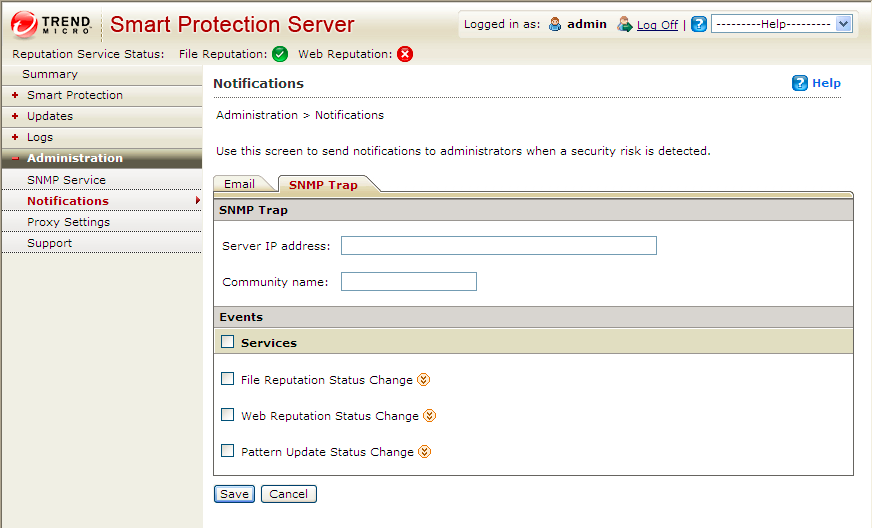
68 Trend Micro Smart Protection Server 3.0 Administrator's Guide Default Message: Click to revert the Message fields to Trend Micro default text. Configuring SNMP Trap Notifications Configure Simple Network Management Protocol (SNMP) notification settings to notify administrators through SNMP trap when there is a status change in services. Procedure 1. Go to Administration > Notifications and then go to the SNMP tab. The tab for SNMP trap notifications appears. 2. Select the Services check box or select from the following check boxes: File Reputation Status Change: Select to send a notification for status changes and specify the recipient, subject, and message. Web Reputation Status Change: Select to send a notification for status changes and specify the recipient, subject, and message. 3-20
69 Monitoring Smart Protection Server Pattern Update Status Change: Select to send a notification for status changes and specify the recipient, subject, and message. 3. Type the SNMP trap server IP address. 4. Type the SNMP community name. 5. Click Save. 3-21
70
71 Chapter 4 Getting Help This chapter includes details on how to get additional help while working with Trend Micro Smart Protection Server. Topics include: Using the Support Portal on page 4-2 Threat Encyclopedia on page 4-3 Contacting Trend Micro on page 4-4 TrendLabs on page
72 Trend Micro Smart Protection Server 3.0 Administrator's Guide Using the Support Portal The Trend Micro Support Portal is a 24x7 online resource that contains the most up-todate information about both common and unusual problems. Procedure 1. Go to 2. Select a product or service from the appropriate drop-down list and specify any other related information. The Technical Support product page appears. 3. Use the Search Support box to search for available solutions. 4. If no solution is found, click Submit a Support Case from the left navigation and add any relevant details, or submit a support case here: A Trend Micro support engineer investigates the case and responds in 24 hours or less. Known Issues Known issues document unexpected product behavior that might require a temporary work around. Trend Micro recommends always checking the readme file for information about system requirements and known issues that could affect installation or performance. Readme files also contain a description of what s new in a particular release, and other helpful information. The latest known issues and possible workarounds can also be found in the Trend Micro Knowledge Base: 4-2
73 Getting Help Hot Fixes, Patches, and Service Packs After an official product release, Trend Micro often develops hot fixes, patches and service packs to address outstanding issues, enhance product performance, and add new features. The following is a summary of the items Trend Micro may release: Hot Fix: a work-around or solution to customer-reported issues. Trend Micro develops and releases hot fixes to specific customers only. Security Patch: a single hot fix or group of hot fixes suitable for deployment to all customers Patch: a group of security patches suitable for deployment to all customers Service Pack: significant feature enhancements that upgrade the product Your vendor or support provider may contact you when these items become available. Check the Trend Micro website for information on new hot fix, patch, and service pack releases: All releases include a readme file that contains installation, deployment, and configuration information. Read the readme file carefully before performing installation. Threat Encyclopedia Most malware today consists of "blended threats" - two or more technologies combined to bypass computer security protocols. Trend Micro combats this complex malware with products that create a custom defense strategy. The Threat Encyclopedia provides a comprehensive list of names and symptoms for various blended threats, including known malware, spam, malicious URLs, and known vulnerabilities. Go to to learn more about: Malware and malicious mobile code currently active or "in the wild" Correlated threat information pages to form a complete web attack story 4-3
74 Trend Micro Smart Protection Server 3.0 Administrator's Guide Internet threat advisories about targeted attacks and security threats Web attack and online trend information Weekly malware reports. Contacting Trend Micro In the United States, Trend Micro representatives are available by phone, fax, or Address Trend Micro, Inc North De Anza Blvd., Cupertino, CA Phone Toll free: +1 (800) (sales) Voice: +1 (408) (main) Fax +1 (408) Website address Worldwide support offices: Trend Micro product documentation: Speeding Up the Support Call To improve problem resolution, have the following information available: Steps to reproduce the problem Appliance or network information Computer brand, model, and any additional hardware connected to the endpoint Amount of memory and free hard disk space 4-4
75 Getting Help Operating system and service pack version Endpoint client version Serial number or activation code Detailed description of install environment Exact text of any error message received. Virtualization platform (VMware or Hyper-V ) and version TrendLabs TrendLabs is a global network of research, development, and action centers committed to 24x7 threat surveillance, attack prevention, and timely and seamless solutions delivery. Serving as the backbone of the Trend Micro service infrastructure, TrendLabs is staffed by a team of several hundred engineers and certified support personnel that provide a wide range of product and technical support services. TrendLabs monitors the worldwide threat landscape to deliver effective security measures designed to detect, preempt, and eliminate attacks. The daily culmination of these efforts is shared with customers through frequent virus pattern file updates and scan engine refinements. Learn more about TrendLabs at: index.html#trendlabs 4-5
76
77 Appendix A Command Line Interface (CLI) Commands This section describes the Command Line Interface (CLI) commands that you can use in the product to perform monitoring, debugging, troubleshooting, and configuration tasks. Log on to the CLI through the virtual machine with your admin account. CLI commands allow administrators to perform configuration tasks and to perform debug and troubleshooting functions. The CLI interface also provides additional commands to monitor critical resources and functions. To access the CLI interface, you will need to have the administrator account and password. COMMAND SYNTAX DESCRIPTION configure date configure date <date> <time> Configure date and save to CMOS date DATE_FIELD [DATE_FIELD] time TIME_FIELD [TIME_FIELD] A-1
78 Trend Micro Smart Protection Server 3.0 Administrator's Guide COMMAND SYNTAX DESCRIPTION configure dns ipv4 configure dns ipv6 configure hostname configure dns ipv4 <dns1> [dns2] configure dns ipv6 <dns1> [dns2] configure hostname <hostname> Configure IPv4 DNS settings dns1 IPv4_ADDR Primary DNS server dns2 IPv4_ADDR Secondary DNS server [] Configure IPv6 DNS settings dns1 IPv6_ADDR Primary DNS server dns2 IPv6_ADDR Secondary DNS server [] Configure the hostname hostname HOSTNAME Hostname or FQDN configure locale de_de configure locale de_de Configure system locale to German configure locale en_us configure locale en_us Configure system locale to English configure locale es_es configure locale es_es Configure system locale to Spanish configure locale fr_fr configure locale fr_fr Configure system locale to French configure locale it_it configure locale it_it Configure system locale to Italian configure locale ja_jp configure locale ja_jp Configure system locale to Japanese configure locale ko_kr configure locale ko_kr Configure system locale to Korean A-2
79 Command Line Interface (CLI) Commands COMMAND SYNTAX DESCRIPTION configure locale ru_ru configure locale ru_ru Configure system locale to Russian configure locale zh_cn configure locale zh_cn Configure system locale to Chinese (Simplified) configure locale zh_tw configure locale zh_tw Configure system locale to Chinese (Traditional) configure ntp configure port configure ipv4 dhcp configure ipv4 static configure ipv6 auto configure ntp <ip or FQDN> configure port <frs_http_port> <frs_https_port> <wrs_http_port> configure ipv4 dhcp [vlan] configure ipv4 static <ip> <mask> <gateway> [vlan] configure ipv6 auto [vlan] Configure the NTP server To change the service ports of the File and Web Reputation Services. Configure the default Ethernet interface to use DHCP vlan VLAN_ID VLan ID [1-4094], default none VLan: [0] Configure the default Ethernet interface to use the static IPv4 configuration vlan VLAN_ID VLan ID [1-4094], default none VLan: [0] Configure the default Ethernet interface to use the automatic neighbor discovery IPv6 configuration vlan VLAN_ID VLan ID [1-4094], default none VLan: [0] A-3
80 Trend Micro Smart Protection Server 3.0 Administrator's Guide COMMAND SYNTAX DESCRIPTION configure ipv6 dhcp configure ipv6 static configure password configure service Africa Cairo Africa Harare Africa Nairobi America Anchorage configure ipv6 dhcp [vlan] configure ipv6 static <v6ip> <v6mask> <v6gate> [vlan] configure password <user> configure service interface <ifname> Africa Cairo Africa Harare Africa Nairobi America Anchorage Configure the default Ethernet interface to use the dynamic IPv6 configuration (DHCPv6) vlan VLAN_ID VLan ID [1-4094], default none VLan: [0] Configure the default Ethernet interface to use the static IPv6 configuration vlan VLAN_ID VLan ID [1-4094], default none VLan: [0] Configure account password user USER The user name for which you want to change the password. The user could be 'admin', 'root', or any user in the Smart Protection Server's Administrator group. Configure the default server settings Configure timezone to Africa/Cairo location. Configure timezone to Africa/Harare location. Configure timezone to Africa/Nairobi location. Configure timezone to America/Anchorage location. A-4
81 Command Line Interface (CLI) Commands COMMAND SYNTAX DESCRIPTION America Bogota America Buenos_Aires America Caracas America Chicago America Chihuahua America Denver America Godthab America Lima America Los_Angeles America Mexico_City America New_York America Noronha America Phoenix America Bogota America Buenos_Aires America Caracas America Chicago America Chihuahua America Denver America Godthab America Lima America Los_Angeles America Mexico_City America New_York America Noronha America Phoenix Configure timezone to America/Bogota location. Configure timezone to America/Buenos Aires. location. Configure timezone to America/Caracas location. Configure timezone to America/Chicago location. Configure timezone to America/Chihuahua location. Configure timezone to America/Denver location. Configure timezone to America/Godthab. location Configure timezone to America/Lima location. Configure timezone to America/Los Angeles location. Configure timezone to America/Mexico City location. Configure timezone to America/New York location. Configure timezone to America/Noronha location. Configure timezone to America/Phoenix location. A-5
82 Trend Micro Smart Protection Server 3.0 Administrator's Guide COMMAND SYNTAX DESCRIPTION America Santiago America St_Johns America Tegucigalpa Asia Almaty Asia Baghdad Asia Baku Asia Bangkok Asia Calcutta Asia Colombo Asia Dhaka Asia Hong_Kong Asia Irkutsk Asia Jerusalem Asia Kabul America Santiago America St_Johns America Tegucigalpa Asia Almaty Asia Baghdad Asia Baku Asia Bangkok Asia Calcutta Asia Colombo Asia Dhaka Asia Hong_Kong Asia Irkutsk Asia Jerusalem Asia Kabul Configure timezone to America/Santiago location. Configure timezone to America/St Johns location. Configure timezone to America/Tegucigalpa location. Configure timezone to Asia/ Almaty location. Configure timezone to Asia/ Baghdad location. Configure timezone to Asia/ Baku location. Configure timezone to Asia/ Bangkok location. Configure timezone to Asia/ Calcutta location. Configure timezone to Asia/ Colombo location. Configure timezone to Asia/ Dhaka location. Configure timezone to Asia/ Hong Kong location. Configure timezone to Asia/ Irkutsk location. Configure timezone to Asia/ Jerusalem location. Configure timezone to Asia/ Kabul location. A-6
83 Command Line Interface (CLI) Commands COMMAND SYNTAX DESCRIPTION Asia Karachi Asia Katmandu Asia Krasnoyarsk Asia Kuala_Lumpur Asia Kuwait Asia Magadan Asia Manila Asia Muscat Asia Rangoon Asia Seoul Asia Shanghai Asia Singapore Asia Taipei Asia Tehran Asia Karachi Asia Katmandu Asia Krasnoyarsk Asia Kuala_Lumpur Asia Kuwait Asia Magadan Asia Manila Asia Muscat Asia Rangoon Asia Seoul Asia Shanghai Asia Singapore Asia Taipei Asia Tehran Configure timezone to Asia/ Karachi location. Configure timezone to Asia/ Katmandu location. Configure timezone to Asia/ Krasnoyarsk location. Configure timezone to Asia/ Kuala Lumpur location. Configure timezone to Asia/ Kuwait location. Configure timezone to Asia/ Magadan location. Configure timezone to Asia/ Manila location. Configure timezone to Asia/ Muscat location. Configure timezone to Asia/ Rangoon location. Configure timezone to Asia/ Seoul location. Configure timezone to Asia/ Shanghai location. Configure timezone to Asia/ Singapore location. Configure timezone to Asia/ Taipei location. Configure timezone to Asia/ Tehran location. A-7
84 Trend Micro Smart Protection Server 3.0 Administrator's Guide COMMAND SYNTAX DESCRIPTION Asia Tokyo Asia Yakutsk Atlantic Azores Australia Adelaide Australia Brisbane Australia Darwin Australia Hobart Australia Melbourne Australia Perth Europe Amsterdam Europe Athens Europe Belgrade Europe Berlin Asia Tokyo Asia Yakutsk Atlantic Azores Australia Adelaide Australia Brisbane Australia Darwin Australia Hobart Australia Melbourne Australia Perth Europe Amsterdam Europe Athens Europe Belgrade Europe Berlin Configure timezone to Asia/ Tokyo location. Configure timezone to Asia/ Yakutsk location. Configure timezone to Atlantic/Azores location. Configure timezone to Australia/Adelaide location. Configure timezone to Australia/Brisbane location. Configure timezone to Australia/Darwin location. Configure timezone to Australia/Hobart location. Configure timezone to Australia/Melbourne location. Configure timezone to Australia/Perth location. Configure timezone to Europe/Amsterdam location. Configure timezone to Europe/Athens location. Configure timezone to Europe/Belgrade location. Configure timezone to Europe/Berlin location. A-8
85 Command Line Interface (CLI) Commands COMMAND SYNTAX DESCRIPTION Europe Brussels Europe Bucharest Europe Dublin Europe Moscow Europe Paris Pacific Auckland Pacific Fiji Pacific Guam Pacific Honolulu Pacific Kwajalein Pacific Midway US Alaska US Arizona US Central Europe Brussels Europe Bucharest Europe Dublin Europe Moscow Europe Paris Pacific Auckland Pacific Fiji Pacific Guam Pacific Honolulu Pacific Kwajalein Pacific Midway US Alaska US Arizona US Central Configure timezone to Europe/Brussels location. Configure timezone to Europe/Bucharest location. Configure timezone to Europe/Dublin location. Configure timezone to Europe/Moscow location. Configure timezone to Europe/Paris location. Configure timezone to Pacific/Auckland location. Configure timezone to Pacific/Fiji location. Configure timezone to Pacific/Guam location. Configure timezone to Pacific/Honolulu location. Configure timezone to Pacific/Kwajalein location. Configure timezone to Pacific/Midway location. Configure timezone to US/ Alaska location. Configure timezone to US/ Arizona location. Configure timezone to US/ Central location. A-9
86 Trend Micro Smart Protection Server 3.0 Administrator's Guide COMMAND SYNTAX DESCRIPTION US East-Indiana US Eastern US Hawaii US Mountain US Pacific US East-Indiana US Eastern US Hawaii US Mountain US Pacific Configure timezone to US/ East-Indiana location. Configure timezone to US/ Eastern location. Configure timezone to US/ Hawaii location. Configure timezone to US/ Mountain location. Configure timezone to US/ Pacific location. disable adhoc-query disable adhoc-query Disable Web Access Log disable ssh disable ssh Disable the sshd daemon enable enable Enable administrative commands enable adhoc-query enable adhoc-query Enable Web Access Log enable hyperv-ic enable hyperv-ic Enable Hyper-V Linux Integration Components on Smart Protection Server enable ssh enable ssh Enable the sshd daemon exit exit Exit the session help help Display an overview of the CLI syntax. A-10
87 Command Line Interface (CLI) Commands COMMAND SYNTAX DESCRIPTION history history [limit] Display the current session's command line history limit specifies the number of CLI commands to display. Example: Specifying a limit of 5 means 5 CLI commands display. reboot reboot [time] Reboot this machine after a specified delay or immediately time UNIT Time in minutes to reboot this machine [0] show date show date Display current date/time show hostname show hostname Display network hostname show interfaces show interfaces Display network interface information show ipv4 address show ipv4 address Display network IPv4 address show ipv4 dns show ipv4 dns Display network IPv4 DNS servers show ipv4 gateway show ipv4 gateway Display network IPv4 gateway show ipv4 route show ipv4 route Display network IPv4 routing table show ipv4 type show ipv4 type Display network IPv4 configuration type (dhcp / static) show ipv6 address show ipv6 address Display network IPv6 address A-11
88 Trend Micro Smart Protection Server 3.0 Administrator's Guide COMMAND SYNTAX DESCRIPTION show ipv6 dns show ipv6 dns Display network IPv6 DNS servers show ipv6 gateway show ipv6 gateway Display network IPv6 gateway show ipv6 route show ipv6 route Display network IPv6 routing table show ipv6 type show ipv6 type Display network IPv6 configuration type (auto / dhcp / static) show timezone show timezone Display network timezone show uptime show uptime Display current system uptime show url management show url management Display web management console URL show url FileReputationService show url WebReputationService show url FileReputationService show url WebReputationService Display endpoint connection addresses for File Reputation Services Display endpoint connection addresses for Web Reputation Services shutdown shutdown [time] Shut down this machine after a specified delay or immediately time UNIT Time in minutes to shutdown this machine [0] A-12
89 Appendix B Glossary This glossary describes terms related to Smart Protection Server use. activate TERM ActiveUpdate address administrator administrator account antivirus DEFINITION To enable your software after completion of the registration process. Trend Micro products will not be operable until product activation is complete. Activate during installation or after installation (in the management console) on the Product License screen. ActiveUpdate is a function common to many Trend Micro products. Connected to the Trend Micro update website, ActiveUpdate provides up-to-date downloads of virus pattern files, scan engines, and program files via the Internet or the Trend Micro Total Solution CD. Refers to a networking address (see IP address) or an address, which is the string of characters that specify the source or destination of an message. Refers to the system administrator or the person in an organization who is responsible for activities such as setting up new hardware and software, allocating user names and passwords, monitoring disk space and other IT resources, performing backups, and managing network security. A user name and password that has administrator-level privileges. Computer programs designed to detect and clean computer viruses. B-1
90 Trend Micro Smart Protection Server 3.0 Administrator's Guide TERM authentication client configuration default (administrative) domain domain name download (noun) download (verb) FAQ DEFINITION The verification of the identity of a person or a process. Authentication ensures that digital data transmissions are delivered to the intended receiver. Authentication also assures the receiver of the integrity of the message and its source (where or whom it came from). The simplest form of authentication requires a user name and password to gain access to a particular account. Authentication protocols can also be based on secret-key encryption, such as the Data Encryption Standard (DES) algorithm, or on public-key systems using digital signatures. Also see public-key encryption and digital signature. A computer system or process that requests a service of another computer system or process (a server) using some kind of protocol and accepts the server's responses. A client is part of a client-server software architecture. Selecting options for how your Trend Micro product will function, for example, selecting whether to quarantine or delete a virus-infected message. A value that pre-populates a field in the management console interface. A default value represents a logical choice and is provided for convenience. Use default values as-is, or change them. A group of computers sharing a common database and security policy. The full name of a system, consisting of its local host name and its domain name, for example, tellsitall.com. A domain name should be sufficient to determine a unique Internet address for any host on the Internet. This process, called "name resolution", uses the Domain Name System (DNS). Data that has been downloaded, for example, from a website via HTTP. To transfer data or code from one computer to another. Downloading often refers to transfer from a larger host system (especially a server or mainframe) to a smaller client system. Frequently Asked Questions, a list of questions and answers about a specific topic. B-2
91 Glossary TERM DEFINITION file file type spyware/ grayware gateway GUI hard disk (or hard drive) HTTP HTTPS host An element of data used for storage, such as an message or HTTP download. The kind of data stored in a file. Most operating systems use the file name extension to determine the file type. The file type is used to choose an appropriate icon to represent the file in a user interface, and the correct application with which to view, edit, run, or print the file. A category of software that may be legitimate, unwanted, or malicious. Unlike threats such as viruses, worms, and Trojans, grayware does not infect, replicate, or destroy data, but it may violate your privacy. Examples of grayware include spyware, adware, and remote access tools. A gateway is a program or a special-purpose device that transfers IP datagrams from one network to another until the final destination is reached. Graphical User Interface, the use of pictures rather than just words to represent the input and output of a program. This contrasts with a command line interface where communication is by exchange of strings of text. One or more rigid magnetic disks rotating about a central axle with associated read/write heads and electronics, used to read and write hard disks or floppy disks, and to store data. Most hard disks are permanently connected to the drive (fixed disks) though there are also removable disks. Hypertext Transfer Protocol, the client-server TCP/IP protocol used on the World Wide Web for the exchange of HTML documents. It conventionally uses port 80. Hypertext Transfer Protocol Secure, a variant of HTTP used for handling secure transactions. A computer connected to a network. B-3
92 Trend Micro Smart Protection Server 3.0 Administrator's Guide Internet TERM Internet Protocol (IP) intranet IP IPv4 address IPv6 address IT Java file Java malicious code DEFINITION A client-server hypertext information retrieval system, based on a series of networks connected with routers. The Internet is a modern information system and a widely accepted medium for advertising, online sales, and services, as well as university and many other research networks. The World Wide Web is the most familiar aspect of the Internet. An Internet standard protocol that defines a basic unit of data called a datagram. A datagram is used in a connectionless, best-effort, delivery system. The Internet protocol defines how information gets passed between systems across the Internet. Any network which provides similar services within an organization to those provided by the Internet outside it, but which is not necessarily connected to the Internet. Internet Protocol, dee IPv4 address or IPv6 address. Internet address for a device on a network, typically expressed using dot notation such as Internet address for a device on a network, typically expressed as 1234:1234:1234:1234:1234:1234:1234:1234. Information technology, to include hardware, software, networking, telecommunications, and user support. Java is a general-purpose programming language developed by Sun Microsystems. A Java file contains Java code. Java supports programming for the Internet in the form of platform-independent Java applets. (An applet is a program written in Java programming language that can be included in an HTML page. When you use a Java-technology enabled browser to view a page that contains an applet, the applet s code is transferred to your system and is executed by the browser s Java Virtual Machine.) Virus code written or embedded in Java. Also see Java file. B-4
93 Glossary TERM JavaScript virus KB license link (also called hyperlink) local area network (LAN) malware (malicious software) management console Mbps MB DEFINITION JavaScript is a simple programming language developed by Netscape that allows web developers to add dynamic content to HTML pages displayed in a browser using scripts. Javascript shares some features of Sun Microsystems Java programming language, but was developed independently.a JavaScript virus is a virus that is targeted at these scripts in the HTML code. This enables the virus to reside in web pages and download to a user s desktop through the user s browser.also see VBscript virus. Kilobyte, 1024 bytes of memory. Authorization by law to use a Trend Micro product. A reference from some point in one hypertext document to some point in another document or another place in the same document. Links are usually distinguished by a different color or style of text, such as underlined blue text. When you activate the link, for example, by clicking on it with a mouse, the browser displays the target of the link. Any network technology that interconnects resources within an office environment, usually at high speeds, such as Ethernet. A local area network is a short-distance network used to link a group of computers together within a building. 10BaseT Ethernet is the most commonly used form of LAN. A hardware device called a hub serves as the common wiring point, enabling data to be sent from one machine to another over the network. LANs are typically limited to distances of less than 500 meters and provide low-cost, high-bandwidth networking capabilities within a small geographical area. Programming or files that are developed for the purpose of doing harm, such as viruses, worms, and Trojans. The user interface for your Trend Micro product. Also known as the product console. Millions of bits per second, a measure of bandwidth in data communications. Megabyte, 1024 kilobytes of data. B-5
94 Trend Micro Smart Protection Server 3.0 Administrator's Guide TERM mixed threat attack Network Address Translation (NAT) network virus notification (Also see action and target) operating system DEFINITION Complex attacks that take advantage of multiple entry points and vulnerabilities in enterprise networks, such as the Nimda or Code Red threats. A standard for translating secure IP addresses to temporary, external, registered IP address from the address pool. This allows Trusted networks with privately assigned IP addresses to have access to the Internet. This also means that you don t have to get a registered IP address for every machine in your network. A type of virus that uses network protocols, such as TCP, FTP, UDP, HTTP, and protocols to replicate. Network viruses often do not alter system files or modify the boot sectors of hard disks. Instead, they infect the memory of client machines, forcing them to flood the network with traffic, which can cause slowdowns or even complete network failure. A message that is forwarded to one or more of the following: system administrator, sender of a message, recipient of a message, file download, or file transfer. The purpose of the notification is to communicate that a prohibited action has taken place, or was attempted, such as a virus being detected in an attempted HTTP file download. The software which handles tasks such as the interface to peripheral hardware, scheduling tasks, and allocating storage. In this documentation, the term also refers to the software that presents a window system and graphical user interface. parameter A variable, such as a range of values (a number from 1 to 10). pattern file (also known as Official Pattern Release) port The pattern file, as referred to as the Official Pattern Release (OPR), is the latest compilation of patterns for identified viruses. It is guaranteed to have passed a series of critical tests to ensure that you get optimum protection from the latest virus threats. This pattern file is most effective when used with the latest scan engine. A logical channel or channel endpoint in a communications system, used to distinguish between different logical channels on the same network interface on the same computer. Each application program has a unique port number associated with it. B-6
95 Glossary proxy TERM proxy server scan scan engine sector Secure Socket Layer (SSL) server shared drive signature SNMP traffic DEFINITION A process providing a cache of items available on other servers which are presumably slower or more expensive to access. A World Wide Web server which accepts URLs with a special prefix, used to fetch documents from either a local cache or a remote server, then returns the URL to the requester. To examine items in a file in sequence to find those that meet a particular criteria. The module that performs antivirus scanning and detection in the host product to which it is integrated. A physical portion of a disk. (Also see partition, which is a logical portion of a disk.) Secure Socket Layer (SSL), is a protocol designed by Netscape for providing data security layered between application protocols (such as HTTP, Telnet, or FTP) and TCP/IP. This security protocol provides data encryption, server authentication, message integrity, and optional client authentication for a TCP/IP connection. A program which provides some service to other (client) programs. The connection between client and server is normally by means of message passing, often over a network, and uses some protocol to encode the client's requests and the server's responses. The server may run continuously (as a daemon), waiting for requests to arrive, or it may be invoked by some higher-level daemon which controls a number of specific servers. A computer peripheral device that is used by more than one person, thus increasing the risk of exposure to viruses. See virus signature. Simple Network Management Protocol, a protocol that supports monitoring of devices attached to a network for conditions that merit administrative attention. Data flowing between the Internet and your network, both incoming and outgoing. B-7
96 Trend Micro Smart Protection Server 3.0 Administrator's Guide TERM Transmission Control Protocol/ Internet Protocol (TCP/IP) trigger true-file type URL virtual IP address (VIP address) Virtual Local Area Network (VLAN) Virtual Private Network (VPN) virtual router DEFINITION A communications protocol which allows computers with different operating systems to communicate with each other. Controls how data is transferred between computers on the Internet. An event that causes an action to take place. For example, your Trend Micro product detects a virus in an message. This may trigger the message to be placed in quarantine, and a notification to be sent to the system administrator, message sender, and message recipient. Used by IntelliScan, a virus scanning technology, to identify the type of information in a file by examining the file headers, regardless of the file name extension (which could be misleading). Universal Resource Locator, a standard way of specifying the location of an object, typically a web page, on the Internet, for example, The URL maps to an IP address using DNS. A VIP address maps traffic received at one IP address to another address based on the destination port number in the packet header. A logical (rather than physical) grouping of devices that constitute a single broadcast domain. VLAN members are not identified by their location on a physical subnetwork but through the use of tags in the frame headers of their transmitted data. VLANs are described in the IEEE 802.1Q standard. A VPN is an easy, cost-effective and secure way for corporations to provide telecommuters and mobile professionals local dial-up access to their corporate network or to another Internet Service Provider (ISP). Secure private connections over the Internet are more costeffective than dedicated private lines. VPNs are possible because of technologies and standards such as tunneling and encryption. A virtual router is the component of Screen OS that performs routing functions. B-8
97 Glossary TERM virtual system virus Web Web server workstation (also known as client) DEFINITION A virtual system is a subdivision of the main system that appears to the user to be a stand-alone entity. Virtual systems reside separately from each other in the same Trend Micro GateLock remote appliance; each one can be managed by its own virtual system administrator. A computer virus is a program a piece of executable code that has the unique ability to infect. Like biological viruses, computer viruses can spread quickly and are often difficult to eradicate. In addition to replication, some computer viruses share another commonality: a damage routine that delivers the virus payload. While payloads may only display messages or images, they can also destroy files, reformat your hard drive, or cause other damage. Even if the virus does not contain a damage routine, it can cause trouble by consuming storage space and memory, and degrading the overall performance of your computer. The World Wide Web, also called the web or the Internet. A server process running at a website which sends out web pages in response to HTTP requests from remote browsers. A general-purpose computer designed to be used by one person at a time and which offers higher performance than normally found in a personal computer, especially with respect to graphics, processing power and the ability to carry out several tasks at the same time. B-9
98
Trend Micro Incorporated reserves the right to make changes to this document and to the products described herein without notice.
 Trend Micro Incorporated reserves the right to make changes to this document and to the products described herein without notice. Before installing and using the software, please review the readme files,
http://downloadcenter.trendmicro.com/
 Trend Micro Incorporated reserves the right to make changes to this document and to the product/service described herein without notice. Before installing and using the product/service, review the readme
http://docs.trendmicro.com/en-us/smb/hosted-email-security.aspx
 Trend Micro Incorporated reserves the right to make changes to this document and to the product described herein without notice. Before installing and using the product, review the readme files, release
http://docs.trendmicro.com
 Trend Micro Incorporated reserves the right to make changes to this document and to the product/service described herein without notice. Before installing and using the product/service, review the readme
Trend Micro Incorporated reserves the right to make changes to this document and to the products described herein without notice.
 Trend Micro Incorporated reserves the right to make changes to this document and to the products described herein without notice. Before installing and using the software, please review the readme files,
Copyright 2012 Trend Micro Incorporated. All rights reserved.
 Trend Micro Incorporated reserves the right to make changes to this document and to the products described herein without notice. Before installing and using the software, please review the readme files,
Copyright 2013 Trend Micro Incorporated. All rights reserved.
 Trend Micro Incorporated reserves the right to make changes to this document and to the products described herein without notice. Before installing and using the software, please review the readme files,
http://www.trendmicro.com/download
 Trend Micro Incorporated reserves the right to make changes to this document and to the products described herein without notice. Before installing and using the software, please review the readme files,
Core Protection for Virtual Machines 1
 Core Protection for Virtual Machines 1 Comprehensive Threat Protection for Virtual Environments. Installation Guide e Endpoint Security Trend Micro Incorporated reserves the right to make changes to this
http://docs.trendmicro.com/en-us/enterprise/cloud-app-encryption-foroffice-365.aspx
 Trend Micro Incorporated reserves the right to make changes to this document and to the cloud service described herein without notice. Before installing and using the cloud service, review the readme files,
http://docs.trendmicro.com
 Trend Micro Incorporated reserves the right to make changes to this document and to the products described herein without notice. Before installing and using the product, please review the readme files,
Trend Micro OfficeScan 11.0. Best Practice Guide for Malware
 Trend Micro OfficeScan 11.0 Best Practice Guide for Malware Information in this document is subject to change without notice. The names of companies, products, people, characters, and/or data mentioned
http://docs.trendmicro.com
 Trend Micro Incorporated reserves the right to make changes to this document and to the product described herein without notice. Before installing and using the product, review the readme files, release
NMS300 Network Management System
 NMS300 Network Management System User Manual June 2013 202-11289-01 350 East Plumeria Drive San Jose, CA 95134 USA Support Thank you for purchasing this NETGEAR product. After installing your device, locate
http://docs.trendmicro.com
 Trend Micro Incorporated reserves the right to make changes to this document and to the products described herein without notice. Before installing and using the product, please review the readme files,
http://docs.trendmicro.com/en-us/smb/worry-free-business-security.aspx
 Trend Micro Incorporated reserves the right to make changes to this document and to the product described herein without notice. Before installing and using the product, review the readme files, release
Table of Contents. Preface. Chapter 1: Getting Started with Endpoint Application Control. Chapter 2: Updating Components
 Table of Contents Preface Preface... v Endpoint Application Control Documentation... vi Audience... vi Document Conventions... vii Terminology... viii Chapter 1: Getting Started with Endpoint Application
Worry-FreeTM. Business Security Standard and Advanced Editions. Installation and Upgrade Guide. Administrator s Guide
 8 Worry-FreeTM Business Security Standard and Advanced Editions Securing Your Journey to the Cloud Administrator s Guide Installation and Upgrade Guide Trend Micro Incorporated reserves the right to make
Trend Micro Email Encryption Gateway 5
 Trend Micro Email Encryption Gateway 5 Secured by Private Post Quick Installation Guide m Messaging Security Trend Micro Incorporated reserves the right to make changes to this document and to the products
http://docs.trendmicro.com/en-us/home.aspx
 Trend Micro Incorporated reserves the right to make changes to this document and to the product described herein without notice. Before installing and using the product, please review the readme files,
Trend Micro Incorporated reserves the right to make changes to this document and to the products described herein without notice.
 Trend Micro Incorporated reserves the right to make changes to this document and to the products described herein without notice. Before installing and using the software, please review the readme files,
Worry-Free TM Remote Manager TM 1
 Worry-Free TM Remote Manager TM 1 for Small and Medium Business Getting Started Guide for Resellers Trend Micro Incorporated reserves the right to make changes to this document and to the products described
Trend Micro Incorporated reserves the right to make changes to this document and to the products described herein without notice.
 Trend Micro Incorporated reserves the right to make changes to this document and to the products described herein without notice. Before installing and using the software, please review the readme files,
Trend Micro Incorporated reserves the right to make changes to this document and to the products described herein without notice.
 Trend Micro Incorporated reserves the right to make changes to this document and to the products described herein without notice. Before installing and using the software, please review the readme files,
http://docs.trendmicro.com
 Trend Micro Incorporated reserves the right to make changes to this document and to the products described herein without notice. Before installing and using the product, please review the readme files,
http://docs.trendmicro.com/en-us/enterprise/safesync-for-enterprise.aspx
 Trend Micro Incorporated reserves the right to make changes to this document and to the product described herein without notice. Before installing and using the product, review the readme files, release
Trend Micro Incorporated reserves the right to make changes to this document and to the products described herein without notice.
 Trend Micro Incorporated reserves the right to make changes to this document and to the products described herein without notice. Before using this service, please review the latest version of the applicable
Best Practice Configurations for OfficeScan (OSCE) 10.6
 Best Practice Configurations for OfficeScan (OSCE) 10.6 Applying Latest Patch(es) for OSCE 10.6 To find out the latest patches for OfficeScan, click here. Enable Smart Clients 1. Ensure that Officescan
for Small and Medium Business Quick Start Guide
 for Small and Medium Business Quick Start Guide Trend Micro Incorporated reserves the right to make changes to this document and to the products/services described herein without notice. Before using
http://docs.trendmicro.com/en-us/enterprise/trend-micro-endpoint-applicationcontrol.aspx
 Trend Micro Incorporated reserves the right to make changes to this document and to the product described herein without notice. Before installing and using the product, review the readme files, release
Trend Micro Incorporated reserves the right to make changes to this document and to the products described herein without notice.
 Trend Micro Incorporated reserves the right to make changes to this document and to the products described herein without notice. Before installing and using the software, please review the readme files,
http://downloadcenter.trendmicro.com/
 Trend Micro Incorporated reserves the right to make changes to this document and to the product described herein without notice. Before installing and using the product, review the readme files, release
Configuration Information
 This chapter describes some basic Email Security Gateway configuration settings, some of which can be set in the first-time Configuration Wizard. Other topics covered include Email Security interface navigation,
Dell SupportAssist Version 2.0 for Dell OpenManage Essentials Quick Start Guide
 Dell SupportAssist Version 2.0 for Dell OpenManage Essentials Quick Start Guide Notes, Cautions, and Warnings NOTE: A NOTE indicates important information that helps you make better use of your computer.
K7 Mail Security FOR MICROSOFT EXCHANGE SERVERS. v.109
 K7 Mail Security FOR MICROSOFT EXCHANGE SERVERS v.109 1 The Exchange environment is an important entry point by which a threat or security risk can enter into a network. K7 Mail Security is a complete
Configuration Guide. BES12 Cloud
 Configuration Guide BES12 Cloud Published: 2016-04-08 SWD-20160408113328879 Contents About this guide... 6 Getting started... 7 Configuring BES12 for the first time...7 Administrator permissions you need
IBM Security QRadar Vulnerability Manager Version 7.2.1. User Guide
 IBM Security QRadar Vulnerability Manager Version 7.2.1 User Guide Note Before using this information and the product that it supports, read the information in Notices on page 61. Copyright IBM Corporation
Web Application Firewall
 Web Application Firewall Getting Started Guide August 3, 2015 Copyright 2014-2015 by Qualys, Inc. All Rights Reserved. Qualys and the Qualys logo are registered trademarks of Qualys, Inc. All other trademarks
FortiAnalyzer VM (VMware) Install Guide
 FortiAnalyzer VM (VMware) Install Guide FortiAnalyzer VM (VMware) Install Guide December 05, 2014 05-520-203396-20141205 Copyright 2014 Fortinet, Inc. All rights reserved. Fortinet, FortiGate, FortiCare
Sophos for Microsoft SharePoint startup guide
 Sophos for Microsoft SharePoint startup guide Product version: 2.0 Document date: March 2011 Contents 1 About this guide...3 2 About Sophos for Microsoft SharePoint...3 3 System requirements...3 4 Planning
Secure Messaging Service
 Secure Messaging Service Powered by Trend Micro Email Security Platform for Service Providers Service Provider s Guide Trend Micro Incorporated reserves the right to make changes to this document and
How To Install Caarcserve Backup Patch Manager 27.3.2.2 (Carcserver) On A Pc Or Mac Or Mac (Or Mac)
 CA ARCserve Backup Patch Manager for Windows User Guide r16 This Documentation, which includes embedded help systems and electronically distributed materials, (hereinafter referred to as the Documentation
Client Server Messaging Security3
 Client Server Messaging Security3 for Small and Medium Business Getting Started Guide Trend Micro Incorporated reserves the right to make changes to this document and to the products described herein without
http://www.trendmicro.com/download
 Trend Micro Incorporated reserves the right to make changes to this document and to the products described herein without notice. Before installing and using the software, please review the readme files,
Installing and Configuring vcloud Connector
 Installing and Configuring vcloud Connector vcloud Connector 2.7.0 This document supports the version of each product listed and supports all subsequent versions until the document is replaced by a new
Configuration Information
 Configuration Information Email Security Gateway Version 7.7 This chapter describes some basic Email Security Gateway configuration settings, some of which can be set in the first-time Configuration Wizard.
http://docs.trendmicro.com
 Trend Micro Incorporated reserves the right to make changes to this document and to the product described herein without notice. Before installing and using the product, review the readme files, release
SevOne NMS Download Installation and Implementation Guide
 SevOne NMS Download Installation and Implementation Guide 5.3.X 530 V0002 Contents 1. Get Started... 3 2. SevOne Download Installation... 6 3. Appliance Network Configuration... 9 4. Install License and
VMware vcenter Log Insight Getting Started Guide
 VMware vcenter Log Insight Getting Started Guide vcenter Log Insight 1.5 This document supports the version of each product listed and supports all subsequent versions until the document is replaced by
http://docs.trendmicro.com/en-us/enterprise/safesync-for-enterprise.aspx
 Trend Micro Incorporated reserves the right to make changes to this document and to the product described herein without notice. Before installing and using the product, review the readme files, release
VMware vcenter Support Assistant 5.1.1
 VMware vcenter.ga September 25, 2013 GA Last updated: September 24, 2013 Check for additions and updates to these release notes. RELEASE NOTES What s in the Release Notes The release notes cover the following
Sharp Remote Device Manager (SRDM) Server Software Setup Guide
 Sharp Remote Device Manager (SRDM) Server Software Setup Guide This Guide explains how to install the software which is required in order to use Sharp Remote Device Manager (SRDM). SRDM is a web-based
F-Secure Internet Gatekeeper Virtual Appliance
 F-Secure Internet Gatekeeper Virtual Appliance F-Secure Internet Gatekeeper Virtual Appliance TOC 2 Contents Chapter 1: Welcome to F-Secure Internet Gatekeeper Virtual Appliance.3 Chapter 2: Deployment...4
Installing and Configuring vcenter Support Assistant
 Installing and Configuring vcenter Support Assistant vcenter Support Assistant 5.5 This document supports the version of each product listed and supports all subsequent versions until the document is replaced
CLOUD SECURITY FOR ENDPOINTS POWERED BY GRAVITYZONE
 CLOUD SECURITY FOR ENDPOINTS POWERED BY GRAVITYZONE Quick Start Guide for Partners Cloud Security for Endpoints powered by GravityZone Quick Start Guide for Partners Publication date 2013.10.28 Copyright
Installing and Using the vnios Trial
 Installing and Using the vnios Trial The vnios Trial is a software package designed for efficient evaluation of the Infoblox vnios appliance platform. Providing the complete suite of DNS, DHCP and IPAM
RealPresence Platform Director
 RealPresence CloudAXIS Suite Administrators Guide Software 1.3.1 GETTING STARTED GUIDE Software 2.0 June 2015 3725-66012-001B RealPresence Platform Director Polycom, Inc. 1 RealPresence Platform Director
User Guide. Cloud Gateway Software Device
 User Guide Cloud Gateway Software Device This document is designed to provide information about the first time configuration and administrator use of the Cloud Gateway (web filtering device software).
F-Secure Internet Security 2012
 F-Secure Internet Security 2012 F-Secure Internet Security 2012 TOC 3 Contents Chapter 1: Getting started...7 How to use automatic updates...8 Check the update status...8 Change the Internet connection
Using WhatsUp IP Address Manager 1.0
 Using WhatsUp IP Address Manager 1.0 Contents Table of Contents Welcome to WhatsUp IP Address Manager Finding more information and updates... 1 Sending feedback... 2 Installing and Licensing IP Address
IM Security for Microsoft Office Communications Server 1 Instant Protection for Instant Messaging
 TM IM Security for Microsoft Office Communications Server 1 Instant Protection for Instant Messaging Installation and Deployment Guide m s Messaging Security Trend Micro Incorporated reserves the right
WhatsUpGold. v3.0. WhatsConnected User Guide
 WhatsUpGold v3.0 WhatsConnected User Guide Contents CHAPTER 1 Welcome to WhatsConnected Finding more information and updates... 2 Sending feedback... 3 CHAPTER 2 Installing and Configuring WhatsConnected
Hillstone StoneOS User Manual Hillstone Unified Intelligence Firewall Installation Manual
 Hillstone StoneOS User Manual Hillstone Unified Intelligence Firewall Installation Manual www.hillstonenet.com Preface Conventions Content This document follows the conventions below: CLI Tip: provides
Extreme Control Center, NAC, and Purview Virtual Appliance Installation Guide
 Extreme Control Center, NAC, and Purview Virtual Appliance Installation Guide 9034968 Published April 2016 Copyright 2016 All rights reserved. Legal Notice Extreme Networks, Inc. reserves the right to
F-Secure Messaging Security Gateway. Deployment Guide
 F-Secure Messaging Security Gateway Deployment Guide TOC F-Secure Messaging Security Gateway Contents Chapter 1: Deploying F-Secure Messaging Security Gateway...3 1.1 The typical product deployment model...4
AV Management Dashboard
 LabTech AV Management Dashboard AV MANAGEMENT DASHBOARD... 1 Overview... 1 Requirements... 1 Dashboard Overview... 2 Clients/Groups... 2 Offline AV Agents... 3 Threats... 3 AV Product... 4 Sync Agent Data
Diagnostic Manager. User Guide. Publication Date: September 04, 2015
 Diagnostic Manager Publication Date: September 04, 2015 All Rights Reserved. This software is protected by copyright law and international treaties. Unauthorized reproduction or distribution of this software,
Kaspersky Endpoint Security 8 for Smartphone for Android OS
 Kaspersky Endpoint Security 8 for Smartphone for Android OS User Guide PROGRAM VERSION: 8.0 Dear User! Thank you for choosing our product. We hope that this documentation will help you in your work and
Worry-Free TM Remote Manager
 Worry-Free TM Remote Manager for Small and Medium Business Agent Installation Guide Trend Micro Incorporated reserves the right to make changes to this document and to the products/services described
Trend Micro, Incorporated reserves the right to make changes to this document and to the products described herein without notice.
 Trend Micro, Incorporated reserves the right to make changes to this document and to the products described herein without notice. Before installing and using the software, please review the readme files,
Citrix Access Gateway Plug-in for Windows User Guide
 Citrix Access Gateway Plug-in for Windows User Guide Access Gateway 9.2, Enterprise Edition Copyright and Trademark Notice Use of the product documented in this guide is subject to your prior acceptance
Configuration Guide. Websense Web Security Solutions Version 7.8.1
 Websense Web Security Solutions Version 7.8.1 To help you make the transition to Websense Web Security or Web Security Gateway, this guide covers the basic steps involved in setting up your new solution
ez Agent Administrator s Guide
 ez Agent Administrator s Guide Copyright This document is protected by the United States copyright laws, and is proprietary to Zscaler Inc. Copying, reproducing, integrating, translating, modifying, enhancing,
WildFire Reporting. WildFire Administrator s Guide 55. Copyright 2007-2015 Palo Alto Networks
 WildFire Reporting When malware is discovered on your network, it is important to take quick action to prevent spread of the malware to other systems. To ensure immediate alerts to malware discovered on
Trend Micro OfficeScan 11.0 SP1. Best Practice Guide for Malware
 Trend Micro OfficeScan 11.0 SP1 Best Practice Guide for Malware Information in this document is subject to change without notice. The names of companies, products, people, characters, and/or data mentioned
Endpoint protection for physical and virtual desktops
 datasheet Trend Micro officescan Endpoint protection for physical and virtual desktops In the bring-your-own-device (BYOD) environment, protecting your endpoints against ever-evolving threats has become
System Compatibility. Enhancements. Operating Systems. Hardware Requirements. Email Security
 Email Security SonicWALL Email Security 7.0 for Microsoft Small Business Server System Compatibility SonicWALL Email Security 7.0 Software is supported on systems with the following: Operating Systems
McAfee Endpoint Security 10.0.0 Software
 Installation Guide McAfee Endpoint Security 10.0.0 Software For use with epolicy Orchestrator 5.1.1 5.2.0 software and the McAfee SecurityCenter COPYRIGHT Copyright 2014 McAfee, Inc. Do not copy without
DameWare Server. Administrator Guide
 DameWare Server Administrator Guide About DameWare Contact Information Team Contact Information Sales 1.866.270.1449 General Support Technical Support Customer Service User Forums http://www.dameware.com/customers.aspx
WebMarshal User Guide
 WebMarshal User Guide Legal Notice Copyright 2014 Trustwave Holdings, Inc. All rights reserved. This document is protected by copyright and any distribution, reproduction, copying, or decompilation is
Kaspersky Security 9.0 for Microsoft SharePoint Server Administrator's Guide
 Kaspersky Security 9.0 for Microsoft SharePoint Server Administrator's Guide APPLICATION VERSION: 9.0 Dear User! Thank you for choosing our product. We hope that this document will help you in your work
IBM Endpoint Manager for Core Protection
 IBM Endpoint Manager for Core Protection Device control and endpoint protection designed to guard against malware and loss of sensitive data Highlights Delivers real-time endpoint protection against viruses,
Insight. Security Response. Deployment Best Practices
 Insight Deployment Best Practices Overview Symantec Insight is a reputation-based security technology that leverages the anonymous software adoption patterns of Symantec s hundreds of millions of users
vrealize Operations Manager Customization and Administration Guide
 vrealize Operations Manager Customization and Administration Guide vrealize Operations Manager 6.0.1 This document supports the version of each product listed and supports all subsequent versions until
EMC Data Domain Management Center
 EMC Data Domain Management Center Version 1.1 Initial Configuration Guide 302-000-071 REV 04 Copyright 2012-2015 EMC Corporation. All rights reserved. Published in USA. Published June, 2015 EMC believes
IBM Security QRadar Vulnerability Manager Version 7.2.6. User Guide IBM
 IBM Security QRadar Vulnerability Manager Version 7.2.6 User Guide IBM Note Before using this information and the product that it supports, read the information in Notices on page 91. Product information
IBM Tivoli Network Manager 3.8
 IBM Tivoli Network Manager 3.8 Configuring initial discovery 2010 IBM Corporation Welcome to this module for IBM Tivoli Network Manager 3.8 Configuring initial discovery. configuring_discovery.ppt Page
McAfee MOVE AntiVirus Multi-Platform 3.5.0
 Product Guide McAfee MOVE AntiVirus Multi-Platform 3.5.0 For use with epolicy Orchestrator 4.6.7, 4.6.8, 5.1.0 Software COPYRIGHT Copyright 2014 McAfee, Inc. Do not copy without permission. TRADEMARK ATTRIBUTIONS
McAfee Network Security Platform Administration Course
 McAfee Network Security Platform Administration Course Intel Security Education Services Administration Course The McAfee Network Security Platform Administration course from McAfee Education Services
System Administration Training Guide. S100 Installation and Site Management
 System Administration Training Guide S100 Installation and Site Management Table of contents System Requirements for Acumatica ERP 4.2... 5 Learning Objects:... 5 Web Browser... 5 Server Software... 5
IBM Security Access Manager for Enterprise Single Sign-On Version 8.2.1. User Guide IBM SC23-9950-05
 IBM Security Access Manager for Enterprise Single Sign-On Version 8.2.1 User Guide IBM SC23-9950-05 IBM Security Access Manager for Enterprise Single Sign-On Version 8.2.1 User Guide IBM SC23-9950-05
Best Practices for Deploying Behavior Monitoring and Device Control
 Best Practices for Deploying Behavior Monitoring and Device Control 1 Contents Overview... 3 Behavior Monitoring Overview... 3 Malware Behavior Blocking... 3 Event Monitoring... 4 Enabling Behavior Monitoring...
http://docs.trendmicro.com/en-us/enterprise/control-manager.aspx
 Trend Micro Incorporated reserves the right to make changes to this document and to the products described herein without notice. Before installing and using the software, please review the readme files,
SyncThru TM Web Admin Service Administrator Manual
 SyncThru TM Web Admin Service Administrator Manual 2007 Samsung Electronics Co., Ltd. All rights reserved. This administrator's guide is provided for information purposes only. All information included
Release Notes for Websense Email Security v7.2
 Release Notes for Websense Email Security v7.2 Websense Email Security version 7.2 is a feature release that includes support for Windows Server 2008 as well as support for Microsoft SQL Server 2008. Version