
IBM Security QRadar Vulnerability Manager Version User Guide IBM
|
|
|
- Deirdre Briggs
- 9 years ago
- Views:
Transcription
1 IBM Security QRadar Vulnerability Manager Version User Guide IBM

2 Note Before using this information and the product that it supports, read the information in Notices on page 91. Product information This document applies to IBM QRadar Security Intelligence Platform V7.2.6 and subsequent releases unless superseded by an updated version of this document. Copyright IBM Corporation 2012, US Government Users Restricted Rights Use, duplication or disclosure restricted by GSA ADP Schedule Contract with IBM Corp.

3 Contents Introduction to IBM Security QRadar Vulnerability Manager vii Chapter 1. What's new for users in QRadar Vulnerability Manager V Chapter 2. QRadar Vulnerability Manager installations and deployments Vulnerability processor and scanner appliance activation keys Vulnerability backup and recovery Options for moving the vulnerability processor in your QRadar Vulnerability Manager deployment Deploying a dedicated QRadar Vulnerability Manager processor appliance Moving your vulnerability processor to a managed host or console Verifying that a vulnerability processor is deployed Removing a vulnerability processor from your console or managed host Options for adding scanners to your QRadar Vulnerability Manager deployment Deploying a dedicated QRadar Vulnerability Manager scanner appliance Deploying a vulnerability scanner to a QRadar console or managed host Scanning the assets in your DMZ Configuring your network and assets for external scans Configuring QRadar Vulnerability Manager to scan your external assets Supported web browsers Enabling document mode and browser mode in Internet Explorer Extending the QRadar Vulnerability Manager temporary license period Chapter 3. IBM Security QRadar Vulnerability Manager Vulnerability scanning Getting started with vulnerability scanning Scan types Remote scanner deployments Dynamic scanning Network Interface Cards on scanners Vulnerability management overview Vulnerability management dashboard Reviewing vulnerability data on the default vulnerability management dashboard Creating a customized vulnerability management dashboard Creating a dashboard for patch compliance Chapter 4. Security software integrations QRadar Risk Manager and QRadar Vulnerability Manager integration BigFix integration Configuring BigFix to send information to QRadar Vulnerability Manager Configuring QRadar Vulnerability Manager to send information to BigFix Troubleshooting the BigFix configuration IBM Security SiteProtector integration Connecting to IBM Security SiteProtector Chapter 5. Vulnerability scanning Creating a scan profile Creating an external scanner scan profile Creating a benchmark profile Running scan profiles manually Rescanning an asset by using the right-click menu option Scan profile details Scan scheduling Scanning domains monthly Scheduling scans of new unscanned assets Copyright IBM Corp. 2012, 2015 iii

4 Reviewing your scheduled scans in calendar format Network scan targets and exclusions Excluding assets from all scans Managing scan exclusions Scan protocols and ports Scanning a full port range Scanning assets with open ports Authenticated patch scans Centralized credential sets Configuring a credential set Configuring Linux operating system public key authentication Configuring an authenticated scan of the Linux or UNIX operating systems Enabling permissions for Linux or UNIX patch scans Configuring an authenticated scan of the Windows operating system Windows patch scanning Remote Registry Enabling remote registry access to assets on the Windows operating system Assigning minimum remote registry permissions Configuring Windows Management Instrumentation Allow WMI requests through a Windows firewall Setting minimum DCOM permissions Setting DCOM remote access permissions Administrative shares Enabling administrative shares Disabling administrative shares Configuring a permitted scan interval Scanning during permitted times Managing operational windows Disconnecting an operational window Dynamic vulnerability scans Associating vulnerability scanners with CIDR ranges Scanning CIDR ranges with different vulnerability scanners Scan policies Scan policy automatic updates for critical vulnerabilities Modifying a pre-configured scan policy Configuring a scan policy to manage your vulnerability scans Chapter 6. Vulnerability scan investigations Searching scan results Including column headings in asset searches Managing scan results Asset risk levels and vulnerability categories Asset, vulnerability, and open services data Viewing the status of asset patch downloads Vulnerability risk and PCI severity ing asset owners when vulnerability scans start and stop Chapter 7. Management of your vulnerabilities Investigating vulnerability risk scores Risk score details Searching vulnerability data Vulnerability quick searches Vulnerability search parameters Saving your vulnerability search criteria Deleting saved vulnerability search criteria Vulnerability instances Network vulnerabilities Asset vulnerabilities Open service vulnerabilities Investigating the history of a vulnerability iv QRadar Vulnerability Manager

5 Reducing the number of false positive vulnerabilities Investigating high risk assets and vulnerabilities Prioritizing high risk vulnerabilities by applying risk policies Configuring custom display colors for risk scores Identifying vulnerabilities with an BigFix patch Identifying the patch status of your vulnerabilities Removing unwanted vulnerability data Configuring vulnerability data retention periods Chapter 8. Vulnerability exception rules Applying a vulnerability exception rule Managing a vulnerability exception rule Searching vulnerability exceptions Chapter 9. Vulnerability remediation Assigning individual vulnerabilities to a technical user for remediation Assigning a technical user as the owner of asset groups Configuring remediation times for the vulnerabilities on assigned assets Chapter 10. Vulnerability reports Running a default QRadar Vulnerability Manager report ing assigned vulnerability reports to technical users Generating PCI compliance reports Updating your asset compliance plans and software declarations Creating a PCI compliance report Including column headings in asset searches Chapter 11. Vulnerability research, news, and advisories Viewing detailed information about published vulnerabilities Remaining aware of global security developments Viewing security advisories from vulnerability vendors Searching vulnerabilities, news, and advisories News feeds Notices Trademarks Privacy policy considerations Glossary A C D E F H I N O P R S T U V Index Contents v
6 vi QRadar Vulnerability Manager

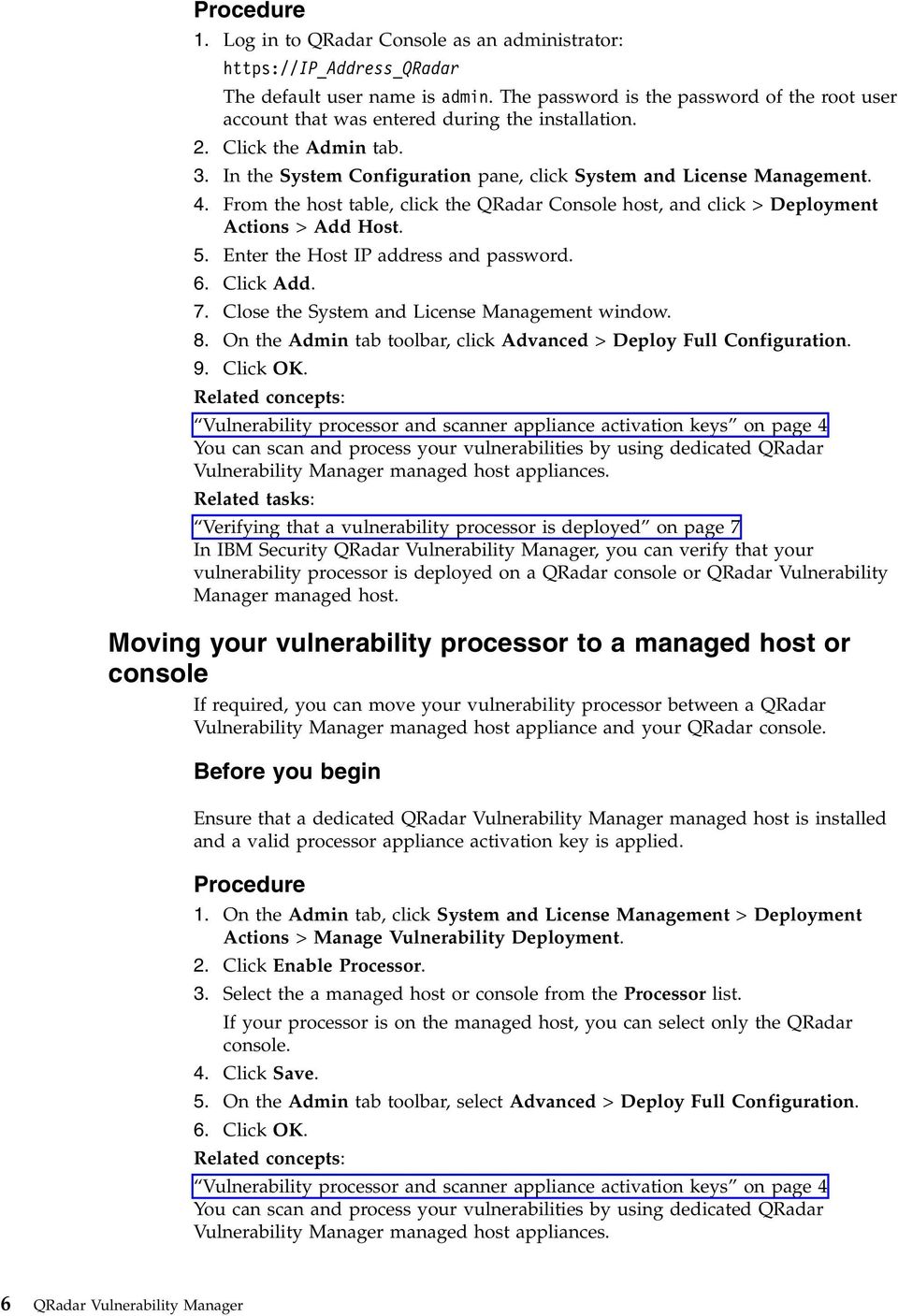
7 Introduction to IBM Security QRadar Vulnerability Manager This information is intended for use with IBM Security QRadar Vulnerability Manager. QRadar Vulnerability Manager is a scanning platform that is used to identify, manage, and prioritize the vulnerabilities on your network assets. This guide contains instructions for configuring and using QRadar Vulnerability Manager on an IBM Security QRadar SIEM or IBM Security QRadar Log Manager console. Intended audience System administrators responsible for configuring IBM Security QRadar Vulnerability Manager must have administrative access to IBM Security QRadar SIEM and to your network devices and firewalls. The system administrator must have knowledge of your corporate network and networking technologies. Technical documentation For information about how to access more technical documentation, technical notes, and release notes, see Accessing IBM Security Documentation Technical Note ( Contacting customer support For information about contacting customer support, see the Support and Download Technical Note ( &uid=swg ). Statement of good security practices IT system security involves protecting systems and information through prevention, detection and response to improper access from within and outside your enterprise. Improper access can result in information being altered, destroyed, misappropriated or misused or can result in damage to or misuse of your systems, including for use in attacks on others. No IT system or product should be considered completely secure and no single product, service or security measure can be completely effective in preventing improper use or access. IBM systems, products and services are designed to be part of a comprehensive security approach, which will necessarily involve additional operational procedures, and may require other systems, products or services to be most effective. IBM DOES NOT WARRANT THAT ANY SYSTEMS, PRODUCTS OR SERVICES ARE IMMUNE FROM, OR WILL MAKE YOUR ENTERPRISE IMMUNE FROM, THE MALICIOUS OR ILLEGAL CONDUCT OF ANY PARTY. Copyright IBM Corp. 2012, 2015 vii

8 viii QRadar Vulnerability Manager

9 Chapter 1. What's new for users in QRadar Vulnerability Manager V7.2.6 IBM Security QRadar Vulnerability Manager V7.2.6 introduces improvements to help you control your security profiles at the domain-level and identify high priority vulnerabilities. Improve your security posture by integrating IBM BigFix with QRadar Vulnerability Manager Use QRadar Vulnerability Manager with BigFix to identify high priority vulnerabilities, and determine which ones need to be fixed first. Fixlets are out-of-the-box packages that you can deploy to remediate specific vulnerabilities. QRadar Vulnerability Manager can automatically publish high priority vulnerability data to the BigFix Dashboard. Users can easily monitor and remediate Vulnerabilities from BigFix that are prioritzed by QRadar Vulnerability Manager. Learn more... Support for multi-domain environments Use the security profile permissions at the domain-level to ensure that the correct level of access is in place for vulnerability scans. You can now associate a scanner with a domain, use a domain for dynamic scanning, associate a domain with a scan profile and scan result, see the assets in a domain that are associated with a scan, filter scan reports by domain, and see only the scan results and vulnerabilities that are in the domains that are associated with your security profile. Copyright IBM Corp. 2012,

10 2 QRadar Vulnerability Manager

11 Chapter 2. QRadar Vulnerability Manager installations and deployments You access IBM Security QRadar Vulnerability Manager by using the Vulnerabilities tab. Access to the vulnerabilities tab Depending on the product that you install and whether you upgrade QRadar or install a new system, the Vulnerabilities tab might not be displayed. v If you install QRadar SIEM, the Vulnerabilities tab is enabled by default with a temporary license key. v If you install QRadar Log Manager, the Vulnerabilities tab is not enabled. v Depending on how you upgrade QRadar, the Vulnerabilities tab might not be enabled. To use QRadar Vulnerability Manager after an install or upgrade you must upload and allocate a valid license key. For more information, see the Administration Guide for your product. For more information about upgrading, see the IBM Security QRadar Upgrade Guide. Vulnerability processing and scanning deployments When you install and license QRadar Vulnerability Manager, a vulnerability processor is automatically deployed on your QRadar console. A processor is not automatically deployed if you use a software activation key on your QRadar console. The vulnerability processor provides a scanning component by default. If required, you can deploy more scanners, either on dedicated QRadar Vulnerability Manager managed host scanner appliances or QRadar managed hosts. For example, you can deploy a vulnerability scanner on an Event Collector or QRadar QFlow Collector. If required, you can move the vulnerability processor to a different managed host in your deployment. You might move the processor to preserve disk space on your QRadar console. Restriction: You can have only one vulnerability processor in your deployment. You can move the vulnerability processor only to a dedicated QRadar Vulnerability Manager processor appliance. Important: After you change your vulnerability processor deployment, you must wait for your deployment to fully configure. In the Scan Profiles page, the following message is displayed: QVM is in the process of being deployed. Ensure that Java Runtime Environment (JRE) version 1.7 or IBM 64-bit Runtime Environment for Java V7.0 is installed on all desktop systems that you use to access the QRadar product user interface. Related concepts: Copyright IBM Corp. 2012,

12 Options for adding scanners to your QRadar Vulnerability Manager deployment on page 7 If you have a large network and require flexible scanning options, you can add more scanners to your IBM Security QRadar Vulnerability Manager deployment. Options for moving the vulnerability processor in your QRadar Vulnerability Manager deployment on page 5 If required, you can move the vulnerability processor from your QRadar console to a dedicated QRadar Vulnerability Manager managed host appliance. Vulnerability processor and scanner appliance activation keys You can scan and process your vulnerabilities by using dedicated QRadar Vulnerability Manager managed host appliances. When you install a processor or scanner managed host appliance, you must type a valid activation key. For more information about installing a managed host appliance, see the Installation Guide for your product. The activation key is a 24-digit, four part, alphanumeric string that you receive from IBM. The activation key specifies which software modules apply for each appliance type: v The QRadar Vulnerability Manager processor appliance includes vulnerability processing and scanning components. v The QRadar Vulnerability Manager scanner appliance includes only a vulnerability scanning component. You can obtain the activation key from the following locations: v If you purchased a QRadar Vulnerability Manager software or virtual appliance download, a list of activation keys are included in the Getting Started document that is attached in a confirmation . You can use this document to cross-reference the part number for the appliance that you are supplied with. v If you purchased an appliance that is preinstalled with QRadar Vulnerability Manager software, the activation key is included in your shipping box or CD. Vulnerability backup and recovery You can use the backup and recovery capabilities in IBM Security QRadar SIEM to back up and restore IBM Security QRadar Vulnerability Manager vulnerability and configuration data. When you install QRadar Vulnerability Manager, the QRadar SIEM nightly or on-demand backups include QRadar Vulnerability Manager scan profiles, scan results, and configuration information. You can configure data or configuration backups and recovery by using the Admin tab. For more information about backup and recovery, see the IBM Security QRadar SIEM Administration Guide. 4 QRadar Vulnerability Manager

13 Options for moving the vulnerability processor in your QRadar Vulnerability Manager deployment If required, you can move the vulnerability processor from your QRadar console to a dedicated QRadar Vulnerability Manager managed host appliance. For example, you might move your vulnerability processing capability to a managed host to minimize disk space impact on your QRadar console. Restriction: You can have only one vulnerability processor in your deployment. Also, you must deploy the vulnerability processor only on a QRadar console or QRadar Vulnerability Manager managed host processor appliance. To move the vulnerability processor, choose one of the following options: Option 1: Deploy a dedicated QRadar Vulnerability Manager processor appliance To deploy a processor appliance you must complete the followings tasks: 1. Install a dedicated QRadar Vulnerability Manager processor appliance. 2. Add the managed host processor appliance to your QRadar Console by using the System and License Management tool on the Admin tab. When you select the managed host option, the processor is automatically removed from the QRadar console. Option 2: Move the vulnerability processor from your console to your managed host If the vulnerability processor is on your QRadar console, then later you can move your vulnerability processor to a previously installed QRadar Vulnerability Manager managed host processor appliance. At any time, you can move the vulnerability processor back to your QRadar console. Deploying a dedicated QRadar Vulnerability Manager processor appliance You can deploy a dedicated QRadar Vulnerability Manager processor appliance as a managed host. When you deploy your vulnerability processor to a managed host, all vulnerabilities are processed on the managed host. Restriction: After you deploy processing to a dedicated QRadar Vulnerability Manager managed host, any scan profiles or scan results that are associated with a QRadar console processor are not displayed. You can continue to search and view vulnerability data on the Manage Vulnerabilities pages. Before you begin Ensure that a dedicated QRadar Vulnerability Manager managed host is installed and a valid processor appliance activation key is applied. For more information, see the Installation Guide for your product. Chapter 2. QRadar Vulnerability Manager installations and deployments 5

14 1. Log in to QRadar Console as an administrator: The default user name is admin. The password is the password of the root user account that was entered during the installation. 2. Click the Admin tab. 3. In the System Configuration pane, click System and License Management. 4. From the host table, click the QRadar Console host, and click > Deployment Actions > Add Host. 5. Enter the Host IP address and password. 6. Click Add. 7. Close the System and License Management window. 8. On the Admin tab toolbar, click Advanced > Deploy Full Configuration. 9. Click OK. Related concepts: Vulnerability processor and scanner appliance activation keys on page 4 You can scan and process your vulnerabilities by using dedicated QRadar Vulnerability Manager managed host appliances. Related tasks: Verifying that a vulnerability processor is deployed on page 7 In IBM Security QRadar Vulnerability Manager, you can verify that your vulnerability processor is deployed on a QRadar console or QRadar Vulnerability Manager managed host. Moving your vulnerability processor to a managed host or console If required, you can move your vulnerability processor between a QRadar Vulnerability Manager managed host appliance and your QRadar console. Before you begin Ensure that a dedicated QRadar Vulnerability Manager managed host is installed and a valid processor appliance activation key is applied. 1. On the Admin tab, click System and License Management > Deployment Actions > Manage Vulnerability Deployment. 2. Click Enable Processor. 3. Select the a managed host or console from the Processor list. If your processor is on the managed host, you can select only the QRadar console. 4. Click Save. 5. On the Admin tab toolbar, select Advanced > Deploy Full Configuration. 6. Click OK. Related concepts: Vulnerability processor and scanner appliance activation keys on page 4 You can scan and process your vulnerabilities by using dedicated QRadar Vulnerability Manager managed host appliances. 6 QRadar Vulnerability Manager
15 Verifying that a vulnerability processor is deployed In IBM Security QRadar Vulnerability Manager, you can verify that your vulnerability processor is deployed on a QRadar console or QRadar Vulnerability Manager managed host. 1. Log in to the QRadar console. 2. On the Admin tab, click System and License Management > Deployment Actions > Manage Vulnerability Deployment. 3. Verify that the processor is displayed on Processor list. Removing a vulnerability processor from your console or managed host If required, you can remove the vulnerability processor from a QRadar console or QRadar Vulnerability Manager managed host. 1. Log in to the QRadar console. 2. On the Admin tab, click System and License Management > Deployment Actions > Vulnerability Deployment Management. 3. Click the Enable Processor check box to deselect it. 4. Click Remove. 5. Click Save. 6. Close the System and License Management window. 7. On the Admin tab toolbar, select Advanced > Deploy Full Configuration. 8. Click OK. Options for adding scanners to your QRadar Vulnerability Manager deployment If you have a large network and require flexible scanning options, you can add more scanners to your IBM Security QRadar Vulnerability Manager deployment. Your QRadar Vulnerability Manager processor is automatically deployed with a scanning component. By deploying more scanners you can increase the flexibility of your scanning operations. For example, you can scan specific areas of your network with different scanners and at different scheduled times. Dynamic vulnerability scans The vulnerability scanners that you deploy might not have access to all areas of your network. In QRadar Vulnerability Manager you can assign different scanners to network CIDR ranges. During a scan, each asset in the CIDR range that you want to scan is dynamically associated with the correct scanner. To add more vulnerability scanners, choose any of the following options: Deploy a dedicated QRadar Vulnerability Manager managed host scanner appliance You can scan for vulnerabilities by using a dedicated QRadar Vulnerability Manager managed host scanner appliance. Chapter 2. QRadar Vulnerability Manager installations and deployments 7

16 To deploy a scanner appliance, you must complete the followings tasks: 1. Install a dedicated QRadar Vulnerability Manager managed host scanner appliance. 2. Add the managed host scanner appliance to your QRadar Console by using the System and License Management tool on the Admin tab. Deploy a QRadar Vulnerability Manager scanner to your QRadar console or managed host If you move your vulnerability processor from your QRadar console to a QRadar Vulnerability Manager managed host, you can add a scanner to your console. You can also add a vulnerability scanner to any preexisting QRadar managed hosts in your deployment. For example, you can add a scanner to an event collector, flow collector, or event processor. Configure access to an IBM hosted scanner and scan your DMZ You can configure access to an IBM hosted scanner and scan the assets in your DMZ. Related concepts: Dynamic vulnerability scans on page 51 In IBM Security QRadar Vulnerability Manager, you can configure a scan to use certain vulnerability scanners for specific CIDR ranges in your network. For example, your scanners might have access only to certain areas of your network. Related tasks: Associating vulnerability scanners with CIDR ranges on page 52 In IBM Security QRadar Vulnerability Manager, to do dynamic scanning, you must associate vulnerability scanners with different segments of your network. Scanning CIDR ranges with different vulnerability scanners on page 53 In IBM Security QRadar Vulnerability Manager, you can scan areas of your network with different vulnerability scanners. Deploying a dedicated QRadar Vulnerability Manager scanner appliance You can deploy a dedicated QRadar Vulnerability Manager managed host scanner appliance. Before you begin Ensure that a dedicated QRadar Vulnerability Manager managed host scanner appliance is installed and a valid appliance activation key is applied. 1. On the Admin tab, click System and License Management > Deployment Actions > Add Managed Host. 2. Enter the Host IP address and password of the QRadar Vulnerability Manager managed host scanner appliance. 3. Click Add. You must wait several minutes while the managed host is added. 4. Close the System and License Management window. 5. On the Admin tab toolbar, select Advanced > Deploy Full Configuration. 6. Click OK. Related concepts: 8 QRadar Vulnerability Manager

17 Vulnerability processor and scanner appliance activation keys on page 4 You can scan and process your vulnerabilities by using dedicated QRadar Vulnerability Manager managed host appliances. Deploying a vulnerability scanner to a QRadar console or managed host You can deploy a QRadar Vulnerability Manager scanner to a QRadar console or QRadar managed host. For example, you can deploy a scanner to a flow collector, flow processor, event collector, or event processor. Before you begin To deploy a scanner on your QRadar console, ensure that the vulnerability processor is moved to a dedicated QRadar Vulnerability Manager managed host appliance. To deploy scanners on QRadar managed hosts, ensure that you have existing managed hosts in your deployment. For more information, see the Installation Guide for your product. 1. On the Admin tab, click System and License Management > Deployment Actions > Manage Vulnerability Deployment. 2. Click Add Additional Vulnerability Scanners. 3. Click the + icon. 4. From the Host list, select the QRadar managed host or console. Restriction: You cannot add a scanner to a QRadar console when the vulnerability processor is on the console. You must move the vulnerability processor to a QRadar Vulnerability Manager managed host. 5. Click Save. 6. Close the System and License Management window. 7. On the Admin tab toolbar, select Advanced > Deploy Full Configuration.. 8. Click OK. 9. Check the Scan Server list on the Scan Profiles Configuration page to ensure that the scanner has been added. For more information, see Creating a scan profile on page 27. What to do next Run an automatic update after you add the scanner or other managed host with scanning capabilities. Alternatively, you can scan after the default daily scheduled automatic update runs. Related tasks: Moving your vulnerability processor to a managed host or console on page 6 If required, you can move your vulnerability processor between a QRadar Vulnerability Manager managed host appliance and your QRadar console. Scanning the assets in your DMZ In IBM Security QRadar Vulnerability Manager, you can connect to an external scanner and scan the assets in your DMZ for vulnerabilities. Chapter 2. QRadar Vulnerability Manager installations and deployments 9

18 If you want to scan the assets in the DMZ for vulnerabilities, you do not need to deploy a scanner in your DMZ. You must configure QRadar Vulnerability Manager with a hosted IBM scanner that is located outside your network. Detected vulnerabilities are processed by the processor on either your QRadar console or QRadar Vulnerability Manager managed host. 1. Configure your network and assets for external scans. 2. Configure QRadar Vulnerability Manager to scan your external assets. Configuring your network and assets for external scans To scan the assets in your DMZ, you must configure your network and inform IBM of the assets that you want to scan. 1. Configure outbound internet access on port Send the following information to QRadar-QVM-Hosted- [email protected]: v Your organization's external IP address. Restriction: The IP address must be configured before you can run external scans. v The IP address range of the assets in your DMZ. Configuring QRadar Vulnerability Manager to scan your external assets To scan the assets in your DMZ, you must configure QRadar Vulnerability Manager, by using the System and License Management tool on the Admin tab. 1. On the Admin tab, click System and License Management > Deployment Actions > Manage Vulnerability Deployment. 2. Click Use External Scanner. 3. In the Gateway IP field, enter an external IP address. Restriction: You cannot scan external assets until your external IP address is configured. Ensure that you details of your external IP address to IBM. 4. Optional: If your network is configured to use a proxy server, click Enable Proxy Server and enter the details of your server. 5. Click Save and then click Close. 6. On the Admin tab toolbar, click Advanced > Deploy Full Configuration. 7. Click OK. Note: Authenticated scans are not conducted from the external scanner. Supported web browsers For the features in IBM Security QRadar products to work properly, you must use a supported web browser. 10 QRadar Vulnerability Manager
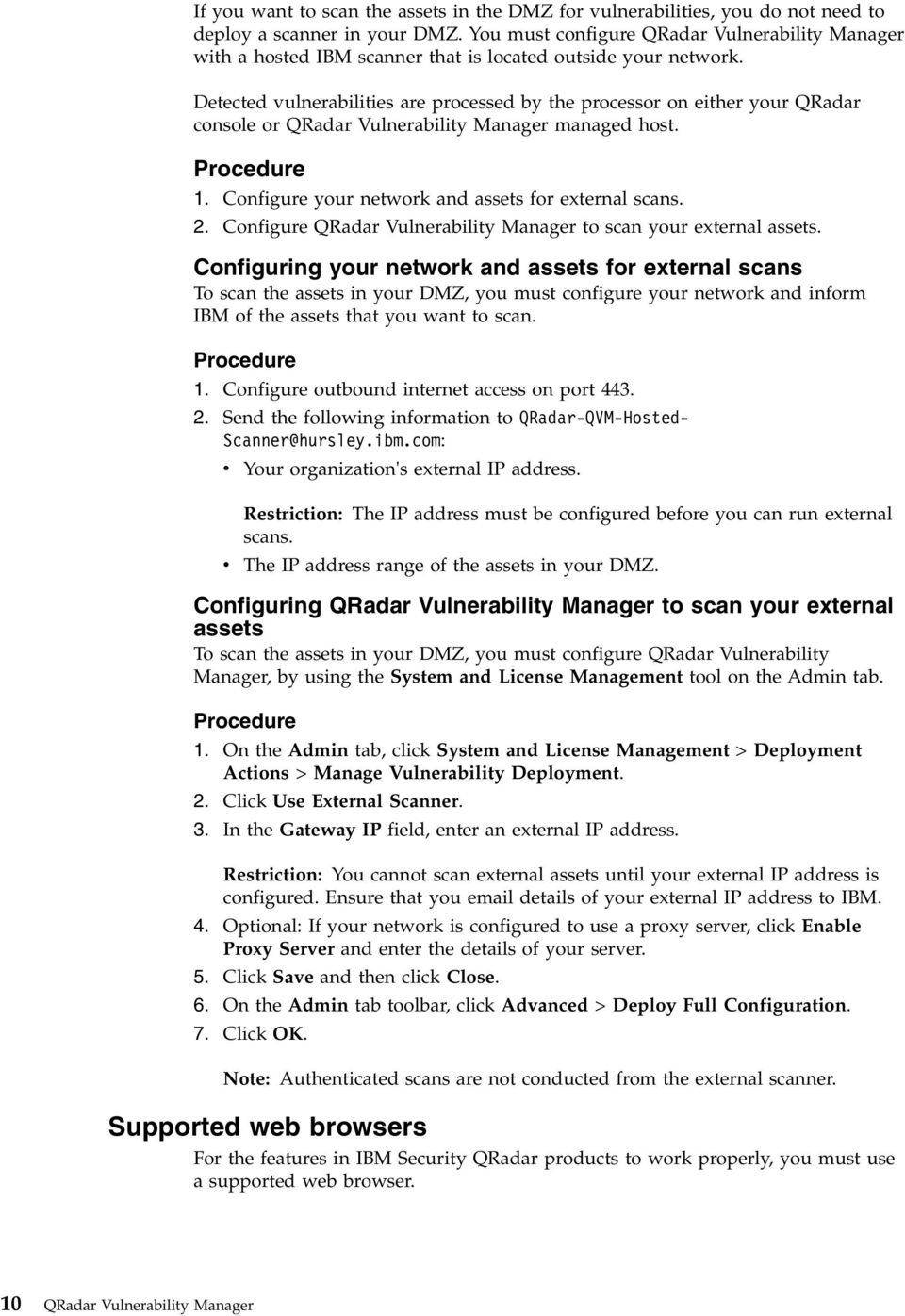
19 When you access the QRadar system, you are prompted for a user name and a password. The user name and password must be configured in advance by the administrator. The following table lists the supported versions of web browsers. Table 1. Supported web browsers for QRadar products Web browser Supported versions Mozilla Firefox 38.0 Extended Support Release 32-bit Microsoft Internet Explorer, with document mode and browser mode enabled Google Chrome Version 46 Enabling document mode and browser mode in Internet Explorer If you use Microsoft Internet Explorer to access IBM Security QRadar products, you must enable browser mode and document mode. 1. In your Internet Explorer web browser, press F12 to open the Developer Tools window. 2. Click Browser Mode and select the version of your web browser. 3. Click Document Mode, and select the Internet Explorer standards for your Internet Explorer release. Extending the QRadar Vulnerability Manager temporary license period By default, when you install IBM Security QRadar SIEM, you can see the Vulnerabilities tab because a temporary license key is also installed. When the temporary license expires, you can extend it for an extra four weeks. 1. On the Admin tab, click the Vulnerability Manager icon in the Try it out area. 2. To accept the end-user license agreement, click OK. When the extended license period is finished, you must wait six months before you can activate the temporary license again. To have permanent access to QRadar Vulnerability Manager, you must purchase a license. Chapter 2. QRadar Vulnerability Manager installations and deployments 11

20 12 QRadar Vulnerability Manager

21 Chapter 3. IBM Security QRadar Vulnerability Manager Vulnerability scanning IBM Security QRadar Vulnerability Manager is a network scanning platform that detects vulnerabilities within the applications, systems, and devices on your network or within your DMZ. QRadar Vulnerability Manager uses security intelligence to help you manage and prioritize your network vulnerabilities. For example, you can use QRadar Vulnerability Manager to continuously monitor vulnerabilities, improve resource configuration, and identify software patches. You can also, prioritize security gaps by correlating vulnerability data with network flows, log data, firewall, and intrusion prevention system (IPS) data. You can maintain real-time visibility of the vulnerabilities that are detected by the built-in QRadar Vulnerability Manager scanner and other third-party scanners. Third-party scanners are integrated with QRadar and include IBM BigFix, Guardium, AppScan, Nessus, ncircle, and Rapid 7. Unless otherwise noted, all references to QRadar Vulnerability Manager refer to IBM Security QRadar Vulnerability Manager. All references to QRadar refer to IBM Security QRadar SIEM and IBM Security QRadar Log Manager and all references to SiteProtector refer to IBM Security SiteProtector. In IBM Security QRadar Vulnerability Manager, vulnerability scanning is controlled by configuring scan profiles. Each scan profile specifies the assets that you want to scan and the scan schedule. Vulnerability processor When you license QRadar Vulnerability Manager, a vulnerability processor is automatically deployed on your QRadar console. The processor contains a QRadar Vulnerability Manager scanning component. Deployment options Vulnerability scanning can be deployed in different ways. For example, you can deploy your scanning capability to a QRadar Vulnerability Manager managed host scanner appliance or a QRadar managed host. Configuration options Administrators can configure scans in the following ways: v Schedule scans to run at times convenient for your network assets. v Specify the times during which scans are not allowed to run. v Specify the assets that you want to exclude from scans, either globally or for each scan. v Configure authenticated patch scans for Linux, UNIX, or Windows operating systems. Copyright IBM Corp. 2012,
22 v Configure different scanning protocols or specify the port ranges that you want to scan. Related concepts: Options for adding scanners to your QRadar Vulnerability Manager deployment on page 7 If you have a large network and require flexible scanning options, you can add more scanners to your IBM Security QRadar Vulnerability Manager deployment. Options for moving the vulnerability processor in your QRadar Vulnerability Manager deployment on page 5 If required, you can move the vulnerability processor from your QRadar console to a dedicated QRadar Vulnerability Manager managed host appliance. Getting started with vulnerability scanning Initial configuration of IBM Security QRadar Vulnerability Manager system for network and vulnerability management requires systematic planning. There are three key areas to consider when you use QRadar Vulnerability Manager for vulnerability scanning : v The type of scan to run and how often to run it. v The number of scanners to deploy and the number of assets to scan at any one time. v How to manage the vulnerabilities that are discovered. Scan types IBM Security QRadar Vulnerability Manager provides several default scan policy types. You can also define your own scans from templates. The following are the most commonly used templates: Discovery scan Discovers network assets. Then scans ports to identify key asset characteristics such as operating system, device type, and services that are provided by the asset. Vulnerabilities are not scanned. Full scan Discovers network assets that use a fast scan port range. Performs a user-configurable port scan and unauthenticated scan of discovered services like FTP, web, SSH, and database. If credentials are provided, an authenticated scan is performed. Patch scan Scouts the network to discover assets and then performs a fast port scan and credential scan of the assets. Discovery scans A discovery scan is a lightweight uncredentialed scan. It searches an address space for active IP addresses, and then scans their ports. It performs DNS and NetBIOS look-ups to discover what operating system the assets run, what open services they provide, and any network names that are assigned to them. Generally, you run discovery scans frequently. They are often run weekly to ensure good visibility of network assets and asset information, such as asset names, operating system and open services, to SIEM and SOC users. 14 QRadar Vulnerability Manager
23 Full scans A full scan runs the full suite of QRadar Vulnerability Manager tests. A full scan has these phases: 1. A discovery scan 2. Uncredentialed checks. Checks services that do not require credentials, for example, reading banners and responses for version information, SSL certificate expiry, testing default accounts, testing responses for vulnerabilities. 3. Credentialed checks. QRadar Vulnerability Manager logs on to the asset and gathers installed application inventory and required configuration, and raises (or suppresses) vulnerabilities as appropriate. Credential scans are preferable to uncredentialed scans. Uncredentialed scans provide a useful overview of the vulnerability posture of the network. Credentialed scanning, however, is essential to a comprehensive and effective vulnerability management program. Note: Full scans can sometimes lock some administration accounts, for example, SQL Server, when QRadar Vulnerability Manager tests multiple default credentials on those accounts. Patch scans You use patch scans to determine which patches and products are installed or missing on the network. A patch scan has two main phases: v A discovery scan v Uncredentialed checks Patch scans run more quickly and have a lesser impact on the network and assets being scanned because they do not perform uncredentialed checks. When to scan The following is a typical timetable for each type of scan: v Discovery scan Run weekly v Patch Scan Run every 1 4 weeks v Full scan Run every 2-3 months Related concepts: Scan scheduling on page 32 In IBM Security QRadar Vulnerability Manager, you can schedule the dates and times that it is convenient to scan your network assets for known vulnerabilities. Chapter 5, Vulnerability scanning, on page 27 In IBM Security QRadar Vulnerability Manager, all network scanning is controlled by the scan profiles that you create. You can create multiple scan profiles and configure each profile differently depending on the specific requirements of your network. Scan policies on page 53 A scan policy provides you with a central location to configure specific scanning requirements. Related tasks: Chapter 3. IBM Security QRadar Vulnerability Manager 15
24 Creating a scan profile on page 27 In IBM Security QRadar Vulnerability Manager, you configure scan profiles to specify how and when your network assets are scanned for vulnerabilities. Remote scanner deployments You can deploy an unlimited number of remote scanners in a network. When you design a remote scanner deployment, you must consider the following factors: v The number of assets that you need to scan. v Network connectivity between the IBM Security QRadar Vulnerability Manager and the assets it scans. v The network bandwidth that is required. v Whether to use dynamic scanning. v How many Networks Interface Cards (NICs) to use on a scanner. Scanners and assets There is no limited to the number of assets that a scanner can scan, in principle. Each scanner has a bandwidth and scan requests are queued when that bandwidth is full. The more assets that you ask a scanner to scan the longer the scan takes. For example, deploying scanners to scan up to assets results in acceptable scan times (2-3 days maximum). Scanner and asset connectivity In general, avoid scanning through firewalls, and over low-bandwidth WAN connections. The following guidelines are useful: v Keep the load on your firewalls low. v Reduce the risk of firewall interference with the scan. For example, do not permit the firewall to block ports that are required to complete the scan. v Ensure your scans run as quickly as possible. v Ensure that poor WAN connectivity does not negatively affect your scans. Bandwidth limit settings You can configure network bandwidth per scan profile in IBM Security QRadar Vulnerability Manager. When you increase the network bandwidth per scan profile, QRadar Vulnerability Manager scans more vulnerability tools in parallel and therefore scans run more quickly. You can set the bandwidth limit on the Scan Profile Configuration page. The following options are available: Option Low Medium High Bandwidth limit setting 100 Kbps 1000 Kbps (default) 5000 Kbps 16 QRadar Vulnerability Manager
25 Option Full Bandwidth limit setting network maximum If you are scanning over limited network bandwidth links, do not increase network bandwidth to more than 1000 Kbps. As a rule, when patch scanning with a setting of Medium, QRadar Vulnerability Manager patch scan 10 assets in parallel. With a setting of High, it scans 50 assets in parallel. Related concepts: Scan profile details on page 31 In IBM Security QRadar Vulnerability Manager, you can describe your scan, select the scanner that you want to use, and choose from a number of scan policy options. Related tasks: Creating a scan profile on page 27 In IBM Security QRadar Vulnerability Manager, you configure scan profiles to specify how and when your network assets are scanned for vulnerabilities. Dynamic scanning In dynamic scanning, IBM Security QRadar Vulnerability Manager selects a scanner based on the IP address to scan. Dynamic scanning reduces the number of scan jobs that you need to configure. For example, if you deploy 10 QRadar Vulnerability Manager scanners and do not use dynamic scanning, you must configure 10 individual scan jobs. You must select one scanner per scan job. If you use dynamic scanning, you can configure a single scan job to use all 10 scanners by associating CIDR ranges with each scanner. QRadar Vulnerability Manager selects the appropriate scanner for each IP address that is being scanned. Dynamic scanning is most useful when you deploy many scanners. If you have, for example, more than 5 scanners, dynamic scanning might save you time. As a rule, do not enable dynamic scanning when you do your initial set of test scans. You can switch to dynamic scanning when you are satisfied with scan times and results. Related concepts: Dynamic vulnerability scans on page 51 In IBM Security QRadar Vulnerability Manager, you can configure a scan to use certain vulnerability scanners for specific CIDR ranges in your network. For example, your scanners might have access only to certain areas of your network. Related tasks: Creating a scan profile on page 27 In IBM Security QRadar Vulnerability Manager, you configure scan profiles to specify how and when your network assets are scanned for vulnerabilities. Network Interface Cards on scanners In IBM Security QRadar Vulnerability Manager scanning is not dependent on the Network Interface Cards (NICs) that are configured on the scanner appliance. You can configure many NICs, although 4-5 NICs is a typical configuration. QRadar Vulnerability Manager uses standard TCP/IP protocols to scan any device Chapter 3. IBM Security QRadar Vulnerability Manager 17
26 that has an IP address. If multiple NICs are defined, scanning follows the standard networking configuration on an appliance. Vulnerability management overview IBM Security QRadar Vulnerability Manager provides a process for managing vulnerabilities that are based on assignment of asset owners. You can configure Asset owners on the Vulnerability Assignment page of the Vulnerabilities tab or by using an API. After assets are assigned, any vulnerabilities discovered on the assets are assigned to those users or groups with a due date based on the risk level of the vulnerabilities in question. You also configure due dates and risk level on the Vulnerability Assignment page. You can then configure remediation reports to send to those users on a periodic basis. Use remediation reports to highlight the following actions: v The patches that you need to install. v The steps that you need to take to remediate the vulnerability. v The assets that have overdue vulnerabilities. v New vulnerabilities that were discovered since the last scan. The standard remediation reports are available on the tab of the Scan Profile Configuration page. You can create extra customer reports by using QRadar Vulnerability Manager searches. Use a wide range of search criteria to ensure that your reports focus on the vulnerability remediation activities that you require to meet your specific business and compliance needs. To make remediation report creation easier, QRadar Vulnerability Manager can automatically create Asset vulnerabilities and Vulnerability reports for each asset owner from a single report definition. When assets are rescanned, any remediated vulnerabilities are automatically detected and flagged as fixed. They are removed from reports and views, unless explicitly configured otherwise. Any vulnerabilities that were previously fixed and are detected again are automatically reopened. Related concepts: Chapter 10, Vulnerability reports, on page 83 In IBM Security QRadar Vulnerability Manager, you can generate or edit an existing report, or use the report wizard to create, schedule, and distribute a new report. Related tasks: Assigning a technical user as the owner of asset groups on page 79 In IBM Security QRadar Vulnerability Manager, you can configure groups of assets and automatically assign their vulnerabilities to technical users. Configuring remediation times for the vulnerabilities on assigned assets on page 81 In IBM Security QRadar Vulnerability Manager you can configure the remediation times for different types of vulnerabilities. ing asset owners when vulnerability scans start and stop on page 61 the configured asset technical owners to alert them of the scan schedule. You can also reports to asset owners. Searching vulnerability data on page 64 In IBM Security QRadar Vulnerability Manager, you can identify important vulnerabilities by searching your vulnerability data. 18 QRadar Vulnerability Manager
27 Vulnerability management dashboard You can display vulnerability information on your QRadar dashboard. IBM Security QRadar Vulnerability Manager is distributed with a default vulnerability dashboard so that you can quickly review the risk to your organization. You can create a new dashboard, manage your existing dashboards, and modify the display settings of each vulnerability dashboard item. For more information about dashboards, see the Users Guide for your product. Reviewing vulnerability data on the default vulnerability management dashboard You can display default vulnerability management information on the QRadar dashboard. The default vulnerability management dashboard contains risk, vulnerability, and scanning information. You can configure your own dashboard to contain different elements like saved searches. 1. Click the Dashboard tab. 2. On the toolbar, in the Show Dashboard list, select Vulnerability Management. Creating a customized vulnerability management dashboard In QRadar you can create a vulnerability management dashboard that is customized to your requirements. 1. Click the Dashboard tab. 2. On the toolbar, click New Dashboard. 3. Type a name and description for your vulnerability dashboard. 4. Click OK. 5. Optional: On the toolbar select Add Item > Vulnerability Management and choose from the following options: v If you want to show default saved searches on your dashboard, select Vulnerability Searches. v If you want to show website links to security and vulnerability information, select Security News, Security Advisories, or Latest Published Vulnerabilities. v If you want show information that is about completed or running scans, select Scans Completed or Scans In Progress. Related tasks: Saving your vulnerability search criteria on page 68 In IBM Security QRadar Vulnerability Manager, you can save your vulnerability search criteria for future use. Chapter 3. IBM Security QRadar Vulnerability Manager 19
28 Creating a dashboard for patch compliance Create a dashboard that shows the most effective patch to use to remediate vulnerabilities that are found on the network. 1. Click the Dashboard tab. 2. On the toolbar, click New Dashboard. 3. Type a name and description for your vulnerability dashboard. 4. Click OK. 5. On the toolbar, select Add Item > Vulnerability Management > Vulnerability Searches and choose the default saved search that you want to show on your dashboard. 6. On the header of the new dashboard item, click the yellow Settings icon. 7. Select Patch from the Group By list and then select one of the following options from the Graph By list: v If you want to see how many assets need to a have the patch applied, select Asset Count. v If you want to see the cumulative risk score by patch, select Risk Score. v If you want to see the number of vulnerabilities that are covered by a patch, select Vulnerability Count. 8. Click Save. 9. To view vulnerability details on the Manage Vulnerabilities > By Vulnerability page on the Vulnerabilities tab, click the View in By Vulnerability link at the bottom of the dashboard item. 20 QRadar Vulnerability Manager
29 Chapter 4. Security software integrations IBM Security QRadar Vulnerability Manager integrates with other security products to help you manage and prioritize your security risks. Integrations with other software extends the capabilities of QRadar Vulnerability Manager. QRadar Risk Manager and QRadar Vulnerability Manager integration BigFix integration IBM Security QRadar Vulnerability Manager integrates with IBM Security QRadar Risk Manager to help you prioritize the risks and vulnerabilities in your network. You install QRadar Risk Manager as a separate appliance and then you add it to your QRadar SIEM console as a managed host by using the System and License Management tool on the Admin tab. For more information about installing QRadar Risk Manager, see the IBM Security QRadar Risk Manager Installation Guide. Risk policies and vulnerability prioritization You can integrate QRadar Vulnerability Manager with QRadar Risk Manager by defining and monitoring asset or vulnerability risk policies. When the risk policies that you define in QRadar Risk Manager either pass or fail, vulnerability risk scores in QRadar Vulnerability Manager are adjusted. The adjustment levels depend on the risk policies in your organization. When the vulnerability risk scores are adjusted in QRadar Vulnerability Manager, administrators can do the following tasks: v Gain immediate visibility of the vulnerabilities that failed a risk policy. For example, new information might be displayed on the QRadar dashboard or sent by . v Re-prioritize the vulnerabilities that require immediate attention. For example, an administrator can use the Risk Score to quickly identify high-risk vulnerabilities. If you apply risk policies at an asset level in QRadar Risk Manager, then all the vulnerabilities on that asset have their risk scores adjusted. For more information about creating and monitoring risk policies, see the IBM Security QRadar Risk Manager User Guide. Related tasks: Prioritizing high risk vulnerabilities by applying risk policies on page 72 In IBM Security QRadar Vulnerability Manager, you can alert administrators to higher risk vulnerabilities by applying risk policies to your vulnerabilities. IBM Security QRadar Vulnerability Manager integrates with IBM BigFix to help you filter and prioritize the vulnerabilities that can be fixed. Copyright IBM Corp. 2012,
30 BigFix capabilities Previously known as IBM Security Endpoint Manager, BigFix provides shared visibility and control between IT operations and security. BigFix identifies high priority vulnerabilities, and determines which ones need Fixlets first. Fixlets are packages that you can deploy to remediate specific vulnerabilities. Fixlets correct problems and fix vulnerabilities quickly and efficiently. From the BigFix console, you can simultaneously deploy Fixlets to a very large number of endpoints or assets. From a single console, BigFix provides you with the ability to manage and control a network of hundreds of thousands of endpoints or assets, across a range of platforms and devices that are in any geographical location. BigFix is used for asset discovery and patch management, software distribution, software inventory and software usage monitoring, system lifecycle management, security compliance, and continuous enforcement. Integrating QRadar Vulnerability Manager with BigFix BigFix provides a dashboard that is integrated with QRadar Vulnerability Manager. You can use the dashboard to remediate vulnerabilities detected by QRadar Vulnerability Manager. To enable this connection and to display QRadar Vulnerability Manager data in the BigFix console, you must complete configuration steps in QRadar Vulnerability Manager. Separately, you must also complete some setup steps in BigFix to process the data received from QRadar Vulnerability Manager. For information about how to complete the setup steps in BigFix, see IBM BigFix QRadar User Guide. Vulnerability remediation Depending on whether you installed and integrated BigFix, QRadar Vulnerability Manager provides different information to help you remediate your vulnerabilities. v If BigFix is not installed, then QRadar Vulnerability Manager provides information about vulnerabilities for which a fix is available. QRadar Vulnerability Manager maintains a list of vulnerability fix information. Fix information is correlated against the known vulnerability catalog. Using search in the QRadar Vulnerability Manager, you can identify vulnerabilities that have an available fix. v If BigFix is installed, then QRadar Vulnerability Manager also provides specific details about the vulnerability fix process. For example, a fix might be scheduled or an asset might be already fixed. The BigFix server gathers fix information from each of the BigFix agents. Fix status information is sent to QRadar Vulnerability Manager at pre-configured time intervals. Using the QRadar Vulnerability Manager search feature, you can quickly identify those vulnerabilities that are scheduled to be fixed or are already fixed. 22 QRadar Vulnerability Manager
31 Integration components A typical integration consists of the following components: v An IBM Security QRadar Console. v A licensed installation of QRadar Vulnerability Manager. v A BigFix server installation. v A BigFix agent installation on each of the scan targets in your network. There are two different ways that QRadar Vulnerability Manager integrates with BigFix: v Configure BigFix to integrate with QRadar Vulnerability Manager so that information from BigFix is sent to QRadar Vulnerability Manager. This configuration will require an SSL communication. v Configure QRadar Vulnerability Manager to integrate with BigFix so that information is sent from QRadar Vulnerability Manager to BigFix. Related tasks: Identifying the patch status of your vulnerabilities on page 74 In IBM Security QRadar Vulnerability Manager, you can identify the patch status of your vulnerabilities. Configuring BigFix to send information to QRadar Vulnerability Manager You can configure IBM BigFix to integrate with IBM Security QRadar Vulnerability Manager. In this scenario, information is sent from BigFix to QRadar Vulnerability Manager. This configuration requires SSL communication and steps for configuring the BigFix adapter. Before you begin The following components must be installed on your network: v A BigFix server. v A BigFix agent on each asset in your network that you scan. If you use secure socket layer (SSL) encryption, ensure that you configure SSL for BigFix integration. 1. To configure SSL communication, complete the following steps: a. Download the public key certificate, open your web browser and type IP_address/webreports b. Click Add Exception, and in the Add Security Exception window, click View. c. Click the Details tab and click Export. d. In the File name field, type iemserver_cert.der e. In the Save as type field, select X.509 Certificate (DER), and click Save. f. Copy the public key certificate to your QRadar console. g. To create a QRadar Vulnerability Manager truststore, use SSH to log in to the QRadar console as the root user. Chapter 4. Security software integrations 23
32 Type the following command: keytool -keystore /opt/qvm/iem/ truststore.jks -genkey -alias iem At the prompts, type the appropriate information to create the truststore. h. To import the public key certificate to your truststore, type the following command: keytool -importcert -file iemserver_cert.der -keystore truststore.jks -storepass <your_truststore_password> -alias iem_crt_der i. At the Trust this certificate? prompt, type Yes. 2. To configure SSL and the BigFix adapter for QRadar Vulnerability Manager, complete these steps. a. Use SSH to log in to the QRadar console as the root user. b. Change the directory to the following location: /opt/qvm/iem c. Type./iem-setup-webreports.pl and when prompted provide the information for the BigFix server. d. If you are using SSL, at the Use SSL encryption? prompt, type the appropriate response. e. Type the location of your truststore. f. Type your truststore password. Configuring QRadar Vulnerability Manager to send information to BigFix In this configuration option IBM Security QRadar Vulnerability Manager sends information to IBM BigFix. This configuration option requires a number of configuration steps for the BigFix adapter, and some verification procedures. 1. Log in to the IBM Security QRadar SIEM terminal as the root user. 2. To configure the setup, complete the following steps: a. Go to the: /opt/qvm/adaptor/config, and run the setup script:./setup-adaptor.sh b. Enter a new password to create the truststore, which is responsible for storing certificates. c. At the prompts, enter the appropriate information for the BigFix server. d. Restart the asset profiler by going to the /opt/qradar/init directory and typing the following command:./assetprofiler restart To ensure optimum performance, don't restart the asset profiler when QRadar Vulnerability Manager scans are running, or when you are expecting vulnerability imports from a third party VIS scanner. 3. To verify that the setup process has completed successfully, complete the following steps: a. In the /opt/qvm/adaptor/config/adaptor.properties file, check that these two properties are set: qvm.adaptor.listener.enabled=true qvm.adaptor.process.daemon=false b. Set the risk score and asset update granularity by using the following properties within the adaptor.properties file: 24 QRadar Vulnerability Manager
33 Table 2. Property name qvm.adaptor.minimum.asset.riskscore=n qvm.adaptor.assetupdate.limit=n qvm.adaptor.minimum.vuln.riskscore=n Description The qvm.adaptor.minimum.asset.riskscore property is the weighted combination of all CVSS scores of the vulnerabilities that are on that asset. Assets that have a score less than this value are not sent to BigFix. The qvm.adaptor.assetupdate.limit property defines how the BigFix Dashboard data resources is split. A split does not occur until all CVE IDs are populated for the last asset. v For example, if qvm.adaptor.assetupdate.limit=20, asset 1 has 19 CVE IDs, and asset 2 has 30 CVE IDs. One data resource is generated and contains both assets, with a total of 49 CVE IDs. v For example, if qvm.adaptor.assetupdate.limit=19, asset 1 has 19 CVE IDs, and asset 2 has 30 CVE IDs. Two data resources are generated, each containing an asset. The qvm.adaptor.minimum.vuln.riskscore property defines the threshold for each vulnerability risk score. Those vulnerabilities equal to, or above the set value are sent to BigFix. c. Verify that the BigFix plugin configuration created the following directories: v /store/qvm/adaptor v /store/qvm/adaptor/data v /store/qvm/adaptor/bigfix d. Verify that logging is enabled in the log4j.xml file. Log files are produced in: /var/log/qvm-integration-adaptor.log and /var/log/qvm-adaptorcron.log files. Troubleshooting the BigFix configuration You can troubleshoot failed connection and password reset issues that might occur when you configure BigFix and QRadar Vulnerability Manager integration. Failed connection to IBM BigFix server If a failed connection to the BigFix server occurs, you might see the following error produced: ERROR [TrustStoreConfig] Failed to configure trust store with peer certificates : Connection timed out java.net.connectexception: Connection timed out. The configuration is successful, but it will not have the authorized certificates. You must manually load the certificates when you have access to the server. 1. Go to the /store/qvm/adaptor directory. Chapter 4. Security software integrations 25
34 2. Run the setup script:./install-cert.sh <truststore_location> <truststore_password><truststore_ip_address: port> The port is the port of service that the certificate belongs to. Password change If your BigFix details change, you may need to change your password. 1. Decrypt the password, type the following command : _decrypt.bes.rest.password=lub5qzr7fivh+j319erc+g==. 2. To enter a new password, type the following command: _encrypt.bes.rest.password=newpassword. 3. Run the following script to encrypt your new password:./password-propertyencrypt.sh plugin-bigfix.properties IBM Security SiteProtector integration QRadar Vulnerability Manager integrates with IBM Security SiteProtector to help direct intrusion prevention system (IPS) policy. When you configure IBM Security SiteProtector, the vulnerabilities that are detected by scans are automatically forwarded to SiteProtector. IBM Security SiteProtector receives vulnerability data from QRadar Vulnerability Manager scans that are performed only after the integration is configured. Connecting to IBM Security SiteProtector You can forward vulnerability data from IBM Security QRadar Vulnerability Manager to IBM Security SiteProtector to help direct intrusion prevention system (IPS) policy. 1. On the Admin tab, click System and License Management > Deployment Actions > Manage Vulnerability Deployment. 2. Click Use SiteProtector. 3. In the SiteProtector IP Address field, type the IP address of the IBM Security SiteProtector agent manager server. 4. Click Save and then click Close. 5. On the Admin tab toolbar, click Advanced > Deploy Full Configuration. 6. Click OK. What to do next Scan your network assets to determine if the vulnerability data is displayed in your IBM Security SiteProtector installation. 26 QRadar Vulnerability Manager
35 Chapter 5. Vulnerability scanning In IBM Security QRadar Vulnerability Manager, all network scanning is controlled by the scan profiles that you create. You can create multiple scan profiles and configure each profile differently depending on the specific requirements of your network. Scan profiles Use scan profiles to do the following tasks: v Specify the network nodes, domains, or virtual domains that you want to scan. v Specify the network assets that you want to exclude from scans. v Create operational windows, which define the times at which scans can run. v Manually run scan profiles or schedule a scan to run at a future date. v Run, pause, resume, cancel or delete a single or multiple scans. v Use centralized credentials to run Windows, UNIX, or Linux operating systems. v Scan the assets from a saved asset search. Related concepts: Creating a scan profile Centralized credential sets on page 40 When you run authenticated scans, you can use a central list that stores the login credentials for your Linux, UNIX, or Windows operating systems. Your system administrator must configure the list of credentials. In IBM Security QRadar Vulnerability Manager, you configure scan profiles to specify how and when your network assets are scanned for vulnerabilities. 1. Click the Vulnerabilities tab. 2. In the navigation pane, click Administrative > Scan Profiles. 3. On the toolbar, click Add. When you create a scan profile, the only mandatory fields are Name and IP Addresses on the Details tab of the Scan Profile Configuration page. In addition, you can also configure the following optional settings. v If you added more scanners to your QRadar Vulnerability Manager deployment, select a scanner from the Scan Server list. This step is unnecessary if you want to use dynamic scanning. v To enable this profile for on-demand scanning, click the On Demand Scanning Enabled check box. By selecting this option, you make the profile available to use if you want to trigger a scan in response to a custom rule event. It also enables on-demand vulnerability scanning by using the right-click menu on the Assets page. v By selecting the Dynamic Server Selection check box, you can choose the most appropriate scanner that is available. Ensure that you define the scanners in the Administrative > Scanners page. Copyright IBM Corp. 2012,
36 Security profiles must be updated with an associated domain. Domain-level restrictions are not applied until the security profiles are updated, and the changes are deployed. v To scan your network by using a predefined set of scanning criteria, select a scan type from the Scan Policies list. v If you configured centralized credentials for assets, click the Use Centralized Credentials check box. For more information, see the IBM Security QRadar SIEM Administration Guide. 4. Click Save. Related concepts: Options for adding scanners to your QRadar Vulnerability Manager deployment on page 7 If you have a large network and require flexible scanning options, you can add more scanners to your IBM Security QRadar Vulnerability Manager deployment. Scan policies on page 53 A scan policy provides you with a central location to configure specific scanning requirements. Dynamic vulnerability scans on page 51 In IBM Security QRadar Vulnerability Manager, you can configure a scan to use certain vulnerability scanners for specific CIDR ranges in your network. For example, your scanners might have access only to certain areas of your network. Related tasks: Associating vulnerability scanners with CIDR ranges on page 52 In IBM Security QRadar Vulnerability Manager, to do dynamic scanning, you must associate vulnerability scanners with different segments of your network. Rescanning an asset by using the right-click menu option on page 30 In IBM Security QRadar Vulnerability Manager, you can quickly rescan an asset by using the right-click option. Configuring a scan policy to manage your vulnerability scans on page 55 In IBM Security QRadar Vulnerability Manager, you can configure a scan policy to control your vulnerability scans. Creating an external scanner scan profile In IBM Security QRadar Vulnerability Manager, you can configure scan profiles to use a hosted scanner to scan assets in your DMZ. Before you begin QRadar Vulnerability Manager must be configured with a hosted scanner. For more information, see Scanning the assets in your DMZ on page Click the Vulnerabilities tab. 2. In the navigation pane, click Administrative > Scan Profiles. 3. On the toolbar, click Add. When you create a scan profile, the only mandatory fields are Name and IP Addresses on the Details tab of the Scan Profile Configuration page. To create an external scanner profile, you must also follow the remaining steps in this procedure. 4. Select an external scanner from the Scan Server list. 5. Select Full Scan or Web Scan from the Scan Policies list. 28 QRadar Vulnerability Manager
37 6. Click the Domain and Web App tab. In the Virtual Webs pane, enter the domain and IP address information for the websites and applications that you want to scan. 7. Click Save. Note: Authenticated scans are not conducted from the external scanner. Creating a benchmark profile To create Center for Internet Security compliance scans, you must configure benchmark profiles. You use CIS compliance scans to test for Windows and Red Hat Enterprise Linux CIS benchmark compliance. 1. Click the Vulnerabilities tab. 2. In the navigation pane, click Administrative > Scan Profiles. 3. On the toolbar, click Add Benchmark. 4. If you want to use pre-defined centralized credentials, select the Use Centralized Credentials check box. Credentials that are used to scan Linux operating systems must have root privileges. Credentials that are used to scan Windows operating systems must have administrator privileges. 5. If you are not using dynamic scanning, select a QRadar Vulnerability Manager scanner from the Scan Server list. 6. To enable dynamic scanning, click the Dynamic server selection check box. If you configured domains in the Admin > Domain Management window, you can select a domain from the Domain list. Only assets within the CIDR ranges and domains that are configured for your scanners are scanned. 7. In the When To Scan tab, set the run schedule, scan start time, and any pre-defined operational windows. 8. In the tab, define what information to send about this scan and to whom to send it. 9. If you are not using centralized credentials, add the credentials that the scan requires in the Additional Credentials tab. Credentials that are used to scan Linux operating systems must have root privileges. Credentials that are used to scan Windows operating systems must have administrator privileges. 10. Click Save. Related concepts: Centralized credential sets on page 40 When you run authenticated scans, you can use a central list that stores the login credentials for your Linux, UNIX, or Windows operating systems. Your system administrator must configure the list of credentials. Running scan profiles manually In IBM Security QRadar Vulnerability Manager you can run one or more scan profile manually. You can also schedule scans to run at a future date and time. For more information, see Scan scheduling on page 32. Chapter 5. Vulnerability scanning 29
38 Before you begin Ensure that a vulnerability processor is deployed. For more information, see Verifying that a vulnerability processor is deployed on page Click the Vulnerabilities tab. 2. In the navigation pane, select Administrative > Scan Profiles. 3. On the Scan Profiles page, select the check box on the row assigned to the scan profiles that you want to run. Note: To find the scan profiles you want to run, use the toolbar Name field to filter scan profiles by name. 4. On the toolbar, click Run. By default, scans complete a fast scan by using the Transmission Control Protocol (TCP) and User Datagram Protocol (UDP) protocol. A fast scan includes most ports in the range Related concepts: Scan profile details on page 31 In IBM Security QRadar Vulnerability Manager, you can describe your scan, select the scanner that you want to use, and choose from a number of scan policy options. Related tasks: Managing scan results on page 58 In IBM Security QRadar Vulnerability Manager, on the Scan Results page, you can manage your scan results and manage the scans that are running. Rescanning an asset by using the right-click menu option In IBM Security QRadar Vulnerability Manager, you can quickly rescan an asset by using the right-click option. The right-click scan option is also available on the QRadar Offenses tab, and the QRadar Risk Manager sub-net asset view. 1. Click the Vulnerabilities tab. 2. In the navigation pane, select Manage Vulnerabilities > By Asset. 3. On the By Asset page, identify the asset that you want to rescan. 4. Right-click the IP Address and select Run Vulnerability Scan. 5. In the Run Vulnerability Scan window, select the scan profile that you want use when the asset is rescanned. The scanning process requires a scan profile. The scan profile determines the scanning configuration options that are used when the scan runs. To view a scan profile in the Run Vulnerability Scan window, you must select the On Demand Scanning Enabled check box in the Details tab on the Scan Profile Configuration page. Important: The scan profile that you select might be associated with multiple scan targets or IP address ranges. However, when you use the right-click option, only the asset that you select is scanned. 6. Click Scan Now. 30 QRadar Vulnerability Manager
39 7. Click Close Window. 8. To review the progress of your right-click scan, in the navigation pane, click Scan Results. Right-click scans are identified by the prefix RC:. Related concepts: Asset vulnerabilities on page 70 In IBM Security QRadar Vulnerability Manager, you can display summary vulnerability data that is grouped by each scanned asset. Scan profile details In IBM Security QRadar Vulnerability Manager, you can describe your scan, select the scanner that you want to use, and choose from a number of scan policy options. Scan profile details are specified in the Details tab, in the Scan Profile Configuration page. See especially the following options: Table 3. Scan profile details configuration options Options Use Centralized Credentials Scan Server Description Specifies that the profile uses pre-defined credentials. Centralized credentials are defined in the Admin > System Configuration > Centralized Credentials window. The scanner that you select depends on your network configuration. For example, to scan DMZ assets, then select a scanner that has access to that area of your network. The Controller scan server is deployed with the vulnerability processor on your QRadar console or QRadar Vulnerability Manager managed host. Restriction: You can have only 1 vulnerability processor in your deployment. However, you can deploy multiple scanners either on dedicated QRadar Vulnerability Manager managed host scanner appliances or QRadar managed hosts. On Demand Scanning Enables on-demand asset scanning for the profile. Use the right-click menu on the Assets page to run on-demand vulnerability scanning. By selecting this option, you also make the profile available to use if you want to trigger a scan in response to a custom rule event. By enabling on-demand scanning, you also enable dynamic scanning. Dynamic server selection Specifies whether you want to use a separate vulnerability scanner for each CIDR range that you scan. During a scan, QRadar Vulnerability Manager automatically distributes the scanning activity to the correct scanner for each CIDR range that you specify. If you configured domains in the Domain Management window of the Admin tab, you can also select the domain that you want to scan. Chapter 5. Vulnerability scanning 31
40 Table 3. Scan profile details configuration options (continued) Options Bandwidth Limit Description The scanning bandwidth. The default setting is medium. Important: If you select a value greater than 1000 kbps, you can affect network performance. Scan Policies The pre-configured scanning criteria about ports and protocols. For more information, see Scan policies on page 53. Scan scheduling Related concepts: Dynamic vulnerability scans on page 51 In IBM Security QRadar Vulnerability Manager, you can configure a scan to use certain vulnerability scanners for specific CIDR ranges in your network. For example, your scanners might have access only to certain areas of your network. Scan policies on page 53 A scan policy provides you with a central location to configure specific scanning requirements. In IBM Security QRadar Vulnerability Manager, you can schedule the dates and times that it is convenient to scan your network assets for known vulnerabilities. Scan scheduling is controlled by using the When To Scan pane, in the Scan Profile Configuration page. A scan profile that is configured with a manual setting must be run manually. However, scan profiles that are not configured as manual scans, can also be run manually. When you select a scan schedule, you can further refine your schedule by configuring a permitted scan interval. Related tasks: Configuring a permitted scan interval on page 50 In IBM Security QRadar Vulnerability Manager, you can create an operational window to specify the times that a scan can run. Reviewing your scheduled scans in calendar format on page 34 In IBM Security QRadar Vulnerability Manager, the scheduled scan calendar provides a central location where you can review information about scheduled scans. Scanning domains monthly In IBM Security QRadar Vulnerability Manager, you can configure a scan profile to scan the domains on your network each month. 1. Click the Vulnerabilities tab. 2. In the navigation pane, select Administrative > Scan Profiles. 3. On the toolbar, click Add. 32 QRadar Vulnerability Manager
41 When you create a scan profile, the only mandatory fields are Name and IP Addresses on the Details tab of the Scan Profile Configuration page. To set up monthly scans, you must also follow the remaining steps in this procedure. 4. Click the When To Scan pane. 5. In the Run Schedule list, select Monthly. 6. In the Start Time field, select a start date and time for your scan. 7. In the Day of the month field, select a day each month that your scan runs. 8. Click the Domain and Web App tab. 9. In the Domains field, type the URL of the asset that you want to scan and click (> ). 10. Click Save. 11. Optional: During and after the scan, you can monitor scan progress and review completed scans. Scheduling scans of new unscanned assets In IBM Security QRadar Vulnerability Manager, you can configure scheduled scans of newly discovered, unscanned network assets. 1. Click the Assets tab. 2. In the navigation pane, click Asset Profiles, then on the toolbar click Search > New Search. 3. To specify your newly discovered, unscanned assets, complete the following steps in the Search Parameters pane: a. Select Days Since Asset Found, Less than 2 then click Add Filter. b. Select Days Since Asset Scanned Greater than 2 then click Add Filter. c. Click Search. 4. On the toolbar, click Save Criteria and complete the following steps: a. In the Enter the name of this search field, type the name of your asset search. b. Click Include in my Quick Searches. c. Click Share with Everyone. d. Click OK. 5. Click the Vulnerabilities tab. 6. In the navigation pane, select Administrative > Scan Profiles. 7. On the toolbar, click Add. When you create a scan profile, the only mandatory fields are Name and IP Addresses on the Details tab of the Scan Profile Configuration page. To schedule scans for unscanned assets, you must also follow the remaining steps in this procedure. 8. In the Include Saved Searches pane, select your saved asset search from the Available Saved Searches list and click (>). 9. Click the When To Scan pane and in the Run Schedule list, select Weekly. 10. In the Start Time fields, type or select the date and time that you want your scan to run on each selected day of the week. 11. Select the check boxes for the days of the week that you want your scan to run. 12. Click Save. Chapter 5. Vulnerability scanning 33
42 For more information about using the Assets tab and saving asset searches, see the Users Guide for your product. Related tasks: Searching vulnerability data on page 64 In IBM Security QRadar Vulnerability Manager, you can identify important vulnerabilities by searching your vulnerability data. Reviewing your scheduled scans in calendar format In IBM Security QRadar Vulnerability Manager, the scheduled scan calendar provides a central location where you can review information about scheduled scans. 1. Click the Vulnerabilities tab. 2. In the navigation pane, click Administrative > Scheduled Scans. 3. Optional: Hover your mouse on the scheduled scan to display information about the scheduled scan. For example, you can show the time that a scan took to complete. 4. Optional: Double-click a scheduled scan to edit the scan profile. Network scan targets and exclusions In IBM Security QRadar Vulnerability Manager, you can provide information about the assets, domains, or virtual webs on your network that you want to scan. Use the Details tab on the Scan Profile Configuration page to specify the network assets that you want to scan. You can exclude a specific host or range of hosts that must never be scanned. For example, you might restrict a scan from running on critical servers that are hosting your production applications. You might also want to configure your scan to target only specific areas of your network. QRadar Vulnerability Manager integrates with QRadar by providing the option to scan the assets that form part of a saved asset search. Scan targets You can specify your scan targets by defining a CIDR range, IP address, IP address range, or a combination of all three. Domain scanning You can add domains to your scan profile to test for DNS zone transfers on each of the domains that you specify. A host can use the DNS zone transfer to request and receive a full zone transfer for a domain. Zone transfer is a security issue because DNS data is used to decipher the topology of your network. The data that is contained in a DNS zone transfer is sensitive and therefore any exposure of the data might be perceived as a vulnerability. The information that is obtained might be used for malicious exploitation such as DNS poisoning or spoofing. 34 QRadar Vulnerability Manager
43 Scans that used saved asset searches You can scan the assets and IP addresses that are associated with a QRadar saved asset search. Any saved searches are displayed in the Asset Saved Search section of the Details tab. For more information about saving an asset search, see the Users Guide for your product. Exclude network scan targets In Excluded Assets section of the Domain and Web App tab, you can specify the IP addresses, IP address ranges, or CIDR ranges for assets that must not be scanned. For example, if you want to avoid scanning a highly loaded, unstable, or sensitive server, exclude these assets. When you configure a scan exclusion in a scan profile configuration, the exclusion applies only to the scan profile. Virtual webs You can configure a scan profile to scan different URLs that are hosted on the same IP address. When you scan a virtual web, QRadar Vulnerability Manager checks each web page for SQL injection and cross site scripting vulnerabilities. Related tasks: Scanning CIDR ranges with different vulnerability scanners on page 53 In IBM Security QRadar Vulnerability Manager, you can scan areas of your network with different vulnerability scanners. Excluding assets from all scans In IBM Security QRadar Vulnerability Manager, scan exclusions specify the assets in your network that are not scanned. Scheduling scans of new unscanned assets on page 33 In IBM Security QRadar Vulnerability Manager, you can configure scheduled scans of newly discovered, unscanned network assets. Scanning domains monthly on page 32 In IBM Security QRadar Vulnerability Manager, you can configure a scan profile to scan the domains on your network each month. Excluding assets from all scans In IBM Security QRadar Vulnerability Manager, scan exclusions specify the assets in your network that are not scanned. About this task Scan exclusions apply to all scan profile configurations and might be used to exclude scanning activity from unstable or sensitive servers. Use the IP Addresses field on the Scan Exclusion page to enter the IP addresses, IP address ranges, or CIDR ranges that you want to exclude from all scanning. To access the Scan Exclusion page: Chapter 5. Vulnerability scanning 35
44 1. Click the Vulnerabilities tab. 2. In the navigation pane, click Administrative > Scan Exclusions. 3. On the toolbar, select Actions > Add. Note: You can also use the Excluded Assets section of the Vulnerabilities > Administrative > Scan Profiles > Add > Domain and Web App tab to exclude assets from an individual scan profile. Managing scan exclusions In IBM Security QRadar Vulnerability Manager you can update, delete, or print scan exclusions. Scan protocols and ports 1. Click the Vulnerabilities tab. 2. In the navigation pane, click Administrative > Scan Exclusions. 3. From the list on the Scan Exclusions page, click the Scan Exclusion that you want to modify. 4. On the toolbar, select an option from the Actions menu. 5. Depending on your selection, follow the on-screen instructions to complete this task. In IBM Security QRadar Vulnerability Manager, you can choose different scan protocols and scan various port ranges. Use the How To Scan pane on the Scan Profile Configuration page to specify scanning protocols and the ports that you want to scan. You can configure your scan profile port protocols by using the following options: Table 4. scan protocol and port options Protocol Description TCP and UDP The default scan protocol that scans common ports in the range Remember: Compared with other scanning protocols, TCP and UDP might generate more network activity. TCP SYN The most common scanning protocol. When TCP scanning is combined with IP range scanning, you can locate a host that is running services that are prone to vulnerabilities. The default port range is Sends a packet to all specified ports. If the target is listening, it responds with a SYN and Acknowledgement (ACK). If the target is not listening, it responds with an RST (reset). Normally, the destination port is closed and an RST is returned. The default port range is QRadar Vulnerability Manager
45 Table 4. scan protocol and port options (continued) Protocol ACK FIN Description Similar to SYN, but in this case an ACK flag is set. The ACK scan does not determine whether the port is open or closed, but tests if the port is filtered or unfiltered. Testing the port is useful when you probe for the existence of a firewall and its rule sets. Simple packet filtering enables established connections (packets with the ACK bit set), whereas a more sophisticated stateful firewall might not. The default port range is A TCP packet that is used to terminate a connection, or it can be used as a method to identify open ports. FIN sends erroneous packets to a port and expects open listening ports to send back different error messages than closed ports. The scanner sends a FIN packet, which might close a connection that is open. Closed ports reply to a FIN packet with an RST. Open ports ignore the packet in question. The default port range is Scanning a full port range In IBM Security QRadar Vulnerability Manager, you can scan the full port range on the assets that you specify. 1. Click the Vulnerabilities tab. 2. In the navigation pane, select Administrative > Scan Profiles. 3. On the toolbar, click Add. When you create a scan profile, the only mandatory fields are Name and IP Addresses on the Details tab of the Scan Profile Configuration page. To scan a full port range, you must also follow the remaining steps in this procedure. 4. Click the How To Scan tab. 5. In the Protocol field, accept the default values of TCP & UDP. 6. In the Range field, type Restriction: Port ranges must be configured in dash-separated, comma-delimited, consecutive, ascending, and non-overlapping order. Multiple port ranges must be separated by a comma. For example, the following examples show the delimiters that are used to enter port ranges:(1-1024, 1055, ). 7. In the Timeout (m) field, type the time in minutes after which you want the scan to cancel if no scan results are discovered. Important: You can type any value in the range Ensure that you do not enter too short a time, otherwise the port scan cannot detect all running ports. Scan results that are discovered before the timeout period are displayed. 8. Click Save. 9. In the Scan Profiles page, click Run. Scanning assets with open ports In IBM Security QRadar Vulnerability Manager, you can configure a scan profile to scan assets with open ports. Chapter 5. Vulnerability scanning 37
46 1. Click the Assets tab. 2. In the navigation pane, click Asset Profiles then on the toolbar, click Search > New Search. 3. To specify assets with open ports, configure the following options in the Search Parameters pane: a. Select Assets With Open Port, Equals any of 80 and click Add Filter. b. Select Assets With Open Port, Equals any of 8080 and click Add Filter. c. Click Search. 4. On the toolbar, click Save Criteria and configure the following options: a. In the Enter the name of this search field, type the name of your asset search. b. Click Include in my Quick Searches. c. Click Share with Everyone and click OK. 5. Click the Vulnerabilities tab. 6. In the navigation pane, select Administrative > Scan Profiles. 7. On the toolbar, click Add. When you create a scan profile, the only mandatory fields are Name and IP Addresses on the Details tab of the Scan Profile Configuration page. To scan assets with open ports, you must also follow the remaining steps in this procedure. 8. On the Details tab, select your saved asset search from the Available Saved Searches list and click >. When you include a saved asset search in your scan profile, the assets and IP addresses associated with the saved search are scanned. 9. Click the When To Scan pane and in the Run Schedule list, select Manual. 10. Click the What To Scan pane. 11. Click Save. For more information about saving an asset search, see the Users Guide for your product. What to do next Authenticated patch scans Perform the steps in the procedure, Running scan profiles manually on page 29. In IBM Security QRadar Vulnerability Manager, you can scan for community names and run authenticated patch scans for Windows, Linux, and UNIX operating systems. SNMP community names You can scan your network assets by using SNMP community names. When you scan assets, QRadar Vulnerability Manager authenticates by using the SNMP services that are found and completes a more detailed vulnerability scan. 38 QRadar Vulnerability Manager
47 Windows patch scans To scan Windows operating systems for missing patches, remote registry access and Windows management interface (WMI) must be enabled. If your Windows patch scan returns WMI connectivity issues, you must configure your windows systems. To read WMI data on a remote server, you must enable the connections between your QRadar console and the server that you are monitoring. If the server is using a Windows firewall, then you must configure the system to enable remote WMI requests. If you are use a non-administrator account to monitor the Windows server, then you must enable the account to interact with Distributed Component Object Model (DCOM). If the patch scan tool cannot connect to a Windows asset, a yellow triangular warning icon is displayed next to the asset in the scan results. The following vulnerability is raised: Local Checks Error. Secure Linux operating system authenticated scanning To scan Linux operating systems by using secure authentication, you can configure public key encryption between your console or managed host and your scan targets. When secure authentication is configured, you do not need to specify a Linux operating system password in your scan profile. You must configure public key authentication on every Linux operating system that you want to scan. If you move your vulnerability processor to a dedicated vulnerability processor appliance, you must reconfigure the secure authentication between the dedicated vulnerability processor appliance and the scan target. If the patch scan tool cannot connect to a Linux asset, a yellow triangular warning icon is displayed next to the asset in the scan results. The following vulnerability is raised: SSH Patch Scanning - Failed Logon. Related tasks: Configuring Linux operating system public key authentication on page 41 To scan Linux operating systems by using secure public key authentication, you must configure your IBM Security QRadar console or managed host and the asset that you want to scan. When authentication is configured you can do authenticated scanning by specifying a Linux operating system user name, and not specifying a password. QRadar supports both rsa and dsa for SSH key generation. Configuring an authenticated scan of the Linux or UNIX operating systems on page 41 In IBM Security QRadar Vulnerability Manager, you can configure an authentication scan of the Linux or UNIX operating systems that are on your network. You can manually specify the credentials in the scan profile or use a credential set. Configuring an authenticated scan of the Windows operating system on page 44 In IBM Security QRadar Vulnerability Manager, you can configure a scan of the Windows operating systems that are installed on your network. You can manually Chapter 5. Vulnerability scanning 39
48 specify the credentials in the scan profile or use a credential set. Centralized credential sets When you run authenticated scans, you can use a central list that stores the login credentials for your Linux, UNIX, or Windows operating systems. Your system administrator must configure the list of credentials. An administrator can specify credentials for SNMP network devices and Linux, UNIX, or Windows operating systems. Therefore, a user who is responsible for configuring a scan profile does not need to know the credentials of each asset that is scanned. Also, if the credentials of an asset change, the credentials can be modified centrally rather than updating the scan profile. Related tasks: Configuring an authenticated scan of the Linux or UNIX operating systems on page 41 In IBM Security QRadar Vulnerability Manager, you can configure an authentication scan of the Linux or UNIX operating systems that are on your network. You can manually specify the credentials in the scan profile or use a credential set. Configuring an authenticated scan of the Windows operating system on page 44 In IBM Security QRadar Vulnerability Manager, you can configure a scan of the Windows operating systems that are installed on your network. You can manually specify the credentials in the scan profile or use a credential set. Creating a benchmark profile on page 29 To create Center for Internet Security compliance scans, you must configure benchmark profiles. You use CIS compliance scans to test for Windows and Red Hat Enterprise Linux CIS benchmark compliance. Configuring a credential set In IBM Security QRadar Vulnerability Manager, you can create a credential set for the assets in your network. During a scan, if a scan tool requires the credentials for a Linux, UNIX, or Windows operating system, the credentials are automatically passed to the scan tool from the credential set. 1. Click the Admin tab. 2. In the System Configuration pane, click Centralized Credentials. 3. In the Centralized Credentials window, on the toolbar, click Add. To configure a credential set, the only mandatory field in the Credential Set window is the Name field. 4. In the Credential Set window, click the Assets tab. 5. Type a CIDR range for the assets that you want to specify credentials for and click Add. Users must have network access permissions that are granted in their security profile for an IP address or CIDR address range that they use or create credentials for in Centralized Credentials. 6. Optional: Click the Linux/Unix, Windows, or Network Devices (SNMP) tabs, then type your credentials. 7. Click Save. 40 QRadar Vulnerability Manager
49 Configuring Linux operating system public key authentication To scan Linux operating systems by using secure public key authentication, you must configure your IBM Security QRadar console or managed host and the asset that you want to scan. When authentication is configured you can do authenticated scanning by specifying a Linux operating system user name, and not specifying a password. QRadar supports both rsa and dsa for SSH key generation. Before you begin You must configure your public key on the device where your vulnerability processor is installed. For more information, see Verifying that a vulnerability processor is deployed on page Using SSH, log in to the QRadar console or managed host as the root user. 2. Generate a public DSA key pair by typing the following command: su -m -c 'ssh-keygen -t dsa' qvmuser 3. Accept the default file by pressing Enter. 4. Accept the default passphrase for the DSA key by pressing the Enter key. 5. Press the Enter key again to confirm. 6. Copy the public key to the scan target by typing the following command: ssh-copy-id -i /home/qvmuser/.ssh/id_dsa.pub root@<ip address> Change <IP address> to the IP address of the scan target. 7. Type the passphrase for the scan target. 8. Check that the qvmuser account on the console can SSH to the scan target without a passphrase by typing the following command: su -m -c 'ssh -o StrictHostKeyChecking=no root@<ip address> ls' qvmuser Change <IP address> to the IP address of the scan target. A list of the files in the root user's home directory on the scan target is displayed. What to do next Create a scan profile in QRadar Vulnerability Manager with user name root without specifying a password and run a patch scan. Related tasks: Configuring an authenticated scan of the Linux or UNIX operating systems In IBM Security QRadar Vulnerability Manager, you can configure an authentication scan of the Linux or UNIX operating systems that are on your network. You can manually specify the credentials in the scan profile or use a credential set. Configuring an authenticated scan of the Linux or UNIX operating systems In IBM Security QRadar Vulnerability Manager, you can configure an authentication scan of the Linux or UNIX operating systems that are on your network. You can manually specify the credentials in the scan profile or use a credential set. Chapter 5. Vulnerability scanning 41
50 Before you begin To scan by using a credential list, you must first define a central list of the credentials that are required by your operating systems. For more information, see Configuring a credential set on page Click the Vulnerabilities tab. 2. In the navigation pane, select Administrative > Scan Profiles. 3. On the toolbar, click Add. When you create a scan profile, the only mandatory fields are Name and IP Addresses on the Details tab of the Scan Profile Configuration page. To configure an authenticated scan, you must also follow the remaining steps in this procedure. 4. Optional: Click Use Centralized Credentials to scan your Linux or UNIX operating systems. If a credential set is not configured and you do not manually specify the credentials, the scan tools run but no credentials are passed in. If a credential set exists for the hosts that you are scanning, any credentials that you manually specify in the Additional Credentials tab, override your credential set. 5. Click the When To Scan tab. 6. In the Run Schedule list, select Manual. 7. Click the Additional Credentials tab. 8. In the Linux/Unix Patch Scanning area, type the user name and password for the Linux or UNIX hosts that you want to scan and click >. A password is not required, if you configured secure public key authentication between your console and your scan target. 9. Click Save. 10. In the Scan Profiles page, click Run. Related concepts: Centralized credential sets on page 40 When you run authenticated scans, you can use a central list that stores the login credentials for your Linux, UNIX, or Windows operating systems. Your system administrator must configure the list of credentials. Related tasks: Configuring a credential set on page 40 In IBM Security QRadar Vulnerability Manager, you can create a credential set for the assets in your network. During a scan, if a scan tool requires the credentials for a Linux, UNIX, or Windows operating system, the credentials are automatically passed to the scan tool from the credential set. Configuring Linux operating system public key authentication on page 41 To scan Linux operating systems by using secure public key authentication, you must configure your IBM Security QRadar console or managed host and the asset that you want to scan. When authentication is configured you can do authenticated scanning by specifying a Linux operating system user name, and not specifying a password. QRadar supports both rsa and dsa for SSH key generation. 42 QRadar Vulnerability Manager
51 Enabling permissions for Linux or UNIX patch scans Non-root user accounts must have the permissions to run the commands that QRadar Vulnerability Manager requires to scan for patches on Linux and UNIX computers. About this task To assign the relevant permissions for Linux or UNIX patch scanning, use the following procedure: 1. SSH to the asset. 2. Run the following uname commands: uname -m uname -n uname -s uname -r uname -v uname -p uname -a 3. Depending on your operating system, run the following commands: Operating System Commands Linux Read the contents of the following files that are relevant for your distribution: 1. /etc/redhat-release 2. /etc/suse-release 3. /etc/debian-version 4. /etc/slackware-version 5. /etc/mandrake-version 6. /etc/gentoo-version For example, on Red Hat Enterprise Linux, use the commands: ls /etc/redhat-releasecat /etc/redhat-release rpm -qa --qf %{NAME}--%{VERSION}---%{RELEASE} \ %{EPOCH}--%{ARCH}---%{FILENAMES}--%{SIGPGP}---%{SIGGPG}\n rpm -qa --qf %{NAME}-%{VERSION}-%{RELEASE} %{EPOCH}\n Solaris HP-UX /usr/bin/svcs -a /usr/bin/pkginfo -x \ awk { if ( NR % 2 ) { prev = \$1 } else { print prev\" \"\$0 } } /usr/bin/showrev -p /usr/sbin/patchadd -p /usr/bin/isainfo -b /usr/bin/isainfo -k /usr/bin/isainfo -n /usr/bin/isainfo -v /usr/sbin/swlist -l fileset -a revision /usr/sbin/swlist -l patch AIX oslevel -r lslpp -Lc ESX vmware -vesxupdate query --all. /etc/profile ; /sbin/esxupdate query all Chapter 5. Vulnerability scanning 43
52 Configuring an authenticated scan of the Windows operating system In IBM Security QRadar Vulnerability Manager, you can configure a scan of the Windows operating systems that are installed on your network. You can manually specify the credentials in the scan profile or use a credential set. If scanning is performed without administrative privileges, then QRadar Vulnerability Manager scans the remote registry for each installation on the Windows operating system. Scanning without administrative privileges is incomplete, prone to false positives, and does not cover many third-party applications. Before you begin QRadar Vulnerability Manager uses standard Windows operating system remote access protocols that are enabled by default in most windows deployments. If your Windows scan results return a local checks error vulnerability, that indicates Windows management interface (WMI) connectivity issues, then you must configure your Windows systems. For more information about Windows connectivity, see: v Enabling remote registry access to assets on the Windows operating system on page 46. v Configuring Windows Management Instrumentation on page Click the Vulnerabilities tab. 2. In the navigation pane, select Administrative > Scan Profiles. 3. On the toolbar, click Add. When you create a scan profile, the only mandatory fields are Name and IP Addresses on the Details tab of the Scan Profile Configuration page. To configure an authenticated scan of the Windows operating system, you must also follow the remaining steps in this procedure. 4. Optional: Click Use Centralized Credentials to scan your Windows operating systems. You must configure a credential set or manually specify credentials for hosts before scan tools that require credentials can run. If a credential set exists for the hosts that you are scanning, any credentials that you manually specify in the Additional Credentials tab, override your credential set. 5. Click the When To Scan pane. 6. In the Run Schedule list, select Manual. 7. Click the Additional Credentials area. 8. In the Windows Patch Scanning area, type the Domain, Username, and Password for the Windows hosts that you want to scan and click (>). 9. Click Save. 10. In the Scan Profiles page, click Run. 44 QRadar Vulnerability Manager
53 Related concepts: Centralized credential sets on page 40 When you run authenticated scans, you can use a central list that stores the login credentials for your Linux, UNIX, or Windows operating systems. Your system administrator must configure the list of credentials. Authenticated patch scans on page 38 In IBM Security QRadar Vulnerability Manager, you can scan for community names and run authenticated patch scans for Windows, Linux, and UNIX operating systems. Windows patch scanning Windows patch scanning is an authenticated network-based method that is used to interrogate the target computer for missing security-related patches and updates. Windows patch scanning requires access to 3 key Windows services: v v v Remote Registry WMI Administrative Shares It is possible scan computers for Windows patches without using WMI and Administrative Shares but the results are not complete and are prone to false positives. Use complex passwords. However, some special characters can cause issues. Limit the special characters to numbers, periods, colons, semi-colons, quotation marks, percentage signs, and spaces. Remote Registry The Remote Registry service must be enabled and started and accessible from both the QRadar Vulnerability Manager scanner appliance and the configured scanning user used in the scan profile. If the remote registry cannot be accessed, windows patch scanning fails completely. If QRadar Vulnerability Manager cannot access the remote registry, the scan results record the following error: Local Checks Error Remote Registry Service Not Running In QRadar Vulnerability Manager version and later, a yellow triangle icon is displayed next to the asset in the scan results. The status of the remote registry service can be verified from the Administrative Control Panel under Services. Ensure that the following dependent services are started: v v v Remote Call (RPC) DCOM Server Process Launcher RPC EndPoint Mapper QRadar Vulnerability Manager can access the remote registry over the classic NetBIOS (ports 135, 137, 139) or the newer NetBIOS over TCP (on port 445). Network or personal firewalls that block access to either of these protocols prevents access to Windows patch scans. Chapter 5. Vulnerability scanning 45
54 Administrative user accounts have access to the remote registry by default. Non-administrative user accounts do not have access to the remote registry. You must configure access. Enabling remote registry access to assets on the Windows operating system To scan Windows-based systems, you must configure your registry. 1. Log in to your Windows-based system. 2. Click Start. 3. In the Search programs and files field, type services and press Enter. 4. In the Services window, locate the Remote Registry service. 5. Right-click the Remote Registry service and click Start. 6. Close the Services window. Assigning minimum remote registry permissions Administrative user accounts have access to the remote registry by default. Non-administrative user accounts do not have access to the remote registry. You must configure access. 1. On the target Windows computer, create or designate a Local or Global User (example, "QVM_scan_user") and assign read-only Registry access to the non-administrative user account. 2. Log on to your Windows computer by using an account that has administrator privileges. Click Start > Run. 3. Type regedit. 4. Click OK. 5. Go to the key: HKEY_LOCAL_MACHINE\SYSTEM\CurrentControlSet\Control\ SecurePipeServers \winreg. The permissions that are associated with this registry key control which users or group can access the registry remotely from the network. 6. Highlight the winreg key and do one of the following steps: v On Windows XP or later, click Edit > Permissions. v On Windows 2000, click Security > Permissions. 7. Give read-only access to the designated "QVM_scan_user" account. On Windows XP, the ForceGuest setting is enabled by default when in workgroup mode. This setting might cause access problems for WMI connections and shares access, other DCOM services, and RPC services. You cannot disable the ForceGuest setting on Windows XP Home computers. Configuring Windows Management Instrumentation QRadar Vulnerability Manager uses Windows Management Instrumentation (WMI) to locate and identify versions of the installed.exe and.dll files on the target assets that are scanned. 46 QRadar Vulnerability Manager
55 About this task Without the information that is provided by WMI, many third-party applications are missed. False positives that are detected during registry scanning (by using the remote registry service) cannot be identified or removed by QRadar Vulnerability Manager. WMI is installed on all of modern Windows operating systems, such as Windows Vista, Windows 2008, Windows 2012, Windows 7, Windows 8, and Windows 8.1). Remote WMI requests must be enabled and accessible by the scanning user on assets that are scanned. If WMI is not available, the following error is reported in the scan results: Local Checks Error Unable to Query WMI servicemount Remote Filesystem In QRadar Vulnerability Manager version and above, a yellow triangle warning icon appears next to the asset in the scan results. If your patch scan is not successful, do the following steps. 1. On the target server, go to Control Panel > Administrative Tools > Computer Management. 2. Expand Services and Applications. 3. Right-click WMI Control and click Properties. 4. Click the Security tab. 5. Click Security. 6. Optional: If necessary, add the monitoring user, and click the Remote Enable check box for the user or group that requests WMI data. To add a monitoring user or group: a. Click Add. b. In the Enter the object names to select field, type the name of your group or user name. c. Click OK. 7. Click Advanced and apply to the root and sub name spaces. Note: In some cases, you might also need to configure the Windows firewall and DCOM settings. If you experience WMI issues, you can install the WMI Administrative tools from the Microsoft website. The tools include a WMI browser that helps you connect to a remote machine and browse through the WMI information. These tools help you to isolate any connectivity issues in a more direct and simpler environment. Allow WMI requests through a Windows firewall To read WMI data on a remote server, a connection must be made from your management computer (where the monitoring software is installed) to the server that you are monitoring. If the target server is running the Windows Firewall (also called Internet Connection Firewall) which is installed on Windows XP and Windows 2003computers, you must configure the firewall to allow remote WMI requests through. Chapter 5. Vulnerability scanning 47
56 To configure Windows Firewall to allow remote WMI requests, open a command prompt and enter the following command: netsh firewall set service RemoteAdmin enable Setting minimum DCOM permissions To connect to a remote computer by using WMI, you must ensure that the correct DCOM settings and WMI namespace security settings are enabled for the connection. About this task To grant DCOM remote launch and activation permissions for a user or group, do these steps. 1. Click Start > Run, type DCOMCNFG, and then click OK. 2. In the Component Services dialog box, expand Component Services, expand Computers, and then right-click My Computer and click Properties. 3. In the My Computer Properties dialog box, click the COM Security tab. 4. Under Launch and Activation Permissions, click Edit Limits. 5. In the Launch Permission dialog box, if your name or your group does not appear in the Groups or user names list, follow these steps: a. In the Launch Permission dialog box, click Add. b. In the Select Users, Computers, or Groups dialog box, add your name and the group in the Enter the object names to select box, and then click OK. 6. In the Launch Permission dialog box, select your user and group in the Group or user names box. 7. In the Allow column under Permissions for User, select Remote Launch and select Remote Activation, and then click OK. Setting DCOM remote access permissions You must grant DCOM remote access permissions for certain users and groups. About this task If Computer A is connecting remotely to Computer B, you can set these permissions on Computer B to allow a user or group that is not part of the Administrators group on Computer B to connect to Computer B. 1. Click Start > Run, type DCOMCNFG, and then click OK. 2. In the Component Services dialog box, expand Component Services, expand Computers, and then right-click My Computer and click Properties. 3. In the My Computer Properties dialog box, click the COM Security tab. 4. Under Access Permissions, click Edit Limits. 5. In the Access Permission dialog box, select the ANONYMOUS LOGON name in the Group or user names box. In the Allow column under Permissions for User, select Remote Access, and then click OK. Administrative shares All Windows computers have administrative shares, \\machinename\driveletter$ enabled, especially when they are part of a domain. 48 QRadar Vulnerability Manager
57 QRadar Vulnerability Manager uses administrative shares to detect vulnerabilities on the following limited set of applications: v Mozilla Firefox v Mozilla Thunderbird v Java FX v Apache Archiva v Apache Continuum v Google ChromePreferences Administrative shares are not visible to non-administrative users, and some organizations disable administrative shares or use non-administrative user accounts to scan. If administrative shares are not accessible, QRadar Vulnerability Manager might miss vulnerabilities in the products in the preceding list or produce false positives. In general, QRadar Vulnerability Manager vulnerability tests use only administrative shares as a last resort, and use registry scans and WMI. Enabling administrative shares On Windows Vista or later, administrative shares are disabled by default when in workgroup mode. About this task Enable administrative shares by using these steps: 1. Click Start > Run and type regedit. 2. Go to the key: HKEY_LOCAL_MACHINE\SOFTWARE\Microsoft\ Windows\CurrentVersion\Policies\System 3. Right-click WMI Control and click Properties. 4. Add a new DWORD named: LocalAccountTokenFilterPolicy 5. Set the value to 1. Disabling administrative shares Some organizations do not want to enable administrative shares. However, when enable the remote registry service, the server service is started and administrative shares are enabled. About this task To disable administrative shares, modify the following registry key: 1. Click Start > Run and type regedit. 2. Go to the key: HKEY_LOCAL_MACHINE\SYSTEM\CurrentControlSet\ Services\LanManServer\ 3. Set the AutoShareWks parameter to 0. Note: This action does not disable the IPC$ share. Although this share is not used to access files directly, ensure that anonymous access to this share is disabled. Alternatively, you can remove the IPC$ share completely by deleting it at start-up by using the following command: net share IPC$ /delete Chapter 5. Vulnerability scanning 49
58 Use this method to remove the C$ and D$ shares also. Configuring a permitted scan interval In IBM Security QRadar Vulnerability Manager, you can create an operational window to specify the times that a scan can run. About this task If a scan does not complete within the operational window, it is paused and continues when the operational window reopens. To configure an operational window: 1. Click the Vulnerabilities tab. 2. In the navigation pane, click Administrative > Operational Window. 3. On the toolbar, click Actions > Add. 4. Enter a name for the operational window in the Name field. 5. I knowok 6. Choose an operational window schedule from the Schedule list. 7. Optional: Select the times when scanning is permitted. 8. Optional: Select your timezone. 9. If you selected Weekly from the Schedule list, then click the desired days of the week check boxes in the Weekly area. 10. If you selected Monthly from the Schedule list, then select a day from the Day of the month list. 11. Click Save. Operational windows can be associated with scan profiles by using the When To Scan tab on the Scan Profile Configuration page. If you assign two overlapping operational windows to a scan profile, the scan profile runs from the beginning of the earliest operational window to the end of the later operational window. For example, if you configure two daily operational windows for the periods 1 a.m. to 6 a.m. and 5 a.m. to 9 a.m., the scan runs between 1 a.m. and 9 a.m. For operational windows that do not overlap, the scan starts from the earliest operational window and pauses if there's a gap between the operational windows, and then resumes at the beginning of the next operational window. Scanning during permitted times In IBM Security QRadar Vulnerability Manager, you can schedule a scan of your network assets at permitted times, by using an operational window. 1. Click the Vulnerabilities tab. 2. In the navigation pane, select Administrative > Operational Window. 3. On the toolbar, select Actions > Add. 4. Type a name for your operational window, configure a permitted time interval and click Save. 5. In the navigation pane, select Administrative > Scan Profiles. 6. On the toolbar, click Add. 50 QRadar Vulnerability Manager
59 When you create a scan profile, the only mandatory fields are Name and IP Addresses on the Details tab of the Scan Profile Configuration page. To configure scanning during permitted times, you must also follow the remaining steps in this procedure. 7. Click the When To Scan tab. 8. In the Run Schedule list, select Daily. 9. In the Start Time fields, type or select the date and time that you want your scan to run each day. 10. In the Operational Windows pane, select your operational window from the list and click (>). 11. Click Save. Managing operational windows In IBM Security QRadar Vulnerability Manager, you can edit, delete, and print operational windows. Remember: You can edit an operational window while it is associated with a scan profile. 1. Click the Vulnerabilities tab. 2. In the navigation pane, select Administrative > Operational Window. 3. Select the operational window that you want to edit. 4. On the toolbar, select an option from the Actions menu. 5. Follow the instructions in the user interface. Restriction: You cannot delete an operational window that is associated with a scan profile. You must first disconnect the operational window from the scan profile. Disconnecting an operational window If you want to delete an operational window that is associated with a scan profile, you must disconnect the operational window from the scan profile. 1. Click the Vulnerabilities tab. 2. In the navigation pane, select Administrative > Scan Profiles. 3. Select the scan profile that you want to edit. 4. On the toolbar, click Edit. 5. Click the When To Scan pane. 6. Select the relevant option from the Run Schedule list as required. 7. In the Name field, select the operational window that you want to disconnect and click (<). 8. Click Save. Dynamic vulnerability scans In IBM Security QRadar Vulnerability Manager, you can configure a scan to use certain vulnerability scanners for specific CIDR ranges in your network. For example, your scanners might have access only to certain areas of your network. Chapter 5. Vulnerability scanning 51
60 During a scan, QRadar Vulnerability Manager determines which scanner to use for each CIDR, IP address, or IP range that you specify in your scan profile. Dynamic scanning and domains If you configured domains in the Domain Management window on the Admin tab, you can associate scanners with the domains that you added. For example, you might associate different scanners each with a different domain, or with different CIDR ranges within the same domain. QRadar dynamically scans the configured CIDR ranges that contain the IP addresses you specify on all domains that are associated with the scanners on your system. Assets with the same IP address on different domains are scanned individually if the CIDR range for each domain includes that IP address. If an IP address is not within a configured CIDR range for a scanner domain, QRadar scans the domain that is configured for the Controller scanner for the asset. Setting up dynamic scanning To use dynamic scanning, you must do the following actions: 1. Add vulnerability scanners to your QRadar Vulnerability Manager deployment. For more information, see Options for adding scanners to your QRadar Vulnerability Manager deployment on page Associate vulnerability scanners with CIDR ranges and domains. 3. Configure a scan of multiple CIDR ranges and enable Dynamic server selection in the Details tab of the Scan Profile Configuration page. Related concepts: Dynamic scanning on page 17 In dynamic scanning, IBM Security QRadar Vulnerability Manager selects a scanner based on the IP address to scan. Options for adding scanners to your QRadar Vulnerability Manager deployment on page 7 If you have a large network and require flexible scanning options, you can add more scanners to your IBM Security QRadar Vulnerability Manager deployment. Scan profile details on page 31 In IBM Security QRadar Vulnerability Manager, you can describe your scan, select the scanner that you want to use, and choose from a number of scan policy options. Associating vulnerability scanners with CIDR ranges In IBM Security QRadar Vulnerability Manager, to do dynamic scanning, you must associate vulnerability scanners with different segments of your network. Before you begin You must add extra vulnerability scanners to your deployment. For more information, see Options for adding scanners to your QRadar Vulnerability Manager deployment on page Click the Vulnerabilities tab. 2. In the navigation pane, select Administrative > Scanners. 52 QRadar Vulnerability Manager
61 Scan policies Attention: By default, the Controller scanner is displayed. The Controller scanner is part of the QRadar Vulnerability Manager processor that is deployed on either your QRadar Console or on a dedicated QRadar Vulnerability Manager processing appliance. You can assign a CIDR range to the Controller scanner, but you must deploy extra scanners to use dynamic scanning. 3. Click a scanner on the Scanners page. 4. On the toolbar, click Edit. Restriction: You cannot edit the name of the scanner. To edit a scanner name, click Admin > System and License Management > Deployment Actions > Manage Vulnerability Deployment. 5. In the CIDR field, type a CIDR range or multiple CIDR ranges that are separated by commas. 6. Click Save. Related concepts: Options for adding scanners to your QRadar Vulnerability Manager deployment on page 7 If you have a large network and require flexible scanning options, you can add more scanners to your IBM Security QRadar Vulnerability Manager deployment. Scanning CIDR ranges with different vulnerability scanners In IBM Security QRadar Vulnerability Manager, you can scan areas of your network with different vulnerability scanners. Before you begin You must configure your network CIDR ranges to use the different vulnerability scanners in your QRadar Vulnerability Manager deployment. For more information, see Options for adding scanners to your QRadar Vulnerability Manager deployment on page Click the Vulnerabilities tab. 2. In the navigation pane, select Administrative > Scan Profiles. 3. On the toolbar, click Add. 4. Click the Dynamic server selection check box. If you configured domains in the Admin > Domain Management window, you can select a domain from the Domain list. Only assets within the domain you selected are scanned. 5. Optional: Add more CIDR ranges. 6. Click Save. 7. Click the check box on the row that is assigned to your scan on the Scan Profiles page and click Run. A scan policy provides you with a central location to configure specific scanning requirements. You can use scan policies to specify scan types, ports to be scanned, vulnerabilities to scan for and scanning tools to use. In IBM Security QRadar Vulnerability Manager, a scan policy is associated with a scan profile and is used to control a Chapter 5. Vulnerability scanning 53
62 vulnerability scan. You use the Scan Policies list on the Details tab of the Scan Profile Configuration page to associate a scan policy with a scan profile. You can create a new scan policy or copy and modify a pre-configured policy that is distributed with QRadar Vulnerability Manager. Pre-configured scan policies The following pre-configured scan policies are distributed with QRadar Vulnerability Manager: v Full scan v Discovery scan v Database scan v Patch scan v PCI scan v Web scan A description of each pre-configured scan policy is displayed on the Scan Policies page. Related tasks: Modifying a pre-configured scan policy In IBM Security QRadar Vulnerability Manager, you can copy a pre-configured scan policy and modify the policy to your exact scanning requirements. Configuring a scan policy to manage your vulnerability scans on page 55 In IBM Security QRadar Vulnerability Manager, you can configure a scan policy to control your vulnerability scans. Scan policy automatic updates for critical vulnerabilities As part of IBM Security QRadar Vulnerability Manager daily automatic updates, you receive new scan policies for tasks such as detecting zero-day vulnerabilities on your assets. Use scan policies that are delivered by automatic update to create scan profiles to scan for specific vulnerabilities. To view all scan policies on your system, go to Administrative > Scan Policies on the Vulnerabilities tab. You must not edit scan policies that are delivered by automatic update as your changes might be overwritten by later updates. You can create a copy and edit it. If you delete a scan policy that is delivered by automatic update, it can be recovered only by QRadar customer support. Modifying a pre-configured scan policy In IBM Security QRadar Vulnerability Manager, you can copy a pre-configured scan policy and modify the policy to your exact scanning requirements. 1. Click the Vulnerabilities tab. 2. In the navigation pane, select Administrative > Scan Policies. 3. On the Scan Policies page, click a pre-configured scan policy. 4. On the toolbar, click Edit. 54 QRadar Vulnerability Manager
63 5. Click Copy. 6. In the Copy scan policy window, type a new name in the Name field and click OK. 7. Click the copy of your scan policy and on the toolbar, click Edit. 8. In the Description field, type new information about the scan policy. Important: If you modify the new scan policy, you must update the information in the description. 9. To modify your scan policy, use the Port Scan, Vulnerabilities, Tool Groups, or Tools tabs. Restriction: Depending on the Scan Type that you select, you cannot use all the tabs on the Scan Policy window. Configuring a scan policy to manage your vulnerability scans In IBM Security QRadar Vulnerability Manager, you can configure a scan policy to control your vulnerability scans. 1. Click the Vulnerabilities tab. 2. In the navigation pane, select Administrative > Scan Policies. 3. On the toolbar, click Add. 4. Type the name and description of your scan policy. To configure a scan policy, the only mandatory fields in the New Scan Policy window are the Name and Description fields. 5. From the Scan Type list, select the scan type to base your scan policy on. 6. To include specific vulnerabilities in your scan policy, do the following steps: a. In the New Scan Policy window, click the Patch check box. b. Click the Vulnerabilities tab. c. Click Add. By default, all vulnerabilities discovered in the last year are displayed. d. Filter the list of vulnerabilities. e. Click the vulnerabilities that you want to include in your scan policy and click Submit on the toolbar. 7. To include or exclude tool groups from a zero-credentialed or full scan policy, click the Tool Group tab. 8. To include or exclude tools from a zero-credentialed or full scan policy, click the Tools tab. Important: If you do not modify the tools or tool groups, and you selected the Full option as your scan type, then all the tools and tool groups that are associated with a full scan are included in your scan policy. 9. Click Save. Chapter 5. Vulnerability scanning 55
64 56 QRadar Vulnerability Manager
65 Chapter 6. Vulnerability scan investigations In IBM Security QRadar Vulnerability Manager, you can investigate summary asset and vulnerability data for each scan. To investigate vulnerability scans, do the following tasks: v Build and save complex vulnerability search criteria. v Investigate exploitation risk levels at a network, asset, and vulnerability level. v Prioritize your vulnerability remediation processes. Scan results Searching scan results You can use the Scan Results page to investigate the following information: v The progress of a scan and the scanning tools that are queued and running. v The status of a scan. For example, a scan with a status of Stopped indicates that the scan completed successfully or was canceled. v The degree of risk that is associated with each completed scan profile. Risk is indicated by the Score column and shows the total Common Vulnerability Scoring System (CVSS) score for the completed scan profile. v The total number of assets that were found by the scan. v The total number of vulnerabilities that were discovered by the completed scan profile. v The total number of open services that were discovered by the completed scan profile. Vulnerability counts The Scan Results page shows Vulnerabilities and Vulnerabilities Instances. v The Vulnerabilities column shows the total number of unique vulnerabilities that were discovered on all the scanned assets. v When you scan multiple assets, the same vulnerability might be present on different assets. Therefore, the Vulnerability Instances column shows the total number of vulnerabilities that were discovered on all the scanned assets. In IBM Security QRadar Vulnerability Manager, you can search and filter your scan results. For example, you might want to identify recent scans, scans on a specific IP address, or scans that identified a specific vulnerability. About this task Use the Name field on the Vulnerabilities tab to search results by scan profile name. To use more advanced criteria in your search, do the following: Domain-level restrictions are not applied until the security profiles are updated with an associated domain, and the changes are deployed. Copyright IBM Corp. 2012,
66 1. Click the Vulnerabilities tab. 2. In the navigation pane, click Scan Results. 3. On the toolbar, select Search > New Search. To search your scan results, there are no mandatory fields. All parameters are optional. 4. To show scan results for scans that completed within a recent number of days, type a value in the Scan Run in the last days field. 5. To show scan results for a specific vulnerability, click Browse in the Contains Vulnerability field. 6. To show scan results for scans that were only scheduled, click Exclude on demand scan. 7. Click Search. Related concepts: Scan scheduling on page 32 In IBM Security QRadar Vulnerability Manager, you can schedule the dates and times that it is convenient to scan your network assets for known vulnerabilities. Including column headings in asset searches Limit asset searches with filters that include custom asset profiles, name, vulnerability count, and risk score. Managing scan results 1. Click the Assets tab. 2. In the navigation pane, click Asset Profiles, then on the toolbar click Search > New Search. 3. In the field containing column names, in the field on the left, click the column headings you want to include in your search, and click the arrow button to move the selected headings to field on the right. 4. Click the up and down buttons to change the priority of the selected column headings. 5. When the field on the right contains all the column heading that you want to search on, click Search. In IBM Security QRadar Vulnerability Manager, on the Scan Results page, you can manage your scan results and manage the scans that are running. 1. Click the Vulnerabilities tab. 2. In the navigation pane, click Scan Results. 3. Optional: If you want to rerun completed scans, select the check box in the rows assigned to the scans and click Run. A completed scan has a status of Stopped. 4. Optional: To delete completed scan results: a. On the Scan Results page, select the check box in the rows assigned to the scans results you want to delete. b. On the toolbar, click Delete. 58 QRadar Vulnerability Manager
67 If you delete a set of scan results, no warning is displayed. The scan results are immediately deleted. Remember: When you delete a set of scan results, neither the scan data in the QRadar asset model or the scan profile are deleted. 5. Optional: To cancel a scan that is running: a. On the Scan Results page, select the check box in the rows assigned to the scans you want to cancel. b. On the toolbar, click Cancel. You can cancel a scan that has a status of Running or Paused. After you cancel a scan, the status of the scan is Stopped. Asset risk levels and vulnerability categories In IBM Security QRadar Vulnerability Manager, you can investigate the exploitation risk level of your scanned assets on the Scan Results Assets page. The Scan Results Assets page provides a risk and vulnerability summary for each of the assets that you scanned by running a scan profile. Risk score Each vulnerability that is detected on your network has a risk score that is calculated by using the Common Vulnerability Scoring System (CVSS) base score. A high risk score provides an indication of the potential for a vulnerability exploitation. On the Scan Results Assets page the Score column is an accumulation of the risk score for each vulnerability on an asset. The accumulated value provides an indication of the level of risk that is associated with each asset. To quickly identify the assets that are most at risk to vulnerability exploitation, click the Score column heading to sort your assets by the risk level. Vulnerability counts and categories The Scan Results Assets page shows the total number of vulnerabilities and open services that were discovered on every scanned asset. To identify the assets with the highest number of vulnerabilities, click the Vulnerability Instances column heading to order your assets. The High, Medium, Low, and Warning columns group all vulnerabilities according to their risk. The Policy Check Passed % and Policy Check Failed % columns display the percentage of policy checks that the asset passed or failed in the benchmark scan. Click the values in these columns to see more information on policy checks that passed or failed on the Scan Results Policy Checks page. Asset, vulnerability, and open services data In IBM Security QRadar Vulnerability Manager, the Scan Results Asset Details page shows asset, vulnerability, and open services data. Chapter 6. Vulnerability scan investigations 59
68 By using the options on the toolbar, you can switch between viewing vulnerabilities and open services. The Scan Results Asset Details page provides the following information: v Summary information about the asset that you scanned, including the operating system and network group. v A list of the vulnerabilities or open services that were discovered on the scanned asset. v Various ways of categorizing and ordering your list of vulnerabilities or open services for example, Risk, Severity, and Score. v A quick way to view open service or vulnerability information. On the toolbar, click Vulnerabilities or Open Services. v An easy way to view detailed information about the asset that you scanned. On the toolbar, click the Asset Details. v An alternative method of creating a vulnerability exception. On the toolbar, click Actions > Exception. The caution icon indicates that the scan failed. Hover over the icon for additional details. For more information about the Asset Details window, see the Users Guide for your product. Related concepts: Chapter 8, Vulnerability exception rules, on page 77 In IBM Security QRadar Vulnerability Manager, you can configure exception rules to minimize the number of false positive vulnerabilities. Viewing the status of asset patch downloads View whether an asset has a pending patch download. If there are no pending downloads, the asset has all available patches. 1. Search for the asset that you want to confirm the patch status for. 2. Click the Asset IP address to open the Asset Details window. 3. Click Details > Properties to open the Asset Properties window. 4. Click the Windows Patches arrow. 5. View the patch status in the Pending column. Vulnerability risk and PCI severity v True - the asset has pending patches to download. v False - the asset has no pending patch downloads. In IBM Security QRadar Vulnerability Manager, you can review the risk and payment card industry (PCI) severity for each vulnerability that is found by a scan. You can review the following information: v The risk level that is associated with each vulnerability. v The number of assets in your network on which the specific vulnerability was found. 60 QRadar Vulnerability Manager
69 To investigate a vulnerability, you can click a vulnerability link in the Vulnerability column. ing asset owners when vulnerability scans start and stop the configured asset technical owners to alert them of the scan schedule. You can also reports to asset owners. Before you begin Configure the system mail server and technical owners for assets. For more information, see the IBM Security QRadar SIEM Administration Guide. 1. Click the Vulnerabilities tab. 2. Click Administrative > Scan Profiles. 3. On the row assigned to the scan you want to edit, select the check box and click Edit on the toolbar. 4. In the What To area of the tab, select the appropriate check boxes. 5. If you selected the Reports check box, in the Available Reports field, select the reports that you want to and click the arrow to move reports into the Selected Reports field. Reports can be large. Confirm that the sent reports are not rejected by the recipient's provider. 6. In the Who to area, select the recipients that you want to receive the s: v To the configured technical owners of the scanned assets, select the Technical Owners check box. Technical owners receive s about their assets only. v To enter or select addresses in the field, select the To Addresses check box. Select s and click Add Me to the selected recipients. Entered addresses receive s and reports regarding all scanned assets. 7. Click Save. Chapter 6. Vulnerability scan investigations 61
70 62 QRadar Vulnerability Manager
71 Chapter 7. Management of your vulnerabilities In IBM Security QRadar Vulnerability Manager, you can manage, search, and filter your vulnerability data to help you focus on the vulnerabilities that pose the greatest risk to your organization. The vulnerability data that is displayed is based on the vulnerability status information that is maintained in the QRadar asset model. This information includes vulnerabilities that are found by the QRadar Vulnerability Manager scanner and the vulnerabilities that are imported from external scanning products. Manage your vulnerabilities to provide the following information: v A network view of your current vulnerability posture. v Identify vulnerabilities that pose the greatest risk to your organization and assign vulnerabilities to QRadar users for remediation. v Establish how widely your network is impacted by vulnerabilities and display detailed information about the network assets that contain vulnerabilities. v Decide which vulnerabilities pose less risk to your organization and create vulnerability exceptions. v Display historical information about the vulnerabilities on your network. v Display vulnerability data by network, asset, vulnerability, open service, or vulnerability instance. Investigating vulnerability risk scores In IBM Security QRadar Vulnerability Manager, you can investigate vulnerability risk scores and understand how each score is calculated. 1. Click the Vulnerabilities tab. 2. In the navigation pane, click Manage Vulnerabilities. 3. Optional: Click the Risk Score column to sort your vulnerabilities by risk. 4. To investigate the risk score, hover you mouse on a vulnerability risk score. Risk score details In IBM Security QRadar Vulnerability Manager, vulnerability risk scores provide an indication of the risk that a vulnerability poses to your organization. Using IBM Security QRadar Risk Manager, you can configure policies that adjust vulnerability risk scores and draw attention to important remediation tasks. Risk Score The Risk Score provides specific network context by using the Common Vulnerability Scoring System (CVSS) base, temporal, and environmental metrics. When QRadar Risk Manager is not licensed the Risk Score column shows the CVSS environmental metric score with a maximum value of 10. Copyright IBM Corp. 2012,
72 Exploitability subscore Exploitability is calculated as a subset of the CVSS base score by using the following elements: v Access Vector provides an indication of risk that is based on the remoteness for example, local, adjacent network, or network, of an attacker. v Access Complexity provides an indication of risk that is based on attack complexity. The lower the complexity the higher the risk. v Authentication provides an indication of risk that is based on authentication attempts. The fewer the attempts the higher the risk. Risk adjustments If IBM Security QRadar Risk Manager is installed and you configured vulnerability risk policies, then the risk adjustments are listed. The adjustments either increase or decrease the overall risk that is associated with a vulnerability. Related concepts: QRadar Risk Manager and QRadar Vulnerability Manager integration on page 21 IBM Security QRadar Vulnerability Manager integrates with IBM Security QRadar Risk Manager to help you prioritize the risks and vulnerabilities in your network. Related tasks: Searching vulnerability data Prioritizing high risk vulnerabilities by applying risk policies on page 72 In IBM Security QRadar Vulnerability Manager, you can alert administrators to higher risk vulnerabilities by applying risk policies to your vulnerabilities. In IBM Security QRadar Vulnerability Manager, you can identify important vulnerabilities by searching your vulnerability data. QRadar Vulnerability Manager provides various methods to search your data. You can search by network, by asset, by open service, or by vulnerability. Default saved searches provide a fast method of identifying the risk to your organization. Saved searches are displayed in the Available Saved Searches field on the Vulnerability Manager Search page. Before you begin You must create a scan profile and scan your network assets. 1. Click the Vulnerabilities tab. 2. In the navigation pane, click Manage Vulnerabilities. 3. On the toolbar, select Search > New Search. 4. If you want to load a saved search, do the following steps: a. Optional: Select a group from the Group list. b. Optional: In the Type Saved Search field, type the saved search that you want to load. c. From the Available Saved Searches list, select a saved search, and then click Load. d. Click Search. 64 QRadar Vulnerability Manager
73 5. If you want to create a new search, do the following steps in the Search Parameters pane: a. In the first list, select the parameter that you want to use. b. In the second list, select a search modifier. The modifiers that are available depend on the search parameter that you select. c. In the third list, type or select the specific information that is related to your search parameter. d. Click Add Filter. For example, to the vulnerabilities that are assigned to a technical user, select Technical Owner Contact and provide an address that is configured on the Vulnerability Assignment page. 6. Click Search. 7. Optional: On the toolbar, click Save Search Criteria. Important: Vulnerability reports use saved search information. If you want to create a report that s a technical user, you must save your search criteria. Related concepts: Vulnerability search parameters on page 66 In IBM Security QRadar Vulnerability Manager, you can search your vulnerability data and save the searches for later use. Vulnerability quick searches Search vulnerabilities by typing a text search string that uses simple words or phrases. In IBM Security QRadar Vulnerability Manager, you can use quick searches to filter vulnerabilities on the My Assigned Vulnerabilities and Manage Vulnerabilities pages. Use the Quick Searches list to do a pre-configured vulnerability search. Use the Quick Filter field to create your own vulnerability filters. Click Save Search Criteria to add your vulnerability quick filters to the Quick Searches list. Table 5. Vulnerability quick filter syntax guidelines Description Include any plain text that you expect to find in vulnerability title, description, solution, concern, reference ID type, or reference ID value. To search only the text in the vulnerability title, add :A to the search text string To search only the text in the vulnerability description, add :B to the search text string To search only the text in the vulnerability external reference type, add :C to the search text string Include wildcard characters. The search term cannot start with a wildcard. Example MS203 java PHP:A cross-site scripting:b RedHat RHSA:C SSLv* Chapter 7. Management of your vulnerabilities 65
74 Table 5. Vulnerability quick filter syntax guidelines (continued) Description Group terms with logical operators: AND, OR, and NOT (or!). To be recognized as logical operators and not as search terms, the operators must be uppercase. Example PHP AND Traversal XSS:A OR cross-site scripting:a!mysql NOT MySQL Related tasks: Saving your vulnerability search criteria on page 68 In IBM Security QRadar Vulnerability Manager, you can save your vulnerability search criteria for future use. Vulnerability search parameters In IBM Security QRadar Vulnerability Manager, you can search your vulnerability data and save the searches for later use. The following table is not a complete list of vulnerability search parameters, but a subset of the available options. Select any of the parameters to search and display vulnerability data. Table 6. Vulnerability search parameters Option Access Complexity Access Vector Asset saved search Description The complexity of the attack that is required to exploit a vulnerability. The network location from where a vulnerability can be exploited. The host, IP address, or range of IP addresses associated with a saved asset search. For more information about saving asset searches, see the Users Guide for your product. Assets with Open Service Authentication Availability Impact Confidentiality Impact Days since asset found Assets that have specific open services. For example, HTTP, FTP, and SMTP. The number of times an attacker must authenticate against a target to exploit a vulnerability. The level that resource availability can be compromised if a vulnerability is exploited. The level of confidential information that can be obtained if a vulnerability is exploited. The elapsed number of days since the asset with the vulnerability was discovered on your network. Assets can be discovered either by an active scan or passively by using log or flow analysis. 66 QRadar Vulnerability Manager
75 Table 6. Vulnerability search parameters (continued) Option Days since associated vulnerability service traffic Domain By Open Service External Reference of type Impact Include early warnings Include vulnerability exceptions Integrity Impact Only include assets with risk Only include assets with risk passed Only include early warnings Only include Vulnerability Exceptions Overdue by Days Patch Status Description Displays vulnerabilities on assets with associated layer 7 traffic to or from an asset, based on the elapsed number of days since the traffic was detected. If you configured IBM Security QRadar for multi-domain systems, use this option to specify the domain you want to search for vulnerabilities. Use this parameter to search for vulnerabilities that are associated with particular open services such as, HTTP, FTP, and SMTP. Vulnerabilities that have an associated IBM BigFix Fixlet. By using this parameter, you can show only those vulnerabilities without an available patch. The potential impact to your organization. For example, access control loss, downtime, and reputation loss. Newly published vulnerabilities that are detected on your network without extra scanning. Those vulnerabilities with an exception rule applied. The level to which system integrity might be compromised if a vulnerability is exploited. Vulnerabilities that pass or fail specific risk policies that are defined and monitored in IBM Security QRadar Risk Manager. Note: You must monitor at least one question in the Policy Monitor page on the Risks tab to use this search parameter. Vulnerabilities that pass specific risk policies that are defined and monitored in QRadar Risk Manager. Use this parameter to include only newly published vulnerabilities that are detected on your network without extra scanning in your search. Use this parameter to include only vulnerabilities with an exception rule applied in your search. Use this parameter to look for vulnerabilities that are overdue for remediation by a specified number of days. Use this parameter to filter vulnerabilities by patch status. For more information, see Identifying the patch status of your vulnerabilities on page 74. Chapter 7. Management of your vulnerabilities 67
76 Table 6. Vulnerability search parameters (continued) Option PCI Severity Quick Search Risk Unassigned Vulnerability External Reference Vulnerability has a virtual patch from vendor Vulnerability state Vulnerability with risk Description Use this parameter to search for vulnerabilities by the PCI Severity level (High, Medium, or Low) assigned by the PCI compliance service. Vulnerabilities assigned a High or Medium PCI Severity level fail PCI compliance. You can search for a vulnerabilities title, description, solution, and external reference ID. In the Quick Search field, you can use AND, OR, and NOT operators, and brackets. Use this parameter to search for vulnerabilities by risk level (High, Medium, Low, Warning). Use this parameter to search for vulnerabilities with no assigned user to remediate them. Vulnerabilities that are based on an imported list of vulnerability IDs, for example CVE ID. For more information about Reference Sets, see the Administration Guide for your product. Vulnerabilities that can be patched by an intrusion prevention system. The status of the vulnerability since the last scan of your network or specific network assets. For example, when you scan assets, the vulnerabilities that are discovered are either New, Pre-existing, Fixed, or Existing. Use this parameter to filter vulnerabilities by risk policy results. You must monitor at least one question in the Policy Monitor page on the Risks tab to use this search parameter. Saving your vulnerability search criteria In IBM Security QRadar Vulnerability Manager, you can save your vulnerability search criteria for future use. 1. Click the Vulnerabilities tab. 2. In the navigation pane, click Manage Vulnerabilities. 3. On the toolbar, select Search > New Search and complete the search of your data. 4. On the toolbar, click Save Search Criteria. 5. In the Save Search Criteria window, type a recognizable name for your saved search. 6. Optional: To include your saved search in the Quick Searches list on the toolbar, then click Include in my Quick Searches. 68 QRadar Vulnerability Manager
77 7. Optional: To share your saved search criteria with all QRadar users, then click Share with Everyone. 8. Optional: To place your saved search is a group, then click a group or click Manage Groups to create a new group. For more information about managing search groups, see the Administration Guide for your product. 9. Optional: If you want to show the results of your saved search when you click any of the Manage Vulnerabilities pages in the navigation pane, then click Set As Default. 10. Click OK. Deleting saved vulnerability search criteria In IBM Security QRadar Vulnerability Manager, you can delete your saved vulnerability search criteria. 1. Click the Vulnerabilities tab. 2. In the navigation pane, select Manage Vulnerabilities > By Network 3. On the toolbar, select Search > New Search. 4. On the Vulnerability Manager Search page, in the Available Saved Searches list, select the saved search that you want to delete. 5. Click Delete. 6. Click OK. Vulnerability instances In IBM Security QRadar Vulnerability Manager, you can display the vulnerabilities on each of the scanned assets in your network. Each vulnerability might be listed multiple times because the vulnerability exists on several of your assets. If you configure third-party vulnerability assessment (VA) scanners, by using the QRadar Admin tab, then the vulnerabilities that are detected are automatically displayed in the By Vulnerability Instances page. For more information about VA scanners, see the Administration Guide for your product. The By Vulnerability Instances page provides the following information: v A view of every vulnerability that was detected by scanning your network assets. v The risk that each vulnerability poses to the Payment Card Industry (PCI). v The risk that a vulnerability poses to your organization. Click the Risk Score column to identify the highest risk vulnerabilities. v The name or address of the user that is assigned to remediate the vulnerability. v The numbers of days in which a vulnerability must be remediated. Related concepts: Risk score details on page 63 In IBM Security QRadar Vulnerability Manager, vulnerability risk scores provide an indication of the risk that a vulnerability poses to your organization. Chapter 7. Management of your vulnerabilities 69
78 Network vulnerabilities Asset vulnerabilities Open service vulnerabilities In IBM Security QRadar Vulnerability Manager, you can review vulnerability data that is grouped by network. The By Network page provides the following information: v An accumulated risk score that is based on the vulnerabilities that are detected on each of your networks. v The number of the assets, vulnerabilities, and open services for each network. v The number of vulnerabilities that are assigned to a technical user and are overdue for remediation. In IBM Security QRadar Vulnerability Manager, you can display summary vulnerability data that is grouped by each scanned asset. You can use the By Asset page to prioritize the remediation tasks for assets in your organization that pose the greatest risk. The By Asset page provides the following information: v An accumulated risk score that is based on the vulnerabilities that are detected on each of your assets. Click the Risk Score column to sort your assets by their risk. v The number of asset vulnerabilities that are assigned to a technical user and are overdue for remediation. In IBM Security QRadar Vulnerability Manager, you can display vulnerability data that is grouped by open service. The By Open Service page shows an accumulated risk score and vulnerability count for each service in your entire network. Investigating the history of a vulnerability In IBM Security QRadar Vulnerability Manager, you can display useful information about the history of a vulnerability. For example, you can investigate information about how the risk score of a vulnerability was calculated. You can also review information about when a vulnerability was first discovered and the scan that was used to discover the vulnerability. 1. Click the Vulnerabilities tab. 2. In the navigation pane, click Manage Vulnerabilities. 3. Optional: Search your vulnerability data. 4. Click the vulnerability that you want to investigate. 5. On the toolbar, select Actions > History. Related tasks: 70 QRadar Vulnerability Manager
79 Searching vulnerability data on page 64 In IBM Security QRadar Vulnerability Manager, you can identify important vulnerabilities by searching your vulnerability data. Reducing the number of false positive vulnerabilities In IBM Security QRadar Vulnerability Manager, you can automatically create exception rules for vulnerabilities that are associated with a specific type of server. When you configure server types, QRadar Vulnerability Manager creates exception rules and automatically reduces the vulnerabilities that are returned by searching your data. 1. Click the Assets tab. 2. In the navigation pane, select Server Discovery. 3. To automatically create false positive exception rules for vulnerabilities on specific server types, from the Server Type list, select one of the following options: v FTP Servers v DNS Servers v Mail Servers v Web Servers It might take a few minutes for the Ports field to refresh. 4. Optional: From the Network list, select the network for your servers. 5. Click Discover Servers. 6. In the Matching Servers pane, select the servers where the vulnerability exception rules are created. 7. Click Approve Selected Servers. Results Depending on your server type selection the following vulnerabilities are automatically set as false positive exception rules: Table 7. Server type vulnerabilities Server Type FTP Servers DNS Servers Mail Servers Web Servers Vulnerability FTP Server Present DNS Server is Running SMTP Server Detected Web Service is Running Investigating high risk assets and vulnerabilities In IBM Security QRadar Vulnerability Manager, you can investigate high risk vulnerabilities that might be susceptible to exploitation. 1. Click the Vulnerabilities tab. 2. In the navigation pane, click Manage Vulnerabilities. Chapter 7. Management of your vulnerabilities 71
80 3. On the By Vulnerability Instances page, click the Risk Score column heading to sort the vulnerabilities by risk score. 4. To investigate the CVSS metrics that are used to derive the risk score, hover your mouse on the Risk Score field. 5. Identify the vulnerability that has the highest score and click the Vulnerability link. 6. In the Vulnerability Details window, investigate the vulnerability: a. To view the IBM Security Systems website, click the X-Force link. b. To view the National Vulnerability Database website, click the CVE link. The IBM Security Systems website and National Vulnerability Database provide remediation information and details on how a vulnerability might affect your organization. c. To open the Patching window for the vulnerability, click the Plugin Details link. Use the tabs to discover Oval Definition, Windows Knowledge Base, or UNIX advisory information about the vulnerability. This feature provides information on how QRadar Vulnerability Manager checks for vulnerability details during a patch scan. You can use it to identify why a vulnerability was raised on an asset or why it was not. d. The Solution text box contains detailed information about how to remediate a vulnerability. Related concepts: Risk score details on page 63 In IBM Security QRadar Vulnerability Manager, vulnerability risk scores provide an indication of the risk that a vulnerability poses to your organization. Prioritizing high risk vulnerabilities by applying risk policies In IBM Security QRadar Vulnerability Manager, you can alert administrators to higher risk vulnerabilities by applying risk policies to your vulnerabilities. When you apply a risk policy, the risk score of a vulnerability is adjusted, allowing administrators to prioritize more accurately the vulnerabilities that require immediate attention. In this example, the vulnerability risk score is automatically increased by a percentage factor for any vulnerability that remains active on your network after 40 days. 1. Click the Vulnerabilities tab. 2. In the navigation pane, click Manage Vulnerabilities. 3. On the toolbar click Search > New Search. 4. In the Search Parameters pane, configure the following filters: a. Risk Equals High b. Days since vulnerabilities discovered Greater than or equal to Click Search and then on the toolbar click Save Search Criteria. Type a saved search name that is identifiable in QRadar Risk Manager. 6. Click the Risks tab. 7. In the navigation pane, click Policy Monitor. 8. On the toolbar click Actions > New. 72 QRadar Vulnerability Manager
81 9. In the What do you want to name this question field, type a name. 10. In the Which tests do you want to include in your question field, click are susceptible to vulnerabilities contained in vulnerability saved searches. 11. In the Find Assets that field, click the underlined parameter on the are susceptible to vulnerabilities contained in vulnerability saved searches. 12. Identify your QRadar Vulnerability Manager high risk vulnerability saved search, click Add, then click OK. 13. Click Save Question. 14. In the Questions pane, select your question from the list and on the toolbar click Monitor. Restriction: The Event Description field is mandatory. 15. Click Dispatch question passed events. 16. In the Vulnerability Score Adjustments field, type a risk adjustment percentage value in the Percentage vulnerability score adjustment on question fail field. 17. Click Apply adjustment to all vulnerabilities on an asset then click Save Monitor. What to do next On the Vulnerabilities tab, you can search your high risk vulnerabilities and prioritize your vulnerabilities Related concepts: QRadar Risk Manager and QRadar Vulnerability Manager integration on page 21 IBM Security QRadar Vulnerability Manager integrates with IBM Security QRadar Risk Manager to help you prioritize the risks and vulnerabilities in your network. Related tasks: Saving your vulnerability search criteria on page 68 In IBM Security QRadar Vulnerability Manager, you can save your vulnerability search criteria for future use. Configuring custom display colors for risk scores Configure custom color coding for IBM Security QRadar Vulnerability Manager risk scores to view color-coded risk scores in QRadar Vulnerability Manager interfaces. 1. In IBM Security QRadar, select Vulnerabilities > Vulnerability Assignment > Risk Preferences. 2. In the Greater than or equal to column, enter the minimum risk score value for High, Medium, Low, and Warning. 3. In the Color column, select or define a color to represent High, Medium, Low, and Warning risk scores. Identifying vulnerabilities with an BigFix patch In IBM Security QRadar Vulnerability Manager, you can identify the vulnerabilities that have an available fix. Chapter 7. Management of your vulnerabilities 73
82 After you identify your vulnerabilities that have an available fix, you can investigate detailed fix information in the Vulnerability Details window. 1. Click the Vulnerabilities tab. 2. In the navigation pane, click Manage Vulnerabilities. 3. On the toolbar, select Search > New Search 4. In the Search Parameters pane configure the following options: a. In the first list select External Reference of type. b. In the second list select Equals. c. In the third list select IBM BigFix Patch. d. Click Add Filter. e. Click Search. The By Vulnerability Instances page shows the vulnerabilities that have an available fix. 5. Optional: Order your vulnerabilities according to their importance by clicking the Risk Score column heading. 6. Optional: To investigate patch information for a vulnerability, click a vulnerability link in the Vulnerability column. 7. Optional: In the Vulnerability Details window, scroll to the bottom of the window to view the vulnerability patch information. The Site ID and Fixlet ID are unique identifiers that you use to apply vulnerability patches by using IBM BigFix. The Base column indicates a unique reference that you can use to access more information on a knowledge base. Identifying the patch status of your vulnerabilities In IBM Security QRadar Vulnerability Manager, you can identify the patch status of your vulnerabilities. By filtering patched vulnerabilities, you can prioritize your remediation efforts on the most critical vulnerabilities in your organization. 1. Click the Vulnerabilities tab. 2. In the navigation pane, click Manage Vulnerabilities. 3. On the toolbar, select Search > New Search. 4. In the first list in the Search Parameters pane, select Patch Status. 5. In the second list, select a search modifier. 6. To filter your vulnerabilities according to their patch status, select one of the following options from the third list: Option Pending Downloads Pending Restart Description Select this option to show vulnerabilities that are scheduled to be patched Select this option to shows vulnerabilities that are patched after the scanned asset is restarted 74 QRadar Vulnerability Manager
83 Option Fixed Description Select this option to show vulnerabilities that are patched by IBM BigFix 7. Click Add Filter. 8. Click Search. Related concepts: BigFix integration on page 21 IBM Security QRadar Vulnerability Manager integrates with IBM BigFix to help you filter and prioritize the vulnerabilities that can be fixed. Removing unwanted vulnerability data Use QRadar Vulnerability Manager vulnerability cleansing functionality to remove stale vulnerability data from the asset model. About this task Any one of the following scenarios might leave you with unwanted vulnerability data: v Change of scanner type v Decommissioned assets v Change of IP address v Inaccurate or test scans Important: After you remove vulnerability data for an asset or scanner type, it cannot be recovered. To remove unwanted vulnerability data, you have two options: v Use the Actions > Clean Vulnerabilities (All) option on the Assets page to remove all vulnerability data for a selected scanner type. v Use the Actions > Clean Vulnerabilities (Asset) option on the Asset Details page to remove all vulnerability data for a particular asset with a selected scanner type. Configuring vulnerability data retention periods You can set the retention period for vulnerability trend data and scan results in the Asset Profiler Configuration window. About this task Use the configuration rules in the QVM Vulnerability Retention section of the Asset Profiler Configuration window to define how long IBM Security QRadar Vulnerability Manager retains vulnerability trend data and scan results. 1. Click Admin > Asset Profiler Configuration. 2. In the QVM Vulnerability Retention section of the Asset Profiler Configuration window, enter a value in the following fields: Chapter 7. Management of your vulnerabilities 75
84 Rule Vulnerability Trend Reporting Data (In Days) Vulnerability Trend Reporting Data (In Weeks) Vulnerability Trend Reporting Data (In Months) Purge Scan Results After Period (In Days) Purge Scan Results After Period (In Execution Cycles) Description Sets how many days QRadar Vulnerability Manager retains vulnerability trend data for use in daily vulnerabilities reports. Sets how many weeks QRadar Vulnerability Manager retains vulnerability trend data for use in weekly vulnerabilities reports. Sets how many months QRadar Vulnerability Manager retains vulnerability trend data for use in monthly vulnerabilities reports. Use this rule with Purge Scan Results After Period (In Execution Cycles) to set the retention limits for scan results data. Sets the number of days that QRadar Vulnerability Manager retains data after it applies the Purge Scan Results After Period (In Execution Cycles) limiting rule. Use this rule with Purge Scan Results After Period (In Days) to set the retention limits for scan results data. Sets how many versions of scan result data QRadar Vulnerability Manager retains. This rule has precedence over the value you set in Purge Scan Results After Period (In Days). For the default values for the Purge Scan Results After Period (In Days) and Purge Scan Results After Period (In Execution Cycles) rules: v v QRadar Vulnerability Manager retains scan results data for the 3 most recent execution cycles. It also retains any other versions of results for scans that you run within the 30 days limit. If any of the 3 most recent execution cycles occurred beyond the 30 days limit, QRadar Vulnerability Manager retains scan results data for those execution cycles. Default Value 14 days 14 weeks 14 months 30 days 3 execution cycles 3. Click Save. 76 QRadar Vulnerability Manager
85 Chapter 8. Vulnerability exception rules In IBM Security QRadar Vulnerability Manager, you can configure exception rules to minimize the number of false positive vulnerabilities. When you apply exception rules to vulnerabilities, you reduce the number of vulnerabilities that are displayed in search results. If you create a vulnerability exception, the vulnerability is not removed from QRadar Vulnerability Manager. Viewing exception rules To display vulnerability exceptions, you can search your vulnerability data by using search filters. To view exception rules, click the Vulnerabilities tab, then click Vulnerability Exception in the navigation pane. Related tasks: Reducing the number of false positive vulnerabilities on page 71 In IBM Security QRadar Vulnerability Manager, you can automatically create exception rules for vulnerabilities that are associated with a specific type of server. Applying a vulnerability exception rule In IBM Security QRadar Vulnerability Manager, you can manually apply a vulnerability exception rule to a vulnerability that you decide does not pose a significant threat. If you apply an exception rule, the vulnerability is no longer displayed in QRadar Vulnerability Manager search results. However, the vulnerability is not removed from QRadar Vulnerability Manager. 1. Click the Vulnerabilities tab. 2. In the navigation pane, click Manage Vulnerabilities > By Network. 3. Optional: Search your vulnerability data. On the toolbar, click Search > New Search. 4. Click the Vulnerability Instances column link. 5. Select the vulnerability that you want to create an exception rule for. 6. On the toolbar, select Actions > Exception. To apply a vulnerability exception rule, the only mandatory field is the Comment text box. All other parameters are optional. 7. Optional: In the Maintain Exception Rule window, choose one of the following options: v Type a date when your vulnerability exception must expire. v If the vulnerability exception must never expire, click Never Expires. Copyright IBM Corp. 2012,
86 8. In the Notes section of the Maintain Exception Rule window, type text in the Comments text box. 9. Click Save. Related tasks: Searching vulnerability data on page 64 In IBM Security QRadar Vulnerability Manager, you can identify important vulnerabilities by searching your vulnerability data. Managing a vulnerability exception rule If you receive new information about a vulnerability, you can update or remove an existing vulnerability exception rule. 1. Click the Vulnerabilities tab. 2. In the navigation pane, click Vulnerability Exception. 3. Click the vulnerability that you want to manage. 4. On the toolbar, select an option from the Actions menu. Important: If you delete a vulnerability exception rule, no warning is displayed. The vulnerability is immediately deleted. 5. Click Save. Searching vulnerability exceptions In IBM Security QRadar Vulnerability Manager, you can search your vulnerability data and filter the search results to display vulnerability exceptions. 1. Click the Vulnerabilities tab. 2. In the navigation pane, select Manage Vulnerabilities > By Asset. 3. On the toolbar, select Search > New Search. 4. To filter your vulnerability data to include vulnerability exceptions, from the Search Parameters pane, select one of the following options: v Include vulnerability exceptions Displays all vulnerabilities, including vulnerabilities with an exception rule applied to them. v Only include vulnerability exceptions Displays vulnerabilities only with an exception rule applied to them. 5. Click Add Filter. 6. Click Search. 78 QRadar Vulnerability Manager
87 Chapter 9. Vulnerability remediation In QRadar Vulnerability Manager, you can assign vulnerabilities to a technical user for remediation. You can assign vulnerabilities to your technical user by using two methods. v Assign individual vulnerabilities to a technical user for remediation. v Assign a technical user as the owner of asset groups Related tasks: Configuring remediation times for the vulnerabilities on assigned assets on page 81 In IBM Security QRadar Vulnerability Manager you can configure the remediation times for different types of vulnerabilities. Assigning individual vulnerabilities to a technical user for remediation In IBM Security QRadar Vulnerability Manager, you can assign individual vulnerabilities to a QRadar user for remediation. 1. Click the Vulnerabilities tab. 2. In the navigation pane, select Manage Vulnerabilities. 3. Optional: Search your vulnerability data. 4. Select the vulnerability that you want to assign for remediation. 5. On the toolbar, click Actions > Assign/Edit. 6. Select a technical user from the Assigned User list. You assign technical users on the Vulnerability Assignment page. For more information, see Assigning a technical user as the owner of asset groups. 7. Optional: In the Due Date list, select a future date when the vulnerability must be remediated. If you do not select a date, the Due Data is set as the current date. 8. Optional: In the Notes field, type useful information about the reason for the vulnerability assignment. 9. Click Save. Assigning a technical user as the owner of asset groups In IBM Security QRadar Vulnerability Manager, you can configure groups of assets and automatically assign their vulnerabilities to technical users. After you assign a technical user and scan the assets, all vulnerabilities on the assets are assigned to the technical user for remediation. The remediation times for vulnerabilities can be configured using the Remediation Times option, depending on their risk or severity. If you add a new asset to your network, and it is contained in a technical user's asset group, vulnerabilities on the asset are automatically assigned to the technical user. Copyright IBM Corp. 2012,
88 You can automatically reports to your technical users with the details of vulnerabilities that they are responsible for fixing. The Remediation Times, Schedule and Risk Preferences options are enabled only for administrative users, and non-administrative users who have no associated domain. Before you begin If you want to configure a group of assets that are identified by a saved asset search, you must search your assets and save the results. For more information about searching assets and saving the results, see the User Guide for your product. 1. Click the Vulnerabilities tab. 2. In the navigation pane, click Vulnerability Assignment. 3. On the toolbar, click Add. 4. Type a name, address, and CIDR range. To automatically assign a technical user in the New Asset Owner window, the only mandatory fields are Name, , and CIDR. If multi-domain environments are enabled, select a domain association for that particular asset owner. 5. If you configured IBM Security QRadar for multiple domains, select the relevant domain from the Domain list. 6. To filter the list of assets in your CIDR range by asset name, type a text string in the Asset Name Filter field. 7. To filter the list of assets in your CIDR range by operating system, type a text string in the OS Filter field. 8. Optional: To assign the technical user to the assets that are associated with a saved asset search, click Asset Search. The Asset Search option is disabled if domains have been configured in the Domain Management page. 9. Click Save. 10. Optional: On the toolbar, click Remediation Times. You can configure the remediation time for each type of vulnerability, depending on their risk and severity. For example, you might need high risk vulnerabilities to be fixed within 5 days. 11. Optional: On the toolbar, click Schedule. By default, the technical user contact for your assets is updated every 24 hours. New assets added to your deployment and falling within the CIDR range that you specified are automatically updated with the technical contact that you specified. Important: The schedule applies to the associations you made between technical users and groups of assets. 12. Optional: Click Update Now, to immediately set the owner of your assets. Depending on the size of your deployment, it might take an extended time to update your assets. 80 QRadar Vulnerability Manager
89 13. Click Save. Any vulnerabilities that are already assigned to a technical user for remediation are updated with the new technical user. 14. If vulnerabilities were not previously assigned to a technical user, you must scan the assets that you assigned to the technical user. Important: Scanning the assets ensures that any vulnerabilities assigned to a technical user exist on the asset. Configuring remediation times for the vulnerabilities on assigned assets In IBM Security QRadar Vulnerability Manager you can configure the remediation times for different types of vulnerabilities. 1. Click the Vulnerabilities tab. 2. In the navigation pane, click Vulnerability Assignment. 3. Select an assignment from the Asset Owners list. 4. On the toolbar, click Remediation Times. 5. Update the remediation times for vulnerabilities that are based on their risk and severity. 6. Click Save. Chapter 9. Vulnerability remediation 81
90 82 QRadar Vulnerability Manager
91 Chapter 10. Vulnerability reports In IBM Security QRadar Vulnerability Manager, you can generate or edit an existing report, or use the report wizard to create, schedule, and distribute a new report. QRadar Vulnerability Manager contains several default reports. The report wizard provides a step-by-step guide on how to design, schedule, and generate reports. For more information, see the IBM Security QRadar SIEM Users Guide. ing technical users with their assigned vulnerabilities that require remediation When you assign vulnerabilities to a technical user for remediation, you can generate a report that s the technical user. The contains information about the vulnerabilities that the technical user must remediate. Generating PCI compliance reports You can generate a compliance report for your PCI (payment card industry) assets. The compliance report demonstrates that you took all the security precautions necessary to protect your critical assets. Running a default QRadar Vulnerability Manager report In IBM Security QRadar Vulnerability Manager, you can run a default vulnerability management report. 1. Click the Reports tab. 2. From the list of reports, click the report that you want to run. For example, you might want to show a report of your vulnerability overview for the last seven days. 3. On the toolbar, select Actions > Run Report, then click OK. 4. To view the completed report in a PDF format, click the icon in the Formats column. ing assigned vulnerability reports to technical users In IBM Security QRadar Vulnerability Manager, you can send an assigned vulnerabilities report to the technical contact for each asset. An ed report reminds your administrators that vulnerabilities are assigned to them and require remediation. Reports can be scheduled monthly, weekly, daily, or hourly. Copyright IBM Corp. 2012,
92 Before you begin You must complete the following tasks: 1. Assign a technical user as the owner of asset groups. For more information, see Assigning a technical user as the owner of asset groups on page Scan the assets that you assigned the technical owner to. 3. Create and save a vulnerability search that uses the Technical Owner Contact parameter as an input. For more information, see Searching vulnerability data on page Click the Reports tab. 2. On the toolbar, select Actions > Create. 3. Click Weekly and then click Next. 4. Click the undivided report layout that is displayed on the upper left section of the report wizard and click Next. 5. Type a Report Title. 6. In the Chart Type list, select Asset Vulnerabilities and type a Chart Title. 7. Optional: If a technical contact owner is responsible for more than five assets and you want to all asset information, increase the value in the Limit Assets To Top list. Remember: By using the Assets tab, you must ensure that the same technical contact owner is assigned to each asset that they are responsible for. 8. In the Graph Type field, select AggregateTable. If you select any value other than AggregateTable, the report does not generate a vulnerability sub-report. 9. In the Graph Content pane, click Search to Use and select your saved technical contact vulnerability search then click Save Container Details. 10. Click Next and select your report output type. 11. In the report distribution section of the report wizard, click Multiple Reports. 12. Click All Asset Owners. 13. Optional: Click Load asset owners to display all list of the technical users contact details. You can remove any technical users that you do not want to with a list of assigned vulnerabilities. 14. On the Reports list, select the report that you created and on the toolbar, select Actions > Run Report. Related tasks: Assigning a technical user as the owner of asset groups on page 79 In IBM Security QRadar Vulnerability Manager, you can configure groups of assets and automatically assign their vulnerabilities to technical users. Searching vulnerability data on page 64 In IBM Security QRadar Vulnerability Manager, you can identify important vulnerabilities by searching your vulnerability data. 84 QRadar Vulnerability Manager
93 Generating PCI compliance reports In IBM Security QRadar Vulnerability Manager, you can generate a compliance report for your PCI (payment card industry) assets. For example, generate a report for assets that store credit card or other sensitive financial information. The compliance report demonstrates that you took all the security precautions necessary to protect your assets. 1. Run a PCI scan for the assets in your network that store or process PCI information. For more information, see Creating a scan profile on page Update your asset compliance plans and software declarations. Your compliance plan and software declarations are displayed in the special notes section of the executive summary. For more information, see the PCI security standards for approved software vendors. 3. Create and run a PCI compliance report for the assets that you scanned. Related tasks: Creating a scan profile on page 27 In IBM Security QRadar Vulnerability Manager, you configure scan profiles to specify how and when your network assets are scanned for vulnerabilities. Updating your asset compliance plans and software declarations In IBM Security QRadar Vulnerability Manager, if you want to generate a PCI compliance report for your assets, you must complete your attestations for each asset. Your attestation of compliance is displayed on your PCI compliance report. 1. Click the Assets tab. 2. In the navigation pane, click Asset Profiles. 3. On the Assets page, select the asset that you want to provide an attestation for. 4. On the toolbar, click Edit Asset. 5. In the Edit Asset Profile window, click the CVSS, Weight & Compliance pane. 6. Complete the following fields. Use the hover help if you need assistance: v Compliance Plan v Compliance Notes v Compliance Notes Declaration v Compliance Notes Description v Compliance Out Of Scope Reason 7. Click Save. Creating a PCI compliance report In IBM Security QRadar Vulnerability Manager, you can create and run a PCI compliance report. Chapter 10. Vulnerability reports 85
94 The PCI compliance report demonstrates that your assets involved in PCI activities comply with security precautions that prevent outside attack. Before you begin Ensure that you ran a PCI compliance scan. 1. Click the Reports tab. 2. On the toolbar, select Actions > Create. 3. Click Weekly and then click Next. 4. Click the undivided report layout that is displayed on the upper left section of the report wizard and click Next. 5. Type a Report Title. 6. In the Chart Type list, select Vulnerability Compliance and type a Chart Title. 7. In the Scan Profile list, select the scan profile for the assets that you scanned. Attention: If no scan profile is displayed, you must create and run a PCI scan of the assets in your network that store or process PCI information. 8. In the Scan Result list, select the version of the scan profile that you want to use. Remember: To provide evidence of your compliance, you must select the Latest option in the Scan Result list. You can also generate a compliance report by using a scan profile that was run at an earlier date. 9. In the Report Type list, select a report type. If you select Executive Summary, Vulnerability Details, or a combination of both, the attestation is automatically attached to your PCI compliance report. 10. Complete the information in the Scan Customer Information and Approved Scanning Vendor Information panes. Important: You must add a name in the Company field for both panes, as this information is displayed in the attestation section of the report. 11. Click Save Container Details and then click Next. 12. Use the Report Wizard to complete your PCI compliance report. Results The report is displayed in the reports list and is automatically generated. Including column headings in asset searches Limit asset searches with filters that include custom asset profiles, name, vulnerability count, and risk score. 86 QRadar Vulnerability Manager 1. Click the Assets tab. 2. In the navigation pane, click Asset Profiles, then on the toolbar click Search > New Search. 3. In the field containing column names, in the field on the left, click the column headings you want to include in your search, and click the arrow button to move the selected headings to field on the right.
95 4. Click the up and down buttons to change the priority of the selected column headings. 5. When the field on the right contains all the column heading that you want to search on, click Search. Chapter 10. Vulnerability reports 87
96 88 QRadar Vulnerability Manager
97 Chapter 11. Vulnerability research, news, and advisories You can use IBM Security QRadar Vulnerability Manager to remain aware of the vulnerability threat level and manage security in your organization. A vulnerability library contains common vulnerabilities that are gathered from a list of external sources. The most significant external resource is the National Vulnerability Database (NVD). You can research specific vulnerabilities by using a number of criteria for example, vendor, product, and date range. You might be interested in specific vulnerabilities that exist in products or services that you use in your enterprise. QRadar Vulnerability Manager also provides a list of security-related news articles and advisories, gathered from an external list of resources and vendors. Articles and advisories are a useful source of security information from around the world. Articles also help you to keep up-to-date with current security risks. Viewing detailed information about published vulnerabilities In IBM Security QRadar Vulnerability Manager, you can display detailed vulnerability information. Using the Research Vulnerabilities page, you can investigate CVSS metrics and access information from IBM X-Force research and development. 1. Click the Vulnerabilities tab. 2. In the navigation pane, select Research > Vulnerabilities. 3. Optional: If no vulnerabilities are displayed, select an alternative time range from the Viewing vulnerabilities from list. 4. Optional: To search the vulnerabilities, on the toolbar, select Search > New Search. 5. Identify the vulnerability that you want to investigate. 6. Click the vulnerability link in the Vulnerability Name column. Remaining aware of global security developments In IBM Security QRadar Vulnerability Manager, you can view security news from across the world to help keep you updated about current security developments. 1. Click the Vulnerabilities tab. 2. In the navigation pane, click Research > News. 3. If no news articles are displayed, select an alternative time range from the Viewing news from list. 4. To search the news articles, on the toolbar, select Search > New Search. 5. Identify the news article that you want to find out more about. 6. Click the news article link in the Article Title column. Copyright IBM Corp. 2012,
98 Viewing security advisories from vulnerability vendors In IBM Security QRadar Vulnerability Manager, you can view the vulnerability advisories that are issued by software vendors. Use advisory information to help you identify the risks in your technology, and understand the implications of the risk. 1. Click the Vulnerabilities tab. 2. In the navigation pane, click Research > Advisories. 3. If no advisories are displayed, select an alternative time range from the Viewing advisories from list. 4. If you want to search the security advisories, on the toolbar, select Search > New Search. 5. Click the advisory link in the Advisory column. Each security advisory might include vulnerability references, solutions, and workarounds. Searching vulnerabilities, news, and advisories News feeds In IBM Security QRadar Vulnerability Manager, you can search the latest vulnerability news and advisories that are issued by software vendors. 1. Click the Vulnerabilities tab. 2. In the navigation pane, click one of the following options: v Research > Vulnerabilities. v Research > News. v Research > Advisories. 3. On the toolbar, select Search > New Search. 4. Type a search phrase in the Phrase field. 5. If you are searching news items, select a news source from the Source list. 6. In the By Date Range area, specify the date period for the news or advisory that you are interested in. 7. If you are searching a published vulnerability, specify a vendor, product and product version in the By Product area. 8. If you are searching a published vulnerability, specify a CVE, Vulnerability, or OSVDB ID in the By ID area. Use the RSS Feeds dashboard items to see the latest IBM security news, advisories, published vulnerability information, and updates on scans that are completed or in progress. The RSS Feeds dashboard items rotates the latest 10 news and scan results so that you don't need to search the Research or Scan Results pages on the Vulnerabilities tab for information. On the Dashboard tab, use the Add Item > Reports > RSS Feeds menu to add RSS feeds to your dashboard. 90 QRadar Vulnerability Manager
99 Notices This information was developed for products and services offered in the U.S.A. IBM may not offer the products, services, or features discussed in this document in other countries. Consult your local IBM representative for information on the products and services currently available in your area. Any reference to an IBM product, program, or service is not intended to state or imply that only that IBM product, program, or service may be used. Any functionally equivalent product, program, or service that does not infringe any IBM intellectual property right may be used instead. However, it is the user's responsibility to evaluate and verify the operation of any non-ibm product, program, or service. IBM may have patents or pending patent applications covering subject matter described in this document. The furnishing of this document does not grant you any license to these patents. You can send license inquiries, in writing, to: IBM Director of Licensing IBM Corporation North Castle Drive Armonk, NY U.S.A. For license inquiries regarding double-byte character set (DBCS) information, contact the IBM Intellectual Property Department in your country or send inquiries, in writing, to: Intellectual Property Licensing Legal and Intellectual Property Law IBM Japan Ltd , Nihonbashi-Hakozakicho, Chuo-ku Tokyo , Japan The following paragraph does not apply to the United Kingdom or any other country where such provisions are inconsistent with local law: INTERNATIONAL BUSINESS MACHINES CORPORATION PROVIDES THIS PUBLICATION "AS IS" WITHOUT WARRANTY OF ANY KIND, EITHER EXPRESS OR IMPLIED, INCLUDING, BUT NOT LIMITED TO, THE IMPLIED WARRANTIES OF NON-INFRINGEMENT, MERCHANTABILITY OR FITNESS FOR A PARTICULAR PURPOSE. Some states do not allow disclaimer of express or implied warranties in certain transactions, therefore, this statement may not apply to you. This information could include technical inaccuracies or typographical errors. Changes are periodically made to the information herein; these changes will be incorporated in new editions of the publication. IBM may make improvements and/or changes in the product(s) and/or the program(s) described in this publication at any time without notice. Any references in this information to non-ibm Web sites are provided for convenience only and do not in any manner serve as an endorsement of those Web sites. The materials at those Web sites are not part of the materials for this IBM product and use of those Web sites is at your own risk. Copyright IBM Corp. 2012,
100 IBM may use or distribute any of the information you supply in any way it believes appropriate without incurring any obligation to you. Licensees of this program who wish to have information about it for the purpose of enabling: (i) the exchange of information between independently created programs and other programs (including this one) and (ii) the mutual use of the information which has been exchanged, should contact: IBM Corporation 170 Tracer Lane, Waltham MA 02451, USA Such information may be available, subject to appropriate terms and conditions, including in some cases, payment of a fee. The licensed program described in this document and all licensed material available for it are provided by IBM under terms of the IBM Customer Agreement, IBM International Program License Agreement or any equivalent agreement between us. Any performance data contained herein was determined in a controlled environment. Therefore, the results obtained in other operating environments may vary significantly. Some measurements may have been made on development-level systems and there is no guarantee that these measurements will be the same on generally available systems. Furthermore, some measurements may have been estimated through extrapolation. Actual results may vary. Users of this document should verify the applicable data for their specific environment. Information concerning non-ibm products was obtained from the suppliers of those products, their published announcements or other publicly available sources. IBM has not tested those products and cannot confirm the accuracy of performance, compatibility or any other claims related to non-ibm products. Questions on the capabilities of non-ibm products should be addressed to the suppliers of those products. All statements regarding IBM's future direction or intent are subject to change or withdrawal without notice, and represent goals and objectives only. All IBM prices shown are IBM's suggested retail prices, are current and are subject to change without notice. Dealer prices may vary. This information contains examples of data and reports used in daily business operations. To illustrate them as completely as possible, the examples include the names of individuals, companies, brands, and products. All of these names are fictitious and any similarity to the names and addresses used by an actual business enterprise is entirely coincidental. If you are viewing this information softcopy, the photographs and color illustrations may not appear. 92 QRadar Vulnerability Manager
101 Trademarks IBM, the IBM logo, and ibm.com are trademarks or registered trademarks of International Business Machines Corp., registered in many jurisdictions worldwide. Other product and service names might be trademarks of IBM or other companies. A current list of IBM trademarks is available on the Web at "Copyright and trademark information" at Privacy policy considerations Java and all Java-based trademarks and logos are trademarks or registered trademarks of Sun Microsystems, Inc. in the United States, other countries, or both. Linux is a trademark of Linus Torvalds in the United States, other countries, or both. Microsoft, Windows, Windows NT, and the Windows logo are trademarks of Microsoft Corporation in the United States, other countries, or both. UNIX is a registered trademark of The Open Group in the United States and other countries. Other company, product, and service names may be trademarks or service marks of others. IBM Software products, including software as a service solutions, ( Software Offerings ) may use cookies or other technologies to collect product usage information, to help improve the end user experience, to tailor interactions with the end user or for other purposes. In many cases no personally identifiable information is collected by the Software Offerings. Some of our Software Offerings can help enable you to collect personally identifiable information. If this Software Offering uses cookies to collect personally identifiable information, specific information about this offering s use of cookies is set forth below. Depending upon the configurations deployed, this Software Offering may use session cookies that collect each user s session id for purposes of session management and authentication. These cookies can be disabled, but disabling them will also eliminate the functionality they enable. If the configurations deployed for this Software Offering provide you as customer the ability to collect personally identifiable information from end users via cookies and other technologies, you should seek your own legal advice about any laws applicable to such data collection, including any requirements for notice and consent. For more information about the use of various technologies, including cookies, for these purposes, See IBM s Privacy Policy at and IBM s Online Privacy Statement at the section entitled Cookies, Web Beacons and Other Technologies and the IBM Software Products and Software-as-a-Service Privacy Statement at Notices 93
102 94 QRadar Vulnerability Manager
103 Glossary This glossary provides terms and definitions for the IBM Security QRadar Vulnerability Manager software and products. The following cross-references are used in this glossary: v See refers you from a non-preferred term to the preferred term or from an abbreviation to the spelled-out form. v See also refers you to a related or contrasting term. For other terms and definitions, see the IBM Terminology website (opens in new window). A C D E F H I on page 96 N on page 96 O on page 96 P on page 96 R on page 96 S on page 96 T on page 96 U on page 96 V on page 97 A advisory A document that contains information and analysis about a threat or vulnerability. asset C CDP CIDR A manageable object that is either deployed or intended to be deployed in an operational environment. See collateral damage potential. See Classless Inter-Domain Routing. Classless Inter-Domain Routing (CIDR) A method for adding class C Internet Protocol (IP) addresses. The addresses are given to Internet Service Providers (ISPs) for use by their customers. CIDR addresses reduce the size of routing tables and make more IP addresses available within organizations. client A software program or computer that requests services from a server. collateral damage potential (CDP) A measurement of the potential impact of an exploited vulnerability on a physical asset or on an organization. common vulnerability scoring system (CVSS) A scoring system by which the severity of a vulnerability is measured. console A web-based interface from which an operator can control and observe the system operation. CVSS D DNS See common vulnerability scoring system. See Domain Name System. DNS zone transfer A transaction that replicates a Domain Name System (DNS) database. Domain Name System (DNS) The distributed database system that maps domain names to IP addresses. E encryption In computer security, the process of transforming data into an unintelligible form in such a way that the original data either cannot be obtained or can be obtained only by using a decryption process. F false positive exception rule A rule specific to low-risk vulnerabilities that minimizes the volume of vulnerabilities that are managed. H HA See high availability. high availability (HA) Pertaining to a clustered system that is reconfigured when node or daemon failures occur so that workloads can be redistributed to the remaining nodes in the cluster. Copyright IBM Corp. 2012,
104 I Internet Protocol (IP) A protocol that routes data through a network or interconnected networks. This protocol acts as an intermediary between the higher protocol layers and the physical network. See also Transmission Control Protocol. IP N See Internet Protocol. national vulnerability database (NVD) A United States repository of standards-based vulnerability management data. NVD O See national vulnerability database. offense A message sent or an event generated in response to a monitored condition. For example, an offense will provide information on whether a policy has been breached or the network is under attack. on-demand scan A scan that runs only when initiated by the user. The types of scans include full scans, discovery scans, patch scans, PCI scans, database scans and web scans. operational window A configured time period within which a scan is permitted to run. P Payment Card Industry Data Security Standard (PCI DSS) A worldwide information security standard assembled by the Payment Card Industry Security Standards Council (PCI SSC). The standard was created to help organizations that process card payments to prevent credit card fraud through increased controls around data and its exposure to compromise. The standard applies to all organizations which hold, process, or pass cardholder information from any card branded with the logo of one of the card brands. PCI DSS See Payment Card Industry Data Security Standard. PCI severity level The level of risk that a vulnerability poses to the payment card industry. R remediation process A process of assigning, tracking, and fixing vulnerabilities that have been identified on an asset. S scan exclusion list A list of assets, network groups, and CIDR ranges that are ignored by scans. scan profile The configuration information that specifies how and when the assets on a network are scanned for vulnerabilities. Simple Network Management Protocol (SNMP) A set of protocols for monitoring systems and devices in complex networks. Information about managed devices is defined and stored in a Management Information Base (MIB). SNMP T TCP See Simple Network Management Protocol. See Transmission Control Protocol. Transmission Control Protocol (TCP) A communication protocol used in the Internet and in any network that follows the Internet Engineering Task Force (IETF) standards for internetwork protocol. TCP provides a reliable host-to-host protocol in packet-switched communication networks and in interconnected systems of such networks. See also Internet Protocol. U UDP See User Datagram Protocol. User Datagram Protocol (UDP) An Internet protocol that provides unreliable, connectionless datagram 96 QRadar Vulnerability Manager
105 service. It enables an application program on one machine or process to send a datagram to an application program on another machine or process. V vulnerability A security exposure in an operating system, system software, or application software component. Glossary 97
106 98 QRadar Vulnerability Manager
107 Index A activation keys QRadar Vulnerability Manager 4 QRadar Vulnerability Manager appliances 4 administrative shares 49 asset configuration DMZ scanning 10 Asset Profiler Configuration 75 Asset scanning 17, 18 asset search filters custom asset properties 58, 86 asset vulnerabilities analyzing 70 authenticated scanning 43 Linux,UNIX 42 B backup and recovery vulnerability data 4 browser mode Internet Explorer web browser 11 C CIDR ranges scanning 34 creating benchmark scan profiles 29 customized vulnerability dashboards creating 19 D dashboards creating for vulnerability management 19, 20 displaying for vulnerability management 19 information about vulnerability management 19 DCOM 48 default vulnerability management dashboard displaying 19 default vulnerability reports running 83 deployment DMZ scanner 10 managed host processor 5 managed host scanner 8 QRadar Vulnerability Manager processor 6 removing a vulnerability processor 7 verifying the vulnerability processor 7 Vulnerability scanners 7 deployment editor verifying the vulnerability processor 7 DMZ scanning 10 DMZ scanning configuring QRadar Vulnerability Manager 10 DMZ scans asset configuration 10 network configuration 10 document mode Internet Explorer web browser 11 domain scanning scheduling 32 domain scans configuring 32 Dynamic scanning 17 E exception rules manage 77 managing 78 excluded scan targets managing 36 executing scans 30 F false positive vulnerabilities reducing 71 G glossary 95 H high risk assets and vulnerabilities identifying 71 high risk vulnerabilities prioritizing 72 high risk vulnerability reports ing 84 I IBM BigFix integrating with QRadar Vulnerability Manager 23, 24 integration 22 vulnerabilities with patch available 74 IBM Security SiteProtector connecting to QRadar Vulnerability Manager 26 integrating 26 IBM Security SiteProtector (continued) integration 26 install and deploy QRadar Vulnerability Manager 3, 11 introduction vii IP addresses scanning 34 IP ranges scanning 34 L Linux 43 patch scanning 38 M managed host deploying a processor 5 deploying a scanner 8 installation and processor deployment 5 Managing vulnerabilities 18 N network administrator vii network configuration DMZ scanning 10 Network Interface Cards 17 network vulnerabilities reviewing 70 new asset scans scheduling 33, 34 new features version user guide overview 1 news articles researching 89 O open port scans 38 open port scans configuring 38 open service vulnerabilities analyzing 70 operational window removing from scan profile 51 scans 50 operational windows creating 50 editing 51 P patch compliance dashboards creating 20 patch scanning 45, 46, 47, 48, 49 Copyright IBM Corp. 2012,
108 patch scanning (continued) Linux 38 UNIX 38 Windows 38, 44 pending patch downloads 60 permitted scan intervals configuring 50 managing 51 port range scans configuring 37 port ranges scanning 36 Purging vulnerability data 75 Q QRadar managed host deploying a scanner 9 scanner deployment 9 QRadar Risk Manager integration 21 QRadar Vulnerability Manager activation keys 4 connecting IBM Security SiteProtector 26 DMZ scanner deployment 10 DMZ scanning 10 installation and deployment 3, 11 integrating IBM BigFix 23, 24 overview 13 QRadar Vulnerability Manager appliance activation keys 4 QRadar Vulnerability Manager processor deployment 6 removal 7 QRadar Vulnerability Manager scanner deployment 8 QRadar Vulnerability Manager scanners additional deployments 7 R remote registry 46 Remote scanners 16, 17, 18 risk score color coding 73 risk scores investigating 63 RSS 90 S saved vulnerability searches deleting 69 scan exclusions creating 35 managing 36 scan policies 54 scan profile configuration options 31 scan profile details configuring 31 scan profiles configuring 27, 28 creating 27, 28 excluding assets from scans QRadar Vulnerability Manager scan profiles (continued) port range scanning 36, 37 removing operational windows 51 running manually 30 scheduling scans 32 specifying scan targets 34 windows patch scanning 44 scan results management of 58 overview 57 searching 57 Scan results 75 Scan types Discovery scan 14 Full scan 14 Patch scan 14 scanner type 75 scanners deployment options 7 scanning DMZ 10 UNIX 38 scans executing 30 running 30 scheduling 32 scheduled scans new unscanned assets 33, 34 security integrations IBM BigFix 22 IBM Security SiteProtector 26 QRadar Risk Manager 21 security software integrations 21 SNMP community names scanning 38 supported versions web browser 11 T technical owner asset details configuring 85 U UNIX 43 patch scanning 38 UNIX authenticated scans 43 V vulnerabilities assigning for remediation automatically 80, 81 manually 79 backup and recovery 4 managing 63 researching 89 researching advisories 90 risk score 63 scanning 13, 27 scheduling scans 32 searching 65 viewing history 70 vulnerability advisories reviewing 90 vulnerability data 75 reviewing 60 vulnerability exception rules applying automatically 71 creating 77 vulnerability exceptions automatic configuration 71 searching 64 vulnerability history viewing 70 vulnerability instances analyzing 69 vulnerability management creating a customized dashboard 19 creating a patch compliance dashboard 20 displaying the default dashboard 19 overview 13 vulnerability patch status identifying 74 vulnerability processor adding to deployment 6 deploying on a managed host 5 deploying to a QRadar console 6 deploying to a QRadar Vulnerability Manager managed host 6 moving to a managed host 5 removal 7 verifying deployment 7 vulnerability remediation management 79 vulnerability reports creating and scheduling 86 ing 84 pci compliance 85 Vulnerability reports overview 83 vulnerability research overview 89 vulnerability risk scoring vulnerabilities 63 vulnerability risk and pci severity reviewing 60 vulnerability risk levels reviewing 59 vulnerability scanning scan profiles 27 specifying scan targets 34 Vulnerability scanning 14, 16, 17, 18 vulnerability scans 43, 45, 46, 47 during permitted times 50 when scans start and stop 61 excluding assets from scans 35 open port scanning 38 permitted scan intervals 50 port ranges 37 public key authentication 41 scheduling 32 UNIX authenticated scans 42 Windows patch scans 44 vulnerability search parameters 66 vulnerability searches saving criteria 68
109 W what's new version user guide overview 1 Windows 45, 46, 47 patch scanning 38 Windows patch scanning 45, 46, 47, 48, 49 configuring 44 Windows remote registry access configuring 46 Windows scanning enabling remote registry access 46 WMI 45, 47, 48 Index 101
110 102 QRadar Vulnerability Manager
111
112 IBM Printed in USA
IBM Security QRadar Vulnerability Manager Version 7.2.1. User Guide
 IBM Security QRadar Vulnerability Manager Version 7.2.1 User Guide Note Before using this information and the product that it supports, read the information in Notices on page 61. Copyright IBM Corporation
Extreme Networks Security Vulnerability Manager User Guide
 Extreme Networks Security Vulnerability Manager User Guide 9034870 Published September 2015 Copyright 2015 All rights reserved. Legal Notice Extreme Networks, Inc. reserves the right to make changes in
IBM. Vulnerability scanning and best practices
 IBM Vulnerability scanning and best practices ii Vulnerability scanning and best practices Contents Vulnerability scanning strategy and best practices.............. 1 Scan types............... 2 Scan duration
Juniper Secure Analytics
 Juniper Secure Analytics Vulnerability Manager User Guide Release 2014.2 Published: 2014-12-08 Juniper Networks, Inc. 1194 North Mathilda Avenue Sunnyvale, California 94089 USA 408-745-2000 www.juniper.net
IBM Security QRadar SIEM Version 7.1.0 MR1. Vulnerability Assessment Configuration Guide
 IBM Security QRadar SIEM Version 7.1.0 MR1 Vulnerability Assessment Configuration Guide Note: Before using this information and the product that it supports, read the information in Notices and Trademarks
IBM Security QRadar SIEM Version 7.1.0 MR1. Administration Guide
 IBM Security QRadar SIEM Version 7..0 MR Administration Guide Note: Before using this information and the product that it supports, read the information in Notices and Trademarks on page 07. Copyright
IBM Security QRadar SIEM Version 7.2.6. High Availability Guide IBM
 IBM Security QRadar SIEM Version 7.2.6 High Availability Guide IBM Note Before using this information and the product that it supports, read the information in Notices on page 35. Product information This
IBM Security QRadar Version 7.2.5. Vulnerability Assessment Configuration Guide IBM
 IBM Security QRadar Version 7.2.5 Vulnerability Assessment Configuration Guide IBM Note Before using this information and the product that it supports, read the information in Notices on page 93. Product
Extreme Networks Security Upgrade Guide
 Extreme Networks Security Upgrade Guide 9034868 Published July 2015 Copyright 2012 2015 All rights reserved. Legal Notice Extreme Networks, Inc. reserves the right to make changes in specifications and
IBM Security QRadar Version 7.2.2. WinCollect User Guide V7.2.2
 IBM Security QRadar Version 7.2.2 WinCollect User Guide V7.2.2 Note Before using this information and the product that it supports, read the information in Notices on page 47. Product information This
Deployment Guide: Transparent Mode
 Deployment Guide: Transparent Mode March 15, 2007 Deployment and Task Overview Description Follow the tasks in this guide to deploy the appliance as a transparent-firewall device on your network. This
IBM Security QRadar Risk Manager Version 7.2.6. Getting Started Guide IBM
 IBM Security QRadar Risk Manager Version 7.2.6 Getting Started Guide IBM Note Before using this information and the product that it supports, read the information in Notices on page 31. Product information
IBM Security QRadar Version 7.1.0 (MR1) WinCollect User Guide
 IBM Security QRadar Version 7.1.0 (MR1) WinCollect User Guide Note: Before using this information and the product that it supports, read the information in Notices and Trademarks on page 59. Copyright
IBM Information Server
 IBM Information Server Version 8 Release 1 IBM Information Server Administration Guide SC18-9929-01 IBM Information Server Version 8 Release 1 IBM Information Server Administration Guide SC18-9929-01
TRIPWIRE PURECLOUD. TRIPWIRE PureCloud USER GUIDE
 TRIPWIRE PURECLOUD TRIPWIRE PureCloud USER GUIDE 2001-2015 Tripwire, Inc. All rights reserved. Tripwire and ncircle are registered trademarks of Tripwire, Inc. Other brand or product names may be trademarks
Managing Qualys Scanners
 Q1 Labs Help Build 7.0 Maintenance Release 3 [email protected] Managing Qualys Scanners Managing Qualys Scanners A QualysGuard vulnerability scanner runs on a remote web server. QRadar must access
System Administration Training Guide. S100 Installation and Site Management
 System Administration Training Guide S100 Installation and Site Management Table of contents System Requirements for Acumatica ERP 4.2... 5 Learning Objects:... 5 Web Browser... 5 Server Software... 5
Configuration Guide. BES12 Cloud
 Configuration Guide BES12 Cloud Published: 2016-04-08 SWD-20160408113328879 Contents About this guide... 6 Getting started... 7 Configuring BES12 for the first time...7 Administrator permissions you need
IBM Security QRadar Vulnerability Manager
 IBM Security QRadar Vulnerability Manager Improve security and compliance by prioritizing security gaps for resolution Highlights Help prevent security breaches by discovering and highlighting high-risk
IBM Security QRadar SIEM Version 7.1.0 MR1. Log Sources User Guide
 IBM Security QRadar SIEM Version 7.1.0 MR1 Log Sources User Guide Note: Before using this information and the product that it supports, read the information in Notices and Trademarks on page 108. Copyright
WhatsUp Gold v16.3 Installation and Configuration Guide
 WhatsUp Gold v16.3 Installation and Configuration Guide Contents Installing and Configuring WhatsUp Gold using WhatsUp Setup Installation Overview... 1 Overview... 1 Security considerations... 2 Standard
Adaptive Log Exporter Users Guide
 IBM Security QRadar Version 7.1.0 (MR1) Note: Before using this information and the product that it supports, read the information in Notices and Trademarks on page page 119. Copyright IBM Corp. 2012,
Administration GUIDE. SharePoint Server idataagent. Published On: 11/19/2013 V10 Service Pack 4A Page 1 of 201
 Administration GUIDE SharePoint Server idataagent Published On: 11/19/2013 V10 Service Pack 4A Page 1 of 201 Getting Started - SharePoint Server idataagent Overview Deployment Configuration Decision Table
IBM Sterling Control Center
 IBM Sterling Control Center System Administration Guide Version 5.3 This edition applies to the 5.3 Version of IBM Sterling Control Center and to all subsequent releases and modifications until otherwise
Dell SupportAssist Version 2.0 for Dell OpenManage Essentials Quick Start Guide
 Dell SupportAssist Version 2.0 for Dell OpenManage Essentials Quick Start Guide Notes, Cautions, and Warnings NOTE: A NOTE indicates important information that helps you make better use of your computer.
HP ProLiant Essentials Vulnerability and Patch Management Pack Planning Guide
 HP ProLiant Essentials Vulnerability and Patch Management Pack Planning Guide Product overview... 3 Vulnerability scanning components... 3 Vulnerability fix and patch components... 3 Checklist... 4 Pre-installation
WhatsUp Gold v16.2 MSP Edition Deployment Guide This guide provides information about installing and configuring WhatsUp Gold MSP Edition to central
 WhatsUp Gold v16.2 MSP Edition Deployment Guide This guide provides information about installing and configuring WhatsUp Gold MSP Edition to central and remote sites. Contents Table of Contents Using WhatsUp
IBM Security SiteProtector System Configuration Guide
 IBM Security IBM Security SiteProtector System Configuration Guide Version 2.9 Note Before using this information and the product it supports, read the information in Notices on page 209. This edition
Virtual Appliance Setup Guide
 The Barracuda SSL VPN Vx Virtual Appliance includes the same powerful technology and simple Web based user interface found on the Barracuda SSL VPN hardware appliance. It is designed for easy deployment
IBM Security QRadar SIEM Version 7.1.0 (MR1) Tuning Guide
 IBM Security QRadar SIEM Version 7.1.0 (MR1) Tuning Guide Note: Before using this information and the product that it supports, read the information in Notices and Trademarks on page 35. Copyright IBM
Virtual Appliance Setup Guide
 The Virtual Appliance includes the same powerful technology and simple Web based user interface found on the Barracuda Web Application Firewall hardware appliance. It is designed for easy deployment on
Installation Guide. Capacity Planner 3.0 EN-000688-00
 Capacity Planner 3.0 This document supports the version of each product listed and supports all subsequent versions until the document is replaced by a new edition. To check for more recent editions of
QUANTIFY INSTALLATION GUIDE
 QUANTIFY INSTALLATION GUIDE Thank you for putting your trust in Avontus! This guide reviews the process of installing Quantify software. For Quantify system requirement information, please refer to the
RSA Security Analytics
 RSA Security Analytics Event Source Log Configuration Guide Microsoft Windows using Eventing Collection Last Modified: Thursday, July 30, 2015 Event Source Product Information: Vendor: Microsoft Event
F-Secure Messaging Security Gateway. Deployment Guide
 F-Secure Messaging Security Gateway Deployment Guide TOC F-Secure Messaging Security Gateway Contents Chapter 1: Deploying F-Secure Messaging Security Gateway...3 1.1 The typical product deployment model...4
IBM Endpoint Manager Version 9.2. Patch Management for SUSE Linux Enterprise User's Guide
 IBM Endpoint Manager Version 9.2 Patch Management for SUSE Linux Enterprise User's Guide IBM Endpoint Manager Version 9.2 Patch Management for SUSE Linux Enterprise User's Guide Note Before using this
GFI Product Manual. Administration and Configuration Manual
 GFI Product Manual Administration and Configuration Manual http://www.gfi.com [email protected] The information and content in this document is provided for informational purposes only and is provided "as
Software Vulnerability Assessment
 Software Vulnerability Assessment Setup Guide Contents: About Software Vulnerability Assessment Setting Up and Running a Vulnerability Scan Manage Ongoing Vulnerability Scans Perform Regularly Scheduled
Enterprise Manager. Version 6.2. Installation Guide
 Enterprise Manager Version 6.2 Installation Guide Enterprise Manager 6.2 Installation Guide Document Number 680-028-014 Revision Date Description A August 2012 Initial release to support version 6.2.1
Legal Notes. Regarding Trademarks. 2012 KYOCERA Document Solutions Inc.
 Legal Notes Unauthorized reproduction of all or part of this guide is prohibited. The information in this guide is subject to change without notice. We cannot be held liable for any problems arising from
Packet Capture Users Guide
 IBM Security QRadar Version 7.2.2 Packet Capture Users Guide SC27-6512-00 Note Before using this information and the product that it supports, read the information in Notices on page 9. Copyright IBM Corporation
vcloud Director User's Guide
 vcloud Director 5.5 This document supports the version of each product listed and supports all subsequent versions until the document is replaced by a new edition. To check for more recent editions of
VMware vcenter Log Insight Getting Started Guide
 VMware vcenter Log Insight Getting Started Guide vcenter Log Insight 1.5 This document supports the version of each product listed and supports all subsequent versions until the document is replaced by
Windows Server Update Services 3.0 SP2 Step By Step Guide
 Windows Server Update Services 3.0 SP2 Step By Step Guide Microsoft Corporation Author: Anita Taylor Editor: Theresa Haynie Abstract This guide provides detailed instructions for installing Windows Server
VMware vrealize Operations for Horizon Installation
 VMware vrealize Operations for Horizon Installation vrealize Operations for Horizon 6.0 This document supports the version of each product listed and supports all subsequent versions until the document
Enterprise Manager. Version 6.2. Administrator s Guide
 Enterprise Manager Version 6.2 Administrator s Guide Enterprise Manager 6.2 Administrator s Guide Document Number 680-017-017 Revision Date Description A August 2012 Initial release to support version
Installing and Configuring vcenter Support Assistant
 Installing and Configuring vcenter Support Assistant vcenter Support Assistant 5.5 This document supports the version of each product listed and supports all subsequent versions until the document is replaced
http://docs.trendmicro.com/en-us/home.aspx
 Trend Micro Incorporated reserves the right to make changes to this document and to the product described herein without notice. Before installing and using the product, please review the readme files,
Extreme Networks Security WinCollect User Guide
 Extreme Networks Security WinCollect User Guide 9034872 Published July 2015 Copyright 2011 2015 All rights reserved. Legal Notice Extreme Networks, Inc. reserves the right to make changes in specifications
Cloud Director User's Guide
 Cloud Director 1.0 This document supports the version of each product listed and supports all subsequent versions until the document is replaced by a new edition. To check for more recent editions of this
http://docs.trendmicro.com
 Trend Micro Incorporated reserves the right to make changes to this document and to the products described herein without notice. Before installing and using the product, please review the readme files,
http://docs.trendmicro.com
 Trend Micro Incorporated reserves the right to make changes to this document and to the products described herein without notice. Before installing and using the product, please review the readme files,
Symantec Virtual Machine Management 7.1 User Guide
 Symantec Virtual Machine Management 7.1 User Guide Symantec Virtual Machine Management 7.1 User Guide The software described in this book is furnished under a license agreement and may be used only in
OnCommand Performance Manager 1.1
 OnCommand Performance Manager 1.1 Installation and Setup Guide For Red Hat Enterprise Linux NetApp, Inc. 495 East Java Drive Sunnyvale, CA 94089 U.S. Telephone: +1 (408) 822-6000 Fax: +1 (408) 822-4501
SOLARWINDS ORION. Patch Manager Evaluation Guide for ConfigMgr 2012
 SOLARWINDS ORION Patch Manager Evaluation Guide for ConfigMgr 2012 About SolarWinds SolarWinds, Inc. develops and markets an array of network management, monitoring, and discovery tools to meet the diverse
IBM Security SiteProtector System Configuring Firewalls for SiteProtector Traffic
 IBM Security IBM Security SiteProtector System Configuring Firewalls for SiteProtector Traffic Version 3.0 Note Before using this information and the product it supports, read the information in Notices
User's Guide - Beta 1 Draft
 IBM Tivoli Composite Application Manager for Microsoft Applications: Microsoft Hyper-V Server Agent vnext User's Guide - Beta 1 Draft SC27-2319-05 IBM Tivoli Composite Application Manager for Microsoft
Symantec Security Information Manager 4.8 Release Notes
 Symantec Security Information Manager 4.8 Release Notes Symantec Security Information Manager 4.8 Release Notes The software described in this book is furnished under a license agreement and may be used
Remote Control 5.1.2. Tivoli Endpoint Manager - TRC User's Guide
 Tivoli Remote Control 5.1.2 Tivoli Endpoint Manager - TRC User's Guide Tivoli Remote Control 5.1.2 Tivoli Endpoint Manager - TRC User's Guide Note Before using this information and the product it supports,
FileMaker Server 11. FileMaker Server Help
 FileMaker Server 11 FileMaker Server Help 2010 FileMaker, Inc. All Rights Reserved. FileMaker, Inc. 5201 Patrick Henry Drive Santa Clara, California 95054 FileMaker is a trademark of FileMaker, Inc. registered
NETWORK PRINT MONITOR User Guide
 NETWORK PRINT MONITOR User Guide Legal Notes Unauthorized reproduction of all or part of this guide is prohibited. The information in this guide is subject to change without notice. We cannot be held liable
Veeam Backup Enterprise Manager. Version 7.0
 Veeam Backup Enterprise Manager Version 7.0 User Guide August, 2013 2013 Veeam Software. All rights reserved. All trademarks are the property of their respective owners. No part of this publication may
Symantec LiveUpdate Administrator. Getting Started Guide
 Symantec LiveUpdate Administrator Getting Started Guide Symantec LiveUpdate Administrator Getting Started Guide The software described in this book is furnished under a license agreement and may be used
CLOUD SECURITY FOR ENDPOINTS POWERED BY GRAVITYZONE
 CLOUD SECURITY FOR ENDPOINTS POWERED BY GRAVITYZONE Quick Start Guide for Partners Cloud Security for Endpoints powered by GravityZone Quick Start Guide for Partners Publication date 2013.10.28 Copyright
Avaya Video Conferencing Manager Deployment Guide
 Avaya Video Conferencing Manager Deployment Guide August 2011 Avaya Video Conferencing Manager Deployment Guide 2 Avaya Video Conferencing Manager This guide is for network administrators who use Avaya
Getting Started. Symantec Client Security. About Symantec Client Security. How to get started
 Getting Started Symantec Client Security About Security Security provides scalable, cross-platform firewall, intrusion prevention, and antivirus protection for workstations and antivirus protection for
Migrating MSDE to Microsoft SQL 2008 R2 Express
 How To Updated: 11/11/2011 2011 Shelby Systems, Inc. All Rights Reserved Other brand and product names are trademarks or registered trademarks of the respective holders. If you are still on MSDE 2000,
Configuration Guide BES12. Version 12.3
 Configuration Guide BES12 Version 12.3 Published: 2016-01-19 SWD-20160119132230232 Contents About this guide... 7 Getting started... 8 Configuring BES12 for the first time...8 Configuration tasks for managing
Configuration Information
 This chapter describes some basic Email Security Gateway configuration settings, some of which can be set in the first-time Configuration Wizard. Other topics covered include Email Security interface navigation,
Kaseya Server Instal ation User Guide June 6, 2008
 Kaseya Server Installation User Guide June 6, 2008 About Kaseya Kaseya is a global provider of IT automation software for IT Solution Providers and Public and Private Sector IT organizations. Kaseya's
Setting Up a Unisphere Management Station for the VNX Series P/N 300-011-796 Revision A01 January 5, 2010
 Setting Up a Unisphere Management Station for the VNX Series P/N 300-011-796 Revision A01 January 5, 2010 This document describes the different types of Unisphere management stations and tells how to install
IBM Security QRadar Version 7.2.0. Troubleshooting System Notifications Guide
 IBM Security QRadar Version 7.2.0 Troubleshooting System Notifications Guide Note: Before using this information and the product that it supports, read the information in Notices and Trademarks on page
NSi Mobile Installation Guide. Version 6.2
 NSi Mobile Installation Guide Version 6.2 Revision History Version Date 1.0 October 2, 2012 2.0 September 18, 2013 2 CONTENTS TABLE OF CONTENTS PREFACE... 5 Purpose of this Document... 5 Version Compatibility...
Complete Patch Management
 Complete Patch Management Complete - Flexible Unique In- Depth Secunia CSI 7 Corporate Software Inspector Take control of the vulnerability threat and optimize your IT security investments. The Secunia
Copyright 2012 Trend Micro Incorporated. All rights reserved.
 Trend Micro Incorporated reserves the right to make changes to this document and to the products described herein without notice. Before installing and using the software, please review the readme files,
Installing and Configuring vcloud Connector
 Installing and Configuring vcloud Connector vcloud Connector 2.0.0 This document supports the version of each product listed and supports all subsequent versions until the document is replaced by a new
Forcepoint Sidewinder, Virtual Appliance Evaluation for Desktop. Installation Guide 8.x. Revision A
 Forcepoint Sidewinder, Virtual Appliance Evaluation for Desktop Installation Guide 8.x Revision A Table of contents 1 Overview...3 2 Verify system requirements...4 Virtualization requirements...4 Admin
Quick Install Guide. Lumension Endpoint Management and Security Suite 7.1
 Quick Install Guide Lumension Endpoint Management and Security Suite 7.1 Lumension Endpoint Management and Security Suite - 2 - Notices Version Information Lumension Endpoint Management and Security Suite
Let s talk about assets in QRadar
 QRadar Open Mic Webcast #7 January 28, 2015 Let s talk about assets in QRadar Panelists Dwight Spencer Principal Solutions Architect & Co-founder of Q1 Labs Adam Frank Principal Solutions Architect Brad
GlobalSCAPE DMZ Gateway, v1. User Guide
 GlobalSCAPE DMZ Gateway, v1 User Guide GlobalSCAPE, Inc. (GSB) Address: 4500 Lockhill-Selma Road, Suite 150 San Antonio, TX (USA) 78249 Sales: (210) 308-8267 Sales (Toll Free): (800) 290-5054 Technical
How To - Deploy Cyberoam in Gateway Mode
 How To - Deploy Cyberoam in Gateway Mode Cyberoam appliance can be deployed in a network in two modes: Gateway mode. Popularly known as Route mode Bridge mode. Popularly known as Transparent mode Article
TRITON Unified Security Center Help
 TRITON Unified Security Center Help Websense TRITON Unified Security Center v7.7 2011-2012, Websense Inc. All rights reserved. 10240 Sorrento Valley Rd., San Diego, CA 92121, USA Published 2012 Printed
Installing and Configuring vcenter Multi-Hypervisor Manager
 Installing and Configuring vcenter Multi-Hypervisor Manager vcenter Server 5.1 vcenter Multi-Hypervisor Manager 1.1 This document supports the version of each product listed and supports all subsequent
Laptop Backup - Administrator Guide (Windows)
 Laptop Backup - Administrator Guide (Windows) Page 1 of 86 Page 2 of 86 Laptop Backup - Administrator Guide (Windows) TABLE OF CONTENTS OVERVIEW PREPARE COMMCELL SETUP FIREWALL USING PROXY SETUP FIREWALL
VMware Identity Manager Administration
 VMware Identity Manager Administration VMware Identity Manager 2.6 This document supports the version of each product listed and supports all subsequent versions until the document is replaced by a new
IBM Security SiteProtector System Configuration Guide
 IBM Security IBM Security SiteProtector System Configuration Guide Version 3.0 Note Before using this information and the product it supports, read the information in Notices on page 205. This edition
Quick Start - Virtual Server idataagent (VMware)
 Page 1 of 24 Quick Start - Virtual Server idataagent (VMware) TABLE OF CONTENTS OVERVIEW Introduction Key Features Complete Virtual Machine Protection Granular Recovery of Virtual Machine Data Minimal
vcenter Operations Manager for Horizon Supplement
 vcenter Operations Manager for Horizon Supplement vcenter Operations Manager for Horizon 1.6 This document supports the version of each product listed and supports all subsequent versions until the document
McAfee Total Protection Service Installation Guide
 McAfee Total Protection Service Installation Guide COPYRIGHT Copyright 2009 McAfee, Inc. All Rights Reserved. No part of this publication may be reproduced, transmitted, transcribed, stored in a retrieval
SC-T35/SC-T45/SC-T46/SC-T47 ViewSonic Device Manager User Guide
 SC-T35/SC-T45/SC-T46/SC-T47 ViewSonic Device Manager User Guide Copyright and Trademark Statements 2014 ViewSonic Computer Corp. All rights reserved. This document contains proprietary information that
WinCollect User Guide
 Juniper Secure Analytics Release 2014.1 Juniper Networks, Inc. 1194 North Mathilda Avenue Sunnyvale, CA 94089 USA 408-745-2000 www.juniper.net Published: 2014-03-14 Copyright Notice Copyright 2014 Juniper
Extreme Networks Security Log Manager Administration Guide
 Extreme Networks Security Log Manager Administration Guide 9034859 Published July 2015 Copyright 2007 2015 All rights reserved. Legal Notice Extreme Networks, Inc. reserves the right to make changes in
IBM Endpoint Manager Version 9.1. Patch Management for Red Hat Enterprise Linux User's Guide
 IBM Endpoint Manager Version 9.1 Patch Management for Red Hat Enterprise Linux User's Guide IBM Endpoint Manager Version 9.1 Patch Management for Red Hat Enterprise Linux User's Guide Note Before using
NETWRIX EVENT LOG MANAGER
 NETWRIX EVENT LOG MANAGER ADMINISTRATOR S GUIDE Product Version: 4.0 July/2012. Legal Notice The information in this publication is furnished for information use only, and does not constitute a commitment
NovaBACKUP xsp Version 15.0 Upgrade Guide
 NovaBACKUP xsp Version 15.0 Upgrade Guide NovaStor / November 2013 2013 NovaStor, all rights reserved. All trademarks are the property of their respective owners. Features and specifications are subject
Steps for Basic Configuration
 1. This guide describes how to use the Unified Threat Management appliance (UTM) Basic Setup Wizard to configure the UTM for connection to your network. It also describes how to register the UTM with NETGEAR.
Active Directory Adapter with 64-bit Support Installation and Configuration Guide
 IBM Security Identity Manager Version 6.0 Active Directory Adapter with 64-bit Support Installation and Configuration Guide SC27-4384-02 IBM Security Identity Manager Version 6.0 Active Directory Adapter
Sophos for Microsoft SharePoint startup guide
 Sophos for Microsoft SharePoint startup guide Product version: 2.0 Document date: March 2011 Contents 1 About this guide...3 2 About Sophos for Microsoft SharePoint...3 3 System requirements...3 4 Planning