
L2/L3 Switches. System. Configuration Guide
|
|
|
- Annabella Stewart
- 10 years ago
- Views:
Transcription
1 L2/L3 Switches System Configuration Guide Revision 1.0
2 The information in this USER S MANUAL has been carefully reviewed and is believed to be accurate. The vendor assumes no responsibility for any inaccuracies that may be contained in this document, makes no commitment to update or to keep current the information in this manual, or to notify any person organization of the updates. Please Note: For the most up-to-date version of this manual, please see our web site at Super Micro Computer, Inc. ( Supermicro ) reserves the right to make changes to the product described in this manual at any time and without notice. This product, including software, if any, and documentation may not, in gf67cbbwhole or in part, be copied, photocopied, reproduced, translated or reduced to any medium or machine without prior written consent. IN NO EVENT WILL SUPERMICRO BE LIABLE FOR DIRECT, INDIRECT, SPECIAL, INCIDENTAL, SPECULATIVE OR CONSEQUENTIAL DAMAGES ARISING FROM THE USE OR INABILITY TO USETHIS PRODUCT OR DOCUMENTATION, EVEN IF ADVISED OF THE POSSIBILITY OF SUCHDAMAGES. IN PARTICULAR, SUPERMICRO SHALL NOT HAVE LIABILITY FOR ANY HARDWARE,SOFTWARE, OR DATA STORED OR USED WITH THE PRODUCT, INCLUDING THE COSTS OFREPAIRING, REPLACING, INTEGRATING, INSTALLING OR RECOVERING SUCH HARDWARE,SOFTWARE, OR DATA. Any disputes arising between manufacturer and customer shall be governed by the laws of Santa Clara County in the State of California, USA. The State of California, County of Santa Clara shall be the exclusive venue for the resolution of any such disputes. Super Micro's total liability for all claims will not exceed the price paid for the hardware product. FCC Statement: This equipment has been tested and found to comply with the limits for a Class A digital device pursuant to Part 15 of the FCC Rules. These limits are designed to provide reasonable protection against harmful interference when the equipment is operated in a commercial environment. This equipment generates, uses, and can radiate radio frequency energy and, if not installed and used in accordance with the manufacturer s instruction manual, may cause harmful interference with radio communications. Operation of this equipment in a residential area is likely to cause harmful interference, in which case you will be required to correct the interference at your own expense. California Best Management Practices Regulations for Perchlorate Materials: This Perchlorate warning applies only to products containing CR (Manganese Dioxide) Lithium coin cells. Perchlorate Material-special handling may apply. See for further details. Manual Revision 1.0 Release Date: August 30, 2013 Unless you request and receive written permission from Super Micro Computer, Inc., you may not copy any part of this document. Information in this document is subject to change without notice. Other products and companies referred to herein are trademarks or registered trademarks of their respective companies or mark holders. Copyright 2013 by Super Micro Computer, Inc. All rights reserved. Printed in the United States of America Supermicro L2/L3 Switches Configuration Guide 2

3 Contents 1 System Configuration Guide Management IP Static Management IP Address Configuration Management IP Address DHCP Configuration Default IP Gateway Management Access User Login Enable Enable Password IP Authorized Manager Web Access HTTP Enable/Disable HTTP Port WEB Session Timeout Statistics Refresh Timer Interface Properties Negotiation Speed Duplex Operation MTU Flow Control Storm Control Time Management NTP Server Enable/Disable NTP NTP Authentication NTP Broadcast System Clock Timezone Supermicro L2/L3 Switches Configuration Guide 3

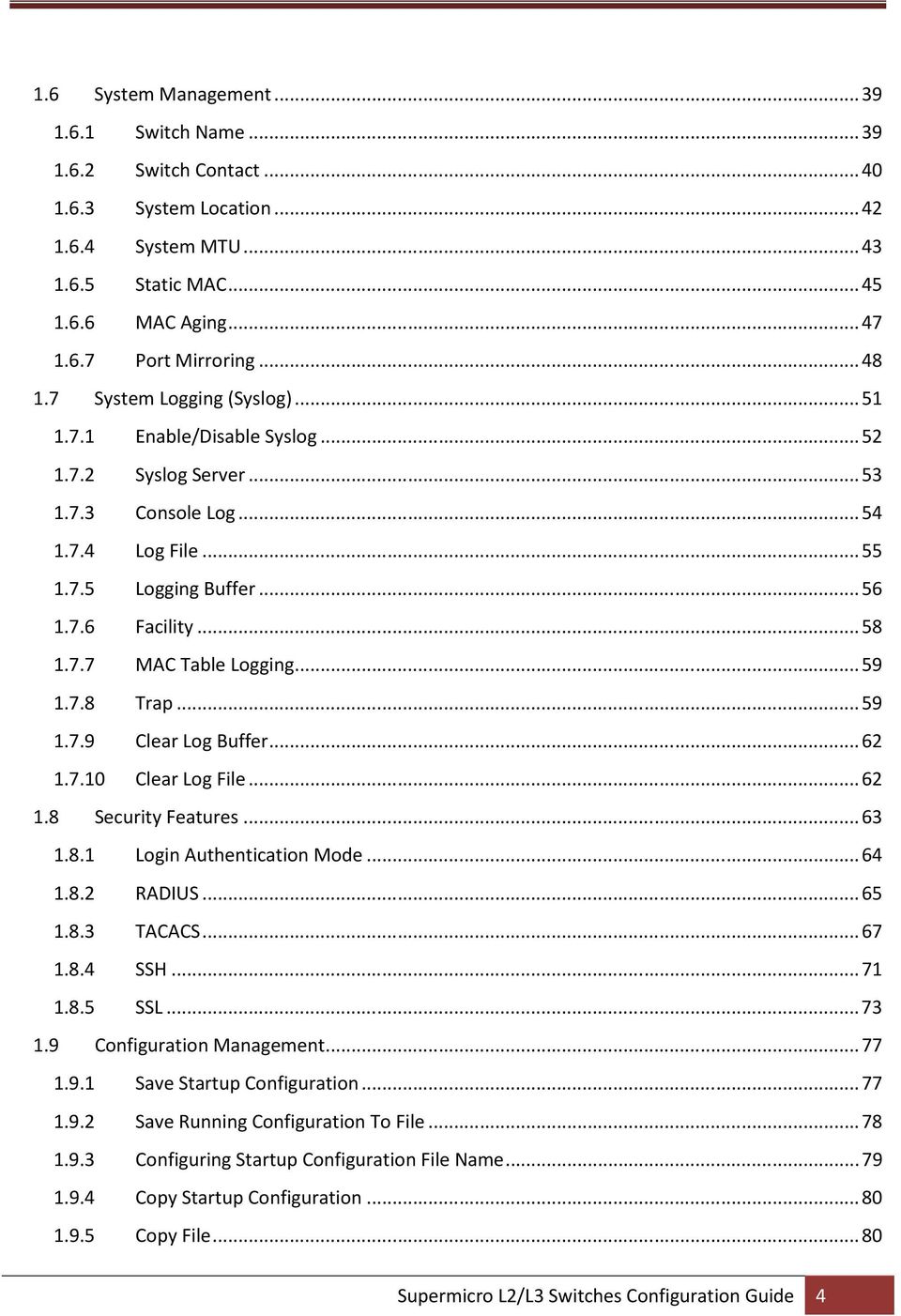
4 1.6 System Management Switch Name Switch Contact System Location System MTU Static MAC MAC Aging Port Mirroring System Logging (Syslog) Enable/Disable Syslog Syslog Server Console Log Log File Logging Buffer Facility MAC Table Logging Trap Clear Log Buffer Clear Log File Security Features Login Authentication Mode RADIUS TACACS SSH SSL Configuration Management Save Startup Configuration Save Running Configuration To File Configuring Startup Configuration File Name Copy Startup Configuration Copy File Supermicro L2/L3 Switches Configuration Guide 4
5 1.9.6 Deleting Saved Configurations Firmware Upgrades Boot-up Options Reset to Factory Defaults Supermicro L2/L3 Switches Configuration Guide 5

6 1 System Configuration Guide This document describes the system features supported in Supermicro Layer 2/Layer 3 switch products. This document covers the system configurations for the below listed Supermicro switch products. Top of Rack Switches SSE-G24-TG4 SSE-G48-TG4 SSE-X24S SSE-X3348S SSE-X3348T Blade Switches SBM-GEM-X2C SBM-GEM-X2C+ SBM-GEM-X3S+ SBM-XEM-X10SM The majority of this document applies to all the above listed Supermicro switch products. In any particular sub section however, the contents might vary across these switch product models. In those sections the differences are clearly identified with reference to particular switch product models. If any particular switch product model is not referenced, the reader can safely assume that the content is applicable to all the above listed models. Throughout this document, the common term switch refers to any of the above listed Supermicro switch product models unless a particular switch product model is noted. 1.1 Management IP Supermicro switches come with a default static management IP address of In TOR switches, the management IP address is assigned to a default VLAN 1 interface. The management IP is accessible through all the switching ports by default. In blade switches, the management IP address is assigned to the internal management Ethernet ports connected to the CMM. Hence the management IP address is reachable through the CMM Ethernet connection. This management IP address is not reachable through front panel 1Gb or 10Gb ports. To Supermicro L2/L3 Switches Configuration Guide 6

7 manage blade switches through front panel switching ports, configure a layer 3 VLAN interface with the required IP address. Defaults Management IP Parameter Default Value IP Address Broadcast Address Gateway Static Management IP Address Configuration The IP address command can be used to manually configure the management interface IP address. Follow the steps below to manually configure the management interface IP address. Step 2 ip address [<ip-address> <ip-address>/prefixlength] [<subnet-mask>] Configures the management interface IP address manually. ip-address A valid IPv4 Address. ip-address/prefix-length - A valid IPv4 Address with a prefix length value of Step 3 end Step 4 show ip interface subnet-mask A valid IP subnet mask. Displays the management interface IP configuration. The manual IP address configuration is saved automatically as part of the start-up config. The no ip address command resets the switch IP address to The example below shows the commands used to configure the management interface IP address manually. SMIS(config)# ip address SMIS(config)# end Supermicro L2/L3 Switches Configuration Guide 7

8 1.1.2 Management IP Address DHCP Configuration Supermicro switches can be configured to obtain the management IP address through the DHCP protocol. In this case, a switch acts as a DHCP client and obtains the IP address for any DHCP server on the LAN. Follow the steps below to obtain the management interface IP address dynamically from a DHCP server. Step 2 ip address dhcp Step 3 end Step 4 show ip interface Configures the management interface IP address through the DHCP server. Displays the management interface IP configuration. The IP address dhcp configuration is saved automatically as part of the start-up configuration. The no ip address dhcp command disables the configuring of the management interface IP address through the DHCP server. The example below shows the commands used to configure the management interface IP address through DHCP. SMIS(config)#ip address dhcp SMIS(config)# end Default IP Gateway To configure the default gateway IP address in blade switches, follow the steps below. Step 2 ip gateway <ip-address> Step 3 end Step 4 show ip interface Configures the IP gateway address. ip-address IP address of a directly connected router. Displays the interface IP configuration. Supermicro L2/L3 Switches Configuration Guide 8

9 The IP Gateway configuration is saved automatically as part of the start-up configuration. The no ip gateway command resets the switch IP gateway address to its default value of The example below shows the commands used to configure the gateway IP address. SMIS(config)# ip gateway SMIS(config)# end In TOR switches, the above ip gateway command is not supported. To configure the gateway IP address use the ip route command. To configure default gateway address in TOR switches, follow the steps below. Step 2 ip route <ip-address> Step 3 end Step 4 show ip route Step 5 write startup-config Configure the IP gateway address. ip-address IP address of a directly connected gateway. Displays the IP route configuration. Optional step saves this configuration to be part of the startup configuration. The no iproute <ip-address> command removes the gateway configuration. The example below shows the commands used to configure IP gateway in TOR switches. SMIS(config)# ip route SMIS(config)# end 1.2 Management Access Supermicro switches can enable access control of the switch by various mechanisms: Supermicro L2/L3 Switches Configuration Guide 9

10 User name and password Enable password Authorized managers Defaults Management Access Parameter Default Value User Name/Password/Privilege Privilege (for configured users) 1 Enable Password ADMIN IP Authorized Managers None ADMIN/ADMIN/15 stackuser/stack123/ User Login User accounts can be configured for switch access. Each username can be associated with a password and a privilege level. Users configured with a password are authenticated to the configured privilege level while accessing the switch. Users with a privilege level 1 or above can execute all show commands. To execute configuration commands, access with privilege level 15 is required. Follow the steps below to configure the username. Step 2 username <user-name> [password <passwd>] [privilege <1-15>] Configures the username and password. user-name Alphanumeric with a character length of 1-20 password Alphanumeric with a character length of 1-20 Step 3 end Step 4 list users show users privilege - Specify 1-15 for any of the privilege levels Displays the users available in the switch. Displays the users that are currently logged in. Supermicro L2/L3 Switches Configuration Guide 10
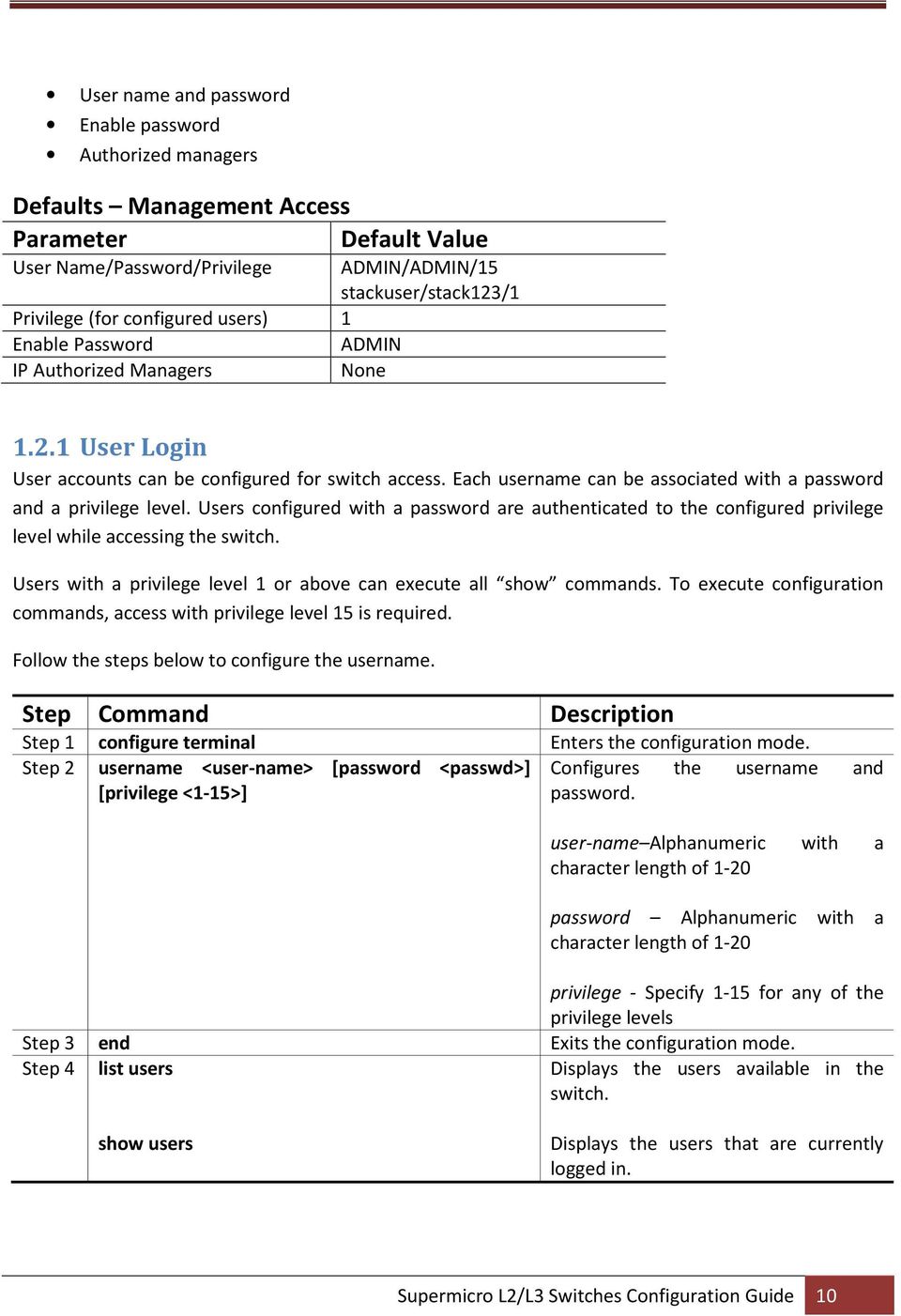
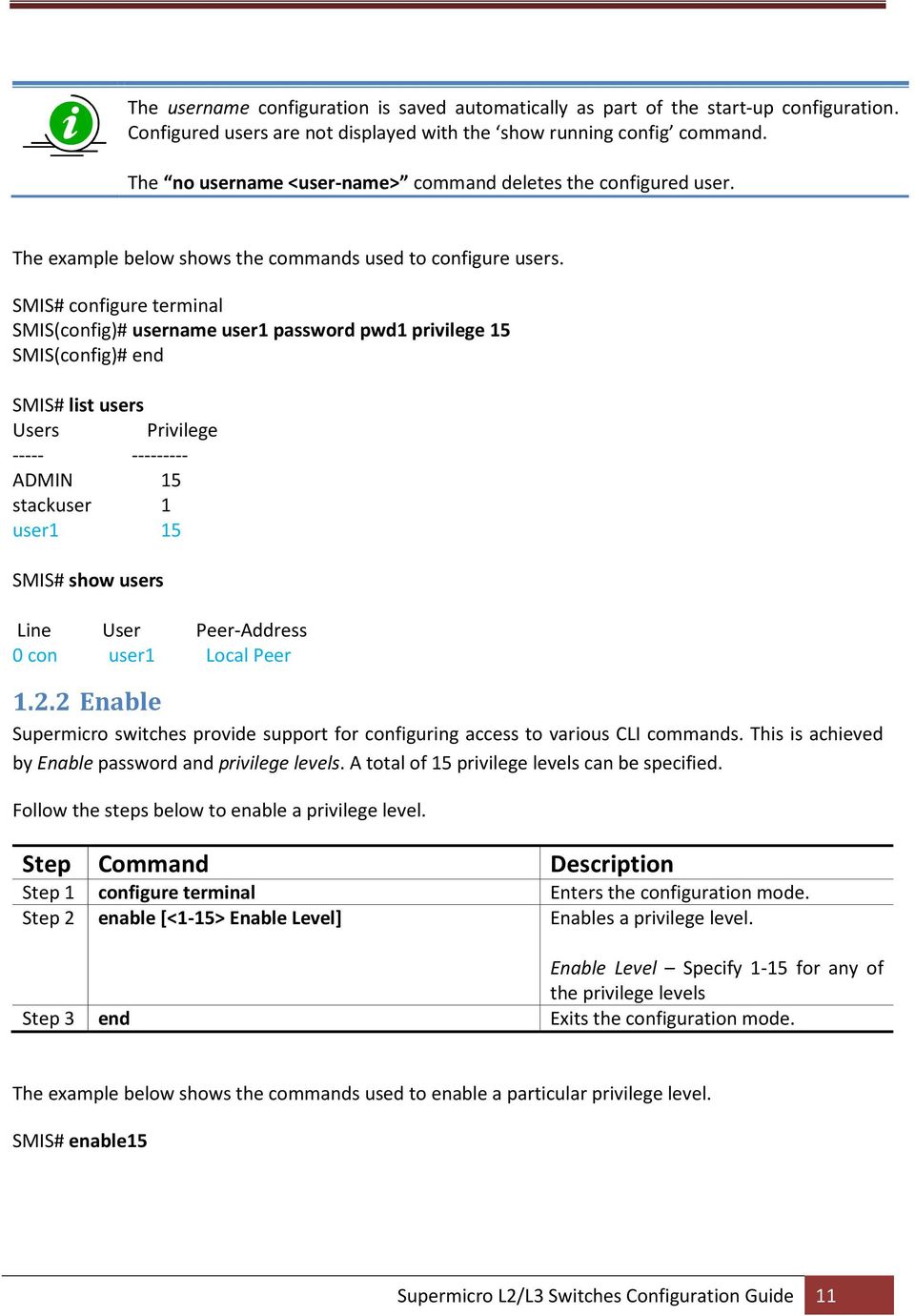
11 The username configuration is saved automatically as part of the start-up configuration. Configured users are not displayed with the show running config command. The no username <user-name> command deletes the configured user. The example below shows the commands used to configure users. SMIS(config)# username user1 password pwd1 privilege 15 SMIS(config)# end SMIS# list users Users Privilege ADMIN 15 stackuser 1 user1 15 SMIS# show users Line User Peer-Address 0 con user1 Local Peer Enable Supermicro switches provide support for configuring access to various CLI commands. This is achieved by Enable password and privilege levels. A total of 15 privilege levels can be specified. Follow the steps below to enable a privilege level. Step 2 enable [<1-15> Enable Level] Step 3 end Enables a privilege level. Enable Level Specify 1-15 for any of the privilege levels The example below shows the commands used to enable a particular privilege level. SMIS# enable15 Supermicro L2/L3 Switches Configuration Guide 11
12 1.2.3 Enable Password Passwords for different enable levels can be configured by the switch administrator using the enable password command. Follow the steps below to enable password for any privilege level. Step 2 enable password [level (1-15)] <LINE 'enable' password> Configures password for a particular privilege level. Level Specify 1-15 for any of the privilege levels Step 3 end LINE enable password Alphanumeric The enable password configuration is saved automatically as part of the start-up configuration. Enable password configuration is not displayed with the show running config command. The no enable password [level (1-15)] command disables the enable password parameters. The example below shows the commands used to configure enable password. SMIS(config)# enable password level 10 pwd IP Authorized Manager Supermicro switches allow configuration of IP authorized managers. This feature enhances security on the switch by using IP addresses to authorize computers to: Access the switch s web browser interface Telnet into the switch s console interface Use SNMP or SSH Follow the steps below to configure the authorized managers for the switch. Supermicro L2/L3 Switches Configuration Guide 12

13 Step 2 authorized-manager ip-source <ipaddress>[{<subnet-mask> / <prefix-length(1-32)>}] [interface [<interface-type <0/a-b, 0/c,...>] [<interface-type <0/a-b, 0/c,...>]] [vlan<a,b or a-b or a,b,c-d>] [service [snmp] [telnet] [http] [http s] [ssh]] Configures the authorized manager ip-address Manager IP address subnet mask For a given Authorized Manager entry, the switch applies the subnet mask to the IP address to determine a range of authorized IP addresses for management access prefix-length- Prefix length of the IP address, from interface-type Specifies the interface type through which the IP authorized manager can access the switch. May be any of the following: gigabit ethernet gi extreme-ethernet ex qx-ethernet qx vlan interface-id is in slot/port format for all physical interfaces. It may be the VLAN identifier for VLAN interfaces. vlan -Specifies the vlan id through which the IP authorized manager can access the switch. Step 3 end Step 4 show authorized-managers Step 5 write startup-config service Specifies the services that can be accessed by the authorized manager Displays the Authorized Managers configuration. Optional step saves this configuration to be part of the startup configuration. If IP Authorized Managers are configured in a Supermicro switch, access to switch via telnet, ssh, etc. is possible only by those hosts given access. Other hosts will not be permitted access to the switch. The no authorized-manager ip-source <ip-address> [{<subnet-mask> / <prefix-length(1-32)>}] command deletes a particular authorized manager. Supermicro L2/L3 Switches Configuration Guide 13

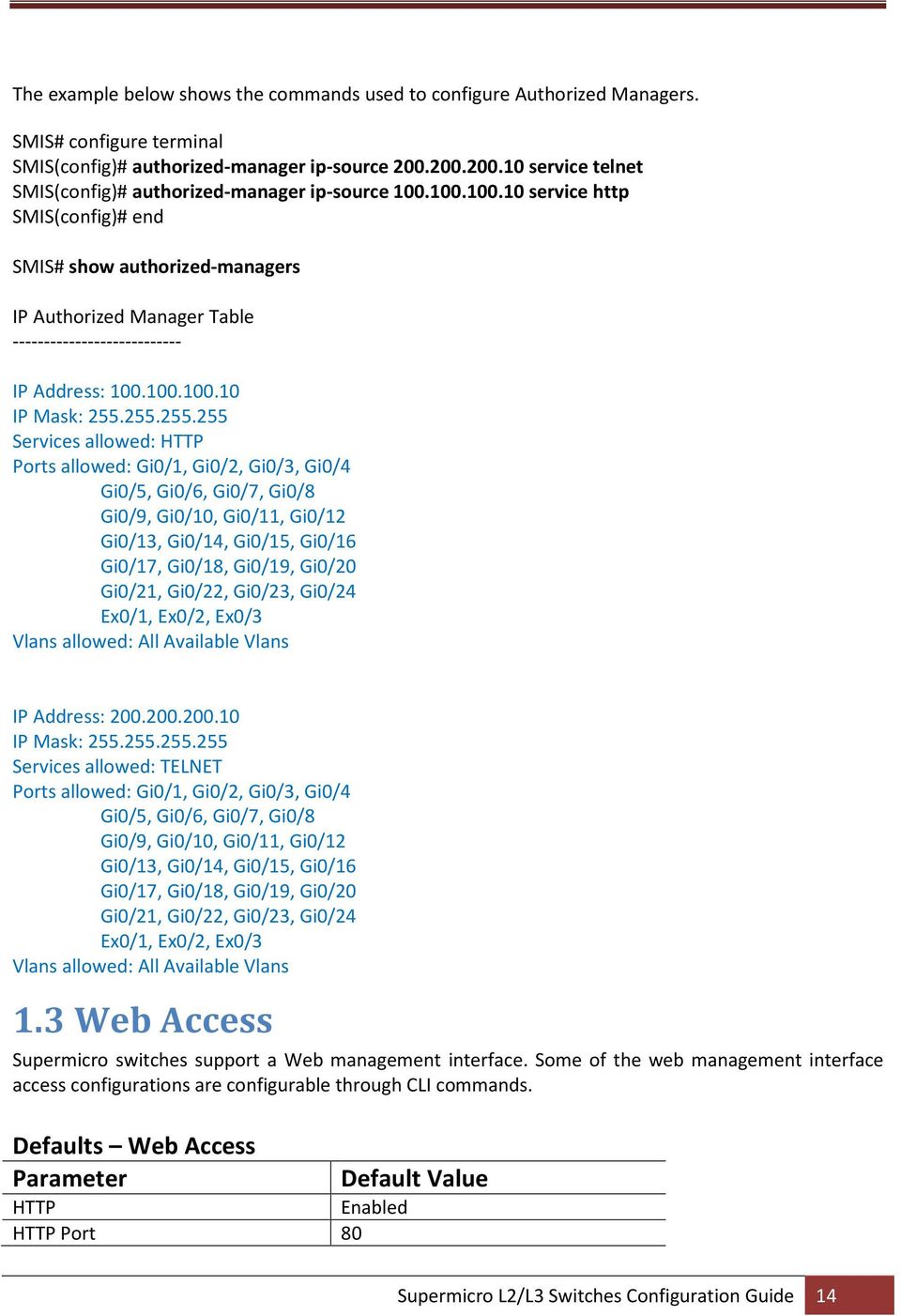
14 The example below shows the commands used to configure Authorized Managers. SMIS(config)# authorized-manager ip-source service telnet SMIS(config)# authorized-manager ip-source service http SMIS(config)# end SMIS# show authorized-managers IP Authorized Manager Table IP Address: IP Mask: Services allowed: HTTP Ports allowed: Gi0/1, Gi0/2, Gi0/3, Gi0/4 Gi0/5, Gi0/6, Gi0/7, Gi0/8 Gi0/9, Gi0/10, Gi0/11, Gi0/12 Gi0/13, Gi0/14, Gi0/15, Gi0/16 Gi0/17, Gi0/18, Gi0/19, Gi0/20 Gi0/21, Gi0/22, Gi0/23, Gi0/24 Ex0/1, Ex0/2, Ex0/3 Vlans allowed: All Available Vlans IP Address: IP Mask: Services allowed: TELNET Ports allowed: Gi0/1, Gi0/2, Gi0/3, Gi0/4 Gi0/5, Gi0/6, Gi0/7, Gi0/8 Gi0/9, Gi0/10, Gi0/11, Gi0/12 Gi0/13, Gi0/14, Gi0/15, Gi0/16 Gi0/17, Gi0/18, Gi0/19, Gi0/20 Gi0/21, Gi0/22, Gi0/23, Gi0/24 Ex0/1, Ex0/2, Ex0/3 Vlans allowed: All Available Vlans 1.3 Web Access Supermicro switches support a Web management interface. Some of the web management interface access configurations are configurable through CLI commands. Defaults Web Access Parameter HTTP Enabled HTTP Port 80 Default Value Supermicro L2/L3 Switches Configuration Guide 14
15 WEB Session Timeout Statistics Refresh Timer 600 seconds 0 seconds HTTP Enable/Disable Hyper Text Transfer Protocol (HTTP) is enabled by default in Supermicro switches. Follow the steps below to disable HTTP. Step 2 set ip http {enable disable} Step 3 end Step 4 show http server status Step 5 write startup-config Disables HTTP. Displays the HTTP server configuration. Optional step saves this configuration to be part of the startup configuration. The set ip http enable command enables HTTP. The example below shows the commands used to disable HTTP. SMIS(config)# set ip http disable SMIS(config)# end SMIS# show http server status HTTP server status: Disabled HTTP port is: 80 When HTTP is enabled, Supermicro switches can be accessed from a web browser by specifying HTTP Port The default HTTP port is 80. The HTTP port can be modified by the user. Follow the steps below to configure the HTTP port. Supermicro L2/L3 Switches Configuration Guide 15

16 Step 2 ip http port <port-number( )> Step 3 end Step 4 show http server status Step 5 write startup-config Configures the HTTP port. port-number Port number specified as an integer from Displays the HTTP server configuration. Optional step saves this configuration to be part of the startup configuration. HTTP status must be disabled before changing the HTTP port configuration. The no ip http port command resets the HTTP port to its default value of 80. The example below shows the commands used to configure the HTTP port. SMIS(config)#ip http port 500 SMIS(config)# end SMIS# show http server status HTTP server status: Enabled HTTP port is: WEB Session Timeout When a user session in the web interface is inactive, the user is logged out. In Supermicro switches, the session timeout for inactive WEB access users is configurable. The default web session time out value is 600 seconds. Follow the steps below to configure the web session timeout. Step 2 web session-timeout <integer(1-9999)> Step 3 end Step 4 write startup-config Configures the web idle session timeout to between seconds. Optional step saves this configuration to be part of the startup configuration. The example below shows the commands used to configure a web session timeout. Supermicro L2/L3 Switches Configuration Guide 16

17 SMIS(config)# web session-timeout 500 SMIS(config)# end Statistics Refresh Timer The statistics pages can be configured to automatically refresh periodically. The web statistics refresh timer is configurable through a CLI command. Follow the steps below to configure the Statistics Refresh Timer. Step 2 statistics refresh-timer <integer(0-9999)> Step 3 end Step 4 write startup-config Configures the Statistics Refresh Timer to between seconds. Optional step saves this configuration to be part of the startup configuration. The example below shows the commands used to configure the Statistics Refresh Timer. SMIS(config)# statistics refresh-timer 5000 SMIS(config)# end 1.4 Interface Properties Supermicro switches support various types of interfaces: physical interfaces, port channel interfaces and VLAN interfaces. Each interface has different characteristics, some of which are configurable. Defaults Interface Properties Parameter Default Value MTU Speed Negotiation Storm-control Duplex Operation Flow Control 1500 bytes For 1 1Gbps For 10 10Gbps For 40 40Gbps For 1G interfaces Auto For 10GBaseT interfaces Auto For all other types of 10G interfaces No negotiation For 40G interfaces - No negotiation Disabled None Full Off Supermicro L2/L3 Switches Configuration Guide 17

18 1.4.1 Supermicro switches allow users to configure a description string for the interfaces. This descriptive string will be useful to easily identify the interfaces. Follow the steps below to configure the interface description string. Step 2 interface <interface-type><interface-id> or interface range <interface-type><interface-id>. Enters the interface configuration mode. interface-type may be any of the following: gigabitethernet gi extreme-ethernet ex qx-ethernet qx vlan interface-id is in slot/port format for all physical interfaces. It may be the VLAN identifier for VLAN interfaces. To configure multiple interfaces, use the interface range command. To provide a range, use a hyphen (-) between the start and end interface numbers. E.g.: int range gi 0/1-10 To provide multiple interfaces or ranges, separate with a comma (,). E.g.: int range gi 0/1-10, gi 0/20 If multiple interfaces are provided, the next step will perform the particular configuration on all these interfaces. Step 3 description <string> Configures the interface description. Supermicro L2/L3 Switches Configuration Guide 18

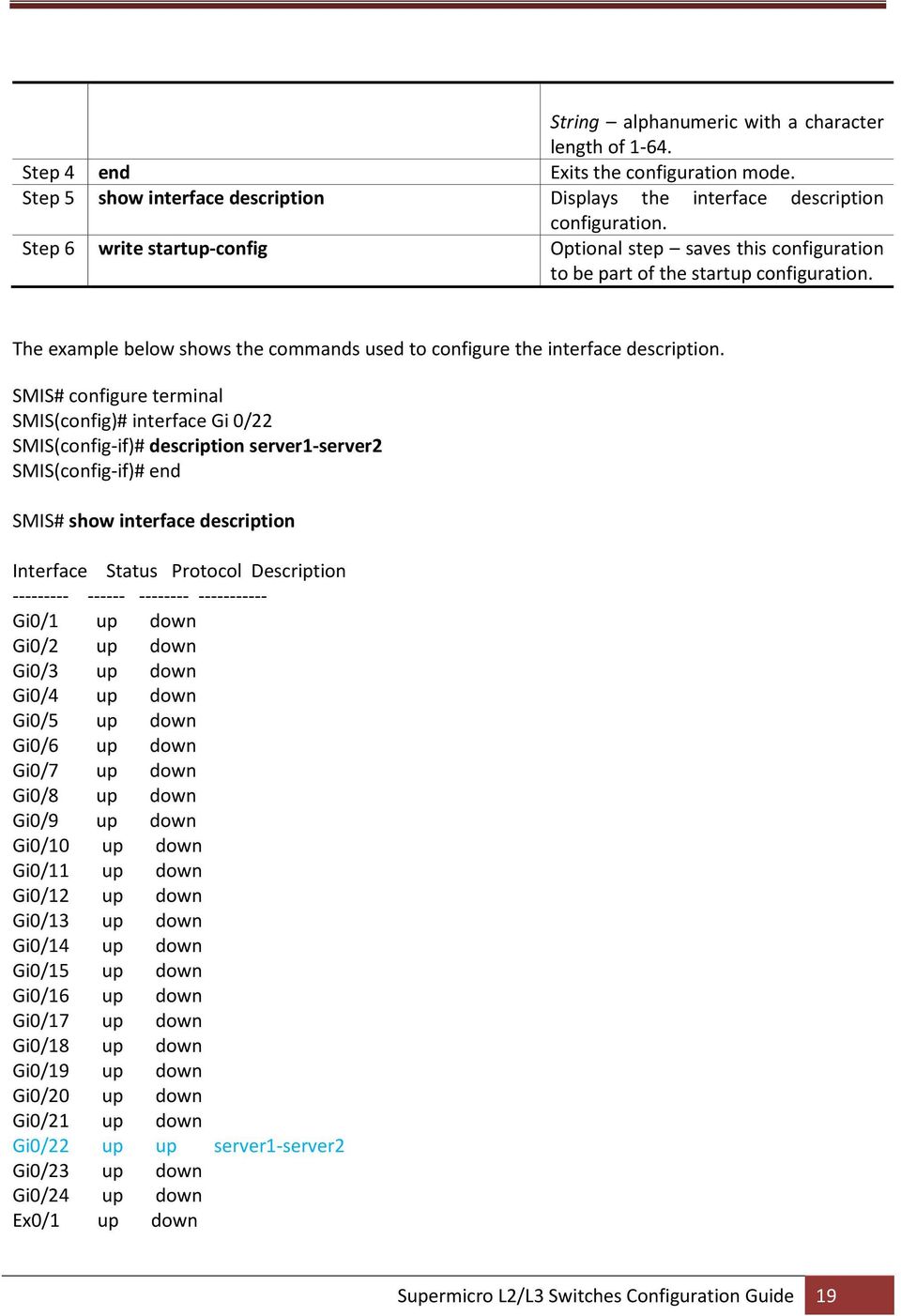
19 Step 4 end Step 5 show interface description Step 6 write startup-config String alphanumeric with a character length of Displays the interface description configuration. Optional step saves this configuration to be part of the startup configuration. The example below shows the commands used to configure the interface description. SMIS(config)# interface Gi 0/22 SMIS(config-if)# description server1-server2 SMIS(config-if)# end SMIS# show interface description Interface Status Protocol Gi0/1 up down Gi0/2 up down Gi0/3 up down Gi0/4 up down Gi0/5 up down Gi0/6 up down Gi0/7 up down Gi0/8 up down Gi0/9 up down Gi0/10 up down Gi0/11 up down Gi0/12 up down Gi0/13 up down Gi0/14 up down Gi0/15 up down Gi0/16 up down Gi0/17 up down Gi0/18 up down Gi0/19 up down Gi0/20 up down Gi0/21 up down Gi0/22 up up server1-server2 Gi0/23 up down Gi0/24 up down Ex0/1 up down Supermicro L2/L3 Switches Configuration Guide 19
20 Ex0/2 Ex0/3 up down up down Negotiation Interface speed can be negotiated between connected devices if both ends support negotiation. Auto negotiation is enabled by default in all 1Gig interfaces and also on the 10GBaseT interfaces. In other types of 10Gig interfaces and 40Gig interfaces, auto negotiation is not supported. Follow the steps below to configure Interface Negotiation. Step 2 interface <interface-type><interface-id> or interface range <interface-type><interface-id>. Enters the interface configuration mode. interface-type may be any of the following: gigabit ethernet gi extreme-ethernet ex interface-id is in slot/port format for all physical interfaces. To configure multiple interfaces, use the interface range command. To provide a range, use a hyphen (-) between the start and end interface numbers. E.g.: int range gi 0/1-10 To provide multiple interfaces or ranges, separate with a comma (,). E.g.: int range gi 0/1-10, gi 0/20 Supermicro L2/L3 Switches Configuration Guide 20

21 If multiple interfaces are provided, the next step will perform the particular configuration on all these interfaces. Step3 negotiation Step 4 end Step 5 show interface status Step 6 write startup-config Enables Interface Negotiation. Displays the interface configuration. Optional step saves this configuration to be part of the startup configuration. The no negotiation command disables interface negotiation. The example below shows the commands used to configure Interface Negotiation. SMIS(config)# interface Gi 0/22 SMIS(config-if)# no negotiation SMIS(config-if)# end SMIS# show interface status Port Status Duplex Speed Negotiation Gi0/1 not connected Full 1 Gbps Auto Gi0/2 not connected Full 1 Gbps Auto Gi0/3 not connected Full 1 Gbps Auto Gi0/4 not connected Full 1 Gbps Auto Gi0/5 not connected Full 1 Gbps Auto Gi0/6 not connected Full 1 Gbps Auto Gi0/7 not connected Full 1 Gbps Auto Gi0/8 not connected Full 1 Gbps Auto Gi0/9 not connected Full 1 Gbps Auto Gi0/10 not connected Full 1 Gbps Auto Gi0/11 not connected Full 1 Gbps Auto Gi0/12 not connected Full 1 Gbps Auto Gi0/13 not connected Full 1 Gbps Auto Gi0/14 not connected Full 1 Gbps Auto Gi0/15 not connected Full 1 Gbps Auto Gi0/16 not connected Full 1 Gbps Auto Gi0/17 not connected Full 1 Gbps Auto Gi0/18 not connected Full 1 Gbps Auto Supermicro L2/L3 Switches Configuration Guide 21
22 Gi0/19 not connected Full 1 Gbps Auto Gi0/20 not connected Full 1 Gbps Auto Gi0/21 not connected Half 1 Gbps Auto Gi0/22 not connected Full 1 Gbps No-Negotiation Gi0/23 not connected Half 1 Gbps Auto Gi0/24 not connected Half 1 Gbps Auto Ex0/1 not connected Full 10 Gbps No-Negotiation Ex0/2 not connected Full 10 Gbps No-Negotiation Ex0/3 not connected Full 10 Gbps No-Negotiation Speed Interface speed can be configured for physical interfaces when auto negotiation is disabled. 1Gb RJ45 interfaces can be configured to operate at 10Mbps, 100Mbps or 1000Mbps speed. 10Gb interfaces in SSE-G24-TG4, SSE-G48-TG4, SBM-GEM-X2C, SBM-GEM-X2C+ and SBM-GEM-X3S+ switches can operate only at the fixed 10Gb speed. 10Gb interfaces in SSE-X24S, SBM-XEM-X10S, SSE-X3348S and SSE-X3348T switches can be configurable to operate at 1Gb or 10Gb speed. 40Gb interfaces are fixed to operate only at the 40Gb speed. Follow the steps below to configure the interface speed. Step 2 interface <interface-type><interface-id> or interface range <interface-type><interface-id>. Enters the interface configuration mode. interface-type may be any of the following: gigabitethernet gi extreme-ethernet ex interface-id is in slot/port format for all physical interfaces. To configure multiple interfaces, use the interface range command. To provide a range, use a hyphen (-) Supermicro L2/L3 Switches Configuration Guide 22
23 between the start and end interface numbers. E.g.: int range gi 0/1-10 To provide multiple interfaces or ranges, separate with a comma (,). E.g.: int range gi 0/1-10, gi 0/20 If multiple interfaces are provided, the next step will perform the particular configuration on all these interfaces. Step 3 speed { } Configure the interface speed as 10, 100, 1000 or Mbps. Step 4 end Step 5 show interface status Step 6 write startup-config Displays the interface configuration. Optional step saves this configuration to be part of the startup configuration. The no speed command restores the default interface speed. The example below shows the commands used to configure the interface speed. SMIS(config)# interface Gi 0/22 SMIS(config-if)# speed 10 SMIS(config-if)# end SMIS# show interface status Port Status Duplex Speed Negotiation Gi0/1 not connected Full 1 Gbps Auto Gi0/2 not connected Full 1 Gbps Auto Gi0/3 not connected Full 1 Gbps Auto Gi0/4 not connected Full 1 Gbps Auto Gi0/5 not connected Full 1 Gbps Auto Supermicro L2/L3 Switches Configuration Guide 23
24 Gi0/6 not connected Full 1 Gbps Auto Gi0/7 not connected Full 1 Gbps Auto Gi0/8 not connected Full 1 Gbps Auto Gi0/9 not connected Full 1 Gbps Auto Gi0/10 not connected Full 1 Gbps Auto Gi0/11 not connected Full 1 Gbps Auto Gi0/12 not connected Full 1 Gbps Auto Gi0/13 not connected Full 1 Gbps Auto Gi0/14 not connected Full 1 Gbps Auto Gi0/15 not connected Full 1 Gbps Auto Gi0/16 not connected Full 1 Gbps Auto Gi0/17 not connected Full 1 Gbps Auto Gi0/18 not connected Full 1 Gbps Auto Gi0/19 not connected Full 1 Gbps Auto Gi0/20 not connected Full 1 Gbps Auto Gi0/21 not connected Half 1 Gbps Auto Gi0/22 not connected Full 10 Mbps No-Negotiation Gi0/23 not connected Half 1 Gbps Auto Gi0/24 not connected Half 1 Gbps Auto Ex0/1 not connected Full 10 Gbps No-Negotiation Ex0/2 not connected Full 10 Gbps No-Negotiation Ex0/3 not connected Full 10 Gbps No-Negotiation Duplex Operation Supermicro switches support configuring physical interfaces to full-duplex or half-duplex operation. Follow the steps below to configure the duplex operation type. Step 2 interface <interface-type><interface-id> or interface range <interface-type><interface-id>. Enters the interface configuration mode. interface-type may be any of the following: gigabit ethernet gi extreme-ethernet ex interface-id is in slot/port format for all physical interfaces. Supermicro L2/L3 Switches Configuration Guide 24
25 To configure multiple interfaces, use the interface range command. To provide a range, use a hyphen (-) between the start and end interface numbers. E.g.: int range gi 0/1-10 To provide multiple interfaces or ranges, separate with a comma (,). E.g.: int range gi 0/1-10, gi 0/20 If multiple interfaces are provided, the next step will perform the particular configuration on all these interfaces. Step 3 duplex { full half } Step 4 end Step 5 show interface status Step 6 write startup-config Configure as duplex operation. Displays the interface configuration. Optional step saves this configuration to be part of the startup configuration. The no duplex command restores the default interface to full duplex operation. The example below shows the commands used to configure the duplex operation type. SMIS(config)# interface Gi 0/22 SMIS(config-if)# duplex half SMIS(config-if)# end SMIS# show interface status Port Status Duplex Speed Negotiation Gi0/1 not connected Full 1 Gbps Auto Supermicro L2/L3 Switches Configuration Guide 25
26 Gi0/2 not connected Full 1 Gbps Auto Gi0/3 not connected Full 1 Gbps Auto Gi0/4 not connected Full 1 Gbps Auto Gi0/5 not connected Full 1 Gbps Auto Gi0/6 not connected Full 1 Gbps Auto Gi0/7 not connected Full 1 Gbps Auto Gi0/8 not connected Full 1 Gbps Auto Gi0/9 not connected Full 1 Gbps Auto Gi0/10 not connected Full 1 Gbps Auto Gi0/11 not connected Full 1 Gbps Auto Gi0/12 not connected Full 1 Gbps Auto Gi0/13 not connected Full 1 Gbps Auto Gi0/14 not connected Full 1 Gbps Auto Gi0/15 not connected Full 1 Gbps Auto Gi0/16 not connected Full 1 Gbps Auto Gi0/17 not connected Full 1 Gbps Auto Gi0/18 not connected Full 1 Gbps Auto Gi0/19 not connected Full 1 Gbps Auto Gi0/20 not connected Full 1 Gbps Auto Gi0/21 not connected Half 1 Gbps Auto Gi0/22 not connected Half 1 Gbps No Negotiation Gi0/23 not connected Half 1 Gbps Auto Gi0/24 not connected Half 1 Gbps Auto Ex0/1 not connected Full 10 Gbps No Negotiation Ex0/2 not connected Full 10 Gbps No Negotiation Ex0/3 not connected Full 10 Gbps No Negotiation MTU The default maximum transmission unit (MTU) size for frames received and transmitted is 1500 bytes. The MTU size can be increased for an interface. Follow the steps below to configure an interface s MTU. Step 2 interface <interface-type><interface-id> or interface range <interface-type><interface-id>. Enters the interface configuration mode. interface-type may be any of the following: gigabit ethernet gi extreme-ethernet ex qx-ethernet qx Supermicro L2/L3 Switches Configuration Guide 26
27 vlan port-channel interface-id is in slot/port format for all physical interfaces. It may be the VLAN identifier for VLAN interfaces. To configure multiple interfaces, use the interface range command. To provide a range, use a hyphen (-) between the start and end interface numbers. E.g.: int range gi 0/1-10 To provide multiple interfaces or ranges, separate with a comma (,). E.g.: int range gi 0/1-10, gi 0/20 If multiple interfaces are provided, the next step will perform the particular configuration on all these interfaces. Step 3 mtu<frame-size( )> Step 4 end Step 5 show interface status Step 6 write startup-config Configure interface MTU to a range of Displays the interface configuration. Optional step saves this configuration to be part of the startup configuration. The no mtu command restores the interface MTU to its default of 1500 bytes. To change the MTU for all the interfaces, the system mtu command can be used. The example below shows the commands used to configure the interface MTU. SMIS(config)# interface Gi 0/22 SMIS(config-if)# mtu 9000 SMIS(config-if)# end Supermicro L2/L3 Switches Configuration Guide 27
28 SMIS# show interface Gi 0/22 Gi0/22 up, line protocol is down (not connect) Bridge Port Type: Customer Bridge Port Hardware Address is 00:30:48:e3:70:d1 MTU 9000 bytes, Half duplex, 1 Gbps, No Negotiation HOL Block Prevention enabled. Input flow-control is off,output flow-control is off Link Up/Down Trap is enabled Reception Counters Octets: 3549 Unicast Packets: 0 Broadcast Packets: 13 Multicast Packets: 26 Pause Frames: 0 Undersize Frames: 0 Oversize Frames: 0 CRC Error Frames: 0 Discarded Packets: 39 Error Packets: 0 Unknown Protocol: 0 Transmission Counters Octets: 7198 Unicast Packets: 0 Non-Unicast Packets: 59 Pause Frames: 0 Discarded Packets: 0 Error Packets: 0 SMIS(config-if)# show interface mtu Gi 0/22 Gi0/22 MTU size is Flow Control Flow control enables Ethernet ports to control traffic during congestion to avoid packet loss. Supermicro L2/L3 Switches Configuration Guide 28
29 If a port experiences congestion and cannot receive any more traffic, it notifies other ports by sending a pause frame to stop sending until the condition clears. Upon receipt of a pause frame, the sending device stops sending any data packets to prevent any loss of data packets during the congestion period. Follow the steps below to configure flow control. Step 2 interface <interface-type><interface-id> or interface range <interface-type><interface-id>. Enters the interface configuration mode. interface-type may be any of the following: gigabit ethernet gi extreme-ethernet ex qx-ethernet qx interface-id is in slot/port format for all physical interfaces. To configure multiple interfaces, use the interface range command. To provide a range use a hyphen (-) between the start and end interface numbers. E.g.: int range gi 0/1-10 To provide multiple interfaces or ranges, separate with a comma (,). E.g.: int range gi 0/1-10, gi 0/20 If multiple interfaces are provided, the next step will perform the particular configuration on all these interfaces. Supermicro L2/L3 Switches Configuration Guide 29
30 Step 3 flowcontrol { send receive} { on off } Configure flow control. Send The port can send pause frames but cannot receive pause frames from a connected device. Receive The port cannot send pause frames but can receive pause frames from a connected device. On Enables flow control Off - Disables flow control Step 4 end Step 5 show flow-control [ interface <interfacetype><interface-id>] Step 6 write startup-config Displays the Interface Flow control configuration. Optional step saves this configuration to be part of startup configuration. The example below shows the commands used to configure flow control. SMIS(config)# interface Gi 0/22 SMIS(config-if)# flowcontrol send on SMIS(config-if)# end SMIS# show flow-control interface Gi 0/22 Port TxFlowControl Rx FlowControl Tx Pause Rx Pause Gi0/22 on off Storm Control Storm control prevents traffic on a LAN from being disrupted by a broadcast, multicast, or unicast storm on one of the physical interfaces. A LAN storm occurs when packets flood the LAN due to errors in the Supermicro L2/L3 Switches Configuration Guide 30
31 protocol-stack implementation, mistakes in network configurations, etc. LAN storms degrade network performance. Storm control monitors packets passing from an interface to the switching bus and determines if the packet is unicast, multicast, or broadcast. The switch counts the number of packets of a specified type received within the 1-second time interval and compares the measurement with a predefined suppression-level threshold. The port blocks traffic when the rising threshold is reached and remains blocked until the traffic rate drops below the falling threshold, then resumes normal forwarding. Follow the steps below to configure storm control. Step 2 interface <interface-type><interface-id> or interface range <interface-type><interface-id>. Enters the interface configuration mode. interface-type may be any of the following: gigabit ethernet gi extreme-ethernet ex qx-ethernet qx interface-id is in slot/port format for all physical interfaces. To configure multiple interfaces, use the interface range command. To provide a range, use a hyphen (-) between the start and end interface numbers. E.g.: int range gi 0/1-10 To provide multiple interfaces or ranges, separate with a comma (,). E.g.: int range gi 0/1-10, gi 0/20 If multiple interfaces are provided, the next step will perform the particular configuration on all these interfaces. Supermicro L2/L3 Switches Configuration Guide 31
32 Step 3 storm-control { broadcast multicast dlf } level <pps-rate-value ( )> Step 4 end Step 5 show interfaces storm-control Step 6 write startup-config Configure storm control for broadcast, multicast or DLF packets. Level threshold level in packets per second from Displays the interface storm control configuration. Optional step saves this configuration to be part of the startup configuration. The no storm-control { broadcast multicast dlf } level command disables storm control. The example below shows the commands used to configure storm control. SMIS(config)# interface Gi 0/22 SMIS(config-if)# storm-control broadcast level SMIS(config-if)# end SMIS# show interfaces Gi 0/22 storm-control Gi0/22 DLF Storm Control: Disabled Broadcast Storm Control: Enabled Broadcast Storm Control: Multicast Storm Control: Disabled 1.5 Time Management The system time and date on Supermicro switches can be managed by Network Time Protocol (NTP) or configured manually. NTP provides synchronization of network resources by a synchronized network timestamp. Supermicro switches can function as a NTP client over UDP and receive the time from an NTP server in the network. The time Defaults Time Management Parameter Default Value Supermicro L2/L3 Switches Configuration Guide 32
33 Timezone offset NTP status NTP operation NTP authentication NTP server NTP Broadcast mode None Disabled Unicast None None No NTP Server Supermicro switches can synchronize time with a NTP server. Follow the below steps to configure NTP server parameters. Step 2 ntp server <ip_address> [key( )] [prefer] Configure the NTP server. ip_addr IP address of server. key Authentication key for server connectivity in the range of Step 3 end Step 4 show ntp Step 5 write startup-config prefer This option can be used to specify a preferred NTP server when multiple NTP servers are configured in the switch. Only one server can be configured as prefer at a time. Displays the NTP configuration. Optional step saves this configuration to be part of the startup configuration. The enable agent command enables the agent. NTP servers can be deleted only when the NTP status is disabled. If the key is configured at a Supermicro switch that s acting as an NTP client, ensure the same key is configured at the NTP server(s) as well. The example below shows the commands used to configure an NTP server. SMIS(config)# ntp server key 100 prefer SMIS(config)# ntp server key 500 Supermicro L2/L3 Switches Configuration Guide 33
34 SMIS(config)# end SMIS# show ntp [NTP] ntp is disabled Server Key Prefer =============== ===== ====== YES Key # Key ======= ==================================== Time zone offset not set Enable/Disable NTP NTP is disabled by default in Supermicro switches. Follow the below steps to enable NTP. Step 2 ntp enable Step 3 end Step 4 show ntp Step 5 write startup-config Enables NTP in the switch. Displays the NTP configuration. Optional step saves this configuration to be part of the startup configuration. The ntp disable command disables NTP in the switch. NTP can be enabled in Supermicro switches only after configuring at least 1 NTP server. The example below shows the commands used to configure NTP. SMIS(config)# ntp enable SMIS(config)#end SMIS# show ntp [NTP] ntp running unicast mode Server Key Prefer Supermicro L2/L3 Switches Configuration Guide 34
35 =============== ===== ====== YES Key # Key ======= ==================================== Time zone offset not set NTP Authentication Supermicro switches support NTP authentication by the NTP server. The authentication data is encrypted by an MD5 algorithm. The NTP authentication key can be configured in the switch and this must be matched with the NTP authentication key in the NTP server. The authentication key is an NTP key number and text pair. Step 2 ntp key <key_number ( )><key_text> Configures NTP authentication key. Key-number key number in the range of , used for MD5. Step 3 end Step 4 show ntp Step 5 write startup-config Key-text NTP key text to be used along with the key-number for MD5. Displays the NTP configuration. Optional step saves this configuration to be part of the startup configuration. The no ntp key command deletes the NTP authentication key. The example below shows the commands used to configure the NTP. SMIS(config)# ntp key 200 For-server1 SMIS(config)# show ntp [NTP] ntp is enabled Supermicro L2/L3 Switches Configuration Guide 35
36 Server Key Prefer =============== ===== ====== Key # Key ======= ==================================== 200 For-server1 Time zone offset not set NTP Broadcast NTP server messages can be broadcast or unicast. By default, Supermicro switches receive unicast NTP messages. Follow the below steps to configure Supermicro switches to receive NTP broadcast messages from the NTP server. Step 2 ntp broadcast [authentication] Step 3 end Step 4 show ntp Step 5 write startup-config Configures the NTP broadcast. authentication If specified, NTP authentication is enabled for broadcast mode. Displays the NTP configuration. Optional step saves this configuration to be part of the startup configuration. The no ntp broadcast command disables the NTP broadcast. The example below shows the commands used to configure the NTP broadcast. SMIS(config)# ntp broadcast authentication SMIS(config)# show ntp [NTP] ntp running broadcast mode Server Key Prefer =============== ===== ====== Key # Key Supermicro L2/L3 Switches Configuration Guide 36
37 ======= ==================================== Time zone offset not set System Clock The system clock in Supermicro switches runs from the time the switch starts up and keeps track of the system date and time. The system clock can also be manually configured. System time configured manually will remain accurate until the next restart. Manual configuration of the system clock is useful when the system time cannot be obtained from any other source, such as from NTP associations. Follow the steps below to set the system clock. Step 1 clock set hh:mm:ss day<1-31> month<january february march april may june july august september october november december> year< > Configures the system clock. hh:mm:ss Time in Hours:Minutes:Seconds format. day Day in 1-31 format. month Month in January-December format. Step 2 show clock year Year in yyyy format. Displays the system clock. The example below shows the commands used to configure system clock. SMIS# clock set 09:26:15 31 august 2013 Wed Aug 31 09:26: SMIS# show clock Wed Aug 31 09:26: Timezone The system clock maintains time based on Universal Time Coordinated (UTC), also known as Greenwich Mean Time (GMT). The local time zone can be specified as an offset from UTC. Follow the below steps to configure the timezone. Supermicro L2/L3 Switches Configuration Guide 37
38 Step 2 tz offset HH<-12 to 13>:MM<0, 30 or 45> Configure the timezone. HH Hour in range -12 to 13. Step 3 end Step 4 show system information Step 5 write startup-config MM Minutes specified as 0, 30 or 45. Displays the timezone configuration. Optional step saves this configuration to be part of the startup configuration. The example below shows the commands used to configure the timezone offset. SMIS(config)# tz offset 12:30 SMIS(config)# end SMIS# show system information Switch Name: SMIS Switch Base MAC Address: 00:30:48:e3:70:bc SNMP EngineID: c System Contact: System Location: Supermicro Logging Option: Console Logging Login Authentication Mode: Local Snoop Forward Mode: MAC based Config Restore Status: Not Initiated Config Restore Option: No restore Config Restore Filename: iss.conf Config Save IP Address: Device Up Time: 0 days 0 hrs 48 mins 5 secs Boot-up Flash Area: Normal NTP Broadcast Mode: No [NTP] ntp is disabled Server Key Prefer =============== ===== ====== Key # Key ======= ==================================== Time zone offset value: 12:30 Supermicro L2/L3 Switches Configuration Guide 38
39 1.6 System Management Supermicro switches can be administered by configuring various operations. Switch Name Switch Location Switch Contact System MTU Port mirroring MAC aging Reload or reset Defaults System Management Parameter Default Value Switch name System contact System location MAC aging MAC table static entries System MTU Port mirroring Port mirroring direction SMIS Supermicro 300 secs None 1500 bytes Disabled Both Switch Name Supermicro switches can be assigned a name for identification purposes. The default switch name is SMIS. The switch name is also used as a prompt. Follow the steps below to configure the switch name. Step 2 device name <devname(15)> Step 3 end Step 4 show system information Configures switch name and prompt. Devname Switch name specified with 1-15 alphanumeric characters. Displays the system information configuration. The device name configuration is automatically stored as part of the startup-configuration file. Supermicro L2/L3 Switches Configuration Guide 39
40 The example below shows the commands used to configure the switch name. SMIS(config)# device name switch1 switch1(config)# end switch1# show system information Switch Name: switch1 Switch Base MAC Address: 00:30:48:e3:70:bc SNMP EngineID: c System Contact: System Location: Supermicro Logging Option: Console Logging Login Authentication Mode: Local Snoop Forward Mode: MAC based Config Restore Status: Not Initiated Config Restore Option: No restore Config Restore Filename: iss.conf Config Save IP Address: Device Up Time: 0 days 0 hrs 1 mins 11 secs Boot-up Flash Area: Normal NTP Broadcast Mode: No [NTP] ntp is disabled Server Key Prefer =============== ===== ====== Key # Key ======= ==================================== Time zone offset not set Switch Contact Supermicro switches provide an option to configure the switch in charge Contact details, usually an ID. Follow the steps below to configure the switch contact. Step 2 system contact <string - to use more than one word, provide the string within double quotes> Configures the switch contact. Supermicro L2/L3 Switches Configuration Guide 40
41 Step 3 end Step 4 show system information Step 5 write startup-config String Contact information entered as a String of maximum length 256. Displays the system information configuration. Optional step saves this configuration to be part of the startup configuration. The System Contact configuration is automatically stored as part of the startupconfiguration file. The example below shows the commands used to configure a switch contact. SMIS(config)# system contact "User1 at CA SMIS(config)# end SMIS# show system information Switch Name: SMIS Switch Base MAC Address: 00:30:48:e3:70:bc SNMP EngineID: c System Contact: User1 at CA System Location: Supermicro Logging Option: Console Logging Login Authentication Mode: Local Snoop Forward Mode: MAC based Config Restore Status: Not Initiated Config Restore Option: No restore Config Restore Filename: iss.conf Config Save IP Address: Device Up Time: 0 days 0 hrs 50 mins 51 secs Boot-up Flash Area: Normal NTP Broadcast Mode: No [NTP] ntp is disabled Server Key Prefer =============== ===== ====== Key # Key ======= ==================================== Supermicro L2/L3 Switches Configuration Guide 41
42 Time zone offset not set System Location Supermicro switches provide an option to configure the switch location details. Follow the steps below to configure system location. Step 2 system location <location name> Configures the system location. location name Location of the switch specified as a string with a maximum size of 256. Step 3 end Step 4 show system information Displays the system location configuration. Step 5 write startup-config Optional step saves this configuration to be part of the startup configuration. The System Location configuration is automatically stored as part of the startupconfiguration file. The example below shows the commands used to configure system location. SMIS(config)# system location "Santa Clara" SMIS(config)# end SMIS# show system information Switch Name: SMIS Switch Base MAC Address: 00:30:48:e3:70:bc SNMP EngineID: c System Contact: System Location: Santa Clara Logging Option: Console Logging Login Authentication Mode: Local Snoop Forward Mode: MAC based Config Restore Status: Not Initiated Config Restore Option: No restore Config Restore Filename: iss.conf Config Save IP Address: Supermicro L2/L3 Switches Configuration Guide 42
43 Device Up Time: 0 days 0 hrs 51 mins 39 secs Boot-up Flash Area: Normal NTP Broadcast Mode: No [NTP] ntp is disabled Server Key Prefer =============== ===== ====== Key # Key ======= ==================================== Time zone offset not set System MTU The default maximum transmission unit (MTU) size for frames received and transmitted on all interfaces of the switch is 1500 bytes. MTU size can be increased for all interfaces of the switch at the same time by using the system MTU command. Follow the steps below to configure the system MTU. Step 2 system mtu <frame-size( )> Step 3 end Step 4 show interface mtu Step 5 write startup-config Configures system MTU. frame-size Specifies the MTU of frames from Displays the interface MTU. Optional step saves this configuration to be part of the startup configuration. The no system mtu command resets the system MTU to its default value of 1500 bytes. The example below shows the commands used to configure the system MTU. SMIS(config)# system mtu 9200 SMIS(config)# end Supermicro L2/L3 Switches Configuration Guide 43
44 SMIS# show interface mtu Gi0/1 MTU size is 9200 Gi0/2 MTU size is 9200 Gi0/3 MTU size is 9200 Gi0/4 MTU size is 9200 Gi0/5 MTU size is 9200 Gi0/6 MTU size is 9200 Gi0/7 MTU size is 9200 Gi0/8 MTU size is 9200 Gi0/9 MTU size is 9200 Gi0/10 MTU size is 9200 Gi0/11 MTU size is 9200 Gi0/12 MTU size is 9200 Gi0/13 MTU size is 9200 Gi0/14 MTU size is 9200 Gi0/15 MTU size is 9200 Gi0/16 MTU size is 9200 Gi0/17 MTU size is 9200 Gi0/18 MTU size is 9200 Gi0/19 MTU size is 9200 Gi0/20 MTU size is 9200 Gi0/21 MTU size is 9200 Gi0/22 MTU size is 9200 Supermicro L2/L3 Switches Configuration Guide 44
45 Gi0/23 MTU size is 9200 Gi0/24 MTU size is 9200 Ex0/1 MTU size is 9200 Ex0/2 MTU size is 9200 Ex0/3 MTU size is Static MAC The MAC address table stores the MAC addresses used by the switch to forward traffic between ports. Supermicro switches allow for the static configuration of entries in MAC address. Static MAC Characteristics: Static MAC addresses do not age and are automatically stored as part of the startup configuration, so they are available after restart. Static MAC addresses can be unicast or multicast. Forwarding Behavior for Static MAC Addresses: Supermicro switches provide the flexibility to configure the forwarding behavior for static MAC addresses, i.e. how a port that receives a packet forwards it to another port for transmission. A packet with a static address that arrives on a VLAN on which static MAC address has been configured is flooded to all ports and not learned. A static address is created by specifying the destination MAC unicast address and the VLAN from which it is received. Packets received with this destination address are forwarded to the interface specified with the interface-id option. Follow the steps below to configure a static MAC address. Step 2 mac-address-table static multicast <aa:aa:aa:aa:aa:aa> vlan <vlan-id(1-4069)> interface ([<interface-type> <0/a-b,0/c,...>] [<interface-type> <0/a-b,0/c,...> ] [port-channel <a,b,c-d>]]) [forbidden-ports ([<interface-type> <0/a-b,0/c,...> ] [<interface-type> <0/a-b,0/c,...>] [port-channel <a,b,c-d>]]) [status{ permanent deleteonreset deleteontimeout }] mac-address-table static unicast <aa:aa:aa:aa:aa:aa> vlan <vlan-id(1-4069)> Configures a multicast or unicast static MAC address. Vlan Specifies the VLAN for which the packet with the specified MAC address is received. Valid VLAN IDs are from 1 to Interface - specifies the interface to which the received packet is forwarded. Valid interfaces include Supermicro L2/L3 Switches Configuration Guide 45
46 interface <interface-type> <iface> [status { permanent deleteonreset deleteontimeout }] physical ports or port channels. Interface-type - may be any of the following: gigabit ethernet gi extreme-ethernet ex qx-ethernet qx vlan Port Channel interface-id is in slot/port format for all physical interfaces. It may be the VLAN identifier for VLAN interfaces. Forbidden-ports - Set of ports forbidden for the VLAN. Permanent Static MAC address is not deleted even after a switch reboot. deleteonreset Static MAC address is deleted on switch reset/reboot. Step 3 end Step 4 show mac-address-table static multicast [vlan <vlan-range>] [address <aa:aa:aa :aa:aa:aa>] [{interface <interface-type> <interfaceid> }] show mac-address-table static unicast [vlan <vlanrange>] [address <aa:aa:aa:a a:aa:aa>] [{interface <interface-type> <interfaceid> }] Step 5 write startup-config deleteontimeout - Static MAC address is deleted along with dynamic MAC entries after the aging time times out. Displays the static MAC configuration. Optional step saves this configuration to be part of the startup configuration. Supermicro L2/L3 Switches Configuration Guide 46
47 The no mac-address-table static multicast <aa:aa:aa:aa:aa:aa> vlan <vlan-id(1-4069)> [recv-port <interface-type> <interface-id>] and no mac-address-table static unicast <aa:aa:aa:aa:aa:aa> vlan <vlan-id(1-4069)> [recv-port <interface-type> <interface-id>] commands delete the particular static MAC entry. The no mac-address-table static multicast <aa:aa:aa)> [recv-port <interface-type> <interface-id>] command deletes the particular static multicast MAC entry. The example below shows the commands used to configure a static MAC address. SMIS(config)# mac-address-table static unicast 90:4e:e5:0c:03:75 vlan 1 interface Gi 0/14 status permanent SMIS(config)# end SMIS# show mac-address-table static unicast Vlan Mac Address Status Ports :4e:e5:0c:03:75 Permanent Gi0/14 Total Mac Addresses displayed: MAC Aging Dynamic MAC address table entries are addresses learned by the switch, which age when they are not in use. The MAC aging time can be configured by the user. Follow the steps below to configure MAC aging. Step 2 mac-address-table aging-time < seconds> Step 3 end Step 4 show mac-address-table aging-time Step 5 write startup-config Configure the MAC Aging time from seconds. Displays the MAC address table aging time. Optional step saves this configuration to be part of the startup configuration. Supermicro L2/L3 Switches Configuration Guide 47
48 The no mac-address-table aging-time command resets the MAC aging to its default value of 300 seconds. The example below shows the commands used to configure MAC aging. SMIS(config)# mac-address-table aging-time SMIS(config)# end SMIS# show mac-address-table aging-time Mac Address Aging Time: SMIS# show mac-address-table Vlan Mac Address Type Ports :4c:e5:0b:04:77 Learnt Gi0/ :d7:23:94:88:d8 Learnt Gi0/21 Total Mac Addresses displayed: Port Mirroring Port mirroring allows network traffic monitoring by copying each incoming and outgoing packet from one port, called the monitored port, to another port, called the monitoring port. The packets can then be analyzed from the monitoring port. Supermicro switches support only one session of port mirroring at a time N:1 source:destination mirroring, i.e. multiple source ports can be mirrored by one destination port. Follow the steps below to configure port mirroring. Step 2 monitor session [session_number 1-1] { destination interface <interface-type> <interface-id> source interface <interface-type> <interface-id> [{ rx tx both }]} Configures port mirroring. session_number 1, indicates only one Supermicro L2/L3 Switches Configuration Guide 48
49 session is supported. Source monitored port Destination monitoring port interface-type may be any of the following: gigabit ethernet gi extreme-ethernet ex qx-ethernet qx vlan interface-id is in slot/port format for all physical interfaces. It may be the VLAN identifier for VLAN interfaces. rx Packets received on source port are monitored (ingress). tx Packets transmitted on source port are monitored (egress). both Packets received and transmitted on source port are monitored. NOTE: Source and destination port cannot be the same. Step 3 end Step 4 show port-monitoring Displays the port monitoring configuration. Step 5 write startup-config Optional step saves this configuration to be part of the startup configuration. Supermicro L2/L3 Switches Configuration Guide 49
50 The no monitor session [session_number:1] [{ source interface <interface-type> <interface-id> destination interface <interface-type><interface-id > }] command deletes port mirroring. The example below shows the commands used to configure Port Mirroring. SMIS(config)# monitor session destination interface gigabitethernet 0/48 SMIS(config)# monitor session source interface gigabitethernet 0/22 SMIS(config)# monitor session source interface gigabitethernet 0/23 SMIS(config)# monitor session source interface gigabitethernet 0/24 SMIS(config)# monitor session source interface gigabitethernet 0/25 SMIS(config)# end SMIS# show port-monitoring Port Monitoring is enabled Monitor Port : Gi0/48 Port Ingress-Monitoring Egress-Monitoring Gi0/1 Disabled Disabled Gi0/2 Disabled Disabled Gi0/3 Disabled Disabled Gi0/4 Disabled Disabled Gi0/5 Disabled Disabled Gi0/6 Disabled Disabled Gi0/7 Disabled Disabled Gi0/8 Disabled Disabled Gi0/9 Disabled Disabled Gi0/10 Disabled Disabled Gi0/11 Disabled Disabled Gi0/12 Disabled Disabled Gi0/13 Disabled Disabled Gi0/14 Disabled Disabled Gi0/15 Disabled Disabled Gi0/16 Disabled Disabled Gi0/17 Disabled Disabled Gi0/18 Disabled Disabled Gi0/19 Disabled Disabled Gi0/20 Disabled Disabled Gi0/21 Disabled Disabled Gi0/22 Enabled Enabled Gi0/23 Enabled Enabled Gi0/24 Enabled Enabled Supermicro L2/L3 Switches Configuration Guide 50
51 Gi0/25 Enabled Gi0/26 Disabled Gi0/27 Disabled Gi0/28 Disabled Gi0/29 Disabled Gi0/30 Disabled Gi0/31 Disabled Gi0/32 Disabled Gi0/33 Disabled Gi0/34 Disabled Gi0/35 Disabled Gi0/36 Disabled Gi0/37 Disabled Gi0/38 Disabled Gi0/39 Disabled Gi0/40 Disabled Gi0/41 Disabled Gi0/42 Disabled Gi0/43 Disabled Gi0/44 Disabled Gi0/45 Disabled Gi0/46 Disabled Gi0/47 Disabled Gi0/48 Disabled Ex0/1 Disabled Ex0/2 Disabled Ex0/3 Disabled Ex0/4 Disabled Enabled Disabled Disabled Disabled Disabled Disabled Disabled Disabled Disabled Disabled Disabled Disabled Disabled Disabled Disabled Disabled Disabled Disabled Disabled Disabled Disabled Disabled Disabled Disabled Disabled Disabled Disabled Disabled 1.7 System Logging (Syslog) Supermicro switches send system output messages to a logging process. This is called System Message Logging (Syslog). Logging can be done at various locations: Console File Server Defaults Syslog Parameter Syslog status Logging buffer size Console logging File Logging Default Value Enabled 50 entries Enabled Disabled Supermicro L2/L3 Switches Configuration Guide 51
52 Trap Logging MAC Address table update logging Facility Critical Disabled Local Enable/Disable Syslog Syslog is enabled by default in Supermicro switches. Follow the steps below to disable Syslog. Step 2 logging disable Step 3 end Step 4 show logging Step 5 write startup-config Disables Syslog. Displays the Syslog configuration. Optional step saves this configuration to be part of the startup configuration. The logging enable command enables the Syslog feature. The example below shows the commands used to disable Syslog. SMIS(config)# logging disable SMIS(config)# end SMIS# show logging System Log Information Syslog logging: disabled(number of messages 0) Console logging: disabled(number of messages 0) File logging: disabled(number of messages 0) Log File Name: File Max Entries: 500 TimeStamp option: enabled Trap logging: Critical Log server IP: None Facility: Default (local0) Buffered size: 50 Entries Supermicro L2/L3 Switches Configuration Guide 52
53 LogBuffer(0 Entries) LogFile(0 Entries) Syslog Server In Supermicro switches, Syslog messages can be re-directed to a Syslog server. Follow the steps below to configure the Syslog server. Step 2 logging <ip-address> Step 3 end Step 4 show logging Step 5 write startup-config Configure Syslog Server. ip-address IP address of Syslog server Displays the Syslog configuration. Optional step saves this configuration to be part of the startup configuration. The no logging <ip-address> command deletes the Syslog server. The example below shows the commands used to configure the Syslog server. SMIS(config)# logging SMIS(config)# end SMIS# show logging System Log Information Syslog logging: enabled(number of messages 0) Console logging: disabled(number of messages 0) File logging: disabled(number of messages 0) Log File Name: File Max Entries: 500 TimeStamp option: enabled Trap logging: Critical Log server IP: Facility: Default (local0) Buffered size: 50 Entries Supermicro L2/L3 Switches Configuration Guide 53
54 LogBuffer(0 Entries) LogFile(0 Entries) Console Log System Logging messages can be displayed in the switch console. Follow the steps below to enable the Syslog console. Step 2 logging console Step 3 end Step 4 show logging Step 5 write startup-config The no logging console command disables console logging. Enables Syslog console. Displays the Syslog configuration. Optional step saves this configuration to be part of the startup configuration. The example below shows the commands used to enable the Syslog console. SMIS(config)# logging console SMIS(config)# end SMIS# show logging System Log Information Syslog logging: enabled(number of messages 0) Console logging: enabled(number of messages 0) File logging: disabled(number of messages 0) Log File Name: File Max Entries: 500 TimeStamp option: enabled Trap logging: Critical Log server IP: None Facility: Default (local0) Buffered size: 50 Entries LogBuffer(0 Entries) LogFile(0 Entries) Supermicro L2/L3 Switches Configuration Guide 54
55 1.7.4 Log File System Logging messages can be stored as a log file in a switch s NVRAM. Follow the steps below to enable storing logs in a file. Step 2 logging file <filename> max-entries <short (1-8000)> Step 3 end Step 4 show logging Step 5 write startup-config Enables storing logs in a file. Filename Specifies a file name of up to 32 characters. Short Specifies entries that can be stored in a file from Displays the Syslog configuration. Optional step saves this configuration to be part of the startup configuration. The no logging file command disables the logging of system messages in a file. The example below shows the commands used to enable storing logs in a file. SMIS(config)# logging file log1 SMIS(config)# end SMIS# show logging file LogFile(2 Entries) <129> Apr 29 10:11: :INTF-1:Interface Gi0/22 status changed to UP <129> Apr 29 10:11: :INTF-1:Interface Gi0/22 status changed to UP SMIS# SMIS# show logging System Log Information Syslog logging: enabled(number of messages 0) Console logging: disabled(number of messages 0) Supermicro L2/L3 Switches Configuration Guide 55
56 File logging: enabled(number of messages 2) Log File Name: log1 File Max Entries: 500 TimeStamp option: enabled Trap logging: Critical Log server IP: None Facility: Default (local0) Buffered size: 50 Entries LogBuffer(11 Entries) <135> Apr 29 10:11: :DHC-7:Exitting DHCPC Task Init <135> Apr 29 10:11: :DHC-7:Entered in DhcpCIntSelectTaskMain fn <135> Apr 29 10:11: :DHC-7:Entered in DhcpCSocketOpen fn <135> Apr 29 10:11: :DHC-7:Rcvd Event 4 <135> Apr 29 10:11: :DHC-7:Rcvd Msg 13cf2878 type : 1 <135> Apr 29 10:11: :DHC-7:Rcvd Msg 13cf2890 type : 1 <135> Apr 29 10:11: :DHC-7:Rcvd Event 4 <135> Apr 29 10:11: :DHC-7:Rcvd Msg 13cf4448 type : 1 <135> Apr 29 10:11: :DHC-7:Rcvd Event 4 <135> Apr 29 10:11: :DHC-7:Rcvd Msg 13cf4908 type : 1 <129> Apr 29 10:11: :INTF-1:Interface Gi0/22 status changed to UP LogFile(2 Entries) <129> Apr 29 10:11: :INTF-1:Interface Gi0/22 status changed to UP <129> Apr 29 10:11: :INTF-1:Interface Gi0/22 status changed to UP Logging Buffer The log messages are stored in a circular internal buffer in which older messages are overwritten once the buffer is full. The Syslog buffer size is configurable in Supermicro switches. Follow the steps below to configure the Syslog buffer. Step 2 logging buffered <size (1-200)> Enters the configuration mode Configures the Syslog buffer with the Supermicro L2/L3 Switches Configuration Guide 56
57 Step 3 end Step 4 show logging Step 5 write startup-config maximum size of 200 entries. Displays the Syslog configuration. Optional step saves this configuration to be part of the startup configuration. The no logging buffered command resets the Logging buffer to its default value of 50 entries. The example below shows the commands used to configure the Syslog buffer. SMIS(config)# logging buffered 200 SMIS(config)# end SMIS# show logging System Log Information Syslog logging: enabled(number of messages 0) Console logging: disabled(number of messages 0) File logging: disabled(number of messages 0) Log File Name: File Max Entries: 500 TimeStamp option: enabled Trap logging: Critical Log server IP: None Facility: Default (local0) Buffered size: 200 Entries LogBuffer(11 Entries) <135> Apr 29 10:11: :DHC-7:Exitting DHCPC Task Init <135> Apr 29 10:11: :DHC-7:Entered in DhcpCIntSelectTaskMain fn <135> Apr 29 10:11: :DHC-7:Entered in DhcpCSocketOpen fn <135> Apr 29 10:11: :DHC-7:Rcvd Event 4 <135> Apr 29 10:11: :DHC-7:Rcvd Msg 13cb8128 type : 1 <135> Apr 29 10:11: :DHC-7:Rcvd Event 4 Supermicro L2/L3 Switches Configuration Guide 57
58 <135> Apr 2910:11:072013:DHC-7:Rcvd Msg 13cb8128 type : 1 <135> Apr 2910:11:072013:DHC-7:Rcvd Event 4 <135> Apr 2910:11:072013:DHC-7:Rcvd Msg 13cf4258 type : 1 <135> Apr 2910:11:082013:DHC-7:Rcvd Event 4 <135> Apr 2910:11:082013:DHC-7:Rcvd Msg 13cf4858 type : 1 LogFile(0 Entries) Facility The Syslog Facility provides the approximate details on which part of the system the Syslog message originated from. Follow the steps below to configure the Syslog facility. Step 2 logging facility {local0 local1 local2 local3 local4 local5 local6 local7 } Step 3 end Step 4 show logging Step 5 write startup-config Configures the Syslog facility. Displays the Syslog configuration. Optional step saves this configuration to be part of the startup configuration. The no logging facility command resets the logging facility to its default value of Local0. The example below shows the commands used to configure the Syslog facility. SMIS(config)# logging facility local5 SMIS(config)# end SMIS# show logging System Log Information Supermicro L2/L3 Switches Configuration Guide 58
59 Syslog logging: enabled(number of messages 0) Console logging: disabled(number of messages 0) File logging: disabled(number of messages 0) Log File Name: File Max Entries: 500 TimeStamp option: enabled Trap logging: Critical Log server IP: None Facility: local5 Buffered size: 50 Entries LogBuffer(0 Entries) LogFile(0 Entries) MAC Table Logging Supermicro switches support the logging of MAC address table updates. Follow the steps below to enable the logging of MAC address table updates. Step 2 logging mac-address-table Step 3 end Step 4 show logging Step 5 write startup-config Enables the logging of MAC address table updates. Displays the Syslog configuration. Optional step saves this configuration to be part of the startup configuration. The no logging mac-address-table command disables the logging of MAC address table updates. The example below shows the commands used to enable the logging of MAC address table updates. SMIS(config)# logging mac-address-table SMIS(config)# end Trap Supermicro switches provide an option for specifying the type of traps that are to be logged. Supermicro L2/L3 Switches Configuration Guide 59
60 Follow the steps below to configure the logging of traps. Step 2 logging trap [{ <level (0-7)> alerts critical debugging emergencies errors informational notification warnings }] Configures the logging of traps. There are various levels of traps that can be logged. Level 0 Emergencies Used for logging messages that are equivalent to a panic condition. Level 1 Alerts Used for logging messages that require immediate attention. Level 2 Critical Used for logging critical errors. Level 3 Errors Used for error messages. Level 4 Warning Used for logging warning messages. Level 5 Notification Used for logging messages that require attention but are not errors. Level 6 Informational Used for logging informational messages. Step 3 end Step 4 show logging Step 5 write startup-config Level 7 Debugging Used for logging debug messages. Displays the Syslog configuration. Optional step saves this configuration to be part of the startup configuration. The no logging trap command resets the trap logging to its default value of Critical. Supermicro L2/L3 Switches Configuration Guide 60
61 The example below shows the commands used to configure the logging of traps. SMIS(config)# logging trap 5 SMIS# end SMIS(config)# show logging System Log Information Syslog logging: enabled(number of messages 0) Console logging: disabled(number of messages 0) File logging: disabled(number of messages 0) Log File Name: File Max Entries: 500 TimeStamp option: enabled Trap logging: Notification Log server IP: None Facility: Default (local0) Buffered size: 200 Entries LogBuffer(11 Entries) <135> Apr 29 10:11: :DHC-7:Exitting DHCPC Task Init <135> Apr 29 10:11: :DHC-7:Entered in DhcpCIntSelectTaskMain fn <135> Apr 29 10:11: :DHC-7:Entered in DhcpCSocketOpen fn <135> Apr 29 10:11: :DHC-7:Rcvd Event 4 <135> Apr 29 10:11: :DHC-7:Rcvd Msg 13cb8128 type : 1 <135> Apr 29 10:11: :DHC-7:Rcvd Event 4 <135> Apr 29 10:11: :DHC-7:Rcvd Msg 13cb8128 type : 1 <135> Apr 29 10:11: :DHC-7:Rcvd Event 4 <135> Apr 29 10:11: :DHC-7:Rcvd Msg 13cf4258 type : 1 <135> Apr 29 10:11: :DHC-7:Rcvd Event 4 <135> Apr 29 10:11: :DHC-7:Rcvd Msg 13cf4858 type : 1 Supermicro L2/L3 Switches Configuration Guide 61
62 LogFile(0 Entries) Clear Log Buffer The Syslog buffer can be cleared to enable the fresh logging of messages. Follow the steps below to clear the logging buffer. Step 2 clear log buffer Step 3 end Step 4 show logging Step 5 write startup-config Clears the logging buffer. Displays the Syslog configuration. Optional step saves this configuration to be part of the startup configuration. The example below shows the commands used to clear the logging buffer. SMIS(config)# clear log buffer SMIS(config)# end SMIS# show logging System Log Information Syslog logging: enabled(number of messages 0) Console logging: disabled(number of messages 0) File logging: disabled(number of messages 0) Log File Name: File Max Entries: 500 TimeStamp option: enabled Trap logging: Critical Log server IP: None Facility: Default (local0) Buffered size: 50 Entries LogBuffer(0 Entries) LogFile(0 Entries) Clear Log File The Syslog File can be cleared to enable the fresh logging of messages. Supermicro L2/L3 Switches Configuration Guide 62
63 Follow the steps below to clear the log file. Step 2 clear log file Step 3 end Step 4 show logging Step 5 write startup-config Clears the log file. Displays the Syslog configuration. Optional step saves this configuration to be part of the startup configuration. The example below shows the commands used to clear the log file. SMIS(config)# clear log file SMIS(config)# end SMIS# show logging System Log Information Syslog logging: enabled(number of messages 0) Console logging: disabled(number of messages 0) File logging: disabled(number of messages 0) Log File Name: File Max Entries: 500 TimeStamp option: enabled Trap logging: Critical Log server IP: None Facility: Default (local0) Buffered size: 50 Entries LogBuffer(0 Entries) LogFile(0 Entries) 1.8 Security Features Supermicro switches support four methods of user authentication: RADIUS Remote Authentication Dial-In User Service (RADIUS) uses AAA service for ID verification, granting access and tracking the actions of remote users. TACACS Terminal Access Controller Access Control System (TACACS) provides accounting information and administrative control for authentication and authorization. RADIUS encrypts only passwords, whereas TACACS encrypts usernames as well, making it more secure. Supermicro L2/L3 Switches Configuration Guide 63
64 SSH - Secure Shell (SSH) is a protocol for a secure remote connection to a device. SSH provides more security than telnet by encrypting messages during authentication. SSL Secure Socket Layer (SSL) provides server authentication, encryption and message integrity as well as HTTP client authentication Login Authentication Mode Supermicro switches allow for the configuration of the user login authentication mechanism. Follow the steps below to configure the login authentication mechanism. Step 2 login authentication { local radius tacacs } Configures the login authentication mechanism to be used for switch access. Local Uses the local database in a switch to authenticate users. Radius Uses a RADUIS server to authenticate users. Step 3 end Step 4 show system information Step 5 write startup-config Tacacs Uses a TACACS server to authenticate users. Displays the login authentication mechanism. Optional step saves this configuration to be part of the startup configuration. The no login authentication command resets the login authentication to its default of local. The example below shows the commands used to configure the login authentication mechanism. SMIS(config)# login authentication radius SMIS(config)# end SMIS# show system information Switch Name: SMIS Switch Base MAC Address: 00:30:48:e3:70:bc Supermicro L2/L3 Switches Configuration Guide 64
65 SNMP EngineID: c System Contact: System Location: Supermicro Logging Option: Console Logging Login Authentication Mode: RADIUS Snoop Forward Mode: MAC based Config Restore Status: Not Initiated Config Restore Option: No restore Config Restore Filename: iss.conf Config Save IP Address: Device Up Time: 0 days 0 hrs 15 mins 43 secs Boot-up Flash Area: Normal NTP Broadcast Mode: No [NTP] ntp is disabled Server Key Prefer =============== ===== ====== Key # Key ======= ==================================== Time zone offset not set RADIUS A sequence of events occurs during RADIUS client-server communication whenever a user logs in. The username and password are encrypted by the client and sent to the RADIUS server. The client receives a response from the RADIUS server: o ACCEPT User authentication is successful. o REJECT User authentication failed. User is prompted to re-enter the username/password, or access is denied. o CHALLENGE Additional data is requested from the user. o CHALLENGE PASSWORD User is prompted to select a new password. Along with ACCEPT or REJECT packets, service options (Telnet, SSH, rlogin, or privileged EXEC services) and connection parameters like user timeouts are sent by the RADIUS server. Defaults RADIUS Parameter Server Default Value None Supermicro L2/L3 Switches Configuration Guide 65
66 Timeout Re-transmit Key 3 seconds 3 seconds None RADIUS Server Supermicro switches function as a RADIUS client. The RADIUS server that is to be contacted for authentication can be configured in the switch. Follow the steps below to configure the RADIUS server s parameters. Step 2 radius-server host <ip-address> [timeout <1-120>] [retransmit <1-254>] key <secret-key-string> [type {authenticating accounting both}] Configure the RADIUS server for the purpose of authenticating or accounting or both. ip-address server s IP address. timeout Specifies the RADIUS server timeout, from retransmit Specifies the number of retries to attempt to connect to the RADIUS server, from Step 3 end Step 4 show radius server show radius statistics Step 5 write startup-config key Specifies the authentication key Displays the RADIUS configuration. Optional step saves this configuration to be part of the startup configuration. The no radius-server host <ip-address> command deletes the RADIUS client. The example below shows the commands used to configure the RADIUS server. SMIS(config)# radius-server host timeout 50 retransmit 250 key key1 SMIS(config)# end Supermicro L2/L3 Switches Configuration Guide 66
67 SMIS# show radius server Radius Server Host Information Index: 1 Server address: Shared secret: key1 Radius Server Status: Enabled Response Time: 50 Maximum Retransmission: SMIS# show radius statistics Radius Server Statistics Index: 1 Radius Server Address: UDP port number: 1812 Round trip time: 0 No of request packets: 0 No of retransmitted packets: 0 No of access-accept packets: 0 No of access-reject packets: 0 No of access-challenge packets: 0 No of malformed access responses: 0 No of bad authenticators: 0 No of pending requests: 0 No of time outs: 0 No of unknown types: TACACS TACACS provides access control to a switch through a client-server model, similar to RADIUS except that it provides enhanced security by encrypting all messages and reliability via TCP. Defaults TACACS Parameter TACACS server None TACACS server re-tries 2 TACACS TCP port 49 Default Value Supermicro L2/L3 Switches Configuration Guide 67
68 TACACS Server Supermicro switches allow for the configuration of multiple TACACS servers. One of these servers provides the authentication support. Follow the steps below to configure a TACACS server. Step 2 tacacs-server host <ip-address> [singleconnection] [port <tcp port ( )>] [timeout <time out in seconds>] key <secret key> Configures the TACACS server. ip-address TACACS server s IP-address single-connection When this option is specified, only one connection to one of the configured TACACS servers is permitted. port Specifies the TCP port, from timeout - Specifies the TACACS server timeout, from seconds Step 3 end Step 4 show tacacs Step 5 write startup-config key Authentication key with a maximum length of 64 characters. Displays the TACACS configuration. Optional step saves this configuration to be part of the startup configuration. The no tacacs-server host <ip-address> command deletes the TACACS server. The example below shows the commands used to configure the TACACS server. SMIS(config)# tacacs-server host port 500 timeout 200 key key123 SMIS(config)# end SMIS# show tacacs Server : 1 Address: Supermicro L2/L3 Switches Configuration Guide 68
69 Single Connection: no TCP port: 500 Timeout: 200 Secret Key: key123 Client uses server: Authen. Starts sent: 0 Authen. Continues sent: 0 Authen. Enables sent: 0 Authen. Aborts sent: 0 Authen. Pass rvcd.: 0 Authen. Fails rcvd.: 0 Authen. Get User rcvd.: 0 Authen. Get Pass rcvd.: 0 Authen. Get Data rcvd.: 0 Authen. Errors rcvd.: 0 Authen. Follows rcvd.: 0 Authen. Restart rcvd.: 0 Authen. Sess. timeouts : 0 Author. Requests sent: 0 Author. Pass Add rcvd.: 0 Author. Pass Repl rcvd.: 0 Author. Fails rcvd.: 0 Author. Errors rcvd.: 0 Author Follows rcvd.: 0 Author. Sess. timeouts : 0 Acct. start reqs. sent: 0 Acct. WD reqs. sent: 0 Acct. Stop reqs. sent: 0 Acct. Success rcvd.: 0 Acct. Errors rcvd.: 0 Acct. Follows rcvd.: 0 Acct. Sess. timeouts: 0 Malformed Pkts. rcvd.: 0 Socket failures: 0 Connection failures: Server Re-tries Supermicro switches will retry transmitting messages to the TACACS server if there is no response from the server. This retry count can be configured by the user. Follow the steps below to configure the TACACS server re-tries. Step 2 tacacs-server retransmit <1-100> Enters the configuration mode Configures the TACACS server re-tries from Supermicro L2/L3 Switches Configuration Guide 69
70 Step 3 end Step 4 show tacacs Step 5 write startup-config Displays the TACACS configuration. Optional step saves this configuration to be part of the startup configuration. The no tacacs-server retransmit command resets the TACACS server re-tries to its default value. The example below shows the commands used to configure the TACACS server re-tries. SMIS(config)# tacacs-server retransmit 5 SMIS(config)# end TACACS Use-server Supermicro switches provide an option to configure multiple TACACS servers. Users can specify one of these available servers to be used at a time. Follow the steps below to configure the TACACS server to be used. Step 2 tacacs use-server address<ip-address> Step 3 end Step 4 show tacacs Step 5 write startup-config Configures TACACS server to be used. Displays the TACACS configuration. Optional step saves this configuration to be part of the startup configuration. The no tacacs use-server address<ip-address> command deletes the TACACS client. The example below shows the commands used to configure the TACACS server to be used. SMIS(config)# tacacs use-server address SMIS(config)# end SMIS# show tacacs Server : 1 Address: Single Connection: no Supermicro L2/L3 Switches Configuration Guide 70
71 TCP port: 49 Timeout: 200 Secret Key: key123 Server : 2 Address: Single Connection: no TCP port: 49 Timeout: 5 Secret Key: key789 Client uses server: Authen. Starts sent: 0 Authen. Continues sent: 0 Authen. Enables sent: 0 Authen. Aborts sent: 0 Authen. Pass rvcd.: 0 Authen. Fails rcvd.: 0 Authen. Get User rcvd.: 0 Authen. Get Pass rcvd.: 0 Authen. Get Data rcvd.: 0 Authen. Errors rcvd.: 0 Authen. Follows rcvd.: 0 Authen. Restart rcvd.: 0 Authen. Sess. timeouts: 0 Author. Requests sent: 0 Author. Pass Add rcvd.: 0 Author. Pass Repl rcvd: 0 Author. Fails rcvd.: 0 Author. Errors rcvd.: 0 Author Follows rcvd.: 0 Author. Sess. timeouts: 0 Acct. start reqs. sent: 0 Acct. WD reqs. sent: 0 Acct. Stop reqs. sent: 0 Acct. Success rcvd.: 0 Acct. Errors rcvd.: 0 Acct. Follows rcvd.: 0 Acct. Sess. timeouts: 0 Malformed Pkts. rcvd.: 0 Socket failures: 0 Connection failures: SSH Supermicro switches can act as a SSH client and support both SSH version 1 and SSH version 2. Defaults SSH Supermicro L2/L3 Switches Configuration Guide 71
72 Parameter Default Value SSH status Enabled SSH version compatibility Off SSH port 22 SSH Key RSA Cipher algorithm 3DES-CBC SSH version 2 Authentication HMAC-SHA1 Follow the steps below to configure SSH. Step 2 ip ssh {version compatibility cipher ([des-cbc] [3des-cbc]) auth ([hmac-md5] [hmac-sha1]) port <( )>} version compatibility- Specifies whether switch should process both version 1 and version 2 SSL messages. cipher Specifies the encryption algorithm. auth Specifies the authentication algorithm. Step 3 end Step 4 show ip ssh Step 5 write startup-config port - Specifies the SSH port, from Displays the SSH configuration. Optional step saves this configuration to be part of the startup configuration. The no ip ssh {version compatibility cipher ([des-cbc] [3des-cbc]) auth ([hmac-md5] [hmac-sha1]) port <( )>} command disables SSH. The example below shows the commands used to configure the SSH. SMIS(config)# ip ssh version compatibility SMIS(config)# end SMIS# show ip ssh Version: Both Cipher Algorithm: 3DES-CBC Authentication: HMAC-SHA1 Supermicro L2/L3 Switches Configuration Guide 72
73 Trace Level: None SMIS(config)# ip ssh cipher des-cbc SMIS(config)# end SMIS# show ip ssh Version: 2 Cipher Algorithm: DES-CBC Authentication: HMAC-SHA1 Trace Level: None SMIS(config)# ip ssh auth hmac-md5 SMIS(config)# end SMIS# show ip ssh Version: 2 Cipher Algorithm: 3DES-CBC Authentication: HMAC-MD5 Trace Level: None SSL SSL provides server authentication, encryption, and message integrity as well as HTTP client authentication to allow secure HTTP communications. To use this feature, the cryptographic (encrypted) software image must be installed on the switch. Defaults SSL Parameter HTTP Secure server status HTTP Secure server encryption HTTP Secure server keys SSL Server certificate SSL Server certificate request Default Value Enabled rsa-null-md5 None None None Secure HTTP (https) On a secure HTTP connection, data to and from an HTTP server is encrypted before being sent over the Internet. HTTP with SSL encryption (HTTPS) provides a secure connection to allow functions such as configuring a switch from a Web browser. Follow the steps below to configure Secure HTTP. Supermicro L2/L3 Switches Configuration Guide 73
74 Step 2 ip http secure { server ciphersuite [rsa-null-md5] [rsa-null-sha] [rsa-des-sha] [rsa-3des-sha] [dh-rsades-sha ][dh-rsa-3des-sha][rsa-exp1024-des-sha] crypto key rsa [usage-keys( )] } Step 3 end Step 4 show ip http secure server status Step 5 write startup-config Configures secure HTTP. server Enables an HTTPS server ciphersuite Specifies one or many of the supported encryption algorithms to be used. crypto key rsa Encryption key, either 512 or Displays the SSL configuration. Optional step saves this configuration to be part of the startup configuration. The no ip http secure { server ciphersuite [rsa-null-md5] [rsa-null-sha] [rsa-des-sha] [rsa-3des-sha] [dh-rsa-des-sha ][dh-rsa-3des-sha][rsa-exp1024-des-sha] crypto key rsa [usage-keys ( )] } command enables the agent. The example below shows the commands used to configure a secure HTTP. SMIS(config)# no ip http secure server SMIS(config)# end SMIS# show ip http secure server status HTTP secure server status: Disabled HTTP secure server ciphersuite: RSA-DES-SHA:RSA-3DES-SHA:RSA-EXP1024-DES-SHA: HTTP crypto key rsa Certificate Signing Request (CSR) An SSL certificate provides security for online communications. Before requesting an SSL certificate, a Certificate Signing Request (CSR) must be generated and submitted to the Certification Authority (CA). CAs manage these requests and issue certificates to participating network devices. These services provide a centralized security key and certificate management for the participating devices. CA servers are called as trustpoints, e.g. thawte.com. Supermicro switches create a Certificate Signing Request (CSR) using an RSA key pair and switch identification. Follow the steps below to configure a Certificate Signing Request (CSR). Supermicro L2/L3 Switches Configuration Guide 74
75 Step 1 ssl gen cert-req algo rsa sn <SubjectName> Configures a Certificate Signing Request (CSR). SubjectName Switch ID or IP address. Step 2 show ssl server-cert Step 3 write startup-config Displays the SSL configuration. Optional step saves this configuration to be part of the startup configuration. The example below shows the commands used to configure a Certificate Signing Request (CSR). SMIS# ssl gen cert-req algo rsa sn SMIS -----BEGIN CERTIFICATE REQUEST----- MIIBTjCBuAIBADAPMQ0wCwYDVQQDEwRTTUlTMIGfMA0GCSqGSIb3DQEBAQUAA4GN ADCBiQKBgQChj0JzVX1/gZ4SMGekRdrsAnftWnKHG3VypWTtySqkvTwhnZ206Q2o cbyjnky4zcykoxg81mfuhqpfvlyo8sbk+ryzeetmx9lw9iq9yoysolvxy6ioynsg O++JS02khz0SAbpRkhtGuwmBiZQtSj+8Ea3dG8ReoixpcYDVVdIrDQIDAQABoAAw DQYJKoZIhvcNAQEEBQADgYEAXR8Nz40QeC8wqwzqy+iozT5iUMKOkelXTE8mDydt AvRyc7a3EPraGjyOL5W1H94z+wW2wkxXTRzKuLzAEYRH9f84XB2uCAdL+jkuSBJc 5qd3j4yBtOIu/pxOsdKKwuq6LWbi44DCXg97SkE+pOYa7nWojVkjc2SbjvK5CTgG 89s= -----END CERTIFICATE REQUEST----- SMIS# show ssl server-cert Certificate: Data: Version: 1 (0x0) Serial Number: 10 (0xa) Signature Algorithm: md5withrsaencryption Issuer: C=US, ST=CA, L=SanJose, O=Supermicro, OU=Switch, CN=Switch/ [email protected] Validity Not Before: Aug 11 22:18: GMT Not After : Sep 10 22:18: GMT Subject: CN=SMIS Subject Public Key Info: Public Key Algorithm: rsaencryption RSA Public Key: (1024 bit) Modulus (1024 bit): 00:a1:8f:42:73:55:7d:7f:81:9e:12:30:67:a4:45: da:ec:02:77:ed:5a:72:87:1b:75:72:a5:64:ed:c9: 2a:a4:bd:3c:21:9d:9d:b4:e9:0d:a8:70:16:09:34: a6:38:64:2c:a4:39:71:bc:d6:67:d4:86:a3:df:54: Supermicro L2/L3 Switches Configuration Guide 75
76 bc:8e:f2:c6:ca:f9:16:33:11:e4:cc:5f:d9:70:f6: 2a:bd:c8:ec:92:3a:5b:f1:63:a2:28:60:db:20:3b: ef:89:4b:4d:a4:87:3d:12:01:ba:51:92:1b:46:bb: 09:81:89:94:2d:4a:3f:bc:11:ad:dd:1b:c4:5e:a2: 2c:69:71:80:d5:55:d2:2b:0d Exponent: (0x10001) Signature Algorithm: md5withrsaencryption 21:bd:73:5e:96:82:89:13:12:a6:69:e8:9c:e6:fb:a5:0f:bc: 0b:8d:fd:03:25:68:d9:09:73:58:7f:e1:30:64:d9:3a:99:63: 6b:d2:ec:37:ea:33:1e:28:11:48:26:94:13:36:aa:08:14:5a: 7a:c4:f2:14:26:54:9e:d4:b5:2d:a2:c1:ab:fe:7a:2f:b8:f6: 23:08:93:fb:6b:7e:d9:14:da:09:90:50:b4:76:b0:17:e1:5f: 53:75:ee:7a:5f:85:dd:90:3c:d4:28:18:ee:5c:64:f5:09:52: 03:25:3e:f1:ed:5d:80:37:4b:ff:ad:fb:54:d0:24:11:a1:cd: 32:6c SSL Certificate Each SSL Certificate contains: A public/private key pair: a private key with the code and a public key used to decode it. The private key is installed on the server and is not shared with anyone. The public key is incorporated into the SSL certificate and is shared with web browsers. Identification information. E.g. When you request an SSL certificate, a third party (such as Thawte) verifies your organization s information and issues a unique certificate to you with that information. SSL certificates can be configured in Supermicro switches. The certificate should be specified in the PEM format. Follow the steps below to configure an SSL server certificate. Step 1 ip http secure Step 2 ssl gen cert-req algo rsa sn Step 3 show ssl server-cert Step 4 Linux commands Configure the cipher suite and crypto key RSA of your choice using the ip http secure command. Enter the subject name and create a certificate request by using the ssl gen cert-req algo rsa sn command. The show ssl server-cert command will display the certificate request. Copy & paste these contents to a text file, say a.csr. To generate an SSL certificate, an openssl application can be used. The following steps can be executed in any Linux machine to generate SSL certificates. For other openssl Supermicro L2/L3 Switches Configuration Guide 76
77 implementation, refer to the openssl documentation to find the equivalent steps. Execute the commands below in the Linux shell. 1. openssl req -x509 -newkey rsa:1024 -keyout cakey.pem - out cacert.pem 2. openssl x509 -req -in a.csr -out cert.pem -CA cacert.pem - CAkey cakey.pem Cacreateserial This would generate the certificate file cert.pem. Step 5 ssl server-cert Open the generate certificate file cert.pem. Delete the first line (---BEGIN CERTIFICATE ---) and last line (----END CERTIFICATE--). Join all the remaining lines together as a single line to avoid line breaks from being processed. Copy & paste these joined texts at the Enter Certificate prompt. This prompt appears after entering the ssl serv-cert command in CLI. Step 6 show ssl server-cert This step would configure the certificate and save it to flash. Displays the SSL configuration. 1.9 Configuration Management This section describes the steps to save and manage the configuration files on the switch. It also describes the firmware upgrade and the restore to factory defaults functions Save Startup Configuration Switch configurations can be saved using the command write startup-config. A configuration saved as a startup configuration will be loaded automatically when a switch reboots. The default startup configuration file name is iss.conf. This startup configuration file is stored in the flash memory. Follow the steps below to write an existing switch configuration as the startup configuration. Supermicro L2/L3 Switches Configuration Guide 77
78 Step 1 write startup-config Step 2 show startup-config Configure writing of switch configuration to a file or startup-configuration. Displays the startup configuration. The example below shows the command used to write existing switch configuration as startup-config. SMIS# write startup-config Building configuration, Please wait. May take a few minutes... [OK] To change the default startup config file name, use the set startup-config command Save Running Configuration To File Switch configurations can be saved to a file either in local flash memory or to a remote TFTP server. Follow the steps below to write an existing switch configuration to a file. Step 1 write { flash:filename tftp://ipaddress/filename usb:filename} Configure the writing of the switch configuration to a file in the local flash memory, in a remote TFTP server or in the external USB memory. filename name of the configuration file. Step 2 show stored-config<filename> Displays the stored configuration file from local flash memory. filename name of the configuration file. The external USB memory is available only in SSE-X24S, SSE-X3348S and SSE-X3348T switches. Supermicro L2/L3 Switches Configuration Guide 78
79 The example below shows the commands used to write an existing switch configuration to a file. SMIS# write flash:r1sw1.conf Building configuration, Please wait. May take a few minutes... [OK] SMIS# writetftp:// /r1sw1.conf Building configuration, Please wait. May take a few minutes... [OK] SMIS# show stored-config r1sw1.conf vlan 1 ports gi 0/1-48 untagged ports ex 0/1-4 untagged exit snmp view restricted 1 excluded nonvolatile set ip igmp enable set ip pim enable ip pim component 1 exit Configuring Startup Configuration File Name Supermicro switches provide an option to select a file stored in flash memory as the startup configuration file that gets loaded when the switch is powered ON or restarted. Follow the steps below to configure the Startup configuration. Step 2 set startup-config<filename> Step 3 end Step 4 show startup-config Configures the startup configuration file name. filename name of the configuration file. Displays the configured startup configuration file contents. The example below shows the commands used to configure the switch startup configuration. Supermicro L2/L3 Switches Configuration Guide 79
80 SMIS(config)# set startup-config config2.conf SMIS(config)# end SMIS# show startup-config vlan 1 ports gi 0/1-48 untagged ports ex 0/1-4 untagged exit snmp view restricted 1 excluded nonvolatile set ip igmp enable set ip pim enable ip pim component 1 exit Copy Startup Configuration Supermicro switches can copy a switch s startup configuration to a file in flash or to a remote location. Follow the steps below to copy the startup configuration to a file in remote location or to flash. Step 1 copy startup-config{flash:filename tftp://ipaddress/filename usb:filename } Copy from the startup configuration to a file in remote location or flash or the external USB memory. filename name of the configuration file. The example below shows the commands used to copy from the startup configuration to a file in flash. SMIS# copy startup-config flash:config5.txt Copied startup-config => flash:/mnt/config5.txt SMIS# Copy File The copy command helps copying the configuration files from flash memory to remote TFTP server and vice versa. This command can be used to copy files in the local flash memory also. Follow the steps below to Copy a file to another file in remote site/flash. Step 1 copy flash: filenametftp://ipaddress/filename Copies a local flash file to a remote TFTP server. Supermicro L2/L3 Switches Configuration Guide 80
81 copy tftp://ip-address/filename flash: filename Copies a remote file to a local flash. copy flash: filename flash: filename Makes a copy of the file in the flash memory. copy usb: filenametftp://ipaddress/filename Copies an external USB flash file to a remote TFTP server in SSE-X24S, SSE- X3348S or SSE-X3348T switches. copy tftp://ip-address/filenameusb: filename Copies a remote file to external USB memory in SSE-X24S, SSE-X3348S or SSE-X3348T switches. copy usb: filenameusb: filename Makes a copy of the file in the USB external memory in SSE-X24S, SSE- X3348S or SSE-X3348T switches. filename name of the configuration file. The example below shows the commands used to copy a file to another file in a remote site/flash. SMIS# copy flash:config1.txt flash:switch1.conf Copied flash:/mnt/config1.txt ==> flash:/mnt/switch1.conf SMIS# Deleting Saved Configurations Supermicro switches allow users to delete the switch startup configuration and other stored configuration files. Supermicro L2/L3 Switches Configuration Guide 81
82 Follow the steps below to delete the startup configuration or other configuration files. Step 1 erase startup-config Removes the startup configuration. erase flash:filename erase usb:filename Deletes the configuration file from a local flash memory. Deletes the configuration file from external USB memory in SSE-X24S, SSE- X3348S or SSE-X3348T switches. filename name of the configuration file. The example below shows the commands used to erase a startup configuration or a file. SMIS# erase flash:config1.txt Do you really want to delete file config1.txt? [y/n] % Deleted file config1.txt. SMIS# SMIS# erase startup-config Do you really want to delete startup configuration? [y/n] % Deleted startup configuration file. SMIS# Firmware Upgrades Supermicro switches support dual firmware images. The default firmware image is referred as normal and the backup firmware image is referred as the fallback image. The firmware upgrade command is used to update both the normal and the fallback image. This command helps upgrade only the firmware image. Some releases might need the kernel and boot loader images upgraded. Refer the readme file on the release package for the release specific firmware upgrade procedure. Supermicro L2/L3 Switches Configuration Guide 82
83 Follow the steps below to update the firmware image: Step 1 firmware upgrade { tftp://ip-address/filename} [normal fallback] firmware upgrade { usb:filename} [normal fallback] Updates the firmware image from remote a TFTP server. Updates the firmware image from external USB memory in SSE-X24S, SSE- X3348S and SSE-X3348T switches. The example below shows the commands used to configure a firmware upgrade. SMIS# firmware upgrade tftp:// /switch_firmware_ bin normal By default, a switch boots using the normal firmware image. To boot up using the fallback firmware image, use the command set boot-up {normal fallback} Boot-up Options Supermicro switches support dual firmware images as normal and fallback. The switch boots up from the normal firmware image by default. Users can also configure the switch to boot from the fallback firmware image. Follow the steps below to configure the switch boot-up firmware option. Step 2 set boot-up {normal fallback} Step 3 end Step 4 show system information Configures the switch boot-up options. Displays the system information configuration. The boot-up configuration is automatically stored as part of the startup-config file. The example below shows the commands used to configure the switch boot-up options. Supermicro L2/L3 Switches Configuration Guide 83
84 SMIS(config)# set boot-up fallback SMIS(config)# end SMIS# show system information Switch Name: SMIS Switch Base MAC Address: 00:30:48:e3:70:bc SNMP EngineID: c System Contact: System Location: Supermicro Logging Option: Console Logging Login Authentication Mode: Local Snoop Forward Mode: MAC based Config Restore Status: Not Initiated Config Restore Option: No restore Config Restore Filename: iss.conf ConfigSave IP Address : Device Up Time: 0 days 0 hrs 0 mins 53 secs Boot-up Flash Area: Fallback NTP Broadcast Mode: No [NTP] ntp is disabled Server Key Prefer =============== ===== ====== Key # Key ======= ==================================== Time zone offset not set Reset to Factory Defaults Supermicro switches can be reset to factory defaults using a CLI command. Follow the steps below to reset a switch to its factory defaults. Step 2 reset-to-factory-defaults Configures the factory defaults. Supermicro L2/L3 Switches Configuration Guide 84
85 Resetting to the factory defaults will remove all the stored configurations, the files in the flash memory, user accounts and management IP address. After resetting to factory defaults, a switch can be managed using the default management IP address with the default administrator user name ADMIN and password ADMIN. The example below shows the command to reset to the factory defaults. SMIS(config)# reset-to-factory-defaults This command will reset settings to the factory defaults. After resetting to the factory defaults, a switch will be reloaded immediately. Do you really want to execute this command and reload the switch? [y/n] Supermicro L2/L3 Switches Configuration Guide 85
How To Configure Link Aggregation On Supermicro Switch 2 And 3 (Lan) On A Microsoft Vlan 2 And Vlan 3 (Vlan) (Lan 2) (Vlans) (Lummer) (Powerline) (
 L2 / L3 Switches Link Aggregation Configuration Guide Revision 1.0 The information in this USER S MANUAL has been carefully reviewed and is believed to be accurate. The vendor assumes no responsibility
L2 / L3 Switches. Remote Network Monitoring (RMON) Configuration Guide
 L2 / L3 Switches Remote Network Monitoring (RMON) Configuration Guide Revision 1.0 The information in this USER S MANUAL has been carefully reviewed and is believed to be accurate. The vendor assumes no
L2 / L3 Switches. Link Layer Discovery Protocol (LLDP) Configuration Guide
 L2 / L3 Switches Link Layer Discovery Protocol (LLDP) Configuration Guide Revision 1.0 The information in this USER S MANUAL has been carefully reviewed and is believed to be accurate. The vendor assumes
Switch Quick Configuration CLI Guide for
 Switch Quick Configuration CLI Guide for SSE-G48-TG4 SSE-G24-TG4 SSE-X24S SSE-X24SR SSE-X3348S SSE-X3348SR SSE-X3348T SSE-X3348TR SBM-GEM-X2C SBM-GEM-X2C+ SBM-GEM-X3S+ SBM-XEM-X10SM Release : 1.0d 1 /
L2 / L3 Switches. Simple Network Management Protocol (SNMP) Configuration Guide
 -- L2 / L3 Switches Simple Network Management Protocol (SNMP) Configuration Guide Revision 1.0 Supermicro L2/L3 Switches Configuration Guide 2 The information in this USER S MANUAL has been carefully reviewed
Dotworkz NVR Series User Manual. Rev 1.26
 Dotworkz NVR Series User Manual Rev 1.26 The information in this User s Manual has been carefully reviewed and is believed to be accurate. The vendor assumes no responsibility for any inaccuracies that
Switch Web GUI Quick Configuration Guide for
 Switch Web GUI Quick Configuration Guide for SSE-G48-TG4 SSE-G24-TG4 SSE-X24S SSE-X24SR SSE-X3348S SSE-X3348SR SSE-X3348T SSE-X3348TR SBM-GEM-X2C SBM-GEM-X2C+ SBM-GEM-X3S+ SBM-XEM-X10SM Release: 1.0c 1
Management Software. User s Guide AT-S84. For the AT-9000/24 Layer 2 Gigabit Ethernet Switch. Version 1.1. 613-000368 Rev. B
 Management Software AT-S84 User s Guide For the AT-9000/24 Layer 2 Gigabit Ethernet Switch Version 1.1 613-000368 Rev. B Copyright 2006 Allied Telesyn, Inc. All rights reserved. No part of this publication
Supermicro Server Monitoring with SuperDoctor 5 and SCOM 2012
 Supermicro Server Monitoring with SuperDoctor 5 and SCOM 2012 User s Guide Revision 1.0 The information in this USER S MANUAL has been carefully reviewed and is believed to be accurate. The vendor assumes
How To Install An At-S100 (Geo) On A Network Card (Geoswitch)
 AT-S100 Version 1.0.3 Patch 1 Management Software for the AT-9000/28 Managed Layer 2 GE ecoswitch and AT-9000/28SP Managed Layer 2 GE ecoswitch Software Release Notes Please read this document before you
ProSafe Managed Switch
 ProSafe Managed Switch Web Management User Manual Version 9.0.2 GSM5212P GSM7212F GSM7212P GSM7224P 350 East Plumeria Drive San Jose, CA 95134 USA November, 2011 202-10967-01 v1.0 2011 NETGEAR, Inc. All
SBI-7125B-T1 Blade Module RAID Setup Procedure
 SBI-7125B-T1 Blade Module RAID Setup Procedure Revison 1.0 SBI-7125B-T1 Blade Module RAID Setup Procedure The information in this User s Manual has been carefully reviewed and is believed to be accurate.
Broadband Router ESG-103. User s Guide
 Broadband Router ESG-103 User s Guide FCC Warning This equipment has been tested and found to comply with the limits for Class A & Class B digital device, pursuant to Part 15 of the FCC rules. These limits
VOIP-211RS/210RS/220RS/440S. SIP VoIP Router. User s Guide
 VOIP-211RS/210RS/220RS/440S SIP VoIP Router User s Guide Trademarks Contents are subject to revise without prior notice. All trademarks belong to their respective owners. FCC Warning This equipment has
Web-based Management Utility
 MicroBlade Web-based Management Utility USER S MANUAL Revison.0b MicroBlade Web-based Management Utility USER S MANUAL The information in this USER S MANUAL has been carefully reviewed and is believed
Chapter 6 Using Network Monitoring Tools
 Chapter 6 Using Network Monitoring Tools This chapter describes how to use the maintenance features of your RangeMax Wireless-N Gigabit Router WNR3500. You can access these features by selecting the items
Management Software. Web Browser User s Guide AT-S106. For the AT-GS950/48 Gigabit Ethernet Smart Switch. Version 1.0.0. 613-001339 Rev.
 Management Software AT-S106 Web Browser User s Guide For the AT-GS950/48 Gigabit Ethernet Smart Switch Version 1.0.0 613-001339 Rev. A Copyright 2010 Allied Telesis, Inc. All rights reserved. No part of
emerge 50P emerge 5000P
 emerge 50P emerge 5000P Initial Software Setup Guide May 2013 Linear LLC 1950 Camino Vida Roble Suite 150 Carlsbad, CA 92008 www.linearcorp.com Copyright Linear LLC. All rights reserved. This guide is
Chapter 6 Using Network Monitoring Tools
 Chapter 6 Using Network Monitoring Tools This chapter describes how to use the maintenance features of your Wireless-G Router Model WGR614v9. You can access these features by selecting the items under
AlliedWare Plus Version 2.1.2 AT-9000 Layer 2-4 Gigabit Ethernet EcoSwitches Software Release Notes
 4 AlliedWare Plus Version 2.1.2 AT-9000 Layer 2-4 Gigabit Ethernet EcoSwitches Software Release Notes Please read this document before you begin to use the management software. The document has the following
AT-S41 Version 1.1.4 Management Software for the AT-8326 and AT-8350 Series Fast Ethernet Switches. Software Release Notes
 AT-S41 Version 1.1.4 Management Software for the AT-8326 and AT-8350 Series Fast Ethernet Switches Software Release Notes Please read this document before you begin to use the AT-S41 management software.
8-Port Gigabit managed POE Switch. User s Manual. Version: 2.3
 8-Port Gigabit managed POE Switch User s Manual Version: 2.3 September 9, 2007 1 TABLE OF CONTENT 1.0 INTRODUCTION... 3 1.1 MAIN FEATURES... 3 1.2 START TO MANAGE THIS SWITCH... 5 2.0 WEB MANAGEMENT...
ADMINISTRATION GUIDE Cisco Small Business
 ADMINISTRATION GUIDE Cisco Small Business 200 Series Smart Switch Administration Guide Contents Chapter 1: Getting Started 1 Starting the Web-based Switch Configuration Utility 1 Launching the Configuration
Chapter 3 Management. Remote Management
 Chapter 3 Management This chapter describes how to use the management features of your ProSafe 802.11a/g Dual Band Wireless Access Point WAG102. To access these features, connect to the WAG102 as described
Chapter 4 Management. Viewing the Activity Log
 Chapter 4 Management This chapter describes how to use the management features of your NETGEAR WG102 ProSafe 802.11g Wireless Access Point. To get to these features, connect to the WG102 as described in
AT-GS950/8. AT-GS950/8 Web Users Guide AT-S107 [1.00.043] Gigabit Ethernet Smart Switch. 613-001484 Rev A
![AT-GS950/8. AT-GS950/8 Web Users Guide AT-S107 [1.00.043] Gigabit Ethernet Smart Switch. 613-001484 Rev A](/thumbs/25/5371342.jpg "AT-GS950/8. AT-GS950/8 Web Users Guide AT-S107 [1.00.043] Gigabit Ethernet Smart Switch. 613-001484 Rev A") AT-GS950/8 Gigabit Ethernet Smart Switch AT-GS950/8 Web Users Guide AT-S107 [1.00.043] 613-001484 Rev A Copyright 2011 Allied Telesis, Inc. All rights reserved. No part of this publication may be reproduced
AT-GS950/8 Gigabit Ethernet Smart Switch AT-GS950/8 Web Users Guide AT-S107 [1.00.043] 613-001484 Rev A Copyright 2011 Allied Telesis, Inc. All rights reserved. No part of this publication may be reproduced
Command Line Interface User s Guide
 Management Software AT-S85 and AT-S97 Command Line Interface User s Guide AT-MCF2000 Media Converter Series Version 1.3.0 613-000789 Rev. A Copyright 2007 Allied Telesis, Inc. All rights reserved. No part
Configuring Basic Settings
 CHAPTER 10 This chapter describes how to configure basic settings on your ASA that are typically required for a functioning configuration. This chapter includes the following sections: Configuring the
How To Check If Your Router Is Working Properly On A Nr854T Router (Wnr854) On A Pc Or Mac) On Your Computer Or Ipad (Netbook) On An Ipad Or Ipa (Networking
 Chapter 7 Using Network Monitoring Tools This chapter describes how to use the maintenance features of your RangeMax NEXT Wireless Router WNR854T. These features can be found by clicking on the Maintenance
AT-S95 Version 1.0.0.35 AT-8000GS Layer 2 Stackable Gigabit Ethernet Switch Software Release Notes
 AT-S95 Version 1.0.0.35 AT-8000GS Layer 2 Stackable Gigabit Ethernet Switch Software Release Notes Please read this document before you begin to use the management software. Supported Platforms The following
Command Line Interface
 bridge addressdatabase add Adding a Statically Configured Address to an Address Forwarding Database You can add a statically configured address to a forwarding database using the add command on the addressdatabase
Management Software. User s Guide AT-S88. For the AT-FS750/24POE Fast Ethernet Smart Switch. Version 1.0. 613-000555 Rev. B
 Management Software AT-S88 User s Guide For the AT-FS750/24POE Fast Ethernet Smart Switch Version 1.0 613-000555 Rev. B Copyright 2007 Allied Telesis, Inc. All rights reserved. No part of this publication
FWS WiTDM Series KWA-O8800-I User Manual
 FWS WiTDM Series KWA-O8800-I User Manual Date: 2009 / 04 / 23 Version: 1.0 1 Copyright This user s manual and the software described in it are copyrighted with all rights reserved. No part of this publication
Web Browser Interface User s Guide
 Management Software AT-S62 Web Browser Interface User s Guide AT-8516F/SC, AT-8524M, AT-8524POE, AT-8550GB and AT-8550SP LAYER 2+ FAST ETHERNET SWITCHES VERSION 1.3.0 PN 613-000127 Rev A Copyright 2005
How To Check If Your Router Is Working Properly
 Chapter 6 Using Network Monitoring Tools This chapter describes how to use the maintenance features of your RangeMax Dual Band Wireless-N Router WNDR3300. You can access these features by selecting the
Gigabit Network Traffic Manager User's Manual
 Gigabit Network Traffic Manager User's Manual We make no warranties with respect to this documentation and disclaim any implied warranties of merchantability, quality, or fitness for any particular purpose.
OLT LTP-8X_v3.20.2.3056. Appendix to Operation Manual OLT LTP-8X Quick Configuration Guide Central Office Node Terminal
 OLT LTP-8X_v3.20.2.3056 Appendix to Operation Manual Central Office Node Terminal TABLE OF CONTENTS 1 SUMMARY... 3 2 CONNECTION TO COMMAND LINE INTERFACE (CLI)... 4 2.1 Connection to Telnet/SSH... 4 2.2
Starting a Management Session
 Management Software AT-S63 Starting a Management Session AT-S63 Version 2.2.0 for the AT-9400 Layer 2+ Switches AT-S63 Version 3.0.0 for the AT-9400 Basic Layer 3 Switches 613-000817 Rev. A Copyright 2007
AT-S60 Version 1.1.4 Management Software for the AT-8400 Series Switch. Software Release Notes
 AT-S60 Version 1.1.4 Management Software for the AT-8400 Series Switch Supported Platforms Software Release Notes Please read this document before you begin to use the AT-S60 management software. The AT-S60
Unified Access Point Administrator's Guide
 Unified Access Point Administrator's Guide Product Model: DWL-3600AP DWL-6600AP DWL-8600AP Unified Wired & Wireless Access System Release 2.0 November 2011 Copyright 2011. All rights reserved. November
Configuring System Message Logging
 CHAPTER 1 This chapter describes how to configure system message logging on the Cisco 4700 Series Application Control Engine (ACE) appliance. Each ACE contains a number of log files that retain records
ProSafe Plus Switch Utility
 ProSafe Plus Switch Utility User Guide 350 East Plumeria Drive San Jose, CA 95134 USA September 2010 202-10524-03 v1.0 ProSafe Plus Switch Utility User Guide 2010 NETGEAR, Inc. All rights reserved. No
Barracuda Link Balancer Administrator s Guide
 Barracuda Link Balancer Administrator s Guide Version 1.0 Barracuda Networks Inc. 3175 S. Winchester Blvd. Campbell, CA 95008 http://www.barracuda.com Copyright Notice Copyright 2008, Barracuda Networks
GS752TP, GS728TP, and GS728TPP Gigabit Smart Switches
 GS752TP, GS728TP, and GS728TPP Gigabit Smart Switches Software Administration Manual December 2013 202-11137-04 350 East Plumeria Drive San Jose, CA 95134 USA Support Thank you for selecting NETGEAR products.
HP M220 802.11n Access Point Configuration and Administration Guide
 HP M220 802.11n Access Point Configuration and Administration Guide HP Part Number: 5998-3140 Published: September 2012 Edition: 1 Copyright 2012 Hewlett-Packard Development Company, L.P. The information
Lab 8.3.1.2 Configure Basic AP Security through IOS CLI
 Lab 8.3.1.2 Configure Basic AP Security through IOS CLI Estimated Time: 30 minutes Number of Team Members: Students will work in teams of two. Objective In this lab, the student will learn the following
LotWan Appliance User Guide USER GUIDE
 LotWan Appliance User Guide USER GUIDE Copyright Information Copyright 2014, Beijing AppEx Networks Corporation The description, illustrations, pictures, methods and other information contain in this document
TotalCloud Phone System
 TotalCloud Phone System Cisco SF 302-08P PoE VLAN Configuration Guide Note: The below information and configuration is for deployment of the Cbeyond managed switch solution using the Cisco 302 8 port Power
User Manual. Page 2 of 38
 DSL1215FUN(L) Page 2 of 38 Contents About the Device...4 Minimum System Requirements...5 Package Contents...5 Device Overview...6 Front Panel...6 Side Panel...6 Back Panel...7 Hardware Setup Diagram...8
Exploring the Remote Access Configuration Utility
 Exploring the Remote Access Configuration Utility in Ninth-Generation Dell PowerEdge Servers The Remote Access Configuration Utility supports local and remote server management in ninth-generation Dell
ADMINISTRATION GUIDE Cisco Small Business 300 Series Managed Switch Administration Guide
 ADMINISTRATION GUIDE Cisco Small Business 300 Series Managed Switch Administration Guide 10/100 Switches SF 300-08, SF 302-08, SF 302-08MP, SF 302-08P, SF 300-24, SF 300-24P, SF 300-48, SF 300-48P Gigabit
Cisco Small Business 300 Series Managed Switch Administration Guide Release 1.2.7
 ADMINISTRATION GUIDE Cisco Small Business 300 Series Managed Switch Administration Guide Release 1.2.7 Contents Table of Contents Chapter 1: Getting Started 1 Starting the Web-based Switch Configuration
Chapter 1 Configuring Internet Connectivity
 Chapter 1 Configuring Internet Connectivity This chapter describes the settings for your Internet connection and your wireless local area network (LAN) connection. When you perform the initial configuration
Chapter 7 Configuring Trunk Groups and Dynamic Link Aggregation
 Chapter 7 Configuring Trunk Groups and Dynamic Link Aggregation This chapter describes how to configure trunk groups and 802.3ad link aggregation. Trunk groups are manually-configured aggregate links containing
GWA502 package contains: 1 Wireless-G Broadband Router 1 Power Adapter 1 Ethernet Cable 1 Manual CD 1 Quick Start Guide 1 Warranty/Registration Card
 Wireless-G Broadband Router GWA502 Quick Start Guide Read this guide thoroughly and follow the installation and operation procedures carefully to prevent any damage to the unit and/or any of the devices
Using the X-Series Command Line Interface (CLI)
 Using the X-Series Command Line Interface (CLI) CLI Guide Websense X-Series Appliances v8.0.x Websense X-Series appliances are configured and maintained through a command line interface (CLI). The CLI:
Extreme Networks EAS 100-24t Switch Software Manual
 Extreme Networks EAS 100-24t Switch Software Manual Layer 2 Managed Gigabit Switch Release 1.00 Extreme Networks, Inc. 3585 Monroe Street Santa Clara, California 95051 (888) 257-3000 (408) 579-2800 http://www.extremenetworks.com
Savvius Insight Initial Configuration
 The configuration utility on Savvius Insight lets you configure device, network, and time settings. Additionally, if you are forwarding your data from Savvius Insight to a Splunk server, You can configure
FCC Certifications. CE Mark Warning
 FCC Certifications This Equipment has been tested and found to comply with the limits for a Class A digital device, pursuant to part 15 of the FCC Rules. These limits are designed to provide reasonable
OSBRiDGE 5XLi. Configuration Manual. Firmware 3.10R
 OSBRiDGE 5XLi Configuration Manual Firmware 3.10R 1. Initial setup and configuration. OSBRiDGE 5XLi devices are configurable via WWW interface. Each device uses following default settings: IP Address:
Broadband Phone Gateway BPG510 Technical Users Guide
 Broadband Phone Gateway BPG510 Technical Users Guide (Firmware version 0.14.1 and later) Revision 1.0 2006, 8x8 Inc. Table of Contents About your Broadband Phone Gateway (BPG510)... 4 Opening the BPG510's
Longshine Technologie Europe GmbH LCS-GS8208-A. 8-Port Gigabit Switch Webmanaged. www.longshine.de
 Longshine Technologie Europe GmbH LCS-GS8208-A 8-Port Gigabit Switch Webmanaged www.longshine.de FCC Certifications This Equipment has been tested and found to comply with the limits for a Class A digital
Configuring LLDP, LLDP-MED, and Location Service
 27 CHAPTER Configuring LLDP, LLDP-MED, and Location Service This chapter describes how to configure the Link Layer Discovery Protocol (LLDP), LLDP Media Endpoint Discovery (LLDP-MED), and Location Service
Easy Smart Configuration Utility
 Easy Smart Configuration Utility REV1.1.0 1910010977 CONTENTS Chapter 1 About this Guide...1 1.1 Intended Readers... 1 1.2 Conventions... 1 1.3 Overview of This Guide... 1 Chapter 2 Getting Started...4
Wireless LAN Access Point. IEEE 802.11g 54Mbps. User s Manual
 Wireless LAN Access Point IEEE 802.11g 54Mbps User s Manual Table of Contents Chapter 1 Introduction... 1 1.1 Package Contents...2 1.2 Features...2 1.3 Specifications...2 1.4 Physical Description...3 Chapter
AT-S63 and AT-S63 NE Version 1.0.0 Management Software for the AT-9400 Series Layer 2+ Gigabit Ethernet Switches Software Release Notes
 AT-S63 and AT-S63 NE Version 1.0.0 Management Software for the AT-9400 Series Layer 2+ Gigabit Ethernet Switches Software Release Notes Supported Platforms Please read this document before you begin to
mysensors mysensors Wireless Sensors and Ethernet Gateway Quick Start Guide Information to Users Inside the Box mysensors Ethernet Gateway Quick Start
 mysensors Information to Users mysensors Wireless Sensors and Ethernet Gateway Quick Start Guide This equipment has been tested and found to comply with the limits for a Class B digital devices, pursuant
Legal Disclaimers. For C-UL Listed applications, the unit shall be installed in accordance with Part 1 of the Canadian Electrical Code.
 ACS5000 Networking Admin Interface Guide 1/21/2015 Legal Disclaimers Federal Communications Commission (FCC) Compliancy This equipment has been tested and found to comply with the limits for a Class B
L2 / L3 Switches. Internet Protocol (IP) Configuration Guide
 L2 / L3 Switches Internet Protocol (IP) Configuration Guide Revision 1.0 The information in this USER S MANUAL has been carefully reviewed and is believed to be accurate. The vendor assumes no responsibility
GS510TP and GS110T Gigabit Smart Switches
 GS510TP and GS110T Gigabit Smart Switches Software Administration Manual 350 East Plumeria Drive San Jose, CA 95134 USA December 2011 202-10883-01 v1.0 2011 NETGEAR, Inc. All rights reserved No part of
AP6511 First Time Configuration Procedure
 AP6511 First Time Configuration Procedure Recommended Minimum Configuration Steps From the factory, all of the 6511 AP s should be configured with a shadow IP that starts with 169.254.xxx.xxx with the
Command Line Interface User s Guide
 Management Software AT-S85 and AT-S97 Command Line Interface User s Guide AT-MCF2000 Media Converter Series Version 2.0.0 613-000789 Rev. C Copyright 2008 Allied Telesis, Inc. All rights reserved. No part
User Manual. PePWave Surf / Surf AP Indoor Series: Surf 200, E200, AP 200, AP 400. PePWave Mesh Connector Indoor Series: MC 200, E200, 400
 User Manual PePWave Surf / Surf AP Indoor Series: Surf 200, E200, AP 200, AP 400 PePWave Mesh Connector Indoor Series: MC 200, E200, 400 PePWave Surf AP Series: Surf AP 200-X, E200-X, 400-X PePWave Surf
IPMI Configuration User Guide
 IPMI Configuration User Guide Version 1.0 Published November 2013 Copyright 2013 ASRockRack INC. All rights reserved. Contents Introduction... 5 Chapter 1 Remote Control Environment Setup... 5 1.1 Network
Barracuda Link Balancer
 Barracuda Networks Technical Documentation Barracuda Link Balancer Administrator s Guide Version 2.2 RECLAIM YOUR NETWORK Copyright Notice Copyright 2004-2011, Barracuda Networks www.barracuda.com v2.2-110503-01-0503
Note: This case study utilizes Packet Tracer. Please see the Chapter 5 Packet Tracer file located in Supplemental Materials.
 Note: This case study utilizes Packet Tracer. Please see the Chapter 5 Packet Tracer file located in Supplemental Materials. CHAPTER 5 OBJECTIVES Configure a router with an initial configuration. Use the
A Division of Cisco Systems, Inc. GHz 2.4 802.11g. Wireless-G. Access Point with SRX. User Guide WIRELESS WAP54GX. Model No.
 A Division of Cisco Systems, Inc. GHz 2.4 802.11g WIRELESS Wireless-G Access Point with SRX User Guide Model No. WAP54GX Copyright and Trademarks Specifications are subject to change without notice. Linksys
LOHU 4951L Outdoor Wireless Access Point / Bridge
 LOHU 4951L Outdoor Wireless Access Point / Bridge Version 2.3 ------------------------------------------------------------------------------------------------------- -1- Software setup and configuration
Chapter 8 Router and Network Management
 Chapter 8 Router and Network Management This chapter describes how to use the network management features of your ProSafe Dual WAN Gigabit Firewall with SSL & IPsec VPN. These features can be found by
7750 SR OS System Management Guide
 7750 SR OS System Management Guide Software Version: 7750 SR OS 10.0 R4 July 2012 Document Part Number: 93-0071-09-02 *93-0071-09-02* This document is protected by copyright. Except as specifically permitted
ProCurve Switch 1700-8 ProCurve Switch 1700-24
 Management and Configuration Guide ProCurve Switch 1700-8 ProCurve Switch 1700-24 www.procurve.com ProCurve Series 1700 Switch Management and Configuration Guide Copyright 2007 Hewlett-Packard Development
IMM2 Configurations User's Guide Version 1.0 (Jan 2013)
 Integrated Management Module II IMM2 Configurations User's Guide Version 1.0 (Jan 2013) Table of Contents Table of Contents... I 1 Introduction... 1 1.1 Definitions... 1 1.2 Related Documents... 1 2 Help
ACCESS 9340 and 9360 Meter Ethernet Communications Card 9340-60-ETHER
 User s Guide PMCM-ETHCC-0208 2/2008 ACCESS 9340 and 9360 Meter Ethernet Communications Card 9340-60-ETHER TABLE OF CONTENTS INTRODUCTION... 2 Supported Ethernet Protocols... 2 Hardware... 2 Meter Firmware...
PT Activity: Configure Cisco Routers for Syslog, NTP, and SSH Operations
 PT Activity: Configure Cisco Routers for Syslog, NTP, and SSH Operations Instructor Version Topology Diagram Addressing Table Device Interface IP Address Subnet Mask Default Gateway Switch Port R1 FA0/1
Cisco Small Business 200 Series Smart Switch Administration Guide Release 1.3
 ADMINISTRATION GUIDE Cisco Small Business 200 Series Smart Switch Administration Guide Release 1.3 Contents Chapter 1: Getting Started 1 Starting the Web-based Configuration Utility 1 Launching the Configuration
Skills Assessment Student Training Exam
 Skills Assessment Student Training Exam Topology Assessment Objectives Part 1: Initialize Devices (8 points, 5 minutes) Part 2: Configure Device Basic Settings (28 points, 30 minutes) Part 3: Configure
AT-S45 Version 1.0.7 Management Software for the AT-9410GB Gigabit Ethernet Switches. Software Release Notes
 AT-S45 Version 1.0.7 Management Software for the AT-9410GB Gigabit Ethernet Switches Product Documentation Software Release Notes Please read this document before you begin to use the AT-S45 management
16-PORT POWER OVER ETHERNET WEB SMART SWITCH
 16-PORT POWER OVER ETHERNET WEB SMART SWITCH User s Manual (DN-95312) - 0 - Content Web Smart Switch Configure login ---------------------------------- 2 Administrator Authentication Configuration ---------------------------------------------
LifeSize Video Communications Systems Administrator Guide
 LifeSize Video Communications Systems Administrator Guide November 2009 Copyright Notice 2005-2009 LifeSize Communications Inc, and its licensors. All rights reserved. LifeSize Communications has made
Operating System for Ubiquiti EdgeRouters Release Version: 1.4
 Operating System for Ubiquiti EdgeRouters Release Version: 1.4 Table of Contents Table of Contents Chapter 1: Overview...1 Introduction......................................................................
- The PIX OS Command-Line Interface -
 1 PIX OS Versions - The PIX OS Command-Line Interface - The operating system for Cisco PIX/ASA firewalls is known as the PIX OS. Because the PIX product line was acquired and not originally developed by
LevelOne WAP - 0005. User s Manual. 108 Mbps Wireless Access Point
 LevelOne WAP - 0005 108 Mbps Wireless Access Point User s Manual TABLE OF CONTENTS CHAPTER 1 INTRODUCTION... 1 Features of your Wireless Access Point... 1 Package Contents... 3 Physical Details... 3 CHAPTER
AT-S62 and AT-S62 NE Version 1.2.1 Management Software for AT-8500 Series Switches Software Release Notes
 Supported Platforms AT-S62 and AT-S62 NE Version 1.2.1 Software Release Notes AT-S62 and AT-S62 NE Version 1.2.1 Management Software for AT-8500 Series Switches Software Release Notes Please read this
GWA501 package contains: 1 Wireless-G Broadband Gateway 1 Power Adapter 1 Ethernet Cable 1 Manual CD 1 Quick Start Guide 1 Warranty/Registration Card
 Wireless-G Broadband Gateway GWA501 Quick Start Guide Read this guide thoroughly and follow the installation and operation procedures carefully to prevent any damage to the unit and/or any of the devices
> Technical Configuration Guide for Microsoft Network Load Balancing. Ethernet Switch and Ethernet Routing Switch Engineering
 Ethernet Switch and Ethernet Routing Switch Engineering > Technical Configuration Guide for Microsoft Network Load Balancing Enterprise Solutions Engineering Document Date: March 9, 2006 Document Version:
FortiGate High Availability Overview Technical Note
 FortiGate High Availability Overview Technical Note FortiGate High Availability Overview Technical Note Document Version: 2 Publication Date: 21 October, 2005 Description: This document provides an overview
UIP1868P User Interface Guide
 UIP1868P User Interface Guide (Firmware version 0.13.4 and later) V1.1 Monday, July 8, 2005 Table of Contents Opening the UIP1868P's Configuration Utility... 3 Connecting to Your Broadband Modem... 4 Setting
Cisco Nexus 5548UP. Switch Configuration Guide for Dell PS Series SANs. A Dell Deployment and Configuration Guide
 Cisco Nexus 5548UP Switch Configuration Guide for Dell PS Series SANs Dell Storage Engineering October 2015 A Dell Deployment and Configuration Guide Revisions Date February 2013 October 2013 March 2014
NetProbe Lite. Web Based 8 Channel Sensor Collector. User Manual. Version 1.2
 NetProbe Lite Web Based 8 Channel Sensor Collector User Manual Version 1.2 Copyright Information Copyright 2004-2005, Mega System Technologies, Inc. All rights reserved. Reproduction without permission
Web-based Management Utility
 Superblade Web-based Management Utility User s Manual Revison. Superblade SuperBlade Web-based Management Utility User s Manual The information in this User s Manual has been carefully reviewed and is