
LifeSize Video Communications Systems Administrator Guide
|
|
|
- Norah Chandler
- 10 years ago
- Views:
Transcription
1 LifeSize Video Communications Systems Administrator Guide

2 November 2009 Copyright Notice LifeSize Communications Inc, and its licensors. All rights reserved. LifeSize Communications has made every effort to ensure that the information contained in this document is accurate and reliable, but assumes no responsibility for errors or omissions. Information in this document is subject to change without notice. Companies, names, and data used in examples herein are fictitious unless noted. This document contains copyrighted and proprietary information, which is protected by United States copyright laws and international treaty provisions. No part of the document may be reproduced or transmitted, in any form or by any means, electronic or mechanical, for any purpose, without the express written permission from LifeSize Communications. Trademark Acknowledgments LifeSize is the trademark of LifeSize Communications Inc. All other trademarks are the property of their respective owners. Patent Notice For patents covering LifeSize products, refer to Contacting Customer Support If you have questions, concerns, or need assistance, contact your LifeSize Partner. Providing Customer Feedback LifeSize Communications welcomes your comments regarding our products and services. If you have feedback about this or any LifeSize product, please send it to Contact information for LifeSize Communications is as follows: Method Address Internet Phone (877) LIFESIZE or (877) (512) Fax (512) LifeSize Video Communications Systems Administrator Guide

3 Welcome to LifeSize Video Communications Systems This guide explains how to administer the following LifeSize video communications systems: LifeSize Room series LifeSize Team series LifeSize Express series For information about administering LifeSize Passport, refer to the LifeSize Passport User Guide. For information about how to install a LifeSize video communications system, refer to the installation guide for your LifeSize system model. Related documentation is available from the documentation CD included with the product and from the Support page of Release Notes, technical notes, and technical reference publications are available from the Support page of Post-Installation Configuration Depending on your environment, you may need to make the following additional adjustments to the configuration of your LifeSize system and your network after installing but before using the system. Enabling Communication with Other Systems If you use static Network Address Translation (NAT) to assign a public IP address to your LifeSize system for communication with devices outside your private network, you must enable static NAT on your LifeSize system before placing calls. For more information refer to "Enabling Network Address Translation (NAT)" on page 17. If your LifeSize system communicates with other devices through a firewall, you must configure your firewall to allow incoming and outgoing traffic to the LifeSize system through the reserved ports specified in "Restricting Reserved Ports" on page 18 and the required ports specified in "Configuring Firewall Settings" on page 19. Users placing calls through a firewall to systems with IP addresses may experience one-way audio or video if the firewall is not properly configured to allow video and audio traffic. If you are using H.323 gatekeepers in your environment and want to place calls using a name or extension with the H.323 protocol, configure your LifeSize system using the information in "Specifying H.323 Settings" on page 24. If you are using Session Initiation Protocol (SIP) servers in your environment to place calls using the SIP protocol, configure your LifeSize system using the information in "Configuring SIP Settings" on page 25. LifeSize Video Communications Systems Administrator Guide 3

4 Placing a Test Call to LifeSize Systems LifeSize Demo (demo.lifesize.com) appears as a default entry in the REDIAL list and local directory for a new system and a system that is restored to default settings. For more information about restoring a system to default settings, refer to "Restoring Default Settings" on page 30. You can use this entry to place a test call from your LifeSize system. A call placed with this entry routes to the next available LifeSize video communications system within a group of demonstration systems. The name of the REDIAL list entry changes to indicate the name of the system that answered the call. Note: To use this entry, you must specify a DNS server in Administrator Preferences : Network : General or use DHCP that automatically sets a DNS server. If a DNS server is not configured, a call to this entry shows the call status as unavailable, because the call cannot resolve to the IP address. Accessing Administrative Features You can manage your LifeSize video communications system using the remote control or remotely using a web browser, telnet session, or secure shell (SSH) session. Administration Using the Remote Control To access administrator preferences for configuring the system using the remote control, follow these steps: 1. From the main screen of the user interface, press the button on the remote control to access the System Menu. 2. Select Administrator Preferences and press OK. 3. Enter the administrator password and press OK. Note: The default administrator password is To change the administrator password, refer to "Changing the Administrator Password" on page 9. If you enter an incorrect password, press the button on the remote control to clear the Login Attempt Failed message. 4 LifeSize Video Communications Systems Administrator Guide

5 Administration from a Web Browser To configure your LifeSize system from a web browser, you must have Adobe Flash Player installed and configured on your web browser. You can download the Flash Player from Refer to the Release Notes for your LifeSize system model on the Support page of for the supported Flash Player version and supported web browsers. By default, remote access to a LifeSize system through a web browser is enabled. To disable remote access through a web browser, select Disabled for the HTTP preference in Administrator Preferences : Security : General. To access the web administration interface, follow these steps. 1. Open a web browser and enter the IP address of the LifeSize system in the web address field. The IP address of the system appears at the top of the main screen in the user interface. A login screen appears. Note: This is a secure Internet connection, and you may receive an unknown certificate warning. 2. In the login screen, do the following: a. Choose the language in which to display the interface. b. Enter the administrator password. c. Click Submit. 3. When you are finished administering the system, click the Log out button at the bottom of the screen, and then close your web browser. Administration from an SSH Session You can manage your LifeSize system from an SSH session. By default, remote access through an SSH session is enabled. Log in through an SSH session and enter commands to remotely manage your LifeSize system. Use the automation command line interface to manage the system through an SSH session. For more information, refer to the LifeSize Automation Command Line Interface for LifeSize Video Communications Systems manual. This document is available on the Support page of To disable remote access through an SSH session, select Disabled for the SSH preference in Administrator Preferences : Security : General. LifeSize Video Communications Systems Administrator Guide 5

6 Administration from a Telnet Session You can manage your LifeSize system from a telnet session. By default, remote access through a telnet session is disabled. LifeSize recommends that you use the web administration interface or an SSH session to manage your system remotely. To enable remote access through a telnet session, select Enabled for the Telnet preference in Administrator Preferences : Security : General. Use the automation command line interface to manage the system through a telnet session. For more information, refer to the LifeSize Automation Command Line Interface for LifeSize Video Communications Systems manual. This document is available on the Support page of Administration Using LifeSize MIBs By default, LifeSize video communications systems are SNMP-enabled devices that support SNMPv3. With a LifeSize custom MIB compiled on your SNMP manager and an SNMP user configured on your LifeSize system, you can monitor and configure LifeSize video communications systems from your SNMP manager console. LifeSize MIBs are available for download as ASCII text files from the Support page of For more information about using LifeSize custom MIBs and configuring your LifeSize system for use with LifeSize custom MIBs, see the Customer Support Documentation section on the Support page of To disable SNMP access to a LifeSize system, refer to "Controlling Remote Administration" on page 6. Configuring Security Preferences You can set preferences in Administrator Preferences : Security to control remote access to the system through the web, telnet, SSH sessions, and SNMP. You can also enable FIPS security settings, enable H.235 AES security for calls, and manage the administrator and user passwords Controlling Remote Administration By default, remote access to a LifeSize system through the web (HTTP), SSH, and SNMP is enabled; remote access through a telnet session is disabled. To enable or disable remote access through any of these mechanisms, configure the HTTP, SSH, Telnet, and SNMP preferences in Administrator Preferences : Security : General. 6 LifeSize Video Communications Systems Administrator Guide

7 Enabling FIPS Security LifeSize video communications systems support the Federal Information Processing Standard (FIPS) 140-2, (Level 1) a US government computer security standard used to accredit cryptographic modules. By default, FIPS security is disabled. When you set FIPS to Enabled in Administrator Preferences : Security : General, the following occurs: The HTTP, Telnet, and SNMP preferences in Administrator Preferences : Security : General are automatically set to Disabled and are unavailable for configuration. Login access to the command line interface through SSH is disabled. Note: The current setting for the SSH preference does not change. The 802.1x Authentication preference in Administrator Preferences : Network : General is automatically set to Disabled and is unavailable for configuration. The License Keys button on the Administrator Preferences : System screen is unavailable. To install or update a license key, the FIPS preference must be set to Disabled. The H.235 AES Security preference in Administrator Preferences : Security : General is automatically set to Enabled if not already set to Enabled or Strict. The SIP TLS Signaling preference in Administrator Preferences : Communications : SIP is set to Disabled. The system reboots after you exit the Administrator Preferences : Security : General screen. A red FIPS icon appears in the status bar on the main page until the system completes the configuration changes to enable FIPS security. FIPS Security Enabled appears above the Security button on the Administrator Preferences screen after the system reboots. LifeSize Video Communications Systems Administrator Guide 7

8 When FIPS is set to Enabled, you cannot upgrade the system software. You must first set FIPS to Disabled. Ensure that HTTP and SSH are set to Enabled before attempting to perform an upgrade. If you change the FIPS preference from Enabled to Disabled, the following occurs: Preferences that were unavailable for configuration as a result setting this preference to Enabled become available. Login access to the command line interface through SSH is enabled. Note: The current setting for the SSH preference does not change. The HTTP and SNMP preferences are set to Enabled. Other preferences that were modified as a result of setting FIPS to Enabled do not change. The system reboots after you exit the Administrator Preferences : Security : General screen. Enabling H.235 AES Security LifeSize systems support H bit AES security using the Diffie Hellman key exchange protocol in H.323 calls. AES interoperability is supported with the third party devices identified in the Release Notes on the Support page of To enable AES security, you must set the H.235 AES Security preference in Administrator Preferences : Security : General to either Enabled or Strict. When set to Enabled, calls connect, but are encrypted only if the far end supports AES encryption. When set to Strict, calls do not connect if the far end does not support AES security. To ensure that all call connections are encrypted when the LifeSize system is serving as the MCU in a call, set this preference to Strict. Encrypted calls are indicated by encryption icons in the caller ID, Call Manager list, and Call Statistics list. Refer to the LifeSize Video Communications Systems User Guide for a description of the icons. 8 LifeSize Video Communications Systems Administrator Guide

9 Changing the Administrator Password LifeSize recommends that you protect the administrator preferences with a secure password to prevent occasional users from changing them. To change the administrator password, follow these steps: 1. From the System Menu, access Administrator Preferences : Security : Passwords. 2. Enter a new password in the New Password field below Administrator Password and press OK. Note: If you did not change the administrator password during initial configuration, the default password is Re-enter the new password in the Confirm Password field and press OK. 4. Select the Set New Password button and press OK. Setting the User Password You can set a user password to control access to User Preferences screens. By default, the user password is not set. Note: If you set a user password, you can also access the User Preferences screens with the administrator password. To set the user password, follow these steps: 1. From the System Menu, access Administrator Preferences : Security : Passwords. 2. Enter a new password in the New Password field below User Password and press OK. 3. Re-enter the new password in the Confirm Password field and press OK. 4. Select the Set New Password button and press OK. Configuring Network Usage To configure preferences that affect how your LifeSize system functions with other servers and devices on your local network, access Administrator Preferences : Network : General. Note: A LifeSize video communications system cannot detect a change to its IP address if the change is due to a change in networks from a wiring closet or though software, such as a change to a router configuration. Reboot the LifeSize system if the DNS changes. LifeSize Video Communications Systems Administrator Guide 9

10 Specifying a Locally Configured IP Address Dynamic Host Configuration Protocol (DHCP) is used to dynamically allocate and assign IP addresses. DHCP allows you to move network devices from one subnet to another without administrative attention. You can choose to enable DHCP if a DHCP server is present. If you disable DHCP, you must enter an IP address (the locally configured IP address if not assigned by a DHCP server), subnet mask (used to partition the IP address into a network and host identifier), and gateway (IP address of the default gateway the system uses). Configuring LifeSize Systems Using DHCP If a LifeSize video communications system obtains its IP address using DHCP (the default), it can accept an option from the DHCP server that specifies a location and file from which the system can obtain configuration information. The file can be located on a web server, trivial file transfer protocol (TFTP) server, or file transfer protocol (FTP) server. Each time the system boots, it attempts to fetch the configuration file specified by the option. If the configuration file has changed since the last time it was applied, the system applies the configuration file before the boot process continues. The following prerequisites must be met to enable this feature: The DHCP preference in Administrator Preferences : Network : General on the LifeSize system must be set to Enabled. A LifeSize system accepts site-specific option 157 for this feature. You must configure this option on the DHCP server. Note: If you configure a system using DHCP option 157 and specify a TFTP server as the source from which to obtain the configuration file, the system accepts the download through port Ensure that firewalls between the system and the TFTP server are configured to allow the download through this port. A configuration file that contains LifeSize Automation Command Line Interface commands must exist at the location specified by the DHCP option. For more information about creating a configuration file, refer to "Creating the Configuration File" on page 13. Note: If FIPS in Administrator Preferences : Security : General is set to Enabled, the following commands, if included in the configuration file, fail: set system licensekey -i set system licensekey -u To install or update a license key, the FIPS preference must be set to Disabled. For more information about the FIPS preference, refer to "Enabling FIPS Security" on page LifeSize Video Communications Systems Administrator Guide

11 Configuring the DHCP Option Specific configuration details of DHCP servers for use with this feature vary depending on the DHCP server used and your environment. The scope of this section is limited to describing the format of site-specific option 157, which LifeSize video communications systems can accept from a DHCP server to obtain a configuration file. A LifeSize system can accept site-specific option 157 from the DHCP server if you configure the option as a string with the following format: LifeSize: server=<path> where <path> is a one or more URLs separated by a semicolon and that specifies the location to a configuration file. Supported protocols include TFTP, FTP, and HTTP. If the path contains more than one URL, the LifeSize system tries the URLs in the order listed and uses the first file that exists. Example: If the path is: the system attempts to obtain the configuration file fishtank.cfg from the web server at If the file does not exist at that location, the system attempts to obtain the configuration from the FTP server at ftp://example/other/fishtank.cfg. Note: If the server requires a username and password to access the file, for example to log into an FTP server, you can include the user name and password in the URL. For example: ftp://<username>:<password>@example/other/fishtank.cfg where <username> is the user name and <password> is the password required for the login. The user name and password must not contain a semicolon. LifeSize Video Communications Systems Administrator Guide 11

12 Each URL can also contain the following escapes to make the configuration unique to the system: Escape Replacement Value #M Replaced with the MAC address using the underscore character to replace the colon between bytes. The MAC address resolves to a hexadecimal number with lower-case letters. #S Replaced by the system model as follows: room express room2 team2 express2 room220 team220 express220 #I Replaced by the assigned IP address. If a machine name or IP address is used alone as a path element, then the following path is substituted: tftp://<name>/#m.cfg;tftp://<name>/#s.cfg where <name> is the IP address or DNS name in the path. 12 LifeSize Video Communications Systems Administrator Guide

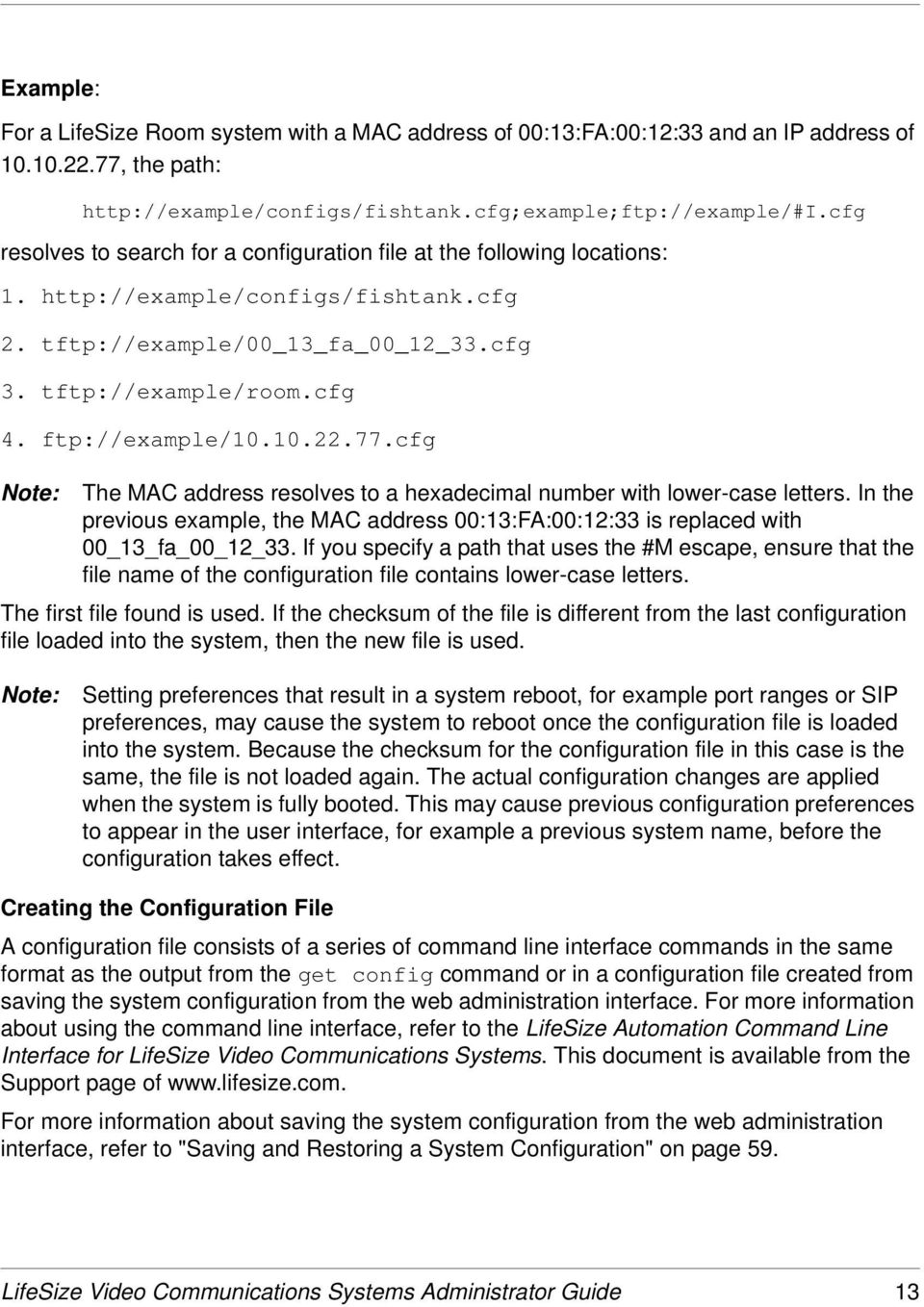
13 Example: For a LifeSize Room system with a MAC address of 00:13:FA:00:12:33 and an IP address of , the path: resolves to search for a configuration file at the following locations: tftp://example/00_13_fa_00_12_33.cfg 3. tftp://example/room.cfg 4. ftp://example/ cfg Note: The MAC address resolves to a hexadecimal number with lower-case letters. In the previous example, the MAC address 00:13:FA:00:12:33 is replaced with 00_13_fa_00_12_33. If you specify a path that uses the #M escape, ensure that the file name of the configuration file contains lower-case letters. The first file found is used. If the checksum of the file is different from the last configuration file loaded into the system, then the new file is used. Note: Setting preferences that result in a system reboot, for example port ranges or SIP preferences, may cause the system to reboot once the configuration file is loaded into the system. Because the checksum for the configuration file in this case is the same, the file is not loaded again. The actual configuration changes are applied when the system is fully booted. This may cause previous configuration preferences to appear in the user interface, for example a previous system name, before the configuration takes effect. Creating the Configuration File A configuration file consists of a series of command line interface commands in the same format as the output from the get config command or in a configuration file created from saving the system configuration from the web administration interface. For more information about using the command line interface, refer to the LifeSize Automation Command Line Interface for LifeSize Video Communications Systems. This document is available from the Support page of For more information about saving the system configuration from the web administration interface, refer to "Saving and Restoring a System Configuration" on page 59. LifeSize Video Communications Systems Administrator Guide 13
14 Specifying the Hostname and Domain Name Service (DNS) Servers You can enter the hostname of the system and the IP addresses to configure DNS servers. You can also enter the domain names to search when resolving hostnames. Domain Name System (DNS) translates names of network nodes into addresses; specify this preference to use DNS to resolve the hostnames of devices to IP addresses. Specifying Network Speed If you choose an option other than Auto for the Administrator Preferences : Network : Network Speed preference, ensure that it matches the speed and duplex configured on your network switch. Note: If your Ethernet switch is configured for half duplex, you may experience poor quality video when placing calls greater than 512 Kb/s. To work around this issue, change your Ethernet switch configuration to a setting other than half duplex when using Auto for the Network Speed preference. Specifying a VLAN Tag If you have static virtual local area networks (VLANs) configured in your environment, you can configure your LifeSize system to apply a VLAN tag to outgoing packets and only accept incoming tagged packets that have the same VLAN identifier. To enable this feature, navigate to Administrator Preferences : Network : General : VLAN Tag and specify the VLAN identifier of the VLAN to which the system is assigned. The value is a number in the range 1 through Note: If you set or modify the VLAN Tag preference, the system reboots when you navigate to another screen. 14 LifeSize Video Communications Systems Administrator Guide

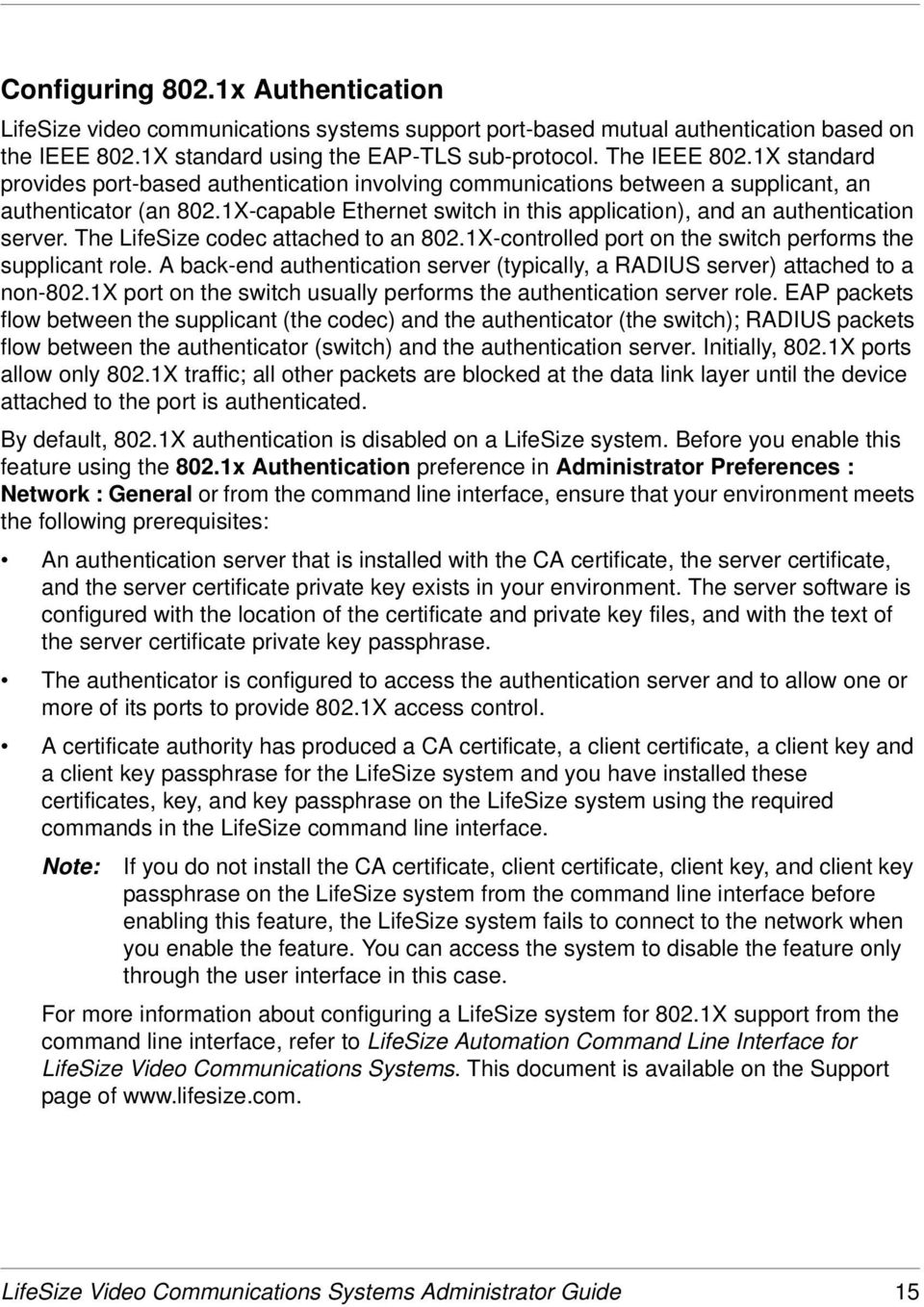
15 Configuring 802.1x Authentication LifeSize video communications systems support port-based mutual authentication based on the IEEE 802.1X standard using the EAP-TLS sub-protocol. The IEEE 802.1X standard provides port-based authentication involving communications between a supplicant, an authenticator (an 802.1X-capable Ethernet switch in this application), and an authentication server. The LifeSize codec attached to an 802.1X-controlled port on the switch performs the supplicant role. A back-end authentication server (typically, a RADIUS server) attached to a non-802.1x port on the switch usually performs the authentication server role. EAP packets flow between the supplicant (the codec) and the authenticator (the switch); RADIUS packets flow between the authenticator (switch) and the authentication server. Initially, 802.1X ports allow only 802.1X traffic; all other packets are blocked at the data link layer until the device attached to the port is authenticated. By default, 802.1X authentication is disabled on a LifeSize system. Before you enable this feature using the 802.1x Authentication preference in Administrator Preferences : Network : General or from the command line interface, ensure that your environment meets the following prerequisites: An authentication server that is installed with the CA certificate, the server certificate, and the server certificate private key exists in your environment. The server software is configured with the location of the certificate and private key files, and with the text of the server certificate private key passphrase. The authenticator is configured to access the authentication server and to allow one or more of its ports to provide 802.1X access control. A certificate authority has produced a CA certificate, a client certificate, a client key and a client key passphrase for the LifeSize system and you have installed these certificates, key, and key passphrase on the LifeSize system using the required commands in the LifeSize command line interface. Note: If you do not install the CA certificate, client certificate, client key, and client key passphrase on the LifeSize system from the command line interface before enabling this feature, the LifeSize system fails to connect to the network when you enable the feature. You can access the system to disable the feature only through the user interface in this case. For more information about configuring a LifeSize system for 802.1X support from the command line interface, refer to LifeSize Automation Command Line Interface for LifeSize Video Communications Systems. This document is available on the Support page of LifeSize Video Communications Systems Administrator Guide 15
16 Specifying an NTP Server The system date and time appear in the user interface and are automatically set if one of the following conditions exists: The Administrator Preferences : Network : General : DHCP preference is set to Enabled, and the DHCP server can pass an NTP server address to your system. - or - The hostname or IP address of an NTP server is specified in Administrator Preferences : Network : General : NTP Server Hostname. Note: An NTP server address that a DHCP server passes to your system overrides an NTP server hostname or address specified in the NTP Server Hostname preference. The System Information page displays the IP address of the NTP server that the system uses. Note: The time zone is not set automatically. If you did not specify the time zone for your system during the initial configuration, the time that appears in the user interface may not be correct. To specify the time zone manually, refer to "Manually Setting System Date and Time" on page 27. Enabling IPv6 Addressing LifeSize systems support dual configuration of IPv4 and IPv6 addressing for the system IP address only. You cannot disable IPv4 addressing on your system. Calls placed with an IPv6 address use the H.323 protocol. In addition to specifying a local IPv4 IP address (through either DHCP or by manually specifying a static IP address), you can assign an IPv6 address to your system if you are using IPv6 addressing on your network. Access Administrator Preferences : Network : General and choose Enabled for the IPv6 preference. If your IPv6 network sends router advertisements, select Auto for the IPv6 Configuration preference to automatically assign the IPv6 address to the system. The default option is Auto. If you select Manual for this preference, you can specify a static IPv6 address for the system in the IPv6 Address preference and the address of your IPv6 router in the IPv6 Router preference. Note: Enabling or disabling IPv6 causes the system to reboot after you exit the preference screen. 16 LifeSize Video Communications Systems Administrator Guide

17 The IP address that appears at the top of the main screen in the user interface is the IPv4 address.the IPv6 address of the system appears in the System Menu on the System Information page. All other configuration preferences that require an IP address (for example, the NTP and DNS servers, H.323 gatekeeper, and SIP server) must be IPv4 addresses. The directory supports IPv6 addresses. Users can also manually dial IPv6 addresses using the Video Call or Voice Call buttons on the main screen of the user interface and the 0x1a text entry method or screen keyboard. Refer to the LifeSize Video Communications Systems User Guide for information about changing the text entry mode. Enabling Network Address Translation (NAT) Network Address Translation (NAT) enables communication between devices on your LAN that have private IP addresses and devices that are accessed through a public IP network. Static NAT ensures that the same public IP address always maps to a system s private IP address so that data from the public network intended for the private system can be routed to the system reliably. If you are using static NAT to associate a public IP address with the private IP address of your LifeSize system, you must configure your LifeSize system to work with your static NAT server. Access Administrator Preferences : Network : NAT and select Enabled for the Static NAT preference. Enter the public IP address, hostname, or fully qualified domain name of your system in NAT Public IP Address. The default entry method for this preference is numeric. To enter text, use the key on the remote control to change the entry method to text. Note: If you are using a static firewall or NAT with fixed ports, you cannot register to a public gatekeeper. If you configure H.323 settings and enable H.460 support, the system ignores preferences in Administrator Preferences : Network : NAT. Refer to "Enabling H.460 Support for H.323 Calls" on page 25 for more information. The following functions are not supported if your system is accessed from a web browser outside a firewall and static NAT is enabled: System Upgrade Directory Import LifeSize Networker upgrade and reboot Background Image Import To work around this issue, execute these functions from within the firewall. LifeSize Video Communications Systems Administrator Guide 17

18 Restricting Reserved Ports By default, LifeSize systems communicate through TCP and UDP ports in the range for video, voice, presentations, and camera control. LifeSize systems use only a small number of these ports during a call. The exact number depends on the number of participants in the call, the protocol used, and the number of ports required for the type (video or voice) of call. To minimize the number of UDP and TCP ports that are available for communication, you can restrict the range by entering values in Administrator Preferences : Network : Reserved Ports. LifeSize recommends that the range you choose, if other than a subset of the default range, begins with a port number greater than Note: Changing the TCP range causes an automatic reboot of the system. An H.323 video call with a presentation requires more ports than other types of calls. The following table identifies the number of UDP and TCP ports needed for an H.323 video call with a presentation based on the maximum number of connections that LifeSize systems support. Depending on the maximum number of connections that your LifeSize system supports, use this information as a guide when determining the range of port numbers to enter in the Reserved Ports preferences. Maximum Connections Eight-way video call and a presentation Six-way video call and a presentation Four-way video call and a presentation Two-way video call with a presentation and an audio call Required Ports for an H.323 Call 56 UDP 14 TCP 40 UDP 10 TCP 24 UDP 6 TCP 10 UDP 4 TCP 18 LifeSize Video Communications Systems Administrator Guide

19 The following tables identify the number of ports required per connection by protocol and the type (video or voice) of call. Use this information if you need to further restrict the port range. H.323 two-way call required ports: Call Type Video a Voice b Number of Required UDP and TCP Ports 8 UDP ports (6 if presentations are disabled) 2 TCP ports 2 UDP ports 2 TCP ports a. Each additional video participant requires 8 UDP ports and 2 TCP ports. b. Each additional voice participant requires 2 UDP and 2 TCP ports. SIP two-way call required ports: Call Type Video a Voice b Number of Required UDP Ports 6 UDP ports 2 UDP ports a. Each additional video participant requires 6 UDP ports. b. Each additional voice participant requires 2 UDP ports. Configuring Firewall Settings If your LifeSize system communicates with other systems through a firewall, you must configure your firewall to allow incoming and outgoing traffic to the system through: TCP port 1720 (for H.323 call setup) UDP port 5060 (for SIP call setup) TCP port 5060 (for SIP call setup if TCP signaling is enabled for SIP calls). Refer to "Configuring SIP Settings" on page 25. TCP port 5061 (for TLS signaling in SIP calls if TLS signaling is enabled). Refer to "Configuring SIP Settings" on page 25. Required TCP and UDP ports in the range specified in Administrator Preferences : Network : Reserved Ports. For more information about specifying the range of required TCP and UDP ports, refer to "Restricting Reserved Ports" on page 18. LifeSize Video Communications Systems Administrator Guide 19

20 Configuring Quality of Service You can specify network Quality of Service (QoS) settings in the Administrator Preferences : Network : Network QoS preferences. Set these preferences according to the settings used in your network. Note: Network QoS preferences are supported with IPv4 addressing only. If you enable IPv6 addressing on your LifeSize system, QoS preferences are ignored for IPv6 calls. For more information about IPv6 addressing, refer to "Enabling IPv6 Addressing" on page 16. You can specify DiffServ (differentiated services) or IntServ (integrated services) values for audio, video, and data packets. You can also set the IntServ Type of Service (ToS) preference. By default, Network QoS and IntServ ToS are set to None. Configuring LifeSize Transit Preferences If you are using LifeSize Transit with your LifeSize video communications system, refer to your LifeSize Transit documentation for information about how to configure preferences in Administrator Preferences : Network : LifeSize Transit. Configuring Communications Preferences You can specify options that control which protocols the system uses during calls by configuring preferences in Administrator Preferences : Communications. Disabling Multiway Calling You can disable multiway calling on LifeSize systems by choosing Disabled for the Multiway Calls preference in Administrator Preferences : Communications : General. The default, Enabled, allows users to place multiway calls up to the maximum number supported by the system. You can configure this preference only when the system is not in a call. Choosing Disabled allows only one call, voice or video, to connect to the system. If the system includes an embedded multipoint bridge, the One Video + One Voice option also appears for this preference. This option allows the system to connect to both a video and a voice call as the maximum number of connected callers. Configuring Dialing Options You can choose voice and video dialing options during the initial configuration, when performing a system reset, or at any other time by accessing Administrator Preferences : Communications : General. Refer to the Installation Guide for your LifeSize system model for more information about these preferences. 20 LifeSize Video Communications Systems Administrator Guide

21 Disabling PSTN On LifeSize systems that support PSTN connectivity, you can disable support for placing and receiving PSTN calls by choosing Disabled for the PSTN preference in Administrator Preferences : Communications : General. You can configure this preference only when the system is not in a call. Enabling Presentations Users can share data during a call through a secondary H.239 media channel, typically from a laptop or personal computer that is connected to the appropriate input on the LifeSize codec. By default, the presentation function is enabled on a LifeSize system. To disable presentations access Administrator Preferences : Communications : General : Presentations. Consider disabling the presentation function if your system experiences interoperability issues with third party systems that do not support presentations. Note: When presentations are disabled for all participants during a call, the user interface offers the user the option to send video from the presentation input as the primary video stream. Refer to the LifeSize Video Communications Systems User Guide for more information about presentations and selecting primary and presentation inputs. Manually Starting a Presentation If the Presentations preference is set to Enabled (the default), a presentation starts automatically during a call if a user connects a video input device other than a LifeSize Camera, LifeSize Camera 200, or LifeSize Focus to the codec and the video input device is not selected as the primary input. The user interface switches the presentation input to this video input and starts the presentation. The presentation stops automatically if the video input device is disconnected during the call. You can choose Manual for the Auto Start Presentation preference in Administrator Preferences : Communications : General to allow users to start a presentation manually. LifeSize Video Communications Systems Administrator Guide 21
22 Supported VGA and DVI-I Input Resolutions LifeSize systems support native 16:9 and 4:3 VGA and DVI-I inputs. The System Information screen shows the actual VGA or DVI-I input size for VGA Input or DVI-I Input. The input selector shows a 16:9 or 4:3 window for the input depending on the aspect ratio. The following table shows the supported VGA and DVI-I input resolutions by system model. Resolution Behavior LifeSize Model 640 x 480 scaled to 1024 x 768 LifeSize Room LifeSize Team MP LifeSize Express native (no system changes) LifeSize Room 200 LifeSize Room 220 LifeSize Team 200 LifeSize Team 220 LifeSize Express 200 LifeSize Express x 600 scaled to 1024 x 768 LifeSize Room LifeSize Team MP LifeSize Express native (no system changes) LifeSize Room 200 LifeSize Room 220 LifeSize Team 200 LifeSize Team 220 LifeSize Express 200 LifeSize Express x 768 native (no system changes) All models 1280 x 720 native (no system changes) All models a 1280 x 768 native (no system changes) All models a 22 LifeSize Video Communications Systems Administrator Guide
23 Resolution Behavior LifeSize Model 1280 x 1024 scaled to 1024 x 768, aspect ratio distorted to fit LifeSize Room LifeSize Team MP LifeSize Express native (no system changes) LifeSize Room 200 LifeSize Room 220 LifeSize Team 200 LifeSize Team 220 LifeSize Express 200 LifeSize Express 220 a. The largest 4:3 resolution supported is 1024x768 on LifeSize Room, LifeSize Team MP, and LifeSize Express; and 1280x1024 on LifeSize Room 200, LifeSize Room 220, LifeSize Team 200, LifeSize Team 220, LifeSize Express 200, and LifeSize Express 220. The resolutions are sent natively to the far end for the primary or secondary video streams. The resolutions may not exactly match due to H.264 or H.263 protocol resolution constraints. These resolutions are supported only with a screen refresh rate set to 60 Hertz on the device connected to the VGA or DVI-I input. Following are the supported input resolutions and frame rates for video sent to the DVI-I input from an HDMI source: 480p60 576p50 720p p30 (available only on LifeSize systems that support 1080p30 output) If audio is sent to the DVI-I input from an HDMI source, the audio is sent to the near end speakers and to the far end when the DVI-I input is selected as the primary or presentation video input. For more information about configuring the DVI-I input, refer to "Configuring HD In and DVI-I In" on page 45. LifeSize Video Communications Systems Administrator Guide 23
24 Specifying H.323 Settings By default, LifeSize systems support the H.323 protocol for placing and receiving video and voice calls. You can disable support for H.323 calls by selecting Disabled for the H.323 preference in Administrator Preferences : Communications : H.323 when the system is not in a call. If you choose Disabled for the H.323 preference, the system cannot place or receive calls with the H.323 protocol. Note: If both H.323 and SIP preferences are set to Disabled and LifeSize Networker is not connected to the system, a warning message appears and indicates that video calls cannot be placed or received with this configuration. Refer to "Configuring SIP Settings" on page 25 for more information about SIP preferences. When H.323 is enabled, you can specify an H.323 name or extension to use when placing a call. The H.323 name and extension identify the device to the gatekeeper. Any registered device can dial another using this name and extension. The H.323 Name preference is an optional value that is used when a gatekeeper is configured and requires the system to register with an H.323 ID. If the gatekeeper administrator assigns an H.323 ID for the system, enter that ID for the H.323 Name preference. The H.323 Extension preference is an optional value that is used when a gatekeeper is configured and requires the system to register with an E164 number or extension. If the gatekeeper administrator assigns an E164 number or extension for the system, enter that number for the H.323 Extension preference. Set the Gatekeeper ID only if the gatekeeper requires it (for example, configurations with multiple gatekeepers). The Gatekeeper ID must match the gatekeeper ID configured for the gatekeeper to which the system is registering. Do not configure this preference if the gatekeeper does not require it, as this may result in failure to register with the gatekeeper. Set the Gatekeeper Mode preference to Auto if you wish to have the system automatically discover a gatekeeper. You can also set the Gatekeeper Mode preference to Manual to manually choose a gatekeeper. If set to Manual, specify the IP address and port for the primary gatekeeper. When you select the Register button in Administrator Preferences : Communications : H.323, icons appear in the status bar to indicate the status of the registration process with the H.323 gatekeeper. The yellow H.323 icon appears when your LifeSize system is trying to register with the gatekeeper. If the registration fails, the red H.323 icon appears. If the system is registered to a gatekeeper, the system displays its status. To navigate to the second page of H.323 preferences, press on the remote control. Configuring a secondary H.323 gatekeeper with the Gatekeeper IP Address 2 and Gatekeeper Port 2 preferences is optional. 24 LifeSize Video Communications Systems Administrator Guide
25 Enabling H.460 Support for H.323 Calls LifeSize systems support firewall traversal of H.323 calls using H.460 protocols. You must have an H.460 server configured in your environment for this feature to function properly. Note: If you configure H.323 settings and enable H.460 support, the system ignores preferences in Administrator Preferences : Network : NAT. To enable H.460 client support on a LifeSize system, configure the H.323 preferences in Administrator Preferences : Communications : H.323 as described in "Specifying H.323 Settings" on page 24 with the following exceptions: 1. Choose Manual for the Gatekeeper Mode preference. 2. For the Gatekeeper IP Address 1 and Gatekeeper Port 1 preferences, enter the IP address and port number of the H.460 server that is configured in your environment. 3. Choose Enabled for the H.460 preference. 4. Navigate to Register and press OK. Note: If you enable H.460 and specify the IP address and port number of a secondary gatekeeper with the Gatekeeper IP Address 2 and Gatekeeper Port 2 preferences, the system ignores the secondary gatekeeper. Configuring SIP Settings By default, support for Session Initiation Protocol (SIP) is enabled on LifeSize systems. To configure SIP as the protocol to use for placing calls, configure SIP preferences in Administrator Preferences : Communications : SIP. You can also disable support for SIP by choosing Disabled for the SIP preference when the system is not in a call. If you choose Disabled for the SIP preference, the system cannot place or receive calls with the SIP protocol. Note: If both SIP and H.323 preferences are set to Disabled and LifeSize Networker is not connected to the system, a warning message appears and indicates that video calls cannot be placed or received with this configuration. Refer to "Specifying H.323 Settings" on page 24 for more information about H.323 preferences. For the server, enter the username, SIP server authorization name, and password for the device, if required. The authorization name and password are the values the LifeSize system uses for authentication; these values are only required if the registrar or proxy require authentication. LifeSize Video Communications Systems Administrator Guide 25
26 If you plan to use Microsoft Office Communications Server 2007 for SIP calls with your LifeSize communications system, LifeSize recommends that you choose Microsoft OCS for SIP Server Type. The default is Auto. Refer to the Release Notes for information about supported Microsoft Office Communications Server 2007 versions. Refer to the LifeSize technical note Using LifeSize Systems with Microsoft Office Communications Server 2007 for information about how to configure your environment and SIP preferences on your LifeSize video communications system. You can change the communication path to use when registering with a SIP Registrar, either directly or through a proxy and configure proxy settings. SIP devices use register settings to dynamically register their current location. When you select the Register button and press OK, icons appear in the status bar to indicate the status of the registration process with the SIP server. The yellow SIP icon appears when your LifeSize system is trying to register with the SIP server. If the registration fails, the red SIP icon appears. To navigate to the second page of SIP preferences, press on the remote control. You can change the SIP UDP signaling port. You can also enable TCP signaling and change the TCP signaling port. You can enable Transport Layer Security (TLS) signaling and change the TLS signaling port only if the SIP Registrar preference is set to Enabled. TCP signaling and TLS signaling are mutually exclusive. Enabling one automatically disables the other. Choosing Disabled for the SIP Registrar preference automatically disables TLS signaling. If neither TCP nor TLS signaling is enabled, only UDP signaling is enabled. Note: The system reboots if you change the UDP signaling port, enable or disable TCP or TLS signaling, or change the TCP or TLS signaling ports. If you enable TLS signaling, the system attempts to use Secure Real-time Transport Protocol (SRTP) for media encryption in SIP calls. If the far side supports SRTP, the media is encrypted and encryption icons appear in the caller ID, Call Manager list, and Call Statistics list in the user interface during a call. Refer to the LifeSize Video Communications Systems User Guide for a description of the icons. If the far end does not support SRTP, the media is not encrypted and call encryption icons do not appear in the user interface. 26 LifeSize Video Communications Systems Administrator Guide
27 Configuring System Settings You can change settings that identify the system to users in the user interface, set the system date and time, check for updates to license keys, and reset the system to its factory default settings by accessing Administrator Preferences : System. Identifying the System To change the system name, dialing numbers, and geographic location specified for the system, access Administrator Preferences : System : Identification. Manually Setting System Date and Time You can set the system date and time manually as follows: 1. From the System Menu, access Administrator Preferences : System : Date and Time. 2. Set the time zone. 3. Set the month, day, and year for the date. 4. Set the hour, minute, and second for the time. 5. Select the Set Date and Time button and press OK to save your changes. Updating License Keys System software upgrades from version to a later release require a current license key to be installed on the system. An upgrade fails if a current license key does not exist. A current license key for upgrades is available when a maintenance agreement for the device is in effect. The Upgrade License field in the System Information page shows the expiration date of an upgrade license key installed on the system, if a key exists. Note: You can install a patch to a software release with an expired license key if the key was current when the software was released. The third digit of the three-digit version number of a release identifies a patch, for example is patch 1 to release v During a software upgrade, if no license key is installed on a system or the installed key has expired, the system attempts to contact the LifeSize license key server to check the license key status. You can check for updates to license keys in either the user interface or the web administration interface if your LifeSize system has HTTP access through port 80 to the LifeSize license key server. If your system does not have this access, refer to "Installing a License Key Manually" on page 29. LifeSize Video Communications Systems Administrator Guide 27
28 Checking for License Key Updates in the User Interface 1. From the main screen, press the button on the remote control to access the System Menu. 2. Navigate to Administrator Preferences : System : License Keys. 3. Select Update Keys. 4. Press OK on the remote control. If the update is successful, Success appears in the Update Key Status box and the current license key and its expiration date appear in the Upgrade License box. If the update fails, refer to "Troubleshooting a Failed Update" on page 29. Checking for License Key Updates in the Web Administration Interface 1. Open a web browser and enter the IP address of the LifeSize system in the web address field. Note: The IP address of the system appears at the top of the main screen in the user interface. A login screen appears. Note: This is a secure Internet connection, and you may receive an unknown certificate warning. 2. In the login screen, do the following: a. Choose the language in which to display the interface. b. Enter the administrator password. c. Click Submit. 3. Navigate to Preferences : System : License Keys. 4. Click the Update Keys button. If the update is successful, Success appears in the Update Key Status box and the current license key and its expiration date appear in the Upgrade License box. If the update fails, refer to "Troubleshooting a Failed Update" on page When you are finished, click the Log out button at the bottom of the screen, and then close your web browser. 28 LifeSize Video Communications Systems Administrator Guide
29 Troubleshooting a Failed Update If an update to a license key fails in the user or web administration interfaces, one of the following messages appears in the Update Key Status box: Status Message No Contract Service Unavailable Invalid Key Description A current maintenance agreement for the device does not exist. Contact your authorized LifeSize Partner to renew your maintenance agreement. The renewal process may require 24 to 48 hours to complete. The system failed to connect to the LifeSize license key server. The server may be down or your system may not have HTTP access to the server. Contact LifeSize Technical Services if this condition persists and you have HTTP access to the server, or install a key manually using the instructions in "Installing a License Key Manually" on page 29. A license key exists, but is invalid. Contact LifeSize Technical Services. Installing a License Key Manually If you cannot obtain a license key using the license key update feature in the user or web administration interface, you can install a key manually from the web administration interface by doing the following: 1. Click the Download Software button on the Support page of 2. Enter the serial number of your LifeSize video communications system and click Submit. 3. Copy the license key from the software download page to your operating system clipboard. 4. Open a separate web browser window and access the web administration interface of your LifeSize video communications system. 5. Navigate to Preferences : System : License Keys. 6. In the Enter New Key box, paste the license key that you copied in step Click the Add Key button. Note: The Add Key button is available only after you copy a key in the Enter New Key box. The key and its expiration date appear in the Upgrade License box. LifeSize Video Communications Systems Administrator Guide 29
30 Restoring Default Settings Administrator preferences contain the configuration of the entire system. You may need to reset the system to its default state to correct unknown problems you may be experiencing or to return to a known configuration. You can reset the system from the user interface or manually with the Reset button on the back of the codec. Resetting a System from the User Interface To reset the system from the user interface, follow these steps: 1. From the System Menu, access Administrator Preferences : System : System Reset. 2. Enter the administrator password. The system automatically reboots and the administrator password is reset to the default value ( ). The user password also resets to a blank password, enabling users to access User Preferences without a password. The Initial Configuration screen appears. You must complete the initial configuration screens to complete the reset. Note: If you reset the system using a remote access method, you must complete the reset from the user interface by navigating the initial configuration screens and pressing OK on the remote control when prompted to save the configuration. Resetting a System Using the Reset Button If this reset fails or if you do not have access to the user interface, you can manually reset the system using the Reset button on the back of the codec. You can also reset the system to default settings using the alternate software image installed on the system. Typically, the alternate software image is the version the system used before the last software upgrade. 30 LifeSize Video Communications Systems Administrator Guide
31 Using the Reset Button on LifeSize Room or LifeSize Team MP If you are using LifeSize Room or LifeSize Team MP, you must first remove power from the codec, press and hold the reset button, and then apply power. The blue LED on the front of the codec flashes and then changes color or behavior approximately every five seconds until the LED turns solid blue. The following table indicates the sequence of color and behavior changes that the LED exhibits and the corresponding effect on the system when you release the reset button. When the LED is This Color: solid red flashing blue and red (equal duration for each color) flashing blue and red (shorter duration for the blue flash) solid blue Release the Reset Button to Get This Result: The system reboots without changes to the configuration. The system reboots at the initial configuration and resets values to default settings. The system reboots at the initial configuration using the alternate software image installed on the system and resets values to default settings. The system stops and does not reboot. To exit this state, press the reset button until the blue LED on the front of the codec flashes. The system reboots without changes to the configuration. LifeSize Video Communications Systems Administrator Guide 31
32 Using the Reset Button on LifeSize Express Series Models, LifeSize Room 200, LifeSize Room 220, LifeSize Team 200, and LifeSize Team 220: If you are using a LifeSize Express series model, LifeSize Room 200, LifeSize Room 220, LifeSize Team 200, or LifeSize Team 220, you can use the reset button without removing power to the system. Press and hold the reset button. The blue LED on the front of the codec changes color or behavior approximately every five seconds until the LED turns solid blue. The following table indicates the sequence of color and behavior changes that the LED exhibits and the corresponding effect on the system when you release the reset button. When the LED is This Color: blue and red Note: The LED may remain in this state for more than 5 seconds. Depending on your viewing angle, the LED may appear purple. solid red flashing blue (longer duration on than off) Release the Reset Button to Get This Result: The system reboots without changes to the configuration. The system reboots without changes to the configuration. The system reboots and resets preferences to their default settings. flashing blue (shorter duration on than off) solid blue The system reboots at the initial configuration using the alternate software image installed on the system and resets values to default settings. If you release the reset button when the LED turns solid blue the system stops and does not reboot. Continue to hold the reset button until the system reboots (approximately 5 to 10 seconds after the LED turns solid blue). The system reboots without changes to the configuration. Configuring Call Preferences All users can set auto answer options for calls and specify the maximum number of entries to appear in the Redial list. Refer to the LifeSize Video Communications Systems User Guide for more information. Administrators can configure the maximum call time and bandwidth in Administrator Preferences : Calls. 32 LifeSize Video Communications Systems Administrator Guide
33 Managing Bandwidth You can specify the maximum bandwidth that an outgoing or incoming call uses by setting the Outgoing Maximum Bandwidth and Incoming Maximum Bandwidth preferences in Administrator Preferences : Calls. The value that you choose for the Outgoing Maximum Bandwidth becomes the maximum value that users can choose in the user interface when placing a call by dialing a number manually or when specifying a bandwidth in a directory entry. If a user specifies Auto for the bandwidth when placing a call, the maximum outgoing bandwidth becomes the starting point for negotiating bandwidth when the call connects. If you choose Auto as the value for the Outgoing Maximum Bandwidth and Incoming Maximum Bandwidth preferences and the user chooses Auto for the bandwidth when placing the call, the system places the call at 1152 kb/s. An exception occurs when you set the display resolution to a 1080i or 1080p resolution in Administrator Preferences : Appearance : Displays on LifeSize systems that support these resolutions with LifeSize Camera 200. In this case, the system places the call at 1728 kb/s. The Auto Bandwidth preference addresses how the system responds to packet loss during a call. When set to Enabled, the default, the system attempts to use the best available bandwidth after the call connects. Selecting a Maximum Call Time You can control the amount of time that a call stays connected by selecting an option for the Maximum Call Time preference in Administrator Preferences : Calls. Controlling REDIAL List Entries and Auto Answer Options Users and administrators can control the number of entries that appear in the REDIAL list and how the system answers calls in User Preferences and Administrator Preferences : Calls. Refer to the LifeSize Video Communications Systems User Guide for more information. LifeSize Video Communications Systems Administrator Guide 33
34 Enabling Telepresence You can configure a LifeSize system for use in telepresence rooms in which a conference administrator controls calls from a control panel (such as LifeSize Control or the Call Manager in the web administration interface) and users interact with the system using an attached phone. Enabling telepresence removes the user interface from view. When the system is idle, only the background image appears in the display. An administrator can access the user interface by pressing OK and entering the administrator password. During a call, users see the video from the call and the mute indicators. The navigation bar, PIP windows, caller ID information, and call status messages do not appear on the screen. Users can invoke the Call Manager dialog and call statistics and choose video inputs with the remote control. The numeric keys on the remote control play touch tones. Users can change this behavior from the Call Manager. To enable or disable telepresence and lock or unlock cameras, configure preferences in Administrator Preferences : Telepresence. Configuring Audio Behaviors You can adjust audio behaviors by configuring preferences in Administrator Preferences : Audio. Configuring Audio Codec Order To change the order of available audio codecs for the system to use to place calls, select the Audio Codec Order preference, select a codec, and press the right arrow to move the entry up in the list or press the left arrow to move the entry down in the list. Selecting the Active Microphone LifeSize video communications systems can connect to more than one microphone device for audio input during calls (for example, a LifeSize Phone, LifeSize Focus, and on codecs with a microphone in connector, a LifeSize MicPod). Only one of these devices can function as the active microphone during a call. 34 LifeSize Video Communications Systems Administrator Guide
35 To select a device to serve as the active microphone, navigate to Administrator Preferences : Audio and select a device in the Active Microphone preference. The options that are available for the Active Microphone preference depend on the LifeSize system model as follows: Active Microphone Options Auto (default) Phone Microphone In Microphone In (no AEC) Line In LifeSize Model All models All models LifeSize Room (codecs with a microphone in connector) LifeSize Room 200 LifeSize Room 220 LifeSize Team MP LifeSize Team 200 LifeSize Team 220 LifeSize Express LifeSize Express 200 LifeSize Express 220 LifeSize Room (codecs with a microphone in connector) LifeSize Room 200 LifeSize Room 220 LifeSize Team MP LifeSize Team 200 LifeSize Team 220 LifeSize Express LifeSize Express 220 LifeSize Express 200 LifeSize Room LifeSize Team MP LifeSize Express LifeSize Express 200 LifeSize Express 220 LifeSize Video Communications Systems Administrator Guide 35
36 Active Microphone Options Line In (no AEC) LifeSize Model LifeSize Room LifeSize Team MP LifeSize Express LifeSize Express 200 LifeSize Express 220 Line In 1 LifeSize Room 200 LifeSize Room 220 LifeSize Team 200 LifeSize Team 220 Line In 1 (no AEC) LifeSize Room 200 LifeSize Room 220 LifeSize Team 200 LifeSize Team 220 Line In 2 LifeSize Room 200 LifeSize Room 220 LifeSize Team 200 LifeSize Team 220 Line In 2 (no AEC) LifeSize Room 200 LifeSize Room 220 LifeSize Team 200 LifeSize Team 220 Active Camera Camera 1 Camera 2 LifeSize Room LifeSize Room LifeSize Room 200 LifeSize Room 220 LifeSize Team MP LifeSize Team 200 LifeSize Team 220 LifeSize Express LifeSize Express 200 LifeSize Room 36 LifeSize Video Communications Systems Administrator Guide
37 The Microphone In (no AEC) and Line In (no AEC) options are for connecting microphones that have their own acoustic echo canceller. Camera options are for specifying LifeSize Focus as the active microphone. When the Active Microphone preference is set to Auto (the default), or if the option selected is not connected to the codec, the system automatically attempts to select a device based on the following priority order: LifeSize Model LifeSize Room (codecs without a microphone in connector) LifeSize Room (codecs with a microphone in connector) LifeSize Express 220 LifeSize Team MP LifeSize Express LifeSize Express 200 LifeSize Room 200 LifeSize Room 220 LifeSize Team 200 LifeSize Team 220 Default Order for Active Microphone Selection 1. Phone 2. Active Camera 3. Inactive Camera 1. Phone 2. Microphone In 3. Active Camera 4. Inactive Camera 1. Phone 2. Microphone In 1. Phone 2. Microphone In 3. Camera 1 When the Active Microphone preference is set to Auto the following conditions apply: A LifeSize system ignores audio input from a LifeSize MicPod connected to the microphone input if a LifeSize Phone is also connected to the system. The LifeSize Phone becomes the active microphone and the LEDs on the LifeSize MicPod flash red to indicate an invalid configuration. To stop the LEDs from flashing red, either disconnect the LifeSize MicPod or enable audio input from the LifeSize MicPod by setting Administrator Preferences : Audio : Active Microphone to Microphone In. The system does not automatically choose Line In. LifeSize Video Communications Systems Administrator Guide 37
38 Adjusting the Active Microphone Volume You can adjust the audio level for the active microphone by selecting Active Microphone Volume and pressing OK on the LifeSize remote control. Note: If you choose LifeSize Phone as the active microphone, the Active Microphone Volume preference is not available. The LifeSize Phone microphones adjust volume automatically. An audio meter appears below Active Microphone Volume when you access the preference. The audio meter shows the level of the transmitted voice in decibels (db) root mean square (RMS) below digital full scale (DFS). The meter is accurate to ± 1 db. The maximum level is 0 db. Levels below 50 db are not displayed, and indicate a very quiet or inactive input. Typical levels during a call peak around 28 to 22 db DFS. A detailed explanation of how the audio meter functions on a LifeSize system and recommended settings for the Active Microphone Volume preference appear in the installation guide for your LifeSize system model. Checking Microphone Status in the System Information Page The Active Microphone field in the System Information page shows which device is functioning as the active microphone. When the value is None, the No Active Microphone indicator appears in the status bar of the user interface indicating that no active microphone is available. Note: If you choose a line in option as the active microphone, and a device is not connected to line in on the codec, the No Active Microphone indicator does not appear in the user interface and the System Information page shows line in as the status for Active Microphone. The Microphone In field appears in the System Information page for systems that have a microphone in connector on the codec and indicates the connection status of a device for the input (None, Ready, or Error). 38 LifeSize Video Communications Systems Administrator Guide
39 Configuring Audio In (Line In) A LifeSize system automatically sends audio from a device connected to line in on the codec to line out, except when line in is selected for the Active Microphone preference. Line in is mono when selected as the active microphone for the Active Microphone preference. Users and administrators can set the volume of line in using the Line In Volume preference in User Preferences or Administrator Preferences : Audio. Note: The Line In Volume preference is not available for selection if the Active Microphone preference is set to a line in option. Two line in connectors are available on LifeSize Room 200, LifeSize Room 220, LifeSize Team 200, and LifeSize Team 220. Use the Line In 1 Association and Line In 2 Association preferences in Administrator Preferences : Audio to select the video input to associate with these inputs. If you choose Any Input, the device attached to the line input is always audible. If you choose a specific video input from the preference options, the device attached to the line input is only audible when the video image from the selected video input appears in the display. If you select line in as the active microphone, its associated video input is automatically set to Any Input and you must use the Active Microphone Volume preference to adjust the volume for the line input. Testing Primary Audio Output You can send an audio test tone to speakers that are connected to the codec as the primary audio output device. Navigate to Administrator Preferences : Audio : Primary Audio Output Test. Select a channel to test, or select Auto. The Auto option cycles through all available channels, playing the test tone for 5 seconds before moving to the next available channel. To end the test, choose Off or navigate to another preference or screen. Note: The Test Center option is available on LifeSize Room only. On LifeSize Room, and LifeSize Team MP, primary audio test tones output through line out only. On LifeSize Express series models, LifeSize Room 200, LifeSize Room 220, LifeSize Team 200, and LifeSize Team 220, primary audio test tones output through line out and HD video out of Display 1. Testing Auxiliary Audio Output (LifeSize Room Only) You can send audio test tones to speakers that are connected to the auxiliary audio outputs on a LifeSize Room codec. Navigate to Administrator Preferences : Audio : Auxiliary Audio Output Test. Select a channel to test, or select Auto. The Auto option cycles through all available channels, playing the test tone for 5 seconds before moving to the next available channel. To end the test, choose Off or navigate to another preference or screen. LifeSize Video Communications Systems Administrator Guide 39
40 Muting Audio Inputs By default, when you press the mute button on the remote control or on a LifeSize audio input device, all audio inputs to the system are muted, including audio from the active microphone, a PC connected to the codec for a presentation, or a device connected to auxiliary inputs if available on the codec. You can configure the system to mute only the active microphone by selecting Active Microphone Only for the Audio Mute preference in Administrator Preferences : Audio. The default is All Inputs. Users can discover which option is selected for this preference by viewing the Audio Mute field in the System Information page. Selecting Audio Output By default, audio in a voice call is sent to the LifeSize Phone attached to the LifeSize codec. If you want the audio in a voice call to be sent to the line out, set the preference in Administrator Preferences : Audio : Voice Call Audio Output. If LifeSize Phone is not connected to the LifeSize codec, audio in a voice call is sent to the line out regardless of the preference selected. By default, audio in a video call is sent to the line out (typically, your display). If you want audio in a video call to be sent to the attached phone, set the preference in Administrator Preferences : Audio : Video Call Audio Output. Adjusting Audio Levels In addition to adjusting the audio volume for line in and the active microphone, you can adjust levels associated with the following preferences: Auxiliary Audio Input Volume (LifeSize Room only) Select the volume level for the audio sent through the auxiliary line input. Note: If you do not hear the audio when adjusting the audio volume for a device connected to the auxiliary audio input, do the following: 1. Navigate to Administrator Preferences : Audio. Note the option selected for the Auxiliary Audio Input Association preference. 2. To hear audio from the auxiliary audio input, choose Any Input for the Auxiliary Audio Input Association preference. 3. Use the Auxiliary Audio Input Volume preference to adjust the volume. 4. Set Auxiliary Audio Input Association to the option that you noted in step LifeSize Video Communications Systems Administrator Guide
41 Line Out Treble (db) Select to adjust the higher frequencies in the sound range for the audio line output. Line Out Bass (db) Select to adjust the lower frequencies in the sound range for the audio line output. Ring Tone Volume Select the volume level of the ring and busy tones. DTMF Tone Volume Select the volume level of the DTMF and key click tones. Status Tone Volume Select the volume level of status tones. Associating Auxiliary Audio Input If you are using LifeSize Room with auxiliary audio input devices, you can choose the video input to associate with the device by configuring Administrator Preferences : Audio : Auxiliary Audio Input Association. By default, the auxiliary audio input is only heard when an auxiliary video input device is connected and the video image appears in the display. If you choose Any Input, the device attached to the auxiliary audio input is always audible. If you choose a specific video input from the preference options, the device attached to the auxiliary audio input is only audible when the video image from the selected video input appears in the display. Configuring Video Behaviors Administrators can adjust video behaviors to control cameras and video quality by configuring preferences in Administrator Preferences : Video. Controlling Camera Use by Far End Users To prevent far end users from controlling your near end camera, including configuring and controlling camera presets, choose Disabled for the Administrator Preferences : Video : Video Control : Far Control of Near Camera preference. If you choose Enabled, you can still prevent far end users from configuring and using near end camera presets by choosing Disabled for the Far Set of Camera Presets and Far Move to Camera Presets preferences. Locking Camera Presets By default, all users can configure pan, tilt, and zoom camera presets. To prevent all users (near and far end) from configuring camera presets, select Locked for the Administrator Preferences : Video : Video Control : Camera Presets Lock preference. To prevent only far end users from configuring camera presets, choose Disabled for the Far Control of Near Camera or Far Set of Camera Presets preferences. LifeSize Video Communications Systems Administrator Guide 41
42 Controlling Camera Pan Direction You can define the pan direction of the camera relative to the physical arrangement of the camera by setting Administrator Preferences : Video : Video Control : Camera Pan Direction. Select Perceived for the camera to pan left or right from the user s perspective, when facing the camera. Select Reversed for the camera to pan to the camera s actual left or right. Controlling Digital Zoom Digital zoom electronically crops an area of the video image that appears in the display using the same aspect ratio as the original image and then scales the cropped image to the dimensions of the original image. Digital zoom is available with LifeSize Focus and LifeSize Camera connected to LifeSize Express, LifeSize Express 200, LifeSize Room 200, LifeSize Room 220, LifeSize Team 200, and LifeSize Team 220. Digital zoom is available with LifeSize Camera only after the camera s longest focal length with optical zoom has been reached. Camera presets are not supported with LifeSize Camera while using digital zoom. Using a camera preset while in digital zoom returns the camera to optical zoom. Note: Image quality may degrade when using digital zoom. By default, digital zoom is disabled. You can enable this feature by choosing Enabled for the Digital Zoom preference in Administrator Preferences : Video : Video Control. For information about using digital zoom, refer to the LifeSize Video Communications System User Guide. Controlling Video Snapshots in the Web Administration Interface You can save video snapshots in.jpg format of video from the near and far cameras only from the Call Manager in the web administration interface. By default, video snapshots are enabled. To disable video snapshots select Disabled for the Video Snapshot preference in Administrator Preferences : Video : Video Control. You can also disable or enable video snapshots in the Call Manager in the web administration interface. For more information about video snapshots, refer to "Saving Video Snapshots" on page LifeSize Video Communications Systems Administrator Guide
43 Specifying Primary and Presentation Input Defaults You can specify a default input for the primary input and the presentation input using the Default Primary Input and Default Presentation Input preferences in Administrator Preferences : Video : Video Control. The user interface resets to show the selected default input when a call is answered after the system was idle and when the call terminates. This ensures that the default input is always selected when a call starts. Users can change the inputs before or during a call. If you choose Manual for these preferences, the user interface shows the last input selected by the user and does not automatically change the inputs. If you choose Auto (the default) for the Default Presentation Input preference, the system chooses the device connected to the VGA or DVI-I input on the codec. If you choose Auto (the default) for the Default Primary Input preference, the system chooses a default input device in the following order: LifeSize Model Input Priority LifeSize Room 1. HD Camera (active camera) 2. Auxiliary video LifeSize Team MP 1. HD Camera 1 2. Document Camera LifeSize Express 200 HD Camera 1 LifeSize Express 220 HD Input 1 LifeSize Team 200 LifeSize Team 220 LifeSize Express 1. HD Input 1 (if connected to LifeSize Camera 200) 2. HD Camera 1 (LifeSize Camera or LifeSize Focus connected to the port labeled LifeSize Camera Only or System Camera Only) 3. HD Input 1 (connected to a device other than a LifeSize Camera 200) LifeSize Room 200 LifeSize Room HD Input 1 (if connected to LifeSize Camera 200) 2. HD Input 2 (if connected to LifeSize Camera 200) 3. HD Camera 1 (LifeSize Camera or LifeSize Focus connected to the port labeled System Camera Only) 4. HD Input 1 (connected to a device other than a LifeSize Camera 200) LifeSize Video Communications Systems Administrator Guide 43
44 Customizing Input Device Names You can define custom input names by changing the default values for the following preferences in Administrator Preferences : Video : Video Control. Customized names for inputs are limited to 16 characters. Preference Support Default HD Camera 1 Name LifeSize Room LifeSize Team MP LifeSize Express LifeSize Express 200 LifeSize Room 200 LifeSize Room 220 LifeSize Team 200 LifeSize Team 220 HD Camera 1 HD Camera 2 Name LifeSize Room HD Camera 2 Document Camera Name LifeSize Room LifeSize Team MP Doc Camera HD Input 1 Name LifeSize Express LifeSize Express 220 LifeSize Room 200 LifeSize Room 220 LifeSize Team 200 LifeSize Team 220 HD 1 HD Input 2 Name LifeSize Room 200 LifeSize Room 220 HD 2 Auxiliary Video Input Name LifeSize Room LifeSize Room 200 LifeSize Room 220 DVD VGA Input Name LifeSize Room LifeSize Team MP LifeSize Express PC 44 LifeSize Video Communications Systems Administrator Guide
45 Preference Support Default DVI-I Input Name LifeSize Room 200 LifeSize Express 220 LifeSize Team 200 LifeSize Team 220 LifeSize Express 200 LifeSize Express 220 PC Configuring HD In and DVI-I In If your LifeSize system has one or more HD inputs or a DVI-I input on the codec, you may need to adjust the HD Input Type and DVI-I Input Type preferences in Administrator Preferences : Video : Video Control. The default option Auto works with most devices. If no video image or a solid colored image appears from the HD device attached to the HD input on the codec, choose the DVI option for this preference. Note: Choosing the DVI option forces the LifeSize system to only use DVI video and ignore any audio input. To work around this issue, connect the audio from the attached HD device to the line in port on the back of the codec. Controlling Video Stretch You can ensure that users always see 4:3 aspect ratio presentation input or received presentation video in 16:9 aspect ratio by selecting Enabled for the Stretch Video preference in Administrator Preferences : Video : Video Control. The default is Disabled. Note: Setting this preference to Enabled has no effect if the resolution of either display connected to the system is set to 1920x1080 on LifeSize systems that support this resolution. The System Information screen shows the actual input size for the VGA Input status (or DVI-I Input status on models that include a DVI-I input on the codec). The input selector shows a 16:9 or 4:3 window for the input depending on the aspect ratio. LifeSize Video Communications Systems Administrator Guide 45
46 Choosing a VISCA Input with Supported Third Party Cameras LifeSize Room 200 and LifeSize Room 220 include the VISCA Input preference in Administrator Preferences : Video : Video Control for selecting the input on the codec to which a supported VISCA controlled camera is connected. For more information about using this preference, refer to the technical note Using the Sony EVI-HD1 Camera with LifeSize Room 200 and LifeSize Room 220. The default is SDI Adapter. If you are using the RS-232 serial port on LifeSize Room 200 or LifeSize Room 220 to control the system through the command line interface with a third party device, None appears as the setting for this preference. Balancing Primary and Presentation Video Bandwidth For video images sent to the far side during a presentation, you can allocate bandwidth to the primary and presentation video input streams as percentages of the total available bit rate for the video streams. Select the percentage to allocate in Administrator Preferences : Video : Video Quality : Video Bandwidth Balance. Note: Adjust this preference before placing a call. Adjusting this preference during a call has no effect. The first percentage in each option applies to the primary video input stream, typically the high definition camera. The second percentage applies to the presentation video input stream, typically a laptop or personal computer connected to the codec. The system allocates the bandwidth based on the selected option when only the system sends video images during a presentation. Consider adjusting this preference when the video stream from the presentation video input includes motion, for example a slide show that includes several animations or video input from a DVD player. 46 LifeSize Video Communications Systems Administrator Guide
47 Selecting Priority of Quality Metrics for Source Video You can favor sharpness or motion as a priority for the quality of primary and presentation video that the LifeSize system sends to the far end during a call. If you favor sharpness by selecting a smaller number for the Administrator Preferences : Video : Video Quality : Primary Video Motion preference, in lower bandwidth calls the system sends the primary video at a lower frame rate and a higher resolution. The default value (10) favors motion. Consider adjusting this preference if bandwidth is limited. If you are sending a presentation, select the priority for the quality of the presentation video in Administrator Preferences : Video : Video Quality : Presentation Video Sharpness. The default value (10) favors sharpness. Typically, presentation data does not include motion (for example, a spread sheet or slide show). When you favor motion for presentation video by selecting a smaller number for this preference, the system sends the video at a higher frame rate and a lower resolution. Adjusting Video Encoder Quality You can adjust the quality of the video image sent to the far end during a call by specifying a relative lower or higher resolution in the Administrator Preferences : Video : Video Quality : Video Encoder Quality preference. Moving the slider to the right decreases the resolution of the video sent to the far end and improves the quality of the video image. Consider using this preference to make minor adjustments to the quality of the video image sent to the far end. Enabling H.241 MaxStaticMBPS The ITU-T Recommendation H.241 includes definitions of optional parameters that decoders can support and communicate as their capabilities to other devices. When you set the H.241 MaxStaticMBPS preference in Administrator Preferences : Video : Video Quality to Enabled, the LifeSize codec can send near end video at a higher resolution to third party far end devices that communicate support for the MaxStaticMBPS optional parameter. Adjusting the MTU of Video Packets Video packets that exceed the maximum transmission unit (MTU) size for any router or segment along the network path may be fragmented or dropped. This results in poor quality video at the receiving device. You can set the MTU of video packets that your LifeSize system sends. The default value is 1440 bytes. The allowed range is bytes. To set the MTU for video packets, access Administrator Preferences : Video : Video Quality : Video MTU. LifeSize Video Communications Systems Administrator Guide 47
48 Disabling Access to the Local Directory By default, users can place calls using entries in the local directory and add, remove, or modify these entries. For more information about the local directory, refer to the LifeSize Video Communications System User Guide. You can disable user access to the local directory by setting Local Directory to Disabled in Administrator Preferences : Directory : General. Disabling access to the local directory also disables the following: saving entries from the REDIAL list to the local directory copying corporate directory entries to the local directory selecting entries from the local directory when creating a meeting entry in the meetings directory Administrators maintain access to the local directory on the web administration interface Directory page when the Local Directory preference is set to Disabled. For more information about managing the local directory from the web administration interface, refer to "Using Advanced Directory Features" on page LifeSize Video Communications Systems Administrator Guide
49 Populating the Corporate Directory Users can place calls from the directory by selecting a number to dial from a list of stored numbers. The corporate directory is H.350 compliant and can store up to 1000 entries in both an alphabetical and hierarchical format. All users can manage entries in the local and meetings directories. Only administrators can manage entries in the corporate directory. You can populate the corporate directory by configuring Auto Discovery preferences or Lightweight Directory Access Protocol (LDAP) preferences in Administrator Preferences : Directory. By default, auto discovery is enabled and LDAP is disabled. You can enable only one of these methods. The system automatically disables the other method to prevent duplicate entries from appearing in the corporate directory. The status of these methods, either enabled or disabled, appears on the Administrator Preferences : Directory screen in the user interface. The connection status of the LDAP installation also appears on this page and on the System Information page. The values that can appear for the connection status include the following: LDAP Connection Status Unregistered Registered Unreachable Unauthorized Invalid Syntax Failed Description LDAP preferences are not configured. LDAP preferences are configured. The last attempt by the LifeSize system to contact the LDAP server and receive data was successful. LDAP preferences are configured, but the LDAP hostname is invalid or the service does not exist. LDAP preferences are configured, but the username or password is invalid. LDAP preferences are configured, but the base Distinguished Name (DN) is invalid. LDAP preferences are configured, but an unexpected failure occurred. LifeSize Video Communications Systems Administrator Guide 49
50 Configuring Auto Discovery Auto discovery enables LifeSize systems on your network to pass address information to other LifeSize systems automatically. By default, when a LifeSize system joins a network, it sends a broadcast packet to the local subnet to announce its presence. Any LifeSize system on the local subnet that receives the packet and has Auto Discovery set to Enabled replies by sending address information about itself and a list of IP addresses of other LifeSize systems that it has discovered. The LifeSize system creates an entry in its corporate directory for every system on the local subnet from which it received a response. It then queries the list of other IP addresses that it received and the IP addresses that are stored in its own Redial list, but only if those addresses are allowed by the filters that you specify in the Auto Discovery Subnets and Auto Discovery Ignored Subnets preferences. By default, the system replies and sends queries to other LifeSize systems in the local subnet only. Configure the Auto Discovery Subnets and Auto Discovery Ignored Subnets preferences to enable the system to discover other LifeSize systems outside the local subnet and share that information with other LifeSize systems. Specify subnet filters (separated by spaces) in the Auto Discovery Subnets preference to identify the subnets to which the LifeSize system can send queries and replies. By default, the preference is empty; the system sends queries and replies to other LifeSize systems on the local subnet only. To exclude subnets from auto discovery, specify subnet filters in the Auto Discovery Ignored Subnets preference. If a destination address does not match one of the filters in the Auto Discovery Subnets preference, or if it matches one of the filters in the Auto Discovery Ignored Subnets preference, then the LifeSize system does not query or reply to the LifeSize system at that address. For example, you can configure the Auto Discovery Subnets preference to include a large subnet and the Auto Discovery Ignored Subnets preference to exclude a subset of the subnet. Consider a network that has several subnets with the IP address 10.* and a slow network connection to devices that have a * address. If you enter 10.* in the Auto Discovery Subnets and * in the Auto Discovery Ignored Subnets preference, the LifeSize system queries and replies to all LifeSize systems that have a 10.* address, except those that have a * address. If you set Auto Discovery to Disabled, the LifeSize system does not send a broadcast message to the local subnet and cannot discover or be discovered by other LifeSize systems. 50 LifeSize Video Communications Systems Administrator Guide
51 Reading from an LDAP Server When you enable and configure LDAP preferences to populate the corporate directory, you specify the hostname, login and query parameters, and the refresh interval for reading data from a preconfigured LDAP server. LifeSize recommends that you use an LDAP server configured with an H.350 compliant schema. Configuring Appearance Preferences Users can configure preferences in User Preferences : Appearance and Backgrounds that affect the appearance or behavior of the following: screen saver that appears when the system is idle and the screen saver timeout system sleep timeout timeout interval for the appearance of the user interface after a call connects language that appears in the user interface LCD contrast on the display of a connected phone background image or color that appears in the user interface Help text appears at the bottom of the screen to assist users in selecting an option for each preference. Administrators can also access these preferences in Administrator Preferences : General, Backgrounds, and Layout. Only administrators can hide or show LifeSize branding in the user interface and screen saver logo and add or remove custom background images. To hide or show LifeSize branding, access Administrator Preferences : Appearance : General : Company Logo. Choose None to hide the branding. The Default option shows the branding. To add or remove custom background images, refer to "Adding or Removing Custom Background Images and Colors" on page 57. LifeSize Video Communications Systems Administrator Guide 51
52 Video Layout Preferences All users can configure the Picture In Picture video layout preference in User Preferences: Appearance. Refer to the LifeSize Video Communications Systems User Guide for more information about setting this preference. On LifeSize systems that support dual displays, voice-activated switching of video, and auxiliary video outputs, only administrators can configure the following video layout preferences in Administrator Preferences : Appearance : Layout: Display 2 Layout Multiway Call Layout Auxiliary video output preferences Display 2 Layout By default, when you connect a second display to a LifeSize system that supports dual displays, a message appears in the display instructing you to select a configuration option. Navigate to Administrator Preferences : Appearance : Layout : Display 2 Layout and select an option. Options for this preference vary depending on the LifeSize system model. For information about configuring this preference, refer to the Installation Guide for your LifeSize system model. Multiway Call Layout of Video Images LifeSize systems that support multiway video calls can show video from a maximum of four callers: three far end participants and the near end participant. During a multiway video call, if you choose a screen layout that assigns video from a far end participant to the largest window in the screen layout, video from the far end participant who is currently speaking appears in the largest window. Refer to the LifeSize Video Communications Systems User Guide for more information about choosing a screen layout. LifeSize Room, LifeSize Room 200, and LifeSize Room 220 also support voice-activated switching of video in H.323 and H.460 calls. If voice-activated switching of video is enabled on any of these systems and the system is hosting a call, the system transmits video only from the participant who is currently speaking to all participants in the conference and transmits the video from the last speaker to the participant who is currently speaking. To enable voice-activated switching, access Administrator Preferences : Appearance : Layout and set the Multiway Call Layout preference to Last Speaker. You must enable this feature before placing or receiving the first call in the conference. 52 LifeSize Video Communications Systems Administrator Guide
53 If the Multiway Call Layout preference is set to All Callers, the default, video from all callers appears in the display up to four participants: the last three far end speakers and the near end participant. The video image from an additional far end participant who joins the call appears in the display only when that participant becomes the current speaker and replaces the video image of the earliest of the last three far end speakers. You cannot change the Multiway Call Layout preference during a call. LifeSize recommends that you keep the Multiway Call Layout preference set to All Callers when not using the system as the MCU in a call. Voice-activated switching is supported with H.323 and H.460 calls only. Virtual multiway is not supported with voice-activated switching of video. For more information about virtual multiway, refer to the LifeSize Video Communications Systems User Guide. Auxiliary Video Output Preferences in LifeSize Room By default, the auxiliary video output is enabled on LifeSize Room. You can specify the source of the video that appears in a video device connected to the auxiliary video output or disable auxiliary video output by configuring the following preferences in Administrator Preferences : Appearance : Layout: Preference Default Description Auxiliary Video Output Enabled Select Disabled to disable video from being sent to a device connected to the auxiliary video outputs. Idle Auxiliary Output Layout No Inputs Select the video source to show in the device connected to the auxiliary video output when the system is idle. No Inputs shows nothing in the connected device. HD Camera shows video from the high definition camera. HD Camera + Auxiliary shows video from the high definition camera and from a device connected to the auxiliary video inputs. HD Camera + Auxiliary + Document shows video from the high definition camera, a device connected to the auxiliary video inputs, and the document camera. All Inputs shows video from all connected video input devices or nothing if devices are not connected. Active Call Auxiliary Output Layout Received Select the video source to show in the device connected to the auxiliary video output during a call. Received shows video received from the far end. Transmitted shows video sent to the far end. HD Camera shows video from the selected high definition camera. LifeSize Video Communications Systems Administrator Guide 53
54 Configuring Display Preferences Only administrators can configure preferences that affect display types, resolutions, and energy management options. Display preferences appear in Administrator Preferences : Appearance : Displays. Typically, you configure display types and resolutions when you install your system or change a display and to troubleshoot display issues. Refer to the Installation Guide for your system model for more information. Note: If a video input device other than a LifeSize camera is connected to an HD input or component input on a LifeSize system, ensure that the display resolution selected in Administrator Preferences : Appearance : Displays matches the resolution on the input device. Mismatched resolutions can result in video transmitted to the far side at 720p30. You can set the Display Energy Saver preference to Enabled for connected displays to turn off the signal that the LifeSize system sends to the display when the system goes to sleep. LifeSize recommends that you test this feature for compatibility with your displays before using it in your environment. Some displays may appear black when the signal from the system is no longer received, but not enter an energy saving state. Other displays may recognize the loss of the signal and show text indicating this state. This may result in the text image burning into the screen. Some displays may recognize the loss of the signal and power off, but then not wake up when the LifeSize system wakes up. Viewing Recent Configuration Changes As an aid to troubleshooting issues that you may encounter with your LifeSize system or to quickly access a preference that has been recently changed, view the preferences in Administrator Preferences : Recent. Preferences that have dependencies on other preference settings, such as H.323 and SIP server preferences, may not appear in Recent. Note: Upgrading the system software removes all preferences from the Recent screen. 54 LifeSize Video Communications Systems Administrator Guide
55 Using Diagnostics Preferences and Tools Diagnostic preferences and tools that are available to all users include high-definition camera preferences, input preferences for devices connected to the codec, and a system reboot option. For information about using these preferences and tools, refer to the LifeSize Video Communications Systems User Guide. Administrators can access these preferences and tools through User Preferences or Administrator Preferences : Diagnostics. Note: In the web administration interface, to view the effect of changes made to camera diagnostic preferences on the Diagnostics : Cameras page, click Save Changes and then Refresh. Diagnostic preferences and tools available only to administrators in Administrator Preferences : Diagnostics include call counter statistics, color bar settings, and network utilities. Using Network Utilities You can troubleshoot network connection issues with your system using the ping and traceroute utilities in Administrator Preferences : Diagnostics: Network Utilities. The ping command tests responsiveness between two devices. The traceroute command tests responsiveness and traces the path of a packet from one device to the other. LifeSize Video Communications Systems Administrator Guide 55
56 Rebooting the System The system reboots when you do any of the following: Reboot the system (Administrator Preferences or User Preferences : Diagnostics : System Reboot). Reset the system to its default state (Administrator Preferences : System : System Reset). Restore a system configuration using System Restore in the web administration interface (Preferences : System : System Reset : System Restore). Enable or disable IPv6 (Administrator Preferences : Network : General) Change the VLAN Tag preference (Administrator Preferences : Network : General). Change TCP reserved ports (Administrator Preferences : Network : Reserved Ports). Change the UDP signaling port, enable or disable TCP or TLS signaling, or change the TCP or TLS signaling ports (Administrator Preferences : Communications : SIP.) Enable or disable FIPS in Administrator Preferences : Security : General. Repeatedly change the language that appears in the user interface or the display connected to a LifeSize system to a resolution that requires the user interface to be reloaded into memory, for example from 720 to In this case, memory can become fragmented and not all of the user interface can be reloaded. Upgrade the system software from the web administration interface (Maintenance : System Upgrade). All users can reboot the system by accessing User Preferences : Diagnostics : System Reboot from the main screen. Administrators can also reboot the system by accessing Administrator Preferences : Diagnostics : System Reboot. Select Yes when prompted to confirm the reboot. To reset the system to its default state, refer to "Restoring Default Settings" on page 30. Note: If the user interface is not responding and you are unable to reboot the system by following these instructions, you can reboot the system by pressing the reset button on the back of the codec as described in "Restoring Default Settings" on page 30. LifeSize recommends you do not unplug power from the codec to reboot it. 56 LifeSize Video Communications Systems Administrator Guide
57 Exclusive Web Administration Features You can perform the same administrative configuration from the web administration interface that is available from the user interface. The web administration interface contains the following additional features that are not available in the user interface. Note: Ensure that you are using a supported version of Adobe Flash Player and a supported browser when administering a LifeSize system in the web administration interface. Some features such as file uploads may fail to function properly with an unsupported web browser or version of the Flash Player. Refer to the Release Notes for your LifeSize system model on the Support page of for supported web browsers and Flash Player versions. Adding or Removing Custom Background Images and Colors You can add or remove custom background images only from the web administration interface. Access Preferences : Appearance : Backgrounds and click Add at the bottom of the screen to add a new background image. To apply the new image, select it and then click the display to which to apply it. Images must be 1280 x 720,.jpg file type, and have unique display names. Users and administrators can specify a background color instead of a background image to appear in the display. Choose None for the Display Background Image preference in Administrator Preferences : Appearance : Backgrounds or in User Preferences : Backgrounds and then select a color for the Display Background Color preference. Only administrators can specify a custom background color in the web administration interface in Preferences : Appearance : Backgrounds. A color swatch appears next to the current background for each display. Click the color swatch. An eye dropper icon and a color wheel icon appear. Use these icons to do the following: LifeSize Video Communications Systems Administrator Guide 57
58 Choose a Background Color from the Interface 1. Click the eye dropper to choose a color from the web administration interface. 2. Click the color you wish to apply from the interface. 3. Click the display to apply the color. Specify a Custom Color 1. Click the color wheel to access the color editor. 2. Specify a custom color by supplying RGB values or a hexadecimal value. You can also choose a predefined color by clicking one of the color swatches that appears in the color editor. 3. Click Save Changes to save the selection. 4. Click the display to apply the color. Saving Video Snapshots You can save video snapshots in.jpg format of video from the near and far cameras only from the web administration interface. From the Call Manager in the web administration interface, click the Save Snapshot button to capture a video image from the near or far camera. By default, video snapshots are enabled. To disable video snapshots, navigate to Preferences : Video : Video Control and select Disabled for the Video Snapshot preference. You can also use the button in the Call Manager to disable or enable video snapshots. Note: A system does not generate video snapshots when it is asleep. If the web administration interface is showing the Call Manager screen, the system awakens if asleep and does not go to sleep. If you leave the Call Manager screen, or the web administration interface times out to the login screen, the system goes to sleep after the interval specified by the Screen Saver Timeout plus the Sleep Timeout preferences. Video snapshots of the primary input camera are also available on the Diagnostics : Cameras page in the web administration interface. 58 LifeSize Video Communications Systems Administrator Guide
59 Using Advanced Directory Features Advanced usage of the directory is available only from the web administration interface. On the Directory tab, click the name of the directory you wish to access. List All retrieves the current directory data. Use Search to locate a specific entry in the directory. When viewing the local or meetings directory, you can click Clear All to delete all entries; Import to add multiple entries; Export to export the entries in CSV format; and Add New to add a single entry. When viewing the corporate directory, you can click Export to export the entries in CSV format. Note: When importing and exporting directory entries from the web administration interface, use a text editor that supports UTF-8 encoding to view or edit the data. Double-byte characters are not supported in directory entries imported using the web administration interface. Saving and Restoring a System Configuration You can save and restore a system configuration only from the web administration interface. The System Save feature creates a text file that contains command line interface commands to restore a saved configuration. The saved configuration includes all the preferences that can be set through the command line interface, except the command line interface password and the password for the default SNMP user. You can edit the file manually to customize the configuration. The System Restore feature restores a system configuration using the saved configuration file. For more information about editing commands in the configuration file and saving and restoring a system configuration using the command line interface, refer to LifeSize Automation Command Line Interface for LifeSize Video Communications Systems. Note: Configuration preferences and options vary across LifeSize system models and software releases. Restoring a system configuration using a file saved from a different model or software release may produce unexpected results. LifeSize recommends that you restore a configuration that was saved from the same system or the same system model and software release. LifeSize Video Communications Systems Administrator Guide 59
60 To save a system configuration from the web administration interface, follow these steps: 1. In the web administration interface, navigate to Preferences : System : System Reset. If you wish to save system passwords in the file, select Save passwords. Passwords saved with this option are not encrypted. 2. Click System Save. 3. In the Download file dialog box, click Yes. 4. When prompted, choose a location in which to save the configuration file and then click Save. To restore the system configuration from the web administration interface, follow these steps: 1. Ensure that a saved configuration file exists before performing a restore. 2. If you chose not to save passwords when you saved the configuration file, passwords appear in the file as tokens surrounded by ### characters and FIX: precedes the command in the configuration file, for example: FIX: set admin password ###Password### If you wish to replace these tokens with passwords before using the file to restore a system, delete FIX: and replace ###token### with the password. If you do not edit these lines, error 09 (invalid command) appears in the command output when you restore the system; the FIX: lines are ignored; and values previously set for the passwords remain unchanged. 3. Hang up all calls connected to the system. If calls are connected when you perform a restore, a dialog appears prompting you to continue or cancel the restore. If you continue, the system restore process terminates the calls. 4. In the web administration interface, navigate to Preferences : System : System Reset. 5. Click System Restore. 6. If an error dialog appears, examine the errors. You may wish to copy and paste the errors into a text editing program for analysis and troubleshooting. Errors due to the presence of FIX: lines identify commands with token passwords that were not manually edited. Other errors may indicate a problem with restoring a specified preference or restoring the entire configuration. For a description of the error codes that can appear, see Standard Return Codes in the LifeSize Automation Command Line Interface for LifeSize Video Communications Systems. 60 LifeSize Video Communications Systems Administrator Guide
61 7. Click Continue. The LifeSize system reboots and a dialog appears indicating that the restore succeeded. Copying Screen Text to the Clipboard The web administration interface supports copying data from most screens to the operating system clipboard. This feature facilitates troubleshooting by enabling you to paste configuration information into an or text editing application. If a screen supports this feature, a Copy button appears in the lower right corner of the screen. Click the Copy button to copy the data on the screen to the clipboard. Downloading Call History You can download call history as a comma separated value file (.csv file extension) from the Diagnostics page in the web administration interface. Click Call History and then click Download Call History. When prompted, choose a location to save the file. The call history file contains the same output that is produced when you execute the following command in the command line interface: status call history -f -? Downloading call history from the web administration interface retrieves a maximum of 26 records. You can retrieve up to 1000 records using the command line interface. Restoring a system to default settings or executing the set system clean -C command from the command line interface deletes call history from the codec. For more information about retrieving and deleting call history from the command line interface, refer to LifeSize Automation Command Line Interface for LifeSize Video Communications Systems. For more information about restoring a system to default settings, refer to "Restoring Default Settings" on page 30. Upgrading System Software You can upgrade your system software and manually install a license key only from the web administration interface. For more information, refer to "Upgrading your System Software" on page 62. LifeSize Video Communications Systems Administrator Guide 61
62 Managing Calls from the Web Administration Interface You can place calls from the Directory tab by selecting an entry and clicking Dial. Dialing an entry from the directory invokes the Call Manager. The Call Manager tab includes all call management features that are available to users in the user interface. When you move the pointer over an interface element, a tool tip appears to assist you in identifying the call management feature associated with that element. Data that appears in the Call Manager refreshes every five seconds. Upgrading your System Software Before you upgrade your LifeSize system software, ensure that the system meets the following prerequisites: All cameras and LifeSize SDI Adapters that you intend to use with the system are connected to the codec properly. Note: Cameras and LifeSize SDI Adapters not connected to a LifeSize system before an upgrade may not function properly after an upgrade. If you are upgrading from software release version to a later version, a current license key for upgrading exists on the system. The expiration date for the upgrade license appears on the System Information page. To update a license key, refer to "Updating License Keys" on page 27. Note: An upgrade fails if a current license key does not exist on the system. If a current license key does not exist, contact your authorized LifeSize Partner to renew your maintenance agreement. The renewal process may require 24 to 48 hours to complete. To upgrade the software for your system, follow these steps: 1. Access 2. Click the Download Software button. 3. Enter your serial number (located on the bottom or back of your LifeSize system codec and on the System Information page). 4. Click the link for the software version you wish to download. 5. Download it to a local directory on your system. 6. Access the web administration interface for your system. Refer to "Administration from a Web Browser" on page Click the Maintenance tab. 62 LifeSize Video Communications Systems Administrator Guide
63 8. Click System Upgrade. 9. If your upgrade requires you to reset the system to the original default settings, select the Reset to Default State checkbox. 10. Browse for the upgrade file you downloaded in step Click Upgrade. Note: If calls are connected to the system, a dialog appears prompting you to continue or cancel the upgrade. Click Yes, to continue with the upgrade and disconnect the active calls. The upgrade may take several minutes; do not disrupt the upgrade process. During an upgrade, a status screen appears in the display connected to the system. Users cannot cancel the screen, and the system rejects incoming calls. 12. A system upgrade status message displays when the upgrade is complete. Close the status window and close the administrator configuration window. 13. Your system is ready to use. If you selected the Reset to Default State checkbox in step 9, you must first reconfigure your system. Refer to the Installation Guide for your LifeSize system model. Troubleshooting Upgrade Failures If attempts to upgrade software for your LifeSize system fail, follow these steps: 1. Ensure you have a valid upgrade image. 2. Reboot the system. 3. Attempt the upgrade again. 4. If a second attempt fails, note the error code returned. 5. If problems persist, contact LifeSize Technical Services or your LifeSize Partner. LifeSize Video Communications Systems Administrator Guide 63
64 Upgrade Error Codes Following are the error codes you may receive when an upgrade fails. Code Problem Description 1 Internal error The system is missing critical files. 2 Switch to upgrade failed The command to set the active partition failed. 3 Write failed A write failure occurred during copying of the image to the upgrade partition. This typically occurs when using an upgrade image for another LifeSize product. 4 Read failed Reading incoming data failed during the uploading of the image. This typically occurs if the connection is broken during the upload. 5 Upgrade script failed After the image has been successfully uploaded the system runs an upgrade script for final processing. This error indicates a failure in that script. This typically occurs when using an upgrade image for another LifeSize product. 6 Unable to run upgrade script The system was unable to run the upgrade script. This typically occurs when using an upgrade image for another LifeSize product. 7 Unable to mount upgrade partition After the image has been copied to the system, the system failed to mount the image. This typically occurs if the upgrade image is corrupt or when using an upgrade image for another LifeSize product. 8 No permission The system failed to read the upgrade partition. 9 Corrupt image The upgrade image is corrupt and unusable. This typically occurs due to a bad image or errors during upload to the device. 10 Bad argument An invalid argument was submitted to the upgrade process. This typically occurs when using an upgrade image for another LifeSize product. 11 Invalid signature The encryption signature is invalid. This typically occurs if the image is corrupt or compromised. 12 Decrypt failed The system was unable to decrypt the upgrade image. This typically occurs if the image is corrupt or compromised. 13 Developer system The system is configured for development and can only be upgraded by a LifeSize representative. 64 LifeSize Video Communications Systems Administrator Guide
65 Code Problem Description 14 Upgrade in progress An upgrade is already in progress. The system only supports one upgrade at a time. 15 Upgrade license expired A current license key for upgrading the system software does not exist on the device. Contact your authorized LifeSize Partner to renew your maintenance agreement. LifeSize Video Communications Systems Administrator Guide 65
LifeSize Passport TM User and Administrator Guide
 LifeSize Passport TM User and Administrator Guide February 2011 LifeSize Passport User and Administrator Guide 2 LifeSize Passport This guide explains how to use and configure LifeSize Passport. For information
LifeSize Video Communications Systems User and Administrator Guide February 2011
 LifeSize Video Communications Systems User and Administrator Guide February 2011 LifeSize Room 220 LifeSize Team 220 LifeSize Express 220 LifeSize Video Communications Systems User and Administrator Guide
LifeSize Passport Connect TM User and Administrator Guide
 LifeSize Passport Connect TM User and Administrator Guide September 2011 LifeSize Passport Connect User and Administrator Guide 2 LifeSize Passport Connect This guide explains how to use and configure
LifeSize UVC Multipoint Deployment Guide
 LifeSize UVC Multipoint Deployment Guide May 2014 LifeSize UVC Multipoint Deployment Guide 2 LifeSize UVC Multipoint LifeSize UVC Multipoint is a software MCU optimized for conferences that mix high definition
LifeSize Networker Installation Guide
 LifeSize Networker Installation Guide November 2008 Copyright Notice 2006-2008 LifeSize Communications Inc, and its licensors. All rights reserved. LifeSize Communications has made every effort to ensure
Lifesize Icon Table of Contents
 Table of Contents Let's get started Configuration overview System access and passwords System name, date, and time Language and dual displays System options Using your system Placing a call Joining a meeting
LifeSize Bridge 2200 Deployment Guide
 LifeSize Bridge 2200 Deployment Guide August 2013 LifeSize Bridge 2200 Deployment Guide 2 LifeSize Bridge 2200 LifeSize Bridge 2200 is a fixed capacity multipoint control unit (MCU) optimized for HD conferences
LifeSize Phone User Guide
 LifeSize Phone User Guide April 2008 Copyright Notice 2005-2008 LifeSize Communications Inc, and its licensors. All rights reserved. LifeSize Communications has made every effort to ensure that the information
LifeSize Desktop Installation Guide
 LifeSize Desktop Installation Guide October 2010 October 2010 Copyright Notice 2005-2010 Logitech, and its licensors. All rights reserved. LifeSize Communications, a division of Logitech has made every
P160S SIP Phone Quick User Guide
 P160S SIP Phone Quick User Guide Version 2.2 TABLE OF CONTENTS 1.0 INTRODUCTION... 1 2.0 PACKAGE CONTENT... 1 3.0 LIST OF FIGURES... 2 4.0 SUMMARY OF KEY FUNCTIONS... 3 5.0 CONNECTING THE IP PHONE... 4
LifeSize Icon 600 Video System Guide
 LifeSize Icon 600 Video System Guide January 2013 LifeSize Icon Video System Guide 2 LifeSize Icon Video Systems This guide explains how to use and configure LifeSize Icon video systems. For installation
LifeSize UVC Access Deployment Guide
 LifeSize UVC Access Deployment Guide November 2013 LifeSize UVC Access Deployment Guide 2 LifeSize UVC Access LifeSize UVC Access is a standalone H.323 gatekeeper that provides services such as address
LifeSize Video Communications Systems User Guide
 LifeSize Video Communications Systems User Guide September 2008 Copyright Notice 2005-2008 LifeSize Communications Inc, and its licensors. All rights reserved. LifeSize Communications has made every effort
DPH-140S SIP Phone Quick User Guide
 DPH-140S SIP Phone Quick User Guide Version 1.0 TABLE OF CONTENTS 1.0 INTRODUCTION... 1 2.0 PACKAGE CONTENT... 1 3.0 LIST OF FIGURES... 2 4.0 SUMMARY OF KEY FUNCTIONS... 3 5.0 CONNECTING THE IP PHONE...
LifeSize Gateway User Guide
 LifeSize Gateway User Guide March 2008 Copyright Notice 2008 LifeSize Communications Inc, and its licensors. All rights reserved. LifeSize Communications has made every effort to ensure that the information
User Manual. Onsight Management Suite Version 5.1. Another Innovation by Librestream
 User Manual Onsight Management Suite Version 5.1 Another Innovation by Librestream Doc #: 400075-06 May 2012 Information in this document is subject to change without notice. Reproduction in any manner
Management Software. Web Browser User s Guide AT-S106. For the AT-GS950/48 Gigabit Ethernet Smart Switch. Version 1.0.0. 613-001339 Rev.
 Management Software AT-S106 Web Browser User s Guide For the AT-GS950/48 Gigabit Ethernet Smart Switch Version 1.0.0 613-001339 Rev. A Copyright 2010 Allied Telesis, Inc. All rights reserved. No part of
SIP Proxy Server. Administrator Installation and Configuration Guide. V2.31b. 09SIPXM.SY2.31b.EN3
 SIP Proxy Server Administrator Installation and Configuration Guide V2.31b 09SIPXM.SY2.31b.EN3 DSG, DSG logo, InterPBX, InterServer, Blaze Series, VG5000, VG7000, IP590, IP580, IP500, IP510, InterConsole,
6.40A AudioCodes Mediant 800 MSBG
 AudioCodes Mediant 800 MSBG Page 1 of 66 6.40A AudioCodes Mediant 800 MSBG 1. Important Notes Check the SIP 3 rd Party Validation Website for current validation status. The SIP 3 rd party Validation Website
emerge 50P emerge 5000P
 emerge 50P emerge 5000P Initial Software Setup Guide May 2013 Linear LLC 1950 Camino Vida Roble Suite 150 Carlsbad, CA 92008 www.linearcorp.com Copyright Linear LLC. All rights reserved. This guide is
Barracuda Link Balancer Administrator s Guide
 Barracuda Link Balancer Administrator s Guide Version 1.0 Barracuda Networks Inc. 3175 S. Winchester Blvd. Campbell, CA 95008 http://www.barracuda.com Copyright Notice Copyright 2008, Barracuda Networks
Using LifeSize Systems with Microsoft Office Communications Server 2007
 Using LifeSize Systems with Microsoft Office Communications Server 2007 This technical note describes the steps to integrate a LifeSize video communications device with Microsoft Office Communication Server
Note: these functions are available if service provider supports them.
 Key Feature New Feature Remote Maintenance: phone can be diagnosed and configured by remote. Zero Config: automated provisioning and software upgrading even through firewall/nat. Centralized Management:
IP Phone Configuration and Troubleshooting Guide
 IP Phone Configuration and Troubleshooting Guide NetVanta 7000 Series and IP 700 Series Phones Overview The purpose of this guide: Explain the default configuration. Explain how to configure the NetVanta
LifeSize UVC Manager TM Deployment Guide
 LifeSize UVC Manager TM Deployment Guide May 2014 LifeSize UVC Manager Deployment Guide 2 LifeSize UVC Manager Network administrators who use UVC Manager to manage video and voice communications systems
LifeSize Transit Deployment Guide June 2011
 LifeSize Transit Deployment Guide June 2011 LifeSize Tranist Server LifeSize Transit Client LifeSize Transit Deployment Guide 2 Firewall and NAT Traversal with LifeSize Transit Firewalls and Network Address
Upgrading from a previous release of LifeSize Video Center to LifeSize UVC Video Center 2.0 is not supported in this release.
 Release Notes LifeSize UVC Video Center Release: v2.0 Upgrades... 1 New Features... 1 Known Issues... 2 Product Limitations... 3 Interoperability... 5 Interoperability Limitations... 6 Contacting Technical
Mediatrix 4404 Step by Step Configuration Guide June 22, 2011
 Mediatrix 4404 Step by Step Configuration Guide June 22, 2011 Proprietary 2011 Media5 Corporation Table of Contents First Steps... 3 Identifying your MAC Address... 3 Identifying your Dynamic IP Address...
Configuring the Avaya B179 SIP Conference Phone with Avaya Aura Communication Manager and Avaya Aura Session Manager Issue 1.0
 Avaya Solution & Interoperability Test Lab Configuring the Avaya B179 SIP Conference Phone with Avaya Aura Communication Manager and Avaya Aura Session Manager Issue 1.0 Abstract These Application Notes
NetComm V90 VoIP Phone Quick Start Guide Draft Release 0.1
 NetComm V90 VoIP Phone Quick Start Guide Draft Release 0.1 Copyright NetComm Ltd Overview NetComm V90 SIP VoIP Phone User Guide Table of Contents Overview... 3 V90 VoIP Phone Specification...4 Shipping
CyberData VoIP V2 Speaker with VoIP Clock Kit Configuration Guide for OmniPCX Enterprise
 CyberData VoIP V2 Speaker with VoIP Clock Kit Configuration Guide for OmniPCX Enterprise CyberData Corporation 2555 Garden Road Monterey, CA 93940 T:831-373-2601 F: 831-373-4193 www.cyberdata.net 2 Introduction
LifeSize Control Installation Guide
 LifeSize Control Installation Guide April 2005 Part Number 132-00001-001, Version 1.0 Copyright Notice Copyright 2005 LifeSize Communications. All rights reserved. LifeSize Communications has made every
Chapter 3 Management. Remote Management
 Chapter 3 Management This chapter describes how to use the management features of your ProSafe 802.11a/g Dual Band Wireless Access Point WAG102. To access these features, connect to the WAG102 as described
District of Columbia Courts Attachment 1 Video Conference Bridge Infrastructure Equipment Performance Specification
 1.1 Multipoint Control Unit (MCU) A. The MCU shall be capable of supporting (20) continuous presence HD Video Ports at 720P/30Hz resolution and (40) continuous presence ports at 480P/30Hz resolution. B.
How To Program A Talkswitch Phone On A Cell Phone On An Ip Phone On Your Ip Phone (For A Sim Sim) On A Pc Or Ip Phone For A Sim Phone On Iphone Or Ipro (For An Ipro) On
 TALKSWITCH DOCUMENTATION ADDING IP PHONES TO TALKSWITCH RELEASE 6.50 CT.TS005.008104 ANSWERS WITH INTELLIGENCE COPYRIGHT INFORMATION Copyright 2011 Fortinet, Inc. All rights reserved. Fortinet, FortiGate,
Polycom RealPresence Desktop for Windows
 3.1 January 2014 3725-69930-002A Polycom RealPresence Desktop for Windows Trademark Information POLYCOM and the names and marks associated with Polycom's products are trademarks and/or service marks of
Web Browser Interface User s Guide
 Management Software AT-S62 Web Browser Interface User s Guide AT-8516F/SC, AT-8524M, AT-8524POE, AT-8550GB and AT-8550SP LAYER 2+ FAST ETHERNET SWITCHES VERSION 1.3.0 PN 613-000127 Rev A Copyright 2005
Installation of the On Site Server (OSS)
 Installation of the On Site Server (OSS) rev 1.1 Step #1 - Initial Connection to the OSS Having plugged in power and an ethernet cable in the eth0 interface (see diagram below) you can connect to the unit
Using the NetVanta 7100 Series
 MENU OK CANCEL 1 2 3 4 5 6 7 8 9 * 0 # MENU MENU OK CANCEL CANCEL 1 2 3 4 5 6 7 8 9 * 0 # MENU OK CANCEL CANCEL 1 2 3 4 5 6 7 8 9 * 0 # MENU OK CANCEL CANCEL 1 2 3 4 5 6 7 8 9 * 0 # MENU OK CANCEL 1 2
Deployment Guide for Maximum Security Environments Polycom HDX Systems, Version 3.0.5
 Polycom HDX Systems, Version 3.0.5 A warning about operating in a maximum security environment The maximum security profile is designed to lock down communications to the most stringent requirements of
Firmware Release Notes
 NF4V VDSL/ADSL WiFi Gigabit Modem Router Firmware Release Notes Copyright Copyright 2015 NetComm Wireless Limited. All rights reserved. The information contained herein is proprietary to NetComm Wireless.
Using LifeSize systems with Microsoft Office Communications Server 2007. Server Setup
 Using LifeSize systems with Microsoft Office Communications Server 2007 This technical note describes the steps to integrate a LifeSize video communications device with Microsoft Office Communication Server
MAX Communication Server Release 7.5
 MAX Communication Server Release 7.5 Polycom IP Phone Configuration Guide Intended audience: AltiGen Authorized Partners September 30, 2014 Contents Introduction... 3 Prerequisites... 3 Supported Polycom
VoIP Network Configuration Guide
 The owner friendly phone system for small business VoIP Network Configuration Guide Release 7.10 Copyright 2011 Fortinet, Inc. All rights reserved. Fortinet, FortiGate, FortiGuard, FortiCare, FortiManager,
Application Note. IP8000 Conference Phone Configuration Guide. Table of Contents. Overview. Requirements. ST-10010 October 25, 2007
 Application Note ST-10010 October 25, 2007 IP8000 Conference Phone Configuration Guide This application note provides the details on adding the IP8000 conference phone to the ShoreTel IP phone system.
Unified Access Point Administrator's Guide
 Unified Access Point Administrator's Guide Product Model: DWL-3600AP DWL-6600AP DWL-8600AP Unified Wired & Wireless Access System Release 2.0 November 2011 Copyright 2011. All rights reserved. November
FortiVoice. Version 7.00 VoIP Configuration Guide
 FortiVoice Version 7.00 VoIP Configuration Guide FortiVoice Version 7.00 VoIP Configuration Guide Revision 2 14 October 2011 Copyright 2011 Fortinet, Inc. All rights reserved. Contents and terms are subject
Chapter 4 Management. Viewing the Activity Log
 Chapter 4 Management This chapter describes how to use the management features of your NETGEAR WG102 ProSafe 802.11g Wireless Access Point. To get to these features, connect to the WG102 as described in
PePWave Surf Series PePWave Surf Indoor Series: Surf 200, AP 200, AP 400
 PePWave Surf Series PePWave Surf Indoor Series: Surf 200, AP 200, AP 400 PePWave Surf Outdoor Series: Surf AP 200/400-X, PolePoint 400-X, Surf 400-DX User Manual Document Rev. 1.2 July 07 COPYRIGHT & TRADEMARKS
UIP1868P User Interface Guide
 UIP1868P User Interface Guide (Firmware version 0.13.4 and later) V1.1 Monday, July 8, 2005 Table of Contents Opening the UIP1868P's Configuration Utility... 3 Connecting to Your Broadband Modem... 4 Setting
ProSafe Plus Switch Utility
 ProSafe Plus Switch Utility User Guide 350 East Plumeria Drive San Jose, CA 95134 USA September 2010 202-10524-03 v1.0 ProSafe Plus Switch Utility User Guide 2010 NETGEAR, Inc. All rights reserved. No
Hands-on MESH Network Exercise Workbook
 Hands-on MESH Network Exercise Workbook Santa Clara County RACES Date: 18 March 2015 Version: 1.0 scco_wifi_intro_exonly_v150318.docx 1 Table of Contents HANDS ON! Exercise #1: Looking at your Network
WEB CONFIGURATION. Configuring and monitoring your VIP-101T from web browser. PLANET VIP-101T Web Configuration Guide
 WEB CONFIGURATION Configuring and monitoring your VIP-101T from web browser The VIP-101T integrates a web-based graphical user interface that can cover most configurations and machine status monitoring.
Release Notes. Upgrades to LifeSize UVC Video Center. New Features. LifeSize UVC Video Center Release: v2.1
 Release Notes LifeSize UVC Video Center Release: v2.1 Upgrades to LifeSize UVC Video Center... 1 New Features... 1 Resolved Issues... 2 Known Issues... 2 Product Limitations... 4 Interoperability... 6
Management Software. User s Guide AT-S84. For the AT-9000/24 Layer 2 Gigabit Ethernet Switch. Version 1.1. 613-000368 Rev. B
 Management Software AT-S84 User s Guide For the AT-9000/24 Layer 2 Gigabit Ethernet Switch Version 1.1 613-000368 Rev. B Copyright 2006 Allied Telesyn, Inc. All rights reserved. No part of this publication
Application Notes for the Ingate SIParator with Avaya Converged Communication Server (CCS) - Issue 1.0
 Avaya Solution & Interoperability Test Lab Application Notes for the Ingate SIParator with Avaya Converged Communication Server (CCS) - Issue 1.0 Abstract These Application Notes describe the configuration
Voice Gateway with Router
 Voice User Guide Model No. SPA3102 Copyright and Trademarks Specifications are subject to change without notice. Linksys is a registered trademark or trademark of Cisco Systems, Inc. and/or its affiliates
Broadband Router ESG-103. User s Guide
 Broadband Router ESG-103 User s Guide FCC Warning This equipment has been tested and found to comply with the limits for Class A & Class B digital device, pursuant to Part 15 of the FCC rules. These limits
MN-700 Base Station Configuration Guide
 MN-700 Base Station Configuration Guide Contents pen the Base Station Management Tool...3 Log ff the Base Station Management Tool...3 Navigate the Base Station Management Tool...4 Current Base Station
Broadband Phone Gateway BPG510 Technical Users Guide
 Broadband Phone Gateway BPG510 Technical Users Guide (Firmware version 0.14.1 and later) Revision 1.0 2006, 8x8 Inc. Table of Contents About your Broadband Phone Gateway (BPG510)... 4 Opening the BPG510's
V310 Support Note Version 1.0 November, 2011
 1 V310 Support Note Version 1.0 November, 2011 2 Index How to Register V310 to Your SIP server... 3 Register Your V310 through Auto-Provision... 4 Phone Book and Firmware Upgrade... 5 Auto Upgrade... 6
Wireless VoIP Phone User s Manual
 Wireless VoIP Phone User s Manual Table of Contents Chapter 1 Overview of the WiFi phone... 5 1.1 Front Panel and Keypad...5 1.2 Removing and Installing the Battery...7 1.3 Charging the WIFI PHONE...8
Getting Started KX-TDA5480
 4-Channel VoIP Gateway Card Getting Started KX-TDA5480 Model KX-TDA0484 Thank you for purchasing the Panasonic 4-Channel VoIP Gateway Card, KX-TDA5480/KX-TDA0484. Please read this manual carefully before
Chapter 6 Using Network Monitoring Tools
 Chapter 6 Using Network Monitoring Tools This chapter describes how to use the maintenance features of your Wireless-G Router Model WGR614v9. You can access these features by selecting the items under
LifeSize UVC Video Center Deployment Guide
 LifeSize UVC Video Center Deployment Guide November 2013 LifeSize UVC Video Center Deployment Guide 2 LifeSize UVC Video Center LifeSize UVC Video Center records and streams video sent by LifeSize video
GW400 VoIP Gateway. User s Guide
 GW400 VoIP Gateway User s Guide P/N: 956YD30001 Copyright 2006. All Rights Reserved. Document Version: 1.0 All trademarks and trade names are the properties of their respective owners. i Table of Contents
Polycom RealPresence Group Series Deployment Guide for Maximum Security Environments
 Military Unique Deployment Guide 4.1.0_J January 2014 3725-03137-002/A Polycom RealPresence Group Series Deployment Guide for Maximum Security Environments Trademark Information POLYCOM and the names and
Azatel Communications Inc. 2-Port Multi-Protocol VOIP Gateway Device Administrator Guide
 Azatel Communications Inc. 2-Port Multi-Protocol VOIP Gateway Device Administrator Guide Version 1.5.6 Administrator Guide Azatel VOIP Gateway Copyright Notice All rights reserved, Azatel Communications
LifeSize Control TM Deployment Guide
 LifeSize Control TM Deployment Guide July 2011 LifeSize Control Deployment Guide 2 LifeSize Control This guide is for network administrators who use LifeSize Control to manage video and voice communications
video systems Getting started guide
 Cisco TelePresence Video Systems Contents Introduction User interfaces Configuration Appendices Contacts video systems Getting started guide Codec C Series Software version TC6.0 FEBRUARY 2013 MX Series
Step-by-Step Setup Guide Wireless File Transmitter FTP Mode
 EOS Step-by-Step Setup Guide Wireless File Transmitter FTP Mode Ad Hoc Setup Windows XP 2012 Canon U.S.A., Inc. All Rights Reserved. Reproduction in whole or in part without permission is prohibited. 1
Configuration Manual English version
 Configuration Manual English version Frama F-Link Configuration Manual (EN) All rights reserved. Frama Group. The right to make changes in this Installation Guide is reserved. Frama Ltd also reserves the
VOIP-211RS/210RS/220RS/440S. SIP VoIP Router. User s Guide
 VOIP-211RS/210RS/220RS/440S SIP VoIP Router User s Guide Trademarks Contents are subject to revise without prior notice. All trademarks belong to their respective owners. FCC Warning This equipment has
F-Secure Messaging Security Gateway. Deployment Guide
 F-Secure Messaging Security Gateway Deployment Guide TOC F-Secure Messaging Security Gateway Contents Chapter 1: Deploying F-Secure Messaging Security Gateway...3 1.1 The typical product deployment model...4
Sophos UTM. Remote Access via PPTP. Configuring UTM and Client
 Sophos UTM Remote Access via PPTP Configuring UTM and Client Product version: 9.000 Document date: Friday, January 11, 2013 The specifications and information in this document are subject to change without
Chapter 6 Using Network Monitoring Tools
 Chapter 6 Using Network Monitoring Tools This chapter describes how to use the maintenance features of your RangeMax Wireless-N Gigabit Router WNR3500. You can access these features by selecting the items
Using Cisco UC320W with Windows Small Business Server
 Using Cisco UC320W with Windows Small Business Server This application note explains how to deploy the Cisco UC320W in a Windows Small Business Server environment. Contents This document includes the following
Quick Start Guide. WRV210 Wireless-G VPN Router with RangeBooster. Cisco Small Business
 Quick Start Guide Cisco Small Business WRV210 Wireless-G VPN Router with RangeBooster Package Contents WRV210 Router Ethernet Cable Power Adapter Product CD-ROM Quick Start Guide Welcome Thank you for
Application Note Configuring the Synapse SB67070 SIP Gateway for Broadvox GO! SIP Trunking
 Configuring the Synapse SB67070 SIP Gateway for Broadvox GO! SIP Trunking 2012 Advanced American Telephones. All Rights Reserved. AT&T and the AT&T logo are trademarks of AT&T Intellectual Property licensed
AVer Video Conferencing Network Setup Guide
 AVer Video Conferencing Network Setup Guide Note: Please pass this page to your Network Admin/IT Dept. Please refer to the users manual to set up Admin Password/System Name and Phonebook Bandwidth Requirements
Dominion KX II-101-V2
 Dominion KX II-101-V2 Quick Setup Guide Thank you for your purchase of the Dominion KX II-101-V2, the economical, full-featured, single-port digital KVM-over-IP device. For details on using the KX II-101-V2,
LifeSize Team 200 TM Installation Guide
 LifeSize Team 200 TM Installation Guide November 2009 Copyright Notice 2005-2009 LifeSize Communications Inc, and its licensors. All rights reserved. LifeSize Communications has made every effort to ensure
Cisco Unified Communications 500 Series
 Cisco Unified Communications 500 Series IP PBX Provisioning Guide Version 1.0 Last Update: 02/14/2011 Page 1 DISCLAIMER The attached document is provided as a basic guideline for setup and configuration
Quick Installation Card
 Power Display 2 (VGA) Display 2 (HDMI) Display 1 Speaker Audio In PC / Laptop PC / Laptop Rev.: By: yyyy/mm/dd Apprv d Part #: Mic Camera 01 Ivy Z 圖 面 繪 製 201/0/17 Calvin Description: Artwork, V2C1E AVer
VOIP NETWORK CONFIGURATION GUIDE RELEASE 6.10
 TALKSWITCH DOCUMENTATION VOIP NETWORK CONFIGURATION GUIDE RELEASE 6.10 CT.TS005.002606 ANSWERS WITH INTELLIGENCE INTRODUCTION About this guide This guide will help you plan and configure a TalkSwitch system
AVer EVC. Quick Installation Guide. Package Contents. 8. Mini Din 8 pin MIC Cable. 1. Main System. 9. HDMI Cable. 2. Camera. 10.
 AVer EVC Quick Installation Guide Package Contents 1 2 3 4 5 6 7 8 9 10 11 12 13 14 15 2013 AVer Information Inc. All Rights Reserved. 1. Main System 2. Camera 3. Microphone 4. Remote Control 5. Power
How To Check If Your Router Is Working Properly
 Chapter 6 Using Network Monitoring Tools This chapter describes how to use the maintenance features of your RangeMax Dual Band Wireless-N Router WNDR3300. You can access these features by selecting the
TELEPHONE MAN OF AMERICA. Earning Your Business Every Step of the Way!
 TELEPHONE MAN OF AMERICA Earning Your Business Every Step of the Way! Specializing in Telecom Equipment of all Brands, Carrier Services, Technician Services, Maintenance Agreements & Purchasing Excess
F-SECURE MESSAGING SECURITY GATEWAY
 F-SECURE MESSAGING SECURITY GATEWAY DEFAULT SETUP GUIDE This guide describes how to set up and configure the F-Secure Messaging Security Gateway appliance in a basic e-mail server environment. AN EXAMPLE
1 Data information is sent onto the network cable using which of the following? A Communication protocol B Data packet
 Review questions 1 Data information is sent onto the network cable using which of the following? A Communication protocol B Data packet C Media access method D Packages 2 To which TCP/IP architecture layer
Getting Started. 16-Channel VoIP Gateway Card. Model No. KX-TDA0490
 16-Channel VoIP Gateway Card Getting Started Model No. KX-TDA0490 Thank you for purchasing a Panasonic 16-Channel VoIP Gateway Card. Please read this manual carefully before using this product and save
SOYO G668 VOIP IP PHONE USER MANUAL
 SOYO G668 VOIP IP PHONE USER MANUAL Inglos Networks Industrial Global Solutions Teléfono: +1 (585) 217-9864, Fax: + 1 (585) 872-9627, Email: [email protected] Table of Content SAFETY INFORMATION... 1 INTRODUCTION...
Abstract. Avaya Solution & Interoperability Test Lab
 Avaya Solution & Interoperability Test Lab Application Notes for Configuring Enterasys Wireless Access Point 3000 (RBT3K-AG) to Support Avaya IP Office, Avaya IP Wireless Telephones and Avaya Phone Manager
Configuring PA Firewalls for a Layer 3 Deployment
 Configuring PA Firewalls for a Layer 3 Deployment Configuring PAN Firewalls for a Layer 3 Deployment Configuration Guide January 2009 Introduction The following document provides detailed step-by-step
Starting a Management Session
 Management Software AT-S63 Starting a Management Session AT-S63 Version 2.2.0 for the AT-9400 Layer 2+ Switches AT-S63 Version 3.0.0 for the AT-9400 Basic Layer 3 Switches 613-000817 Rev. A Copyright 2007
Step-by-Step Guide for Creating and Testing Connection Manager Profiles in a Test Lab
 Step-by-Step Guide for Creating and Testing Connection Manager Profiles in a Test Lab Microsoft Corporation Published: May, 2005 Author: Microsoft Corporation Abstract This guide describes how to create
Cisco TelePresence MCU 45X0, 53X0 and MCU MSE 8510
 Cisco TelePresence MCU 45X0, 53X0 and MCU MSE 8510 Cisco TelePresence Deployment Guide May 2012 D14962 Contents Contents Introduction... 5 Audience... 5 Scope... 5 Background... 6 MCU overview... 6 Conference
Firewall VPN Router. Quick Installation Guide M73-APO09-380
 Firewall VPN Router Quick Installation Guide M73-APO09-380 Firewall VPN Router Overview The Firewall VPN Router provides three 10/100Mbit Ethernet network interface ports which are the Internal/LAN, External/WAN,
MINIMUM NETWORK REQUIREMENTS 1. REQUIREMENTS SUMMARY... 1
 Table of Contents 1. REQUIREMENTS SUMMARY... 1 2. REQUIREMENTS DETAIL... 2 2.1 DHCP SERVER... 2 2.2 DNS SERVER... 2 2.3 FIREWALLS... 3 2.4 NETWORK ADDRESS TRANSLATION... 4 2.5 APPLICATION LAYER GATEWAY...
Avaya Video Conferencing Manager Deployment Guide
 Avaya Video Conferencing Manager Deployment Guide August 2011 Avaya Video Conferencing Manager Deployment Guide 2 Avaya Video Conferencing Manager This guide is for network administrators who use Avaya