
Getting Started with Overdrive on a Kindle Fire
|
|
|
- Silvester McBride
- 10 years ago
- Views:
Transcription
1 Getting Started with Overdrive on a Kindle Fire 1. Download the free OverDrive app 2. Find the Kindle Book you want 3. Checkout & download (or Place a Hold) Extra features Checkout a Hold using BiblioCommons Re-download checked out items Return early Renew an ebook Enable automatic checkout Suspend a hold Frequently Asked Questions 1. Download the free OverDrive App a. Navigate to the Kindle app store by tapping on Apps and then Store. b. Search for Overdrive and tap on the OverDrive icon. Then tap on Free to download the free app. c. The app will appear in your carousel. Revised 9/2014 Page 1

2 d.. Tap on the OverDrive app to open it. The first time you open the app you will be asked to create an OverDrive account. Choose either Sign up or Sign in if you already have one. Revised 9/2014 Page 2

3 e. Next, you will need to Add a Library. Tap on the OverDrive Icon. Then tap on Add a Library. f. Type Seattle into the search box and tap on Search. g. Tap on any Seattle Public Library location, such as Ballard, Beacon Hill, or Broadview. [Do NOT pick Bishop Blanchet High School or Boulevard Park, as these are not part of The Seattle Public Library system.] h. Tap on Seattle Public Library a gold star will appear. Revised 9/2014 Page 3

4 2. Find the Kindle book you want a. If it is not yet open, open the OverDrive App. Next, tap on the OverDrive icon. Then, tap on Seattle Public Library b. You will be taken to the library s OverDrive catalog. Tap in the search box to search by author or title. c. When you get a list of search results, you can limit by Available Now and by Format, such as Kindle. When you find an item you want, just tap on the book cover. A Borrow button will appear if the item is currently available. (It will otherwise say Place a hold.) Tap on More to get more information Tap on More for more information on the title, such as available formats, number of copies, previews, etc. Revised 9/2014 Page 4

5 3. Checkout and Download (or Place a Hold) a. When an item is available, it will say Borrow. (It will otherwise say Place a hold.) Tap on Borrow. [NOTE: Available formats are displayed as well as how many Copies there are.] b. If you are not already logged into your account, you will be asked to enter your Library card number and PIN. Check Remember my login information on this device, if you want the app to remember your card number. Revised 9/2014 Page 5
![[NOTE: Available formats are displayed as well as how many Copies there are.] b.](/docs-images/45/5770290/images/page_5.jpg "If you are not already logged into your account, you will be asked to enter your Library card number and PIN.")
6 c. Tap on Download (Select one format). Then, select Kindle Book, and then Confirm & Download d. You will be taken to your Amazon.com account. Tap on Get Library Book. e. Sign into your Amazon.com account, and then choose your device. f. The book will appear in your Carousel. Revised 9/2014 Page 6

7 Check out a hold using BiblioCommons 1. When a hold is ready for you to check out, you will see an like this one. Click on the link to the library s main catalog to download your hold. 2. Log In if you have not already logged in. 3. Click on the Digital tab to limit your holds to only downloadable items 4. Click on Available for checkout to begin the checkout process Revised 9/2014 Page 7

8 Re-Downloading checked out items 1. Go to Amazon.com and log in. 2. Click on Your Account 3. Click on Manage Your Content and Devices 4. Next to the title you want to redownload, click the Actions button 5. Click on Deliver 6. Select your device and then click Deliver. Revised 9/2014 Page 8

9 Return items early At the end of your checkout period, all items will return automatically, however Kindle Books can be returned early. To do this: 1. Go to Amazon.com and log in. 2. Tap on Your Account 3. Tap on Manage Your Content and Devices 4. Next to the title you want to return, tap the Actions button 5. Tap on Return this book 6. Tap Yes to confirm that you want to return the title early. Revised 9/2014 Page 9

10 Renew an ebook Sign into your Account on the library s OverDrive-specific page ( and then navigate to your Bookshelf. A renew button will appear three days before an ebook is set to expire. Click on the renew button. If there are holds on the item to be renewed, you will be placed at the bottom of the hold queue. If there are no holds on the item, when the item expires, you will be invited to re-download the ebook Revised 9/2014 Page 10

11 Enable Automatic Checkout When you enable automatic checkouts, any e-books you have on hold will be automatically checked out to you when they are available. If you do not enable automatic checkouts, you will have 4 days to checkout a hold before you lose it. 1. Open up a web browser and go to the library s OverDrive-specific catalog: 2. Log into your account 3. Navigate to your holds, and next to any item, beneath Auto Check out, click on [Edit] 4. Click on Yes to turn on the Auto Checkout feature Revised 9/2014 Page 11

12 Suspend a Hold After placing an item on hold, you can choose to Suspend it for up to 90 days. You will continue to move up the hold queue, but you will not be asked to download the item until you activate your hold. Sign into your Account on the library s OverDrive-specific page ( and then navigate to your Holds. Tap on Options, then on Suspend Hold Next choose Time frame Revised 9/2014 Page 12

13 Navigating the OverDrive App Menu Options Tapping on the OverDrive icon takes you into the app s menu options Seattle Public Library takes you to the library s e-book catalog. This is where you find ebooks, place items on hold, checkout and download items Bookshelf is where EPUB e-books and MP3 audiobooks that have been downloaded to your device are located. Account will allow you to sign up for an OverDrive Account (Optional). This is different from your library account, which is located by tapping on the library s name (see above) Settings is where your Adobe ID is stored (if you have one no longer required Files indicates any items that have been downloaded to the Bookshelf History shows titles that have been deleted from the bookshelf Revised 9/2014 Page 13

14 Frequently Asked Questions Why can t I log into my account? Please contact us directly to look into your account: Why is my Kindle book not on my Kindle after syncing? Library Kindle books download directly to your Kindle via Wi-Fi. Check your settings to make sure you are connected to a Wi-Fi network and attempt to sync again. If that still does not work, try shutting down your device and rebooting. After downloading, where is my book? After your device updates via wifi, Kindle-format ebooks will appear on the carousel of your Kindle Fire. EPUB-format ebooks and MP3 audiobooks must be accessed through the Overdrive app; after opening the app, tap on the Overdrive icon, and then tap on the Bookshelf to see their cover images. Tap the cover to read or listen to them. After selecting Get for Kindle I don t see the Get Library Book link. Where is the Get Library Book link on Amazon.com? Log into your Amazon.com account. Next, navigate back to your library account and hit the download button again. If that does not work, follow the above instructions to Send to another device. After clicking on the download button I got a page that says Looking for something? We're sorry. The Web address you entered is not a functioning page on our site or 404 Document cannot be found. The e-book file is missing on Amazon.com s site. Please notify OverDrive Front Line Tech Support so they can notify Amazon.com: All other errors please contact OverDrive Front Line Tech Support: Revised 9/2014 Page 14

Overdrive Digital Books on Android Devices
 Overdrive Digital Books on Android Devices Overdrive Digital Books on Android Devices provides a collection of ebooks and digital audiobooks through Overdrive: a distributor of digital books to libraries.
Downloading ebooks To Android Devices
 Downloading ebooks To Android Devices Table of Contents: Downloading the OverDrive Media Console app 3 Signing in to MyMediaMall.5 Searching for ebooks 6 Putting a book in your Wish List..7 Placing a hold
How to download library ebooks to your Tablet. 1. Get the OverDrive app for your device
 How to download library ebooks to your Tablet You can download ebooks and eaudiobooks through the Ella Johnson Memorial Library for your iphone, ipad, Smartphone, Android Tablet, Kindle Fire or Nook Tablet
How to Borrow Adobe EPUB Ebooks From Your iphone and ipod Touch
 How to Borrow Adobe EPUB Ebooks From Your iphone and ipod Touch What you will need before starting: 1. WIFI or 3G connection 2. Westlake Porter Public Library Card number (located on the back of your card,
Downloading OverDrive ebooks Android Devices
 Downloading OverDrive ebooks To Android Devices Updated 3.25.16 DOWNLOADING EBOOKS to an ANDROID DEVICE DOWNLOADING THE OVERDRIVE MEDIA CONSOLE - Go to the Google Play store Type OverDrive in the Search
How to Download Free ebooks & Audiobooks to Your Nook
 How to Download Free ebooks & Audiobooks to Your Nook The Minuteman Library Network and the Watertown Free Public Library subscribe to a service called Overdrive. Overdrive allows you to check out free
How to borrow and download an ebook using Bolinda (PC)
 How to borrow and download an ebook using Bolinda (PC) Before you begin, you will need: Your library card number and PIN An email address Note: If you have already installed Adobe Digital Editions on your
Borrowing NWRLS ebooks with your Kindle No Software to download! No USB cable required if you have Wi-Fi!
 Borrowing NWRLS ebooks with your Kindle No Software to download! No USB cable required if you have Wi-Fi! What you will need: An Amazon Kindle, or a device with the Kindle app A computer to checkout your
OverDrive Help for your ipad/iphone/ipod Touch
 OverDrive Help for your ipad/iphone/ipod Touch ios v: 6.0-6.9 Compatible Formats: EPUB, OEPUB, MP3 How to Set up the OverDrive app on your iphone, ipad or ipod You only need to do this once. 1. 1 2 3 2.
Library ebooks and Your Amazon Kindle (1st or 2nd Generation), Paperwhite, Keyboard, DX or Touch
 Library ebooks and Your Amazon Kindle (1st or 2nd Generation), Paperwhite, Keyboard, DX or Touch Library ebooks can be read on your Amazon Kindle. You need a computer with an Internet connection and a
Downloadable ebooks and Audiobooks at McKinney Public Library
 Downloadable ebooks and Audiobooks at McKinney Public Library Contents 1. How to Borrow a Title 2. EPUB ebooks: Using Adobe Digital Editions 3. EPUB ebooks: Using the OverDrive App (includes Kindle Fire)
3M Cloud Library for Wyoming: User Guide for PC/MacOS
 3M Cloud Library for Wyoming: User Guide for PC/MacOS April 2015 How to Use 3M Cloud Library *These instructions are for users who wish to read on a computer or transfer books to an ereader. See the help
Step-by-Step Instructions Download and Transfer of OverDrive Titles to Devices!
 Nook (Non-Tablet) Compatible with Barnes & Noble ebooks and Adobe EPUB ebook Step-by-Step Instructions Download and Transfer of OverDrive Titles to Devices! If this is the first time you are using your
Axis 360 Guides Table of Contents. Axis 360 & Blio ebooks with Android Devices (1/30/14)
 Axis 360 Guides Table of Contents Axis 360 & Blio ebooks with Android Devices (1/30/14) Axis 360 & Blio ebooks with eread Devices or a Computer (1/30/14) Axis 360 & Blio ebooks with ios Devices (1/30/14)
Central Arkansas Library System E-Library
 Central Arkansas Library E-Library Android Devices P a g e 1 Central Arkansas Library System E-Library Android Devices Central Arkansas Library System E-Library Android Devices 1. Android Devices 2. Preparing
How to Borrow Library Books on your PC
 How to Borrow Library Books on your PC What you will need 1. Westlake Porter Public Library card number (located on the back of your library card, starts with PPPL, a total of 14 characters; card should
Downloading Audiobooks with Overdrive from the Marion Public Library
 Downloading Audiobooks with Overdrive from the Marion Public Library for MP3 players and ipods Steps 1-5 are a one-time setup. 1. Using a computer, visit our digital library at mln.lib.overdrive.com 2.
ebook Basics: An Introduction to Overdrive and Hoopla Created by Elayna Turner
 ebook Basics: An Introduction to Overdrive and Hoopla Created by Elayna Turner Before You Start Downloading Before we start downloading anything, it is important to note that sometimes you may need to
INTRODUCTION TO ebooks
 University of North Carolina at Chapel Hill Libraries Carrboro Cybrary Chapel Hill Public Library Durham County Public Library INTRODUCTION TO ebooks GETTING STARTED PAGE 02 Prerequisites What You Will
When and how do I receive my ebook after purchasing it? Do ebooks come in different formats? What s the difference between these formats?
 Is An ebook refers to a electronic version of a book, as opposed to a printed copy. after purchasing it? After you purchase your ebook, you will be redirected to a download screen. DO NOT NAVIGATE AWAY
STEP #1 - REQUIRED SOFTWARE AND AUTHORIZATION -- INSTALL ADOBE DIGITAL EDITIONS ON YOUR COMPUTER
 You can borrow ebooks and eaudiobooks from the library and download them on to your Nook Simple Touch and/or older model. You will need to attach the Nook to your computer via the USB port and sideload
2. Sign in by selecting Shire of Mundaring from the dropdown menu and then typing in your library card number and the PIN mundaring (lower case).
 ebook downloading detailed explanation Library staff will try to help you if you experience problems downloading ebooks. However it must be realised that there are so many devices that staff might not
1. Register for an Adobe ID
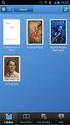 Process OverDrive ebooks on PC or Mac (PDF, EPUB) 1. Register for an Adobe ID (required to transfer/access ebooks on any portable device or ereader) 2. Download Adobe Digital Editions software to your
Downloading Adobe ebooks from Regina Public Library s Overdrive Website: www.library2go.sk.ca
 The following instructions are for Sony, Kobo, Pandigital, Literati and Nook ereaders, as well as for PC and Mac computers. Kobo Vox, ipad, iphone and Android users can use the free Overdrive Media Console
To Download Library Books Onto Your KINDLE FIRE
 Using 3M CLOUD LIBRARY BOFG JJ To Download Library Books Onto Your KINDLE FIRE To borrow an e-book from the Ocean County Library system, you need to have a valid Ocean County Library card (less than $25
Know How to Use epukapuka on a Tablet January 2015
 Know How to Use epukapuka on a Tablet January 2015 What is epukapuka? epukapuka is a website that gives you access to borrow ebooks and eaudiobooks using your Hutt City Library card and password. ebooks
ones who assigned 1 to
 The Patron Experience in Axis 360 While searching through your OPAC (online catalog) for a book, you will see that your online catalog now contains Axis 360 ebooks. After you click on the title and open
To Download Library Books Onto Your KINDLE FIRE
 Using 3M CLOUD LIBRARY 0BOFG JJ To Download Library Books Onto Your KINDLE FIRE To borrow an e-book from the Ocean County Library system, you need to have a valid Ocean County Library card (less than $25
Accessing ebooks and Audio Books from a Computer or ipad. 2. Log in to Digital Backpack using your school username and password.
 Accessing ebooks and Audio Books from a Computer or ipad 1. Type into an internet browser the web address: https://backpack.ed.act.edu.au 2. Log in to Digital Backpack using your school username and password.
LIBRARY MEMBER USER GUIDE
 LIBRARY MEMBER USER GUIDE CONTENTS PAGE Part 1) How to create a new account... 2 Part 2) How to checkout a magazine issue... 4 Part 3) How to download and use Zinio Reader 4... 8 a) For your PC... 8 b)
USB Sideloading & Adobe ID Guide
 Getting Started To determine device / format compatibility: Go to overdrive.com/resources/drc Help Articles / Video Tutorials: Go to help.overdrive.com What you need A valid library card and PIN Free Software
Islington ebooks Help / FAQs
 Islington ebooks Help / FAQs How does the ebook Service work? Using your Library Card and pin, an Islington Libraries user can login into a secure ebook service and select up to 4 ebooks to download at
West Lothian Libraries How to. Guide
 West Lothian Libraries How to. Guide Step 1. Choose your e-book Open your web browser and type in http://westlothian.libraryebooks.co.uk or follow the link on the library homepage. www.westlothian.gov.uk/libraries
LIBRARY MEMBER USER GUIDE
 LIBRARY MEMBER USER GUIDE CONTENTS PAGE Part 1) How to create a new account... 2 Part 2) How to checkout a magazine issue... 4 Part 3) How to download Zinio Reader 4... 10 a) For your PC... 10 b) For your
CONTENTS PAGE. c) Our Recommended Settings... 14. d) Overview...7. i. Check Out and Download a book... 27
 USER GUIDE CONTENTS PAGE Top Tip: Hold down the Ctrl key on your keyboard and using your mouse click on the heading below to be taken to the page Introduction... 3 1. How to create a new account... 3 2.
How To Use OverDrive using a Windows PC
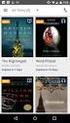 How To Use OverDrive with a Windows PC to read ebooks To read ebooks from OverDrive on a Windows personal computer you must: 1. Download the software Adobe Digital Editions 2. Install software 3. Authorize
Using the Online ebooks Library. Moray Council Libraries & Information Services. For more information log on to http://moray.libraryebooks.co.
 Using the Online ebooks Library Moray Council Libraries & Information Services For more information log on to http://moray.libraryebooks.co.uk How does the ebooks Service work? Log in to ebooks website
Initial Setup of Microsoft Outlook with Google Apps Sync for Windows 7. Initial Setup of Microsoft Outlook with Google Apps Sync for Windows 7
 Microsoft Outlook with Initial Setup of Concept This document describes the procedures for setting up the Microsoft Outlook email client to download messages from Google Mail using Internet Message Access
There are a variety of ways to read ebooks from the Stirling Libraries and Archives ebooks Collection.
 1 Guide Contents Using Stirling Libraries and Archives ebook Service 2 Downloading to Adobe Digital Editions 6 Transferring to an E-Reader from Adobe Digital 7 Editions Downloading to an Apple ipad and
Axis 360 ebooks & the Blio
 Axis 360 ebooks & Blio: Windows, Android, & Apple ios subscribes to collection of ebooks available from Baker & Taylor s Axis360 service which can be checked out and read on a computer, tablet, or smartphone
To Download Library Books Onto Your NOOK E-READER
 Using 3M CLOUD LIBRARY BOFG JJ To Download Library Books Onto Your NOOK E-READER (black-and-white) Please note that the following instructions are specifically designed for all models of the Nook E-Ink
Patron Assistance: Become an OverDrive Download Library Specialist
 V.03012009 OverDrive, Inc. 2009 Page 1 Patron Assistance: Become an OverDrive Download Library Specialist We'll help take your understanding of OverDrive download media to the next level so you can share
Introduction... 2. Download and Install Mobile Application... 2. About Logging In... 4. Springboard... 4. Navigation... 6. List Pages...
 Contents Introduction... 2 Download and Install Mobile Application... 2 About Logging In... 4 Springboard... 4 Navigation... 6 List Pages... 6 Example: Edit Contact... 7 View Pages... 12 Example: Companies...
About your Kobo ereader...5
 Kobo Mini User Guide Table of Contents About your Kobo ereader...5 Anatomy of your Kobo ereader...5 Charging your Kobo ereader...7 Charging your Kobo ereader with a wall adapter...8 Turning your Kobo ereader
About your Kobo ereader...5
 Kobo Touch User Guide Table of Contents About your Kobo ereader...5 Anatomy of your Kobo ereader...5 Charging your Kobo ereader...7 Charging your Kobo ereader with a wall adapter...8 Turning your Kobo
VERVIEW COLLECTION VIEWS AN OVERVIEW OF BAKER & TAYLOR EBOOKS
 VERVIEW AN OVERVIEW OF BAKER & TAYLOR EBOOKS The Magic Wall showcases the digital titles owned by your library. The Magic Wall may also be accessed by selecting the Magic Wall tab in the main horizontal
Step 1: Connect your Kindle to your computer with its USB cable. Go to the library system s website at www.cclslib.org. Click on the OverDrive logo.
 Downloading OverDrive Titles from a PC (Windows 7) to the Kindle via USB Step 1: Connect your Kindle to your computer with its USB cable. Go to the library system s website at www.cclslib.org. Click on
Remote Online Support
 Remote Online Support STRONGVON Tournament Management System 1 Overview The Remote Online Support allow STRONGVON support personnel to log into your computer over the Internet to troubleshoot your system
Available on VitalSource
 User Guide Available on VitalSource Welcome to Pageburst on VitalSource all of your Elsevier ebooks at your fingertips! This user guide contains the information you will need to redeem your access code
How to download ebooks to a PC and transferring them to a Nook device
 How to download ebooks to a PC and transferring them to a Nook device Basic Steps 1. Download & Install Adobe Digital Editions. 2. Register for an Adobe account or use your existing account. 3. Register
Downloading 3M ebooks to Nook & Kobo ereaders
 Downloading 3M ebooks to Nook & Kobo ereaders Table of Contents Downloading the 3M Cloud Library app. 3 Logging in to the app 4 Searching for ebooks 5 6 Checking out an ebook 6 7 Transferring an ebook
How to search for and view our school district's e-book/audio book collections on a computer
 How to search for and view our school district's e-book/audio book collections on a computer If you are logged into a computer anywhere in the world, you will be able to view and read e-books, and listen
Download and Installation Instructions for. Kindle Downloadable ebooks for BlackBerry.
 Download and Installation Instructions for Kindle Downloadable ebooks for BlackBerry For BlackBerry Z10 Devices Overview With the recent release of the Amazon Kindle software for the BlackBerry Z10 device,
Mobile Online Banking
 Mobile Online Banking User Guide Table of Contents Enrolling Through Traditional Online Banking, pg. 2 Enrolling Using Your Mobile Device, pg. 4 Login Screen, pg. 7 Locations, pg. 7 Mobile Browser View,
How to download EBSCOhost e-books from the State Library of South Australia
 How to download EBSCOhost e-books from the State Library of South Australia For technical reasons downloading for offline reading is not available from PCs within the State Library. EBSCOhost e- books
FreeConference iphone Mobile App
 1. What is Mobile Conferencing? 2. Device Requirements 3. Account Login or Sign-up 4. Schedule a Conference 5. Quick Conference 6. Add Participants to a Conference 7. Create a Group Pg 1 Pg 1 Pg 2 Pg 3
Welcome to the Opus Bank Mobile Banking App User Guide
 Welcome to the Opus Bank Mobile Banking App User Guide 1.855.678.7226 [email protected] www.opusbank.com Table of Contents Enroll in Mobile Banking & Install App... 3 Login to Personal Online
Part 1. Table of Contents with clickable links
 OverDrive Support Common Questions and Answers The information below should help Wisconsin libraries answer common support questions from patrons using OverDrive. Most questions are followed by a bit of
Presenting ebooks from the East Albemarle Regional Library System!
 Presenting ebooks from the East Albemarle Regional Library System! 3M Cloud Library ebooks from the East Albemarle Regional Library System can be read on your ios (Apple) or Android mobile device or read
Nursery Phone App Tutorial
 Nursery Phone App Tutorial This document is a reference guide to help nurseries navigate Plantbid s phone app. If you require extra assistance please call our support staff at (985) 845-4104. The Plantbid
Save and share documents in the cloud with OneDrive
 Work Smart Save and share documents in the cloud with OneDrive OneDrive for Business is your professional document library. OneDrive uses Office 365 (SharePoint Online) to safely store your documents in
STX Beacon User Guide. Credit Card Processing Mobile Devices Mac & Windows OS
 STX Beacon User Guide Credit Card Processing Mobile Devices Mac & Windows OS Table of Contents 3 Process Electronic Payments via Mobile Terminals - ipad, iphone, Android 3 Mobile Terminals: Activate PaymentMate
LEARNING RESOURCE CENTRE GUIDE TO OFFICE 365
 LEARNING RESOURCE CENTRE GUIDE TO OFFICE 365 LEARNING RESOURCE CENTRE OCTOBER 2014/2015 Table of Contents Explanation of One Drive and Microsoft Office Online... 3 How to create a document and folder...
[MP2 TRAINING MANUAL]
![[MP2 TRAINING MANUAL]](/thumbs/31/15009339.jpg "[MP2 TRAINING MANUAL]") 2015 Technical Services James Titford [MP2 TRAINING MANUAL] Process for Work Order and Purchase Requisition entry on MP2. Table of Contents Introduction... 2 Logging on to MP2... 2 Navigating MP2:... 3
2015 Technical Services James Titford [MP2 TRAINING MANUAL] Process for Work Order and Purchase Requisition entry on MP2. Table of Contents Introduction... 2 Logging on to MP2... 2 Navigating MP2:... 3
Adobe Reader 7.0 Frequently Asked Questions for Digital Edition Users
 FAQ Adobe Reader 7.0 TOPICS 1 General 4 Adobe DRM 4 digital edition support 4 Activation 5 Mac OS support 6 PDA support General Q: What is a digital edition (formerly known as an ebook)? A: A digital edition
Zinio FAQ. » I created a Library Collection account but I did not receive my confirmation email. Why not?
 Zinio FAQ» I created a Library Collection account but I did not receive my confirmation email. Why not? The notification emails are sent automatically after you subscribe and should show up in your email
Mobile Banking Frequently Asked Questions
 Effective August 20, 2015 General Questions What are CBT Mobile Banking and CBT Business Mobile Banking? CBT Mobile Banking and CBT Business Mobile Banking provide anytime access to your eligible California
About your Kobo ereader...5
 User Guide Kobo Aura H2O User Guide Table of Contents About your Kobo ereader...5 Anatomy of your Kobo ereader...5 Waterproofing your Kobo ereader...7 Using your Kobo ereader around water...9 Charging
B&SC Office 365 Email
 B&SC Office 365 Email Microsoft Office 365 In its continuous efforts to provide the highest quality student experience, Bryant & Stratton College is giving students access to a new tool for accessing email.
Qsync Install Qsync utility Login the NAS The address is 192.168.1.210:8080 bfsteelinc.info:8080
 Qsync Qsync is a cloud based file synchronization service empowered by QNAP Turbo NAS. Simply add files to your local Qsync folder, and they will be available on your Turbo NAS and all its connected devices.
Document Services Online Customer Guide
 Document Services Online Customer Guide Logging in... 3 Registering an Account... 3 Navigating DSO... 4 Basic Orders... 5 Getting Started... 5 Attaching Files & Print Options... 7 Advanced Print Options
Mobile Banking FAQ for Business
 Mobile Banking FAQ for Business General Questions 1. What is National Bank of Arizona Business Mobile Banking? Mobile Banking provides anytime access to your eligible account(s) from select mobile phones
Remote Access VPN SSL VPN Access via Internet Explorer
 The following instructions will allow you to access your company network remotely, via your Internet Explorer web browser. 1. Launch Internet Explorer and choose Internet Options from the Tools menu. 2.
Managed IT Gold. Ticketing Basics
 Managed IT Gold Ticketing Basics Introduction Your personal Digital Agent Managed IT Gold ticketing system is the quickest way to let Digital Agent IT Engineers know that you are having an issue. Telephone
MetaTrader 4 for iphone Guide
 MetaTrader 4 for iphone Guide Logging in When you have first downloaded and installed the app from the App Store, you will see the Metatrader 4 icon appear on your screen. Please select this icon by tapping
ParishSOFT Remote Installation
 Table of Contents Setting up Remote Solution Windows 7 or Vista... 1 Connecting to ParishSOFT... 1 Accessing Your database... 3 Switching to your parish database... 4 Setting up Accounts for users... 5
LexisNexis Law School ebooks / etextbooks FAQs LexisNexis Store Purchases
 LexisNexis Law School ebooks / etextbooks FAQs LexisNexis Store Purchases General Questions about ebooks/etextbooks Digital Rights Management/Adobe/User Accounts LexisNexis Store Purchases/Downloading
Egnyte App for Android Quick Start Guide
 Egnyte App for Android Quick Start Guide Introduction Welcome to the Quick Start Guide for the Egnyte App for Android. This guide will explain how to: Access files. Download content for offline access.
Manual - Schlatter E-Shop
 Manual - Schlatter E-Shop Content 1 Preliminary...3 2 Logon at Shatter E-Shop...3 3 Welcome Page...4 4 Create New Shopping Cart...5 5 Catalog...6 6 Create Orders in E-Shop...9 7 Create Quotations in E-Shop...9
VOICE MAIL TO EMAIL - MY SERVICES MANAGEMENT
 Included with your subscription to Voice Mail to Email VOICE MAIL MANAGEMENT INTERNET ACCESS My Services web access allows you to administer your Voice Mail account settings and to play, delete and save
User Guide. What is AeroFS. Installing AeroFS. Learn How to Install AeroFS and get started syncing and sharing securely INTRODUCTION
 User Guide Learn How to Install AeroFS and get started syncing and sharing securely What is AeroFS INTRODUCTION AeroFS is a file sharing and syncing tool that allows you to share files with other people
BI-RADS Atlas 5th Edition e-book Download Instructions (Updated: 12/11/14)
 BI-RADS Atlas 5th Edition e-book Download Instructions (Updated: 12/11/14) Note: These instructions and screenshots are a general guide and may vary with what appears on your device due to differences
How To Use Textbuster On Android (For Free) On A Cell Phone
 www.textbuster.com 1 Applications and Account Manager Dashboard User Guide For Android phones www.textbuster.com 2 Downloading the TextBuster applications After the TextBuster device is installed into
Enter your email address and mobile number that is registered with the school
 Parents guide to School Gateway Web Account activation Navigate to www.schoolgateway.com Select the New user tab Enter your email address and mobile number that is registered with the school Select Send
Money Desktop FAQ. How do I get started with MoneyDesktop?
 Money Desktop FAQ Contact us What is PFM/MoneyDesktop? MoneyDesktop is a PFM, Personal Financial Management tool, that helps you budget and manage your finances. It allows you to import all of your accounts,
Downloading an Acted ebook Accessing an ActEd ebook on more than 1 computer/device Printing an ActEd ebook
 ActEd ebooks FAQs Contents EBOOKS DEVICES AND SOFTWARE Checking you have a compatible computer and device Installing the applications Registering with Adobe Downloading a test ebook Accessing an ebook
Download and Read ebooks
 Download and Read ebooks Many ebooks are available online, and as well as being read on ereaders and tablets (e.g. ipads) they may be downloaded and read on your computer. Books which have been scanned
About Kobo Desktop... 4. Downloading and installing Kobo Desktop... 5. Installing Kobo Desktop for Windows... 5 Installing Kobo Desktop for Mac...
 Kobo Touch User Guide TABLE OF CONTENTS About Kobo Desktop... 4 Downloading and installing Kobo Desktop... 5 Installing Kobo Desktop for Windows... 5 Installing Kobo Desktop for Mac... 6 Buying ebooks
Schools CPD Online General User Guide Contents
 Schools CPD Online General User Guide Contents New user?...2 Access the Site...6 Managing your account in My CPD...8 Searching for events...14 Making a Booking on an Event...20 Tracking events you are
WHAT YOU OWN HOME INVENTORY SOFTWARE
 WHAT YOU OWN HOME INVENTORY Version 4.19 Copyright 2013 M- One Studio, LLC www.m-onestudio.com Contents Getting Started... 1 About WHAT YOU OWN HOME INVENTORY SOFTWARE... 1 Download and Install the Software...
USER S GUIDE. Channel Partner Certification Renewal. How to verify and update information to have current certification renewed. Release: 1.
 USER S GUIDE Channel Partner Certification Renewal How to verify and update information to have current certification renewed Release: 1.4 Date: November 30, 2004 Page 1 of 6 Section 1: Certification Renewal
Using the BWSD Help Desk Website
 Accessing the Help Desk Website Using the BWSD Help Desk Website Open your web browser and go to http://helpdesk.bwschools.net:8080/ The Help Desk login screen will be displayed. 1. You should not have
HOW TO ACCESS YOUR ONEDRIVE FOR BUSINESS DOCUMENTS
 HOW TO ACCESS YOUR ONEDRIVE FOR BUSINESS DOCUMENTS There are three ways to access your OneDrive for Business documents. Through your browser Through your OneDrive Sync folder Through your Office applications
Enjoying EPUB ebooks on Your Nook
 Enjoying EPUB ebooks on Your Nook From the New Hampshire Downloadable Books Consortium Outline: 1. Download & Install Adobe Digital Editions. 2. Register for an Adobe account or use your existing account
Fax User Guide 07/31/2014 USER GUIDE
 Fax User Guide 07/31/2014 USER GUIDE Contents: Access Fusion Fax Service 3 Search Tab 3 View Tab 5 To E-mail From View Page 5 Send Tab 7 Recipient Info Section 7 Attachments Section 7 Preview Fax Section
Installation Introduction
 Installation Introduction It only takes a few steps to get things set up properly so you can be using the Safety Meeting App in no time. Its as easy as 1-2-3: 1) 2) 3) Enroll Your Company and Get your
Broward College Dual Enrollment Ordering and Returning Textbooks
 Ordering Books Textbooks for Dual Enrollment courses should be ordered online and picked up at the Broward College Bookstore. When books are ordered, students will be emailed an order number. The order
Downloading ebooks to a PC & Transferring the ebook to a Sony Reader or Nook
 Downloading ebooks to a PC & Transferring the ebook to a Sony Reader or Nook A Service of the NH Downloadable Books Consortium Outline: 1. Download & Install Adobe Digital Editions. 2. Register for an
Business Mobile Banking Features
 Business Mobile Banking Features Overview There are two modes of Business Mobile Banking available. Each mode offers a different level of functionality. Business Mobile Banking App o Business Online Banking