
Suncorp Bank HealthPoint User Guide
|
|
|
- Cora Johnson
- 10 years ago
- Views:
Transcription
1 Suncorp Bank HealthPoint User Guide

2 Contents 1 Getting Started with Suncorp Bank HealthPoint 1.1 Introduction Everyday Procedures HealthPoint Set-up Contact Details Suncorp Bank HealthPoint Contacts Health Fund Contacts Introducing the Suncorp Bank HealthPoint Keypad The HealthPoint Screen The Insert/Swipe Screen Glossary of Terms Some Tips from the Health Funds HealthPoint Admin Menu Map Quick Reference Section 7.1 Creating a HealthClaim against a Health Fund Cancelling a HealthClaim Retrieving (& Printing) a HealthClaims Reconciliation Report Retrieving (& Printing) HealthClaims Activity Reports Changing the Practitioner List Changing the Item List Creating a HealthPoint Claim against A Health Fund 8.1 Detailed Description About the HealthClaims Receipt Terminal Printer Cancelling a HealthPoint Claim 9.1 Detailed Description Printing a HealthPoint Reconciliation Report 10.1 Detailed Description About the HealthClaims Reconciliation Report Terminal Printer Retrieving (and Printing) HealthPoint Activity Reports 11.1 Detailed Description About the Activity Report Terminal Printer Changing the Practitioner List 12.1 Detailed Description Changing the Item List 13.1 Detailed Description Editing Item Details Changing the Practice Details 14.1 Detailed Description...57

3 15 Frequently Asked Questions 15.1 Questions Regarding Claims to Health Funds Appendix A: Health Fund Responses 16.1 Claim Responses Item Responses Cancellation or Rejection (Void) Responses Appendix B: Optometrist Item Codes Appendix C: Physiotherapy Item Codes Appendix D: Chiropractic Item Codes Appendix E: Dental Item Codes Appendix F: Occupational Therapist Item Codes Appendix G: Podiatrist Item Codes Appendix H: Psychologist Item Codes Appendix I: Dietitians Item Codes Appendix J: Speech Pathologists Item Codes Appendix K: Naturopaths Item Codes Appendix L: Acupuncturists Item Codes Appendix M: Remedial Massage Therapist Item Codes Appendix N: Osteopath Item Codes Appendix O: Exercise Physiology Item Codes Appendix P: Myotherapy Item Codes...95 Suncorp Bank HealthPoint User Guide 3
4 1 Getting Started with Suncorp Bank HealthPoint Welcome to Suncorp Bank HealthPoint, the complete health payments processing system! This user guide covers HealthClaims, for making ancillary claims against private health funds. Other HealthPoint features supported on this device are EFTPOS, and Medicare Easyclaim. To help you find your way through this guide, you may like to use the following lists of topics. 1.1 Introduction For an introduction to HealthPoint and HealthClaims, read: The HealthPoint keypad (starting on page 7) Some tips from the health funds (page 10) The Quick Reference Section (starting on page 12) 1.2 Everyday Procedures For the details of the everyday procedures covered in HealthClaims training, see the following sections: The Quick Reference Section, starting on page 12, is a useful summary of procedures or daily use Creating a HealthClaim and submitting it (starting on page 16) Cancelling a HealthClaim (starting on page 31) Printing the HealthClaims reconciliation report (starting on page 36) Retrieving and printing the HealthClaims activity report (starting on page 41) 1.3 HealthPoint Set-up HealthPoint training also covers the following set-up procedures: Updating your practice name, address and phone number (starting on page 57) Updating, or adding details of your practitioners (starting on page 45) Editing the list of standard items codes, e g to adjust the service fees (starting on page 55) 4 Suncorp Bank

5 2 Contact Details 2.1 Suncorp Bank HealthPoint Contacts Suncorp Bank Technical Helpdesk For EFTPOS hardware and technical difficulties hours, 7 days Suncorp Bank Merchant Enquiries For general merchant enquires (Account Queries/Changes) Monday to Friday, 8.30am to 5.00pm AEST except Brisbane public holidays isoft HealthClaim Helpdesk For reporting of HealthPoint faults, instructions on how to process HealthPoint transactions and adding or deleting providers Monday to Friday, 8.00am to 6.00pm AEST Saturday 8.00am to 2.00pm AEST Note. The training department operates Monday to Friday, 9.00am to 5.00pm AEST (Except for Public Holidays) Please assist us by having your Merchant number, Terminal number and isoft number available when contacting the above helpdesks. Your Merchant Details: Suncorp Merchant No. Suncorp Terminal No. isoft No. Manual Authorisation Visa/Mastercard Credit Card hours a day, 7 days a week Debit Cards hours a day, 7 days a week Please have the following information ready: merchant number card details card number, expiry date transaction amount. Suncorp Bank HealthPoint User Guide 5

6 2.2 Health Fund Contacts For enquiries about a fund member s entitlements or problems with their card, call the relevant fund s Member Services number. For enquiries about provider numbers, or any difficulties with provider payments, call the relevant fund s Provider Information number Health Fund Member Services Provider Information ACA ahm Australian Unity (03) (03) BUPA CBHS Friendly Society Credicare Defence Health GMF GMHBA, Frank, FIT, RACT & Budget Direct HBF HCF (02) Health.com HIF Latrobe Health Services Medibank Private Navy Health NIB Onemedifund Peoplecare (02) Police Health Queensland Country Health (07) RT Health Teachers Federation Health Teachers Union Health Westfund Suncorp Bank

7 3 Introducing the Suncorp Bank HealthPoint Keypad The Suncorp Bank HealthPoint keypad is an easy-to-use terminal, with just 25 keys. Some of the keys have special functions. Printer Built into the Terminal Merchant Menu Contains: Transactions Print Batch Additional Applications o Touch HealthPoint Medicare Blue Function Key Alpha Button Paper Feed Enter/Yes/OK Clear/No Cancel Suncorp Bank HealthPoint User Guide 7

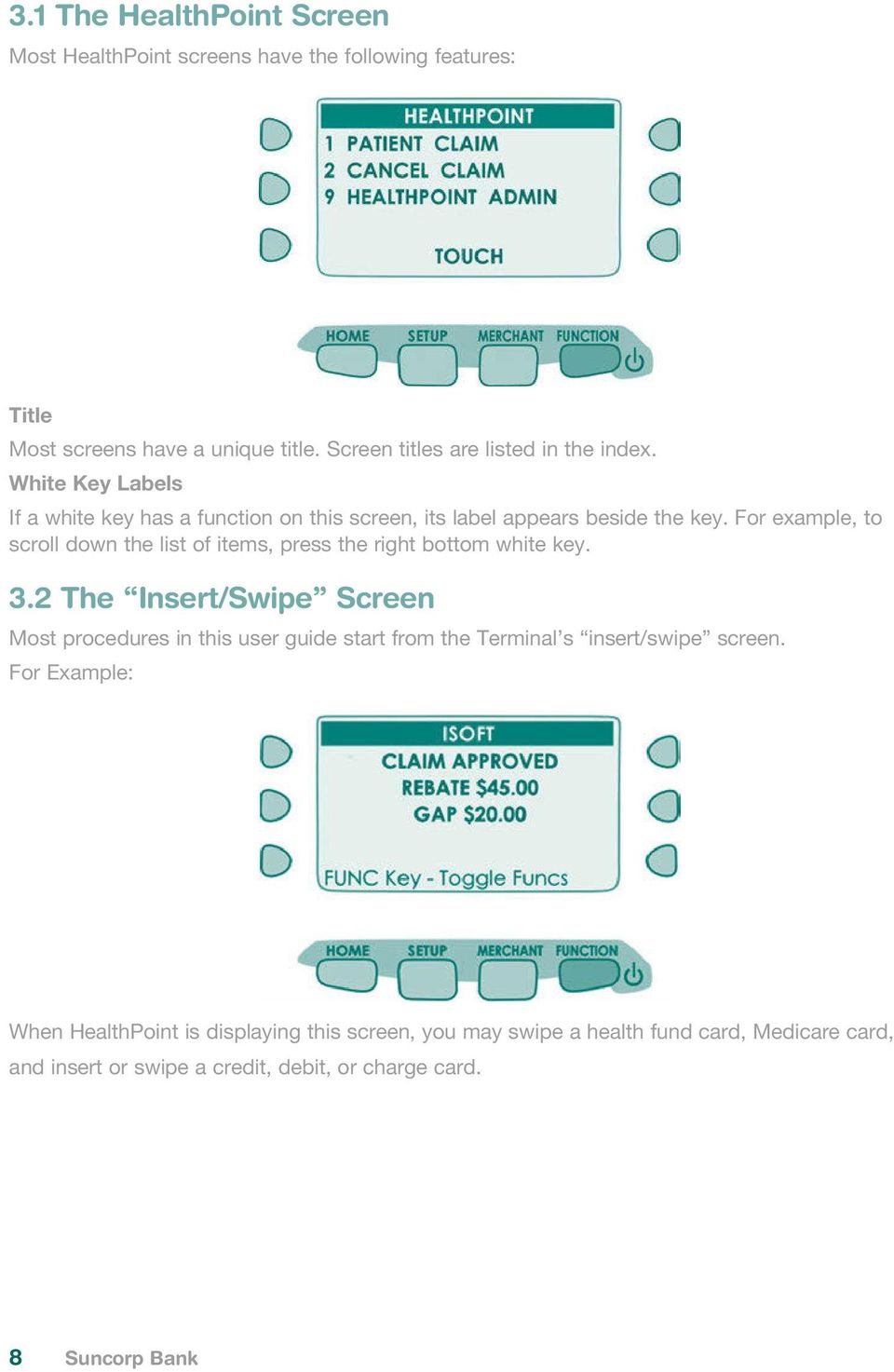
8 3.1 The HealthPoint Screen Most HealthPoint screens have the following features: Title Most screens have a unique title. Screen titles are listed in the index. White Key Labels If a white key has a function on this screen, its label appears beside the key. For example, to scroll down the list of items, press the right bottom white key. 3.2 The Insert/Swipe Screen Most procedures in this user guide start from the Terminal s insert/swipe screen. For Example: When HealthPoint is displaying this screen, you may swipe a health fund card, Medicare card, and insert or swipe a credit, debit, or charge card. 8 Suncorp Bank
9 4 Glossary of Terms The following symbols are used in the procedures detailed in this guide. Quick Reference The quick reference lists a simple set of steps that will quickly lead you through the procedure. If you don t know how to perform a step, check the corresponding step in the detailed description (the step numbers are the same). Detailed Description The detailed description covers each step of the procedure in detail, and includes all of the options available on each screen. To help you familiarise yourself with the procedure, the detailed descriptions also include pictures of the HealthPoint screen. Start Each procedure starts with a description of what state HealthPoint should be in before you work through the procedure. Most procedures start from the insert/swipe screen. 1. Step Each procedure is made up of one or more numbered steps. Unless you are instructed to go to a different step, follow each step in sequence through to the end. Question or condition Some steps include parts that only apply if a certain condition is true. These parts are marked with the question mark. Option Some steps allow you to perform one of a number of options. Each option is marked with an arrow head. Warning Do not ignore this screen! Finish The thumbs up indicates you ve completed the procedure. Cross Reference In some parts of the procedures, you need to branch to the step or section shown by the cross reference symbol. Please Wait This symbol indicates that, at this point in the procedure, HealthPoint makes a telephone call to the isoft Health Message centre to send and receive information. This takes a few moments. Suncorp Bank HealthPoint User Guide 9

10 5 Some Tips from the Health Funds To help you avoid some common mistakes with on-line claiming, the health funds have provided the following tips: Every time you swipe a patient s card and submit a HealthClaim, HealthPoint connects to the relevant health fund and makes a real, live claim for your patient. If a patient would like an estimate of the benefit they will receive for a particular service, call the patient s fund on their member services phone number. These numbers are listed on page 6 of this user guide. If a patient disputes the amount of a rebate, cancel the claim and advise them to make a manual claim with the health fund. Cancellations must be made on the same day of service. Whenever possible, make one claim for the whole consultation, including all the items covered. Separate claims for each individual item may mean your patient receives a reduced benefit. If a patient is receiving a course of treatment, make claims on a consultation by consultation basis, rather than one big claim at the end of the course. If you are unsure about which service item codes apply for a particular type of service, consult your professional association. The codes included in this user guide were provided by your association, in consultation with the health funds. You must not make a claim for a service or appliance you have not supplied. For example, you cannot claim for a pair of glasses until the patient has actually received the glasses, even if you bill the patient in advance. You must not make claims for deposits taken when ordering appliances (e.g. dental crowns, glasses), then claim for the remainder when the appliance is supplied. Make only one claim for each appliance when the appliance is supplied. Review the HealthPoint Service Terms and Conditions to make sure you understand your legal obligations under your agreement with the health funds. If you need another copy of your terms and conditions, call the isoft HealthClaims Help Desk on Remember that the health funds have the right to refuse to accept a claim that does not comply with their requirements. If in doubt, always consult the health fund in question. 10 Suncorp Bank
11 6 HealthPoint Admin Menu Map SERVICE TYPE 1 DENTAL 2 OPTICAL 3 CHIROPRACTIC TOUCH DENTAL 1 11 COMPREHE ORAL 2 12 PERIODIC ORAL 3 13 ORAL EXAM -LIM 4 14 CONSULTATION FUNC Key - Toggle Funcs DENTAL UP 1 11 COMPREHE ORAL 2 12 PERIODIC ORALFIND 3 13 ORAL EXAM -LIM 4 14 CONSULTATION DOWN FUNC Key - Toggle for Funcs HEALTHPOINT ADMIN SERVICE ITEMS REPORTS UPDATE CONFIG ISOFT ID TOUCH REPORTS 1 ACTIVITY REPORT 2 RECONCILIATION REPORT 3 SHIFT TOTAL 4 CURRENT SETTINGS TOUCH UPDATE CONFIG 1 UPDATE ALL 2 PRACTICE DETAILS 3 HEALTH FUNDS 4 PROVIDER DETAILS 5 SERVICE ITEMS TOUCH CURRENT SETTINGS 1 DEVICE DETAILS 2 PRACTICE DETAILS 3 HEALTH FUNDS 4 SERVICE ITEMS FUNC Key - Toggle Funcs HIDDEN PASSWORD SERIAL: TOUCH Suncorp Bank HealthPoint User Guide 11

12 7 Quick Reference Section For more information on any step in the following quick reference procedure, refer back to the detailed procedure in the main part of the user guide. The step numbers are always the same in both the quick reference and the detailed procedure. 7.1 Creating a HealthClaim against a Health Fund Start from the insert/swipe screen. 1. Swipe the patient s health fund card. 2. Enter the patient reference number, and then press ENTER. 3. If HealthPoint displays the PROVIDER OF SERVICE screen, select the serving practitioner from the list. 4. Select up to 16 service items from the list. (a) Select an item from the * SERVICES screen. (b) Press 2 to edit the fee. Press [ENTER] to confirm. (c) Press ENTER to add the selected item to the claim. (d) Either press Blue [FUNCTION] and [ADD] to add more items, or press [ENTER] to make the claim with the selected items. 5. To submit this HealthClaim to the appropriate health fund, press the blue [FUNCTION] key to get the slide out menu, and press the top left white button to [SUBMIT]. HealthPoint submits the claim and retrieves the health fund response, and then prints a claim assessment for the patient to sign. 6. Advise the patient of the health fund s rebate of the claim and ask them if they accept it. To accept the rebate offered, press the blue [FUNCTION] key to get the slide out menu, and press the bottom left white button to [ACCEPT]. Have the patient sign the health fund assessment Verify the patient s signature and write your initials on the assessment. File the patient-signed and verified assessment. Retain for two years. To reject the rebate offered, press the blue [FUNCTION] key to get the slide out menu, and press the top left white button to [REJECT]. HealthPoint rejects the claim and retrieves the health fund response. The Terminal will show VOID Approved, What would you like to do with the Claim? Press the blue [FUNCTION] key to get the slide out menu, and press [DISCARD], to discard the claim and return to the insert/swipe screen. Press the blue [FUNCTION] key to get the slide out menu, and press [MANUAL], to produce a record of the claim for manual processing (go on to step 7). Press the blue [FUNCTION] key to get the slide out menu, and press [ADJUST], to return to HEALTHFUND summary screen. 7. If you have already received monies from the patient, perhaps by way of a deposit or down payment, enter that amount, and then press ENTER. If not, leave the amount blank and press ENTER. 12 Suncorp Bank

13 8. If there are monies owing, HealthPoint asks for the METHOD OF PAYMENT. Answer the question by pressing the blue function key and selecting the appropriate method from the slide out menu, and process accordingly. 9. Once you have successfully printed the receipt. Give the receipt to the patient HealthPoint returns to the insert/swipe screen You have finished creating a HealthClaim! 7.2 Cancelling a HealthClaim Start from the HEALTHPOINT screen. 1. Press 2 for CANCEL CLAIM Enter the claim receipt number, which you can find on the top of the printed claim receipt, then press ENTER If you have entered the Claim ID, the Claim will be retrieved and presented on screen. Swipe the Health fund card used to generate the claim. If you have swiped the customer Health Fund Card you will be presented with a list of possible claims to Cancel. To navigate through the possible claims use the blue [FUNCTION] key to get access to the slide out menu. Select NEXT to see the next claim in list. 2. Once you have the Claim you want to cancel, select the blue [FUNCTION] key to get access to the slide out menu. Select PROCEED to Cancel the Claim. If you have not already done so, you will be prompted to Swipe the patient s card to authorise the cancellation. HealthPoint cancels the claim, retrieves the health fund s response, and prints a cancelled receipt 3. If the patient requires a copy of the cancellation receipt, press blue [FUNCTION] key to get access to the slide out menu. Select NO, REPRINT to print a second copy of the Cancelled Claim. Have the patient sign the cancellation receipt. Verify the patient s signature and write your initials on the cancellation receipt. File the patient-signed and verified cancellation receipt. Retain for two years. 4. If the second copy of the receipt printed successfully, select the blue [FUNCTION] key to get access to the slide out menu. Select YES, Done to finish the cancellation. You have finished cancelling a HealthPoint Claim! Suncorp Bank HealthPoint User Guide 13

14 7.3 Retrieving (& Printing) a HealthClaims Reconciliation Report Start from the insert/swipe screen. 1. Press the BLUE FUNCTION key. 2. Press 5 for Additional Apps. 3. Press 1 for TOUCH. 4. Press 1 for HEALTHPOINT. 5. Press 9 for HEALTHPOINT ADMIN. 6. Press 2 for REPORTS. 7. Press 2 for RECONCILIATION. 8. Enter the Date for reconciliation. This should be entered as DDMMYYYY HealthPoint submits a request for the Reconciliation report from the HealthPoint Message Centre, and then prints the reconciliation on the terminal. 9. Once printed, press blue [FUNCTION] key to get access to the slide out menu. Select YES, Done to return to the HealthPoint Admin Menu. You have successfully retrieved and printed your report 7.4 Retrieving (& Printing) HealthClaims Activity Reports Start from the insert/swipe screen. 1. Press the BLUE FUNCTION key. 2. Press 5 for Additional Apps. 3. Press 1 for TOUCH. 4. Press 1 for HEALTHPOINT. 5. Press 9 for HEALTHPOINT ADMIN. 6. Press 2 for REPORTS. 7. Press 1 for ACTIVITY REPORT. Enter the Activity Date. This should be entered as DDMMYYYY HealthPoint submits a request for the Activity report from the HealthPoint Message Centre, and then prints the reconciliation on the terminal. 8. Once printed, press blue [FUNCTION] key to get access to the slide out menu. Select YES, Done to return to the HealthPoint Admin Menu You have successfully retrieved and printed your reports 14 Suncorp Bank

15 7.5 Changing the Practitioner List To update your HealthPoint Practitioner list you must call the isoft HealthClaim Help Desk on Additional Providers require registration with isoft and the Health Funds prior to claiming on the HealthPoint Terminal. The Provider application can be found on the isoft website. Once the Providers are registered you can update your terminal to reflect the additional Provider. Start from the insert/swipe screen. 1. Press the BLUE FUNCTION key. 2. Press 5 for Additional Apps. 3. Press 1 for TOUCH. 4. Press 1 for HEALTHPOINT. 5. Press 9 for HEALTHPOINT ADMIN. 6. Press 3 for UPDATE CONFIG. 7. Press 4 for PROVIDER DETAILS. HealthPoint submits a request for an updated Provider list from the isoft Message Centre, and then prints the updated list on the terminal. You have successfully updated the Providers on your HealthPoint Terminal 7.6 Changing the Item List Start from the insert/swipe screen. 1. Press the BLUE FUNCTION key. 2. Press 5 for Additional Apps. 3. Press 1 for TOUCH. 4. Press 1 for HEALTHPOINT. 5. Press 9 for HEALTHPOINT ADMIN. 6. Press 1 for SERVICE ITEMS. HealthPoint will retrieve a list of items known to the terminal. 7. Select the SERVICE TYPE you want to assign the item to. For example 1 DENTAL, 2 OPTICAL Note: The terminal will show the Modalities configured on your terminal. 8. Press blue [FUNCTION] key to get access to the slide out menu. To add an item (to the end of the list), press [FIND], enter the new item code then press [ENTER], press [YES], edit the item details (1. name and 2. fee), press [ENTER]. To edit an item already on the list, select item, press [EDIT], enter the details, press the Blue [FUNCTION] [ENTER]. Press CLR to return to the item list. To delete an item, select item, press [DELETE], and then press [ENTER]. HealthPoint returns to the insert/swipe screen You have successfully changed your item list. Suncorp Bank HealthPoint User Guide 15

16 8 Creating a HealthPoint Claim against A Health Fund 8.1 Detailed Description For a brief summary of this procedure, see the Quick Reference Section. Start from the insert/swipe screen. 1. Swipe the patient s health fund card. If the card won t swipe, you cannot proceed with the claim. Our agreement with the health funds requires the patient to be present and to have a valid health fund card to make a claim. If you swipe an older Medibank Private card, HealthPoint displays the CARD ISSUE DATE screen. 16 Suncorp Bank

17 Enter the CARD ISSUE DATE shown on the bottom right corner of the Medibank Private card as one big number in the format DDMMYYYY (day month year, with no spaces in between), then press ENTER. HealthPoint displays the health fund patient reference screen. 2. Enter the patient reference number (on their health fund card, to the left of their name), then press ENTER. If the patient reference number is not shown on the card (e.g. on some older Medibank Private cards), derive it from the patient s position in the list of patients on the card. Start with patient 1 at the top of the list. Count down the first column and then down the second column. Note: You do not have to enter a leading zero. For example, if the patient is numbered 01 on the card, just enter 1 into HealthPoint. HealthPoint displays the PROVIDER OF SERVICE screen. 3. Select the servicing practitioner from the list by pressing a number key. To see more screens of practitioners, press the white keys labelled [ ], [ ]. If the practitioner is not on the list, but has been registered with isoft Health Solutions, See the section of this guide titles Adding a Practitioner. If the Provider is not registered with isoft please contact isoft HealthClaim Helpdesk on to add the new provider to the HealthPoint system. Suncorp Bank HealthPoint User Guide 17

18 HealthPoint displays a list of services applicable to the practitioner selected. For example, if you selected a practitioner who is Dentist, the services displayed might look like this: Note: This screen may be titled OPTICAL, CHIROPRACTIC, PHYSIOTHERAPY, DENTAL or another supported Modality. 4. Select and confirm up to sixteen service items from the services screen. This is done in three steps. 4(a) Select an item by pressing a number key (from the list of items shown on the *SERVICES screen) HealthPoint displays the ADD SERVICE * screen. 18 Suncorp Bank

19 4(b) Press 2 if you wish to edit the fee. If the item and fee are correct, press ENTER to add the item to the claim. HealthPoint displays the SELECTION PATIENT * screen. This screen shows the items you have added to the claim for Patient 1. 4(c) Either press Blue [Function] key, [ADD] to select more items (go back to step 4(a)), or press ENTER to proceed (go on to step 5). Each of these steps (4(a) - 4(c)) has a number of options, which are shown in more detail below. For more information on adding items to claims, see steps 4(d) to 4(f) below. To proceed with processing the claim, go to step 5. 4(d) At the *SERVICES screen shown below, select an item from the list by pressing a number key, then go on to the next step. Suncorp Bank HealthPoint User Guide 19
![4(c) Either press Blue [Function] key, [ADD] to select more items (go back to step 4(a)), or press ENTER to proceed (go on to step 5).](/docs-images/40/4502067/images/page_19.jpg "Each of these steps (4(a) - 4(c)) has a number of options, which are shown in more detail below. For more information on adding items to claims, see steps 4(d) to 4(f) below.")
20 Alternatively, perform one (or more) of the following actions: To check what items you have already selected, press the FUNCTION key for the slide out menu and [CHECK]. To see more screens of items from the slide out menu, use the white keys labeled [DOWN] and [UP]. This key is available only after you have selected at least one item. Go to part 4(f) of this step. To find an item in the list, press the FUNCTION key for the slide out menu and select the Middle white key [FIND]. HealthPoint displays the KEY SERVICE screen. If the item code is not in the list, HealthPoint displays the ITEM NOT FOUND screen. 20 Suncorp Bank
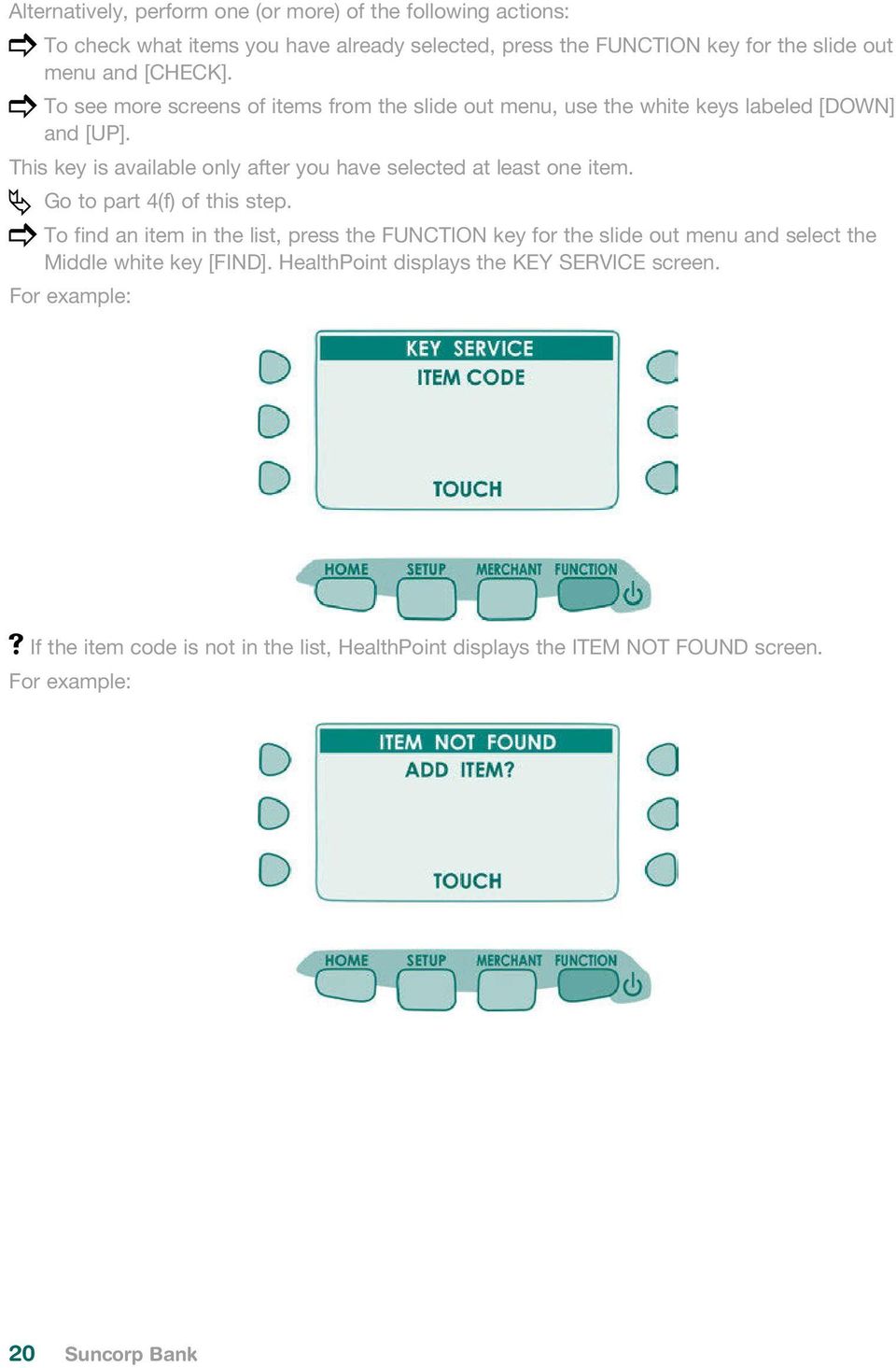
21 Answer the question by using the blue FUNCTION key to get the slide out menu. If you press [AD-HOC], HealthPoint adds the item to this claim, but not to your regular list of items. HealthPoint displays the AD-HOC SERVICE screen. Go to step 4(e). If you press [YES], HealthPoint adds the item both to this claim, and to your regular list of items. HealthPoint displays the NEW SERVICE screen. Go to step 4(e). If you press [NO], HealthPoint returns to the FIND ITEM screen. Press CLR to go back to the service list. Go to step 4(d). After you have selected an item from the list, HealthPoint displays the ADD SERVICE * screen, showing the details of the item you just selected. 4(e) To confirm your selection of this item (i.e. to add it to your claim), press ENTER, and then go on to step 4(f). Alternatively, perform one (or more) of the following actions: To discard this item, if you decide not to select it, press the blue FUNCTION key to get the slide out menu and select [DISCARD]. HealthPoint returns to the item list screen. Go back to part 4(a) of this step. To copy the current item, press the blue FUNCTION key and select [COPY]. HealthPoint copies the item, as displayed on the screen, to your claim. It then displays the copy of the item on the screen as a new current item. You can now make changes to this new copy of the item, such as the body part. HealthPoint displays the number of copies made next to the COPY key. Go back to the top of this part 4(e) of this step. To adjust the date of service, press 2 for DATE. Suncorp Bank HealthPoint User Guide 21
22 HealthPoint displays the SERVICE DATE screen. Select the date of service from the list by pressing a number key. If the date of service is more than a day ago, press 3 [OTHER], then enter the date as one big number in the format DDMMYYYY (day month year, with no spaces in between), then press ENTER. Note: A claim cannot be made for a service to be delivered at a future date. Go back to the top of this part 4(e) of this step. To adjust the fee for this service, press 3 for FEE. HealthPoint displays the SERVICE FEE screen. HealthPoint displays the fee stored in the item list. Enter the correct fee by typing over the fee displayed, and then press ENTER. This does not change the standard fee on the item list, only for this instance for this patient. It is possible to select several copies of an item, each with a different fee. Note: The fee entered must always be equal to the amount actually charged to the patient including discounted amounts. Go back to the top of this part 4(e) of this step. To adjust the tooth number (dentists only), press Suncorp Bank
23 HealthPoint displays the TOOTH NUMBER screen. Enter the two digit ADA (Australian Dental Association) standard tooth number, and then press ENTER. Go back to the top of this part 4(e) of this step. To adjust the body part (Physiotherapists only), press 4. HealthPoint displays the BODY PART screen. Enter the body part for this item, and then press ENTER. Go back to the top of this part 4(e) of this step. After you have pressed ENTER, HealthPoint displays the SELECTION PATIENT * screen. Suncorp Bank HealthPoint User Guide 23
24 This screen shows the items added to your claim. 4(f) To make the claim with the items displayed, press ENTER, then go on to step 5. Alternatively, perform one (or more) of the following actions: To add another item, press the blue Function key, and select [ADD]. HealthPoint displays the * SERVICES screen. Go back to the top of this step (step 4a). To remove an item from your selection, press the corresponding number key. HealthPoint displays the ADJUST SERVICE screen. Use the blue FUNCTION key to Press [DISCARD]. Go back to the top of 4(f). To adjust an item (or review it), press the corresponding number key. HealthPoint displays the ADJUST SERVICE screen. Make any required adjustments (e.g. to fee, body part, tooth number, etc.) as described in part 4(e) of this step then press ENTER. Go back to the top of 4(f). After you have pressed ENTER, HealthPoint displays the HEALTH FUND summary screen. 5. To submit this HealthClaim to the appropriate health fund, press the Blue FUNCTION key to get access to the slide out menu. Select [SUBMIT] to submit the claim. Alternatively, perform one (or more) of the following actions: 24 Suncorp Bank
25 To add another patient to this claim, press the blue FUNCTION key for the slide out menu and select [ADD]. To see more screens of items, use the blue FUNCTION key for the slide out menu and select [DOWN], [UP], and [TOP]. Go back to step 2, and follow through the steps again until you return to the HEALTH FUND summary screen. You don t have to select the practitioner again. Note: Any claim may only include services performed by one practitioner. Services performed by a different practitioner must be included in a separate claim. Once you have pressed SUBMIT, HealthPoint attempts to make a connection to the isoft Health Message Centre. HealthPoint displays a message on the screen, which indicates what it is currently doing. These messages include: CONNECTING TO HOST SENDING PLEASE WAIT RECEIVING PLEASE WAIT PRINTING PLEASE WAIT After HealthPoint has finished submitting the claim and receiving the health fund s response, it prints a copy of the claim receipt. HealthPoint prints an assessment, and then displays the HEALTH FUND assessment screen. Suncorp Bank HealthPoint User Guide 25
26 The printed assessment shows the health fund s responses to each item and to the claim as a whole. A response of 00 or 0000 means the claim or item has been approved. Explanations of the other responses are detailed in Appendix A: Health Fund Responses (see page 67). If an error occurs during the claim submission, HealthPoint displays the HEALTH FUND failed submission screen. Answer the question by pressing the blue FUNCTION key for the slide out menu. If you press [RETRY], HealthPoint tries to send the claim again. If you press [DISCARD], HealthPoint discards the claim completely, and then returns to the insert/swipe screen. Go to step 1. If you press [MANUAL], the patient should make a manual claim with their Health Fund. Go to step 7. Most errors that occur during a claim submission are one-offs. We recommend you try again (press [RETRY]). If the error occurs again, call the isoft HealthClaims Help Desk on If the Health Fund has rejected the claim, see Health Fund Responses to HealthClaims for information on what to do next. 6. Advise the patient on the health fund s rebate of the claim and ask them if they accept it. Have the patient sign the health fund assessment. Verify the patient s signature and write your initials on the assessment. File the patient-signed and verified assessment. Retain for two years. You can answer HealthPoint s question by pressing the blue FUNCTION key for the slide out menu. If you press [ACCEPT], Go to step 7. If you press [PRINT], HealthPoint prints another copy of the receipt. If you press [REJECT], HealthPoint attempts to make a connection to the isoft Health Message Centre to send a claim rejection, in much the same way when you submitted the claim in step Suncorp Bank
27 If an error occurs during the claim submission, HealthPoint displays the HEALTH FUND failed submission screen Answer the question by pressing the blue FUNCTION key for the slide out menu. If you press [DISCARD], HealthPoint discards the rejection, and then returns to the insert/swipe screen. If you press [RETRY], HealthPoint tries to REJECT the claim again. This means the claim, which has gone through to the health fund, remains in force. To cancel it, see Cancelling a HealthClaim. After HealthPoint has finished rejecting the claim and receiving the health fund s response, it prints a copy of the rejection receipt. If the health fund does not accept the rejection, see Health Fund Responses to HealthClaims for information on what to do next. If the health fund accepts the claim rejection, HealthPoint displays the VOID APPROVED screen. Answer the question by pressing the blue FUNCTION key for the slide out menu. If you press [DISCARD], HealthPoint returns to the insert/swipe screen. Go to the end of the procedure. If you press [MANUAL], the patient should make a manual claim with their Health Fund. Go to step 7. If you press [ADJUST], HealthPoint returns to the HEALTH FUND summary screen. Adjust (change) the claim and submit it again. Go to step 5. Suncorp Bank HealthPoint User Guide 27
28 7. Once the claim has been submitted or printed manually, HealthPoint displays the DEPOSITS RECEIVED screen. If you have already received monies from the patient, perhaps by way of a deposit or down payment, enter that amount, and then press ENTER. If there was no deposit paid, leave the amount as zero and press ENTER. HealthPoint adjusts the gap amount by the amount you just entered. 8. If there are monies owing (because the rebate did not cover the fees for the services rendered), HealthPoint displays the METHOD OF PAYMENT screen. Answer the question by pressing the blue FUNCTION key for the slide out menu. If you selected [EFTPOS], process the EFTPOS transaction according to the Suncorp s EFTPOS Merchant Facilities Quick Reference Guide. If your terminal is Multi Merchant, you will be required to select the Merchant for payment. 28 Suncorp Bank
29 If you selected [INVOICE], HealthPoint will print accounts. HealthPoint prints a receipt or account for the practice, and then displays the PRINT CONFIRMATION screen. If you selected [CASH], HealthPoint will print receipts. HealthPoint will print receipts. 9. Wait for the receipt to print, then press the blue FUNCTION key for the slide out menu and select [YES, DONE]. Give the receipt to the patient. HealthPoint returns to the insert/swipe screen. You have finished creating a HealthClaim! Suncorp Bank HealthPoint User Guide 29
30 8.2 About the HealthClaims Receipt The HealthClaims Receipt is a paper record of the claim sent to the health fund via HealthPoint. 8.3 Terminal Printer Name of Health Fund (should you need to cancel it) Your Loaction ID number and Claim Reference number Fees charged Rebates the fund will pay Item response code Claim response code Gap amount Description of each of the response codes printed on this receipt Patient signs here Write your initials here 30 Suncorp Bank
31 9 Cancelling a HealthPoint Claim Use this procedure to cancel a HealthClaim you submitted and which the patient accepted earlier today. Once you have printed today s reconciliation report, you can no longer cancel claims on that report through HealthPoint. Note: You need the patient s health fund card in order to cancel the claim. The health funds will only accept the cancelling of a claim on the same day it was submitted. Note: The day ends at midnight Sydney Time, so claims submitted before midnight Sydney time cannot be cancelled after midnight Sydney time, irrespective of your local time zone. The health funds agreed operating hours mean that the HealthClaims service may not be available at this hour. 9.1 Detailed Description For a brief summary of this procedure, please refer to the Quick Reference Section. Start from the insert/swipe screen. 1. Press the BLUE FUNCTION key. HealthPoint displays the MERCHANT screen. 2. Press 5 for Additional Applications 3. Press 1 for TOUCH 4. Press 1 for HealthPoint 5. Press 2 for Cancel Claim Suncorp Bank HealthPoint User Guide 31
32 If you have set up an operator ID on your Healthpoint you will be prompted to enter the Operator ID For Example: 6. Enter your four digit HealthPoint Operator ID, then press ENTER. In order to cancel a claim, you must first find the claim. HealthPoint will show you the Find Claim screen. Perform one of the following actions, To find a specific claim, Enter the claim receipt number, which you can find on the top of the printed copy of the claim, and press ENTER. You only need the second part of the number after the space. 32 Suncorp Bank
33 7. Perform one of the following actions, To find a specific claim, Enter the claim receipt number, which you can find on the top of the printed copy of the claim, and press ENTER. You only need the second part of the number after the space. Key in this number Note: You do not need to key in all of the zeros at the front of the claim number. For example, to find claim , you only need to key in 20. Or To find claim associated with a membership, Swipe the Health Fund Card used to claim with. HealthPoint will connect to the HealthPoint Claim server and find the claim for cancellation. Suncorp Bank HealthPoint User Guide 33
34 8. To cancel this HealthClaim with the appropriate health fund, press the blue FUNCTION key for the slide out menu, and select [PROCEED]. If you have already swiped the patient s card to find the claim, no further card swipe is required. If you have found the claim by entering the Claim ID, HealthPoint displays the CANCEL FUND CLAIM screen. Note: If the patient is no longer at your practice and you do not have their card, you CANNOT cancel the claim. The health funds only permit cancellation if you use the health fund s card in the presence of the patient on the same day that the claim was submitted. The day finishes at midnight Sydney time. HealthPoint attempts to make a connection to the isoft Health Message Centre. If an error occurs during the claim submission, HealthPoint displays the HEALTH FUND failed submission screen Answer the question by pressing the blue FUNCTION key for the slide out menu. If you press [RETRY], HealthPoint tries again to cancel the claim. If you press [DISCARD], HealthPoint discards the attempt to cancel the claim, and then returns to REVIEW CLAIM screen. Go to step Suncorp Bank
35 After HealthPoint has finished cancelling the claim and receiving the health fund s response, it prints a copy of the cancelled claim receipt, then displays the PRINT CONFIRMATION screen. The receipt shows the health fund s responses to the cancellation. A response of 00 means the cancellation has been accepted and approved. Explanations of the other responses are detailed in the Cancellation and Rejection Responses section of Appendix A: Health Fund Responses. 8. Wait for the receipt to print, then press the blue FUNCTION key for the slide out menu and select [YES, DONE]. Have the patient sign the cancellation receipt. Verify the patient s signature and write your initials on the cancellation receipt. File the patient-signed and verified cancellation receipt. Retain for two years. HealthPoint prints a second copy of the cancelled receipt or account for the patient, and then displays the PRINT CONFIRMATION screen again. 9. If the second copy of the receipt has printed successfully, press blue FUNCTION key for the slide out menu and select [YES, DONE]. HealthPoint displays the CLAIM CANCELLED screen. Note: If the patient is no longer at your practice and you do not have their card, 10. Press the green ENTER button to continue, and HealthPoint returns to the insert/swipe screen. You have finished cancelling a HealthClaim! Suncorp Bank HealthPoint User Guide 35
36 10 Printing a HealthPoint Reconciliation Report Use this procedure to print the daily HealthClaims Reconciliation Report. Once you have printed today s reconciliation report, you can no longer cancel claims on that report through HealthPoint. isoft recommends that you print this report at close of business Detailed Description For a brief summary of this procedure, please refer to the Quick Reference Section. Start from the insert/swipe screen. 1. Press the BLUE FUNCTION key. HEALTHPOINT will show you the Merchant menu. 36 Suncorp Bank
37 2. Select 5 for Additional Apps. HealthPoint displays the ADDITIONAL APPS screen. 3. Press 1 for TOUCH. HealthPoint displays the TOUCH menu. 4. Press 1 for HEALTHPOINT. HealthPoint displays the HEALTHPOINT screen. Suncorp Bank HealthPoint User Guide 37
38 5. Press 9 for HEALTHPOINT ADMIN. HealthPoint displays the HEALTHPOINT ADMIN screen. 6. Press 2 for reports. HealthPoint displays the reports screen. 7. Press 2 for RECONCILIATION. HealthPoint displays the reports screen HEALTHPOINT will prompt you for the Reconcilliation date. 38 Suncorp Bank
39 Enter the date as one big number in the format DDMMYYYY (day month year, with no spaces in between), then press ENTER. HealthPoint retrieves, and prints the report, then displays the PRINT CONFIRMATION screen. 8. Press the blue FUNCTION key to access the slide out menu, and select. [YES, DONE] to confirm the report printed. HealthPoint returns to the insert/swipe screen HealthPoint returns to the RECONCILIATION DATE screen. You have successfully printed the HealthClaims Reconciliation Report About the HealthClaims Reconciliation Report HealthClaims Reconciliation report is HealthPoint s record of the claims sent through to each health fund during a particular day. Each practitioner is shown in a separate section. The Reconciliation report can be printed once for any given day, and is available to be printed the following day. The SHIFT TOTAL REPORT can be printed on the Claim Date to allow for reconciliation on the same day as the claim submission. It is possible to print more than one SHIFT TOTAL report for any one day. However, each claim will appear on only one SHIFT TOTAL report. If you print more than one report for a day, be sure to add the totals before using to reconcile with the reconciliation and activity report. Suncorp Bank HealthPoint User Guide 39
40 10.3 Terminal Printer Date selected for report. Each health fund is listed for each provider. One line for each claim. One line for each void or cancellation. Total for this fund for this provider for this day. Total for all claims for this provider for this day. These reconciliation totals should match those shown on the activity report for this day. 40 Suncorp Bank
41 11 Retrieving (and Printing) HealthPoint Activity Reports Use this procedure to retrieve any reports waiting for you (e.g. HealthClaims Activity Reports) at the isoft Health Message Centre. You may retrieve reports at any time. If there are no reports waiting for you to retrieve, there is no harm done Detailed Description For a brief summary of this procedure, please refer to the Quick Reference Section. Start from the insert/swipe screen. 1. Press the BLUE FUNCTION key. HealthPoint displays the MERCHANT screen. Suncorp Bank HealthPoint User Guide 41
42 2. Select 5 for ADDITIONAL APPS. 3. Press 1 for TOUCH. HealthPoint displays the TOUCH menu. 4. Press 1 for HEALTHPOINT. You will be presented with the HEALTHPOINT screen. 42 Suncorp Bank
43 5. Press 9 for HEALTHPOINT ADMIN. 6. Press option 2 for Reports. 7. Press Option 1 for ACTIVITY REPORT. You will be prompted to enter the ACTIVITY DATE to print. Enter the date as one big number in the format DDMMYYYY (day month year, with no spaces in between), then press ENTER. HealthPoint retrieves, and prints the report, then displays the PRINT CONFIRMATION screen. You have successfully retrieved and printed your reports. Suncorp Bank HealthPoint User Guide 43
44 11.2 About the Activity Report The HealthClaims Activity Report shows totals for the claims, voids (rejections), and cancellations made during a particular day. The report is created by the isoft Health Message Centre at the end of each working day and will be available for you to retrieve on the next working day. If you printed more than one SHIFT TOTAL report during a day (e.g. because you had a change in staff), add the totals of all the SHIFT reports before reconciling with the activity report. There is only ever one activity report per day Terminal Printer Date the claims included in the totals were processed and submitted These transaction totals should match those shown on the reconciliation report(s) for this day 44 Suncorp Bank
45 12 Changing the Practitioner List Occasionally you may need to modify the list of practitioners stored by HealthPoint, perhaps because a locum is visiting your practice. To update the Practitioners on your terminal, you will need to contact the isoft HealthPoint Helpdesk on Once isoft have registered your new practitioner in the System, you will be able to download an update to your terminal. To do this, follow the steps below; 12.1 Detailed Description For a brief summary of this procedure, please refer to the Quick Reference Section. Start from the insert/swipe screen. 1. Press the white BLUE FUNCTION key. HealthPoint displays the MERCHANT menu. Suncorp Bank HealthPoint User Guide 45
46 2. Press 5 for Additional Apps HealthPoint displays the ADDITIONAL APPS screen. 3. Press 1 for TOUCH HealthPoint will display the TOUCH screen. 4. Press 1 for HEALTHPOINT. HealthPoint displays the HEALTHPOINT screen. 46 Suncorp Bank
47 5. Press 9 for HEALTHPOINT ADMIN. HealthPoint displays the HEALTHPOINT ADMIN screen. 6. Press 3 for UPDATE CONFIG. HealthPoint will display the UPDATE CONFIG screen. 7. Press 4 for PROVIDER DETAILS. HealthPoint will retrieve all available provider updates and will print the applied changes. You will be prompted to confirm the updates have printed correctly. Use the FUNCTION button to access the slide out menu to confirm. Suncorp Bank HealthPoint User Guide 47
48 13 Changing the Item List Occasionally you may need to modify the list of service items stored by HealthPoint, perhaps because you have added a service to those performed in your practice, or to adjust your fee structure. Use this procedure to maintain the list of items. Optometrists: Use this procedure to edit your ancillary item codes, but edit your MBS item codes for Medicare claiming according to the instructions in the Suncorp Medicare Easyclaim User Guide Detailed Description For a brief summary of this procedure, please refer to the Quick Reference Section. Start from the insert/swipe screen. 1. Press the white BLUE FUNCTION key. HealthPoint displays the MERCHANT menu. 48 Suncorp Bank
49 2. Press 5 for Additional Apps HealthPoint displays the ADDITIONAL APPS screen. 3. Press 1 for TOUCH. HealthPoint displays the TOUCH menu screen. 4. Press 1 for HEALTHPOINT. HealthPoint displays the HEALTHPOINT screen. Suncorp Bank HealthPoint User Guide 49
50 5. Press 9 for HEALTHPOINT ADMIN. HealthPoint displays the HEALTHPOINT ADMIN screen. 6. Press 1 for SERVICE ITEMS. HealthPoint displays the SERVICE TYPE screen. This list of service types will depend on the service types you have activated on your terminal. 7. Select the service type from the item list you want to modify by pressing a number key. Note: The terminal will show the Modalities configured on your terminal. 1 OPTICAL, 2 DENTAL, etc. 50 Suncorp Bank
51 Note: For some service types, this screen shows more options. HealthPoint will retrieve a list of items known to the terminal. 8. Press blue [FUNCTION] key to get access to the slide out menu. 9. Perform one (or more) of the following actions: To see more screens of items, use the White keys labeled [DOWN], and [FIND]. To add an item (to the end of the list): (a) Press the middle white key [FIND]. HealthPoint displays the FIND ITEM screen. Suncorp Bank HealthPoint User Guide 51
52 (b) Enter the item code, and then press ENTER. HealthPoint searches the existing list of item numbers. If the new item is not on the list, HealthPoint displays the ITEM NOT FOUND screen. Use the Function key to get access to the slide out menu. (c) Press the right bottom white key [YES]. HealthPoint displays the EDIT SERVICE screen. (d) Edit the item details, as described under Editing Item Details. To edit an item already on the list (e.g. to change the standard fee): (a) Select the item to edit from the list, either by pressing the corresponding number or by using the [FIND] key. HealthPoint displays the DISPLAY SERVICE screen, showing the item s current details. (b) Press the left yellow key [EDIT]. (c) Edit the item details, as described under Editing Item Details. To delete an item, (e.g. because you don t perform that service): (a) Select the item to edit from the list, either by pressing the corresponding number or using the [FIND] key. 52 Suncorp Bank
53 (b) Using the FUNCTION key to access the menu, Press the bottom right key labeled [DELETE]. (c) Press the ENTER to confirm you want to delete the item. HealthPoint deletes the item from the list. To insert an item in the middle of the list: (a) Select the item corresponding to the position you want the new item to appear. (e.g. if you want to insert an item between the current numbers 2 and 3, select 3. The new item becomes 3, and the old 3 becomes 4, etc). (b) Using the FUNCTION Key, Press the middle white key [INSERT]. HealthPoint displays the FIND ITEM screen. Suncorp Bank HealthPoint User Guide 53
54 (c) Enter the item code, and then press ENTER. HealthPoint searches the existing list of item numbers. If the new item is not on the list, HealthPoint displays the ITEM NOT FOUND screen. (d) Press the right white key labeled [YES]. HealthPoint displays the EDIT SERVICE screen. (e) Enter the item details, as described under Editing Item Details. You have modified the item list. 54 Suncorp Bank
55 13.2 Editing Item Details This section describes the details you may modify when adding or editing a HealthClaims ancillary item. Note: MBS items require additional data and are described in the Medical Services User Guide. Start from the EDIT SERVICE screen. To access this, Find the item you want to modify, and use the FUNCTION Menu to EDIT the item 1. Perform one of the following actions: To edit the name and/or description of the item, press 1. HealthPoint displays the SERVICE DESCRIPTION screen. Suncorp Bank HealthPoint User Guide 55
56 Enter the item s name and then press ENTER. HealthPoint displays this item name on the services item selection screen and on the claim receipts. Note: SPECTACLE now entered as SPEC To enter letters, use the key Alpha Button (#) labeled ABC, or Alternately press the key labeled with the letter one or more times, according to the letter s position. For example, the 2 key is labeled ABC. To enter A, press 2 once, to enter B, press 2 twice, and to enter C, press 2 three times. To edit the fee, press 3. HealthPoint displays the SERVICE FEE screen. Enter the fee for the service, then press ENTER. HealthPoint allows you to edit this fee as you process the claim. For example some practices offer concession rates for some patients. You would have to edit the fee when creating the claim. 2. Press ENTER to save the changes you have just made. HealthPoint returns to the DISPLAY SERVICE screen. Go back to the procedure you were following. You have edited the item details. 56 Suncorp Bank
57 14 Changing the Practice Details HealthPoint prints your practice s name, address, and phone number at the top of all HealthClaims receipts. To change the information displayed on your HealthPoint receipts, call the isoft helpdesk on and your updated details will be recorded and sent to the terminal for retrieval Detailed Description Start from the insert/swipe screen. 1. Press the BLUE FUNCTION key. 2. Select 5 for Additional Apps. 3. Select 1 for TOUCH 4. Select 1 for HEALTHPOINT 5. Select 9 for HEALTHPOINT ADMIN You will see the Admin menu displayed. 6. Select 3 to UPDATE CONFIG. 7. Select 2 to update PRACTICE DETAILS. HealthPoint will retrieve all PRACTICE DETAIL updates and apply them to the terminal. The Terminal will print all updated details You have edited the Practice details. Suncorp Bank HealthPoint User Guide 57
58 15 Frequently Asked Questions Q: Can the information that I am transmitting be accessed by anyone? A: No, the information within the messages cannot be accessed; it is encrypted at several stages of the network using 128-bit encryption. Q: If I turn the HealthPoint off, will I lose the information in it? A: No, the Healthpoint has a battery in it that will hold the information stored. Q: What should I do if my screen freezes? A: Simply reboot by powering the terminal off and on again at the wall, you will not lose any stored information. If that is unsuccessful you should then contact the isoft helpdesk. Q: How do I unplug the HealthPoint? A: Always turn the power off to the HealthPoint before you unplug any connections. For assistance with the HealthPoint call the isoft helpdesk on Q: I have run out of paper, where do I get some more? A: From the insert/swipe screen press the BLUE FUNCTION button. Type in 86 and press ENTER Type in your password and press ENTER. Type in the number of rolls required in multiples of 10 and press ENTER. (Alternatively stationery can be ordered from Q: How often should I retrieve reports? A: isoft holds an electronic mailbox for you, which holds all of your reports from the Health Funds and isoft. If you submit claims frequently then you should also retrieve reports from your mailbox frequently (e.g. If you submit daily you should also retrieve daily). For practices submitting claims less frequently, we recommend that this mailbox is accessed at least once a week to avoid any communications error messages, and to ensure that you receive any isoft network bulletins or software change notifications. Q: How do I clean the HealthPoint? A: Do not clean with a damp cloth or water. Use a lint free cloth and a cleaning fluid specifically for cleaning computers Questions Regarding Claims to Health Funds Q: Can you cancel or reverse a claim? A: Yes, you can cancel a claim on the same day it has been submitted to the fund, provided the patient is present and has their Health Fund card. If you need to cancel a claim on a later day, you should call the Health Fund in question. 58 Suncorp Bank
59 16 Appendix A: Health Fund Responses The health funds provide a response for each claim and each item of a claim. Any response except 00 means the claim or item has been rejected by the Health Fund. Likewise, the health funds provide a response to rejections and cancellations made by the patient. Any response except 00 means the cancellation or rejection has not been processed, and the claim will stand. Look up the response code in the tables in the following sections. Note: Not all health funds use all of the responses listed in this table Claim Responses For each claim you submit with HealthPoint, the health fund sends a response, which HealthPoint displays and prints on the claim receipt. All responses except 00 - APPROVED mean the claim has been rejected or revised. In general, if the health fund rejects the claim, the patient should settle their account in the usual manner and make a regular paper based claim with their health fund. If the response is not in the following table, please contact the relevant health fund for an explanation. 00 APPROVED The health fund has approved this claim. 01 PROVIDER NOT APPROVED The health fund has not approved the provider who performed the services for electronic claiming. Check the provider number in HealthPoint s practitioner table is correct. If it is, contact the health fund to clarify this practitioner s status. Some health funds (e.g. Medibank Private) will only permit providers to submit claims for items within their own modality (e.g. Physiotherapists may not be able to make claims using Chiropractic codes). Claims containing items from a modality other than the providers will get this response. Check the practitioner s modality with the health fund. 03 INVALID PROVIDER NO The provider number supplied is not valid. HealthPoint should have trapped this error before submitting the claim, so please report this to the isoft HealthClaims Help Desk immediately. 04 PLEASE RETAIN CARD The health fund has asked you to retain the patient s card, if possible. Call the relevant health fund for information on what to do next. 10 REFER CLAIM TO FUND The health fund has requested that this claim be referred to them for manual assessment. Call the relevant health fund for information on what to do next. 12 TRANSACTION DECLINED The health fund has not approved the transaction. It has not given a specific reason. Call the relevant health fund for information on what to do next. Suncorp Bank HealthPoint User Guide 59
60 14 CARD NO IS NOT VALID The health fund does not recognise the card you swiped. Discard the claim, re-enter the claim, and re-submit it. If you get this message again, advise the patient to contact their fund and arrange for a new card. 19 NO ITEMS ENTERED No service items were entered for this claim. HealthPoint should have trapped this error before submitting the claim, so please report this to the isoft HealthClaims Help Desk immediately. 21 CONTACT HELP DESK The system has taken no action for this claim. Please contact the isoft HealthClaims Help Desk. 30 SYSTEM DATA ERROR This is a serious error, so please report it to the isoft HealthClaims Help Desk immediately. 32 COMPLETED PARTIALLY Only part of the claim has been processed. The action required will depend on which part of the claim has been processed. Contact the isoft HealthClaims Help Desk for advice on how to proceed. 40 MEMBERSHIP NOT COVERED The patient s fund membership does not cover the services provided. Advise the patient to check their cover with their health fund. 42 MEMBERSHIP CEASED/SUSP The patient s fund membership has either ceased or been suspended. Advise the patient to check with their health fund. 51 MEMBERSHIP UNFINANCIAL The patient s health fund membership has not been paid. Advise the patient to check with their health fund. 54 CARD HAS EXPIRED The patient s health fund card has expired. You must have a valid card to claim via HealthPoint. Advise the patient to contact their fund and arrange for a new card. 56 INVALID MEMBERSHIP NO The health fund does not recognise the card you swiped. Discard the claim, re-enter the claim, and re-submit it. If you get this message again, advise the patient to contact their fund and arrange for a new card. 57 NO ANCILLARY COVER The patient does not have ancillary cover. Advise the patient to check their cover with their health fund. 58 TRANS NOT PERMITTED The system cannot process this transaction. Please contact the isoft HealthClaims Help Desk. 60 Suncorp Bank
61 60 PROVIDER NOT KNOWN The health fund does not recognise this provider. Check the provider number in HealthPoint s practitioner table is correct. If it is, call the isoft HealthClaims Help Desk and ask them to check the practitioner has been registered with the relevant health fund. 61 BENEFIT LIMIT EXCEEDED The patient s benefit limit has been exceeded for the period specified in their policy. Advise the patient to check their cover and the relevant limits with the health fund. 69 NO BENEFIT PAYABLE No benefit is payable on this claim. Advise the patient to check their cover with the health fund. 91 SYSTEM BUSY-TRY AGAIN The system cannot process your claim at the moment. Wait a few seconds and retry by pressing the RETRY key. Should this condition persist, please call the isoft HealthClaims Help Desk. 92 SYSTEM UNAVAILABLE The system is temporarily unavailable. Call the isoft HealthClaims Help Desk, who can investigate why the system is currently unavailable. 93 SYSTEM PROBLEM The system is experiencing a problem. Call the isoft HealthClaims Help Desk, who can investigate what is going on. 94 DUPLICATE TRANSACTION The system is reporting that this transmission has been submitted more than once. HealthPoint should not have attempted this, so please report this to the isoft HealthClaims Help Desk immediately Item Responses Each claim is made up of one or more service items. When the claim is submitted, the health fund sends a response for each individual item (in addition to the response for the claim as a whole). HealthPoint prints these responses next to the item on the claim receipt. Unless otherwise indicated, all responses except 00 - APPROVED mean the item has been rejected. If the response is not in the following table, please contact the relevant health fund for an explanation. 00 APPROVED The health fund has approved this item. 01 BENEFIT NOT PAYABLE According to the rules for this health fund, no benefit is payable on this item. 02 RESTRICTED ITEM The rebate for this item is restricted by the patient s policy, and consequently no benefit is payable for this item. Suncorp Bank HealthPoint User Guide 61
62 03 RESTRICTED ITEM The rebate for this item is restricted by the patient s policy, and consequently only a reduced benefit is payable for this item. 04 PREVIOUSLY PAID A benefit has already been paid for this item. Advise the patient to check their cover with the health fund. 05 BENEFIT LIMIT REACHED The patient s benefit limit for this item has been exceeded for the period specified in their policy, so no benefit has been paid. Advise the patient to check their cover and the relevant limits with the health fund. 06 BENEFIT LIMIT REACHED The patient s benefit limit for this item has been exceeded for the period specified in their policy, so a reduced benefit has been paid. Advise the patient to check their cover and the relevant limits with the health fund. 07 WITHIN WAITING PERIOD The patient does not qualify for this item because they have not completed the waiting period specified in their policy. Advise the patient to check their cover and the relevant waiting periods with the health fund. 08 PREREQ SRVCE REQUIRED A pre-requisite service is required before benefits are payable on this item. Advise the patient to check with the health fund as to what is required to qualify for benefits on this particular item. 09 PRE-EXISTING CONDITION No benefit is payable as this item applies to a pre-existing condition. Advise the patient to check with their health fund as to what benefit restrictions apply for treatment of their ailment. 10 ITEM NO. IS NOT VALID The health fund does not recognise this item number. You may not have an up-to-date list of the current items. If this is the case, please call the isoft HealthClaims Help Desk and arrange for an up-to-date list to be sent to your Health Message Centre mail box. 11 ITEM NO. CEASED USE This item number is no longer in use as of the date the service was performed. You may not have an up-to-date list of the current items. If this is the case, please call the isoft HealthClaims Help Desk and arrange for an up-to-date list to be sent to your Health Message Centre mail box. 12 ITEM NOT FOR PROVIDER The health fund will not pay benefits for this item when performed by this practitioner. Check with the health fund as to the status of the practitioner and what services the health fund will accept when performed by them. 13 ITEM NO. NOT APPROVED The health fund does not approve this item - no benefits have been paid. Check the item number is correct. If it is, contact the health fund for clarification. 62 Suncorp Bank
63 14 ITEM MAX USE EXCEEDED The health fund imposes a limit on the number of times this item may be used within a particular period, and this limit has been exceeded for this patient. Advise the patient to check with their health fund as to any restrictions it imposes on this item. 15 SERVICE FEE MISSING The health fund will not approve payment for this item unless you supply the service fee charged for this item. When you select an item, HealthPoint includes a standard fee which you can modify. Do not set this value to zero for this item. Modify the claim, and include the service fee. 16 SERVCE DATE NOT VALID The service date supplied for this item is in the future. HealthPoint does not allow dates in the future to be entered, so please check the date and time on HealthPoint are correct. 17 SERVICE DATE TOO OLD The date of service for this item is too far in the past. Check the date and time on HealthPoint are correct. If it is, advise the patient to make a manual claim to their health fund. 18 BODY PART IS REQUIRED The health fund will not approve payment for this item unless you identify the body part to which the item applies. Modify the claim and identify the body part. 19 PATIENT NOT COVERED The patient was not covered for this type of service as at the date the service was performed. Advise the patient to check their cover with their health fund. 20 NO DEPENDENT STATUS The patient is no longer covered as their dependent status on the policy holder ceased as at the date the service was performed. Advise the patient to check their cover with their health fund. 21 INVALID PATIENT NO The patient reference number for the patient to whom this service was provided is not correct. Check the patient number on the health fund card. For some fund cards, the first patient on the card is number 0. Correct the claim accordingly and re-submit it. 22 MEMBERSHP NOT COVERED The patient s fund membership does not cover the services provided as at the date the service was performed. Advise the patient to check their cover with their health fund. 23 MEMBERSHP CEASED/SUSP The patient s fund membership has either ceased or been suspended as at the date the service was performed. Advise the patient to check with their health fund. 24 MEMBERSHP UNFINANCIAL The patient s health fund membership has not been paid as at the date the service was performed. Advise the patient to check with their health fund. Suncorp Bank HealthPoint User Guide 63
64 25 NO ANCILLARY COVER The patient did not have ancillary cover as at the date the service was performed. Advise the patient to check their cover with their health fund. 26 ITEM NOT COVERED The patient was not covered for this particular item as at the date the service was performed. Advise the patient to check their cover with their health fund. 27 POSSIBLE DUPLICATE Check with the health fund. 28 EXCESS APPLIED No benefit has been paid for this item because an excess applies. Advise the patient to check with their health fund. 29 EXCESS APPLIED A reduced benefit has been paid because an excess applies. Advise the patient to check with their health fund. 30 QUOTATION REQUIRED No benefit has been paid because a quotation must be supplied to the health fund prior to this item being claimed. Advise the patient to check with their health fund. 31 QUOTATION REQUIRED A reduced benefit has been paid because a quotation should be supplied to the health fund prior to this item being claimed. Advise the patient to check with their health fund. 32 EXCEEDS QUOTATION No benefit has been paid because the fee for this item exceeds the quotation given. Advise the patient to check with their health fund. 33 EXCEEDS QUOTATION A reduced benefit has been paid because the fee for this item exceeds the quotation given. Advise the patient to check with their health fund. 34 AGE RESTICTION No benefit has been paid because the health fund applies an age restriction to this item. Advise the patient to check with their health fund. 35 AGE RESTRICTION A reduced benefit has been paid because the health fund applies an age restriction to this item. Advise the patient to check with their health fund. 36 GENDER RESTRICTION No benefit has been paid because the fund applies a gender restriction to this item. Advise the patient to check with their health fund. 37 GENDER RESTRICTION A reduced benefit has been paid because the fund applies a gender restriction to this item. Advise the patient to check with their health fund. 38 INVALID CHARGE No benefit has been paid because the health fund deems the charge for this item invalid. Check with the health fund for an explanation. 64 Suncorp Bank
65 39 NOTIONAL CHARGE No benefit has been paid. Check with the health fund for an explanation. 40 CONVERTED ITEM No benefit has been paid. Check with the health fund for an explanation. 41 REFER TO FUND No benefit has been paid. Check with the health fund for an explanation. 42 SYSTEM PROBLEM The system is experiencing a problem. Call the isoft HealthClaims Help Desk, who can investigate what is going on. 50 PROVIDER NOT KNOWN The health fund does not recognise this provider. Check the provider number in HealthPoint s practitioner table is correct. If it is, call the isoft HealthClaims Help Desk and ask them to check the practitioner has been registered with the relevant health fund. 51 NOT ALLOWED FOR PROV. The health fund does not pay benefits when this service is performed by this provider. Advise the patient to check with their health fund. Suncorp Bank HealthPoint User Guide 65
66 16.3 Cancellation or Rejection (Void) Responses When you attempt to cancel a claim, or when the patient rejects (voids) an assessment, the health fund sends a response, which HealthPoint displays and prints on the receipt. If the response is not in the following table, please contact the relevant health fund for an explanation. 00 APPROVED The health fund has approved this cancellation. 21 CONTACT HELP DESK The system has taken no action. Please contact the isoft HealthClaims Help Desk. 25 UNABLE TO FIND CLAIM The system cannot find the claim you are trying to cancel. Please contact the isoft HealthClaims Help Desk. 30 SYSTEM DATA ERROR This is a serious error, so please report it to the isoft HealthClaims Help Desk immediately. 58 TRANS NOT PERMITTED This system does not permit this type of transaction. HealthPoint should not have attempted this transaction, so please report this to the isoft HealthClaims Help Desk immediately. 76 NOT SAME DAY AS CLAIM The claim you are attempting to cancel was not created today. You cannot cancel this claim. 91 SYSTEM BUSY-TRY AGAIN The system cannot process your cancellation or rejection at the moment. Wait a few seconds and retry by pressing the RETRY key. Should this condition persist, please call the isoft HealthClaims Help Desk. 92 SYSTEM UNAVAILABLE The system is temporarily unavailable. Call the isoft HealthClaims Help Desk, who can investigate why the system is currently unavailable. 93 SYSTEM PROBLEM The system is experiencing a problem. Call the isoft HealthClaims Help Desk, who can investigate what is going on. 94 DUPLICATE TRANSACTION The system is reporting that this transmission has been submitted more than once. HealthPoint should not have attempted this, so please report this to the isoft HealthClaims Help Desk immediately. 66 Suncorp Bank
67 17 Appendix B: Optometrist Item Codes This list has been supplied by the Optometrists Association Australia. For optometrists, this list has been loaded into HealthPoint. You may like to set the fees to reflect your organisation s fee structure. The appearance of an item in this list in no way infers that that item will attract a rebate from the health funds. Also, the rebate on individual items may vary between different health funds. For further information on these item codes please call the Optometrists Association Australia on Ph Proposed Optical Items for a common schedule ITEM ABBREVIATED FULL DESCRIPTION DESCRIPTION Spectacle Frame Design 110 SPECTCL FRAMES Spectacle Frames 120 REPL/REP FRAMES Replacement Part/Repair to Frame Single Vision Spectacle Lens Items 211 SV STOCK LENS 1 Single Vision Stock Lens (Single) 212 SV STOCK LENS 2 Single Vision Stock Lens (Pair) 221 SV SPECWK LENS 1 Single Vision Specially Worked Lens (Single) 222 SV SPECWK LENS 2 Single Vision Specially Worked Lens (Pair) Bifocal Spectacle Lens Items 311 BIFOCAL LENS 1 Bifocal Lens (Single) 312 BIFOCAL LENS 2 Bifocal Lens (Pair) Trifocal Spectacle Lens Items 411 TRIFOCAL LENS 1 Trifocal Lens (Single) 412 TRIFOCAL LENS 2 Trifocal Lens (Pair) Progressive Spectacle Lens Items 511 PROGRESS LENS 1 Progressive Lens (Single) 512 PROGRESS LENS 2 Progressive Lens (Pair) Spectacle Lens Add-On Items continued 611 HIGHINDEX MATL1 Hi index Material (Single) 612 HIHGINDEX MATL2 Hi index Material (Pair) 621 ASPHERIC DESGN1 Aspheric Design (Single) 622 ASPHERIC DESGN2 Aspheric Design (Pair) 631 LENS TINTING 1 Tinting (Single) 632 LENS TINTING 2 Tinting (Pair) 643 PHOTOCROMATIC1 Photochromatic coating (Single) 644 PHOTOCROMATIC2 Photochromatic coating (Pair) 651 HARD COATING 1 Hard Coating (Single) 652 HARD COATING 2 Hard Coating (Pair) 661 MULTICOATING 1 Multi/Anti-reflective Coating (Single) 662 MULTICOATING 2 Multi/Anti-reflective Coating (Pair) Suncorp Bank HealthPoint User Guide 67
68 ITEM ABBREVIATED FULL DESCRIPTION DESCRIPTION 671 UV COATING 1 UV Coating (Single) 672 UV COATING 2 UV Coating (Pair) Low Vision Aid Items 710 LOW VISION AIDS Low Vision Aids 811 RGP SPHERIC 1 RGP contact lens (spherical) (single) 812 RGP SPHERIC 2 RGP contact lens (spherical) (pair) 821 RGP TORIC 1 RGP contact lens (toric) (single) 822 RGP TORIC 2 RGP contact lens (toric) (pair) 831 CONV SPHERIC 1 Conventional soft contact lens (spherical) (single) 832 CONV SPHERIC 2 Conventional soft contact lens (spherical) (pair) 841 CONV TORIC 1 Conventional soft contact lens (toric) (single) 842 CONV TORIC 2 Conventional soft contact lens (toric) (pair) 851 DISOSBL SPHERIC 1 Disposable contact lens supply (spherical) 3 months or less (single) 852 DISPOSBL SPHER 2 Disposable contact lens supply (spherical) 3 months or less (pair) 853 DISPOSBL TORIC 1 Disposable contact lens supply (Toric) 3 months or less (Single) 854 DISPOSBL TORIC 2 Disposable contact lens supply (Toric) 3 months or less (pair) 861 BIFOCAL CONTACT 1 Bifocal contact lens (non-disposable) (single) 862 BIFOCAL CONTACT 2 Bifocal contact lens (non-disposable) (pair) 871 OTHER CONTACT 1 Other contact lens (single) 872 OTHER CONTACT 2 Other contact lens (pair) 873 ORTHOK CONTACT 1 Orthokeratology Lens (Single) 874 ORTHOK CONTACT 2 Orthokeratology Lens (Pair) 68 Suncorp Bank
69 18 Appendix C: Physiotherapy Item Codes For physiotherapists, this list has been loaded into HealthPoint. You may like to set the fees to reflect your organisation s fee structure. The appearance of an item in this list in no way infers that that item will attract a rebate from the health funds. Also, the rebate on individual items may vary between different health funds. Standard Items 500 INITIAL CONS/TREAT Initial consultation and treatment 505 STD TREATMENT Standard treatment 509 LONG CONSULTATION Long consultation 510 LONG CONS 2 AREAS Long consultation involving two areas 514 EXTND CONSULTATION Extended consultation 515 EXTND CONS 3 AREAS Extended consultation involving two areas 520 INITIAL HOSPITAL Initial consultation and treatment - in hospital 525 STD HOSPITAL VISIT Standard treatment - in hospital 530 INITIAL HOME VISIT Initial consultation and treatment - home visit 535 STD HOME VISIT Standard treatment - home visit 555 HYDROTHERAPY Hydrotherapy 560 GROUP THERAPY Group therapy 570 LYMPHOEDEMA Lymphoedema 580 CARDIAC REHABILTN Cardiac rehabilitation 590 SPLINTS Splints 595 ANTENATAL EXERCISE Antenatal exercises 596 POSTNATAL EXERCISE Postnatal exercises Other Items 550 ANTENATAL EDU 1HR Antenatal education, one hour 552 ANTENATAL EDU 2HR Antenatal education, two hour 575 CYBEX TESTING Cybex testing 519 REHABILITATION Rehabilitation 599 ANTE-NATAL WRKSHOP Antenatal workshop Suncorp Bank HealthPoint User Guide 69
70 19 Appendix D: Chiropractic Item Codes For chiropractors, this list has been loaded into HealthPoint. You may like to set the fees to reflect your organisation s fee structure. The appearance of an item in this list in no way infers that that item will attract a rebate from the health funds. Also, the rebate on individual items may vary between different health funds. Consultations 1001 INITIAL CONSULT Initial Consultation 1002 INIT CONS/TREATMT Initial consultation and treatment 1003 INITIAL CON A/H Initial consultation - after hours 1004 CONSULT RE-EXAM Consultation re-examination and treatment 1005 STD CONSULT 15M Standard consultation up to 15 mins 1006 LONG CONS 15-30M Long consultation mins 1007 STD CONSUL A/H Standard consultation - after hours 1008 LONG CONS A/H Long consultation - after hours Radiology EXTRA VIEW One extra view EXTRA VIEWS Two extra views EXTRA VIEWS Three extra views EXTRA VIEWS Four extra views 1104 CERV SP 2 VIEWS Cervical spine-ap and lateral 2 views 1105 CERV SP 3-4 VIEWS Cervical spine 3-4 views 1106 CERV SP 5-6 VIEWS Cervical spine 5-6 views 1107 THORACIC SPINE Thoracic spine-ap and lateral 1108 THORAC AP 2 LATS Thoracic spine-ap and 2 laterals 1109 LUMBAR AP LAT 2 VW Lumbar spine-ap and lateral 2 views 1110 LUMBOSACRAL 3-4 V Lumbo-sacral spine 3-4 views 1111 LUMBOSACRAL 5-6 V Lumbo-sacral spine 5-6 views 1112 FULL SPINE POST Full spine (postural) 1113 SPINE X VIEWS Full spine (multiple views) 1114 PELVIS POSTURAL Pelvis-postural 1115 PELV SACRO-ILIAC Pelvis and sacro-iliac joints 3 views 1116 SACRUM SACRO-ILIAC Sacrum and sacro-iliac joints 3-4 views 1117 SACRUM/COCCYX 2 V Sacrum and coccyx 2 views 1118 CLAVICLE 2 VIEWS Clavicle 2 views 1119 SCAPULA 2 VIEWS Scapula 2 views 1120 SHOULDER 2 VIEWS Shoulder 2 views 1121 SHOULDER 4 VIEWS Shoulder 4 views 1122 ACROMIOCLAVICULAR2 Acromioclavicular joints 2 views 1123 HUMERUS 2 VIEWS Humerus 2 views 1124 HUMERUS 2 VW 1 JNT Humerus 2 views of one joint 1125 ELBOW 2 VIEWS Elbow 2 views 1126 ELBOW 4 VIEWS Elbow 4 views 1127 RADIUS/ULNA 2 VW Radius and ulna 2 views 70 Suncorp Bank
71 1128 RADIUS/ULNA 2V 1J Radius and ulna 2 views + 2 view 1 joint 1129 WRIST 2 VIEWS Wrist 2 views 1130 WRIST 4 VIEWS Wrist 4 views 1131 HAND/FINGERS 2 VW Hand and fingers 2 views 1132 FINGERS 2 VIEWS Fingers 2 views 1133 HIP 2 VIEWS Hip 2 views 1134 HIP 3 V INCL PELVIS Hip 3 views including pelvis 1135 FEMUR 2 VIEWS Femur 2 views 1136 FEMUR 2 VIEWS 1 JNT Femur 2 views + 2 views 1 joint 1137 KNEE 2 VIEWS Knee-2 views 1138 KNEE 4 VIEWS Knee-4 views 1139 TIBIA/FIBULA 2 VW Tibia and fibula 2 views 1140 TIBIA/FIBLA 2 V 1 J Tibia and fibula 2 view + 2 view 1 joint 1141 ANKLE 2 VIEWS Ankle 2 views 1142 ANKLE 4 VIEWS Ankle 4 views 1143 FOOT/TOES 2 VIEWS Foot and toes 2 views 1144 TOES 2 VIEWS Toes 2 views 1145 CHEST 2 VIEWS Chest 2 views 1146 SKULL 3 VIEWS Skull 3 views 1147 INTERPRET XRAYS Interpretation of X-rays 1148 LAB PROCED - URINE Laboratory procedures - urine 1149 SPECIAL SERVICE Special services 1150 MEDICAL REPORT Reports and narrative 1151 XRAY X-ray 1152 VIEWS 1AREA Functional views of one area Specialist Chiropractic Radiology 1201 FULL INTERPRET Full interpretation Chiropractic Concessional Services 1303 STD CONS CS Standard consultation and treatment 1304 LONG CONS CS Long consultation and treatment Medico-Legal Examinations 1401 EXAMTN 30MIN Examination up to 30 mins duration 1402 EXAMTN 30-45MIN Examination mins 1403 EXAMTN 45-60MIN Examination mins 1404 MED REPORT ORAL Medico/legal reports (telephone/oral) 1405 MED REP COMPREHS Medico/legal reports (comprehensive) 1406 MED REP TRANSCRPT Medico/legal reports - transcript 1407 CONSULTATIVE WORK Consultative work 1408 WORKSITE ASSESSMT Worksite assessment Chiropractic Care 1501 CHIRO CARE 15MIN Chiropractic care up to 15 mins 1502 CHIRO CARE 30MIN Chiropractic care mins 1503 CHIRO CARE 30+MIN Chiropractic care in excess of 30 mins 1504 CHIRO CARE A/H 15M Chiropractic care up to 15 mins - after hours 1505 CHIRO CARE A/H 30M Chiropractic care mins - after hours 1506 CHIRO CARE A/H 30+ Chiropractic care in excess of 30 mins - after hours Suncorp Bank HealthPoint User Guide 71
72 Reassessment 1601 REASSESS 15MIN Reassessment up to 15 mins 1602 REASSESS 30MIN Reassessment mins 1603 REASSESS 30+MIN Reassessment in excess of 30 mins 1604 REASSESS A/H 15M Reassessment up to 15 mins - after hours 1605 REASSESS A/H 30M Reassessment mins - after hours Report Writing 1701 MEDREPT BRIEF Substantitve report 1702 MEDREPT COMPREHS Long consultation and treatment Osteopathic Service 1801 CONSULT/TREATMT Consultation/treatment and supportive therapy 1802 STD CONSULT Consultation/treatment and additional supportive therapy 1803 LONG CONSULT Consultation/treatment and extended supportive therapy 1804 INITIAL CONSULT Initial consultation examination treatment Supportive Therapy 1901 SHORT MASSAGE Up to 30 mins therapeutic massage 1902 LONG MASSAGE Up to 60 mins therapeutic massage 1903 NUTRITIONL SUPPORT Nutritional support 1904 ORTHOTIC APPLIANCS Orthotic appliances 72 Suncorp Bank
73 20 Appendix E: Dental Item Codes This list has been supplied by the Australian Dental Association. For more specific information on any of the items listed, consult An Australian Glossary of Dental Terms published by the Australian Dental Association Incorporated, or phone the Australian Dental Association on (02) For dentists, a subset of this list has been loaded into HealthPoint. You may like to set the fees to reflect your organisation s fee structure. Some items have not been loaded. If you need to include one of these items in a claim, add it by using the [NEW] and [AD-HOC] keys described in the procedure for creating a claim. The appearance of an item in this list in no way infers that that item will attract a rebate from the health funds. Also, the rebate on individual items may vary between different health funds. Examination 011 INITIAL CONSULT Initial oral examination 012 PERIODIC EXAM Periodic oral examination 013 EMERGENCY EXAM Emergency oral examination 014 CONSULT/EXAM Consultation, including examination 015 EXT CONS 30 MINS Consultation - extended (30 minutes) - including examination *018 WRITTEN REPORT Written report *019 LETTER OF REFERRAL Letter of referral Biological Examination and Interpretation 022 BITEWING XRAY 1 F Intraoral periapical or bitewing radiograph - single film 025 INTRA OCCLUSN XRAY Intraoral radiograph - occlusal, maxillary or mandibular - single film 031 EXTRA MAX/MAN XRAY Extraoral radiograph - occlusal, maxillary or mandibular - single film 033 SKULL XRAY 1 FILM Lateral, antero-posterior, postero-anterior or submentovertex radiograph of the skull - single film *035 TEMP MANDIBLE XRAY Radiograph of temporomandibular joint - single film 036 CEPHALOMETRC XRAY Cephalometric radiograph - lateral, antero-posterior, postero-anterior or submento-vertex 037 PANORAMIC XRAY Panoramic radiograph *038 HANDWRIST XRAY Hand-wrist radiograph for skeletal age assessment *039 SKULL TOMOGRAPHY Tomography of the skull or parts thereof Other Diagnostic Services 041 BACTERIOLOGCL EXAM Bacteriological examination *042 CULTURE EXAM+IDENT Culture examination and identification *043 ANTIBIOTIC TEST Antibiotic sensitivity test 044* COLLECT PATH LAB Collection (non-invasive) of sample for pathological laboratory examination *047 CARIES SCREEN Caries activity kit screening test 048 CARIES SUSCEPT Caries susceptibility test Suncorp Bank HealthPoint User Guide 73
74 051 BIOPSY OF TISSUE Biopsy of tissue *052 HISTOPATHOLGL EXAM Histopathological examination of tissue *053 CYTOLOGICAL EXAM Cytological examination *055 BLOOD SAMPLE Blood sample *056 HAEMATOLOGCL EXAM Haematological examination *061 PULP VITALITY TEST Pulp vitality testing - per visit 071 DIAGNOSTIC CAST Diagnostic cast 072 PHOTO RECORD INTRA Photographic records - intraoral 073 PHOTO RECORD EXTRA Photographic records - extraoral 081 CEPHALO ANALYSIS Cephalometric analysis - excluding radiographs 082 TOOTH-JAW SIZE Tooth-jaw size prediction analysis 086 ELECTROMYOGRAPHIC Electromyographic analysis Preventive Services Dental Prophylaxis 111 REMOVAL OF PLAQUE Removal of plaque 113 RECONTOURING Recontouring existing restoration 114 REMVL CALC/PLAQ 1 Removal of supra and subgingival calculus and plaque - first visit 115 REMVL CALC/PLAQ 2 Removal of supra and subgingival calculus and plaque - subsequent visit 116 ENAMEL Enamel micro-abrasion - per tooth 117 BLEACH Bleaching, internal - per tooth 118 BLEACH Bleaching, external - per tooth 119 SELF APPLY BLEACH Bleaching, home application - per arch Preventive Services Topical Flouride 121 TOPICAL FLUORIDE Topical application of fluoride, one treatment 122 SELF APPLY FLUORIDE Self-application of topical fluoride supervised Preventive Services Other *131 DIETARY ADVICE Dietary advice where appropriate time is allocated 141 SEL ORAL HYGIENE Oral hygiene instruction where appropriate time is allocated 151 MOUTHGUARD MODEL Provision of a mouthguard requiring construction of a model 153 BIMAX MOUTHGUARD Bimaxillary mouthguard constructed on models 161 FISSURE SEALING Fissure sealing - per tooth 165 DESENSITISING Application of desensitising agent - per visit 171 ODONTOPLASTY Odontoplasty - per tooth Periodontics 213 ACUTE PERIODONTAL Treatment of acute periodontal infection 221 PERIODNTL ANALYSIS Clinical periodontal analysis and recording 222 ROOT PLANING Root planning and subgingival curettage per segment of eight teeth or less 74 Suncorp Bank
75 231 GINGIVECTOMY Gingivectomy, per segment of eight teeth or less 232 PERIODNTL FLAP SUR Periodontal flap surgery, per segment of eight teeth or less 235 GINGIVAL GRAFT Gingival graft 236 TISSUE REGENERATN Guided tissue regeneration - per tooth or implant 237 TISSUE REGENERATN Guided tissue regeneration - membrane removal 238 PERIODNTL FLAP SUR Periodontal flap surgery for crown lengthening - per tooth 241 ROOT RESECTION Root resection - per root 245 PERIODNTL SURGERY Periodontal surgery involving one tooth 281 COURSE NONSUR PERIO Course of non-surgical periodontal treatment 282 CONTINUATION PERIO Continuation of periodontal treatment of maintenance subsequent to item 281 Extractions 311 REM PERMENANT TOOTH Removal of permanent tooth or part(s) thereof 314 REM SECTIONAL Sectional removal of a tooth Surgical Extractions 322 REM UNERUPTED 1 Surgical removal of unerupted or partly erupted tooth, not requiring removal of bone OR TOOTH DIVISION 323 REM UNERUPTED 2 Surgical removal of unerupted or partly erupted tooth, requiring removal of bone or tooth division 324 REM UNERUPTED 3 Surgical removal of unerupted or partly erupted tooth, requiring both removal of bone and tooth division or of unerupted tooth completely covered by bone Surgery for Prosthesis 331 ALVEOLECTOMY Alveolectomy, per segment of eight teeth or less 332 OSTECTOMY Ostectomy - per jaw *337 RED FIBROUS TUBERO Reduction of fibrous tuberosity *338 RED FLABBY RIDGE Reduction of flabby ridge, per separate segment *341 REM FIBROUS HYPER Removal of fibrous hyperplasia *343 REPOS MUSCLE ATTCH Repositioning of muscle attachment *344 VESTIBULOPLASTY Vestibuloplasty *345 VESTIBLPLSTY SKIN Vestibuloplasty with skin or mucosal graft Treatment of Maxillo-facial Injuries *351 REP/SUBCUT TISS Repair of skin and subcutaneous tissue or mucous membrane *352 FRAC MAX-NO SPLINT Fracture of maxilla - not requiring splinting *353 FRAC MAX-WIRING Fracture of maxilla - with wiring of teeth or internal fixation *354 FRAC MAX-EXTN FIX Fracture of maxilla - with external fixation *355 FRACTURE OF ZYGOMA Fracture of zygoma *359 FRAC OPEN REDUCTN Fracture requiring open reduction Dislocations *361 MANDIBLE RELOCATN Mandible - relocation following dislocation 363 DISLOCATN OPEN OP Dislocation requiring open operation Suncorp Bank HealthPoint User Guide 75
76 Osteotomies 365 OSTEOTOMY MAXILLA Osteomy - maxilla 366 OSTEOTOMY MANDIBLE Osteomy - mandible General Surgery 371 REM TUMOUR/CYST Tumour, cyst or scar, removal of, cutaneous, ubcutaneous or in mucous membrane, up to 3 cm in diameter *373 REM TUMOUR MUSC Tumour, cyst or scar, removal of, involving muscle, bone, or other deep tissue *375 SURG SALIVARY DUCT Surgery to salivary ducts *376 SURG SALIVARY GLND Surgery to salivary gland *377 REM/REP SOFT TSSUE Removal or repair of soft tissue (not elsewhere defined) *378 SURG REM FORGN BDY Surgical removal of foreign body *379 MARSUPIALSATN CYST Marsupialisation of cyst Other Surgical Procedures 381 SURG EXP UNERUPTED Surgical exposure, stimulation and packing of unerupted tooth *382 ORTHODONTIC TRACTN Surgical exposure and attachment of device for orthodontic traction *385 SURG REPOS UNERUPT Surgical repositioning of unerupted tooth 386 REPOS/SPLINTING Repositioning and splinting of displaced tooth *387 REPLANTATION TOOTH Replantation of tooth *388 TRANSPLANT TOOTH Transplantation of tooth or tooth bud *389 TREATMENT OF CYST Conservative treatment of a cyst including irrigation and insertion of a tube 391 FRENECTOMY Frenectomy 392 DRAINAGE OF ABCESS Incision and drainage of abscess or cyst *393 SURG MAXIL ANTRUM Surgery involving maxillary antrum *394 OSTEOMYELITIS Surgery for osteomyelitis *395 SUTURE NERVE TRUNK Suture of nerve trunk 399 INSERTION SUTURE Insertion of suture where not an integral part of any other item Endodontic Services Pulp Treatments 411 DIRECT PULP CAPPNG Direct pulp capping 414 PULPOTOMY PERMNNT Pulpotomy - permanent 415 ROOT CANAL PREP Extirpation of pulp or debridement of root canal - one canal 416 ROOT CANAL ADDL Extirpation of pulp or debridement of root canal - each additional canal 417 ROOT CANAL OBTURAT Root canal obturation - one canal 418 OBTURATION ADDL Root canal obturation - each additional canal 419 EXTIRPATION PULPRT *421 PULP/RC FILL DECI Endodontic Services Periradicular Surgery 431 ENDO-PERIAP CURETT Periapical curettage 76 Suncorp Bank
77 432 ENDO-APICECTOMY/RT Apicectomy one root (including where applicable periapical curettage) 434 ENDO RETROGRD FILL Retrograde root filling one root (including where applicable periapical curettage) 436 ENDO SEAL PERFORAT Sealing of perforation *437 ENDO EXT ROOT RESO Treatment of external root resorption and repair 438 HEMISECTION Hemisection Endodontic Services Other 445 EXPLORE CANAL Exploration for a canal in a calcified root 451 REM ROOT FILLING Removal of root filling, per canal 452 REM POST/POST CRWN Removal of post or post crown 453 REM FRAC INSTRUMNT Removal or bypassing fractured endodontic instrument 455 IRRIGATE/DRESS CNL Additional visit for irrigation and/or dressing of the root canal system *457 OBTURATE DFCT/PERF Obturation of resorption defect or perforation (nonsurgical) 458 INTERIM ROOT FILL Interim therapeutic root filling Restorative Services Amalgam Restorations 511 AMALGAM 1 PERM Amalgam restoration - one surface - permanent tooth 512 AMALGAM 2 PERM Amalgam restoration - two surfaces - permanent tooth 513 AMALGAM 3+ PERM Amalgam restoration - three or more surfaces - permanent tooth Restorative Services Glass Ionomer, Silicate and Composite Resin 531 COMP RESIN 1 POST Composite resin restoration - one surface - posterior tooth 532 COMP RESIN 2 POST Composite resin restoration - two surfaces - posterior tooth 533 COMP RESIN 3+ POST Composite resin restoration - three or more surfaces - posterior tooth 537 COMP RESIN 1 ANT Composite resin restoration one surface - anterior tooth Restorative Services Inlays/Onlays *554 GOLD IN/ONLAY 1 IN Gold inlay/onlay - one surface - indirect 555 GOLD IN/ONLAY 2 IN Gold inlay/onlay - two surfaces - indirect Restorative Services Other 572 TEMPORARY FILLING Temporary restoration (where not an intrinsic part of another service) 574 TEMP FILL MET BAND Temporary restoration using metal band 575 PIN RETENTION Pin retention - per unit pin 576 S/STEEL CROWN Stainless steel crown 577 CUSP CAPPING Cusp capping - per cusp 579 TEMPORARY BRIDGE Temporary bridge 582 ENAMEL BONDED COMP Enamel bonded composite resin facing (not covered by item 581, 537, 538 or 539) 583 PORCELAIN LAMINATE Porcelain laminate veneer facing 595 REMOVAL INLAY/ONLAY Removal of a currently cemented permanent inlay/onlay 596 RECEMENT INLAY/ONLAY Reinserting a previously cemented inlay/onlay Suncorp Bank HealthPoint User Guide 77
78 597 POST CAST/WROUGHT Post - cast, wrought or preformed Crown and Bridge Crowns 613 PORCL JACKET CROWN Porcelain jacket crown 615 PORCL FUSED GOLD Porcelain fused to gold jacket crown 618 CAST GOLD CROWN Cast gold crown QTR CAST GOLD Three-quarter cast gold crown 625 CAST CORE - CROWN Cast core for crown including post 627 AMLGM CORE - CROWN Amalgam core for crown 629 CAST POST+ROOT CAP Cast post and root cap Crown and Bridge Bridges 642 BRIDGE PER PONTIC Bridge pontic - per pontic 643 BRIDGE PORC/GOLD Bridge pontic - porcelain or porcelain fused to gold - per pontic *644 STRESS BREAKER Intra-coronal stress breaker *645 INTRA-CORON ATTACH Intra-coronal precision or magnetic attachment *649 ABUTMENT/SPLINT Enamel bonded bridge abutment or splint preparation - per unit Crown and Bridge Repairs and Other Services 651 RECEMENTING CROWN Recementing crown 652 RECEMENTING BRIDGE Recementing bridge or splint 655 REMOVAL OF CROWN Removal of crown 656 REMOVAL OF BRIDGE Removal of bridge or splint 658 REPAIR OF BRIDGE Repair of bridge or splint 659 REPAIR FACING Repair or replacement of broken facing of crown or bridge Implant Prosthesis 661 FIT IMPLANT ABUTMT Fitting of implant abutment - per unit 663 REMOVAL Removal of implant *664 FIT OVERLAY BAR Fitting of bar for overlay denture 666 ACRYLIC PROSTHESIS Acrylic prosthesis with metal frame attached to implants - per unit 669 REM FIXED IMPLANT Removal and reattachment of fixed implant prosthesis for cleaning or repair 679 SURG IMPLANT GUIDE An appliance which indicates the ideal location and angulation for insertion of implants. 684 STAGE ONE SURGERY Insertion of first stage of two stage endosseous implant - per implant 688 INSERT ONE STAGE Insertion of one stage endosseous implant - per implant 691 STAGE TWO SURGERY Second stage surgery of two stage endosseous implant - per implant Prosthodontics New Dentures and Denture Components 711 COMPL MAX DENTURE Complete maxillary denture 712 COMPL MAND DENTURE Complete mandibular denture 78 Suncorp Bank
79 716 METAL PALATE Metal palate or plate (additional to items 711, 712, 719) 719 COMPLEX MAX/MAND Complete maxillary and mandibular dentures 721 PARTIAL MAX ACRYL Partial maxillary denture - acrylic base 722 PARTIAL MAND ACRYL Partial mandibular denture - acrylic base 727 PARTIAL MAX ALLOY Partial maxillary denture - cast cobalt chromium base 728 PARTIAL MAND ALLOY Partial mandibular denture - cast cobalt chromium base *730 CASTING - DVA ONLY Provision of casting (for Department of Veterans Affairs use only) 731 EACH RETAINER Each retainer 732 OCCLUSAL REST Occlusal rest (where not used as part of retainer) 733 EACH TOOTH PARTIAL Each tooth 734 OVERLAYS - PER UNIT Overlays per unit 735 PREC/MAG ATTACHMNT Precision or magnetic attachment 736 IMMEDIATE TOOTH REPL Immediate tooth replacement, per tooth (additional to items 711, 712, 719, 721, 725, 727) 737 RESILIENT LINING Resilient lining in addition to new denture *738 WROUGHT BAR Wrought lingual bar Prosthodontics Denture Maintenance 741 ADJ COMPL DENTURE Adjustment of complete denture (not associated with new denture) 743 RELINE COMPL DENT Relining - complete denture - processed 744 RELINE PARTL DENT Relining - partial denture - processed 745 REMODEL COMPL DENT Remodelling - complete denture 746 REMODEL PARTL DENT Remodelling - partial denture 751 RELINE DENT-SELF Relining - complete denture - self-curing - direct 752 RELINE PART-SELF Relining - partial denture - self-curing - direct 753 CLEAN/POLISH DENT Cleaning and polishing of denture (not associated with new denture) 754 DENT BASE MODIFY Denture base modification - to enhance aesthetics or function Prosthodontics Denture Repairs 761 REATTACH TOOTH/CLP Reattaching undamaged tooth or clasp to denture 762 REPLACE CLASP Replacing lost or broken clasp on denture 763 REPAIR BASE COMPL Repairing broken base of a complete denture 764 REPAIR BASE PARTL Repairing broken base of a partial denture 765 REPL TOOTH COMPL Replacing tooth on complete denture 768 ADD TOOTH PARTIAL Adding tooth to partial denture to replace extracted tooth (involving, where applicable, abutment tooth clasp) 769 REPAIR METAL CAST Repair to metal casting Prosthodontics Other Services 771 TISSUE CONDITNING Tissue conditioning preparatory to impressions (maxillary or mandibular) 772 SPLINT- RESIN Splint - resin Suncorp Bank HealthPoint User Guide 79
80 773 SPLINT- METAL Splint - metal *774 OBTURATOR Obturator 775 CHARACTERISTN DENT Characterisation of denture base 776 IMPRESSION DENT REP Impression where required for denture repair *777 DENTURE IDENT Denture identification *778 GOLD INLAY DENTURE Gold inlay for denture tooth Orthodontics Removable Appliances 811 PASSIVE REM 1ARCH Passive removable appliance - one arch 821 ACTIVE REM 1ARCH Active removable appliance - one arch 823 FUNCTL ORTHOP APPL Functional orthopaedic appliance Orthodontics Fixed Appliances 829 PART BAND 1ARCH Partial banding - one arch 831 FULL ARCH BAND1 Full arch banding - one arch 841 FIXED PALATAL Fixed palatal or lingual arch appliance *842 PART BAND ELAST Partial banding for inter-maxillary elastics (cross elastics) 843 RAPID MAX EXPAND Rapid maxillary expansion appliance 845 SPACE MAINTAINER Space maintainer - fixed Orthodontics Extraoral Appliances 851 EXTRAORAL APPL Extraoral appliance Orthodontics - Attachments *862 BONDING ATTACHMENT Bonding of attachment for application of orthodontic force Orthodontics Other Services 871 ORTHODONTIC ADJ Orthodontic adjustment 875 REPAIR REM APPL Repair of removable appliance, fracture or acrylic base 876 REPLACE CLASP Replace clasp or spring on removable appliance Emergencies 911 PALLIATIVE CARE Palliative emergency care 915 A/H EMERGENCY After hours emergency (additional to other items) *916 TRAVEL LOAD EMERG Loading for travel to provide emergency services (additional to 915) Drug Therapy Not including General Anaesthesia or Sedation 926 INDIV MADE TRAY Individually made tray - maxillary or mandibular - for patient s self-application of MEDICAMENT(S) 927 MEDICATN PROVISION Provision of medication/medicament 928 ADMINISTER MEDICATN Intravenous cannulation and establishment of infusion Anaesthesia and Sedation *941 LOCAL ANAESTHESIA Local anaesthesia (special circumstances specified). *942 SEDATION IV Sedation intravenous. *943 SEDATION INHALATN Sedation inhalation. *944 SEDATION ORAL Sedation oral. *949 LOAD GEN ANAES Loading for treatment under general anaesthesia. 80 Suncorp Bank
81 Occlusal Therapy 961 MINOR OCCLUS ADJ Minor occlusal adjustment not related to any other procedure - per visit. 963 CLINICAL OCCLUS Clinical occlusal analysis including muscle and joint palpation. 964 REGN CAST OCCLUS Registration and/or mounting of casts for occlusal analysis. 965 OCCLUSAL SPLINT Occlusal splint. 966 ADJ OCCLUS SPLINT Adjustment of occlusal splint, not including adjustment at initial Insertion. 967 PANTOGRAPH TRACE Pathographic tracing 968 OCCLUSAL ADJ 1ST Occlusal adjustment following occlusal analysis either natural dentition or prosthese, first visit 971 ADJUNCT THERAPY Adjunctive physical therapy in treatment of occlusal disease 972 REPAIR/ADDITION Repair/addition - occlusal splint Suncorp Bank HealthPoint User Guide 81
82 21 Appendix F: Occupational Therapist Item Codes To assist you with building your claims, a list of agreed Service Codes will be downloaded to your terminal during the installation session. Here is a list of the agreed codes, which can be inserted into the back of your HealthClaims user guide, or kept somewhere handy to the terminal for easy reference. For further information regarding the use of these codes, please contact your Occupational Therapist s Association. ITEM ABBREVIATED FULL DESCRIPTION DESCRIPTION 100 INITIAL CONSULT Initial Individual Assessment/Treatment 200 CONSULT-TREATMT Individual Assessment/Treatment Subsequent to Initial 300 GROUP ASSESSMENT Group Assessment/Treatment It is not necessary to include the condition code in a claim. If you want to include the condition code, it can be entered into the BODY PART field as you make the claim. If you do include the condition code, the fund may store the information in the member s file. Contact the member s fund to find out if this information is compulsory. To include the code: 1. From the ADD SERVICE * Screen, press 5 BODY PART. 2. Enter the condition code information (e.g. for a subsequent consultation to treat Upper Limb Function (5) through musculo-skeletal system intervention (6) enter 56.) 3. Press ENTER. The condition is included in the claim. INDICATOR PRIMARY CONDITION INDICATOR DIAGNOSTIC INTERVENTION 1 Cognition Disorders of intellectual/cognitive skills which are acquired or developmental in origin. Note: Excludes issues relating to content of thought or ideation such as cognitive beliefs or delusions. 2 Behaviour Issues Disorders where the focus is on misconduct, overt behaviours and a-typical responses whether of acquired, developmental or affective origin. Note: Difficult to ascribe at time because behaviour is common to all disorders, but this is where the behaviour issue is primary 3 Adjustment Disorders where the focus is on the individual s inability to manage life events or changed circumstances. 4 Head and Trunk Control Motor, neuromuscular, perceptual and sensory functions that enable the functions of head control, sitting and rolling. 5 Upper Limb Function Neuromuscular, musculoskeletal and perceptual functions that enable the functions of the upper limb (including reaching, grasping, releasing and manipulation). 6 Lower Limb Function Neuromuscular, musculoskeletal and perceptual functions that enable the functions of the lower limb (including standing and gait). 82 Suncorp Bank
83 7 Neuropathic Pain Pain which is primarily neuropathic in origin. Note: Pain associated with other dysfunction is not included. 8 Respiratory Function Issues relating to optimal ventilation and gas exchange and improved exercise capacity. 9 Cardiovascular Function Maintaining or enhancing exercise tolerance. DIAGNOSTIC INTERVENTIONS INDICATOR DIAGNOSTIC INTERVENTION 0 Interventions involving assessment, education or skills training for personal care and other activities of daily/independent living. 1 Interventions involving psycho-behavioural, psychosocial, cognitive or perceptual assessment, skills training or education. 2 Interventions involving an assistive or adaptive device, aid or equipment. 3 Interventions involving skills training in relation to learning, knowledge and cognition. 4 Interventions involving skills training in movement and body system functions. 5 Therapies using electro-physical agents. 6 Therapeutic interventions on musculo-skeletal system. 7 Interventions involving case management and liaison with family or other professionals. 8 Interventions involving vocational or occupational rehabilitation. 9 Specialised assessment Suncorp Bank HealthPoint User Guide 83
84 22 Appendix G: Podiatrist Item Codes To assist you with building your claims, a list of agreed Service Codes will be downloaded to your terminal during the installation session. For further information regarding the use of these codes, please contact your Podiatrist s Association. Please contact the isoft Helpdesk should you have any problems General Podiatric Services Consultations New Patient 001 INIT CONS BRIEF Brief Service (20 minutes) 002 INIT CONS INTRMD Intermediate Service (30 minutes) 004 INIT CONS COMP Comprehensive Service (45 minutes) General Podiatric Services Consultations Established Patient 010 BRIEF CONSULT Brief Service (10 minutes) 012 INTRMD CONSULT Intermediate Service (20 minutes) 014 COMP CONSULT Comprehensive Service (30 minutes) Podiatric Diagnostic Services Vascular Studies 101 REG PLETHYSMOGRAPH Plethysmography, regional 104 PERIPHERAL FLOW Peripheral Flow Study(including Doppler) Biomechanical Examination 111 MUSCLE TESTING Muscle Testing 114 MOTION STUDY Range of motion study and measurements 115 GAIT ANLYSIS COMPT Computerised gait analysis 116 GAIT ANLYSIS VIDEO Treadmill and Video gait analysis 117 GAIT ANLYSIS VISUAL Visual gait analysis 118 BIOMECH ASSESSMT Biomechanical Assessment (includes 111, 114, 117) Other 163 RADIOL ASSESSMT Radiological Interpretation and discussion Physical Therapy 121 HOT/COLD THERAPY Hot / Cold Therapy 141 EXERCISE Therapeutic exercises / Stretching 142 NEUROMSCLR REEDUC Neuromuscular re-education 145 ELECTRO THERAPY Electrophysical therapy 147 MANIP MOBILIS Manipulation / Mobilisation 148 MASSAGE Massage 361 STRAP-TAPE Strapping / Taping Orthomechanical Services and Procedures Impressions and Modules 301 FOOT NEG CAST Negative cast / impression of the foot 302 FOOT POS CAST Positive cast / model of the foot 303 FOOT-LEG NEG CAST Negative cast / impression of the foot and leg 305 FOOT-LEG POS CAST Positive cast / model of the foot and leg Prescription Orthoses 201 ANKLE FOOT ORTHOSIS Ankle-Foot Orthosis 211 ORTHODIGITAL TRACT Orthodigital traction device 221 ORTHOTIC Custom Kinetic Orthosis (Functional Foot Orthosis) 227 HEEL STABILISER Heel stabiliser, made to plaster model 261 CUSHION ORTHOSIS Cushioning Orthosis 84 Suncorp Bank
85 263 PRESSURE ORTHOSIS Pressure Relief Orthosis 265 MOULDCST ORTHOSIS Moulded Cast Orthosis 267 THERMOPLAST ORTH Moulded Non-cast Orthosis 269 HEEL LIFT Heel lift 271 SHOE PADDING Interior shoe padding 341 PROTECTIVE DEVICE Protective device Orthoses Modification Repairs 229 HEEL STABILISER Heel stabiliser 240 PREFORM ORTHOTIC Pre-Moulded or Pre-Formed Orthosis Orthoses Modification Repairs 231 ORTHOTIC Orthosis repair 233 ORTHOSIS MOD Orthosis post-functional, forefoot or rearfoot 381 ORTHOSIS PLN Orthosis cover - plain 383 ORTHOSIS SUP Orthosis cover - with soft tissue supplement 385 ORTHOSIS POST Orthosis Post, extrinsic - forefoot or rearfoot Prosthetic Devices 351 PROSTHESIS Digital or partial foot prosthesis Splints 281 BROWNE SPLINT Dennis Browne splint 281 BROWNE SPLINT Dennis Browne splint 282 GANLEY SPLINT Ganley splint 283 COUNTER ROTAT SYS Counter Rotation system 284 SHOE CORRECT INFT Correction shoe - infant foot deformity 311 SPLINT BELOW KNEE Immobilisation splint; below knee 312 SPLINT ANKLE-FOOT Immobilisation splint; ankle / foot 315 SPLINT ABOVE KNEE Immobilisation splint; above knee 331 TRACTION DEVICE Traction and Training devices Footwear 244 EXT FOOTWR MOD Footwear modification - external 605 CUSTOM FOOTWEAR Custom Footwear 618 NONCUSTOM FOOTWEAR Depth Width Footwear, non-custom Podiatric Surgery 429 F-B REMOV SUBCT Foreign body removal (subcutaneous) 440 AVULSION Avulsion of toenail 445 EXCISION Excision, benign lesion 541 LESION CAUTERY Cautery of lesion or verrucae 546 NAIL PART Partial nail root & matrix resection & sterilsation 547 NAIL RESECT TOTAL Total nail root & matrix resection & sterilisation 561 INCISION ABCESS Incision of soft tissue abscess (superficial) Other Procedures 401 SPECIMEN COLLECT Laboratory Specimen Collection 404 EXT TELE CONSULT Extended telephone consultation 405 AFTER HRS CONSULT Consultation outside normal practice hours 411 MED-SURG SUPPLIES Medical / surgical supplies (eg: dressings) 412 WRITTEN REPORT Written podiatric report Suncorp Bank HealthPoint User Guide 85
86 414 POSTOP EQUIPMENT Post-operative equipment 985 UNLISTED SERVCE Unlisted podiatry service or procedure 86 Suncorp Bank
87 23 Appendix H: Psychologist Item Codes To assist you with building your claims, a list of agreed Service Codes will be downloaded to your terminal during the installation session. For further information regarding the use of these codes, please contact your Psychologist s Association. Please contact the isoft Helpdesk should you have any problems ITEM ABBREVIATED FULL DESCRIPTION DESCRIPTION 100 INDIVIDUAL ASSESS Individual Assessment 200 INDIVIDUAL TRMT Individual Treatment/Management 300 COUPLE/FAMILY TRMT Couple or Family Therapy 400 GROUP TREATMENT Group Treatment PRIMARY CONDITION It is not necessary to include the primary condition indicator in a claim. If you want to include the primary condition indicator, it can be entered into the BODY PART field as you make the claim. If you do include this information, the fund may store it in the member s file. Contact the member s fund to find out if this information is compulsory. To include the code: 1. From the ADD SERVICE * Screen, press 5 BODY PART. 2. Enter the condition code information (e.g. for services dealing with Cognition, enter 10.) 3. Press ENTER. The condition is included in the claim. Suncorp Bank HealthPoint User Guide 87
88 24 Appendix I: Dietitians Item Codes To assist you with building your claims, a list of agreed Service Codes will be downloaded to your terminal during the installation session. ITEM ABBREVIATED FULL DESCRIPTION DESCRIPTION 500 INDUVIDUAL INITIAL Individual Initial consultation 600 INDIVIDUAL REVIEW Review individual consultation 700 GROUP CONS Group consultation 800 OUT OF ROOMS Home/Out of rooms consultation 88 Suncorp Bank
89 25 Appendix J: Speech Pathologists Item Codes To assist you with building your claims, a list of agreed Service Codes will be downloaded to your terminal during the installation session. ITEM ABBREVIATED FULL DESCRIPTION DESCRIPTION 310 INITIAL TO 45 MINS Initial Individual consultation/assessment up to 45 minutes 320 INITIAL MINS Initial individual consultation/assessment minutes 330 INITIAL OVER 90 MINS Initial individual consultation/assessment over 90 minutes 340 SUBS TO 45 MINS Subsequent individual consultation/assessment/treatment up to 45 minutes 350 SUBS 46 TO 90 MINS Subsequent individual consultation/assessment/treatment up to minutes 360 SUBS OVER 90 MINS Subsequent individual consultation/assessment/treatment over 90 minutes 370 GROUP TO 45 Group treatment up to 45 minutes 380 GROUP MINS Group treatment minutes 390 GROUP OVER 90 MINS Group treatment over 90 minutes Suncorp Bank HealthPoint User Guide 89
90 26 Appendix K: Naturopaths Item Codes To assist you with building your claims, a list of agreed Service Codes will be downloaded to your terminal during the installation session. ITEM ABBREVIATED FULL DESCRIPTION DESCRIPTION 107 INITIAL CONS Initial Consultation 207 STANDARD CONS Standard consultation 307 MEDICAMENTS Medicaments 90 Suncorp Bank
91 27 Appendix L: Acupuncturists Item Codes To assist you with building your claims, a list of agreed Service Codes will be downloaded to your terminal during the installation session. ITEM ABBREVIATED FULL DESCRIPTION DESCRIPTION 103 INITIAL CONS Initial consultation 203 STANDARD CONS Standard consultation 307 MEDICAMENTS Medicaments Chinese Herbal Medicine 303 INITIAL CONS Initial consultation 403 STANDARD CONS Standard consultation 503 MEDICAMENTS Medicaments Suncorp Bank HealthPoint User Guide 91
92 28 Appendix M: Remedial Massage Therapist Item Codes To assist you with building your claims, a list of agreed Service Codes will be downloaded to your terminal during the installation session. ITEM ABBREVIATED FULL DESCRIPTION DESCRIPTION 105 INITIAL CONS Initial Consultation 205 STANDARD CONS Standard Consultation 92 Suncorp Bank
93 29 Appendix N: Osteopath Item Codes To assist you with building your claims, a list of agreed Service Codes will be downloaded to your terminal during the installation session. ITEM ABBREVIATED FULL DESCRIPTION DESCRIPTION 1801 CONSULT/TREATMT Consultation/treatment and supportive therapy 1802 STD CONSULT Consultation/treatment and additional supportive therapy 1803 LONG CONSULT Consultation/treatment and extended supportive therapy 1804 INITIAL CONSULT Initial consultation examination treatment Suncorp Bank HealthPoint User Guide 93
94 30 Appendix O: Exercise Physiology Item Codes To assist you with building your claims, a list of agreed Service Codes will be downloaded to your terminal during the installation session. ITEM ABBREVIATED FULL DESCRIPTION DESCRIPTION 102 INITIAL SESSION Once only per course of treatment >45 min 202 STANDARD CONS Standard consultation min 302 EXTENDED CONS Extended consultation >60 min 402 STD CONSULT TRAVEL Standard consultation requiring travel (i.e home visit) 502 GROUP 1 HR MAX 8 1 hour (max 8 people) 94 Suncorp Bank
95 31 Appendix P: Myotherapy Item Codes To assist you with building your claims, a list of agreed Service Codes will be downloaded to your terminal during the installation session. ITEM ABBREVIATED FULL DESCRIPTION DESCRIPTION 105 INITIAL CONS Initial Consultation 205 STANDARD CONS Standard consultation Suncorp Bank HealthPoint User Guide 95
96 Contact us for more information or to change your details: Call suncorpbank.com.au Visit your local branch or agency Mail to GPO Box 1453, Brisbane QLD 4001 Fax /10/14 A
HEALTHPOINT USER GUIDE.
 HEALTHPOINT USER GUIDE. CONTENTS 1. Getting Started with HealthPoint 5 1.1 Introduction 5 1.2 Everyday Procedures 5 1.3 HealthPoint Maintenance 5 2. Contact Details 6 2.1 HealthPoint Helpdesk Contacts
ANZ HealthPoint. Merchant Operating Guide
 1 ANZ HealthPoint Merchant Operating Guide Contents 2 1. Getting Started with ANZ HealthPoint 5 1.1 Introduction 5 1.2 ANZ HealthPoint Maintenance 5 1.3 Everyday Procedures 5 2. Contact Details 6 2.1 ANZ
EFTPOS Merchant Facilities Quick Reference Guide
 EFTPOS Merchant Facilities Quick Reference Guide How to Use this Guide This handy Quick Reference Guide has been designed to give you step-by-step, easy-to-follow instructions on how to correctly use your
MediClear Operator Guide Version 3.0
 MediClear Operator Guide Version 3.0 Contents INTRODUCTION 2 A. GETTING STARTED 3 THE MEDICLEAR NETWORK 3 YOUR MEDICLEAR TERMINAL 4 IMPORTANT NOTES 5 Patient payments 5 Credit cards 5 Optional fields 5
EFTPOS Merchant Facilities Quick Reference Guide (T4220/M4230)
 EFTPOS Merchant Facilities Quick Reference Guide (T4220/M4230) How to Use this Guide This handy Quick Reference Guide has been designed to give you step-by-step, easy-to-follow instructions on how to correctly
Health Funds- Extras Cover, Singles From Choice Online Health Insurance Comparisons Review (30 Jun 2014)
 Health Funds- Cover, Singles Classification Budget Budget Type of cover Single Single Test results Bupa Australia Pty Ltd Bupa Australia Pty Ltd Bronze - Single Active Saver Monthly premium before $22.80
APPLICATION FOR CSC HEALTHCLAIMS WITH CBA HEALTHPOINT TERMINAL
 APPLICATION FOR CSC HEALTHCLAIMS WITH CBA HEALTHPOINT TERMINAL Do you have a broadband connection? (not Dial-Up, or Wireless) Yes If you have a Dial-Up connection, please call HealthPoint on 1300 301 692
User Guide: Apple devices
 1 User Guide: Apple devices Your details You may need these details from time to time. So it can be handy to have them here. But if you do record them, make sure you keep this guide somewhere safe. Your
Information about Health Funds
 Information about Health Funds association of massage therapists CONTENTS Getting started with health fund provider numbers 3 Keeping track of your provider numbers 4 Health fund provider arrangements
hicaps Medicare Australia Easy Claim user guide for diagnostic service providers HICAPS Pty Ltd ABN 11 080 688 866 68550A1008
 hicaps Medicare Australia Easy Claim user guide for diagnostic service providers HICAPS Pty Ltd ABN 11 080 688 866 68550A1008 2 table of contents 1 Medicare Australia Easyclaim provider setup 3 1.1 adding
EFTPOS Merchant Facilities Quick Reference Guide (VX520/VX680)
 EFTPOS Merchant Facilities Quick Reference Guide (VX520/VX680) How to Use this Guide This handy Quick Reference Guide has been designed to give you step-by-step, easy-to-follow instructions on how to correctly
Quick IWL255 Merchant Operator Guide
 Quick IWL255 Merchant Operator Guide Easy loading printer IWL255 Terminal Features Integrated contactless reader USB connector Magnetic card reader Navigation keys Smart card reader Key Functions Power
Commonwealth Bank. CommBank. Payment app User Guide. Including Split Bill app. Version 2.0
 Commonwealth Bank CommBank Payment app User Guide Including Split Bill app Version 2.0 Updated Wednesday, 11 March 2015 2 Contents 1. Getting started... 4 Getting to know the Payment app... 4 2. Customising
Envision Credit Card Processing
 A Guide for Processing Transactions with Envision's Credit Card Module I Table of Contents Part I Credit Card Processing Setup 1 Part II Credit Card Processing 2 1 Entering Tips... 3 2 Processing the Credit
NAB EFTPOS User Guide. for Countertop & Mobile Terminals
 NAB EFTPOS User Guide for Countertop & Mobile Terminals About your NAB EFTPOS Terminal NAB EFTPOS Mobile NAB EFTPOS Countertoptop Table of Contents Getting to know your NAB EFTPOS VeriFone terminal...5
Leo (for any device) User Guide. 1. Important information to protect your business
 User Guide 1. Important information to protect your business The following steps should be followed at all times to protect you and your customers from fraud. You must ensure that the software application
Credit & Debit Application
 USER MANUAL ALL TERMINAL PRODUCTS Credit & Debit Application Magic Models: C5, X5, X8, M3, M8 V Series Models: V5, V8, V9, V8 Plus, V9 Plus 1 Dejavoo Systems Instruction Manual V429.12 Instruction Manual
Integrated EFTPOS User Guide
 business Integrated EFTPOS User Guide www.bendigobank.com.au Table of contents Keypad layout....3 Debit card purchase...4 Credit and charge card purchase...5 Processing a tip (restaurants only)...6 Pre-authorisation
Medicare Easyclaim Training for Pracsoft
 Medicare Easyclaim Training for Pracsoft Health Communication Network Ltd Level 1, 40 Oxley Street, Crows Nest NSW, 2065 Tel: +61 2 9906 6633 Fax: +61 2 9906 8910 www.hcn.com.au A.B.N. 76 068 458 515 Copyright
QUICK REFERENCE GUIDE Retail Application
 Ingenico Telium2 Canada QUICK REFERENCE GUIDE Retail Application 2015 Elavon Inc. Elavon is a registered trademark in the United States and other countries. All rights reserved. Apple Pay and Touch ID
hicaps terminal user guide
 hicaps terminal user guide 1 This page has been left blank intentionally. contact phone numbers for HICAPS/EFTPOS HICAPS Help Desk 1300 650 852 your merchant details Merchant No. For Authorisations: Credit
Getting Started Using CC Merchant for Trams Back Office
 Getting Started Using CC Merchant for Trams Back Office System Requirements Trams Back Office - Version 3.01 or higher Microsoft Internet Explorer 6.0 or higher Internet Connection The CC Merchant feature
Health Services provider user guide
 Health Services provider user guide online claims submission... convenient service, delivered through an easy-to-use secure web site http://provider.ab.bluecross.ca/health... convenient service, delivered
Envision Credit Card Processing With EMV
 Envision Credit Card Processing With EMV A Guide for Processing Transactions with Envision's Integrated Credit Card Module and an EMV Device I Envision Credit Card Processing With EMV Table of Contents
Verifone User Guide. VX 820 VX 680.
 Verifone User Guide. VX 820 VX 680. Table of contents. Terminal layout 3 Purchase transactions 4 Purchase transactions Restaurants only. 5 Pre-authorisation 7 Processing a void transaction 8 Processing
2 Scroll button 8 Power button
 PAX User Guide. 1 Table of contents. Keypad layout 3 Debit card purchase 4 Credit and charge card purchase 5 Processing a purchase when tipping is enabled 6 Processing a purchase with cash out when tipping
View Payments. User Guide. Online Merchant Services
 View Payments User Guide Online Merchant Services Copyright Statement Copyright 2010 by American Express Company. All rights reserved. No part of this document may be reproduced in any form or by any electronic
How To Become A Member Of Cmaasa
 Chinese Medicine & Acupuncture Society of Australia Ltd CMASA Membership Application Form [2014] Personal Details: Title Dr/Mr/Mrs/Ms/Miss Date of Birth DD/MM/YYYY First Name Family Name 中 文 姓 : 名 : Home
YOUR GUIDE TO THE iphone MOBILE APP WITH 1st SOURCE
 YOUR GUIDE TO THE iphone MOBILE APP WITH 1st SOURCE Strong. Stable. Local. Personal. 10/12 Install, Sign On and View Account Balances 1. Visit the iphone App Store on your iphone and search for 1st Source
Quick Merchant Operator Guide IPP350
 Quick Merchant Operator Guide IPP350 IPP350 Terminal Features USB PORT Location INTEGRATED CONTACTLESS reader MAGNETIC STRIP reader Yellow OPTION buttons ALPHANUMERIC keys MENU button Red CANCEL button
State of the Health Funds Report
 State of the Health Funds Report 2013 This work is copyright. Apart from any use permitted under the Copyright Act 1968, no part may be reproduced without written permission. Requests concerning reproduction
How to use your terminal
 ict/iwl Terminal How to use your terminal The basics Chip and PIN cards Insert the card with the chip facing up and towards the terminal. If the card has been inserted the wrong way or there is a problem
Mobile credit & debit card acceptance for your Smart Phone or Tablet. MobilePAY Shuttle
 Mobile credit & debit card acceptance for your Smart Phone or Tablet MobilePAY Shuttle User Information Record your Merchant Account and other useful information here. From time to time, you may need quick
VX 680 USER GUIDE. 001 Rev 1. VeriFone www.verifone.com
 VX 680 USER GUIDE 001 Rev 1. VeriFone www.verifone.com W2P VX 680 KEYPAD SIGNAL STRENGTH BATTERY STRENGTH MOVEABLE HIGHLIGHT TO SELECT OPTIONS UP AND DOWN ARROW BUTTONS DISPLAY ON MULTI- OPTION SELECTION
OSHC Extras. Overseas Student Health Cover. Policy Document. Effective 1 April 2015
 OSHC Extras Policy Document Effective 1 April 2015 Overseas Student Health Cover OSHC Extras OSHC Extras is an affordable and tailored Extras cover designed for Overseas Students studying in Australia.
Terminal Guide. Ingenico ICT220, ICT250, IWL220 & IWL250 Retail & Restaurant POS
 Terminal Guide Ingenico ICT220, ICT250, IWL220 & IWL250 Retail & Restaurant POS This Quick Reference Guide will guide you through understanding your terminal s functionality, for both countertop and wireless
Elavon Payment Gateway- Reporting User Guide
 Elavon Payment Gateway- Reporting User Guide Version: v1.1 Contents 1 About This Guide... 4 1.1 Purpose... 4 1.2 Audience... 4 1.3 Prerequisites... 4 1.4 Related Documents... 4 1.5 Terminology... 4 1.6
QUICK REFERENCE GUIDE Electronic Gift Card
 Ingenico Telium2 Canada QUICK REFERENCE GUIDE Electronic Gift Card 2015 Elavon Inc. Elavon is a registered trademark in the United States and other countries. All rights reserved. Apple Pay and Touch ID
Quick Merchant Operator Guide Emmy
 Quick Merchant Operator Guide Emmy 1. Emmy Terminal Features ❶ ❶ Magnetic Strip Reader ❿ Bluetooth is not connected ❷ Integrated Contactless Reader ❷ ❿ Bluetooth is connected and ready ❸ Battery Indicator
A Guide to Submitting Invoices for Related Services
 A Guide to Submitting Invoices for Related Services and SETSS via the Vendor Portal Updated 3/2013 Table of Contents Chapter 1 Overview Pages 1 6 Chapter 2 Vendor Portal Registration Pages 7 9 Chapters
Mobile credit & debit card acceptance for your iphone
 Mobile credit & debit card acceptance for your iphone Datecs Bluepad50 PIN pad Contents Content. Page. User Information...... 1. CardEase Mobile - Introduction......... 2. Basic requirements........3.
Harcourts Sales and Trust Accounting User Manual June 2008
 Harcourts Sales and Trust Accounting User Manual June 2008 Table of Contents Harcourts Sales and Trust Accounting Manual Overview...1 Glossary of Terms and Acronyms...2 Help Desk Information...2 Trust
Welcome to WAPPoint. Spectra
 Welcome to WAPPoint. This Guide will help you to understand how to use your WAPPoint Machine Terminal. Please Select Machine Type. Nedbank Terminals have the same menu structure Nedbank Spectra Gemalto
Setting up Business Banking Online
 Setting up Business Banking Online Step-by-step Company Administrator Guide This guide will show you all the important tasks you need to complete as a Company Administrator before you can begin using Business
FrontDesk Installation And Configuration
 Chapter 2 FrontDesk Installation And Configuration FrontDesk v4.1.25 FrontDesk Software Install Online Software Activation Installing State Related Databases Setting up a Workstation Internet Transfer
WorldPay Mobile Demonstration
 Demonstration 2014 1 Creating your Merchant Portal Login 1. Before using WorldPay Mobile, you will need to create a Merchant Portal account by going to Portal.WorldPay.us and clicking Create My Account.
Wind River Financial iprocess Setup Guide for IOS Devices
 Wind River Financial iprocess Setup Guide for IOS Devices (Requires ios 4.3 or later. Compatible with iphone, ipad, and ipod touch. This app is optimized for iphone 5.) Table of Contents (Clickable Links):
How do I configure my Tyro terminal with Best Practice?
 How do I configure my Tyro terminal with Best Practice? Overview There are two features offered through the Best Practice and Tyro Partnership: Definitions Integrated EFTPOS (payment by EFTPOS and Credit
Credit & Debit Application
 USER MANUAL ALL TERMINAL PRODUCTS Credit & Debit Application Magic Models: C5, X5, X8, M3, M8 V Series Models: V5, V8, V9, V8 Plus, V9 Plus 1 Dejavoo Systems Instruction Manual V429.12 Instruction Manual
Introduction to Client Online. Factoring Guide
 Introduction to Client Online Factoring Guide Contents Introduction 3 Preparing for Go live 3 If you have any questions 4 Logging In 5 Welcome Screen 6 Navigation 7 Navigation continued 8 Viewing Your
2.1 Entering Transactions
 April 2.1 Entering Transactions You are now ready to start entering transactions. These can be divided into a variety of categories, as detailed below: (a) Sales Sales involve all sales that the organisation
NURIT 8400 EASY USER GUIDE RETAIL AND RESTAURANT APPLICATION POS 11.30
 NURIT 8400 EASY USER GUIDE RETAIL AND RESTAURANT APPLICATION POS 11.30 Cards are swiped with magnetic stripe down and to the front. They can be swiped either top to bottom or bottom to top. CREDIT CARD
Pogo> User Guide. for iphone, ipad and ipod touch
 Pogo> User Guide for iphone, ipad and ipod touch Introduction to Pogo> This document provides detailed information on how best to use the Pogo> application to benefit your business. The intention is to
Moneris HiSpeed 6200 OPERATING MANUAL For Credit, Chip and Debit Card Processing
 Moneris HiSpeed 6200 OPERATING MANUAL For Credit, Chip and Debit Card Processing Software Version: 3.17 Documentation Version: 1.05a Documentation Date: October 31, 2005 Copyright Moneris Solutions, 2005.
ETS. Major Field Tests. Proctor Administrator Manual
 ETS Major Field Tests Proctor Administrator Manual Updated: December 2010 Table of Contents Contents 1.0 WELCOME... 1 1.1 INTRODUCTION... 1 1.2 SYSTEM REQUIREMENTS AND SETTING-UP STUDENT WORKSTATIONS...
How To Register For A Course Online
 How to Register and Pay for BEST Center Classes Online Welcome to our new online registration system for The BEST Center at Genesee Community College! All of our scheduled noncredit classes are listed
Quick Steps For Setting Up and Using the CC Merchant Utility
 Quick Steps For Setting Up and Using the CC Merchant Utility Overview: The CC Merchant Utility takes the payment information from the CC Merchant payments in TRAMS Back Office and submits it to your credit
Gift Card Program Using Your Terminal for Gift Card
 Gift Card Program Using Your Terminal for Gift Card For Moneris Mobile 8200 Contents Gift card program.............................. 2 Gift card entry options......................... 3 Hints and shortcuts............................
Amicus Small Firm Accounting: Frequently Asked Questions
 Amicus Small Firm Accounting: Frequently Asked Questions Questions Administration... 3 1 How do I add another user account? 3 2 How are passwords set up and how are they used? 3 3 What does "Reset User
First Data Global Gateway iphone App User Manual
 January 2012 First Data Global Gateway iphone App User Manual Version 1.0 Table of Contents 1 GETTING STARTED... 4 2 PROCESSING TRANSACTIONS... 8 3 iphone APP AND FIRST DATA GLOBAL GATEWAY SETUP 8 3 CONTACT
Electronic Payment System User s Guide (EPS)
 Electronic Payment System User s Guide (EPS) Version 3.03 Questions or Comments? Please contact the OMC Support Center Page 1 of 46 CREDIT CARD TRANSACTIONS (OVERVIEW)...4 CUSTOMER PAYMENT PROCESS...5
MobileMerchant Application Guide
 MobileMerchant Application Guide United Kingdom Ireland Version 6 Android: Google Play is a trademark of Google Inc. Apple: Apple, the Apple logo, iphone and ipad are trademarks of Apple Inc., registered
*ROAMpay powered by ROAM
 *ROAMpay powered by ROAM Table of Contents 1. Introduction 2. Setting up Service 3. Supporting ROAMpay Customers 4. Helpful Links and Contacts 5. ROAMpay User s Guide Welcome to ROAMpay powered by ROAM!
Credit & Debit Application
 USER MANUAL ALL TERMINAL PRODUCTS Credit & Debit Application Instruction Manual V525.15 Dejavoo Systems Instruction Manual V525.15 1 ABOUT THIS MANUAL This manual provides basic instructions for user of
EFTPOS Professional Hypercom Mobile User Guide.
 EFTPOS Professional Hypercom Mobile User Guide. Phone Numbers Westpac Merchant Business Solutions Help Desk Service, Sales and Support Terminal Difficulties Stationery Orders Manual Credit Card Authorisations
ROAMpay powered by ROAM
 ROAMpay powered by ROAM Table of Contents 1. Introduction 2. Setting up Service 3. Supporting ROAMpay Customers 4. Helpful Links and Contacts 5. ROAMpay User s Guide Welcome to ROAMpay powered by ROAM!
Chapter 13 Bank Reconciliations
 Chapter 13 Bank Reconciliations The Bank Reconciliation module of school cash allows Treasurers to quickly perform bank reconciliations and print month-end reports for the Principal s review and approval.
SEPTEMBER 2015. Copyright 2015 Genie Solutions Pty Ltd
 SEPTEMBER 2015 Copyright 2015 Genie Solutions Pty Ltd Table of Contents Table of Contents 1 Setup 1. Update Genie... 1 2. Registration... 1 3. Install/Update HIC Online... 1 4. Setting Up Health Funds
Integrated Accounting System for Mac OS X and Windows
 Integrated Accounting System for Mac OS X and Windows Program version: 6.2 110111 2011 HansaWorld Ireland Limited, Dublin, Ireland Preface Books by HansaWorld is a powerful accounting system for the Mac
EFTPOS 1. User guide
 EFTPOS 1 User guide Contact Details Westpac Merchant Helpdesk Service, Sales and Support Terminal Difficulties Stationary Orders Cardholder Behaving Suspiciously Note: If one of our operators asks you
The easy way to accept EFTPOS, Visa and MasterCard payments on the spot. Mobile Users... 2. Charging your PayClip. 2. Downloading the PayClip app.
 PayClip User Guide The easy way to accept EFTPOS, Visa and MasterCard payments on the spot. Contents Getting started made easy 2 Information for Merchants....................................................2
Contents SECTION 1 5 SECTION 2 9
 Contents SECTION 1 5 INTRODUCTION 6 STARTING UP 7 Starting the Workstations 7 Running Onetap 7 Logging On 7 Using the On Screen Keyboard 7 Minimise Onetap 8 Restore Onetap 8 Exiting and Shutting Down 9
How To Use Standard Pos On A Pc Or Macbook Powerbook 2.5.2.2 (Powerbook 2)
 Integrated Point of Sales System for Mac OS X Program version: 6.3.22 110401 2012 HansaWorld Ireland Limited, Dublin, Ireland Preface Standard POS is a powerful point of sales system for small shops and
Manual. Start accepting card payments with payleven
 Manual Start accepting card payments with payleven The Chip & PIN card reader Top Magnetic stripe card reader Front Bluetooth symbol Battery life 0-button (pairing button) Cancel Back Confirmation Bottom
Setting up your Moneris Payment Gateway
 Setting up your Moneris Payment Gateway Documentation for setting up TouchBistro TM for: eselect Plus Moneris PinPad (ipp320 / VAR), or Moneris Hosted Pay Page Setting up your Moneris Payment Gateway This
[email protected] 866-269-8151 Greater Giving 2014 Cashiering Entering Payments Banking the Event During
 Please return this guide with the rest of the equipment. Before the Event During the Event After the Event Return Equipment Equipment Setup Training Check-in Cashiering Entering Payments Banking Posting
Tabs3, PracticeMaster, and the pinwheel symbol ( trademarks of Software Technology, Inc. Portions copyright Microsoft Corporation
 Tabs3 Trust Accounting Software Reseller/User Tutorial Version 16 for November 2011 Sample Data Copyright 1983-2013 Software Technology, Inc. 1621 Cushman Drive Lincoln, NE 68512 (402) 423-1440 http://www.tabs3.com
Integrated Accounting System for Mac OS X
 Integrated Accounting System for Mac OS X Program version: 6.3 110401 2011 HansaWorld Ireland Limited, Dublin, Ireland Preface Standard Accounts is a powerful accounting system for Mac OS X. Text in square
PC-EFTPOS i3070 Merchant Operating Guide
 PC-EFTPOS i3070 Merchant Operating Guide Phone Numbers THE FOLLOWING HELP DESKS AND AUTHORISATION CENTRES ARE AVAILABLE TO YOU 24 HOURS A DAY, 7 DAYS A WEEK. Bank of Melbourne Electronic Banking Service
Guide to Credit Card Processing
 CBS ACCOUNTS RECEIVABLE Guide to Credit Card Processing version 2007.x.x TL 25746 (07/27/12) Copyright Information Text copyright 1998-2012 by Thomson Reuters. All rights reserved. Video display images
Online Payment Center T-Mobile User s Guide
 Online Payment Center T-Mobile User s Guide Table of Contents Introduction... 3 Features... 3 Getting Started... 4 Starting Qpay Online Payment Center... 4 Login... 4 Changing Your Password... 5 Navigating...
Microsoft Dynamics GP. Cashbook Bank Management
 Microsoft Dynamics GP Cashbook Bank Management Copyright Copyright 2010 Microsoft. All rights reserved. Limitation of liability This document is provided as-is. Information and views expressed in this
CANSTAR S GUIDE TO. Choosing health insurance
 CANSTAR S GUIDE TO Choosing health insurance AUSTRALIA HAS A TERRIFIC UNIVERSAL HEALTH CARE SYSTEM, CALLED MEDICARE. THIS SYSTEM ENSURES THAT ALL AUSTRALIANS HAVE ACCESS TO FREE HOSPITAL TREATMENT IN THE
CALCASIEU PARISH SCHOOL BOARD SCHOOL ACTIVITY FUNDS EPES ACCOUNTING PROCEDURES MANUAL
 CALCASIEU PARISH SCHOOL BOARD SCHOOL ACTIVITY FUNDS EPES ACCOUNTING PROCEDURES MANUAL TABLE OF CONTENTS CPSB SAF EPES Procedures Manual START UP 4 Log in 4 Main Screen 5 Exit 5 UTILITIES 5 Preferences
Microsoft Dynamics GP. Cashbook Bank Management
 Microsoft Dynamics GP Cashbook Bank Management Copyright Copyright 2007 Microsoft Corporation. All rights reserved. Complying with all applicable copyright laws is the responsibility of the user. Without
Mobile App Frequently Asked Questions
 Mobile App Frequently Asked Questions Basics 1. What can I do with AAFCU s Mobile App? AAFCU s Mobile App makes your everyday banking activities easy and convenient. Here's what we offer: Pay bills Transfer
Easy-claim. + Oranges have long been. Operating guide for providers. September 2012
 Easy-claim Operating guide for providers + Oranges have long been popular as a rich source of vitamin C that can help ward off colds, assist healing and bolster the immune system. September 2012 Copyright
Using PAYD. Mobile app. For Android TM devices (05/13)
 Using PAYD TM Mobile app For Android TM devices TM (05/13) Contents Important: Read First........................... 2 TM Set up the app.................................. 3 Connect the card reader.........................
DoD Fresh Fruit & Vegetable Program
 DoD Fresh Fruit & Vegetable Program Welcome to FFAVORS Sandy Fitzner DoD Fresh Specialist 602-542-8741 (direct) [email protected] 602-542-3818 (fax) Getting Started- NEW SPONSORS Complete the DoD
ANZ Secure Gateway Virtual Terminal QUICK REFERENCE GUIDE NOVEMBER 2015
 ANZ Secure Gateway Virtual Terminal QUICK REFERENCE GUIDE NOVEMBER 2015 2 Contents Welcome 3 1. Getting Started 4 1.1 Virtual Terminal Activation 4 2. Configuring the Virtual Terminal 7 2.1 General Settings
Ease-E-Club Client Management Software by Computerease
 Ease-E-Club Client Management Software by Computerease Bluefin Payment Setup and Processing The Bank Export, Point of Sale and Client file are integrated with Bluefin Payment Systems: http://bluefin.com/computerease.
Oracle Internal Accounts Management System Manual
 Oracle Internal Accounts Management System Manual School Financial Services Phone: 773-553-2750 Fax: 773-553-2711 Email: [email protected] IAMS Website: https://dev.ocs.cps.k12.il.us/sites/finance/iams/
USING THE MODEL IQ 1000 INTELLICLOCK
 USING THE MODEL IQ 1000 INTELLICLOCK The IQ 1000 is an advanced model of time clock with many features and benefits designed to offer you a wide range of options in how you collect your time and attendance
Getting Started. Getting Started with Time Warner Cable Business Class. Voice Manager. A Guide for Administrators and Users
 Getting Started Getting Started with Time Warner Cable Business Class Voice Manager A Guide for Administrators and Users Table of Contents Table of Contents... 2 How to Use This Guide... 3 Administrators...
Institution/Department Administrator Manual
 ETS Major Field Tests Institution/Department Administrator Manual Updated: December 2010 Table of Contents 1.0 WELCOME... 1 1.1 INTRODUCTION... 1 1.2 COMPUTER HARDWARE AND SOFTWARE REQUIREMENTS... 1 2.0