
IS-ZW-TSTAT-300 Advanced Thermostat Operation Guide
|
|
|
- Clifton Craig
- 9 years ago
- Views:
Transcription

1 IS-ZW-TSTAT-300 Advanced Thermostat Operation Guide Content Contact information 1 Description 2 Home screen 3 Menu screen 3 Program screen 5 Manual screen 6 Initial settings 7 Auto-run program 7 Other functions 8 Communicating thermostat 9 Specifications 10 Contact information For contact information, see UTC Fire & Security Americas Corporation, Inc. Interlogix is part of UTC Climate Controls & Security, a unit of United Technologies Corporation. All rights reserved. P/N REV B ISS 12FEB13 1
2 Description The IS-ZW-TSTAT-300 programmable communicating thermostat operates via a high-quality, easy-to-use touch screen. To program or adjust your thermostat, simply touch your finger firmly to the screen. The screen will automatically light up and you will hear a beep. The screen will respond differently to different types of touches, so you may want to experiment by touching it different ways, finger, fingernail, etc. Do not use a sharp or metallic device; it will scratch the screen. Figure 1: IS-ZW-TSTAT-300 Reset button Top cover HVAC switches Wire terminals Save Energy button MODE button Power grid status indicator RADIO LINK TARGET TEMP FAN button Menu button Prog button Bottom cover Touch screen Control screens Before you operate the thermostat, you should get familiar with these basic control screens. All the thermostat functions are accessed through these screens: Home, Menu, Program, and Manual. The touch screen technology allows you to select (by touching) an item and change it using the +/- arrows or the time arrows. 2 IS-ZW-TSTAT-300 Advanced Thermostat Operation Guide
3 Home screen The Home screen is displayed when the unit is operating. This screen shows you the current settings and conditions. Figure 2: Home screen Time of day Time slot Fan status Radio indicator RADIO LINK Lock status Chirp indicator Target temperature TARGET TEMP Thermostat mode Current room temperature Day To set a mode, press the MODE button on the side of the thermostat. The thermostat will step through the HEAT, OFF, and COOL modes in order. The LCD display indicates the mode you are in. Menu screen To display the Menu screen, press the Menu button. Figure 3: Menu screen Time Filter timer Temperature swing F/C indicator Chirp icon Differential Home icon Lock icon HVAC setup Calibration control Day Use the Menu screen to access the following thermostat functions and settings: P/N REV B ISS 12FEB13 3
4 Time of day Day of week FILTER SWING DIFF (differential) CALIBRATE HVAC setup Chirp icon F/ C Unlock/Lock icon Touch the left (down) or right (up) arrows next to the time display to set the current time (1 minute per touch). Touch and hold the arrow for fast time set (15 minute jumps). Touch the Day area to select the present day. The thermostat can be programmed to remind you when the HVAC system s air filter needs changing. Touch FILTER. The display will show the usage to date. Touch FILTER for over 3 seconds and the display will change to LIMIT. Touch arrows to set the desired usage limit before the filter alert comes on the Home screen. When this limit is reached, FILTER will display on the Home screen. You can set the limit from 0 to 999 days (default is 90 days). To reset the usage back to 0, touch the usage number; touching it again restores the displayed usage. This feature allows you to set the desired variance in temperature between the thermostat setting and the room temperature required before the heating or cooling system will turn on - from 0.5 to 2.0 F (0.25 to 1 C). For example, if SWING is set to 2.0 F and the thermostat is set to 70 F target temperature, the heat cycle will start when room temperature drops to 68 F. Similarly, the cooling system will start when the room temperature increases to 72 F. The HVAC then runs and will shut off at the target temperature. To set the feature, touch SWING. Touch the left/right arrows to set the SWING from 0.5 to 2.0 F. The HVAC will run more frequently at 0.5 F and less at 2.0 F. The default is 1.0 F. Touch the Home icon to return to the MENU screen. (This feature is used for two-stage normal or heat pump with aux only, the feature is not on screen for single stage.) The differential is the number of degrees between the room temperature and the target temperature at which the second stage will be used. The default is 2 F. Touch DIFF. Use the arrows to set the differential. We recommend 2 F for very cold climates and 4 F for warm climates. Your thermostat was accurately calibrated at the factory to ± 1 F of actual ambient temperature. You do have the option, however, to change the display temperature to match that of a previous thermostat, or to match another thermostat already in your home. The rage of change is from -6F to + 6 F or -3 C to +3 C. To change your thermostat calibration, touch CALIBRATE. Use the +/- to adjust the displayed temperature up or down as desired. The Delta Factor that appears on the screen will also automatically increase or decrease for each 0.5 (F or C) adjustment so you can see your change. The large display will show the modified temperature reading that will be displayed on the Home screen and used as the new room temperature. Touch to configure the unit to work with your HVAC system. Touch to turn the audible chirp sound on or off. Touch to toggle the temperature display scale between F and C. The thermostat has two lock modes. Touch the Unlock icon for 3 seconds; the unit will go into the Partial Lock mode (Lock icon with one bar). You can temporarily override the thermostat target temperature with the +/- buttons. 4 IS-ZW-TSTAT-300 Advanced Thermostat Operation Guide
5 For full lock, touch the Lock icon again for 5 seconds to go to Full Lock mode (Lock icon with two bars). No changes can be made. Once locked, the thermostat will respond just to mode and menu. To unlock, press the Menu button. Touch and hold the Lock icon for 5 seconds for two bars (if not there already). Then touch and hold the Lock icon for another 5 seconds. Each 5-second touch and hold must be separate. Home icon Return to the Home screen. Program screen Press the Prog button to display the Program screen. Use the Program screen to program thermostat control for your home HVAC system. Figure 4: Program screen Program time Time slot Temperature up arrow Home icon Copy program Program day Temperature down arrow Day Time slot Program time Temperature up/down arrows COPY DAY Home icon Touch to set the day of the week for which you want to program target temperatures. Touch to set the time slot (MORN, DAY, EVEN, or NITE) you want to program. Touch to set the time of day you want the time period to start. Left arrow goes back, right arrow goes forward (touch and hold for fast set). Touch these to raise or lower the target temperature for the time slot (touch and hold for fast set). Touch to copy the current day s program to the next day. When programming is complete, touch the Home icon to run your program and return to the Home screen. P/N REV B ISS 12FEB13 5
6 Manual screen Touch the large current temperature display on the middle of the Home screen to access the Manual screen. You can use the Manual screen to make temporary changes to your thermostat s operation. Note: The mode must be in HEAT or COOL to access the Manual screen. Figure 5: Manual screen Target temperature Manual override indicator Temperature up arrow Emergency heat (heat pump only) Hold Home icon Room temperature Temperature down arrow Holiday Temperature up/down arrows Manual override indicator HOLD HOLIDAY Touch to raise and lower the manual override target temperature. Touch the +/- arrows to select your desired temporary target temperature. Touch the Home icon to return to operation. The TEMPORY icon will display indicating you have modified the target temperature for the current time slot only. It goes back to the program target at the next period. Also, when in TEMPORARY, if the target is set the same as the programmed target for that period, the word TEMPORARY will not display. Touch to operate the thermostat as a manual thermostat. This will hold the target temperature you set indefinitely, until you turn HOLD off. Use care when using the HOLD function as the program is now bypassed. To set a hold target temperature, touch HOLD and use the +/- icons to select your hold temperature. The HOLD icon will display on the Home screen indicating you have changed the target temperature. The system will hold this temperature until you return to the Manual screen and deselect HOLD by touching it. HOLD is also canceled when you set the mode to OFF Touch to invoke a single program that repeats day after day until you turn it off. It supersedes the weekly program. To use it, touch HOLIDAY. The default holiday program is shown (HEAT 70 F all day and 62 F at night; COOL 78 F all day and 82 F at night). To modify this program, touch the PROG button and then touch the Day area until HOLIDAY appears (after SAT). 6 IS-ZW-TSTAT-300 Advanced Thermostat Operation Guide
7 EMER (heat pump only) Home icon If you set your thermostat for HEAT PUMP with auxiliary heat, the EMER function is available on the Manual screen. If you touch EMER, it displays EMER ON. You heat pump is disabled and auxiliary heat is your sole source of heat. This manual override stays active until you toggle EMER off. Auxiliary heat is more expensive than the heat pump, so use EMER only if the heat pump cannot keep up or is defective. Touch to return to the Home screen. Initial settings From the Home screen, press the Menu button to display the Menu screen. On the Menu screen: To set the day of the week, touch the day area to cycle through the days of the week and select the current day. To set the current time, touch the time of day arrows to move the time selection forward or backward until it displays the correct time. (You can touch and hold for faster setting.) To select F or C for the display, touch the F to toggle to C, or touch the C to toggle to F. To set the audible chirp, touch the musical note icon to toggle between chirp or no chirp. To return to the Home screen, touch the Home icon. Auto-run program The thermostat comes preprogrammed with an EPA approved program. This program is recommended by the EPA for energy efficiency. We strongly recommend that you Auto-Run this program for one week and see if it works for you. If it does not fit your needs you can always input a custom program. To run the EPA program: 1. Set the MODE button to HEAT or COOL. 2. Press the Menu button and use the arrows by the time display to set the time. 3. Touch the DAY area and advance it to select the present day. 4. Touch the Home icon. The unit is now running the program. P/N REV B ISS 12FEB13 7
8 Table 1: EPA program MORN DAY EVEN NITE HEAT 6:00am 8:00am 6:00pm 10:00pm All Days 70 F 62 F 70 F 62 F MORN DAY EVEN NITE COOL 6:00am 8:00am 6:00pm 10:00pm All Days 78 F 85 F 78 F 82 F To change the program Make sure the thermostat mode is set to either HEAT or COOL, then press the Prog button to display the Program screen. The programmed start time is displayed on the upper left. The Time Slot icon indicates the active time slot in the default program (MORN, DAY, EVEN, NITE). The programmed target temperature is shown on the main display. The heat and cool programs are separate. On the Program screen: To select the day you want to program, touch the Day area to cycle through the days of the week to the desired day. To select the time slot (period) you want to program (MORN, DAY, EVEN, or NITE), touch the time slot area to cycle through to the desired period. To select the desired start time of that time slot, touch the time arrows to display the desired starting time. (Hold the arrow down for fast time scrolling.) To select the desired target temperature for that time slot, touch the +/- arrows to display the desired temperature. To copy one day s programming to the next day, touch COPY DAY once. The information for the current day will be copied to the next day which will appear on the screen. Holding down COPY for over 3 seconds will copy to all seven days. Touch the Home icon to return to the Home screen. Other functions Save Energy button The Save Energy feature on the thermostat provides a simple, easy-to-use way to help you manage your energy use. This feature automatically adjusts your target temperature up in COOL or down in HEAT by 4 F. To use the Save Energy 8 IS-ZW-TSTAT-300 Advanced Thermostat Operation Guide
9 feature, press the Save Energy button in the upper left corner of the unit. The screen will now read Save Energy. To return to normal operation, press the Save Energy button again. This is useful to save energy if your are going to be gone for a short time. MODE button The MODE button sets the thermostat to HEAT, COOL, or OFF modes. Press it once to step to the next mode. If the thermostat is in OFF mode and you want to return to the mode you were previously in, touch the OFF indicator on the screen. FAN button The fan control is normally in AUTO mode, meaning that the fan operates automatically with the HVAC system and the thermostat. When you press the FAN button, the fan goes on. The fan will run continuously in this manual override until switched back to AUTO by pressing the FAN button again. Note: The fan ON function is available in the OFF mode to allow simple ventilating. RESET button The RESET button reboots the thermostat processor. It does not effect the user programs that have been stored in permanent memory. Simple screen This display mode limits the amount of information on screen and limits the functions to just the +/- arrows and the Save Energy button. Hold down the Prog button for 10 seconds to access the limited display screen. Hold down the Prog button for 10 seconds to leave the limited display screen. Compressor protection The thermostat has a minimum cycle time of 4 minutes to protect your compressor in cool and in heat pump (if you have one). The Home screen will show a small clock and A/C during this time and the compressor will not come on until the 4-minute delay is over. Communicating thermostat The thermostat has two RTM-1 radio ports. These allow your thermostat to communicate with other systems. Depending on your area power company, programs may be available to connect your thermostat to power grid status information. This can make it easy for you to moderate your energy use at peak hours and use power when it is less expensive. P/N REV B ISS 12FEB13 9
10 Figure 6: USNAP radio and port USNAP radio USNAP port The USNAP ports allow you to connect your Thermostat to your home Z-Wave network. This can give you access to your home s HVAC system even when you are away (with additional web service). It can also give you access to web based efficient energy management sites that can help you save money and protect the environment. You can connect your thermostat to an AMI network for in home display of electric grid status or connect to a home automation network for HA functionality with remote access to your HVAC system and home conditions. To insert a USNAP radio module, power off the thermostat, insert the radio module in either slot on the back of the thermostat, and then power up the thermostat. To connect to a network, follow the instructions that come with the USNAP module. Caution: Do not insert or remove USNAP radio modules if power is on. This can damage the thermostat or radio modules. Specifications Voltage Batteries Dimensions (W x H x D) Operating environment Temperature Relative humidity 24 VAC (supplied via the C wire) Three AA alkaline batteries ( Duracell, Energizer). Do not use rechargeable batteries. 5.5 x 3.5 x 1.5 in. (140 x 89 x 38 mm) Indoor use only 32 to 104 F (0 to 40 C) 10 to 90% noncondensing 10 IS-ZW-TSTAT-300 Advanced Thermostat Operation Guide
11 Statement of use: 100% compatible with all popular residential HVAC systems; 24 VAC single, twostage conventional heating systems (gas/oil/electric), heat pumps, single stage or auxiliary heat (electric or fossil), zoned forced air and zoned hot water (two or three wire), millivolt systems (with a AC or DC source), one or two stage cooling, and hybrid systems. FCC regulatory information This equipment has been tested and found to comply with the limits for a Class B digital device, pursuant to Part 15 of the FCC Rules. These limits are designed to provide reasonable protection against harmful interference in a residential installation. This equipment generates, uses, and can radiate radio frequency energy, and if not installed and used in accordance with the instructions, may cause harmful interference to radio communications. However, there is no guarantee that interference will not occur in a particular installation. If this equipment does cause harmful interference to radio or television reception, which can be determined by turning the equipment off and on, the user is encouraged to try and correct the interference by one or more of the following measures: Reorient or relocate the receiving antenna. Increase the separation between the equipment and receiver. Connect the equipment into an outlet on a circuit different from that to which the receiver is connected. Consult the dealer or an experienced radio/tv technician for help. FCC ID: QO8-ZWave-0210 IC regulatory information This Class B digital apparatus meets all requirements of the Canadian Interference Causing Equipment Regulations. Operation is subject to the following two conditions: (1) this device may not cause harmful interference, and (2) this device must accept any interference received, including interference that may cause undesired operation of the device. IC: 4714A-ZWave-0210 P/N REV B ISS 12FEB13 11
12 12 IS-ZW-TSTAT-300 Advanced Thermostat Operation Guide
NOTE: Append this Operation IB to the Install IB to make one IB-booklet. Need a divider tab between the 2 sections. Blank page remove.
 Product Name: CT101 Document Title: CT101 Operation Guide Document Type Code: IBOE Part Number: 1202-004-002 20apr12 Iris inclusion text added mtf 9apr12 bs edits mtf 14mar12 ch edits mtf 13mar12 initial
Mode Switch. Fan Switch Menu button Program button
 Operation 3M-30 Day Time of day Target Temperature Time Slot Touch Screen Current Room Temperature Thermostat Mode Statement of use: The 3M-30 can be used with millivolt, 24VAC, single and 2 stage conventional
Operation Guide 3M-22
 Operation Guide 3M-22 TEMP UP Target Temp Time Reset TEMP DOWN Control Panel Heat/Cool Mode Switch Fan Switch Battery Compartment Statement of use: The 3M-22 can be used with - millivolt, 24VAC single
Sensi TM. Wi-Fi Programmable Thermostat MANUAL OPERATION. Version: March 2016 2016 Emerson Electric Co. All rights reserved.
 Sensi TM Wi-Fi Programmable Thermostat MANUAL OPERATION Version: March 2016 2016 Emerson Electric Co. All rights reserved. Contents MANUAL OPERATION GUIDE Buttons and Icons 3 Basic Functionality 4 Manual
its ELECTRIC POSITION for electric heat, or set the units fan control appropriately to ELECTRIC or another appropriate setting.
 Troubleshooting Poor Temperature Regulation This page lists problems that may affect the temperature performance of your LUX thermostat with suggested resolutions. For more detailed information please
Install Guide CT101. Caution. Caution
 Install Guide CT101 PG 1 Caution top cover Your thermostat is a precise instrument, handle it with care. Turn off electricity to the system before installing or servicing thermostat or any part of the
Simon XT/XTi CDMA Module V4 Installation Instructions
 Simon XT/XTi CDMA Module V4 Installation Instructions Content Contact information... 1 Introduction... 1 Compatibility... 1 Account Creation... 1 Installation... 1 Power Up... 3 CDMA Phone Test (Module
Key. ➍ Micro USB Port ➎ Operating System Toggle Keys ➏ Foam Screen Protectors. ➊ On/Off switch ➋ Bluetooth Connect Button (flashes when searching)
 INSTRUCTION MANUAL ➏ ➋ ➊ Product Features ➎ ➍ ➌ Built-in wireless Bluetooth 3.0 keyboard Compatible across ios, Android, and Windows, enabling you to mix and match with devices Ultra-thin, lightweight
Energy Smart Electric Water Heater Controller
 Installation, Operation and Troubleshooting Instructions Energy Smart Electric Water Heater Controller Table of Contents Installation and Setup, 2 Operation, 5 Troubleshooting, 7 Regulatory Notices, 11
Wireless Travel Mouse with 5-Buttons User Manual
 Wireless Travel Mouse with 5-Buttons User Manual Product Features 1. Radio frequency 27MHz wireless transmission 2. Use of 256 ID codes to prevent interference between several wireless mice being used
User Guide. BLUETOOTH WIRELESS KEYBOARD for ipad
 BLUETOOTH WIRELESS KEYBOARD for ipad 410-2119-001A / AKB32US 1 YEAR LIMITED WARRANTY: We pride ourselves on the quality of our products. For complete warranty details and a list of our worldwide offices,
Security System Owner s Manual
 Security System Owner s Manual Interactive Technologies Inc. 2266 North 2nd Street North St. Paul, MN 55109 FCC Notices FCC Part 15 Information to the User Changes or modifications not expressly approved
Installation Guide. VisionPRO. TH8000 Series. Need Help? This manual covers the following models. System Types
 Installation Guide VisionPRO TH8000 Series Touch-screen Programmable Thermostat This manual covers the following models TH8110U: For 1 Heat/1 Cool systems TH8320U: For up to 3 Heat/2 Cool systems TH8321U:
NX-591NE-GSM NetworX GSM 3G HSPA+ Module Installation Sheet
 NX-591NE-GSM NetworX GSM 3G HSPA+ Module Installation Sheet The NX-591NE-GSM is a microprocessor-controlled GSM interface module used to connect the NetworX series of control panels to GSM cellular networks
RADIO CONTROLLED DIGITAL CLOCK MODELS 88905 / 88906
 RADIO CONTROLLED DIGITAL CLOCK MODELS 88905 / 88906 QUICK SETUP GUIDE IMPORTANT! INSTALL BATTERIES IN THE OUTDOOR TRANSMITTER BEFORE INSTALLING BATTERIES IN THE RADIO-CONTROLLED CLOCK. ALKALINE BATTERIES
Model: 308-1412 Manual DC: 080215 WIRELESS COLOR FORECAST STATION
 Model: 308-1412 Manual DC: 080215 WIRELESS COLOR FORECAST STATION FRONT VIEW SENSOR TX141TH-Bv2 LED TX Sensor Battery Cover Sensor Battery Compartment 2 AA Buttons Battery Compartment 3 AAA BACK VIEW Battery
Laser Wireless Rechargeable Mouse. User s Manual
 Laser Wireless Rechargeable Mouse Model #: LM8000WR User s Manual Rev. 060801 User s Record: To provide quality customer service and technical support, it is suggested that you keep the following information
7 Mini Tablet User Guide
 7 Mini Tablet User Guide MODEL NUMBER: Powered by SYTABBL7 Wireless Mobile Internet Tablet Getting to Know Your New Tablet: Front View: Back View: Side Angle View: MENU MENU Power Key ON/OFF, Back Button
Model: 616-146v2 Quick Setup Guide DC: 071015 Atomic Projection Alarm with Indoor and Outdoor Temperature
 Model: 616-146v2 Quick Setup Guide DC: 071015 Atomic Projection Alarm with Indoor and Outdoor Temperature Snooze/Backlight BUTTONS Time, Alarm with Snooze, & Calendar Projection Arm Rotates 180 Indoor/Outdoor
HEAT HEAT COOL HEAT PUMP COOL
 OWNER S MANUAL RESIDENTIAL THERMOSTAT P/N P374-1800 HEAT COOL HEAT PUMP Su AUTO 0I20: Pm 74 COOL HEAT 27 7-DAY MABLE DIGITAL THERMOSTAT 3 Configurable Outputs Accepts Optional Humidity Module: Control
ST815 Illumination Sensor with LCD
 ST815 Illumination Sensor with LCD The Illumination Sensor with LCD (refer to as Illumination Sensor hereafter) is a Z-Wave TM enabled device which is fully compatible with any Z-Wave TM enabled network.
QUICK INSTALLATION GUIDE
 QUICK INSTALLATION GUIDE Read Installer Notes before removing cover from Thermostat. 1F85RF-275 Wireless Remote Kit INSTALLER NOTES IMPORTANT Do not apply power to the thermostat or wireless sensor until
IFS SP-PoE Splitter User Manual
 IFS SP-PoE Splitter User Manual P/N 1069176-EN REV 1.01 ISS 01JUL10 2011 UTC Fire & Security. All rights reserved. Content Overview 2 Package contents 2 Introduction 3 Product Specifications 3 Hardware
2GB MP3 Player USER GUIDE
 DO NOT FORMAT UNIT under FAT. 2GB MP3 Player USER GUIDE Jazwares, Inc. 2010 CONTENTS Please read the instructions along with the MP3 Player carefully before you use it, so that you can operate it conveniently.
Carrier Thermostat Quick Reference Guide
 Cool Share Web-Programmable Thermostat Residential Carrier Thermostat Quick Reference Guide Thank you for taking an active role in helping reduce the region s demand for electricity during the summer.
245YDS 3 9:30AM P4 USER GUIDE
 3 P4 USER GUIDE TABLE OF CONTENTS Thank You for Choosing Swami Sport...2 Warranty...2 Registration...2 1. General Description of Hardware...3 1.1 Device Layout...3 1.2 Accessories List...3 1.3 Charging
Wireless Mouse USER GUIDE. for Mac. www.targus.com/us/formac ONE YEAR LIMITED WARRANTY N2953
 AMW43US / 410-1514-001C N2953 www.targus.com/us/formac 2008 Manufactured or imported by Targus Group International, Inc. (for U.S. sales: 1211 North Miller Street, Anaheim, CA 92806 USA, for Australia
466-1936 Rev E October 2004 ZZZ*(6HFXULW\FRP. Part No: 60-883-95R. CareGard. User Guide
 ) *(6HFXULW\ 466-1936 Rev E October 2004 ZZZ*(6HFXULW\FRP Part No: 60-883-95R CareGard User Guide FCC Notices FCC Part 15 Information to the User Changes or modifications not expressly approved by GE Security
T-100-R Installation Guide
 T-100-R Installation Guide Table of Contents Page 2 Overview T-100-R Z-Wave Thermostat 3-4 Installation HVAC System Setup 6 Installer Settings Menu Items 7-9 Installer Settings Summary 10-11 Wiring Standard
Android Dongle. User Manual TL869
 Android Dongle User Manual TL869 2 User Manual Android TV Dongle Before using the product, please read this manual thoroughly. The specifications and software in this manual are subject to change without
1-877-654-9394. UP400 Programmable Thermostat Installation Instructions & User Guide. For Installation Help. White-Rodgers.com
 UP400 Programmable Thermostat Installation Instructions & User Guide For Installation Help 1-877-654-9394 White-Rodgers.com 2011 Printed in China White-Rodgers 8100 West Florissant Avenue St. Louis, MO
User guide. Stereo Bluetooth Headset SBH50
 User guide Stereo Bluetooth Headset SBH50 Contents Stereo Bluetooth Headset User guide...3 Introduction...4 Function overview...4 Hardware overview...4 Status icon overview...5 Basics...6 Charging the
HEAT PUMP PROGRAMMABLE THERMOSTAT
 HEAT PUMP PROGRAMMABLE THERMOSTAT SA PM 3 COOL TEMP Form 44014-01 r010408 Model 43168 Owners Manual 1 Congratulations! Heat Pump Programmable Thermostat Model 43168 THERMOSTAT CONTROLS Switches & Buttons...15
TABLE 1: Wiring Terminals. Connect to... 1C 1H 2C 2H 1H1C 2H1C 2H2C 3H2C
 Installation TURN OFF POWER TO THE SYSTEM AT THE MAIN POWER PANEL TO AVOID ELECTRICAL SHOCK. Installation should be carried out by an electrician or a qualified technician. 1.1 Find a Location for the
P-660HN-51. 802.11n Wireless ADSL2+ 4-port Gateway DEFAULT LOGIN DETAILS. Firmware Version 1.10 Edition 1, 9/2010. IP Address: http://192.168.1.
 P-660HN-51 802.11n Wireless ADSL2+ 4-port Gateway Firmware Version 1.10 Edition 1, 9/2010 DEFAULT LOGIN DETAILS IP Address: http://192.168.1.1 User Name: admin Password: 1234 www.zyxel.com Copyright 2010
PR-2500 Portable Receiver. Owner s Manual
 PR-2500 Portable Receiver Owner s Manual CONTENTS The PR-2500, battery charger, and belt clip. (figure 1) Figure 1 Warning This device complies with Part 15 of the FCC rules, operation of this device is
Installer Guide smart connect
 Installer Guide smart connect TM 7330 Wireless Remote Humidity Sensor Please read all instructions before proceeding. The wireless remote humidity sensor monitors the humidity passing through the return
Model 70A00-1. GSM Cellular Communications Center
 Home Automation, Inc. Model 70A00-1 GSM Cellular Communications Center Operation Manual Document Number 70I00-1 Rev A August, 2009 Contents Description... 1 Use with security systems...1 Everyday use...2
Table of Contents Function Keys of Your RF Remote Control Quick Setup Guide Advanced Features Setup Troubleshooting
 Congratulations on your purchase of the AT&T U-verse TV Point Anywhere RF Remote Control. This product has been designed to provide many unique and convenient features to enhance your AT&T U-verse experience.
Weather Radio Alarm Clock
 1200093 User s Guide Weather Radio Alarm Clock Thank you for purchasing your Weather Radio Alarm Clock from RadioShack. Please read this user s guide before installing, setting up, and using your new weather
Install Guide CT100. Caution. Caution ENGLISH. disconnect the power supply before beginning work.
 Install Guide CT100 PG 1 Caution top cover Your thermostat is a precise instrument, handle it with care. Turn off electricity to the system before installing or servicing thermostat or any part of the
Installation and Operation Manual Environ TM Smart Thermostat
 Installation and Operation Manual Environ TM Smart Thermostat 2 Copyright Enphase Energy Inc. 2010 141-00010 Rev 01 Contact Information Enphase Energy Inc. 201 1 St Street Petaluma, CA 94952 Phone: 707-763-4784
Operation 8022C. Customer Support: 888-515-2585 or Visit our webiste www.ritetemp-thermostats.com Made In China 401-006 OFF FAN HEAT COOL AUTO ON
 Operation 8022C HEAT O AN HEAT COOL AUTO ON HEAT O AN HEAT COOL AUTO ON Customer Support: 888-515-2585 or Visit our webiste www.ritetemp-thermostats.com Made In China 401-006 Operation 8022C TEMP UP Time/
SP1790JK 900MHz Wireless Indoor/Outdoor Speakers. User Manual INTRODUCTION FEATURES IMPORTANT SAFETY INFORMATION
 SP1790JK 900MHz Wireless Indoor/Outdoor Speakers INTRODUCTION This 900 MHz digital hybrid wireless speaker system uses the latest wireless technology that enables you to enjoy music and TV sound anywhere
Schlage Control Smart Locks
 Schlage Control Smart Locks with Engage technology User guide Schlage Control Smart Locks with Engage technology User Guide Contents 3 Warranty 4 Standard Operation 4 Operation from the Inside 4 Operation
WPR400 Wireless Portable Reader
 P516-098 WPR400 Wireless Portable Reader User guide Para el idioma español, navegue hacia www.schlage.com/support. Pour la portion française, veuillez consulter le site www.schlage.com/support. Contents
ViviCam 25 Digital Camera User s Manual
 ViviCam 25 Digital Camera User s Manual 2010 Sakar International, Inc. All rights reserved. Windows and the Windows logo are registered trademarks of Microsoft Corporation. All other trademarks are the
WUA-0605 300Mbps Wireless USB Network Adapter
 WUA-0605 300Mbps Wireless USB Network Adapter User Manual V1.0 Certification FCC CE FCC Statement This equipment has been tested and found to comply with the limits for a Class B digital device, pursuant
WIRELESS MULTI-ZONE DIGITAL WEATHER CENTER. Model No. 91905 User s Manual
 WIRELESS MULTI-ZONE DIGITAL WEATHER CENTER Model No. 91905 User s Manual BASE STATION REMOTE SENSOR FEATURES AND SPECIFICATIONS BASE STATION Indoor / wireless outdoor temperature, C / F selectable Indoor
Simon XTi Installation Guide
 Simon XTi Installation Guide Content Contact information... 1 Description... 1 Installation... 1 Connecting hardwired devices... 2 Wiring phone lines... 3 Wiring the power transformer... 4 Resetting memory
56-A11A-10511. Plantronics Calisto Headset with Bluetooth USB Adapter. User Guide
 56-A11A-10511 Plantronics Calisto Headset with Bluetooth USB Adapter User Guide Table of Contents Package Contents... 1 Product Features... 2 Wearing Your Headset... 3 Powering... 4 Charging... 5 Indicator
10 Magni Tablet User Guide
 10 Magni Tablet User Guide MODEL NUMBER: Wireless Mobile Internet Tablet Powered by SYTAB10ST Top View Front View Bottom View Side View SYTAB10ST Getting to Know Your New Tablet: MINI Micro SD Micro SD
Blue Easy Reader Thermostat 1F95EZ-0671. Homeowner s Guide
 Blue Easy Reader Thermostat 1F95EZ-0671 Homeowner s Guide Message to Homeowners Congratulations on choosing the Emerson Blue Easy Reader Thermostat. Blue Easy Reader is designed to be the easiest thermostat
Programmable Thermostat MODEL 3312026.XXX With Dehumidify 3312024.XXX With Out Dehumidify
 Comfort Control Center 2 Thermostat Operating Instructions Programmable Thermostat MODEL 3312026.XXX With Dehumidify 3312024.XXX With Out Dehumidify TABLE OF CONTENTS About your new thermostat Features...2
RF Projection Barometer With Remote Thermo Sensor
 RF Projection Barometer With Remote Thermo Sensor Model No.: BAR338P (UK VERSION BAR338PU) User s Manual MAIN UNIT CONTROLS GB INTRODUCTION Congratulations on your purchasing the BAR338P RF Projection
User guide. Miracast Wireless Display IM10
 User guide Miracast Wireless Display IM10 Contents Miracast Wireless Display User guide...3 Setting up the Miracast Wireless Display...4 Hardware overview...4 Turning on and connecting the Miracast Wireless
Setup Guide. A Step-by-Step Guide for Programming and Operating a Complete Lutron RadioRA Wireless Central Home Lighting Control System
 Setup Guide A Step-by-Step Guide for Programming and Operating a Complete Lutron RadioRA Wireless Central Home Lighting Control System Note: Please leave this manual with homeowner. Important Application
User s Manual. 2010 VTECH Printed in China 91-002395-025-000
 User s Manual 2010 VTECH Printed in China 91-002395-025-000 INTRODUCTION When Skipper overhears King Julien insulting the penguins, a contest is proposed. Who is more popular, the penguins or the lemurs?
Wave/PC Interactive System USB Adapter Kit. Installation Guide
 Wave/PC Interactive System USB Adapter Kit Installation Guide Safety Information 1. Read these instructions for all components before using this product. 2. Keep these instructions for future reference.
Point of View Mobii 10 Tegra Tablet. Notice... 2
 TABLE OF CONTENTS Notice... 2 1.0 Preface... 2 2.0 Getting to know the basics... 4 3.0 How to Start... 7 3.1 Home Shell... 7 3.1.1 Home Shell > Widgets (Search RSS Weather)... 8 3.1.2 Home Shell > Widgets,
Changes or modifications not expressly approved by Interlogix, Inc. can void the user s authority to operate the equipment.
 9-4 5 ) 7 ) 8 A HI E = @ = JA H 6 D A 2 A =? A A A F A H 1 FCC Notices FCC Part 15 Information to the User Changes or modifications not expressly approved by Interlogix, Inc. can void the user s authority
1 For All Non-Programmable Digital Thermostat
 OWNER'S MANUAL P/N P474-0100 1 For All Non-Programmable Digital Thermostat TOTALINE 68 Dual Setpoint Very easy to program Thermoglow Backlight No batteries required Auto-Changeover Locking Keypad Meets
Intelli-Time Alarm Clock model 13027
 Instruction Manual Intelli-Time Alarm Clock model 13027 CONTENTS Unpacking Instructions... 2 Package Contents... 2 Product Registration... 2 Features & Benefits... 3 Clock Setup... 4 Intelli-Time Clock...
7 High-Resolution Digital Photo Frame
 TM 16-1003 User s Guide 7 High-Resolution Digital Photo Frame One demo photo included, as illustrated Please read this user s guide before using your new photo frame. Package contents Photo Frame AC Adapter
Installation Guide. LR-HWLV-HVAC TouchPRO Wireless. System Types
 Installation Guide LR-HWLV-HVAC TouchPRO Wireless Touchscreen Thermostat System Types Gas, oil, or electric heat with air conditioning Warm air, hot water, high efficiency furnaces, heat pumps, steam,
How To Set Off An Alarm On A Car With A Car Alarm On It
 AUTO SECURITY SYSTEM USER S OPERATION GUIDE FCC ID NOTICE This device complies with Part 15 of the FCC rules. Operation is subject to the following conditions: 1. This device may not cause harmful interference,
Model 53603. Owner s Manual. Español - P. 19 Français - P. 39
 Model 53603 Owner s Manual Español - P. 19 Français - P. 39 Table of Contents I. Introduction............................ 1 Sample Watering Plan.......................... 1 II. Installation...........................
BTX180 Wireless Bluetooth Speaker
 BTX180 Wireless Bluetooth Speaker User Manual 2012 Kinivo LLC. All rights reserved. Kinivo is a trademark of Kinivo LLC. Bluetooth word mark and the Bluetooth logo are registered trademarks of Bluetooth
Instruction Guide. Professional VGA to NTSC/PAL TV Converter with Remote VGA2NTSCPRO. The Professionals Source For Hard-to-Find Computer Parts
 VIDEO CONVERTER Professional VGA to NTSC/PAL TV Converter with Remote VGA2NTSCPRO Instruction Guide * Actual product may vary from photo Revised: February 4, 2003 The Professionals Source For Hard-to-Find
THE NEW GENERATION IN TECHNOLOGY. NI-3103A Alarm Clock w/fm Radio ipod & iphone Docking. Operating Instructions
 THE NEW GENERATION IN TECHNOLOGY NI-3103A Alarm Clock w/fm Radio ipod & iphone Docking Operating Instructions Table of Contents Important Safeguards... 3 Parts... 6 Controls... 6 To Set Up... 7 ipod/iphone
On/Off Relay Switch and 3-Way Switch Kit
 45637/45638 Wireless Lighting Control On/Off Relay Switch and 3-Way Switch Kit marthome Control the On/Off status of permanently installed lighting, fans and more! www.lowes.com/iris 2012 JASCO Made in
Drayton Digistat +2RF
 Drayton Digistat +2RF T Programmable Room Thermostat Wireless 24 Hour Model: RF700/22090 Power Supply: Battery - Thermostat Mains - Digistat SCR Invensys Controls Europe Customer Service Tel: 0845 130
1F82-0261 5/1/1 Day Programmable. 1F82-0261 Thermostat Thermostat Configuration Options Heat Pump. Maximum Stages Heat/Cool 2/1
 Blue 2 Heat Pump Thermostat Heat Pump Installation and Operating Instructions Save these instructions for future use! FAILURE TO READ AND FOLLOW ALL INSTRUCTIONS CAREFULLY BEFORE INSTALLING OR OPERATING
56-K61A-15000. Plantronics Calisto Headset with Bluetooth USB Adapter. User Guide
 56-K61A-15000 Plantronics Calisto Headset with Bluetooth USB Adapter User Guide Table of Contents Package Contents... 1 Product Features... 2 Wearing Your Headset... 3 Powering... 4 Charging... 5 Indicator
Alarm Clock USER GUIDE
 Alarm Clock USER GUIDE Jazwares, Inc. 2010 1 CONTENTS Please read the instructions along with the alarm clock carefully before you use it, so that you can operate it conveniently. WELCOME, Safety Tips
e-4 AWT07MLED 7 Q TFT LCD MONITOR (LED Backlighted) USER MANUAL
 Thank you for purchasing our product. Please read this User s Manual before using the product. Change without Notice AWT07MLED 7 Q TFT LCD MONITOR (LED Backlighted) USER MANUAL e-4 SAFETY PRECAUTIONS Federal
Wireless Alarm System. Alarm Siren. User s Manual. Choice ALERT. Control all Sensors & accessories from one location
 45136 Wireless Alarm System Alarm Siren User s Manual Low Batt On Armed ON/OFF LEARN Choice ALERT Control all Sensors & accessories from one location Table of Contents Important Safeguards 4 Introduction
Eclipse 180 User s Manual
 Eclipse 180 User s Manual Congratulations on purchasing your Eclipse Personal Media Player! To get the most out of your purchase, please take the time to carefully read through this manual. Foreword If
SAFETY WARNINGS. Important Safety Instructions. FCC Notice. Caution
 Table of Contents SAFETY WARNINGS...2 FCC Notice...2 Caution...2 Important Safety Instructions...2 Basic Instructions...3 Equipment checklist...3 Input Voltage...3 Power Indicator Light...3 Function Keys...3
Video Baby Monitor System. User Guide
 Video Baby Monitor System User Guide What s inside Welcome!... 2 Getting started... 3 Tour of the system... 7 Everyday use...13 Cameras... 14 Motion/Alerts... 18 Recording... 21 Playing Back Pictures and
Wireless Optical Mouse
 Wireless Optical Mouse User s Manual Model PD950P FCC STATEMENT PD950P This device complies with part 15 of FCC Rules. Operation is subject to the following two conditions: (1) this device may not cause
Hands-free phone system features (for cellular phone)
 Hands-free phone system features (for cellular phone) This system supports Bluetooth, which allows you to make or receive calls without using cables to connect a cellular phone and the system, and without
FAQs. Conserve package. Gateway... 2 Range Extender... 3 Smart Plug... 3 Thermostat... 4 Website... 7 App and Mobile Devices... 7
 FAQs Conserve package Gateway... 2 Range Extender... 3 Smart Plug... 3 Thermostat... 4 Website... 7 App and Mobile Devices... 7 FAQs Gateway Can I have someone install my system for me? If you are concerned
Mini Timer Owner's Manual. Model MT13A
 Mini Timer Owner's Manual Model MT13A Contents Introduction...3 Quick Tour...5 How to program a timed event...6 Special programming buttons...6 Setting up the Mini Timer...7 Setting the clock...7 Controlling
Transmitter Speed. Instructions for use Betriebsanleitung Mode d emploi Instrucciones para el uso Istruzioni per l uso
 Transmitter Speed 1 9 3 5 0 Instructions for use Betriebsanleitung Mode d emploi Instrucciones para el uso Istruzioni per l uso E L S Tr a n s m i t t e r S p e e d M a n u a l 0 2. 0 2. 2 0 1 0 / / 7
Getting Started. Table of Contents. Quick User Guide - English
 Getting Started This Quick User Guide helps you get started with the IRIScan TM Anywhere Wifi. Please read this guide before operating this scanner and its software. All information is subject to change
USB 2.0 Peripheral Switch USER MANUAL US221A / US421A
 USB 2.0 Peripheral Switch USER MANUAL US221A / US421A FCC Information This equipment has been tested and found to comply with the limits for a Class B digital device, pursuant to Part 15 of the FCC Rules.
Wireless Indoor/ Outdoor Thermometer
 Wireless Indoor/ Outdoor Thermometer Owner s Manual Please read before using this equipment. ˆ Contents FCC Information... 3 FCC Declaration of Conformity... 5 Preparation... 5 Installing Batteries...
PROGRAMMER INSTALLATION INSTRUCTIONS
 PROGRAMMER INSTALLATION INSTRUCTIONS TABLE OF CONTENTS Description 4 Installation 4 Operation 5 Safety Precautions 6 Regulatory & Service Information 6 Important Safety and Usage Information 7 Regulatory
Atomic Projection Alarm with Indoor and Outdoor Temperature
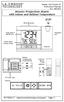 Model: WS-5220U-IT Instruction Manual DC: 082415 Atomic Projection Alarm with Indoor and Outdoor Temperature SNOOZE button Time, Alarm + WWVB Icon Projection arm Indoor Temp., Outdoor Temp. Battery Compartment
RC8021 Indoor Camera Installation Guide
 RC8021 Indoor Camera Installation Guide P/N: 957YL502GJ Document Version: 1.0 Copyright 2011. All Rights Reserved. All trademarks and trade names are the properties of their respective owners i Package
Pad. Quick Start Guide
 Pad Quick Start Guide Copyright 2008 Mimio Congratulations on your mimio Pad purchase! mimio Pad is a 4 GHz wireless pad. To configure mimio Pad for use, install the mimio Studio software and plug the
Owner s Guide. ca6554
 PROFESSIONAL SERIES Owner s Guide For Models: ca6554 Deluxe Vehicle Security and Remote Start System with 2 Way Confirming LCD Remote Control IMPORTANT NOTE: The operation of the Security and Convenience
Atomic Alarm Clock model 13131W2
 Instruction Manual Atomic Alarm Clock model 13131W2 CONTENTS Unpacking Instructions... 2 Package Contents... 2 Product Registration... 2 Features & Benefits... 3 Clock Setup... 4 Atomic Clock... 5 Set
Install Guide 3M-50. Caution. Caution
 PG 1 Install Guide 3M-50 aution Your thermostat is a precise instrument, handle it with care. Turn off electricity to the HVA system before installing or servicing thermostat or any part of the system.
ADEMCO 4500 Thermostat
 ADEMCO 4500 Thermostat User Guide N7972V1 5/05 Rev. A TABLE OF CONTENTS About the 4500 Thermostat...1 Saving Money on Energy Bills...1 The 4500 Thermostat Provides Comfort and Convenience...1 How the 4500
Learning Time Cuckoo Clock TM
 Learning Time Cuckoo Clock TM INTRODUCTION Thank you for purchasing the VTech Learning Time Cuckoo Clock TM! The Learning Time Cuckoo Clock TM introduces time telling and ageappropriate curriculum in
37-7498. Professional Contractor INSTALLATION GUIDE
 37-7498 Professional Contractor INSTALLATION GUIDE Wireless Setup Connect Exit Next Exit 3 EASY STEPS Installing Sensi thermostat isn t that different than installing a non Wi-Fi thermostat. 1. Install
ELECTRIC POSITION for electric heat, then confirm with Fan Test below.
 Troubleshooting Poor Temperature Regulation This page lists problems that may affect the temperature performance of your LUX thermostat with suggested resolutions. For more detailed information please
GETTING STARTED WITH THE MIPOWER MANAGEMENT SYSTEM
 GETTING STARTED WITH THE MIPOWER MANAGEMENT SYSTEM This Quick Start guide will help you start using the MiPower Management System provided by Grayson Collin Electric Cooperative. You should create your