
Contents. Product Overview. Using an External Drive. Setting Up: Basics. Setting Up: Advanced. Linksys EA-Series. Contents
|
|
|
- Terence Jackson
- 10 years ago
- Views:
Transcription
1 User Guide EA6900

2 Contents Contents Product Overview EA Wall-mounting placement 4 Setting Up: Basics How to create a home network What is a network? 5 How to set up a home network 5 Where to find more help How to install your router How to configure your router How to connect to Linksys Smart Wi-Fi 7 How to connect directly to your router 8 How to improve your wireless connection speed 8 How to change your network s name and password 9 How to change your router s local access password 9 How to change your router s time zone 10 How to test your Internet connection speed How to connect devices to your network How to connect a computer to your network 11 How to connect a USB printer 11 How to connect other devices 12 How to view device details 13 How to set up parental controls How to set parental controls 14 How to configure your guest network How to back up your router configuration How to customize Linksys Smart Wi-Fi Using widgets 17 Customizing the Device List 17 Using an External Drive Overview How to attach a USB drive How to use secured folder access How to set up authorized users and shared folders 19 How to access shared folders 20 How to set up your router as a media server How to connect your UPnP device to the media server 22 How to remotely access storage Setting Up: Advanced How to manually set up your router How to manually set up your Internet connection 24 How to associate a router with your Linksys Smart Wi-Fi account How to get the most out of your dual-band router How to control access to your network How to improve security using the built-in firewall 29 How to set up the DHCP server on your router How to set up DHCP reservation 31 How to access your network on the Internet How to clone a MAC address How to connect to your corporate office using a VPN How to optimize your router for gaming and voice How to enable Voice over IP on your network How to configure UPnP How to use a router as an access point i
3 Contents How to put your new router behind an existing router To add your router to an existing router or gateway 38 To share an Internet connection 39 To extend your network 41 How to expose a device to the Internet Port Forwarding and Port Triggering How to set up port forwarding How to set up port forwarding for a single port 43 How to set up port forwarding for multiple ports 44 How to set up port forwarding for a range of ports 44 How to set up port range triggering for online gaming Maintaining and Monitoring How to back up and restore your router configuration How to upgrade the router s firmware How to restore factory defaults How to check the status of your router How to disable the Ethernet port status lights 50 How to test your Internet connection 50 How to configure and use logs 51 Troubleshooting Your router was not successfully set up Windows XP Service Pack update Your Internet cable is not plugged in message Cannot access your router message After setup The Internet appears to be unavailable 55 Linksys Smart Wi-Fi does not open in your web browser 55 You cannot access Linksys Smart Wi-Fi 56 All other troubleshooting has been unsuccessful 56 Specifications Linksys EA ii

4 Product Overview Product Overview EA6900 Features Wireless-AC technology Built with leading ac wireless technology, your router offers maximum speed and range to create an ultra-powerful network designed for home theater performance. Connect your computers, Internet-ready TVs, game consoles, smartphones and other Wi-Fi devices at blazingly fast transfer rates for an unrivaled experience. The power of dual band Double your network bandwidth with simultaneous dual-band wireless-ac. The dual-band feature is designed to avoid interference and optimize throughput for smoother and faster HD video streaming, file transfers, and wireless gaming. SpeedBoost Higher quality antenna technology helps maintain high speeds across greater distances throughout your home. Advanced security Keep Wi-Fi freeloaders and Internet threats at bay with WPA2 encryption and SPI firewall to help keep your network protected. Package contents In addition to your router, your router package includes: Network (Ethernet) cable AC power adapter 3 external antennas CD with documentation Benefits of gigabit Use the four Gigabit Ethernet (10/100/1000) ports for quick file sharing (up to 10 faster than standard Ethernet) between other Gigabit-enabled devices like computers and servers. Built-in USB ports and DLNA media server The USB ports let you add an external USB drive to your network and share files at home or over the Internet. It also features a built-in DLNA media server for seamless streaming of your video and media files to an Xbox 360, PS3, or other DLNA-compatible device. You can also connect a USB printer and share it across your network. 1

5 Product Overview Home theater ready Bring the ultimate entertainment experience to your home by connecting computers, Internet-ready TVs, game consoles, media players, and more to your wireless network and the Internet. Simultaneous dual-band N and QoS traffic prioritization technology delivers maximum speed and performance so you can enjoy fast downloads, smooth video and music streaming, and reliable gaming and VoIP. Top view Quick to install Linksys Smart Wi-Fi software helps you easily set up your router. IPv6 enabled Supports the latest Internet protocol technology to future-proof your network. Indicator light Easy to manage Linksys Smart Wi-Fi software helps you customize your settings and quickly add multiple devices to your network: Separate guest network Create a separate, password-protected network for guests. Parental controls Limit access time and websites with parental controls. Indicator light Stays on steadily while power is connected and following a successful Wi-Fi Protected Setup connection. Pulses slowly during bootup, during firmware upgrades, and during a Wi Fi Protected Setup connection. Flashes quickly when there is a Wi Fi Protected Setup error. 2

6 Product Overview Back view Adjustable Antenna ports Reset button Press and hold this button for 10 seconds (until the port lights flash at the same time) to reset the router to its factory defaults. You can also restore the defaults using Linksys Smart Wi-Fi. Power port Connect the included AC power adapter to this port. CAUTION Use only the adapter that came with your router. Wi-Fi Protected Setup button Reset button USB ports Internet port Ethernet ports Power port Port activity indicators Adjustable Antenna ports This router ships with 3 adjustable external antennas, and should be connected to the router before powering it on. To connect the antennas, twist the antenna connector clockwise onto the antenna port on the router. NOTE For best performance, position the side antennas at a 30 angle as shown in the picture Top view on page 2. Wi-Fi Protected Setup button Press this button to easily configure wireless security on Wi-Fi Protected Setup-enabled network devices. Ethernet ports Connect Ethernet cables (also called network cables) to these Gigabit (10/100/1000) ports, color coded blue, and to wired Ethernet network devices on your network. Yellow network activity indicator Network or Internet port Green connectivity indicator Green connectivity indicator On Ethernet ports, turns on when a cable connects the port to another Gigabit Ethernet port. On the Internet port, turns on while connected to a modem. Yellow network activity indicator Flashes to indicate network activity over that port. NOTE For best performance, use CAT5E or higher rated cables on the Ethernet ports. Internet port Connect an Ethernet cable (also called a network or Internet cable) to this port, color coded yellow, and to your modem. USB ports 1xUSB 3.0 port and 1xUSB 2.0 port to easily share disk storage with other users on your network or on the Internet, connect a USB drive to one of these ports. You can also connect a USB printer and share it across your network. 3

7 Product Overview Wall-mounting placement The router has two wall-mount slots on its bottom panel. The distance between the slots is 82 mm. Two screws are needed to mount the router. Suggested Mounting Hardware 3-5 mm 7-8 mm mm NOTE Linksys is not responsible for damages incurred by unsecured wallmounting hardware. Follow these instructions: 1. Determine where you want to mount the router. Make sure that the wall you use is smooth, flat, dry, and sturdy. Also make sure the location is within reach of an electrical outlet. 2. Drill two holes into the wall. Make sure the holes are 82 mm apart. 3. Insert a screw into each hole and leave 3 mm of its head exposed. 4. Position the router so the wall-mount slots line up with the two screws. 5. Place the wall-mount slots over the screws and slide the router down until the screws fit snugly into the wall-mount slots. Wall-mounting template Print this page at 100% size. Cut along the dotted line, and place on the wall to drill precise spacing. 82 mm 4

8 Setting Up: Basics Setting Up: Basics How to create a home network What is a network? A network is any group of devices that can communicate with each other. A home network can also include Internet access, which requires a router like this one. A typical home network may include multiple computers, a printer, a modem, and a router. A large home network may also have a switch, additional routers, access points, and many Internet-capable media devices such as TVs, game consoles, and web cameras. Modem Connects a computer or a router to your ISP (Internet Service Provider). Your ISP may have provided one. The modem is a device that connects to a phone jack or your cable TV outlet. 2. Make sure that your modem is working. Your ISP can help you set up your modem and verify that it s working correctly. 3. Set up your router. See How to install your router on page To connect a computer or other network device to the network, see How to connect a computer to your network on page 11 and How to connect other devices on page 12. Where to find more help In addition to this User Guide, you can find help at these locations: Linksys.com/support (documentation, downloads, FAQs, technical support, live chat, forums) Linksys Smart Wi-Fi help (connect to Linksys Smart Wi-Fi, then click Help at the top of the screen) Router Connects your wireless and wired network devices to each other and to the modem (and to your ISP). Switch Allows you to connect several wired network devices to your home network. Your router has a built-in network switch (the Ethernet ports). If you have more wired network devices than available Ethernet ports on your router, you will need an additional switch to consolidate the wired connections. How to set up a home network 1. Purchase the proper equipment. For a network that includes Internet access, you ll need: Computers with an Ethernet port or wireless networking capabilities A modem for connecting to your ISP (typically supplied by your ISP) A router to connect your computers with each other and to the modem Internet service to your home, provided by an ISP (Internet Service Provider) 5

9 Setting Up: Basics How to install your router To install your router: 1. Power on your new router. If replacing an existing router, disconnect it. 2. Connect the Internet cable from your modem to the yellow Internet port on your router. Wait until the power light on the front of the router is solid. 3. Connect to the secure wireless name shown in the Quick Start Guide that came with your router. (You can change the network name and password later during router setup.) If you need help connecting to the network, refer to your device documentation. Note: You will not have Internet access until router setup is complete. 4. Open a web browser and follow the instructions to complete your router s setup. If instructions do not appear in the web browser, enter linksyssmartwifi.com in the browser s address bar. 5. At the end of setup, follow the on-screen instructions to set up your Linksys Smart Wi-Fi account. Use Linksys Smart Wi-Fi to easily manage your router s settings, such as: Change your router s name and password TIP: Print this page, then record your router and account settings in the table below as a reference. Store your notes in a safe place. Setup also saves your setup information as a file to your computer desktop. Network Name (SSID) Network Password Router Password Guest Network Name Guest Network Password Linksys Smart Wi-Fi Username Linksys Smart Wi-Fi Password Set up guest access Configure parental controls Connect devices to your network Test your Internet connection speed NOTE: As part of the router setup process, you will be sent a verification . From your home network, click the link in the to associate your router with the Linksys Smart Wi-Fi account. Make sure that the link opens in a supported web browser, such as Internet Explorer 8 or higher, Firefox 8 or higher, Google Chrome 10 or higher, and Safari 5 (for Mac) or higher. If you cannot click the link while behind your new Linksys router, log into Linksys Smart Wi-Fi while behind the router and add your router there. For more information, see How to associate a router with your Linksys Smart Wi-Fi account on page 25. 6
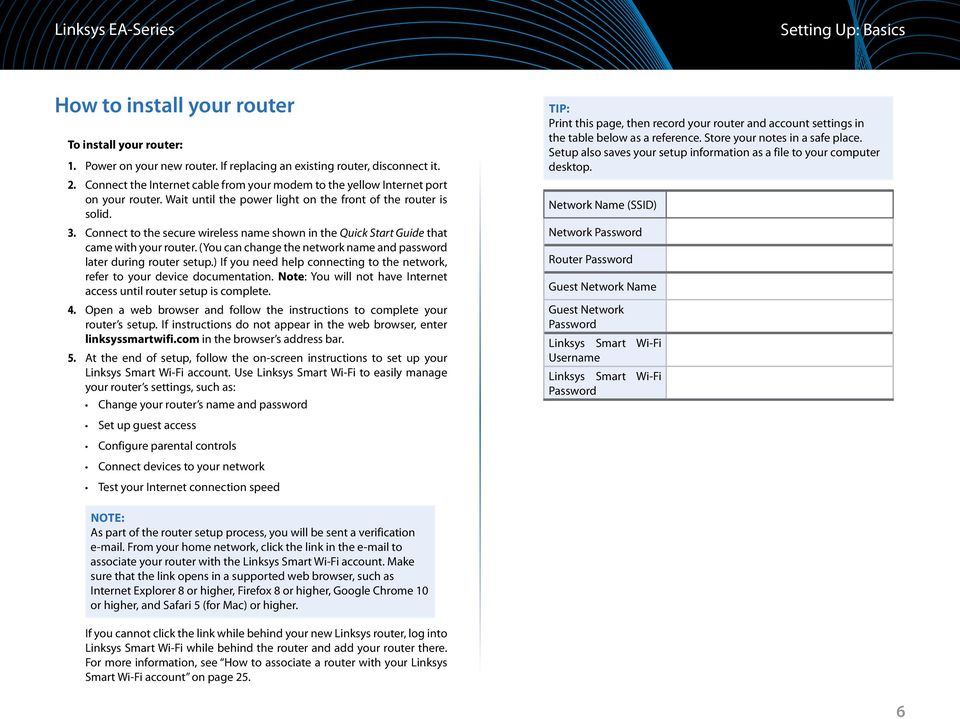
10 Setting Up: Basics How to configure your router You can change router settings to make your network more secure or to work better with a device or game. Being able to adjust the settings while you re away from home can help make router administration easier. You can configure your router from anywhere in the world by using Linksys Smart Wi-Fi, but you can also configure your router directly from your home network. Linksys Smart Wi-Fi may be available for your mobile device, as well. See your device s app store for information. Use Linksys Smart Wi-Fi to easily manage your router s settings, such as: Change your router s name and password Set up guest access Configure parental controls Connect devices to your network Test your Internet connection speed Your Linksys Smart Wi-Fi account can also be used to manage multiple Linksys routers. For more information, see How to associate a router with your Linksys Smart Wi-Fi account on page 25. How to connect to Linksys Smart Wi-Fi To connect to Linksys Smart Wi-Fi: 1. Open your computer s web browser. 2. Go to and log into your account. If you can t remember your password, click Forgot your password? and follow the on-screen instructions to recover it. 7

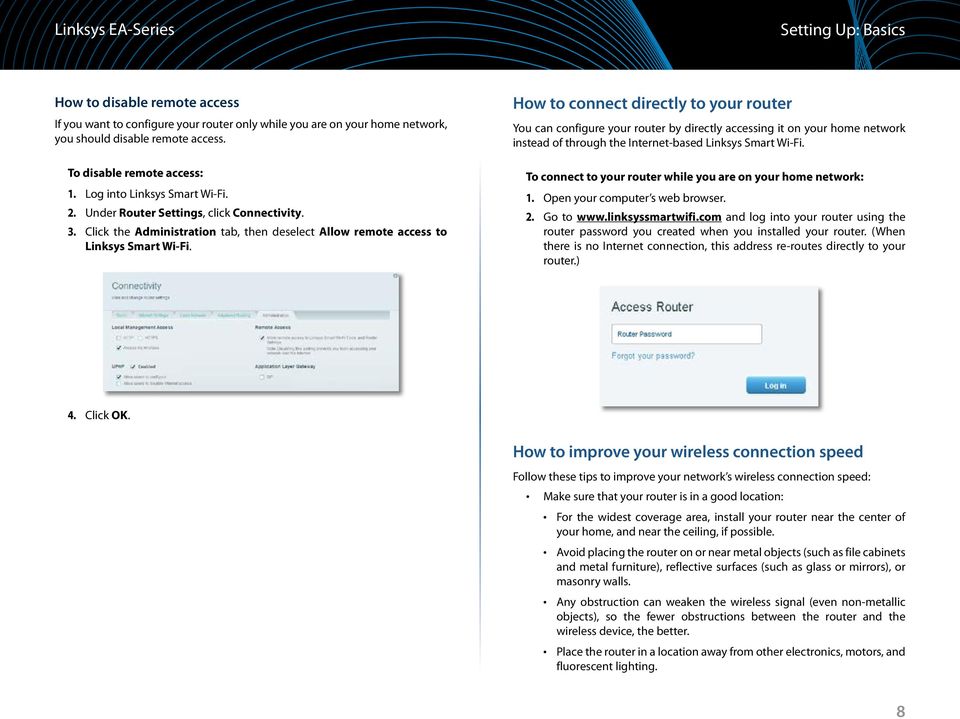
11 Setting Up: Basics How to disable remote access If you want to configure your router only while you are on your home network, you should disable remote access. To disable remote access: 1. Log into Linksys Smart Wi-Fi. 2. Under Router Settings, click Connectivity. 3. Click the Administration tab, then deselect Allow remote access to Linksys Smart Wi-Fi. How to connect directly to your router You can configure your router by directly accessing it on your home network instead of through the Internet-based Linksys Smart Wi-Fi. To connect to your router while you are on your home network: 1. Open your computer s web browser. 2. Go to and log into your router using the router password you created when you installed your router. (When there is no Internet connection, this address re-routes directly to your router.) 4. Click OK. How to improve your wireless connection speed Follow these tips to improve your network s wireless connection speed: Make sure that your router is in a good location: For the widest coverage area, install your router near the center of your home, and near the ceiling, if possible. Avoid placing the router on or near metal objects (such as file cabinets and metal furniture), reflective surfaces (such as glass or mirrors), or masonry walls. Any obstruction can weaken the wireless signal (even non-metallic objects), so the fewer obstructions between the router and the wireless device, the better. Place the router in a location away from other electronics, motors, and fluorescent lighting. 8
12 Setting Up: Basics Many environmental variables can affect the router s performance, so if your wireless signal is weak, place the router in several locations and test the signal strength to determine the ideal position. If possible, upgrade wireless network interfaces (such as wireless network cards in computers) from older wireless standards to n. If a wirelessly networked device uses an older standard, the performance of the entire wireless network may be slower. If your router is a dual-band router, split your network traffic so the highbandwidth traffic uses the 5 GHz band. For more information, see How to get the most out of your dual-band router on page 26. How to change your network s name and password You can change the name (SSID) and password of your network, but if you do so, all wireless devices connected to your router will lose their Internet connection until you reconnect them using the new network name and password. 3. Click the Wireless tab, then click Edit. To change the network name, type a new name in the Network name (SSID) box. To change the network password, type a new password in the Password box. 4. Click OK to apply your changes. TIP If you have a dual-band router, each band (2.4 GHz and the 5 GHz) can have a separate network name and password. To change your router s name and password: 1. Log into Linksys Smart Wi-Fi. (See How to connect to Linksys Smart Wi- 2. Under Router Settings, click Wireless. How to change your router s local access password Your router s local access password was set when you ran the router s setup software, but you can change it at any time. You need the router password to change router settings when you don t have an Internet connection. When you do have an Internet connection, log into your Linksys Smart Wi-Fi account by following the directions under How to connect to Linksys Smart Wi-Fi on page 7. To change your router s local access password 2. Click Connectivity under Router Settings. 9

13 Setting Up: Basics 3. Click the Basic tab. 4. Under Router Password, type the new password, then click OK. How to test your Internet connection speed NOTE To run the speed test, you must be accessing the Internet by using the router you are testing. You cannot run the speed test remotely. To test your Internet connection speed: 2. Click Speed Test under Apps. The Speed Test screen opens. How to change your router s time zone Your router s time zone should be set to your local time zone. To set your router s time zone: 2. Click Connectivity under Router Settings. 3. Click the Basic tab, then select your time zone in the Time Zone dropdown list and click OK. 3. Click Begin Test. The test measures your download and upload speeds. 10

14 Setting Up: Basics NOTE Internet connection speeds are determined by a variety of factors, including ISP account type, local and worldwide Internet traffic, and number of devices in your home that are sharing the Internet connection. 4. Click Restart Test to run it again, and click Show History to display the results of past tests. How to connect devices to your network Your Linksys router is the nerve center of your home network. Your router safely opens the Internet to your network, and all of your computers and network devices rely on your router to pass files, media, and network commands in an organized, error-free way. Whether connected wirelessly or with cables, each part of your network needs the router in order to work reliably with the other parts of your network. How to connect a USB printer When you install a printer that requires a cable, you can: Follow the printer s instructions for setting it up, then follow your computer s operating system instructions to share the printer with your network. - OR - You can connect a USB printer to the router s USB port to make the printer available to any networked computer. When you set up a wireless printer, you need to make sure that: Your printer has been completely set up except for being connected to the network. Your printer supports the WPA/WPA2 wireless encryption standard. If your wireless printer supports Wi-Fi Protected Setup, you should use Wi-Fi Protected Setup to connect the printer to your network. See How to connect a network device using Wi-Fi Protected Setup on page 12. To connect a USB printer to your network through the router s USB port: 2. Click Device List, then click Add a Device. How to connect a computer to your network To connect a computer to your network: 1. At the computer you want to connect, enter your network s connection information into your wireless manager. 2. After that computer connects to your network, log into Linksys Smart Wi- Fi, then click Device List to confirm that your router recognizes the new computer. You can use the Device List to monitor all network-attached devices. 11

15 Setting Up: Basics 3. Under Select the type of device to add to your network, click USB Printer. The Add a USB printer screen opens. Because of the wide variety of devices and methods of connecting, you must manually enter network information into the devices for a successful network connection. TIP For more instructions on connecting a game console to your network, see also: How to optimize your router for gaming and voice on page 34 How to set up port forwarding on page 43 How to set up port range triggering for online gaming on page 45 How to manually connect a network device 4. Follow the on-screen instructions for downloading and installing the VUSB (virtual USB) software for your computer. To connect a wireless printer to your network: 1. Follow the printer s instructions to connect it to your network. Use the connection information available in Linksys Smart Wi-Fi or saved to your computer desktop. 2. After that printer connects to your network, log into Linksys Smart Wi-Fi, then click Device List to confirm that your router recognizes the new printer. How to connect other devices Many other types of wireless network devices can connect to your home network, including: Game consoles Internet-capable TVs and media players Digital music players Smart phones To manually connect a device to your network: 1. Follow the device s instructions to connect it to your network. Use the connection information available in Linksys Smart Wi-Fi or saved to your computer desktop. 2. After the device connects to your network, log into Linksys Smart Wi-Fi, then click Device List to confirm that your router recognizes the new device. How to connect a network device using Wi-Fi Protected Setup To connect a device using Wi-Fi Protected Setup : 1. Plug in and turn on the network device. If the device does not support Wi-Fi Protected Setup, follow its instructions for a standard network installation. 2. Log into Linksys Smart Wi-Fi. (See How to connect to Linksys Smart Wi- 3. Under Wireless, click the Wi-Fi Protected Setup tab. 4. Use one of the following methods to complete the setup: 12
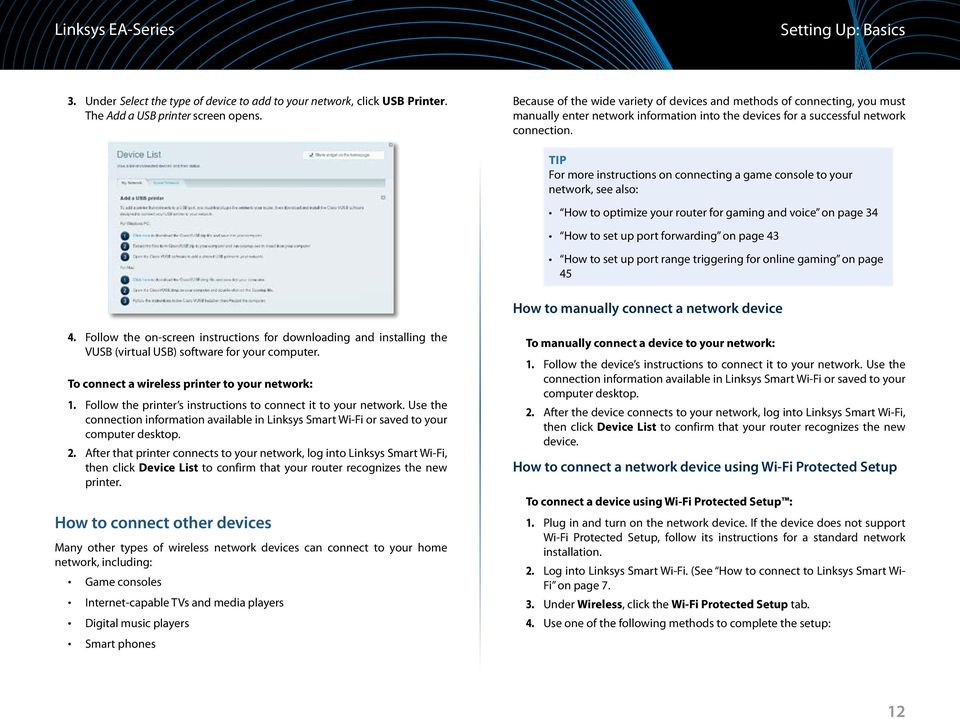
16 Setting Up: Basics If the device has a Wi-Fi Protected Setup button, press that button, then click the Wi-Fi Protected Setup button in Linksys Smart Wi-Fi or press the button on the back of your router. How to view device details You can use Linksys Smart Wi-Fi to view any network device s network infomation. To view network device details: 2. Under Apps, click Device List. The Device List screen opens. If the device has a Wi-Fi Protected Setup PIN, type that number into the Device PIN box in Linksys Smart Wi-Fi, then click Register. 3. Click the i in the lower-right corner of the device. If the device s own setup asks for the router s Wi-Fi Protected Setup PIN, enter the number that appears under Router PIN in Linksys Smart Wi-Fi. 13

17 Setting Up: Basics Information about the device appears on the screen. How to set parental controls To set parental controls: 2. Under Apps, click Parental Controls. The Parental Controls screen opens. 4. Click OK. How to set up parental controls With your router, you can use parental controls to: Set the times that Internet access is allowed. Block websites that you specify or based on their content. Set the above restrictions for specific computers. TIP When someone tries to open a blocked website, a Linksys Smart Wi-Fi login page appears. To view the blocked content, you must log into your Linksys Smart Wi-Fi account and change the parental control restrictions. 3. To turn on parental controls, click the Enable parental controls button so that ON is displayed. TIP It s not necessary to set parental controls over each computer on your home network. You can set the controls on only those computers that children can access. 4. To select a computer to apply parental controls to, click the name of the computer in the Restrict Internet access on list. 5. To block Internet access on the selected computer(s), under Block Internet access: Click Never to allow Internet access. Click Always to always block Internet access. Click Specific Times to set the times when Internet access is allowed. 14

18 File Edit View Go Shortcuts Options Help web browser - guest access login - Linksys E Enter the Guest Password for Internet Access: Login _ X Done Linksys EA-Series Setting Up: Basics Click Edit to change the Internet access schedule. You can click and drag to select or deselect a block of time. How to configure your guest network You can use your router s guest network to provide your guests with access to the Internet, while restricting their access to other resources on your local network. To prevent unauthorized users from using your Internet access, your guest network requires that a password be entered for Internet access. The guest network is enabled by default. X Enter the Guest Password for Internet Access: 6. To block specific websites: a. Under Block specific sites, click Add. Login b. Type the web address (URL) of the website to block, then click OK. You can block up to ten websites. TIP It s easier to copy and paste a web address than it is to type it in. Copy the address from your browser s web address box, then paste it into an available box in the Block Specific Sites screen of Linksys Smart Wi-Fi. Local Network Guest Network Local Access and Guest Access Diagram Your wireless network s guest network and password were set when you ran the router s setup software, but you can change them at any time. 7. Click OK to apply your changes. 15

19 Setting Up: Basics To set up guest access to your network: 1. Log into Linksys Smart Wi-Fi. (See How to connect to Linksys Smart Wi- 2. Under Apps, click Guest Access. Your guest network, which was set up during your router installation, is displayed. 3. Click OK to apply your changes. TIP The first time your guest tries to access the Internet through a web browser, they will see the Guest access screen. To continue, they must enter the password you provided in the Password field, then click LOGIN. To turn guest access on or off, click the Allow guest access button. The guest network name is based on your 2.4 GHz network name and is automatically generated. To change the guest network password, click in the box next to Guest network password, then type the new password. To change the number of simultaneous guest network users you want to allow, click the drop-down box under Total guests allowed, then click the number that you want. How to back up your router configuration When you are done setting up your router, you should back up its settings so that you can restore them later, if necessary. For instructions, see How to back up and restore your router configuration on page 47. TIP To keep your guest network secure, click Change to change the guest password when the guest no longer needs access to the account. 16

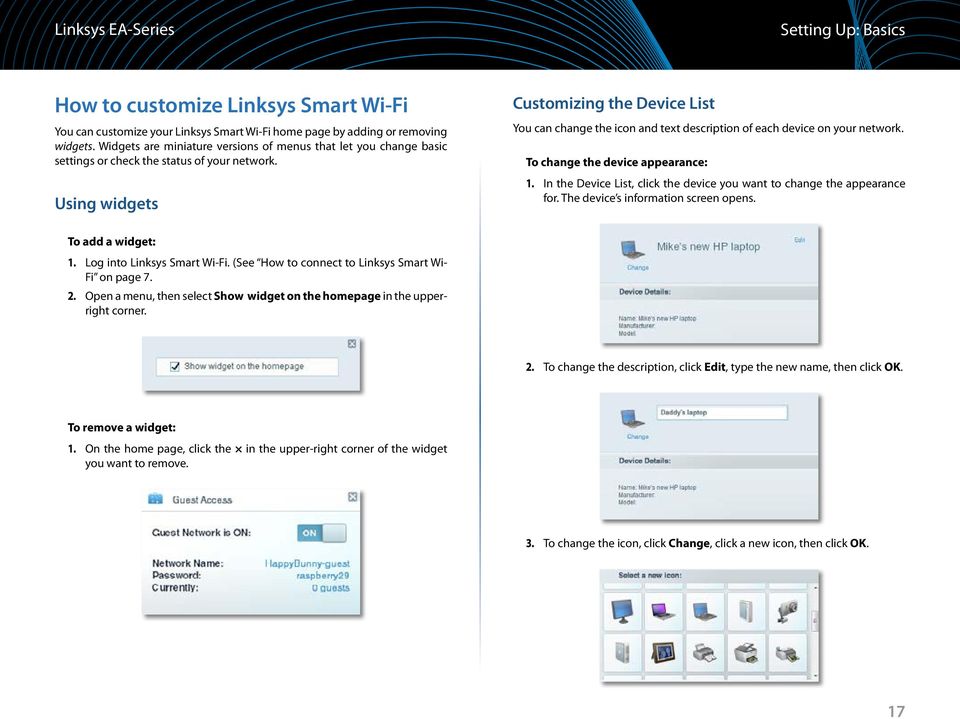
20 Setting Up: Basics How to customize Linksys Smart Wi-Fi You can customize your Linksys Smart Wi-Fi home page by adding or removing widgets. Widgets are miniature versions of menus that let you change basic settings or check the status of your network. Using widgets Customizing the Device List You can change the icon and text description of each device on your network. To change the device appearance: 1. In the Device List, click the device you want to change the appearance for. The device s information screen opens. To add a widget: 2. Open a menu, then select Show widget on the homepage in the upperright corner. 2. To change the description, click Edit, type the new name, then click OK. To remove a widget: 1. On the home page, click the in the upper-right corner of the widget you want to remove. 3. To change the icon, click Change, click a new icon, then click OK. 17
21 Using an External Drive Overview You can attach most USB drives (including a thumb drive or a high-capacity external drive) to the USB port on your router. You can then use the drive as networked storage, as a media server (for media-enabled devices such as a networked TV), and as an FTP (File Transfer Protocol) server. You can also specify which users can access the content on the drive. Menus are subject to change. To view the status and settings of your attached drive: 2. Click USB Storage under Apps. The Status tab displays information such as: Drive capacity and use Secured folder access status How to attach a USB drive If a USB drive is already connected to the router, and you want to attach a different drive to that USB port, you should safely disconnect the old drive first. To safely remove a USB drive from the router: 1. Log into Linksys Smart Wi-Fi, then click USB Storage under Apps. 2. In the Status tab, click Safely remove drive. 3. Disconnect the old drive from the router. To attach a USB drive to the router: 1. Connect the USB drive to an available USB port on the back of your router. Your router detects the drive. 2. To update the USB Storage screen, you may need to click Refresh. Addresses for accessing shared folders, the FTP server, and media server 18
22 How to use secured folder access Why would I need to use secured folder access? By default, when you connect a USB drive to your router, the entire contents of the drive are available for read and write access to anyone on your local network (no login credentials are required). However, you can also make the drive and its folders secure, so that only authorized users can access the drive s contents. 4. In the Authorized users list, type a Username and Password for each new user. TIP When Secure Folder Access is on, the entire USB drive is secured. How to set up authorized users and shared folders To enable access to shared folders: 2. Click USB Storage under Apps, then click the Folder Access tab. TIP Two accounts, Admin and Guest, are already set up and cannot be deleted. 5. Select the permissions to give the user. Read Only lets the user read (open) the file. Read & Write lets the user read, rename, overwrite, or delete the file. The user can also save new files to the folder. 6. Click Select Share. The Select Existing Share dialog box opens. 7. If you already have the shared folder set up: a. Select the check box next to each share you want to grant access to, then click OK. 3. Click the setting for Secure Folder Access to turn it on. The Authorized users list appears. 19
23 8. If you need to set up the shared folder: a. Click Create new share. The Create New Share dialog box opens. 9. Click Add User. 10. In the Authorized users list, you can also: Click Edit to change a user s credentials. Click Shares to change the shares that a user can access. Click Delete to delete the user account. How to access shared folders To access shared folders while on your network: 1. While in Linksys Smart Wi-Fi, click USB Storage under Apps. 2. In the Status tab, note the information under Folder Access. This is the address you will need to access the shared folders from a file manager. b. Click the button next to the folder that you want to share. To view subfolders, click the icon next to the folder name. To return to a parent folder, click the icon at the top of the list. To select the entire drive, select Share entire storage device. TIPS The share name automatically changes to the name of the folder you selected. You cannot select more than one folder for each share. To use a different share name, type the name in the Share name field. c. Click OK. d. Select the check box next to each share you want to grant access to, then click OK. 3. Enter the access address into your file manager. TIP You can also usually locate the folder by browsing through your computer s file manager. 4. Enter your user account name and password. The drive s contents (files and folders) appear in a window. 5. Use the file manager to open, copy, or view the folder s contents. 20
24 TIPS File managers display content in many ways, but you can usually use these common actions to navigate through folders: Click or double-click a folder name to open it. Click, double-click, or right-click a file to open, copy, or view it. Drag a file from another window and drop it into the shared folder s window to copy it to the shared folder. (To copy a file to the shared folder, your user account must have write access.) To configure your router as a media server: 2. Click USB Storage under Apps. The USB Storage screen opens. 3. Click the Media Access tab. How to set up your router as a media server What is a media server and how would I use it? A media server lets you share media content across your network. Your router can act as a media server if it has a USB drive attached and if you have UPnP AV (Audio and Video)-enabled or DLNA (Digital Living Network Alliance)-certified devices in your home. Examples of UPnP AV-enabled devices include digital media players, gaming consoles with a built-in media player, and digital picture frames. For example, if you have a digital media adapter that sends content to your entertainment system, and if your router s set up as a media server, then the digital media adapter can access your router s attached USB drive. You can specify which folders are used by the media server, add and delete folders, and specify how often the folders are scanned for new content. 4. Click the setting for Enable Media Server to turn it on. NOTE The EA3500 does not support the media server feature. 21
25 5. Click Add New Folder. The Add a new folder dialog box opens. How to connect your UPnP device to the media server After you set up your router s media server, you need to connect an UPnPcompatible device (such as an UPnP-compatible game console or digital media player) to the network so that you can play the media server s content. To connect an UPnP device to your router s media server: 1. Connect your UPnP device to your home network with wired (Ethernet cable) or wireless networking. If you are connecting wirelessly, you need to know your network s name and password. See your device s documentation for help. 2. On your UPnP device, change the media source to the media server name you specified on your router. (See How to set up your router as a media server on page 21) 3. See your UPnP device s documentation for help with playing media on the device. 6. Click the button next to the folder that you want to share, then click OK. To view subfolders, click the icon next to the folder name. To return to a parent folder, click the icon at the top of the list. TIPS The share name automatically changes to the name of the folder you selected. You cannot select more than one folder at a time. 7. Click OK again to save changes. How to remotely access storage Why would I need to access my router s storage remotely? After you enable the router s FTP (File Transfer Protocol) server, you can access the attached drive s files from anywhere by using either a web browser or FTP software. To set up the FTP server: 2. Click USB Storage under Apps. The USB Storage screen opens. 3. Click the FTP Server tab. 22
26 4. Click the setting for Enable FTP Server to turn it on. 5. We recommend that you keep the default settings for FTP Port and Encoding, unless you are an advanced user and have reason to change them. 6. Click OK. 7. Click the Status tab. 8. Note the information under FTP Server. This is the information you will need to access the attached storage remotely. 9. To access the attached storage using a web browser: a. Open a web browser. b. In the browser s Address or URL field, type the address that was provided on the Status tab above, starting with ftp://... If you have DDNS (Dynamic Domain Name Service), you can use your router s domain name instead. c. Enter your user account name and password. This is the same User Name and Password that were set up in the shared folders Authorized users list. See How to set up authorized users and shared folders on page 19. The drive s contents (files and folders) appear in a browser window. d. Click a file to download it to your computer, or click and drag a file from your computer s file manager to the browser window to upload a file (only if you have read and write access). 10. To access the attached storage using FTP client software: a. Run your FTP client software. b. Refer to the software s help to determine how to connect to an FTP site. Use the following information to connect: The address that was provided on the Status tab above, starting with ftp://... If you have DDNS (Dynamic Domain Name Service), you can use your router s domain name instead. The user account name and password. This is the same User Name and Password that were set up in the shared folders Authorized users list. See How to set up authorized users and shared folders on page 19. The port and encoding specified during your FTP server setup (usually port 21, and UTF-8 encoding) c. Refer to the software s help to determine how to download and upload files. TIPS FTP software and web browsers display FTP content in many ways, but you can usually use these common actions to navigate through FTP folders: Click a folder name to open it. Click a double period (..) or Up to a higher level directory to open a parent folder. Click or right-click a file to download or view it. Drag a file from another window and drop it into the FTP window to upload it. (To upload a file, your user account must have write access.) 23
27 Setting Up: Advanced Setting Up: Advanced How to manually set up your router Although running your router s setup software is the easiest way to set up and maintain your router, advanced users may want to manually configure their router. Be careful when changing settings using this method. To manually set up your router: 1. Connect your router s power adapter to a power outlet. 2. To connect to your router by using a cable: a. Connect an Ethernet cable to the computer and to an available numbered Ethernet (blue) port on the back of your router. b. Disconnect the cable from the router s Internet port. 3. To connect to your router wirelessly: a. Make sure that your computer s wireless networking is turned on. b. Connect to the secure wireless name shown in the Quick Start Guide that came with your router. (You can change the network name and password later during router setup.) If you need help connecting to the network, refer to your device documentation. 4. Open a web browser on the computer, then go to (When there is no Internet connection, this address re-routes directly to your router.) 5. Click I have read and accepted the License Terms for using this software, read the license agreement, then select the checkbox. 6. Select I want to skip Setup and and configure my router manually, then click Next. 7. Enter admin as the user name, then enter the default password (admin). The main menu opens. 8. After you finish changing settings, click Save and close the browser window. How to manually set up your Internet connection Running Setup configures your router s Internet connection. However, for some ISPs (Internet Service Providers), especially those outside of the United States, you may need to manually configure your router s Internet connection. How to configure basic Internet connection settings To manually configure your router s Internet connection: 1. Connect to your router and log in using the instructions under How to manually set up your router on page Under Router Settings, click Connectivity. The Connectivity page opens to the Basic tab. 3. Next to Type of Internet Connection, click Edit. TIP For descriptions of the settings, click Help at the top of the screen. 24
28 Setting Up: Advanced 4. Select your ISP s Internet connection type from the drop-down list. Complete the Optional Settings only if required by your ISP. TIP For field descriptions, click Help at the top of the screen. 5. Click OK. IPv6 Internet connection settings IPv6 is a new IP protocol that uses simplified packet headers and requires IPSec. It also has improved support for mobile IP and computing devices. NOTE To use your router s IPv6 Internet connection settings, IPv6 service from your ISP (Internet service provider) is required. For more information on this service, ask your ISP. To manually configure your router s IPv6 settings: 1. Use an Ethernet cable to connect an Ethernet port on your router to the Ethernet port on your computer. 2. Log into Linksys Smart Wi-Fi. (See How to connect to Linksys Smart Wi- 3. Under Router Settings, click Connectivity. The Connectivity page opens. 4. Click the Internet Settings tab, then click IPV6. 5. Click Edit. You can now change the following settings: IPv6 - Automatic Select Enabled to use IPv6 for all network addressing. DUID (device user ID) Used by DHCP to identify network clients. 6rd Tunnel Allows your router to send IPv6 IP addresses over IPv4 networks. To enable this option, IPv6 - Automatic must be unselected. To let your router handle the 6rd Tunnel settings (such as prefixes and address masks), change the 6rd tunnel setting to Automatic. Select Manual to change these settings manually. Prefix Enter the prefix address used for the tunnel provided by your ISP. Prefix Length Enter the prefix length used for the tunnel provided by your ISP. Border Relay Enter the border relay address used for the tunnel provided by your ISP. IPv4 mask length Enter the IPv4 address mask length used for the tunnel provided by your ISP. 6. Click OK. How to associate a router with your Linksys Smart Wi-Fi account To associate an additional router to your Linksys Smart Wi-Fi account: 1. Run Setup for the additional router. When Setup is complete, you are prompted to create a new Linksys Smart Wi-Fi account. 2. Instead of creating a new account, click Login at the top of the screen. You are prompted to enter your account user name ( address) and password. 3. Enter your original Linksys Smart Wi-Fi account user name and password, then click Log in. The additional router is added to your Linksys Smart Wi-Fi account. 4. To configure the additional router, log into Linksys Smart Wi-Fi, then select the router s SSID (network name) from the drop-down list at the top of the screen. 25
29 Setting Up: Advanced How to get the most out of your dualband router I bought a dual band router, but I m not sure that I m getting the most out of it. What should I check? Of the many reasons for owning a dual-band router, the most common is to ensure available bandwidth for streaming highdefinition video. At the same time, owners want to make sure that their video streams won t be interrupted by other wireless network traffic. To get the most out of your dual-band router, you can: Upgrade your wireless clients Split your traffic Upgrade your wireless clients If you have network adapters that support only legacy wireless network standards such as b, you should consider upgrading them with Wireless-N (802.11n) network adapters. Wireless-B (802.11b) devices can slow your entire wireless network. For the best performance, all of your wireless devices should support Wireless-N. You can then select Wireless-N Only as your Network Mode below. Even though you are connected to your own wireless network, you are still sharing air time with nearby networks. The 5 GHz band is much less crowded than the 2.4 GHz band, so it s ideal for streaming multimedia. The 5 GHz band has more available channels, so it is more likely that you will have your own, interference-free channel for your wireless network. By default, your dual-band router uses the same network name on both the 2.4 GHz band and the 5 GHz band. The easiest way to segment your traffic is to rename one of your wireless networks. With a separate, descriptive name, it will be easy to connect to the right network. To reconfigure your wireless network: 2. Under Router Settings, click Wireless. The Wireless page opens to the Wireless tab. NOTE If you select Wireless-N Only, you may need to temporarily change your network settings to Mixed to provide access to guests without Wireless-N networking. Split your traffic The best way to improve your multimedia wireless performance is to split your wireless traffic between your router s two bands (ranges of radio frequencies). Your router supports the 2.4 GHz band and the 5 GHz band, and handles the two bands as two separate wireless networks to help manage the traffic. The most common way to split wireless traffic is to use the 2.4 GHz band for basic Internet tasks such as web browsing, , and downloads, and use the 5.0 GHz band for streaming multimedia. There are several reasons for this approach: Although the 2.4 GHz band may be more crowded with wireless traffic from your neighbors, it s fine for basic Internet traffic that is not timesensitive (such as ). 3. Click Edit next to the network band you want to modify. Change any of the settings below: a. Enabled Deselect this checkbox to disable the network band. b. Network name (SSID) You can provide a unique SSID for each band of your wireless network. The name must not exceed 32 characters. c. Password You can provide a unique password for each band of your wireless network. 26
30 Setting Up: Advanced d. Network mode Your choice depends upon the clients that will connect to your network. If all of your devices are Wireless-N capable, you can select Wireless-N Only for either or both bands. On the 2.4 GHz band, you can select: Mixed Wireless-N Only Wireless-G Only On the 5 GHz band, you can select: Mixed (default), which accepts connections from a or n clients Wireless-N Only (802.11n only) Wireless-AC Only e. Security mode You can set up different security options for the 5 GHz and 2.4 GHz networks. If the security mode you select requires a passphrase, a Passphrase field appears, and you must enter a passphrase. You can select: None (no security) WEP WPA Personal WPA Enterprise WPA2 Personal WPA2 Enterprise WPA2/WPA Mixed Personal WPA2/WPA Mixed Enterprise TIP Wireless-N networks should use the WP2-Personal security mode for best performance. f. Channel width We recommend that you keep the default (Auto) setting for each band. In Auto mode, the router and the network clients automatically switch to the 40 MHz mode if: Your wireless clients support the 40 MHz mode (sometimes called Bonded mode) in which two 20 MHz channels are bonded together for better performance. There is no adjacent interference. With more available channels and less chance of interference on the 5 GHz band, you have the option to force the 40 MHz mode. On the 2.4 GHz band, you can select: Auto (20 MHz or 40 Mhz) 20 MHz Only On the 5 GHz band, you can select: Auto (automatically selects from the options below) 20 MHz Only 40 MHz Only 80 MHz Only g. Channel Choose the operating channel for each band. Your router will automatically select the channel with the least amount of interference if you leave the default Auto setting. We recommend keeping the default settings for both bands. 4. To save your changes, click OK. How to control access to your network Why would I need to control access to my wireless network? By default, Setup enables industry-standard WPA (Wi-Fi Protected Access) security using WPA2/WPA mixed mode. If you set up your wireless network manually and have not enabled wireless security, your wireless network will be an open network that almost anyone nearby with a Wi-Fi-enabled device could access. What is MAC filtering? If you choose not to use the built-in security features of your router, you can still control access to your wireless network using MAC filtering. Every network device has a unique, 12-digit MAC (Media Access Control) address. Using MAC filtering, you can allow only known MAC addresses (known devices) onto your network. You can also exclude specific MAC addresses or deny them access to your wireless network. TIP MAC filtering is not strong security. The best way to secure your network is to use the router s WPA2 security setting. 27
31 Setting Up: Advanced Example: Because each MAC filtering configuration is unique, the following procedure uses the simplified example of setting up MAC filtering to allow one wireless device access to the network. 5. Click Add MAC Address, then enter the MAC address into the MAC Filter List and click Save. TIP You can also use MAC filtering to prevent specific PCs from accessing your network by selecting Deny. However, it s easier to select Allow to permit only known devices than to exclude unknown devices. To set up MAC filtering to allow one wireless device access to your network: 2. Under Router Settings, click Wireless. The Wireless page opens. 3. Click the MAC Filtering tab. 4. Select Enabled next to MAC Filters, then select Allow access for ONLY the listed MAC addresses. 28
32 Setting Up: Advanced How to improve security using the built-in firewall Why would I need to change my security settings? By default, the firewall settings in your router have been optimized for most home environments, so no changes are needed. The SPI (Stateful Packet Inspection) firewall is enabled by default. In addition, anonymous Internet requests and IDENT requests are filtered by default. All web filters are disabled, because enabling them may cause problems for sites that depend on ActiveX controls, Java, or cookies. Changing firewall settings To change your firewall settings: 2. Under Router Settings, click Security. The Security page opens to the Firewall tab. 3. You can now change the following settings: TIP For more descriptions of each setting, click Help at the top of the screen. VPN Passthrough: IPSec Passthrough IPSec (Internet Protocol Security) is a suite of protocols used to implement secure exchange of packets at the IP layer. The VPN clients on the local network can establish an IPSec VPN tunnel through the router. This option is enabled by default. PPTP Passthrough PPTP (Point-to-Point Tunneling Protocol) allows the PPP (Point-to-Point Protocol) to be tunneled through an IP network. The VPN clients on the local network can establish a PPTP VPN tunnel through the router. This option is enabled by default. L2TP Passthrough L2TP (Layer 2 Tunneling Protocol) enables point-to-point sessions using the Internet on the Layer 2 level. The VPN clients on the local network can establish an L2TP VPN tunnel through the router. This option is enabled by default. Internet filters: Filter anonymous Internet requests This filter blocks Internet requests from unknown sources such as ping requests. This option is enabled by default. Filter multicast Multicasting allows a single transmission to simultaneously reach specific recipients within your local network. Select this option to block multicasting. This option is disabled by default. Filter Internet NAT redirection This filter prevents a local computer from using a URL or Internet IP address to access the local server. Select this option to enable the filter. This option is disabled by default. On some router models, this setting applies to IPv4 Internet only. Filter ident (Port 133) This filter prevents port 133 from being scanned by devices from the Internet. This option is enabled by default. 4. Click Save to save your changes. Firewall: SPI firewall protection This helps protect your local network from Internet threats. This option is enabled by default. On some router models, this setting is separated into IPv6 and IPv4 options so that each can be handled separately. CAUTION To help protect your network, you should keep this option enabled. 29
33 Setting Up: Advanced Changing IPv6 firewall settings On some router models, the IPv6 firewall lets you customize IPv6 port services for applications. When users send these types of requests to your network via the Internet, the router will allow those requests to the appropriate computers. NOTE To use your router s IPv6 Internet connectino settings, IPv6 service from your ISP (Internet service provider) is required. For more information on this service, ask your ISP. To set IPv6 firewall settings: 2. Under Router Settings, click Security. The Security page opens to the Firewall tab. 3. Click Add IPv6 Firewall Setting. You can now change the following fields: Description Enter a description of the application. Protocol Select TCP, UDP, or Both (default). IPv6 Address Enter the IPv6 address of the computer that should receive the traffic. Allow Select the range of port(s) used by incoming traffic. 4. Click Save to save your changes. The list is updated to show the settings you have saved. To change a saved setting, click Edit next to the setting. To delete a saved setting, click Remove next to the setting. How to set up the DHCP server on your router Your router can be used as a DHCP (Dynamic Host Configuration Protocol) server to automatically assign an IP address to each computer or device on your network. The DHCP server is enabled by default. If you already have a DHCP server on your network, or if you do not want to use your router as a DHCP server, you should disable this setting. To configure your router s DHCP server settings: 2. Under Router Settings, click Connectivity. 30
34 Setting Up: Advanced 3. Click the Local Network tab. How to set up DHCP reservation Why would I use it? DHCP reservation allows you to assign a unique, fixed IP address to a specific device on your network. Assigning a fixed IP address is a good way to manage devices such as print servers, web cameras, network printers, and game consoles. A fixed IP address is also recommended if you want to use port forwarding for devices that need to receive inbound traffic from the Internet ( How to set up port forwarding on page 43). To configure DHCP reservation: 2. Under Router Settings, click Connectivity. 3. Click the Local Network tab, then click DHCP Reservations. The DHCP Reservations list opens, which lists attached network devices and current DHCP reservations. 4. To disable the DHCP server, deselect the Enabled checkbox. 5. Leave the Enabled checkbox selected to edit the following settings: Start IP address Maximum number of users IP address range (not editable) Client lease time Static DNS values WINS 6. Click OK to save changes. 4. Click the Select checkbox next to the device you want to reserve, then click Add DHCP Reservation. 31
35 Setting Up: Advanced 5. Click Edit to change the reservation details, or click Delete to delete the reservation. 3. Under Router Settings, click Security, then click the Apps and Gaming tab. The DDNS screen opens. TIP For field descriptions, click Help at the top of the screen. How to access your network on the Internet Why would I need to find my network on the Internet? If you want to remotely access a drive attached to your router or view a web camera on your home network, you need to be able to easily enter your network s address into a web browser. Working with several DDNS (Dynamic Domain Name System) service providers, your router s DDNS feature lets you configure a domain name for your network, which you can then use to easily find your network on the Internet. If your ISP changes your network s IP address (which can happen frequently), the DDNS service providers detect the address change and continue to route your domain name to that address. TIP Before you configure DDNS on your router, you must sign up for DDNS service from a DDNS service provider that s supported by your router. To set up DDNS: 1. Sign up for DDNS service at either or Note all of the information provided to you by the DDNS provider. 2. Log into Linksys Smart Wi-Fi. (See How to connect to Linksys Smart Wi- 4. In the DDNS Service drop-down list (the list that has Disabled selected by default), select your DDNS service provider. 5. Complete the fields with information provided by your DDNS provider, then click OK. 6. To access the network from the Internet, enter the domain name provided by the DDNS service provider. To access one of your network devices on the Internet: a. Configure the router to use port forwarding for the device (see How to set up port forwarding for a single port on page 43). Note the port number used for the device. b. Enter the domain name for your network, followed by a colon and the port number. For example, if the domain name registered with your DDNS provider is HappyBunny.linksysnet.com, and your Internet camera has been configured to use port 1024, you would enter: HappyBunny.linksysnet.com:
36 Setting Up: Advanced How to clone a MAC address On any home network, each network device has a unique MAC (Media Access Control) address. Some ISPs register the MAC address of the device (usually a router or a computer) connected directly to the modem. If your computer s MAC address is registered with your ISP and you do not want to re-register the MAC address, then you can clone the address (assign the registered MAC address of your previous device to your new router). If you want to use the MAC address from an old router that you are replacing with your new router, you should first determine the MAC address of your old router, then manually enter it into your new router. NOTE For many ISPs that provide dynamic IP addresses automatically, the stored MAC address in the modem is reset each time you reset the modem. If you are installing this router for the first time, reset your modem before connecting the router to your modem. To reset your modem, disconnect power for about one minute, then reconnect power. To clone a MAC address from your computer: 2. Under Router Settings, click Connectivity. The Connectivity page opens. 3. Click the Internet Settings tab. 4. Under MAC Address Clone, click Enabled. 5. Enter the 12-digit MAC address of your old router, then click OK. How to connect to your corporate office using a VPN What is a VPN, and do I need to change my router settings? A VPN (Virtual Private Network) is a network that uses a public network, such as the Internet, to provide secure communications between a remote computer and another network. Corporations often provide VPN access to their networks to enable employees to work from remote offices or while traveling. Most corporate VPNs use the Internet to provide connectivity between remote employees and the corporate network. For a typical VPN, the corporation installs a VPN gateway on their corporate network. Employees authorized to work remotely connect to the VPN gateway through the Internet using VPN software and security methods provided by their employers. Robust security and authentication schemes ensure a secure connection and access by only authorized users. The default VPN settings in your router have been configured to pass through (allow) the most common types of VPN protocols, so usually no changes are needed. To change your VPN passthrough settings: 2. Under Router Settings, click Security. The Security page opens to the Firewall tab. 33
37 Setting Up: Advanced 3. Enable each setting that you want to change. IPSec Passthrough IPSec (Internet Protocol Security) is a suite of protocols used to implement secure exchange of packets at the IP layer. The VPN clients on the local network can establish an IPSec VPN tunnel through the router. This option is enabled by default. PPTP Passthrough PPTP (Point-to-Point Tunneling Protocol) allows the PPP (Point-to-Point Protocol) to be tunneled through an IP network. The VPN clients on the local network can establish a PPTP VPN tunnel through the router. This option is enabled by default. L2TP Passthrough L2TP (Layer 2 Tunneling Protocol) enables pointto-point sessions using the Internet on the Layer 2 level. The VPN clients on the local network can establish an L2TP VPN tunnel through the router. This option is enabled by default. 4. Click OK to save your changes. To configure media prioritization: 2. Under Apps, click Media Prioritization. The Media Prioritization screen opens. 3. Turn on Prioritization if it is not already on. 4. Click and drag high-priority devices from the Normal Priority list to the High Priority list. How to optimize your router for gaming and voice How does my router prioritize traffic to the Internet? Your router can prioritize traffic between your network and the Internet. Performance for demanding, real-time applications, such as online gaming, VoIP calls, video streaming, and videoconferencing, can be improved by configuring media prioritization. Prioritization settings are applied only to traffic that is uploaded to the Internet. The router cannot control the quality of the traffic after it reaches the Internet. TIP For more information on optimizing your router for online gaming, see Port Forwarding and Port Triggering on page
38 Setting Up: Advanced 5. To prioritize an application or game, select the name in the drop-down list, then click and drag the icon next to the name to the High Priority list. a. Set the maximum Downstream Bandwidth. If you set the bandwidth lower than the actual bandwidth of your router, performance may be limited. b. Set the maximum Upstream Bandwidth. c. To help manage traffic priority with devices that support WMM, turn on WMM Support. TIP WMM (Wi-Fi MultiMedia) Support is a wireless feature based on the IEEE e standard. WMM improves quality for audio, video, and voice applications by prioritizing wireless traffic. This feature requires that the wireless client devices in your network also support WMM. d. To have the router re-send data if an error occurs, turn off No Acknowledgement. If the application name isn t listed, click Edit and add the name. TIP If you want to add a new application or game, you need to know its port and protocol information (see the application or game s documentation for help). 6. Click Settings. The Settings screen opens. CAUTION If you specify a maximum bandwidth that is too high, the router cannot apply priorities correctly, and prioritization problems may result. e. Click OK. How to enable Voice over IP on your network Do I need to configure Voice over IP? VoIP (Voice over Internet Protocol) is a technology for using the Internet as an interface for telephone communications. To use VoIP, you need to get an account with a VoIP service provider. The VoIP service provider typically provides you with a telephone adapter that connects to your network. If you do not use your network to make phone calls, you don t need to change the default settings. The Application Layer Gateway SIP (Session Initiation Protocol) allows SIP packets, used by some VOIP service providers, to get through your router s firewall. 35
39 Setting Up: Advanced To configure the router for VoIP: 2. Under Router Settings, click Connectivity, then click the Administration tab. How to configure UPnP What is UPnP? UPnP (Universal Plug and Play) allows devices connected to a network to discover each other and automatically create working configurations. Examples of UPnP-capable devices include web cameras, online gaming applications, and VoIP devices. UPnP is enabled by default. To configure UPnP: 2. Under Router Settings, click Connectivity, then click the Administration tab. 3. If your VoIP service uses SIP, select the SIP checkbox under Application Layer Gateway. OR If your VoIP service uses other NAT traversal solutions such as STUN (Session Traversal Utilities for NAT), TURN (Traversal Using Relay NAT), or ICE (Interactive Connectivity Establishment), deselect the SIP checkbox. NOTE You may need to contact your VoIP service provider to determine the type of NAT traversal configuration they use. 3. To use UPnP, select Enabled (default) next to UPnP. 4. To allow changing router settings while using UPnP, select Allow Users to Configure. 5. To prevent local network users from disabling your Internet connection through UPnP, deselect the Allow users to disable Internet access checkbox. 6. Click OK. 36
40 Setting Up: Advanced How to use a router as an access point How can I use this new router as an access point? If you have a large area to cover with your wireless signal, or if part of your home has weak signals due to interference, you can use this router to extend the range of your old router s wireless network. To set up your new router as an access point: 1. Use a network cable to connect this router s Internet port to the Ethernet or LAN port on the router that is connected to your modem. 2. Log into Linksys Smart Wi-Fi. (See How to connect to Linksys Smart Wi- 3. Under Router Settings, click Connectivity, then click the Internet Settings tab. 4. Click IPv4. 5. For Type of Internet Connection, select Bridge Mode. 6. Click Obtain an IPv4 address automatically, then click OK. The new router s LAN IP address will be changed and obtained from the router that is connected to your modem. How can I use my old router as an access point? If you have a large area to cover with your wireless signal, or if part of your home has weak signals due to interference, you can use your old router to extend the range of your wireless network. This is a complex process, so this procedure assumes that you have some networking knowledge. TIP Check the documentation for your old router. Some brands of routers include either a switch on the outside of the case or a software option to convert it to an access point. If either of these options is available, follow your old router s instructions to convert it to an access point. You need to take note of your new router s settings, then apply some of those settings to the old router so it can work as an access point. To view your new router s settings: 1. Make sure that your new router is connected to the Internet. 2. Log into Linksys Smart Wi-Fi. (See How to connect to Linksys Smart Wi- 3. Under Router Settings, click Wireless, then take note of the Network name (SSID), Password, Security mode, and Channel. 4. Under Router Settings, click Connectivity, then click the Local Network tab. Take note of the DHCP server s IP address range ( to by default) To use your old router as an access point: 1. With your computer connected to your old router, log into its browserbased administration utility. NOTE Save your changes after finishing each step below. 2. Open the setup page for the local network (LAN). 3. In the Router IP address field, enter an unused IP address for the LAN network of your new router. For example, if your new router has an IP address of , you should choose an IP address on the network. You can choose any address within the range of to You should exclude addresses in the range that will be used by the DHCP Server of your new router ( to ). A safe choice might be Take note of this address, because this will be the address that you will use to manage your old router in the future. 4. In the Subnet Mask field, enter or, if available, select that subnet mask from a drop-down list. 5. Disable the DHCP server on your old router. (Because your old router will be operating as an access point instead of a router, you don t want it to distribute IP addresses. There should be only one active DHCP server on your network, and that should be your new router.) 37
41 Setting Up: Advanced 6. To reconfigure the wireless network on your old router: a. Open the wireless network setup page. b. Change the network name (SSID) to match the name of your new network. Having the same network name and security settings enables you to seamlessly roam between your new router and your old router. c. Change the security mode to match the security mode on your new router. d. Change the passphrase (sometimes called the pre-shared key) on your old router to match the passphrase on your new router. e. Change the wireless channel to a non-conflicting channel. Some manufacturers have an Auto function for channel selection that automatically selects a wireless channel that does not interfere with other nearby wireless networks. If your old router supports an Auto function, select that. Otherwise, you may need to manually select the wireless operating channel on your old router. In the 2.4 GHz wireless spectrum, there are only three non-overlapping channels: 1, 6, and 11. Pick a channel that does not overlap the operating channel of your new router. For example, if your new router is operating on channel 11, configure your old router for either channel 1 or channel Connect an Ethernet network cable to one of the LAN/Ethernet ports on your old router and an Ethernet port on your new router. CAUTION Do not connect the cable to the Internet port on your old router. If you do, you may not be able to set up the router as an access point on the current network. How to put your new router behind an existing router Why would I put my new router behind an existing router? There are several possible scenarios in which you might want to use your new router behind another router: 1. You might be in an environment that shares the landlord s Internet connection with all tenants. In this case, you should put your own router behind the landlord s router in order to create your own private network and to isolate computers on your network from the rest of the building. 2. You are sharing an office building Internet connection, and you want to control Internet access or the content viewed by your employees. 3. You already have an existing network and you want to extend the network s range or add wireless capabilities to your network. 4. You want to separate older, less secure network devices from the rest of the network. To add your router to an existing router or gateway In most cases, you can easily add your router to an existing wireless network by running Linksys Smart Wi-Fi. If you are unable to set up the additional router using the instructions below, see To share an Internet connection on page 39 or To extend your network on page 41. To add your router to your existing wireless network: 1. Connect your router s Internet port to the LAN/Ethernet port on your existing (upstream) router or gateway. 2. Connect to the secure wireless name shown in the Quick Start Guide that came with your router. (You can change the network name and password later during router setup.) If you need help connecting to the network, refer to your device documentation. Note: You will not have Internet access until router setup is complete. 3. Open a web browser and follow the instructions to complete your router s setup. If instructions do not appear in the web browser, enter linksyssmartwifi.com in the browser s address bar. 38
42 Setting Up: Advanced 4. At the end of setup, follow the on-screen instructions to set up your Linksys Smart Wi-Fi account. NOTE: As part of the router setup process, you will be sent a verification . From your home network, click the link in the to associate your router with the Linksys Smart Wi-Fi account. Make sure that the link opens in a supported web browser, such as Internet Explorer 8 or higher, Firefox 8 or higher, Google Chrome 10 or higher, and Safari 5 (for Mac) or higher. d. Take note of the IP address. In this example, the IP address is To determine the address range by using a Mac computer: a. Connect your computer into your upstream network s router. b. From the Dock, click System preferences, click Network, then click Ethernet in the window to the left. A network status window opens. To share an Internet connection NOTE This is a complex process, so this procedure assumes that you have some networking knowledge. To add another router to share an Internet connection: This topic covers cases one and two above 1. Determine the IP address range for your upstream (office or building) network. To determine the address range by using a Windows computer: a. Connect your computer into your upstream network s router. b. Click Start, Run, type CMD, then click OK. The command prompt window appears. c. Type ipconfig, then press Enter. c. Take note of the IP address. In this example, the IP address is Example: The above examples show that upstream IP addresses are on the network. (The 0 indicates the entire network.) Your upstream network s address may be different. The default address of your new Linksys router is In setting up one router behind another, you must make sure that the local network on your new router is different than the network of your upstream router. In the above example, because the default local network on your Linksys router is on a different subnet than the office network s , you will be able to place your Linksys router behind the other router. TIP Although you can determine your computer s IP address in many ways, this method is quick and relatively easy. 39
43 Setting Up: Advanced 2. Connect an Ethernet network cable to a LAN/Ethernet port on your upstream network to the yellow Internet port on your router. CAUTION Connect the upstream network to your router s yellow Internet port, not one of the blue Ethernet ports. If you connect to an Ethernet port, you create IP addressing problems for the office network. TIPS An office network often has a wall plate with an Ethernet port that you can connect to. Your computers can also use the built-in capabilities of your Linksys router, such as parental controls. If you need further control over the type of content your employees or family access, you can create an account with an Internet filtering site such as or After you create an account with them, use their DNS in place of your ISP s DNS. To use their DNS: 2. Under Router Settings, click Connectivity. 3. Click the Local Network tab. If you are doing this in a home environment (without wall ports), connect an Ethernet network cable between a LAN port on your upstream router and the Internet port on your Linksys router. 3. Run your router s setup CD on each computer that you want to connect to the Linksys router. Each computer needs either a wired or wireless connection to the Linksys router. For more information, see How to connect a computer to your network on page 11. The computers that are connected to the Linksys router are now on the same network, and are isolated from the upstream network. However, you will still have access to the Internet through the upstream router (by way of your Linksys router). Because two routers are between your computer and the Internet, Internet traffic undergoes two network address translations. This is sometimes referred to as Double NAT. 4. Complete the Static DNS fields with the information provided by your content filtering provider. 5. Click OK. 40
44 Setting Up: Advanced To extend your network This topic covers cases three and four above. NOTE This is a complex process, so this procedure assumes that you have some networking knowledge. To extend your network or add wireless capabilities: 1. If you want to extend your network, you may also follow the instructions above. One example of this might be to provide a separate wireless network for your children to keep their wireless network traffic separate from your wireless network. You might also want to isolate one network from another network so that network shares aren t visible across networks. In this case, use an Ethernet cable to connect the Internet port of the downstream router to one of the LAN ports of the upstream router. Make sure that the local network subnets on the two routers are different. - OR - You can extend your network by turning the downstream router into an access point. (See How to use a router as an access point on page 37). When you use a router as an access point, computers connected to the access point are on the same IP subnet as all other devices connected to the router. File, printer, and media sharing is much easier if all devices are on the same subnet. How to expose a device to the Internet Why would I expose a device to the Internet? If you are operating a web server, a mail server, or a web camera, you may want to expose that device to the Internet so anybody can access it. Your router includes a DMZ (Demilitarized Zone) feature that forwards all inbound ports presented on the WAN interface, except those that are specifically forwarded, to an individual IP address or MAC address. This feature is normally not used, because it presents significant security risks to the device that you designate for the DMZ. The DMZ device is not protected by the built-in firewalls, Internet filters, or router web filters, and is open to attacks from hackers. A much safer way of exposing devices to the Internet would be to use port forwarding. See How to set up port forwarding on page 43. To set up a device in the DMZ: 1. Configure your device with a static IP address. See your device s documentation for help with setting a static IP address or use DHCP reservation (see How to set up the DHCP server on your router on page 30). 2. Log into Linksys Smart Wi-Fi. (See How to connect to Linksys Smart Wi- 3. Under Router Settings, click Security, then click the DMZ tab. 41
45 Setting Up: Advanced 4. Click the setting for DMZ to turn it on. 5. Select Enabled. 6. In the Source IP Address section, select Any IP Address to allow access to your DMZ device from the entire Internet, or select the alternate button and enter a range of allowed source addresses. 7. In the Destination IP Address section, enter the last three digits of the IP address of the device that will be in the DMZ. The rest of the IP address is already completed. - OR - If you want to specify the 12-digit MAC address of the device instead of setting up a DHCP address reservation, you can replace Step 6 with the following steps: a. In the Destination IP Address section, select MAC Address, then click View DHCP Client Table. The DHCP Client Table screen opens. b. Click Select next to the device that you want to place in the DMZ, then click Close. The corresponding MAC address is copied into the MAC Address field. c. Click OK. 42
46 Port Forwarding and Port Triggering Port Forwarding and Port Triggering How to set up port forwarding Why would I use port forwarding? Port forwarding is a feature that forwards inbound traffic from the Internet on a specific port or ports to a specific device or port on your local network. You can set up port forwarding for: A single port (see How to set up port forwarding for a single port below) Multiple ports (see How to set up port forwarding for multiple ports on page 44) A range of ports (see How to set up port forwarding for a range of ports on page 44) 3. Under Router Settings, click Security. 4. Click the Apps and Gaming tab. 5. Click Single Port Forwarding. The Single Port Forwarding screen opens. How to set up port forwarding for a single port Why would I use port forwarding for a single port? Single port forwarding is a feature that forwards inbound traffic from the Internet on a specific port to a single device on your local network. An example of single port forwarding would be to forward inbound web requests, typically on port 80, to a web server. TIP See the device s documentation for port and protocol information. To set up single port forwarding: 1. Follow your device s instructions for configuring it with a static IP address or use DHCP reservation to assign it a permanent address (see How to set up the DHCP server on your router on page 30). 2. Log into Linksys Smart Wi-Fi. (See How to connect to Linksys Smart Wi- 6. Click Add a new Single Port Forwarding. 7. In the Application name field, enter a descriptive name. 8. In the External Port field, type the external port number (not always required). 9. In the Internal Port field, type the internal port number (not always required). 10. In the Protocol drop-down list, select TCP, UDP, or Both (default). 11. In the Device IP# field, enter the last three digits of the IP address you have reserved for the computer you want to forward Internet traffic to. The rest of the IP address has already been completed for you. 12. Select Enabled, then click Save. If you don t want to use port forwarding but want to keep the information in the table, unselect the checkbox. 43
47 Port Forwarding and Port Triggering How to set up port forwarding for multiple ports Why would I set up port forwarding for multiple ports? Port forwarding is a feature that forwards inbound traffic from the Internet on a specific port to a single device on your local network. Unlike a web camera that typically only requires a single port to be forwarded, some applications require forwarding of multiple ports. VNC (Virtual Network Computing) software that allows you to operate your computer remotely from anywhere on the Internet is an example of an application that requires multiple ports to be forwarded. To forward to multiple ports, just create additional entries to forward additional ports to the same IP address. Example: You want to set up your computer so you can remotely access it using VNC software. By default, VNC uses TCP ports 5800 and To set up single port forwarding for multiple ports: 1. Make sure that the software you want to use has been installed onto a networked computer. 2. Log into Linksys Smart Wi-Fi. (See How to connect to Linksys Smart Wi- 3. Set up DHCP reservation for the IP address of the computer on which you installed the software. (See How to set up the DHCP server on your router on page 34). 4. Under Router Settings, click Security. 5. Click the Apps and Gaming tab. 6. Click Single Port Forwarding. The Single Port Forwarding screen opens. 7. Click Add a new Single Port Forwarding. 8. In the Application name field, enter a descriptive name. 9. Enter in the same port number for the External Port and the Internal Port. 10. In the Protocol drop-down list, select TCP, UDP, or Both (default). 11. In the Device IP# field, enter the last three digits of the IP address you have reserved for the computer you want to forward Internet traffic to. The rest of the IP address has already been completed for you. 12. Select Enabled, then click Save. If you don t want to use port forwarding but want to keep the information in the table, unselect the checkbox. NOTE If you want to use software such as VNC on multiple computers, you will need to reconfigure the default ports that VNC uses on each additional computer. Then, create additional port forwarding entries for each additional computer. See your software s documentation for help. How to set up port forwarding for a range of ports Why would I set up port forwarding for a range of ports? Port forwarding is a feature that forwards inbound traffic from the Internet on a range of ports to a single device on your local network. Unlike a web camera that typically only requires a single port to be forwarded, some applications require forwarding to a range of ports. Example: You want to set up your computer so you can use BitTorrent, a popular peer-to-peer file sharing application. BitTorrent uses port 6881 by default. If that port is busy, the requesting BitTorrent client tries the next port in sequence. The most common configuration for home routers with a single BitTorrent computer is to set up port forwarding using a range of ports starting with 6881 and ending with port
48 Port Forwarding and Port Triggering To set up port range forwarding: 2. Set up a DHCP reservation for the IP address of the computer on which you installed the software. (See How to set up the DHCP server on your router on page 34). In this example, the IP address of the desktop computer with BitTorrent installed is Under Router Settings, click Security. 4. Click the Apps and Gaming tab. 5. Click Port Range Forwarding. The Port Range Forwarding screen opens. 11. Select Enabled, then click Save. If you don t want to use port range forwarding but want to keep the information in the table, unselect the checkbox. TIPS To use software like BitTorrent on multiple computers on your network, create additional entries with a unique range of ports as shown above. BitTorrent works only with ports between 6881 and Depending on your computer s firewall software, you may need to open a range of ports in your firewall to enable software that uses port range forwarding. 6. Click Add a new Port Range Forwarding. 7. In the Application name field, enter a descriptive name. 8. In the Start ~ End Port fields, enter the range or ports. In this example, the range is 6881 to How to set up port range triggering for online gaming Why would I use port triggering instead of port forwarding? Port range triggering allows the router to watch outgoing data for specific port numbers. The IP address of the computer that sends the matching data is remembered by the router, so that when the requested data returns through the router, the data is routed back to the proper computer. An example of port range triggering would be to enable a USB or Bluetooth headset for online chat and gaming. To set up port range triggering for multiple entries: 1. See your device documentation for information on the ports that the device uses. 2. Log into Linksys Smart Wi-Fi. (See How to connect to Linksys Smart Wi- 9. Select TCP as the protocol. 10. In the To IP Address field, enter the last 3 digits of the IP address of the device running the software. The rest of the IP address fields already completed. In this example, you would enter
49 Port Forwarding and Port Triggering 3. Under Router Settings, click Security. 4. Click the Apps and Gaming tab. 5. Click Port Range Triggering. The Port Range Triggering screen opens. 6. Click Add a new Port Range Triggering. 7. In the Device or Application field, enter a descriptive name (such as PS3 Headset). 8. For single ports, enter the same port number in each Triggered range and Forwarded range field. 9. For port ranges, enter the same number ranges in each set of Triggered Range and Forwarded Range fields. 10. Select Enabled, then click Save. If you don t want to use port range triggering but want to keep the information in the table, unselect the checkbox. 46
50 Maintaining and Monitoring Maintaining and Monitoring How to back up and restore your router configuration Why do I need to back up my router configuration? As with any valuable data, you should back up your router configuration. Your router might contain many customized settings. Those settings would be lost if you reset your router to its factory defaults, and you would need to re-enter all of them manually. If you back up your router configuration, restoring settings is easy. NOTE You can only back up the router configuration locally (not remotely). TIP For save multiple backup files, include the backup date in the filename as you save. To restore your router configuration: 2. Under Router Settings, click Troubleshooting. 3. Click the Diagnostics tab. 4. Under Router configuration, click Restore. The Restore Router Configuration dialog box opens. To back up your router configuration: 2. Under Router Settings, click Troubleshooting. 3. Click the Diagnostics tab. 5. Click Choose File to navigate to the location of your configuration file, then select the file and click Open. 6. To restore the configuration, click Start to Restore. 4. Under Router configuration, click Backup. You are prompted to save the file. 5. Specify a file location, then click Save. 47
51 Maintaining and Monitoring How to upgrade the router s firmware Why would I need to upgrade my router s firmware? Linksys may periodically publish a firmware upgrade either to fix a problem or to add features to your router. IMPORTANT Do not interrupt the upgrade process. You should not turn off the router or press the Reset button during the upgrade. Doing so may permanently disable the router. TIPS Your router automatically checks for available updates and installs them by default. Use the following instructions only if the automatic firmware update has been turned off. To upgrade the router s firmware: 2. Under Router Settings, click Connectivity. 3. Click the Basic tab. 4. Under Firmware Update, click Check for Updates. 5. If an available update is found, follow the on-screen instructions to install it. TIP To have your router automatically check for updates and install them, select Automatic under Firmware Update. How to restore factory defaults If you ve tried previous troubleshooting steps and your network still doesn t work, you may need to restore your router s factory defaults. To restore your router to factory defaults, you can use the Reset button on the router or use Linksys Smart Wi-Fi. To reset your router using the reset button: CAUTION Whenever you restart the router, all logs that are not saved will be lost. 1. With your router connected to power and turned on, press and hold the Reset button on the back of your router for about 10 seconds (until the power indicator flashes). To reset your router to factory defaults using Linksys Smart Wi-Fi: 2. Under Router Settings, click Troubleshooting. 3. Click the Diagnostics tab. 4. Under Factory reset, click Reset. 48
52 Maintaining and Monitoring A confirmation screen opens. 3. Click the Status tab. Detailed information about your router status is displayed. TIP For field descriptions, click Help at the top of the screen. 5. Click Yes to confirm. All settings and logs are deleted, and your router is returned to its factory default settings. How to check the status of your router Why would I want to check the status of my router? Your router status tells you whether you have a secure Internet connection and informs you about the status of your network-connected devices. To check your router status: 2. Under Router Settings, click Troubleshooting. 4. To view a list of connected network devices, click Devices. To view a full report of your router status, click Report. 5. Click OK to close the screen. 49
53 Maintaining and Monitoring How to disable the Ethernet port status lights Why would I want to disable the Ethernet port status lights? Depending on the placement of the router in a home, you might find the lights distracting. You can easily disable the lights using Linksys Smart Wi-Fi. To disable the lights: 2. Under Router Settings, click Connectivity. 3. Click the Basic tab. 4. Under Port Lights, click the ON/OFF button. How to test your Internet connection What utilities are included in my router to test my Internet connection? Your router includes two diagnostic tests, Ping and Traceroute, that let you check network connections, including network devices and your Internet connection. To diagnose your Internet connection: 2. Under Router Settings, click Troubleshooting. 3. Click the Diagnostics tab. 4. To check whether an address can be reached: a. Under Ping IPv4, enter an IP address or URL into the IP or host name field. 50
54 Maintaining and Monitoring b. Select a number of times to ping from the Number to ping dropdown list. c. Click Start to Ping. A window opens showing the ping test results. You will see a response for each successful ping. How to configure and use logs What kind of logging capabilities does my router have? Your router can track all traffic for your Internet connection and record that information in a log. To enable and view logs: 2. Under Router Settings, click Troubleshooting. 3. Click the Logs tab. NOTE If an Internet URL fails to respond to ping, it doesn t necessarily mean that the site is down. For security reasons, some sites are configured to not respond to ping requests. 5. To trace the route that packets take between your router and a specific address: a. Under Trace route, enter an address in the IP or host name field. 4. To enable logs, click the Enable Logs button so that ON is displayed. b. Click Start to Traceroute. A window opens with the test results. You can: View the logs directly in the list Open the logs in a separate browser window Print the logs 51
55 Troubleshooting Troubleshooting This chapter can help you solve common setup issues and connect to the Internet. You can find more help from our award-winning customer support at linksys.com/support. Your router was not successfully set up If Linksys Smart Wi-Fi did not complete the setup, you can try the following: Press and hold the Reset button on your router with a paperclip or pin until the LED starts flashing (about 10 seconds), then install the router again. Windows XP Service Pack update On Windows XP computers, Linksys Smart Wi-Fi requires Service Pack 3 in order to work. If the currently installed Service Pack is older than version 3, you need to download and install Service Pack 3. TIP To temporarily connect to the Internet and download the required Service Pack, you can use the included Ethernet cable to connect your computer directly to your modem. To install Service Pack 3: 1. Connect to the Microsoft Update website (update.microsoft.com/ windowsupdate). 2. Follow the instructions on the website or contact Microsoft if you need further help. 3. After downloading and installing Service Pack 3, install the router again. Your router s appearance may vary Temporarily disable your computer s firewall (see the security software s instructions for help), then install the router again. If you have another computer, use that computer to install the router again. 52
56 Troubleshooting Your Internet cable is not plugged in message If you get a Your Internet cable is not plugged in message when trying to set up your router, follow these troubleshooting steps. To fix the problem: 1. Make sure that an Ethernet or Internet cable (or a cable like the one supplied with your router) is securely connected to the yellow Internet port on the back of the router and to the appropriate port on your modem. This port on the modem is usually labeled Ethernet, but may be named Internet or WAN. 2. Make sure that your modem is connected to power and is turned on. If it has a power switch, make sure that it is set to the ON or l position. 3. If your Internet service is cable, verify that the cable modem s CABLE port is connected to the coaxial cable provided by your ISP. Or, if your Internet service is DSL, make sure that the DSL phone line is connected to the modem s DSL port. 4. If your computer was previously connected to your modem with a USB cable, disconnect the USB cable. 5. Install the router again. Cannot access your router message If you cannot access your router because your computer is not connected to your network, follow these troubleshooting steps. To access your router, you must be connected to your own network. If you currently have wireless Internet access, the problem may be that you have accidentally connected to a different wireless network. To fix the problem on Windows computers: 1. On your Windows desktop, right-click the wireless icon in the system tray. Back view of router 2. Click View Available Wireless Networks. A list of available networks appears. Back view of cable modem Back view of DSL modem 53
57 Troubleshooting 3. Click your own network name, then click Connect. In the example below, the computer was connected to another wireless network named JimsRouter. The name of the Linksys E-Series network, BronzeEagle in this example, is shown selected. To fix the problem on Mac computers: 1. In the menu bar across the top of the screen, click the AirPort icon. A list of wireless networks appears. Linksys Smart Wi-Fi has automatically assigned your network a name. In the example below, the computer was connected to another wireless network named JimsRouter. The name of the Linksys E-Series network, BronzeEagle in this example, is shown selected. 4. If you are prompted to enter a network key, type your password (Security Key) into the Network key and Confirm network key fields, then click Connect. 2. Click the wireless network name of your Linksys E-Series router (BronzeEagle in the example). 3. Type your wireless network password (Security Key) into the Password field, then click OK. Your computer connects to the network, and you should now be able to access the router. 54
58 Troubleshooting After setup The Internet appears to be unavailable If the Internet has difficulty communicating with your router, the problem may appear as a Cannot find [Internet address] message in your web browser. If you know that the Internet address is correct, and if you ve tried several valid Internet addresses with the same result, the message could mean that there s a problem with your ISP or modem communicating with your router. Try the following: Make sure that the network and power cables are securely connected. Make sure that the power outlet that your router is connected to has power. Reboot your router. Contact your ISP and ask about outages in your area. Why would I need to reboot my router? The most common method of troubleshooting your router is to turn off your router s power, then turn it back on again. Your router can then reload its custom settings, and other devices (such as the modem) will be able to rediscover the router and communicate with it. This process is called rebooting. Rebooting your router To reboot your router using the power cord: 1. Disconnect the power cord from the router and the modem. 2. Wait 10 seconds, then reconnect the power cord to the modem. Make sure it has power. 3. Wait until the modem s Online indicator has stopped flashing, or wait two minutes, then reconnect the power cord to the router. 4. Wait until the power indicator stops flashing, then wait two minutes before trying to connect to the Internet from a computer. To reboot your router using Linksys Smart Wi-Fi: 2. Under Router Settings, click Troubleshooting. 3. Click the Diagnostics tab. 4. Under Reboot, click Reboot. A confirmation screen opens. 5. Click Yes to confirm. The router reboots. While the router is rebooting, all connected devices will lose their Internet connection. Linksys Smart Wi-Fi does not open in your web browser The latest versions of the most common web browsers work with Linksys Smart Wi-Fi. Linksys Smart Wi-Fi works with these web browsers: Internet Explorer 8 or higher Firefox 8 or higher Google Chrome 10 or higher Safari 5 (for Mac) or higher 55
59 Troubleshooting You cannot access Linksys Smart Wi-Fi To access your router directly, see How to manually set up your router on page 24: All other troubleshooting has been unsuccessful If you ve tried previous troubleshooting steps and your network still doesn t work, you may need to restore your router s factory defaults. Why would I need to restore to factory defaults? When all other troubleshooting has failed, you may want to try restoring the router to its basic factory settings, which are the most common settings used in home networks. Resetting the router erases your custom settings, so you must restore the settings after. We recommend that you back up your configuration before resetting your router to factory defaults. See How to back up and restore your router configuration on page 47. To restore your router to factory defaults, you can use the Reset button on the router or use Linksys Smart Wi-Fi. For instructions, see How to restore factory defaults on page
60 Specifications Specifications Linksys EA6900 Model Name Description Model Number Switch Port Speed Radio Frequency Linksys EA6900 Linksys Smart Wi-Fi Router AC1900 EA /100/1000 Mbps (Gigabit Ethernet) 2.4 and 5 GHz # of Antennas 3 external antennas Ports Power, USB (2), Internet, Ethernet (1-4), R-SMA (3) Buttons LEDs UPnP Security Features Security Key Bits Storage File System Support Browser Support Reset, Wi-Fi Protected Setup, power (EU models only) Top panel: Power Back panel: Internet, Ethernet (1-4) Supported WEP, WPA, WPA2, RADIUS Up to 128-bit encryption FAT, NTFS, and HFS+ Internet Explorer 8 or higher, Firefox 4 or higher, Google Chrome 10 or higher, and Safari 4 or higher Environmental Dimensions 10.8 x 1.58 x 7.25 (256 x 40 x 184 mm) Unit Weight oz (534 g) Power 12V, 3.5A Certifications Operating Temp. Storage Temp. Operating Humidity Storage Humidity FCC, IC, CE, Wi-Fi a/b/g/n/draft ac, Windows 7, Windows 8, DLNA 32 to 104 F (0 to 40 C) -4 to 140 F (-20 to 60 C) 10 to 80% relative humidity, non-condensing 5 to 90% non-condensing NOTES For regulatory, warranty, and safety information, see the CD that came with your router or go to Linksys.com/support. Specifications are subject to change without notice. Maximum performance derived from IEEE Standard specifications. Actual performance can vary, including lower wireless network capacity, data throughput rate, range and coverage. Performance depends on many factors, conditions and variables, including distance from the access point, volume of network traffic, building materials and construction, operating system used, mix of wireless products used, interference and other adverse conditions. 57
61 Visit linksys.com/support for award-winning technical support BELKIN, LINKSYS and many product names and logos are trademarks of the Belkin group of companies. Third-party trademarks mentioned are the property of their respective owners Belkin Interntional, Inc. and/or its affiliates. All rights reserved A00
Linksys SMART Wi-Fi Routers with Wireless-AC. User Guide
 Linksys SMART Wi-Fi Routers with Wireless-AC User Guide Contents Contents Product Overview Using an External Drive EA6300.....................................1 Wall-mounting placement 4 Setting Up: Basics
Linksys E-Series Routers. User Guide
 Routers User Guide E1200 E1500 E2500 E3200 E4200 E1200/E1500 Contents E1200/E1500 Contents Product overview E1200/E1500 1 Package contents 1 Features 1 Back view 2 Bottom view 2 Setting Up: Basics How
Linksys E-Series Routers. User Guide
 Routers User Guide E1200 E1500 E2500 E3200 E4200 E1200/E1500 Contents E1200/E1500 Contents Product overview E1200/E1500 1 Package contents 1 Features 1 Back view 2 Bottom view 2 Setting Up: Basics How
User Guide. Linksys EA-Series
 User Guide Linksys EA-Series Contents Contents Product overview EA2700.....................................1 EA3500.....................................3 EA4500.....................................6 Setting
Linksys E-Series Routers. User Guide
 Routers User Guide E900 E1200 E1500 E2500 E3200 E4200 E900 Contents E900 Contents Product overview E900...................................... 1 Package contents 1 Features 1 Back view 2 Bottom view 2 Setting
Linksys WAP300N. User Guide
 User Guide Contents Contents Overview Package contents 1 Back view 1 Bottom view 2 How to expand your home network 3 What is a network? 3 How to expand your home network 3 Where to find more help 3 Operating
User Guide. E-Series Routers
 User Guide E-Series Routers Table of Contents Table of Contents Product overview E900/E1200/E1500/E2500/E3200 1 Back view 1 Bottom view 1 E4200 2 Top view 2 Back view 2 Setting Up Your E-Series Router
Linksys E800. User Guide
 User Guide Contents Contents Product overview Package contents 1 Features 1 Back view 2 Bottom view 2 Setting Up: Basics How to create a home network 3 What is a network? 3 How to set up a home network
USER GUIDE AC2400. DUAL BAND GIGABIT Wi Fi ROUTER. Model# E8350
 USER GUIDE AC2400 DUAL BAND GIGABIT Wi Fi ROUTER Model# E8350 Table of Contents Product overview E8350..................................... 1 Setting Up Your E-Series Router Where to find more help.........................
USER GUIDE AC2600 MU-MIMO GIGABIT ROUTER. Model# EA8500
 USER GUIDE AC2600 MU-MIMO GIGABIT ROUTER Model# EA8500 Table of Contents Product overview EA8500.....................................1 Setting Up Your Router Where to find more help.........................
Link Link sys E3000 sys RE1000
 User Guide High Performance Extender Wireless-N Router Linksys Linksys RE1000 E3000Wireless-N Table of Contents Contents Chapter 1: Product Overview 1 Front 1 Top 1 Bottom 1 Back 2 Chapter 2: Advanced
Introduction. Overview. Contents. Linksys AC1200 Max Wi-Fi Range Extender. Front
 User Guide RE6500 Linksys AC1200 Max Wi-Fi Range Extender Introduction This User Guide can help you connect the extender to your network and solve common setup issues. You can find more help from our award-winning,
AC750 WiFi Range Extender
 Model EX6100 User Manual April 2014 202-11307-03 350 East Plumeria Drive San Jose, CA 95134 USA Support Thank you for selecting NETGEAR products. After installing your device, locate the serial number
Quick Start. Nighthawk X8 AC5300 Tri-Band WiFi Router Model R8500. Package Contents. NETGEAR, Inc. 350 East Plumeria Drive San Jose, CA 95134 USA
 Support Thank you for purchasing this NETGEAR product. You can visit www.netgear.com/support to register your product, get help, access the latest downloads and user manuals, and join our community. We
Frequently Asked Questions
 FAQs Frequently Asked Questions Connecting your Linksys router to the Internet 1 What computer operating systems does my Linksys router support? 1 Why can t I connect my computer or device to my router?
AC1900, N900, and N450 WiFi Cable Data Gateways
 AC1900, N900, and N450 WiFi Cable Data Gateways Models C6300BD, CG4500BD, and CG3000Dv2 User Manual March 2015 202-11434-03 350 East Plumeria Drive San Jose, CA 95134 USA Support Thank you for selecting
Nighthawk AC1900 WiF Range Extender
 Nighthawk AC1900 WiF Range Extender Model EX7000 User Manual December 2014 202-11469-01 350 East Plumeria Drive San Jose, CA 95134 USA Nighthawk AC1900 WiF Range Extender Support Thank you for selecting
User Guide. Linksys E3000 High Performance Wireless-N Router
 User Guide Linksys E3000 Table of Contents Contents Chapter 1: Product Overview 1 Top....................................................... 1 Back......................................................
Quick Installation Guide
 V2.01 Model: FI9821W Quick Installation Guide Indoor HD Pan/Tilt Wireless IP Camera Black White For Windows OS ------- Page 1 For MAC OS ------- Page 16 ShenZhen Foscam Intelligent Technology Co., Ltd
User Guide. Linksys E1000. Wireless-N Router
 User Guide Linksys E1000 Table of Contents Contents Chapter 1: Product Overview 1 Top....................................................... 1 Back......................................................
How To Use A Modem On A Pc Or Mac Or Ipad (For A Laptop)
 CLEAR MODEM with Wi-Fi USER GUIDE GET TO KNOW YOUR CLEAR MODEM WITH WI-FI 3 WHAT S IN THE BOX? 3 INFORMATIVE LED INDICATORS 3 USE WITH CARE 3 SET UP THE MODEM 4 PLACE THE MODEM ON A FLAT, STABLE SURFACE
NETGEAR genie Apps. User Manual. 350 East Plumeria Drive San Jose, CA 95134 USA. August 2012 202-10933-04 v1.0
 User Manual 350 East Plumeria Drive San Jose, CA 95134 USA August 2012 202-10933-04 v1.0 Support Thank you for choosing NETGEAR. To register your product, get the latest product updates, get support online,
Networking. General networking. Networking overview. Common home network configurations. Wired network example. Wireless network examples
 Networking General networking Networking overview A network is a collection of devices such as computers, printers, Ethernet hubs, wireless access points, and routers connected together for communication
Configuring the wireless security of your Linksys Wireless-N router through the web-based setup page
 Contents Configuring the wireless security of your Linksys Wireless-N router through the web-based setup page.. 2 Checking the Linksys router s wireless settings through the web-based setup page and adding
Quick Start Guide. WRV210 Wireless-G VPN Router with RangeBooster. Cisco Small Business
 Quick Start Guide Cisco Small Business WRV210 Wireless-G VPN Router with RangeBooster Package Contents WRV210 Router Ethernet Cable Power Adapter Product CD-ROM Quick Start Guide Welcome Thank you for
2 Setting Up the Hardware for a Wired Ethernet Network... 13. 3 Setting Up the Software for an Ethernet Network... 21
 Contents 1 Networking Basics............................................... 1 Selecting a network connection........................................ 2 Wired Ethernet network...........................................
Quick Start Guide. RV 120W Wireless-N VPN Firewall. Cisco Small Business
 Quick Start Guide Cisco Small Business RV 120W Wireless-N VPN Firewall Package Contents Wireless-N VPN Firewall Ethernet Cable Power Adapter Quick Start Guide Documentation and Software on CD-ROM Welcome
Quick Installation Guide
 Quick Installation Guide (For Windows & Mac OS) Outdoor Wireless IP Camera Package Contents V1.1 IP Camera Power Adapter Resource CD Ethernet Cable Mounting Bracket(except FI8919) Wi-Fi Antenna Quick Installation
User Guide. Linksys X1000. N300 Wireless Router with ADSL2+ Modem
 User Guide Linksys X1000 N300 Wireless Router with ADSL2+ Modem Contents Contents Product Overview X1000..................................... 1 Top 1 Back 1 Wall-mounting placement 2 Installation Set up
Quick Installation Guide
 V48.01 Model: FI8919W Quick Installation Guide Outdoor Pan/Tilt Wireless IP Camera For Windows OS ------- Page 1 For MAC OS ------- Page 15 ShenZhen Foscam Intelligent Technology Co., Ltd Quick Installation
Linksys E2000 Advanced Wireless-N Router. User Guide
 User Guide Table of Contents Contents Chapter 1: Product Overview 4 Top....................................................... 4 Back...................................................... 4 Placement Positions............................................
FI8910W Quick Installation Guide. Indoor MJPEG Pan/Tilt Wireless IP Camera
 Model: FI8910W Quick Installation Guide (For Windows OS) (For MAC OS please go to page 17) Indoor MJPEG Pan/Tilt Wireless IP Camera Black White Package Contents IP Camera FI8910W with IR-Cut.x 1 DC Power
Quick Start Guide. Business Wireless Gateway. WiFi Devices. Model Number: DPC3939B. Business Wireless Gateway
 Business Wireless Gateway Model Number: DPC3939B Quick Start Guide WiFi Devices Business Wireless Gateway Set up your Private and Public WiFi networks About the Business Wireless Gateway Model Number:
Contents. Section A Networking Basics... 1. 1 Learning the Basics... 3. Section B Wired Ethernet Networking... 17
 Contents Section A Networking Basics...................................... 1 1 Learning the Basics............................................. 3 Selecting a network connection........................................
A6210 WiFi USB Adapter 802.11ac USB 3.0 Dual Band User Manual
 802.11ac USB 3.0 Dual Band User Manual August 2014 202-11373-01 350 East Plumeria Drive San Jose, CA 95134 USA Support Thank you for selecting NETGEAR products. After installing your device, locate the
Ethernet Radio Configuration Guide
 Ethernet Radio Configuration Guide for Gateway, Endpoint, and Repeater Radio Units April 20, 2015 Customer Service 1-866-294-5847 Baseline Inc. www.baselinesystems.com Phone 208-323-1634 FAX 208-323-1834
Quick Start Guide. RV0xx Series Routers
 Quick Start Guide RV0xx Series Routers RV042 Dual WAN VPN Router RV042G Gigabit Dual WAN VPN Router RV082 Dual WAN VPN Router RV016 Multi-WAN VPN Router Package Contents VPN Router Power Adapter (Cisco
10/2011 - English Edition 1. Quick Start Guide. NWA1100N-CE CloudEnabled Business N Wireless Access Point
 10/2011 - English Edition 1 Quick Start Guide NWA1100N-CE CloudEnabled Business N Wireless Access Point Package Contents - 1 x ZyXEL NWA1100N-CE Access Point - 2 x Detachable Antennas - 1 x Power Adapter
Getting Started. Linksys RE1000 Wireless-N Extender
 Getting Started Linksys RE1000 Wireless-N Extender Introduction This Getting Started guid e can help you connect the extend er to your network and solve common setup issues. You can find more help from
Nighthawk X6 AC3200 Tri-Band WiFi Router
 Nighthawk X6 AC3200 Tri-Band WiFi Router Model R8000 User Manual July 2014 202-11398-01 350 East Plumeria Drive San Jose, CA 95134 USA Support Thank you for selecting NETGEAR products. Thank you for selecting
Home Wi-Fi Gateway Instructions
 Home Wi-Fi Gateway Instructions 1. Connect the gateway. Use the coaxial cable provided by BendBroadband to connect the cable port (A) to your cable outlet. 2. Connect your computer to the cable modem gateway
Nighthawk X4 AC2350 Smart WiFi Router
 Nighthawk X4 AC2350 Smart WiFi Router Model R7500 User Manual August 2014 202-11384-01 350 East Plumeria Drive San Jose, CA 95134 USA Support Thank you for selecting NETGEAR products. After installing
NOTICE. All brand and product names are the trademarks of their respective owners. Copyright 2011 All rights reserved.
 X7N USER MANUAL NOTICE This document contains proprietary information protected by copyright, and this Manual and all the accompanying hardware, software, and documentation are copyrighted. No part of
N600 WiFi USB Adapter
 Model WNDA3100v3 User Manual December 2014 202-11470-01 350 East Plumeria Drive San Jose, CA 95134 USA Support Thank you for selecting NETGEAR products. After installing your device, locate the serial
Movie Cube. User s Guide to Wireless Function
 Movie Cube User s Guide to Wireless Function Table of Contents 1. WLAN USB Adapter Connection...3 2. Wireless Setup...4 2.1 Infrastructure (AP)...5 2.2 Peer to Peer (Ad Hoc)...7 2.3 Settings for PC...8
A quick Guide to your Super Hub 2ac
 A quick Guide to your Super Hub 2ac HELLO. W el c o m e t o t h i s h a n d y g u i d e t o y o u r n ew v i r g i n m e d i a b u s i n e s s b r o a d b a n d. What s inside Getting to know your Super
Nokia Siemens Networks. CPEi-lte 7212. User Manual
 Nokia Siemens Networks CPEi-lte 7212 User Manual Contents Chapter 1: CPEi-lte 7212 User Guide Overview... 1-1 Powerful Features in a Single Unit... 1-2 Front of the CPEi-lte 7212... 1-2 Back of the CPEi-lte
SwannEye HD Security Camera Wi-Fi Connections Quick Setup Guide. Welcome! Lets get started.
 EN SwannEye HD Security Camera Wi-Fi Connections Quick Setup Guide Welcome! Lets get started. 1 1 Introduction 1 2 3 4 Congratulations on your purchase of this SwannEye HD Wi-Fi Security Camera from Swann!
Chapter 1 Configuring Internet Connectivity
 Chapter 1 Configuring Internet Connectivity This chapter describes the settings for your Internet connection and your wireless local area network (LAN) connection. When you perform the initial configuration
User s Guide. High Power Wireless-N 600mW Gigabit Dual Band Repeater SR20000G
 User s Guide High Power Wireless-N 600mW Gigabit Dual Band Repeater SR20000G CONTENTS INTRODUCTION... 2 GETTING STARTED... 3 Package Contents... 3 LED Indicators... 4 Back Panel Description... 5 SETUP
Error! Bookmark not defined. Error! Bookmark not defined. Error! Bookmark not defined.
 Remote Lighting Kit Table of Contents Lighting Kit Overview 2 System Requirements 3 Basic Concepts of Wireless Routers and Networks 4 Basic Concepts of Network Light Bulbs 8 Planning Your Lighting Network
AC1200 WiFi Range Extender
 Model EX6200 User Manual February 2014 202-11298-01 350 East Plumeria Drive San Jose, CA 95134 USA Support Thank you for selecting NETGEAR products. After installing your device, locate the serial number
Fibe Internet Connection Hub Reference Guide
 Fibe Internet Connection Hub Reference Guide FibeInternet_ConnectionHub_ReferenceGuide_Eng_V7 1 Bell Internet Service Agreement Use of the Bell Internet service is subject to the terms and conditions of
N300 WiFi Range Extender
 Model EX2700 User Manual July 2014 202-11395-01 350 East Plumeria Drive San Jose, CA 95134 USA Support Thank you for selecting NETGEAR products. After installing your device, locate the serial number on
Quick Installation Guide DIR-620. Multifunction Wireless Router Supporting GSM, CDMA, WiMAX with Built-in 4-port Switch
 DIR-620 Multifunction Wireless Router Supporting GSM, CDMA, WiMAX with Built-in 4-port Switch BEFORE YOU BEGIN Delivery Package Multifunction wireless router DIR-620 Power adapter DC 5V/2.5A Ethernet cable
Chapter 2 Wireless Settings and Security
 Chapter 2 Wireless Settings and Security This chapter describes how to set up the wireless features of your WGT624 v4 wireless router. In planning your wireless network, select a location for the wireless
User Guide. Linksys PLWK400. Powerline AV Wireless Network Extender Kit
 User Guide Linksys PLWK400 Powerline AV Wireless Network Extender Kit Contents Contents Overview............... 3 Features..................... 3 PLE400 3 PLW400 4 How Powerline networking works...........
Quick Installation Guide
 V2.01 IP Wired / Wireless Camera Quick Installation Guide (For Windows OS) Model: FI8602/FI8602W ShenZhen Foscam Intelligent Technology Co., Ltd Packing List Quick Installation Guide 1) IP CAMERA X 1 2)
User s Guide. High Power 700mW Dual Band AC Wi-Fi Range Extender REA20
 User s Guide High Power 700mW Dual Band AC Wi-Fi Range Extender REA20 CONTENTS INTRODUCTION... 2 GETTING STARTED... 3 LED Indicators... 4 Back Panel Description... 5 SETUP GUIDE... 6 Welcome to the Dashboard...
Phone Adapter. with 2 Ports for Voice-over-IP. Installation and Troubleshooting Guide. Model No. PAP2 Ver. 2. Voice
 Phone Adapter with 2 Ports for Voice-over-IP Voice Installation and Troubleshooting Guide Model No. PAP2 Ver. 2 Copyright and Trademarks Specifications are subject to change without notice. Linksys is
Quick Start Guide. WAP371 Wireless AC/N Dual Radio Access Point with Single Point Setup Quick Start Guide. Cisco Small Business
 Quick Start Guide Cisco Small Business WAP371 Wireless AC/N Dual Radio Access Point with Single Point Setup Quick Start Guide Versión en Español para México en el CD Version en français sur CD Versione
MN-700 Base Station Configuration Guide
 MN-700 Base Station Configuration Guide Contents pen the Base Station Management Tool...3 Log ff the Base Station Management Tool...3 Navigate the Base Station Management Tool...4 Current Base Station
N300 WiFi Range Extender WN2000RPT User Manual
 N300 WiFi Range Extender WN2000RPT User Manual December 2013 202-11333-01 350 East Plumeria Drive San Jose, CA 95134 USA Support Thank you for selecting NETGEAR products. After installing your device,
User s Manual. Copyright 2010 Vantec Thermal Technologies. All Rights Reserved.
 Copyright 2010 Vantec Thermal Technologies. All Rights Reserved. User s Manual Package Contents: 1 NextStar FX Gigabit NAS Adapter x1 2 AC Adapter x1 3 Installation Guide x1 4 Rubber Feet x4 5 User s CD
Cable Modem/Router. Cable Modem plus Dual-band Wireless-AC Router
 Cable Modem/Router Cable Modem plus Dual-band Wireless-AC Router U S E R M A N U A L NOTICE This document contains proprietary information protected by copyright, and this Manual and all the accompanying
Quick Installation Guide
 V46.01 Model: FI8918W Quick Installation Guide Indoor Pan/Tilt Wireless IP Camera Black White For Windows OS ------- Page 1 For MAC OS ------- Page 11 ShenZhen Foscam Intelligent Technology Co., Ltd Quick
Wireless-N. User Guide. PCI Adapter WMP300N (EU) WIRELESS. Model No.
 2,4 GHz WIRELESS Wireless-N PCI Adapter User Guide Model No. WMP300N (EU) Copyright and Trademarks Specifications are subject to change without notice. Linksys is a registered trademark or trademark of
c. Securely insert the Ethernet cable from your cable or DSL modem into the Internet port (B) on the WGT634U. Broadband modem
 Start Here Follow these instructions to set up your router. Verify That Basic Requirements Are Met Assure that the following requirements are met: You have your broadband Internet service settings handy.
your Gateway Windows network installationguide 802.11b wireless series Router model WBR-100 Configuring Installing
 your Gateway Windows network installationguide 802.11b wireless series Router model WBR-100 Installing Configuring Contents 1 Introduction...................................................... 1 Features...........................................................
Addonics T E C H N O L O G I E S. NAS Adapter. Model: NASU2. 1.0 Key Features
 1.0 Key Features Addonics T E C H N O L O G I E S NAS Adapter Model: NASU2 User Manual Convert any USB 2.0 / 1.1 mass storage device into a Network Attached Storage device Great for adding Addonics Storage
ALL0237R. Wireless N 300Mbit Access Point/Repeater. User s Manual
 ALL0237R Wireless N 300Mbit Access Point/Repeater User s Manual ALLNET ALL0237R User Manual Table of Contents About the Device... 3 Minimum System Requirements... 5 Package Contents... 5 Device Overview...
This section will focus on basic operation of the interface including pan/tilt, video, audio, etc.
 Catalogue Basic Operation... 2 For Internet Explorer... 2 For Other Non-IE Web Browsers... 5 Camera Settings... 6 System... 6 About... 6 PT Setting... 7 Backup and Restore Setup... 8 NTP Setting... 8 System
A Division of Cisco Systems, Inc. GHz 2.4 802.11g. Wireless-G. USB Network Adapter with RangeBooster. User Guide WIRELESS WUSB54GR. Model No.
 A Division of Cisco Systems, Inc. GHz 2.4 802.11g WIRELESS Wireless-G USB Network Adapter with RangeBooster User Guide Model No. WUSB54GR Copyright and Trademarks Specifications are subject to change without
User s Guide. High Power Wireless-N 600mW Gigabit Dual Band Router R20000G
 User s Guide High Power Wireless-N 600mW Gigabit Dual Band Router R20000G CONTENTS INTRODUCTION... 2 GETTING STARTED... 3 Package Contents... 3 LED Indicators... 4 Back Panel Description... 5 SETUP GUIDE...
Quick Installation Guide DAP-1360. Wireless N 300 Access Point & Router
 DAP-1360 Wireless N 300 Access Point & Router BEFORE YOU BEGIN Delivery Package Access point DAP-1360 Power adapter DC 12V Ethernet cable (CAT 5E) (brochure). If any of the items are missing, please contact
LW310V2 Sweex Wireless 300N Router
 LW310V2 Sweex Wireless 300N Router Please notice! On the included CD-ROM you will find the Setup Wizard. This easy install procedure will show you how to setup the router step-by-step. Do not expose the
genie app and genie mobile app
 genie app and genie mobile app User Manual 350 East Plumeria Drive San Jose, CA 95134 USA June 2012 202-10933-02 v1.0 2012 NETGEAR, Inc. All rights reserved No part of this publication may be reproduced,
How To Use Senior Systems Cloud Services
 Senior Systems Cloud Services In this guide... Senior Systems Cloud Services 1 Cloud Services User Guide 2 Working In Your Cloud Environment 3 Cloud Profile Management Tool 6 How To Save Files 8 How To
Preparing the Computers for TCP/IP Networking
 Configuration Preparing the Computers for TCP/IP Networking Configuring Windows 98, and ME for TCP/IP Networking Verifying TCP/IP Properties Configuring Windows 2000 or XP for IP Networking Install or
AC1200 Multi-Function Concurrent Dual-Band Gigabit Wi-Fi Router
 The extraordinary growth in the number of wireless devices found in modern homes has seen a huge increase in demand for wireless speed, range and bandwidth. This continuing trend away from wired connections
Cable Modem/Router with Wireless-N
 Cable Modem/Router with Wireless-N U S E R M A N U A L NOTICE This document contains proprietary information protected by copyright, and this Manual and all the accompanying hardware, software, and documentation
Quick Start Guide. Cisco SPA232D Mobility Enhanced ATA
 Quick Start Guide Cisco SPA232D Mobility Enhanced ATA Package Contents Analog Telephone Adapter Ethernet Cable Phone Cable Power Adapter Quick Start Guide Product CD-ROM Welcome Thank you for choosing
User s Guide WI-FI ROUTER HIGHPOWERTM RTA1750 AC1750
 User s Guide RTA1750 HIGHPOWERTM AC1750 WI-FI ROUTER CONTENTS INTRODUCTION... 3 GETTING STARTED... 4 Package Contents... 4 LED Indicators... 5 Back Panel Description... 6 BASIC SETUP GUIDE... 7 5.0GHz
MobileLite Wireless G2 5-in-1 Mobile Companion User Manual
 MobileLite Wireless G2 5-in-1 Mobile Companion User Manual Document No. 480-MLWG2-021315.A00 Kingston MobileLite Wireless Page 1 of 21 Table of Contents Introduction... 3 What s Included:... 3 Getting
EW-7438RPn V2 User Manual
 EW-7438RPn V2 User Manual 09-2013 / v1.0 CONTENTS I. Product Information... 1 I-1. Package Contents... 1 I-2. System Requirements... 1 I-3. LED Status... 1 I-4. Hardware Overview... 3 I-5. Safety Information...
BT Business Total Broadband Fibre User Guide
 BT Business Total Broadband Fibre User Guide Fibre Contents Learn about 4 Your Fibre Hub and BT Business Total Broadband Fibre service. Extra features 7 Setting up extra features once you re online security,
Linksys E2500 Wireless-N Router Configuration Guide
 Linksys E2500 Wireless-N Router Configuration Guide Revision 1.0 Copyright 2012 Maretron, LLP All Rights Reserved Maretron, LLP 9014 N. 23 rd Ave #10 Phoenix, AZ 85021-7850 http://www.maretron.com Maretron
What is Bitdefender BOX?
 Quick Setup Guide What is Bitdefender BOX? Think about Bitdefender BOX like an antivirus for your network. It s a hardware device that sits next to your Wi-Fi router and protects all Internet connected
ZyAIR G-2000 Plus 802.11g Wireless 4-port Router Quick Start Guide
 ZyAIR G-2000 Plus 802.11g Wireless 4-port Router Quick Start Guide Version 3.60 3/2005 Table of Contents 1 Introducing the ZyAIR... 3 2 Hardware Connections... 4 2.1 Side Panel and Connections... 4 2.2
AC 1200. Wireless Dual Band ADSL2+ Modem Router. Highlights
 AC 1200 Wireless Dual Band ADSL2+ Modem Router Highlights 1200Mbps Wireless Speed 300Mbps on 2.4GHz + 867Mbps on 5GHz Broad Coverage Two external antennas provide maximum omni-directional wireless coverage
NEW! CLOUD APPS ReadyCLOUD & genie remote access
 Performance & Use AC1900 1900 DUAL BAND 600+1300 RANGE AC1900 WiFi 600+1300 Mbps speeds 1GHz Dual Core Processor Advanced features for lag-free gaming Prioritized bandwidth for streaming videos or music
VSG1432. User Setup Guide. 802.11n Wireless VDSL2 4-port Gateway. Default Login Details. www.zyxel.com. Firmware Version 1.10 Edition 1, 10/2011
 VSG1432 User Setup Guide 802.11n Wireless VDSL2 4-port Gateway Default Login Details IP Address http://192.168.1.254 Username admin Password telus Firmware Version 1.10 Edition 1, 10/2011 www.zyxel.com
Welcome to life on. Get started with this easy Self-Installation Guide.
 Welcome to life on Get started with this easy Self-Installation Guide. Welcome to a network that s light years ahead. Welcome to life on FiOS. Congratulations on choosing Verizon FiOS! You re just a few
CPEi 800/825 Series. User Manual. * Please see the Introduction Section
 CPEi 800/825 Series User Manual * Please see the Introduction Section Contents Introduction...iii Chapter 1: CPEi 800/825 User Guide Overview... 1-1 Powerful Features in a Single Unit... 1-2 Front of the
N600 Wireless Dual Band Gigabit Router WNDR3700v3 Setup Manual
 N600 Wireless Dual Band Gigabit Router WNDR3700v3 Setup Manual NETGEAR, Inc. 350 E. Plumeria Drive San Jose, CA 95134 USA May 2011 208-10774-02 v1.0 2011 by NETGEAR, Inc. All rights reserved. Trademarks
PLA4231. User s Guide. Quick Start Guide. 500 Mbps Powerline Wireless N Extender. Default Login Details. Version 1.00 Edition 1, 12/2012
 PLA4231 500 Mbps Powerline Wireless N Extender Version 1.00 Edition 1, 12/2012 Quick Start Guide User s Guide Default Login Details LAN IP Address http://192.168.1.2 Password 1234 www.zyxel.com Copyright
WRE2205. User s Guide. Quick Start Guide. Wireless N300 Range Extender. Default Login Details. Version 1.00 Edition 1, 06/2012
 WRE2205 Wireless N300 Range Extender Version 1.00 Edition 1, 06/2012 Quick Start Guide User s Guide Default Login Details LAN IP Address http://192.168.1.2 User Name admin Passwordwww.zyxel.com 1234 Copyright
AC 750. Wireless Dual Band ADSL2+ Modem Router. Highlights
 AC 750 Wireless Dual Band ADSL2+ Modem Router Highlights 750Mbps Wireless Speed 300Mbps on 2.4GHz + 433Mbps on 5GHz Broad Coverage 2 external antennas provide maximum omni-directional wireless coverage
D6300 WiFi DSL Modem Router
 D6300 WiFi DSL Modem Router User Manual 350 East Plumeria Drive San Jose, CA 95134 USA November 2012 202-11039-01 v1.0 Support Thank you for choosing NETGEAR. After installing your device, locate the serial
Internet and Email Help. Table of Contents:
 Internet and Email Help The following tips are provided to assist you in troubleshooting and managing your Plex Internet and email services. For additional issues or concerns, you may also call our Product