
Setting Sharing Permissions for Google Docs and Google Sites
|
|
|
- Lillian Bennett
- 10 years ago
- Views:
Transcription
1 Setting Sharing Permissions for Google Docs and Google Sites Created by the Student Multimedia Studio specifically for Students, Faculty and Staff at Kent State University Contents Setting Sharing Permissions for Google Docs... 1 Login to Flashline and Google Docs... 1 The Easiest Way to Share Google Documents... 2 USE GET THE LINK TO SHARE... 2 Create a Link that Kent State University users only can use to view your document Create a Link that anyone in the world can use to view your document without signing in... 2 To Copy the Link... 3 Setting Sharing Permissions on Documents... 3 INVITE PEOPLE TAB... 4 PEOPLE WITH ACCESS TAB... 5 ADVANCED PERMISSIONS TAB... 5 Setting Sharing Permissions for Google Sites... 6 INVITE PEOPLE TO YOUR SITE... 7 ADVANCED PERMISSIONS... 7

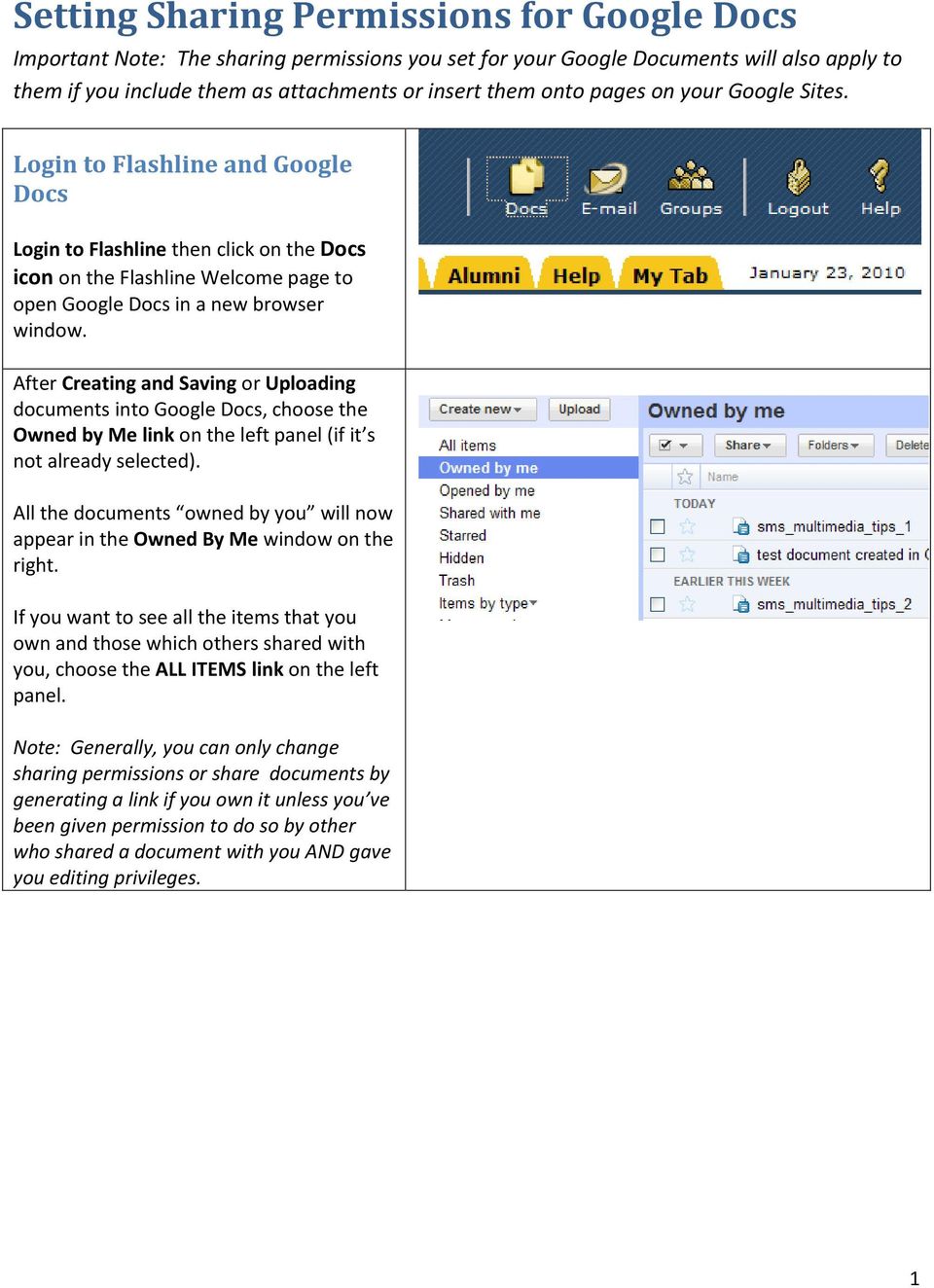
2 Setting Sharing Permissions for Google Docs Important Note: The sharing permissions you set for your Google Documents will also apply to them if you include them as attachments or insert them onto pages on your Google Sites. Login to Flashline and Google Docs Login to Flashline then click on the Docs icon on the Flashline Welcome page to open Google Docs in a new browser window. After Creating and Saving or Uploading documents into Google Docs, choose the Owned by Me link on the left panel (if it s not already selected). All the documents owned by you will now appear in the Owned By Me window on the right. If you want to see all the items that you own and those which others shared with you, choose the ALL ITEMS link on the left panel. Note: Generally, you can only change sharing permissions or share documents by generating a link if you own it unless you ve been given permission to do so by other who shared a document with you AND gave you editing privileges. 1
3 The Easiest Way to Share Google Documents USE GET THE LINK TO SHARE The easiest way to share documents is to: 1. Click on the Share button 2. Choose Get the link to share Then choose from the following: Create a Link that Kent State University users only can use to view your document. If you copy and paste the link generated below (which is a web URL) into an or create a hyperlink on a web page, like a page on a Google Site, then. Anyone with a Kent State University Flashline Account will be able to view the document but they will have to sign-in to do so. You can also allow them to edit the document if you want. Be sure to click SAVE & CLOSE when you re done. Create a Link that anyone in the world can use to view your document without signing in The link created by choosing Get a Link for Anyone > Allow anyone with the link to view (no sign-in required) inserted onto a web page on a Google Site will allow anyone in the world to view the Google Document regardless of the document s individual Sharing Permissions. You can also just the link to them in an . Be sure to click SAVE & CLOSE when you re done. 2

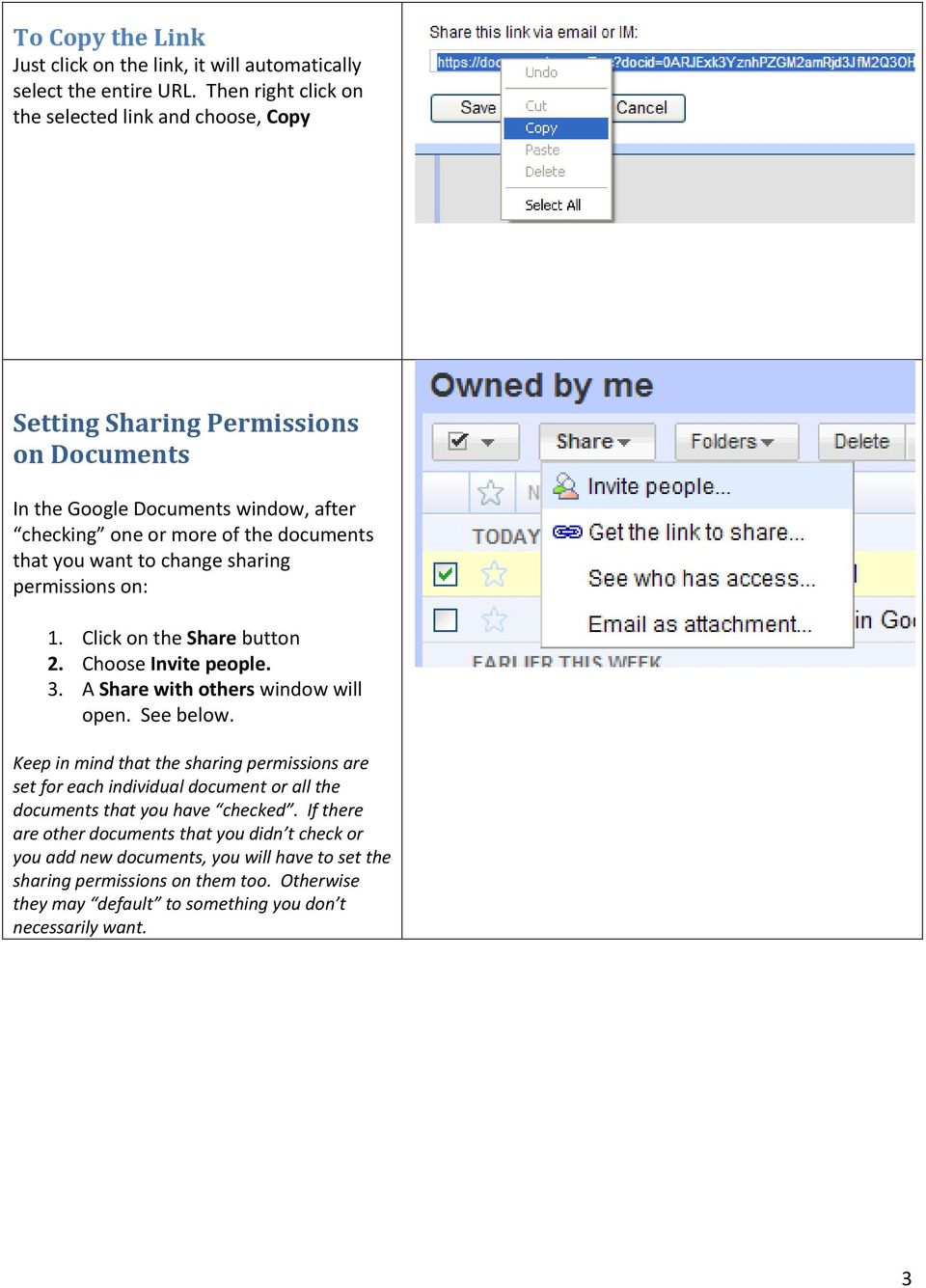
4 To Copy the Link Just click on the link, it will automatically select the entire URL. Then right click on the selected link and choose, Copy Setting Sharing Permissions on Documents In the Google Documents window, after checking one or more of the documents that you want to change sharing permissions on: 1. Click on the Share button 2. Choose Invite people. 3. A Share with others window will open. See below. Keep in mind that the sharing permissions are set for each individual document or all the documents that you have checked. If there are other documents that you didn t check or you add new documents, you will have to set the sharing permissions on them too. Otherwise they may default to something you don t necessarily want. 3
5 INVITE PEOPLE TAB Type in the address or addresses, separated by commas, of people you want to invite to share your document with. Select if you want the invited people to be able To EDIT or to just TO VIEW the document(s). Add a Message to the invitation if you want. You may want to give them information about signing in or creating a Google Account if you required that in the Sharing permissions that you set (see below). Click the Send button. The invited people will receive an with a link to the document that you shared with them. After sending invitation(s) to share your documents, you should immediately setup the Sharing Permissions for everyone that has access to your documents. Next. 4

6 PEOPLE WITH ACCESS TAB A list of all the people, including yourself and Anyone at Kent State University will appear in this window. You can change the type of access you re giving each of them: CAN EDIT, CAN VIEW or NONE Note that Anyone at Kent State University is in the list of People with Access. Be sure to select what you want them to be able to do with the document or choose None if you don t want Anyone at Kent State University to have access to your document(s) at all. PEOPLE WITH ACCESS TAB (continued) Choose whether or not you want people to have to SIGN IN to view the document by clicking on the hyperlinked text, Change. The options are: Always require sign-in Let people view without signing in Let people edit without signing in ADVANCED PERMISSIONS TAB You can also: Allow editors (peope that you ve given permission TO EDIT) to invite others to edit or view Allow invitations to be forwarded Consider these options carefully. By default neither is allowed. Important Note: Always remember to click on the SAVE AND CLOSE button after you ve made changes. If you don t, the Sharing Permissions you chose will not be saved. 5

7 Setting Sharing Permissions for Google Sites Important Note: The sharing permissions you set for your Google Sites do not affect the Sharing Permissions you have set on any Google Docs that you include on your sites. For example, even if you set your Google Site s sharing permissions so that Anyone in the World can view it without signing in or creating a Google account, they still won t be able to view a document on the Site if the Sharing Permission on the Google Document is set to require them to sign-in or have a Google account. The exception would be links to Google Documents on Google Sites created by using Google Doc s Get the Link to Share tool (See Setting Sharing Permissions for Google Docs above) You can set up most of the Sharing Privileges when you create a new site but you can also change them at any time. You may want to start by not sharing it with anyone while you re creating the site then allow people to view the site after you finish it. You might also want to share the site with collaborators who you give permission to edit the site and or add comments during the construction process. To change Sharing Permissions: 1. Click on the MORE ACTIONS tab at the top right of the Google Site s page 2. Choose SHARE THIS SITE The window shown below will open. Note that you can REMOVE People with Access at any time. 6
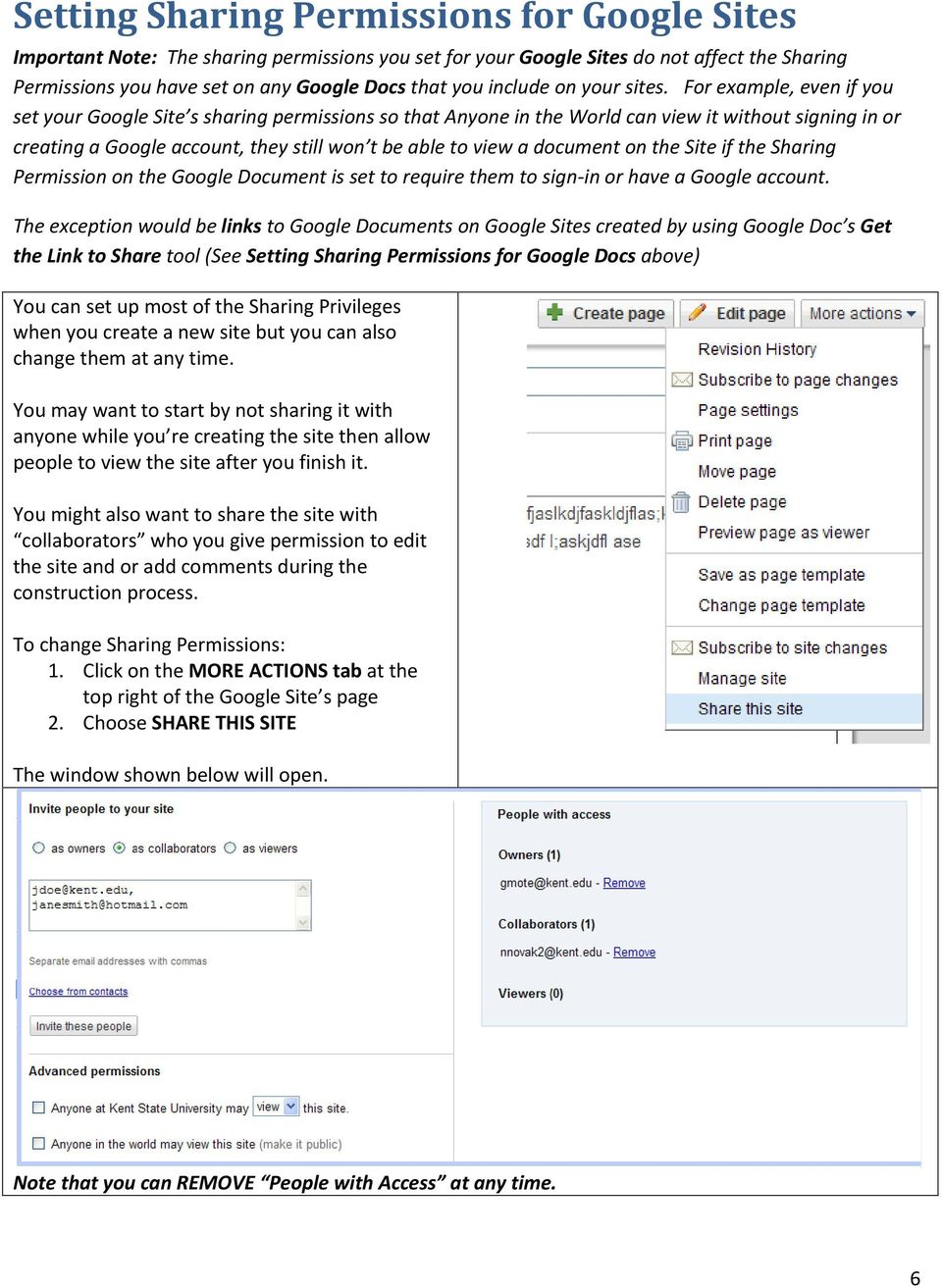
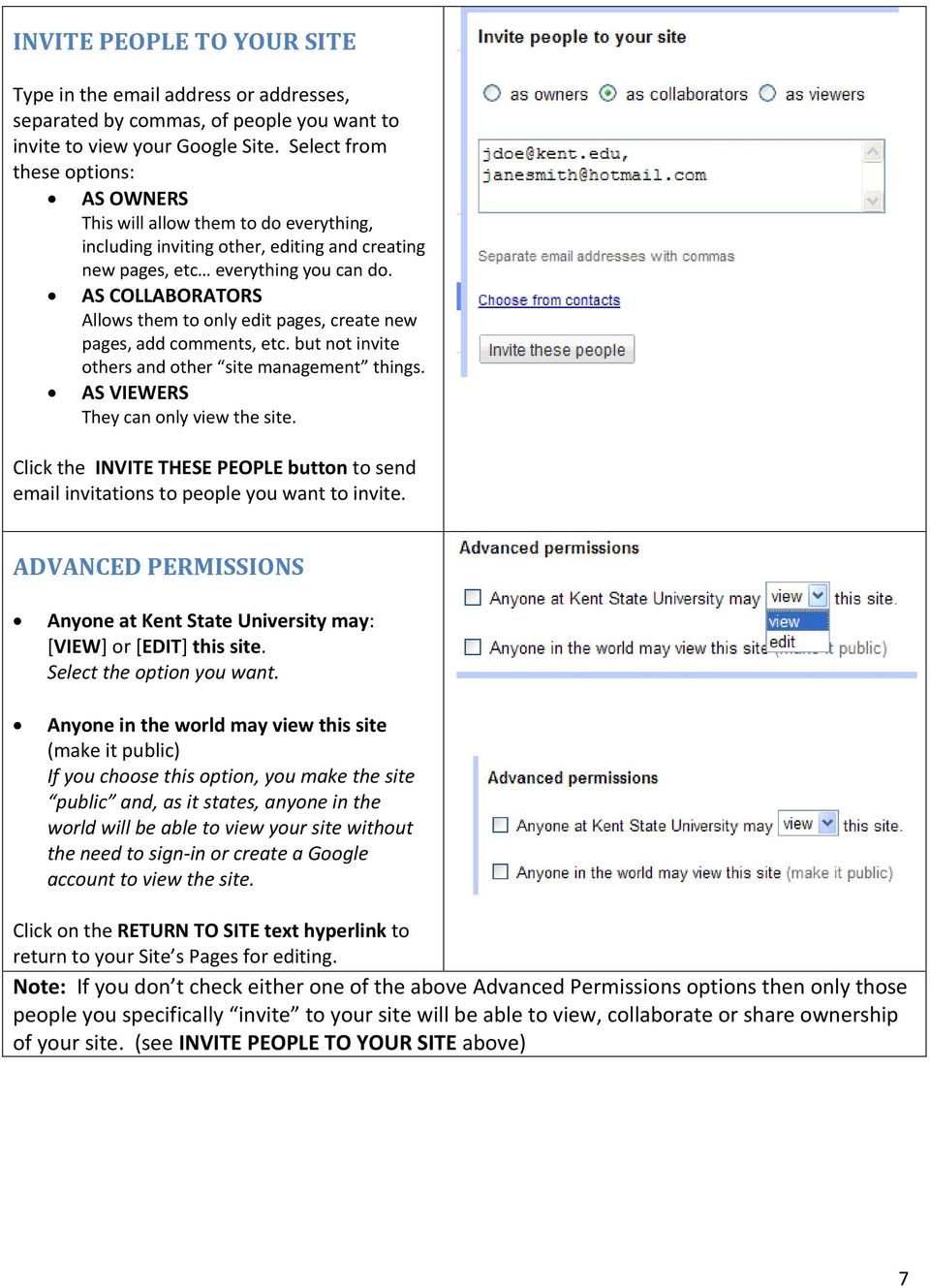
8 INVITE PEOPLE TO YOUR SITE Type in the address or addresses, separated by commas, of people you want to invite to view your Google Site. Select from these options: AS OWNERS This will allow them to do everything, including inviting other, editing and creating new pages, etc everything you can do. AS COLLABORATORS Allows them to only edit pages, create new pages, add comments, etc. but not invite others and other site management things. AS VIEWERS They can only view the site. Click the INVITE THESE PEOPLE button to send invitations to people you want to invite. ADVANCED PERMISSIONS Anyone at Kent State University may: [VIEW] or [EDIT] this site. Select the option you want. Anyone in the world may view this site (make it public) If you choose this option, you make the site public and, as it states, anyone in the world will be able to view your site without the need to sign-in or create a Google account to view the site. Click on the RETURN TO SITE text hyperlink to return to your Site s Pages for editing. Note: If you don t check either one of the above Advanced Permissions options then only those people you specifically invite to your site will be able to view, collaborate or share ownership of your site. (see INVITE PEOPLE TO YOUR SITE above) 7
Drive. Etobicoke-Mimico Watershed Coalition
 Drive Etobicoke-Mimico Watershed Coalition (Adapted from Google Drive for Academics available at https://docs.google.com/document/d/1hvbqob26dkpeimv6srdgwvpupuo5ntvojqjxorq0n20/edit?pli=1) Table of Contents
Google Docs A Tutorial
 Google Docs A Tutorial What is it? Google Docs is a free online program that allows users to create documents, spreadsheets and presentations online and share them with others for collaboration. This allows
How to Create a Voicethread PowerPoint Presentation
 CREATE A FREE VOICETHREAD ACCOUNT 1. Open a browser like Internet Explorer, Firefox, or Safari. Navigate to http://voicethread.com. 2. To create an account, click Sign in or Register. 3. Underneath the
Agile ICT Website Starter Guides
 Agile ICT Website Guide V1.0 1 Agile ICT Website Starter Guides 2 The purpose of this guide is to show you how to edit some of the basics of the website you have purchased through Agile ICT. The website
Sharing files and folders by inviting people
 The documents and folders you store in OneDrive for Business are private until you decide to share them. When you share documents and folders, you can decide whether to let people edit or just view them.
Using VoiceThread in Your Online Course (Faculty) Step 1: Create a Link for Yourself to Voicethread (1X per course)
 Using VoiceThread in Your Online Course (Faculty) Step 1: Create a Link for Yourself to Voicethread (1X per course) 1. Navigate to the MyGateway course where you wish to add VoiceThread. You will first
Google Docs Forms. Step by Step Tutorial
 Google Docs Forms Step by Step Tutorial Naomi Harm Innovative Educator Consulting Blog: http://blog.innovativeeducator.us Email: [email protected] Agenda 1. Google Docs Overview Requirements
MICROSOFT OFFICE 365 EXCHANGE ONLINE CLOUD
 11/24/14 Samson V. 1. With the transition of the Universities email to Office 365 this also opens up several Office Online applications for use. Step 1. You can access the Office Online portal two different
PE Content and Methods Create a Website Portfolio using MS Word
 PE Content and Methods Create a Website Portfolio using MS Word Contents Here s what you will be creating:... 2 Before you start, do this first:... 2 Creating a Home Page... 3 Adding a Background Color
GOOGLE DOCS APPLICATION WORK WITH GOOGLE DOCUMENTS
 GOOGLE DOCS APPLICATION WORK WITH GOOGLE DOCUMENTS Last Edited: 2012-07-09 1 Navigate the document interface... 4 Create and Name a new document... 5 Create a new Google document... 5 Name Google documents...
HOW TO USE CAPTIONTUBE TO CAPTION OTHERS VIDEOS IN YOUTUBE
 USAILC.ORG University of South Alabama Innovation in Learning Center HOW TO USE CAPTIONTUBE TO CAPTION OTHERS VIDEOS IN YOUTUBE What is CaptionTube? CaptionTube is a free online captioning program that
CMS Training Manual. A brief overview of your website s content management system (CMS) with screenshots. CMS Manual
 Training A brief overview of your website s content management system () with screenshots. 1 Contents Logging In:...3 Dashboard:...4 Page List / Search Filter:...5 Common Icons:...6 Adding a New Page:...7
DESIGNING YOUR WEBSITE. The following guide will show you how to setup your music website using www.weebly.com:
 DESIGNING YOUR WEBSITE All music majors are required to have their own music website. This website functions as a portfolio and shows potential employers what you have accomplished as a performer, educator,
MailChimp Instruction Manual
 MailChimp Instruction Manual Spike HQ This manual contains instructions on how to set up a new email campaign, add and remove contacts and view statistics on completed email campaigns from within MailChimp.
Terminal Four. Content Management System. Moderator Access
 Terminal Four Content Management System Moderator Access Terminal Four is a content management system that will easily allow users to manage their college web pages at anytime, anywhere. The system is
EBOX Digital Content Management System (CMS) User Guide For Site Owners & Administrators
 EBOX Digital Content Management System (CMS) User Guide For Site Owners & Administrators Version 1.0 Last Updated on 15 th October 2011 Table of Contents Introduction... 3 File Manager... 5 Site Log...
Working with Office Applications and ProjectWise
 Working with Office Applications and ProjectWise The main Microsoft Office Applications (Word, Excel, PowerPoint and Outlook) are all integrated with ProjectWise. These applications are aware that ProjectWise
ADVANCED GUIDE TO REFWORKS
 LEARNING AND INFORMATION SERVICES ADVANCED GUIDE TO REFWORKS 1. Advanced searching 2. My List 3. Adding attachments 4. Importing from RSS feeds 5. Deleting duplicate references 6. Sharing references 7.
How to use Dropbox. What is Dropbox. Please read the University of Melbourne Guidelines on Dropbox and University Information prior to use.
 How to use Dropbox Please read the University of Melbourne Guidelines on Dropbox and University Information prior to use. What is Dropbox Dropbox lets you easily share and collaborate on documents with
Google Accounts Google Drive
 Google Accounts Google Drive You need to have a general Google account or Google email account before you can access these services. Please see the guide the library created on opening a Google email account
Increasing Productivity and Collaboration with Google Docs. Charina Ong Educational Technologist [email protected]
 Increasing Productivity and Collaboration with Google Docs [email protected] Table of Contents About the Workshop... i Workshop Objectives... i Session Prerequisites... i Google Apps... 1 Creating
Creating a Website with Google Sites
 Creating a Website with Google Sites This document provides instructions for creating and publishing a website with Google Sites. At no charge, Google Sites allows you to create a website for various uses,
Remote Viewer Recording Backup
 Remote Viewer Recording Backup Introduction: In this tutorial we will explain how to retrieve your recordings using the Web Service online. Using this method you can backup videos onto your computer using
MA TESOL (by distance) Lancaster University. Moodle User Guide
 MA TESOL (by distance) Lancaster University Moodle User Guide Contents 1. LOGIN... 3 2. ENTER YOUR COURSE... 4 3. MOVING AROUND MOODLE... 4 3.1 BREADCRUMBS... 4 3.2 SIDEBAR... 5 3.3 THE MAIN CONTENT...
Set up Delegate & Travelers
 Set up Delegate & Travelers Setting Up a Delegate and Assigning New Travelers Learn how to Login to Banner Travel and Expense Management Application and to set up yourself as a Delegate and assign Travelers
Google Docs, Sheets, and Slides: Share and collaborate
 Google Docs, Sheets, and Slides: Share and collaborate Once you've created your document, you can share it with others. Collaborators can then edit the same document at the same time you'll always have
Google Sites: Creating, editing, and sharing a site
 Google Sites: Creating, editing, and sharing a site Google Sites is an application that makes building a website for your organization as easy as editing a document. With Google Sites, teams can quickly
Quick Start Guide. Installation and Setup
 Quick Start Guide Installation and Setup Introduction Velaro s live help and survey management system provides an exciting new way to engage your customers and website visitors. While adding any new technology
Creating an e mail list in Google Groups
 Creating an e mail list in Google Groups Creating an e mail list in Google Groups is easy to do. Just follow the steps below and your group will be created in a matter of minutes. Why use Google Groups?
Zoho CRM and Google Apps Synchronization
 Zoho CRM and Google Apps Synchronization Table of Contents End User Integration Points 1. Contacts 2. Calendar 3. Email 4. Tasks 5. Docs 3 6 8 11 12 Domain-Wide Points of Integration 1. Authentication
Create a personal account and a fan page for your business and you ll be on your way to building relationships with new and existing customers.
 Create a personal account and a fan page for your business and you ll be on your way to building relationships with new and existing customers. And the best part of all it s FREE! Create Your Account:
CREATE A WEB PAGE WITH LINKS TO DOCUMENTS USING MICROSOFT WORD 2007
 CREATE A WEB PAGE WITH LINKS TO DOCUMENTS USING MICROSOFT WORD 2007 For Denise Harrison s College Writing Course students Table of Contents Before you Start: Create documents, Create a Folder, Save documents
Work with PassKey Manager
 Work with PassKey Manager Trademark Notice Blackboard, the Blackboard logos, and the unique trade dress of Blackboard are the trademarks, service marks, trade dress and logos of Blackboard, Inc. All other
Sending Emails and Texts
 4HONLINE Sending Emails and Texts Created: October 23, 2013 Revised: October 24, 2013 (Corrected document title and added texting on page 3.) Revised: November 4, 2014 (Update to 4HOnline changed screens
Let s say you wanted to link to the Commuter Services page within the Student Life department. On the live site, the page can be found here:
 Simmons College Online Design & Communications Sitecore User Resources Linking with Sitecore Linking to a Simmons Page Whenever you want to link to Simmons web page (either on the WWW or INTERNAL sites)
How to Create a Form and Manage the Spreadsheet in Google Docs
 How to Create a Form and Manage the Spreadsheet in Google Docs Table of Contents Create, send, share, and edit a form... 2 Create and send a Google form... 2 Add items and questions to a form... 2 Split
and forms from multiple folders simultaneously to send out for e signing as the system will automatically create a Queue as you select documents.
 This guide was prepared to show our members how to submit saved forms (and/or uploaded documents) out for e signature using our built in integration with Settleware s secure e signing services. Once you
Install MSU Google Drive on your Computer
 416 Agriculture Hall Michigan State University 517-355-3776 http://support.anr.msu.edu [email protected] Install MSU Google Drive on your Computer Document # - 168 Creation/Revision Date 4/2013 Revision
Contents. Using Web Access... 1. Managing Shared Folders... 28. Managing Account Settings... 36. Index... 39
 Contents Using Web Access... 1 Using the Sign In Page... 1 Signing In to Seagate Global Access... 2 Creating a Seagate Global Access Account... 2 If You Forget Your Password... 5 Viewing Central Axis Details...
Mail Chimp Basics. Glossary
 Mail Chimp Basics Mail Chimp is a web-based application that allows you to create newsletters and send them to others via email. While there are higher-level versions of Mail Chimp, the basic application
Microsoft Expression Web
 Microsoft Expression Web Microsoft Expression Web is the new program from Microsoft to replace Frontpage as a website editing program. While the layout has changed, it still functions much the same as
How to Build a SharePoint Website
 How to Build a SharePoint Website Beginners Guide to SharePoint Overview: 1. Introduction 2. Access your SharePoint Site 3. Edit Your Home Page 4. Working With Text 5. Inserting Pictures 6. Making Tables
Embedding Multimedia in Blackboard
 Embedding Multimedia in Blackboard Embedding videos Locate the video or podcast you would like the share. This example uses a cat- tastic YouTube video. (Curious? Click the image below.) 1. Find the button
Manual of UPClink VPN.UPC.EDU (For Windows 7)
 Manual of UPClink VPN.UPC.EDU (For Windows 7) SYSTEM REQUIREMENTS Required software: - Windows operating Systems Windows Vista Service Pack 1 or 2 for 32/64 bits Windows 7 for 32/64 bits Windows XP Professional
Google Drive: Access and organize your files
 Google Drive: Access and organize your files Use Google Drive to store and access your files, folders, and Google Docs, Sheets, and Slides anywhere. Change a file on the web, your computer, tablet, or
Social Work Portfolio Help Guide. Table of Contents. (click anything from the list below to skip to the correct information)
 Social Work Portfolio Help Guide Table of Contents (click anything from the list below to skip to the correct information) Steps to creating your Social Work portfolio Security settings for your portfolio
Access to Moodle. The first session of this document will show you how to access your Lasell Moodle course, how to login, and how to logout.
 Access to Moodle The first session of this document will show you how to access your Lasell Moodle course, how to login, and how to logout. 1. The homepage of Lasell Learning Management System Moodle is
Technology in the Classroom Kidblog kidblog.org
 Technology in the Classroom Kidblog kidblog.org Kidblog provides a secure classroom blogging community, where teachers have complete control over individual student blogs. Students do not need an email
Note Google and YouTube may change the appearance of their sites from time to time, so the buttons or links may not always appear in the same place.
 Uploading to YouTube and Posting in Blackboard This document will explain 1. How to upload videos from your computer to Youtube 2. How to obtain the URL (web link) or embed code for your video 3. How to
Introduction to Google Docs
 Introduction to Google Docs If you do not have a Google account please see the instructor about setting up an account before the class begins. If you do not want to set up an account you can follow along
PayPal Integration Instructions
 PayPal Integration Instructions Table of Contents Overview... 1 Option 1: Adding a Shopping Cart Wordpress simple PayPal Shopping Cart... 2 Step 1: Navigate to the Plugins Page... 2 Step 2: Click the Add
Student Guide to Using the Learning Portfolio
 Student Guide to Using the Learning Portfolio 2013 McMaster University and Jon Kruithof This work is licensed under a Creative Commons Attribution-NonCommercial-ShareAlike license: https://creativecommons.org/licenses/by-nc-sa/3.0/
How to Charge for Access to your Membership Site.
 How to Charge for Access to your Membership Site. A resource to use when planning out and preparing your membership programs with the PilotPress Membership Plugin Tool Part 1: Set it up Step 1: Plan Decide
Option nv, Gaston Geenslaan 14, B-3001 Leuven Tel +32 16 317 411 Fax +32 16 207 164 http://www.option.com Page 1 of 14
 Page 1 of 14 ! " #!"#$ % &&' Page 2 of 14 1 INTRODUCTION One of the highly desirable features of the GlobeSurfer III device is the ability to network together Printers and External Hard Disk drives (aka
Using Internet or Windows Explorer to Upload Your Site
 Using Internet or Windows Explorer to Upload Your Site This article briefly describes what an FTP client is and how to use Internet Explorer or Windows Explorer to upload your Web site to your hosting
Livezilla How to Install on Shared Hosting http://www.jonathanmanning.com By: Jon Manning
 Livezilla How to Install on Shared Hosting By: Jon Manning This is an easy to follow tutorial on how to install Livezilla 3.2.0.2 live chat program on a linux shared hosting server using cpanel, linux
Administrator s Guide ALMComplete Support Ticket Manager
 Administrator s Guide ALMComplete Support Ticket Manager This guide provides an overview of ALMComplete s Support Manager with setup instructions. SoftwarePlanner Release 9.6.0 and higher April 2011 1
GadgetTrak Mobile Security Android & BlackBerry Installation & Operation Manual
 GadgetTrak Mobile Security Android & BlackBerry Installation & Operation Manual Overview GadgetTrak Mobile Security is an advanced software application designed to assist in the recovery of your mobile
Shopping Cart Setup & Configuration Guide
 Booster Web Solutions Shopping Cart Setup & Configuration Guide Version 1.0 Table of Contents 1 Introduction... 3 2 Shopping Cart Store Files... 4 3 Create new product... 5 4 Create Product Categories...
How to Use Google Docs
 How to Use Google Docs 1. Google Docs in the Classroom 2. How to Login 3. Uploading Existing Presentation, Document, or Spreadsheet 4. Creating a Document 5. Creating a Presentation 6. Creating a Spreadsheet
Publishing geospatial data to the web using the EEA infrastructure
 Publishing geospatial data to the web using the EEA infrastructure *Note: Map Services should be published using the EEA Map Services Tick Sheet for guidance. Contact Sebastien Petit ([email protected])
GETTING STARTED GUIDE: VOICETEXT S WEBEX.
 GETTING STARTED GUIDE: VOICETEXT S WEBEX. Start a WebEx meeting Invite a colleague to try out WebEx Meeting with you. You ll see how easy it is to share documents, audio and video.. Go to the URL that
Spam Marshall SpamWall Step-by-Step Installation Guide for Exchange 5.5
 Spam Marshall SpamWall Step-by-Step Installation Guide for Exchange 5.5 What is this document for? This document is a Step-by-Step Guide that can be used to quickly install Spam Marshall SpamWall on Exchange
Creating Classroom Pages in Edline
 Creating Classroom Pages in Edline When you open Edline, your "homepage" should look similar to this. The actual pages that students and parents see will be the "class pages". Notice your list of classes
I ve logged in! Now where do I start?
 I ve logged in! Now where do I start? Instructor s Quick Start Guide Introduction: Up and Running with OpenClass We ve created this Quick Start Guide to help you, the instructor, get up and running with
Step 1: Customize your channel
 Your Cabrillo YouTube Account: This handout contains instructions for setting up a YouTube Channel using your Cabrillo College Google account. If you have a personal Google account, go ahead and log in
Configuration Guide - OneDesk to SalesForce Connector
 Configuration Guide - OneDesk to SalesForce Connector Introduction The OneDesk to SalesForce Connector allows users to capture customer feedback and issues in OneDesk without leaving their familiar SalesForce
The Social Accelerator Setup Guide
 The Social Accelerator Setup Guide Welcome! Welcome to the Social Accelerator setup guide. This guide covers 2 ways to setup SA. Most likely, you will want to use the easy setup wizard. In that case, you
How to Register for the Heart Walk
 1. Click Register and Join Heart Walk How to Register for the Heart Walk 2. Step 1: Start a Team, Join a Team, Join as Individual Click Start a Team if you want be a team captain and recruit walkers to
ClickView Digital Signage User Manual
 ClickView Digital Signage User Manual Table of Contents 1. What is ClickView Digital Signage?... 3 2. Where do I find ClickView Digital Signage?... 3 2.1. To find ClickView Digital Signage... 3 3. How
College of William and Mary. wmfiles.wm.edu. A Reference and Training Guide
 wmfiles.wm.edu A Reference and Training Guide 08/15/2012 Table of Contents Page What is Xythos Software? 3 Creating a New Folder 4 Uploading Files 4 Coping, Moving, Deleting, Renaming Files 5 Sharing Files
Chapter 14: Links. Types of Links. 1 Chapter 14: Links
 1 Unlike a word processor, the pages that you create for a website do not really have any order. You can create as many pages as you like, in any order that you like. The way your website is arranged and
How To Create A Hyperlink In Publisher On Pc Or Macbookpress.Com (Windows) On Pc/Apple) On A Pc Or Apple Powerbook (Windows 7) On Macbook Pressbook (Apple) Or Macintosh (Windows 8
 PUBLISHER-HYPERLINKS When a hyperlink in Publisher is clicked it can open another Web page, a picture, an email message, or another program. This feature works for documents that will be saved as a PDF
S-Doc User Guide. Instructions on using the Secure Document Online Courier with the CAAT Pension Plan. September 2012
 S-Doc User Guide Instructions on using the Secure Document Online Courier with the CAAT Pension Plan Secure solution provided by Accellion September 2012 S E C U R E C O L L A B O R A T I O N U S E R G
How to Host WebEx Meetings
 How to Host WebEx Meetings Instructions for ConnSCU Faculty and Staff using ConnSCU WebEx BEFORE YOU BEGIN PLEASE READ! On 7/30/15, the ConnSCU WebEx site was upgraded to a new version. Although the new
PassKey Manager. Schoolwires Centricity
 Schoolwires Centricity Table of Contents Introduction... 1 What Provides... 1 What Does Not Provide... 1 Definitions for... 1 Manage PassKeys in Site Manager... 2 Access... 2 Create PassKeys... 2 Create
Create a GAME PERFORMANCE Portfolio with Microsoft Word
 Create a GAME PERFORMANCE Portfolio with Microsoft Word Planning A good place to start is on paper. Get a sheet of blank paper and just use a pencil to indicate where the content is going to be positioned
LiveStreamingCDN Producer User s Guide
 LiveStreamingCDN Producer User s Guide A LiveStreamingCDN Producer account offers a variety of premium features in addition to live and VOD streaming capabilities. A Producer account comes with a multi-device
Table of Contents. Begin Here: Getting Started with WebEx. What is WebEx? Why would I use it?
 Table of Contents Begin Here: Getting Started with WebEx... 1 Scheduling a Meeting from the WebEx Website... 4 Scheduling a Meeting from Outlook 2010... 5 Selecting Audio Conference Settings... 6 Joining
PaperStream Connect. Setup Guide. Version 1.0.0.0. Copyright Fujitsu
 PaperStream Connect Setup Guide Version 1.0.0.0 Copyright Fujitsu 2014 Contents Introduction to PaperStream Connect... 2 Setting up PaperStream Capture to Release to Cloud Services... 3 Selecting a Cloud
How To Create A Website In Drupal 2.3.3
 www.webprophets.com.au PO Box 2007 St Kilda West Victoria Australia 3182 Phone +61 3 9534 1800 Fax +61 3 9534 1100 Email [email protected] Web www.webprophets.com.au Welcome to the Drupal How to
EditAble CRM Grid. For Microsoft Dynamics CRM. How To Guide. Trial Configuration: Opportunity View EditAble CRM Grid Scenario
 EditAble CRM Grid For Microsoft Dynamics CRM How To Guide Trial Configuration: Opportunity View EditAble CRM Grid Scenario Table of Contents Overview... 3 Opportunity View EditAble CRM Grid... 3 Scenario...
RGILink User s Guide
 RGILink User s Guide 1 Table of Contents 1. Introduction... 3 1.1 Introduction to RGILink... 3 2. Getting Started with RGILink... 3 2.1 New User Registration... 3 2.2 Login... 3 2.3 Forgot password...
Kent State University Procurement Department. How to Search for Vendors in the Supplier Diversity Database. Guide for Purchasing Agents
 Kent State University Procurement Department How to Search for Vendors in the Supplier Diversity Database Guide for Purchasing Agents January 2013 About The Supplier Diversity Database The Supplier Diversity
Schoolwires Staff Website Reference Guide
 CONTENTS Signing In... 2 Changing Your Web Account Password... 3 Adding a New Page... 7 Updating A Web Page... 10 Schoolwires Staff Website Reference Guide Inserting an Email Link... 12 Inserting a Web
Editing and creating new pages and posts with the WordPress ios app
 Editing and creating new pages and posts with the WordPress ios app WordPress is a highly successful Open Source platform that now runs 14.7% of the top million websites in the world. Within the US, 22
Content Management System Help. basic tutorial on Evergreen s CMS
 Content Management System Help cms.evergreen.edu Tips, tricks and basic tutorial on Evergreen s CMS Contents Vocabulary Login Opening a page Editing a page Creating a new page Inserting internal and external
Your Archiving Service
 It s as simple as 1, 2, 3 This email archiving setup guide provides you with easy to follow instructions on how to setup your new archiving service as well as how to create archiving users and assign archiving
BluWave crm. Posting Appointments into Your Local Calendar (Using Google Chrome Web Browser)
 BluWave crm Posting Appointments into Your Local Calendar (Using Google Chrome Web Browser) Version 1.6 Update released 22/7/2011 Posting Your BluWave Appointments to Your Calendar Software Configuration:
How to Use Your New Online Client Vault
 How to Use Your New Online Client Vault Table of Contents I. Getting Into Your Vault 3 How to Sign In 3 First Time Setup 4 II. Finding Your Way Around the Vault 5 Managing Your Vault s Contents 6 Creating
Using Google Drive. Using Google Drive. Information Security Requirements
 Using Google Drive Information Security Requirements Google Drive is a cloud storage service available to CWRU students, faculty and staff that allows you to store, share, and synchronize files using multiple
End User Guide to Starfish CONNECT Contents
 Contents Introduction... 2 Purpose... 2 Glossary of Terms... 2 How Starfish Communicates with your Online Calendar... 3 Walkthrough Instructions for Calendar Owners... 4 Your Profile... 4 Office Hours
Peru State College Distance Education Student s Guide
 Using YouTube for Online Courses - Peru State College Distance Education Student s Guide - YouTube Videos & Your Blackboard Course Introduction & Reasons for Using YouTube 1 Creating a YouTube Account
SETUP AND OPERATION GUIDE CLOUD PRINT. Version 1.0. January 2015. 2015 KYOCERA Document Solutions UK
 SETUP AND OPERATION GUIDE CLOUD PRINT Version 1.0 January 2015 2015 KYOCERA Document Solutions UK HyPAS TM and TASKalfa TM are trademarks of the KYOCERA Companies. Other company names in this guide may
Creating a Website with Google Sites
 Creating a Website with Google Sites This document provides instructions for creating and publishing a website with Google Sites. At no charge, Google Sites allows you to create a website for various uses,