
Configuring SIP Trunking and Networking for the NetVanta 7000 Series
|
|
|
- Beverley Park
- 10 years ago
- Views:
Transcription
1 L1-29.4E July 2011 Configuration Guide Configuring for the NetVanta 7000 Series This configuration guide describes the configuration and implementation of Session Initiation Protocol (SIP) trunking and networking in the ADTRAN Operating System (AOS) NetVanta 7000 Series products. Included in this guide is an overview of SIP trunking and networking, configuration considerations, configuration instructions using both the Web-based graphical user interface (GUI) and the command line interface (CLI), and sample SIP trunking and networking configurations. This guide consists of the following sections: Overview on page 2 Configuration Overview on page 3 Additional Considerations on page 6 Hardware and Software Requirements and Limitations on page 10 Configuring the Service Provider SIP Trunk on page 10 Configuring SIP Networking between NetVanta 7000 Series Products on page 20 Configuring a SIP Network between NetVanta 7000 and IP Gateways on page 31 Configuring a SIP Network Between NetVanta 7000 Series and Routers on page 75
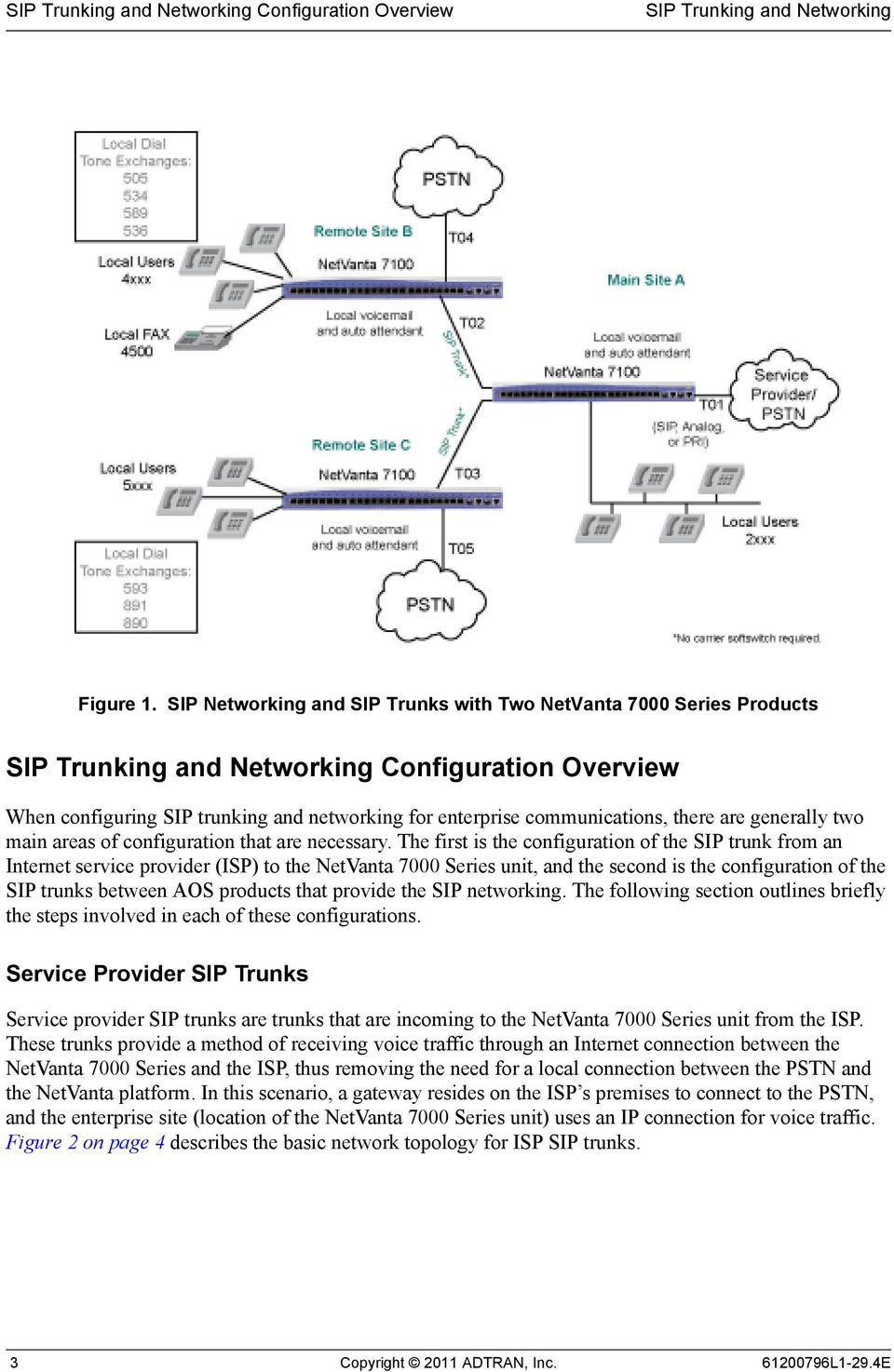
2 Overview Overview SIP technologies are used in today s communication networks to facilitate communication between endpoints in the network, whether they are local to the main enterprise site, or functioning at a remote location. SIP services provide more cost effective and scalable solutions for enterprise communication needs than traditional telephony services, and provide these services through SIP trunking and SIP networking. To fully understand the logic behind SIP trunking, it is useful to understand the traditional role of the trunk, and how SIP technologies have replaced traditional telephony for business communication. Traditionally, telephony services were provided over a wire, also called a trunk, that connected the corporate private branch exchange (PBX), with the public switched telephone network (PSTN). These physical trunks provided multiple communication channels for phone service between the corporation and the telephone network. However, traditional telephony trunks become cumbersome and problematic as companies grow and their communication needs expand. Each time the company needs to add more telephone lines, they must purchase additional bundles of physical lines (T1 or E1), or additional equipment (BRI, PRIs, or PSTN gateways). SIP, on the other hand, provides a new method for providing telephony services that does not rely on additional physical trunks. SIP trunks are virtual trunks that replace the traditional PSTN trunks of the past. These new trunks use SIP to set up communications between endpoints in the company network; whether those endpoints are all in the same building, at a neighboring location, or around the world. SIP trunking is a packet-based voice service that routes calls over an IP network to an IP-compatible PBX or voice switch using SIP signaling to place and receive calls. These calls can include all types of communication, including instant messaging, presence applications, and application sharing. SIP provides an immediate cost savings because there is no longer a need to purchase additional equipment or communication lines, and it also allows for optimal bandwidth usage as both data and voice traffic are passed in the same connection. SIP trunks require three main parts to function: a PBX with SIP, an enterprise edge device that understands SIP, and IP phones with a SIP trunking service provider. The NetVanta 7000 Series product functions as a SIP-enabled PBX, and provides a method for creating the SIP trunks necessary to facilitate communication between multiple users and locations. While SIP trunks provide the actual connection between enterprise sites, SIP networking is the configuration of SIP trunks between those enterprise sites. Typical SIP networking scenarios include connections between two NetVanta 7000 Series units, a NetVanta 7000 Series unit and an IP business gateway (such as a NetVanta 6355 or Total Access 900(e) Series), and a NetVanta 7000 Series unit and a NetVanta router (such as a NetVanta 3120 or NetVanta 3400 Series). Figure 1 on page 3 illustrates SIP networking between NetVanta 7000 Series units and the SIP trunks used by each product L1-29.4E Copyright 2011 ADTRAN, Inc. 2

3 Configuration Overview Figure 1. SIP Networking and SIP Trunks with Two NetVanta 7000 Series Products Configuration Overview When configuring SIP trunking and networking for enterprise communications, there are generally two main areas of configuration that are necessary. The first is the configuration of the SIP trunk from an Internet service provider (ISP) to the NetVanta 7000 Series unit, and the second is the configuration of the SIP trunks between AOS products that provide the SIP networking. The following section outlines briefly the steps involved in each of these configurations. Service Provider SIP Trunks Service provider SIP trunks are trunks that are incoming to the NetVanta 7000 Series unit from the ISP. These trunks provide a method of receiving voice traffic through an Internet connection between the NetVanta 7000 Series and the ISP, thus removing the need for a local connection between the PSTN and the NetVanta platform. In this scenario, a gateway resides on the ISP s premises to connect to the PSTN, and the enterprise site (location of the NetVanta 7000 Series unit) uses an IP connection for voice traffic. Figure 2 on page 4 describes the basic network topology for ISP SIP trunks. 3 Copyright 2011 ADTRAN, Inc L1-29.4E
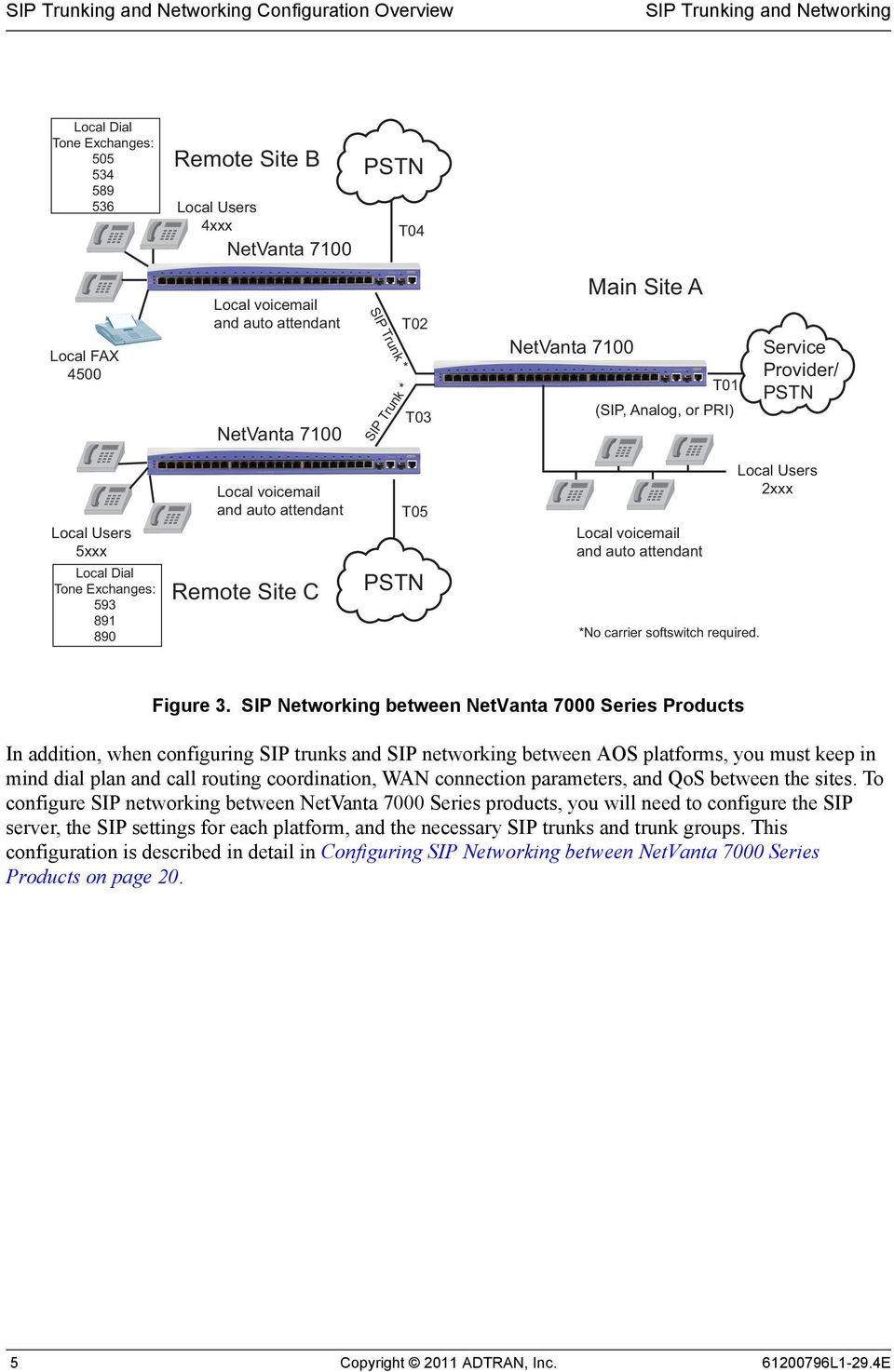
4 Configuration Overview Figure 2. Service Provider SIP Trunk Network Topology There are a few considerations you should keep in mind when configuring how your NetVanta 7000 Series product handles the service provider SIP trunk. You must consider Internet security, quality of service (QoS) parameters, failover scenarios, and SIP functionality. When you configure the service provider SIP trunk on the NetVanta platform, you will need to specify the SIP server settings, the SIP settings on the local platform, the registration of the SIP trunk or SIP identity, the automatic number identification (ANI) substitution settings, the trunk group configuration, and any SIP diversion configuration. These features, and their configuration, are discussed in more detail in Configuring the Service Provider SIP Trunk on page 10. SIP Networking between NetVanta 7000 Series Products SIP networking between NetVanta 7000 Series products generally occurs when multiple 7000 Series units are used at multiple enterprise sites. SIP trunks are configured between the NetVanta 7000 Series unit at the main site, and the NetVanta 7000 Series units at any remote office locations. Figure 3 on page 5 illustrates a typical setup for SIP networking between NetVanta 7000 Series units. It is important to remember that in this configuration, only 10 SIP trunks can be configured per NetVanta 7000 Series unit, and that all voice features (such as auto attendant, voic , status groups, system directories, and paging groups) are local to each NetVanta 7000 Series unit L1-29.4E Copyright 2011 ADTRAN, Inc. 4

5 Configuration Overview Local Dial Tone Exchanges: Remote Site B Local Users 4xxx NetVanta 7100 PSTN T04 Local FAX 4500 Local voic and auto attendant NetVanta 7100 SIP Trunk * SIP Trunk * T02 T03 NetVanta 7100 Main Site A T01 (SIP, Analog, or PRI) Service Provider/ PSTN Local Users 5xxx Local Dial Tone Exchanges: Local voic and auto attendant Remote Site C T05 PSTN Local voic and auto attendant *No carrier softswitch required. Local Users 2xxx Figure 3. SIP Networking between NetVanta 7000 Series Products In addition, when configuring SIP trunks and SIP networking between AOS platforms, you must keep in mind dial plan and call routing coordination, WAN connection parameters, and QoS between the sites. To configure SIP networking between NetVanta 7000 Series products, you will need to configure the SIP server, the SIP settings for each platform, and the necessary SIP trunks and trunk groups. This configuration is described in detail in Configuring SIP Networking between NetVanta 7000 Series Products on page Copyright 2011 ADTRAN, Inc L1-29.4E
6 Additional Considerations SIP Networking Between the NetVanta 7000 Series Other AOS Products SIP trunks and SIP networks can also be created between NetVanta 7000 Series products and either an AOS IP business gateway (such as a NetVanta 6355 or Total Access 900(e) Series), or other AOS products. This type of networking also relies on a NetVanta 7000 Series unit configured at the main site, and additional AOS products at the remote site(s). Figure 4 below illustrates the network topology for SIP networking between a NetVanta 7000 series product and two AOS business gateways. Figure 4. SIP Networking Between a NetVanta 7000 Series Product and AOS IP Business Gateways When configuring the SIP network between the AOS products, you will also need to consider that SIP proxy is required, that Virtual Private Network (VPN) configuration is required, and that you may need to configure for any failover scenarios and least cost routing (LCR). Configuring this type of SIP network is similar to configuring SIP networks between NetVanta 7000 Series products, in that you will need to create the SIP trunk accounts for each unit, configure the SIP server, and create the necessary trunk groups. These features, and their configuration, are detailed in Configuring a SIP Network between NetVanta 7000 and IP Gateways on page 31. Additional Considerations In addition to understanding which type of SIP network (and therefore the types of SIP trunks) that you are configuring, you should also take into account a few other SIP features to determine how they will fit into your SIP networking configuration. These features include SIP security, QoS, using a fully-meshed or hub-and-spoke network, ANI substitution, trunk templates, SIP diversion, and dial plan and call routing configurations. These features are discussed in the following sections L1-29.4E Copyright 2011 ADTRAN, Inc. 6

7 Additional Considerations SIP Security Using an IP network for communication can pose many threats to the security of your network. In order to avoid attacks or other security threats, you should configure your network to take advantage of the various SIP security methods. The AOS firewall protects your network from many types of security threat, and provides an internal SIP server and SIP proxy that can rewrite SIP signaling to ensure proper routing, verify valid SIP messages, and create authentication for each SIP user on the network. In addition, when configuring SIP networking between a NetVanta 7000 Series product and another AOS product, the configured VPN provides both IP Security (IPSec) and Generic Routing Encapsulation (GRE) for additional security. QoS in SIP Networking QoS is used in SIP networking to ensure the quality of calls between the networked sites, based on bandwidth usage and requirements. In general, QoS is used to prioritize network traffic, and allocate bandwidth, reduce packet delay, and ensure reliability for each packet on the network. QoS should be implemented on all devices in the SIP network, but it is only a requirement where time sensitive traffic (such as Voice over IP (VoIP)) is using the same bandwidth as data traffic. QoS should be implemented on any interface running at lower-than-ethernet rates (such as a T1). QoS should also be used on Ethernet interfaces that connect to devices like cable or Asynchronous Data Subscriber Line (ADSL) modems. QoS configuration examples are included in Configure QoS on page 39 and Configuring QoS on page 62. For more detailed information about QoS considerations and configurations, refer to the configuration guide, Configuring Quality of Service in AOS, available online at (article number 1617). Fully-Meshed or Hub-and-Spoke SIP Networks Before you begin to implement your SIP network, you should determine which type of SIP networking you will be using. Fully-meshed SIP networks increase redundancy between the networks using multiple SIP trunks at each location. Fully meshed networks provide multiple SIP links between locations, increase network resiliency and redundancy, and integrate voice and data between the network sites. In a fully-meshed SIP network, each NetVanta 7000 Series device can support a maximum of 10 remote SIP trunks. Voice users connected to the NetVanta 7000 Series at each site can connect to all endpoints, at all locations, and each user can have local voic and auto attendant services. Although fully meshed SIP networks provide more redundancy than hub-and-spoke SIP networks, they are limiting for future network growth. Hub-and-spoke SIP networks, on the other hand, can scale up to larger, distributed enterprise solutions by using a central NetVanta 7000 Series unit to aggregate multiple SIP trunks. In a hub-and-spoke network, PSTN access is consolidated by using the NetVanta 7000 Series product as the center (hub) and the main point of access to the PSTN. All remote sites (spokes) connect back to the hub for PSTN access. In this network configuration, voice users have local voic and auto attendant services, and connect to the rest of the network using four-digit dialing. Hub-and-spoke networks can grow by increasing the number of NetVanta 7000 Series units that are networked together. This is the recommended method of SIP networking. It is also important to remember that when configuring hub-and-spoke SIP networks, you must have the call routing configured to allow fully meshed networking so that Realtime Protocol (RTP) traffic flows properly. 7 Copyright 2011 ADTRAN, Inc L1-29.4E

8 Additional Considerations ANI Substitution ANI is a service that provides the receiver of a telephone call with the number of the calling phone. For example, ANI is used by emergency dispatchers to quickly respond to an emergency when the caller is unable to report their location. The emergency dispatchers are able to use the two parts of ANI to locate the caller and retrieve the caller s telephone number. The two parts of ANI are its information digits and the calling party s telephone number. The information digits designate class of service (CoS) and are transmitted by dual tone multi-frequency (DTMF) tones or in-band multi-frequency (MF) signaling. This information may sound like caller ID, but it is a separate entity that is transmitted with the phone call, even if caller ID blocking is activated, allowing receivers of the information to determine the calling party s phone number and, in some cases, location. ANI operates by causing the local switching system to send out (or outpulse) the calling customer s directory number to equipment that requires this information. This equipment could be a centralized automatic message accounting service, an operator services system, or any other office equipment that requires calling number identification. The location that receives the directory number can use it for billing or call routing purposes. In SIP trunking and networking, ANI substitution is used to associate calls from remote locations to the correct billing number for the enterprise and to forward calls from the SIP trunk. For more information on how to configure ANI substitution, refer to the configuration guide Enhanced ANI/DNIS Substitution (article number 2509), or the application guide Configuring Calling Party (ANI) Match/Substitution to Allow Forwarding of Calls out a SIP Trunk (article number 3045), available online at Trunk Templates and Trunk Groups Trunk templates are the accept and reject templates used by the trunk (in this case a SIP trunk), to determine which calls are accepted (and forwarded if necessary) or rejected, or which calls are allowed to be made from the trunk. These templates can be configured using the CLI or the GUI. You can choose to allow local calls, long distance calls, toll-free calls, international calls, n11 calls, 911 calls, operator-assisted calls, carrier specified calls, and 900 calls in the trunk call templates. You can also set an associated cost with each call type, and mark each call type with a low, medium, or high cost. In addition, for SIP networking applications, three-digit or four-digit extensions can be configured or added to the trunk template using an advanced option. These templates are typically configured when configuring the SIP trunk group. SIP trunk groups combine one or more trunk accounts and assign outbound call characteristics. Individual trunk groups can be created for each trunk account, or multiple trunk accounts can be members of the same trunk group. The trunk group is assigned outbound call capabilities (local calls, long distance calls, etc.). Additionally, a cost is assigned to each attribute in the outbound call template. The cost is a preference and can be used for applications, such as LCR, where the lowest cost receives the highest priority for the specified call templates. For example, if a low cost is set for long distance calls in Trunk Group A, and a high cost is set for long distance calls in Trunk Group B, then long distance calls will go out of Trunk Group A first because it has a lower cost. If there are no available channels on the members of Trunk Group A, long distance calls will go out of Trunk Group B. Each type of SIP networking and SIP trunk described in this document has an associated trunk group and assigned trunk templates for outbound calls L1-29.4E Copyright 2011 ADTRAN, Inc. 8

9 Additional Considerations SIP Diversion SIP diversion headers can be modified, and used to avoid problems with redirecting numbers when an alternate identity header is needed by the service provider softswitch to authenticate the origin of the call. Adding or replacing these headers on an outbound trunk is done in a manner similar to configuring enhanced ANI and dialed number identification service (DNIS) substitution. SIP headers are added or replaced on the trunk by using templates and matching sources and targets to those templates. When adding or replacing SIP headers, you must specify the match source, the match source template, the match target, the match target template, and the match action. Each of these parameters are defined on the trunk for each SIP header you want to add or replace. For more detailed configuration information about SIP Diversion headers, refer to the configuration guide Modifying SIP Headers on SIP Trunks in AOS Voice Products (article number 3506), available online at Dial Plan and Call Routing Configuring the dial plan and call routing behavior of the SIP trunks is essential to correct SIP networking behavior. Dial plans notify the AOS voice unit when to stop collecting the digits being dialed and begin forwarding the phone call. Programmed number patterns and types govern the telephone numbers allowed by AOS voice products for inbound and outbound calls. Number-complete templates can be created and stored in the dial plan. The AOS voice unit listens for digits and looks for a match against he number-complete templates in the dial plan. As soon as the digits dialed by the user match a pattern in the dial plan, the call is routed by the switchboard. If the digits dialed do not match any of the number-complete templates, the call is eventually routed by the switchboard after a timeout period expires. In addition to number patterns, call types are defined in the dial plan, allowing the system to recognize dialed numbers as a particular type of call (local, long distance, toll free, etc.). The switchboard in the AOS voice product ensures that inbound and outbound phone calls are routed to the proper interface (call routing). Inbound/outbound accept and reject numbers are programmed for voice trunks and referenced by the switchboard whenever a call enters or leaves the unit. For every configured SIP trunk connected to an AOS voice unit, the trunk must be placed into a trunk group. Within the trunk group, accept and reject numbers used by the switchboard to make call routing decisions are collectively assigned to the included voice trunks. Individual voice users can also be created. SIP phone users are treated as IP endpoints, a unique phone number is programmed for each user, and this number is referenced by the switchboard. For SIP trunking and networking, particularly between two NetVanta 7000 Series products, the dial plan and call routing (switchboard) configurations must be coordinated. All users and locations must have unique extensions, and the SIP trunks between sites must allow extension to extension dialing. By default, calls cannot be routed between two voice trunks, so the trunks must be configured to allow call routing between the trunks. In addition, trunks must also be configured to allow LCR based on area code and exchange information. For more details on dial plan and call routing configuration, refer to the configuration guide Switchboard and Dial Plan (article number 2130), available online at 9 Copyright 2011 ADTRAN, Inc L1-29.4E

10 Hardware and Software Requirements and Limitations Hardware and Software Requirements and Limitations AOS firmware version A or later is required on your NetVanta 7000 Series product in order to support SIP trunking. AOS firmware version A or later is required for GRE, VPN, and SIP networking between the NetVanta 7000 Series product and an AOS IP business gateway or NetVanta routing product. Shared lines are not supported across SIP trunks. The SIP trunking and networking features are available on AOS voice products as outlined in the ADTRAN knowledge base article number 2272, AOS Product Feature Matrix. This matrix is available online at When creating SIP networks with SIP trunks on the NetVanta 7000 Series product, note that a maximum of 10 SIP trunks can be created per NetVanta 7000 Series product. When SIP networking between two NetVanta 7000 Series products, note that voice features are local to each 7000 Series unit. For example, auto attendants do not contain remote users, voic can only be forwarded to local voic users, status groups can only be monitored on the same 7000 Series unit as the user, system directories are not automatically synchronized between sites, and paging groups cannot have remote members (remote paging groups must be created to include remote members). When SIP networking between a NetVanta 7000 Series product and an IP business gateway or a NetVanta router, SIP proxy must be configured and the firewall must be enabled. In addition, these types of SIP networks require a configured VPN to assure call signaling and audio pass between the sites. Configuring the Service Provider SIP Trunk Service provider SIP trunks are trunks that are incoming to the NetVanta 7000 Series unit from the ISP. These trunks provide a method of receiving voice traffic through an Internet connection between the NetVanta 7000 Series and the ISP, thus removing the need for a local connection between the PSTN and the NetVanta platform. The following sections provide information about configuring service provider SIP trunks. Service Provider SIP Trunk Considerations The following are several configuration considerations you should keep in mind when planning and implementing the service provider SIP trunk configuration on your NetVanta 7000 Series product. When a SIP trunk is configured on an Ethernet interface with a public IP address, it is important to correctly configure the firewall policy for that Ethernet interface. The firewall policy should be configured to only allow TCP or UDP traffic on port 5060 from the IP address of the SIP provider s softswitch L1-29.4E Copyright 2011 ADTRAN, Inc. 10

11 Configuring the Service Provider SIP Trunk During certain call flows with the NetVanta 7000 Series unit, the unit may be required to send a SIP reinvite message. The service provider s SIP softswitch needs to support a SIP reinvite, specifically one without Session Description Protocol (SDP). In AOS firmware release A5.01, you can control where a SIP INVITE without Session Description Protocol (SDP) is sent. A SIP provider must support SIP reinvite, and by default it must support the reinvite without SDP. When configuring the service provider SIP trunk in the SIP network, you should also consider configuring a second trunk the PSTN. You can configure a T1, analog, or PRI trunk to function as a backup should the main SIP trunk be unavailable, or the second trunk can be used for local calls by assigning a high cost to the long distance outbound call template. QoS should be configured on the NetVanta 7000 Series unit and applied to the Ethernet 0/0 interface to provide a priority queue of bandwidth for RTP and SIP egress packets on the interface. QoS can be configured before or after configuring SIP trunks or trunk groups. Configuring the Service Provider SIP Trunk Using the GUI When configuring a SIP trunk from the service provider, it is important to remember that the service provider s softswitch only has control of the call routing up to the SIP trunk interface on the NetVanta 7000 Series unit. This means the NetVanta 7000 Series unit will send and receive all basic SIP call setup messages and will accept advanced setup messages, but the SIP signals of REFER and INVITE with Replaces messages will not be sent out the trunk. In AOS firmware release A5.01, you can now send SIP REFER and INVITE messages with Replaces on a per-trunk basis, but by default these messages are not sent. ADTRAN recommends that these messages not be sent to SIP providers. To configure the SIP trunk using the GUI, follow these steps: 1. Open a new Web page in your Internet browser. 2. Enter your AOS product s IP address in the Internet browser s address field in the following form: address>/admin. For example: 11 Copyright 2011 ADTRAN, Inc L1-29.4E

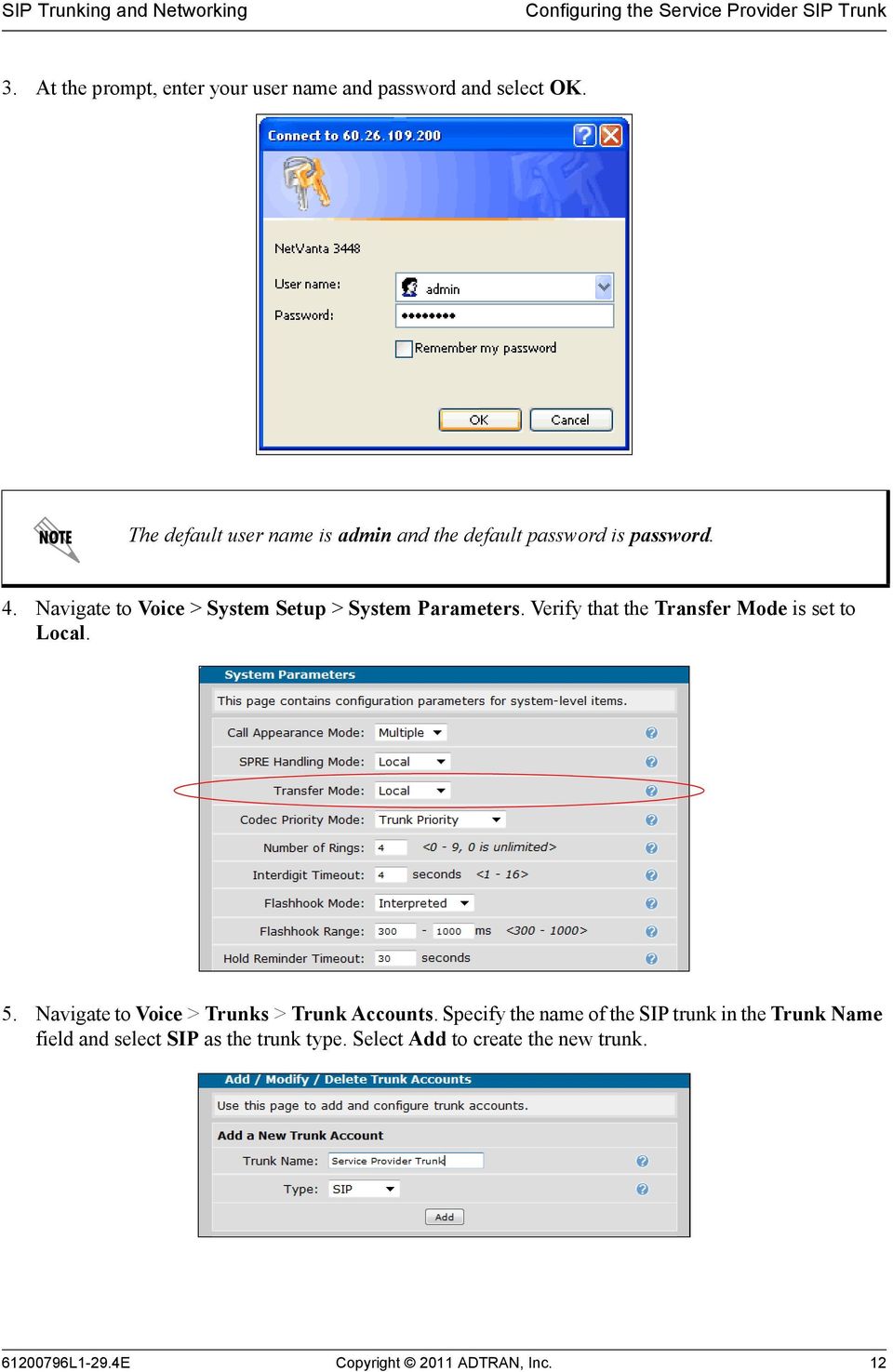
12 Configuring the Service Provider SIP Trunk 3. At the prompt, enter your user name and password and select OK. The default user name is admin and the default password is password. 4. Navigate to Voice > System Setup > System Parameters. Verify that the Transfer Mode is set to Local. 5. Navigate to Voice > Trunks > Trunk Accounts. Specify the name of the SIP trunk in the Trunk Name field and select SIP as the trunk type. Select Add to create the new trunk L1-29.4E Copyright 2011 ADTRAN, Inc. 12
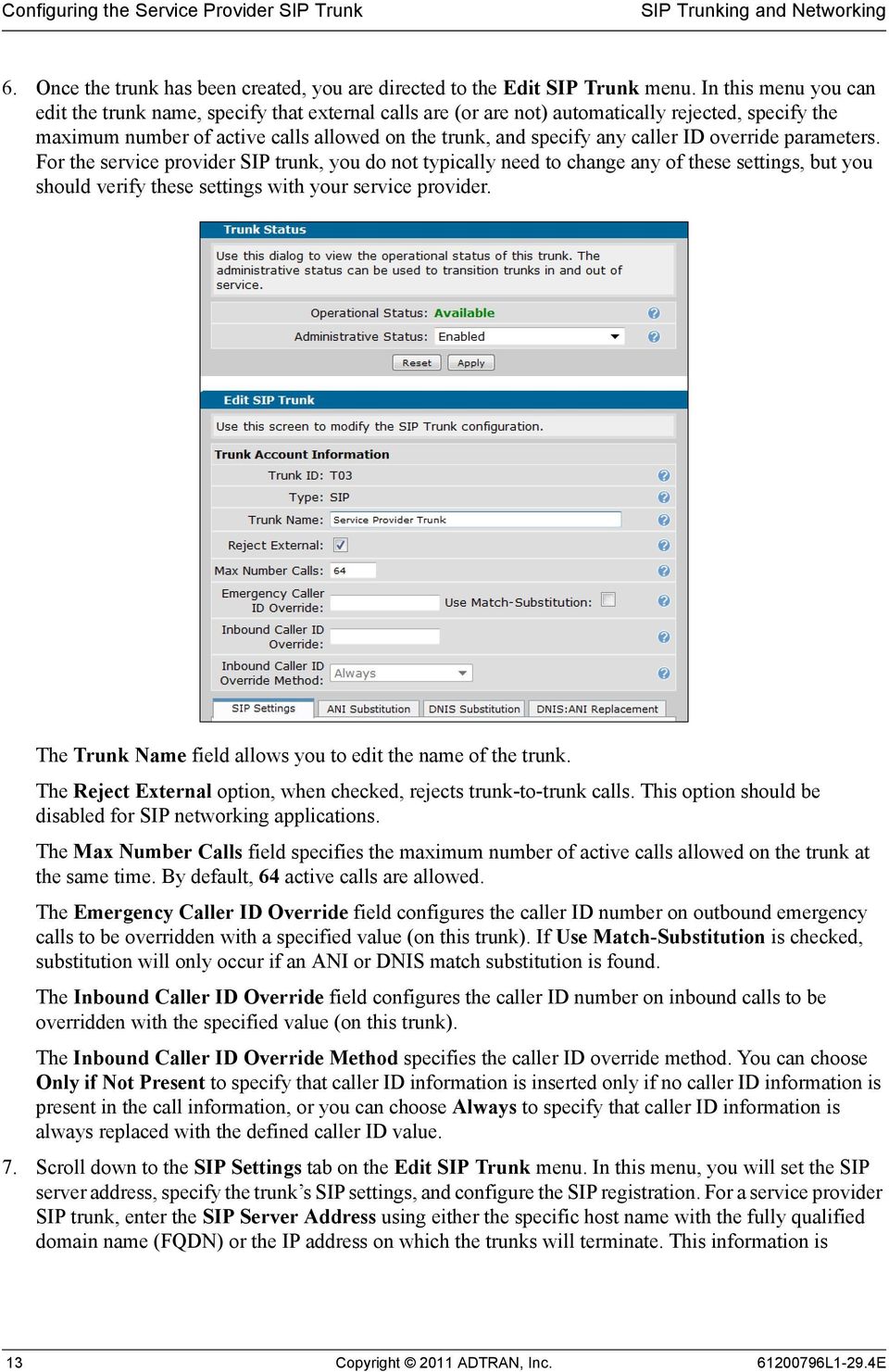
13 Configuring the Service Provider SIP Trunk 6. Once the trunk has been created, you are directed to the Edit SIP Trunk menu. In this menu you can edit the trunk name, specify that external calls are (or are not) automatically rejected, specify the maximum number of active calls allowed on the trunk, and specify any caller ID override parameters. For the service provider SIP trunk, you do not typically need to change any of these settings, but you should verify these settings with your service provider. The Trunk Name field allows you to edit the name of the trunk. The Reject External option, when checked, rejects trunk-to-trunk calls. This option should be disabled for SIP networking applications. The Max Number Calls field specifies the maximum number of active calls allowed on the trunk at the same time. By default, 64 active calls are allowed. The Emergency Caller ID Override field configures the caller ID number on outbound emergency calls to be overridden with a specified value (on this trunk). If Use Match-Substitution is checked, substitution will only occur if an ANI or DNIS match substitution is found. The Inbound Caller ID Override field configures the caller ID number on inbound calls to be overridden with the specified value (on this trunk). The Inbound Caller ID Override Method specifies the caller ID override method. You can choose Only if Not Present to specify that caller ID information is inserted only if no caller ID information is present in the call information, or you can choose Always to specify that caller ID information is always replaced with the defined caller ID value. 7. Scroll down to the SIP Settings tab on the Edit SIP Trunk menu. In this menu, you will set the SIP server address, specify the trunk s SIP settings, and configure the SIP registration. For a service provider SIP trunk, enter the SIP Server Address using either the specific host name with the fully qualified domain name (FQDN) or the IP address on which the trunks will terminate. This information is 13 Copyright 2011 ADTRAN, Inc L1-29.4E
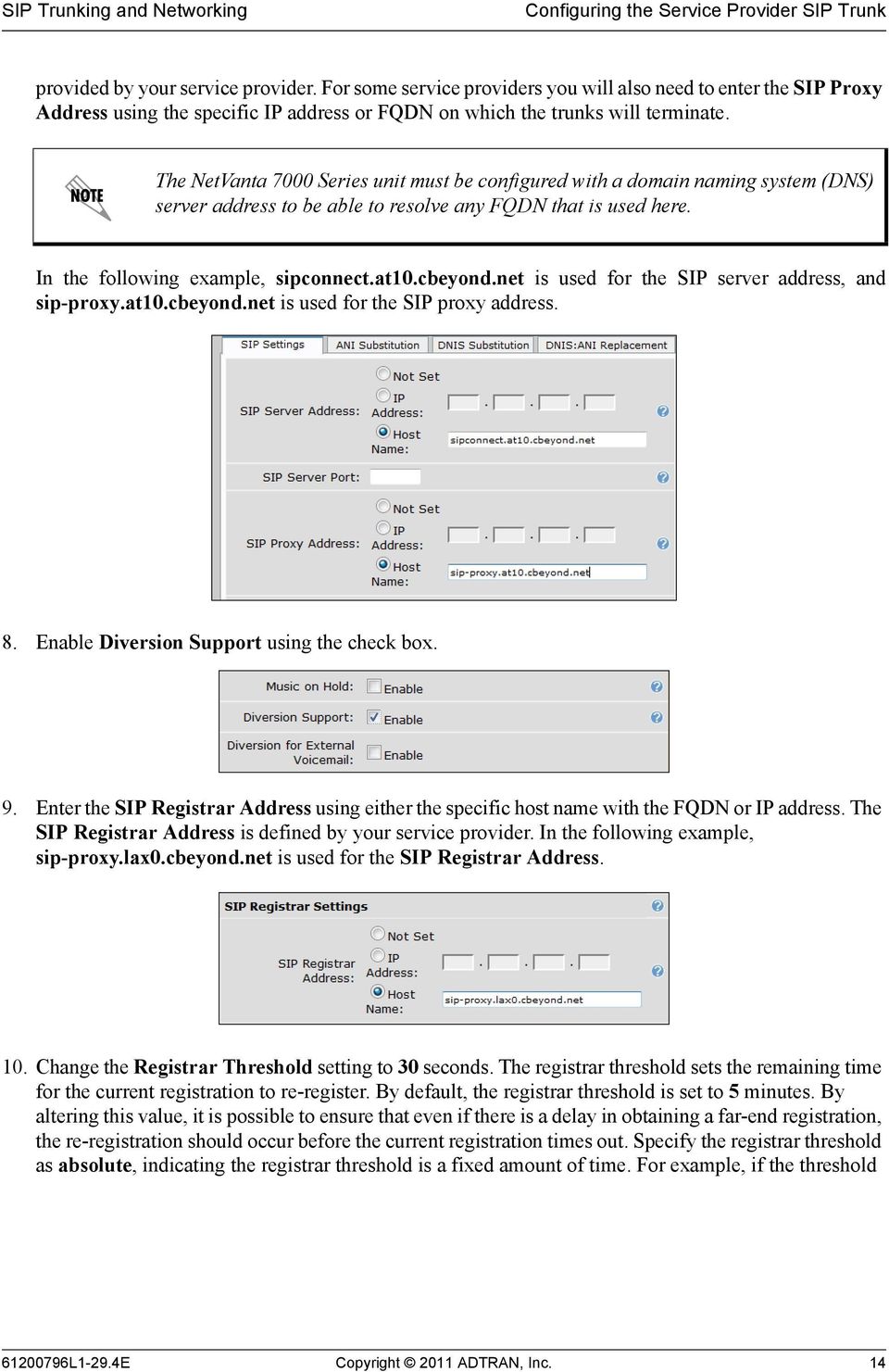
14 Configuring the Service Provider SIP Trunk provided by your service provider. For some service providers you will also need to enter the SIP Proxy Address using the specific IP address or FQDN on which the trunks will terminate. The NetVanta 7000 Series unit must be configured with a domain naming system (DNS) server address to be able to resolve any FQDN that is used here. In the following example, sipconnect.at10.cbeyond.net is used for the SIP server address, and sip-proxy.at10.cbeyond.net is used for the SIP proxy address. 8. Enable Diversion Support using the check box. 9. Enter the SIP Registrar Address using either the specific host name with the FQDN or IP address. The SIP Registrar Address is defined by your service provider. In the following example, sip-proxy.lax0.cbeyond.net is used for the SIP Registrar Address. 10. Change the Registrar Threshold setting to 30 seconds. The registrar threshold sets the remaining time for the current registration to re-register. By default, the registrar threshold is set to 5 minutes. By altering this value, it is possible to ensure that even if there is a delay in obtaining a far-end registration, the re-registration should occur before the current registration times out. Specify the registrar threshold as absolute, indicating the registrar threshold is a fixed amount of time. For example, if the threshold L1-29.4E Copyright 2011 ADTRAN, Inc. 14
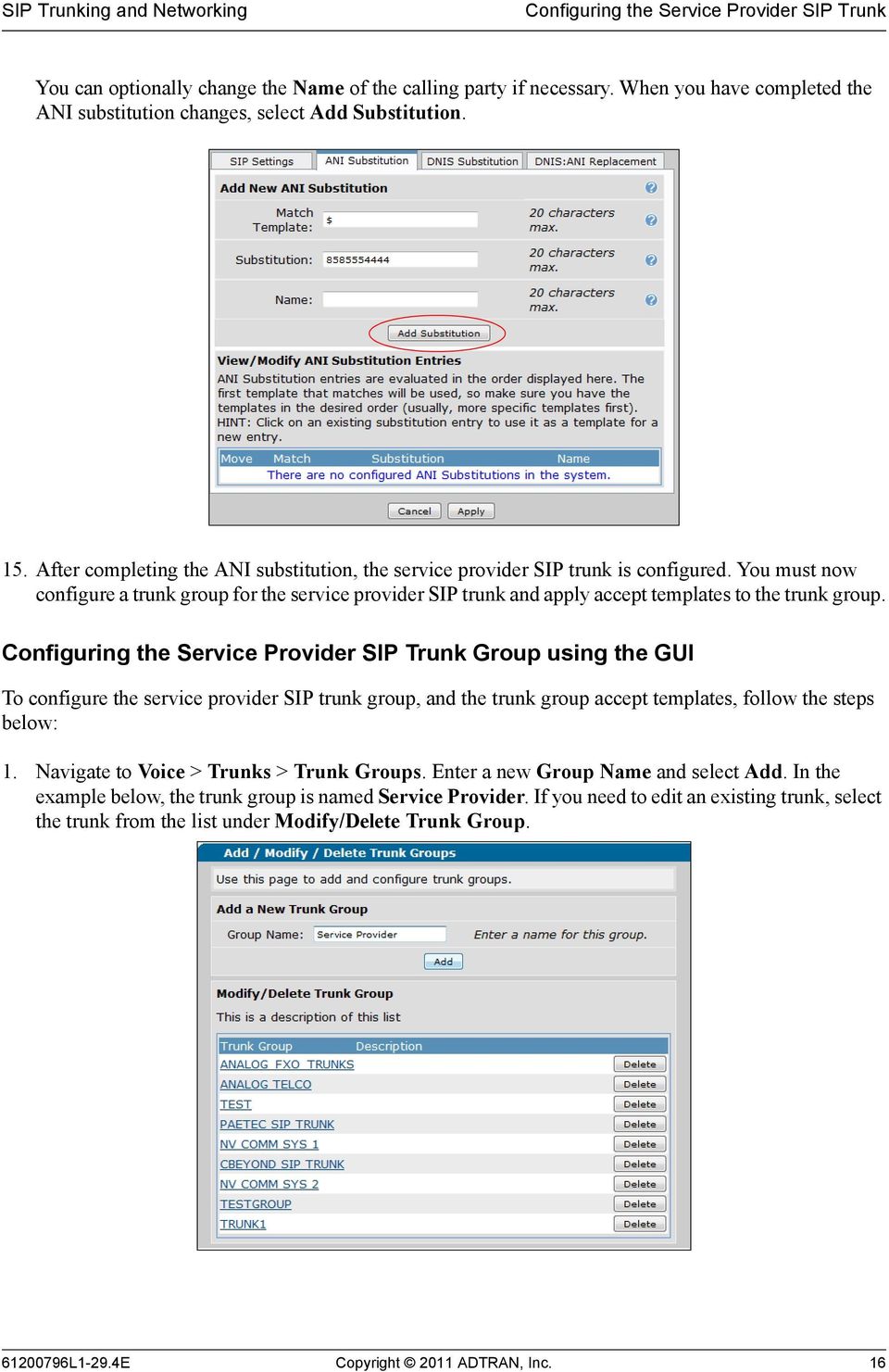
15 Configuring the Service Provider SIP Trunk is set for 5 minutes absolute, and the current registration is due to expire at 5:30 p.m., then re-registration begins at 5:25 p.m. You should enter the registrar threshold value supplied by your service provider. 11. Configure the number(s) to be registered on this SIP trunk. To add new numbers to the register, select the Add Register Entry button below the Register Settings table. 12. In the Add Register Entry pop-up menu, enter the Start Value and End Value numbers. These values are the beginning and ending of a range of numbers to be registered to this trunk. In addition, specify that Authentication is Set, and enter the user name and password to be used when registering users on this trunk. Select Add Register Entry to create the new SIP identity number registration. 13. Select Apply at the bottom of the Edit SIP Trunk menu to apply the new SIP trunk account settings. 14. Next, you will need to configure the service provider s SIP trunk ANI substitution settings by selecting the ANI Substitution tab on the Edit SIP Trunk menu. Configure the outgoing caller ID to match the billing number provided by your service provider. Set the Match Template to $ (matches any number). Set the Substitution to the service provider assigned SIP trunk number registered with the softswitch. 15 Copyright 2011 ADTRAN, Inc L1-29.4E

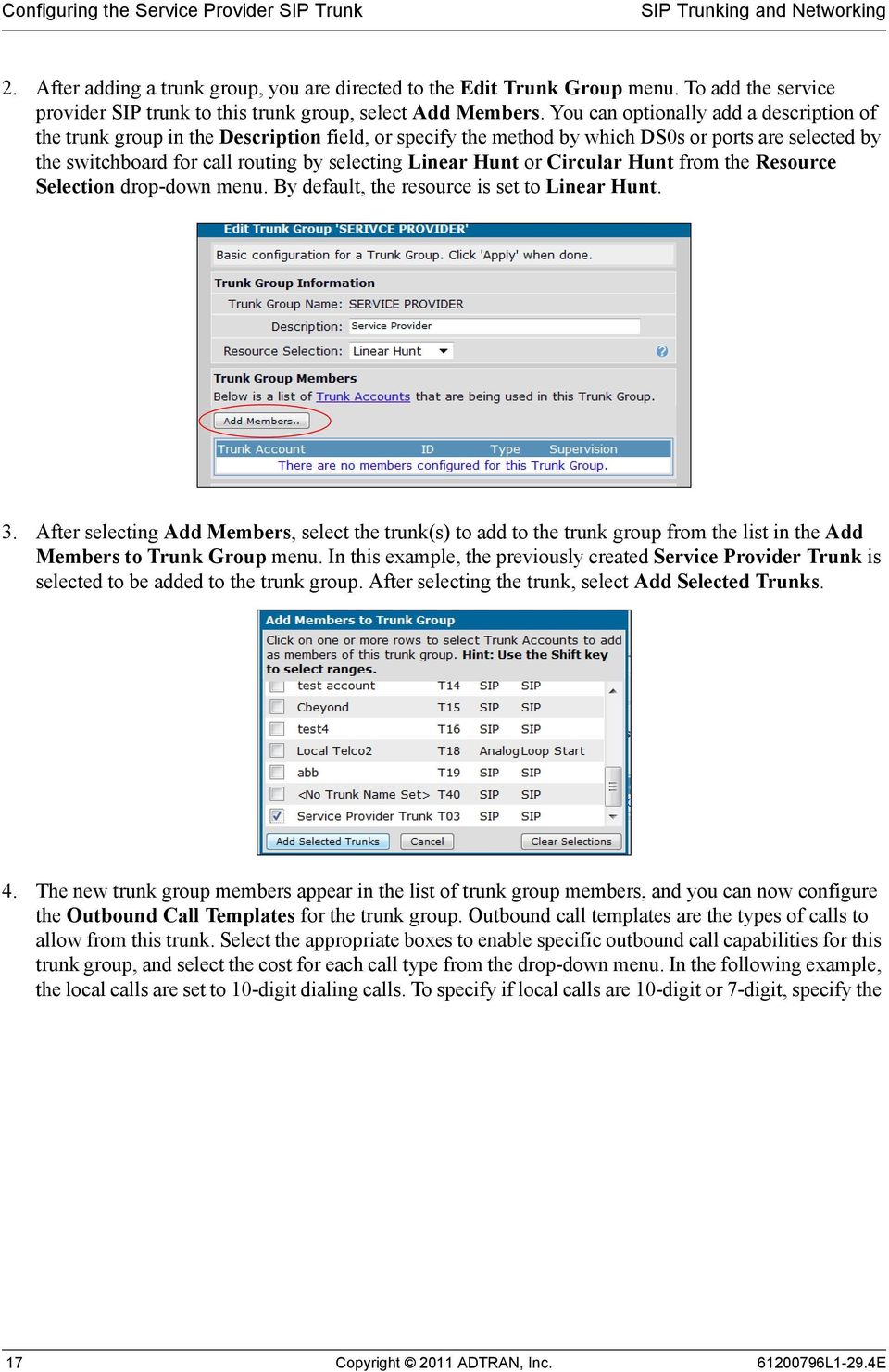
16 Configuring the Service Provider SIP Trunk You can optionally change the Name of the calling party if necessary. When you have completed the ANI substitution changes, select Add Substitution. 15. After completing the ANI substitution, the service provider SIP trunk is configured. You must now configure a trunk group for the service provider SIP trunk and apply accept templates to the trunk group. Configuring the Service Provider SIP Trunk Group using the GUI To configure the service provider SIP trunk group, and the trunk group accept templates, follow the steps below: 1. Navigate to Voice > Trunks > Trunk Groups. Enter a new Group Name and select Add. In the example below, the trunk group is named Service Provider. If you need to edit an existing trunk, select the trunk from the list under Modify/Delete Trunk Group L1-29.4E Copyright 2011 ADTRAN, Inc. 16
17 Configuring the Service Provider SIP Trunk 2. After adding a trunk group, you are directed to the Edit Trunk Group menu. To add the service provider SIP trunk to this trunk group, select Add Members. You can optionally add a description of the trunk group in the Description field, or specify the method by which DS0s or ports are selected by the switchboard for call routing by selecting Linear Hunt or Circular Hunt from the Resource Selection drop-down menu. By default, the resource is set to Linear Hunt. 3. After selecting Add Members, select the trunk(s) to add to the trunk group from the list in the Add Members to Trunk Group menu. In this example, the previously created Service Provider Trunk is selected to be added to the trunk group. After selecting the trunk, select Add Selected Trunks. 4. The new trunk group members appear in the list of trunk group members, and you can now configure the Outbound Call Templates for the trunk group. Outbound call templates are the types of calls to allow from this trunk. Select the appropriate boxes to enable specific outbound call capabilities for this trunk group, and select the cost for each call type from the drop-down menu. In the following example, the local calls are set to 10-digit dialing calls. To specify if local calls are 10-digit or 7-digit, specify the 17 Copyright 2011 ADTRAN, Inc L1-29.4E
18 Configuring the Service Provider SIP Trunk local dialing type under System Setup > Dial Plan. Select Apply when you have configured the outbound call templates for the trunk group. 5. The service provider SIP trunk, and the service provider SIP trunk group are now configured. You can now continue to configure additional SIP trunks for SIP networking with other NetVanta 7000 Series or AOS devices. Configuring the Service Provider SIP Trunk using the CLI The following example configures the same service provider SIP trunk and trunk group as configured using the GUI, only this example is configured using the CLI. The CLI example is a sample configuration only, and does not include details of each command used in the configuration. For details about commands used to configure SIP trunks and trunk groups, refer to the AOS Command Reference Guide available online at (article number 2219). To configure the service provider SIP trunk using the CLI, follow these steps: 1. Telnet to the unit (telnet <ip address>). For example: telnet If during the unit s setup process you have changed the default IP address ( ), use the configured IP address L1-29.4E Copyright 2011 ADTRAN, Inc. 18

19 Configuring the Service Provider SIP Trunk 2. Enter your user name and password at the prompt. The AOS default user name is admin and the default password is password. 3. Enable your unit by entering enable at the prompt as follows: >enable 4. Enter your enable mode password at the prompt. 5. Enter the unit s Global Configuration mode as follows: #configure terminal (config)# 6. Create the service provider SIP trunk using the voice trunk command from the Global Configuration mode prompt. This command enters the trunk s configuration mode, where you can specify a description for the trunk, disable external call rejection, specify the SIP server and registrar, enable SIP diversion, specify the SIP TO and FROM header types, add registration and authentication to the trunk, and configure ANI substitution for the trunk. The following configuration is for example purposes only. These settings will vary depending on your service provider. The following example configures the service provider SIP trunk: voice trunk T03 type sip description Service Provider Trunk no reject-external sip-server primary sipconnect.atl0.cbeyond.net registrar primary sip-proxy.lax0.cbeyond.net diversion-supported grammar to host domain grammar from host domain registrar threshold absolute 30 registrar range auth-name company password 1234 match ani $ substitute Create the service provider SIP trunk group using the voice grouped-trunk command from the Global Configuration mode prompt. This command enters the trunk group s configuration mode, where you can specify the trunks added to the group, and the outbound call templates for the group. The following example configures the service provider SIP trunk group: voice grouped-trunk Service Provider trunk T03 accept NXX-NXX-XXXX cost 0 accept 1-NXX-NXX-XXXX cost 0 accept NXX-XXXX cost 0 accept NXX-XXXX cost 0 accept NXX-XXXX cost 0 accept NXX-XXXX cost 0 19 Copyright 2011 ADTRAN, Inc L1-29.4E

20 Configuring SIP Networking between NetVanta 7000 Series Products accept NXX-XXXX cost 0 accept 011-$ cost 0 accept 411 cost 0 accept 611 cost 0 accept 911 cost 0 accept 0-NXX-NXX-XXXX cost 200 accept XXX-$ cost 350 reject 976-XXXX reject NXX-XXXX reject NXX-XXXX 8. The service provider SIP trunk and SIP trunk group are now configured. You can now continue to configure additional SIP trunks for SIP networking with other NetVanta 7000 Series units or AOS devices. Configuring SIP Networking between NetVanta 7000 Series Products SIP networking between NetVanta 7000 Series products generally occurs when multiple 7000 Series platforms are used at multiple enterprise sites. SIP trunks are configured between the NetVanta 7000 Series unit at the main site, and the NetVanta 7000 Series units at any remote office locations. Figure 5 below illustrates a typical network configuration for SIP networking between NetVanta 7000 Series products. Figure 5. SIP Networking between NetVanta 7000 Series Products L1-29.4E Copyright 2011 ADTRAN, Inc. 20

21 Configuring SIP Networking between NetVanta 7000 Series Products There are a few things to keep in mind when configuring SIP networking between NetVanta 7000 Series units: There are a limit of 10 SIP trunks per NetVanta 7000 Series unit. Voice features are local to each NetVanta 7000 Series. Auto attendants do not contain remote users, voic can only be forwarded to local voic users, status groups can only be monitored on the same NetVanta 7000 Series as the user, system directories are not automatically synchronized between NetVanta 7000 Series products, and paging groups do not contain remote user members, rather you must create remote paging groups. The dial plan and call routing must be coordinated with unique extensions at each location (the previous illustration depicts 2xxx extensions at the main site, 4xxx extensions at Remote Site B, and 5xxx extensions at Remote Site C). In addition, trunks between sites need to allow for extension to extension dialing, and trunks need to allow for LCR based on area code and exchange. It is recommended to configure SIP networking between NetVanta 7000 Series products in a hub-and-spoke network, rather than a fully meshed network. However, call routing must allow fully meshed networking so that RTP can flow properly. Consider the WAN connections because they affect QoS implementation. If you are using Point-to-Point T1 or Multiprotocol Label Switching (MPLS) WAN connections, QoS is generally assured. If you are using Ethernet (Metro or from ADSL or cable modems) connections, there is no guarantee of QoS in the network. You must consider (and possibly configure) QoS between the NetVanta 7000 Series sites to maintain call quality. Configuring SIP Networking between NetVanta 7000 Series Products using the GUI When configuring SIP networking between NetVanta 7000 Series products, you will configure multiple SIP trunks for communication between the NetVanta 7000 Series unit at the main site and the remote sites. This is typically done after you have configured the service provider SIP trunk to the NetVanta 7000 Series unit at the main site. In Figure 4 on page 6, there are two SIP trunks to be configured: trunk T02, connecting the Main Site A and Remote Site B, and trunk T03, connecting the Main Site A and Remote Site C. In addition, the trunks T04 and T05, are configured to connect to the PSTN. These trunks can be used for local calls by assigning a high cost to the long distance outbound call template for the trunk, or they can be used for survivability during possible failure of the main SIP trunk service. This configuration example focuses on the two SIP trunks between the main site and the remote sites. 21 Copyright 2011 ADTRAN, Inc L1-29.4E
22 Configuring SIP Networking between NetVanta 7000 Series Products Configuring SIP Trunks between Sites To configure the SIP trunks between NetVanta 7000 Series units using the GUI, follow these steps: 1. Connect to the GUI and navigate to Voice > System Setup > System Parameters. Verify that the Transfer Mode is set to Local. 2. Navigate to Voice > Trunks > Trunk Accounts. Specify the name of the SIP trunk in the Trunk Name field and select SIP as the trunk type. Select Add to create the new trunk. In the following example, the trunk is named SIP to Remote Site B L1-29.4E Copyright 2011 ADTRAN, Inc. 22
23 Configuring SIP Networking between NetVanta 7000 Series Products 3. Once the trunk has been created, you are directed to the Edit SIP Trunk menu. You do not typically need to change any of these settings for SIP trunks between NetVanta 7000 Series products. 4. Next, set the trunk s SIP settings by selecting the SIP Settings tab on the Edit SIP Trunk menu. Here you will configure the SIP server address, the FROM SIP header, and other optional SIP parameters. For SIP networking between NetVanta 7000 Series products, enter the IP address of the remote NetVanta 7000 Series product to which the SIP trunk connects as the SIP Server Address. SIP Server Address specifies a host name or IP address of the primary SIP server. For SIP networking between NetVanta 7000 Series products, this value should be the IP address of the remote NetVanta 7000 Series product to which the SIP trunk connects. The NetVanta 7000 Series must be configured with a DNS server address if a Host Name is used as the SIP Server Address. Navigate to System > Hostname/DNS to enter a DNS server address. 23 Copyright 2011 ADTRAN, Inc L1-29.4E
24 Configuring SIP Networking between NetVanta 7000 Series Products FROM Header Host Type sets the FROM header host formatting type to be used on SIP trunks. This should be set to Local for SIP networking between NetVanta 7000 Series products. Specify the FROM header by selecting the Override checkbox and the appropriate parameter from the drop-down menu. SIP Server specifies using the SIP server IP address in the host field. Domain specifies using the Domain Address configured under Trunk Accounts (SIP Registrar Settings) menu. Local specifies using the IP address of the local outbound interface in the host field. Default Ring Cadence specifies the default ring cadence for incoming SIP calls that do not contain an Alert-Info header. You can select Internal or External from the drop-down menu. The ring cadence should be set to Internal for SIP networking between NetVanta 7000 Series products. Optional SIP Settings SIP Server Port specifies the User Datagram Protocol (UDP) port on which the far-end server is listening for SIP messages. SIP Proxy Address (optional) sets the host name or IP address of an outbound SIP proxy. The DNS server address is required if Host Name is entered. SIP Proxy Port specifies the UDP port on which the far-end server is listening for SIP messages. SIP Conferencing URI specifies the host name or IP address of the conferencing server. The DNS server address is required if the Host Name is entered. In most applications, the SIP Conferencing URI should not be configured L1-29.4E Copyright 2011 ADTRAN, Inc. 24
25 Configuring SIP Networking between NetVanta 7000 Series Products Force Host Resolve requires the host name in the SIP Request-URI Header be resolved to an IP address when enabled. FROM Header User Formatting sets the SIP FROM header user formatting type. Select the formatting type to be used on the FROM header for inbound and outbound numbers on SIP trunks by selecting the Override checkbox and the appropriate parameter from the drop-down menu. Global Default uses the default type set in the VoIP Settings tab. Access the VoIP Settings tab under Voice > System Setup > VoIP Settings. Domestic formats numbers suitable for US domestic calls (for example, ). International formats numbers using the E.164 dialing specification (for example, ). Dial String Source specifies the dial string to use. You can select Request URI, which uses the Request URI user field as the dial string, or TO Header, which uses the TO header user field as the dial string. TO Header Host Type sets the To header host formatting type to be used on SIP trunks. Specify the TO header by selecting the Override checkbox and the appropriate parameter from the drop-down menu. SIP Server specifies using the SIP server IP address in the host field. Domain specifies using the Domain Address configured under Trunk Accounts (SIP Registrar Settings) menu. P-Asserted Identity Host Type sets the P-Asserted identity host formatting type to be used on SIP trunks. Specify the P-Asserted Identity host type by selecting the Override checkbox and the appropriate parameter from the drop-down menu. SIP Server uses the SIP server IP address in the Host Name field. Domain uses the domain address configured in the Host Name field. Local uses the IP address of the local outbound interface in the Host Name field. Request URI Header Host Type sets the Request URI header host formatting type to be used on SIP trunks. Specify the Request URI header by selecting the Override checkbox and the appropriate parameter from the drop-down menu. SIP Server uses the SIP server IP address in the Host Name field. Domain uses the domain address configured in the Host Name field. Alert Info URL specifies the Alert Info URL. Supports 100rel inserts a 100rel tag into the Supports header of all outgoing SIP messages when enabled. This indicates to the far end that the unit is capable of sending provisional acknowledgement (PRACK). Disable this setting to prevent the far end from requesting the unit to send PRACK. Require 100rel sends a reliable provisional response to clients that supports 100rel tag when enabled. If the client to which the provisional response is being sent requires a 100rel tag, a reliable provisional response will be sent regardless of the configuration. Dial String Source specifies the Request URI or To Header user field as the dial string. Trust Domain enables the trunk to be a member of an RFC 3325 trust domain. Require P-Assert Identity requires P-Asserted identities for the trust domain when enabled. 25 Copyright 2011 ADTRAN, Inc L1-29.4E
26 Configuring SIP Networking between NetVanta 7000 Series Products Verify Remote Supports Replaces requires verification that the remote SIP server supports SIP REPLACES, before sending REPLACES messages. SIP Keepalive Type / Timeout specifies the type and time period of keep-alive messages that can be sent on a SIP trunk to the SIP server during a call. The purpose of a keep-alive message is to monitor the status of the connection between the SIP server and the unit. If the keepalive receives an error response or does not receive a response at all, the call will be disconnected. This setting should remain disabled on SIP trunks to NetVanta 7000 Series devices or IP Business Gateways. Type specifies the type of SIP message to be sent as a keepalive during a call on the trunk. You can select OPTIONS, INFO, or None. Select None to disable (default). Timeout specifies time period (in seconds) between transmitting keep-alive messages. Valid range is 0 to 3600 seconds, with a default value of 30 seconds. 5. Select Apply once you have configured the SIP settings for the trunk. Repeat Steps 1 through 4 for each SIP trunk between the NetVanta 7000 Series products. Configuring SIP Networking Trunk Group(s) using the GUI Once you have configured all the necessary SIP trunks between the NetVanta 7000 Series products, you must create a trunk group for the SIP trunks. For this application, you will need to create a trunk group for each SIP trunk to the remote site(s). The trunk group allows you to configure the outbound call templates for the trunk, so you can create a trunk group for each SIP trunk with the appropriate template. 1. Create the trunk group by navigating to Voice > Trunks > Trunk Groups. Enter a new Group Name and select Add. In the example below, the trunk group is named SIP Networking 1. If you need to edit an existing trunk, select the trunk from the list under Modify/Delete Trunk Group L1-29.4E Copyright 2011 ADTRAN, Inc. 26
27 Configuring SIP Networking between NetVanta 7000 Series Products 2. After adding a trunk group, you are directed to the Edit Trunk Group menu. To add the SIP networking trunk to this trunk group, select Add Members. You can optionally add a description of the trunk group in the Description field, and specify the method that DS0s or ports are selected by the switchboard for call routing by selecting Linear Hunt or Circular Hunt from the Resource Selection drop-down menu. By default, the resource is set to Linear Hunt. 3. After selecting Add Members, select the trunk(s) to add to the trunk group from the list in the Add Members to Trunk Group menu. In this example, the previously created trunk, SIP to Remote Site B, is selected to be added to the trunk group. After selecting all the trunks you want to add to the group, select Add Selected Trunks. 27 Copyright 2011 ADTRAN, Inc L1-29.4E
28 Configuring SIP Networking between NetVanta 7000 Series Products 4. The new trunk group members appear in the list of trunk group members, and you can now configure the Outbound Call Templates for the trunk group. Outbound call templates are the types of calls to allow from this trunk. Select the appropriate boxes to enable specific outbound call capabilities for this trunk group, and select the cost for each call type from the drop-down menu. In the following example, the local calls are set to 10-digit dialing calls. To specify if local calls are 10-digit or 7-digit, specify the local dialing type under System Setup > Dial Plan. Select Apply when you have configured the outbound call templates for the trunk group L1-29.4E Copyright 2011 ADTRAN, Inc. 28
29 Configuring SIP Networking between NetVanta 7000 Series Products 5. After you have applied the outbound call templates for the trunk group, you will need to configure an advanced permit template for the SIP networking trunk. The advanced permit template allows the trunk to accept calls from the extensions of the remote NetVanta 7000 Series unit. If you are configuring a trunk group for the remote unit, use the extension of the main site. In the following example, the trunk group is configured to accept calls from the 4000 extension (4xxx) with no cost. To create the advanced template, select Configure Advanced Templates from the trunk group configuration menu. 6. Next, specify the call template to match in the Template field in the Add/Delete Permit Templates menu and select Add. The template will appear in the list at the bottom of the menu. 7. The SIP networking SIP trunk, and the SIP networking trunk group are now configured. You can now continue to configure additional SIP trunks for SIP networking with other AOS devices. Configuring SIP Networking between NetVanta 7000 Series Products using the CLI The following example configures the same SIP networking SIP trunk between two NetVanta 7000 Series products as configured using the GUI, only this example is configured using the CLI. Configuration occurs on the NetVanta 7000 Series unit at the main site, as well as the NetVanta 7000 Series unit(s) at the remote site(s). The CLI example is a sample configuration only, and does not include details of each command used in the configuration. For details about commands used to configure SIP trunks and trunk groups, refer to the AOS Command Reference Guide available online at (article number 2219). 29 Copyright 2011 ADTRAN, Inc L1-29.4E
30 Configuring SIP Networking between NetVanta 7000 Series Products To configure a SIP trunk between NetVanta 7000 Series products using the CLI, follow these steps: 1. Telnet to the NetVanta 7000 Series unit at the main site, and enter the Global Configuration mode. 2. Create the SIP networking SIP trunk using the voice trunk command from the Global Configuration mode prompt. This command enters the trunk s configuration mode, where you can specify a description for the trunk (SIP to Remote Site B), disable external call rejection, specify the SIP server (IP address of the unit to which the SIP trunk connects), and specify the SIP FROM header as local. The following example configures the SIP trunk between the NetVanta 7000 Series unit at the main site and the unit at the Remote Site B. voice trunk T02 type sip description SIP to Remote Site B no reject-external default-ring-cadence internal sip-server primary grammar from host local 3. After creating the SIP trunk on the NetVanta 7000 Series unit at the main site, create the trunk group for the SIP trunk using the voice grouped-trunk command from the Global Configuration mode prompt. This command enters the trunk group s configuration mode, where you can specify the trunks added to the group, the outbound call templates for the group, and the advanced permit template for the group. The advanced template should allow calls from the extensions used at the site to which you are connecting. In this case, the trunk group allows all calls from the 4000 extensions (4xxx) used at Remote Site B. The following example configures the trunk group for the SIP trunk between the NetVanta 7000 Series unit at the main site and the unit at the Remote Site B. voice grouped-trunk SIP Networking 1 trunk T02 reject 976-XXXX reject NXX-XXXX reject NXX-XXXX accept 4xxx cost 0 4. Next you will configure the SIP trunk and SIP trunk group on the remote NetVanta 7000 Series unit using the same commands. Make sure to remember that the SIP server address will be the IP address of the NetVanta 7000 unit at the main site, and that the advanced call template for the trunk group should include the extensions used at the main site (2xxx). The following example is the configuration of the SIP trunk on the remote unit, and the trunk s corresponding trunk group. voice trunk T03 type sip description SIP to Main Site A no reject-external sip-server primary grammar from host local voice grouped-trunk SIP Networking 1 trunk T03 accept NXX-NXX-XXXX cost 0 accept 1-NXX-NXX-XXXX cost 0 accept NXX-XXXX cost 0 accept NXX-XXXX cost 0 accept NXX-XXXX cost 0 accept NXX-XXXX cost 0 accept NXX-XXXX cost L1-29.4E Copyright 2011 ADTRAN, Inc. 30
31 Configuring a SIP Network between NetVanta 7000 and IP Gateways accept 011-$ cost 0 accept 411 cost 0 accept 611 cost 0 accept 911 cost 0 accept 0-NXX-NXX-XXXX cost 200 accept XXX-$ cost 350 reject 976-XXXX reject NXX-XXXX reject NXX-XXXX accept 2xxx cost 0 5. Repeat Steps 1 through 4 for any additional SIP trunks you need to configure between NetVanta 7000 Series platforms. Configuring a SIP Network between NetVanta 7000 and IP Gateways SIP networking can also be used between the NetVanta 7000 Series product and IP business gateways at remote locations. IP business gateways are typically Total Access 900(e) or NetVanta 6355 products. Figure 4 on page 6 describes the network topology for this type of SIP networking. This application functions similarly to a single PBX, in which each remote user registers back to the NetVanta 7000 Series using either SIP transparent proxy or directly using analog phones. The phones at the remote locations rely on the main site to provide voic and auto attendant services for incoming calls. At the remote sites, the SIP trunks facing the main site are mainly used for inbound calls. Typically, the outbound trunks configured at remote sites connect to the PSTN and are used for survivability purposes only. There are a few things to keep in mind when configuring SIP networking between NetVanta 7000 Series products and an IP business gateway: The maximum number of users for each installed NetVanta 7000 Series unit is 100. All users connected directly or through SIP proxy count as part of the total sum of users. All remote users connected through SIP proxy to the main site have access to all the NetVanta 7000 Series features, and function as thought they are located at the main site. The NetVanta 7000 Series unit at the main site must have call routing and transfer modes set to Local, and the platforms at the remote sites must have voice feature and transfer modes set to Network. When configuring SIP networking with IP business gateways, you also will have to configure SIP proxy, a VPN tunnel, and possibly LCR. 31 Copyright 2011 ADTRAN, Inc L1-29.4E
32 Configuring a SIP Network between NetVanta 7000 and IP Gateways Configuring SIP Networking with an IP Business Gateway using the GUI To configure the SIP networking trunks between the NetVanta 7000 Series and an IP business gateway, follow these steps: 1. Plan the extensions used at each site. These extensions should use wildcards for easy matching, and each location should have their own extensions. For example, the main site can use extensions 2xxx, Remote Site B can use extensions 3xxx, and Remote Site C can use extensions 4xxx. 2. Configure the media gateway for all units (remote and main). 3. Configure the IP phones and remote voice users for the remote unit(s) on the NetVanta 7000 Series unit at the main site. 4. Configure the Dynamic Host Control Protocol (DHCP) pool for the remote unit. 5. Configure QoS. The QoS configuration is done on both the NetVanta 7000 Series unit at the main site, and any AOS units at the remote sites. 6. Configure the VPN tunnels between sites. 7. Configure the SIP trunk and trunk groups for the remote unit(s). 8. Configure the PSTN trunks and trunk groups for the remote unit(s). These trunks are used for LCR and survivability. 9. Enable SIP proxy on the AOS unit(s) in the SIP network. 10. Configure the remote unit s analog users. 11. Configure the SIP trunk(s) on the NetVanta 7000 Series unit at the main site. 12. Configure the SIP trunk group(s) on the NetVanta 7000 Series unit at the main site. There are different variations for trunk group configuration, depending on the type of LCR you want to implement. Configure Media Gateway for All Units All units (remote and main) must have a media gateway configured. The media gateway converts digital media streams between the PSTN and the PBX (NetVanta 7000 Series unit). For this application, because inbound calls from the trunks at remote sites are routed through the NetVanta 7000 Series unit at the main site, the media gateway on all units is configured to be the loopback interface on all units L1-29.4E Copyright 2011 ADTRAN, Inc. 32
33 Configuring a SIP Network between NetVanta 7000 and IP Gateways To configure the media gateway using the GUI, connect to the GUI for each unit and follow these steps: 1. Navigate to Data > Loopback Interfaces. Create a new loopback interface by selecting Add on the Loopback Interface Configuration menu. 2. In the next menu, enter a description for the interface, and enable the interface by selecting the Enable checkbox. Next, select Static from the Address Type drop-down menu, and enter the IP address and subnet mask of the VLAN associated with the unit you are configuring. In the example below, the IP address and subnet mask are set to the VLAN 2 (voice VLAN) settings for the NetVanta 7000 Series unit. Specify that Dynamic DNS is disabled, and select Apply. 3. After creating the loopback interface, navigate to Data > VLANs. Select the appropriate VLANs for SIP networking on the unit (any IP interfaces) from the VLAN list. In the VLAN Configuration menu, scroll to the Media-Gateway section of the menu, and specify that the IP Address Type is Loopback, and then select the loopback interface you just created from the Loopback IP Address list. Then select Apply. 33 Copyright 2011 ADTRAN, Inc L1-29.4E
34 Configuring a SIP Network between NetVanta 7000 and IP Gateways 4. After assigning the loopback interface to all applicable VLANs on the unit, you must also set the Ethernet interface of the unit to use the loopback media gateway. Navigate to System > Physical Interfaces, and select the appropriate Ethernet interface from the list (in the example below, Ethernet interface eth 0/0 with IP address is used). In the interface configuration menu, scroll to the the Media-Gateway section of the menu, and specify that the IP Address Type is Loopback, and then select the loopback interface you just created from the Loopback IP Address list. Then select Apply. If Ethernet interface 0/0 is used for a service provider SIP trunk, then the media gateway should be set to Primary from the drop-down menu. 5. You have now specified that the loopback interface is used for all IP interfaces on the unit. Repeat Steps 1 through 4 for all units that will be networked. Configure the IP Phones and Users for Remote Unit(s) After configuring the media gateway on all units, you must configure the IP phones and the users for each of the remote units. Because the loopback interface is being used as the media gateway, the phones must be configured to use the loopback IP address as their SIP server (in this example configuration, the loopback IP address is ). To configure the remote IP phones and users, follow these steps: 1. Connect to the NetVanta 7000 Series unit GUI and navigate to Voice > Stations > IP Phone Globals. Then select Boot Settings and Remote Phones tabs. In this menu, you will configure the remote SIP phones to download a different configuration file than SIP phones connected locally to the NetVanta 7000 Series unit at the main site. This allows flexibility in the configuration of phones in different locations. The phones should be configured to use DHCP and contact the boot server at the NetVanta 7000 Series loopback IP address ( ). Select the DHCP Enabled checkbox and L1-29.4E Copyright 2011 ADTRAN, Inc. 34
35 Configuring a SIP Network between NetVanta 7000 and IP Gateways select the Internal IP Address from the drop-down menu. After you have made these changes, select Apply. 2. Next, select the Default Settings tab and verify that the SIP Server address is set to the loopback interface s IP address. Select Apply. 35 Copyright 2011 ADTRAN, Inc L1-29.4E
36 Configuring a SIP Network between NetVanta 7000 and IP Gateways 3. Configure the remote voice users by navigating to Voice > Stations > User Accounts. Create a new user by selecting New, and enter the remote user s information. You will need to specify the phone s extension, the first and last name of the user, the phone type as SIP, and enter the phone s MAC address. Select Apply or Apply and Add Another. Repeat this step for each user that you need to add. 4. After creating the remote voice users, you must configure the remote user to use the remote user profile. Navigate to Voice > Stations > IP Phone Configs in the NetVanta 7000 Series unit. Select the checkbox next the MAC address of the remote voice user, and select Edit. 5. In the configuration menu that appears, select the Phone Settings tab and change the Boot Profile to Remote Phone. Then select Apply L1-29.4E Copyright 2011 ADTRAN, Inc. 36
37 Configuring a SIP Network between NetVanta 7000 and IP Gateways 6. Repeat these steps for each remote voice user and IP phone you have at the remote locations in the SIP network. Configure DHCP Pool for Remote Unit(s) The DHCP pools for the IP phones on the remote unit(s) should be set up to point to the WAN interface of the NetVanta 7000 Series unit at the main site for the boot server. You will need to configure a DHCP pool for the LAN and one for VoIP, so each remote unit should have two configured DHCP pools. Configure the DHCP pools on the remote unit(s) following these steps: 1. Connect to the remote unit s GUI, and navigate to System > DHCP Server. On the DHCP Pools tab, enter a Pool Name in the appropriate field and select Add. 2. Configure the DHCP pool settings in the DHCP Server Pool menu. You will need to specify that DHCP assign IP addresses for all DHCP clients on the subnet and the default gateway, using the Required Configuration tab. 37 Copyright 2011 ADTRAN, Inc L1-29.4E
38 Configuring a SIP Network between NetVanta 7000 and IP Gateways 3. Next, select the Optional Configuration tab and enter the primary DNS server, the TFTP server, NTP server, and the timezone offset. 4. Finally, select the Numbered Options tab and enter any DHCP numbered options necessary for your network. For ADTRAN IP phones, you must configure numbered option 157, with a Type of ASCII Text, and an ASCII Text value of: TftpServers= ,FtpServers= :/ADTRAN,FtpLogin=polycomftp,FtpPassword=pas sword,layer2tagging=true,vlanid=2. These settings are used for the ADTRAN IP phones and contains the boot server address, FTP login, and VLAN ID. For Polycom IP phones the TFTP server field must contain the boot server IP address. Select Apply when you have entered all the necessary DHCP pool configuration information. 5. Repeat Steps 1 through 4 for each DHCP pool on each remote unit L1-29.4E Copyright 2011 ADTRAN, Inc. 38
39 Configuring a SIP Network between NetVanta 7000 and IP Gateways Configure QoS QoS is a requirement anywhere time sensitive traffic, such as VoIP, will be using the same bandwidth as a user s regular data traffic. QoS should be configured on all units (remote and main) to ensure voice quality. The QoS parameters should match between the units. Configuring QoS on the unit can be done using the QoS Wizard. To access the QoS wizard, connect to the AOS unit s GUI and navigate to Data > Router > QoS Wizard. The wizard is particularly helpful if you have not previously configured any QoS maps on the unit. Using the wizard you will specify the WAN interface to which the QoS map applies, assign traffic shaping criteria, identify traffic matching criteria, configure the maximum bandwidth, and assign packet marking. Follow the prompts of the wizard to configure the QoS settings. If you already have QoS maps configured on the unit, select QoS Maps (rather than the wizard) to configure a new map or edit a previously configured one. Otherwise, the wizard will overwrite any existing QoS maps. Make sure to configure the QoS parameters for all AOS units in the SIP network. For more information regarding QoS configurations for VoIP, refer to the training video Configuring QoS for VoIP, available online at (ADTRAN s Knowledge Base article 3091). Configure VPN Tunnels between SIP Networked Sites VPN tunnels are necessary for SIP networking implementation because they assure call signaling and audio is passed between networked sites. VPN tunnel configuration is comprised of a number of configuration steps, and intermingles with the configuration steps for the SIP networking configuration between the sites. The following steps are necessary to configure the VPN tunnels: 39 Copyright 2011 ADTRAN, Inc L1-29.4E
40 Configuring a SIP Network between NetVanta 7000 and IP Gateways 1. Create Generic Route Encapsulation (GRE) tunnel interfaces. These are necessary so that site-to-site voice traffic has a separate media gateway IP address than SIP traffic that will not traverse a tunnel. 2. Point routes for far-end networks to the GRE tunnel interface. Routes should be created so that traffic destined for far-end networks will use the GRE tunnel. 3. Create allow firewall rules for physical and GRE tunnel interfaces. In order for traffic between the sites to be allowed through the ADTRAN devices, specific allow policies must be added for traffic that is destined for the tunnel interface. Without these policies, NAT will be performed on the site-to-site traffic introducing processing delay and unnecessary complexity without benefit. 4. Change the media gateway for each tunnel interface to the loopback interface. 5. Create SIP trunks and associated trunk groups for each remote location which will specify the remote loopback interface IP as the SIP server. The trunk group specifies the phone numbers that are to be routed to this SIP trunk. These GRE tunnel SIP trunks and trunk groups are different than the SIP trunks and trunk groups created for non-tunnel SIP networking. At the end of the SIP networking configuration, you will have SIP trunks and trunk groups for both tunnel traffic (described in this section) and non-tunnel traffic (described in Configure PSTN Trunk and Trunk Groups on Remote Units on page 53). These trunks and trunk groups are configured on both the NetVanta 7000 Series unit at the main site and each remote AOS device. 6. Configure VPN matching for GRE traffic. In order to secure the traffic routed over the GRE tunnel between sites, a VPN tunnel can be configured to encrypt the traffic. This traffic is sourced from the WAN IP address and destined for the far-end WAN IP address as protocol 47 (GRE). 7. Configure QoS for traffic matching on Differentiated Services Code Point (DSCP) values. Since the standard DSCP values are preserved through both the GRE and VPN encapsulation, these values can be matched to ensure that voice traffic is prioritized within the AOS device. 8. Create route maps for use with SIP networking. A route map can be used to make sure that RTP traffic from a remote site, and destined for a SIP server with a public IP address, is routed across the GRE tunnel rather than using the Internet connection outside the tunnel. This is necessary since the SIP server and corresponding media gateway used for PSTN access only expects SIP and RTP from the main site s public IP address L1-29.4E Copyright 2011 ADTRAN, Inc. 40
41 Configuring a SIP Network between NetVanta 7000 and IP Gateways To configure the VPN tunnel for SIP networking, follow these steps: 1. Create the GRE Tunnel Interfaces GRE tunnel interfaces should be configured on the NetVanta 7000 Series unit at the main site, as well as any AOS devices at the remote sites. To configure the GRE tunnel interface using the GUI, follow these steps: A. Connect to the unit s GUI and navigate to Data > Router > Tunnels. Select Add New Tunnel. B. In the Add Tunnel menu, specify the IP address of the tunnel (the GRE IP address for the tunnel), the Tunnel Source address for the tunnel (WAN IP address of the unit), the Destination Address for the tunnel (WAN IP address of unit to which the tunnel connects), and the tunnel type as GRE. You will also select the checkbox to Configure a Static Route for this Tunnel. This option will take you to the route table, where you can enter the route to be used (Step 2 in tunnel configuration). The following example uses an IP address of for the GRE tunnel address, a source address of , and a destination address of In addition, the the MTU is set 41 Copyright 2011 ADTRAN, Inc L1-29.4E
42 Configuring a SIP Network between NetVanta 7000 and IP Gateways to 1476 and the Tunnel Keepalive is set to 59 minutes and 59 seconds. Select Apply when you have entered the tunnel s settings. 2. Point Routes for Far-End Networks to GRE Tunnel Interface A. Routes are created to point traffic destined for far-end networks to the GRE tunnel. If you selected Configure a static route for this tunnel in the Add Tunnel menu, you should have already been redirected to the route table. If not, navigate to Data > Router > Route Table. Use the Add a Static Route to the Route Table menu to configure the static routes for each tunnel. For the main site configuration, the route should include a separate IP route for each remote device. For the remote sites, you can use a summary tunnel route. Enter the Destination Address and Destination Mask for the L1-29.4E Copyright 2011 ADTRAN, Inc. 42
43 Configuring a SIP Network between NetVanta 7000 and IP Gateways route, and specify that the tunnel interface is used as the Gateway. Select Add to add the route to the route table. B. Repeat Steps 1 and 2 for each device in the SIP network. 3. Configure the Firewall for the Physical and GRE Tunnel Interfaces You must create specific allow policies for the traffic destined for the tunnel interface so that NAT is not performed on the site-to-site traffic. These policies must be applied to all units (remote and main) and on all VLANs used in the tunnel. To create the allow policies, follow these steps: A. Connect to the unit s GUI and navigate to Data > Router > Firewall > Security Zones. In the Edit Security Zones menu, select <Click to add a Security Zone>. 43 Copyright 2011 ADTRAN, Inc L1-29.4E
44 Configuring a SIP Network between NetVanta 7000 and IP Gateways B. Enter a name for the security zone in the Configure Security Zone Name menu and select Apply. C. Select Add Policy to Zone tunnel policy 1 in the Configure Policies menu. If you do not create a new policy, all traffic from this security zone is blocked. D. Select Allow as the Policy Type in the Add New Policy menu and select Continue L1-29.4E Copyright 2011 ADTRAN, Inc. 44
45 Configuring a SIP Network between NetVanta 7000 and IP Gateways E. In the next menu, you will specify the particulars of the new allow policy. You can specify a policy description, enable stateless processing, specify the destination security zone, enter a source and destination IP address and subnet mask, specify a particular protocol, and specify the allowed ports. The information entered in this menu is used to match traffic; any traffic matching this criteria is allowed to traverse the tunnel. In the example below, the policy's Destination Security Zone is specified as Private, and the source and destination IP addresses, as well as the protocol type, are left as the default value of any. This means that all traffic destined for the Private security zone is allowed, and can be routed to the local VLANs. Select Apply once you have entered the match criteria for the policy. 45 Copyright 2011 ADTRAN, Inc L1-29.4E
46 Configuring a SIP Network between NetVanta 7000 and IP Gateways F. Next, create a second policy to add to the tunnel policy 1 security zone. To do this, select Add Policy to Zone tunnel policy 1 after selecting Apply from creating the first policy (Step E). Specify the Policy Type as Advanced from the drop-down menu, and select Continue. G. In the policy configuration menu, specify this Policy Action as NAT from the drop-down menu. The Destination Security Zone for this policy is the WAN interface (Public in this example). The remaining settings should stay as the default value. This configured policy is used for voice traffic from remote phones sent out a service provider SIP trunk. Select Apply when the new security policy is configured L1-29.4E Copyright 2011 ADTRAN, Inc. 46
47 Configuring a SIP Network between NetVanta 7000 and IP Gateways H. After configuring the security policies for the tunnel policy 1 security zone, you will need to add another policy to the Private security zone. This new policy will permit traffic out the tunnel interface. To do this, navigate to Data > Firewall > Security Zones and select the Private security zone from the list on the Edit Security Zones menu. I. Next, select Add Policy to Zone Private. 47 Copyright 2011 ADTRAN, Inc L1-29.4E
48 Configuring a SIP Network between NetVanta 7000 and IP Gateways J. Specify the Policy Type as Allow, and select Continue. In the Add New Policy to Security Zone Private menu, specify the Destination Security Zone as tunnel policy 1 (or the security zone created for the tunnel in Step B on page 44). The remaining policy settings can stay as the default values. Select Apply to create the policy L1-29.4E Copyright 2011 ADTRAN, Inc. 48
49 Configuring a SIP Network between NetVanta 7000 and IP Gateways K. After creating the Allow policy for the security zone Private, you will need to move that policy to the top of the policy list for the the Private security zone. In the Configure Policies for Security Zone Private menu, use the green up arrows to move the Allow policy to the top of the list. L. After configuring the security zones and the appropriate policies, you will need to add the tunnel policy 1 to the tunnel interface. To do this, navigate to Data > Firewall > Security Zones. In the Assign Interfaces to Security Zones menu, select tunnel policy 1 from the drop-down menu for the tunnel interface and select Assign. M. Repeat these steps to create firewall rules for all units in the SIP network. 4. Create SIP Trunks and Associated Trunk Groups for Each Remote Location A. After creating the firewall rules for the GRE tunnels, you must configure the SIP trunks and associated trunk groups for each remote location that will have SIP traffic traversing the tunnel. These trunks are different than the SIP trunks and trunk groups created for the Service Provider SIP trunk, and are only used for the tunnel traffic. To configure the GRE tunnel SIP trunks, navigate to Voice > Trunk Accounts and follow the steps outlined in Configuring SIP Networking between NetVanta 7000 Series Products using the GUI on page 21. Make sure that you specify the SIP server as the remote unit s 49 Copyright 2011 ADTRAN, Inc L1-29.4E
50 Configuring a SIP Network between NetVanta 7000 and IP Gateways loopback interface IP address, that the FROM header is set to Local, and that you create a call template for the trunk group that includes all extensions at the remote site. B. Repeat these steps for each remote unit. 5. Configure VPN Matching for GRE Traffic After configuring the SIP trunks and trunk groups for the GRE tunnel, you should configure a VPN tunnel for the GRE tunnel in order to encapsulate traffic. Since the decision to build a VPN tunnel and encrypt traffic is made as the traffic is prepared to leave the egress interface of the unit, the VPN traffic selector must specify the GRE header being used. This traffic is sourced from the WAN IP address and destined for the far-end WAN IP address as protocol 47 (GRE). VPN matching should be configured on all units (both remote and main). To configure the VPN traffic selector, follow these steps: A. Connect to the unit s GUI and navigate to Data > VPN > VPN Peers. Enable VPN by selecting the VPN Enabled checkbox and select Apply L1-29.4E Copyright 2011 ADTRAN, Inc. 50
51 Configuring a SIP Network between NetVanta 7000 and IP Gateways B. Next, navigate to Data > VPN > VPN Wizard and follow the VPN Wizard prompts to configure the VPN parameters and its traffic selectors. The VPN wizard can be used to set up the VPN tunnel; however, the VPN traffic selector cannot be configured to match the GRE traffic using the VPN wizard. Once you have completed the wizard, navigate to VPN > VPN Peers > Advanced VPN Policies > IPsec Policy. Here you can correctly match the GRE tunnel traffic. C. Repeat these steps to configure the VPN criteria for each AOS unit. 6. Configure QoS for Traffic Matching on DSCP Values After configuring the VPN matching criteria for each unit, you must configure the QoS parameters for each unit in the SIP network (remote and main). The QoS matching criteria for the VPN tunnel is based on the DSCP values because using these values as the traffic matching basis ensures that voice traffic is prioritized. Configure the QoS parameters on each unit for the VPN tunnel by following the steps outlined in Configure QoS on page 39. When configuring the QoS map, make sure to check the DSCP box in the Packet Matching tab of the QoS Map Setup menu. When you have configured the QoS map, apply it to the interface used for the VPN tunnel. It is important to note that by default, voice RTP packets are tagged with a DSCP value of 46, and voice signaling packets are tagged with a DSCP value of Copyright 2011 ADTRAN, Inc L1-29.4E
52 Configuring a SIP Network between NetVanta 7000 and IP Gateways 7. Create Route Maps to Route RTP Traffic Through the Tunnel The last step in creating the VPN tunnel for SIP networking is to create route maps that route RTP traffic through the GRE tunnel. These route maps are necessary in complex SIP networking configurations because they keep the RTP traffic from remote sites from using the Internet connection outside the GRE tunnel, and route the traffic instead through the secure tunnel. Without a route map, the outbound RTP traffic from the remote sites is improperly sent outside the GRE tunnel. To create a route map for the SIP traffic from remote sites, enter the unit s GUI and follow these steps: A. On the unit at the remote site, create an extended ACL that permits any traffic from the voice VLAN IP subnet to any destination. To do this, navigate to Data > Firewall > General Firewall. Scroll to the bottom of the menu and select Configure ACLs. B. Enter the name and ACL type, and select Add New ACL. Next, create a traffic selector by selecting Add New Traffic Selector, specify the Source Host/Network as the IP subnet of the voice VLAN, and leave the ACL parameters at the default values. Select Apply. C. After configuring the ACL for the remote unit, you must create route maps for each of the remote units. Traffic should be routed to the NetVanta 7000 Series at the main site. To create the route maps, connect to the unit s CLI, and follow these steps: Create a route map from the Global Configuration mode using the route-map command. Assign the ACL created to match the voice VLAN IP subnet using the match ip command. Set the tunnel interface as the gateway for the route map using the set interface command. Apply the route map to the VLAN interface used for the remote phones using the ip policy route-map command from the VLAN interface s configuration mode. Your configuration should follow this example: (config)#route-map VOIP 10 (config-route-map)#match ip address VOICE (config-route-map)#set interface tunnel 1 (config-route-map)#interface vlan 2 (config-intf-vlan 2)#ip policy route-map VOIP D. Repeat Steps A through C for each of the remote units, making sure to deny any traffic that does not need to be routed over the GRE tunnel. After configuring the route maps for the GRE tunnel, you have completed the VPN portion of the SIP networking configuration. The next step is to configure the SIP trunks and trunk groups for all AOS units. These SIP trunks are for the SIP traffic not routed through the VPN tunnel L1-29.4E Copyright 2011 ADTRAN, Inc. 52
53 Configuring a SIP Network between NetVanta 7000 and IP Gateways Configure PSTN Trunk and Trunk Groups on Remote Units After configuring the SIP trunks and trunk groups on the remote units, you must configure the remote site PSTN trunks and trunk groups. These trunks are necessary to send calls from the remote unit to the PSTN for LCR. This trunk is also used for sending calls to the PSTN directly when the NetVanta 7000 Series unit is unreachable. An analog, ISDN, or T1 RBS trunk can be configured on the remote units. Configuring these trunks is different than configuring SIP trunks. Refer to the configuration guide NetVanta 7000 Series Trunk Accounts for more information on how to configure these types of trunks. This guide is available online at article number When configuring the PSTN trunks, you must specify the trunk type. In addition, make sure that prefer trunk-routing is enabled. The PSTN trunk groups accept numbers dialed both with and without a leading 9. Outbound calls that go through the NetVanta 7000 Series unit at the main site will have the leading 9 stripped before the call reaches the remote unit. However, the leading 9 is not stripped when the NetVanta 7000 Series unit is unreachable. When the leading 9 is present, such as in a failover, the leading 9 is stripped on the voice trunk by using DNIS substitution. DNIS substitution is configured by using the DNIS Substitution tab in the Edit Trunk menu. Enter the wildcard templates with a leading 9 as the match number (for example, 9-NXX-NXX-XXXX) and enter the wildcard templates without the leading 9 as the substitution number (for example, NXX-NXX-XXXX). When specifying the cost associated with the outbound call templates in the trunk group s configuration, set a lower cost so that analog phones on the remote unit first attempt to route their calls to the NetVanta 7000 Series unit at the main site instead of directly out the PSTN trunks. This is beneficial because the AOS units at the remote sites do not provide voice features locally. Enable SIP Proxy After configuring the PSTN trunks, the next step in configuring SIP networking is to enable SIP proxy on all AOS units in the SIP network. SIP proxy must be enabled for local survivability and failover on an IP business gateway. SIP proxy must be enabled on both the unit at the main site and any units at remote sites. The following configuration information is basic configuration for this application. For more information about SIP proxy, refer to the configuration guide Configuring the SIP Proxy in AOS available online at (article number 2183). To configure SIP proxy on the remote unit, using the GUI, follow these steps: 1. Connect to the GUI and navigate to Data > Firewall. Select General Firewall, and in the Basic Setup tab of the Firewall Configuration menu, check the Enable box to enable the firewall. The firewall must be enabled for SIP proxy to function properly. If you also need to configure your firewall, you can use the Firewall Wizard or continue the configuration through the General Firewall settings. For more information about firewall configuration, refer to the configuration guide IPv4 Firewall Protection 53 Copyright 2011 ADTRAN, Inc L1-29.4E
54 Configuring a SIP Network between NetVanta 7000 and IP Gateways available online at (article number 1543). Select Apply once you have enabled the firewall. 2. After enabling the firewall, navigate to Voice > System Setup > SIP Proxy Settings. Enable the Local SIP Proxy Server and Transparent Mode by selecting the appropriate checkboxes, then select Apply L1-29.4E Copyright 2011 ADTRAN, Inc. 54
55 Configuring a SIP Network between NetVanta 7000 and IP Gateways 3. Configure the SIP proxy failover settings. In the SIP Proxy Settings menu, scroll to the Local SIP Proxy Failover Configuration menu. In this menu you can specify the coder-decoder (CODEC) used for failover, the failover dial string source, the digits to match, the SIP keepalive type and timeout, and whether you will use a trusted domain. 4. Configure the emergency call routing parameters. To force 911 calls to be immediately routed to the PSTN trunks on the remote unit without having to first go through the NetVanta 7000 Series unit, enable Local Emergency Call Routing and specify the emergency numbers by selecting Add Emergency Accept Templates. Enter the phone number to be treated as an emergency number in the dialog box, and select Add. 55 Copyright 2011 ADTRAN, Inc L1-29.4E
56 Configuring a SIP Network between NetVanta 7000 and IP Gateways 5. Repeat Steps 1 through 4 for all remote AOS units in the SIP network. Configure the Remote Unit s Analog Users Analog users on the remote unit(s) should be configured to register to the NetVanta 7000 Series unit using the SIP trunk. For this registration, the analog user should be given a SIP identity with an authorization name and password. Follow these steps for each analog user at each remote site: 1. Connect to the remote unit s GUI and navigate to Voice > Stations > User Accounts. Select the analog user from the user list, and select Edit. In the User Accounts configuration menu, select the VoIP tab. 2. Create a SIP identity for this user by selecting New under SIP Identity Settings. Specify the user s SIP identity in the appropriate field (you can use the user s extension to keep it simple). In addition, you need to specify the associated SIP trunk from the drop-down menu, enable trunk registrations, and specify the user s trunk authentication by setting a user name and a password. Select Add when you have created the SIP identity, and select Apply at the bottom of the menu to apply the settings. The user name must be the extension number configured for the analog user. On the NetVanta 7000 Series unit, a SIP user account must be created for the remote analog extension and this is used for the SIP registration of that analog user L1-29.4E Copyright 2011 ADTRAN, Inc. 56
57 Configuring a SIP Network between NetVanta 7000 and IP Gateways 3. Repeat Steps 1 and 2 for all analog users on each of the remote AOS units. Configuring NetVanta 7000 Series Trunk Groups Using the GUI After you have configured the trunks on the NetVanta 7000 Series unit at the main site, you must configure the unit s trunk groups. There are three main variations for the trunk group configuration, and each variation determines which users can use which PSTN trunks. The first option is to allow users from all sites to use all trunks in a true LCR scenario. The second option is to allow the remote site users to use their local trunks for local calls, but force all long distance calls out the PRI or service provider SIP trunk at the main site. The final option is to only allow users to use their local trunks for all calls. The following sections describe the configuration of these three scenarios, providing you with three LCR configuration options. For these configurations, ANI and trunk lists are used to force 7- or 10-digit local dialing out of the correct trunk. The trunk lists are needed because when a phone is forwarded, the call is considered to have originated from the trunk on which it was received. ANI lists must be configured and applied to the appropriate trunk group using the CLI. After configuring the trunk groups using the GUI, refer to Configuring Trunks on the NetVanta 7000 Series Using the CLI on page 70 for information on how to add the trunk and ANI lists to the trunk groups using the CLI. Trunk Groups for True LCR Configuration The first trunk group configuration option provides a method for configuring true LCR. In a true LCR scenario, the trunks on the remote sites are used for calls that are local to those sites, and the PRI or service provider SIP trunk off the NetVanta 7000 Series unit at the main site is used for all other calls. To configure these trunk groups using the GUI, follow the steps outlined in Configuring SIP Networking Trunk Group(s) using the GUI on page 26. The configuration parameters for this scenario are as follows: 1. Create a trunk group, and add the PSTN trunk created when configuring the trunks on the NetVanta 7000 Series unit. Specify that this trunk group accepts local, long distance, toll-free, and international calls (or others as your network demands) in the Outbound Call Templates GUI menu. Set the cost for these calls as Low Cost. 2. Create a local dialing trunk group, and also add the PSTN trunk created when configuring the trunks on the NetVanta 7000 Series unit. Specify that this trunk group accepts local, emergency, and informational calls (411, 611) with a Low Cost. Configure and add ANI lists as described in Configuring Trunks on the NetVanta 7000 Series Using the CLI on page Create a trunk group for local calls at the first remote location (for example, Remote Site B Local Dialing), and add the PSTN trunk at the remote site to this trunk group. Specify that the trunk group accepts local, emergency, and informational calls with a Low Cost. 4. Create a SIP trunk group for remote calls at the first remote location (for example, Remote Site B Remote Dialing), and add the SIP trunk at the remote site to this trunk group. Specify that this trunk group accepts long distance calls with a Low Cost. 5. Repeat Steps 3 and 4 for each remote unit. 6. The trunk groups for true LCR configuration are now complete. 57 Copyright 2011 ADTRAN, Inc L1-29.4E
58 Configuring a SIP Network between NetVanta 7000 and IP Gateways Trunk Groups Configured for Remote Sites to Use Local Trunks for Local Calls The second trunk group configuration option provides a method for configuring the remote sites to use local trunks for local calls. In this scenario, users at the remote sites are permitted to use their trunks for local calls, but long distance calls are routed out the PRI or service provider SIP trunk at the main site. To configure these trunk groups using the GUI, follow the steps outlined in Configuring SIP Networking Trunk Group(s) using the GUI on page 26. The configuration parameters for this scenario are as follows: 1. Create a trunk group, and add the PSTN trunk created when configuring the trunks on the NetVanta 7000 Series unit. Specify that this trunk group accepts local, long distance, toll-free, and international calls (or others as your network demands) in the Outbound Call Templates GUI menu. Set the cost for these calls as Low Cost. 2. Create a local dialing trunk group, and also add the PSTN trunk created when configuring the trunks on the NetVanta 7000 Series unit. Specify that this trunk group accepts local, emergency, and informational calls (411, 611) with a Low Cost. Configure and add ANI and trunk lists as described in Configuring Trunks on the NetVanta 7000 Series Using the CLI on page Create a trunk group for local calls at the first remote location (for example, Remote Site B Local), and add the SIP trunk at the remote site to this trunk group. Specify that the trunk group accepts local, emergency, and informational calls with a Low Cost. Configure and add ANI and trunk lists as described in Configuring NetVanta 7000 Series Trunk Groups using the CLI on page Repeat Step 3 for each remote unit. 5. The trunks groups for configuring remote sites to use local trunks for local calls are now complete. Trunk Groups Configured for Remote Sites to Use Local Trunks for All Calls The third trunk group configuration option provides a method for configuring the remote sites to use local trunks for all calls. In this scenario, users from each site only use the trunks that are local to their site. To configure these trunk groups using the GUI, follow the steps outlined in Configuring SIP Networking Trunk Group(s) using the GUI on page 26. The configuration parameters for this scenario are as follows: 1. Create a trunk group, and add the PSTN trunk created when configuring the trunks on the NetVanta 7000 Series unit. Specify that this trunk group accepts local, long distance, toll-free, and international calls (or others as your network demands) in the Outbound Call Templates GUI menu. Set the cost for these calls as Low Cost. Configure and add ANI and trunk lists as described in Configuring Trunks on the NetVanta 7000 Series Using the CLI on page Create a trunk group for all calls at the first remote location (for example, Remote Site B Trunks), and add the SIP trunk at the remote site to this trunk group. Specify that the trunk group accepts local, emergency, and informational calls (or others as your network demands) with a Low Cost. Configure L1-29.4E Copyright 2011 ADTRAN, Inc. 58
59 Configuring a SIP Network between NetVanta 7000 and IP Gateways and add ANI and trunk lists as described in Configuring Trunks on the NetVanta 7000 Series Using the CLI on page Repeat Step 2 for each remote unit. 4. The trunks groups for configuring remote sites to use local trunks for all calls are now complete. Configuring SIP Networking with IP Business Gateways using the CLI SIP networking can also be used between the NetVanta 7000 Series product and IP business gateways at remote locations. IP business gateways are typically Total Access 900(e) or NetVanta 6355 products. Figure 5 on page 20 describes the network topology for this type of SIP networking. This application functions similarly to a single PBX, in which each remote user registers back to the NetVanta 7000 Series using either SIP transparent proxy, or directly using analog phones. The phones at the remote locations rely on the main site to provide voic and auto attendant services for incoming calls. At the remote sites, the SIP trunks facing the main site are mainly used for inbound calls. Typically, the outbound trunks configured at remote sites connect to the PSTN and are used for survivability purposes only. There are a few things to keep in mind when configuring SIP networking between NetVanta 7000 Series products and an IP business gateway: The maximum number of users per installed NetVanta 7000 Series product is 100. All users connected directly or through SIP proxy count as part of the total sum of users. All remote users connected through SIP proxy to the main site have access to all the NetVanta 7000 Series features, and function as thought they are located at the main site. Users that do not register using SIP proxy, over a VPN connection or through the SIP trunk, are not supported. The NetVanta 7000 Series unit at the main site must have call routing and transfer modes set to Local, and the platforms at the remote sites must have voice feature and transfer modes set to Network. When configuring SIP networking with IP business gateways, you will have to also configure SIP proxy, a VPN tunnel, and possibly LCR. To configure the SIP networking trunks between the NetVanta 7000 Series and an IP business gateway, follow these steps: 1. Plan the extensions used at each site. Each location should have their own extensions. For example, the main site can use extensions 2xxx, remote site B can use extensions 3xxx, and remote site C can use extensions 4xxx. 2. Configure the media gateway for all units (remote and main). 3. Configure the IP phones and remote voice users for the remote unit(s) on the NetVanta 7000 Series unit at the main site. 4. Configure the Dynamic Host Control Protocol (DHCP) pool for the remote unit. 5. Configure QoS. The QoS configuration is done on both the NetVanta 7000 Series unit at the main site, and any AOS units at the remote sites. 6. Configure the VPN tunnels between sites. 7. Configure the SIP trunk and trunk groups for the remote unit(s). 59 Copyright 2011 ADTRAN, Inc L1-29.4E
60 Configuring a SIP Network between NetVanta 7000 and IP Gateways 8. Configure the PSTN trunks and trunk groups for the remote unit(s). These trunks are used for LCR and survivability. 9. Enable SIP proxy on the AOS unit(s) in the SIP network. 10. Configure the remote unit s analog users. 11. Configure the SIP trunk(s) on the NetVanta 7000 Series unit at the main site. 12. Configure the SIP trunk group(s) on the NetVanta 7000 Series unit at the main site. There are different variations for trunk group configuration, depending on the type of LCR you want to implement. Configuring the Media Gateway for All Units All units (remote and main) must have a media gateway configured. The media gateway converts digital media streams between the PSTN and the PBX (NetVanta 7000 Series unit). For this application, because inbound calls from the trunks at remote sites are routed through the NetVanta 7000 Series unit at the main site, the media gateway on all units is configured to be the loopback interface on all units. To configure the media gateway using the CLI, connect to the CLI for each unit and follow these steps: 1. Configure the media gateway on the NetVanta 7000 Series unit at the main site. The example below enables the loopback interface and configures its IP address, as well as specifies that all IP interfaces use the loopback interface as the media gateway. Begin this configuration from the Global Configuration mode. interface loopback 1 ip address no shutdown! interface vlan 1 media-gateway ip loopback 1! interface vlan 2 media-gateway ip loopback 1! interface eth 0/0 media-gateway ip loopback 1 2. Configure the media gateway on the remote unit(s). The example below enables and configures the loopback interface, as well as specifies that all IP interfaces use the loopback interface as the media gateway. Begin this configuration from the Global Configuration mode. interface loopback 1 ip address no shutdown! interface vlan 1 media-gateway ip loopback 1! interface vlan 2 media-gateway ip loopback 1! interface eth 0/0 media-gateway ip loopback L1-29.4E Copyright 2011 ADTRAN, Inc. 60
61 Configuring a SIP Network between NetVanta 7000 and IP Gateways 3. Repeat Step 2 for each remote unit. Configuring the IP Phones and Users for the Remote Unit(s) After configuring the media gateway on all units, you must configure the IP phones and the users for each of the remote units. IP phone and remote user configuration should only be done using the GUI. Refer to Configure the IP Phones and Users for Remote Unit(s) on page 34 for instructions. Configuring the DHCP Pool for the Remote Unit(s) The DHCP pools for the IP phones on the remote unit(s) should be configured to point to the WAN interface of the NetVanta 7000 Series unit at the main site for the boot server. You will need to configure a DHCP pool for the LAN and one for VoIP, so each remote unit should have two configured DHCP pools. For more specific information about DHCP configuration and commands, refer to the troubleshooting guide Configuring DHCP in AOS (article number 2149) or the AOS Command Reference Guide (article number 2219) available online at The following steps provide sample CLI configuration for the DHCP pools on the remote unit(s): 1. Configure the DHCP pool for the LAN on the remote unit. Specify the network address, the DNS server address, the Netbios type, default router address, NTP server address, timezone offset, DHCP options, and TFTP and FTP server information. Begin this configuration from the Global Configuration mode. ip dhcp-server pool LAN_pool network dns-server netbois-node-type h-node default-router ntp-server timezone-offset -6:00 option 66 ascii ftp://polycomftp:password@ /polycom option 157 ascii TftpServers= , FtpServers= :/ADTRAN, FtpLogin=polycomftp, FtpPassword=password, Layer2TAgging=True, VlanID=2 2. Configure the DHCP pool for VoIP on the remote unit. Specify the network address, the DNS server address, the Netbios type, default router address, NTP server address, timezone offset, DHCP options, and TFTP and FTP server information. Begin this configuration from the Global Configuration mode. ip dhcp-server pool LAN_pool network dns-server netbois-node-type h-node default-router ntp-server timezone-offset -6:00 option 66 ascii ftp://polycomftp:password@ /polycom option 157 ascii TftpServers= , FtpServers= :/ADTRAN, FtpLogin=polycomftp, FtpPassword=password, Layer2TAgging=True, VlanID=2 61 Copyright 2011 ADTRAN, Inc L1-29.4E
62 Configuring a SIP Network between NetVanta 7000 and IP Gateways 3. Repeat Steps 1 and 2 for each remote unit, making sure to make the necessary adjustments to the network, DNS server, default router, and NTP server addresses. Configuring QoS QoS is a requirement anywhere time sensitive traffic, such as VoIP, will be using the same bandwidth as a user s regular data traffic. QoS should be configured on all units (remote and main) to ensure voice quality. The QoS parameters should match between units, and should be applied to each unit at the egress interface for the traffic between sites. The following steps present a sample QoS configuration. When implementing QoS, make sure the parameters fit with your network. For more specific information about QoS configuration, refer to the configuration guide Configuring QoS in AOS (article number 1617) or the AOS Command Reference Guide (article number 2219) available online at 1. Configure the QoS maps, specifying the match criteria and the traffic priority. Begin this configuration from the Global Configuration mode. qos map VOIP 10 match dscp 46 priority percent 50 qos map VOIP 20 match dscp 26 bandwidth percent Apply the QoS maps to a QoS policy, and apply the policy to the egress interface of the unit (eth 0/0). Begin this configuration from the Global Configuration mode. interface eth 0/0 qos-policy out VOIP 3. Repeat Steps 1 and 2 for each unit in the SIP network (both remote and main). Configuring the VPN Tunnels between SIP Networked Sites VPN tunnels are necessary for SIP networking implementations because they assure call signaling and audio is passed between networked sites. VPN tunnel configuration is comprised of a number of configuration steps, and intermingles with the configuration steps for the SIP networking configuration between the sites. The following steps are necessary to configure the VPN tunnels: 1. Create Generic Route Encapsulation (GRE) tunnel interfaces. These are necessary so that site-to-site voice traffic has a separate media gateway IP address than SIP traffic that will not traverse a tunnel. 2. Point routes for far-end networks to the GRE tunnel interface. Routes should be created so that traffic destined for far-end networks will use the GRE tunnel. 3. Create allow firewall rules for physical and GRE tunnel interfaces. In order for traffic between the sites to be allowed through the ADTRAN devices, specific allow policies must be added for traffic which is destined for the tunnel interface. Without these policies, NAT will be performed on the site-to-site traffic introducing processing delay and unnecessary complexity without benefit L1-29.4E Copyright 2011 ADTRAN, Inc. 62
63 Configuring a SIP Network between NetVanta 7000 and IP Gateways 4. Configure VPN matching for GRE traffic. In order to secure the traffic routed over the GRE tunnel between sites, a VPN tunnel can be configured to encrypt the traffic. This traffic is sourced from the WAN IP address and destined for the far-end WAN IP address as protocol 47 (GRE). 5. Create route maps for use with SIP networking. A route map can be used to make sure that RTP traffic from a remote site, and destined for a SIP server with a public IP address, is routed across the GRE tunnel rather than using the internet connection outside the tunnel. This is necessary since the SIP server and corresponding media gateway used for PSTN access only expects SIP and RTP from the main site s public IP address. To configure the VPN tunnel for SIP networking, follow the steps below: 1. Create the GRE Tunnel Interfaces GRE tunnel interfaces should be configured on the NetVanta 7000 Series unit at the main site, as well as any AOS devices at the remote sites. For more information about GRE configuration or tunnel interface commands, refer to the configuration guide GRE (article number 1619) or the AOS Command Reference Guide (article number 2219) online at The following steps provide sample configuration of the GRE tunnel interface: A. Configure the tunnel interface on the AOS unit. Enter a description for the tunnel, the IP address of the tunnel, specify the tunnel s media gateway, the tunnel mode, source, and destination, and the keepalive time, the MTU size, and the bandwidth. Enter the configuration from the Global Configuration mode. The following is an example configuration for the tunnel interface: interface tunnel 1 description Tunnel 1 ip address access-policy Tunnel media-gateway ip loopback 1 tunnel mode gre tunnel source tunnel destination keepalive 60 5 mtu 1476 bandwidth no shutdown B. Repeat Step A for each unit (remote and main) in the SIP network. 2. Point Routes for Far-End Networks to the GRE Tunnel Interface Routes are created to point traffic destined for far-end networks to the GRE tunnel. For the main site configuration, the route should include a separate IP route for each remote device. For the remote sites, you can use a summary tunnel route. For more information about GRE configuration or routing configuration interface commands, refer to the configuration guide GRE (article number 1619) or the AOS Command 63 Copyright 2011 ADTRAN, Inc L1-29.4E
64 Configuring a SIP Network between NetVanta 7000 and IP Gateways Reference Guide (article number 2219) online at The following steps provide sample configuration of the tunnel routes: A. Specify the IP routes on the NetVanta 7000 Series unit at the main site. Create one or more routes for each remote unit. Begin this configuration in the Global Configuration mode. ip route ip route tunnel 1 ip route tunnel 1 B. Specify the IP routes on the remote units. If you are using a hub-and-spoke network configuration, a summary tunnel route can be used for multisite installations (however, the main site should always include specific routes for each site). The summary tunnel route is shown below. Begin this configuration in the Global Configuration mode. ip route tunnel 1 C. Repeat Step B for each remote unit. 3. Configure the Firewall for the Physical and GRE Tunnel Interfaces You must create specific allow policies for the traffic which is destined for the tunnel interface so that NAT is not performed on the site-to-site traffic. These policies will need to be applied to all units (remote and main) and on all VLANs used to route traffic over the tunnel. For more specific information about firewall configuration or firewall commands, refer to the configuration guide IPv4 Firewall Protection in AOS (article number 1543) or the AOS Command Reference Guide (article number 2219) available online at The following steps provide sample configuration of the firewall policies for the tunnels: A. Create an access control list (ACL) for the tunnel that permits any traffic. ip access-list extended tunnel permit ip any any B. Create an access control policy (ACP) for the networked traffic. The allow list tunnel policy Tunnel command allows all traffic that matches the ACL tunnel (all traffic) as long as the traffic is destined for the interface to which the Tunnel ACP (Step 4) is applied. Therefore, only traffic destined for the tunnel interface is allowed with this rule. ip policy-class Private allow list self self allow list tunnel policy Tunnel nat source list NAT interface eth 0/0 overload C. Configure the VLAN interface, and add the ACP for networked traffic. interface vlan 2 ip address access-policy Private media-gateway ip primary no shutdown L1-29.4E Copyright 2011 ADTRAN, Inc. 64
65 Configuring a SIP Network between NetVanta 7000 and IP Gateways D. Configure an ACP for the tunnel traffic. ip policy-class Tunnel allow list self self allow list tunnel policy Private E. Configure the tunnel interface, and apply the ACP for tunnel traffic. interface tunnel 1 description Tunnel 1 ip address access-policy Tunnel F. Repeat Steps A through E for each unit in the SIP network (remote and main). 4. Configure VPN Matching for GRE Traffic After configuring the SIP trunks and trunk groups for the GRE tunnel, you should configure a VPN tunnel for the GRE tunnel in order to encapsulate traffic. Since the decision to build a VPN tunnel and encrypt traffic is made as the traffic is prepared to leave the egress interface of the unit, the VPN traffic selector will need to specify the GRE header being used. This traffic is sourced from the WAN IP address and destined for the far-end WAN IP address as protocol 47 (GRE). VPN matching should be configured on all units (both remote and main). For more specific information about the commands used to configure the VPN matching, refer to the AOS Command Reference Guide available online at (article number 2219). For more information about VPN configuration, refer to the common application guide, Configuring a VPN using Main Mode in AOS, available online at (article number 1925). The following steps provide sample configuration for the VPN traffic selector: A. Create an ACL for the VPN, and specify the permitted traffic. ip access-list extended VPN-10-vpn-selectors permit gre host host If you used the VPN wizard to create the tunnel, the VPN selector ACL will already be applied to the ACP. This step creates an ACL if the VPN wizard was not used. B. Configure the crypto map, and specify the VPN to which the map is assigned, a description of the map, and the match criteria (by applying the VPN ACL). crypto map VPN 10 ipsec-ike description to-site-b match address VPN-10-vpn-selectors 65 Copyright 2011 ADTRAN, Inc L1-29.4E
66 Configuring a SIP Network between NetVanta 7000 and IP Gateways C. Repeat Steps A and B for all units in the SIP network. 5. Create Route Maps to Route RTP Traffic Through the Tunnel The last step in creating the VPN tunnel for SIP networking is to create route maps that route RTP traffic through the GRE tunnel. These route maps are necessary in complex SIP networking configurations because they keep the RTP traffic from remote sites from using the Internet connection outside the GRE tunnel, and rather route the traffic through the secure tunnel. Without a route map, the outbound RTP traffic from the remote sites is improperly sent outside the GRE tunnel. The following is an example of the additional configuration needed in order to ensure the proper flow RTP from the remote sites through the main site. In this example, all calls from the remote site B are routed to the main site A. Site A just needs to be configured to perform NAT on traffic not destined for the local Private interfaces or other remote sites through the tunnel interface. The remote site B needs additional accept templates and the route map to ensure that all traffic from the remote voice VLAN is properly routed across the GRE tunnel if not destined for the local NetVanta 7000 Series unit. A. Configure the route maps on the NetVanta 7000 Series unit at the main site. Create an ACL for the VoIP traffic (VoIPRouteMap), create a route map (VoIP) with the ACL, and apply the route map to the voice VLAN interface. ip access-list extended VoIPRouteMap deny ip host deny ip permit ip any! route-map VoIP permit 10 match ip address VoIPRouteMap set interface tunnel 1! interface vlan 2 ip policy route-map VoIP B. Repeat Step A for each remote unit. Configuring PSTN Trunk and Trunk Groups on the Remote Units After configuring the SIP trunks and trunk groups on the remote units, you must configure the remote site PSTN trunks and trunk groups. These trunks are necessary to send calls from the remote unit to the PSTN for LCR. This trunk is also used for sending calls to the PSTN directly when the NetVanta 7000 Series unit is unreachable. An analog, ISDN, or T1 RBS trunk can be configured on the remote units. Configuring these trunks is different than configuring SIP trunks. Refer to the configuration guide NetVanta 7000 Series Trunk Accounts for more information on how to configure these types of trunks. This guide is available online at article number When configuring the PSTN trunks, you will need to specify the trunk type. In addition, make sure that prefer trunk-routing is enabled L1-29.4E Copyright 2011 ADTRAN, Inc. 66
67 Configuring a SIP Network between NetVanta 7000 and IP Gateways The PSTN trunk groups accept numbers dialed both with and without a leading 9. Outbound calls that go through the NetVanta 7000 Series unit at the main site will have the leading 9 stripped before the call reaches the remote unit. However, the leading 9 is not stripped when the NetVanta 7000 Series unit is unreachable. When the leading 9 is present, such as in a failover, the leading 9 is stripped on the voice trunk by using DNIS substitution. Enter the wildcard templates with a leading 9 as the match number (for example, 9-NXX-NXX-XXXX) and enter the wildcard templates without the leading 9 as the substitution number (for example, NXX-NXX-XXXX). When specifying the cost associated with the outbound call templates in the trunk group s configuration, set a lower cost so that analog phones on the remote unit first attempt to route their calls to the NetVanta 7000 Series unit at the main site instead of directly out the PSTN trunks. This is beneficial because the AOS units at the remote sites do not provide voice features locally. The following steps provide sample configuration of the PSTN trunks at the remote site(s). For more specific information about ISDN trunk and trunk group configuration commands, refer to the AOS Command Reference Guide available online at (article number 2219). 1. Configure the ISDN trunk on the remote unit. This trunk is used to connect to the PSTN at the remote site. voice trunk T02 type isdn description PSTN resource-selection linear descending connect isdn-group 1 match dnis 9-NXX-XXXX substitute NXX-XXXX match dnis 9-NXX-NXX-XXXX substitute NXX-NXX-XXXX match dnis 9-1-NXX-NXX_XXXX substitute 1-NXX-NXX-XXXX match dnis 9-NXX substitute NXX match dnis $ substitute 011-$ rtp delay-mode adaptive prefer trunk-routing 2. Configure the PSTN trunk group on the remote unit. voice grouped-trunk PRI no description trunk T02 accept NXX-XXXX cost 200 accept 1-NXX-NXX-XXXX cost 200 accept 011-$ cost 200 accept 411 cost 200 accept 611 cost 200 accept 911 cost 200 accept 0-NXX-NXX-XXXX cost 200 accept XXX-$ cost 200 accept 9-NXX-XXXX cost 200 accept 9-1-NXXX-NXXX-XXXX cost 200 accept NXX-XXXX cost 200 accept NXX-XXXX cost 200 accept NXX-XXXX cost 200 accept NXX-XXXX cost 200 accept NXX-XXXX cost 200 accept $ cost 200 accept cost Copyright 2011 ADTRAN, Inc L1-29.4E
68 Configuring a SIP Network between NetVanta 7000 and IP Gateways accept cost 200 accept cost 200 accept 9-0-NXX-NXXX-XXXX cost 200 accept XXX-$ cost 200 reject 976-XXXX reject NXX-XXXX reject NXX-XXXX reject XXXX reject NXX-XXXX reject NXX-XXXX 3. Configure an analog trunk at the remote site. voice trunk T02 type analog supervision loop-start description PSTN caller-id trunk-number 4300 connect fxo 0/1 connect fxo 0/2 match dnis 9-NXX-XXXX substitute NXX-XXXX match dnis 9-NXX-NXX-XXXX substitute NXX-NXX-XXXX match dnis 9-1-NXX-NXX_XXXX substitute 1-NXX-NXX-XXXX match dnis 9-NXX substitute NXX match dnis $ substitute 011-$ rtp delay-mode adaptive prefer trunk-routing 4. Configure a trunk group for the analog trunk at the remote site. voice grouped-trunk ANALOG_TRUNKS no description trunk T02 accept NXX-XXXX cost 200 accept 1-NXX-NXX-XXXX cost 200 accept NXX-XXXX cost 200 accept NXX-XXXX cost 200 accept NXX-XXXX cost 200 accept NXX-XXXX cost 200 accept NXX-XXXX cost 200 accept 011-$ cost 200 accept 411 cost 200 accept 611 cost 200 accept 911 cost 200 accept 0-NXX-NXX-XXXX cost 200 accept XXX-$ cost 200 accept 9-NXX-XXXX cost 200 accept 9-1-NXXX-NXXX-XXXX cost 200 accept NXX-XXXX cost 200 accept NXX-XXXX cost 200 accept NXX-XXXX cost 200 accept NXX-XXXX cost 200 accept NXX-XXXX cost 200 accept $ cost 200 accept cost 200 accept cost L1-29.4E Copyright 2011 ADTRAN, Inc. 68
69 Configuring a SIP Network between NetVanta 7000 and IP Gateways accept cost 200 accept 9-0-NXX-NXXX-XXXX cost 200 accept XXX-$ cost 200 reject 976-XXXX reject NXX-XXXX reject NXX-XXXX reject XXXX reject NXX-XXXX reject NXX-XXXX 5. Repeat Steps 1 through 4 for each unit at the remote site. Enabling SIP Proxy After configuring the PSTN trunks, the next step in configuring SIP networking is to enable SIP proxy on all remote units in the SIP network. SIP proxy must be enabled for SIP networking to function properly between the NetVanta 7000 Series product and an IP business gateway. SIP proxy must be enabled on any units at remote sites. The following configuration information is basic configuration for this application. For information about SIP proxy, refer to the configuration guide Configuring the SIP Proxy in AOS available online at (article number 2183). To configure SIP proxy on the NetVanta 7000 Series unit or the remote unit, using the CLI, follow these steps: 1. Make sure the firewall is enabled on the unit. ip firewall 2. Enable SIP proxy in transparent mode on the unit. ip sip proxy ip sip proxy transparent 3. Configure SIP proxy emergency call routing. This feature forces 911 calls to immediately be routed to the PSTN trunks on the remote unit without first passing through the NetVanta 7000 Series unit at the main site. ip sip proxy emergency-call-routing accept 911 ip sip proxy emergency-call-routing accept Repeat Steps 1 through 3 on all units in the SIP network. Configure the Remote Unit s Analog Users Analog users on the remote unit(s) should be configured to register to the NetVanta 7000 Series unit using the SIP trunk. For this registration, the analog user should be given a SIP identity with an authorization name and password. Follow these steps for each analog user at each remote site: 1. Configure the analog user and the user s SIP identity. voice user 4200 connect fxs 0/1 sip-identity 4200 T01 register auth-name 4200 password Repeat Step 1 for all analog users on each of the remote units. 69 Copyright 2011 ADTRAN, Inc L1-29.4E
70 Configuring a SIP Network between NetVanta 7000 and IP Gateways Configuring Trunks on the NetVanta 7000 Series Using the CLI After configuring the remote units, remote users, and remote phones, you must configure the necessary trunks on the NetVanta 7000 Series unit at the main site. These trunks are used for sending calls out the PSTN trunks on the remote AOS units, and for receiving calls from the PSTN trunks on the remote devices. SIP keepalives are used to make sure all units maintain the correct call state in case of network connectivity issues. When configuring these trunks, you will configure one trunk for the PSTN, and a SIP trunk for each remote AOS unit to which the NetVanta 7000 Series unit connects. The following steps provide sample configuration for the ISDN and SIP trunks on the NetVanta 7000 Series unit: 1. Configure the PSTN trunk on the NetVanta 7000 Series unit. voice trunk T01 type isdn description PSTN resource-selection linear descending connect isdn-group 1 rtp delay-mode adaptive 2. Configure the SIP trunk(s) on the NetVanta 7000 Series unit for the remote sites. Repeat this step to create a SIP trunk for each remote unit that communicates with the NetVanta 7000 Series unit. voice trunk JT02 type sip description Remote A sip-server primary grammar from host local sip-keep-alive info 60 default-ring-cadence internal Configuring NetVanta 7000 Series Trunk Groups using the CLI After you have configured the trunks on the NetVanta 7000 Series unit at the main site, you must configure the unit s trunk groups. There are three main variations for the trunk group configuration, and each variation determines which users can use which PSTN trunks. The first option is to allow users from all sites to use all trunks in a true LCR scenario. The second option is to allow the remote site users to use their local trunks for local calls, but force all long distance calls out the PRI at the main site. The final option is to only allow users to use their local trunks for all calls. The following sections describe the configuration of these three scenarios, providing you with three LCR configuration options. For these configurations, ANI and trunk lists are used to force 7-digit local dialing out of the correct trunk. The trunk lists are needed because when a phone is forwarded, the call is considered to have originated form the trunk on which it was received. ANI and trunk lists must be configured and applied to the appropriate trunk group using the CLI. Trunk Groups for True LCR Configuration The first trunk group configuration option provides a method for configuring true LCR. In a true LCR scenario, the trunks on the remote sites are used for calls that are local to those sites, and the PRI off the NetVanta 7000 Series unit at the main site is used for all other calls L1-29.4E Copyright 2011 ADTRAN, Inc. 70
71 Configuring a SIP Network between NetVanta 7000 and IP Gateways The sample configuration for this scenario is as follows: voice ani-list Local_ANI ani 2XXX! voice ani-list Remote_A_ANI ani 3XXX! voice ani-list Remote_B_ANI ani 4XXX! voice trunk T04 type sip description "Remote A" match dnis NXX-XXXX sub NXX-XXXX sip-server primary grammar from host local default-ring-cadence internal! voice trunk T05 type sip description "Remote B" match dnis NXX-XXXX sub NXX-XXXX sip-server primary grammar from host local default-ring-cadence internal! voice grouped-trunk PRI no description trunk T01 accept 1-NXX-NXX-XXXX cost 0 accept NXX-XXXX cost 0 accept NXX-XXXX cost 0 accept NXX-XXXX cost 0 accept NXX-XXXX cost 0 accept NXX-XXXX cost 0 accept 011-$ cost 0 accept 0-NXX-NXX-XXXX cost 0 accept XXX-$ cost 0 reject 976-XXXX reject NXX-XXXX reject NXX-XXXX! voice grouped-trunk PRI_LOCAL_DIALING no description trunk T01 accept NXX-XXXX cost 0 accept 411 cost 0 accept 611 cost 0 accept 911 cost 0 reject 976-XXXX permit list Local_ANI! voice grouped-trunk REMOTE_A_LOCAL_DIALING no description 71 Copyright 2011 ADTRAN, Inc L1-29.4E
72 Configuring a SIP Network between NetVanta 7000 and IP Gateways trunk T024 accept NXX-XXXX cost 0 accept 411 cost 0 accept 611 cost 0 accept 911 cost 0 permit list Remote_A_ANI! voice grouped-trunk REMOTE_A_REMOTE_DIALING no description trunk T04 accept NXX-XXXX cost 0 permit list Local_ANI permit list Remote_B_ANI! voice grouped-trunk REMOTE_B_LOCAL_DIALING no description trunk T05 accept NXX-XXXX cost 0 accept 411 cost 0 accept 611 cost 0 accept 911 cost 0 permit list Remote_B_ANI! voice grouped-trunk REMOTE_B_REMOTE_DIALING no description trunk T05 accept NXX-XXXX cost 0 permit list Local_ANI permit list Remote_A_ANI Trunk Groups Configured for Remote Sites to Use Local Trunks for Local Calls The second trunk group configuration option provides a method for configuring the remote sites to use local trunks for local calls. In this scenario, users at the remote sites are permitted to use their trunks for local calls, but long distance calls are routed out the PRI at the main site. The sample configuration for this scenario is as follows: trunk T01 accept 1-NXX-NXX-XXXX cost 0 accept NXX-XXXX cost 0 accept NXX-XXXX cost 0 accept NXX-XXXX cost 0 accept NXX-XXXX cost 0 accept NXX-XXXX cost 0 accept 011-$ cost 0 accept 0-NXX-NXX-XXXX cost 0 accept XXX-$ cost 0 reject 976-XXXX reject NXX-XXXX reject NXX-XXXX! L1-29.4E Copyright 2011 ADTRAN, Inc. 72
73 Configuring a SIP Network between NetVanta 7000 and IP Gateways voice grouped-trunk PRI_LOCAL_DIALING no description trunk T01 accept NXX-XXXX cost 0 accept 411 cost 0 accept 611 cost 0 accept 911 cost 0 reject 976-XXXX permit list Local_ANI! voice grouped-trunk REMOTE_A_LOCAL_DIALING no description trunk T04 accept NXX-XXXX cost 0 accept 411 cost 0 accept 611 cost 0 accept 911 cost 0 permit list Remote_A_ANI! voice grouped-trunk REMOTE_B_LOCAL_DIALING no description trunk T05 accept NXX-XXXX cost 0 accept 411 cost 0 accept 611 cost 0 accept 911 cost 0 permit list Remote_B_ANI Trunk Groups Configured for Remote Sites to Use Local Trunks for All Calls The third trunk group configuration option provides a method for configuring the remote sites to use local trunks for all calls. In this scenario, users from each site only use the trunks that are local to their site. The sample configuration for this scenario is as follows: voice ani-list Local_ANI ani 2XXX! voice ani-list Remote_A_ANI ani 3XXX! voice ani-list Remote_B_ANI ani 4XXX! voice grouped-trunk PRI no description trunk T01 accept NXX-XXXX cost 0 accept 1-NXX-NXX-XXXX cost 0 accept NXX-XXXX cost 0 accept NXX-XXXX cost 0 accept NXX-XXXX cost 0 accept NXX-XXXX cost 0 73 Copyright 2011 ADTRAN, Inc L1-29.4E
74 Configuring a SIP Network between NetVanta 7000 and IP Gateways accept NXX-XXXX cost 0 accept 011-$ cost 0 accept 411 cost 0 accept 611 cost 0 accept 911 cost 0 accept 0-NXX-NXX-XXXX cost 0 accept XXX-$ cost 0 reject 976-XXXX reject NXX-XXXX reject NXX-XXXX permit list Local_ANI! voice grouped-trunk REMOTE_A_TRUNKS no description trunk T04 accept NXX-XXXX cost 0 accept 1-NXX-NXX-XXXX cost 0 accept NXX-XXXX cost 0 accept NXX-XXXX cost 0 accept NXX-XXXX cost 0 accept NXX-XXXX cost 0 accept NXX-XXXX cost 0 accept 011-$ cost 0 accept 411 cost 0 accept 611 cost 0 accept 911 cost 0 accept 0-NXX-NXX-XXXX cost 0 accept XXX-$ cost 0 reject 976-XXXX reject NXX-XXXX reject NXX-XXXX permit list Remote_A_ANI permit list Remote_A_Trunks! voice grouped-trunk REMOTE_B_LOCAL_DIALING no description trunk T05 accept NXX-XXXX cost 0 accept 1-NXX-NXX-XXXX cost 0 accept NXX-XXXX cost 0 accept NXX-XXXX cost 0 accept NXX-XXXX cost 0 accept NXX-XXXX cost 0 accept NXX-XXXX cost 0 accept 011-$ cost 0 accept 411 cost 0 accept 611 cost 0 accept 911 cost 0 accept 0-NXX-NXX-XXXX cost 0 accept XXX-$ cost 0 reject 976-XXXX reject NXX-XXXX reject NXX-XXXX L1-29.4E Copyright 2011 ADTRAN, Inc. 74
75 Configuring a SIP Network Between NetVanta 7000 Series and Routers permit list Remote_B_ANI permit list Remote_B_Trunks Configuring a SIP Network Between NetVanta 7000 Series and Routers SIP networking between a NetVanta 7000 Series unit and a NetVanta router generally occurs when the NetVanta 7000 Series platform is used at the main enterprise site, and NetVanta routers are used at remote enterprise locations. The configuration of this type of SIP networking is very similar to SIP networking between NetVanta 7000 Series units and an IP business gateway. However, when configuring a SIP network with a NetVanta router, you must consider which router is best for your application. If a SIP trunk exists on the NetVanta 7000 Series unit, policy based routing (PBR) could be required if you are networking with a NetVanta PBR in this case ensures that call signaling and audio pass between the sites. Product selection also depends on the number of phones at the remote location. If there are only one or two phones at the remote location, the NetVanta 3120 can be used. If there are more than two phones, however, you should use the NetVanta 3400 for SIP networking. To configure SIP networking between a NetVanta 7000 Series product and a NetVanta router using the GUI, follow the steps outlined in Configuring a SIP Network between NetVanta 7000 and IP Gateways on page 31. To configure SIP networking between a NetVanta 7000 Series product and a NetVanta router using the CLI, follow the steps outlined in Configuring SIP Networking with IP Business Gateways using the CLI on page 59. Only the VPN, QoS, and SIP proxy configurations are necessary on the NetVanta routers. The configuration for the NetVanta 7000 Series unit is, however, the same. 75 Copyright 2011 ADTRAN, Inc L1-29.4E
Quick Configuration Guide 61200268L1-42.1B January 2009
 MENU OK CANCEL 1 2 3 4 5 6 7 8 9 * 0 # MENU MENU OK CANCEL CANCEL 1 2 3 4 5 6 7 8 9 * 0 # MENU OK CANCEL CANCEL 1 2 3 4 5 6 7 8 9 * 0 # MENU OK CANCEL CANCEL 1 2 3 4 5 6 7 8 9 * 0 # MENU OK CANCEL 1 2
Using the NetVanta 7100 Series
 MENU OK CANCEL 1 2 3 4 5 6 7 8 9 * 0 # MENU MENU OK CANCEL CANCEL 1 2 3 4 5 6 7 8 9 * 0 # MENU OK CANCEL CANCEL 1 2 3 4 5 6 7 8 9 * 0 # MENU OK CANCEL CANCEL 1 2 3 4 5 6 7 8 9 * 0 # MENU OK CANCEL 1 2
ADTRAN SBC and Cisco Unified Call Manager SIP Trunk Interoperability
 6AOSSG0004-42A April 2013 Interoperability Guide ADTRAN SBC and Cisco Unified Call Manager SIP Trunk Interoperability This guide describes an example configuration used in testing the interoperability
ADTRAN SBC and Avaya IP Office PBX SIP Trunk Interoperability
 6AOSSG001-42B March 2014 Interoperability Guide ADTRAN SBC and Avaya IP Office PBX SIP Trunk Interoperability This guide describes an example configuration used in testing the interoperability of an ADTRAN
Enhanced ANI/DNIS Substitution in AOS
 61200796E1-29.1B August 2010 Configuration Guide in AOS This configuration guide describes automatic number identification (ANI) substitution and dialed number identification service (DNIS) substitution
Configuring Shared Line Appearances over Analog Trunks
 61200796L1-29.1G March 2013 Configuration Guide Configuring Shared Line Appearances over Analog Trunks This configuration guide explains how to configure shared line appearances (SLAs) on AOS voice products
Configuring SIP Trunk Failover in AOS
 6AOSCG0023-29A October 2011 Configuration Guide Configuring SIP Trunk Failover in AOS This configuration guide describes the configuration and implementation of Session Initiation Protocol (SIP) trunk
NetVanta 7100 Exercise Service Provider SIP Trunk
 NetVanta 7100 Exercise Service Provider SIP Trunk PSTN NetVanta 7100 FXS 0/1 x2001 SIP Eth 0/0 x2004 SIP Server 172.23.102.87 Hosted by x2003 www.voxitas.com In this exercise, you will create a SIP trunk
Application Notes for Avaya IP Office 7.0 Integration with Skype Connect R2.0 Issue 1.0
 Avaya Solution & Interoperability Test Lab Application Notes for Avaya IP Office 7.0 Integration with Skype Connect R2.0 Issue 1.0 Abstract These Application Notes describe the steps to configure an Avaya
Voice Traffic over SIP Trunks
 61210916L1-29.1D July 2008 Configuration Guide This configuration guide explains the concepts behind transmitting Voice over Internet Protocol (VoIP) over Session Initiation Protocol (SIP) trunks, using
Avaya IP Office 8.1 Configuration Guide
 Avaya IP Office 8.1 Configuration Guide Performed By tekvizion PVS, Inc. Contact: 214-242-5900 www.tekvizion.com Revision: 1.1 Date: 10/14/2013 Copyright 2013 by tekvizion PVS, Inc. All Rights Reserved.
Application Notes for Configuring Cablevision Optimum Voice SIP Trunking with Avaya IP Office - Issue 1.1
 Avaya Solution & Interoperability Test Lab Application Notes for Configuring Cablevision Optimum Voice SIP Trunking with Avaya IP Office - Issue 1.1 Abstract These Application Notes describe the procedures
IP PBX. SD Card Slot. FXO Ports. PBX WAN port. FXO Ports LED, RED means online
 1 IP PBX SD Card Slot FXO Ports PBX LAN port PBX WAN port FXO Ports LED, RED means online 2 Connect the IP PBX to Your LAN Internet PSTN Router Ethernet Switch FXO Ports 3 Access the PBX s WEB GUI The
Application Notes for Configuring Intelepeer SIP Trunking with Avaya IP Office 7.0 - Issue 1.0
 Avaya Solution & Interoperability Test Lab Application Notes for Configuring Intelepeer SIP Trunking with Avaya IP Office 7.0 - Issue 1.0 Abstract These Application Notes describe the procedures for configuring
SIP Trunking Quick Reference Document
 SIP Trunking Quick Reference Document Publication Information SAMSUNG TELECOMMUNICATIONS AMERICA reserves the right without prior notice to revise information in this publication for any reason. SAMSUNG
Application Notes for BT Wholesale/HIPCOM SIP Trunk Service and Avaya IP Office 8.0 Issue 1.0
 Avaya Solution & Interoperability Test Lab Application Notes for BT Wholesale/HIPCOM SIP Trunk Service and Avaya IP Office 8.0 Issue 1.0 Abstract These Application Notes describe the procedures for configuring
Background 1 Table 1 Software & Firmware Versions Tested 1 Figure 1 Integra s Universal Access (UA) IP PBX Test Configuration 1
 1 Background 1 Table 1 Software & Firmware Versions Tested 1 Figure 1 Integra s Universal Access (UA) IP PBX Test Configuration 1 Configuration Data 2 Section 1: Initial IPitomy IP PBX Connection & Login
Technical Configuration Notes
 MITEL SIPCoE Technical Configuration Notes Configure Inn-Phone SIP Phone for use with MCD SIP CoE NOTICE The information contained in this document is believed to be accurate in all respects but is not
Application Notes for Configuring Avaya IP Office 9.0 with HIPCOM SIP Trunk Issue 1.0
 Avaya Solution & Interoperability Test Lab Application Notes for Configuring Avaya IP Office 9.0 with HIPCOM SIP Trunk Issue 1.0 Abstract These Application Notes describe the procedures for configuring
nexvortex Setup Guide
 nexvortex Setup Guide CISCO UC500 March 2012 Introduction This document is intended only for nexvortex customers and resellers as an aid to setting up the Cisco PBX software to connect to the nexvortex
How to Configure the Cisco UC500 for use with Integra Telecom SIP Solutions
 How to Configure the Cisco UC500 for use with Integra Telecom SIP Solutions Overview: This document provides a reference for configuration of the Cisco UC500 IP PBX to connect to Integra Telecom SIP Trunks.
Configuring for Integra Telecom SIP Solutions
 February 2013 Configuring for Integra Telecom SIP Solutions Section Title Page Background 1 Table 1 Software & Firmware Versions Tested 1 Figure 1 Generic IP PBX Test Configuration (with Transparent SIP
SIP Trunking Service Configuration Guide for Time Warner Cable Business Class
 SIP Trunking Service Configuration Guide for Time Warner Cable Business Class NDA-31669 Issue 1.0 NEC Corporation of America reserves the right to change the specifications, functions, or features at
Application Notes for Configuring Broadvox SIPTrunking with Avaya IP Office R9.0 - Issue 1.0
 Avaya Solution & Interoperability Test Lab Application Notes for Configuring Broadvox SIPTrunking with Avaya IP Office R9.0 - Issue 1.0 Abstract These Application Notes describe the procedures for configuring
VoIP CONFIGURATION GUIDE FOR MULTI-LOCATION NETWORKS
 VoIP CONFIGURATION GUIDE FOR MULTI-LOCATION NETWORKS INTRODUCTION About this guide This guide is designed to help you plan and configure a TalkSwitch multi-location network for Voice over IP (VoIP). NOTE:
NetVanta 7060/7100 Configuration Checklist
 NetVanta 7060/7100 Configuration Checklist AOS Versions Supported: AOS A1.01.00 and above. AOS Versions Supporting SIP Trunking and Networking: AOS A2.02.00 and above. This document is designed to provide
SIP Trunking Service Configuration Guide for Skype
 SIP Trunking Service Configuration Guide for Skype NDA-31154 Issue 1.0 NEC Corporation of America reserves the right to change the specifications, functions, or features at any time without notice. NEC
SIP Trunking Service Configuration Guide for MegaPath
 Notice Note that when converting this document from its original format to a.pdf file, some minor font and format changes may occur. When viewing and printing this document, we cannot guarantee that your
SIP Trunking Service Configuration Guide for Broadvox Fusion
 Notice Note that when converting this document from its original format to a.pdf file, some minor font and format changes may occur. When viewing and printing this document, we cannot guarantee that your
Mediatrix 4404 Step by Step Configuration Guide June 22, 2011
 Mediatrix 4404 Step by Step Configuration Guide June 22, 2011 Proprietary 2011 Media5 Corporation Table of Contents First Steps... 3 Identifying your MAC Address... 3 Identifying your Dynamic IP Address...
Application Notes for Configuring Broadvox SIP Trunking with Avaya IP Office - Issue 1.0
 Avaya Solution & Interoperability Test Lab Application Notes for Configuring Broadvox SIP Trunking with Avaya IP Office - Issue 1.0 Abstract These Application Notes describe the procedures for configuring
Configuring Voice Quality Monitoring in AOS
 61200796L1-29.2E September 2010 Configuration Guide Configuring Voice Quality Monitoring in AOS This configuration guide describes the configuration and use of the voice quality monitoring (VQM) feature
Cisco Unified Communications 500 Series
 Cisco Unified Communications 500 Series IP PBX Provisioning Guide Version 1.0 Last Update: 02/14/2011 Page 1 DISCLAIMER The attached document is provided as a basic guideline for setup and configuration
Configuring SIP Mobility for CounterPath Bria on the NetVanta 7100 and NetVanta UC Server Systems
 6UCSSG0002-42B January 2013 Interoperability Guide Configuring SIP Mobility for CounterPath Bria on the NetVanta 7100 and NetVanta UC Server Systems This interoperability guide provides instructions for
AT&T IP Flex Reach/ IP Toll Free Configuration Guide IC 3.0 with Interaction SIP Proxy
 INTERACTIVE INTELLIGENCE AT&T IP Flex Reach/ IP Toll Free Configuration Guide IC 3.0 with Interaction SIP Proxy Version 1.7 9/2/2009 TABLE OF CONTENTS 1 AT&T... 5 1.1 Introduction... 5 1.2 Product Descriptions...
1.1.3 Versions Verified SIP Carrier status as of 18 Sep 2014 : validated on CIC 4.0 SU6.
 1 SIP Carriers 1.1 Telstra 1.1.1 Warnings Check the SIP 3 rd Party SIP Carrier Matrix for certification status, and supported features. More info about the SIP 3 rd Party SIP Carrier Matrix can be found
nexvortex Setup Template
 nexvortex Setup Template ZULTYS, INC. April 2013 5 1 0 S P R I N G S T R E E T H E R N D O N V A 2 0 1 7 0 + 1 8 5 5. 6 3 9. 8 8 8 8 Introduction This document is intended only for nexvortex customers
SIP Trunking Service Configuration Guide for PAETEC (Broadsoft Platform)
 Notice Note that when converting this document from its original format to a.pdf file, some minor font and format changes may occur. When viewing and printing this document, we cannot guarantee that your
SIP Trunking. Service Guide. www.megapath.com. Learn More: Call us at 877.634.2728.
 Service Guide Learn More: Call us at 877.634.2728. www.megapath.com What is MegaPath SIP Trunking? SIP Trunking enables your business to reduce costs and simplify IT management by combining voice and Internet
Technical Configuration Notes
 MITEL SIP CoE Technical Configuration Notes Configure MCD for use with OpenIP SIP Trunking service SIP CoE 11-4940-00186 NOTICE The information contained in this document is believed to be accurate in
Technical Configuration Notes
 MITEL SIPCoE Technical Configuration Notes Configure Mitel UC360 SIP Phone and Mitel MCD for use with VidyoWay SIP CoE 13-4940-00228 NOTICE The information contained in this document is believed to be
Mediatrix 3000 with Asterisk June 22, 2011
 Mediatrix 3000 with Asterisk June 22, 2011 Proprietary 2011 Media5 Corporation Table of Contents Introduction... 3 Network Topology... 3 Equipment Detail... 3 Configuration of the Fax Extension... 4 Configuration
ESI SIP Trunking Installation Guide
 ESI SIP Trunking Installation Guide 0450-1227 Rev. B Copyright 2009 ESI (Estech Systems, Inc.). Information contained herein is subject to change without notice. ESI products are protected by various U.S.
EarthLink Business SIP Trunking. ININ IC3 IP PBX Customer Configuration Guide
 EarthLink Business SIP Trunking ININ IC3 IP PBX Customer Configuration Guide Publication History First Release: Version 1.0 August 30, 2011 CHANGE HISTORY Version Date Change Details Changed By 1.0 8/30/2011
MITEL SIP CoE. Technical. Configuration Notes. Configure MCD 6.X for use with babytel SIP trunks. SIP CoE 13-4940-00266
 MITEL SIP CoE Technical Configuration Notes Configure MCD 6.X for use with babytel SIP trunks SIP CoE 13-4940-00266 NOTICE The information contained in this document is believed to be accurate in all respects
TELEPHONE MAN OF AMERICA. Earning Your Business Every Step of the Way!
 TELEPHONE MAN OF AMERICA Earning Your Business Every Step of the Way! Specializing in Telecom Equipment of all Brands, Carrier Services, Technician Services, Maintenance Agreements & Purchasing Excess
Application Notes for Configuring Broadvox SIP Trunking with Avaya IP Office Release 8.0 Issue 1.0
 Avaya Solution & Interoperability Test Lab Application Notes for Configuring Broadvox SIP Trunking with Avaya IP Office Release 8.0 Issue 1.0 Abstract These Application Notes describe the steps necessary
Abstract. Avaya Solution & Interoperability Test Lab
 Avaya Solution & Interoperability Test Lab Application Notes for Configuring SIP Trunking Using Verizon Business IP Contact Center VoIP Inbound and Avaya IP Office Release 8 with Avaya Session Border Controller
Skype Connect Getting Started Guide
 A P P N O T E TPP-10251 Date : September 2010 Product: ShoreTel Ingate Skype System version: ShoreTel 10.x Skype Connect Getting Started Guide SIP Trunking allows the use of Session Initiation Protocol
nexvortex SIP Trunking Implementation & Planning Guide V1.5
 nexvortex SIP Trunking Implementation & Planning Guide V1.5 510 S PRING S TREET H ERNDON VA 20170 +1 855.639.8888 Introduction Welcome to nexvortex! This document is intended for nexvortex Customers and
SV9100 SIP Trunking Service Configuration Guide for Time Warner Cable Business Class
 SV9100 SIP Trunking Service Configuration Guide for Time Warner Cable Business Class NDA-31660 Issue 1.0 NEC Corporation of America reserves the right to change the specifications, functions, or features
Vega 100G and Vega 200G Gamma Config Guide
 Vega 100G and Vega 200G Gamma Config Guide This document aims to go through the steps necessary to configure the Vega SBC to be used with a Gamma SIP Trunk. When a SIP trunk is provisioned by Gamma a list
Grandstream Networks, Inc. UCM6510 Basic Configuration Guide
 Grandstream Networks, Inc. UCM6510 Basic Configuration Guide Index Table of Contents OVERVIEW... 4 SETUP ENVIRONMENT... 5 QUICK INSTALLATION... 6 CONNECT UCM6510... 6 ACCESS UCM6510 WEB INTERFACE... 6
SIP Domain/Proxy, Ring Detect Extension or/and Page Audio Extension, (The 8180 needs its own phone extension) Authentication ID, Password,
 The 8180 requires the information below: SIP Domain/Proxy, Ring Detect Extension or/and Page Audio Extension, (The 8180 needs its own phone extension) Authentication ID, Password, Get TalkSwitch SIP Domain/Proxy:
Application Notes for SIP Trunking Using Verizon Business IP Trunk SIP Trunk Service and Avaya IP Office Release 7.0 Issue 1.0
 Avaya Solution & Interoperability Test Lab Application Notes for SIP Trunking Using Verizon Business IP Trunk SIP Trunk Service and Avaya IP Office Release 7.0 Issue 1.0 Abstract These Application Notes
How to Configure the Avaya IP Office 6.1 for use with Integra Telecom SIP Solutions
 How to Configure the Avaya IP Office 6.1 for use with Integra Telecom SIP Solutions Overview This document provides a reference for configuration of the Avaya IP Office to connect to Integra Telecom SIP
Grandstream Networks, Inc.
 Grandstream Networks, Inc. UCM6100 Basic Configuration Guide Grandstream Networks, Inc. www.grandstream.com TABLE OF CONTENTS OVERIEW... 4 SETUP GUIDE SCENARIO... 4 QUICK INSTALLATION... 5 Connecting the
How To Connect A Phone To An Ip Trunk On A Cell Phone On A Sim Sim Simlia (Vizon) Or Ip Office (Izon) On A Ppl (Telnet) On An Ip Office Softphone On A Vnet (V
 Avaya Solution & Interoperability Test Lab Application Notes for SIP Trunking Using Verizon Business IP Trunk SIP Trunk Service and Avaya IP Office Release 7.0 Issue 1.1 Abstract These Application Notes
FortiVoice. Version 7.00 VoIP Configuration Guide
 FortiVoice Version 7.00 VoIP Configuration Guide FortiVoice Version 7.00 VoIP Configuration Guide Revision 2 14 October 2011 Copyright 2011 Fortinet, Inc. All rights reserved. Contents and terms are subject
Configuration of Applied VoIP Sip Trunks with the Toshiba CIX40, 100, 200 and 670
 Configuration of Applied VoIP Sip Trunks with the Toshiba CIX40, 100, 200 and 670 Businesses Save Money with Toshiba s New SIP Trunking Feature Unlike gateway based solutions, Toshiba s MIPU/ GIPU8 card
VoIP Network Configuration Guide
 The owner friendly phone system for small business VoIP Network Configuration Guide Release 7.10 Copyright 2011 Fortinet, Inc. All rights reserved. Fortinet, FortiGate, FortiGuard, FortiCare, FortiManager,
Abstract. Avaya Solution & Interoperability Test Lab
 Avaya Solution & Interoperability Test Lab Application Notes for Configuring Avaya IP Office Release 9.1 and Avaya Session Border Controller for Enterprise Release 6.3 to support Time Warner Cable Business
Abstract. Avaya Solution & Interoperability Test Lab
 Avaya Solution & Interoperability Test Lab Application Notes for Configuring SIP Trunking between the Verizon Business VoIP Service with IP Trunking and Avaya Communication Manager Branch Edition Issue
MITEL SIP CoE. Technical. Configuration Notes. Configure the Mitel 3300 MCD 4.1 for use with Paetec Broadworks Softswitch. SIP CoE 08-4940-00035
 MITEL SIP CoE Technical Configuration Notes Configure the Mitel 3300 MCD 4.1 for use with Broadworks Softswitch SIP CoE 08-4940-00035 NOTICE The information contained in this document is believed to be
CREATE A CUSTOMER... 2 SIP TRUNK ACCOUNTS...
 Contents CREATE A CUSTOMER... 2 SIP TRUNK ACCOUNTS... 3 CREATE THE MAIN SIP TRUNK ACCOUNT... 3 SETUP THE SIP TRUNK ACCOUNT... 4 EXTRA DIDS... 7 HOW TO..... 9 BILL FOR THE SIP TRUNKING SERVICE... 9 LIMIT
Wave SIP Trunk Configuration Guide FOR BROADVOX
 Wave SIP Trunk Configuration Guide FOR BROADVOX Last updated 1/7/2014 Contents Overview... 1 Special Notes... 1 Before you begin... 1 Required SIP trunk provisioning and configuration information... 1
SIP Trunk Configuration Guide. using
 SIP Trunk Configuration Guide using www.cbeyond.net 1-877-441-9783 The information contained in this document is specific to setting up SIP connections between Vertical SBX IP 320 and Cbeyond. If you require
Configuration Notes 283
 Mediatrix 4400 Digital Gateway VoIP Trunking with a Legacy PBX June 21, 2011 Proprietary 2011 Media5 Corporation Table of Contents Table of Contents... 2 Introduction... 3 Mediatrix 4400 Digital Gateway
Abstract. Avaya Solution & Interoperability Test Lab
 Avaya Solution & Interoperability Test Lab Application Notes for Configuring IntelePeer SIP Trunking Service with Avaya IP Office R9.0.1 and Avaya Session Border Controller for Enterprise 6.2.1 - Issue
NetComm V90 VoIP Phone Quick Start Guide Draft Release 0.1
 NetComm V90 VoIP Phone Quick Start Guide Draft Release 0.1 Copyright NetComm Ltd Overview NetComm V90 SIP VoIP Phone User Guide Table of Contents Overview... 3 V90 VoIP Phone Specification...4 Shipping
BroadCloud Adtran Total Access Quick Start Guide
 BroadCloud Adtran Total Access Quick Start Guide Specification Document Version 2.0 1009 Pruitt Road The Woodlands, TX 77380 Tel +1 281.465.3320 WWW.BROADSOFT.COM BroadCloud Adtran NetVanta QSG Copyright
SIP Trunk Configuration V/IPedge Feature Description 5/22/13
 SIP Trunk Configuration V/IPedge Feature Description 5/22/13 OVERVIEW Session Initiation Protocol (SIP) is an application layer protocol used for establishing sessions in an IP network. SIP trunks allow
Technical Configuration Notes
 MITEL SIPCoE Technical Configuration Notes Configure the MCD 6.0 for use with the Commend SIP Doorphone SIP CoE 13-4940-00251 NOTICE The information contained in this document is believed to be accurate
Configuration Guide. Independent T1 Timing. 6AOSCG0025-29A February 2012
 6AOSCG0025-29A February 2012 Configuration Guide This configuration guide describes the feature available on certain NetVanta units. This guide explains the differences in configuration settings on all
nexvortex Setup Guide
 nexvortex Setup Guide CUDATEL COMMUNICATION SERVER September 2012 510 S P R I N G S T R E E T H E R N D O N V A 2 0 1 7 0 + 1 8 5 5. 6 3 9. 8 8 8 8 Introduction This document is intended only for nexvortex
VOIP NETWORK CONFIGURATION GUIDE RELEASE 6.10
 TALKSWITCH DOCUMENTATION VOIP NETWORK CONFIGURATION GUIDE RELEASE 6.10 CT.TS005.002606 ANSWERS WITH INTELLIGENCE INTRODUCTION About this guide This guide will help you plan and configure a TalkSwitch system
Application Notes for Configuring OneStream SIP Trunking with Avaya IP Office Release 8.1 Issue 0.1
 Avaya Solution & Interoperability Test Lab Application Notes for Configuring OneStream SIP Trunking with Avaya IP Office Release 8.1 Issue 0.1 Abstract These Application Notes describes the steps to configure
Time Warner ITSP Setup Guide
 October 14 Time Warner ITSP Setup Guide Author: Zultys Technical Support This configuration guide was created to assist knowledgeable vendors with configuring the Zultys MX Phone System with Time Warner
61200796L1-31B February 2008. NetVanta 7100 Administrator s Guide
 61200796L1-31B February 2008 NetVanta 7100 Administrator s Guide NetVanta 7100 Administrator s Guide Conventions Notes provide additional useful information. Cautions signify information that could prevent
Creating your own service profile for SJphone
 SJ Labs, Inc. 2005 All rights reserved SJphone is a registered trademark. No part of this document may be copied, altered, or transferred to, any other media without written, explicit consent from SJ Labs
Vega 100G and Vega 200G Gamma Config Guide
 Vega 100G and Vega 200G Gamma Config Guide This document aims to go through the steps necessary to configure the Vega 100G and 200G gateways to be used with a Gamma SIP Trunk. When a SIP trunk is provisioned
SIP Trunking Application Notes V1.3
 SIP Trunking Application Notes V1.3 Publication Information SAMSUNG TELECOMMUNICATIONS AMERICA reserves the right without prior notice to revise information in this publication for any reason. SAMSUNG
1 SIP Carriers. 1.1.1 Warnings. 1.1.2 Vendor Contact Vendor Web Site : http://www.wind.it. 1.1.3 Versions Verified SIP Carrier status as of 9/11/2011
 1 SIP Carriers 1.1.1 Warnings Check the SIP 3 rd Party SIP Carrier Matrix for certification status, and supported features. More info about the SIP 3 rd Party SIP Carrier Matrix can be found in the SIP
Fonality. Optimum Business Trunking and the Fonality Trixbox Pro IP PBX Standard Edition V4.1.2- p13 Configuration Guide
 Fonality Optimum Business Trunking and the Fonality Trixbox Pro IP PBX Standard Edition V4.1.2- p13 Configuration Guide Fonality Table of Contents 1. Overview 2. SIP Trunk Adaptor Set-up Instructions 3.
SBC 1000 / SBC 2000 Series Configuration Guide (For Microsoft Lync Server 2013)
 Configuration Guide SBC 1000 / SBC 2000 Series Configuration Guide (For Microsoft Lync Server 2013) For use with AT&T s IP Flexible Reach Enhanced Features Service on MIS, MPLS PNT or AT&T VPN Disclaimers
Application Notes for the Ingate SIParator with Avaya Converged Communication Server (CCS) - Issue 1.0
 Avaya Solution & Interoperability Test Lab Application Notes for the Ingate SIParator with Avaya Converged Communication Server (CCS) - Issue 1.0 Abstract These Application Notes describe the configuration
3CX PHONE SYSTEM CUSTOMER CONFIGURATION ADVICE. Configuring for Integra Telecom SIP Solutions
 3CX PHONE SYSTEM CUSTOMER CONFIGURATION ADVICE Configuring for Integra Telecom SIP Solutions BACKGROUND This document provides guidance for configuring the 3CX Phone System to properly interface to and
MITEL SIP CoE. Technical. Configuration Note. Configure MCD for use with Intelepeer Service provider SIP Trunking. SIP CoE 14-4940-00313
 MITEL SIP CoE Technical Configuration Note Configure MCD for use with Intelepeer Service provider SIP Trunking SIP CoE 14-4940-00313 NOTICE The information contained in this document is believed to be
Businesses Save Money with Toshiba s New SIP Trunking Feature
 TOSHIBA Strata CIX Product Bulletin PBCIX-0056 Dec. 7, 2007 Businesses Save Money with Toshiba s New SIP Trunking Feature For business trying to save money on telecommunications tariffs, conventional technology
SIP Trunking using the EdgeMarc Network Services Gateway and the Mitel 3300 ICP IP-PBX
 June 26th, 2014 SIP Trunking using the EdgeMarc Network Services Gateway and the Mitel 3300 ICP IP-PBX Page 1 of 30 Table of Contents 1 Overview... 3 2 Prerequisites... 3 3 Network Topology... 4 4 Description
3CX PBX v12.5. SIP Trunking using the Optimum Business Sip Trunk Adaptor and the 3CX PBX v12.5
 SIP Trunking using the Optimum Business Sip Trunk Adaptor and the 3CX PBX v12.5 Table of Contents 1. Overview 3 2. Prerequisites 3 3. PBX Configuration 3 4. Creating Extensions 4 5. VoIP Provider Setup
White paper. SIP An introduction
 White paper An introduction Table of contents 1 Introducing 3 2 How does it work? 3 3 Inside a normal call 4 4 DTMF sending commands in sip calls 6 5 Complex environments and higher security 6 6 Summary
Table of Contents. Confidential and Proprietary
 Table of Contents About Toshiba Strata CIX and Broadvox SIP Trunking... 1 Requirements... 2 Purpose, Scope and Audience... 3 What is SIP Trunking?... 4 Business Advantages of SIP Trunking... 4 Technical
Network Connection Considerations for Microsoft Response Point 1.0 Service Pack 2
 Network Connection Considerations for Microsoft Response Point 1.0 Service Pack 2 Updated: February 2009 Microsoft Response Point is a small-business phone solution that is designed to be easy to use and
EarthLink Business SIP Trunking. Avaya IPO IP PBX Customer Configuration Guide
 EarthLink Business SIP Trunking Avaya IPO IP PBX Customer Configuration Guide Publication History First Release: Version 1.0 August 30, 2011 CHANGE HISTORY Version Date Change Details Changed By 1.0 8/30/2011
Integrating Skype for SIP with UC500
 Integrating Skype for SIP with UC500 Version 1.1 2008 Cisco Systems, Inc. All rights reserved. 1 TABLE OF CONTENTS 1 OVERVIEW... 3 1.1 INTRODUCTION... 3 1.2 SCOPE... 3 1.3 REVISION CONTROL... 3 1.4 RESTRICTIONS...
Feature and Technical
 BlackBerry Mobile Voice System for SIP Gateways and the Avaya Aura Session Manager Version: 5.3 Feature and Technical Overview Published: 2013-06-19 SWD-20130619135120555 Contents 1 Overview...4 2 Features...5
IP Office 7.0 and BCM 6.0 SIP Interoperability Configuration Notes
 IP Office 7.0 and BCM 6.0 SIP Interoperability Configuration Notes Abstract: This document provides information on how to configure a network solution with IP Office 7.0 and BCM 6.0 using SIP trunks. 2011
How To Guide. SIP Trunking Configuration Using the SIP Trunk Page
 How To Guide SIP Trunking Configuration Using the SIP Trunk Page For the Ingate SIParators and Firewalls using software release 4.9.2 or later. Updated to show features available from release 4.10.x May
SIP Trunking using Optimum Business SIP Trunk Adaptor and the Cisco Call Manager Express Version 8.5
 CISCO SIP Trunking using Optimum Business SIP Trunk Adaptor and the Cisco Call Manager Express Version 8.5 Goal The purpose of this configuration guide is to describe the steps needed to configure the