
USEFUL HINTS & TIPS ALCATEL ONE TOUCH 993. better BUSINESS
|
|
|
- Caitlin Mosley
- 9 years ago
- Views:
Transcription
1 USEFUL HINTS & TIPS ALCATEL ONE TOUCH 993 We really value your feedback on this useful hints & tips guide. If you feel anything is missing, or anything could be made clearer, please send your feedback to MC0046a
2 WHAT S INSIDE NOTES I. Basic menu navigation II. III. IV. Managing Contacts Internet setup and troubleshooting setup and troubleshooting V. Connecting a Bluetooth headset for the first time VI. VII. Tethering (sharing the handsets internet connection) via Wi-Fi Useful Information 2degrees NOTE: This Guide is based on software version Android If your handset is running a different version of software (e.g. it has been updated) then some of these hints and tips may not work exactly as described. PUBLISH DATE:
3 NOTES I. BASIC MENU NAVIGATION STATUS BAR Shows the signal strength, remaining battery and the time HOME KEY This will take you back to main (home) screen at any time BACK ARROW The back arrow will take you back to the previous screen APPLICATIONS ICON This will open a screen showing applications installed on the handset MENU KEY Displays menu options relative to the screen you are currently in, from Home screen you get a shortcut directly to Settings TIP: When following the instructions in the following guide: Press always refers to a physical button at the bottom of the handset Tap always refers to a feature on the screen itself
4 II. MANAGING CONTACTS VII. USEFUL INFORMATION 2DEGREES MANAGING & BACKING-UP CONTACTS ON-LINE In general it is a good idea to store your contacts on-line so that they are always backed-up. On an Android handset the easiest way to do this is with Google Contacts which is automatically available as soon as you configure a Gmail account on your phone you will be prompted to do this when you first power it on otherwise follow these steps: 1. Go to Settings >Accounts and sync and Tap Add account 2. Tap Google With your phone configured to use a Gmail account you can manage your contacts either on your phone or through a web browser to Gmail on your computer and they will sync up. Should you ever change to another Android device then these contacts will automatically be synched with your new device as soon as you set-up that same Gmail account. TRANSFERRING CONTACTS FROM YOUR SIM CARD If you have been storing contacts on your SIM card then you can copy them to the Google on-line Contacts by following the steps below: 1. Put your old SIM card into your new phone and login or create your Gmail account as described above. Your phone will need WiFi access to the Internet or mobile data access using the old SIM. 2. Tap the Contacts App at the bottom of the Home Screen 3. Press the Menu key for additional options 4. Tap Import/Export 5. Tap Import from SIM card 6. Tap on your Gmail account in the Create contact under account box 7. Tap All at the top right 8. Then in the bottom left Tap the Tick icon to transfer all Sim contacts to your Gmail on-line contacts list. YOUR 2DEGREES ON-LINE ACCOUNT MANAGEMENT TOOL: Simply visit 2degreesmobile.co.nz and click on Your 2degrees The first time you visit Your 2degrees you will need to set yourself up with a password so you can access and manage your account. Once set up you will be able to view your usage, PUK code and purchase value packs. DEDICATED CARE (OPEN 24/7): Dial 249 free from your 2degrees sim Dial BIZ (249) free from any other phone in New Zealand Dial from overseas CHECK YOUR REMAINING BALANCES: Dial *100*4# free from your mobile and follow the onscreen prompts CHECK YOUR VOIC Dial 202 from your 2degrees sim (free on all Government plans excluding Govt Zero) Dial from any other phone in New Zealand or from overseas (you will need to make sure your voic pin is set up first by calling 202 from your 2degrees sim whilst in New Zealand) CONTACTS IN MICROSOFT EXCHANGE/OUTLOOK For Businesses using Microsoft s Exchange platform, your Android handset will also sync contacts with your Exchange Contacts list and you can then manage them on the phone or through Outlook on your PC. Your IT team should help you set this up.
5 VI. SETTING PHONE UP AS A WI-FI HOTSPOT III. INTERNET SETUP AND TROUBLESHOOTING Your handset has the ability to act as a WiFi Hotspot allowing up to 5 other devices to share its mobile internet connection via WiFi, e.g. a laptop or tablet. Note that the more devices you allow to do this the slower each devices connection will be. Also note that using the WiFi hotspot function will drain your handset battery faster so if using it for a long time (more than 20 minutes) it is a good idea to connect your handset to mains power ENABLING WIFI HOTSPOT: 2. Press the Menu Key 3. At the bottom of the screen Tap Settings 4. In the Wireless & Networks section tap More 5. Tap Tethering and portable hotspot 6. Tap Configure Wi-Fi hotspot 7. Tab the box below Network SSID and create your new network name (this is what other devices will see when searching for your handset s WiFi hotspot) 8. Tap the Security drop down list and choose WPA2 PSK 9. Create a password and enter it the Password box 10. Tap Save 11. Tap the Portable Wi-Fi hotspot so that the check boxis now TICKED you will see the Turning on message as it activates 12. You will see a WiFi logo in the task bar at the top left of the screen this shows that the hotspot function is active 13. Press the Home key. Now any other WiFi device can search for your hotspot and connect using the Password you configured. Firstly, if the internet was working on the handset but has now stopped, please try restarting the handset first to see if this helps. Upon restart if the internet is still not working please do the following (refer to section i) Basic Menu Navigation if you are unable to find particular key options): 2. Press the Menu Key 3. At the bottom of the screen now tap Settings 4. Within the wireless & networks section tap More 5. Now tap Mobile networks 6. Ensure that Data Enabled is ticked 7. Ensure that Data Roaming is ticked 8. Ensure that Use only 2G networks is UNTICKED 9. Press the Back arrow and then Press the Home key If the internet is still not working then repeat steps 1 5 above and continue with the following: 1. Now tap Access Point Names 2. Press the Menu key 3. At the bottom of the screen now Tap Reset to default 4. Press the Back arrow and then Press the Home key 5. Restart your handset - the internet should now be working. IF THE INTERNET IS STILL NOT WORKING THEN CALL CARE ON BIZ (249) If the WiFi hotspot function isn t used for a period of time it may switch itself off you can tell by looking for the WiFi logo at top left of the screen. TIPS: When you have finished using the WiFi hotspot then turn it off to save battery by following steps 1 to 5 above. To turn off the WiFi hotspot simply drag down from the top of the screen and in the drop down box tap Tethering or hotspot active.
6 IV. SETUP AND TROUBLESHOOTING (NON-GMAIL) V. CONNECTING A BLUETOOTH HEADSET FOR THE FIRST TIME NEW ACCOUNT SET-UP If you are setting up a business Microsoft Exchange account then your IT Department should provide you with instructions. To set up your own ISP or on-line account make sure you have your account settings ready just as you would use on a PC. You may need to contact your provider to obtain these. Then follow the instructions below: 2. Tap the Applications Icon on the screen 3. Tap (this may also be on the Home Screen) 4. If this is the first account then you will be presented with a Select Account screen. If you already have another account set-up then press the Menu Key, tap Settings and tap Add Account. 5. Enter your account details as appropriate. If you are not using a common ISP or online service then you may need to enter Manual setup. 6. Follow the screen prompts to complete setup. Again, you may need to refer to your provider for specific settings. Once the account setup is complete it is good practice to restart your handset. TROUBLESHOOTING ACCOUNT Firstly, if was working on the handset but has now stopped, please try restarting the handset first to see if this helps. Firstly you will need to put the headset into either Pairing Mode or Discoverable. As this differs for each headset please refer to the headset instruction manual. Now on the handset: 2. Press the Menu Key 3. At the bottom of the screen now tap Settings 4. Within the wireless & networks section tap Bluetooth 5. Ensure that Bluetooth is ON (top right corner), the phone will then search for Bluetooth devices. 6. After a short while available devices will appear, if not then switch Bluetooth Off then On to search again 7. Tap the name of the device to begin pairing 8. When prompted enter the pairing code (again this is speccvific to the headset and should be in the instruction manual, often 0000) 9. The headset should now be connected and ready to use. TIP: To stop using the headset just power off the headset or turn off Bluetooth on the handset as per step 5 above. You will need to repeat steps 1-5 when you wish to use this feature again if you turn Bluetooth off. Secondly, check that the internet is working on the handset by clicking on the Browser from the Home or Applications Screen to see if a web page will load. If it doesn t, then please follow the steps in Section iii) Internet setup and troubleshooting. If is still not working you will need to remove and re-create your account following the steps outlined above for New Account Set-up.
USEFUL HINTS & TIPS SAMSUNG GALAXY POCKET
 USEFUL HINTS & TIPS SAMSUNG GALAXY POCKET We really value your feedback on this useful hints & tips guide. If you feel anything is missing, or anything could be made clearer, please send your feedback
Windows 10.1 Tablet (UB-15MS10 and UB-15MS10SA) FAQ December 2014
 Windows 10.1 Tablet (UB-15MS10 and UB-15MS10SA) FAQ December 2014 Navigation... 2 Question 1: What are charms used for?... 2 Question 2: How do I navigate while using a mouse or trackpad?... 3 Question
Connecting your Aiki phone to a network
 Connecting your Aiki phone to a network Connect to mobile networks Depending on your carrier and service plan, your phone may connect automatically to your carrier s fastest available data network. Or
This guide describes features that are common to most models. Some features may not be available on your tablet.
 User Guide Copyright 2014 Hewlett-Packard Development Company, L.P. Bluetooth is a trademark owned by its proprietor and used by Hewlett-Packard Company under license. SD Logo is a trademark of its proprietor.
This guide describes features that are common to most models. Some features may not be available on your tablet.
 User Guide Copyright 2013 Hewlett-Packard Development Company, L.P. Bluetooth is a trademark owned by its proprietor and used by Hewlett-Packard Company under license. Google is a trademark of Google Inc.
User Guide for Windows 10
 User Guide for Windows 10 System requirements E10684 First Edition July 2015 To facilitate a smoother transition from your previous operating system, read the system requirements below before upgrading
User Guide Vodafone Pocket WiFi Pro. Designed by Vodafone
 User Guide Vodafone Pocket WiFi Pro Designed by Vodafone Welcome to the world of mobile communications 1 Welcome 2 Device overview 3 Getting started: setup 4 Getting started: use 5 Pocket WiFi online dashboard
User Guide Vodafone Pocket WiFi 4G. Designed by Vodafone
 User Guide Vodafone Pocket WiFi 4G Designed by Vodafone Welcome to the world of mobile communications 1 Welcome 2 Device overview 3 Getting started: setup 4 Getting started: use 5 Pocket WiFi online dashboard
FAQ for Transformer TF201
 FAQ for Transformer TF201 Managing files... 2 How do I access my data stored in microsd, SD card and USB device?... 2 How do I move the selected file to another folder?... 2 How do I copy and paste the
Thank you for choosing HUAWEI Mobile WiFi
 Thank you for choosing HUAWEI Mobile WiFi Supported functions and actual appearance depend on the specific models you purchased. The illustrations are provided for your reference only. For details about
Thank you for purchasing the Mobile WiFi. This Mobile WiFi brings you a high speed wireless network connection.
 Quick Start Thank you for purchasing the Mobile WiFi. This Mobile WiFi brings you a high speed wireless network connection. This document will help you understand your Mobile WiFi so you can start using
User Guide Vodafone Mobile Wi-Fi R210. Designed by Vodafone
 User Guide Vodafone Mobile Wi-Fi R210 Designed by Vodafone Welcome to the world of mobile communications 1 Welcome 2 Device overview 3 Getting started: Step 1 4 Getting started: Step 2 5 Mobile Wi-Fi web
Thank you for purchasing the Mobile WiFi. This Mobile WiFi brings you a high speed wireless network connection.
 Quick Start Thank you for purchasing the Mobile WiFi. This Mobile WiFi brings you a high speed wireless network connection. This document will help you understand your Mobile WiFi so you can start using
Thank you for purchasing the Mobile WiFi. This Mobile WiFi brings you a high speed wireless network connection.
 Quick Start Thank you for purchasing the Mobile WiFi. This Mobile WiFi brings you a high speed wireless network connection. This document will help you understand your Mobile WiFi so you can start using
User Guide Vodafone Mobile Wi-Fi R206-Z. Designed by Vodafone
 User Guide Vodafone Mobile Wi-Fi R206-Z Designed by Vodafone Welcome to the world of mobile communications 1 Welcome 2 Device overview 3 Getting started: Step 1 4 Getting started: Step 2 5 Mobile Wi-Fi
Thank you for choosing Huwei E589 4G Mobile WiFi
 Thank you for choosing Huwei E589 4G Mobile WiFi This guide briefly describes the functions of your Huawei E589 4G Mobile WiFi. For more details, see help on the web management page. See Accessing the
TelkomInternet APN Device Settings
 TelkomInternet APN Device Settings Page 2 of 32 1. Telkom Devices 1.1. Huawei Mobile WiFi E5330 setting Switch the device on Connect the device using the USB cable Using your web browser, go to http://192.168.8.1
User Guide Vodafone Pocket WiFi Extreme. Designed by Vodafone
 User Guide Vodafone Pocket WiFi Extreme Designed by Vodafone Welcome to the world of mobile communications 1 Welcome 2 Device overview 3 Getting started: setup 4 Getting started: use 5 Pocket WiFi online
User Guide Vodafone Mobile Wi-Fi R206-Z. Designed by Vodafone
 User Guide Vodafone Mobile Wi-Fi R206-Z Designed by Vodafone Welcome to the world of mobile communications 1 Welcome 2 Device overview 3 Getting started: Step 1 4 Getting started: Step 2 5 Mobile Wi-Fi
Point of View ProTab 3XXL IPS - Android 4.0 Tablet PC. Contents... 1 General notices for use... 2 Disclaimer... 2 Box Contents...
 Point of View ProTab 3XXL IPS - Android 4.0 Tablet PC English Contents Contents... 1 General notices for use... 2 Disclaimer... 2 Box Contents... 2 1.0 Product basics... 3 1.1 Buttons and connections...
FAQ for Eee Pad TF201
 FAQ for Eee Pad TF201 Managing files... 2 How do I access my data stored in microsd, SD card and USB device?... 2 How do I move the selected file to another folder?... 2 How do I copy and paste the selected
User Guide PUSH TO TALK PLUS. For Android
 User Guide PUSH TO TALK PLUS For Android PUSH TO TALK PLUS For Android Contents Introduction and Key Features...4 PTT+ Calling to Individuals and Groups...4 Supervisory Override...4 Real-Time Presence...4
VIVA 4G LTE Mini Router. Quick Start Guide
 VIVA 4G LTE Mini Router Quick Start Guide Thank you for choosing the VIVA 4G LTE Mini Router (hereinafter referred to as the E57) The supported functions and actual appearance are subject to the product
8x8 Virtual Office Mobile User Guide for ios
 8x8 User Guide for ios Works with iphone, ipad and ipod Touch Version 4.0, October 2012 The Champion For Business Communications Table of Contents Introduction...3 Features...3 Technical Requirements...4
February 23, 2011 AUG-3.0-100 Android mobile technology platform 3.0. Android User s Guide
 1 Android 3.0 User s Guide February 23, 2011 Android mobile technology platform 3.0 2 Legal Copyright 2011 Google Inc. All rights reserved. Google, the stylized Google logo, Android, the stylized Android
SwannEye HD Security Camera Wi-Fi Connections Quick Setup Guide. Welcome! Lets get started.
 EN SwannEye HD Security Camera Wi-Fi Connections Quick Setup Guide Welcome! Lets get started. 1 1 Introduction 1 2 3 4 Congratulations on your purchase of this SwannEye HD Wi-Fi Security Camera from Swann!
GETTING TO KNOW YOUR TELSTRA PRE-PAID 3G WI-FI
 GETTING TO KNOW YOUR TELSTRA PRE-PAID 3G WI-FI LET S GET THIS SHOW ON THE ROAD You must be excited about your brand new Telstra Pre-Paid 3G Wi-Fi. This guide will help you get connected as quickly and
FAQ for Eee Pad TF201
 FAQ for Eee Pad TF201 E6915 Managing files... 2 How do I access my data stored in microsd, SD card and USB device?... 2 How do I move the selected file to another folder?... 2 How do I copy and paste the
Point of View SmartTV HDMI 210 dongle - Android 4.2. General notices for use... 2 Disclaimer... 2 Box Contents... 2
 Table of Contents General notices for use... 2 Disclaimer... 2 Box Contents... 2 1.0 Product basics... 3 1.1 Connecting your device for the first time... 3 1.2 Connections... 4 1.3 Using the remote control
Quickstart Guide Vodafone Mobile Wi-Fi R216-Z
 Quickstart Guide Vodafone Mobile Wi-Fi R216-Z Welcome to the world of mobile communications 1 Welcome 2 Device overview 3 Getting started 5 Mobile Wi-Fi Web app 6 Web app overview 7 Current network panel
Thank you for purchasing the Mobile Wi-Fi. This Mobile Wi-Fi brings you a high speed wireless network connection.
 Thank you for purchasing the Mobile Wi-Fi. This Mobile Wi-Fi brings you a high speed wireless network connection. This document will help you understand your Mobile Wi-Fi so you can start using it right
Point of View Mobii 925 - Android 4.2 Tablet PC. General notices for use... 2 Disclaimer... 2 Box Contents... 2
 Table of Contents General notices for use... 2 Disclaimer... 2 Box Contents... 2 1.0 Product basics... 3 1.1 Buttons and connections... 3 1.2 Start up and shut down... 3 2.0 Introduction to Google Android
Using your Bluetooth laptop with the Logitech wireless hub
 Using your Bluetooth laptop with the Logitech wireless hub 2003 Logitech, Inc. Contents Introduction 3 Product compatibility 3 About this guide 4 Get connected 5 Connecting your Bluetooth laptop 5 Checking
UNITY MOBILE FOR ANDROID END USER GUIDE
 UNITY MOBILE FOR ANDROID END USER GUIDE Contents 1. Introduction... 3 2. How It Works... 3 3. Getting Started... 4 3.1 Login... 4 3.2 Linking Unity to the Mobile Device... 4 3.3 Specifying the Outgoing
To download and install directly to your phone
 Important update: To continue logging in from T-Mobile HotSpot locations, you will need to update the T-Mobile HotSpot Login Utility on your Dash. This upgrade takes only a few minutes. There are two ways
How to switch Wi-Fi on and off at your router and connected devices
 How to switch Wi-Fi on and off at your router and connected devices www.safespace.net.nz 1. Firstly you need to know the IP address of your router. This is often 192.168.1.254 but can be another address.
User Guide Vodafone Mobile Wi-Fi R212. Designed by Vodafone
 User Guide Vodafone Mobile Wi-Fi R212 Designed by Vodafone Welcome to the world of mobile communications 1 Welcome 2 Device overview 3 Getting started: Step 1 4 Getting started: Step 2 5 Mobile Wi-Fi web
Contents First Time Setup... 2 Setting up the Legal Vault Client (KiteDrive)... 3 Setting up the KiteDrive Outlook Plugin... 10 Using the Legal Vault
 Contents First Time Setup... 2 Setting up the Legal Vault Client (KiteDrive)... 3 Setting up the KiteDrive Outlook Plugin... 10 Using the Legal Vault Outlook Plugin... 13 Using KiteDrive to Send Large
Configuring the wireless security of your Linksys Wireless-N router through the web-based setup page
 Contents Configuring the wireless security of your Linksys Wireless-N router through the web-based setup page.. 2 Checking the Linksys router s wireless settings through the web-based setup page and adding
Internet Explorer 7. Getting Started The Internet Explorer Window. Tabs NEW! Working with the Tab Row. Microsoft QUICK Source
 Microsoft QUICK Source Internet Explorer 7 Getting Started The Internet Explorer Window u v w x y { Using the Command Bar The Command Bar contains shortcut buttons for Internet Explorer tools. To expand
Telstra Wi-Fi 4GX Advanced III AirCard 810S User Manual
 AirCard 810S User Manual July 2015 202-11529-02 350 East Plumeria Drive San Jose, CA 95134 USA Support Contact Telstra at livechat.telstra.com for technical support. Compliance For regulatory compliance
BigPond Wi-Fi 4G Advanced II AirCard 790S User Manual
 AirCard 790S User Manual October 2014 202-11471-02 350 East Plumeria Drive San Jose, CA 95134 USA Support Contact your Internet service provider for technical support. Compliance For regulatory compliance
User manual. Smart 4
 User manual Smart 4 1. Your mobile 1 1.1 Removing the back cover 1 1.2 Charging the battery 2 1.3 SIM card and microsd card 2 1.4 Powering on/off, Reboot and Aeroplane mode 3 1.5 Locking/unlocking the
8x8 Virtual Office Mobile User Guide for Android
 8x8 User Guide for Android May 2012 The Champion For Business Communications Table of Contents Introduction... 3 Verify Your Android Version...4 Getting Started.... 5 Installation......................................
Hello Modem. Today I would like
 Quick Setup Guide Hello Modem. Today I would like to Start from scratch 1 Plug Modem in 3 Connect a computer to Modem 7 Learn how to view Modem settings 21 Change my wireless network name 22 Change my
BLU Vivo 4.3 User Manual
 BLU Vivo 4.3 User Manual 1 Table of Contents Phone Safety Information... 3 Appearance and Key Functions... 4 Installation and Charging... 5 Phone Operation... 7 Communication... 10 Camera... 11 Gallery...
Huawei E5220 Mobile Hotspot User Guide Contents
 Huawei E5220 Mobile Hotspot User Guide Contents Getting to Know Your Mobile WiFi... 2 Application Scenarios... 2 Appearance... 2 Indicator... 2 SSID and Wireless Network Encryption Key... 2 Installing
IT user guide. Campus WiFi eduroam. September 2015. www.kent.ac.uk/itservices Information Services
 IT user guide Campus WiFi eduroam September 2015 www.kent.ac.uk/itservices Information Services Before you get online Hello eduroam! You can pick up the University WiFi service eduroam in all indoor spaces
Quickstart Guide Vodafone Mobile Wi-Fi R209-Z
 Quickstart Guide Vodafone Mobile Wi-Fi R209-Z Welcome to the world of mobile communications 1 Welcome 2 Device overview 3 Getting started 5 Mobile Wi-Fi Web app 6 Web app overview 7 Current network panel
User manual. Smart 4 turbo
 User manual Smart 4 turbo Some services and apps may not be available in all countries. Please ask in-store for details. Android is a trademark of Google Inc. The Android robot is reproduced or modified
AkrutoSync 4.0 User Guide
 AKRUTO AkrutoSync 4.0 User Guide Welcome Thank you for choosing AkrutoSync. AkrutoSync can synchronize your Contacts, Calendar and Tasks between Outlook on your computer and your Windows Phone. AkrutoSync
B&SC Office 365 Email
 B&SC Office 365 Email Microsoft Office 365 In its continuous efforts to provide the highest quality student experience, Bryant & Stratton College is giving students access to a new tool for accessing email.
Thank you for choosing the HUAWEI EC5805 Wireless Modem (E5).
 Thank you for choosing the HUAWEI EC5805 Wireless Modem (E5). Note: Supported functions and actual appearance depend on the specific models you purchased. The following illustrations are provided for your
Premium Design Phone with Smartphone Connect
 Smartphone Connect App Guide Premium Design Phone with Smartphone Connect Model No. KX-PRW130 Thank you for purchasing a Panasonic product. This document explains how to use the Smartphone Connect app.
WELCOME TO BT BUSINESS MOBILE. Your workforce can download copies of this guide at www.bt.com/business/mobile/gettingstarted
 WELCOME TO BT BUSINESS MOBILE. Your workforce can download copies of this guide at www.bt.com/business/mobile/gettingstarted WELCOME TO BT BUSINESS MOBILE. This guide will help you set up your phone and
Thank you for purchasing the Huawei E5332 Mobile WiFi. This quick start guide will help you to get started right away.
 Thank you for purchasing the Huawei E5332 Mobile WiFi. This quick start guide will help you to get started right away. You can connect your Huawei E5332 to the internet through any WiFi enabled device
WiFi Setup Guide for Windows7 or Vista
 WiFi Setup Guide for Windows7 or Vista Before we start to connect your thermostat to your WiFi network, follow your thermostat install guide and complete wiring and installation. Once you have finished
Mobile i-phonenet User Guide Android
 Chapter 1 : Getting Started 1. Client Download and Installation Step 1: Go to Google Play on your PC or your android device and search for < Mobile ipn >. Step 2: Download and install Mobile ipn. Note
Frequently Asked Questions: Cisco Jabber 9.x for Android
 Frequently Asked Questions Frequently Asked Questions: Cisco Jabber 9.x for Android Frequently Asked Questions (FAQs) 2 Setup 2 Basics 4 Connectivity 8 Calls 9 Contacts and Directory Search 14 Voicemail
Mobile credit & debit card acceptance for your Smart Phone or Tablet. MobilePAY Shuttle
 Mobile credit & debit card acceptance for your Smart Phone or Tablet MobilePAY Shuttle User Information Record your Merchant Account and other useful information here. From time to time, you may need quick
Outlook Plugin. What is MangoApps for Outlook?
 MangoApps for Outlook Plugin Windows - MangoApps for Windows is a single app that integrates Messenger, Outlook and Office Plugins into one unit and combines it with the secure, robust document management
This guide is intended to help you troubleshoot problems connecting a wireless device to the Gogo Biz network.
 This guide is intended to help you troubleshoot problems connecting a wireless device to the Gogo Biz network. TABLE OF CONTENTS Windows Operating System... 3 Blackberry... 5 Android... 6 Apple Macbook...
WiFi troubleshooting. How s your WiFi signal? Android WiFi settings. ios WiFi settings
 1 WiFi troubleshooting How s your WiFi signal? If your connection appears to keep dropping off: check in your WiFi settings that you added @kent.ac.uk to your username, and entered your password correctly.
To Install EdiView IP camera utility on Android device, follow the following instructions:
 To Install EdiView IP camera utility on Android device, follow the following instructions: To install Ediview application, launch Market. (In your Android device s All apps menu). Click magnifier icon
Mobile Print/Scan Guide for Brother iprint&scan (Android )
 Mobile Print/Scan Guide for Brother iprint&scan (Android ) Before You Use Your Brother Machine Definitions of Notes We use the following symbol and convention throughout this User's Guide: Tips icons indicate
Quickstart Guide Vodafone Mobile Wi-Fi R207
 Quickstart Guide Vodafone Mobile Wi-Fi R207 Welcome to the world of mobile communications 1 Welcome 2 Device overview 3 Getting started 5 Mobile Wi-Fi Web app 6 Web app overview 7 Current network panel
Point of View SmartTV-500 Center - Android 4.2. General notices for use...2 Disclaimer...2 Box Contents...2
 Point of View SmartTV-500 Center - Android 4.2 English Table of Contents General notices for use...2 Disclaimer...2 Box Contents...2 1.0 Product basics...3 1.1 Buttons and connections... 3 1.2 Connecting
This guide describes features that are common to most models. Some features may not be available on your tablet.
 User Guide Copyright 2013 Hewlett-Packard Development Company, L.P. Bluetooth is a trademark owned by its proprietor and used by Hewlett-Packard Company under license. Google, Android, AdWords, Gmail,
User Guide. Welcome to HUAWEI
 User Guide Welcome to HUAWEI Contents Introduction.................................... 1 Installation..................................... 2 Keys and Functions.................................. 2 Installation..........................................
Quick Start. is a trademark of ETSI.
 TM Quick Start is a trademark of ETSI. Thank you for purchasing the Mobile WiFi. This Mobile WiFi brings you a high speed wireless network connection. This document will help you understand your Mobile
Mobile Broadband Manager Guide Huawei E8278
 Mobile Broadband Manager Guide Huawei E8278 What s mobile broadband? Mobile broadband means you can surf the internet when you re out and about. 4G mobile broadband is the same but using our glorious 4G
Edith Cowan University Information Technology Services Centre
 Information There are three wireless networks on campus which give you access to the ECU website, the staff intranet, the internet and other ECU resources: ECU This is the easiest to use and safest wireless
Using the T&D Thermo App with TR-7wf Data Loggers
 Using the T&D Thermo App with TR-7wf Data Loggers T&D Thermo The T&D Thermo App from T&D Corporation can be used to accomplish a variety of functions with the TR-7wf Series of Wi-Fi enabled wireless Data
User guide. Business Email
 User guide Business Email June 2013 Contents Introduction 3 Logging on to the UC Management Centre User Interface 3 Exchange User Summary 4 Downloading Outlook 5 Outlook Configuration 6 Configuring Outlook
Internet and Email Help. Table of Contents:
 Internet and Email Help The following tips are provided to assist you in troubleshooting and managing your Plex Internet and email services. For additional issues or concerns, you may also call our Product
8x8 Virtual Office Mobile User Guide for iphone
 8x8 User Guide for iphone Works with iphone, ipad and ipod Touch Version 2.0, September 2010 Table of Contents Introduction...3 Features...3 Technical Requirements...4 Getting Started...5 Ordering from
8x8 Virtual Office Mobile User Guide for ios
 8x8 User Guide for ios Works with iphone, ipad and ipod Touch Version 3.0, August 2012 The Champion For Business Communications Table of Contents Introduction...3 Features...3 Technical Requirements...4
Password Depot for Android
 Password Depot for Android Table Of Contents Table Of Contents... 2 User interface... 3 Action Bar... 3 Overflow Menu... 4 Entry menu... 5 Context Bar... 6 Settings... 7 Creating a password file... 8 Opening
Pogo> User Guide. for iphone, ipad and ipod touch
 Pogo> User Guide for iphone, ipad and ipod touch Introduction to Pogo> This document provides detailed information on how best to use the Pogo> application to benefit your business. The intention is to
125 8880 telstra.com/ppmbb visit a telstra store or partner GETTING TO KNOW YOUR
 FOR MORE INFORMATIoN: 125 8880 telstra.com/ppmbb visit a telstra store or partner GETTING TO KNOW YOUR Telstra PRE-paid 4G wi-fi LET S GET THIS SHOW ON THE ROad WHAT S INSIDE Your Telstra Pre-Paid 4G Wi-Fi
USING YOUR SURESWIPE MOVE CARD MACHINE QUICK REFERENCE GUIDE
 USING YOUR SURESWIPE MOVE CARD MACHINE QUICK REFERENCE GUIDE MORE THAN A CARD MACHINE We are the fastest growing debit & credit card machine provider, offering unmatched personalised service personalised
First of all Let's look at how you would connect your laptop via Ethernet, as it is the easier of the two methods.
 How to get a Internet Connection on your laptop This guide will help you to get an internet connection on your laptop either via Wi-Fi (e.g. in a café or hotel) or via Ethernet (the RJ45 type connector
Quick Start Guide. Business Wireless Gateway. WiFi Devices. Model Number: DPC3939B. Business Wireless Gateway
 Business Wireless Gateway Model Number: DPC3939B Quick Start Guide WiFi Devices Business Wireless Gateway Set up your Private and Public WiFi networks About the Business Wireless Gateway Model Number:
Mobile Conference Connection User Guide Apple iphone Mobile Device
 User Guide: Insert Title Mobile Conference Connection User Guide Apple iphone Mobile Device What is Mobile Conference Connection? Mobile Conference Connection (MCC) enables registered Instant Meeting leaders
RingCentral for Desktop. UK User Guide
 RingCentral for Desktop UK User Guide RingCentral for Desktop Table of Contents Table of Contents 3 Welcome 4 Download and install the app 5 Log in to RingCentral for Desktop 6 Getting Familiar with RingCentral
TABLE OF CONTENTS YOUR PHONE 3
 TABLE OF CONTENTS 3 Front View Features 3 Bottom View 4 Side by Side View 5 Cool Apps 6 SIM Card 7 Memory Card 11 Battery 13 Power 15 Making a Call 16 Sending a Message 16 Home Screen 18 Ringtone 24 Volume
MDS Amiba Cloud PBX. Getting Started
 Getting Started Specifications are subject to change without notice. This documentation refers to: Software version 14.119 or higher for the MDS Amiba Cloud PBX system Software version 20.044 or higher
Telstra 4G Tablet. User Manual
 Telstra 4G Tablet User Manual 1 LEGAL INFORMATION Copyright 2012 ZTE CORPORATION. All rights reserved. No part of this publication may be quoted, reproduced, translated or used in any form or by any means,
Thinix WiFi Hotspot User Manual
 For version 2.1 June 20, 2013 Contents Overview... 3 Core Features & Benefits... 3 Software Access Point for Windows 7 and 8 Features... 3 Create a WiFi Hotspot... 3 Getting Started... 3 Requirements...
SwannSecure Wi-Fi Monitoring System
 EN SwannSecure Wi-Fi Monitoring System Setup Wizard Quick Start Guide QW470KIT050115E Swann 2015 1 Welcome The Setup Wizard automatically launches the first time you turn on the Wi-Fi Monitor and walks
Using your ios device, open the App Store, Search for, download and install the WeMo App.
 Setting up WeMo is incredibly simple. All you need is: Your WeMo Switch and WeMo Motion An appliance you'd like to control iphone, ipod Touch or ipad Wi-Fi Router Using your ios device, open the App Store,
How To Connect To Iridium.Com From A Cell Phone Or Tablet Device
 Wi-Fi connectivity Your smartphone or tablet device MUST be connected via Wi-Fi to Iridium GO! (ex. Iridium-06088 ) in order for the Iridium GO! application to login successfully and operate. Please check
1. Activate your SIM and personal account on www.globalconnectsim.com. Your SIM can not be used until it has been activated.
 Follow the instructions below to ensure easy set up of your SIM with your Android device. Please note, different versions of Android may have slight variations for menu structure. Refer to your device
Quick Start. AirCard 340U USB Modem
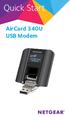 Quick Start AirCard 340U USB Modem Get Started The NETGEAR AirCard 340U USB Modem delivers 4G LTE connections to your laptop. This small, convenient device features a built-in LCD display to monitor connection
Initial Setup of Microsoft Outlook with Google Apps Sync for Windows 7. Initial Setup of Microsoft Outlook with Google Apps Sync for Windows 7
 Microsoft Outlook with Initial Setup of Concept This document describes the procedures for setting up the Microsoft Outlook email client to download messages from Google Mail using Internet Message Access
Google Cloud Print Guide
 Google Cloud Print Guide Version A ENG Definitions of notes We use the following note style throughout this user s guide: Notes tell you how you should respond to a situation that may arise, or give tips
Wi-Fi Connection Guide (Windows)
 P3PC-5672-01ENZ0 Wi-Fi Connection Guide (Windows) Contents About This Manual... 3 Trademarks...4 Manufacturer...5 Arrow Symbols in This Manual...6 Screen Examples in This Manual...7 For Windows 8.1 or
Avaya one-x Mobile User Guide for iphone
 Avaya one-x Mobile User Guide for iphone Release 5.2 January 2010 0.3 2009 Avaya Inc. All Rights Reserved. Notice While reasonable efforts were made to ensure that the information in this document was
Mobiel Internet Dashboard. Manual
 Mobiel Internet Dashboard Manual Contents Chapter 1 Welcome to the Mobiel Internet Dashboard support manual Chapter 4 The Mobiel Internet Dashboard interface About this manual 6 Opening the Mobiel Internet