
NetApp SANtricity Management Pack for Microsoft System Center Operations Manager 3.0
|
|
|
- Beatrix Wilkins
- 9 years ago
- Views:
Transcription
1 NetApp SANtricity Management Pack for Microsoft System Center Operations Manager 3.0 User Guide NetApp, Inc. Telephone: +1 (408) Part number: _A0 495 East Java Drive Fax: +1 (408) Release date: December 2015 Sunnyvale, CA Support telephone: +1-(888) U.S. Web: Feedback:
2

3 Table of Contents Overview of the SANtricity Management Pack for Microsoft System Center Operations Manager (SCOM) Purpose... 1 New in This Release... 2 Abbreviations, Acronyms, Terms and Definitions... 2 Software Configurations... 2 Downloading NetApp Storage Array Management Files... 3 Required Microsoft Updates and Add-ons... 3 Configuring Agent-Managed and Management Server Computers... 4 Enabling Proxy Server Capabilities... 4 Removing a previous version of the NetApp Management Pack on the Management Server Computer... 4 Removing a previous version of the NetApp Management Pack on the Agent-managed computers... 5 Installing the NetApp Management Package on an agent-managed computer... 6 Installing the NetApp SANtricity Management Package on a management server computer Discovering NetApp Storage Arrays Removing NetApp Storage Arrays NetApp Storage Arrays Active Alerts Closed Alerts Storage Arrays Viewing Alert Details Opening the Health Explorer Configuring Performance Properties Changing Override Values Viewing Override Summaries Changing Override Values Editing Override Properties Overrides for the Object Overrides for All Objects of Class Overrides for a Group For a Specific Object of Class For All Objects of Another Class Performance Properties Overrides Configuring Performance Property Overrides Adding a Performance Property Override Removing a Performance Property Override Changing a Performance Property Override Editing Performance Override Descriptions Selecting the Management Pack Deleting Monitor Overrides Diagram View Customizing the Storage Hierarchy Display Viewing Detailed Information for a Storage Object Customizing Layout Direction Filtering Storage Objects by Health State Exporting Diagram View Pages to Visio VDX Dashboards Using the Array State Dashboard Using the Drive State Dashboard Using the Thin Volume State Dashboard Using the Volume State Dashboard Discovered Objects Performance Views NetApp SANtricity Management Pack for Microsoft System Center Operations Manager 3.0 User Guide i

4 Using the Performance Views Dashboard Obtaining Volume Performance Data Performance Monitor Data Output Running the Performance Data Script Downloading the Performance Data Launching the NetApp Storage Array Discovery through the SCOM Operations Manager Troubleshooting SQL Primary filegroup is full error Health Service exceeds maximum allowed item amount error Objects not monitored in Discovered Objects view ii NetApp SANtricity Management Pack for Microsoft System Center Operations Manager 3.0 User Guide
5 Overview of the SANtricity Management Pack for Microsoft System Center Operations Manager (SCOM) 3.0 The NetApp SANtricity Management Pack helps you monitor your storage health status from within the System Center Operations Manager (SCOM) environment. The integration of the management pack and the SCOM enables you to extend SCOM 2012 and 2012 SP1 monitoring capabilities to include detailed storage array conditions and resolution steps for troubleshooting. The NetApp SANtricity Management Pack provides critical alerts including storage array summary, details, and applicable recovery procedures. You can now troubleshoot NetApp storage arrays from one SCOM console, which reduces the complexity of dealing with multiple proprietary applications. A script is available for downloading and importing volume performance data into a spreadsheet or other tool for detailed analysis. Obtaining Volume Performance Data provides detailed information about the script. The NetApp SANtricity Management Pack for Microsoft System Center Operations Manager 3.0 does not support inband NetApp storage array monitoring. In-band monitoring of the storage array manages through the host and not directly through the on-board management Ethernet connections. NetApp SANtricity SCOM Management Pack Infrastructure Finance Workload E2600 SANtricity Integration Pack EF550 SCOM Management Server E5500 Operations Workload SANtricity Integration Pack E5400 E2700 Purpose This guide is for Operations and System Administrators who monitor and troubleshoot NetApp storage arrays. The NetApp SANtricity Management Pack is to be used only for monitoring and configuring performance thresholds for NetApp storage arrays. You cannot use the NetApp SANtricity Management Pack to perform storage management functions. For recovery procedures that require storage management functions that are listed in the alert knowledge base articles within the SCOM console, refer to the NetApp Storage Manager documentation. NetApp SANtricity Management Pack for Microsoft System Center Operations Manager 3.0 User Guide 1

6 New in This Release The information in this guide is based on version 3.0 of the NetApp SANtricity Management Pack. NOTE: All references in this user guide to NetApp storage arrays include both E-Series storage arrays and EF-Series flash arrays. The following features are new in this release of the NetApp SANtricity Management Pack: Summarized views of the state and health of storage resources through dedicated Dashboards The ability to graph various volume performance metrics through Performance Views Hierarchical view of all storage and hardware currently monitored by the plug-in through the Diagram View The ability to launch the NetApp Storage Array Discovery application for an agent machine through the operations manager Abbreviations, Acronyms, Terms and Definitions The following table shows the abbreviations and acronyms used in this document and their definitions. Abbreviations, Acronyms, Terms, and Definitions Abbreviations, Acronyms, and Terms MS SCOM Storage Pool Proxy Definitions SCOM management server System Center Operations Manager Consists of disk pools or volume groups An agent computer that communicates with multiple storage arrays NOTE: The NetApp SANtricity Management Pack has been tested to support up to 30 NetApp storage arrays for each agent-managed computer. Software Configurations The NetApp SANtricity Management Pack supports the following software configurations: Software Configurations table Root Management Servers Agent-Managed Computers Power Shell.NET Framework Windows Server 2012 Windows Server NET SP Windows Server 2012 R2 Windows Server 2012 R2 3.0 NET SP Windows Server 2008 R2 3.0 NET SP 2 NetApp SANtricity Management Pack for Microsoft System Center Operations Manager 3.0 User Guide

7 Downloading NetApp Storage Array Management Files Download the SCOM-Management-Pack-WSX XXXX.3000.exe file from the Support Site at Required Microsoft Updates and Add-ons For the NetApp SANtricity Management Pack to function properly, you must first install the latest Microsoft updates and add-ons on each of your management server and agent machines. Refer to the following for an overview on all updates and add-ons required for each software configuration: Root Management Servers All configurations SCOM 2012 R2 configuration only SCOM 2012 SP1 configuration only Update/Add-on SC Management Pack for Windows Server Operating System.msi Microsoft System Center Management Pack for SQL Server SQLServerMP.msi Update Rollup 4 for System Center 2012 R2 Operations Manager Update Rollup 7 for System Center 2012 Operations Manager Service Pack 1 Agent-Managed Computers Update/Add-on MS15-086: Security update for Update Rollup 7 for System Center 2012 R2 Operation Manager: August 11, 2015 Windows Server 2008 R2 agent / SCOM 2012 R2 management server configuration only NOTE: If you run this Windows Server 2008 R2 configuration without a prior installation of Update Rollup 7, the following error is captured under the Event Log, NetApp SANtricity Storage Array MP scripts require Powershell version 3.0 or greater. This Agent is running version 2.0. MS15-086: Security update for Update Rollup 10 for System Center 2012 Operations Manager Service Pack 1: August 11, 2015 Windows Server 2008 R2 agent / SCOM 2012 SP1 management server configuration only NOTE: If you run this Windows Server 2008 R2 configuration without a prior installation of Update Rollup 10, the following error is captured under the Event Log, NetApp SANtricity Storage Array MP scripts require Powershell version 3.0 or greater. This Agent is running version 2.0. NetApp SANtricity Management Pack for Microsoft System Center Operations Manager 3.0 User Guide 3

8 Configuring Agent-Managed and Management Server Computers Before you install the NetApp SANtricity Management Pack for Microsoft System Center Operations Manager 3.0, perform the following tasks to configure the management server and agent-managed computers. Enabling Proxy Server Capabilities Enable agent-managed computers that monitor NetApp storage to act as proxy servers and discover managed objects on other computers in the RMS SCOM Server console. If you do not enable agent-managed computers that monitor NetApp storage arrays to act as a proxy and discover managed objects on other computers from the root management server, the NetApp SANtricity Management Pack does not function. 1. Open the SCOM Operations Console. 2. Open the Administration view, and select Device Management >> Agent-Managed. 3. Right-click the agent-managed computer that monitors NetApp storage arrays, and select Properties. 4. Select the Security tab, and enable Allow this agent to act as a proxy and discover managed objects on other computers. 5. Click OK. 6. Perform Step 1 through Step 5 for each agent-managed computer that is used to monitor NetApp storage arrays. NOTE: If an array fails to display under the StorageArray view, verify the Allow this agent to act as a proxy and discover managed objects on other computers box is checked for the corresponding agent-managed computer. Removing a previous version of the NetApp Management Pack on the Management Server Computer Before installing the NetApp SANtricity Management Pack for Microsoft System Center Operations Manager 3.0, you must first uninstall any previous version of the NetApp SANtricity Management Pack for Microsoft System Center Operations Manager on the Management Server computer. 1. On the Management Server, select Start >> All Programs >> Operations Console. The Microsoft System Center 2012 Operations Manager console appears. 2. In the lower left corner of the Operations Manager window, click Administration. The Administration Overview window is displayed. 3. Under the Administration panel of the Administration Overview window, select Administration >> Management Packs. A list of management packs display within the Administration Overview window. 4. Locate NetApp Storage Array under the list of management packs. 5. Right-click NetApp Storage Array and select Delete. An Operations Manager dialog is displayed. 4 NetApp SANtricity Management Pack for Microsoft System Center Operations Manager 3.0 User Guide
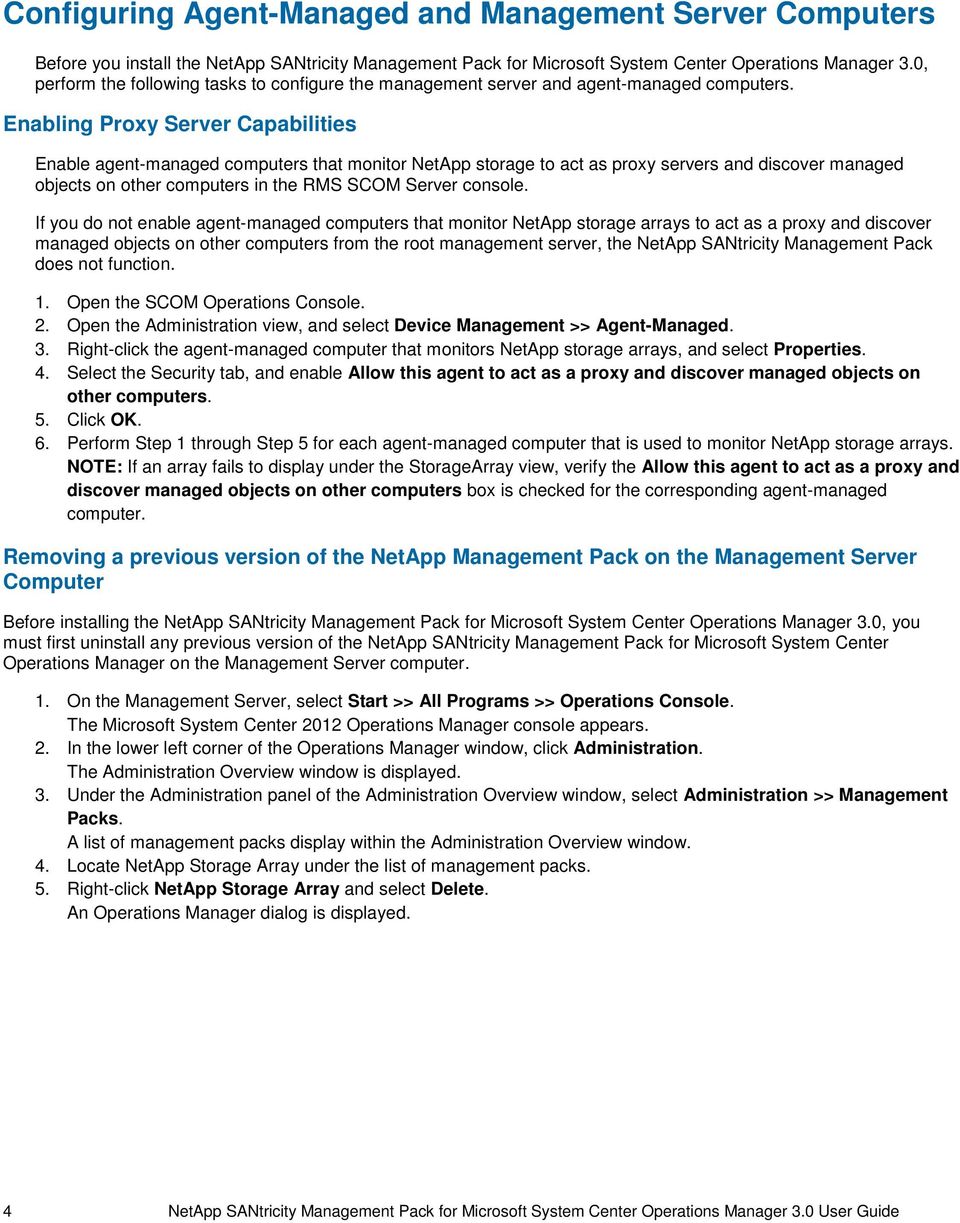
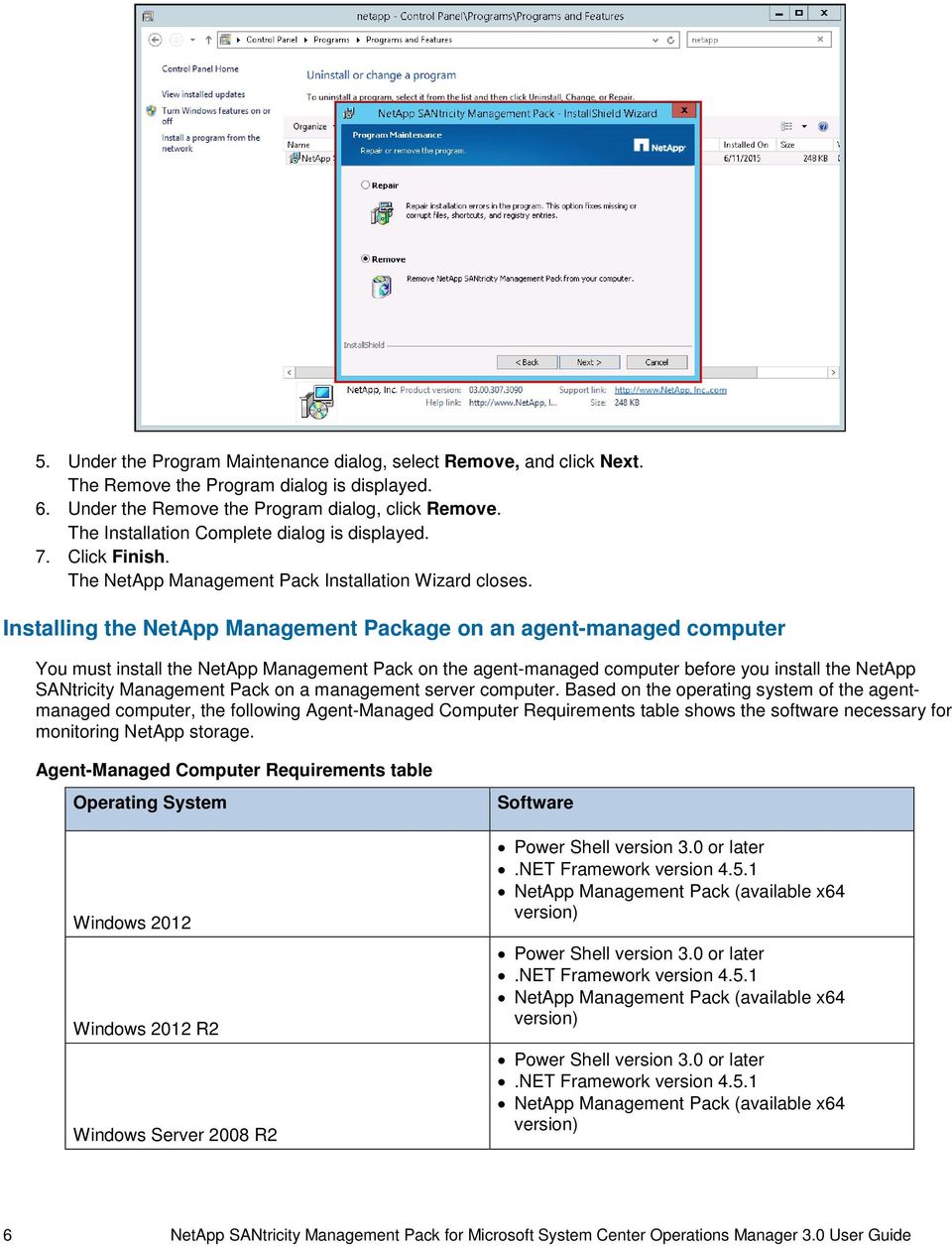
9 6. Click Yes within the Operations Manager dialog to remove the selected NetApp ESeries Storage Array management pack. The NetApp ESeries Storage Array management pack is removed. Removing a previous version of the NetApp Management Pack on the Agent-managed computers Perform the following to remove a previous version of the NetApp Management Pack from an agent-managed computer: 1. On the Agent-managed computer, select Start >> Control Panel >> Uninstall a Program. The Uninstall or change a program window is displayed. 2. Under the Uninstall or change a program window, locate the NetApp Management Pack. 3. Right-click the NetApp Management Pack, and select Change. The NetApp Management Pack Installation Wizard is displayed. 4. Under the NetApp Management Pack Installation Wizard, click Next. The Program Maintenance dialog is displayed. NetApp SANtricity Management Pack for Microsoft System Center Operations Manager 3.0 User Guide 5
10 5. Under the Program Maintenance dialog, select Remove, and click Next. The Remove the Program dialog is displayed. 6. Under the Remove the Program dialog, click Remove. The Installation Complete dialog is displayed. 7. Click Finish. The NetApp Management Pack Installation Wizard closes. Installing the NetApp Management Package on an agent-managed computer You must install the NetApp Management Pack on the agent-managed computer before you install the NetApp SANtricity Management Pack on a management server computer. Based on the operating system of the agentmanaged computer, the following Agent-Managed Computer Requirements table shows the software necessary for monitoring NetApp storage. Agent-Managed Computer Requirements table Operating System Windows 2012 Windows 2012 R2 Windows Server 2008 R2 Software Power Shell version 3.0 or later.net Framework version NetApp Management Pack (available x64 version) Power Shell version 3.0 or later.net Framework version NetApp Management Pack (available x64 version) Power Shell version 3.0 or later.net Framework version NetApp Management Pack (available x64 version) 6 NetApp SANtricity Management Pack for Microsoft System Center Operations Manager 3.0 User Guide
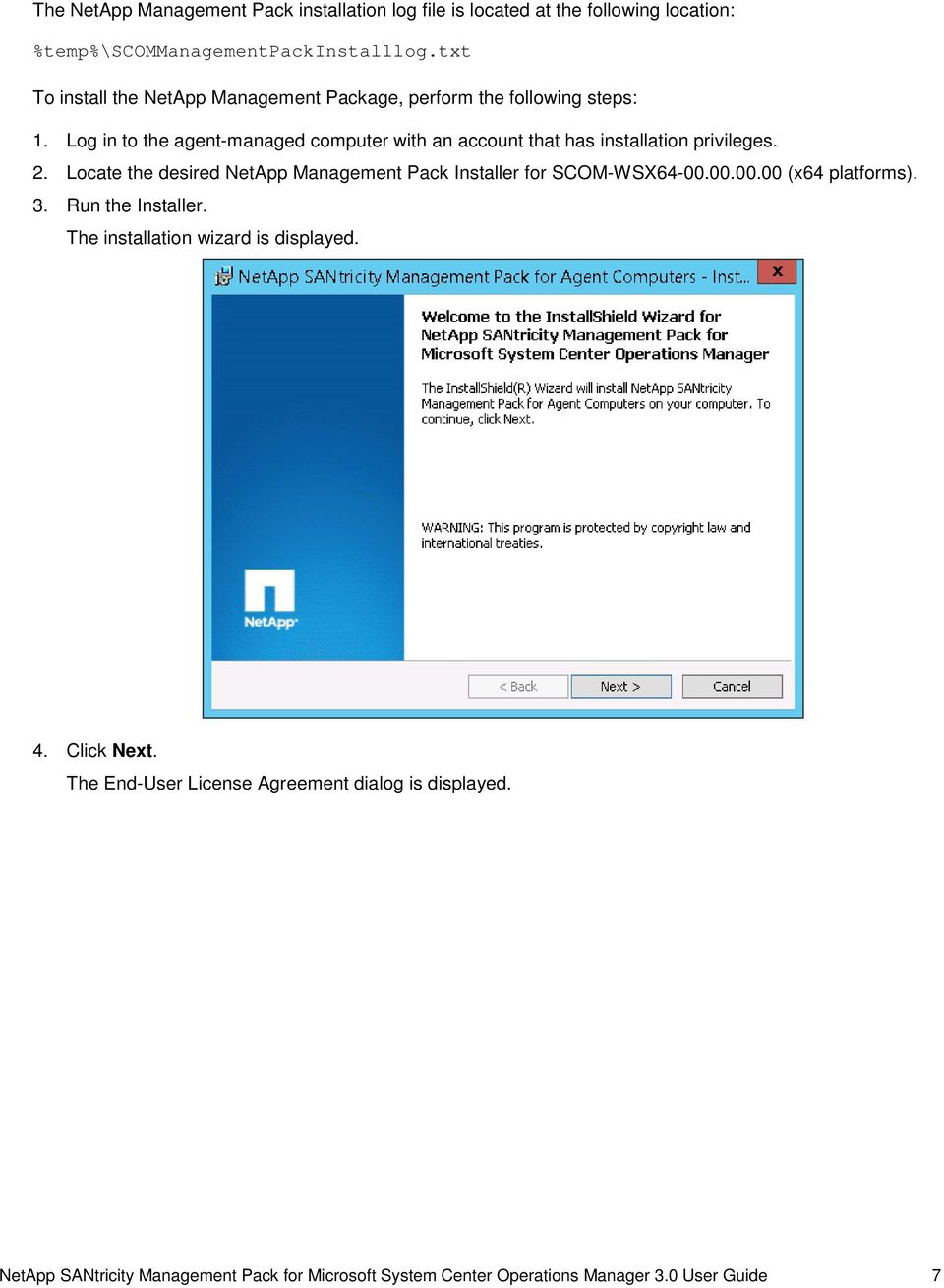
11 The NetApp Management Pack installation log file is located at the following location: %temp%\scommanagementpackinstalllog.txt To install the NetApp Management Package, perform the following steps: 1. Log in to the agent-managed computer with an account that has installation privileges. 2. Locate the desired NetApp Management Pack Installer for SCOM-WSX (x64 platforms). 3. Run the Installer. The installation wizard is displayed. 4. Click Next. The End-User License Agreement dialog is displayed. NetApp SANtricity Management Pack for Microsoft System Center Operations Manager 3.0 User Guide 7
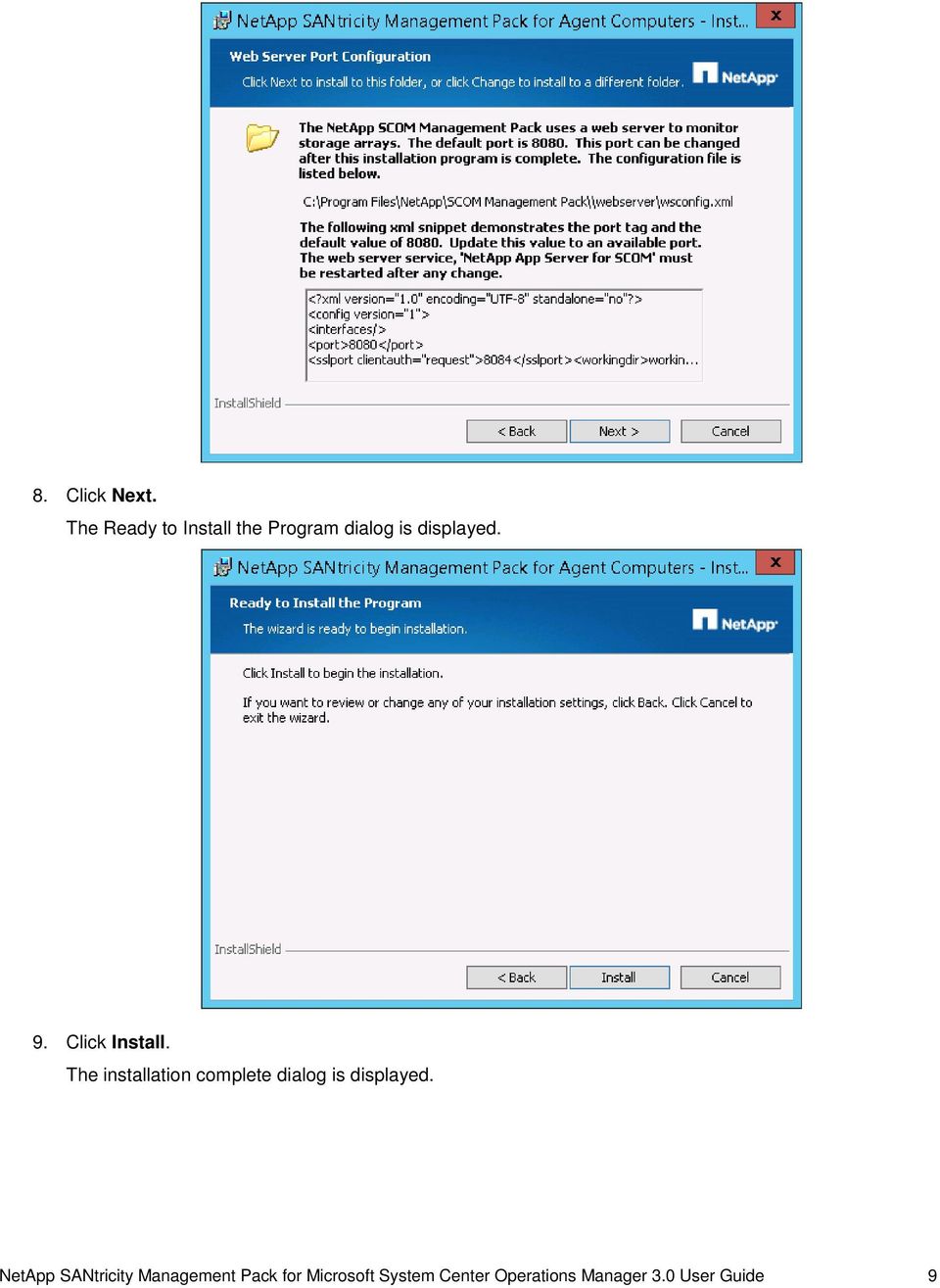
12 5. Select I accept the terms in the license agreement, and click Next. The Destination Folder dialog is displayed. 6. If needed, click Change to specify the desired folder location for the NetApp Management Pack. 7. Click Next. The Web Server Port Configuration dialog is displayed. 8 NetApp SANtricity Management Pack for Microsoft System Center Operations Manager 3.0 User Guide

13 8. Click Next. The Ready to Install the Program dialog is displayed. 9. Click Install. The installation complete dialog is displayed. NetApp SANtricity Management Pack for Microsoft System Center Operations Manager 3.0 User Guide 9
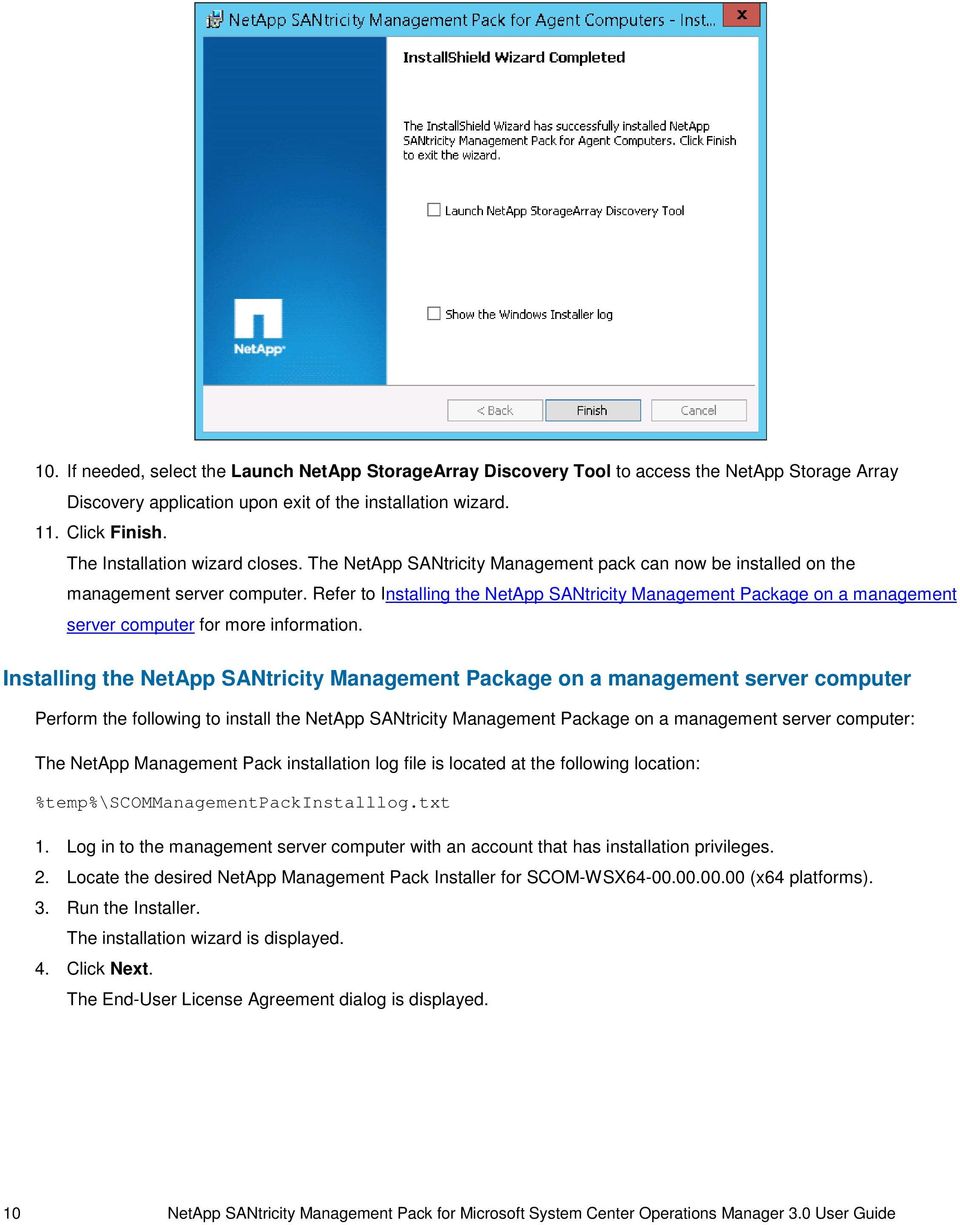
14 10. If needed, select the Launch NetApp StorageArray Discovery Tool to access the NetApp Storage Array Discovery application upon exit of the installation wizard. 11. Click Finish. The Installation wizard closes. The NetApp SANtricity Management pack can now be installed on the management server computer. Refer to Installing the NetApp SANtricity Management Package on a management server computer for more information. Installing the NetApp SANtricity Management Package on a management server computer Perform the following to install the NetApp SANtricity Management Package on a management server computer: The NetApp Management Pack installation log file is located at the following location: %temp%\scommanagementpackinstalllog.txt 1. Log in to the management server computer with an account that has installation privileges. 2. Locate the desired NetApp Management Pack Installer for SCOM-WSX (x64 platforms). 3. Run the Installer. The installation wizard is displayed. 4. Click Next. The End-User License Agreement dialog is displayed. 10 NetApp SANtricity Management Pack for Microsoft System Center Operations Manager 3.0 User Guide
15 5. Select I accept the terms in the license agreement, and click Next. The Destination Folder dialog is displayed. 6. If needed, click Change to specify the desired folder location for the NetApp Management Pack. 7. Click Next. The Ready to Install the Program dialog is displayed. NetApp SANtricity Management Pack for Microsoft System Center Operations Manager 3.0 User Guide 11
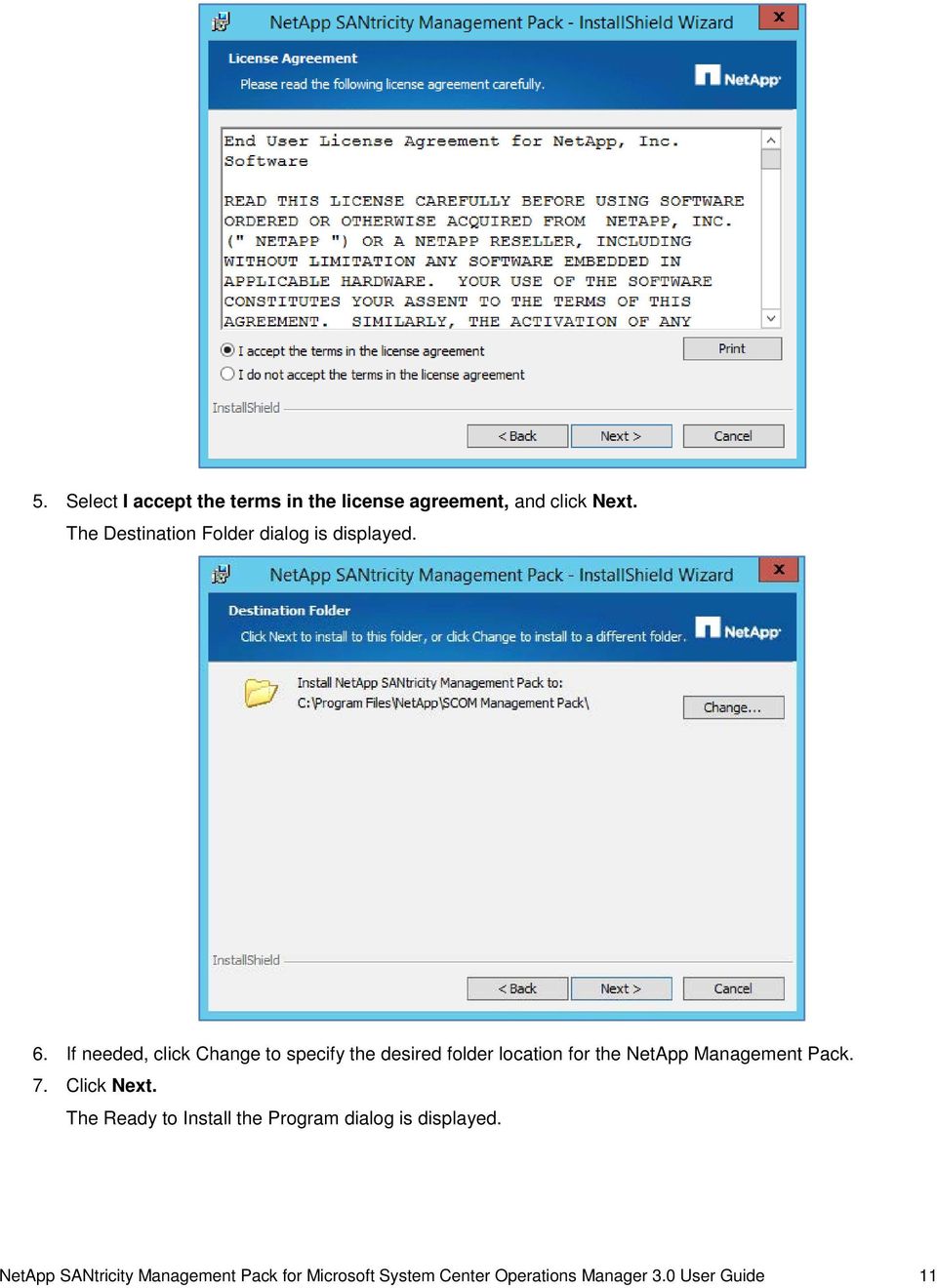
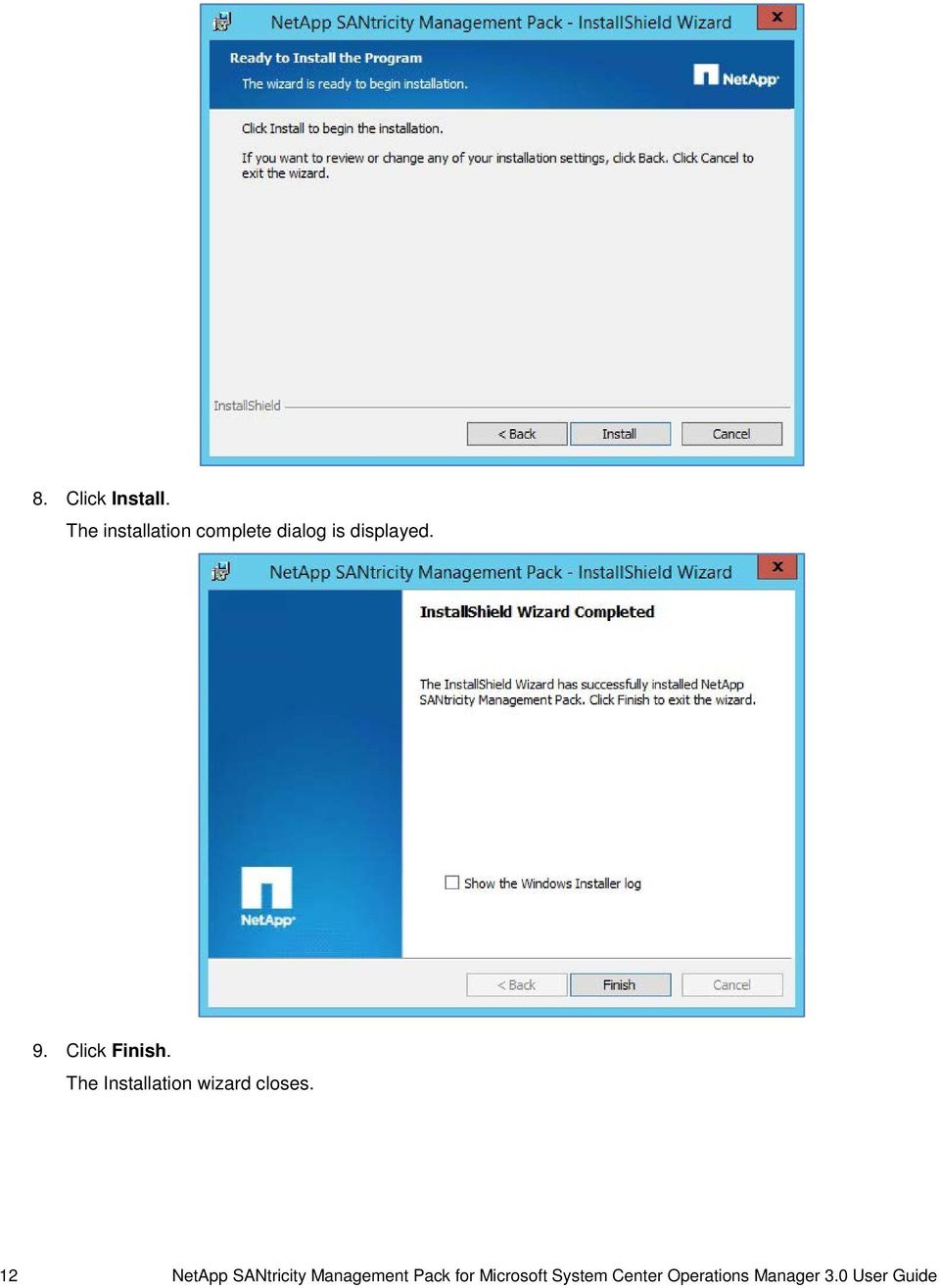
16 8. Click Install. The installation complete dialog is displayed. 9. Click Finish. The Installation wizard closes. 12 NetApp SANtricity Management Pack for Microsoft System Center Operations Manager 3.0 User Guide
17 Discovering NetApp Storage Arrays Perform the following actions to start the process of discovering NetApp storage arrays for SCOM monitoring. The NetApp Storage Array Discovery application is at the following location:..\netapp\scom Management Pack 1. Select Start >> All Programs. 2. Locate the folder SCOM Management Pack. 3. Select the icon labeled NetApp Storage Array Discovery. 4. Run the NetApp Storage Array Discovery application. The Add Storage Arrays window displays. 5. To add storage arrays manually, enter the IP address for each controller under the IP Address of Controller 1 and IP Address of Controller 2 fields and click Add. The Verify IP Address dialog is displayed. NOTE: You can perform a manual discovery across subnets so long as the agent server and management server are within the same domain. NetApp SANtricity Management Pack for Microsoft System Center Operations Manager 3.0 User Guide 13
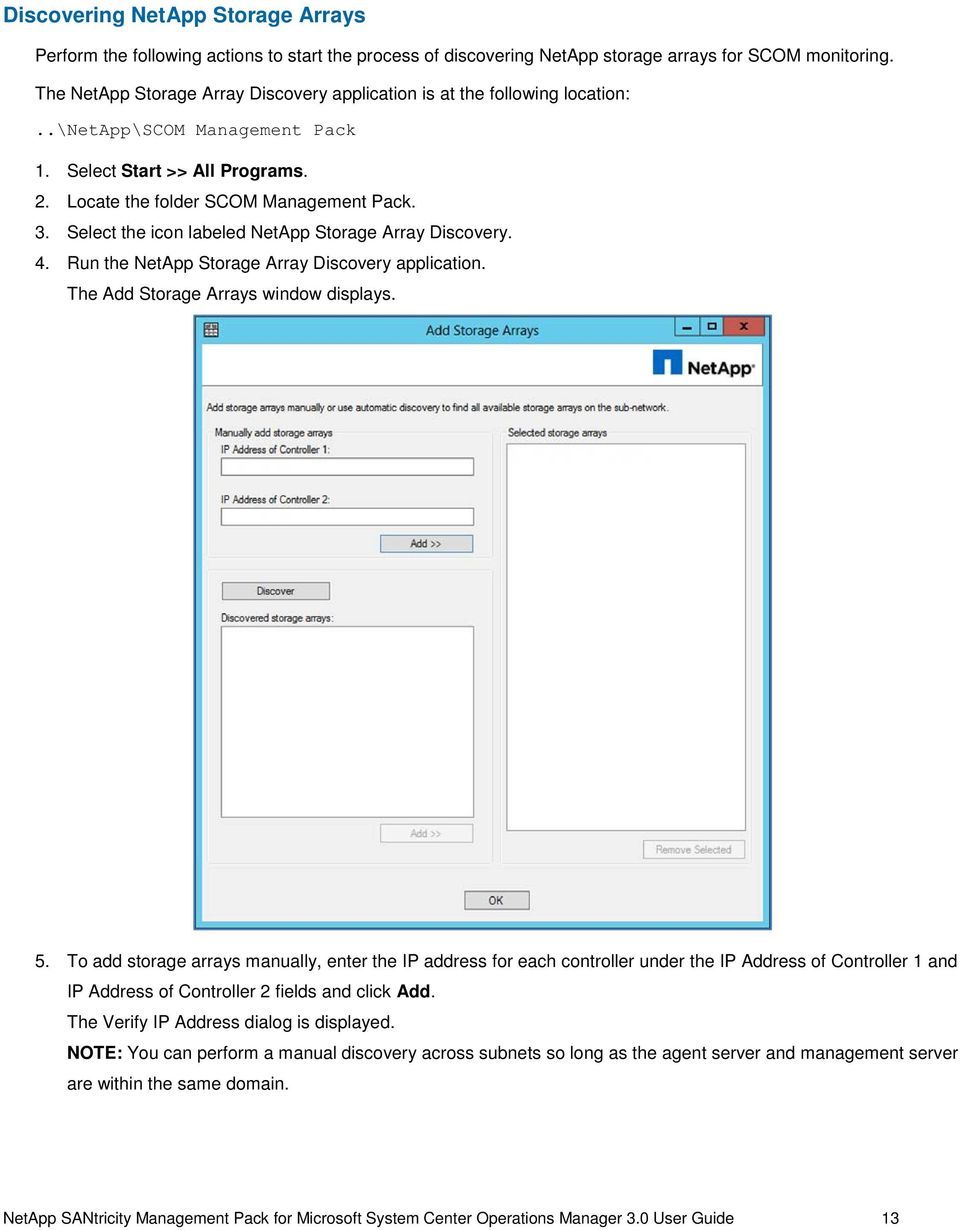
18 6. Click OK. The Storage Array complete dialog is displayed. 7. Click OK. The specified storage arrays displays under the Selected Storage Arrays section of the Add Storage Arrays window. 8. To add storage arrays automatically, click Discover. The Automatic Discovery dialog is displayed. NOTE: You can perform an auto-discovery only when the storage arrays are located within the same subnet that the proxy server is located. Multiple proxy servers can be located in different subnets. There is no limit to the number of proxy servers. 9. Click OK. The automatically discovered storage arrays display under the Discovered Storage Arrays section of the Add Storage Arrays window. 10. Under the Discovered Storage Arrays section, select the desired storage array IP addresses and click Add. The selected storage array IP addresses display under the Selected Storage Arrays section of the Add Storage Arrays window. 11. Click OK. 14 NetApp SANtricity Management Pack for Microsoft System Center Operations Manager 3.0 User Guide

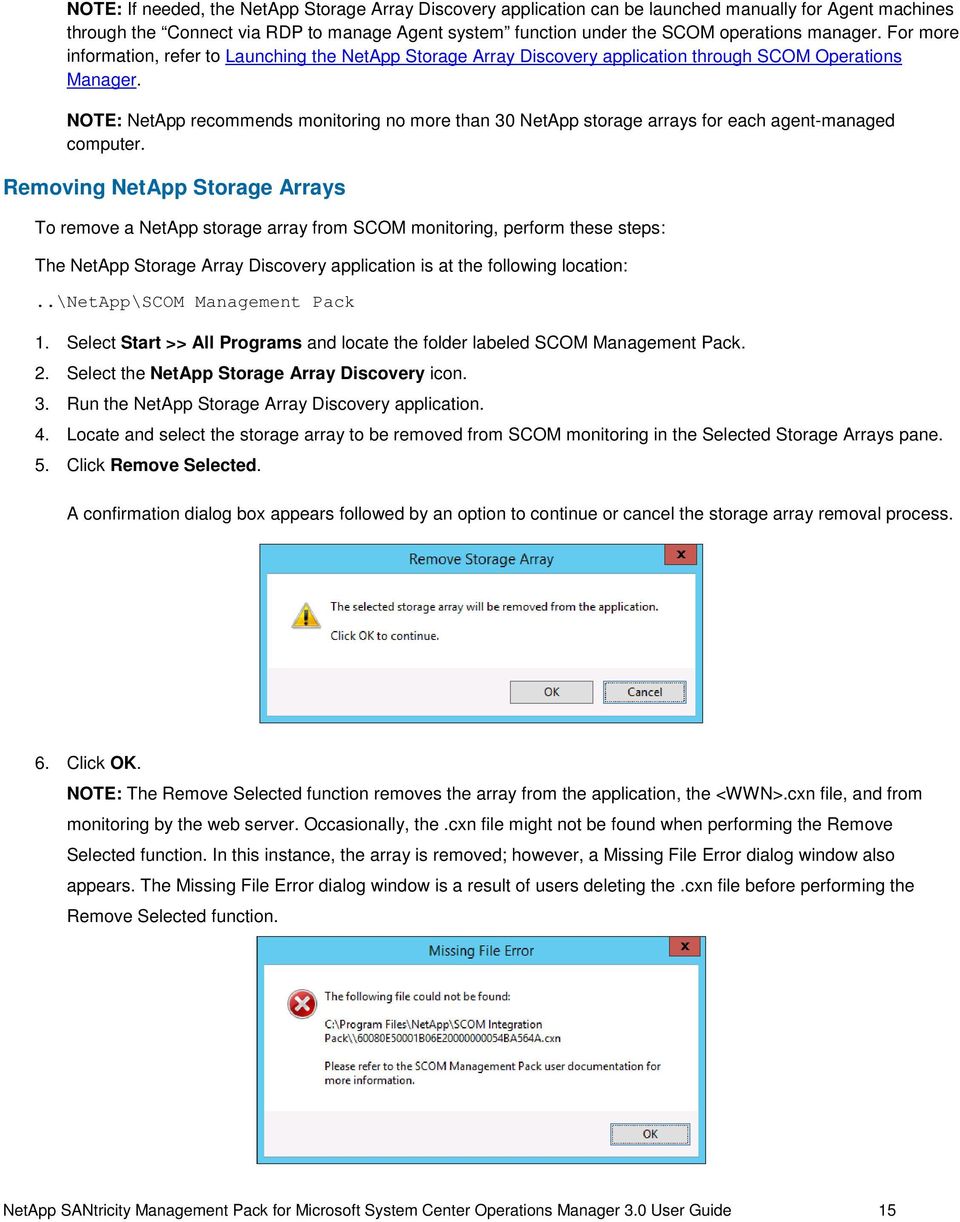
19 NOTE: If needed, the NetApp Storage Array Discovery application can be launched manually for Agent machines through the Connect via RDP to manage Agent system function under the SCOM operations manager. For more information, refer to Launching the NetApp Storage Array Discovery application through SCOM Operations Manager. NOTE: NetApp recommends monitoring no more than 30 NetApp storage arrays for each agent-managed computer. Removing NetApp Storage Arrays To remove a NetApp storage array from SCOM monitoring, perform these steps: The NetApp Storage Array Discovery application is at the following location:..\netapp\scom Management Pack 1. Select Start >> All Programs and locate the folder labeled SCOM Management Pack. 2. Select the NetApp Storage Array Discovery icon. 3. Run the NetApp Storage Array Discovery application. 4. Locate and select the storage array to be removed from SCOM monitoring in the Selected Storage Arrays pane. 5. Click Remove Selected. A confirmation dialog box appears followed by an option to continue or cancel the storage array removal process. 6. Click OK. NOTE: The Remove Selected function removes the array from the application, the <WWN>.cxn file, and from monitoring by the web server. Occasionally, the.cxn file might not be found when performing the Remove Selected function. In this instance, the array is removed; however, a Missing File Error dialog window also appears. The Missing File Error dialog window is a result of users deleting the.cxn file before performing the Remove Selected function. NetApp SANtricity Management Pack for Microsoft System Center Operations Manager 3.0 User Guide 15
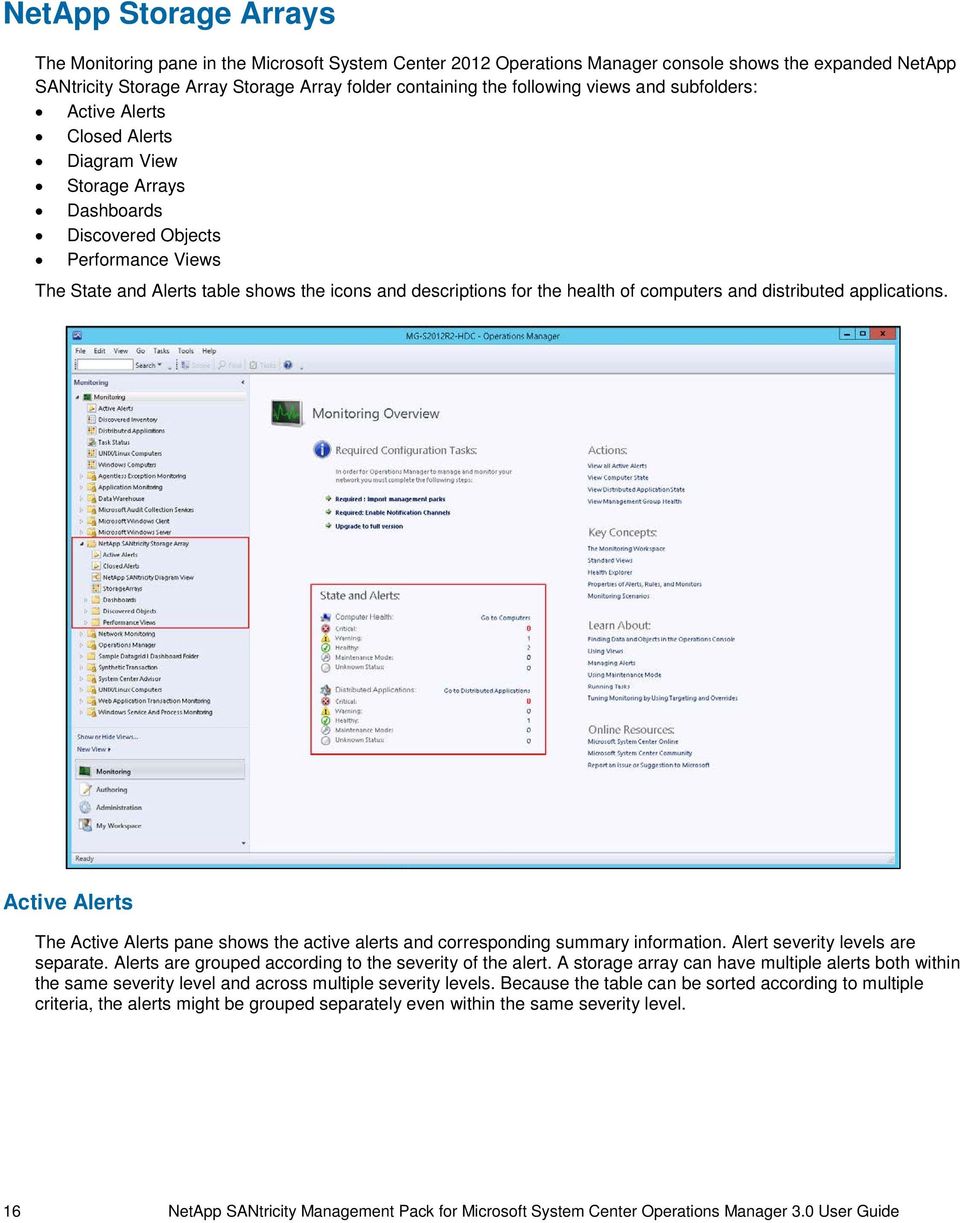
20 NetApp Storage Arrays The Monitoring pane in the Microsoft System Center 2012 Operations Manager console shows the expanded NetApp SANtricity Storage Array Storage Array folder containing the following views and subfolders: Active Alerts Closed Alerts Diagram View Storage Arrays Dashboards Discovered Objects Performance Views The State and Alerts table shows the icons and descriptions for the health of computers and distributed applications. Active Alerts The Active Alerts pane shows the active alerts and corresponding summary information. Alert severity levels are separate. Alerts are grouped according to the severity of the alert. A storage array can have multiple alerts both within the same severity level and across multiple severity levels. Because the table can be sorted according to multiple criteria, the alerts might be grouped separately even within the same severity level. 16 NetApp SANtricity Management Pack for Microsoft System Center Operations Manager 3.0 User Guide
21 Within severity levels, you can sort active alerts by the following criteria: Source Name Resolution State Created Age To view the alerts that SCOM is actively monitoring for NetApp E-Series storage arrays, click Active Alerts in the NetApp E-Series Storage folder. Closed Alerts The Closed Alerts pane shows the alerts that were manually closed and removed from the active alert state. The Closed Alerts pane displays alerts the same way that the Active Alerts pane displays alerts. You can sort closed alerts the same way as you sort active alerts. To view the closed alerts that SCOM is not monitoring for NetApp E-Series storage arrays, click Closed Alerts in the NetApp E-Series Storage folder. NetApp SANtricity Management Pack for Microsoft System Center Operations Manager 3.0 User Guide 17
22 Storage Arrays The Storage Arrays pane shows all storage arrays the SCOM is monitoring for health and performance. The State column shows both the storage array health and the storage array alert status. You can sort the storage arrays by the following criteria: State Status Controller A Controller B Model Firmware Version NVSRAM Version Name Monitoring System To view the NetApp E-Series storage arrays that SCOM is actively monitoring for health and performance, click StorageArrays in the NetApp E-Series Storage folder. 18 NetApp SANtricity Management Pack for Microsoft System Center Operations Manager 3.0 User Guide
23 Viewing Alert Details The SCOM Operations Manager shows alert details for both active and closed alerts. To view alert details, select an alert. The Alert Details pane displays detailed information for the selected alert. Opening the Health Explorer The Health Explorer shows the health of a storage array and its member volumes. You can open the Health Explorer from the Active Alerts view, Closed Alerts view, StorageArrays view, Diagram view, and Dashboards. 1. Right-click the alert or storage array. A pop-up menu appears. 2. Select Open >> Health Explorer. The Health Explorer window opens. NetApp SANtricity Management Pack for Microsoft System Center Operations Manager 3.0 User Guide 19
24 The initial view shows only unhealthy child monitors below the storage array as an object entity. You can filter the monitors to expand the entity to show both healthy and unhealthy child monitors. To view all child monitors, click Filter Monitors. The Health monitors pane for the storage array shows both healthy and unhealthy child monitors and both critical alerts and performance warning alerts. To return to only unhealthy child monitors, click Filter Monitors on the top-line menu bar. Configuring Performance Properties You can configure performance properties for a single volume or for a storage array. 1. Within the Health Monitor (accessible through the Health Explorer option), right-click the volume or storage array. A Performance pop-up menu appears. When you select a storage array, the NetApp ESeries Storage Array Performance Properties dialog box appears. When you select a volume, the Volume Performance Properties dialog box appears. 2. Click the Overrides tab. 20 NetApp SANtricity Management Pack for Microsoft System Center Operations Manager 3.0 User Guide
25 Changing Override Values You can view and change performance override values for the following volume and storage array entities: For a monitor For an object For all objects of a class Viewing Override Summaries To view performance overrides summaries, click View Summary in the Volume Performance Properties dialog box. A View Summary pop-up menu appears. To view the summary for the monitor, click For the Monitor. See Overrides for a Monitor. To view the summary for the object, click For the Object. See Overrides for an Object. To view the summary for all objects of the class, click For the Object. See Overrides for all Objects of the Class. Changing Override Values You can change performance override values for the following volume or storage array entities: For a monitor For an object For all objects of a class NetApp SANtricity Management Pack for Microsoft System Center Operations Manager 3.0 User Guide 21
26 Overrides for a Monitor The Overrides Summary dialog box shows the performance overrides that affect the selected monitor. When the Overrides Summary dialog box shows performance overrides for multiple classes or objects, you can edit them all at one time. Overriding the performance monitor for an object changes the performance override value for only the object. Overriding the performance monitor for a class changes the performance override value for all objects in the class. To edit performance overrides for the monitor, select the class or object in the Class column of the Overrides that affect this monitor table. Overrides for an Object The Overrides Summary dialog box shows the performance overrides that affect the selected object. When the Overrides Summary dialog box shows performance overrides for multiple classes or objects, you can edit them all at one time. Overriding the performance monitor for an object changes the performance override value for only that object. The performance override values for all other objects in the class do not change. To edit performance overrides for the object, select the monitor in the Class column of the Overrides that affect this object table. 22 NetApp SANtricity Management Pack for Microsoft System Center Operations Manager 3.0 User Guide
27 Overrides for all Objects of the Class The Overrides Summary dialog box shows the performance overrides that affect all objects within the selected class. When the Overrides Summary dialog box shows performance overrides for multiple classes or objects, you can edit them all at one time. Overriding the performance monitor for a class changes the performance override value for all objects in the class. To edit performance overrides for the object, select the monitor in the Class column of the Overrides that affect this monitor table. Editing Override Properties You can edit performance override properties for the following volume or storage array entities: For an object For all objects of a class For a group For specific object of a class For all objects of another class To override volume or storage array performance properties, click Override in the Volume Performance Properties dialog box. An Override pop-up menu appears. Overrides for the Object Overriding the performance monitor for an object changes the performance override value for only the object. To edit performance override properties for an object, click For the object. The Override Properties dialog box appears. Performance Properties Overrides describes how to change performance override properties. NetApp SANtricity Management Pack for Microsoft System Center Operations Manager 3.0 User Guide 23
28 Overrides for All Objects of Class Overriding the performance monitor for an object changes the performance override value for only the object. To edit performance override properties for all objects of a class, click For all objects of class. The Override Properties dialog box appears. Performance Properties Overrides describes how to change performance override properties. Overrides for a Group Overriding the performance monitor for a group changes the performance override value for all classes and objects that are members of the group. To edit performance override properties for a group, perform these steps: 1. Click For a group. The Select Object dialog box appears. 2. In the Display Name column, select the matching object. 3. Click OK. The Override Properties dialog box appears. Performance Properties Overrides describes how to change performance override properties. 24 NetApp SANtricity Management Pack for Microsoft System Center Operations Manager 3.0 User Guide
29 For a Specific Object of Class Overriding the performance monitor for a specific object of a class changes the performance override value for only that object. The performance override values for all other objects in the class remain the same. To edit performance override properties for a specific object of a class, perform these steps: 1. Click For a specific object of class. The Select Object dialog box appears. 2. In the Display Name column of the Select Object dialog box, select the matching object. 3. Click OK. The Override Properties dialog box appears. Performance Properties Overrides describes how to change performance override properties. For All Objects of Another Class Overriding the performance monitor for all objects of another class changes the performance override value for all objects in that class. To override the performance monitor properties of all objects of another class, perform these steps: 1. Click For all objects of another class. The Select Items to Target dialog box appears. 2. Select either View common targets or View all targets. 3. In the Target column, select the target class. 4. Click OK. The Override Properties dialog box appears. Performance Properties Overrides describes how to change performance override properties. NetApp SANtricity Management Pack for Microsoft System Center Operations Manager 3.0 User Guide 25
30 Performance Properties Overrides Use the Override Properties dialog box to configure performance property overrides for all entities. Monitor Object All objects of a class Group Specific object of a class All objects of another class The Override column identifies performance property overrides that apply to the monitor, object, or class. The Details section of the Override Properties dialog box identifies the custom overrides defined in the NetAppESeries.PerformanceOverrides management pack. The Default Value column shows the value assigned to the performance parameter in the default management pack. The Override Value column shows the override value assigned to the performance parameter in the NetAppESeries.PerformanceOverrides management pack. 26 NetApp SANtricity Management Pack for Microsoft System Center Operations Manager 3.0 User Guide
31 Configuring Performance Property Overrides You can add, change, and delete performance property overrides. Adding a Performance Property Override 1. In the Override column, select the new performance override. 2. Change the performance override values. To change the default performance value, type the new performance value in the Default Value column. To change the performance override value, select the new performance value from the drop-down list in the Override Value column. 3. Save the new performance override. To save the new performance override and continue configuring performance monitor overrides, click Apply. To save the new performance override and close the Override Properties dialog box, click OK. The Overrides Summary dialog box appears. Removing a Performance Property Override 1. In the Override column, uncheck the performance override to remove. 2. Save the changed performance overrides. To save the changes and continue configuring performance monitor overrides, click Apply. To save the changes and close the Override Properties dialog box, click OK. The Overrides Summary dialog box appears. Changing a Performance Property Override 1. In the Override column, select the performance override to change. 2. Change the performance override values. To change the default performance value, type the new value in the Default Value column. To change the performance override value, select the new performance value from the drop-down list in the Override Value column. The Overrides Summary dialog box appears. Editing Performance Override Descriptions The Details section contains the read-only, default description of the monitor override parameter. To add, change, or delete a customized description, perform these steps: 1. In top right corner of the Details text box, click Edit. The Override Description Dialog Enter Override description dialog box appears. NetApp SANtricity Management Pack for Microsoft System Center Operations Manager 3.0 User Guide 27
32 2. In the Enter override description text box, either type a new description, edit the current description, or delete the current description. 3. Click OK. Selecting the Management Pack When you change a performance override value, the Select destination management pack drop-down list is active. To select the management pack, perform these steps: 1. In the Select destination management pack drop-down list, click NetAppESeries.PerformanceOverrides. The Select destination management pack drop-down list closes. 2. Save the performance override properties. To save the changes and continue configuring performance monitor overrides, click Apply. To save the changes and close the Override Properties dialog box, click OK. Deleting Monitor Overrides To delete a monitor override, perform the following steps: CAUTION When you delete a performance override, the performance override is deleted immediately. No confirmation message appears. 1. In the Overrides Summary dialog box, select the performance override to delete. 28 NetApp SANtricity Management Pack for Microsoft System Center Operations Manager 3.0 User Guide
33 2. Click Delete. 3. Click Close to return to the Overrides Properties dialog box. Diagram View The Diagram View enables you to see a hierarchical representation of all storage and hardware currently being monitored by the plug-in, so that you can more easily isolate problems to a specific storage object. You can expand this view to display storage hierarchy, so that you can isolate problems to the exact component on which they occur. When you select a storage object, you can view information about in the Detail View window. The following table shows an overview of the group and object icons used for each storage object type under the Diagram View window. Storage Object(s) Diagram View Group icon Proxy Thin Volumes NetApp SANtricity Management Pack for Microsoft System Center Operations Manager 3.0 User Guide 29
34 Storage Object(s) Diagram View Group icon Drives Consistency Groups Volumes Storage Pools Asynchronous Mirror Groups Storage Object(s) Diagram View Object icon Storage Arrays Snapshot Proxy AMG AMG Pair 30 NetApp SANtricity Management Pack for Microsoft System Center Operations Manager 3.0 User Guide
35 Storage Object(s) Diagram View Object icon Consistency Group Consistency Group Volume Volume Thin Volume Storage Pool Drive Customizing the Storage Hierarchy Display To customize the storage hierarchy display under the Diagram View window, perform the following: 1. Under the Monitoring panel, expand the NetApp E-Series Storage folder and select Diagram View. The Diagram View window is displayed. 2. To display the subtree for an applicable storage object, click Plus. The subtree for the root storage object expands under the Diagram View window. 3. To hide the subtree for an applicable storage object, click Minus. The subtree for the root storage object contracts under the Diagram View window. 4. If needed, repeat Step 2 and/or Step 3 to further customize the display of the storage hierarchy under the Diagram View window. 5. To adjust the scale of the storage hierarchy display, select the desired setting under the Zoom field (located under the top toolbar of the Diagram View window). NetApp SANtricity Management Pack for Microsoft System Center Operations Manager 3.0 User Guide 31
36 Viewing Detailed Information for a Storage Object To view detailed information for a storage object under the Diagram View window, perform the following: 1. Under the Monitoring panel, expand the NetApp E-Series Storage folder and select Diagram View. The Diagram View window is displayed. 2. If needed, click Minus under the appropriate root storage object(s) to access the desired subtree storage object. 3. Click the desired storage object icon under the Diagram View window. Detailed information for the storage object appears under the Detail View panel of the Diagram View window. 4. Alternatively, move the cursor over the desired storage object icon under the Diagram View window to view the corresponding detailed information as hover text. 32 NetApp SANtricity Management Pack for Microsoft System Center Operations Manager 3.0 User Guide
37 Customizing Layout Direction To customize the layout direction under the Diagram View window, perform the following: 1. Under the Monitoring panel, expand the NetApp E-Series Storage folder and select Diagram View. The Diagram View window is displayed. 2. Under the toolbar section of the Diagram View window, click Layout direction and select one of the following drop-down options: - North South - South North - West East - East West The storage hierarchy under the Diagram View window appears in the selected layout direction. NetApp SANtricity Management Pack for Microsoft System Center Operations Manager 3.0 User Guide 33
38 Filtering Storage Objects by Health State To filter storage objects under the Diagram View window by assigned health state, perform the following: 1. Under the Monitoring panel, expand the NetApp E-Series Storage folder and select Diagram View. The Diagram View window is displayed. 2. Under the toolbar section of the Diagram View window, click Filter By Health and select one of the following drop-down options: - All - Unknown State - Healthy State - Warning State - Unhealthy State The Diagram View window filters the display of storage objects by the selected health state. Exporting Diagram View Pages to Visio VDX To export the displayed Diagram View page to Visio VDX, perform the following: 1. Under the Monitoring panel, expand the NetApp E-Series Storage folder, and select Diagram View. The Diagram View window is displayed. 2. As needed, customize the display of the storage hierarchy under the Diagram View window via the available options (i.e., Plus, Minus, Filter by Health, Layout Direction, etc). 3. Under the toolbar section of the Diagram View window, click Export. The Export Page to Visio VDX window displayed. 4. Specify the folder location to save Visio VDX file under the Export Page to Visio VDX window. 5. Under the File Name field, enter the desired name for the Visio VDX file. 34 NetApp SANtricity Management Pack for Microsoft System Center Operations Manager 3.0 User Guide
39 6. Click Save. A Visio VDX file is saved under the specified folder location. Dashboards The Dashboards under the NetApp SANtricity Management Pack for Microsoft System Center Operations Manager (SCOM) provide you with a summarized view of the state and health of your storage resources. Functionality for the Dashboard feature is divided into separate Array State, Drive State, Thin Volume State, and Volume State dashboards. Each Dashboard allows you to filter and drill down summary results to view more detailed analysis for specific storage objects. NetApp SANtricity Management Pack for Microsoft System Center Operations Manager 3.0 User Guide 35
40 Using the Array State Dashboard Perform the following to access and use the Array State Dashboard: 1. Under the Monitoring panel, expand NetApp E-Series Storage Array >> Dashboards and select Array State Dashboard. The Array State Dashboard is displayed. 2. To filter results by specific monitoring system, enter the desired alphanumeric criteria under the Filter field of the Array Status panel and click Search. The Array Status panel displays monitoring systems matching the specified filter criteria. 3. To view additional information for any monitoring system, select the desired item under the Array Status panel and select the desired option under the Tasks, Navigation, or Report Tasks menus (accessible through the rightclick menu and Tasks panel). Based on the selected menu option, detailed information for the monitoring system is displayed. 4. If available, select an unhealthy monitor under the Array Status panel. Related array data for the selected unhealthy monitor appears under the Array Health (only unhealthy monitors) panel. 5. To view available alert data for an item, select the desired item under the Array Health (only unhealthy monitors) panel. Related alert data appears under the Array Alert Triggers panel. 6. To close an alert, select the desired alert under the Array Alert Triggers panel and click Close Alert under the Navigation menu (accessible through the right-click menu and right panel). The selected alert is closed and removed from the Array Alert Triggers panel. 36 NetApp SANtricity Management Pack for Microsoft System Center Operations Manager 3.0 User Guide
41 7. To apply a resolution to an alert, select the desired alert under the Array Alert Triggers panel, click Set Resolution State, and select the desired resolution option (accessible through the right-click menu and right panel). The selected resolution option is applied to the alert under the Array Alert Triggers panel. Using the Drive State Dashboard Perform the following to access and use the Drive State Dashboard: 1. Under the Monitoring panel, expand NetApp E-Series Storage Array >>Dashboards, and select Drive State Dashboard. The Drive State Dashboard is displayed. 2. To filter results by specific drive, enter the desired alphanumeric criteria under the Filter field of the Drive State panel and click search. The Drive State panel displays drives matching the specified filter criteria. 3. To view additional information for any drive, select the desired item under the Drive State panel, and select the desired option under the Tasks, Navigation, or Report Tasks menus (accessible through the right-click menu and Tasks panel). Based on the selected menu option, detailed information for the drive state is displayed. 4. If available, select an unhealthy drive under the Drive State panel. Related drive data for the selected unhealthy drive appears under the Drive Health (only unhealthy monitors) panel. 5. To view available alert data for an item, select the desired item under the Drive Health (only unhealthy monitors) panel. Related alert data appears under the Drive Alert Triggers panel. NetApp SANtricity Management Pack for Microsoft System Center Operations Manager 3.0 User Guide 37
42 6. To close an alert, select the desired alert under the Drive Alert Triggers panel, and click Close Alert under the Navigation menu (accessible through the right-click menu and right panel). The selected alert is closed and removed from the Drive Alert Triggers panel. 7. To apply a resolution to an alert, select the desired alert under the Drive Alert Triggers panel, click Set Resolution State, and select the desired resolution option (accessible through the right-click menu and right panel). The selected resolution option is applied to the alert under the Drive Alert Triggers panel. Using the Thin Volume State Dashboard Perform the following to access and use the Thin Volume State Dashboard: 1. Under the Monitoring panel, expand NetApp E-Series Storage Array >> Dashboards, and select Thin Volume State Dashboard. The Thin Volume State Dashboard is displayed. 2. To filter results by specific thin volume, enter the desired alphanumeric criteria under the Filter field of the Thin Volume Status panel, and click search. The Thin Volume Status panel displays thin volumes matching the specified filter criteria. 3. To view additional information for any thin volume, select the desired item under the Thin Volume Status panel, and select the desired option under the Tasks, Navigation, or Report Tasks menus (accessible through the rightclick menu and Tasks panel). Based on the selected menu option, detailed information for the thin volume is displayed. 4. If available, select an unhealthy thin volume under the Thin Volume Status panel. Related thin volume data for the selected unhealthy storage item appears under the Thin Volume Health (only unhealthy monitors) panel. 38 NetApp SANtricity Management Pack for Microsoft System Center Operations Manager 3.0 User Guide
43 5. To view available alert data for an item, select the desired item under the Thin Volume Health (only unhealthy monitors) panel. Related alert data appears under the Thin Volume Alert Triggers panel. 6. To close an alert, select the desired alert under the Thin Volume Alert Triggers panel, and click Close Alert under the Navigation menu (accessible through the right-click menu and right panel). The selected alert is closed and removed from the Thin Volume Alert Triggers panel. 7. To apply a resolution to an alert, select the desired alert under the Thin Volume Alert Triggers panel, click Set Resolution State, and select the desired resolution option (accessible through the right-click menu and right panel). The selected resolution option is applied to the alert under the Thin Volume Alert Triggers panel. Using the Volume State Dashboard Perform the following to access and use the Volume State Dashboard: 1. Under the Monitoring panel, expand NetApp E-Series Storage Array >> Dashboards, and select Volume State Dashboard. The Volume State Dashboard is displayed. 2. To filter results by specific volume, enter the desired alphanumeric criteria under the Filter field of the Volume Status panel and click search. The Volume Status panel displays volumes matching the specified filter criteria. 3. To view additional information for any volume, select the desired item under the Drive State panel, and select the desired option under the Tasks, Navigation, or Report Tasks menus (accessible through the right-click menu and Tasks panel). Based on the selected menu option, detailed information for the volume state is displayed. 4. If available, select an unhealthy monitor under the Volume Status panel. Related drive data for the selected unhealthy volume appears under the Volume Health (only unhealthy monitors) panel. 5. To view available alert data for an item, select the desired item under the Volume Health (only unhealthy monitors) panel. Related alert data appears under the Volume Alert Triggers panel. 6. To close an alert, select the desired alert under the Volume Alert Triggers panel, and click Close Alert under the Navigation menu (accessible through the right-click menu and right panel). The selected alert is closed and removed from the Volume Alert Triggers panel. 7. To apply a resolution to an alert, select the desired alert under the Volume Alert Triggers panel, click Set Resolution State, and select the desired resolution option (accessible through the right-click menu and right panel). The selected resolution option is applied to the alert under the Volume Alert Triggers panel. NetApp SANtricity Management Pack for Microsoft System Center Operations Manager 3.0 User Guide 39
44 Discovered Objects The Discovered Objects dashboard allows you to view all NetApp discovered objects. You can view the following discovered objects through the Discovered Objects dashboard: AMG Pairs AMGs Consistency Group Volumes Consistency Groups Drives Snapshot Volumes Storage Arrays Storage Pools Thin Volumes Volumes 40 NetApp SANtricity Management Pack for Microsoft System Center Operations Manager 3.0 User Guide
45 NOTE: Exceeding the recommended number of 30 NetApp storage arrays for an agent-managed computer might result in Not Monitored objects within the Discovered Objects view. For more information, please refer to Objects not monitored in Discovered Objects view. Performance Views The Performance Views dashboard allows you to view data for various volume performance metrics through a graphical chart. Specific volume performance metrics are selectable through the Monitoring panel of the SCOM Operations Manager Console. The following performance metrics are selectable through the Performance View Dashboard: Volume IOPs Combined (operations/sec) Volume IOPs Read (operations/sec) Volume IOPs Write (operations/sec) Volume Latency Combined (ms) Volume Latency Read (ms) Volume Latency Write (ms) Volume MB/s Combined Volume MB/s Read Volume MB/s Write NetApp SANtricity Management Pack for Microsoft System Center Operations Manager 3.0 User Guide 41
46 When a performance metric is selected, you can chart data for a specific volume by selecting the item under the Legend section of the Performance Views dashboard. You also can select and chart multiple volumes simultaneously with the Performance Views dashboard. Based on the selection or selections under the Legend section, the Performance Views dashboard displays the corresponding volume performance data on an X/Y axis chart. The date range applied to the displayed chart is customizable through the Select Time Range option under the Performance Actions menu of the Performance Views dashboard. Using the Performance Views Dashboard Perform the following to access and use the Performance View dashboards: 1. Under the Monitoring panel, expand NetApp E-Series Storage Array >> Performance Views, and select the desired performance view dashboard. The selected performance view dashboard is displayed. 2. Under the Legend section, click the Show column to display the corresponding target data within the performance view dashboard. The selected target data appears within the chart section of the Performance Views dashboard. 42 NetApp SANtricity Management Pack for Microsoft System Center Operations Manager 3.0 User Guide
47 3. To filter displayed targets under the Legend section, select one of the following options under the Look For field: All Items Lists all available targets. Items in the Chart Lists all targets currently displayed under the chart section of the performance view dashboard. Items not in the Chart Lists all targets not displayed under the chart section of the performance view dashboard. Items by text search Enables the filtering of targets by partial or complete alphanumeric entries through the adjacent text search field. 4. If needed, click Select Time Range under the Performance Actions menu to customize the timeline view under the displayed chart. The Time Range dialog window is displayed. a. To chart target data by specific time, check the Specific start and end times radio button. Select the desired start and end date/time under the corresponding Since and Before fields. b. To chart target data by time range, check the Select a time range radio button. Select the desired time interval under the In the last fields. c. Click OK. The performance view chart displays target data by the specified time range filter criteria. NetApp SANtricity Management Pack for Microsoft System Center Operations Manager 3.0 User Guide 43
48 5. To customize the view of the displayed chart, click Personalize View under the Performance Actions menu. The Personalize View dialog is displayed. a. Select the desired visual options under the Display or Chart Area tabs. b. Click OK. The performance view chart displays target data by the specified visual options. 44 NetApp SANtricity Management Pack for Microsoft System Center Operations Manager 3.0 User Guide
49 Obtaining Volume Performance Data The NetApp Storage Array Management Pack contains a script for obtaining the performance data of storage arrays and volumes that the SCOM Management pack is monitoring. Performance Monitor Data Output You can import the data into a spreadsheet as a tool to organize the data, sort it, chart it, and analyze it for debugging purposes when a performance alert is triggered. The following screenshot displays an example of a data performance script. NOTE: You must run the script from a proxy server. You can obtain performance data on only one storage array at a time. The script returns the following performance data: Response time (latency) - The amount of time expressed in milliseconds that the array takes to perform an I/O operation Input/output operations per second Throughput expressed as MB per second Performance statistics are returned from the NetApp E-Series web service API. The Performance Date is refreshed with new analyzed data every 300 seconds. By default, the script returns the performance data for all volumes on a storage array and returns performance data only when requested. However, you can edit the script in the following ways: Continuously poll a storage array and return the data as terminal window output. The script returns performance data for the specified volume and then sleeps before returning performance data again. Change the data collection interval. Specify individual volumes on a storage array for which to return performance data. Configuration for the Web Services API is available through the wsconfig.xml file. The wsconfig.xml file is located in the webserver directory of the installation path of the NetApp SCOM Management Pack at the following location:..\netapp\scom Management Pack\webserver You can run a script to download the performance data for a single volume as a comma-delimited spreadsheet. The spreadsheet provides a tool for you to use to analyze volume performance data. You can run the script to query the web server and output the data to the terminal two modes. The default mode is a one-time query. The script can run in continuous mode. To interrupt the continuous output, press Ctrl+C. NetApp SANtricity Management Pack for Microsoft System Center Operations Manager 3.0 User Guide 45
50 The script returns the following volume performance data: Read response time Write response time Read IOPs Write IOPs Read throughput Write throughput To run the script, the SCOM Management Pack must be monitoring the storage array. By default, the script returns the data for all volumes on the storage array, but you can filter the list of volumes on which to run the script. Running the Performance Data Script You must run the script from the NetApp Storage Array Shell. To run the script, perform these steps: 1. In the SCOM Operations Manager window, select a volume or storage array on which to run the script. 2. In the right pane of the SCOM Operations Manager window, click Connect via RDP to manage Agent system. The proxy server opens. 3. On the proxy server desktop, select Start >> NetApp StorageArray Console. The NetApp Storage Array Shell terminal window opens and shows all storage arrays managed by the proxy server. 46 NetApp SANtricity Management Pack for Microsoft System Center Operations Manager 3.0 User Guide
51 4. At the command prompt, type one of the following commands: For a one-time return of volume performance data:.\get-sdvolumeperformance.ps1 <array name> -once EXAMPLE:.\Get-SDVolumePerformance.ps1 ictm-bst-399x -once For a continuous return of volume performance data:.\get-sdvolumeperformance.ps1 <array name> -continuous EXAMPLE:.\Get-SDVolumePerformance.ps1 ictm-bst-399x -continuous The terminal window returns the volume performance data To end a continuous return of volume performance data, type Ctrl+C. The following screenshot displays the volume performance data for a storage array. NetApp SANtricity Management Pack for Microsoft System Center Operations Manager 3.0 User Guide 47
52 Downloading the Performance Data You can download the performance data to your local workstation and then import it as a comma-delimited file into a spreadsheet or other application. NOTE: In order for the imported file to format the data correctly, the file must be comma-delimited. 1. To download the performance data, type the following command at the command prompt:.\get-sdvolumeperformance.ps1 < array name> - once out-file <location> < array name>.csv EXAMPLE:.\Get-SDVolumePerformance.ps1 ictm-bst-399x - once out-file C:\PefLogs\ictm-bst- 399x.csv The following screenshot displays the downloaded file. 2. Import the file as a comma-delimited file into a spreadsheet of another application. Import the data From Text Make sure the file type is Delimited Make sure the delimiter is Comma Make sure YMD is selected in the Column data format Launching the NetApp Storage Array Discovery through the SCOM Operations Manager Perform the following steps to launch the NetApp Storage Array Discovery application for an agent machine through the operations manager: 1. Under the Monitoring panel, expand the NetApp E-Series Storage folder, and select the desired subfolder or view. The selected subfolder or view appears within the operations manager. 2. Click Connect via RDP to manage Agent system under the NetApp ESeries Storage Array Tasks section of the operations manager. A remote desktop session for the agent machine is displayed. 3. Within the remote desktop session, select Start >> All Programs. 4. Locate the folder SCOM Management Pack. 5. Select the icon labeled NetApp Storage Array Discovery. 6. Run the NetApp Storage Array Discovery application. The Add Storage Arrays window displays. NOTE: For information on how to add storage arrays, refer to Discovering NetApp Storage Arrays. 48 NetApp SANtricity Management Pack for Microsoft System Center Operations Manager 3.0 User Guide
53 Troubleshooting SQL Primary filegroup is full error In certain instances, an error might occur if the SQL Primary filegroup is full when performing a save action within the NetApp SANtricity Management Pack for Microsoft System Center Operations Manager (SCOM). To mitigate this issue, the database autogrowth setting must be turned on through the SQL SSMS Database Properties OperationsManager. Perform the following to access and configure the autogrowth setting under the database: 1. Open SQL SSMS. 2. Right-click the database, and select Properties. The Database Properties OperationsManager window is displayed. 3. Under the Select a Page panel, select Files. The corresponding files appear under the Database files section of the Database Properties OperationsManager window. 4. Click the icon under the AutoGrowth/MaxSize column for the desired database file. The Change AutoGrowth window appears for the selected database file. 5. Under the Change AutoGrowth window, check the Enable Autogrowth box and click OK. The AutoGrowth setting is now enabled for the selected database. 6. Reboot of the Management Server (RMS). If the database is on a different server, reboot the SQL server. NetApp SANtricity Management Pack for Microsoft System Center Operations Manager 3.0 User Guide 49
54 Health Service exceeds maximum allowed item amount error Occasionally, the Health Service might continually reset whenever the maximum amount of allowed items is exceeded. This error is usually attributable to improperly configured registry keys. Appropriate registry key settings are typically configured through the installer; however, unique installation scenarios might prevent the proper automated configuration of registry keys (e.g., SCOM installed on agent side before setting up server, no established communication between server and agent, or renaming the management group). If you receive an error stating the Health Service exceeds the maximum amount of allowed items, the following registry keys must be configured manually: Key Property New Value HKEY_LOCAL_MACHINE\SYSTEM\CurrentControl Set\Services\HealthServices\Parameters HKEY_LOCAL_MACHINE\SYSTEM\CurrentControl Set\Services\HealthService\Parameters\Ma nagementgroups\<mg NAME> Persistence Version Store Maximum MaximumQueueSizeKb 5120 (Default value=1920) (Default value=15360) The <MG NAME> segment under the second registry key varies based on the user. The <MG NAME> is configured by the user during installation and can be changed anytime thereafter. If the <MG NAME> is modified after installation, the value for the registry key retains the default value of To mitigate any Health Service errors, you also should manually configure the registry key value to when modifying the <MG NAME> post-installation. Alternatively, you can run the ScomSetRegistryValues.ps1 script under the root installation directory to adjust the appropriate registry keys automatically. This script will only adjust the aforementioned registry values if their current values are less than the New Value listed above. 50 NetApp SANtricity Management Pack for Microsoft System Center Operations Manager 3.0 User Guide
55 Objects not monitored in Discovered Objects view If objects are displayed as Not Monitored in the Discovered Objects view, the storage object threshold limit might have been exceeded. It is highly recommended users not exceed 30 NetApp storage arrays for each agent-managed computer. Exceeding the recommended number of 30 NetApp storage arrays for an agent-managed computer might result in unmonitored objects within the NetApp SANtricity Management Pack. NetApp SANtricity Management Pack for Microsoft System Center Operations Manager 3.0 User Guide 51
56 Trademark information NetApp, the NetApp logo, Go Further, Faster, ASUP, AutoSupport, Campaign Express, Cloud ONTAP, clustered Data ONTAP, Customer Fitness, Data ONTAP, DataMotion, Fitness, Flash Accel, Flash Cache, Flash Pool, FlashRay, FlexArray, FlexCache, FlexClone, FlexPod, FlexScale, FlexShare, FlexVol, FPolicy, GetSuccessful, LockVault, Manage ONTAP, Mars, MetroCluster, MultiStore, NetApp Insight, OnCommand, ONTAP, ONTAPI, RAID-DP, SANtricity, SecureShare, Simplicity, Simulate ONTAP, Snap Creator, SnapCopy, SnapDrive, SnapIntegrator, SnapLock, SnapManager, SnapMirror, SnapMover, SnapProtect, SnapRestore, Snapshot, SnapValidator, SnapVault, StorageGRID, Tech OnTap, Unbound Cloud, and WAFL are trademarks or registered trademarks of NetApp, Inc. in the United States, and/or other countries. A current list of NetApp trademarks is available on the web at Cisco and the Cisco logo are trademarks of Cisco in the U.S. and other countries. All other brands or products are trademarks or registered trademarks of their respective holders and should be treated as such. 52 NetApp SANtricity Management Pack for Microsoft System Center Operations Manager 3.0 User Guide
57 Copyright information Copyright NetApp, Inc. All rights reserved. Printed in the U.S. No part of this document covered by copyright may be reproduced in any form or by any means graphic, electronic, or mechanical, including photocopying, recording, taping, or storage in an electronic retrieval system without prior written permission of the copyright owner. Software derived from copyrighted NetApp material is subject to the following license and disclaimer: THIS SOFTWARE IS PROVIDED BY NETAPP AS IS AND WITHOUT ANY EXPRESS OR IMPLIED WARRANTIES, INCLUDING, BUT NOT LIMITED TO, THE IMPLIED WARRANTIES OF MERCHANTABILITY AND FITNESS FOR A PARTICULAR PURPOSE, WHICH ARE HEREBY DISCLAIMED. IN NO EVENT SHALL NETAPP BE LIABLE FOR ANY DIRECT, INDIRECT, INCIDENTAL, SPECIAL, EXEMPLARY, OR CONSEQUENTIAL DAMAGES (INCLUDING, BUT NOT LIMITED TO, PROCUREMENT OF SUBSTITUTE GOODS OR SERVICES; LOSS OF USE, DATA, OR PROFITS; OR BUSINESS INTERRUPTION) HOWEVER CAUSED AND ON ANY THEORY OF LIABILITY, WHETHER IN CONTRACT, STRICT LIABILITY, OR TORT (INCLUDING NEGLIGENCE OR OTHERWISE) ARISING IN ANY WAY OUT OF THE USE OF THIS SOFTWARE, EVEN IF ADVISED OF THE POSSIBILITY OF SUCH DAMAGE. NetApp reserves the right to change any products described herein at any time, and without notice. NetApp assumes no responsibility or liability arising from the use of products described herein, except as expressly agreed to in writing by NetApp. The use or purchase of this product does not convey a license under any patent rights, trademark rights, or any other intellectual property rights of NetApp. The product described in this manual may be protected by one or more U.S. patents, foreign patents, or pending applications. RESTRICTED RIGHTS LEGEND: Use, duplication, or disclosure by the government is subject to restrictions as set forth in subparagraph (c)(1)(ii) of the Rights in Technical Data and Computer Software clause at DFARS (October 1988) and FAR (June 1987). NetApp SANtricity Management Pack for Microsoft System Center Operations Manager 3.0 User Guide 53
58 How to send your comments You can help us to improve the quality of our documentation by sending us your feedback. Your feedback is important in helping us to provide the most accurate and high-quality information. If you have suggestions for improving this document, send us your comments by to To help us direct your comments to the correct division, include in the subject line the product name, version, and operating system. You can also contact us in the following ways: NetApp, Inc., 495 East Java Drive, Sunnyvale, CA U.S. Telephone: +1 (408) Fax: +1 (408) Support telephone: +1 (888) NetApp SANtricity Management Pack for Microsoft System Center Operations Manager 3.0 User Guide
59 NetApp SANtricity Management Pack for Microsoft System Center Operations Manager 3.0 User Guide 55
60
NetApp Storage Array Management Pack for Operations Manager 2.1
 NetApp Storage Array Management Pack for Operations Manager 2.1 User Guide NetApp, Inc. Telephone: +1 (408) 822-6000 Part number: 215-08086_A0 495 East Java Drive Fax: +1 (408) 822-4501 Release date: January
Idera SQL Diagnostic Manager Management Pack Guide for System Center Operations Manager. Install Guide. Idera Inc., Published: April 2013
 Idera SQL Diagnostic Manager Management Pack Guide for System Center Operations Manager Install Guide Idera Inc., Published: April 2013 Contents Introduction to the Idera SQL Diagnostic Manager Management
Novell ZENworks Asset Management 7.5
 Novell ZENworks Asset Management 7.5 w w w. n o v e l l. c o m October 2006 USING THE WEB CONSOLE Table Of Contents Getting Started with ZENworks Asset Management Web Console... 1 How to Get Started...
AppMetrics for Transactions SCOM Management Pack Users Guide
 AppMetrics for Transactions SCOM Management Pack Users Guide Introduction SCOM Overview System Center Operations Manager enables data center operations personnel to monitor state, performance, and health
CentreWare Management Pack for System Center Operations Manager User Guide Version 1.8
 CentreWare Management Pack for System Center Operations Manager User Guide Version 1.8 CentreWare Management Pack for System Center Operations Manager 1 September 9, 2008 2008 XEROX CORPORATION. All rights
BIGPOND ONLINE STORAGE USER GUIDE Issue 1.1.0-18 August 2005
 BIGPOND ONLINE STORAGE USER GUIDE Issue 1.1.0-18 August 2005 PLEASE NOTE: The contents of this publication, and any associated documentation provided to you, must not be disclosed to any third party without
HP Server Management Packs for Microsoft System Center Essentials User Guide
 HP Server Management Packs for Microsoft System Center Essentials User Guide Part Number 460344-001 September 2007 (First Edition) Copyright 2007 Hewlett-Packard Development Company, L.P. The information
USER GUIDE. Ethernet Configuration Guide (Lantronix) P/N: 2900-300321 Rev 6
 KRAMER ELECTRONICS LTD. USER GUIDE Ethernet Configuration Guide (Lantronix) P/N: 2900-300321 Rev 6 Contents 1 Connecting to the Kramer Device via the Ethernet Port 1 1.1 Connecting the Ethernet Port Directly
Microsoft Dynamics GP. Business Analyzer
 Microsoft Dynamics GP Business Analyzer April 5, 2013 Copyright Copyright 2013 Microsoft. All rights reserved. Limitation of liability This document is provided as-is. Information and views expressed in
Stellar Phoenix Exchange Server Backup
 Stellar Phoenix Exchange Server Backup Version 1.0 Installation Guide Introduction This is the first release of Stellar Phoenix Exchange Server Backup tool documentation. The contents will be updated periodically
SQL Server 2005: Report Builder
 SQL Server 2005: Report Builder Table of Contents SQL Server 2005: Report Builder...3 Lab Setup...4 Exercise 1 Report Model Projects...5 Exercise 2 Create a Report using Report Builder...9 SQL Server 2005:
Attix5 Pro Server Edition
 Attix5 Pro Server Edition V7.0.3 User Manual for Linux and Unix operating systems Your guide to protecting data with Attix5 Pro Server Edition. Copyright notice and proprietary information All rights reserved.
Silect Software s MP Author
 Silect MP Author for Microsoft System Center Operations Manager Silect Software s MP Author User Guide September 2, 2015 Disclaimer The information in this document is furnished for informational use only,
CentreWare for Microsoft Operations Manager. User Guide
 CentreWare for Microsoft Operations Manager User Guide Copyright 2006 by Xerox Corporation. All rights reserved. Copyright protection claimed includes all forms and matters of copyright material and information
Smart Cloud Integration Pack. For System Center Operation Manager. v1.1.0. User's Guide
 Smart Cloud Integration Pack For System Center Operation Manager v1.1.0 User's Guide Table of Contents 1. INTRODUCTION... 6 1.1. Overview... 6 1.2. Feature summary... 7 1.3. Supported Microsoft System
VITAL SIGNS Quick Start Guide
 VITAL SIGNS Quick Start Guide Rev 2.6.0 Introduction 2 VITAL SIGNS FROM SAVISION / QUICK START GUIDE 2014 Savision B.V. savision.com All rights reserved. This manual, as well as the software described
Desktop Surveillance Help
 Desktop Surveillance Help Table of Contents About... 9 What s New... 10 System Requirements... 11 Updating from Desktop Surveillance 2.6 to Desktop Surveillance 3.2... 13 Program Structure... 14 Getting
SonicWALL GMS Custom Reports
 SonicWALL GMS Custom Reports Document Scope This document describes how to configure and use the SonicWALL GMS 6.0 Custom Reports feature. This document contains the following sections: Feature Overview
Installation Guide. Live Maps 7.4 for System Center 2012
 Installation Guide Live Maps 7.4 for System Center 2012 1 Introduction... 4 1.1 1.2 About This Guide... 4 Supported Products... 4 1.3 1.4 Related Documents... 4 Understanding Live Maps... 4 1.5 Upgrade
VMware vrealize Operations for Horizon Administration
 VMware vrealize Operations for Horizon Administration vrealize Operations for Horizon 6.1 This document supports the version of each product listed and supports all subsequent versions until the document
NETWORK PRINT MONITOR User Guide
 NETWORK PRINT MONITOR User Guide Legal Notes Unauthorized reproduction of all or part of this guide is prohibited. The information in this guide is subject to change without notice. We cannot be held liable
HP BladeSystem Management Pack version 1.0 for Microsoft System Center Essentials Troubleshooting Assistant
 HP BladeSystem Management Pack version 1.0 for Microsoft System Center Essentials Troubleshooting Assistant Part Number 465399-001 November 2007 (First Edition) Copyright 2007 Hewlett-Packard Development
System Center 2012 R2 Lab 5: Application Management
 System Center 2012 R2 Lab 5: Application Management Hands-On Lab Step-by-Step Guide For the VMs use the following credentials: Username: Contoso\Administrator Password: Passw0rd! Version: 1.5.5 Last updated:
Dell PowerVault MD Storage Array Management Pack Suite Version 6.0 for Microsoft System Center Operations Manager Installation Guide
 Dell PowerVault MD Storage Array Management Pack Suite Version 6.0 for Microsoft System Center Operations Manager Installation Guide Notes, Cautions, and Warnings NOTE: A NOTE indicates important information
How to Configure Microsoft System Operation Manager to Monitor Active Directory, Group Policy and Exchange Changes Using NetWrix Active Directory
 How to Configure Microsoft System Operation Manager to Monitor Active Directory, Group Policy and Exchange Changes Using NetWrix Active Directory Change Reporter Table of Contents General Information...
Juniper Networks Management Pack Documentation
 Juniper Networks Management Pack Documentation Juniper Networks Data Center Switching Management Pack for VMware vrealize Operations (vrops) Release 2.5 Modified: 2015-10-12 Juniper Networks, Inc. 1133
Dell Server Management Pack Suite Version 6.0 for Microsoft System Center Operations Manager User's Guide
 Dell Server Management Pack Suite Version 6.0 for Microsoft System Center Operations Manager User's Guide Notes, Cautions, and Warnings NOTE: A NOTE indicates important information that helps you make
HDA Integration Guide. Help Desk Authority 9.0
 HDA Integration Guide Help Desk Authority 9.0 2011ScriptLogic Corporation ALL RIGHTS RESERVED. ScriptLogic, the ScriptLogic logo and Point,Click,Done! are trademarks and registered trademarks of ScriptLogic
Setting up VMware ESXi for 2X VirtualDesktopServer Manual
 Setting up VMware ESXi for 2X VirtualDesktopServer Manual URL: www.2x.com E-mail: [email protected] Information in this document is subject to change without notice. Companies, names, and data used in examples
vcenter Operations Manager for Horizon Supplement
 vcenter Operations Manager for Horizon Supplement vcenter Operations Manager for Horizon 1.6 This document supports the version of each product listed and supports all subsequent versions until the document
Pure1 Manage User Guide
 User Guide 11/2015 Contents Overview... 2 Pure1 Manage Navigation... 3 Pure1 Manage - Arrays Page... 5 Card View... 5 Expanded Card View... 7 List View... 10 Pure1 Manage Replication Page... 11 Pure1
4cast Client Specification and Installation
 4cast Client Specification and Installation Version 2015.00 10 November 2014 Innovative Solutions for Education Management www.drakelane.co.uk System requirements The client requires Administrative rights
HP Quality Center. Software Version: 10.00. Microsoft Word Add-in Guide
 HP Quality Center Software Version: 10.00 Microsoft Word Add-in Guide Document Release Date: February 2012 Software Release Date: January 2009 Legal Notices Warranty The only warranties for HP products
Bosch Video Management System High availability with VMware
 Bosch Video Management System High availability with VMware en Technical Note Bosch Video Management System Table of contents en 3 Table of contents 1 Introduction 4 1.1 Restrictions 4 2 Overview 5 3
Installing and Configuring vcenter Support Assistant
 Installing and Configuring vcenter Support Assistant vcenter Support Assistant 5.5 This document supports the version of each product listed and supports all subsequent versions until the document is replaced
vcenter Operations Management Pack for SAP HANA Installation and Configuration Guide
 vcenter Operations Management Pack for SAP HANA Installation and Configuration Guide This document supports the version of each product listed and supports all subsequent versions until a new edition replaces
Legal Notes. Regarding Trademarks. 2012 KYOCERA Document Solutions Inc.
 Legal Notes Unauthorized reproduction of all or part of this guide is prohibited. The information in this guide is subject to change without notice. We cannot be held liable for any problems arising from
Attix5 Pro Server Edition
 Attix5 Pro Server Edition V7.0.2 User Manual for Mac OS X Your guide to protecting data with Attix5 Pro Server Edition. Copyright notice and proprietary information All rights reserved. Attix5, 2013 Trademarks
Distributed File System Replication Management Pack Guide for System Center Operations Manager 2007
 Distributed File System Replication Management Pack Guide for System Center Operations Manager 2007 Microsoft Corporation Published: October 2009 Send suggestions and comments about this document to [email protected].
Viewing and Troubleshooting Perfmon Logs
 CHAPTER 7 To view perfmon logs, you can download the logs or view them locally. This chapter contains information on the following topics: Viewing Perfmon Log Files, page 7-1 Working with Troubleshooting
Software Installation Requirements
 Software Installation Guide PrintIQ TM Software Installation Requirements Please use the following guide to ensure that you're meeting all requirements prior to installing the PrintIQ TM Xerox Device Agent
VMware for Bosch VMS. en Software Manual
 VMware for Bosch VMS en Software Manual VMware for Bosch VMS Table of Contents en 3 Table of contents 1 Introduction 4 1.1 Restrictions 4 2 Overview 5 3 Installing and configuring ESXi server 6 3.1 Installing
WhatsUp Gold v16.1 Installation and Configuration Guide
 WhatsUp Gold v16.1 Installation and Configuration Guide Contents Installing and Configuring Ipswitch WhatsUp Gold v16.1 using WhatsUp Setup Installing WhatsUp Gold using WhatsUp Setup... 1 Security guidelines
Using the VMware vrealize Orchestrator Client
 Using the VMware vrealize Orchestrator Client vrealize Orchestrator 7.0 This document supports the version of each product listed and supports all subsequent versions until the document is replaced by
Live Maps. for System Center Operations Manager 2007 R2 v6.2.1. Installation Guide
 Live Maps for System Center Operations Manager 2007 R2 v6.2.1 Installation Guide CONTENTS Contents... 2 Introduction... 4 About This Guide... 4 Supported Products... 4 Understanding Live Maps... 4 Live
EMC CLARiiON PRO Storage System Performance Management Pack Guide for Operations Manager 2007. Published: 04/14/2011
 EMC CLARiiON PRO Storage System Performance Management Pack Guide for Operations Manager 2007 Published: 04/14/2011 Copyright EMC2, EMC, and where information lives are registered trademarks or trademarks
VMware vcenter Operations Manager for Horizon Supplement
 VMware vcenter Operations Manager for Horizon Supplement vcenter Operations Manager for Horizon 1.7 This document supports the version of each product listed and supports all subsequent versions until
Software Version 5.1 November, 2014. Xerox Device Agent User Guide
 Software Version 5.1 November, 2014 Xerox Device Agent User Guide 2014 Xerox Corporation. All rights reserved. Xerox and Xerox and Design are trademarks of Xerox Corporation in the United States and/or
SC-T35/SC-T45/SC-T46/SC-T47 ViewSonic Device Manager User Guide
 SC-T35/SC-T45/SC-T46/SC-T47 ViewSonic Device Manager User Guide Copyright and Trademark Statements 2014 ViewSonic Computer Corp. All rights reserved. This document contains proprietary information that
10 Integration with System Center Operations Manager 2012 SP1
 10 Integration with System Center Operations Manager 2012 SP1 In this chapter, we will cover: Installing System Center Operations Manager 2012 SP1 Installing management packs Managing Discovery and Agents
+27O.557+! RM Auditor Additions - Web Monitor. Contents
 RM Auditor Additions - Web Monitor Contents RM Auditor Additions - Web Monitor... 1 Introduction... 2 Installing Web Monitor... 2 Overview... 2 Pre-requisites for installation... 2 Server installation...
Power Monitoring Expert 7.2
 Power Monitoring Expert 7.2 PDF version of the Web Applications online help 7ENxx-00xx-00 07/2013 PDF version of the Web Applications online help Safety information Safety information Important information
Authoring for System Center 2012 Operations Manager
 Authoring for System Center 2012 Operations Manager Microsoft Corporation Published: November 1, 2013 Authors Byron Ricks Applies To System Center 2012 Operations Manager System Center 2012 Service Pack
OnCommand Report 1.2. OnCommand Report User Guide. NetApp, Inc. 495 East Java Drive Sunnyvale, CA 94089 U.S.
 OnCommand Report 1.2 OnCommand Report User Guide NetApp, Inc. 495 East Java Drive Sunnyvale, CA 94089 U.S. Telephone: +1(408) 822-6000 Fax: +1(408) 822-4501 Support telephone: +1 (888) 463-8277 Web: www.netapp.com
Exclaimer Mail Archiver User Manual
 User Manual www.exclaimer.com Contents GETTING STARTED... 8 Mail Archiver Overview... 9 Exchange Journaling... 9 Archive Stores... 9 Archiving Policies... 10 Search... 10 Managing Archived Messages...
January 9, 2014. Xerox Global Print Driver Installation Guide
 January 9, 2014 Xerox Global Print Driver Installation Guide 2010-2014 Xerox Corporation. All Rights Reserved. Xerox, Xerox and Design, WorkCentre, Global Print Driver, and Mobile Express Driver are trademarks
NetBak Replicator 4.0 User Manual Version 1.0
 NetBak Replicator 4.0 User Manual Version 1.0 Copyright 2012. QNAP Systems, Inc. All Rights Reserved. 1 NetBak Replicator 1. Notice... 3 2. Install NetBak Replicator Software... 4 2.1 System Requirements...
13 Managing Devices. Your computer is an assembly of many components from different manufacturers. LESSON OBJECTIVES
 LESSON 13 Managing Devices OBJECTIVES After completing this lesson, you will be able to: 1. Open System Properties. 2. Use Device Manager. 3. Understand hardware profiles. 4. Set performance options. Estimated
Vodafone PC SMS 2010. (Software version 4.7.1) User Manual
 Vodafone PC SMS 2010 (Software version 4.7.1) User Manual July 19, 2010 Table of contents 1. Introduction...4 1.1 System Requirements... 4 1.2 Reply-to-Inbox... 4 1.3 What s new?... 4 2. Installation...6
Microsoft Corporation. Project Server 2010 Installation Guide
 Microsoft Corporation Project Server 2010 Installation Guide Office Asia Team 11/4/2010 Table of Contents 1. Prepare the Server... 2 1.1 Install KB979917 on Windows Server... 2 1.2 Creating users and groups
Juris Installation / Upgrade Guide
 Juris Installation / Upgrade Guide Version 2.7 2015 LexisNexis. All rights reserved. Copyright and Trademark LexisNexis, Lexis, and the Knowledge Burst logo are registered trademarks of Reed Elsevier Properties
Installing GFI Network Server Monitor
 Installing GFI Network Server Monitor System requirements Computers running GFI Network Server Monitor require: Windows 2000 (SP4 or higher), 2003 or XP Pro operating systems. Windows scripting host 5.5
vrealize Operations Manager User Guide
 vrealize Operations Manager User Guide vrealize Operations Manager 6.0.1 This document supports the version of each product listed and supports all subsequent versions until the document is replaced by
CTERA Agent for Mac OS-X
 User Guide CTERA Agent for Mac OS-X September 2013 Version 4.0 Copyright 2009-2013 CTERA Networks Ltd. All rights reserved. No part of this document may be reproduced in any form or by any means without
KPN SMS mail. Send SMS as fast as e-mail!
 KPN SMS mail Send SMS as fast as e-mail! Quick start Start using KPN SMS mail in 5 steps If you want to install and use KPN SMS mail quickly, without reading the user guide, follow the next five steps.
INSTALLING MICROSOFT SQL SERVER AND CONFIGURING REPORTING SERVICES
 INSTALLING MICROSOFT SQL SERVER AND CONFIGURING REPORTING SERVICES TECHNICAL ARTICLE November 2012. Legal Notice The information in this publication is furnished for information use only, and does not
vtcommander Installing and Starting vtcommander
 vtcommander vtcommander provides a local graphical user interface (GUI) to manage Hyper-V R2 server. It supports Hyper-V technology on full and core installations of Windows Server 2008 R2 as well as on
Managing your Datacenter
 Managing your Datacenter with System Center 2012 R2 Hands-On Lab Step-by-Step Guide For the VMs use the following credentials: Username: Contoso\Administrator Password: Passw0rd! Version: 1.5.5 Last updated:
Veritas Cluster Server Database Agent for Microsoft SQL Configuration Guide
 Veritas Cluster Server Database Agent for Microsoft SQL Configuration Guide Windows 2000, Windows Server 2003 5.0 11293743 Veritas Cluster Server Database Agent for Microsoft SQL Configuration Guide Copyright
History Explorer. View and Export Logged Print Job Information WHITE PAPER
 History Explorer View and Export Logged Print Job Information WHITE PAPER Contents Overview 3 Logging Information to the System Database 4 Logging Print Job Information from BarTender Designer 4 Logging
GFI Product Manual. ReportPack Manual
 GFI Product Manual ReportPack Manual http://www.gfi.com [email protected] The information and content in this document is provided for informational purposes only and is provided "as is" with no warranty of
Dell Enterprise Reporter 2.5. Configuration Manager User Guide
 Dell Enterprise Reporter 2.5 2014 Dell Inc. ALL RIGHTS RESERVED. This guide contains proprietary information protected by copyright. The software described in this guide is furnished under a software license
User Guide. emoney for Outlook
 User Guide emoney for Outlook Table of Contents INTRODUCTION... 2 SYSTEM REQUIREMENTS... 2 Required Installations... 2 INSTALLATION PROCESS... 2 FIRST TIME SETUP... 8 EMONEY CLIENT PANE... 17 Client Contact
Configuring Network Load Balancing with Cerberus FTP Server
 Configuring Network Load Balancing with Cerberus FTP Server May 2016 Version 1.0 1 Introduction Purpose This guide will discuss how to install and configure Network Load Balancing on Windows Server 2012
Reference and Troubleshooting: FTP, IIS, and Firewall Information
 APPENDIXC Reference and Troubleshooting: FTP, IIS, and Firewall Information Although Cisco VXC Manager automatically installs and configures everything you need for use with respect to FTP, IIS, and the
File Share Navigator Online 1
 File Share Navigator Online 1 User Guide Service Pack 3 Issued November 2015 Table of Contents What s New in this Guide... 4 About File Share Navigator Online... 5 Components of File Share Navigator Online...
McAfee Endpoint Encryption Reporting Tool
 McAfee Endpoint Encryption Reporting Tool User Guide Version 5.2.13 McAfee, Inc. McAfee, Inc. 3965 Freedom Circle, Santa Clara, CA 95054, USA Tel: (+1) 888.847.8766 For more information regarding local
Ekran System Help File
 Ekran System Help File Table of Contents About... 9 What s New... 10 System Requirements... 11 Updating Ekran to version 4.1... 13 Program Structure... 14 Getting Started... 15 Deployment Process... 15
Hands-on Lab Exercise Guide
 614: Monitoring Your Entire Citrix Environment with Microsoft System Center Operations Manager and Comtrade Hands-on Lab Exercise Guide Comtrade: John Lee Bogdan Viher Citrix: Evin Safdia May 2015 1 Table
There are numerous ways to access monitors:
 Remote Monitors REMOTE MONITORS... 1 Overview... 1 Accessing Monitors... 1 Creating Monitors... 2 Monitor Wizard Options... 11 Editing the Monitor Configuration... 14 Status... 15 Location... 17 Alerting...
Veritas Cluster Server Library Management Pack Guide for Microsoft System Center Operations Manager 2007
 Veritas Cluster Server Library Management Pack Guide for Microsoft System Center Operations Manager 2007 Windows Server 2003, Windows Server 2008 VCS Library Management Pack Veritas Cluster Server Library
Colligo Email Manager 6.2. Offline Mode - User Guide
 6.2 Offline Mode - User Guide Contents Colligo Email Manager 1 Benefits 1 Key Features 1 Platforms Supported 1 Installing and Activating Colligo Email Manager 3 Checking for Updates 4 Updating Your License
OrgPublisher EChart Server Setup Guide
 Table of Contents Table of Contents Introduction... 3 Role Requirements for Installation... 3 Prerequisites for Installation... 3 About OrgPublisher ECharts... 3 About EChart Rich Client Publishing...
TestManager Administration Guide
 TestManager Administration Guide RedRat Ltd July 2015 For TestManager Version 4.57-1 - Contents 1. Introduction... 3 2. TestManager Setup Overview... 3 3. TestManager Roles... 4 4. Connection to the TestManager
Dell SupportAssist Version 2.0 for Dell OpenManage Essentials Quick Start Guide
 Dell SupportAssist Version 2.0 for Dell OpenManage Essentials Quick Start Guide Notes, Cautions, and Warnings NOTE: A NOTE indicates important information that helps you make better use of your computer.
Lenovo Online Data Backup User Guide Version 1.8.14
 Lenovo Online Data Backup User Guide Version 1.8.14 Contents Chapter 1: Installing Lenovo Online Data Backup...5 Downloading the Lenovo Online Data Backup Client...5 Installing the Lenovo Online Data
CTERA Agent for Linux
 User Guide CTERA Agent for Linux September 2013 Version 4.0 Copyright 2009-2013 CTERA Networks Ltd. All rights reserved. No part of this document may be reproduced in any form or by any means without written
Software Version 5.2 June 2015. Xerox Device Agent User Guide
 Software Version 5.2 June 2015 Xerox Device Agent User Guide 2015 Xerox Corporation. All rights reserved. Xerox, Xerox and Design and Phaser are trademarks of Xerox Corporation in the United States and/or
CONFIGURING MICROSOFT SQL SERVER REPORTING SERVICES
 CONFIGURING MICROSOFT SQL SERVER REPORTING SERVICES TECHNICAL ARTICLE November/2011. Legal Notice The information in this publication is furnished for information use only, and does not constitute a commitment
How To Use Senior Systems Cloud Services
 Senior Systems Cloud Services In this guide... Senior Systems Cloud Services 1 Cloud Services User Guide 2 Working In Your Cloud Environment 3 Cloud Profile Management Tool 6 How To Save Files 8 How To
Almyta Control System Advanced Reference Contents
 Almyta Control System Advanced Reference Contents Almyta Control System Advanced Reference... 1 Software Maintenance... 2 Sharing Your Local Company with Other Users. Networked Installation.... 5 Connecting
Toolbar User Guide. Release 17.0
 Toolbar User Guide Release 17.0 Cox Communications Policies Terms and Conditions Customer Obligations/911 Disclaimer Refer to item (8) of the Cox Communications Policies, Terms and Conditions, Customer
StrikeRisk v6.0 IEC/EN 62305-2 Risk Management Software Getting Started
 StrikeRisk v6.0 IEC/EN 62305-2 Risk Management Software Getting Started Contents StrikeRisk v6.0 Introduction 1/1 1 Installing StrikeRisk System requirements Installing StrikeRisk Installation troubleshooting
S&C IntelliTeam CNMS Communication Network Management System Table of Contents Overview Topology
 S&C IntelliTeam CNMS Communication Network Management System Operation Topology Table of Contents Section Page Section Page Overview.... 2 Topology Discovery... 4 Viewing the Network.... 4 Add Entire Network
Subscribe to RSS in Outlook 2007. Find RSS Feeds. Exchange Outlook 2007 How To s / RSS Feeds 1of 7
 Exchange Outlook 007 How To s / RSS Feeds of 7 RSS (Really Simple Syndication) is a method of publishing and distributing content on the Web. When you subscribe to an RSS feed also known as a news feed
Archive Attender Version 3.5
 Archive Attender Version 3.5 Getting Started Guide Sherpa Software (800) 255-5155 www.sherpasoftware.com Page 1 Under the copyright laws, neither the documentation nor the software can be copied, photocopied,
Note: Files contained within the root of My Files & Folders will always be synced.
 New in this release: Selective Sync Users can now choose which top level folders within My Files & Folders they would like to sync, giving flexibility over the amount of disk space consumed by ShareFile.
TSM Studio Server User Guide 2.9.0.0
 TSM Studio Server User Guide 2.9.0.0 1 Table of Contents Disclaimer... 4 What is TSM Studio Server?... 5 System Requirements... 6 Database Requirements... 6 Installing TSM Studio Server... 7 TSM Studio
Java. How to install the Java Runtime Environment (JRE)
 Java How to install the Java Runtime Environment (JRE) Install Microsoft Virtual Machine (VM) via System Check Install Sun Java Runtime Environment (JRE) via System Check Loading Java Applet Failed How
HIRSCH Velocity Web Console Guide
 HIRSCH Velocity Web Console Guide MAN012-1112 HIRSCH Velocity Web Console Guide MAN012-1112, November 2012 Version 1.1 Copyright 2012 Identive Group. All rights reserved. ScramblePad and ScrambleProx are