
TRANZ 460 FDC Retail/Debit Purchasing Card Reference Manual
|
|
|
- Lambert Smith
- 10 years ago
- Views:
Transcription
1 TRANZ 460 FDC Retail/Debit Purchasing Card Reference Manual Application Version FRET462 VeriFone Part Number 25445, Revision C Manual Revision 1.0

2 First Data Corporation TRANZ 460 Retail/Debit Purchasing Card Reference Manual VeriFone Part Number 25445, Revision C Manual Revision 1.0 Published: April 1997 VeriFone, Inc. Three Lagoon Drive Redwood City, CA Printed in the United States of America Copyright 1997 VeriFone, Inc. No part of this manual may be copied, distributed, stored in a retrieval system, translated into any human or computer language, transmitted, in any form or by any means, without the prior written consent of VeriFone, Inc. Publications are not stocked at the address given above. Requests for VeriFone publications should be made to your VeriFone representative. VeriFone and TRANZ are registered trademarks of VeriFone, Inc. PINpad is a trademark of VeriFone, Inc. All other trademarks or tradenames appearing in this document are the property of their respective owners.

3 Table of Contents 1. Introduction Unique Features Software Version Integral Printer PINpad Devices Features and Transactions Summary New Features Existing Features Terminal Transactions Summary Local or Terminal Functions Summary TRANZ 460 Terminal Unpacking Loading/Unloading a Ribbon Cassette in the Printer Installation Single Terminal Configuration Data Connections DTR/RTS Switch and Power Connections Telephone Connection Multi-Lane Configuration Loading the Printer with Paper Hardware Features Display Panel Cardreader Keypad FDC TRANZ 460 Overlay Maintenance Cleaning Returning the TRANZ 460 Terminal for Service Troubleshooting Terminal Specifications Accessories i

4 Table of Contents 4. General Programming Entering the General Programming Mode Review a Field Change a Field Setting the Calendar/Clock "Emptying" a Field Entering Alphanumeric Characters Copying or Downloading Data to Another Terminal Fraud Control Programming Eliminating "PROGRAMING ERROR" Password Protection Programming the Terminal for Use Host Information Account Range Tables Normal Entries for All Card Types Security Setup Update Password Options Setup Sale Type Description Printer/PINpad Device Type Change Idle Prompt Clear Batch Card Type Memory Map of Important Locations Standard Key Operations Credit Sale Debit Sale Credit Return Debit Return Auth Only Void Ticket Only ii

5 Table of Contents 6. Standard Key Operations (cont d.) Deposit Inquiry Close Batch Terminal Functions Item Review Totals Review Demo Mode Print Options Accessories Appendix A. TRANZ 460 Integral Printer Paper Detect... A-1 Specifications... A-1 Appendix B. PINpad 101 Device Introduction... B-1 PINpad Device Components... B-1 Display... B-1 Keypad... B-2 Selecting a Location for the PINpad Device... B-2 Unpacking... B-3 Connecting the PINpad Device to the Terminal... B-3 Cable Part Numbers... B-4 PINpad 101 Device Mounting... B-4 Wall Mounting... B-4 Countertop Mounting... B-5 PINpad Device Startup... B-5 The Idle Prompt... B-5 Using the Keypad... B-5 Maintenance... B-6 Cleaning... B-6 Returning the PINpad Device... B-6 Troubleshooting... B-6 iii

6 Table of Contents Appendix B. PINpad 101 Device (cont d.) Documentation... B-7 Part Numbers... B-7 Appendix C. PINpad 201 Device Introduction... C-1 PINpad 201 Device Components... C-1 Selecting a Location for the PINpad Device... C-1 Unpacking... C-2 Connecting the PINpad Device to the Terminal... C-2 Cable Part Numbers... C-3 Cable Routing Channels... C-3 PINpad 201 Device Mounting... C-3 PINpad Device Startup... C-3 The Idle Prompt... C-3 Using the Cardreader... C-4 Using the Keypad... C-4 Maintenance and Keypad Diagnostics... C-5 Cleaning... C-5 Returning the PINpad Device... C-5 Troubleshooting... C-5 Appendix D. Prompts and Error Messages Appendix E. ZONTALK Download Parameters Data Type Codes... E-1 Memory Locations... E-2 Appendix F. TRANZport 232 Introduction... F-1 Unpacking... F-1 Typical Installation... F-2 DIP Switch Setting... F-3 Testing the TRANZ 460/TRANZport 232 Connection... F-4 Specifications... F-4 iv

7 Table of Contents Appendix F. TRANZport 232 (cont d.) Physical... F-4 Environmental... F-4 Power... F-4 Port Configurations... F-4 TRANZport 232 Kit... F-5 Service... F-5 Glossary Index v

8 vi

9 1. Introduction Unique Features Congratulations on your choice of the VeriFone TRANZ 460 transaction terminal. The TRANZ 460 terminal has many outstanding features that will enable you and your merchants to perform your jobs faster and easier. Please take the time to read this manual carefully so you become familiar with the equipment and procedures you need to know to perform functions and transactions on your terminal. Software Version Unique features of the TRANZ 460 are its compact design allowing hand-held operation, and an integral roll printer. The TRANZ 460 terminal operates on an external power supply. This TRANZ 460 application is similar to the FDC TRANZ 380 Retail Debit Purchasing Card application. The FDC application software package loads only in TRANZ 460 terminals having EPROM version NEAEU200 or higher. To determine the software version your terminal contains, unplug the power cord, then plug it in again. The terminal s display shows the current software version installed. This reference manual is for application version FRET462. Figure 1-1. The TRANZ 460 Terminal TRANZ 460 Terminal 1-1

10 FDC Retail/Debit Purchasing Card Reference Manual Integral Printer PINpad Devices The TRANZ 460 terminal supports an integral roll printer for printing receipts and reports. This application allows you to program a unique merchant header of up to six lines for your receipts. Appendix A provides printer details as well as sample receipts and reports. The TRANZ 460 terminal supports the PINpad TM 101 and PINpad 201 devices for debit transactions that require customer entry of Personal Identification Numbers (PINs) to verify transaction amounts and totals. Either PINpad device attaches easily to the terminal s side panel. See Appendices B and C for installation instructions and operating procedures. Figure 1-2. PINpad 101 Device Figure 1-3. PINpad 201 Device 1-2 TRANZ 460 Terminal

11 2. Features and Transactions Summary New Features Following is a list of new features that have been added to the FDC Retail/Debit Purchasing Card application. The application runs on a TRANZ 460 terminal. All receipts and reports are modified to conform to the TRANZ 460 terminal s 24-column format. The Virtual Private Line (VPL) communications feature is now enabled through Host setup. Existing Features The Purchasing Card feature can be enabled by turning on the Customer Code prompt in Account Range setup. You can enable Virtual Private Line (VPL) communications (DDOV/ISDN) in the Options setup for faster host response during transactions. There are two possible DDOV configurations using a single phone line: One POS terminal and a standard telephone, or Up to 5 POS devices using a multi-lane traffic controller (MTC). The terminal features fraud control checks for manual entry and dual track transactions. You can enable tax calculation in Options setup and establish a tax rate for calculation purposes. An option in Account Range setup enables the Address Verification System (AVS) prompt. If enabled, the AVS code prints on receipts and reports. The application supports VISA Payment System (PS) 2000 functionality. Two extended prompt fields can be enabled in Options setup for use during Sale, Ticket, or Return transactions. Expanded Account Ranges TRANZ 460 Terminal 2-1

12 FDC Retail/Debit Purchasing Card Reference Manual You can select Debit functionality in the Setup function. Two PINpad devices are available to support Debit functions. You can enable split dial for the AMEX and Discover hosts in setup. The Auto Close option in Setup enables the terminal to automatically perform the Close transaction and print reports. The setup option Sale Type Description is available, enabling the terminal to prompt the operator to enter the description of a Sale transaction. Current settings are displayed at each setup prompt. While reviewing a transaction, the Item Review function allows you to Void, Edit, and print each transaction. You can print terminal totals by card type and detail reports by item number. All captured transactions are numbered for buffer review. The idle prompt includes the total number of spaces left for transaction storage in the current batch. The prompt for entry of the card account number indicates the item number for that transaction. You can customize up to 6 merchant header lines for receipts and reports, as well as 6 flexible customer agreement lines and 3 flexible message lines. The abbreviated record display, as well as the full buffer review, includes code letters indicating transaction type: S = Sale, R = Return, VS = Void Sale, VR = Void Return, etc. Card ranging includes the option for the Retail Terms prompt. The application performs expiration date checking for expired cards. A setup option allows you to customize the idle prompt. Demo Mode simulates the communications process and host response. 2-2 TRANZ 460 Terminal

13 2. Features and Transactions Summary Terminal Transactions Summary Key Key Name Explanation No. 1 SALE Obtains credit card sale authorization and Ticket 2 RETURN Authorizes a return/credit 3 AUTH ONLY Authorizes a transaction without ticket capture 4 VOID Voids any host-captured transaction 5 TKT ONLY Processes Offline Ticket transactions 6 INQUIRY Checks previous business day s deposits 8 Not used 9 CLOSE Closes the terminal batch Local or Terminal Functions Summary Key Sequence BLUE KEY + 1 BLUE KEY + 2 BLUE KEY + 3 BLUE KEY (code) BLUE KEY + 5 BLUE KEY + 6 Explanation Item Review of captured tickets Terminal Totals Demo Mode Setup functions: Code 1 = Host Setup Code 2 = Account Range Setup Code 3 = Security Setup Code 4 = Change Password Code 5 = Terminal Options Setup Code 6 = Sale Type Description Code 7 = Printer/PINpad Device Type Code 8 = Change Idle Prompt Code 9 = Clear Batch Code 0 = Card Type Label Print (item, totals and reprint) Display Current Time TRANZ 460 Terminal 2-3

14 FDC Retail/Debit Purchasing Card Reference Manual 2-4 TRANZ 460 Terminal

15 3. TRANZ 460 Terminal The TRANZ 460 terminal is an authorization and electronic transaction terminal that performs Point-Of-Sale (POS) credit and debit authorizations. It features the convenience of an integral roll printer for printing transaction receipts and reports. Unpacking Figure 3-1. TRANZ 460 Terminal Carefully inspect the shipping carton and its contents for shipping damage. If the TRANZ 460 is damaged, file a claim immediately with the shipping company or carrier and notify VeriFone. Do not use a damaged terminal. 1. Remove all of the items from the carton. You should have: TRANZ 460 terminal Power pack Telephone line cord Roll of carbon paper (for ribbonless operation), or printer ribbon cassette and paper roll TRANZ 460 Installation Guide 2. Remove any protective plastic wrapping from the terminal and place all the components on a table or counter top. 3. Remove the plastic strip from the display panel. This strip protects the plastic panel during shipment. 4. Save the carton and packing material for repacking or moving the terminal in the future. TRANZ 460 Terminal 3-1

16 FDC Retail/Debit Purchasing Card Reference Manual Figure 3-2. TRANZ 460 Components Note: If your TRANZ 460 terminal operates ribbonless, disregard the following steps. Loading/Unloading a Ribbon Cassette in the Printer If a ribbon cassette is not already loaded in the printer, or if a new cassette is required, perform the following steps: 1. Press in on the two finger grooves on either side of the print mechanism cover, lift up and remove the cover (see Figure 3-3). 2. Press in on the two finger grooves on either side of the paper roll cover and pull back to remove. 3. Push down on the right side of the ribbon cassette (labeled PUSH) and remove the cassette (see Figure 3-4, Step 1). Figure 3-3. Removing the Printer Cover 4. Insert the new ribbon cassette (Figure 3-4, Step 2) and gently push the cassette down without locking the rotation of the ribbon feed roller. 5. Turn the cassette "knob" (marked by an arrow; Figure 3-4, Step 3) clockwise to stretch the ribbon. Figure 3-4. Loading and Unloading the Ribbon Cassette 3-2 TRANZ 460 Terminal

17 3. TRANZ 460 Terminal Installation This application can operate in either of two configurations, both using a single telephone line. One configuration consists of a TRANZ 460 terminal and a standard telephone sharing the same telephone line. The other configuration supports up to five terminals per phone line, using a multi-lane traffic controller. Single Terminal Configuration In a single terminal configuration, there are two RS-232 devices: a Data-Over-Voice Multiplexer (DVM) and a printer. The TRANZ 460 terminal can connect to a TRANZport 232 device, which enables it to communicate with the DVM and printer, or both terminal and printer can connect directly to the DVM, provided the printer port on that device is compatible with VeriFone equipment. Follow these steps to connect your TRANZ 460 terminal to the printer and to the DVM device. Refer also to Appendix F, TRANZport 232, for more complete details of the various serial interface and power cables available to install your DDOV TRANZ 460 terminal. Figures 3-5 through 3-7 illustrate connections to a TRANZport 232 device. Note: In the following configuration the TRANZ 460 receives its power from the TRANZport 232. The power pack that came with your TRANZ 460 should be used with the TRANZport 232. Data Connections 1. Using one of the supplied serial interface cables (PN ), plug the DIN-8 end into the TRANZ 460 serial port. Plug the DB-9 end of this cable into the connector labeled TERMINAL on the TRANZport 232. (See Figure 3-5.) 2. Plug the DIN-8 end of the second supplied serial interface cable into the connector labeled B on the TRANZport 232. The DB-9 end of this cable should be plugged into the DVM (Figure 3-6). TRANZport 232 (back view) Serial Interface Cable TRANZ 460 Figure 3-5. Serial Interface Cable Connection Note: If connection is via DVM only, the terminal s RS-232 cable plugs into the DVM s RS-232 connector. The DVM also features a 25-pin connector for the serial port connection. TRANZ 460 Terminal 3-3

18 FDC Retail/Debit Purchasing Card Reference Manual DTR switch up TRANZport 232 (front view) Connect to serial port on DVM B Port Serial Interface Cable Figure 3-6. TRANZport 232 Data Connections DTR/RTS Switch and Power Connections 1. Set the DTR/RTS switch on the TRANZport 232 to the UP position. 2. Plug one end of the power pass-thru cable into the Power In connector on the TRANZ 460. Plug the other end of this cable into the connector labeled POWER OUT on the TRANZport 232. Plug the TRANZ 460 power pack into the connector labeled POWER IN on the TRANZport Plug the power pack into an indoor, 120 volt AC outlet. TRANZ 460 Power Pack (or optional TRANZport 232 power pack) POWER IN POWER IN POWER OUT Figure 3-7. TRANZ 460/TRANZport 232 Power Connections 4. Remove the paper roll cover as shown in Figure 3-8 to expose the on/off switch on the inside back panel. Turn the battery on by sliding the switch to the right "on" position. 5. Once the battery is turned "on" and the terminal is connected to the power pack, notice that the POWER indicator at the top, left-hand corner of the terminal comes on, either "blinking" on and off (indicating that the battery is recharging) or "steady" (indicating that the battery is already fully charged). 6. Upon receiving power the terminal displays "FRET462" to identify the software application. Note: The application is loaded only if it came from your bank or Independent Service Organization (ISO). If you received a terminal directly from VeriFone, contact your bank or ISO for application download information. 3-4 TRANZ 460 Terminal

19 3. TRANZ 460 Terminal On/Feed Switch On/Off Switch Figure 3-8. TRANZ 460 Battery Switch Note: Because the power on/off switch is the only way the terminal can be completely powered down, set it to "off" and then "on" again any time you wish to reset the terminal (for example, during the software development stage). Telephone Connection 1. Connect one end of the telephone line cord to the modular jack on the rear of the terminal (see Figure 3-9). 2. Connect the other end of the line cord to a modular telephone wall jack. If you do not have a modular wall jack, obtain Telco an adapter from your local telephone company. Figure 3-9. Telephone Connection Multi-Lane Configuration In a multi-lane configuration, a Multi-lane Traffic Controller (MTC) device supports up to five POS terminals and connects to an RJ11 dialup port. Terminals that support printers use a smart "Y" cable to connect to the MTC. The MTC device connects to the DVM (single entry multiplexer), which then sends data to the host over a single telephone line via a PAD (packet assembler-disassembler) at the telephone company using T3POS protocol for rapid host response. Figure 3-10 is a block diagram showing a multi-lane environment connection layout. POS Printer Smart Cable Additional POS Device Ports Smart Cable M T C D V M T 3 P O S P A D H os t POS Printer Figure Multi-Lane Configuration Block Diagram TRANZ 460 Terminal 3-5

20 FDC Retail/Debit Purchasing Card Reference Manual Note: In a single terminal configuration, the printer and terminal connect separately to the DVM, each using its own cable. In a multi-lane configuration, the printer and terminal connect to the MTC via one "Smart" Y cable. Loading the Printer with Paper Caution: Because impact, friction, temperature, humidity, light, and oil affect the coloring and storage characteristics of no-carbon-required paper, handle this type of paper carefully. Never load a roll of paper that has any folds, wrinkles, tears, or holes at edges or in the printing area. 1. Remove both printer mechanism cover and paper roll cover. 2. Unroll several inches of paper. With the cut edges of the paper pointing up, insert the paper spindle through the paper roll and place the roll into the slots on the inside of the terminal. 3. Slide the edges of the paper over the second paper spindle and insert them into the slot at back of printer, making sure that the left edge of the paper is at the left edge of the slot and that the roll is aligned properly (upper and lower paper edges match). 4. Press the On/Feed key located at the top of the terminal to feed the paper through the printer (see top right, Figure 3-11). 5. Replace the paper roll cover. 6. Replace the printer mechanism cover on the terminal, making sure the paper is free to feed through the opening on the top of the cover. On/Feed Key Figure Loading the Printer with Paper 3-6 TRANZ 460 Terminal

21 3. TRANZ 460 Terminal Hardware Features Display Panel The 16-character alphanumeric display panel provides the visual prompts and information needed to operate the TRANZ 460. This bright blue, vacuum fluorescent display is easy to read, even under poor lighting conditions. It displays fully-formed numerals, letters and punctuation symbols. Figure TRANZ 460 Display Panel Cardreader Keypad The TRANZ 460 features an ISO Track 2 or optional Track 1 cardreader (slot on the right-hand side) for reading the magnetic stripe data on most major credit, private and debit cards. Customer identification information can be entered simply by sliding the credit or debit card through the slot. Place the card at the back of the cardreader slot with the magnetic stripe down and to the right, as illustrated in Figure Slide the Figure Cardreader card towards you without stopping. The cardreader reads the card data for validation by the terminal s application. The keypad has 16 keys for entering alphabetical and numeric data. The functions of the keys are as shown on the following page. H O S T QZ. 1 GHI 4 ABC 2 JKL 5 DEF 3 MNO 6 CLEAR BACK SPACE K E Y S PRS 7, " * TUV 8 - SP 0 WXY 9 # ALPHA FUNC ENTER TRANZ 460 Terminal 3-7
22 FDC Retail/Debit Purchasing Card Reference Manual I T E M R EV Q Z. 1 SALE T O TA L S A B C 2 RETURN D E M O D E F 3 AUTH ONLY CLEAR S E T U P G H I 4 VOID P R I N T J K L 5 TKT ONLY T I M E M N O 6 INQUIRY BACK SPACE EDIT P R S T U V W X Y ALPHA CLOSE PRINT, " * - SP 0 # FUNC ENTER BLUE KEY SCROLL SCROLL FDC TRANZ 460 Overlay The keypad overlay for the FDC ETC PLUS Retail Debit application is VeriFone Part Number Please contact your VeriFone representative for ordering information. Maintenance Cleaning Returning the TRANZ 460 Terminal for Service Periodically clean your TRANZ 460 terminal using a cloth dampened with water and a mild soap or cleaner. Do not use harsh chemicals. Warning: Because your terminal can be damaged by liquids, do not spray liquid cleaners directly on the terminal. Always apply the cleaner to the cloth before cleaning the terminal. For replacement or repair of your TRANZ 460 terminal, call the toll free number given below. Be sure to mention the serial number found on the bottom of your terminal. If you are located in the United States, call If you are located outside the United States, call TRANZ 460 Terminal
23 3. TRANZ 460 Terminal Troubleshooting Unless otherwise instructed in this reference manual, do not, under any circumstances, attempt any service, adjustments, or repairs on this unit. If your equipment failure cannot be resolved, call the toll free ( ) VeriFone Customer Support Hot Line and ask for an MRA (Merchandise Return Authorization) approval number. You must have an MRA approval number before returning your equipment for repair. These troubleshooting guidelines identify various problems and the appropriate corrective action. If you have problems operating your TRANZ 460 terminal, read these troubleshooting examples. If your problem persists, or if it is not listed here, call the VeriFone Customer Support Hot Line listed above. Error Messages Display Panel Does Not Display Correct Information Telephone Does Not Work Properly Printer Does Not Work Appendix D of this manual lists the different prompts and error messages that may appear on the display panel. If you see any of these messages, refer to this appendix for an explanation of the message. If the TRANZ 460 displays incorrect information, such as an unreadable message or nothing at all, you may have a power problem or a defective terminal. Follow these steps to determine the cause of the problem: 1. Your application may not have been properly loaded; repeat the downloading procedure again. 2. Run the Display Test, as described in Section 4, Diagnostics, of the TRANZ 460 Reference Manual, to ensure the display components are working. 3. If the problem persists, call the toll free VeriFone Customer Support Hot Line to have your terminal repaired or replaced. 1. Check your telephone line and telephone connections. 2. Check the phone lines using another standard telephone. If the other telephone works, have your telephone repaired or replaced. 1. Verify that there is a ribbon cassette properly loaded in the printer, (or disregard this step if your terminal operates ribbonless). 2. Verify that the printer paper is properly loaded in the printer. The printer will not operate without a paper roll correctly installed. 3. Check the terminal for signs of power failure. TRANZ 460 Terminal 3-9
24 FDC Retail/Debit Purchasing Card Reference Manual 4. Press the CLEAR key and try the operation again; an improper command may have been used. Terminal Transactions Do Not Work Keypad Does Not Respond 1. Perform your transactions using several credit cards to ensure the problem is not a defective card. When sliding the cards through the cardreader, be sure the magnetic stripe faces down and to the right of the terminal. 2. Your application may not be properly loaded. 3. Perform a manual transaction using the keypad instead of the cardreader. If the transaction works, call the toll free VeriFone Customer Support Hot Line to have your terminal repaired or replaced. 1. Check your display panel. If it displays the wrong characters or nothing at all, refer to the first item in this troubleshooting section, "Display Panel Does Not Display Correct Information." 2. Press several keys. If Memory Location 0009 contains a "0," you should hear a short beep each time you press a key. If key beep works, make sure you are entering the correct data. 3. Run the Keypad Test described in Section 4 of the TRANZ 460 Reference Manual to ensure the keypad components are working properly. 4. If Memory Location 0009 contains a "0" or is <empty> and you do not hear a beep, or if the keys do not operate as the applicaton says they should, contact the MRA desk TRANZ 460 Terminal
25 3. TRANZ 460 Terminal Terminal Specifications Operating Environment Dimensions and Weight Microprocessor: Z80A CPU operating at MHz Memory: 32 Kbyte EPROM and 32 Kbyte RAM Cardreader: ISO 7811 Track 2 or Track 1 compatible Display: 16-character fluorescent, alphanumeric, 14-segment with decimal point and comma Communication: Automatic dialing Auto answer: Terminal dials whether touch tone or pulse (rotary mode) and accepts 32-digit telephone numbers Automatically dials host computer and call center numbers Modem: Internal modem with modular jack Model 103, 300 baud (Bell 103 type) modem Model 212A Standard Bell 212A high-speed dial-up modem, 1200/300 baud 0 o to 40 o C, 32 o to 104 o F Humidity: 20% to 80%; no condensation Voltage: 95 to 130 VAC, 60 Hz (USA Model) 194 to 260 VAC, 50 Hz (International Model) Height: 4.57 in. (116 mm) Width: 5.83 in. (148 mm) Depth: in. (301 mm) Shipping Weight: Approximately 4 lb Accessories Part Number Description Direct Download Cable XX TRANZ 460 to IBM PC or compatible personal computer XX TRANZ 460 to IBM AT or compatible personal computer XX TRANZ 460 to TRANZ XX Adapter, mini 8 DIN (used with pn XX) Peripheral Devices Bar Code Wand XX Adapter, mini 6 DIN P PINpad 101 Device Cable, TRANZ 460 to PINpad 101 device XX Adapter, mini 6 DIN P PINpad 201 Device Cable, TRANZ 460 to PINpad 201 device TRANZ 460 Terminal 3-11
26 FDC Retail/Debit Purchasing Card Reference Manual Programming Languages P TCL Programming Package TCL Programmer s Manual (manual only) TCLOAD Manual and diskette Reference Manuals ZONTALK 2000 Reference Manual TRANZ 420 Programmer s Manual TRANZ 460 Reference Manual 3-12 TRANZ 460 Terminal
27 4. General Programming The TRANZ 460 terminal allows you to: Review a field Move to another field Change it if necessary Display your new programmed data Entering the General Programming Mode To enter the general programming mode, press BLUE + 7. The terminal displays: RECALL WHAT? Review a Field To review the contents of a specific field, enter the memory location you wish to review, then press [ENTER]. For example, if you entered 0100, you would see a message similar to the following: 0100 = To review the contents of another specific field, enter the memory location number, then press [ENTER]. To quickly move to adjacent fields, press [ENTER] to go to the next field (or keep pressing the key to move through several fields) or press [ALPHA] to go back to the previous field. Change a Field To program or change a field, press BLUE + 7. Display Response RECALL WHAT? = Press [BACKSPACE] ENTER PASSWORD* Key in "1[ALPHA] [ALPHA] 66831", press [ENTER]*. 0100= Key in new data, press [ENTER]. * Once you enter the password, the terminal will remain unlocked and not require a password entry until you press both the [CLEAR] and a function key or you remove the power cord from the terminal. TRANZ 460 Terminal 4-1
28 FDC Retail/Debit Purchasing Card Reference Manual Note: FDC TRANZ software has been designed with ten unique Setup codes: BLUE Codes 0 through 9. You should always use the Setup functions to enter data in the various fields. Use this alternate programming procedure only for entering data in other unique fields such as Fraud Control. Setting the Calendar/Clock You can set the calendar/clock after unpacking your new TRANZ 460 terminal. The calendar/clock will not copy when you perform a terminal-to-terminal application copy. To set the clock, simultaneously press the [*] and [3] keys. Release both keys. The display shows: Display DIAGNOSTICS RTC CHIP TEST YEAR = MONTH = DAY = HOUR 0-23 = Response Press the [ALPHA] key. Respond to each prompt that follows. Enter a 2-digit number (94, 95, etc.), then press [ENTER]. Enter a number (1 12) representing the month, then press [ENTER]. January = 1 February = 2 March = 3, etc. Enter the day of the month, then press [ENTER]. You can enter "2" or "02" for February 2nd. Enter a number, 0 through 23, to identify the hour of the day in 24-hour format, then press [ENTER]. Enter "10" for 10 A.M. or "16" for 4 P.M. MINUTES = Enter the number of minutes, from 0 to 59, currently past the hour, then press [ENTER]. For example, enter "14" if the time is 10:14. SECONDS = Enter the number of seconds, from 0 to 59, currently past the minute, then press [ENTER]. For example, enter "23" if the time is 10:14 and 23 seconds. (day of week, date and The terminal displays the new date and time. time) Note: If you press the [CLEAR] key at any time before you complete this function, the terminal does not accept any of the data you entered and will default to a "zero out" date and time. 4-2 TRANZ 460 Terminal
29 4. General Programming "Emptying" a Field You can easily delete data previously entered in a memory location in the TRANZ terminal. 1. Press [CLEAR], [BLUE] and [7]. 2. Key in the field you wish to delete. The terminal displays the contents already stored in that field. 3. Press [BACKSPACE]. 4. Key in "1 [ALPHA] [ALPHA] 66831" and press [ENTER]. 5. Press [ENTER] again. 6. The terminal displays that field again as <EMPTY>. Entering Alphanumeric Characters Twelve of the terminal s sixteen keys can be used to enter alphanumeric characters. These characters are the letters A through Z, the numerals 0 through 9, and the following special characters: *, " -. # : and [space]. Press the key containing the desired character, then press [ALPHA] as many times as required to display the correct character. Note: The terminal must be in a mode that allows data entry, such as the STORE or RECALL modes, before information can be entered from the keypad. Transaction codes which require entry of alpha characters are an exception to this rule. The following examples demonstrate how the characters 2, A, B, and C are entered using the [2] key and the [ALPHA] key. Desired Character Keys to Press 2 Press the [2] key A Press the [2] key Press the [ALPHA] key once B C Press the [2] key Press the [ALPHA] key twice. Press the [2] key. Press the [ALPHA] key three times. TRANZ 460 Terminal 4-3
30 FDC Retail/Debit Purchasing Card Reference Manual Copying or Downloading Data to Another Terminal Downloading is the process of copying data from one computer or terminal to another. VeriFone supports direct downloading which lets you quickly copy an application from one terminal to another, using the proper download cable. Note: The TRANZ download cable, P/N , will copy both TRANZ and XL terminals. Follow these steps to perform a terminal-to-terminal download. 1. Plug both terminals into a 120 VAC power outlet. 2. Connect the download cable to the round 8-pin connector on the backs of both terminals. This is the same connector used for the printer. 3. Press [BLUE] + [*] on the sending terminal (the one which contains the application to be transferred to the other terminal). The terminal displays: UNIT SEND 4. Press [BLUE] + [#] on the receiving terminal. The terminal displays: UNIT RECEIVE Note: Steps 3 and 4 can be done in either order. 5. If the transfer is OK, the terminals display "UNIT SENDING" and "UNIT RECEIVING." Note: If the displays do not change to UNIT SENDING and UNIT RECEIVING, you may be using an XL only download cable. 6. Wait approximately 23 seconds and DO NOT TOUCH ANY KEY. 7. When copying is completed, both displays read "SUCCESSFUL." Fraud Control Programming You can help control credit card fraud at the merchant location several ways using a TRANZ 460 terminal. Require the clerk to key in the last four digits of the embossed card number after sliding the card through the cardreader. The terminal compares data read off the card s magnetic stripe with data entered on the keypad. Check the contents of the card s magnetic stripe on the terminal display after sliding it through the card reader. Program your terminal for both features. 4-4 TRANZ 460 Terminal
31 4. General Programming Program Field 0X06 (X = key number) for each card you want to have these features enabled. Field 0X06 (X = key number) Entry Enter 0, 1, 2, or 3, then press [ENTER]. 0 = None 1 = Enter last 4 digits 2 = Display Mag Stripe 3 = Options 1 and 2 Note: For this application, Fraud Control has been eliminated on debit transactions (keys 1 and 2). Locations 0106 and 0206 must be empty for fraud control to NOT occur during a debit transaction. The operating system will attempt to perform Fraud Control if a value is present in 0X06 and a debit transaction is initiated. As a result, 0X06 is cleared when Debit is selected and remains empty until a host key which has the potential for using Fraud Control is pressed. At that time, 0X06 is updated from a value stored during the copyright display after initial download (the value of 0106 is stored in 0635 and the value of 0206 is stored in 0636). Eliminating "PROGRAMING ERROR" Password Protection If your terminal displays a "PROGRAMING ERROR" message, you have two options to attempt recovery: 1. Press the [3] and [5] keys simultaneously. The TRANZ 460 recalculates the check sum digit that may be the cause of the "PROGRAMMING ERROR." A new download of the application is not necessary. 2. Simultaneously press the [1] and BLUE keys until the calendar/clock reappears on the display. A new download of the application is required. Follow the procedures for downloading from one terminal to another on page 4-3 or call the VeriFone Customer Support Help Desk for a telephone download. The FDC TRANZ 460 application allows you to password-protect most of the transactions and functions. This can be accomplished via a ZONTALK download, the Setup function, or by entering the appropriate string of 12 characters in Memory Location The character positions in the string and corresponding transactions are as follows: TRANZ 460 Terminal 4-5
32 FDC Retail/Debit Purchasing Card Reference Manual Character Position Transaction 1 Sale 2 Return 3 Auth Only 4 Void 5 Ticket 6 Deposit Inquiry 7 Close Batch 8 Item Review 9 Totals Review 10 Setup 11 Print 12 Demo To set the password option for a particular transaction, enter a "1" in the corresponding position. If you do not wish to password-protect a particular transaction, enter a "0" in the corresponding position. For example, to turn on password protection for Sale and Void transactions, enter the string in Memory Location 0859 like this: 0859= TRANZ 460 Terminal
33 5. Programming the Terminal for Use Host Information Check Memory Location 0019 to ensure your terminal is loaded with the correct software version before you begin programming. Press BLUE + 7, then enter The terminal should display " 0019 = FRET462." If Memory Location 0019 contains data other than this, please contact your VeriFone representative. To prepare your terminal for use, you must enter the Setup function key sequence (BLUE + 4) and Codes 1 through 0 for the selected Setup. 1 = Host Setup 6 = Sale Type Description 2 = Account Range Tables 7 = Printer Type/PINpad Device Setup 3 = Security Setup 8 = Change Idle Prompt 4 = Password Setup 9 = Clear Batch 5 = Terminal Options 0 = Card Type Label Use this function to store the FDC host telephone numbers and merchant IDs. The merchant ID should be programmed without a prefix. This application displays current data for verification or change. To enter Host Setup: 1. Press BLUE Key in the manager password. 3. Press the BLUE enter key. 4. Press Code 1. Note: You may press the [ENTER] key to bypass any field and not disturb what has already been programmed. If something is already programmed and you wish to make a change, you must first press [BACKSPACE], then key in the new data. Display HOST INFO FDR PRIMARY #? FDR SECOND #? FDR CLOSE PHONE? FDR MERCH ID? Response FDC Host primary and secondary phone numbers and merchant ID number. If you need to dial "9" first, then pause, enter "9-XXXXXXX". Each "-" causes a 2-second delay in dialing. If this is an FDC "public port" number, add "LØ" or "XØ" at the end of the telephone number. For example, if the local "public port" number is , you must key in " LØ" or " XØ." TRANZ 460 Terminal 5-1
34 FDC Retail/Debit Purchasing Card Reference Manual Display AMEX SPLIT Y/N AMEX PRIMARY #? AMEX SECOND #? AMEX MERCH ID? AMEX CARD TYPE? DISC SPLIT Y/N DISC PRIMARY #? DISC SECOND #? DISC MERCH ID? DISC CARD TYPE? ENABLE VPL? Y/N <current value> DOV=1 ISDN=2 BANKCARD ADDRESS Response Enter "Y" to enable split dial for the AMEX host, and continue with remaining prompts. Enter "N" to disable split dial and go to the Discover prompts. Note: MERCH ID and CARD TYPE prompts will not appear if there is an open batch. Enter "Y" to enable split dial for the Discover host, and continue with remaining prompts. Enter "N" to disable split dial and go to the "ENABLE VPL" prompt. Note: MERCH ID and CARD TYPE prompts will not appear if there is an open batch. Enter "Y" to enable Virtual Private Line (VPL) communications, or "N" for standard dialup communications. Enter "1" for the DOV address, or "2" for the ISDN address. Press [ENTER] to accept the current address, or key in the host address up to 20 numeric characters, then press [ENTER]. Account Range Tables Use this function to program the card types your terminal will accept. To enter the Account Range Setup: 1. Press BLUE Key in the manager password. 3. Press the BLUE enter key. 4. Press Code 2. Note: You may scroll past fields you wish to leave unchanged unless the terminal prevents you, in which case you must enter a value. You can change/modify one item in a card account range provided you scroll past all remaining prompts in the card range. Display CARD RANGE INFO ACCT RANGE ITEM? Response Enter a digit The number you enter here determines the field between 0043 and 0062 in which the card range will be stored. If you enter "1", the entire account range will be stored in field TRANZ 460 Terminal
35 5. Programming the Terminal for Use Display nn-low? nn-high? nn-card TYPE? Response Enter the first six digits of the low range of the credit card account number, then press [ENTER]. For example, the low account number range for VISA is Enter the first six digits of the high range of the credit card account number, then press [ENTER]. For example, the high account number range for VISA is Enter the card type, 1 6, then press [ENTER]. For example: 1 = VISA or MasterCard 2 = American Express or Diner s Club 3 = Discover, etc. Note: The application uses this information to generate reports by card type. nn-card ABBREV? Enter the card abbreviation, press [ENTER]. (VIS = VISA, MC = MasterCard, etc.) nn-terms? Y/N Press [9] for Y to enable Retail Terms prompting, or [6] for N to disable. nn-desc CODE 0/2/4 Select "0" for no Descriptor Code prompting, or "2" or "4" to allow 2- or 4-digit Descriptor Codes. nn-avs? Y/N Press [9] for Y to enable AVS prompts, or [6] for N to turn them off. nn-cust CODE? Y/N Press [9] for Y to enable the prompt for a customer code, or [6] for N to turn it off. Normal Entries for All Card Types Low High Card Abbrev X X X Card Type Retail Terms Descriptor Code AVS Flag Customer Code Acct Range #1 (0043)= VPC0001 Acct Range #2 (0044)= VPC0001 Acct Range #3 (0045)= VPC0001 TRANZ 460 Terminal 5-3
36 FDC Retail/Debit Purchasing Card Reference Manual Security Setup Acct Range #4 (0046)= VPC0001 Acct Range #5 (0047)= VPC0001 Acct Range #6 (0048)= VPC0001 Acct Range #7 (0049)= VPC0001 Acct Range #8 (0050)= VIS0000 Acct Range #9 (0051)= MPC0001 Acct Range #10 (0052)= MC 0000 Acct Range #11 (0053)= AMX0000 Acct Range #12 (0054)= AMX0000 Acct Range #13 (0055)= DC 0000 Acct Range #14 (0056)= DIS0000 Acct Range #15 (0057)= FDR0000 Acct Range #16 #20 ( )=<empty> Note: The "." after the low and high fields is required to make the account ranging work properly. Use this function to set password protection for each individual terminal transaction or function. To enter the Security Setup: 1. Press BLUE Key in the manager password. 3. Press the BLUE enter key. 4. Press Code 3. Display SECURITY SET SALE? Y/N SET RETURN? Y/N SET AUTH? Y/N SET VOID? Y/N SET TICKET? Y/N SET DEP INQ? Y/N SET CLOSE? Y/N SET ITM REV? Y/N SET TOT REV? Y/N SET SETUP? Y/N SET PRINT? Y/N SET DEMO? Y/N Response Enter [Y] to set password protection for a transaction, or [N] if you do not wish to password protect the transaction. Press keys [9] and [6] for "Y" and "N" responses. To access protected functions, the operator must enter the manager password. 5-4 TRANZ 460 Terminal
37 5. Programming the Terminal for Use Update Password Options Setup Use this function to update the manager password. To enter the "Update Password" Setup: 1. Press BLUE Key in the manager password. 3. Press the BLUE enter key. 4. Press Code 4. Display UPDATE PASSWD ENTER NEW PASSWD VERIFY NEW PASSW Response Enter the new manager password. Enter the password a second time to verify. If both entries match, the terminal displays "PASSWORD UPDATED." Use this function to set terminal options. To enter the Options Setup: 1. Press BLUE Key in the manager password. 3. Press the BLUE enter key. 4. Press Code 5. Display OPTIONS DEVICE ID? INVOICE #? Y/N OPERATOR ID? Y/N PHONE ORDER? Y/N RECEIPT? Y/N Response Press [BACKSPACE], enter a 4-character operator ID if there is one, then press [ENTER]. Press [ENTER] to bypass this prompt or press [BACKSPACE] then [ENTER] to leave this field blank. Select "Y" if you wish to be prompted for entry of the invoice number, or "N" for no prompting. Select "Y" if you wish the terminal to prompt for entry of an operator ID, or "N" for no prompting. Select "Y" if you wish to be prompted for Phone Orders, or "N" for no prompt. Select "Y" if you wish the printer to automatically print receipts for all transactions, or "N" for no receipt printing. TRANZ 460 Terminal 5-5
38 FDC Retail/Debit Purchasing Card Reference Manual Display PREPRINT? Y/N AUTO REPORT? Y/N AUTO INSERT? Y/N PREDIAL? Y/N MAN ENTRY? Y/N TAX PROMPT? Y/N Response Select "Y" if you wish the receipt header to print before the terminal dials, or "N" for no preprinting. Select "Y" if you wish the printer to automatically print Detail and Terminal Totals reports at Batch Close, or "N" for no report printing. Select "Y" if you wish the terminal to automatically insert batch totals at Batch Close, or "N" for no totals insertion. Select "Y" for the terminal to begin dialing the host prior to transaction completion, or "N" for no pre-dialing. Select "Y" to enable manual as well as card swipe account data entry, or "N" for card swipe entry only. Select "Y" to enable a tax prompt. Note: In this application, you MUST turn on the tax feature if using Purchasing Card functionality. TAX CALC? Y/N Select "Y" for the terminal to automatically calculate the tax on the amount, or "N" to disable this option. TAX RATE If you select "Y" for TAX CALC, key in the tax rate, then press [ENTER]. OPTION FIELD Y/N Select "Y" to enable extended prompt fields, or "N" for no extended prompts. PROMPT FIELD #1 Key in the first extended prompt, up to 16 characters, then press [ENTER]. PROMPT FIELD #2 Key in the second extended prompt, up to 16 characters, then press [ENTER] AUTO CLOSE Y/N CLOSE TIME HH:MM Select "Y" and key in the close time in 24-hour format for Auto Close, or "N" for no Auto close. 5-6 TRANZ 460 Terminal
39 5. Programming the Terminal for Use Sale Type Description Use this function to select the transaction type. To enter the Sale Type Setup: 1. Press BLUE Key in the manager password. 3. Press the BLUE enter key. 4. Press Code 6. Display SALE TYPE DESC <current value> Printer/PINpad Device Type Response Press [ENTER] to leave unchanged, or key in up to 7 alphanumeric characters and press [ENTER] to change the name of the transaction type for all Sale transactions. Use this function to enable/disable the printer and identify the type of PINpad device you will be using. To enter the Printer/PINpad device setup: 1. Press BLUE Key in the manager password. 3. Press the BLUE enter key. 4. Press Code 7. Display PRINTER / PINPAD PRINTER? Y/N MERCHANT LOGO LINE 1? LINE 6? FLEX AGREEMENT LINE 1? LINE 6? Response This prompt appears if there is anything stored in Memory Location Press [6] for "N" to remove the printer and return to the "ENTER SETUP CODE" prompt or press [9] for "Y" to continue. Enter the merchant name and address using up to 24 characters per line and up to 6 lines of information. If data is already present, press [BACKSPACE], enter the information, and press [ENTER], or [BACKSPACE] and [ENTER] to leave the field empty. If no data is present, key in data and press [ENTER]. Enter up to 6 flexible agreement lines using up to 24 characters per line. If data is already present, press [BACKSPACE], enter the agreement information, then press [ENTER]. TRANZ 460 Terminal 5-7
40 FDC Retail/Debit Purchasing Card Reference Manual Display FLEX AGREEMENT (cont d.) FLEX MESSAGE LINE 1? LINE 2? LINE 3? DEBIT? Y/N 1=PP101, 2=PP201 Response Press [BACKSPACE] and [ENTER] to leave this field empty. If no data is present, key in data and press [ENTER]. Enter up to 3 flexible message lines, using up to 24 characters per line. If data is already present, press [BACKSPACE], enter the message line, then press [ENTER], or press [BACKSPACE] and [ENTER] to leave this field empty. If no data is present, key in data and press [ENTER]. Select "Y" to enable Debit functionality, or "N" to disable. Select "1" for PINpad 101 device, or "2" for PINpad 201 device support for Debit transactions. Change Idle Prompt Use this function to program your terminal to display a custom prompt. To enter the Change Idle Prompt Setup: 1. Press BLUE Key in the manager password. 3. Press the BLUE enter key. 4. Press Code 8. Display Response IDLE PROMPT Press [BACKSPACE] and enter up to 16 alphanumeric characters, then press [ENTER], or press [BACKSPACE], then [ENTER] to use the default idle prompt "READY **nnn**." 5-8 TRANZ 460 Terminal
41 5. Programming the Terminal for Use Clear Batch Card Type Use this function to clear all transactions from an open batch. To enter the Clear Batch Setup: 1. Press BLUE Key in the manager password. 3. Press the BLUE enter key. 4. Press Code 9. Display CLEAR BATCH CLEAR? Y/N ENTER TO CONFIRM Response Enter [9] for "Y" to continue, or [6] for "N" to return to the ENTER SETUP CODE prompt. Press the [ENTER] key. The terminal clears the batch and returns to the setup code prompt. Use this function to enter the card type labels. To enter the Card Type Setup: 1. Press BLUE Key in the manager password. 3. Press the BLUE enter key. 4. Press Code 0. Display CARD NAME ENTER CARD TYPE <card name> Response Enter a number, 1 10, to select the Card Type to name. The terminal displays the current value of the card type. Enter a different card type, up to eight characters, then press [ENTER]. Memory Map of Important Locations You can review your programming of the TRANZ 460 terminal by pressing BLUE + 7, then keying in the desired field. See Section 4, General Programming, for procedures to follow if you wish to review or change selected fields. Refer to Appendix E, ZONTALK 2000 Download Parameters, for specific download information pertaining to this application. TRANZ 460 Terminal 5-9
42 FDC Retail/Debit Purchasing Card Reference Manual 5-10 TRANZ 460 Terminal
43 6. Standard Key Operations Credit Sale Retail transactions are common, unprotected transactions that all personnel can perform. These transactions include Sale, Return, Debit Sale and Return, Void, Ticket Only, Inquiry, and Close Batch. The TRANZ 460 idle prompt, "nnn" indicates spaces left for storage of transactions. For example, READY **3** indicates there is space to store three more transactions in the current batch. When the file is full, the idle prompt displays "BATCH FULL" and no further transaction can be stored until you close the batch and clear the file from the terminal. Note: Displays that appear during terminal communications with the host may differ depending upon the selected protocol and logon. Follow these procedures to capture a credit sale transaction that requires host authorization. Display 1. READY **nnn** SALE 2. ENTER PASSWORD ****** Response Press the [1] key labeled SALE. Enter the manager password if required, then press [ENTER]. The display echoes each keypress with an asterisk. 3. CREDIT=0 DEBIT=1 Press "0" for a credit transaction. 4. itm ENTER ACCT # Enter the account number via the keypad or slide the card through the cardreader, then press [ENTER]. If entry is made via the cardreader, continue with Step 6. Note: "itm" is the item number for this transaction. 5. EXPIRY DATE MMYY Enter the 4-digit expiration date using 2 digits each for month and year, then press [ENTER]. PROCESSING... TRANZ 460 Terminal 6-1
44 FDC Retail/Debit Purchasing Card Reference Manual Note: Prompts in Step 6 and Steps 8 through 17 may or may not appear, depending upon options selected in Setup. Display Response 6. OPERATOR ID Enter the 4-digit operator ID, then press [ENTER], or press [ENTER] to bypass this prompt. 7. AMOUNT OF SALE? Enter the amount of the sale without the decimal, then press [ENTER]. 8. TAX AMOUNT Enter the tax amount without the decimal, then press [ENTER]. If TAX CALC is enabled, the terminal automatically calculates the tax based on the tax rate. If both are enabled, the TAX AMOUNT overrides tax calculation. 9. RETAIL TERMS Enter the retail terms, up to 4 digits, then press [ENTER]. 10. PHONE ORDER? Y/N Enter [9] for "Y" if this is a phone order, or [6] for "N" if it is not, then press [ENTER]. Press [ENTER] to bypass if no Phone Order. 11. DESC CODE Enter the descriptor codes, up to 4 sets, then press [ENTER]. 12. ENTER INVOICE # Enter the invoice # up to 8 digits, then press [ENTER]. 13. CUSTOMER CODE Enter the customer code, if required, then press [ENTER]. 14. AVS ADDRESS Enter the cardholder s street number, then press [ENTER]. 15. AVS ZIP CODE Enter the cardholder s ZIP code, 5 9 numeric digits, then press [ENTER]. 16. <option prompt #1> Enter appropriate data, up to 8 alphanumeric characters, then press [ENTER]. 17. <option prompt #2> Enter appropriate data, up to eight alphanumeric characters, then press [ENTER]. 18. PROCESSING or <communication prompts> The terminal is communicating with the host via VPL lines. If these lines fail, dialup lines are used and the terminal displays the standard communication prompts. 19. <host message> The terminal displays the host response. Record the approval number. If the transaction is disapproved, take necessary action. Press [CLEAR] to return to the idle prompt. 6-2 TRANZ 460 Terminal
45 6. Standard Key Operations Debit Sale Display PRINTING... Response If the transaction is approved and the printer is enabled, the printer prints a receipt of the transaction. 20. READY **nnn** The terminal returns to the idle prompt indicating it is ready for the next transaction. Follow these procedures to capture a debit sale transaction. PINpad Display Device Response 1. READY **nnn** SALE 2. ENTER PASSWORD ****** Press the [1] key labeled SALE. Enter the manager password if required, then press [ENTER]. The display echoes each keypress with an asterisk. 3. CREDIT=0 DEBIT=1 Press "1" for a debit transaction. OUT OF PAPER Press [CLEAR] to return to the idle prompt. 4. AMOUNT OF SALE? Enter the amount of the sale without the decimal, then press [ENTER]. 5. TAX AMOUNT Enter the tax amount without a decimal, then press [ENTER]. If TAX CALC is enabled, the terminal automatically calculates the tax based on the tax rate. If both are enabled, the TAX AMOUNT overrides tax calculation. 6. SWIPE CARD If you are using a PINpad 101 device, swipe the customer s debit card through the terminal s cardreader. 7. PROCESSING SWIPE CARD If you are using a PINpad 201 device, swipe the debit card through the PINpad unit cardreader. 8. WAITING ON PIN TOT. $ WAITING ON PIN ENTER PIN PUSH "ENTER" 10. OPERATOR ID PROCESSING The PINpad device displays the transaction amount. The customer enters his/her PIN on the PINpad device and presses [ENTER]. Enter the 4-digit operator ID, then press [ENTER], or press [ENTER] to bypass this prompt. TRANZ 460 Terminal 6-3
46 FDC Retail/Debit Purchasing Card Reference Manual PINpad Display Device Response 11. ENTER INVOICE # Enter the invoice number up to 8 digits, then press [ENTER]. 12. <option prompt #1> Enter appropriate data, up to 8 alphanumeric characters, then press [ENTER]. 13. <option prompt #2> Enter appropriate data, up to eight alphanumeric characters, then press [ENTER]. 14. PROCESSING or <communication prompts> 15. <host message> PROCESSING THANK YOU The terminal is communicating with the host via VPL lines. If these lines fail, dialup lines are used and the terminal displays the standard communication prompts. The terminal displays the host response. Record the approval number. If the transaction is disapproved, you should take necessary action. Press [CLEAR] to return to the idle prompt. If the transaction is approved and the printer is enabled, the printer prints a receipt of the transaction. 16. READY **nnn** The terminal returns to the idle prompt indicating it is ready for the next transaction. Credit Return Follow these procedures to authorize a credit card return. This transaction is always performed offline. Display Response 1. READY **nnn** RETURN 2. ENTER PASSWORD ****** Press the [2] key. The terminal pauses and displays the type of transaction. Enter the manager password if required, then press [ENTER]. The display echoes each keypress with an asterisk. 3. CREDIT=0 DEBIT=1 Press "0" for a credit return. 4. itm ENTER ACCT # Enter the account number via the keypad or slide the card through the cardreader, then press [ENTER]. If entry is made via the cardreader, continue with Step TRANZ 460 Terminal
47 6. Standard Key Operations Display Response 5. EXPIRY DATE MMYY Enter the 4-digit expiration date using 2 digits each for month and year, then press [ENTER]. PROCESSING... Note: Prompts in Step 6 and Steps 8 through 15 may or may not appear, depending on options selected in Setup. 6. OPERATOR ID Enter the 4-digit operator ID, then press [ENTER], or press [ENTER} to bypass this prompt. 7. AMOUNT OF SALE? Enter the amount of the sale without the decimal, then press [ENTER]. 8. TAX AMOUNT Enter the tax amount without a decimal, then press [ENTER]. If TAX CALC is enabled, the terminal automatically calculates the tax based on the tax rate. If both are enabled, the TAX AMOUNT overrides tax calculation. 9. RETAIL TERMS Enter the 4-digit retail terms, then press [ENTER]. 10. PHONE ORDER? Y/N Enter [9] for "Y" if this is a phone order, or [6] for "N" if it is not, then press [ENTER]. Press [ENTER] only if no Phone Order. 11. DESC CODE Enter the descriptor codes, up to 4 sets, then press [ENTER]. 12. ENTER INVOICE # Enter the invoice number up to 8 digits, then press [ENTER]. 13. CUSTOMER CODE Enter the customer code, then press [ENTER]. 14. <option prompt #1> Enter appropriate data, up to 8 alphanumeric characters, then press [ENTER]. 15. <option prompt #2> Enter appropriate data, up to 8 alphanumeric characters, then press [ENTER]. PROCESSING ACCEPTED itm (itm=trans. item #) Record the approval number. Press [CLEAR] to return to the idle prompt. 17. READY **nnn** The terminal returns to the idle prompt indicating it is ready for the next transaction. TRANZ 460 Terminal 6-5
48 FDC Retail/Debit Purchasing Card Reference Manual Debit Return Follow these procedures to capture a debit return transaction. This transaction will always be performed online. PINpad Display Device Response 1. READY **nnn** SALE 2. ENTER PASSWORD ****** Press the [2] key labeled RETURN. Enter the manager password if required, then press [ENTER]. The display echoes each keypress with an asterisk. 3. CREDIT=0 DEBIT=1 Press "1" for a debit transaction. OUT OF PAPER Press [CLEAR] to return to the idle prompt. 4. AMOUNT OF SALE? Enter the amount of the sale without the decimal, then press [ENTER]. 5. TAX AMOUNT Enter the tax amount without a decimal, then press [ENTER]. If TAX CALC is enabled, the terminal automatically calculates the tax based on the tax rate. If both are enabled, the TAX AMOUNT overrides tax calculation. 6. SWIPE CARD If you are using a PINpad 101 device, swipe the customer s debit card through the terminal s cardreader. 7. PROCESSING SWIPE CARD If you are using a PINpad 201 device, swipe the debit card through the PINpad unit cardreader. 8. WAITING ON PIN TOT. $ WAITING ON PIN ENTER PIN PUSH "ENTER" 10. OPERATOR ID PROCESSING The PINpad device displays the transaction amount. The customer enters his/her PIN on the PINpad device and presses [ENTER]. Enter the 4-digit operator ID, then press [ENTER], or press [ENTER] to bypass this prompt. 11. ENTER INVOICE # Enter the invoice number up to 8 digits, then press [ENTER]. 6-6 TRANZ 460 Terminal
49 6. Standard Key Operations Auth Only PINpad Display Device Response 12. <option prompt #1> Enter appropriate data, up to 8 alphanumeric characters, then press [ENTER]. 13. <option prompt #2> Enter appropriate data, up to eight alphanumeric characters, then press [ENTER]. 14. PROCESSING or <communication prompts> 15. <host message> PROCESSING THANK YOU The terminal is communicating with the host via VPL lines. If these lines fail, dialup lines are used and the terminal displays the standard communication prompts. The terminal displays the host response. Record the approval number. If the transaction is disapproved, you should take necessary action. Press [CLEAR] to return to the idle prompt. If the transaction is approved and the printer is enabled, the printer prints a receipt of the transaction. 16. READY **nnn** The terminal returns to the idle prompt indicating it is ready for the next transaction. This transaction is used to authorize a transaction without ticket data capture. Display 1. READY **nnn** AUTH ONLY 2. ENTER PASSWORD ****** Response Press the [3] key labeled AUTH ONLY. The terminal displays the type of transaction. Enter the manager password if required, then press [ENTER]. The display echoes each keypress with an asterisk. 3. ENTER ACCOUNT # Enter the account number via the keypad or slide the card through the cardreader. If entry is made via the cardreader, go to Step EXPIRY DATE MMYY Enter the card s expiration date, using two digits each for month and year, then press [ENTER]. TRANZ 460 Terminal 6-7
50 FDC Retail/Debit Purchasing Card Reference Manual Display PROCESSING... Response 5. AMOUNT OF SALE? Enter the amount of the sale without the decimal, then press [ENTER]. 6. PHONE ORDER? Y/N Enter [9] for "Y" if this is a phone order, or [6] for "N" if it is not, then press [ENTER]. Press [ENTER] to bypass for no Phone Order. Note: This prompt may or may not appear, depending on options selected in Setup. 7. AVS ADDRESS Enter the cardholder s street number, then press [ENTER]. 8. AVS ZIP CODE Enter the cardholder s ZIP code, 5 9 numeric digits, then press [ENTER]. 9. PROCESSING or <communication prompts> The terminal is communicating with the host via VPL lines. If these lines fail, dialup lines are used and the terminal displays the standard communication prompts. 10. <host message> The terminal displays the host response. Record the approval number. If the transaction is disapproved, you should take necessary action. Press [CLEAR] to return to the idle prompt. PRINTING... If the transaction is approved and the printer is enabled, the printer prints a receipt of the transaction. 11. READY **nnn** The terminal returns to the idle prompt indicating it is ready for the next transaction. 6-8 TRANZ 460 Terminal
51 6. Standard Key Operations Void Follow these procedures to void a transaction completed earlier in the batch. Void transactions are always approved offline. Display 1. READY **nnn** VOID 2. ENTER PASSWORD ****** Response Press the [4] key labeled VOID. Enter the manager password if required, then press [ENTER]. The display echoes each keypress with an asterisk. 3. ENTER ITEM # Press [ENTER] to display the last transaction or enter the item number of the transaction you wish to void, then press [ENTER]. NOT FOUND 4. itm AA $ $ a $ OPER IIIIIIII RET TERMS AAAAAAAAAAXXXXXX aaaaaaaaaaaaaaaa sssss zzzzz-zzzz <opt #1> <opt #2> The terminal cannot find the entered item number. Press [CLEAR] to return to the idle prompt. Press [*] or [#] to scroll the display, where: itm = item number AA = transaction type = total amount = account number a = AVS response code, $ = misc. amt OPER = operator ID IIIIIIII = Invoice number RET TERMS 9999 = Retail terms = Descriptor codes AAA...AAA = Host response aaa...aaa = Transaction Identifier Press [ENTER] to continue or [CLEAR] to end the transaction. 5. VOID-PRESS ENTER Press [ENTER] to continue or [CLEAR] to return to the idle prompt. 6. ENTER TO CONFIRM Press [ENTER] to confirm the void, or [CLEAR] to end the transaction. PROCESSING ACCEPTED itm (itm=trans. item #) PRINTING... The transaction was approved offline. If enabled, the printer prints a receipt of the transaction. Press [CLEAR] to return to the idle prompt. 8. READY **nnn** The terminal returns to the idle prompt indicating it is ready for the next transaction. TRANZ 460 Terminal 6-9
52 FDC Retail/Debit Purchasing Card Reference Manual Ticket Only Follow these steps to process Ticket Only transactions. Note: This transaction is always processed offline. Display Response 1. READY **nnn** TKT ONLY 2. ENTER PASSWORD ****** Press the [5] key, labeled TKT ONLY. Enter the manager password if required, then press [ENTER]. The display echoes each keypress with an asterisk. 3. itm ENTER ACCT # Slide the card through the cardreader or enter the account number on the keyboard, then press [ENTER]. If entry is made via the cardreader, go to Step EXPIRY DATE MMYY Enter the 4-digit card expiration date using 2 digits each for the month and year, then press [ENTER]. PROCESSING... Note: Prompts in Step 5 and Steps 7 through 15 may or may not appear, depending upon options selected in Setup. 5. OPERATOR ID Enter the 4-digit operator ID number, then press [ENTER]. 6. AMOUNT OF SALE? Enter the amount of the sale without the decimal, then press [ENTER]. 7. TAX AMOUNT Enter the tax amount without a decimal, then press [ENTER]. If TAX CALC is enabled, the terminal automatically calculates the tax based on the tax rate. If both are enabled, the TAX AMOUNT overrides tax calculation. 8. RETAIL TERMS Enter the 4-digit retail terms, then press [ENTER]. 9. PHONE ORDER? Y/N Enter [9] for "Y" if this is a phone order, or [6] for "N" if it is not, then press [ENTER]. Press [ENTER] only for no Phone Order. 10. ENTER AUTH CODE Enter the authorization code, up to 6 alphanumeric characters, then press [ENTER]. 11. DESC CODE Enter the descriptor code, up to 4 sets, then press [ENTER]. 12. ENTER INVOICE # Enter the invoice number up to 8 digits, then press [ENTER] TRANZ 460 Terminal
53 6. Standard Key Operations Display Response 13. CUSTOMER CODE Enter the customer code, then press [ENTER]. 14. <option prompt #1> Enter appropriate data, up to 8 alphanumeric characters, then press [ENTER]. 15. <option prompt #2> Enter appropriate data, up to 8 alphanumeric characters, then press [ENTER]. PROCESSING ACCEPTED itm The terminal displays this response if the transaction was approved. Record the approval number. Press [CLEAR] to return to the idle prompt. PRINTING... Deposit Inquiry If the transaction is approved and the printer is enabled, the printer prints a receipt of the transaction. 17. READY **nnn** The terminal returns to the idle prompt indicating it is ready for the next transaction. Follow these procedures to check the dollar amount of the previous business day s deposits. Display Response 1. READY **nnn** INQUIRY Press the [6] key labeled INQUIRY. 2. ENTER PASSWORD Enter the manager password if required, then press [ENTER]. The display echoes each keypress with an asterisk. ****** 3. PROCESSING or <communication prompts> The terminal is communicating with the host via VPL lines. If these lines fail, dialup lines are used and the terminal displays the standard communication prompts. 4. <host response> A dollar amount will be displayed on the terminal. Press [*] or [#] to scroll the display. Press [CLEAR] to return to the idle prompt. 5. READY **nnn** The terminal returns to the idle prompt indicating it is ready to proceed with the next transaction. TRANZ 460 Terminal 6-11
54 FDC Retail/Debit Purchasing Card Reference Manual Close Batch Follow this procedure to close a batch of transactions with the host. This will clear the batch from the terminal s memory and enable it to store future transactions. Display 1. READY **nnn** Response Press the [9] key labeled CLOSE. CLOSE BATCH 2. ENTER PASSWORD Enter the manager password if required, then press [ENTER]. The display echoes each keypress with an asterisk. ****** NO TRANSACTIONS There is no batch. 3. ENTER AMOUNT This prompt only appears if the auto-insert totals option is set to OFF. Enter the terminal total amount without the decimal, then press [ENTER]. PRINTING... If the Auto Report option is ON, the printer prints the Detail and Terminal Totals reports. 4. REPORTING? Y/N Enter [9] for "Y" print the transactions in the batch, or [6] for "N" to continue with the Close. 5. CLOSING > > > > CLOSING > > > > The terminal is formally closing the batch with the host computer. The display alternates messages indicating it is transmitting and receiving. 6. <host response> Press [CLEAR] to return to the idle prompt. 7. READY **nnn** The terminal returns to the idle prompt indicating it is ready to proceed with the next transaction TRANZ 460 Terminal
55 7. Terminal Functions Item Review Terminal functions include operations that do not require communication with a host. To use the terminal in the function mode, press the [FUNC/ENTER] blue key followed by the desired function key. Note: The **nnn** indicates the number of spaces left for storage of data capture transactions. For example, READY **3** indicates that there is space for storage of three more transactions. Use this function to review items stored in the terminal capture file. You may also void a record using the [4] key, print an item and edit an amount field, however, you may not edit a voided record. Display Response 1. READY **nnn** Press [FUNC] and the [1] key labeled ITEM REV. 2. ENTER PASSWORD ****** Enter the manager password if required, then press [ENTER]. The terminal echoes each keypress with an asterisk. 3. ENTER CARD TYPE Enter [1], [2]... [10] for card type, then press [ENTER], or press [ENTER] to review the beginning of the batch. Note: If only one card type was set up for all cards, this prompt does not appear. 4. ENTER ITEM # Enter the item number of the transaction to review or press [ENTER] to review the first item in the batch. NOT FOUND The terminal cannot find the item number. Press [CLEAR] to return to the idle prompt. Note: This prompt is a warning and may not be displayed. When it is displayed, follow the recommended response. TRANZ 460 Terminal 7-1
56 FDC Retail/Debit Purchasing Card Reference Manual Display 5. itm AA $ $ a $ OPER A IIIIIIII RET TERMS AAAAAAAAAAXXXXXX aaaaaaaaaaaaaaaa sssss zzzzz-zzzz <option data #1> <option data #2> Response Press [*] or [#] to scroll the display fields. The terminal displays transaction data in multiple screens which contain some or all of the following data, depending on setup options: itm = Item number AA = Transaction type $ = Total amount = Account number 999 $ = Base sale amount a $99.99 = AVS resp. code, tax amount OPER = Operator ID, if enabled A = Authorization Character Indicator IIIIIIII = Invoice number RET TERMS 9999 = Retail terms = Descriptor codes AAAAAAAAXXXXXX = Host response aaaa...aaaa = Transaction identifier sssss zzzzz-zzzz = AVS street address/zip Press [ALPHA] to print this record and remain on this step. Press [4] to Void the record and continue with Step 6. If you are viewing an amount field and wish to change the amount, press [BACKSPACE] key in the new amount, press [ENTER] and remain at this step. Press [CLEAR] to end the record review, or press [ENTER] to view the next item. 6. VOID-PRESS ENTER Press [ENTER] to void this record, or press [CLEAR] to quit. 7. ENTER TO CONFIRM Press [ENTER] again to confirm the void, or press any other key to return to Step 5. Press [CLEAR] to return to the idle prompt. END OF BATCH The terminal displays "END OF BATCH" after review of the last item in the batch. Press [CLEAR] to return to the idle prompt. 8. READY **nnn** The terminal returns to the idle prompt indicating it is ready to proceed with the next function. 7-2 TRANZ 460 Terminal
57 7. Terminal Functions Totals Review Follow this procedure to review terminal totals by card type, all card types, or by operator ID. Display Response 1. READY **nnn** Press [FUNC] and the [2] key labeled TOTALS. 2. ENTER PASSWORD ****** Enter the manager password if required, then press [ENTER]. The terminal echoes each keypress with an asterisk. 3. CARD=1 OP=2 Enter "1" for credit card transaction totals and continue with Step 4, or enter "2" for operator totals and continue with Step ENTER CARD TYPE AAAAAAAA 5. 99T S R VS VR TT CDT DBT Enter [1], [2]... [10], for card type, and press [ENTER], or press [ENTER] to go to Step 6 for the terminal grand total. The card type displays for one second. The terminal displays specified totals for the card type. Press [*] or [#] to scroll the display. Press [ENTER] to return to Step 4 or [CLEAR] to end. 99 = card type T = Totals, no. items and amount S = Sale totals, no. items and amount R = Return totals, no. items and amount VS = Void Sale totals, no. items, amount VR = Void Return totals, no. items, amount The terminal displays grand totals. Press [ENTER] to return to Step 4 and enter another card type to review or press [CLEAR] to return to the idle prompt. 7. OPERATOR ID Enter the operator ID for individual totals, then press [ENTER] and continue with Step 9, or press [ENTER] for all totals and continue with Step OT The terminal displays totals for all operator IDs (OT= Operator Totals). Press [ENTER] to return to Step 7 and enter another operator ID. 9. O nnnn The terminal displays totals for the selected operator ID. Press [ENTER] to return to Step 7 or [CLEAR] to return to the idle prompt. TRANZ 460 Terminal 7-3
58 FDC Retail/Debit Purchasing Card Reference Manual Display Response 10. READY **nnn** The terminal returns to the idle prompt indicating it is ready to proceed with the next function. Demo Mode Follow this procedure to place the terminal in or out of Demo Mode. Display Response 1. READY **nnn** Press [FUNC] and the [3] key labeled DEMO. 2. DEMO Y/N <current value> Press "Y" for Demo mode, or "N" for Live mode. Press [ENTER] for no change. 3. MUST CLEAR BATCH There is an open batch. Press [CLEAR] to return to the idle prompt and close the open batch. 4. DEMO **nnn** The terminal displays the Demo mode idle prompt. 7-4 TRANZ 460 Terminal
59 7. Terminal Functions Print Options Follow these procedures to print batch details, operator totals, terminal totals or to reprint the last receipt. Display Response 1. READY **nnn** Press [FUNC] and the [5] key labeled PRINT. 2. ENTER PASSWORD Enter the manager password if required, then press [ENTER]. The terminal echoes ****** each keypress with an asterisk. 3. PRINT OPTION? Enter the number that corresponds to the item you wish to print, then press [ENTER]. 1 - detail items 2 - terminal totals 3 - reprint last receipt If you select "1", continue with Step 4. If you select "2", continue with Step 7. If you select "3", continue with Step DETAIL ENTER CARD TYPE Enter the card type, then press [ENTER] or press [ENTER] for all card types. 5. SORT BY ID? Y/N Select "Y" to print a detail report by operator number and in item number order, and continue with Step 9. Select "N" for a detail report in item number order only and continue with Step ENTER ITEM # Enter the item number and press [ENTER], or press [ENTER] for a printed list of all items and continue with Step TOTALS CARD=1 OP=2 Enter "1" for a printed report of credit card transaction totals, then press [ENTER], or enter "2" for a printed report of operator totals. Continue with Step 9. RE-PRINT The terminal displays this message for 1 second, then proceeds to reprint the last receipt. 8. ENTER ITEM # Enter the item number of the record you wish to reprint, or press [ENTER] to reprint the last transaction, provided no new transaction has been initiated. TRANZ 460 Terminal 7-5
60 FDC Retail/Debit Purchasing Card Reference Manual Display Response 9. PRINTING... The printer prints the selected option. 10. READY **nnn** The terminal returns to the idle prompt and is ready to proceed with the next function. 7-6 TRANZ 460 Terminal
61 8. TRANZ 460 Accessories VeriFone provides an assortment of accessories to enhance your TRANZ 460 terminals. An extended 3-year warranty on all TRANZ 460 terminals Silk-screened custom overlays that display your company s logo and other special key functions Telephone Cord An assortment of AC power packs for your "spares" inventory Telephone cords Duplex telephone adapters for connecting multiple telephone devices to a single jack PINpad 201 Device PINpad devices for entering customer personal identification numbers Bar code wands for scanning bar codes Consumables such as paper and ribbons you can order by phone ( ) or FAX ( ) PINpad 101 Device Bar Code Wand Telephone Adapter TRANZ 460 Terminal 8-1
62 FDC Retail/Debit Purchasing Card Reference Manual 8-2 TRANZ 460 Terminal
63 Appendix A. TRANZ 460 Integral Printer Paper Detect The TRANZ 460 terminal features an integral Epson Model character roll printer. Besides the default USA 96-character set, it is capable of supporting a number of special printing enhancements such as TALL, WIDE and INVERSE, eleven different country character sets and a number of useful graphics. Refer to Appendix E of the TRANZ 460 Reference Manual, Part Number 12412, for a list and examples of the different character sets as well as printer commands used to control the TRANZ 460 printer. Specifications There is a paper detection device that prevents printing a transaction without producing a printed receipt. When the paper sensor detects the lack of paper, the printer completes the line it is currently printing, then stops any additional printing. Refer to Section 3 of this manual for instructions on loading a paper roll and ribbon cassette in the printer. Model: Epson Model M-180 mechanical micro-dot Printing Method: Impact dot matrix (6 print solenoids) Print Format: Total dots- 144 max/1 dot line Total columns - 24 Max Copy Capacity: 1 original plus 1 copy Ribbon Cassette: CRM , Black CRM , Purple Paper: CRM0013, woodfree, pressure sensitive Reliability: MCBF (mean character between failure) 1 million lines Dimensions: 91 mm wide, 46.9 mm deep, 15.8 mm high Following is a sample printed receipt for the FDC Sale transaction, and samples of other printed reports. TRANZ 460 Terminal A - 1
64 FDC Retail/Debit Purchasing Card Reference Manual HEADER LINE 1 HEADER LINE 2 HEADER LINE 3 HEADER LINE 4 HEADER LINE 5 HEADER LINE 6 XXXXXXXXXXXXXXXXX XXXX DATE MM/DD/YY TIME HH:MM?M ** RE-PRINT ** ITEM: ITM CCC AAAAAA OP: XXXX ACCT: XXXXXXXXXXXXXXXX EXP: XXXX RESP: AAAAAAAA XXXXXX INV: X X X X X X X X AUTH: X X X X X X <opt. prompt #1>: <opt. prompt #2>: P H O N E O R D E R AMT: $ TAX: $ Six programmable merchant message lines Merchant ID, Terminal ID Terminal Date and Time Reprinted receipts only Item number, card, trantype Operator ID Account number Expiration date Host response Invoice Number Authorization code (optional) Option prompt #1 Option prompt #2 Phone Order marker Total amount Tax amount (optional) I AGREE TO PAY ABOVE TOTAL AMOUNT ACCORDING TO CARD ISSUER AGREEMENT (MERCHANT AGREEMENT IF CREDIT VOUCHER) X SIGNATURE TOP COPY - MERCHANT BOTTOM COPY - CUSTOMER FLEX MESSAGE 2 Cardholder agreement (flexible lines) Cardholder signature Message to cardholder (Two flexible lines) Figure A-1. Sample Sale Receipt A - 2 TRANZ 460 Terminal
65 Appendix A. TRANZ 460 Integral Printer DETAIL REPORT HEADER LINE 1 HEADER LINE 2 HEADER LINE 3 HEADER LINE 4 HEADER LINE 5 HEADER LINE 6 XXXXXXXXXXXXXXXXX XXXX DATE MM/DD/YY TIME HH:MM?M ITEM: ITM CCC AAAAAA OP: XXXX ACCT: XXXXXXXXXXXXXXXX EXP: XXXX CUST: XXXXXXXXXXXXXXXXXX RESP: AAAAAAAA XXXXXX INV: XXXXXXXX DESC: TERM: 9999 TID: aaaaaaaaaaaa PHONE ORDER <opt. prompt #1>: XXXXXXXX <opt. prompt #2>: XXXXXXXX AMOUNT TAX $ $ TOTAL: $ Six programmable merchant message lines Merchant ID, Terminal ID Terminal Date and Time Detail item number, card, trantype Operator ID Account number Expiration date Customer code Host response Invoice Number (optional) Descriptor Codes Retail Terms Transaction ID Phone Order marker Option prompt #1 Option prompt #2 Amount w/o tax, Tax amount Total amount ITEM: ITM CCC AAAAAA OP: XXXX ACCT: XXXXXXXXXXXXXXXX EXP: XXXX CUST: XXXXXXXXXXXXXXXXXX RESP: AAAAAAAA XXXXXX INV: XXXXXXXX DESC: TERM: 9999 TID: aaaaaaaaaaaa PHONE ORDER <opt. prompt #1>: XXXXXXXX <opt. prompt #2>: XXXXXXXX AMOUNT TAX $ $ TOTAL: $ END OF BATCH Figure A-2. Sample Detail Report TRANZ 460 Terminal A - 3
66 FDC Retail/Debit Purchasing Card Reference Manual TOTALS REPORT HEADER LINE 1 HEADER LINE 2 HEADER LINE 3 HEADER LINE 4 HEADER LINE 5 HEADER LINE 6 XXXXXXXXXXXXXXXXX XXXX DATE MM/DD/YY TIME HH:MM?M Six programmable merchant message lines Merchant ID, Terminal ID Terminal Date and Time # TRAN COUNT AMOUNT TT ITM xxxxxx.xx 1 S nnn xxxxxx.xx 1 R nnn xxxxxx.xx 1 VS nnn xxxxxx.xx 1 VR nnn xxxxxx.xx 2 S nnn xxxxxx.xx Terminal Total Card type 1, Sale total Card type 1, Return total Card type 1, Void Sale total Card type 1, Void Return total Card type 2, Sale total S nnn xxxxxx.xx 10 R nnn xxxxxx.xx 10 VS nnn xxxxxx.xx 10 VR nnn xxxxxx.xx Card type 10, Sale total Card type 10, Return total Card type 10, Void Sale total Card type 10, Void Return total DEBITS T nnn xxxxxx.xx Debit count and amount Figure A-3. Sample Totals Report A - 4 TRANZ 460 Terminal
67 Appendix A. TRANZ 460 Integral Printer OPERATOR TOTALS REPORT XXXXXXXXXXXXXXXXX XXXX DATE MM/DD/YY TIME HH:MM?M AAAA CARD TOTAL $ Merchant ID, Terminal ID Terminal Date and Time Operator ID, Total AAAA CARD TOTAL $ AAAA CARD TOTAL $ AAAA CARD TOTAL $ AAAA CARD TOTAL $ END OF OPERATORS Figure A-4. Sample Operator Totals Report TRANZ 460 Terminal A - 5
68 FDC Retail/Debit Purchasing Card Reference Manual BATCH CLOSED XXXXXXXXXXXXXXXXX XXXX DATE MM/DD/YY TIME HH:MM?M Merchant ID, Terminal ID Terminal Date and Time # TRANS: NNN AMOUNT: $xxxxxxxxxx.xx RESP: xxxxxxxx Total number transactions in batch Total dollar amount Host response Figure A-5. Sample Batch Closed Header Note: The batch number "xxxxxxxx" appears in the form the user entered. It appears as blanks if the user pressed [ENTER] to bypass this field during the transaction. If the batch number option is set to OFF, a blank line appears instead of the batch number line. A - 6 TRANZ 460 Terminal
69 Appendix B. PINpad 101 Device Introduction The PINpad 101 data entry device accepts spersonal identification numbers (PINs) for Debit card transactions. The PINpad 101 device uses a master key and a working key to encrypt the PIN input. Typically, a PIN is a 4- to 12-digit code known only by the customer and the bank. A PIN is used during retail transactions to verify that the customer is authorized to use the credit card offered; the PIN also serves as the cardholder identification for the credit or debit transaction. The PINpad unit connects to a TRANZ 460 terminal that controls PIN entry operations and does the actual communication with the host computer. Figure B-1. PINpad 101 PINpad Device Components The PINpad device components include: 8-character display 12-key telephone-style keypad Display The 8-character display shows up to 16 characters through automatic scrolling. The PINpad 101 device displays fully-formed numerals, letters and special characters * and #. Information displayed includes characters entered from the keypad, instructions, prompts and error messages. TRANZ 460 Terminal B - 1
70 FDC Retail/Debit Purchasing Card Reference Manual Keypad The keypad s 12 keys are used for PIN and data entry and manual diagnostics. Please see the PINpad 101 Reference Manual, Part Number 10420, for further details on diagnostic procedures and programming. QZ 1 ABC 2 DEF 3 GHI 4 JKL 5 MNO 6 PRS 7 TUV 8 WXY 9 * CLEAR OPER 0 # ENTER Figure B-2. PINpad 101 Device Keypad Selecting a Location for the PINpad Device Select a location for the PINpad device that is convenient for the customer and offers adequate ventilation and protection for the unit. In general, avoid areas with: Excessive heat Oil or moisture Excessive dust Excessive electrical noise (caused by air conditioners, motors, fans or power tools) Direct sunlight Artificial light that could reflect glare off the display B - 2 TRANZ 460 Terminal
71 Appendix B. PINpad 101 Device Unpacking Carefully inspect the shipping carton and its content for shipping damage. If the PINpad device was damaged during shipment, immediately file a claim with the shipping company and notify VeriFone, Inc. Warning: Do not use the PINpad unit if it has been damaged. 1. Remove the PINpad unit from the shipping carton. 2. Remove any protective plastic wrap and place the unit on a table or counter top. 3. Remove the protective plastic wrap from the display panel on the top of the PINpad. 4. Replace all the packing materials, close the lid and save the carton for repacking or moving the PINpad device in the future. Connecting the PINpad Device to the Terminal Unplug the terminal power pack before connecting the PINpad 101 device. The PINpad 101 device rear panel has a modular, 4-wire interface port for power and communication connection to the terminal. Warning: Turn off or unplug the terminal whenever you connect or disconnect the PINpad. Be sure the terminal is not processing data when you cut power. Memory corruption and data loss can result. Figure B-3 illustrates the PINpad 101 unit connection to a TRANZ 460 terminal. Plug the cable into the PINpad device connector on the rear of the terminal. Use the rubber grommet (cable cover) to protect the cord. See the lower illustrations for more detail. 1. Connect the modular plug on the PINpad cable to the modular jack on the rear of the PINpad unit. 2. Connect the other end of the cable to the PINpad unit port on the side of the terminal. 3. Spread the grommet open and put it on the cord with the narrow end facing the PINpad device. Figure B-3. PINpad 101 Device Cable Connections TRANZ 460 Terminal B - 3
72 FDC Retail/Debit Purchasing Card Reference Manual 4. Slide the grommet up the cord and push its narrow end into the modular jack. When properly installed, the grommet should fit flat against the rear of the PINpad device. Cable Part Numbers Part No. Description M, coiled (stretches to 7 ft.) M, coiled (stretches to 15 ft.) M, straight M, straight M, straight PINpad 101 Device Mounting The optional PINpad mount holds your PINpad unit securely to a counter top or a wall. The PINpad device can be lifted from the mount anytime for hand-held operation. First select a location for the mount on a smooth wall or countertop. Be sure the cable can easily reach the terminal from this position without stretching. Figure B-4. PINpad Unit Mount Components (Exploded View) Wall Mounting 1. Screw the flat wall plate securely to the wall as shown in Figure B-4. Use screw anchors if you are fastening the mount to a cement or brick wall. If you are fastening the plate to drywall, the screws must go into the studs behind the wall. Screw anchors alone will not safely hold the PINpad mount to drywall. 2. Fasten the angled metal bracket to the wall mount using the TORX machine screws provided. The two slots on the bracket allow a TORX screwdriver to reach these screws. 3. Insert the two large slotted screws into the top of the angled bracket but do not tighten them yet. 4. Position the keyholes on the molded cradle over the slotted screws on the angled bracket. Slide the mount to the right until both screws are in the narrow ends of the keyholes. If necessary, loosen the screws slightly until the cradle slides easily. 5. Tighten the slotted screws to secure the cradle to the angled bracket. Insert the small molded covers to conceal the keyholes. 6. Place the PINpad device firmly into cradle. B - 4 TRANZ 460 Terminal
73 Appendix B. PINpad 101 Device Countertop Mounting 1. To secure the cradle, screw the wood screws into the counter top through the narrow ends of the keyholes. If you do not want to make any holes, use the double-faced tape provided with the wall mount. PINpad Device Startup 2. Place the PINpad device firmly into the cradle. The Idle Prompt If the PINpad master keys are loaded, the unit automatically starts up when connected to the terminal. Upon startup, the PINpad device briefly displays the version and date followed by the idle prompt. Using the Keypad The PINpad device displays rows of characters that resemble a marching arrow ( < ). This is the idle prompt and indicates the device is ready for use. This application sets the idle prompt via a ZONTALK download. The PINpad unit has 12 keys much like a standard telephone and includes letters A through Z, numerals 0 through 9 and special characters * and #. QZ 1 ABC 2 DEF 3 GHI 4 JKL 5 MNO 6 PRS 7 TUV 8 WXY 9 CLEAR * OPER 0 ENTER # Figure B-5. PINpad Keypad TRANZ 460 Terminal B - 5
74 FDC Retail/Debit Purchasing Card Reference Manual Maintenance To complete a transaction, the PINpad device displays a prompt requesting PIN entry. Enter your PIN number and press [ENTER]. The device rotates a processing display when it successfully receives the PIN entry. Note: To clear the PINpad unit display to reenter a PIN, press [CLEAR]. Refer to the appropriate PINpad Reference and Programmer s Manual, for more complete details, including diagnostic procedures and programming considerations. See list of part numbers on page B-7. VeriFone follows stringent quality control standards in manufacturing all PINpad devices. Each unit receives numerous tests before leaving the factory to ensure quality and reliability. However, should you encounter a problem in operation, read this section for possible causes and solutions. Cleaning Returning the PINpad Device Troubleshooting Periodically clean the PINpad device with a clean cloth dampened with water and a mild soap or cleaner. Do not use harsh chemicals. Warning: Because your PINpad device can be damaged by liquids, do not spray liquid cleaners directly on the unit. Always apply the cleaner to the cloth before cleaning the PINpad device. If you need to return your PINpad unit for service or replacement, call the toll free number given below and ask for the VeriFone MRA (Merchant Return Authorization) desk. Be sure to mention the serial number found on the bottom of your unit. If phoning from the United States, call If phoning from outside the United States, call Warning: Do not try to service, repair or adjust the PINpad device in any other way. Return the unit to VeriFone if it does not operate properly. Send the malfunctioning PINpad device with approved MRA number to VeriFone, Inc Airway Ave., Costa Mesa, CA for repair or replacement. These troubleshooting guidelines identify various problems and the appropriate corrective action. If you have a problem with your PINpad device, read these troubleshooting examples. If your problem persists or is not listed here, call the toll free number ( ) and ask for the VeriFone MRA (Merchant Return Authorization) desk. You must have an MRA desk approval before returning your equipment for repair. Warning: Turn off or unplug the terminal whenever connecting or disconnecting it from the PINpad device. Do not turn off or unplug the controller while it is processing; memory corruption and data loss can result. B - 6 TRANZ 460 Terminal
75 Appendix B. PINpad 101 Device Documentation Problem Solution Display Panel does not work 1. Check all your cable connections. 2. Check your terminal s AC outlet to be sure it s supplying sufficient power; substitute the terminal s power pack with another power pack. 3. Your application program might not be loaded correctly; download the application program and try again. 4. Run display reliability test as described in the PINpad 101 Reference and Programmer s Manual, Part Number If the problem persists, phone the VeriFone MRA desk. Keypad does not respond 1. Check your display panel. If the wrong characters are displayed or nothing at all, refer to the solutions for previous problem. 2. Run manual keypad diagnostic as described in the PINpad 101 Reference and Programmer s Manual. If the problem persists, phone the VeriFone MRA desk. Part Numbers PINpad 101 Reference and Programmer s Manual, Part Number 10420, Revision C. Unit PINpad 101 Device Part Number P TRANZ 460 Terminal B - 7
76 FDC Retail/Debit Purchasing Card Reference Manual B - 8 TRANZ 460 Terminal
77 Appendix C. PINpad 201 Device Introduction The PINpad 201 data entry device, VeriFone Part Number P , accepts Personal Identification Numbers (PINs) during debit card transactions. The PINpad 201 device uses a master key and a working key to encrypt PIN input. The PIN verifies that the customer is authorized to use the debit card offered and serves as an electronic signature for the transaction. PINpad 201 Device Components Display Cardreader Keypad Figure C-1. PINpad 201 The PINpad device components include: 16-character display Magnetic cardreader Push button telephone-like keypad Selecting a Location for the PINpad Device Select a location for the PINpad device that is convenient for the customer and offers adequate ventilation and protection for the unit. In general, avoid areas with: Excessive heat Oil or moisture Excessive dust Excessive electrical noise (caused by air conditioners, motors, fans or power tools) Direct sunlight Artificial light that could reflect glare off the display TRANZ 460 Terminal C - 1
78 FDC Retail/Debit Purchasing Card Reference Manual Unpacking Carefully inspect the shipping carton and its contents for shipping damage. If the PINpad 201 unit was damaged during shipment, immediately file a claim with the shipping company and notify VeriFone, Inc. Warning: Do not use the PINpad unit if it has been damaged. 1. Remove the PINpad device from the shipping carton. 2. Remove any protective plastic wrap and place the unit on a table or countertop. 3. Remove the protective plastic wrap from the display panel. 4. Replace all the packing materials, close the lid and save the carton for repacking or moving the PINpad device in the future. Connecting the PINpad Device to the Terminal The PINpad 201 device rear panel has a modular, 4-position interface port for power and communication connection to the TRANZ 460. (The rear panel also has a power pin connector, which is not used for this system implementation.) Figure C-2 illustrates how to connect the PINpad unit to the TRANZ 460. For other terminal connections, refer to Section 3 of this manual. Warning: Turn off or unplug the terminal whenever you connect or disconnect the PINpad device. Be sure the terminal is not processing data when you cut power. Memory corruption and data loss can result. 1. Turn off or unplug the power to the terminal. 2. Connect one end of the cord to the terminal. 3. Connect the other end of the cord to the PINpad device. 4. Turn on or plug in the power to the terminal. PINpad Device TRANZ 460 Figure C-2. PINpad Device to TRANZ 460 Connection C - 2 TRANZ 460 Terminal
79 Appendix C. PINpad 201 Device Cable Part Numbers Part No. Description M, coiled (stretches to 7 ft) M, coiled (stretches to 15 ft) M, straight M, straight M, straight Adapter, gender change Adapter, gender change Interface to PC Interface to AT Cable Routing Channels The cable routing channels, located under the unit, allow you to route the modular cord to the front of the PINpad device instead of the rear. Front routing is especially convenient for wall mounting. 1. Turn the PINpad unit upside down and locate the cable channel. 2. Insert a section of the cable into the channel closest to the cable plug. 3. Be sure the cable is straight and nested securely in the channel. 4. Turn the PINpad unit right side up and position it with the cords neatly out of the way. PINpad 201 Device Mounting PINpad Device Startup VeriFone offers optional wedge and flat mounts for use with the PINpad device. A wedge mount inclines or lifts the unit when mounting on counter tops or walls. A flat mount allows you to attach the PINpad device to a flat surface. The Idle Prompt If the master keys are loaded, the PINpad unit automatically starts up when connected to the terminal. Upon startup, the PINpad device briefly displays the version and date followed by the idle prompt. The PINpad device, by default, displays rows of characters that resemble a marching arrow ( < ). This represents the idle prompt and indicates the unit is ready for use. TRANZ 460 Terminal C - 3
80 FDC Retail/Debit Purchasing Card Reference Manual Using the Cardreader The display of the PINpad device idle prompt can be downloadable. For example, the idle prompt display may be customized to display a "WELCOME" message. Using the Keypad The cardreader reads data quickly and accurately and is generally the preferred method since the card swipe lessens the chance for human error. However, manual keypad entry is useful if a card is damaged or when an order is being taken by phone or mail. 1. Check the display for the idle prompt. If not displayed, press [CLEAR] twice to cancel any current operation and display the idle prompt. Figure C-3. PINpad Device Cardreader 2. Hold the card so the magnetic stripe is down and facing left (toward the keypad or the center of the PINpad). 3. Insert the card in the rear of the slot and briskly slide it through the cardreader toward the front of the PINpad. If the PINpad device cannot read the card number, it displays PLEASE TRY AGAIN. Check how you are holding the card and slide it through the slot again. If the number still cannot be read, enter the number on the keypad followed by [#/ENTER]. The PINpad 201 unit has 12 keys much like a standard telephone and includes letters A through Z, the numerals 0 through 9 and special characters * and #. To enter your personal identification number to complete a transaction, the PINpad displays a prompt requesting PIN entry. Enter your number and press [#]. The PINpad device rotates a processing display when it successfully receives the PIN entry. Note: You can clear the PINpad unit display to reenter a PIN by pressing [CLEAR]. Refer to the PINpad 201 Reference and Programmer s Manual, P/N for more complete details including diagnostic procedures and programming considerations. QZ 1 GHI 4 PRS 7 CLEAR * ABC 2 JKL 5 TUV 8 OPER 0 DEF 3 MNO 6 WXY 9 ENTER Figure C-4. PINpad 201 Keypad # C - 4 TRANZ 460 Terminal
81 Appendix C. PINpad 201 Device "THANK YOU" appears for 3 seconds at the end of the transaction. The PINpad device then returns to the idle prompt. Maintenance and Keypad Diagnostics VeriFone follows stringent quality control standards in manufacturing all PINpad devices. Each unit receives numerous tests before leaving the factory to ensure quality and reliability. However, should you encounter a problem in operation, read this section for possible causes and solutions. Cleaning Returning the PINpad Device Troubleshooting Periodically clean the PINpad device with a clean cloth dampened with water and a mild soap or cleaner. Do not use harsh chemicals. Warning: Because your PINpad unit can be damaged by liquids, do not spray liquid cleaners directly on the device. Always apply the cleaner to the cloth before cleaning the PINpad device. If you need to return your PINpad unit for service or replacement, call the toll free number given below and ask for the VeriFone MRA (Merchant Return Authorization) desk. Be sure to mention the serial number found on the bottom of your unit. If phoning from the United States, call If phoning from outside the United States, call Warning: Do not try to service, repair or adjust the PINpad device in any other way. Return the unit to VeriFone if it does not operate properly. Send the malfunctioning PINpad device with approved MRA number to VeriFone, Inc Airway Ave., Costa Mesa, CA for repair or replacement. These troubleshooting guidelines identify various problems and the appropriate corrective action. If you have a problem with your PINpad unit, read these troubleshooting examples. If your problem persists or is not listed here, call the toll free number ( ) and ask for the VeriFone MRA (Merchant Return Authorization) desk. You must have MRA desk approval before returning your equipment for repair. Warning: Turn off or unplug the terminal whenever connecting or disconnecting it from the PINpad device. Do not turn off or unplug the terminal while it is processing; memory corruption and data loss can result. Problem Solution Display Panel does not work 1. Check all your cable connections. 2. Check your terminal s AC outlet to be sure it s supplying sufficient power; substitute the terminal s power pack with another power pack. TRANZ 460 Terminal C - 5
82 FDC Retail/Debit Purchasing Card Reference Manual Problem Solution 3. Your terminal s application might not be loaded correctly; download application and try again. 4. Run display reliability test as described in the PINpad 201 Reference and Programmer s Manual, Part Number If the problem persists, phone the VeriFone MRA desk. Keypad does not respond 1. Check your display panel. If the wrong characters are displayed or nothing at all, refer to the solutions for previous problem. 2. Run the manual keypad diagnostic as described in the PINpad 201 Reference and Programmer s manual. If the problem persists, phone VeriFone MRA desk. Cardreader does not work 1. Perform your transaction using several debit cards to ensure problem is not a defective card. When sliding cards through the cardreader, be sure the magnetic stripe is down and facing left. 2. Verify that Message Q3, Ignore Card Swipe, has not been used. 3. Verify that Message Q4, Turn Cardreader On/Off is turned on. 4. Your terminal application may not be properly loaded. Download your application and try again. 5. Perform Cardreader Diagnostic, described in the PINpad 201 Reference and Programmer s Manual, Part Number Enter the information manually from the keypad. If the transaction works, phone the VeriFone MRA desk. C - 6 TRANZ 460 Terminal
83 Appendix D. Prompts and Error Messages The following list includes the prompts and error messages that may appear on your terminal s display. The list consists of two columns: The left column is the message or prompt The right column contains an explanation of the message and any appropriate required response. ACCEPTED itm Approval response if the transaction was performed offline. Press [CLEAR] to return to the idle prompt. ACCT RANGE ITEM? Enter the account range item number 1 9, then continue to answer all prompts. ALREADY VOIDED Display indicating that the transaction selected to be voided has already been voided. Press [CLEAR] to return to the idle prompt. AMEX SPLIT Y/N AMEX PRIMARY #? AMEX SECOND #? AMEX MERCH ID? AMEX CARD TYPE? Host setup prompts. If you select "Y" for AMEX host split dial, continue with the remaining prompts. Select "N" to disable split dial and go to the Discover host prompts. AMOUNT OF SALE? Enter the total amount of the sale without the decimal, then press [ENTER]. APPROVED: nnnnnn Approval number on AUTHORIZATION ONLY transactions sent from the host. AUTH ONLY Display when key [3] is pressed when initiating procedures to authorize a sale. Wait for the next prompt. AUTO CLOSE Y/N CLOSE TIME HH:MM Select "Y" for the terminal to automatically close, then enter the close time in 24-hour format and press [ENTER]. Select "N" for no auto close. TRANZ 460 Terminal D - 1
84 FDC Retail/Debit Purchasing Card Reference Manual AVS ADDRESS Enter the cardholder s street address, then press [ENTER]. AVS ZIP Enter the cardholder s ZIP code, then press [ENTER]. BANKCARD ADDRESS Prompt that appears if you select "Y" at the ENABLE DDOV? prompt. Press [ENTER] to accept the current address, or key in a new host address, up to 20 alphanumeric characters, then press [ENTER]. BATCH IS FULL Indicates that data capture memory is full and no more transactions can be stored in memory until data capture file is cleared. CALL CENTER Operator should call the credit authorization center voice line. CARD=1 OP=2 In a Totals Review function, press "1" to review totals by card type or "2" to review operator totals. This prompt also appears in the Print Totals Report function. CARD RANGE INFO ACCT RANGE ITEM? nn-low? nn-high? nn-card TYPE? nn-card ABBREV? nn-terms? Y/N nn-des CODE 0/2/4 nn-avs? Y/N nn-cust CODE? Y/N Setup Code 2 was entered allowing the operator to enter card range information. Note: You must answer ALL prompts. Press [9] or [6] for "Y" and "N" responses. At the Customer Code, prompt, enter 1 to 25 numeric digits. CLEAR BATCH Display when Code 9 of the Setup function is selected. Wait for the next prompt. CLEAR? Y/N Setup function Code 9 allowing the operator to clear the terminal buffer and return to the setup mode. Press "Y" to continue or "N" to exit the function. CLOSE BATCH The Close Batch transaction, Key [9], was selected. CLOSING > > > > Close Batch display when the terminal is closing with the host. D - 2 COMMUNICATING Display when the terminal is sending or receiving data from the download host. TRANZ 460 Terminal
85 Appendix D. Prompts and Error Messages CONNECTED The terminal has connected with the host computer and is ready to begin communicating. CREDIT=0 DEBIT=1 Select "1" for debit transactions, or "0" for credit transactions. Wait for the next prompt. CURRENTLY YES CURRENTLY NO Display that appears following the ENABLE DDOV? Y/N prompt, showing the current communications DDOV setting (YES or NO). Press [ENTER] to accept the current setting. Press [9] for YES, or [6] for NO to change the setting. CUSTOMER CODE Enter the customer code, up to 25 alphanumeric characters, then press [ENTER]. CUSTOMER CODE? Y/N Account Range setup option. Select "Y" for the terminal to prompt for entry of the customer code during specific transactions, or "N" for no prompt. DEBIT? Y/N Press "Y" to enable debit transactions, or "N" to disable. DECLINED The host computer has declined authorization of a transaction. DEMO Y/N Display when you press [FUNC] [3] to place the terminal in Demo mode. Select "Y" or "N" as desired, then wait for the next prompt. DESC CODE Enter the descriptor codes, up to four sets, then press [ENTER]. DETAIL Display indicating print Option 1, audit detail, was selected. DIALING The terminal is dialing the host computer. DISC SPLIT Y/N DISC PRIMARY #? DISC SECOND #? DISC MERCH ID? DISC CARD TYPE? Host setup prompts. If you select "Y" for Discover host split dial, continue with the remaining prompts. Select "N"to disable split dial. DOES NOT BALANCE Display indicating the amount keyed in at the time of the Close is not in agreement with the terminal balance. TRANZ 460 Terminal D - 3
86 FDC Retail/Debit Purchasing Card Reference Manual DOWNLOAD DONE Display after completion of successful download. ENABLE VPL? Y/N Host setup prompt. Press [9] for "Y" to enable VPL communications, or [6] for "N" to disable. END OF BATCH Display in an Item Review function indicating the last item in the batch was reviewed. Press [CLEAR] to return to the idle prompt. itm ENTER ACCT # Enter the account number on the keyboard or slide the card through the cardreader. "itm" is the transaction item number, for example 001, 002, 010, etc. ENTER AMOUNT Enter the terminal total dollar amount of the batch you wish to close, then press [ENTER]. ENTER AUTH CODE Enter the authorization code up to six alphanumeric characters, then press [ENTER]. ENTER CARD TYPE When reviewing terminal totals and detail transactions, press [1], [2]...[6] for the card type you wish to review. ENTER ID NUMBER Enter the ID number on the keyboard, then press [ENTER]. ENTER INVOICE # Enter the invoice number for the transaction, then press [ENTER]. ENTER ITEM # Enter the item number of the transaction to review, or press [ENTER] to review the first item in the batch. ENTER NEW PASSWD Enter the new manager password, then press [ENTER]. ENTER PASSWORD Enter the manager password, then press [ENTER]. ENTER PIN PUSH "ENTER" PINpad device prompt after it displays the debit transaction amount. The customer should enter his/her PIN on the PINpad device, then press the [ENTER] key. D - 4 TRANZ 460 Terminal
87 Appendix D. Prompts and Error Messages ENTER SETUP CODE Enter the code that corresponds to the selected option during a terminal setup function. ENTER TO CONFIRM Void transaction prompt. Press [ENTER] to confirm voiding the selected transaction record. ENTER TRAN CODE Enter the numeric transaction code, then press [ENTER] when requesting check authorization. EXPIRY DATE MMYY Enter the 4-digit expiration date using two digits each for the month and year, then press [ENTER]. FUNCTION? HOST INFO FDR PRIMARY #? FDR SECOND #? FDR CLOSE PHONE? FDR MERCH ID? Prompt when the [FUNC/ENTER] key is pressed asking which function the operator wishes to initiate. Setup Code 1 was selected. Enter the required interactive host information. IDLE PROMPT Code 8 of the Setup function was selected. Press [ENTER] to leave the idle prompt unchanged. Press [BACKSPACE] and enter up to 16 alphanumeric characters to change the idle prompt, or [BACKSPACE] and [ENTER] to keep the default idle prompt READY **nnn**. INQUIRY Display indicating Key [6] was pressed. Wait for the next prompt. NO ENQ FROM HOST The terminal did not see the ENQ character from the host. Repeat the transaction, and if you receive the same message, call your authorization center for help. NO MERCHANT ID Display when a transaction is initiated and the merchant ID number was not entered in its memory location. Press [CLEAR] to return to the idle prompt, and follow procedures to enter the merchant ID number in the correct location. NO TEL NUM Display when a transaction is initiated and the host telephone number was not entered in its memory location. Press [CLEAR] to return to the idle prompt, and follow procedures to enter the telephone number in the correct location. TRANZ 460 Terminal D - 5
88 FDC Retail/Debit Purchasing Card Reference Manual NO TRANSACTIONS Display when the operator attempts to close, review or print a batch and there are no transactions stored in the terminal s memory. Press [CLEAR] to return to the idle prompt. NOT FOUND The terminal cannot find the item number of transaction to review that has been entered by user. Press [CLEAR] to return to the idle prompt. OPERATOR ID Enter the 4-digit operator ID number, then press [ENTER]. OPTION FIELD Y/N Options setup prompt. Press [9] for "Y" to enable the extended prompt fields, or [6] to disable. OPTIONS DEVICE ID? INVOICE #? Y/N? OPERATOR ID? Y/N PHONE ORDER? Y/N RECEIPT? Y/N PREPRINT? Y/N AUTO REPORT? Y/N AUTO INSERT? Y/N PREDIAL? Y/N MAN ENTRY? Y/N Setup Code 5 was entered enabling the operator to enter the terminal identifier and application options. Note: Answer all prompts. Press [9] and [6] for "Y" and "N" responses. OUT OF PAPER Message indicating the integral printer is out of paper when you attempt to initiate a Debit transaction. The terminal returns to the idle prompt. PASSWORD? Enter the system password, then press [ENTER], to unlock the terminal s memory. The display echoes each entry with an asterisk (*). PASSWORD UPDATED Display that indicates new manager password was updated correctly. Press [CLEAR] to return to the idle prompt. PHONE ORDER? Y/N Select "Y" if the transaction is a phone order, or "N" if it is not, then press [ENTER]. PLEASE TRY AGAIN The cardreader was unable to read the card swipe. Slide the card again. PRINT OPTION? Enter [1] to print detail items, [2] to print terminal totals,or [3] to reprint the last receipt. D - 6 TRANZ 460 Terminal
89 Appendix D. Prompts and Error Messages PRINTER / PIN PAD PRINTER? Y/N Setup Code 7 was entered in the Setup function. Enter "Y" or "N" or press [ENTER] to keep the printer already installed. Enter "1" for the PINpad 101 device, or "2" for the PINpad 201 device. PROGRAMING ERR Ø If your terminal displays this message, you can attempt recovery by pressing the [3] and [5] keys simultaneously, causing the terminal to recalculate the checksum digit that may be the cause of the error message. An alternate method is to hold down the [1] key and press the [ENTER] key until the calendar/clock reappears on the display, then reload the program. PROMPT FIELD <#n> Enter an extended prompt, up to 16 characters, to be used in Sale, Ticket, or Return transactions (N= 1 or 2). READY *nnn* The terminal displays "READY" when it is available to process transactions, where nnn = the number of transactions left to be stored in the terminal. For example, READY **3** indicates that there is space for storage of three more transactions. RECALL WHAT? Enter the memory location you wish to review. RECEIVING The terminal is receiving a response from the host computer. REPORTING? Y/N Enter "Y" to print the records in the Close Batch transaction, or "N" to continue with the closing. RE-PRINT Display indicating a reprint function was selected. RETAIL TERMS Enter the 4-digit retail terms, then press [ENTER]. RETURN Display when initiating procedures to authorize a return/credit. SALE Display when the [1] key is pressed to process a standard credit card sale transaction. Wait for the next prompt. SALE TYPE DESC <current value> Setup prompt. Enter the name of the tran type for all Sale transactions, up to seven alphanumeric characters, then press [ENTER], or press [ENTER] to leave unchanged. TRANZ 460 Terminal D - 7
90 FDC Retail/Debit Purchasing Card Reference Manual SECURITY SET SALE? Y/N SET RETURN? Y/N SET AUTH? Y/N SET VOID? Y/N SET TICKET? Y/N SET DEP INQ? Y/N SET CLOSE?Y/N SET ITM REV? Y/N SET TOT REV? Y/N SET SETUP? Y/N SET PRINT? Y/N SET DEMO? Y/N Setup Code 3 was entered enabling the operator to set security flags. Press [9] or [6] for "Y" or "N" responses. A "Y" response will require entry of the manager password to perform the selected transaction/function. SERIAL # NOT FND Response from the download host when the terminal serial number stored in Location 0001 does not match valid serial numbers for a download. Perform the Recall function [FUNC] [7] and check the serial number. Correct it if necessary. SETUP [FUNC] [4] was pressed for terminal set up. SORT BY ID? Y/N Enter "Y" to print a detail report by operator number and item number order, or "N" to print a detail report in item number order only. STORE WHAT? Enter the desired memory location (numbers 0000 through 0999) for storing data in the terminal. SUCCESSFUL DL The terminal has successfully completed the download. Press [CLEAR] to return to the idle prompt. SWIPE CARD When a PINpad 101 device is connected to the terminal and you are performing a debit transaction, the terminal displays this prompt to swipe the customer s debit card through the terminal cardreader. If you are using a PINpad 201 device, this prompt appears on the PINpad unit display. TAX CALC? Y/N Options setup prompt. Press [9] for "Y" to enable automatic tax calculation, or press [6] for "N" to disable. TAX PROMPT? Y/N Options setup prompt. Press [9] for "Y" to enable a tax prompt, if you prefer to enter a tax manually, or [6] for "N" to disable. D - 8 TRANZ 460 Terminal
91 Appendix D. Prompts and Error Messages TAX RATE 9.99 Key in the tax rate for the terminal to use when calculating the tax on the transaction amount. This prompt only appears if you select "Y" at the TAX CALC prompt. THANK YOU PINpad device display at the conclusion of a successful debit transaction. TKT ONLY The [5] key was pressed to dial for an ETC item. Wait for the next prompt. TRANSMITTING The terminal is communicating with the host computer. UNDEFINED CARD This prompt appears when a card that is not defined in the Account Range table is swiped through the cardreader. UNREADABLE CARD The terminal cannot read the card. Press [CLEAR] to return to the idle prompt. UNSUCCESSFUL DL The terminal was unable to complete the download. Press the [CLEAR] key and reinitiate the download. UPDATE PASSWD ENTER NEW PASSWD VERIFY NEW PASSW Setup Code 4 was entered enabling the operator to update the manager password. VOID Display when the [VOID] key is pressed for voiding a transaction that was captured at the host. Wait for the next prompt. WAITING FOR LINE The terminal is waiting for the line to become available. 1=PP101 2=PP201 Setup prompt. Press "1" for a PINpad 101 device, or "2" for a PINpad 201 device. DOV=1 ISDN=2 Host setup if you select "Y" to enable VPL communications. Select "1" for the DOV address, or "2" for the ISDN address. TRANZ 460 Terminal D - 9
92 FDC Retail/Debit Purchasing Card Reference Manual D - 10 TRANZ 460 Terminal
93 Appendix E. ZONTALK 2000 Download Parameters Data Type Codes ZONTALK 2000 is the VeriFone download program that simplifies the process of updating or completely reprogramming your VeriFone terminal. Designed to run on an IBM PC, XT, AT or compatible, ZONTALK 2000 performs modem downloads to your terminals in the field or direct downloads to terminals physically connected via RS-232 cable to the computer s serial port. To obtain a ZONTALK 2000 download of the FDC Retail Debit Purchasing Card application, you must program the following memory locations with specific information. Refer to Section 4 of this reference manual for an explanation of how to program the contents of a field location. Location Information to Enter 0000 Enter the phone number of a computer running ZONTALK Enter the serial number of the terminal Enter the application ID (FRET462). Call your customer service representative for the most current application ID Enter the download speed. A "2" enables the terminal to download at 1200 baud. A "1" enables the terminal to download at 300 baud. When you receive a download from ZONTALK 2000, certain memory locations (parameters) will already have a default setting. These settings may be changed later through the terminal setup function or through manual programming of the terminal. The following list contains the ZONTALK 2000 parameters for the FDC Purchasing Card application. The list is organized in four columns containing a description of the contents, the memory location, the data type code, and the field length. Codes Description Legal Character Set A Alphabet [A..Z, a..z, #, -,., space] N Numbers [0..9] X Alphanumeric [space...~] P Phone [0..9, -, *, #,A,L,P,T,space] Q Question [Y,N] B Binary [0,1] I IBM [full IBM ASCII set] TRANZ 460 Terminal E - 1
94 FDC Retail/Debit Purchasing Card Reference Manual Memory Locations Type/ Contents/ Description Location No. Chars Comments Download Phone Number 0000 P(20) Printer Type Flag 0950 N(1) 2 <empty>=none 2=Roll Roll Printer Line Feeds 0951 N(5) 5 Download Speed 0960 N(5) 2 (1=300, 2=1200) Debit Flag 0970 N(1) 1=PP 101 2=PP201 Beep On/Off 0009 B(1) 0 Dial Type 0010 B(1) 0 (T=0 P=1) Telephone Line Test 0014 N(1) Working key/m-key ptr 0016 X(20) RECALL Password 0017 B(1) Terminal Identifier 0858 X(4) Security Bit Map 0859 B(12) (See Note 2) Manager Password 0860 N(6) Application Options Map 0861 B(10) (See Note 3) Split Dial Options Map 0862 B(2) 00 Login String # X(60) Login String # X(60) Header Line # X(26) Header Line # X(26) Header Line # X(26) Header Line # X(26) Header Line # X(26) Header Line # X(26) Cardholder Flex Line 0392 X(40) I AGREE TO PAY ABOVE TOTAL AMOUNT Cardholder Flex Line 0393 X(40) ACCORDING TO CARD ISSUER AGREEMENT Cardholder Flex Line 0394 X(40) (MERCHANT AGREEMENT IF CREDIT VOUCHER) Cardholder Flex Line 0395 X(40) Message Line 0396 X(40) TOP COPY-MERCHANT BOTTOM COPY-CUSTOMER Message Line 0397 X(40) 1st Account Range 0043 X(23) See Note 1 for details 20th Account Range 0062 X(23) Track Selection 0081 B(20) 1=Trk 1 2=Trk 2 Max. Trans. Allowed 0235 N(3) 400 Card Names 0363 X(100) Separate 10 names with "/" E - 2 TRANZ 460 Terminal
95 Appendix E. ZONTALK 2000 Download Parameters Type/ Contents/ Description Location No. Chars Comments AMEX Card Type Split Dial 0093 N(1) Disc. Card Type Split Dial 0094 N(1) 4 Fraud Control Flag 0106 N(3) Fraud Control Flag 0206 N(3) Fraud Control Flag 0306 N(3) Fraud Control Flag 0506 N(3) Primary Phone No X(32) Secondary Phone No X(32) Call Center Phone No X(32) Pick-Up Card Phone No X(32) Merchant ID 0704 X(46) Message Format Flag 0705 N(3) Fraud Control Flag 0706 N(3) Transaction Ctl String 0707 X(120) Transaction Prompt 0708 X(16) Floor Limit 0709 N(4) Resp. Analysis Ctl Str 0710 X(120) Auxiliary Ctl String 0711 X(120) DDOV Address 0844 X(28) ISDN Address 0847 X(28) Primary Phone No P(30) Secondary Phone No P(30) Merchant ID 0854 X(32) Close Phone No P(30) Close Redial Phone No P(30) Cardswipe Default key (1-9) 0985 N(1) 1 TRANZ 460 Terminal E - 3
96 FDC Retail/Debit Purchasing Card Reference Manual Note 1 Locations 0043 through 0062 contain the account range tables. Normal entries for all card types are as follows: Low High Card Abbrev X X X Card type Retail Terms Descriptor Code (0=no codes, 2=length 2, 4=length 4) AVS Flag Customer Code Flag Account Ranges Note 2 Acct Range #1 (0043)= VPC0001 Acct Range #2 (0044)= VPC0001 Acct Range #3 (0045)= VPC0001 Acct Range #4 (0046)= VPC0001 Acct Range #5 (0047)= VPC0001 Acct Range #6 (0048)= VPC0001 Acct Range #7 (0049)= VPC0001 Acct Range #8 (0050)= VIS0000 Acct Range #9 (0051)= MPC0001 Acct Range #10 (0052)= MC 0000 Acct Range #11 (0053)= AMX0000 Acct Range #12 (0054)= AMX0000 Acct Range #13 (0055)= DC 0000 Acct Range #14 (0056)= DIS0000 Acct Range #15 (0057)= FDR0000 Acct Range #16 #20 ( )=<empty> Note: The "." after the low and high fields is required to make the account ranging work properly. Location 0859, Security Bit Map, contains the string for password protection on transactions and functions. A "1" indicates that the corresponding transaction is password protected. The following lists transactions and functions by position in the string, with an example setting: Position Transaction Position Transaction 1 Sale 7 Close 2 Return 8 Item Review 3 Auth 9 Totals Review 4 Void 10 Setup 5 Ticket 11 Print 6 Dep Inquiry 12 Demo For example, a string " " in Location 0859 indicates that Sale and Close Batch functions are password protected. E - 4 TRANZ 460 Terminal
97 Appendix E. ZONTALK 2000 Download Parameters Note 3 Location 0861, Application Options Map, contains the string for terminal options settings where 0 = Off and 1 = On. Position Option 1 Invoice number 2 Operator ID 3 Phone order 4 Receipt printing 5 Pre-printing 6 Auto report 7 Auto-insert 8 Pre-dial 9 Manual entry 10 Tax prompt 11 Tax calc 12 Optional prompts 13 VPL If you have any questions regarding these parameter settings, contact your VeriFone representative. TRANZ 460 Terminal E - 5
98 FDC Retail/Debit Purchasing Card Reference Manual E - 6 TRANZ 460 Terminal
99 Appendix F. TRANZport 232 Introduction Unpacking The TRANZport 232 provides the VeriFone OMNI and TRANZ families of terminals (including the PNC TM 330) the ability to communicate with two RS-232 serial devices instead of one. For example, suppose in addition to using a printer and a PINpad device, you wish to connect your TRANZ 460 to an external modem requiring an RS-232 compatible connection. Without the TRANZport 232, you would not be able to do so because of the RS-232 port limitation. However, using the two connectors on the TRANZport allows both the external modem and the printer to be connected at the same time. Selecting between the two peripheral devices is controlled by the application running in the terminal. Using the above example during a typical transaction, the TRANZ 460 could select the external modem, make connection with the host, get the transaction authorization, and then instruct the printer to print out a receipt. The TRANZport 232 is extremely compact and fits snugly behind your transaction terminal to save counter space. It also comes with its own power supply and necessary cables. Carefully inspect the shipping carton and its contents for any damage that may have occurred during shipment. If the TRANZport 232 is damaged, immediately file a claim with the shipping company or carrier and notify VeriFone, Inc. Do not use damaged equipment. 1. Remove all items from the carton. In a standard configuration you should have: 1 TRANZport power pass-thru cable (PN ) 2 serial interface cables (PN ) NOTE: An optional power pack is available in other configurations. 2. Remove any protective plastic wrapping from the TRANZport and place all the components on a table or countertop. 3. Reuse this carton and packing material whenever it is necessary to ship or store the TRANZport 232. TRANZ 460 Terminal F - 1
100 FDC Retail/Debit Purchasing Card Reference Manual A-Port Connector (DIN-8) B-Port Connector (DIN-8) POWER IN Connector POWER OUT Connector DIP Switch (RTS/DTR Selector Switch) TERMINAL Connector (DB-9 Interface Cable Connector) Figure F-1. TRANZport 232 (Front and Rear Views) Typical Installation Use the steps below as a guide to connect a TRANZport 232 in a typical TRANZ 460 configuration. Note: In the following configuration the TRANZ 460 receives its power from the TRANZport 232. The power pack that came with your TRANZ 460 should be used with the TRANZport 232. For all other terminal configurations, you should obtain a TRANZ 460 power pack certified for use in your country. If you have purchased a TRANZport 232 configuration containing an optional power pack, use the provided power pack. 1. Unplug all power cords connected in the present configuration. 2. Disconnect printer from the TRANZ 460 serial port. 3. Plug the disconnected end of the printer serial cable into the connector labeled A on the TRANZport Using one of the supplied serial interface cables (PN ), plug the DIN-8 end into the TRANZ 460 serial port. Plug the DB-9 end of this cable into the connector labeled TERMINAL on the TRANZport Plug the DIN-8 end of the second supplied serial interface cable into the connector labeled B on the TRANZport 232. The DB-9 end of this cable should be plugged into the DVM (Data Over Voice Multiplexer). 6. Plug one end of the power pass-thru cable into the Power In connector on the TRANZ 460. Plug the other end of this cable into the connector labeled POWER OUT on the TRANZport 232. Plug the TRANZ 460 power pack into the connector labeled POWER IN on the TRANZport Plug the power pack into an indoor, 120 volt AC outlet. 8. Plug in all other power cords (Printer 150/250, DVM, etc.). F - 2 TRANZ 460 Terminal
101 Appendix F. TRANZport 232 DTR switch up TRANZport 232 (front view) Connect to serial port on DVM B Port Serial Interface Cable Figure F-2. TRANZport 232 and Data Connections TRANZ 460 Power Pack (or optional TRANZport 232 power pack) POWER IN POWER IN POWER OUT Figure F-3. TRANZport 232 and TRANZ 460 Power Connections DIP Switch Setting The 2-position DIP switch determines which RS-232 control signal, generated by the terminal, is used to select the A or B port. When the switch is in the up position, DTR is used; when in the down position, RTS is used. DTR (switch up) Printer cable in A port Serial connection to B port In this application, DTR is used with the switch in the UP position. TRANZ 460 Terminal F - 3
102 FDC Retail/Debit Purchasing Card Reference Manual Testing the TRANZ 460/TRANZport 232 Connection After connecting the TRANZport as previously outlined, the following TCL code can be used to test the system. Using the standard recall and edit capabilities of the TRANZ 460, load memory locations 31 and 32 with the following TCL command strings: 031=B1.1GR B PORT TEST R13R10*R5+R1*I 032=B1.1GR A PORT TEST R13R10*R5+R0*I To test the TRANZport 232 B port, press the [FUNC/ENTER] key then the [1] key on the TRANZ 460 terminal. This sends B PORT TEST to the device connected to the B port at 9600 baud. To test the A port, press the [FUNC/ENTER] key and then the [2] key on the TRANZ 460. This sends A PORT TEST to the device connected to the A port at 9600 baud. When the TRANZ 460 is in the Idle Mode, the TRANZport 232 is connected to the B port. Specifications Physical Height: 1.5 in. (38.1 mm) Width: 3.5 in.(88.9 mm) Depth: 4.0 in. (101.6 mm) Shipping Weight: 1.75 lb (0.8 kg), including cables and power supply Environmental Operating Temperature: 0 o to 40 o C (32 o to 104 o F) Operating Humidity: 20% to 90%, no condensation Power Voltage: 120 VAC, 60 Hz 240 VAC, 50 Hz; 220 VAC, 50 Hz 200 VAC, 50 Hz Port Configurations Terminal Input Port (9-pin D-sub male connector) pin 1 pin 2 pin 3 pin 4 pin 5 pin 6 pin 7 pin 8 pin 9 RTS TxD (from terminal) RxD (to terminal) CTS Signal Gnd RTS (duplicate) DCD RTS (duplicate) DTR F - 4 TRANZ 460 Terminal
103 Appendix F. TRANZport 232 B Output Port (8-pin DIN connector) pin 1 pin 2 pin 3 pin 4 pin 5 pin 6 pin 7 pin 8 Signal Gnd DCD RTS CTS RxD (from external device) TxD (to external device) TxD Idle Level This input sets the state of the TxD output in the the idle state. When open, the idle state of TxD is a mark (-V). When grounded, the idle state of TxD is a space (+V). Aux TxD This output is a TTL version of the RS-232 TxD output, pin 6. A Output Port (8-pin DIN connector) 1 Signal Gnd 2 DCD 3 RTS 4 CTS 5 RxD (from external device) 6 TxD (to external device) 7 DTR VDC (used to power PIN pad devices) TRANZport 232 Kit Part No. Description P TRANZport 232 P TRANZport 232, USA Power Pack Power Pack, USA Power Pass-Thru Cable Serial Interface Cable (2 included) Service Unless otherwise instructed in this reference manual, do not, under any circumstances, attempt any service, adjustments or repairs on this unit. Before returning a unit to VeriFone, call the VeriFone toll free number, , and ask the service/repair department for an MRA (Merchandise Return Authorization) number. You must have an MRA number prior to returning your requirement for repair. TRANZ 460 Terminal F - 5
104 FDC Retail/Debit Purchasing Card Reference Manual F - 6 TRANZ 460 Terminal
105 Glossary AC Alternating Current used as a primary source of power by power packs and power supplies. Account Number (1) A unique series or group of digits used to numerically identify each cardholder. (2) The unique identification number assigned to the account of a specific party, within a given institution. Alpha Mode A means of allowing you to use the keypad to enter alphabetic characters. Alphanumeric Capable of utilizing both alphabetic and numeric characters such as a display panel or keypad or a computer keyboard. Application A software program designed with special codes stored in memory for a specific purpose or customer. Application ID Number The number identifying which application program is to be downloaded by the ZONTALK software from an IBM PC compatible computer. ASCII An abbreviation for American Standard Code for Information Interchange. This standard code is used for transmitting data and is composed of 128 characters in 7-bit binary format. Asynchronous Method of transmitting data in which the interval between characters may be of unequal length. Bar Code A printed code consisting of vertical lines of varying spacing and thicknesses used for identification purposes. These lines are read by drawing the tip of a bar code wand across them. Bar Code Wand A pencil or wand shaped optical scanner for reading bar codes. Batch File A file containing a series of transaction details to be processed as a single unit. Batch Header A unique heading or title that identifies a batch. TRANZ 460 Terminal Glossary - 1
106 FDC Retail/Debit Purchasing Card Reference Manual Baud The signaling speed equal to the number of signal events per second. Buffer A temporary storage area. Byte A group of consecutive bits that make up a character or a logical unit of information. A byte usually consists of eight bits. Calendar/Clock Chip A terminal electronic component that keeps track of the date and time. Cardreader The slot on the terminal that automatically reads the magnetic stripe or bar code on the back of a specially encoded card. Card Security or Fraud Control Measures taken to prevent unauthorized use of encoded identification cards. Carrier A frequency signal or tone sent over the telephone or communication line and modulated by the modem to transmit/receive data. CCITT Committee Consultative International Telegraph and Telephone. International committee that sets standards for international data communications. Character A standard bit representation of a letter, number, punctuation, figure or other symbol used in a message or in a control function. Code Program text representing letters, digits and other data symbols with binary numbers, such as ASCII. Control String A series of terminal control language commands linked together to control the execution of a terminal operation. Copy To produce a replica of information, usually done to guard against loss or corruption of important records. CPU Central Processing Unit. The brain of the computer or terminal that controls either directly or indirectly every function and device associated with the computer/terminal. Custom Application An application created to meet the specialized needs of an individual company or institution. Custom Prompt A prompt, programmed by a user and stored in one of the terminal s general record memory locations. Glossary - 2 TRANZ 460 Terminal
107 Glossary Data Information prepared in a particular format for use by the terminal or host computer for a specific transaction or operation. Data Entry The process of using a keyboard or other device to input data directly into a system. Data Packets A packet of information transmitted from one device to another. Default A value automatically assigned by the program when another value has not been specified. Delete To remove a record or item of data. Diagnostics The procedure for detecting and isolating a problem with the terminal or peripheral. Dial-Up Line A regular public telephone line. The switching equipment on a dial-up line requires that a party dial the other party before a connection can be made. Display The small screen on your terminal that displays prompts and messages to guide you through different operations and to alert you when errors or problems occur. Download The process of transferring data from one device to another. EPROM Erasable Programmable Read-Only Memory. A type of memory chip permanently stored in the terminal. Contains the standard application, operating system and fixed prompts. File A collection of logically related records. Firmware The basic instructions built into the terminal, stored in ROM and executed automatically. Fraud Control Measures taken to prevent unauthorized use of a credit or debit card. Handshaking The process of exchanging codes, or contol characters, between two devices. The codes are predetermined and establish a connection between both terminals. TRANZ 460 Terminal Glossary - 3
108 FDC Retail/Debit Purchasing Card Reference Manual Header Information and codes added to the beginning of user data, such as a transmission block or packet, which contains the destination, address, source address and message number. Hookswitch The switch on a telephone instrument that operates when the handset is removed from its cradle. Host Computer A central computer used to process transactions; also called a host. Input To enter data into a processing system or peripheral device, or the data that is entered. Idle Prompt The information shown on the display panel when the device is not performing any operations or transactions. Normally the date and time. Keypad The key panel used for entering data and performing operations. Leased-Line A private telephone line connected directly to another party. Line Cord A telephone type cord with modular plugs for connecting a device to another device or outlet. Login Password information for a particular organization that allows access to a system such as a public switched network (e.g., Telenet, Tymnet). The login also opens an accounting file for the session. Login String A code consisting of a network code, user name and password used to login to a network. Luhn Check-Digit A fraud control measure used in transactions. Manual Transaction Transaction using account information entered from the keypad rather than automatic reading devices such as the cardreader. Memory The storage of codes and data in the circuitry of a terminal or computer or other media such as magnetic disk or tape. Memory Dialing A method of automatically dialing telephone numbers stored in a device s memory rather than dialing by hand. Memory Location An exact storage location in the terminal s memory, identified by a 3-digit location number. Glossary - 4 TRANZ 460 Terminal
109 Glossary Messages Words and symbols appearing on the display panel which tell you the kind of information required, the result of a process or if an error has occurred. Modem Short for modulator/demodulator; a device that converts digital data to analog signals (for transmission over telephone wires) and analog signals back to digital data. Network An interconnected group of systems, terminals or data facilities that route numerous transactions and data to the proper terminals and host computers. Nonvolatile Memory Memory that retains its contents when power is turned off or lost. Packet A group of bits transmitted as a complete package on a packet-switched network. Often called a message. Parameters Information stored in memory that sets up the device for use with transactions and other operations. Password A confidential code used to gain access to terminal memory or a host computer. PC IBM PC or compatible personal computer used to download applications and data to the terminal. A PC can also be used as a local or remote host computer. Peripheral An attached device (e.g. a printer or PIN Pad), not the central processing device or computer; typically used for I/O. PIN Personal Identification Number. A 4- to 16-digit confidential code or electronic signature used by card holders to identify themselves as the proper users of a credit or debit card to the host computer. PINpad Device A Personal Identification Number input device used for entering a private identification code to validate a transaction. Port An interface device capable of attaching to a peripheral, computer, network or other electronic device. POS Terminal A terminal used at the Point-Of-Sale (POS) that can process transactions and communicate transaction information with a larger remote computer directly or through a network. TRANZ 460 Terminal Glossary - 5
110 FDC Retail/Debit Purchasing Card Reference Manual Post Dialing A feature that dials the host computer after all of the account and transaction information is entered into the terminal. Power Pack A device that converts a voltage to a different level so it can be used by a particular device. Printer A device used for imprinting records of a transaction on paper. Prompt A message appearing on the display panel telling you what action is required or what type of information to specify. Pulse Dialing A method of telephone dialing that specifies a phone number by the number of electrical pulses sent. Queue A group of jobs or messages waiting for service. All insertions are made at one end of the queue and all removals and accesses at the other. RAM Random Access Memory used to store custom applications and temporary data entered during a transaction. RECALL Procedure used to display data in a memory location. RECALL can also be used to add or change data. Record A collection of data handled together in transfers. Refund Refund transaction credits a customer s account with a refunded amount; the terms "refund" and "return" are used interchangeably. Remote Host Computer A host computer requiring connection to the transaction system via a dial-up or leased telephone line. Remote Host Network A network that connects the terminal to a remote host computer. Request Data Packet A request for information from a terminal to the host computer. Return A refund transaction which credits a customer s account with the refunded amount. Ringer A bell or alarm on a telephone that announces incoming calls. ROM Read Only Memory permanently stored in the device. Contains the standard application program and operating system. Glossary - 6 TRANZ 460 Terminal
111 Glossary Scroll To move text across a display screen. Select To initiate an action or enable a data path. Serial Port An RS-232 connector for communicating with download computers, other terminals, and printers. Start Up The sequence that occurs when the terminal is turned on (powered up). This sequence includes turning on power and automatic downloading of configuration data for an application. STORE Procedure used to store data in a memory location. String Constant A sequence of alphanumeric characters enclosed in single quotation marks; for example, SLIDE CARD or Swipe The action of sliding a card through a terminal cardreader. System Password The password (1[ALPHA][ALPHA]66831)supplied with each TRANZ 460 terminal. Telephone Jack Modular type sockets for connecting telephone line cords. Telephone Line The standard telephone wiring connecting you to your local or private telephone company. Terminal A device used to initiate transactions. The transactions are processed by the terminal itself or by a host computer. These devices have a display panel, keypad, and cardreader, and are used to enter transaction information. Terminal ID An identification number used by the download computer to determine what data and application programs to send to an individual terminal or controller. Terminal Parameters Parameter data related to a specific terminal. Timeout A specified period of time in which the terminal stops processing or undertakes a predetermined alternate action. Tone Dialing Also called touch-tone dialing. A method of telephone dialing that uses different pitched tones to specify a phone number. TRANZ 460 Terminal Glossary - 7
112 FDC Retail/Debit Purchasing Card Reference Manual Track 1 Data Information stored on Track 1 of the magnetic stripe that can be read by the cardreader. Track 2 Data Information stored on Track 2 of the magnetic stripe that can be read by the cardreader. Trunk Cable A cable to which all the components are connected. User The person who is using the terminal. ZONTALK 2000 A communications program for IBM PC compatible computers used to download applications from the computer to a terminal. Glossary - 8 TRANZ 460 Terminal
113 Index A Accessories Account range setup range tables Alphabetic characters Auth Only transaction B Batch "FULL" indicator clear close Beep C Cables, PINPad device front routing... C-3 Cables, TRANZport Calendar/clock cardreader features troubleshooting... C-6 Close Batch Connection, PINpad 201 to TRANZ C-2 Controller, PINpad 101 device connection... B-3 D Data connections Deposit Inquiry DIP switches TRANZport F-3 Display...B-1 Display panel troubleshooting...b-7, C-5 DTR/RTS Switch settings F Field change emptying review Fraud control Functions summary G Grommet...B-3 H Host Setup I Idle prompt...5-8, B-5 Integral printer loading paper loading/unloading ribbon Item Review K Keypad...3-7, B-2 clearing entry...b-5 entry advantages...c-4 manual entry...b-5 troubleshooting...b-7, C-6 Index - 1
114 Index M Manual diagnostics menu... C-6 Memory locations Mounting countertop... B-5 wall... B-4 MRA (Merchant Return Authorization) desk... B-6, C-5 O On/Feed key Options setup P Password protection Password update PIN (Personal Identification Number) entry... B-5 PINpad 101 device cleaning... B-6 components... B-1 display characteristics... B-1 keypad...b-2, B-5 mounting... B-4, C-3 selecting location... B-2 service/return... B-6 startup... B-5 troubleshooting... B-6 unpacking... B-3, C-2 PIN Pad 201 device cable routing channels... C-3 cardreader operation... C-4 cleaning...c-5 components...c-1 countertop mounting...c-3 idle prompt...c-3 keypad entry...c-4 selecting location...c-1 service/return...c-5 terminal connection...c-2 troubleshooting...c-5 wall mounting...c-3 PLEASE TRY AGAIN...C-4 Print batch details last receipt operator totals options terminal totals Printer integral roll...a-1 paper detect...a-1 specifications...a-1 Processing display...b-6, C-4 PROGRAMING ERROR, eliminating Programming, general Public port R Return/credit Review item programming totals Index - 2
115 Index S Sale , 6-3, 6-6 Sale Type description Security setup Setup codes Software version Specifications , F-4 Startup... B-5, C-3 T Terminal cleaning copying functions programming servicing Testing connection...f-4 Ticket Only Transaction storage Transaction summary TRANZport data connections...f-3 kit part numbers...f-5 port configurations...f-4 unpacking...f-1 TRANZport 232 installation...f-2 Troubleshooting display panel keypad printer telephone connection terminal transactions U Unpacking terminal Unpacking unit...b-3, C-2 Update Password V Void transaction Z ZONTALK Download Parameters...E-1 Index - 3
116 Index - 4
Credit & Debit Application
 USER MANUAL ALL TERMINAL PRODUCTS Credit & Debit Application Magic Models: C5, X5, X8, M3, M8 V Series Models: V5, V8, V9, V8 Plus, V9 Plus 1 Dejavoo Systems Instruction Manual V429.12 Instruction Manual
PC-EFTPOS i3070 Merchant Operating Guide
 PC-EFTPOS i3070 Merchant Operating Guide Phone Numbers THE FOLLOWING HELP DESKS AND AUTHORISATION CENTRES ARE AVAILABLE TO YOU 24 HOURS A DAY, 7 DAYS A WEEK. Bank of Melbourne Electronic Banking Service
Credit & Debit Application
 USER MANUAL ALL TERMINAL PRODUCTS Credit & Debit Application Magic Models: C5, X5, X8, M3, M8 V Series Models: V5, V8, V9, V8 Plus, V9 Plus 1 Dejavoo Systems Instruction Manual V429.12 Instruction Manual
V x 810 DUET. Reference Guide
 V x 810 DUET Reference Guide Copyright Statement Copyright 2010 by Amex Bank of Canada. All rights reserved. No part of this document may be reproduced in any form or by any electronic or mechanical means,
FD40 User Guide. Version 16.0 June 2015
 FD40 User Guide Version 16.0 June 2015 First Data Merchant Solutions is a trading name of First Data Europe Limited, a private limited company incorporated in England (company number 02012925) with a registered
VX 520 Assembly and Installation
 1 The Medi-Cal Point of Service () system was designed and implemented by Xerox State Healthcare, LLC (Xerox) in conjunction with the Department of Health Care Services (DHCS). The device with internal
Wireless epay Configuration and User Guide (Jave version)
 Wireless epay Configuration and User Guide (Jave version) INDEX 1 Section 1 - Installing Cradle/Card Reader to Phone... Page 04 Section 2 - Settings... Page 06 Section 3 - Starting and Login in to Wireless
Digital Postage Meter. Quick Install Guide US English Version
 Digital Postage Meter Quick Install Guide US English Version Lock. Lock Class *#_ Funds GHI Menu ABC JKL PQRS DEF TUV Back MNO WXYZ Space Shift. Review no Enter yes Contents mailstation 2 Scale (optional)
Using Your Terminal. Moneris Vx810 Duet
 Using Your Terminal Moneris Vx810 Duet Need help? Call 1-866-319-7450 Record your Moneris merchant number here: 2 Contents Moneris Vx810 Duet... 2 Optional devices............................... 4 Card
VX 680 USER GUIDE. 001 Rev 1. VeriFone www.verifone.com
 VX 680 USER GUIDE 001 Rev 1. VeriFone www.verifone.com W2P VX 680 KEYPAD SIGNAL STRENGTH BATTERY STRENGTH MOVEABLE HIGHLIGHT TO SELECT OPTIONS UP AND DOWN ARROW BUTTONS DISPLAY ON MULTI- OPTION SELECTION
EFTPOS 1. User guide
 EFTPOS 1 User guide Contact Details Westpac Merchant Helpdesk Service, Sales and Support Terminal Difficulties Stationary Orders Cardholder Behaving Suspiciously Note: If one of our operators asks you
NAB EFTPOS User Guide. for Countertop & Mobile Terminals
 NAB EFTPOS User Guide for Countertop & Mobile Terminals About your NAB EFTPOS Terminal NAB EFTPOS Mobile NAB EFTPOS Countertoptop Table of Contents Getting to know your NAB EFTPOS VeriFone terminal...5
User s manual. ML17929 Two-line corded telephone with caller ID/call waiting
 User s manual ML17929 Two-line corded telephone with caller ID/call waiting Congratulations on purchasing your new AT&T product. Before using this AT&T product, please read Important safety information
XD1000 Terminal User s Guide
 XD1000 Terminal User s Guide Printer compartment Holds the printer head mechanism and large capacity paper roll. Printer cover release Press button to release the printer cover and refill the paper roll.
Wash Select II to WashPay Integration Field Retrofit Installation Guide
 Wash Select II to WashPay Integration Field Retrofit Installation Guide Wash Select II Software Version 6.00 and above POS4000 Software Version 8.25 Unitec www.startwithunitec.com WASH SELECT II TO WASHPAY
P3000 Printer Guide. 566372-001 Rev A. January 2006
 P3000 Printer Guide 566372-001 Rev A January 2006 Information resources for the P3000 ID Card Printer Installation Message Help To install one printer to a PC using a USB cable, see the Installation Map,
FUTURE PROOF TERMINAL QUICK REFERENCE GUIDE. Review this Quick Reference Guide to. learn how to run a sale, settle your batch
 QUICK REFERENCE GUIDE FUTURE PROOF TERMINAL Review this Quick Reference Guide to learn how to run a sale, settle your batch and troubleshoot terminal responses. INDUSTRY Retail and Restaurant APPLICATION
LIPMAN USA, INC. Instruction Guide Series. NURIT 8000 User Manual
 LIPMAN USA, INC. Instruction Guide Series NURIT 8000 User Manual INSTRUCTION GUIDE SERIES NURIT 8000 User Manual Lipman USA Inc. 50 Gordon Drive Syosset, New York, USA 11719 Phone 516.484.9898 Fax 516.484.9057
Moneris HiSpeed 6200 OPERATING MANUAL For Credit, Chip and Debit Card Processing
 Moneris HiSpeed 6200 OPERATING MANUAL For Credit, Chip and Debit Card Processing Software Version: 3.17 Documentation Version: 1.05a Documentation Date: October 31, 2005 Copyright Moneris Solutions, 2005.
Mobile PayWay User guide
 Mobile PayWay User guide Phone numbers Westpac Merchant Business Solutions Help Desk Service, Sales and Support Card reader difficulties Westpac Key Auth Service Cardholder Behaving Suspiciously Note:
PC-EFTPOS i5100 Merchant Operating Guide
 PC-EFTPOS i5100 Merchant Operating Guide PHONE NUMBERS. THE FOLLOWING HELP DESK S AND AUTHORISATION CENTRE S ARE AVAILABLE TO YOU 24 HOURS A DAY, 7 DAYS A WEEK. ST.GEORGE ELECTRONIC BANKING SERVICE CENTRE
Colorado. Provider POS Device User Manual 1-877-779-1932. Where to call for POS device troubleshooting: Version: 2.0
 Colorado Provider POS Device User Manual Where to call for POS device troubleshooting: 1-877-779-1932 Version: 2.0 Provider POS Device User Manual Table of Contents Section Page 1.0 General Information
FD100 Terminal. Quick Set-Up Guide (Merchants) Welcome! FD100 powered by FIRST DATA ALPHA QZ, ABC DEF GHI JKL MNO PRS TUV WXY *#. @:/ -SP\ CLEAR ENTER
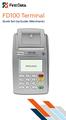 FD100 Terminal Quick Set-Up Guide (Merchants) FD100 powered by FIRST DATA Welcome! 1 2 3 QZ, ABC DEF 4 5 6 GHI JKL MNO 7 8 9 PRS TUV WXY CLEAR X BACKSPACE ALPHA -SP\ 0 *#. @:/ ENTER 31 Thanks for choosing
S80 Users Manual v1.00.01 PAX Technology, Inc. All Rights Reserved.
 General Information S80 Users Manual v1.00.01 PAX Technology, Inc. All Rights Reserved. Preface Preface S80 Users Manual Version: v1.00.01 Status: [ ]Draft [ ]Release [ ]Modify Copyright 2013, PAX Technology,
Mobile PayWay. User guide
 Mobile PayWay User guide The following help desks and authorisation centres are available to you 24 hours a day, 7 days a week. St.George Electronic Banking Service Centre Service and Sales Support Help
AC-115 Compact Networked Single Door Controller. Installation and User Manual
 AC-115 Compact Networked Single Controller Installation and User Manual December 2007 Table of Contents Table of Contents 1. Introduction...5 1.1 Key Features... 6 1.2 Technical Specifications... 7 2.
First Data FD130 Terminal. Quick Set-up Guide
 First Data FD130 Terminal Quick Set-up Guide Thanks for choosing a First Data Terminal. First Data Terminals are some of the fastest, most secure point-of-sale terminals available. Installation is quick
Pocket Verifier Smartphone Edition Release Version 1 User Guide and Tutorial for Windows Mobile 5 Smartphone Motorola Q Samsung i320
 Pocket Verifier Smartphone Edition Release Version 1 User Guide and Tutorial for Windows Mobile 5 Smartphone Motorola Q Samsung i320 Copyright 2006, Advanced Merchant Solutions Inc. All rights reserved.
Full Dial Download to a Terminal with NO Existing Applications (The terminal will display DOWNLOAD NEEDED/*GO FILE NOT FOUND )
 5/29/2007 Full Dial Download to a Terminal with Existing Applications (The terminal will display the SoftPay menu or a VMAC menu that includes Comm Server.) 1 2 Press F2+F4 to enter system mode. Enter
hicaps terminal user guide
 hicaps terminal user guide 1 This page has been left blank intentionally. contact phone numbers for HICAPS/EFTPOS HICAPS Help Desk 1300 650 852 your merchant details Merchant No. For Authorisations: Credit
CHARGE Anywhere. Mobile POS. User s Guide
 CHARGE Anywhere Palm Treo Mobile POS User s Guide 1 PURPOSE... 4 2 SCOPE... 4 3 DEFINITIONS... 4 3.1 Quick Sale... 4 3.2 Sale... 4 3.3 Auth Only... 4 3.4 Force... 4 3.5 Void... 4 3.6 Retry... 4 3.7 Return...
COMSPHERE 6700 SERIES NETWORK MANAGEMENT SYSTEM
 COMSPHERE 6700 SERIES NETWORK MANAGEMENT SYSTEM SECURITY MANAGER FEATURE SUPPLEMENT Document No. 6700-A2-GB41-30 February 1998 Copyright 1998 Paradyne Corporation. All rights reserved. Printed in U.S.A.
EFTPOS Merchant Facilities Quick Reference Guide
 EFTPOS Merchant Facilities Quick Reference Guide How to Use this Guide This handy Quick Reference Guide has been designed to give you step-by-step, easy-to-follow instructions on how to correctly use your
Printed in China. Issue 1.2 AT&T 03/07. Advanced American Telephones. AT&T and the AT&T logo are trademarks of AT&T Knowledge Ventures, licensed to
 2007 Advanced American Telephones. All rights reserved. AT&T and the AT&T logo are trademarks of AT&T Knowledge Ventures, licensed to Advanced American Telephones. Printed in China. Issue 1.2 AT&T 03/07
Leo (for any device) User Guide. 1. Important information to protect your business
 User Guide 1. Important information to protect your business The following steps should be followed at all times to protect you and your customers from fraud. You must ensure that the software application
Wireless Router Setup Manual
 Wireless Router Setup Manual NETGEAR, Inc. 4500 Great America Parkway Santa Clara, CA 95054 USA 208-10082-02 2006-04 2006 by NETGEAR, Inc. All rights reserved. Trademarks NETGEAR is a trademark of Netgear,
AGRI-ALERT 800T / AGRI-ALERT 800 ALARM SYSTEM USER MANUAL
 AGRI-ALERT 800T / AGRI-ALERT 800 ALARM SYSTEM USER MANUAL Manufacturer: Viatron Electronics 3514 1st Street, St-Hubert (Quebec) Canada J3Y 8Y5 WARNING: the warranty can be void if the Agri-Alert 800T or
2.4 GHz Dual Handset Cordless Telephone Answering System 2255 with Caller ID/Call Waiting
 USER S MANUAL Part 2 2.4 GHz Dual Handset Cordless Telephone Answering System 2255 with Caller ID/Call Waiting Please also read Part 1 Important Product Information AT&T and the globe symbol are registered
A complete guide to your EFTPOS Terminal.
 A complete guide to your EFTPOS Terminal. EFTPOS Terminal User Guide. Phone Numbers Westpac Merchant Business Solutions Help Desk Service, Sales and Support Terminal Difficulties Stationery Orders Manual
Quick Installation. A Series of Intelligent Bar Code Reader with NeuroFuzzy Decoding. Quick Installation
 Quick Installation A Series of Intelligent Bar Code Reader with NeuroFuzzy Decoding This chapter intends to get your new FuzzyScan scanner working with your existing system within minutes. General instructions
Introduction. Introduction. Emergency Service Feature. Features. Unpacking the Phone
 Introduction Congratulations on your purchase of Model 390, telephone! The Model 390 boasts several timesaving and advanced features, including: Features The Model 390 has a host of powerful new features:
Quick IWL255 Merchant Operator Guide
 Quick IWL255 Merchant Operator Guide Easy loading printer IWL255 Terminal Features Integrated contactless reader USB connector Magnetic card reader Navigation keys Smart card reader Key Functions Power
EFTPOS Professional Hypercom Mobile User Guide.
 EFTPOS Professional Hypercom Mobile User Guide. Phone Numbers Westpac Merchant Business Solutions Help Desk Service, Sales and Support Terminal Difficulties Stationery Orders Manual Credit Card Authorisations
Virginia ECC. Vendor POS User Manual. Vendor Help Desk: 1-877-918-2776 Cardholder Call Center: 1-877-918-2322
 Virginia ECC Vendor POS User Manual Vendor Help Desk: 1-877-918-2776 Cardholder Call Center: 1-877-918-2322 Contents I. General Information... 4 II. Glossary... 5 III. Call Centers... 6 Vendor Help Line...
ISDN 970 Telephone USER MANUAL. Copyright 1999 Lucent Technologies Inc. All rights reserved. Printed in Mexico. Issue L3 847937794
 ISDN 970 Telephone USER MANUAL Copyright 1999 Lucent Technologies Inc. All rights reserved. Printed in Mexico. Issue L3 847937794 Table of Contents ABOUT ISDN... 3 ISDN TERMS... 3 A GUIDE TO THIS MANUAL...
snom 320 VoIP Business Phone Quick Installation www.snom.com 2005 snom technology AG All rights reserved. Version 1.00
 snom 320 VoIP Business Phone Quick Installation 2005 snom technology AG All rights reserved. Version 1.00 www.snom.com snom technology AG Gradestr. 46 12347 Berlin, Germany Note to the reader This is a
Welcome. Unleash Your Phone
 User Manual Welcome Unleash Your Phone For assistance with installation or troubleshooting common problems, please refer to this User Manual or Quick Installation Guide. Please visit www.vonage.com/vta
Meridian 8314 Business Terminal User Guide
 For additional information, Dial Telecommunications Center Centrex Services... - University of Nebraska - Lincoln Telecommunications Center Nebraska Hall Lincoln, NE 6888-0 (0) 7-000 The University of
Getting Started with IntelleView POS Administrator Software
 Getting Started with IntelleView POS Administrator Software Administrator s Guide for Software Version 1.2 About this Guide This administrator s guide explains how to start using your IntelleView POS (IntelleView)
LinkPoint 3000/AIO REFERENCE MANUAL RETAIL/AVS/PURCHASING CARD/RESTAURANT APPLICATION
 LinkPoint 3000/AIO REFERENCE MANUAL RETAIL/AVS/PURCHASING CARD/RESTAURANT APPLICATION APPLICATION ID: L3FRR31 DRAFT COPY L3FRR31 Version 1.0 0402 LinkPoint 3000/AIO Reference Manual FDMS Omaha; Application
Table of Contents. www.scholastic.com/bookfairs/easyscan
 Quick Start Guide Table of Contents Equipment Setup and Break-Down 1-2 Processing a Sale 3 Payment Types 3 Tax Change 3 Scanning Items 4 Price Checks 4 Voids 4 Returns 4 Reprints 4 Gift Certificates 5
NURIT 8400 EASY USER GUIDE RETAIL AND RESTAURANT APPLICATION POS 11.30
 NURIT 8400 EASY USER GUIDE RETAIL AND RESTAURANT APPLICATION POS 11.30 Cards are swiped with magnetic stripe down and to the front. They can be swiped either top to bottom or bottom to top. CREDIT CARD
User s manual. Corded telephone. w w w.v t e c h c a n a d a. c o m. Big Button Big Display. Model:CD1281 DIR CID
 User s manual w w w.v t e c h c a n a d a. c o m DIR CID Model:CD1281 Corded telephone Big Button Big Display Congratulations on purchasing your new VTech product. Before using this telephone, please read
*ROAMpay powered by ROAM
 *ROAMpay powered by ROAM Table of Contents 1. Introduction 2. Setting up Service 3. Supporting ROAMpay Customers 4. Helpful Links and Contacts 5. ROAMpay User s Guide Welcome to ROAMpay powered by ROAM!
ATS Overhead Table Shelf System INSTRUCTION MANUAL
 ATS Overhead Table Shelf System INSTRUCTION MANUAL ATS Overhead Table Shelf System Instruction Manual Warranty Newport Corporation warrants this product to be free of defects in material and workmanship
V x 670 Terminal Reference Guide
 V x 670 Terminal Reference Guide Copyright Statement Copyright 2011 by Amex Bank of Canada. All rights reserved. No part of this document may be reproduced in any form or by any electronic or mechanical
snom 370 Quick Installation Kurzanleitung VoIP Business Phone www.snom.com 2007 snom technology AG All rights reserved. Version 1.
 snom 370 VoIP Business Phone Quick Installation Kurzanleitung 2007 snom technology AG All rights reserved. Version 1.0 www.snom.com snom technology AG Gradestr. 46 D-12347 Berlin, Germany Note to the reader
Express5800/120Ed. Rack Mount Kit Installation Procedures PN: 455-01607-001
 Express5800/120Ed Rack Mount Kit Installation Procedures PN: 455-01607-001 Proprietary Notice and Liability Disclaimer The information disclosed in this document, including all designs and related materials,
Table of Contents. www.scholastic.com/bookfairs/easyscan
 Quick Start Guide Table of Contents Equipment Setup and Break-Down 1-2 Processing a Sale 3 Payment Types 3 Tax Change 3 Scanning Items 4 Price Checks 4 Voids 4 Returns 4 Reprints 4 Gift Certificates 5
Vista. Vista 150 User Guide
 Vista Vista 150 User Guide TABLE of CONTENTS Call Waiting Display 1 Installing your Vista telephone 2 Checking your telephone 2 Key reference 3 Personalizing your telephone 3 Options 4 Visual Call Waiting
VX 520 Troubleshooting
 1 This section addresses problems that may arise while using the VX 520 Point of Service () device. In all cases, if the prescribed procedures do not correct the problem, call the /Internet Help Desk at
SETTING UP YOUR 6000 SERIES TIME RECORDER
 INTRODUCTION The Pyramid 6000 Series Time Recorder is an electronic time recorder designed to make payroll processing easier and more efficient. The 6000 series will meet your business needs whether your
MagIC 6100. Installation Manual. Point of Sales Terminals TD06014B
 MagIC 6100 Installation Manual Point of Sales Terminals TD06014B Contents Description 3 Introduction 3 Presentation of the MagIC 6100 terminal 3 Technical Data 4 Installation 5 Unpacking 5 Safety recommendations
Ingenico iwl250. Product Release Kit PAGE 1. Ingenico iwl250-user
 Ingenico iwl250 Product Release Kit PAGE 1 Table of Contents Product Overview... 3 Getting Started... 4 Quick Reference... 6 Credit Transactions... 7 Debit Transactions... 8 Receipts & Reports... 9 Apriva
-Helping to make your life betterwww.person-to-person.net
 Household Telephone Management System Built on Interceptor ID Technology Owner/Operation Manual Telephone Management System- Model P2P101 Call Receiver - Model P2P301 (Receiver may be sold separately)
Lenovo Miix 2 8. User Guide. Read the safety notices and important tips in the included manuals before using your computer.
 Lenovo Miix 2 8 User Guide Read the safety notices and important tips in the included manuals before using your computer. Notes Before using the product, be sure to read Lenovo Safety and General Information
S90 Portable Terminal User Manual
 General Information S90 Portable Terminal User Manual V1.00.01 PAX Technology, Inc. All Rights Reserved. Preface Preface BroadPOS Terminal for S90 V1.00.01 User Manual Version: V20120308 Document No: BT
Quick Start Guide See Inside for Use and Safety Information
 3 rd Generation Personal 3D Printer Quick Start Guide See Inside for Use and Safety Information The USB Mass Storage Device Contains the User Guide and Quick Start Guide in other Languages Congratulations
PIX-10 Electronic Time Recorder User s Guide
 PIX-10 Electronic Time Recorder User s Guide Thank you for purchasing another fine product from Amano Cincinnati, Inc. IMPORTANT The Daylight Saving Time date settings have been preset. DO NOT change the
HP UPS R1500 Generation 3
 HP UPS R1500 Generation 3 Installation Instructions Part Number 650952-001 NOTE: The rating label on the device provides the class (A or B) of the equipment. Class B devices have a Federal Communications
110244-003. PrintPAD CN3/4/3e/4e. User Guide
 110244-003 PrintPAD CN3/4/3e/4e User Guide TABLE OF CONTENTS PrintPAD CN3/4 & PrintPAD CN3e/4e Printer Views...1 Open View...1 Closed View...1 Using Batteries: General Guidelines...1 Installing and/or
EFTPOS Merchant Facilities Quick Reference Guide (VX520/VX680)
 EFTPOS Merchant Facilities Quick Reference Guide (VX520/VX680) How to Use this Guide This handy Quick Reference Guide has been designed to give you step-by-step, easy-to-follow instructions on how to correctly
Aquadyne TechTip TITLE: TROUBLESHOOTING PC COM PORT AND MODEM PRODUCTS AFFECTED SYMPTOMS POSSIBLE CAUSES
 Aquadyne TechTip TITLE: TROUBLESHOOTING PC COM PORT AND MODEM COMMUNICATIONS WITH AN OCTOPUS. Article # 072297-1 Last reviewed: 03/25/98 Keywords: Serial Port, Modem, Polling, AquaWeb, Node Not Responding
Credit & Debit Application
 USER MANUAL ALL TERMINAL PRODUCTS Credit & Debit Application Instruction Manual V525.15 Dejavoo Systems Instruction Manual V525.15 1 ABOUT THIS MANUAL This manual provides basic instructions for user of
POS: Installation Instructions
 : Installation Instructions 1 The Medi-Cal Point of Service () system was designed and implemented by EDS in conjunction with the California Department of Health Services. The device and receipt printer
3NNet KVM CP-104S /OSD / 19 KVM CP-108S / OSD / 19 KVM CP-116S / OSD / 19
 3NNet USERS MANUAL KVM CP-104S /OSD / 19 KVM CP-108S / OSD / 19 KVM CP-116S / OSD / 19 RACK MOUNTABLE 4 / 8 / 16 PORT PS2 KVM SWITCH Rev 1.1 TABLE OF CONTENTS INTRODUCTION.. 3 FEATURES... 3 PACKAGE CONTENTS........
Four-Line Intercom Speakerphone 944
 1 USER S MANUAL Part 2 Four-Line Intercom Speakerphone 944 Please also read Part 1 Important Product Information AT&T and the globe symbol are registered trademarks of AT&T Corp. licensed to Advanced American
SP55 Printer Guide 554733-001. August 2004
 SP55 Printer Guide 554733-001 August 2004 Information resources for the SP55 Printer Installation Message Help To install the printer: To install one printer on a PC using a USB cable, see the Installation
7 High-Resolution Digital Photo Frame
 TM 16-1003 User s Guide 7 High-Resolution Digital Photo Frame One demo photo included, as illustrated Please read this user s guide before using your new photo frame. Package contents Photo Frame AC Adapter
Daker DK 1, 2, 3 kva. Manuel d installation Installation manual. Part. LE05334AC-07/13-01 GF
 Daker DK 1, 2, 3 kva Manuel d installation Installation manual Part. LE05334AC-07/13-01 GF Daker DK 1, 2, 3 kva Index 1 Introduction 24 2 Conditions of use 24 3 LCD Panel 25 4 Installation 28 5 UPS communicator
POS/Internet Help Desk: 1-800-541-5555
 1 This section addresses problems that may arise while using the device. In all cases, if the prescribed procedures do not correct the problem, call the /Internet Help Desk at 1-800-427-1295 for assistance.
Taurus Super-S3 LCM. Dual-Bay RAID Storage Enclosure for two 3.5-inch Serial ATA Hard Drives. User Manual March 31, 2014 v1.2 www.akitio.
 Dual-Bay RAID Storage Enclosure for two 3.5-inch Serial ATA Hard Drives User Manual March 31, 2014 v1.2 www.akitio.com EN Table of Contents Table of Contents 1 Introduction... 1 1.1 Technical Specifications...
Computer Lane Monitor for Windows
 Computer Lane Monitor for Windows User Guide Supplement BRUNSWICK SERVICE PARTS & SUPPLIES MUSKEGON, MICHIGAN 1995, Brunswick Bowling and Billiards Corporation, 525 W. Laketon Avenue, P.O. Box 329, Muskegon,
OM2260VW2 USER MANUAL VERIZON WIRELESS HOME PHONE CONNECT
 OM2260VW2 USER MANUAL VERIZON WIRELESS HOME PHONE CONNECT Welcome to Verizon Wireless Thank you for choosing Verizon Wireless Home Phone Connect. You re now connected to the power of America s most reliable
User Guide VERIZON WIRELESS HOME PHONE CONNECT
 User Guide VERIZON WIRELESS HOME PHONE CONNECT label Welcome to Verizon Wireless Thank you for choosing Verizon Wireless Home Phone Connect. You re now connected to America s most reliable wireless network.
Technical Manual. For use with Caller ID signaling types: Belcore 202, British Telecom, & ETSI
 Technical Manual For use with Caller ID signaling types: Belcore 202, British Telecom, & ETSI Caller ID.com WHOZZ CALLING? POS 2 Caller ID Monitoring Unit Technical Manual For use with Caller ID signaling
LBP-1210 Laser Printer
 LBP-1210 Laser Printer Getting Started Guide IMPORTANT: Read this manual carefully before using your printer. Save this manual for future reference. Copyright Copyright 2002 Canon Inc. All information
OC-3 SERIES OF PRINTERS
 110204-003 OC-3 SERIES OF PRINTERS User Guide TABLE OF CONTENTS OC-3 Printer Views... 1 Front and back view... 1 Side views... 1 Setting up your printer... 2 Unpacking your printer... 2 Installing/removing
Quick Reference Guide. ict200 Series
 Quick Reference Guide ict200 Series Hotkey Support Pressing one of the numeric keys (0-9) from the Idle Screen will take the user directly to certain pre-assigned transactions or tasks. Should any of those
Quick Merchant Operator Guide IPP350
 Quick Merchant Operator Guide IPP350 IPP350 Terminal Features USB PORT Location INTEGRATED CONTACTLESS reader MAGNETIC STRIP reader Yellow OPTION buttons ALPHANUMERIC keys MENU button Red CANCEL button
IMPORTANT - READ THIS FIRST
 PersonalPost E700 Postage Meter Quick Install Guide (UK Edition) IMPORTANT - READ THIS FIRST before plugging in your meter These instructions describe how to quickly unpack and setup your PersonalPost
3M SelfCheck System C-Series Optional Receipt Printer. User s Guide
 3M SelfCheck System C-Series Optional Receipt Printer User s Guide Copyright 2009 3M. All rights reserved. 3M SelfCheck System C-Series Optional Receipt Printer 78-8129-3994-6B 3M and SelfCheck are trademarks
WARNING CANADIAN D.O.C. WARNING
 Each product and program carries a respective written warranty, the only warranty on which the customer can rely. Avery Dennison Corp. reserves the right to make changes in the product, the programs, and
Verifone Terminal FAQs (version D413):
 Verifone Terminal FAQs (version D413): Processing Transactions: 1. Why can t I find the product that I want to sell? To view your products on your terminal: a. Enter your clerk ID b. Choose the product
Installation Guide (No Router)
 Installation Guide (No Router) This installation guide will show you how to get your voip phone service working. This installation guide should be used if you have a standard DSL or cable modem and no
User Manual I1010Q16DCZ
 User Manual I1010Q16DCZ Explanation, Note and Warning *Explanation: important information, which can help you better use your tablet PC. *Note: indicates that not observing the content may result in hardware
Diamante WiFi Wireless Communication User Guide. Linksys E1200
 Diamante WiFi Wireless Communication User Guide Linksys E1200 Release: February 2012; August 2011; February 2011 Patent Pending. Copyright 2012, Stenograph, L.L.C. All Rights Reserved. Printed in U.S.A.
Verifone User Guide. VX 820 VX 680.
 Verifone User Guide. VX 820 VX 680. Table of contents. Terminal layout 3 Purchase transactions 4 Purchase transactions Restaurants only. 5 Pre-authorisation 7 Processing a void transaction 8 Processing