
EtherNet/IP Modules in Logix5000 Control Systems
|
|
|
- Gerard Cummings
- 10 years ago
- Views:
Transcription
1 EtherNet/IP Modules in Logix5000 Control Systems Catalog Numbers 1756-ENBT, 1756-EN2F, 1756-EN2T, 1756-EN2TR, 1756-EN2TXT, 1768-ENBT, 1769-L23E-QB1B, 1769-L23E-QBFC1B, L32E, 1769-L35E, 1783-ETAP, 1783-ETAP1F, 1783-ETAP2F, 1794-AENT, 20- COMM-E, 22-COMM-E, 1734-AENT, 1734-AENTR User Manual

2 Important User Information Solid state equipment has operational characteristics differing from those of electromechanical equipment. Safety Guidelines for the Application, Installation and Maintenance of Solid State Controls (publication SGI-1.1 available from your local Rockwell Automation sales office or online at describes some important differences between solid state equipment and hard-wired electromechanical devices. Because of this difference, and also because of the wide variety of uses for solid state equipment, all persons responsible for applying this equipment must satisfy themselves that each intended application of this equipment is acceptable. In no event will Rockwell Automation, Inc. be responsible or liable for indirect or consequential damages resulting from the use or application of this equipment. The examples and diagrams in this manual are included solely for illustrative purposes. Because of the many variables and requirements associated with any particular installation, Rockwell Automation, Inc. cannot assume responsibility or liability for actual use based on the examples and diagrams. No patent liability is assumed by Rockwell Automation, Inc. with respect to use of information, circuits, equipment, or software described in this manual. Reproduction of the contents of this manual, in whole or in part, without written permission of Rockwell Automation, Inc., is prohibited. Throughout this manual, when necessary, we use notes to make you aware of safety considerations. WARNING Identifies information about practices or circumstances that can cause an explosion in a hazardous environment, which may lead to personal injury or death, property damage, or economic loss. IMPORTANT Identifies information that is critical for successful application and understanding of the product. ATTENTION Identifies information about practices or circumstances that can lead to personal injury or death, property damage, or economic loss. Attentions help you identify a hazard, avoid a hazard, and recognize the consequence SHOCK HAZARD Labels may be on or inside the equipment, for example, a drive or motor, to alert people that dangerous voltage may be present. BURN HAZARD Labels may be on or inside the equipment, for example, a drive or motor, to alert people that surfaces may reach dangerous temperatures. Allen-Bradley, ArmorPOINT, CompactLogix, ControlLogix, DriveLogix, FLEX I/O, FlexLogix, Guard I/O, Logix5000, POINT I/O, Rockwell Automation, RSLinx, RSLogix 5000, Stratix 6000, Stratix 8000, and TechConnect are trademarks of Rockwell Automation, Inc. Trademarks not belonging to Rockwell Automation are property of their respective companies.

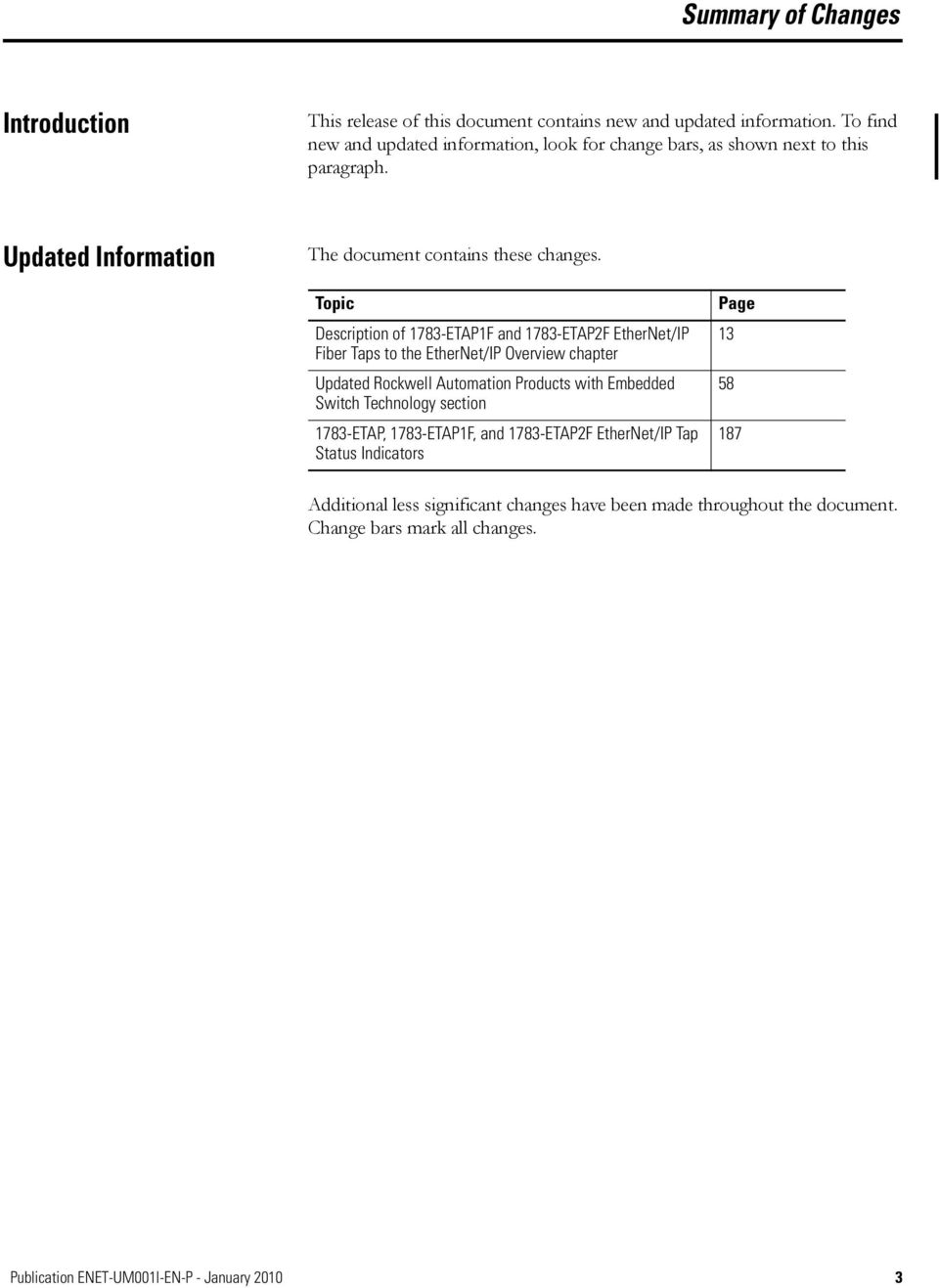
3 Summary of Changes Introduction This release of this document contains new and updated information. To find new and updated information, look for change bars, as shown next to this paragraph. Updated Information The document contains these changes. Topic Description of 1783-ETAP1F and 1783-ETAP2F EtherNet/IP Fiber Taps to the EtherNet/IP Overview chapter Updated Rockwell Automation Products with Embedded Switch Technology section 1783-ETAP, 1783-ETAP1F, and 1783-ETAP2F EtherNet/IP Tap Status Indicators Page Additional less significant changes have been made throughout the document. Change bars mark all changes. 3Publication ENET-UM001I-EN-P - January
4 Summary of Changes Notes: 4 Publication ENET-UM001I-EN-P - January 2010

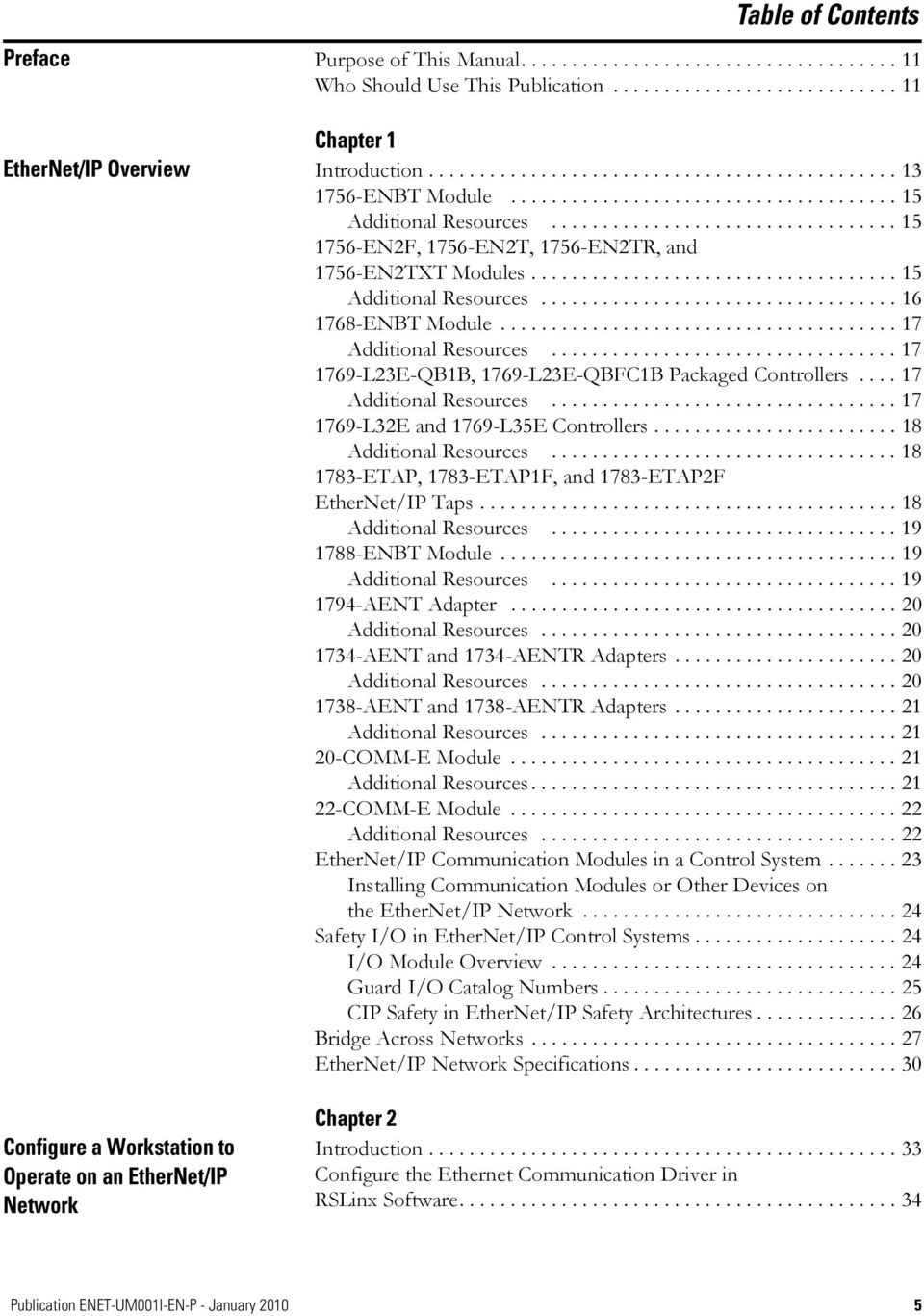
5 Table of Contents Preface Purpose of This Manual Who Should Use This Publication Chapter 1 EtherNet/IP Overview Introduction ENBT Module Additional Resources EN2F, 1756-EN2T, 1756-EN2TR, and 1756-EN2TXT Modules Additional Resources ENBT Module Additional Resources L23E-QB1B, 1769-L23E-QBFC1B Packaged Controllers Additional Resources L32E and 1769-L35E Controllers Additional Resources ETAP, 1783-ETAP1F, and 1783-ETAP2F EtherNet/IP Taps Additional Resources ENBT Module Additional Resources AENT Adapter Additional Resources AENT and 1734-AENTR Adapters Additional Resources AENT and 1738-AENTR Adapters Additional Resources COMM-E Module Additional Resources COMM-E Module Additional Resources EtherNet/IP Communication Modules in a Control System Installing Communication Modules or Other Devices on the EtherNet/IP Network Safety I/O in EtherNet/IP Control Systems I/O Module Overview Guard I/O Catalog Numbers CIP Safety in EtherNet/IP Safety Architectures Bridge Across Networks EtherNet/IP Network Specifications Configure a Workstation to Operate on an EtherNet/IP Network Chapter 2 Introduction Configure the Ethernet Communication Driver in RSLinx Software Publication ENET-UM001I-EN-P - January
6 Table of Contents Chapter 3 Configure Stratix Switches Introduction Select a Switch Set Up the Hardware Switch Features Additional Resources Configure an EtherNet/IP Module to Operate on the Network Configure a Supervisor on a Device-level Ring Network Chapter 4 Introduction Determine Network Parameters Set the IP Network Address Assign Network Parameters via the BOOTP/DHCP Utility Other Methods to Assign Network Parameters Configure the Module with RSLinx Software Configure Your Module with RSLogix 5000 Software Use DHCP Software to Set the IP Address Duplicate IP Address Detection Detection of Duplicate IP Addresses IP Address Swapping DNS Addressing Use EtherNet/IP Modules in a Logix5000 Controller Application Chapter 5 Introduction Rockwell Automation Products with Embedded Switch Technology Features Common to Products with Embedded Switch Technology Supervisor Node Ring Node Construct the Physical Network Configure Supervisor Nodes on a DLR Network Configure a Ring Supervisor in RSLogix 5000 Programming Software Enable Ring Supervisor in RSLogix 5000 Programming Software Configure and Enable a Ring Supervisor in RSLinx Classic Communication Software Complete the Physical Connections of the Network Verify Supervisor Configuration Troubleshoot DLR Network Issues Publication ENET-UM001I-EN-P - January 2010

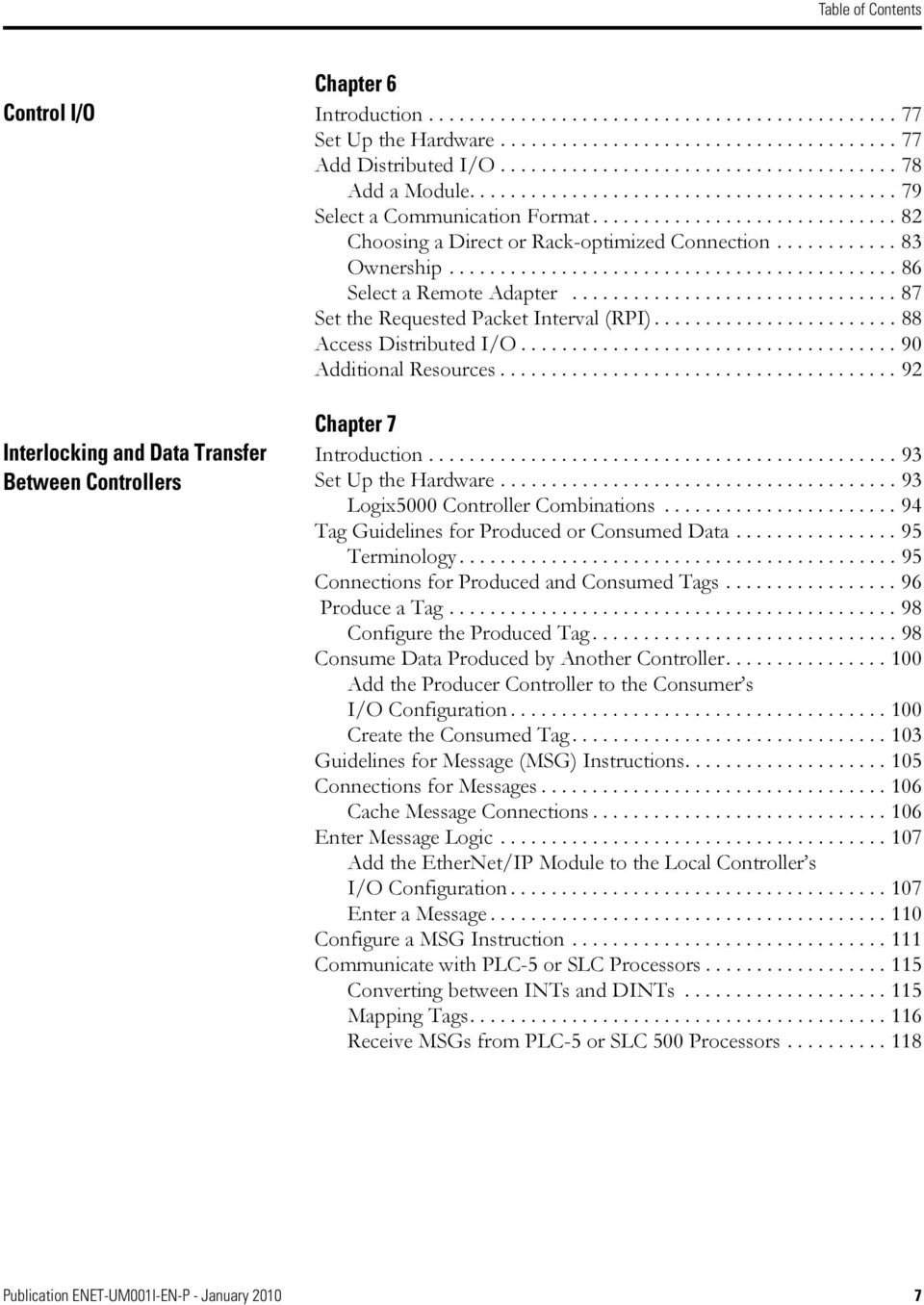
7 Table of Contents Chapter 6 Control I/O Introduction Set Up the Hardware Add Distributed I/O Add a Module Select a Communication Format Choosing a Direct or Rack-optimized Connection Ownership Select a Remote Adapter Set the Requested Packet Interval (RPI) Access Distributed I/O Additional Resources Interlocking and Data Transfer Between Controllers Chapter 7 Introduction Set Up the Hardware Logix5000 Controller Combinations Tag Guidelines for Produced or Consumed Data Terminology Connections for Produced and Consumed Tags Produce a Tag Configure the Produced Tag Consume Data Produced by Another Controller Add the Producer Controller to the Consumer s I/O Configuration Create the Consumed Tag Guidelines for Message (MSG) Instructions Connections for Messages Cache Message Connections Enter Message Logic Add the EtherNet/IP Module to the Local Controller s I/O Configuration Enter a Message Configure a MSG Instruction Communicate with PLC-5 or SLC Processors Converting between INTs and DINTs Mapping Tags Receive MSGs from PLC-5 or SLC 500 Processors Publication ENET-UM001I-EN-P - January
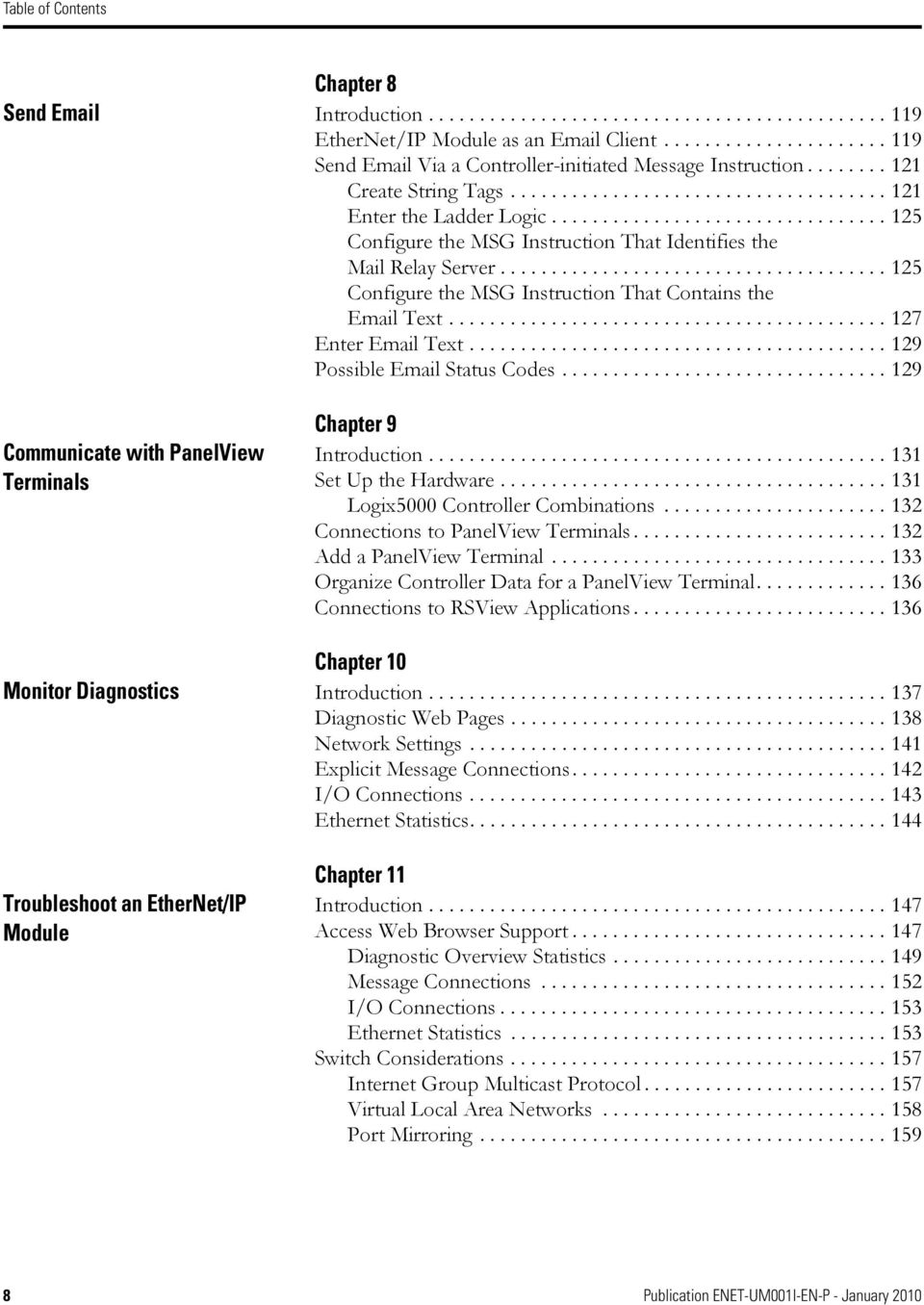
8 Table of Contents Chapter 8 Send Introduction EtherNet/IP Module as an Client Send Via a Controller-initiated Message Instruction Create String Tags Enter the Ladder Logic Configure the MSG Instruction That Identifies the Mail Relay Server Configure the MSG Instruction That Contains the Text Enter Text Possible Status Codes Communicate with PanelView Terminals Chapter 9 Introduction Set Up the Hardware Logix5000 Controller Combinations Connections to PanelView Terminals Add a PanelView Terminal Organize Controller Data for a PanelView Terminal Connections to RSView Applications Chapter 10 Monitor Diagnostics Introduction Diagnostic Web Pages Network Settings Explicit Message Connections I/O Connections Ethernet Statistics Troubleshoot an EtherNet/IP Module Chapter 11 Introduction Access Web Browser Support Diagnostic Overview Statistics Message Connections I/O Connections Ethernet Statistics Switch Considerations Internet Group Multicast Protocol Virtual Local Area Networks Port Mirroring Publication ENET-UM001I-EN-P - January 2010
9 Table of Contents Chapter 12 USB Serial Communication Introduction Set Up the Hardware Configure a Module Via the USB Port Set Up a USB Driver Flash Upgrade Firmware through a USB Port Appendix A Status Indicators Introduction ENBT EtherNet/IP Module Status Indicators EN2F EtherNet/IP Module Status Indicators EN2T EtherNet/IP Module Status Indicators EN2TR EtherNet/IP Module Status Indicators EN2TXT ControlLogix-XT EtherNet/IP Bridge Module Status Indicators L23E-QB1B and 1769-L23E-QBFC1B Controllers Status Indicators I/O Status Indicators L32E and 1769-L35E Controllers Status Indicators ENBT Module Status Indicators ETAP, 1783-ETAP1F, and 1783-ETAP2F EtherNet/IP Tap Status Indicators ENBT EtherNet/IP Daughtercard Status Indicators AENT and 1734-AENTR EtherNet/IP POINT I/O Adapter Status Indicators AENTR ArmorPOINT I/O 2-port EtherNet/IP Adapter Status Indicators AENT EtherNet/IP FLEX I/O Adapter Status Indicators COMM-E Module Status Indicators COMM-E Module Status Indicators Appendix B Fiber Cable and LC Connector Introduction Specifications Appendix C EtherNet/IP Network Connections Introduction CIP Connections TCP Connections Multicast Address Limit Requested Packet Interval (RPI) Publication ENET-UM001I-EN-P - January

10 Table of Contents Appendix D EtherNet/IP Network Overview Introduction Ethernet Protocols Use of the Common Industrial Protocol (CIP) Configuration Requirements IP Address Gateways Subnet Mask Manual Configuration on an Ethernet Switch Change Ports on an Ethernet Switch Additional Resources Index 10 Publication ENET-UM001I-EN-P - January 2010
11 Preface Purpose of This Manual This manual describes how you can use EtherNet/IP modules with your Logix5000 controller and communicate with various devices on the Ethernet network. Who Should Use This Publication You should use this manual if you program applications that use Ethernet with one of these Logix5000 controllers: CompactLogix controller ControlLogix controller FlexLogix controller You should also understand: networking concepts. RSLogix 5000 programming software. RSLinx Classic programming software. 11Publication ENET-UM001I-EN-P - January

12 Preface Notes: 12 Publication ENET-UM001I-EN-P - January 2010

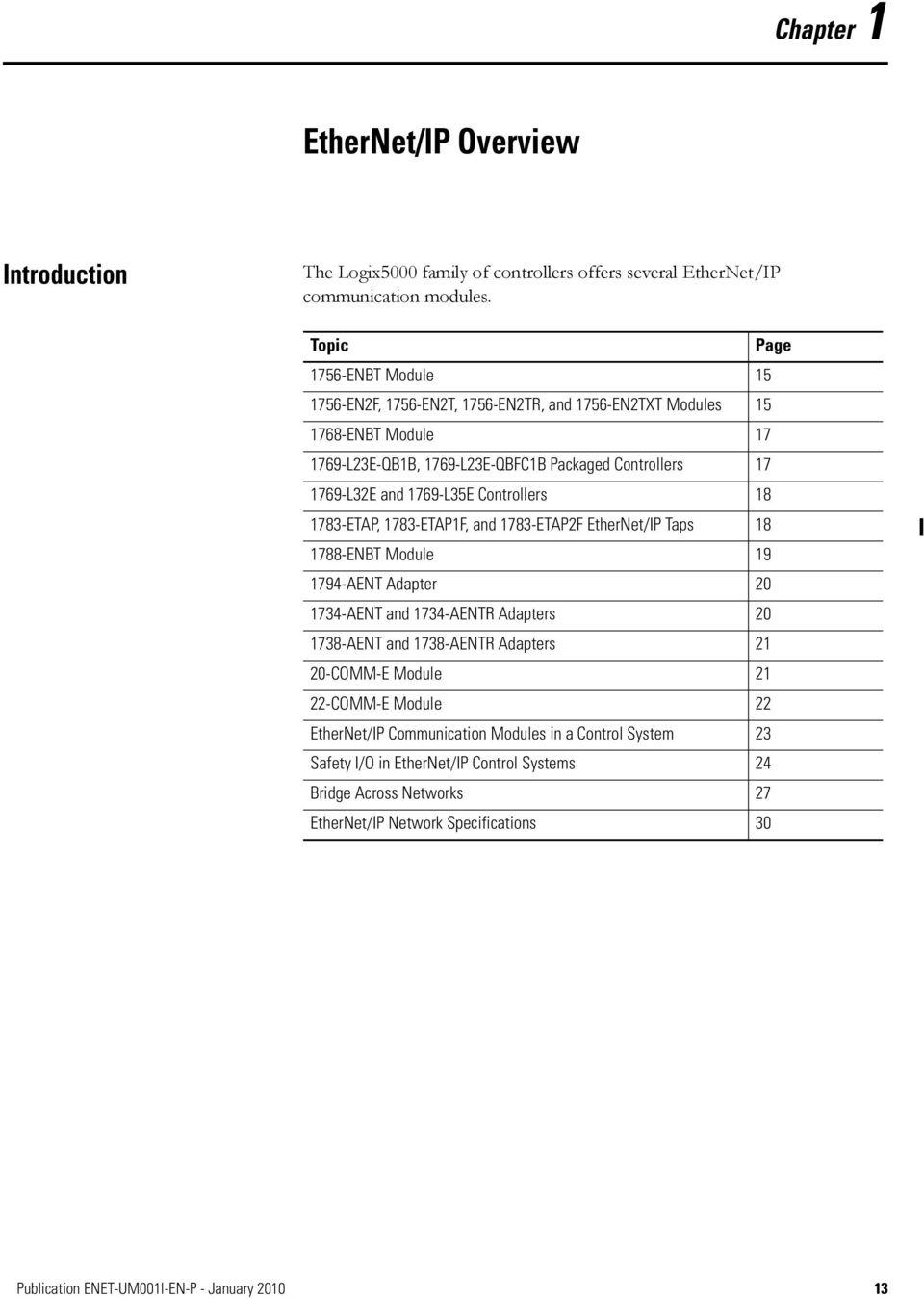
13 Chapter 1 EtherNet/IP Overview Introduction The Logix5000 family of controllers offers several EtherNet/IP communication modules. Topic Page 1756-ENBT Module EN2F, 1756-EN2T, 1756-EN2TR, and 1756-EN2TXT Modules ENBT Module L23E-QB1B, 1769-L23E-QBFC1B Packaged Controllers L32E and 1769-L35E Controllers ETAP, 1783-ETAP1F, and 1783-ETAP2F EtherNet/IP Taps ENBT Module AENT Adapter AENT and 1734-AENTR Adapters AENT and 1738-AENTR Adapters COMM-E Module COMM-E Module 22 EtherNet/IP Communication Modules in a Control System 23 Safety I/O in EtherNet/IP Control Systems 24 Bridge Across Networks 27 EtherNet/IP Network Specifications 30 13Publication ENET-UM001I-EN-P - January
14 Chapter 1 EtherNet/IP Overview Select a module based on the EtherNet/IP functions the application requires. EtherNet/IP Module Functions and Applications Module 1734-AENT 1738-AENT, 1734-AENTR The EtherNet/IP communication modules: support messaging, produced/consumed tags, and distributed I/O. encapsulate messages within standard TCP/UDP/IP protocol. share a common application layer with ControlNet and DeviceNet network protocols. interface via RJ45, category 5, unshielded, twisted-pair cable, except for the 1756-EN2F fiber cable, which has a fiber connector. support half/full duplex 10 Mbps or 100 Mbps operation. require no network scheduling. require no routing tables. Works With a Controller to Originate Communication (Scanner/Bridge) 1756-ENBT X X 1756-EN2F X X 1756-EN2T, 1756-EN2TR, 1756-EN2TXT 1768-ENBT 1769-L23E-QB1B, 1769-L23E-QBFC1B 1769-L32E, 1769-L35E 1788-ENBT 1794-AENT 2x-COMM-E X X X X X Interfaces With Distributed I/O Modules (Adapter) or End Node X X X X X 14 Publication ENET-UM001I-EN-P - January 2010

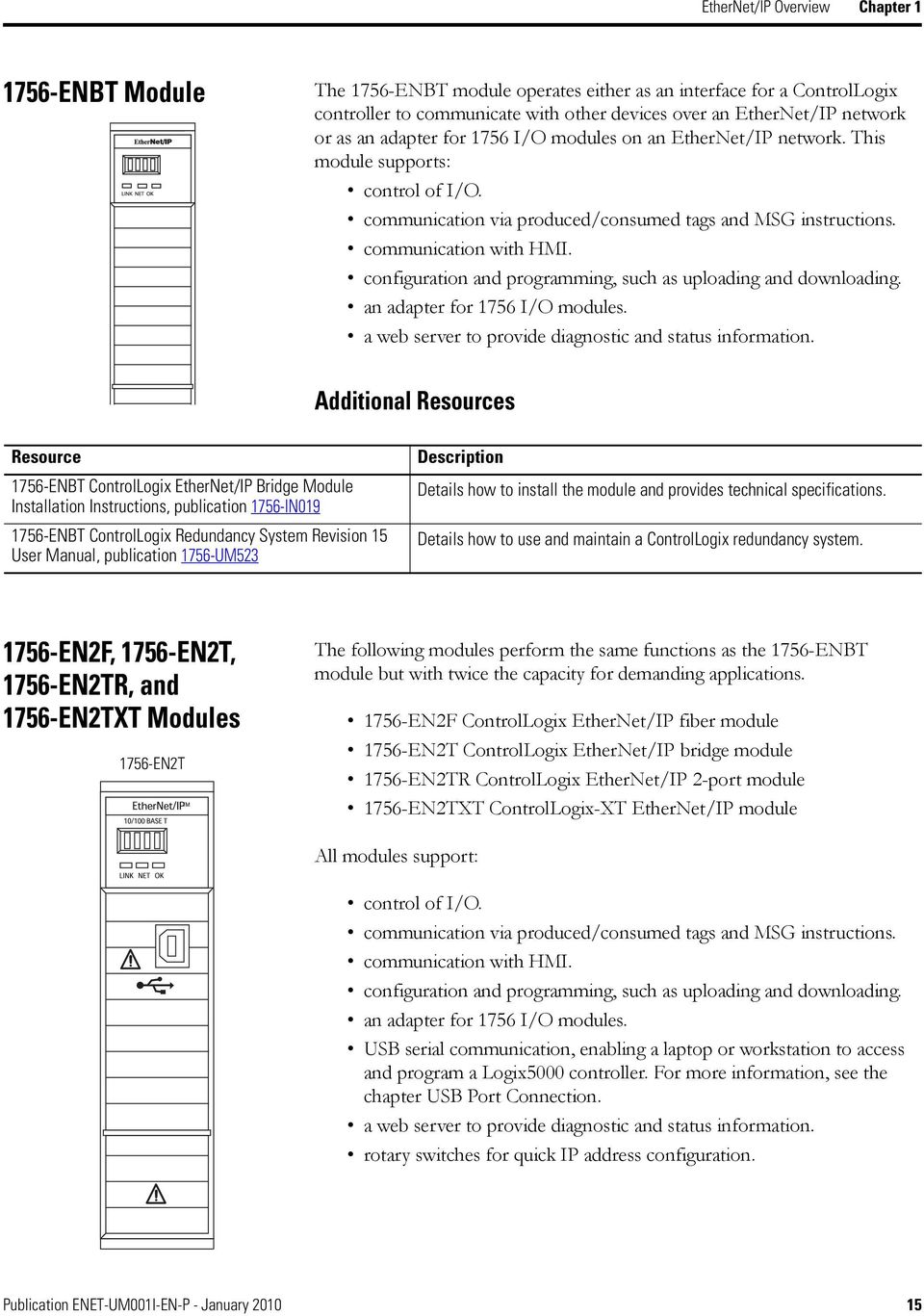
15 EtherNet/IP Overview Chapter ENBT Module The 1756-ENBT module operates either as an interface for a ControlLogix controller to communicate with other devices over an EtherNet/IP network or as an adapter for 1756 I/O modules on an EtherNet/IP network. This module supports: control of I/O. communication via produced/consumed tags and MSG instructions. communication with HMI. configuration and programming, such as uploading and downloading. an adapter for 1756 I/O modules. a web server to provide diagnostic and status information. Additional Resources Resource 1756-ENBT ControlLogix EtherNet/IP Bridge Module Installation Instructions, publication 1756-IN ENBT ControlLogix Redundancy System Revision 15 User Manual, publication 1756-UM523 Description Details how to install the module and provides technical specifications. Details how to use and maintain a ControlLogix redundancy system EN2F, 1756-EN2T, 1756-EN2TR, and 1756-EN2TXT Modules 1756-EN2T The following modules perform the same functions as the 1756-ENBT module but with twice the capacity for demanding applications EN2F ControlLogix EtherNet/IP fiber module 1756-EN2T ControlLogix EtherNet/IP bridge module 1756-EN2TR ControlLogix EtherNet/IP 2-port module 1756-EN2TXT ControlLogix-XT EtherNet/IP module All modules support: control of I/O. communication via produced/consumed tags and MSG instructions. communication with HMI. configuration and programming, such as uploading and downloading. an adapter for 1756 I/O modules. USB serial communication, enabling a laptop or workstation to access and program a Logix5000 controller. For more information, see the chapter USB Port Connection. a web server to provide diagnostic and status information. rotary switches for quick IP address configuration. Publication ENET-UM001I-EN-P - January
16 Chapter 1 EtherNet/IP Overview The 1756-EN2F module only supports an LC fiber connector to support additional applications. For more information on LC fiber connectors, see Fiber Cable and LC Connector on page 209. The 1756-EN2TR module only supports connection of a ControlLogix system to a linear or device level ring (DLR) network. The 1756-EN2TXT module only supports use of the module in extreme temperatures. The module is capable of operating in temperatures from C ( F). Additional Resources Resource 1756-EN2T ControlLogix EtherNet/IP Bridge Module Installation Instructions, publication 1756-IN EN2TR ControlLogix EtherNet/IP 2-port Module Installation Instructions, publication 1756-IN EN2F ControlLogix EtherNet/IP Fiber Module Installation Instructions, publication 1756-IN EN2TXT ControlLogix-XT EtherNet/IP Bridge Module Installation Instructions, publication 1756-IN635 Description Details how to install the module and provides technical specifications. Details how to install the module and provides technical specifications. Details how to install the fiber module and provides technical specifications. Details how to install the fiber module and provides technical specifications. 16 Publication ENET-UM001I-EN-P - January 2010

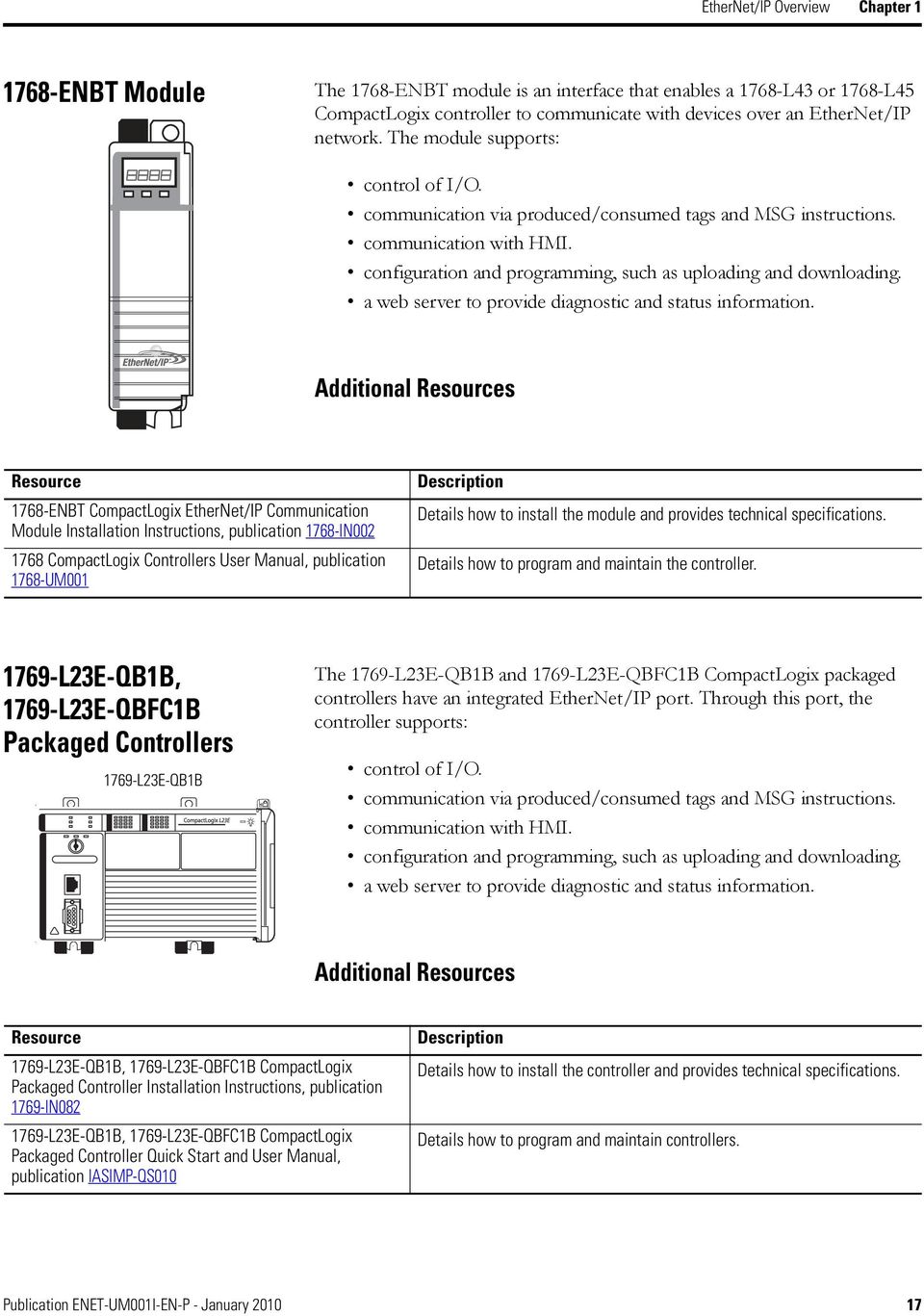
17 EtherNet/IP Overview Chapter ENBT Module The 1768-ENBT module is an interface that enables a 1768-L43 or 1768-L45 CompactLogix controller to communicate with devices over an EtherNet/IP network. The module supports: control of I/O. communication via produced/consumed tags and MSG instructions. communication with HMI. configuration and programming, such as uploading and downloading. a web server to provide diagnostic and status information. Additional Resources Resource 1768-ENBT CompactLogix EtherNet/IP Communication Module Installation Instructions, publication 1768-IN CompactLogix Controllers User Manual, publication 1768-UM001 Description Details how to install the module and provides technical specifications. Details how to program and maintain the controller L23E-QB1B, 1769-L23E-QBFC1B Packaged Controllers 1769-L23E-QB1B The 1769-L23E-QB1B and 1769-L23E-QBFC1B CompactLogix packaged controllers have an integrated EtherNet/IP port. Through this port, the controller supports: control of I/O. communication via produced/consumed tags and MSG instructions. communication with HMI. configuration and programming, such as uploading and downloading. a web server to provide diagnostic and status information. Additional Resources Resource 1769-L23E-QB1B, 1769-L23E-QBFC1B CompactLogix Packaged Controller Installation Instructions, publication 1769-IN L23E-QB1B, 1769-L23E-QBFC1B CompactLogix Packaged Controller Quick Start and User Manual, publication IASIMP-QS010 Description Details how to install the controller and provides technical specifications. Details how to program and maintain controllers. Publication ENET-UM001I-EN-P - January
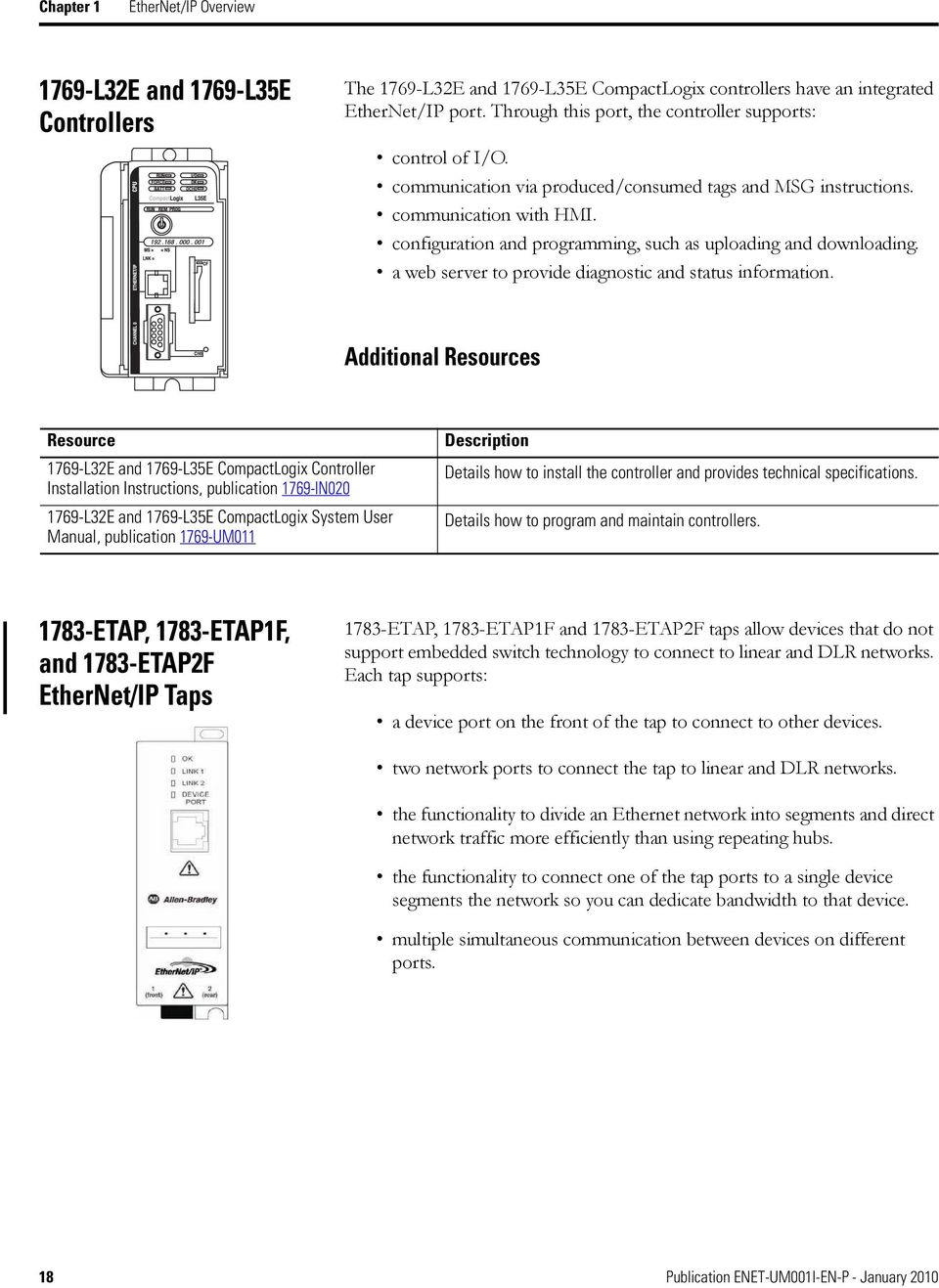
18 Chapter 1 EtherNet/IP Overview 1769-L32E and 1769-L35E Controllers The 1769-L32E and 1769-L35E CompactLogix controllers have an integrated EtherNet/IP port. Through this port, the controller supports: control of I/O. communication via produced/consumed tags and MSG instructions. communication with HMI. configuration and programming, such as uploading and downloading. a web server to provide diagnostic and status information. Additional Resources Resource 1769-L32E and 1769-L35E CompactLogix Controller Installation Instructions, publication 1769-IN L32E and 1769-L35E CompactLogix System User Manual, publication 1769-UM011 Description Details how to install the controller and provides technical specifications. Details how to program and maintain controllers ETAP, 1783-ETAP1F, and 1783-ETAP2F EtherNet/IP Taps 1783-ETAP, 1783-ETAP1F and 1783-ETAP2F taps allow devices that do not support embedded switch technology to connect to linear and DLR networks. Each tap supports: a device port on the front of the tap to connect to other devices. two network ports to connect the tap to linear and DLR networks. the functionality to divide an Ethernet network into segments and direct network traffic more efficiently than using repeating hubs. the functionality to connect one of the tap ports to a single device segments the network so you can dedicate bandwidth to that device. multiple simultaneous communication between devices on different ports. 18 Publication ENET-UM001I-EN-P - January 2010
19 EtherNet/IP Overview Chapter 1 The network ports used to connect to linear or DLR networks are different for each tap. The following table describes the types of taps used with each tap: Cat. No. Network Ports Description 1783-ETAP 2 copper Two copper network ports connect the tap to copper linear or DLR networks ETAP1F 1 copper 1 fiber One copper network port connects the tap to a copper linear or DLR network, and one fiber-optic network port connects the tap to a fiber-optic linear or DLR network. This tap is commonly used to connect a copper section with a fiber-optic section of the same network ETAP2F 2 fiber Two fiber-optic network ports connect the tap to a fiber-optic linear or DLR network. Additional Resources Resource Three-Port EtherNet Tap Installation Instructions, publication 1783-IN007 EtherNet/IP Fiber Tap Installation Instructions, publication 1783-IN008 EtherNet/IP Ring Topology Application Manual, publication ENET-AP005 Description Details how to install the tap and provides technical specifications. Details how to install the tap and provides technical specifications. Details how to use the tap in a ring topology ENBT Module The 1788-ENBT module operates as an interface for a FlexLogix and DriveLogix controller to communicate with other devices over an EtherNet/IP network. This module supports: control of I/O. communication via produced/consumed tags and MSG instructions. communication with HMI. configuration and programming, such as uploading and downloading. a web server to provide diagnostic and status information. Additional Resources Resource 1788-ENBT EtherNet/IP Daughtercard Installation Instructions, publication 1788-IN054 Description Details how to install the daughtercard and provides technical specifications. Publication ENET-UM001I-EN-P - January

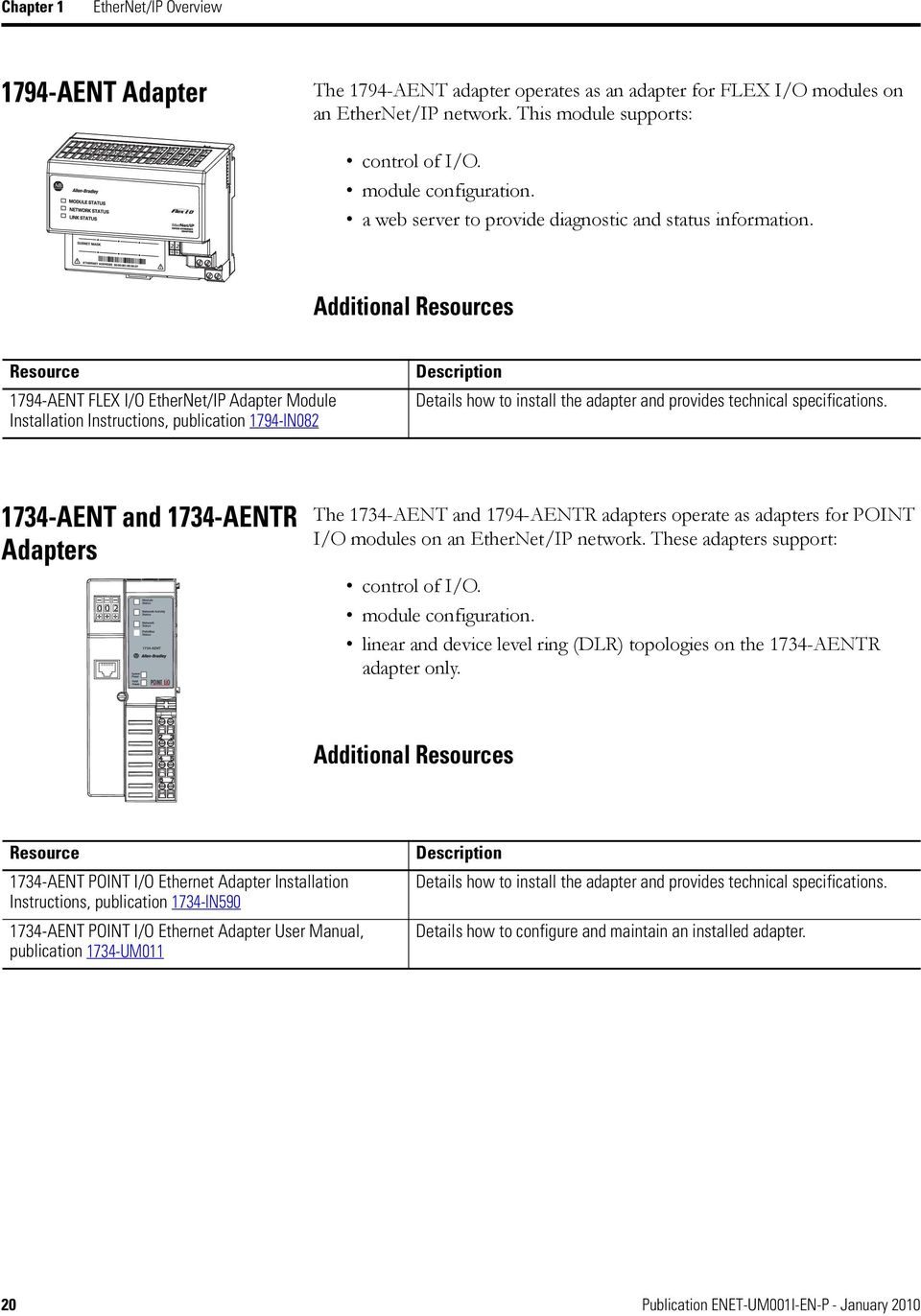
20 Chapter 1 EtherNet/IP Overview 1794-AENT Adapter The 1794-AENT adapter operates as an adapter for FLEX I/O modules on an EtherNet/IP network. This module supports: control of I/O. module configuration. a web server to provide diagnostic and status information. Additional Resources Resource 1794-AENT FLEX I/O EtherNet/IP Adapter Module Installation Instructions, publication 1794-IN082 Description Details how to install the adapter and provides technical specifications AENT and 1734-AENTR Adapters The 1734-AENT and 1794-AENTR adapters operate as adapters for POINT I/O modules on an EtherNet/IP network. These adapters support: control of I/O. module configuration. linear and device level ring (DLR) topologies on the 1734-AENTR adapter only. Additional Resources Resource 1734-AENT POINT I/O Ethernet Adapter Installation Instructions, publication 1734-IN AENT POINT I/O Ethernet Adapter User Manual, publication 1734-UM011 Description Details how to install the adapter and provides technical specifications. Details how to configure and maintain an installed adapter. 20 Publication ENET-UM001I-EN-P - January 2010
21 EtherNet/IP Overview Chapter AENT and 1738-AENTR Adapters The 1738-AENT and 1738-AENTR adapters operate as adapters for ArmorPOINT I/O modules on an EtherNet/IP network. These adapters support: EtherNet I/P x I P 6 4 A x10 0 D 8 2 D R 6 4 E x1 0 S 8 2 S AENT Adapter Status Network Activity Network Status PointBus Status System Power Adapter Power control of I/O. module configuration. linear and device level ring (DLR) topologies on the 1738-AENTR adapter only. PWR conformance tested Additional Resources Resource ArmorPOINT 2-Port EtherNet/IP Adapter Installation Instructions, publication 1738-IN028 POINT I/O 2-Port Ethernet Adapter User Manual, publication 1734-UM014 Description Details how to install the adapters and provide technical specifications. Details how to configure and maintain an installed adapter. 20-COMM-E Module The 20-COMM-E module operates as an adapter and provides an internal EtherNet/IP connection for PowerFlex 70, 700, 700S and 700H drives, and other DPI-based host devices. This module supports: configuration. collection of data. peer-to-peer capability. a web server to provide diagnostic and status information. Additional Resources Resource 20-COMM-E PowerFlex EtherNet/IP Adapter User Manual, publication 20COMM-UM010 Description Details how to program and maintain the adapter. Publication ENET-UM001I-EN-P - January
22 Chapter 1 EtherNet/IP Overview 22-COMM-E Module The 22-COMM-E module operates as an adapter and provides an internal EtherNet/IP connection for PowerFlex 40 AC drives. This module supports: user configuration of a module via a process display window. notification of faults. monitoring of a diagnostics and event queue. direct launching of Drive Explorer or Drive Executive on a workstation to connect online over Ethernet. multi-drive support of up to five PowerFlex 4 and 40 AC drives to connect to a single node on an EtherNet/IP network, ultimately reducing hardware costs. Additional Resources Resource 22-COMM-E PowerFlex EtherNet/IP Adapter User Manual, publication 22COMM-UM004 Description Details how to program and maintain the adapter. 22 Publication ENET-UM001I-EN-P - January 2010
23 EtherNet/IP Overview Chapter 1 EtherNet/IP Communication Modules in a Control System These diagrams show how EtherNet/IP modules can fit into a control system. EtherNet/IP Network Overview 1769-L23Ex Distributed I/O 1769-L3xE 1768-L4x 1768-ENBT 1756-ENBT 1756 I/O modules Switch 1794-AENT 1794 I/O modules PowerFlex drive 1734-AENT 1734 I/O modules Workstation 1783-ETAP Workstation 1783-ETAP 1783-ETAP PowerFlex drive 1783-ETAP PanelView terminal 1756-ENBT 1756 I/O modules 1734-AENTR 1734 I/O modules 1738-AENTR 1738 I/O modules In this example: the controllers can produce and consume tags with each other. the controllers can initiate MSG instructions that send/receive data or configure devices. the workstation can upload/download projects to the controllers. the workstation can configure devices on the EtherNet/IP network. These diagrams show how EtherNet/IP modules can fit into a control system. IMPORTANT For more information on how some EtherNet/IP modules and tapscan be used in a linear or DLR network, see Configure a Supervisor on a Device-level Ring Network on page 57. Publication ENET-UM001I-EN-P - January
24 Chapter 1 EtherNet/IP Overview Installing Communication Modules or Other Devices on the EtherNet/IP Network In addition to using the installation instructions for each Rockwell Automation EtherNet/IP device you install in your control system, you should also consult the EtherNet/IP Media Planning and Installation Manual available from ODVA, the organization that supports network technologies built on the Common Industrial Protocol (CIP). You can obtain EtherNet/IP Media Planning and Installation Manual at the ODVA website, that is, Safety I/O in EtherNet/IP Control Systems Rockwell Automation offers the Guard I/O product line that implements the EtherNet/IP safety protocol. This section provides an overview of the modules use in a safety system. For more information on using Guard I/O modules, see Guard I/O EtherNet/IP Safety Modules user manual, publication 1791ES-UM001. I/O Module Overview The Guard I/O modules implement the CIP-safety protocol extensions over EtherNet/IP networks and provide various features for a safety system. Use the modules to construct a safety-control network system that meets the requirements up to Safety Integrity Level 3 (SIL 3) as defined in IEC 61508, Functional Safety of Electrical, Electronic, and Programmable Electronic Safety-related Systems, and the requirements for Safety Category 4 of the EN standard, Safety of machinery - Safety related parts of control systems. Remote I/O communication for safety I/O data are performed through safety connections supporting CIP safety over an EtherNet/IP network, and data processing is performed in the safety controller. The status and fault diagnostics of the I/O modules are monitored by a safety controller through a safety connection using a new or existing EtherNet/IP network. 24 Publication ENET-UM001I-EN-P - January 2010
25 EtherNet/IP Overview Chapter 1 The following is a list of features common to Guard I/O modules: CIP-safety and EtherNet/IP protocol conformance Safety inputs Safety devices, such as emergency stop push buttons, gate switches, and safety light curtains, can be connected. Dual-channel mode evaluates consistency between two input signals (channels), which allows use of the module for Safety Category 3 and 4. The time of a logical discrepancy between two channels can be monitored using a discrepancy time setting. An external wiring short-circuit check is possible when inputs are wired in combination with test outputs. Independently adjustable on and off delay is available per channel. Test outputs Separate test outputs are provided for short circuit detection of a safety input (or inputs). Power (24V) can be supplied to devices, such as safety sensors. Test outputs can be configured as standard outputs. All Guard I/O modules have numerous test outputs, of which some can be used for broken wire detection of a muting lamp. Safety outputs Dual-channel mode evaluates consistency between two output signals (channels). Safety outputs can be pulse tested to detect field wiring shorts to 24V DC and 0V DC. I/O status data - In addition to I/O data, the module includes status data for monitoring I/O circuits. Removable I/O connectors - I/O connectors support mechanical keying. Guard I/O Catalog Numbers See the table for a listing of the types of Guard I/O modules. Types of Guard I/O Modules Catalog Number Description Enclosure Safety Test Safety Outputs Type Inputs Rating Outputs (1) Solid State 1791ES-IB16 Safety input module Meets IP ES-IB8XOBV4 Safety I/O module with solid state outputs bipolar pairs (1) Broken wires can be detected on the muting outputs. Publication ENET-UM001I-EN-P - January
26 Chapter 1 EtherNet/IP Overview CIP Safety in EtherNet/IP Safety Architectures Use Guard I/O modules in EtherNet/IP safety architectures as shown in the figure. The Guard I/O family is a set of I/O modules that when connected to an EtherNet/IP safety network are suitable for applications up to SIL3, as defined in the IEC standard, and Safety Category 4, as defined in the EN standard. Safety Interlocking and Control via CIP Safety RSLogix Software RSView Software Ethernet ControlNet DeviceNet DeviceNet DeviceNet EtherNet/IP ControlNet DeviceNet Standard Communication Safety Communication Safety controllers control the safety outputs. Safety or standard controllers can control the standard outputs. For more information on using Guard I/O modules, see Guard I/O EtherNet/IP Safety Modules user manual, publication 1791ES-UM Publication ENET-UM001I-EN-P - January 2010
27 EtherNet/IP Overview Chapter 1 Bridge Across Networks Some EtherNet/IP modules support the ability to bridge or route communication through devices, depending on the capabilities of the platform and communication devices. IMPORTANT The update time of local I/O modules may increase when bridging messages. EtherNet/IP modules do not support the transfer of data to and from I/O modules across two or more segments of any network. You have a bridge when you have a connection between communication devices on two networks. For example, this bridge device has both EtherNet/IP and DeviceNet connections, enabling Device 1 on the EtherNet/IP network to communicate with Device 2 on a DeviceNet network through the bridge. Bridge Device Device 1 EtherNet/IP Switch Bridge DeviceNet Device 2 CIP Message Bridging CIP messages that originateon this network Can bridge to this network EtherNet/IP ControlNet DeviceNet RS-232 Serial EtherNet/IP Yes Yes Yes Yes ControlNet Yes Yes Yes Yes RS-232 Yes Yes Yes Yes Here, a workstation configures a drive on a DeviceNet network and bridges EtherNet/IP networks to reach the drive. Publication ENET-UM001I-EN-P - January
28 Chapter 1 EtherNet/IP Overview Drive Configuration and Programming PanelView Station EtherNet/IP Switch Bridge DeviceNet Drive The bridge can be an EtherNet/IP-to-DeviceNet bridging device or a Logix5000 system with an EtherNet/IP communication module and a DeviceNet communication module. The bridge can be a: ControlLogix chassis with a 1756-ENBT, 1756-EN2F, 1756-EN2T, 1756-EN2TR, 1756-EN2TXT, and 1756-DNB module. The controller is not required L23E-QB1B, 1756-L23E-QBFC1B, 1769-L32E, 1769-L35E CompactLogix controller with 1769-SDN module L43 or 1768-L45 CompactLogix controller with 1768-ENBT and 1769-SDN modules EN2DN linking device. Status data can also be transferred from a DeviceNet network through the Logix5000 controller to a RSView32 operator interface. For a CompactLogix or FlexLogix controller, map the data into the DeviceNet I/O image and then use RSLinx OPC software from the workstation to the Logix5000 controller over the EtherNet/IP network. This avoids using the limited bridging resources of the CompactLogix or FlexLogix controller. You cannot bridge EtherNet/IP I/O across networks. I/O modules must be configured in either a local chassis or a remote chassis. You cannot go through a gateway chassis to control I/O even though, in some circumstances, RSLogix 5000 programming software accepts such a configuration in the I/O Configuration folder. 28 Publication ENET-UM001I-EN-P - January 2010
29 EtherNet/IP Overview Chapter 1 DeviceNet Bridge Linking to an EtherNet/IP Network Item Description 1 EtherNet/IP network 2 EtherNet/IP bridge in ControlLogix system 3 DeviceNet bridge in same ControlLogix system 4 DeviceNet network 5 Distributed DeviceNet devices Publication ENET-UM001I-EN-P - January
30 Chapter 1 EtherNet/IP Overview EtherNet/IP Network Specifications These are the EtherNet/IP network connection specifications. EtherNet/IP Network Specifications Catalog Number 1734-AENT, 1734-AENTR 1738-AENT, 1738-AENTR Connections CIP Unconnected Messages (backplane + Ethernet) Packet Rates (packets/ second) (1) SNMP Support (password required) Media Support TCP CIP I/O HMI/MSG Twisted Pair Fiber No Yes No No Yes No 1756-ENBT (2) Yes Yes No 1756-EN2F (2) , Yes No Yes 1756-EN2T, 1756-ENT2TR, 1756-EN2TXT (2) , Yes Yes No 1756-EWEB (2) N/A 900 Yes Yes No 1768-ENBT (3) (2) Yes Yes No EWEB (2) N/A 960 Yes Yes No 1769-L23Ex 8 32 (2) Yes Yes No 1769-L3xE (2) Yes Yes No 1783-ETAP 64 N/A N/A N/A 900 No Yes No 1783-ETAP1F, 64 N/A N/A N/A 900 No Yes Yes 1756-ETAP2F 1794-AENT N/A 9500 N/A Yes Yes No 2x-COMM-E No Yes No (1) Total packet rate = I/O Produced Tag, max + HMI/MSG, max. Packet rates will vary depending on packet size. For more detailed specifications, see the EDS file for a specific catalog number. (2) CIP connections for these devices can be used for all explicit or all implicit applications. Example: A 1756-ENBT has a total of 64 CIP connections and can be used for any combination of connections. (3) The number of TCP and CIP connections supported by the 1768-ENBT module depends on the firmware revision you are using. If you are using firmware revision 1.x, the module supports 32 TCP connections and 64 CIP connections. If you are using firmware revision 2.x or later, the module supports 64 TCP connections and 128 CIP connections. 30 Publication ENET-UM001I-EN-P - January 2010
31 EtherNet/IP Overview Chapter 1 EtherNet/IP Network Specifications Catalog Number Produced/Consumed Tags Number of Multicast Tags, Max Unicast Available (1) Socket Services Speed Duplex (Half/Full) Duplicate IP Detection (starting revision) 1734-AENT, 1734-AENTR N/A RSLogix 5000 programming software, version 18 No 10/100 Revision 2.x AENT Revision 3.x AENTR 1738-AENT, 1738-AENTR N/A RSLogix 5000 programming software, version 18 No 10/100 Revision 2.x AENT 1756-ENBT 32 (2) RSLogix 5000 programming software, version EN2F 32 (2) RSLogix 5000 programming software, version EN2T, 1756-EN2TR, 1756-EN2TXT 32 (2) RSLogix 5000 programming software, version EN2T Revision 3.x AENTR No 10/100 Revision 3.3 No 10/100 Revision 1.x No 10/100 Revision 1.x RSLogix 5000 programming software, version EN2TR 1756-EWEB N/A N/A Yes 10/100 Revision ENBT 32 (2) RSLogix 5000 programming software, version 16 No 10/100 Revision 1.x 1768-EWEB N/A N/A Yes 10/100 Revision 1.x 1769-L23Ex 32 (2) RSLogix 5000 programming software, version L3xE 32 (2) RSLogix 5000 programming software, version 16 No 10/100 Revision 16 No 10/100 Revision ETAP N/A N/A No 10/100 Revision 1.x 1783-ETAP1F, 1783-ETAP2F N/A N/A No 10/100 Revision 2.x 1794-AENT N/A N/A No 10/100 Revision 3.x 2x-COMM-E N/A N/A No 10/100 Revision 1.1 (1) (2) These are the maximum number of I/O CIP connections. Each controller can send a maximum of 32 produced tags to one single consuming controller. If these same tags are sent to multiple consumers, the maximum number is 31. Publication ENET-UM001I-EN-P - January
32 Chapter 1 EtherNet/IP Overview IMPORTANT Non-CIP communication requires 1756-EWEB, 1768-EWEB or MicroLogix 1400 embedded web server sockets. For more information on the 1756-EWEB or 1768-EWEB modules, see the EtherNet/IP Web Server User Manual, publication ENET-UM527. For more information on the enhanced MicroLogix 1400 controllers, see the MicroLogix 1400 Embedded Web Server User Manual, publication 1766-UM Publication ENET-UM001I-EN-P - January 2010
33 Chapter 2 Configure a Workstation to Operate on an EtherNet/IP Network Introduction This chapter describes how to configure a workstation to operate on an EtherNet/IP network. You need to load an Ethernet communication driver for all Rockwell Software applications to communicate with devices on an EtherNet/IP network. A workstation needs this driver to: upload and download controller projects over the EtherNet/IP network via RSLogix 5000 programming software. configure EtherNet/IP network parameters for devices on the network via RSNetWorx for EtherNet/IP software. collect controller data for PanelView terminals and RSView applications. You can choose from any of three Ethernet drives: AB_ETHIP AB_ETH TCP We recommend that you use the AB_ETHIP driver. Before loading a communication driver, make sure: the Ethernet communication card is already installed in the workstation. the IP address and other network parameters are correctly configured for the workstation. the workstation is properly connected to the EtherNet/IP network. See the documentation for the appropriate Ethernet communication module for information on installing and configuring the module. 33Publication ENET-UM001I-EN-P - January

34 Chapter 2 Configure a Workstation to Operate on an EtherNet/IP Network Configure the Ethernet Communication Driver in RSLinx Software To configure the Ethernet communication driver, perform this procedure. 1. In RSLinx software, from the Communications pull-down menu, choose Configure Drivers. The Configure Drivers dialog box appears. 2. From Available Driver Types pull-down menu, choose EtherNet/IP Driver or Ethernet devices and click Add New. The Add New RSLinx Driver dialog box appears. 3. Type a name for the new driver and click OK. 34 Publication ENET-UM001I-EN-P - January 2010

35 Configure a Workstation to Operate on an EtherNet/IP Network Chapter 2 The Configure driver dialog box appears. 4. Select Browse Local Subnet. 5. Click Apply. 6. Click OK. This new driver is now available. Publication ENET-UM001I-EN-P - January
36 Chapter 2 Configure a Workstation to Operate on an EtherNet/IP Network Notes: 36 Publication ENET-UM001I-EN-P - January 2010
37 Chapter 3 Configure Stratix Switches Introduction This chapter describes how you can use a Stratix switch. Topic Page Set Up the Hardware 38 Select a Switch 37 Switch Features 38 Additional Resources 39 Stratix switches provide a rugged, easy-to-use, secure switching infrastructure for harsh environments. You can connect these switches to network devices such as servers, routers, and other switches. In industrial environments, you can connect any Ethernet-enabled industrial communication devices including programmable log controllers (PLC s), human-machine interfaces (HMI s), drives, sensors, and I/O. Select a Switch Select the switch depending on the application and environment. If your application Integrates enterprise and manufacturing environments Requires I/O and Produced/Consumed communication Requires diagnostics data Requires security options Integrates plant floor devices Requires I/O and Produced/Consumed communication Require diagnostics data Requires security options Requires easy set-up and direct relacement of switches Meets IP20 or IP67 standards Select Stratix 8000 modular, managed switch Stratix 6000 fixed, managed switch Stratix 2000 unmanaged switch 37Publication ENET-UM001I-EN-P - January
38 Chapter 3 Configure Stratix Switches Set Up the Hardware In this example, multiple Ethernet-enabled devices are connected via a Stratix switch. EtherNet/IP-enabled Devices Connected Via a Stratix Switch Device Description 1 HMI device 2 Drive 3 Stratix switch 4 Logix chassis 5 Distributed I/O Switch Features The features available vary according to the switch you select. Stratix Features Switch Configuration Features Monitoring Features Security Features Maintenance Features Stratix 8000 IT-friendly configuration tool Cisco Command Line Interface, Cisco Network Assistant, Device Manager Express setup quick start-up feature Smartport easy switch port optimization feature Web enabled configuration using embedded web pages AOP configuration stored as part of project in RSLogix 5000 RSLogix 5000 pre-defined tags allow easy access for HMI development Sample face plates available for View applications Supports all security features available in the Cisco Catalyst line of switches including: x industry standard authentication - MAC ID device authentication - ACL (Access Control List) - Port control Removable CompactFlash card holds OS and configuration of the switch which can be easily transferred to a new one Standard DHCP Option 82 support enables fixed IP address assignment to switch ports 38 Publication ENET-UM001I-EN-P - January 2010
39 Configure Stratix Switches Chapter 3 Stratix Features Switch Configuration Features Monitoring Features Security Features Maintenance Features Stratix 6000 Stratix 2000 Default IP address allows quick start up Web enabled configuration using embedded web pages AOP configuration stored as part of project in RSLogix 5000 No parameters to configure for unmanaged switches Real-time diagnostics available in embedded web pages RSLogix 5000 pre-defined tags allow easy access for HMI development - Traffic level monitor w/ alarms Sample face plates available for View applications No diagnostics are available in unmanaged switches Supports all security features available in the Cisco Catalyst line of switches including: - Port control - MAC ID device authentication - Switch access username/password authentication No security features available in unmanaged switches Parameter settings held in Logix project and are automatically downloaded after switch replacement (IP address must be set prior to download) DHCP per port ensures connected devices are assigned the right addresses after replacement Direct replacement - no set-up or configuration required Additional Resources These documents contain additional information concerning related Rockwell Automation products. Resource Stratix 8000 and 8300 Ethernet Managed Switches Installation Instructions, publication 1783-IN005 Stratix 6000 Ethernet Managed Switches Installation Instructions, publication 1783-IN004 Stratix 2000 Ethernet Unmanaged Switch Installation Instructions, publication 1783-IN001 Stratix 8000 Ethernet Managed Switches Hardware User Manual, publication 1783-UM002 Stratix 8000 and 8300 Ethernet Managed Switches Sofware user Manual, publication 1783-UM003 Stratix 6000 Ethernet Managed Switch User Manual, publication 1783-UM001 Device Manager online help (provided with the switch) Description Describes how to install and configure the switch. Describes how to install and configure the switch. Describes how to install and configure the switch. Provides detailed information on installing and using your switches. Provides detailed information on configuring and managing your switches. Provides detailed information on configuring and managing your switches. Provides context-sensitive information on configuring and using the switch, including system messages. Publication ENET-UM001I-EN-P - January
40 Chapter 3 Configure Stratix Switches Notes: 40 Publication ENET-UM001I-EN-P - January 2010
41 Chapter 4 Configure an EtherNet/IP Module to Operate on the Network Introduction This chapter describes how to configure an EtherNet/IP communication module to operate on an EtherNet/IP network. Topic Determine Network Parameters 41 Set the IP Network Address 43 Assign Network Parameters via the BOOTP/DHCP Utility 45 Other Methods to Assign Network Parameters 47 Duplicate IP Address Detection 51 IP Address Swapping 53 DNS Addressing 54 Use EtherNet/IP Modules in a Logix5000 Controller Application 55 Page When you first install a Rockwell Automation EtherNet/IP module, the module is BOOTP/DHCP enabled. Determine Network Parameters EtherNet/IP Network Parameters EtherNet/IP Network Parameter IP address Subnet mask To operate an EtherNet/IP network, you must define these parameters. Description The IP address uniquely identifies the module. The IP address is in the form xxx.xxx.xxx.xxx where each xxx is a number from However, there are some reserved values that you cannot use as the first octet in the address. For example, you cannot use: 001.xxx.xxx.xxx 127.xxx.xxx.xxx 223 to 255.xxx.xxx.xxx Subnet addressing is an extension of the IP address scheme that allows a site to use a single network ID for multiple physical networks. Routing outside of the site continues by dividing the IP address into a net ID and a host ID via the class. Inside a site, the subnet mask is used to redivide the IP address into a custom network ID portion and host ID portion. This field is set to by default. If you change the subnet mask of an already-configured module, you must cycle power to the module for the change to take effect. 41Publication ENET-UM001I-EN-P - January
42 Chapter 4 Configure an EtherNet/IP Module to Operate on the Network EtherNet/IP Network Parameters EtherNet/IP Network Parameter Gateway Description A gateway connects individual physical networks into a system of networks. When a node needs to communicate with a node on another network, a gateway transfers the data between the two networks. This field is set to by default. EtherNet/IP Network Parameters for DNS Addressing If you use DNS addressing, or reference the module via host name in MSG instructions, define these parameters. EtherNet/IP Network Parameter Host name Domain name Primary DNS server address Secondary DNS server address Description A host name is part of a text address that identifies the host for a module. The full text address of a module is host_name.domain_name. A domain name is part of a text address that identifies the domain in which the module resides. The full text address of a module is host_name.domain_name. The domain name has a 48-character limit. If you specify a DNS server, you must enter a domain name. Also, if you send from the module, some mail relay servers require a domain name during the initial handshake of the SMTP session. This identifies any DNS servers used in the network. You must have a DNS server configured if you specified a domain name or a host name in the module s configuration. The DNS server converts the domain name or host name to an IP address that can be used by the network. For more information on DNS addressing, see page 54. Check with your Ethernet network administrator to determine if you need to specify these parameters. 42 Publication ENET-UM001I-EN-P - January 2010
43 Configure an EtherNet/IP Module to Operate on the Network Chapter 4 Set the IP Network Address EtherNet/IP modules ship with the IP address configuration switches set to 999 and DHCP enabled. You can set the network Internet Protocol (IP) address by: using the switches available on some modules. IMPORTANT The switches on 1783-ETAP, 1783-ETAP1F and 1783-ETAP2F taps are used somewhat differently than other EtherNet/IP modules. For more information on how to use switches on the taps, see either of the following: EtherNet/IP Tap Installation Instructions, pubication 1783-IN007 EtherNet/IP Fiber Tap Installation Instructions, publication 1783-IN008 using a Bootstrap Protocol (BOOTP)/Dynamic Host Configuration Protocol (DHCP) server, such as the Rockwell Automation BOOTP-DHCP server utility. using RSLinx software or RSLogix 5000 programming software. IMPORTANT The adapter reads the configuration switches only when you cycle power to determine if the switches are set to a valid number. Valid settings range from , with some exceptions. There are some reserved values that you cannot use as the first octet in the address. For example, you cannot use: 001.xxx.xxx.xxx 127.xxx.xxx.xxx 223 to 255.xxx.xxx.xxx To restore the factory default settings on the module, set the switches to 888. Publication ENET-UM001I-EN-P - January
44 Chapter 4 Configure an EtherNet/IP Module to Operate on the Network The graphic below shows how your module s IP address is set. Module power-up No Module IP address between ? Yes No Is DHCP or BOOTP enabled? Yes Adapter uses IP address stored in nonvolatile memory Module requests address from DHCP/BOOTP server Module using a valid IP address If necessary, you can set the module switches to 888 to restore the IP address to the factory default value of 999. In this case, cycle power to the module after restoring the factory default settings and begin the flowchart process again. IP Network Address Configuration Switch Settings For more detailed information, see the table below. If the Switches are set to a valid number Switches are set to an invalid number DHCP is not enabled Then The adapter s IP address will be xxx (where xxx represents the number set on the switches). The adapter s subnet mask will be , with the gateway address set to The adapter will not have a host name assigned, or use any Domain Name System when using the thumbwheel settings. The module checks to see if DHCP or BOOTP is enabled. If either is, the module requests an IP address from a DHCP/BOOTP server. The DHCP/BOOTP server will also assign other Transport Control Protocol (TCP) parameters. If you have used software to preconfigure an IP address, and DHCP or BOOTP is disabled, the module will use the configured IP address. The adapter will use the IP address and any othertcp configurable parameters stored in nonvolatile memory. Important: The factory default switch setting is 999, and DHCP is enabled. 44 Publication ENET-UM001I-EN-P - January 2010
45 Configure an EtherNet/IP Module to Operate on the Network Chapter 4 Assign Network Parameters via the BOOTP/DHCP Utility By default, the EtherNet/IP module is BOOTP enabled. The BOOTP/DHCP utility is a standalone program that is located in the: BOOTP-DHCP Server folder accessed from the Start menu. Tools directory on the RSLogix 5000 installation CD. IMPORTANT Before you start the BOOTP/DHCP utility, make sure you have the hardware (MAC) address of the module. The hardware address is on a sticker on the side of the EtherNet/IP module. The hardware address in a format similar to: 00-0b-db This utility recognizes BOOTP-enabled devices and provides an interface to configure a static IP address for each device. To assign network parameters via the BOOTP/DHCP utility, perform this procedure. 1. Start the BOOTP/DHCP software. 2. Select Tool Network Settings. 3. If appropriate for the network, enter the subnet mask, gateway address, primary/secondary server addresses, and domain name. 4. Click OK. The Request History panel displays the hardware addresses of modules issuing BOOTP requests. 5. Double-click the hardware (MAC) address of the module to be configured. Publication ENET-UM001I-EN-P - January
46 Chapter 4 Configure an EtherNet/IP Module to Operate on the Network The hardware address is on a sticker on the side of the EtherNet/IP module. The format of the hardware address resembles 00-0b-db The New Entry window appears with the module s Ethernet Address (MAC). 6. Enter the IP address, host name, and a module description. 7. Click OK. 8. To permanently assign this configuration to the module, highlight the module and click the Disable BOOTP/DHCP button. When power is recycled, the module uses the assigned configuration and does not issue a BOOTP request. If you do not select the Disable BOOTP/DHCP button, on a power cycle, the host controller clears the current IP configuration and will again begin sending BOOTP requests. 46 Publication ENET-UM001I-EN-P - January 2010
47 Configure an EtherNet/IP Module to Operate on the Network Chapter 4 Other Methods to Assign Network Parameters There are other methods to assign network parameters. Assignment of Network Parameters If Use this method for assigning network parameter Page A BOOTP server is not available The EtherNet/IP module is connected to another NetLinx network The RSLogix 5000 project is online with the controller that communicates to or through the EtherNet/IP module RSLinx software 48 RSLogix 5000 programming software 50 DHCP is enabled (not BOOTP) for the EtherNet/IP module DHCP software 51 You need to cycle power to your device for some reason Thumbwheel switches 43 These factors might affect your choice of method: Network isolation from or integration into the plant/enterprise network Network size For large networks, even isolated networks, it might be more convenient and safer to use a BOOTP/DHCP server rather than RSLogix 5000 or RSLinx software. The BOOTP/DHCP server also limits the possibility of assigning duplicate IP addresses. Company policies and procedures dealing with plant floor network installation and maintenance Level of involvement by IT personnel in plant floor network installation and maintenance Type of training offered to control engineers and maintenance personnel If you use the Rockwell Automation BOOTP or DHCP server in an uplinked subnet where an enterprise DHCP server exists, a module may get an address from the enterprise server before the Rockwell Automation utility even sees the module. You might have to disconnect from the uplink to set the address and configure the module to retain its static address before reconnecting to the uplink. This is not a problem if you have node names configured in the module and leave DHCP enabled. Publication ENET-UM001I-EN-P - January

48 Chapter 4 Configure an EtherNet/IP Module to Operate on the Network Configure the Module with RSLinx Software To use RSLinx software to configure the EtherNet/IP module, perform this procedure. 1. Make sure the module is installed and started. 2. In RSLinx software, from the Communications pull-down menu, choose RSWho. The RSWho dialog box appears. 3. Navigate in RSWho to the Ethernet network. 4. Right-click the EtherNet/IP module and select Module Configuration. The Module Configuration dialog box appears. 48 Publication ENET-UM001I-EN-P - January 2010
49 Configure an EtherNet/IP Module to Operate on the Network Chapter 4 5. Click the Port Configuration tab. 6. For Network Configuration Type, select Static to permanently assign this configuration to the port. IMPORTANT If you select Dynamic, on a power cycle, the controller clears the current IP configuration and resumes sending BOOTP requests. a. In the IP Address field, type the IP address. b. In the Network Mask field, type the network mask address. c. In the Gateway Address field, type the gateway address. d. In the Primary Name Server field, type the name of the primary server. e. In the Secondary Name Server field, type the name of the secondary server. f. In the Domain Name field, type the domain name. g. In the Host Name field, type the host name. 7. Configure the port settings. To Then Use the default port speed and duplex settings Leave checked the Auto-negotiate port speed and duplex check box. Important: The default port speed is 100, and the default duplex setting is Full. Manually configure your port s speed and duplex settings. a.uncheck the Auto-negotiate port speed and duplex check box. b. From the Current Port Speed pull-down menu, select a port speed. c. From the Current Duplex pull-down menu, choose Half Duplex. 8. Click OK. Publication ENET-UM001I-EN-P - January

50 Chapter 4 Configure an EtherNet/IP Module to Operate on the Network Configure Your Module with RSLogix 5000 Software To use RSLogix 5000 programming software to configure the EtherNet/IP module, perform this procedure. 1. Make sure the module is installed, started and connected to the controller via a serial, or other network, connection. 2. In the Controller Organizer of RSLogix 5000 programming software, right-click the EtherNet/IP module and choose Properties. The Module Properties dialog box appears. The example screen below shows the Module Properties dialog box for the 1756-ENBT module. 3. Click the Port Configuration tab. 4. In the IP Address field, type the IP address. a. In the other fields, type the other network parameters, if needed. IMPORTANT The fields that appear vary from one EtherNet/IP module to another. 5. Click Apply. 6. Click OK. 50 Publication ENET-UM001I-EN-P - January 2010
51 Configure an EtherNet/IP Module to Operate on the Network Chapter 4 Use DHCP Software to Set the IP Address Dynamic Host Configuration Protocol (DHCP) software automatically assigns IP addresses to client stations logging onto a TCP/IP network. DHCP is based on BOOTP and maintains some backward compatibility. The main difference is that BOOTP allows for manual configuration (static), while DHCP allows for both static and dynamic allocation of network addresses and configurations to newly attached modules. Be cautious when using DHCP software to configure a module. A BOOTP client, such as the EtherNet/IP modules, can boot from a DHCP server only if the DHCP server is specifically written to also handle BOOTP queries. This is specific to the DHCP software package used. Consult your system administrator to see if a DHCP package supports BOOTP commands and manual IP allocation. ATTENTION The EtherNet/IP module must be assigned a fixed network address. The IP address of this module must not be dynamically provided. Failure to observe this precaution may result in unintended machine motion or loss of process control. Duplicate IP Address Detection Some EtherNet/IP modules (and their future revisions) support duplicate IP address detection. Cat. No AENT, 1734-AENTR 1738-AENT, 1738-AENTR 1756-ENBT 1756-EN2F 1756-EN2T 1756-EN2TR 1756-EN2TRXT 1768-ENBT 1769-L2x 1769-L32E and 1769-L35E 1783-ETAP 1783-ETAP1F, 1783-ETAP2F Firmware Revision 2.1 and later and later 3.2 and later 1.x and later 1.x and later 1.x and later 1.x and later 1.x and later and later and later 1.x and later 2.x and later Publication ENET-UM001I-EN-P - January
52 Chapter 4 Configure an EtherNet/IP Module to Operate on the Network Cat. No ENBT 1794-AENT Firmware Revision 2.1 and later Series A - 3.x and later Series B and later 2x-COMM-E 1.1 and later When you change the IP address or connect one of these modules to an EtherNet/IP network, the module checks to make sure that the IP address assigned to this module does not match the address of any other network device. If the module determines that another device on the network with a matching IP address, the EtherNet/IP port of the module goes into conflict mode, where the module s: OK status indicator blinks red. Network (NET) status indicator is solid red. front display indicates the conflict (1756-ENBT, 1756-EN2F, 1756-EN2T, 1756-EN2TR, and 1756-EN2TXT). The display scrolls:ok <IP_address_of_this_module> Duplicate IP <Mac_address_of_duplicate_node_detected> For example: OK Duplicate IP - 00:00:BC:02:34:B4 To resolve this conflict, use the instructions in this chapter to change the IP address of the module. Then cycle power to the module or reset the modules, such as disconnecting and then reconnecting the EtherNet/IP cable cable. Two modules could possibly detect a conflict simultaneously. If this occurs, perform this procedure. 1. Remove the module with the incorrect IP address or correct its conflict. 2. Cycle power to the second module or disconnect its EtherNet/IP cable 3. Reconnect the cable. 52 Publication ENET-UM001I-EN-P - January 2010
53 Configure an EtherNet/IP Module to Operate on the Network Chapter 4 Detection of Duplicate IP Addresses Device Conflict Over Duplicate IP Addresses Devices in conflict over an IP address behave differently depending on whether connections have been established to either of the modules and whether both modules support duplicate IP address detection. If Both modules support duplicate IP address detection Both modules support duplicate IP address detection and are started at roughly the same time One module supports duplicate IP address detection and a second module does not Then The first started module uses and retains its IP address. The other module will detect a conflict, give up the IP address and enter conflict mode. They surrender the IP address and enter conflict mode The second module generally keeps its IP address, regardless of which module first obtains the IP address. The module that supports duplicate IP address detection will detect the conflict and give up the IP address. IP Address Swapping This EtherNet/IP modules supports IP address swapping in ControlLogix redundancy systems: 1756-ENBT, firmware revision 3.1 and later 1756-EN2T, firmware revision and later 1756-EN2TR, firmware revision 2.x and later 1756-EN2TXT, firmware revision 2.1 and later During a switchover in ControlLogix redundancy systems, these module swaps its IP address with its partner modules in the other redundant chassis. For more information about IP address swapping, see the ControlLogix Redundancy User Manual, publication 1756-UM523. When using publication 1756-UM23, be aware that neither the 1756-EN2TR module nor the 1756-EN2TXT module supports redundancy. Publication ENET-UM001I-EN-P - January
54 Chapter 4 Configure an EtherNet/IP Module to Operate on the Network DNS Addressing To further qualify a module s address, use DNS addressing to specify a host name for a module, which also includes specifying a domain name and DNS servers. DNS addressing makes it possible to set up similar network structures and IP address sequences under different domains. DNS addressing is only necessary if you refer to the module by host name, such as in path descriptions in MSG instructions. To use DNS addressing, perform this procedure. 1. Assign a host name to the module. A network administrator should be able to assign a host name. Valid host names should be IEC compliant. 2. Configure the module's parameters. 3. In addition to the IP address, subnet mask, and gateway address, configure a host name for the module, domain name, and primary/secondary DNS server addresses. In the DNS server, the host name must match the IP address of the module. IMPORTANT Make sure the DNS enable bit is set. If you configure your module using RSLinx software, version 2.41, the enable bit is cleared and DNS addressing will not work. If you configure your module using the Port Configuration tab in RSLogix 5000 programming software, the enable bit is set, so DNS addressing should work. 54 Publication ENET-UM001I-EN-P - January 2010
55 Configure an EtherNet/IP Module to Operate on the Network Chapter 4 4. In RSLogix 5000 programming software, add the module to the I/O configuration tree. See Add a Moduleon page 79. IMPORTANT If a child module resides in the same domain as its parent module, just enter the host name. If the child module s domain differs from that of its parent module, enter the host name and the domain name (host.domain) IMPORTANT You can also use DNS addressing in a module profile in the I/O controller tree or in a message path. If the destination module s domain name differs from that of the source module, use a fully-qualified DNS name (hostname.domainname). For example, to send a message from ENBT1.location1.companyA to ENTB1.location2.companyA, the host names match, but the domains differ. Without the entry of a fully qualified DNS name, the module adds the default domain name to the specified host name. Use EtherNet/IP Modules in a Logix5000 Controller Application After installing an EtherNet/IP module and setting its IP address, add the module to the Controller Organizer in an RSLogix 5000 project. This addition establishes I/O control. You must download that project to the host controller before operation can begin. When the controller begins operation, it establishes a connection with the EtherNet/IP module. The module s configuration determines its behavior. For more information on configuring and placing a workstation (for developing an RSLogix 5000 project) on an EtherNet/IP network, see Configure a Workstation to Operate on an EtherNet/IP Network on page 33. For information on controlling I/O, see Control I/O on page 77. Publication ENET-UM001I-EN-P - January
56 Chapter 4 Configure an EtherNet/IP Module to Operate on the Network 56 Publication ENET-UM001I-EN-P - January 2010
57 Chapter 5 Configure a Supervisor on a Device-level Ring Network Introduction A Device-level Ring (DLR) network is a single-fault tolerant ring network intended for the interconnection of automation devices. Topic Page Rockwell Automation Products with Embedded Switch Technology 58 Construct the Physical Network 63 Configure Supervisor Nodes on a DLR Network 64 Complete the Physical Connections of the Network 74 Verify Supervisor Configuration 75 Troubleshoot DLR Network Issues 75 The ring topology provides: media redundancy. fast network fault detection and reconfiguration. the resiliency of a single-fault tolerant network. easy implementation without any additional hardware requirements. IMPORTANT This section describes how to configure a ring supervisor on a DLR network. This section does not fully describe a DLR network itself. See the EtherNet/IP Embedded Switch Technology Application Guide, publication ENET-AP005, for information on: a DLR overview. how to fully configure a DLR network. how to monitor a DLR network. how to troubleshoot a DLR network. 57Publication ENET-UM001I-EN-P - January
58 Chapter 5 Configure a Supervisor on a Device-level Ring Network Rockwell Automation Products with Embedded Switch Technology The current Rockwell Automation products that you can use to construct a DLR or linear network include: 1756-EN2TR ControlLogix EtherNet/IP 2-port module - Allows ControlLogix controllers, I/O modules and communication modules to connect to the DLR or linear network EtherNet/IP taps - Allow devices that do not support embedded switch technology to connect to a linear or a DLR network. Each tap uses a device port on the front of the tap to connect to devices that do not support the embedded switch technology to connect to linear or DLR networks. The taps have two network ports to connect to linear or DLR networks. The network ports used to connect to linear or DLR networks are different for each type of tap. The following table describes the types of taps used with each tap: Cat. No. Network Ports Description 1783-ETAP 2 copper Two copper network ports connect the tap to copper linear or DLR networks ETAP1F 1 copper 1 fiber One copper network port connects the tap to a copper linear or DLR network, and one fiber-optic network port connects the tap to a fiber-optic linear or DLR network. This tap is commonly used to connect a copper section with a fiber-optic section of the same network ETAP2F 2 fiber Two fiber-optic network ports connect the tap to a fiber-optic linear or DLR network. The primary advantages of using fiber-optic networks is the availability of increased distances between network nodes and greater noise immunity on the network AENTR, POINT I/O 2-port Ethernet adapter - Allows POINT I/O modules to connect to the DLR or linear network AENTR, ArmorPOINT 2-port Ethernet adapter - Allows ArmorPOINT I/O modules to connect to the DLR or linear network. 58 Publication ENET-UM001I-EN-P - January 2010
59 Configure a Supervisor on a Device-level Ring Network Chapter 5 Any 1732E ArmorBlock I/O EtherNet/IP modules with a catalog number ending in R, including: 1732E-IB16M12R 1732E-OB16M12R 1732E-16CFGM12R 1732E-IB16M12DR 1732E-OB16M12DR 1732E-8X8M12DR 1732E-IB16M12SOEDR Features Common to Products with Embedded Switch Technology The products described on page 58 have certain features in common. Each product supports the management of network traffic to ensure timely delivery of critical data, that is, QoS and IGMP protocols are supported. Each product is designed according to the open ODVA specification for EtherNet/IP. Because of this design, third-party products may be designed, according the ODVA specification, to operate on a DLR or linear network. To see the ODVA specification, go to: For DLR networks, ring recovery time is less than 3ms for a 50-node ring. Publication ENET-UM001I-EN-P - January
60 Chapter 5 Configure a Supervisor on a Device-level Ring Network Each product supports a 1588 transparent clock for CIP motion and CIP Sync applications. CIP Sync technology can be used in Logix control systems to synchronize clocks across a system operating on the EtherNet/IP network. This technology supports highly distributed applications that require such functions as timestamping, sequence of events recording, distributed motion control, and increased control coordination. For example, with CIP Sync technology, a single ControlLogix controller can establish a master time and then, using ControlLogix Ethernet modules, propogate that time to all necessary devices on the network. For more information on how to use CIP Synch technology, see the Integrated Architecture and CIP Sync Configuration Application Solution, publication IA-AP003. Each of the products described on page 58 has 2 ports to connect to a linear or DLR network in a single subnet. You cannot use these ports as two Network Interface Cards (NICs) connected to two different subnets. 60 Publication ENET-UM001I-EN-P - January 2010
61 Configure a Supervisor on a Device-level Ring Network Chapter 5 Example Device-level Ring Topology 1783-ETAP 1756-EN2TR 1783-ETAP 1783-ETAP 1756-EN2TR 1734-AENTR 1738-AENTR Supervisor Node A DLR network requires at least one node to be configured as ring supervisor. Currently, two Rockwell Automation products support the ring supervisor functionality EN2TR, ControlLogix EtherNet/IP 2-port module 1783-ETAP, 1783-ETAP1F, and 1783-ETAP2F EtherNet/IP taps IMPORTANT Out of the box, the supervisor-capable devices have their supervisor function disabled so they are ready to participate in either a linear/star network topology, or as a ring node on an existing DLR network. In a DLR network, you must configure at least one of the supervisor-capable devices as the ring supervisor before physically connecting the ring. If not, the DLR network will not work. Publication ENET-UM001I-EN-P - January
62 Chapter 5 Configure a Supervisor on a Device-level Ring Network Active Ring Supervisor When multiple nodes are enabled as supervisor, the node with the numerically highest precedence value becomes the active ring supervisor; the other nodes automatically become back-up supervisors. The ring supervisor provides two main functions: Manage traffic on the DLR network Collect diagnostic information for the network Back-up Supervisor Node At any point in time, there will only be one active supervisor on a DLR network. However, we recommend that you can configure at least one other supervisor-capable node to act as back-up supervisor nodes. During normal operation, a back-up supervisor behaves like a ring node. If the active supervisor node faults, the back-up supervisor with the next numerically highest precedence becomes the active supervisor. If multiple supervisors are configured with the same precedence value (the factory default value for all supervisor-capable devices is 0), the node with the numerically highest MAC address becomes the active supervisor. IMPORTANT While a back-up supervisor is not required on a DLR network, we recommend that you configure at least one ring supervisors for your ring network. We recommend that you: configure at least one back-up supervisor. configure your desired active ring supervisor with a numerically higher precedence value as compared to the back-up supervisors. keep track of your network s supervisor-precedence values for all supervisor-enabled nodes. For more information about how to configure a supervisor, see Configure Supervisor Nodes on a DLR Network on page Publication ENET-UM001I-EN-P - January 2010
63 Configure a Supervisor on a Device-level Ring Network Chapter 5 Ring Node A ring node is any node that operates on the network to process data that is transmitted over the network or to pass on the data to the next node on the network. When a fault occurs on the DLR network, these reconfigure themselves and relearn the network topology. Additionally, ring nodes can report fault locations to the active ring supervisor. Construct the Physical Network The first thing you must do to create a new DLR network is physically connect all necessary devices to the network. However, you should leave at least one connection unmade, that is, temporarily omit the physical connection between two nodes on the ring, as the factory default settings of DLR devices are set to operate in linear/star mode or as ring nodes on existing DLR networks. The figure below shows an example of a new DLR network with one physical connection left open. Example Device-level Ring Topology with One Connection Left Unmade Last physical connection is not made. Publication ENET-UM001I-EN-P - January
64 Chapter 5 Configure a Supervisor on a Device-level Ring Network Configure Supervisor Nodes on a DLR Network After you have installed all devices on the DLR network, you must configure the supervisor node. Ring nodes do not require any configuration. Before you can complete a DLR network, that is, configure all devices on the network and make all physical connections, you must configure and enable a ring supervisor in: RSLogix 5000 programming software or RSLinx Classic communication software This section shows how to use RSLogix 5000 programming software, beginning on page 65, and RSLinx Classic communication software, beginning on page 71, to configure and enable a ring supervisor. When using either software, the 1783-ETAP, 1783-ETAP1F, and 1783-ETAP2F taps have additional configuration parameters. IMPORTANT In addition to using the software listed above to configure and enable a ring supervisor, you can use the DIP switches on your tap to automatically configure the tap to be a ring supervisor. For more information on how to use the DIP switches on your EtherNet/IP tap, see the EtherNet/IP Embedded Switch Technology Application Guide, publication ENET-AP Publication ENET-UM001I-EN-P - January 2010
65 Configure a Supervisor on a Device-level Ring Network Chapter 5 Configure a Ring Supervisor in RSLogix 5000 Programming Software To configure the 1756-EN2TR module or the 1783-ETAP, 1783-ETAP1F or 1783-ETAP2F taps as a ring supervisor, use the device s Add-on Profile (AOP) in RSLogix 5000 programming software, version IMPORTANT To download AOP s, go to: Depending on the firmware revision of your product, you must use a specific AOP version. Cat. No. Firmware Revision Required Add-on Profile Revision 1756-EN2TR 2.1 (1) 1783-ETAP 1.1 (2) 1.x or later 3.x or later 2.x or later 1.x or later 2.x or later 2.x or later 1783-ETAP1F 2.x or later 2.x or later 1783-ETAP2F (1) You can use the ControlFLASH Firmware Upgrade software to upgrade a 1756-EN2TR module from firmware revision 2.1 to 3.x or later. (2) You can use the ControlFLASH Firmware Upgrade software to upgrade a 1783-ETAP tap from firmware revision 1.1 to 2.x or later. To download new firmware, go to: If you upgrade the firmware revision on your module or tap, you must use the required AOP revision listed above for that revision. For example, if you upgrade your 1756-EN2TR module to firmware revision 3.x or later, you must use AOP revision 2.x or later in your RSLogix 5000 programming software. Additionally, if you upgrade the firmware revision on your module or tap, you must also use the required RSLinx communication software for that firmware revision. For more information on which RSLinx communication software version is required for each firmware revision, see page 71. For both the 1756-EN2TR module and 1783-ETAP tap, make sure that the Major Revision configured on the General tab of the device s RSLogix 5000 programming software configuration matches the major revision of the physical module. If the device configuration on the General tab does not match the physical module, the programming software alerts you to this mismatch when you attempt to configure the Internet Protocol, Port Configuration and Network tabs for that device. Publication ENET-UM001I-EN-P - January
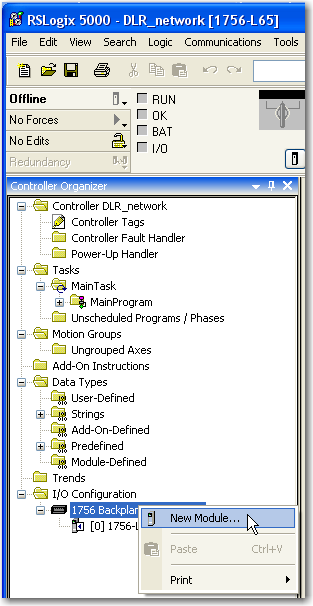
66 Chapter 5 Configure a Supervisor on a Device-level Ring Network To configure the ring supervisor in RSLogix 5000 programming software, follow these steps. IMPORTANT The steps to configure a ring supervisor via software are basically the same for the 1756-EN2TR module and the 1783-ETAP, 1783-ETAP1F, and 1783-ETAP2F taps. This example shows how to configure the 1756-EN2TR module. You need to configure only the 1783-ETAP, 1783-ETAP1F, and 1783-ETAP2F taps in your I/O Configuration if you plan to enable the tap as a ring supervisor. If you do not plan to use the tap as a ring supervisor, we recommend that you do not add it to your I/O Configuration. Additionally, if you want to configure a 1783-ETAP, 1783-ETAP1F, or 1783-ETAP2F tap as a supervisor via software or with its DIP switchs, you must first assign it an IP address. The tap does not require an IP address if it is used as a ring node or has its supervisor function enabled by DIP switch For more information on how to use a tap s switch to configure it as a ring supervisor, see the EtherNet/IP Embedded Switch Technology Application Guide, publication ENET-AP Add the module to your project. a. Right-click 1756 Backplane and choose New Module. a 66 Publication ENET-UM001I-EN-P - January 2010

67 Configure a Supervisor on a Device-level Ring Network Chapter 5 b. Select the module. c. Click OK. b c 2. Complete configuration information for the module in your RSLogix 5000 project. The graphic below shows the I/O configuration for an example DLR network. 3. Download to your Logix controller. 4. Go online with the controller and leave it in Program mode. Publication ENET-UM001I-EN-P - January
68 Chapter 5 Configure a Supervisor on a Device-level Ring Network Enable Ring Supervisor in RSLogix 5000 Programming Software To enable a ring supervisor, you must use an AOP in RSLogix 5000 programming software, version After you have added your 1756-EN2TR module or 1783-ETAP, 1783-ETAP1F, or 1783-ETAP2F tap to your RSLogix 5000 project, you must enable the ring supervisor. IMPORTANT If you are using RSLogix 5000 programming software to configure your ring supervisor and monitor diagnostics of your DLR network, you must be online with your controller. To enable the 1756-EN2TR module or 1783-ETAP, 1783-ETAP1F, or 1783-ETAP2F tap as a ring supervisor, follow these steps. IMPORTANT The steps to enable a ring supervisor are basically the same for both the 1756-EN2TR module and the 1783-ETAP, 1783-ETAP1F, or 1783-ETAP2F tap. This example shows how to do it for the 1756-EN2TR module. 1. With your project online with the controller, double-click a supervisor-capable device in the I/O configuration tree. Double-click the module. 68 Publication ENET-UM001I-EN-P - January 2010
69 Configure a Supervisor on a Device-level Ring Network Chapter 5 2. Click the Network tab to enable Supervisor Mode. Click here to enable Supervisor Mode. Configuration takes affect immediately; you do not need to click Apply or OK. 3. Click the Advanced button to configure supervisor-related parameters, as shown in the screen shot below. For the Supervisor Precedence parameter, you must click Set after entering a value. 4. Click Set. IMPORTANT For Beacon Interval, Beacon Timeout and Ring Protocol VLAN ID, we recommend that you only use the default values. Publication ENET-UM001I-EN-P - January
70 Chapter 5 Configure a Supervisor on a Device-level Ring Network Functionality Description Default Setting Supervisor Precedence You must configure a supervisor precedence number for each device configured as a ring supervisor. The highest possible supervisor precedence value is 255. When multiple nodes are enabled as supervisor, the node with the highest precedence value is assigned as the active ring supervisor; the other nodes automatically become back-up supervisors. We recommend that you: configure back-up supervisor nodes. set your desired Active Ring Supervisor with a relatively high supervisor-precedence value compared to the back-up nodes. keep track of your network s supervisor-precedence values. 0 Beacon Interval Beacon Timeout Ring Protocol VLAN ID If multiple supervisors are configured with the same precedence value (the factory default value for all supervisor-capable devices is 0), the node with the numerically highest MAC address becomes the active supervisor. Frequency of the active ring supervisor transmitting a beacon frame through both of its Ethernet ports. This parameter is user configurable for any time between 200µS and 100mS. The beacon timeout is amount of time nodes wait before timing out the reception of beacon frames and taking appropriate action. Supervisors support a range from 400µS to 500mS. Reserved for future use µs 1960 µs 70 Publication ENET-UM001I-EN-P - January 2010
71 Configure a Supervisor on a Device-level Ring Network Chapter 5 Configure and Enable a Ring Supervisor in RSLinx Classic Communication Software You can configure and enable a ring supervisor for your DLR network through RSLinx Classic communication software. IMPORTANT Depending on the firmware revision of your product, you must use specific versions of RSLinx communication software. Cat. No. Firmware Revision Required RSLinx Commmunication Software Version 1756-EN2TR 2.1 (1) 1783-ETAP 1.1 (2) 2.55 or later 3.x or later 2.56 or later 2.55 or later 2.x or later 2.56 or later 1783-ETAP1F 2.x or later 2.56 or later 1783-ETAP2F (1) You can use the ControlFLASH Firmware Upgrade software to upgrade a 1756-EN2TR module from firmware revision 2.1 to 3.x or later. (2) You can use the ControlFLASH Firmware Updgrade software to upgrade a 1783-ETAP tap from firmware revision 1.1 to 2.x or later. To download new firmware, go to: If you upgrade the firmware revision on your module or tap, you must use the required RSLinx communication software version listed above for that firmware revision. For example, if you upgrade your 1756-EN2TR module to firmware revision 3.x or later, you must use RSLinx communication software, version 2.56 or later. Additionally, if you upgrade the firmware revision on your module or tap, you must also use the required AOP revision for that firmware revision. For more information on which AOP revision is required for each firmware revision, see page 65. This example is for the 1783-ETAP tap. Follow these steps. 1. Launch RSLinx communication software. Publication ENET-UM001I-EN-P - January
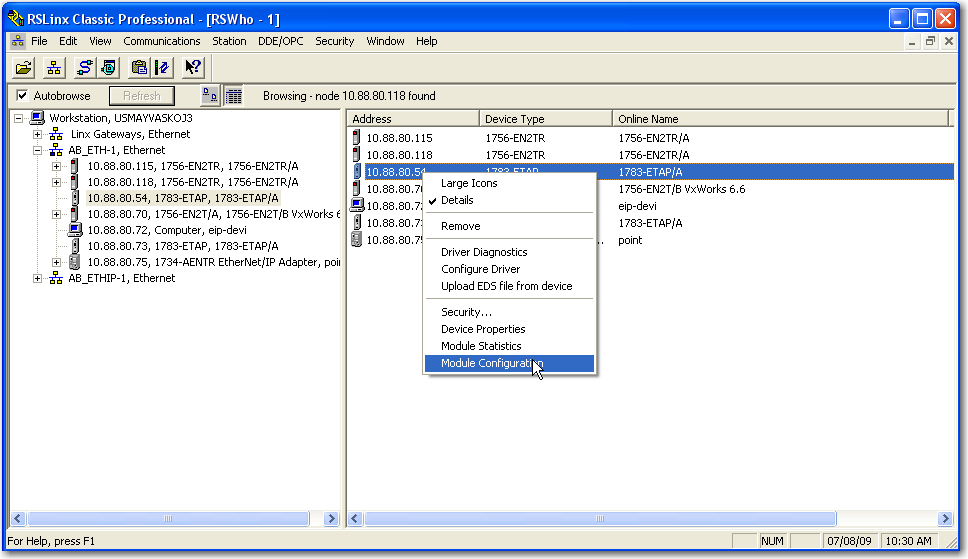
72 Chapter 5 Configure a Supervisor on a Device-level Ring Network 2. Browse to the DLR network that you are setting up. TIP If you do not have the Electronic Data Sheet (EDS) file installed on the module configured to be the ring supervisor, it will appear with a question mark (?). To obtain and use the EDS file: 3. Access the supervisor-capable node s properties. a. Right-click the node. right-click the module and choose to upload the EDS file from the device. or download the EDS file from: b. Choose Module Configuration. a b The General tab appears with information about the module that is not configurable. 72 Publication ENET-UM001I-EN-P - January 2010
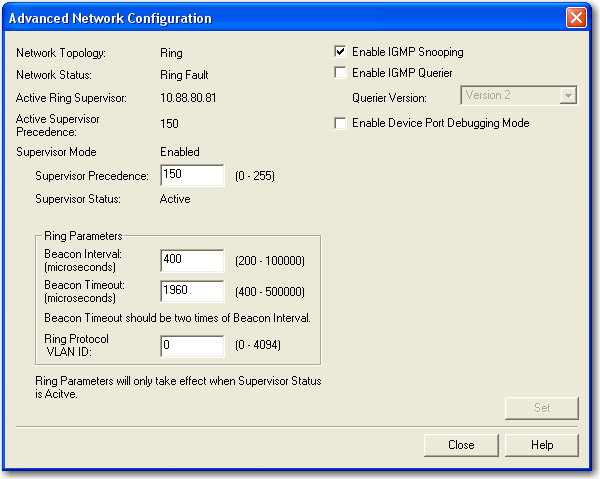
73 Configure a Supervisor on a Device-level Ring Network Chapter 5 4. Click the Network tab to enable Supervisor Mode. Click here to enable Supervisor Mode. Configuration takes affect immediately; you do not need to click Apply or OK. 5. Click the Advanced button to configure supervisor-related parameters. 6. Click Set. IMPORTANT For Beacon Interval, Beacon Timeout and Ring Protocol VLAN ID, we recommend that you only use the default values. Publication ENET-UM001I-EN-P - January
74 Chapter 5 Configure a Supervisor on a Device-level Ring Network Complete the Physical Connections of the Network After you configure and enable your ring supervisor nodes, you must complete the physical connection of your new DLR network to make it complete and fully functional. The figure below shows an example DLR network with all physical connections complete. Example Device-level Ring Topology with All Connections Complete Last physical connection is made. 74 Publication ENET-UM001I-EN-P - January 2010

75 Configure a Supervisor on a Device-level Ring Network Chapter 5 Verify Supervisor Configuration You may want to verify that your supervisor configuration has taken place and that the ring network is functioning properly. You can verify that configuration and a normally functioning network in either RSLogix 5000 programming software or RSLinx Classic software. 1. Access the module properties as shown previously in this chapter. 2. Click the Network tab. 3. Check the Network Topology and Network Status fields. They should display Ring and Normal respectively, as shown below. Check these fields. For a 1756-EN2TR module, you can also verify the supervisor configuration through the module s diagnostic web pages. For more information on monitoring diagnostics via an EtherNet/IP module s web pages, see Monitor Diagnostics on page 137. Troubleshoot DLR Network Issues For a full description of how to troubleshoot DLR network issues, such as replacing a node on a DLR network, see the EtherNet/IP Embedded Switch Technology Application Guide, publication ENET-AP005. Publication ENET-UM001I-EN-P - January
76 Chapter 5 Configure a Supervisor on a Device-level Ring Network 76 Publication ENET-UM001I-EN-P - January 2010
77 Chapter 6 Control I/O Introduction This chapter describes how a controller controls distributed I/O over an EtherNet/IP network. The controller requires a communication module to connect to the network. Distributed I/O modules require an adapter to connect to the network. Topic Page Set Up the Hardware 77 Select a Remote Adapter 87 Set the Requested Packet Interval (RPI) 88 Access Distributed I/O 90 Set Up the Hardware In this example, the Logix5000 controller has an EtherNet/IP communication module to connect to the EtherNet/IP network. The distributed (remote) I/O has an EtherNet/IP adapter to connect it to the EtherNet/IP network. A Distributed I/O over an EtherNet/IP Network Data C B Workstation Item A B C Description Local chassis containing a Logix5000 Controller with EtherNet/IP Communication Module Switch Remote chassis containing distributed I/O modules with an EtherNet/IP adapter 77Publication ENET-UM001I-EN-P - January
78 Chapter 6 Control I/O The Logix5000 controller can communicate with each I/O module directly (direct connection). Or you can configure a rack-optimized connection to the EtherNet/IP adapter to send data to any digital I/O modules. Analog modules always require direct connections. You must: set the IP addresses for each EtherNet/IP module. connect all wiring and cabling properly. configure the communication driver (such as AB-ETHIP-1) for the programming workstation. Add Distributed I/O To communicate with a system s I/O modules, add bridge, adapter, and I/O modules to the controller s I/O Configuration folder. Within the folder, organize the modules into a hierarchy (tree/branch, parent/child). For a typical distributed I/O network, such as the one shown below, Controller Local Communication Module Remote Adapter I/O Module Device you build the I/O configuration with the following steps. 1. Add the local communication module, that is, the bridge. 2. Add the remote adapter for the distributed I/O chassis or DIN rail. 78 Publication ENET-UM001I-EN-P - January 2010
79 Control I/O Chapter 6 3. Add the I/O module. IMPORTANT I/O is controlled on the same subnet and can t be processed via a router. Add a Module To add a module to the I/O Configuration folder, perform this procedure. 1. In the Controller Organizer of RSLogix 5000 programming software, right-click branch to which you want to add the module and choose New Module. The Select Module dialog box appears. Publication ENET-UM001I-EN-P - January

80 Chapter 6 Control I/O 2. Expand the module type and choose the module you wish to add and click OK. The Select Major Revision dialog box appears. 80 Publication ENET-UM001I-EN-P - January 2010

81 Control I/O Chapter 6 3. From the Major Revision pull-down menu, choose the major revision of the I/O module you want to add and click OK. The Module Properties dialog box appears. 4. In the Name field, type the name of your I/O module. 5. In the Slot field, type the slot number in which your I/O module will reside. 6. From the Comm Format pull-down menu, choose a communication format. For more information on the selection of communication formats, see Set the Requested Packet Interval (RPI) on page Click OK to see the rest of the Module Properties dialog boxs. 8. Configure the module as necessary. 9. Click Finish. Publication ENET-UM001I-EN-P - January
82 Chapter 6 Control I/O Select a Communication Format When configuring an I/O module, select its communication format. The chosen communication format determines the data structure for the module s tags. Many I/O modules support different formats. Each format uses a different data structure. The chosen communication format determines: direct or rack-optimized connection. ownership. Communication Formats Type of I/O module Desired Connection Type Digital A rack-optimized connection Rack Optimization Required Communication Format That Specifies To use specialty features of the module, such as diagnostics, timestamps, or electronic fuses Full Diagnostics CST Timestamped Digital A direct connection Scheduled Data Input Data Output Data Analog A direct connection Float Data (only direct connection is supported for analog modules) Integer Data CST Timestamped See online help in RSLogix 5000 programming software for specific communication formats per I/O module. 82 Publication ENET-UM001I-EN-P - January 2010
83 Control I/O Chapter 6 Choosing a Direct or Rack-optimized Connection The Logix5000 controller uses connections to transmit I/O data. These connections can be direct connections or rack-optimized connections. Term Direct connection Definition A direct connection is a real-time, data transfer link between the controller and an I/O module. The controller maintains and monitors the connection with the I/O module. Any break in the connection, such as a module fault or the removal of a module while under power, sets fault bits in the data area associated with the module. A direct connection is any connection that does not use the Rack Optimization Comm Format. Rack-optimized connection For digital I/O modules, you can select rack-optimized communication. A rack-optimized connection consolidates connection usage between the controller and all the digital I/O modules in the chassis (or DIN rail). Rather than having individual, direct connections for each I/O module, there is one connection for the entire chassis (or DIN rail). Rack-optimized connection IMPORTANT If you use various 1756 EtherNet/IP communication modules in a remote chassis, such as a 1756-ENBT with a 1756-EN2T, do not use the rack-optimized communication format with this remote chassis. If you must use the rack-optimized communication format with a remote 1756 chassis, put the 1756-EN2T and 1756-ENBT modules in a separate remote chassis. Publication ENET-UM001I-EN-P - January
84 Chapter 6 Control I/O Direct Connections For I/O Modules In this example, assume that each distributed I/O module is configured for a direct connection to the controller. Controller With EtherNet/IP Communication Module EtherNet/IP Network Switch EtherNet/IP Adapters With I/O Modules Digital I/O Modules Analog I/O Modules Digital I/O Modules Example - System Connections System Connections Amount Controller to local EtherNet/IP communication module 0 Controller to EtherNet/IP adapter Direct connection for digital I/O module Direct connection for analog I/O module 4 2 Total connections used 6 If you have many modules, direct connections to each module may not be feasible because you could use up the number of connections and packets per second supported by the module. See Rack-optimized Connections For I/O Modules on page 85 to conserve connection use and network traffic. 84 Publication ENET-UM001I-EN-P - January 2010
85 Control I/O Chapter 6 Rack-optimized Connections For I/O Modules In this example, assume that each digital I/O module is configured for a rack-optimized connection to the controller. Analog modules must be configured for direct connections. Controller With EtherNet/IP Communication Module EtherNet/IP Network Switch EtherNet/IP Adapters With I/O Modules Digital I/O Modules Analog I/O Modules Digital I/O Modules Example - System Connections System Connections Controller to local EtherNet/IP communication module 0 Controller to EtherNet/IP adapter with digital modules (rack-optimized connection to each adapter) Controller to EtherNet/IP adapter with analog modules (direct connection for each analog I/O module) Total Connections used 4 Amount The rack-optimized connection conserves connections, but can limit the status and diagnostic information that is available from the I/O modules. To optimize the number of available connections, use a rack-optimized connection between any digital I/O that allows it and the remote adapter that connects the distributed I/O to the controller via the communication module. 2 2 Publication ENET-UM001I-EN-P - January
86 Chapter 6 Control I/O Ownership In a Logix5000 system, modules multicast data. Therefore, multiple modules can receive the same data at the same time from a single module. When choosing a communication format, decide whether to establish an owner-controller or listen-only relationship with the module. Types of Module Ownership Owner controller The controller that creates the primary configuration and communication connection to a module. The owner controller writes configuration data and can establish a connection to the module. An owner connection is any connection that does not include Listen-Only in its Comm Format. Listen-only connection An I/O connection where another controller owns/provides the configuration data for the I/O module. A controller using a listen-only connection only monitors the module. It does not write configuration data and can only maintain a connection to the I/O module when the owner controller is actively controlling the I/O module. Listen-only connection 86 Publication ENET-UM001I-EN-P - January 2010
87 Control I/O Chapter 6 Choosing a Type of Module Ownership If the module is an And another controller And you want to Then use this type of connection Input module Does not own the module Owner Owns the module Maintain communication with the module if it loses communication with the other controller Stop communication with the module if it loses communication with the other controller Owner Use the same configuration as the other owner controller. Listen-only Output module Does not own the module Owner Owns the module Input and Output Modules - Differences in Ownership Control This Ownership Description Listen-only Input modules Owner An input module is configured by a controller that establishes a connection as an owner. This configuring controller is the first controller to establish an owner connection. Output modules Listen-only Owner Listen-only Once an input module has been configured and owned by a controller, other controllers can establish owner connections to that module. This allows additional owners to continue to receive multicast data if the original owner controller breaks its connection to the module. Additional owners must have the identical configuration data and communication format as the original owner controller; otherwise, the connection attempt is rejected. Once an input module has been configured and owned by a controller, other controllers can establish a listen-only connection to that module. These controllers can receive multicast data while another controller owns the module. If all owner controllers break their connections to the input module, all controllers with listen-only connections no longer receive multicast data. An output module is configured by a controller that establishes a connection as an owner. Only one owner connection is allowed for an output module. If another controller attempts to establish an owner connection, the connection attempt is rejected. Once an output module has been configured and owned by one controller, other controllers must establish listen-only connections to that module. These controllers can receive multicast data while another controller owns the module. If the owner controller breaks its connection to the output module, all controllers with listen-only connections no longer receive multicast data. Select a Remote Adapter Choice of Remote Adapter Type of Distributed I/O Required Remote Adapters 1756 ControlLogix I/O 1756-ENBT, 1756-EN2T, or 1756-EN2TR 1794 FLEX I/O 1794-AENT 1734 POINT I/O 1734-AENT Publication ENET-UM001I-EN-P - January

88 Chapter 6 Control I/O Set the Requested Packet Interval (RPI) When you configure an I/O module, you define the requested packet interval (RPI) rate for the module. Only data-producing modules require an RPI. For example, a local EtherNet/IP communication module requires no RPI because it produces no data for the system but acts only as a bridge. To set an RPI, perform this procedure. 1. Make sure the module is installed, started and connected to the controller via a serial, or other network, connection. 2. In the Controller Organizer of RSLogix 5000 programming software, right-click the EtherNet/IP module and choose Properties. The Module Properties dialog box appears. 3. Click the Connection tab. 88 Publication ENET-UM001I-EN-P - January 2010
89 Control I/O Chapter 6 4. From the Requested Packet Interval (RPI) menu, select the rate at which you want data to be updated over a connection. Only set the RPI to the rate the application requires. IMPORTANT The RPI determines the number of packets per second that the module will produce on a connection. Each module can only produce a limited number of packets per second. Exceeding this limit prevents the module from opening more connections. 5. Click OK. Unlike EtherNet/IP modules, in Logix5000 controllers, I/O values update at an interval set via the project s I/O configuration folder. The values update asynchronously to the execution of logic. At the specified interval, the controller updates a value independently from the execution of logic. Publication ENET-UM001I-EN-P - January
90 Chapter 6 Control I/O Access Distributed I/O I/O information is presented as a structure of multiple fields, which depends on the specific features of the I/O module. The name of the structure is based on the location of the I/O module in the system. Each I/O tag is automatically created when you configure the I/O module through the programming software. Each tag name follows this format: Location:SlotNumber:Type.MemberName.SubMemberName.Bit This address variable Location SlotNumber Type MemberName SubMemberName Bit (optional) Is Identifies network location LOCAL = local DIN rail or chassis ADAPTER_NAME = identifies remote adapter or bridge Slot number of I/O module in its chassis Type of data I = input O = output C = configuration S = status Specific data from the I/O module, which depends on the type of data the module can store For example, Data and Fault are possible fields of data for an I/O module. Data is the common name for values the are sent to or received from I/O points. Specific data related to a MemberName Specific point on the I/O module, which depends on the size of the I/O module ( for a 32-point module) 90 Publication ENET-UM001I-EN-P - January 2010
91 2 3 4 Control I/O Chapter 6 EXAMPLE 1 Example Module Example Tag Names (automatically created by the software) 1 Remote 1794-AENT adapter FLEX_io_adapter 2 Remote 1794-IA16 input_module in slot 0 Rack-optimized connection 3 Remote 1794-OB16 output_module in slot 1 Rack-optimized connection 4 Remote 1794-IF2XOF2I combo_analog in slot 2 Direct connection FLEX_io_adapter:I FLEX_io_adapter:I.SlotStatusBits FLEX_io_adapter:I.Data FLEX_io_adapter:O FLEX_io_adapter:O.Data FLEX_io_adapter:0:C FLEX_io_adapter:0:C.Config FLEX_io_adapter:0:C.DelayTime_0 FLEX_io_adapter:0:C.DelayTime_1 FLEX_io_adapter:0:C.DelayTime_2 FLEX_io_adapter:0:C.DelayTime_3 FLEX_io_adapter:0:C.DelayTime_4 FLEX_io_adapter:0:C.DelayTime_5 FLEX_io_adapter:0:I FLEX_io_adapter:1:C FLEX_io_adapter:1:C.SSData FLEX_io_adapter:1:O FLEX_io_adapter:1:O.Data FLEX_io_adapter:2:C FLEX_io_adapter:2:C.InputFIlter FLEX_io_adapter:2:C.InputConfiguration FLEX_io_adapter:2:C.OutputConfiguration FLEX_io_adapter:2:C.RTSInterval FLEX_io_adapter:2:C.SSCh0OuputData FLEX_io_adapter:2:C.SSCH1OutputData FLEX_io_adapter:2:I Publication ENET-UM001I-EN-P - January
92 Chapter 6 Control I/O The choice of rack optimization for an I/O module creates tags as aliases for the adapter module s tags. This logic displays the device s tag as an alias for a the adapter module s tag. In this example, the tag name of the adapter is in angle brackets. Tag Name of the I/O Device Tag Name of the Adapter Conveyor:2:I.0 <Conveyor:I.Data[2].0> Additional Resources This document contains additional information on controlling I/O: EtherNet/IP Performance Application Solution, publication ENET-AP Publication ENET-UM001I-EN-P - January 2010
93 Chapter 7 Interlocking and Data Transfer Between Controllers Introduction This chapter describes how to share data by interlocking controllers (producing and consuming tags) and transferring messages between controllers via an EtherNet/IP network. Communciation Methods If you want to And the data Then Page Interlock operations Resides on Logix5000 controllers Produce and consume a tag 95 Transfer data Needs regular delivery at an interval that you specify Produce and consume a tag 95 Is sent when a specific condition occurs in your application Execute a message (MSG) instruction 105 Set Up the Hardware In this example, the controller in the local chassis produces a tag that the Logix5000 controller in the remote chassis consumes. The local controller can also send a MSG instruction to the remote controller. Sharing Data and Transferring Messages A Data C B Item A B C Description Local chassis containing a Logix5000 Controller with EtherNet/IP Communication Module Switch Remote chassis containing a Logix5000 Controller with EtherNet/IP Communication Module 93Publication ENET-UM001I-EN-P - January
94 Chapter 7 Interlocking and Data Transfer Between Controllers Logix5000 Controller Combinations Choosing a Communication Module Controllers Communication Modules 1756 ControlLogix 1756-ENBT, 1756-EN2T, 1756-EN2TR, 1756-EN2TXT, or 1756-EN2F communication module 1768 CompactLogix 1768-ENBT communication module 1769-L23E-QB1B, 1769-L23E-QBFC1B, 1769-L32E and 1769-L35E CompactLogix A built-in EtherNet/IP port 1794 FlexLogix 1788-ENBT EtherNet/IP communication card PowerFlex 700S with DriveLogix controller 1788-ENBT EtherNet/IP communication card Make sure to: set the IP addresses and other network parameters for each EtherNet/IP communication module. connect all wiring and cabling. configure the communication driver (such as AB-ETHIP-1) for the programming workstation IMPORTANT If you are sharing tags between ControlLogix controllers and the controllers are sharing only tags, not sending messages, set the communication format of the 1756-ENBT, 1756-EN2F, 1756-EN2T, or 1756-EN2TXT module to None. 94 Publication ENET-UM001I-EN-P - January 2010
95 Interlocking and Data Transfer Between Controllers Chapter 7 Tag Guidelines for Produced or Consumed Data To properly organize tags for produced or consumed data (shared data), follow these guidelines. Guidelines for the Organization of Tags Guideline Create the tags at the controller scope. Use one of these data types: DINT REAL array of DINTs or REALs user-defined Limit the size of the tag to 500 bytes. Combine data that goes to the same controller. Details You can share only controller-scoped tags. To share other data types, create a user-defined data type that contains the required data. Use the same data type for the produced tag and corresponding consumed tag or tags. If transferring more than 500 bytes, create logic to transfer the data in packets. A size of < 125 DINT words will keep total bytes within 500. This helps reduce the total number of packets for transactions. If producing several tags for the same controller: Group the data into one or more user-defined data types. This method uses fewer connections than does producing each tag separately. Group the data according to similar update intervals. To conserve network bandwidth, use a greater RPI for less critical data. For example, you could create one tag for data that is critical and another tag for data that is not as critical. Terminology A Logix5000 controller can produce (broadcast) and consume (receive) system-shared tags. Tag Definitions Term Produced tag Consumed tag Definition A tag that a controller makes available for use by other controllers. Multiple controllers can simultaneously consume (receive) the data. A produced tag sends its data to one or more consumed tags (consumers) without using logic. The produced tag sends its data at the RPI of the consuming tag. A tag that receives the data of a produced tag. The data type of the consumed tag must match the data type (including any array dimensions) of the produced tag. The RPI of the consumed tag determines the period at which the data updates. To share produced or consumed tags, two controllers must be attached to the same EtherNet/IP subnet. Two controllers cannot bridge produced or consumed tags over two subnets. Publication ENET-UM001I-EN-P - January
96 Chapter 7 Interlocking and Data Transfer Between Controllers Connections for Produced and Consumed Tags Logix controllers can produce (broadcast) and consume (receive) system-shared tags that are sent and received via the EtherNet/IP communication module. Produced and consumed tags each require connections. Required Connections for Produced and Consumed Tags Tag Type Produced Consumed Required Connections The local controller (producing) must have one connection for the produced tag and the first consumer and one more connection for each additional consumer (heartbeat). The produced tag requires two connections. As you increase the number of controllers that can consume a produced tag, you also reduce the number of connections the controller has available for other operations, such as communication and I/O. Each consumed tag requires one connection for the controller that is consuming the tag. All EtherNet/IP modules support as many as 32 produced multicast connections. Because each tag that passes through an EtherNet/IP module uses a single connection, the number of available connections limits the total number of tags that can be produced or consumed. If the communication module uses all of its connections for I/O and other communication modules, no connections remain for produced and consumed tags. IMPORTANT Depending on whether it is producing or consuming a tag, a Logix5000 controller uses its connections differently. Number Connections for Produced and Consumed Tags Type of Tag Device Number of Connections Used Produced tag Logix5000 controller Number_of_consumers + 1 EtherNet/IP module 1 Consumed tag Logix5000 controller EtherNet/IP module 1 96 Publication ENET-UM001I-EN-P - January 2010
97 Interlocking and Data Transfer Between Controllers Chapter 7 Local Controller CompactLogix controller The graphic below shows a Logix5000 controller producing a single tag for consumption by another Logix5000 controller. In this example, the producing controller uses 2 connections and every other Logix module/controller uses only 1 connection. Logix5000 Controllerin Local Chassis Producing a Single Tag for a Logix5000 Controller in a Remote Chassis Remote Controller ControlLogix controller Connections Used = 2 (1 + Number of consumers) Connections Used = 1 Local Communication Module ENBT Connections Used = 1 Remote Communication Module EN2T Connections Used = 1 At its limits, a Logix5000 controller that produced 125 tags, each with only 1 consumer, the controller would use all of its available 250 connections. In this example, the EtherNet modules used to communicate the tags would only use 125 connections. An example of the different TCP and CIP connection capacities vary for all EtherNet/IP modules. Module Packets/Second TCP Connections CIP Connections 1756-ENBT EN2F 10, EN2T 10, EN2TR 10, EN2TXT 10, ENBT L23E-QB1B, 1769-L23E-QBFC1B L32E L35E ENBT AENT x-COMM-E AENT Publication ENET-UM001I-EN-P - January
98 Chapter 7 Interlocking and Data Transfer Between Controllers Produce a Tag To produce a tag, configure the produced tag in the RSLogix 5000 project for the local (producer) controller. You do not have to configure the consumer controllers in the I/O Configuration folder of the producer controller. Configure the Produced Tag To configure the produced tag, perform this procedure. 1. In the producer s controller organizer in RSLogix 5000 programming software, right-click the Controller Tags folder and select Edit Tags. The Controller Tags dialog box appears. You can produce only controller-scoped tags. 2. In the Controller Tags window, right-click the tag that you want to produce and choose Edit Tag Properties. 98 Publication ENET-UM001I-EN-P - January 2010
99 Interlocking and Data Transfer Between Controllers Chapter 7 The Tag Properties dialog box appears. 3. From the Type pull-down menu, select Produced. 4. Click Connection. The Produced Tag Connection dialog box appears. 5. In the Max Consumers field, type the maximum number of controllers that will consume (receive) the tag. 6. Click OK. Publication ENET-UM001I-EN-P - January
100 Chapter 7 Interlocking and Data Transfer Between Controllers Consume Data Produced by Another Controller To consume a produced tag, specify both the producer controller and the produced tag in the RSLogix 5000 project for the remote (consumer) Logix5000 controller. Add the Producer Controller to the Consumer s I/O Configuration Add the producer controller to the remote controller s I/O Configuration folder. In the folder, organize the controllers and communication modules into a hierarchy of tree/branch and parent/child. For the addition of a Producer controller, such as shown below, Consumer Controller Local Communication Module Remote Communication Module Producer Controller you build the I/O configuration with the following steps. 1. Add the local communication module for the consumer controller. 2. Add the remote communication module for the producer controller. 3. Add the producer controller. 100 Publication ENET-UM001I-EN-P - January 2010
101 Interlocking and Data Transfer Between Controllers Chapter 7 To add a module to the I/O Configuration folder, perform this procedure. 1. In RSLogix 5000 programming software, right-click the level to which you want to add the new module and choose New Module. The Select Module Type dialog box appears. 2. Click the By Category tab and browse for your EtherNet/IP communication module. 3. Click OK. The Select Major Revision dialog box appears. 4. From the Major Revision pull-down menu, choose the correct revision and click OK. Publication ENET-UM001I-EN-P - January
102 Chapter 7 Interlocking and Data Transfer Between Controllers The New Module dialog box appears. 5. Configure your new module. a. In the Name field, type the name of your module. b. From the Comm Format pull-down menu, select a communication format. IMPORTANT When consuming a tag, select None as the Communication Format. c. In the Slot field, type the chassis slot number. d. In the Chassis Size field, type the chassis size. e. From the Revision pull-down menu, select a revision number. f. In the IP Address field, type the module IP address. g. From the Electronic Keying pull-down menu, select Disable Keying. 6. Click OK. 102 Publication ENET-UM001I-EN-P - January 2010
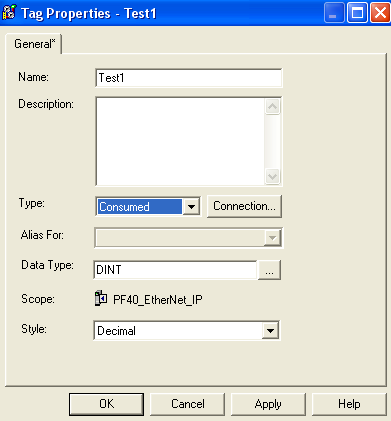
103 Interlocking and Data Transfer Between Controllers Chapter 7 Create the Consumed Tag To create the consumed tag, perform this procedure. 1. In the consumer controller s project in RSLogix 5000 programming software, right-click the Controller Tags folder and choose Edit Tags. The Controllers Tag dialog box appears. Only controller-scoped tags can consume data. 2. In the Controller Tags window, right-click the tag that will consume the data and choose Edit Tag Properties. The Tag Properties dialog box appears. 3. From the Type pull-down menu, choose Consumed. 4. In the Data Type field, enter a data type that matches the type assigned to the produced tag. Publication ENET-UM001I-EN-P - January

104 Chapter 7 Interlocking and Data Transfer Between Controllers 5. Click Connection. The Consumed Tag Connection dialog box appears. 6. From the Producer pull-down menu, choose the controller that produces the data. 7. In the Remote Data field, type the tag name or instance number of the produced data. 8. In the RPI field, type the requested packet interval (RPI) for the connection. Only set the RPI to the rate the application requires. IMPORTANT The RPI determines the number of packets per second that the module will produce on a connection. Each module can only produce a limited number of packets per second. Exceeding this limit prevents the module from opening more connections. For information on RPI and how it affects the actual packet interval (API), see the EtherNet/IP Performance Application Solution, publication ENET-AP Click OK. 104 Publication ENET-UM001I-EN-P - January 2010
105 Interlocking and Data Transfer Between Controllers Chapter 7 Guidelines for Message (MSG) Instructions Follow these guidelines. MSG Instruction Guidelines Guideline For each MSG instruction, create a control tag. Keep the source and destination data at the controller scope. If your MSG is to a module that uses 16-bit integers, use a buffer of INTs in the MSG and DINTs throughout the project. Cache the connected MSGs that execute most frequently. If you want to enable more than 16 MSGs at one time, use some type of management strategy. Keep the number of unconnected and uncached MSGs less than the number of unconnected buffers. Details Each MSG instruction requires its own control tag. Data type = MESSAGE Scope = controller The tag cannot be part of an array or a user-defined data type. A MSG instruction can access only tags that are in the Controller Tags folder. If your message is to a module that uses 16-bit integers, such as a PLC-5 or SLC 500 controller, and it transfers integers (not REALs), use a buffer of INTs in the message and DINTs throughout the project. This increases the efficiency of your project because Logix5000 controllers execute more efficiently and use less memory when working with 32-bit integers (DINTs). Cache the connection for those MSG instructions that execute most frequently, up to the maximum number permissible for your controller revision. This optimizes execution time because the controller does not have to open a connection each time the message executes. If you enable more than 16 MSGs at one time, some MSG instructions may experience delays in entering the queue. To guarantee the execution of each message, either: enable each message in sequence. enable the messages in groups. program a message to communicate with multiple modules. program logic to coordinate the execution of messages. The controller can have unconnected buffers. The default number is 10. If all the unconnected buffers are in use when an instruction leaves the message queue, the instruction errors and does not transfer the data. You can increase the number of unconnected buffers to a maximum of 40. For more information on programming MSG instructions, see the Logix5000 Controller General Instructions Reference Manual, publication 1756-RM003. The individual system user manuals for Logix5000 controllers also provide MSG examples unique to specific controller platforms. Publication ENET-UM001I-EN-P - January
106 Chapter 7 Interlocking and Data Transfer Between Controllers Connections for Messages Messages transfer data to other modules, such as other controllers or operator interfaces. Each message uses one connection, regardless of how many modules are in the message path. To conserve connections, you can configure one message to read from or write to multiple modules. These connected messages can leave the connection open (cache) or close the connection when the message is done transmitting. Message Connections Type of Message Communication Method Used Connection Used CIP data table read or write CIP Yes PLC2, PLC3, PLC5, or SLC (all CIP No types) CIP with Source ID No DH+ CIP generic CIP Your choice (1) Yes Block-transfer read or write Yes (1) You can connect CIP generic messages, but for most applications we recommend you leave CIP generic messages unconnected. Cache Message Connections Guidelines for Caching Message Connections Message Execution Repeated Infrequent Instruction Cache the connection. Important: Caching keeps the connection open and optimizes execution time. Opening a connection each time the message executes increases execution time. Do not cache the connection. Important: Not caching closes the connection upon completion of the message, freeing up the connection for other uses. 106 Publication ENET-UM001I-EN-P - January 2010
107 Interlocking and Data Transfer Between Controllers Chapter 7 Enter Message Logic To send or receive data from an EtherNet/IP module via a message, you must program a MSG instruction in the local controller s logic. If the target module is configured in the I/O Configuration folder of the controller, browse to select the module or manually enter the message path in the MSG instruction. Add the EtherNet/IP Module to the Local Controller s I/O Configuration IMPORTANT The number of TCP and CIP connections supported by the 1768-ENBT module depends on the firmware revision you are using. If you are using firmware revision 1.x, the module supports 32 TCP connections and 64 CIP connections. If you are using firmware revision 2.x or later, the module supports 64 TCP connections and 128 CIP connections. To use the Browse button to select the target device of a MSG instruction, add that remote device to the I/O Configuration folder of the local controller. Within the I/O Configuration folder, organize the local and remote devices into a hierarchy of tree/branch, parent/child. For a typical local/remote MSG structure, such as the one shown below, Local Controller Local Communication Module Remote Communication Module Remote Controller you build the I/O configuration with the following steps. 1. Add the local communication module for the local controller. 2. Add the remote communication module for the remote controller. Publication ENET-UM001I-EN-P - January
108 Chapter 7 Interlocking and Data Transfer Between Controllers 3. Add the remote controller. Select a communication format for a communication module based on the modules in its remote chassis. Module Communication Formats If The remote chassis contains only analog modules, diagnostic digital modules, fused output modules, or communication modules The remote chassis only contains standard, digital input and output modules (no diagnostic modules or fused output modules) You want to receive I/O module and chassis slot information from a rack-optimized remote chassis owned by another controller Select a communication format that specifies None Rack Optimization Listen-Only Rack Optimization To add a module to the I/O Configuration folder, perform this procedure. 1. In RSLogix 5000 programming software, right-click the level to which you want to add the new module and choose New Module. 108 Publication ENET-UM001I-EN-P - January 2010
109 Interlocking and Data Transfer Between Controllers Chapter 7 The Select Module Type dialog box appears. 2. Click the By Category tab and browse for your EtherNet/IP communication module. 3. Click OK. The Select Major Revision dialog box appears. 4. From the Major Revision pull-down menu, choose the correct revision and click OK. The New Module dialog box appears. Publication ENET-UM001I-EN-P - January
110 Chapter 7 Interlocking and Data Transfer Between Controllers 5. Configure your new module. a. In the Name field, type the name of your module. b. From the Comm Format pull-down menu, select a communication format. c. In the Slot field, type the chassis slot number. d. In the Chassis Size field, type the chassis size. e. From the Revision pull-down menu, select a revision number. f. In the IP Address field, type the module IP address. g. From the Electronic Keying pull-down menu, select Compatible Module. 6. Click OK. Enter a Message To enter a message, perform this procedure. 1. Use relay ladder logic to enter a MSG instruction. 2. Click the button... to configure the MSG instruction. EXAMPLE Enter a MSG instruction If count_send = 1 and count_msg.en = 0 (MSG instruction is not already enabled), then execute a MSG instruction that sends data to another controller. count_send count_msg.en / MSG Type - Unconfigured Message Control count_msg... EN DN ER 110 Publication ENET-UM001I-EN-P - January 2010

111 Interlocking and Data Transfer Between Controllers Chapter 7 Configure a MSG Instruction To configure a MSG instruction, perform this procedure. 1. Click... in the MSG box. The Message Configuration dialog box appears. 2. Click the Configuration tab and specify the type of MSG instruction. Configure a MSG to a Logix5000 Controller If you want to For this item Type or select Read (receive) the data Message Type CIP Data Table Read Source Element Number of Elements Destination Tag First element of the tag that contains data in the other controller Number of elements to transfer Write (send) the data Message Type CIP Data Table Write Source Tag Number of Elements Destination Element First element of the tag (controller-scoped) in this controller for the data First element of the tag (controller-scoped) in this controller that contains the data Number of elements to transfer First element of the tag for the data in the other controller Publication ENET-UM001I-EN-P - January
112 Chapter 7 Interlocking and Data Transfer Between Controllers Configure a MSG to an SLC 500 Processor If the data is And you want to For this item Type or select Integer Read (receive) data Message Type SLC Typed Read Source Element Number of Elements Destination Tag Data table address in the SLC 500 controller (for example, N7:10) Number of integers to transfer First element of int_buffer Write (send) data Message Type SLC Typed Write Source Tag Number of Elements Destination Element First Element of int_buffer Number of integers to transfer Floating-point (REAL) Read (receive) data Message Type SLC Typed Read Source Element Number of Elements Destination Tag Data table address in the SLC 500 controller (for example, N7:10) Data table address in the SLC 500 controller (for example, F8:0) Number of values to transfer Write (send) data Message Type SLC Typed Write Source Tag Number of Elements Destination Element First element of the tag (controller-scoped) in this controller for the data First element of the tag (controller-scoped) in this controller that contains the data Number of values to transfer Data table address in the SLC 500 controller (for example, F8:0) 112 Publication ENET-UM001I-EN-P - January 2010
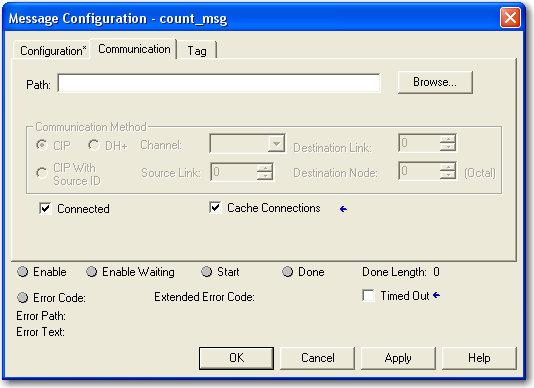
113 Interlocking and Data Transfer Between Controllers Chapter 7 Configure a MSG to a PLC-5 Processor If the data is And you want to For this item Type or select Integer Read (receive) data Message Type PLC5 Typed Read Source Element Number of Elements Destination Tag 3. Click the Communication tab. Data table address in the PLC-5 controller (for example, N7:10) Number of integers to transfer First element of int_buffer Write (send) data Message Type PLC5 Typed Write Source Tag Number of Elements Destination Element First element of int_buffer Number of integers to transfer Floating-point (REAL) Read (receive) data Message Type PLC5 Typed Read Source Element Number of Elements Destination Tag Data Table address in the PLC-5 controller (for example, N7:10) Data table address in the PLC-5 controller (for example, F8:0) Number of values to transfer Write (send) data Message Type PLC5 Typed Write Source Tag Number of Elements Destination Element First element of the tag (controller-scoped) in this controller for the data First element of the tag (controller-scoped) in this controller that contains the data Number of values to transfer Data table address in the PLC-5 controller (for example, F8:0) 4. In the Path field, type the communication path. For a message to a ControlLogix controller, this RSLogix Message Configuration dialog box appears. Publication ENET-UM001I-EN-P - January
114 Chapter 7 Interlocking and Data Transfer Between Controllers For a message to a SLC 500 or PLC-5 processor, this RSLogix Message Configuration dialog box appears. 5. If the target module is configured in the I/O Configuration folder of the originating controller, click Browse to select the module or manually enter the path to the target module. A manually entered path begins with the name of the local EtherNet/IP module, the port the message exits (2 for EtherNet/IP), and the IP address of the next module in the path, which could be the target module. EXAMPLE Communication path from a Logix5000 controller to a Logix5000 controller over an EtherNet/IP network Ethernet Network IP Address E N B T Message E N B T washer, 2, , 1, 0 Where Indicates Washer Name of the 1756-ENBT, 1756-EN2T, or 1756-EN2F module 2 Ethernet port of the 1756-ENBT, 1756-EN2T, or EN2F module IP address of the 1756-ENBT, 1756-EN2T, or 1756-EN2F module in the destination chassis 1 Backplane port of the 1756-ENBT, 1756-EN2T, or 1756-EN2F module in the destination chassis 0 Slot number of the destination controller 114 Publication ENET-UM001I-EN-P - January 2010
115 Interlocking and Data Transfer Between Controllers Chapter 7 Communicate with PLC-5 or SLC Processors If the message is to a PLC-5 or SLC 500 processor and it reads or writes integers (not REALs), use a buffer of INTs in the message. Remember that: Logix5000 controllers execute more efficiently and use less memory when working with 32-bit integers (DINTs). PLC-5 and SLC 500 processors require 16-bit integers. Messages require an INT buffer. Data can be moved into or out of the buffer as needed. Converting between INTs and DINTs If the message is to a device that uses 16-bit integers, such as a PLC-5 or SLC 500 controller, and it transfers integers (not REALs), use a buffer of INTs in the message and DINTs throughout the project. This increases the efficiency of your project. 1 2 Read 16-Bit Integers Data From the Device Buffer of INTs DINTs For Use In the Project Word 1 INT_Buffer[0] DINT_Array[0] Word 2 INT_Buffer[1] DINT_Array[1] Word 3 INT_Buffer[2] DINT_Array[2] 1. The Message (MSG) instruction reads 16-bit integers (INTs) from the device and stores them in a temporary array of INTs. 2. An File Arith/Logical (FAL) instruction converts the INTs to DINTs for use by other instructions in your project. 1 2 Write 16-Bit Integers DINTs From the Project Buffer of INTs Data For the Device DINT_Array[0] INT_Buffer[0] Word 1 DINT_Array[1] INT_Buffer[1] Word 2 DINT_Array[2] INT_Buffer[2] Word 3 1. An FAL instruction converts the DINTs from the Logix5000 controller to INTs. 2. The MSG instruction writes the INTs from the temporary array to the device. Publication ENET-UM001I-EN-P - January
116 Chapter 7 Interlocking and Data Transfer Between Controllers Mapping Tags A Logix5000 controller stores tag names on the controller so that other devices can read or write data without having to know physical memory locations. Many products only understand PLC/SLC data tables, so the Logix5000 controller offers a PLC/SLC mapping function that enables you to map Logix tag names to memory locations. You have to map only the file numbers that are used in messages; the other file numbers do not need to be mapped. The mapping table is loaded into the controller and is used whenever a logical address accesses data. You can access only controller-scoped tags (global data). For each file that is referenced in a PLC-5 or SLC command, make a map entry by: typing the PLC/SLC file number of the logical address. typing or selecting the Logix5000 controller-scoped (global) tag that supplies or receives data for the file number. (You can map multiple files to the same tag.) For PLC-2 commands, specify the tag that supplies or receives the data. When mapping tags: do not use file numbers 0, 1, and 2. These files are reserved for Output, Input, and Status files in a PLC-5 processor. use PLC-5 mapping only for tag arrays of data type INT, DINT, or REAL. Attempting to map elements of system structures may produce undesirable effects. use the PLC file identifier of N or B when accessing elements in an INT tag array. 116 Publication ENET-UM001I-EN-P - January 2010
117 Interlocking and Data Transfer Between Controllers Chapter 7 This example shows how to use a buffer of INTs. EXAMPLE Read integers from a PLC-5 controller. When condition turns on, reads 16-bit integer values (INTs) and stores them in int_buffer. Then the FAL instruction moves the values to dint_array. This converts the values to 32-bit integers (DINTs), for use by other instructions in the ControlLogix controller. EXAMPLE Write integers to a PLC-5 controller. When condition turns on, moves the values in dint_array to int_buffer. This converts the values to 16-bit integers (INTs). Then the message instruction sends int_buffer to the other controller Where dint_array int_buffer Is an Array of DINTs that are used in the ControlLogix controller Array of INTs with the same number of elements as dint_array Publication ENET-UM001I-EN-P - January
118 Chapter 7 Interlocking and Data Transfer Between Controllers Receive MSGs from PLC-5 or SLC 500 Processors To receive MSGs from PLC-5 or SLC 500 processors, 1. If the originating controller is a PLC-5 or SLC 500 processor, in the MSG instruction, select PLC5. If the controller is a For this section And this item Specify PLC-5 This PLC-5 Communication Command PLC-5 Typed Read or PLC-5 Typed Write Data Table Address Size in Elements Port Number 2 Starting address of the data in the PLC-5 controller Number of elements to read or write Target Device Data Table Address Type, in quotation marks [ ], the name of the tag in the ControlLogix controller (for example, count ). MultiHop Select Yes. SLC 500 This Controller Communication Command PLC5 Read or PLC5 Write Data Table Address Size in Elements Channel 1 Starting address of the data in the SLC 500 controller Number of elements to read or write Target Device Data Table Address Type, in quotation marks [ ], the name of the tag in the ControlLogix controller (for example, count ). MultiHop Select Yes 2. On the MultiHop tab, specify: the IP address of the EtherNet/IP communication module that is local to the Logix5000 controller. the slot number of the Logix5000 controller. 118 Publication ENET-UM001I-EN-P - January 2010
119 Chapter 8 Send Introduction This chapter describes how to send an through an EtherNet/IP module. Topic Page EtherNet/IP Module as an Client 119 Send Via a Controller-initiated Message Instruction 121 Create String Tags 121 Enter the Ladder Logic 125 Configure the MSG Instruction That Identifies the Mail Relay Server 125 Configure the MSG Instruction That Contains the Text 127 Enter Text 129 Possible Status Codes 129 For , the EtherNet/IP module can be remote or local to the controller. EtherNet/IP Module as an Client The EtherNet/IP module is an client that uses a mail relay server to send . IMPORTANT The EtherNet/IP module can send an to only one recipient at a time. It cannot mail to a distribution list. Ethernet If you want to Send an to specific personnel when a controller application generates an alarm or reaches a certain condition Send controller or application status information on a regular basis to a project manager Then Program the controller to send a MSG instruction to the EtherNet/IP module The MSG instruction then instructs the EtherNet/IP module to send the text (contained within the MSG instruction) to the mail relay server. Multiple controllers can use the same EtherNet/IP module to initiate Publication ENET-UM001I-EN-P - January
120 Chapter 8 Send The EtherNet/IP module sends only the content of a MSG instruction as an to a mail relay server. Delivery of the depends on the mail relay server. The EtherNet/IP module does not receive . Sample System Firewall/Router ControlLogix Controller With 1756-ENBT, 1756-EN2F, 1756-EN2T, or 1756-EN2TR Module Ethernet Switch FlexLogix Controller Mail Relay Server Ethernet Switch 1769-L35E CompactLogix Controller Sample System Capabilities Device ControlLogix controller FlexLogix controller CompactLogix controller 1756-ENBT, 1756-EN2F, 1756-EN2T, 1756-EN2TR, 1756-EN2TXT module Mail relay server Capability Send a MSG instruction to the 1756-ENBT module to initiate sending an to the mail relay server. Use the path of the MSG instruction to identify the 1756-ENBT module as the target of the MSG instruction. Send an to the mail relay server from the interface on the Send an link. This interface requires entry of all information. Send to specified recipients. The mail relay server determines the delivery of any sent through an EtherNet/IP module, whether via a MSG instruction or from its built-in interface. 120 Publication ENET-UM001I-EN-P - January 2010
121 Send Chapter 8 Send Via a Controller-initiated Message Instruction A Logix controller can send a generic CIP message instruction to the EtherNet/IP module that instructs the module to send an message to a SMTP mail relay server using the standard SMTP protocol. This automatically communicates controller data and application conditions to appropriate personnel. IMPORTANT Be careful to write the ladder logic to ensure the MSG instructions are not continuously triggered to send messages. Some mail relay servers require a domain name be provided during the initial handshake of the SMTP session. For these mail relay servers, specify a domain name when configuring the EtherNet/IP module s network settings. For additional information, see Configure an EtherNet/IP Module to Operate on the Network on page 41. Create String Tags You need three controller-scoped string tags. Each tag performs one of these functions: Identifies the mail server Contains the text Contains the status of the transmission The default STRING data type supports up to 82 characters. In most cases, this is sufficient to contain the address of the mail server. For example, to create tag Configstring of type STRING, perform this procedure. 1. Click... in the Value column of the Controller Tags dialog box to display the String Browser dialog box. Publication ENET-UM001I-EN-P - January
122 Chapter 8 Send The String Browser dialog box appears. 2. Enter the IP address or host name of the mail server. 3. Click OK. The tags for the text and transmission status can contain up to 474 characters. For these tags, you must create a user-defined STRING data type. The default STRING data type in RSLogix 5000 programming software is not large enough for most text. To create a user-defined STRING data type, perform this procedure. 1. In the Data Types folder in RSLogix 5000 programming software, navigate to the Strings folder and double-click a String data type. 122 Publication ENET-UM001I-EN-P - January 2010
123 Send Chapter 8 The String dialog box appears. New Controller-scoped Tags 2. In the Name field, type a String type, such as String. 3. Create one controller-scoped tag, such as EWEB_ , of this new data type to contain the text. 4. Create a second controller-scoped tag, such as DstStr, of this new data type to contain the transmission status. Both of these tags are of type String. 5. Click... in the Value column of the Controller Tags dialog box. Tag for Status Tag for Text The String Browser dialog box appears. Publication ENET-UM001I-EN-P - January
124 Chapter 8 Send 6. Type your . The text of the does not have to be static. You can program a controller project to collect specific data to be sent in an Click OK. For more information on using ladder logic to manipulate string data, see the Logix5000 Controllers Common Procedures Programming Manual, publication 1756-PM Publication ENET-UM001I-EN-P - January 2010
125 Send Chapter 8 Enter the Ladder Logic Ladder logic requires two MSG instructions. One MSG instruction configures the mail server and needs to be executed only once. The second MSG instruction triggers the . Execute this MSG instruction as often as needed. The first rung configures the mail server. The second rung sends the text. Configure the MSG Instruction That Identifies the Mail Relay Server To configure the MSG instruction that identifies the mail relay server, perform this procedure. 1. In the MSG instruction, click the Communication tab. Publication ENET-UM001I-EN-P - January
126 Chapter 8 Send 2. In the Path field, type the path for the MSG instruction. The path starts with the controller initiating the MSG instruction. a. Enter the number of the port from which the message exits and the address of the next module in the path. For example, if the EtherNet/IP module is in the same chassis as the controller and is in slot 2, the path is: 1, 2. For more information on configuring the path of a MSG instruction, see the Logix5000 Controllers General Instructions Reference Manual, publication 1756-RM Click the Configuration tab. The Source Length is the number of characters in the STRING tag that identifies the mail relay server plus 4 characters. In this example, the tag contains 13 characters. 4. Configure the MSG parameters for sending an . a. From the Service Type pull-down menu, choose Attribute Single b. In the Instance field, type 1. c. In the Class field, type 32f. d. In the Attribute field, type 5. e. From the Source Element pull-down menu, choose the tag that contains your text. f. In the Source Length field, type the number of characters in the plus four. In this example, you would enter 13 for the number of characters plus 4 for a total of 17. After the MSG instruction that configures the mail relay server executes successfully, the controller stores the mail relay server information in nonvolatile memory. The controller retains this information, even through power cycles, until another MSG instruction changes the information. 126 Publication ENET-UM001I-EN-P - January 2010
127 Send Chapter 8 Configure the MSG Instruction That Contains the Text To configure the MSG instruction that contains the text, perform this procedure. 1. Click the Configuration tab. The Source Length is the number of characters in the tag plus 4 characters. In this example, the text contains 65 characters. 2. Configure the MSG parameters for sending an . a. From the Service Type pull-down menu, choose Custom. b. In the Service Code field, type 4b. c. In the Instance field, type 1. d. In the Class field, type 32f. e. In the Attribute field, type 0. f. From the Source Element pull-down menu, choose the tag that contains your text. g. In the Source Length field, type the number of characters in the plus four. In this example, you would enter 65 for the number of characters plus 4 for a total of 69. h. From the Destination pull-down menu, choose a tag to contain the status of your transmission. Publication ENET-UM001I-EN-P - January
128 Chapter 8 Send 3. Click the Communication tab. 4. In the Path field, type the path from the controller to the EtherNet/IP module. The path starts with the controller initiating the MSG instruction. The second number in the path represents the port from which the message exits and the address of the next module in the path. For example, if the EtherNet/IP module is in the same chassis as the controller and is in slot 2, the path is: 1, If all the devices in the path are configured in the initiating controller s I/O Configuration tree, click Browse to select the target module. The software automatically fills in the path. 6. Click OK. For more information on configuring the path of an MSG instruction, see the Logix5000 Controllers General Instructions Reference Manual, publication 1756-RM Publication ENET-UM001I-EN-P - January 2010
129 Send Chapter 8 Enter Text Use the string browser to enter the text of the . To include To:, From:, and Subject: fields in the , use <CR><LF> symbols to separate each of these fields. The To: and From fields are required; the Subject: field is optional. For example: To: address of recipient <CR><LF> From: address of sender <CR><LF> Subject: subject of message <CR><LF> body of message An message must not exceed 474 characters in length. An additional 4-byte string-length value is added to the tag. As a result, the maximum source length is 478 characters. Possible Status Codes Status Code Descriptions Examine the destination element of the MSG to see whether the was successfully delivered to the mail relay server. A successful delivery indicates that the mail relay server placed the message in a queue for delivery, but it does not mean the intended recipient received the message. These are the possible codes that a destination element could contain. Error Code (Hex) Extendederror Code (Hex) Description 0x00 None Delivery successful to the mail relay server. 0x02 None Resource unavailable. The object was unable to obtain memory resources to initiate the SMTP session. 0x08 None Unsupported Service Request. Make sure the service code is 0x4B and the Class is 0x32F. 0x11 None Reply data too large. The Destination string must reserve space for the SMTP server reply message. The maximum reply can be 470 bytes. 0x13 None Configuration data size too short. The Source Length is less than the Source Element string size plus the 4-byte length. The Source Length must equal the Source Element string size x15 None Configuration data size too large. The Source Length is greater than the Source Element string size plus the 4-byte length. The Source Length must equal the Source Element string size x19 None Data write failure. An error occurred when attempting to write the SMTP server address (attribute 4) to non-volatile memory. 0xFF 0x0100 Error returned by server; check the Destination string for reason. The message was not queued for delivery. 0x0101 0x0102 0x0103 SMTP mail server not configured. Attribute 5 was not set with a SMTP server address. To: address not specified. Attribute 1 was not set with a To: address AND there is not a To: field header in the body. From: address not specified. Attribute 2 was not set with a From: address AND there is not a From: field header in the body. Publication ENET-UM001I-EN-P - January
130 Chapter 8 Send Status Code Descriptions Error Code (Hex) Extendederror Code (Hex) 0xFF 0x0104 Unable to connect to SMTP mail server set in Attribute 5. If the mail server address is a host name, make sure that the device supports DNS, and that a Name Server is configured. If the hostname is not fully qualified, for example, mailhost and not mailhost.xx.yy.com then the domain must be configured as xx.yy.com. Try ping <mail server address> to insure the mail server is reachable from your network. Also try telnet <mail server address> 25 which attempts to initiate a SMTP session with the mail server via telnet over port 25. (If you connect then enter QUIT ). 0x0105 0x0106 Description Communication error with SMTP mail server. An error occurred after the initial connection with the SMTP mail server. See the ASCII text following the error code for more details as to the type of error. SMTP mail server host name DNS query did not complete. A previous send service request with a host name as the SMTP mail server address did not yet complete. Note that a timeout for a DNS lookup with an invalid host name can take up to 3 minutes. Long timeouts can also occur if a domain name or name server is not configured correctly. 130 Publication ENET-UM001I-EN-P - January 2010
131 Chapter 9 Communicate with PanelView Terminals Introduction This chapter describes how a controller uses an EtherNet/IP communication module to communicate with PanelView and PanelView Plus terminals over an EtherNet/IP network. Topic Page Set Up the Hardware 131 Connections to PanelView Terminals 132 Add a PanelView Terminal 133 Organize Controller Data for a PanelView Terminal 136 Connections to RSView Applications 136 Set Up the Hardware In this example, the controller in the local chassis shares data with an HMI application on the EtherNet/IP network. This application could be running a: PanelView terminal. PanelView Plus terminal. workstation running RSView 32 software. workstation running an RSView Enterprise application, such as RSView Machine Edition or RSView Supervisory Edition. Ethernet Communication with Panelview A Data C B Item A B C Description Local chassis containing a Logix5000 controller and EtherNet/IP connection Switch HMI device with EtherNet/IP connectivity 131Publication ENET-UM001I-EN-P - January
132 Chapter 9 Communicate with PanelView Terminals Logix5000 Controller Combinations Choosing a Communication Module Controllers Communication Modules 1756 ControlLogix 1756-ENBT, 1756-EN2F, 1756-EN2T, 1756-EN2TR, or 1756-EN2TXT communication modules 1768 CompactLogix 1768-ENBT communication module 1769-L23E-Q1B, 1769-L23E-QBFC1B, 1769-L32E, or 1769-L35E CompactLogix A built-in EtherNet/IP port 1794 FlexLogix 1788-ENBT EtherNet/IP communication module PowerFlex 700S with DriveLogix 1788-ENBT EtherNet/IP communication module Make sure to: set the IP addresses for the controller s EtherNet/IP communication module and the HMI terminal. connect all wiring and cabling. Connections to PanelView Terminals To establish communication between a PanelView or PanelView Plus terminal, specify controller connections. PanelView Terminal Connections Type of Communication Implicit (connected) Logix controller communicates to the PanelView terminal like an I/O module. You must add the PanelView terminal to the I/O configuration tree for the controller project. Explicit (unconnected) Communication is set up in PanelBuilder or RSView ME software. All communication is initiated by the PanelView or PanelView Plus terminal. Terminal Type PanelView Supported Supported PanelView Plus Not supported Supported When communicating implicitly (PanelView terminals only), the controller uses one connection for each terminal. Make sure to account for these connections when designing the system. The Logix5000 controllers: firmware revisions 11 and earlier support up to 16 bidirectional implicit buffers (connections). firmware revisions 12 or later support up to 32 bidirectional implicit buffers (connections). 132 Publication ENET-UM001I-EN-P - January 2010
133 Communicate with PanelView Terminals Chapter 9 The larger number of implicit buffers enables significantly more PanelView terminals to simultaneously request data from the controller via implicit communication. When communicating explicitly, the controller supports 40 outgoing and 3 incoming buffers. This number of incoming buffers limits how many terminals can simultaneously request data from a controller via explicit communication. In other words, while a system can have multiple terminals, only three terminals can explicitly request data from a Logix controller at the same time. Add a PanelView Terminal To add a Panelview terminal, perform this procedure. 1. In the Controller Organizer of the RSLogix 5000 programming software, right-click I/O Configuration to select New Module. The Select Module dialog box appears. 2. Click the By Category tab. 3. Browse to your EtherNet/IP communication module and click OK. The Select Major Revision dialog box appears. Publication ENET-UM001I-EN-P - January

134 Chapter 9 Communicate with PanelView Terminals 4. From the Major Revision pull-down menu, choose a revision and click OK. The New Module dialog box appears. a. In the Name field, type the name of your new module. b. From the Comm Format pull-down menu, choose a communication format. c. In the Slot field, type the number of the slot where the new module will reside. d. In Chassis Size field, type the chassis size. e. In the IP Address field, type the IP address. f. From the Electronic Keying pull-down menu, choose Disable Keying and click OK. 5. In the Controller Organizer of RSLogix 5000 programming software, right-click the local EtherNet/IP communication module you just added and select New Module. 134 Publication ENET-UM001I-EN-P - January 2010
135 Communicate with PanelView Terminals Chapter 9 The Select Module Type dialog box appears. 6. Right-click to select New Module, and add an ETHERNET-PANELVIEW. 7. Click OK. The Module Properties dialog box appears. a. In the Name field, type the name of your new module. b. From the Comm Format pull-down menu, choose Data-DINT. c. From the Electronic Keying pull-down menu, choose Disable Keying. d. In the IP Address field, type the IP address. e. In the Input and Output fields, type the connection parameters. IMPORTANT You can establish up to eight different instances with each terminal. For example, one controller can use all eight instances. Or eight controllers can each use one instance. f. Click Finish. Publication ENET-UM001I-EN-P - January
136 Chapter 9 Communicate with PanelView Terminals Organize Controller Data for a PanelView Terminal Organize data for a PanelView terminal based on how the data is used. Controller Data Organization For data that is Time critical (for example, data that controls a machine) Not time critical Do this Use the I/O tags of the terminal. The tags for this data were created when you added the terminal to the I/O configuration of the controller. They resemble the I/O modules tags. Create arrays to store the data. 1. For each screen, create a BOOL array with enough elements for the bit-level objects on the screen. For example, the BOOL[32] array gives you 32 bits for push buttons or indicators. 2. For each screen, create a DINT array with enough elements for the word-level objects on the screen. For example, the DINT[28] array provides 28 values for numeric entry controls or numeric displays. To access the I/O tags of the PanelView or PanelView Plus terminal, use the following address format: Terminal Function Writes the data Reads the data Requirement name_of_terminal:i.data[x].y name_of_terminal:o.data[x].y where: This address variable name_of_terminal x y Is Name of the instance in the I/O configuration of the controller. Element of the input (I) or output (O) structure. Bit number within the input or output element. Connections to RSView Applications To establish communication to an RSView application, configure RSLinx software to collect tags from the controller. An RSView 32 or RSView Enterprise application uses RSLinx software as a data server. RSLinx Enterprise software defaults to four read connections and one write connection per configured controller. Modify the RSLinx software configuration as needed. 136 Publication ENET-UM001I-EN-P - January 2010
137 Chapter 10 Monitor Diagnostics Introduction The EtherNet/IP communication modules provide several web diagnostic pages. This chapter illustrates each of these web diagnostic pages and defines the terms presented on each screen. Topic Page Diagnostic Web Pages 138 Network Settings 141 Explicit Message Connections 142 I/O Connections 143 Ethernet Statistics 144 IMPORTANT To access any of these diagnostic web pages and troubleshoot problems which you may be able to diagnose via one of these web diagnostic pages, see Troubleshoot an EtherNet/IP Module on page 147. A 1783-ETAP tap using firmware revision 1.1 does not support diagnostic web pages. You must upgrade the tap to firmware revision 2.x or later to use diagnostic web pages. 137Publication ENET-UM001I-EN-P - January

138 Chapter 10 Monitor Diagnostics Diagnostic Web Pages The Diagnostic Overview web page presents a summary of the current configuration and overall status of the module. Diagnostic Overview Web Page This field Ethernet Link Speed Duplex Autonegotiate Status System Resource Utilization CPU Web Server Server Errors Specifies Whether the Ethernet port is operating at 10 Mbps or 100 Mbps. Whether the Ethernet port is operating at half duplex or full duplex. Whether the port speed and duplex mode were determined via autonegotiation or manual configuration. Current percent CPU utilization for the module. Number of requests to the module with an invalid URL. 138 Publication ENET-UM001I-EN-P - January 2010
139 Monitor Diagnostics Chapter 10 Diagnostic Overview Web Page This field Redirects Timeouts Access Violations Page Hits Form Hits Total H its CIP Connection Statistics Current CIP MSG Connections CIP MSG Connection Limit Max MSG Connections Observed Current CIP I/O Connections CIP I/O Connection Limit Max I/O Connections Observed Conn Opens Open Errors Conn Closes Close Errors Conn Timeouts TCP Connections (CIP) Current TCP Connections TCP Connection Limit Maximum Observed CIP Messaging Statistics Messages Sent Messages Received UCMM Sent UCMM Received I/O Packet / Second Statistics Total Sent Received Inhibited Specifies Number of requests for a Web page that were redirected by the module (for example, requesting / is redirected to /index.html ). Number of times a connection timeout occurred while processing a Web page. Number of times a page has been requested for which the user has insufficient privilege. Number of times a Web page was successfully accessed. Number of times a Web page form was accessed. Total number of Web page access attempts. Current number of CIP connections for message. Maximum number of CIP connections for messages allowed. Maximum observed number of CIP connections for messages. Current number of CIP connections for I/O. Maximum number of CIP connections allowed for I/O. Maximum observed number of CIP connections for I/O. Number of CIP connection open requests. Number of CIP connection open request errors. Number of CIP connection close requests. Number of CIP connection close request errors. Number of CIP connection timeouts. Current number of active TCP connections for CIP messaging. Maximum number of TCP connections for CIP messaging allowed. Maximum observed number of TCP connections for CIP messaging. Number of CIP connected messages (packets) sent. Number of CIP connected messages (packets) received. Number of CIP unconnected messages (packets) sent. Number of CIP unconnected messages (packets) received. Total number of Class 1 UDP packets the module transmitted and received in the last one-second snapshot. The Total is the sum of the Sent, Received, Inhibited, and Rejected numbers. Number of Class 1 UDP packets the module transmitted in the last one-second snapshot. Number of Class 1 UDP packets the module received in the last one-second snapshot. Number of Class 1 UDP packets the module inhibited in the last one-second snapshot. Packets are inhibited if a COS module produces packets faster than 25% of the connection s RPI. Publication ENET-UM001I-EN-P - January
140 Chapter 10 Monitor Diagnostics Diagnostic Overview Web Page This field Rejected Capacity Actual Reserve Theoretical Reserve I/O Packet Counter Statistics Total Sent Received Inhibited Rejected Missed Specifies Number of Class 1 UDP packets the module rejected in the last one-second snapshot. These packets were messages received and then rejected because the connection was closed or there was a duplicate multicast address. Number of Class 1 UDP packets the module can handle over the Ethernet network at any time. Actual Reserve = Capacity - Total. This is based on the total of number packets the module has transmitted/received in the last one-second snapshot. Theoretical Reserve = Capacity - the sum of the theoretical packet/second of all connections based on the RPI. Cumulative number of Class 1 UDP packets the module transmitted/received. The Total is the sum of the Sent, Received, Inhibited, and Rejected numbers. Cumulative number of Class 1 UDP packets the module transmitted. Cumulative number of Class 1 UDP packets the module received. Cumulative number of Class 1 UDP packets the module inhibited. Packets are inhibited if a COS module produces packets faster than 1/4 of the connection s RPI. Cumulative number of Class 1 UDP packets the module rejected. These packets were messages received and then rejected because the connection was closed or there was a duplicate multicast address. Cumulative number packets that were not received in order. Each UDP packet has a sequence number and if a packet is missing (corrupted or dropped), the module will recognize this void upon receipt of the next packet received. 140 Publication ENET-UM001I-EN-P - January 2010
141 Monitor Diagnostics Chapter 10 Network Settings The Network Settings web page presents a summary of the current Ethernet configuration for the module. This information advises you what has and has not been configured and has nothing directly to do with troubleshooting. IMPORTANT Any unconfigured fields remain blank. Network Settings Web Page This field Network Interface Ethernet Address (MAC) IP Address Subnet Mask Default Gateway Primary Name Server Secondary Name Server Default Domain Name Host Name Name Resolution SMTP Server Specifies Ethernet (MAC) address of the module. IP address for the module. Subnet mask for the module. Gateway address for the module. Primary name server. Secondary name server. Default domain name for the module. Host name for the module. Whether or not Domain Name System (DNS) resolution is enabled. SMTP server address for the module (required for ). Publication ENET-UM001I-EN-P - January
142 Chapter 10 Monitor Diagnostics Network Settings Web Page This field Ethernet Interface Configuration Obtain Network Configuration Ethernet Link Autonegotiate Status Port Speed Duplex Mode Specifies Whether the module is configured to obtain its network parameters (IP address) via BOOTP, DHCP, or from static configuration. Whether the Ethernet port is operating at 10 or 100 MBps. Whether the Ethernet port is operating at half duplex or full duplex. Whether the port speed and duplex mode were determined via autonegotiation or manual configuration. Explicit Message Connections The Message Connections diagnostic web page presents a summary of messages bridged through or initiated by the module. Message Connections Web Page This field Conn # Connection ID Originator Target Bridged State Specifies The relative index of this connection (on the Message Connections page). The unique identifier for each connection. The IP address of the device that originated the connection on an Ethernet network. The IP address of the device that is the target of the connection on an Ethernet network. This may not be the ultimate target of the connection. For example, the target could be a Logix controller in a chassis. Whether the connection bridges through the module. The current state of the connection: Active Closing Faulted Reserved 142 Publication ENET-UM001I-EN-P - January 2010
143 Monitor Diagnostics Chapter 10 I/O Connections The I/O Connections diagnostic web page presents a summary of I/O connections initiated by the module. Each Class 1 UDP connection has a receive/transmit (Rcv/Xmt) pair of data and heartbeat. The originator of a connection listens on the multicast address to receive the data. The target of the connection receives the heartbeat. In this example, the Web page is for the module at address This module ( ) originated a connection to with an RPI of 10. I/O Connections Web Page This field Conn S#/Up Time Rcv/Xmt Connection ID Source Dest Multicast Address RPI Lost Size Specifies Connection serial number and the elapsed time the connection has been maintained. Connection was received or transmitted from this source address. Connection identifier. IP address of the Rcv/Xmt packet. (T) = target; (O) = originator. Destination address. Connection targets produce at this multicast address. Connection originators listen on this multicast address. Programmed connection RPI. Total number of packets received where the Common Packet Encapsulation sequence number is less than the last received on this connection. Size of class 1 UDP packet data (in bytes). Publication ENET-UM001I-EN-P - January
144 Chapter 10 Monitor Diagnostics Ethernet Statistics The Ethernet Statistics diagnostic web page presents a summary of the status of communication activity on the Ethernet network. Ethernet Statistics Web Page This field Ethernet Link Speed Duplex Autonegotiate Status Interface Counters In Octets In Ucast Packets In NUcast Packets In Discards In Errors In Unknown Protos Out Octets Out Ucast Packets Out NUcast Packets Out Discards Out Errors Specifies Whether the Ethernet port is operating at 10 or 100 MBps. Whether the Ethernet port is operating at half duplex or full duplex. Whether the port speed and duplex mode were determined via autonegotiation or whether they were manually configured. Octets received on the Ethernet interface. Unicast packets received on the Ethernet interface. Nonunicast packets received on the Ethernet interface. Inbound packets received on the Ethernet interface but discarded. Inbound packets that contain errors, not including Discards. Inbound packets with unknown protocol. Octets sent on the Ethernet interface. Unicast packets sent on the Ethernet interface. Nonunicast packets sent on the Ethernet interface. Outbound packets discarded. Outbound packets that contain errors. 144 Publication ENET-UM001I-EN-P - January 2010
145 Monitor Diagnostics Chapter 10 Ethernet Statistics Web Page This field Media Counters Alignment Errors FCS Errors Single Collisions Multiple Collisions SQE Test Errors Deferred Transmissions Late Collisions Excessive Collisions MAC Transmit Errors Carrier Sense Errors Frame Too Long MAC Receive Errors Specifies A frame containing bits that do not total an integral multiple of eight. A frame containing eight bits, at least one of which has been corrupted. The number of outgoing packets that encountered only one collision during transmission. The number of outgoing packets that encountered collisions during transmission. A test to detect the collision-present circuit between a transceiver and a network interface card (NIC). Important: Because most NICs now have an integrated transceiver, the SQE test is unnecessary. Ignore this media counter. The number of outgoing packets whose transmission is deferred because the network is busy when the first attempt is made to send them. The number of times two devices transmit data simultaneously. The number of frames that experience 16 consecutive collisions. Frames for which transmission fails due to an internal MAC sublayer transmit error. Times that the carrier sense condition was lost or never asserted when attempting to transmit a frame. The number of incoming packets that exceed the maximum Ethernet packet size. Frames for which reception on the Ethernet interface failed due to an internal MAC sublayer receive error. Publication ENET-UM001I-EN-P - January
146 Chapter 10 Monitor Diagnostics Notes: 146 Publication ENET-UM001I-EN-P - January 2010
147 Chapter 11 Troubleshoot an EtherNet/IP Module Introduction This chapter explains how to troubleshoot problems with your EtherNet/IP communication modules. Topic Page Access Web Browser Support 147 Switch Considerations 157 Internet Group Multicast Protocol 157 Virtual Local Area Networks 158 Port Mirroring 159 Troubleshooting Content Guide For Basic troubleshooting help Advice on choosing the correct switch to troubleshoot module problems Advanced troubleshooting help Consult these sections Web Browser Support Switch Considerations Internet Group Multicast Protocol Virtual Local Area Networks Port Mirroring Access Web Browser Support To troubleshoot most possible problems with your EtherNet/IP communication module, you need to access the module s diagnostic web pages. Required Web Diagnostic Pages Technical Issue Port speed or settings Required converter type CPU utilization Number of missed I/O packets Status of connections Status of I/O connections Number of lost I/O connections Intermittent Ethernet connectivity Web Diagnostic Page Diagnostic Overview Statistics Message Connections I/O Connections Ethernet Statistics 147Publication ENET-UM001I-EN-P - January

148 Chapter 11 Troubleshoot an EtherNet/IP Module To access your EtherNet/IP communication module diagnostic web pages, perform this procedure. 1. Open your web browser. 2. In the Address field, type your EtherNet/IP module internet protocol (IP) address and hit Enter. The diagnostic web home page appears. Ethernet/IP Module Internet Protocol (IP) Address IMPORTANT The diagnostic web pages illustrated in this chapter use the 1756-ENBT EtherNet/IP module as an example. It is not the only EtherNet/IP module that supports web diagnostic pages. 148 Publication ENET-UM001I-EN-P - January 2010
149 Troubleshoot an EtherNet/IP Module Chapter 11 Diagnostic Overview Statistics To view the diagnostic overview statistics for your EtherNet/IP communication module, perform this procedure. 1. Open the Diagnostics folder and select Diagnostics Overview. The Diagnostic Overview web page appears, along with the tabs for the other four diagnostic web pages. IMPORTANT The Network Settings web page shows your module s configuration settings and is not used in the troubleshooting process. We recommend that you monitor the diagnostics circled in the graphic below. Publication ENET-UM001I-EN-P - January
150 Chapter 11 Troubleshoot an EtherNet/IP Module 2. Review the values in the Ethernet Link table. If And you Then Speed is 100 or 1000 Mbps 10 Mbps Do not want to change your port speed Want to reduce your port speed to 10 Mbps Want to increase your port speed to 100 Mbps Do not want to change your port speed No action is required. Important: 100 Mbps is the default port speed. You must manually configure your module and reset your module. See Configure the Module with RSLinx Software on page 48. Reset your module or see Configure the Module with RSLinx Software on page 48. No action is required. Duplex is Full Are sending large amounts of data No action is required. Important: Full Duplex is the default port setting. Full-duplex ports eliminate collisions because each device has separate channels for the transmission and receipt of large amounts of data. Half Are not sending large amounts of data No action is required. Important: Delays due to collisions or switch traffic are usually negligible, but can become a problem if you need to send a lot of data. Are sending large amounts of data Change your module s Duplex setting to Full. See Configure the Module with RSLinx Software on page 48. Autonegotiate Status is Speed and/or Duplex Are using a fiber converter Change your module s Autonegotiate status to None. See Configure the Module with RSLinx Software on page 48. Important: Fiber links do not support autonegotiation. Are not using a fiber converter No action is required. Important: Speed and/or Duplex is the default setting. Autonegotation enables devices to select the best way to communicate without you having to do any configuring. All devices with an Ethernet speed rating of 100 Mbps are required to support autonegotiation. None Are not using a fiber converter Change your module s Autonegotiate status to Speed and/or Duplex. See Configure the Module with RSLinx Software on page Publication ENET-UM001I-EN-P - January 2010
151 Troubleshoot an EtherNet/IP Module Chapter Review the System Resource Utilization table to evaluate your CPU utilization. If the CPU utilization rate is Then % No action is required. Greater than 80% Important: This is the optimal rate. Take steps to reduce your CPU utilization. See Internet Group Multicast Protocol on page 157. Adjust your connection s requested packet interval (RPI). Reduce the number of devices connected to your module. Important: Your EtherNet/IP communication module can function at 100% CPU capacity, but at or near this rate, you run the risk of CPU saturation and performance problems. 4. Review the Missed field in the I/O Packet Counter Statistics table. This field shows how many I/O packets have been missed. Your EtherNet/IP communication module may lose I/O packets due to: packets being produced faster than the connection s requested packet interval (RPI). This happens for change-of-state connections or a new consumer requesting a faster RPI than the first consumer. a packet having been received out of sequence. a. If more than zero packets have been recorded as lost, review the Inhibited and Rejected fields in the I/O Packet Counter Statistics table. Publication ENET-UM001I-EN-P - January
152 Chapter 11 Troubleshoot an EtherNet/IP Module If There are more than zero inhibited I/O packets There are more than zero rejected I/O packets Then Reconfigure your module to produce packets no more quickly than the connection s RPI. See Configure Your Module with RSLogix 5000 Software on page 50. View the Message Connections diagnostic web page to confirm what, if any, connections are closed. See Message Connections on page 152. Important: If more than four I/O packets have been rejected, your module has probably lost its connection. There are possibly duplicate module IP addresses. Observe your module s status indicators and take recommended actions. See Status Indicators on page 167. Important: Many EtherNet/IP communication modules can detect duplicate IP addresses. See Duplicate IP Address Detection on page 51. A packet has possibly been received out of sequence and rejected because the previous packet was inhibited. Reconfigure your module to produce packets no more quickly than the connection s RPI. See Configure Your Module with RSLogix 5000 Software on page 50. Message Connections If you want to check the status of your module connections, click the Message Connections tab. The Message Connections diagnostic web page appears. These are the four connection states: Active Closing Faulted Reserved 152 Publication ENET-UM001I-EN-P - January 2010
153 Troubleshoot an EtherNet/IP Module Chapter 11 I/O Connections If you want to check the status of your module s I/O connections, click the I/O Connections tab. The I/O Connections diagnostic web page appears. The Lost column shows the number of I/O packets that were not received. IMPORTANT To troubleshoot lost I/O packets, review the I/O Packet Counter Statistics table in the Diagnostic Overview tab. See page 151. Ethernet Statistics Your EtherNet/IP communication module may experience intermittent network connectivity due to: a duplex mismatch. electrical noise induced into a cable or resulting from a Logix/switch ground potential difference. bad hardware, such as a cable or switch part. Before troubleshooting this problem, familiarize yourself with these Ethernet statistics, or media counters. Publication ENET-UM001I-EN-P - January
154 Chapter 11 Troubleshoot an EtherNet/IP Module Ethernet Media Counters Media Counter Alignment Errors Definition A frame containing bits that do not total an integral multiple of eight. Alignment errors often result from: FCS Errors starting or stopping of module. MAC-layer packet formation problems. cabling problems that corrupt or eliminate data. packets passing through more than two cascaded multiport transceivers. A frame containing eight bits, at least one of which has been corrupted. FCS errors often result from: Single Collisions Multiple Collisions SQE Test Errors starting or stopping the module. cabling problems that corrupt data. Important: Even though the acceptable Ethernet bit-error rate is 1 in 108, the typical rate is 1 in 1012 or better. The number of outgoing packets that encountered only one collision during transmission. The number of outgoing packets that encountered collisions during transmission. A test to detect the collision-present circuit between a transceiver and a network interface card (NIC). Important: Because most NICs now have an integrated transceiver, the SQE test is unnecessary. Ignore this media counter. Deferred Transmissions Late Collisions The number of outgoing packets whose transmission is deferred because the network is busy when the first attempt is made to send them. Important: The module will only defer the first attempt to transmit a packet. After the first attempt, the module will transmit the packet without checking. However, if the network is still busy, a collision will be recorded. The number of times two devices transmit data simultaneously. Neither device detects a collision because the time it takes to send the signal from one end of the network to the other exceeds the time needed to put the entire packet on the network. Consequently, neither device senses the other s transmission until the entire packet is out on the network. Late collisions often result from: Excessive Collisions MAC Transmit Errors excessive network segment length. repeaters between devices. Important: Large and small packets can be affected by late collisions. However, the transmitter cannot detect late collisions between small packets. Consequently, a network that experiences measurable late collisions between large packets will also lose small packets. The number of frames that experience 16 consecutive collisions. The number of frames for which transmission via a particular interface fails due to an internal MAC sublayer transmission error. Important: MAC transmit errors are only counted if either late collisions, excessive collisions, or carrier sense errors are not counted. 154 Publication ENET-UM001I-EN-P - January 2010
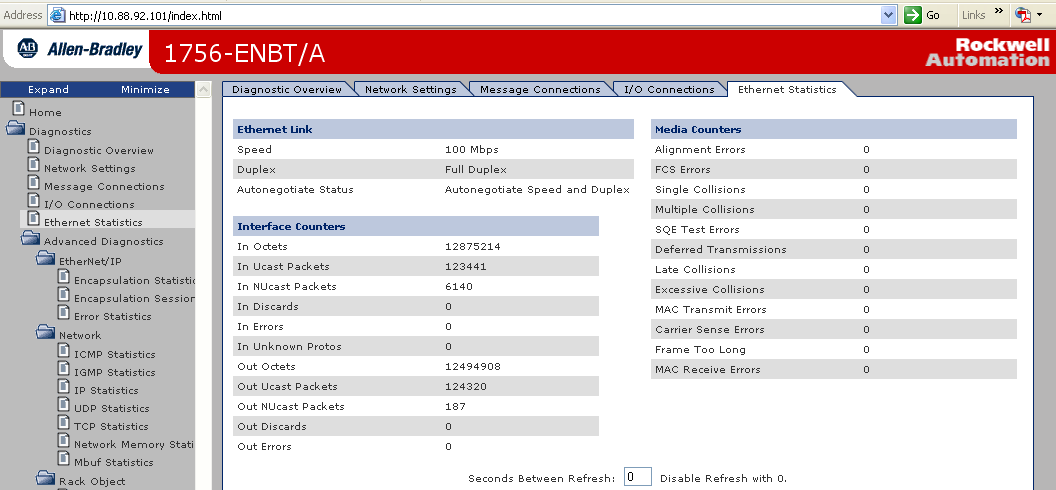
155 Troubleshoot an EtherNet/IP Module Chapter 11 Ethernet Media Counters Media Counter MAC Receive Errors Carrier Sense Errors Frame Too Long Definition The number of frames for which reception via a particular interface fails due to an internal MAC sublayer transmission error. Important: MAC receive errors are only counted if either the frame too long count, alignment errors, or FCS errors are not counted. Carrier sense errors fall into these categories: No Carrier Sense Present - The number of times the carrier is not present when a transmission starts. Carrier Sense Lost - The number of times the carrier is lost during a transmission. Carrier sense errors usually indicate a problem with a cable on the Ethernet infrastructure. The number of incoming packets that exceed the maximum Ethernet packet size. To troubleshoot intermittent Ethernet connectivity, perform this procedure. 1. Click the Ethernet Statistics tab. The Ethernet Statistics diagnostic web page appears. Publication ENET-UM001I-EN-P - January
156 Chapter 11 Troubleshoot an EtherNet/IP Module 2. Review the values in the Media Counters table. If Any media counters are greater than zero These errors are counted: Alignment FCS Carrier Sense Then You need to investigate further. A duplex mismatch exists between your EtherNet/IP module and the switch port. To clear the duplex mismatch: a. Configure the EtherNet/IP module and the corresponding Ethernet switch port for a forced operation, not autonegotiation. See Configure the Module with RSLinx Software on page 48. b. Verify that the firmware revision of your Logix controller and switch or converter are identical. Single Collisions or Multiple Collisions are greater than zero Late Collisions are greater than zero Excessive Collisions are greater than zero MAC Transit Errors are greater than zero Frame Too Long is greater than zero c. If the revisions are not identical, replace the controller, switch or converter so that they match. No action is required. Important: If two stations attempt to transmit data simultaneously, the packets collide with each other. However, collisions are not errors and do not indicate a network problem. The number of network collisions can vary greatly due to traffic patterns or CPU utilization. Consequently, there is no set range of acceptable collisions for each outgoing packet. Collisions are a normal aspect of Ethernet networking. a. Check to see if a network segment is too long. b. Remove repeaters from between devices. Calculate your network s typical rate of excessive collisions and decide whether the rate of packet loss will affect your network s performance. Important: Excessive collisions indicate that your network has become congested. For each collision after the sixteenth, your network drops a packet. No action is required. Limit the size of your tags to 500 bytes. See Tag Guidelines for Produced or Consumed Data on page Publication ENET-UM001I-EN-P - January 2010
157 Troubleshoot an EtherNet/IP Module Chapter 11 Switch Considerations To help troubleshoot your EtherNet/IP network, you must use a managed switch. Some of the important features in a managed switch include: Internet Group Multicast Protocol (IGMP) snooping. support for Virtual Local Area Networks (VLAN). port mirroring. IMPORTANT Use a switch equipped with wire-speed switching fabric. The switch fabric is a measure of the maximum traffic that a switch can handle without dropping a packet and without storing a packet in memory. Wire-speed switching fabric refers to a switch that can handle the maximum data rate of the network on each of its ports. Switches are typically rated in Gbps. For a 10-port switch connected to EtherNet/IP products, the maximum data rate needed is typically MB/s. Therefore, a 10-port-switch rated at least 1 GB/s should be adequate for an EtherNet/IP application. Internet Group Multicast Protocol EtherNet/IP implicit (I/O) messaging mostly uses IP multicasting to distribute I/O control data, which is consistent with the CIP produced/consumer model. Most switches retransmit multicast packets and broadcast packets to all ports. IGMP snooping constrains the flooding of multicast traffic by dynamically configuring switch ports so that multicast traffic is forwarded only to ports associated with a particular IP multicast group. This also helps minimize the CPU utilization rate. Switches that support IGMP snooping learn which ports have devices that are part of a particular multicast group and only forward the multicast packets to the ports that are part of the multicast group. IMPORTANT Not all switches support the IGMP snooping querier function, that is, snooping. Those that do not support IGMP snooping querier require a router. For switches that do support IGMP snooping, you can configure them to conduct the polling. IGMP snooping cannot control unicast or broadcast traffic. To learn how to control unicast or broadcast traffic, see Virtual Local Area Networks on page 158. Publication ENET-UM001I-EN-P - January
158 Chapter 11 Troubleshoot an EtherNet/IP Module This example assumes that the switch does not support IGMP snooping querier function, so a router is required. IGMP Snooping Example Plant Network Router sends out IGMP polls to determine members of a multicast group. Switch listens to the polls and responses and identifies members of each multicast group. Controller (Consumer) I/O (Multicast Producer) I/O (Multicast Producer) I/O (Multicast Producer) Virtual Local Area Networks With a managed switch, you can establish virtual local area networks (VLAN) to segregate various kinds of network traffic and also increase security between your networks. You could create multiple isolated networks so that the traffic from one network does not burden the other network. As with IGMP snooping, VLAN can control multicast traffic. However, unlike IGMP snooping, VLAN can also control and block: unicast traffic. broadcast traffic. Virtual Local Area Networks (VLAN) Controller A Workstation Controller B Switch VLAN A VLAN 2 I/O I/O I/O I/O I/O 158 Publication ENET-UM001I-EN-P - January 2010
159 Troubleshoot an EtherNet/IP Module Chapter 11 Port Mirroring Select a managed switch that supports port mirroring. With port mirroring, you can direct frames being transmitted on one port to another port for analysis by a traffic analyzer. Besides monitoring your Ethernet media counters, port mirroring enables you to immediately spot anomalies in traffic flow. A traffic analyzer can monitor the traffic on a given port and troubleshoot a problem. Without port mirroring, you cannot see frames on other ports. With hubs this is not an issue because all frames are transmitted out all ports. The effective support and maintenance of Ethernet networks often depends on reliable traffic analysis. The benefits of port mirroring include: monitoring explicit messages between controllers. monitoring implicit or I/O traffic. Publication ENET-UM001I-EN-P - January
160 Chapter 11 Troubleshoot an EtherNet/IP Module Notes: 160 Publication ENET-UM001I-EN-P - January 2010
161 Chapter 12 USB Serial Communication Introduction This chapter describes how to configure RSLinx software to use a USB port and how you can and cannot flash upgrade firmware via a USB port. Topic Page Configure a Module Via the USB Port 162 Flash Upgrade Firmware through a USB Port 165 Two EtherNet/IP modules support USB serial communication EN2F 1756-EN2T 1756-EN2TR 1756-EN2TXT Set Up the Hardware In this example, the controller in the local chassis produces a tag that the Logix5000 controller in the remote chassis consumes. The local controller can also send a MSG instruction to the remote controller. Sharing Data and Transferring Messages A USB connection EtherNet/IP B C Item A B C Description Local chassis containing a Logix5000 controller and a 1756-EN2T, 1756-EN2TR, 1756-EN2TXT, or 1756-EN2F module Remote chassis containing a Logix5000 controller with an EtherNet/IP connection Remote chassis containing Logix5000 controller 161Publication ENET-UM001I-EN-P - January
162 Chapter 12 USB Serial Communication Configure a Module Via the USB Port WARNING The USB port is intended for temporary local programming purposes only and not intended for permanent connection. If you connect or disconnect the USB cable with power applied to this module or any device on the USB network, an electrical arc can occur. This could cause an explosion in hazardous location installations. A Samtec Inc. RSP USB cable is required to maintain hazardous location certifications. ATTENTION Be sure that power is removed or the area is nonhazardous before proceeding The module has a USB device port. To use the USB port, you must have RSLinx software, version 2.51 or later, installed on your computer. Use a USB cable to connect your computer to the USB port. The connection lets you download programs to controllers and configure other devices, which are accessible by the module, directly from your computer. IMPORTANT The USB cable is not to exceed 3.0 m (9.84 ft) and must not contain hubs. 162 Publication ENET-UM001I-EN-P - January 2010
163 USB Serial Communication Chapter 12 Set Up a USB Driver To configure RSLinx software to use a USB port, you need to first set up a USB driver. To set up a USB driver, perform this procedure. 1. Connect your EtherNet/IP module to your computer by installing a USB cable in your module s USB port. The RSLinx Found New Hardware Wizard dialog box appears. 2. Select Install the Software Automatically. 3. Click Next. Publication ENET-UM001I-EN-P - January
164 Chapter 12 USB Serial Communication These RSLinx dialog boxes appear consecutively. 4. Click Finish to set up your USB driver. 5. In RSLinx software, from the Communications pull-down menu, choose RSWho. 164 Publication ENET-UM001I-EN-P - January 2010
165 USB Serial Communication Chapter 12 The RSLinx Workstation organizer appears. Virtual Chassis Driver USB Port Driver Your 1756-EN2T module appears under two different drivers, a virtual chassis and the USB port. Flash Upgrade Firmware through a USB Port IMPORTANT Do not simultaneously flash upgrade the firmware for more than one module at a time through a USB port. If you do, one or more of the flash updates may fail in the middle of the upgrade. Publication ENET-UM001I-EN-P - January
166 Chapter 12 USB Serial Communication Notes: 166 Publication ENET-UM001I-EN-P - January 2010
167 Appendix A Status Indicators Introduction This appendix provides status indicator descriptions for several communication modules, adapters, and controllers. Topic Page 1756-ENBT EtherNet/IP Module Status Indicators EN2F EtherNet/IP Module Status Indicators EN2T EtherNet/IP Module Status Indicators EN2TR EtherNet/IP Module Status Indicators EN2TXT ControlLogix-XT EtherNet/IP Bridge Module Status 177 Indicators 1769-L23E-QB1B and 1769-L23E-QBFC1B Controllers Status Indicators 1769-L32E and 1769-L35E Controllers Status Indicators ENBT Module Status Indicators ETAP, 1783-ETAP1F, and 1783-ETAP2F EtherNet/IP Tap Status Indicators 1788-ENBT EtherNet/IP Daughtercard Status Indicators AENT and 1734-AENTR EtherNet/IP POINT I/O Adapter Status Indicators 1738-AENTR ArmorPOINT I/O 2-port EtherNet/IP Adapter Status Indicators 1794-AENT EtherNet/IP FLEX I/O Adapter Status Indicators COMM-E Module Status Indicators COMM-E Module Status Indicators Status indicators common to all modules, cards and controllers presented in this chapter include: Link Status Indicator (LNK). Network Status Indicator (NET). Health Status Indicator (OK). Publication ENET-UM001I-EN-P - January
168 Appendix A Status Indicators Other important status indicators on some products presented in this chapter include: Module Status Indicator (MS). Utilization Percent Indicator (U%). POINTBus Status Indicator. System Power Indicator. Field Power Indicator. Status Indicators Status Indicator Link Status Network Status Network Activity Health Status Module Status Explanation Shows whether or not data is being transmitted. Shows whether or not a network connection has been established. Shows whether or not data is being transmitted. Shows whether power has been applied to the module. Shows the state of the module, such as the running of a self test, the updating of firmware, or operating normally without a network connection. Important: The Module Status Display window displays scrolling messages that identify more specifically the module condition. Utilization Percent Shows the percentage of available data transmission capacity currently in use. Important: This indicator is only available on the 1788-ENBT module. POINTBus System Power Field Power Shows whether adapter power has been applied. Shows whether backplane power has been applied or exceeded. Shows whether field power has been applied. 168 Publication ENET-UM001I-EN-P - January 2010
169 Status Indicators Appendix A 1756-ENBT EtherNet/IP Module Status Indicators The 1756-ENBT EtherNet/IP communication module has several status indicators ENBT EtherNet/IP Module Status Indicators Module Status Display Link Status Indicator Health Status Indicator Network Status Indicator Network (NET) Status Indicator Indicator condition Off Flashing green Status IP Address/Mask/Gateway Config Invalid Description The module is not powered, or does not have an IP address. Follow the corrective action below. The controller has an IP address, but no CIP connections are established. If no connections are configured, this is normal operation. No action is required. If connections are configured, check connection originator for connection error code. Green XXX.XXX.XXX.XXX OK The module has an IP address and at least one established connection. This is normal operation and no action is required. Flashing red Red Class x Connection Timeout Duplicate IP XX:XX of xx:xx:xx is using the IP address of this module One or more of the connections in which the module is the target has timed out. Reestablish the connection. A duplicate IP address has been detected. Make sure that the the IP address assigned to this module is not identical to that of any other device already on the network. If the NET status indicator is off, take the following actions. 1. Verify there is chassis power. 2. Verify that the module is completely inserted into the chassis and backplane. 3. Make sure the module has been configured. Publication ENET-UM001I-EN-P - January
170 Appendix A Status Indicators Link Status Indicator Indicator condition Status Description Off Link lost No data is being transmitted. Check to see if any cables are disconnected. Green XXX.XXX.XXX.XXX OK The module is ready to communicate. No action is required. Flashing green Data is being transmitted. No action is required. OK Status Indicator Indicator condition Off Status Description The module does not have 24V DC power. Flashing green BOOTP - XX:XX:XX:XX:XX:XX or xx:xx:xx:xx:xx:xx DHCP - XX:XX:XX:XX:XX:XX Follow the corrective action below. The module is not configured. Configure the module. Green XXX.XXX.XXX.XXX OK The module is operating correctly. No action is required. Flashing red Duplicate IP XX:XX:XX:XX:XX:XX A device with the Ethernet MAC address of xx:xx:xx:xx:xx:xx is using the IP address of this module. Flash Update Make sure that the the IP address assigned to this module is not the same as that for any other device already on the network. A firmware update is in progress. No action is required. Red Severe Fault An unrecoverable fault has been detected. Flashing red/green Rev %d.%d.%d Follow the corrective action below. The module is performing a self test while it is being started. No action is required. If the OK status indicator is off, take the following actions. 1. Verify that there is chassis power. 2. Verify that the module is completely inserted into the chassis and backplane. If the OK indicator is red, take the following actions. 1. Cycle power to the module. 2. If this does not clear the fault, replace the module. 170 Publication ENET-UM001I-EN-P - January 2010
171 Status Indicators Appendix A 1756-EN2F EtherNet/IP Module Status Indicators The 1756-EN2F EtherNet/IP communication module has several status indicators EN2F EtherNet/IP Fiber Module Status Indicators Link Status Indicator Module Status Display Health Status Indicator Network Status Indicator Network (NET) Status Indicator Indicator condition Off Flashing green Status IP Address/Mask/Gate way Config Invalid Description The module is not powered, or does not have an IP address. Follow the corrective action below. The controller has an IP address, but no CIP connections are established. If no connections are configured, this is normal operation. No action is required. If connections are configured, check connection originator for connection error code. Green XXX.XXX.XXX.XXX OK The module has an IP address and at least one established connection. No action is required. Flashing red Red Class x Connection Timeout Duplicate IP XX:XX of xx:xx:xx is using the IP address of this module One or more of the connections in which the module is the target has timed out. Reestablish the connection. A duplicate IP address has been detected. Make sure that the the IP address assigned to this module is not identical to that of any other device already on the network. If the NET status indicator is off, take the following actions. 1. Verify there is chassis power. 2. Verify that the module is completely inserted into the chassis and backplane. 3. Make sure the module has been configured with a valid IP address. Publication ENET-UM001I-EN-P - January
172 Appendix A Status Indicators Link Status Indicator Indicator condition Status Description Off Link lost No data is being transmitted. Check to see if any cables are disconnected. Green XXX.XXX.XXX.XXX OK The module is ready to communicate. No action is required. Flashing green Data transmission in progress. No action is required. OK Status Indicator Indicator condition Off Status Description The module does not have 24V DC power. Follow the corrective action below. Flashing green BOOTP - XX:XX:XX:XX:XX:XX or xx:xx:xx:xx:xx:xx DHCP - XX:XX:XX:XX:XX:XX The module is not configured. Configure the module. Green XXX.XXX.XXX.XXX OK The module is operating correctly. No action is required. Flashing red Duplicate IP XX:XX:XX:XX:XX:XX A device with the Ethernet MAC address of xx:xx:xx:xx:xx:xx is using the IP address of this module. Make sure that the the IP address assigned to this module is not identical to that of any other device already on the network. Flash Update A firmware update is in progress. No action is required. Red Severe Fault An unrecoverable fault has been detected. Flashing red/green Rev %d.%d.%d Follow the corrective action below. The module is performing a self test while it is being started. No action is required. If the OK status indicator is off, take the following actions. 1. Verify that there is chassis power. 2. Verify that the module is completely inserted into the chassis and backplane. If the OK status indicator is red, take the following actions. 1. Cycle power to the module. 2. If this does not clear the fault, replace the module. 172 Publication ENET-UM001I-EN-P - January 2010
173 Status Indicators Appendix A 1756-EN2T EtherNet/IP Module Status Indicators The 1756-EN2T EtherNet/IP communication modules have several status indicators EN2T EtherNet/IP Module Status Indicators Link Status Indicator Module Status Display Health Status Indicator Network Status Indicator Network (NET) Status Indicator Indicator Condition Off Flashing green Status IP Address/Mask/Gateway Config Invalid Description The module is not powered, or does not have an IP address. Follow the corrective action below. The controller has an IP address, but no CIP connections are established. If no connections are configured, this is normal operation. No action is required. If connections are configured, check connection originator for connection error code. Green XXX.XXX.XXX.XXX OK The module has an IP address and at least one established connection. No action is required. Flashing red Red Class x Connection Timeout Duplicate IP XX:XX of xx:xx:xx is using the IP address of this module One or more of the connections in which the module is the target has timed out. Reestablish the connection. A duplicate IP address has been detected. Make sure that the the IP address assigned to this module is not the same as that for any other device already on the network. If the NET status indicator is off, take the following actions. 1. Verify there is chassis power. 2. Verify that the module is completely inserted into the chassis and backplane. 3. Make sure the module has been configured. Publication ENET-UM001I-EN-P - January
174 Appendix A Status Indicators Link Status Indicator Indicator Condition Status Description Off Link lost No data is being transmitted. Check to see if any cables are disconnected. Green XXX.XXX.XXX.XXX OK The module is ready to communicate. No action is required. Flashing green Data transmission is in progress. No action is required. OK Status Indicator Indicator Condition Off Status Description The module does not have 24V DC power. Flashing green BOOTP - XX:XX:XX:XX:XX:XX or xx:xx:xx:xx:xx:xx DHCP - XX:XX:XX:XX:XX:XX Follow the corrective action below. The module is not configured. Configure the module. Green XXX.XXX.XXX.XXX OK The module is operating correctly. No action is required. Flashing red Duplicate IP XX:XX:XX:XX:XX:XX Flash Update A device with the Ethernet MAC address of xx:xx:xx:xx:xx:xx is using the IP address of this module. Make sure that the the IP address assigned to this module is not identical to that of any other device already on the network. A firmware update is in progress. No action is required. Red Severe Fault An unrecoverable fault has been detected. Flashing red/green Rev %d.%d.%d Follow the corrective action below. The module is performing a self test while it is being started. No action is required. If the OK status indicator is off, take the following actions. 1. Verify that there is chassis power. 2. Verify that the module is completely inserted into the chassis and backplane. If the OK status indicator is red, take the following actions. 1. Cycle power to the module. 2. If this does not clear the fault, replace the module. 174 Publication ENET-UM001I-EN-P - January 2010
175 Status Indicators Appendix A 1756-EN2TR EtherNet/IP Module Status Indicators The 1756-EN2TR EtherNet/IP communication module has several status indicators EN2TR EtherNet/IP Module Status Indicators Link 1 Status Indicator Module Status Display Health Status Indicator - Link 2 Status Indicator Link Status Indicators Indicator Status Description LNK1, LNK2 Off Green No link, or port administratively disabled, or port disabled due to rapid ring faults (LNK2). One of these conditions exists: Flashing green A link exists on the port The ring network is operating normally on active ring supervisor (LNK2) Ring partial network fault detected on active ring supervisor (LNK2) Activity exists on the port Publication ENET-UM001I-EN-P - January
176 Appendix A Status Indicators OK Status Indicator OK Off Module does not have 24V DC power. Verify that there is chassis power and the module is completely inserted into chassis and backplane. Flashing green Green Flashing red Red Red and alphanumeric display scrolls 'Image Update Needed' Flashing red and green Module is not configured. Module is operating correctly. Module detected a recoverable fault. A configuration error may have caused the fault. Recycle power to the module. If this does not clear the fault, replace the module. Check the module configuration and, if necessary, reconfigure the module. The main firmware image needs to be updated. Follow the corrective action below. Module performing power-up self-test. Wait for the module to complete powering up and performing self-test. If the OK status indicator Red and alphanumeric display scrolls 'Image Update Needed', take the following actions. 1. Update the firmware image. 2. Once the image is updated, recycle power. 3. If this does not clear the fault, replace the module. 176 Publication ENET-UM001I-EN-P - January 2010
177 Status Indicators Appendix A 1756-EN2TXT ControlLogix-XT EtherNet/IP Bridge Module Status Indicators The 1756-EN2TXT EtherNet/IP communication module has several status indicators EN2TXT EtherNet/IP Module Status Indicators Link 1 Status Indicator Module Status Display Health Status Indicator - Link 2 Status Indicator NET Status Indicators Indicator Status Description Link Off The module is not ready to communicate. Verify that the module is on. Green The module is ready to communicate. Flashing green The module is communicating over the network. NET Status Indicators Indicator Status Description NET Off The module is not powered. Verify that there is chassis power and that the module is completely inserted into the chassis and backplane. Green Flashing green Red Flashing red The module does not have a valid IP address. Make sure the module has been configured with a valid IP address. The module has an IP address and at least one established connection. The module has an IP address, but has no established connections. The module is attempting to use an IP address already in use on the network. Assign a unique IP address to the module. One or more of the connections in which the module is the target has timed out. Publication ENET-UM001I-EN-P - January
178 Appendix A Status Indicators OK Status Indicators Indicator Status Description OK Off Verify that the module has 24V DC chassis power and that the module is completely inserted into chassis and backplane. Green Flashing green Red Flashing red Red and alphanumeric display scrolls 'Image Update Needed' Flashing red and green The module is operating correctly. The module is not configured. The module detected an unrecoverable fault. Cycle power to the module. If this does not clear the fault, replace the module. The module detected a recoverable fault. A configuration error may have caused the fault. Check the module configuration. If necessary, reconfigure the module. Update the firmware image. Once the image is updated, cycle power. If this does not clear the fault, replace the module. The module is performing a power-up self-test L23E-QB1B and 1769-L23E-QBFC1B Controllers Status Indicators Packaged Controller Status Indicator The 1769-L23E-Q1B and 1769-L23E-QBFC1B CompactLogix controllers have several status indicators. TIP When power is first applied to the controller, the OK, NS, MS, and LNK status indicators display a complex sequence of varying red and green states. This sequence indicates the power-up self test and takes approximately 1 2 minutes for the packaged controller to complete L2x CompactLogix Controller Status Indicators I/O Status Indicators DC Inputs DC Outputs Power Supply Status Analog I/O HSC RUN FORCE BATT I/O OK DCH 0 CompactLogix L23E CompactLogix L23E IP NS LNK Network and Link Status Indicator MS Module Status Indicator CH 1 CH 0 RS-232 Serial Port Status Indicators 178 Publication ENET-UM001I-EN-P - January 2010
179 Status Indicators Appendix A Packaged Controller Status Indicators Indicator Status Description RUN Off The packaged controller is in program or test mode. Steady green The packaged controller is in run mode. FORCE Off Either: Steady amber No tags contain I/O force values. I/O forces are inactive (disabled). Either: Flashing amber I/O forces are active (enabled). I/O forces values may or may not exist. BATT Off The battery supports memory. One or more input or output addresses have been forced to an On or Off condition, but the forces have not been enabled. Steady red The battery is either: I/O Off Either: not installed. 95% dischared and should be replaced. Steady green Flashing green Flashing red There are no devices in the I/O configuration of the packaged controller. The packaged controller does not contain a project. The packaged controller is communicating with all the devices in its I/O configuration. One or more devices in the I/O configuration of the packaged controller are not responding. Either: The packaged controller is not communicating with any devices. The packaged controller is faulted. Publication ENET-UM001I-EN-P - January
180 Appendix A Status Indicators Packaged Controller Status Indicators Indicator Status Description OK Off No power is applied. Flashing red One of the following conditions exists: The packaged controller requires a firmware update. A major recoverable fault occurred on the packaged controller. To clear the fault, perform this procedure. Turn the packaged controller keyswitch from PROG to RUN to PROG. Go online with RSLogix 5000 software. A nonrecoverable major fault occurred on the packaged controller. In this case, the packaged controller: a. OK indicator initially displays steady red. b. Resets, clearing the project from memory. c. Sets the OK indicator to flashing red. d. Produces a major recoverable fault. e. Generates a fault code in the RSLogix 5000 project. Steady red The fault code displayed in RSLogix 5000 software and the subsequent fault recovery method depends upon your system. Upon power-up, the OK indicator is steadily red for a few moments. This is normal behavior and is not a fault. If the OK indicator is steadily red for more than a few moments or changes to steadily red while in use, then a nonrecoverable major fault has occurred and project memory has been cleared. To recover from a major fault, cycle power to the packaged controller, re-download the project, and put the packaged controller in Run mode. Steady green Flashing green If the OK indicator remains steadily red, contact your Rockwell Automation representative or local distributor. The packaged controller is OK. The packaged controller is storing or loading a project to or from nonvolatile memory. 180 Publication ENET-UM001I-EN-P - January 2010
181 Status Indicators Appendix A Packaged Controller Status Indicators Indicator Status Description MS Off The packaged controller does not have power. Check the controller power supply. Flashing green Steady green Steady red The port is in standby mode; it does not have an IP address and is operating in BOOTP mode. Verify that the BOOTP server is running. The port is operating correctly. No action is required. The packaged controller is holding the port in reset or the packaged controller has faulted. Clear the fault. If the fault will not clear, replace the packaged controller. The port is performing its power-up self test. No action is required. A non-recoverable fault has occurred. Cycle power to the controller. If the fault will not clear, replace the packaged controller. Flashing red The port firmware is being uploaded. No action is required. NET Off The port is not initialized; it does not have an IP address and is operating in BOOTP mode. Verify that the BOOTP server is running. Flashing green Steady green Steady red Flashing red/green The port has an IP address, but no CIP connections are established. If no connections are configured, no action is required. If connections are configured, check connection originator for connection error code. The port has an IP address and CIP connections (Class 1 or Class 3) are established. No action is required. Duplicate IP adddress has been detected. Verify that all IP addresses are unique. The port is performing its power-up self test. No action is required. LNK Off The port is not connected to a powered Ethernet device. Therefore, the controller cannot communicate over an Ethernet network. Flashing green Steady green Verify that all Ethernet cables are connected. Verify that Ethernet switch is powered. The port is performing its power-up self test. No action required. The port is communicating on Ethernet. No action required. The port is connected to a powered Ethernet device. Therefore, the controller can communicate over an Ethernet network. No action required. CH0 Off Channel 0 configuration differs from the default serial configuration. Steady green CH1 Off No RS-232 activity. Flashing green Channel 0 has the default serial configuration. RS-232 activity. Publication ENET-UM001I-EN-P - January
182 Appendix A Status Indicators I/O Status Indicators Indicator Digital Inputs Digital Outputs Analog I/O High Speed Counter Description There is one status indicator for each digital input point of the CompactLogix packaged controller. When an input is ON, the corresponding input light is on (amber). There is one status indicator for each digital output point of the CompactLogix packaged controller. When an output is ON, the corresponding output light is on (amber). The analog I/O have one status indicator - the OK status indicator. If the indicator is green, the analog I/O have power, have passed internal diagnostics, and are communicating properly. If analog I/O OK indicator is off, a fault is present. The high-speed counters have 12 status indicators. Use this table to interpret the HSC status indicators. I/O Status Indicator Indicator Status Description 0, 1, 2, and 3 Amber The corresponding output is ON. A0, A1, B0, B1, Z0 and Z1 Amber The corresponding input is ON. FUSE Red An overcurrent condition is present. OK Off No power to the High Speed Counter. Flashing red, brief Steady green Flashing green Steady red Flashing red, continuous The HSC is testing itself; this usually occurs at start-up. The HSC is operating normally. The HSC is in Run mode. A fault has occurrred. An HSC configuration error exists. 182 Publication ENET-UM001I-EN-P - January 2010
183 Status Indicators Appendix A 1769-L32E and 1769-L35E Controllers Status Indicators The 1769-L32E and 1769-L35E CompactLogix controllers have several status indicators L3xx CompactLogix Controller Status Indicators Module Status (MS) Indicator Network Status (NS) Indicator Health Status Indicator (LNK) Status Indicators Indicator Status Description MS Off The controller has no power. Check the controller power supply. Flashing green Green Red The controller does not have an IP address and is operating in BOOTP mode. Verify that the BOOTP server is running. The controller is operating correctly. No action is required. The controller is holding the port in reset or the controller is faulted. Follow the corrective action below. The controller is performing a self test while it is being started. No action is required. An unrecoverable fault has occurred. Follow the corrective action below. Flashing red A duplicate IP address has been detected. Make sure that the the IP address assigned to this module is not identical to that of any other device already on the network. The controller firmware is being updated. No action is required. NS Off The controller does not have an IP address and is operating in BOOTP mode. Verify that the BOOTP server is running. Flashing green Green Red Flashing red/green The controller has an IP address, but no CIP connections are established. Follow the corrective action below. The controller has an IP address and CIP connections (Class 1 or Class 3) are established. No action is required. A duplicate IP address has been detected. Make sure that the IP address assigned to this module is not the same as that for any other device already on the network. The controller is performing a self test while it is being started. No action is required. Publication ENET-UM001I-EN-P - January
184 Appendix A Status Indicators Status Indicators Indicator Status Description LNK Off The port is not connected to a powered Ethernet device. The controller cannot communicate over an Ethernet network. Follow the corrective action below. Flashing green Green The controller is performing a self test while it is being started. No action is required. The controller is communicating on an Ethernet network. No action is required. The port is connected to a powered Ethernet device. The controller can communicate over an Ethernet network. No action is required. If the MS status indicator is red, take the following actions. 1. Clear the controller fault or cycle power to the controller. 2. If the fault will not clear, replace the controller. If the NS status indicator is flashing green, take the following actions. 1. If no connections are configured, this is normal, and no action is required. 2. If connections are configured, check connection originator for connection error code. If the LNK status indicator is green, take the following actions. 1. Verify that all Ethernet cables are connected. 2. Verify that Ethernet switch is powered. 184 Publication ENET-UM001I-EN-P - January 2010
185 Status Indicators Appendix A 1768-ENBT Module Status Indicators The 1768-ENBT CompactLogix EtherNet/IP communication module has several status indicators ENBT EtherNet/IP Module Status Indicators LINK NET OK Link Status Indicator LINK NET OK Module Status Display Health Status Indicator Network Status Indicator Network (NET) Status Indicator Indicator Condition Off Flashing green Status Controller Comm Problem Description The module is not powered, or does not have an IP address. Follow the corrective action below. The controller has an IP address, but no CIP connections are established. If no connections are configured, this is normal operation. No action is required. If connections are configured, check the connection originator for a connection error code. Green XXX.XXX.XXX.XXX OK The module has an IP address and at least one established connection. No action is required. Flashing red Class x Connection Timeout One or more of the connections in which the module is the target has timed out. Reestablish the connection. Red Duplicate IP XX:XX of xx:xx:xx is using the IP address of this module A duplicate IP address has been detected. Make sure that the the IP address assigned to this module is not identical to that of any other device already on the network. If the NET status indicator is off, take the following actions. 1. Verify there is chassis power. 2. Verify that the module is completely inserted into the chassis and backplane. 3. Make sure the module has been configured. Publication ENET-UM001I-EN-P - January
186 Appendix A Status Indicators Link Status Indicator Indicator Condition Status Description Off Link lost No data is being transmitted. Check to see if any cables are disconnected. Green XXX.XXX.XXX.XXX OK The module is ready to communicate. No action is required. Flashing green Data is being transmitted. The module is communicating over the network. No action is required. OK Status Indicator Indicator Condition Off Flashing Green Status BOOTP - XX:XX:XX:XX:XX:XX or xx:xx:xx:xx:xx:xx Description The module does not have 5V DC power. Follow the corrective action below. The module is not configured. Configure the module DHCP - XX:XX:XX:XX:XX:XX Green XXX.XXX.XXX.XXX OK The module is operating correctly. No action is required. Flashing red Duplicate IP XX:XX:XX:XX:XX:XX A device with the Ethernet MAC address of xx:xx:xx:xx:xx:xx is using the IP address of this module. Flashing Red and Green Flash Update Rev %d.%d.%d Make sure that the the IP address assigned to this module is not identical to that of any other device already on the network. A firmware update is in progress. No action is required. The module is performing a self test while it is being started. No action is required. If the OK status indicator is off, take the following actions. 1. Verify there is power. 2. Verify that the module is properly installed. 186 Publication ENET-UM001I-EN-P - January 2010
187 Status Indicators Appendix A 1783-ETAP, 1783-ETAP1F, and 1783-ETAP2F EtherNet/IP Tap Status Indicators The 1783-ETAP, 1783-ETAP1F, and 1783-ETAP2F EtherNet/IP taps have several status indicators ETAP EtherNet/IP Tap Status Indicators OK Status Indicator Link 1 & 2 Status Indicators Device Port Status Indicators OK Status Indicator Indicator Status Description OK Off Tap is not powered Flashing green Solid green Flashing red Solid red Tap is not configured Tap is powered, configured, and operating correctly One of the following: Recoverable fault detected, such as duplicate IP address Flash update in progress is detected Unrecoverable fault detected Publication ENET-UM001I-EN-P - January
188 Appendix A Status Indicators LINK 1, 2, DEVICE Status Indicator Indicator Status Description LINK 1, 2, DEVICE Off Solid green One of the following conditions exists: No link Port administratively disabled Port disabled because of rapid-ring fault condition, and this tap is the active ring supervisor (LINK 2) Ring network has encountered a rare, partial network fault, and this tap is the active supervisor (LINK 2) One of these conditions exists: Flashing green Solid yellow Flashing yellow A 100 Mbps (full or half duplex) link exists (1) and there is no activity. Ring network is operating normally, and this tap is the active supervisor (LINK 2) A 100 Mbps link exists and there is activity One of the following conditions exists: A 10 Mbps (full or half duplex) link exists and there is no activity. Ring network is operating normally, and this tap is the active supervisor (LINK 2) A 10 Mbps link exists and there is activity (1) All fiber-optic interfaces will be 100 Mbps, full duplex. 188 Publication ENET-UM001I-EN-P - January 2010
189 Status Indicators Appendix A 1788-ENBT EtherNet/IP Daughtercard Status Indicators The 1788-ENBT EtherNet/IP communication daughtercard has several status indicators. IMPORTANT The 1788-ENBT card does not display any scrolling messages ENBT EtherNet/IP Daughtercard Status Indicators Network Status Indicator Module Status Indicator M S N S Link Status Indicator LNK U% Utilization Percent Indicator Status Indicator Indicator Status Description MS Off The daughtercard has no power. Flashing green Green Red Follow the corrective action below. The daughtercard does not have an IP address and is operating in BOOTP mode. Verify that the BOOTP server is running. The daughtercard is operating correctly. No action required. The host is holding the daughtercard in reset or the host is faulted. Follow the corrective action below. The daughtercard is performing a self test while it is being started. No action is required. An unrecoverable fault has occurred. Flashing red Follow the corrective action below. A duplicate IP address has been detected. Make sure that the the IP address assigned to this module is not identical to that of any other device already on the network. The daughtercard firmware is being updated. No action is required. Publication ENET-UM001I-EN-P - January
190 Appendix A Status Indicators Status Indicator Indicator Status Description NS Off The daughtercard does not have an IP address and is operating in BOOTP mode. Verify that the BOOTP server is running. Flashing green The daughtercard has an IP address, but no CIP connections are established. Follow the corrective action below. Green The daughtercard has an IP address and CIP connections (Class 1 or Class 3) are established. No action is required. Red A duplicate IP address has been detected. Make sure that the IP address assigned to this module is not the same as that for any other device already on the network. LNK Off The daughtercard is not connected to a powered Ethernet module. The daughtercard cannot communicate on an Ethernet network. Flashing green Green Follow the corrective action below. The daughtercard is performing a self test while it is being started. No action is required. The daughtercard is communicating on an Ethernet network. No action is required. The daughtercard is connected to a powered Ethernet module. The daughtercard can communicate on an Ethernet network. No action is required. U% Off The I/O packet rate to/from this daughtercard is less than 80% of the available packet rate, and less than 80% of the 32 available I/O connections are currently in use. No action is required. Flashing green Green Flashing red/green The I/O packet rate to/from this daughtercard is at least 80% of the available packet rate (4000 packets/s). That is, the I/O packet rate is at least 3200 packets/s. No action is required. At least 80% of the 32 available connections are currently in use. That is, from 26 to 31 I/O connections are in use. No action is required. All 32 of the daughtercard s I/O connections are currently in use. No action is required. The daughtercard is performing a self test while it is being started. No action is required. 190 Publication ENET-UM001I-EN-P - January 2010
191 Status Indicators Appendix A If the MS indicator is off, take the following actions. 1. Check the host power supply. 2. Verify that the daughtercard is firmly seated in the host s slot. 3. Replace daughtercard or host. If the MS indicator is red and the host is holding the daughtercard in reset or the host is faulted, take the following actions. 1. Verify that the daughtercard is firmly seated in the host s slot. 2. Clear the host s fault. 3. Replace daughtercard or host. If the MS indicator is red and an unrecoverable fault has occurred, take the following actions. 1. Cycle power to the host. 2. Replace the daughtercard or host. If the NS status indicator is flashing green, take the following actions. 1. If no connections are configured, this is normal operation. No action is required. 2. If connections are configured, check connection originator for connection error code. If the LNK status indicator is off, take the following actions. 1. Verify that all Ethernet cables are connected. 2. Verify that the Ethernet switch is powered. Publication ENET-UM001I-EN-P - January
192 Appendix A Status Indicators 1734-AENT and 1734-AENTR EtherNet/IP POINT I/O Adapter Status Indicators The 1734-AENT and 1734-AENTR EtherNet/IP POINT I/O adapters have several status indicators. IMPORTANT The 1734-AENT and 1734-AENTR adapters do not display any scrolling messages AENT EtherNet/IP POINT I/O Adapter Status Indicators Module Status Indicator Network Activity Status Network Status Indicator System Power Status Indicator POINTBus Status Indicator Field Power Status Indicator Module Status Indicator Indicator Status Description Module Status Off Flashing Red/Green Solid Green Flashing Red No power is being applied to device. Apply power to the device. Status indicator cycle power test (module self-test) is being conducted. No action is required. The device is operating normally. No action is required. Firmware (NVS) is being updated or the address switches have changed. Network Activity Status Solid Red Off Flashing Green/Off Steady Green Follow the corrective action below. Self-test failure is present (checksum failure, or ramtest failure at cycle power); firmware fatal error is present. Replace the adapter. No link exists. Verify network cabling, and correct, if necessary. I/O is being transmitted or received. No action is required. A link exists. No action is required. 192 Publication ENET-UM001I-EN-P - January 2010
193 Status Indicators Appendix A Module Status Indicator Indicator Status Description Network Status POINTBus Status System Power Status Field Power Status Off Flashing Green Solid Green Flashing Red Solid Red Flashing Red/Green Off The module has no IP address. Follow the corrective action below. The module has an IP address, but no CIP connections. No action is required. The module is online and has an IP address and CIP connections. No action is required. One or more CIP connections have timed out. Check for I/O module failure and controller operation, and correct, if necessary. A duplicate IP address has been detected. Verify IP address setting and correct, if necessary. The module is performing a normal self-test, which only occurs during the cycle-power test. No action is required. Power has not been applied to the device. Follow the corrective action below. Flashing Red/Green Status indicator cycle-power test is being performed. No action is required. Flashing Red When power is cycled, the number of expected modules does not equal the number of modules present. A module is missing. A node fault (I/O connection timeout) occurred. Follow the corrective action below. Solid Red The adapter is bus off. Follow the corrective action below. Flashing Green A firmware (NVS) update is in progress. No action is required. Solid Green An adapter is online with connections established. No action is required. Off Green Off Green Field power is off or a DC-DC converter problem exists. Follow the corrective action below. DC-DC converter is active (5V). No action is required. Field power is off. Apply field power. 24V power is present. No action is required. Publication ENET-UM001I-EN-P - January
194 Appendix A Status Indicators If the Module status indicator is flashing red, take the following actions. 1. Complete firmware update. 2. Verify address switches. If the Network status indicator is off, take the following actions. 1. Apply power to device. 2. Verify, and correct, IP address, if necessary. If the POINTBus status indicator is off, take the following actions. 1. Apply power to device 2. Check module status indicator. If the POINTBus status indicator is flashing red, take the following actions. 1. Configure the chassis size. 2. Check for missing module and reinstall, if necessary. 3. Check for I/O module failure and correct, if necessary. If the POINTBus status indicator is solid red, take the following actions. 1. Cycle power to device. 2. If condition persists, replace device. If the System Power status indicator is off, take the following actions. 1. Verify that power is on, and apply power if needed. 2. Verify backplane power has not been exceeded, and correct. 3. Replace 1734-AENT module. 194 Publication ENET-UM001I-EN-P - January 2010
195 Status Indicators Appendix A 1738-AENTR ArmorPOINT I/O 2-port EtherNet/IP Adapter Status Indicators The 1738-AENTR ArmorPOINT I/O 2-port EtherNet/IP adapter has several status indicators. IMPORTANT The 1738-AENTR adapter does not display scrolling messages AENTR ArmorPOINT I/O 2-port EtherNet/IP Adapter Status Indicators Link 1 Activity/Status Indicator Link 2 Activity/Status Indicator Adapter Status Indicator Network Activity Indicator Network Status Indicator POINTBus Status Indicator System Power Indicator Adapter Power Indicator Link 1 or Link 2 Activity/Status Indicator Indicator Status Description Link 1 or Link 2 Activity /Status Off Green Flashing green Yellow Flashing yellow No link established. Verify network cabling and correct, if necessary. Link established at 100 Mbps. No action is required. Transmit or receive activity present at 100 Mbps. No action is required. Link established at 10 Mbps. No action is required. Transmit or receive activity present at 10 Mbps. No action is required. Publication ENET-UM001I-EN-P - January
196 Appendix A Status Indicators Adapter Status Indicator Indicator Status Description Adapter Status Off Green Flashing red/green Flashing red No power applied to the adapter. Apply power to the adapter. Adapter is operating properly. No action required. The adapter is in self-test mode. No action required. A recoverable fault has been detected due to the one of the following conditions: A firmware (NVS) update is in process. Allow the process to complete. Red The address switches have been changed. Verify the address switches are correct. An unrecoverable fault has been detected due to one of the following conditions: A self-test failure A firmware fatal error In both cases, you must replace the adapter. Network Activity Status Indicator Indicator Status Description Network Activity Off Green No link established with Port 1 or Port 2. Verify network cabling and, if necessary, correct. One of the following conditions has been detected: Link established with Port 1 and/or Port 2 at 100 Mbps Link established with Port 1 and Port 2. One link is at 100 Mbps and one at 10 Mbps. Flashing green In either case, no action is required. One of the following conditions has been detected: Transmit or receive activity present on Port 1 and/or Port 2 at 100 Mbps. Transmit or receive activity present on Port 1 and/or Port 2. One port at 100 Mbps and one port at 10 Mbps. Yellow Flashing yellow In either case, no action is required. Link established with Port 1 and/or Port 2 at 10 Mbps. No action is required. Transmit or receive activity present on Port 1 and/or Port at 10 Mbps. No action is required. 196 Publication ENET-UM001I-EN-P - January 2010
197 Status Indicators Appendix A Network Status Indicator Indicator Status Description Network Status Off Green Flashing green Flashing red/green Flashing red Red Adapter is not initialized and does not have an IP address. Apply power to the device, verify the IP address and set/correct, if necessary. Adapter is online, has an IP address, and CIP connections are established. No action is required. Adapter has an IP address, but no CIP connections are established. Establish CIP connections, if necessary. Otherwise, no action is required. Adapter is in self-test. No action is required. One or more CIP connections has timed out. Check for I/O module failure and controller operation and correct if necessary. Duplicate IP address is detected. Verify the IP address setting and correct as needed. POINTBus Status Indicator Indicator Status Description POINTBus Status Off Adapter is not online due to one of the following conditions: Adapter is not powered. Check the Adapter Status indicator. Green Flashing green Flashing red/green Flashing red Adapter has not completed dup_mac_id test. Apply power to the device, wait for dup_mac_id to complete and correct, if necessary. Adapter is online and has connections established. No action is required. Adapter is online but has not connection established. A firmware (NVS) update is in progress. Wait for the firmware update to complete. Status indicator cycle power test present. No action is required. One of the following conditions has been detected: Adapter has detected a network access error and is in communication faulted state. Adapter has received and accepted an Identify Communication Faulted Request. Red In either case, verify that the adapter is properly installed and reinstall, if necessary. An unrecoverable fault has occurred. Follow the corrective action below. Publication ENET-UM001I-EN-P - January
198 Appendix A Status Indicators If the POINTBus status indicator is red, take the following actions. 1. Make sure an I/O module is not using a MAC ID = Make sure all backplane modules are communicating at the proper baud rate. 3. Cycle power to the device. 4. If the condition persists, replace the adapter. System Power Status Indicator Indicator Status Description System Power Off Green Adapter power is off or DC-DC converter problem is present. Follow the corrective action below. System power is on; DC-DC converter output is active (5V). No action is required. If the System Power status indicator is off, take the following actions. 1. Verify power is on. 2. Apply power, if necessary. 3. Verify backplane power is not exceeded and correct, if necessary. 4. Replace the device. Adapter Power Status Indicator Indicator Status Description Adapter Power Off Green Adapter is not active because power is off. Apply adapter power. 24V DC input power is present. No action is required. 198 Publication ENET-UM001I-EN-P - January 2010
199 Status Indicators Appendix A 1794-AENT EtherNet/IP FLEX I/O Adapter Status Indicators The 1794-AENT EtherNet/IP FLEX I/O adapter has several status indicators. IMPORTANT The 1794-AENT adapter does not display any scrolling messages AENT EtherNet/IP Flex I/O Adapter Status Indicators Module Status Indicator Network Status Indicator Module Status Network Status Link Status Link Status Indicator Module Status Indicator Indicator Status Description Module Status Off Flashing green Green Flashing red Red The module does not have 24V DC power. Make sure power is being supplied to the module. The module is not configured. Configure the module. The module is operating correctly. No action is required. A recoverable fault has been detected. Verify that the module is configured correctly. An unrecoverable fault has been detected. Flashing red/green Follow the corrective action below. The module is performing a self test while the module is being started. No action is required. Publication ENET-UM001I-EN-P - January
200 Appendix A Status Indicators Module Status Indicator Indicator Status Description Network Status Off Power has not been applied to the module, or the module does not have an IP address. Flashing green Follow the corrective action below. The module has obtained an IP address, but has no established connections. Green Flashing red Flashing red/green Red If no connections are configured, this is normal operation. No action is required. If connections are configured, check connection originator for connection error code. The module has an IP address and at least one established connection. No action is required. One or more of the connections in which the module is the target has timed out. Reestablish the connection. The module is performing a self test while it is being started. No action is required. Adapter has detected that its IP address is already in use. Configure the adapter with a unique IP address. Link Status Off No data is being transmitted. No action is required. Flashing green Green The module is ready to communicate. No action is required. Data is being transmitted. No action is required. If the Module status indicator is red, take the following actions. 1. Recycle power to the module. 2. If this does not clear the fault, replace the module. If the Network status indicator is off, take the following actions. 1. Verify there is power. 2. Verify that the module is correctly wired to the power supply. 3. Make sure the module is configured. 200 Publication ENET-UM001I-EN-P - January 2010
201 Status Indicators Appendix A 20-COMM-E Module Status Indicators The 20-COMM-E module has four status indicators. 20-COMM-E Status Indicators PORT - DPI Connection Status MOD - Adapter Status NET A - EtherNet/IP Connection Status NET B - EtherNet/IP Transmit Status Module Status Indicator Indicator Status Description PORT Off The adapter is not powered or is not properly connected to the drive. Follow the corrective action below. Flashing red The adapter is not receiving a ping message from the drive. Follow the corrective action below. Solid Red The drive has refused an I/O connection from the adapter. Another DPI peripheral is using the same DPI port as the adapter. Another DPI peripheral is using the same DPI port as the adapter. Follow the corrective action below. Orange The adapter is connected to a product that does not support Allen-Bradley DPI communication. Connect the adapter to a product that supports Allen-Bradley DPI communication (for example, a PowerFlex 7-Class drive). Flashing Green Solid Green The adapter is establishing an I/O connection to the drive. No action is required. The adapter is properly connected and is communicating with the drive. No action is required. Publication ENET-UM001I-EN-P - January
202 Appendix A Status Indicators Module Status Indicator Indicator Status Description MOD Off The adapter is not powered or is not properly connected to the drive. Securely connect the adapter to the drive using the Internal Interface (ribbon) cable. Apply power to the drive (or adapter if mounted in a DPI External Comms Kit). Flashing Red Solid Red Flashing Green Solid Green NET A Off One of the following: Solid Red Flashing Red Flashing Red/Green Flashing Green Solid Green The adapter has failed the firmware test or the adapter is being flash upgraded. Follow the corrective action below. The adapter has failed the hardware test. Follow the corrective action below. The adapter is operational, but is not transferring I/O data. Follow the corrective action below. The adapter is operational and transferring I/O data. No action is required. The adapter and/or network is not powered. In this case, securely connect the adapter to the drive using the Internal Interface (ribbon) cable and to the network using an Ethernet cable. The adapter is not properly connected to the network. In this case, correctly connect the Ethernet cable to the Ethernet connector. The adapter needs an IP address. In this case, set a unique IP address using a BOOTP server or by disabling BOOTP and using adapter parameters. Additionally, make sure you have properly applied power to the drive (or adapter, if mounted in a DPI External Comms kit) and the network. The adapter failed the duplicate IP address detection test. Configure the adapter to use a unique IP address and cycle power. An EtherNet/IP connection has timed out. Follow the corrective action below. The adapter is performing a self-test. No action is required. The adapter is properly connected but is not communicating with any devices on the network. Follow the corrective action below. The adapter is properly connected and communicating on the network. No action is required. NET B Off The adapter is not powered or is not transmitting on the network. If the adapter is not idle, follow the corrective action below. Flashing Green The adapter is transmitting on the network. No action is required. If the PORT status indicator is off, take the following actions. 1. Securely connect the adapter to the drive using the Internal Interface (ribbon) cable. 2. Apply power to the drive (or adapter if mounted in a DPI External Comms Kit). 202 Publication ENET-UM001I-EN-P - January 2010
203 Status Indicators Appendix A If the PORT status indicator is flashing red, take the following actions. 1. Verify that cables are securely connected and not damaged; replace cables if necessary. 2. Cycle power to the drive (or adapter, if mounted in a DPI External Comms kit). If the PORT status indicator is solid red, take any of the following actions. IMPORTANT Cycle power to the drive (or adapter if mounted in a DPI External Comms Kit) after making any of the following corrections. Verify that all DPI cables on the drive are securely connected and not damaged. Replace cables if necessary. Verify that the DPI drive supports Datalinks. Configure the adapter to use a Datalink that is not already being used by another peripheral. If the MOD status indicator is flashing red, take the following actions. 1. Clear faults in the adapter. 2. Cycle power to the drive (or adapter if mounted in a DPI External Comms Kit). If cycling power does not correct the problem, the adapter parameter settings may have been corrupted. 3. Reset defaults and reconfigure the adapter. 4. If resetting defaults does not correct the problem, flash the adapter with the latest firmware release. If the MOD status indicator is solid red, take the following actions. 1. Cycle power to the drive (or adapter if mounted in a DPI External Comms Kit). 2. Replace the adapter. If the MOD status indicator is flashing green, take the following actions. 1. Place the scanner in RUN mode. Publication ENET-UM001I-EN-P - January
204 Appendix A Status Indicators 2. Program the controller to recognize and transmit I/O to the adapter. 3. Configure the adapter for the program in the controller. 4. Normal behavior if no DPI I/O is enabled. If the NET A status indicator is flashing red, take the following actions. 1. Place the scanner in RUN mode, or apply power to the peer device that will send I/O. 2. Check the amount of traffic on the network. If the NET A status indicator is flashing green, take the following actions. 1. Place the controller in RUN mode, or apply power to the peer device that will send I/O. 2. Program the controller or peer device to recognize and transmit I/O or make a messaging connection to the adapter. 3. Configure the adapter for the program in the controller or the I/O from the peer device. If the NET B status indicator is off and the NET A indicator is off, take the following actions. 1. Securely connect the adapter to the drive using the Internal Interface (ribbon) cable and to the network using an Ethernet cable. 2. Correctly connect the Ethernet cable to the Ethernet connector. 3. Set a unique IP address using a BOOTP server or by disabling BOOTP and using adapter parameters. If the NET B status indicator is off and the NET A indicator is solid red, configure the adapter to use a unique IP address and cycle power. If the NET B status indicator is off and the NET A indicator is flashing red/green or solid red, take the following actions. 1. Check the IP address in the adapter and scanner, and verify that the controller can communicate with the adapter. 2. Ping the adapter. 204 Publication ENET-UM001I-EN-P - January 2010
205 Status Indicators Appendix A 22-COMM-E Module Status Indicators The 22-COMM-E module has four status indicators. 22-COMM-E Status Indicators PORT - DPI Connection Status MOD - Adapter Status NET A - EtherNet/IP Connection Status NET B - EtherNet/IP Transmit Status Module Status Indicator Indicator Status Description PORT Off The adapter is not powered or is not properly connected to the drive. Follow the corrective action below. Flashing Red In Single mode, the adapter is not receiving communication from the drive. In Multi-Drive mode, the adapter is not receiving communication from a drive, or a drive is not an Allen-Bradley drive. Flashing Green Solid Green Follow the corrective action below. The adapter is establishing communication with the drive. No action required. This status indicator will turn solid green or flashing red. The adapter is properly connected and is communicating with the drive. No action required. Orange In Single mode, the drive is not an Allen-Bradley drive. Use an Allen-Bradley PowerFlex 40 drive. MOD Off The adapter is not powered or is not properly connected to the drive. Follow the corrective action below. Flashing Red The adapter has failed the firmware test. Follow the corrective action below. Solid Red Flashing Green Solid Green The adapter has failed the hardware test. Follow the corrective action below. The adapter is operational, but is not transferring I/O data. Follow the corrective action below. The adapter is operational and transferring I/O data. Follow the corrective action below. No action is required. Publication ENET-UM001I-EN-P - January
206 Appendix A Status Indicators Module Status Indicator Indicator Status Description NET A Off One of the following: Solid Red Flashing Red The adapter and/or network is not powered. The adapter is not properly connected to the network. The adapter needs an IP address. Follow the corrective action below. The adapter failed the duplicate IP address detection test. Configure the adapter to use a unique IP address and cycle power. An EtherNet/IP connection has timed out. Follow the corrective action below. Flashing Green Solid Green The adapter is properly connected but is not communicating with any devices on the network. The adapter is properly connected and communicating on the network. No action is required. NET B Off If the adapter is idle, normal condition. No action is required. Flashing Green If the adapter is not idle, then the adapter is not powered or is not transmitting on the network. In this case, follow the corrective action below. The adapter is transmitting on the network. No action is required. If the PORT status indicator is off, take the following actions. 1. Securely connect the adapter to the drive using the Internal Interface (ribbon) cable. 2. Apply power to the drive. If the PORT status indicator is flashing red, take the following actions. 1. Verify the setting for Parameter 22 - [DSI I/O Cfg]. 2. Verify that cables are securely connected and not damaged; replace cables if necessary. 3. Cycle power to the drive. 4. Use Allen-Bradley PowerFlex 4/40 drives. If the MOD status indicator is off, take the following actions. 1. Securely connect the adapter to the drive using the Internal Interface (ribbon) cable. 2. Apply power to the drive. 206 Publication ENET-UM001I-EN-P - January 2010
207 Status Indicators Appendix A If the MOD status indicator is flashing red, take the following actions. 1. Cycle power to the drive. 2. If cycling power does not correct the problem, the adapter parameter settings may have been corrupted. Reset defaults and reconfigure the adapter. 3. If resetting defaults does not correct the problem, flash the adapter with the latest firmware release. If the MOD status indicator is solid red, take the following actions. 1. Cycle power to the drive. 2. Replace the adapter. If the MOD status indicator is flashing green, take the following actions. 1. Place the scanner in RUN mode. 2. Program the controller to recognize and transmit I/O to the adapter. 3. Configure the adapter for the program in the controller. 4. Normal behavior if no DPI I/O is enabled. If the NET A status indicator is off, take the following actions. 1. Securely connect the adapter to the drive using the Internal Interface (ribbon) cable and to the network using an Ethernet cable. 2. Correctly connect the Ethernet cable to the Ethernet connector. 3. Set a unique IP address using a BOOTP server or by disabling BOOTP and using adapter parameters. 4. Apply power to the drive (or adapter, if mounted in a DPI External Comms kit) and network. If the NET A status indicator is flashing red, take the following actions. 1. Place the scanner in RUN mode. 2. Check the amount of traffic on the network. If the NET A status indicator is flashing green, take the following actions. 1. Place the controller in RUN mode. Publication ENET-UM001I-EN-P - January
208 Appendix A Status Indicators 2. Program the controller or peer device to recognize and transmit I/O or make a messaging connection to the adapter. 3. Configure the adapter for the program in the controller or the I/O from the peer device. If the NET B status indicator is off and the NET A indicator is off, take the following actions. 1. Securely connect the adapter to the drive using the Internal Interface (ribbon) cable and to the network using an Ethernet cable. 2. Correctly connect the Ethernet cable to the Ethernet connector. 3. Set a unique IP address using a BOOTP server or by disabling BOOTP and using adapter parameters. If the NET B status indicator is off and the NET A indicator is solid red, take the following actions. 1. Configure the adapter to use a unique IP address. 2. Cycle power to the adapter. If the NET B status indicator is off and the NET A indicator is flashing red/green or red, take the following actions. 1. Check the IP address in the adapter and scanner, and verify that the controller can communicate with the adapter. 2. Ping the adapter. 208 Publication ENET-UM001I-EN-P - January 2010
209 Appendix B Fiber Cable and LC Connector Introduction This appendix provides specifications for the fiber cable and LC connector used with the 1756-EN2F EtherNet/IP fiber module or the 1783-ETAP1F and 1783-ETAP2F EtherNet/IP fiber taps. Fiber Cable Specifications The 1756-EN2F EtherNet/IP fiber module and the 1783-ETAP1F and 1783-ETAP2F EtherNet/IP fiber taps use a fiber cable and LC connector. The fiber cable is typically used in 1 m (3 ft), 2 m, (6 ft), 3 m (9 ft), 5 m (15 ft), and 100 m (300 ft) lengths but supports lengths up to 2 km (1.24 mi).. IMPORTANT You can special order a fiber cable in any length up to 2 km (1.24 mi) from your fiber cable vendor. The fiber cable and LC connector support the following specifications. Attribute Fiber Transceiver Type Optical Wavelength Transmitter Launch Power at Beginning of Life (BOL), min Allow -1 db at End of Life (EOL) Receiver Sensitivity, Min Value 100Base-FX IEEE802.3u 1310 nm no cap -19 dbm into 62.5/125 µm fiber, N/A = dbm into 50/125 µm fiber, N/A = dbm Publication ENET-UM001I-EN-P - January
210 Appendix B Fiber Cable and LC Connector Attribute Receiver Sensitivity, Max Fiber Channel Power Budget at Rated BER (Two connected modules or taps, either the 1756-EN2F EtherNet/IP fiber module, or 1783-ETAP1F or 1783-ETAP2F EtherNet/IP fiber taps) Fiber Type Value -14 dbm 12.8 db for 62.5/125 µm multimode fiber 9.3 db for 50/125 µm multimode fiber Glass Connector Type 62.5/125 µm and 50/125 µm multimode fiber Simplex or duplex Jacket type and jacket diameter is dependent on connector selection Graded Index (GI) fiber Channel Length, Max 2 km (1.24 mi) (1) Per IEC , IEC category A1 fibers IEC LC connector, maximum insertion loss 0.75 db per connection (1) The channel, that is, connectors and cable, must not exceed the allowable power budget. IMPORTANT You should allow at least 5.08 cm (2 in.) for the fiber cable bend radius. Contact the cable manufacturer for more information on recommended cable bend radius. 210 Publication ENET-UM001I-EN-P - January 2010
211 Fiber Cable and LC Connector Appendix B EXAMPLE In the example shown here, the channel insertion loss is calculated for an optical channel based on the following factors: 1 db/km fiber 0.75 db per adapter Note that in this example, the end connectors are not factored in the calculations. Fiber 1 db/km 0.75 db Fiber 1 db/km 0.75 db Fiber 1 db/km 0.75km 1km 0.25km 0.75 db db + 1 db dB db Total channel insertion loss = 3.5 db The maximum power budget for this example is 12.8 db for 62.5/125 um fiber. Therefore, the channel insertion loss for the example of 3.5 db is less than the maximum power budget. Publication ENET-UM001I-EN-P - January
212 Appendix B Fiber Cable and LC Connector Notes: 212 Publication ENET-UM001I-EN-P - January 2010
213 Appendix C EtherNet/IP Network Connections Introduction EtherNet/IP communication modules use connections to manage communication. A connection is a point-to-point communication mechanism used to transfer data between a transmitter and a receiver. The EtherNet/IP communication modules use these connections: CIP connections for Logix-based communication. A CIP connection transfers data from one Logix application running on one end node to a second Logix application running on another end node. A CIP connection is established over a TCP connection. TCP/IP connections for EtherNet/IP communication. A single TCP connection can support multiple CIP connections. Topic Page CIP Connections 213 TCP Connections 214 Multicast Address Limit 215 CIP Connections Connected modules communicate more reliably than do unconnected modules. Examples of functions supported by CIP implicit (connected) messaging include: Logix controller message transfer to Logix controller. I/O or produced/consumed tag. program upload. RSLinx DDE/OPC client. PanelView polling of Logix controller. Publication ENET-UM001I-EN-P - January
214 Appendix C EtherNet/IP Network Connections Types of CIP Connections CIP Connection Type Bridged Description A bridged connection is a connection that passes through the EtherNet/IP module. The end point of the connection is a module other than the EtherNet/IP module. Example: a connection from a controller through a 1756-ENBT module to another controller. Rack-optimized Direct A rack-optimized connection is a connection to a rack or assembly object in the EtherNet/IP module. Data from selected I/O modules is collected and produced on one connection (the rack-optimized connection) rather than on a separate direct connection for each module. A direct connection is a connection from a controller to a specific I/O module, as opposed to a rack-optimized connection. The Logix5000 controller supports 250 connections, but the limit of connections ultimately resides in the communication module you use for the connection. If a message path routes through a communication module or card, the connection related to the message also counts towards the connection limit of the communication module or card. TCP Connections An EtherNet/IP module uses one TCP connection for each IP address to which the EtherNet/IP module is connected. Multiple CIP connections can go through a single TCP connection. Examples of TCP connections include: HMI (human-machine interface) to a controller that supports EtherNet/IP communication. Logix MSG instruction to a controller or workstation. OPC or DDE accessing a controller. I/O data. produced or consumed tags. The 1756-ENBT, 1788-ENBT, and 1794-AENT modules each support 64 TCP connections. A TCP connection is established when a controller initiates one. For example, when controller A sends a MSG to controller B, the Ethernet modules associated with controller A and controller B both have a TCP connections. Additionally, if controller B initiates a MSG to controller A, both Ethernet modules now have 2 TCP connections in use. For any further commuinications, such as MSG exchanges, producing tags, or I/O communication, bridging between Ethernet module associated with controllers A and B modules, no more TCP connections are required. 214 Publication ENET-UM001I-EN-P - January 2010
215 EtherNet/IP Network Connections Appendix C Multicast Address Limit Connections that produce data over an Ethernet network use multicast addresses. EtherNet/IP modules support a maximum of 32 unique multicast addresses. The actual address, such as , is determined by the EtherNet/IP module. Example 1: An Ethernet adapter that produces data uses a unique multicast address for each I/O connection. Example 2: A Logix controller that produces tags uses a unique multicast address for each produced tag. The multicast address limit is independent of the connection limit for a module. Not all connections require a multicast address. And for produced and consumed tags, one produced tag requires one multicast address and one connection for each consumer. For multiple consumers, the one multicast address would use multiple connections. Requested Packet Interval (RPI) The RPI is the update rate specified for a particular piece of data on the network. The RPI can be specified for an entire rack (using a rack-optimized connection) or for a particular module (using a direct connection). When adding a module to the I/O configuration of a controller, you must configure the RPI. This value specifies how often to produce the data for that module. For example, if you specify an RPI of 50 ms, every 50 ms the I/O module sends its data to the controller or that the controller sends its data to the I/O module. RPIs are used only for implicit connections, such as produced/consumed tags and I/O. For example, a local EtherNet/IP communication module does not require an RPI because it does not produce data for the system but acts only as a bridge to remote modules. Set the RPI only as fast as needed by the application. The RPI also determines the number of packets per second that the module will produce on a connection. Each module has a limit on the total number of implicit packets per second. The total includes the sum of sent and received implicit packets. The packet rate for implicit messages is for implicit only, and neither matches nor includes the explicit packet rate. Publication ENET-UM001I-EN-P - January
216 Appendix C EtherNet/IP Network Connections Notes: 216 Publication ENET-UM001I-EN-P - January 2010
217 Appendix D EtherNet/IP Network Overview Introduction This appendix defines some basic Ethernet network concepts and how the EtherNet/IP protocol is used for control. Topic Page Ethernet Protocols 217 Configuration Requirements 219 Manual Configuration on an Ethernet Switch 222 Change Ports on an Ethernet Switch 222 Additional Resources 222 Ethernet Protocols On the most basic level, Ethernet is a wire or cable that connects computers and peripheral modules so that they can communicate. The actual wire used for the network is referred to as the network medium. Beyond the physical medium, all Ethernet networks support protocols that provide sophisticated data transfer and network management capability. Protocol Descriptions Protocol Transmission control protocol/internet protocol (TCP/IP) User datagram protocol/internet protocol (UDP/IP) CIP Description TCP/IP is a transport-layer protocol (TCP) and a network-layer protocol (IP) commonly used in business environments for communication within networks and across internetworks. The EtherNet/IP communication modules use TCP/IP for explicit messaging, that is, messages in which time is not a critical factor, such as uploading or downloading programs. UDP is a much simpler transport protocol. It is connectionless and provides a simple means of sending datagrams between two modules. UDP is used by applications that implement their own handshaking between modules and only require minimal transport service. UDP is smaller, simpler, and faster than TCP and can operate in unicast, multicast, or broadcast mode. The EtherNet/IP communication modules use UDP/IP for real time I/O messaging. CIP applies a common application layer over an Ethernet network by encapsulating messages in TCP/UDP/IP. This common application layer is the control and information protocol (CIP), which provides interoperability and interchangeability of industrial automation and control modules on an Ethernet network. EtherNet/IP supports both real-time I/O (implicit messaging) and explicit messaging. See the EtherNet/IP Performance and Application Guide, publication ENET-AP001, for more information on EtherNet/IP. Publication ENET-UM001I-EN-P - January
218 Appendix D EtherNet/IP Network Overview Protocol Descriptions Protocol Simple network management protocol (SNMP) Internet Group Management protocol (IGMP) snooping Description SNMP is a standard for network management within TCP/IP environments. This protocol enables client applications monitor and manage network information on host computers and gateways. This protocol is password-protected. SNMP uses a distributed architecture consisting of management systems and agents. Data is passed from SNMP agents, which are hardware or software processes reporting activity in each network module (switch, router or bridge) to the workstation console used to oversee the network. The agents return information contained in a management information base (MIB), which is a data structure that defines what is obtainable from the module and what can be controlled. IGMP snooping enables switches to route multicast traffic by distributing each packet only to the ports that need to receive it. Many switches support this feature. However, for IGMP snooping to work, most of these switches require a system router. If your control system is a stand-alone network or is required to continue performing if the router is out of service, make sure the switch you are using supports IGMP snooping without a router present. This feature is highly recommended for EtherNet/IP systems the control I/O. Use of the Common Industrial Protocol (CIP) The EtherNet/IP communication modules use the Common Industrial Protocol (CIP). CIP is the application layer protocol specified for EtherNet/IP, the Ethernet Industrial Protocol, as well as for ControlNet and DeviceNet. CIP is a message-based protocol that implements a relative path to send a message from the producing module in a system to the consuming modules. The producing module contains the path information that steers the message along the proper route to reach its consumers. Since the producing module holds this information, other modules along the path simply pass it along because they do not need to store the information. This information handling has two significant benefits. You do not need to configure routing tables in the bridging module, which greatly simplifies maintenance and module replacement. You maintain full control over the route taken by each message, which enables you to select alternative paths for the same end module. CIP uses the producer/consumer networking model instead of a source/destination (master/slave) model. The producer/consumer model reduces network traffic and increases speed of transmission. In traditional I/O systems, controllers poll input modules to obtain their input status. In the CIP system, digital input modules are not polled by a controller. Instead, they produce (multicast) their data either upon a change of state 218 Publication ENET-UM001I-EN-P - January 2010
219 EtherNet/IP Network Overview Appendix D (COS) or at a requested packet interval (RPI). The frequency of update depends upon the options chosen during configuration and where on the network the input module resides. The input module, therefore, is a producer of input data and the controller is a consumer of the data. The controller can also produce data for other controllers to consume. The produced and consumed data is accessible by multiple controllers over the Logix backplane and over the EtherNet/IP network. This data exchange conforms to the producer/consumer model. Configuration Requirements Before you can use an EtherNet/IP module, you must configure its IP address, gateway address, and subnet mask. IP Address The IP address identifies each node on the IP network or system of connected networks. Each TCP/IP node on a network must have a unique IP address. IMPORTANT Contact your network administrator or the Network Information Center for a unique fixed IP address to assign to the EtherNet/IP module. The IP address is 32 bits long and has a network ID part and a host ID part. Because networks vary in size, there are four types of networks. EtherNet/IP Network Types Network Type Class A Class B Class C Class D For Large networks with many devices Medium-sized networks Small networks (fewer than 256 devices) Multicast addresses The network class determines how an IP address is formatted. Class A Class B network (7 bits) 8 network (14 bits) local address (24 bits) 24 local address (16 bits) Class C network (21 bits) local address (8 bits) Class D multicast address (28 bits) 31 Publication ENET-UM001I-EN-P - January
220 Appendix D EtherNet/IP Network Overview Each node on the same physical network must have an IP address of the same class and must have the same network ID. Each node on the same network must have a different local address (host ID), thus giving it a unique IP address. IP addresses are written as four-decimal integers ( ) separated by periods where each integer gives the value of one byte of the IP address. For example, the 32-bit IP address: is written as IP Address Class Class Leftmost Bits Start Address Finish Address A 0xxx B 10xx C 110x D Gateways A gateway connects individual physical networks into a system of networks. When a node needs to communicate with a node on another network, a gateway transfers the data between the two networks. The following figure shows gateway G connecting Network 1 with Network 2. A B Network 1 C Network 2 G When host B with IP address communicates with host C, it knows from C s IP address that C is on the same network. In an Ethernet environment, B can then resolve C s IP address to a MAC address and communicate with C directly. 220 Publication ENET-UM001I-EN-P - January 2010
221 EtherNet/IP Network Overview Appendix D When host B communicates with host A, it knows from A s IP address that A is on another network because the network IDs differ. To send data to A, B must have the IP address of the gateway connecting the two networks. In this example, the gateway s IP address on Network 2 is The gateway has two IP addresses ( and ). Network 1 hosts must use the first IP address, and Network 2 hosts must use the second IP address. To be usable, a host s gateway IP address must match its own net ID. Subnet Mask Subnet addressing is an extension of the IP address scheme that enables a site to use a single net ID for multiple physical networks. Routing outside of the site continues by dividing the IP address into a net ID and a host ID via the IP class. Inside a site, the subnet mask is used to redivide the IP address into a custom net ID portion and host ID portion. Take Network 2 (a Class B network) in the previous example and add another physical network. Selecting this subnet mask would add two additional net ID bits allowing for four physical networks = Two bits of the Class B host ID have been used to extend the net ID. Each unique combination of bits in the part of the host ID where subnet mask bits are 1 specifies a different physical network. New Configuration A B Network 1 C Network 2.1 G D E Network 2.2 G Publication ENET-UM001I-EN-P - January
222 Appendix D EtherNet/IP Network Overview A second network with Hosts D and E has been added. Gateway G2 connects Network 2.1 with Network 2.2. Hosts D and E will use Gateway G2 to communicate with hosts not on Network 2.2. Hosts B and C will use Gateway G to communicate with hosts not on Network 2.1. When B is communicating with D, G (the configured Gateway for B) will route the data from B to D...G2. Manual Configuration on an Ethernet Switch The EtherNet/IP modules support these Ethernet settings. 10 MBps half-duplex or full-duplex 100 MBps half-duplex or full-duplex Mode selection can be automatic, based on the IEEE autonegotiation protocol. Or, with RSLogix 5000 programming software, version 12 and later, you can manually set the communication rate and duplex mode of the communication module and the switch port that is connected to the module. If you manually set the communication rate and duplex mode, the settings of the communication module and the switch port must match. Change Ports on an Ethernet Switch If you reconnect the EtherNet/IP module from one port to another, regardless of whether the new port is on the same or a different switch (or a hub), perform this procedure. 1. Disconnect the cable from the port to which the EtherNet/IP module is currently connected. 2. Wait until the EtherNet/IP module Link Status status indicator is off. 3. Connect the cable to the new port. This procedure restarts the autonegotiation process at the EtherNet/IP module side. Another option is to restart the EtherNet/IP module itself. Additional Resources For more information about TCP/IP and Ethernet technologies, see these publications. Publication Title Internetworking with TCP/IP Volume 1: Protocols and Architecture, 2nd ed. by Douglas E. Comer ISBN Number ISBN The Ethernet Management Guide Keeping The Link ISBN An Introduction to TCP/IP Computer Networks by Andrew S. Tanenbaum ISBN X ISBN X 222 Publication ENET-UM001I-EN-P - January 2010
223 Index Numerics 1732E modules AENT and 1734-AENTR modules 58 additional resources 20 overview 20 status indicators AENT and 1738-AENTR modules 58 additional resources 21 overview 21 status indicators EN2F module additional resources 16 overview 15 status indicators EN2T module additional resources 16 overview 15 status indicators EN2TR module additional resources 16 overview 15 status indicators 175 use on a device-level ring EN2TXT module additional resources 16 overview 15 status indicators ENBT module additional resources 15 overview 15 status indicators ENBT module additional resources 17 overview 17 status indicators L23E-QB1B and 1769-L23E-QBFC1B modules additional resources 17 overview 17 status indicators L32E and 1769-L35E modules additional resources 18 overview 18 status indicators ETAP, 1783-ETAP1F, and 1783-ETAP2F taps additional resources 19 overview 18 status indicators 187 use on a device-level ring ENBT module additional resources 19 overview 19 status indicators AENT module additional resources 20 overview 20 status indicators 199 2x-COMM-E modules additional resources 22 overview 22 status indicators 201, 205 A access distributed I/O modules add distributed I/O modules overview selecting a remote adapter 87 with RSLogix 5000 programming software 91 additional resources 1734-AENT and 1734-AENTR modules AENT and 1738-AENTR modules EN2F module EN2T module EN2TR module EN2TXT module ENBT module EWEB and 1768-EWEB modules ENBT module L23E-QB1B and 1769-L23E-QBFC1B modules L32E and 1769-L35E modules ETAP, 1783-ETAP1F, and 1783-ETAP2F taps ENBT module AENT module 20 2x-COMM-E modules 22 Guard I/O modules 26 Stratix switches 39 add-on profile 65 architectures safety 26 B beacon interval 70 beacon timeout 70 BOOTP/DHCP server setting IP network address bridging with EtherNet/IP modules Publication ENET-UM001I-EN-P - January
224 Index C change ports 222 CIP connections 30, 213 communication driver communication format choosing direct or rack-optimized connection 83 direct connections 84 ownership rack-optimized connections 85 configuration parameters beacon interval 70 beacon timeout 70 ring protocol VLAN ID 70 configure DHCP software 51 EtherNet/IP modules MSG instructions 127 personal computer RSLinx communication software RSLogix 5000 programming software 50 Stratix switches connections caching MSG instructions 106 CIP 30, 213 data transfer 106 I/O 83 interlocking 96 messaging 106 multicast address limits 215 overview produced and consumed tags 96 TCP 30, 214 to PanelView terminals 132 to RSView applications 136 troubleshooting 152 consume tags 95, control application 55 control I/O adding distributed I/O modules communication format connections 83 hardware ownership 86 RPI 88 control system 23 controller ownership 86 convert between INTs and DINTs 115 D data transfer caching connections 106 configuring connections 106 guidelines 105 logic mapping tags 116 overview to PLC-5 or SLC processors 115 device-level ring network supervisor node DHCP software 51 diagnostics Ethernet statistics 144 message connections 142 monitor network settings 141 overview 138 direct connection 83 DNS addressing domain name 42 download 55 driver duplicate address detection E MSG instruction 127 overview 119 send through an EtherNet/IP module sending via MSG instruction status codes 129 text format 129 Ethernet protocols EtherNet/IP modules bridging configuring connections control application 55 features network overview network specifications 30 set IP network address 43 setting IP network address 43 status indicators using in control system Publication ENET-UM001I-EN-P - January 2010
225 Index examples accessing distributed I/O modules 91 bridging 29 buffering INTs 117 RSLinx communication software bridging 28 F fiber cable specifications 209 flash upgrade firmware USB port 165 G gateway 42, 220 Guard I/O modules 25 in EtherNet/IP system 24 H host name 42 I I/O controlling over EtherNet/IP interlocking connections 96 consume tags organize tags 95 overview produce tags terminology 95 IP addresses definition 41 DHCP software 51 duplication address detection network address configuration switch settings 44 overview 219 RSLinx communication software RSLogix 5000 programming software 50 set 43 swapping in redundant systems 53 M manual configuration 222 map tags 116 messaging caching connections 106 configuring connections 106 guidelines 105 logic mapping tags 116 overview to PLC-5 or SLC processor 115 MSG instruction caching connections 106 configuring connections 106 logic mapping tags 116 sending 127 sending via an to PLC-5 or SLC processors 115 MSG instructions guidelines 105 N network address DNS addressing set IP network address 43 network overview modules in an EtherNet/IP control system 23 network parameters 47 DNS addressing 42 domain name 42 gateway 42 host name 42 IP addresses 41 subnet mask 41 O ownership 86 listen-only connection 86 owner controller 86 P PanelView terminals adding in RSLogix 5000 programming software communication with Logix controller over EtherNet/IP determining connections 132 organizing controller data 136 set up hardware 131 Publication ENET-UM001I-EN-P - January
226 Index personal computers placing on network PLC-5 processor 115 produce tags 95, produced and consumed tags connections 96 consume tags number of multicast 31 organize tags 95 overview produce tags set up hardware 93 terminology 95 R rack-optimized connection 83 remote adapter 87 requested packet interval 88-89, 215 ring protocol VLAN ID 70 ring supervisor configure with RSLogix 5000 programming software 64 enable in RSLogix 5000 programming software 68 RPI 88 RSLinx communication software bridging 28 communication driver configuring network parameters RSLogix 5000 programming software adding a PanelView terminal adding distributed I/O modules 78-81, 91 configure a ring supervisor 64 consume a tag enable ring supervisor 68 produce a tag set the requested packet interval setting IP network address 43 verify supervisor configuration 75 S safety additional resources 26 architectures 26 Guard I/O modules in EtherNet/IP system 24 select a remote adapter 87 serial communication USB port set IP network address 43 BOOTP/DHCP server RSLinx communication software or RSLogix 5000 programming software 43 thumbwheel switch 43 set the requested packet interval with RSLogix 5000 programming software set up hardware data transfer 93 I/O modules over EtherNet/IP 77 interlocking 93 messaging 93 PanelView terminals and Logix controllers 131 produced and consumed tags 93 Stratix switches 38 to share data via a USB port 161 set up I/O controlling I/O set up USB driver 163 SLC processor 115 specifications EtherNet/IP network 30 fiber cable 209 status codes 129 status indicators 1734-AENT and 1734-AENTR modules AENT and 1738-AENTR modules EN2F module EN2T module EN2TR module EN2TXT module ENBT module ENBT module L23E-QB1B and 1769-L23E-QBFC1B modules L32E and 1769-L35E modules status indicators ETAP, 1783-ETAP1F, and 1783-ETAP2F taps ENBT module AENT module 199 2x-COMM-E modules 201, 205 EtherNet/IP Modules Stratix switches additional resources 39 features select a switch 37 set up hardware Publication ENET-UM001I-EN-P - January 2010
227 Index string tags 121 subnet mask 41, 221 supervisor configuration verify 75 supervisor node swap IP addresses 53 switch considerations switches 222 IP network address configuration settings 44 select a Stratix switch 37 Stratix switch features Stratix switches T tags produced and consumed 31 TCP connections 214 thumbwheel switch set IP network address 43 troubleshoot DLR network 75 Ethernet statistics EtherNet/IP modules I/O connections 153 message connections 152 switch considerations web browser support with a virtual local area network 158 U USB port configure a module flash upgrade firmware 165 serial communication set up hardware 161 W web browser support Publication ENET-UM001I-EN-P - January
228 Index 228 Publication ENET-UM001I-EN-P - January 2010
229
230 Rockwell Automation Support Rockwell Automation provides technical information on the Web to assist you in using its products. At you can find technical manuals, a knowledge base of FAQs, technical and application notes, sample code and links to software service packs, and a MySupport feature that you can customize to make the best use of these tools. For an additional level of technical phone support for installation, configuration, and troubleshooting, we offer TechConnect support programs. For more information, contact your local distributor or Rockwell Automation representative, or visit Installation Assistance If you experience an anomoly within the first 24 hours of installation, review the information that is contained in this manual. You can contact Customer Support for initial help in getting your product up and running. United States or Canada Outside United States or Canada Use the Worldwide Locator at or contact your local Rockwell Automation representative. New Product Satisfaction Return Rockwell Automation tests all of its products to ensure that they are fully operational when shipped from the manufacturing facility. However, if your product is not functioning and needs to be returned, follow these procedures. United States Outside United States Contact your distributor. You must provide a Customer Support case number (call the phone number above to obtain one) to your distributor to complete the return process. Please contact your local Rockwell Automation representative for the return procedure. Documentation Feedback Your comments will help us serve your documentation needs better. If you have any suggestions on how to improve this document, complete this form, publication RA-DU002, available at Publication ENET-UM001I-EN-P - January Supersedes Publication ENET-UM001G-EN-P - September 2009 Copyright 2010 Rockwell Automation, Inc. All rights reserved. Printed in the U.S.A.
EtherNet/IP Network Configuration
 User Manual EtherNet/IP Network Configuration EtherNet/IP Communication Modules 1756-ENBT, 1756-EN2F, 1756-EN2T, 1756-EN2TR, 1756-EN2TXT, 1756-EN3TR, 1756-EN2TSC, 1756-EN2TRXT, 1756-EWEB, 1768-ENBT CompactLogix
User Manual. DeviceNet Network Configuration
 User Manual DeviceNet Network Configuration Important User Information Solid-state equipment has operational characteristics differing from those of electromechanical equipment. Safety Guidelines for the
User Manual. ControlNet Network Configuration
 User Manual ControlNet Network Configuration Important User Information Solid-state equipment has operational characteristics differing from those of electromechanical equipment. Safety Guidelines for
Stratix 5700 Network Address Translation. Quick Start
 Stratix 5700 Network Address Translation Quick Start Important User Information Solid state equipment has operational characteristics differing from those of electromechanical equipment. Safety Guidelines
GuardLogix Controller Systems
 Safety Reference Manual GuardLogix Controller Systems Catalog Numbers 1756-L61S, 1756-L62S, 1756-L63S, 1756-L71S, 1756-L72S, 1756-L73S, 1756-L73SXT, 1756-LSP, 1756-L7SP, 1756-L7SPXT, 1768-L43S, 1768-L45S
MicroLogix 1100 Embedded Web Server
 User Manual MicroLogix 1100 Embedded Web Server Bulletin 1763 Controllers Important User Information Solid-state equipment has operational characteristics differing from those of electromechanical equipment.
EtherNet/IP Web Server Module
 EtherNet/IP Web Server Module 1756-EWEB, 1768-EWEB User Manual Important User Information Solid state equipment has operational characteristics differing from those of electromechanical equipment. Safety
Stratix 5700 Switch Configuration
 Quick Start Stratix 5700 Switch Configuration Important User Information Read this document and the documents listed in the additional resources section about installation, configuration, and operation
CompactLogix 5370 L1 Controllers
 Quick Start CompactLogix 5370 L1 Controllers Catalog Numbers 1769-L16ER-BB1B, 1769-L18ER-BB1B, 1769-L18ERM-BB1B Important User Information Read this document and the documents listed in the additional
Application Technique. Troubleshoot EtherNet/IP Networks
 Application Technique Troubleshoot EtherNet/IP Networks Important User Information Read this document and the documents listed in the additional resources section about installation, configuration, and
User Manual. PowerFlex 525 Embedded EtherNet/IP Adapter
 User Manual PowerFlex 525 Embedded EtherNet/IP Adapter Important User Information Solid-state equipment has operational characteristics differing from those of electromechanical equipment. Safety Guidelines
Logix5000 Controllers Nonvolatile Memory Card
 Programming Manual Logix5000 Controllers Nonvolatile Memory Card Catalog Numbers 1756 ControlLogix, 1756 GuardLogix, 1768 CompactLogix, 1768 Compact GuardLogix, 1769 CompactLogix, 1789 SoftLogix, PowerFlex
1769 CompactLogix Packaged Controllers
 1769 CompactLogix Packaged Controllers Quick Start and User Manual (Catalog Numbers 1769-L23E-QB1B, 1769-L23E-QBFC1B, and 1769-L23-QBFC1B) Important User Information Solid state equipment has operational
Universal Serial Bus (USB) to DH-485 Interface Converter
 Installation Instructions Universal Serial Bus (USB) to DH-485 Interface Converter Catalog Number 1747-UIC Contents Overview..................................................3 Computer and Operating System
Reference Manual. Ethernet Design Considerations
 Reference Manual Ethernet Design Considerations Important User Information Solid-state equipment has operational characteristics differing from those of electromechanical equipment. Safety Guidelines for
Application Guide. ArmorStart DLR Reference Architecture
 Application Guide ArmorStart DLR Reference Architecture Important User Information Because of the variety of uses for the products described in this publication, those responsible for the application and
Application Technique. EtherNet/IP Socket Interface
 Application Technique EtherNet/IP Socket Interface Important User Information Read this document and the documents listed in the additional resources section about installation, configuration, and operation
POINT I/O EtherNet/IP Adapter Module. Catalog Number 1734-AENT User Manual
 POINT I/O EtherNet/IP Adapter Module Catalog Number 1734-AENT User Manual Important User Information Solid state equipment has operational characteristics differing from those of electromechanical equipment.
Safety Function: Door Monitoring
 Application Technique Safety Function: Door Monitoring Products: Trojan 5 Switch, GuardLogix Controller Safety Rating: CAT. 3, PLd to ISO 13849-1: 2008 Topic Page Important User Information 2 General Safety
ControlLogix Redundancy
 User Manual Original Instructions ControlLogix Redundancy Important User Information Read this document and the documents listed in the additional resources section about installation, configuration, and
SLC 5/05 Processors Firmware/Operating System ControlFLASH Upgrade
 Installation Instructions SLC 5/05 Processors Firmware/Operating System ControlFLASH Upgrade Catalog Numbers 1747-DU501 Topic Page System Requirements 3 Install ControlFLASH 3 Prior to Running ControlFLASH
EtherNet/IP Adapter. 22-COMM-E FRN 1.xxx. User Manual
 EtherNet/IP Adapter 22-COMM-E FRN 1.xxx User Manual Important User Information Solid state equipment has operational characteristics differing from those of electromechanical equipment. Safety Guidelines
CompactLogix 5370 L3 Controllers
 Quick Start CompactLogix 5370 L3 Controllers Catalog Numbers 1769-L30ER, 1769-L30ERM, 1769-L30ER-NSE, 1769-L33ER, 1769-L33ERM, 1769-L36ERM Important User Information Solid-state equipment has operational
Module 1 Overview ControlLogix5000
 Module 1 Overview ControlLogix5000 Module Overview This module takes a fundamental approach to a ControlLogix system. It begins with an overview of the architecture and migrates into an introduction of
MicroLogix 1400 Embedded Web Server
 MicroLogix 1400 Embedded Web Server Bulletin 1766 Controllers User Manual Important User Information Solid state equipment has operational characteristics differing from those of electromechanical equipment.
Logix5000 Controllers Design Considerations
 Reference Manual Logix5000 Controllers Design Considerations Catalog Numbers 1756 ControlLogix, 1756 GuardLogix, 1768 CompactLogix, 1768 Compact GuardLogix, 1769 CompactLogix, 1789 SoftLogix, CompactLogix
Micro800 Programmable Controllers: Getting Started with CIP Client Messaging
 Quick Start Micro800 Programmable Controllers: Getting Started with CIP Client Messaging Catalog Numbers Bulletin 2080-LC30, 2080-LC50 Important User Information Solid-state equipment has operational characteristics
Stratix Switches Within Integrated Architecture. Dave VanGompel, Principal Application Engineer
 Written By: Mark Devonshire, Product Manager Dave VanGompel, Principal Application Engineer Synopsis Industry adoption of EtherNet/IP for control and information has driven the wide deployment of standard
ControlLogix Remote I/O Communication Module
 User Manual ControlLogix Remote I/O Communication Module Catalog Number 1756-RIO Important User Information Solid-state equipment has operational characteristics differing from those of electromechanical
Stratix 6000 Ethernet Managed Switch
 User Manual Stratix 6000 Ethernet Managed Switch Catalog Numbers 1783-EMS04T, 1783-EMS08T Important User Information Solid-state equipment has operational characteristics differing from those of electromechanical
ControlNet PLC-5 Hot Backup System
 ControlNet PLC-5 Hot Backup System Cat. No. 1785-CHBM User Manual Important User Information Because of the variety of uses for the products described in this publication, those responsible for the application
Application Technique. Safety Function: Door Monitoring
 Application Technique Safety Function: Door Monitoring Products: Trojan 5 Interlock Switch, GuardLogix Controller, PowerFlex 525 Drive with Safe Torque-off Safety Rating: CAT. 3, PLd to EN ISO 13849-1:
Guard I/O EtherNet/IP Safety Modules
 User Manual Guard I/O EtherNet/IP Safety Modules Catalog Numbers 1791ES-IB8XOBV4, 1791ES-IB16, 1732ES-IB12XOB4, 1732ES-IB12XOBV2 Important User Information Read this document and the documents listed in
Logix5000 Controllers Security
 Programming Manual Logix5000 Controllers Security Catalog Numbers 1756 ControlLogix, 1769 CompactLogix, 1789 SoftLogix, 1794 FlexLogix, PowerFlex 700S with DriveLogix Important User Information Solid-state
Product Compatibility and Download Center
 Product Compatibility and Download Center Important User Information This documentation, whether, illustrative, printed, online or electronic (hereinafter Documentation ) is intended for use only as a
How To Set Up A Cep7 Second Generation Ethernet/Ip Module
 CEP7 Second Generation EtherNet/IP Side Mount Module Catalog Number CEP7-ETN Important User Information Solid state equipment has operational characteristics differing from those of electromechanical
ControlFLASH Firmware Upgrade Software
 User Manual ControlFLASH Firmware Upgrade Software Catalog Numbers ControlFLASH 12.00.00 Important User Information Solid-state equipment has operational characteristics differing from those of electromechanical
CompactLogix 5370 L1 Programmable Automation Controllers
 Insert Photo Here CompactLogix 5370 L1 Programmable Automation Controllers Copyright 2013 Rockwell Automation, Inc. All rights reserved. Copyright 2013 Rockwell Automation, Inc. All rights reserved. 2
Logix5000 Controller Design Considerations
 Reference Manual Logix5000 Controller Design Considerations Catalog Numbers 1756 ControlLogix, 1756 GuardLogix, 1768 CompactLogix, 1768 Compact GuardLogix, 1769 CompactLogix, 1789 SoftLogix 5800 Important
Logix5000 Controllers Import/Export Project Components Programming Manual. Programming Manual
 Logix5000 Controllers Import/Export Project Components Programming Manual Programming Manual Important User Information Solid state equipment has operational characteristics differing from those of electromechanical
Logix5000 Controllers Security
 Programming Manual Logix5000 Controllers Security Catalog Numbers 1756 ControlLogix, 1769 CompactLogix, 1789 SoftLogix, PowerFlex 700S with DriveLogix Important user information Read this document and
User Manual. PowerFlex 25-COMM-E2P Dual-Port EtherNet/IP Adapter
 User Manual PowerFlex 25-COMM-E2P Dual-Port EtherNet/IP Adapter Important User Information Solid-state equipment has operational characteristics differing from those of electromechanical equipment. Safety
Management Software. Web Browser User s Guide AT-S106. For the AT-GS950/48 Gigabit Ethernet Smart Switch. Version 1.0.0. 613-001339 Rev.
 Management Software AT-S106 Web Browser User s Guide For the AT-GS950/48 Gigabit Ethernet Smart Switch Version 1.0.0 613-001339 Rev. A Copyright 2010 Allied Telesis, Inc. All rights reserved. No part of
Configuring Allen-Brandly ControlLogix PLC with Moxa MGate 5105-MB-EIP. 1 Application Description... 3. 1.1 Objective... 3 1.2 Goals...
 Moxa MGate 5105-MB-EIP Contents Moxa Technical Support Team [email protected] 1 Application Description... 3 1.1 Objective... 3 1.2 Goals... 3 2 System Topology... 3 3 Hardware and Software Requirements...
EtherNet/IP Secure Communication
 User Manual EtherNet/IP Secure Communication Catalog Number 1756-EN2TSC Important User Information Read this document and the documents listed in the additional resources section about installation, configuration,
PlantPAx Process Automation System
 Reference Manual PlantPAx Process Automation System System Release 2.0 (2012 update) PlantPAx Process Automation System Important User Information Solid-state equipment has operational characteristics
L5354 ControlNet Communications Interface
 L5354 ControlNet Communications Interface Technical Manual HA470733 Issue 2 Copyright SSD Drives Inc 2005 All rights strictly reserved. No part of this document may be stored in a retrieval system, or
Allen-Bradley ControlLogix Ethernet Driver Help. 2015 Kepware Technologies
 Allen-Bradley ControlLogix Ethernet Driver Help 2015 Kepware Technologies 2 Table of Contents Table of Contents 2 Allen-Bradley ControlLogix Ethernet Driver Help 7 Overview 7 Device Setup 9 Cable Diagrams
FLEX I/O EtherNet/IP Adapter Module
 FLEX I/O EtherNet/IP Adapter Module 1794-AENT User Manual Important User Information Because of the variety of uses for the products described in this publication, those responsible for the application
SHORT TRAINING COURSES
 Post Office Box SR 95, Spintex Road, Ghana Tel: +233 302 812680, Fax: +233 302 814709 E mail: [email protected] Website: www.automationghana.com SHORT TRAINING COURSES Equipping industries with
PanelView Standard Operator Terminals
 PanelView Standard Operator Terminals User Manual (Catalog Numbers PV300 Micro, PV300, PV550, PV600, PV900, PV1000, PV1400) Important User Information Solid state equipment has operational characteristics
Integrated Motion on the EtherNet/IP Network: Configuration and Startup
 User Manual Original Instructions Integrated Motion on the EtherNet/IP Network: Configuration and Startup ControlLogix, CompactLogix, Kinetix 350, Kinetix 5500, Kinetix 5700, Kinetix 6500, PowerFlex 527,
Logix5000 Controllers Nonvolatile Memory Card
 Programming Manual Logix5000 Controllers Nonvolatile Memory Card Catalog Numbers 1756 ControlLogix, 1768 CompactLogix, 1769 CompactLogix, PowerFlex with DriveLogix Important User Information Solid-state
USB-to-Data Highway Plus Cable
 Installation Instructions USB-to-Data Highway Plus Cable Catalog Number 1784-U2DHP Topic Page Important User Information 2 Environment and Enclosure 3 Install the Cable 5 Configure the DH+ Node Address
1732E EtherNet/IP ArmorBlock Supporting Sequence of Events. Catalog Number 1732E-IB16M12SOEDR User Manual
 1732E EtherNet/IP ArmorBlock Supporting Sequence of Events Catalog Number 1732E-IB16M12SOEDR User Manual Important User Information Solid state equipment has operational characteristics differing from
Logix5000 Controllers Import/Export Project Components
 Programming Manual Logix5000 Controllers Import/Export Project Components Catalog Numbers 1768-L43, 1768-L45 Important user information Read this document and the documents listed in the additional resources
ControlNet Standard and High-flex Coax Cable
 Installation Instructions ControlNet Standard and High-flex Coax Cable Catalog Number 1786-RG6/A and 1786-RG6F/B About This Document This document contains application information you need to consider
Voice Over Internet Protocol (VoIP) Configuration
 (VoIP) Configuration ENGINEERING REPORT No: 02-003 Introduction This report describes interfacing the IPCS VoIP Gateway Model EGW-902 to an ESTeem Model 192E Wireless Ethernet radio modem in a demonstration
PowerFlex 755 Drive Embedded EtherNet/IP Adapter
 User Manual Original Instructions PowerFlex 755 Drive Embedded EtherNet/IP Adapter Catalog Number 755 Important User Information Read this document and the documents listed in the additional resources
RSLinx Enterprise GETTING RESULTS GUIDE. PUBLICATION LNXENT-GR001K-EN-E August 2014 Supersedes Publication LNXENT-GR001J-EN-E
 RSLinx Enterprise GETTING RESULTS GUIDE PUBLICATION LNXENT-GR001K-EN-E August 2014 Supersedes Publication LNXENT-GR001J-EN-E Contact Rockwell Customer Support Telephone 1.440.646.3434 Online Support http://www.rockwellautomation.com/support/
CompactLogix Power Supplies Specifications
 Technical Data CompactLogix Power Supplies Specifications 1768 CompactLogix Power Supplies Catalog Numbers 1768-PA3, 1768-PB3 1769 Compact I/O Power Supplies Catalog Numbers 1769-PA2, 1769-PB2, 1769-PA4,
RSLinx-Lite PLC Programming software communication interface. RSLinx-OEM Provides DDE capability for Rockwell DDE capable software.
 H 1 H. RSLinx is a windows based communication software package developed by Rockwell Software to interface to all of the Rockwell and A-B industrial control and automation hardware. RSLinx comes in a
FactoryTalk ViewPoint Quick Start Guide
 FactoryTalk ViewPoint Quick Start Guide Publication FTVP-QS002F-EN-E - September 2015 Supersedes Publication FTVP-QS002E-EN-E Important user information Read this document and the documents listed in the
Logix5000 Controllers Tasks, Programs, and Routines
 Programming Manual Logix5000 Controllers Tasks, Programs, and Routines Catalog Numbers 1756 ControlLogix, 1756 GuardLogix, 1768 Compact GuardLogix, 1768 CompactLogix, 1769 CompactLogix, 1789 SoftLogix,
PR03. High Availability
 PR03 High Availability Related Topics NI10 Ethernet/IP Best Practices NI15 Enterprise Data Collection Options NI16 Thin Client Overview Solution Area 4 (Process) Agenda Overview Controllers & I/O Software
Multizone Application 1 2-3 >3. MSR300 System. No Software configurable? GuardPLC. Enet RECOMMENDED PRODUCTS. Time Delay MSR138
 AUDIN - 8, avenue de la malle - 51370 Saint Brice Courcelles - Tel : 03.26.04.20.21 - Fax : 03.26.04.28.20 - Web : http: www.audin.fr - Email : [email protected] Selection Flowchart Multizone Application General
Micro800 Programmable Controllers. Bulletin 2080 Selection Guide
 Micro800 Programmable Controllers Bulletin 2080 Selection Guide Important User Information Solid state equipment has operational characteristics differing from those of electromechanical equipment. Safety
Hands-On Lab Workbook. Introduction to EtherNet/IP
 Hands-On Lab Workbook Introduction to EtherNet/IP WELCOME TO THE INTRODUCTION TO ETHERNET/IP HANDS-ON LAB 7 ABOUT THIS HANDS-ON LAB 7 BEFORE YOU BEGIN 7 DOCUMENT CONVENTIONS 9 REVIEWING THE APPLICATION
Industrial Communication Whitepaper. Principles of EtherNet/IP Communication
 Industrial Communication Whitepaper Principles of EtherNet/IP Communication 1 Contents Introduction...3 Producer/Consumer Model...4 EtherNet/IP Messaging Types...7 Real Time Data Exchanges...9 Typical
Logix5000 Controllers
 Logix5000 Controllers Catalog Numbers 1756 ControlLogix, 1756 GuardLogix, 1768 CompactLogix, 1768 Compact GuardLogix, 1769 CompactLogix, 1789 SoftLogix, PowerFlex with DriveLogix Quick Start Important
Logix5000 Controllers Information and Status
 Programming Manual Logix5000 Controllers Information and Status Catalog Numbers 1756 ControlLogix, 1756 GuardLogix, 1768 Compact GuardLogix, 1768 CompactLogix, 1769 CompactLogix, 1789 SoftLogix, PowerFlex
Building a groov HMI for Allen-Bradley Logix Systems. About groov. Building a groov HMI for Allen-Bradley Logix. A-B Systems and groov
 About groov Opto 22 s groov makes it easy to build and deploy simple, effective operator interfaces for your system. groov is browser-based and uses only Internet standards (HTML5, CSS3, SVG, SSL). That
Technical Note. Monitoring Ethernet Traffic with Tolomatic ACS & Managed Switch. Contents
 Monitoring Ethernet Traffic with Tolomatic ACS & Managed Switch Contents 1. Introduction...2 2. Equipment...2 3. Software...3 4. Definitions...3 5. Procedure...3 6. Change PC IP Address...3 7. Network
AlarmsandEvents SYSTEM CONFIGURATION GUIDE INTEGRATED PRODUCTION & PERFORMANCE SUITE. PUBLICATION FTAE-RM001H-EN-E December 2014
 INTEGRATED PRODUCTION & PERFORMANCE SUITE AlarmsandEvents SYSTEM CONFIGURATION GUIDE PUBLICATION FTAE-RM001H-EN-E December 2014 Supersedes Publication FTAE-RM001G-EN-E Contact Rockwell Customer Support
Allen-Bradley. ControlLogix Gateway System (Cat. No. 1756 series) User Manual
 Allen-Bradley ControlLogix Gateway System (Cat. No. 1756 series) User Manual Important User Information Because of the variety of uses for the products described in this publication, those responsible
ControlLogix and CompactLogix 5370 Segmentation Methods for Plant-wide/ Site-wide Networks with OEM Convergence-ready Solutions
 Network Segmentation Methodology Application Guide ControlLogix and CompactLogix 5370 Segmentation Methods for Plant-wide/ Site-wide Networks with OEM Convergence-ready Solutions By Josh Matson and Gregory
Allen-Bradley Stratix 5700 Network Address Translation (NAT)
 00:00:BC:66:0F:C7 DANGER SINK\ SOURCE SOURCE 0 1 2 3 4 5 6 7 8 9 10 11 12 13 14 15 0 1 2 3 4 5 6 7 8 9 10 11 12 13 14 15 00 08 01 09 02 10 03 11 04 12 05 13 06 14 07 15 COM COM 0 1 NC NC +V +V 00 08 01
Global Common Controls Software Design (GCCS-2) Course (Version 6.0)
 Global Common Controls Software Design (GCCS-2) Course (Version 6.0) Course No. GCCS8029, (CTIS: 33544) Duration 4 days Recommended RS Logix 5000 Basic Ladder Logic Programming experience Objectives Upon
Accessing EtherNet/IP Network Variables in a WAGO 750-841 with a ControlLogix PLC Application note
 Accessing EtherNet/IP Network Variables in a WAGO 750-841 with a ControlLogix PLC, English Version 1.0.0 2 General Copyright 2002 by WAGO Kontakttechnik GmbH All rights reserved. WAGO Kontakttechnik GmbH
Using ODVA Common Industrial Protocol to Enhance Performance White Paper
 Monitor & Control Multiple Groups Using ODVA Common Industrial Protocol to Enhance Performance White Paper Monitor & Control Multiple Groups Using ODVA Common Industrial Protocol to Enhance Performance
Application Technique. Safety Function: Magnetic Door Switch Monitoring
 Application Technique Safety Function: Magnetic Door Switch Monitoring Products: MC1 Magnetically-coded Door Switch, Guardmaster Dual-input Safety Relay Safety Rating: CAT. 3, PLd to EN ISO 13849-1: 2008
EtherNet/IP Embedded Switch Technology
 Application Guide EtherNet/IP Embedded Switch Technology Lear and Device-level Rg Topologies Important User Information Solid-state equipment has operational characteristics differg from those of electromechanical
Technical Note. Setting ACS drive IP address automatically with Rockwell BOOTP/DHCP Server. Contents
 Setting ACS drive IP address automatically with Rockwell BOOTP/DHCP Server Contents System Requirements...2 Software...2 Cabling...2 1.0 Introduction...3 2.0 ACS / TMI Setup...3 3.0 Rockwell BOOTP/DHCP
IntelliCENTER Software
 User Manual IntelliCENTER Software Catalog Number 2101A-INTLCNTR Important User Information Read this document and the documents listed in the additional resources section about installation, configuration,
Legal Disclaimers. For C-UL Listed applications, the unit shall be installed in accordance with Part 1 of the Canadian Electrical Code.
 ACS5000 Networking Admin Interface Guide 1/21/2015 Legal Disclaimers Federal Communications Commission (FCC) Compliancy This equipment has been tested and found to comply with the limits for a Class B
Application Note: Connecting to a 2500 Series Processor using PLC Workshop
 Application Note: Connecting to a 2500 Series Processor using PLC Workshop This application note will describe a step by step process for the three ways to connect to a 2500-CXXX with PLC Workshop. The
Installation Guide. FactoryTalk Batch Material Manager Installation Guide
 Installation Guide FactoryTalk Batch Material Manager Installation Guide Important User Information Solid-state equipment has operational characteristics differing from those of electromechanical equipment.
Quick Installation Guide Network Management Card
 Rev.1.1 www.cyberpowersystems.com Quick Installation Guide Network Management Card Intelligent Network Management Card allows UPS to be managed, monitored, and configured via SNMP Card Configuration Tool
INTEGRATION WITH CONTROLLOGIX PROGRAMMABLE AUTOMATION CONTROLLERS (PACS) USING ETHERNET/IP
 INTEGRATION WITH CONTROLLOGIX PROGRAMMABLE AUTOMATION CONTROLLERS (PACS) USING ETHERNET/IP Concepts and Principles of EtherNet/IP Communication with Rockwell Automation Products Authors: Vivek Hajarnavis,
Programming Manual Catalog Numbers 1756 ControlLogix, 1769 CompactLogix, 1789 SoftLogix, 1794 FlexLogix, PowerFlex 700S with DriveLogix
 Logix5000 Controllers Sequential Function Charts Programming Manual Catalog Numbers 1756 ControlLogix, 1769 CompactLogix, 1789 SoftLogix, 1794 FlexLogix, PowerFlex 700S with DriveLogix Important User Information
Chapter 15: Advanced Networks
 Chapter 15: Advanced Networks IT Essentials: PC Hardware and Software v4.0 1 Determine a Network Topology A site survey is a physical inspection of the building that will help determine a basic logical
Stratix Industrial Networks Infrastructure At-A-Glance
 Stratix ing and Routing Services Router Wireless Distribution Services Router Hardware Features Ports Per Module 2 5 to 16 4 and 9 port 6, 10, 18 and 20 port 8, 10, 16, 18, 24 port 6 and 10 port base switches
Multi-Master DF1 Protocol User Guide
 Multi-Master DF1 Protocol User Guide Part Number 900-282 Revision B August 2004 Copyright & Trademark Contacts 2002, Lantronix. All rights reserved. No part of the contents of this book may be transmitted
Configuring RSLinx as an OPC Server for PanelMate epro
 Configuring RSLinx as an OPC Server for PanelMate epro RSLinx includes OPC Server functionality in all versions except RSLinx Lite. This means that if a user purchases a license for RSLinx OEM, Standard,
Square D Model 6 Motor Control Centers
 Square D Model 6 Motor Control Centers with Ethernet Communications What is industrial Ethernet? Over the past few years the use of Ethernet communications has spread into every corner of the business
AC 800M. EtherNet/IP DeviceNet Linking Device LD 800DN. Power and productivity for a better world TM SP1134
 AC 800M EtherNet/IP DeviceNet Linking Device LD 800DN SP1134 Power and productivity for a better world TM AC 800M EtherNet/IP DeviceNet Linking Device LD 800DN NOTICE This document contains information
Quick Installation Guide
 0, Total 18 Quick Installation Guide Sep, 2013 1, Total 18 Thank you for purchasing Enterprise High Gain Outdoor CPE. This manual will instruct you how to configure and manage this CPE, enable you to use
Emonitor INSTALLATION MANUAL INSTALLING EMONITOR SOFTWARE WITH A GUPTA SINGLE USER DATABASE
 Emonitor INSTALLATION MANUAL INSTALLING EMONITOR SOFTWARE WITH A GUPTA SINGLE USER DATABASE PUBLICATION EMONTR-IN001G-EN-E December, 2013 Supersedes Publication EMONTR-IN001F-EN-E Contact Rockwell Customer
PROFINET Diagnostics Software and Tools
 PROFINET Diagnostics Software and Tools Dr. Xiu Ji Static wiring test, diagnostics Live system diagnostics Basics of PROFINET Content PROFINET Diagnostics by Dr. Xiu Ji, Page 2 What is PROFINET? PROFINET
ENET-710. ENET-710 - Ethernet Module ENET-710 JAN / 06 FOUNDATION
 ENET-710 ENET-710 - Ethernet Module JAN / 06 ENET-710 FOUNDATION E N E T 7 1 0 ME smar www.smar.com Specifications and information are subject to change without notice. Up-to-date address information is