
Kaspersky Anti-Virus 8.0 for Windows Servers Enterprise Edition Administrator s Guide
|
|
|
- Imogene Edwards
- 10 years ago
- Views:
Transcription
1 Kaspersky Anti-Virus 8.0 for Windows Servers Enterprise Edition Administrator s Guide APPLICATION VERSION: 8.0 SERVICE PACK 1

2 Dear User, Thank you for choosing our product. We hope that this documentation will help you in your work and answer your questions about this software product. Warning! This document is the property of Kaspersky Lab ZAO (further referred to as Kaspersky Lab): all rights to this document are reserved by the copyright laws of the Russian Federation, and by international treaties. Illegal reproduction or distribution of this document or parts hereof will result in civil, administrative, or criminal liability under applicable law. Any type of reproduction or distribution of any materials, including in translated form, is allowed only with the written permission of Kaspersky Lab. This document and the graphics associated with it may be used exclusively for information, non-commercial or personal purposes. This document may be amended without prior notice. For the latest version, please refer to Kaspersky Lab s website at Kaspersky Lab assumes no liability for the content, quality, relevance or accuracy of any materials used in this document the rights to which are held by third parties, or for potential damages associated with the usage of such documents. Revision date: 4/23/ Kaspersky Lab ZAO

3 TABLE OF CONTENTS ABOUT THIS GUIDE In this document Document conventions SOURCES OF INFORMATION ABOUT KASPERSKY ANTI-VIRUS Sources of information for independent research Contacting the Sales Department Discussing Kaspersky Lab applications on the forum Contacting the Technical Writing and Localization Unit KASPERSKY ANTI-VIRUS What's new Distribution kit Hardware and software requirements Requirements for the server on which Kaspersky Anti-Virus is deployed Requirements for the protected network storage Requirements for the computer on which Kaspersky Anti-Virus is deployed APPLICATION LICENSING About licenses About the End User License Agreement About license certificates About keys About key files USING KASPERSKY ANTI-VIRUS CONSOLE AND ACCESSING APPLICATION FEATURES About Kaspersky Anti-Virus Console Advanced settings after the installation of Kaspersky Anti-Virus Console on another computer Adding Kaspersky Anti-Virus users to the KAVWSEE Administrators group on the protected server Allowing network connections for Kaspersky Anti-Virus management service on the protected server Allowing network connections for Kaspersky Anti-Virus Console Starting Kaspersky Anti-Virus Console from the Start menu Kaspersky Anti-Virus Console window interface About access permissions for Kaspersky Anti-Virus functions Configuring access rights to Kaspersky Anti-Virus functions KASPERSKY ANTI-VIRUS ICON IN THE TASK TRAY NOTIFICATION AREA STARTING AND STOPPING KASPERSKY ANTI-VIRUS SERVICE VIEWING PROTECTION STATUS AND KASPERSKY ANTI-VIRUS INFORMATION CONFIGURING GENERAL KASPERSKY ANTI-VIRUS SETTINGS IN KASPERSKY ANTI-VIRUS CONSOLE Procedure of configuring general Kaspersky Anti-Virus settings in Kaspersky Anti-Virus Console TASK MANAGEMENT Creating an on-demand scan task Saving task after changing its settings Renaming tasks Removing tasks Starting / pausing / resuming / stopping tasks manually
4 A D M I N I S T R A T O R ' S G U I D E Managing task schedules Enabling and disabling scheduled tasks Configuring task launch schedule settings in Kaspersky Anti-Virus Console Using user accounts to launch the task About using accounts to launch tasks Specifying a user account for running a task UPDATING KASPERSKY ANTI-VIRUS DATABASES AND MODULES About updating Kaspersky Anti-Virus databases About updating Kaspersky Anti-Virus modules Schemes for updating databases and modules of anti-virus applications used within an organization Update task settings Selecting updates source, configuring connection with updates source, and regional settings Configuring Copying updates task settings Configuring Update of application software modules task settings Update tasks Update task statistics Rolling back Kaspersky Anti-Virus database updates Rolling back application module updates REAL-TIME PROTECTION About real-time protection tasks Configuring the Real-time protection of files task Protection scope in the Real-time protection of files task Defining protection scope in the Real-time protection of files task Pre-defined protection scopes Creating protection scope About virtual protection scope Creating a virtual protection scope: including dynamic drives, folders and files in the protection scope Configuring security settings for the selected node Selecting pre-defined security levels in the Real-time protection of files task Configuring security settings manually in Real-time protection of files task Working with templates in Real-time protection tasks Saving security settings to a template Viewing security settings in a template Applying a template Deleting a template Selecting protection mode Using the Heuristic Analyzer in Real-time protection of files tasks Real-time protection of files task statistics Configuring Script Monitoring task Script scanning task statistics List of files extensions scanned by default. Real-time protection of files PROTECTION OF NETWORK-ATTACHED STORAGES: REAL-TIME PROTECTION OF NETAPP STORAGE SYSTEMS About real-time protection of NetApp storage systems About scanning symbolic links About checking snapshots and other read-only volumes and folders Configuring a connection between a NetApp data storage system and Kaspersky Anti-Virus Adding a NetApp storage system to Kaspersky Anti-Virus
5 T A B L E O F C O N T E N T S Selecting an account for starting the real-time protection task for NetApp storage systems Configuring security settings of local policies in the local group policy editor Configuring inbound and outbound connections in Windows Firewall Settings of the task of real-time protection of NetApp storage systems Deleting a NetApp storage system and the task of real-time protection of NetApp storage systems Enabling or disabling real-time protection of an added NetApp storage system Configuring task settings. Real-time protection of NetApp storage systems Enabling or disabling the Heuristic Analyzer. Real-time protection of NetApp storage systems Enabling or disabling the use of a trusted zone. Real-time protection of NetApp storage systems Configuring recovery of the connection with a NetApp data storage system after a connection interruption Enabling and disabling the clearing of cache of scanned files in a NetApp data storage system after an application databases update Running the scheduled task of real-time protection of NetApp storage systems Security levels. Real-time protection of NetApp storage systems About security levels. Real-time protection of NetApp storage systems Applying a preset security level. Real-time protection of NetApp storage systems Configuring security level settings manually. Real-time protection of NetApp storage systems Managing templates of security level settings. Real-time protection of NetApp storage systems Saving security level settings to a template. Real-time protection of NetApp storage systems Viewing security settings in a template. Real-time protection of NetApp storage systems Applying a template of security settings. Real-time protection of NetApp storage systems Deleting a template of security settings. Real-time protection of NetApp storage systems Viewing statistics. Real-time protection of NetApp storage systems ON-DEMAND SCAN About on-demand scan tasks Configuring on-demand scan tasks Scan scope in on-demand scan tasks About defining the scan scope in on-demand scan tasks Pre-defined scan scopes Creating scan scope Working with templates in on-demand scan tasks Including network drives, folders or files in the scan scope Creating a virtual scan scope: including dynamic drives, folders and files in the scan scope Configuring security settings in the on-demand scan tasks Selecting pre-defined security levels for on-demand scan tasks Configuring security settings manually in on-demand scan tasks Using heuristic analyzer in on-demand scan tasks Running background on-demand scan task On-demand scan task statistics TRUSTED ZONE About Kaspersky Anti-Virus trusted zone Adding exclusions to the trusted zone Adding processes to the list of trusted processes Disabling the use of a trusted process in the trusted zone Disabling the features of real-time file protection and real-time protection of NetApp storage systems during backup. Exclusions of the trusted zone Adding an exclusion rule to the trusted zone Enabling and disabling the use of the trusted zone in Kaspersky Anti-Virus tasks
6 A D M I N I S T R A T O R ' S G U I D E ISOLATING PROBABLY INFECTED OBJECTS. USING QUARANTINE About quarantining of probably infected objects Viewing Quarantine objects Sorting Quarantine objects Filtering Quarantine objects Scanning quarantined objects Scan of Quarantine objects task settings Restoring objects from quarantine Quarantining objects Deleting objects from quarantine Sending probably infected objects to Kaspersky Lab for analysis Configuring quarantine settings using MMC Quarantine statistics BACKUP COPYING OF OBJECTS BEFORE DISINFECTION / DELETION. USING BACKUP About backing up objects before disinfection / deletion Viewing files stored in Backup Sorting files in Backup Filtering files in Backup Restoring files from Backup Deleting files from Backup Configuring backup settings using MMC Backup statistics EVENT REGISTRATION. KASPERSKY ANTI-VIRUS LOGS Ways of logging Kaspersky Anti-Virus events System audit log Sorting events in the system audit log Filtering events in the system audit log Deleting events from system audit log Task logs About task logs Viewing the list of events in task logs Sorting events in task logs Filtering events in task logs Viewing statistics and information about a Kaspersky Anti-Virus task in task logs Exporting information from a task log Deleting events from task logs Viewing the event log of Kaspersky Anti-Virus in Event Viewer Configuring logs of Kaspersky Anti-Virus in Kaspersky Anti-Virus Console MANAGING KASPERSKY ANTI-VIRUS KEYS Adding a key Removing the key Viewing the details of added keys NOTIFICATION SETTINGS Administrator and user notification methods Configuring administrator and user notifications HIERARCHICAL STORAGE MANAGEMENT About tiered storage Configuring HSM system settings

7 T A B L E O F C O N T E N T S IMPORTING AND EXPORTING SETTINGS About importing and exporting settings Exporting settings Importing settings MANAGING KASPERSKY ANTI-VIRUS FROM THE COMMAND LINE Kaspersky Anti-Virus command line commands Displaying Kaspersky Anti-Virus command help. KAVSHELL HELP Starting and stopping Kaspersky Anti-Virus service. KAVSHELL START, KAVSHELL STOP Scanning selected area. KAVSHELL SCAN Starts the Scanning Critical Areas task. KAVSHELL SCANCRITICAL Managing the specified task asynchronously. KAVSHELL TASK Starting and stopping real-time protection tasks. KAVSHELL RTP Starting Kaspersky Anti-Virus databases update task. KAVSHELL UPDATE Rolling back Kaspersky Anti-Virus database updates KAVSHELL ROLLBACK Adding or deleting keys. KAVSHELL LICENSE Enabling, configuring and disabling the trace log. KAVSHELL TRACE Cleaning the iswift base. KAVSHELL FBRESET Enabling and disabling dump file creation. KAVSHELL DUMP Importing settings. KAVSHELL IMPORT Exporting settings KAVSHELL EXPORT Return codes Return code for the commands KAVSHELL START and KAVSHELL STOP Return code for KAVSHELL SCAN and KAVSHELL SCANCRITICAL commands Return codes for KAVSHELL TASK command Return codes for the KAVSHELL RTP command Return codes for KAVSHELL UPDATE command Return codes for the KAVSHELL ROLLBACK command Return codes for the KAVSHELL LICENSE command Return codes for the KAVSHELL TRACE command Return codes for the KAVSHELL FBRESET command Return codes for the KAVSHELL DUMP command Return codes for the KAVSHELL IMPORT command Return codes for the KAVSHELL EXPORT command MANAGING ANTI-VIRUS USING KASPERSKY SECURITY CENTER Configuring Kaspersky Anti-Virus using the Application settings window Opening the Application settings window Managing quarantined objects and configuring Quarantine settings Quarantine functions and configuration tools Configuring Quarantine settings using Kaspersky Security Center Managing Backup files and configuring Backup settings Functions of Backup and tools used to control these functions Configuring Backup settings in Kaspersky Security Center Managing the trusted zone Adding processes to the trusted list (Kaspersky Security Center) Disabling real-time file protection during backup copying Adding exclusions to the trusted zone Applying the trusted zone in Kaspersky Security Center Configuring Kaspersky Security Center notifications

8 A D M I N I S T R A T O R ' S G U I D E General information on notification settings in Kaspersky Security Center Configuring administrator and user notifications in the Notification Settings window Configuring settings in Kaspersky Security Center Configuring log settings using Kaspersky Security Center Creating and configuring policies About policies Creating a policy using Kaspersky Security Center Configuring a policy in Kaspersky Security Center Disabling a scheduled launch of local predefined tasks Creating and configuring tasks About creating tasks Creating a task using Kaspersky Security Center Configuring task in Kaspersky Security Center Managing servers scan. Assigning the Scan of critical areas task status to an on-demand scan task KASPERSKY ANTI-VIRUS COUNTERS Performance counters for System Monitor About Kaspersky Anti-Virus performance counters Total number of denied requests Total number of skipped requests Number of requests not processed because of lack of system resources Number of requests sent to be processed Average number of file interception dispatcher threads Maximum number of file interception dispatcher threads Number of infected objects in the processing queue Number of objects processed per second Kaspersky Anti-Virus SNMP counters and traps About Kaspersky Anti-Virus SNMP counters and traps Kaspersky Anti-Virus SNMP counters Performance counters General counters Update counter Real-time protection counters Quarantine counters Backup counters Script scanning counters SNMP traps TECHNICAL SUPPORT About technical support Technical support via Kaspersky CompanyAccount Technical support by phone Using trace files and AVZ scripts

9 T A B L E O F C O N T E N T S GLOSSARY KASPERSKY LAB INFORMATION ABOUT THIRD-PARTY CODE TRADEMARK NOTICES INDEX

10 ABOUT THIS GUIDE The Administrator's Guide for Kaspersky Anti-Virus 8.0 (hereinafter "Kaspersky Anti-Virus") is intended for those who install and administer Kaspersky Anti-Virus, as well as for those who provide technical support to organizations that use Kaspersky Anti-Virus. In this Guide you can find information about configuring and using Kaspersky Anti-Virus. This Guide will also help you to learn about sources of information about the application and ways to receive technical support. IN THIS SECTION In this document Document conventions IN THIS DOCUMENT The Administrator's Guide for Kaspersky Anti-Virus contains the following sections: Sources of information about Kaspersky Anti-Virus This section lists the sources of information about the application. Kaspersky Anti-Virus This section describes the functions, components, and distribution kit of Kaspersky Anti-Virus, and provides a list of hardware and software requirements of Kaspersky Anti-Virus. Application licensing This section provides information about the main concepts related to licensing of the application. Using Kaspersky Anti-Virus Console and accessing application features This section provides information about Kaspersky Anti-Virus Console and describes how to manage Kaspersky Anti- Virus using Kaspersky Anti-Virus Console installed on the protected server or a different computer. Starting and stopping Kaspersky Anti-Virus service This section provides information about how to run and stop the service of Kaspersky Anti-Virus. Viewing protection status and Kaspersky Anti-Virus information This section provides instructions on how to view information about the current server protection status, as well as information about Kaspersky Anti-Virus and the state of its components. Configuring general Kaspersky Anti-Virus settings in Kaspersky Anti-Virus Console This section describes how to configure the general settings of Kaspersky Anti-Virus. 10
11 A B O U T T H I S G U I D E Managing Kaspersky Anti-Virus tasks This section provides information about Kaspersky Anti-Virus tasks, how to create them, configure task settings, start and stop tasks, and configure schedule settings. Updating Kaspersky Anti-Virus bases and application modules This section provides information about databases and application modules update tasks of Kaspersky Anti-Virus, copying updates and rolling back databases updates of Kaspersky Anti-Virus, as well as instructions on how to configure databases and application modules update tasks. Real-time protection This section provides information about real-time protection tasks: Real-time protection of files task and Script scanning task. This section also provides instructions on how to configure real-time protection tasks and manage the security settings of a protected server. Protection of network-attached storages: Real-time protection of NetApp storage systems This section provides information about the NetApp storage system real-time protection task, about how to configure a connection between NetApp storage system and Kaspersky Anti-Virus, as well as instructions on how to configure the NetApp storage system real-time protection task and how to manage the security settings of the protected NetApp storage system. On-demand scan This section provides information about on-demand scan tasks and instructions on how to configure on-demand scan tasks and manage security settings of on-demand scan tasks. Trusted zone This section provides information about the trusted zone of Kaspersky Anti-Virus, as well as instructions on how to add objects to the trusted zone when executing Kaspersky Anti-Virus tasks. Isolating probably infected objects. Using Quarantine This section describes how to isolate probably infected objects by quarantining them and how to configure Quarantine settings. Backup copying of objects before disinfection / deletion. Using Backup This section provides information about backup of detected malicious objects before disinfection or deletion, as well as about how to configure Backup. Event registration. Kaspersky Anti-Virus logs This section provides information about how to manage Kaspersky Anti-Virus logs: system audit log, Kaspersky Anti- Virus task log, and event log. Managing Kaspersky Anti-Virus keys This section describes how to add a key to the application, delete a key, and view information about keys that have been added. 11

12 A D M I N I S T R A T O R ' S G U I D E Notification settings This section provides information about ways in which users and administrators of Kaspersky Anti-Virus can be notified about application events and the server protection status, as well as instructions on how to configure notifications. Hierarchical storage management This section provides information about how to scan files located in hierarchical storage areas and backup systems. Importing and exporting settings This section provides information about how to export the values of Kaspersky Anti-Virus settings or settings of specific application components to a configuration file in XML format and how to import those values from that configuration file. Managing Kaspersky Anti-Virus from the command line This section provides information and instructions on how to manage Kaspersky Anti-Virus at the command prompt. Managing Kaspersky Anti-Virus from Kaspersky Security Center This section provides information and instructions on how to manage and configure Kaspersky Anti-Virus on protected servers and NetApp storage systems by means of Kaspersky Security Center Administration Console. Kaspersky Anti-Virus counters This section provides information about Kaspersky Anti-Virus counters: performance counters for System Monitoring, as well as SNMP counters and traps. Technical support This section describes the ways to receive technical support and the conditions on which it is available. Glossary This section contains a list of terms, which are mentioned in the document, as well as their respective definitions. Kaspersky Lab ZAO This section provides information about Kaspersky Lab ZAO. Information about third-party code This section provides information about third-party code used in the application. Trademark notices This section lists trademarks reserved to third-party owners and mentioned in the document. Index This section allows you to quickly find required information through the document. 12
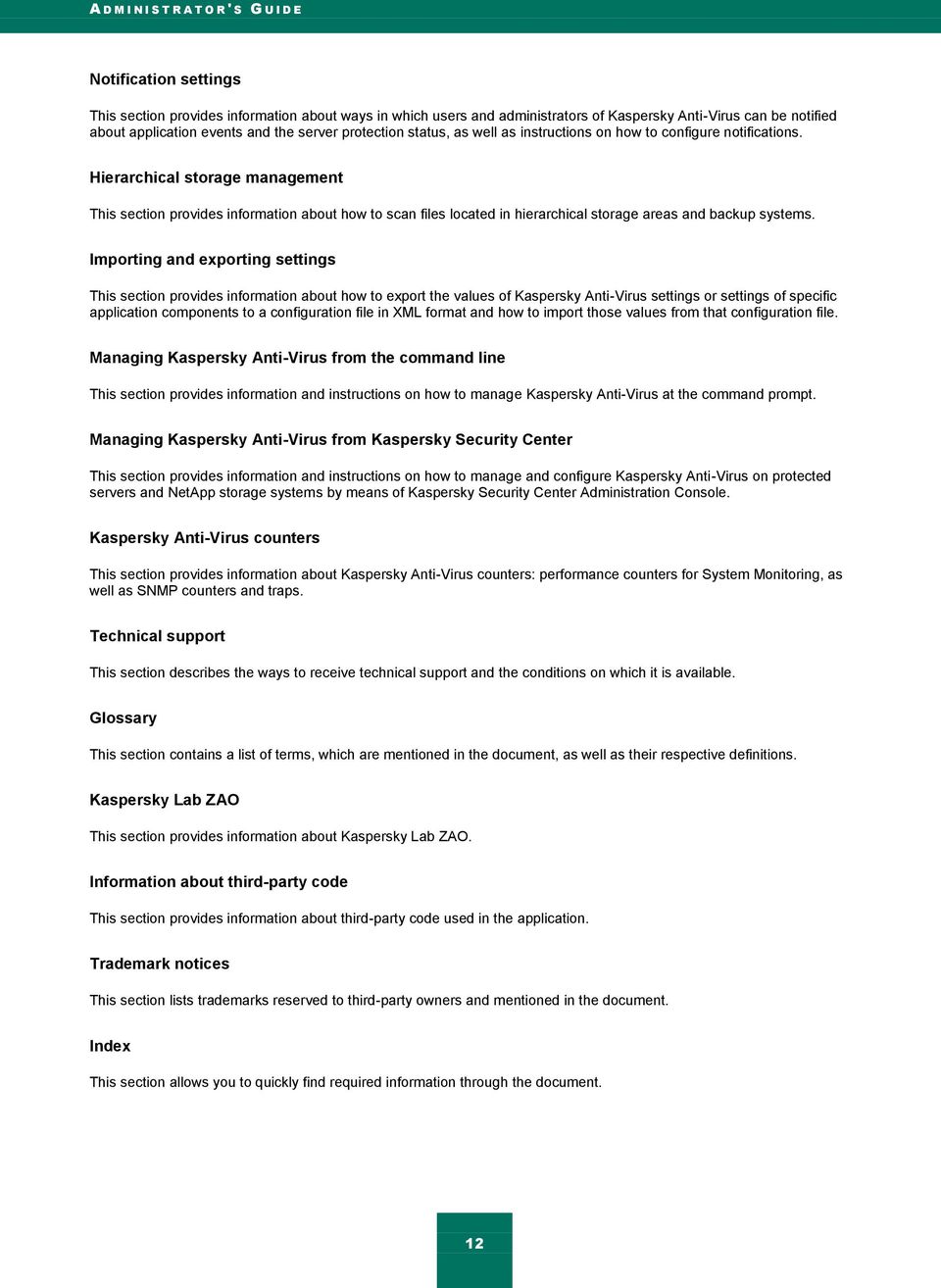
13 A B O U T T H I S G U I D E DOCUMENT CONVENTIONS The conventions used in this document are shown in the following table. Table 1. Document conventions SAMPLE TEXT DESCRIPTION OF DOCUMENT CONVENTION Note that... We recommend that you use... Warnings are highlighted in red and set off in a box. Warnings contain information about actions that my have undesirable consequences. Notes are set off in a box. Notes contain supplementary and reference information. Example:... Update means... The Databases are out of date event occurs. Press ENTER. Press ALT+F4. Click the Enable button. To configure a task schedule: In the command line, type help The following message then appears: Specify the date in dd:mm:yy format. <User name> Examples are given in blocks against a yellow background under the heading "Example". The following elements are italicized in the text: New terms Names of application statuses and events Names of keyboard keys appear in bold and are capitalized. Names of keys that are connected by a + (plus) sign indicate the use of a key combination. These keys must be pressed simultaneously. Names of application interface elements, such as text boxes, menu items, and buttons, are set off in bold. Introductory phrases of instructions are italicized and accompanied by an arrow. The following types of text content are set off with a special font: Text in the command line Text of messages displayed on the screen by the application Data that must be entered from the keyboard Variables are enclosed in angle brackets. Instead of a variable, the corresponding value should be inserted, omitting the angle brackets. 13

14 SOURCES OF INFORMATION ABOUT KASPERSKY ANTI-VIRUS This section lists the sources of information about the application. You can select the most suitable information source, depending on the level of importance and urgency of the issue. IN THIS SECTION Sources of information for independent research Contacting the Sales Department Discussing Kaspersky Lab applications on the forum Contacting the Technical Writing and Localization Unit SOURCES OF INFORMATION FOR INDEPENDENT RESEARCH You can use the following sources to find information about Kaspersky Anti-Virus: Kaspersky Anti-Virus page on the Kaspersky Lab website Kaspersky Anti-Virus page on the Technical Support website (Knowledge Base) Online help Manuals If you cannot find a solution for your issue on your own, we recommend contacting Kaspersky Lab Technical Support. An Internet connection is required to use online information sources. Kaspersky Anti-Virus page on the Kaspersky Lab website On the Kaspersky Anti-Virus page ( you can view general information about the application, its functions and features. The Kaspersky Anti-Virus page contains a link to the estore. There you can purchase the application or renew your license. Kaspersky Anti-Virus page in the Knowledge Base Knowledge Base is a section on the Technical Support website. The Kaspersky Anti-Virus page in the Knowledge Base ( features articles that provide useful information, recommendations, and answers to frequently asked questions about how to purchase, install, and use the application. 14

15 S O U R C E S O F I N F O R M A T I O N A B O U T K A S P E R S K Y A N T I - V I R U S Knowledge Base articles can answer questions relating to not only Kaspersky Anti-Virus but also to other Kaspersky Lab applications. Knowledge Base articles can also include Technical Support news. Online help Online help of the application consists of help files. Context help provides information about the windows in Kaspersky Anti-Virus: a description of Kaspersky Anti-Virus settings is followed by links to descriptions of the tasks that use these settings. Full help provides information about how to configure and use Kaspersky Anti-Virus. Documentation Application documentation consists of the files of application guides. The deployment guide describes common ways to deploy Kaspersky Anti-Virus on a corporate network. The installation guide describes how you can perform the following tasks: Prepare Kaspersky Anti-Virus for installation, install and activate the application Prepare Kaspersky Anti-Virus for operation Restore or remove Kaspersky Anti-Virus The administrator's guide provides information about how to configure and use Kaspersky Anti-Virus. CONTACTING THE SALES DEPARTMENT If you have any questions on how to purchase the application or renew your license, you can contact our Sales Department representatives in one of the following ways: By calling the Kaspersky Lab Headquarters in Moscow ( By sending an to [email protected] The service is provided in Russian or English. DISCUSSING KASPERSKY LAB APPLICATIONS ON THE FORUM If your question does not require an immediate answer, you can discuss it with Kaspersky Lab experts and other users on our forum ( On this forum you can view existing threads, leave your comments, and create new discussion threads. CONTACTING THE TECHNICAL WRITING AND LOCALIZATION UNIT If you have any questions about the application documentation, please contact our Technical Writing and Localization Team. You can do so by sending an to [email protected]. In the subject line of your message, please indicate "Kaspersky Help Feedback: Kaspersky Anti-Virus for Windows Servers Enterprise Edition." 15
16 KASPERSKY ANTI-VIRUS Kaspersky Anti-Virus protects servers running on Microsoft Windows operating systems and network storages against viruses and other computer security threats to which servers are exposed through file exchange. Kaspersky Anti-Virus is designed for use on local area networks of medium to large organizations. Kaspersky Anti-Virus users are corporate network administrators and specialists responsible for anti-virus protection of the corporate network. Kaspersky Anti-Virus can be installed on servers in the following roles: Terminal servers Print servers Application servers Domain controllers Network storage servers File servers these servers are more likely to get infected because they exchange files with user workstations. Kaspersky Anti-Virus can be managed in the following ways: Via Kaspersky Anti-Virus Console installed on the same server with Kaspersky Anti-Virus or on a different computer Using commands in the command line Via Administration Console of Kaspersky Security Center. The Kaspersky Security Center application can also be used for centralized administration of multiple servers running Kaspersky Anti-Virus. It is possible to review Kaspersky Anti-Virus performance counters for the "System Monitor" application, as well as SNMP counters and traps. Kaspersky Anti-Virus components and features The application includes the following components: Real-time protection of files Kaspersky Anti-Virus scans objects when they are accessed. Kaspersky Anti-Virus scans the following objects: files; alternate file system threads (NTFS threads); master boot record and boot sectors on the local hard drives and removable media. Script scanning Kaspersky Anti-Virus controls the execution of scripts created using Microsoft Windows Script Technologies (or Active Scripting), for example, VBScript or JScript. Kaspersky Anti-Virus allows script execution only if this script has been found to be safe. Kaspersky Anti-Virus blocks the execution of a script that has been found to be dangerous. If Kaspersky Anti-Virus finds a script to be potentially dangerous, it performs the action you have specified: blocks or allows script execution. 16

17 K A S P E R S K Y A N T I - V I R U S Real-time protection of NetApp storage systems Kaspersky Anti-Virus installed on a server under a Microsoft Windows operating system protects NetApp storage systems against viruses and other security threats that infiltrate the server by way of file exchange. On-demand scan Kaspersky Anti-Virus runs a single scan of the specified area for viruses and other computer security threats. Kaspersky Anti-Virus scans server files and RAM and also startup objects. The following functions are implemented in the application: Updating databases and application software modules Kaspersky Anti-Virus downloads updates of application databases and modules from FTP or HTTP update servers of Kaspersky Lab, Kaspersky Security Center Administration Server, or other update sources. Quarantine Kaspersky Anti-Virus quarantines probably infected objects by moving such objects from their original location to the Quarantine storage. Objects are stored in the Quarantine storage in encrypted form for security considerations. Backup Kaspersky Anti-Virus stores encrypted copies of objects classified as Infected or Probably infected in Backup before disinfecting or deleting them. Administrator and user notifications You can configure the application to notify the administrator and users who access the protected server about events in Kaspersky Anti-Virus operation and the status of Anti-Virus protection on the server. Importing and exporting settings You can export Kaspersky Anti-Virus settings to an XML configuration file and import settings into Kaspersky Anti-Virus from the configuration file. All Kaspersky Anti-Virus settings or settings for individual Kaspersky Anti- Virus components can be saved in the configuration file. IN THIS SECTION What's new Distribution kit Hardware and software requirements WHAT'S NEW Kaspersky Anti-Virus now includes the following features: Option of real-time protection of NetApp storage systems. The following Microsoft Windows server operating systems are supported: Microsoft Windows Server 2012 Datacenter Microsoft Windows Server 2012 Essentials 17
18 A D M I N I S T R A T O R ' S G U I D E Microsoft Windows Server 2012 Foundation Microsoft Windows Server 2012 Standard Microsoft Windows Server 2012 R2 Datacenter Microsoft Windows Server 2012 R2 Essentials Microsoft Windows Server 2012 R2 Foundation Microsoft Windows Server 2012 R2 Standard. The following Microsoft Windows desktop operating systems are supported: Microsoft Windows 8; Microsoft Windows 8 Enterprise Microsoft Windows 8 Professional Microsoft Windows 8.1 Microsoft Windows 8.1 Enterprise Microsoft Windows 8.1 Professional. 18

19 DISTRIBUTION KIT The distribution kit includes the welcome application that lets you do the following: Start the Kaspersky Anti-Virus Installation Wizard Start the Kaspersky Anti-Virus Console Installation Wizard Start the Installation Wizard that will install a plug-in for managing Kaspersky Anti-Virus via the Kaspersky Security Center Read the Installation Guide, Administrator's Guide, and Deployment Guide Visit the Kaspersky Anti-Virus page on the Kaspersky Lab website Visit the Technical Support website The \x86 folder includes files for installing Kaspersky Anti-Virus, the Kaspersky Anti-Virus console, and the Kaspersky Anti-virus management plug-in via Kaspersky Security Center on a server running a 32-bit Microsoft Windows operating system; the \x64 folder includes files for installing Kaspersky Anti-Virus, the Kaspersky Anti-Virus console, and the Kaspersky Anti-virus management plug-in via Kaspersky Security Center on a server running a 64-bit Microsoft Windows operating system. The folders \x86 and \x64 include nested folders: The \server folder contains files for installing the Kaspersky Anti-Virus protection components; The \client folder contains files for installation of Kaspersky Anti-Virus Console ("Administration tools" set of components). The \plugin folder contains a file for installation of the management plug-in for Kaspersky Anti-Virus via Kaspersky Security Center. The purpose of the files contained in the Kaspersky Anti-Virus distribution kit is described in the table below: 19

20 A D M I N I S T R A T O R ' S G U I D E Table 2. Kaspersky Anti-Virus Distribution Kit files FILE setup.exe \setup kav8.0_wsee_install_guide_ru.pdf kav8.0_wsee_admin_guide_ru.pdf kav8.0_wsee_deploy_guide_ru.pdf autorun.inf release_notes.txt x86(х64)\server\setup.exe x86(х64)\server\kavws.msi x86(х64)\server\kavws.kpd x86(x64)\server\kavws.kud x86(х64)\client\setup.exe x86(х64) \client\kavwstools.msi x86(х64) \plugin\klcfginst.exe PURPOSE Greeting program launch file. This folder is used to store the greeting application files Installation Guide. Administrator's Guide. Deployment Guide describing standard schemes for deployment of the protection system. Greeting program autorun file. The file contains release information. The wizard for installing Kaspersky Anti-Virus on the protected server; runs the installer package file kavws.msi with the installation settings specified in the wizard. Microsoft Windows Installer package; installs Kaspersky Anti-Virus on the protected server. File containing description of the Installer package for remote Kaspersky Anti-Virus installation via the Kaspersky Security Center this file has extension.kpd (Kaspersky Package Definition); This file contains the name of the installation package, general information about the Kaspersky Anti-Virus (version number and release date) and a description of the return codes of the installer. This file may also contain command line keys that configure the installation settings via the Kaspersky Security Center. File containing description of the Installer package for remote Kaspersky Anti-Virus installation via the Kaspersky Security Center; this is the Kaspersky Unicode Definition file. Used by kavws.kpd. Setup wizard for the "Administration tools" set of components (including Kaspersky Anti-Virus Console); this starts the kavwstools.msi installation package file using the settings specified in the setup wizard. Microsoft Windows Installer package; installs Kaspersky Anti-Virus Console on the computer. The Installation Wizard that installs a plug-in for managing Kaspersky Anti-Virus via the Kaspersky Security Center. Install the plug-in on each computer where the Administration Console of Kaspersky Security Center is installed if you plan to use it to manage Kaspersky Anti-Virus. Distribution kit files can be run from the Installation CD. If you have copied the distribution package files onto the local drive beforehand, make sure that the structure of the distribution kit files has been preserved. 20

21 K A S P E R S K Y A N T I - V I R U S HARDWARE AND SOFTWARE REQUIREMENTS This section lists the hardware and software requirements for installing Kaspersky Anti-Virus. IN THIS SECTION Requirements for the server on which Kaspersky Anti-Virus is deployed Requirements for the protected network storage Requirements for the computer on which Kaspersky Anti-Virus is deployed REQUIREMENTS FOR THE SERVER ON WHICH KASPERSKY ANTI- VIRUS IS DEPLOYED Before installing Kaspersky Anti-Virus, you must uninstall other anti-virus applications from the server. Kaspersky Anti-Virus can be installed without prior removal of Kaspersky Anti-Virus 8.0 for Windows Servers Enterprise Edition or Kaspersky Anti-Virus 6.0 / 8.0 for Windows Servers. Hardware requirements for the server General requirements: x86-compatible uniprocessor or multiprocessor systems; x86-64-compatible uniprocessor or multiprocessor systems disk space requirements: for installing all application components: 70 MB for downloading and storing anti-virus databases of the application: 2 GB (recommended) for storing objects in Quarantine and in Backup: 400 MB (recommended) for storing logs: 1 GB (recommended). for storing databases: 2 GB (recommended) Minimum configuration: processor 1 Intel Core 1.4 GHz RAM: 1 GB drive subsystem 4 GB of free space 21
22 A D M I N I S T R A T O R ' S G U I D E Recommended configuration: processor 4 Intel Core 2.4 GHz RAM: 2 GB drive subsystem 4 GB of free space Software requirements for the server You can install Kaspersky Anti-Virus on a server under a 32-bit or 64-bit Microsoft Windows operating system. For installation and operation of Kaspersky Anti-Virus, Microsoft Windows Installer 3.1 must be installed on the server. You can install Kaspersky Anti-Virus on a server under one of the following 32-bit Microsoft Windows operating systems: Windows Server 2003 Standard / Enterprise SP2 Windows Server 2003 R2 Standard / Enterprise SP2 Windows Server 2008 Standard / Enterprise / Datacenter SP1 or later Windows Server 2008 Core Standard / Enterprise / Datacenter SP1 or later. You can install Kaspersky Anti-Virus on a server under one of the following 64-bit Microsoft Windows operating systems: Windows Server 2003 Standard / Enterprise SP2 Windows Server 2003 R2 Standard / Enterprise SP2 Windows Server 2008 Standard / Enterprise / Datacenter SP1 or later Windows Server 2008 Core Standard / Enterprise / Datacenter SP1 or later Windows Server 2008 R2 Standard / Enterprise / Datacenter SP1 or later Windows Server 2008 R2 Core Standard / Enterprise / Datacenter SP1 or later Windows Hyper-V Server 2008 R2 SP1 or later Windows Server 2012 Essentials / Standard / Foundation / Datacenter Windows Server 2012 R2 Essentials / Standard / Foundation / Datacenter. Windows Hyper-V Server 2012 Windows Hyper-V Server 2012 R2 You can install Kaspersky Anti-Virus on the following terminal servers: Microsoft Terminal Services based on Windows 2003 Server; Microsoft Remote Desktop Services based on Windows 2008 Server Microsoft Remote Desktop Services based on Windows 2012 Server Microsoft Remote Desktop Services based on Windows 2012 Server R2 Citrix Presentation Server 4.0,
23 K A S P E R S K Y A N T I - V I R U S Citrix XenApp 4.5, 5.0, 6.0, 6.5 Citrix XenDesktop 7.0, 7.1, 7.5. REQUIREMENTS FOR THE PROTECTED NETWORK STORAGE Kaspersky Anti-Virus has the following software requirements for protected network storage: For NetApp data storage systems, one of the following operating systems: Data ONTAP 7.x and Data ONTAP 8.x in 7-mode Data ONTAP or higher in cluster-mode For EMC Celerra / VNX data storage systems: EMC DART or higher Celerra (CAVA) Anti-Virus Agent or higher. REQUIREMENTS FOR THE COMPUTER ON WHICH KASPERSKY ANTI- VIRUS IS DEPLOYED Hardware requirements for the computer Recommended RAM amount: at least 128 MB. Free disk space: 30 MB. Software requirements for the computer You can install Kaspersky Anti-Virus Console on a computer running a 32-bit or 64-bit Microsoft Windows operating system. The computer should have Microsoft Windows Installer 3.1 in order to support installation and operation of Kaspersky Anti-Virus Console. You can install Kaspersky Anti-Virus Console on a computer running one of the following 32-bit Microsoft Windows operating systems: Windows Server 2003 Standard / Enterprise SP2 Windows Server 2003 R2 Standard / Enterprise SP2 Windows Server 2008 Standard / Enterprise / Datacenter SP1 or later Windows Server 2008 Core Standard / Enterprise / Datacenter SP1 or later Microsoft Windows XP Professional with Service Pack 2 or later Microsoft Windows Vista Editions Microsoft Windows 7 Editions Microsoft Windows 8 23
24 A D M I N I S T R A T O R ' S G U I D E Microsoft Windows 8 Enterprise / Professional Microsoft Windows 8.1 Microsoft Windows 8.1 Enterprise / Professional. You can install Kaspersky Anti-Virus Console on a computer running one of the following 64-bit Microsoft Windows operating systems: Windows Server 2003 Standard / Enterprise SP2 Windows Server 2003 R2 Standard / Enterprise SP2 Windows Server 2008 Standard / Enterprise / Datacenter SP1 or later Windows Server 2008 Core Standard / Enterprise / Datacenter SP1 or later Windows Server 2008 R2 Standard / Enterprise / Datacenter SP1 or later Windows Server 2008 R2 Core Standard / Enterprise / Datacenter SP1 or later Windows Hyper-V Server 2008 R2 SP1 or later Windows Server 2012 Essentials / Standard / Foundation / Datacenter Windows Server 2012 R2 Essentials / Standard / Foundation / Datacenter. Windows Hyper-V Server 2012 Windows Hyper-V Server 2012 R2 Microsoft Windows XP Professional Edition SP2 or later Microsoft Windows Vista Editions Microsoft Windows 7 Editions Microsoft Windows 8; Microsoft Windows 8 Enterprise / Professional Microsoft Windows 8.1 Microsoft Windows 8.1 Enterprise / Professional 24
25 APPLICATION LICENSING This section provides information about the main concepts related to licensing of the application. IN THIS SECTION About licenses About the End User License Agreement About license certificates About keys About key files ABOUT LICENSES A license is a time-limited right to use the application, granted to you under the End User License Agreement. A valid license entitles you to receive the following services: Use of the application in accordance with the terms of the End User License Agreement Technical support The scope of service and the term of application use depend on the type of license under which the application has been activated. The following license types are possible: A trial license is a free license intended for trying out the application. A trial license is valid for a short period. When the trial license expires, Kaspersky Anti-Virus ceases to be fully functional. To continue using the application, you must purchase a commercial license. You can activate the application under a trial license one time only. A commercial license is a paid license granted upon purchase of the application. When a commercial license expires, the application continues to run but some of its features become unavailable (for example, Kaspersky Anti-Virus databases cannot be updated). To continue using all the features of Kaspersky Anti-Virus, you must renew your commercial license. To ensure maximum protection of your computer against security threats, we recommend renewing the license before it expires. 25
26 A D M I N I S T R A T O R ' S G U I D E ABOUT THE END USER LICENSE AGREEMENT The End User License Agreement is a legal agreement between you and Kaspersky Lab ZAO that stipulates the terms and conditions under which you can use the application. We recommend carefully reviewing the terms of the End User License Agreement before you start using the application. You can review the terms of the End User License Agreement in the following ways: During installation of Kaspersky Anti-Virus. By reading the file license.txt. This document is included in the application's distribution kit. By confirming that you agree with the End User License Agreement when installing the application, you signify your acceptance of the terms of the End User License Agreement. If you do not accept the terms of the End User License Agreement, you must abort application installation and must not use the application. ABOUT LICENSE CERTIFICATES A license certificate is a document given to you together with a key file or activation code. The license certificate contains the following information about your license: License number Information about the user to whom the license is granted Information about the application that you can activate with the license Limit on the number of licensed seats (for example, the maximum number of computers on which the application may be run according to the license) License start date Expiration date or validity period of the license License type ABOUT KEYS A key is a sequence of bits with which you can activate and subsequently use the application in accordance with the terms of the End User License Agreement. A key is generated by Kaspersky Lab. You can add a key to the application by using a key file. After you add a key to the application, the key is displayed in the application interface as a unique alphanumeric sequence. Your key may be blocked by Kaspersky Lab if the terms of the End User License Agreement are violated. If your key is blocked, a different key must be added in order for the application to work. A key may be an "active key" or an "additional key". An active key is the key that the application currently uses to function. A key for either a trial or commercial license may be added as the active key. The application can have no more than one active key. 26
27 A P P L I C A T I O N L I C E N S I N G An additional key is a key that confirms the right to use the application but is not currently in use. An additional key automatically becomes active when the license associated with the current active key expires. An additional key may be added only if there is an active key. A key for a trial license may be added only as an active key. A key for a trial license may not be added as an additional key. ABOUT KEY FILES A key file is a file with the.key extension that you receive from Kaspersky Lab. Key files are designed to activate the application by adding a key. You receive a key file at the address that you provided when you bought Kaspersky Anti-Virus or ordered the trial version of Kaspersky Anti-Virus. You do not need to connect to Kaspersky Lab activation servers in order to activate the application with a key file. You can recover a key file if it is accidentally deleted. You may need a key file to register with Kaspersky CompanyAccount. To recover a key file, you must do one of the following: Contact Kaspersky Lab Technical Support ( Obtain a key file on the Kaspersky Lab website ( based on your existing activation code. 27
28 USING KASPERSKY ANTI-VIRUS CONSOLE AND ACCESSING APPLICATION FEATURES This section provides information about Kaspersky Anti-Virus Console and describes how to manage Kaspersky Anti- Virus using Kaspersky Anti-Virus Console installed on the protected server or a different computer. IN THIS SECTION About Kaspersky Anti-Virus Console Advanced settings after installation of Kaspersky Anti-Virus Console on another computer Starting Kaspersky Anti-Virus Console from the Start menu Kaspersky Anti-Virus Console window interface About access permissions for Kaspersky Anti-Virus functions Configuring access rights to Kaspersky Anti-Virus functions ABOUT KASPERSKY ANTI-VIRUS CONSOLE The Kaspersky Anti-Virus Console is an isolated snap-in added to the MMC console (Microsoft Management Console). Kaspersky Anti-Virus can be managed via the Kaspersky Anti-Virus Console installed on the protected server or on another computer on the corporate network. After Kaspersky Anti-Virus console has been installed on another computer, advanced configuration must be performed (see section "Advanced settings after the installation of Kaspersky Anti-Virus Console on another computer", page 29). If Kaspersky Anti-Virus Console and Kaspersky Anti-Virus are installed on different computers assigned to different domains, limitations may be imposed on delivery of information from Kaspersky Anti-Virus to Kaspersky Anti-Virus Console. For example, after a Kaspersky Anti-Virus task starts, its status may remain unchanged in the Console. During installation of Kaspersky Anti-Virus Console the installer creates the kavfs.msc file in the Installation folder and adds Kaspersky Anti-Virus snap-in to the list of isolated Microsoft Windows snap-ins. You can start Kaspersky Anti-Virus Console from the Start menu. You can also start Kaspersky Anti-Virus Console on the protected server by clicking the Kaspersky Anti-Virus icon in the taskbar notification area. The Kaspersky Anti-Virus snap-in MSC file can be run or the Kaspersky Anti-Virus snap-in can be added to the existing MMC console as a new element in the tree (see section "Kaspersky Anti-Virus Console window interface" on page 32). Under a 64-bit version of Microsoft Windows, the Kaspersky Anti-Virus snap-in can be added only in the 32-bit version of MMC (MMC32). To do so, open MMC via the command line by executing the command: mmc.exe /32. Multiple Kaspersky Anti-Virus snap-ins can be added to a single Microsoft Management Console opened in the authorizing mode, in order to use it to administer the protection of multiple servers on which Kaspersky Anti-Virus is installed. 28
29 U S I N G K A S P E R S K Y A N T I - V I R U S C O N S O L E A N D A C C E S S I N G A P P L I C A T I O N F E A T U R E S ADVANCED SETTINGS AFTER THE INSTALLATION OF KASPERSKY ANTI-VIRUS CONSOLE ON ANOTHER COMPUTER To manage Kaspersky Anti-Virus via Kaspersky Anti-Virus Console installed on a different computer: Do the following on the protected server: Add users of the Kaspersky Anti-Virus Console to the KAVWSEE Administrators group. If the Windows Firewall is enabled on the protected server, allow network connections for the process of the Kaspersky Anti-Virus management service: kavfsgt.exe. The Windows Firewall is enabled by default in all Windows server operating systems beginning with Windows Server If you have not selected the Allow network connections for Kaspersky Anti-Virus Console check box on the computer with Kaspersky Anti-Virus Console while installing the Console, you have to allow network connections for Kaspersky Anti-Virus Console. IN THIS SECTION Adding Kaspersky Anti-Virus users to the KAVWSEE Administrators group on the protected server Allowing network connections for Kaspersky Anti-Virus management service on the protected server Allowing network connections for Kaspersky Anti-Virus Console ADDING KASPERSKY ANTI-VIRUS USERS TO THE KAVWSEE ADMINISTRATORS GROUP ON THE PROTECTED SERVER In order to manage Kaspersky Anti-Virus via Kaspersky Anti-Virus Console installed on another computer, the account under which the connection is established to Kaspersky Anti-Virus must have full access to the application management service (Kaspersky Anti-Virus Management) on the protected server. By default only users included in the "Administrators" group on the protected server have access to this service. Detailed information about services registered by Kaspersky Anti-Virus is provided in the Installation Guide for Kaspersky Anti-Virus 8.0 for Windows Servers Enterprise Edition. During installation Kaspersky Anti-Virus registers the KAVWSEE Administrators group on the protected server. Users of this group are granted access to the Kaspersky Anti-Virus management service. Users can be granted or disallowed access to the Kaspersky Anti-Virus management service by adding them to the KAVWSEE Administrators group or by removing them from this group. You can connect to Kaspersky Anti-Virus from a local account if an account with the same name and password is registered on the protected server. 29
30 A D M I N I S T R A T O R ' S G U I D E ALLOWING NETWORK CONNECTIONS FOR KASPERSKY ANTI-VIRUS MANAGEMENT SERVICE ON THE PROTECTED SERVER The names of settings may vary under different Windows operating systems. To allow network connections for Kaspersky Anti-Virus management service on the protected server: 1. On the protected server running under Microsoft Windows Server 2008 select Start Control panel Security Windows Firewall. 2. In the Windows Firewall settings window, select the Change settings item. 3. In the list of predefined exceptions on the Exclusions tab check the flags: COM + Network access, Windows Management Instrumentation (WMI) and Remote Administration. 4. Click the Add Program button. 5. Select the kavfsgt.exe file in the Add program window. This is located in the folder specified as a destination folder during the installation of Kaspersky Anti-Virus Console using MMC. 6. Click OK. 7. Click OK in the Windows Firewall settings window. ALLOWING NETWORK CONNECTIONS FOR KASPERSKY ANTI-VIRUS CONSOLE The names of settings may vary under different Windows operating systems. Kaspersky Anti-Virus Console on the remote computer uses DCOM protocol to receive information about Kaspersky Anti-Virus events (such as objects scanned, tasks completed, etc.) from the Kaspersky Anti-Virus management service on the protected server. You need to allow network connections for Kaspersky Anti-Virus Console in the Windows Firewall settings in order to establish connections between Kaspersky Anti-Virus Console and the Kaspersky Anti-Virus management service. take the following steps: Make sure that anonymous remote access to COM applications is allowed (but not remote launch and activation of COM applications). In the Windows Firewall open TCP port 135 and allow network connections for the executable file of the Kaspersky Anti-Virus remote management process, kavfsrcn.exe. The client computer on which Kaspersky Anti-Virus Console is installed uses port TCP 135 to access the protected server and to receive a server response. If Kaspersky Anti-Virus Console was opened while you were configuring the connection between the protected server and the computer on which Kaspersky Anti-Virus Console is installed, close Kaspersky Anti-Virus Console, wait until the Kaspersky Anti-Virus remote management process kavfsrcn.exe is terminated, and restart the Console. The new connection settings will be applied. 30
31 U S I N G K A S P E R S K Y A N T I - V I R U S C O N S O L E A N D A C C E S S I N G A P P L I C A T I O N F E A T U R E S To allow anonymous remote access to COM applications, take the following steps: 1. On the computer with Kaspersky Anti-Virus Console installed, open the Component Services console: select Start Run, enter the command dcomcnfg, and click OK. 2. Expand the Computers node in the Component Services console on your computer, open the context menu on the My Computer node and select Properties item from the context menu. 3. On the COM Security tab of the Properties window, click the Edit limits button in the Access permissions group of settings. 4. Make sure that the Allow remote access check box is selected for the ANONYMOUS LOGON user in the Access Permission window. 5. Click OK. To open TCP port 135 in the Windows Firewall and to allow network connections for the Kaspersky Anti-Virus remote management process executable file: 1. Close Kaspersky Anti-Virus Console on the remote computer. 2. Perform one of the following steps: In Microsoft Windows XP or Microsoft Windows Vista: a. In Microsoft Windows XP SP2 or later, select Start Windows Firewall. in Microsoft Windows Vista, select Start Control Panel Windows Firewall and in the Windows Firewall window select the command Change settings. b. In Windows Firewall window (or Windows Firewall settings) click the Add port button on the Exclusions tab. c. In the Name field specify the part name RPC (TCP/135) or enter another name, for example Kaspersky Anti-Virus DCOM, and specify port number (135) in the Port name field: 135. d. Select TCP protocol. e. Click OK. f. Press the Add Program button on the Exclusions tab. In Microsoft Windows 7: a. Select Start Control panel Windows Firewall, in the Windows Firewall window select Allow run of a program or component through Windows Firewall. b. In the Allow programs to communicate through Windows Firewall window click the Allow another program... button. 3. Specify kavfsgt.exe file in the Add Program window. This is located in the folder specified as a destination folder during the installation of Kaspersky Anti-Virus Console using MMC. 4. Click OK. 5. Click the OK button in the Windows Firewall (Windows Firewall settings) box. 31
32 A D M I N I S T R A T O R ' S G U I D E STARTING KASPERSKY ANTI-VIRUS CONSOLE FROM THE START MENU The names of settings may vary under different Windows operating systems. Make sure that Kaspersky Anti-Virus Console is installed on the computer. To start Kaspersky Anti-Virus Console from the Start menu: select Start Programs Kaspersky Anti-Virus 8.0 for Windows Servers Enterprise Edition Administration tools Kaspersky Anti-Virus Console. To add other snap-ins to Kaspersky Anti-Virus Console, open the Console in author mode. To do this, select Start Programs Kaspersky Anti-Virus 8.0 for Windows Servers Enterprise Edition Administration tools. Open the context menu of Kaspersky Anti-Virus Console and select the Author command. If Kaspersky Anti-Virus Console has been started on the protected server, the Console window opens (see section "Kaspersky Anti-Virus Console window interface" on page 32). If you have started Kaspersky Anti-Virus Console not on a protected server but on a different computer, connect to the protected server. To do so, in the console tree open the context menu of the Kaspersky Anti-Virus node and select the Connect to another computer command. In the Select computer window that opens, select Another computer and type the network name of the protected server in the entry field. If the account that you are using to log in to Microsoft Windows does not have sufficient permissions to access the Kaspersky Anti-Virus management service on the server, select the Connect as user check box and specify a different user account that has such permissions (see section "Adding Kaspersky Anti-Virus users to the KAVWSEE Administrators group on the protected server" on page 29). KASPERSKY ANTI-VIRUS CONSOLE WINDOW INTERFACE Kaspersky Anti-Virus Console is displayed in the MMC console tree as a node named Kaspersky Anti-Virus. After a connection has been established to Kaspersky Anti-Virus installed on a different computer, the name of the node is supplemented with the name of the computer on which Kaspersky Anti-Virus is installed and the name of the account under which the connection has been established: Kaspersky Anti-Virus <Computer name> as <user account name>. The name of the node does not change after the connection has been established to Kaspersky Anti-Virus installed on the same computer with Kaspersky Anti-Virus Console. By default, the Kaspersky Anti-Virus Console window includes the following elements: console tree details pane Quick access bar Toolbar 32
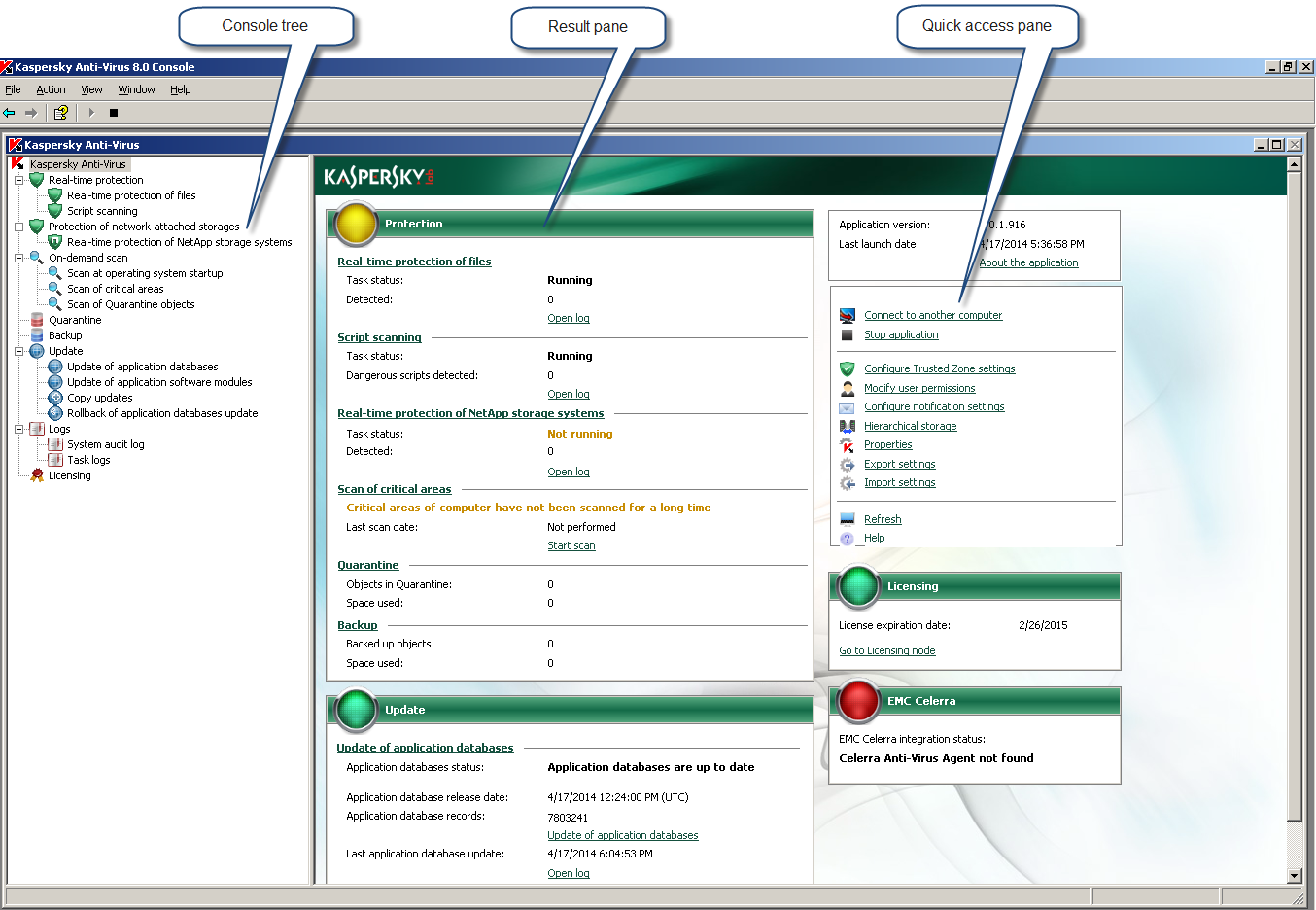
33 U S I N G K A S P E R S K Y A N T I - V I R U S C O N S O L E A N D A C C E S S I N G A P P L I C A T I O N F E A T U R E S You can also enable the display of the description area and the action panel in the Kaspersky Anti-Virus Console window. Figure 1. Kaspersky Anti-Virus Console main window Console tree The console tree displays the Kaspersky Anti-Virus node and the nested nodes of functional components of the application. The Kaspersky Anti-Virus nodes includes the following nested nodes: Real-time protection: manage real-time protection of files and script scanning. There is a separate node for each component: Real-time protection of files. Script scanning. Protection of network-attached storages: manage network storage protection. Real-time protection of NetApp storage systems. On-demand scan: manage on-demand scan tasks. There is a separate node for each system task: Scan at operating system startup. Scan of critical areas. Scan of Quarantine objects. 33
34 A D M I N I S T R A T O R ' S G U I D E A separate node is created for each user-defined task and for each group task created and sent to the server by Kaspersky Security Center. Quarantine: manage Quarantine settings and quarantined objects. The node contains a list of quarantined objects. Backup: manages Backup settings and handles objects in Backup. The node contains a list of backup copies. Update: manages updates for Kaspersky Anti-Virus databases and modules and copying updates to a local update source folder. The node contains subnodes for administering each system update task and last application database update rollback task: Update of application databases. Update of application software modules. Copying updates. Database update rollback. A separate node is created for each task created and sent to the server by Kaspersky Security Center. Logs: manage logs of real-time protection, network storage protection, on-demand scan, and update tasks; manage the Kaspersky Anti-Virus audit log. Licensing: add or delete Kaspersky Anti-Virus keys, view license details. Details pane The results pane displays information about the selected node. If the Kaspersky Anti-Virus node is selected, the results pane displays information about the current protection status of the server, information about Kaspersky Anti-Virus, and the status of its components. Quick access bar and context menu for the Kaspersky Anti-Virus node Using links on the quick access bar and context menu items of the Kaspersky Anti-Virus node, you can perform the following operations: Connect to another computer connects to another server to manage Kaspersky Anti-Virus installed on it. Start the application / stop the application start or stop Kaspersky Anti-Virus. To carry out these operations, you can also use the buttons on the toolbar. Configure trusted zone settings specify trusted processes and exclusion rules (see the section "Adding exclusions to the trusted zone" on page 108). You can also specify tasks that use each trusted zone setting. Modify user permissions modify permissions of users and user groups to access the features of Kaspersky Anti-Virus (see the section "Configuring rules for access to the features of Kaspersky Anti-Virus" on page 37). Configure notification settings configure user and administrator notifications about Anti-Virus events. Hierarchical storage - configure Tiered storage settings. Export settings save the application settings in a configuration file in XML format (see the section "Exporting settings" on page 142). Import settings restore the application settings from a configuration file in XML format (see the section "Importing settings" on page 143). 34
35 U S I N G K ASP E R S K Y A N T I - V I R U S C O N S O L E A N D A C C E S S I N G A P P L I C A T I O N F E A T U R E S About the application view information about the application: number of the installed application version, details of installed updates. You can also go to the website of Kaspersky Lab and the website of Technical Support and read the End User License Agreement. Properties - view and configure general Kaspersky Anti-Virus settings. ABOUT ACCESS PERMISSIONS FOR KASPERSKY ANTI- VIRUS FUNCTIONS By default access to all Kaspersky Anti-Virus functions is granted to users of the Administrators group and users of the KAVWSEE Administrators group created on the protected server during Kaspersky Anti-Virus installation (see section "Adding Kaspersky Anti-Virus users to the KAVWSEE Administrators group on the protected server" on page 29). Users who have access to Anti-Virus's Edit permissions function can grant access to Anti-Virus functions to other users registered on the protected server or included in the domain. Users who are not registered in the list of Kaspersky Anti-Virus users cannot open Kaspersky Anti-Virus Console. You can choose one of the following preset levels of Kaspersky Anti-Virus access permissions for a user or group of users: Full control: ability to view and edit general Kaspersky Anti-Virus settings, component settings, permissions of Kaspersky Anti-Virus users, and also view Kaspersky Anti-Virus statistics. Modification: ability to view and edit general Kaspersky Anti-Virus settings, component settings, and also view Kaspersky Anti-Virus statistics and user permissions. Read: ability to view general Kaspersky Anti-Virus settings, component settings, Kaspersky Anti-Virus statistics and user permissions. 35
36 A D M I N I S T R A T O R ' S G U I D E You can also configure advanced settings of access permissions (see section "Configuring access rights to Kaspersky Anti-Virus functions" on page 37): allow or block access to specific Kaspersky Anti-Virus functions (see table below). Table 3. Distribution of access permissions for Kaspersky Anti-Virus functions FEATURE Task management Creating and deleting on-demand scan tasks Edit settings DESCRIPTION Ability to start / stop / pause / resume Kaspersky Anti-Virus tasks. Ability to create and delete on-demand scan tasks Ability to: view and edit general Kaspersky Anti-Virus settings; import Kaspersky Anti-Virus from the configuration file and export them to the configuration file; view and edit task settings; view and edit settings for task logs, system audit log, and notifications. Read settings Ability to: view general Kaspersky Anti-Virus settings and task settings; export Kaspersky Anti-Virus settings to the configuration file; view settings of task logs, system audit log, and notifications. Manage storages Ability to: move objects to Quarantine; remove objects from Quarantine and Backup; restore objects from Quarantine and Backup. Manage logs Read logs Read statistics Application licensing Read permissions Edit permissions Ability to delete task logs and clear the system audit log. Ability to view Anti-Virus events in task logs and the system audit log Ability to view Kaspersky Anti-Virus statistics Ability to add and delete Kaspersky Anti-Virus keys Ability to view the list of Kaspersky Anti-Virus users and access privileges of each user. Ability to: add and remove Kaspersky Anti-Virus users; edit user permissions to access Kaspersky Anti-Virus functions. 36
37 U S I N G K A S P E R S K Y A N T I - V I R U S C O N S O L E A N D A C C E S S I N G A P P L I C A T I O N F E A T U R E S CONFIGURING ACCESS RIGHTS TO KASPERSKY ANTI- VIRUS FUNCTIONS To add or delete a user (group) or change permissions for the user (group) to access Kaspersky Anti-Virus functions: 1. In the console tree, open the context menu of the Kaspersky Anti-Virus node and select Modify user permissions. The Permissions for Kaspersky Anti-Virus group window opens. 2. Use the Permissions for Kaspersky Anti-Virus group window to do the following: In order to add a user (a group) to the list of Kaspersky Anti-Virus users, click the Add button and select users or groups you wish to add. To grant an added user (group) permissions to access Kaspersky Anti-Virus functions, select the user (group) in the Groups or users list, and in the Permissions for <User (Group)> section select the Allow check box for the following access permissions: Full control: to grant access to all Kaspersky Anti-Virus functions; Read: to grant access to the features Retrieve statistics, Read logs, Read settings, and Read permissions; Modification: to grant access to all Kaspersky Anti-Virus functions except the function Edit permissions. To perform advanced permission configuration (Custom permissions), click the Advanced button. In the Advanced security settings for Kaspersky Anti-Virus window, select the relevant user or group and click the Modify button. Then, in the Permission entry window select the Allow or Block check box next to the names of functions access to which you want to allow or block (see section "About permissions to access Kaspersky Anti-Virus functions" on page 35). Click OK. 3. Click OK to save changes. 37
38 KASPERSKY ANTI-VIRUS ICON IN THE TASK TRAY NOTIFICATION AREA Every time Kaspersky Anti-Virus automatically starts after a server reboot the Kaspersky Anti-Virus icon will be displayed in the task tray notification area. It is displayed by default if the Kaspersky Anti-Virus taskbar icon component was installed during application setup. The Kaspersky Anti-Virus icon may have one of the two statuses: Active (colored icon) if the Real-time protection of files or Script scanning task is being currently executed (see page 60) Inactive (black and white icon) if the Real-time protection of files and Script scanning tasks are not being currently executed. You can open the context menu of the Kaspersky Anti-Virus icon by right-clicking it. The context menu offers several commands which can be used to display application windows (see the table below). Table 4. Context menu commands displayed in the Kaspersky Anti-Virus tray icon COMMAND Open Kaspersky Anti-Virus Console About the application Hide DESCRIPTION Opens Kaspersky Anti-Virus Console (if installed). Opens the About the application window containing information about Kaspersky Anti-Virus. For registered Kaspersky Anti-Virus users, the About the application window contains information about urgent updates that have been installed. Hides the Kaspersky Anti-Virus icon in the task panel notification area. To display the application icon again, in the Start menu select Programs > Kaspersky Anti-Virus 8.0 for Windows Servers Enterprise Edition > Kaspersky Anti-Virus taskbar icon. When configuring general Kaspersky Anti-Virus settings, the display of the Anti-Virus icon can be enabled or disabled every time the Anti-Virus starts automatically following a server reboot (see section "Procedure for configuring general Kaspersky Anti-Virus settings using Kaspersky Anti-Virus Console" on page 44). 38
39 STARTING AND STOPPING KASPERSKY ANTI-VIRUS SERVICE By default, the service of Kaspersky Anti-Virus starts automatically at the operating system startup. Kaspersky Anti-Virus service manages the processes in which real-time protection, on-demand scan and updating tasks are executed. By default when the Kaspersky Anti-Virus service is started, the Real-time protection of files, Script scanning, and Scan at operating system startup tasks are started, as well as other tasks that are scheduled to start At application startup. If the Kaspersky Anti-Virus service is stopped, all running tasks are stopped. After you restart the Kaspersky Anti-Virus service, the application automatically starts only those tasks whose schedule has the launch frequency set to At application startup, while the other tasks have to be started manually. You can start and stop the Kaspersky Anti-Virus service if you are a member of the Administrators group on the protected server (see section "About permissions to access Kaspersky Anti-Virus functions" on page 35). To stop or start Kaspersky Anti-Virus service, take the following steps: 1. In the console tree, open the context menu of the Kaspersky Anti-Virus node. 2. Select one of the following items: Stop application, to stop the Kaspersky Anti-Virus service; Start application, to start the Kaspersky Anti-Virus service. Kaspersky Anti-Virus service can also be started and stopped using the Microsoft Windows Services snap-in. 39
40 VIEWING PROTECTION STATUS AND KASPERSKY ANTI-VIRUS INFORMATION To view information about the server protection status, the protected network storages, and Kaspersky Anti-Virus, select the Kaspersky Anti-Virus node in the console tree. By default, information in the details pane of Kaspersky Anti-Virus is refreshed automatically every minute. You can refresh information manually. To refresh information in the Kaspersky Anti-Virus node manually, select the Refresh command in the context menu of the Kaspersky Anti-Virus node. The details pane of Kaspersky Anti-Virus Console displays information about the status of server protection, protected network storages, and information about Kaspersky Anti-Virus (see table below). Table 5. Information about the status of protection of the server and protected NetApp storage systems "PROTECTION" SECTION Indicator of the status of protection of the server and protected NetApp storage systems INFORMATION The indicator may appear as follows: Real-time protection of files, Script scanning, and Real-time protection of NetApp storages tasks are running, and the Scan of critical areas task was completed no more than 30 days prior (default); one or more real-time protection tasks are not running or have been stopped, or the event Critical areas have not been scanned for a long time has occurred; one or more real-time protection tasks ended with an error. Real-time protection of files Script scanning Real-time protection of NetApp storage systems Task status current task status, for example, Running or Stopped. Detected the number of objects detected by Kaspersky Anti-Virus. For example, if Kaspersky Anti-Virus detects one malware program in five files, the value in this field increases by one. Task status current task status, for example, Running or Stopped. Dangerous scripts detected the number of dangerous scripts detected by Kaspersky Anti-Virus since the task was started. Task status current task status, for example, Running or Stopped. Detected the number of objects detected by Kaspersky Anti-Virus. For example, if Kaspersky Anti-Virus detects one malware program in five files, the value in this field increases by one. 40
41 V I E W I N G P R O T E C T I O N S T A T U S A N D K A S P E R S K Y A N T I - V I R U S I N F O R M A T I O N "PROTECTION" SECTION Scan of critical areas Quarantine Backup INFORMATION Critical areas have not been scanned for a long time an event that occurs when the Scan of critical areas task has not been performed in the last 30 days or longer (default value). You can change the threshold for generating this event. Last scan date the date and time of the last Scan of critical areas for viruses and other computer security threats. Quarantine free space threshold exceeded this event occurs when the threshold of Quarantine free space is nearing the specified limit. Kaspersky Anti-Virus continues to move objects to Quarantine. Maximum Quarantine size exceeded this event occurs when the Quarantine size has reached the specified limit. Kaspersky Anti-Virus continues to move objects to Quarantine. Objects in Quarantine number of objects currently quarantined. Space used amount of data in the Quarantine folder. Backup free space threshold exceeded this event occurs when the threshold of Backup free space is nearing the specified limit. Kaspersky Anti-Virus continues to move objects to Backup. Maximum Backup size exceeded this event occurs when the Backup size has reached the specified limit. Kaspersky Anti-Virus continues to move objects to Backup. Backed up objects - the number of objects currently in Backup. Space used - amount of Backup space used. 41
42 A D M I N I S T R A T O R ' S G U I D E Table 6. Information about the status of Kaspersky Anti-Virus databases and modules UPDATES SECTION Status indicator of databases and application modules INFORMATION The indicator may appear as follows: application databases are current; there are no critical application module updates available; one of the following events has occurred: Databases are out of date; Critical update for application modules available; Critical update for application modules recalled; Restart the computer to finish updating application modules; the Databases are extremely out of date or Databases are corrupted event has occurred. Update of application databases Application databases status an evaluation of the application database update status. It can take the following values: Application databases are up to date application databases were updated no more than 7 days ago (default); Application databases are out of date application databases were updated between 7 and 14 days ago (default); Application databases are extremely out of date application databases were updated no more than 14 days ago (default). You can change the thresholds for generating the events Application databases are out of date and Application databases are outdated. Application database release date the date and time of release of the latest application database update. The date and time are specified in UTC format. Application database records the number of threat signatures in the application databases. Last application database update the date and time of the latest application database update. The date and time are specified according to the local time of the protected server. Table 7. Information about Kaspersky Anti-Virus licensing LICENSING SECTION License status indicator INFORMATION The indicator may appear as follows: the license is valid; there are more than 14 days left before the license expires; 14 or less days are left before the license expires; the license has expired; the application is not activated (no key has been added); the terms of the End User License Agreement have been violated (for example, the key has been blacklisted). License expiration date Expiry date of the license associated with the active key. If an additional key has been added, the date of expiry of the license associated with the additional key is displayed. The EMC Celerra section (see table below) is displayed if the active key supports the network storage protection feature. 42
43 V I E W I N G P R O T E C T I O N S T A T U S A N D K A S P E R S K Y A N T I - V I R U S I N F O R M A T I O N Table 8. Information about protection of EMC Celerra EMC CELERRA SECTION Indicator of the status of protection of the networkattached storage system EMC Celerra INFORMATION The indicator may appear as follows: Kaspersky Anti-Virus has established a connection to EMC software, and the Realtime protection of files task is running in Kaspersky Anti-Virus. in the following cases: Kaspersky Anti-Virus failed to locate EMC software or the integration code returned an error. Kaspersky Anti-Virus has established a connection to EMC software, but the Real-time protection of files task is not running in Kaspersky Anti-Virus. EMC Celerra integration status It can take the following values: Celerra Anti-Virus Agent not found Kaspersky Anti-Virus could not find any EMC software, or an error has occurred in the integration code. Protection disabled Kaspersky Anti-Virus has established a connection to EMC software, but the Real-time protection of files task is not running in Kaspersky Anti- Virus. Protection enabled Kaspersky Anti-Virus has established a connection to EMC software, and the Real-time protection of files task is running in Kaspersky Anti-Virus. 43
44 CONFIGURING GENERAL KASPERSKY ANTI-VIRUS SETTINGS IN KASPERSKY ANTI-VIRUS CONSOLE The general settings of Kaspersky Anti-Virus control the general parameters of application operation. These settings allow configuring the number of processes used by Kaspersky Anti-Virus, enabling recovery of Kaspersky Anti-Virus tasks after they crash, keeping a trace log, enabling creation of memory dumps of Kaspersky Anti-Virus processes when processes crash, enabling or disabling display of the Kaspersky Anti-Virus icon when Kaspersky Anti-Virus is automatically started after a server restart, and specifying other general settings. IN THIS SECTION Procedure of configuring general Kaspersky Anti-Virus settings in Kaspersky Anti-Virus Console PROCEDURE OF CONFIGURING GENERAL KASPERSKY ANTI-VIRUS SETTINGS IN KASPERSKY ANTI-VIRUS CONSOLE To configure general Kaspersky Anti-Virus settings: 1. Open the context menu of the Kaspersky Anti-Virus node in the console tree and select the Properties command. The Properties: Kaspersky Anti-Virus. 2. In the window that opens, configure general Kaspersky Anti-Virus settings according to your preferences: The following settings can be configured on the General tab: In the Scalability settings section: maximum number of working processes that Kaspersky Anti-Virus can run; fixed number of processes for real-time protection tasks; number of working processes for background on-demand scan tasks; In the Reliability settings section: the number of attempts to recover an on-demand scan task after it crashed. The following settings can be configured on the Advanced tab: In the Interaction with user section: displaying the Kaspersky Anti-Virus icon in the taskbar notification area (see page 37) after each startup of the application; 44
45 C O N F I G U R I N G G E N E R A L K A S P E R S K Y A N T I - V I R U S S E T T I N G S I N K A S P E R S K Y A N T I - V I R U S C ONS O L E In the Use of uninterruptible power supply section: Kaspersky Anti-Virus operations when running on UPS power; In the Event generation thresholds section: specify the number of days after which the events Database is obsolete, Database is outdated and Scanning of critical areas has not been performed for a long time will occur. On the Malfunction diagnosis tab, do the following: enable or disable the logging of debugging information; if necessary, configure log settings; enable or disable creation of Kaspersky Anti-Virus process memory dump files. Kaspersky Anti-Virus saves information to trace files and memory dump files in unencrypted form. 3. Click the Apply button to save changes. 45
46 TASK MANAGEMENT This section provides information about Kaspersky Anti-Virus tasks, how to create them, configure task settings, start and stop tasks, and configure schedule settings. IN THIS SECTION Creating an on-demand scan task Saving task after changing its settings Renaming tasks Removing tasks Starting / pausing / resuming / stopping tasks manually Managing task schedules Using user accounts to launch the task CREATING AN ON-DEMAND SCAN TASK User-defined tasks can be created in the On-demand scan node. In the other functional components of Kaspersky Anti- Virus creation of user-defined tasks is not provided for. To create a new on-demand scan task, take the following steps: 1. In the console tree, open the context menu of the On-demand scan item and select the command Add task. The Add task window opens. 2. Enter the following information about the task: Name task name of no more than 100 characters, may contain any symbols apart from %? І \ / : * < >. Description - any additional information about the task, no more than 2000 characters. This information will be displayed in the task properties window. 3. Configure the following task settings, if necessary: Using the Heuristic Analyzer By default, the application uses the Heuristic Analyzer in newly created ondemand scan tasks. To change the level of analysis, make sure that the Use Heuristic Analyzer check box is selected and move the slider to the desired position. To disable the Heuristic Analyzer, clear the Use Heuristic Analyzer check box. Applying the trusted zone (see page 107). By default, the application uses the trusted zone in newly created on-demand scan tasks. To disable the trusted zone, clear the Apply trusted zone check box. Executing tasks in background mode (see page 105). If you need to run the task in a low-priority process, select the Perform task in the background check box. 4. Click OK. The task will be created. A line with information about this task will appear in the console window. The operation will be logged in the system audit log (see page 126). 46
47 T A S K M A N A G E M E N T SAVING TASK AFTER CHANGING ITS SETTINGS The settings of a task that is running or stopped (paused) can be modified. New settings take effect under the following conditions: if you have changed the settings of a running task: the new values for the settings are applied immediately after they have been saved, and for all other tasks they will be applied the next time the task is started if you have changed the settings of a stopped task: new values for settings will apply after they have been saved and the task has been started. To save changed task settings, open the context menu on the task name and select Save task from the context menu. If after changing task settings another node in the console tree is selected without first selecting the Save task command, the window for saving the settings appears. Click the Yes button in this window to save task settings or No to leave the node without saving changes. You can also edit the settings for each of the following tasks: Real-time protection of files (see the section "Configuring the Real-time protection of files task" on page 61), Real-time protection of NetApp storage systems (see the section "Configuring the task. Real-time protection of NetApp storage systems" on page 85), On-demand scan ("Configuring ondemand scan tasks" on page 95), Update (see page 56). RENAMING TASKS Only user-defined tasks in the Kaspersky Anti-Virus Console can be renamed. System or group tasks cannot be renamed. To rename a task, take the following steps: 1. Open the context menu on the task name and select the Properties command. 2. In the Properties: <Task name > window, enter a new task name in the Name field and click the OK or Apply button. The task will be renamed. The operation will be logged in the system audit log (see page 126). REMOVING TASKS Only user-defined tasks in the Kaspersky Anti-Virus Console can be deleted; system or group tasks cannot be deleted. To delete a task, take the following steps: 1. Open the context menu on the task name and select the Delete task command. 2. In the window that opens, click the Yes button to confirm the operation. The task status will be deleted, and the operation will be registered into the system audit log (see page 126). 47
48 A D M I N I S T R A T O R ' S G U I D E STARTING / PAUSING / RESUMING / STOPPING TASKS MANUALLY All tasks can be paused and resumed, except update tasks. To start / pause / resume / stop a task, Open the context menu of the task name and select the relevant command: Start, Pause, Resume, or Stop. The operation will be performed. The task status in the details pane will change; the operation will be registered in the system audit log (see page 126). When an on-demand scan task is paused and resumed, Kaspersky Anti-Virus will resume the scan from that object on which the task had been paused. MANAGING TASK SCHEDULES You can modify the schedule for running Kaspersky Anti-Virus tasks. IN THIS SECTION Enabling and disabling scheduled tasks Configuring task launch schedule settings in Kaspersky Anti-Virus Console ENABLING AND DISABLING SCHEDULED TASKS After a task launch schedule has been configured once, it can be enabled and disabled. After a schedule has been disabled, its settings (frequency, start time, etc.) will not be deleted and the schedule can be enabled again, if required. To enable or disable the task launch schedule: 1. Open the context menu on the name of the task for which you want to configure the launch schedule, and select Properties. 2. In the Properties: <Task name> window, perform one of the following actions on the Schedule tab: select the Run by schedule check box to enable the schedule; clear the Run by schedule check box to disable the schedule. 3. Press the OK or Apply button. CONFIGURING TASK LAUNCH SCHEDULE SETTINGS IN KASPERSKY ANTI-VIRUS CONSOLE You can configure the launch schedule for local system and custom tasks in the Kaspersky Anti-Virus Console. You cannot configure the launch schedule for group tasks. Also read the description of task schedule settings. 48
49 T A S K M A N A G E M E N T To configure task launch schedule settings, do the following: 1. Open the context menu of the name of the task for which you wish to configure the launch schedule, and select the Properties item. 2. In the Properties window: <Task name> on the Schedule tab, enable task launch by schedule: select the Run by schedule check box. Fields with the schedule settings of the on-demand scan task and the update task are unavailable if the launch of that task is blocked by a policy of Kaspersky Security Center (see section "Disabling scheduled launch of the local system tasks" on page 181). 3. Configure schedule settings in accordance with your requirements. To do so: a. Specify the task launch frequency: In the Frequency list, select one of the following values: Hourly, Daily, Weekly, At application startup, After database update. Define the following settings: if Hourly is selected, specify the number of hours in the Every <number> h in the Task start settings group; if Daily is selected, specify the number of days in the Every <number> d in the Task start settings group; if Weekly is selected, specify the number of weeks in the Every <number> w in the Task start settings group. Specify the days of the week on which the task will be launched (by default the task is launched on Mondays). b. Specify the time for the first task launch in the Start time field. c. In the Start date field, specify the date from which the schedule applies. After the task startup frequency has been specified, the time of the first task launch, and the date from which the schedule applies, information about the calculated time for the next task launch will appear in the top part of the window in the Next start field. Updated information about the estimated time of the next task launch will be displayed each time you open the Properties: <Task name> window on the Schedule tab. The Blocked by policy value is displayed in the Next start field if the active policy settings of Kaspersky Security Center prohibit launching scheduled system tasks (see section "Disabling scheduled launch of local predefined tasks" on page 181). 4. Using the Advanced tab configure the following schedule settings in accordance with your requirements. a. To specify the maximum duration of a task, enter the number of hours and minutes you wish in the Duration field in the Task stop settings group. b. To specify time interval within a 24-hour period in which a task execution is be paused, in the group Task stop settings enter the start and end values of the interval in the Pause from until field. c. To specify the date at which the schedule will be disabled: select the Cancel schedule from check box and select the date when schedule will be disabled using the Calendar window. d. To enable launching of missed tasks: select the Run skipped tasks check box. e. To enable the use of the "Randomize the task start within internal, min" setting, check the Randomize the task start within interval of and specify the value for this setting in minutes. 5. Click the Apply button to save the changes that you have made in the Properties: <Task>. 49
50 A D M I N I S T R A T O R ' S G U I D E USING USER ACCOUNTS TO LAUNCH THE TASK You can launch tasks under the system account or specify a different account. IN THIS SECTION About using accounts to launch tasks Specifying a user account for running a task ABOUT USING ACCOUNTS TO LAUNCH TASKS You can specify the account from which a selected task of any component of Kaspersky Anti-Virus will be launched except the Real-time protection of files, Script scanning, and Real-time protection of NetApp storage systems components. By default, all tasks, except for real-time protection tasks, Script scanning tasks, and NetApp storage systems protection tasks, are run under the Local system(system) account. While performing real-time protection tasks Kaspersky Anti- Virus intercepts the object being scanned when it accessed by an application, and uses the permissions of that application. A different account with proper access permissions must be specified in the following cases: in the update task, if you specified public folder on different computer in the network as the updates source; if a proxy server with in-built Windows NTLM authentication is used for accessing updates sources; in on-demand scan tasks, if the Local System (SYSTEM) account does not have access permissions to any of the objects being scanned (for example to the files in public folders in the network). Under Local System (SYSTEM) account it is possible to launch the update and on-demand scan tasks in which the Anti- Virus accesses public folder on a different computer if this computer is registered in the same domain as the protected server. In such a case the account Local System (SYSTEM) must have access permissions to these folders. Kaspersky Anti-Virus will access the computer using permissions of the account Domain_name\Computer_name$. SPECIFYING A USER ACCOUNT FOR RUNNING A TASK To specify an account for running a task, take the following steps: 1. Open the context menu on the task name and select the Properties command. 2. In the Properties: <Task name> dialog box, select the Run as tab. 3. Using the Run as tab perform the following: a. Select User name. b. Enter username and password for the user whose account you wish to use. The selected user must be registered on the protected server or in the same domain as this server. c. Confirm the password that has been entered. 4. Click OK. 50
51 UPDATING KASPERSKY ANTI-VIRUS DATABASES AND MODULES This section provides information about databases and application modules update tasks of Kaspersky Anti-Virus, copying updates and rolling back databases updates of Kaspersky Anti-Virus, as well as instructions on how to configure databases and application modules update tasks. IN THIS SECTION About updating Kaspersky Anti-Virus databases About updating Kaspersky Anti-Virus modules Schemes for updating databases and modules of anti-virus applications used within an organization Update task settings Update tasks Update task statistics Rolling back Kaspersky Anti-Virus database updates Rolling back application module updates ABOUT UPDATING KASPERSKY ANTI-VIRUS DATABASES Kaspersky Anti-Virus databases stored on the protected server quickly become outdated. Kaspersky Lab's virus analysts detect hundreds of new threats daily, create identifying records for them, and include them in application database updates. (Database updates are a file or set of files containing records that identify threats discovered during the time since the last update was created). To maintain the required level of server protection, we recommend that database updates are received regularly. By default, if the Kaspersky Anti-Virus database is not updated within a week from the time at which the installed database updates were last created, the event Databases out of date occurs, and if the database is not updated within two weeks, the event Database is obsolete occurs. Information about the up-to-date status of the databases is displayed in the Kaspersky Anti-Virus node (see section "Viewing protection status and Anti-Virus information" on page 40) of the console tree. The number of days to pass before these events occur can be specified using the general settings of Kaspersky Anti-Virus (see page 44). You can also define the settings for notification of the administrator on those events (see page 137). Kaspersky Anti-Virus downloads updates of application databases and modules from FTP or HTTP update servers of Kaspersky Lab, Kaspersky Security Center Administration Server, or other update sources. Updates can be downloaded to every protected server, or one computer can be used as intermediary by copying all updates onto it and then distributing them to the servers. If you use Kaspersky Security Center for centralized administration of protection of computers in an organization, you can use Kaspersky Security Center Administration Server as an intermediary for downloading updates. Database update tasks can be started manually or by schedule (see page 48). If the update downloading process is interrupted or results in an error Kaspersky Anti-Virus will automatically switch back to using the databases with the last installed updates. If the Anti-Virus databases become corrupted, they can be manually rolled back to previously installed updates (see section "Rolling back Anti-Virus database updates" on page 59). 51
52 A D M I N I S T R A T O R ' S G U I D E ABOUT UPDATING KASPERSKY ANTI-VIRUS MODULES Kaspersky Lab can issue update packages for Kaspersky Anti-Virus modules. The update packages can be urgent (or critical) and planned. Critical update packages repair vulnerabilities and errors; planned packages add new features or enhance existing features. Urgent (critical) update packages are uploaded to Kaspersky Lab's update servers. Their automatic installation can be configured using the Update of application software modules task. Kaspersky Lab does not publish planned update packages on its update servers for automatic update; these can be downloaded from the Kaspersky Lab website. The Update of application software modules task can be used to receive information about the release of scheduled Kaspersky Anti-Virus updates. Critical updates can be updated from the Internet to each protected server, or one computer can be used as intermediary by copying all updates onto it and then distributing them to the servers. In order to copy and save updates without installing them use the Copying updates task. Before updates of modules are installed Kaspersky Anti-Virus creates backup copies of the previously installed modules. If the application modules updating process is interrupted or results in an error, Kaspersky Anti-Virus will automatically return to using the previously installed application modules. Application modules can be rolled back manually to the previously installed updates. During the installation of downloaded updates the Kaspersky Anti-Virus service automatically stops and then restarts. SCHEMES FOR UPDATING DATABASES AND MODULES OF ANTI-VIRUS APPLICATIONS USED WITHIN AN ORGANIZATION Selection of updates source in the update tasks depends on the databases and program modules update scheme used in the organization. Kaspersky Anti-Virus databases and modules can be updated on the protected servers using the following schemes: download updates directly from the Internet to each protected server (Scheme 1); download updates from the Internet to an intermediary computer and distribute updates to other servers from it. Any computer with the software listed below installed can serve as an intermediary computer: Kaspersky Anti-Virus (one of the protected servers) (Scheme 2). Kaspersky Administration Kit Security Center (Scheme 3). Updating using an intermediary computer will not only allow Internet traffic to be decreased, but will also ensure additional server security. Description of update schemes listed is provided below. 52
53 U P D A T I N G K A S P E R S K Y A N T I - V I R U S D A T A B A S E S A N D M O D U L E S Scheme 1. Updating directly from the Internet Configure the Update of application databases (Update of application software modules) task on each protected server (see figure below). Specify Kaspersky Lab's update servers as the updates source. Configure the task schedule. Other HTTP or FTP servers which have an update folder can be configured as the updates source. Figure 2. Schemes for updating databases and application modules Scheme 2. Updating via one of the protected servers To update according to this scheme, take the following steps: 1. Copy updates to the selected protected server. Configure the Copying updates task on the selected server. Specify Kaspersky Lab's update servers as the updates source. Specify the folder for saving the updates: it has to be a shared folder. Using this task you can retrieve updates not only for the protected server, but for computers in the local area network on which other Kaspersky Lab applications from corporate solutions versions 6.0 and 8.0 are installed. 53
54 A D M I N I S T R A T O R ' S G U I D E 2. Distribute updates to other protected servers. Configure Update of application databases (Update of application software modules) task on each protected server (see figure below). As updates source for this task specify a folder on the intermediary computer's drive to which updates will be downloaded. Figure 3. Updating via one of the protected servers 54
55 U P D A T I N G K A S P E R S K Y A N T I - V I R U S D A T A B A S E S A N D M ODU L E S Scheme 3. Updating via Kaspersky Security Center Administration Server If the Kaspersky Security Center application is used for the centralized administration of Anti-Virus computer protection, updates can be downloaded via the Kaspersky Security Center Administration Server installed in the local area network (see figure below). Figure 4. Updating via Kaspersky Security Center Administration Server To update according to this scheme, take the following steps: 1. Downloading updates from Kaspersky Lab's update servers to Kaspersky Security Center Administration Server. Configure the Retrieve updates by Administration server task for the specified set of computers. Specify Kaspersky Lab's update servers as the updates source. Using this task you can retrieve updates not only for the protected server, but for computers in the local area network on which other Kaspersky Lab applications from corporate solutions versions 6.0 and 8.0 are installed. 2. Distribute updates to protected servers Distribute updates to protected serves using one of the following methods: On the Kaspersky Security Center Administration Server configure an Anti-Virus database (application module) update group task to distribute updates to protected servers. In the task schedule specify the frequency of After Administration Server has retrieved updates. Administration Server will start the task each time it receives updates (recommended method). The frequency of After Administration Server has retrieved updates cannot be specified in the Kaspersky Anti-Virus Console. Configure the Update of application databases (Update of application software modules) task on each of the protected servers and select the Kaspersky Security Center Administration Server as the updates source for this task. Configure the task schedule. 55
56 A D M I N I S T R A T O R ' S G U I D E If you plan to use Kaspersky Security Center administration server for distributing updates, install Network Agent, an application component included in the distribution kit of Kaspersky Security Center, onto each of the protected servers. This ensures interaction between the Administration Server and Kaspersky Anti-Virus on the protected server. For more details about the Network Agent and its configuration using Kaspersky Security Center see the document Kaspersky Security Center. Administrator's Guide. UPDATE TASK SETTINGS IN THIS SECTION Selecting updates source, configuring connection with updates source, and regional settings Configuring Copying updates task settings Configuring Update of application software modules task settings SELECTING UPDATES SOURCE, CONFIGURING CONNECTION WITH UPDATES SOURCE, AND REGIONAL SETTINGS For each update task one or several updates sources can be specified, connection settings with the sources updates can be configured, and the location of the protected server specified, to optimize updates download settings). Please note that when update task settings are changed their new values are not enforced in the update tasks running; they are applied only at the next task launch. To configure update task settings, take the following steps: 1. In the console tree expand the Update node and select one of the update tasks. 2. Click the Properties link in the details pane to proceed to task configuration. On the tabs of the Properties: <Task name> window, configure the update settings according to your preferences. 3. On the General tab, select an update source for Kaspersky Anti-Virus: 4. If Custom HTTP or FTP servers, or network folders is selected, add one or multiple user-defined updates sources. To specify a source, click the Custom HTTP or FTP servers, or network folders link and in the Update servers window click the Add button. In the entry field define the address of the folder containing update files on the FTP or HTTP server; specify a local or network folder in the UNC (Universal Naming Convention) format. Click OK. You can enable or disable the custom update sources that have been added: to disable the source added, clear the check box in the list next to it; to enable the source, select the check box in the list next to it. In order to change the order in which Kaspersky Anti-Virus accesses user-defined files, use the Move Up and Move Down buttons to move the selected source to the beginning or to the end of the list, depending on whether it is to be used before or after other sources. To change the path to the source, select the source in the list and click the Modify button, make the required changes in the entry field and press the ENTER key. In order to remove a source, select it in the list and press the Delete button. The source will be deleted from the list. 5. To use Kaspersky Lab update servers to retrieve updates in case the user-defined sources are unavailable, select the Use Kaspersky Lab update servers if custom servers are not accessible check box. 56
57 U P D A T I N G K A S P E R S K Y A N T I - V I R U S D A T A B A S E S A N D M O D U L E S 6. On the Connection Settings tab, configure the connection with the update source. take the following steps: Specify the FTP server mode for connecting to the protected server; if required, modify the FTP or HTTP server connection timeout; if access to the proxy server is required for downloading updates from one of the specified sources, describe proxy server access settings: Accessing proxy server when connecting to update sources; proxy server settings; authentication method used when accessing the proxy server; specify country of the location of protected server. 7. When the required settings have been configured, click the OK button in order to save changes. CONFIGURING COPYING UPDATES TASK SETTINGS To configure Copying updates task settings, take the following steps: 1. In the console tree expand the Update node and select the Copying updates task. 2. Click the Properties link in the details pane. 3. In the Properties: Copying updates window, specify an update source and define the corresponding connection settings. For instructions refer to the section "Selecting updates source, configuring connection with updates source" (see page 56). 4. On the General tab, specify the composition of updates. 5. Specify the local or network folder where Kaspersky Anti-Virus will be saving downloaded updates. 6. Click OK to save changes. CONFIGURING UPDATE OF APPLICATION SOFTWARE MODULES TASK SETTINGS To configure the Update of application software modules task, take the following steps: 1. In the console tree expand the Update node and select the Update of application software modules task. 2. Click the Properties link in the details pane. 3. In the Properties: Update of application software modules window, specify an update source and define the corresponding connection settings. For instructions refer to the section "Selecting updates source, configuring connection with updates source" (see page 56). 4. On the General tab, specify the actions to be performed: download and install updates or only check if updates are available. 5. If you want Kaspersky Anti-Virus to automatically restart the server upon completion of the task (if this is required in order to apply the installed application modules), select the Allow operating system restart check box. 57
58 A D M I N I S T R A T O R ' S G U I D E 6. To obtain information about Kaspersky Anti-Virus module upgrades, select Receive information about available maintenance updates for application software modules. Kaspersky Lab does not publish planned update packages on its update servers for automatic update; these can be downloaded from the Kaspersky Lab website. Administrator notification about the Planned Anti-Virus modules update available event can be configured; this will contain the URL of the page on our website from which planned updates can be downloaded. For more details please refer to the section "Configuring administrator and user notifications" (see page 137). 7. Click OK to save changes. UPDATE TASKS Kaspersky Anti-Virus supports four system update tasks: Update of application databases, Update of application software modules, Copying updates, and Database update rollback. By default Kaspersky Anti-Virus connects to the updates source (one of Kaspersky Lab's update servers) every hour, by automatically detecting proxy server settings in the network, and by not authenticating on access to the proxy server. You can configure update tasks (see page 56). When task settings are modified, Kaspersky Anti-Virus will apply the new values at the next task launch. Update tasks can be stopped; however, they cannot be paused. For managing tasks in the Anti-Virus refer to the section "Managing tasks" (see page 46). Update of application databases Kaspersky Anti-Virus copies databases from the update source to the protected server and immediately starts using them by running the Real-time protection task. The On-demand scan and Real-time protection of NetApp storage systems tasks start using the updated databases at the next launch. By default, Kaspersky Anti-Virus runs the Update of application databases task every hour. Update of application software modules. Kaspersky Anti-Virus copies updates of its application modules from updates source to the protected server and installs them. In order to start using installed application modules a computer restart and / or a restart of Kaspersky Anti-Virus may be required. Kaspersky Anti-Virus will run the Update of application software modules task weekly, on Fridays at 4:00 PM (time according to the regional settings of the protected server), in order to check for available patches and upgrades of Anti- Virus modules without downloading them. Copying updates Kaspersky Anti-Virus downloads database and application module update files and saves them to the specified network or local folder without applying them. Database update rollback Kaspersky Anti-Virus returns to using databases with previously installed updates. 58
59 U P D A T I N G K A S P E R S K Y A N T I - V I R U S D A T A B A S E S A N D M O D U L E S UPDATE TASK STATISTICS While the update task is running, real-time information can be viewed about the amount of data downloaded since the task has been launched until the present moment, and also other task execution statistics. When the task is completed or stopped, you can view this information in the task log (see section "Viewing statistics and information about a Kaspersky Anti-Virus task using logs" on page 130). To view update task statistics, take the following steps: 1. In the console tree expand the Update node. 2. Select the task whose statistics you wish to view. Task statistics will be displayed in the Statistics section of the details pane. If you are reviewing the Update of application databases or Copying updates tasks, then Kaspersky Anti-Virus shows the volume of data retrieved to the present moment (Received data). If you are viewing the Update of application software modules task, you will see the information described in the following table. Table 9. Information about the Update of application software modules task FIELD Received data Available critical updates Available scheduled updates Errors applying updates DESCRIPTION Total amount of downloaded data Number of critical updates available for installation Number of scheduled updates available for installation If the value of this field is non-zero, the update was not applied. The name of the update, which caused an error during its application, can be viewed in the task log (see section "Viewing statistics and information about a Kaspersky Anti-Virus task using logs" on page 130). ROLLING BACK KASPERSKY ANTI-VIRUS DATABASE UPDATES Before applying database updates Kaspersky Anti-Virus creates backup copies of the databases currently in use. If the update has been interrupted or has resulted in an error, Kaspersky Anti-Virus will automatically return to using the previously installed databases. If any problems arise after database update, the databases can be rolled back to the previously installed databases, by starting the task Database update rollback. ROLLING BACK APPLICATION MODULE UPDATES The names of settings may vary under different Windows operating systems. Before updates of application modules are applied, Kaspersky Anti-Virus creates backup copies of the modules currently in use. If the modules updating process has been interrupted or has resulted in an error, Kaspersky Anti-Virus will automatically return to using modules with the latest installed updates. In order to roll back the application modules use the Microsoft Windows component Install and delete applications. Application modules can be rolled back manually to previously installed updates. 59
60 REAL-TIME PROTECTION This section provides information about real-time protection tasks: Real-time protection of files task and Script scanning task. This section also provides instructions on how to configure real-time protection tasks and manage the security settings of a protected server. IN THIS SECTION About real-time protection tasks Configuring the Real-time protection of files task Selecting protection mode Using the Heuristic Analyzer in Real-time protection of files tasks Real-time protection of files task statistics Configuring Script Monitoring task Script scanning task statistics List of files extensions scanned by default. Real-time protection of files ABOUT REAL-TIME PROTECTION TASKS Kaspersky Anti-Virus supports two real-time protection tasks: Real-time protection of files and Script scanning. When the Real-time protection of files task is running, Kaspersky Anti-Virus scans the following protected server objects when they are accessed: files; alternate file system threads (NTFS threads); master boot record and boot sectors on the local hard drives and removable media. When any application writes a file to a server or reads a file from it, Kaspersky Anti-Virus will intercept this file, scan it for threats, and, if a threat is detected, performs the actions you have specified: attempts to disinfect the file, moves it to Quarantine, or simply deletes it. Kaspersky Anti-Virus returns the file to the application only if it is not infected or if it has been successfully disinfected. By default Real-time protection tasks are automatically started at Kaspersky Anti-Virus startup. These tasks can be stopped or started and / or their schedule configured. Real-time protection tasks can be paused or resumed if you need to interrupt the object scan briefly, for example at the time of data replication. You can configure the Real-time protection of files task (see section "Configuring the Real-time protection of files task" on page 61), i.e., create the protection scope and define the security settings for selected nodes, apply the trusted zone, and manage the use of the heuristic analyzer. When the Script scanning task is running, Kaspersky Anti-Virus controls the execution of scripts created using Microsoft Windows Script Technologies (or Active Scripting), for example, VBScript or JScript. Kaspersky Anti-Virus allows script execution only if this script has been found to be safe. Kaspersky Anti-Virus blocks the execution of a script that has been found to be dangerous. If Kaspersky Anti-Virus finds a script to be potentially dangerous, it performs the action you have specified: blocks or allows script execution. To learn how to allow or block the execution of probably dangerous scripts, see section "Configuring the Script scanning task" (see page 71). 60
61 R E A L - T I M E P R O T E C T I O N CONFIGURING THE REAL-TIME PROTECTION OF FILES TASK By default, the Real-time protection of files system task uses the settings described in the table below. These settings can be modified to configure this task. When task settings are modified (for example, a different protection area is specified), Kaspersky Anti-Virus will immediately apply new settings in the running task. In the task execution log it will record the date and time of settings modification and task configuration before and after modification. To configure the Real-time protection of files task, perform the following steps: 1. Expand the Real-time protection node in the console tree. 2. Select the Real-time protection of files subnode. The server file resource tree and Security level (Standard mode) window are displayed on the Protection scope settings tab. for the selected node of the tree of file resources. 3. Configure the task settings as necessary (see table below). 4. Open the context menu on the task name and select Save task in order to save changes to the task. Table 10. Default Real-time protection of files task setting SETTING DEFAULT VALUE DESCRIPTION Protection scope Entire server You can limit the protection scope. Security settings Common settings for the entire protection scope; security level Recommended (see page 65). For nodes selected in the server file resources tree you can perform the following operations: apply a different pre-defined security level (see page 65); edit security settings manually (see page 104); save security settings of the selected node as a template for later application to a different node (see page 68). 61
62 A D M I N I S T R A T O R ' S G U I D E SETTING DEFAULT VALUE DESCRIPTION Protection mode On access and modification You can select protection mode, i.e. define type of access at which Kaspersky Anti-Virus will scan objects. Heuristic Analyzer Trusted zone The Medium security level is applied. Used If Add objects using the nota-virusremoteadmin* mask to exclusions and Add exclusions specified by Microsoft have been selected, the remote administration programs RemoteAdmin and files recommended by Microsoft will be excluded. The Heuristic Analyzer can be enabled or disabled and the analysis level configured. A unified list of exclusions can be applied to the selected on-demand scan tasks and the Real-time protection of files task. Creation and application of trusted zone (see page 107). IN THIS SECTION Protection scope in the Real-time protection of files task Configuring security settings for the selected node Working with templates in Real-time protection tasks PROTECTION SCOPE IN THE REAL-TIME PROTECTION OF FILES TASK IN THIS SECTION Defining protection scope in the Real-time protection of files task Pre-defined protection scopes Creating protection scope About virtual protection scope Creating a virtual protection scope: including dynamic drives, folders and files in the protection scope DEFINING PROTECTION SCOPE IN THE REAL-TIME PROTECTION OF FILES TASK If the Real-time protection of files task is executed with settings that have default values, Kaspersky Anti-Virus will scan all objects of the server file system. If your security requirements allow scanning of all objects to be skipped, you can restrict the protection scope. In Kaspersky Anti-Virus Console, the protection scope is displayed as the tree of server file resources that Kaspersky Anti-Virus can scan. 62
63 R E A L - T I M E P R O T E C T I O N Server file resource tree nodes are displayed as follows: The node is included in the protection scope. The node is excluded from the protection scope. At least one of the subnodes of this node is excluded from the protection scope, or the security settings of the subnode(s) differ from that of this node. Note that the node will be marked with the icon if all subnodes are selected but not the parent node itself. In such a case files and folders that do not appear in this node will not be automatically included in the protection scope. To include these in the protection scope the parent node should be included in it. Alternatively, "virtual copies" can be included in Kaspersky Anti-Virus Console and these objects added to the protection scope. The names of the virtual nodes in the protection scope are displayed in blue font. PRE-DEFINED PROTECTION SCOPES Once the Real-time protection of files task has been opened, the server file resources tree will be displayed on the Protection scope settings tab of the results panel. Example of server file resources tree in the Anti-Virus console. The server file resources tree contains the following pre-defined protection scopes: Local hard drives. Kaspersky Anti-Virus scans files on the server's hard drives. Removable drives. Kaspersky Anti-Virus scans files on removable media, for example on CDs or USB drives. Network. Kaspersky Anti-Virus scans files that are written to network folders or read from them by applications running on the server. Kaspersky Anti-Virus does not scan files when such files are accessed by applications from other computers. Virtual drives. Dynamic folders and files and drives that are temporarily connected to the server can be included in the protection scope, for example, common cluster drives (create virtual protection scope). Virtual drives created using a SUBST command are not displayed in the server file resource tree in the Kaspersky Anti- Virus Console. To include objects on the virtual drive in the protection scope, include the server folder with which this virtual drive is associated in the protection scope. Connected network drives will also not be displayed in the server file resources tree. To include objects on network drives in the protection scope, specify the path to the folder which corresponds to this network drive in UNC format. 63
64 A D M I N I S T R A T O R ' S G U I D E CREATING PROTECTION SCOPE To create protection scope, take the following steps: 1. Open Real-time protection of files task. 2. On the Protection scope settings tab of the details pane, in the server file resource tree, do the following: To exclude an individual node from the protection scope, expand file resource tree to display the node you need and clear the check box next to its name. To select only those nodes you wish to include in the protection scope, clear the My Computer check box and then perform one of the following operations: if all drives of one type are to be included in the protection scope, select the check box opposite the name of the required disk type (for example, to add all removable drives on the server, select the Removable drives check box); if an individual disk of a certain type is to be included in the protection scope, expand the node that contains the list of drives of this type and check the box next to the name of the required drive. For example, in order to select removable drive F:, expand node Removable drives and check the box for drive F:; if you would like to include a single folder only on the disk in the protection scope, expand the server file resource tree to display the folder you wish to include in the protection scope and check the box next to its name. It is also possible to include files in the protection scope by using the same procedure. 3. Open the context menu on the task name and select Save task in order to save changes to the task. The task Real-time protection of files can be started only if at least one of the server file resources tree nodes is included in the protection scope. If a complex protection scope is specified, for example, if different security values for settings for multiple nodes in the server file resource tree are specified, this may lead to a certain slowdown in the scan of objects when they are accessed. ABOUT VIRTUAL PROTECTION SCOPE Kaspersky Anti-Virus can scan not only existing folders and files on hard and removable drives, but also drives that are connected to the server temporarily, for example common cluster drives and folders and files that are dynamically created on the server by various applications and services. If all server objects are included in the protection scope, these dynamic nodes will automatically be included in the protection scope. However, if you wish to specify special values for the security settings of these dynamic nodes or if you have selected not the entire server for real-time protection, but discrete areas of it, then in order to include dynamic drives, files or folders in the protection scope, you will first have to create them in Kaspersky Anti-Virus Console: that is, specify the virtual protection scope. The drives, files and folders created will exist only in Kaspersky Anti-Virus Console, but not in the file structure of the protected server. If, while creating a protection area, all subfolders or files are selected without the parent folder being selected, then all dynamic folders or files which will appear in it will not automatically be included in the protected scope. "Virtual copies" of these should be created in Kaspersky Anti-Virus Console and added to the protection scope. About the creation of a virtual protection area in the "Real-time protection of files" task (see page 65). About the creation of a virtual protection area in the on-demand scan tasks (see page 101). 64
65 R E A L - T I M E P R O T E C T I O N CREATING A VIRTUAL PROTECTION SCOPE: INCLUDING DYNAMIC DRIVES, FOLDERS AND FILES IN THE PROTECTION SCOPE You can expand the protection / scan scope by adding individual virtual drives, folders, or files only if the protection / scan scope is presented as a tree of file resources. To add a virtual drive to the protection scope, take the following steps: 1. Expand the node Real-time protection in the console tree and select the subnode Real-time protection of files. 2. On the Protection scope settings tab of the results panel, in the server file resource tree open the context menu on the Virtual drives node and select the virtual drive name from the list of available names. 3. Check box next to the drive added to include the drive in the protection scope. 4. Open the context menu on the task name and select Save task in order to save changes to the task. To add a virtual folder or virtual file to the protection scope, take the following steps: 1. Expand the node Real-time protection in the console tree and select the subnode Real-time protection of files. 2. On the Protection scope settings tab in the results panel, in the server file resources tree, open the context menu on the node where you wish to add a folder or file, and select one of the following options: Add virtual folder or Add virtual file. 3. In the entry field specify name of folder (file). When specifying the file name, a mask can be used with the special symbols * and?. 4. In the line with the name of folder created (or file created) select the check box to include this folder (file) in the protection scope. 5. Open the context menu on the task name and select Save task, in order to save changes to the task. CONFIGURING SECURITY SETTINGS FOR THE SELECTED NODE IN THIS SECTION Selecting pre-defined security levels in the Real-time protection of files task Configuring security settings manually in Real-time protection of files task SELECTING PRE-DEFINED SECURITY LEVELS IN THE REAL-TIME PROTECTION OF FILES TASK One of the following pre-defined security levels for the nodes selected in the server file resources tree can be applied: Maximum performance, Recommended, and Maximum protection. Each of these levels contains its own pre-defined set of security settings (see the table below). 65
66 A D M I N I S T R A T O R ' S G U I D E Maximum performance The Maximum performance security level is recommended if, apart from using Kaspersky Anti-Virus on servers and workstations, there are additional computer security measures on your network, for example, Firewalls are set up, network users comply with existing security policies. Recommended The Recommended security level ensures an optimum combination of protection quality and degree of impact on the performance of protected servers. This level is recommended by Kaspersky Lab experts as sufficient for protection of file servers on most corporate networks. The Recommended security level is set by default. Maximum Protection The Maximum protection security level is recommended if you have higher requirements for computer security on your organization's network. Table 11. Pre-defined security levels and corresponding security setting values SETTINGS SECURITY LEVEL MAXIMUM PERFORMANCE RECOMMENDED MAXIMUM PROTECTION Objects protection By extension By format By format Optimization Enabled Enabled Disabled Action to be performed with infected objects Disinfect, delete if disinfection is impossible Disinfect, delete if disinfection is impossible Disinfect, delete if disinfection is impossible Action to be performed on infected objects Quarantine Quarantine Quarantine Exclude objects No No No Do not detect No No No Stop scan if it takes longer than (sec) 60 sec. 60 sec. 60 sec. Do not scan compound objects larger than (MB) 8 MB 8 MB Not set Scan alternate NTFS streams Yes Yes Yes Scan disk boot sectors and MBR Yes Yes Yes Compound objects protection Packed objects* SFX archives* SFX archives* * New and modified objects only Packed objects* Embedded OLEobjects* Packed objects* Embedded OLEobjects* * New and modified objects only * All objects Note that the Objects protection, Use ichecker technology, Use iswift technology, and Use heuristic analyzer settings are not included in the settings of preset security levels. If you edit the Objects protection, Use ichecker technology, Use iswift technology, or Use heuristic analyzer security settings after selecting one of the preset security levels, the security level that you have selected will not change. 66
67 R E A L - T I M E P R O T E C T I O N To select one of the preset security levels, take the following steps: 1. Expand the node Real-time protection in the console tree and select the subnode Real-time protection of files. 2. On the Protection scope settings tab of the details pane, in the server file resource tree, select the node for the pre-defined security level you wish to select. 3. Make sure that this node is included in the protected area (see section "Creating protection scope" on page 64). 4. In the Security level window, select the security level you wish to apply from the list of security levels. 5. The window displays the list of security values for settings which correspond to the security level selected. 6. Open the context menu on the task name and select Save task in order to save changes to the task. CONFIGURING SECURITY SETTINGS MANUALLY IN REAL-TIME PROTECTION OF FILES TASK By default the Real-time protection of files task uses common security settings for the entire protection scope. Their values correspond to those of the Recommended pre-defined security level (see page 65). The default values of security settings can be modified by configuring them as common settings for the entire protection scope, or as different settings for different nodes in the server file resource tree. The security settings configured for a selected node will be automatically applied to all of its subnodes. If, however, the security settings for a subnode are separately configured, the security settings of the parent node will not apply to it. To configure the security settings of the selected node manually, take the following steps: 1. Expand the node Real-time protection in the console tree and select the subnode Real-time protection of files. 2. On the Protection scope settings tab of the details pane, in the server file resource tree, select the node whose security settings you wish to configure. 3. Click the Settings button in the bottom part of the window. The Security settings window opens. A predefined template containing security settings can be applied for a selected node in the protection scope (see page 68). 4. Configure the required security settings of the selected node in accordance with your requirements. To do so: On the General tab take the following actions: under the Objects protection heading, specify whether Kaspersky Anti-Virus will scan all protection areas, or objects of certain formats or with certain extensions, and whether Kaspersky Anti-Virus will scan disk boot sectors and master boot records and alternative NFTS streams - scanned objects. under the Performance heading, specify whether Kaspersky Anti-Virus will scan all objects within the selected area or new and modified objects only. under the Compound objects protection heading, indicate which compound objects will be scanned by Kaspersky Anti-Virus. 67
68 A D M I N I S T R A T O R ' S G U I D E On the Actions tab take the following actions: Select the action to be performed on infected objects; Select the action to be performed on probably infected objects; Configure actions to be performed on objects depending on the type of object detected. On the Performance tab take the following actions: Exclude from processing files according to name or mask; Exclude detected objects from processing by name or mask; Specify the maximum object scan time; Specify the maximum size of a compound object to be scanned; enable or disable the use of ichecker technology; enable or disable the use of iswift technology; 5. After the required security settings have been configured, open the context menu on the task name and select Save task in order to save changes in the task. WORKING WITH TEMPLATES IN REAL-TIME PROTECTION TASKS IN THIS SECTION Saving security settings to a template Viewing security settings in a template Applying a template Deleting a template SAVING SECURITY SETTINGS TO A TEMPLATE In the Real-time protection of files task, after security settings have been configured for any of the nodes in the server file resource tree, these values can be saved to a template to be applied later to any other node. To save a set of security values for settings into a template, take the following steps: 1. Expand the node Real-time protection in the console tree and select the subnode Real-time protection of files. 2. On the Protection scope settings tab of the details pane, in the server file resource tree, select the node whose security settings you wish to save. 3. Click the Settings button in the bottom part of the window. 4. In the window protection scope settings, on the General tab, click the Save as template button. 5. In the Template properties window, enter the name of the template in the Template name field. 68
69 R E A L - T I M E P R O T E C T I O N 6. Enter additional template information in the Description field. 7. Click OK. The template with the set of security values for settings will be saved. VIEWING SECURITY SETTINGS IN A TEMPLATE To view security settings in a template that you have created, perform the following steps: 1. Expand the Real-time protection node in the console tree. 2. Open the context menu on the Real-time protection of files task and select Templates of settings. 3. The Templates window displays the list of templates that you can apply to the Real-time protection of files task. 4. To view information and security settings in a template, select a template from the list and click the View button. The General tab displays the template name and additional information about the template; the Properties tab lists security settings saved in the template. APPLYING A TEMPLATE If a template is applied to a parent node, security settings from the template will also apply to all subnodes except for the following nodes: The template will not apply to the nodes for which you have configured settings individually. To apply security settings from the template to all subnodes, the parent node in the server's file resources tree must be cleared before the template is applied, and then checked again. Apply the template to the parent node. All subnodes will have the same security settings as the parent node. The template will not apply to virtual subnodes. If you wish to configure the settings of a virtual subnode in the same way as those of the parent node, a virtual node should be selected and a template applied to it individually. To apply a template with specific security settings to the selected node, take the following steps: 1. Save the security values for settings to the template first (see page 99). 2. Expand the node Real-time protection in the console tree and select the subnode Real-time protection of files. 3. On the Protection scope settings tab of the details pane in the server file resources tree, open the context menu on the node to which you want to apply the template, and select Apply template <Template name>. 4. Open the context menu on the task name and select Save task in order to save changes to the task. DELETING A TEMPLATE To delete a template, take the following steps: 1. Expand the Real-time protection node in the console tree. 2. Open the context menu on the Real-time protection of files task and select Templates of settings. 3. In the Templates window, select the template to be deleted from the template list, and click the Delete button. 4. Click Yes in the confirmation window. The selected template will be deleted. 69
70 A D M I N I S T R A T O R ' S G U I D E SELECTING PROTECTION MODE In the Real-time protection of files task, the protection mode can be selected. To select protection mode, take the following steps: 1. Expand the Real-time protection node in the console tree. 2. Open the context menu on the Real-time protection of files task and select Properties. 3. In the Properties: Real-time protection of files window, switch to the General tab, select the required objects protection mode, and click the OK button. USING THE HEURISTIC ANALYZER IN REAL-TIME PROTECTION OF FILES TASKS In the Real-time protection of files task, you can use the Heuristic Analyzer and configure the level of analysis. To enable heuristic analyzer, perform the following steps: 1. Expand the Real-time protection node in the console tree. 2. Open the context menu on the Real-time protection of files task and select Properties. 3. In the Properties: Real-time protection of files window, on the General tab, select the Use heuristic analyzer check box and adjust the analysis level according to your needs. To disable the heuristic analyzer, clear the Use heuristic analyzer check box. 4. Press the OK button. REAL-TIME PROTECTION OF FILES TASK STATISTICS While the Real-time protection of files task is being executed detailed information can be viewed in real time about the number of objects processed by Kaspersky Anti-Virus since it was started until the current moment (task execution statistics). To view the statistics of a Real-time protection of files task, take the following steps: 1. Expand the Real-time protection node in the console tree. 2. Select the Real-time protection of files task. 3. On the Overview and management tab of the details pane in the Statistics section, click the Complete statistics link. The following information can be viewed about objects processed by Kaspersky Anti-Virus since it was started until the current moment (see the table below). 70
71 R E A L - T I M E P R O T E C T I O N Table 12. Default settings of the Real-time protection of files task, Complete statistics FIELD Detected Infected objects detected Probably infected objects detected Objects not disinfected DESCRIPTION Number of objects detected by Kaspersky Anti-Virus. For example, if Kaspersky Anti-Virus detects one malware program in five files, the value in this field increases by one. Number of objects found by Kaspersky Anti-Virus to be infected. Number of objects found by Kaspersky Anti-Virus to be probably infected. Number of objects which Kaspersky Anti-Virus did not disinfect for the following reasons: the type of detected object cannot be disinfected; an error occurred during disinfection. Objects not moved to Quarantine Objects not deleted Objects not scanned Objects not backed up Processing errors Objects disinfected Moved to Quarantine Moved to Backup Objects deleted Password-protected objects Corrupted objects Objects processed The number of objects that Kaspersky Anti-Virus attempted to quarantine but was unable to do so, for example, due to insufficient disk space. The number of objects that Kaspersky Anti-Virus attempted but was unable to delete, because, for example, access to the object was blocked by another application. The number of objects in the protection scope that Kaspersky Anti-Virus failed to scan because, for example, access to the object was blocked by another application. The number of objects the copies of which Kaspersky Anti-Virus attempted to save in Backup but was unable to do so, for example, due to insufficient disk space. Number of objects whose processing resulted in an error. Number of objects disinfected by Kaspersky Anti-Virus. Number of objects quarantined by Kaspersky Anti-Virus. The number of object copies that Kaspersky Anti-Virus saved to Backup. Number of objects deleted by Kaspersky Anti-Virus. Number of objects (archives, for example) that Kaspersky Anti-Virus missed because they were password protected. The number of objects skipped by Kaspersky Anti-Virus as their format was corrupted. Total number of objects processed by Kaspersky Anti-Virus. CONFIGURING SCRIPT MONITORING TASK By default the Script scanning system task uses the settings described in the following table. These settings can be modified to configure this task. Table 13. Default Script scanning task settings SETTING DEFAULT VALUE DESCRIPTION Execution of dangerous scripts Execution of probably dangerous scripts Blocked Blocked Kaspersky Anti-Virus always blocks the execution of scripts that have been recognized as dangerous. It is possible to configure the actions which Kaspersky Anti-Virus will perform on scripts it recognizes as probably dangerous: block or allow their execution. 71
72 A D M I N I S T R A T O R ' S G U I D E SETTING DEFAULT VALUE DESCRIPTION Heuristic Analyzer The Medium security level is applied. The Heuristic Analyzer can be enabled or disabled and the analysis level configured. Trusted zone Used General list of exclusions which can be used in selected tasks. To configure a Script scanning task, take the following steps: About the creation and application of the trusted zone (see page 107) 1. In the console tree expand a Real-time protection node and select the Script scanning task. Click the Properties link to open the Properties: Script scanning. 2. Use the Action to perform on probably dangerous scripts group of settings to allow or block execution of probably dangerous scripts. To do so: to allow execution of probably dangerous scripts, select Allow; to prohibit execution of probably dangerous scripts, select Block. 3. Configure the Heuristic analyzer group of settings as follows: To enable the Heuristic Analyzer, select the Use Heuristic Analyzer check box. To change the analysis level, move the slider to the desired position. To disable the Heuristic Analyzer, clear the Use Heuristic Analyzer check box. 4. Use the Trusted zone group of settings to enable or disable trusted zone as follows: To enable the trusted zone, check the Apply trusted zone box; To disable the trusted zone, clear the Apply trusted zone check box. How to add scripts to the list of trusted zone exclusions (see page 111). 5. In the Properties: Script scanning window, click OK to save changes. SCRIPT SCANNING TASK STATISTICS While the Script scanning task is being executed information can be viewed in real time about the number of scripts processed by Kaspersky Anti-Virus since it was started until the current moment (task execution statistics). To view update task statistics, take the following steps: 1. Expand the Real-time protection node in the console tree. 2. Select Script scanning task. The Script scanning task settings can be viewed (see table below). 72
73 R E A L - T I M E P R O T E C T I O N Table 14. Script scanning settings, Complete statistics FIELD Scripts blocked Dangerous scripts detected Probably dangerous scripts detected Processed scripts DESCRIPTION Number of scripts, execution of which was blocked by Kaspersky Anti-Virus Number of dangerous scripts detected Number of probably dangerous scripts detected Total number of processed scripts LIST OF FILES EXTENSIONS SCANNED BY DEFAULT. REAL- TIME PROTECTION OF FILES Kaspersky Anti-Virus scans files with the following extensions by default: 386 acm ade, adp asp asx ax bas bat bin chm. cla, clas* cmd com cpl crt dll dpl drv dvb dwg efi emf eml exe 73
74 A D M I N I S T R A T O R ' S G U I D E fon fpm hlp hta htm, html* htt ico inf ini ins isp jpg, jpe js, jse lnk mbx msc msg msi msp mst nws ocx oft otm 74
75 R E A L - T I M E P R O T E C T I O N pcd pdf php pht phtm* pif plg png pot prf prg reg rsc rtf scf scr sct shb shs sht shtm* swf sys the 75
76 A D M I N I S T R A T O R ' S G U I D E them* tsp url vb vbe vbs vxd wma wmf wmv wsc wsf wsh do? md? mp? ov? pp? vs? xl? 76
77 PROTECTION OF NETWORK-ATTACHED STORAGES: REAL-TIME PROTECTION OF NETAPP STORAGE SYSTEMS This section provides information about the NetApp storage system real-time protection task, about how to configure a connection between NetApp storage system and Kaspersky Anti-Virus, as well as instructions on how to configure the NetApp storage system real-time protection task and how to manage the security settings of the protected NetApp storage system. IN THIS SECTION About real-time protection of NetApp storage systems About scanning symbolic links About checking snapshots and other read-only volumes and folders Configuring a connection between a NetApp data storage system and Kaspersky Anti-Virus Settings of the task of real-time protection of NetApp storage systems Deleting a NetApp storage system and the task of real-time protection of NetApp storage systems Enabling or disabling real-time protection of an added NetApp storage system Configuring task settings. Real-time protection of NetApp storage systems Security levels. Real-time protection of NetApp storage systems Viewing statistics. Real-time protection of NetApp storage systems ABOUT REAL-TIME PROTECTION OF NETAPP STORAGE SYSTEMS Kaspersky Anti-Virus installed on a server under a Microsoft Windows operating system protects NetApp storage systems against viruses and other security threats that infiltrate the server by way of file exchange. Kaspersky Anti-Virus scans files located in network share folders in the NetApp storage system when an attempt is made to read or modify the files from a workstation. The NetApp storage system allows reading or modifying a file if Kaspersky Anti-Virus has identified that file as safe. If Kaspersky Anti-Virus has identified a file as infected or possibly infected, the NetApp storage system blocks that file from being read or modified. In Kaspersky Anti-Virus, you can also configure the action that the application take on infected and probably infected files. By default, Kaspersky Anti-Virus disinfects infected files. If files cannot be disinfected, the application deletes them and moves probably infected files to Quarantine (see page 112). Before disinfecting or deleting a file, Kaspersky Anti-Virus moves a copy of that file to Backup (see page 120). You can protect one NetApp storage system or several NetApp storage systems using one server with Kaspersky Anti- Virus installed on it. To improve the performance of the NetApp storage system and the server with Kaspersky Anti-Virus, you can use several servers with Kaspersky Anti-Virus for protection of a single NetApp storage system. In this case, the NetApp storage system distributes workload among associated servers with Kaspersky Anti-Virus. 77
78 A D M I N I S T R A T O R ' S G U I D E To ensure real-time protection of a NetApp storage systems, you should add the NetApp storage system to Kaspersky Anti-Virus as part of the protection scope and then configure a connection between the NetApp storage system and the server with Kaspersky Anti-Virus. Kaspersky Anti-Virus features the real-time protection task for NetApp storage systems. You can run the NetApp storage systems real-time protection task if the active key supports the feature of network storages protection. If you have run the NetApp storage systems real-time protection task, while the active key does not support the feature of network storages protection, the task returns an error. In this case, Kaspersky Anti-Virus does not protect NetApp storage systems. The NetApp storage systems real-time protection task is created by default. You cannot delete or rename this task. Nor can you create another task for real-time protection of NetApp storage systems. You can configure the properties of the task of real-time protection of NetApp storage systems. Settings configured in the properties of the task of real-time protection of NetApp storage systems are applied to all protection areas that are added to the task. You can also configure the security settings of each protection area. ABOUT SCANNING SYMBOLIC LINKS Symbolic link is a specific type of file that contains an indicator redirecting to another object and presented as an absolute or relative path. A symbolic link can indicate, for example, an object that is located in a shared network folder of another NetApp storage system. Kaspersky Anti-Virus scans the file that the symbolic link indicates, only if that file is included in the protection scope. If the file that the symbolic link indicates is located beyond the protection scope, Kaspersky Anti-Virus does not scan that file. If the settings of the NetApp storage system allow using the link to leave the folder storing that link, you are recommended to make sure that the destination folder makes part of the protection scope. For example, if the settings allow using the symbolic link to browse between shared network folders within the protected NetApp storage system, you are recommended to make sure that the anti-virus scanning feature is enabled for all shared network folders. ABOUT CHECKING SNAPSHOTS AND OTHER READ-ONLY VOLUMES AND FOLDERS Kaspersky Anti-Virus scans files stored in snapshots and other volumes and folders that are set up in read-only mode, but does not perform any actions on files in those volumes and folders: for example, it does not block access to infected files. To prevent any risk of infection of workstations, you are recommended to mark snapshots and other volumes and folders in read-only mode as hidden form users and provide access to snapshots and other volumes and folders in readonly mode by requesting the administrator. CONFIGURING A CONNECTION BETWEEN A NETAPP DATA STORAGE SYSTEM AND KASPERSKY ANTI-VIRUS You can run the NetApp storage systems real-time protection task if the active key supports the feature of network storages protection. If you have run the NetApp storage systems real-time protection task, while the active key does not support the feature of network storages protection, the task returns an error. In this case, Kaspersky Anti-Virus does not protect NetApp storage systems. For real-time protection of NetApp storage systems, you should configure the connection between the NetApp storage system and Kaspersky Anti-Virus. 78
79 P R O T E C T I O N O F N E T W O R K - A T T A C H E D S T O R A G E S : R E A L - T I M E P R O T E C T I O N O F N ETA P P S T O R A G E S Y S T E M S To do this, perform the following actions: On the server with Kaspersky Anti-Virus installed: Add a NetApp storage system to Kaspersky Anti-Virus Specify the account under which the NetApp storage systems real-time protection task has been run in Kaspersky Anti-Virus Define the security settings of local policies in the local group policy editor Configure rules for inbound and outbound connections in Windows Firewall Install a connector application for the NetApp storage system managed by NetApp Clustered Data ONTAP operating system. For more details on how to install a connector application for the NetApp storage system managed by NetApp Clustered Data ONTAP operating system, please refer to the documentation shipped with the data storage system. In the NetApp storage system: Enable the anti-virus scan feature (vscan) Add the account for starting the real-time protection task for NetApp storage systems, to the Backup Operators group. For more details on how to configure the NetApp storage system that you use, please refer to the documentation shipped with the data storage system. IN THIS SECTION Adding a NetApp storage system to Kaspersky Anti-Virus Selecting an account for starting the real-time protection task for NetApp storage systems Configuring security settings of local policies in the local group policy editor Configuring inbound and outbound connections in Windows Firewall ADDING A NETAPP STORAGE SYSTEM TO KASPERSKY ANTI-VIRUS To add a NetApp storage system to Kaspersky Anti-Virus: 1. In the Kaspersky Anti-Virus Console tree, select the Protection of network-attached storages Real-time protection of NetApp storage systems node. 2. In the details pane, select the Protection scope settings tab. 3. Right-click in the Protection scope table and select Add protection scope. The Add protection scope window opens. 79
80 A D M I N I S T R A T O R ' S G U I D E 4. In the Add protection scope window, enter the domain name or IP address of the NetApp storage system. If you use a NetApp storage system managed by NetApp Clustered Data ONTAP operating system, fill in this field by specifying the IP address of the computer on which the connector application is installed, i.e., localhost. 5. Click OK to add a NetApp storage system to Kaspersky Anti-Virus. The NetApp storage system appears in the list of protected NetApp storage systems. Kaspersky Anti-Virus connects to the NetApp storage system at the time when the task of real-time protection of NetApp storage systems is started. If you have specified an incorrect domain name or IP address of the NetApp storage system, the task returns an error. Kaspersky Anti-Virus records information about this event in the system audit log and the task execution log. If you use a NetApp storage system managed by NetApp Clustered Data ONTAP operating system, Kaspersky Anti- Virus connects to the connector application. You are recommended to make sure that the connection between the connector application and the NetApp storage system is configured correctly and Kaspersky Anti-Virus protects the NetApp storage system that has been added. SELECTING AN ACCOUNT FOR STARTING THE REAL-TIME PROTECTION TASK FOR NETAPP STORAGE SYSTEMS The account under which the real-time protection task for NetApp storage systems is started must have administrator rights on the server with Kaspersky Anti-Virus installed and must be included in the Backup Operators group in the NetApp storage system. If the NetApp storage system and the server with Kaspersky Anti-Virus installed are in the same domain, you can use the domain account. If the NetApp storage system and the server with Kaspersky Anti-Virus installed are in the same work group, you can use local accounts with the same user name and the same password. To specify an account for starting the real-time protection task for NetApp storage systems: 1. Expand the Protection of network-attached storages node in the Kaspersky Anti-Virus Console tree. 2. Open the context menu on the Real-time protection of NetApp storage systems task and select Properties. The Properties: Real-time protection of NetApp storage systems window opens. 3. In the window that opens, go to the General tab and in the NetApp storage systems connection settings section, enter the name of the account under which the task of real-time protection of NetApp storage systems will be started, the account password, and password confirmation. 4. Click OK to save changes and close the Properties: Real-time protection of NetApp storage systems window. 80
81 P R O T E C T I O N O F N E T W O R K - A T T A C H E D S T O R A G E S : R E A L - T I M E P R O T E C T I O N O F N ETA P P S T O R A G E S Y S T E M S CONFIGURING SECURITY SETTINGS OF LOCAL POLICIES IN THE LOCAL GROUP POLICY EDITOR The names of settings may vary under different Windows operating systems. To define the security settings of local policies in the local group policy editor: 1. Open the Local group policy editor using one of the following methods: If you define the settings locally, click the Start button, enter the GPEDIT.MSC command at the search bar, and press ENTER. If you define the settings from another computer: a. Click the Start button, enter the mmc command at the search bar, and press ENTER. The Management Console (MMC) window opens. b. In the window that opens, select File Add or remove a snap-in. The Add or remove snap-ins window opens. c. In the list of available snap-ins, select the Group policy object editor snap-in and click the Add button. The Group Policy Wizard starts. d. In the Wizard window, click the Browse button. The Search group policy object window opens. e. In the window that opens, on the Computers tab, select Another computer and specify a server with Kaspersky Anti-Virus installed, using one of the following methods: In the entry field, specify the domain name of a server with Kaspersky Anti-Virus installed Click the Browse button and, in the computer selection window that opens, select a server with Kaspersky Anti-Virus installed, using search by domain or by workgroup. a. Click OK to save changes and close the window. 2. Select Computer configuration Windows configuration Security settings Local policies Security settings. 3. Specify the following values for network access settings: Network access: Let For everyone permissions apply to anonymous users Enabled; Network access: Do not allow anonymous enumeration of SAM accounts Disabled; Network access: Restrict anonymous access to named pipes and shares Disabled. 4. Reboot the server to apply changes. 81
82 A D M I N I S T R A T O R ' S G U I D E CONFIGURING INBOUND AND OUTBOUND CONNECTIONS IN WINDOWS FIREWALL The names of settings may vary under different Windows operating systems. To configure inbound and outbound connections in Windows Firewall: 1. Open the settings window of Windows Firewall in one of the following ways: If you configure Windows Firewall locally, click the Start button, enter the wf.msc command at the search bar, and press ENTER. If you configure Windows Firewall from another computer: a. Click the Start button, enter the mmc command at the search bar, and press ENTER. The Management Console (MMC) window opens. b. In the window that opens, select File Add or remove a snap-in. The Add or remove snap-ins window opens. c. In the list of available snap-ins, select the Windows Firewall snap-in and click the Add button. The Select computer window opens. d. In the window that opens, select Another computer and specify a server with Kaspersky Anti-Virus installed, using one of the following methods: In the entry field, specify the domain name of a server with Kaspersky Anti-Virus installed Click the Browse button and, in the integrated security subject selection window that opens, select a server with Kaspersky Anti-Virus installed, using search by domain or by workgroup. a. Click OK to save changes and close the window. 2. Create rules for inbound and outbound connections with the following settings: Allow inbound connections from all remote ports to local ports TCP , TCP 445. Allow outbound connections from all remote ports to local ports TCP , TCP 445. By default, Windows Firewall allows all inbound connections for which no blocking rules have been set. If the default settings are applied, no rule should be created for outbound connections. The Windows Firewall settings can also be defined by a group or domain policy. SETTINGS OF THE TASK OF REAL-TIME PROTECTION OF NETAPP STORAGE SYSTEMS By default, the task of real-time protection of NetApp storage systems uses the settings described in the table below. You can change the values of these settings. 82
83 P R O T E C T I O N O F N E T W O R K - A T T A C H E D S T O R A G E S : R E A L - T I M E P R O T E C T I O N O F N ETA P P S T O R A G E S Y S T E M S When task settings are modified (for example, a different protection area is specified), Kaspersky Anti-Virus immediately applies new settings in the running task. Kaspersky Anti-Virus logs the date and time when task settings were modified in the system audit log. Table 15. Settings of the task of real-time protection of NetApp storage systems SETTING DEFAULT VALUE Comment Protection scope. Not available. You should add a NetApp storage system to Kaspersky Anti-Virus. Security level. Heuristic analyzer. The Recommended security level is applied. The Medium analysis level is applied. You can apply one of the preset security levels to the protected NetApp storage system; you can also specify the values for security settings manually. The Heuristic Analyzer can be enabled or disabled and the analysis level configured. Trusted zone. Applied. You can enable and disable the use of the trusted zone and configure it. Settings of connection with NetApp storage systems. The User name and the Password of the account under which the task is started: none; Timeout between reconnection attempts (sec.) : 5; Maximum number of reconnection attempts: 3; Clear cache of scanned files on NetApp storage system after updates of application databases the check box is selected. You should specify the account under which the realtime protection task for NetApp storage systems is run. You can also modify other settings of connection to NetApp storage systems. Scheduled task launch. Not applied. The Run by schedule check box is cleared. The task is run manually. You can configure the task to run by schedule, for example at Kaspersky Anti-Virus startup. DELETING A NETAPP STORAGE SYSTEM AND THE TASK OF REAL-TIME PROTECTION OF NETAPP STORAGE SYSTEMS To delete a NetApp storage system from the task of real-time protection of NetApp storage systems: 1. In the Kaspersky Anti-Virus Console tree, select the Protection of network-attached storages Real-time protection of NetApp storage systems node. 2. In the details pane, select the Protection scope settings tab. 3. In the list of protected systems, open the context menu of the NetApp storage system that you want to delete from the task of real-time protection of NetApp storage systems and select the Remove from the list item. The selected NetApp storage system is deleted from the list of protected NetApp storage systems. 83
84 A D M I N I S T R A T O R ' S G U I D E ENABLING OR DISABLING REAL-TIME PROTECTION OF AN ADDED NETAPP STORAGE SYSTEM To disable real-time protection of an added NetApp storage system: 1. In the Kaspersky Anti-Virus Console tree, select the Protection of network-attached storages Real-time protection of NetApp storage systems node. 2. In the details pane, select the Protection scope settings tab. 3. In the list of protected NetApp storage systems, clear the check box next to the name of the NetApp storage system for which you want to temporarily disable the real-time protection function. 4. Save the changes that have been made using one of the following methods: In the toolbar of Kaspersky Anti-Virus Console, click the button. Open the context menu on the task name and select Save task. Kaspersky Anti-Virus interrupts the connection with the NetApp storage system that has been selected. If you disable real-time protection functionality for all added NetApp storage systems, Kaspersky Anti-Virus stops the task of real-time protection of NetApp storage systems. To enable real-time protection of an added NetApp storage system: 1. In the Kaspersky Anti-Virus Console tree, select the Protection of network-attached storages Real-time protection of NetApp storage systems node. 2. In the details pane, select the Protection scope settings tab. 3. In the list of protected NetApp storage systems, select the check box next to the name of the NetApp storage system for which you want to enable the real-time protection function. 4. Save the changes that have been made using one of the following methods: In the toolbar of Kaspersky Anti-Virus Console, click the button. Open the context menu on the task name and select Save task. If the task of real-time protection of NetApp storage systems is running, Kaspersky Anti-Virus establishes a connection to the NetApp storage system. If the task of real-time protection of NetApp storage systems is paused, you have to start the task of real-time protection of NetApp storage systems in order for Kaspersky Anti-Virus to establish a connection to the NetApp storage system. SEE ALSO Starting / pausing / resuming / stopping tasks manually
85 P R O T E C T I O N O F N E T W O R K - A T T A C H E D S T O R A G E S : R E A L - T I M E P R O T E C T I O N O F N ETA P P S T O R A G E S Y S T E M S CONFIGURING TASK SETTINGS. REAL-TIME PROTECTION OF NETAPP STORAGE SYSTEMS This section describes how to configure the task of real-time protection of NetApp storage systems. IN THIS SECTION Enabling or disabling the Heuristic Analyzer. Real-time protection of NetApp storage systems Enabling or disabling the use of a trusted zone. Real-time protection of NetApp storage systems Configuring recovery of the connection with a NetApp data storage system after a connection interruption Enabling and disabling the clearing of cache of scanned files in a NetApp data storage system after an application databases update Running the scheduled task of real-time protection of NetApp storage systems ENABLING OR DISABLING THE HEURISTIC ANALYZER. REAL-TIME PROTECTION OF NETAPP STORAGE SYSTEMS You can use the heuristic analyzer in the task of real-time protection of NetApp storage systems. To enable or disable the Heuristic Analyzer in the task of real-time protection of NetApp storage systems: 1. Expand the Protection of network-attached storages node in the Kaspersky Anti-Virus Console tree. 2. Open the context menu on the Real-time protection of NetApp storage systems task and select Properties. The Properties: Real-time protection of NetApp storage systems window opens. 3. In the window that opens, go to the General tab and do one of the following in the Heuristic Analyzer section: To use the heuristic analyzer, select the Use heuristic analyzer check box and configure the analysis level using the slider. To disable the Heuristic Analyzer, clear the Use Heuristic Analyzer check box. 4. Click OK to save changes and close the Properties: Real-time protection of NetApp storage systems window. ENABLING OR DISABLING THE USE OF A TRUSTED ZONE. REAL-TIME PROTECTION OF NETAPP STORAGE SYSTEMS After the trusted zone is enabled or disabled, exclusions in this zone will be applied or removed immediately. To enable or disable the use of the trusted zone in the task of real-time protection of NetApp storage systems: 1. Expand the Protection of network-attached storages node in the Kaspersky Anti-Virus Console tree. 2. Open the context menu on the Real-time protection of NetApp storage systems task and select Properties. The Properties: Real-time protection of NetApp storage systems window opens. 85
86 A D M I N I S T R A T O R ' S G U I D E 3. In the window that opens, go to the General tab and do one of the following in the Trusted zone section: To apply the trusted zone in the task of real-time protection of NetApp storage systems, select the Apply trusted zone check box. To disable the use of the trusted zone in the task of real-time protection of NetApp storage systems, clear the Apply trusted zone check box. 4. Click OK to save changes and close the Properties: Real-time protection of NetApp storage systems window. SEE ALSO Adding exclusions to the trusted zone CONFIGURING RECOVERY OF THE CONNECTION WITH A NETAPP DATA STORAGE SYSTEM AFTER A CONNECTION INTERRUPTION To configure the recovery of the connection to a NetApp storage system after a connection interruption: 1. Expand the Protection of network-attached storages node in the Kaspersky Anti-Virus Console tree. 2. Open the context menu on the Real-time protection of NetApp storage systems task and select Properties. The Properties: Real-time protection of NetApp storage systems window opens. 3. In the window that opens, go to the General tab and do the following in the NetApp storage systems connection settings section: In this field, enter a value for the timeout between attempts to recover the connection with NetApp storage systems. In this field, enter a value for the maximum number of attempts to recover the connection with NetApp storage systems. You are recommended to keep default values or specify larger values. 4. Click OK to save changes and close the Properties: Real-time protection of NetApp storage systems window. 86
87 P R O T E C T I O N O F N E T W O R K - A T T A C H E D S T O R A G E S : R E A L - T I M E P R O T E C T I O N O F N ETA P P S T O R A G E S Y S T E M S ENABLING AND DISABLING THE CLEARING OF CACHE OF SCANNED FILES IN A NETAPP DATA STORAGE SYSTEM AFTER AN APPLICATION DATABASES UPDATE To enable or disable the clearing of cache of scanned files in a NetApp data storage system after an application databases update: 1. Expand the Protection of network-attached storages node in the Kaspersky Anti-Virus Console tree. 2. Open the context menu on the Real-time protection of NetApp storage systems task and select Properties. The Properties: Real-time protection of NetApp storage systems window opens. 3. In the window that opens, go to the General tab and do one of the following in the NetApp storage systems connection settings section: If you want Kaspersky Anti-Virus to clear the cache of scanned files of the NetApp storage system after each update of the application databases, select the Clear cache of scanned files on NetApp storage system after updates of application databases check box. If you want Kaspersky Anti-Virus to save the cache of scanned files of the NetApp storage system after each update of the application databases, clear the Clear cache of scanned files on NetApp storage system after updates of application databases check box. 4. Click OK to save changes and close the Properties: Real-time protection of NetApp storage systems window. RUNNING THE SCHEDULED TASK OF REAL-TIME PROTECTION OF NETAPP STORAGE SYSTEMS You can configure a schedule for running the task of real-time protection of NetApp storage systems. You can enable or disable the scheduled task launch (see section "Enabling and disabling scheduled tasks" on page 48), and also configure task launch schedule settings (see section "Configuring task launch schedule settings in Kaspersky Anti-Virus Console" on page 48). SECURITY LEVELS. REAL-TIME PROTECTION OF NETAPP STORAGE SYSTEMS This section describes the security settings and provides instructions for applying preset security levels and configuring security settings manually in the task of real-time protection of NetApp storage systems. IN THIS SECTION About security levels. Real-time protection of NetApp storage systems Applying a preset security level. Real-time protection of NetApp storage systems Configuring security level settings manually. Real-time protection of NetApp storage systems Managing templates of security level settings. Real-time protection of NetApp storage systems
88 A D M I N I S T R A T O R ' S G U I D E ABOUT SECURITY LEVELS. REAL-TIME PROTECTION OF NETAPP STORAGE SYSTEMS In the task of real-time protection of NetApp storage systems, you can apply one of the following preset security levels for each NetApp storage system: Maximum performance, Recommended, or Maximum protection. Each of these levels contains its own pre-defined set of security settings (see the table below). You can also specify the values for security settings manually; in this case, the security level of the protected NetApp storage system changes to Custom. Maximum performance The Maximum performance security level is recommended if, apart from using Kaspersky Anti-Virus on servers and workstations, there are additional computer security measures on your network, for example, Firewalls are set up, network users comply with existing security policies. Recommended The Recommended security level ensures an optimum combination of protection quality and degree of impact on the performance of protected servers. This level is recommended by Kaspersky Lab experts as sufficient for protection of file servers on most corporate networks. The Recommended security level is set by default. Maximum Protection The Maximum protection security level is recommended if you have higher requirements for computer security on your organization's network. Table 16. Settings of preset security levels. Real-time protection of NetApp storage systems Settings SECURITY LEVEL MAXIMUM RECOMMENDED MAXIMUM PERFORMANCE PROTECTION Objects protection Objects scanned according to list of extensions specified in anti-virus databases Objects scanned by format Objects scanned by format Compound objects protection Packed objects SFX archives Packed objects OLE objects SFX archives Packed objects OLE objects Action to perform on infected objects Action to perform on probably infected objects Actions depending on the detected object type Block access and disinfect. Delete if disinfection fails Block access and quarantine Block access and perform recommended action Block access and perform recommended action No No No Exclude objects No No No Do not detect No No No Block access and disinfect. Delete if disinfection fails Block access and quarantine Stop scan if it takes longer than (sec) 60 sec. 60 sec. 60 sec. Do not scan compound objects larger than (MB) 8 8 No 88
89 P R O T E C T I O N O F N E T W O R K - A T T A C H E D S T O R A G E S : R E A L - T I M E P R O T E C T I O N O F N ETA P P S T O R A G E S Y S T E M S APPLYING A PRESET SECURITY LEVEL. REAL-TIME PROTECTION OF NETAPP STORAGE SYSTEMS To apply one of the preset security levels to a NetApp storage system, do the following: 1. In the Kaspersky Anti-Virus Console tree, select the Protection of network-attached storages Real-time protection of NetApp storage systems node. 2. In the details pane, select the Protection scope settings tab. 3. In the list of protected NetApp storage systems, select a NetApp storage system for which you want to select a preset security level. 4. On the Security level tab, in the Selecting security level section, select one of the following preset security levels in the list: Maximum Protection; Recommended; Maximum performance. The Security level tab displays the main values for settings of the selected security level. The applied security level is displayed next to the name of the NetApp storage system in the list of protected NetApp storage systems. 5. Save the changes that have been made using one of the following methods: In the toolbar of Kaspersky Anti-Virus Console, click the button. Open the context menu on the task name and select Save task. You can also edit the security settings of the protected NetApp storage system manually. SEE ALSO About security levels. Real-time protection of NetApp storage systems Configuring security level settings manually. Real-time protection of NetApp storage systems CONFIGURING SECURITY LEVEL SETTINGS MANUALLY. REAL-TIME PROTECTION OF NETAPP STORAGE SYSTEMS To manually configure the security settings for the protected NetApp storage system: 1. In the Kaspersky Anti-Virus Console tree, select the Protection of network-attached storages Real-time protection of NetApp storage systems node. 2. In the details pane, select the Protection scope settings tab. 3. In the list of protected NetApp storage systems, select the NetApp storage system for which you want to edit the security settings. 4. On the Security level tab, in the Selecting security level section, click the Settings button in the lower part of the tab. You can apply a preset template of security settings. 89
90 A D M I N I S T R A T O R ' S G U I D E 5. Configure the settings of the selected NetApp storage system being protected according to your computer security requirements. To do so: On the General tab take the following actions: In the Objects protection section, specify objects to be scanned by Kaspersky Anti-Virus: All objects. Objects scanned by format. Kaspersky Anti-Virus scans only objects that can be potentially infected based on file format. Kaspersky Lab compiles the list of formats. It is included in the Kaspersky Anti-Virus databases. This option is selected by default for the Maximum Protection and Recommended security levels. Objects scanned according to list of extensions specified in anti-virus databases. Kaspersky Anti-Virus scans only objects that can be potentially infected based on file extension. Kaspersky Lab compiles the list of extensions. It is included in the Kaspersky Anti-Virus databases. This option is selected by default for the Maximum performance security level. Objects scanned by specified list of extensions Kaspersky Anti-Virus scans files based on file extension. You have to specify manually the extensions of files to be scanned. This setting can be also configured in the NetApp storage system. If the setting is configured in Kaspersky Anti-Virus, the NetApp storage system sends the object for scanning and Kaspersky Anti- Virus declares the object safe without running a virus scan. If the setting is configured in the NetApp storage system, the NetApp storage system does not send the object for scanning. To reduce network traffic and the load on the server with Kaspersky Anti-Virus installed, it is recommended to configure settings that limit the number of objects scanned in the NetApp storage system. In the Compound objects protection section, specify compound objects to be scanned by Kaspersky Anti-Virus. On the Actions tab take the following actions: In the Action to perform on infected objects, select the action to be performed by Kaspersky Anti- Virus when detecting an infected object. In the Action to perform on probably infected objects section, select the action to be performed by Kaspersky Anti-Virus when detecting a probably infected object. In the Actions depending on the detected object type section, specify the actions to be performed by Kaspersky Anti-Virus on objects depending on the type of object detected. On the Performance tab take the following actions: In the Exclusions section, specify objects that you want Kaspersky Anti-Virus to exclude from scanning: To exclude files from scanning, select the Exclude files check box and specify the names or name masks of files to be excluded. 90
91 P R O T E C T I O N O F N E T W O R K - A T T A C H E D S T O R A G E S : R E A L - T I M E P R O T E C T I O N O F N ETA P P S T O R A G E S Y S T E M S To exclude detectable objects (such as remote administration utilities), select the Do not detect check box and specify the names or masks of names of detectable objects, according to the Virus Encyclopedia classification ( You can also configure these settings for the task as a whole in the settings of the exclusion rule in the Trusted Zone. In the Advanced settings section, specify the maximum duration of object scanning and the maximum size of the compound file being scanned: If you use a NetApp storage system running under the Clustered Data ONTAP operating system, this setting can be also configured in the NetApp storage system. If the setting is configured in Kaspersky Anti-Virus, the NetApp storage system sends the object for scanning and Kaspersky Anti-Virus declares the object safe without running a virus scan. If the setting is configured in the NetApp storage system, the NetApp storage system does not send the object for scanning. To reduce network traffic and the load on the server with Kaspersky Anti-Virus installed, it is recommended to configure settings that limit the number of objects scanned in the NetApp storage system. 6. On the General tab, click the Security level button to save changes and exit the mode of configuring security settings for the protected NetApp storage system. SEE ALSO Applying a template of security settings. Real-time protection of NetApp storage systems Adding an exclusion rule to the trusted zone MANAGING TEMPLATES OF SECURITY LEVEL SETTINGS. REAL-TIME PROTECTION OF NETAPP STORAGE SYSTEMS This section provides instructions on how to manage templates of security level settings for the task of real-time protection of NetApp storage systems. IN THIS SECTION Saving security level settings to a template. Real-time protection of NetApp storage systems Viewing security settings in a template. Real-time protection of NetApp storage systems Applying a template of security settings. Real-time protection of NetApp storage systems Deleting a template of security settings. Real-time protection of NetApp storage systems SAVING SECURITY LEVEL SETTINGS TO A TEMPLATE. REAL-TIME PROTECTION OF NETAPP STORAGE SYSTEMS To save the security level settings of a protected NetApp storage system to a template: 1. In the Kaspersky Anti-Virus Console tree, select the Protection of network-attached storages Real-time protection of NetApp storage systems node. 2. In the details pane, select the Protection scope settings tab. 91
92 A D M I N I S T R A T O R ' S G U I D E 3. In the list of protected NetApp storage systems, select the one of which you want to save the security settings to a template. 4. On the Security level tab, click the Settings button in the lower part of the tab. 5. On the General tab, click the Save as template button. The Template properties window opens. 6. In the Template properties window, in the Template name field, enter the name of the security settings template. 7. If necessary, in the Description field, enter additional information about the security settings template. 8. Click OK to save the security settings template and close the Template properties window. VIEWING SECURITY SETTINGS IN A TEMPLATE. REAL-TIME PROTECTION OF NETAPP STORAGE SYSTEMS To view the security settings of a NetApp storage system in a template: 1. Expand the Protection of network-attached storages node in the Kaspersky Anti-Virus Console tree. 2. Open the context menu on the Real-time protection of NetApp storage systems task and select the Templates of settings item. The Templates window opens. 3. The Templates window displays security settings templates that you can apply to a protected NetApp storage system. 4. Open the window with details of a security settings template using one of the following methods: Double-click the name of a settings template in the list Select the name of a security template in the list and click the View button. 5. In the window that opens, the following details are displayed: The General tab displays the template name and description The Properties tab displays the list of security settings. You cannot modify the template that has been saved. 92
93 P R O T E C T I O N O F N E T W O R K - A T T A C H E D S T O R A G E S : R E A L - T I M E P R O T E C T I O N O F N ETA P P S T O R A G E S Y S T E M S APPLYING A TEMPLATE OF SECURITY SETTINGS. REAL-TIME PROTECTION OF NETAPP STORAGE SYSTEMS By default, the list of security settings templates that you can apply to a protected NetApp storage system is blank. Before applying a security settings template for a protected NetApp storage system, you must create one. To apply the security settings template to the protected NetApp storage system: 1. In the Kaspersky Anti-Virus Console tree, select the Protection of network-attached storages Real-time protection of NetApp storage systems node. 2. In the details pane, select the Protection scope settings tab. 3. Open the context menu of the protected NetApp storage system to which you want to apply the security settings template, and select Apply template <Template name>. The security settings template that you have selected will be applied to the protected NetApp storage system. The security level applied to the protected NetApp storage system changes to Custom. SEE ALSO Saving security level settings to a template. Real-time protection of NetApp storage systems DELETING A TEMPLATE OF SECURITY SETTINGS. REAL-TIME PROTECTION OF NETAPP STORAGE SYSTEMS To delete a template of security settings: 1. Expand the Protection of network-attached storages node in the Kaspersky Anti-Virus Console tree. 2. Open the context menu on the Real-time protection of NetApp storage systems task and select the Templates of settings item. The Templates window opens. 3. In the Templates window, select the security settings template to be deleted and click the Delete button. 4. Click Yes in the window of template deletion confirmation. The selected security settings template will be deleted. 93
94 A D M I N I S T R A T O R ' S G U I D E VIEWING STATISTICS. REAL-TIME PROTECTION OF NETAPP STORAGE SYSTEMS While the task of real-time protection of NetApp storage systems is running, you can view real-time information about the number of scripts processed by Kaspersky Anti-Virus since the task was started up till now (i.e., task execution statistics). To view the statistics of the task of real-time protection of NetApp storage systems: 1. In the Kaspersky Anti-Virus Console tree, select the Protection of network-attached storages Real-time protection of NetApp storage systems node. 2. In the details pane, select the Overview and management tab. 3. On the Overview and management tab of the details pane in the Statistics section, click the Complete statistics link. This opens a table with the following information about objects processed by Kaspersky Anti-Virus since the task was started and up till now (see the table below). Table 17. Complete statistics of the task of real-time protection of NetApp storage systems FIELD Detected Infected objects detected Probably infected objects detected Objects not disinfected DESCRIPTION Number of objects detected by Kaspersky Anti-Virus. For example, if Kaspersky Anti-Virus detects one malware program in five files, the value in this field increases by one. Number of objects found by Kaspersky Anti-Virus to be infected. Number of objects found by Kaspersky Anti-Virus to be probably infected. Number of objects which Kaspersky Anti-Virus did not disinfect for the following reasons: the type of detected object cannot be disinfected; an error occurred during disinfection. Objects not moved to Quarantine Objects not deleted Objects not scanned Objects not backed up Processing errors Objects disinfected Moved to Quarantine Moved to Backup Objects deleted Password-protected objects Corrupted objects Objects processed The number of objects that Kaspersky Anti-Virus attempted to quarantine but was unable to do so, for example, due to insufficient disk space. The number of objects that Kaspersky Anti-Virus attempted but was unable to delete, because, for example, access to the object was blocked by another application. The number of objects in the protection scope that Kaspersky Anti-Virus failed to scan because, for example, access to the object was blocked by another application. The number of objects the copies of which Kaspersky Anti-Virus attempted to save in Backup but was unable to do so, for example, due to insufficient disk space. Number of objects whose processing resulted in an error. Number of objects disinfected by Kaspersky Anti-Virus. Number of objects quarantined by Kaspersky Anti-Virus. The number of object copies that Kaspersky Anti-Virus saved to Backup. Number of objects deleted by Kaspersky Anti-Virus. Number of objects (archives, for example) that Kaspersky Anti-Virus missed because they were password protected. The number of objects skipped by Kaspersky Anti-Virus as their format was corrupted. Total number of objects processed by Kaspersky Anti-Virus. 94
95 ON-DEMAND SCAN This section provides information about on-demand scan tasks and instructions on how to configure on-demand scan tasks and manage security settings of on-demand scan tasks. IN THIS SECTION About on-demand scan tasks Configuring on-demand scan tasks Using heuristic analyzer in on-demand scan tasks Running background on-demand scan task On-demand scan task statistics ABOUT ON-DEMAND SCAN TASKS Kaspersky Anti-Virus runs a single scan of the specified area for viruses and other computer security threats. Kaspersky Anti-Virus scans server files and RAM and also startup objects. Kaspersky Anti-Virus provides for four on-demand scan system tasks: By default, the Scan of critical areas task is performed weekly upon a schedule. Kaspersky Anti-Virus scans objects located in critical areas of the operating system: startup objects, boot sectors and master boot records of hard and removable drives, system memory and memory of processes. It scans files in the system folders, for example, in %windir%\system32. Kaspersky Anti-Virus uses the security settings corresponding to the Recommended level (see page 102). You can modify the settings of the Scan critical areas task. Scan of Quarantine objects task is executed by default according to the schedule after every databases update. The Scan of Quarantine objects task settings cannot be modified (see page 114). The Scan at operating system startup task is performed every time Kaspersky Anti-Virus starts. Kaspersky Anti-Virus scans boot sectors and master boot records of hard and removable drives, system memory, and memory of processes. Every time Kaspersky Anti-Virus runs the task, it creates a copy of non-infected boot sectors. If at the next task launch it detects a threat in those sectors, it replaces them with the backup copy. Additionally user-defined on-demand scan tasks can be created. For example you can create a task for scanning public access folders on the server. Kaspersky Anti-Virus may run several on-demand scan tasks at the same time. Categories of Kaspersky Anti-Virus tasks by type of creation and execution About the Real-time protection and On-demand scan functions About task management using Kaspersky Anti-Virus Console(see page 46). CONFIGURING ON-DEMAND SCAN TASKS You can configure the system task Scan of critical areas and user-defined on-demand scan tasks (see the table below). To learn how to create a new user-defined task, see the section "Creating on-demand scan task" (see page 46). 95
96 A D M I N I S T R A T O R ' S G U I D E Table 18. Default settings for newly created on-demand scan tasks SETTING VALUE HOW TO SET Scan scope Entire server You can change the scan scope (see page 98). Security settings Heuristic Analyzer Trusted zone Common settings for the entire scan scope correspond to the security level Recommended. Enabled with Medium analysis level Used RemoteAdmin remote administration utilities are excluded if you selected Add objects using the not-avirusremoteadmin* mask to exclusions when installing Kaspersky Anti-Virus. For nodes selected in the server file resources tree you can perform the following operations: Select a different preset security level (see page 102) Edit security settings manually (see page 104). You can save a set security settings for a selected node as a template to use later for a different node (see page 99). The Heuristic Analyzer can be enabled or disabled and the analysis level configured. The integral list of exclusions that you can apply in selected on-demand scan tasks, as well as in the Real-time protection of files, Script scanning, and Real-time protection of NetApp storage systems tasks. Also learn about the creation and use of a trusted zone (see page 107). To configure an on-demand scan task, take the following steps: 1. Expand the On-demand scan node in the console tree. 2. Press the on-demand scan task you wish to configure in order to open it. 3. Configure task settings on the Scan scope settings tab: create a scan scope; if necessary, edit the security settings of the entire scan scope or of individual nodes within the scan scope. By default, new user-defined tasks have the settings described in the table above. 4. Open the context menu on the task name and select Save task in order to save changes to the task. IN THIS SECTION Scan scope in on-demand scan tasks Configuring security settings in the on-demand scan tasks
97 O N - D E M A N D S C A N SCAN SCOPE IN ON-DEMAND SCAN TASKS IN THIS SECTION About defining the scan scope in on-demand scan tasks Pre-defined scan scopes Creating scan scope Working with templates in on-demand scan tasks Including network drives, folders or files in the scan scope Creating a virtual scan scope: including dynamic drives, folders and files in the scan scope ABOUT DEFINING THE SCAN SCOPE IN ON-DEMAND SCAN TASKS By default, the scan scope in newly created on-demand scan tasks includes the entire server. You can restrict the scan scope only by the number of server areas if there is no need to scan them all according to your security requirements. In Kaspersky Anti-Virus Console, the scan scope is displayed as the tree of server file resources that Kaspersky Anti- Virus can scan. Server file resource tree nodes are displayed as follows: The node is included in the scan scope. The node is excluded from the scan scope. At least one of the subnodes of this node is excluded from the scan scope or this security settings of the subnode differ from those of this node. The names of virtual nodes in the scan scope are displayed in blue font. PRE-DEFINED SCAN SCOPES To display the server file resource tree, take the following steps: 1. Expand the On-demand scan node in the console tree. 2. Select the On-demand scan task for the scan scope you wish to view in order to open the task. The server file resource tree will be displayed on the Scan scope settings tab of the details pane. A scan scope can be created from the objects displayed there. The server file resources tree contains the following pre-defined scopes: My Computer. Kaspersky Anti-Virus scans the entire server. Local hard drives. Kaspersky Anti-Virus scans objects on the server's hard drives. All hard drives, individual disks, folders or files can be included in or excluded from the scan scope. Removable drives. Kaspersky Anti-Virus scans objects on removable media, for example on CDs or USB drives. All removable disks, individual disks, folders or files can be included in or excluded from the scan scope. 97
98 A D M I N I S T R A T O R ' S G U I D E Network. Network folders or files can be added to the scan scope by specifying their path in UNC (Universal Naming Convention) format. The account used to launch the task must have access permissions for the network folders and files added. By default on-demand scan tasks are executed under the Local system (SYSTEM) account. For more details refer to the section "Including network drives, folders or files into the scan scope" (see page 100). System memory. Kaspersky Anti-Virus scans the executable files and modules of the processes running in the operating system when the check is initiated. Startup objects. Kaspersky Anti-Virus scans objects to which register keys and configuration files refer, for example WIN.INI or SYSTEM. INI, as well as the application's modules that are started automatically at computer startup. Shared folders. Kaspersky Anti-Virus scans all public folders on the protected server. Virtual drives. Dynamic drives, folders, and files, as well as drives that are mounted on the server, can be included in the scan scope, for example: Common cluster drives (create a virtual scan scope). For details, see "Creating a virtual scan scope: including dynamic drives, folders, or files in the scan scope (see page 101). Virtual drives created using a SUBST command are not displayed in the server file resource tree in the Kaspersky Anti-Virus Console. In order to scan objects on a virtual drive, include the server folder with which this virtual drive is associated. Connected network drives will also not be displayed in the server file resources tree. To include objects on network drives in the scan scope, specify the path to the folder which corresponds to this network drive in UNC format. CREATING SCAN SCOPE If you are remotely managing Kaspersky Anti-Virus on the protected server using Kaspersky Anti-Virus Console installed on administrator's workstation, you must be a member of administrators group on the protected server to be able to view folders on it. If you modify the scan scope in the Scan at system startup and Scan of critical areas tasks, you can restore the default scan scope in these tasks by restoring Kaspersky Anti-Virus itself (Start > Programs > Kaspersky Anti-Virus 8.0 for Windows Servers Enterprise Edition > Modify or Remove). In the wizard, select the Restore recommended application settings check box. To define the scan scope, take the following steps: 1. Expand the On-demand scan node in the console tree. 2. Select on-demand task, scan scope you wish to create. 3. The Server file resource tree will be displayed on the Scan scope settings tab of the details pane. In a new ondemand scan task, all scopes of the protected server are included in the scan scope by default. 98
99 O N - D E M A N D S C A N 4. Take the following steps: To select the nodes to be included in the scan scope, clear the My Computer check box and perform the following: if you wish to include all drives of the same type in the scan scope, select the check box next to the name of the required disk type; if you wish to include an individual disk in the scan scope, expand the node that contains the list of drives of this type and check the box next to the name of the required drive. For example, to select removable drive F:, expand the Removable drives node and check the box for drive F:. If you would like to include a single folder on the disk in the scan scope, expand the server file resource tree to display the folder required check the box next to its name. Files can also be included in the scan scope by using the same procedure. To exclude an individual node from the scan scope, expand the server file resource tree to display the node required and clear the box next to its name. 5. Open the context menu on the task name and select Save task in order to save changes to the task. Please refer to the following sections for information about including in the scan scope: a network drive, folder or file (see page 100); a dynamic drive, folder or file (see page 100). WORKING WITH TEMPLATES IN ON-DEMAND SCAN TASKS IN THIS SECTION Saving security settings to a template Viewing security settings in a template Applying a template Deleting a template S A V I N G S E C U R I T Y S E T T I N G S T O A T E M P L A T E After you have configured security settings for any node in the server file resource tree in the on-demand scan task, this set of settings can be saved to a template. This template can then be used to configure the security settings of other nodes in the same task or in other on-demand scan tasks. Templates created in the On-demand scan task cannot be used for editing security settings in the Real-time protection of files and Real-time protection of NetApp storage systems tasks. To save a set of security settings to a template, take the following steps: 1. Select the On-demand scan in the console tree. 2. Select the on-demand scan task whose security settings you wish to save to a template. 3. On the Scan scope settings tab, in the server file resource tree, select the node whose security settings you wish to save. 4. On the General tab of the Security settings window, click the Save as template button. 5. In the Template properties window, enter the name of the template in the Template name field. 99
100 A D M I N I S T R A T O R ' S G U I D E 6. Enter additional template information in the Description field. 7. Click OK. A template with the set of values for settings will be saved. V I E W I N G S E C U R I T Y S E T T I N G S I N A T E M P L A T E To view security settings in a template that you have created, perform the following steps: 1. Open the context menu on the On-demand scan node in the console tree and select Templates of settings. The Templates window displays the list of templates that you can apply to the on-demand scan tasks. 2. To view information and security settings in a template, select the template from the list and click the View button. The name of the template and additional information is displayed on the General tab. The Properties tab lists the security settings saved in the template. A P P L Y I N G A T E M P L A T E If you apply a template to a parent node, the security settings from the template will also apply to all subnodes except in the following cases: The template will not apply to the nodes for which you have configured settings individually. To apply security settings from the template to all subnodes, the parent node in the server's file resources tree must be cleared before the template is applied, and then checked again. Apply the template to the parent node. All subnodes will have the same security settings as the parent node. The template is not applied to network drives, folders and files. To apply a template with security settings, take the following steps: 1. Save the security values for settings to the template first (see page 68). 2. Select the On-demand scan in the console tree. 3. Select the on-demand scan task to which the security settings are to be applied. 4. On the Scan scope settings tab, in the tree of server file resources, open the context menu on the node to which you want to apply the template, and select Apply template <Template name>. 5. To save changes click the OK button in the Security settings window. D E L E T I N G A T E M P L A T E To delete a template, take the following steps: 1. Open the context menu on the On-demand scan node in the console tree and select Templates of settings. 2. In the Templates window, select the template to be deleted from the template list, and click the Delete button. 3. Click Yes in the confirmation window. The selected template will be deleted. INCLUDING NETWORK DRIVES, FOLDERS OR FILES IN THE SCAN SCOPE Network drives, folders or files can be added to the scan scope by specifying their path in UNC (Universal Naming Convention) format. Users cannot scan network folders while using the Local system account. 100
101 O N - D E M A N D S C A N To add a network place to the scan scope, take the following steps: 1. Expand the On-demand scan node in the console tree. 2. Select the on-demand scan, the scan scope of which a network path is to be added to. 3. On the Scan scope settings tab open the context menu on the Network node and select Add network folder or Add network file. 4. Enter the path to network folder or file in UNC format and click the ENTER key. 5. Check the box next to the network object added in order to include it in the scan scope. 6. If necessary, change the security settings for the network object added (see section "Configuring security settings in the on-demand scan task" on page 102). 7. Open the context menu on the task name and select Save task in order to save changes to the task. CREATING A VIRTUAL SCAN SCOPE: INCLUDING DYNAMIC DRIVES, FOLDERS AND FILES IN THE SCAN SCOPE Dynamic drives, folders, and files, as well as drives that are mounted on the server (for example, shared cluster drives), can be included in the scan scope in order to create a virtual scan scope. You can expand the protection / scan scope by adding individual virtual drives, folders, or files only if the protection / scan scope is presented as a tree of file resources. To add a virtual drive to the scan scope, take the following steps: 1. Expand the On-demand scan node in the console tree. 2. Select the on-demand scan task in which you wish to create a virtual scan scope to open the task. 3. On the Scan scope settings tab of the results panel, in the server file resource tree open the context menu on the Virtual drives node and select the virtual drive name from the list of available names. 4. Check the box next to the drive added in order to include the drive in the scan scope. 5. Open the context menu on the task name and select Save task in order to save changes to the task. To add a virtual folder or virtual file to the scan scope, and take the following steps: 1. Expand the On-demand scan node in the console tree. 2. Select the on-demand scan task in which you wish to create a virtual scan scope to open the task. 3. On the Scan scope settings tab of the results pane, in the tree of server file resources, open the context menu on the node of the virtual drive to which you want to add a folder or a file, and select the Add virtual folder or Add virtual file command from the context menu. 4. In the entry field specify name of folder (file). You can use a folder (file) name mask. Use special symbols * and? for the mask. 5. In the line with the name of folder created (or file created) select the check box to include this folder (file) in the scan scope. 6. Open the context menu on the task name and select Save task in order to save changes to the task. 101
102 A D M I N I S T R A T O R ' S G U I D E CONFIGURING SECURITY SETTINGS IN THE ON-DEMAND SCAN TASKS Security settings can be configured in the selected on-demand scan task either as common settings for the entire scan area or as individual settings for different nodes in the server file resource tree. The security settings configured for a selected node will be automatically applied to all of its subnodes. If, however, the security settings for a subnode are configured separately, the security settings of the parent node will not apply to it. The settings for a selected scan scope can be configured using one of the following methods: Select one of three pre-defined security levels (maximum performance, recommended or maximum protection). Manually change the security settings of the selected nodes in the server file resource tree. A set of node settings can be saved in a template in order to be applied later to other nodes. IN THIS SECTION Selecting pre-defined security levels for on-demand scan tasks Configuring security settings manually in on-demand scan tasks SELECTING PRE-DEFINED SECURITY LEVELS FOR ON-DEMAND SCAN TASKS One of the following pre-defined security levels can be set for nodes selected in the server file resources tree: Maximum performance, Recommended, and Maximum protection. Each of these levels contains its own pre-defined set of security settings (see the table below). Maximum performance The Maximum performance security level is recommended if, apart from using Kaspersky Anti-Virus on servers and workstations, there are additional computer security measures on your network, for example, Firewalls are set up, network users comply with existing security policies. Recommended The Recommended security level ensures an optimum combination of protection quality and degree of impact on the performance of protected servers. This level is recommended by Kaspersky Lab experts as sufficient for protection of file servers on most corporate networks. The Recommended security level is set by default. Maximum Protection The Maximum protection security level is recommended if you have higher requirements for computer security on your organization's network. Table 19. Pre-defined security levels and corresponding security setting values SETTINGS PRE-DEFINED SECURITY LEVEL MAXIMUM PERFORMANCE RECOMMENDED MAXIMUM PROTECTION Objects scan By format All objects All objects Optimization Enabled Disabled Disabled 102
103 O N - D E M A N D S C A N SETTINGS PRE-DEFINED SECURITY LEVEL MAXIMUM PERFORMANCE RECOMMENDED MAXIMUM PROTECTION Action to perform on infected objects Disinfect, delete if disinfection is impossible Disinfect, delete if disinfection is impossible Disinfect, delete if disinfection is impossible Action to be performed on infected objects Quarantine Quarantine Quarantine Exclude objects No No No Do not detect No No No Stop scan if it takes longer than (sec) 60 sec. No No Do not scan compound objects larger than (MB) 8 MB No No Scan alternate NTFS streams Yes Yes Yes Scan disk boot sectors and MBR Yes Yes Yes Scan composite objects SFX archives* Archives* Archives* Packed objects* Embedded OLEobjects* SFX archives* Packed objects* Embedded OLEobjects* SFX archives* databases* plain mail* Packed objects* * New and modified objects only * All objects Offline file processing Yes Yes Yes Embedded OLEobjects* * All objects Note that such security settings as Use ichecker technology, Use iswift technology, and Use heuristic analyzer and Check Microsoft signature in files are not included in the settings of preset security levels. If the status of such settings as Use ichecker technology, Use iswift technology, Use heuristic analyzer, or Check Microsoft signature in files is changed, the preset security level that you have selected will not change. To select one of the preset security levels, take the following steps: 1. Select the On-demand scan in the console tree. 2. Select the on-demand scan task whose security settings you wish to configure. 3. On the Scan scope settings tab of the details pane select the scan scope node for which you wish to select a pre-defined security level. 4. Make sure that this node is included in the scan scope (see page 98). 5. In the Security level window, select the security level to be applied. The window displays the list of security settings corresponding to the security level selected. 6. Open the context menu on the task name and select Save task in order to save changes to the task. 103
104 A D M I N I S T R A T O R ' S G U I D E CONFIGURING SECURITY SETTINGS MANUALLY IN ON-DEMAND SCAN TASKS To configure security settings manually, take the following steps: 1. Select the On-demand scan in the console tree. 2. Select the on-demand scan task whose security settings you wish to configure. 3. On the Scan scope settings tab of the details pane select the scan scope node for which you wish to configure security settings. Make sure that this node is included in the scan scope (see page 98). 4. The Security level window appears in the bottom part of the results pane. 5. Click the Settings button to open the Security settings window. 6. In the Security Settings window, configure the necessary security settings for the selected node in accordance with your requirements. To do so: Do the following on the General tab: Under the Scan objects header, specify whether Kaspersky Anti-Virus will scan all objects within the scan scope or only objects with specific formats or extensions, and whether Anti-Virus will scan disk boot sectors, the master boot record, and alternate NFTS threads Under the Performance heading, specify whether Kaspersky Anti-Virus will scan all objects within the selected area or new and modified files only Under the Scan of compound objects heading, indicate which composite objects will be scanned by Kaspersky Anti-Virus. On the Actions tab take the following actions: Select the action to be performed on infected objects; Select the action to be performed on probably infected objects; If necessary, select actions to be performed depending on the type of detected object. On the Performance tab take the following actions: Exclude from processing files according to name or mask; Exclude detected objects from processing by name or mask; Specify the maximum object scan time; Specify the maximum size of a compound object to be scanned; enable or disable the use of ichecker technology; enable or disable the use of iswift technology; specify whether Kaspersky Anti-Virus will check files for Microsoft signatures. On the Hierarchical storage tab, select the method by which offline files are processed. You can specify a method of processing offline files only if you have selected a method used by the HSM system to determine the location of files to be scanned in advance. 7. After the required security settings have been configured, open the context menu on the task name and select Save task in order to save changes in the task. 104
105 O N - D E M A N D S C A N USING HEURISTIC ANALYZER IN ON-DEMAND SCAN TASKS In on-demand scan tasks, you can use the Heuristic Analyzer and configure the level of analysis. To enable heuristic analyzer, perform the following steps: 1. Expand the On-demand scan node in the console tree. 2. Open the context menu for the on-demand scan task that you want to apply the heuristic analyzer to and select the Properties command. 3. In the Properties: <Task name> window, on the General tab, select the Use heuristic analyzer check box and adjust the analysis intensity level according to your needs. To disable the heuristic analyzer, clear the Use heuristic analyzer check box. 4. Press the OK button. RUNNING BACKGROUND ON-DEMAND SCAN TASK By default the processes in which Kaspersky Anti-Virus tasks are executed are assigned the base priority Medium (Normal). The process that will run an on-demand scan task can be assigned Low priority. Demoting the process priority increases the time required to execute the task, but it may have a beneficial effect on the execution speed of the processes of other active programs. Multiple background tasks can be running in a single working process with low priority. You can specify the maximum number of processes to background on-demand scan tasks. You can specify the priority of a task when creating one, or later, in the Properties: <Task>. To change the priority of an on-demand scan task, take the following steps: 1. Expand the On-demand scan node in the console tree. 2. Open the context menu on the on-demand scan task whose priority you wish to change, and select Properties. 3. The Properties: <Task>. 4. Perform one of the following actions on the General tab: in order to enable the background task execution mode check the Perform task in the background box; in order to disable the background task execution mode, clear the Perform task in the background check box. If you enable or disable background mode for the task running, task priority will not change immediately but only when it is next run. ON-DEMAND SCAN TASK STATISTICS While the on-demand scan task is being executed, you can view information about the number of objects processed by Kaspersky Anti-Virus since it was started until the current moment. 105
106 A D M I N I S T R A T O R ' S G U I D E This information remains available even if the task is paused. You can view the task statistics in the task execution log (see the section "Viewing statistics and information of a Kaspersky Anti-Virus task using logs" on page 130). To view the statistics of an on-demand scan task, take the following steps: 1. Expand the On-demand scan node in the console tree. 2. Select the on-demand scan task whose statistics you wish to view. 3. On the Overview and management tab of the details pane in the Statistics section, click the Complete statistics link. You can view the following information about objects processed by Kaspersky Anti-Virus since it was started until the current time (see the table below). Table 20. On-demand scan task statistics FIELD Detected Infected objects detected Probably infected objects detected Objects not disinfected DESCRIPTION Number of objects detected by Kaspersky Anti-Virus. For example, if Kaspersky Anti-Virus detects one malware program in five files, the value in this field increases by one. Number of objects found by Kaspersky Anti-Virus to be infected. Number of objects found by Kaspersky Anti-Virus to be probably infected. Number of objects which Kaspersky Anti-Virus did not disinfect for the following reasons: the type of detected object cannot be disinfected; an error occurred during disinfection. Objects not moved to Quarantine Objects not deleted Objects not scanned Objects not backed up Processing errors Objects disinfected Moved to Quarantine Moved to Backup Objects deleted Password-protected objects Corrupted objects Objects processed The number of objects that Kaspersky Anti-Virus attempted to quarantine but was unable to do so, for example, due to insufficient disk space. The number of objects that Kaspersky Anti-Virus attempted but was unable to delete, because, for example, access to the object was blocked by another application. The number of objects in the protection scope that Kaspersky Anti-Virus failed to scan because, for example, access to the object was blocked by another application. The number of objects the copies of which Kaspersky Anti-Virus attempted to save in Backup but was unable to do so, for example, due to insufficient disk space. Number of objects whose processing resulted in an error. Number of objects disinfected by Kaspersky Anti-Virus. Number of objects quarantined by Kaspersky Anti-Virus. The number of object copies that Kaspersky Anti-Virus saved to Backup. Number of objects deleted by Kaspersky Anti-Virus. Number of objects (archives, for example) that Kaspersky Anti-Virus missed because they were password protected. The number of objects skipped by Kaspersky Anti-Virus as their format was corrupted. Total number of objects processed by Kaspersky Anti-Virus. 106
107 TRUSTED ZONE This section provides information about the trusted zone of Kaspersky Anti-Virus, as well as instructions on how to add objects to the trusted zone when executing Kaspersky Anti-Virus tasks. IN THIS SECTION About Kaspersky Anti-Virus trusted zone Adding exclusions to the trusted zone Enabling and disabling the use of the trusted zone in Kaspersky Anti-Virus tasks ABOUT KASPERSKY ANTI-VIRUS TRUSTED ZONE You can create a list of exclusions from the protection / scan scope and apply this list of exclusions to On-demand scan tasks, Real-time protection tasks, Script scanning tasks, and Real-time protection of NetApp storage systems tasks. This list of exclusions is called the trusted zone. If you selected the Add objects using the not-a-virusremoteadmin* mask to exclusions check box when installing Kaspersky Anti-Virus, the application adds to the trusted zone the objects matching the not-a-virus:remoteadmin* mask for the tasks of Real-time protection of files, Script scanning, Real-time protection of NetApp storage systems, and system On-demand scan tasks. If you selected the Add exclusions specified by Microsoft and Add files recommended by Kaspersky Lab to exclusions check boxes while installing Kaspersky Anti-Virus, the application adds to the trusted zone the files recommended by Microsoft and Kaspersky Lab for Real-time protection of files tasks. You can add the following objects to the trusted zone of Kaspersky Anti-Virus: objects accessed by the processes of applications susceptible to file interceptions (trusted processes); objects accessed during backup operations (file backup operations); objects specified by their location and/or object detected within them (exclusion rules). By default, the trusted zone applies in Real-time protection of files, Real-time protection of NetApp storage systems, and Script scanning tasks, newly created on-demand scan user-defined tasks, and in all system on-demand scan tasks except for the Scan of Quarantine objects task. The list of trusted zone exclusions can be exported to a configuration file in XML format in order for it then to be imported into Kaspersky Anti-Virus running on another server. Trusted processes Exclusions of this type are used in the Real-time protection of files and Real-time protection of NetApp storage systems tasks. Some applications on the server may be instable if the files that they access are intercepted by Kaspersky Anti-Virus. Such applications include, for example, system domain controller applications. In order to avoid disrupting the operation of such applications, you can disable real-time protection of files accessed by the operating processes of these applications (thereby creating a list of trusted processes within the trusted zone). 107
108 A D M I N I S T R A T O R ' S G U I D E Microsoft Corporation recommends excluding some Microsoft Windows operating system files and Microsoft application files from real-time file protection as programs that cannot be infected. The names of some of these are listed on the Microsoft website at (article code: KB822158). You can enable or disable the use of trusted processes in the trusted zone. If the executable process file is modified, for example, if it is updated, Kaspersky Anti-Virus will exclude it from the list of trusted processes. Backup operations Exclusions of this type are used in Real-time protection of files tasks. For the duration of Backup copying, you can disable real-time protection of objects that are accessed during Backup copying operations. Kaspersky Anti-Virus will scan objects which the backup copying application opens for reading with the FILE_FLAG_BACKUP_SEMANTICS attribute. Exclusion rules Exclusions of this type are used in the Real-time protection of files, Real-time protection of NetApp storage systems, Script scanning tasks and in on-demand scan tasks. You can use the list of exclusions in the trusted zone for the Real-time protection of files, Real-time protection of NetApp storage systems, and Script scanning tasks, as well as for on-demand scan tasks. You can select tasks for which you want to use every exclusion rule that has been added to the trusted zone. Also, you can exclude objects from scans in the security level settings of every single Kaspersky Anti-Virus task. You can add objects to the trusted zone by their location on the server, by name or name mask of the object detected in those objects, or use both criteria. Based on an exclusion rule, Kaspersky Anti-Virus can skip objects while performing the specified tasks according to the following settings: Specified detectable objects by name or name mask in the specified areas of the server or the NetApp storage system All objects detected in the specified areas of the server or the NetApp storage system Specified detectable objects by name or name mask within the entire protection / scan scope. ADDING EXCLUSIONS TO THE TRUSTED ZONE This section provides instructions on how to add trusted processes and exclusion rules to the trusted zone of Kaspersky Anti-Virus. IN THIS SECTION Adding processes to the list of trusted processes Disabling the use of a trusted process in the trusted zone Disabling the features of real-time file protection and real-time protection of NetApp storage systems during backup. Exclusions of the trusted zone Adding an exclusion rule to the trusted zone
109 T R U S T E D Z O N E ADDING PROCESSES TO THE LIST OF TRUSTED PROCESSES You can add a process to the list of trusted processes using one of the following methods: select this process from the list of processes running on the protected server; Select the executable file of a process regardless of whether the process is currently running. If the executable file of a process has been modified, Kaspersky Anti-Virus excludes this process from the list of trusted processes. To add a process to the list of trusted processes: 1. Open the context menu of the Kaspersky Anti-Virus node in the tree of Kaspersky Anti-Virus Console and select Configure trusted zone settings. The Trusted zone window opens. 2. In the Trusted zone window, on the Trusted processes tab, select the Do not check file activity of the specified processes check box. 3. Add a trusted process in one of the following ways: To add a process from the list of running processes: a. Press the Add button. The Add trusted process window opens. b. In the Add trusted process window, click the Processes button. The Active processes window opens. c. In the Active processes window, select the required process in the list of running processes and click the OK button. It is required that the account under which the Real-time protection of files task is run has the administrator rights on the server with Kaspersky Anti-Virus installed in order to allow viewing the list of active processes. You can sort processes in the list of active processes by file name, PID, or path to the executable file of the process on the local computer. d. In the Add trusted process window, click the OK button. The selected process will be added to the list of trusted processes in the Trusted zone window. 109
110 A D M I N I S T R A T O R ' S G U I D E To specify the executable file of the process: a. Press the Add button. The Add trusted process window opens. b. Click Browse in the Add trusted process window and select an executable file of the process and click OK. The name of the executable file and the path to it are displayed in the Add trusted process window. When specifying the path system environment variables can be used; user environment variables are not allowed. Kaspersky Anti-Virus does not consider a process to be trusted if the path to the executable file of that process differs from the path that you have specified in the Folder containing file on protected computer field. c. In the Add trusted process window, click the OK button. The selected process will be added to the list of trusted processes in the Trusted zone window. 4. Click OK to save changes and close the window. DISABLING THE USE OF A TRUSTED PROCESS IN THE TRUSTED ZONE To disable the use of a trusted process in the trusted zone: 1. Open the context menu of the Kaspersky Anti-Virus node in the tree of Kaspersky Anti-Virus Console and select Configure trusted zone settings. The Trusted zone window opens. 2. In the Trusted zone window, on the Trusted processes tab, in the list of trusted processes, clear the check box next to the name of the executable file of the process that you want to temporarily exclude from the trusted zone. 3. Click OK to save changes and close the window. DISABLING THE FEATURES OF REAL-TIME FILE PROTECTION AND REAL-TIME PROTECTION OF NETAPP STORAGE SYSTEMS DURING BACKUP. EXCLUSIONS OF THE TRUSTED ZONE To disable Real-time protection of files during backup copying, do the following: 1. Open the context menu of the Kaspersky Anti-Virus node in the tree of Kaspersky Anti-Virus Console and select Configure trusted zone settings. The Trusted zone window opens. 2. On the Trusted processes tab in the Trusted zone window, select the Do not check file backup operations check box. 3. Click OK to save changes and close the window. 110
111 T R U S T E D Z O N E ADDING AN EXCLUSION RULE TO THE TRUSTED ZONE To add an exclusion rule to the trusted zone: 1. Open the context menu of the Kaspersky Anti-Virus node in the tree of Kaspersky Anti-Virus Console and select Configure trusted zone settings. The Trusted zone window opens. 2. In the Trusted zone window, on the Exclusion rules tab, click the Add button. The Exclusion rule window opens. 3. In the Conditions for skipping an object section, specify the objects that you wish to exclude from the protection / scan scope and objects that you wish to exclude from among detectable objects (such as remote administration utilities): If you want to exclude an object from the protection / scan scope, select the Object to scan check box, click the Modify button, and, in the Select object window, specify the object that will be excluded from scanning. You can use such wildcards as? and * when specifying objects. If you want to specify the name of an object to detect, select the Objects to detect check box, click the Modify button, and, in the List of objects to detect window, specify the name or name mask of the object to detect according to the Virus Encyclopedia classification ( such as nota-virus:remoteadmin*. In the Rule scope section, select the check boxes next to the names of task to which the exclusion should be applied. 4. Click OK to save changes and close the window. The exclusion rule that you have added will be displayed in the list on the Exclusion rules tab of the Trusted zone window. ENABLING AND DISABLING THE USE OF THE TRUSTED ZONE IN KASPERSKY ANTI-VIRUS TASKS By default, the trusted zone applies in Real-time protection of files, Real-time protection of NetApp storage systems, and Script scanning tasks, newly created on-demand scan user-defined tasks, and in all system on-demand scan tasks except for the Scan of Quarantine objects task. After the trusted zone is enabled or disabled, exclusions in this zone will be applied immediately or removed from tasks running. To enable or disable the use of the trusted zone in Kaspersky Anti-Virus tasks: 1. In the tree of Kaspersky Anti-Virus Console, open the context menu of a task and select Properties. The Properties: <Task>. 2. In the Properties: <Task name> window, on the General tab, in the Trusted zone section, perform one of the following actions: To apply the trusted zone in the task, select the Apply trusted zone check box. To disable the use of the trusted zone in the task, clear the Apply trusted zone check box. 3. To configure the trusted zone, click the trusted zone link. 4. Click OK to save changes and close the window. 111
112 ISOLATING PROBABLY INFECTED OBJECTS. USING QUARANTINE This section describes how to isolate probably infected objects by quarantining them and how to configure Quarantine settings. IN THIS SECTION About quarantining of probably infected objects Viewing Quarantine objects Scanning quarantined objects. Scan of Quarantine objects task settings Restoring objects from quarantine Quarantining objects Deleting objects from quarantine Sending probably infected objects to Kaspersky Lab for analysis Configuring quarantine settings using MMC Quarantine statistics ABOUT QUARANTINING OF PROBABLY INFECTED OBJECTS Kaspersky Anti-Virus quarantines probably infected objects by moving such objects from their original location to the Quarantine storage. Objects are stored in the Quarantine storage in encrypted form for security considerations. VIEWING QUARANTINE OBJECTS Quarantined objects can be viewed in the Quarantine node of the Kaspersky Anti-Virus Console. To view quarantined objects, select the Quarantine node in the console tree. To find the required object in the list of quarantined objects, objects can be sorted (see page 113) or filtered. IN THIS SECTION Sorting Quarantine objects Filtering Quarantine objects
113 I S O L A T I N G P R O B A B L Y I N F E C T E D O B J E C T S. U S I N G Q U A R A N T I N E SORTING QUARANTINE OBJECTS By default, objects in the list of quarantined objects are sorted by date of quarantining in reverse chronological order. To find the desired object you may sort objects by columns with information about the objects. Sorted results will be saved if you leave and then re-open the Quarantine node or if you close Kaspersky Anti-Virus Console, save the MSC file and then re-open it from this file. To sort objects, take the following steps: 1. Select the Quarantine node in the console tree. 2. In the details pane select the column heading that you wish to use to sort objects in the list. FILTERING QUARANTINE OBJECTS To find the required quarantined object you can filter objects in the list - display only those objects that satisfy the filtering criteria (filters) that you specify. The filter results will be saved if you leave and then re-open the Quarantine node or if you close Kaspersky Anti-Virus Console, save the MSC file and then re-open it from this file. To specify one or multiple filters, take the following steps: 1. Open the context menu on the Quarantine node in the console tree and select Filter. The Filter settings window opens. 2. To add a filter, perform the following steps: a. In the Field name select a file to which the filter value will be compared. b. In the Operator list select the filtering condition. The values of the filtering conditions in the list may differ depending on the value you have selected in the Field name list. c. Enter the filter value in the Field value field or select it from the list. d. Press the Add button. The filter you have added will appear in the list of filters in the Filter settings window. Repeat these steps for each filter you add. Use the following guidelines while working with filters: To combine multiple filters using the logical operator "AND", select If all conditions are met. To combine multiple filters using the logical operator "OR", select If any condition is met. In order to delete a filter, select the filter you wish to delete in the filter list, and click the Delete button. In order to edit a filter, select the filter in the list in the Filter settings window. Then change the required values in the Field name, Operator or Field value fields and click the Replace button. 3. When all filters have been added, click the Apply button. In order to re-display all objects in the list of quarantined objects, open the context menu on the Quarantine node in the console tree and select Remove filter. 113
114 A D M I N I S T R A T O R ' S G U I D E SCANNING QUARANTINED OBJECTS SCAN OF QUARANTINE OBJECTS TASK SETTINGS By default, each time after the database is updated, Kaspersky Anti-Virus executes the Scan of Quarantine objects system task. Task settings are described in the table below. You cannot modify them. You can modify the schedule for the Scan of Quarantine objects task or start it manually. Having scanned quarantined objects after updating its databases, Kaspersky Anti-Virus may recognize some of the objects as not infected: the status of such objects changes to False alarm. Other objects can be detected infected by Kaspersky Anti-Virus and it may handle such objects as specified by the Scan of Quarantine objects on-demand scan task settings: Disinfect, delete if disinfection is impossible. Table 21. Scan of Quarantine objects task settings SCAN OF QUARANTINE OBJECTS TASK SETTING Scan scope Security settings VALUE Quarantine folder Common for the entire scan area; their values are provided in the next table. Table 22. Scan settings in the Scan of Quarantine objects task SECURITY SETTING Objects scan Optimization Action to be performed with infected objects Action to be performed on infected objects Exclude objects Do not detect Stop scan if takes longer than (sec) Do not scan compound objects larger than (MB) Scan alternate NTFS streams Scan disk boot sectors and MBR Use ichecker technology Use iswift technology Scan composite objects VALUE All objects Disabled Disinfect, delete if disinfection is impossible Skip No No Not configured Not configured Enabled Disabled disabled disabled Archives* SFX archives* Packed objects* Embedded OLE-objects* * Scan only new and changed files is disabled. Checking files for Microsoft signatures Use heuristic analyzer Trusted zone (see page 107) Not performed Enabled with Deep analysis level Not applied 114
115 I S O L A T I N G P R O B A B L Y I N F E C T E D O B J E C T S. U S I N G Q U A R A N T I N E RESTORING OBJECTS FROM QUARANTINE Kaspersky Anti-Virus places probably infected objects into the quarantine folder in encrypted form to shield the protected server against their possible harmful effect. You can restore any object from the quarantine. This may be required in the following cases: if after the quarantine scan using the updated database the status of the object changed to False alarm or Disinfected; if you consider the object harmless for the server and wish to use it. If you do not wish Kaspersky Anti-Virus to isolate this object during the subsequent scans you can exclude this object from the processing in the Real-time protection of files task and in the on-demand scan tasks. To do this, specify the object as the value of the Exclude objects (by filename) security setting or the Do not detect in those tasks security setting, or add it to the trusted zone (see page 107). In restoring an object, you may select the storage location for the restored object: the original location (by default), special folder for restored objects on the protected server or custom folder on the computer where Kaspersky Anti-Virus console is installed or on another computer in the network. To avoid scanning large-sized objects by Kaspersky Anti-Virus when restoring files from Quarantine, set an exclusion for the folder %Temp%\wseeqbfiles\. The Restore to folder is used for storing restored objects on the protected server. You can configure special security settings for it to be scanned. The path to this folder is set by the Quarantine settings. Restoring objects from the quarantine may lead to computer infection. You can restore the object and save its copy in the quarantine folder to use it later, for example in order to rescan the object after the database has been updated. If a quarantined object was contained in a composite object (for example in an archive), Kaspersky Anti-Virus will not include into this composite object during the restoration, rather it will save separately into a selected folder. You can restore one or several objects. To restore quarantined objects, perform the following steps: 1. Select the Quarantine node in the console tree. 2. Perform one of the following actions in the details pane: to restore an object right-click the object you wish to restore and select Restore from the context menu; to restore multiple objects select the objects you wish to restore using the Ctrl or Shift key, right-click one of the selected objects and select Restore from the context menu. The Restore object window opens. 3. In the Restore object window, specify folder into which the object being restored will be saved for each of the selected object. (The name of the object is displayed in the Object field in the upper part of the window. If you selected several objects, the name of the first object in the list of selected objects will be displayed). 115
116 A D M I N I S T R A T O R ' S G U I D E Perform one of the following steps: to restore an object to its original location, select Restore to the source folder; to restore an object to the folder specified as the location for restored objects in the Quarantine settings, select Restore to the default server folder for restoration; to save an object to a different folder on computer where Kaspersky Anti-Virus console is installed or to a network folder, select Restore to folder on your local computer or on network resource and then select required folder or specify path to it. 4. If you wish to save a copy of the object in the quarantine folder after this objects is restored, clear the Delete objects from storage after they are restored check box. 5. In order to apply the specified restoration conditions to the rest of the selected objects, check the Apply to all selected objects box. All selected objects are restored and saved in the specified location: if you have selected Restore to the source folder on the server, each of the objects will be restored to its original location; if you have selected Restore to the default server folder for restoration or Restore to folder on your local computer or on network resource, all objects will be restored to the folder that you have specified. 6. Click OK. Kaspersky Anti-Virus will start restoring the first of the selected objects. 7. If an object with this name already exists in the specified location, the Object with this name already exists window opens. a. Select one of the following actions: Replace, in order to restore an object instead of the existing one; Rename, to save the restored object under a different name. In the entry field enter a new object's filename and full path to it; Rename by adding suffix, to rename the object by adding a suffix to its filename. Enter suffix in the entry field. b. If you have selected several objects to be restored, then in order to apply the selected action, such as Replace or Rename by adding suffix, to the rest of the selected objects, select the Apply to all selected objects check box. (If you have selected the Rename value, the Apply to all selected objects check box will be unavailable). c. Click OK. The object will be restored; information about the restoration operation will be entered into the system audit log. If you did not select option Apply to all selected objects in the Restore object window, the Restore object window will open again. Using this window you can specify the location into which next selected object will be saved (see Step 3 of this procedure). 116
117 I S O L A T I N G P R O B A B L Y I N F E C T E D O B J E C T S. U S I N G Q U A R A N T I N E QUARANTINING OBJECTS You can quarantine files manually. To quarantine a file, perform the following steps: 1. Right-click the Quarantine node in the console tree and select Add object. 2. In the Open window, select the file on the disk that you wish to quarantine and click the OK button. Kaspersky Anti-Virus will quarantine the selected file. DELETING OBJECTS FROM QUARANTINE According to the settings of the Scan of Quarantine objects task (see page 114), Kaspersky Anti-Virus automatically deletes objects from the Quarantine folder if their status has changed to Infected during the scan of Quarantine with the updated databases and if Kaspersky Anti-Virus has failed to disinfect them. Kaspersky Anti-Virus does not remove other objects are from Quarantine. One or multiple objects can be deleted from Quarantine. To delete one or multiple objects from the Quarantine, take the following steps: 1. Select the Quarantine node in the console tree. 2. Perform one of the following steps: to delete an object open the context menu on the object you wish to delete and select Delete; to delete multiple objects, select the objects you wish to delete using the Ctrl or Shift key, open the context menu on the one of the selected objects and select Delete. 3. In the confirmation window, click the Yes button to confirm operation. SENDING PROBABLY INFECTED OBJECTS TO KASPERSKY LAB FOR ANALYSIS If the behavior of a file gives you a reason to suspect that it contains a threat, and Kaspersky Anti-Virus considers this file to be clean, you may have encountered a new unknown threat whose signature has not yet been added to the databases. You may send this file to Kaspersky Lab for analysis. Kaspersky Lab's Anti-Virus analysts will analyze it and, if they detect a new threat in it, will add a record identifying it in the databases. It is likely that when you rescan the object after the database has been updated Kaspersky Anti-Virus will find this object to be infected and will be able to disinfect it. You will not only be able to keep the object, but will prevent a virus outbreak. Only quarantined files can be sent for analysis. These are stored in the encrypted form in the quarantine folder. and during transfer will not be deleted by the Anti-Virus application installed on the mail server. Quarantined object cannot be sent for analysis to Kaspersky Lab after the license expires. 117
118 A D M I N I S T R A T O R ' S G U I D E To send a file for analysis to Kaspersky Lab, take the following steps: 1. If the file was not quarantined, first move it into Quarantine (see page 117). 2. In the Quarantine node, open the context menu on the file which you wish to send for analysis and select Send object for analysis in the context menu. 3. If a mail client is configured on the computer on which Kaspersky Anti-Virus Console is installed, a new message will be created. Review it and click the Send button. The Receiver field will contain the Kaspersky Lab address [email protected]. The Subject field will contain the text "Quarantined object". The body of the message will contain the following text: "This file will be sent to Kaspersky Lab for analysis". You can include any additional information about the file in the message body: why you considered it to be probably infected or dangerous, how it behaves, or how it impacts the system. Archive <object name>.cab will be attached to the message. This archive will contain file <uuid>.klq with the object in encrypted form, file <uuid>.txt with information about the object collected by Kaspersky Anti-Virus, as well as the file Sysinfo.txt, which contains the following information about Kaspersky Anti-Virus and the operation system installed on the server: name and version of the operating system; Kaspersky Anti-Virus name and version; release date of the latest database update installed; active key number. This information is required by Kaspersky Lab's anti-virus analysts in order analyze your file faster and more efficiently. If, however, you do not wish to transfer this information you can delete Sysinfo.txt file from the archive. If no mail client applications are configured on the computer on which the Kaspersky Anti-Virus Console is installed, the Microsoft Windows Internet connection setup wizard will open. You can perform the following operations: follow the Internet connection setup wizard instructions to create a new account and send the file from this computer. close the wizard and save the selected encrypted object to a file. This file can be sent to Kaspersky Lab manually. To save an encrypted object to a file, take the following steps: 1. In the window that opens with a prompt to save the object click the Yes button. 2. Select a folder on the drive of the protected server or a network folder where the file containing the object will be saved. 118
119 I S O L A T I N G P R O B A B L Y I N F E C T E D O B J E C T S. U S I N G Q U A R A N T I N E CONFIGURING QUARANTINE SETTINGS USING MMC This section describes how to configure quarantine settings. New Quarantine values for settings apply immediately after they are saved. To configure Quarantine settings, take the following steps: 1. Right-click the Quarantine node in the console tree and select Properties. 2. In the Properties: Configure the desired Quarantine settings in accordance with your requirements: To specify for Quarantine a folder that is other than the default one, in the Quarantine folder field, select the relevant folder on the local disk of the protected server or specify its name and full path to it. To set the maximum size of Quarantine, select the Maximum Quarantine size check box and specify a value in megabytes in the entry field. To set the minimum free space in Quarantine, define the Maximum Quarantine size setting, select the Threshold of free space check box, and specify the relevant setting value in the entry field (in megabytes). to specify a different folder for restored objects, select the required folder on the disk in the Restoration settings section or enter its absolute path and name. 3. Click OK. QUARANTINE STATISTICS You can view information about the number of quarantined objects - quarantine statistics. In order to view quarantine statistics, open the context menu on the Quarantine node in the console tree and select Statistics. The Statistics window displays information about the number of objects currently stored in Quarantine (see the following table): Table 23. Information about quarantined objects in the Statistics window FIELD Probably infected objects DESCRIPTION Number of objects found by Kaspersky Anti-Virus to be probably infected. Current Quarantine size False alarms Objects disinfected Total number of objects Total size of data in the quarantine folder. The number of objects that received False alarm status because they were classified as non-infected during the quarantine scan using updated databases. The number of objects that received Disinfected status after the quarantine scan. Total number of objects in Quarantine. 119
120 BACKUP COPYING OF OBJECTS BEFORE DISINFECTION / DELETION. USING BACKUP This section provides information about backup of detected malicious objects before disinfection or deletion, as well as about how to configure Backup. IN THIS SECTION About backing up objects before disinfection / deletion Viewing files stored in Backup Restoring files from Backup Deleting files from Backup Configuring backup settings using MMC Backup statistics ABOUT BACKING UP OBJECTS BEFORE DISINFECTION / DELETION Kaspersky Anti-Virus stores encrypted copies of objects classified as Infected or Probably infected in Backup before disinfecting or deleting them. If the object is a part of a composite object (for example, part of an archive), Kaspersky Anti-Virus will save such a composite object in its entirety in Backup. For example, if Kaspersky Anti-Virus has detected that one of the objects from a mail database is infected, it will back up the entire mail database. Large objects placed in Backup can slow down the system and reduce disc space on the hard drive. Files can be restored from Backup either to their original folder or to a different folder on the protected server or on another computer in the local area network. A file can be restored from Backup, for example, if an infected file contained important information, but during the disinfection of this file Kaspersky Anti-Virus was unable to maintain its integrity and therefore the information became unavailable. Restoring files from Backup may lead to computer infection. VIEWING FILES STORED IN BACKUP Files can be stored in the Backup folder only by using Kaspersky Anti-Virus Console in the Backup node. They cannot be viewed using Microsoft Windows file managers. In order to view the files in Backup, select the Backup node in the console tree. 120
121 B A C K U P C O P Y I N G O F O B J E C T S B E F O R E D I S I N F E C T I O N / D E L E T I O N. U S I N G B A C K U P In order to find the required object in the list, sort the objects (see page 121) or filter the objects (see page 121). IN THIS SECTION Sorting files in Backup Filtering files in Backup SORTING FILES IN BACKUP By default, files in Backup are sorted by the date of saving in reverse chronological order. To find the required file, you can sort files according to the content of any column in the details pane. The sorted results will be saved if you leave and then re-open the Backup node or if you close Kaspersky Anti-Virus Console, save the MSC file, and then re-open it from that file. To sort files in Backup, take the following steps: 1. Select the Backup node in the console tree. 2. In the list of files in Backup select the column heading which you wish to use to sorting the objects. FILTERING FILES IN BACKUP To find the required file in Backup you can filter files: display in the Backup node only those files which satisfy the filtering criteria you have specified (filters). the sorting result will be saved if you leave and then re-open the Backup node or if you close the Kaspersky Anti-Virus Console, save the MSC file and then re-open it from this file. To filter files in Backup, take the following steps: 1. Open the context menu on the Backup node in the console tree and select Filter. 2. The Filter settings window opens. 3. To add a filter, perform the following steps: a. From the Field name list select the field against whose values the filter values will be compared during selection. b. In the Operator list select the filtering condition. The values of the filtering conditions in the list may differ depending on the value you have selected in the Field name field. c. Enter the filter value in the Field value field or select filter value. d. Press the Add button. The filter you have added will appear in the list of filters in the Filter settings window. Repeat these steps for each filter you add. The following guidelines can be used while working with the filters: To combine multiple filters using the logical operator "AND", select If all conditions are met. To combine multiple filters using the logical operator "OR", select If any condition is met. 121
122 A D M I N I S T R A T O R ' S G U I D E In order to delete a filter, select the filter you wish to delete in the filter list, and click the Delete button. To edit the filter, select it from the filter list in the Filter settings window, modify the required values in the Field name, Operator or Field value fields and click the Replace button. When all filters have been added, click the Apply button. Only files selected by the filters you have specified will then be displayed in the list. In order to display all files included in the list of objects stored in Backup Open the context menu on the Backup node in the console tree and select Remove filter. RESTORING FILES FROM BACKUP Kaspersky Anti-Virus stores files in the Backup folder in encrypted form in order to protect the protected server against their possible harmful effect. Any file can be restored from Backup. A file may need to be restored in the following cases: If the original file, which appeared to be infected, had been containing important information and Kaspersky Anti-Virus failed to keep its integrity so, as a result, the information in the file became unavailable if you consider the file harmless to the server and wish to use it. If you do not wish Kaspersky Anti-Virus to consider this file infected or probably infected, during subsequent scans you can exclude it from processing in the Real-time protection of files task and in the on-demand scan tasks. To do this, specify the file as the Exclude objects setting or as the Do not detect setting in the corresponding tasks. Restoring files from Backup may lead to computer infection. When restoring a file, you can choose the location where to save it: to the original folder (by default), to a special folder for restored objects on the protected server, to a custom folder on a computer where Kaspersky Anti-Virus Console is installed, or to another computer in the network. In Administration Console, to restore a file from Backup without scanning this file at the moment of saving it to the folder specified, the Administrator should previously create an exclusion rule for the folder %Temp%\wseeqbfiles\. The Restore to folder is used for storing restored objects on the protected server. You can configure special security settings for it to be scanned. The path to this folder is set by the Backup settings. See section "Configuring backup settings" (see page 124). By default when Kaspersky Anti-Virus is restoring a file it makes a copy of it in Backup. The file copy can be deleted from Backup after it is restored. To restore files from Backup, take the following steps: 1. Select the Backup node in the console tree. 2. Perform one of the following steps: in order to restore one file, open the context menu on the file you wish to restore in the list of files in Backup and select the Restore command. to restore multiple files, select the files you wish to restore in the list using the Ctrl or Shift key, open the context menu on the one of the selected files and select the Restore command. 3. In the Restore object window, specify the folder to which the restored file will be saved. 122
123 B A C K U P C O P Y I N G O F O B J E C T S B E F O R E D I S I N F E C T I O N / D E L E T I O N. U S I N G B A C K U P The name of the file is displayed in the Object field in the upper part of the window. If multiple files are selected, this field will contain the name of the file displayed first in the list. Perform one of the following steps: To save the file being restored on the protected server, select one of the following options: Restore to the source folder, if you do not want to restore the file to its original folder. Restore to the default server folder for restoration, if you wish to restore the file to the folder specified as the folder for restored objects in the Backup settings. To save the restored file to a different folder select Restore to folder on your local computer or on network resource and select the required folder (on the computer where Kaspersky Anti-Virus Console is installed or network folder), or specify the path to it. 4. If you wish to save a copy of the file in the Backup folder after it is restored, clear the Delete objects from storage after they are restored check box. 5. If several files are selected to be restored, then in order to apply the selected saving conditions to the rest of the selected objects, check the box Apply to all selected objects. All selected files are restored and saved in the specified folder: if you have selected Restore to the source folder on the server, each of the files will be saved to its original location; if you have selected Restore to the default server folder for restoration or Restore to folder on your local computer or on network resource, all objects will then be saved into the folder that you have specified. 6. Click OK. Kaspersky Anti-Virus will start restoring the first of the selected files. If a file with this name already exists in the specified location, the Object with this name already exists window opens. 7. Take the following steps: a. Select the condition for saving the restored file: Replace, to restore a file instead of the existing one. Rename, to save a restored file with a different name. In the entry field enter the new filename and full path to it Rename by adding suffix, to rename the file by adding a suffix to its filename. Enter suffix in the entry field. b. If you wish to apply the action Replace or Rename by adding a suffix to other selected files, select the Apply to all objects check box. If you have specified Rename, then the Apply to all objects box will not be available. c. Click OK. The file will be restored. Information about the restore operation will be registered in the system audit log. If you have selected several files to be restored and did not select the option Apply to all selected objects in the Restore object window, the Restore object window opens again. This window can be used to specify the folder in which the next selected object will be saved (see Step 3 of this procedure). 123
124 A D M I N I S T R A T O R ' S G U I D E DELETING FILES FROM BACKUP To delete one or multiple files from Backup, take the following steps: 1. Select the Backup node in the console tree. 2. Perform one of the following steps: to delete one file, open the context menu on the file you wish to delete in the object list, and select Delete; to delete multiple objects, select the objects you wish to delete using the Ctrl or Shift key, open the context menu on the one of the selected objects and select Delete. 3. In the Confirm window, click the Yes button to confirm the operation. Selected files will be deleted. CONFIGURING BACKUP SETTINGS USING MMC This section describes how to configure Backup settings. New values for Backup settings apply immediately after they are saved. To configure Backup settings, take the following steps: 1. Open the context menu on the Backup node in the console tree and select Properties. 2. In the Properties: Backup, do the following: To specify the Backup folder, use the Backup folder field to select the required folder on the local drive of the protected server, or enter its full path. To set the maximum size of Backup, select the Maximum Backup size check box and specify the relevant value in megabytes in the entry field. To set the threshold of free space in Backup, define the value of the Maximum Backup size setting, select the Available space threshold (MB) check box, and specify the minimum value of free space in the Backup folder in megabytes. To specify a folder for restored objects, select the relevant folder on a local drive of the protected server in the Restoration settings section, or enter the name of the folder and the full path to it in the Target folder for restoring objects field. 3. Click OK. BACKUP STATISTICS You can view information about the current status of Backup: Backup statistics. To view Backup statistics, open the context menu on the Backup node in the console tree and select Statistics. The Backup statistics window opens. The Backup statistics window displays information about the current Backup status (see table below). Table 24. Information about current Backup status FIELD Current Backup size Total number of objects DESCRIPTION Data size in the Backup folder; application calculates the file size in encrypted form. Current total number of objects in Backup 124
125 EVENT REGISTRATION. KASPERSKY ANTI- VIRUS LOGS This section provides information about how to manage Kaspersky Anti-Virus logs: system audit log, Kaspersky Anti- Virus task log, and event log. IN THIS SECTION Ways of logging Kaspersky Anti-Virus events System audit log Task logs Viewing the event log of Kaspersky Anti-Virus in Event Viewer Configuring Kaspersky Anti-Virus logs in Kaspersky Anti-Virus Console WAYS OF LOGGING KASPERSKY ANTI-VIRUS EVENTS Events of Kaspersky Anti-Virus are divided into two groups: Events related to the processing of objects in Kaspersky Anti-Virus tasks Events related to the administration of Kaspersky Anti-Virus, such as application startup, creation or deletion of tasks, or edition of task settings. Kaspersky Anti-Virus uses the following methods of logging events: Task logs. A task execution log contains information about current task status and events that occurred during its execution. System audit log. The system audit log contains information about events that are related to the administration of Kaspersky Anti-Virus. Event Log. The Event Log contains information about events that are required for diagnostics of failures in the operation of Kaspersky Anti-Virus. The Event Log is available in Microsoft Windows Event Viewer. If a problem occurs during Kaspersky Anti-Virus operation (for example, Kaspersky Anti-Virus or an individual task terminates abnormally or does not start), you can create a trace log and Kaspersky Anti-Virus process memory dump and send files with this information for analysis to Kaspersky Lab Technical Support in order to diagnose the problem encountered. For more details on creating a trace log and memory dump files see the section "Procedure of configuring general Kaspersky Anti-Virus settings in Kaspersky Anti-Virus Console" (see page 44). Kaspersky Anti-Virus saves information to trace files and memory dump files in unencrypted form. 125
126 A D M I N I S T R A T O R ' S G U I D E SYSTEM AUDIT LOG Kaspersky Anti-Virus performs the system audit of events related to the administration of Kaspersky Anti-Virus. The application logs information about, for example, startup of the application, starts and stops of Kaspersky Anti-Virus tasks, changes in task settings, creation and deletion of on-demand scan tasks. Records of all those events are displayed in the results pane when you select the System audit log node in Kaspersky Anti-Virus Console. By default Kaspersky Anti-Virus stores records in the system audit log for an unlimited period of time. You specify the storage period for records in the system audit log. You can specify a folder which Kaspersky Anti-Virus will use to store files containing system audit log other than the default one. IN THIS SECTION Sorting events in the system audit log Filtering events in the system audit log Deleting events from system audit log SORTING EVENTS IN THE SYSTEM AUDIT LOG By default, events in the system audit log node are displayed in reverse chronological order. Events can be sorted by the contents of any column except the Event column. To sort events in the system audit log: 1. In the tree of Kaspersky Anti-Virus Console, expand the Logs node. 2. Select the System audit log subnode. 3. In the results pane, select the header of the column that you want to use to sort the events in the list. The sorted results will be saved until your next viewing session in the system audit log. FILTERING EVENTS IN THE SYSTEM AUDIT LOG You can configure the system audit log to display only the records of events that meet the filtering conditions (filters) that you have specified. To filter events in the system audit log, take the following steps: 1. In the tree of Kaspersky Anti-Virus Console, expand the Logs node. 2. Open the context menu of the System audit log subnode and select Filter. The Filter settings window opens. 3. To add a filter, perform the following steps: a. In the Field name list, select a column by which events will be filtered. b. In the Operator list select the filtering condition. Filtering conditions vary depending on the item selected in the Field name list. 126
127 E V E N T R E G I S T R A T I O N. K A S P E R S K Y A N T I - V I R U S L O G S c. In the Field value list, select a value for the filter. d. Press the Add button. The filter you have added will appear in the list of filters in the Filter settings window. 4. If necessary, perform one of the following actions: If you want to combine multiple filters using the logical operator "AND", select If all conditions are met. If you want to combine multiple filters using the logical operator "OR", select If any condition is met. 5. Click the Apply button to save the filtering conditions in the system audit log. The list of events of the system audit log displays only events that meet the filtering conditions. The filtering results will be saved until your next viewing session in the system audit log. To disable the filter: 1. In the tree of Kaspersky Anti-Virus Console, expand the Logs node. 2. Open the context menu of the System audit log subnode and select Remove filter. The list of events of the system audit log will then display all events. DELETING EVENTS FROM SYSTEM AUDIT LOG By default Kaspersky Anti-Virus stores records in the system audit log for an unlimited period of time. You specify the storage period for records in the system audit log. You can manually delete all events from system audit log. To delete events from the system audit log: 1. In the tree of Kaspersky Anti-Virus Console, expand the Logs node. 2. Open the context menu of the System audit log subnode and select Clear. 3. Perform one of the following steps: If you want to save the log contents as a file in CSV or TXT format before deleting events from the system audit log, click the Yes button in the deletion confirmation window. In the window that opens, specify the name and location of the file. If you do not want to save the log contents as a file, click the No button in the deletion confirmation window. The system audit log will be cleared. 127
128 A D M I N I S T R A T O R ' S G U I D E TASK LOGS This section provides information about task logs of Kaspersky Anti-Virus and instructions on how to manage them. IN THIS SECTION About task logs Viewing the list of events in task logs Sorting events in task logs Filtering events in task logs Viewing statistics and information about a Kaspersky Anti-Virus task in task logs Exporting information from a task log Deleting events from task logs ABOUT TASK LOGS Information about the execution of Kaspersky Anti-Virus tasks is displayed in the results pane when you select the Task logs node in Kaspersky Anti-Virus Console. In the log of each task, you can view the statistics of the task execution, details of each of the objects that have been processed by the application since the task startup until the present moment, and the task settings. By default, Kaspersky Anti-Virus stores records in task logs during 30 days since the task completion. You can change the storage period for records in task logs. You can specify a folder that Kaspersky Anti-Virus will use to store files containing task logs other than the default one. You can also select events that Kaspersky Anti-Virus will record into task logs. VIEWING THE LIST OF EVENTS IN TASK LOGS To view the list of events in task logs: 1. In the tree of Kaspersky Anti-Virus Console, expand the Logs node. 2. Select the Task logs subnode. The list of events saved in task logs of Kaspersky Anti-Virus will be displayed in the results pane. Events can be sorted by any column or filtered. 128
129 E V E N T R E G I S T R A T I O N. K A S P E R S K Y A N T I - V I R U S L O G S SORTING EVENTS IN TASK LOGS By default, events in task logs are displayed in reverse chronological order. They can be sorted by any column. To sort events in task logs: 1. In the tree of Kaspersky Anti-Virus Console, expand the Logs node. 2. Select the Task logs subnode. 3. In the results pane, select the header of the column that you want to use to sort events in task logs of Kaspersky Anti-Virus. The sorted results will be saved until your next viewing session in the task logs. FILTERING EVENTS IN TASK LOGS You can configure the list of task logs to display only the records of events that meet the filtering conditions (filters) that you have specified. To filter events in the task logs: 1. In the tree of Kaspersky Anti-Virus Console, expand the Logs node. 2. Open the context menu of the Task logs subnode and select Filter. The Filter settings window opens. 3. To add a filter, perform the following steps: a. In the Field name list, select a column by which events will be filtered. b. In the Operator list select the filtering condition. Filtering conditions vary depending on the item selected in the Field name list. c. In the Field value list, select a value for the filter. d. Press the Add button. The filter you have added will appear in the list of filters in the Filter settings window. 4. If necessary, perform one of the following actions: If you want to combine multiple filters using the logical operator "AND", select If all conditions are met. If you want to combine multiple filters using the logical operator "OR", select If any condition is met. 5. Click the Apply button to save the filtering conditions in the list of task logs. The list of events of task logs displays only events that meet the filtering conditions. The filtered results will be saved until your next viewing session in the task logs. To disable the filter: 1. In the tree of Kaspersky Anti-Virus Console, expand the Logs node. 2. Open the context menu of the Task logs subnode and select Remove filter. The list of events of the task logs will then display all events. 129
130 A D M I N I S T R A T O R ' S G U I D E VIEWING STATISTICS AND INFORMATION ABOUT A KASPERSKY ANTI-VIRUS TASK IN TASK LOGS In task logs, you can view detailed information about all events that have occurred in tasks since they had been started until the present moment, as well as task execution statistics and task settings. To view statistics and information about a Kaspersky Anti-Virus task: 1. In the tree of Kaspersky Anti-Virus Console, expand the Logs node. 2. Select the Task logs subnode. 3. In the results pane, open the Logs window using one of the following methods: By double-clicking the event that has occurred in the task for which you want to view the log Open the context menu of the event that has occurred in the task for which you want to view the log, and select View log. 4. In the window that opens, the following details are displayed: The Statistics tab displays the time of the task startup and completion, as well as the task statistics. The Events tab displays a list of events that have been logged during the task run. The Properties tab displays the task settings. 5. If necessary, click the Filter button to filter the events in the task log. 6. If necessary, click the Export button to export data from the task log into a file in CSV or TXT format. 7. Click the Close button to close the Logs window. EXPORTING INFORMATION FROM A TASK LOG You can export data from a task log into a file in CSV or TXT format. To export data from a task log: 1. In the tree of Kaspersky Anti-Virus Console, expand the Logs node. 2. Select the Task logs subnode. 3. In the results pane, open the Logs window using one of the following methods: By double-clicking the event that has occurred in the task for which you want to view the log Open the context menu of the event that has occurred in the task for which you want to view the log, and select View log. 4. In the lower part of the Logs window, click the Export button. The Save as window opens. 5. Specify the name, location, type, and coding of the file into which you want to export data from the task log, and click the Save button. 130
131 E V E N T R E G I S T R A T I O N. K A S P E R S K Y A N T I - V I R U S L O G S DELETING EVENTS FROM TASK LOGS By default, Kaspersky Anti-Virus stores records in task logs during 30 days since the task completion. You can change the storage period for records in task logs. You can manually delete all events from logs of tasks that have been already completed for the present moment. Events from logs of tasks that are currently running and tasks being used by other users will not be deleted. To delete the events from task logs: 1. In the tree of Kaspersky Anti-Virus Console, expand the Logs node. 2. Select the Task logs subnode. 3. Perform one of the following steps: If you want to delete the events from the logs of all tasks that have been already completed for the present moment, open the context menu of the Task logs subnode and select Clear. If you want to clear the log of an individual task, in the results pane, open the context menu of an event that has occurred in the task for which you want to clear the log, and select Delete. If you want to clear the logs for several tasks: a. In the results pane, use the Ctrl or Shift keys to select events that have occurred in the tasks for which you want to clear the logs. b. Open the context menu of any selected event and select Delete. 4. Click the Yes button in the deletion confirmation window to confirm that you want to delete the logs. The task logs that you have selected will be cleared. The deletion of events from the task logs will be registered with the system audit log. VIEWING THE EVENT LOG OF KASPERSKY ANTI-VIRUS IN EVENT VIEWER You can view the event log of Kaspersky Anti-Virus using Microsoft Windows Event Viewer. The log contains events registered by Kaspersky Anti-Virus and required for diagnostics of failures in its operation. Events that will be registered in the events log can be selected based on the following criteria: by event types; by level of detail. The level of detail corresponds to the level of severity of the events registered in the log (informational, important, or critical events). The most detailed is the Informational events level, which registers all events, and the least detailed is the Critical events level, which registers critical events only. By default, all components except for the Update component have the level of detail Important events selected (only important and critical events are logged); for the Update component the level Informational events is selected. 131
132 A D M I N I S T R A T O R ' S G U I D E To view the event log of Kaspersky Anti-Virus: 1. Open the Event Viewer console: a. Select Start Run and run the mmc command. The Management Console (MMC) window opens. b. Select File Add or remove snap-in. The Add or remove snap-ins window opens. c. In the list of available snap-ins, select the Event Viewer snap-in and click the Add button. The Select computer window opens. d. Perform one of the following actions in the window that opens: If you want to view the event log of Kaspersky Anti-Virus locally, select Local computer. If you want to view the event log of Kaspersky Anti-Virus from another computer, select Another computer and specify a protected server or NetApp storage system. 2. In the Event Viewer console tree, select the Logs of applications and services Kaspersky Anti-Virus subnode. The event log of Kaspersky Anti-Virus opens. CONFIGURING LOGS OF KASPERSKY ANTI-VIRUS IN KASPERSKY ANTI-VIRUS CONSOLE You can edit the following settings of logs of Kaspersky Anti-Virus: Length of the storage period for events in task logs and the system audit log Location of the folder in which Kaspersky Anti-Virus stores files of task logs and the system audit log Events that Kaspersky Anti-Virus saves in task logs, the system audit log, and the event log of Kaspersky Anti- Virus in Event Viewer. To configure Kaspersky Anti-Virus logs, perform the following steps: 1. In the Kaspersky Anti-Virus Console tree, open the context menu of the Logs node and select Properties. The Properties: Logs. 2. In the Properties window: Logs - configure schedule settings in accordance with your requirements. To do so: On the General tab, if necessary, select events that Kaspersky Anti-Virus will save in task logs, the system audit log, and the event log of Kaspersky Anti-Virus in Event Viewer. To do so: In the Component list, select the component of Kaspersky Anti-Virus for which you want to set the detail level. For the Real-time protection of files, Real-time protection of NetApp storage systems, Script scanning, On-demand scan, and Update components, registration of events with task logs and the event log is provided. For these components, the table of event list contains the Logs and Event Log columns. Events for the Quarantine and Backup components are registered with the system audit log and the event log. For these components, the table of event list contains the Audit and Event Log columns. 132
133 E V E N T R E G I S T R A T I O N. K A S P E R S K Y A N T I - V I R U S L O G S In the Importance level list, select a detail level for events in task logs, the system audit log, and the event log for the selected component. In the following table with a list of events, the check boxes are selected next to events that are registered with task logs, the system audit log, and the event log, according to the current detail level. If you want to manually enable registration of specific events for a selected component, perform the following actions: a. In the Importance level list, select Custom. b. In the table with the list of events, select the check boxes next to events that you want to be registered in task logs, the system audit log, and the event log. On the Advanced tab, if necessary, select a folder in which Kaspersky Anti-Virus should save log files, and specify the time period for the storage of events in task logs and the system audit log: Logs folder. Path to the log folder in UNC (Universal Naming Convention) format. Default path: C:\ProgramData\Kaspersky Lab\KAV for Windows Servers Enterprise Edition\8.0\Reports\. Delete task logs and event logs older than (days). The check box enables / disables a function that deletes logs with the results of execution of completed tasks and events published in logs of running tasks after the specified period of time (default value: 30 days). If the check box is selected, Kaspersky Anti-Virus deletes logs with the results of execution of completed tasks and events published in logs of running tasks after the specified period of time. The check box is selected by default. Delete from the audit log events older than (days). The check box enables / disables a function that deletes events recorded in the audit log after the specified period of time (default value: 60 days). If the check box is selected, Kaspersky Anti-Virus deletes events recorded in the audit log after the specified period of time. The check box is selected by default. 3. Click OK to save changes and close the window. 133
134 MANAGING KASPERSKY ANTI-VIRUS KEYS This section describes how to add a key to the application, delete a key, and view information about keys that have been added. IN THIS SECTION Adding a key Deleting a key Viewing the details of added keys ADDING A KEY You can add a key by applying a key file. If an active key has already been added for Kaspersky Anti-Virus and you add another key as the active key, the new key replaces the key added previously. The key installed earlier is removed. If an additional key has already been added for Kaspersky Anti-Virus and you add another key as the additional key, the new key replaces the previously added key. The supplementary key installed earlier is removed. If an active key and an additional key have already been added for Kaspersky Anti-Virus and you add a new key as the active key, the new key replaces the active key added previously and the additional key is deleted. To add a key, perform the following steps: 1. Open the context menu of the Licensing node in the console tree and select Add key. 2. Specify the key file in the Add key window that opens. 3. To add an additional key, select the Use as additional key check box. 4. Click OK. SEE ALSO Deleting a key Viewing the details of added keys REMOVING THE KEY You can remove the added key. If an additional key has been added to Kaspersky Anti-Virus and you remove the active key, the additional key automatically becomes the active key. If you delete an added key, you can restore it only by re-applying the key file. 134
135 M A N A G I N G K A S P E R S K Y A N T I - V I R U S K E Y S To remove a key that has been added: 1. Select the Licensing node in the console tree. 2. Open the context menu in the details pane on the bar with information about the key that you wish to delete, and select Delete. 3. Click the Yes button in the confirmation window to confirm that you wish to delete the key. VIEWING THE DETAILS OF ADDED KEYS To view information about the added keys: 1. Select the Licensing node in the console tree. 2. In the details pane select the line containing information about the key whose details you wish to view, and select Properties. The following information is displayed in the results panel for the key (see table below). Table 25. Information about the license FIELD Key License type Expiration date Status DESCRIPTION Key number. License type: Trial or commercial. Expiry date of the license associated with the key. Key status: active or additional. In the Properties: <Key> window on the General tab shows detailed information about the key (see table below). Table 26. Detailed license information FIELD Key Key addition date License type Days till expiration Expiration date Application Key usage restriction Eligible for technical support DESCRIPTION Key number. Date when the key was added to the application. License type: Trial or commercial. Number of days remaining until the expiry of the license associated with the key. Expiry date of the license associated with the key. Name of the application for which the key has been added. Restriction on key usage (if any). Information on whether Kaspersky Lab or one of its partners will provide technical support for customers according to the license terms. In the Properties: <Key> window, on the Advanced tab, information about the customer is displayed, as well as contact information of Kaspersky Lab or the retailer from which you purchased Kaspersky Anti-Virus. 135
136 NOTIFICATION SETTINGS This section provides information about ways in which users and administrators of Kaspersky Anti-Virus can be notified about application events and the server protection status, as well as instructions on how to configure notifications. IN THIS SECTION Administrator and user notification methods Configuring administrator and user notifications ADMINISTRATOR AND USER NOTIFICATION METHODS You can configure the application to notify the administrator and users who access the protected server about events in Kaspersky Anti-Virus operation and the status of Anti-Virus protection on the server. The application ensures the performance of the following tasks: The administrator can receive information about events of selected types; LAN users who access a protected server and terminal server users can receive information about events of the type Object detected in the Real-time protection of files task. The NET SEND command sends a notification of an infected object only if the user works on a remote computer running on Microsoft Windows Server 2003 or earlier, or on Microsoft Windows XP. If it is located on the protected server, the NETSEND command does not send any notifications of infected objects. In Kaspersky Anti-Virus Console, administrator or user notifications can be activated using several methods: User notification methods: a. Terminal service tools. You can apply this method for notifying terminal users if the protected server is used as terminal. b. Message service tools. You can apply this method for notification via Microsoft Windows message services. This method is not used if the protected server is running on Microsoft Windows Server Administrator notification methods: a. Message service tools. You can apply this method for notification via Microsoft Windows message services. This method is not used if the protected server is running on Microsoft Windows Server b. Running an executable file. This method runs an executable file stored on the local drive of the protected server, when the event occurs. c. Sending by . This method uses to transmit messages. You can create a message text for individual event types. It can include an information field to describe an event. By default, the application uses a predefined text to notify users. 136
137 N O T I F I C A T I O N S E T T I N G S CONFIGURING ADMINISTRATOR AND USER NOTIFICATIONS Event notification settings give you a choice of methods for configuring and composing a message text. To configure event notification settings, take the following steps: 1. In the console tree, open the context menu of the Kaspersky Anti-Virus node and select the Configure notification settings command. The Notifications window opens. 2. On the Notifications tab in the Notifications window, select the events and specify the method of notification for them: To specify the notification method for the administrator, take the following steps: a. Select the event for which you wish to select a notification method from the Event type list. b. In the Notify administrators group settings, select the check box next to the notification methods that you wish to configure. To specify the user notification methods, in the Notify users group of settings, select the check box next to the notification methods that you wish to configure for the Object detected event. 3. To compose a message text, click the Message text button in the appropriate settings group. Enter in the Message text window the text to be displayed in the corresponding event message. You can create the same message text for several types of events: after you have selected a notification method for one event type, select the other event types for which you want to use the same message text, by using the Ctrl or Shift key, and then click the Message text button. To add fields with information about an event, click the Macro button and select the relevant fields from the dropdown list. Fields with event information are described in the table in this section. In order to restore the default text of the message for this event, click the By default button. 4. To configure the selected methods of administrator notification of selected events, click the Settings button in the Notifications window and configure the selected methods in the Advanced settings window. To do so: a. For notifications, open the tab and specify the addresses of recipients (delimit addresses with semicolon), name or network address of SMTP server, and port number in the appropriate fields. If necessary, specify the text that will be displayed in the Subject and From fields. The text in the Subject field can also include a field with information about the event (see table below). If you wish to use user account authentication when connecting to the SMTP server, select Use SMTP authentication in the Authentication settings group and specify the name and password of the user whose user account will be authenticated. b. To send notifications via the messaging service on the Messaging Service tab, compile a list of notification recipient computers: for each computer that you want to add, click the Add button and type its network name in the entry field. Note that Messaging Service notifications are not used to deliver notifications if the protected server is running Microsoft Windows Server 2008 and subsequent versions of Microsoft Windows Server. c. To run an executable file, select the file on a local drive of the protected server that will be executed on the server triggered by the event or enter the full path to it on the Executable file tab. Enter the username and password which will be used to execute the file. 5. Click OK. System environment variables can be used when the path to the executable file is specified; user environment variables are not allowed. If you wish to limit the number of messages for one event type over a period of time, on the Advanced tab select Do not send the same notification more than and specify the number of times and time unit. 137
138 A D M I N I S T R A T O R ' S G U I D E Table 27. Fields with event information FIELD %EVENT_TYPE% %EVENT_TIME% %EVENT_SEVERITY% %OBJECT% %VIRUS_NAME% %VIRUS_TYPE% %USER_COMPUTER% %USER_NAME% %FROM_COMPUTER% %EVENT_REASON% %ERROR_CODE% %TASK_NAME% DESCRIPTION Event type. Event time. Severity level. Object name (in real-time protection and on-demand scan tasks). The Update of application software modules task includes the name of the update and the address of the web page with information on the update. The name of object according to the Virus Encyclopedia classification ( This name is included in the full name of the detected object that Kaspersky Anti-Virus returns on detecting an object. You can view the full name of the detected object in the task log (see the section "Viewing statistics and information of a Kaspersky Anti-Virus task using task logs" on page 130). The type of detected object according to the Kaspersky Lab classification, such as "virus" or "trojan". It is included in the full name of the detected object, which is returned by Kaspersky Anti-Virus when it finds an object to be infected or probably infected. You can view the full name of the detected object in the task log (see the section "Viewing statistics and information of a Kaspersky Anti-Virus task using task logs" on page 130). In the Real-time protection of files and Real-time protection of NetApp storage systems tasks, the name of the user's computer that has accessed an object on the server. In the Real-time protection of files and Real-time protection of NetApp storage systems tasks, the name of the user that has accessed an object on the server. Name of the protected server where the notification originated. Reason event occurred (some events do not have this field). Error code (used only for the "internal task error" event). Task name (only for events related to task performance). 138
139 HIERARCHICAL STORAGE MANAGEMENT This section provides information about how to scan files located in hierarchical storage areas and backup systems. IN THIS SECTION About tiered storage Configuring HSM system settings ABOUT TIERED STORAGE The Hierarchical Storage Management system (further referred to as HSM system) allows data relocation between fast local drives and slow long-term data storage devices. Despite evident advantages of fast data storage devices, they tend to be too expensive for most organizations. HSM systems transfer unused data to inexpensive remote data storage devices thus minimizing corporate expenses. HSM systems preserve some data in remote storage areas restoring the information, if necessary. HSM systems constantly monitor file access detecting which files can safely be moved to remote storage and which should be preserved locally. Files are relocated to remote storage if no requests to access them are made for a certain specified time period. If a user accesses a file stored remotely, the file is transferred back to the local drive. That approach ensures that users can quickly access large data volume considerably exceeding available disk space. While moving a file from local drive to remote storage, HSM system saves a link to the actual location of the file. Whenever a file containing the link is accessed, the system determines the data location on the backup device. Replacement of actual files with links to the locations where they are stored allows creation of storage areas of practically unlimited size. Some HSM systems support local storage of file portions. In that case larger portion of file data is transferred to remote storage while local storage retains just a small part of the original file. HSM systems use two methods to access the data in hierarchical storage: reparse points; extended file attributes. CONFIGURING HSM SYSTEM SETTINGS If you do not use HSM systems, leave unchanged the default value for the Hierarchical storage access type setting (Non-HSM system). To configure access to the tiered storage, you have to specify the way the HSM system determines the location of the file being scanned. You can find this information in manuals of the HSM system being used. 139
140 A D M I N I S T R A T O R ' S G U I D E To define the access type for hierarchical storage, perform the following steps: 1. Open the HSM system settings window in one of the following ways: in the console tree, open the context menu of the Kaspersky Anti-Virus node and select the Hierarchical storage item; in the console tree, select the Kaspersky Anti-Virus node, and on the quick access panel open the window by clicking the Hierarchical storage link. 2. Specify the settings of the HSM system on the Hierarchical storage tab: Non-HSM system. HSM system uses reparse points. HSM system uses extended file attributes. Unknown HSM system. If you specify the wrong version or select the Unknown HSM system option, Kaspersky Anti-Virus can incorrectly determine the location of objects, which will increase the time it takes to process objects. 3. Click OK to save the selected settings. 140
141 IMPORTING AND EXPORTING SETTINGS This section provides information about how to export the values of Kaspersky Anti-Virus settings or settings of specific application components to a configuration file in XML format and how to import those values from that configuration file. IN THIS SECTION About importing and exporting settings Exporting settings Importing settings ABOUT IMPORTING AND EXPORTING SETTINGS You can export Kaspersky Anti-Virus settings to an XML configuration file and import settings into Kaspersky Anti-Virus from the configuration file. All Kaspersky Anti-Virus settings or settings for individual Kaspersky Anti-Virus components can be saved in the configuration file. When you export all of the settings of Kaspersky Anti-Virus, the application saves the general settings and the settings of the following Kaspersky Anti-Virus functions and components to the file: Real-time protection of files. Script scanning. Real-time protection of NetApp storage systems. On-demand scan. Updating Kaspersky Anti-Virus databases and application modules. Quarantine. Backup. Logs Administrator and user notifications Trusted zone. Also, you can save the general settings of Kaspersky Anti-Virus in the file, as well as the rights of user accounts. Kaspersky Anti-Virus does not export group task settings. Kaspersky Anti-Virus exports all passwords used in the application, for example data for the accounts used to launch tasks or to connect to the proxy server, and saves them in the configuration file in an encrypted format. However, these can be imported only by the Kaspersky Anti-Virus installed on the same computer if it has not been re-installed or upgraded. Kaspersky Anti-Virus installed on another computer cannot import them. After settings have been imported to another computer passwords must be entered manually. If a Kaspersky Security Center policy is active at the moment of export, Kaspersky Anti-Virus exports the values used by that policy. 141
142 A D M I N I S T R A T O R ' S G U I D E Settings from a configuration file containing parameters for individual components of Kaspersky Anti-Virus (e.g., from a file created in Kaspersky Anti-Virus installed with incomplete set of components) can be imported. After such a configuration is imported, only those Kaspersky Anti-Virus settings that were present in the configuration file will change. Other settings will remain unchanged. Imported task settings are not used in tasks running; they will be applied upon the next task start. Settings of an active policy of Kaspersky Security Center that have been blocked do not change when importing the settings. EXPORTING SETTINGS To export settings to a configuration file, take the following steps: 1. If you have modified settings in Kaspersky Anti-Virus Console, save the new values before exporting the settings. 2. Perform one of the following steps: To export all of the settings of Kaspersky Anti-Virus, open the context menu of the Anti-Virus node in the console tree and select Export settings To export the settings of an individual component, open the context menu of the node of that component in the console tree and select Export settings To export the settings of the Trusted Zone component: a. Open the context menu of the Kaspersky Anti-Virus node in the tree of Kaspersky Anti-Virus Console and select Configure trusted zone settings. The Trusted zone window opens. b. Click the Export button. The welcome window of the settings export wizard will open. 3. Follow the instructions in the Wizard windows: specify the configuration file name for saving settings and the path to it. System environment variables can be used when specifying the path; user environment variables are not allowed. If a policy of Kaspersky Security Center is active at the moment of export, Kaspersky Anti-Virus exports the settings' values used by that policy. 4. Press the OK button in the Export of application settings complete window in order to close the Export Settings Wizard. 142
143 I M P O R T I N G A N D E X P O R T I N G S E T T I N GS IMPORTING SETTINGS To import settings from a saved configuration file, take the following steps: 1. Perform one of the following steps: To import all of the settings of Kaspersky Anti-Virus, open the context menu of the Kaspersky Anti-Virus node in the console tree and select Import settings To import the settings of an individual component, open the context menu of the node of that component in the console tree and select Import settings To import the settings of the Trusted Zone component: a. Open the context menu of the Kaspersky Anti-Virus node in the tree of Kaspersky Anti-Virus Console and select Configure trusted zone settings. The Trusted zone window opens. b. Click the Import button. The welcome window of the settings import wizard will open. 2. Follow the instructions in the Wizard windows: specify the configuration file from which you want to import settings. After you have imported the general settings of Kaspersky Anti-Virus or its functional components on the server, you will not be able return to the previous setting values. 3. In the Application settings import completed window, click the OK button to close the Settings Import Wizard. 4. Press the Refresh button in the toolbar of the Kaspersky Anti-Virus Console to display the imported settings. Kaspersky Anti-Virus does not import passwords (data of the accounts used to launch tasks or to connect to the proxy server) from the file created on another computer or on the same computer after the Kaspersky Anti-Virus installed on it has been re-installed or updated. After the importing operation is completed, passwords must be entered manually. 143
144 MANAGING KASPERSKY ANTI-VIRUS FROM THE COMMAND LINE This section provides information and instructions on how to manage Kaspersky Anti-Virus at the command prompt. IN THIS SECTION Kaspersky Anti-Virus command line commands Return codes KASPERSKY ANTI-VIRUS COMMAND LINE COMMANDS You can perform basic Kaspersky Anti-Virus management commands from the command line of the protected server if you included the Command line utility into the list of installed features during Kaspersky Anti-Virus installation. Using command line commands you can manage only those functions which are accessible to you based on the rights assigned to you in Kaspersky Anti-Virus. Some of the commands of Kaspersky Anti-Virus are executed in synchronous mode: The management returns to the console only after the command execution completes; other commands are executed in asynchronous mode: the management returns to the console immediately after the command is run. To interrupt command execution in synchronous mode You can use the Ctrl+C keyboard shortcut to interrupt command execution in synchronous mode. Follow the following rules when entering Kaspersky Anti-Virus commands: enter modifiers and commands using upper and lower case; delimit modifiers with the space character; if the file/folder name whose path you specify as key value contains a space character, provide the file/folder path in quotes, for example: "C:\TEST\test cpp.exe"; if necessary, use wildcards in name and path masks for files, for example: "C:\Temp\Temp*\", "C:\Temp\Temp???.doc", "C:\Temp\Temp*.doc" You can use the command line for the entire range of operations required for management and administration of Kaspersky Anti-Virus (see the table below). 144
145 M A N A G I N G K A S P E R S K Y A N T I - V I R U S F R O M T H E C O M M A N D L I N E Table 28. Kaspersky Anti-Virus commands COMMAND KAVSHELL HELP (see page 145) KAVSHELL START (see page 146) KAVSHELL STOP (see page 146) KAVSHELL SCAN (see page 146) KAVSHELL SCANCRITICAL (see page 149) KAVSHELL TASK (see page 150) KAVSHELL RTP (see page 151) KAVSHELL UPDATE (see page 151) KAVSHELL ROLLBACK (see page 154) KAVSHELL LICENSE (see page 155) KAVSHELL TRACE (see page 155) KAVSHELL DUMP (see page 157) DESCRIPTION Displays Kaspersky Anti-Virus command help. Starts Kaspersky Anti-Virus service. Stops Kaspersky Anti-Virus service. Creates and launches a temporary on-demand scan task with the scan scope and security settings set by the command modifiers. Starts the Scan of critical areas system task. Starts / pauses / resumes / stops the selected task asynchronously / returns the current task status / statistics. Starts or stops all real-time protection tasks. Starts Kaspersky Anti-Virus bases update task with the settings specified using command modifiers. Rolls back bases to the previous version. Manages keys. Enables or disables the tracing log, manages settings of the tracing log. Enables or disables Kaspersky Anti-Virus process memory dump in case of abnormal termination of processes. KAVSHELL IMPORT (see page 158) Imports general Kaspersky Anti-Virus settings, functions, and tasks from a configuration file created beforehand. KAVSHELL EXPORT (see page 158) Exports all Kaspersky Anti-Virus settings and existing tasks to a configuration file. DISPLAYING KASPERSKY ANTI-VIRUS COMMAND HELP. KAVSHELL HELP In order to obtain the list of all Kaspersky Anti-Virus commands, enter one of the following commands: KAVSHELL KAVSHELL HELP KAVSHELL /? To obtain an overview of a command and its syntax, enter one of the following commands: KAVSHELL HELP <command> KAVSHELL <command> /? KAVSHELL HELP command examples To view detailed information about the KAVSHELL SCAN command, execute the following command: KAVSHELL HELP SCAN 145
146 A D M I N I S T R A T O R ' S G U I D E STARTING AND STOPPING KASPERSKY ANTI-VIRUS SERVICE. KAVSHELL START, KAVSHELL STOP In order to start Kaspersky Anti-Virus service use command KAVSHELL START. By default when Kaspersky Anti-Virus is started, tasks Real-time protection of files, Script scanning and Scan at system startup as well as other tasks that are scheduled to start At application startup will be launched. In order to stop Kaspersky Anti-Virus service use command KAVSHELL STOP. Return codes for KAVSHELL START and KAVSHELL STOP commands (on page 160) SCANNING SELECTED AREA. KAVSHELL SCAN In order to start a task for scanning specific areas of the protected server use command KAVSHELL SCAN. The task settings (scan scope and security settings) are specified by the command modifiers. The on-demand scan task launched using KAVSHELL SCAN command is a temporary task. It is displayed in the Kaspersky Anti-Virus console only while being executed (you cannot view task settings in the Anti-Virus console). The task performance log is generated at the same time. It is displayed in the Task logs of the Kaspersky Anti-Virus console. As with on-demand scan tasks created in the Kaspersky Anti-Virus console, policies of Kaspersky Security Center can be applied to tasks created and launched using the SCAN command. For Anti-Virus management using Kaspersky Security Center please refer to the section "Managing Anti-Virus using Kaspersky Security Center" (see page 166). When specifying paths in scan tasks for specific areas, you can use environmental variables. If you use environmental variable specified for user, execute KAVSHELL SCAN command with the rights of this user. Command KAVSHELL SCAN is executed in the synchronous mode. To start an existing on-demand scan task from the command line, use the KAVSHELL TASK command (see page 150). KAVSHELL SCAN command syntax KAVSHELL SCAN <scan scope> [/MEMORY /SHARED /STARTUP /REMDRIVES /FIXDRIVES /MYCOMP] [/L:< path to file with the list of scan scopes >] [/F<A C E>] [/NEWONLY] [/AI:<DISINFECT DISINFDEL DELETE REPORT AUTO>] [/AS:<QUARANTINE DELETE REPORT AUTO>] [/DISINFECT /DELETE] [/E:<ABMSPO>] [/EM:< masks >] [/ES:<size>] [/ET:<number of seconds>] [/TZOFF] [/OF:<SKIP RESIDENT SCAN[=<days>] [NORECALL]>] [/NOICHECKER][/NOISWIFT][/ANALYZERLEVEL][/NOCHECKMSSIGN][/W:<path to task log file>] [/ANSI] [/ALIAS:<task alias>] [/ANSI] The KAVSHELL SCAN command has both mandatory and optional keys (see table below). KAVSHELL SCAN command examples KAVSHELL SCAN Folder4 D:\Folder1\Folder2\Folder3\ C:\Folder1\ C:\Folder2\3.exe \\server1\shared Folder\ F:\123\*.fgb /SHARED /AI:DISINFDEL /AS:QUARANTINE /FA /E:ABM /EM:*.xtx;*.ff?;*.ggg;*.bbb;*.info /NOICHECKER /NOISWIFT /ANALYZERLEVEL:1 /W:report.log KAVSHELL SCAN /L:scan_objects.lst /W:log.log 146
147 M A N A G I N G K A S P E R S K Y A N T I - V I R U S F R O M T H E C O M M A N D L I N E Table 29. KAVSHELL SCAN command syntax and the purpose of its modifiers KEY DESCRIPTION Scan scope. Mandatory modifier. <files> <folders> <network path> /MEMORY /SHARED /STARTUP /REMDRIVES /FIXDRIVES /MYCOMP /L: <path to file with the list of scan scopes> Specifies the scan scope - list of files, folders, network paths and pre-defined areas. Specify network paths to the UNC format (Universal Naming Convention). In the following example folder Folder4 is specified without a path - it is located in the folder from which you launch command KAVSHELL: KAVSHELL SCAN Folder4 If the name of the object to be checked contains spaces, it must be placed in quotation marks. When a folder is selected, Kaspersky Anti-Virus will also check all subfolders for the folder in question. The symbols * or? can be used to scan a group of files. Scan objects in RAM Scan shared folders on the server Scan startup objects Scan removable drives Scan hard drives Scan all areas of protected server File name with the list of scan scopes including full path to the file. Delimit scan scopes in the files using line breaks. You can specify pre-defined scan areas as shown as follows in this example of a file with a scan scope list: C:\ D:\Docs\*.doc E:\My Documents /STARTUP /SHARED Scanned objects (File types). If you do not specify values for this modifier, Kaspersky Anti-Virus will scan objects by their format. /FA /FC /FE /NEWONLY Scan all objects Scan objects by format (by default). Kaspersky Anti-Virus scans only objects format of which are included into the list of formats of infectable objects. Scan objects by extension. Kaspersky Anti-Virus scans only objects with extensions included into the list of extensions of infectable objects. Scan only new and modified files. If you do not provide this modifier, Kaspersky Anti-Virus will scan all objects. /AI: Action to perform on infected objects. If you do not specify values for this modifier, Kaspersky Anti-Virus will perform the Skip action. DISINFECT DISINFDEL DELETE Skip, delete if disinfection is not possible Disinfect, delete if disinfection is impossible Delete The settings DISINFECT and DELETE are saved in the current version of Kaspersky Anti-Virus in order to ensure compatibility with previous versions. These settings can be used instead of the key commands /AI: and /AS:. In this case, Kaspersky Anti-Virus will not process probably infected objects. 147
148 A D M I N I S T R A T O R ' S G U I D E KEY DESCRIPTION REPORT AUTO Send report (by default) Perform the recommended action /AS: Action to perform on probably infected objects (actions). If you do not specify values for this modifier, Kaspersky Anti-Virus will perform the Skip action. QUARANTINE DELETE REPORT AUTO Exclusions /E:ABMSPO /EM:<"masks"> /ET:<number of seconds> /ES:<size> /TZOFF Quarantine Delete Send report (by default) Perform the recommended action Excludes composite objects of the following types: A archives (scan SFX archives only); B databases; M plain mail; S archives and SFX archives; P packed objects; O embedded OLE objects. Exclude files by mask. You can specify several masks, for example: EM: *.txt;*.png; C\Videos\*.avi. Stop processing object if it continues longer than the number of seconds specified by value <number of seconds>. There is no time restriction by default. Do not scan compound objects larger than the size (in MB) specified by value <size>. Kaspersky Anti-Virus scans all sizes of objects by default. Disable Trusted Zone exclusions. /AI: Action to be performed on offline files: (HSM options) /SKIP /RESIDENT /SCAN SCAN=<days> /SCAN NORECALL SCAN=<days> Advanced settings (Options) /NOICHECKER /NOISWIFT Skip offline files. Scan resident file part only. Scan all offline files. Scan only offline files which were accessed during a designated period (day(s)). Scan all offline files, where possible not copying them to the hard drive. Scan only offline files which were accessed during a designated period (day(s)), where possible not copying them to the hard drive. Disable the use of ichecker (enabled by default) Disable the use of iswift (enabled by default) 148
149 M A N A G I N G K A S P E R S K Y A N T I - V I R U S F R O M T H E C O M M A N D L I N E KEY /ANALYZERLEVEL:<analysis intensity> DESCRIPTION Enable Heuristic Analyzer, configure analysis level. The following levels of heuristic analysis intensity are available: 1 light; 2 medium; 3 deep. If you omit the modifier, Kaspersky Anti-Virus will not use heuristic analyzer. /NOCHECKMSSIGN /ALIAS:<task alias> Do not scan files with a digital signature from Microsoft (enabled by default). Enables you to assign an on-demand scan task a temporary name by which the task can be accessed during its execution, for example in order to view its statistics using TASK command. The task alias must be unique among the task aliases of all functional components of Kaspersky Anti-Virus. Settings of task logs (Report settings) If this modifier is not specified, temporary name scan_<kavshell_pid> is used, for example scan_1234. The task name is also assigned automatically as Scan objects (<date and time>) for example Scan objects 8/16/2007 5:13:14 PM. /W:<path to task execution log file> If this key is specified, Kaspersky Anti-Virus will save the task log file with the name defined by the key's value. The log file contains task execution statistics, the time when it was started and completed (stopped), and information about events in this task. The log is used to register events defined by the settings of task logs and the Kaspersky Anti-Virus event log in the "Event Viewer". Either the absolute or relative path to the log file can be specified. If you specify only the name of a file without specifying the respective path, the log file will be created in the current folder. Restarting the command with the same log settings will overwrite the existing log file. The log file can be viewed while a task is running. The log appears in the Task logs node of Kaspersky Anti-Virus Console. If Kaspersky Anti-Virus fails to create the log file, it will not stop the command from executing but it will display an error message. /ANSI The option enables recording of events to task log in the ANSI encoding. The ANSI option will not be applied, if the W option is not defined. If the ANSI option is not specified, task log is generated using the UNICODE encoding. Return codes for the KAVSHELL SCAN and KAVSHELL SCANCRITICAL commands (on page 160) STARTS THE SCANNING CRITICAL AREAS TASK. KAVSHELL SCANCRITICAL Use the KAVSHELL SCANCRITICAL command to start the system on-demand scan task Scan of critical areas with the settings defined in the Anti-Virus console. KAVSHELL SCANCRITICAL command syntax KAVSHELL SCANCRITICAL [/W:<path to task log file>] 149
150 A D M I N I S T R A T O R ' S G U I D E KAVSHELL SCANCRITICAL command examples To run the Scan of critical areas on-demand scan task, and save the task log scancritical.log in the current folder, execute the following command: KAVSHELL SCANCRITICAL /W:scancritical.log Depending upon the syntax of the /W modifier, you can configure the location of the task log (see the table below). Syntax of the /W modifier for the KAVSHELL SCANCRITICAL command KEY /W:<path to task execution log file> DESCRIPTION If this key is specified, Kaspersky Anti-Virus will save the task log file with the name defined by the key's value. The log file contains task execution statistics, the time when it was started and completed (stopped), and information about events in this task. The log is used to register events defined in the task execution log settings and in the Anti-Virus event log settings in the "Event Viewer". Either the absolute or relative path to the log file can be specified. If you specify only the name of a file without specifying the respective path, the log file will be created in the current folder. Restarting the command with the same log settings will overwrite the existing log file. The log file can be viewed while a task is running. The log appears in the Task logs node of Kaspersky Anti-Virus Console. If Kaspersky Anti-Virus fails to create the log file, it will not stop the command from executing but it will display an error message. Return codes for the KAVSHELL SCAN and KAVSHELL SCANCRITICAL commands (on page 160) MANAGING THE SPECIFIED TASK ASYNCHRONOUSLY. KAVSHELL TASK You can manage the specified task using the KAVSHELL TASK command: run, pause, resume, and stop the task, as well as view its current status and statistics. The command is performed in asynchronous mode. You cannot manage group tasks of Kaspersky Security Center using this command. KAVSHELL TASK command syntax KAVSHELL TASK [<task name alias> </START /STOP /PAUSE /RESUME /STATE /STATISTICS >] KAVSHELL TASK command examples KAVSHELL TASK KAVSHELL TASK on-access /START KAVSHELL TASK user-task_1 /STOP KAVSHELL TASK scan-computer /STATE KAVSHELL TASK command can run without modifiers or with one/several modifiers (see the table below). 150
151 M A N A G I N G K A S P E R S K Y A N T I - V I R U S F R O M T H E C O M M A N D L I N E Table 30. KAVSHELL TASK command syntax KEY Without keys <task alias> /START /STOP /PAUSE /RESUME /STATE /STATISTICS DESCRIPTION Returns the list of all existing Kaspersky Anti-Virus tasks. The list contains the following fields: task name, task category (system, user-defined or group) and current task status. Instead of the task name, in the SCAN TASK command, use its Task alias, an additional short-form name that Kaspersky Anti-Virus assigns to tasks. To view Kaspersky Anti-Virus task aliases enter the command KAVSHELL TASK without any modifiers. Starts the specified task in asynchronous mode Stops the specified task Pauses the specified task Resumes the specified task in asynchronous mode Returns the current task status (Running, Completed, Paused, Stopped, Failed, Starting, Recovering) Retrieve task statistics - information on the number of objects processed from the time the task started until now Return codes for the KAVSHELL TASK command (on page 161) STARTING AND STOPPING REAL-TIME PROTECTION TASKS. KAVSHELL RTP Using the KAVSHELL RTP command you can start or stop all real-time protection tasks. KAVSHELL RTP command syntax KAVSHELL RTP {/START /STOP} KAVSHELL RTP command examples To start all real-time protection tasks, execute the following command: KAVSHELL RTP /START The KAVSHELL RTP command can include any of two mandatory modifiers (see the table below). KAVSHELL RTP command modifiers KEY /START /STOP DESCRIPTION starts all real-time protection tasks. stops all real-time protection tasks. Return codes for KAVSHELL RTP command (on page 161) STARTING KASPERSKY ANTI-VIRUS DATABASES UPDATE TASK. KAVSHELL UPDATE The KAVSHELL UPDATE command can be used to start the Kaspersky Anti-Virus databases update command in the synchronous mode. 151
152 A D M I N I S T R A T O R ' S G U I D E The Kaspersky Anti-Virus databases update task, run using a KAVSHELL UPDATE command, is a temporary task. It is only displayed in the Anti-Virus console while being executed. The task execution log is generated at the same time. It is displayed in the Task logs of the Anti-Virus console. Kaspersky Security Center policies may apply to update tasks created and launched using the KAVSHELL UPDATE command and update tasks created in the Anti-Virus console. For details of Anti-Virus management on servers by means of Kaspersky Security Center, please refer to the section "Managing Anti-Virus via Kaspersky Security Center" (see page 166). environment variables can be used when specifying the path to updates source in this task. If a user s environment variables are used, execute the KAVSHELL UPDATE command with the rights of this user. Command syntax for KAVSHELL UPDATE KAVSHELL UPDATE < Path to updates source /AK /KL> [/NOUSEKL] [/PROXY:<address>:<port>] [/AUTHTYPE:<0-2>] [/PROXYUSER:<user name>] [/PROXYPWD:<password>] [/NOPROXYFORKL] [/USEPROXYFORCUSTOM] [/NOFTPPASSIVE] [/TIMEOUT:<seconds>] [/REG:<iso3166 code>] [/W:<path to task execution log file>] [/ALIAS:<task alias>] The KAVSHELL UPDATE command has both mandatory and optional keys (see the following table). Examples of the KAVSHELL UPDATE command To start a user-defined database update task, execute the following command: KAVSHELL UPDATE To run the database update task using the update files in the \\Server\databases network folder, run the following command: KAVSHELL UPDATE \\Server\databases To start an update task using the FTP server ftp://dnl-ru1.kaspersky-labs.com/ as the source and log all task events to the c:\update_report.log file, execute the command: KAVSHELL UPDATE ftp://dnl-ru1.kaspersky-labs.com/ W:c:\update_report.log To retrieve updates for Kaspersky Anti-Virus databases from an update server at Kaspersky Lab; connect to the update source via a proxy server (proxy server address: proxy.company.com, port: 8080); to access the server, use NTLM authentication integrated in Microsoft Windows logging in under an account (user name: inetuser, password: ), run the following command: KAVSHELL UPDATE /KL /PROXY:proxy.company.com:8080 /AUTHTYPE:1 /PROXYUSER:inetuser /PROXYPWD:
153 M A N A G I N G K A S P E R S K Y A N T I - V I R U S F R O M T H E C O M M A N D L I N E Table 31. KAVSHELL UPDATE command keys KEY DESCRIPTION Updates sources (mandatory key). Specify one or multiple sources. Kaspersky Anti-Virus will access the sources in the order in which they are listed. Delimit sources with a space. <path in UNC format> <URL> <Local folder> /AK /KL /NOUSEKL Proxy server settings /PROXY:<address>:<port> User-defined updates source. Path to network update folder in the UNC format. User-defined updates source. HTTP server address where update folder is located. User-defined updates source. Folder on the protected server. Kaspersky Security Center Administration server as the updates source. Kaspersky Lab's update servers as the updates sources. Do not use Kaspersky Lab's update servers if other updates sources are not available (used by default). Network name or IP address of the proxy server and its port. If this key is not specified, Kaspersky Anti-Virus will automatically detect the settings of the proxy server used in the local area network. /AUTHTYPE:<0-2> /PROXYUSER:<user name> /PROXYPWD:<password> /NOPROXYFORKL This key specifies the authentication method to access proxy server. It can have the following values: 0 built-in Microsoft Windows NTLM authentication; Kaspersky Anti-Virus will contact the proxy server under the Local system (SYSTEM) account; 1 built-in Microsoft Windows NTLM authentication; Kaspersky Anti-Virus will contact the proxy server under account with login name and password specified by the keys /PROXYUSER and /PROXYPWD; 2 authentication by login name and password specified by keys /PROXYUSER and /PROXYPWD (basic authentication). If authentication is not required for accessing the proxy server, there is no requirement to specify a key. Username which will be used for accessing proxy server. If the value of key /AUTHTYPE:0 is specified, then /PROXYUSER:<user name> and /PROXYPWD:<password> keys will be ignored. Username which will be used for accessing proxy server. If the value of key /AUTHTYPE:0 is specified, then /PROXYUSER:<user name> and /PROXYPWD:<password> keys will be ignored. If /PROXYUSER key is specified and /PROXYPWD omitted, the password will be considered blank. Do not use proxy server settings for connecting with Kaspersky Lab's update servers (used by default) /USEPROXYFORCUSTOM Use proxy server settings for connecting to user-defined updates sources (not used by default). /USEPROXYFORLOCAL General FTP and HTTP server settings /NOFTPPASSIVE /TIMEOUT:<number of seconds> Use proxy server settings for connecting to local updates sources. If not specified, the value Do not use proxy server settings to connect to the local updates sources will apply. If this key is specified, Kaspersky Anti-Virus will use the active FTP server mode to connect to the protected server. If this key is not specified, Kaspersky Anti-Virus will use the passive FTP server mode, if possible. FTP or HTTP server connection timeout. If this key is not specified, Kaspersky Anti-Virus uses the default value: 10 s. You can only use integers as the value for this key. 153
154 A D M I N I S T R A T O R ' S G U I D E KEY /REG:<iso3166 code> DESCRIPTION Regional settings. This key is used when receiving updates from Kaspersky Lab's update servers. Kaspersky Anti-Virus optimizes the update load on the server by selecting the update server nearest to it. As the value of this key, specify the letter code of the location country for the protected server in accordance with ISO , for example /REG:gr or /REG:RU. If this key is omitted or a non-existent country code is specified, Kaspersky Anti-Virus will detect the location of the protected server based on the regional settings on the computer where Anti- Virus console is installed (for Microsoft Windows 2003 Server and above according to the value of Location variable). /ALIAS:<task alias> This key will allow you to assign a temporary name to the task, to be used to access the task during its execution. For example, task statistics can be viewed using the TASK command. The task alias must be unique among the task aliases of all functional components of Kaspersky Anti-Virus. If this key is not specified, update_<kavshell_pid>, for example, update_1234 will be used. In the Kaspersky Anti-Virus Console the task will be automatically assigned Updatedatabases (<date time>), for example, Update-databases 8/16/2007 5:41:02 PM. /W:<path to task execution log file> If this key is specified, Kaspersky Anti-Virus will save the task log file with the name defined by the key's value. The log file contains task execution statistics, the time when it was started and completed (stopped), and information about events in this task. The log is used to register events defined by the settings of task logs and the Kaspersky Anti-Virus event log in the "Event Viewer". Either the absolute or relative path to the log file can be specified. If only the file name is specified without its path, then the log file will be created in the current folder. Restarting the command with the same log settings will overwrite the existing log file. The log file can be viewed while a task is running. The log appears in the Task logs node of Kaspersky Anti-Virus Console. If Kaspersky Anti-Virus fails to create a log file, this will not stop the command from executing, but an error message will be displayed. Return codes for the command KAVSHELL UPDATE (see section "Return codes for the command KAVSHELL RTP" on page 161) ROLLING BACK KASPERSKY ANTI-VIRUS DATABASE UPDATES KAVSHELL ROLLBACK The KAVSHELL ROLLBACK command can be used to perform a Kaspersky Anti-Virus database rollback system task (roll back Kaspersky Anti-Virus databases to the previously installed version). The command is performed synchronously. Command syntax: KAVSHELL ROLLBACK Return codes for the KAVSHELL ROLLBACK command (on page 162) 154
155 M A N A G I N G K A S P E R S K Y A N T I - V I R U S F R O M T H E C O M M A N D L I N E ADDING OR DELETING KEYS. KAVSHELL LICENSE Kaspersky Anti-Virus keys can be installed and deleted using the KAVSHELL LICENSE command. Command syntax for KAVSHELL FULLSCAN KAVSHELL LICENSE [/ADD:<key file name>[/r] /DEL:<key number>] Examples of the KAVSHELL SCAN command To add a key from a key file, execute the command: KAVSHELL LICENSE /ADD:C:/License.key To view information on added keys, execute the command: KAVSHELL LICENSE To remove an added key with number , execute the command: KAVSHELL LICENSE /DEL: The KAVSHELL LICENSE command can run with keys or without them (see table below). Table 32. KAVSHELL LICENSE command keys KEY Without keys DESCRIPTION The command returns the following information about added keys: Key number. License type (commercial or trial). Duration of the license associated with the key. Key status (active or additional). If the value specified is *, the key has been added as an additional key. /ADD:<key file name> Adds key via the specified file. System environment variables can be used when specifying the path to a key file; user environment variables are not allowed. /R /R key is an addition to /ADD and indicates that the key being added is an additional key. /DEL:<key number> Deletes the key with specified number. Return codes for KAVSHELL LICENSE command (on page 163) ENABLING, CONFIGURING AND DISABLING THE TRACE LOG. KAVSHELL TRACE The KAVSHELL TRACE command can be used to enable and disable the trace log for all Kaspersky Anti-Virus subsystems and to set the log detail level. Kaspersky Anti-Virus saves information to trace files and memory dump files in unencrypted form. 155
156 A D M I N I S T R A T O R ' S G U I D E Command syntax for KAVSHELL TRACE KAVSHELL TRACE </ON /F:<path to trace log file folder> [/S:<maximum log size in megabytes>] [/LVL:debug info warning error critical] /OFF> If the trace log is maintained and you wish to change its settings, enter KAVSHELL TRACE command with /ON key and specify log settings with values of /S and /LVL keys (see table below). Table 33. KAVSHELL TRACE command keys KEY DESCRIPTION /ON /F:<folder with trace log files> /S: <maximum log file size in megabytes> Enables the trace log. This key specifies the full path to the folder to which the trace log files will be saved (required). If a path to a non-existent folder is specified, no trace log will be created. Network paths in UNC (Universal Naming Convention) format can be used, but paths to folders on the network drives of the protected server cannot be specified. If a space character is contained in the name of the folder to which you specify the path as the value of the key, put the path to this folder into quotes, for example: /F:"C\Trace Folder". System environment variables can be used when specifying the path to the trace log files; user environment variables are not allowed. This key sets the maximum size of a single trace log file. As soon as the log file reaches the maximum level, Kaspersky Anti-Virus will start recording information into a new file; the previous log file will be saved. If the value of this key is not specified, the maximum size of one log file will be 50 MB. /LVL:debug info warning error critical This key sets the log detail level from maximum (Debug information) in which all events are recorded into the log, to minimum (Critical events) in which only critical events are recorded. /OFF If this key is not specified, events with the Debug information level of detail will be recorded in the trace log. This key disables the trace log. Examples of the KAVSHELL TRACE command To enable the trace log using the Debug information level of detail and maximum log size of 200MB, and to save the log file to folder C:\Trace Folder, execute the command: KAVSHELL TRACE /ON /F:"C:\Trace Folder" /S:200 To enable the trace log using the Important events level of detail, and to save the log file to folder C:\Trace Folder, execute the command: KAVSHELL TRACE /ON /F:"C:\Trace Folder" /LVL:warning To disable the trace log, execute the command: KAVSHELL TRACE /OFF Return codes for KAVSHELL TRACE command (on page 163) CLEANING THE ISWIFT BASE. KAVSHELL FBRESET Kaspersky Anti-Virus uses the iswift technology, which allows the application to avoid rescanning files that have not been modified since the last scan (Use iswift technology). 156
157 M A N A G I N G K A S P E R S K Y A N T I - V I R U S F R O M T H E C O M M A N D L I N E Kaspersky Anti-Virus creates in the %SYSTEMDRIVE%\System Volume Information directory the files fidbox.dat and fidbox2.dat, which contain information about clean objects that have already been scanned. The file fidbox.dat (fidbox2.dat) grows with the number of files scanned by Kaspersky Anti-Virus. This file stores only up-to-date information about files that actually exist in the system: if a file is deleted from the system, Kaspersky Anti-Virus deletes all relevant information from the file fidbox.dat (fidbox2.dat). To clean up a file, use the command KAVSHELL FBRESET. Please keep in mind the following specifics for operating the KAVSHELL FBRESET command: While cleaning the file fidbox.dat by means of the KAVSHELL FBRESET command, Kaspersky Anti-Virus does not pause the protection (unlike in cases of manual deletion of fidbox.dat). Kaspersky Anti-Virus may increase the server workload after the data is cleared in fidbox.dat. In this case, Anti- Virus scans all files accessed for the first time after the clearing of fidbox.dat. After the scan, Kaspersky Anti- Virus adds back to fidbox.dat the information about each scanned object. In the case of new attempts to access the object, the iswift technology will prevent rescanning of the file provided it remains unchanged. If the UAC (User Account Control) feature is enabled in your operating system, you should run the command prompt under the administrator rights to run the KAVSHELL FBRESET command. ENABLING AND DISABLING DUMP FILE CREATION. KAVSHELL DUMP Creation of memory snapshots (dumps) for Kaspersky Anti-Virus processes in cases of abnormal termination can be enabled or disabled using the KAVSHELL DUMP command (see the following table). Additionally memory snapshots of Kaspersky Anti-Virus processes in progress can be taken at any time. Command syntax for KAVSHELL DUMP KAVSHELL DUMP </ON /F:<folder with dump files> /SNAPSHOT /F:< folder with dump files> / P:<pid> /OFF> Examples of the KAVSHELL DUMP command To enable creation of dumps; to save dump files to folder C:\Dump Folder, execute the command: KAVSHELL DUMP /ON /F:"C:\Dump Folder" To make a memory dump for the process with ID 1234 to folder C:/Dumps, execute the command: KAVSHELL DUMP /SNAPSHOT /F: C:\Dumps /P:1234 To disable generation of dumps, execute the command: KAVSHELL DUMP /OFF 157
158 A D M I N I S T R A T O R ' S G U I D E Table 34. KAVSHELL DUMP command keys KEY DESCRIPTION /ON /F:<path to folder with dump files> /SNAPSHOT Enables creation of process memory dumps in cases of abnormal termination. This is a mandatory key. It specifies the path to the folder to which the dump file will be saved. If a path to a non-existent folder is specified, no dump files will be created. Network paths can be used in UNC (Universal Naming Convention) format, but paths to folders on network drives of the protected server cannot be specified. System environment variables can be used when specifying the path to the folder with memory dump files; user environment variables are not allowed. Takes a snapshot of the memory of the specified Kaspersky Anti-Virus process in progress and saves the dump file into the folder the path to which is specified by key /F. /P PID process identifier is displayed in the Microsoft Windows Task Manager. /OFF Disables the creation of process memory dumps in cases of abnormal termination. Return codes for KAVSHELL DUMP command (on page 164) IMPORTING SETTINGS. KAVSHELL IMPORT The KAVSHELL IMPORT command allows you to import the settings of Kaspersky Anti-Virus, its features and tasks from a configuration file to a copy of Kaspersky Anti-Virus on the protected server. A configuration file can be created using the KAVSHELL EXPORT command. Command syntax for KAVSHELL IMPORT KAVSHELL IMPORT <name of configuration file and path to file> Examples of KAVSHELL IMPORT command KAVSHELL IMPORT Server1.xml Table 35. KAVSHELL IMPORT command keys KEY <name of configuration file and path to file> DESCRIPTION Name of configuration file used as the import source for settings. System environment variables can be used when specifying the path to the file; user environment variables are not allowed. Return codes for KAVSHELL IMPORT command (on page 164) EXPORTING SETTINGS KAVSHELL EXPORT The KAVSHELL EXPORT command allows you to export all of the settings of Kaspersky Anti-Virus and its current tasks to a configuration file in order to import them later into copies of Kaspersky Anti-Virus installed on other servers. Command syntax for KAVSHELL EXPORT KAVSHELL EXPORT <name of configuration file and path to file> Examples of KAVSHELL EXPORT command KAVSHELL EXPORT Server1.xml 158
159 M A N A G I N G K A S P E R S K Y A N T I - V I R U S F R O M T H E C O M M A N D L I N E Table 36. KAVSHELL EXPORT command keys KEY <name of configuration file and path to file> DESCRIPTION Name of configuration file which will contain settings. Any extension can be assigned to the configuration file. System environment variables can be used when specifying the path to the file; user environment variables are not allowed. Return codes for KAVSHELL EXPORT command (on page 165) RETURN CODES IN THIS SECTION Return code for the commands KAVSHELL START and KAVSHELL STOP Return code for KAVSHELL SCAN and KAVSHELL SCANCRITICAL commands Return codes for KAVSHELL TASK command Return codes for the KAVSHELL RTP command Return codes for KAVSHELL UPDATE command Return codes for the KAVSHELL ROLLBACK command Return codes for the KAVSHELL LICENSE command Return codes for the KAVSHELL TRACE command Return codes for the KAVSHELL FBRESET command Return codes for the KAVSHELL DUMP command Return codes for the KAVSHELL IMPORT command Return codes for the KAVSHELL EXPORT command
160 A D M I N I S T R A T O R ' S G U I D E RETURN CODE FOR THE COMMANDS KAVSHELL START AND KAVSHELL STOP Table 37. Return code for the commands KAVSHELL START and KAVSHELL STOP DESCRIPTION 0 Operation completed successfully -3 Permissions error -5 Invalid command syntax -6 Invalid operation (for example, Kaspersky Anti-Virus service is already running or already stopped) -7 Service not registered -8 Service is forbidden to start -9 Attempt to start server under another user account failed (by default Kaspersky Anti-Virus service runs under the Local system user account). -99 Unknown error RETURN CODE FOR KAVSHELL SCAN AND KAVSHELL SCANCRITICAL COMMANDS Table 38. Return code for KAVSHELL SCAN and KAVSHELL SCANCRITICAL commands RETURN CODE DESCRIPTION 0 Operation completed successfully (no threats detected) 1 Operation canceled -2 Service not running -3 Permissions error -4 Object not found (file with the list of scan scopes not found) -5 Invalid command syntax or scan scope not defined -80 Infected objects detected -81 Probably infected objects detected -82 Processing errors detected -83 Unchecked objects found -84 Corrupted objects detected -85 Task log creation failed -99 Unknown error -301 Invalid key 160
161 M A N A G I N G K A S P E R S K Y A N T I - V I R U S F R O M T H E C O M M A N D L I N E RETURN CODES FOR KAVSHELL TASK COMMAND Table 39. Return codes for KAVSHELL TASK command RETURN CODE DESCRIPTION 0 Operation completed successfully -2 Service not running -3 Permissions error -4 Object not found (task not found) -5 Invalid command syntax -6 Invalid operation (for example, task not running, already running, or cannot be paused) -99 Unknown error -301 Invalid key 401 Task not running (for modifier /STATE) 402 Task already running (for modifier /STATE) 403 Task already paused (for modifier /STATE) -404 Error executing operation (change in task status led to it crashing) RETURN CODES FOR THE KAVSHELL RTP COMMAND Table 40. Return codes for the KAVSHELL RTP command RETURN CODE DESCRIPTION 0 Operation completed successfully -2 Service not running -3 Permissions error -4 Object not found (one of the real-time protection tasks or all real-time protection tasks not found) -5 Invalid command syntax -6 Invalid operation (for example, the task is already running or already stopped) -99 Unknown error -301 Invalid key 161
162 A D M I N I S T R A T O R ' S G U I D E RETURN CODES FOR KAVSHELL UPDATE COMMAND Table 41. Return codes for KAVSHELL UPDATE command RETURN CODE DESCRIPTION 0 Operation completed successfully 200 All objects are up-to-date (database or program components are current) -2 Service not running -3 Permissions error -5 Invalid command syntax -99 Unknown error -206 Extension files are missing in the specified source or have unknown format -209 Error connecting to the update source -232 Authentication error while connecting to proxy server -234 Error connecting to Kaspersky Security Center -235 Kaspersky Anti-Virus was not authenticated when connecting to the update source -236 Kaspersky Anti-Virus database corrupted -301 Invalid key RETURN CODES FOR THE KAVSHELL ROLLBACK COMMAND Table 42. Return codes for the KAVSHELL ROLLBACK command RETURN CODE DESCRIPTION 0 Operation completed successfully -2 Service not running -3 Permissions error -99 Unknown error -221 Backup copy of database not found or corrupted -222 Backup copy of database corrupted 162
163 M A N A G I N G K A S P E R S K Y A N T I - V I R U S F R O M T H E C O M M A N D L I N E RETURN CODES FOR THE KAVSHELL LICENSE COMMAND Table 43. Return codes for the KAVSHELL LICENSE command RETURN CODE DESCRIPTION 0 Operation completed successfully -2 Service not running -3 Insufficient privileges to manage keys -4 Key with specified number not found -5 Invalid command syntax -6 Invalid operation (key already added) -99 Unknown error -301 Invalid key -303 License applies to a different application RETURN CODES FOR THE KAVSHELL TRACE COMMAND Table 44. Return codes for the KAVSHELL TRACE command RETURN CODE DESCRIPTION 0 Operation completed successfully -2 Service not running -3 Permissions error -4 Object not found (path specified as path to the Tracking logs folder not found) -5 Invalid command syntax -6 Invalid operation (attempt of KAVSHELL TRACE /OFF command execution if trace log creation is already disabled) -99 Unknown error RETURN CODES FOR THE KAVSHELL FBRESET COMMAND Table 45. Return codes for the KAVSHELL FBRESET command RETURN CODE DESCRIPTION 0 Operation completed successfully -99 Unknown error 163
164 A D M I N I S T R A T O R ' S G U I D E RETURN CODES FOR THE KAVSHELL DUMP COMMAND Table 46. Return codes for the KAVSHELL DUMP command RETURN CODE DESCRIPTION 0 Operation completed successfully -2 Service not running -3 Permissions error -4 Object not found (path specified as path to the dump file folder not found; process with specified PID not found) -5 Invalid command syntax -6 Invalid operation (attempt of KAVSHELL DUMP/OFF command execution if dump file creation is already disabled) -99 Unknown error -237 Incompatible update source selected RETURN CODES FOR THE KAVSHELL IMPORT COMMAND Table 47. Return codes for the KAVSHELL IMPORT command RETURN CODE DESCRIPTION 0 Operation completed successfully -2 Service not running -3 Permissions error -4 Object not found (importable configuration file not found) -5 Invalid syntax -99 Unknown error 501 Operation completed successfully, however an error/comment occurred during the command execution, for example, Kaspersky Anti-Virus did not import parameters of some functional component -502 File being imported is missing or has an unrecognized format -503 Incompatible settings (configuration file exported from a different program or a later and incompatible version of Kaspersky Anti-Virus) 164
165 M A N A G I N G K A S P E R S K Y A N T I - V I R U S F R O M T H E C O M M A N D L I N E RETURN CODES FOR THE KAVSHELL EXPORT COMMAND Table 48. Return codes for the KAVSHELL EXPORT command RETURN CODE DESCRIPTION 0 Operation completed successfully -2 Service not running -3 Permissions error -5 Invalid syntax -10 Unable to create a configuration file (for example no access to the folder specified in the path to the file) -99 Unknown error 501 Operation completed successfully, however an error/comment occurred during the command execution, for example, Kaspersky Anti-Virus did not export parameters of some functional component 165
166 MANAGING ANTI-VIRUS USING KASPERSKY SECURITY CENTER This section provides information and instructions on how to manage and configure Kaspersky Anti-Virus on protected servers and NetApp storage systems by means of Kaspersky Security Center Administration Console. IN THIS SECTION Configuring Kaspersky Anti-Virus using the Application settings window Creating and configuring policies Creating and configuring tasks CONFIGURING KASPERSKY ANTI-VIRUS USING THE APPLICATION SETTINGS WINDOW The Application settings window lets you remotely manage Kaspersky Anti-Virus on the protected server. IN THIS SECTION Opening the Application settings window Managing quarantined objects and configuring Quarantine settings Managing Backup files and configuring Backup settings Managing the trusted zone Configuring Kaspersky Security Center notifications Configuring settings in Kaspersky Security Center Configuring log settings using Kaspersky Security Center OPENING THE APPLICATION SETTINGS WINDOW To open the Application settings window: 1. Expand the Managed Computers node in the Administration Console tree and select the group that the protected server belongs to. 2. In the results pane, select the Computers tab. 166
167 M A N A G I N G A N T I - V I R U S U S I N G K A S P E R S K Y S E C U R I T Y C E N T E R 3. Open the Properties: <Computer name> window using one of the following methods: double-click the name of the protected server; open the context menu of the protected server name and select the Properties item. 4. In the Properties: <Computer name> window, in the Applications section, open the Application settings window using one of the following methods: double-click the name of the application in the list of installed applications; select the application name in the list of installed applications and click the Properties button; open the context menu of the application name in the list of installed applications and select the Properties item. If an application is covered by the Kaspersky Security Center policy and this policy prohibits changing the application settings, these settings cannot be edited via the Application settings window. MANAGING QUARANTINED OBJECTS AND CONFIGURING QUARANTINE SETTINGS Kaspersky Anti-Virus quarantines probably infected objects by moving such objects from their original location to Quarantine. Objects are stored in Quarantine in encrypted form for security considerations. This section describes the functions of Quarantine and management tools that can be used to configure these functions, and also instructions for configuring Quarantine settings via Kaspersky Security Center. IN THIS SECTION Quarantine functions and configuration tools Configuring quarantine settings in Kaspersky Security Center QUARANTINE FUNCTIONS AND CONFIGURATION TOOLS The table below contains Quarantine functions and administration tools which enable you to manage these functions. Table 49. Quarantine functions and configuration tools QUARANTINE FUNCTIONS ADMINISTRATION CONSOLE OF KASPERSKY SECURITY CENTER KASPERSKY ANTI-VIRUS CONSOLE Viewing, sorting, removing objects Yes (Detailed information is available in the Kaspersky Security Center Administrator's Guide.) Filtering objects No Yes Sending probably infected quarantined objects to the Anti-Virus lab for analysis No Quarantining objects manually No Yes Yes Yes 167
168 A D M I N I S T R A T O R ' S G U I D E QUARANTINE FUNCTIONS Restoring quarantined objects ADMINISTRATION CONSOLE OF KASPERSKY SECURITY CENTER Yes The following options are available for restoring selected objects: to original location; to a specified location in the Kaspersky Security Center Administration Console (Detailed information is available in the Kaspersky Security Center Administrator's Guide.) KASPERSKY ANTI-VIRUS CONSOLE Yes Scanning quarantined objects Yes Start task Scan of Quarantine objects. Configuring Quarantine settings Yes Yes Viewing quarantine statistics Yes Yes Yes CONFIGURING QUARANTINE SETTINGS USING KASPERSKY SECURITY CENTER To configure Quarantine settings, take the following steps: 1. Expand the Managed Computers node in the Administration Console tree and select the group that the protected server belongs to. 2. In the results pane, select the Computers tab. 3. Open the Properties: <Computer name> window using one of the following methods: double-click the name of the protected server; open the context menu of the protected server name and select the Properties item. 4. In the Properties: <Computer name> window, in the Applications section, open the Application settings window using one of the following methods: double-click the name of the application in the list of installed applications; select the application name in the list of installed applications and click the Properties button; open the context menu of the application name in the list of installed applications and select the Properties item. If an application is covered by the Kaspersky Security Center policy and this policy prohibits changing the application settings, these settings cannot be edited via the Application settings window. 168
169 M A N A G I N G A N T I - V I R U S U S I N G K A S P E R S K Y S E C U R I T Y C E N T E R 5. In the Properties section, click the Settings button under Storages. 6. In the Storages settings window on the Quarantine tab, configure Quarantine settings: To change the Quarantine folder, in the Quarantine folder entry field specify the complete path to the folder on the local drive of the protected server. To set the maximum Quarantine size, select the Maximum quarantine size (MB) check box and specify the value of this parameter in megabytes in the entry field. To set the minimum amount of free space in the Quarantine storage, select the Maximum quarantine size (MB) check box and the Available space threshold (MB) check box, and then specify the value of this parameter in megabytes in the entry field. To change the folder to which objects are restored from Quarantine, in the Target folder for restoring objects entry field specify the complete path to the folder on the local drive of the protected server. 7. Click OK to save changes. MANAGING BACKUP FILES AND CONFIGURING BACKUP SETTINGS IN THIS SECTION Functions of Backup and tools used to control these functions Configuring Backup settings in Kaspersky Security Center FUNCTIONS OF BACKUP AND TOOLS USED TO CONTROL THESE FUNCTIONS The table provided below lists the functions of Backup and the administration tools with which these functions can be managed. Table 50. Backup functions BACKUP FUNCTIONS KASPERSKY SECURITY CENTER ADMINISTRATION CONSOLE (SEE THE KASPERSKY SECURITY CENTER ADMINISTRATOR'S GUIDE) KASPERSKY ANTI-VIRUS CONSOLE Viewing, sorting, removing objects Yes Yes Filtering files No Yes Restoring files from Backup Yes The following options are available for restoring selected objects: to original location; to a specified location in the Kaspersky Security Center Administration Console Yes Configuring Backup settings Yes Yes Viewing Backup statistics Yes Yes 169
170 A D M I N I S T R A T O R ' S G U I D E CONFIGURING BACKUP SETTINGS IN KASPERSKY SECURITY CENTER Backup settings can be configured in the Application settings window of the selected protected server. Read more on creating backup copies of objects before disinfecting or deleting them (see page 120). To configure Backup settings, take the following steps: 1. Expand the Managed Computers node in the Administration Console tree and select the group that the protected server belongs to. 2. In the results pane, select the Computers tab. 3. Open the Properties: <Computer name> window using one of the following methods: double-click the name of the protected server; open the context menu of the protected server name and select the Properties item. 4. In the Properties: <Computer name> window, in the Applications section, open the Application settings window using one of the following methods: double-click the name of the application in the list of installed applications; select the application name in the list of installed applications and click the Properties button; open the context menu of the application name in the list of installed applications and select the Properties item. If an application is covered by the Kaspersky Security Center policy and this policy prohibits changing the application settings, these settings cannot be edited via the Application settings window. 5. In the Properties section, in the Storages settings group click the Settings button. 6. Use the Backup tab of the Storages settings window to configure the following Backup settings, if necessary: To specify the Backup folder, use the Backup folder field to select the required folder on the local drive of the protected server, or enter its full path. To set the maximum size of Backup, select the Maximum Backup size (MB) check box and specify the relevant value in megabytes in the entry field. To set the threshold of free space in Backup, define the value of the Maximum Backup size (MB) setting, select the Available space threshold (MB) check box, and specify the minimum value of free space in the Backup folder in megabytes. To specify a folder for restored objects, select the relevant folder on a local drive of the protected server in the Restoration settings section, or enter the name of the folder and the full path to it in the Target folder for restoring objects field. 7. Click OK. 170
171 M A N A G I N G A N T I - V I R U S U S I N G K A S P E R S K Y S E C U R I T Y C E N T E R MANAGING THE TRUSTED ZONE You can manage Kaspersky Anti-Virus Trusted zone using Kaspersky Security Center. IN THIS SECTION Adding processes to the trusted list (Kaspersky Security Center) Disabling real-time file protection during backup copying Adding exclusions to the trusted zone Applying the trusted zone in Kaspersky Security Center ADDING PROCESSES TO THE TRUSTED LIST (KASPERSKY SECURITY CENTER) Kaspersky Security Center Administration Console can be used to add executable files of processes located on the protected server drive to the trusted zone; note that processes from the list of active processes on the server cannot be added. To add a process to the list of Kaspersky Anti-Virus trusted processes, take the following steps: 1. In Kaspersky Security Center Administration Console, open the Application settings window. 2. In the Properties section, click the Settings button in the Trusted zone group of settings. 3. In the Configure trusted zone settings window, on the Trusted processes tab enable the Trusted processes function: select the Do not check file activity of the specified processes check box. 4. If trusted zone settings have been exported from Kaspersky Anti-Virus 8.0 for Windows Servers Enterprise Edition into a configuration file, the trusted zone settings can be imported from that file. To do so: a. Click the Import button. b. Specify the configuration file containing trusted zone settings in the Open window. c. Click OK. Note that all trusted zone settings will be imported from the file. 5. To select an executable process file on the drive of the protected server, perform the following: a. Press the Add button. b. In the Add trusted process window, click the Browse button and select the executable file of a process on the local drive on which Kaspersky Security Center Administration Console is installed. c. The filename and the path to this file are displayed in the Add trusted process window. d. Click OK. The name of the selected executable process file will then be displayed in the List of trusted processes in the Trusted processes window. Click OK to save changes. 171
172 A D M I N I S T R A T O R ' S G U I D E DISABLING REAL-TIME FILE PROTECTION DURING BACKUP COPYING Real-time protection for files accessed during backup can be disabled. Kaspersky Anti-Virus will scan files which the backup copying application opens for reading with the FILE_FLAG_BACKUP_SEMANTICS attribute. To disable real-time file protection during backup copying, take the following steps: 1. Open the Application settings window. 2. In the Properties section, click the Settings button in the Trusted zone group of settings. 3. To disable real-time protection for files accessed by the backup task, click the Trusted processes tab and select the Do not check file backup operations check box. 4. Click OK to save changes. 5. If required, apply trusted zone exclusions in the selected tasks and policies. ADDING EXCLUSIONS TO THE TRUSTED ZONE Objects can be added to the trusted zone in order to exclude them from scanning. To add an exclusion to the trusted zone, take the following steps: 1. In Kaspersky Security Center Administration Console, open the Application settings window. 2. In the Properties section, click the Settings button in the Trusted zone group of settings. 3. In the Trusted zone settings window, open the Exclusion rules tab. 4. If trusted zone settings have been exported from Kaspersky Anti-Virus 8.0 for Windows Servers Enterprise Edition into a configuration file, the trusted zone settings can be imported from that file. To do so: a. Click the Import button. b. Specify the configuration file containing trusted zone settings in the Open window. c. Click OK. Note that all trusted zone settings will be imported from the file. 5. To add exclusions recommended by Microsoft corporation to the trusted zone, click the Add recommended exclusions button on the Exclusion rules tab and click the OK button in the window that opens, in order to confirm the operation. 6. To add a new exclusion rule, click Add under the Exclusion rule description field. The Exclusion rule window opens. Specify the rule by which Kaspersky Anti-Virus will exclude the object. Use the following guidelines: To exclude objects detected in specified folders or files, select the Object to scan check box and the Objects to detect check box. To exclude all objects detected in specified folders or files, select the Object to scan check box and clear the Objects to detect check box. To exclude specified detected objects from the entire scan scope, clear the Object to scan check box and select the Objects to detect check box. 172
173 M A N A G I N G A N T I - V I R U S U S I N G K A S P E R S K Y S E C U R I T Y C E N T E R If you wish to specify the object's location, select the Object to scan check box, click the Modify button and use the Select object window to specify the object that will be excluded from scanning, then click the OK button. The following object locations can be selected: Predefined scope. Select one of the predefined scan scopes from the list. Disk, folder, or network location. Specify a server drive, a folder on the server or on the local area network, or an object on the local area network. File. Specify the file on the server or in the local network. File or URL of script. Select the script on the protected server in the local network or in the Internet. Masks for file or folder names can be specified using the characters? and *. 7. To exclude a detectable object by its name or name mask, select the Objects to detect check box, click the Modify button, and enter the relevant value in the List of objects to detect window. Click OK. Perform one of the following steps: To edit a rule, select the rule you wish to edit on the Exclusion rules tab, click Modify and edit it in the Exclusion rule window. To delete the rule, select it on the Exclusion rules tab, click Delete and confirm the operation. 8. Check the boxes next to the names of the functional components to whose tasks the exclusion rule will be applied. Click OK in the Configure trusted zone settings window. 9. If required, apply trusted zone exclusions in the selected tasks and policies. APPLYING THE TRUSTED ZONE IN KASPERSKY SECURITY CENTER You can enable or disable the trusted zone in existing policies and in tasks (during task creation or in the Properties: <Task name> window). By default, trusted zone is applied in newly created policies and tasks. To apply a trusted zone in a policy, perform the following steps: 1. In the Administration Console tree, expand the Managed computers node and select the group to which the protected server belongs. 2. In the results pane, select the Policies tab. 3. Open the context menu of the policy that you want to configure and select the Properties command. 4. In the Properties: <Application name> window, do the following: In the Properties section, click the Settings button in the Trusted zone group of settings. To apply trusted processes as exclusions, make sure that the Do not check file activity of the specified processes check box is selected on the Trusted processes tab and set the lock in the Trusted processes block of settings. 173
174 A D M I N I S T R A T O R ' S G U I D E To apply backup operations as exclusions, make sure that the Do not check file backup operations check box is selected on the Trusted processes tab and set the lock in the Trusted processes block of settings. To apply user-defined exclusions, set the lock in the Exclusion rules block of settings, on the Exclusion rules tab. 5. Click OK. To apply a trusted zone in an existing task, perform the following steps: 1. Expand the Managed Computers node in the Administration Console tree and select the group that the protected server belongs to. 2. In the details pane, select the Computers tab, open the context menu on the row with information about the protected server, and select the Properties command. 3. In the Properties: <Computer name> window, in the Tasks section open the context menu of the tax that you want to configure and select the Properties command. 4. In the Properties: <Task name> window, open the Properties section and select the Apply trusted zone check box. You can also apply trusted zone when you create a task. CONFIGURING KASPERSKY SECURITY CENTER NOTIFICATIONS IN THIS SECTION General information on notification settings in Kaspersky Security Center Configuring administrator and user notifications in the Notification Settings window GENERAL INFORMATION ON NOTIFICATION SETTINGS IN KASPERSKY SECURITY CENTER The Kaspersky Security Center Administration Console can be used to configure notifications for administrator and users about the following events related to Kaspersky Anti-Virus operation and the status of Anti-Virus protection of the protected server: The administrator can receive information about events of selected types; LAN users who access the protected server and terminal server users can receive information about events of the Object detected type. You can configure notifications of Anti-Virus events either for a single server in the Properties window of the selected server, or for a group of servers in the Properties: <Policy name> window of the selected group. Notifications can be configured using the Events tab or on the Notification settings window. The following types of updates can be configured. Administrator notifications about events of selected types can be configured using the Events tab (the standard tab of the Kaspersky Security Center application). For more details on configuring notification methods see Kaspersky Security Center. Administrator's Guide. Both administrator and user notifications can be configured in the Notification settings window. More on notification methods which can be configured in the Notification settings window (see page 136). 174
175 M A N A G I N G A N T I - V I R U S U S I N G K A S P E R S K Y S E C U R I T Y C E N T E R Notifications of some types of events can be configured in one of the tabs while notifications of other types of events can be configured in both tabs. If you configure notifications about events of the same type using the same mode but on the two tabs simultaneously (both on the Events tab and in the Notification settings window), the system administrator will receive notifications of those events twice but in the same mode. CONFIGURING ADMINISTRATOR AND USER NOTIFICATIONS IN THE NOTIFICATION SETTINGS WINDOW To configure notifications, take the following steps: 1. Expand the Managed Computers node in the Administration Console tree and select the group that the protected server belongs to. 2. In the results pane, select the Computers tab. 3. Open the Properties: <Computer name> window using one of the following methods: double-click the name of the protected server; open the context menu of the protected server name and select the Properties item. 4. In the Properties: <Computer name> window, in the Applications section, open the Application settings window using one of the following methods: double-click the name of the application in the list of installed applications; select the application name in the list of installed applications and click the Properties button; open the context menu of the application name in the list of installed applications and select the Properties item. If an application is covered by the Kaspersky Security Center policy and this policy prohibits changing the application settings, these settings cannot be edited via the Application settings window. 5. In the Logs and notifications section, click the Settings button under Event notifications. 6. In the Notification settings window, configure notifications about the events of required types and click the OK button. Configuring notifications in the Notification settings window is similar to configuring notifications in the Notifications window of the Kaspersky Anti-Virus Console. 7. Click OK to save changes. CONFIGURING SETTINGS IN KASPERSKY SECURITY CENTER To configure general Kaspersky Anti-Virus settings, take the following steps: 1. Expand the Managed Computers node in the Administration Console tree and select the group that the protected server belongs to. 2. In the results pane, select the Computers tab. 3. Open the Properties: <Computer name> window using one of the following methods: 175
176 A D M I N I S T R A T O R ' S G U I D E double-click the name of the protected server; open the context menu of the protected server name and select the Properties item. 4. In the Properties: <Computer name> window, in the Applications section, open the Application settings window using one of the following methods: double-click the name of the application in the list of installed applications; select the application name in the list of installed applications and click the Properties button; open the context menu of the application name in the list of installed applications and select the Properties item. If an application is covered by the Kaspersky Security Center policy and this policy prohibits changing the application settings, these settings cannot be edited via the Application settings window. 5. In the following sections, edit the settings of Kaspersky Anti-Virus according to your requirements. 6. In the Malfunction diagnosis section, edit the following settings for diagnostics of failures: enable or disable creation of the trace log; configure the log settings if required; enable or disable creation of Kaspersky Anti-Virus process memory dump files. Kaspersky Anti-Virus saves information to trace files and memory dump files in unencrypted form. 7. In the Properties section, click the Settings button in the Scalability and reliability block of settings and define the following settings of Kaspersky Anti-Virus in the window that opens, according to your requirements: maximum number of working processes that Kaspersky Anti-Virus can run; number of processes for real-time protection tasks; maximum number of working processes for background on-demand scan tasks; number of task recovery attempts after their abnormal termination. Click OK. 8. In the Properties section, click the Settings button in the Advanced block of settings and define the following settings of Kaspersky Anti-Virus in the window that opens, according to your requirements: specify whether you want the Kaspersky Anti-Virus icon to be displayed in the server's taskbar notification area every time Kaspersky Anti-Virus automatically starts after a server restart. For more details see section "Kaspersky Anti-Virus icon in notification area of the task" tray (see page 37). Kaspersky Anti-Virus operations when running on UPS power; specify the number of days after which the events Database is obsolete, Database is outdated and Scanning of critical areas has not been performed for a long time will occur. Click OK. 176
177 M A N A G I N G A N T I - V I R U S U S I N G K A S P E R S K Y S E C U R I T Y C E N T E R On the tab Hierarchical storage choose one of the following options for access to hierarchical storage: Non-HSM system. HSM system uses reparse points. HSM system uses extended file attributes. Unknown HSM system. If you do not use HSM systems, leave unchanged the default value of the HSM system settings setting (Non- HSM system). 9. After you have configured values for the required Kaspersky Anti-Virus settings, click OK in the Application settings window. CONFIGURING LOG SETTINGS USING KASPERSKY SECURITY CENTER To configure Kaspersky Anti-Virus logs, perform the following steps: 1. Expand the Managed Computers node in the Administration Console tree and select the group that the protected server belongs to. 2. In the results pane, select the Computers tab. 3. Open the Properties: <Computer name> window using one of the following methods: double-click the name of the protected server; open the context menu of the protected server name and select the Properties item. 4. In the Properties: <Computer name> window, in the Applications section, open the Application settings window using one of the following methods: double-click the name of the application in the list of installed applications; select the application name in the list of installed applications and click the Properties button; open the context menu of the application name in the list of installed applications and select the Properties item. If an application is covered by the Kaspersky Security Center policy and this policy prohibits changing the application settings, these settings cannot be edited via the Application settings window. 5. In the Logs and notifications section, click the Settings button in the Task logs block of settings. 6. In the Logs settings window, define the following settings of Kaspersky Anti-Virus according to your requirements: Configure the level of detail of events in logs. To do so: a. Use the Component list to select Kaspersky Anti-Virus component, for which you are selecting the level of details. b. To define level of detail in the task execution logs and system audit log for the selected component, choose the level you need from Importance level. 177
178 A D M I N I S T R A T O R ' S G U I D E To change the default location for logs, specify full path to the folder or click the Browse button to select it. Specify how many days task execution logs will be stored. Specify how many days information displayed in the System audit log node will be stored. 7. After you have configured the values of the required Kaspersky Anti-Virus logging settings, click OK. 8. Press the OK button in the Application settings window. CREATING AND CONFIGURING POLICIES IN THIS SECTION About policies Creating a policy using Kaspersky Security Center Configuring a policy in Kaspersky Security Center Disabling a scheduled launch of local predefined tasks ABOUT POLICIES Global Kaspersky Security Center policies can be created for managing protection on several servers where Kaspersky Anti-Virus is installed. A policy enforces the Kaspersky Anti-Virus settings, functions and tasks specified in it on all the protected servers for one administration group. Several policies for one administration group can be created and enforced in turns. In the Administration Console, the policy currently active for a group has the active status. Information on policy enforcement is logged in the Kaspersky Anti-Virus system audit log. This information can be viewed in the Kaspersky Anti-Virus console in the System audit log node. Please note that Kaspersky Security Center features only one method for applying policies: Change required settings. After applying a policy of Kaspersky Security Center, Kaspersky Anti-Virus uses the values for settings next to which you have selected the icon in the policy properties, instead of the values for those settings that had been actual before the policy was applied. Kaspersky Anti-Virus will not apply values for settings next to which the icon has been selected in the policy properties. When the policy is active, Kaspersky Anti-Virus Console and the <Application name> settings window of Administration Console display the values of settings marked with the icon in the policy, but those values cannot be edited. The rest of the settings (marked with the icon in the policy) can be edited in Kaspersky Anti-Virus Console and in the <Application name> settings window of Administration Console. If the policy defines the settings for any real-time protection task and / or the task of real-time protection of NetApp storage systems and if such a task is currently running, the settings defined by the policy will be modified as soon as the policy is applied. If the task is not running, the settings will be enforced when it starts. If the policy defines the settings for update tasks or on-demand scan tasks, those settings will be modified after the policy is applied but only at the next startup of the tasks. 178
179 M A N A G I N G A N T I - V I R U S U S I N G K A S P E R S K Y S E C U R I T Y C E N T E R CREATING A POLICY USING KASPERSKY SECURITY CENTER The process of creating a policy involves the following steps: 1. Create a policy using the policy creation wizard. Real-time protection settings can be configured using the wizard dialogs. 2. In the Properties window of the created policy, you can configure real-time protection settings, settings of realtime protection of NetApp storage systems, general settings of Kaspersky Anti-Virus, Quarantine and Backup settings, detail level of task logs, as well as user and administrator notifications of Kaspersky Anti-Virus events. In order to create a policy for a group of servers running the installed Kaspersky Anti-Virus, take the following steps: 1. Expand the Managed computers node in the Administration Console tree, then expand the administration group containing the servers for which you wish to create a policy. 2. In the results pane, select the Policies tab and click the Create a policy link to open the Policy Creation Wizard window. 3. In the Choose a group policy name for the application window, in the Name entry field, enter a name for the policy being created (it should not contain the following characters: * < : >? \ / ). 4. In the Choose an application for creating a group policy window, under the Application name header, select Kaspersky Anti-Virus 8.0 for Windows Servers Enterprise Edition. 5. In the Operation type selection window, select one of the following options: New, to create a new policy with settings that are defined for newly created default policies; Import policy from previous version of Kaspersky Anti-Virus, to use previously created Kaspersky Anti-Virus 6.0 for Windows Server policy. Press the Browse button and select the configuration file where you saved the existing policy. 6. In the Real-time protection window, if required, configure Real-time protection of files and Script scanning tasks settings according to your requirements. In the newly created policy, the settings of the Real-time protection of files task are defined by default, the settings of the Script scanning task are defined by default, too. To configure Real-time protection of files task settings, click the Settings button in the Real-time protection of files group of settings, and in the Properties window configure the protection scope and select one of the preset security levels or configure the security settings manually, select the object protection mode, configure the use of Heuristic Analyzer and the trusted zone. Configure the task schedule. Click OK. To edit the settings of the Script scanning task, click the Settings button in the Script scanning group of settings, and, in the Properties window, select the actions to be performed on probably dangerous scripts, configure the use of Heuristic Analyzer, and configure the use of the trusted zone. Configure the task schedule. Click OK. 7. In the Create a group policy for applications window, select one of the following policy statuses: Active policy if you want to apply the policy immediately after it is created. If an active policy already exists in the group, this existing policy will become inactive and the policy you create will be activated. Inactive policy if you do not want to apply the created policy immediately. In this case the policy may be activated later. Offline user policy if you want to create a policy for a managed computer located outside the corporate network. The offline user policy is available only for Kaspersky Anti-Virus for Workstations (running Microsoft Windows). 8. Press the Finish button in the Completing the wizard window of the wizard. The created policy will be displayed in the list of policies in the Policies node of the selected administration group. In the Properties: <Policy name> window, you can now define other Kaspersky Anti-Virus settings, and its features and tasks. 179
180 A D M I N I S T R A T O R ' S G U I D E CONFIGURING A POLICY IN KASPERSKY SECURITY CENTER In the <Policy name> Properties window of an existing policy, you can configure general Kaspersky Anti-Virus settings, quarantine and backup settings, trusted zone settings, real-time protection settings, network storage protection settings, the level of detail for task execution logs, as well as user and administrator notifications about the Kaspersky Anti-Virus events. To configure a policy in the Properties: <Policy name> window: 1. Expand the Managed computers node in the Administration console tree, then expand the administration group, for which you want to configure the associated policy settings, and open the Policies subnode in the details pane. 2. Select Properties in the context menu of the policy that you want to configure. 3. Configure required policy settings in the <Policy name> Properties window. In the Properties section, you can configure general Kaspersky Anti-Virus settings, Quarantine and Backup settings, the same way as in the Application settings window. In the Logs and notifications section, you can configure the settings of the following objects: Settings of task execution logs and of the system audit log. The same as in the Application settings window. User and administrator notifications about Kaspersky Anti-Virus events. The same as in the Application settings window. The following settings can be configured in the Real-time protection section: in the Real-time protection of files task: protection mode; Using the Heuristic Analyzer; applying a trusted zone. scan scope; security settings for the selected protection scope: you can select a preset security level or define the security settings manually (similarly to Kaspersky Anti-Virus Console); task run settings. in the Script scanning task: scan scope; allow or block execution of probably dangerous scripts; Using the Heuristic Analyzer; applying the trusted zone; task run settings. 180
181 M A N A G I N G A N T I - V I R U S U S I N G K A S P E R S K Y S E C U R I T Y C E N T E R In the Protection of network-attached storages, for the task of Real-time protection of NetApp storage systems: scan scope; Using the Heuristic Analyzer; applying the trusted zone; settings of the connection to the NetApp storage system; task run settings. 4. After you have configured the policy settings, click OK to save changes. DISABLING A SCHEDULED LAUNCH OF LOCAL PREDEFINED TASKS Policies can be used to disable a scheduled launch of the following local pre-defined tasks on all servers of the same administration group: On-demand scan tasks: Scan of critical areas, Scan of Quarantine objects, and Scan at system startup Update tasks: Update of application databases, Update of application software modules, and Copying updates. If the protected server is excluded from the administration group, the system tasks schedule will be enabled automatically. To disable the scheduled launch of an Kaspersky Anti-Virus system task on the servers of a group, take the following steps: 1. In the Managed computers node in the Administration Console tree, expand the required group and select the Policies tab. 2. On the Policies tab in the context menu of the policy with which you want to disable the scheduled launch of Kaspersky Anti-Virus system tasks on the group servers, select the Properties command. 3. In the Properties: <Policy name> window, open the System tasks section. 4. Unselect the system tasks whose scheduled launch you wish to disable. To resume the schedule for system tasks of the required type, check the box next to the names of system tasks of this type. 5. Click OK. If the scheduled launch of system tasks is disabled, these can still be run manually, either from the Kaspersky Anti-Virus Console or from the Kaspersky Security Center Administration Console. 181
182 A D M I N I S T R A T O R ' S G U I D E CREATING AND CONFIGURING TASKS IN THIS SECTION About creating tasks Creating a task using Kaspersky Security Center Configuring task in Kaspersky Security Center Managing servers scan. Assigning the Scan of critical areas task status to an on-demand scan task ABOUT CREATING TASKS You can create local user tasks, tasks for sets of computers and group tasks of the following types Adding a key; Copying updates; Update tasks; Database update rollback; On-demand scan. You can create local tasks for selected protected server in the Application settings window in the Tasks section. Group tasks in the Group tasks node of the selected group. Tasks for several computers, which are not combined in one group in the Tasks for specific computers node. Using policies you can disable schedules for update and on-demand scan local system tasks on all protected servers, from the same administration group. General information on tasks in Kaspersky Security Center s provided in Kaspersky Security Center. Administrator's Guide. 182
183 M A N A G I N G A N T I - V I R U S U S I N G K A S P E R S K Y S E C U R I T Y C E N T E R CREATING A TASK USING KASPERSKY SECURITY CENTER To create a new task in Kaspersky Security Center Administration Console: 1. Launch the task creation wizard for the required category of tasks: To create a local task: a. Expand the Managed computers node in the Administration Console tree and select a group to which the protected server belongs. b. In the results pane, on the Computers tab, open the context menu on the string with information about the protected server and select Properties. c. In the Tasks section, click the Add button. To create a global task: a. In the Administration Console tree select the group for which you wish to create a group task. b. In the results pane, open the context menu on the Tasks tab and select New Task. To create a task for a custom set of computers, open the context menu on the Tasks for specific computers node in the Administration Console tree and select New Task. This will open the greeting window of the task creation wizard. 2. In the Specify task name window of the task wizard, enter a name for the task (no longer than 100 characters, not containing the symbols І * < >? \ / : ). It is recommended that the task type is added to its name (for example, "On-demand scan of shared folders"). 3. In the Task type window, under the Kaspersky Anti-Virus 8.0 for Windows Servers Enterprise Edition header, select the type of the task to be created. 4. If you have selected any task type, except Database update rollback or Add key, the Settings window opens. The two options are available: New, to create a new task with default settings for newly created tasks of the type selected; Import task from previous version of Kaspersky Anti-Virus, to use a previously created Kaspersky Anti- Virus 6.0 for Windows Server task. Press the Browse button and select the configuration file into which you saved the existing task. 5. Depending on the type of task created, do one of the following actions: To create an on-demand scan task: a. Create scan scope in the Scan scope window. By default, scan scope includes critical areas of the server. Scan scopes are marked in the table with the icon. You can modify the scan scope: add specific preset scan scopes, disks, folders, network objects and files and assign specific security settings for each scope added. To exclude all scan scopes from the scan, open the context menu on each of the lines and select Delete scope. To include a predefined scan scope, disk, folder, network object, or file in the scan scope, right-click the Scan scope table and select Add scan scope. In the Add objects to the scan scope window, select a predefined scope in the Predefined scan scope list, specify a server disk, folder, network object, or file on a server or on another networked computer, and click the OK button. 183
184 A D M I N I S T R A T O R ' S G U I D E To exclude subfolders or files from the scan, select an added folder (disk) in the Scan scope window of the wizard, open the context menu and select Configure, then click the Settings button in the Security level window, and in the On-demand scan settings window, on the General tab, clear the Subfolders (Subfiles) check box. To change scan scope security settings, open the context menu on the scope whose settings you wish to configure, and select Configure. In the On-demand scan settings window, select one of the predefined security levels, or click the Settings button to configure security settings manually. Configuration is performed in the same way as in Kaspersky Anti-Virus Console. To exclude embedded objects from the scan scope that you have added, open the context menu in the Scan scope table, select Add exclusion, and specify the objects that you want to exclude: select a predefined scan scope in the Predefined scan scope list, specify a server disk, folder, network object, or file on a server or on another networked computer, and click the OK button. Excluded scan scopes are marked with the icon in the table. b. Do the following in the Properties window. Check the Apply trusted zone box, if you wish to exclude objects described in Kaspersky Anti-Virus trusted zone from the scan scope of the task. If you plan to use the task created as a scan of critical areas task, select the Task performance is considered as scanning of critical areas check box in the Properties window. Kaspersky Security Center evaluates the security rating of the server (servers) by the performance results of tasks with the Scan critical areas status, and not only by the performance results of the Scan of critical areas system task. When creating a local on-demand scan task, this check box is not available. To assign the base priority Low to the working process in which the task will be executed, select the Perform task in the background check box in the Properties window. By default, the working processes in which Kaspersky Anti-Virus tasks are run have the Medium (Normal) priority. Demoting the process priority increases the time required to execute the task, but it may have a beneficial effect on the execution speed of the processes of other active programs. To create an update task, configure task settings based on your requirements: a. Select updates source in the Update source window. b. Click the LAN settings button. The Connection settings window opens. c. On the Connection settings tab, perform the following actions: Specify the FTP server mode for connecting to the protected server. Modify the connection timeout when connecting to the update source, if required. Configure proxy server access settings when connecting to the update source. Specify protected server(s) location, to optimize update downloads. 184
185 M A N A G I N G A N T I - V I R U S U S I N G K A S P E R S K Y S E C U R I T Y C E N T E R To create the Update application modules task, define the relevant settings for the update of application modules in the Settings for application software module updates window: a. Select download and install critical updates for application modules or check for their availability only. b. If you have selected Copy and install critical updates of application software modules: you may need to restart the server to apply the application modules that you have installed. If you want Kaspersky Anti-Virus to restart the server automatically upon the task completion, select the Allow system reboot check box. To disable automatic server restart upon task completion, clear the Allow system reboot check box. c. To obtain information about Kaspersky Anti-Virus module upgrades, select Receive information about available maintenance updates for application software modules. Kaspersky Lab does not publish planned update packages on the update servers for automatic installation; these can be downloaded manually from the Kaspersky Lab website. Administrator notification about the event Scheduled Kaspersky Anti-Virus updates available can be configured; this will contain the URL of our site from which planned updates can be downloaded. To create the Copying updates task, specify the updates set and the destination folder in the Update copying settings window. To create the Add key task, specify the key file name (with.key extension) and the full path to it in the Key file field of the Add key window. 6. Configure the task schedule (you can configure a schedule for all task types except Database update rollback). take the following actions in the Schedule window: a. select the Run by schedule check box to enable the schedule; b. Specify the task launch frequency: In the Frequency list, select one of the following values: Hourly, Daily, Weekly, At application startup, After application databases update (in the Update of application databases, Update of application software modules, and Copying updates tasks, you can also select After Administration Server has retrieved updates): if Hourly is selected, specify the number of hours in the Every <number> h in the Task start settings group; if Daily is selected, specify the number of days in the Every <number> d in the Task start settings group; if Weekly is selected, specify the number of weeks in the Every <number> w in the Task start settings group. Specify on which days of the week the task will be launched (on Mondays, by default). c. In the Start time field, specify the time when the task will be launched; in the Start date field specify the date when the schedule will become effective. d. If necessary, specify other settings of the schedule: click the Advanced button and perform the following actions in the Advanced schedule settings window: Specify the maximum duration for the task run: enter the number of hours and minutes in the Duration field in the Task stop settings group. Specify a time period within 24 hours for which the task run will be paused: in the Task stop settings group, enter the start and end values for the time period in the Pause from until field. Specify the date on which the schedule will become inactive: select the Cancel schedule from check box and, in the Calendar window, select the date on which the schedule will become inactive. Enable running of skipped tasks: select the Run skipped tasks check box. Enable the start time randomization setting: select the Randomize the task start time within the interval of check box and specify the setting value in minutes. e. Click OK. 185
186 A D M I N I S T R A T O R ' S G U I D E 7. If the task created is for sets of computers, select the network (group) computers on which this task will be executed. 8. In the Finish window of the Task creation wizard click the Ready button. The task created is displayed in the Tasks window. CONFIGURING TASK IN KASPERSKY SECURITY CENTER Once you have created a task, you can: modify task settings; configure / modify the task schedule; specify the account from which the task will be executed; configure notification about task execution. To configure a task, take the following steps: 1. Expand the Managed Computers node in the Administration Console tree and select the group that the protected server belongs to. 2. Right-click the line with the information about the protected server in the results pane and select the Properties command. 3. In the Properties: <Computer name> window, in the Tasks section, open the context menu of the task that you want to configure and select Properties. 4. Modify the task settings, if necessary. To do so: in the Real-time protection of files task, on the Settings tab: create a protection scope Enable the use of Heuristic Analyzer: in the Properties section, select the Use heuristic analyzer check box apply trusted zone: select the Apply Trusted Zone check box in the Properties section. change the object protection mode: in the Properties section, select the required object protection mode in the Real-time protection of NetApp storage systems task, in the Settings tab: Add a NetApp storage system to the protection scope Enable the use of Heuristic Analyzer: in the Properties section, select the Use heuristic analyzer check box Configure the connection to NetApp storage systems: in the Properties section, define the settings for connection with NetApp storage systems. in the Script scanning task on the Settings tab: select whether or allow or deny execution for scripts which Kaspersky Anti-Virus recognizes as probably dangerous; Enable the use of Heuristic Analyzer: in the Settings section, select the Use heuristic analyzer check box apply trusted zone: select the Apply Trusted Zone check box in the Properties section. 186
187 M A N A G I N G A N T I - V I R U S U S I N G K A S P E R S K Y S E C U R I T Y C E N T ER in the Scan of critical areas task, in the Settings section: Create a scan scope in the Properties section, change the priority of the working process in which the task will be run if necessary, in the Properties section, assign the Scan of critical areas status to the task apply the trusted zone in the Properties section in the Copying updates task: specify the set of updates and the destination folder in the Update copying settings section specify the update source in the Update source section in the Update of application databases task: specify the update source in the Update source section In the Update of application software modules task: specify the update source in the Update source section in the Settings for application software module updates section, select an option of application modules update copying and select the Receive information about available maintenance updates of the application check box, for all tasks, except the Database update rollback task, in the Schedule section, set up a schedule for all tasks, except the Database update rollback task, in the Account section, specify the account under which the task will be run for all tasks, except the Database update rollback task, in the Notification section, configure notification of task run results (for more details, please refer to the Kaspersky Security Center. Reference Guide) 5. Click OK. 6. Click the OK button in the Properties: <Task name> window to save changes. MANAGING SERVERS SCAN. ASSIGNING THE SCAN OF CRITICAL AREAS TASK STATUS TO AN ON-DEMAND SCAN TASK By default, Kaspersky Security Center assigns the Warning status to the server if the Scan of critical areas task is performed less often than specified by the Critical areas have not been scanned for a long time event generation threshold setting of Kaspersky Anti-Virus. 187
188 A D M I N I S T R A T O R ' S G U I D E To configure scanning of all servers in a single administration group, take the following steps: 1. Create a group on-demand scan task. In the Properties window of the task wizard, select the Consider task as critical areas scan check box. The task settings specified (the scan scope and security settings) will be applied to all servers in the group. Configure the task schedule. Read the details about task creation. You can select the Consider task as critical areas scan check box either when creating the on-demand scan task for a group of computers or a set of computers, or later in the Properties: <Task name> window. 2. Using a new or existing policy, disable the Scan of critical areas system task on group servers. Kaspersky Security Center Administration Server will then evaluate the security status of the protected server and will notify you about it based on the results of the last run of the task with the Scan of critical areas status, rather than based on the results of the Scan of critical areas system task. You can assign the Scan of critical areas task status both to group on-demand scan tasks and to tasks for sets of computers. The Kaspersky Anti-Virus Console can be used to view whether the on-demand scan task is a scan critical areas task. In the Anti-Virus console the check box Task performance is considered as critical areas scan is displayed in task settings, but it cannot be edited. 188
189 KASPERSKY ANTI-VIRUS COUNTERS This section provides information about Kaspersky Anti-Virus counters: performance counters for System Monitoring, as well as SNMP counters and traps. IN THIS SECTION Performance counters for System Monitor Kaspersky Anti-Virus SNMP counters and traps PERFORMANCE COUNTERS FOR SYSTEM MONITOR IN THIS SECTION About Kaspersky Anti-Virus performance counters Total number of denied requests Total number of skipped requests Number of requests not processed because of lack of system resources Number of requests sent to be processed Average number of file interception dispatcher threads Maximum number of file interception dispatcher threads Number of infected objects in the processing queue Number of objects processed per second ABOUT KASPERSKY ANTI-VIRUS PERFORMANCE COUNTERS If the Performance Counters component is included in the set of installed Kaspersky Anti-Virus components, Kaspersky Anti-Virus registers its own Performance counters for the Microsoft Windows System Monitor during installation. Using Kaspersky Anti-Virus counters, you can monitor Anti-Virus Performance while real-time protection tasks are running. You can uncover tight places when it is running with other applications and resource shortages. You can diagnose undesirable Kaspersky Anti-Virus settings and crashes in its operation. You can view Kaspersky Anti-Virus performance counters by opening the Performance console in the Administration item of Control Panel. The following points list definitions of counters, recommended intervals for taking readings, threshold values, and recommendations for Kaspersky Anti-Virus settings if the counter values exceed them. 189
190 A D M I N I S T R A T O R ' S G U I D E TOTAL NUMBER OF DENIED REQUESTS Table 51. Total number of denied requests Name Definition Purpose Number of requests denied Total number of requests from the file interception driver to process objects that were not accepted by Anti-Virus processes; counted from the time Kaspersky Anti-Virus was last started. Anti-Virus skips objects requests for processing which are denied by Kaspersky Anti-Virus processes. This counter can help you detect: Lower quality of real-time protection from bogging down the working processes of Kaspersky Anti-Virus. Interruption of real-time protection because of file interception dispatcher failures. Normal / threshold value Recommended reading interval Recommendations for configuration if value exceeds the threshold 0 / 1 1 hour The number of requests for processed denied corresponds to the number of skipped objects. The following situations are possible depending on the "behavior" of the counter: The counter shows a number of denied requests over a long period of time: All operating processes of Kaspersky Anti-Virus were loaded completely, which is why Kaspersky Anti-Virus was unable to scan objects. To avoid skipping objects, increase the number of Anti-Virus processes for real-time protection tasks. You can use such settings of Kaspersky Anti-Virus as Maximum number of active processes and Number of processes for real-time protection The number of request denied significantly exceeds the critical threshold and is growing quickly: the file interception dispatcher has crashed. Kaspersky Anti-Virus is not scanning objects on access. Restart Kaspersky Anti-Virus. 190
191 K A S P E R S K Y A N T I - V I R U S C O U N T E R S TOTAL NUMBER OF SKIPPED REQUESTS Table 52. Total number of skipped requests Name Definition Purpose Normal / threshold value Recommended reading interval Recommendations for configuration if value exceeds the threshold Number of requests skipped The total number of requests from the file interception driver to process objects that have been received by Kaspersky Anti-Virus but have not generated events of processing completion; this number is counted starting from the moment Anti-Virus was last started. If a request for processing of such object accepted by one of the work processes did not send an event for completion of the processing, the driver will transfer such request to another process and the value of counter Total Number of Skipped Requests will increment by 1. If the driver has gone through all of the working processes and none of them has received the request for processing (was busy) or has sent events of processing completion, Anti-Virus will skip such object, so the value of counter Total Number of Skipped Requests will increment by 1. This counter enables you to detect drops in performance because of file interception dispatcher failures. 0 / 1 1 hour If the counter value is anything other than zero, this means that one or several file interception dispatcher streams have frozen and are down. The counter value corresponds to the number of streams currently down. If the scan speed is not satisfactory, restart Kaspersky Anti-Virus to restore the off-line streams. NUMBER OF REQUESTS NOT PROCESSED BECAUSE OF LACK OF SYSTEM RESOURCES Table 53. Number of requests not processed because of lack of system resources Name Definition Purpose Normal / threshold value Recommended reading interval Recommendations for configuration if value exceeds the threshold Number of requests not processed due to lack of resources Total number of requests from the file interception driver which were not processed because of a lack of system resources (for example, RAM); counted from the time Kaspersky Anti-Virus was last started. Kaspersky Anti-Virus skips objects requests to process which are not processed by the file interception driver. This counter can be used to detect and eliminate potentially lower quality in real-time protection that occurs because of low system resources. 0 / 1 1 hour If the counter value is anything other than zero, Kaspersky Anti-Virus working processes need more RAM to process requests. Active processes of other applications may be using all available RAM. 191
192 A D M I N I S T R A T O R ' S G U I D E NUMBER OF REQUESTS SENT TO BE PROCESSED Table 54. Number of requests sent to be processed Name Definition Purpose Normal / threshold value Recommended reading interval Recommendations for configuration if value exceeds the threshold Number of requests sent to be processed The number of objects that wait for processing by working processes. This counter can be used to track the load on Kaspersky Anti-Virus working processes and the overall level of file activity on the server. The counter value may vary depending on the level of file activity on the server 1 minute No AVERAGE NUMBER OF FILE INTERCEPTION DISPATCHER THREADS Table 55. Average number of file interception dispatcher threads Name Definition Purpose Normal / threshold value Recommended reading interval Recommendations for configuration if value exceeds the threshold Average number of file interception dispatcher streams. The number of file interception dispatcher streams in one process and the average for all processes currently involved in real-time protection tasks. This counter can be used to detect and eliminate potentially lower quality in real-time protection that occurs because of full load on Kaspersky Anti-Virus processes. Varies / 40 1 minute Up to 60 file interception dispatcher streams can be created in each working process. If the counter value approaches 60, there is a risk that none of the working processes will be able to process the next request in queue from the file interception driver and Kaspersky Anti-Virus will skip the object. Increase the number of Kaspersky Anti-Virus processes for real-time protection tasks. You can use such settings of Kaspersky Anti-Virus as Maximum number of active processes and Number of processes for real-time protection. 192
193 K A S P E R S K Y A N T I - V I R U S C O U N T E R S MAXIMUM NUMBER OF FILE INTERCEPTION DISPATCHER THREADS Table 56. Maximum number of file interception dispatcher threads Name Definition Purpose Normal / threshold value Recommended reading interval Recommendations for configuration if value exceeds the threshold Maximum number of file interception dispatcher streams. The number of file interception dispatcher streams in one process and the maximum for all processes currently involved in real-time protection tasks. This counter enables you to detect and eliminate drops in performance because of uneven distribution of loads in running processes. Varies / 40 1 minute If the value of this counter significantly and continuously exceeds the following of the Average number of file interception dispatcher streams counter, Kaspersky Anti-Virus is distributing the load to running processes unevenly. Restart Kaspersky Anti-Virus. NUMBER OF INFECTED OBJECTS IN THE PROCESSING QUEUE Table 57. Number of infected objects in the processing queue Name Definition Purpose Number of items in the infected object queue. Number of infected objects currently waiting to be processed (disinfected or deleted). This counter can help you detect: interruption of real-time protection because of possible file interception dispatcher failures; overload of processes because of uneven distribution of processor time between different working processes and Kaspersky Anti-Virus; virus outbreaks. Normal / threshold value Recommended reading interval Recommendations for configuration if value exceeds the threshold This value may be something other than zero while Kaspersky Anti-Virus is processing infected or probably infected objects but will return to zero after processing is finished / The value remains non-zero for an extended period of time. 1 minute If the value of the counter does not return to zero for an extended period of time: Kaspersky Anti-Virus is not processing objects (the file interception dispatcher may have crashed); Restart Kaspersky Anti-Virus. Not enough processor time to process the objects Make sure Kaspersky Anti-Virus receives additional processor time (by lowering other applications' load on the server, for example). There has been a virus outbreak. A large number of infected or probably infected objects in the Real-time protection of files task also is a sign of a virus outbreak. You can view information on the number of detected objects in the task statistics (see page 70) or in the task log (see the section "Viewing statistics and information of a Kaspersky Anti-Virus task using task logs" on page 130). 193
194 A D M I N I S T R A T O R ' S G U I D E NUMBER OF OBJECTS PROCESSED PER SECOND Table 58. Number of objects processed per second Name Definition Purpose Normal / threshold value Recommended reading interval Recommendations for configuration if value exceeds the threshold Number of objects processed per second. Number of objects processed divided by the amount of time that it took to process those objects (calculated over equal time intervals). This counter reflects the speed of object processing; it can be used to detect and eliminate low points in server performance that occur because of insufficient processor time being allotted to Kaspersky Anti-Virus processes or errors in Kaspersky Anti-Virus operation. Varies / No. 1 minute. The values of this counter depend on the values set in Kaspersky Anti-Virus settings and the load on the server from other applications' processes. Observe the average level of counter numbers over an extended period of time. If the general level of the counter values becomes lower, one of the following situations is possible: Kaspersky Anti-Virus processes do not have enough processor time to process the objects. Make sure Kaspersky Anti-Virus receives additional processor time (by lowering other applications' load on the server, for example). Kaspersky Anti-Virus has experienced an error (several streams are idle). Restart Kaspersky Anti-Virus. KASPERSKY ANTI-VIRUS SNMP COUNTERS AND TRAPS IN THIS SECTION About Kaspersky Anti-Virus SNMP counters and traps Kaspersky Anti-Virus SNMP counters SNMP traps ABOUT KASPERSKY ANTI-VIRUS SNMP COUNTERS AND TRAPS If you have included SNMP Counters and Traps Anti-Virus component for installation, you can view Kaspersky Anti- Virus counters and traps using Simple Network Management Protocol (SNMP) and Open View. To view Kaspersky Anti-Virus counters and traps from the administrator's workstation, start SNMP Service on the protected server and start SNMP and SNMP Trap Services on the administrator's workstation. 194
195 K A S P E R S K Y A N T I - V I R U S C O U N T E R S KASPERSKY ANTI-VIRUS SNMP COUNTERS IN THIS SECTION Performance counters General counters Update counter Real-time protection counters Quarantine counters Backup counters Script scanning counters PERFORMANCE COUNTERS Table 59. Performance counters COUNTER DEFINITION currentrequestsamount Number of requests sent to be processed (see page 192) currentinfectedqueuelength Number of infected items in the processing queue (see page 193) currentobjectprocessingrate Number of objects processed per second (see page 194) currentworkprocessesamount The current number of working processes used by Kaspersky Anti-Virus GENERAL COUNTERS Table 60. General counters COUNTER DEFINITION currentapplicationuptime currentfilemonitortaskstatus The amount of time that Kaspersky Anti-Virus has been running since it was last started, in hundredths of seconds Real-time protection of files task state: On running; Off stopped or paused currentscriptcheckertaskstatus Script scanning task state: On running; Off stopped or paused lastcriticalareasscanage licenseexpirationdate The "age" of the last complete scan of the server's critical areas (time elapsed in seconds since the last Scan critical area task was completed) License expiration date If an active and additional keys has been added, the date of expiry of the license associated with the additional key is displayed. 195
196 A D M I N I S T R A T O R ' S G U I D E UPDATE COUNTER Table 61. Updates counter COUNTER avbasesage DEFINITION "Age" of databases (time elapsed in hundredths of seconds since the creation date of the latest updated databases installed). REAL-TIME PROTECTION COUNTERS Table 62. Real-time protection counters COUNTER DEFINITION totalobjectsprocessed totalinfectedobjectsfound Total number of objects scanned since the time the last Real-time protection of files task was run Total number of infected objects detected since the time the last Real-time protection of files task was run totalsuspiciousobjectsfound Total number of probably infected objects detected since the time the last Real-time protection of files task was run totalvirusesfound totalobjectsquarantined totalobjectsnotquarantined totalobjectsdisinfected totalobjectsnotdisinfected totalobjectsdeleted totalobjectsnotdeleted totalobjectsbackedup totalobjectsnotbackedup Total number of objects detected since the time the Real-time protection of files task was last run Total number of infected or probably infected objects quarantined by Kaspersky Anti- Virus; calculated from the time the Real-time protection of files task was last started Total number of infected or probably infected objects Kaspersky Anti-Virus attempted to quarantine but was unable to do so; calculated from the time the Real-time protection of files task was last started Total number of infected objects which were disinfected by Kaspersky Anti-Virus; calculated from the time the Real-time protection of files task was last started Total number of infected objects which Kaspersky Anti-Virus attempted to disinfect but was unable to do so; calculated from the time Real-time protection of files task was last started Total number of infected or probably infected objects which were deleted by Kaspersky Anti-Virus; calculated from the time the task Real-time protection of files was last started Total number of infected or probably infected objects which Kaspersky Anti-Virus attempted to delete, but was unable to do so; calculated from the time the Real-time protection of files task Real-time protection of files was last started Total number of infected objects which were placed into Backup by Kaspersky Anti-Virus; calculated from the time the Real-time protection of files task was last started Total number of infected objects which Kaspersky Anti-Virus attempted to place into Backup but was unable to do so; calculated from the time Real-time protection of files task was last started 196
197 K A S P E R S K Y A N T I - V I R U S C O U N T E R S QUARANTINE COUNTERS Table 63. Quarantine counters COUNTER totalobjects totalsuspiciousobjects currentstoragesize DEFINITION Number of objects currently in Quarantine Number of probably infected objects currently in Quarantine Total size of data in Quarantine (MB) BACKUP COUNTERS Table 64. Backup counters COUNTER currentbackupstoragesize DEFINITION Total size of data in Backup (MB) SCRIPT SCANNING COUNTERS Table 65. Script scanning counters COUNTER DEFINITION totalscriptsprocessed Total number of scanned scripts totalinfectedidangerousscriptsfound Total number of dangerous scripts detected totalsuspiciousscriptsfound Total number of probably dangerous scripts detected totalscriptsblocked Total number of scripts which has been blocked to SNMP TRAPS The settings of Kaspersky Anti-Virus SNMP traps are summarized in the table below. 197
198 A D M I N I S T R A T O R ' S G U I D E Table 66. Kaspersky Anti-Virus SNMP traps TRAP DESCRIPTION SETTINGS eventthreatdetected eventbackupstoragesizeexceeds eventthresholdbackupstoragesizeexceeds eventquarantinestoragesizeexceeds eventthresholdquarantinestoragesizeexceeds An object has been detected. Maximum backup size exceeded. The total size of data in Backup has exceeded the value specified by the Maximum Backup Size. Kaspersky Anti-Virus continues to back up infected objects. Backup free space threshold reached. The amount of free size in Backup assigned by the Threshold of free space is equal to or less than the specified value. Kaspersky Anti-Virus continues to back up infected objects. Maximum Quarantine size exceeded. The total size of data in Quarantine has exceeded the value specified by the Maximum Quarantine size. Kaspersky Anti-Virus continues to quarantine probably infected objects. Quarantine free space threshold reached. The amount of free size in Quarantine assigned by the Quarantine threshold of free space is less than the specified value. Kaspersky Anti-Virus continues to quarantine probably infected objects. eventdateandtime eventseverity computername username objectname threatname detecttype detectcertainty eventdateandtime eventseverity eventsource eventdateandtime eventseverity eventsource eventdateandtime eventseverity eventsource eventdateandtime eventseverity eventsource eventobjectnotquarantined Quarantining error eventseverity eventdateandtime eventsource username computername objectname storageobjectnotaddedeventreason 198
199 K A S P E R S K Y A N T I - V I R U S C O U N T E R S TRAP DESCRIPTION SETTINGS eventobjectnotbackuped eventquarantineinternalerror eventbackupinternalerror eventavbasesoutdated eventavbasestotallyoutdated eventapplicationstarted eventapplicationshutdown Error of saving an object copy in the backup storage Quarantine has experienced an error. Backup has experienced an error. Anti-Virus database is out of date. Number of days since the last execution of database update task (local task, or group task, or task for sets of computers) is being calculated. Anti-Virus database is obsolete. Number of days since the last execution of database update task (local task, or group task, or task for sets of computers) is being calculated. Kaspersky Anti-Virus started. Kaspersky Anti-Virus stopped. eventcriticalareasscanwasntperformforalongtime Critical areas have not been scanned for a long time. Calculated as the number of days since the last completion of the "Scan critical areas" task. eventseverity eventdateandtime eventsource objectname username computername storageobjectnotaddedeventreason eventseverity eventdateandtime eventsource eventreason eventseverity eventdateandtime eventsource eventreason eventseverity eventdateandtime eventsource days eventseverity eventdateandtime eventsource days eventseverity eventdateandtime eventsource eventseverity eventdateandtime eventsource eventseverity eventdateandtime eventsource eventlicensehasexpired License has expired. eventseverity days eventdateandtime eventsource 199
200 A D M I N I S T R A T O R ' S G U I D E TRAP DESCRIPTION SETTINGS eventlicenseexpiressoon License expires soon. Calculated as the number of days until the expiration date for the license. eventseverity eventdateandtime eventsource eventtaskinternalerror Task completion error eventseverity eventupdateerror Error performance an update task The following table describes the settings of traps and possible parameter values. days eventdateandtime eventsource errorcode knowledgebaseid taskname eventseverity eventdateandtime taskname updatererroreventreason Table 67. SNMP traps: values of the settings SETTING eventdateandtime eventseverity DESCRIPTION AND POSSIBLE VALUES Event time. Severity level. The setting can take the following values: critical (1) critical, warning (2) warning, info (3) informational. username computername eventsource Username (for example, name of the user that attempted to gain access to an infected file). Computer name (for example, name of the computer from which a user attempted to gain access to an infected file). Event source: functional component where the event was generated. The setting can take the following values: unknown (0) functional component not known; quarantine (1) Quarantine; backup (2) Backup; reporting (3) task logs; updates (4) Update; realtimeprotection (5) - Real-time protection of files; ondemandscanning (6) On-demand scan; product (7) event related to operation of Kaspersky Anti-Virus as a whole rather than operation of individual components; systemaudit (8) system audit log; NetApp (9) Real-time protection of NetApp storage systems. 200
201 K A S P E R S K Y A N T I - V I R U S C O U N T E R S SETTING eventreason DESCRIPTION AND POSSIBLE VALUES What triggered the event. The setting can take the following values: reasonunknown (0) reason not known, reasoninvalidsettings (1) only for a Backup and Quarantine events, displayed if Quarantine or Backup is unavailable (insufficient access permissions or the folder is specified incorrectly in the Quarantine settings -- for example, a network path is specified). In this case, Kaspersky Anti-Virus will use the default Backup or Quarantine folder. objectname threatname detecttype Object name (for example, name of the file where the virus was detected). The name of object according to the Virus Encyclopedia classification ( This name is included in the full name of the detected object that Kaspersky Anti-Virus returns on detecting an object. You can view the full name of the detected object in the task log (see the section "Viewing statistics and information of a Kaspersky Anti-Virus task using task logs" on page 130). Type of object detected. The setting can take the following values: undefined (0) undefined; virware classic viruses and network worms; trojware Trojans; malware other malicious programs; adware advertising software; pornware pornographic software; Riskware: legitimate applications that may be used by intruders to harm the user's computer or data. detectcertainty Certainty level for threat detection. The setting can take the following values: Suspicion (probably infected) Kaspersky Anti-Virus has detected a partial match between a section of the object code and the known malicious code section. Sure (infected) Kaspersky Anti-Virus has detected a complete match between a section of the object code and the known malicious code section. days errorcode knowledgebaseid taskname Number of days (for example, the number of days until the license expiration date) Error code. Address of a knowledge base article (for example, address of an article that explains a particular error). Task name. 201
202 A D M I N I S T R A T O R ' S G U I D E SETTING updatererroreventreason DESCRIPTION AND POSSIBLE VALUES Reason of the update error. The setting can take the following values: reasonunknown(0) reason is unknown; reasonaccessdenied access denied; reasonurlsexhausted the list of update sources is exhausted; reasoninvalidconfig invalid configuration file; reasoninvalidsignature invalid signature; reasoncantcreatefolder folder cannot be created; reasonfileopererror file error; reasondatacorrupted object is corrupted; reasonconnectionreset connection reset; reasontimeout connection timeout exceeded; reasonproxyautherror proxy authentication error; reasonserverautherror server authentication error; reasonhostnotfound computer not found; reasonserverbusy server unavailable; reasonconnectionerror connection error; reasonmodulenotfound object not found; reasonblstcheckfailed(16) error checking the black list of keys. It is possible that databases updates were being published at the moment of update; please repeat the update in a few minutes. See the list of these reasons and possible administrator actions on the Technical Support website in the section "If a program generated an error" ( 202
203 K A S P E R S K Y A N T I - V I R U S C O U N T E R S SETTING DESCRIPTION AND POSSIBLE VALUES storageobjectnotaddedeventreason The reason why the object was not backed up or quarantined. The setting can take the following values: reasonunknown(0) reason is unknown; reasonstorageinternalerror database error; please restore Kaspersky Anti- Virus; reasonstoragereadonly database is read-only; please restore Kaspersky Anti-Virus; reasonstorageioerror input-output error: a) Kaspersky Anti-Virus is corrupted, please restore Kaspersky Anti-Virus; b) disk with Kaspersky Anti- Virus files is corrupted; reasonstoragecorrupted storage is corrupted; please restore Kaspersky Anti-Virus; reasonstoragefull database is full; free up disk space; reasonstorageopenerror database file could not be opened; please restore Kaspersky Anti-Virus; reasonstorageosfeatureerror some operating system features do not correspond to Kaspersky Anti-Virus requirements. reasonobjectnotfound object being placed to Quarantine does not exist on the disk. reasonobjectaccesserror insufficient privileges for using Backup API: the account under which the operation is attempted does not have Backup Operator privileges. reasondiskoutofspace not enough space on the disk. 203
204 TECHNICAL SUPPORT This section describes the ways to receive technical support and the conditions on which it is available. IN THIS SECTION About technical support Technical support via Kaspersky CompanyAccount Technical support by phone Using trace files and AVZ scripts ABOUT TECHNICAL SUPPORT If you do not find a solution to your problem in the application documentation or in one of the sources of information about the application, we recommend that you contact Kaspersky Lab Technical Support. Technical Support specialists will answer your questions about installing and using the application. Technical support is available only to users who have purchased a commercial license for the application. Technical support is not available to users who have a trial license. Before contacting Technical Support, we recommend that you read through the support rules ( You can contact Technical Support in one of the following ways: By calling Kaspersky Lab Technical Support. By sending a request to Technical Support through the Kaspersky CompanyAccount web service. TECHNICAL SUPPORT VIA KASPERSKY COMPANYACCOUNT Kaspersky CompanyAccount ( is a web service for companies that use Kaspersky Lab applications. The Kaspersky CompanyAccount web service is designed to facilitate interaction between users and Kaspersky Lab specialists via online requests. You can use Kaspersky CompanyAccount to track the status of your online requests and store a history of them as well. You can register all of your organization's employees under a single account on Kaspersky CompanyAссount. A single account gives you centralized management of online requests from these employees to Kaspersky Lab, as well as control over the rights of these employees in your Kaspersky CompanyAccount. The Kaspersky CompanyAccount web service is available in the following languages: English Spanish Italian 204
205 T E C H N I C A L S U P P O R T German Polish Portuguese Russian French Japanese To learn more about Kaspersky CompanyAccount, visit the Technical Support website ( TECHNICAL SUPPORT BY PHONE If an urgent issue arises, you can call Kaspersky Lab Technical Support representatives ( Before contacting Technical Support, you are advised to read the technical support rules ( These rules contain information about the working hours of Kaspersky Lab Technical Support and about the information that you must provide so that Kaspersky Lab Technical Support specialists can help you. USING TRACE FILES AND AVZ SCRIPTS After you report a problem to Kaspersky Lab Technical Support specialists, they may ask you to generate a report with information about the operation of Kaspersky Anti-Virus and to send it to Kaspersky Lab Technical Support. Kaspersky Lab Technical Support specialists may also ask you to create a trace file. The trace file allows following the process of how application commands are performed, step by step, in order to determine the stage of application operation at which an error occurs. After analyzing the data you send, Kaspersky Lab Technical Support specialists can create an AVZ script and send it to you. With AVZ scripts, it is possible to analyze active processes for threats, scan the computer for threats, disinfect or delete infected files, and create system scan reports. 205
206 GLOSSARY A A C T I V E K E Y The key that the application currently uses in its operation. A D D I T I O N A L K E Y The additional key is a key that confirms the right to use the application but is not currently in use. A D M I N I S T R A T I O N G R O U P A set of computers associated in accordance with their functions and the pool of Kaspersky Lab applications installed on them. Computers are grouped for the ease of management, which allows administering them as a single unit. A group may include other groups. Group policies and group tasks can be created for each of the applications installed within one group. A D M I N I S T R A T I O N S E R V E R A component of Kaspersky Security Center that performs centralized storage of information about Kaspersky Lab applications installed on the corporate network and ways of managing them. A N T I - V I R U S D A T A B A S E S Databases that contain information about computer security threats known to Kaspersky Lab as of the anti-virus database release date. Anti-virus database signatures help to detect malicious code in scanned objects. Anti-virus databases are created by Kaspersky Lab specialists and updated hourly. A P P L I C A T I O N S E T T I N G S Settings of the application that are common for tasks of all the types and responsible for the operation of the application itself, for example: application performance settings, settings of reports, Backup settings. A R C H I V E A file that contains inside itself one or several other files, which, in their turn, may also be archives. B B A C K U P A dedicated storage area intended for storing backup copies of files that have been created before their first disinfection or deletion. D D I S I N F E C T I O N O F O B J E C TS A method of processing infected objects that results in a complete or partial recovery of data. Not every infected object can be disinfected. F F A L S E A L A R M A situation when a non-infected object is identified by a Kaspersky Lab application as infected because its code is similar to that of a virus. 206
207 G L O S S A R Y F I L E M A S K Representation of the name and extension of a file by means of wildcards. To create a file mask, you can use any symbols that are allowed to use in file names, including special ones: * the symbol, which substitutes zero or more characters? the symbol, which substitutes any single character. Please note that the name and the extension of a file are always separated with a dot. H H E U R I S T I C A N A L Y Z E R A module of Kaspersky Anti-Virus that performs heuristic analysis. H E U R I S T I C A N A L Y S I S A technology intended for detection of threats that cannot be detected using the current version of the databases of Kaspersky Lab applications. It allows finding files that may contain some unknown virus or a new modification of a known virus. The Probably-infected status is assigned to files in which the heuristic analysis has detected malicious code. I I N F E C T E D F I L E A file that contains malicious code (i.e., when scanning the file, code of a known application that poses a threat has been detected). Kaspersky Lab specialists recommend that you abstain from handling such files since this may lead to an infection of your computer. N N E T W O R K A G E N T A component of Kaspersky Security Center that is responsible for interaction between Administration Server and Kaspersky Lab applications installed on a specific network node (workstation or server). This component is common for all Windows-based applications from the company's product range. O O L E O B J E C T A file that has been merged or integrated into another one. Kaspersky Lab applications allow scanning OLE objects for viruses. For example, if you embed a Microsoft Office Excel spreadsheet into a Microsoft Office Word document, the former will be scanned as OLE object. P P O T E N T I A L L Y I N F E C T A B L E F I L E A file with a specific structure or format that may be used by criminals to convert this file into a container for storing and spreading malicious code. As a rule, they include executable files, for example, those with com, exe, dll, and other similar extensions. The risk of malicious code penetration into such files is rather high. 207
208 A D M I N I S T R A T O R ' S G U I D E P R O B A B L Y I N F E C T E D F I L E A file that contains either modified code of a known virus, or code that is similar to one but still unknown to Kaspersky Lab. Possibly files can be detected by means of the heuristic analyzer. Q Q U A R A N T I N E The folder to which the Kaspersky Lab application moves probably-infected objects that have been detected. Objects are stored in Quarantine in encrypted form in order to avoid affecting the computer. S S I G N A T U R E A N A L Y S I S A threat detection technique that uses the descriptions found in Kaspersky Anti-Virus databases of known threats and methods for neutralizing them. Protection with signature analysis ensures a minimum acceptable level of security. As recommended by Kaspersky Lab specialists, this analysis method is always enabled. S T A R T U P O B J E C T S A set of applications that are required for start and proper operation of the operating system and software installed on the computer. Every time the operating system boots, it runs those objects. There are viruses aimed at infecting such objects, which may result, for example, in blocked booting of the operating system. T T A S K Functions performed by a Kaspersky Lab application are implemented as tasks, for example: Real-time protection of files, Full Scan, Update of application databases. T A S K S E T T I N G S Settings of the application that are specific for each task type. U U P D A T E A procedure that consists in replacing / adding new files (databases or application modules) retrieved from Kaspersky Lab update servers. V V U L N E R A B I L I T Y A flaw in an operating system or application that can be used by creators of malicious software to penetrate the operating system or application and compromise its integrity. An operating system with a large number of vulnerabilities becomes unstable, because viruses penetrating the operating system can cause crashes both of the operating system and of the applications installed. 208
209 KASPERSKY LAB Kaspersky Lab software is internationally renowned for its protection against viruses, malware, spam, network and hacker attacks, and other threats. In 2008, Kaspersky Lab was rated among the world s top four leading vendors of information security software solutions for end users (IDC Worldwide Endpoint Security Revenue by Vendor). Kaspersky Lab is the preferred developer of computer protection systems among home users in Russia, according to the COMCON survey "TGI-Russia 2009". Kaspersky Lab was founded in Russia in Today Kaspersky Lab is an international group of companies headquartered in Moscow and comprising five regional divisions, which manage the company's operations in Russia, Western and Eastern Europe, the Middle East, Africa, Northern and Southern America, Japan, China, and other countries of the Asia-Pacific region. The company employs more than 2,000 skilled professionals. PRODUCTS. Kaspersky Lab products provide protection for all systems from home computers to large corporate networks. The personal product range includes anti-virus applications for desktop, laptop, and tablet computers, and for smartphones and other mobile devices. Kaspersky Lab delivers applications and services to protect workstations, file and web servers, mail gateways, and Firewalls. Used in conjunction with Kaspersky Lab s centralized management system, these solutions ensure effective automated protection for companies and organizations against computer threats. Kaspersky Lab products are certified by major testing laboratories, compatible with the applications of most software vendors, and optimized for work on most hardware platforms. Kaspersky Lab virus analysts work around the clock. Every day they uncover hundreds of new computer threats, create tools to detect and disinfect them, and include them in the databases used by Kaspersky Lab applications. Kaspersky Lab's Anti-Virus database is updated hourly; and the Anti-Spam database every five minutes. TECHNOLOGIES. Many technologies that are now part and parcel of modern anti-virus tools were originally developed by Kaspersky Lab. It is no coincidence that many other developers use the Kaspersky Anti-Virus kernel in their products, including: SafeNet (USA), Alt-N Technologies (USA), Blue Coat Systems (USA), Check Point Software Technologies (Israel), Clearswift (UK), CommuniGate Systems (USA), Critical Path (Ireland), D-Link (Taiwan), M86 Security (USA), GFI (Malta), IBM (USA), Juniper Networks (USA), LANDesk (USA), Microsoft (USA), NETASQ (France), NETGEAR (USA), Parallels (Russia), SonicWALL (USA), WatchGuard Technologies (USA), and ZyXEL Communications (Taiwan). Many of the company s innovative technologies are patented. ACHIEVEMENTS. Over the years, Kaspersky Lab has won hundreds of awards for its services in combating computer threats. For example, in 2010 Kaspersky Anti-Virus received several top Advanced+ awards in a test administered by AV-Comparatives, a reputed Austrian anti-virus laboratory. But Kaspersky Lab's main achievement is the loyalty of its users worldwide. The company s products and technologies protect more than 300 million users, and its corporate clients number more than 200,000. Kaspersky Lab website: Virus Encyclopedia Virus Lab: Kaspersky Lab web forum: [email protected] (only for sending probably infected files in archives) (for queries to virus analysts) 209
210 INFORMATION ABOUT THIRD-PARTY CODE Information about third-party code is contained in a file named legal_notices.txt and stored in the application installation folder. 210
211 TRADEMARK NOTICES Registered trademarks and service marks are the property of their respective owners. Citrix, Citrix Presentation Server, XenApp and XenDesktop are Trademarks of Citrix Systems, Inc. and/or one or more of its subsidiaries, and may be registered in the United States Patent and Trademark Office and in other countries. Celerra, EMC, VNX are either registered trademarks or trademarks of EMC Corporation in the United States and/or elsewhere. Core and Intel are Trademarks of Intel Corporation in the U.S. and/or other countries. Active Directory, Excel, JScript, Microsoft, Windows, Windows Server, and Windows Vista are trademarks of Microsoft Corporation registered in the USA and elsewhere. Data ONTAP and NetApp are Trademarks or registered trademarks of NetApp, Inc. in the United States and/or other countries. 211
212 INDEX A Access permissions to Anti-Virus functions Access to Anti-Virus functions Action infected objects... 67, 104 suspicious objects... 67, 104 Actions on objects depending on the threat type... 67, 104 Administration Server Anti-Virus settings... 44, 175 Application interface icon in notification area of the task tray Archives... 67, 104 B Backup Backup storage folder , 170 C Configuring security settings D Databases automatic updates... 48, 51, 56 manual update date created DCOM Delimitation of permissions to Anti-Virus functions Disinfection of objects... 67, 104 E Event log , 131 Exporting/importing application settings , 158 F Folder for restoration quarantine , 168 Folder to save updates in FTP server... 56, 57 H Heuristic Analyzer HTTP server... 52, 56, 57 I Icon in notification area of the task tray K Kaspersky Anti-Virus running at operating system startup... 39,
213 I N D E X Kaspersky Lab ZAO KAVWSEE Administrators Key , 155 installing , 155 L Launching missed tasks License removing Log folder , 177 M Maximum size object being scanned... 67, 104 quarantine , 168 MMC... 28, 32 N Notifications O Object restoration , 122 P Policies Port TCP Program interface Protection mode Proxy server Purging system audit log Q Quarantine deleting an object free space threshold , 168 object restoration R Restoring the default settings... 65, 102 S Scan maximum object scan time... 67, 104 new and modified objects only... 67, 104 security level... 65, 102 Scan alternate NTFS streams... 67, 104 Scan scope exclusions... 67, 104, 107 Scanning storages for viruses Statistics T Task adding a key , 155 Task log Event storage period
214 A D M I N I S T R A T O R ' S G U I D E Task recovery... 44, 175 Tasks group Tasks schedule Threat types action... 67, 104 Trusted zone exclusion rules trusted applications U Update source... 56, 57 Updates rolling back to the previous update... 59, 154 scheduled... 48, 56 Updates application modules Updates content UPS power... 44,
Kaspersky Anti-Virus 8.0 for Windows Servers Enterprise Edition Administrator's Guide
 Kaspersky Anti-Virus 8.0 for Windows Servers Enterprise Edition Administrator's Guide APPLICATION VERSION: 8.0 SERVICE PACK 2 Dear User, Thank you for choosing our product. We hope that this documentation
Kaspersky Security Center 10 Getting Started
 Kaspersky Security Center 10 Getting Started A P P L I C A T I O N V E R S I O N : 1 0 M A I N T E N A N C E R E L E A S E 1 Dear User, Thank you for choosing our product. We hope that this document will
Kaspersky Security 9.0 for Microsoft SharePoint Server Administrator's Guide
 Kaspersky Security 9.0 for Microsoft SharePoint Server Administrator's Guide APPLICATION VERSION: 9.0 Dear User! Thank you for choosing our product. We hope that this document will help you in your work
Kaspersky Anti-Virus 8.0 for Windows Servers Enterprise Edition INSTALLATION GUIDE
 Kaspersky Anti-Virus 8.0 for Windows Servers Enterprise Edition INSTALLATION GUIDE P R O G R A M V E R S I O N : 8. 0 Dear User! Thank you for choosing our product. We hope that this documentation will
Kaspersky Anti-Virus 2012 User Guide
 Kaspersky Anti-Virus 2012 User Guide APPLICATION VERSION: 12.0 Dear User! Thank you for choosing our product. We hope that you will find this documentation useful and that it will provide answers to most
Kaspersky Anti-Virus 2013 User Guide
 Kaspersky Anti-Virus 2013 User Guide Application version: 13.0 Maintenance Pack 1 Dear User, Thank you for choosing our product. We hope that you will find this documentation useful and that it will provide
Kaspersky Internet Security 2012 User Guide
 Kaspersky Internet Security 2012 User Guide APPLICATION VERSION: 12.0 Dear User! Thank you for choosing our product. We hope that you will find this documentation useful and that it will provide answers
Kaspersky Endpoint Security 10 for Windows Administrator's Guide
 Kaspersky Endpoint Security 10 for Windows Administrator's Guide APPLICATION VERSION: 10.0 MAINTENANCE RELEASE 1 Dear User, Thank you for choosing our product! We hope that you will find this documentation
Kaspersky Password Manager
 Kaspersky Password Manager User Guide Dear User, Thank you for choosing our product. We hope that you will find this documentation useful and that it will provide answers to most questions that may arise.
Kaspersky Anti-Virus 8.0 for Windows Servers Enterprise Edition Deployment Guide
 Kaspersky Anti-Virus 8.0 for Windows Servers Enterprise Edition Deployment Guide APPLICATION VERSION: 8.0 SERVICE PACK 2 Dear User, Thank you for choosing our product. We hope that this documentation will
Kaspersky Security 8.0 for Microsoft Exchange Servers Administrator s Guide
 Kaspersky Security 8.0 for Microsoft Exchange Servers Administrator s Guide APPLICATION VERSION: 8.0 MAINTENANCE RELEASE 2 CRITICAL FIX 1 Dear User! Thank you for choosing our product. We hope that this
Kaspersky Internet Security
 Kaspersky Internet Security User Guide APPLICATION VERSION: 16.0 Dear User, Thank you for choosing our product. We hope that this document will help you in your work and will provide answers regarding
Kaspersky Internet Security
 Kaspersky Internet Security User Guide APPLICATION VERSION: 14.0 Dear User, Thank you for choosing our product. We hope that this document will help you in your work and will provide answers regarding
Kaspersky Internet Security User Guide
 Kaspersky Internet Security User Guide APPLICATION VERSION: 15.0 Dear User, Thank you for choosing our product. We hope that this document will help you in your work and will provide answers regarding
Kaspersky Anti-Virus User Guide
 Kaspersky Anti-Virus User Guide APPLICATION VERSION: 14.0 Dear User, Thank you for choosing our product. We hope that this document will help you in your work and will provide answers regarding this software
Kaspersky Small Office Security User Guide
 Kaspersky Small Office Security User Guide APPLICATION VERSION: 4.0 Dear User, Thank you for choosing our product. We hope that this document will help you in your work and will provide answers regarding
Kaspersky Security 9.0 for Microsoft Exchange Servers Administrator's Guide
 Kaspersky Security 9.0 for Microsoft Exchange Servers Administrator's Guide A P P L I C A T I O N V E R S I O N : 9. 0 Dear User! Thank you for choosing our product. We hope that this document will help
Kaspersky Endpoint Security 10 for Windows Administrator's Guide
 Kaspersky Endpoint Security 10 for Windows Administrator's Guide APPLICATION VERSION: 10.0 Dear User, Thank you for choosing our product! We hope that you will find this documentation useful and that it
Kaspersky Security 8.0 for Microsoft Exchange Servers Installation Guide
 Kaspersky Security 8.0 for Microsoft Exchange Servers Installation Guide APPLICATION VERSION: 8.0 MAINTENANCE RELEASE 2 CRITICAL FIX 1 Dear User! Thank you for choosing our product. We hope that this document
Kaspersky Security 10 for Mobile Implementation Guide
 Kaspersky Security 10 for Mobile Implementation Guide APPLICATION VERSION: 10.0 MAINTENANCE RELEASE 1 Dear User, Thank you for choosing our product. We hope that you will find this documentation useful
Kaspersky Security 8.0 for Microsoft Exchange Servers AD Administrator's Guide
 Kaspersky Security 8.0 for Microsoft Exchange Servers AD Administrator's Guide P R O G R A M V E R S I O N : 8. 0 M A I N T E N A N C E P A C K 1 Dear User! Thank you for choosing our product. We hope
Kaspersky Security 9.0 for Microsoft Exchange Servers Administrator's Guide
 Kaspersky Security 9.0 for Microsoft Exchange Servers Administrator's Guide APPLICATION VERSION: 9.0 MAINTENANCE RELEASE 1 Dear User! Thank you for choosing our product. We hope that this document will
Kaspersky Total Security User Guide
 Kaspersky Total Security User Guide APPLICATION VERSION: 15.0 Dear User, Thank you for choosing our product. We hope that this document will help you in your work and will provide answers regarding this
KASPERSKY LAB. Kaspersky Anti-Virus 6.0 for Windows File Servers Enterprise Edition INSTALLATION GUIDE
 KASPERSKY LAB Kaspersky Anti-Virus 6.0 for Windows File Servers Enterprise Edition INSTALLATION GUIDE K A S P E R S K Y A N T I - V I R U S 6. 0 F O R W I N D O W S F I L E S E R V E R S E N T E R P R
Kaspersky Security for Mobile Administrator's Guide
 Kaspersky Security for Mobile Administrator's Guide APPLICATION VERSION: 10.0 SERVICE PACK 1 Dear User, Thank you for choosing our product. We hope that you will find this documentation useful and that
Kaspersky Security Center Web-Console
 Kaspersky Security Center Web-Console User Guide CONTENTS ABOUT THIS GUIDE... 5 In this document... 5 Document conventions... 7 KASPERSKY SECURITY CENTER WEB-CONSOLE... 8 SOFTWARE REQUIREMENTS... 10 APPLICATION
Kaspersky Endpoint Security 8 for Smartphone for Android OS
 Kaspersky Endpoint Security 8 for Smartphone for Android OS User Guide PROGRAM VERSION: 8.0 Dear User! Thank you for choosing our product. We hope that this documentation will help you in your work and
Kaspersky Security Center Web-Console
 Kaspersky Security Center Web-Console User Guide CONTENTS ABOUT THIS GUIDE... 5 In this document... 5 Document conventions... 7 KASPERSKY SECURITY CENTER WEB-CONSOLE... 8 SOFTWARE REQUIREMENTS... 10 APPLICATION
Kaspersky Small Office Security USER GUIDE
 Kaspersky Small Office Security USER GUIDE APPLICATION VERSION: 3 Dear User, Thank you for choosing our product. We hope that you will find this documentation useful and that it will provide answers to
Kaspersky Endpoint Security 8 for Linux INSTALLATION GUIDE
 Kaspersky Endpoint Security 8 for Linux INSTALLATION GUIDE A P P L I C A T I O N V E R S I O N : 8. 0 Dear User! Thank you for choosing our product. We hope that this documentation will help you in your
Kaspersky Endpoint Security 10 for Mac Administrator's Guide
 Kaspersky Endpoint Security 10 for Mac Administrator's Guide APPLICATION VERSION: 10.0 Dear User! Thank you for choosing our product. We hope that this documentation will help you in your work and will
ADMINISTRATOR'S GUIDE
 Kaspersky Security 8.0 for Microsoft Exchange Servers ADMINISTRATOR'S GUIDE P R O G R A M V E R S I O N : 8. 0 Dear User! Thank you for choosing our product. We hope that this document will help you in
KASPERSKY LAB. Kaspersky Administration Kit version 6.0. Administrator s manual
 KASPERSKY LAB Kaspersky Administration Kit version 6.0 Administrator s manual KASPERSKY ADMINISTRATION KIT VERSION 6.0 Administrator s manual Kaspersky Lab Visit our website: http://www.kaspersky.com/
Kaspersky Anti-Virus 8.0 for Microsoft ISA Server and Forefront TMG Standard Edition
 Kaspersky Anti-Virus 8.0 for Microsoft ISA Server and Forefront TMG Standard Edition ADMINISTRATOR'S GUIDE PROGRAM VERSION: 8.0 Dear User! Thank you for choosing our product. We hope that this document
Kaspersky PURE User Guide
 Kaspersky PURE User Guide Application version: 3.0 Dear User, Thank you for choosing our product. We hope that you will find this documentation useful and that it will provide answers to most questions
Kaspersky Anti-Virus 8.0 for Linux File Server Installation Guide
 Kaspersky Anti-Virus 8.0 for Linux File Server Installation Guide A P P L I C A T I O N V E R S I O N : 8. 0 M P 2 C F 2 Dear User! Thank you for choosing our product. We hope that this documentation will
Sophos Anti-Virus for NetApp Storage Systems startup guide
 Sophos Anti-Virus for NetApp Storage Systems startup guide Runs on Windows 2000 and later Product version: 1 Document date: April 2012 Contents 1 About this guide...3 2 About Sophos Anti-Virus for NetApp
Kaspersky Rescue Disk USER GUIDE
 Kaspersky Rescue Disk USER GUIDE A P P L I C A T I O N V E R S I O N : 1 0. 0 Dear User! Thank you for choosing our product. We hope that this documentation helps you in your work and provides answers
Kaspersky Anti-Virus 8.0 for Windows Servers Enterprise Edition DEPLOYMENT GUIDE
 Kaspersky Anti-Virus 8.0 for Windows Servers Enterprise Edition DEPLOYMENT GUIDE P R O G R A M V E R S I O N : 8. 0 Dear User! Thank you for choosing our product. We hope that this documentation will help
Sophos Anti-Virus for NetApp Storage Systems startup guide. Runs on Windows 2000 and later
 Sophos Anti-Virus for NetApp Storage Systems startup guide Runs on Windows 2000 and later Document date: July 2007 Contents About this guide...4 About Sophos Anti-Virus for NetApp Storage Systems...5
Getting started. Symantec AntiVirus Corporate Edition 8.1 for Workstations and Network Servers
 Getting started Symantec AntiVirus Corporate Edition 8.1 for Workstations and Network Servers Copyright 2003 Symantec Corporation. All rights reserved. Printed in the U.S.A. 03/03 Symantec and the Symantec
Kaspersky Endpoint Security 10 for Windows
 Kaspersky Endpoint Security 10 for Windows Administrator's Guide Application version: 10 Service Pack 1 Maintenance Release 2 Dear User, Thank you for choosing our product! We hope that you will find this
Core Protection for Virtual Machines 1
 Core Protection for Virtual Machines 1 Comprehensive Threat Protection for Virtual Environments. Installation Guide e Endpoint Security Trend Micro Incorporated reserves the right to make changes to this
2. Installation and System requirements
 RELEASE NOTES F-Secure Anti-Virus for Windows Servers Version 9.00 build 333 Copyright 1993-2010 F-Secure Corporation. All Rights Reserved. Portions Copyright 2004 BackWeb Technologies Inc. This product
Kaspersky Security 8.0 for Microsoft Exchange Servers AD Installation Guide
 Kaspersky Security 8.0 for Microsoft Exchange Servers AD Installation Guide P R O G R A M V E R S I O N : 8. 0 M A I N T E N A N C E P A C K 1 Dear User! Thank you for choosing our product. We hope that
Pearl Echo Installation Checklist
 Pearl Echo Installation Checklist Use this checklist to enter critical installation and setup information that will be required to install Pearl Echo in your network. For detailed deployment instructions
ADMINISTRATOR'S GUIDE
 KASPERSKY LAB Kaspersky Security 5.5 for Microsoft Exchange Server 2003 ADMINISTRATOR'S GUIDE KASPERSKY SECURITY 5.5 FOR MICROSOFT EXCHANGE SERVER 2003 Administrator's Guide Kaspersky Lab http://www.kaspersky.com
NETWRIX FILE SERVER CHANGE REPORTER
 NETWRIX FILE SERVER CHANGE REPORTER ADMINISTRATOR S GUIDE Product Version: 3.3 April/2012. Legal Notice The information in this publication is furnished for information use only, and does not constitute
Sophos Anti-Virus for NetApp Storage Systems user guide. Product version: 3.0
 Sophos Anti-Virus for NetApp Storage Systems user guide Product version: 3.0 Document date: May 2014 Contents 1 About this guide...3 2 About Sophos Anti-Virus for NetApp Storage Systems...4 3 System requirements...5
BitDefender Security for Exchange
 Quick Start Guide Copyright 2011 BitDefender 1. About This Guide This guide will help you install and get started with BitDefender Security for Exchange. For detailed instructions, please refer to the
Kaspersky Security 8.0 for Linux Mail Server Administrator's Guide
 Kaspersky Security 8.0 for Linux Mail Server Administrator's Guide APPLICATION VERSION: 8.0 MAINTENANCE PACK 1 Dear User, Thank you for choosing our product. We hope that you will find this documentation
Kaspersky Password Manager USER GUIDE
 Kaspersky Password Manager USER GUIDE Dear User! Thank you for choosing our product. We hope that this documentation helps you in your work and provides answers you may need. Any type of reproduction or
Getting started. Symantec AntiVirus Corporate Edition. About Symantec AntiVirus. How to get started
 Getting started Corporate Edition Copyright 2005 Corporation. All rights reserved. Printed in the U.S.A. 03/05 PN: 10362873 and the logo are U.S. registered trademarks of Corporation. is a trademark of
Getting started. Symantec AntiVirus Business Pack. About Symantec AntiVirus. Where to find information
 Getting started Symantec AntiVirus Business Pack Copyright 2004 Symantec Corporation. All rights reserved. Printed in the U.S.A. 03/04 Symantec and the Symantec logo are U.S. registered trademarks of Symantec
Charter Business Desktop Security Administrator's Guide
 Charter Business Desktop Security Administrator's Guide Table of Contents Chapter 1: Introduction... 4 Chapter 2: Getting Started... 5 Creating a new user... 6 Recovering and changing your password...
Sophos for Microsoft SharePoint Help. Product version: 2.0
 Sophos for Microsoft SharePoint Help Product version: 2.0 Document date: September 2015 Contents 1 About Sophos for Microsoft SharePoint...3 2 Dashboard...4 3 Configuration...5 3.1 On-access scan...5 3.2
Installation Instructions Release Version 15.0 January 30 th, 2011
 Release Version 15.0 January 30 th, 2011 ARGUS Software: ARGUS Valuation - DCF The contents of this document are considered proprietary by ARGUS Software, the information enclosed and any portion thereof
Trend Micro Incorporated reserves the right to make changes to this document and to the products described herein without notice.
 Trend Micro Incorporated reserves the right to make changes to this document and to the products described herein without notice. Before installing and using the software, please review the readme files,
RSA Authentication Agent 7.2 for Microsoft Windows Installation and Administration Guide
 RSA Authentication Agent 7.2 for Microsoft Windows Installation and Administration Guide Contact Information Go to the RSA corporate web site for regional Customer Support telephone and fax numbers: www.rsa.com
Metalogix SharePoint Backup. Advanced Installation Guide. Publication Date: August 24, 2015
 Metalogix SharePoint Backup Publication Date: August 24, 2015 All Rights Reserved. This software is protected by copyright law and international treaties. Unauthorized reproduction or distribution of this
Sophos for Microsoft SharePoint Help
 Sophos for Microsoft SharePoint Help Product version: 2.0 Document date: March 2011 Contents 1 About Sophos for Microsoft SharePoint...3 2 Dashboard...4 3 Configuration...5 4 Reports...27 5 Search...28
Getting started. Symantec AntiVirus Corporate Edition. About Symantec AntiVirus. How to get started
 Getting started Symantec AntiVirus Corporate Edition Copyright 2004 Symantec Corporation. All rights reserved. Printed in the U.S.A. 03/04 10223881 Symantec and the Symantec logo are U.S. registered trademarks
Kaspersky Small Office Security 2 Installation Guide
 Kaspersky Small Office Security 2 Installation Guide PROGRAM VERSION: 9.1 Dear User! Thank you for choosing our product. We hope that this document will help you in your work and will provide answers to
AVG File Server. User Manual. Document revision 2015.08 (23.3.2015)
 AVG File Server User Manual Document revision 2015.08 (23.3.2015) C opyright AVG Technologies C Z, s.r.o. All rights reserved. All other trademarks are the property of their respective owners. Contents
Kaspersky Anti-Virus 8.0 for Windows Servers Enterprise Edition Installation Guide
 Kaspersky Anti-Virus 8.0 for Windows Servers Enterprise Edition Installation Guide APPLICATION VERSION: 8.0 SERVICE PACK 1 Dear User, Thank you for choosing our product. We hope that this documentation
ESET Mobile Security Business Edition for Windows Mobile
 ESET Mobile Security Business Edition for Windows Mobile Installation Manual and User Guide Click here to download the most recent version of this document Contents 1. Installation...3 of ESET Mobile Security
LifeSize Control Installation Guide
 LifeSize Control Installation Guide April 2005 Part Number 132-00001-001, Version 1.0 Copyright Notice Copyright 2005 LifeSize Communications. All rights reserved. LifeSize Communications has made every
INSTALLING MICROSOFT SQL SERVER AND CONFIGURING REPORTING SERVICES
 INSTALLING MICROSOFT SQL SERVER AND CONFIGURING REPORTING SERVICES TECHNICAL ARTICLE November 2012. Legal Notice The information in this publication is furnished for information use only, and does not
Getting Started. Symantec Client Security. About Symantec Client Security. How to get started
 Getting Started Symantec Client Security About Security Security provides scalable, cross-platform firewall, intrusion prevention, and antivirus protection for workstations and antivirus protection for
Sophos for Microsoft SharePoint startup guide
 Sophos for Microsoft SharePoint startup guide Product version: 2.0 Document date: March 2011 Contents 1 About this guide...3 2 About Sophos for Microsoft SharePoint...3 3 System requirements...3 4 Planning
Ad-Aware Management Server Installed together with Ad-Aware Business Client... 19 Ad-Aware Update Server... 19 Before You Start the Deployment...
 Table of Contents Using This Guide... 9 Purpose and Intended Audience... 9 How to Use This Guide... 9 Conventions Used in This Guide... 10 Typographical Conventions... 10 Admonitions... 10 About Ad-Aware
MAPILab Reports Installation Guide. Document version 3.02
 MAPILab Reports Installation Guide Document version 3.02 MAPILab Ltd., April 2010 Table of Contents Introduction... 3 1. Product architecture and general explanations... 4 2. System requirements... 6 2.1.
Outpost Network Security
 Administrator Guide Reference Outpost Network Security Office Firewall Software from Agnitum Abstract This document provides information on deploying Outpost Network Security in a corporate network. It
CONFIGURING MICROSOFT SQL SERVER REPORTING SERVICES
 CONFIGURING MICROSOFT SQL SERVER REPORTING SERVICES TECHNICAL ARTICLE November/2011. Legal Notice The information in this publication is furnished for information use only, and does not constitute a commitment
User Manual. Onsight Management Suite Version 5.1. Another Innovation by Librestream
 User Manual Onsight Management Suite Version 5.1 Another Innovation by Librestream Doc #: 400075-06 May 2012 Information in this document is subject to change without notice. Reproduction in any manner
Installing Management Applications on VNX for File
 EMC VNX Series Release 8.1 Installing Management Applications on VNX for File P/N 300-015-111 Rev 01 EMC Corporation Corporate Headquarters: Hopkinton, MA 01748-9103 1-508-435-1000 www.emc.com Copyright
SOS Suite Installation Guide
 SOS Suite Installation Guide rev. 8/31/2010 Contents Overview Upgrading from SOS 2009 and Older Pre-Installation Recommendations Network Installations System Requirements Preparing for Installation Installing
Adaptive Log Exporter Users Guide
 IBM Security QRadar Version 7.1.0 (MR1) Note: Before using this information and the product that it supports, read the information in Notices and Trademarks on page page 119. Copyright IBM Corp. 2012,
AVG 8.5 Anti-Virus Network Edition
 AVG 8.5 Anti-Virus Network Edition User Manual Document revision 85.2 (23. 4. 2009) Copyright AVG Technologies CZ, s.r.o. All rights reserved. All other trademarks are the property of their respective
Administrator s Guide
 MAPILab Disclaimers for Exchange Administrator s Guide document version 1.8 MAPILab, December 2015 Table of contents Intro... 3 1. Product Overview... 4 2. Product Architecture and Basic Concepts... 4
RSA Authentication Agent 7.1 for Microsoft Windows Installation and Administration Guide
 RSA Authentication Agent 7.1 for Microsoft Windows Installation and Administration Guide Contact Information Go to the RSA corporate web site for regional Customer Support telephone and fax numbers: www.rsa.com
Sage 100 ERP. Installation and System Administrator s Guide
 Sage 100 ERP Installation and System Administrator s Guide This is a publication of Sage Software, Inc. Version 2014 Copyright 2013 Sage Software, Inc. All rights reserved. Sage, the Sage logos, and the
MGC WebCommander Web Server Manager
 MGC WebCommander Web Server Manager Installation and Configuration Guide Version 8.0 Copyright 2006 Polycom, Inc. All Rights Reserved Catalog No. DOC2138B Version 8.0 Proprietary and Confidential The information
AdminToys Suite. Installation & Setup Guide
 AdminToys Suite Installation & Setup Guide Copyright 2008-2009 Lovelysoft. All Rights Reserved. Information in this document is subject to change without prior notice. Certain names of program products
AVG File Server 2012. User Manual. Document revision 2012.03 (8/19/2011)
 AVG File Server 2012 User Manual Document revision 2012.03 (8/19/2011) Copyright AVG Technologies CZ, s.r.o. All rights reserved. All other trademarks are the property of their respective owners. This
EMC NetWorker Module for Microsoft Exchange Server Release 5.1
 EMC NetWorker Module for Microsoft Exchange Server Release 5.1 Installation Guide P/N 300-004-750 REV A02 EMC Corporation Corporate Headquarters: Hopkinton, MA 01748-9103 1-508-435-1000 www.emc.com Copyright
Liebert Nform Infrastructure Monitoring Software. User Manual - Version 4
 Liebert Nform Infrastructure Monitoring Software User Manual - Version 4 TABLE OF CONTENTS 1.0 ABOUT LIEBERT NFORM................................................1 1.1 How Do You Contact Emerson Network
Table of Contents. Introduction...9. Installation...17. Program Tour...31. The Program Components...10 Main Program Features...11
 2011 AdRem Software, Inc. This document is written by AdRem Software and represents the views and opinions of AdRem Software regarding its content, as of the date the document was issued. The information
TREND MICROTM ServerProtectTM for EMC Celerra TM
 TREND MICROTM ServerProtectTM for EMC Celerra TM Filers Getting Start Guide Trend Micro Incorporated reserves the right to make changes to this document and to the products described herein without notice.
BITDEFENDER ENDPOINT SECURITY TOOLS
 BITDEFENDER ENDPOINT SECURITY TOOLS Beta Version Testing Guide Bitdefender Endpoint Security Tools Beta Version Testing Guide Publication date 2014.11.26 Copyright 2014 Bitdefender Legal Notice All rights
Administrator s Guide
 Administrator s Guide Citrix Network Manager for MetaFrame XPe Version 1.0 Citrix Systems, Inc. Information in this document is subject to change without notice. Companies, names, and data used in examples
Acronis Backup & Recovery 11
 Acronis Backup & Recovery 11 Update 0 Installation Guide Applies to the following editions: Advanced Server Virtual Edition Advanced Server SBS Edition Advanced Workstation Server for Linux Server for
Dell Recovery Manager for Active Directory 8.6. Quick Start Guide
 Dell Recovery Manager for Active Directory 8.6 2014 Dell Inc. ALL RIGHTS RESERVED. This guide contains proprietary information protected by copyright. The software described in this guide is furnished
Kaspersky Small Office Security 2 User Guide
 Kaspersky Small Office Security 2 User Guide PROGRAM VERSION: 9.1 Dear User! Thank you for choosing our product. We hope that this document will help you in your work and will provide answers to most of
Configuration Information
 This chapter describes some basic Email Security Gateway configuration settings, some of which can be set in the first-time Configuration Wizard. Other topics covered include Email Security interface navigation,
Anti-virus for Microsoft Exchange Server
 Anti-virus for Microsoft Exchange Server 2003-2011 Doctor Web. All rights reserved. This document is the property of Doctor Web. No part of this document may be reproduced, published or transmitted in
VMware/Hyper-V Backup Plug-in User Guide
 VMware/Hyper-V Backup Plug-in User Guide COPYRIGHT No part of this publication may be reproduced, stored in a retrieval system, or transmitted in any form or by any means, electronic, mechanical, photocopying,
TANDBERG MANAGEMENT SUITE 10.0
 TANDBERG MANAGEMENT SUITE 10.0 Installation Manual Getting Started D12786 Rev.16 This document is not to be reproduced in whole or in part without permission in writing from: Contents INTRODUCTION 3 REQUIREMENTS
Application Manager. Installation and Upgrade Guide. Version 8 FR6
 Application Manager Installation and Upgrade Guide Version 8 FR6 APPLICATION MANAGER INSTALLATION AND UPGRADE GUIDE ii AppSense Limited, 2012 All rights reserved. No part of this document may be produced
MCTS Guide to Microsoft Windows 7. Chapter 7 Windows 7 Security Features
 MCTS Guide to Microsoft Windows 7 Chapter 7 Windows 7 Security Features Objectives Describe Windows 7 Security Improvements Use the local security policy to secure Windows 7 Enable auditing to record security