
Kaspersky Security 8.0 for Microsoft Exchange Servers Installation Guide
|
|
|
- Norah Thomas
- 10 years ago
- Views:
Transcription
1 Kaspersky Security 8.0 for Microsoft Exchange Servers Installation Guide APPLICATION VERSION: 8.0 MAINTENANCE RELEASE 2 CRITICAL FIX 1
2 Dear User! Thank you for choosing our product. We hope that this document will help you in your work and provide answers to the majority of your questions. Warning! This document is the property of Kaspersky Lab ZAO (herein also referred to as Kaspersky Lab): all rights to this document are reserved by the copyright laws of the Russian Federation and by international treaties. Illegal reproduction and distribution of this document or parts thereof will result in civil, administrative or criminal liability in accordance with applicable law. Any type of reproduction or distribution of any materials, including in translated form, is allowed only with the written permission of Kaspersky Lab. This document and the graphic images it contains may be used exclusively for informational, non-commercial or personal purposes. This document may be amended without prior notification. For the latest version, please refer to Kaspersky Lab s web site at Kaspersky Lab assumes no liability for the content, quality, relevance or accuracy of any materials used in this document the rights to which are held by third parties, or for potential damages associated with using such materials. Document revision date: 11/11/ Kaspersky Lab ZAO. All Rights Reserved
3 TABLE OF CONTENTS ABOUT THIS GUIDE...5 In this document...5 Document conventions...6 SOURCES OF INFORMATION ABOUT THE APPLICATION...8 Data sources for independent searching...8 Discussing Kaspersky Lab applications on the forum...9 Contacting the Sales Department...9 Contacting the Technical Writing and Localization Unit...9 KASPERSKY SECURITY 8.0 FOR MICROSOFT EXCHANGE SERVERS...10 HARDWARE AND SOFTWARE REQUIREMENTS...11 APPLICATION ARCHITECTURE...14 Application components and their purpose...14 Security Server modules...14 Backup and statistics database...15 COMMON APPLICATION DEPLOYMENT MODELS...16 Microsoft Exchange Server roles and corresponding protection configurations...16 Basic application deployment models...17 Deploying the Administration Console separately from the Security Server...17 Application deployment in a server cluster...18 Application deployment in a Microsoft Exchange database availability group...18 PREPARING FOR APPLICATION INSTALLATION...20 UPGRADING FROM AN EARLIER VERSION...23 INSTALLING THE APPLICATION...24 Step 1. Checking the availability of the required components and installing them...25 Step 2. Viewing information about the start of the installation and reviewing the License Agreement...25 Step 3. Selecting the installation type...25 Step 4. Selecting application components and modules...26 Step 5. Configuring the connection of the application to the SQL database...27 Step 6. Selecting an account for launching the Kaspersky Security service...28 Step 7. Completing installation...28 GETTING STARTED...29 Step 1. Installing a key...29 Step 2. Configuring server protection...30 Step 3. Enabling the KSN service...30 Step 4. Configuring the proxy server settings...30 Step 5. Configuring notification settings...31 Step 6. Completing the configuration...31 RESTORING THE APPLICATION...32 REMOVING THE APPLICATION...33 CONTACTING THE TECHNICAL SUPPORT SERVICE...34 Ways to receive technical support

4 I N S T A L L A T I O N G U I D E Technical support by phone...34 Obtaining technical support via Kaspersky CompanyAccount...35 Using a trace file and AVZ script...36 KASPERSKY LAB ZAO...37 INFORMATION ABOUT THIRD-PARTY CODE...38 TRADEMARK NOTICE...39 INDEX
5 ABOUT THIS GUIDE This document is the Installation and Troubleshooting Guide for Kaspersky Security. It is meant for technical specialists tasked with installing and administering Kaspersky Security and supporting companies that use Kaspersky Security. A specialist installing the application must be skilled in administering the operating system, installing and configuring software. The specialist must review this Guide before installing the application. This Guide is intended to do the following: Describe the preparation for Kaspersky Security installation, the application installation and activation process. Give advice on preparing the application for operation. Help to restore or remove the application. to provide additional sources of information about the application and ways to get technical support. IN THIS SECTION In this document... 5 Document conventions... 6 IN THIS DOCUMENT This document includes the following sections: Sources of information about the application (see page 8) This section describes sources of information about the application and lists websites that you can use to discuss the application's operation. Kaspersky Security 8.0 for Microsoft Exchange Servers (see page 10) This section describes the features of the application and provides brief information about application functions and components. You will learn what items are included in the distribution kit and what services are available for registered users of the application. This section provides information about the software and hardware requirements that a computer must meet to allow installation. Hardware and software requirements (see page 11) To ensure proper operation of Kaspersky Security, your computer must meet the following requirements: Application architecture (see page 14) This section describes Kaspersky Security components and the logic of their interaction. 5
6 I N S T A L L A T I O N G U I D E Typical deployment models for the application (see page 16) This section covers the standard models of application deployment on a corporate network and the particulars of integration with third-party software. Preparing for installation (see page 20) This section describes the steps to be taken as you prepare to install the application. Upgrading from an earlier version (see page 23) This section describes how you can upgrade an older version of the application to the current version. Installing the application (see page 24). This section contains step-by-step instructions for installing and removing the application. Getting started (see page 29) This section contains step-by-step instructions performing initial configuration of the application. Restoring the application (see page 32) This section contains instructions for restoring the application. Removing the application (see page 33) This section contains instructions for removing the application. Contacting Technical Support (see page 34) This section explains how to contact Kaspersky Lab Technical Support. Kaspersky Lab ZAO (see page 37) This section contains information about Kaspersky Lab ZAO. Information about third-party code (see page 38) This section provides information about third-party code used in the application. Trademark notices (see page 39) This section lists third-party trademarks used in this document. Index This section allows you to quickly find required information within the document. DOCUMENT CONVENTIONS The text in this document is accompanied by semantic elements - warnings, tips and examples that you are advised to read thoroughly. 6

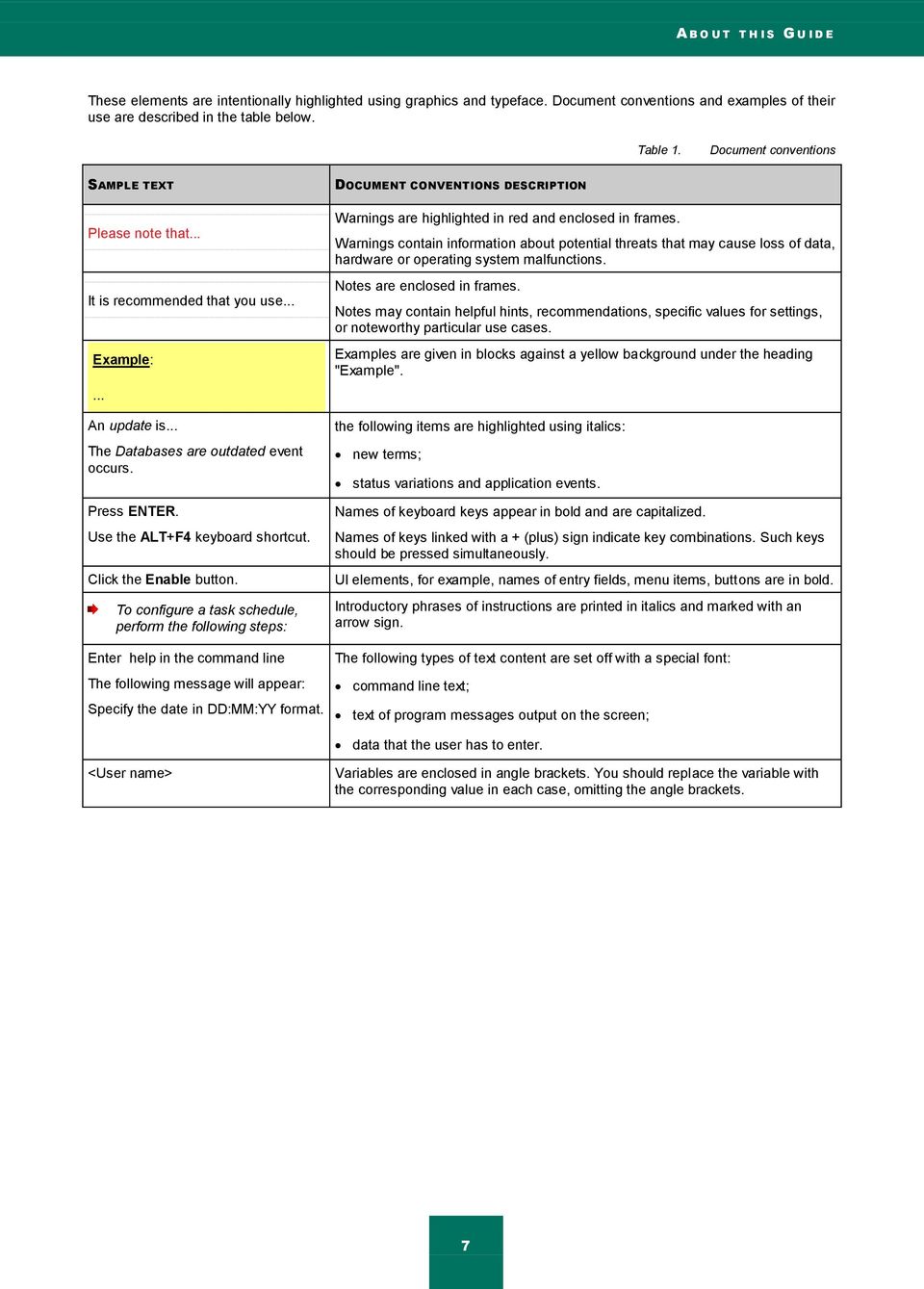
7 A B O U T T H I S G U I D E These elements are intentionally highlighted using graphics and typeface. Document conventions and examples of their use are described in the table below. Table 1. Document conventions SAMPLE TEXT Please note that... It is recommended that you use... Example:... An update is... The Databases are outdated event occurs. Press ENTER. Use the ALT+F4 keyboard shortcut. Click the Enable button. To configure a task schedule, perform the following steps: Enter help in the command line The following message will appear: Specify the date in DD:MM:YY format. DOCUMENT CONVENTIONS DESCRIPTION Warnings are highlighted in red and enclosed in frames. Warnings contain information about potential threats that may cause loss of data, hardware or operating system malfunctions. Notes are enclosed in frames. Notes may contain helpful hints, recommendations, specific values for settings, or noteworthy particular use cases. Examples are given in blocks against a yellow background under the heading "Example". the following items are highlighted using italics: new terms; status variations and application events. Names of keyboard keys appear in bold and are capitalized. Names of keys linked with a + (plus) sign indicate key combinations. Such keys should be pressed simultaneously. UI elements, for example, names of entry fields, menu items, buttons are in bold. Introductory phrases of instructions are printed in italics and marked with an arrow sign. The following types of text content are set off with a special font: command line text; text of program messages output on the screen; data that the user has to enter. <User name> Variables are enclosed in angle brackets. You should replace the variable with the corresponding value in each case, omitting the angle brackets. 7
8 SOURCES OF INFORMATION ABOUT THE APPLICATION This section describes sources of information about the application and lists websites that you can use to discuss the application's operation. You can select the most convenient source, depending on the urgency or importance of your question. IN THIS SECTION Data sources for independent searching... 8 Discussing Kaspersky Lab applications on the forum... 9 Contacting the Sales Department... 9 Contacting the Technical Writing and Localization Unit... 9 DATA SOURCES FOR INDEPENDENT SEARCHING You can use the following sources to find information about the application: Application page on the Kaspersky Lab website Application page on the Technical Support website (Knowledge Base) Online help Documentation If you cannot find a solution for your issue, we recommend that you contact Kaspersky Lab Technical Support (see section "Technical support by phone" on page 34). An Internet connection is required to use information sources on the Kaspersky Lab website. The application page on Kaspersky Lab's web site The Kaspersky Lab website features a separate page dedicated to each application. Visit to view general information about the application, its features and functions. A link to estore is available on the website. There you can purchase the application or renew your license. The application page on the Technical Support web site (in the Knowledge Base) Knowledge Base is a section on the Technical Support website that provides advice on using Kaspersky Lab applications. Knowledge Base comprises reference articles grouped by topics. 8

9 S O U R C E S O F I N F O R M A T I O N A B O U T T H E A P P L I C A T I O N On the application page in Knowledge Base ( you will find articles providing useful tips, advice, and answers to the frequently asked questions about purchasing, installing, and using the application. Articles may provide answers to questions relating not just to Kaspersky Security, but also to other Kaspersky Lab applications. They also may contain news from Technical Support. Online help The online help of the application comprises help files. Online help contains information about each window of the application: the list of settings, their descriptions and links to the tasks using these settings. Full help provides information about managing computer protection, configuring the application and solving typical user tasks. Documentation On this page of the Kaspersky Lab website ( you can download documents that will help you to install the application on computers on the corporate network, configure application settings, and find information about the basic techniques for using the application. DISCUSSING KASPERSKY LAB APPLICATIONS ON THE FORUM If your issue does not require an immediate solution, you can discuss it with Kaspersky Lab specialists and other users on our Forum ( On this forum you can browse existing threads, leave comments, and create new threads. CONTACTING THE SALES DEPARTMENT If you have any questions on how to select, purchase, or renew the application, you can contact our Sales Department specialists in one of the following ways: By calling our Headquarters in Moscow ( By sending a message with your question to [email protected]. Service is available in Russian and English. CONTACTING THE TECHNICAL WRITING AND LOCALIZATION UNIT To contact the Technical Writing and Localization Unit, send an to [email protected]. Please use "Kaspersky Help Feedback: Kaspersky Security 8.0 for Microsoft Exchange Servers" as the subject line in your message. 9
10 KASPERSKY SECURITY 8.0 FOR MICROSOFT EXCHANGE SERVERS Kaspersky Security 8.0 for Microsoft Exchange Servers is an application designed for protection of mail servers based on Microsoft Exchange Server against viruses, Trojan software and other types of threats that may be transmitted via e- mail, as well as spam and phishing. Kaspersky Security provides anti-spam protection on the level of your corporate mail server, saving your employees the trouble of deleting unwanted mail manually. Kaspersky Security protects mailboxes, public folders, and relayed mail traffic on a Microsoft Exchange Server against malware, spam, and phishing. The application scans all traffic passing through the protected Microsoft Exchange Server. Kaspersky Security can perform the following operations: Scan mail traffic, incoming and outgoing mail, as well as the messages stored on a Microsoft Exchange Server (including public folders) for malware. While scanning, the application processes the whole message and all its attached objects. Depending upon the selected settings, the application disinfects and removes detected harmful objects and provides users with complete information about them. Filter unsolicited mail (spam) from mail traffic. The Anti-Spam component scans mail traffic for spam content. In addition, Anti-Spam allows creation of black and white lists of sender addresses and supports flexible configuration of anti-spam analysis intensity. Scan mail traffic for phishing and malicious URLs. Save backup copies of objects (an object consists of message body and its attachments) and spam messages prior to their disinfection or deletion to enable subsequent restoration, if required, thus preventing the risk of data losses. Configurable filters allow the user to easily locate specific stored objects. Notify the sender, the recipient and the system administrator about messages that contain malicious objects. Manage identical settings centrally in the group of Security Servers by means of profiles. Maintain event logs, collect statistics and create regular reports on application activity. The application can create reports automatically according to a schedule or by request. Configure the application settings to match the volume and type of relayed mail traffic, in particular, define the maximum connection wait time to optimize scanning. Update the Kaspersky Security databases automatically or in manual mode. Updates can be downloaded from the FTP and HTTP servers of Kaspersky Lab, from a local / network folder that contains the latest set of updates, or from user-defined FTP and HTTP servers. Re-scan messages for the presence of new viruses according to a schedule. This task is performed as a background scan and has little effect on the mail server s performance. Perform anti-virus protection on storage level based on the list of protected storages. 10

11 H A R D W A R E A N D S O F T W A R E R E Q U I R E M E N T S HARDWARE AND SOFTWARE REQUIREMENTS For Kaspersky Security to work properly, the computer should meet the hardware and software requirements listed below. Hardware requirements The hardware requirements for installing the Security Server are identical to the hardware requirements for a protected Microsoft Exchange server. Depending upon the application settings and mode of operation, considerable disk space may be required for Backup and other service folders (when using default settings,the Backup folder can occupy up to 5120 MB). The Administration Console is installed together with the Security Server. The Administration Console can be also installed separately from the Security Server. Hardware requirements for separate installation of the Administration Console: Intel Pentium 400 MHz or faster processor (1000 MHz recommended); 256 MB free RAM; 500 MB disk space for the application files. Software requirements The Security Server can be installed under one of the following operating systems: Microsoft Windows Server 2012 R2; Microsoft Windows Server 2012; Microsoft Small Business Server 2011; Microsoft Windows Server 2008 R2 Enterprise Edition Service Pack 1; Microsoft Windows Server 2008 R2 Standard Edition Service Pack 1; Microsoft Windows Server 2008 x64 Enterprise Edition Service Pack 2; Microsoft Windows Server 2008 x64 Standard Edition Service Pack 2; Microsoft Small Business Server 2008 Standard x64; Microsoft Small Business Server 2008 Premium x64; Microsoft Essential Business Server 2008 Standard x64; Microsoft Essential Business Server 2008 Premium x64; Microsoft Windows Server 2003 x64 R2 Enterprise Edition Service Pack 2; Microsoft Windows Server 2003 x64 R2 Standard Edition Service Pack 2; Microsoft Windows Server 2003 x64 Enterprise Edition Service Pack 2; Microsoft Windows Server 2003 x64 Standard Edition Service Pack 2. 11

12 I N S T A L L A T I O N G U I D E The following software is required to install the Security Server: One of the following mail servers: Microsoft Exchange Server 2007 x64 Service Pack 3 or Microsoft Exchange Server 2010 Service Pack 1 deployed in at least one of the following roles: Hub Transport, Mailbox, or Edge Transport; Microsoft Exchange Server 2013 deployed in the Mailbox role. Microsoft.NET Framework 3.5 Service Pack 1. One of the following database management systems: Microsoft SQL Server 2012; Microsoft SQL Server 2012 Express. Microsoft SQL Server 2008 R2 Enterprise Edition; Microsoft SQL Server 2008 R2 Standard Edition; Microsoft SQL Server 2008 R2 Express Edition; Microsoft SQL Server 2008 Enterprise Edition; Microsoft SQL Server 2008 Standard Edition; Microsoft SQL Server 2008 Express Edition; Microsoft SQL Server 2005 Enterprise Edition; Microsoft SQL Server 2005 Standard Edition; Microsoft SQL Server 2005 Express Edition. Administration Console can be installed under one of the following operating systems: Microsoft Windows 8.1; Microsoft Windows Server 2012 R2; Microsoft Windows Server 2012; Microsoft Windows 8; Microsoft Windows 8 x64; Microsoft Small Business Server 2011; Microsoft Windows 7 Professional; Microsoft Windows 7 Professional x64; Microsoft Windows 7 Enterprise; Microsoft Windows 7 Enterprise x64; Microsoft Windows 7 Ultimate; 12

13 H A R D W A R E A N D S O F T W A R E R E Q U I R E M E N T S Microsoft Windows 7 Ultimate x64; Microsoft Windows Server 2008 R2 Enterprise Edition Service Pack 1; Microsoft Windows Server 2008 R2 Standard Edition Service Pack 1; Microsoft Small Business Server 2008 Standard; Microsoft Small Business Server 2008 Premium; Microsoft Essential Business Server 2008 Standard; Microsoft Essential Business Server 2008 Premium; Microsoft Windows Server 2008 x64 Enterprise Edition Service Pack 2; Microsoft Windows Server 2008 x64 Standard Edition Service Pack 2; Microsoft Windows Server 2008 Enterprise Edition Service Pack 2; Microsoft Windows Server 2008 Standard Edition Service Pack 2; Microsoft Windows Vista ; Microsoft Windows Vista х64; Microsoft Windows Server 2003 x64 R2 Standard Edition; Microsoft Windows Server 2003 x64 R2 Enterprise Edition; Microsoft Windows Server 2003 R2 Standard Edition; Microsoft Windows Server 2003 R2 Enterprise Edition; Microsoft Windows Server 2003 x64 Service Pack 2; Microsoft Windows Server 2003 Service Pack 2; Microsoft Windows XP Service Pack 3; Microsoft Windows XP x64 Service Pack 2. Installation of the Administration Console requires the following software: Microsoft Management Console 3.0; Microsoft.NET Framework 3.5 Service Pack 1. 13
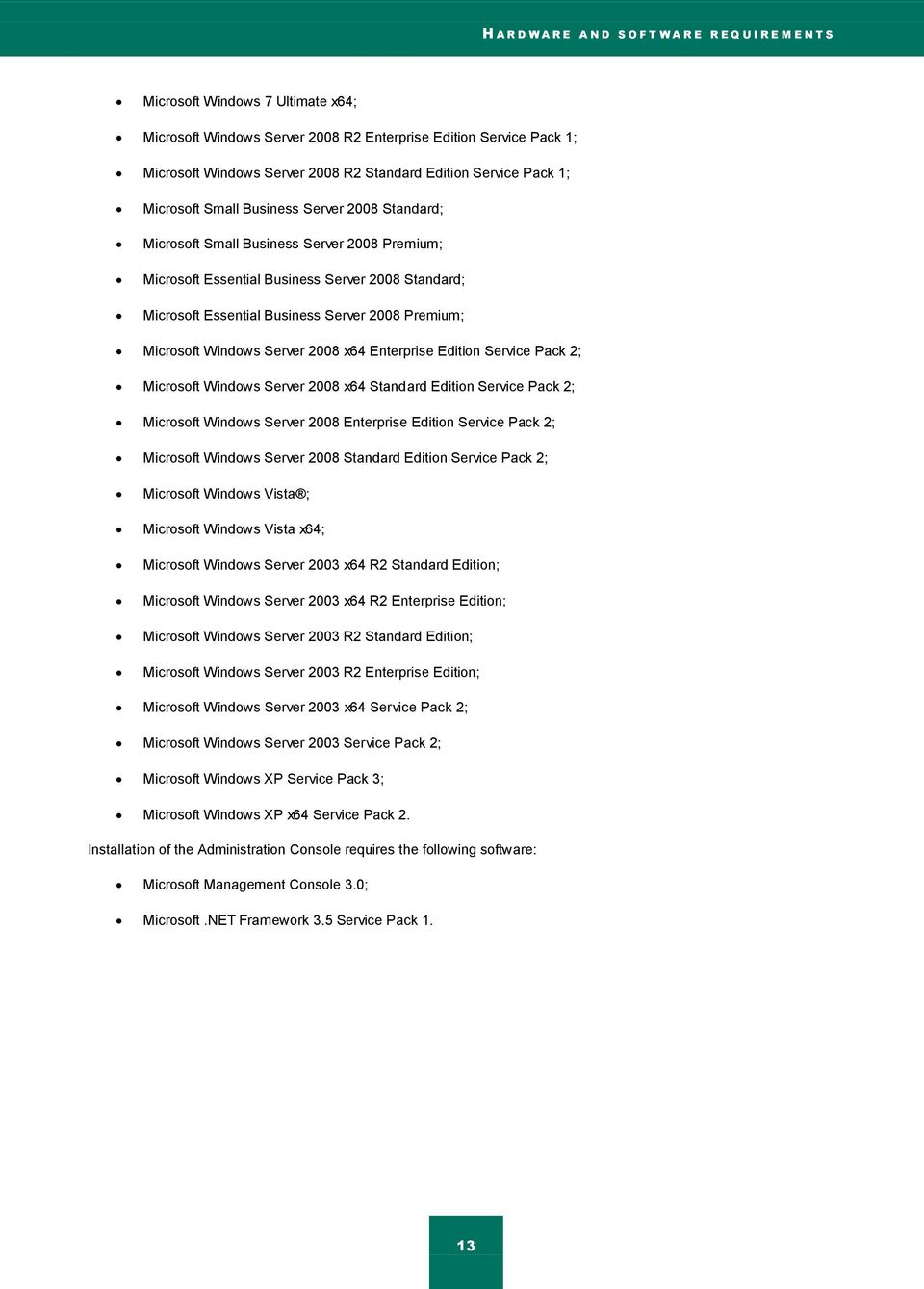
14 APPLICATION ARCHITECTURE This section describes Kaspersky Security components and the logic of their interaction. IN THIS SECTION Application components and their purpose Security Server modules Backup and statistics database APPLICATION COMPONENTS AND THEIR PURPOSE Kaspersky Security consists of two basic components: The Security Server is installed on the Microsoft Exchange server and performs anti-spam filtering of mail traffic and provides anti-virus protection. The Security Server intercepts messages arriving on the Microsoft Exchange Server and uses its internal Anti-Virus and Anti-Spam modules to perform anti-virus scanning and anti-spam filtering of such messages. If infection or spam is detected in the incoming message, the application processes it according to the Anti-Virus and Anti-Spam settings. The Administration Console is a dedicated isolated snap-in integrated into MMC 3.0. You can use the Administration Console to create and edit the list of protected Microsoft Exchange servers and manage Security Servers. The Administration Console can be installed either on a Microsoft Exchange server together with the Security Server or on a remote computer (see section "Deploying the Administration Console separately from the Security Server" on page 17). SECURITY SERVER MODULES Security Server consists of the following modules: Interceptor. Intercepts messages arriving on the Microsoft Exchange server and forwards them to Anti- Virus and Anti-Spam. This module is integrated into Microsoft Exchange processes using either VSAPI 2.6 or Transport Agents technology depending on the role in which the Microsoft Exchange server has been deployed. When Kaspersky Security is installed, its transport agents are registered on the Microsoft Exchange server with the highest priority. Do not change the priority of Kaspersky Security transport agents. Doing so may reduce the effectiveness of protection. Anti-Virus. Scans messages for viruses and other malicious objects. This module comprises an anti-virus kernel and a storage for temporary objects, which is used for scanning objects in RAM. The storage is located in the working folder Store. The Store folder is created in the application data storage folder (by default: <application setup folder>/data). You have to exclude it from scanning by anti-virus applications installed on the corporate network. Otherwise, Kaspersky Security may operate incorrectly. Anti-Spam. Filters out unsolicited mail. After intercepting a message, Interceptor relays it for processing by Anti-Spam. Copies of deleted messages can be stored in Backup. 14
15 A P P L I C A T I O N A R C H I T E C T U R E Internal Application Management and Integrity Control Module. It is a Microsoft Windows service called Kaspersky Security 8.0 for Microsoft Exchange Servers. The module is started automatically in the following cases: When the first message passes through the Microsoft Exchange server; When the Administration Console attempts to connect to the Security Server, and on completion of the Application Configuration Wizard. This service does not depend on the state of the Microsoft Exchange Server (whether it is started or stopped), so the application can be configured when the Microsoft Exchange Server is stopped. The Internal Application Management and Integrity Control Module should be running at all times. Do not end the Kaspersky Security 8.0 for Microsoft Exchange Servers service manually, as this will disable the Security Server and stop the scanning process. BACKUP AND STATISTICS DATABASE The application stores Backup data and application statistics in a special database deployed on a Microsoft SQL Server, the so-called the Backup and statistics database (hereinafter also database). On being installed, the application can create a new database or use an existing database. When the application is removed, the database can be saved on an SQL server for future use. Database settings The Backup and statistics database settings are stored in the following configuration file: <application setup folder>/configuration/backenddatabaseconfiguration.config It is an editable XML file. It contains the following settings: SqlServerName : name of the SQL server. It is specified by the application automatically as <SQL server name>\<copy> based on information provided by the administration during installation of the application. DatabaseName name of the main database. It is specified by the application automatically based on information provided by the administration during installation of the application. FailoverPartner: settings (SQL server and instance) of the database mirror. They are specified by the application automatically as <SQL server name>\<copy>. We strongly advise against changing the names of the SQL server and primary database during operation of the application. The application should be stopped before such changes are made. Otherwise, the Backup and statistics database data will be partly lost. Changes made to the configuration file become effective within one minute. Database mirroring The application supports the Database Mirroring technology. If this technology is used in the configuration of your SQL server, the application will use it automatically. In other words, if the main Backup and statistics database fails or is disabled, the application automatically switched to using a database mirror. The application automatically switches back to the primary database as soon as it has been restored. 15

16 COMMON APPLICATION DEPLOYMENT MODELS This section describes the Microsoft Exchange mail infrastructure configurations in which Kaspersky Security can be deployed. IN THIS SECTION Microsoft Exchange Server roles and corresponding protection configurations Basic application deployment models Deploying the Administration Console separately from the Security Server Application deployment in a server cluster Application deployment in a Microsoft Exchange database availability group MICROSOFT EXCHANGE SERVER ROLES AND CORRESPONDING PROTECTION CONFIGURATIONS The selection of application modules that can be installed depends on the role in which the Microsoft Exchange Server has been deployed. Successful installation of Kaspersky Security requires that the protected Microsoft Exchange Server be deployed in at least one of the following roles: On Microsoft Exchange 2007 or 2010: Mailbox Server. Hub Transport. Edge Transport. On Microsoft Exchange 2013: Mailbox Server. Client Access Server (CAS). If Microsoft Exchange Server 2007 or 2010 is deployed as a Mailbox Server, Kaspersky Security interacts with it using the VSAPI 2.6 standard. In other cases, the Transport Agents technology is used for integration with the Mic rosoft Exchange Server. Please note that in the Hub Transport role, messages are first scanned by the application and then processed by Microsoft Exchange Transport Agents. In the Edge Transport role, the procedure is reversed messages are first processed by Microsoft Exchange Transport Agents and then by the application. If you install the application on a Microsoft Exchange 2013 server, the Anti-Virus module cannot be installed for the Mailbox Server role, and the Protection for the Mailbox role tab is missing from the application interface, while the Protection for the Hub Transport role tab is available (for details on the application interface, see Administrator's Guide for Kaspersky Security 8.0 for Microsoft Exchange Servers). 16

17 C O M M O N A P P L I C A T I O N D E P L O Y M E N T M O D E L S BASIC APPLICATION DEPLOYMENT MODELS You can choose one of the four basic application deployment models depending on your corporate server architecture: The Security Server is installed on the computer hosting the Microsoft Exchange server. The Administration Console is installed to the same host. The Security Server is installed on the computer hosting the Microsoft Exchange server. The Administration Console can be installed separately on any computer on the corporate network for remote management of the Security Server (see section "Deploying the Administration Console separately from the Security Server" on page 17). The Security Server is installed in the same server cluster where the Microsoft Exchange server is deployed (see section "Application deployment in a server cluster" on page 18). In this case, the Security Server and Administration Console should be installed together on each node of the cluster. The Security Server is installed in the Database Availability Group (hereinafter also "DAG") (see section "Application deployment in a Microsoft Exchange database availability group" on page 18). In this case, the Security Server and Administration Console should be installed together on each server belonging to the DAG. DEPLOYING THE ADMINISTRATION CONSOLE SEPARATELY FROM THE SECURITY SERVER If necessary, you can install the Administration Console separately from the Security Server on any computer on the corporate network for remote management of the Security Server. If several administrators are working jointly, the Administration Console can be installed on each administrator's computer. To connect the Administration Console to the Security Server deployed on a remote server, add the Kaspersky Security 8.0 for Microsoft Exchange Servers service to the trusted applications list of the remote computer's firewall, or allow RPC connections. The administrator should have the following privileges in order for the Administration Console to work properly with the remote Security Servers and profiles: Local Administrator privileges on the remote Security Servers to which the Administration Console is connected; One of the following sets of rights: Rights to write the configuration to the application thread in the Active Directory service CN=KasperskyLab,CN=Services,CN=Configuration,DC=<domain component>,dc=<domain component> and rights to read the Microsoft Exchange configuration thread; Example: In the case of the name.domain.local domain in Active Directory, the configuration will be written to the following thread in the directory service: CN=KasperskyLab,CN=Services,CN=Configuration,DC=name,DC=domain,DC=local Rights of a member of the Exchange Organization Administrators group (for Microsoft Exchange Server 2007); Rights of a member of the Hygiene Management group (for Microsoft Exchange Server 2010); Rights of a member of the Organization Management group (for Microsoft Exchange Server 2013); Privileges to write to the application folder on the computer hosting the Administration Console. 17
18 I N S T A L L A T I O N G U I D E APPLICATION DEPLOYMENT IN A SERVER CLUSTER Kaspersky Security supports the following types of server clusters: Single copy cluster (SCC) Cluster continuous replication (CCR) During setup the application recognizes a server cluster automatically. The order in which the application is installed to different cluster nodes does not matter. The specifics of Kaspersky Security installation on a server cluster are as follows: Before installation of Kaspersky Security is completed on all cluster nodes, do not move the clustered mailbox servers (CMS) between different cluster nodes. Use a single database for all nodes of the cluster. To do so, specify a single database during Kaspersky Security installation on all nodes of the cluster. The account used to perform the installation procedure must be authorized to write to the Active Directory configuration section. If a firewall is enabled on the cluster, the Kaspersky Security 8.0 for Microsoft Exchange Servers service must be added to the list of trusted applications on each node of the cluster. This is necessary to ensure the interaction between Kaspersky Security and Backup. After installation to a cluster of servers, most of the application settings are stored in the Active Directory, and all clus ter nodes use those parameters. Kaspersky Security automatically detects active cluster nodes and applies the Active Directory settings to them. However, the update settings that apply to the physical server have to be configured manually for each node of the cluster. Using profiles for configuring servers in a cluster has the following particularities: You can add cluster servers to a profile only all at once. You can remove cluster servers from a profile only all at once. The specifics of Kaspersky Security removal from a server cluster are as follows: Do not move clustered mailbox servers (CMS) between nodes before application removal is completed. When the application is removed from the active node of a cluster, all services of the Microsoft Exchange data bank and all instances of the Microsoft Exchange database dependent on the application are stopped. Once the removal process is complete, the original state of these cluster resources is restored automatically. After application removal the cluster configuration is stored in Active Directory and can be used to reinstall the application. APPLICATION DEPLOYMENT IN A MICROSOFT EXCHANGE DATABASE AVAILABILITY GROUP Kaspersky Security can be installed on servers belonging to a Microsoft Exchange Database Availability Group (DAG). During installation, the application automatically recognizes the database availability group. The order in which the application is installed on nodes within the DAG is irrelevant. The specifics of Kaspersky Security installation in the DAG are as follows: 18
19 C O M M O N A P P L I C A T I O N D E P L O Y M E N T M O D E L S You should use a single database for all DAG nodes. This requires specifying a single database during Kaspersky Security installation on all nodes of the DAG. The account used to perform the installation procedure must be authorized to write to the Active Directory configuration section. If a firewall is enabled on the DAG servers, the Kaspersky Security 8.0 for Microsoft Exchange Servers service must be added to the list of trusted applications on each server within the DAG. This is necessary to ensure the interaction between Kaspersky Security and Backup. While the previous version of the application is being updated on all servers that are part of the DAG, it is strongly recommended to refrain from connecting to these servers using the Administration Console or editing application settings. Doing so may cause the update to end in an error, which may result in application malfunctions. If the connection needs to be established during an update, before connecting make sure that the Security Server version matches the version of the Administration Console used for establishing the connection. After installation to a DAG, most of the application settings are stored in the Active Directory, and all DAG servers use those parameters. Kaspersky Security automatically detects active servers and applies the Active Directory settings to them. However, individual settings of the Microsoft Exchange Server have to be configured manually for each DAG server. Examples of individual settings of the Microsoft Exchange Server include: anti-virus protection settings for the Hub Transport role, anti-spam scan settings, Backup settings, settings of the Anti-Spam and Anti-Virus reports for the Hub Transport role, and Anti-Spam database update settings. Using profiles to configure DAG servers has the following particularities: You can add DAG servers to a profile only all at once. When a DAG is added to a profile, all servers and all their roles (including the Hub Transport role) are added to this profile. You can remove DAG servers from a profile only all at once. After removing Kaspersky Security from DAG servers, the configuration is stored in Active Directory and can be used to reinstall the application. 19
20 PREPARING FOR APPLICATION INSTALLATION This section describes the steps to be taken as you prepare to install the application. Before starting the installation of Kaspersky Security, make sure that the following components are available on the computer on which the application is being installed:.net Framework 3.5 SP1. If this component is missing, you can download and install it by clicking the Download and install.net Framework 3.5 SP1 link in the welcome window of the Kaspersky Security setup package. The computer must be restarted after.net Framework 3.5 SP1 installation. If you continue setup without restarting, it may cause problems in the operation of Kaspersky Security. Microsoft Management Console 3.0 Microsoft Management Console 3.0 (MMC 3.0) is a part of the operating system in Microsoft Windows Server 2003 R2 and later versions. To install the application under earlier versions of Microsoft Windows Server, you need to upgrade MMC to version 3.0. You can do this in the welcome window of the setup package by clicking the Download and install MMC 3.0 link. Make the following preparations before installing Kaspersky Security: Grant the necessary privileges to the account under which the application will be installed Grant the necessary privileges to the account under which the Kaspersky Security service will be launched Granting privileges to the account under which the application will be installed The account under which the application is installed requires the following privileges: Local Administrator privileges on those Microsoft Exchange servers where the application will be installed Domain Admin privileges for writing the application configuration to the Active Directory service and reading the configuration base of the Microsoft Exchange server The dbcreator role on the SQL server for creating a database. If the corporate security rules at your company prevent you from granting domain administrator privileges to the account under which the application is installed, this will prevent the application configuration from being written automatically to the Active Directory service, and the installation will return an error. If this is the case, prior to installing Kaspersky Security you have to manually create the necessary containers of the Active Directory service for writing the application configuration and grant them the necessary access privileges. To create containers of the Active Directory service and grant them the necessary access privileges: 1. Grant the account under which the application is being installed the privileges to read the Active Directory thread: CN=Microsoft Exchange,CN=Services,CN=Configuration,DC=domain,DC=domain 2. Create a container in this thread: CN=KasperskyLab,CN=Services,CN=Configuration,DC=domain,DC=domain 3. Open the container properties and configure full access to the container for the following users: Exchange Servers; 20
21 P R E P A R I N G F O R A P P L I C A T I O N I N S T A L L A T I O N <Account for installing the application>. 4. Configure full access to the container for the following objects: for groups: Exchange Organization Administrators (for Microsoft Exchange 2007); Hygiene Management (for Microsoft Exchange 2010 and 2013); or for all users under whose accounts the Administration Console should be started. You can then start installation of the application. When the installation process is completed, application configuration files are created in the container. Granting privileges to the account under which the Kaspersky Security 8.0 for Microsoft Exchange Servers service will be launched The following privileges are required for the account under which the Kaspersky Security 8.0 for Microsoft Exchange Servers service is launched: On Microsoft Exchange servers where the application is installed: The "Log on as a service" privilege Privileges to write to the application folder at C:\Program Files (x86)\kaspersky Lab\Kaspersky Security 8.0 for Microsoft Exchange Servers Privileges to read and write to the following registry branches: HKLM\System\CurrentControlSet\Services\MSExchangeIS; HKLM\SOFTWARE\Wow6432Node\Kaspersky Lab\Kaspersky Security for Microsoft Exchange Server. In Active Directory: Privileges to read and write to the following branch: AD CN=KasperskyLab,CN=Services,CN=Configuration,DC=<domain component> component>,dc=<domain Example: In the case of the name.domain.local domain in Active Directory, the configuration will be written to the following thread in the directory service: CN=KasperskyLab,CN=Services,CN=Configuration,DC=name,DC=domain,DC=local Rights to read the configuration database of Microsoft Exchange server from Active Directory. Depending on the installed version of Microsoft Exchange, you should add the user to the following group: Exchange Organization Administrators (for Microsoft Exchange 2007); Hygiene Management (for Microsoft Exchange 2010); Organization Management (for Microsoft Exchange 2013). After the user has been added to the group,kaspersky Security 8.0 for Microsoft Exchange Servers service must be restarted on all the computers where it has been launched on behalf of that user. This is necessary to apply the changes made to the domain groups. 21
22 I N S T A L L A T I O N G U I D E On the SQL server: the db_owner role with respect to the application database. Creating an SQL database To operate, Kaspersky Security requires an instance of Microsoft SQL Server 2005 / 2008 / 2008 R2 (Standard, Express or Enterprise) / 2012 / 2012 Express installed on one of the network computers that hosts the database of Kaspersky Security. It is allowed to install the SQL server on the same computer with the application. Either a database created during a previous installation of the application or a newly-created database can be used with Kaspersky Security. You can choose the most convenient database creation option: Automatically The database is created automatically during installation of the application. The account under which installation is performed must have local access rights for the computer where Kaspersky Security is being installed and administrator privileges on the SQL server. If the SQL server is running on a domain controller, you must be a member of the Enterprise Admins and / or Domain Admins group. Manually You have to create the database manually before starting installation of the application. To be able to create the database, the account must have all access rights indicated in the table of privileges (see page 27). You can also use a database created during a previous installation of Kaspersky Security. In this case, no additional actions are required. 22
23 UPGRADING FROM AN EARLIER VERSION Kaspersky Security supports the upgrade of the previous version 8.0 Maintenance Pack 1 Critical Fix 1 to the current version of the application. Upgrading from earlier versions is not supported. It is recommended to update the application on servers running within a DAG configuration in a sequence as soon as possible. It is recommended to update the application in a sequence on all Security Servers and Administration Console deployed on the corporate network. If the application update has failed on any Security Server, you will be able to connect to this Security Server only using the Administration Console of the previous version. SQL server hosting the application database must remain accessible during the update procedure. Otherwise the update will fail. Parameter values and data of the previous application version will be transferred to the new version as follows: The license for the previous version of the application remains effective for the new version. The end date of the license validity period remains unchanged. Application settings configured in the previous version will be applied without changes to the corresponding settings in the new version. The KSN and Reputation Filtering services are disabled. If you were using these services in the previous version of the application, you have to re-enable them manually by selecting the relevant check boxes (for details see the Administrator's Guide to Kaspersky Security 8.0 for Microsoft Exchange Servers). The value of the maximum size of objects scanned by the Anti-Spam component is set as follows: The value of this setting remains without change if the administrator had configured the value for this setting in the previous version of the application. This setting has the default value of 1,536 KB (1.5 MB), if the administrator had not configured the value of this setting in the previous version of the application. This setting has a value of 20,480 KB if its value in the previous version of the application exceeded 20,480 KB. Database structure will also be updated during the application update. Backup and statistical data will be preserved. Prior to updating, exit the Administration Console if it is started. To update Kaspersky Security to the current version, perform the following steps: 1. Run the setup_ru.exe file included in the installation package on a computer with the installed version 8.0 Maintenance Pack 1 Critical Fix Click the link Kaspersky Security 8.0 for Microsoft Exchange Servers to initiate the application update procedure. 3. In the welcome screen of the application Setup Wizard that opens, click Install. The application Setup Wizard performs the update automatically. 4. When the update process finishes, click Finish to exit the application Setup Wizard. All application components and modules installed on the computer are updated. 23
24 INSTALLING THE APPLICATION Kaspersky Security comprises two primary components: Security Server and Administration Console. The Security Server is always installed together with the Administration Console. The Administration Console can be installed separately on another computer for remote management of the Security Server. You can choose one of the four component deployment models depending on your corporate server architecture: The Security Server is installed on the computer hosting the Microsoft Exchange server. The Administration Console is installed to the same host. The Security Server is installed on the computer hosting the Microsoft Exchange server. The Administration Console can be installed on any network computer within your corporate network for remote management of the Security Server. The Security Server is installed in the same server cluster where the Microsoft Exchange server is deployed. In this case, the Security Server and Administration Console should be installed together on each node of the cluster. The Security Server can be installed in a Microsoft Exchange database availability group (DAG). In this case, the Security Server and Administration Console should be installed together on each server belonging to the DAG. During Kaspersky Security installation, services of MSExchangeTransport and MSExchangeIS will need to be restarted. Services will be restarted automatically without additional prompts. Kaspersky Security is installed using a setup wizard that guides the user through every step of the setup process. The Back and Next buttons can be used to navigate between the screens of the Setup Wizard. The Cancel button allows you to exit the setup wizard. To start installation of the application, run the setup.exe file from the application installation package. This opens the welcome window of the install package. IN THIS SECTION Step 1. Checking the availability of the required components and installing them Step 2. Viewing information about the start of the installation and reviewing the License Agreement Step 3. Selecting the installation type Step 4. Selecting application components and modules Step 5. Configuring the connection of the application to the SQL database Step 6. Selecting an account for launching the Kaspersky Security service Step 7. Completing installation
25 I N S T A L L I N G T H E A P P L I C A T I O N STEP 1. CHECKING THE AVAILABILITY OF THE REQUIRED COMPONENTS AND INSTALLING THEM The welcome screen of the installation package checks if the required components are installed. If the components are not installed, you can do one of the following: Download and install the.net Framework 3.5 SP1 component by clicking the Download and install.net Framework 3.5 SP1 link (if the component is not installed already). The computer must be restarted after.net Framework 3.5 SP1 installation. If you continue setup without restarting, it may cause problems in the operation of Kaspersky Security. Download and install the required component Microsoft Management Console 3.0 by clicking the Download and install MMC 3.0 link (if the component is not installed). Microsoft Management Console 3.0 (MMC 3.0) is a part of the operating system in Microsoft Windows Server 2003 R2 and later versions. To install the application on earlier versions of Microsoft Windows Server, update the MMC to version 3.0 by clicking the Download and install MMC 3.0 link. Click the Kaspersky Security 8.0 for Microsoft Exchange Servers link to start the setup wizard. This opens the welcome window of the install wizard. STEP 2. VIEWING INFORMATION ABOUT THE START OF THE INSTALLATION AND REVIEWING THE LICENSE AGREEMENT In the welcome screen of the setup wizard, view information about the start of Kaspersky Security installation on your computer, and click the Next button to proceed to the window with the License Agreement. License Agreement is an agreement between the application user and Kaspersky Lab. Select the I accept the terms of the License Agreement check box, thereby confirming that you have read the License Agreement and accept its terms and conditions. Kaspersky Security cannot be installed if you do not accept the terms and conditions of the License Agreement. STEP 3. SELECTING THE INSTALLATION TYPE At this step, select the type of application installation: Typical. In this case, the setup wizard installs all of the available application components. During installation, the setup wizard uses the default paths to the setup folder and data folders. If you choose this type of installation, the Setup Wizard proceeds to the Creating database window (see section "Step 5. Configuring the connection of the application to the SQL database (see page 27). Custom. In this case, at the next step of the Setup Wizard you can select the application components to be installed, and the destination folder for application installation, and data folders. If you choose this type of installation, the Setup Wizard proceeds to the Custom installation window (see section "Step 4. Selecting application components and modules" on page 26). 25
26 I N S T A L L A T I O N G U I D E STEP 4. SELECTING APPLICATION COMPONENTS AND MODULES At this step, you have to select the application components and modules to be installed, and specify the paths to the setup folder and data folders. The set of components and modules available for installation differs depending on whether Microsoft Exchange server is installed on the computer and its role: Mailbox, Hub Transport, Edge Transport. If you are installing the application on a Microsoft Exchange 2007 or 2010 server that is deployed in both Mailbox and Hub Transport roles, the following application components and modules are available for selection: Administration Console; Anti-Spam; Anti-Virus for the Mailbox role; Anti-Virus for the Hub Transport and Edge Transport roles. If you are installing the application on a Microsoft Exchange 2007 or 2010 server that is deployed in the Hub Transport or Edge Transport role only, the following application components and modules are available for selection: Administration Console; Anti-Spam; Anti-Virus for the Hub Transport and Edge Transport roles. If you are installing the application on a Microsoft Exchange 2007 or 2010 server that is deployed in the Mailbox role only, the following application components and modules are available for selection: Administration Console; Anti-Virus for the Mailbox role. If you install the application on a Microsoft Exchange 2013 server, the following components and modules are available for selection: Administration Console; Anti-Spam; Anti-Virus for the Hub Transport role. CAS Interceptor. This component is displayed only if the Microsoft Exchange 2013 server is deployed in the Client Access Server (CAS) role alone. The CAS Interceptor component is designed to improve spam detection. It is recommended for installation on all Microsoft Exchange 2013 servers deployed in the Client Access Server (CAS) role alone. This component is installed automatically together with the Anti-Spam component on Microsoft Exchange 2013 servers deployed in the Mailbox role (if you choose to install Anti-Spam). In all other cases, only the Administration Console is available for installation. Select the application components and modules that you want to install. To cancel your selection of components and return to the default selection, click the Reset button. 26
27 I N S T A L L I N G T H E A P P L I C A T I O N To view information about the availability of free disk space needed for the installation of the selected components on the local drives, click the Disk usage button. The path to the default installation folder is displayed in the lower part of the window in the Destination folder field. If necessary, specify a different destination folder by clicking the Browse button. The Data folder field below shows the path to the default folder containing the application databases and objects that the application moves to Backup. If necessary, specify a different data folder by clicking the Browse button. STEP 5. CONFIGURING THE CONNECTION OF THE APPLICATION TO THE SQL DATABASE At this step, you have to configure the settings of the application connection to the SQL database (also referred to as database) used to store configuration settings of the application and Backup data. You can create a new SQL database or use an existing database. If the connection is to a remote SQL server, make sure that the remote SQL server is enabled to support TCP/IP as a client protocol. Configure the settings of the connection to the database: In the Name of SQL server field specify the name (or IP address) of the computer where SQL server is installed, and the SQL server instance, for example, MYCOMPUTER\SQLEXPRESS. To select an SQL server in the network segment where the computer is located, click the Browse button opposite the Name of SQL server field. The relevant SQL server may be missing from the list of SQL servers if the service of the SQL server browser is not running on the computer hosting the SQL server. In the Database name field, specify the name of the SQL database where the application will store the Backup data, statistical information and its configuration information. If the SQL server contains no database with the specified name, it will be created automatically by the setup wizard. To be able to create a database on the SQL server, the account under which the installation is performed must have the dbcreator role. This account is used only to create the database during the operation of the Setup Wizard. It is not used when installation of Kaspersky Security is complete. If you plan to use a centralized Backup and centralized storage of statistical data for several Security Servers, the same SQL server and database names must be specified for all the Security Servers. In this case, when installing the application on the second and subsequent Security Servers, specify the name of the database created during application installation on the first Security Server. If you do not intend to use centralized storages, you can specify your own SQL database for each Security Server. If you deploy Kaspersky Security on a cluster or Microsoft Exchange DAG, using a common SQL database for all Security Servers is strongly recommended. Select an account under which you want to create a database or connect to a database on an SQL server: Active account. In this case, the database is created or connection to a database is performed under the active account. 27
28 I N S T A L L A T I O N G U I D E Other account. In this case, the database is created or connection to a database is performed under a different account. You must specify the account name and password. You can also select an account by clicking the Browse button. For operations with an existing database the selected account must have the following privileges: Table 2. The privileges for connection to database BASE PROTECTED ENTITY PERMISSION DESCRIPTION DATABASE CREATE TABLE The right to add tables in the selected database DATABASE CREATE XML SCHEMA COLLECTION The right to create collections of XML schemas in the selected database SCHEMA CONTROL The right to control the dbo schema in the selected database If a new database is created, the application automatically sets these permissions for the selected account. STEP 6. SELECTING AN ACCOUNT FOR LAUNCHING THE KASPERSKY SECURITY SERVICE At this step, specify the account to be used for launching the application service and connecting Kaspersky Security to the SQL server: Local System account. In this case the application service will be started and the connection to the SQL server established under the local system account. Other account. In this case the application service will be started and the connection to the SQL server established under a different account. You must specify the account name and password. You can also select an account by clicking the Browse button. The specified account must have the necessary privileges (see section "Preparing to install" on page 20). STEP 7. COMPLETING INSTALLATION At this step, the application files are copied to the computer, the components are registered in the system, and temporary files are removed from Backup. Click the Install button in the Setup Wizard window. The Setup Wizard starts copying the application files to the computer, registering the components in the system, creating a database on the SQL server (if you chose to create a new database), and restarting the MSExchangeTransport and MSExchangeIS services. MSExchangeTransport and MSExchangeIS services will be restarted automatically without additional prompts. Once the files are copied and the components are registered in the system, the Setup Wizard displays a notification about the completed application installation. To finish the installation, click the Next button. The application configuration wizard starts automatically (see page 29). The application configuration wizard makes it possible to perform initial configuration of application settings. 28
29 G E T T I N G S T A R T E D GETTING STARTED The Application Configuration Wizard lets you configure the minimum range of settings needed to build a system for centralized management of server protection. The Application Configuration Wizard helps to: Install a key Configure the settings of server protection by the Anti-Virus and Anti-Spam components Enable the use of Kaspersky Security Network (KSN) Configure the proxy server Select the notification method The Application Configuration Wizard starts automatically when installation is completed. It provides instructions to be followed at every step. The Back and Next buttons can be used to navigate between the Application Configuration Wizard screens. You can exit the Application Configuration Wizard at any step by closing its window. You can skip configuring the application and exit the Application Configuration Wizard by clicking the Cancel button in the welcome window of the Application Configuration Wizard. You can configure the application in its Administration Console after launching the application. IN THIS SECTION Step 1. Installing a key Step 2. Configuring server protection Step 3. Enabling the KSN service Step 4. Configuring the proxy server settings Step 5. Configuring notification settings Step 6. Completing the configuration STEP 1. INSTALLING A KEY At this step, you can add a key for Kaspersky Security. You can also skip this step and install a key later, after the Application Configuration Wizard finishes and the application launches. If no key has been added, Kaspersky Security works in "Administration only" mode without protecting the computer. To use Kaspersky Security in full functionality mode, you must add a key. If you deploy Kaspersky Security on a Microsoft Exchange DAG, it suffices to install the key just once during application installation on any of the servers within this DAG. Once this is done, the Application Configuration Wizard will automatically detect the installed key during application installation on other servers within this DAG. In this case, you do not have to add keys for other servers. Press the Add button. In the displayed File name dialog, specify the path to the key file (a file with the *.key extension) and click the Open button. 29
30 I N S T A L L A T I O N G U I D E They key is installed as the active key. The active key lets you use Kaspersky Security for the duration of the license validity period on the terms of the End User License Agreement. STEP 2. CONFIGURING SERVER PROTECTION At this step, you can configure the settings of server protection against viruses and spam. The Anti-Virus and Anti-Spam modules start working as soon as you launch the application. Anti-Virus and Anti-Spam protection is enabled by default. The Enforced Anti-Spam Updates Service and automatic database updates are also used by default The Enforced Anti-Spam Updates Service requires the computer hosting the Security Server to have a constant Internet connection. If you do not want Anti-Virus and Anti-Spam to start working as soon as the application is launched, clear the Enable Anti-Virus protection and Enable Anti-Spam protection check boxes. You can enable protection later using the Administration Console. To disable the Enforced Anti-Spam Updates Service, select the Enable Enforced Anti-Spam Updates Service check box. To disable automatic updates of Anti-Spam and Anti-Virus databases from Kaspersky Lab servers as soon as the application is launched, clear the Enable automatic database updating check box. STEP 3. ENABLING THE KSN SERVICE At this step, you can enable the use of the KSN (Kaspersky Security Network) service for spam processing. This window appears only if you have selected the Anti-Spam component for installation (see section "Step 4. Selecting application components and modules" on page 26). Kaspersky Security Network (KSN) is an infrastructure of online services providing access to Kaspersky Lab's online knowledge base with information about the reputation of files, online resources, and software. Data from Kaspersky Security Network ensures faster response by Kaspersky Security to new threats, improves the performance of some protection components, and reduces the risk of false positives (for details see Administrator's Guide for Kaspersky Security 8.0 for Microsoft Exchange Servers). Access to the KSN service is regulated by a special KSN agreement. You can review the full text of the KSN agreement in a separate window by clicking the Full KSN agreement button. To use KSN for spam analysis, select the I accept the KSN agreement and I want to use KSN check box, thereby confirming that you have read the KSN agreement and accept its terms. STEP 4. CONFIGURING THE PROXY SERVER SETTINGS At this step, you can configure proxy server settings. The application uses these settings to connect to Kaspersky Lab update servers while updating application databases and to connect to Kaspersky Security Network. If you want the application to connect to Kaspersky Lab servers via a proxy server, select the Use proxy server check box and specify the settings of the connection to the proxy server in the relevant fields: proxy server address and port. By default, port 8080 is used. To use authentication on the proxy server you have specified, select the Use authentication check box and enter the relevant information about the user account selected for that purpose in the Account and Password fields. Click the button to select one of the existing accounts. 30
31 G E T T I N G S T A R T E D STEP 5. CONFIGURING NOTIFICATION SETTINGS At this step, you can configure the notifications sent by . Notifications keep you informed about all Kaspersky Security events. To configure the settings of notifications, in the Exchange web service address field specify the address of the web service used for sending s via the Microsoft Exchange Server (by default, Microsoft Exchange Server uses the following address: Specify any account registered on the Microsoft Exchange Server in the Account field manually by clicking the Browse button, and enter the password of the selected account in the Password field. Enter in the Administrator address field the destination mail address, for example, your . Click the Test button to send a test message. If the test message arrives in the specified mailbox, it means that delivery of notifications is configured properly. STEP 6. COMPLETING THE CONFIGURATION At this step, the configured application settings are saved and the configuration process finishes. By default, the Administration Console launches automatically after the configuration has been completed. To disable the automatic launch of the Administration Console, clear the Start Administration Console after Application Configuration Wizard completion check box. Click the Finish button to exit the Application Configuration Wizard. 31
32 RESTORING THE APPLICATION If the application encounters a failure while running (for example, if its executable files get damaged), you can restore the application using the Setup Wizard. To restore Kaspersky Security: 1. Run the setup.exe file from the application installation package. This opens the welcome window of the install package. 2. Click the Kaspersky Security 8.0 for Microsoft Exchange Servers link to open the welcome screen of the Setup Wizard and click Next. 3. In the Change, Restore or Remove the application window click the Restore button. 4. In the Restore window, click the Repair button. This opens the Restore application window with information about restoring the application. 5. After the application has been restored, the Setup Wizard displays a notification about the completed application restoration. To finish restoring the application, click the Finish button. During Kaspersky Security removal, services of MSExchangeTransport and MSExchangeIS will need a restart. Services will be restarted automatically without additional prompts. Restoration of the application will not be possible if its configuration files are damaged. Removing and reinstalling the application is recommended in that case. 32
33 R E M O V I N G T H E A P P L I C A T I O N REMOVING THE APPLICATION You can remove the application using the Setup Wizard or standard Microsoft Windows installation and removal tools. If the application is installed on several servers, it has to be removed from each server. To remove Kaspersky Security from a computer, perform the following steps: 1. Run the setup.exe file from the application installation package. This opens the welcome window of the install package. 2. Click the Kaspersky Security 8.0 for Microsoft Exchange Servers link to open the welcome screen of the Setup Wizard and click Next. 3. In the Change, Restore or Remove the application window, click the Remove button. 4. In the Remove window, click the Remove button. This opens the Remove application window with information about application removal. 5. In the warning dialog that opens, perform the following operations: If you want the application to save the database on the SQL server during application removal, click Yes. Backup data added by the application will be deleted from the database. Statistics data added by the application will be saved. If you want the application to delete the database and statistics from the SQL server during application removal, click No. 6. After the application has been removed, the Setup Wizard displays a notification about the completed application removal. To finish removing the application, click the Finish button. During Kaspersky Security removal, services of MSExchangeTransport and MSExchangeIS will need a restart. Services will be restarted automatically without additional prompts. You can also uninstall the application using the standard software management tools in Microsoft Windows. 33
34 CONTACTING THE TECHNICAL SUPPORT SERVICE This section provides information on how to receive technical support and the requirements for receiving help from Technical Support. IN THIS SECTION Ways to receive technical support Technical support by phone Obtaining technical support via Kaspersky CompanyAccount Using a trace file and AVZ script WAYS TO RECEIVE TECHNICAL SUPPORT If you are unable to find a solution to your problem in the application documentation or in one of the sources of information about the application (see section "Sources of information about the application" on page 8), we recommend contacting Kaspersky Lab Technical Support. Technical Support specialists will answer your questions about installing or using the application. Before contacting the Technical Support service, please read the support rules ( You can contact Technical Support in one of the following ways: By phone. This method allows you to consult our Russian-speaking or international Technical Support specialists. By sending a query from your Kaspersky Account on the Technical Support Service website. This method allows you to contact Technical Support specialists through a request form. Technical support is only available to users who purchased a license for the application. No technical support is available to users of trial versions. TECHNICAL SUPPORT BY PHONE If an urgent issue arises, you can call specialists at Russian-speaking or international Technical Support ( Before contacting Technical Support, please read the support rules ( This will help our support specialists to resolve your issue as soon as possible. 34
35 C O N T A C T I N G T H E T E C H N I C A L S U P P O R T S E R V I C E OBTAINING TECHNICAL SUPPORT VIA KASPERSKY COMPANYACCOUNT Kaspersky CompanyAccount ( is a web service for sending requests to Kaspersky Lab and tracking the progress made in processing them by Kaspersky Lab experts. To access Kaspersky CompanyAccount, you need register. You can register on the registration page ( unless you are already a registered user with rights to administer the account of your company in Kaspersky CompanyAccount. The account of your company in Kaspersky CompanyAccount is created during the first registration of the license purchased by your company in Kaspersky CompanyAccount. All employees of your company who register in Kaspersky CompanyAccount will be subsequently linked to this account. If a new account is created for your company during registration in Kaspersky CompanyAccount, by default you receive the rights to administer this account, i.e. the rights to manage this account in every possible way. If you are linked to an existing account of your company during registration, you receive limited rights by default. For more details on Kaspersky CompanyAccount and what you can do with Kaspersky CompanyAccount, visit the page of the Technical Support website. An request to the Technical Support Service You can send an online request to Technical Support in English, Russian and other languages. Specify the following data in the fields of the online request form: Request type Application name and version number Request description You can also attach files to the electronic request form. A Technical Support specialist sends an answer to your request submitted via the Kaspersky CompanyAccount system to the address that you have specified on registering. Request to the Virus Lab Some requests must be sent to the Virus Lab instead of Technical Support. You can send requests to the Virus Lab in the following cases: If you suspect that a file or website contains a virus, but Kaspersky Security does not detect any threat. Virus Lab specialists analyze the file or URL that you send. If they detect a previously unknown virus, they add a corresponding description to the database, which becomes available when Kaspersky Lab anti-virus applications are updated; If Kaspersky Security detects a virus in a file or website, but you are certain that this file or website is safe. You can also send requests to the Virus Lab from the request form page ( without having a registered Kaspersky CompanyAccount. 35
36 I N S T A L L A T I O N G U I D E USING A TRACE FILE AND AVZ SCRIPT After you notify Technical Support Service specialists of a problem encountered, they may ask you to create a report that should contain information about your operating system, and send it to the Technical Support Service. Technical Support specialists may also ask you to create a trace file. A trace file helps track down step-by-step execution of application commands and detect the phase of application operation when an error occurs. After Technical Support Service specialists analyze the data that you have sent, they can create an AVZ script and send it to you. Running AVZ scripts allows you to analyze active processes for malicious code, scan the system for malicious code, disinfect / delete infected files, and create reports on results of system scans. 36
37 KASPERSKY LAB ZAO Kaspersky Lab software is internationally renowned for its protection against viruses, malware, spam, network and hacker attacks, and other threats. In 2008, Kaspersky Lab was rated among the world s top four leading vendors of information security software solutions for end users (IDC Worldwide Endpoint Security Revenue by Vendor). Kaspersky Lab is the preferred developer of computer protection systems among home users in Russia, according to the COMCON survey "TGI-Russia 2009". Kaspersky Lab was founded in Russia in Today, it is an international group of companies headquartered in Moscow with five regional divisions that manage the company's activity in Russia, Western and Eastern Europe, the Middle East, Africa, North and South America, Japan, China, and other countries in the Asia-Pacific region. The company employs more than 2000 qualified specialists. Products. Kaspersky Lab s products provide protection for all systems from home computers to large corporate networks. The personal product range includes anti-virus applications for desktop, laptop, and tablet computers, for smartphones and other mobile devices. Kaspersky Lab delivers applications and services to protect workstations, file and web servers, mail gateways, and firewalls. Used in conjunction with Kaspersky Lab s centralized management system, these solutions ensure effective automated protection for companies and organizations against computer threats. Kaspersky Lab's products are certified by the major test laboratories, are compatible with the software of many suppliers of computer applications, and are optimized to run on many hardware platforms. Kaspersky Lab s virus analysts work around the clock. Every day they uncover hundreds of new computer threats, create tools to detect and disinfect them, and include them in the databases used by Kaspersky Lab applications. Kaspersky Lab's Anti-Virus database is updated hourly; and the Anti-Spam database every five minutes. Technologies. Many technologies that are now part and parcel of modern anti-virus tools were originally developed by Kaspersky Lab. It is no coincidence that many other developers use the Kaspersky Anti-Virus kernel in their products, including: SafeNet (USA), Alt-N Technologies (USA), Blue Coat Systems (USA), Check Point Software Technologies (Israel), Clearswift (UK), CommuniGate Systems (USA), Critical Path (Ireland), D-Link (Taiwan), M86 Security (USA), GFI (Malta), IBM (USA), Juniper Networks (USA), LANDesk (USA), Microsoft (USA), NETASQ (France), NETGEAR (USA), Parallels (Russia), SonicWALL (USA), WatchGuard Technologies (USA), ZyXEL Communications (Taiwan). Many of the company s innovative technologies are patented. Achievements. Over the years, Kaspersky Lab has won hundreds of awards for its services in combating computer threats. For example, in 2010 Kaspersky Anti-Virus received several top Advanced+ awards in a test administered by AV-Comparatives, a respected Austrian anti-virus laboratory. But Kaspersky Lab's main achievement is the loyalty of its users worldwide. The company s products and technologies protect more than 300 million users, and its corporate clients number more than 200,000. Kaspersky Lab s web site: Virus Encyclopedia: Anti-Virus Lab: Kaspersky Lab's web forum: [email protected] (only for sending probably infected files in archive format) (for queries to virus analysts) 37
38 INFORMATION ABOUT THIRD-PARTY CODE Information about third-party code is contained in a file named legal_notices.txt and stored in the application installation folder. 38
39 TRADEMARK NOTICE Registered trademarks and service marks are the property of their respective owners. Active Directory, Microsoft, SQL Server, Windows, Windows Server, and Windows Vista are trademarks of Microsoft Corporation registered in the USA and other countries. Intel and Pentium are trademarks of Intel Corporation registered in the USA and other countries. 39
40 INDEX A Administration Console...14 APPLICATION ARCHITECTURE...14 Application components... 14, 26 APPLICATION CONFIGURATION WIZARD...29 C Clusters...18 Configuring notification settings...31 Custom installation... 25, 26 D Deployment models...17 G GETTING STARTED...29 H HARDWARE REQUIREMENTS...11 I INITIAL CONFIGURATION...29 Installation custom...25 Installation types...25 INSTALLATION WIZARD...24 INSTALLING THE APPLICATION...24 K Kaspersky Security Network...30 Key...29 P PREPARING FOR APPLICATION INSTALLATION...20 Proxy server...30 R REMOVING THE APPLICATION...33 RESTORING THE APPLICATION...32 S Security Server...14 Selecting components to install...26 Server protection...30 SOFTWARE REQUIREMENTS...11 T Traces 40
41 I N D E X U creating a trace file...36 UPGRADING THE APPLICATION...23 Z ZAO
Kaspersky Security 9.0 for Microsoft Exchange Servers Administrator's Guide
 Kaspersky Security 9.0 for Microsoft Exchange Servers Administrator's Guide A P P L I C A T I O N V E R S I O N : 9. 0 Dear User! Thank you for choosing our product. We hope that this document will help
Kaspersky Security 9.0 for Microsoft Exchange Servers Administrator's Guide
 Kaspersky Security 9.0 for Microsoft Exchange Servers Administrator's Guide APPLICATION VERSION: 9.0 MAINTENANCE RELEASE 1 Dear User! Thank you for choosing our product. We hope that this document will
Kaspersky Security 8.0 for Microsoft Exchange Servers AD Administrator's Guide
 Kaspersky Security 8.0 for Microsoft Exchange Servers AD Administrator's Guide P R O G R A M V E R S I O N : 8. 0 M A I N T E N A N C E P A C K 1 Dear User! Thank you for choosing our product. We hope
Kaspersky Security 8.0 for Microsoft Exchange Servers Administrator s Guide
 Kaspersky Security 8.0 for Microsoft Exchange Servers Administrator s Guide APPLICATION VERSION: 8.0 MAINTENANCE RELEASE 2 CRITICAL FIX 1 Dear User! Thank you for choosing our product. We hope that this
Kaspersky Security 9.0 for Microsoft SharePoint Server Administrator's Guide
 Kaspersky Security 9.0 for Microsoft SharePoint Server Administrator's Guide APPLICATION VERSION: 9.0 Dear User! Thank you for choosing our product. We hope that this document will help you in your work
ADMINISTRATOR'S GUIDE
 Kaspersky Security 8.0 for Microsoft Exchange Servers ADMINISTRATOR'S GUIDE P R O G R A M V E R S I O N : 8. 0 Dear User! Thank you for choosing our product. We hope that this document will help you in
Kaspersky Security 8.0 for Microsoft Exchange Servers AD Installation Guide
 Kaspersky Security 8.0 for Microsoft Exchange Servers AD Installation Guide P R O G R A M V E R S I O N : 8. 0 M A I N T E N A N C E P A C K 1 Dear User! Thank you for choosing our product. We hope that
Kaspersky Anti-Virus 2012 User Guide
 Kaspersky Anti-Virus 2012 User Guide APPLICATION VERSION: 12.0 Dear User! Thank you for choosing our product. We hope that you will find this documentation useful and that it will provide answers to most
Kaspersky Security Center 10 Getting Started
 Kaspersky Security Center 10 Getting Started A P P L I C A T I O N V E R S I O N : 1 0 M A I N T E N A N C E R E L E A S E 1 Dear User, Thank you for choosing our product. We hope that this document will
Kaspersky Internet Security 2012 User Guide
 Kaspersky Internet Security 2012 User Guide APPLICATION VERSION: 12.0 Dear User! Thank you for choosing our product. We hope that you will find this documentation useful and that it will provide answers
Kaspersky Anti-Virus 2013 User Guide
 Kaspersky Anti-Virus 2013 User Guide Application version: 13.0 Maintenance Pack 1 Dear User, Thank you for choosing our product. We hope that you will find this documentation useful and that it will provide
Kaspersky Internet Security User Guide
 Kaspersky Internet Security User Guide APPLICATION VERSION: 15.0 Dear User, Thank you for choosing our product. We hope that this document will help you in your work and will provide answers regarding
Kaspersky Security 10 for Mobile Implementation Guide
 Kaspersky Security 10 for Mobile Implementation Guide APPLICATION VERSION: 10.0 MAINTENANCE RELEASE 1 Dear User, Thank you for choosing our product. We hope that you will find this documentation useful
Kaspersky Internet Security
 Kaspersky Internet Security User Guide APPLICATION VERSION: 16.0 Dear User, Thank you for choosing our product. We hope that this document will help you in your work and will provide answers regarding
Kaspersky Internet Security
 Kaspersky Internet Security User Guide APPLICATION VERSION: 14.0 Dear User, Thank you for choosing our product. We hope that this document will help you in your work and will provide answers regarding
Kaspersky Password Manager
 Kaspersky Password Manager User Guide Dear User, Thank you for choosing our product. We hope that you will find this documentation useful and that it will provide answers to most questions that may arise.
Kaspersky Anti-Virus User Guide
 Kaspersky Anti-Virus User Guide APPLICATION VERSION: 14.0 Dear User, Thank you for choosing our product. We hope that this document will help you in your work and will provide answers regarding this software
Kaspersky Endpoint Security 10 for Windows Administrator's Guide
 Kaspersky Endpoint Security 10 for Windows Administrator's Guide APPLICATION VERSION: 10.0 Dear User, Thank you for choosing our product! We hope that you will find this documentation useful and that it
Kaspersky Small Office Security User Guide
 Kaspersky Small Office Security User Guide APPLICATION VERSION: 4.0 Dear User, Thank you for choosing our product. We hope that this document will help you in your work and will provide answers regarding
Kaspersky Endpoint Security 10 for Windows Administrator's Guide
 Kaspersky Endpoint Security 10 for Windows Administrator's Guide APPLICATION VERSION: 10.0 MAINTENANCE RELEASE 1 Dear User, Thank you for choosing our product! We hope that you will find this documentation
Kaspersky Total Security User Guide
 Kaspersky Total Security User Guide APPLICATION VERSION: 15.0 Dear User, Thank you for choosing our product. We hope that this document will help you in your work and will provide answers regarding this
Kaspersky Anti-Virus 8.0 for Windows Servers Enterprise Edition Administrator s Guide
 Kaspersky Anti-Virus 8.0 for Windows Servers Enterprise Edition Administrator s Guide APPLICATION VERSION: 8.0 SERVICE PACK 1 Dear User, Thank you for choosing our product. We hope that this documentation
Kaspersky Security for Mobile Administrator's Guide
 Kaspersky Security for Mobile Administrator's Guide APPLICATION VERSION: 10.0 SERVICE PACK 1 Dear User, Thank you for choosing our product. We hope that you will find this documentation useful and that
Kaspersky Security Center Web-Console
 Kaspersky Security Center Web-Console User Guide CONTENTS ABOUT THIS GUIDE... 5 In this document... 5 Document conventions... 7 KASPERSKY SECURITY CENTER WEB-CONSOLE... 8 SOFTWARE REQUIREMENTS... 10 APPLICATION
Kaspersky Anti-Virus 8.0 for Windows Servers Enterprise Edition Administrator's Guide
 Kaspersky Anti-Virus 8.0 for Windows Servers Enterprise Edition Administrator's Guide APPLICATION VERSION: 8.0 SERVICE PACK 2 Dear User, Thank you for choosing our product. We hope that this documentation
Kaspersky Small Office Security USER GUIDE
 Kaspersky Small Office Security USER GUIDE APPLICATION VERSION: 3 Dear User, Thank you for choosing our product. We hope that you will find this documentation useful and that it will provide answers to
Kaspersky Security Center Web-Console
 Kaspersky Security Center Web-Console User Guide CONTENTS ABOUT THIS GUIDE... 5 In this document... 5 Document conventions... 7 KASPERSKY SECURITY CENTER WEB-CONSOLE... 8 SOFTWARE REQUIREMENTS... 10 APPLICATION
Kaspersky Endpoint Security 8 for Smartphone for Android OS
 Kaspersky Endpoint Security 8 for Smartphone for Android OS User Guide PROGRAM VERSION: 8.0 Dear User! Thank you for choosing our product. We hope that this documentation will help you in your work and
Kaspersky Endpoint Security 8 for Linux INSTALLATION GUIDE
 Kaspersky Endpoint Security 8 for Linux INSTALLATION GUIDE A P P L I C A T I O N V E R S I O N : 8. 0 Dear User! Thank you for choosing our product. We hope that this documentation will help you in your
Kaspersky Anti-Virus 8.0 for Windows Servers Enterprise Edition INSTALLATION GUIDE
 Kaspersky Anti-Virus 8.0 for Windows Servers Enterprise Edition INSTALLATION GUIDE P R O G R A M V E R S I O N : 8. 0 Dear User! Thank you for choosing our product. We hope that this documentation will
Sophos for Microsoft SharePoint startup guide
 Sophos for Microsoft SharePoint startup guide Product version: 2.0 Document date: March 2011 Contents 1 About this guide...3 2 About Sophos for Microsoft SharePoint...3 3 System requirements...3 4 Planning
ADMINISTRATOR'S GUIDE
 KASPERSKY LAB Kaspersky Security 5.5 for Microsoft Exchange Server 2003 ADMINISTRATOR'S GUIDE KASPERSKY SECURITY 5.5 FOR MICROSOFT EXCHANGE SERVER 2003 Administrator's Guide Kaspersky Lab http://www.kaspersky.com
Kaspersky Anti-Virus 8.0 for Microsoft ISA Server and Forefront TMG Standard Edition
 Kaspersky Anti-Virus 8.0 for Microsoft ISA Server and Forefront TMG Standard Edition ADMINISTRATOR'S GUIDE PROGRAM VERSION: 8.0 Dear User! Thank you for choosing our product. We hope that this document
Administrator s Guide
 MAPILab Disclaimers for Exchange Administrator s Guide document version 1.8 MAPILab, December 2015 Table of contents Intro... 3 1. Product Overview... 4 2. Product Architecture and Basic Concepts... 4
Installing GFI MailSecurity
 Installing GFI MailSecurity Introduction This chapter explains how to install and configure GFI MailSecurity. You can install GFI MailSecurity directly on your mail server or you can choose to install
Core Protection for Virtual Machines 1
 Core Protection for Virtual Machines 1 Comprehensive Threat Protection for Virtual Environments. Installation Guide e Endpoint Security Trend Micro Incorporated reserves the right to make changes to this
Installing GFI MailSecurity
 Installing GFI MailSecurity Introduction This chapter explains how to install and configure GFI MailSecurity. You can install GFI MailSecurity directly on your mail server or you can choose to install
Administrator s Guide
 Attachment Save for Exchange Administrator s Guide document version 1.8 MAPILab, December 2015 Table of contents Intro... 3 1. Product Overview... 4 2. Product Architecture and Basic Concepts... 4 3. System
KASPERSKY LAB. Kaspersky Administration Kit version 6.0. Administrator s manual
 KASPERSKY LAB Kaspersky Administration Kit version 6.0 Administrator s manual KASPERSKY ADMINISTRATION KIT VERSION 6.0 Administrator s manual Kaspersky Lab Visit our website: http://www.kaspersky.com/
BitDefender Security for Exchange
 Quick Start Guide Copyright 2011 BitDefender 1. About This Guide This guide will help you install and get started with BitDefender Security for Exchange. For detailed instructions, please refer to the
Kaspersky Anti-Virus 8.0 for Linux File Server Installation Guide
 Kaspersky Anti-Virus 8.0 for Linux File Server Installation Guide A P P L I C A T I O N V E R S I O N : 8. 0 M P 2 C F 2 Dear User! Thank you for choosing our product. We hope that this documentation will
Installing GFI MailEssentials
 Installing GFI MailEssentials Introduction to installing GFI MailEssentials This chapter shows you how to install and configure GFI MailEssentials. GFI MailEssentials can be installed in two ways: Installation
Kaspersky PURE User Guide
 Kaspersky PURE User Guide Application version: 3.0 Dear User, Thank you for choosing our product. We hope that you will find this documentation useful and that it will provide answers to most questions
KASPERSKY LAB. Kaspersky Anti-Virus 6.0 for Windows File Servers Enterprise Edition INSTALLATION GUIDE
 KASPERSKY LAB Kaspersky Anti-Virus 6.0 for Windows File Servers Enterprise Edition INSTALLATION GUIDE K A S P E R S K Y A N T I - V I R U S 6. 0 F O R W I N D O W S F I L E S E R V E R S E N T E R P R
Kaspersky Security 8.0 for Linux Mail Server Administrator's Guide
 Kaspersky Security 8.0 for Linux Mail Server Administrator's Guide APPLICATION VERSION: 8.0 MAINTENANCE PACK 1 Dear User, Thank you for choosing our product. We hope that you will find this documentation
GFI Product Manual. Administration and Configuration Manual
 GFI Product Manual Administration and Configuration Manual http://www.gfi.com [email protected] The information and content in this document is provided for informational purposes only and is provided "as is"
AVG 8.5 Anti-Virus Network Edition
 AVG 8.5 Anti-Virus Network Edition User Manual Document revision 85.2 (23. 4. 2009) Copyright AVG Technologies CZ, s.r.o. All rights reserved. All other trademarks are the property of their respective
MGC WebCommander Web Server Manager
 MGC WebCommander Web Server Manager Installation and Configuration Guide Version 8.0 Copyright 2006 Polycom, Inc. All Rights Reserved Catalog No. DOC2138B Version 8.0 Proprietary and Confidential The information
Symantec Mail Security for Domino
 Getting Started Symantec Mail Security for Domino About Symantec Mail Security for Domino Symantec Mail Security for Domino is a complete, customizable, and scalable solution that scans Lotus Notes database
Kaspersky Anti-Virus 8.0 for Windows Servers Enterprise Edition DEPLOYMENT GUIDE
 Kaspersky Anti-Virus 8.0 for Windows Servers Enterprise Edition DEPLOYMENT GUIDE P R O G R A M V E R S I O N : 8. 0 Dear User! Thank you for choosing our product. We hope that this documentation will help
Trend Micro Incorporated reserves the right to make changes to this document and to the products described herein without notice.
 Trend Micro Incorporated reserves the right to make changes to this document and to the products described herein without notice. Before installing and using the software, please review the readme files,
Symantec Mail Security for Microsoft Exchange Getting Started Guide
 Symantec Mail Security for Microsoft Exchange Getting Started Guide The software described in this book is furnished under a license agreement and may be used only in accordance with the terms of the agreement.
Kaspersky Endpoint Security 10 for Mac Administrator's Guide
 Kaspersky Endpoint Security 10 for Mac Administrator's Guide APPLICATION VERSION: 10.0 Dear User! Thank you for choosing our product. We hope that this documentation will help you in your work and will
Trend Micro Incorporated reserves the right to make changes to this document and to the products described herein without notice.
 Trend Micro Incorporated reserves the right to make changes to this document and to the products described herein without notice. Before installing and using the software, please review the readme files,
GFI Product Manual. Version 6.0. Getting Started Guide
 GFI Product Manual Version 6.0 Getting Started Guide The information and content in this document is provided for informational purposes only and is provided "as is" with no warranty of any kind, either
Metalogix SharePoint Backup. Advanced Installation Guide. Publication Date: August 24, 2015
 Metalogix SharePoint Backup Publication Date: August 24, 2015 All Rights Reserved. This software is protected by copyright law and international treaties. Unauthorized reproduction or distribution of this
http://docs.trendmicro.com/en-us/smb/hosted-email-security.aspx
 Trend Micro Incorporated reserves the right to make changes to this document and to the product described herein without notice. Before installing and using the product, review the readme files, release
Nexio Connectus with Nexio G-Scribe
 Nexio Connectus with Nexio G-Scribe 2.1.2 3/20/2014 Edition: A 2.1.2 Publication Information 2014 Imagine Communications. Proprietary and Confidential. Imagine Communications considers this document and
MAPILab Reports for Hardware and Software Inventory Installation Guide. Document version 1.0
 MAPILab Reports for Hardware and Software Inventory Installation Guide Document version 1.0 MAPILab Ltd., January 2010 Table of Contents Introduction... 3 1. Product architecture and general explanations...
Installing GFI MailEssentials
 Installing GFI MailEssentials Introduction to installing GFI MailEssentials This chapter explains the procedure on how to install and configure GFI MailEssentials. GFI MailEssentials can be installed in
User Guide - Exchange Public Folder idataagent
 Page 1 of 191 User Guide - Exchange Public Folder idataagent TABLE OF CONTENTS OVERVIEW Introduction Key Features Add-On Components Terminology SYSTEM REQUIREMENTS - EXCHANGE PUBLIC FOLDER IDATAAGENT DEPLOYMENT
E-MAIL AND SERVER SECURITY
 E-MAIL AND SERVER SECURITY DEPLOYMENT GUIDE 1 E-MAIL AND SERVER SECURITY Deployment Guide 2 CONTENTS 1. Overview 3 2. Deployment scenarios 5 2.1 Stand-alone server 5 2.2 Deploying the product with F-Secure
E-MAIL AND SERVER SECURITY
 E-MAIL AND SERVER SECURITY DEPLOYMENT GUIDE 1 E-MAIL AND SERVER SECURITY Deployment Guide 2 CONTENTS 1. Overview 3 1.1 How the product works 3 1.2 Product contents 4 2. Deployment scenarios 5 2.1 Stand-alone
VERITAS Backup Exec TM 10.0 for Windows Servers
 VERITAS Backup Exec TM 10.0 for Windows Servers Quick Installation Guide N134418 July 2004 Disclaimer The information contained in this publication is subject to change without notice. VERITAS Software
NETWRIX FILE SERVER CHANGE REPORTER
 NETWRIX FILE SERVER CHANGE REPORTER ADMINISTRATOR S GUIDE Product Version: 3.3 April/2012. Legal Notice The information in this publication is furnished for information use only, and does not constitute
How To Install Powerpoint 6 On A Windows Server With A Powerpoint 2.5 (Powerpoint) And Powerpoint 3.5.5 On A Microsoft Powerpoint 4.5 Powerpoint (Powerpoints) And A Powerpoints 2
 DocAve 6 Service Pack 1 Installation Guide Revision C Issued September 2012 1 Table of Contents About the Installation Guide... 4 Submitting Documentation Feedback to AvePoint... 4 Before You Begin...
NETWRIX ACCOUNT LOCKOUT EXAMINER
 NETWRIX ACCOUNT LOCKOUT EXAMINER ADMINISTRATOR S GUIDE Product Version: 4.1 July 2014. Legal Notice The information in this publication is furnished for information use only, and does not constitute a
Install Guide VirusBlokAda
 Antivirus / Anti-spam Vba32 for Microsoft Exchange VirusBlokAda Copyright 1993-2011 ОДО VirusBlokAda Ltd. Documentation version: 0.5 (March 2011) All rights reserved. All contents, graphics and texts,
How To Manage Your Email On A Microsoft Powerbook 2.5 (For Microsoft) On A Macbook 2 (For A Mac) On An Iphone Or Ipad (For An Ipad) On Your Pc Or Macbook
 Page 1 of 285 User Guide - Exchange Mailbox idataagent TABLE OF CONTENTS OVERVIEW Introduction Key Features Add-On Components Terminology SYSTEM REQUIREMENTS - EXCHANGE MAILBOX IDATAAGENT DEPLOYMENT -
MAPILab Reports Installation Guide. Document version 3.02
 MAPILab Reports Installation Guide Document version 3.02 MAPILab Ltd., April 2010 Table of Contents Introduction... 3 1. Product architecture and general explanations... 4 2. System requirements... 6 2.1.
MAPILab Search for Exchange. Administrator s Guide. Version 1.3
 MAPILab Search for Exchange Administrator s Guide Version 1.3 MAPILab, July 2014 Contents Introduction... 3 1. Product Overview... 4 2. Product Architecture and Basic Terms... 5 3. System Requirements...
LifeSize Control Installation Guide
 LifeSize Control Installation Guide April 2005 Part Number 132-00001-001, Version 1.0 Copyright Notice Copyright 2005 LifeSize Communications. All rights reserved. LifeSize Communications has made every
Server Installation Guide ZENworks Patch Management 6.4 SP2
 Server Installation Guide ZENworks Patch Management 6.4 SP2 02_016N 6.4SP2 Server Installation Guide - 2 - Notices Version Information ZENworks Patch Management Server Installation Guide - ZENworks Patch
Product Manual. Administration and Configuration Manual
 Product Manual Administration and Configuration Manual http://www.gfi.com [email protected] The information and content in this document is provided for informational purposes only and is provided "as is" with
NetWrix Account Lockout Examiner Version 4.0 Administrator Guide
 NetWrix Account Lockout Examiner Version 4.0 Administrator Guide Table of Contents Concepts... 1 Product Architecture... 1 Product Settings... 2 List of Managed Domains and Domain Controllers... 2 Email
NETWRIX EVENT LOG MANAGER
 NETWRIX EVENT LOG MANAGER QUICK-START GUIDE FOR THE ENTERPRISE EDITION Product Version: 4.0 July/2012. Legal Notice The information in this publication is furnished for information use only, and does not
2. Installation and System requirements
 RELEASE NOTES F-Secure Anti-Virus for Windows Servers Version 9.00 build 333 Copyright 1993-2010 F-Secure Corporation. All Rights Reserved. Portions Copyright 2004 BackWeb Technologies Inc. This product
Installation Instructions Release Version 15.0 January 30 th, 2011
 Release Version 15.0 January 30 th, 2011 ARGUS Software: ARGUS Valuation - DCF The contents of this document are considered proprietary by ARGUS Software, the information enclosed and any portion thereof
GETTING STARTED GUIDE Exclaimer Anti-spam
 GETTING STARTED GUIDE Exclaimer Anti-spam Getting Started Guide www.exclaimer.com Getting Started Guide - Anti-spam 01/30 Contents About This Guide...2 Anti-spam Overview...3 How does it Work?...3 What
Installation Guide. McAfee Security for Microsoft Exchange 7.6.0 Software
 Installation Guide McAfee Security for Microsoft Exchange 7.6.0 Software COPYRIGHT Copyright 2011 McAfee, Inc. All Rights Reserved. No part of this publication may be reproduced, transmitted, transcribed,
Pearl Echo Installation Checklist
 Pearl Echo Installation Checklist Use this checklist to enter critical installation and setup information that will be required to install Pearl Echo in your network. For detailed deployment instructions
Version 4.61 or Later. Copyright 2013 Interactive Financial Solutions, Inc. All Rights Reserved. ProviderPro Network Administration Guide.
 Version 4.61 or Later Copyright 2013 Interactive Financial Solutions, Inc. All Rights Reserved. ProviderPro Network Administration Guide. This manual, as well as the software described in it, is furnished
Configuration Information
 This chapter describes some basic Email Security Gateway configuration settings, some of which can be set in the first-time Configuration Wizard. Other topics covered include Email Security interface navigation,
Avira Exchange Security Small Business Edition. Quick Guide
 Avira Exchange Security Small Business Edition Quick Guide Table of contents Table of contents 1 Introduction...3 2 System requirements...4 3 The Avira Exchange Console...5 3.1 Virus Scanner status...6
Installing GFI MailEssentials
 Installing GFI MailEssentials Introduction to installing GFI MailEssentials This chapter shows you how to install and configure GFI MailEssentials. GFI MailEssentials can be installed in two ways: Installation
Exclaimer Anti-spam User Manual
 Exclaimer UK +44 (0) 1252 531 422 USA 1-888-450-9631 [email protected] Contents GETTING STARTED... 8 Overview... 9 How Does It Work?... 9 What Next?... 9 No Technical Expertise Required... 10 But That's
WhatsUp Gold v16.3 Installation and Configuration Guide
 WhatsUp Gold v16.3 Installation and Configuration Guide Contents Installing and Configuring WhatsUp Gold using WhatsUp Setup Installation Overview... 1 Overview... 1 Security considerations... 2 Standard
Symantec Mail Security for Microsoft Exchange Getting Started Guide
 Symantec Mail Security for Microsoft Exchange Getting Started Guide The software described in this book is furnished under a license agreement and may be used only in accordance with the terms of the agreement.
ESET Mail Security 4. User Guide. for Microsoft Exchange Server. Microsoft Windows 2000 / 2003 / 2008
 ESET Mail Security 4 for Microsoft Exchange Server User Guide Microsoft Windows 2000 / 2003 / 2008 Content 1. Introduction...4 1.1 System requirements... 4 1.2 Methods Used... 4 1.2.1 Mailbox scanning
Kaseya Server Instal ation User Guide June 6, 2008
 Kaseya Server Installation User Guide June 6, 2008 About Kaseya Kaseya is a global provider of IT automation software for IT Solution Providers and Public and Private Sector IT organizations. Kaseya's
Desktop Surveillance Help
 Desktop Surveillance Help Table of Contents About... 9 What s New... 10 System Requirements... 11 Updating from Desktop Surveillance 2.6 to Desktop Surveillance 3.2... 13 Program Structure... 14 Getting
User Manual. Onsight Management Suite Version 5.1. Another Innovation by Librestream
 User Manual Onsight Management Suite Version 5.1 Another Innovation by Librestream Doc #: 400075-06 May 2012 Information in this document is subject to change without notice. Reproduction in any manner
EMC NetWorker Module for Microsoft Exchange Server Release 5.1
 EMC NetWorker Module for Microsoft Exchange Server Release 5.1 Installation Guide P/N 300-004-750 REV A02 EMC Corporation Corporate Headquarters: Hopkinton, MA 01748-9103 1-508-435-1000 www.emc.com Copyright
Web VTS Installation Guide. Copyright 2006-2010 SiiTech Inc. All rights reserved.
 Web VTS Installation Guide Copyright 2006-2010 SiiTech Inc. All rights reserved. Table of Contents Overview of Web VTS... 1 System Requirements... 2 Installation Sequence... 3 Installing Web VTS... 6 ii
safend a w a v e s y s t e m s c o m p a n y
 safend a w a v e s y s t e m s c o m p a n y SAFEND Data Protection Suite Installation Guide Version 3.4.5 Important Notice This guide is delivered subject to the following conditions and restrictions:
Installation Notes for Outpost Network Security (ONS) version 3.2
 Outpost Network Security Installation Notes version 3.2 Page 1 Installation Notes for Outpost Network Security (ONS) version 3.2 Contents Installation Notes for Outpost Network Security (ONS) version 3.2...
INSTALLING MICROSOFT SQL SERVER AND CONFIGURING REPORTING SERVICES
 INSTALLING MICROSOFT SQL SERVER AND CONFIGURING REPORTING SERVICES TECHNICAL ARTICLE November 2012. Legal Notice The information in this publication is furnished for information use only, and does not
Kaspersky Small Office Security 2 Installation Guide
 Kaspersky Small Office Security 2 Installation Guide PROGRAM VERSION: 9.1 Dear User! Thank you for choosing our product. We hope that this document will help you in your work and will provide answers to
http://docs.trendmicro.com
 Trend Micro Incorporated reserves the right to make changes to this document and to the products described herein without notice. Before installing and using the product, please review the readme files,
Imaging Computing Server User Guide
 Imaging Computing Server User Guide PerkinElmer, Viscount Centre II, University of Warwick Science Park, Millburn Hill Road, Coventry, CV4 7HS T +44 (0) 24 7669 2229 F +44 (0) 24 7669 0091 E [email protected]