
Kaspersky Endpoint Security 10 for Windows
|
|
|
- Nathaniel Carroll
- 9 years ago
- Views:
Transcription
1 Kaspersky Endpoint Security 10 for Windows Administrator's Guide Application version: 10 Service Pack 1 Maintenance Release 2

2 Dear User, Thank you for choosing our product! We hope that you will find this documentation useful and that it will provide answers to most questions that may arise. Important! This document is the property of AO Kaspersky Lab (herein also referred to as Kaspersky Lab): all rights to this document are reserved by the copyright laws of the Russian Federation and by international treaties. Illegal reproduction or distribution of this document or parts hereof will result in civil, administrative, or criminal liability under applicable law. Any type of reproduction or distribution of any materials, including translations, may be allowed only with written permission from Kaspersky Lab. This document and related graphic images can be used exclusively for informational, non-commercial, or personal use. This document may be amended without prior notice. The latest version of this document can be found on the Kaspersky Lab website, at Kaspersky Lab assumes no liability for the content, quality, relevance, or accuracy of any third-party materials used herein, or for any potential harm that may arise out of using such materials. Document revision date: 10/6/ AO Kaspersky Lab. All Rights Reserved
3 Contents About this Guide In this Guide Document conventions Sources of information about the application Sources of information for independent research Discussing Kaspersky Lab applications on the Forum Kaspersky Endpoint Security 10 Service Pack 1 Maintenance Release 2 for Windows What's new Distribution kit Organizing computer protection Service for users Hardware and software requirements Installing and removing the application Installing the application About ways to install the application Installing the application by using the Setup Wizard Step 1. Making sure that the computer meets installation requirements Step 2. Welcome page of the installation procedure Step 3. Viewing the End User License Agreement Step 4. Kaspersky Security Network Statement Step 5. Selecting the installation type Step 6. Selecting application components to install Step 7. Selecting the destination folder Step 8. Adding exclusions from virus scanning Step 9. Preparing for application installation Step 10. Installing the application Installing the application from the command line Description of setup.ini file settings Initial Configuration Wizard... 47

4 Finishing the upgrade to Kaspersky Endpoint Security 10 Service Pack 1 Maintenance Release 2 for Windows Activating the application Online activation Activating with a key file Selecting the functions to activate Completing activation Analyzing the operating system Finishing the Initial Configuration Wizard Installing the encryption module Ways to install the encryption module Installing the encryption module using the Encryption Module Setup Wizard Installing the encryption module from the command line About ways to upgrade an old application version Removing the application About ways to remove the application Removing the application by using the Setup Wizard Step 1. Saving application data for future use Step 2. Confirming application removal Step 3. Removing the application. Completing removal Removing the application from the command line Removing the encryption module Removing objects and data remaining after test operation of authentication agent Application interface Application icon in the taskbar notification area Application icon context menu Main application window Application settings window Application licensing About the End User License Agreement About the license About subscription About activation code Contents 4

5 About the key About the key file About data provision About application activation methods Licensing Using the Activation Wizard to activate the application Purchasing a license Renewing a license Renewing subscription Viewing license information Activation Wizard Activating the application Online activation Activating with a key file Selecting the functions to activate Completing activation Activating the application from the command line Visiting the website of the service provider Starting and stopping the application Enabling and disabling automatic startup of the application Starting and stopping the application manually Pausing and resuming computer protection and control Protecting the computer file system. File Anti-Virus About File Anti-Virus Enabling and disabling File Anti-Virus Automatically pausing File Anti-Virus Configuring File Anti-Virus Changing the file security level Changing the File Anti-Virus action to take on infected files Editing the protection scope of File Anti-Virus Using Heuristic Analyzer with File Anti-Virus Using scan technologies in the operation of File Anti-Virus Optimizing file scanning Scanning compound files Contents 5

6 Changing the scan mode System Watcher About System Watcher Enabling and disabling System Watcher Using behavior stream signatures (BSS) Rolling back malware actions during disinfection protection. Mail Anti-Virus About Mail Anti-Virus Enabling and disabling Mail Anti-Virus Configuring Mail Anti-Virus Changing the mail security level Changing the action to take on infected messages Editing the protection scope of Mail Anti-Virus Scanning compound files that are attached to messages Filtering attachments in messages Using Heuristic Analyzer with Mail Anti-Virus Scanning s in Microsoft Office Outlook Scanning s in The Bat! Computer protection on the Internet. Web Anti-Virus About Web Anti-Virus Enabling and disabling Web Anti-Virus Configuring Web Anti-Virus Changing the web traffic security level Changing the action to take on malicious web traffic objects Web Anti-Virus scanning of URLs against databases of malicious and phishing web addresses Using Heuristic Analyzer with Web Anti-Virus Configuring the duration of caching web traffic Editing the list of trusted web addresses Protection of IM client traffic. IM Anti-Virus About IM Anti-Virus Enabling and disabling IM Anti-Virus Configuring IM Anti-Virus Creating the protection scope of IM Anti-Virus Contents 6

7 Scanning URLs against databases of malicious and phishing web addresses with IM Anti-Virus Using Heuristic Analyzer with IM Anti-Virus Network protection Firewall About Firewall Enabling or disabling Firewall About network rules About the network connection status Changing the network connection status Managing network packet rules Creating and editing a network packet rule Enabling or disabling a network packet rule Changing the Firewall action for a network packet rule Changing the priority of a network packet rule Managing network rules for application groups Creating and editing an application group network rule Enabling or disabling an application group network rule Changing the Firewall action for an application group network rule Changing the priority of an application group network rule Managing network rules for applications Creating and editing an application network rule Enabling or disabling an application network rule Changing the Firewall action for an application network rule Changing the priority of an application network rule Network Attack Blocker About Network Attack Blocker Enabling and disabling Network Attack Blocker Editing the settings used in blocking an attacking computer Monitoring network traffic About network traffic monitoring Configuring the settings of network traffic monitoring Enabling monitoring of all network ports Creating a list of monitored network ports Contents 7

8 Creating a list of applications for which all network ports are monitored Network Monitor About Network Monitor Starting Network Monitor Application Startup Control About Application Startup Control Enabling and disabling Application Startup Control About Application Startup Control rules Managing Application Startup Control rules Adding and editing an Application Startup Control rule Adding a trigger condition for an Application Startup Control rule Editing the status of an Application Startup Control rule Editing Application Startup Control message templates About Application Startup Control operation modes Switching from Black List mode to White List mode Stage 1. Gathering information about applications that are installed on user computers Stage 2. Creating application categories Stage 3. Creating allow rules of Application Startup Control Stage 4. Testing allow rules of Application Startup Control Stage 5. Switching to White List mode Changing the status of an Application Startup Control rule on the Kaspersky Security Center side Application Privilege Control About Application Privilege Control Enabling and disabling Application Privilege Control Configuring settings of application assignment to trust groups Modifying a trust group Managing Application control rules Editing control rules for trust groups and application groups Editing an application control rule Disabling downloads and updates of application control rules from the Kaspersky Security Network database Disabling the inheritance of restrictions from the parent process Excluding specific application actions from application control rules Contents 8

9 Configuring storage settings for control rules that govern unused applications Protecting operating system resources and personal data Adding a category of protected resources Adding a protected resource Disabling resource protection Device Control About Device Control Enabling and disabling Device Control About rules of access to devices and connection buses About trusted devices Standard decisions on access to devices Editing a device access rule Editing a connection bus access rule Actions with trusted devices Adding a device to the Trusted list from the application interface Adding devices to the Trusted list based on the device model or ID Adding devices to the Trusted list based on the mask of the device ID Configuring user access to a trusted device Removing a device from the list of trusted devices Editing templates of Device Control messages Obtaining access to a blocked device Creating a locked device access code Web Control About Web Control Enabling and disabling Web Control About web resource access rules Web resource content categories Actions with web resource access rules Adding and editing a web resource access rule Assigning priorities to web resource access rules Testing web resource access rules Enabling and disabling a web resource access rule Migrating web resource access rules from previous versions of the application Exporting and importing the list of web resource addresses Contents 9

10 Editing masks for web resource addresses Editing templates of Web Control messages Data Encryption Enabling the display of encryption settings in the Kaspersky Security Center policy About data encryption Changing the encryption algorithm Aspects of file encryption functionality Encrypting files on local computer drives Encrypting files on local computer drives Decrypting files on local computer drives Forming a file decryption list Encryption of removable drives Encryption of removable drives Adding encryption rules for removable drives Editing an encryption rule for a removable drive Decrypting removable drives Enabling portable mode for accessing encrypted files on removable drives Forming encrypted file access rules for applications Managing encrypted files with limited file encryption functionality Accessing encrypted files without a connection to Kaspersky Security Center Creating a key for accessing encrypted files and transmitting it to the user Creating encrypted packages Extracting encrypted packages Editing templates of encrypted file access messages Encryption of hard drives About encryption of hard drives Encryption of hard drives Creating a list of hard drives excluded from encryption Hard drive decryption Editing help texts of the authentication agent Managing authentication agent accounts Managing authentication agent accounts using group tasks Managing authentication agent accounts using the Encryption (account management) local task Contents 10

11 Adding a command for creating an authentication agent account Adding a command for editing an authentication agent account in a group task Adding a command for deleting an authentication agent account in a group task Enabling Single Sign-On (SSO) technology Selecting the authentication agent trace level Accessing encrypted hard drives and removable drives Restoring authentication agent account login name and password Forming sections of the response to user request for authentication agent account login name and password recovery and transmitting them to the user Obtaining and activating an access key to encrypted removable drives Creating a key file for accessing an encrypted removable drive and transmitting it to the user Restoring access to an encrypted hard drive or removable drive using Restore Utility Creating an access key to an encrypted hard drive or removable drive and transmitting it to the user Creating the executable file of Restore Utility Creating an operating system rescue disk Restoring access to encrypted data after operating system failure Viewing data encryption details About encryption status Viewing the encryption status of computer data Viewing the encryption status in details panes of Kaspersky Security Center Viewing the list of errors of file encryption on local computer drives Viewing the data encryption report Updating databases and application software modules About database and application module updates About update sources Update settings configuration Adding an update source Selecting the update server region Configuring updates from a shared folder Selecting the update task run mode Starting an update task under the rights of a different user account Contents 11

12 Configuring application module update settings Starting and stopping an update task Rolling back the last update Configuring proxy server settings Scanning the computer About scan tasks Starting or stopping a scan task Configuring scan task settings Changing the security level Changing the action to take on infected files Editing the scan scope Optimizing file scanning Scanning compound files Using scan methods Using scan technologies Selecting the scan task run mode Starting a scan task under the account of a different user Scanning removable drives when they are connected to the computer Handling unprocessed files About unprocessed files Managing the list of unprocessed files Starting a Custom Scan task for unprocessed files Deleting files from the list of unprocessed files Vulnerability Scan About Vulnerability Monitor Enabling and disabling Vulnerability Monitor Viewing information about vulnerabilities of running applications About the Vulnerability Scan task Starting or stopping the Vulnerability Scan task Creating the vulnerability scan scope Selecting the Vulnerability Scan task run mode Configuring the launch of the Vulnerability Scan task under a different user account Handling detected vulnerabilities Contents 12

13 About vulnerabilities Managing the list of vulnerabilities Starting the Vulnerability Scan task again Fixing a vulnerability Hiding entries in the list of vulnerabilities Filtering the list of vulnerabilities by severity level Filtering the list of vulnerabilities by Fixed and Hidden status values Managing reports Principles of managing reports Configuring report settings Configuring the maximum report storage term Configuring the maximum size of the report file Viewing reports Viewing event information in the report Saving a report to file Clearing reports Notification service About Kaspersky Endpoint Security notifications Configuring the notification service Configuring event log settings Configuring delivery of on-screen and notifications Viewing Microsoft Windows Event Log Managing Quarantine and Backup About Quarantine and Backup Configuring Quarantine and Backup settings Configuring the maximum storage term for files in Quarantine and file copies in Backup Configuring the maximum size of Quarantine and Backup Managing Quarantine Moving a file to Quarantine Enabling and disabling scanning of files in Quarantine after an update Starting a Custom Scan task for files in Quarantine Restoring files from Quarantine Deleting files from Quarantine Contents 13

14 Sending probably infected files to Kaspersky Lab for examination Managing Backup Restoring files from Backup Deleting backup copies of files from Backup Advanced application settings Trusted zone About the trusted zone Configuring the trusted zone Creating a scan exclusion Modifying a scan exclusion Deleting a scan exclusion Enabling and disabling a scan exclusion Editing the list of trusted applications Including or excluding a trusted application from scanning Kaspersky Endpoint Security Self-Defense About Kaspersky Endpoint Security Self-Defense Enabling or disabling Self-Defense Enabling or disabling Remote Control Defense Supporting remote administration applications Performance of Kaspersky Endpoint Security and compatibility with other applications About the performance of Kaspersky Endpoint Security and compatibility with other applications Selecting types of detectable objects Enabling or disabling Advanced Disinfection technology for workstations Enabling or disabling Advanced Disinfection technology for file servers Enabling or disabling energy-saving mode Enabling or disabling conceding of resources to other applications Enabling or disabling the prompt to send dump and trace files to Kaspersky Lab Password protection About restricting access to Kaspersky Endpoint Security Enabling and disabling password protection Modifying the Kaspersky Endpoint Security access password BadUSB Attack Prevention Contents 14

15 About BadUSB Attack Prevention Installing the BadUSB Attack Prevention component Enabling and disabling the prompt for USB keyboard authorization Allowing and prohibiting the use of On-Screen Keyboard for authorization Keyboard authorization Remote administration of the application through Kaspersky Security Center About managing the application via Kaspersky Security Center Starting and stopping the application on a client computer Configuring Kaspersky Endpoint Security settings Managing tasks About tasks for Kaspersky Endpoint Security Creating a local task Creating a group task Creating a task for a set of computers Starting, stopping, suspending, and resuming a task Editing task settings Managing policies About policies Creating a policy Editing policy settings Enabling the display of control component and encryption settings in the Kaspersky Security Center policy Viewing user messages in the Kaspersky Security Center event storage Participating in Kaspersky Security Network About participation in Kaspersky Security Network Enabling and disabling use of Kaspersky Security Network Checking the connection to Kaspersky Security Network Enhanced protection with Kaspersky Security Network Contacting Technical Support About technical support Collecting information for Technical Support Creating a trace file Contents and storage of trace files Saving files on the hard drive Contents 15
16 Technical support by phone Technical Support via Kaspersky CompanyAccount Glossary AO Kaspersky Lab Information about third-party code Trademark notices Index Contents 16

17 About this Guide The Administrator's Guide for Kaspersky Endpoint Security 10 Service Pack 1 Maintenance Release 2 for Windows (hereinafter also "Kaspersky Endpoint Security") is intended for professionals who install and administer Kaspersky Endpoint Security, as well as for those who provide technical support to organizations that use Kaspersky Endpoint Security. This Guide provides information on how to configure and use Kaspersky Endpoint Security. This Guide also lists sources of information about the application and ways to get technical support. In this section: In this Guide Document conventions In this Guide This document comprises the following sections. Sources of information about the application (see page 21) This section lists the sources of information about the application. Kaspersky Endpoint Security 10 Service Pack 1 Maintenance Release 2 for Windows (see page 23) This section describes the features of the application and provides brief information about application functions and components. You will learn what items are included in the distribution kit and what services are available for registered users of the application. This section provides information about the software and hardware requirements that a computer must meet to allow installation.

18 Installing and removing the application (see page 32) This section guides you through installing Kaspersky Endpoint Security on your computer, completing initial configuration, upgrading from a previous version of the application, and removing the application from the computer. Application interface (see page 63) This section describes the primary elements of the application interface. Application licensing (see page 69) This section provides information about general concepts related to the application licensing. Starting and stopping the application (see page 83) This section describes how you can configure automatic startup of the application, start or stop the application manually, and pause or resume protection and control components. Typical tasks (see page 86) A group of sections that describe typical tasks and application components. Those sections provide detailed information about how to configure tasks and application components. Administering the application through Kaspersky Security Center (see page 425) This section describes Kaspersky Endpoint Security administration through Kaspersky Security Center. Participating in Kaspersky Security Network (see page 443) This section contains information about participation in Kaspersky Security Network and instructions on how to enable or disable use of Kaspersky Security Network. Contacting Technical Support (see page 447) This section describes the ways to get technical support and the terms on which it is available. Glossary (see page 455) This section contains a list of terms that are mentioned in the document and their definitions. About this Guide 18

19 AO Kaspersky Lab (see page 462) This section provides information about AO Kaspersky Lab. Information about third-party code (see page 464) This section provides information about third-party code. Trademark notices (see page 465) This section covers trademarks mentioned in the document. Index This section allows you to quickly find required information within the document. Document conventions This document uses the following conventions (see table below). Table 1. Document conventions Sample text Note that... Description of document convention Warnings are highlighted in red and boxed. Warnings show information about actions that may have unwanted consequences. It is recommended to use... Notes are boxed. Notes provide additional and reference information. Example: Examples are given on a blue background under the heading "Example". About this Guide 19

20 Sample text Update means... The Databases are out of date event occurs. Press ENTER. Press ALT+F4. Click the Enable button. To configure a task schedule: Description of document convention The following elements are italicized in the text: New terms Names of application statuses and events Names of keyboard keys appear in bold and are capitalized. Names of keys that are connected by a + (plus) sign indicate the use of a key combination. Such keys have to be pressed simultaneously. Names of application interface elements, such as entry fields, menu items, and buttons, are set off in bold. Introductory phrases of instructions are italicized and are accompanied by the arrow sign. In the command line, enter help. The following message then appears: Specify the date in dd:mm:yy format. The following types of text content are set off with a special font: Text in the command line Text of messages that the application displays on screen Data to be entered using the keyboard <User name> Variables are enclosed in angle brackets. Instead of the variable, insert the corresponding value, not including the angle brackets. About this Guide 20

21 Sources of information about the application This section lists the sources of information about the application. You can select the most suitable information source, depending on the level of importance and urgency of the issue. In this section: Sources of information for independent research Discussing Kaspersky Lab applications on the Forum Sources of information for independent research Use online help to search for application information on your own. The online help of the application comprises help files. Context help provides information about each window of the application, listing and describing the corresponding settings and a list of tasks. Additional information can be found in the Administrator's Guide on the Kaspersky Lab website at If you cannot find a solution to an issue on your own, we recommend that you contact Kaspersky Lab Technical Support.
22 Discussing Kaspersky Lab applications on the Forum If your question does not require an urgent answer, you can discuss it with Kaspersky Lab specialists and other users on our Forum ( In this forum you can view existing topics, leave your comments, and create new discussion topics. Sources of information about the application 22
23 Kaspersky Endpoint Security 10 Service Pack 1 Maintenance Release 2 for Windows This section describes the functions, components, and distribution kit of Kaspersky Endpoint Security, and provides a list of hardware and software requirements of Kaspersky Endpoint Security. In this section: What's new Distribution kit Organizing computer protection Service for users Hardware and software requirements What's new Kaspersky Endpoint Security 10 Service Pack 1 Maintenance Release 2 for Windows offers the following features and improvements: The Microsoft Windows 10 Pro / Enterprise operating system is now supported. A new component has been added: BadUSB Attack Prevention. BadUSB Attack Prevention prevents reprogrammed USB devices that emulate a keyboard from being connected to the computer. When a USB device is connected to the computer and identified as a keyboard by the operating system, the component prompts the user to perform authorization of the connected device. The keyboard is blocked after failing authorization.
24 Full disk encryption functionality has been improved: New keyboard layouts are supported in the authentication agent: AZERTY (Belgium), QWERTY (Russia, for the 105-key IBM/Windows keyboard), QWERTY (Japan, 106 Japanese). Authentication agent login can now be performed using the following devices: SafeNet etoken K (Java), Gemalto IDPrime.NET (511), Rutoken EDS (Flash). Firewall Filtration by local address, physical interface, and packet time to live (TTL) has been added to Firewall rules. Reports: Application reports can now be password-protected from viewing. The scope of information security audit events has been expanded. Changes that fix a number of vulnerabilities have been made: Migration to the OpenSSL p library has been completed. Changes have been made to rule out a POODLE attack against the application. The application has been switched to a secure (https) channel for transmitting dump files. Distribution kit The distribution kit includes the Kaspersky Endpoint Security installation package containing the following files: Files that are required to install the application in any of the available ways. The aes_encryption_module.msi file for installing the encryption module. Update package files used during installation of the application and the encryption module. Kaspersky Endpoint Security 10 Service Pack 1 Maintenance Release 2 for Windows 24
25 The klcfginst.exe file for installing the Kaspersky Endpoint Security Administration Plug-in via Kaspersky Security Center. The incompatible.txt file that contains a list of incompatible software. The file ksn_<language ID>.txt, in which you can read through the terms of participation in Kaspersky Security Network (see section "Participating in Kaspersky Security Network" on page 443). The license.txt file, which contains the End User License Agreement for your review. The End User License Agreement specifies the terms of use of the application. The license_em.txt file, which contains the End User License Agreement for your review. The End User License Agreement specifies the terms of use of the encryption module. Unpack the installation package to access the files. To do so, follow the instructions of the unpacking wizard. Organizing computer protection Kaspersky Endpoint Security provides comprehensive computer protection against various types of threats, network and phishing attacks. Each type of threat is handled by a dedicated component. Components can be enabled or disabled independently of one another, and their settings can be configured. In addition to the real-time protection that the application components provide, we recommend that you regularly scan the computer for viruses and other threats. This helps to rule out the possibility of spreading malware that is undetected by protection components due to a low security level setting or for other reasons. To keep Kaspersky Endpoint Security up to date, you must update the databases and modules that the application uses. The application is updated automatically by default, but if necessary, you can update the databases and application modules manually. Kaspersky Endpoint Security 10 Service Pack 1 Maintenance Release 2 for Windows 25
26 The following application components are control components: Application Startup Control. This component keeps track of user attempts to start applications and regulates the startup of applications. Application Privilege Control. This component registers the actions of applications in the operating system and regulates application activity depending on the trust group of a particular application. A set of rules is specified for each group of applications. These rules regulate the access of applications to the user's personal data and to resources of the operating system. Such data includes user files (My Documents folder, cookies, user activity information) and files, folders, and registry keys that contain settings and important information from the most frequently used applications. Vulnerability Monitor. The Vulnerability Monitor component runs a real-time vulnerability scan of applications that are started or are running on the user's computer. Device Control. This component lets you set flexible restrictions on access to data storage devices (such as hard drives, removable drives, tape drives, and CDs and DVDs), data transmission equipment (such as modems), equipment that converts information into hard copies (such as printers), or interfaces for connecting devices to computers (such as USB, Bluetooth, and Infrared). Web Control. This component lets you set flexible restrictions on access to web resources for different user groups. The operation of control components is based on the following rules: Application Startup Control uses application startup control rules (see section "About Application Startup Control rules" on page 177). Application Privilege Control uses application control rules (see section "About Application Privilege Control" on page 196). Device Control uses device access rules and connection bus access rules (see section "About device and connection bus access rules" on page 217). Web Control uses web resource access rules (see section "About web resource access rules" on page 237). Kaspersky Endpoint Security 10 Service Pack 1 Maintenance Release 2 for Windows 26
27 The following application components are protection components: File Anti-Virus. This component protects the file system of the computer from infection. File Anti-Virus starts together with Kaspersky Endpoint Security, continuously remains active in computer memory, and scans all files that are opened, saved, or started on the computer and on all connected drives. File Anti-Virus intercepts every attempt to access a file and scans the file for viruses and other threats. System Watcher. This component keeps a record of application activity on the computer and provides this information to other components to ensure more effective protection. Mail Anti-Virus. This component scans incoming and outgoing messages for viruses and other threats. Web Anti-Virus. This component scans traffic that arrives on the user's computer via the HTTP and FTP protocols, and checks whether URLs are listed as malicious or phishing web addresses. IM Anti-Virus. This component scans traffic that arrives on the computer via instant messaging protocols. It ensures the safe operation of numerous instant messaging applications. Firewall. This component protects personal data that is stored on the computer and blocks all kinds of threats to the operating system while the computer is connected to the Internet or to a local area network. The component filters all network activity according to two types of rules: application network rules and network packet rules (see section "About network rules" on page 136). Network Monitor. This component lets you view network activity of the computer in real time. Network Attack Blocker. This component inspects inbound network traffic for activity that is typical of network attacks. On detecting an attempted network attack that targets your computer, Kaspersky Endpoint Security blocks network activity from the attacking computer. Kaspersky Endpoint Security 10 Service Pack 1 Maintenance Release 2 for Windows 27
28 The following tasks are provided in Kaspersky Endpoint Security: Full Scan. Kaspersky Endpoint Security scans the operating system, including RAM, objects that are loaded at startup, backup storage of the operating system, and all hard drives and removable drives. Custom Scan. Kaspersky Endpoint Security scans the objects that are selected by the user. Critical Areas Scan. Kaspersky Endpoint Security scans objects that are loaded at operating system startup, RAM, and objects that are targeted by rootkits. Update. Kaspersky Endpoint Security downloads updated application databases and modules. Updating keeps the computer protected against viruses and other threats at all times. Vulnerability Scan. Kaspersky Endpoint Security scans the operating system and installed software for vulnerabilities. This scanning ensures timely detection and removal of potential problems that intruders can exploit. File encryption functionality lets you encrypt files and folders that are stored on local computer drives. The hard drive encryption functionality allows encrypting hard drives and removable drives. Remote administration through Kaspersky Security Center Kaspersky Security Center makes it possible to remotely start and stop Kaspersky Endpoint Security on a client computer, and to remotely manage and configure application settings. Service functions and applications Kaspersky Endpoint Security comes with a number of service functions. Service functions are meant to keep the application up to date, expand its functionality, and assist the user with operating it. Reports. In the course of its operation, the application keeps a report on each application component and task. The report contains a list of Kaspersky Endpoint Security events and all operations that the application performs. In case of an incident, you can send reports to Kaspersky Lab, where Technical Support specialists can look into the issue in more detail. Data storage. If the application detects infected or probably infected files while scanning the computer for viruses and other threats, it blocks those files. Kaspersky Endpoint Security moves probably infected files to a special storage called Quarantine. Kaspersky Kaspersky Endpoint Security 10 Service Pack 1 Maintenance Release 2 for Windows 28
29 Endpoint Security stores copies of disinfected and deleted files in Backup. Kaspersky Endpoint Security moves files that are not processed for any reason to the list of unprocessed files. You can scan files, restore files to their original folders, manually move files to Quarantine, and empty the data storage. Notification service. The notification service keeps the user informed about the current protection status of the computer and the operation of Kaspersky Endpoint Security. Notifications can be displayed on the screen or sent by . Kaspersky Security Network. User participation in Kaspersky Security Network enhances the effectiveness of computer protection through real-time collection of information on the reputation of files, web resources, and software from users worldwide. License. Purchasing a license unlocks full application functionality, provides access to application database and module updates, and support by phone or via on issues related to installation, configuration, and use of the application. Support. All registered users of Kaspersky Endpoint Security can contact Technical Support specialists for assistance. You can send a request from My Kaspersky Account on the Technical Support website or receive assistance from support personnel over the phone. If the application returns an error or hangs up during operation, it may be restarted automatically. If the application encounters recurring errors that cause the application to crash, the application performs the following operations: 1. Disables control and protection functions (encryption functionality remains enabled). 2. Notifies the user that the functions have been disabled. 3. Attempts to restore the application to a functional state after updating anti-virus databases or applying application module updates. The application receives information on recurring errors and hang-ups using special-purpose algorithms defined on the side of Kaspersky Lab. Kaspersky Endpoint Security 10 Service Pack 1 Maintenance Release 2 for Windows 29
30 Service for users After purchasing a license you are entitled to the following services during the entire license term: Database updates and access to new versions of the application Consultations by phone and by on issues that are related to installation, configuration, and use of the application Announcements of new Kaspersky Lab releases and information about new viruses and outbreaks. To use this service, subscribe to receive news from Kaspersky Lab on the Technical Support website. No consultations are provided on issues that are related to the functioning of operating systems or third-party software and technologies. Hardware and software requirements To ensure proper operation of Kaspersky Endpoint Security, your computer must meet the following requirements: Minimum general requirements: 2 GB of free disk space on the hard drive Microsoft Internet Explorer 7.0 Microsoft Windows Installer 3.0 An Internet connection for activating the application and updating application databases and modules Minimum hardware requirements for computers with workstation operating systems installed: Microsoft Windows XP Professional x86 Edition SP3: Intel Pentium 1 GHz processor (or compatible equivalent) 512 MB of free RAM (1 GB recommended) Kaspersky Endpoint Security 10 Service Pack 1 Maintenance Release 2 for Windows 30
31 Microsoft Windows Vista x86 Edition SP2, Microsoft Windows Vista x64 Edition SP2, Microsoft Windows 7 Professional / Enterprise / Ultimate x86 Edition, Microsoft Windows 7 Professional / Enterprise / Ultimate x64 Edition, Microsoft Windows 7 Professional / Enterprise / Ultimate x86 Edition SP1, Microsoft Windows 7 Professional / Enterprise / Ultimate x64 Edition SP1, Microsoft Windows 8 Professional / Enterprise x86 Edition, Microsoft Windows 8 Professional / Enterprise x64 Edition, Microsoft Windows 8.1 Enterprise x86 Edition, Microsoft Windows 8.1 Enterprise x64 Edition, Microsoft Windows 10 Pro / Enterprise x86 Edition, Microsoft Windows 10 Pro / Enterprise x64 Edition: Intel Pentium 1 GHz (or a compatible equivalent) for a 32-bit operating system Intel Pentium 2 GHz (or a compatible equivalent) for a 64-bit operating system 1 GB of free RAM Minimum hardware requirements for computers with file server operating systems installed: Microsoft Windows Server 2003 Standard x86 Edition SP2, Microsoft Windows Server 2003 Standard x64 Edition SP2, Microsoft Windows Server 2003 R2 Standard / Enterprise x86 Edition SP2, Microsoft Windows Server 2003 R2 Standard x64 Edition SP2, Microsoft Windows Server 2008 R2 Standard / Enterprise x64 Edition, Microsoft Windows Server 2008 R2 Standard / Enterprise x64 Edition SP1, Microsoft Windows Server 2008 Standard / Enterprise x86 Edition SP2, Microsoft Windows Server 2008 Standard / Enterprise x64 Edition SP2, Microsoft Windows Small Business Server 2011 Essentials / Standard x64 Edition, Microsoft Windows Server 2012 Standard / Foundation / Essentials x64 Edition, Microsoft Windows Server 2012 R2 Standard / Foundation / Essentials x64 Edition, Microsoft Windows MultiPoint Server 2012 x64 Edition: Intel Pentium 1 GHz (or a compatible equivalent) for a 32-bit operating system Intel Pentium 2 GHz (or a compatible equivalent) for a 64-bit operating system 1 GB of free RAM Kaspersky Endpoint Security 10 Service Pack 1 Maintenance Release 2 for Windows 31
32 Installing and removing the application This section guides you through installing Kaspersky Endpoint Security on your computer, completing initial configuration, upgrading from a previous version of the application, and removing the application from the computer. In this section: Installing the application Removing the application Installing the application This section describes how to install Kaspersky Endpoint Security on your computer and complete initial configuration of the application. In this section: About ways to install the application Installing the application by using the Setup Wizard Installing the application from the command line Description of setup.ini file settings Initial Configuration Wizard Installing the encryption module About ways to upgrade an old application version... 54
33 About ways to install the application Kaspersky Endpoint Security 10 for Windows can be installed locally (directly on the user's computer) or remotely from the administrator's workstation. Local installation of Kaspersky Endpoint Security 10 for Windows can be performed in one of the following modes: In interactive mode, by using the Setup Wizard (see section "Installing the application by using the Setup Wizard" on page 33). The interactive mode requires your involvement in the setup process. In non-interactive mode, from the command line. After installation is started in non-interactive mode, your involvement in the installation process is not required. The application can be installed remotely on network computers using: Kaspersky Security Center software complex (see Kaspersky Security Center Implementation Guide). The Local Group Policy Editor of Microsoft Windows (see the operating system help files). We recommend closing all active applications before starting the installation of Kaspersky Endpoint Security (including remote installation). Installing the application by using the Setup Wizard The interface of the Setup Wizard consists of a sequence of pages (steps). You can navigate between the Setup Wizard pages by using the Back and Next buttons. To close the Setup Wizard after it completes its task, click the Finish button. To stop the Setup Wizard at any stage, click the Cancel button. To install the application or upgrade the application from a previous version by using the Setup Wizard: 1. Run the setup.exe file included in the distribution kit (see page 24). The Setup Wizard starts. 2. Follow the instructions of the Setup Wizard. Installing and removing the application 33
34 In this section: Step 1. Making sure that the computer meets installation requirements Step 2. Welcome page of the installation procedure Step 3. Viewing the End User License Agreement Step 4. Kaspersky Security Network Statement Step 5. Selecting the installation type Step 6. Selecting application components to install Step 7. Selecting the destination folder Step 8. Adding exclusions from virus scanning Step 9. Preparing for application installation Step 10. Installing the application Step 1. Making sure that the computer meets installation requirements Before installing Kaspersky Endpoint Security 10 for Windows on a computer or updating a previous version of the application, the following conditions are checked: Whether the operating system and the Service Pack meet the software requirements for installation (see section "Hardware and software requirements" on page 30). Whether the hardware and software requirements are met (see section "Hardware and software requirements" on page 30). Whether the user has the rights to install the software product. If any one of the previous requirements is not met, a relevant notification is displayed on the screen. Installing and removing the application 34
35 If the computer meets the above-listed requirements, the Setup Wizard searches for Kaspersky Lab applications that may lead to conflicts when running at the same time as Kaspersky Endpoint Security. If such applications are found, you are prompted to remove them manually. If the detected applications include Kaspersky Anti-Virus 6.0 for Windows Workstations MP4 CF1 / MP4 CF2, Kaspersky Anti-Virus 6.0 for Windows Servers MP4 CFF1 / MP4 CF2, Kaspersky Endpoint Security 8 for Windows, Kaspersky Endpoint Security 8 for Windows CF1 / CF2, Kaspersky Endpoint Security 10 for Windows, or Kaspersky Endpoint Security 10 Maintenance Release 1 for Windows, all data that can be migrated (such as activation details and application settings) is retained and used during the installation of Kaspersky Endpoint Security 10 Service Pack 1 Maintenance Release 2 for Windows. However, Kaspersky Anti-Virus 6.0 for Windows Workstations MP4 CF1 / MP4 CF2, Kaspersky Anti-Virus 6.0 for Windows Servers MP4 CF1 / MP4 CF2, Kaspersky Endpoint Security 8 for Windows, Kaspersky Endpoint Security 8 for Windows CF1 / CF2, Kaspersky Endpoint Security 10 for Windows, or Kaspersky Endpoint Security 10 Maintenance Release 1 for Windows is removed automatically. Step 2. Welcome page of the installation procedure If all requirements for application installation are met, a welcome page appears after you start the installation package. The welcome page announces the beginning of installation of Kaspersky Endpoint Security on the computer. To proceed with the Setup Wizard, click the Next button. Step 3. Viewing the End User License Agreement At this step, you are advised to view the end user license agreement between you and Kaspersky Lab. Carefully read the End User License Agreement and, if you accept all of its terms, select the I accept the terms of the License Agreement check box. To return to the previous step of the Setup Wizard, click the Back button. To proceed with the Setup Wizard, click the Next button. To stop the Setup Wizard, click the Cancel button. Installing and removing the application 35
36 Step 4. Kaspersky Security Network Statement During this step, you are invited to participate in Kaspersky Security Network. Review the Kaspersky Security Network Statement: If you accept all of the terms, on the Setup Wizard page, select the option I agree to participate in Kaspersky Security Network. If you do not accept the conditions of participation in Kaspersky Security Network, on the Setup Wizard page, select the option I do not agree to participate in Kaspersky Security Network. To return to the previous step of the Setup Wizard, click the Back button. To proceed with the Setup Wizard, click the Next button. To stop the Setup Wizard, click the Cancel button. Step 5. Selecting the installation type At this step, you can select the most suitable type of Kaspersky Endpoint Security installation: Basic installation. If you choose this type of installation, only basic protection components with settings recommended by Kaspersky Lab are installed on the computer. Standard installation. If you choose this type of installation, the protection and control components with settings recommended by Kaspersky Lab are installed on the computer. Custom installation. If you select this type of installation, you are offered to select the components to be installed (see section "Step 6. Selecting application components to install" on page 37) and specify the destination folder for installing the application (see section "Step 7. Selecting the destination folder" on page 37). This type of installation lets you install data encryption components and the BadUSB Attack Prevention component that are not included in the list of components in the case of basic and standard installation types. When encryption components are selected for installation, the Encryption Module Setup Wizard is started automatically (see section "Installing the encryption module using the Encryption Module Setup Wizard" on page 53). Standard installation is selected by default. Installing and removing the application 36
37 To return to the previous step of the Setup Wizard, click the Back button. To proceed with the Setup Wizard, click the Next button. To stop the Setup Wizard, click the Cancel button. Step 6. Selecting application components to install This step is performed if you select Custom installation of the application. At this step, you can select the components of Kaspersky Endpoint Security that you want to install. All application components, except encryption components and the BadUSB Attack Prevention component, are selected for installation by default. To select a component that you want to install, click the icon next to the component name to bring up the context menu. Then select Feature will be installed on the local hard drive. For more details on what tasks are performed by the selected component and how much disk space is required to install the component, refer to the lower part of the current Setup Wizard page. To view detailed information about the available space on local hard drives, click the Volume button. Information is shown in the Disk Space Requirements window that opens. To cancel component installation, in the context menu, select the Feature will be unavailable option. To return to the list of components installed by default, click the Reset button. To return to the previous step of the Setup Wizard, click the Back button. To proceed with the Setup Wizard, click the Next button. To stop the Setup Wizard, click the Cancel button. Step 7. Selecting the destination folder This step is available if you select Custom installation of the application. During this step, you can specify the path to the destination folder where the application will be installed. To select the destination folder for the application, click the Browse button. Installing and removing the application 37
38 To view information about available space on local hard drives, click the Volume button. Information is shown in the Disk Space Requirements window that opens. To return to the previous step of the Setup Wizard, click the Back button. To proceed with the Setup Wizard, click the Next button. To stop the Setup Wizard, click the Cancel button. Step 8. Adding exclusions from virus scanning This step is available if you select Custom installation of the application. At this stage you can specify which exclusions from virus scanning you want to add to the application settings. The Exclude areas that are recommended by Microsoft from virus scan scope / Exclude areas that are recommended by Kaspersky Lab from virus scan scope check boxes exclude, respectively, areas that are recommended by Microsoft or Kaspersky Lab from the trusted zone or includes them. If one of these check boxes is selected, Kaspersky Endpoint Security includes, respectively, the areas that Microsoft or Kaspersky Lab recommends in the trusted zone. Kaspersky Endpoint Security does not scan such areas for viruses and other threats. The Exclude areas that are recommended by Microsoft from virus scan scope check box is available when Kaspersky Endpoint Security is installed on a computer that runs on Microsoft Windows for file servers. To return to the previous step of the Setup Wizard, click the Back button. To proceed with the Setup Wizard, click the Next button. To stop the Setup Wizard, click the Cancel button. Step 9. Preparing for application installation Because your computer may be infected with malicious programs that could interfere with installation of Kaspersky Endpoint Security, you are advised to protect the installation process. Installation process protection is enabled by default. Installing and removing the application 38
39 If the application cannot be installed (for example, when performing remote installation with the help of Windows Remote Desktop), you are advised to disable protection of the installation process. The inability to install may be because protection of application installation is enabled. If this happens, abort the installation, and quit and start the Setup Wizard from the beginning. At the "Preparing for application installation" step, clear the Protect the installation process check box. The Add the path to the file avp.com to the system variable %PATH% check box enables / disables an option that adds the path to the avp.com file to the %PATH% system variable. If the check box is selected, starting Kaspersky Endpoint Security or any of its tasks from the command line does not require entering the path to the executable file. It is enough to enter the name of the executable file and the command to start a particular task. To return to the previous step of the Setup Wizard, click the Back button. To install the program, click the Install button. To stop the Setup Wizard, click the Cancel button. Current network connections may be terminated while the application is being installed on the computer. Most terminated connections are restored after a short time. Step 10. Installing the application Installation of the application can take some time. Wait for it to complete. If you are updating a previous version of the application, this step also includes settings migration and removal of the previous version of the application. After Kaspersky Endpoint Security installation finishes, the Initial Configuration Wizard starts (see page 47). Installing the application from the command line You can start application installation in interactive or silent mode from the command line. When installing the application from the command line, you can also configure the user name and password for accessing the application. When the user attempts to delete or disable the application or change its settings, the application prompts the user for the user name and password. Installing and removing the application 39
40 To start the Setup Wizard from the command line, type the following string in the command line: setup.exe or msiexec /i <installation package name>. To install the application or upgrade from a previous version of the application in non-interactive mode (without starting the Setup Wizard), type the following string in the command line: setup.exe /peula=1 /pksn=1 0 /pinstalllevel=<value> /pallowreboot=1 0 /s or msiexec /i <installation package name> EULA=1 KSN=1 0 INSTALLLEVEL=<value> ALLOWREBOOT=1 0 /qn, where: EULA=1 means that you accept the terms of the End User License Agreement. The text of the End User License Agreement is included in the distribution kit of Kaspersky Endpoint Security (see section "Distribution kit" on page 24). Accepting the terms of the End User License Agreement is necessary for installing the application or upgrading a previous version of the application. When this parameters is not specified during installation in silent mode, the application is not installed. KSN=1 0 signifies consent (1) or (0) refusal to participate in Kaspersky Security Network program (also referred to as KSN). The text of the KSN Statement is included in the distribution kit of Kaspersky Endpoint Security (see section "Distribution kit" on page 24). Specify the value of the KSN setting to install or upgrade the application. INSTALLLEVEL=<value> defines the type of Kaspersky Endpoint Security installation (see section "Step 5. Selecting the installation type" on page 36). This parameter is not required. If the value of the INSTALLLEVEL parameter is not specified in the command, standard installation of the application is performed by default. You can replace <value> with the following values of the INSTALLLEVEL parameter: 100. Basic installation of the application is performed Standard installation of the application is performed All application components are installed. Installing and removing the application 40
41 ALLOWREBOOT=1 0 signifies agreement (1) or refusal (0) to allow an automatic restart of the computer, if this is required, after installation or upgrade of the application. This parameter is not required. If no value of the ALLOWREBOOT parameter is not specified in the command, automatic reboot of the computer after application installation or upgrade is not allowed. A restart of the computer may be required after an upgrade from a previous version of the application, or when Kaspersky Endpoint Security detects and removes third-party anti-virus software during installation. The computer needs to be restarted after the application has been installed or upgraded. The computer can be restarted automatically only in non-interactive installation mode (with the /qn key). To install the application or upgrade from a previous version of the application with a user name and password that authorize changes to application settings and operations with the application, type the following string in the command line: setup.exe /pkllogin=<user name> /pklpasswd=***** /pklpasswdarea=<password scope> or msiexec /i <installation package name> KLLOGIN=<User name> KLPASSWD=***** KLPASSWDAREA=<password scope> to install or upgrade the application in interactive mode. setup.exe /peula=1 /pksn=1 0 /pinstalllevel=<value> /pkllogin=<user name> /pklpasswd=***** /pklpasswdarea=<password scope> /s or msiexec /i <installation package name> EULA=1 KSN=1 0 INSTALLLEVEL=<value> KLLOGIN=<User name> KLPASSWD=***** KLPASSWDAREA=<password scope> ALLOWREBOOT=1 0/qn to install or upgrade the application in silent mode. Installing and removing the application 41
42 Instead of <password scope>, you can specify one or several of the following values for the parameter KLPASSWDAREA (separated by a semi-colon): SET. Set a password for editing application settings. EXIT. Set a password for exiting the application. DISPROTECT. Set a password for disabling protection components and stopping scan tasks. DISPOLICY. Set a password for disabling the Kaspersky Security Center policy. DISCTRL. Set a password for disabling control components (Application Startup Control, Application Privilege Control, Vulnerability Monitor, Device Control, Web Control). REMOVELIC. Set a password for removing the key. UNINST. Set a password for uninstalling, modifying, or repairing the application. REPORTS. Set a password for viewing reports. The use of the following files is supported when you install the application or upgrade from a previous version of the application: setup.ini (see section "Description of setup.ini file settings" on page 43), which contains general application setup settings The install.cfg configuration file containing the operation settings of all Kaspersky Endpoint Security components being installed. setup.reg The setup.ini, install.cfg, and setup.reg files must be located in the same folder as the Kaspersky Endpoint Security 10 Service Pack 1 Maintenance Release 2 for Windows installation package. Installing and removing the application 42
43 Description of setup.ini file settings The setup.ini file is used when installing the application from the command line or using the Domain Group Policy Object Editor of Microsoft Windows Server. The setup.ini file is located in the folder of the Kaspersky Endpoint Security installation package. The setup.ini file contains the following settings: [Setup] general application installation settings: InstallDir path to the application installation folder. ActivationCode Kaspersky Endpoint Security activation code Eula acceptance or rejection of the terms of the End User License Agreement. Possible values of the Eula parameter: 1. Acceptance of the terms of the End User License Agreement. 0. Rejection of the terms of the End User License Agreement. KSN agreement or refusal to participate in Kaspersky Security Network. Possible values of the KSN parameter: 1. Agreement to participate in Kaspersky Security Network. 0. Refusal to participate in Kaspersky Security Network. Login specify a user name for accessing Kaspersky Endpoint Security features and settings (the login is specified together with the Password parameter). Password set password for accessing the administration of Kaspersky Endpoint Security options and settings PasswordArea specify the area that is covered by the password for accessing the administration of Kaspersky Endpoint Security options and settings Possible values of the PasswordArea parameter: SET. Set a password for editing application settings. EXIT. Set a password for exiting the application. Installing and removing the application 43
44 DISPROTECT. Set a password for disabling protection components and stopping scan tasks. DISPOLICY. Set a password for disabling the Kaspersky Security Center policy. UNINST. Set a password for removing the application from the computer. DISCTRL. Set a password for disabling control components (Application Startup Control, Application Privilege Control, Vulnerability Monitor, Device Control, Web Control). REMOVELIC. Set a password for removing the key. REPORTS. Set a password for viewing reports. SelfProtection whether or not the application installation protection mechanism should be enabled. Possible values of the SelfProtection parameter: 1. The application installation protection mechanism is enabled. 0. The application installation protection mechanism is disabled. Reboot whether to restart the computer after application installation. Possible values of the Reboot parameter: 1. Once the application has been installed, the computer is restarted. 0. Once the application has been installed, the computer is not restarted. MSExclusions add applications recommended by Microsoft to exclusions from scanning. This setting is available only for file servers that run on Microsoft Windows Server (see section "Hardware and software requirements" on page 30). Possible values of the MSExclusions parameter: 1. Applications recommended by Microsoft are added to scan exclusions. 0. Applications recommended by Microsoft are not added to scan exclusions. KLExclusions add applications recommended by Kaspersky Lab to exclusions from scanning. Possible values of the KLExclusions parameter: 1. Applications recommended by Kaspersky Lab are added to scan exclusions. 0. Applications recommended by Kaspersky Lab are not added to scan exclusions. Installing and removing the application 44
45 NoKLIM5 whether to enable the installation of Kaspersky Endpoint Security network drivers during installation of the application. By default, Kaspersky Endpoint Security network drivers belonging to the NDIS driver group are installed. Drivers are responsible for interception of the network traffic for the following application components: Device Control, Web Control, Mail Anti-Virus, Web Anti-Virus, Firewall, and Network Attack Blocker. Drivers can cause conflicts with other applications or hardware installed on the user's computer. To prevent possible conflicts, you may choose not to install network drivers on computers that run on Microsoft Windows XP Professional x86 or on Microsoft Windows Server 2003 x86. Possible values of the NoKLIM5 parameter: 1. Kaspersky Endpoint Security network drivers are not installed during installation of the application. 0. Kaspersky Endpoint Security network drivers are installed during installation of the application. AddEnvironment whether to supplement the %PATH% system variable with the path to executable files that are located in the Kaspersky Endpoint Security setup folder. Possible values of the AddEnvironment parameter: 1. The %PATH% system variable is supplemented with the path to executable files that are located in the Kaspersky Endpoint Security setup folder. 0. The %PATH% system variable is not supplemented with the path to executable files that are located in the Kaspersky Endpoint Security setup folder. [Components] selection of application components to be installed. If none of the components are specified, all components that are available for the operating system are installed. ALL installation of all components. MailAntiVirus installation of the Mail Anti-Virus component. FileAntiVirus installation of the File Anti-Virus component. IMAntiVirus installation of the IM Anti-Virus component. WebAntiVirus installation of the Web Anti-Virus component. ApplicationPrivilegeControl installation of the Application Privilege Control component. Installing and removing the application 45
46 SystemWatcher installation of the System Watcher component. Firewall installation of the Firewall component. NetworkAttackBlocker installation of the Network Protection component. WebControl installation of the Web Control component. DeviceControl installation of the Device Control component. ApplicationStartupControl installation of the Application Startup Control component. FileEncryption installation of file and folder encryption functionality. DiskEncryption installation of full drive encryption. VulnerabilityAssessment installation of the vulnerability scan functionality. KeyboardAuthorization installation of the BadUSB Attack Prevention component. AdminKitConnector installation of Network Agent Connector for remote administration of the application through Kaspersky Security Center. Possible parameter values: 1. Network Agent Connector is installed. 0. Network Agent Connector is not installed. [Tasks] selection of tasks to be included in the list of Kaspersky Endpoint Security tasks. If no task is specified, all tasks are included in the task list of Kaspersky Endpoint Security. ScanMyComputer Full Scan task. ScanCritical Critical Areas Scan task. Updater Update task. Possible parameter values: 1. The task is included in the list of Kaspersky Endpoint Security tasks. 0. The task is not included in the list of Kaspersky Endpoint Security tasks. Installing and removing the application 46
47 The alternatives to the value 1 are the values yes, on, enable, and enabled. The alternatives to the value 0 are the values no, off, disable, and disabled. Initial Configuration Wizard The Initial Configuration Wizard of Kaspersky Endpoint Security starts at the end of the application setup procedure. The Initial Configuration Wizard lets you activate the application and gathers information about the applications that are included in the operating system. These applications are added to the list of trusted applications whose actions within the operating system are not subject to any restrictions. The interface of the Initial Configuration Wizard consists of a sequence of pages (steps). You can navigate between the Initial Configuration Wizard pages by using the Back and Next buttons. To complete the Initial Configuration Wizard procedure, click the Finish button. To stop the Initial Configuration Wizard procedure at any stage, click Cancel. If the Initial Configuration Wizard is interrupted for some reason, the already specified settings are not saved. The next time you attempt to use the application, the Initial Configuration Wizard will start again, and you will have to configure the settings from scratch. In this section: Finishing the upgrade to Kaspersky Endpoint Security 10 Service Pack 1 Maintenance Release 2 for Windows Activating the application Online activation Activating with a key file Selecting the functions to activate Completing activation Analyzing the operating system Finishing the Initial Configuration Wizard Installing and removing the application 47
48 Finishing the upgrade to Kaspersky Endpoint Security 10 Service Pack 1 Maintenance Release 2 for Windows This step is available if you are upgrading Kaspersky Endpoint Security 10 Service Pack 1 or Kaspersky Endpoint Security 10 Service Pack 1 Maintenance Release 1 to Kaspersky Endpoint Security 10 Service Pack 1 Maintenance Release 2 for Windows (see section "About ways to upgrade an old application version" on page. 54). At this step, you are offered to restart your computer. To complete the update of the previous version of the application and proceed to the initial setup of Kaspersky Endpoint Security 10 Service Pack 1 Maintenance Release 2 for Windows, click the Finish button. Activating the application The application must be activated on a computer with the current system date and time. If the system date and time are changed after activation of the application, the key becomes inoperable. The application switches to a mode of operation without updates, and the Kaspersky Security Network service is unavailable. The key can be made operable again only by reinstalling the operating system. At this step, select one of the following Kaspersky Endpoint Security activation options: Activate with an activation code. To activate the application with an activation code, select this option and enter the activation code (see section "About activation code" on page 72). Activate with a key file. Select this option to activate the application with a key file. Activate trial version. To activate the trial version of the application, select this option. The user can use the fully-functional version of the application for the duration of the term that is limited by the license for the trial version of the application. After the license expires, the application functionality is blocked and you cannot activate the trial version again. Activate later. Select this option if you want to skip the stage of Kaspersky Endpoint Security activation. The user will be able to work with the File Anti-Virus and Firewall components only. The user will be able to update anti-virus databases and modules of Kaspersky Endpoint Security only once after installation. The Activate later option is available only at the first start of the Initial Configuration Wizard, immediately after installing the application. Installing and removing the application 48
49 An Internet connection is required to activate the trial version of the application, or to activate the application with an activation code. To proceed with the Initial Configuration Wizard, select an activation option and click the Next button. To stop the Initial Configuration Wizard, click the Cancel button. Online activation This step is available only when you activate the application with an activation code. This step is skipped when you activate the trial version of the application or when you activate the application with a key file. During this step, Kaspersky Endpoint Security sends data to the activation server to verify the entered activation code: If the activation code verification is successful, the Initial Configuration Wizard automatically proceeds to the next window. If the activation code verification fails, a corresponding message appears. In this case, you should seek advice from the software vendor that sold you the license to Kaspersky Endpoint Security. If the number of activations with the activation code is exceeded, a corresponding notification appears. The Initial Configuration Wizard is interrupted, and the application suggests that you contact Kaspersky Lab Technical Support. To return to the previous step of the Initial Configuration Wizard, click the Back button. To stop the Initial Configuration Wizard, click the Cancel button. Activating with a key file This step is available only when you activate the application with a key file. Installing and removing the application 49
50 At this step, specify the path to the key file. To do so, click the Browse button and select a key file of the form <File ID>.key. After you select a key file, the following information is displayed in the lower part of the window: Key. License type (commercial or trial) and the number of computers that are covered by this license. Date of application activation on the computer. License expiration date. Application functionality available under the license. Notifications about key problems, if any. For example, Black list of keys corrupted. To return to the previous step of the Initial Configuration Wizard, click the Back button. To proceed with the Initial Configuration Wizard, click the Next button. To stop the Initial Configuration Wizard, click the Cancel button. Selecting the functions to activate This step is available only when you activate the trial version of the application. At this step you can select the computer protection option that will become available upon the activation of the application (see section "Organizing computer protection" on page 25): Basic protection. If this option is selected, only protection components and Application Privilege Control are available after activation of the application. Standard protection. If this option is selected, only protection and control components of the application will be available after activation. Advanced protection. If this option is selected, all application components, including encryption functionality, will be available after activation of the application. Installing and removing the application 50
51 You can choose any protection option regardless of the type of license. The set of components corresponding to the chosen protection option will be installed. If the available license provides for a limited set of components, the components that are unavailable under the license will be disabled after activation of the application. If the license purchased allows using more components than are currently installed, after the application is activated the components that have not been installed are listed in the Licensing section. Standard protection is selected by default. To return to the previous step of the Initial Configuration Wizard, click the Back button. To proceed with the Initial Configuration Wizard, click the Next button. To stop the Initial Configuration Wizard, click the Cancel button. See also: Organizing computer protection Completing activation During this step, the Initial Configuration Wizard informs you about successful activation of Kaspersky Endpoint Security. The following information about the license is provided: License type (commercial or trial) and the number of computers that are covered by the license License expiration date Application functionality available under the license To proceed with the Initial Configuration Wizard, click the Next button. To stop the Initial Configuration Wizard, click the Cancel button. Analyzing the operating system During this step, information is collected about applications that are included in the operating system. These applications are added to the list of trusted applications whose actions within the operating system are not subject to any restrictions. Installing and removing the application 51
52 Other applications are analyzed after they are started for the first time following Kaspersky Endpoint Security installation. To stop the Initial Configuration Wizard, click the Cancel button. Finishing the Initial Configuration Wizard The Initial Configuration Wizard completion window contains information about the completion of the Kaspersky Endpoint Security installation process. If you want to start Kaspersky Endpoint Security, click the Finish button. If you want to exit the Initial Configuration Wizard without starting Kaspersky Endpoint Security, clear the Start Kaspersky Endpoint Security 10 for Windows check box and click Finish. Installing the encryption module Without installing the encryption module, the application's data encryption functionality is unavailable. Kaspersky Endpoint Security starts the Encryption Module Setup Wizard automatically if encryption components have been selected for installation. You can install the encryption module separately. This section describes how you can install the encryption module separately. In this section: Ways to install the encryption module Installing the encryption module using the Encryption Module Setup Wizard Installing the encryption module from the command line Ways to install the encryption module The Encryption Module Setup Wizard is started automatically if encryption functionality is selected in the list of components to install before installation of the application. You can install the encryption module separately either before or after installing Kaspersky Endpoint Security. Installing and removing the application 52
53 The encryption module can be installed locally (directly on the user's computer) or remotely from the administrator's workstation. Local installation of the encryption module can be performed in one of the following modes: In interactive mode, by using the Encryption Module Setup Wizard (see section "Installing the encryption module using the Encryption Module Setup Wizard" on page 53). The interactive mode requires your involvement in the setup process. In non-interactive mode, from the command line. After installation is started in non-interactive mode, your involvement in the installation process is not required. The encryption module can be installed remotely on network computers using: Kaspersky Security Center software complex (see Kaspersky Security Center Implementation Guide). The Local Group Policy Editor of Microsoft Windows (see the operating system help files). Installing the encryption module using the Encryption Module Setup Wizard The interface of the Encryption Module Setup Wizard consists of a sequence of pages (steps). You can navigate between the Encryption Module Setup Wizard pages by using the Back and Next buttons. To close the Encryption Module Setup Wizard after it completes its task, click the Finish button. To stop the Encryption Module Setup Wizard at any stage, click the Cancel button. To install the encryption module using the Encryption Module Setup Wizard: 1. Run the xxx_encryption_module.msi file. The xxx can stand for the name of the encryption module at the core of Kaspersky Endpoint Security encryption functionality. The Encryption Module Setup Wizard starts. You can download the executable file of the encryption module from the Kaspersky Lab website or contact the partners that sold you the application license. 2. Follow the instructions of the Encryption Module Setup Wizard. Installing and removing the application 53
54 Installing the encryption module from the command line To install the encryption module, type the following string in the command line: msiexec /i <installation package name> to install the encryption module in interactive mode; msiexec /i <installation package name> EULA=1 /qn to install the encryption module in silent mode, The parameter EULA=1 means that you accept the terms of the End User License Agreement. The text of the End User License Agreement comes with the installation package of the encryption module. Accepting the terms of the End User License Agreement is a precondition to encryption module installation. About ways to upgrade an old application version To upgrade a previous version of the application to Kaspersky Endpoint Security 10 Service Pack 1 Maintenance Release 2 for Windows, decrypt all encrypted hard drives. You can upgrade the following applications to Kaspersky Endpoint Security 10 Service Pack 1 Maintenance Release 2 for Windows: Kaspersky Anti-Virus 6.0 for Windows Workstations MP4 CF1 (build ) / MP4 CF2 (build ) Kaspersky Anti-Virus 6.0 for Windows Servers MP4 (build ) / MP4 CF2 (build ) Kaspersky Endpoint Security 8 for Windows (build ) / CF1 (build ) / CF2 (build ). Kaspersky Endpoint Security 10 for Windows (build ). Kaspersky Endpoint Security 10 Maintenance Release 1 for Windows (build ). Kaspersky Endpoint Security 10 Service Pack 1 for Windows (build ). Installing and removing the application 54
55 When any of the previously listed applications is upgraded to Kaspersky Endpoint Security 10 Service Pack 1 Maintenance Release 2 for Windows, the contents of Quarantine and Backup are not transferred. You can upgrade the old version of the application as follows: Locally in interactive mode, by using the Setup Wizard (see section "Installing the application by using the Setup Wizard" on page 33). Locally in silent mode, from the command line (see section "Installing the application from the command line" on page 39). Remotely, with the help of the Kaspersky Security Center software complex (see Kaspersky Security Center Implementation Guide). Remotely via the Local Group Policy Editor of Microsoft Windows (see the operating system help files). When upgrading a previous version of the application to Kaspersky Endpoint Security 10 Service Pack 1 Maintenance Release 2 for Windows, there is no need to remove the previous version of the application. We recommend quitting all active applications before upgrading a previous application version. Removing the application This section describes how you can remove Kaspersky Endpoint Security from your computer. In this section: About ways to remove the application Removing the application by using the Setup Wizard Removing the application from the command line Removing the encryption module Removing objects and data remaining after test operation of authentication agent Installing and removing the application 55
56 About ways to remove the application Removing Kaspersky Endpoint Security leaves the computer and user data unprotected against threats. There are several ways to remove Kaspersky Endpoint Security from a computer: Locally in interactive mode, by using the Setup Wizard (see section "Removing the application by using the Setup Wizard" on page 56). Locally in silent mode, from the command line (see section "Removing the application from the command line" on page 58). Remotely, with the help of the Kaspersky Security Center software suite (see Kaspersky Security Center Implementation Guide for details). Remotely via the Local Group Policy Editor of Microsoft Windows (see the operating system help files). Removing the application by using the Setup Wizard To remove Kaspersky Endpoint Security by using the Setup Wizard: 1. In the Start menu, select Programs Kaspersky Endpoint Security 10 for Windows Modify, Repair, or Remove. The Setup Wizard starts. 2. In the Modify, Repair or Remove application window of the Setup Wizard, click the Remove button. 3. Follow the instructions of the Setup Wizard. Installing and removing the application 56
57 In this section: Step 1. Saving application data for future use Step 2. Confirming application removal Step 3. Removing the application. Completing removal Step 1. Saving application data for future use During this step, you are offered either to remove the application entirely or to preserve application objects. You can specify which of the data that is used by the application you want to save for future use, during the next installation of the application (such as when upgrading to a newer version of the application). The option Complete uninstall is selected by default. In this case the application settings, information about the activation of the application, and Backup and Quarantine objects are deleted and are no longer available to the user. To save application data for future use: 1. Select the option Save application objects. 2. Select check boxes next to the data types that you want to save: Activation data data that eliminates the need to activate the application you install in the future. It is activated automatically under the current license, as long as the license has not expired by the time of installation. Backup and Quarantine objects files that are scanned by the application and placed in Backup or Quarantine. Backup and Quarantine objects that are saved after removal of the application can be accessed only from the same version of the application that was used to save those objects. If you plan to use Backup and Quarantine objects after application removal, you must restore those objects from their storages before removing the application. However, Kaspersky Lab experts do not recommend restoring files from Backup and Quarantine, because this may harm the computer. Installing and removing the application 57
58 Operational settings of the application application settings values that are selected during configuration. Local storage of encryption keys data that provides direct access to files and drives that were encrypted before removal of the application. Encrypted files and drives can be accessed directly after the application is reinstalled with encryption functionality. To proceed with the Setup Wizard, click the Next button. To stop the Setup Wizard, click the Cancel button. Step 2. Confirming application removal Because removing the application jeopardizes the security of your computer, you are asked to confirm that you want to remove the application. To do so, click the Remove button. To stop removal of the application at any time, you can cancel this operation by clicking the Cancel button. Step 3. Removing the application. Completing removal During this step, the Setup Wizard removes the application from the computer. Wait until application removal is complete. When removing the application, your operating system may require a restart. If you decide to not restart immediately, completion of the application removal procedure is postponed until the operating system is restarted, or until the computer is turned off and then turned on again. Removing the application from the command line You can start the application removal process from the command line. Removal is performed in interactive or non-interactive mode (without starting the Setup Wizard). Installing and removing the application 58
59 To start the application removal process in interactive mode, in the command line type setup.exe /x or msiexec.exe /x {7A4192A1-84C4-4E90-A31B-B4847CA8E23A}. The Setup Wizard starts. Follow the instructions of the Setup Wizard (see section "Removing the application by using the Setup Wizard" on page 56). To start the application removal process in non-interactive mode, in the command line type setup.exe /s /x or msiexec.exe /x {7A4192A1-84C4-4E90-A31B-B4847CA8E23A} /qn. The process of application removal in non-interactive mode begins (without starting the Setup Wizard). If the application removal operation is password-protected, the user name and the corresponding password have to be entered in the command line. To remove the application from the command line in interactive mode when the user name and password for authentication of Kaspersky Endpoint Security removal, modification, or repair are set, in the command line type setup.exe /pkllogin=<user name> /pklpasswd=***** /x or msiexec.exe KLLOGIN=<User name> KLPASSWD=***** /x {7A4192A1-84C4-4E90-A31B-B4847CA8E23A}. The Setup Wizard starts. Follow the instructions of the Setup Wizard (see section "Removing the application by using the Setup Wizard" on page 56). To remove the application from the command line in non-interactive mode when the user name and password for authentication of Kaspersky Endpoint Security removal, modification, or repair are set, in the command line type setup.exe /pkllogin=<user name> /pklpasswd=***** /s /x or msiexec.exe /x {7A4192A1-84C4-4E90-A31B-B4847CA8E23A} KLLOGIN=<User name> KLPASSWD=***** /qn. Installing and removing the application 59
60 Removing the encryption module To uninstall the encryption module using the Encryption Module Repair and Removal Wizard: 1. Open the Windows control panel. 2. Select Programs and Features. The Uninstall or change a program window opens. 3. Select the AES Encryption Module in the list of installed applications. 4. Click the Edit button. The Encryption Module Repair and Removal Wizard opens. 5. In the window of the Encryption Module Repair and Removal Wizard, click the Remove button. A window for confirming removal of the encryption module opens. 6. In the encryption module removal confirmation window, click the Remove button. To uninstall the encryption module from the command line, type the following string in the command line: msiexec /x <installation package name> to uninstall the encryption module in interactive mode; msiexec /x <installation package name> to uninstall the encryption module in silent mode. User access to the encryption module can be restricted and password-protected. In this case, the user has to specify the user name and password to confirm the right to uninstall the encryption module. To uninstall the encryption module via the command line when the prompt for the user name and password is enabled, type the following string in the command line: msiexec /x <installation package name> KLLOGIN=<User name> KLPASSWD=***** to uninstall the encryption module in interactive mode. msiexec /x <installation package name> KLLOGIN=<User name> KLPASSWD=***** /qn to uninstall the encryption module in silent mode. Installing and removing the application 60
61 Removing objects and data remaining after test operation of authentication agent If the application detects objects and data remaining on the system hard drive after test operation of authentication agent during removal of the application or the encryption module, application removal is interrupted and becomes impossible until such objects and data are removed. Objects and data can remain on the system hard drive after test operation of authentication agent only in exceptional cases. For example, this can happen if the computer has not been rebooted after a Kaspersky Security Center policy with encryption settings was applied, or the application fails to start after test operation of authentication agent. You can remove objects and data remaining on the system hard drive after test operation of authentication agent in two ways: Using the Kaspersky Security Center policy. Using Restore Utility. To remove objects and data remaining after test operation of authentication agent with the help of a Kaspersky Security Center policy: 1. Apply a Kaspersky Security Center policy with the configured settings to decrypt (see section "Hard drive decryption" on page 296) all hard drives on the computer. 2. Start Kaspersky Endpoint Security. To remove objects and data remaining after test operation of authentication agent with the help of Restore Utility: 1. Start Restore Utility by running the fdert.exe file created using Kaspersky Endpoint Security on the computer with the connected system hard drive on which objects and data from test operation of authentication agent remain (see section "Creating the executable file of Restore Utility" on page 318). 2. In the Select device drop-down list in the window of Restore Utility, select the system hard drive with the objects and data to be removed. Installing and removing the application 61
62 3. Click the Scan button. 4. Click the Delete AA objects and data button. This starts the process of removing objects and data remaining after test operation of authentication agent After removing objects and data remaining after test operation of authentication agent, you may additionally need to remove information about application incompatibility with authentication agent. To remove information about application incompatibility with authentication agent, type the avp pbatestreset command in the command line. The encryption module must be installed for the avp pbatestreset command to be executed. Installing and removing the application 62
63 Application interface This section describes the primary elements of the application interface. In this section: Application icon in the taskbar notification area Application icon context menu Main application window Application settings window Application icon in the taskbar notification area Immediately after installation of Kaspersky Endpoint Security, the application icon appears in the Microsoft Windows taskbar notification area. The icon serves the following purposes: It indicates application activity. It acts as a shortcut to the context menu and main window of the application. Indication of application activity The application icon serves as an indicator of application activity: The icon signifies that all protection components of the application are enabled. The icon signifies that important events that require your attention have occurred in the operation of Kaspersky Endpoint Security. For example, File Anti-Virus is disabled or the application databases are out of date. The icon signifies that critical events have occurred in the operation of Kaspersky Endpoint Security. For example, a failure in the operation of a component, or corruption of the application databases.
64 Application icon context menu The context menu of the application icon contains the following items: Kaspersky Endpoint Security 10 for Windows. Opens the Protection and Control tab in the main application window. The Protection and Control tab lets you adjust the operation of application components and tasks, and view the statistics of processed files and detected threats. Settings. Opens the Settings tab in the main application window. The Settings tab lets you change the default application settings. Pause protection and control / Resume protection and control. Temporarily pauses / resumes the operation of protection and control components. This context menu item does not affect the update task and scan tasks, being only available when the Kaspersky Security Center policy is disabled. Disable policy / Enable policy. Disables / enables the Kaspersky Security Center policy. This context menu item is available when Kaspersky Endpoint Security operates under a policy, and a password for disabling the Kaspersky Security Center policy has been set. About. This item opens an information window with application details. Exit. This item quits Kaspersky Endpoint Security. Clicking this context menu item causes the application to be unloaded from the computer RAM. Figure 1. Application icon context menu You can open the context menu of the application icon by resting the pointer on the application icon in the taskbar notification area of Microsoft Windows and right-clicking. Application interface 64
65 Main application window The main window of Kaspersky Endpoint Security contains interface elements that provide access to the main functions of the application. The main window is divided into three parts (see the following image): Located in the upper part of the window are interface elements that let you view the following information: Application details Statistics of the KSN reputation service List of unprocessed files List of detected vulnerabilities List of quarantined files Backup storage of copies of infected files that the application has deleted Reports on events that have occurred during operation of the application in general or its separate components, or during the performance of tasks The Protection and Control tab allows you to adjust the operation of application components and tasks. The Protection and Control tab is displayed when you open the main application window. Application interface 65
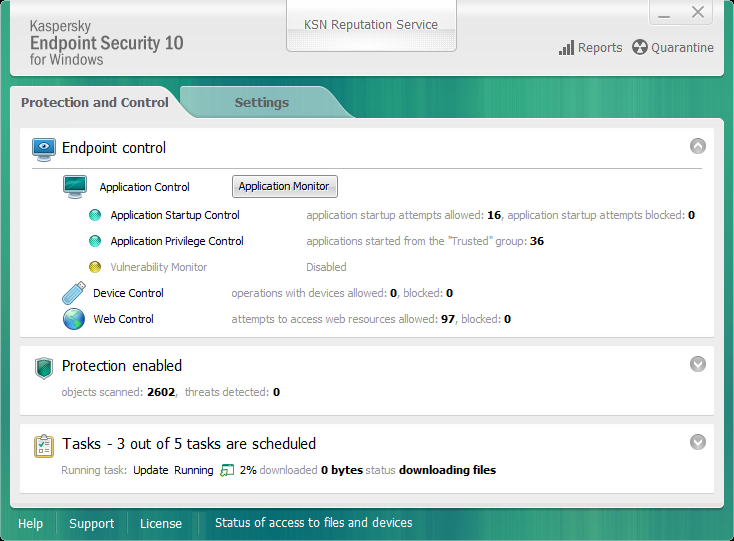
66 The Settings tab allows you to edit the default application settings. Figure 2. Main application window You can use the following links: Help. Clicking this link takes you to the help system of Kaspersky Endpoint Security. Support. Clicking this link opens the Support window, which contains information on the operating system, the current version of Kaspersky Endpoint Security, and links to Kaspersky Lab information resources. License. Clicking this link opens the Licensing window with the details of the current license. Status of access to files and devices. Clicking this link opens the Status of access to files and devices window, which contains information about active requests for access to files. Application interface 66

67 You can open the main window of Kaspersky Endpoint Security in one of the following ways: Rest the mouse pointer over the application icon in the taskbar notification area of Microsoft Windows and click. Select Kaspersky Endpoint Security 10 for Windows from the application icon context menu (see section "Application icon context menu" on page 64). Application settings window The Kaspersky Endpoint Security settings window lets you configure overall application settings, individual components, reports and storages, scan tasks, update tasks, vulnerability scan tasks, and interaction with Kaspersky Security Network. The application settings window consists of two parts (see the following figure): The left part of the window contains application components, tasks, and other configurable items. The right part of the window contains controls that you can use to configure the item that is selected in the left part of the window. Figure 3. Application settings window Application interface 67
68 As in the main window, you can use the following links: Help. Clicking this link takes you to the help system of Kaspersky Endpoint Security. Support. Clicking this link opens the Support window, which contains information on the operating system, the current version of Kaspersky Endpoint Security, and links to Kaspersky Lab information resources. License. Clicking this link opens the Licensing window with the details of the current license. Status of access to files and devices. Clicking this link opens the Status of access to files and devices window, which contains information about active requests for access to files. You can open the application settings window in one of the following ways: Select the Settings tab in the main application window (see section "Main application window" on page 65). Select Settings from the application icon context menu (see section "Application icon context menu" on page 64). Application interface 68
69 Application licensing This section provides information about general concepts related to the application licensing. In this section: About the End User License Agreement About the license About subscription About activation code About the key About the key file About data provision About application activation methods Licensing About the End User License Agreement The End User License Agreement is a binding agreement between you and AO Kaspersky Lab, stipulating the terms on which you may use the application. We recommend carefully reading the terms of the End User License Agreement before using the application. You can view the terms of the End User License Agreement in the following ways: When installing Kaspersky Endpoint Security in interactive mode (see section "About ways to install the application" on page 33). By reading the license.txt file. This document is included in the application distribution kit (see section "Distribution kit" on page 24).
70 By confirming that you agree with the End User License Agreement when installing the application, you signify your acceptance of the terms of the End User License Agreement. If you do not accept the terms of the End User License Agreement, you must abort the installation. About the license A license is a time-limited right to use the application, granted under the End User License Agreement. A valid license entitles you to the following kinds of services: Use of the application in accordance with the terms of the End User License Agreement Technical Support The scope of services and application usage term depend on the type of license under which the application was activated. The following license types are provided: Trial a free license intended for trying out the application. A trial license usually has a short term. When the trial license expires, all Kaspersky Endpoint Security features become disabled. To continue using the application, you need to purchase a commercial license. Commercial a paid license that is provided when you purchase Kaspersky Endpoint Security. Application functionality that is available under the commercial license depends on the type of commercial license. The type of commercial license is specified in the license certificate: Core / Kaspersky Workspace Security. Licenses of these types are designed for protecting workstations. They are not designed for protecting file servers and mobile devices. They do not permit using control components other than Application Privilege Control. Standard / Kaspersky Business Space Security / Kaspersky Enterprise Space Security. Licenses of these types are designed for protecting file servers, workstations and mobile devices. They allow using control components on workstations and mobile devices. Advanced / Total / Kaspersky Total Space Security. Licenses of these types are designed for protecting file servers, workstations, and mobile devices, and support the use of control components on workstations and mobile devices, as well as data encryption functionality on workstations. Application licensing 70
71 When the commercial license expires, the application continues to work in limited functionality mode. You can use protection and control components and scan the computer for viruses using databases that were installed before license expiration. The application also encrypts files that had been modified and encrypted before license expiration, but does not encrypt new files. The Kaspersky Security Network service is unavailable. If a key for an expired license has been deleted, application functionality is unavailable. A deleted key cannot be added again. Kaspersky Endpoint Security functionality restrictions can be removed by renewing the commercial license or purchasing a new license. We recommend renewing the license before its expiration to ensure that your computer stays fully protected against all threats. About subscription Subscription for Kaspersky Endpoint Security is a purchase order for the application with specific parameters (subscription expiry date, number of devices protected). You can order subscription for Kaspersky Endpoint Security from your service provider (such as your ISP). Subscription can be renewed manually or automatically, or you may cancel your subscription. You can manage your subscription on the website of the service provider (see section "Visiting the website of the service provider" on page 82). Subscription can be limited (for one year, for example) or unlimited (without an expiry date). To keep Kaspersky Endpoint Security working after expiry of the limited subscription term, you have to renew your subscription. Unlimited subscription is renewed automatically if the vendor's services have been prepaid on time. In the case of limited subscription, upon its expiry you may be offered a grace period for renewing subscription, during which time the application will retain its functionality. The service provider decides whether or not to grant a grace period and, if so, determines the duration of the grace period. To use Kaspersky Endpoint Security under subscription, you have to apply the activation code received from the service provider. After the activation code is applied, the active key is installed. The active key defines the license for using the application under subscription. An additional key can be installed only using an activation code and cannot be installed using a key file or under subscription. Application licensing 71
72 Application functionality available under subscription can correspond to application functionality for the following types of commercial licenses: Standard, Kaspersky Business Space Security, Kaspersky Enterprise Space Security. Licenses of these types are designed for protecting file servers, workstations, and mobile devices, and support the use of control components on workstations and mobile devices. The possible subscription management options may vary with each service provider. The service provider may not offer a grace period for renewing subscription, during which time the application will retain its functionality. Activation codes purchased under subscription may not be used to activate previous versions of Kaspersky Endpoint Security. About activation code An activation code is a unique alphanumeric sequence of twenty Latin letters and numerals that you receive when purchasing a commercial license for Kaspersky Endpoint Security. To activate the application using the activation code, Internet access is required to connect to Kaspersky Lab's activation servers. When the application is activated using an activation code, the active key is installed. An additional key can be installed only using an activation code and cannot be installed using a key file or under subscription. If the activation code has been lost after activation of the application, you can restore the activation code. You may need the activation code to register a Kaspersky CompanyAccount, for example. To restore your activation code, send a request to Kaspersky Lab Technical Support (see section "Contacting Technical Support" on page 447). Application licensing 72
73 About the key A key is a unique alphanumeric sequence. A key makes it possible to use the application on the terms indicated in the License Certificate (type of license, license validity period, license restrictions). A license certificate is not provided for a key installed under subscription. A key can be added to the application using an activation code or a key file. You can add, edit, or delete keys. The key can be blocked by Kaspersky Lab if the End User License Agreement is violated. If the key has been black-listed, you have to add a different key to continue using the application. Keys can be active or additional. An active key is a key that is currently used by the application. A trial or commercial license key can be added as the active key. The application cannot have more than one active key. An additional key is a key that entitles the user to use the application, but is not currently in use. At the expiry of the active key, an additional key automatically becomes active. An additional key can be added only if the active key is available. A key for a trial license can be added only as an active key. It cannot be added as the additional key. A trial license key cannot replace the active key to a commercial license. If a key gets blacklisted, the application functionality defined by the license under which the application has been activated (see section "About the license" on page 70) remains available for eight days. The Kaspersky Security Network service and database and application module updates are available without restrictions. The application notifies that user that the key has been blacklisted. After eight days, application functionality becomes limited to the functionality level that is available after license expiry the application runs without updates and the Kaspersky Security Network service is unavailable. Application licensing 73
74 About the key file A key file is a file with the.key extension that you receive from Kaspersky Lab after purchasing Kaspersky Endpoint Security. The purpose of a key file is to add a key that activates the application. You do not need to connect to Kaspersky Lab activation servers in order to activate the application with a key file. You can recover a key file if it has been accidentally deleted. You may need a key file to register a Kaspersky CompanyAccount, for example. To recover a key file, do one of the following: Contact Kaspersky Lab Technical Support. Receive a key file through Kaspersky Lab website ( by using your available activation code. About data provision By accepting the End User License Agreement, you agree to automatically submit the checksum data (MD5) of processed files and information that is used in determining website reputations. Kaspersky Lab protects any information received in this way as prescribed by law and applicable rules of Kaspersky Lab. Kaspersky Lab uses any retrieved information in anonymized form and as general statistics only. General statistics are automatically generated using original collected information and do not contain any personal data or other confidential information. The original information received is destroyed as new information is accumulated (once a year). General statistics are stored indefinitely. Read the End User License Agreement and visit the Kaspersky Lab website to learn more about how we collect, process, store, and destroy information about application usage after you accept the End User License Agreement. The license.txt file with the End User License Agreement is included in the application distribution kit. Application licensing 74
75 About application activation methods Activation is a process of activating a license that allows you to use a fully-functional version of the application until the license expires. The application activation process involves adding a key. You can activate the application in one of the following ways: When installing the application using the Initial Configuration Wizard (see section "Initial Configuration Wizard" on page 47). You can add the active key in this way. Locally from the application interface, by using the Activation Wizard (see section "Activation Wizard" on page 79, "Using the Activation Wizard to activate the application" on page 76). You can add both the active key and the additional key in this way. Remotely with the help of the Kaspersky Security Center software complex, by creating (see section "Managing tasks" on page 428) and then starting (see section "Starting, stopping, suspending, and resuming a task" on page 432) an add key task. You can add both the active key and the additional key in this way. Remotely, by distributing keys and activation codes that are stored in the key storage on the Administration Server of Kaspersky Security Center to client computers (see the Kaspersky Security Center Administrator's Guide for details). You can add both the active key and the additional key in this way. The activation code purchased under subscription is distributed in the first place. Using the command line (see section "Activating the application from the command line" on page 82). It may take some time for the application to be activated with an activation code (during either remote or non-interactive installation) due to load distribution across activation servers of Kaspersky Lab. If you need to activate the application right away, you may interrupt the ongoing activation process and start activation using the Activation Wizard. Application licensing 75
76 Licensing This section describes the available application licensing options. In this section: Using the Activation Wizard to activate the application Purchasing a license Renewing a license Renewing subscription Viewing license information Activation Wizard Activating the application from the command line Visiting the website of the service provider Using the Activation Wizard to activate the application To activate Kaspersky Endpoint Security by using the Activation Wizard: 1. To do so, in the lower part of the main application window click the License link to open the Licensing window. In the Licensing window, click the Activate the application under a new license button. The Activation Wizard starts (see page 79, "Using the Activation Wizard to activate the application" on page 76). 2. Follow the instructions of the Activation Wizard. Application licensing 76
77 Purchasing a license You may purchase a license after installing the application. After purchasing a license, you receive an activation code or key file with which you must activate the application (see section "About application activation methods" on page 75). To purchase a license: 1. Open the main application window (on page 65). 2. In the lower part of the main application window, click the License link to open the Licensing window. 3. In the Licensing window, do one of the following: If no keys have been added or a key for trial license has been added, click the Purchase license button. If the key for a commercial license is added, click the Renew license button. A window will open with the website of the Kaspersky Lab online store, where you can purchase a license. Renewing a license When your license approaches expiration, you can renew it. This ensures that your computer remains protected after expiration of the current license and until you activate the application under a new license. To renew a license: 1. Receive (see section "Purchasing a license" on page 77) a new activation code or key file. 2. Add an additional key (see section "About application activation methods" on page 75) using the activation code or key file that you have received. An additional key is added as a result. It becomes active upon license expiration. It may take some time for the key to be updated from additional to active due to load distribution across activation servers of Kaspersky Lab. Application licensing 77
78 Renewing subscription When you use the application under subscription, Kaspersky Endpoint Security automatically contacts the activation server at specific intervals until your subscription expires. If you use the application under unlimited subscription, Kaspersky Endpoint Security automatically checks the activation server for renewed keys in background mode. If a key is available on the activation server, the application adds it by replacing the previous key. In this way, unlimited subscription for Kaspersky Endpoint Security is renewed without user involvement. If you use the application under limited subscription, on the day when subscription (or the grace period after subscription expiry during which subscription renewal is available) expires, Kaspersky Endpoint Security shows a corresponding notification and stops attempting to renew subscription automatically. In this case, Kaspersky Endpoint Security behaves in the same way as it does when a commercial license for the application expires (see section "About the license" on page 70) the application runs without updates and the Kaspersky Security Network service is unavailable. You can renew your subscription on the website of the service provider (see section "Visiting the website of the service provider" on page 82). You can update subscription status manually in the Licensing window. This may be required if subscription has been renewed after the expiry of the grace period and the application has not updated subscription status automatically. Viewing license information To view license information: 1. Open the main application window (on page 65). 2. In the lower part of the main application window, click the License link to open the Licensing window. The Licensing window opens. Information about the license is displayed in the section that is located in the upper part of the Licensing window. Application licensing 78
79 Activation Wizard The interface of the Activation Wizard consists of a sequence of pages (steps). You can navigate between Activation Wizard pages by using the Back and Next buttons. To exit the Activation Wizard, click the Finish button. To stop the Activation Wizard at any stage, click the Cancel button. Activating the application The application must be activated on a computer with the current system date and time. If the system date and time are changed after activation of the application, the key becomes inoperable. The application switches to a mode of operation without updates, and the Kaspersky Security Network service is unavailable. The key can be made operable again only by reinstalling the operating system. During this step, you can select one of the following Kaspersky Endpoint Security activation options: Activate with an activation code. To activate the application with an activation code, select this option and enter the activation code (see section "About activation code" on page 72). Activate with a key file. Select this option to activate the application with a key file. Activate trial version. To activate the trial version of the application, select this option. The user can use the fully-functional version of the application for the duration of the term that is limited by the license for the trial version of the application. After the license expires, the application functionality is blocked and you cannot activate the trial version again. An Internet connection is required to activate the trial version of the application, or to activate the application with an activation code. To continue with the Activation Wizard, select an application activation option and click Next. To stop the Activation Wizard, click the Cancel button. Application licensing 79
80 Online activation This step is available only when you activate the application with an activation code. This step is skipped when you activate the application with a key file. During this step, Kaspersky Endpoint Security sends data to the activation server to verify the entered activation code: If the activation code verification is successful, the Activation Wizard automatically proceeds to the next step. If the activation code verification fails, a corresponding message appears. In this case, you are advised to contact the software vendor from whom you have received your activation code for Kaspersky Endpoint Security. If the allowable number of activations with the activation code is exceeded, a corresponding notification appears. The Activation Wizard is interrupted, and the application suggests that you contact Kaspersky Lab Technical Support. To return to the previous step of the Activation Wizard, click the Back button. To stop the Activation Wizard, click the Cancel button. Activating with a key file This step is available only when you activate the application with a key file. At this step, specify the path to the key file. To do so, click the Browse button and select a key file of the form <File ID>.key. After you select a key file, the following information is displayed in the lower part of the window: Key. License type (commercial or trial) and the number of computers that are covered by this license. Date of application activation on the computer. Application licensing 80
81 License expiration date. Application functionality available under the license. Notifications about key problems, if any. For example, Black list of keys corrupted. To return to the previous step of the Activation Wizard, click the Back button. To proceed with the Activation Wizard, click the Next button. To stop the Activation Wizard, click the Cancel button. Selecting the functions to activate This step is available only when you activate the trial version of the application. At this step you can select the computer protection option that will become available upon the activation of the application (see section "Organizing computer protection" on page 25): Basic protection. If this option is selected, only protection components and Application Privilege Control are available after activation of the application. Standard protection. If this option is selected, only protection and control components of the application will be available after activation. Advanced protection. If this option is selected, all application components, including encryption functionality, will be available after activation of the application. You can choose any protection option regardless of the type of license. The set of components corresponding to the chosen protection option will be installed. If the available license provides for a limited set of components, the components that are unavailable under the license will be disabled after activation of the application. If the license purchased allows using more components than are currently installed, after the application is activated the components that have not been installed are listed in the Licensing section. Standard protection is selected by default. To return to the previous step of the Activation Wizard, click the Back button. To proceed with the Activation Wizard, click the Next button. To stop the Activation Wizard, click the Cancel button. Application licensing 81
82 Completing activation During this step, the Activation Wizard informs you about successful activation of Kaspersky Endpoint Security. The following information about the license is provided: License type (commercial or trial) and the number of computers that are covered by the license License expiration date Application functionality available under the license To exit the Activation Wizard, click the Finish button. Activating the application from the command line To activate the application from the command line, type avp.com license /add <activation code or key file> /password=<password> in the command line. Visiting the website of the service provider To visit the website of the service provider from the application interface: 1. Open the main application window (on page 65). 2. In the lower part of the main application window, click the License link to open the Licensing window. The Licensing window opens. 3. In the Licensing window, click Contact your subscription provider. Application licensing 82
83 Starting and stopping the application This section describes how you can configure automatic startup of the application, start or stop the application manually, and pause or resume protection and control components. In this section: Enabling and disabling automatic startup of the application Starting and stopping the application manually Pausing and resuming computer protection and control Enabling and disabling automatic startup of the application Automatic startup means that Kaspersky Endpoint Security starts immediately after operating system startup, without user intervention. This application startup option is enabled by default. After installation, Kaspersky Endpoint Security starts automatically for the first time. Subsequently the application starts automatically after operating system startup. To enable or disable automatic startup of the application: 1. Open the application settings window (on page 67). 2. In the left part of the window, select the Anti-Virus protection section. The anti-virus protection settings are shown in the right part of the window. 3. Do one of the following: To enable automatic application startup, select the Start Kaspersky Endpoint Security 10 for Windows on computer startup check box.
84 To disable automatic application startup, clear the Start Kaspersky Endpoint Security 10 for Windows on computer startup check box. 4. To save changes, click the Save button. Starting and stopping the application manually Kaspersky Lab specialists do not recommend stopping Kaspersky Endpoint Security manually, because doing so exposes the computer and your personal data to threats. If necessary, you can pause computer protection (see section "Pausing and resuming computer protection and control" on page 84) for as long as you need to, without stopping the application. Kaspersky Endpoint Security needs to be started manually if you have previously disabled automatic startup of the application (see section "Enabling and disabling automatic startup of the application" on page 83). To start the application manually, In the Start menu, select Programs Kaspersky Endpoint Security 10 for Windows. To stop the application manually: 1. Right-click to bring up the context menu of the application icon that is in the taskbar notification area. 2. In the context menu, select Exit. Pausing and resuming computer protection and control Pausing computer protection and control means disabling all protection and control components of Kaspersky Endpoint Security for a time. Starting and stopping the application 84
85 The application status is indicated by the application icon in the taskbar notification area (see section "Application icon in the taskbar notification area" on page 63). The icon signifies that computer protection and control are paused. The icon signifies that computer protection and control have been resumed. Pausing or resuming computer protection and control does not affect scan or update tasks. If any network connections are already established when you pause or resume computer protection and control, a notification about the termination of these network connections is displayed. To pause or resume computer protection and control: 1. To pause computer protection and control: a. Right-click to bring up the context menu of the application icon that is in the taskbar notification area. b. In the context menu, select Pause protection and control. The Pause protection and control window opens. c. Select one of the following options: Pause for the specified time Computer protection and control resume after the amount of time that is specified in the drop-down list below has elapsed. You can select the necessary amount of time in the drop-down list. Pause until restart Computer protection and control resume after you quit and reopen the application or restart the operating system. Automatic startup of the application must be enabled to use this option. Pause Computer protection and control resume when you decide to re-enable them. 2. If you decide to resume computer protection and control, you can do so at any time, regardless of the protection and control pause option that you selected previously. To resume computer protection and control: a. Right-click to bring up the context menu of the application icon that is in the taskbar notification area. b. In the context menu, select Resume protection and control. Starting and stopping the application 85
86 Protecting the computer file system. File Anti-Virus This section contains information about File Anti-Virus and instructions on how to configure the component settings. In this section: About File Anti-Virus Enabling and disabling File Anti-Virus Automatically pausing File Anti-Virus Configuring File Anti-Virus About File Anti-Virus File Anti-Virus prevents infection of the computer's file system. By default, File Anti-Virus starts together with Kaspersky Endpoint Security, continuously remains active in computer memory, and scans all files that are opened, saved, or started on the computer and on all drives that are attached to it for the presence of viruses and other malware. On detecting a threat in a file, Kaspersky Endpoint Security performs the following: 1. Detects the type of object detected in the file (such as a virus or trojan). 2. Labels the file as probably infected if the scan cannot determine whether or not the file is infected. The file may contain a code sequence that is typical of viruses or other malware, or the modified code of a known virus. 3. Displays a notification (see page 379) about a malicious object detected in the file (if notifications are configured) and performs the action (see section "Changing the File Anti-Virus action to take on infected files" on page 92) configured in File Anti-Virus settings on the file.
87 Enabling and disabling File Anti-Virus By default, File Anti-Virus is enabled, running in the mode that is recommended by Kaspersky Lab's experts. You can disable File Anti-Virus, if necessary. There are two ways to enable or disable the component: On the Protection and Control tab of the main application window (see section "Main application window" on page 65) From the application settings window (see section "Application settings window" on page 67) To enable or disable File Anti-Virus on the Protection and Control tab of the main application window: 1. Open the main application window. 2. Select the Protection and Control tab. 3. Click the Protection section. The Protection section opens. 4. Right-click to bring up the context menu of the line with information about the File Anti-Virus component. A menu for selecting actions on the component opens. 5. Do one of the following: To enable File Anti-Virus, select Start in the menu. The component status icon changes to the icon., which is displayed on the left in the File Anti-Virus line, To disable File Anti-Virus, select Stop in the menu. The component status icon changes to the icon., which is displayed on the left in the File Anti-Virus line, Protecting the computer file system. File Anti-Virus 87
88 To enable or disable File Anti-Virus from the application settings window: 1. Open the application settings window. 2. In the left part of the window, in the Anti-Virus protection section, select File Anti-Virus. In the right part of the window, the settings of the File Anti-Virus component are displayed. 3. Do one of the following: If you want to enable File Anti-Virus, select the Enable File Anti-Virus check box. If you want to disable File Anti-Virus, clear the Enable File Anti-Virus check box. 4. To save changes, click the Save button. Automatically pausing File Anti-Virus You can configure File Anti-Virus to automatically pause at a specified time or when handling specified programs. Pausing File Anti-Virus when it conflicts with some programs is an emergency measure. In case of any conflicts during the operation of a component, we recommend contacting Kaspersky Lab Technical Support ( The support specialists will help you to set up File Anti-Virus to run simultaneously with other programs on your computer. To configure automatic pausing of File Anti-Virus: 1. Open the application settings window (on page 67). 2. In the left part of the window, in the Anti-Virus protection section, select File Anti-Virus. In the right part of the window, the settings of the File Anti-Virus component are displayed. 3. In the Security level section, click the Settings button. The File Anti-Virus window opens. 4. In the File Anti-Virus window, select the Additional tab. Protecting the computer file system. File Anti-Virus 88
89 5. In the Pause task section: To configure automatic pausing of File Anti-Virus at a specified time, select the By schedule check box and click the Schedule button. The Pause task window opens. To configure automatic pausing of File Anti-Virus at startup of specified applications, select the At application startup check box and click the Select button. The Applications window opens. 6. Do one of the following: If you are configuring automatic pausing of File Anti-Virus at a specified time, in the Pause task window, use the Pause task at and Resume task at fields to specify the time period (in HH:MM format) during which File Anti-Virus is to be paused. Then click OK. If you are configuring automatic pausing of File Anti-Virus at startup of specified applications, use the Add, Edit, and Remove buttons in the Applications window to create a list of applications during whose operation File Anti-Virus is to be paused. Then click OK. 7. In the File Anti-Virus window, click OK. 8. To save changes, click the Save button. Configuring File Anti-Virus You can do the following to configure File Anti-Virus: Change the file security level. You can select one of the preset file security levels or configure security level settings on your own. If you have changed the file security level settings, you can always revert to the recommended file security level settings. Change the action that is performed by File Anti-Virus on detection of an infected file. Protecting the computer file system. File Anti-Virus 89
90 Edit the protection scope of File Anti-Virus. You can expand or restrict the protection scope by adding or removing scan objects, or by changing the type of files to be scanned. Configure Heuristic Analyzer. File Anti-Virus uses a technique that is called signature analysis. During signature analysis, File Anti-Virus matches the detected object with records in its antivirus databases of the application. Following the recommendations of Kaspersky Lab's experts, signature analysis is always enabled. To increase the effectiveness of protection, you can use heuristic analysis. During heuristic analysis, File Anti-Virus analyzes the activity of objects in the operating system. Heuristic analysis allows detecting malicious objects for which no records are currently available in the antivirus databases of the application. Select the scan technologies. You can enable the use of the ichecker and iswift technologies, which optimize the speed of file scanning by excluding files that have not been modified since the most recent scan. Optimize scanning. You can optimize the file scanning that is performed by File Anti-Virus, reducing the scan time and increasing the operating speed of Kaspersky Endpoint Security. This can be achieved by scanning only new files and those files that have been modified since the previous scan. This mode applies both to simple and to compound files. Configure scanning of compound files. Change the file scan mode. In this section: Changing the file security level Changing the File Anti-Virus action to take on infected files Editing the protection scope of File Anti-Virus Protecting the computer file system. File Anti-Virus 90
91 Using Heuristic Analyzer with File Anti-Virus Using scan technologies in the operation of File Anti-Virus Optimizing file scanning Scanning compound files Changing the scan mode Changing the file security level To protect the computer's file system, File Anti-Virus applies various groups of settings. These groups of settings are called file security levels. There are three pre-installed file security levels: High, Recommended, and Low. The Recommended file security level is considered the optimal group of settings, and is recommended by Kaspersky Lab. To change the file security level: 1. Open the application settings window (on page 67). 2. In the left part of the window, in the Anti-Virus protection section, select File Anti-Virus. In the right part of the window, the settings of the File Anti-Virus component are displayed. 3. In the Security level section, do one of the following: If you want to install one of the pre-installed file security levels (High, Recommended, or Low), use the slider to select one. If you want to configure a custom file security level, click the Settings button and, in the File Anti-Virus window that opens, enter settings. After you configure a custom file security level, the name of the file security level in the Security level section changes to Custom. If you want to change the file security level to Recommended, click the Default button. 4. To save changes, click the Save button. Protecting the computer file system. File Anti-Virus 91
92 Changing the File Anti-Virus action to take on infected files To change the File Anti-Virus action to take on infected files: 1. Open the application settings window (on page 67). 2. In the left part of the window, in the Anti-Virus protection section, select File Anti-Virus. In the right part of the window, the settings of the File Anti-Virus component are displayed. 3. In the Action on threat detection section, select the required option: Select action automatically. Perform action: Disinfect. Delete if disinfection fails. Perform action: Disinfect. Even if this option is selected, Kaspersky Endpoint Security applies the Remove action to files that are part of the Windows Store application. Perform action: Remove. Perform action: Block. 4. To save changes, click the Save button. Editing the protection scope of File Anti-Virus The protection scope refers to the objects that the component scans when enabled. The protection scopes of different components have different properties. The location and type of files to be scanned are properties of the protection scope of File Anti-Virus. By default, File Anti-Virus scans only infectable files that are stored on hard drives, network drives, or removable media. Protecting the computer file system. File Anti-Virus 92
93 To create the protection scope: 1. Open the application settings window (on page 67). 2. In the left part of the window, in the Anti-Virus protection section, select File Anti-Virus. In the right part of the window, the settings of the File Anti-Virus component are displayed. 3. In the Security level section, click the Settings button. The File Anti-Virus window opens. 4. In the File Anti-Virus window, on the General tab, in the File types section, specify the type of files that you want to scan with File Anti-Virus: If you want to scan all files, select All files. If you want to scan files of formats which are the most vulnerable to infection, select Files scanned by format. If you want to scan files with extensions that are the most vulnerable to infection, select Files scanned by extension. When selecting the type of files to scan, remember the following information: There are some file formats (such as.txt) for which the probability of intrusion of malicious code and its subsequent activation is quite low. At the same time, there are file formats that contain or may contain executable code (such as.exe,.dll, and.doc). The risk of intrusion and activation of malicious code in such files is quite high. An intruder may send a virus or another malicious program to your computer in an executable file that has been renamed with the.txt extension. If you select scanning of files by extension, such a file is skipped by the scan. If scanning of files by format is selected, then regardless of the extension, File Anti-Virus analyzes the file header. This analysis may reveal that the file is in.exe format. Such a file is thoroughly scanned for viruses and other malware. 5. In the Protection scope list, do one of the following: If you want to add a new object to the list of objects to be scanned, click the Add button. Protecting the computer file system. File Anti-Virus 93
94 If you want to change the location of an object, select one from the list of objects to be scanned and click the Edit button. The Select object to scan window opens. If you want to remove an object from the list of objects to be scanned, select one from the list of objects to be scanned and click the Remove button. A window for confirming deletion opens. 6. Do one of the following: If you want to add a new object or change the location of an object from the list of objects to be scanned, select one in the Select object to scan window and click the Add button. All objects that are selected in the Select object to scan window are displayed in the File Anti-Virus window, in the Protection scope list. Then click OK. If you want to remove an object, click the Yes button in the window for confirming removal. 7. If necessary, repeat steps 5-6 for adding, moving, or removing objects from the list of objects to be scanned. 8. To exclude an object from the list of objects to be scanned, clear the check box next to the object in the Protection scope list. However, the object remains on the list of objects to be scanned, though it is excluded from scanning by File Anti-Virus. 9. In the File Anti-Virus window, click OK. 10. To save changes, click the Save button. Protecting the computer file system. File Anti-Virus 94
95 Using Heuristic Analyzer with File Anti-Virus To configure the use of Heuristic Analyzer in the operation of File Anti-Virus: 1. Open the application settings window (on page 67). 2. In the left part of the window, in the Anti-Virus protection section, select File Anti-Virus. In the right part of the window, the settings of the File Anti-Virus component are displayed. 3. In the Security level section, click the Settings button. The File Anti-Virus window opens. 4. In the File Anti-Virus window, select the Performance tab. 5. In the Scan methods section: If you want File Anti-Virus to use heuristic analysis, select the Heuristic Analysis check box and use the slider to set the level of heuristic analysis: light scan, medium scan, or deep scan. If you do not want File Anti-Virus to use heuristic analysis, clear the Heuristic Analysis check box. 6. Click OK. 7. To save changes, click the Save button. Using scan technologies in the operation of File Anti-Virus To configure the use of scan technologies in the operation of File Anti-Virus: 1. Open the application settings window (on page 67). 2. In the left part of the window, in the Anti-Virus protection section, select File Anti-Virus. In the right part of the window, the settings of the File Anti-Virus component are displayed. Protecting the computer file system. File Anti-Virus 95
96 3. In the Security level section, click the Settings button. The File Anti-Virus window opens. 4. In the File Anti-Virus window, select the Additional tab. 5. In the Scan technologies section: Select the check boxes opposite the names of technologies that you want to use in the operation of File Anti-Virus. Clear the check boxes opposite the names of technologies that you do not want to use in the operation of File Anti-Virus. 6. Click OK. 7. To save changes, click the Save button. Optimizing file scanning To optimize file scanning: 1. Open the application settings window (on page 67). 2. In the left part of the window, in the Anti-Virus protection section, select File Anti-Virus. In the right part of the window, the settings of the File Anti-Virus component are displayed. 3. Click the Settings button. The File Anti-Virus window opens. 4. In the File Anti-Virus window, select the Performance tab. 5. In the Scan optimization section, select the Scan only new and changed files check box. 6. Click OK. 7. To save changes, click the Save button. Protecting the computer file system. File Anti-Virus 96
97 Scanning compound files A common technique of concealing viruses and other malware is to implant them in compound files, such as archives or databases. To detect viruses and other malware that are hidden in this way, the compound file must be unpacked, which may slow down scanning. You can limit the set of compound files to be scanned, thus speeding up scanning. To configure scanning of compound files: 1. Open the application settings window (on page 67). 2. In the left part of the window, in the Anti-Virus protection section, select File Anti-Virus. In the right part of the window, the settings of the File Anti-Virus component are displayed. 3. In the Security level section, click the Settings button. The File Anti-Virus window opens. 4. In the File Anti-Virus window, select the Performance tab. 5. In the Scan of compound files section, specify the types of compound files that you want to scan: archives, installation packages, or embedded OLE objects. 6. If the Scan only new and changed files check box is cleared in the Scan optimization section, you can specify for each type of compound file whether to scan all files of this type or new ones only. To make your choice, click the all / new link next to the name of a type of compound file. This link changes its value after you click it. If the Scan only new and changed files check box is selected, only new files are scanned. 7. Click the Additional button. The Compound files window opens. 8. In the Background scan section, do one of the following: If you do not want File Anti-Virus to unpack compound files in background mode, clear the Extract compound files in the background check box. Protecting the computer file system. File Anti-Virus 97
98 If you want File Anti-Virus to unpack large-sized compound files in background mode, select the Extract compound files in the background check box and specify the required value in the Minimum file size field. 9. In the Size limit section, do one of the following: If you do not want File Anti-Virus to unpack large-sized compound files, select the Do not unpack large compound files check box and specify the required value in the Maximum file size field. If you want File Anti-Virus to unpack large-sized compound files, clear the Do not unpack large compound files check box. A file is considered large if its size exceeds the value in the Maximum file size field. File Anti-Virus scans large-sized files that are extracted from archives, regardless of whether or not the Do not unpack large compound files check box is selected. 10. Click OK. 11. In the File Anti-Virus window, click OK. 12. To save changes, click the Save button. Changing the scan mode Scan mode means the condition under which File Anti-Virus starts to scan files. By default, Kaspersky Endpoint Security scans files in smart mode. In this file scan mode, File Anti-Virus decides whether or not to scan files after analyzing operations that are performed with the file by the user, by an application on behalf of the user (under the account that was used to log in or a different user account), or by the operating system. For example, when working with a Microsoft Office Word document, Kaspersky Endpoint Security scans the file when it is first opened and last closed. Intermediate operations that overwrite the file do not cause it to be scanned. Protecting the computer file system. File Anti-Virus 98
99 To change the file scan mode: 1. Open the application settings window (on page 67). 2. In the left part of the window, in the Anti-Virus protection section, select File Anti-Virus. In the right part of the window, the settings of the File Anti-Virus component are displayed. 3. In the Security level section, click the Settings button. The File Anti-Virus window opens. 4. In the File Anti-Virus window, select the Additional tab. 5. In the Scan mode section, select the required mode: Smart mode. On access and modification. On access. On execution. 6. Click OK. 7. To save changes, click the Save button. Protecting the computer file system. File Anti-Virus 99
100 System Watcher This component is available if Kaspersky Endpoint Security is installed on a computer that runs on Microsoft Windows for workstations. This component is not available if Kaspersky Endpoint Security is installed on a computer that runs on Microsoft Windows for file servers (see section "Hardware and software requirements" on page 30). This section contains information about System Watcher and instructions on how to configure the component settings. In this section: About System Watcher Enabling and disabling System Watcher Using behavior stream signatures (BSS) Rolling back malware actions during disinfection About System Watcher System Watcher collects data on the actions of applications on your computer and passes this information to other components for more reliable protection. Behavior stream signatures Behavior Stream Signatures (BSS) (also called "behavior stream signatures") contain sequences of application actions that Kaspersky Endpoint Security classifies as dangerous. If application activity matches a behavior stream signature, Kaspersky Endpoint Security performs the specified action. Kaspersky Endpoint Security functionality based on behavior stream signatures provides proactive defense for the computer.
101 By default, if the activity of an application matches a behavior stream signature, System Watcher moves the executable file of the application to Quarantine (see section "Managing Quarantine and Backup" on page 383). Rolling back actions that have been performed by malware Based on information that System Watcher collects, Kaspersky Endpoint Security can roll back actions that have been performed by malware in the operating system while performing disinfection. A rollback of malware actions can be initiated by File Anti-Virus (see page 86), and during a virus scan (see section "Scanning the computer" on page 338). Rolling back malware operations affects a strictly defined set of data. Rollback has no adverse effects on the operating system or the integrity of computer data. Enabling and disabling System Watcher By default, System Watcher is enabled and runs in the mode recommended by Kaspersky Lab. You can disable System Watcher, if necessary. It is not recommended to disable System Watcher unless absolutely necessary, as it affects performance of the protection components. The protection components may request data collected by System Watcher to identify a detected threat more accurately. There are two ways to enable or disable System Watcher: On the Protection and Control tab of the main application window (see section "Main application window" on page 65) From the application settings window (see section "Application settings window" on page 67) To enable or disable System Watcher on the Protection and Control tab of the main application window: 1. Open the main application window. 2. Select the Protection and Control tab. System Watcher 101
102 3. Click the Protection section. The Protection section opens. 4. Right-click to display the context menu of the line with information about the System Watcher component. A menu for selecting actions on the component opens. 5. Do one of the following: To enable System Watcher, select Start. The component status icon line, changes to the icon., which is displayed on the left in the System Watcher To disable System Watcher, select Stop. The component status icon line, changes to the icon., which is displayed on the left in the System Watcher To enable or disable System Watcher from the application settings window: 1. Open the application settings window (on page 67). 2. In the left part of the window, in the Anti-Virus protection section, select System Watcher. In the right part of the window, the settings of the System Watcher component are displayed. 3. Do one of the following: To enable System Watcher, select the Enable System Watcher check box To disable System Watcher, clear the Enable System Watcher check box. 4. To save changes, click the Save button. System Watcher 102
103 Using behavior stream signatures (BSS) To use behavior stream signatures (BSS): 1. Open the application settings window (on page 67). 2. In the left part of the window, in the Anti-Virus protection section, select System Watcher. In the right part of the window, the settings of the System Watcher component are displayed. 3. In the Proactive Defense section, select the Use behavior stream signatures (BSS) check box. 4. Select the required action from the On detecting malware activity list: Select action automatically. Move file to Quarantine. Terminate the malicious program. Skip. 5. To save changes, click the Save button. Rolling back malware actions during disinfection To enable or disable the rollback of malware actions during disinfection: 1. Open the application settings window (on page 67). 2. In the left part of the window, in the Anti-Virus protection section, select System Watcher. In the right part of the window, the settings of the System Watcher component are displayed. System Watcher 103
104 3. Do one of the following: If you want Kaspersky Endpoint Security to roll back actions that were performed by malware in the operating system while performing disinfection, select the Roll back malware actions during disinfection check box. If you want Kaspersky Endpoint Security to ignore actions that were performed by malware in the operating system while performing disinfection, clear the Roll back malware actions during disinfection check box. 4. To save changes, click the Save button. System Watcher 104
105 protection. Mail Anti-Virus This component is available if Kaspersky Endpoint Security is installed on a computer that runs on Microsoft Windows for workstations. This component is not available if Kaspersky Endpoint Security is installed on a computer that runs on Microsoft Windows for file servers (see section "Hardware and software requirements" on page 30). This section contains information about Mail Anti-Virus and instructions on how to configure the component settings. In this section: About Mail Anti-Virus Enabling and disabling Mail Anti-Virus Configuring Mail Anti-Virus About Mail Anti-Virus Mail Anti-Virus scans incoming and outgoing messages for viruses and other malware. It starts together with Kaspersky Endpoint Security, continuously remains active in computer memory, and scans all messages that are sent or received via the POP3, SMTP, IMAP, MAPI, and NNTP protocols. Mail Anti-Virus intercepts each message that is received or sent by the user. If no threats are detected in the message, it becomes available to the user. On detecting a threat in an message, Mail Anti-Virus performs the following: 1. Detects the type of object detected in the message (such as a virus or trojan). 2. Labels the message as probably infected if the scan cannot determine whether or not the message is infected. The message may possibly contain a code sequence that is typical of viruses or other malware, or the modified code of a known virus.
106 The application then blocks the message, displays a notification (see page 379) (if configured to do so in the notification settings) about the detected threat, and takes the action that is specified in the settings of Mail Anti-Virus (see section "Changing the action to take on infected messages" on page 110). This component interacts with applications installed on the computer. For the Microsoft Office Outlook and The Bat! mail clients, extension modules (plug-ins) allow you to fine-tune the mail scanning settings. The Mail Anti-Virus plug-in is embedded in the Microsoft Office Outlook and The Bat! mail clients during installation of Kaspersky Endpoint Security. Operation of Mail Anti-Virus is signified by the application icon in the taskbar notification area. When Mail Anti-Virus is scanning an message, the application icon changes to. Enabling and disabling Mail Anti-Virus By default, Mail Anti-Virus is enabled, running in a mode that is recommended by Kaspersky Lab's experts. You can disable Mail Anti-Virus, if necessary. There are two ways to enable or disable the component: On the Protection and Control tab of the main application window (see section "Main application window" on page 65) From the application settings window (see section "Application settings window" on page 67) To enable or disable Mail Anti-Virus on the Protection and Control tab of the main application window: 1. Open the main application window. 2. Select the Protection and Control tab. 3. Click the Protection section. The Protection section opens. 4. Right-click to bring up the context menu of the line with information about the Mail Anti-Virus component. A menu for selecting actions on the component opens. protection. Mail Anti-Virus 106
107 5. Do one of the following: To enable Mail Anti-Virus, select Start in the menu. The component status icon changes to the icon., which is displayed on the left in the Mail Anti-Virus line, To disable Mail Anti-Virus, select Stop in the menu. The component status icon changes to the icon., which is displayed on the left in the Mail Anti-Virus line, To enable or disable Mail Anti-Virus from the application settings window: 1. Open the application settings window. 2. In the left part of the window, in the Anti-Virus protection section, select Mail Anti-Virus. In the right part of the window, the settings of the Mail Anti-Virus component are displayed. 3. Do one of the following: If you want to enable Mail Anti-Virus, select the Enable Mail Anti-Virus check box. If you want to disable Mail Anti-Virus, clear the Enable Mail Anti-Virus check box. 4. To save changes, click the Save button. Configuring Mail Anti-Virus You can do the following to configure Mail Anti-Virus: Change the security level. You can select one of the pre-installed security levels or configure a custom security level. If you have changed the security level settings, you can always revert to the recommended security level settings. Change the action that Kaspersky Endpoint Security performs on infected messages. protection. Mail Anti-Virus 107
108 Edit the protection scope of Mail Anti-Virus. Configure scanning of compound file attachments in messages. You can enable or disable the scanning of archives that are attached to messages and limit the maximum size of attachments to be scanned and the maximum attachment scan duration. Configure filtering of attachments by type. Filtering of attachments by type allows files of the specified types to be automatically renamed or deleted. Configure Heuristic Analyzer. To increase the effectiveness of protection, you can use heuristic analysis. During heuristic analysis, Kaspersky Endpoint Security analyzes the activity of applications in the operating system. Heuristic analysis can detect threats in messages for which there are currently no records in the Kaspersky Endpoint Security databases. Configure scanning in Microsoft Office Outlook. An embeddable plug-in is available for the Microsoft Office Outlook mail client, which allows comfortably adjusting scan settings. Configure scanning in The Bat!. An embeddable plug-in is available for the The Bat! mail client, which allows comfortably adjusting scan settings. When working with other clients, including Microsoft Outlook Express, Windows Mail, and Mozilla Thunderbird, the Mail Anti-Virus component scans s sent via the SMTP, POP3, IMAP, and NNTP protocols. When working with the Mozilla Thunderbird mail client, Mail Anti-Virus does not scan messages that are transmitted via the IMAP protocol for viruses and other threats if filters are used to move messages from the Inbox folder. protection. Mail Anti-Virus 108
109 In this section: Changing the mail security level Changing the action to take on infected messages Editing the protection scope of Mail Anti-Virus Scanning compound files that are attached to messages Filtering attachments in messages Using Heuristic Analyzer with Mail Anti-Virus Scanning s in Microsoft Office Outlook Scanning s in The Bat! Changing the mail security level Mail Anti-Virus applies various groups of settings to protect mail. The settings groups are called security levels. There are three security levels: High, Recommended, and Low. The Recommended file security level is considered the optimal setting, and is recommended by Kaspersky Lab. To change the security level: 1. Open the application settings window (on page 67). 2. In the left part of the window, in the Anti-Virus protection section, select Mail Anti-Virus. In the right part of the window, the settings of the Mail Anti-Virus component are displayed. 3. In the Security level section, do one of the following: If you want to install one of the pre-installed security levels (High, Recommended, or Low), use the slider to select one. If you want to configure a custom security level, click the Settings button and specify settings in the Mail Anti-Virus window. After you configure a custom security level, the name of the security level in the Security level section changes to Custom. protection. Mail Anti-Virus 109
110 If you want to change the security level to Recommended, click the Default button. 4. To save changes, click the Save button. Changing the action to take on infected messages To change the action to take on infected messages: 1. Open the application settings window (on page 67). 2. In the left part of the window, in the Anti-Virus protection section, select Mail Anti-Virus. In the right part of the window, the settings of the Mail Anti-Virus component are displayed. 3. In the Action on threat detection section, select the action that Kaspersky Endpoint Security performs on detection of an infected message: Select action automatically. Perform action: Disinfect. Delete if disinfection fails. Perform action: Disinfect. Perform action: Remove. Perform action: Block. 4. To save changes, click the Save button. Editing the protection scope of Mail Anti-Virus The protection scope refers to the objects that the component scans when enabled. The protection scopes of different components have different properties. The properties of the protection scope of Mail Anti-Virus include the settings to integrate Mail Anti-Virus into clients, and the type of messages and the protocols whose traffic is scanned by Mail Anti-Virus. By default, Kaspersky Endpoint Security scans incoming and outgoing messages and traffic via the POP3, SMTP, NNTP, and IMAP protocols, and is integrated into the Microsoft Office Outlook and The Bat! clients. protection. Mail Anti-Virus 110
111 To create the protection scope of Mail Anti-Virus: 1. Open the application settings window (on page 67). 2. In the left part of the window, in the Anti-Virus protection section, select Mail Anti-Virus. In the right part of the window, the settings of the Mail Anti-Virus component are displayed. 3. Click the Settings button. The General tab opens in the Mail Anti-Virus window. 4. In the Protection scope section, do one of the following: If you want Mail Anti-Virus to scan all incoming and outgoing messages on your computer, select the Incoming and outgoing messages option. If you want Mail Anti-Virus to scan only incoming messages on your computer, select the Incoming messages only option. If you choose to scan only incoming messages, we recommend that you perform a one-time scan of all outgoing messages, because there is a chance of worms on your computer that spread over electronic mail. This helps to avoid unpleasant situations that result from unmonitored mass ing of infected messages from your computer. 5. In the Connectivity section, do the following: If you want Mail Anti-Virus to scan messages that are transmitted via the POP3, SMTP, NNTP and IMAP protocols before they arrive on your computer, select the POP3 / SMTP / NNTP / IMAP traffic check box. If you do not want Mail Anti-Virus to scan messages that are transmitted via the POP3, SMTP, NNTP and IMAP protocols before they arrive on your computer, clear the POP3 / SMTP / NNTP / IMAP traffic check box. In this case, messages are scanned by Mail Anti-Virus plug-ins that are embedded in Microsoft Office Outlook and The Bat! after messages arrive on your computer. protection. Mail Anti-Virus 111
112 If you use an client other than Microsoft Office Outlook or The Bat!, messages that are transmitted via the POP3, SMTP, NNTP and IMAP protocols are not scanned by Mail Anti-Virus when the POP3 / SMTP / NNTP / IMAP traffic check box is cleared. If the Additional: Microsoft Office Outlook plug-in check box and the Additional: The Bat! plug-in check box are cleared, Mail Anti-Virus does not scan messages that are transmitted via the POP3, SMTP, NNTP and IMAP protocols either. If you want to open access to Mail Anti-Virus settings from Microsoft Office Outlook and enable scanning of messages that are transmitted via the POP3, SMTP, NNTP, IMAP, and MAPI protocols after they arrive on the computer by a plug-in that is embedded into Microsoft Office Outlook, select the Additional: Microsoft Office Outlook plug-in check box. If you want to block access to Mail Anti-Virus settings from Microsoft Office Outlook and disable scanning of messages that are transmitted via the POP3, SMTP, NNTP, IMAP, and MAPI protocols after they arrive on the computer by a plug-in that is embedded into Microsoft Office Outlook, clear the Additional: Microsoft Office Outlook plug-in check box. If you want to enable the scanning of messages that are transmitted via the POP3, SMTP, NNTP, IMAP, and MAPI protocols after they arrive on the computer by a plug-in embedded into The Bat!, select the Additional: The Bat! plug-in check box. If you want to disable the scanning of messages that are transmitted via the POP3, SMTP, NNTP, IMAP, and MAPI protocols after they arrive on the computer by a plug-in embedded into The Bat!, clear the Additional: The Bat! plug-in check box. The Mail Anti-Virus plug-in is embedded in the Microsoft Office Outlook and The Bat! mail clients during installation of Kaspersky Endpoint Security. 6. Click OK. 7. To save changes, click the Save button. protection. Mail Anti-Virus 112
113 Scanning compound files that are attached to messages To configure the scanning of compound files that are attached to messages: 1. Open the application settings window (on page 67). 2. In the left part of the window, in the Anti-Virus protection section, select Mail Anti-Virus. In the right part of the window, the settings of the Mail Anti-Virus component are displayed. 3. Click the Settings button. The Mail Anti-Virus window opens. 4. On the General tab, in the Scan of compound files section, do the following: If you want Mail Anti-Virus to skip archives that are attached to messages, clear the Scan attached archives check box. If you want Mail Anti-Virus to skip attachments that are larger than N megabytes in size, select the Do not scan archives larger than N MB check box. If you select this check box, specify the maximum archive size in the field that is opposite the name of the check box. If you want Mail Anti-Virus to scan attachments that take more than N seconds to scan, clear the Do not scan archives for more than N s check box. 5. Click OK. 6. To save changes, click the Save button. Filtering attachments in messages Malicious programs can be distributed in the form of attachments. You can configure filtering of attachments by type, so that files of such types are automatically renamed or deleted. By renaming an attachment of a certain type, Kaspersky Endpoint Security can protect your computer against automatic execution of a malicious program. protection. Mail Anti-Virus 113
114 To configure filtering of attachments: 1. Open the application settings window (on page 67). 2. In the left part of the window, in the Anti-Virus protection section, select Mail Anti-Virus. In the right part of the window, the settings of the Mail Anti-Virus component are displayed. 3. In the Security level section, click the Settings button. The Mail Anti-Virus window opens. 4. In the Mail Anti-Virus window, select the Attachment filter tab. 5. Do one of the following: If you do not want Mail Anti-Virus to filter attachments, select the Disable filtering setting. If you want Mail Anti-Virus to rename attachments of the specified types, select the Rename specified attachment types setting. If you want Mail Anti-Virus to delete attachments of the specified types, select the Delete specified attachment types setting. 6. Do one of the following: If in step 5 of these instructions you have selected the Disable filtering setting, then go to step 7. If in step 5 of these instructions you have selected the Rename specified attachment types or the Delete specified attachment types setting, the list of file types becomes active. Select the check boxes next to the required file types. You can change the list of file types by using the Add, Edit, and Remove buttons. 7. Click OK. 8. To save changes, click the Save button. protection. Mail Anti-Virus 114
115 Using Heuristic Analyzer with Mail Anti-Virus To configure the use of heuristic analysis: 1. Open the application settings window (on page 67). 2. In the left part of the window, in the Anti-Virus protection section, select Mail Anti-Virus. In the right part of the window, the settings of the Mail Anti-Virus component are displayed. 3. In the Security level section, click the Settings button. The Mail Anti-Virus window opens. 4. In the Mail Anti-Virus window, select the Additional tab. 5. On the Additional tab in the Scan methods section: If you want Mail Anti-Virus to use heuristic analysis, select the Heuristic Analysis check box and use the slider to set the level of heuristic analysis: Light scan, Medium scan, or Deep scan. If you do not want Mail Anti-Virus to use heuristic analysis, clear the Heuristic Analysis check box. 6. Click OK. 7. To save changes, click the Save button. Scanning s in Microsoft Office Outlook During installation of Kaspersky Endpoint Security, the Mail Anti-Virus plug-in is installed in Microsoft Office Outlook (hereinafter also Outlook). It allows you to open the Mail Anti-Virus settings from inside Outlook, and to specify at what moment messages are to be scanned for viruses and other malware. The Kaspersky Endpoint Security mail plug-in for Office Outlook can scan incoming and outgoing messages that are transmitted via the POP3, SMTP, NNTP, IMAP, and MAPI protocols. protection. Mail Anti-Virus 115
116 Mail Anti-Virus settings can be configured directly in Outlook if the Additional: Microsoft Office Outlook plug-in check box is selected in the interface of Kaspersky Endpoint Security. In Outlook, incoming messages are first scanned by Mail Anti-Virus (if the POP3 / SMTP / NNTP / IMAP traffic check box is selected in the interface of Kaspersky Endpoint Security) and then by the Mail Anti-Virus plug-in for Outlook. If Mail Anti-Virus detects a malicious object in an message, it alerts you to this event. Your choice of action in the notification window determines the component that eliminates the threat in the message: Mail Anti-Virus or the Mail Anti-Virus plug-in for Outlook. If you select Disinfect or Remove in the notification window, threat elimination will be performed by Mail Anti-Virus. If you select Skip in the notification window, the Mail Anti-Virus plug-in for Outlook eliminates the threat. Outgoing messages are first scanned by the Mail Anti-Virus plug-in for Outlook, and then by Mail Anti-Virus. To configure mail scanning settings in Outlook 2007: 1. Open the main window of Outlook Select Tools Options from the menu bar. The Options window opens. 3. In the Options window, select the protection tab. To configure mail scanning settings in Outlook 2010/2013: 1. Open the main Outlook window. Select the File tab in the upper left corner. 2. Click the Options button. The Outlook Options window opens. protection. Mail Anti-Virus 116
117 3. Select the Add-Ins section. Settings of plug-ins embedded into Outlook are displayed in the right part of the window. 4. Click the Add-In Options button. See also: Editing the protection scope of Mail Anti-Virus Scanning s in The Bat! During installation of Kaspersky Endpoint Security, a special Mail Anti-Virus plug-in is embedded into The Bat!. It allows you to open Mail Anti-Virus settings from inside The Bat!, and to specify at what moment messages are to be scanned for viruses and other malware. The mail plug-in that is embedded into The Bat! can scan incoming and outgoing messages that are transmitted via the POP3, SMTP, NNTP, IMAP, and MAPI protocols. Mail Anti-Virus settings can be configured directly in The Bat! client if the Additional: The Bat! plug-in check box is selected in the interface of Kaspersky Endpoint Security. In The Bat!, incoming messages are first scanned by Mail Anti-Virus (when the POP3 / SMTP / NNTP / IMAP traffic check box is selected in the interface of Kaspersky Endpoint Security) and then by the Mail Anti-Virus plug-in that is embedded into The Bat!. If Mail Anti-Virus detects a malicious object in an message, it alerts you to this event. Your choice of action in the notification window determines the component that eliminates the threat in the message: Mail Anti-Virus or the Mail Anti-Virus plug-in for The Bat!. If you select Disinfect or Remove in the notification window, threat elimination will be performed by Mail Anti-Virus. If you select Skip in the notification window, the Mail Anti-Virus plug-in for The Bat! eliminates the threat. Outgoing messages are first scanned by the Mail Anti-Virus plug-in for The Bat!, and then by Mail Anti-Virus. protection. Mail Anti-Virus 117
118 To adjust scan settings in The Bat!: 1. Open the main The Bat! window. 2. In the Properties menu, select Settings. 3. Select the Virus protection object from the settings tree. See also: Editing the protection scope of Mail Anti-Virus protection. Mail Anti-Virus 118
119 Computer protection on the Internet. Web Anti-Virus This component is available if Kaspersky Endpoint Security is installed on a computer that runs on Microsoft Windows for workstations. This component is not available if Kaspersky Endpoint Security is installed on a computer that runs on Microsoft Windows for file servers (see section "Hardware and software requirements" on page 30). This section contains information about Web Anti-Virus and instructions on how to configure the component settings. In this section: About Web Anti-Virus Enabling and disabling Web Anti-Virus Configuring Web Anti-Virus About Web Anti-Virus Every time you go online, you expose information that is stored on your computer to viruses and other malware. They can infiltrate the computer while the user is downloading free software or browsing websites that are compromised by criminals. Network worms can find a way onto your computer as soon as you establish an Internet connection, even before you open a web page or download a file. Web Anti-Virus protects incoming and outgoing data that is sent to and from the computer over the HTTP and FTP protocols and checks web addresses against the list of malicious or phishing web addresses.
120 Web Anti-Virus intercepts and analyzes for viruses and other threats every web page or file that is accessed by the user or an application via the HTTP or FTP protocol. The following happens next: If the page or file is found not to contain malicious code, the user gains immediate access to them. If the web page or the file which the user attempts to access contains malicious code, the application takes the action on the object that is specified in the settings of Web Anti-Virus (see section "Changing the action to take on malicious web traffic objects" on page 123). Enabling and disabling Web Anti-Virus By default, Web Anti-Virus is enabled, running in a mode that is recommended by Kaspersky Lab's experts. You can disable Web Anti-Virus, if necessary. There are two ways to enable or disable the component: On the Protection and Control tab of the main application window (see section "Main application window" on page 65) From the application settings window (see section "Application settings window" on page 67) To enable or disable Web Anti-Virus on the Protection and Control tab of the main application window: 1. Open the main application window. 2. Select the Protection and Control tab. 3. Click the Protection section. The Protection section opens. 4. Right-click to bring up the context menu of the line with information about the Web Anti-Virus component. A menu for selecting actions on the component opens. Computer protection on the Internet. Web Anti-Virus 120
121 5. Do one of the following: To enable Web Anti-Virus, select Start in the menu. The component status icon line, changes to the icon., which is displayed on the left in the Web Anti-Virus To disable Web Anti-Virus, select Stop in the menu. The component status icon line, changes to the icon., which is displayed on the left in the Web Anti-Virus To enable or disable Web Anti-Virus from the application settings window: 1. Open the application settings window. 2. In the left part of the window, in the Anti-Virus protection section, select Web Anti-Virus. In the right part of the window, the settings of the Web Anti-Virus component are displayed. 3. Do one of the following: If you want to enable Web Anti-Virus, select the Enable Web Anti-Virus check box. If you want to disable Web Anti-Virus, clear the Enable Web Anti-Virus check box. 4. To save changes, click the Save button. Configuring Web Anti-Virus You can do the following to configure Web Anti-Virus: Change web traffic security level. You can select one of the pre-installed security levels for web traffic that is received or transmitted via the HTTP and FTP protocols, or configure a custom web traffic security level. If you change the web traffic security level settings, you can always revert to the recommended web traffic security level settings. Change the action that Kaspersky Endpoint Security performs on malicious web traffic objects. If analysis of an HTTP object shows that it contains malicious code, the response by Web Anti-Virus depends on the action that you have specified. Computer protection on the Internet. Web Anti-Virus 121
122 Configure Web Anti-Virus scanning of web addresses against databases of phishing and malicious web addresses. Configure use of heuristic analysis when scanning web traffic for viruses and other malicious programs. To increase the effectiveness of protection, you can use heuristic analysis. During heuristic analysis, Kaspersky Endpoint Security analyzes the activity of applications in the operating system. Heuristic analysis can detect threats for which there are currently no records in the Kaspersky Endpoint Security databases. Configure use of heuristic analysis when scanning web pages for phishing links. Optimize Web Anti-Virus scanning of web traffic that is sent and received via the HTTP and FTP protocols. Create a list of trusted web addresses. You can create a list of web addresses whose content you trust. Web Anti-Virus does not analyze information from trusted web addresses for viruses or other threats. This option may be useful, for example, when Web Anti-Virus interferes with downloading a file from a known website. A URL may be the address of a specific web page or the address of a website. In this section: Changing the web traffic security level Changing the action to take on malicious web traffic objects Web Anti-Virus scanning of web addresses against databases of malicious and phishing web addresses Using Heuristic Analyzer with Web Anti-Virus Configuring the duration of caching web traffic Editing the list of trusted web addresses Computer protection on the Internet. Web Anti-Virus 122
123 Changing the web traffic security level To protect data that is received and transmitted via the HTTP and FTP protocols, Web Anti-Virus applies various settings groups. Such groups of settings are called web traffic security levels. There are three pre-installed web traffic security levels: High, Recommended, and Low. The Recommended web traffic security level is considered the optimal setting, and is recommended by Kaspersky Lab. To change the web traffic security level: 1. Open the application settings window (on page 67). 2. In the left part of the window, in the Anti-Virus protection section, select Web Anti-Virus. In the right part of the window, the settings of the Web Anti-Virus component are displayed. 3. In the Security level section, do one of the following: If you want to install one of the pre-installed web traffic security levels (High, Recommended, or Low), use the slider to select one. If you want to configure a custom web traffic security level, click the Settings button and specify settings in the Web Anti-Virus window. When you have configured a custom web traffic security level, the name of the security level in the Security level section changes to Custom. If you want to change the web traffic security level to Recommended, click the Default button. 4. To save changes, click the Save button. Changing the action to take on malicious web traffic objects To change the action to take on malicious web traffic objects: 1. Open the application settings window (on page 67). 2. In the left part of the window, in the Anti-Virus protection section, select Web Anti-Virus. In the right part of the window, the settings of the Web Anti-Virus component are displayed. Computer protection on the Internet. Web Anti-Virus 123
124 3. In the Action on threat detection section, select the action that Kaspersky Endpoint Security performs on malicious web traffic objects: Select action automatically. Block download. Allow download. 4. To save changes, click the Save button. Web Anti-Virus scanning of URLs against databases of malicious and phishing web addresses Scanning links to see if they are included in the list of phishing web addresses allows avoiding phishing attacks. A phishing attack can be disguised, for example, as an message from your bank with a link to the official website of the bank. By clicking the link, you go to an exact copy of the bank's website and can even see its real web address in the browser, even though you are on a counterfeit site. From this point forward, all of your actions on the site are tracked and can be used to steal your money. Because links to phishing websites may be received not only in an message, but also from other sources such as ICQ messages, Web Anti-Virus monitors attempts to access a phishing website on the level of web traffic and blocks access to such sites. Lists of phishing web addresses are included with the Kaspersky Endpoint Security distribution kit. To configure Web Anti-Virus to check URLs against the databases of phishing and malicious web addresses: 1. Open the application settings window (on page 67). 2. In the left part of the window, in the Anti-Virus protection section, select Web Anti-Virus. In the right part of the window, the settings of the Web Anti-Virus component are displayed. 3. Click the Settings button. The Web Anti-Virus window opens. Computer protection on the Internet. Web Anti-Virus 124
125 4. In the Web Anti-Virus window, select the General tab. 5. Do the following: If you want Web Anti-Virus to check URLs against the databases of malicious web addresses, in the Scan methods section, select the Check if links are listed in the database of malicious URLs check box. If you want Web Anti-Virus to check URLs against the databases of phishing web addresses, in the Anti-Phishing Settings section, select the Check if links are listed in the database of phishing URLs check box. You can also check URLs against the reputation databases of Kaspersky Security Network (see section "Participating in Kaspersky Security Network" on page 443). 6. Click OK. 7. To save changes, click the Save button. Using Heuristic Analyzer with Web Anti-Virus To configure the use of heuristic analysis: 1. Open the application settings window (on page 67). 2. In the left part of the window, in the Anti-Virus protection section, select Web Anti-Virus. In the right part of the window, the settings of the Web Anti-Virus component are displayed. 3. In the Security level section, click the Settings button. The Web Anti-Virus window opens. 4. In the Web Anti-Virus window, select the General tab. Computer protection on the Internet. Web Anti-Virus 125
126 5. Do the following: If you want Web Anti-Virus to use heuristic analysis to scan web traffic for viruses and other malware, in the Scan methods section, select the Heuristic analysis for detecting viruses check box and use the slider to set the level of heuristic analysis: light scan, medium scan, or deep scan. If you want Web Anti-Virus to use heuristic analysis to scan web pages for phishing links, in the Anti-Phishing Settings section, select the Heuristic analysis for detecting phishing links check box and use the slider to set the level of heuristic analysis: light scan, medium scan, or deep scan. 6. Click OK. 7. To save changes, click the Save button. Configuring the duration of caching web traffic To detect malicious code more efficiently, Web Anti-Virus caches fragments of objects that are downloaded from the Internet. Web Anti-Virus uses caching to scan objects only after they arrive on the computer in full. Caching objects increases object processing time, and therefore the time before the application delivers the object to the user. Caching can cause problems when downloading or processing large objects, because the connection with the HTTP client may time out. To solve this problem, you can limit the duration for which fragments of objects that are downloaded from the Internet are cached. When the specified period of time expires, the user receives the downloaded part of the object without scanning, and after the object is fully copied, the object is scanned in full. This allows reducing the time that is needed to deliver objects to the user and eliminating the disconnection problem. The Internet security level is not reduced in that case. Removing the limit on caching time makes virus scanning more efficient, but slightly slows down access to objects. Computer protection on the Internet. Web Anti-Virus 126
127 To configure web traffic caching time: 1. Open the application settings window (on page 67). 2. In the left part of the window, in the Anti-Virus protection section, select Web Anti-Virus. In the right part of the window, the settings of the Web Anti-Virus component are displayed. 3. Click the Settings button. The Web Anti-Virus window opens. 4. In the Web Anti-Virus window, select the General tab. 5. In the Actions section, do one of the following: If you want to limit the time for which web-traffic is cached and speed up its scanning, select the Limit web traffic caching time check box. If you want to cancel the time limit on caching web-traffic, clear the Limit web traffic caching time check box. 6. Click OK. 7. To save changes, click the Save button. Editing the list of trusted web addresses To create a list of trusted web addresses: 1. Open the application settings window (on page 67). 2. In the left part of the window, in the Anti-Virus protection section, select Web Anti-Virus. In the right part of the window, the settings of the Web Anti-Virus component are displayed. 3. Click the Settings button. The Web Anti-Virus window opens. 4. Select the Trusted URLs tab. Computer protection on the Internet. Web Anti-Virus 127
128 5. Select the Do not scan web traffic from trusted URLs check box. 6. Create a list of URLs / web pages whose content you trust. To do so: a. Click the Add button. The Address / Address mask window opens. b. Enter the address of the website / web page or the address mask of the website / web page. c. Click OK. A new record appears in the list of trusted web addresses. d. If necessary, repeat steps a c of the instructions. 7. Click OK. 8. To save changes, click the Save button. Computer protection on the Internet. Web Anti-Virus 128
129 Protection of IM client traffic. IM Anti-Virus This component is available if Kaspersky Endpoint Security is installed on a computer that runs on Microsoft Windows for workstations. This component is not available if Kaspersky Endpoint Security is installed on a computer that runs on Microsoft Windows for file servers (see section "Hardware and software requirements" on page 30). This section contains information about IM Anti-Virus and instructions on how to configure the component settings. In this section: About IM Anti-Virus Enabling and disabling IM Anti-Virus Configuring IM Anti-Virus About IM Anti-Virus IM Anti-Virus scans the traffic of instant messaging clients (so-called IM clients). Messages that are sent through IM clients can contain the following kinds of security threats: URLs that attempt to download a malicious program to the computer URLs to malicious programs and websites that intruders use for phishing attacks Phishing attacks aim to steal personal user data, such as bank card numbers, passport details, passwords for bank payment systems and other online services (such as social networking sites or accounts). Files can be transmitted through IM clients. When you attempt to save such files, they are scanned by the File Anti-Virus component (see section "About File Anti-Virus" on page 86).
130 IM Anti-Virus intercepts every message that the user sends or receives through an IM client and scans it for URLs that may threaten computer security: If no dangerous URLs are detected in the message, it becomes available to the user. If dangerous web addresses are detected in the message, IM Anti-Virus replaces the message with information about the threat in the message window of the active IM client. Enabling and disabling IM Anti-Virus By default, IM Anti-Virus is enabled, running in a mode that is recommended by Kaspersky Lab's experts. You can disable IM Anti-Virus, if necessary. There are two ways to enable or disable the component: On the Protection and Control tab of the main application window From the application settings window (see section "Application settings window" on page 67) To enable or disable IM Anti-Virus on the Protection and Control tab of the main application window: 1. Open the main application window. 2. Select the Protection and Control tab. 3. Click the Protection section. The Protection section opens. 4. Right-click the IM Anti-Virus line to display the context menu of component actions. 5. Do one of the following: To enable IM Anti-Virus, select Start in the context menu. The component status icon changes to the icon., which is displayed on the left in the IM Anti-Virus line, To disable IM Anti-Virus, select Stop in the context menu. The component status icon changes to the icon., which is displayed on the left in the IM Anti-Virus line, Protection of IM client traffic. IM Anti-Virus 130
131 To enable or disable IM Anti-Virus from the application settings window: 1. Open the application settings window (on page 67). 2. In the left part of the window, in the Anti-Virus protection section, select the IM Anti-Virus section. In the right part of the window, the settings of the IM Anti-Virus component are displayed. 3. Do one of the following: If you want to enable IM Anti-Virus, select the Enable IM Anti-Virus check box. If you want to disable IM Anti-Virus, clear the Enable IM Anti-Virus check box. 4. To save changes, click the Save button. Configuring IM Anti-Virus You can perform the following actions to configure IM Anti-Virus: Create the protection scope. You can expand or narrow the protection scope by modifying the type of IM client messages that are scanned. Configure IM Anti-Virus scanning of URLs in IM client messages against databases of malicious and phishing web addresses. Configure heuristic analyzer to scan IM client messages. In this section: Creating the protection scope of IM Anti-Virus Scanning web addresses against databases of malicious and phishing web addresses with IM Anti-Virus Using Heuristic Analyzer with IM Anti-Virus Protection of IM client traffic. IM Anti-Virus 131
132 Creating the protection scope of IM Anti-Virus The protection scope refers to the objects that the component scans when enabled. The protection scopes of different components have different properties. The type of scanned IM client messages, incoming or outgoing, is a property of the IM Anti-Virus protection scope. By default, IM Anti-Virus scans both incoming and outgoing messages. You may disable scanning of outgoing traffic. To create the protection scope: 1. Open the application settings window (on page 67). 2. In the left part of the window, in the Anti-Virus protection section, select the IM Anti-Virus section. In the right part of the window, the settings of the IM Anti-Virus component are displayed. 3. In the Protection scope section, do one of the following: If you want IM Anti-Virus to scan all incoming and outgoing IM client messages, select the Incoming and outgoing messages option. If you want IM Anti-Virus to check only incoming IM client messages, select the Incoming messages only option. 4. To save changes, click the Save button. Scanning URLs against databases of malicious and phishing web addresses with IM Anti-Virus To configure IM Anti-Virus to check URLs against the databases of malicious and phishing web addresses: 1. Open the application settings window (on page 67). 2. In the left part of the window, in the Anti-Virus protection section, select the IM Anti-Virus section. In the right part of the window, the settings of the IM Anti-Virus component are displayed. Protection of IM client traffic. IM Anti-Virus 132
133 3. In the Scan methods section, select the methods that you want IM Anti-Virus to use: If you want to check URLs in IM client messages against the database of malicious web addresses, select the Check if links are listed in the database of malicious URLs check box. If you want to check URLs in IM client messages against the database of phishing web addresses, select the Check if links are listed in the database of phishing URLs check box. 4. To save changes, click the Save button. Using Heuristic Analyzer with IM Anti-Virus To configure the use of Heuristic Analyzer in the operation of IM Anti-Virus: 1. Open the application settings window (on page 67). 2. In the left part of the window, in the Anti-Virus protection section, select the IM Anti-Virus section. In the right part of the window, the settings of the IM Anti-Virus component are displayed. 3. In the Scan methods section: a. Select the Heuristic analysis for virus source code in message text check box. b. Use the slider the set the level of heuristic analysis: light scan, medium scan or deep scan. 4. To save changes, click the Save button. Protection of IM client traffic. IM Anti-Virus 133
134 Network protection This section describes the operating principles and configuration of the Firewall and Network Protection components, and of network traffic control. In this section: Firewall Network Attack Blocker Monitoring network traffic Network Monitor Firewall This section contains information about Firewall and instructions on how to configure the component settings. In this section: About Firewall Enabling or disabling Firewall About network rules About the network connection status Changing the network connection status Managing network packet rules Managing network rules for application groups Managing network rules for applications...156
135 About Firewall During use on LANs and the Internet, a computer is exposed to viruses, other malware, and a variety of attacks that exploit vulnerabilities in operating systems and software. Firewall protects personal data that is stored on the user's computer, blocking all kinds of threats to the operating system while the computer is connected to the Internet or a local area network. Firewall detects all network connections of the user's computer and provides a list of IP addresses, with an indication of the status of the default network connection. The Firewall component filters all network activity according to network rules (see section "About network rules" on page 136). Configuring network rules lets you specify the desired level of computer protection, from blocking Internet access for all applications to allowing unlimited access. Enabling or disabling Firewall By default, Firewall is enabled and functions in the optimal mode. If needed, you can disable Firewall. There are two ways to enable or disable the component: On the Protection and Control tab of the main application window (see section "Main application window" on page 65) From the application settings window (see section "Application settings window" on page 67) To enable or disable Firewall on the Protection and Control tab of the main application window: 1. Open the main application window. 2. Select the Protection and Control tab. 3. Click the Protection section. The Protection section opens. 4. Right-click the Firewall line to open the context menu of Firewall actions. Network protection 135
136 5. Do one of the following: To enable Firewall, in the context menu, select Start. The component status icon changes to the icon., which is displayed on the left in the Firewall line, To disable Firewall, select Stop in the context menu. The component status icon changes to the icon., which is displayed on the left in the Firewall line, To enable or disable Firewall, in the application settings window: 1. Open the application settings window (on page 67). 2. In the left part of the window, in the Anti-Virus protection section, select Firewall. In the right part of the window, the settings of the Firewall component are displayed. 3. Do one of the following: To enable Firewall, select the Enable Firewall check box. To disable Firewall, select the Disable Firewall check box. 4. To save changes, click the Save button. About network rules Network rules are allowed or blocked actions that are performed by Firewall on detecting a network connection attempt. Firewall provides protection against network attacks of different kinds at two levels: the network level and the program level. Protection at the network level is provided by applying network packet rules. Protection at the program level is provided by applying rules by which installed applications can access network resources. Network protection 136
137 Based on the two levels of Firewall protection, you can create: Network packet rules. Network packet rules impose restrictions on network packets, regardless of the program. Such rules restrict inbound and outbound network traffic through specific ports of the selected data protocol. Firewall specifies certain network packet rules by default. Application network rules. Application network rules impose restrictions on the network activity of a specific application. They factor in not only the characteristics of the network packet, but also the specific application to which this network packet is addressed or which issued this network packet. Such rules make it possible to fine-tune network activity filtering: for example, when a certain type of network connection is blocked for some applications but is allowed for others. Network packet rules have a higher priority than network rules for applications. If both network packet rules and network rules for applications are specified for the same type of network activity, the network activity is handled according to the network packet rules. You can specify an execution priority for each network packet rule and each network rule for applications. About the network connection status Firewall controls all network connections on the user's computer and automatically assigns a status to each detected network connection. The network connection can have one of the following status types: Public network. This status is for networks that are not protected by any anti-virus applications, firewalls, or filters (for example, for Internet cafe networks). When the user operates a computer that is connected to such a network, Firewall blocks access to files and printers of this computer. External users are also unable to access data through shared folders and remote access to the desktop of this computer. Firewall filters the network activity of each application according to the network rules that are set for it. Firewall assigns Public network status to the Internet by default. You cannot change the status of the Internet. Network protection 137
138 Local network. This status is assigned to networks whose users are trusted to access files and printers on this computer (for example, a LAN or home network). Trusted network. This status is intended for a safe network in which the computer is not exposed to attacks or unauthorized data access attempts. Firewall permits any network activity within networks with this status. Changing the network connection status To change the network connection status: 1. Open the application settings window (on page 67). 2. In the left part of the window, in the Anti-Virus protection section, select Firewall. In the right part of the window, the settings of the Firewall component are displayed. 3. Click the Available networks button. The Firewall window opens under the Networks tab. 4. On the Networks tab, select a network connection whose status you want to change. 5. Right-click to display the context menu of the network connection. 6. In the context menu, select network connection status (see section "About the network connection status" on page 137): Public network. Local network. Trusted network. 7. In the Firewall window, click OK. 8. To save changes, click the Save button. Network protection 138
139 Managing network packet rules You can perform the following actions while managing network packet rules: Create a new network packet rule. You can create a new network packet rule by creating a set of conditions and actions that is applied to network packets and data streams. Enable or disable a network packet rule. All network packet rules that are created by Firewall by default have Enabled status. When a network packet rule is enabled, Firewall applies this rule. You can disable any network packet rule that is selected in the list of network packet rules. When a network packet rule is disabled, Firewall temporarily does not apply this rule. A new custom network packet rule is added to the list of network packet rules by default with Enabled status. Edit the settings of an existing network packet rule. After you create a new network packet rule, you can always return to editing its settings and modify them as needed. Change the Firewall action for a network packet rule. In the list of network packet rules, you can edit the action that is taken by Firewall on detecting network activity that matches a specific network packet rule. Change the priority of a network packet rule. You can raise or lower the priority of a network packet rule that is selected in the list. Remove a network packet rule. You can remove a network packet rule to stop Firewall from applying this rule on detecting network activity and to stop this rule from showing in the list of network packet rules with Disabled status. Network protection 139
140 In this section: Creating and editing a network packet rule Enabling or disabling a network packet rule Changing the Firewall action for a network packet rule Changing the priority of a network packet rule Creating and editing a network packet rule When creating network packet rules, remember that they have priority over network rules for applications. To create or edit a network packet rule: 1. Open the application settings window (on page 67). 2. In the left part of the window, in the Anti-Virus protection section, select Firewall. In the right part of the window, the settings of the Firewall component are displayed. 3. Click the Network packet rules button. The Firewall window opens to the Network packet rules tab. This tab shows a list of default network packet rules that are set by Firewall. 4. Do one of the following: To create a new network packet rule, click the Add button. To edit a network packet rule, select it in the list of network packet rules and click the Edit button. 5. The Network rule window opens. Network protection 140
141 6. In the Action drop-down list, select the action to be performed by Firewall on detecting this kind of network activity: Allow. Block. By application rules. 7. In the Name field, specify the name of the network service in one of the following ways: Click the icon to the right of the Name field and select the name of the network service in the drop-down list. Kaspersky Endpoint Security includes network services that match the most frequently used network connections. Type the name of the network service in the Name field manually. A network service is a collection of settings that describe the network activity for which you create a network rule. 8. Specify the data transfer protocol: a. Select the Protocol check box. b. In the drop-down list, select the type of protocol for which network activity is to be monitored. Firewall monitors network connections that use the TCP, UDP, ICMP, ICMPv6, IGMP, and GRE protocols. By default, the Protocol check box is cleared. If you select a network service from the Name drop-down list, the Protocol check box is selected automatically and the drop-down list next to the check box is filled with a protocol type that corresponds to the selected network service. Network protection 141
142 9. In the Direction drop-down list, select the direction of the monitored network activity. Firewall monitors network connections with the following directions: Inbound (packet). Inbound. Inbound / Outbound. Outbound (packet). Outbound. 10. If ICMP or ICMPv6 is selected as the protocol, you can specify the ICMP packet type and code: a. Select the ICMP type check box and select the ICMP packet type in the drop-down list. b. Select the ICMP code check box and select the ICMP packet code in the drop-down list. 11. If TCP or UDP is selected as the protocol, you can specify the ports of the local and remote computers between which the connection is to be monitored: a. Type the ports of the remote computer in the Remote ports field. b. Type the ports of the local computer in the Local ports field. 12. In the Network adapters table, specify the settings of network adapters from which network packets can be sent or which can receive network packets. To do so, use the Add, Edit, and Remove buttons. 13. In the Maximum packet time to live field, specify the range of values of the time to live for inbound and/or outbound network packets. A network rule controls the transmission of network packets whose time to live is within the range from 1 to the specified value. 14. Specify the network addresses of remote computers that can send and/or receive network packets. To do so, select one of the following values in the Remote addresses drop-down list: Any address. The network rule controls network packets sent and/or received by remote computers with any IP address. Network protection 142
143 Subnet addresses. The network rule controls network packets sent and/or received by remote computers with IP addresses associated with the selected network type: Trusted networks, Local networks, Public networks. Addresses from the list. The network rule controls network packets sent and/or received by remote computers with IP addresses that can be specified in the list below using the Add, Edit, and Delete buttons. 15. Specify the network addresses of computers with Kaspersky Endpoint Security installed, which can send and/or receive network packets. To do so, select one of the following values in the Local addresses drop-down list: Any address. The network rule controls network packets sent and/or received by computers with Kaspersky Endpoint Security installed and with any IP address. Addresses from the list. The network rule controls network packets sent and/or received by computers with Kaspersky Endpoint Security installed and with IP addresses that can be specified in the list below using the Add, Edit, and Delete buttons. Sometimes the local address cannot be obtained for applications. In this case, the Local addresses setting is ignored. 16. If you want the action of the network rule to be reflected in the report, select the Log events check box (see section "Managing reports" on page 371). 17. In the Network rule window, click OK. If you create a new network rule, the rule is displayed on the Network packet rules tab of the Firewall window. By default, the new network rule is placed at the end of the list of network packet rules. 18. In the Firewall window, click OK. 19. To save changes, click the Save button. Network protection 143
144 Enabling or disabling a network packet rule To enable or disable a network packet rule: 1. Open the application settings window (on page 67). 2. In the left part of the window, in the Anti-Virus protection section, select Firewall. In the right part of the window, the settings of the Firewall component are displayed. 3. Click the Network packet rules button. The Firewall window opens to the Network packet rules tab. 4. In the list of network packet rules, select the desired network packet rule. 5. Do one of the following: To enable the rule, select the check box next to the name of the network packet rule. To disable the rule, clear the check box next to the name of the network packet rule. 6. Click OK. The Firewall window closes. 7. To save changes, click the Save button. Changing the Firewall action for a network packet rule To change the Firewall action that is applied to a network packet rule: 1. Open the application settings window (on page 67). 2. In the left part of the window, in the Anti-Virus protection section, select Firewall. In the right part of the window, the settings of the Firewall component are displayed. 3. Click the Network packet rules button. The Firewall window opens to the Network packet rules tab. Network protection 144
145 4. In the list of network packet rules, select the network packet rule whose action you want to change. 5. In the Permission column, right-click to bring up the context menu and select the action that you want to assign: Allow. Block. According to the application rule. Log events. 6. In the Firewall window, click OK. The Firewall window closes. 7. To save changes, click the Save button. Changing the priority of a network packet rule The priority of a network packet rule is determined by its position in the list of network packet rules. The topmost network packet rule in the list of network packet rules has the highest priority. Every manually created network packet rule is added to the end of the list of network packet rules and is of the lowest priority. Firewall executes rules in the order in which they appear in the list of network packet rules, from top to bottom. According to each processed network packet rule that applies to a particular network connection, Firewall either allows or blocks network access to the address and port that are specified in the settings of this network connection. To change the network packet rule priority: 1. Open the application settings window (on page 67). 2. In the left part of the window, in the Anti-Virus protection section, select Firewall. In the right part of the window, the settings of the Firewall component are displayed. Network protection 145
146 3. Click the Network packet rules button. The Firewall window opens to the Network packet rules tab. 4. In the list of network packet rules, select the network packet rule whose priority you want to change. 5. Use the Move up and Move down buttons to move the network packet rule to the desired spot in the list of network packet rules. 6. Click OK. 7. The Firewall window closes. 8. To save changes, click the Save button. Managing network rules for application groups By default, Kaspersky Endpoint Security groups all applications that are installed on the computer by the name of the vendor of the software whose file or network activity it monitors. Application groups are in turn categorized into trust groups. All applications and application groups inherit properties from their parent group: application control rules, application network rules, and their execution priority. Kaspersky Endpoint Security categorizes all applications that are started on the computer into trust groups. Applications are categorized into trust groups depending on the level of threat that the applications pose to the operating system. The trust groups are as follows: Trusted. This group includes applications for which one or more of the following conditions are met: applications are digitally signed by trusted vendors, applications are recorded in the trusted applications database of Kaspersky Security Network, the user has placed applications in the Trusted group. No operations are prohibited for these applications. Network protection 146
147 Low Restricted. This group includes applications for which the following conditions are met: applications are not digitally signed by trusted vendors, applications are not recorded in the trusted applications database of Kaspersky Security Network, the threat level index for applications is lower than 80, the user has placed applications in the "Low Restricted" group. Such applications are subject to minimal restrictions on access to operating system resources. High Restricted. This group includes applications for which the following conditions are met: applications are not digitally signed by trusted vendors, applications are not recorded in the trusted applications database of Kaspersky Security Network, the threat level index for applications is in the range of 81-90, the user has placed applications in the High Restricted group. Such applications are subject to high restrictions on access to operating system resources. Untrusted. This group includes applications for which the following conditions are met: applications are not digitally signed by trusted vendors, applications are not recorded in the trusted applications database of Kaspersky Security Network, the threat level index for applications is in the range of , the user has placed applications in the Untrusted group. Such applications are subject to high restrictions on access to operating system resources. Network protection 147
148 By default, the Firewall component applies the network rules for an application group when filtering the network activity of all applications within the group, similarly to the Application Privilege Control component (see page 196). The application group network rules define the rights of applications within the group to access different network connections. By default, Firewall creates a set of network rules for each application group that is detected by Kaspersky Endpoint Security on the computer. You can change the Firewall action that is applied to the application group network rules that are created by default. You cannot edit, remove, disable, or change the priority of application group network rules that are created by default. You can perform the following actions while managing the application group network rules: Create a new application group network rule. You can create a new network rule for an application group, according to which Firewall regulates the network activity of applications that belong to this group. Enable or disable an application group network rule. All network rules for an application group are added to the list of network rules for the application group with Enabled status. When an application group network rule is enabled, Firewall applies this rule. You can disable a custom network rule for an application group. When a network rule for an application group is disabled, Firewall does not apply this rule temporarily. Edit the settings of an application group network rule. After you create a new application group network rule, you can always return to editing its settings and modify them as needed. Change the Firewall action that is applied to an application group network rule. In the list of network rules for an application group, you can edit the action that Firewall applies for the application group network rule on detecting network activity in this application group. Network protection 148
149 Change the priority of an application group network rule. You can raise or lower the priority of a custom network rule for an application group. Remove an application group network rule. You can remove a custom rule for an application group to stop Firewall from applying this network rule to the selected application group on detecting network activity, and to stop this rule from appearing in the list of network rules for the application group. In this section: Creating and editing an application group network rule Enabling or disabling an application group network rule Changing the Firewall action for an application group network rule Changing the priority of an application group network rule Creating and editing an application group network rule To create or edit a network rule for an application group: 1. Open the application settings window (on page 67). 2. In the left part of the window, in the Anti-Virus protection section, select Firewall. In the right part of the window, the settings of the Firewall component are displayed. 3. Click the Application network rules button. The Firewall window opens to the Application control rules tab. 4. In the list of applications, select the group of applications for which you want to create or edit a network rule. 5. Right-click to bring up the context menu and select the Group rules item. The Application group control rules window opens. Network protection 149
150 6. In the Application group control rules window that opens, select the Network rules tab. 7. Do one of the following: To create a new network rule for an application group, click the Add button. To edit a network rule for an application group, select it in the list of network rules and click the Edit button. 8. The Network rule window opens. 9. In the Action drop-down list, select the action to be performed by Firewall on detecting this kind of network activity: Allow. Block. 10. In the Name field, specify the name of the network service in one of the following ways: Click the icon to the right of the Name field and select the name of the network service in the drop-down list. Kaspersky Endpoint Security includes network services that match the most frequently used network connections. Type the name of the network service in the Name field manually. A network service is a collection of settings that describe the network activity for which you create a network rule. 11. Specify the data transfer protocol: a. Select the Protocol check box. b. In the drop-down list, select the type of protocol on which to monitor network activity. Firewall monitors network connections that use the TCP, UDP, ICMP, ICMPv6, IGMP, and GRE protocols. By default, the Protocol check box is cleared. Network protection 150
151 If you select a network service from the Name drop-down list, the Protocol check box is selected automatically and the drop-down list next to the check box is filled with a protocol type that corresponds to the selected network service. 12. In the Direction drop-down list, select the direction of the monitored network activity. Firewall monitors network connections with the following directions: Inbound. Inbound / Outbound. Outbound. 13. If ICMP or ICMPv6 is selected as the protocol, you can specify the ICMP packet type and code: a. Select the ICMP type check box and select the ICMP packet type in the drop-down list. b. Select the ICMP code check box and select the ICMP packet code in the drop-down list. 14. If TCP or UDP is selected as the protocol type, you can specify the ports of the local and remote computers between which the connection is to be monitored: a. Type the ports of the remote computer in the Remote ports field. b. Type the ports of the local computer in the Local ports field. 15. In the Maximum packet time to live field, specify the range of values of the time to live for inbound and/or outbound network packets. A network rule controls the transmission of network packets whose time to live is within the range from 1 to the specified value. 16. Specify the network addresses of remote computers that can send and/or receive network packets. To do so, select one of the following values in the Remote addresses drop-down list: Any address. The network rule controls network packets sent and/or received by remote computers with any IP address. Subnet addresses. The network rule controls network packets sent and/or received by remote computers with IP addresses associated with the selected network type: Trusted networks, Local networks, Public networks. Network protection 151
152 Addresses from the list. The network rule controls network packets sent and/or received by remote computers with IP addresses that can be specified in the list below using the Add, Edit, and Delete buttons. 17. Specify the network addresses of computers with Kaspersky Endpoint Security installed, which can send and/or receive network packets. To do so, select one of the following values in the Local addresses drop-down list: Any address. The network rule controls network packets sent and/or received by computers with Kaspersky Endpoint Security installed and with any IP address. Addresses from the list. The network rule controls network packets sent and/or received by computers with Kaspersky Endpoint Security installed and with IP addresses that can be specified in the list below using the Add, Edit, and Delete buttons. Sometimes the local address cannot be obtained for applications. In this case, the Local addresses setting is ignored. 18. If you want the action of the network rule to be reflected in the report, select the Log events check box (see section "Managing reports" on page 371). 19. In the Network rule window, click OK. If you create a new network rule for an application group, the rule is displayed on the Network rules tab of the Application group control rules window. 20. In the Application group control rules window, click OK. 21. In the Firewall window, click OK. 22. To save changes, click the Save button. Network protection 152
153 Enabling or disabling an application group network rule To enable or disable an application group network rule: 1. Open the application settings window (on page 67). 2. In the left part of the window, in the Anti-Virus protection section, select Firewall. In the right part of the window, the settings of the Firewall component are displayed. 3. Click the Application network rules button. The Firewall window opens to the Application control rules tab. 4. In the list of applications, select the desired application group. 5. Right-click to bring up the context menu and select the Group rules item. The Application group control rules window opens. 6. Select the Network rules tab. 7. In the list of network rules for application groups, select the desired network rule. 8. Do one of the following: To enable the rule, select the check box next to the name of the application group network rule. To disable the rule, clear the check box next to the application group network rule name. You cannot disable an application group network rule that is created by Firewall by default. 9. In the Application group control rules window, click OK. 10. In the Firewall window, click OK. 11. To save changes, click the Save button. Network protection 153
154 Changing the Firewall action for an application group network rule You can change the Firewall action that is applied to network rules for an entire application group that were created by default, and change the Firewall action for a single custom application group network rule. To modify the Firewall response for network rules for an entire application group: 1. Open the application settings window (on page 67). 2. In the left part of the window, in the Anti-Virus protection section, select Firewall. In the right part of the window, the settings of the Firewall component are displayed. 3. Click the Application network rules button. The Firewall window opens to the Application control rules tab. 4. To change the Firewall action that is applied to all network rules that are created by default, in the list of applications, select an application group. The custom network rules for an application group remain unchanged. 5. In the Network column, click to display the context menu and select the action that you want to assign: Inherit. Allow. Block. 6. Click OK. 7. To save changes, click the Save button. To modify the Firewall response for one application group network rule: 1. Open the application settings window (on page 67). 2. In the left part of the window, in the Anti-Virus protection section, select Firewall. In the right part of the window, the settings of the Firewall component are displayed. Network protection 154
155 3. Click the Application network rules button. The Firewall window opens to the Application control rules tab. 4. In the list of applications, select the desired application group. 5. Right-click to bring up the context menu and select the Group rules item. The Application group control rules window opens. 6. In the Application group control rules window that opens, select the Network rules tab. 7. In the list of application group network rules, select the network rule for which you want to change the Firewall action. 8. In the Permission column, right-click to bring up the context menu and select the action that you want to assign: Allow. Block. Log events. 9. In the Application group control rules window, click OK. 10. In the Firewall window, click OK. 11. To save changes, click the Save button. Changing the priority of an application group network rule The priority of an application group network rule is determined by its position in the list of network rules. Firewall executes the rules in the order in which they appear in the list of network rules, from top to bottom. According to each processed network rule that applies to a particular network connection, Firewall either allows or blocks network access to the address and port that are indicated in the settings of this network connection. Custom application group network rules have a higher priority than default application group network rules. Network protection 155
156 You cannot change the priority of application group network rules that are created by default. To change the priority of an application group network rule: 1. Open the application settings window (on page 67). 2. In the left part of the window, in the Anti-Virus protection section, select Firewall. In the right part of the window, the settings of the Firewall component are displayed. 3. Click the Application network rules button. The Firewall window opens to the Application control rules tab. 4. In the list of applications, select the desired application group. 5. Right-click to bring up the context menu and select the Group rules item. The Application group control rules window opens. 6. In the Application group control rules window that opens, select the Network rules tab. 7. In the list of application group network rules, select the network rule whose priority you want to change. 8. Use the Move up and Move down buttons to move the application group network rule to the desired spot in the list of application group network rules. 9. In the Application group control rules window, click OK. 10. In the Firewall window, click OK. 11. To save changes, click the Save button. Managing network rules for applications Firewall uses the application network rules to regulate the access of applications to different network connections. Network protection 156
157 By default, Firewall creates a set of network rules for each application group that Kaspersky Endpoint Security detects on the computer. Applications that belong to this application group inherit these network rules. You can change the Firewall action for inherited application network rules. You cannot edit, remove, disable, or change the priority of the application network rules that are inherited from the parent group of applications. You can perform the following actions while managing application network rules: Create a new application network rule. You can create a new application network rule that Firewall uses in regulating the network activity of the given application. Enable or disable an application network rule. All application network rules are added to the list of application network rules with Enabled status. When an application network rule is enabled, Firewall applies this rule. You can disable any custom application network rule. When an application network rule is disabled, Firewall temporarily does not apply this rule. Edit the settings of an application network rule. After you create a new application network rule, you can always return to editing its settings and modify them as needed. Change the Firewall action for an application network rule. In the list of application network rules, you can change the Firewall action that is applied on detecting network activity of the given application. Change the priority of an application network rule. You can raise or lower the priority of a custom application network rule. Remove an application network rule. You can remove a custom application network rule to stop Firewall from applying this network rule to the selected application on detecting network activity and to stop this rule from showing in the list of application network rules. Network protection 157
158 In this section: Creating and editing an application network rule Enabling or disabling an application network rule Changing the Firewall action for an application network rule Changing the priority of an application network rule Creating and editing an application network rule To create or edit a network rule for an application: 1. Open the application settings window (on page 67). 2. In the left part of the window, in the Anti-Virus protection section, select Firewall. In the right part of the window, the settings of the Firewall component are displayed. 3. Click the Application network rules button. The Firewall window opens to the Application control rules tab. 4. In the list of applications, select the application for which you want to create or edit a network rule. 5. Right-click to bring up the context menu and select Application rules. The Application control rules window opens. 6. In the Application control rules window that opens, select the Network rules tab. 7. Do one of the following: To create a new network rule for an application, click the Add button. To edit a network rule for an application, select it in the list of network rules and click the Edit button. 8. The Network rule window opens. Network protection 158
159 9. In the Action drop-down list, select the action to be performed by Firewall on detecting this kind of network activity: Allow. Block. 10. In the Name field, specify the name of the network service in one of the following ways: Click the icon to the right of the Name field and select the name of the network service in the drop-down list. Kaspersky Endpoint Security includes network services that match the most frequently used network connections. Type the name of the network service in the Name field manually. A network service is a collection of settings that describe the network activity for which you create a network rule. 11. Specify the data transfer protocol: a. Select the Protocol check box. b. In the drop-down list, select the type of protocol on which to monitor network activity. Firewall monitors network connections that use the TCP, UDP, ICMP, ICMPv6, IGMP, and GRE protocols. By default, the Protocol check box is cleared. If you select a network service in the Name drop-down list, the Protocol check box is selected automatically and the drop-down list next to the check box is filled with a protocol type that corresponds to the selected network service. 12. In the Direction drop-down list, select the direction of the monitored network activity. Firewall monitors network connections with the following directions: Inbound. Network protection 159
160 Inbound / Outbound. Outbound. 13. If ICMP or ICMPv6 is selected as the protocol, you can specify the ICMP packet type and code: a. Select the ICMP type check box and select the ICMP packet type in the drop-down list. b. Select the ICMP code check box and select the ICMP packet code in the drop-down list. 14. If TCP or UDP is selected as the protocol, you can specify the ports of the local and remote computers between which the connection is to be monitored: a. Type the ports of the remote computer in the Remote ports field. b. Type the ports of the local computer in the Local ports field. 15. In the Maximum packet time to live field, specify the range of values of the time to live for inbound and/or outbound network packets. A network rule controls the transmission of network packets whose time to live is within the range from 1 to the specified value. 16. Specify the network addresses of remote computers that can send and/or receive network packets. To do so, select one of the following values in the Remote addresses drop-down list: Any address. The network rule controls network packets sent and/or received by remote computers with any IP address. Subnet addresses. The network rule controls network packets sent and/or received by remote computers with IP addresses associated with the selected network type: Trusted networks, Local networks, Public networks. Addresses from the list. The network rule controls network packets sent and/or received by remote computers with IP addresses that can be specified in the list below using the Add, Edit, and Delete buttons. Network protection 160
161 17. Specify the network addresses of computers with Kaspersky Endpoint Security installed, which can send and/or receive network packets. To do so, select one of the following values in the Local addresses drop-down list: Any address. The network rule controls network packets sent and/or received by computers with Kaspersky Endpoint Security installed and with any IP address. Addresses from the list. The network rule controls network packets sent and/or received by computers with Kaspersky Endpoint Security installed and with IP addresses that can be specified in the list below using the Add, Edit, and Delete buttons. Sometimes the local address cannot be obtained for applications. In this case, the Local addresses setting is ignored. 18. If you want the action of the network rule to be reflected in the report, select the Log events check box (see section "Managing reports" on page 371). 19. In the Network rule window, click OK. If you create a new network rule for an application, the rule is displayed on the Network rules tab of the Application rules window. 20. In the Application control rules window, click OK. 21. In the Firewall window, click OK. 22. To save changes, click the Save button. Enabling or disabling an application network rule To enable or disable an application network rule: 1. Open the application settings window (on page 67). 2. In the left part of the window, in the Anti-Virus protection section, select Firewall. In the right part of the window, the settings of the Firewall component are displayed. Network protection 161
162 3. Click the Application network rules button. The Firewall window opens to the Application control rules tab. 4. In the list of applications, select the desired application. 5. Right-click to bring up the context menu and select Application rules. The Application control rules window opens. 6. Select the Network rules tab. 7. In the list of application network rules, select the desired application network rule. 8. Do one of the following: To enable the rule, select the check box next to the name of the application network rule. To disable the rule, clear the check box next to the name of the application network rule. You cannot disable an application network rule that is created by Firewall by default. 9. In the Application control rules window, click OK. 10. In the Firewall window, click OK. 11. To save changes, click the Save button. Changing the Firewall action for an application network rule You can change the Firewall action that is applied to all application network rules that were created by default, and change the Firewall action that is applied to a single custom application network rule. To change the Firewall response for all application network rules: 1. Open the application settings window (on page 67). 2. In the left part of the window, in the Anti-Virus protection section, select Firewall. In the right part of the window, the settings of the Firewall component are displayed. Network protection 162
163 3. Click the Application network rules button. The Firewall window opens to the Application control rules tab. 4. To change the Firewall action for all network rules that are created by default, in the list of applications, select an application. Custom application network rules are left unchanged. 5. In the Network column, click to display the context menu and select the action that you want to assign: Inherit. Allow. Block. 6. In the Firewall window, click OK. 7. To save changes, click the Save button. To modify the Firewall response for an application network rule: 1. Open the application settings window (on page 67). 2. In the left part of the window, in the Anti-Virus protection section, select Firewall. In the right part of the window, the settings of the Firewall component are displayed. 3. Click the Application network rules button. The Firewall window opens to the Application control rules tab. 4. In the list of applications, select the desired application. 5. Right-click to bring up the context menu and select Application rules. The Application control rules window opens. 6. In the Application control rules window that opens, select the Network rules tab. Network protection 163
164 7. In the list of application network rules, select the network rule for which you want to change the Firewall action. 8. In the Permission column, right-click to bring up the context menu and select the action that you want to assign: Allow. Block. Log events. 9. Click OK. 10. In the Firewall window, click OK. 11. To save changes, click the Save button. Changing the priority of an application network rule The priority of an application network rule is determined by its position in the list of network rules. Firewall executes rules in the order in which they appear in the list of network rules, from top to bottom. According to each processed network rule that applies to a particular network connection, Firewall either allows or blocks network access to the address and port that are indicated in the settings of this network connection. Custom application network rules have a higher priority than network rules that are inherited from the parent application group. You cannot change the priority of inherited application network rules. Application network rules (both inherited ones and custom ones) hold priority over the application group network rules. In other words, all applications within a group automatically inherit the network rules for the group. However, when any rule is modified or created for a particular application, this rule is processed ahead of all of the inherited rules. Network protection 164
165 To change the priority of an application network rule: 1. Open the application settings window (on page 67). 2. In the left part of the window, in the Anti-Virus protection section, select Firewall. In the right part of the window, the settings of the Firewall component are displayed. 3. Click the Application network rules button. The Firewall window opens to the Application control rules tab. 4. In the list of applications, select the desired application. 5. Right-click to bring up the context menu and select Application rules. The Application control rules window opens. 6. In the Application control rules window that opens, select the Network rules tab. 7. In the list of application network rules, select the application network rule whose priority you want to edit. 8. Use the Move up and Move down buttons to move the application network rule to the desired spot in the list of application network rules. 9. In the Application control rules window, click OK. 10. In the Firewall window, click OK. 11. To save changes, click the Save button. Network Attack Blocker This section contains information about Network Attack Blocker and instructions on how to configure the component settings. Network protection 165
166 In this section: About Network Attack Blocker Enabling and disabling Network Attack Blocker Editing the settings used in blocking an attacking computer About Network Attack Blocker Network Attack Blocker scans inbound network traffic for activity that is typical of network attacks. On detecting an attempted network attack that targets your computer, Kaspersky Endpoint Security blocks network activity from the attacking computer. A warning then appears, which states that an attempted network attack has taken place and shows information about the attacking computer. Network traffic from the attacking computer is blocked for one hour. You can edit the settings for blocking an attacking computer (see section "Editing the settings used in blocking an attacking computer" on page 168). Descriptions of currently known types of network attacks and ways to fight them are provided in Kaspersky Endpoint Security databases. The list of network attacks that are detected by Network Attack Blocker is updated during database and application module updates (see section "About database and application module updates" on page 325). Enabling and disabling Network Attack Blocker By default, Network Attack Blocker is enabled, functioning in the optimal mode. You can disable Network Attack Blocker, if necessary. There are two ways to enable or disable the component: On the Protection and Control tab of the main application window (see section "Main application window" on page 65) From the application settings window (see section "Application settings window" on page 67) Network protection 166
167 To enable or disable Network Attack Blocker, do the following on the Protection and Control tab of the main application window: 1. Open the main application window. 2. Select the Protection and Control tab. 3. Click the Protection section. The Protection section opens. 4. Right-click the Network Attack Blocker line to display the context menu of Network Attack Blocker actions. 5. Do one of the following: To enable Network Attack Blocker, select Start in the context menu. The component status icon Blocker line changes to the that is displayed on the left in the Network Attack icon. To disable Network Attack Blocker, select Stop in the context menu. The component status icon Blocker line changes to the that is displayed on the left in the Network Attack icon. To enable or disable Network Attack Blocker in the application settings window: 1. Open the application settings window (on page 67). 2. In the left part of the window, under Anti-Virus protection, select Network Attack Blocker. The Network Attack Blocker settings are displayed in the right part of the window. 3. Do the following: To enable Network Attack Blocker, select the Enable Network Attack Blocker check box. To disable Network Attack Blocker, clear the Enable Network Attack Blocker check box. 4. To save changes, click the Save button. Network protection 167
168 Editing the settings used in blocking an attacking computer To edit the settings for blocking an attacking computer: 1. Open the application settings window (on page 67). 2. In the left part of the window, select the Network Attack Blocker section. The Network Attack Blocker settings are displayed in the right part of the window. 3. In the Network Attack Blocker section, select the Add the attacking computer to the list of blocked computers for check box. If this check box is selected, on detecting a network attack attempt, Network Attack Blocker blocks network traffic from the attacking computer for the specified amount of time. This protects the computer automatically against possible future network attacks from the same address. If this check box is cleared, on detecting a network attack attempt, Network Attack Blocker does not enable automatic protection against possible future network attacks from the same address. 4. Change the amount of time during which an attacking computer is blocked in the field next to the Add the attacking computer to the list of blocked computers for check box. 5. To save changes, click the Save button. Monitoring network traffic This section contains information about network traffic monitoring and instructions on how to configure the settings of monitored network ports. In this section: About network traffic monitoring Configuring the settings of network traffic monitoring Network protection 168
169 About network traffic monitoring During the operation of Kaspersky Endpoint Security, such components as Mail Anti-Virus (see section " protection. Mail Anti-Virus" on page 105), Web Anti-Virus (see section "Computer protection on the Internet. Web Anti-Virus" on page 119) and IM Anti-Virus (see section "Protection of IM client traffic. IM Anti-Virus" on page 129) monitor data streams that are transmitted via specific protocols and pass through open TCP and UDP ports on your computer. For example, Mail Anti-Virus scans data that is transmitted via SMTP, while Web Anti-Virus scans data that is transmitted via HTTP and FTP. Kaspersky Endpoint Security divides TCP and UDP ports of the operating system into several groups, depending on the likelihood of their being compromised. Some network ports are reserved for services that may be vulnerable. You are advised to monitor these ports more thoroughly, because the likelihood that they are attacked is greater. If you use non-standard services that rely on non-standard network ports, these network ports may also be targeted by an attacking computer. You can specify a list of network ports and a list of applications that request network access. These ports and applications then receive special attention from the Mail Anti-Virus, Web Anti-Virus, and IM Anti-Virus components as they monitor network traffic. Configuring the settings of network traffic monitoring You can perform the following actions to configure the settings of network traffic monitoring: Enable monitoring of all network ports. Create a list of monitored network ports. Create a list of applications for which all network ports are monitored. In this section: Enabling monitoring of all network ports Creating a list of monitored network ports Creating a list of applications for which all network ports are monitored Network protection 169
170 Enabling monitoring of all network ports To enable monitoring of all network ports: 1. Open the application settings window (on page 67). 2. In the left part of the window, select the Anti-Virus protection section. The anti-virus protection settings are shown in the right part of the window. 3. In the Monitored ports section, select Monitor all network ports. 4. To save changes, click the Save button. Creating a list of monitored network ports To create a list of monitored network ports: 1. Open the application settings window (on page 67). 2. In the left part of the window, select the Anti-Virus Protection section. The anti-virus protection settings are shown in the right part of the window. 3. In the Monitored ports section, select Monitor only selected ports. 4. Click the Settings button. The Network ports window opens. The Network ports window displays a list of network ports that are normally used for transmission of and network traffic. This list of network ports is included in the Kaspersky Endpoint Security package. 5. In the list of network ports, perform the following: Select the check boxes opposite those network ports that you want to include in the list of monitored network ports. By default, the check boxes are selected opposite all network ports that are listed in the Network ports window. Clear the check boxes opposite those network ports that you want to exclude from the list of monitored network ports. Network protection 170
171 6. If a network port is not shown in the list of network ports, add it by doing the following: a. Under the list of network ports, click the Add link to open the Network port window. b. Enter the network port number in the Port field. c. Enter the name of the network port in the Description field. d. Click OK. The Network port window closes. The newly added network port is shown at the end of the list of network ports. 7. In the Network ports window, click OK. 8. To save changes, click the Save button. When the FTP protocol runs in passive mode, the connection can be established via a random network port that is not added to the list of monitored network ports. To protect such connections, select the Monitor all network ports check box in the Monitored ports section or configure the monitoring of all ports for applications that establish the FTP connection (see section "Creating a list of applications for which all network ports are monitored" on page 171). Creating a list of applications for which all network ports are monitored You can create a list of applications for which Kaspersky Endpoint Security monitors all network ports. We recommend including applications that receive or transmit data via the FTP protocol in the list of applications for which Kaspersky Endpoint Security monitors all network ports. To create a list of applications for which all network ports are monitored: 1. Open the application settings window (on page 67). 2. In the left part of the window, select the Anti-Virus Protection section. The anti-virus protection settings are shown in the right part of the window. Network protection 171
172 3. In the Monitored ports section, select Monitor only selected ports. 4. Click the Settings button. The Network ports window opens. 5. Select the Monitor all ports for specified applications check box. This check box is selected by default. 6. In the list of applications under the Monitor all ports for specified applications check box, do the following: Select the check boxes next to the names of applications for which you want to monitor all network ports. By default, the check boxes are selected next to all applications that are listed in the Network ports window. Clear the check boxes next to the names of applications for which you do not want to monitor all network ports. 7. If an application is not included in the list of applications, add it as follows: a. Click the Add link under the list of applications and open the context menu. b. In the context menu, select the way in which to add the application to the list of applications: To select an application from the list of applications that are installed on the computer, select the Applications command. The Select application window opens, letting you specify the name of the application. To specify the location of the application's executable file, select the Browse command. The standard Open window in Microsoft Windows opens, letting you specify the name of the application executable file. c. The Application window opens after you select the application. d. In the Name field, enter a name for the selected application. Network protection 172
173 e. Click OK. The Application window closes. The application that you have added appears at the end of the list of applications. 8. In the Network ports window, click OK. 9. To save changes, click the Save button. Network Monitor This section contains information about Network Monitor and instructions on how to start Network Monitor. In this section: About Network Monitor Starting Network Monitor About Network Monitor Network Monitor is a tool designed for viewing information about network activity in real time. Starting Network Monitor To start Network Monitor: 1. Open the main application window (on page 65). 2. Select the Protection and Control tab. 3. Click the Protection section. The Protection section opens. 4. Right-click the Firewall line to open the context menu of Firewall operations. Network protection 173
174 5. In the context menu, select Network Monitor. The Network Monitor window opens. In this window, information about the network activity of the computer is shown on four tabs: The Network activity tab shows all current network connections with the computer. Both outbound and inbound network connections are displayed. The Open ports tab lists all open network ports of the computer. The Network traffic tab shows the volume of inbound and outbound network traffic between the user's computer and other computers in the network to which the user is currently connected. The Blocked computers tab lists the IP addresses of remote computers whose network activity has been blocked by the Network Attack Blocker component after detecting network attack attempts from such IP addresses. Network protection 174
175 Application Startup Control This component is available if Kaspersky Endpoint Security is installed on a computer that runs on Microsoft Windows for workstations. This component is not available if Kaspersky Endpoint Security is installed on a computer that runs on Microsoft Windows for file servers (see section "Hardware and software requirements" on page 30). This section contains information about Application Startup Control and instructions on how to configure the component settings. In this section: About Application Startup Control Enabling and disabling Application Startup Control About Application Startup Control rules Managing Application Startup Control rules Editing Application Startup Control message templates About Application Startup Control operation modes Switching from Black List mode to White List mode About Application Startup Control The Application Startup Control component monitors user attempts to start applications and regulates the startup of applications by means of Application Startup Control rules (see section "About Application Startup Control rules" on page 177). Startup of applications whose parameters do not match any of the Application Startup Control rules is regulated by the default "Allow all" rule. The "Allow all" rule allows any user to start any application. All user attempts to start applications are recorded in reports (see section "Managing reports" on page 371).
176 Enabling and disabling Application Startup Control Although Application Startup Control is enabled by default, you can disable Application Startup Control if necessary. There are two ways to enable or disable the component: On the Protection and Control tab of the main application window (see section "Main application window" on page 65) From the application settings window (see section "Application settings window" on page 67) To enable or disable Application Startup Control on the Protection and Control tab of the main application window: 1. Open the main application window. 2. Select the Protection and Control tab. 3. Click the Endpoint control section. The Endpoint control section opens. 4. Right-click to bring up the context menu of the line with information about the Application Startup Control component. A menu for selecting actions on the component opens. 5. Do one of the following: To enable Application Startup Control, select Start in the menu. The component status icon, which is displayed on the left in the Application Startup Control line, changes to the icon. To disable the Application Startup Control component, select Stop in the menu. The component status icon, which is displayed on the left in the Application Startup Control line, changes to the icon. Application Startup Control 176
177 To enable or disable Application Startup Control from the application settings window: 1. Open the application settings window (on page 67). 2. In the left part of the window, in the Endpoint control section, select Application Startup Control. In the right part of the window, the settings of the Application Startup Control component are displayed. 3. Do one of the following: To enable Application Startup Control, select the Enable Application Startup Control check box. To disable Application Startup Control, clear the Enable Application Startup Control check box. 4. To save changes, click the Save button. About Application Startup Control rules Kaspersky Endpoint Security controls the startup of applications by users by means of rules. An Application Startup Control rule specifies the triggering conditions and the action performed by Application Startup Control when the rule is triggered (allowing or blocking application startup by users). Application Startup Control 177

178 Rule-triggering conditions A rule-triggering condition represents the following correspondence: condition type criterion value condition value (see figure below). Based on the rule-triggering conditions, Kaspersky Endpoint Security applies (or does not apply) a rule to an application. Figure 4. Application Startup Control rule. Rule-triggering condition parameters Rules use inclusion and exclusion conditions: Inclusion conditions. Kaspersky Endpoint Security applies the rule to the application if the application matches at least one of the inclusion conditions. Exclusion conditions. Kaspersky Endpoint Security does not apply the rule to the application if the application matches at least one of the exclusion conditions and does not match any of the inclusion conditions. Application Startup Control 178
179 Rule-triggering conditions are created using criteria. The following criteria are used to create rules in Kaspersky Endpoint Security: Path to the folder containing the executable file of the application or path to the executable file of the application. Metadata: application executable file name, application executable file version, application name, application version, application vendor. MD5 hash of the executable file of an application Inclusion of the application in a KL category. A KL category is a list of applications that have shared theme attributes. The list is maintained by Kaspersky Lab specialists. For example, the KL category of "Office applications" includes all applications of the Microsoft Office suite, Adobe Acrobat, and others. Location of the application executable file on a removable drive. The criterion value has to be specified for each criterion. If the parameters of the application being started match the values of criteria specified in inclusion conditions, the rule is triggered. Application Startup Control performs the action specified in the rule. If application parameters match exclusion conditions, Application Startup Control does not control application startup. Actions of Application Startup Control upon rule triggering When a rule is triggered, Application Startup Control allows users (or user groups) to start applications or blocks startup according to the rule. You can select a user or user group that is allowed or not allowed to start applications that match a rule. If a rule that does not specify any users who are allowed to start applications that match the rule, this rule is called a block rule. If a rule that does not specify any users who are not allowed to start applications that match the rule, this rule is called an allow rule. The priority of a block rule is higher than the priority of an allow rule. For example, if an Application Startup Control allow rule has been specified for a user group while an Application Startup Control block rule has been specified for one user in this user group, this user will be blocked from running the application. Application Startup Control 179
180 Status of Application Startup Control rules Application Startup Control rules can have one of three status values: On. This rule status means that the rule is enabled. Off. This rule status means that the rule is disabled. Test. This rule status means that Kaspersky Endpoint Security does not restrict application startup according to the rule settings, but only logs information about application startup in reports (see section "Managing reports" on page 371). The Test status of a rule is convenient for testing the operation of a configured Application Startup Control rule. The user is not blocked from starting applications that match a rule with Test status. Application allow and block settings are configured separately for test rules and non-test rules. Default Application Startup Control rules The following Application Startup Control rules are created by default: Allow all. This rule allows all users to start all applications. This rule governs the operation of Application Startup Control in Black List mode (see section "About Application Startup Control operation modes" on page 189). The rule is enabled by default. Trusted updaters. The rule allows startup of applications that have been installed or updated by applications in the KL category "Trusted Updaters" and for which no block rules have been configured. The "Trusted updaters" KL category includes updaters for the most reputable software vendors. This rule is created by default only on the Administration Plug-in side of Kaspersky Endpoint Security. The rule is disabled by default. Golden Image. This rule allows all users to start applications in the "Golden Image" KL category. The "Golden Image" KL category includes applications that are required for the operating system to start and function normally. Permission to run applications belonging to this KL category is required for the operation of Application Startup Control in White List mode" (see section "About Application Startup Control operation modes" on page 189). This rule is created by default only on the Administration Plug-in side of Kaspersky Endpoint Security. The rule is disabled by default. Application Startup Control 180
181 Managing Application Startup Control rules You can manage an Application Startup Control rule as follows: Add a new rule. Edit a rule. Create a trigger condition for an Application Startup Control rule. Edit rule status. An Application Startup Control rule can be enabled (On status), disabled (Off status), or work in test mode (Test status). When created, an Application Startup Control rule is enabled by default (the rule has On status). You can disable an Application Startup Control rule or enable it in test mode. Delete rule. In this section: Adding and editing an Application Startup Control rule Adding a trigger condition for an Application Startup Control rule Editing the status of an Application Startup Control rule Adding and editing an Application Startup Control rule To add or edit an Application Startup Control rule: 1. Open the application settings window (on page 67). 2. In the left part of the window, in the Endpoint control section, select Application Startup Control. In the right part of the window, the settings of the Application Startup Control component are displayed. Application Startup Control 181
182 3. Select the Enable Application Startup Control to make the component settings available for editing. 4. Do one of the following: To add a rule, click the Add button. If you want to edit an existing rule, select it in the list of rules and click the Edit button. The Application Startup Control rule window opens. 5. Specify or edit the settings of the rule: a. In the Name field, enter or edit the name of the rule. b. In the Inclusion conditions table, create (see section "Adding a trigger condition for an Application Startup Control rule" on page 183) or edit the list of exclusion conditions that trigger an Application Startup Control rule. To do so, use the Add, Edit, Remove, and Convert into exclusion buttons. c. In the Exclusion conditions table, create or edit the list of exclusion conditions that trigger an Application Startup Control rule. To do so, use the Add, Edit, Remove, and Convert into inclusion condition buttons. d. If necessary, change the type of rule trigger condition: To change the condition type from an inclusion condition to an exclusion condition, select a condition in the Inclusion conditions table and click the Convert into exclusion button. To change the condition type from an exclusion condition to an inclusion condition, select a condition in the Exclusion conditions table and click the Convert into inclusion condition button. e. Compile or edit a list of users and / or groups of users who are allowed to start applications that meet the rule inclusion conditions. To do so, click the Select button to the right of the Users and / or groups that are granted permission field. The standard Select Users or Groups window in Microsoft Windows opens. This window lets you select users and / or user groups. Application Startup Control 182
183 f. Select the Deny for other users check box if you want the application to block all users that do not appear in the Users and / or groups that are granted permission field from starting applications that match the rule. g. If the Deny for other users check box is cleared, compile or edit a list of users and / or groups of users who are blocked from starting applications that meet the rule inclusion conditions. To do so, click the Select button to the right of the Users and / or groups that are denied permission field. The standard Select Users or Groups window in Microsoft Windows opens. This window lets you select users and / or user groups. The rule does not control the startup of applications by users or user groups that are not specified in the application startup allow or block fields. 6. Click OK. 7. To save changes, click the Save button. Adding a trigger condition for an Application Startup Control rule To add a new trigger condition for an Application Startup Control rule: 1. Open the application settings window (on page 67). 2. In the left part of the window, in the Endpoint control section, select Application Startup Control. In the right part of the window, the settings of the Application Startup Control component are displayed. 3. Select the Enable Application Startup Control to make the component settings available for editing. 4. Do one of the following: To create a new rule and add a trigger condition to it, click the Add button. Application Startup Control 183
184 To add a trigger condition to an existing rule, select the rule you need in the list of rules and click the Add button. The Application Startup Control rule window opens. 5. In the Inclusion conditions or Exclusion conditions tables with conditions that trigger Application Startup Control rules, click the Add button. The menu of the Add button opens. You can use the menu of the Add button to add various trigger conditions to the rule (see the instructions below). To add a rule trigger condition based on the properties of the executable file of an application: 1. In the menu of the Add button, select Condition from properties of file. 2. In the standard Open file window of Microsoft Windows, select an executable file whose properties you want to use as the basis for a condition that triggers a rule. 3. Click the Open button. The Condition from properties of file window opens. The settings in the Condition from properties of file window have values that are extracted from the properties of the selected executable application file. 4. In the Condition from properties of file window, select the criterion based on which you want to create one or more conditions that trigger the rule: Metadata, Path to file or folder, or File hash code (MD5). 5. Edit the settings of the selected criterion, if necessary. 6. Click OK. To add a rule trigger condition based on the properties of files in the specified folder: 1. In the menu of the Add button, select Condition(s) from properties of files in the specified folder. 2. In the Select folder window, select a folder that contains executable application files whose properties you want to use as the basis for one or several conditions for triggering a rule. Application Startup Control 184
185 3. Click OK. The Add condition window opens. 4. If necessary, change the path to the folder with executable files in the Folder field using the Select button. 5. In the Add by criterion drop-down list that opens, select the criterion based on which you want to create one or several conditions for triggering the rule: Metadata, Folder path, File hash code (MD5), or KL category to which the executable application file belongs. 6. If your selection in the Add by criterion drop-down list is Metadata, select the check boxes opposite the executable file properties that you want to use in the condition that triggers the rule: File name, File version, Application name, Application version, and Vendor. 7. Select the check boxes opposite the names of executable files whose properties you want to include in the condition(s) for triggering the rule. 8. Click the Next button. A list of formulated rule trigger conditions appears. 9. In the list of formulated rule trigger conditions, select check boxes opposite rule trigger conditions that you want to add to the Application Startup Control rule. 10. Click the Finish button. To add a rule trigger condition based on the properties of application running on the computer: 1. In the menu of the Add button, select Condition(s) from properties of started applications. 2. In the Add condition window, open the Add by criterion drop-down list and select the criterion based on which you want to create one or several conditions triggering the rule: Metadata, Folder path, File hash code (MD5), or KL category to which the executable application file belongs. 3. If your selection in the Add by criterion drop-down list is Metadata, select the check boxes opposite executable file properties that you want to use in the condition that triggers the rule: File name, Application name, Application version, Vendor. Application Startup Control 185
186 4. Select the check boxes opposite the names of executable files whose properties you want to include in the condition(s) for triggering the rule. 5. Click the Next button. A list of formulated rule trigger conditions appears. 6. In the list of formulated rule trigger conditions, select check boxes opposite rule trigger conditions that you want to add to the Application Startup Control rule. 7. Click the Finish button. To add a rule trigger condition based on a KL category: 1. In the menu of the Add button, select Condition(s) "KL category". 2. In the Condition(s) "KL category" window, select check boxes opposite the names of those KL categories based on which you want to create the conditions that trigger the rule. 3. Click OK. To add a custom rule trigger conditions: 1. In the menu of the Add button, select Custom condition. 2. In the Custom condition window, click the Select button to specify the path to the executable file of an application. 3. Select the criterion based on which you want to create one or more conditions that trigger the rule: Metadata, Path to file or folder, or File hash code (MD5). 4. Configure the settings of the selected criterion, if necessary. 5. Click OK. To add a rule trigger condition based on information about the drive storing the executable file of an application: 1. In the menu of the Add button, select Condition by file drive. 2. In the Condition by file drive window, open the Drive drop-down list to select the type of drive from which the start of applications is controlled by the Application Startup Control rule. 3. Click OK. Application Startup Control 186
187 Editing the status of an Application Startup Control rule To edit the status of an Application Startup Control rule: 1. Open the application settings window (on page 67). 2. In the left part of the window, in the Endpoint control section, select Application Startup Control. In the right part of the window, the settings of the Application Startup Control component are displayed. 3. Select the Enable Application Startup Control to make the component settings available for editing. 4. Select the rule whose status you want to edit. 5. In the Status column, do the following: If you want to enable the use of the rule, select the On value. If you want to disable the use of the rule, select the Off value. If you want the rule to work in test mode, select the Test value. 6. To save changes, click the Save button. Editing Application Startup Control message templates When a user attempts to start an application that is blocked by an Application Startup Control rule, Kaspersky Endpoint Security displays a message that the application is blocked from starting. If the user believes that the application is blocked from starting by mistake, the user can use the link in the message text to send a message to the LAN administrator. Special templates are available for the message that is displayed when an application is blocked from starting and for the message to the administrator. You can modify the message templates. Application Startup Control 187
188 To edit a message template: 1. Open the application settings window (on page 67). 2. In the left part of the window, in the Endpoint control section, select Application Startup Control. In the right part of the window, the settings of the Application Startup Control component are displayed. 3. Select the Enable Application Startup Control to make the component settings available for editing. 4. Click the Templates button. The Message templates window opens. 5. Do one of the following: To edit the template of the message that is displayed when an application is blocked from starting, select the Blockage tab. To modify the template of the message that is sent to the LAN administrator, select the Message to administrator tab. 6. Modify the template of the message that is displayed when an application is blocked from starting or the message to the administrator. To do this, use the By default and Variables buttons. 7. Click OK. 8. To save changes, click the Save button. Application Startup Control 188
189 About Application Startup Control operation modes The Application Startup Control component works in two modes: Black List. In this mode, Application Startup Control allows all users to start all applications, except for applications that are specified in block rules of Application Startup Control (see section "About Application Startup Control rules" on page 177). This mode of Application Startup Control is enabled by default. Permission to start all applications is based on the default "Allow all" rule of Application Startup Control. White List. In this mode, Application Startup Control blocks all users from starting any applications, except for applications that are specified in allow rules of Application Startup Control. When the allow rules of Application Startup Control are fully configured, Application Startup Control blocks all new applications that have not been verified by the LAN administrator from starting, while allowing the operation of the operating system and of trusted applications that users rely on in their work. Application Startup Control can be configured to operate in these modes both by using the Kaspersky Endpoint Security local interface and on the Kaspersky Security Center side. However, Kaspersky Security Center offers tools that are not available in the Kaspersky Endpoint Security local interface, such as the tools that are needed to: Create application categories (see section "Stage 2. Creating application categories" on page 191). Application Startup Control rules on the Kaspersky Security Center side are based on custom application categories, and not on inclusion and exclusion rules as is the case in the Kaspersky Endpoint Security local interface. Gather information about applications that are installed on LAN computers (see section "Stage 1. Gathering information about applications that are installed on LAN computers" on page 190). Analyze the performance of Application Startup Control after a mode change (see section "Stage 4. Testing allow rules of Application Startup Control" on page 193). This is why it is recommended to configure the Application Startup Control component on the side of Kaspersky Security Center. Application Startup Control 189
190 Switching from Black List mode to White List mode This section describes how you can switch Application Startup Control from Black List mode to White List mode on the Kaspersky Security Center side and provides recommendations on how to make the most of Application Startup Control functionality. In this section: Stage 1. Gathering information about applications that are installed on user computers Stage 2. Creating application categories Stage 3. Creating allow rules of Application Startup Control Stage 4. Testing allow rules of Application Startup Control Stage 5. Switching to White List mode Changing the status of an Application Startup Control rule on the Kaspersky Security Center side Stage 1. Gathering information about applications that are installed on user computers This stage involves getting a picture of the applications that are used on computers on the local area network. It is recommended to gather information about: Vendors, versions, and localizations of applications used on the local area network. Frequency of application updates. Corporate policy on using applications. This may be a security policy or administrative policies. Storage location of application installation packages. Application Startup Control 190
191 Information about applications that are used on computers on the local area network is available in the Applications registry folder and in the Executable files folder. The Applications registry folder and the Executable files folder are located in the Application management folder in the Kaspersky Security Center console tree. The Applications registry folder contains the list of applications that were detected by Network Agent which is installed on the client computer. The Executable files folder contains a list of executable files that have ever been started on client computers or have been detected during the inventory task of Kaspersky Endpoint Security (see section "About tasks for Kaspersky Endpoint Security" on page 429). To view general information about the application and its executable files, and the list of computers on which an application is installed, open the properties window of an application that is selected in the Applications registry folder or in the Executable files folder. Stage 2. Creating application categories At this step you have to create application categories. Application Startup Control rules can be created on the basis of application categories. It is recommended to create a "Work applications" category that covers the standard set of applications that are used at the company. If different user groups use different sets of applications in their work, a separate application category can be created for each user group. To create an application category: 1. Open the Administration Console of Kaspersky Security Center. 2. In the Application management node of the console tree, select the Application categories folder. 3. Click the Create category button in the workspace. The user category creation wizard starts. 4. Follow the instructions of the user category creation wizard. Application Startup Control 191
192 Stage 3. Creating allow rules of Application Startup Control This stage involves creating Application Startup Control rules that allow local area network users to start applications from the categories that were created during the previous stage. To create an allow rule of Application Startup Control: 1. Open the Administration Console of Kaspersky Security Center. 2. In the Managed computers folder of the console tree, open the folder with the name of the administration group to which the relevant client computers belong. 3. In the workspace, select the Policies tab. 4. Right-click to open the context menu of the policy. 5. In the context menu of the policy, select Properties. The policy properties window opens. 6. In the policy properties window, select the Application Startup Control section. In the right part of the window, the settings of the Application Startup Control component are displayed. 7. Click the Add button. The Application Startup Control rule window opens. 8. In the Category drop-down list, select an application category that was created during the previous stage, and based on which you want to create an allow rule. 9. Specify the list of users and / or user groups that are allowed to start applications from the selected category. To do so, enter the names of users and / or user groups manually in the Users and / or groups that are granted permission field or click the Select button. The standard Select Users or Groups window in Microsoft Windows opens. This window lets you select users and / or user groups. Application Startup Control 192
193 10. Leave blank the list of users who are blocked from starting applications that belong to the selected category. 11. If you want Kaspersky Endpoint Security to consider applications from the category that is specified in the rule as trusted updaters, and to allow them to start other applications for which no Application Startup Control rules are defined, select the Trusted updaters check box. 12. Click OK. 13. In the Application Startup Control section of the policy properties window, click the Apply button. Stage 4. Testing allow rules of Application Startup Control This stage involves performing the following operations: 1. Change the status of created allow rules of Application Startup Control (see section "Changing the status of an Application Startup Control rule on the Kaspersky Security Center side" on page 195) to Test. 2. Select the Generate test verdict for default rule check box if you want the application to generate events involving blocked startup of applications that do not match a single test rule of Application Startup Control in test mode. 3. Analyze the operation of allow rules of Application Startup Control in test mode. Analyzing the operation of Application Startup Control rules in test mode involves reviewing the Application Startup Control events that are reported to Kaspersky Security Center. The rules have been created correctly if all applications that you had in mind when creating the application category are allowed to start. Otherwise, we recommend revising the settings of your application categories and Application Startup Control rules. Application Startup Control 193
194 To view Application Startup Control events in the Kaspersky Security Center event storage: 1. Open the Administration Console of Kaspersky Security Center. 2. To view events that involve allowed / blocked attempts to start applications, in the console tree, open the folder Reports and Notifications \ Events \ Informational events \ Critical events. The Kaspersky Security Center workspace to the right of the console tree shows a list of all events that match the selected importance level, and which were reported to Kaspersky Security Center during the period that is specified in the Administration Server properties. 3. To view event information, open the event properties in one of the following ways: Double-click an event. Right-click the event. In the context menu that opens, select Properties. On the right of the list of events, click the Open event properties button. Stage 5. Switching to White List mode This stage involves performing the following operations: Enable the Application Startup Control rules that have been created. This is done by changing the rule status from Test to On. Enable the "Trusted updaters" and "Operating system and its components" rules created by default. This is done by changing the rule status from Off to On. Disable the "Allow all" default rule. This is done by changing the rule status from On to Off. See also: About Application Startup Control rules Changing the status of an Application Startup Control rule on the Kaspersky Security Center side Application Startup Control 194
195 Changing the status of an Application Startup Control rule on the Kaspersky Security Center side To edit the status of an Application Startup Control rule: 1. Open the Administration Console of Kaspersky Security Center. 2. In the Managed computers folder of the console tree, open the folder with the name of the administration group to which the relevant client computers belong. 3. In the workspace, select the Policies tab. 4. Right-click to open the context menu of the policy. 5. In the context menu of the policy, select Properties. The policy properties window opens. 6. In the policy properties window, select the Application Startup Control section. In the right part of the window, the settings of the Application Startup Control component are displayed. 7. Select an Application Startup Control rule whose status you want to change. 8. In the Status column, do one of the following: If you want to enable the use of the rule, select the On value. If you want to disable the use of the rule, select the Off value. If you want the rule to work in test mode, select the Test value. 9. Click the Apply button. Application Startup Control 195
196 Application Privilege Control This component is available if Kaspersky Endpoint Security is installed on a computer that runs on Microsoft Windows for workstations. This component is not available if Kaspersky Endpoint Security is installed on a computer that runs on Microsoft Windows for file servers (see section "Hardware and software requirements" on page 30). This section contains information about Application Privilege Control and instructions on how to configure the component settings. In this section: About Application Privilege Control Enabling and disabling Application Privilege Control Configuring settings of application assignment to trust groups Modifying a trust group Managing Application control rules Protecting operating system resources and personal data About Application Privilege Control Application Privilege Control prevents applications from performing actions that may be dangerous for the operating system, and ensures control over access to operating system resources and to personal data. This component controls the activity of applications, including their access to protected resources (such as files and folders, registry keys) by using application control rules. Application control rules are a set of restrictions that apply to various actions of applications in the operating system and to rights to access computer resources.
197 The network activity of applications is monitored by the Firewall component. When an application is started for the first time, Application Privilege Control scans the application and places it in a trust group. A trust group defines the application control rules that Kaspersky Endpoint Security applies when controlling application activity. We recommend that you participate in Kaspersky Security Network to improve the performance of Application Privilege Control (see section "Participating in Kaspersky Security Network" on page 443). Data that is obtained through Kaspersky Security Network allows you to sort applications into groups with more accuracy and to apply optimum application control rules. The next time the application starts, Application Privilege Control verifies the integrity of the application. If the application is unchanged, the component applies the current application control rules to it. If the application has been modified, Application Privilege Control re-scans it as if it were being started for the first time. Enabling and disabling Application Privilege Control By default, Application Privilege Control is enabled, running in a mode that is recommended by Kaspersky Lab experts. You can disable Application Privilege Control, if necessary. There are two ways to enable or disable the component: On the Protection and Control tab of the main application window (see section "Main application window" on page 65) From the application settings window (see section "Application settings window" on page 67) To enable or disable Application Privilege Control on the Protection and Control tab of the main application window: 1. Open the main application window. 2. Select the Protection and Control tab. Application Privilege Control 197
198 3. Click the Endpoint control section. The Endpoint control section opens. 4. Right-click to display the context menu of the line with information about the Application Privilege Control component. A menu for selecting actions on the component opens. 5. Do one of the following: To enable Application Privilege Control, select Start. The component status icon Control line, changes to the, which is displayed on the left in the Application Privilege icon. To disable the Application Privilege Control component, select Stop. The component status icon Control line, changes to the, which is displayed on the left in the Application Privilege icon. To enable or disable Application Privilege Control from the application settings window: 1. Open the application settings window. 2. In the left part of the window, in the Endpoint control section, select Application Privilege Control. In the right part of the window, the settings of the Application Privilege Control component are displayed. 3. In the right part of the window, do one of the following: To enable Application Privilege Control, select the Enable Application Privilege Control check box. To disable Application Privilege Control, clear the Enable Application Privilege Control check box. 4. To save changes, click the Save button. Application Privilege Control 198
199 Configuring settings of application assignment to trust groups When an application is started for the first time, the Application Privilege Control component checks the security of the application and places the application in a trust group. Kaspersky Endpoint Security categorizes all applications that are started on the computer into trust groups. Applications are categorized into trust groups depending on the level of threat that the applications pose to the operating system. The trust groups are as follows: Trusted. This group includes applications for which one or more of the following conditions are met: applications are digitally signed by trusted vendors, applications are recorded in the trusted applications database of Kaspersky Security Network, the user has placed applications in the Trusted group. No operations are prohibited for these applications. Low Restricted. This group includes applications for which the following conditions are met: applications are not digitally signed by trusted vendors, applications are not recorded in the trusted applications database of Kaspersky Security Network, the threat level index for applications is lower than 80, the user has placed applications in the "Low Restricted" group. Such applications are subject to minimal restrictions on access to operating system resources. Application Privilege Control 199
200 High Restricted. This group includes applications for which the following conditions are met: applications are not digitally signed by trusted vendors, applications are not recorded in the trusted applications database of Kaspersky Security Network, the threat level index for applications is in the range of 81-90, the user has placed applications in the High Restricted group. Such applications are subject to high restrictions on access to operating system resources. Untrusted. This group includes applications for which the following conditions are met: applications are not digitally signed by trusted vendors, applications are not recorded in the trusted applications database of Kaspersky Security Network, the threat level index for applications is in the range of , the user has placed applications in the Untrusted group. Such applications are subject to high restrictions on access to operating system resources. At the first stage of the application scan, Kaspersky Endpoint Security searches the internal database of known applications for a matching entry, and then sends a request to the Kaspersky Security Network database (see section "Participating in Kaspersky Security Network" on page 443) (if an Internet connection is available). If the application matches an entry in the Kaspersky Security Network database, the application is assigned to the trust group that is specified in the Kaspersky Security Network database. By default, Kaspersky Endpoint Security uses heuristic analysis to assign unknown applications to trust groups. During heuristic analysis, Kaspersky Endpoint Security identifies the threat level of an application. Kaspersky Endpoint Security assigns the application to a particular trust group based on its threat level. Instead of using heuristic analysis, you can specify a trust group to which Kaspersky Endpoint Security automatically assigns all unknown applications. Application Privilege Control 200
201 By default, Kaspersky Endpoint Security scans an application for 30 seconds. If the threat level of the application has not been determined after this time, Kaspersky Endpoint Security assigns the application to the Low Restricted group and continues its attempt to determine the threat level of the application in background mode. After completing this process, Kaspersky Endpoint Security assigns the application to its final trust group. You can change the amount of time that is allocated for determining the threat level of applications that are started. If you are certain that all applications that are started on the user's computer do not pose a threat to security, you can reduce the amount of time that is allocated for determining the threat level. If you install applications whose safety is questionable, you are advised to increase the amount of time that is allocated for determining the threat level. If an application has a high threat level, Kaspersky Endpoint Security notifies the user, prompting the user to choose a trust group to which this application is to be assigned. This notification contains statistics about use of the application by Kaspersky Security Network participants. Based on these statistics and knowing how the application appeared on your computer, you can make an objective choice on which trust group to place the application in. To configure the settings for placement of applications in trust groups: 1. Open the application settings window (on page 67). 2. In the left part of the window, in the Endpoint control section, select Application Privilege Control. In the right part of the window, the settings of the Application Privilege Control component are displayed. 3. If you want to automatically place digitally signed applications in the Trusted group, select the Trust applications that have a digital signature check box. 4. Choose the way in which unknown applications are to be assigned to trust groups: If you want to use heuristic analysis for assigning unknown applications to trust groups, select the option Use heuristic analysis to define group. If you want to assign all unknown applications to a specified trust group, select the option Automatically move to group and select the appropriate trust group in the drop-down list. Application Privilege Control 201
202 5. In the Maximum time to define group field, specify the amount of time that is allotted for scanning started applications. 6. To save changes, click the Save button. Modifying a trust group When an application is first started, Kaspersky Endpoint Security automatically places the application in a trust group. You can move the application to another trust group manually, if necessary. Kaspersky Lab specialists do not recommend moving applications from the automatically assigned trust group to a different trust group. Instead, if required, edit the rules for an individual application (see section "Editing application rules" on page 205). To change the trust group to which an application has been automatically assigned by Kaspersky Endpoint Security when first started: 1. Open the application settings window (on page 67). 2. In the left part of the window, in the Endpoint control section, select Application Privilege Control. In the right part of the window, the settings of the Application Privilege Control component are displayed. 3. Click the Applications button. The Application control rules tab in the Applications window opens. 4. Select the relevant application on the Application control rules tab. 5. Do one of the following: Right-click to display the context menu of the application. In the context menu of the application, select Move to group <group name>. To open the context menu, click the Trusted / Low Restricted / High Restricted / Untrusted link. In the context menu, select the required trust group. Application Privilege Control 202
203 6. Click OK. 7. To save changes, click the Save button. Managing Application control rules By default, application activity is controlled by application control rules that are defined for the trust group to which Kaspersky Endpoint Security assigned the application on first launch. If necessary, you can edit the application control rules for an entire trust group, for an individual application, or a group of applications that are within a trust group. Application control rules that are defined for individual applications or groups of applications within a trust group have a higher priority than application control rules that are defined for a trust group. In other words, if the settings of the application control rules for an individual application or a group of applications within a trust group differ from the settings of application control rules for the trust group, the Application Privilege Control component controls the activity of the application or the group of applications within the trust group according to the application control rules that are for the application or the group of applications. In this section: Editing control rules for trust groups and application groups Editing an application control rule Disabling downloads and updates of application control rules from the Kaspersky Security Network database Disabling the inheritance of restrictions from the parent process Excluding specific application actions from application control rules Configuring storage settings for control rules that govern unused applications Application Privilege Control 203
204 Editing control rules for trust groups and application groups The optimal application control rules for different trust groups are created by default. The settings of rules for application group control inherit values from the settings of trust group control rules. You can edit the preset trust group control rules and the rules for application group control. To edit the trust group control rules or the rules for application group control: 1. Open the application settings window (on page 67). 2. In the left part of the window, in the Endpoint control section, select Application Privilege Control. In the right part of the window, the settings of the Application Privilege Control component are displayed. 3. Click the Applications button. The Application control rules tab in the Applications window opens. 4. Select the relevant trust group or application group on the Application control rules tab. 5. Right-click to open the context menu of a trust group or of a group of applications. 6. From the context menu of a trust group or of a group of applications, select Group rules. The Application group control rules window opens. 7. In the Application group control rules window, do one of the following: To edit trust group control rules or rules for application group control that govern the rights of the trust group or application group to access the operating system registry, user files, and application settings, select the Files and system registry tab. To edit trust group control rules or rules for application group control that govern the rights of the trust group or application group to access operating system processes and objects, select the Rights tab. 8. For the required resource, in the column of the corresponding action, right-click to open the context menu. Application Privilege Control 204
205 9. From the context menu, select the required item. Inherit. Allow. Block. Log events. If you are editing trust group control rules, the Inherit item is not available. 10. Click OK. 11. In the Applications window, click OK. 12. To save changes, click the Save button. Editing an application control rule By default, the settings of application control rules of applications that belong to an application group or trust group inherit the values of settings of trust group control rules. You can edit the settings of application control rules. To change an application control rule: 1. Open the application settings window (on page 67). 2. In the left part of the window, in the Endpoint control section, select Application Privilege Control. In the right part of the window, the settings of the Application Privilege Control component are displayed. 3. Click the Applications button. The Application control rules tab in the Applications window opens. 4. Select the relevant application on the Application control rules tab. Application Privilege Control 205
206 5. Do one of the following: Right-click to display the context menu of the application. From the context menu of the application, select Application rules. Click the Additional button in the lower-right corner of the Application control rules tab. The Application control rules window opens. 6. In the Application control rules window, do one of the following: To edit application control rules that govern the rights of the application to access the operating system registry, user files, and application settings, select the Files and system registry tab. To edit application control rules that govern the rights of the application to access operating system processes and objects, select the Rights tab. 7. For the required resource, in the column of the corresponding action, right-click to open the context menu. 8. From the context menu, select the required item. Inherit. Allow. Block. Log events. 9. Click OK. 10. In the Applications window, click OK. 11. To save changes, click the Save button. Application Privilege Control 206
207 Disabling downloads and updates of application control rules from the Kaspersky Security Network database By default, applications that are in the Kaspersky Security Network database are processed according to the application control rules that are loaded from this database. If an application was not in the Kaspersky Security Network database when started for the first time, but information about it was added to the database later, by default Kaspersky Endpoint Security automatically updates the control rules for this application. You can disable downloads of application control rules from the Kaspersky Security Network database and automatic updates of control rules for previously unknown applications. To disable downloads and updates of application control rules from the Kaspersky Security Network database: 1. Open the application settings window (on page 67). 2. In the left part of the window, in the Endpoint control section, select Application Privilege Control. In the right part of the window, the settings of the Application Privilege Control component are displayed. 3. Clear the Update control rules for previously unknown applications from KSN databases check box. 4. To save changes, click the Save button. Disabling the inheritance of restrictions from the parent process Application startup may be initiated either by the user or by another running application. When application startup is initiated by another application, a startup sequence is created, which consists of parent and child processes. Application Privilege Control 207
208 When an application attempts to obtain access to a protected resource, Application Privilege Control analyzes all parent processes of the application to determine whether these processes have rights to access the protected resource. The minimum priority rule is then observed: when comparing the access rights of the application to those of the parent process, the access rights with a minimum priority are applied to the application's activity. The priority of access rights is as follows: 1. Allow. This access right has the highest priority. 2. Block. This access right has the lowest priority. This mechanism prevents a non-trusted application or an application with restricted rights from using a trusted application to perform actions that require certain privileges. If the activity of an application is blocked because a parent process has insufficient rights, you can edit these rights (see section "Editing application control rules" on page 205) or disable inheritance of restrictions from the parent process. To disable the inheritance of restrictions from the parent process: 1. Open the application settings window (on page 67). 2. In the left part of the window, in the Endpoint control section, select Application Privilege Control. In the right part of the window, the settings of the Application Privilege Control component are displayed. 3. Click the Applications button. The Application control rules tab in the Applications window opens. 4. Select the relevant application on the Application control rules tab. 5. Right-click to display the context menu of the application. 6. From the context menu of the application, select Application rules. The Application control rules window opens. 7. In the Application control rules window that opens, select the Exclusions tab. Application Privilege Control 208
209 8. Select the Do not inherit restrictions of the parent process (application) check box. 9. Click OK. 10. In the Applications window, click OK. 11. To save changes, click the Save button. Excluding specific application actions from application control rules To exclude specific application actions from application control rules: 1. Open the application settings window (on page 67). 2. In the left part of the window, in the Endpoint control section, select Application Privilege Control. In the right part of the window, the settings of the Application Privilege Control component are displayed. 3. Click the Applications button. The Application control rules tab in the Applications window opens. 4. Select the relevant application on the Application control rules tab. 5. Right-click to bring up the context menu of the application and select Application rules. The Application control rules window opens. 6. In the Application control rules window that opens, select the Exclusions tab. 7. Select check boxes next to application actions that do not need to be monitored. 8. Click OK. 9. In the Applications window, click OK. 10. To save changes, click the Save button. Application Privilege Control 209
210 Configuring storage settings for control rules that govern unused applications By default, control rules for applications that have not been started in 60 days are deleted automatically. You can change the storage duration for control rules for unused applications or disable the automatic deletion of rules. To configure the storage settings for control rules that govern unused applications: 1. Open the application settings window (on page 67). 2. In the left part of the window, in the Endpoint control section, select Application Privilege Control. In the right part of the window, the settings of the Application Privilege Control component are displayed. 3. Do one of the following: If you want Kaspersky Endpoint Security to delete control rules of unused applications, select the Delete rules for applications that are not started for more than check box and specify the relevant number of days. To disable the automatic deletion of control rules of unused applications, clear the Delete rules for applications that are not started for more than check box. 4. To save changes, click the Save button. Protecting operating system resources and personal data Application Privilege Control manages application rights to take actions on various categories of operating system resources and of personal data. Kaspersky Lab specialists have established preset categories of protected resources. You cannot edit or delete the preset categories of protected resources or the protected resources that are within these categories. Application Privilege Control 210
211 You can perform the following actions: Add a new category of protected resources. Add a new protected resource. Disable protection of a resource. In this section: Adding a category of protected resources Adding a protected resource Disabling resource protection Adding a category of protected resources To add a new category of protected resources: 1. Open the application settings window (on page 67). 2. In the left part of the window, in the Endpoint control section, select Application Privilege Control. In the right part of the window, the settings of the Application Privilege Control component are displayed. 3. Click the Resources button. The Protected resources tab in the Applications window opens. 4. In the left part of the Protected resources tab, select a section or category of protected resources to which you want to add a new category of protected resources. 5. Click to open the context menu of the Add button. 6. In the context menu, select Category. The Category of protected resources window opens. Application Privilege Control 211
212 7. In the Category of protected resources window that opens, enter a name for the new category of protected resources. 8. Click OK. A new item appears in the list of categories of protected resources. 9. In the Applications window, click OK. 10. To save changes, click the Save button. After you add a category of protected resources, you can edit or remove it by clicking the Edit or Remove buttons in the upper-left part of the Protected resources tab. Adding a protected resource To add a protected resource: 1. Open the application settings window (on page 67). 2. In the left part of the window, in the Endpoint control section, select Application Privilege Control. In the right part of the window, the settings of the Application Privilege Control component are displayed. 3. Click the Resources button. The Protected resources tab in the Applications window opens. 4. In the left part of the Protected resources tab, select a category of protected resources to which you want to add a new protected resource. 5. In the upper-left part of the Protected resources tab, click to open the context menu of the Add button. 6. In the context menu, select the type of resource that you want to add: File or folder. Registry key. Application Privilege Control 212
213 The Protected resource window opens. 7. In the Protected resource window, enter the name of the protected resource in the Name field. 8. Click the Browse button. 9. In the window that opens, specify the necessary settings depending on the type of protected resource that you want to add. Click OK. 10. In the Protected resource window, click OK. A new item appears in the list of protected resources of the selected category on the Protected resources tab. 11. Click OK. 12. To save changes, click the Save button. After you add a protected resource, you can edit or remove it by clicking the Edit or Remove buttons in the upper-left part of the Protected resources tab. Disabling resource protection To disable resource protection: 1. Open the application settings window (on page 67). 2. In the left part of the window, in the Endpoint control section, select Application Privilege Control. In the right part of the window, the settings of the Application Privilege Control component are displayed. 3. In the right part of the window, click the Resources button. The Protected resources tab in the Applications window opens. Application Privilege Control 213
214 4. Do one of the following: In the left part of the tab, in the list of protected resources, select the resource for which you want to disable protection and clear the check box next to its name. Click Exclusions and do the following: a. In the Exclusions window, click to open the context menu of the Add button. b. In the context menu, select the type of resource that you want to add to the list of exclusions from protection by the Application Privilege Control component: File or folder or Registry key. The Protected resource window opens. c. In the Protected resource window, enter the name of the protected resource in the Name field. d. Click the Browse button. e. In the window that opens, specify the necessary settings depending on the type of protected resource that you want to add to the list of exclusions from protection by the Application Privilege Control component. f. Click OK. g. In the Protected resource window, click OK. A new element appears in the list of resources that are excluded from protection by the Application Privilege Control component. After adding a resource to the list of exclusions from protection by the Application Privilege Control component, you can edit or remove it by clicking the Edit or Remove buttons in the upper part of the Exclusions window. h. In the Exclusions window, click OK. 5. In the Applications window, click OK. 6. To save changes, click the Save button. Application Privilege Control 214
215 Device Control This component is available if Kaspersky Endpoint Security is installed on a computer that runs on Microsoft Windows for workstations. This component is not available if Kaspersky Endpoint Security is installed on a computer that runs on Microsoft Windows for file servers (see section "Hardware and software requirements" on page 30). This section contains information about Device Control and instructions on how to configure the component settings. In this section: About Device Control Enabling and disabling Device Control About rules of access to devices and connection buses About trusted devices Standard decisions on access to devices Editing a device access rule Editing a connection bus access rule Actions with trusted devices Editing templates of Device Control messages Obtaining access to a blocked device Creating a locked device access code...232
216 About Device Control Device Control ensures the security of private data by restricting user access to devices that are installed on the computer or connected to it: Data storage devices (hard drives, removable drives, tape drives, CD/DVD drives) Data transfer tools (modems, external network cards) Devices that are designed for converting data to hard copies (printers) Connection buses (also referred to as "buses"), referring to interfaces for connecting devices to computers (such as USB, FireWire, and Infrared) Device Control manages user access to devices by applying device access rules (also referred to as "access rules") and connection bus access rules (also referred to as "bus access rules"). Enabling and disabling Device Control By default, Device Control is enabled. You can disable Device Control, if necessary. There are two ways to enable or disable the component: On the Protection and Control tab of the main application window (see section "Main application window" on page 65) From the application settings window (see section "Application settings window" on page 67) To enable or disable Device Control on the Protection and Control tab of the main application window: 1. Open the main application window. 2. Select the Protection and Control tab. 3. Click the Endpoint control section. The Endpoint control section opens. Device Control 216
217 4. Right-click to bring up the context menu of the line with information about the Device Control component. A menu for selecting actions on the component opens. 5. Do one of the following: To enable Device Control, select Start in the menu. To disable Device Control, select Stop in the menu. To enable or disable Device Control from the application settings window: 1. Open the application settings window (on page 67). 2. In the left part of the window, in the Endpoint control section, select Device Control. In the right part of the window, the settings of the Device Control component are displayed. 3. Do one of the following: If you want to enable Device Control, select the Enable Device Control check box. If you want to disable Device Control, clear the Enable Device Control check box. 4. To save changes, click the Save button. About rules of access to devices and connection buses A device access rule is a combination of parameters that define the following functions of the Device Control component: Allowing selected users and / or user group to access specific types of devices during specific periods of time. You can select a user and / or user group and create a device access schedule for them. Setting the right to read the content of memory devices. Setting the right to edit the content of memory devices. Device Control 217
218 By default, access rules are created for all types of devices in the classification of the Device Control component. Such rules grant all users full access to the devices at all times, if access to the connection buses of the respective types of devices is allowed. The connection bus access rule allows or blocks access to the connection bus. Rules that allow access to buses are created by default for all connection buses that are present in the classification of the Device Control component. You cannot create or delete device access rules or connection bus access rules; you can only edit them. About trusted devices Trusted devices are devices to which users that are specified in the trusted device settings have full access at all times. The following actions are available for working with trusted devices: Add the device to the list of trusted devices. Change the user and / or user group that is allowed to access the trusted device. Delete the device from the list of trusted devices. If you have added a device to the list of trusted devices and created an access rule for this type of device which blocks or restricts access, Kaspersky Endpoint Security decides whether or not to grant access to the device based on its presence in the list of trusted devices. Presence in the list of trusted devices has a higher priority than an access rule. Standard decisions on access to devices Kaspersky Endpoint Security makes a decision on whether to allow access to a device after the user connects the device to the computer. Device Control 218
219 Table 2. Standard decisions on access to devices No. Initial conditions Interim steps to take until a decision on access to the device is made Checking whether the device is included in the list of trusted devices Testing access to the device based on the access rule Testing access to the bus based on bus access rule Decision on access to the device 1 The device is not Not included in No access Not subject Access present in the device classification the list of trusted devices. rule. to scanning. allowed. of the Device Control component. 2 The device is Included in the Not subject Not subject Access trusted. list of trusted to scanning. to scanning. allowed. devices. 3 Access to the device is allowed. Not included in the list of Access allowed. Not subject to scanning. Access allowed. trusted devices. 4 Access to the device depends on Not included in the list of Access depends on Access allowed. Access allowed. the bus. trusted devices. the bus. 5 Access to the device depends on Not included in the list of Access depends on Access blocked. Access blocked. the bus. trusted devices. the bus. 6 Access to the Not included in Access No bus Access device is allowed. No bus access rule the list of trusted devices. allowed. access rule. allowed. is found. 7 Access to the device is blocked. Not included in the list of Access blocked. Not subject to scanning. Access blocked. trusted devices. Device Control 219
220 No. Initial conditions Interim steps to take until a decision on access to the device is made Checking whether the device is included in the list of trusted devices Testing access to the device based on the access rule Testing access to the bus based on bus access rule Decision on access to the device 8 No device access rule or bus access Not included in the list of No access rule. No bus access rule. Access allowed. rule is found. trusted devices. 9 There is no device Not included in No access Access Access access rule. the list of trusted devices. rule. allowed. allowed. 10 There is no device Not included in No access Access Access access rule. the list of trusted devices. rule. blocked. blocked. You can edit the device access rule after you connect the device. If the device is connected and the access rule allows access to it, but you later edit the access rule and block access, Kaspersky Endpoint Security blocks access the next time that any file operation is requested from the device (viewing the folder tree, reading, writing). A device without a file system is blocked only the next time that the device is connected. Editing a device access rule To edit a device access rule: 1. Open the application settings window (on page 67). 2. In the left part of the window, in the Endpoint control section, select Device Control. In the right part of the window, the settings of the Device Control component are displayed. 3. In the right part of the window, select the Types of devices tab. The Types of devices tab contains access rules for all devices that are included in the classification of the Device Control component. Device Control 220
221 4. Select the access rule that you want to edit. 5. Click the Edit button. This button is only available for device types which have a file system. The Configuring device access rule window opens. By default, a device access rule grants all users full access to the specified type of devices at any time. In the Users and / or groups of users list, this access rule contains the All group. In the Rights of the selected group of users by access schedules table, this access rule contains the Any time interval of access to devices, with the rights to perform all kinds of operations with devices. 6. Edit the settings of the device access rule: a. To edit the Users and / or groups of users list, use the Add, Edit, and Remove buttons. b. To edit the list of access schedules to devices, use the Create, Edit, Copy, and Remove buttons in the Rights of the selected group of users by access schedules table. c. Select a user and / or group of users from the Users and / or groups of users list. d. In the Rights of the selected group of users by access schedules table, configure the schedule for access to devices for the selected user and / or group of users. To do this, select the check boxes next to the names of the access schedules for devices that you want to use in the device access rule that is to be edited. e. For each device access schedule for the selected user and / or user group, specify the operations that are allowed when working with devices. To do this, in the Rights of the selected group of users by access schedules table, select the check boxes in the columns with the names of the required operations. f. Repeat steps c e for the remaining items in the Users and / or groups of users list. g. Click OK. Editing the default settings of device access rules causes the setting of access to the device type to change to Restrict by rules. 7. To save changes, click the Save button. Device Control 221
222 Editing a connection bus access rule To edit a connection bus access rule: 1. Open the application settings window (on page 67). 2. In the left part of the window, in the Endpoint control section, select Device Control. In the right part of the window, the settings of the Device Control component are displayed. 3. Select the Connection buses tab. The Connection buses tab displays the access rules for all connection buses that are classified in the Device Control component. 4. Select the bus connection rule that you want to edit. 5. Change the value of the access parameter: To allow access to a connection bus, click the Access column to open the context menu and select Allow. To block access to a connection bus, click the Access column to open the context menu and select Block. 6. To save changes, click the Save button. Actions with trusted devices This section contains information about actions with trusted devices. In this section: Adding a device to the Trusted list from the application interface Adding devices to the Trusted list based on the device model or ID Adding devices to the Trusted list based on the mask of the device ID Configuring user access to a trusted device Removing a device from the list of trusted devices Device Control 222
223 Adding a device to the Trusted list from the application interface By default, when a device is added to the list of trusted devices, access to the device is granted to all users (the Everyone group of users). To add a device to the Trusted list from the application interface: 1. Open the application settings window (on page 67). 2. In the left part of the window, in the Endpoint control section, select Device Control. In the right part of the window, the settings of the Device Control component are displayed. 3. In the right part of the window, select the Trusted devices tab. 4. Click the Select button. The Select trusted devices window opens. 5. Select the check box next to the name of a device that you want to add to the list of trusted devices. The list in the Devices column depends on the value that is selected in the Display connected devices drop-down list. 6. Click the Select button. The Select Users or Groups window in Microsoft Windows opens. 7. In the Select Users or Groups window in Microsoft Windows, specify users and / or groups of users for which Kaspersky Endpoint Security recognizes the selected devices as trusted. The names of users and / or groups of users that are specified in the Select users and / or groups of users window of Microsoft Windows are displayed in the Allow to users and / or groups of users field. 8. In the Select trusted devices window, click OK. In the table, on the Trusted devices tab of the Device Control component settings window, a line appears and displays the parameters of the trusted device that has been added. Device Control 223
224 9. Repeat steps 4-7 for each device that you want to add to the list of trusted devices for the specified users and / or user groups. 10. To save changes, click the Save button. Adding devices to the Trusted list based on the device model or ID By default, when a device is added to the list of trusted devices, access to the device is granted to all users (the Everyone group of users). To add devices to the Trusted list based on the device model or ID: 1. Open the Administration Console of Kaspersky Security Center. 2. In the Managed computers folder in the console tree, open the folder with the name of the administration group for which you want to create a Trusted list. 3. In the workspace, select the Policies tab. 4. In the list of policies, select the necessary policy. 5. In the context menu of the policy, select Properties. The Properties: <Policy name> window opens. 6. Select the Device Control section. 7. In the right part of the window, select the Trusted devices tab. 8. Click the Add button. The context menu of the button opens. 9. In the context menu of the Add button, do one of the following: Select the Devices by ID button if you want to select devices with known unique IDs to be added to the list of trusted devices. Select the Devices by model item to add to the list those trusted devices whose VID (vendor ID) and PID (product ID) are known. Device Control 224
225 10. In the window that opens, in the Device type drop-down list select the type of devices to be displayed in the table below. 11. Click the Refresh button. The table displays a list of devices for which device IDs and / or models are known and which belong to the type selected in the Device type drop-down list. 12. Select check boxes next to the names of devices that you want to add to the list of trusted devices. 13. Click the Select button. The Select Users or Groups window in Microsoft Windows opens. 14. In the Select Users or Groups window in Microsoft Windows, specify users and / or groups of users for which Kaspersky Endpoint Security recognizes the selected devices as trusted. The names of users and / or groups of users that are specified in the Select users and / or groups of users window of Microsoft Windows are displayed in the Allow to users and / or groups of users field. 15. Click OK. Lines appear with the parameters of the trusted devices that have been added appear in the table on the Trusted devices tab. 16. Click OK or Apply to save changes. Adding devices to the Trusted list based on the mask of the device ID By default, when a device is added to the list of trusted devices, access to the device is granted to all users (the Everyone group of users). Devices can be added to the Trusted list based on the mask of their ID only on the side of Kaspersky Security Center. Device Control 225
226 To add devices to the Trusted list based on the mask of their ID: 1. Open the Administration Console of Kaspersky Security Center. 2. In the Managed computers folder in the console tree, open the folder with the name of the administration group for which you want to create a Trusted list. 3. In the workspace, select the Policies tab. 4. In the list of policies, select the necessary policy. 5. Do one of the following: Right-click to bring up the context menu of the policy. Select Properties. Click the Change policy settings link on the right of the list of policies. The Properties: <Policy name> window opens. 6. Select the Device Control section. 7. In the right part of the window, select the Trusted devices tab. 8. Click the Add button. The context menu of the button opens. 9. In the context menu of the Add button, select the Devices by ID mask item. The Add trusted devices by ID mask window opens. 10. In the Add trusted devices by ID mask window, enter the mask for device IDs in the Mask field. 11. Click the Select button. The Select Users or Groups window in Microsoft Windows opens. 12. In the Select Users or Groups window in Microsoft Windows, specify users and / or groups of users for which Kaspersky Endpoint Security recognizes as trusted the devices whose models or IDs match the specified mask. The names of users and / or groups of users that are specified in the Select users and / or groups of users window of Microsoft Windows are displayed in the Allow to users and / or groups of users field. Device Control 226
227 13. Click OK. In the table on the Trusted devices tab of the Device Control component settings window, a line appears with the settings of the rule for adding devices to the list of trusted devices by the mask of their IDs. 14. To save changes, click the Save button. Configuring user access to a trusted device By default, when a device is added to the list of trusted devices, access to the device is granted to all users (the Everyone group of users). You can configure the access of users (or user groups) to a trusted device. To configure user access to a trusted device: 1. Open the application settings window (on page 67). 2. In the left part of the window, in the Endpoint control section, select Device Control. In the right part of the window, the settings of the Device Control component are displayed. 3. In the right part of the window, select the Trusted devices tab. 4. In the list of trusted devices, select a device for which you want to edit access rules. 5. Click the Edit button. The Configuring trusted device access rule window opens. 6. Click the Select button. The Select Users or Groups window in Microsoft Windows opens. 7. In the Select Users or Groups window in Microsoft Windows, specify users and / or groups of users for which Kaspersky Endpoint Security recognizes the selected devices as trusted. 8. Click OK. The names of users and / or groups of users that are specified in the Select users and / or groups of users window of Microsoft Windows are displayed in the Allow to users and / or groups of users field of the Configuring trusted device access rule window. Device Control 227
228 9. Click OK. 10. To save changes, click the Save button. Removing a device from the list of trusted devices To remove a device from the list of trusted devices: 1. Open the application settings window (on page 67). 2. In the left part of the window, in the Endpoint control section, select Device Control. In the right part of the window, the settings of the Device Control component are displayed. 3. In the right part of the window, select the Trusted devices tab. 4. Select the device that you want to remove from the list of trusted devices. 5. Click the Remove button. 6. To save changes, click the Save button. A decision on access to a device that you have removed from the list of trusted devices is made by Kaspersky Endpoint Security based on device access rules and connection bus access rules. Editing templates of Device Control messages When the user attempts to access a blocked device, Kaspersky Endpoint Security displays a message that access to the device is blocked or that the operation with the device content is forbidden. If the user believes that access to the device is blocked (or that an operation with device content is forbidden) by mistake, the user can click the link in the message text to send a message to the LAN administrator. Device Control 228
229 Templates are available for messages about blocked access to devices or forbidden operations with device content, and for the message sent to the administrator. You can modify the message templates. To edit the templates for Device Control messages: 1. Open the application settings window (on page 67). 2. In the left part of the window, in the Endpoint control section, select Device Control. In the right part of the window, the settings of the Device Control component are displayed. 3. In the right part of the window, click the Templates button. The Templates window opens. 4. Do one of the following: To modify the template of the message about blocked access to a device or a forbidden operation with device content, select the Blockage tab. To modify the template of the message that is sent to the LAN administrator, select the Message to administrator tab. 5. Modify the template of the message that is displayed when an application is blocked from starting or the message to the administrator. To do this, use the By default and Variables buttons. 6. Click OK. 7. To save changes, click the Save button. Obtaining access to a blocked device A user can obtain access to a blocked device. To do this, the user must send a request from the Device Control component settings window or click the link in the message that informs that the device is blocked. Device Control 229
230 The Kaspersky Endpoint Security functionality that grants temporary access to a device is available only when Kaspersky Endpoint Security operates under the Kaspersky Security Center policy and this functionality is enabled in the policy settings. To obtain access to a blocked device from the Device Control component settings window: 1. Open the application settings window (on page 67). 2. In the left part of the window, in the Endpoint control section, select Device Control. In the right part of the window, the settings of the Device Control component are displayed. 3. Click the Request access button. The Request access to device window opens. 4. From the list of connected devices, select the one to which you want to obtain access. 5. Click the Get access code button. The Receive device access key window opens. 6. In the Access duration field, specify the time interval for which you want to have access to the device. 7. Click the Save button. The standard Save access key window of Microsoft Windows opens. 8. In the Save access key window in Microsoft Windows, select the folder in which you want to save a file with a device access key, and click the Save button. 9. Pass the device access key file to the LAN administrator. 10. Receive the device access code from the LAN administrator. 11. In the Request access to device window, click the Activate access code button. The standard Open access key window in Microsoft Windows opens. Device Control 230
231 12. In the Open access key window in Microsoft Windows, select the device access key file that was received from the LAN administrator, and click the Open button. The Activating the access code for the device window opens and displays information about the provided access. 13. In the Activating the access code for the device window, click OK. To obtain access to a blocked device by clicking the link in the message that informs that the device is blocked: 1. In the window with the message that informs that a device or connection bus is blocked, click the Request access link. The Receive device access key window opens. 2. In the Access duration field, specify the time interval for which you want to have access to the device. 3. Click the Save button. The standard Save access key window of Microsoft Windows opens. 4. In the Save access key window in Microsoft Windows, select the folder in which you want to save a file with a device access key, and click the Save button. 5. Pass the device access key file to the LAN administrator. 6. Receive the device access code from the LAN administrator. 7. In the Request access to device window, click the Activate access code button. The standard Open access key window in Microsoft Windows opens. 8. In the Open access key window in Microsoft Windows, select the device access key file that was received from the LAN administrator, and click the Open button. The Activating the access code for the device window opens and displays information about the provided access. 9. In the Activating the access code for the device window, click OK. Device Control 231
232 The time period for which access to the device is granted may differ from the amount of time that you requested. Access to the device is granted for the time period that the LAN administrator specifies when generating the device access code. Creating a locked device access code To grant a user temporary access to a locked device, an access code is required. A locked device access code can be created on the Kaspersky Security Center side. To create a locked device access code: 1. Open the Administration Console of Kaspersky Security Center. 2. In the Managed computers folder of the console tree, open the folder with the name of the administration group to which the relevant client computer belongs. 3. In the workspace, select the Computers tab. 4. In the list of client computers, select the computer whose user needs to be granted temporary access to a locked device. 5. In the context menu of the computer, select Grant access to devices and data in offline mode. The Grant access to devices and data in offline mode window opens. 6. In the Grant access to devices and data in offline mode window, select the Device Control tab. 7. On the Device Control tab, click the Browse button. A standard Windows Select access key window opens. 8. In the Select access key window of Windows, select the access key file that you have received from the user and click the Open button. The Device Control shows the details of the locked device to which the user has requested access. Device Control 232
233 9. Specify the value of the Access duration setting. This setting defines the length of time for which you grant the user access to the locked device. The default value is equal to the one that is specified by the user when creating the access key. 10. Specify the value of the Activation period setting. This setting defines the period during which the user can activate access to the locked device with an activation code. 11. Click the Save button. A standard Windows Save access key window opens. 12. Select the destination folder in which you want to save the file with the locked device access code. 13. Click the Save button. Device Control 233
234 Web Control This component is available if Kaspersky Endpoint Security is installed on a computer that runs on Microsoft Windows for workstations. This component is not available if Kaspersky Endpoint Security is installed on a computer that runs on Microsoft Windows for file servers (see section "Hardware and software requirements" on page 30). This section contains information about Web Control and instructions on how to configure the component settings. In this section: About Web Control Enabling and disabling Web Control About web resource access rules Web resource content categories Actions with web resource access rules Migrating web resource access rules from previous versions of the application Exporting and importing the list of web resource addresses Editing masks for web resource addresses Editing templates of Web Control messages About Web Control Web Control allows controlling actions by LAN users, by restricting or blocking access to web resources.
235 A web resource is an individual web page or several web pages, or a website or several websites that have a common feature. Web Control provides the following options: Saving traffic. Traffic is controlled by restricting or blocking downloads of multimedia files, or by restricting or blocking access to web resources that are unrelated to users' job responsibilities. Delimiting access by content categories of web resources. To save traffic and reduce potential losses from the misuse of employee time, you can restrict or block access to specified categories of web resources (for example, block access to sites that belong to the "Internet communication media" category). Centralized control of access to web resources. When using Kaspersky Security Center, personal and group settings of access to web resources are available. All restrictions and blocks that are applied to access to web resources are implemented as web resource access rules (see section "About web resource access rules" on page 237). Enabling and disabling Web Control By default, Web Control is enabled. You can disable Web Control, if necessary. There are two ways to enable or disable the component: On the Protection and Control tab of the main application window (see section "Main application window" on page 65) From the application settings window (see section "Application settings window" on page 67) Web Control 235
236 To enable or disable Web Control on the Protection and Control tab of the main application window: 1. Open the main application window. 2. Select the Protection and Control tab. 3. Click the Endpoint control section. The Endpoint control section opens. 4. Right-click to bring up the context menu of the line with information about the Web Control component. A menu for selecting actions on the component opens. 5. Do one of the following: To enable Web Control, select Start in the menu. To disable Web Control, select Stop in the menu. To enable or disable Web Control from the application settings window: 1. Open the application settings window (on page 67). 2. In the left part of the window, in the Endpoint control section, select Web Control. In the right part of the window, the settings of the Web Control component are displayed. 3. Do one of the following: If you want to enable Web Control, select the Enable Web Control check box. If you want to disable Web Control, clear the Enable Web Control check box. If Web Control is disabled, Kaspersky Endpoint Security does not control access to web resources. 4. To save changes, click the Save button. Web Control 236
237 About web resource access rules A web resource access rule is a set of filters and actions that Kaspersky Endpoint Security performs when the user visits web resources that are described in the rule during the time span that is indicated in the rule schedule. Filters allow you to precisely specify a pool of web resources to which access is controlled by the Web Control component. The following filters are available: Filter by content. Web Control categorizes web resources by content (see section "Web resource content categories" on page 238) and data type. You can control user access to web resources with content and data types of certain categories. When the users visit web resources that belong to the selected content category and / or data type category, Kaspersky Endpoint Security performs the action that is specified in the rule. Filter by web resource addresses. You can control user access to all web resource addresses or to individual web resource addresses and / or groups of web resource addresses. If filtering by content and filtering by web resource addresses are specified, and the specified web resource addresses and / or groups of web resource addresses belong to the selected content categories or data type categories, Kaspersky Endpoint Security does not control access to all web resources in the selected content categories and / or data type categories. Instead, the application controls access only to the specified web resource addresses and / or groups of web resource addresses. Filter by names of users and user groups. You can specify the names of users and / or groups of users for which access to web resources is controlled according to the rule. Rule schedule. You can specify the rule schedule. The rule schedule determines the time span during which Kaspersky Endpoint Security monitors access to web resources covered by the rule. After Kaspersky Endpoint Security is installed, the list of rules of the Web Control component is not blank. Two rules are preset: The Scenarios and Style Tables rule, which grants all users access at all times to web resources whose addresses contain the names of files with the css, js, or vbs extensions. For example: The "Default rule" which grants all users access to any web resources at any time. Web Control 237
238 Web resource content categories Web resource content categories (hereinafter also web categories or categories ) listed below have been selected so as to most fully describe the blocks of data hosted by web resources, taking into account their functional and thematic features. The order in which the web categories appear in this list does not reflect the relative importance or prevalence of such web categories on the Internet. The web category names are provisional and used solely for purposes of Kaspersky Lab products and websites. The names do not necessarily reflect the meaning implied by law. One web resource can belong to several web categories at once. Adult content This category includes the following types of web resources: Web resources containing any photo or video materials depicting genitals of humans or humanoid creatures, acts of sexual intercourse or self-stimulation performed by human beings or humanoid creatures. Web resources containing any text materials, including literary or artistic materials, describing genitals of humans or humanoid creatures, acts of sexual intercourse or self-stimulation performed by human beings or humanoid creatures. Web resources devoted to a discussion of the sexual aspect of human relations. Overlaps the "Internet communication media" category. Web resources containing erotic materials, works that provide a realistic portrayal of sexual behavior of humans, or works of art designed to stimulate sexual arousal. Web resources of official media outlets and online communities with an established target audience, containing a special section and/or individual articles devoted to the sexual aspect of human relations. Web resources devoted to sexual perversions. Web resources that advertise and sell items for use in sex and stimulation of sexual arousal, sexual services and intimate dating, including services provided online via erotic video chats, "telephone sex", "sexting" ("virtual sex"). Overlaps the "Electronic commerce" category. Web Control 238
239 This category does not include web resources with scientific, medical, and scholarly content. Software, audio, video This category includes web resources offering an opportunity to download the relevant files: Web resources distributing audio and video materials: movies, recordings of sports broadcasts, recordings of concerts, songs, movie clips, videos, tutorial audio and video recordings, etc. Torrent trackers and peer-to-peer sites irrespective of the physical location of files being distributed. Electronic directories of software with a trial period. Alcohol, tobacco, narcotics This category includes web resources whose content is directly or indirectly related to alcoholic or alcohol-containing products, tobacco products, and narcotic, psychotropic and/or intoxicating substances. Web resources that advertise and sell such substances and paraphernalia for consuming them. Overlaps the "Electronic commerce" category. Web resources with instructions on how to consume or produce narcotic, psychotropic, and/or intoxicating substances. This category includes web resources addressing scientific and medical topics. Violence This category includes web resources containing any photo, video or text materials describing acts of physical or psychological violence directed against human beings, or cruel treatment of animals. Web resources depicting or describing scenes of executions, torture, or abuse, as well as tools intended for such practices. Overlaps the "Weapons, explosives, pyrotechnics" category. Web Control 239
240 Web resources depicting or describing scenes of murder, fighting, battery, or rape, scenes in which humans, animals, or imaginary creatures are abused or humiliated. Web resources with information inciting acts that jeopardize life and/or health, including self-harm or suicide. Web resource with information substantiating or justifying the admissibility of violence and/or cruelty, or inciting violent acts against humans or animals. Web resources with particularly realistic portrayals or descriptions of victims and atrocities of war, armed conflicts, and military clashes, accidents, catastrophes, natural disasters, industrial or social cataclysms, or human suffering. Browser computer games with scenes of violence and cruelty, including the so-called "shooters", "fightings", "slashers", etc. Overlaps the "Computer games" category. Weapons, explosives, pyrotechnics This category includes web resources with information about weapons, explosives, and pyrotechnical products: Websites of weapons, explosives, and pyrotechnical products manufacturers and stores. Overlaps the "Electronic commerce" category. Web resources devoted to the manufacture or use of weapons, explosives, and pyrotechnical products. Web resources containing analytical, historical, manufacturing, and encyclopedic materials devoted to weapons, explosives, and pyrotechnical products. The term "weapons" means appliances, items, and means designed to harm the life or health of humans and animals and/or damage equipment and structures. Web Control 240
241 Profanity This category includes web resources where profane language has been detected. Overlaps the "Adult content" category. This category also includes web resources with linguistic and philological materials containing profanity as the subject of study. Gambling, lotteries, sweepstakes This category includes web resources that offer users to participate financially in gambling, even if such financial participation is not a mandatory condition for access to the website. This category includes web resources offering: Gambling in which participants are required to make monetary contributions. Overlaps the "Computer games" category. Sweepstakes that involve betting with money. Lotteries that involve purchasing lottery tickets or numbers. Information that can trigger the desire to participate in gambling, sweepstakes, and lotteries. Overlaps the "Electronic commerce" category. This category includes games that offer free-of-charge participation as a separate mode, as well as web resources that actively advertise web resources falling into this category to users. Web Control 241
242 Internet communication media This category includes web resources that enable users (whether registered or not) to send personal messages to other users of the relevant web resources or other online services and/or add content (either open to public access or restricted) to the relevant web resources on certain terms. This category includes the following Internet communication media: Web chats as well as web resources designed to distribute or support instant messaging applications that enable real-time communication. Forums and blogs web resources intended for a public discussion of various topics by means of special web applications, including blog platforms (websites that offer pay-for or free blog creation and maintenance services). Bulletin boards web resources intended for posting and looking for purchase or sale ads or offers of goods and services available for pay or free of charge. Overlaps the "Electronic commerce" category. Social networks websites designed for building, displaying, and managing contacts between persons, organizations, and governments, which require registering a user account as a condition of participation. Online dating services a variety of social networks offering pay-for or free services. Overlaps the "Adult content" and "Electronic commerce" categories. Web mail exclusively login pages of an service and mailbox pages containing s and associated data (such as personal contacts). This category does not include other web pages of an Internet service provider that also offers service. Web Control 242
243 Electronic commerce This category includes web resources designed for any online transactions in non-cash monetary funds using special-purpose web applications. Such web resources include: Online stores and online auctions selling any goods, work or services to individuals and/or legal entities, including websites of stores that conduct sales exclusively online and online profiles of physical stores that accept online payments. Dedicated web pages of public and private companies and individuals offering commercial services of any kind. Dedicated web pages of banks with online banking functionality, including wire (electronic) transfers between bank accounts, making bank deposits, performing currency conversion, paying for third-party services, etc. Web pages of e-money systems that provide access to the user's personal account. In technical terms, payment can be effected using both bank cards of any types (plastic or virtual, debit or credit, local or international) and e-money. Web resources can fall into this category regardless of whether or not they have such technical aspects as data transmission over the SSL protocol, the use of 3D Secure authentication, etc. Job search This category includes web resources designed to bring together employers and job seekers: Websites of recruitment agencies (employment agencies and/or headhunting agencies). Websites of employers with descriptions of available job openings and their advantages. Independent portals with offers of employment from employers and recruitment agencies. Professional social networks that, among all else, make it possible to publish or find information about specialists who are not actively searching for employment. Overlaps the "Internet communication media" category. Web Control 243
244 HTTP query redirection This category includes web resources that act as an intermediary in downloading content of other web resources using special web applications for purposes of: Bypassing restrictions imposed by a LAN administrator on access to web addresses or IP addresses; Anonymously accessing web resources, including web resources that specifically reject HTTP requests from certain IP addresses or their groups (for example, IP addresses grouped by country of origin). This category includes both web resources intended exclusively for the above mentioned purposes ("anonymizers") and web resources with technically similar functionality. Computer games This category includes web resources devoted to computer games of various genres: Websites of computer game developers. Web resources devoted to a discussion of computer games. Overlaps the "Internet communication media" category. Web resources providing the technical capability for online participation in gaming, together with other participants or individually, with local installation of applications or without such installation ("browser games"). Web resources designed to advertise, distribute, and support gaming software. Overlaps the "Electronic commerce" category. Web Control 244
245 Religions, religious associations This category includes web resources with materials on public movements, associations, and organizations with a religious ideology and/or cult in any manifestations. Websites of official religious organizations at different levels, from international religions to local religious communities. Websites of unregistered religious associations and societies that historically emerged by splintering from a dominant religious association or community. Websites of religious associations and communities that have emerged independently of traditional religious movements, including at the initiative of a specific founder. Websites of inter-confessional organizations pursuing cooperation among representatives of different traditional religions. Web resources with scholarly, historical, and encyclopedic materials on the subject of religions. Web resources with detailed portrayals or descriptions of the worship as part of religious cults, including rites and rituals involving the worship of God, beings and/or items believed to have supernatural powers. News media This category includes web resources with public news content created by the mass media or online publications that let users add their own news reports: Websites of official media outlets. Websites offering information services with the attribution of official sources of information. Websites offering aggregation services, of collections of news information from various official and unofficial sources. Websites where news content is created by users themselves ("social news sites"). Overlaps the "Internet communication media" category. Web Control 245
246 Banners This category includes web resources with banners. Adverts on banners may distract you from your activities, while banner downloads increase the amount of inbound traffic. Actions with web resource access rules You can take the following actions on web resource access rules: Add a new rule. Edit a rule. Assign priority to a rule. The priority of a rule is defined by the position of the line which contains a brief description of this rule, in the settings window of the Web Control component, in the Access rules sorted by priority table. This means that a rule that is higher in the Access rules sorted by priority table has a higher priority than one that is located lower. If the web resource that the user attempts to access matches the parameters of several rules, Kaspersky Endpoint Security performs an action according to the rule with the highest priority. Test a rule. You can check the consistency of rules by using the Rules diagnostics service. Enable and disable a rule. A web resource access rule can be enabled (operation status: On) or disabled (operation status: Off). By default, after a rule is created, it is enabled (operation status: On). You can disable the rule. Delete rule. Web Control 246
247 In this section: Adding and editing a web resource access rule Assigning priorities to web resource access rules Testing web resource access rules Enabling and disabling a web resource access rule Adding and editing a web resource access rule To add or edit a web resource access rule: 1. Open the application settings window (on page 67). 2. In the left part of the window, in the Endpoint control section, select Web Control. In the right part of the window, the settings of the Web Control component are displayed. 3. Do one of the following: To add a rule, click the Add button. To edit a rule, select it in the Access rules sorted by priority table and click the Edit button. The Rule of access to web resources window opens. 4. Specify or edit the settings of the rule. To do so: a. In the Name field, enter or edit the name of the rule. b. From the Filter content drop-down list, select the required option: Any content. By content categories. By types of data. By content categories and types of data. Web Control 247
248 If an option other than Any content is selected, a section for selecting content categories and / or data type categories opens. Select the check boxes next to the names of the required content categories and / or data type categories. Selecting the check box next to the name of a content category and / or data type category means that Kaspersky Endpoint Security applies the rule to control access to web resources that belong to the selected content categories and / or data type categories. c. From the Apply to addresses drop-down list, select the required option: To all addresses. To individual addresses. If the To individual addresses option is selected, a section opens where you create a list of web resources. You can create and edit the list of web resources by using the Add, Edit, and Remove buttons. d. Select the Specify users and / or groups check box and click the Select button. The standard Select Users or Groups window in Microsoft Windows opens. e. Specify or edit the list of users and / or groups of users for which access to web resources that are described by the rule is to be allowed or blocked. f. From the Action drop-down list, select the required option: Allow. If this value is selected, Kaspersky Endpoint Security allows access to web resources that match the parameters of the rule. Block. If this value is selected, Kaspersky Endpoint Security blocks access to web resources that match the parameters of the rule. Warn. If this value is selected, Kaspersky Endpoint Security displays a message to warn that a web resource is unwanted when the user attempts to access web resources that match the parameters of the rule. By using links from the warning message, the user can obtain access to the requested web resource. Web Control 248
249 g. In the Rule schedule drop-down list that opens, select the name of the necessary schedule or create a new schedule that is based on the selected rule schedule. To do so: 1. Opposite the Rule schedule drop-down list, click the Settings button. The Rule schedule window opens. 2. To supplement the rule schedule with a time span during which the rule does not apply, in the table that shows the rule schedule, click the table cells that correspond to the time and day of the week that you want to select. The color of the cells turns gray. 3. To substitute a time span during which the rule applies with a time span during which the rule does not apply, click the gray cells in the table which correspond to the time and day of the week that you want to select. The color of the cells turns green. 4. If you are creating a rule schedule that is based on the schedule of the Always rule that is created by default, click OK or Save as. If you are creating a rule schedule based on the schedule of a rule that was not created by default, click Save as. The Rule schedule name window opens. 5. Type a rule schedule name or leave the default name that is suggested. 6. Click OK. 5. In the Rule of access to web resources window, click OK. 6. To save changes, click the Save button. Assigning priorities to web resource access rules You can assign priorities to each rule from the list of rules, by arranging the rules in a certain order. To assign a priority to a web resource access rule: 1. Open the application settings window (on page 67). 2. In the left part of the window, in the Endpoint control section, select Web Control. In the right part of the window, the settings of the Web Control component are displayed. Web Control 249
250 3. In the right part of the window, select the rule for which you want to change the priority. 4. Use the Move up and Move down buttons to move the rule to the required rank in the list of rules. 5. Repeat steps 3 4 for the rules whose priority you want to change. 6. To save changes, click the Save button. Testing web resource access rules To check the consistency of Web Control rules, you can test them. To do this, the Web Control component includes a Rules diagnostics service. To test the web resource access rules: 1. Open the application settings window (on page 67). 2. In the left part of the window, in the Endpoint control section, select Web Control. In the right part of the window, the settings of the Web Control component are displayed. 3. In the right part of the window, click the Diagnostics button. The Rules diagnostics window opens. 4. Fill in the fields in the Conditions section: a. If you want to test the rules that Kaspersky Endpoint Security uses to control access to a specific web resource, select the Specify address check box Enter the address of the web resource in the field below. b. If you want to test the rules that Kaspersky Endpoint Security uses to control access to web resources for specified users and / or groups of users, specify a list of users and / or groups of users. c. If you want to test the rules that Kaspersky Endpoint Security uses to control access to web resources of specified content categories and / or data type categories, from the Filter content drop-down list, select the required option (By content categories, By types of data, or By content categories and types of data). Web Control 250
251 d. If you want to test the rules with account of the time and day of the week when an attempt is made to access the web resources that are specified in the rule diagnostics conditions, select the Include time of access attempt check box. Then specify the day of the week and the time. 5. Click the Test button. Test completion is followed by a message with information about the action that is taken by Kaspersky Endpoint Security, according to the first rule that is triggered on the attempt to access the specified web resource (allow, block, or warn). The first rule to be triggered is the one with a rank on the list of Web Control rules which is higher than that of other rules meeting the diagnostics conditions. The message is displayed on the right of the Test button. The following table lists the remaining triggered rules, specifying the action taken by Kaspersky Endpoint Security. The rules are listed in the order of declining priority. Enabling and disabling a web resource access rule To enable or disable a web resource access rule: 1. Open the application settings window (on page 67). 2. In the left part of the window, in the Endpoint control section, select Web Control. In the right part of the window, the settings of the Web Control component are displayed. 3. In the right part of the window, select the rule that you want to enable or disable. 4. In the Status column, do the following: If you want to enable the use of the rule, select the On value. If you want to disable the use of the rule, select the Off value. 5. To save changes, click the Save button. Web Control 251
252 Migrating web resource access rules from previous versions of the application When a previous version of the application is upgraded to Kaspersky Endpoint Security 10 Service Pack 1 Maintenance Release 2 for Windows, the web resource access rules based on web resource content categories are migrated according to the following principles: Web resource access rules based on one or several web resource content categories from the "Forums and chats", "Web mail", and "Social networks" lists migrate to the "Internet communication media" web resource content category. Web resource access rules based on one or several web resource content categories from the "E-stores" and "Payment systems" lists migrate to the "Electronic commerce" web resource content category. Web resource access rules based on the "Gambling" web resource content category migrate to the "Gambling, lotteries, sweepstakes" content category. Web resource access rules based on the "Browser games" web resource content category migrate to the "Computer games" content category. Web resource access rules based on web resource content categories that are not enumerated in the list above are migrated without changes. Exporting and importing the list of web resource addresses If you have created a list of web resource addresses in a web resource access rule, you can export it to a.txt file. You can subsequently import the list from this file to avoid creating a new list of web resource addresses manually when configuring an access rule. The option of exporting and importing the list of web resource addresses may be useful if, for example, you create access rules with similar parameters. Web Control 252
253 To export a list of web resource addresses to a file: 1. Open the application settings window (on page 67). 2. In the left part of the window, in the Endpoint control section, select Web Control. In the right part of the window, the settings of the Web Control component are displayed. 3. Select the rule whose list of web resource addresses you want to export to a file. 4. Click the Edit button. The Rule of access to web resources window opens. 5. If you do not want to export the entire list of web resource addresses, but rather just a part of it, select the required web resource addresses. 6. To the right of the field with the list of web resource addresses, click the button. The action confirmation window opens. 7. Do one of the following: If you want to export only the selected items of the web resource address list, in the action confirmation window, click the Yes button. If you want to export all items of the list of web resource addresses, in the action confirmation window, click the No button. The standard Save as window of Microsoft Office opens. 8. In the Save as Microsoft Windows window, select the file to which you want to export the list of web resource addresses. Click the Save button. To import the list of web resource addresses from a file into a rule: 1. Open the application settings window (on page 67). 2. In the left part of the window, in the Endpoint control section, select Web Control. In the right part of the window, the settings of the Web Control component are displayed. Web Control 253
254 3. Do one of the following: If you want to create a new web resource access rule, click the Add button Select the web resource access rule that you want to edit. Then click the Edit button. The Rule of access to web resources window opens. 4. Do one of the following: If you are creating a new web resource access rule, select To individual addresses from the Apply to addresses drop-down list. If you are editing a web resource access rule, go to step 5 of these instructions. 5. To the right of the field with the list of web resource addresses, click the button. If you are creating a new rule, the standard Microsoft Windows Open file window opens. If you are editing a rule, a window requesting your confirmation opens. 6. Do one of the following: If you are editing a new web resource access rule, go to step 7 of these instructions. If you are editing a web resource access rule, do one of the following actions in the action confirmation window: If you want to add imported items of the list of web resource addresses to the existing ones, click the Yes button. If you want to delete the existing items of the list of web resource addresses and to add the imported ones, click the No button. The Open file window in Microsoft Windows opens. 7. In the Open file window in Microsoft Windows, select a file with a list of web resource addresses to import. 8. Click the Open button. 9. In the Rule of access to web resources window, click OK. Web Control 254
255 Editing masks for web resource addresses Using a web resource address mask (also referred to as "address mask") may be useful if you need to enter numerous similar web resource addresses when creating a web resource access rule. If crafted well, one address mask can replace a large number of web resource addresses. When creating an address mask, follow these rules: 1. The * character replaces any sequence that contains zero or more characters. For example, if you enter the *abc* address mask, the access rule is applied to all web resources that contain the sequence abc. Example: To include the * character in the address mask, enter the * character twice. 2. The www. character sequence at the start of the address mask is interpreted as a *. sequence. Example: the address mask is treated as *.example.com. 3. If an address mask does not start with the * character, the content of the address mask is equivalent to the same content with the *. prefix. 4. A sequence of *. characters at the beginning of an address mask is interpreted as *. or an empty string. Example: the address mask covers the address 5. If an address mask ends with a character other than / or *, the content of the address mask is equivalent to the same content with the /* postfix. Example: the address mask covers such addresses as where a, b, and c are any characters. 6. If an address mask ends with the / character, the content of the address mask is equivalent to the same content with the /*. postfix. Web Control 255
256 7. The character sequence /* at the end of an address mask is interpreted as /* or an empty string. 8. Web resource addresses are verified against an address mask, taking into account the protocol (http or https): If the address mask contains no network protocol, this address mask covers addresses with any network protocol. Example: the address mask example.com covers the addresses and If the address mask contains a network protocol, this address mask only covers addresses with the same network protocol as that of the address mask. Example: the address mask covers the address but does not cover 9. An address mask that is in double quotes is treated without considering any additional replacements, except the * character if it has been initially included in the address mask. Rules 5 and 7 do not apply to address masks enclosed in double quotation marks (see examples in the table below). 10. The user name and password, connection port, and character case are not taken into account during comparison with the address mask of a web resource. Table 3. Examples of how to use rules for creating address masks No. Address mask Address of web resource to verify Is the address covered by the address mask Comment 1 *.example.com No See rule 1. 2 *.example.com Yes See rule 1. 3 *example.com Yes See rule 1. 4 *example.com Yes See rule 1. Web Control 256
257 No. Address mask Address of web resource to verify Is the address covered by the address mask Comment No See rule Yes See rules 2, Yes See rules 2, Yes See rules 2, 4, Yes See rules 2, 5, example.com Yes See rules 3, Yes See rule Yes See rule No See rule "example.com" No See rule " No See rule "*.example.com" Yes See rules 1, " Yes See rules 1, " Yes See rules 9, No An address mask contains more information than the address of a web resource. Web Control 257
258 Editing templates of Web Control messages Depending on the type of action that is specified in the properties of Web Control rules, Kaspersky Endpoint Security displays a message of one of the following types when users attempt to access Internet resources (the application substitutes an HTML page with a message for the HTTP server response): Warning message. This message warns the user that visiting the web resources is undesirable and / or violates the corporate policy. Kaspersky Endpoint Security displays a warning message if the Warn option is selected from the Action drop-down list in the properties of the rule that describes this web resource. If the user believes that the warning is mistaken, the user may click the link from the warning to send a pre-generated message to the LAN administrator. Message informing of blocking of a web resource. Kaspersky Endpoint Security displays a message that informs that a web resource is blocked, if the Block option is selected from the Action drop-down list in the properties of the rule that describes this web resource. If the user believes that the web resource is blocked by mistake, the user may click the link in the web resource block notification message to send a pre-generated message to the LAN administrator. Special templates are provided for a warning message, a message informing that a web resource is blocked, and a message to send to the LAN administrator. You can modify their content. To change the template for Web Control messages: 1. Open the application settings window (on page 67). 2. In the left part of the window, in the Endpoint control section, select Web Control. In the right part of the window, the settings of the Web Control component are displayed. 3. In the right part of the window, click the Templates button. The Templates window opens. Web Control 258
259 4. Do one of the following: If you want to edit the template of the message that warns the user that a web resource is unwanted, select the Warning tab. If you want to edit the template of the message that informs the user that access to a web resource is blocked, select the Blockage tab. To edit the template of the message to the administrator, open the Message to administrator tab. 5. Edit the message template. To do this, use the By default and Variables buttons. 6. Click OK. 7. To save changes, click the Save button. Web Control 259
260 Data Encryption Data encryption functionality is available if Kaspersky Endpoint Security is installed on a computer that runs on Microsoft Windows for workstations. Data encryption functionality is not available if Kaspersky Endpoint Security is installed on a computer that runs on Microsoft Windows for file servers (see section "Hardware and software requirements" on page 30). Using encryption functionality requires installing the encryption module (see page 52). Without the encryption module installed, data encryption functionality is unavailable. This section covers encryption of hard drives, removable drives, and files on local computer drives and provides instructions on how to configure and perform encryption of data using Kaspersky Endpoint Security and the Kaspersky Endpoint Security Administration Plug-in. In this section: Enabling the display of encryption settings in the Kaspersky Security Center policy About data encryption Changing the encryption algorithm Aspects of file encryption functionality Encrypting files on local computer drives Encryption of removable drives Forming encrypted file access rules for applications Managing encrypted files with limited file encryption functionality Editing templates of encrypted file access messages Encryption of hard drives...290
261 Accessing encrypted hard drives and removable drives Creating an operating system rescue disk Restoring access to encrypted data after operating system failure Viewing data encryption details Enabling the display of encryption settings in the Kaspersky Security Center policy To enable the display of encryption settings in the Kaspersky Security Center policy: 1. Open the Administration Console of Kaspersky Security Center. 2. In the context menu of the Administration server <Computer name> node of the console tree, select View Interface settings. The Interface settings window opens. 3. In the Displayed functionality settings window, select the Show encryption and data protection check box. 4. Click OK. About data encryption Kaspersky Endpoint Security lets you encrypt files that are stored on local computer drives and removable drives or entire removable drives and hard drives. Data encryption minimizes the risk of information leaks that may result when a portable computer, removable drive or hard drive is lost or stolen, or when data is accessed by unauthorized users or applications. Data Encryption 261
262 Kaspersky Endpoint Security offers the following aspects of data protection: Encrypting files on local computer drives. You can compile lists of files by extension or groups of extensions and folders stored on local computer drives, as well as configure Kaspersky Endpoint Security to encrypt files that are created by specific applications. When the Kaspersky Security Center is applied, Kaspersky Endpoint Security encrypts and decrypts files that have been manually added to encryption and decryption lists and files stored in folders that were added to encryption and decryption lists as well as files created by applications. View the Kaspersky Security Center Administrator's Guide for details on applying the Kaspersky Security Center policy. Encrypting data on removable drives. You can specify a default encryption rule according to which the application applies the same action to all removable drives, or specify encryption rules for individual removable drives. The default encryption rule has a lower priority than encryption rules created for individual removable drives. Encryption rules created for removable drives with the specified device model have a lower priority than encryption rules created for removable drives with the device ID specified. To select an encryption rule for files on a removable drive, Kaspersky Endpoint Security checks whether the device model and ID are known. The application then performs one of the following operations: If the device model is known, the application uses the encryption rule (if any) created for removable drives with a known device model. Otherwise, the application uses the default encryption rule. If the device ID is known, the application uses the encryption rule (if any) created for removable drives with a known device ID. Otherwise, the application uses the default encryption rule. If the device model and ID are known, the application uses the encryption rule (if any) created for removable drives with a known device ID. Otherwise, the application uses the encryption rule created for removable drives with a known device model. If no encryption rule is configured for removable drives with a known device model, the application uses the default encryption rule. If neither the device model nor device ID is known, the application uses the default encryption rule. Data Encryption 262
263 The application lets you prepare a removable drive for using encrypted data stored on it in portable mode. After enabling portable mode, you can access encrypted files on removable drives connected to a computer without encryption functionality. The application performs the action specified in the encryption rule when the Kaspersky Security Center policy is applied. If your license has expired, or the End User License Agreement has been violated, or the key or Kaspersky Endpoint Security has been removed, the encrypted status of previously encrypted files is not guaranteed. This is because some applications, such as Microsoft Office Word, create a temporary copy of files during editing. When the original file is saved, the temporary copy replaces the original file. As a result, files remain unprotected on a computer without file encryption functionality. Managing rules of application access to encrypted files. You can create a rule of access to encrypted files, which blocks access to encrypted files or allows access to encrypted files as ciphertext only. Creating encrypted packages. You can create encrypted packages and protect access to such packages with a password. The contents of encrypted packages can be accessed only by entering the passwords with which you protected the packages. Such packages can be safely transmitted over networks or via removable drives. Encryption of hard drives. You can specify the default hard drive encryption rule and create a list of hard drives to be excluded from encryption. Kaspersky Endpoint Security encrypts hard drives sector by sector when the Kaspersky Security Center policy is applied. View the Kaspersky Security Center Administrator's Guide for details on applying the Kaspersky Security Center policy. The application encrypts all logical partitions of hard drives simultaneously. After the hard drives have been encrypted, on the next system logon the user must pass authentication by the authentication agent before the hard drives can be accessed and the operating system loaded. This requires entering the password to the token or smart-card connected to the computer or the login and password of the authentication agent account created by the LAN administrator by means of authentication agent management tasks launched from Kaspersky Security Center. These accounts are based on Microsoft Windows accounts under which users log into the operating system. You can manage Data Encryption 263
264 authentication agent accounts and use the Single Sign-On (SSO) technology that lets you log into the operating system automatically using the login and password of the authentication agent. If you back up a computer and then encrypt computer data, after which you restore the backup copy of the computer and encrypt the computer data again, Kaspersky Endpoint Security creates duplicates of authentication agent accounts. To remove the duplicate accounts, use the klmover utility with the dupfix key. The klmover utility is included in the Kaspersky Security Center build. Consult the Kaspersky Security Center Administrator's Guide for details on how it works. When a previous version of the application is upgraded to Kaspersky Endpoint Security 10 Service Pack 1 Maintenance Release 2 for Windows, the list of authentication agent accounts is not saved. Access to encrypted hard drives is possible only from computers where Kaspersky Endpoint Security with hard drive encryption functionality is installed. This precaution minimizes the risk of data leaks from an encrypted hard drive when an attempt to access it is made outside of the local area network of the company. The data needed to decrypt files is provided by the Kaspersky Security Center Administration Server that controlled the computer at the time of encryption. If the computer with encrypted files has found itself under the control of another Administration Server for any reason and the encrypted files had not been accessed a single time, access can be obtained in one of the following ways: Request access to encrypted files or removable drives from the LAN administrator. Restore access to encrypted drives using Restore Utility. Restore the configuration of the Kaspersky Security Center Administration Server that controlled the computer at the time of encryption from a backup copy and use this configuration on the Administration Server that now controls the computer with encrypted files. Data Encryption 264
265 The application creates service files during encryption. Around two to three percent of non-fragmented free space on the hard drive is required to store them. If there is not enough non-fragmented free space on the hard drive, encryption will not start until enough space is freed up. Compatibility between encryption functionality of Kaspersky Endpoint Security and Kaspersky Anti-Virus for UEFI is not supported. Encryption of hard drives of computers on which Kaspersky Anti-Virus for UEFI is installed renders Kaspersky Anti-Virus for UEFI inoperable. Data encryption functionality is unavailable if the encryption module is not installed (see section "Installing the encryption module" on page 52). See also: Accessing encrypted files without a connection to Kaspersky Security Center Obtaining and activating an access key to encrypted removable drives Restoring access to an encrypted hard drive or removable drive using Restore Utility Changing the encryption algorithm The encryption algorithm used by Kaspersky Endpoint Security for data encryption depends on the encryption module installed. To change the encryption algorithm: 1. Decrypt objects that have been encrypted by Kaspersky Endpoint Security before beginning the process of changing the encryption algorithm. Otherwise, proper processing of objects encrypted with the encryption algorithm that you want to change, is not guaranteed. 2. Remove the encryption module (see section "Removing the encryption module" on page 60). 3. Install another encryption module (see section "Installing the encryption module" on page 52). Data Encryption 265
266 Aspects of file encryption functionality When using file encryption functionality, keep the following points in mind: The Kaspersky Security Center policy with preset settings for removable drive encryption is formed for a specific group of managed computers. Therefore, the result of the file encryption / decryption policy application to removable drives depends on the computer to which the removable drive is connected. Kaspersky Endpoint Security does not encrypt / decrypt files with read-only status that are stored on removable drives. Kaspersky Endpoint Security encrypts / decrypts files in predefined folders only for local user profiles of the operating system. Kaspersky Endpoint Security does not encrypt / decrypt files in predefined folders of roaming user profiles, mandatory user profiles, temporary user profiles, and redirected folders. The list of standard folders recommended by Kaspersky Lab for encryption includes the following folders: My Documents. Favorites. Cookies. Desktop. Temporary Internet Explorer files. Temporary files. Outlook files. Kaspersky Endpoint Security does not encrypt files and folders when doing so can damage the operating system and installed applications. For example, the following files and folders with all nested folders are on the list of encryption exclusions: %WINDIR%. %PROGRAMFILES%, %PROGRAMFILES(X86)%. Windows registry files. Data Encryption 266
267 The list of encryption exclusions cannot be viewed or edited. While files and folders on the list of encryption exclusions can be added to the encryption list, they will not be encrypted during a file and folder encryption task. The following device types are supported as removable drives: Data media connected via the USB bus hard drives connected via USB and FireWire buses SSD drives connected via USB and FireWire buses Encrypting files on local computer drives Encryption of files on local computer drives is available if Kaspersky Endpoint Security is installed on a computer that runs on Microsoft Windows for workstations. Encryption of files on local computer drives is not available if Kaspersky Endpoint Security is installed on a computer that runs on Microsoft Windows for file servers (see section "Hardware and software requirements" on page 30). This section covers encryption of files on local computer drives and provides instructions on how to configure and perform encryption of files on local computer drives with Kaspersky Endpoint Security and the Kaspersky Endpoint Security Administration Plug-in. In this section: Encrypting files on local computer drives Decrypting files on local computer drives Forming a file decryption list Data Encryption 267
268 Encrypting files on local computer drives To encrypt files on local drives: 1. Open the Administration Console of Kaspersky Security Center. 2. In the console tree, in the Managed computers folder, open the folder with the name of the administration group for which you want to configure encryption of files on local drives. 3. In the workspace, select the Policies tab. 4. In the list of policies, select the necessary policy. 5. Do one of the following: Right-click to bring up the context menu of the policy. Select Properties. On the right of the list of policies, click the Change policy settings link. The Properties: <Policy name> window opens. 6. Select the Encryption of files and folders section. 7. In the right part of the window, select the Encryption tab. 8. In the Default encryption rules drop-down list, select the Default rules item. 9. On the Encryption tab, left-click to bring up the context menu of the Add button: a. To add files from the folders that are recommended by Kaspersky Lab specialists to the encryption list, in the context menu of the Add button, select Predefined folders. The Select predefined folders window opens. This window contains a list of local user profile folders that Kaspersky Lab recommends for encryption: b. To supplement the encryption list with a folder to which you have manually entered the path, in the context menu of the Add button, select Custom folder. The Add custom folder window opens. Data Encryption 268
269 c. To add file extensions to the encryption list, in the context menu of the Add button, select Files by extension. Kaspersky Endpoint Security encrypts files with the specified extensions on all local drives of the computer. The Add / edit list of file extensions window opens. d. To add groups of file extensions to the encryption list, in the context menu of the Add button, select Files by group(s) of extensions. Kaspersky Endpoint Security encrypts files that have the file extensions listed in the groups of extensions. The Select groups of file extensions window opens. 10. To save your changes, in the Properties: <Policy name> window, click OK. 11. Apply the policy. View the Kaspersky Security Center Administrator's Guide for details on applying the Kaspersky Security Center policy. As soon as the policy is applied, Kaspersky Endpoint Security encrypts files that are included in the encryption list and not included in the decryption list (see section "Forming a file decryption list" on page 271). If the same file has been added to the encryption list and the decryption list, Kaspersky Endpoint Security does not encrypt this file if it is decrypted and decrypts the file if it is encrypted. Kaspersky Endpoint Security encrypts unencrypted files if their parameters (file path / file name / file extension) change to match the parameters of objects that have been added to the encryption list. Kaspersky Endpoint Security postpones the encryption of open files until they are closed. When the user creates a new file with parameters that match those of objects that have been added to the encryption list, Kaspersky Endpoint Security encrypts the file as soon as it is opened. If you move an encrypted file to another folder on the local drive, the file remains encrypted regardless of whether or not this folder is on the encryption list. Data Encryption 269
270 Decrypting files on local computer drives To decrypt files on local drives: 1. Open the Administration Console of Kaspersky Security Center. 2. In the Managed computers folder of the console tree, open the folder with the name of the administration group for which you want to configure decryption of files on local drives. 3. In the workspace, select the Policies tab. 4. In the list of policies, select the necessary policy. 5. Do one of the following: Right-click to bring up the context menu of the policy. Select Properties. On the right of the list of policies, click the Change policy settings link. The Properties: <Policy name> window opens. 6. Select the Encryption of files and folders section. 7. In the right part of the window, select the Encryption tab. 8. Remove files and folders that you want to decrypt from the encryption list. To do so, select files and select the Delete rule and decrypt files item in the context menu of the Remove button. You can delete several items from the encryption list at once. To do so, while holding down the CTRL key, select the files you need by left-clicking them and select the Delete rule and decrypt files item in the context menu of the Remove button. Files and folders removed from the encryption list are automatically added to the decryption list. 9. Form a file decryption list (see section "Forming a file decryption list" on page 271). 10. To save your changes, in the Properties: <Policy name> window, click OK. 11. Apply the policy. Data Encryption 270
271 View the Kaspersky Security Center Administrator's Guide for details on applying the Kaspersky Security Center policy. As soon as the policy is applied, Kaspersky Endpoint Security decrypts encrypted files that are added to the decryption list. Kaspersky Endpoint Security decrypts encrypted files if their parameters (file path / file name / file extension) change to match the parameters of objects added to the decryption list. Kaspersky Endpoint Security postpones the decryption of open files until they are closed. Forming a file decryption list To form a file decryption list: 1. Open the Administration Console of Kaspersky Security Center. 2. In the Managed computers folder in the console tree, open the folder with the name of the administration group for which you want to form a list of files to be decrypted. 3. In the workspace, select the Policies tab. 4. In the list of policies, select the necessary policy. 5. Do one of the following: Right-click to bring up the context menu of the policy. Select Properties. On the right of the list of policies, click the Change policy settings link. The Properties: <Policy name> window opens. 6. Select the Encryption of files and folders section. 7. In the right part of the window, select the Decryption tab. 8. In the Default encryption rules drop-down list, select the Default rules item. 9. On the Decryption tab, left-click to bring up the context menu of the Add button: a. To add files from the folders that are recommended by Kaspersky Lab specialists to the decryption list, in the context menu of the Add button select Predefined folders. The Select predefined folders window opens. Data Encryption 271
272 b. To supplement the decryption list with a folder the path to which you have entered manually, in the context menu of the Add button select Custom folder. The Add custom folder window opens. c. To add file extensions to the decryption list, in the context menu of the Add button select Files by extension. Kaspersky Endpoint Security does not encrypt files with the specified extensions on all local drives of the computer. The Add / edit list of file extensions window opens. d. To add groups of file extensions to the decryption list, in the context menu of the Add button select Files by group(s) of extensions. Kaspersky Endpoint Security does not encrypt files with the extensions that are listed in the groups of extensions. The Select groups of file extensions window opens. 10. To save your changes, in the Properties: <Policy name> window, click OK. If the same file has been added to the encryption list and the decryption list, Kaspersky Endpoint Security does not encrypt this file if it is decrypted and decrypts the file if it is encrypted. Encryption of removable drives Encryption of removable drives is available if Kaspersky Endpoint Security is installed on a computer that runs on Microsoft Windows for workstations. Encryption of removable drives is not available if Kaspersky Endpoint Security is installed on a computer that runs on Microsoft Windows for file servers (see section "Hardware and software requirements" on page 30). This section contains information on encryption of hard drives and instructions on configuring and performing encryption of hard drives using Kaspersky Endpoint Security and the Kaspersky Endpoint Security Administration Plug-in. Data Encryption 272
273 In this section: Encryption of removable drives Adding encryption rules for removable drives Editing an encryption rule for a removable drive Decrypting removable drives Enabling portable mode for accessing encrypted files on removable drives Encryption of removable drives To encrypt removable drives: 1. Open the Administration Console of Kaspersky Security Center. 2. In the Managed computers folder in the console tree, open the folder with the name of the administration group for which you want to configure encryption of removable drives. 3. In the workspace, select the Policies tab. 4. In the list of policies, select the necessary policy. 5. Do one of the following: Right-click to bring up the context menu of the policy. Select Properties. On the right of the list of policies, click the Change policy settings link. The Properties: <Policy name> window opens. 6. Select the Encryption of removable drives section. 7. In the Default rule drop-down list, select the default action to be performed by Kaspersky Endpoint Security on all removable drives that are connected to computers in the selected administration group: Encrypt entire removable drive. If this option is selected, when applying the Kaspersky Security Center policy with the specified encryption settings for removable drives, Kaspersky Endpoint Security encrypts the contents of removable drives sector by sector. As a result, the application encrypts not only files stored on removable drives Data Encryption 273
274 but also file systems of removable drives, including file names and folder structures. Kaspersky Endpoint Security does not re-encrypt removable drives that have been already encrypted. This encryption scenario is enabled by the hard drive encryption functionality of Kaspersky Endpoint Security. Encrypt all files. If this option is selected, when applying the Kaspersky Security Center policy with the specified encryption settings for removable drives, Kaspersky Endpoint Security encrypts all files stored on removable drives. Kaspersky Endpoint Security does not encrypt already-encrypted files again. The application does not encrypt the file systems of removable drives, including the names of encrypted files and folder structures. Encrypt new files only. If this option is selected, when applying the Kaspersky Security Center policy with the specified encryption settings for removable drives, Kaspersky Endpoint Security encrypts only those files that have been added to removable drives or were stored on removable drives and have been modified after the Kaspersky Security Center policy was applied last. Decrypt entire removable drive. If this option is selected, when applying the Kaspersky Security Center policy with the specified encryption settings for removable drives, Kaspersky Endpoint Security decrypts all files stored on removable drives as well as the file systems of the removable drives if they were previously encrypted. This encryption scenario is made possible by both file encryption functionality and hard drive encryption functionality of Kaspersky Endpoint Security. Leave unchanged. If this option is selected, when applying the Kaspersky Security Center policy with the specified encryption settings for removable drives, Kaspersky Endpoint Security does not encrypt or decrypt files on removable drives. 8. Create (see section "Adding encryption rules for removable drives" on page 276) encryption rules for files on removable drives whose contents you want to encrypt. 9. Apply the policy. Data Encryption 274
275 View the Kaspersky Security Center Administrator's Guide for details on applying the Kaspersky Security Center policy. As soon as the policy is applied, when the user connects a removable drive or if a removable drive is already connected, Kaspersky Endpoint Security notifies the user that the removable drive is subject to an encryption rule whereby data stored on the removable drive will be encrypted. If the Leave unchanged rule is specified for the encryption of data on a removable drive, the application does not show the user any notifications. The application warns the user that the encryption process may take some time. The application prompts the user for confirmation of the encryption operation and performs the following actions: Encrypts data according to the policy settings, if the user consents to encryption. Leaves data unencrypted if the user rejects encryption, and limits access to removable drive files to read-only. Leaves data unencrypted if the user ignores the prompt for encryption, limits access to removable drive files to read-only, and prompts the user again to confirm data encryption the next time when the Kaspersky Security Center policy is applied or a removable drive is connected. The Kaspersky Security Center policy with preset settings for data encryption on removable drives is formed for a specific group of managed computers. Therefore, the result of data encryption on removable drives depends on the computer to which the removable drive is connected. If the user initiates safe removal of a removable drive during data encryption, Kaspersky Endpoint Security interrupts the data encryption process and allows removal of the removable drive before the encryption process has finished. Data Encryption 275
276 Adding encryption rules for removable drives To add an encryption rule for removable drives: 1. Open the Administration Console of Kaspersky Security Center. 2. In the console tree, in the Managed computers folder, open the folder with the name of the administration group for which you want to add removable drive encryption rules. 3. In the workspace, select the Policies tab. 4. In the list of policies, select the necessary policy. 5. Do one of the following: Right-click to bring up the context menu of the policy. Select Properties. On the right of the list of policies, click the Change policy settings link. The Properties: <Policy name> window opens. 6. Select the Encryption of removable drives section. 7. Do the following: To add encryption rules for removable drives that are present in the list of trusted devices of the Device Control component, left-click to open the context menu of the Add button. In the context menu, select From list of trusted devices of this policy. The Add devices from the list of trusted devices window opens. Do the following: a. In the Device type column, select the check boxes opposite the names of removable drives for which you want to create encryption rules. b. In the Encryption rule for selected devices drop-down list, select the action to be performed by Kaspersky Endpoint Security on files stored on the selected removable drives. c. Select the Portable mode check box if you want Kaspersky Endpoint Security to prepare removable drives before encryption, making it possible to use encrypted files stored on them in portable mode. Portable mode lets you use encrypted files stored on removable drives that are connected to computers without encryption functionality. Data Encryption 276
277 d. In the Actions for devices that were selected earlier drop-down list, select the action to be performed by Kaspersky Endpoint Security according to encryption rules that had been previously defined for removable drives. e. Click OK. Entries with the parameters of the encryption rules created appear in the Custom rules table. Left-click to bring up the context menu of the Add button and select the From Kaspersky Security Center list of devices item to add encryption rules for removable drives included in the Kaspersky Security Center list. The Add devices from Kaspersky Security Center list window opens. Do the following: a. Specify the filters to narrow down the list of devices in the table. To do so, specify the values of the Display devices in the table for which the following is defined, Device type, Device name, Computer parameters. b. Click the Refresh button. c. In the Device type column, select the check boxes opposite the names of removable drives for which you want to create encryption rules. d. In the Encryption rule for selected devices drop-down list, select the action to be performed by Kaspersky Endpoint Security on files stored on the selected removable drives. e. Select the Portable mode check box if you want Kaspersky Endpoint Security to prepare removable drives before encryption, making it possible to use encrypted files stored on them in portable mode. Portable mode lets you use encrypted files stored on removable drives that are connected to computers without encryption functionality. f. In the Actions for devices that were selected earlier drop-down list, select the action to be performed by Kaspersky Endpoint Security according to encryption rules that had been previously defined for removable drives. g. Click OK. Entries with the parameters of the encryption rules created appear in the Custom rules table. 8. Click OK to save changes. The added removable drive encryption rules are applied to removable drives that are connected to any computers controlled by the modified policy of Kaspersky Security Center. Data Encryption 277
278 Editing an encryption rule for a removable drive To edit an encryption rule for a removable drive: 1. Open the Administration Console of Kaspersky Security Center. 2. In the console tree, in the Managed computers folder, open the folder with the name of the administration group for which you want to edit a removable drive encryption rule. 3. In the workspace, select the Policies tab. 4. In the list of policies, select the necessary policy. 5. Do one of the following: Right-click to bring up the context menu of the policy. Select Properties. On the right of the list of policies, click the Change policy settings link. The Properties: <Policy name> window opens. 6. Select the Encryption of removable drives section. 7. In the list of removable drives for which encryption rules have been configured, select an entry corresponding to the removable drive you need. 8. Click the Set a rule button to edit the encryption rule for the selected removable drive. The context menu of the Set a rule button opens. 9. In the context menu of the Set a rule button, select the action to be performed by Kaspersky Endpoint Security on files stored on the selected removable drive. 10. Click OK to save changes. The modified removable drive encryption rules are applied to removable drives that are connected to any computers controlled by the modified policy of Kaspersky Security Center. Data Encryption 278
279 Decrypting removable drives To decrypt removable drives: 1. Open the Administration Console of Kaspersky Security Center. 2. In the Managed computers folder in the console tree, open the folder with the name of the administration group for which you want to configure removable drive decryption. 3. In the workspace, select the Policies tab. 4. In the list of policies, select the necessary policy. 5. Do one of the following: Right-click to bring up the context menu of the policy. Select Properties. On the right of the list of policies, click the Change policy settings link. The Properties: <Policy name> window opens. 6. Select the Encryption of removable drives section. 7. To decrypt all encrypted files that are stored on removable drives, in the Default rule drop-down list select Decrypt entire removable drive. 8. To decrypt data that is stored on individual removable drives, edit the encryption rules for removable drives whose data you want to decrypt. To do so: a. In the list of removable drives for which encryption rules have been configured, select an entry corresponding to the removable drive you need. b. Click the Set a rule button to edit the encryption rule for the selected removable drive. The context menu of the Set a rule button opens. c. Select the Decrypt all files item in the context menu of the Set a rule button. 9. Click OK to save changes. 10. Apply the policy. Data Encryption 279
280 View the Kaspersky Security Center Administrator's Guide for details on applying the Kaspersky Security Center policy. After the policy has been applied, when the user connects a removable drive or if a removable drive is already connected, Kaspersky Endpoint Security notifies the user that the removable drive is subject to an encryption rule whereby encrypted files stored on the removable drive as well as the file system of the removable drive (if it is encrypted) will be decrypted. The application warns the user that the decryption process may take some time. The Kaspersky Security Center policy with preset settings for data encryption on removable drives is formed for a specific group of managed computers. Therefore, the result of data decryption on removable drives depends on the computer to which the removable drive is connected. If the user initiates safe removal of a removable drive during data decryption, Kaspersky Endpoint Security interrupts the data decryption process and allows removal of the removable drive before the decryption process has finished. Enabling portable mode for accessing encrypted files on removable drives To enable portable mode for accessing encrypted files on removable drives: 1. Open the Administration Console of Kaspersky Security Center. 2. In the console tree, in the Managed computers folder, open the folder with the name of the administration group for which you want to enable portable mode for accessing encrypted files on removable drives. 3. In the workspace, select the Policies tab. 4. In the list of policies, select the necessary policy. 5. Do one of the following: Right-click to bring up the context menu of the policy. Select Properties. On the right of the list of policies, click the Change policy settings link. The Properties: <Policy name> window opens. Data Encryption 280
281 6. Select the Encryption of removable drives section. 7. Select the Portable mode check box. Portable mode is available for encryption of all files or new files only. 8. Click OK. 9. Apply the policy. View the Kaspersky Security Center Administrator's Guide for details on applying the Kaspersky Security Center policy. After enabling portable mode, you can access encrypted files on removable drives connected to a computer without encryption functionality. Forming encrypted file access rules for applications To form encrypted file access rules for applications: 1. Open the Administration Console of Kaspersky Security Center. 2. In the console tree, in the Managed computers folder, open the folder with the name of the relevant administration group for which you want to configure encrypted file access rules for applications. 3. In the workspace, select the Policies tab. 4. In the list of policies, select the necessary policy. 5. Do one of the following: Right-click to bring up the context menu of the policy. Select Properties. On the right of the list of policies, click the Change policy settings link. The Properties: <Policy name> window opens. Data Encryption 281
282 6. Select the Encryption of files and folders section. 7. In the right part of the window, select the Rules for applications tab. 8. To select applications from the Kaspersky Security Center when configuring encrypted file access rules for applications, left-click to bring up the context menu of the Add button and select the Applications from Kaspersky Security Center list item. The Add applications from Kaspersky Security Center list window opens. Do the following: a. Specify the filters to narrow down the list of applications in the table. To do so, specify the Application, Vendor, Group, and Period added values. b. Click the Refresh button. The table lists applications that match the applied filters. c. In the Applications column, select check boxes opposite the applications for which you want to form encrypted file access rules. d. In the Rules for application(s) drop-down list, select the rule that will determine the access of applications to encrypted files or the action to be taken by Kaspersky Endpoint Security on files created by applications. e. In the Actions for applications that were selected earlier drop-down list, select the action to be taken by Kaspersky Endpoint Security on encrypted file access rules that were formed for the aforementioned applications previously. f. Click OK. The details of an encrypted file access rule for applications appear in the table on the Rules for applications tab. 9. To manually select applications when configuring encrypted file access rules for applications, left-click to bring up the context menu of the Add button and select the Custom applications item. The Add / edit the list of names of the executable files of applications window opens. Data Encryption 282
283 Do the following: a. In the entry field, type the name or list of names of executable files of applications with their extensions. To add names of executable files of applications from the Kaspersky Security Center list, click the Add from Kaspersky Security Center list button. b. In the Description field, enter a description of the list of applications. c. In the Rules for application(s) drop-down list, select the rule that will determine the access of applications to encrypted files or the action to be taken by Kaspersky Endpoint Security on files created by applications. d. Click OK. The details of an encrypted file access rule for applications appear in the table on the Rules for applications tab. 10. Click OK to save changes. Managing encrypted files with limited file encryption functionality File encryption functionality may be limited in the following cases: The user's computer stores encrypted keys for accessing encrypted files, but there is no connection with Kaspersky Security Center for managing keys. In this case, the user must request access to encrypted files from the local area network administrator. Encryption functionality is unavailable under the current license or licensing problems have been detected. This requires activating the application under a new license that entitles the user to file encryption functionality. If the license has expired, the application does not encrypt new data, and old encrypted data remains encrypted and available for use. Kaspersky Endpoint Security has been removed from the computer. Access to encrypted files on local drives and removable drives is available in this case, but the file contents are shown as encrypted. The user can handle files stored in encrypted archives (see section "Creating encrypted packages" on page 287) that have been created on a computer with Kaspersky Endpoint Security installed, as well as files stored on removable media to which the operation in portable mode has been enabled (see section "Enabling the portable mode to handle encrypted files on removable drives" on page 280). Data Encryption 283
284 In this section: Accessing encrypted files without a connection to Kaspersky Security Center Creating a key for accessing encrypted files and transmitting it to the user Creating encrypted packages Extracting encrypted packages Accessing encrypted files without a connection to Kaspersky Security Center When the Kaspersky Security Center policy is applied and files are then encrypted, Kaspersky Endpoint Security receives a key for accessing the encrypted files. A user working under any Windows account that was active during file encryption can access the encrypted files directly using this key. Users working under Windows accounts that were inactive during file encryption must connect to Kaspersky Security Center in order to access the encrypted files. When there is no connection to Kaspersky Security Center, the user needs to request one access key to access encrypted files on local drives of the computer. To access encrypted files that are stored on removable drives, the user needs to request a separate access key for encrypted files on each removable drive. To access encrypted files without a connection to Kaspersky Security Center: 1. Attempt to access the encrypted file that you need. If there is no connection to Kaspersky Security Center when you attempt to access a file that is stored on a local drive of the computer, Kaspersky Endpoint Security generates a file with a request for access to all encrypted files that are stored on local computer drives. If you attempt to access a file that is stored on a removable drive, Kaspersky Endpoint Security generates a file that requests access to all encrypted files that are stored on the removable drive. The File access blocked window opens. 2. Send the file that contains a request for access to encrypted files to the local area network administrator. To do so, perform one of the following: To the file that requests access to encrypted files to the local area network administrator, click the Send by button. Data Encryption 284
285 To save the file that requests access to encrypted files and deliver it to the local area administrator in a way other than via , click the Save button. 3. Obtain the key file for accessing encrypted files that has been created and provided (see section "Creating a key for accessing encrypted files and transmitting it to the user" on page 286) to you by the local area network administrator. 4. Activate the key for accessing encrypted files in one of the following ways: In any file manager, select the file of the key for accessing encrypted files. Open it by double-clicking. Do the following: a. Open the main window of Kaspersky Endpoint Security. b. Click the Active requests available link. The Status of access to files and devices window opens. The window contains a list of all requests for access to encrypted files. c. In the Status of access to files and devices window, select the number of the request for which you have received the key file for accessing encrypted files. d. To load the provided key file for accessing encrypted files, click Browse. The standard Select access key file Microsoft Windows dialog box opens. e. In the standard Select access key file Microsoft Windows dialog box, select the file, supplied by the LAN administrator, which has the.kesdr extension and name that matches the file name of the selected request for access to encrypted files. f. Click the Open button. g. In the Status of access to files and devices window, click OK. If a file with a request for access to encrypted files is generated during an attempt to access a file that is stored on a local drive of the computer, Kaspersky Endpoint Security grants access to all encrypted files that are stored on local computer drives. If a file with a request to access encrypted files is generated during an attempt to access a file that is stored on a removable drive, Kaspersky Endpoint Security grants access to all encrypted files that are stored on the removable drive. To access encrypted files that are stored on other removable drives, obtain a separate access key file for each removable drive. Data Encryption 285
286 Creating a key for accessing encrypted files and transmitting it to the user To create a key file for accessing encrypted files and supply it to the user: 1. Open the Administration Console of Kaspersky Security Center. 2. In the console tree, in the Managed computers folder, open the folder with the name of the administration group that includes the computer of the user who is requesting access to encrypted files. 3. In the workspace, select the Computers tab. 4. In the Computers tab, select the name of the computer that belongs to the user who is requesting access to encrypted files, and right-click to open the context menu. 5. In the context menu, select Grant access to devices and data in offline mode. The Grant access to devices and data in offline mode window opens. 6. In the Grant access to devices and data in offline mode window, select the Encryption tab. 7. On the Encryption tab, click the Browse button. The standard Select request file Microsoft Windows dialog box opens. 8. In the Select request file dialog, specify the path to the request file received from the user who is requesting access to encrypted files. Click Open. Kaspersky Security Center generates a key file for accessing the encrypted files. The details of the user request are displayed on the Encryption tab. 9. Do one of the following: To the generated access key file to the user, click the Send by button. To save the access key file and deliver it to the user in a way other than via , click the Save button. Data Encryption 286
287 Creating encrypted packages Kaspersky Endpoint Security does not perform file compression when it creates an encrypted package. To create an encrypted package: 1. On a computer with Kaspersky Endpoint Security installed and encryption functionality enabled, use any file manager to select files and/or folders that you want to add to an encrypted package. Right-click to open their context menu. 2. In the context menu, select Add to encrypted package. The standard Microsoft Windows dialog box Choose path to save the encrypted package opens. 3. In the standard Microsoft Windows dialog box Choose path to save the encrypted package, select a destination for saving the encrypted package on the removable drive. Click the Save button. The Add to encrypted package window opens. 4. In the Add to encrypted package window, type and confirm a password. 5. Click the Create button. The encrypted package creation process starts. When the process finishes, a self-extracting password-protected encrypted package is created in the selected destination folder on the removable drive. If you cancel the creation of an encrypted package, Kaspersky Endpoint Security performs the following operations: 1. Terminates the processes of copying files to the package and ends all ongoing package encryption operations, if any. 2. Removes all temporary files that have been created in the process of creating and encrypting a package and the file of the encrypted package itself. 3. Notifies the user that the encrypted package creation process has been forcefully terminated. Data Encryption 287
288 Extracting encrypted packages To extract an encrypted package: 1. In any file manager, select an encrypted package. Click to start the Unpacking Wizard. The Enter password window opens. 2. Enter the password that protects the encrypted package. 3. In the Enter password window, click OK. If password entry is successful, the standard Browse Microsoft Windows dialog box opens. 4. In the standard Browse Microsoft Windows dialog box, select the destination folder to extract the encrypted package to and click OK. The process of extracting the encrypted package to the destination folder starts. If the encrypted package was previously extracted to the specified destination folder, the existing files in the folder will be overwritten with the files from the encrypted package. If you cancel the extraction of an encrypted package, Kaspersky Endpoint Security performs the following operations: 1. Stops the package decryption process and terminates all operations of copying files from the encrypted package, if such operations are in progress. 2. Deletes all temporary files created in the course of decryption and extraction of the encrypted package, as well as all files that have been already copied from the encrypted package to the destination folder. 3. Notifies the user that the encrypted package extraction process has been forcefully terminated. Data Encryption 288
289 Editing templates of encrypted file access messages To edit templates of encrypted file access messages: 1. Open the Administration Console of Kaspersky Security Center. 2. In the Managed computers folder in the console tree, open the folder with the name of the administration group for which you want to edit the templates of encrypted file access request messages. 3. In the workspace, select the Policies tab. 4. In the list of policies, select the necessary policy. 5. Do one of the following: Right-click to bring up the context menu of the policy. Select Properties. On the right of the list of policies, click the Change policy settings link. The Properties: <Policy name> window opens. 6. Select the Common encryption settings section. 7. In the Templates section, click the Messages button. The Templates window opens. 8. Do the following: To edit the template of the user message, select the User's message tab. The File access denied window opens when the user attempts to access an encrypted file while there is no key available on the computer for access to encrypted files. Clicking the Send by button in the File access denied window automatically creates a user message. The user sends this message to the enterprise network administrator along with the file requesting access to encrypted files. Data Encryption 289
290 To edit the template of the administrator message, open the Administrator's message tab. This message is created automatically when the Send by button is clicked in the Grant access to encrypted files window and is sent to the user after the user is granted access to encrypted files. 9. Edit the message templates. To do this, use the By default and Variables buttons. 10. Click OK. 11. To save your changes, in the Properties: <Policy name> window, click OK. Encryption of hard drives Encryption of hard drives is available if Kaspersky Endpoint Security is installed on a computer that runs on Microsoft Windows for workstations. Encryption of hard drives is not available if Kaspersky Endpoint Security is installed on a computer that runs on Microsoft Windows for file servers (see section "Hardware and software requirements" on page 30). This section contains information on encryption of hard drives and instructions on configuring and performing encryption of hard drives with Kaspersky Endpoint Security and the Kaspersky Endpoint Security Administration Plug-in. In this section: About encryption of hard drives Encryption of hard drives Creating a list of hard drives excluded from encryption Hard drive decryption Editing help texts of the authentication agent Managing authentication agent accounts Enabling Single Sign-On (SSO) technology Selecting the authentication agent trace level Data Encryption 290
291 About encryption of hard drives Before starting hard drive encryption, the application runs a number of checks to determine if the device can be encrypted, which includes checking the system hard drive for compatibility with authentication agent. Checking the system hard drive for compatibility with authentication agent requires rebooting the computer. After the computer has been rebooted, the application performs all the necessary checks automatically. If the compatibility check is successful, the encryption task starts after the operating system has loaded and encryption of hard drives has started. If the system hard drive is found to be incompatible with authentication agent, the computer has to be rebooted by pressing the Reset hardware button. Kaspersky Endpoint Security logs information about the incompatibility. Based on this information, the application does not start encryption of hard drives at operating system startup. Information about this event is logged in Kaspersky Security Center reports. If the hardware configuration of the computer has changed, the incompatibility information logged by the application during the previous check should be deleted in order to check the system hard drive for compatibility with authentication agent. To do so, before hard drive encryption type avp pbatestreset in the command line. If the operating system fails to load after the system hard drive has been checked for compatibility with authentication agent, remove the objects and data of test operation of authentication agent (see section "Removing objects and data remaining after test operation of authentication agent" on page 61) using Restore Utility and then launch Kaspersky Endpoint Security and execute the avp pbatestreset command again. After hard drive encryption has started, Kaspersky Endpoint Security encrypts all data that is written to hard drives. If the user shuts down or reboots the computer during hard drive decryption, authentication agent loads before the next startup of the operating system. Kaspersky Endpoint Security resumes encryption of hard drives after successful authentication in the authentication agent and the operating system startup. If the operating system switches to hibernation mode while encrypting hard drives, authentication agent loads when the operating system switches back from hibernation mode. Kaspersky Endpoint Security resumes encryption of hard drives after successful authentication in the authentication agent and the operating system startup. If the operating system goes into sleep mode during hard drive encryption, Kaspersky Endpoint Security resumes encryption of hard drives when the operating system goes out of sleep mode without loading authentication agent. Data Encryption 291
292 User authentication in the authentication agent can be performed in two ways: By entering the name and password of the authentication agent account created by the corporate LAN administrator using Kaspersky Security Center tools (see section "Managing authentication agent accounts" on page 299). By entering the password of a token or smart card connected to the computer. The authentication agent supports keyboard layouts for the following languages: English (UK) English (USA) Arabic (Algeria, Morocco, Tunis; AZERTY layout) Spanish (Latin America) Italian German (Germany and Austria) German (Switzerland) Portuguese (Brazil, ABNT2 layout) Russian (for 105-key IBM / Windows keyboards with the QWERTY layout) Turkish (QWERTY layout) French (France) French (Switzerland) French (Belgium, AZERTY layout) Japanese (for 106-key keyboards with the QWERTY layout) A keyboard layout becomes available in the authentication agent if this layout has been added in the language and regional standards settings of the operating system and has become available on the welcome screen of Microsoft Windows. Data Encryption 292
293 If the authentication agent account name contains symbols that cannot be entered using keyboard layouts available in the authentication agent, encrypted hard drives can be accessed only after they are restored using Restore Utility (see section "Restoring access to an encrypted hard drive or removable drive using Restore Utility" on page 315) or after restoring the login name and password of the authentication agent account (see section "Restoring authentication agent account login name and password" on page 311). Kaspersky Endpoint Security supports the following tokens, smart card readers, and smart cards: SafeNet etoken PRO 64K (4.2b) (USB) SafeNet etoken PRO 72K Java (USB) SafeNet etoken PRO 72K Java (Smart Card) SafeNet etoken K Java (Smart Card) SafeNet etoken 5100 (USB) SafeNet etoken 5105 (USB) SafeNet etoken 7300 (USB) EMC RSA SID 800 (USB) Rutoken EDS (USB) Rutoken EDS (Flash) Aladdin-RD JaCarta PKI (USB) Aladdin-RD JaCarta PKI (Smart Card) Athena IDProtect Laser (USB) Gemalto IDBridge CT40 (Reader) Gemalto IDPrime.NET 511 Data Encryption 293
294 Encryption of hard drives Before encrypting hard drives on a computer, we recommend making sure that the computer is not infected. To do so, start the Full Scan or Critical Areas Scan task (see section "Scanning the computer" on page 338). Encrypting the hard drive of a computer that is infected by a rootkit may lead to its inoperability. To encrypt hard drives: 1. Open the Administration Console of Kaspersky Security Center. 2. In the Managed computers folder in the console tree, open the folder with the name of the administration group for which you want to configure encryption of hard drives. 3. In the workspace, select the Policies tab. 4. In the list of policies, select the necessary policy. 5. Do one of the following: Right-click to bring up the context menu of the policy. Select Properties. On the right of the list of policies, click the Change policy settings link. The Properties: <Policy name> window opens. 6. Select the Encryption of hard drives section. 7. In the Default encryption rule drop-down list, select Encrypt all hard drives. If you need to exclude some of the hard drives from encryption, create a list of such hard drives (see section "Creating a list of hard drives excluded from encryption" on page 295). 8. Click OK to save changes. 9. Apply the policy. View the Kaspersky Security Center Administrator's Guide for details on applying the Kaspersky Security Center policy. Data Encryption 294
295 Creating a list of hard drives excluded from encryption To form a list of hard drives excluded from encryption: 1. Open the Administration Console of Kaspersky Security Center. 2. In the Managed computers folder in the console tree, open the folder with the name of the administration group for which you want to form a list of hard drives to be excluded from encryption. 3. In the workspace, select the Policies tab. 4. In the list of policies, select the necessary policy. 5. Do one of the following: Right-click to bring up the context menu of the policy. Select Properties. On the right of the list of policies, click the Change policy settings link. The Properties: <Policy name> window opens. 6. Select the Encryption of hard drives section. Entries corresponding to hard drives excluded from encryption appear in the Do not encrypt the following hard drives table. This table is empty if you have not previously formed a list of hard drives excluded from encryption. 7. To add hard drives to the list of hard drives excluded from encryption: a. Click the Add button. The Add devices from Kaspersky Security Center list window opens. b. In the Add devices from Kaspersky Security Center list window, specify the filters to be applied to the list of devices in the table. To do so, specify the values in the Name and Computer fields. c. Click the Refresh button. Data Encryption 295
296 d. In the Device type column, select check boxes opposite the names of hard drives that you want to add to the list of hard drives excluded from encryption. e. Click OK. Entries corresponding to the hard drives selected appear in the Do not encrypt the following hard drives table. 8. To delete the entries corresponding to hard drives added to the list of hard drives excluded from encryption, select one or several entries in the Do not encrypt the following hard drives table and click the Remove button. To select multiple table entries, select them while holding down the CTRL key. 9. Click OK to save changes. Hard drive decryption To decrypt hard drives: 1. Open the Administration Console of Kaspersky Security Center. 2. In the Managed computers folder in the console tree, open the folder with the name of the administration group for which you want to configure hard drive decryption. 3. In the workspace, select the Policies tab. 4. In the list of policies, select the necessary policy. 5. Do one of the following: Right-click to bring up the context menu of the policy. Select Properties. On the right of the list of policies, click the Change policy settings link. The Properties: <Policy name> window opens. 6. Select the Encryption of hard drives section. Data Encryption 296
297 7. Do one of the following: In the Default encryption rule drop-down list, select the Decrypt all hard drives item in order to decrypt all encrypted hard drives. Add (see section "Forming a list of hard drives excluded from encryption" on page 295) the encrypted hard drives that you want to decrypt to the Do not encrypt the following hard drives table. 8. Click OK to save changes. 9. Apply the policy. View the Kaspersky Security Center Administrator's Guide for details on applying the Kaspersky Security Center policy. If the user shuts down or reboots the computer during the hard drive decryption, the authentication agent loads before the next startup of the operating system. Kaspersky Endpoint Security resumes hard drive decryption after successful authentication in the authentication agent and operating system startup. If the operating system switches to hibernation mode while encrypting hard drives, authentication agent loads when the operating system switches back from hibernation mode. Kaspersky Endpoint Security resumes hard drive decryption after successful authentication in the authentication agent and operating system startup. After hard drive decryption, hibernation mode is unavailable until the first reboot of the operating system. If the operating system goes into sleep mode during hard drive decryption, Kaspersky Endpoint Security resumes hard drive decryption when the operating system goes out of sleep mode without loading the authentication agent. Editing help texts of the authentication agent To edit the authentication agent help messages: 1. Open the Administration Console of Kaspersky Security Center. 2. In the Managed computers folder in the console tree, open the folder with the name of the administration group for which you want to edit help texts of the authentication agent. Data Encryption 297
298 3. In the workspace, select the Policies tab. 4. In the list of policies, select the necessary policy. 5. Do one of the following: Right-click to bring up the context menu of the policy. Select Properties. On the right of the list of policies, click the Change policy settings link. The Properties: <Policy name> window opens. 6. Select the Common encryption settings section. 7. In the Templates section, click the Help button. The Authentication agent help messages window opens. 8. Do the following: Select the Download tab to edit the help text shown in the Authentication agent window when the login name and password for the authentication agent account are entered. Select the Change password tab to edit the help text shown in the Authentication agent window when the password for the authentication agent account is edited. Select the Recover password tab to edit the help text shown in the Authentication agent window when the password for the authentication agent account is being recovered. 9. Edit help messages. Click the Restore default text button if necessary. 10. Click OK. 11. To save your changes, in the Properties: <Policy name> window, click OK. Data Encryption 298
299 Managing authentication agent accounts The following Kaspersky Security Center tools are available for managing authentication agent accounts: Group task for managing authentication agent accounts You can create (see section "Creating a group task" on page 431) a group task for managing authentication agent accounts. This task lets you manage authentication agent accounts for a group of client computers. Encryption (account management) local task. This task lets you manage authentication agent accounts for individual client computers. In this section: Managing authentication agent accounts using group tasks Managing authentication agent accounts using the Encryption (account management) local task Adding a command for creating an authentication agent account Adding a command for editing an authentication agent account in a group task Adding a command for deleting an authentication agent account in a group task Managing authentication agent accounts using group tasks To manage authentication agent accounts using a group task: 1. Create (see section "Creating a group task" on page 431) a group task for managing authentication agent accounts. 2. Open (see section "Editing task settings" on page 434) the Properties section of the Properties: <name of group task of authentication agent account management> window. 3. Add commands for creating authentication agent accounts (see section "Adding a command for creating an authentication agent account" on page 302). Data Encryption 299
300 4. Add commands for editing authentication agent accounts (see section "Adding a command for editing an authentication agent account in a group task" on page 305). 5. Add commands for deleting authentication agent accounts (see section "Adding a command for deleting an authentication agent account in a group task" on page 307). 6. If necessary, edit the added commands for managing authentication agent accounts. To do so, select a command in the Authentication agent account management commands table and click the Edit button. 7. If necessary, delete the added commands for managing authentication agent accounts. To do so, select one or several commands in the Authentication agent account management commands table and click the Remove button. To select multiple table entries, select them while holding down the CTRL key. 8. To save changes, click OK in the properties window of the group task. 9. Start the group task (see section "Starting, stopping, suspending, and resuming a task" on page 432). Authentication agent account management commands added to the group task are executed. Managing authentication agent accounts using the Encryption (account management) local task To manage authentication agent accounts using the Encryption (account management) local task: 1. Open (see section "Editing task settings" on page 434) the Properties section of the Properties: Encryption (account management) window. 2. If necessary, you can edit the previously created authentication agent accounts. To do so: a. Select an authentication agent account in the table and click the Edit button. The Add user account window opens. Data Encryption 300
301 b. Edit the authentication agent account settings. c. In the Add user account window, click OK. d. Repeat steps a c of the sequence, if necessary. A new command for editing an authentication agent account appears in the table. 3. If necessary, you can delete the previously created authentication agent accounts. To do so, in the table select an entry with the details of an authentication agent account previously created using the adding command and click the Remove button. A new command for deleting an authentication agent account appears in the table. 4. Add commands for creating authentication agent accounts (see section "Adding a command for creating an authentication agent account" on page 302). 5. If necessary, you can edit commands for creating authentication agent accounts. To do so: a. Select an authentication agent adding command in the table and click the Edit button. The Add user account window opens. b. Edit the settings of the authentication agent account adding command. c. In the Add user account window, click OK. d. Repeat steps a c of the sequence, if necessary. 6. If necessary, delete commands for creating authentication agent accounts. To do so, select an authentication agent adding command and click the Remove button. 7. To save changes, click OK in the properties window of the local task. 8. Start the Encryption (account management) local task (see section "Starting, stopping, suspending, and resuming a task" on page 432). The settings of previously created authentication agent accounts modified in the properties of the corresponding local task will be changed. Authentication agent accounts removed from the local task are deleted from the list of authentication agent accounts. Authentication agent account creation commands added to the local task are executed. Data Encryption 301
302 Adding a command for creating an authentication agent account To add a command for creating an authentication agent account: 1. Do one of the following: Open the Properties section (see section "Editing task settings" on page 434) in the Properties: <name of a group task for managing authentication agent accounts> window to add a command for creating an authentication agent account in the properties of a group task. Then select the Add item in the context menu of the Account adding command button. Open (see section "Editing task settings" on page 434) the Properties section of the Encryption (account management) window to add a command for creating an authentication agent account in the properties of the Encryption (account management) local task. Then click the Add button. The Add user account window opens. 2. In the Add user account field within the Windows account window, specify the Microsoft Windows user account name based on which the authentication agent account will be created. To do so, type the account name manually or click the Select button. 3. If you have entered the name of a Microsoft Windows user account manually, click the Allow button to determine the SID of the user account. If you choose not to determine the SID by clicking the Allow button, the SID will be determined at the time when the task is performed on the computer. Determining the SID of the Microsoft Windows user account at the stage of adding an authentication agent account creation command is a convenient way to make sure the manually entered Microsoft Windows user account is correct. If the Microsoft Windows user account entered does not exist, belongs to an untrusted domain, or does not exist on the computer for which the Encryption (account management) local task is being modified, the authentication agent account management task ends with an error. 4. Select the Replace existing account check box to have an identically named account previously created for the authentication agent replaced with the account being created. Data Encryption 302
303 This step is available when you are adding an authentication agent account creation command in the properties of a group task for managing authentication agent accounts. This step is unavailable when you are adding an authentication agent account creation command in the properties of an Encryption (account management) local task. 5. In the User name field, type the name of the authentication agent account that has to be entered during the authentication process in order to access encrypted hard drives. 6. Select the Allow password-based authentication check box if you want the application to prompt the user to enter the authentication agent account password during the authentication process in order to access encrypted hard drives. 7. In the Password field, type the password for the authentication agent account that has to be entered during the authentication process in order to access encrypted hard drives. 8. In the Confirm password field, confirm the authentication agent account password entered at the previous step. 9. Do one of the following: Select the Change password upon first authentication option if you want the application to show a password change request to the user passing authentication under the account specified in the command for the first time. Select the Do not require password change option if you do not want the application to show a password change request to the user passing authentication under the account specified in the command for the first time. 10. Select the Allow certificate-based authentication check box if you want the application to prompt the user to enter the password to the token or smart card connected to the computer during the authentication process in order to access encrypted hard drives. 11. Specify the file of the token or smart card electronic certificate by clicking the Browse button. 12. In the Command description field, enter the authentication agent account details that you need for managing the command. Data Encryption 303
304 13. Do one of the following: Select the Allow authentication check box if you want the application to allow the user working under the account specified in the command to access the authentication dialog in authentication agent. Select the Block authentication check box if you want the application to block the user working under the account specified in the command from accessing the authentication dialog in authentication agent. 14. In the Add user account window, click OK. Prior to adding the file of a token or smart-card electronic certificate to the command for creating an authentication agent account, the plug-in checks what kind of encryption module is installed on the computer with Kaspersky Endpoint Security. If the encryption module uses a weak encryption algorithm, the plug-in refuses to add the certificate to the command. To add the file of a token or smart-card electronic certificate to the command for creating an authentication agent account, first export the certificate file using third-party software for managing certificates, and save it on your hard drive. The token or smart-card certificate must have the following properties: The certificate must be compliant with the X.509 standard, and the certificate file must have DER encoding. If the token or smart-card electronic certificate does not meet this requirement, the plug-in refuses to load the file of this certificate into the command for creating an authentication agent account and displays an error message. The KeyUsage parameter that defines the purpose of the certificate must have the value keyencipherment or dataencipherment. If the token or smart-card electronic certificate does not meet this requirement, the plug-in loads the file of this certificate into the command for creating an authentication agent account and displays a warning message. The certificate contains an RSA key whose length is equal to or greater than 1024 bits. If the token or smart-card electronic certificate does not meet this requirement, the plug-in refuses to load the file of this certificate into the command for creating an authentication agent account and displays an error message. Data Encryption 304
305 Adding a command for editing an authentication agent account in a group task To add a command for editing an authentication agent account in a group task: 1. In the Properties section of the Properties: <name of the group task for managing authentication agent accounts> window, open the context menu of the Add button and select the Account editing command item. 2. The Edit user account window opens. 3. In the Windows account field within the Edit user account window, specify the Microsoft Windows user account name based on which the authentication agent account that you want to edit has been be created. To do so, type the account name manually or click the Select button. 4. If you have entered the name of a Microsoft Windows user account manually, click the Allow button to determine the SID of the user account. If you choose not to determine the SID by clicking the Allow button, the SID will be determined at the time when the task is performed on the computer. Determining the SID of the Microsoft Windows user account at the stage of adding an authentication agent account editing command is a convenient way to make sure the manually entered Microsoft Windows user account is correct. If the Microsoft Windows user account entered does not exist or belongs to an untrusted domain, the group task for managing authentication agent accounts ends with an error. 5. Select the Change user name check box and enter a new name for the authentication agent user account if you want Kaspersky Endpoint Security to change the user name for all authentication agent accounts created on the basis of the Microsoft Windows account with the name indicated in the Windows account field to the name typed in the field below. 6. Select the Modify password-based authentication settings check box to make password-based authentication settings editable. 7. Select the Allow password-based authentication check box if you want the application to prompt the user to enter the authentication agent account password during the authentication process in order to access encrypted hard drives. Data Encryption 305
306 8. In the Password field, enter the new password of the authentication agent account. 9. In the Confirm password field, confirm the password entered at the previous step. 10. Select the Edit the rule of password change upon authentication in authentication agent check box if you want Kaspersky Endpoint Security to change the value of the password change setting for all authentication agent accounts created on the basis of the Microsoft Windows account with the name indicated in the Windows account field to the setting value specified below. 11. Specify the value of the password change setting upon authentication in authentication agent. 12. Select the Modify certificate-based authentication settings check box to make settings of authentication based on the electronic certificate of a token or smart card editable. 13. Select the Allow certificate-based authentication check box if you want the application to prompt the user to enter the password to the token or smart card connected to the computer during the authentication process in order to access encrypted hard drives. 14. Click the Browse button to specify the file of the electronic certificate of a token or smart card. 15. Select the Edit command description check box and edit the command description if you want Kaspersky Endpoint Security to change the command description for all authentication agent accounts created on the basis of the Microsoft Windows account with the name indicated in the Windows account field. 16. Select the Edit the rule of access to authentication in authentication agent check box if you want Kaspersky Endpoint Security to change the rule of user access to authentication in authentication agent to the value specified below for all authentication agent accounts created on the basis of the Microsoft Windows account with the name indicated in the Windows account field. 17. Specify the rule of access to authentication in authentication agent. 18. In the Edit user account window, click OK. Data Encryption 306
307 Adding a command for deleting an authentication agent account in a group task To add a command for deleting an authentication agent account in a group task: 1. In the Properties section of the Properties: <name of the group task for managing authentication agent accounts> window, open the context menu of the Add button and select the Account deletion command item. The Delete user account window opens. 2. In the Windows account field within the Delete user account window, specify the Microsoft Windows user account name based on which the authentication agent account that you want to delete has been be created. To do so, type the account name manually or click the Select button. 3. If you have entered the name of a Microsoft Windows user account manually, click the Allow button to determine the SID of the user account. If you choose not to determine the SID by clicking the Allow button, the SID will be determined at the time when the task is performed on the computer. Determining the SID of the Microsoft Windows user account at the stage of adding an authentication agent account deletion command is a convenient way to make sure the manually entered Microsoft Windows user account is correct. If the Microsoft Windows user account entered does not exist or belongs to an untrusted domain, the group task for managing authentication agent accounts ends with an error. 4. In the Delete user account window, click OK. Enabling Single Sign-On (SSO) technology To enable Single Sign-On (SSO) technology: 1. Open the Administration Console of Kaspersky Security Center. 2. In the Managed computers folder of the console tree, open the folder with the name of the administration group for which you want to enable Single Sign-On (SSO) technology. Data Encryption 307
308 3. In the workspace, select the Policies tab. 4. In the list of policies, select the necessary policy. 5. Do one of the following: Right-click to bring up the context menu of the policy. Select Properties. On the right of the list of policies, click the Change policy settings link. The Properties: <Policy name> window opens. 6. Select the Common encryption settings section. 7. In the Common encryption settings section, click Settings under Password settings. This opens the Authentication agent tab of the Encryption password settings window. 8. Select the Use Single Sign-On (SSO) technology check box. 9. Click OK. 10. To save your changes, in the Properties: <Policy name> window, click OK. 11. Apply the policy. View the Kaspersky Security Center Administrator's Guide for details on applying the Kaspersky Security Center policy. Selecting the authentication agent trace level The application logs service information about the operation of the authentication agent and information about the user's operations with the authentication agent in the trace file. The authentication agent trace file can be very helpful when you need to restore access to encrypted hard drives. Data Encryption 308
309 To select the authentication agent trace level: 1. As soon as a computer with encrypted hard drives starts, press the F3 button to call up a window for configuring authentication agent settings. 2. Select the trace level in the authentication agent settings window: Enable release mode boot logging. If this option is selected, the application includes entries about the operation of the authentication agent and the user operations performed with the authentication agent in the trace file. Enable debug mode boot logging (default). If this option is selected, the application includes entries about the operation of the authentication agent and the user operations performed with the authentication agent in the trace file and transmits them via the COM port. If a computer with encrypted hard drives is connected to another computer via the COM port, trace files of the authentication agent can be examined from this other computer. The level of detail of entries under this option is higher compared to the level of the Enable release mode boot logging option. A high level of detail of entries can slow down the loading of the authentication agent and the operating system. Data is recorded in the authentication agent trace file if there are encrypted hard drives on the computer or during encryption of hard drives. The authentication agent trace file is not sent to the Kaspersky Lab server unlike other trace files of the application. If necessary, the system administrator can manually send the authentication agent trace file to Kaspersky Lab for analysis. Accessing encrypted hard drives and removable drives Encrypted hard drives and removable drives can be accessed in one of the following ways: Pass authentication. If hard drives are encrypted, the authentication agent loads before operating system startup. Use the authentication agent to pass authentication in order to gain access to encrypted hard drives and load the operating system. After successful authentication, you are granted access to encrypted drives, and the operating system loads. The authentication process is repeated every time the operating system restarts. Data Encryption 309
310 The user may be unable to pass authentication in some cases. For example, authentication is impossible when the user has forgotten and login and/or password of the authentication agent account or the password to the token or smart-card, or has lost the token or smart-card. In this case, the user can restore the login and password of the authentication agent account or the token or smart-card password. Recovery requires generating a request and entering a response to this request. The user can request a key for accessing encrypted removable drives from the corporate LAN administrator. This method is used when one or several of the following conditions are met: Encrypted removable drives are connected to a computer with Kaspersky Endpoint Security installed and full drive encryption functionality available. The computer is not connected to Kaspersky Security Center at the time of the first attempt to access the encrypted hard drive. The computer is managed by an Administration Server that is different from the Administration Server that managed it during encryption. After the user has activated the access key to the encrypted removable drive, Kaspersky Endpoint Security allows access to the removable drive at subsequent access attempts on this computer even if there is no connection to Kaspersky Security Center. The user can restore access to encrypted removable drives using Restore Utility if authentication and recovery of the authentication agent account user name and password have failed and the access key cannot be obtained (for example, due to corruption of meta data). Restore Utility lets the user restore access to encrypted hard drives and removable drives in two ways: by unlocking hard drives and removable drives and leaving them encrypted, or by unlocking and decrypting them. The data needed to restore access to encrypted drives using Restore Utility is sent by Kaspersky Security Center while restoration is in progress. This data remains exposed in the memory of the user's computer for some time. To reduce the risk of unauthorized access to data used for restoring access to encrypted drives, we recommend restoring access to encrypted drives on trusted computers. Data Encryption 310
311 In this section: Restoring authentication agent account login name and password Forming sections of the response to user request for authentication agent account login name and password recovery and transmitting them to the user Obtaining and activating an access key to encrypted removable drives Creating a key file for accessing an encrypted removable drive and transmitting it to the user Restoring access to an encrypted hard drive or removable drive using Restore Utility Creating an access key to an encrypted hard drive or removable drive and transmitting it to the user Creating the executable file of Restore Utility Restoring authentication agent account login name and password To restore the login and the password of an authentication agent account: 1. Authentication agent loads on a computer with encrypted hard drives before the operating system boots. In the interface of authentication agent, click the Forget Password button to initiate the process of restoring the login name and the password of an authentication agent account. 2. Follow the instructions of the authentication agent to obtain the request blocks for restoring the login and the password of the authentication agent account. 3. Dictate the contents of the request blocks to the LAN administrator of your enterprise together with the name of the computer. Data Encryption 311
312 4. Enter the sections of the response to the authentication agent account login name and password restoration request as soon as those blocks are created and sent (see section "Forming sections of the response to user request for authentication agent account login name and password recovery and transmitting them to the user" on page 312) to you by the local area network administrator. 5. Enter a new password for the authentication agent account and confirm it. The login of the authentication agent account is defined using the blocks of reply to the requests for restoration of the login name and the password of the authentication agent account. After you enter and confirm the new password of the authentication agent account, the password will be saved, and you will be provided access to encrypted hard drives. Forming sections of the response to user request for authentication agent account login name and password recovery and transmitting them to the user To create and send to the user blocks of reply to the user's request for restoration of the login and the password of an authentication agent account: 1. Open the Administration Console of Kaspersky Security Center. 2. In the Managed computers folder of the console tree, open the folder with the name of the administration group that includes the computer of the user who has requested restoration of the login name and the password of an authentication agent account. 3. In the workspace, select the Computers tab. 4. On the Computers tab highlight on the list the computer of the user who has requested restoration of the login and the password of an authentication agent account, and right-click it to open the context menu. 5. In the context menu, select Grant access to devices and data in offline mode. The Grant access to devices and data in offline mode window opens. Data Encryption 312
313 6. In the Grant access to devices and data in offline mode window, select the Authentication agent tab. 7. In the Encryption module in use section, select the type of encryption module. 8. In the Account drop-down list, select the name of the authentication agent account created for the user who is requesting recovery of the authentication agent account name and password. 9. In the User request section enter the blocks of request dictated by the user. The contents of the sections of the reply to the user's request for recovery of the login name and password of an authentication agent account will be displayed in the Temporary access code field. 10. Dictate the contents of the blocks of reply to the user. Obtaining and activating an access key to encrypted removable drives To obtain and activate an access key to encrypted removable drives: 1. Attempt to access the encrypted removable drive that you need. If Kaspersky Security Center cannot be communicated at the moment you attempt to access the encrypted removable drive, Kaspersky Endpoint Security creates a file of request for access to the removable drive. The Access to removable drive blocked window opens. 2. Send the file that contains a request for access to encrypted removable drive to the local area network administrator. To do so, perform one of the following: To the file that requests access to encrypted removable drive to the local area network administrator, click the Send by button. To save the file that requests access to encrypted removable drive and deliver it to the local area administrator in a way other than via , click the Save button. 3. Receive the key file for accessing the encrypted removable drive after it is created and sent (see section "Creating a key for accessing an encrypted removable drive and sending it to the user" on page 314) to you by the LAN administrator of your enterprise. Data Encryption 313
314 4. Activate the key for accessing the encrypted removable drive in one of the following ways: Using any file manager, select the key file for accessing the encrypted removable drive, and open it by double-clicking. Do the following: a. Open the main window of Kaspersky Endpoint Security. b. Click the Active requests available link. The Status of access to files and devices window opens. The window contains a list of all requests for access to encrypted files and removable drives. c. In the Status of access to files and devices window, select the number of the request for which you have received the key file for accessing the encrypted removable drive. d. To load the provided key file for accessing the encrypted removable drive, click Browse. The standard Select access key file Microsoft Windows dialog box opens. e. In the standard Select access key file Microsoft Windows dialog box, select the file, supplied by the LAN administrator, which has the.fdertr extension and name that matches the file name of the selected request for access to the encrypted removable drive. f. Click the Open button. g. In the Status of access to files and devices window, click OK. As a result, Kaspersky Endpoint Security grants access to the encrypted removable drive. Creating a key file for accessing an encrypted removable drive and transmitting it to the user To create a key file for accessing the encrypted removable drive and supply it to the user: 1. Open the Administration Console of Kaspersky Security Center. 2. In the console tree, in the Managed computers folder, open the folder with the name of the administration group that includes the computer of the user who is requesting access to the encrypted removable drive. Data Encryption 314
315 3. In the workspace, select the Computers tab. 4. On the Computers tab, select the name of the computer that belongs to the user who is requesting access to the encrypted removable drive. Right-click to open the context menu. 5. In the context menu, select Grant access to devices and data in offline mode. The Grant access to devices and data in offline mode window opens. 6. In the Grant access to devices and data in offline mode window, select the Encryption tab. 7. On the Encryption tab, click the Browse button. The standard Select request file Microsoft Windows dialog box opens. 8. In the Select request file window, specify the path to the request file received from the user, and click Open. Kaspersky Security Center generates a key file for accessing the encrypted removable drive. The details of the user request are displayed on the Encryption tab. 9. Do one of the following: To to the user the generated key file for accessing the encrypted removable drive, click the Send by button. To save the key file for accessing the encrypted removable drive and provide it to the user in a way other than by , click the Save button. Restoring access to an encrypted hard drive or removable drive using Restore Utility Before restoring access to an encrypted drive, it is recommended to do the following: Cancel the Kaspersky Security Center encryption policy on the computer where this operation is to be performed. This prevents the drive from being encrypted again. Use any available means to create drive images and restore access to them instead of directly to the encrypted drives. This protects drives against possible corruption while access is being restored. Drives can be corrupted by computer crashes while restoration is in progress or mistakes of the LAN administrator who provides access keys for decrypting the drives. Data Encryption 315
316 Before starting to restore access, make sure that not attempts at unauthorized access to the encrypted device and/or device image were made. To restore access to an encrypted hard drive or removable drive using Restore Utility: 1. Run Restore Utility in one of the following ways: In the main window of Kaspersky Endpoint Security click the Support link. In the Support window click the Restore encrypted device button. Run the executable fdert.exe file of Restore Utility. This file is created using Kaspersky Endpoint Security (see section "Creating the executable file of Restore Utility" on page 318). 2. In the Restore Utility window, from the Select device dropdown list select an encrypted device to which you want to restore access. 3. Click the Scan button to allow the utility to define which of the actions should be taken on the device: whether it should be unblocked or decrypted. While unlocking the device does not decrypt it, the device becomes directly accessible as a result of being unlocked. Restore Utility proposes to unlock the device if Kaspersky Endpoint Security encryption functionality is available on the computer. Restore Utility proposes to decrypt the device if Kaspersky Endpoint Security encryption functionality is unavailable on the computer. 4. Click the Fix MBR button if diagnostics of the encrypted device has returned a message about problems involving the master boot record (MBR) of the device. Fixing the master boot record of the device can speed up the process of collecting information that is needed for unlocking or decrypting the device. 5. Click the Unblock / Decrypt button. 6. Specify the settings needed to start the device unlocking / decryption process. To do so, follow the instructions of Restore Utility. 7. After specifying the settings needed to start the drive unlocking / decryption process, click the OK button in the Device unlocking settings / Device decryption settings window. The device unlocking / decryption process starts. Data Encryption 316
317 Creating an access key to an encrypted hard drive or removable drive and transmitting it to the user To create and send to the user a key file for accessing an encrypted hard drive or removable drive: 1. Open the Administration Console of Kaspersky Security Center. 2. Open the Data encryption and protection \ Encrypted devices folder of the console tree. The workspace displays a list of encrypted devices. 3. In the workspace select an encrypted device for which you want to create an access key file. 4. Right-click to bring up the context menu and select Grant access to device. The Allow access to the device window opens. 5. In the Allow access to the device window, select the encryption module in use. To do so, select one of the following options: Encryption module that uses a strong encryption algorithm. Encryption module that uses a weak encryption algorithm. 6. Click the Browse button to download the encrypted drive access request file received from the user. Kaspersky Security Center generates a key file for accessing the encrypted device. 7. Do one of the following: To the generated access key file to the user, click the Send by button. To save the access key file and deliver it to the user in a way other than by , click the Save button. Data Encryption 317
318 Creating the executable file of Restore Utility To create the executable file of Restore Utility: 1. Open the main application window (on page 65). 2. In the bottom left corner of the main application window, click the Support link to open the Support window. The Support window opens. 3. In the Support window, click the Restore encrypted device button. Encrypted device Restore Utility starts. 4. Click the Create standalone Restore Utility button in the window of Restore Utility. The Creating standalone Restore Utility window opens. 5. In the Save to window, manually type the path to the folder for saving the executable file of Restore Utility, or click the Browse button. 6. Click OK in the Creating standalone Restore Utility window. The executable file of Restore Utility (fdert.exe) is saved in the selected folder. Creating an operating system rescue disk The operating system rescue disk can be useful when an encrypted hard drive cannot be accessed for some reason and the operating system cannot load. You can load an image of the Windows operating system using the rescue disk and restore access to the encrypted hard drive using Restore Utility included in the operating system image. Data Encryption 318
319 To create an operating system rescue disk: 1. Create the executable file of Restore Utility for encrypted drives (see section "Creating the executable file of Restore Utility" on page 318). 2. Create a custom image of the Windows pre-boot environment. While creating the custom image of the Windows pre-boot environment, add the executable file of Restore Utility to the image. 3. Save the custom image of the Windows pre-boot environment to a boot drive, such as a CD or removable drive. Refer to Microsoft help files for instructions on creating a custom image of the Windows pre-boot environment (for example, in the Microsoft TechNet resource). Restoring access to encrypted data after operating system failure To restore access to encrypted files and removable drives after operating system failure: 1. Reinstall the operating system without formatting the hard drive. 2. Install Kaspersky Endpoint Security (see section "Installing and removing the application" on page 32). 3. Establish a connection between the computer and the Kaspersky Security Center Administration Server that controlled the computer during encryption of data (see Kaspersky Security Center Administrator's Guide). Access to encrypted data will be granted on the same conditions that applied before operating system failure. Viewing data encryption details This section describes how you can view the details of data encryption. Data Encryption 319
320 In this section: About encryption status Viewing the encryption status of computer data Viewing the encryption status in details panes of Kaspersky Security Center Viewing the list of errors of file encryption on local computer drives Viewing the data encryption report About encryption status While encryption or decryption in progress, Kaspersky Endpoint Security relays information about the status of encryption parameters applied to client computers to Kaspersky Security Center. The following encryption status values are possible: Policy undefined. A Kaspersky Security Center policy has not been defined for the computer. Encryption / decryption in progress. Data encryption and / or decryption is in progress on the computer. Error. An error occurred during data encryption and / or decryption on the computer. Reboot required. The operating system has to be rebooted in order to start or finish data encryption or decryption on the computer. Compliant with policy. Data encryption and / or decryption on the computer has been completed using the encryption settings specified in the Kaspersky Security Center policy applied to the computer. Canceled by user. The user has refused to confirm the file encryption operation on the removable drive. Not supported. Data encryption functionality is unavailable on the computer. Data Encryption 320
321 Viewing the encryption status of computer data To view the encryption status of computer data: 1. Open the Administration Console of Kaspersky Security Center. 2. In the Managed computers folder of the console tree, open the folder with the name of the administration group to which the relevant computer belongs. 3. In the workspace, select the Computers tab. The Computers tab in the workspace shows the properties of computers in the selected administration group. 4. On the Computers tab in the workspace, slide the scroll bar all the way to the right. The Encryption status column shows the encryption status of data on computers in the selected administration group. This status is formed on the basis of information about file encryption on local drives of the computer, encryption of computer hard drives, and encryption of removable drives connected to the computer. Viewing the encryption status in details panes of Kaspersky Security Center To view the encryption status in details panes of Kaspersky Security Center: 1. Open the Administration Console of Kaspersky Security Center. 2. Select the Reports and Notifications tab in the console tree. The workspace of the Reports and notifications folder appears on the right. 3. On the Statistics tab in the workspace of the Reports and notifications folder, create a new page with details panes containing data encryption statistics. To do so: a. On the Statistics tab, click the button. The Properties: Statistics window opens. Data Encryption 321
322 b. In the Properties: Statistics window, click Add. The Properties: New page window opens. c. In the General section of the Properties: New page window, type the page name. d. Select the Details panes section. e. Click the Add button. The New details pane window opens. f. In the Protection status section of the New details pane window, select the Computer encryption item. g. Click OK. The Properties: Computer encryption window opens. h. If necessary, edit the details pane settings. To do so, use the View and Computers sections of the Properties: Computer encryption window. i. Click OK. j. Repeat steps d h of the instruction, selecting the Encryption of removable drives item in the Protection status section of the New details pane window. The details panes added appear in the Details panes list in the Properties: New page window. k. In the Properties: New page window, click OK. The name of the page with details panes created at the previous steps appears in the Pages list of the Properties: Statistics window. l. In the Properties: Statistics window, click Close. 4. On the Statistics tab, open the page created at the previous steps of the instruction. The details panes appear, showing the encryption status of computers and removable drives. Data Encryption 322
323 Viewing the list of errors of file encryption on local computer drives To view the list of errors of file encryption on local computer drives: 1. Open the Administration Console of Kaspersky Security Center. 2. In the console tree, in the Managed computers folder, open the folder with the name of the administration group that includes the client computer whose list of file encryption errors you want to view. 3. In the workspace, select the Computers tab. 4. On the Computers tab, select the name of the computer in the list and right-click to open the context menu. 5. Do one of the following: In the context menu of the computer, select Protection. In the context menu of the computer, select the Properties item. In the Properties: <computer name> window, select the Protection section. 6. In the Protection section of the Properties: <computer name> window, click the View list of data encryption errors link to open the Data encryption errors window. This window shows the details of file encryption errors on local computer drives. When an error is corrected, Kaspersky Security Center removes the error details from the Data encryption errors window. Viewing the data encryption report To view the data encryption report: 1. Open the Administration Console of Kaspersky Security Center. 2. Select the Reports and Notifications tab in the console tree. 3. Right-click to bring up the context menu of the Reports and Notifications folder and select Create Report template. The Report Template Wizard starts. Data Encryption 323
324 4. Follow the instructions of the Report Template Wizard. In the Select report template type window in the Other section, select one of the following items: Computer encryption status report. Device encryption report. Encryption errors report. Report on blocked access to files. When the Report Template Wizard finishes, a new report template appears in the Reports and notifications folder of the console tree. 5. Select a report template created at the previous steps of the Wizard in the Reports and notifications folder. The report generation process starts. The report appears in the workspace of the Administration Console. Data Encryption 324
325 Updating databases and application software modules This section contains information about database and application module updates (also called "updates"), and instructions on how to configure update settings. In this section: About database and application module updates About update sources Update settings configuration Starting and stopping an update task Rolling back the last update Configuring proxy server settings About database and application module updates Updating the databases and application modules of Kaspersky Endpoint Security ensures up-to-date protection on your computer. New viruses and other types of malware appear worldwide on a daily basis. Kaspersky Endpoint Security databases contain information about threats and ways of neutralizing them. To detect threats quickly, you are urged to regularly update the databases and application modules. Regular updates require a license in effect. If there is no current license, you will be able to perform an update only once. The main update source for Kaspersky Endpoint Security is Kaspersky Lab s update servers.
326 Your computer must be connected to the Internet to successfully download the update package from Kaspersky Lab's update servers. By default, the Internet connection settings are determined automatically. If you use a proxy server, you need to adjust the connection settings. While performing an update, the following objects are downloaded and installed on your computer: Kaspersky Endpoint Security databases. Computer protection is provided using databases that contain signatures of viruses and other threats and information on ways to neutralize them. Protection components use this information when searching for and neutralizing infected files on your computer. The databases are constantly updated with records of new threats. Therefore, we recommend that you update the databases regularly. In addition to the Kaspersky Endpoint Security databases, the network drivers that enable the application's components to intercept network traffic are updated. Application modules. In addition to the databases of Kaspersky Endpoint Security, you can also update the application modules. Updating the application modules fixes vulnerabilities in Kaspersky Endpoint Security, adds new functions, or enhances existing functions. While updating, the application modules and databases on your computer are compared against the up-to-date version at the update source. If your current databases and application modules differ from their respective up-to-date versions, the missing portion of the updates is installed on your computer. All application help files can be updated together with application module updates. If the databases are obsolete, the update package may be large, which may cause additional Internet traffic (up to several dozen MB). Information on the current status of Kaspersky Endpoint Security databases is shown under Update of the Tasks section on the Protection and Control tab of the main application window (see section "Main application window" on page 65). Information on the update results and events that occur during the execution of the update task is logged in a Kaspersky Endpoint Security report (see section "Managing reports" on page 371). Updating databases and application software modules 326
327 About update sources An update source is a resource that contains updates for databases and application modules of Kaspersky Endpoint Security. Update sources include FTP or HTTP servers (such as Kaspersky Security Center and Kaspersky Lab s update servers) and network or local folders. If you do not have access to Kaspersky Lab s update servers (for example, Internet access is limited), you can contact Kaspersky Lab headquarters ( to request contact information for Kaspersky Lab partners. Kaspersky Lab partners will provide you with updates on a removable disk. When ordering updates on a removable disk, please specify whether you also need application module updates. See also: Adding an update source Selecting the update server region Configuring updates from a shared folder Update settings configuration You can perform the following actions to configure the update settings: Add new update sources. The default list of update sources includes Kaspersky Security Center and Kaspersky Lab s update servers. You can add other update sources to the list. You can specify HTTP/FTP servers and shared folders as update sources. If several resources are selected as update sources, Kaspersky Endpoint Security tries to connect to them one after another, starting from the top of the list, and performs the update task by retrieving the update package from the first available source. Updating databases and application software modules 327
328 If you select a resource outside the LAN as the update source, you must have an Internet connection to perform an update. Select the region of the Kaspersky Lab s update server. If you use Kaspersky Lab s update servers as an update source, you can select the location of the Kaspersky Lab update server that is used to download the update package. Kaspersky Lab s update servers are located in several countries. Using the nearest Kaspersky Lab s update servers helps to reduce the time that is spent on retrieving an update package. By default, the application uses information about the current region from the operating system's registry. Configure updating of Kaspersky Endpoint Security from a shared folder. To save Internet traffic, you can configure Kaspersky Endpoint Security updates so that computers on your LAN receive updates from a shared folder. To this end, one of the computers on your LAN receives an up-to-date update package from the Kaspersky Security Center server or from Kaspersky Lab s update servers and then copies the retrieved update package to a shared folder. After that, other computers on your LAN are able to receive the update package from this shared folder. Select the update task run mode. If it is not possible to run the update task for any reason (for example, the computer is not on at that time), you can configure the skipped task to be start automatically as soon as this becomes possible. You can postpone starting the update task after the application starts if you select the By schedule update task run mode, and if the start time of Kaspersky Endpoint Security matches the update task start schedule. The update task can only be run after the specified time interval elapses after the startup of Kaspersky Endpoint Security. Configure the update task to run under the rights of a different user account. Updating databases and application software modules 328
329 In this section: Adding an update source Selecting the update server region Configuring updates from a shared folder Selecting the update task run mode Starting an update task under the rights of a different user account Configuring application module update settings Adding an update source To add an update source: 1. Open the application settings window (on page 67). 2. In the left part of the window, in the Scheduled tasks section, select Update. In the right part of the window, the Application Update Settings are displayed. 3. In the Run mode and update source section, click the Update source button. The Source tab of the Update window opens. 4. On the Source tab, click the Add button. The Select update source window opens. 5. In the Select update source window, select a folder with the update package or enter the full path to the folder in the Source field. 6. Click OK. 7. In the Update window, click OK. 8. To save changes, click the Save button. Updating databases and application software modules 329
330 See also: About update sources Selecting the update server region Configuring updates from a shared folder Selecting the update server region To select the update server region: 1. Open the application settings window (on page 67). 2. In the left part of the window, in the Scheduled tasks section, select Update. In the right part of the window, the Application Update Settings are displayed. 3. In the Run mode and update source section, click the Update source button. The Source tab of the Update window opens. 4. On the Source tab, in the Regional settings section, select Select from the list. 5. In the drop-down list, select the country that is nearest to your current location. 6. Click OK. 7. To save changes, click the Save button. See also: About update sources Adding an update source Configuring updates from a shared folder Updating databases and application software modules 330
331 Configuring updates from a shared folder Configuring the updates of Kaspersky Endpoint Security from a shared folder consists of the following steps: 1. Enabling the copying of an update package to a shared folder on one of the computers on the local area network. 2. Configuring updates of Kaspersky Endpoint Security from the specified shared folder to the remaining computers on the local area network. To enable copying of the update package to the shared folder: 1. Open the application settings window (on page 67). 2. In the left part of the window, in the Scheduled tasks section, select Update. In the right part of the window, the Application Update Settings are displayed. 3. In the Additional section, select the Copy updates to folder check box. 4. Specify the path to the shared folder where the update package is to be placed. You can do this in one of the following ways: Enter the path to the shared folder in the field under the Copy updates to folder check box. Click the Browse button. Then, in the Select folder window that opens, select the necessary folder and click OK. 5. To save changes, click the Save button. To configure updating of Kaspersky Endpoint Security from a shared folder: 1. Open the application settings window (on page 67). 2. In the left part of the window, in the Scheduled tasks section, select Update. In the right part of the window, the Application Update Settings are displayed. 3. In the Run mode and update source section, click the Update source button. The Source tab of the Update window opens. Updating databases and application software modules 331
332 4. On the Source tab, click the Add button. The Select update source window opens. 5. In the Select update source window, select the shared folder that contains the update package or enter the full path to the shared folder in the Source field. 6. Click OK. 7. On the Source tab, clear the check boxes next to the names of the update sources that you have not specified as the shared folder. 8. Click OK. 9. To save changes, click the Save button. See also: About update sources Adding an update source Selecting the update server region Selecting the update task run mode To select the update task run mode: 1. Open the application settings window (on page 67). 2. In the left part of the window, in the Scheduled tasks section, select Update. In the right part of the window, the Application Update Settings are displayed. 3. Click the Run mode button. The Run mode tab opens in the Update window. Updating databases and application software modules 332
333 4. In the Run mode section, select one of the following options for starting an update task: If you want Kaspersky Endpoint Security to run the update task depending on whether or not an update package is available from the update source, select Automatically. The frequency of checks by Kaspersky Endpoint Security for update packages increases during virus outbreaks and is less at other times. If you want to start an update task manually, select Manually. If you want to configure a startup schedule for the update task, select By schedule. 5. Do one of the following: If you have selected the Automatically or Manually option, go to step 6 in the instructions. If you have selected the By schedule option, specify the settings of the update task run schedule. To do so: a. In the Frequency drop-down list, specify when to start the update task. Select one of the following options: Minutes, Hours, Days, Every week, At a specified time, Every month, or After application startup. b. Depending on the item that is selected from the Frequency drop-down list, specify values for the settings that define the startup time of the update task. c. In the Postpone running after application startup for field, specify the time interval by which the start of the update task is postponed after the startup of Kaspersky Endpoint Security. If the After application startup item is selected from the Frequency drop-down list, the Postpone running after application startup for field is not available. d. If you want Kaspersky Endpoint Security to run skipped update tasks as soon as possible, select the Run skipped tasks check box. If Hours, Minutes or After application startup is selected from the Frequency drop-down list, the Run skipped tasks check box is unavailable. 6. Click OK. 7. To save changes, click the Save button. Updating databases and application software modules 333
334 See also: Starting and stopping an update task Starting an update task under the rights of a different user account By default, the Kaspersky Endpoint Security update task is started on behalf of the user whose account you have used to log in to the operating system. However, Kaspersky Endpoint Security can be updated from an update source that you cannot access due to a lack of the required rights (for example, from a shared folder that contains an update package) or not having the rights of an authorized proxy server user. In the Kaspersky Endpoint Security settings, you can specify a user that has such rights and start the Kaspersky Endpoint Security update task under that user account. To start an update task under a different user account: 1. Open the application settings window (on page 67). 2. In the left part of the window, in the Scheduled tasks section, select Update. In the right part of the window, the Application Update Settings are displayed. 3. In the Run mode and update source section, click the Run mode button. The Run mode tab opens in the Update window. 4. On the Run mode tab, in the User section, select the Run task as check box. 5. In the Name field, enter the account of the user whose rights are necessary for accessing the update source. 6. In the Password field, enter the password of the user whose rights are necessary for accessing the update source. 7. Click OK. 8. To save changes, click the Save button. Updating databases and application software modules 334
335 Configuring application module update settings To configure application module update settings: 1. Open the application settings window (on page 67). 2. In the left part of the window, in the Scheduled tasks section, select Update. In the right part of the window, the Application Update Settings are displayed. 3. In the Additional section, do one of the following: Select the Download updates of application modules check box if you want the application to include application module updates in the update package. Clear the Download updates of application modules check box if you do not want the application to include application module updates in the update package. 4. If the Download updates of application modules check box was selected at the previous step, specify the way you want application module updates installed. To do so, perform one of the following: Select the Install critical and approved updates option if you want the application to install critical updates of application modules automatically, and other updates after their installation is approved, locally via the application interface or on the side of Kaspersky Security Center. Select the Install only approved updates option if you want the application to install application module updates after their installation is approved, locally via the application interface or on the side of Kaspersky Security Center. 5. To save changes, click the Save button. Starting and stopping an update task Regardless of the selected update task run mode, you can start or stop a Kaspersky Endpoint Security update task at any time. Updating databases and application software modules 335
336 To download an update package from Kaspersky Lab s update servers, an Internet connection is required. To start or stop an update task: 1. Open the main application window. 2. Select the Protection and Control tab. 3. Click the Tasks section. The Tasks section opens. 4. Right-click to bring up the context menu of the line with the update task name. Clicking this line opens a menu of actions to take on the update task. 5. Do one of the following: If you want to start the update task, select Start update from the menu. The progress status of the update task, which is displayed on the right of the Update button, changes to Running. If you want to stop the update task, select Stop update from the menu. The progress status of the update task, which is displayed on the right of the Update button, changes to stopped. Rolling back the last update After the databases and application modules are updated for the first time, the function of rolling back the databases and application modules to their previous versions becomes available. Each time that a user starts the update process, Kaspersky Endpoint Security creates a backup copy of the current databases and application modules. This lets you roll back the databases and application modules to their previous versions when necessary. Rolling back the last update is useful, for example, when the new database version contains an invalid signature that causes Kaspersky Endpoint Security to block a safe application. Updating databases and application software modules 336
337 To roll back the last update: 1. Open the main application window. 2. Select the Protection and Control tab. 3. Click the Tasks section. The Tasks section opens. 4. Right-click to bring up the context menu of the Update task. 5. Select Roll back update. Configuring proxy server settings To configure proxy server settings: 1. Open the application settings window (on page 67). 2. In the left part of the window, in the Scheduled tasks section, select Update. In the right part of the window, the Application Update Settings are displayed. 3. In the Proxy server section, click the Settings button. The Proxy Server Settings window opens. 4. In the Proxy Server Settings window, select the Use proxy server check box. 5. Specify proxy server settings. 6. Click OK. 7. To save changes, click the Save button. You can also configure the proxy server settings in the main application window, on the Settings tab, in the Advanced settings section. Updating databases and application software modules 337
338 Scanning the computer A virus scan is vital to computer security. Regularly run virus scans to rule out the possibility of spreading malware that is undetected by protection components due to a low security level setting or for other reasons. This section describes the specifics and settings of scan tasks, security levels, scan methods and technologies, and instructions on handling files which Kaspersky Endpoint Security has not processed during a virus scan. In this section: About scan tasks Starting or stopping a scan task Configuring scan task settings Handling unprocessed files About scan tasks To find viruses and other types of malware and check the integrity of application modules, Kaspersky Endpoint Security includes the following tasks: Full Scan. A thorough scan of the entire computer. By default, Kaspersky Endpoint Security scans the following objects: System memory Objects that are loaded at startup of the operating system Operating system backup All hard and removable drives Critical Areas Scan. By default, Kaspersky Endpoint Security scans objects that are loaded at startup of the operating system.
339 Custom Scan. Kaspersky Endpoint Security scans the objects that are selected by the user. You can scan any object from the following list: System memory Objects that are loaded at startup of the operating system Operating system backup Mail databases All hard, removable, and network drives Any selected file Integrity check. Kaspersky Endpoint Security checks the application modules for corruption or modifications. The Full Scan and Critical Areas Scan tasks are somewhat different than the others. For these tasks, it is not recommended to edit the lists of objects to scan. After scan tasks start, their completion progress is displayed in the field next to the name of the running scan task, in the Tasks section on the Protection and Control tab of the main window of Kaspersky Endpoint Security. Information on the scan results and events that have occurred during the performance of scan tasks is logged in a Kaspersky Endpoint Security report. Starting or stopping a scan task Regardless of the selected scan task run mode, you can start or stop a scan task at any time. To start or stop a scan task: 1. Open the main application window (on page 65). 2. Select the Protection and Control tab. 3. Click the Tasks section. The Tasks section opens. Scanning the computer 339
340 4. Right-click to bring up the context menu of the line with the scan task name. A menu with scan task actions opens. 5. Do one of the following: If you want to start the scan task, select Start scanning from the menu. The task progress status that is displayed on the right of the button with the name of this scan task changes to Running. If you want to stop the scan task, select Stop scanning from the menu. The task progress status that is displayed on the right of the button with the name of this scan task changes to Stopped. Configuring scan task settings To configure scan task settings, you can perform the following: Change the security level. You can select one of the preset file security levels or configure security level settings on your own. If you have changed the file security level settings, you can always revert to the recommended file security level settings. Change the action that Kaspersky Endpoint Security performs if it detects an infected file. Edit the scan scope. You can expand or restrict the scan scope by adding or removing scan objects, or by changing the type of files to be scanned. Optimize scanning. You can optimize file scanning: reduce scan time and increase the operating speed of Kaspersky Endpoint Security. This can be achieved by scanning only new files and those files that have been modified since the previous scan. This mode applies both to simple and to compound files. You can also set a limit for scanning a single file. When the specified time interval expires, Kaspersky Endpoint Security excludes the file from the current scan (except archives and objects that include several files). Scanning the computer 340
341 Configure scanning of compound files. Configure the use of scan methods. When active, Kaspersky Endpoint Security uses signature analysis. During signature analysis, Kaspersky Endpoint Security matches the detected object with records in its database. Following the recommendations of Kaspersky Lab's experts, signature analysis is always enabled. To increase the effectiveness of protection, you can use heuristic analysis. During heuristic analysis, Kaspersky Endpoint Security analyzes the activity of objects in the operating system. Heuristic analysis can detect malicious objects for which there are currently no records in the Kaspersky Endpoint Security database. Configure the use of scan technologies. You can enable the use of the ichecker and iswift technologies. These technologies optimize the speed of scanning files, by excluding files that have not been modified since the most recent scan. Select the scan task run mode. If it is impossible to run the scan task for any reason (for example, the computer is off at that time), you can configure the skipped task to be run automatically as soon as this becomes possible. You can postpone the scan task start after application startup if you have selected the By schedule update task run mode and the Kaspersky Endpoint Security startup time matches the scan task run schedule. The scan task can only be run after the specified time interval elapses after the startup of Kaspersky Endpoint Security. Configure the scan task to run under a different user account. Specify the settings for scanning removable drives when they are connected. Scanning the computer 341
342 In this section: Changing the security level Changing the action to take on infected files Editing the scan scope Optimizing file scanning Scanning compound files Using scan methods Using scan technologies Selecting the scan task run mode Starting a scan task under the account of a different user Scanning removable drives when they are connected to the computer Changing the security level To perform scan tasks, Kaspersky Endpoint Security uses various combinations of settings. These groups of settings are called file security levels. There are three pre-installed file security levels: High, Recommended, and Low. The Recommended file security level is considered the optimal group of settings, and is recommended by Kaspersky Lab. To change the file security level: 1. Open the application settings window (on page 67). 2. In the left part of the window, in the Scheduled tasks section, select the subsection with the name of the required scan task (Full Scan, Critical Areas Scan or Custom Scan). In the right part of the window, the settings of the selected scan task are displayed. 3. In the Security level section, do one of the following: If you want to install one of the pre-installed file security levels (High, Recommended, or Low), use the slider to select one. Scanning the computer 342
343 If you want to configure a custom file security level, click the Settings button and, in the window that opens, specify the settings with the name of a scan task. After you configure a custom file security level, the name of the file security level in the Security level section changes to Custom. If you want to change the file security level to Recommended, click the Default button. 4. To save changes, click the Save button. Changing the action to take on infected files To change the action to take on infected files: 1. Open the application settings window (on page 67). 2. In the left part of the window, in the Scheduled tasks section, select the subsection with the name of the required scan task (Full Scan, Critical Areas Scan or Custom Scan). In the right part of the window, the settings of the selected scan task are displayed. 3. In the Action on threat detection section, select the required option: Select action automatically. Perform action: Disinfect. Delete if disinfection fails. Perform action: Disinfect. Even if this option is selected, Kaspersky Endpoint Security applies the Remove action to files that are part of the Windows Store application. Perform action: Remove. Perform action: Inform. 4. To save changes, click the Save button. Scanning the computer 343
344 Editing the scan scope The scan scope refers to the location and type of files (for example, all hard drives, startup objects, and databases) that Kaspersky Endpoint Security scans when performing a scan task. To create the scan scope: Edit the list of objects to be scanned. Select a type of files to be scanned. To edit the list of objects to scan: 1. Open the application settings window (on page 67). 2. In the left part of the window, in the Scheduled tasks section, select the subsection with the name of the required scan task (Full Scan, Critical Areas Scan). In the right part of the window, the settings of the selected scan task are displayed. 3. Click the Scan scope button. The Scan scope window opens. 4. Do one of the following: To add a new object to the scan scope, click the Add button. If you want to change the location of an object, select one from the list of objects to be scanned and click the Edit button. The Select scan scope window opens. If you want to delete an object from the list of objects to be scanned, select one from the list of objects to be scanned and click the Remove button. A window for confirming deletion opens. You cannot remove or edit objects that are included in the list of objects to be scanned by default. Scanning the computer 344
345 5. Do one of the following: If you want to add a new object or change the location of an object from the list of objects to be scanned, select one in the Select scan scope window and click the Add button. All objects that are selected in the Select scan scope window are displayed in the File Anti-Virus window, in the Protection scope list. Then click OK. If you want to remove an object, click the Yes button in the window for confirming removal. 6. If necessary, repeat steps 4 5 for adding, moving, or removing objects from the list of objects to be scanned. 7. To exclude an object from the list of objects to be scanned, clear the check box next to the object in the Scan scope window. The object remains on the list of objects to be scanned, but it is not scanned when the scan task runs. 8. Click OK. 9. To save changes, click the Save button. To select the type of scanned objects: 1. Open the application settings window (on page 67). 2. In the left part of the window, in the Scheduled tasks section, select the subsection with the name of the required scan task (Full Scan, Critical Areas Scan). In the right part of the window, the settings of the selected scan task are displayed. 3. In the Security level section, click the Settings button. A window with the name of the selected scan task opens. 4. In the window with the name of the selected scan task, select the Scope tab. 5. In the File types section, specify the type of files that you want to scan when the selected scan task runs: If you want to scan all files, select All files. Scanning the computer 345
346 If you want to scan files of formats which are the most vulnerable to infection, select Files scanned by format. If you want to scan files with extensions that are the most vulnerable to infection, select Files scanned by extension. When selecting the type of files to scan, consider the following: There are some file formats (such as.txt) for which the probability of intrusion of malicious code and its subsequent activation is quite low. At the same time, there are file formats that contain or may contain executable code (such as.exe,.dll, and.doc). The risk of intrusion and activation of malicious code in such files is quite high. An intruder may send a virus or another malicious program to your computer in an executable file that has been renamed with the.txt extension. If you select scanning of files by extension, the application skips this file during scanning. If scanning of files by format is selected, then regardless of the extension, File Anti-Virus analyzes the file header. This analysis may reveal that the file is in.exe format. The application throughout scans this file. 6. In the window with the name of a task, click the OK button. 7. To save changes, click the Save button. Optimizing file scanning To optimize file scanning: 1. Open the application settings window (on page 67). 2. In the left part of the window, in the Scheduled tasks section, select the subsection with the name of the required scan task (Full Scan, Critical Areas Scan or Custom Scan). In the right part of the window, the settings of the selected scan task are displayed. 3. In the Security level section, click the Settings button. A window with the name of the selected scan task opens. Scanning the computer 346
347 4. In the window that opens, select the Scope tab. 5. In the Scan optimization section, perform the following actions: Select the Scan only new and changed files check box. Select the Skip files that are scanned for longer than check box and specify the scan duration for a single file (in seconds). 6. Click OK. 7. To save changes, click the Save button. Scanning compound files A common technique of concealing viruses and other malware is to implant them in compound files, such as archives or databases. To detect viruses and other malware that are hidden in this way, the compound file must be unpacked, which may slow down scanning. You can limit the set of compound files to be scanned, thus speeding up scanning. To configure scanning of compound files: 1. Open the application settings window (on page 67). 2. In the left part of the window, in the Scheduled tasks section, select the subsection with the name of the required scan task (Full Scan, Critical Areas Scan or Custom Scan). In the right part of the window, the settings of the selected scan task are displayed. 3. In the Security level section, click the Settings button. A window with the name of the selected scan task opens. 4. In the window that opens, select the Scope tab. 5. In the Scan of compound files section, specify which compound files you want to scan: archives, installation packages or embedded OLE objects, mail format files, or password-protected archives. Scanning the computer 347
348 6. If the Scan only new and changed files check box is cleared in the Scan optimization section, you can specify for each type of compound file whether to scan all files of this type or new ones only. To make your choice, click the all / new link next to the name of a type of compound file. This link changes its value when you click it. If the Scan only new and changed files check box is selected, only new files are scanned. 7. Click the Additional button. The Compound files window opens. 8. In the Size limit section, do one of the following: If you do not want to unpack large compound files, select the Do not unpack large compound files check box and specify the required value in the Maximum file size field. If you want to unpack large compound files, clear the Do not unpack large compound files check box. A file is considered large if its size exceeds the value in the Maximum file size field. Kaspersky Endpoint Security scans large files that are extracted from archives, regardless of whether the Do not unpack large compound files check box is selected. 9. Click OK. 10. In the window with the name of a scan task, click the OK button. 11. To save changes, click the Save button. Using scan methods To use scan methods: 1. Open the application settings window (on page 67). 2. In the left part of the window, in the Scheduled tasks section, select the subsection with the name of the required scan task (Full Scan, Critical Areas Scan or Custom Scan). In the right part of the window, the settings of the selected scan task are displayed. Scanning the computer 348
349 3. In the Security level section, click the Settings button. A window with the name of the selected scan task opens. 4. In the window that opens, select the Additional tab. 5. If you want the application to use heuristic analysis when running the scan task, in the Scan methods section, select the Heuristic analysis check box. Then use the slider to set the level of Heuristic Analysis: light scan, medium scan, or deep scan. 6. Click OK. 7. To save changes, click the Save button. Using scan technologies To use scan technologies: 1. Open the application settings window (on page 67). 2. In the left part of the window, in the Scheduled tasks section, select the subsection with the name of the required scan task (Full Scan, Critical Areas Scan or Custom Scan). In the right part of the window, the settings of the selected scan task are displayed. 3. In the Security level section, click the Settings button. A window with the name of the selected scan task opens. 4. In the window that opens, select the Additional tab. 5. In the Scan technologies section, select the check boxes next to the names of technologies that you want to use during the scan. 6. Click OK. 7. To save changes, click the Save button. Scanning the computer 349
350 Selecting the scan task run mode To select the scan task run mode: 1. Open the application settings window (on page 67). 2. In the left part of the window, in the Scheduled tasks section, select the subsection with the name of the required scan task (Full Scan, Critical Areas Scan or Custom Scan). In the right part of the window, the settings of the selected scan task are displayed. 3. Click the Run mode button. A window with the properties of the task selected on the Run mode tab opens. 4. In the Run mode section, select the task run mode: Manually or By schedule. 5. Do one of the following: If you have selected the Manually option, go to step 6 of these instructions. If you have selected the By schedule option, specify the settings of the scan task run schedule. To do so: a. In the Frequency drop-down list, select the task run frequency (Minutes, Hours, Days, Every week, At a specified time, Every month, or After application startup, After every update). b. Depending on the frequency selected, configure additional settings of the task run schedule. c. If you want Kaspersky Endpoint Security to start skipped scan tasks as soon as possible, select the Run skipped tasks check box. If Minutes, Hours, After application startup or After every update item is selected in the Frequency drop-down list, the Run skipped tasks check box is unavailable. 6. Click OK. d. If you want Kaspersky Endpoint Security to suspend tasks when computing resources are limited, select the Suspend scheduled scanning when the screensaver is off and the computer is unlocked check box. This run schedule option for the scan task helps to conserve computing resources. 7. To save changes, click the Save button. Scanning the computer 350
351 Starting a scan task under the account of a different user By default, a scan task is run under the account with which the user is logged in to the operating system. However, you may need to run a scan task under a different user account. You can specify a user who has the appropriate rights in the settings of the scan task and run the scan task under this user's account. To configure the start of a scan task under a different user account: 1. Open the application settings window (on page 67). 2. In the left part of the window, in the Scheduled tasks section, select the subsection with the name of the required task (Full Scan, Critical Areas Scan or Custom Scan). In the right part of the window, the settings of the selected scan task are displayed. 3. Click the Run mode button. The Run mode tab opens in the window with the name of the selected scan task. 4. On the Run mode tab, in the User section, select the Run task as check box. 5. In the Name field, enter the account of the user whose rights are necessary for starting the scan task. 6. In the Password field, enter the password of the user whose rights are necessary for starting the scan task. 7. Click OK. 8. To save changes, click the Save button. Scanning removable drives when they are connected to the computer Some malicious programs exploit operating system vulnerabilities to replicate via local area networks and removable drives. Kaspersky Endpoint Security allows you to scan removable drives that are connected to your computer for viruses and other malware. Scanning the computer 351
352 To configure scanning of removable drives when they are connected: 1. Open the application settings window (on page 67). 2. In the left part of the window, select the Scheduled tasks section. In the right part of the window, the general settings of scheduled tasks are displayed. 3. In the Scan removable drives on connection section, in the Action on removable drive connection dropdown list, select the required action: Do not scan. Full Scan. Quick Scan. 4. If you want Kaspersky Endpoint Security to scan removable drives of a size less or equal to a specified value, select the Maximum removable drive size check box and specify a value in megabytes in the field next to it. 5. To save changes, click the Save button. Handling unprocessed files This section contains instructions on handling infected and probably infected files which Kaspersky Endpoint Security has not processed while scanning the computer for viruses and other threats. In this section: About unprocessed files Managing the list of unprocessed files About unprocessed files Kaspersky Endpoint Security logs information about files that it has not processed for some reason. This information is recorded in the form of events in the list of unprocessed files. Scanning the computer 352
353 An infected file is considered processed if Kaspersky Endpoint Security performs one of the following actions on this file according to the specified application settings while scanning the computer for viruses and other threats: Disinfect. Remove. Delete if disinfection fails. An infected file is considered unprocessed if Kaspersky Endpoint Security for any reason has failed to perform an action on this file according to the specified application settings while scanning the computer for viruses and other threats. This situation is possible in the following cases: The scanned file is unavailable (for example, it is located on a network drive or on a removable drive without write privileges). The action that is selected in the Action on threat detection section for scan tasks is Inform, and the user selects the Skip action when a notification about the infected file is displayed. You can manually start a Custom Scan task for files in the list of unprocessed files after updating databases and application modules. File status may change after the scan. You may perform the necessary actions on the files, depending on their status. For example, you can perform the following actions: Remove files with Infected status (see section "Deleting files from the list of unprocessed files" on page 355). Restore infected files that contain important information and restore files that are marked as Disinfected or Not infected. Move files with Probably infected status to Quarantine (see section "Moving a file to Quarantine" on page 387). Scanning the computer 353
354 Managing the list of unprocessed files The list of unprocessed files appears in the form of a table. You can perform the following file operations while managing the list of unprocessed files: View the list of unprocessed files. Scan unprocessed files by using the current version of Kaspersky Endpoint Security databases and modules. Restore files from the list of unprocessed files to their original folders or to a different folder of your choice (when the original folder cannot be written to). Remove files from the list of unprocessed files. Open the folder where the unprocessed file was originally located. You can also perform the following actions while managing data in the table: Filter unprocessed file events by column value or custom filter conditions. Use the unprocessed file event search function. Sort unprocessed file events. Change the order and set of columns that are displayed in the list of unprocessed files. Group unprocessed file events. You can copy selected unprocessed file events to the clipboard, if necessary. In this section: Starting a Custom Scan task for unprocessed files Deleting files from the list of unprocessed files Scanning the computer 354
355 Starting a Custom Scan task for unprocessed files You can manually start a Custom Scan task for unprocessed files. You can start the scan if, for example, the last scan was interrupted for some reason or if you want Kaspersky Endpoint Security to re-scan unprocessed files after the latest update of databases and application modules. To start a Custom Scan of unprocessed files: 1. Open the main application window (on page 65). 2. In the upper part of the main application window, click the Quarantine link to open the Storages window. 3. In the Storages window, select the Unprocessed files tab. 4. In the table on the Unprocessed files tab, select one or more events involving files that you want to scan. To select multiple events, highlight them while holding down the CTRL key. 5. Start the Custom Scan task in one of the following ways: Click the Re-scan button. Right-click to display the context menu. Select Re-scan. Deleting files from the list of unprocessed files To delete files from the list of unprocessed files: 1. Open the main application window (on page 65). 2. In the upper part of the main application window, click the Quarantine link to open the Storages window. 3. In the Storages window, select the Unprocessed files tab. 4. In the table on the Unprocessed files tab, select one or more file events that you want to delete. To select multiple events, select them while holding down the CTRL key. 5. Delete files in one of the following ways: Click the Remove button. Right-click to display the context menu. Select Remove. Scanning the computer 355
356 Vulnerability Scan This section contains information about Vulnerability Monitor, the specifics and settings of the Vulnerability Scan task, and instructions on managing the list of vulnerabilities that are detected by Kaspersky Endpoint Security while running the Vulnerability Scan task. In this section: About Vulnerability Monitor Enabling and disabling Vulnerability Monitor Viewing information about vulnerabilities of running applications About the Vulnerability Scan task Starting or stopping the Vulnerability Scan task Creating the vulnerability scan scope Selecting the Vulnerability Scan task run mode Configuring the launch of the Vulnerability Scan task under a different user account Handling detected vulnerabilities About Vulnerability Monitor This component is available if Kaspersky Endpoint Security is installed on a computer that runs on Microsoft Windows for workstations. This component is not available if Kaspersky Endpoint Security is installed on a computer that runs on Microsoft Windows for file servers (see section "Hardware and software requirements" on page 30).
357 The Vulnerability Monitor component runs a real-time vulnerability scan of applications that are running on the user's computer and are started by the user. When the Vulnerability Monitor component is enabled, you do not need to start the Vulnerability Scan task. This scan is especially relevant when a Vulnerability Scan (see section "About the Vulnerability Scan task" on page 359) of applications that are installed on the user's computer has not been performed at all or was performed a long time ago. Enabling and disabling Vulnerability Monitor The Vulnerability Monitor component is disabled by default. You can enable Vulnerability Monitor, if necessary. There are two ways to enable or disable the component: On the Protection and Control tab of the main application window (see section "Main application window" on page 65) From the application settings window (see section "Application settings window" on page 67) To enable or disable Vulnerability Monitor on the Protection and Control tab of the main application window: 1. Open the main application window (on page 65). 2. Select the Protection and Control tab. 3. Click the Endpoint control section. The Endpoint control section opens. 4. Right-click to display the context menu of the line with information about the Vulnerability Monitor component. A menu for selecting actions on the component opens. Vulnerability Scan 357
358 5. Do one of the following: To enable Vulnerability Monitor, select Start. The component status icon Monitor line, changes to the, which is displayed on the left in the Vulnerability icon. To disable Vulnerability Monitor, select Stop. The component status icon Monitor line, changes to the, which is displayed on the left in the Vulnerability icon. To enable or disable Vulnerability Monitor from the application settings window: 1. Open the application settings window (on page 67). 2. In the left part of the window, in the Endpoint control section, select Vulnerability Monitor. In the right part of the window, the settings of the Vulnerability Monitor component are displayed. 3. In the right part of the window, do one of the following: If you want Kaspersky Endpoint Security to start a vulnerability scan of applications that are running on the user's computer or are started by the user, select the Enable Vulnerability Monitor check box. If you do not want Kaspersky Endpoint Security to start a vulnerability scan of applications that are running on the user's computer or are started by the user, clear the Enable Vulnerability Monitor check box. 4. To save changes, click the Save button. Viewing information about vulnerabilities of running applications The Vulnerability Monitor component provides information about vulnerabilities in running applications. This information is available if Kaspersky Endpoint Security is installed on a computer that runs on Microsoft Windows for workstations. This information is not available if Kaspersky Endpoint Security is installed on a computer that runs on Microsoft Windows for file servers (see section "Hardware and software requirements" on page 30). Vulnerability Scan 358
359 To view information about vulnerabilities of running applications: 1. Open the main application window (on page 65). 2. Select the Protection and Control tab. 3. Click the Endpoint control section. The Endpoint control section opens. 4. Click the Application Monitor button. The Applications window opens, with the Application Activity Monitor tab displayed. The Application Activity Monitor table shows summary information about the activity of applications that are running in the operating system. The vulnerability status of running applications, as determined by the Vulnerability Monitor component, is shown in the Vulnerability status column. About the Vulnerability Scan task Vulnerabilities in the operating system may be caused, for example, by errors in programming or design, weak passwords, or malware activity. When scanning for vulnerabilities, the application analyzes the operating system and searches for anomalies and damaged settings of applications from Microsoft and other vendors. A vulnerability scan performs operating system security diagnostics and detects software features that can be used by intruders to spread malicious objects and obtain access to personal information. After the Vulnerability Scan task starts (see section "Starting or stopping the vulnerability scan task" on page 360), the task progress is displayed in the field that is next to the name of the Vulnerability Scan task in the Tasks section, on the Protection and Control tab of the main window of Kaspersky Endpoint Security. The results of the vulnerability scan task are logged in reports (see section "Managing reports" on page 371). Vulnerability Scan 359
360 Starting or stopping the Vulnerability Scan task Regardless of the run mode that is selected for the Vulnerability Scan task, you can start or stop it at any time. To start or stop the Vulnerability Scan task: 1. Open the main application window (on page 65). 2. Select the Protection and Control tab. 3. Click the Tasks section. The Tasks section opens. 4. Right-click to display the context menu of the line with the Vulnerability Scan task name. A menu of Vulnerability Scan task operations opens. 5. Do one of the following: To start the Vulnerability Scan task, select Start scanning from the menu. The task progress status that is displayed on the right of the button with the name of the Vulnerability Scan task changes to Running. To stop the Vulnerability Scan task, select Stop scanning from the menu. The task progress status that is displayed on the right of the button with the name of the Vulnerability Scan task changes to Stopped. Creating the vulnerability scan scope A vulnerability scan scope is a software vendor or path to the folder to which software has been installed (for example, all Microsoft applications that are installed to the Program Files folder). Vulnerability Scan 360
361 To create a vulnerability scan scope: 1. Open the application settings window (on page 67). 2. In the left part of the window, in the Scheduled tasks section, select Vulnerability Scan. In the right part of the window, the Vulnerability Scan task settings are displayed. 3. In the Scan scope section: a. To use Kaspersky Endpoint Security to look for vulnerabilities in Microsoft applications that are installed on the computer, select the Microsoft check box. b. To use Kaspersky Endpoint Security to look for vulnerabilities in all applications that are installed on the computer other than those by Microsoft, select the Other vendors check box. c. In the Additional vulnerability scan areas window, click Settings. The Vulnerability scan scope window opens. d. Create the vulnerability scan scope. To do so, use the Add and Remove buttons. e. In the Vulnerability scan scope window, click OK. 4. To save changes, click the Save button. Selecting the Vulnerability Scan task run mode To select the Vulnerability Scan task run mode: 1. Open the application settings window (on page 67). 2. In the left part of the window, in the Scheduled tasks section, select Vulnerability Scan. In the right part of the window, the Vulnerability Scan task settings are displayed. 3. Click the Run mode button. The Run mode tab of the Vulnerability Scan window opens. Vulnerability Scan 361
362 4. In the Run mode section, select one of the following run mode options for starting the Vulnerability Scan task: If you want to start the Vulnerability Scan task manually, select Manually. If you want to configure a startup schedule for the Vulnerability Scan task, select By schedule. 5. Do one of the following: If you have selected the Manually option, go to step 6 of these instructions. If you have selected the By schedule option, specify the startup settings for the Vulnerability Scan task. To do so: a. In the Frequency drop-down list, specify when to start the Vulnerability Scan task. Select one of the following options: Days, Every week, At a specified time, Every month, After application startup, or After every update. b. Depending on the item that is selected in the Frequency drop-down list, specify values for the settings that define the startup time of the Vulnerability Scan task. c. If you want Kaspersky Endpoint Security to start skipped Vulnerability Scan tasks as soon as possible., select the Run skipped tasks check box If After application startup or After every update is selected from the Frequency drop-down list, the Run skipped tasks check box is unavailable. 6. Click OK. 7. To save changes, click the Save button. Configuring the launch of the Vulnerability Scan task under a different user account By default, the Vulnerability Scan task is started under the account with which the user is logged into the operating system. However, you may need to start the Vulnerability Scan task under a different user account. You can specify a user who has these rights in the settings of the Vulnerability Scan task and start the Vulnerability Scan task under this user's account. Vulnerability Scan 362
363 To configure the launch of the Vulnerability Scan task under a different user account: 1. Open the application settings window (on page 67). 2. In the left part of the window, in the Scheduled tasks section, select Vulnerability Scan. In the right part of the window, the Vulnerability Scan task settings are displayed. 3. Click the Run mode button. The Run mode tab of the Vulnerability Scan window opens. 4. On the Run mode tab, in the User section, select the Run task as check box. 5. In the Name field, enter the account name of the user whose rights are necessary to start the Vulnerability Scan task. 6. In the Password field, enter the password of the user whose rights are necessary to start the Vulnerability Scan task. 7. Click OK. 8. To save changes, click the Save button. Handling detected vulnerabilities This section contains instructions on managing the list of vulnerabilities that Kaspersky Endpoint Security detects during the Vulnerability Scan task. In this section: About vulnerabilities Managing the list of vulnerabilities About vulnerabilities Kaspersky Endpoint Security logs the results of the Vulnerability Scan task (see section "About the Vulnerability Scan task" on page 359) in the list of vulnerabilities. This data includes information about the vulnerability source, its severity level, and recommendations on how to fix it. Vulnerability Scan 363
364 After you review the selected vulnerabilities and perform the actions that are recommended to fix them, Kaspersky Endpoint Security changes the status of the vulnerabilities to Fixed. If you do not want to display entries about specific vulnerabilities in the vulnerability list, you may choose to hide these entries. Kaspersky Endpoint Security assigns such vulnerabilities Hidden status. The list of vulnerabilities appears in the form of a table. Each table row contains the following information: An icon that signifies the vulnerability severity level. The following criticality levels of vulnerabilities exist: Icon. Critical. This severity level applies to highly dangerous vulnerabilities that must be fixed without delay. Intruders actively exploit vulnerabilities of this level to infect the computer operating system or access the user's personal data. Kaspersky Lab recommends that you promptly take all steps needed to fix vulnerabilities of the Critical severity level. Icon. Important. This severity level applies to important vulnerabilities that need to be fixed soon. Intruders can actively exploit vulnerabilities of this level. Intruders do not currently actively exploit vulnerabilities of the Important severity level. Kaspersky Lab recommends that you promptly take all steps needed to fix vulnerabilities of the Important severity level. Icon. Warning. This severity level applies to vulnerabilities for which fixing may be postponed. Intruders do not currently actively exploit vulnerabilities of the Warning severity level. However, such vulnerabilities may threaten the computer's security in the future. Name of application in which the vulnerability is detected. Folder that contains the vulnerable file. Information about the software publisher, as indicated in the digital signature. Decision that Kaspersky Endpoint Security made on how to fix the vulnerability. Vulnerability Scan 364
365 Managing the list of vulnerabilities When managing the list of vulnerabilities, you can perform the following actions: View the list of vulnerabilities. Start the Vulnerability Scan task again after updating databases and application modules. View detailed information about the vulnerability and recommendations on fixing it in a separate section. Fix the vulnerability. Hide selected entries in the list of vulnerabilities. Filter the list of vulnerabilities by level of importance. Filter the list of vulnerabilities by Fixed and Hidden status values. You can also perform the following actions while managing data in the table: Filter the list of vulnerabilities by column values or by custom filter conditions. Use the vulnerability search function. Sort entries in the list of vulnerabilities. Change the order and arrangement of columns that are shown in the list of vulnerabilities. Group entries in the list of vulnerabilities. In this section: Starting the Vulnerability Scan task again Fixing a vulnerability Hiding entries in the list of vulnerabilities Filtering the list of vulnerabilities by severity level Filtering the list of vulnerabilities by Fixed and Hidden status values Vulnerability Scan 365
366 Starting the Vulnerability Scan task again To update information about previously detected vulnerabilities, you can start the Vulnerability Scan task again. You may need to restart the scan task when the vulnerability scan was interrupted for any reason or if you want Kaspersky Endpoint Security to scan the computer for vulnerabilities after the latest update of databases and application modules (see section "About database and application module updates" on page 325) To start the Vulnerability Scan task again: 1. Open the main application window (on page 65). 2. In the upper part of the main application window, click the Quarantine link to open the Storages window. 3. In the Storages window, select the Vulnerabilities tab. The Vulnerabilities tab contains a list of vulnerabilities that Kaspersky Endpoint Security has detected during the Vulnerability Scan task. 4. In the lower right corner of the Storages window, click the Rescan button. Kaspersky Endpoint Security updates detailed information about vulnerabilities in the list of vulnerabilities. The status of a vulnerability that has been fixed by the installation of a proposed patch does not change after another vulnerability scan. Fixing a vulnerability You can fix a vulnerability by installing an operating system update, changing the application configuration, or installing an application patch. Detected vulnerabilities may apply not to installed applications but to their copies. A patch can fix a vulnerability only if the application is installed. Vulnerability Scan 366
367 To fix a vulnerability: 1. Open the main application window (on page 65). 2. In the upper part of the main application window, click the Quarantine link to open the Storages window. 3. In the Storages window, select the Vulnerabilities tab. The Vulnerabilities tab contains a list of vulnerabilities that Kaspersky Endpoint Security has detected during the Vulnerability Scan task. 4. In the list of vulnerabilities, select the entry that corresponds to the relevant vulnerability. The Vulnerability fix section opens at the bottom of the vulnerability list. The section contains information about this vulnerability and recommendations on how to fix it. The following information is available for each selected vulnerability: Name of application in which the vulnerability is detected. Version of application in which the vulnerability is detected. Severity level of a vulnerability. Vulnerability ID. Date and time of last vulnerability detection. Recommendations on fixing the vulnerability (for example, a link to a website with an operating system update or an application patch). Link to a website with a description of the vulnerability. 5. To view a detailed description of the vulnerability, click the Additional information link to open a web page with a description of the threat that is associated with the selected vulnerability. The website lets you download the necessary update for the current version of the application and install it. 6. Select one of the following ways to fix a vulnerability: If one or more patches are available for the application, install the necessary patch by following the instructions that are provided next to the name of the patch. Vulnerability Scan 367
368 If an operating system update is available, install the necessary update by following the instructions that are provided next to the name of the update. The vulnerability is fixed after you install the patch or update. Kaspersky Endpoint Security assigns this vulnerability a status that signifies that the vulnerability is fixed. The entry about the fixed vulnerability is shown in gray in the list of vulnerabilities. 7. If no information on how to fix a vulnerability is provided in the Vulnerability fix section, you can start the Vulnerability Scan task again after updating Kaspersky Endpoint Security databases and modules. Because Kaspersky Endpoint Security scans the system for vulnerabilities against a database of vulnerabilities, an entry about a fixed vulnerability may appear after the application is updated. Hiding entries in the list of vulnerabilities You can hide a selected vulnerability entry. Kaspersky Endpoint Security assigns Hidden status to entries selected in the list of vulnerabilities and marked as hidden. You can then filter the list of vulnerabilities by the Hidden status value (see section "Filtering the list of vulnerabilities by Fixed and Hidden status values" on page 370). To hide an entry in the list of vulnerabilities: 1. Open the main application window (on page 65). 2. In the upper part of the main application window, click the Quarantine link to open the Storages window. 3. In the Storages window, select the Vulnerabilities tab. The Vulnerabilities tab contains a list of vulnerabilities that Kaspersky Endpoint Security has detected during the Vulnerability Scan task. 4. In the list of vulnerabilities, select the entry about the vulnerability that you want to hide. A section with information about this vulnerability and recommendations on how to fix it opens at the bottom of the list of vulnerabilities. Vulnerability Scan 368
369 5. Click the Hide button. Kaspersky Endpoint Security assigns Hidden status to the selected vulnerability. Entries about vulnerabilities with Hidden status are moved to the end of the list of vulnerabilities and grayed out. 6. To hide an entry about a vulnerability in the list of vulnerabilities, select the Hidden checkbox at the top of the list. Filtering the list of vulnerabilities by severity level To filter the list of vulnerabilities by severity level: 1. Open the main application window (on page 65). 2. In the upper part of the main application window, click the Quarantine link to open the Storages window. 3. In the Storages window, select the Vulnerabilities tab. The Vulnerabilities tab contains a list of vulnerabilities that Kaspersky Endpoint Security has detected during the Vulnerability Scan task. Three icons of the vulnerability severity level (Warning, Important, Critical) appear in the upper part of the list of vulnerabilities in the Show severity row. By clicking these icons you can filter the list of vulnerabilities by severity level. 4. Click one, two, or three icons of the vulnerability severity level. Vulnerabilities matching the selected severity levels are displayed in the list. To stop showing vulnerabilities matching a specific severity level in the list, click the icon of the relevant severity level again. If not a single severity level has been selected, the list of vulnerabilities is empty. The specified vulnerability entry filtering conditions are saved after you close the Storages window. Vulnerability Scan 369
370 Filtering the list of vulnerabilities by Fixed and Hidden status values To filter the list of vulnerabilities by Fixed and Hidden status values: 1. Open the main application window (on page 65). 2. In the upper part of the main application window, click the Quarantine link to open the Storages window. 3. In the Storages window, select the Vulnerabilities tab. The Vulnerabilities tab contains a list of vulnerabilities that Kaspersky Endpoint Security has detected during the Vulnerability Scan task. 4. Check boxes that signify the status of vulnerabilities are shown next to the Show vulnerabilities setting. To filter the list of vulnerabilities by Fixed status, do one of the following: To show entries about fixed vulnerabilities in the list of vulnerabilities, select the Fixed check box. Entries about fixed vulnerabilities are colored gray in the list of vulnerabilities. To hide entries about fixed vulnerabilities from the list of vulnerabilities, clear the Fixed check box. 5. To filter the list of vulnerabilities by Hidden status, do one of the following: To display entries about hidden vulnerabilities in the list of vulnerabilities, select the Hidden check box. Entries about hidden vulnerabilities are colored gray in the list of vulnerabilities. To hide entries about hidden vulnerabilities from the list of vulnerabilities, clear the Hidden check box. The specified vulnerability entry filtering conditions are not saved after you close the Storages window. Vulnerability Scan 370
371 Managing reports This section describes how you can configure report settings and manage reports. In this section: Principles of managing reports Configuring report settings Viewing reports Viewing event information in the report Saving a report to file Clearing reports Principles of managing reports Information about the operation of each Kaspersky Endpoint Security component, performance of each scan task, update task, and vulnerability scan task, and operation of the application overall is logged in reports. Report data is presented in the form of a table which contains a list of events. Each table line contains information on a separate event. Event attributes are located in the table columns. Certain columns are compound ones which contain nested columns with additional attributes. Events that are logged during the operation of various components and tasks have different sets of attributes. The following reports are available: System Audit report. Contains information about events occurring during the interaction between the user and the application and in the course of application operation in general, which are unrelated to any particular Kaspersky Endpoint Security component or task. All protection components report. Contains information about events that are logged in the course of operation of the following Kaspersky Endpoint Security components: File Anti-Virus
372 Mail Anti-Virus Web Anti-Virus IM Anti-Virus System Watcher Firewall Network Attack Blocker Report on the operation of a Kaspersky Endpoint Security component or task. Contains information about events that occur during the operation of a selected Kaspersky Endpoint Security component or task. "Encryption" report. Contains information about events occurring during the operation of data encryption functionality. Reports use the following event importance levels: Icon. Informational events. Formal events that do not normally contain important information. Icon. Important events. Events that need attention because they reflect important situations in the operation of Kaspersky Endpoint Security. Icon. Critical events. Events of critical importance that indicate problems in the operation of Kaspersky Endpoint Security or vulnerabilities in protection of the user's computer. For convenient processing of reports, you can modify the presentation of data on the screen in the following ways: Filter the event list by various criteria. Use the search function to find a specific event. View the selected event in a separate section. Sort the list of events by each report column. Maximize or minimize grouped data. Change the order and arrangement of columns that are shown in the report. Managing reports 372
373 You can save a generated report to a text file, if necessary. You can also delete report information on Kaspersky Endpoint Security components and tasks that are combined into groups. Kaspersky Endpoint Security deletes all entries of the selected reports from the earliest entry until the time of deletion. Configuring report settings You can configure report settings in the following ways: Configure the maximum report storage term. The default maximum storage term for reports on events that are logged by Kaspersky Endpoint Security is 30 days. After that period of time, Kaspersky Endpoint Security automatically deletes the oldest entries from the report file. You can cancel the time-based restriction or change the maximum report storage duration. Configure the maximum size of the report file. You can specify the maximum size of the file that contains the report. By default, the maximum report file size is 1024 MB. To avoid exceeding the maximum report file size, Kaspersky Endpoint Security automatically deletes the oldest entries from the report file when the maximum report file size is reached. You can cancel the restriction on the size of the report file or set a different value. In this section: Configuring the maximum report storage term Configuring the maximum size of the report file Configuring the maximum report storage term To modify the report maximum storage term: 1. Open the application settings window (on page 67). 2. In the left part of the window, in the Advanced Settings section, select Reports and Storages. Managing reports 373
374 3. In the right part of the window, in the Report parameters section, perform one of the following: To limit the report storage term, select the Store reports no longer than check box. In the field next to the Store reports no longer than check box, specify the maximum report storage term. The default maximum storage term for reports is 30 days. To cancel the limit on the report storage term, clear the Store reports no longer than button. The limit on the report storage term is enabled by default. 4. To save changes, click the Save button. Configuring the maximum size of the report file To configure the maximum report file size: 1. Open the application settings window (on page 67). 2. In the left part of the window, in the Advanced Settings section, select Reports and Storages. 3. In the right part of the window, in the Report parameters section, do one of the following: To limit the report file size, select the Maximum file size check box. In the field on the right of the Maximum file size check box, specify the maximum report file size. By default, the report file size is limited to 1024 MB. To remove the restriction on the report file size, clear the Maximum file size check box. The report file size limit is enabled by default. 4. To save changes, click the Save button. Managing reports 374
375 Viewing reports To view reports: 1. Open the main application window (on page 65). 2. In the upper part of the main application window, click the Reports link to open the Reports window. 3. To generate the All Protection Components report, in the left part of the Reports window, select the All protection components item in the list of components and tasks. The All Protection Components report is displayed in the right part of the window, which contains a list of events in the operation of all protection components of Kaspersky Endpoint Security. 4. To generate a report on the operation of a component or task, in the left part of the Reports window, in the list of components and tasks, select a component or task. A report is displayed in the right part of the window, which contains a list of events in the operation of the selected Kaspersky Endpoint Security component or task. By default, report events are sorted in the ascending order of values in the Event date column. Viewing event information in the report You can view a detailed summary of each event in the report. To view a detailed summary of an event in the report: 1. Open the main application window (on page 65). 2. In the upper part of the main application window, click the Reports link to open the Reports window. 3. In the left part of the window, select the component or task report that you need. Events included in the report scope are displayed in the table in the right part of the window. To find specific events in the report, use the filtration, search, and sorting functions. 4. Select the event that you need in the report. A section with the event summary is displayed in the bottom part of the window. Managing reports 375
376 Saving a report to file You can save the report that you generate to a file in text format (TXT) or a CSV file. Kaspersky Endpoint Security logs events in the report such as they are displayed on the screen: in other words, with the same set and sequence of event attributes. To save a report to file: 1. Open the main application window (on page 65). 2. In the upper part of the main application window, click the Reports link to open the Reports window. 3. Do one of the following: To generate the "All protection components" report, select All protection components in the list of components and tasks. The "All protection components" report is displayed in the right part of the window, containing a list of events in the operation of all protection components. To generate a report on the operation of a specific component or task, select this component or task in the list of components and tasks. A report is displayed in the right part of the window, containing a list of events in the operation of the selected component or task. 4. If necessary, you can modify data presentation in the report by: Filtering events Running an event search Rearranging columns Sorting events Managing reports 376
377 5. Click the Save report button in the upper right part of the window. A context menu opens. 6. In the context menu, select the encoding for saving the report file: Save as ANSI or Save as Unicode. The standard Save as window of Microsoft Office opens. 7. In the Save as window, specify the destination folder for the report file. 8. In the File name field, type the report file name. 9. In the File type field, select the necessary report file format: TXT or CSV. 10. Click the Save button. Clearing reports To remove information from reports: 1. Open the application settings window (on page 67). 2. In the left part of the window, in the Advanced Settings section, select Reports and Storages. 3. In the right part of the window, in the Report parameters section, click the Delete reports button. The Clearing reports window opens. 4. Select check boxes opposite the reports from which you want to delete information: All reports. General protection report. Contains information about the operation of the following Kaspersky Endpoint Security components: File Anti-Virus Mail Anti-Virus Managing reports 377
378 Web Anti-Virus IM Anti-Virus Firewall Network Attack Blocker Scan tasks report. Contains information about completed scan tasks: Full Scan Critical Areas Scan Custom Scan Update task report. Contains information about completed update tasks: Firewall report. Contains information about Firewall operation. Control components report. Contains information about the operation of the following Kaspersky Endpoint Security components: Application Startup Control Application Privilege Control Vulnerability Monitor Device Control Web Control Data from System Watcher. Contains information about System Watcher operation. Data encryption report. 5. Click OK. Managing reports 378
379 Notification service This section describes the service of notifications alerting the user to events in the operation of Kaspersky Endpoint Security and contains instructions on configuring the delivery of notifications. In this section: About Kaspersky Endpoint Security notifications Configuring the notification service Viewing Microsoft Windows Event Log About Kaspersky Endpoint Security notifications All sorts of events occur during the operation of Kaspersky Endpoint Security. They can be either formal or critical. Examples of events range from reports on a successful database and application module update to component errors that need remedying. Kaspersky Endpoint Security supports the logging of information about events in the operation of the application in the event log of Microsoft Windows and / or the event log of Kaspersky Endpoint Security. Kaspersky Endpoint Security delivers notifications in one of the following ways: Displays notifications on the screen as pop-up notifications in the Microsoft Windows taskbar notification area. Delivers notifications by . You can configure the delivery of event notifications. The method of notification delivery is configured for each type of event.
380 Configuring the notification service You can configure the notification service in the following ways: Configure the settings of event logs where Kaspersky Endpoint Security records events. Configure the delivery of on-screen notifications. Configure the delivery of notifications. When using the table of events to configure the notification service, you can do the following: Filter notification service events by column values or by custom filter conditions. Use the search function for notification service events. Sort notification service events. Change the order and set of columns that are displayed in the list of notification service events. In this section: Configuring event log settings Configuring delivery of on-screen and notifications Configuring event log settings To configure event log settings: 1. Open the application settings window (on page 67). 2. In the left part of the window, in the Advanced Settings section, select Interface. The user interface settings are displayed in the right part of the window. 3. In the Notifications section, click the Settings button. Notification service 380
381 4. The Notifications window opens. Kaspersky Endpoint Security components and tasks are shown in the left part of the window. The right part of the window lists events generated for the selected component or task. 5. In the left part of the window, select the component or task for which you want to configure the event log settings. 6. Select check boxes opposite the relevant events in the Save in local log and Save in Windows Event Log columns. Events in the Save in local log column are logged in the Kaspersky Endpoint Security Event Log. Events in the Save in Windows Event Log column are logged in the Microsoft Windows event log. 7. Click OK. 8. To save changes, click the Save button. Configuring delivery of on-screen and notifications To configure delivery of on-screen and notifications: 1. Open the application settings window (on page 67). 2. In the left part of the window, in the Advanced Settings section, select Interface. The user interface settings are displayed in the right part of the window. 3. In the Notifications section, click the Settings button. 4. The Notifications window opens. Kaspersky Endpoint Security components and tasks are shown in the left part of the window. The right part of the window lists events generated for the selected component or task. 5. In the left part of the window, select the component or task for which you want to configure the delivery of notifications. Notification service 381
382 6. In the Notify on screen column, select the check boxes next to the required events. Information about the selected events is displayed on the screen as pop-up notifications in the Microsoft Windows taskbar notification area. 7. In the Notify by column, select the check boxes next to the required events. Information about the selected events is delivered by Click the notification settings button. The notification settings window opens. 9. Select the Send event notifications check box to enable the delivery of notifications about Kaspersky Endpoint Security events selected in the Notify by column. 10. Specify the notification delivery settings. 11. Click OK. 12. In the notification settings window, click OK. 13. To save changes, click the Save button. Viewing Microsoft Windows Event Log To view the Microsoft Windows event log, select Start Control Panel Administrative Tools Event Viewer Kaspersky event Log. Notification service 382
383 Managing Quarantine and Backup This section describes how you can configure and manage Quarantine and Backup. In this section: About Quarantine and Backup Configuring Quarantine and Backup settings Managing Quarantine Managing Backup About Quarantine and Backup Quarantine is a list of probably infected files. Probably infected files are files that can contain viruses and other threats or their varieties. When Kaspersky Endpoint Security quarantines a probably infected file, it does not copy the file, but moves it: the application deletes the file from the hard drive or message and saves the file in a special data storage. Files in Quarantine are saved in a special format and do not pose a threat. Kaspersky Endpoint Security can detect and quarantine a probably infected file during a virus scan (see section "Scanning the computer" on page 338), and during the operation of File Anti-Virus (see section "About File Anti-Virus" on page 86), Mail Anti-Virus (see section "About Mail Anti-Virus" on page 105) and System Watcher (on page 100) protection components. Kaspersky Endpoint Security places files in Quarantine in the following cases: File code resembles a known but partly modified malicious program, or has a malware-like structure, and is not listed in the Kaspersky Endpoint Security database. In this case, the file is placed in Quarantine after heuristic analysis by File Anti-Virus and Mail Anti-Virus, or during a virus scan. Heuristic analysis rarely causes false positives. The sequence of operations that a file performs is dangerous. In this case, the file is placed in Quarantine after the System Watcher component has analyzed its behavior.
384 You can also manually place a file that you suspect of containing viruses or other malware in Quarantine. Backup storage is a list of backup copies of files that have been deleted or modified during the disinfection process. Backup copy is a file copy created at the first attempt to disinfect or delete this file. Backup copies of files are stored in a special format and do not pose a threat. Sometimes it is not possible to maintain the integrity of files during disinfection. If you partially or completely lose access to important information in a disinfected file after disinfection, you can attempt to restore the disinfected copy of the file to its original folder. It is possible that, after another database or application software module update, Kaspersky Endpoint Security can definitely identify the threats and neutralize them. It is therefore recommended to scan quarantined files after each database and application software module update. Configuring Quarantine and Backup settings Data storage consists of Quarantine and Backup. You can configure Quarantine and Backup settings as follows: Configure the maximum storage term for files in Quarantine and file copies in Backup. The default maximum storage term for files in Quarantine and file copies in Backup is 30 days. When the maximum storage term expires, Kaspersky Endpoint Security deletes the oldest files from the data storage. You can cancel the time-based restriction or change the maximum file storage term. You can configure the maximum Quarantine and Backup size. By default, the maximum Quarantine and Backup size is 100 MB. When data storage reaches its limit, Kaspersky Endpoint Security automatically deletes the oldest files from Quarantine and Backup so that the maximum data storage size is not exceeded. You can cancel the Quarantine and Backup size limit or change their maximum size. Managing Quarantine and Backup 384
385 In this section: Configuring the maximum storage term for files in Quarantine and file copies in Backup Configuring the maximum size of Quarantine and Backup Configuring the maximum storage term for files in Quarantine and file copies in Backup To configure the maximum storage term for files in Quarantine and file copies in Backup: 1. Open the application settings window (on page 67). 2. In the left part of the window, in the Advanced Settings section, select Reports and Storages. 3. Do one of the following: To limit the Quarantine and Backup file storage term, in the Quarantine and backup settings section in the right part of the window, select the Store objects no longer than check box. In the field on the right of the Store objects no longer than check box, specify the maximum storage term for files in Quarantine and file copies in Backup. The storage term for files in Quarantine and file copies in Backup is limited to 30 days by default. To cancel the Quarantine and Backup file storage term limitation, in the Quarantine and backup settings section in the right part of the window, select the Store objects no longer than check box. 4. To save changes, click the Save button. Managing Quarantine and Backup 385
386 Configuring the maximum size of Quarantine and Backup To configure the maximum Quarantine and Backup size: 1. Open the application settings window (on page 67). 2. In the left part of the window, in the Advanced Settings section, select Reports and Storages. 3. Do one of the following: To limit the size of Quarantine and Backup, in the Quarantine and backup settings section in the right part of the window, select the Maximum storage size check box. In the field on the right of the Maximum file size check box, specify the maximum size of Quarantine and Backup. By default, the maximum size is 100 MB. To cancel the data storage size limit, in the right part of the window, in the Quarantine and backup settings section, clear the Maximum storage size check box. The Quarantine and Backup size limit is disabled by default. 4. To save changes, click the Save button. Managing Quarantine The following file operations are available when managing Quarantine: View the list of files that are quarantined by Kaspersky Endpoint Security. Manually move to Quarantine files that you suspect of being infected with viruses or other malware. Scan probably infected files by using the current version of Kaspersky Endpoint Security databases and modules. Restore files from Quarantine to their original folders. Remove files from Quarantine. Managing Quarantine and Backup 386
387 Open the folder where a file was located originally. Send probably infected files to Kaspersky Lab for examination. The list of quarantined files is displayed in table form. You can also perform the following actions while managing data in the table: Filter Quarantine events by column value or by using custom filter conditions. Use the Quarantine event search function. Sort Quarantine events. Change the order and set of columns that are displayed in the list of Quarantine events. Group Quarantine events. You can copy selected Quarantine events to the clipboard, if necessary. In this section: Moving a file to Quarantine Enabling and disabling scanning of files in Quarantine after an update Starting a Custom Scan task for files in Quarantine Restoring files from Quarantine Deleting files from Quarantine Sending probably infected files to Kaspersky Lab for examination Moving a file to Quarantine Kaspersky Endpoint Security automatically quarantines probably infected files that are detected by the protection components or during a computer scan for viruses. You can manually quarantine a file that you suspect of containing viruses or other threats. Managing Quarantine and Backup 387
388 You can place files in Quarantine in two ways: Using the Move file to Quarantine button in the application window Using the file context menu item (Move to Quarantine). To move a file to Quarantine from the application window: 1. Open the main application window (on page 65). 2. In the upper part of the main application window, click the Quarantine link to open the Storages window. The Quarantine tab of the Storages window opens. The Quarantine tab contains a list of probably infected files that Kaspersky Endpoint Security has detected while scanning the computer. 3. Click the Move to Quarantine button. 4. The standard Browse window in Microsoft Windows opens. 5. Select the file that you want to move to Quarantine. 6. Click the Open button. The selected file appears in the table on the Quarantine tab. Access to this file is blocked. The file is moved from its original folder to Quarantine. The file is saved in Quarantine in encrypted form, which prevents it from infecting the operating system. To move a file to Quarantine using the file context menu, select the Move to Quarantine item. Access to the file is blocked. The file is moved to Quarantine from its original folder. The file is saved in Quarantine in encrypted form, which prevents it from infecting the operating system. Managing Quarantine and Backup 388
389 Enabling and disabling scanning of files in Quarantine after an update If Kaspersky Endpoint Security detects signs of infection when scanning a file but is unable to determine which specific malicious programs have infected it, Kaspersky Endpoint Security moves this file to Quarantine. Kaspersky Endpoint Security may definitely identify the threats and neutralize them after the databases and application modules are updated. You can enable the automatic scanning of files in Quarantine after each update of the databases and application modules. We recommend that you regularly scan files in Quarantine. Scanning may change the status of files. Some files can then be disinfected and restored to their original locations so that you can continue using them. To enable scanning of quarantined files after updates: 1. Open the application settings window (on page 67). 2. In the left part of the window, in the Advanced Settings section, select Reports and Storages. In the right part of the window, the management settings for reports and storages are displayed. 3. In the Quarantine and Backup Settings section, do one of the following: To enable the scanning of quarantined files after each update of Kaspersky Endpoint Security, select the Rescan Quarantine after update check box. To disable the scanning of quarantined files after each update of Kaspersky Endpoint Security, clear the Rescan Quarantine after update check box. 4. To save changes, click the Save button. Starting a Custom Scan task for files in Quarantine After an update of databases and application software modules, Kaspersky Endpoint Security can definitely identify the threats in quarantined files and neutralize them. If the application is not configured to scan quarantined files automatically after each update of databases and application software modules, you can manually start a Custom Scan task for quarantined files. Managing Quarantine and Backup 389
390 To start a Custom Scan task for quarantined files: 1. Open the main application window (on page 65). 2. In the upper part of the main application window, click the Quarantine link to open the Storages window. The Quarantine tab of the Storages window opens. 3. On the Quarantine tab, select one or more Quarantine events that involve probably infected files that you want to scan. To select multiple Quarantine events, select them while holding down the CTRL key. 4. Start the Custom Scan task in one of the following ways: Click the Re-scan button. Right-click to display the context menu. Select Re-scan. When the scan is completed, a notification with the number of scanned files and the number of detected threats appears. Restoring files from Quarantine To restore files from Quarantine: 1. Open the main application window (on page 65). 2. In the upper part of the main application window, click the Quarantine link to open the Storages window. The Quarantine tab of the Storages window opens. 3. To restore all quarantined files: a. Right-click anywhere in the table on the Quarantine tab to display the context menu. b. Select Restore all. Kaspersky Endpoint Security restores all files from Quarantine to their original folders. Managing Quarantine and Backup 390
391 4. To restore one or more quarantined files: a. On the Quarantine tab, select one or more Quarantine events that involve files that you want to restore from Quarantine. To select multiple Quarantine events, select them while holding down the CTRL key. b. Restore files in one of the following ways: Click the Restore button. Right-click to display the context menu. Select Restore. Kaspersky Endpoint Security restores the selected files to their original folders. Deleting files from Quarantine To delete files from Quarantine: 1. Open the main application window (on page 65). 2. In the upper part of the main application window, click the Quarantine link to open the Storages window. The Quarantine tab of the Storages window opens. 3. On the Quarantine tab, select one or more Quarantine events that involve probably infected files that you want to delete from Quarantine. To select multiple Quarantine events, select them while holding down the CTRL key. 4. Delete files in one of the following ways: Click the Remove button. Right-click to display the context menu. Select Remove. Kaspersky Endpoint Security deletes the selected files from Quarantine. Managing Quarantine and Backup 391
392 Sending probably infected files to Kaspersky Lab for examination You must have a mail client and a configured Internet connection to be able to send probably infected files to Kaspersky Lab. To send probably infected files to Kaspersky Lab for examination: 1. Open the main application window (on page 65). 2. In the upper part of the main application window, click the Quarantine link to open the Storages window. The Quarantine tab of the Storages window opens. 3. On the Quarantine tab, select one or more Quarantine events that involve probably infected files that you want to send to Kaspersky Lab for examination. To select multiple Quarantine events, select them while holding down the CTRL key. 4. Right-click to display the context menu. 5. Select Send to Kaspersky Lab. An message window opens in the mail client that is installed on your computer. The message contains an archive with the files that you are sending, the recipient address [email protected], and the subject line "Quarantined object". Managing Backup If malicious code is detected in the file, Kaspersky Endpoint Security blocks the file, removes it from its original folder, places its copy in Backup, and attempts to disinfect it. If file disinfection succeeds, the status of the backup copy of the file changes to Disinfected. You can restore the file from its disinfected backup copy to its original folder. Managing Quarantine and Backup 392
393 On detecting malicious code in a file that is part of the Windows Store application, Kaspersky Endpoint Security immediately deletes the file without moving it to Backup. You can restore the integrity of the Windows Store application using tools of the Microsoft Windows 8 operating system (see Microsoft Windows 8 help files for details on restoring Windows Store applications). Kaspersky Endpoint Security automatically deletes backup copies of files with any status from Backup after the storage term configured in the advanced settings has elapsed. You can also manually delete the backup copy of either a restored or unrestored file. The list of backup copies of files appears in the form of a table. While managing Backup, you can perform the following actions with backup copies of files: View the list of backup copies of files. Restore files from backup copies to their original folders. Delete backup copies of files from Backup. You can also perform the following actions while managing data in the table: Filter Backup events by column value or custom filter conditions. Use the Backup event search function. Sort Backup events. Group Backup events. Change the order and set of columns that are displayed in the list of Backup events. You can copy selected Backup events to the clipboard, if necessary. Managing Quarantine and Backup 393
394 In this section: Restoring files from Backup Deleting backup copies of files from Backup Restoring files from Backup We recommend that you restore files from backup copies only when they have Disinfected status. To restore files from Backup: 1. Open the main application window (on page 65). 2. In the upper part of the main application window, click the Quarantine link to open the Storages window. 3. In the Storages window, select the Backup tab. 4. To restore all files from Backup: a. Right-click anywhere in the table on the Backup tab to display the context menu. b. Select Restore all. Kaspersky Endpoint Security restores all files from their backup copies to their original folders. 5. To restore one or more files from Backup : a. In the table, on the Backup tab, select one or more Backup events. To select multiple events, select them while holding down the CTRL key. b. Click the Restore button. Kaspersky Endpoint Security restores files from the selected backup copies to their original folders. Managing Quarantine and Backup 394
395 Deleting backup copies of files from Backup To delete backup copies of files from Backup: 1. Open the main application window (on page 65). 2. In the upper part of the main application window, click the Quarantine link to open the Storages window. 3. In the Storages window, select the Backup tab. 4. On the Backup tab, select one or more Backup events. To select multiple Backup events, select them while holding down the CTRL key. 5. Click the Remove button. Managing Quarantine and Backup 395
396 Advanced application settings This section describes advanced settings of Kaspersky Endpoint Security and how they can be configured. In this section: Trusted zone Kaspersky Endpoint Security Self-Defense Performance of Kaspersky Endpoint Security and compatibility with other applications Password protection BadUSB Attack Prevention Trusted zone This section contains information on the trusted zone and instructions on configuring scan exclusion and creating a list of trusted applications. In this section: About the trusted zone Configuring the trusted zone About the trusted zone A trusted zone is a system administrator-configured list of objects and applications that Kaspersky Endpoint Security does not monitor when active. In other words, it is a set of scan exclusions. The administrator forms the trusted zone independently, taking into account the features of the objects that are handled and the applications that are installed on the computer. It may be necessary to include objects and applications in the trusted zone when Kaspersky Endpoint Security blocks access to a certain object or application, if you are sure that the object or application is harmless.
397 You can exclude the following objects from scanning: Files of certain formats Files that are selected by a mask Selected files Folders Application processes Scan exclusions A scan exclusion is a set of conditions upon which Kaspersky Endpoint Security does not scan an object for viruses or other threats. Scan exclusions make it possible to safely use legitimate software that can be exploited by criminals to damage the computer or user data. Although they do not have any malicious functions, such applications can be used as an auxiliary component in malware. Examples of such applications include remote administration tools, IRC clients, FTP servers, various utilities for suspending or concealing processes, keyloggers, password crackers, and auto-dialers. Such applications are not categorized as viruses. Details on legal software that can be used by criminals to harm the computer or personal data are available on the website of the Kaspersky Lab Virus Encyclopedia at Such applications may be blocked by Kaspersky Endpoint Security. To prevent them from being blocked, you can configure scan exclusions for the applications in use. To do so, add the name or name mask that is listed in the Kaspersky Lab Virus Encyclopedia to the trusted zone. For example, you may frequently use the Remote Administrator program. This is a remote access application that gives you control over a remote computer. Kaspersky Endpoint Security regards this activity as suspicious and may block it. To prevent the application from being blocked, create a scan exclusion with the name or name mask that is listed in the Kaspersky Lab Virus Encyclopedia. Scan exclusions can be used by the following application components and tasks that are configured by the system administrator: File Anti-Virus Mail Anti-Virus Advanced application settings 397
398 Web Anti-Virus Application Privilege Control Scan tasks System Watcher List of trusted applications The list of trusted applications is a list of applications whose file and network activity (including malicious activity) and access to the system registry are not monitored by Kaspersky Endpoint Security. By default, Kaspersky Endpoint Security scans objects that are opened, executed, or saved by any program process and controls the activity of all applications and network traffic that is generated by them. Kaspersky Endpoint Security excludes applications in the list of trusted applications from scanning (see section "Editing the list of trusted applications" on page 404). For example, if you consider objects that are used by the standard Microsoft Windows Notepad application to be safe without scanning, meaning that you trust this application, you can add Microsoft Windows Notepad to the list of trusted applications. Scanning then skips objects that are used by this application. In addition, certain actions that are classified by Kaspersky Endpoint Security as suspicious may be safe within the context of the functionality of a number of applications. For example, the interception of text that is typed from the keyboard is a routine process for automatic keyboard layout switchers (such as Punto Switcher). To take account of the specifics of such applications and exclude their activity from monitoring, we recommend that you add such applications to the trusted applications list. Excluding trusted applications from scanning allows avoiding compatibility conflicts between Kaspersky Endpoint Security and other programs (for example, the problem of double-scanning of the network traffic of a third-party computer by Kaspersky Endpoint Security and by another anti-virus application), and also increases the computer's performance, which is critical when using server applications. At the same time, the executable file and process of the trusted application are still scanned for viruses and other malware. An application can be fully excluded from Kaspersky Endpoint Security scanning by means of scan exclusions. Advanced application settings 398
399 Configuring the trusted zone You can configure the trusted zone in the following ways: Create a new scan exclusion. You can create a new scan exclusion whereby Kaspersky Endpoint Security skips the specified files or folders or does not scan them for objects with the specified name. Pause scan exclusions. You can temporarily pause a scan exclusion without removing it from the list of scan exclusions. Modify the settings of an existing scan exclusion. After you create a new scan exclusion, you can always return to editing its settings and modify them as needed. Delete a scan exclusion. You can delete a scan exclusion to stop Kaspersky Endpoint Security from using it while scanning the computer. Create a list of trusted applications. You can create a list of applications for which Kaspersky Endpoint Security does not monitor file and network activity (including malicious activity) and access to the system registry. Suspend the exclusion of a trusted application from Kaspersky Endpoint Security scanning. You can temporarily suspend the exclusion of a trusted application from scanning without removing the application from the list of trusted applications. In this section: Creating a scan exclusion Modifying a scan exclusion Deleting a scan exclusion Advanced application settings 399
400 Enabling and disabling a scan exclusion Editing the list of trusted applications Including or excluding a trusted application from scanning Creating a scan exclusion Kaspersky Endpoint Security does not scan an object when a hard drive or folder that contains this object is specified at the start of a scan task. However, the scan exclusion is not applied when a custom scan task is started for this particular object. To create a scan exclusion: 1. Open the application settings window (on page 67). 2. In the left part of the window, select the Anti-Virus protection section. The anti-virus protection settings are shown in the right part of the window. 3. In the Scan exclusions and trusted applications section, click the Settings button. The Trusted zone window opens on the Scan exclusions tab. 4. Click the Add button. The Scan exclusion window opens. 5. To exclude a file or folder from Kaspersky Endpoint Security scanning: a. In the Properties section, select the File or folder check box. b. Click the select file or folder link in the Exclusion description section to open the Name of file or folder window. In this window, you can specify the file or folder name or the mask of the file or folder name, or select a file or folder in the folder tree. c. After selecting the object, click OK in the Name of file or folder window. A link to the added file or folder appears in the Exclusion description section of the Scan exclusion window. Advanced application settings 400
401 6. To exclude objects with a specific name from Kaspersky Endpoint Security scanning: a. In the Properties section, select the Object name check box. b. Click the enter object name link in the Exclusion description section to open the Object name window. In this window, you can enter the object name or name mask according to the classification of the Kaspersky Lab Virus Encyclopedia. c. Click OK in the Object name window. A link to the added object name appears in the Exclusion description section of the Scan exclusion window. 7. In the Comment field, enter a brief comment on the scan exclusion that you are creating. 8. Specify the Kaspersky Endpoint Security components that should use the scan exclusion: a. Click the any link in the Exclusion description section to open the select components link. b. Click the select components link to open the Protection components window. In this window you can select the relevant components. c. In the Protection components window, click OK. If the components are specified in the settings of the scan exclusion, this exclusion is applied only during scanning by these components of Kaspersky Endpoint Security. If the components are not specified in the settings of the scan exclusion, this exclusion is applied during scanning by all components of Kaspersky Endpoint Security. 9. In the Scan exclusion window, click OK. The scan exclusion you have added appears in the list on the Scan exclusions tab of the Trusted zone window. The configured settings of this scan exclusion appear in the Exclusion description section. 10. In the Trusted zone window, click OK. 11. To save changes, click the Save button. Advanced application settings 401
402 Modifying a scan exclusion To modify a scan exclusion: 1. Open the application settings window (on page 67). 2. In the left part of the window, select the Anti-Virus protection section. The anti-virus protection settings are shown in the right part of the window. 3. In the Scan exclusions and trusted applications section, click the Settings button. The Trusted zone window opens on the Scan exclusions tab. 4. Select the scan exclusion that you want to modify in the list. 5. Click the Edit button. The Scan exclusions window opens. 6. Modify the settings of the scan exclusion. 7. In the Scan exclusion window, click OK. The modified settings of this scan exclusion appear in the Exclusion description section. 8. In the Trusted zone window, click OK. 9. To save changes, click the Save button. Deleting a scan exclusion To delete a scan exclusion: 1. Open the application settings window (on page 67). 2. In the left part of the window, select the Anti-Virus protection section. The anti-virus protection settings are shown in the right part of the window. 3. In the Scan exclusions and trusted applications section, click the Settings button. The Trusted zone window opens on the Scan exclusions tab. Advanced application settings 402
403 4. Select the scan exclusion that you need in the list of scan exclusions. 5. Click the Remove button. The deleted scan exclusion disappears from the list. 6. In the Trusted zone window, click OK. 7. To save changes, click the Save button. Enabling and disabling a scan exclusion To enable or disable a scan exclusion: 1. Open the application settings window (on page 67). 2. In the left part of the window, select the Anti-Virus protection section. The anti-virus protection settings are shown in the right part of the window. 3. In the Scan exclusions and trusted applications section, click the Settings button. The Trusted zone window opens on the Scan exclusions tab. 4. Select the exclusion that you need in the list of scan exclusions. 5. Do one of the following: To enable a scan exclusion, select the check box next to the name of this scan exclusion. To disable a scan exclusion, clear the check box next to the name of this scan exclusion. 6. Click OK. 7. To save changes, click the Save button. Advanced application settings 403
404 Editing the list of trusted applications To edit the list of trusted applications: 1. Open the application settings window (on page 67). 2. In the left part of the window, select the Anti-Virus protection section. The anti-virus protection settings are shown in the right part of the window. 3. In the Exclusions and trusted applications section, click the Settings button. The Trusted zone window opens. 4. In the Trusted zone window, select the Trusted applications tab. 5. To add an application to the trusted applications list: a. Click the Add button. b. In the context menu that opens, do one of the following: To find the application in the list of applications that are installed on the computer, select the Applications item in the menu. The Select application window opens. To specify the path to the executable file of the relevant application, select Browse. The standard Open file window in Microsoft Windows opens. These actions cause the Exclusions for application window to open. c. Select check boxes opposite the kinds of application activity that you want to skip during scanning: Do not scan opened files. Do not monitor application activity. Do not inherit restrictions of the parent process (application). Do not monitor child application activity. Allow interaction with application interface. Do not scan network traffic. d. In the Exclusions for application window, click OK. The trusted application that you have added appears in the trusted applications list. Advanced application settings 404
405 6. To edit the settings of a trusted application: a. Select a trusted application in the trusted applications list. b. Click the Edit button. c. The Exclusions for application window opens. d. Change the status of check boxes that are opposite the relevant kinds of application activity. If no kind of activity is selected in the Exclusions for application window, the trusted application is included in scanning (see section "Including or excluding a trusted application from scanning" on page 405). In this case the trusted application is not removed from the list of trusted applications, but its check box is cleared. e. In the Exclusions for application window, click OK. 7. To remove a trusted application from the trusted applications list: a. Select a trusted application in the trusted applications list. b. Click the Remove button. 8. In the Trusted zone window, click OK. 9. To save changes, click the Save button. Including or excluding a trusted application from scanning To include or exclude a trusted application from scanning: 1. Open the application settings window (on page 67). 2. In the left part of the window, select the Anti-Virus protection section. The anti-virus protection settings are shown in the right part of the window. Advanced application settings 405
406 3. In the Exclusions and trusted applications section, click the Settings button. The Trusted zone window opens. 4. In the Trusted zone window, select the Trusted applications tab. 5. In the list of trusted applications, select the necessary trusted application. 6. Do one of the following: To exclude a trusted application from Kaspersky Endpoint Security scanning, select the check box next to its name. To include a trusted application in Kaspersky Endpoint Security scanning, clear the check box next to its name. 7. Click OK. 8. To save changes, click the Save button. Kaspersky Endpoint Security Self-Defense This section describes the self-defense and remote control defense mechanisms of Kaspersky Endpoint Security and provides instructions on configuring the settings of these mechanisms. In this section: About Kaspersky Endpoint Security Self-Defense Enabling or disabling Self-Defense Enabling or disabling Remote Control Defense Supporting remote administration applications Advanced application settings 406
407 About Kaspersky Endpoint Security Self-Defense Kaspersky Endpoint Security protects the computer from malicious programs, including malware that attempts to block the operation of Kaspersky Endpoint Security or even delete it from the computer. The stability of the security system on the computer is ensured by the self-defense and remote control defense mechanisms in Kaspersky Endpoint Security. The Self-Defense mechanism prevents alteration or deletion of application files on the hard drive, memory processes, and entries in the system registry. Remote Control Defense blocks all attempts from a remote computer to control application services. On computers that run on 64-bit operating systems and Microsoft Windows Vista, only Kaspersky Endpoint Security Self-Defense is available for preventing the alteration and deletion of application files on the hard drive and system registry entries. Enabling or disabling Self-Defense The Self-Defense mechanism of Kaspersky Endpoint Security is enabled by default. You can disable Self-Defense, if necessary. To enable or disable Self-Defense: 1. Open the application settings window (on page 67). 2. In the left part of the window, select the Advanced Settings section. Advanced application settings are displayed in the right part of the window. 3. Do one of the following: To enable the Self-Defense mechanism, select the Enable Self-Defense check box. To disable the Self-Defense mechanism, clear the Enable Self-Defense check box. 4. To save changes, click the Save button. Advanced application settings 407
408 Enabling or disabling Remote Control Defense The remote control defense mechanism is enabled by default. You can disable the remote control defense mechanism, if necessary. To enable or disable the remote control defense mechanism: 1. Open the application settings window (on page 67). 2. In the left part of the window, select the Advanced Settings section. Advanced application settings are displayed in the right part of the window. 3. Do one of the following: To enable the remote control defense mechanism, select the Disable external management of the system service. To disable the remote control defense mechanism, clear the Disable external management of the system service. 4. To save changes, click the Save button. Supporting remote administration applications You may occasionally need to use a remote administration application while external control protection is enabled. To enable the operation of remote administration applications: 1. Open the application settings window (on page 67). 2. In the left part of the window, select the Anti-Virus protection section. The anti-virus protection settings are shown in the right part of the window. 3. In the Exclusions and trusted applications section, click the Settings button. The Trusted zone window opens. 4. In the Trusted zone window, select the Trusted applications tab. Advanced application settings 408
409 5. Click the Add button. 6. In the context menu that opens, do one of the following: To find the remote administration application in the list of applications that are installed on the computer, select the Applications item. The Select application window opens. To specify the path to the executable file of the remote administration application, select Browse. The standard Open file window in Microsoft Windows opens. These actions cause the Exclusions for application window to open. 7. Select the Do not monitor application activity check box. 8. In the Exclusions for application window, click OK. The trusted application that you have added appears in the trusted applications list. 9. To save changes, click the Save button. Performance of Kaspersky Endpoint Security and compatibility with other applications This section contains information about the performance of Kaspersky Endpoint Security and compatibility with other applications, and also guidelines for selecting the types of detectable objects and operating mode of Kaspersky Endpoint Security. In this section: About the performance of Kaspersky Endpoint Security and compatibility with other applications Selecting types of detectable objects Enabling or disabling Advanced Disinfection technology for workstations Enabling or disabling Advanced Disinfection technology for file servers Enabling or disabling energy-saving mode Advanced application settings 409
410 Enabling or disabling conceding of resources to other applications Enabling or disabling the prompt to send dump and trace files to Kaspersky Lab About the performance of Kaspersky Endpoint Security and compatibility with other applications Performance of Kaspersky Endpoint Security The performance of Kaspersky Endpoint Security refers to the number of types of objects that can harm the computer that are detectable, as well as energy consumption and use of computer resources. Selecting types of detectable objects Kaspersky Endpoint Security allows you to flexibly configure the protection of your computer and to select the types of objects (see section "Selecting types of detectable objects" on page 412) that the application detects. Kaspersky Endpoint Security always scans the operating system for viruses, worms, and Trojans. You cannot disable scanning of these types of objects. Such malware can cause significant harm to the computer. For greater security on your computer, you can expand the range of detectable object types by enabling monitoring of legal software that can be used by criminals to damage your computer or personal data. Using energy-saving mode Energy consumption by applications is a key consideration for portable computers. Kaspersky Endpoint Security scheduled tasks usually use up considerable resources. When the computer is running on battery power, you can use energy-saving mode to consume power more sparingly. In energy-saving mode, the following scheduled tasks are postponed automatically: Update task (see section "About database and application module updates" on page 325); Full Scan task (see section "About scan tasks" on page 338); Critical Areas Scan task (see section "About scan tasks" on page 338); Advanced application settings 410
411 Custom Scan task (see section "About scan tasks" on page 338); Vulnerability Scan task (see section "About the Vulnerability Scan task" on page 359). Whether or not energy saving mode is enabled, Kaspersky Endpoint Security pauses encryption tasks when a portable computer switches to battery power. The application resumes encryption tasks when the portable computer switches from battery power to mains power. Conceding computer resources to other applications Use of computer resources by Kaspersky Endpoint Security may impact the performance of other applications. To resolve the problem of simultaneous operation with increased load on the CPU and on the hard drive subsystems, Kaspersky Endpoint Security can suspend scheduled tasks and concede resources to other applications (see section "Enabling or disabling energy-saving mode" on page 414). However, a number of applications start immediately when CPU resources become available, proceeding to work in background mode. To prevent scanning from depending on the performance of other applications, it is better to not concede operating system resources to them. You can start such tasks manually, if necessary. Using advanced disinfection technology Today's malicious programs can penetrate the lowest levels of an operating system, which makes them virtually impossible to eliminate. After detecting malicious activity in the operating system, Kaspersky Endpoint Security performs extensive disinfection that uses a special Advanced Disinfection technology (see section "Enabling or disabling Advanced Disinfection technology for workstations" on page 413). Advanced disinfection technology is aimed at purging the operating system of malicious programs that have already started their processes in RAM and that prevent Kaspersky Endpoint Security from removing them by using other methods. The threat is neutralized as a result. While Advanced Disinfection is in progress, you are advised to refrain from starting new processes or editing the operating system registry. The advanced disinfection technology uses considerable operating system resources, which may slow down other applications. After the Advanced Disinfection process has been completed on a computer running Microsoft Windows for workstations, Kaspersky Endpoint Security requests the user's permission to reboot the computer. After system reboot, Kaspersky Endpoint Security deletes malware files and starts a "lite" full scan of the computer. Advanced application settings 411
412 A reboot prompt is impossible on a computer running Microsoft Windows for file servers due to the specifics of Kaspersky Endpoint Security for file servers. An unplanned reboot of a file server can lead to problems involving temporary unavailability of file server data or loss of unsaved data. It is recommended to reboot a file server strictly according to schedule. This is why Advanced Disinfection technology is disabled for file servers by default (see section "Enabling or disabling Advanced Disinfection technology for file servers" on page 414). If active infection is detected on a file server, an event is relayed to Kaspersky Security Center with information that Active Disinfection is required. To disinfect an active infection of a file server, enable Active Disinfection technology for file servers and start a Virus scan group task at a time convenient for file server users. Selecting types of detectable objects To select types of detectable objects: 1. Open the application settings window (on page 67). 2. In the left part of the window, select the Anti-Virus protection section. The anti-virus protection settings are shown in the right part of the window. 3. In the Objects section, click the Settings button. The Objects for detection window opens. 4. Select check boxes opposite the types of objects that you want Kaspersky Endpoint Security to detect: Malicious tools Adware Auto-dialers Other Packed files that may cause harm Multi-packed files Advanced application settings 412
413 5. Click OK. The Objects for detection window closes. In the Objects section, the selected types of objects are listed under Detection of the following object types is enabled. 6. To save changes, click the Save button. Enabling or disabling Advanced Disinfection technology for workstations To enable or disable Advanced Disinfection technology for workstations: 1. Open the application settings window. 2. In the left part of the window, select the Anti-Virus protection section. The anti-virus protection settings are shown in the right part of the window. 3. In the right part of the window, do one of the following: Select the Enable Advanced Disinfection technology to enable advanced disinfection technology. Clear the Enable Advanced Disinfection technology to disable advanced disinfection technology. 4. To save changes, click the Save button. When the Advanced Disinfection task is started through Kaspersky Security Center, the majority of operating system functions are unavailable to the user. The workstation is restarted after the task has been completed. Advanced application settings 413
414 Enabling or disabling Advanced Disinfection technology for file servers To enable Advanced Disinfection technology for file servers, perform one of the following: Enable Advanced Disinfection technology in the properties of the active Kaspersky Security Center policy. To do so: a. Open the General Protection Settings section in the policy properties window. b. Select the Enable Advanced Disinfection technology check box. c. Click the OK button in the policy properties window to save changes. In the properties of the Virus scan group task of Kaspersky Security Center, select the Run Advanced Disinfection immediately check box. To disable Advanced Disinfection technology for file servers, perform one of the following: Enable Advanced Disinfection technology in the properties of the Kaspersky Security Center policy. To do so: a. Open the General Protection Settings section in the policy properties window. b. Clear the Enable Advanced Disinfection technology check box. c. Click the OK button in the policy properties window to save changes. In the properties of the Virus scan group task of Kaspersky Security Center, clear the Run Advanced Disinfection immediately check box. Enabling or disabling energy-saving mode To enable or disable energy conservation mode: 1. Open the application settings window (on page 67). 2. In the left part of the window, select the Advanced Settings section. Advanced application settings are displayed in the right part of the window. Advanced application settings 414
415 3. Perform the following actions in the Operating modes section: To enable energy conservation mode, select the Do not start scheduled tasks while running on battery power check box. When energy conservation mode is enabled, the following tasks are not run, even if scheduled: Update task Full Scan task Critical Areas Scan task Custom Scan task Vulnerability Scan task To disable energy conservation mode, clear the Do not start scheduled tasks while running on battery power check box. 4. To save changes, click the Save button. Enabling or disabling conceding of resources to other applications To enable or disable conceding of resources to other applications: 1. Open the application settings window (on page 67). 2. In the left part of the window, select the Advanced Settings section. Advanced application settings are displayed in the right part of the window. 3. Perform the following actions in the Operating modes section: To enable the mode in which resources are conceded to other applications, select the Concede resources to other applications check box. When configured to concede resources to other applications, Kaspersky Endpoint Security postpones scheduled tasks that slow down other applications: Update task Full Scan task Critical Areas Scan task Advanced application settings 415
416 Custom Scan task Vulnerability Scan task To disable the mode in which resources are conceded to other applications, clear the Concede resources to other applications check box. In this case Kaspersky Endpoint Security carries out scheduled tasks regardless of the operation of other applications. By default, the application is configured not to concede resources to other applications. 4. To save changes, click the Save button. Enabling or disabling the prompt to send dump and trace files to Kaspersky Lab To enable or disable the prompt to send dump and trace files to Kaspersky Lab: 1. Open the application settings window (on page 67). 2. In the left part of the window, select the Advanced Settings section. Advanced application settings are displayed in the right part of the window. 3. Select the Enable dump writing check box if you want Kaspersky Endpoint Security write application dumps. 4. Do one of the following: Select the Send dump and trace files to Kaspersky Lab for analysis check box if you want the application to show a prompt in the Uploading information for Technical Support to server window to send dump and trace files to Kaspersky Lab for analysis of the causes of the application crash at the next startup of the application. Clear the Send dump and trace files to Kaspersky Lab for analysis check box if you do not want the application to show a prompt to send dump and trace files to Kaspersky Lab for analysis of the causes of the application crash at the next startup of the application. 5. To save changes, click the Save button. Advanced application settings 416
417 Password protection This section contains information on restricting access to Kaspersky Endpoint Security with a password. In this section: About restricting access to Kaspersky Endpoint Security Enabling and disabling password protection Modifying the Kaspersky Endpoint Security access password About restricting access to Kaspersky Endpoint Security Multiple users with different levels of computer literacy can share a computer. If users have unrestricted access to Kaspersky Endpoint Security and its settings, the overall level of computer protection may be reduced. You can restrict access to Kaspersky Endpoint Security by setting a user name and password and specifying operations for which the application prompts the user for these credentials: When a previous version of the application is upgraded to Kaspersky Endpoint Security 10 Service Pack 1 Maintenance Release 2 for Windows, the password is preserved (if it was set). To edit the password protection settings for the first time, use the default user name KLAdmin. Enabling and disabling password protection To enable or disable password protection: 1. Open the application settings window (on page 67). 2. In the left part of the window, in the Advanced Settings section, select Interface. The user interface settings are displayed in the right part of the window. Advanced application settings 417
418 3. To restrict access to Kaspersky Endpoint Security with a password: a. Select the Enable password protection check box. b. Click the Settings button. The Password protection window opens. c. In the User name field, enter the name to appear in the entries about events involving operations performed with Kaspersky Endpoint Security. d. In the New password field type a password for accessing the application. e. Confirm the password in the Confirm password field. f. In the Password scope section specify the operations with the application for which the user should enter the user name and password: To restrict access to all operations with the application, select the All operations (except notifications of dangerous events) setting To specify individual operations, select the Selected operations setting. g. If you select the Selected operations setting, select the check boxes next to the names of the necessary operations: Configure application settings. Exit the application. Disable protection components and stop scan tasks. Disable control components. Remove key. Remove / modify / restore the application. Restore access to data on encrypted drives. View reports. h. Click the OK button. Advanced application settings 418
419 We recommend exercising care when you use a password to restrict access to the application. If you forget the password, contact Kaspersky Lab Technical Support for instructions on removing password protection ( 4. To cancel password restriction of access to Kaspersky Endpoint Security: a. Clear the Enable password protection check box. b. Click the Save button. The application then checks whether canceling password protection is a restricted operation. If the operation of canceling password protection for the application is not password protected, the restriction on access to Kaspersky Endpoint Security is removed. If the operation of canceling password protection is password-protected, the Password check window appears. This window appears every time that the user performs a password-protected operation. c. In the User name field of the Password check window, enter the user name. d. In the Password field, enter the password. e. If you do not want the application to prompt you for the password when you attempt this operation again during the current session, select the Save password for current session check box. The restriction on access to Kaspersky Endpoint Security is removed the next time that the application is started. When the Save password for current session check box is cleared, the application prompts you for the password every time that you attempt this operation. f. Click OK. 5. To save changes, in the application settings window, click the Save button. Advanced application settings 419
420 Modifying the Kaspersky Endpoint Security access password To change the access password for Kaspersky Endpoint Security: 1. Open the application settings window (on page 67). 2. In the left part of the window, in the Advanced Settings section, select Interface. The user interface settings are displayed in the right part of the window. 3. If password protection is disabled, select the Enable password protection check box. 4. Click the Settings button. The Password protection window opens. 5. Enter the use name in the User name field. 6. In the New password field, enter a new password for accessing the application. 7. In the Confirm password field, enter the new password again. 8. Click OK. The application verifies the passwords entered. If the passwords match, the application applies the new password and closes the Password protection window. If the passwords do not match, the application prompts you to confirm the password again in the Confirm password field. 9. To save changes, in the application settings window, click the Save button. Advanced application settings 420
421 BadUSB Attack Prevention This section contains information about the BadUSB Attack Prevention component. In this section: About BadUSB Attack Prevention Installing the BadUSB Attack Prevention component Enabling and disabling the prompt for USB keyboard authorization Allowing and prohibiting the use of On-Screen Keyboard for authorization Keyboard authorization About BadUSB Attack Prevention Some viruses modify the firmware of USB devices to trick the operating system into detecting the USB device as a keyboard. The BadUSB Attack Prevention component detects the connection of infected USB devices that emulate a keyboard to the computer. When a USB device is connected to the computer and identified by the application as a keyboard, the application prompts the user to enter a numerical code generated by the application from this keyboard or using On-Screen Keyboard (if it is available). This process is known as keyboard authorization. The application allows using an authorized keyboard and blocks a keyboard that has not been authorized. BadUSB Attack Prevention runs in background mode as soon as this component is installed. If the application is not subject to a Kaspersky Security Center policy, you can enable or disable BadUSB Attack Prevention by temporarily pausing and resuming computer protection and control (see section "Pausing and resuming computer protection and control" on page 84).
422 Installing the BadUSB Attack Prevention component If you selected basic or standard installation during installation of Kaspersky Endpoint Security (see section "Step 5. Selecting the installation type" on page 36), the BadUSB Attack Prevention component is unavailable. You have to change the set of application components to install it. To install the BadUSB Attack Prevention component: 1. In the Start menu, select Programs Kaspersky Endpoint Security 10 for Windows Modify, Repair or Remove. The Setup Wizard starts. 2. In the Modify, Repair, or Remove application window of the Setup Wizard, click the Modify button. The Custom installation window of the Setup Wizard opens. 3. In the context menu of the icon next to the name of the BadUSB Attack Prevention component, select the Feature will be installed on the local hard drive item. 4. Click the Next button. 5. Follow the instructions of the Setup Wizard. Enabling and disabling the prompt for USB keyboard authorization To enable or disable the prompt for USB keyboard authorization: 1. Open the application settings window (on page 67). 2. In the left part of the window, select the Advanced Settings Protection settings section. Advanced protection settings are displayed in the right part of the window. Advanced application settings 422
423 3. Do one of the following: Select the Prompt for USB keyboard authorization upon connection check box to enable the prompt for USB keyboard authorization upon connection of USB keyboards. Clear the Prompt for USB keyboard authorization upon connection check box to disable the prompt for USB keyboard authorization upon connection of USB keyboards. 4. To save changes, click the Save button. Allowing and prohibiting the use of On-Screen Keyboard for authorization On-Screen Keyboard should be used only for authorization of USB devices that do not support the input of random characters (e.g. bar code scanners). It is not recommended to use On-Screen Keyboard for authorization of unknown USB devices. To allow or prohibit the use of On-Screen Keyboard for authorization: 1. Open the application settings window (on page 67). 2. In the left part of the window, select the Advanced Settings Protection settings section. Advanced protection settings are displayed in the right part of the window. 3. Do one of the following: Select the Allow use of On-Screen Keyboard for authorization check box to allow the use of On-Screen Keyboard for authorization. Clear the Allow use of On-Screen Keyboard for authorization check box to prohibit the use of On-Screen Keyboard for authorization. 4. To save changes, click the Save button. Keyboard authorization USB devices identified by the operating system as keyboards and connected to the computer before installation of the BadUSB Attack Prevention component are considered authorized after installation of the component. Advanced application settings 423
424 The application requires authorization of the connected USB device that has been identified by the operating system as a keyboard only if the prompt for USB keyboard authorization is enabled. The user cannot use an unauthorized keyboard until it is authorized. If the prompt for USB keyboard authorization is disabled, the user can use all connected keyboards. Immediately after the prompt for USB keyboard authorization is enabled, the application shows a prompt for authorization of each unauthorized keyboard. To authorize a keyboard: 1. With USB keyboard authorization enabled, connect the keyboard to a USB port. The <Keyboard name> keyboard authorization opens with the details of the connected keyboard and a numerical code for its authorization. 2. Enter the generated random numerical code in the authorization window from the connected keyboard or On-Screen Keyboard (if available). 3. Click OK. If the code has been entered correctly, the application saves the identification parameters VID/PID of the keyboard and the number of the port to which it has been connected in the list of authorized keyboards. Authorization does not need to be repeated when the keyboard is reconnected or after the operating system is restarted. When the authorized keyboard is connected to a different USB port of the computer, the application shows a prompt for authorization of this keyboard again. If the numerical code has been entered incorrectly, the application generates a new code. Three attempts are available for entering the numerical code. If the numerical code is entered incorrectly three times in a row or the <Keyboard name> keyboard authorization window is closed, the application blocks input from this keyboard. When the keyboard is reconnected or the operating system is restarted, the application prompts the user to perform keyboard authorization again. Advanced application settings 424
425 Remote administration of the application through Kaspersky Security Center This section describes Kaspersky Endpoint Security administration through Kaspersky Security Center. In this section: About managing the application via Kaspersky Security Center Starting and stopping the application on a client computer Configuring Kaspersky Endpoint Security settings Managing tasks Managing policies Viewing user messages in the Kaspersky Security Center event storage About managing the application via Kaspersky Security Center Kaspersky Security Center lets you remotely install and uninstall, start and stop Kaspersky Endpoint Security, configure application setting, change the set of available application components, add keys, and start update and scan tasks. The application can be managed via Kaspersky Security Center using the Kaspersky Endpoint Security Administration Plug-in. The application can be managed via Kaspersky Security Center only using the administration plug-in for Kaspersky Endpoint Security 10 Service Pack 1 Maintenance Release 2 for Windows. It is impossible to manage the application via Kaspersky Security Center using administration plug-ins for older versions of Kaspersky Endpoint Security.
426 Starting and stopping the application on a client computer To start or stop the application on a client computer: 1. Open the Administration Console of Kaspersky Security Center. 2. In the Managed computers folder of the console tree, open the folder with the name of the administration group to which the relevant client computer belongs. 3. In the workspace, select the Computers tab. 4. In the list of client computers, select the computer on which you want to start or stop the application. 5. Do one of the following: Right-click to display the context menu of the client computer. Select Properties. In the Actions menu, select Computer properties. A client computer properties window opens. 6. In the client computer properties window, select the Applications section. A list of Kaspersky Lab applications that are installed on the client computer appears in the right part of the client computer properties window. 7. Select the application Kaspersky Endpoint Security 10 for Windows. 8. Do the following: To start the application, click the button on the right of the list of Kaspersky Lab applications or do the following: a. Right-click to display the context menu of Kaspersky Endpoint Security 10 for Windows and select Properties, or click the Properties button under the list of Kaspersky Lab applications. Remote administration of the application through Kaspersky Security Center 426
427 The Kaspersky Endpoint Security 10 for Windows application settings window opens on the General tab. b. Click the Run button. To stop the application, click the button on the right of the list of Kaspersky Lab applications or do the following: a. Right-click to display the context menu of Kaspersky Endpoint Security 10 for Windows and select Properties, or click the Properties button under the list of applications. The Kaspersky Endpoint Security 10 for Windows application settings window opens on the General tab. b. Click the Stop button. Configuring Kaspersky Endpoint Security settings To configure Kaspersky Endpoint Security settings: 1. Open the Administration Console of Kaspersky Security Center. 2. In the Managed computers folder of the console tree, open the folder with the name of the administration group to which the relevant client computer belongs. 3. In the workspace, select the Computers tab. 4. In the list of client computers, select the computer for which you want to configure Kaspersky Endpoint Security settings. 5. Do one of the following: Right-click to display the context menu of the client computer. Select Properties. In the Actions menu, select Computer properties. A client computer properties window opens. Remote administration of the application through Kaspersky Security Center 427
428 6. In the client computer properties window, select the Applications section. A list of Kaspersky Lab applications that are installed on the client computer appears in the right part of the client computer properties window. 7. Select the application Kaspersky Endpoint Security 10 for Windows. 8. Do one of the following: Right-click to bring up the context menu of Kaspersky Endpoint Security 10 for Windows. Select Properties. Under the list of Kaspersky Lab applications, click the Properties button. The Kaspersky Endpoint Security 10 for Windows applications settings window opens. 9. In the Advanced Settings section, configure Kaspersky Endpoint Security settings and also report and storage settings. The other sections of the Kaspersky Endpoint Security 10 for Windows application settings window are the same as in the Kaspersky Security Center application and are described in the Kaspersky Security Center Administrator's Guide. If an application is subject to a policy which prohibits changes to specific settings, you cannot edit them while configuring application settings. 10. To save your changes, in the Kaspersky Endpoint Security 10 for Windows application settings window, click OK. Managing tasks This section describes how to manage tasks for Kaspersky Endpoint Security. View the Kaspersky Security Center Administrator's Guide for details on the concept of task management through Kaspersky Security Center. Remote administration of the application through Kaspersky Security Center 428
429 In this section: About tasks for Kaspersky Endpoint Security Creating a local task Creating a group task Creating a task for a set of computers Starting, stopping, suspending, and resuming a task Editing task settings About tasks for Kaspersky Endpoint Security Kaspersky Security Center controls the activity of Kaspersky Lab applications on client computers by means of tasks. Tasks implement the primary administrative functions, such as key installation, computer scanning, and database and application software module updates. You can create the following types of tasks to administer Kaspersky Endpoint Security through Kaspersky Security Center: Local tasks that are configured for a separate client computer Group tasks that are configured for client computers within one or more administration groups Tasks for sets of computers outside administration groups Tasks for sets of computers outside administration groups apply only to client computers that are specified in the task settings. If new client computers are added to a set of computers for which a task is configured, this task does not apply to these new computers. To apply the task to these computers, create a new task or edit the settings of the existing task. Remote administration of the application through Kaspersky Security Center 429
430 To manage Kaspersky Endpoint Security remotely, you can use the following tasks: Add key. While performing this task, Kaspersky Endpoint Security adds a key for application activation, including an additional key. Inventory. During this task, Kaspersky Endpoint Security collects information about all application executable files that are stored on the computers. Update. During this task, Kaspersky Endpoint Security updates application databases and modules according to the configured update settings. Rollback. During this task, Kaspersky Endpoint Security rolls back the last database and module update. Virus scan. During this task, Kaspersky Endpoint Security scans the computer areas that are specified in the task settings for viruses and other threats. You can perform the following actions with tasks: Start, stop, suspend, and resume tasks. Create new tasks. Edit task settings. The rights to access the settings of Kaspersky Endpoint Security tasks (read, write, execute) are defined for each user who has access to Kaspersky Security Center Administration Server, through the settings of access to functional areas of Kaspersky Endpoint Security. To configure the rights to access the settings of functional areas of Kaspersky Endpoint Security, go to the Security section of the properties window of Kaspersky Security Center Administration Server. Creating a local task To create a local task: 1. Open the Administration Console of Kaspersky Security Center. 2. In the Managed computers folder of the console tree, open the folder with the name of the administration group to which the relevant client computer belongs. 3. In the workspace, select the Computers tab. Remote administration of the application through Kaspersky Security Center 430
431 4. In the list of client computers, select a computer for which you want to create a local task. 5. Do one of the following: Right-click to display the context menu of the client computer. Select Properties. In the Actions menu, select Computer properties. A client computer properties window opens. 6. Select the Tasks section. 7. Click the Add button. The Task Wizard starts. 8. Follow the instructions of the Task Wizard. Creating a group task To create a group task: 1. Open the Administration Console of Kaspersky Security Center. 2. Do one of the following: Select the Managed computers folder in the console tree to create a group task for all computers managed by Kaspersky Security Center. In the Managed computers folder of the console tree, open the folder with the name of the administration group to which the relevant client computers belong. Select the Tasks tab in the workspace. 3. Do one of the following: Click the Create task button. Right-click to display the context menu. Select Create Task. The Task Wizard starts. 4. Follow the instructions of the Task Wizard. Remote administration of the application through Kaspersky Security Center 431
432 Creating a task for a set of computers To create a task for a set of computers: 1. Open the Administration Console of Kaspersky Security Center. 2. In the console tree, open the Tasks for sets of computers folder. 3. Do one of the following: Click the Create task button. Right-click to display the context menu. Select Create Task. The Task Wizard starts. 4. Follow the instructions of the Task Wizard. Starting, stopping, suspending, and resuming a task If the Kaspersky Endpoint Security application is running (see section "Starting and stopping the application on a client computer" on page 426) on a client computer, you can start, stop, suspend, and resume a task on this client computer through Kaspersky Security Center. When Kaspersky Endpoint Security is suspended, running tasks are suspended and it becomes impossible to start, stop, suspend, or resume a task through Kaspersky Security Center. To start, stop, suspend, or resume a local task: 1. Open the Administration Console of Kaspersky Security Center. 2. In the Managed computers folder of the console tree, open the folder with the name of the administration group to which the relevant client computer belongs. 3. In the workspace, select the Computers tab. 4. In the list of client computers, select the computer on which you want to start, stop, suspend, or resume a local task. Remote administration of the application through Kaspersky Security Center 432
433 5. Do one of the following: Right-click to display the context menu of the client computer. Select Properties. In the Actions menu, select Computer properties. A client computer properties window opens. 6. Select the Tasks section. A list of local tasks appears in the right part of the window. 7. Select a local task that you want to start, stop, suspend, or resume. 8. Do one of the following: Right-click to display the context menu of the local task. Select Start / Stop / Pause / Resume. To start or stop a local task, click the / button on the right of the local tasks list. Under the local tasks list, click the Properties button. The <Task name> task properties window opens. In the <Task name> task properties window, on the General tab, click the Start, Stop, Pause, or Resume button. To start, stop, pause, or resume a group task: 1. Open the Administration Console of Kaspersky Security Center. 2. In the Managed computers folder of the console tree, select the folder with the name of the administration group for which you want to start, stop, pause or resume a group task. 3. Select the Tasks tab in the workspace. A list of group tasks appears in the right part of the window. 4. In the group tasks list select a group task that you want to start, stop, pause, or resume. 5. Do one of the following: Right-click to display the context menu of the group task. Select Start / Stop / Pause / Resume. Click the / button on the right of the group tasks list to start or stop a group task. Remote administration of the application through Kaspersky Security Center 433
434 To start, stop, pause, or resume a task for a set of computers: 1. Open the Administration Console of Kaspersky Security Center. 2. In the Tasks for sets of computers folder of the console tree, select a task for a set of computers that you want to start, stop, pause, or resume. 3. Do one of the following: Right-click to display the context menu of the task for a set of computers. Select Start / Stop / Pause / Resume. To start or stop a task for a set of computers, click the / button on the right of the list of tasks for sets of computers. Editing task settings To edit the settings of a local task: 1. Open the Administration Console of Kaspersky Security Center. 2. In the Managed computers folder of the console tree, open the folder with the name of the administration group to which the relevant client computer belongs. 3. In the workspace, select the Computers tab. 4. In the list of client computers, select a computer for which you want to configure task settings. 5. Do one of the following: Right-click to display the context menu of the client computer. Select Properties. In the Actions menu, select Computer properties. A client computer properties window opens. 6. Select the Tasks section. A list of local tasks appears in the right part of the window. Remote administration of the application through Kaspersky Security Center 434
435 7. Select the necessary local task in the local tasks list. 8. Do one of the following: Right-click to display the context menu of the task. Select Properties. Click the Properties button. The <Local task name> properties window opens. 9. In the <Local task name> task properties window, select the Properties section. 10. Edit the local task settings. 11. To save your changes, in the Properties: <Local task name> window, click OK. To edit the settings of a group task: 1. Open the Administration Console of Kaspersky Security Center. 2. In the Managed computers folder, open the folder with the name of the necessary administration group. 3. Select the Tasks tab in the workspace. A list of group tasks appears in the lower part of the tasks pane. 4. Select the necessary group task in the group tasks list. 5. Do one of the following: Right-click to display the context menu of the task. Select Properties. On the right of the group tasks list, click the Edit task settings button. The Properties: <Group task name> window opens. 6. In the Properties: <Group task name> window, select the Properties section. 7. Edit the group task settings. 8. To save your changes, in the Properties: <Group task name> window, click OK. Remote administration of the application through Kaspersky Security Center 435
436 To edit the settings of a task for a set of computers: 1. Open the Administration Console of Kaspersky Security Center. 2. In the Tasks for sets of computers folder of the console tree, select a task for a set of computers whose settings you want to edit. 3. Do one of the following: Right-click to display the context menu of the task for a set of computers. Select Properties. On the right of the list of tasks for sets of computers, click the Edit task settings button The Properties: <Name of the task for a set of computers> window opens. 4. In the Properties: <Name of the task for a set of computers> window, select the Properties section. 5. Edit the settings of the task for a set of computers. 6. To save your changes, in the Properties: <Name of the task for a set of computers> window, click OK. Except for the Properties section, all sections in the task properties window are identical to those that are used in Kaspersky Security Center. Consult the Kaspersky Security Center Administrator's Guide for their detailed description. The Properties section contains settings that are specific to Kaspersky Endpoint Security 10 for Windows. The content of the section varies depending on the task type that is selected. Managing policies This section discusses the creation and configuration of policies for Kaspersky Endpoint Security. View the Kaspersky Security Center Administrator's Guide for details of the concept of managing Kaspersky Endpoint Security through Kaspersky Security Center. Remote administration of the application through Kaspersky Security Center 436
437 In this section: About policies Creating a policy Editing policy settings Enabling the display of control component and encryption settings in the Kaspersky Security Center policy About policies You can use policies to apply identical Kaspersky Endpoint Security settings to all client computers within an administration group. You can remotely change the values of settings specified by a policy for individual computers in an administration group using Kaspersky Endpoint Security. You can locally change only those settings modification of which is not prohibited by the policy. Whether an application setting on a client computer can be edited is determined by the "lock" status of the setting within a policy: When a setting is "locked" ( ), you cannot edit this setting locally. The setting value specified by the policy is used for all client computers within the administration group. When a setting is "unlocked" ( ), you can edit the setting locally. A locally configured setting is applied to all client computers within the administration group. The policy-configured setting is not applied. After the policy is applied for the first time, local application settings change in accordance with the policy settings. The rights to access policy settings (read, write, execute) are specified for each user who has access to the Kaspersky Security Center Administration Server and separately for each functional scope of Kaspersky Endpoint Security. To configure the rights to access policy settings, go to the Security section of the properties window of the Kaspersky Security Center Administration Server. Remote administration of the application through Kaspersky Security Center 437
438 The following functional scopes of Kaspersky Endpoint Security are singled out: Anti-Virus protection. The functional scope includes File Anti-Virus, Mail Anti-Virus, Web Anti-Virus, IM Anti-Virus, Vulnerability Scan, and scan tasks. Application Startup Control The functional scope includes the Application Startup Control component. Device Control The functional scope includes the Device Control component. Encryption. The functional scope includes the hard drive, file, and folder encryption components. Trusted zone. The functional scope includes the Trusted Zone. Web Control The functional scope includes the Web Control component. Intrusion prevention. This functional scope includes Application Activity Monitor, Vulnerability Monitor, Firewall, Network Attack Blocker, and Application Privilege Control. Basic functionality. This functional scope includes general application settings that are not specified for other functional scopes, including: licensing, KSN settings, inventory tasks, application database and module update tasks, Self-Defense, advanced application settings, reports and storages, password protection settings, and application interface settings. You can perform the following operations with a policy: Create a policy. Edit policy settings. If the user account under which you accessed the Administration Server does not have rights to edit settings of certain functional scopes, the settings of these functional scopes are not available for editing. Delete a policy. Change policy status. Consult the Kaspersky Security Center Administrator's Guide for details on using policies that are unrelated to interaction with Kaspersky Endpoint Security. Remote administration of the application through Kaspersky Security Center 438
439 Creating a policy To create a policy: 1. Open the Administration Console of Kaspersky Security Center. 2. Do one of the following: Select the Managed computers folder in the console tree to create a policy for all computers managed by Kaspersky Security Center. In the Managed computers folder of the console tree, open the folder with the name of the administration group to which the relevant client computers belong. 3. In the workspace, select the Policies tab. 4. Do one of the following: Click the Create policy button. Right-click to display the context menu. Select Create Policy. The Policy Wizard starts. 5. Follow the instructions of the Policy Wizard. Editing policy settings To edit policy settings: 1. Open the Administration Console of Kaspersky Security Center. 2. In the Managed computers folder of the console tree, open the folder with the name of the relevant administration group for which you want to edit policy settings. 3. In the workspace, select the Policies tab. 4. Select the necessary policy. Remote administration of the application through Kaspersky Security Center 439
440 5. Do one of the following: Right-click to bring up the context menu of the policy. Select Properties. On the right of the list of policies, click the Edit policy button. The Properties: <Policy name> window opens. The Kaspersky Endpoint Security 10 for Windows policy settings include the task settings (see section "Configuring task settings" on page 434) and application settings (see section "Configuring Kaspersky Endpoint Security settings" on page 427). The Protection and Security Zone sections of the Properties: <Policy name> window list task settings. The Advanced settings section lists application settings. To enable (see section "Enabling the display of control component and encryption settings in the Kaspersky Security Center policy" on page 440) the display of data encryption settings and control component settings in the policy properties, select the corresponding check boxes in the Interface settings window of Kaspersky Security Center. 6. Edit the policy settings. 7. To save your changes, in the Properties: <Policy name> window, click OK. Enabling the display of control component and encryption settings in the Kaspersky Security Center policy To enable the display of control component settings and encryption settings in the Kaspersky Security Center policy: 1. Open the Administration Console of Kaspersky Security Center. 2. In the context menu of the Administration server <Computer name> node of the console tree, select View Interface settings. The Interface settings window opens. Remote administration of the application through Kaspersky Security Center 440
441 3. Perform the following in the Displayed functionality settings window: Select the Display control components check box to enable the display of control component settings in the window of the Policy Wizard of Kaspersky Security Center and in the policy properties. Select the Show encryption and data protection check box to enable the display of data encryption settings in the window of the Policy Wizard of Kaspersky Security Center and in the policy properties. 4. Click OK. Viewing user messages in the Kaspersky Security Center event storage The Application Startup Control (see section "Editing Application Startup Control message templates" on page 187), Device Control (see section "Editing templates of Device Control messages" on page 228), and Web Control (see section "Editing templates of Web Control messages" on page 258) components have functionality that enables LAN users with computers that have Kaspersky Endpoint Security installed to send messages to the administrator. A user can send messages to the administrator in two ways: As an event in the Kaspersky Security Center event storage. The user's event is sent to the Kaspersky Security Center event storage if the copy of Kaspersky Endpoint Security that is installed on the user's computer works under an active policy. As an message. The user's message is sent via if the copy of Kaspersky Endpoint Security that is installed on the user's computer does not work under a policy or works under a mobile policy. Remote administration of the application through Kaspersky Security Center 441
442 To view a user message in the Kaspersky Security Center event storage: 1. Open the Administration Console of Kaspersky Security Center. 2. Open the Reports and notifications \ Events \ Warnings folder in the console tree. The Kaspersky Security Center workspace lists all warning events, including messages to the administrator, that are received from users on the local area network. The Kaspersky Security Center workspace is located to the right of the console tree. 3. Select a message to the administrator in the list of events. 4. Open the event properties in one of the following ways: Double-click an event in the list of events. Right-click to display the context menu of the event. In the context menu of the event, select Properties. On the right of the list of events, click the Open event properties button. Remote administration of the application through Kaspersky Security Center 442
443 Participating in Kaspersky Security Network This section contains information about participation in Kaspersky Security Network and instructions on how to enable or disable use of Kaspersky Security Network. In this section: About participation in Kaspersky Security Network Enabling and disabling use of Kaspersky Security Network Checking the connection to Kaspersky Security Network Enhanced protection with Kaspersky Security Network About participation in Kaspersky Security Network To protect your computer more effectively, Kaspersky Endpoint Security uses data that is gathered from users around the globe. Kaspersky Security Network is designed to collect such data. Kaspersky Security Network (KSN) is an infrastructure of cloud services providing access to Kaspersky Lab's online knowledge base with information about the reputation of files, web resources, and software. The use of data from Kaspersky Security Network ensures faster responses by Kaspersky Endpoint Security to new threats, improves the performance of some protection components, and reduces the likelihood of false positives. Depending on the location of the infrastructure, there is a Global KSN service (the infrastructure is hosted by Kaspersky Lab servers) and a Private KSN service (the infrastructure is hosted by third-party servers, for example on the network of the Internet service provider). After changing the license, submit the details of the new key to the service provider in order to be able to use Private KSN. Otherwise, data exchange with KSN will not be possible.
444 Thanks to users who participate in KSN, Kaspersky Lab is able to promptly gather information about types and sources of threats, develop solutions for neutralizing them, and minimize the number of false alarms displayed by application components. During participation in KSN, the application automatically sends statistics generated during operation of the application to KSN. The application can also send to Kaspersky Lab for additional scanning certain files (or parts of files) that intruders can use to harm the computer or data. No personal data is collected, processed, or stored. More information about submission of statistical information generated during participation in KSN, storage and destruction of such information is available in the Kaspersky Security Network Statement and on the Kaspersky Lab website at The ksn_<language ID>.txt file with the text of the Kaspersky Security Network Statement is included in the application distribution kit. To reduce the load on KSN servers, Kaspersky Lab may release application anti-virus databases that temporarily disable or partly restrict requests to Kaspersky Security Network. In this case, the status of the connection to KSN is Enabled with restrictions (see section "Checking the connection to Kaspersky Security Network" on page 445). User computers managed by Kaspersky Security Center Administration Server can interact with KSN via the KSN Proxy service. The KSN Proxy service provides the following capabilities: The user's computer can query KSN and submit information to KSN, even without direct access to the Internet. KSN Proxy caches processed data, thereby reducing the load on the external network connection and speeding up receipt of the information that is requested by the user's computer. More details about the KSN Proxy service can be found in the Administrator's Guide for Kaspersky Security Center. KSN Proxy settings can be configured in the properties of the of Kaspersky Security Center policy (see section "Managing policies" on page 436). Participation in Kaspersky Security Network is voluntary. The application offers the user to participate in KSN during installation. Users can begin or discontinue participation in KSN at any time. Participating in Kaspersky Security Network 444
445 Enabling and disabling use of Kaspersky Security Network To enable or disable use of Kaspersky Security Network: 1. Open the application settings window (on page 67). 2. In the left part of the window, in the Advanced Settings section, select KSN Settings. Kaspersky Security Network settings are displayed in the right part of the window. 3. Do one of the following: To enable the use of Kaspersky Security Network services, select the I accept the KSN Statement and participation terms check box. To disable the use of Kaspersky Security Network services, clear the I accept the KSN Statement and participation terms check box. 4. To save changes, click the Save button. Checking the connection to Kaspersky Security Network To check the connection to Kaspersky Security Network: 1. Open the main application window. 2. In the upper part of the window, click the KSN reputation service button. The Kaspersky Security Network window opens. The left part of the Kaspersky Security Network window shows the mode of connection to Kaspersky Security Network services in the form of a round KSN button: If Kaspersky Endpoint Security is connected to Kaspersky Security Network services, the KSN button is green. The following information appears under the KSN button: Enabled status, type of KSN in use Private KSN or Global KSN, and the time of the last synchronization with KSN servers. File and web resource reputation statistics are shown in the right part of the window. Participating in Kaspersky Security Network 445
446 If the time of the last synchronization with KSN servers exceeds 15 minutes or has "Unknown" status, this means that the KSN service is unavailable. If this happens, contact Technical Support or your service provider. Kaspersky Endpoint Security gathers statistical data on the usage of KSN when you open the Kaspersky Security Network window. The statistics are not updated in real time. If Kaspersky Endpoint Security is not connected to Kaspersky Security Network services, the KSN button is gray. The status that is shown under the KSN button reads Disabled. A connection to Kaspersky Security Network may be absent for the following reasons: The computer is not connected to the Internet. You are not a participant in Kaspersky Security Network. The application has not been activated or the license has expired. Key-related problems have been detected. For example, the key has been black-listed. Enhanced protection with Kaspersky Security Network Kaspersky Lab offers an extra layer of protection to users through the Kaspersky Security Network. This protection method is designed to combat advanced persistent threats and zero-day attacks. Integrated cloud technologies and the expertise of Kaspersky Lab virus analysts make Kaspersky Endpoint Security the unsurpassed choice for protection against the most sophisticated network threats. Details on enhanced protection in Kaspersky Endpoint Security are available on the Kaspersky Lab website. Participating in Kaspersky Security Network 446
447 Contacting Technical Support This section describes the ways to get technical support and the terms on which it is available. In this section: About technical support Collecting information for Technical Support Technical support by phone Technical Support via Kaspersky CompanyAccount About technical support If you could not find a solution to your problem in the documentation or in one of the sources of information about the application (see the section "Sources of information about the application" on page 21), we recommend that you contact Kaspersky Lab Technical Support. Technical Support specialists will answer your questions about installing and using the application. Technical support is available only to users who have purchased a commercial license. Users who have received a trial license are not entitled to technical support. Before contacting Technical Support, we recommend that you read through the support rules ( You can contact Technical Support in one of the following ways: By calling Kaspersky Lab Technical Support. By sending a request to Technical Support through the Kaspersky CompanyAccount portal.
448 Collecting information for Technical Support After you inform Kaspersky Lab Technical Support specialists about your issue, they may ask you to create a trace file. The trace file allows you to trace the process of performing application commands step by step and determine the stage of application operation at which an error occurs. Technical Support specialists may also require additional information about the operating system, processes that are running on the computer, detailed reports on the operation of application components, and application crash dumps. You can collect the necessary information with the help of Kaspersky Endpoint Security. The collected information can be saved on the hard drive to be uploaded later at your convenience. While running diagnostics, Technical Support representatives may ask you to change application settings by: Activating the functionality that gathers extended diagnostic information. Fine-tuning the settings of individual application components, which are not available via standard user interface elements. Changing the settings of storage and transmission of diagnostic information that is gathered. Configuring the interception and logging of network traffic. Technical Support specialists will provide all the information needed to perform these operations (description of the sequence of steps, settings to be modified, configuration files, scripts, additional command line functionality, debugging modules, special-purpose utilities, etc.) and inform you about the scope of data gathered for purposes of debugging. The extended diagnostic information gathered is saved on the user's computer. Data that has been gathered is not transmitted to Kaspersky Lab automatically. Settings used to determine the address of the dump server for sending dump files to Kaspersky Lab are stored on the user's computer. If necessary, the values of these settings can be edited in the operating system registry key "DumpServerConfigUrl"=" g.xml". Contacting Technical Support 448
449 The operations listed above should be performed only under the supervision of Technical Support specialists by following their instructions. Unsupervised changes to application settings performed in ways other than those described in the Administrator's Guide or instructions of Technical Support specialists can slow down or crash the operating system, affect computer security, or compromise the availability and integrity of data being processed. In this section: Creating a trace file Contents and storage of trace files Saving files on the hard drive Creating a trace file To create a trace file: 1. Open the main application window (on page 65). 2. In the lower part of the main application window, click the Support link to open the Support window. 3. In the Support window, click the System tracing button. The Information for Technical Support window opens. 4. To start the tracing process, select the Enable tracing check box. 5. In the Level drop-down list, select the trace level. You are advised to clarify the required trace level with a Technical Support specialist. In the absence of guidance from Technical Support, set the trace level to Normal (500). 6. Reproduce the situation in which the problem occurred. 7. To stop the tracing process, clear the Enable tracing check box. After creating the trace file, you can proceed to uploading the trace results to the Kaspersky Lab server. Contacting Technical Support 449
450 Contents and storage of trace files The user is personally responsible for ensuring the safety of data collected, particularly for monitoring and restricting access to collected data stored on the computer until it is submitted to Kaspersky Lab. Trace files are stored on your computer in modified form that cannot be read as long as the application is in use and are deleted permanently when the application is removed. Trace files are stored in the ProgramData\Kaspersky Lab folder. The trace file has the following name format: KES<version number_datexx.xx_timexx.xx_pidxxx.><trace file type>.log.enc1. The authentication agent trace file is stored in the System Volume Information folder and has the following name: KLFDE.{EB2A5993-DFC8-41a1-B050-F A33A}.PBELOG.bin. You can view data saved in trace files. Please contact Kaspersky Lab Technical Support for advice on how to view data. All trace files contain the following common data: Event time. Number of the thread of execution. The authentication agent trace file does not contain this information. Application component that caused the event. Degree of event severity (informational event, warning, critical event, error). A description of the event involving command execution by a component of the application and the result of execution of this command. Contacting Technical Support 450
451 Contents of SRV.log, GUI.log, and ALL.log trace files SRV.log, GUI.log, and ALL.log trace files may store the following information in addition to general data: Personal data, including the last name, first name, and patronymic, if such data is included in the path to files on a local computer. The user name and password if they were transmitted openly. This data can be recorded in trace files during Internet traffic scanning. Traffic is recorded in trace files only from trafmon2.ppl. The user name and password if they are contained in HTTP headers. The name of the Microsoft Windows account if the account name is included in a file name. Your address or a web address containing the name of your account and password if they are contained in the name of the object detected. Websites that you visit and redirects from these websites. This data is written to trace files when the application scans websites. Proxy server address, computer name, port, IP address, and user name used to sign in to the proxy server. This data is written to trace files if the application uses a proxy server. Remote IP addresses to which your computer established connections. Message subject, ID, sender's name and address of the message sender's web page on a social network. This data is written to trace files if the Parental Control component is enabled. Contents of HST.log, BL.log, Dumpwriter.log, WD.log, AVPCon.dll.log trace files In addition to general data, the HST.log trace file contains information about execution of a database and application module update task. In addition to general data, the BL.log trace file contains information about events occurring during operation of the application, as well as data required to troubleshoot application errors. This file is created if the application is started with the avp.exe bl parameter. Contacting Technical Support 451
452 In addition to general data, the Dumpwriter.log trace file contains service information required for troubleshooting errors that occur when the application memory dump is written. In addition to general data, the WD.log trace file contains information about events occurring during the operation of the avpsus service, including application module update events. In addition to general data, the AVPCon.dll.log trace file contains information about events occurring during the operation of the Kaspersky Security Center connectivity module. Contents of trace files of application plug-ins Trace files of application plug-ins contain the following information in addition to general data: The shellex.dll.log trace file of the plug-in that starts the scan task from the context menu contains information about the execution of the scan task and data required to debug the plug-in. The mcou.outlook.exe trace file of the Mail Anti-Virus plug-in may contain parts of messages, including addresses. Content of the authentication agent trace file In addition to general data, the authentication agent trace file contains information about the operation of the authentication agent and the operations performed by the user with the authentication agent. Saving files on the hard drive If you are unable to contact Technical Support for any reason, the files can be stored on the hard drive and sent later through My Kaspersky Account. To save files on the hard drive: 1. Open the main application window (on page 65). 2. In the lower part of the main application window, click the Support link to open the Support window. 3. In the Support window, click the System tracing button. The Information for Technical Support window opens. Contacting Technical Support 452
453 4. In the Information for Technical Support window that opens, in the Actions section, click the Upload information for Technical Support to server button. The Uploading information for Technical Support to server window opens. 5. In the Uploading information for Technical Support to server window, select check boxes next to the files that you want to send to Technical Support. 6. Click the Show Statement text button. The Data Provision Statement window opens. 7. Read the text of the Data Provision Statement and click the Close button. 8. In the Uploading information for Technical Support to server window, select the I agree with the Data Provision Statement check box. 9. Click the Send button. The Request number window opens. 10. In the Request number window, click the Cancel button. 11. In the window that opens, confirm saving files on the hard drive by clicking the Yes button. Files are automatically archived. A standard Microsoft Windows window for saving the archive in opens. 12. In the File name field, specify the name of the archive and click the Save button. Technical support by phone In most regions, you can call Kaspersky Lab Technical Support representatives. You can find information on ways to receive technical support in your region and contacts for Technical Support on the website of Kaspersky Lab Technical Support ( Before contacting Technical Support, please read the technical support rules ( These rules specify the hours when you can call Kaspersky Lab Technical Support and the information that a Technical Support specialist might need in order to help you. Contacting Technical Support 453
454 Technical Support via Kaspersky CompanyAccount Kaspersky CompanyAccount ( is a portal for companies that use Kaspersky Lab applications. The Kaspersky CompanyAccount portal is designed to facilitate interaction between users and Kaspersky Lab specialists via online requests. The Kaspersky CompanyAccount portal lets you monitor the progress of electronic request processing by Kaspersky Lab specialists and store a history of electronic requests. You can register all of your organization's employees under a single account on Kaspersky CompanyAccount. A single account lets you centrally manage electronic requests from registered employees to Kaspersky Lab and also manage the privileges of these employees via Kaspersky CompanyAccount. The Kaspersky CompanyAccount portal is available in the following languages: English Spanish Italian German Polish Portuguese Russian French Japanese To learn more about Kaspersky CompanyAccount, visit the Technical Support website ( Contacting Technical Support 454
455 Glossary A Active key A key that is currently used by the application. Additional key A key that certifies the right to use the application but is not currently being used. Administration group A set of computers that share common functions and a set of Kaspersky Lab applications that is installed on them. Computers are grouped so that they can be managed conveniently as a single unit. A group may include other groups. It is possible to create group policies and group tasks for each installed application in the group. Administration Server A component of Kaspersky Security Center that centrally stores information about all Kaspersky Lab applications that are installed within the corporate network. It can also be used to manage these applications. Anti-virus databases Databases that contain information about computer security threats known to Kaspersky Lab as of the anti-virus database release date. Anti-virus database signatures help to detect malicious code in scanned objects. Anti-virus databases are created by Kaspersky Lab specialists and updated hourly.
456 Application modules Files that are included in the application setup file, which implement the core functionality of the application. A separate executable module corresponds to each type of task that is performed by the application (Real-time protection, On-demand scan, Update). When starting a full scan of the computer from the main application window, you initiate the module of this task. Application settings Application settings that are common to all types of tasks and govern the overall operation of the application, such as application performance settings, report settings, and backup settings. Archive A file that "contains" one or more files which may also be archives. Authentication agent An interface for passing the authentication process to access encrypted hard drives and load the operating system after the system hard drive has been encrypted. Autorun objects A set of applications needed for the operating system and software that is installed on the computer to start and operate correctly. The operating system launches these objects at every startup. Viruses can target precisely these objects, thus preventing the operating system from starting, for example. B Backup A special storage for backup copies of files that are created before disinfection or deletion is attempted. Black list of addresses A list of addresses from which all incoming messages are blocked by the Kaspersky Lab application, regardless of the message content. Glossary 456
457 D Database of malicious web addresses A list of web addresses whose content may be considered to be dangerous. The list is created by Kaspersky Lab specialists. It is regularly updated and is included in the Kaspersky Lab application distribution kit. Database of phishing web addresses A list of web addresses which Kaspersky Lab specialists have determined to be phishing-related. The database is regularly updated and is part of the Kaspersky Lab application distribution kit. Disinfection A method of processing infected objects that results in complete or partial recovery of data. Not all infected objects can be disinfected. F False alarm A false alarm occurs when the Kaspersky Lab application reports an uninfected file as infected because the signature of the file is similar to that of a virus. File mask Representation of a file name and extension by using wildcards. File masks can contain any characters that are allowed in file names, including wildcards: * Replaces any zero or more characters.? Replaces any one character. Note that the file name and extension are always separated by a period. Glossary 457
458 H Heuristic Analysis The technology was developed for detecting threats that cannot be detected by using the current version of Kaspersky Lab application databases. It detects files that may be infected with an unknown virus or a new variety of a known virus. Files in which malicious code is detected during heuristic analysis are marked as probably infected. Heuristic Analyzer The Kaspersky Endpoint Security component that performs heuristic analysis. I Infectable file A file which, due to its structure or format, can be used by intruders as a "container" to store and spread malicious code. As a rule, these are executable files, with such file extensions as.com,.exe, and.dll. There is a fairly high risk of intrusion of malicious code in such files. Infected file A file which contains malicious code (code of known malware has been detected when scanning the file). Kaspersky Lab does not recommend using such files, because they may infect your computer. L License certificate A document that Kaspersky Lab transfers to the user together with the key file or activation code. It contains information about the license granted to the user. Glossary 458
459 M Moving files to Quarantine A method of handling a probably infected file whereby access to the file is blocked and the file is moved from its original location to the quarantine folder, where it is kept in encrypted form to rule out the threat of infection. N Network Agent A Kaspersky Security Center component that enables interaction between the Administration Server and Kaspersky Lab applications that are installed on a specific network node (workstation or server). This component is common to all Windows applications of Kaspersky Lab. Separate Network Agent versions exist for Novell, UNIX, and Mac applications from Kaspersky Lab. Network Agent Connector Application functionality that connects the application with the Network Agent. The Network Agent enables remote administration of the application through Kaspersky Security Center. Normalized form of the address of a web resource The normalized form of the address of a web resource is a textual representation of a web resource address that is obtained through normalization. Normalization is a process whereby the textual representation of a web resource address changes according to specific rules (for example, exclusion of the HTTP login, password, and connection port from the text representation of the web resource address; additionally, the web resource address is changed from uppercase to lowercase characters). In the context of anti-virus protection, the purpose of normalization of web resource addresses is to avoid scanning website addresses, which may differ in syntax while being physically equivalent, more than once. Glossary 459
460 Example: Non-normalized form of an address: Normalized form of an address: O OLE object An attached file or a file that is embedded in another file. Kaspersky Lab applications allow scanning OLE objects for viruses. For example, if you insert a Microsoft Office Excel table into a Microsoft Office Word document, the table is scanned as an OLE object. P Patch As small addition to the application that fixes bugs discovered during operation of the application or installs updates. Phishing A kind of Internet fraud, when messages are sent with the purpose of stealing confidential information. As a rule, this information relates to financial data. Probably infected file A file which contains either modified code of a known virus or code that resembles that of a virus, but is not yet known to Kaspersky Lab. Probably infected files are detected by Heuristic Analyzer. Q Quarantine Kaspersky Endpoint Security places probably infected files in this folder. Quarantined files are stored in encrypted form. Glossary 460
461 S Signature Analysis A threat detection technology that uses the Kaspersky Endpoint Security databases, which contain descriptions of known threats and methods for eradicating them. Protection that uses signature analysis provides a minimally acceptable level of security. Following the recommendations of Kaspersky Lab's experts, this method is always enabled. T Task The functions of the Kaspersky Lab application are implemented in the form of tasks, such as: Real-time protection, Full scan, and Database update. Task settings Application settings specific to each type of tasks. U Update The procedure of replacing or adding new files (databases or application modules) that are retrieved from Kaspersky Lab s update servers. Glossary 461
462 AO Kaspersky Lab Kaspersky Lab is an internationally renowned vendor of systems for computer protection against various types of threats, including viruses, malware, spam, network and hacker attacks. In 2008, Kaspersky Lab was rated among the world s top four leading vendors of information security software solutions for end users (IDC Worldwide Endpoint Security Revenue by Vendor). Kaspersky Lab is the preferred vendor of computer protection systems for home users in Russia ( IDC Endpoint Tracker 2014 ). Kaspersky Lab was founded in 1997 in Russia. It has since grown into an international group of companies with 34 offices in 31 countries. The company employs more than 3000 highly qualified specialists. PRODUCTS. Kaspersky Lab products protect both home computers and corporate networks. The personal product range includes applications that provide information security for desktop, laptop, and tablet computers, as well as for smartphones and other mobile devices. The company offers protection and control solutions and technologies for workstations and mobile devices, virtual machines, file and web servers, mail gateways, and firewalls. The company's portfolio also features specialized products providing protection against DDoS attacks, protection for industrial control systems, and prevention of financial fraud. Used in conjunction with Kaspersky Lab s centralized management tools, these solutions ensure effective automated protection against computer threats for organizations of any scale. Kaspersky Lab products are certified by major testing laboratories, compatible with the applications of most software vendors, and optimized for work on most hardware platforms. Virus analysts work around the clock at Kaspersky Lab. Every day they find hundreds of thousands of new threats, create tools for detecting and neutralizing them, and add them to databases used by Kaspersky Lab applications. TECHNOLOGIES. Many of technologies that make part of any modern anti-virus were first developed by Kaspersky Lab. It is therefore logical for many third-party software developers to use the kernel of Kaspersky Anti-Virus in their own applications. Those companies include Alcatel-Lucent, Alt-N, Asus, BAE Systems, Blue Coat, Check Point, Cisco Meraki, Clearswift,
463 D-Link, General Dynamics, Facebook, Juniper Networks, Lenovo, H3C, Microsoft, NETGEAR, Openwave Messaging, Parallels, Qualcomm, Samsung, Stormshield, Toshiba, Trustwave, Vertu, ZyXEL. Many of the company's innovative technologies are backed by patents. ACHIEVEMENTS. Years of struggle against computer threats have brought hundreds of awards to Kaspersky Lab. Following tests and research conducted by the reputed Austrian test laboratory AV-Comparatives in 2014, Kaspersky Lab ranked among the top two vendors by the number of Advanced+ certificates earned and was eventually awarded the Top Rated certificate. However, the most important award to Kaspersky Lab is the commitment of users all over the world. The company's products and technologies protect more than 400 million users. The number of its client organizations exceeds 270 thousand. Kaspersky Lab official site: Virus Encyclopedia: Virus Lab: Kaspersky Lab web forum: (for analyzing suspicious files and websites) AO Kaspersky Lab 463
464 Information about third-party code Information about third-party code is contained in the file legal_notices.txt, in the application installation folder.
465 Trademark notices Registered trademarks and service marks are the property of their respective owners. Adobe and Acrobat are the trademarks or registered trademarks of Adobe Systems Incorporated in the USA and / or elsewhere. ICQ is a trademark and / or service mark of ICQ LLC. Intel, Pentium are the trademarks of Intel Corporation registered in the United States and elsewhere. Mac and FireWire are the trademarks of Apple Inc. registered in the United States and elsewhere. Microsoft, Windows, Hyper-V, Internet Explorer, Excel, Outlook, Outlook Express, Windows Vista, Windows Server are trademarks of Microsoft Corporation registered in the United States of America and elsewhere. Mozilla and Thunderbird are the trademarks of Mozilla Foundation. Novell is a trademark of Novell Inc. registered in the USA and elsewhere. VMware is a trademark of VMware, Inc. or trademark of VMware, Inc. registered in the USA or in other jurisdictions. UNIX is a trademark registered in the USA and elsewhere and used under license granted by X/Open Company Limited. The wordmark Bluetooth and its logo are the property of Bluetooth SIG, Inc.
466 Index A Access rules devices web resources Activating the application with a key file with an activation code AO Kaspersky Lab Application activation license Application group network rules Application interface Application network rules Application Privilege Control Application control rules enabling and disabling Application Self-Defense Application Startup Control Application Startup Control rules enabling and disabling operating modes
467 B Backup , 392 configuring settings deleting an object restoring an object BadUSB Attack Prevention C Control rules application startup applications D Data Encryption aspects of file encryption functionality encryption of files on local computer drives encryption of hard drives encryption of removable drives viewing data encryption details Database of phishing web addresses IM Anti-Virus Web Anti-Virus Databases Device Control device access rules Index 467
468 E End User License Agreement... 35, 69 F File Anti-Virus enabling and disabling heuristic analysis protection scope scan optimization scanning of compound files security level File Anti-Virus Firewall H Hardware and software requirements Heuristic analysis File Anti-Virus IM Anti-Virus Mail Anti-Virus Web Anti-Virus I IM Anti-Virus database of phishing web addresses enabling and disabling Index 468
469 heuristic analysis protection scope Installing the application K Key file L License activating the application End User License Agreement... 69, 70 information key file renewing M Mail Anti-Virus enabling and disabling heuristic analysis protection scope security level Main application window Monitoring network traffic N Network Attack Blocker Network connection status Index 469
470 Network Monitor Network packet rules Network rules Notifications configuring settings P Privacy Protection Personal data License management Protection scope File Anti-Virus IM Anti-Virus Mail Anti-Virus Q Quarantine configuring settings deleting an object restoring an object R Remote administration policies tasks Index 470
471 Remote administration of the application Removing the application Reports configuring settings generating Restricting access to the application password protection Run application Run task scanning update Vulnerability Scan S Scan scope Scanning action to take on a detected object run mode running a task , 350 scan optimization scan scope scan technologies scanning of compound files scanning of removable drives security level tasks Index 471
472 Settings initial configuration Software requirements System Watcher T Trusted applications Trusted devices Trusted zone exclusion rule settings trusted applications , 405 U Update application modules proxy server rolling back the last update update source , 329 Update source V Vulnerability Vulnerability Monitor Vulnerability Scan task run mode Index 472
473 starting and stopping W Web Anti-Virus database of phishing web addresses enabling and disabling heuristic analysis security level Web Control Index 473
Kaspersky Endpoint Security 10 for Windows Administrator's Guide
 Kaspersky Endpoint Security 10 for Windows Administrator's Guide APPLICATION VERSION: 10.0 MAINTENANCE RELEASE 1 Dear User, Thank you for choosing our product! We hope that you will find this documentation
Kaspersky Endpoint Security 10 for Windows Administrator's Guide
 Kaspersky Endpoint Security 10 for Windows Administrator's Guide APPLICATION VERSION: 10.0 Dear User, Thank you for choosing our product! We hope that you will find this documentation useful and that it
Kaspersky Anti-Virus 2012 User Guide
 Kaspersky Anti-Virus 2012 User Guide APPLICATION VERSION: 12.0 Dear User! Thank you for choosing our product. We hope that you will find this documentation useful and that it will provide answers to most
Kaspersky Anti-Virus 2013 User Guide
 Kaspersky Anti-Virus 2013 User Guide Application version: 13.0 Maintenance Pack 1 Dear User, Thank you for choosing our product. We hope that you will find this documentation useful and that it will provide
Kaspersky Internet Security
 Kaspersky Internet Security User Guide APPLICATION VERSION: 16.0 Dear User, Thank you for choosing our product. We hope that this document will help you in your work and will provide answers regarding
Kaspersky Internet Security 2012 User Guide
 Kaspersky Internet Security 2012 User Guide APPLICATION VERSION: 12.0 Dear User! Thank you for choosing our product. We hope that you will find this documentation useful and that it will provide answers
Kaspersky Internet Security User Guide
 Kaspersky Internet Security User Guide APPLICATION VERSION: 15.0 Dear User, Thank you for choosing our product. We hope that this document will help you in your work and will provide answers regarding
Kaspersky Small Office Security User Guide
 Kaspersky Small Office Security User Guide APPLICATION VERSION: 4.0 Dear User, Thank you for choosing our product. We hope that this document will help you in your work and will provide answers regarding
Kaspersky Total Security User Guide
 Kaspersky Total Security User Guide APPLICATION VERSION: 15.0 Dear User, Thank you for choosing our product. We hope that this document will help you in your work and will provide answers regarding this
Kaspersky Endpoint Security 10 for Mac Administrator's Guide
 Kaspersky Endpoint Security 10 for Mac Administrator's Guide APPLICATION VERSION: 10.0 Dear User! Thank you for choosing our product. We hope that this documentation will help you in your work and will
Kaspersky Anti-Virus User Guide
 Kaspersky Anti-Virus User Guide APPLICATION VERSION: 14.0 Dear User, Thank you for choosing our product. We hope that this document will help you in your work and will provide answers regarding this software
Kaspersky Security 9.0 for Microsoft SharePoint Server Administrator's Guide
 Kaspersky Security 9.0 for Microsoft SharePoint Server Administrator's Guide APPLICATION VERSION: 9.0 Dear User! Thank you for choosing our product. We hope that this document will help you in your work
Kaspersky Endpoint Security 10 Service Pack 1 Maintenance Release 2 for Windows
 HQ Ghent office Brusselsesteenweg 360 9090 Melle +32 9 265 80 50 Brussels office Rue des Colonies 11 1000 Brussels Antwerp office Uitbreidingsstraat 84 2600 Antwerpen KASPERSKY UPDATE Kaspersky Endpoint
Kaspersky PURE User Guide
 Kaspersky PURE User Guide Application version: 3.0 Dear User, Thank you for choosing our product. We hope that you will find this documentation useful and that it will provide answers to most questions
Kaspersky Internet Security
 Kaspersky Internet Security User Guide APPLICATION VERSION: 14.0 Dear User, Thank you for choosing our product. We hope that this document will help you in your work and will provide answers regarding
Kaspersky Password Manager
 Kaspersky Password Manager User Guide Dear User, Thank you for choosing our product. We hope that you will find this documentation useful and that it will provide answers to most questions that may arise.
Kaspersky Security 10 for Mobile Implementation Guide
 Kaspersky Security 10 for Mobile Implementation Guide APPLICATION VERSION: 10.0 MAINTENANCE RELEASE 1 Dear User, Thank you for choosing our product. We hope that you will find this documentation useful
Kaspersky Security for Mobile Administrator's Guide
 Kaspersky Security for Mobile Administrator's Guide APPLICATION VERSION: 10.0 SERVICE PACK 1 Dear User, Thank you for choosing our product. We hope that you will find this documentation useful and that
Kaspersky Anti-Virus 8.0 for Windows Servers Enterprise Edition Administrator s Guide
 Kaspersky Anti-Virus 8.0 for Windows Servers Enterprise Edition Administrator s Guide APPLICATION VERSION: 8.0 SERVICE PACK 1 Dear User, Thank you for choosing our product. We hope that this documentation
Kaspersky Small Office Security USER GUIDE
 Kaspersky Small Office Security USER GUIDE APPLICATION VERSION: 3 Dear User, Thank you for choosing our product. We hope that you will find this documentation useful and that it will provide answers to
Kaspersky Security 9.0 for Microsoft Exchange Servers Administrator's Guide
 Kaspersky Security 9.0 for Microsoft Exchange Servers Administrator's Guide APPLICATION VERSION: 9.0 MAINTENANCE RELEASE 1 Dear User! Thank you for choosing our product. We hope that this document will
Kaspersky Security 9.0 for Microsoft Exchange Servers Administrator's Guide
 Kaspersky Security 9.0 for Microsoft Exchange Servers Administrator's Guide A P P L I C A T I O N V E R S I O N : 9. 0 Dear User! Thank you for choosing our product. We hope that this document will help
Kaspersky Security Center 10 Getting Started
 Kaspersky Security Center 10 Getting Started A P P L I C A T I O N V E R S I O N : 1 0 M A I N T E N A N C E R E L E A S E 1 Dear User, Thank you for choosing our product. We hope that this document will
Kaspersky Anti-Virus 8.0 for Windows Servers Enterprise Edition Administrator's Guide
 Kaspersky Anti-Virus 8.0 for Windows Servers Enterprise Edition Administrator's Guide APPLICATION VERSION: 8.0 SERVICE PACK 2 Dear User, Thank you for choosing our product. We hope that this documentation
Kaspersky Security 8.0 for Microsoft Exchange Servers Installation Guide
 Kaspersky Security 8.0 for Microsoft Exchange Servers Installation Guide APPLICATION VERSION: 8.0 MAINTENANCE RELEASE 2 CRITICAL FIX 1 Dear User! Thank you for choosing our product. We hope that this document
Kaspersky Endpoint Security 8 for Smartphone for Android OS
 Kaspersky Endpoint Security 8 for Smartphone for Android OS User Guide PROGRAM VERSION: 8.0 Dear User! Thank you for choosing our product. We hope that this documentation will help you in your work and
Kaspersky Security 8.0 for Microsoft Exchange Servers AD Administrator's Guide
 Kaspersky Security 8.0 for Microsoft Exchange Servers AD Administrator's Guide P R O G R A M V E R S I O N : 8. 0 M A I N T E N A N C E P A C K 1 Dear User! Thank you for choosing our product. We hope
Kaspersky Security Center Web-Console
 Kaspersky Security Center Web-Console User Guide CONTENTS ABOUT THIS GUIDE... 5 In this document... 5 Document conventions... 7 KASPERSKY SECURITY CENTER WEB-CONSOLE... 8 SOFTWARE REQUIREMENTS... 10 APPLICATION
Kaspersky Security 8.0 for Microsoft Exchange Servers Administrator s Guide
 Kaspersky Security 8.0 for Microsoft Exchange Servers Administrator s Guide APPLICATION VERSION: 8.0 MAINTENANCE RELEASE 2 CRITICAL FIX 1 Dear User! Thank you for choosing our product. We hope that this
Kaspersky Security Center Web-Console
 Kaspersky Security Center Web-Console User Guide CONTENTS ABOUT THIS GUIDE... 5 In this document... 5 Document conventions... 7 KASPERSKY SECURITY CENTER WEB-CONSOLE... 8 SOFTWARE REQUIREMENTS... 10 APPLICATION
Kaspersky Endpoint Security 8 for Linux INSTALLATION GUIDE
 Kaspersky Endpoint Security 8 for Linux INSTALLATION GUIDE A P P L I C A T I O N V E R S I O N : 8. 0 Dear User! Thank you for choosing our product. We hope that this documentation will help you in your
ADMINISTRATOR'S GUIDE
 Kaspersky Security 8.0 for Microsoft Exchange Servers ADMINISTRATOR'S GUIDE P R O G R A M V E R S I O N : 8. 0 Dear User! Thank you for choosing our product. We hope that this document will help you in
Core Protection for Virtual Machines 1
 Core Protection for Virtual Machines 1 Comprehensive Threat Protection for Virtual Environments. Installation Guide e Endpoint Security Trend Micro Incorporated reserves the right to make changes to this
KASPERSKY LAB. Kaspersky Administration Kit version 6.0. Administrator s manual
 KASPERSKY LAB Kaspersky Administration Kit version 6.0 Administrator s manual KASPERSKY ADMINISTRATION KIT VERSION 6.0 Administrator s manual Kaspersky Lab Visit our website: http://www.kaspersky.com/
ESET SMART SECURITY 9
 ESET SMART SECURITY 9 Microsoft Windows 10 / 8.1 / 8 / 7 / Vista / XP Quick Start Guide Click here to download the most recent version of this document ESET Smart Security is all-in-one Internet security
ESET SMART SECURITY 6
 ESET SMART SECURITY 6 Microsoft Windows 8 / 7 / Vista / XP / Home Server Quick Start Guide Click here to download the most recent version of this document ESET Smart Security provides state-of-the-art
Kaspersky Anti-Virus 8.0 for Windows Servers Enterprise Edition INSTALLATION GUIDE
 Kaspersky Anti-Virus 8.0 for Windows Servers Enterprise Edition INSTALLATION GUIDE P R O G R A M V E R S I O N : 8. 0 Dear User! Thank you for choosing our product. We hope that this documentation will
ESET NOD32 Antivirus 4 for Linux Desktop. Quick Start Guide
 ESET NOD32 Antivirus 4 for Linux Desktop Quick Start Guide ESET NOD32 Antivirus 4 provides state-of-the-art protection for your computer against malicious code. Based on the ThreatSense scanning engine
ESET NOD32 ANTIVIRUS 9
 ESET NOD32 ANTIVIRUS 9 Microsoft Windows 10 / 8.1 / 8 / 7 / Vista / XP Quick Start Guide Click here to download the most recent version of this document ESET NOD32 Antivirus provides state-of-the-art protection
ESET NOD32 ANTIVIRUS 8
 ESET NOD32 ANTIVIRUS 8 Microsoft Windows 8.1 / 8 / 7 / Vista / XP / Home Server 2003 / Home Server 2011 Quick Start Guide Click here to download the most recent version of this document ESET NOD32 Antivirus
Kaspersky Security 8.0 for Microsoft Exchange Servers AD Installation Guide
 Kaspersky Security 8.0 for Microsoft Exchange Servers AD Installation Guide P R O G R A M V E R S I O N : 8. 0 M A I N T E N A N C E P A C K 1 Dear User! Thank you for choosing our product. We hope that
VERITAS Backup Exec TM 10.0 for Windows Servers
 VERITAS Backup Exec TM 10.0 for Windows Servers Quick Installation Guide N134418 July 2004 Disclaimer The information contained in this publication is subject to change without notice. VERITAS Software
Kaspersky Anti-Virus 8.0 for Linux File Server Installation Guide
 Kaspersky Anti-Virus 8.0 for Linux File Server Installation Guide A P P L I C A T I O N V E R S I O N : 8. 0 M P 2 C F 2 Dear User! Thank you for choosing our product. We hope that this documentation will
Charter Business Desktop Security Administrator's Guide
 Charter Business Desktop Security Administrator's Guide Table of Contents Chapter 1: Introduction... 4 Chapter 2: Getting Started... 5 Creating a new user... 6 Recovering and changing your password...
Contents. McAfee Internet Security 3
 User Guide i Contents McAfee Internet Security 3 McAfee SecurityCenter... 5 SecurityCenter features... 6 Using SecurityCenter... 7 Fixing or ignoring protection problems... 16 Working with alerts... 21
User Manual. Onsight Management Suite Version 5.1. Another Innovation by Librestream
 User Manual Onsight Management Suite Version 5.1 Another Innovation by Librestream Doc #: 400075-06 May 2012 Information in this document is subject to change without notice. Reproduction in any manner
ADMINISTRATOR'S GUIDE
 KASPERSKY LAB Kaspersky Security 5.5 for Microsoft Exchange Server 2003 ADMINISTRATOR'S GUIDE KASPERSKY SECURITY 5.5 FOR MICROSOFT EXCHANGE SERVER 2003 Administrator's Guide Kaspersky Lab http://www.kaspersky.com
Fiery E100 Color Server. Welcome
 Fiery E100 Color Server Welcome 2011 Electronics For Imaging, Inc. The information in this publication is covered under Legal Notices for this product. 45098226 27 June 2011 WELCOME 3 WELCOME This Welcome
Legal Notes. Regarding Trademarks. 2013 KYOCERA Document Solutions Inc.
 Legal Notes Unauthorized reproduction of all or part of this guide is prohibited. The information in this guide is subject to change without notice. We cannot be held liable for any problems arising from
LifeSize Control Installation Guide
 LifeSize Control Installation Guide April 2005 Part Number 132-00001-001, Version 1.0 Copyright Notice Copyright 2005 LifeSize Communications. All rights reserved. LifeSize Communications has made every
FortKnox Personal Firewall
 FortKnox Personal Firewall User Manual Document version 1.4 EN ( 15. 9. 2009 ) Copyright (c) 2007-2009 NETGATE Technologies s.r.o. All rights reserved. This product uses compression library zlib Copyright
Kaspersky Anti-Virus 8.0 for Windows Servers Enterprise Edition Deployment Guide
 Kaspersky Anti-Virus 8.0 for Windows Servers Enterprise Edition Deployment Guide APPLICATION VERSION: 8.0 SERVICE PACK 2 Dear User, Thank you for choosing our product. We hope that this documentation will
Web Filter. SurfControl Web Filter 5.0 Installation Guide. www.surfcontrol.com. The World s #1 Web & E-mail Filtering Company
 Web Filter SurfControl Web Filter 5.0 Installation Guide www.surfcontrol.com The World s #1 Web & E-mail Filtering Company NOTICES NOTICES Copyright 2005 SurfControl plc. All rights reserved. No part
Getting started. Symantec AntiVirus Corporate Edition 8.1 for Workstations and Network Servers
 Getting started Symantec AntiVirus Corporate Edition 8.1 for Workstations and Network Servers Copyright 2003 Symantec Corporation. All rights reserved. Printed in the U.S.A. 03/03 Symantec and the Symantec
Symantec Backup Exec TM 11d for Windows Servers. Quick Installation Guide
 Symantec Backup Exec TM 11d for Windows Servers Quick Installation Guide September 2006 Symantec Legal Notice Copyright 2006 Symantec Corporation. All rights reserved. Symantec, Backup Exec, and the Symantec
Imaging Computing Server User Guide
 Imaging Computing Server User Guide PerkinElmer, Viscount Centre II, University of Warwick Science Park, Millburn Hill Road, Coventry, CV4 7HS T +44 (0) 24 7669 2229 F +44 (0) 24 7669 0091 E [email protected]
Kaspersky Anti-Virus 8.0 for Microsoft ISA Server and Forefront TMG Standard Edition
 Kaspersky Anti-Virus 8.0 for Microsoft ISA Server and Forefront TMG Standard Edition ADMINISTRATOR'S GUIDE PROGRAM VERSION: 8.0 Dear User! Thank you for choosing our product. We hope that this document
Introduction 1-1 Installing FAS 500 Asset Accounting the First Time 2-1 Installing FAS 500 Asset Accounting: Upgrading from a Prior Version 3-1
 Contents 1. Introduction 1-1 Supported Operating Environments................ 1-1 System Requirements............................. 1-2 Security Requirements........................ 1-3 Installing Server
Sharp Remote Device Manager (SRDM) Server Software Setup Guide
 Sharp Remote Device Manager (SRDM) Server Software Setup Guide This Guide explains how to install the software which is required in order to use Sharp Remote Device Manager (SRDM). SRDM is a web-based
2. Installation and System requirements
 RELEASE NOTES F-Secure Anti-Virus for Windows Servers Version 9.00 build 333 Copyright 1993-2010 F-Secure Corporation. All Rights Reserved. Portions Copyright 2004 BackWeb Technologies Inc. This product
GUARD1 PLUS SE Administrator's Manual
 GUARD1 PLUS SE Administrator's Manual Version 4.4 30700 Bainbridge Road Solon, Ohio 44139 Phone 216-595-0890 Fax 216-595-0991 [email protected] www.guard1.com i 2010 TimeKeeping Systems, Inc. GUARD1 PLUS
Trend Micro Incorporated reserves the right to make changes to this document and to the products described herein without notice.
 Trend Micro Incorporated reserves the right to make changes to this document and to the products described herein without notice. Before installing and using the software, please review the readme files,
AVG 8.5 Anti-Virus Network Edition
 AVG 8.5 Anti-Virus Network Edition User Manual Document revision 85.2 (23. 4. 2009) Copyright AVG Technologies CZ, s.r.o. All rights reserved. All other trademarks are the property of their respective
QUICK START GUIDE FOR CORE AND SELECT SECURITY CENTER 10 ENDPOINT SECURITY 10
 QUICK START GUIDE FOR CORE AND SELECT SECURITY CENTER 10 ENDPOINT SECURITY 10 About This Guide The intention of this guide is to provide a step through of the initial installation of Kaspersky Security
Kaspersky Rescue Disk USER GUIDE
 Kaspersky Rescue Disk USER GUIDE A P P L I C A T I O N V E R S I O N : 1 0. 0 Dear User! Thank you for choosing our product. We hope that this documentation helps you in your work and provides answers
Sophos for Microsoft SharePoint startup guide
 Sophos for Microsoft SharePoint startup guide Product version: 2.0 Document date: March 2011 Contents 1 About this guide...3 2 About Sophos for Microsoft SharePoint...3 3 System requirements...3 4 Planning
MGC WebCommander Web Server Manager
 MGC WebCommander Web Server Manager Installation and Configuration Guide Version 8.0 Copyright 2006 Polycom, Inc. All Rights Reserved Catalog No. DOC2138B Version 8.0 Proprietary and Confidential The information
Pearl Echo Installation Checklist
 Pearl Echo Installation Checklist Use this checklist to enter critical installation and setup information that will be required to install Pearl Echo in your network. For detailed deployment instructions
TOSHIBA GA-1310. Printing from Windows
 TOSHIBA GA-1310 Printing from Windows 2009 Electronics for Imaging, Inc. The information in this publication is covered under Legal Notices for this product. 45081979 04 February 2009 CONTENTS 3 CONTENTS
Symantec Backup Exec 12.5 for Windows Servers. Quick Installation Guide
 Symantec Backup Exec 12.5 for Windows Servers Quick Installation Guide 13897290 Installing Backup Exec This document includes the following topics: System requirements Before you install About the Backup
FOR MAC. Quick Start Guide. Click here to download the most recent version of this document
 FOR MAC Quick Start Guide Click here to download the most recent version of this document ESET Cyber Security Pro provides state-of-the-art protection for your computer against malicious code. Based on
DigiDelivery Client Quick Start
 DigiDelivery Client Quick Start Installing the DigiDelivery Client To download and install the DigiDelivery client software: 1 Launch your Web browser and navigate to www.digidesign.com/digidelivery/clients.
AVG File Server 2012. User Manual. Document revision 2012.03 (8/19/2011)
 AVG File Server 2012 User Manual Document revision 2012.03 (8/19/2011) Copyright AVG Technologies CZ, s.r.o. All rights reserved. All other trademarks are the property of their respective owners. This
KASPERSKY LAB. Kaspersky Anti-Virus for Windows Servers 6.0 USER GUIDE
 KASPERSKY LAB Kaspersky Anti-Virus for Windows Servers 6.0 USER GUIDE KASPERSKY ANTI-VIRUS FOR WINDOWS SERVERS 6.0 User Guide Kaspersky Lab http://www.kaspersky.com Revision date: September 2008 Table
VERITAS Backup Exec 9.1 for Windows Servers Quick Installation Guide
 VERITAS Backup Exec 9.1 for Windows Servers Quick Installation Guide N109548 Disclaimer The information contained in this publication is subject to change without notice. VERITAS Software Corporation makes
GlobalSCAPE DMZ Gateway, v1. User Guide
 GlobalSCAPE DMZ Gateway, v1 User Guide GlobalSCAPE, Inc. (GSB) Address: 4500 Lockhill-Selma Road, Suite 150 San Antonio, TX (USA) 78249 Sales: (210) 308-8267 Sales (Toll Free): (800) 290-5054 Technical
BillQuick Agent 2010 Getting Started Guide
 Time Billing and Project Management Software Built With Your Industry Knowledge BillQuick Agent 2010 Getting Started Guide BQE Software, Inc. 2601 Airport Drive Suite 380 Torrance CA 90505 Support: (310)
User Guide. CTERA Agent. August 2011 Version 3.0
 User Guide CTERA Agent August 2011 Version 3.0 Copyright 2009-2011 CTERA Networks Ltd. All rights reserved. No part of this document may be reproduced in any form or by any means without written permission
CTERA Agent for Windows
 User Guide CTERA Agent for Windows May 2012 Version 3.1 Copyright 2009-2012 CTERA Networks Ltd. All rights reserved. No part of this document may be reproduced in any form or by any means without written
http://docs.trendmicro.com
 Trend Micro Incorporated reserves the right to make changes to this document and to the products described herein without notice. Before installing and using the product, please review the readme files,
Trend Micro Incorporated reserves the right to make changes to this document and to the products described herein without notice.
 Trend Micro Incorporated reserves the right to make changes to this document and to the products described herein without notice. Before installing and using the software, please review the readme files,
Getting Started with VMware Fusion
 Getting Started with VMware Fusion VMware Fusion for Mac OS X 2008 2012 EN-000933-00 2 Getting Started with VMware Fusion You can find the most up-to-date technical documentation on the VMware Web site
ATX Document Manager. User Guide
 ATX Document Manager User Guide ATX DOCUMENT MANAGER User Guide 2010 CCH Small Firm Services. All rights reserved. 6 Mathis Drive NW Rome, GA 30165 No part of this manuscript may be copied, photocopied,
About This Manual. 2 About This Manual
 Ver.4.1 Important This System Guide applies to RadiNET Pro Ver. 4.1. Please read this System Guide and the User s Manual on the RadiNET Pro CD-ROM carefully to familiarize yourself with safe and effective
F-Secure Internet Security 2012
 F-Secure Internet Security 2012 F-Secure Internet Security 2012 TOC 3 Contents Chapter 1: Getting started...7 How to use automatic updates...8 Check the update status...8 Change the Internet connection
System Compatibility. Enhancements. Operating Systems. Hardware Requirements. Email Security
 Email Security SonicWALL Email Security 7.0 for Microsoft Small Business Server System Compatibility SonicWALL Email Security 7.0 Software is supported on systems with the following: Operating Systems
How To Set Up A Firewall Enterprise, Multi Firewall Edition And Virtual Firewall
 Quick Start Guide McAfee Firewall Enterprise, Multi-Firewall Edition model S7032 This quick start guide provides high-level instructions for setting up McAfee Firewall Enterprise, Multi-Firewall Edition
Kaspersky Security 8.0 for Linux Mail Server Administrator's Guide
 Kaspersky Security 8.0 for Linux Mail Server Administrator's Guide APPLICATION VERSION: 8.0 MAINTENANCE PACK 1 Dear User, Thank you for choosing our product. We hope that you will find this documentation
Spyware Doctor Enterprise Technical Data Sheet
 Spyware Doctor Enterprise Technical Data Sheet The Best of Breed Anti-Spyware Solution for Businesses Spyware Doctor Enterprise builds on the strength of the industry-leading and multi award-winning Spyware
Upgrading Client Security and Policy Manager in 4 easy steps
 Page 1 of 13 F-Secure White Paper Upgrading Client Security and Policy Manager in 4 easy steps Purpose This white paper describes how to easily upgrade your existing environment running Client Security
BitDefender Security for Exchange
 Quick Start Guide Copyright 2011 BitDefender 1. About This Guide This guide will help you install and get started with BitDefender Security for Exchange. For detailed instructions, please refer to the
Getting Started. Symantec Client Security. About Symantec Client Security. How to get started
 Getting Started Symantec Client Security About Security Security provides scalable, cross-platform firewall, intrusion prevention, and antivirus protection for workstations and antivirus protection for
GFI Product Manual. Version 6.0. Getting Started Guide
 GFI Product Manual Version 6.0 Getting Started Guide The information and content in this document is provided for informational purposes only and is provided "as is" with no warranty of any kind, either
NETWRIX EVENT LOG MANAGER
 NETWRIX EVENT LOG MANAGER QUICK-START GUIDE FOR THE ENTERPRISE EDITION Product Version: 4.0 July/2012. Legal Notice The information in this publication is furnished for information use only, and does not
Configuration Information
 This chapter describes some basic Email Security Gateway configuration settings, some of which can be set in the first-time Configuration Wizard. Other topics covered include Email Security interface navigation,
PUBLIC Password Manager for SAP Single Sign-On Implementation Guide
 SAP Single Sign-On 2.0 SP1 Document Version: 1.0 2015-10-02 PUBLIC Password Manager for SAP Single Sign-On Implementation Guide Content 1 Password Manager....4 2 Password Manager Installation Guide....5
Xerox EX Print Server, Powered by Fiery, for the Xerox 700 Digital Color Press. Printing from Windows
 Xerox EX Print Server, Powered by Fiery, for the Xerox 700 Digital Color Press Printing from Windows 2008 Electronics for Imaging, Inc. The information in this publication is covered under Legal Notices
Getting started. Symantec AntiVirus Corporate Edition. About Symantec AntiVirus. How to get started
 Getting started Symantec AntiVirus Corporate Edition Copyright 2004 Symantec Corporation. All rights reserved. Printed in the U.S.A. 03/04 10223881 Symantec and the Symantec logo are U.S. registered trademarks