
J E F I S. E-FILING USING THE JEFIS FORECLOSURE ATTORNEY FILER Manual V 7.0
|
|
|
- Bartholomew Gallagher
- 10 years ago
- Views:
Transcription
1 New Jersey Judiciary Administrative Office of the Courts Automated Trial Court Systems Unit JUDICIARY ELECTRONIC FILING IMAGING SYSTEM J E F I S E-FILING USING THE JEFIS FORECLOSURE ATTORNEY FILER Manual V 7.0 November 2012

2 CONTENTS INTRODUCTION...4 JEFIS Foreclosure Features...5 JEFIS Foreclosure System Requirements...5 Optional Requirements...5 JEFIS Support...5 ACCESSING THE JEFIS FORECLOSURE ATTORNEY FILER...6 Accessing the JEFIS Attorney Filing Manager...6 JEFIS FORECLOSURE E-FILING DOCUMENT FORMATS...14 Efiling Package...16 Filing an Adjournment...22 Filing an Answer...25 Filing Answer Non-Contesting...30 Filing Bankruptcy...35 Filing Certifications v Filing Certifications v Filing a Complaint...46 Filing Complaint-Other...58 Filing Correspondence-Gen(eral)...62 Filing EXC-CIRC V Filing Judgments...69 Filing Motion or Motion-OF(Office of Foreclosure)...75 Filing Motion-Surp-Fun (Motion for Surplus Funds)...79 Filing Obj-Amt-Due (Objection to Amount Due)...83 Filing Obj-Motion (Objection to Motion)...86 Filing Ord-F-A-T-Pl (Order Fixing Amount Time and Place)...89 Filing Ord-No-Motion (Orders No Motion)...91 Filing Pri-Motion (Priority Motion Documents)...94 Filing Proof-Mail (Proof of Mailing)...98 Filing Req-Default (Request for Default) Filing Return-Service Filing Stips-Sett-Disml (Stipulation of Settlement Dismissal) Filing Sub-Atty (Substitution of Attorney
3 Filing Warr-Satisfy (Warrant to Satisfy) Filing WD-Motion (Withdrawn Motion) Filing Writ Filing X-Code-Doc RE-File a DOCUMENT AUTOMATED CASE MANAGEMENT SYSTEM - PUBLIC ACCESS COMMON PROCEDURES WHILE FILING Saving the File Correcting Invalid Field Entries Save to Batch List Editing Batch Filings Transmit Single Filing Batch Filings Confirmation of E-filed Documents Party Association Additional Parties Certification Overwrite Issue APPENDIX A Data Format Standards Answer Data Fields Answer Non-Contesting Data Fields Backloading Bankruptcy Data Fields Certification v1 Data Field Certification v2 Data Field Complaint V1 and V2 Data Fields for all case types except 088 (in personam) and 089 (in rem) Complaint-Other Data Fields EXC-CIRC Data Field Judgment Data Fields Motion Data Fields Proof of Mailing Data Fields Post Judgment Sheriff s Document Data Fields Request for Default Data Fields
4 Return Service Data Fields Motion for Surplus Funds Data Fields Writ Data Fields X-Code Document Data Fields The Following Documents will be Filed as Other Documents APPENDIX B APPENDIX C

5 INTRODUCTION The primary focus of this manual is to assist participating attorneys in creating electronic foreclosure case files that can be transmitted to and read by the New Jersey Courts via the Judiciary s Electronic Filing and Imaging System (JEFIS). The JEFIS Foreclosure Attorney Filing Manager allows participating attorneys to file documents in foreclosure proceedings with the New Jersey Courts electronically through the Internet. It also provides a mechanism for the New Jersey Courts to send correspondence to JEFIS e-filing attorneys, as well as direct case inquiry capabilities to e-filing attorneys. E-Filed cases are available to the public via public access terminals. Older, non-imaged paper-based files will remain available through the SCCO. This manual describes the data needed and used during an electronic filing. It provides details regarding how each document type is to be submitted and the components needed for each XML file. Additionally, it provides an overview of the public access systems: Automated Case Management System Public Access and NJ JEFIS Services. The key result of the Foreclosure Attorney Filing Manager is the creation of an Extensible Markup Language (XML) file sent in combination with the document(s) e-filed. Files can be created either manually, or by using the mechanized XML files. XML technology represents a standard method of communicating data that resulted from the need to improve the functionality of Web technologies through the use of a more flexible and adaptable means to identify information. 4

6 JEFIS Foreclosure Features E-filing through JEFIS is free. There is no application fee and no charge to use JEFIS. NOTE: Standard filing fees still apply and are paid through a collateral account. E-filing is available daily (23 x 7). All e-filed documents are saved to a Judiciary mainframe and backed-up regularly. Participation in JEFIS e-filing provides free access to ACMS-PA, JEFIS case jackets and electronic access to collateral accounts. JEFIS Foreclosure System Requirements Microsoft.NET Framework 2.0 or higher. MS-Windows operating system (Windows 7, XP or Vista) using a minimum screen resolution of 1024 by 768 pixels. Internet access through Internet Explorer version 6.0 sp2 or higher. Acrobat application to create Portable Document Files (PDF) files (Optional). Optional Requirements A word processing application to create Rich Text Format (RTF) files. A scanner capable of 300 dots per inch (dpi) with a document feeder to create Tagged Image Format (TIF) files for exhibits. The TIF file must be TIF group 4 [2d-fax] and together with its e-filed document, cannot exceed 4MB. JEFIS Support Support is available Monday through Friday from 8:30AM thru 4:30PM for questions related to the installation and use of the JEFIS application through the Judiciary Problem Reporting Desk at (800) or (609)

7 ACCESSING THE JEFIS FORECLOSURE ATTORNEY FILER The process of accessing the JEFIS Attorney Filer on a PC is by: Accessing the JEFIS Foreclosure Attorney Filing Manager - The JEFIS Attorney Filing Manager is available to create an XML file to accompany document(s) e-filed to the New Jersey Courts. NOTE: This manual explains the process of creating XML files using the JEFIS Attorney Filing Manager. Those who wish to mechanize their XML file creation process will find the STATEWIDE ELECTRONIC FILING PROGRAM Specifications for XML Data Files at the following link on its website. This manual does NOT provide instructions on creating mechanized XML files. Accessing the JEFIS Attorney Filing Manager Access to the JEFIS Attorney Filing Manager is available to generate XML files with documents to be e-filed. To access the JEFIS Attorney Filing Manager, start at the NJ Courts Online page at the following address: Enter your ID and Password previously provided by the Superior Court Clerk s Office and click the Login button. The NJ JEFIS page displays. 6

8 NJ JEFIS Page JEFIS Service Application Welcome screen The Welcome screen provides attorneys with links to the attorney document filer application, JEFIS Services application, ACMS Public Access (ACMS-PA) and JEFIS announcements. In addition to the Attorney Filing Manager link that accesses the New Jersey Courts NJ JEFIS, Attorney Filing Manager page, the page also displays links to supporting applications as follow: Automated Case Management System Public Access (ACMS-PA) is a case management and docketing system utilized by the civil courts within the state of New Jersey. The ACMS Public Access application allows inquiry-only access to docket information. The NJ JEFIS Services Application provides participating attorneys with access to their case jackets (where they are the attorney of record for the case), access to their collateral account balance and notices, and court announcements related to the JEFIS application. Attorneys are provided with the following features related to their filings: Search efilings Retrieve Case Jacket Retrieve Notices The NJ JEFIS Services Application also allows access to the JEFIS Attorney Filing Manager, ACMS-PA (Automated Case Management System Public Access) and Legacy Electronic Filer applications. 7

9 Refer to the on-line Attorney Service manual for information regarding this application: The Legacy Electronic Filer link provides access to the previous version of the Judiciary s electronic filing application. The Attorney Filing Manager has replaced the Legacy Electronic Filer and will not be available after July 1,

10 New Jersey Courts NJ JEFIS, Attorney Filing Manager Click the Attorney Filing Manager link to access the New Jersey Courts NJ JEFIS, Attorney Filing Manager page. Click the Run button to launch the application. The process will display the Launching Application message below while it verifies application requirements. 9

11 After completing the verification of application requirements, the Application Run window will display if the JEFIS Attorney Filing Manager was not previously accessed or if updates to the application exist and need to be downloaded. Click the Run button to download the JEFIS Attorney Filing Manager. The progress of the download is indicated by the Downloading Attorney Filing Manager window below. Note: This step ensures that the latest version is downloaded. 10

12 Once the download process has completed, the Attorney Filer Settings message below will display the first time the JEFIS Attorney Filing Manager is accessed. Click the OK button to display the Account Information window Note: This step may be skipped if the account information is already completed. Enter the Firm ID as provided by the Superior Court Clerk s Office and click the down arrow on the Environment field to choose the PROD environment. Enter an Account Description and Collateral ID for each Collateral Account obtained from the Judiciary for the payment of filing fees. Attorneys and/or law 11

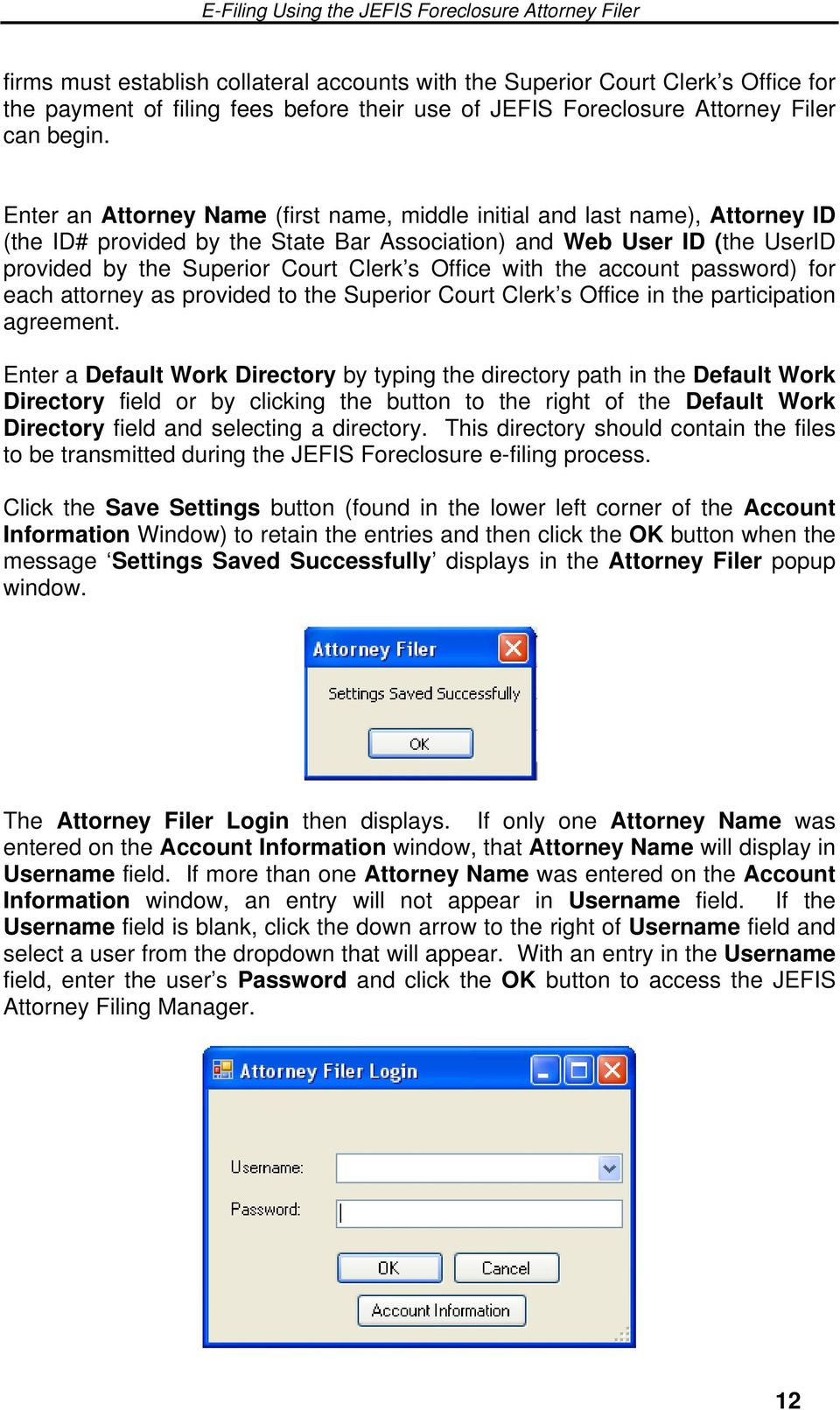
13 firms must establish collateral accounts with the Superior Court Clerk s Office for the payment of filing fees before their use of JEFIS Foreclosure Attorney Filer can begin. Enter an Attorney Name (first name, middle initial and last name), Attorney ID (the ID# provided by the State Bar Association) and Web User ID (the UserID provided by the Superior Court Clerk s Office with the account password) for each attorney as provided to the Superior Court Clerk s Office in the participation agreement. Enter a Default Work Directory by typing the directory path in the Default Work Directory field or by clicking the button to the right of the Default Work Directory field and selecting a directory. This directory should contain the files to be transmitted during the JEFIS Foreclosure e-filing process. Click the Save Settings button (found in the lower left corner of the Account Information Window) to retain the entries and then click the OK button when the message Settings Saved Successfully displays in the Attorney Filer popup window. The Attorney Filer Login then displays. If only one Attorney Name was entered on the Account Information window, that Attorney Name will display in Username field. If more than one Attorney Name was entered on the Account Information window, an entry will not appear in Username field. If the Username field is blank, click the down arrow to the right of Username field and select a user from the dropdown that will appear. With an entry in the Username field, enter the user s Password and click the OK button to access the JEFIS Attorney Filing Manager. 12
14 NOTE: The Account Information window is accessible in one of two ways. First, from the Attorney Filer Login click the Account Information button (see above) or from the JEFIS Attorney Filing Manager click on the File menu, then click the Account Information menu selection (see below). JEFIS Attorney Filing Manager To exit the application once the JEFIS Attorney Filing Manager has displayed Click File, then click Exit to close this window. 13

15 JEFIS FORECLOSURE E-FILING DOCUMENT FORMATS Four file formats can be used in the process of e-filing JEFIS Foreclosure documents: Rich Text Format (RTF) Tagged Image Format (TIF) Portable Document Format (PDF) For each document submitted, a Lead file designation is required (at a minimum) while the Exhibit document is optional in most cases. These documents can be in.pdf,.rtf or.tif format. Below is a sample e-filing package for an Answer document: Answer.RTF (lead) Exhibit.TIF (exhibit) Exhibit.PDF (exhibit) Answer.XML (created during the process of efiling) The discussion that follows provides a description of the creation of these file types. Rich Text Format (RTF) Files To e-file a pleading document such as a complaint, answer or motion, the document can be created in a word processing application and saved as an RTF document. When using a word processing application to create pleading documents it is important to adhere to the following restrictions: Do not protect documents with passwords. Do not include formulas in documents such as an automatic date function. Do not use proprietary fonts on documents. It is recommended to create documents for e-filing, using fonts available with Windows, such as Arial or Times New Roman, and a 10 or 12 point font size. Documents containing passwords, formulas or proprietary fonts will not be processed by JEFIS and will be returned to the attorney who submitted them. Please refer to the Supreme Court Rule Relaxation Order at: for details relating to the signature. 14

16 The following screens from Microsoft Word are used to illustrate the process of saving a document as an RTF file, however, any word processing application with the ability to create RTF files can be used. To create an RTF file, open a document in Microsoft Word and click File, Save As to display the Save As dialog box. Click the down arrow to the right of the Save as type field, select Rich Text Format (*.rtf) and then click the Save button. This will allow the Microsoft Word document to be saved as an RTF file. Tagged Image Format (TIF) Files To e-file a pleading document such as a complaint, answer or motion, the document can be in.tif format (also known as.tiff for Tagged Image File Format). Probably the simplest method of.tif file creation is to scan in a document and save as a.tif file. The TIF file must be TIF group 4 [2d-fax]. Portable Document Format (PDF) Files To e-file a pleading document such as a complaint, answer, judgment or motion, the document may be created in an Acrobat word processing application and saved as a PDF file. When using a word processing application to create pleading documents it is important to adhere to the following restrictions: Do not protect documents with passwords. Do not include formulas in documents such as an automatic date function. 15

17 Do not use proprietary fonts on documents. Documents containing passwords, formulas or proprietary fonts will not be processed by JEFIS and will be returned to the attorney who submitted them. NOTE: The letter S followed by a forward slash (/) and an attorney s name can be used as a substitute for the attorney s signature. S/Jane E. Doe The above provides the equivalent of attorney Jane E. Doe s written signature. Efiling Package The JEFIS Attorney Filing Manager uses the efiled documents to create an XML file, which is the final package that is efiled. NOTE:. Those who wish to mechanize the XML file creation process will find the New Jersey Judiciary XML data file at the following link on its website. This manual does NOT provide instructions on creating mechanized XML files. 16

18 CREATING a PACKAGE to EFILE USING THE JEFIS ATTORNEY FILING MANAGER To e-file, first implement the instructions outlined in Accessing the JEFIS Attorney Filing Manager. Clicking the Run button each time the Attorney Filing Manager application is accessed will allow the latest version of the application to be downloaded. The JEFIS Attorney Filing Manager displays the Attorney Filer Login Window as shown below. Please input the correct value in the Password field and click OK. 17

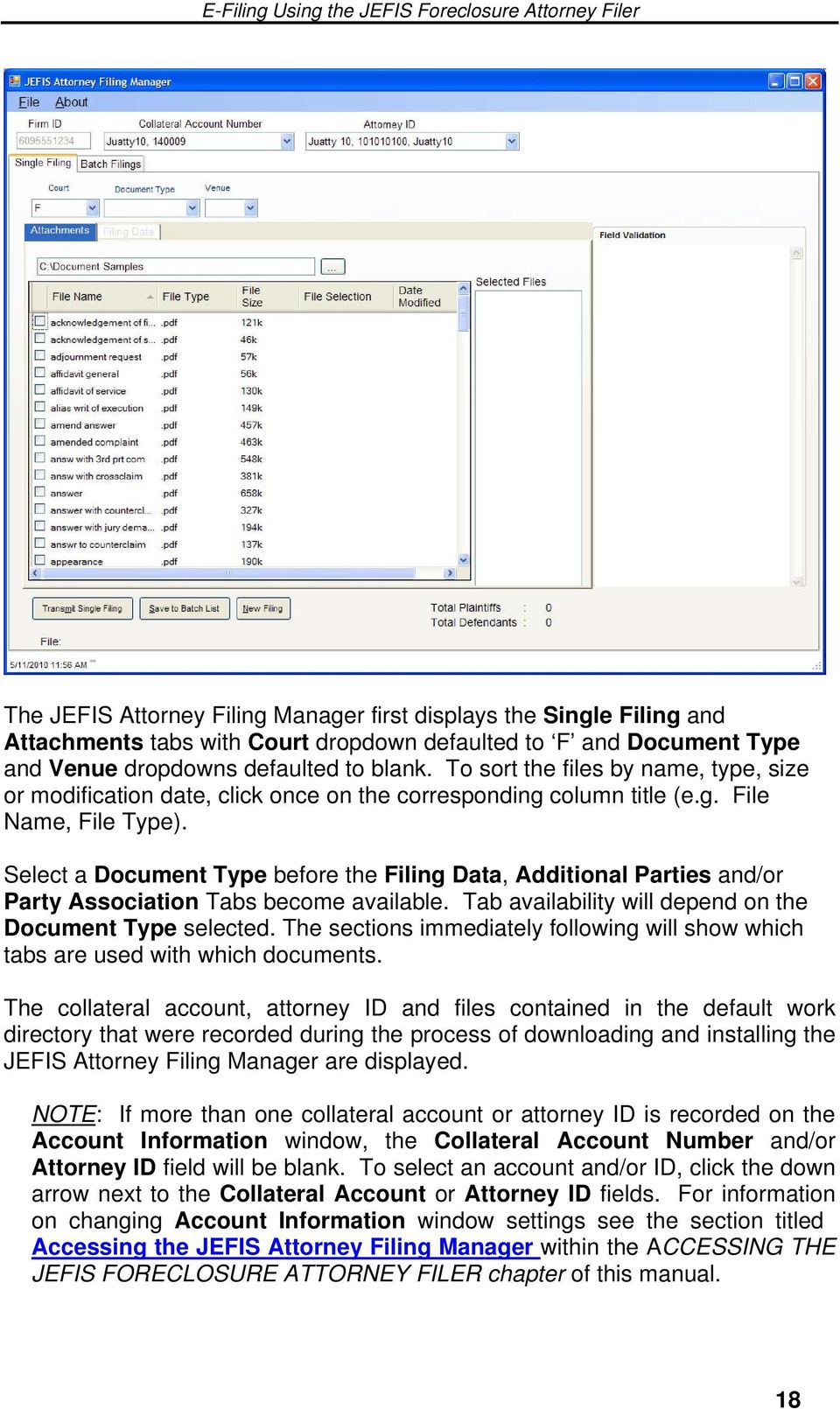
19 The JEFIS Attorney Filing Manager first displays the Single Filing and Attachments tabs with Court dropdown defaulted to F and Document Type and Venue dropdowns defaulted to blank. To sort the files by name, type, size or modification date, click once on the corresponding column title (e.g. File Name, File Type). Select a Document Type before the Filing Data, Additional Parties and/or Party Association Tabs become available. Tab availability will depend on the Document Type selected. The sections immediately following will show which tabs are used with which documents. The collateral account, attorney ID and files contained in the default work directory that were recorded during the process of downloading and installing the JEFIS Attorney Filing Manager are displayed. NOTE: If more than one collateral account or attorney ID is recorded on the Account Information window, the Collateral Account Number and/or Attorney ID field will be blank. To select an account and/or ID, click the down arrow next to the Collateral Account or Attorney ID fields. For information on changing Account Information window settings see the section titled Accessing the JEFIS Attorney Filing Manager within the ACCESSING THE JEFIS FORECLOSURE ATTORNEY FILER chapter of this manual. 18
20 To display the files of a different directory, click on the button to the right of the default directory name. The Browse for Folder window will display. Browse for Folder Select the desired directory from the Browse For Folder window by clicking on the folder you want to be your default directory. Then click the OK button to return to the JEFIS Attorney Filing Manager. The JEFIS Attorney Filing Manager will point to the directory you select to find the documents intended for e-filing. 19

21 To refresh the file list, click File, Refresh File List. This will allow files that were added to the default work directory after the JEFIS Attorney Filing Manager was accessed to display during the current application session. To e-file, start by clicking the New Filing button (to remove any data retained from the previous filing). Then select the File Name of the RTF, PDF and/or TIF document you plan to send by clicking in the box to the left of the File Name and clicking the dropdown box to the right of the file name indicating if it is a Lead, Exhibit or other type (to be described in greater detail based on the Document Type later in this manual). Only one Lead document can exist for each filing but as many Exhibits and other types as needed may be selected. File(s) are displayed based on the order of selection from the Attachments tab screen on the JEFIS Attorney Filing Manager. The lead and attachments must be from the same folder. 20
22 After selecting the RTF, PDF and/or TIF document(s) needed click the Filing Data tab to display the filing data. If the Collateral Account Number and/or Attorney ID fields on the JEFIS Attorney Filing Manager are blank, the following message will display when clicking the Filing Data tab. If any of the above messages display, click the OK button and select a Collateral Account Number and/or Attorney ID before clicking the Filing Data tab again. The sections that follow explain how to process the Attachments, Filing Data, Additional Parties and/or Party Association tab screen(s). The resulting transmission(s) will create the XML files for the numerous document types found in JEFIS Foreclosure processing. 21
23 Filing an Adjournment To file an Adjournment, start by clicking the New Filing button (to remove any data retained from the previous filing) then execute the following steps: 1. Please select the collateral account number and attorney id for the specific Adjournment being filed. 2. The JEFIS Attorney Filing Manager displays the account number, attorney id and default work directory. 3. The JEFIS Attorney Filing Manager displays options to select the court, document type, venue and docket number. 4. Please select the court as F for Foreclosure and document type as Adjournment. 5. Enter the venue based on property location. 6. Enter the docket number applicable for the case. 7. Please select the required supporting documents for Adjournment from the default work directory folder. The JEFIS Attorney Filing Manager displays all the RTF, PDF and/or TIF files available in the selected folder from the Attachments tab screen on the JEFIS Attorney Filing Manager. A different folder may be selected if required. See Accessing the JEFIS Attorney Filing Manager for details. 22
24 JEFIS Attorney Filing Manager Please select the Adjournment file(s) by clicking the check box to the left of the file name and clicking the dropdown box to the right of the file name indicating if it is a Lead or Exhibit document. Only one Lead document can exist for each Adjournment that is filed but as many Exhibits as needed may be selected. File(s) are displayed based on the order of selection from the Attachments tab screen on the JEFIS Attorney Filing Manager. 23
25 JEFIS Attorney Filing Manager When filing a foreclosure document, please click the Party Association tab to display the Party Association tab screen. The Party Association tab is used to identify the Primary filing party(s) and the Target party(s) against whom the document is being filed. This role would change based on the document type. For example, when filing an answer to a complaint the debtor would be the Primary and lender would be the Target. To access and implement the Party Association Tab please refer to the Party Association Section within the COMMON PROCEDURES WHILE FILING chapter for a detailed description of the procedure. NOTE: See COMMON PROCEDURES WHILE FILING for detailed description of procedures, issues and concerns surrounding file creation thru JEFIS Attorney Filing Manager. Functional sections include detailed description of Saving the File, Correcting Invalid Field Entries, Save to Batch List, Editing Batch Filings, Transmit Single Filing, Batch Filings and Confirmation of E-filed Documents. 24
26 Filing an Answer To file an Answer, start by clicking the New Filing button (to remove any data retained from the previous filing) then execute the following steps: 1. Please select the collateral account number and attorney id for the specific answer being filed. 2. The JEFIS Attorney Filing Manager displays the selection of account number, attorney id and default work directory based on prior selections. 3. The JEFIS Attorney Filing Manager displays options for you to select the court, document type, venue and docket number. 4. Please select the court as F for Foreclosure and document type as Answer. 5. Enter the venue based upon the location of the property. 6. Enter the docket number applicable for the case. 7. Please select the required supporting documents for Answer from the default work directory folder where The JEFIS Attorney Filing Manager displays all the RTF, PDF and/or TIF files available in the selected folder from the Attachments tab screen on the JEFIS Attorney Filing Manager. A different folder may be selected if required. See Accessing the JEFIS Attorney Filing Manager for details. 25
27 JEFIS Attorney Filing Manager 8. Please select the Answer file(s) by clicking the check box to the left of the file name and clicking the dropdown box to the right of the file name indicating if it is a Lead or Exhibit document. Only one Lead document can exist for each Answer that is filed but as many Exhibits as needed may be selected. File(s) are displayed based on the order of selection from the Attachments tab screen on the JEFIS Attorney Filing Manager. 26
28 9. Please click the Filing Data tab to display the filing data screen. JEFIS Attorney Filing Manager 10. The JEFIS Attorney Filing Manager displays the entry fields for the Answer document information where mandatory fields are marked with an asterisk in the Description column and Field validation / formats appear in the Help column. 11. Place entries in the Entry column using the information provided in the Help column as a guide to formatting and placing valid field entries. Click an entry in the Help column to view the entry s full text in the Field Validation section of the screen. Please review APPENDIX A for further detail regarding Answer fields. 27
29 JEFIS Attorney Filing Manager The JEFIS Attorney Filing Manager displays and you may select the Additional Parties tab. All parties including the foreclosed property need to be identified when an initial complaint is filed. This process can be accomplished by using the Additional parties tab when filing a complaint document type. If any parties were not identified during the initial complaint process they should be added using the Additional parties tab when filing an Answer, Amended Complaint, Third Party Complaint, or any other document type where a party is being added. If you need to access and implement the Additional Parties Tab please refer to the Additional Parties Section within the COMMON PROCEDURES WHILE FILING chapter. 28
30 JEFIS Attorney Filing Manager When filing a foreclosure document, please click the Party Association tab to display the Party Association tab screen. The Party Association tab is used to identify the Primary filing party(s) and the Target party(s) against whom the document is being filed. This role would change based on the document type. For example, when filing an answer to a complaint the debtor would be the Primary and lender would be the Target. To access and implement the Party Association Tab please refer to the Party Association Section within the COMMON PROCEDURES WHILE FILING chapter for a detailed description of the procedure. NOTE: See COMMON PROCEDURES WHILE FILING for detailed description of procedures, issues and concerns surrounding file creation thru JEFIS Attorney Filing Manager. Functional sections include detailed description of Saving the File, Correcting Invalid Field Entries, Save to Batch List, Editing Batch Filings, Transmit Single Filing, Batch Filings and Confirmation of E-filed Documents. 29
31 Filing Answer Non-Contesting To file Ans-Non-Contest (Non Contesting Answer), start by clicking the New Filing button (to remove any data retained from the previous filing) then execute the following steps: 1. Please select the collateral account number and attorney id for the specific answer being filed. 2. The JEFIS Attorney Filing Manager displays account number, attorney id and default work directory based on prior selections. 3. The JEFIS Attorney Filing Manager displays options for you to select the court, document type, venue and docket number. 4. Please select the court as F for Foreclosure and document type as Ans- Non-Contest. 5. Enter the venue based upon the location of the property. 6. Enter the docket number applicable for the case. 7. Please select the required supporting documents for Ans-Non-Contest from the default work directory folder where The JEFIS Attorney Filing Manager displays all the RTF, PDF and/or TIF files available in the selected folder from the Attachments tab screen on the JEFIS Attorney Filing Manager. A different folder may be selected if required. See Accessing the JEFIS Attorney Filing Manager for details. 30
32 JEFIS Attorney Filing Manager 8. Please select the Ans-Non-Contest file(s) by clicking the check box to the left of the file name and clicking the dropdown box to the right of the file name indicating if it is a Lead or Exhibit document. Only one Lead document can exist for each Ans-Non-Contest that is filed but as many Exhibits as needed may be selected. File(s) are displayed based on the order of selection from the Attachments tab screen on the JEFIS Attorney Filing Manager. 31
33 JEFIS Attorney Filing Manager Please click on the Filing Data tab. The JEFIS Attorney Filing Manager then displays the data entry fields for the Ans-Non-Contest related information where mandatory fields are marked with an asterisk in the Description column and Field validation / formats appear in the Help column. Please review the APPENDIX A for further detail regarding Ans-Non-Contest data entry fields. 32
34 JEFIS Attorney Filing Manager The JEFIS Attorney Filing Manager displays and you may select the Additional Parties tab. All parties including the foreclosed property need to be identified when an initial complaint is filed. This process can be accomplished by using the Additional parties tab when filing a complaint document type. If any parties were not identified during the initial complaint process they should be added using the Additional parties tab when filing an Answer, Amended Complaint, Third Party Complaint, or any other document type where a party is being added. If you need to access and implement the Additional Parties Tab please refer to the Additional Parties Section within the COMMON PROCEDURES WHILE FILING chapter. 33
35 JEFIS Attorney Filing Manager When filing a foreclosure document, please click the Party Association tab to display the Party Association tab screen. The Party Association tab is used to identify the Primary filing party(s) and the Target party(s) against whom the document is being filed. This role would change based on the document type. For example, when filing an answer to a complaint the debtor would be the Primary and lender would be the Target. To access and implement the Party Association Tab please refer to the Party Association Section within the COMMON PROCEDURES WHILE FILING chapter for a detailed description of the procedure. NOTE: See COMMON PROCEDURES WHILE FILING for detailed description of procedures, issues and concerns surrounding file creation thru JEFIS Attorney Filing Manager. Functional sections include detailed description of Saving the File, Correcting Invalid Field Entries, Save to Batch List, Editing Batch Filings, Transmit Single Filing, Batch Filings and Confirmation of E-filed Documents. 34
36 Filing Bankruptcy To file for Bankruptcy, start by clicking the New Filing button (to remove any data retained from the previous filing) then execute the following steps: 1. Please select the collateral account number and attorney id for the specific Bankruptcy being filed. 2. The JEFIS Attorney Filing Manager displays account number, attorney id and default work directory based on prior selections. 3. The JEFIS Attorney Filing Manager displays options for you to select the court, document type, venue and docket number. 4. Please select the court as F for Foreclosure and document type as Bankruptcy. 5. Enter the venue based upon the location of the property. 6. Enter the docket number applicable for the case. 7. Please select the required supporting documents for Bankruptcy from the default work directory folder where The JEFIS Attorney Filing Manager displays all the RTF, PDF and/or TIF files available in the selected folder from the Attachments tab screen on the JEFIS Attorney Filing Manager. A different folder may be selected if required. See Accessing the JEFIS Attorney Filing Manager for details. 35
37 JEFIS Attorney Filing Manager Please select the Bankruptcy file(s) by clicking the check box to the left of the file name and clicking the dropdown box to the right of the file name indicating if it is a Lead or Exhibit document. Only one Lead document can exist for each Bankruptcy that is filed but as many Exhibits as needed may be selected. File(s) are displayed based on the order of selection from the Attachments tab screen on the JEFIS Attorney Filing Manager. 36
38 JEFIS Attorney Filing Manager When filing a foreclosure document, please click the Party Association tab to display the Party Association tab screen. The Party Association tab is used to identify the Primary filing party(s) and the Target party(s) against whom the document is being filed. This role would change based on the document type. For example, when filing an answer to a complaint the debtor would be the Primary and lender would be the Target. To access and implement the Party Association Tab please refer to the Party Association Section within the COMMON PROCEDURES WHILE FILING chapter for a detailed description of the procedure. NOTE: See COMMON PROCEDURES WHILE FILING for detailed description of procedures, issues and concerns surrounding file creation thru JEFIS Attorney Filing Manager. Functional sections include detailed description of Saving the File, Correcting Invalid Field Entries, Save to Batch List, Editing Batch Filings, Transmit Single Filing, Batch Filings and Confirmation of E-filed Documents. 37
39 Filing Certifications v1 To file Certifications v1, start by clicking the New Filing button (to remove any data retained from the previous filing) then execute the following steps: 1. Please select the collateral account number and attorney id for the specific Certifications being filed. 2. The JEFIS Attorney Filing Manager displays account number, attorney id and default work directory based on prior selections. 3. The JEFIS Attorney Filing Manager displays options for you to select the court, document type, venue and docket number. 4. Please select the court as F for Foreclosure and document type as Certifications v1. 5. Enter the venue based upon the location of the property. 6. Enter the docket number applicable for the case. 7. Please select the required supporting documents for Certifications v1 from the default work directory folder where The JEFIS Attorney Filing Manager displays all the RTF, PDF and/or TIF files available in the selected folder from the Attachments tab screen on the JEFIS Attorney Filing Manager. A different folder may be selected if required. See Accessing the JEFIS Attorney Filing Manager for details. 38
40 JEFIS Attorney Filing Manager Please select the Certifications v1 file(s) by clicking the check box to the left of the file name and clicking the dropdown box to the right of the file name indicating if it is a Lead or Exhibit document. Only one Lead document can exist for each Certification v1 that is filed but as many Exhibits as needed may be selected. File(s) are displayed based on the order of selection from the Attachments tab screen on the JEFIS Attorney Filing Manager. 39
41 Please click on the Filing Data tab. The JEFIS Attorney Filing Manager then displays the data entry fields for the Certifications V1 related information where mandatory fields are marked with an asterisk in the Description column and Field validation / formats appear in the Help column. Please review the APPENDIX A for further detail regarding Certifications V1 data entry fields 40
42 JEFIS Attorney Filing Manager When filing a foreclosure document, please click the Party Association tab to display the Party Association tab screen. The Party Association tab is used to identify the Primary filing party(s) and the Target party(s) against whom the document is being filed. This role would change based on the document type. For example, when filing an answer to a complaint the debtor would be the Primary and lender would be the Target. To access and implement the Party Association Tab please refer to the Party Association Section within the COMMON PROCEDURES WHILE FILING chapter for a detailed description of the procedure. NOTE: See COMMON PROCEDURES WHILE FILING for detailed description of procedures, issues and concerns surrounding file creation thru JEFIS Attorney Filing Manager. Functional sections include detailed description of Saving the File, Correcting Invalid Field Entries, Save to Batch List, Editing Batch Filings, Transmit Single Filing, Batch Filings and Confirmation of E-filed Documents. 41
43 Filing Certifications v2 This document submission is to handle Affidavit for Due Diligence documents that would be submitted by attorney firms, reviewed and processed by court clerks to address Emergent Amendments to rules 1:5-6, 4:64-1 and 4:64-2. To file Certifications v2, start by clicking the New Filing button (to remove any data retained from the previous filing) then execute the following steps: 1. Please select the collateral account number and attorney id for the specific Certifications v2 being filed. 2. Please select the court as F for Foreclosure and document type as Certifications v2. 3. System displays options for the user to select the court, document type, venue, docket number and mandatory payload value for case status 4. under Filing Data tab with Field Name Rule 4:64-2(d) Affidavit *: 5. Filing Data field values for Certifications v2 : O for Affidavit of due diligence for residential mortgage foreclosure actions pending. 6. S for Affidavit of due diligence for residential mortgage foreclosure actions in which judgment was entered but no sale of the property has yet occurred. * Mandatory field 7. Please select the court as F for Foreclosure, Certifications v2 for document type, venue based upon the location of the property for the document, enters the docket number for the related case and updates the indicator based on the status of the case jacket. 8. System validates docket number entry and displays user selections. 9. Enter the venue based upon the location of the property. 10. Enter the docket number applicable for the case. 11. Please select the required supporting documents for Certifications v2 from the default work directory folder where The JEFIS Attorney Filing Manager displays all the RTF, PDF and/or TIF files available in the selected folder from the Attachments tab screen on the JEFIS Attorney Filing Manager. A different folder may be selected if required. See Accessing the JEFIS Attorney Filing Manager for details. 42
44 JEFIS Attorney Filing Manager 12. System displays options for the user to select the court, document type, venue, docket number and mandatory payload value for case status under Filing Data tab with the following values: O for Affidavit of due diligence for residential mortgage foreclosure actions pending. S for Affidavit of due diligence for residential mortgage foreclosure actions in which judgment was entered but no sale of the property has yet occurred. Filing Data field for Certifications v2 Field Description: Rule 4:64-2(d) Affidavit * Field Values: O, S Help: O : Pending residential mortgage foreclosure actions, S : Judgment entered and awaiting sale of the property. * Mandatory field 13. User selects the court as F for Foreclosure, Certifications v2 for document type, venue based upon the location of the property for the document, enters the docket number for the related case and updates the indicator based on the status of the case jacket. 14. System validates docket number entry and displays user selections. 43
45 Please select the Certifications v2 file(s) by clicking the check box to the left of the file name and clicking the dropdown box to the right of the file name indicating if it is a Lead or Exhibit document. Only one Lead document can exist for each Certification v2 that is filed but as many Exhibits as needed may be selected. File(s) are displayed based on the order of selection from the Attachments tab screen on the JEFIS Attorney Filing Manager. JEFIS Attorney Filing Manager 44
46 The JEFIS Attorney Filing Manager displays the entry fields for the Certifications v2 document information where mandatory fields are marked with an asterisk in the Description column and Field validation / formats appear in the Help column. Place entries in the Entry column using the information provided in the Help column as a guide to formatting and placing valid field entries. Click an entry in the Help column to view the entry s full text in the Field Validation section of the screen. Please review APPENDIX A for further detail regarding Certification v2 fields. NOTE: See COMMON PROCEDURES WHILE FILING for detailed description of procedures, issues and concerns surrounding file creation thru JEFIS Attorney Filing Manager. Functional sections include detailed description of Saving the File, Correcting Invalid Field Entries, Save to Batch List, Editing Batch Filings, Transmit Single Filing, Batch Filings and Confirmation of E-filed Documents. 45
47 Filing a Complaint To file a Complaint, start by clicking the New Filing button (to remove any data retained from the previous filing) then execute the following steps: 1. Select the Collateral Account Number and Attorney User Id for filing, if not prefilled. 2. Select the Document Type using the drop-down menu. 3. Select Complaint V1 for: Residential Mortgage Foreclosure OR 4. Select Complaint V2 for: Condominium Foreclosure Commercial Foreclosure Optional Foreclosure Procedure Time Share Foreclosure Strict Foreclosure 5. Next, select the venue the foreclosure property is located 6. Select the Complaint LEAD document from the Attachments tab by clicking the check box to the left of the file name and clicking the dropdown box to the right of the file name indicating if it is a Lead or an Exhibit document. Only one Lead document can exist for each Complaint 7. Choose the required supporting documents for Complaint from the default work directory folder where the JEFIS Attorney Filing Manager displays all the RTF, PDF and/or TIF files available in the selected folder from the Attachments tab screen on the JEFIS Attorney Filing Manager. File(s) are displayed based on the order of selection from the Attachments tab screen on the JEFIS Attorney Filing Manager. 46
48 Supporting Documents for Complaint V1: The following documents are mandatory to be a part of the Complaint V1 package when they are filed: Certification of Title Search (CertTitleSearch.xxx) Certification of Due Diligence (CertDueDiligence.xxx) Certification of No Other Actions (CertNoActions.xxx) Certification of Redaction of Personal Identifiers (CertRedaction.xxx) JEFIS Attorney Filing Manager Supporting Documents for Complaint V2: The following documents are mandatory to be a part of the Complaint V1 package when they are filed: Certification of Title Search (CertTitleSearch.xxx) Certification of No Other Actions (CertNoActions.xxx) Certification of Redaction of Personal Identifiers (CertRedaction.xxx) Note: The Certification of Due Diligence is only required for residential mortgage foreclosures 47
49 JEFIS Attorney Filing Manager Note: The supporting documents must be added as separate documents from the Complaint. A different folder may be selected if required. See Step 2 Accessing the JEFIS Attorney Filing Manager for details. Note: In Rem and In Personam complaints types should be mailed in paper. 8. Click the Filing Data tab Use the mouse or Tab key to move the cursor to and enter information in the Entry column fields. The items followed by an asterisk (*) in the Description column are fields that require an entry. Attempts to save the XML file without an entry in these fields will result in an error message. 48
50 JEFIS Attorney Filing Manager Tables of valid entries are available for some fields that require the entry of a code. These tables are accessed by using the F1 key when the cursor is in the field or by double-clicking in the field. For example, placing the cursor in the Entry field for Foreclosure Case Type and pressing F1 (or double-clicking the field) will display a table of valid case type entries. 49
51 JEFIS Attorney Filing Manager Clicking a Foreclosure Case Type in the table places the case type code in the corresponding Entry field on the Filing Data tab screen and places the code s description in the Detail column. The foreclosure case type will depend on the type of Complaint selected. Similarly Plaintiff affiliation and Defendant affiliation are also selected from a popup menu or table of values as shown below: 50
52 Plaintiff Affiliation 51
53 Defendant Affiliation Continue to place entries in the Entry column using the information provided in the Help column as a guide to formatting and valid field entries. 52
54 Click on an entry in the Help column to view the entry s full text in the Field Validation section of the screen. NOTE: The APPENDIX A contains a description of each Entry field on the Filing Data tab screen for Complaint. 53
55 9. Next, you may select the Additional Parties tab. All parties need to be identified when an initial complaint is filed. 10. Click Add Party to display the Add Party screen. Enter all relevant details. JEFIS Attorney Filing Manager 54
56 Select Party Type and Affiliation Code from the pop-up menu. Party Type Affiliation Code 11. Click Validate Party once all the details are entered. The system validates for any errors. 55
57 12. Select the Property Tab, and click Add Property to enter the details of all the foreclosed properties. NOTE: Ensure that at least one venue of the properties listed, matches with the base venue selected for filing the complaint. For example-if while filing a Complaint the venue is Camden then, at least one property listed in the property tab must have the venue as Camden. If the user clicks on Transmit for a Complaint document type without adding a Foreclosed Property (FRP) party to the complaint, the system displays an error message indicating that the user must add a Foreclosed Property (FRP) party to the complaint. 56
58 NOTE: See COMMON PROCEDURES WHILE FILING for detailed description of procedures, issues and concerns surrounding file creation thru JEFIS Attorney Filing Manager. Functional sections include detailed description of Saving the File, Correcting Invalid Field Entries, Save to Batch List, Editing Batch Filings, Transmit Single Filing, Batch Filings and Confirmation of E-filed Documents. 57
59 Filing Complaint-Other To file for Complaint-Other Document Type, start by clicking the New Filing button (to remove any data retained from the previous XML file s creation), select F (Foreclosure) from the Court dropdown select the complaint s RTF, PDF and/or TIF from the Attachments tab screen on the JEFIS Attorney Filing Manager. Please select the Complaint-Other file(s) by clicking the check box to the left of the file name and clicking the dropdown box to the right of the file name indicating if it is a Lead or Exhibit document. Only one Lead document can exist for each Complaint-Other that is filed but as many Exhibits as needed may be selected. File(s) are displayed based on the order of selection from the Attachments tab screen on the JEFIS Attorney Filing Manager. Then select the Filing Data tab to display the filing data. On the Attachments tab screen, click the down arrow on the Document Type field and select Complaint-Other; and then click the down arrow on the Venue field and select a venue code. JEFIS Attorney Filing Manager 58
60 Use the mouse or Tab key to move the cursor to and enter information in the Entry column fields. The items followed by an asterisk (*) in the Description column are fields that require an entry. Attempts to save the XML file without an entry in these fields will result in an error message. JEFIS Attorney Filing Manager Tables of valid entries are available for some fields that require the entry of a code. These tables are accessed by using the F1 key when the cursor is in the field or by double-clicking in the field. For example, placing the cursor in the Entry field for Document Type and pressing F1 (or double-clicking the field) will display a table of valid Document type entries. Clicking a Document type in the table places the Document type code in the corresponding Entry field on the Filing Data tab screen and places the code s description in the Detail column. 59
61 JEFIS Attorney Filing Manager Continue to place entries in the Entry column using the information provided in the Help column as a guide to formatting and valid field entries. Click on an entry in the Help column to view the entry s full text in the Field Validation section of the screen. NOTE: The APPENDIX A contains a description of each Entry field on the Filing Data tab screen for Complaint-Other. 60
62 JEFIS Attorney Filing Manager When filing a foreclosure document, please click the Party Association tab to display the Party Association tab screen. The Party Association tab is used to identify the Primary filing party(s) and the Target party(s) against whom the document is being filed. This role would change based on the document type. For example, when filing an answer to a complaint the debtor would be the Primary and lender would be the Target. To access and implement the Party Association Tab please refer to the Party Association Section within the COMMON PROCEDURES WHILE FILING chapter for a detailed description of the procedure. NOTE: See COMMON PROCEDURES WHILE FILING for detailed description of procedures, issues and concerns surrounding file creation thru JEFIS Attorney Filing Manager. Functional sections include detailed description of Saving the File, Correcting Invalid Field Entries, Save to Batch List, Editing Batch Filings, Transmit Single Filing, Batch Filings and Confirmation of E-filed Documents. 61
63 Filing Correspondence-Gen(eral) To file Correspondence-Gen (Correspondence General), start by clicking the New Filing button (to remove any data retained from the previous filing) then execute the following steps: 1. Please select the collateral account number and attorney id for the specific Correspondence-Gen being filed. 2. The JEFIS Attorney Filing Manager displays account number, attorney id and default work directory based on prior selections. 3. The JEFIS Attorney Filing Manager displays options for you to select the court, document type, venue and docket number. 4. Please select the court as F for Foreclosure and document type as Correspondence-Gen. 5. Enter the venue based upon the location of the property. 6. Enter the docket number applicable for the case. 7. Please select the required supporting documents for Correspondence- Gen from the default work directory folder where The JEFIS Attorney Filing Manager displays all the RTF, PDF and/or TIF files available in the selected folder from the Attachments tab screen on the JEFIS Attorney Filing Manager. A different folder may be selected if required. See Accessing the JEFIS Attorney Filing Manager for details. 62
64 JEFIS Attorney Filing Manager Please select the Correspondence-Gen file(s) by clicking the check box to the left of the file name and clicking the dropdown box to the right of the file name indicating if it is a Lead or Exhibit document. Only one Lead document can exist for each Correspondence-Gen that is filed but as many Exhibits as needed may be selected. File(s) are displayed based on the order of selection from the Attachments tab screen on the JEFIS Attorney Filing Manager. 63
65 JEFIS Attorney Filing Manager When filing a foreclosure document, please click the Party Association tab to display the Party Association tab screen. The Party Association tab is used to identify the Primary filing party(s) and the Target party(s) against whom the document is being filed. This role would change based on the document type. For example, when filing an answer to a complaint the debtor would be the Primary and lender would be the Target. To access and implement the Party Association Tab please refer to the Party Association Section within the COMMON PROCEDURES WHILE FILING chapter for a detailed description of the procedure. NOTE: See COMMON PROCEDURES WHILE FILING for detailed description of procedures, issues and concerns surrounding file creation thru JEFIS Attorney Filing Manager. Functional sections include detailed description of Saving the File, Correcting Invalid Field Entries, Save to Batch List, Editing Batch Filings, Transmit Single Filing, Batch Filings and Confirmation of E-filed Documents. 64
66 Filing EXC-CIRC V1 To file Affidavit of Exceptional Circumstances start by clicking the New Filing button (to remove any data retained from the previous filing). The following steps can then be implemented: 1. Select the collateral account number and attorney id for the Affidavit of Exceptional Circumstance being filed unless The JEFIS Attorney Filing Manager has already correctly defaulted to the appropriate account number and attorney id. 2. If appropriate, change your work directory by clicking the button to the right of the Default Work Directory field and selecting another directory 3. Select the court as F for Foreclosure from the Court dropdown then click the down arrow on the Document Type field and select EXC-CIRC. 4. Click the down arrow on the Venue field and select a venue code; then enter a Docket Number and Year. 5. Select the required Lead and optional supporting documents for EXC- CIRC from the default or selected work directory folder by using the check box next to the file name. You may select a different folder, if required, using the browse button (.). The JEFIS Attorney Filing Manager displays all the RTF, PDF and/or TIF files available in the selected folder. 6. Please select a Lead document by clicking the check box to the left of the file name and clicking from the File Selection column s dropdown for that specific row from the Attachments tab screen on the JEFIS Attorney Filing Manager. Files are displayed based on the order of selection. 65
67 JEFIS Attorney Filing Manager Following documents types are available for filing EXC-CIRC V1: 1. Lead 2. Exhibit 66
68 Click on the Filing Data tab to display the Filing Data columns for Description, Entry, Detail and Help. On the Filing Data tab screen while the Single Filing Tab remains active, the appropriate input is entered into the Entry column. JEFIS Attorney Filing Manager Enter data only if it is a re-file. 67
69 JEFIS Attorney Filing Manager When filing a foreclosure document, please click the Party Association tab to display the Party Association tab screen. The Party Association tab is used to identify the Primary filing party(s) and the Target party(s) against whom the document is being filed. This role would change based on the document type. For example, when filing an answer to a complaint the debtor would be the Primary and the lender would be the Target. To access and implement the Party Association Tab please refer to the Party Association Section within the COMMON PROCEDURES WHILE FILING chapter for a detailed description of the procedure. NOTE: See COMMON PROCEDURES WHILE FILING for detailed description of procedures, issues and concerns surrounding file creation thru JEFIS Attorney Filing Manager. Functional sections include detailed description of Saving the File, Correcting Invalid Field Entries, Save to Batch List, Editing Batch Filings, Transmit Single Filing, Batch Filings and Confirmation of E-filed Documents. Note: The APPENDIX A contains a list of each Document Type and definition. 68
70 Filing Judgments There are multiple Judgment types. To file any type of judgment, start by clicking the New Filing button (to remove any data retained from the previous filing). The following steps can then be implemented: 1. Select the collateral account number and attorney id for the specific judgment being filed unless The JEFIS Attorney Filing Manager has already correctly defaulted to the appropriate account number and attorney id. 2. Select the court as F for Foreclosure from the Court dropdown then click the down arrow on the Document Type field and select the appropriate Judgment type. 3. If appropriate, change your work directory by clicking the button to the right of the Default Work Directory field and selecting another directory 4. Click the down arrow on the Venue field and select a venue code; then enter a Docket Number and Year. 5. Select the required and optional supporting documents for the selected Judgment type from the default or selected work directory folder by using the check box next to the file name. You may select a different folder, if required, using the browse button (.). The JEFIS Attorney Filing Manager displays all the RTF, PDF and/or TIF files available in the selected folder. 6. Please select a Lead document by clicking the check box to the left of the file name and clicking from the File Selection column s dropdown for that specific row from the Attachments tab screen on the JEFIS Attorney Filing Manager. Documents marked with an asterisk in the File Selection dropdown box are mandatory to file a judgment package. Files are displayed based on the order of selection. 69
71 JEFIS Attorney Filing Manager Each Judgment type has its own set of attachments, out of which some may be mandatory. Refer to Appendix C for the attachment list for each judgment type. 70
72 JEFIS Attorney Filing Manager Click on the Filing Data tab to display the Filing Data columns for Description, Entry, Detail and Help. On the Filing Data tab screen while the Single Filing Tab remains active the appropriate input is entered into the Entry column. NOTE: A simple order for judgment must be e-filed as an Orders-no-Motion document type and not as a Judgment document type. Use the mouse or Tab key to move to and enter information in the Entry column fields. The items followed by an asterisk (*) in the Description column are fields that require an entry. Attempts to save the XML file without an entry in these fields will result in an error message. 71
73 JEFIS Attorney Filing Manager Tables of valid entries are available for some fields that require the entry of a code. These tables are accessed by using the F1 key when the cursor is in the field or by double-clicking in the field. For example, placing the cursor in the Entry field for Type of Mortgage and pressing F1 (or double-clicking the field) displays a table of valid document entries. Clicking a Detail item places the code that corresponds to the text shown on the Type of Mortgage Detail field in the Filing Data s Type of Mortgage Entry field. NOTE: The APPENDIX A contains a list of each Document Type and field definition. For each Judgment document type, each data field to be submitted with an electronic filing is listed with both, the basic technical requirements and common descriptions. Appendix A- Judgment Types Judgments V1- JudgRes Judgments V10- JudgOSTOpSt Judgments V11- JudgStrict Judgments V3- JudgComm Judgments V4- JudgInRem Judgments V5- JudgOpt Judgments V7- JudgOSTTax Judgments V8- JudgPers Judgments V9- JudgPersUSA 72
74 JEFIS Attorney Filing Manager When filing a foreclosure document, please click the Party Association tab to display the Party Association tab screen. The Party Association tab is used to identify the Primary filing party(s) and the Target party(s) against whom the document is being filed. This role would change based on the document type. For example, when filing an answer to a complaint the debtor would be the Primary and the lender would be the Target. To access and implement the Party Association Tab please refer to the Party Association Section within the COMMON PROCEDURES WHILE FILING chapter for a detailed description of the procedure. NOTE: See COMMON PROCEDURES WHILE FILING for detailed description of procedures, issues and concerns surrounding file creation thru JEFIS Attorney Filing Manager. Functional sections include detailed description of Saving the File, Correcting Invalid Field Entries, Save to Batch List, Editing Batch Filings, Transmit Single Filing, Batch Filings and Confirmation of E-filed Documents. 73
75 JEFIS Attorney Filing Manager Next, click the Property Tab to enter the property details for the judgment being filed. This is a mandatory requirement for all judgment types. 74
76 Filing Motion or Motion-OF(Office of Foreclosure) To file Motion or Motion-OF (Motion - Office of Foreclosure), start by clicking the New Filing button (to remove any data retained from the previous filing) then execute the following steps: Please select the collateral account number and attorney id for the specific motion being filed. The JEFIS Attorney Filing Manager displays account number, attorney id and default work directory based on settings. Please select the court as F for Foreclosure and document type as Motion / Motion-OF based upon the type of motion, venue based upon the location of the property for the document and enter the docket number for the case. The JEFIS Attorney Filing Manager displays options for you to select the court, document type and venue. The JEFIS Attorney Filing Manager validates the format to check if a valid docket entry is made and displays available selections. Please select the required supporting documents from the default work directory folder. A different folder may be selected if required using the browse button (.). The JEFIS Attorney Filing Manager displays all the RTF, PDF and/or TIF files available in the selected folder. Please select a Lead document by clicking the check box to the left of the file name and clicking from the File Selection column s dropdown for that specific row from the Attachments tab screen on the JEFIS Attorney Filing Manager. Documents marked with an asterisk in the File Selection dropdown box are mandatory to file a motion. Files are displayed based on the order of selection with an option to assign a document type for each selected file. Following documents types are available for filing Motion / Motion-OF : a. Notice of motion (is the lead document for Motion/Motion-OF) * b. Certification in support of motion * c. Proposed form of order * d. Certification of service * e. Exhibit A f. Exhibit B g. Exhibit C h. Exhibit D i. Exhibit E j. Exhibit You can select multiple documents with a document type of Exhibit. All those marked with * are required documents. 75
77 JEFIS Attorney Filing Manager Document types filed as Exhibit are stored alphabetically example: if you files 3 documents with a document type of Exhibit they are stored as Exhibit F, Exhibit G and Exhibit H. Notice of motion is the lead document for the motion / motion-of package and only one Lead document can exist for each package that is filed. Document types are mandatory for all the selected files and documents marked with an asterisk are mandatory to file a motion / motion-of package. Assign a document type for all the selected files. Selected file(s) are displayed based on the order of selection. 76
78 Please click on Filing Data tab. JEFIS Attorney Filing Manager The JEFIS Attorney Filing Manager displays the additional data entry fields for the Motion or Motion-OF related information, where mandatory fields are marked with an asterisk in the Description column and Field validation / formats appear in the Help column. Please review the APPENDIX A for further detail regarding Motion or Motion-OF data entry fields.. 77
79 JEFIS Attorney Filing Manager When filing a foreclosure document, please click the Party Association tab to display the Party Association tab screen. The Party Association tab is used to identify the Primary filing party(s) and the Target party(s) against whom the document is being filed. This role would change based on the document type. For example, when filing an answer to a complaint the debtor would be the Primary and lender would be the Target. To access and implement the Party Association Tab please refer to the Party Association Section within the COMMON PROCEDURES WHILE FILING chapter for a detailed description of the procedure. NOTE: See COMMON PROCEDURES WHILE FILING for detailed description of procedures, issues and concerns surrounding file creation thru JEFIS Attorney Filing Manager. Functional sections include detailed description of Saving the File, Correcting Invalid Field Entries, Save to Batch List, Editing Batch Filings, Transmit Single Filing, Batch Filings and Confirmation of E-filed Documents. 78
80 Filing Motion-Surp-Fun (Motion for Surplus Funds) To file Motion-Surp-Fun (Motion for Surplus Funds), start by clicking the New Filing button (to remove any data retained from the previous filing) then execute the following steps: Please select the collateral account number and attorney id for the specific motion being filed. The JEFIS Attorney Filing Manager displays account number, attorney id and default work directory based on your settings. Please select the court as F for Foreclosure and document type as Motion-Surp-Fun based upon the type of motion, venue based upon the location of the property for the document and enter the docket number for the case. The JEFIS Attorney Filing Manager displays options for you to select the court, document type and venue. The JEFIS Attorney Filing Manager validates the format to check if a valid docket entry is made and displays your selections. Please select the required supporting documents from the default work directory folder. A different folder may be selected if required using the browse button (.). The JEFIS Attorney Filing Manager displays all the RTF, PDF and/or TIF files available in the selected folder. Please select a Lead document by clicking the check box to the left of the file name and clicking from the File Selection column s dropdown for that specific row from the Attachments tab screen on the JEFIS Attorney Filing Manager. Documents marked with an asterisk in the File Selection dropdown box are mandatory to file a Motion for Surplus Funds. Files are displayed based on the order of selection with an option to assign a document type for each selected file. Following documents types are available for filing Motion-Surp-Fun: a. Notice of motion (is the lead document for Motion-Surp-Fun) * b. Certification in support of motion * c. Proposed form of order * d. Certification of service * e. Exhibit A f. Exhibit B g. Exhibit C h. Exhibit D i. Exhibit E j. Exhibit You can select multiple documents with a document type of Exhibit. Documents showing * are required. 79
81 JEFIS Attorney Filing Manager Document types are mandatory for all the selected files and documents marked with an asterisk are mandatory to file a Motion-Surp-Funds v1. Please assign a document type for all the selected files. Selected file(s) are displayed based on the order of selection. 80
82 Please click on Filing Data tab. JEFIS Attorney Filing Manager NOTE: The APPENDIX A contains a list of each Document Type and definition. For each document type, each data field to be submitted with an electronic filing is listed with both the basic technical requirements and common descriptions, where appropriate. 81
83 JEFIS Attorney Filing Manager When filing a foreclosure document, please click the Party Association tab to display the Party Association tab screen. The Party Association tab is used to identify the Primary filing party(s) and the Target party(s) against whom the document is being filed. This role would change based on the document type. For example, when filing an answer to a complaint the debtor would be the Primary and lender would be the Target. To access and implement the Party Association Tab please refer to the Party Association Section within the COMMON PROCEDURES WHILE FILING chapter for a detailed description of the procedure. NOTE: See COMMON PROCEDURES WHILE FILING for detailed description of procedures, issues and concerns surrounding file creation thru JEFIS Attorney Filing Manager. Functional sections include detailed description of Saving the File, Correcting Invalid Field Entries, Save to Batch List, Editing Batch Filings, Transmit Single Filing, Batch Filings and Confirmation of E-filed Documents. 82
84 Filing Obj-Amt-Due (Objection to Amount Due) To file an Obj-Amt-Due (Objection to Amount Due), start by clicking the New Filing button (to remove any data retained from the previous filing) then execute the following steps: 1. Please select the collateral account number and attorney id for the specific Obj-Amt-Due being filed. 2. The JEFIS Attorney Filing Manager displays account number, attorney id and default work directory based on prior selections. 3. The JEFIS Attorney Filing Manager displays options for you to select the court, document type, venue and docket number. 4. Please select the court as F for Foreclosure and document type as Obj- Amt-Due. 5. Enter the venue based upon the location of the property. 6. Enter the docket number applicable for the case. 7. Please select the required supporting documents for Obj-Amt-Due from the default work directory folder where The JEFIS Attorney Filing Manager displays all the RTF, PDF and/or TIF files available in the selected folder from the Attachments tab screen on the JEFIS Attorney Filing Manager. A different folder may be selected if required. See Accessing the JEFIS Attorney Filing Manager for details. 83
85 JEFIS Attorney Filing Manager Please select a Lead document by clicking the check box to the left of the file name and clicking from the File Selection column s dropdown for that specific row from the Attachments tab screen on the JEFIS Attorney Filing Manager. Indicate if it is a Lead document or Exhibit. Only one Lead document can exist for each Obj-Amt-Due that is filed but as many Exhibits as needed may be selected. Files are displayed based on the order of selection with an option to assign a document type for each selected file. 84
86 JEFIS Attorney Filing Manager When filing a foreclosure document, please click the Party Association tab to display the Party Association tab screen. The Party Association tab is used to identify the Primary filing party(s) and the Target party(s) against whom the document is being filed. This role would change based on the document type. For example, when filing an answer to a complaint the debtor would be the Primary and lender would be the Target. To access and implement the Party Association Tab please refer to the Party Association Section within the COMMON PROCEDURES WHILE FILING chapter for a detailed description of the procedure. NOTE: See COMMON PROCEDURES WHILE FILING for detailed description of procedures, issues and concerns surrounding file creation thru JEFIS Attorney Filing Manager. Functional sections include detailed description of Saving the File, Correcting Invalid Field Entries, Save to Batch List, Editing Batch Filings, Transmit Single Filing, Batch Filings and Confirmation of E-filed Documents. 85
87 Filing Obj-Motion (Objection to Motion) To file an Obj-Motion (Objection to Motion), start by clicking the New Filing button (to remove any data retained from the previous filing) then execute the following steps: 1. Please select the collateral account number and attorney id for the specific Obj-Motion being filed. 2. The JEFIS Attorney Filing Manager displays account number, attorney id and default work directory based on prior selections. 3. The JEFIS Attorney Filing Manager displays options for you to select the court, document type, venue and docket number. 4. Please select the court as F for Foreclosure and document type as Obj-Motion, 5. Enter the venue based upon the location of the property. 6. Enter the docket number applicable for the case. 7. Please select the required supporting documents for Obj-Motion from the default work directory folder where The JEFIS Attorney Filing Manager displays all the RTF, PDF and/or TIF files available in the selected folder from the Attachments tab screen on the JEFIS Attorney Filing Manager. A different folder may be selected if required. See Accessing the JEFIS Attorney Filing Manager for details. 86
88 JEFIS Attorney Filing Manager Please select the Obj-Motion file by using the check box to the left of the file name and indicating if it is a Lead document or Exhibit using the dropdown box to the right. Only one lead document can exist for each Obj-Motion that is filed but as many Exhibits as needed may be selected. Selected file(s) are displayed based on the order of selection from the Attachments tab screen on the JEFIS Attorney Filing Manager. 87
89 JEFIS Attorney Filing Manager When filing a foreclosure document, please click the Party Association tab to display the Party Association tab screen. The Party Association tab is used to identify the Primary filing party(s) and the Target party(s) against whom the document is being filed. This role would change based on the document type. For example, when filing an answer to a complaint the debtor would be the Primary and lender would be the Target. To access and implement the Party Association Tab please refer to the Party Association Section within the COMMON PROCEDURES WHILE FILING chapter for a detailed description of the procedure. NOTE: See COMMON PROCEDURES WHILE FILING for detailed description of procedures, issues and concerns surrounding file creation thru JEFIS Attorney Filing Manager. Functional sections include detailed description of Saving the File, Correcting Invalid Field Entries, Save to Batch List, Editing Batch Filings, Transmit Single Filing, Batch Filings and Confirmation of E-filed Documents. 88
90 Filing Ord-F-A-T-Pl (Order Fixing Amount Time and Place) To file an Ord-F-A-T-Pl (Order Fixing Amount Time and Place), start by clicking the New Filing button (to remove any data retained from the previous filing) then execute the following steps: 1. Please select the collateral account number and attorney id for the specific Ord-F-A-T-Pl being filed. 2. The JEFIS Attorney Filing Manager displays account number, attorney id and default work directory based on prior selections. 3. The JEFIS Attorney Filing Manager displays options for you to select the court, document type, venue and docket number. 4. Please select the court as F for Foreclosure and document type as Ord-F-A-T-Pl. 5. Enter the venue based upon the location of the property 6. Enter the docket number applicable for the case. 7. Please select the required supporting documents for Ord-F-A-T-Pl from the default work directory folder where The JEFIS Attorney Filing Manager displays all the RTF, PDF and/or TIF files available in the selected folder from the Attachments tab screen on the JEFIS Attorney Filing Manager. A different folder may be selected if required. See Accessing the JEFIS Attorney Filing Manager for details. 89
91 JEFIS Attorney Filing Manager Please select the Ord-F-A-T-Pl file by using the check box to the left of the file name and indicating if it is a Lead document or Exhibit using the dropdown box to the right. Only one lead document can exist for each Ord-F-A-T-Pl that is filed but as many Exhibits as needed may be selected. Selected file(s) are displayed based on the order of selection from the Attachments tab screen on the JEFIS Attorney Filing Manager. NOTE: See COMMON PROCEDURES WHILE FILING for detailed description of procedures, issues and concerns surrounding file creation thru JEFIS Attorney Filing Manager. Functional sections include detailed description of Saving the File, Correcting Invalid Field Entries, Save to Batch List, Editing Batch Filings, Transmit Single Filing, Batch Filings and Confirmation of E-filed Documents. 90
92 Filing Ord-No-Motion (Orders No Motion) To file an Ord-No-Motion (Orders No Motion), start by clicking the New Filing button (to remove any data retained from the previous filing) then execute the following steps: 1. Please select the collateral account number and attorney id for the specific Ord-No-Motion being filed. 2. The JEFIS Attorney Filing Manager displays account number, attorney id and default work directory based on prior selections. 3. The JEFIS Attorney Filing Manager displays options for you to select the court, document type, venue and docket number. 4. Please select the court as F for Foreclosure and document type as Ord-No-Motion. 5. Enter the venue based upon the location of the property. 6. Enter the docket number applicable for the case. 7. Please select the required supporting documents for Ord-No-Motion from the default work directory folder where The JEFIS Attorney Filing Manager displays all the RTF, PDF and/or TIF files available in the selected folder from the Attachments tab screen on the JEFIS Attorney Filing Manager. A different folder may be selected if required. See Accessing the JEFIS Attorney Filing Manager for details. 91
93 JEFIS Attorney Filing Manager Please select the Ord-No-Motion file by using the check box to the left of the file name and indicating if it is a Lead document or Exhibit using the dropdown box to the right. Only one lead document can exist for each Ord-No-Motion that is filed but as many Exhibits as needed may be selected. Selected file(s) are displayed based on the order of selection from the Attachments tab screen on the JEFIS Attorney Filing Manager. 92
94 JEFIS Attorney Filing Manager When filing a foreclosure document, please click the Party Association tab to display the Party Association tab screen. The Party Association tab is used to identify the Primary filing party(s) and the Target party(s) against whom the document is being filed. This role would change based on the document type. For example, when filing an answer to a complaint the debtor would be the Primary and lender would be the Target. To access and implement the Party Association Tab please refer to the Party Association Section within the COMMON PROCEDURES WHILE FILING chapter for a detailed description of the procedure. NOTE: See COMMON PROCEDURES WHILE FILING for detailed description of procedures, issues and concerns surrounding file creation thru JEFIS Attorney Filing Manager. Functional sections include detailed description of Saving the File, Correcting Invalid Field Entries, Save to Batch List, Editing Batch Filings, Transmit Single Filing, Batch Filings and Confirmation of E-filed Documents. 93
95 Filing Pri-Motion (Priority Motion Documents) To file a Pri-Motion (Priority Motion Documents), start by clicking the New Filing button (to remove any data retained from the previous filing) then execute the following steps: 1. Please select the collateral account number and attorney id for the specific motion being filed. 2. The JEFIS Attorney Filing Manager displays account number, attorney id and default work directory based on Your settings. 3. Please select the court as F for Foreclosure and document type as Pri-Motion based upon the type of motion 4. Enter the venue based upon the location of the property for the document. 5. Enter the docket number for the case. 6. The JEFIS Attorney Filing Manager validates the format to check if a valid docket entry is made and displays selections. 7. Please select the required supporting documents from the default work directory folder. A different folder may be selected if required using the browse button (.). 8. The JEFIS Attorney Filing Manager displays all the RTF, PDF and/or TIF files available in the selected folder. 94
96 JEFIS Attorney Filing Manager Please select the Pri-Motion file by using the check box to the left of the file name and indicating if it is a Lead document or Exhibit using the dropdown box to the right. Only one Lead document can exist for each Pri-Motion that is filed but as many Exhibits as needed may be selected. Selected file(s) are displayed based on the order of selection from the Attachments tab screen on the JEFIS Attorney Filing Manager. 95
97 Please click on Filing Data tab. JEFIS Attorney Filing Manager Please click on Filing Data tab. The JEFIS Attorney Filing Manager displays the following additional data entry fields for the Pri-Motion related information and where mandatory fields are marked with an asterisk in the Description column and Field validation / formats appear in the Help column. NOTE: The APPENDIX A contains a list of each Document Type and definition. For each document type, each data field to be submitted with an electronic filing is listed with both the basic technical requirements and common descriptions, where appropriate. 96
98 JEFIS Attorney Filing Manager When filing a foreclosure document, please click the Party Association tab to display the Party Association tab screen. The Party Association tab is used to identify the Primary filing party(s) and the Target party(s) against whom the document is being filed. This role would change based on the document type. For example, when filing an answer to a complaint the debtor would be the Primary and lender would be the Target. To access and implement the Party Association Tab please refer to the Party Association Section within the COMMON PROCEDURES WHILE FILING chapter for a detailed description of the procedure. NOTE: See COMMON PROCEDURES WHILE FILING for detailed description of procedures, issues and concerns surrounding file creation thru JEFIS Attorney Filing Manager. Functional sections include detailed description of Saving the File, Correcting Invalid Field Entries, Save to Batch List, Editing Batch Filings, Transmit Single Filing, Batch Filings and Confirmation of E-filed Documents. 97
99 Filing Proof-Mail (Proof of Mailing) To file a Proof-Mail (Proof of Mailing), start by clicking the New Filing button (to remove any data retained from the previous filing) then execute the following steps: 1. Please select the collateral account number and attorney id for the specific Proof of Mailing document(s) being submitted. 2. The JEFIS Attorney Filing Manager displays account number, attorney id and default work directory based on prior selections. 3. The JEFIS Attorney Filing Manager displays options for you to select the court, document type, venue and docket number. 4. Please select the court as F for Foreclosure and document type as Proof-Mail. 5. Enter the venue based upon the location of the property. 6. Enter the docket number applicable for the case. 7. Please select the required supporting documents for Proof-Mail from the default work directory folder where The JEFIS Attorney Filing Manager displays all the RTF, PDF and/or TIF files available in the selected folder from the Attachments tab screen. A different folder may be selected if required using the browse button (.). 98
100 JEFIS Attorney Filing Manager Please select the Proof-Mail file by using the check box to the left of the file name and indicating if it is a Lead document or Exhibit using the dropdown box to the right. Only one Lead document can exist for each Proof-Mail that is filed but as many Exhibits as needed may be selected. Selected file(s) are displayed based on the order of selection from the Attachments tab screen on the JEFIS Attorney Filing Manager. 99
101 JEFIS Attorney Filing Manager Please click on Filing Data tab. The JEFIS Attorney Filing Manager displays the following additional data entry fields for the Proof-Mail related information and where mandatory fields are marked with an asterisk in the Description column and Field validation / formats appear in the Help column. Tables of valid entries are available for some fields that require the entry of a code. These tables are accessed by using the F1 key when the cursor is in the field or by double-clicking in the field. For example, placing the cursor in the Entry field for What was Mailed 1 and pressing F1 (or double-clicking the field) displays a table of valid document entries. Clicking a Detail item in the table places the code the table assigns the What was Mailed 1 Detail field to the Filing Data s What was Mailed 1 Entry field. NOTE: The APPENDIX A contains a list of each Document Type and definition. For each document type, each data field to be submitted with an electronic filing is listed with both the basic technical requirements and common descriptions, where appropriate. 100
102 JEFIS Attorney Filing Manager When filing a foreclosure document, please click the Party Association tab to display the Party Association tab screen. The Party Association tab is used to identify the Primary filing party(s) and the Target party(s) against whom the document is being filed. This role would change based on the document type. For example, when filing an answer to a complaint the debtor would be the Primary and lender would be the Target. To access and implement the Party Association Tab please refer to the Party Association Section within the COMMON PROCEDURES WHILE FILING chapter for a detailed description of the procedure. NOTE: See COMMON PROCEDURES WHILE FILING for detailed description of procedures, issues and concerns surrounding file creation thru JEFIS Attorney Filing Manager. Functional sections include detailed description of Saving the File, Correcting Invalid Field Entries, Save to Batch List, Editing Batch Filings, Transmit Single Filing, Batch Filings and Confirmation of E-filed Documents. 101
103 Filing Req-Default (Request for Default) To file a Req-Default (Request for Default), start by clicking the New Filing button (to remove any data retained from the previous filing) then execute the following steps: 1. Please select the collateral account number and attorney id for the specific answer being filed. 2. The JEFIS Attorney Filing Manager displays account number, attorney id and default work directory based on prior selections. 3. The JEFIS Attorney Filing Manager displays options for you to select the court, document type, venue and docket number. 4. Please select the court as F for Foreclosure and document type as Req-Default. 5. Enter the venue based upon the location of the property. 6. Enter the docket number applicable for the case. Please select the required supporting documents for Req-Default from the default work directory folder where The JEFIS Attorney Filing Manager displays all the RTF, PDF and/or TIF files available in the selected folder from the Attachments tab screen on the JEFIS Attorney Filing Manager. A different folder may be selected if required using the browse button 102
104 JEFIS Attorney Filing Manager Please select the Req-Default file by using the check box to the left of the file name and indicating if it is a Lead document or Exhibit using the dropdown box to the right. Only one Lead document can exist for each Req-Default that is filed but as many Exhibits as needed may be selected. Selected file(s) are displayed based on the order of selection from the Attachments tab screen on the JEFIS Attorney Filing Manager. 103
105 JEFIS Attorney Filing Manager When filing a foreclosure document, please click the Party Association tab to display the Party Association tab screen. The Party Association tab is used to identify the Primary filing party(s) and the Target party(s) against whom the document is being filed. This role would change based on the document type. For example, when filing an answer to a complaint the debtor would be the Primary and lender would be the Target. To access and implement the Party Association Tab please refer to the Party Association Section within the COMMON PROCEDURES WHILE FILING chapter for a detailed description of the procedure. NOTE: See COMMON PROCEDURES WHILE FILING for detailed description of procedures, issues and concerns surrounding file creation thru JEFIS Attorney Filing Manager. Functional sections include detailed description of Saving the File, Correcting Invalid Field Entries, Save to Batch List, Editing Batch Filings, Transmit Single Filing, Batch Filings and Confirmation of E-filed Documents. 104
106 Filing Return-Service To file a Return-Service, start by clicking the New Filing button (to remove any data retained from the previous filing) then execute the following steps: 1. Please select the collateral account number and attorney id for the specific Return-Service being filed. 2. The JEFIS Attorney Filing Manager displays account number, attorney id and default work directory based on prior selections. 3. The JEFIS Attorney Filing Manager displays options for you to select the court, document type, venue and docket number. 4. Please select the court as F for Foreclosure and document type as Return-Service. 5. Enter the venue based upon the location of the property. 6. Enter the docket number applicable for the case. Please select the required supporting documents for Return-Service from the default work directory folder where The JEFIS Attorney Filing Manager displays all the RTF, PDF and/or TIF files available in the selected folder from the Attachments tab screen on the JEFIS Attorney Filing Manager. A different folder may be selected if required. See Accessing the JEFIS Attorney Filing Manager for details. 105
107 JEFIS Attorney Filing Manager Please select the Return-Service file by using the check box to the left of the file name and indicating if it is a Lead document or Exhibit using the dropdown box to the right. Only one Lead document can exist for each Return-Service that is filed but as many Exhibits as needed may be selected. Selected file(s) are displayed based on the order of selection from the Attachments tab screen on the JEFIS Attorney Filing Manager. 106
108 JEFIS Attorney Filing Manager Please click on Filing Data tab. The JEFIS Attorney Filing Manager displays the following additional data entry fields for the Return-Service related information and Tables of valid entries are available for some fields that require the entry of a code. These tables are accessed by using the F1 key when the cursor is in the field or by double-clicking in the field. For example, placing the cursor in the Entry field for Service Type and pressing F1 (or double-clicking the field) displays a table of valid document entries. Clicking a Detail item in the table places the code the table assigns the Service Type Detail field to the Filing Data s Service Type Entry field. NOTE: The APPENDIX A contains a list of each Document Type and definition. For each document type, each data field to be submitted with an electronic filing is listed with both the basic technical requirements and common descriptions, where appropriate. 107
109 JEFIS Attorney Filing Manager When filing a foreclosure document, please click the Party Association tab to display the Party Association tab screen. The Party Association tab is used to identify the Primary filing party(s) and the Target party(s) against whom the document is being filed. This role would change based on the document type. For example, when filing an answer to a complaint the debtor would be the Primary and lender would be the Target. To access and implement the Party Association Tab please refer to the Party Association Section within the COMMON PROCEDURES WHILE FILING chapter for a detailed description of the procedure. NOTE: See COMMON PROCEDURES WHILE FILING for detailed description of procedures, issues and concerns surrounding file creation thru JEFIS Attorney Filing Manager. Functional sections include detailed description of Saving the File, Correcting Invalid Field Entries, Save to Batch List, Editing Batch Filings, Transmit Single Filing, Batch Filings and Confirmation of E-filed Documents. 108
110 Filing Stips-Sett-Disml (Stipulation of Settlement Dismissal) To file a Stips-Sett-Disml (Stipulation of Settlement Dismissal), start by clicking the New Filing button (to remove any data retained from the previous filing) then execute the following steps: 1. Please select the collateral account number and attorney id for the specific Stips-Sett-Disml being filed. 2. The JEFIS Attorney Filing Manager displays account number, attorney id and default work directory based on prior selections. 3. The JEFIS Attorney Filing Manager displays options for you to select the court, document type, venue and docket number. 4. Please select the court as F for Foreclosure and document type as Stips-Sett-Disml. 5. Enter the venue based upon the location of the property. 6. Enter the docket number applicable for the case. 7. Please select the required supporting documents for Stips-Sett-Disml from the default work directory folder where The JEFIS Attorney Filing Manager displays all the RTF, PDF and/or TIF files available in the selected folder from the Attachments tab screen on the JEFIS Attorney Filing Manager. A different folder may be selected if required. See Accessing the JEFIS Attorney Filing Manager for details. 109
111 JEFIS Attorney Filing Manager Please select the Stips-Sett-Disml file by using the check box to the left of the file name and indicating if it is a Lead document or Exhibit using the dropdown box to the right. Only one Lead document can exist for each Stips-Sett-Disml that is filed but as many Exhibits as needed may be selected. Selected file(s) are displayed based on the order of selection from the Attachments tab screen on the JEFIS Attorney Filing Manager. 110
112 JEFIS Attorney Filing Manager When filing a foreclosure document, please click the Party Association tab to display the Party Association tab screen. The Party Association tab is used to identify the Primary filing party(s) and the Target party(s) against whom the document is being filed. This role would change based on the document type. For example, when filing an answer to a complaint the debtor would be the Primary and lender would be the Target. To access and implement the Party Association Tab please refer to the Party Association Section within the COMMON PROCEDURES WHILE FILING chapter for a detailed description of the procedure. NOTE: See COMMON PROCEDURES WHILE FILING for detailed description of procedures, issues and concerns surrounding file creation thru JEFIS Attorney Filing Manager. Functional sections include detailed description of Saving the File, Correcting Invalid Field Entries, Save to Batch List, Editing Batch Filings, Transmit Single Filing, Batch Filings and Confirmation of E-filed Documents. 111
113 Filing Sub-Atty (Substitution of Attorney) To file a Sub-Atty (Substitution of Attorney), start by clicking the New Filing button (to remove any data retained from the previous filing) then execute the following steps: 1. Please select the collateral account number and attorney id for the specific Sub-Atty being filed. 2. The JEFIS Attorney Filing Manager displays account number, attorney id and default work directory based on prior selections. 3. The JEFIS Attorney Filing Manager displays options for you to select the court, document type, venue and docket number. 4. Please select the court as F for Foreclosure and document type as Sub- Atty. 5. Enter the venue based upon the location of the property 6. Enter the docket number applicable for the case. 7. Please select the required supporting documents for Sub-Atty from the default work directory folder where The JEFIS Attorney Filing Manager displays all the RTF, PDF and/or TIF files available in the selected folder from the Attachments tab screen on the JEFIS Attorney Filing Manager. A different folder may be selected if required. See Accessing the JEFIS Attorney Filing Manager for details. 112
114 JEFIS Attorney Filing Manager Please select the Sub-Atty file by using the check box to the left of the file name and indicating if it is a Lead document or Exhibit using the dropdown box to the right. Only one Lead document can exist for each Sub-Atty that is filed but as many Exhibits as needed may be selected. Selected file(s) are displayed based on the order of selection from the Attachments tab screen on the JEFIS Attorney Filing Manager. 113
115 JEFIS Attorney Filing Manager When filing a foreclosure document, please click the Party Association tab to display the Party Association tab screen. The Party Association tab is used to identify the Primary filing party(s) and the Target party(s) against whom the document is being filed. This role would change based on the document type. For example, when filing an answer to a complaint the debtor would be the Primary and lender would be the Target. To access and implement the Party Association Tab please refer to the Party Association Section within the COMMON PROCEDURES WHILE FILING chapter for a detailed description of the procedure. NOTE: See COMMON PROCEDURES WHILE FILING for detailed description of procedures, issues and concerns surrounding file creation thru JEFIS Attorney Filing Manager. Functional sections include detailed description of Saving the File, Correcting Invalid Field Entries, Save to Batch List, Editing Batch Filings, Transmit Single Filing, Batch Filings and Confirmation of E-filed Documents. 114
116 Filing Warr-Satisfy (Warrant to Satisfy) To file a Warr-Satisfy (Warrant to Satisfy), start by clicking the New Filing button (to remove any data retained from the previous filing) then execute the following steps: 1. Please select the collateral account number and attorney id for the specific Warr-Satisfy being filed. 2. The JEFIS Attorney Filing Manager displays account number, attorney id and default work directory based on prior selections. 3. The JEFIS Attorney Filing Manager displays options for you to select the court, document type, venue and docket number. 4. Please select the court as F for Foreclosure and document type as Warr-Satisfy. 5. Enter the venue based upon the location of the property 6. Enter the docket number applicable for the case. 7. Please select the required supporting documents for Warr-Satisfy from the default work directory folder where The JEFIS Attorney Filing Manager displays all the RTF, PDF and/or TIF files available in the selected folder from the Attachments tab screen on the JEFIS Attorney Filing Manager. A different folder may be selected if required. See Accessing the JEFIS Attorney Filing Manager for details. 115
117 JEFIS Attorney Filing Manager Please select the Warr-Satisfy file(s) by clicking the check box to the left of the file name and clicking the dropdown box to the right of the file name indicating if it is a lead or exhibit document. Only one lead document can exist for each Warr- Satisfy that is filed but as many Exhibits as needed may be selected. Those file(s) are displayed based on the order of selection from the Attachments tab screen on the JEFIS Attorney Filing Manager. 116
118 JEFIS Attorney Filing Manager When filing a foreclosure document, please click the Party Association tab to display the Party Association tab screen. The Party Association tab is used to identify the Primary filing party(s) and the Target party(s) against whom the document is being filed. This role would change based on the document type. For example, when filing an answer to a complaint the debtor would be the Primary and lender would be the Target. To access and implement the Party Association Tab please refer to the Party Association Section within the COMMON PROCEDURES WHILE FILING chapter for a detailed description of the procedure. NOTE: See COMMON PROCEDURES WHILE FILING for detailed description of procedures, issues and concerns surrounding file creation thru JEFIS Attorney Filing Manager. Functional sections include detailed description of Saving the File, Correcting Invalid Field Entries, Save to Batch List, Editing Batch Filings, Transmit Single Filing, Batch Filings and Confirmation of E-filed Documents. 117
119 Filing WD-Motion (Withdrawn Motion) To file a WD-Motion (Withdrawn Motion), start by clicking the New Filing button (to remove any data retained from the previous filing) then execute the following steps: 1. Please select the collateral account number and attorney id for the specific WD-Motion being filed. 2. The JEFIS Attorney Filing Manager displays account number, attorney id and default work directory based on prior selections. 3. The JEFIS Attorney Filing Manager displays options for you to select the court, document type, venue and docket number. 4. Please select the court as F for Foreclosure and document type as WD-Motion. 5. Enter the venue based upon the location of the property. 6. Enter the docket number applicable for the case. 7. Please select the required supporting documents for WD-Motion from the default work directory folder where The JEFIS Attorney Filing Manager displays all the RTF, PDF and/or TIF files available in the selected folder from the Attachments tab screen on the JEFIS Attorney Filing Manager. A different folder may be selected if required. See Accessing the JEFIS Attorney Filing Manager for details. 118
120 JEFIS Attorney Filing Manager Please select the WD-Motion file(s) by clicking the check box to the left of the file name and clicking the dropdown box to the right of the file name indicating if it is a Lead or Exhibit document. Only one Lead document can exist for each WD- Motion that is filed but as many Exhibits as needed may be selected. Those file(s) are displayed based on the order of selection from the Attachments tab screen on the JEFIS Attorney Filing Manager. NOTE: See COMMON PROCEDURES WHILE FILING for detailed description of procedures, issues and concerns surrounding file creation thru JEFIS Attorney Filing Manager. Functional sections include detailed description of Saving the File, Correcting Invalid Field Entries, Save to Batch List, Editing Batch Filings, Transmit Single Filing, Batch Filings and Confirmation of E-filed Documents. 119
121 Filing Writ To file a Writ, start by clicking the New Filing button (to remove any data retained from the previous filing) then execute the following steps: 1. Please select the collateral account number and attorney id for the specific Writ being filed. 2. The JEFIS Attorney Filing Manager displays account number, attorney id and default work directory based on prior selections. 3. The JEFIS Attorney Filing Manager displays options for you to select the court, document type, venue and docket number. 4. Please select the court as F for Foreclosure and document type as Writ. 5. Enter the venue based upon the location of the property. 6. Enter the docket number applicable for the case. 7. Please select the required supporting documents for Writ from the default work directory folder where The JEFIS Attorney Filing Manager displays all the RTF, PDF and/or TIF files available in the selected folder from the Attachments tab screen on the JEFIS Attorney Filing Manager. A different folder may be selected if required. See Accessing the JEFIS Attorney Filing Manager for details. 120
122 JEFIS Attorney Filing Manager Please select the Writ file(s) by clicking the check box to the left of the file name and clicking the dropdown box to the right of the file name indicating if it is a Lead or Exhibit document. Only one Lead document can exist for each Writ that is filed but as many Exhibits as needed may be selected. Those file(s) are displayed based on the order of selection from the Attachments tab screen on the JEFIS Attorney Filing Manager. 121
123 JEFIS Attorney Filing Manager Please click on Filing Data tab. The JEFIS Attorney Filing Manager displays the following additional data entry fields for the Writ related information and mandatory fields are marked with an asterisk in the Description column and Field validation / formats appear in the Help column. Tables of valid entries are available for some fields that require the entry of a code. These tables are accessed by using the F1 key when the cursor is in the field or by double-clicking in the field. For example, placing the cursor in the Entry field for Writ Type and pressing F1 (or double-clicking the field) displays a table of valid document entries. Clicking a Detail item in the table places the code the table assigns the Writ Type Detail field to the Filing Data s Writ Type Entry field. NOTE: The APPENDIX A contains a list of each Document Type and definition. For each document type, each data field to be submitted with an electronic filing is listed with both the basic technical requirements and common descriptions, where appropriate. 122
124 JEFIS Attorney Filing Manager When filing a foreclosure document, please click the Party Association tab to display the Party Association tab screen. The Party Association tab is used to identify the Primary filing party(s) and the Target party(s) against whom the document is being filed. This role would change based on the document type. For example, when filing an answer to a complaint the debtor would be the Primary and lender would be the Target. To access and implement the Party Association Tab please refer to the Party Association Section within the COMMON PROCEDURES WHILE FILING chapter for a detailed description of the procedure. NOTE: See COMMON PROCEDURES WHILE FILING for detailed description of procedures, issues and concerns surrounding file creation thru JEFIS Attorney Filing Manager. Functional sections include detailed description of Saving the File, Correcting Invalid Field Entries, Save to Batch List, Editing Batch Filings, Transmit Single Filing, Batch Filings and Confirmation of E-filed Documents. 123
125 Filing X-Code-Doc To file an X-Code-Doc, start by clicking the New Filing button (to remove any data retained from the previous filing) then execute the following steps: 1. Please select the collateral account number and attorney id for the specific X-Code-Doc being filed. 2. The JEFIS Attorney Filing Manager displays account number, attorney id and default work directory based on prior selections. 3. The JEFIS Attorney Filing Manager displays options for you to select the court, document type, venue and docket number. 4. Please select the court as F for Foreclosure and document type as X- Code-Doc. 5. Enter the venue based upon the location of the property 6. Enter the docket number applicable for the case. 7. Please select the required supporting documents for X-Code-Doc from the default work directory folder where The JEFIS Attorney Filing Manager displays all the RTF, PDF and/or TIF files available in the selected folder from the Attachments tab screen on the JEFIS Attorney Filing Manager. A different folder may be selected if required. See Accessing the JEFIS Attorney Filing Manager for details. 124
126 JEFIS Attorney Filing Manager Please select the X-Code-Doc file(s) by clicking the check box to the left of the file name and clicking the dropdown box to the right of the file name indicating if it is a Lead or Exhibit document. Only one Lead document can exist for each X- Code-Doc that is filed but as many Exhibits as needed may be selected. File(s) are displayed based on the order of selection from the Attachments tab screen on the JEFIS Attorney Filing Manager. 125
127 JEFIS Attorney Filing Manager Please click on Filing Data tab. The JEFIS Attorney Filing Manager then displays the following data entry fields for the X-Code-Doc related information where mandatory fields are marked with an asterisk in the Description column and Field validation / formats appear in the Help column. NOTE: The APPENDIX A contains a list of each Document Type and definition. For each document type, each data field to be submitted with an electronic filing is listed with both the basic technical requirements and common descriptions, where appropriate. 126
128 JEFIS Attorney Filing Manager When filing a foreclosure document, please click the Party Association tab to display the Party Association tab screen. The Party Association tab is used to identify the Primary filing party(s) and the Target party(s) against whom the document is being filed. This role would change based on the document type. For example, when filing an answer to a complaint the debtor would be the Primary and lender would be the Target. To access and implement the Party Association Tab please refer to the Party Association Section within the COMMON PROCEDURES WHILE FILING chapter for a detailed description of the procedure. NOTE: See COMMON PROCEDURES WHILE FILING for detailed description of procedures, issues and concerns surrounding file creation thru JEFIS Attorney Filing Manager. Functional sections include detailed description of Saving the File, Correcting Invalid Field Entries, Save to Batch List, Editing Batch Filings, Transmit Single Filing, Batch Filings and Confirmation of E-filed Documents. 127
129 RE-File a DOCUMENT If a document has been returned because of a deficiency it should resubmitted though the Attorney Filing Manager. Any corrected or amended documents should also be resubmitted through the Re-file procedure outlined below. The table below specifies the document types which may be re-filed and the corresponding filing data that needs to be included. Document Type Re-File Indicator Additional field added on Filing Data Tab New Field Mandatory (Y/N) Ans-Non-Contest v1 Y Deficiency Reviewer Last Name Y Answer v1 Y Deficiency Reviewer Last Name Y Bankruptcy v1 N N/A N/A Certifications v1 Y Deficiency Reviewer Last Name Y Certifications v2 N N/A N/A Complaint v1 Y Original Filing Date Y Complaint-Other v1 Y Original Filing Date Y Corresp-General v1 Y N/A N/A Judgmentsv1 Y Original Filing Date Y Judgments v2 N Original Filing Date Y Judgments Opt- Forecl v1 Y Original Filing Date Y Motion v1 Y Deficiency Reviewer Last Name Y Motion-OF v1 Y Deficiency Reviewer Last Name Y Motion-Surp-Funds v1 Y Deficiency Reviewer Last Name Y Obj-Amt-Due v1 Y N/A N/A Obj-Motion v1 Y N/A N/A Ord-F-A-T-Pl v1 Y N/A N/A Ord-No-Motion v1 Y N/A N/A Post-J-Doc v1 N N/A N/A Pri-Motion v1 Y Deficiency Reviewer Last Name Y Proof-Mail v1 Y N/A N/A Req-Default v1 Y N/A N/A Return-Service v1 Y N/A N/A Stips-Set-Disml v1 N N/A N/A Sub-Attny v1 N N/A N/A Warr-Satisfy v1 N N/A N/A WD Motion v1 N N/A N/A Writ v1 Y Deficiency Reviewer Last Name Y X-Code-Doc v1 N N/A N/A 128
130 Procedure If the Re-file Indicator is checked for any document type, user is mandated to enter mandated fields as submitted in original filing and in addition include re-file fields as listed in the table above. A screen shot is provided below: Required Attachments When re-filing a document or documents, the user will not be mandated to include certain attachments as filed when they submitted the original filing. The user may choose which attachments they are submitting, which is provided in the File Selection drop down. Mandated attachment selections will not be applicable at the time of re-filing. The user may choose to send only a single document. The only required attachment a user must select while re-filing is the LEAD document. If needed, all original documents may also be resubmitted but it is not necessary, unless requested by the Office of Foreclosure or Foreclosure Processing Services. 129
131 Original Filing v. Re-file Filing Example of a Re-file for Judgment Features Judgment Judgment Re-file Attachments 8 attachments are Attachments are not mandatory mandatory Filing Data Deficiency Reviewers Last Name Reviewer s last name is not mandatory Reviewer s last name is mandatory Original Filing Date Original Filing Date is not Original Filing Date is mandatory mandatory Party Association Mandatory for P and T Mandatory for P and T After selecting the Filing Data tab some fields need to be entered. This would depend on the document type. Refer to the table above for reference. See the screen shot below: 130
132 Depending on the document type that is being re-filed, the two new fields include DEFICIENCY REVIEWER LAST NAME and ORIGINAL FILING DATE. Deficiency Reviewer Last Name Last name of reviewer that has requested re-file of documents. This information may be found on the Deficiency Notice returned to filer. Mandatory and applicable only if the document is a re-file. Maximum number of characters is 30. Original Filing Date The date the original filing was transmitted. Mandatory and applicable only if the document is a Re-file. Format: MMDDYYYY. NOTE: Where attorneys have developed mechanized attorney filer processes, the attribute below has to be included. The default value can be either blank ("") - or- set to "N" when NOT performing a re-file. Value is set to "Y" only when performing a re-file. <fields documenttype="answer" division="geq" court="f" venue="atl" docketnumber="atlf " collateralaccount="123456" casetitle="" refile="" version="1"> 131
133 AUTOMATED CASE MANAGEMENT SYSTEM - PUBLIC ACCESS The JEFIS e-filing application provides free access to the Automated Case Management System Public Access (ACMS-PA) for e-filing attorneys. To enter ACMS-PA, start by accessing the NJ Courts Online Login page at the following address: When the NJ Courts Online Login page displays, enter your ID and Password (as provided by the Superior Court Clerk s Office during the JEFIS participation process) and click the Login button. The NJ JEFIS page then displays. NOTE: The login screen only appears once per session and will not display if access to the JEFIS Attorney Filing Manager was established prior to accessing ACMS-PA. NJ JEFIS Page Click the ACMS PA link to display the ACMS-PA application. NOTE: Refer to the manual at this link for instruction on using the ACMS-PA application
134 COMMON PROCEDURES WHILE FILING Saving the File To save a filing package containing the entries on the Attachments tab, Filing Data tab, the Party Association tab and/or the Additional Parties tab screen (if applicable) click one of the following buttons on the JEFIS Attorney Filing Manager: Transmit Single Filing Click this button to allow the filing of a foreclosure document and its related RTF, PDF and/or TIF attachments. Upon successful transmission, the files are saved in a subdirectory automatically created and named with the transmission date by the JEFIS Attorney Filing Manager application. The Correcting Invalid Field Entries section on the next page explains the process of correcting invalid entries that prevent a single filing transmission. Save to Batch List Click this button to save the package of attachments and filing data for e-filing at a later time. This function is explained on the following pages after instruction on correcting invalid entries that prevent a successful batch save. NOTE: The RTF, PDF and/or TIF file attached to an XML file that was saved to batch and waiting to be transmitted will appear grayed-out on the Single Filing, Attachments tab screen where it will remain until the XML file is transmitted. The Total Plaintiffs and Total Defendants on the JEFIS Attorney Filing Manager are automatically calculated during the process of saving an XML file through the Transmit Single Filing or Save to Batch List buttons. JEFIS Attorney Filing Manager Detail 133
135 Correcting Invalid Field Entries If an invalid entry is placed in the Entry column on the Filing Data tab screen, the following error message will display when clicking the Transmit Single Filing or Save to Batch List buttons. If the message above displays, click the OK button to return to the JEFIS Attorney Filing Manager and correct the invalid entries on the Filing Data tab Entry column aligned with the row(s) beneath the Description column highlighted in RED. 134
136 Save to Batch List To save filing package for e-filing at a later time, click the Save to Batch List button on the JEFIS Attorney Filing Manager. If more than one collateral account number or attorney ID was entered on the Account Information window during the process of downloading and installing the JEFIS Attorney Filing Manager, the Collateral Account Number and/or Attorney ID fields on the JEFIS Attorney Filing Manager may be blank. NOTE: See the section titled Accessing the JEFIS Attorney Filing Manager of this manual for direction on changing Account Information window settings. Attempts to save a document with a blank collateral account number will result in the following error message after clicking the Save to Batch List button. Attempts to save a document with a blank attorney ID will result in the following error message after clicking the Save to Batch List button. Click the OK button on the collateral account number error message or the attorney ID error message to return to the JEFIS Attorney Filing Manager. Select a collateral account number or attorney ID by clicking the down arrow on the Collateral Account Number or Attorney ID fields on the JEFIS Attorney Filing Manager. 135
137 Click the Save to Batch List button again to save the package for efiling later. The XML file is saved to a folder automatically created and dated with the transmission date and placed inside the directory where the RTF, PDF and/or TIF files were retrieved. The file name consists of the document type, venue code, e-filing date and internal tracking number. For example, the following file name contains the document type (ANSWER), venue code (CAM Camden), Docket Number (CAMF ). ANSWER.CAM XML Once the XML file has been saved, the Field Validation section on the JEFIS Attorney Filing Manager displays the message Completed Successfully. 136
138 The saved XML file name also appears in the File Name list on the Batch Filings tab screen. The file is now ready to be e-filed at a later time using the Transmit button on the Batch Filings tab screen. See the section titled COMMON PROCEDURES WHILE FILING in this manual for detailed instructions on e-filing documents using the Batch Filings tab screen. NOTE: Please be mindful that the JEFIS Attorney Filing Manager will NOT provide a warning if a file needs to be saved prior to accessing another attachment or exiting the application. To ensure that the file is saved successfully, click the Transmit Single Filing or Save to Batch List buttons prior to accessing another attachment or exiting the application. This will also perform data validation and call attention to any data values that require change. 137
139 If the Transmit Single Filing button was not yet clicked, the Attorney Filer Login will display. Enter your name s Password and click the OK button to save the additional alternate names, process the e-filing and return to the JEFIS Attorney Filing Manager. 138
140 The Field Validation section of the JEFIS Attorney Filing Manager indicates that the file was successfully transmitted. NOTE: See the section titled COMMON PROCEDURES WHILE FILING in this manual for detailed instructions on e-filing documents using the Transmit Single Filing function. If the Save to Batch List button was clicked prior to entering additional alternate names, the JEFIS Attorney Filing Manager displays. The Field Validation section of the JEFIS Attorney Filing Manager indicates that the file and related additional alternate names were successfully saved to the Batch Filings tab screen for transmission at a later time. 139
141 NOTE: See the section titled Save to Batch List within the Common Procedures While Filing section of this manual for detailed instructions on using the Save to Batch List button. 140
142 Editing Batch Filings To edit an existing XML file start at the Batch Filings tab screen of the JEFIS Attorney Filing Manager and double-click the XML file name to be edited. Be sure to point to the subdirectory you created and now store the XML and other associated files for this transmission. The RTF, PDF and/or TIF file(s) attached to the XML file will reopen and the file name will display at the bottom of the JEFIS Attorney Filing Manager. 141
143 JEFIS Attorney Filing Manager An RTF, PDF and/or TIF file is attached to a reopened XML file so it can also be unselected. To edit the selected file name on the Attachments tab screen return to the subdirectory within which it currently resides and open in the respective editor(s) used for.pdf,.rtf or.tif. Unchecking the file will prevent the attachment from being selected and saved by overwriting the existing XML file. Clicking the Transmit Single Filing or Save to Batch List button will result in the following Overwrite message. To save the edited XML file, click the Yes button when asked to overwrite the existing file. Click the No button to cancel the editing operation to save the previous XML file. Any updates will be lost. RTF, PDF and/or TIF documents accompanied by XML files can be e-filed to the New Jersey Courts using the Transmit Single Filing function or the Batch Filings tab screen of the JEFIS Attorney Filing Manager. 142
144 Transmit Single Filing To e-file a single document (having a PDF, RTF and/or TIF attachment and required XML file), access the JEFIS Attorney Filing Manager, select an RTF, PDF and/or TIF file from the Attachments tab screen, complete the Filing Data tab screen and, if applicable, the Additional Parties and/or Party Association tabs, and click the Transmit Single Filing button. NOTE: See the section titled Filing Using the JEFIS Attorney Filing Manager in this manual for detailed instructions on using the Attachments, Filing Data, Associate Parties and Party Association tab screens, as well as instructions on filing for all JEFIS Attorney Filing Manager Document Types. The following Steps will likely follow: Review the data entry and click on Transmit Single Filing. The JEFIS Attorney Filing Manager performs field validation to check if mandatory fields have been entered. All errors are listed under the Field Validation section and data fields with an error are marked in red for correction. Make the required changes and click on Transmit Single Filing. The JEFIS Attorney Filing Manager prompts you for credentials if transmitting for the first time. Enter the credentials if transmitting for the first time. The JEFIS Attorney Filing Manager validates the credentials and provides a confirmation message if data has been transmitted successfully. The JEFIS Attorney Filing Manager will generate an XML file and create a new folder with the current date if one does not exist. The new folder contains the generated XML file along with the supporting files used for e- filing. The JEFIS Attorney Filing Manager sends an Acknowledgement once the Document Type has been received. ` 143
145 If more than one collateral account number or attorney ID was entered on the Account Information window during the process of downloading and installing the JEFIS Attorney Filing Manager, the Collateral Account Number and/or Attorney ID fields on the JEFIS Attorney Filing Manager may be blank. Attempts to e-file a document with a blank collateral account number will result in the following error message after clicking the Transmit Single Filing button. Attempts to e-file a document with a blank attorney ID will result in the following error message after clicking the Transmit Single Filing button. Click the OK button on the collateral account number error message or the attorney ID error message to return to the JEFIS Attorney Filing Manager. Select a collateral account number or attorney ID by clicking the down arrow on the Collateral Account Number or Attorney ID fields. Click the Transmit Single Filing button again. If the file to be transmitted is a complaint with an alternate plaintiff and/or defendant name, a message will appear allowing the entry of additional alternate plaintiff and/or defendant names when the Transmit Single Filing button is clicked. To add additional alternate plaintiff or alternate defendant names, click the Yes button on the Save Filing message to display the Add Additional Alternate Names window. Click the Transmit Single Filing button again to begin the transmission process through the Attorney Filer Login. 144
146 Attorney Filer Login Enter your name s Password and click the OK button to process the e-filing and return to the JEFIS Attorney Filing Manager. 145
147 JEFIS Attorney Filing Manager The attachments that were e-filed are removed from the File Name list and the Field Validation section displays the status of the e-filing. In the example above, no errors were encountered during the transmission process and the XML file and its attachment were e-filed successfully. Should an error occur, the Field Validation section will display the name of the invalid field now highlighted in red on its associated Tab and the error that needs to be corrected prior to e-filing the XML file, its RTF, PDF and/or TIF attachment again. NOTE: The Attorney Filer Login only requires the entry of a password during the initial single e-filing. The Attorney Filer Login will retain the password for subsequent single e-filings until a different attorney ID is selected or the JEFIS Attorney Filing Manager is closed and reopened. 146
148 Successfully transmitted e-filings are saved in a folder automatically created by the JEFIS Attorney Filing Manager and placed inside the directory where the RTF (PDF and/or TIF, if applicable) file(s) was(were) retrieved for e-filing. The subdirectory name is the date the successful e-filing transmission occurred in YYYYMMDD format. In the above example, XML and associated files were successfully e-filed on May 11, Copies of the files are automatically placed in a folder named with the current date that is created by the JEFIS Attorney Filing Manager application within the directory of C:\E-Manual Scans\Document Samples. See the section titled Confirmation of E-filed Documents within the Common Procedures While Filing chapter of this manual for information on an error that may display during the e-filing process and for information on confirmations sent from the Judiciary verifying receipt of e-filed documents. 147
149 Batch Filings Documents (each having an RTF, XML, PDF and/or TIF extension) saved using the Save to Batch List function, can be e-filed using the Batch Filings tab screen on the JEFIS Attorney Filing Manager. The following steps and explanations capture the key tasks The JEFIS Attorney Filing Manager will need to e-file documents in batch: Enter the data and instead of transmitting the document as a single filing click on the Batch Filings tab on the JEFIS Attorney Filing Manager to display the Batch Filings tab screen. This allows the option of creating a batch list file that would allow you to transmit multiple document types as a batch. The JEFIS Attorney Filing Manager validates your input and if no errors persist will generate an XML file and store the supporting files for batch transmission. All the files are displayed on the batch filings tab. You can choose to transmit individual files for the selected attorney, or use the check box to transmit all filings for that attorney The JEFIS Attorney Filing Manager displays the XML files for the selected attorney and the Filing Statistics section displays the total files being included in the batch transmission. Please click Transmit button after your selection(s). The JEFIS Attorney Filing Manager transmits the batch files and provides a confirmation message if data has been transmitted successfully. The JEFIS Attorney Filing Manager creates a new folder with the current date if one does not exist. The new folder contains the generated XML file along with the supporting files used for e-filing. The JEFIS Attorney Filing Manager sends an acknowledgement once the batch file has been reviewed for technical errors. 148
150 To display the files of a different directory, click the button to the right of the default directory name to display the Browse for Folder window. Select the desired directory from the Browse for Folder window and then click the OK button to return to the JEFIS Attorney Filing Manager. 149
151 JEFIS Attorney Filing Manager To refresh the file list, click File, Refresh File List. This will allow files that were added to the default work directory after the JEFIS Attorney Filing Manager was accessed to display on the current application session. 150
152 To select all the XML files created by the attorney displayed in the Attorney ID field at the top of the JEFIS Attorney Filing Manager, click the box to the left of the All Filings for Selected Attorney field. This will place a checkmark next to each of the XML files created by the attorney in the Attorney ID field. Alternately, XML files created by the attorney in the Attorney ID field can be selected individually by clicking in the box to the left of the file name. Note that any file can be selected; however, if it is not for the selected attorney an error will result. 151
153 JEFIS Attorney Filing Manager Filing Statistics are recorded as XML files are selected. In the example above, the Filing Statistics section of the Batch Filings tab screen records the selection of three XML files. The total files contained in the e-filing are calculated as five. Click the Transmit button to begin the process of e-filing the selected XML files and display the Attorney Filer Login. NOTE: Selecting and e-filing XML files created by an attorney other than the attorney displayed in the Attorney ID field at the top of the JEFIS Attorney Filing Manager will result in an incomplete transmission error. Be sure the attorney displayed in the Attorney ID field is the attorney who created the XML file to be transmitted. If more than one collateral account number or attorney ID was entered on the Account Information window during the process of downloading and installing the JEFIS Attorney Filing Manager, the Collateral Account Number and/or Attorney ID fields on the JEFIS Attorney Filing Manager may be blank. 152
154 NOTE: See the section titled Accessing the JEFIS Attorney Filing Manager within the ACCESSING THE JEFIS FORECLOSURE ATTORNEY FILING MANAGER chapter of this manual for direction on changing Account Information window settings. Attempts to e-file a document with a blank collateral account number will result in the following error message after clicking the Transmit button. Attempts to e-file a document with a blank attorney ID will result in the following error message after clicking the Transmit button. Click the OK button on the collateral account number error message or the attorney ID error message to return to the JEFIS Attorney Filing Manager. Select a collateral account number or attorney ID by clicking the down arrow on the Collateral Account Number or Attorney ID fields. Click the Transmit button on the Batch Filings tab screen again to display the Attorney Filer Login. Attorney Filer Login Enter Password and click the OK button to process the e-filing and return to the JEFIS Attorney Filing Manager. 153
155 JEFIS Attorney Filing Manager The XML files that were e-filed are removed from the File Name list and the File Validation section displays the status of the e-filed XML files. In the example above, no errors were encountered during the transmission process and the XML file and PDF attachment was e-filed successfully. Should an error occur, the File Validation section will note the error(s) that affect required fields first then those that fail data validation tests for optional fields. NOTE: The Attorney Filer Login only requires the entry of a password during the initial batch e-filing for a selected attorney ID. The Attorney Filer Login will retain the password for subsequent batch e-filings until a different attorney ID is selected or the JEFIS Attorney Filing Manager is closed and reopened. 154
156 Successfully transmitted e-filings are saved in a folder automatically created by the JEFIS Attorney Filing Manager and placed inside the directory where the RTF, PDF and/or TIF file was retrieved for e-filing. The subdirectory name is the date the successful e-filing transmission occurred in YYYYMMDD format. In the above example, XML and associated PDF files were successfully e-filed on May 11, Copies of the files are automatically placed in the subdirectory created by the JEFIS Attorney Filing Manager application within the directory of C:\E-Manual Scans\Document Samples. Confirmation of E-filed Documents Confirmations of receipt of e-filed documents will be returned from the Judiciary through
157 Confirmation of E-filed Documents Confirmations of receipt of e-filed documents will be returned from the Judiciary through . To view confirmations of receipt of e-filings, click the Inbox folder of the account that was provided to the Superior Court Clerk s Office in the participation agreement.. The Inbox folder contains confirmations of received e-filings along with a message displaying the type of document received, the name of the receiving county, related attachment(s) and Filing ID. This Filing ID is the same ID that appears in the Field Validation section when transmitting the files. Sample confirmation message NOTE: Do NOT reply to a JEFIS confirmation as such replies are not received by the courts and are automatically deleted. In the example above, the Inbox folder contains confirmation of a complaint from Camden County, its attachments (complaint.pdf, exhibit.tif) and its Transaction number and Filing ID. 156
158 The Inbox folder may also contain messages indicating that an electronic filing was rejected, the reason for its rejection, the receiving county, transaction ID and instructions to correct the invalid file. Sample rejection message In the example above, the Inbox folder contains a message indicating an e-filed certification was rejected due to an invalid docket number. Instruction is provided to correct the docket number prior to re-filing the certification electronically. Party Association To associate parties to a Document Type, click the Party Association tab on the JEFIS Attorney Filing Manager to display the Party Association tab screen. Follow the steps outlined below: Review the data and click on the Party Association tab. The JEFIS Attorney Filing Manager displays the Party Association tab and an option to Associate Party Please click on Associate Party. The JEFIS Attorney Filing Manager displays Party Association screen with the following data entry fields for all document types except Judgment and Judgment-OptF: Field Name Mandatory (Y / N) Help Values Primary or Target Y Valid values: P Primary, T Target Party Last Name Y except when Party Affiliation Code is FRP Forclosure Property Not Mandatory, N. Maximum no of characters : 30 Party First Name N Maximum no. of characters : 9 Party Middle Initial N Maximum no. of characters : 1 157
159 Mandatory fields are displayed on the screen with an asterisk next to the field name. Enter the data values and if in doubt press F1 or move the mouse-over the data entry field for additional information about the valid values / format to be used for the specific field. NOTE: The Party Association tab will only display when a document type is selected on the Filing Data tab screen and that type has the Party Association tab enabled. 158
160 Click the Associate Party button on the Party Association tab screen to display the Party Association window. Party Association The items followed by an asterisk (*) in the Description column are required fields. Attempts to save the Party Association without an entry in these fields will result in an error message. ONLY Judgments and Judgments-OptF have the Party Association fields as shown above. 159
161 Continue to place entries in the Entry column using the information provided in the Help column as a guide to formatting and valid field entries. Click the Save button when completed placing entries in the Entry column. If entry errors exist, an error message will display indicating the fields with invalid or missing entries. In the example below, the Party Last Name field is blank and requires an entry prior to saving. If an error message displays, click the OK button to return to the Party Association window and correct the error prior to clicking the Save button again. If no entry errors exist, clicking the Save button on the Party Association window will display the JEFIS Attorney Filing Manager with the Additional parties. Party Association NOTE: Double-clicking on a party displayed in the Party Association tab screen will provide access to the entries recorded for the party on the Party Association window. 160
162 Additional Parties If Additional Parties exist, click the Additional Parties tab on the JEFIS Attorney Filing Manager to display the Additional Parties tab screen. NOTE: The ability to add an additional party is based on the Document Type selected on the Filing Data tab screen. See the APPENDIX for a list of document types that can contain Additional Parties and their detailed data description. On the Additional Parties tab screen, click the Add Party button to display the Add Party window. The items followed by an asterisk (*) in the Description column are required fields. Attempts to validate a party without an entry in these fields will result in an error message. Tables of valid entries are available for some fields that require the entry of a code. These tables are accessed by using the F1 key when the cursor is in the field or by double-clicking in the field. For example, clicking in the Entry column next to the Affiliation Code Description and pressing F1 (or double-clicking in the field) displays a table of valid party type entries. 161
163 Clicking an Affiliation Code in the table places the Affiliation Code value in the corresponding Entry field on the Add Party window and places the code s description in the Detail column. NOTE: The APPENDIX contains a description of each Entry field on the Additional Parties window. Continue to place entries in the Entry column on the Add Party window using the information provided in the Help column as a guide to formatting and valid field entries. When completed, click the Validate Party button. 162
164 Add Party Window 163
165 If an invalid entry is placed in the Entry column, an error message will display indicating the reason the additional party cannot be validated. Also, the text found in the Description Column will turn RED. If an error message displays, click the OK button to return to the Add Party window and correct the invalid entries prior to clicking the Validate Party button again. 164
166 If no entry errors exist, clicking the Validate Party button on the Add Party window will display the JEFIS Attorney Filing Manager with the Additional Parties. 165
167 Certification Overwrite Issue Scenario 1: User tries to save a Certification v1 to the batch file containing Certification v2 for the same case jacket. System prompts the user to overwrite the existing file in the batch file (Certification v2) with Certification v1. If user clicks Yes for the above message system overwrites Certification v2 with Certification v1 in the batch file. Scenario 2: User tries to save a Certification v2 to the batch file containing Certification v1 for the same case jacket. System prompts the user to overwrite the existing file in the batch file (Certification v1) with Certification v2. If user clicks Yes for the above message system overwrites Certification v1 with Certification v2 in the batch file. Resolution: In either of the above scenarios the user will be able to file only one of the certification files for a case jacket. Users can resolve this issue by using different work directories for Certification v1 and Certification v2 or filing them as separate batch lists. 166
168 APPENDIX A The following glossary is arranged by document type, with each section relating to a specific document type, or category of documents, which can be electronically filed via JEFIS Foreclosure. For each document type, each data field to be submitted with an electronic filing is listed with both the basic technical requirements and common descriptions, where appropriate. Depending on the data field it may include the following elements: Element Field Name Required/Not Required Size Data Type Data Format Available Codes and Descriptions Description/Purpose of the Field Data Example Defendant First Name Required 72 Characters Numeric MMDDYYYY B Business To record the municipal tax map block of the property A sample XML specification is shown below: GEQ, F, Additional Parties, 2 Order, Display Id, Map Id, Rule Type, Rule 01, Primary or Target, PT ID, VALUES, <rows><reqparentdocs></reqparentdocs><row><display>primary</display><submit>p</submit></row><row><di splay>target</display><submit>t</submit></row></rows> 01, Primary or Target, PT ID, REQUIRED, True 02, Party Last Name/Corporation, PLast Name, REQUIRED, True 02, Party Last Name/Corporation, PLast Name, REGEX, ([A-Za-z ]{1,20}) ^([a-za-z]{0})$ 03, Party First Name, PFirst Name, REQUIRED, True 03, Party First Name, PFirst Name, REGEX, ([A-Za-z ]{1,9}) ^([a-za-z]{0})$ 04, Party Middle Initial, PMid Ini, OPTIONAL, None 04, Party Middle Initial, PMid Ini, REGEX, ([A-Za-z ]{1,1}) ^([a-za-z]{0})$ 04, Party Middle Initial, PMid Ini, LENGTH, 0,1 05, Defendant Type, Def Type, VALUES, <rows><row><display>certificate of Debt</display><submit>Certificate of Debt</submit></row><row><display>Condominium/Homeowner Association Lien</display><submit>Condo Assoc Lien</submit></row><row><display>Docketed Judgment</display><submit>Docketed Judgment</submit></row><row><display>Mortgagor</display><submit>Mortgagor</submit></row><row><displa y>obligor</display><submit>obligor</submit></row><row><display>obligor and Mortgagor</display><submit>Oblig and Mortgagor</submit></row><row><display>Superior Mortgage</display><submit>Superior Mortgage</submit></row><row><display>Subordinate Mortgage</display><submit>Subordinate Mortgage</submit></row><row><display>Tax Lien</display><submit>Tax Lien</submit></row><row><display>Tenant</display><submit>Tenant</submit></row><row><display>Spouse</ display><submit>spouse</submit></row><row><display>other</display><submit>other</submit></row></rows> 05, Defendant Type, Def Type, REQUIRED, True 06, Form of Service, Form of Svc, VALUES, <rows><row><display>acknowledgement of Service</display><submit>Ackngmt of Service</submit></row><row><display>First Class</display><submit>First Class</submit></row><row><display>Certified Mail</display><submit>Certified Mail</submit></row><row><display>Registered Mail</display><submit>Registered Mail</submit></row><row><display>Regular Mail</display><submit>Regular Mail</submit></row><row><display>Publication</display><submit>Publication</submit></row><row><display>P rocess Server</display><submit>Process Server</submit></row><row><display>Sheriff</display><submit>Sheriff</submit></row></rows> 06, Form of Service, Form of Svc, REQUIRED, True 07, Amount of Service, Amt of Svc, REQUIRED, True 07, Amount of Service, Amt of Svc, REGEX, (\b\d{1,5}\.\d{2,2}\b) 167
169 Data Format Standards When entering a name in the JEFIS Attorney Filing Manager, do not include a hyphen, apostrophe, period, comma or slash and if possible, do not use THE prior to a name. Names submitted in the correct format will experience faster court processing time than names submitted in the wrong format. Examples of wrong and correct name formats are below. Do not include a hyphen in a name. WRONG FORMAT Claire Smith-Todd Jo-Ellen Brown L-C-Y Corporation Do not include an apostrophe in a name WRONG FORMAT Kate O'Brien John La Ray Saint Mary s Church Do not include a period in a name WRONG FORMAT Donald Smith Jr. Melissa St. Laurent Div. of Public Works Do not include a comma in a name WRONG FORMAT Benjamin Harrison, III Robert Nelson, Jr Daily News, Inc CORRECT FORMAT Claire Smith Todd Jo Ellen Brown L C Y Corporation CORRECT FORMAT Kate Obrien John LaRay Saint Marys Church CORRECT FORMAT Donald Smith Jr Melissa St Laurent Div of Public Works CORRECT FORMAT Benjamin Harrison III Robert Nelson Jr Daily News Inc Do not include a slash in a name WRONG FORMAT Susan Smith/Varney State/Local Initiative Office of EEB/CBA CORRECT FORMAT Susan Smith Varney State Local Initiative Office of EBB CBA Do not include THE at the beginning of a name, if possible WRONG FORMAT CORRECT FORMAT The State of NJ State of NJ The Automobile Association Automobile Association The First National Bank First National Bank 168
170 Answer Data Fields E-Filing Using the JEFIS Foreclosure Attorney Filer ANSWER The following fields are used to create an XML file for an answer document. The fields are presented in the order they appear on the Filing Data tab screen for answers on the JEFIS Attorney Filing Manager. Certification of No Other Action A required field allowing the following codes: N No Y Yes Answer Signed A required field allowing the following codes: N No Y Yes Certification Pursuant to Rule 1:38 A required field allowing the following codes: N No Y Yes Certification of Service A required field allowing the following codes: N No Y Yes Debit Amount A required numeric field with a format that records the amount charged for filing. Charge Reference Number An optional numeric field allowing up to 9 digits. Deficiency Reviewer Last Name Mandatory and applicable only if the document is a re-file. Maximum number of characters is 30. Additional Parties Party Type A required field allowing the following codes: DF Defendant PF Plaintiff OR Other Affiliation Code A required field allowing the following codes: ADM Administrator AGY Agency BNK Bank 169
171 BUS Business COM Company CRP Corporation EST Estate EXE Executor FIC Fictitious FSP Fictitious Spouse FRP Foreclosed Property HEI Heir IND Individual JCR Judgment Creditor LIE Subordinate Lienholder REG Registered Agent SNJ State of New Jersey SUP Superior Lienholder TNT Tenant OTH Other E-Filing Using the JEFIS Foreclosure Attorney Filer ANSWER Party to Initial Complaint A required alpha field allowing the following codes: N No Y Yes Last Name/Corporation A required alpha/numeric field allowing up to 20 characters/digits for last name and 30 characters/digits for a corporation. Values greater than 30 characters may be entered in the First Name and Middle Initial fields. First Name An optional alpha/numeric field allowing up to 9 characters/digits. Middle Initial An optional alphabetic field allowing only 1 character. Address1 A required alpha/numeric field allowing up to 36 characters/digits. Address2 An optional alpha/numeric field allowing up to 36 characters/digits. City A required alpha/numeric field allowing up to 16 characters/digits. State A required alphabetic field allowing two characters. Zip Code A required numeric field allowing either 5 or 9 digits Phone An optional alpha/numeric field allowing 10 characters/digits. Alternate Type Code An optional field allowing the following codes: AK Also Known As DB Doing Business As 170
172 FK Formerly Known As FL Full Spell NK Now Known As OB On Behalf Of SC Successor SU Surrogate TA Trading As E-Filing Using the JEFIS Foreclosure Attorney Filer ANSWER Alternate Affiliation Code An optional field allowing the following codes: B Business I Individual Alternate Last Name/Corporation An optional alpha/numeric field allowing up to 20 characters/digits for last name and 30 characters/digits for a corporation. Values greater than 30 characters may be entered in the Alternate First Name and Alternate Middle Initial fields. Alternate First Name An optional alpha/numeric field allowing up to 9 characters/digits. Alternate Middle Initial An optional alphabetic field allowing only 1 character. Party Association Primary or Target A required alpha field of 1 character allowing the following values: P Primary T Target Party Last Name A required alpha/numeric field allowing up to 20 characters/digits for last name and 30 characters/digits for a corporation. Values greater than 30 characters may be entered in the Party First Name and Party Middle Initial fields. Party First Name An optional alpha/numeric field allowing up to 9 characters/digits. Party Middle Initial An optional alphabetic field allowing only 1 character. 171
173 NON-CONTESTING ANSWER Answer Non-Contesting Data Fields The following fields are used to create an XML file for a non-contesting answer document. The fields are presented in the order they appear on the Filing Data tab screen for non-contesting answers on the JEFIS Attorney Filing Manager. Certification of No Other Action A required field allowing the following codes: N No Y Yes Answer Signed A required field allowing the following codes: N No Y Yes Certification Pursuant to Rule 1:38 A required field allowing the following codes: N No Y Yes Certification of Service A required field allowing the following codes: N No Y Yes Debit Amount A required numeric field with a format that records the amount charged for filing. Charge Reference Number An optional numeric field allowing up to 9 digits. Deficiency Reviewer Last Name Mandatory and applicable only if the document is a re-file. Maximum number of characters is 30. Party Entry Party Type A required field allowing the following codes: DF Defendant PF Plaintiff OR Other Affiliation Code A required field allowing the following codes: 172
174 ADM Administrator AGY Agency BNK Bank BUS Business COM Company CRP Corporation EST Estate EXE Executor FIC Fictitious FSP Fictitious Spouse FRP Foreclosed Property HEI Heir IND Individual JCR Judgment Creditor LIE Subordinate Lienholder REG Registered Agent SNJ State of New Jersey SUP Superior Lienholder TNT Tenant OTH Other E-Filing Using the JEFIS Foreclosure Attorney Filer NON-CONTESTING ANSWER Party to Initial Complaint A required alpha field allowing the following codes: N No Y Yes Last Name/Corporation A required alpha/numeric field allowing up to 20 characters/digits for last name and 30 characters/digits for a corporation. Values greater than 30 characters may be entered in the First Name and Middle Initial fields. First Name An optional alpha/numeric field allowing up to 9 characters/digits. Middle Initial An optional alphabetic field allowing only 1 character. Address1 A required alpha/numeric field allowing up to 36 characters/digits. Address2 An optional alpha/numeric field allowing up to 36 characters/digits. City A required alpha/numeric field allowing up to 16 characters/digits. State A required alphabetic field allowing two characters. Zip Code A required numeric field allowing either 5 or 9 digits. Phone An optional alpha/numeric field allowing 10 characters/digits. Alternate Type Code An optional field allowing the following codes: 173
175 AK Also Known As DB Doing Business As FK Formerly Known As FL Full Spell NK Now Known As OB On Behalf Of SC Successor SU Surrogate TA Trading As E-Filing Using the JEFIS Foreclosure Attorney Filer NON-CONTESTING ANSWER Alternate Affiliation Code An optional field allowing the following codes: B Business I Individual Alternate Last Name/Corporation An optional alpha/numeric field allowing up to 20 characters/digits for last name and 30 characters/digits for a corporation. Values greater than 30 characters may be entered in the Alternate First Name and Alternate Middle Initial fields. Alternate First Name An optional alpha/numeric field allowing up to 9 characters/digits. Alternate Middle Initial An optional alphabetic field allowing only 1 character Party Association Primary or Target A required alpha field of 1 character allowing the following values: P Primary T Target Party Last Name A required alpha/numeric field allowing up to 20 characters/digits for last name and 30 characters/digits for a corporation. Values greater than 30 characters may be entered in the Party First Name and Party Middle Initial fields. Party First Name An optional alpha/numeric field allowing up to 9 characters/digits. Party Middle Initial An optional alphabetic field allowing only 1 character. 174
176 BACKLOADING Backloading This document type is visible in the JEFIS Attorney Filing Manager, but it should not be used. It is for administrative purposes only. 175
177 BANKRUPTCY Bankruptcy Data Fields The following fields are used to create an XML file for a bankruptcy document. Party Association Primary or Target A required alpha field of 1 character allowing the following values: P Primary T Target Party Last Name A required alpha/numeric field allowing up to 20 characters/digits for last name and 30 characters/digits for a corporation. Values greater than 30 characters may be entered in the Party First Name and Party Middle Initial fields. Party First Name An optional alpha/numeric field allowing up to 9 characters/digits. Party Middle Initial An optional alphabetic field allowing only 1 character. 176
178 Certification V1 & V2 Certification v1 Data Field Deficiency Reviewer Last Name Mandatory and applicable only if the document is a re-file. Maximum number of characters is 30. Certification v2 Data Field The following field is used to create an XML file for a Certification v2 document. The field is presented as it appears on the Filing Data tab screen for Certifications v2 on the JEFIS Attorney Filing Manager. Rule (d) Affidavit *- A required field which elicits the following codes: O for Affidavit of due diligence for residential mortgage foreclosure actions pending. S for Affidavit of due diligence for residential mortgage foreclosure actions in which judgment was entered but no sale of the property has yet occurred. * Mandatory field 177
179 Complaint Complaint V1 and V2 Data Fields for all case types except 088 (in personam) and 089 (in rem) The following fields are used to create an XML file for a complaint document. The fields are presented in the order they appear on the Filing Data tab screen for complaints on the JEFIS Attorney Filing Manager. Law Firm Case ID- a required alphanumeric field allowing up to 12 characters/digits. This refers to the Attorney/Law firm internal ID. Foreclosure Case Type (V1) A required field allowing the following code: ORF- Residential Foreclosure Case Type (V2) A required field allowing the following codes: 091 Strict Foreclosure 0CD Condominium or Homeowner s Association Lien Foreclosure 0CF Commercial Mortgage Foreclosure 0FP Optional Foreclosure Procedure 0RF Residential Mortgage Foreclosure 0TS Time Share Plaintiff Affiliation A required field allowing the following codes: ADM Administrator AGY Agency BNK Bank BUS Business COM Company CRP Corporation CTY- County EST Estate EXE Executor IND Individual MUN- Municipality SNJ State of New Jersey NOTE: BUS (Business) and COM (Company) can be used interchangeably. 178
180 Complaint Plaintiff Last Name/Corporation An alphanumeric field allowing up to 20/30 characters/digits. Plaintiff First Name An alphanumeric field allowing up to 9 characters/digits. Plaintiff Middle Initial An optional alphabetic field allowing only 1 character. Refer to APPENDIX B for detailed description Plaintiff Address 1 An optional alpha/numeric field allowing up to 36 characters/digits. This field is required if any other part of address is entered (Addr2, City, State, Zip) Plaintiff Address 2 An optional alpha/numeric field allowing up to 36 characters/digits Plaintiff City An alphabetic field allowing up to 16 characters. This field is required if any other part of address is entered (Addr2, City, State, Zip). Plaintiff State An alphabetic field allowing 2 characters. This field is required if any other part of address is entered (Addr2, City, State, Zip) Plaintiff Zip Code A numeric field allowing either 5 or 9 digits. This field is required if any other part of address is entered (Addr2, City, State, Zip). Plaintiff Phone A numeric field allowing 10 characters/digits. Alternate Plaintiff Code An optional field allowing the following codes: AK Also Known As DB Doing Business As FK Formerly Known As FL Full Spell NK Now Known As OB On Behalf Of SB Subrogee SC Successor SU Surrogate TA Trading As This field is required if Alternate Plaintiff code or any part of Plaintiff Alternate Name is entered 179
181 Complaint Alternate Plaintiff Affiliation An optional field allowing the following codes: B Business I Individual This field is required if Alternate Party Code or any part of Alternate Party Name is entered Alternate Plaintiff Last Name/Corporation An alphanumeric field allowing up to 20/30 characters/digits. Alternate Plaintiff First Name An alphanumeric field allowing up to 9 characters/digits. Alternate Plaintiff Middle Initial An optional alphabetic field allowing only 1 character. Refer to APPENDIX B for detailed description Defendant Affiliation A required field allowing the following codes: ADM Administrator AGY Agency BNK Bank BUS Business COM Company CRP Corporation CTY- County EST Estate EXE Executor HEI Heir IND Individual JCR Judgment Creditor NOTE: BUS (Business) and COM (Company) may be used interchangeably. Defendant Last Name/Corporation An alphanumeric field allowing up to 20/30 characters/digits Defendant First Name An alphanumeric field allowing up to 9 characters/digits Defendant Middle Initial An optional alphabetic field allowing only 1 character Refer to APPENDIX B for detailed description 180
182 Complaint Defendant Address 1 An optional alpha/numeric field allowing up to 36 characters/digits. This field is required if any other part of address is entered. Defendant Address 2 An optional alpha/numeric field allowing up to 36 characters/digits. Defendant City An alphabetic field allowing up to 16 characters. This field is required if any other part of address is entered. Defendant State An alphabetic field allowing 2 characters. This field is required if any other part of address is entered. Defendant Zip Code A numeric field allowing either 5 or 9 digits. This field is required if any other part of address is entered. Defendant Phone An optional numeric field allowing 10 characters/digits. Alternate Defendant Code An optional field allowing the following codes: AK Also Known As DB Doing Business As FK Formerly Known As FL Full Spell NK Now Known As OB On Behalf Of SB Subrogee SC Successor SU Surrogate TA Trading As This field is required if Alternate Defendant Code or any part of Defendant Alternate Name is entered Alternate Defendant Affiliation An optional field allowing the following codes: B Business I Individual This field is required if Alternate Defendant Code or any part of Alternate Party Name is entered 181
183 Complaint Alternate Defendant Last Name/Corporation An alphanumeric field allowing up to 20/30 characters/digits. Alternate Defendant First Name An alpha/numeric field allowing up to 9 characters/digits. Alternate Defendant Middle Initial An optional alphabetic field allowing only 1 character. Refer to APPENDIX B for detailed description Charge Reference Number An optional numeric field allowing up to 9 digits. Original Filing Date Mandatory and applicable only if the document is a Refile. Format: MMDDYYYY. 182
184 Complaint Complaint- Additional Party Data Fields The following fields are used to create additional parties as part of an XML file. The fields are presented in the order they appear on the Add Party window of the Additional Parties tab screen on the JEFIS Attorney Filing Manager. Party Type A required field allowing only the following code: DF- Defendant PF- Plaintiff Affiliation Code A required field allowing the following codes: ADM Administrator AGY Agency BNK Bank BUS Business COM Company CRP Corporation CTY- County EST Estate EXE Executor FIC-Fictitious FSP-Fictitious Spouse HEI-Heir IND-Individual JCR-Judgment Creditor LIE-Subordinate Lien holder MUN-Municipality REG-Registered Agent SNJ State of New Jersey SUP-Superior Lien holder TNT-Tenant Party Last Name /Corporation - A required alphanumeric field allowing up to 20/30 characters/digits Party First Name - An optional alpha/numeric field allowing up to 9 characters/digits. Party Middle Initial - An optional alphabetic field allowing only 1 character Refer to APPENDIX B for detailed description Address1 A required field allowing up to 36 characters/digits 183
185 Complaint Address2 A required field allowing up to 36 characters/digits City A required alphabetic field allowing up to 16 characters State A required alphabetic field allowing two characters-must be NJ Zip Code A required numeric field to record the code designated by the postal service to direct the delivery of physical mail or which corresponds to a physical location. This is either a 5-digit form (Zip Code) or a 9-digit form (Zip +4). Phone An optional numeric field allowing 10 characters/digits. Party to Initial Complaint A required alpha field allowing only the values: Y Yes N - No Alternate Type Code An optional field allowing the following codes: AK Also Known As DB Doing Business As FK Formerly Known As FL Full Spell NK Now Known As OB On Behalf Of SB Subrogee SC Successor SU Surrogate TA Trading As Alternate Affiliation Code- An optional field allowing the following codes: B Business I Individual Alternate Last Name -An optional field of 30 alphanumeric characters Alternate First Name-Maximum characters is 9 Alternate Middle Initial- Maximum character is 1 Rules are same as per Party Last Name/ Corporation, Party First Name and Party Middle Initial 184
186 Complaint Complaint: Foreclosure Property Data Fields Note: If more than one property is included, the address for at least one must match the filing venue Party Type: A 2 character Code defaulted to OR Municipal Block A required alpha/numeric field (mandatory for the foreclosed property) to record the municipal tax map block of the property allowing up to 10 characters/digits. Municipal Lot(s) A required alpha/numeric field (mandatory for the foreclosed property) to record the municipal tax map lot(s) of the property allowing up to 10 characters/digits. County- Select the 3 letter county code from the help menu by using the F1 key or by double-clicking the field. Municipality Code A required numeric field (mandatory for the foreclosed property) to record the municipal code of the property allowing up to 4 digits. It must match the county for FRP address that is included High Risk Mortgage Pursuant to P.L.2009,c.84 and P.L.2008,c.127 A required field (mandatory for the foreclosed property) to record if the mortgage is high risk pursuant to P.L.2009,c.84 and P.L.2008,c.127 allowing the following codes: N No Y Yes Affiliation Code-a 3 letter code defaulted to FRP Address1 A required field allowing up to 36 characters/digits Address2 A required field allowing up to 36 characters/digits City A required alphabetic field allowing up to 16 characters State A required alphabetic field allowing two characters-must be NJ Zip Code A required numeric field to record the code designated by the postal service to direct the delivery of physical mail or which corresponds to a physical location. This is either a 5-digit form (Zip Code) or a 9-digit form (Zip +4). Pro se Indicator A field allowing 1 character: Values N or Y Party to Initial Complaint A required alpha field allowing only the value: Y Yes, N - No 185
187 Complaint-Other Complaint-Other Data Fields The following fields are used to create an XML file for a complaint-other that includes Amended Complaints, Third Party Complaints, Cross claims, Counterclaims, and Intervener Complaints. The fields are presented in the order they appear on the Filing Data tab screen for complaint-other documents on the JEFIS Attorney Filing Manager. Document Type A required field allowing the following values: C08 Amended Complaint C12 Third Party Complaint C10 Crossclaim C20 Counterclaim C06 Intervener Complaint Reason to Amend Complaint A required field only for amended complaints allowing the following values: Add Party/ Judgment Creditor Add Party/ Property Owner Add Party/ Borrower or Mortgagor Add Party/ Subordinate Mortgagee Add Party/ Docketed Certificate of Debt Add Party/ Tax Lien Add Party/ Other Lien Correct Party's Name Add Count(s) Modify Count(s) Other (also used for Third Party Complaints, Crossclaims, Counterclaims, and Intervener Complaints) Comments An optional alpha/numeric field allowing up to 72 characters/digits to record the reason for the complaint. Original Filing Date Mandatory and applicable only if the document is a Refile. Format : MMDDYYYY. Party Association Primary or Target A required alpha field of 1 character allowing the following values: P Primary T Target 186
188 Complaint-Other Party Last Name A required alpha/numeric field allowing up to 20 characters/digits for last name and 30 characters/digits for a corporation. Values greater than 30 characters may be entered in the Party First Name and Party Middle Initial fields. Party First Name An optional alpha/numeric field allowing up to 9 characters/digits. Party Middle Initial An optional alphabetic field allowing only 1 character. 187
189 EXC-CIRC EXC-CIRC Data Field Deficiency Reviewer s Last Name- Enter this field only if it is a re-file. 188
190 JUDGMENT Judgment Data Fields Judgment V1- JudgRes The following fields are used to create an XML file for a judgment. The fields are presented in the order they appear on the Filing Data tab screen for judgments on the JEFIS Attorney Filing Manager. Notice of Motion for Final Judgment Attached- This is a required field with a default value of Y as a Notice of Motion attachment is mandatory to this judgment type Mortgagee Name An optional alpha/numeric field for the current mortgage owner in the format of first name, middle initial and last name, or the full name of the business entity, allowing up to 30 characters/digits. Default Amount A required numeric field with a format for the unpaid principal balance of the mortgage loan on the date of default. Last Contracted Due Date A required numeric field with a MMDDYYYY format for the date the loan went into default, such as typical term, 30 days after the payment is due. Date of Amount Due Statement A required numeric field with a MMDDYYYY format for the date the lender or lender s servicer prepares and signs the certification and schedule of the amount due. Default Rate of Interest An optional numeric field with a format for the interest rate authorized by the Note upon default. Interest Rate at Origination An optional numeric field with a format for the interest rate of the loan at origination. Per Diem An optional numeric field with a format for the dollar amount of interest accruing on the principal and advances amount in default. Date Late Charges Accrue A required numeric field with a MMDDYYYY format for the date when late charges began to accrue on the loan, such as typical term, 15 days after the payment is due. Final Late Charge Date A required numeric field with a MMDDYYYY format (Note: The date cannot be later than the date of the complaint). Monthly Late Charges A required numeric field with a format for the dollar amount of the monthly late charge. 189
191 JUDGMENT Months Past Due A required numeric field allowing up to 5 digits for the number of months between the reporting date and the last paid installment date if the first paid installment date is the first day of the month. If the first paid installment date is not the first day of the month, then Loan Delinquent Months Count is the number of months between the reporting date and the last paid installment date, minus one month. Requesting Interest on Advances A required field requesting Interest on Advances? Format :Y or N First Advance Date An optional numeric field with a MMDDYYYY format for the date on which the first advance for taxes or insurance was disbursed. This is mandatory if Requesting Interest on Advances is Y Last Advance Date An optional numeric field with a MMDDYYYY format for the date on which the last advance for taxes or insurance was disbursed. This is mandatory if Requesting Interest on Advances is Y Advance Real Estate Taxes A required numeric field with a format for the amount paid for property taxes by the lender. Advance Home Owners Insurance Premiums A required numeric field with a format for the amount paid for property insurance by the lender Advances Mortgage Insurance Premiums A required numeric field with a format for the amount paid for property mortgage insurance by the lender. Advances Inspections A required numeric field with a format for the amount paid for property inspections by the lender. Advances Winterizing / Securing A required numeric field with a format for the amount paid for property winterizing / securing by the lender. Advances Others (Itemize) An optional numeric field with a format for all other amounts paid for property claimed by the lender to be permitted under the loan documents. Less Escrow Monies A required numeric field with a format for escrow amounts held by the lender and applied in satisfaction of any advances claimed for principal or interest. Advances Accrual Start Date An optional numeric field with a MMDDYYYY format for the first date on which the lender is calculating interest on any 190
192 JUDGMENT advances. If Requesting Interest on Advances is a Y then this field should be mandatory Advances Accrual End Date An optional numeric field with a MMDDYYYY format for the last date on which the lender is calculating interest on any advances. If Requesting Interest on Advances is a Y then this field should be mandatory Interest on Advances A required numeric field with a format. Other Charges An optional numeric field with a format. Fee for Filing Lis Pendens A required numeric field with a format. Number of Motion(s) Filed A required numeric field allowing 3 digits for the number of motions claimed by the lender to the taxed cost. Title Search Fees A required numeric field with a format. Costs on Application for Writ of Execution A required numeric field with a format. Original Loan Amount A required numeric field with a format for the original principal amount of the debt secured by the mortgage. The face value on the note at origination (i.e., the amount borrowed by the mortgagor). Debt Instrument Execution Date A required field with a MMDDYYYY format for the date of execution of the note/ bond. Type of Mortgage A required field allowing the following codes: Balloon Mortgage Loan Convertible ARM Mortgage Loan Fixed Rate Mortgage Loan Fixed-Period ARM Mortgage Loan Graduated Payment Mortgage Loan Hybrid ARM Mortgage Loan Interest-Only Mortgage Loan Option ARM Mortgage Loan Reverse Mortgage Mortgage Execution Date A required field with a MMDDYYYY format for the date of execution of the mortgage. Mortgage Recording Date A required field with a MMDDYYYY format for the County Clerk s / registrar s mortgage recording date. 191
193 JUDGMENT Mortgage Recording County A required alphabetic field allowing up to 20 characters for the county where the mortgage on the subject property was recorded Mortgage Book A required numeric field allowing up to 5 digits for the county mortgage book volume where the mortgage on the subject property is recorded. Mortgage Page An optional numeric field allowing up to 5 digits for the county mortgage book page in the mortgage book volume where the mortgage on the subject property is recorded ARM Reset Date (if applicable) An optional numeric field with a MMDDYYYY format for the date on which the next ARM reset is due to occur. Next ARM Reset Rate (if applicable) A required numeric field if Arm Reset Date is entered. The format is The expected interest rate on an ARM loan at the next ARM reset date given the reset date. If the reset date is outside of anticipated date of entry of judgment, use current Note rate. Amortization Term at Origination An optional numeric field with allowing 3 digits for the number of months between the scheduled first payment due date and the maturity date of the mortgage, expressed in months. Is there a Pre-payment penalty A required field with the following valid values: N No Y Yes Pre Payment Penalty Amount A required numeric field with a format if the Pre Payment Penalty is Y Date Contract Interest Rate Calculated Thru A required numeric field with a MMDDYYYY format for the date through which interest is calculated on the proof of amount due schedule. Deficiency Reviewer Last Name A required alpha/numeric field allowing 30 characters/digits only if the document is a re-file. Charge Reference An optional numeric field allowing 9 digits. It is the transaction reference number for the charge that is deducted from the collateral account for the specific submission. Mortgage Assigned A required field with valid values of Y or N 192
194 JUDGMENT Originating Mortgagee Name If Mortgage Assigned is Y then this is a required field. Format- First Name, Middle Name, Last Name of a person or Full Name of business entity allowing 30 characters. Last Assignment Date If Mortgage Assigned is Y then this field is mandatory. Format: MMDDYY Last Assignment Recording Date - If Mortgage Assigned is Y then this field is required. Format DDMMYY Last Assignment Mortgage Book - If Mortgage Assigned is Y then this field is required. Mortgage book volume where the assignment mortgage is recorded. Format: Last Assignment Mortgage Page If Mortgage Assigned is Y then this field is required. Mortgage book page in the mortgage book volume where the assignment mortgage is recorded. Format:
195 Judgments V10 JudgOSTOpSt E-Filing Using the JEFIS Foreclosure Attorney Filer JUDGMENT Notice of Motion for Final Judgment Attached- This is a required field with a default value of N as a Notice of Motion attachment is not required for this judgment type Mortgagee Name An optional alpha/numeric field for the current mortgage owner in the format of first name, middle initial and last name, or the full name of the business entity, allowing up to 30 characters/digits. Default Amount A required numeric field with a format for the unpaid principal balance of the mortgage loan on the date of default. Last Contracted Due Date A required numeric field with a MMDDYYYY format for the date the loan went into default, such as typical term, 30 days after the payment is due. Date of Amount Due Statement A required numeric field with a MMDDYYYY format for the date the lender or lender s servicer prepares and signs the certification and schedule of the amount due. Default Rate of Interest An optional numeric field with a format for the interest rate authorized by the Note upon default. Interest Rate at Origination A required numeric field with a format for the interest rate of the loan at origination Per Diem A required numeric field with a format for the dollar amount of interest accruing on the principal and advances amount in default. Date Late Charges Accrue A required numeric field with a MMDDYYYY format for the date when late charges began to accrue on the loan, such as typical term, 15 days after the payment is due. Final Late Charge Date A required numeric field with a MMDDYYYY format (Note: The date cannot be later than the date of the complaint). Monthly Late Charges A required numeric field with a format for the dollar amount of the monthly late charge. Months Past Due A required numeric field allowing up to 5 digits for the number of months between the reporting date and the last paid installment date if the first paid installment date is the first day of the month. If the first paid installment date is not the first day of the month, then Loan Delinquent Months Count is the number of months between the reporting date and the last paid installment date, minus one month. 194
196 JUDGMENT Requesting Interest on Advances A required field requesting Interest on Advances? Format :Y or N First Advance Date An optional numeric field with a MMDDYYYY format for the date on which the first advance for taxes or insurance was disbursed. This is mandatory if Requesting Interest on Advances is Y Last Advance Date An optional numeric field with a MMDDYYYY format for the date on which the last advance for taxes or insurance was disbursed. This is mandatory if Requesting Interest on Advances is Y Advance Real Estate Taxes A required numeric field with a format for the amount paid for property taxes by the lender. Advance Home Owners Insurance Premiums A required numeric field with a format for the amount paid for property insurance by the lender Advances Mortgage Insurance Premiums A required numeric field with a format for the amount paid for property mortgage insurance by the lender. Advances Inspections A required numeric field with a format for the amount paid for property inspections by the lender. Advances Winterizing / Securing A required numeric field with a format for the amount paid for property winterizing / securing by the lender. Advances Others (Itemize) An optional numeric field with a format for all other amounts paid for property claimed by the lender to be permitted under the loan documents. Less Escrow Monies A required numeric field with a format for escrow amounts held by the lender and applied in satisfaction of any advances claimed for principal or interest. Advances Accrual Start Date An optional numeric field with a MMDDYYYY format for the first date on which the lender is calculating interest on any advances. If Requesting Interest on Advances is a Y then this field should be mandatory Advances Accrual End Date An optional numeric field with a MMDDYYYY format for the last date on which the lender is calculating interest on any advances. If Requesting Interest on Advances is a Y then this field should be mandatory 195
197 JUDGMENT Interest on Advances A required numeric field with a format. Other Charges An optional numeric field with a format. Fee for Filing Lis Pendens A required numeric field with a format. Number of Motion(s) Filed A required numeric field allowing 3 digits for the number of motions claimed by the lender to the taxed cost. Title Search Fees A required numeric field with a format. Costs on Application for Writ of Execution A required numeric field with a format. Original Loan Amount A required numeric field with a format for the original principal amount of the debt secured by the mortgage. The face value on the note at origination (i.e., the amount borrowed by the mortgagor). Debt Instrument Execution Date A required field with a MMDDYYYY format for the date of execution of the note/ bond. Type of Mortgage An optional field allowing the following codes: Balloon Mortgage Loan Convertible ARM Mortgage Loan Fixed Rate Mortgage Loan Fixed-Period ARM Mortgage Loan Graduated Payment Mortgage Loan Hybrid ARM Mortgage Loan Interest-Only Mortgage Loan Option ARM Mortgage Loan Reverse Mortgage Mortgage Execution Date A required field with a MMDDYYYY format for the date of execution of the mortgage. Mortgage Recording Date A required field with a MMDDYYYY format for the County Clerk s / registrar s mortgage recording date. Mortgage Recording County A required alphabetic field allowing up to 20 characters for the county where the mortgage on the subject property was recorded Mortgage Book A required numeric field allowing up to 5 digits for the county mortgage book volume where the mortgage on the subject property is recorded. 196
198 JUDGMENT Mortgage Page An optional numeric field allowing up to 5 digits for the county mortgage book page in the mortgage book volume where the mortgage on the subject property is recorded ARM Reset Date (if applicable) An optional numeric field with a MMDDYYYY format for the date on which the next ARM reset is due to occur. Next ARM Reset Rate (if applicable) A required numeric field if Arm Reset Date is entered. The format is The expected interest rate on an ARM loan at the next ARM reset date given the reset date. If the reset date is outside of anticipated date of entry of judgment, use current Note rate. Amortization Term at Origination An optional numeric field with allowing 3 digits for the number of months between the scheduled first payment due date and the maturity date of the mortgage, expressed in months. Is there a Pre-payment penalty A required field with the following valid values: N No Y Yes Pre Payment Penalty Amount A required numeric field with a format if the Pre Payment Penalty is Y Date Contract Interest Rate Calculated Thru A required numeric field with a MMDDYYYY format for the date through which interest is calculated on the proof of amount due schedule. Deficiency Reviewer Last Name A required alpha/numeric field allowing 30 characters/digits only if the document is a re-file. Charge Reference An optional numeric field allowing 9 digits. It is the transaction reference number for the charge that is deducted from the collateral account for the specific submission. Mortgage Assigned A required field with valid values of Y or N Originating Mortgagee Name If Mortgage Assigned is Y then this is a required field. Format- First Name, Middle Name, Last Name of a person or Full Name of business entity allowing 30 characters. Last Assignment Date If Mortgage Assigned is Y then this field is mandatory. Format: MMDDYY 197
199 JUDGMENT Last Assignment Recording Date - If Mortgage Assigned is Y then this field is required. Format DDMMYY Last Assignment Mortgage Book - If Mortgage Assigned is Y then this field is required. Mortgage book volume where the assignment mortgage is recorded. Format: Last Assignment Mortgage Page If Mortgage Assigned is Y then this field is required. Mortgage book page in the mortgage book volume where the assignment mortgage is recorded. Format:
200 Judgments V11- JudgStrict E-Filing Using the JEFIS Foreclosure Attorney Filer JUDGMENT Notice of Motion for Final Judgment Attached A required field indicating whether a Notice of Motion is attached. Valid values- Y or N. Charge reference Number - An optional numeric field allowing 9 digits. It is the transaction reference number for the charge that is deducted from the collateral account for the specific submission. Judgments V3- JudgComm Notice of Motion for Final Judgment Attached- This is a required field with a default value of Y as a Notice of Motion attachment is mandatory to this judgment type Mortgagee Name An optional alpha/numeric field for the current mortgage owner in the format of first name, middle initial and last name, or the full name of the business entity, allowing up to 30 characters/digits. Default Amount A required numeric field with a format for the unpaid principal balance of the mortgage loan on the date of default. Last Contracted Due Date A required numeric field with a MMDDYYYY format for the date the loan went into default, such as typical term, 30 days after the payment is due. Date of Amount Due Statement A required numeric field with a MMDDYYYY format for the date the lender or lender s servicer prepares and signs the certification and schedule of the amount due. Default Rate of Interest An optional numeric field with a format for the interest rate authorized by the Note upon default. Interest Rate at Origination A required numeric field with a format for the interest rate of the loan at origination Per Diem A required numeric field with a format for the dollar amount of interest accruing on the principal and advances amount in default. Date Late Charges Accrue A required numeric field with a MMDDYYYY format for the date when late charges began to accrue on the loan, such as typical term, 15 days after the payment is due. Final Late Charge Date A required numeric field with a MMDDYYYY format (Note: The date cannot be later than the date of the complaint). 199
201 JUDGMENT Monthly Late Charges A required numeric field with a format for the dollar amount of the monthly late charge. Months Past Due A required numeric field allowing up to 5 digits for the number of months between the reporting date and the last paid installment date if the first paid installment date is the first day of the month. If the first paid installment date is not the first day of the month, then Loan Delinquent Months Count is the number of months between the reporting date and the last paid installment date, minus one month. Requesting Interest on Advances A required field requesting Interest on Advances? Format :Y or N First Advance Date An optional numeric field with a MMDDYYYY format for the date on which the first advance for taxes or insurance was disbursed. This is mandatory if Requesting Interest on Advances is Y Last Advance Date An optional numeric field with a MMDDYYYY format for the date on which the last advance for taxes or insurance was disbursed. This is mandatory if Requesting Interest on Advances is Y Advance Real Estate Taxes A required numeric field with a format for the amount paid for property taxes by the lender. Advance Home Owners Insurance Premiums A required numeric field with a format for the amount paid for property insurance by the lender Advances Mortgage Insurance Premiums A required numeric field with a format for the amount paid for property mortgage insurance by the lender. Advances Inspections A required numeric field with a format for the amount paid for property inspections by the lender. Advances Winterizing / Securing A required numeric field with a format for the amount paid for property winterizing / securing by the lender. Advances Others (Itemize) An optional numeric field with a format for all other amounts paid for property claimed by the lender to be permitted under the loan documents. Less Escrow Monies A required numeric field with a format for escrow amounts held by the lender and applied in satisfaction of any advances claimed for principal or interest. 200
202 JUDGMENT Advances Accrual Start Date An optional numeric field with a MMDDYYYY format for the first date on which the lender is calculating interest on any advances. If Requesting Interest on Advances is a Y then this field should be mandatory Advances Accrual End Date An optional numeric field with a MMDDYYYY format for the last date on which the lender is calculating interest on any advances. If Requesting Interest on Advances is a Y then this field should be mandatory Interest on Advances A required numeric field with a format. Other Charges An optional numeric field with a format. Fee for Filing Lis Pendens A required numeric field with a format. Number of Motion(s) Filed A required numeric field allowing 3 digits for the number of motions claimed by the lender to the taxed cost. Title Search Fees A required numeric field with a format. Costs on Application for Writ of Execution A required numeric field with a format. Original Loan Amount A required numeric field with a format for the original principal amount of the debt secured by the mortgage. The face value on the note at origination (i.e., the amount borrowed by the mortgagor). Debt Instrument Execution Date A required field with a MMDDYYYY format for the date of execution of the note/ bond. Type of Mortgage An optional field allowing the following codes: Balloon Mortgage Loan Convertible ARM Mortgage Loan Fixed Rate Mortgage Loan Fixed-Period ARM Mortgage Loan Graduated Payment Mortgage Loan Hybrid ARM Mortgage Loan Interest-Only Mortgage Loan Option ARM Mortgage Loan Reverse Mortgage Mortgage Execution Date A required field with a MMDDYYYY format for the date of execution of the mortgage. 201
203 JUDGMENT Mortgage Recording Date A required field with a MMDDYYYY format for the County Clerk s / registrar s mortgage recording date. Mortgage Recording County A required alphabetic field allowing up to 20 characters for the county where the mortgage on the subject property was recorded Mortgage Book A required numeric field allowing up to 5 digits for the county mortgage book volume where the mortgage on the subject property is recorded. Mortgage Page An optional numeric field allowing up to 5 digits for the county mortgage book page in the mortgage book volume where the mortgage on the subject property is recorded ARM Reset Date (if applicable) An optional numeric field with a MMDDYYYY format for the date on which the next ARM reset is due to occur. Next ARM Reset Rate (if applicable) A required numeric field if Arm Reset Date is entered. The format is The expected interest rate on an ARM loan at the next ARM reset date given the reset date. If the reset date is outside of anticipated date of entry of judgment, use current Note rate. Amortization Term at Origination An optional numeric field with allowing 3 digits for the number of months between the scheduled first payment due date and the maturity date of the mortgage, expressed in months. Is there a Pre-payment penalty A required field with the following valid values: N No Y Yes Pre Payment Penalty Amount A required numeric field with a format if the Pre Payment Penalty is Y Date Contract Interest Rate Calculated Thru A required numeric field with a MMDDYYYY format for the date through which interest is calculated on the proof of amount due schedule. Deficiency Reviewer Last Name A required alpha/numeric field allowing 30 characters/digits only if the document is a re-file. Charge Reference An optional numeric field allowing 9 digits. It is the transaction reference number for the charge that is deducted from the collateral account for the specific submission. Mortgage Assigned A required field with valid values of Y or N 202
204 JUDGMENT Originating Mortgagee Name If Mortgage Assigned is Y then this is a required field. Format- First Name, Middle Name, Last Name of a person or Full Name of business entity allowing 30 characters. Last Assignment Date If Mortgage Assigned is Y then this field is mandatory. Format: MMDDYY Last Assignment Recording Date - If Mortgage Assigned is Y then this field is required. Format DDMMYY Last Assignment Mortgage Book - If Mortgage Assigned is Y then this field is required. Mortgage book volume where the assignment mortgage is recorded. Format: Last Assignment Mortgage Page If Mortgage Assigned is Y then this field is required. Mortgage book page in the mortgage book volume where the assignment mortgage is recorded. Format:
205 Judgments V4- JudgInRem E-Filing Using the JEFIS Foreclosure Attorney Filer JUDGMENT Notice of Motion for Final Judgment Attached A required field indicating whether a Notice of Motion is attached. Valid values- Y or N. Charge reference Number - An optional numeric field allowing 9 digits. It is the transaction reference number for the charge that is deducted from the collateral account for the specific submission. Judgments V5-JudgOpt Notice of Motion for Final Judgment Attached A required field defaulting to Y as a Notice of Motion is mandatory for this type. Charge reference Number - An optional numeric field allowing 9 digits. It is the transaction reference number for the charge that is deducted from the collateral account for the specific submission. Judgments V7- JudgOSTTax Notice of Motion for Final Judgment Attached- A required field with a default value of N indicating a Notice of Motion is not required for this type. Tax Certificate Date It is an optional field indicating the date the Tax certificate was issued. Format MMDDYY. Purchaser of Tax Certificate - It is a required field. Format is First Name Middle Initial Last Name for a person or Full Name for a Business entity. Date of Amount Due Statement- It is a required field. The date the lender or lender s servicer prepares and signs the certification and schedule of the amount due. Per Diem It is an optional field with a format: Dollar amount of interest accruing on the principal and advances amount in default. Tax Certificate # - It is a required field. Format: Other Charges- It is an optional field. Format: Fee for Filing Lis Pendens- It is a required field. Format: Number of Motion(s) Filed Number of motions claimed by the lender to the taxed cost. Format: Numeric field allowing 3 digits 204
206 JUDGMENT Title Search Fees It is a required field. Format: Costs on Application for Writ of Execution It is an optional field. It is mandatory if USA is defendant. Format: Tax Sale Date- It is a required field with the date of actual sale. Format: MMDDYYYY Tax Certificate Recording Date- It is a required field to enter the County Clerk s / registrar s tax recording date. Format: MMDDYYYY Tax Certificate Recording County- It is a required field. Enter the county where the tax on the subject property is recorded. Format: User may select value from help list for field Tax Certificate Recording Book- It is a required field to enter the county book where the tax on the subject property is recorded. Format: Numeric Tax Certificate Page- It is a required field to enter county book page where the tax certificate on the subject property is recorded. Format: Numeric Tax Certificate Purchase Amount- A required field wherein the total amount of purchase or sale is to be entered. Format: Tax Certificate Interest rate- A required field for the interest on the certificate. Format: Tax Certificate Premium Amount- An optional field for the premium amount paid for the certificate. Format: Subsequent Taxes Paid- A required field to enter if Subsequent Taxes have been paid? Format: Enter Y or N Subsequent Taxes Amount Paid- A required field if Subsequent Taxes Paid is Y. Enter Amount of subsequent taxes paid. Format: Subsequent Tax Interest Amount - A required field if Subsequent Taxes Paid is Y.. Enter the Amount of subsequent tax interest. Format: Recording Fees Paid- Fees Paid for Recording. Format: Date Tax Certificate Contract Interest Calculated Thru- Date through which interest is calculated on the proof of amount due schedule. Format: MMDDYYYY Deficiency Reviewer Last Name- Required and applicable only if the document is a re-file. 205
207 JUDGMENT Charge Reference Number- An optional numeric field allowing 9 digits. It is the transaction reference number for the charge that is deducted from the collateral account for the specific submission Originating Name on Tax Certificate - First Name Middle Initial Last Name of a person or Full Name of Entity Tax Certificate Assigned? - A required field. Format: Y or N Last Tax Certificate Assignment Date Last Tax Certificate Assignment Recording Date- It is required if Tax Certificate Assigned field is a Y Enter Date of Assignment. Format: MMDDYYYY Last Tax Certificate Assignment Book Number- It is required if Tax Certificate Assigned field is a Y. Format: Numeric field allowing up to 4 digits. Last Tax Certificate Assignment Mortgage Page- It is required if Tax Certificate Assigned field is a Y. Format: Numeric field allowing up to 4 digits. Place of Redemption- It is a required field allowing a maximum of 72 characters to include the Street Address and suite of the municipality. 206
208 Judgments V8- JudgPers E-Filing Using the JEFIS Foreclosure Attorney Filer JUDGMENT Notice of Motion for Final Judgment Attached A required field indicating whether a Notice of Motion is attached. Valid values- Y or N. Charge reference Number - An optional numeric field allowing 9 digits. It is the transaction reference number for the charge that is deducted from the collateral account for the specific submission. Judgments V9- JudgPersUSA Notice of Motion for Final Judgment Attached A required field indicating whether a Notice of Motion is attached. Valid values- Y or N. Charge reference Number - An optional numeric field allowing 9 digits. It is the transaction reference number for the charge that is deducted from the collateral account for the specific submission. 207
209 Party Association E-Filing Using the JEFIS Foreclosure Attorney Filer JUDGMENT Primary or Target A required alpha field of 1 character allowing the following values: P Primary T Target Party Last Name A required alpha/numeric field allowing up to 20 characters/digits for last name and 30 characters/digits for a corporation. Values greater than 30 characters may be entered in the Party First Name and Party Middle Initial fields. Party First Name An optional alpha/numeric field allowing up to 9 characters/digits. Party Middle Initial An optional alphabetic field allowing only 1 character. Defendant Party Fields Defendant Type A required alpha field allowing up to 20 characters allowing the following values: Certificate of Debt Condominium/ Homeowner Association Lien Docketed Judgment Mortgagor Obligor Obligor and Mortgagor Superior Mortgage Subordinate Mortgage Tax Lien Tenant Spouse Other Form of Service A required alpha field allowing up to 20 characters allowing the following values: Acknowledgement of Service First Class Certified Mail Registered Mail Regular Mail 208
210 JUDGMENT Publication Process Server Sheriff Amount of Service A required numeric field with a format 209
211 MOTION Motion Data Fields The following fields are used to create an XML file for a motion. The fields are presented in the order they appear on the Filing Data tab screen for motions on the JEFIS Attorney Filing Manager. Debit Amount A required numeric field with a format that records the amount charged for filing. Charge Reference Number An optional numeric field allowing up to 9 digits. Deficiency Reviewer Last Name Mandatory and applicable only if the document is a re-file. Maximum number of characters is 30. Party Association Primary or Target A required alpha field of 1 character allowing the following values: P Primary T Target Party Last Name A required alpha/numeric field allowing up to 20 characters/digits for last name and 30 characters/digits for a corporation. Values greater than 30 characters may be entered in the Party First Name and Party Middle Initial fields. Party First Name An optional alpha/numeric field allowing up to 9 characters/digits. Party Middle Initial An optional alphabetic field allowing only 1 character. 210
212 Proof of Mailing Data Fields E-Filing Using the JEFIS Foreclosure Attorney Filer PROOF OF MAILING The following fields are used to create an XML file for a proof of mailing. The fields are presented in the order they appear on the Filing Data tab screen for proof of mailing on the JEFIS Attorney Filing Manager. What was Mailed-1 A required alpha/numeric field allowing the following codes: Amended Complaint Complaint Complaint and Summons Default Fair Foreclosure Act Notice to Cure Final Judgment Notice of Sale Order Proof of Amount Due Defendant Proof of Subordinate Lien Other What was Mailed-2 An optional alpha/numeric field allowing the following codes: Amended Complaint Complaint Complaint and Summons Default Fair Foreclosure Act Notice to Cure Final Judgment Notice of Sale Order Proof of Amount Due Defendant Proof of Subordinate Lien Other What was Mailed-3 An optional alpha/numeric field allowing the following codes: Amended Complaint Complaint Complaint and Summons Default Fair Foreclosure Act Notice to Cure Final Judgment 211
213 Notice of Sale Order Proof of Amount Due Defendant Proof of Subordinate Lien Other E-Filing Using the JEFIS Foreclosure Attorney Filer PROOF OF MAILING Comments An optional alpha/numeric field allowing up to 72 characters/digits. Party Association Primary or Target A required alpha field of 1 character allowing the following values: P Primary T Target Party Last Name A required alpha/numeric field allowing up to 30 characters/digits for last name and 30 characters/digits for a corporation. Values greater than 30 characters may be entered in the Party First Name and Party Middle Initial fields. Party First Name An optional alpha/numeric field allowing up to 9 characters/digits. Party Middle Initial An optional alphabetic field allowing only 1 character 212
214 POST JUDGMENT SHERIFF S DOCUMENT Post Judgment Sheriff s Document Data Fields This document type is visible in the JEFIS Attorney Filing Manager, but it should not be used. It is for administrative purposes only. 213
215 REQUEST FOR DEFAULT Request for Default Data Fields The following fields are used to create an XML file for a request for default. The fields are presented in the order they appear on the Filing Data tab screen for request for default on the JEFIS Attorney Filing Manager. Party Association Primary or Target A required alpha field of 1 character allowing the following values: P Primary T Target Party Last Name A required alpha/numeric field allowing up to 20 characters/digits for last name and 30 characters/digits for a corporation. Values greater than 30 characters may be entered in the Party First Name and Party Middle Initial fields. Party First Name An optional alpha/numeric field allowing up to 9 characters/digits. Party Middle Initial An optional alphabetic field allowing only 1 character. 214
216 RETURN SERVICE Return Service Data Fields The following fields are used to create an XML file for a return service document including Affidavit of Service, Acknowledgment of Service, Notice to State of New Jersey, Proof of Publication, Summons, and Proof of Service. The fields are presented in the order they appear on the Filing Data tab screen for return service documents on the JEFIS Attorney Filing Manager. Proof/Service Date A required numeric field with a MMDDYYYY. Service Type A required field allowing the following codes: Personal Regular Mail Certified Mail RRR Service on Attorney Acknowledgment of Service Publication Posting Attempted Service Other If Substituted Service was utilized, is an Affidavit of Diligent Inquiry Attached? A required field only when the Service Type field does not contain the value 'Personal' allowing the following codes: N No Y Yes Who was Served if not Defendant An optional field, but it must be completed if someone other than defendant was served allowing the following values: Agent Household Member Over age 14 Registered Agent Officer/Director/Partner Attorney Other What was Published/Served A required alpha/numeric field allowing the following values: Summons and Complaint Amended Complaint Other 215
217 RETURN SERVICE Does the Publication Comply with Rule 4:4 5(c) Service on Absent Defendants An optional field that must be completed if the Service Type field contains the value 'Publication' allowing the following codes: N No Y Yes 216
218 MOTION FOR SURPLUS FUNDS Motion for Surplus Funds Data Fields The following fields are used to create an XML file for a surplus money motion. The fields are presented in the order they appear on the Filing Data tab screen for surplus money motion documents on the JEFIS Attorney Filing Manager. Plaintiff Full Name A required alpha/numeric field in the format of first name, middle initial and last name, or the full name of the business entity allowing up to 40 characters/digits. First Defendant Full Name A required alpha/numeric field in the format of first name, middle initial and last name, or the full name of the business entity allowing up to 40 characters/digits. Name of Attorney or Law Firm or Self Represented Claimant A required alpha/numeric field in the format of first name, middle initial and last name, or the full name of the firm allowing up to 40 characters/digits. Claimant s Name A required alpha/numeric field in the format of first name, middle initial and last name, or the full name of the business entity allowing up to 40 characters/digits. Requested Amount A required numeric field to record all or a portion of the surplus money claimed due with a format. Amount Claimed Due A required numeric field with a format. Street Address A required alpha/numeric field for the property s commonly known street address (street number and street name) and, if applicable, the unit number of the subject property allowing up to 72 characters/digits. Municipality Name A required alpha/numeric field for the name of the municipality where the subject property is located allowing up to 40 characters/digits. County A required alpha/numeric field for the name of the county where the subject property is located allowing up to 40 characters/digits. Mortgagors/Owners Names A required alpha/numeric field in the format of first name, middle initial and last name, or the full name of the business entity allowing up to 40 characters/digits. Former Owner-Defendant s Name A required alpha/numeric field in the format of first name, middle initial and last name, or the full name of the business entity allowing up to 40 characters/digits. 217
219 MOTION FOR SURPLUS FUNDS Representation of Business Entity A required alpha/numeric field in the format of first name, middle initial and last name, or the full name of the business entity allowing up to 40 characters/digits. Debit Amount A required numeric field with a format. Charge Reference Number An optional numeric field allowing up to 9 digits. Deficiency Reviewer Last Name Mandatory and applicable only if the document is a re-file. Maximum number of characters is 30. Party Association Primary or Target A required alpha field of 1 character allowing the following values: P Primary T Target Party Last Name A required alpha/numeric field allowing up to 30 characters/digits for last name and 30 characters/digits for a corporation. Values greater than 30 characters may be entered in the Party First Name and Party Middle Initial fields. Party First Name An optional alpha/numeric field allowing up to 9 characters/digits. Party Middle Initial An optional alphabetic field allowing only 1 character 218
220 WRIT Writ Data Fields The following fields are used to create an XML file for a writ. The fields are presented in the order they appear on the Filing Data tab screen for writs on the JEFIS Attorney Filing Manager. Plaintiff Full Name A required alpha/numeric field in the format of first name, middle initial and last name, or the full name of the business entity allowing up to 40 characters/digits. First Defendant Full Name A required alpha/numeric field in the format of first name, middle initial and last name, or the full name of the business entity allowing up to 40 characters/digits. Judgment Date A required numeric field with a MMDDYYYY format. Street Address A required alpha/numeric field for the property s commonly known street address (street number and street name) and, if applicable, the unit number of the subject property allowing up to 72 characters/digits. Municipality Name A required alpha/numeric field for the name of the municipality where the subject property is located allowing up to 30 characters/digits. Purchaser Name An optional alpha/numeric field in the format of first name, middle initial and last name, or the full name of the business entity allowing up to 30 characters/digits that is required when the Writ Type contains the value Writ of Possession. Writ Type A required field allowing the following codes: E Writ of Execution P Writ of Possession Deficiency Reviewer Last Name Mandatory and applicable only if the document is a re-file. Maximum number of characters is 30. Party Association Primary or Target A required alpha field of 1 character allowing the following values: P Primary T Target 219
221 WRIT Party Last Name A required alpha/numeric field allowing up to 20 characters/digits for last name and 30 characters/digits for a corporation. Values greater than 30 characters may be entered in the Party First Name and Party Middle Initial fields. Party First Name An optional alpha/numeric field allowing up to 9 characters/digits. Party Middle Initial An optional alphabetic field allowing only 1 character. 220
222 X-Code Document Data Fields E-Filing Using the JEFIS Foreclosure Attorney Filer X-CODE DOCUMENTS The following fields are used to create an XML file for an x-code document. These documents include correspondence that is to be filed with the court but is not specifically required to be submitted under a pre-defined document type. The fields are presented in the order they appear on the Filing Data tab screen for x- code document data on the JEFIS Attorney Filing Manager. Comments An optional alpha/numeric field allowing up to 72 characters/digits to record the document type being filed. Party Association Primary or Target A required alpha field of 1 character allowing the following values: P Primary T Target Party Last Name A required alpha/numeric field allowing up to 20 characters/digits for last name and 30 characters/digits for a corporation. Values greater than 30 characters may be entered in the Party First Name and Party Middle Initial fields. Party First Name An optional alpha/numeric field allowing up to 9 characters/digits. Party Middle Initial An optional alphabetic field allowing only 1 character. 221
223 OTHER DOCUMENTS The Following Documents will be Filed as Other Documents: Adjournment Request Certification Affidavit Substitution of Attorney Stipulation of Settlement or Stipulation of Dismissal Voluntary Dismissal Warrant of Satisfaction Withdrawn Motion Objection to Amount Due Objection to Motion Correspondence Other Document Data Fields Other document types do not require the use of the Filing Data tab screen. The resulting XML file will not include data elements normally contained on the Filing Data tab screen Party Association Primary or Target A required alpha field of 1 character allowing the following values: P Primary T Target Party Last Name A required alpha/numeric field allowing up to 20 characters/digits for last name and 30 characters/digits for a corporation. Values greater than 30 characters may be entered in the Party First Name and Party Middle Initial fields. Party First Name An optional alpha/numeric field allowing up to 9 characters/digits. Party Middle Initial An optional alphabetic field allowing only 1 character. 222
224 Plaintiff Alternate Plaintiff Party Affiliations Code/Affiliation Additional Defendant Parties Type Affiliation APPENDIX B Last Name 30 Chars Last Name 20 Chars First Name 9 Chars Middle Last Name 46 Init (1) Chars Administrator Administrator Administrator Required Optional Optional Agency Agency Agency Required Bank Bank Bank Required Business Business Business Required Company Company Company Required Corporation Corporation Corporation Required County County County Required Estate Estate Estate Required Optional Optional Executor Executor Executor Required Optional Optional Fictitious Required Optional Optional Fictitious Spouse Required Required Optional Heir Heir Required Optional Optional Individual Individual Individual Required Required Optional Judgment Creditor Judgment Creditor Required Optional Optional Subordinate Lien holder Required Optional Optional Municipality Municipality Required Registered State of New Jersey United States of America United States of America Agent Required Optional Optional State of New Jersey Required Superior Lien holder Required Optional Optional Tenant Required Optional Optional United States of America Required Full Spell Required Business Required Individual Required Required Optional (1) Middle initial is only acceptable if the "First Name" field is populated, otherwise, the field should be left blank. BACK 223
225 APPENDIX C JudgRes - V1 JudgComm - V3 JudgOSTOpSt - V10 Lead (Ntc Mtn Entr Final Judg)* Lead (Ntc Mtn Entr Final Judg)* Lead (Prf Amt Due and Schedule)* PrfSvc Ntc Mtn Entr Final PrfSvc Ntc Mtn Entr Final Cert Costs to be Taxed* Judg* Judg* Cert Due Diligence (CODI)* Prf Amt Due and Schedule* Affidavit of Search Fees* Prf Amt Due and Schedule* Cert Costs to be Taxed* True Copy of Mortgage* Cert Costs to be Taxed* True Copy of Mortgage* True Copy of Note* Affdvt NonMil Service* True Copy of Note* PrfSvc FFA NtcCure* Proposed Judgment* Cert Due Diligence (CODI) Cert Svc Mediation Pkg* Proposed Writ* Affdvt NonMil Service True Copy of Mortgage* PrfSvc FFA NtcCure True Copy of Note* Cert Due Diligence (CODI) Cert Svc Mediation Pkg Proposed Judgment* True Copy of Assignments True Copy of Assignments Proposed Writ* True Copy of Loan Mod True Copy of Loan Mod True Copy of Guaranty Merged CertSvc Reqd Ntcs True Copy of Assignments TruCpy Rec UCC-1 FinStmt CertSvc NtcRts Res Tnts True Copy of Loan Mod Merged CertSvc Reqd Ntcs Cert Re Bankruptcy Stay Merged CertSvc Reqd Ntcs CertSvc NtcRts Res Tnts Cert Mail Filed Default CertSvc NtcRts Res Tnts Cert Re Bankruptcy Stay Cert Re Bankruptcy Stay Cert of Counsel Fees Cert Mail Filed Default Affdvt NonMil Service CertReApplc FFA MedPrg Cert Mail Filed Default CertNonApplc FFA CertNonApplc FFA MedPkt Page 224
226 JudgOSTTax V7 JudgHOA (Not in this release) JudgPers V8 JudgPerUSA V9 Lead (Prf Amt Due Lead (Proposed Judgment)* Lead (Proposed Lead (Proposed and Schedule)* Judgment)* Judgment)* Cert Costs to be Taxed* Prf Amt Due and Schedule* Cert Non Redemption* Prf Amt Due and Schedule* Cert Costs to be Taxed* Cert Costs to be Taxed* Affidavit of Search Fees Proposed Writ* Ntc Mtn Entr Final Judg Copy of Cert of Sale* True Copy of Claim Lien Unpd Cmmn Chgs* PrfSvc Ntc Mtn Entr Proposed Writ* Assignments Final Judg Certification- Cert of Tax Collector Cert Non Redemption* Other Cert Mail Filed Ntc Mtn Entr Final Judg PrfPub OrdNotRdmpt Default PrfSvc Ntc Mtn Entr Final Judg PrfMail OrdSetTimePlcRdmpt Ntc Mtn Entr Final Judg Cert of Counsel Fees PrfMail NtcEntryDefault PrfSvc Ntc Mtn Entr Final Judg Cert Mail Filed Default Affdvt PstNtcRdmptn Cert of Tax Collector Copy of Assoc Agreement Affdvt NonMil Service Cert Mail Pre-Filing Ntc CpyOrdAllwLglFeesCstsInclFnJdg Proposed Judgment True Cpy Assign Tax Sale Cert Affdvt NonMil Service Affdvt NonMil Service Proposed Judgment Proposed Judgment Page 225
227 JudgStrict V 11 JudgOpt V5 JudgInRem V4 Lead (Proposed Judgment)* Lead (Ntc Mtn Entr Final Judg)* Lead (Proposed Judgment)* Cert Non Redemption* PrfSvc Ntc Mtn Entr Final Ack Flng Cmplnt* Judg* Cert Due Diligence Cert of Publication* (CODI)* Property Legal PrfSvc FFA NtcCure* Cert Post* Description Proposed Judgment Proposed Judgment* Cert of Mailing* PrfMail Cert of Tax Collector* OrdSetTimePlcRdmpt Cert Non Redemption* Cert of Publication Affdvt NonMil Service Affdvt NonMil Service Affdvt No Answer Ntc Mtn Entr Final Judg Cert of Publication Request to Enter Default PrfSvc Ntc Mtn Entr Final Cert Post Cert 60 Year Search Judg Cert of Mailing Cert Svc Mediation Pkg True Copy of Assignments True Copy of Loan Mod Merged CertSvc Reqd Ntcs CertSvc NtcRts Res Tnts Cert Re Bankruptcy Stay Cert Mail Filed Default Back Page 226
J E F I S. E-FILING USING THE JEFIS FORECLOSURE ATTORNEY FILER Manual V 6.0
 New Jersey Judiciary Administrative Office of the Courts Automated Trial Court Systems Unit JUDICIARY ELECTRONIC FILING IMAGING SYSTEM J E F I S E-FILING USING THE JEFIS FORECLOSURE ATTORNEY FILER Manual
New Jersey Judiciary. Administrative Office of the Courts. Automated Trial Court Systems Unit JUDICIARY ELECTRONIC FILING IMAGING SYSTEM J E F I S
 New Jersey Judiciary Administrative Office of the Courts Automated Trial Court Systems Unit JUDICIARY ELECTRONIC FILING IMAGING SYSTEM J E F I S ATTORNEY MANUAL E-FILING DC DOCUMENTS USING THE JEFIS ATTORNEY
J E F I S THE NJ JEFIS SERVICES APPLICATION FOR DC CASES
 New Jersey Judiciary Administrative Office of the Courts Automated Trial Court Systems Unit JUDICIARY ELECTRONIC FILING IMAGING SYSTEM J E F I S THE NJ JEFIS SERVICES APPLICATION FOR DC CASES July 2010
Nevada Supreme Court Training Sessions
 Nevada Supreme Court Training Sessions Overview of System Features Web-based electronic filing system Allows electronic filing of documents 24/7 Provides electronic notification of case activity via email
Recent years have brought tremendous challenges in the foreclosure case type to the
 NOTICE TO THE BAR COMMON FORECLOSURE FILING ISSUES AND DEFICIENCIES Recent years have brought tremendous challenges in the foreclosure case type to the bench and bar alike. As part of the Judiciary's continuing
Initiate New Writ... 38. Writ of Execution... 39. Writ of Possession... 44
 Training Manual 1 Table of Contents System Requirements... 3 Getting Started... 4 Activating Your Account... 5 Home Page...... 6 Case Initiation Section... 7 Quick Plaintiff List...... 8 Private Attorney/Non-Attorney
Proposed Amendments To Rules of Practice and Procedures-General Division Court of Common Pleas. 7.02 Civil Cases
 Proposed Amendments To Rules of Practice and Procedures-General Division Court of Common Pleas 7.02 Civil Cases There shall be, for case administrative purposes within the Common Pleas Court-General Division,
User Manual Washington, D.C. Superior Court
 User Manual Washington, D.C. Superior Court Table of Contents Submit a Filing... 1 Screen: Submit a Filing... 1 Step 1: Enter Filing Information... 1 Step 2: Upload Documents... 9 Step 3: Services & Fees...
Electronic Case Files System User s Manual
 Getting Started Introduction Electronic Case Files System User s Manual This manual provides instructions on how to use the Electronic Filing System to file documents with the Bankruptcy Court, or to view
NYS OCFS CMS Contractor Manual
 NYS OCFS CMS Contractor Manual C O N T E N T S CHAPTER 1... 1-1 Chapter 1: Introduction to the Contract Management System... 1-2 CHAPTER 2... 2-1 Accessing the Contract Management System... 2-2 Shortcuts
UNITED STATES DISTRICT COURT CENTRAL DISTRICT OF CALIFORNIA
 UNITED STATES DISTRICT COURT CENTRAL DISTRICT OF CALIFORNIA IN THE MATTER OF: ) ) GENERAL ORDER No. 10-07 ORDER AUTHORIZING ) ELECTRONIC FILING ) (Supersedes General Order ) Nos. 08-02 and 08-11) ) Table
End User s Guide. Electronic Filing
 End User s Guide Electronic Filing Rev: August 2014 This end user s guide has been skillfully created by smartech.net through meetings with the Clerk of the Circuit Court of Cook County and Online Information
USER INSTRUCTIONS WELCOME TO THE CLERK S OFFICE ELECTRONIC FILING SYSTEM
 USER INSTRUCTIONS WELCOME TO THE CLERK S OFFICE ELECTRONIC FILING SYSTEM Welcome to the Clerk of the Circuit Court of Cook County s Electronic Filing System ( efiling System ). The efiling System is presently
Electronic Docket Filings Michigan Public Service Commission Department of Licensing and Regulatory Affairs
 Electronic Docket Filings Michigan Public Service Commission Department of Licensing and Regulatory Affairs How to Electronically File Documents in Cases Before the Michigan Public Service Commission (E-Dockets
QUICK START GUIDE EDI Claims Link for Windows version 3.1
 QUICK START GUIDE EDI Claims Link for Windows version 3.1 System Requirements - Operating system: Windows 98 or later - Computer/Processor: Pentium 2, 233 MHz or greater - Memory: 64MB Ram - Initial application
SYSTEM SECURITY REQUIREMENTS
 3/08 ON LINE CREDIT CARD PAYMENTS We will also be referring to this on-line credit card program as Pay.gov. On-Line Credit Card payment is designed to allow filers to pay fees interactively as part of
TrueFiling. Law Firm User Guide 1.0.130. ImageSoft, Inc.
 TrueFiling Law Firm User Guide 1.0.130 ImageSoft, Inc. Copyright 2013 ImageSoft, Inc. All rights reserved. No part of this document may be reproduced, stored in or introduced into a retrieval system, or
FAQ Is efiling mandatory? Who can efile? Can an attorney from another state register directly with the court?
 FAQ Is efiling mandatory? Who can efile? Can an attorney from another state register directly with the court? Can I share an account? What are the efiling options? Does it cost to efile? How do I get an
efiletexas.gov Review Queue User Guide
 efiletexas.gov Review Queue User Guide EFS-TF-200-3194 v.4 February 2014 Copyright and Confidentiality Copyright 2014 Tyler Technologies, Inc. All rights reserved. All documentation, source programs, object
UNITED STATES BANKRUPTCY COURT DISTRICT OF ARIZONA
 UNITED STATES BANKRUPTCY COURT DISTRICT OF ARIZONA CASE MANAGEMENT/ELECTRONIC CASE FILING (CM/ECF) SYSTEM LIMITED USE/SERVICE OF PROCESS REGISTRATION FORM This form is to be used to register for LIMITED
FREQUENTLY ASKED QUESTIONS FOR ELECTRONIC CASE FILING (ECF)
 FREQUENTLY ASKED QUESTIONS FOR ELECTRONIC CASE FILING (ECF) March 2014 TABLE OF CONTENTS (A) General Inquiries... 1 (1) What is ECF?... 1 (2) Who can file via ECF?... 1 (3) Is e-filing mandatory?... 1
State of Florida eportal. Law Firm Administrator Documentation
 State of Florida eportal Law Firm Administrator Documentation Prepared by: Florida Association of Court Clerks 6/6/2011 Table of Contents State of Florida eportal... 1 Introduction... 3 Logging in to the
NYS OCFS CMS Manual CHAPTER 1...1-1 CHAPTER 2...2-1 CHAPTER 3...3-1 CHAPTER 4...4-1. Contract Management System
 NYS OCFS CMS Manual C O N T E N T S CHAPTER 1...1-1 Chapter 1: Introduction to the Contract Management System...1-2 Using the Contract Management System... 1-2 Accessing the Contract Management System...
Registering the Digital Signature Certificate for Bank Officials
 Registering the Digital Signature Certificate for Bank Officials Overview When Bank officials login to the MCA21 application for the first time, they need to register their Digital Signature Certificate
THE WORKERS COMPENSATION COURT S ELECTRONIC FILING SYSTEM GUIDELINES
 THE WORKERS COMPENSATION COURT S ELECTRONIC FILING SYSTEM GUIDELINES EFFECTIVE FEBRUARY 9, 2014 Revised January 29, 2016 TABLE OF CONTENTS 1. Mandatory Electronic Filing...................................................6
MS InfoPath 2003 MS InfoPath 2007 Microsoft Office InfoPath 2003 minimally runs on the following operating systems:
 8. PREPARING AND TRANSMITTING EDGARLITE SUBMISSIONS 8.1 Purpose EDGARLite is an application that uses intelligent forms to aid in the construction of filings to be submitted to EDGAR. Each EDGARLite form
EDI Claims Link for Windows Version 3.5. User s Manual. December 2011. EDI Claims Link for Windows User Manual
 EDI Claims Link for Windows Version 3.5 User s Manual December 2011-1 - TABLE OF CONTENTS Overview EDI Claims Link for Windows Application 4 About the EDI Claims Link for Windows Application 6 How to log
Batch Eligibility Long Term Care claims
 Hewlett Packard Enterprise Provider Electronic Solutions software lets Connecticut Medical Assistance Program providers verify patient s eligibility and submit and correct claims for services all electronically.
Preparing Documents in the STARS Database
 Preparing Documents in the STARS Database Open the STARS Database: Generate the Doc Gen form or scan documents as needed: Edit and scan all documents as needed. When the document is ready and fully edited
BACKUP UTILITY FOR TIMEFORCE
 BACKUP UTILITY FOR TIMEFORCE The "Backup Utility" for TimeForce automatically creates a backup of the information stored in the program database. Backups can be performed manually, or the TimeForce Scheduler
efiletexas.gov Court Administrator User Guide
 efiletexas.gov Court Administrator User Guide EFS-TX-200-3191 v.4 February 2014 Copyright and Confidentiality Copyright 2014 Tyler Technologies, Inc. All rights reserved. All documentation, source programs,
UNITED STATES BANKRUPTCY COURT SOUTHERN DISTRICT OF FLORIDA www.flsb.uscourts.gov GUIDELINES FOR PREPARING, SUBMITTING AND SERVING ORDERS
 UNITED STATES BANKRUPTCY COURT SOUTHERN DISTRICT OF FLORIDA www.flsb.uscourts.gov GUIDELINES FOR PREPARING, SUBMITTING AND SERVING ORDERS Note: Please refer to the judge s court web page for any additional
Attorney EFiling Manual. Revised July 30, 2015
 Attorney EFiling Manual Revised July 30, 2015 Table of Contents 1. Preface... 1 2. Accessing the System... 2 3. Registering... 3 3.1 Initiating the Registration Process... 3 3.2 Adding or Changing Registration
File Management Utility User Guide
 File Management Utility User Guide Legal Notes Unauthorized reproduction of all or part of this guide is prohibited. The information in this guide is subject to change without notice. We cannot be held
Beginner s Guide to AIA Contract Documents Online Service for Single-Seat Users
 Beginner s Guide to AIA Contract Documents Online Service for Single-Seat Users Table of Contents Getting Started - Introducing ACD5- AIA Contract Documents New Online Service System Requirements Transitioning
Scan to SMB Bizhub 7222/28/35
 Scan to SMB Bizhub 7222/28/35 Full instructions can be found in Chapter 6 Using the Scanner Functions in the Network Setup and Scanner Operations User s Guide Set up the SMB Defaults Before adding an SMB
View Payments. User Guide. Online Merchant Services
 View Payments User Guide Online Merchant Services Copyright Statement Copyright 2010 by American Express Company. All rights reserved. No part of this document may be reproduced in any form or by any electronic
ELECTRONIC FILING STANDARDS IMPLEMENTING E-FILING PROGRAM FOURTH JUDICIAL CIRCUIT MARION COUNTY GENERAL
 ELECTRONIC FILING STANDARDS IMPLEMENTING E-FILING PROGRAM FOURTH JUDICIAL CIRCUIT MARION COUNTY A. AUTHORITY GENERAL These standards are implemented pursuant to the authority granted by M.R. 18368 issued
About Data File Exchange
 Methods for Service Providers to maintain accurate employer data September 2012 Tax and General Accounting Unemployment Insurance State of Wisconsin Contents Introduction Submitting a File through Secure
Preparer s Editions Setup Guide
 Preparer s Editions Setup Guide FOR TAX YEAR 2015 V 2.5 Thank you for choosing TaxAct Preparer s Editions. We look forward to helping make this your best tax season ever! Remember, TaxAct s dedicated Professional
Frequently Asked Questions
 Frequently Asked Questions Administrator Functions How do I add a new employee to my organization? As an administrator, select Add User from the drop down option under the Administrator tab. If the new
E-file Business Process Recommendations: efiletexas to Odyssey
 E-file Business Process Recommendations: efiletexas to Odyssey 1. How do you inform the Court Administrator that the case needs to be scheduled for a hearing? Background: A case typically needs to go in
Download Full Install Version 3.4.6 EXE (Auto Install)
 GETTING STARTED GUIDE FOR THE CAMPAIGN FINANCE ELECTRONIC FILING SOFTWARE (TX-CFS version 3.4.6) for Windows XP (with Service Pack 3), Windows Vista, Windows 7, Windows 8 UPGRADING THE SOFTWARE ON YOUR
How To efile Criminal Pleadings/Documents:
 How To efile Criminal Pleadings/Documents: Log onto the eportal at www.myflcourtaccess.com o If you do not have an account, please click the register now link o Choose the applicable filer role that relates
User Guide. A guide to online services available through Sircon for Education Providers. DOC CX 08/13/10 02/02 v5
 User Guide A guide to online services available through Sircon for Education Providers DOC CX 08/13/10 02/02 v5 Contents Contents Contents... 2 Introduction... 4 About this Guide... 4 Getting Started...
New York State Courts Electronic Filing (NYSCEF) System
 New York State Courts Electronic Filing (NYSCEF) System User Manual for Supreme Court and Court of Claims Cases Jeffrey Carucci Statewide Coordinator for Electronic Filing Electronic Filing Resource Center
Filing Credit Counseling and Debtor Education Certificates
 Best Case Solutions P.O. Box 32 Evanston, IL 60204 Toll-free: 1.800.492.8037 Facsimile: 1.847.492.8038 E-mail: [email protected] Web: www.bestcase.com Filing Credit Counseling and Debtor Education Certificates
WYOMING SUPREME COURT ELECTRONIC FILING ADMINISTRATIVE POLICIES AND PROCEDURES MANUAL
 WYOMING SUPREME COURT ELECTRONIC FILING ADMINISTRATIVE POLICIES AND PROCEDURES MANUAL December, 2007 Revised June, 2008 Second Revision September, 2010 Third Revision April, 2015 Table of Contents. 1.
https://ecf.dcd.uscourts.gov
 https://ecf.dcd.uscourts.gov CM/ECF Version 6.0 Revised April 2014 TABLE OF CONTENTS Getting Started 1-3 Introduction 1 Requirements 1 Registering for Access to ECF 2 Clearing Temporary Internet Files
State of Ohio DMS Solution for Personnel Records Training
 State of Ohio DMS Solution for Personnel Records Training 1 Contents LOGGING IN AND THE BASICS... 3 LOGGING INTO THE DMS... 3 NAVIGATING THE UNITY CLIENT... 4 CREATING PERSONAL PAGES... 6 ADDING WEB LINKS
Using SSH Secure Shell Client for FTP
 Using SSH Secure Shell Client for FTP The SSH Secure Shell for Workstations Windows client application features this secure file transfer protocol that s easy to use. Access the SSH Secure FTP by double-clicking
EDI Insight Manual. Training Manual. Presented By
 EDI Insight Manual Training Manual Presented By EDI Insight Manual 2 Step 1 Upload File: Select the file to transmit on the eceno claims transmission screen and click connect. Login to EDI Insight, when
CRM Migration Manager 3.1.1 for Microsoft Dynamics CRM. User Guide
 CRM Migration Manager 3.1.1 for Microsoft Dynamics CRM User Guide Revision D Issued July 2014 Table of Contents About CRM Migration Manager... 4 System Requirements... 5 Operating Systems... 5 Dynamics
MICROSOFT OUTLOOK 2010 WORK WITH CONTACTS
 MICROSOFT OUTLOOK 2010 WORK WITH CONTACTS Last Edited: 2012-07-09 1 Access to Outlook contacts area... 4 Manage Outlook contacts view... 5 Change the view of Contacts area... 5 Business Cards view... 6
The United States Office Of Personnel Management eopf Human Resources Specialist Training Manual for eopf Version 4.0.
 The United States Office Of Personnel Management eopf Human Resources Specialist Training Manual for eopf Version 4.0. Copyright 1994-2007 by Northrop Grumman. All rights reserved. Northrop Grumman, the
Office of History. Using Code ZH Document Management System
 Office of History Document Management System Using Code ZH Document The ZH Document (ZH DMS) uses a set of integrated tools to satisfy the requirements for managing its archive of electronic documents.
Resolve Disputes User Guide
 Resolve Disputes User Guide Online Merchant Services Copyright Statement Copyright 2012 by American Express Travel Related Services Company, Inc. All rights reserved. No part of this document may be reproduced
CM/ECF FREQUENTLY ASKED QUESTIONS
 CM/ECF FREQUENTLY ASKED QUESTIONS What is CM/ECF? CM/ECF stands for Case Management/Electronic Case Filing. The Case Management System (CM) has replaced our previous system NIBS. This system will be used
Hamline University Administrative Computing Page 1
 User Guide Banner Handout: BUSINESS OBJECTS ENTERPRISE (InfoView) Document: boxi31sp3-infoview.docx Created: 5/11/2011 1:24 PM by Chris Berry; Last Modified: 8/31/2011 1:53 PM Purpose:... 2 Introduction:...
Open a PDF document using Adobe Reader, then click on the Tools menu on the upper left hand corner.
 This document illustrates how to digitally sign PDF documents using Acrobat Reader 11. The illustrations assume that the user already has a digital certificate. You will need the latest version of Adobe
mywcb Online User Guide
 WCB REV NOVEMBER, 2014 mywcb Online User Guide for Employers ebusiness Support Team Phone: 780-498-7688 Fax: 780-498-7866 Email: [email protected] Hours: 8:00 a.m. to 4:30 p.m., Monday through
FREQUENTLY ASKED QUESTIONS (FAQs) ON E-FILING OF INCOME TAX RETURN (FORM C) AND E-SUBMISSION OF DOCUMENTS (Updated on 5/8/2015)
 FREQUENTLY ASKED QUESTIONS (FAQs) ON E-FILING OF INCOME TAX RETURN (FORM C) AND E-SUBMISSION OF DOCUMENTS (Updated on 5/8/2015) Contents A. Before e-filing Form C... 3 1. Who needs to file Form C?...3
PC Agent Quick Start. Open the Agent. Autonomy Connected Backup. Version 8.8. Revision 0
 T E C H N I C A L N O T E Autonomy Connected Backup Version 8.8 PC Agent Quick Start Revision 0 Use this document as a quick reference for common Connected Backup PC Agent tasks. If the Agent is not on
FEDEX DESKTOP CUSTOMER TOOLS USER GUIDE
 FEDEX DESKTOP CUSTOMER TOOLS USER GUIDE Revision No. 2.1 Last Revised August 2, 2011 Copyright 2011, FedEx. All rights reserved. No portion of this document may be copied, displayed, reproduced or used
IIS, FTP Server and Windows
 IIS, FTP Server and Windows The Objective: To setup, configure and test FTP server. Requirement: Any version of the Windows 2000 Server. FTP Windows s component. Internet Information Services, IIS. Steps:
User guide. Tax & Accounting. Version 4.1. Last updated April 16, 2010. Copyright 2010 Thomson Reuters/ONESOURCE. All Rights Reserved
 Onesource Fileroom User guide Version 4.1 Last updated April 16, 2010 Tax & Accounting Copyright 2010 Thomson Reuters/ONESOURCE. Proprietary Materials No use of these Proprietary materials is permitted
TrueFiling. User Guide. Release 1.0.36. www.imagesoftinc.com 25900 W. 11 Mile Rd., Suite 100 Southfield, MI 48034 phone: (855) 959-8868
 TrueFiling User Guide Release 1.0.36 www.imagesoftinc.com 25900 W. 11 Mile Rd., Suite 100 Southfield, MI 48034 phone: (855) 959-8868 Copyright 2015 ImageSoft, Inc. All rights reserved If this guide is
MULTIFUNCTIONAL DIGITAL SYSTEMS. Operator's Manual for TWAIN Driver/File Downloader
 MULTIFUNCTIONAL DIGITAL SYSTEMS Operator's Manual for TWAIN Driver/File Downloader 2008 KYOCERA MITA Corporation All rights reserved Preface Thank you for purchasing KYOCERA MITA Multifunctional Digital
(3) Electronic Filing (e-file) means the electronic transmission of documents to the Court, and from the Court, for the purposes of filing.
 STATE COURT OF FULTON COUNTY'S LOCAL E-FILING RULES 1-101 Short Title These rules may be cited as e-filing rules. 1-102 Definitions The following terms in this Rule shall be defined as follows: (1) Electronic
How To Set Up Total Recall Web On A Microsoft Memorybook 2.5.2.2 (For A Microtron)
 Total Recall Web Web Module Manual and Customer Quick Reference Guides COPYRIGHT NOTICE Copyright 1994-2009 by DHS Associates, Inc. All Rights Reserved. All TOTAL RECALL, TOTAL RECALL SQL, TOTAL RECALL
How to Mail Merge PDF Documents
 How to Mail Merge PDF Documents A step-by-step guide to creating personalized documents Table of Contents What is a mail merge?... 2 What do I need to start?... 2 Step 1: How to create a PDF document?...
Concord Fax Online for Microsoft Office User Guide
 Concord Fax Online for Microsoft Office User Guide Version 2.2 October 2010 Table of Contents Introduction... 3 Getting Started: Enabling Internet Fax for Microsoft Office... 3 Establishing User Preferences...
Ver. 4.10 USERS MANUAL
 Ver. 4.10 USERS MANUAL First Edition Riteapprove SE User Document v4.10 Copyright 2010 by S. Ten Nines California LLC. All rights reserved. No part of this guide may be reproduced in any way or by any
Install FileZilla Client. Connecting to an FTP server
 Install FileZilla Client Secure FTP is Middle Georgia State College s supported sftp client for accessing your Web folder on Webdav howeve you may use FileZilla or other FTP clients so long as they support
ScanShell.Net Install Guide
 ScanShell.Net Install Guide Please install the software first - DO NOT PLUG IN THE SCANNER The scanner has been carefully packaged to avoid damage during transportation. Before operating the scanner, please
AT&T ONLINE FAX USER GUIDE
 AT&T ONLINE FAX USER GUIDE Welcome to AT&T Website Solutions SM We are focused on providing you the very best service including all the tools necessary to establish and maintain your Online Fax service.
University of Minnesota Voucher and Journal Imaging Guide for ImageNow 6.2
 University of Minnesota Voucher and Journal Imaging Guide for ImageNow 6.2 INTRODUCTION... 2 LAUNCHING IMAGENOW AND LOGGING IN... 2 IMAGENOW TOOLBAR... 3 VENDOR PAYMENT OR JOURNAL ENTRY WORKFLOW... 3 OPENING
UNITED STATES DISTRICT COURT DISTRICT OF NEW JERSEY CLERK S OFFICE ECF USER MANUAL
 UNITED STATES DISTRICT COURT DISTRICT OF NEW JERSEY CLERK S OFFICE ECF USER MANUAL Rev 5-1-2013 1 Table of Contents: - Introduction...1 - Definitions..1 - Help Desk...2 - ECF System Capabilities...2 -
(1) Conventional filing means a process whereby a filer files a paper document with the court.
 CHAPTER 21 Filing and Service by Electronic Means 21.010 DEFINITIONS The following definitions apply to this chapter: (1) Conventional filing means a process whereby a filer files a paper document with
How To Create A Document On A Pc Or Macbook
 ApplicationXtender 6.5 Document Manager User Guide (version 1.0) CCS Computing and Communications Service June 2013 Table of Contents OVERVIEW... 3 Logging in to AppXtender Document Manager... 4 Changing
UNITED STATES BANKRUPTCY COURT DISTRICT OF CONNECTICUT
 ECF FORM NO. 1 FILER REGISTRATION UNITED STATES BANKRUPTCY COURT DISTRICT OF CONNECTICUT Filer Registration, Application for Password, Waiver of Notice and Service by Mail and Consent to Electronic Notice
Table of Contents. zipform 6 User Guide
 Table of Contents Welcome 4 Creating and Using Transactions.. 4 How to Create a Transaction...... 4 Creating a Transaction Using a Template....... 5 Adding and Removing Forms from a Transaction.......
FaxFinder Fax Servers
 FaxFinder Fax Servers Models: FF130 FF230 FF430 FF830 Client User Guide FaxFinder Client User Guide Fax Client Software for FaxFinder Series PN S000460B, Version B Copyright This publication may not be
Network Scanner Tool R3.1. User s Guide Version 3.0.04
 Network Scanner Tool R3.1 User s Guide Version 3.0.04 Copyright 2000-2004 by Sharp Corporation. All rights reserved. Reproduction, adaptation or translation without prior written permission is prohibited,
Horizon Debt Collect. User s and Administrator s Guide
 Horizon Debt Collect User s and Administrator s Guide Microsoft, Windows, Windows NT, Windows 2000, Windows XP, and SQL Server are registered trademarks of Microsoft Corporation. Sybase is a registered
... connecting the Automotive Aftermarket. TEC-MessageCall. Version 1.0
 ... connecting the Automotive Aftermarket TEC-MessageCall Description August 2003 Table of Contents Table of Contents 1 Automatic receipt of reverse documents in Tec-Client Local 2.3...4 2 Cyclic query
Upgrading to Document Manager 2.7
 Upgrading to Document Manager 2.7 22 July 2013 Trademarks Document Manager and Document Manager Administration are trademarks of Document Logistix Ltd. TokOpen, TokAdmin, TokImport and TokExRef are registered
DataCove PST Import Tool
 DataCove PST Import Tool Installation Instructions for PST Import Tool System Requirements: Windows XP, Vista or 7 32 bit editions. Outlook, 2003, 2007 or 2010 32 bit Editions (for MAPI) 1GB of RAM Microsoft.NET
FedEx Ship Manager Software. Installation Guide
 FedEx Ship Manager Software Installation Guide Before you start Check here to see that your PC has what it needs to run FedEx Ship Manager Software: Minimum System and Hardware Requirements Intel Pentium
This Deployment Guide is intended for administrators in charge of planning, implementing and
 YOUR AUTOMATED EMPLOYEE Foxtrot Deployment Guide Enterprise Edition Introduction This Deployment Guide is intended for administrators in charge of planning, implementing and maintaining the deployment
Legal Notes. Regarding Trademarks. 2012 KYOCERA Document Solutions Inc.
 Legal Notes Unauthorized reproduction of all or part of this guide is prohibited. The information in this guide is subject to change without notice. We cannot be held liable for any problems arising from
End User Training Guide
 End User Training Guide October 2013 2005-2013 ExpenseWire LLC. All rights reserved. 1 expensewire.com Use of this user documentation is subject to the terms and conditions of the applicable End- User
Quick Reference Guide PAYMENT GATEWAY (Virtual Terminal)
 PAYMENT GATEWAY (Virtual Terminal) Document Version 131227 Copyright 2013 epaymentamerica, Inc. All Rights Reserved Logging in to the Virtual Terminal 1. Open your internet browser; We strongly recommend
version 3.2 purchaseexpress quick step guide
 version 3.2 purchaseexpress quick step guide Copyright 2009 by American Express. All rights are reserved. No part of this document may be reproduced in any form or by any electronic or mechanical means,
How to File the FBAR Electronically. The following steps describe the process of filing an FBAR electronically with our system.
 Prerequisite How to File the FBAR Electronically The following steps describe the process of filing an FBAR electronically with our system. Our site requires use of the free Adobe Reader product to properly