
ProteinAssist Software Data analysis software for TaqMan Protein Assays. Getting Started Guide
|
|
|
- Antony Franklin Martin
- 10 years ago
- Views:
Transcription
1 ProteinAssist Software Data analysis software for TaqMan Protein Assays Getting Started Guide

2 For Research Use Only. Not intended for any animal or human therapeutic or diagnostic use. Information in this document is subject to change without notice. APPLIED BIOSYSTEMS DISCLAIMS ALL WARRANTIES WITH RESPECT TO THIS DOCUMENT, EXPRESSED OR IMPLIED, INCLUDING BUT NOT LIMITED TO THOSE OF MERCHANTABILITY OR FITNESS FOR A PARTICULAR PURPOSE. TO THE FULLEST EXTENT ALLOWED BY LAW, IN NO EVENT SHALL APPLIED BIOSYSTEMS BE LIABLE, WHETHER IN CONTRACT, TORT, WARRANTY, OR UNDER ANY STATUTE OR ON ANY OTHER BASIS FOR SPECIAL, INCIDENTAL, INDIRECT, PUNITIVE, MULTIPLE OR CONSEQUENTIAL DAMAGES IN CONNECTION WITH OR ARISING FROM THIS DOCUMENT, INCLUDING BUT NOT LIMITED TO THE USE THEREOF, WHETHER OR NOT FORESEEABLE AND WHETHER OR NOT APPLIED BIOSYSTEMS IS ADVISED OF THE POSSIBILITY OF SUCH DAMAGES. NOTICE TO PURCHASER, END USER LICENSE AGREEMENT The materials contained herein are "Documentation" as defined in the Applied Biosystems End-User License Agreement ("EULA") for ProteinAssist Software and shall be subject to the obligations and restrictions of the EULA. NOTICE TO PURCHASER: LICENSE DISCLAIMER Purchase of this software product alone does not imply any license under any process, instrument or other apparatus, system, composition, reagent or kit rights under patent claims owned or otherwise controlled by Applied Biosystems, either expressly, or by estoppel. For information on obtaining additional rights, please contact [email protected] or Out Licensing, Life Technologies, 5791 Van Allen Way, Carlsbad, California TRADEMARKS The trademarks mentioned herein are the property of Life Technologies Corporation or their respective owners. TaqMan is a registered trademark of Roche Molecular Systems, Inc. Excel, Microsoft, and Windows are registered trademarks of Microsoft Corporation in the United States and other countries Life Technologies Corporation. All rights reserved. Part Number Rev. B 10/2010

3 Contents About this guide Purpose Prerequisites CHAPTER 1 Install ProteinAssist Software System requirements Install the software Uninstall ProteinAssist Software CHAPTER 2 Set up ProteinAssist Software Overview About ProteinAssist Software ProteinAssist Software Workflow Set default save location (Optional) Adjust study preferences Key toolbars and software conventions CHAPTER 3 Set up a study Overview Tutorial overview Launch a study Set study properties (Optional) Manage assays (Optional) Manage samples Tutorial: transfer in Example Study Tutorial: create Tutorial_Study and set its properties CHAPTER 4 Set up experiment files Overview Import experiment files into a study About viewing experiment files and selecting wells Assign well properties Tutorial: set up the OCT4 experiment file using the Well Editor and Dilution tool ProteinAssist Software Getting Started Guide 3

4 Contents Tutorial: Further exploration of the Plate Layout tab (Optional) Alternate methods for assigning well properties Tutorial: Set up the LIN28 experiment file with a plate template Tutorial: Set up the SOX2 experiment file with other tools (Optional) Generate plate template CHAPTER 5 Analyze a study Overview Review the dilution series data in the Linear Range tool (Optional) Adjust the analysis settings and reanalyze the data View the fold change results as a bar graph View the fold change results as a heat map CHAPTER 6 Save or export study data Overview Transfer out a study Export study data CHAPTER 7 Troubleshooting APPENDIX A Supplemental information About TaqMan Protein Assays Key features of TaqMan Protein Assay data analysis Linear range algorithm Fold change algorithm Upgrade conversions of pre-release data Related documentation Obtaining support APPENDIX B Supplemental procedures Calibrate the Quantification Threshold Use Microsoft Excel software to modify well properties Glossary Index ProteinAssist Software Getting Started Guide

5 About this guide Purpose This guide is intended to help you quickly learn to use ProteinAssist Software to analyze your TaqMan Protein Assays data. You can use this guide as a reference. You can also follow the structured tutorial exercises using the example data files provided with the software. See Tutorial overview on page 17. Prerequisites This guide assumes that you have working knowledge of: Procedures for performing TaqMan Protein Assays. Microsoft Windows XP operating system. Instrument operation and system software for your Real-Time PCR System. ProteinAssist Software Getting Started Guide 5

6 About this guide Prerequisites 6 ProteinAssist Software Getting Started Guide

7 CHAPTER 1 1 Install ProteinAssist Software System requirements Table 1 Hardware configuration and operating system requirements Minimum hardware configuration Recommended hardware configuration Intel CPU, 2.4 GHz Intel CPU, 3.0 GHz Available hard disk space: 1 GB Available hard disk space: 20 GB Memory: 1 GB Memory: 2 GB Screen resolution: pixels Screen resolution: pixels Operating System: Windows XP 32-bit (recommended Service Pack 3) Note: ProteinAssist Software has not been verified on system configurations other than the two listed in Table 1. Install the software 1. Go to and follow the prompts for downloading the ProteinAssist Software. 2. Navigate to the folder containing the downloaded installer, and double-click setup.exe to start the installation. 3. Follow the prompts to install the ProteinAssist Software in the desired location. Note: If you are re-installing or upgrading ProteinAssist Software, you must first uninstall the software (see page 8). The uninstall process protects existing data. 4. (Optional) If you are re-installing or upgrading ProteinAssist Software: Install the software on the same drive on which the previous version was installed. You will be prompted to restore any data from the previous version of the software. Click Yes. The first time you open a study that was saved in a previous version of the software, you will be prompted to re-analyze the study. Click OK. ProteinAssist Software Getting Started Guide 7

8 1 Chapter 1 Install ProteinAssist Software Uninstall ProteinAssist Software Uninstall ProteinAssist Software Uninstall the software (Optional) Save data before an uninstall 1. Open Windows Control Panel Add or Remove Programs. 2. Select ProteinAssist Software, click Change/Remove, and follow the prompts to uninstall the software. Note: The uninstall process protects existing data in the background. If desired, you can use the Transfer out Study tool to save your ProteinAssist Software studies outside of the application workspace before you uninstall the software (refer also to Transfer out a study on page 55): 1. In the Home window, select a study, and click Transfer out Study. 2. Navigate to the desired folder, enter a name for the study file (*.las), then click Save. 3. Follow Transfer a study into ProteinAssist Software on page 19 to restore the saved files, if necessary. 8 ProteinAssist Software Getting Started Guide

9 CHAPTER 2 2 Set up ProteinAssist Software Overview After ProteinAssist Software is installed, set up the software: Familiarize yourself with how data is managed in the ProteinAssist Software (this page), and the software workflow (page 11) Set the default file save location (page 11) and adjust the default study settings, if necessary (page 12) Familiarize yourself with key toolbars and software conventions (page 14) About ProteinAssist Software ProteinAssist Software performs relative quantification calculations with your TaqMan Protein Assay C T data. TaqMan Protein Assays enable detection and relative quantification of protein targets using an adapted form of PLA, a proximity ligation assay technology, in combination with real-time PCR. See Appendix A on page 61 for information about TaqMan Protein Assays, key differences in data analysis of TaqMan Protein Assays and traditional real-time PCR, and the algorithm used to calculate fold change (relative quantification). About studies, experiment files, and samples In the ProteinAssist Software, data is managed as a study. A study is a collection of TaqMan Protein Assay experiment files. An experiment file contains TaqMan Protein Assay data from a single reaction plate. The plate must be from one of the Applied Biosystems real-time PCR systems listed in Table 2 on page 10. Each experiment file must have a unique file name. A sample includes all the wells in a dilution series of one lysate. For detailed information, refer to TaqMan Protein Assays Sample Prep and Assay Protocol (PN ). A study allows you to analyze data from multiple reaction plates. Optionally, one reference sample can be used in analysis of all the experiment files for that TaqMan Protein Assay. We recommend analysing studies with no more than two hundred 96- or 384-well plates. ProteinAssist Software Getting Started Guide 9

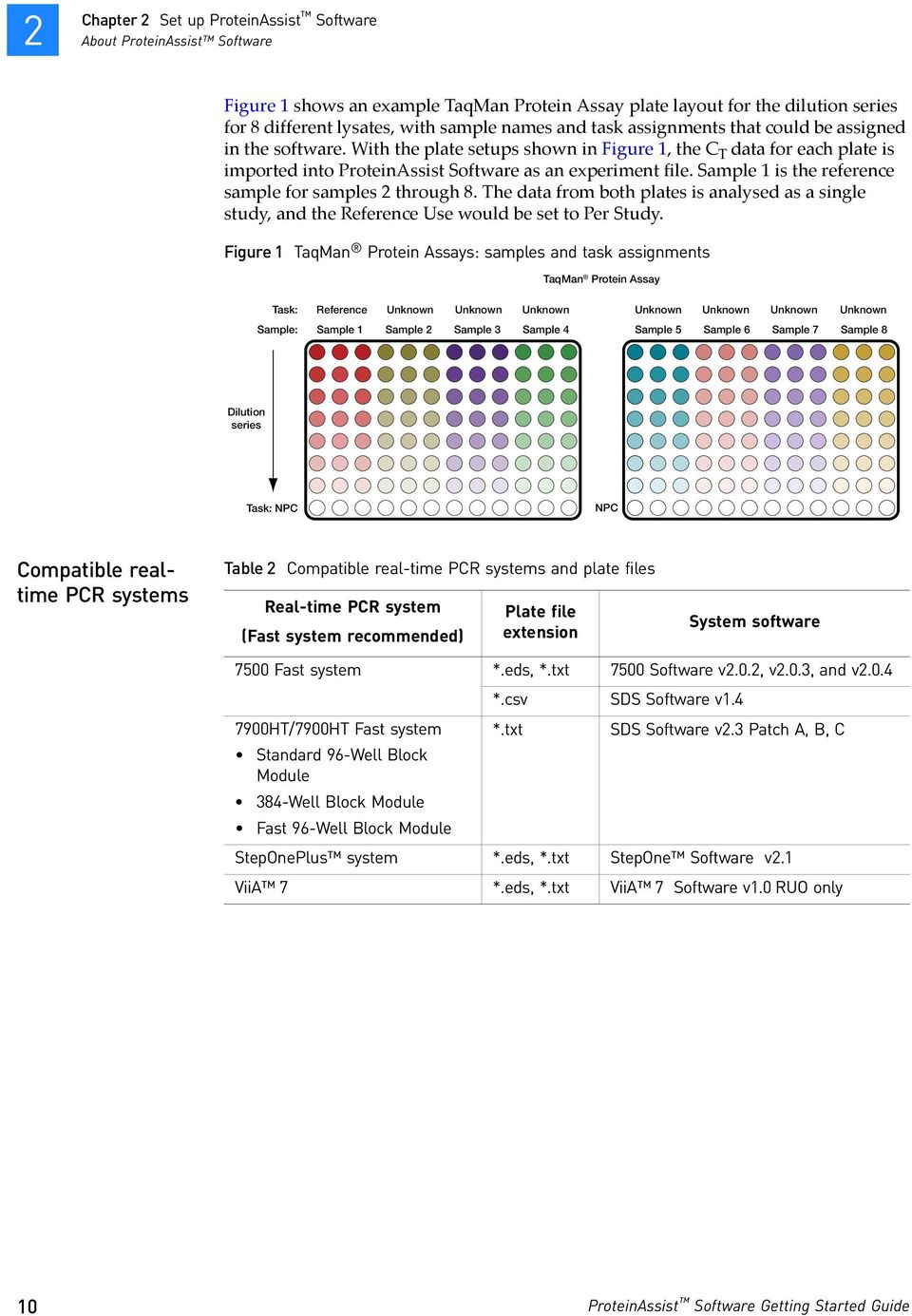
10 2 Chapter 2 Set up ProteinAssist Software About ProteinAssist Software Figure 1 shows an example TaqMan Protein Assay plate layout for the dilution series for 8 different lysates, with sample names and task assignments that could be assigned in the software. With the plate setups shown in Figure 1, the C T data for each plate is imported into ProteinAssist Software as an experiment file. Sample 1 is the reference sample for samples 2 through 8. The data from both plates is analysed as a single study, and the Reference Use would be set to Per Study. Figure 1 TaqMan Protein Assays: samples and task assignments TaqMan Protein Assay Task: Sample: Reference Unknown Unknown Unknown Unknown Unknown Unknown Unknown Sample 1 Sample 2 Sample 3 Sample 4 Sample 5 Sample 6 Sample 7 Sample 8 Dilution series Task: NPC NPC Compatible realtime PCR systems Table 2 Compatible real-time PCR systems and plate files Real-time PCR system (Fast system recommended) Plate file extension System software 7500 Fast system *.eds, *.txt 7500 Software v2.0.2, v2.0.3, and v2.0.4 *.csv SDS Software v HT/7900HT Fast system *.txt SDS Software v2.3 Patch A, B, C Standard 96-Well Block Module 384-Well Block Module Fast 96-Well Block Module StepOnePlus system *.eds, *.txt StepOne Software v2.1 ViiA 7 *.eds, *.txt ViiA 7 Software v1.0 RUO only 10 ProteinAssist Software Getting Started Guide
11 Chapter 2 ProteinAssist Software Workflow 2 ProteinAssist Software Workflow Set up a study (Chapter 3) Launch a study Set required study properties: Study Name, Reference Use Set up the experiment files within a study (Chapter 4) Import TaqMan Protein Assay plate files Assign required well properties: Sample, Assay, Task, Input Quantity Analyze the study (Chapter 5) Review data for each dilution series Adjust analysis settings (optional) and omit outliers, if desired View fold change results as a bar graph or heat map Save or export study data (Chapter 6) Set default save location To set the default location for saving exported data and study files: 1. In the Home window, select Tools Preferences General tab. ProteinAssist Software Getting Started Guide 11

12 2 Chapter 2 Set up ProteinAssist Software (Optional) Adjust study preferences 2. Select from the following options: User-defined location: Click Browse to navigate to your selected folder. Last-accessed location: The folder you last visited, in or out of the application. (Optional) Adjust study preferences Adjust study preferences to match study parameters you use most commonly. 1. In the Home window, select Tools Preferences Study Preferences tab. 2. Adjust the study preferences, if necessary, using the information in Table 3 on page ProteinAssist Software Getting Started Guide

13 Chapter 2 (Optional) Adjust study preferences 2 Table 3 Study Preferences Setting Purpose Action or comments Input Quantity Unit (optional setting) Decimal Delimiter Reference Use Dilution Show Well Fields Outlier Detection Sets the units to be displayed in the data plots and at other points in the software. Sets the format of numerical values in exported *.txt files. Sets how the reference sample is used for data analysis. Sets the default dilution factor for the Dilution tool in the Plate Layout tab. (This tool allows you to easily assign input quantities to a dilution series by a clickand-drag function.) Sets the well fields (properties) to be displayed in the Plate Layout screen and the Well Editor. Sets the sensitivity of the software for flagging outlier wells in the Plate Layout and the Well Table. The lower the sensitivity, the more an individual well must deviate from its replicate group s average C T value to be named an outlier. Enter the units of the input quantities for the samples. Default is blank. The units can be set for individual studies. See page 19. Select period (.) or a comma (,) as the decimal delimiter. Default is period. Choose a setting: Per Plate: Each assay must have a reference sample assigned in the same plate. Per Study: Each assay must have a reference sample assigned, but it can be in a different plate within the same study. Default is Per Study. The setting can be changed for individual studies. Enter the dilution factor most commonly used in your TaqMan Protein Assays. Default value is 2.0. The dilution factor can be adjusted for individual experiment files in the Plate Layout tab. See page 33. Check the desired well fields. Default setting is Sample, Assay, Task and Input Quantity, which are properties required for analysis. The setting can be adjusted for individual studies. See page 26. Set the standard deviations from the average of replicate C T values. Default setting is 3. The setting can be adjusted for an individual study. See page 51. Note: Flagged outliers are included in data analysis unless manually excluded using the Omit tool. See page 51. ProteinAssist Software Getting Started Guide 13

14 2 Chapter 2 Set up ProteinAssist Software Key toolbars and software conventions Setting Purpose Action or comments Linear Range Detection Quantification Threshold Determines the sensitivity of the linear range algorithm that evaluates whether or not to include a data point by determining how far a given value deviates from the regression line. The sensitivity of the linear range algorithm is the degree to which the average ΔC T values of replicate groups must be colinear. The regression line of the data within the linear range of the dilution curve for each sample is automatically computed when you click Analysis in the Analysis toolbar. For more information, see Linear range algorithm on page 62. The Quantification Threshold is a factor used in the fold change algorithm. See Fold change algorithm on page 62. Adjust the sensitivity of the algorithm with the slide tool: High sensitivity: A replicate group is considered part of the linear range only if its average ΔC T value falls very close to the regression line of an initial set of two or three replicate groups chosen by the algorithm. Low sensitivity: A replicate group can be considered part of the linear range even though its average ΔC T value deviates significantly from the regression line of an initial set of two or three replicate groups chosen by the algorithm. Default setting is 20. The setting can be adjusted for an individual study. See page 49. Default value is 2.0. See Appendix B on page 67 for information on adjusting the Quantification Threshold. Key toolbars and software conventions Home window toolbar The Home window displays upon launching ProteinAssist Software. Use the home window tools to: Create new studies, open existing studies, or transfer a study file into the application workspace (page 19). Transfer studies out of the application workspace in a ProteinAssist Softwarecompatible format (page 55). Delete studies from the application workspace (page 56). Figure 2 Home window toolbar Study workflow menu Use the study workflow menu to access the Setup, Analysis, and Export functions of the software for a given study (Figure 3 on page 15). 14 ProteinAssist Software Getting Started Guide

15 Chapter 2 Key toolbars and software conventions 2 Figure 3 Key toolbars and menus Study analysis toolbar These tools manage data at the study level (Figure 3). The same study analysis toolbar is accessible in all the Setup, Analysis, and Export screens. Use these tools throughout the software workflow to: Analyze, save, or close a study. Adjust the study analysis settings. Access this guide (click Help). Note: Save your studies regularly, because there is no autosave feature in ProteinAssist software. In the study analysis toolbar, select Save or Save as. Experiments toolbar These tools manage data at the experiment file level (Figure 3). Use the Experiments toolbar to: Import experiment files into a study. Remove experiment files from a study. Generate a plate template from an experiment file. Apply a previously generated plate template to an experiment file. Export the plate settings and data in a spreadsheet-compatible format. For further information, refer to Chapter 4. Study taskbar Samples, Assays, and Tasks lists, and Well Explorer table Use the study taskbar at the bottom of the application window to quickly switch between open studies and the home window (Figure 3). These tools are located to the left of the Plate Layout tab in the Experiment Files window (Figure 3). Use these tools to view and adjust well properties in an experiment file. For further information, refer to Chapter 4. ProteinAssist Software Getting Started Guide 15

16 2 Chapter 2 Set up ProteinAssist Software Key toolbars and software conventions Field error icon The field error icon indicates that an experiment file is not set up properly. Hover the pointer over the icon for information on how to correct the error. Figure 4 Field error icon tooltip display 16 ProteinAssist Software Getting Started Guide

17 CHAPTER 3 3 Set up a study Overview To set up a study: 1. Launch a study one of the following ways (page 19): Create a new study Open an existing study Transfer a ProteinAssist Software-compatible study file (*.las) into the application workspace 2. Set the study properties (page 19) 3. (Optional) Manage study assays (page 21) 4. (Optional) Manage study samples (page 22) Tutorial overview Several files with example data are included with ProteinAssist Software (Table 4 on page 18). You can use these files in structured tutorial exercises that are included at key places in this guide. The example data represents what might be seen in a study to examine the effects of an inducer and an inhibitor of expression of the pluripotency markers OCT3/4, LIN28, and SOX2 in an experimental cell line. Figure 5 on page 18 illustrates the layout for each reaction plate in the example study. Each plate has one TaqMan Protein Assay: hlin28, hoct3/4, or hsox2. Each plate has the following samples: 1 reference sample for that assay (no treatment). 2 samples that were treated with inducer. 1 sample that was treated with inhibitor. The dilution factor for the samples depends on the assay: LIN28: 3-fold OCT4: 2-fold SOX2: 3-fold ProteinAssist Software Getting Started Guide 17

18 3 Chapter 3 Set up a study Tutorial overview Figure 5 Example Study v2.0 plate layout Task: Unknown Unknown Reference Unknown Treatment: Inducer Inducer Control Inhibitor Sample: Sample 1 Sample 2 Sample 3 Sample 4 Dilution series Task: NPC Table 4 lists the example data files that are installed by the software at C:\Applied Biosystems\Protein Assist Software\User Data\examples. Table 4 Example data files provided with ProteinAssist Software File Description Use Example Study v2.0.las LIN28 v2.0.txt OCT4 v2.0.txt SOX2 v2.0.txt Template_LIN28 v2.0.lpt Template_OCT4 v2.0.lpt Template_SOX2 v2.0.lpt A complete study file with data that is already set up for analysis in the software. Plate files that contain C T data from the StepOnePlus instrument software. Template files for the corresponding.txt files. In the tutorial, the study file is transferred into the application workspace (see page 23). You can use this ready-made study to explore features of the software. In the tutorial, each plate file will be imported into ProteinAssist Software and set up as an experiment file that includes other well property assignments. You can apply the template files to the corresponding.txt files in ProteinAssist Software to quickly generate experiment files that are ready for analysis (see page 39). - or - Follow the structured tutorial exercises to: Set up the LIN28 experiment file with the LIN28 template file (page 39). Set up the OCT4 (page 34) and SOX2 (page 40) experiment files using other ProteinAssist Software tools. The structured tutorial exercises create a study, Tutorial_Study, that is identical to Example Study v2.0 after the experiment files have been set up for analysis. 18 ProteinAssist Software Getting Started Guide

19 Chapter 3 Launch a study 3 Launch a study Launch a study in one of the following ways. Create a study Open a study Transfer a study into ProteinAssist Software In the Home window toolbar, select Create Study. The Setup Properties window automatically opens. In the Home window toolbar, highlight a study in the list, then click Open Study. The Setup Properties window automatically opens. ProteinAssist Software stores studies as internal files in the application workspace. These internal files are not accessible to users. The Transfer in/out Study tools allow study files to be shared outside of the application workspace (such as, by ) in a ProteinAssist Software-compatible format. Study files are first transferred out of the application workspace (using the Transfer out Study tool) and saved as independent files with a.las file extension (see page 55). To access a study file that was created in another ProteinAssist Software application: 1. In Home window toolbar, select Transfer in Study. 2. Navigate to the location of your saved study file (*.las). 3. Select the file, then click Open to transfer in the files. 4. Highlight the study in the studies list, then click Open Study. The Setup Properties window automatically opens. Set study properties The following steps, illustrated in Figure 6 on page 20, describe how to set the study properties for newly created studies. 1. In the Study Workflow menu, click Setup Properties to open the study properties window. 2. Enter the values in the property fields or select the appropriate option. These properties are required: Study Name Reference Use Table 5 on page 20 describes all the study properties available through the study properties window. 3. In the study analysis toolbar, select Save. The study is saved in the application workspace. It can be accessed through the Home window. ProteinAssist Software Getting Started Guide 19

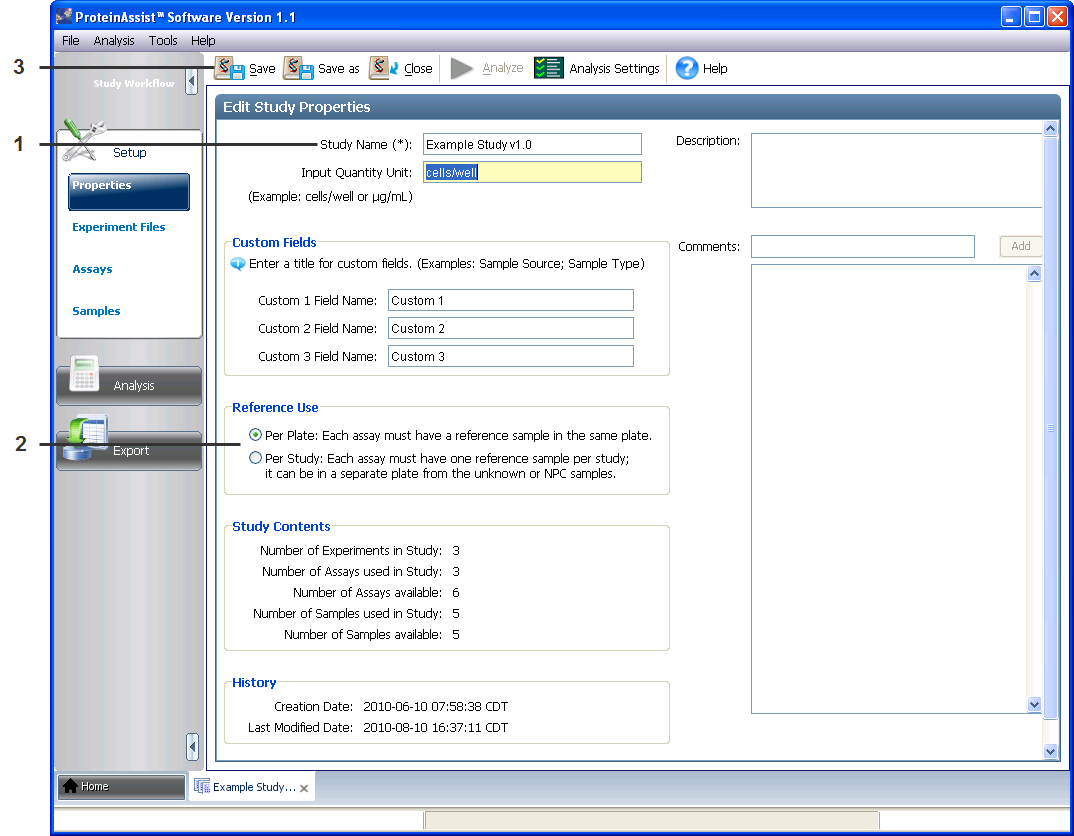
20 3 Chapter 3 Set up a study Set study properties Figure 6 Study Properties window Table 5 Study properties Property or field Study Name (required) Input Quantity Unit (optional) Reference Use (required) Entry Enter a name for the study, maximum 100 characters. The study name is incorporated into the default name(s) for files created by the Export and Transfer out Study functions. Enter the units describing the concentration of your samples. The input quantity units display in the data plots and at other points in the software. Select the reference sample use for data analysis. Per Plate: Each assay must have a reference sample assigned in the same plate. Per Study: Each assay must have a reference sample assigned, but it can be in a different plate within the same study. 20 ProteinAssist Software Getting Started Guide


21 Chapter 3 (Optional) Manage assays 3 Property or field Custom Field Names (optional) Entry Enter custom field names that you may need to manage your studies, maximum 30 characters. Note: Custom field names cannot be empty. If you do not assign custom field names, leave the default values (Custom 1, etc.) in the fields. Example: Set a custom field name of Time. When you set up the experiment files, enter the time associated with each sample in this custom field. Note: Custom field values are sorted as text. Enter time values in a format that can be sorted as text. For example, Day_01, Day_05, Day_10, etc. Description (optional) Enter a short description of the study, maximum 160 characters. The description displays in the study list in the Home window. Comments (optional) Enter comments, then select Add. The software records the comments and the date and time you added the comments. The Comments field allows you to enter detailed information about the study (for example, observations about the data, reasons why you made specific decisions, and so on). IMPORTANT! After you select Add, the comment is permanently recorded in the study (that is, the comment cannot be modified or removed). (Optional) Manage assays You can manage assays as described in this section, or when you set up the experiment files, described in Chapter 4. In the Study Workflow menu, click Assays to open the Assays window, shown in Figure 7. The six assays commercially available from Applied Biosystems are preloaded for your convenience. Table 6 on page 22 describes the assay management features of the software. Figure 7 Assays window ProteinAssist Software Getting Started Guide 21
22 3 Chapter 3 Set up a study (Optional) Manage samples Table 6 Assays management Add new assays To... Change the color of an assay (the assay color is displayed in the Plate Layout tab) Remove assays that are not used in the study. Action Click Add and type the new assay name. Select from the Color drop-down menu. Select the assay (ctrl-click or shift-click to select multiple assays) and click Remove. Assays in use cannot be removed. (Optional) Manage samples You can manage samples as described in this section, or when you set up the experiment files, described in Chapter 4. In the Study Workflow menu, click Samples to open the Samples window, shown in Figure 8. Table 7 describes the samples management features of the software. Figure 8 Samples window Table 7 Samples management Add new samples. To... Change the color of a sample (displayed in the Plate Layout tab and in the Linear Range plots). Edit Group, Treatment, or Custom properties for a sample. Remove samples that are not used in the study. Action Click Add and type the new sample name. Select from the drop-down menu. Double-click in the field of interest for that sample and edit its value. Note: When the sample is assigned to wells in an experiment file, Group, Treatment, or Custom properties associated with that sample are automatically assigned to the wells. Select the sample (ctrl-click or shift-click to select multiple samples) and click Remove. Samples in use cannot be removed. 22 ProteinAssist Software Getting Started Guide
23 Chapter 3 Tutorial: transfer in Example Study 3 Tutorial: transfer in Example Study To transfer in Example Study v2.0.las, follow Transfer a study into ProteinAssist Software on page 19, navigating at step 2 to: C:\Applied Biosystems\ProteinAssist Software\User Data\examples The example study includes 3 experiment files, with 4 samples, and 3 assays. Input quantity unit is set to "cells/well." Reference use is set to "Per Plate," because each plate has one TaqMan Protein Assay, and the reference sample for each assay is on the plate. Tutorial: create Tutorial_Study and set its properties 1. In the Home window toolbar, select Create Study. 2. In the Properties window, enter the following tutorial study properties: Study Name: Tutorial_Study Input Quantity Unit: cells/well Reference Use: Per Plate 3. In the study analysis toolbar, select Save. After experiment files have been added to the study and saved, the study contents area in the study properties window displays the number of experiment files, assays, and samples in the study. ProteinAssist Software Getting Started Guide 23
24 3 Chapter 3 Set up a study Tutorial: create Tutorial_Study and set its properties 24 ProteinAssist Software Getting Started Guide
25 CHAPTER 4 4 Set up experiment files Overview After you have launched a study, set up experiment files for analysis as follows. 1. Import TaqMan Protein Assay experiment files from your real-time PCR instrument software (page 25). 2. Assign required and optional properties to the wells in each experiment file. Required properties: sample, assay, input quantity, and task. ProteinAssist Software provides a number of flexible tools for assigning well properties: Well Editor (page 30) Dilution tool (page 33) Plate Templates (page 37) Copy and Paste tools (page 37) Samples, Assays, and Tasks lists (page 38) Well Explorer tool (page 38) Note: Save your studies regularly, because there is no autosave feature in ProteinAssist software. In the study analysis toolbar, select Save or Save as. In the tutorial exercises, the example experiment files provided with the software, LIN28, OCT4, and SOX2, are set up for analysis, each using a different set of ProteinAssist Software tools. Import experiment files into a study About importing experiment files In ProteinAssist Software, an experiment file contains TaqMan Protein Assay data from a single reaction plate, and it is equivalent to a real-time PCR instrument plate file. This guide uses the term experiment file. ProteinAssist Software is compatible with real-time PCR instrument experiment files as described in Table 2 on page 10. For some real-time PCR instruments, the experiment file may include sample name, input quantity, or assay name, in addition to the C T values. Only.eds,.txt or.csv files can be imported. Each experiment file must have a unique name. IMPORTANT! Changing the content of.txt or.csv files before importing them into ProteinAssist Software may prevent importing the files, or it may result in incorrect analysis in ProteinAssist Software. ProteinAssist Software Getting Started Guide 25


26 4 Chapter 4 Set up experiment files About viewing experiment files and selecting wells Import experiment files Figure 9 illustrates the following procedure for importing experiment files. 1. Launch a study, then click Setup Experiment Files in the Study Workflow menu to open the Experiment Files window. 2. In the Experiments toolbar, click Import and navigate to the file(s) to be imported. 3. In the Import dialog window, select the appropriate file type from the drop-down menu, select the file name(s) and click Import. Note: Ctrl- or shift-click to select and import multiple files. Figure 9 Experiments Files window and toolbar Tutorial: import the LIN28, OCT4, and SOX2 experiment files 1. In the Home window, open Tutorial_Study. 2. In the Study Workflow menu, click Setup Experiment Files. 3. In the Experiments toolbar (see Figure 9), click Import and navigate to C:\Applied Biosystems\Protein Assist Software\User Data\examples. 4. In the Import dialog window, ctrl-click to select LIN28 v2.0.txt, OCT4 v2.0.txt, and SOX2 v2.0.txt, then click Import. About viewing experiment files and selecting wells Experiment files can be viewed as a plate layout or as a table. 26 ProteinAssist Software Getting Started Guide

27 Chapter 4 About viewing experiment files and selecting wells 4 View data in the Plate Layout tab Figure 10 on page 27 shows an example of a plate layout grid. Outlier wells are flagged with a red triangle; to exclude outliers from data analysis, see Omit outlier wells on page 51. Table 8 on page 27 describes the tools available in the Plate Layout toolbar for changing the display and data in the plate layout view. Figure 10 Plate Layout view Table 8 Plate Layout toolbar Tool Show in Wells Select Wells View Legend Description Select data to show or hide in the wells. Differentiate samples or assays by color, or choose to have no color-coded display in the wells. Select wells by well property: assay, sample, task, group, treatment, or custom property. Displays the well legend in the plate layout grid. Dilution Omit or include wells from data analysis Save as Image Clear Automatically creates a dilution series from an initial input quantity. See page 33. For selected wells, click to omit from or include in data analysis. Note: Omitted wells are designated with a cross in the plate layout grid and a * in the well table. See also page 51. Saves the plate layout grid as an image file. See Table 7 on page 22. Clears the properties of the selected well, excluding C T value. Full Screen Zoom in or out Expands the plate layout grid to the screen size. Click the icon again to reset. Step-zooms in or out of the plate layout grid view. Fit plate Fits the plate layout grid in the current window. ProteinAssist Software Getting Started Guide 27


28 4 Chapter 4 Set up experiment files About viewing experiment files and selecting wells About selecting wells in the Plate Layout tab In the Plate Layout tab, select wells in one of the following ways. See also Figure 10 on page 27. Table 9 Selecting wells in the Plate Layout tab To select... One or more wells An entire row Action Click-drag through the desired wells. Note: When you click-drag to select multiple wells, ensure that the selection arrow not the cross-hair icon is displayed. (The cross-hair icon indicates you are using the Dilution tool, not selecting wells.) Click A, B, C,.H An entire column Click 1, 2, 3,..12 The entire plate Select the top left outside corner of the plate grid. View data in the Well Table tab Click the Well Table tab to view the data and properties associated with the experiment file in a flexible table format, as shown in Figure 11. Outlier wells are flagged with a *. Table 10 on page 29 describes useful features of the well table and tasks that can be performed in the Well Table tab, including manual omission of outlier wells. Figure 11 Well Table view 28 ProteinAssist Software Getting Started Guide
29 Chapter 4 About viewing experiment files and selecting wells 4 Table 10 Well Table tools To... Hide or reveal columns Select all rows with the same well property Group rows by a well property Action Click the Show in Table drop-down menu in the Well Table tab toolbar and select or deselect the desired fields. Click the Select Wells drop-down menu in the Well Table tab toolbar and select a property. 1. Click the Group by drop-down menu in the Well Table tab toolbar and select a well property. 2. Select Expand All or Collapse All to expand or collapse the groups. Sort the data Click the column header of interest. With each click, the sort toggles through ascending (shown), descending, and none. Perform multiple sorts Click the first column header of interest, then ctrl-click the next column header of interest. Continue the sort by ctrlclicking each column header of interest. In the example below, the table was sorted in this order: Sample (descending), Assay, Input Quantity (descending). Re-order the columns Omit or include a well from data analysis Click a column header and drag it to a new location in the table. Right-click the well, then select Omit or Include. Click Analyze in the study analysis toolbar to re-analyze the study. To omit multiple outlier wells, click the Outliers column heading to sort the wells by outlier status, ctrl-click or shiftclick to select all the outliers (flagged with a *), right-click and select Omit. Click Analyze as above. Tutorial: Further exploration of data views Open Example Study v2.0, and use the expand/collapse and resize tools (Figure 12 on page 30) to change the display of the Experiments list and Plate Setup window in the Experiment Files window. ProteinAssist Software Getting Started Guide 29
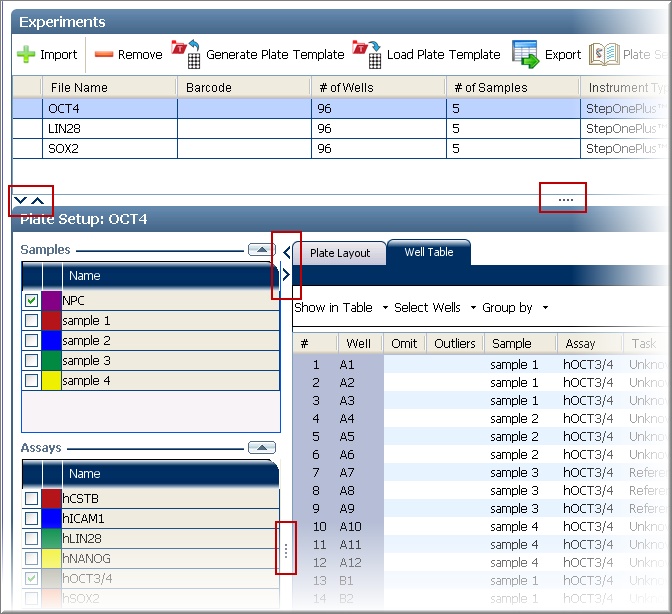
30 4 Chapter 4 Set up experiment files Assign well properties Figure 12 Experiment Files window: expand/collapse and resize tools Assign well properties About assigning well properties Experiment files from the instrument software are incomplete for analysis. All experiment files within a study must be assigned with required well properties, and they must follow the analysis rules in order for analysis to proceed. Note: Save your studies regularly, because there is no autosave feature in ProteinAssist software. In the study analysis toolbar, select Save or Save as. Analysis rules These analysis rules can also be accessed by clicking Plate Setup Help in the Experiments toolbar. The study must have wells to analyze. It does not support cases where all wells are omitted. All included wells must have Sample, Assay, Task and Input Quantity specified. Each assay-sample combination must be assigned with only one task, either "Unknown," "Reference," or "NPC." Each assay-sample combination with a task assignment of Unknown must be unique across the study. Every assay-sample combination must have at least two input quantities. Every experiment file must have at least one NPC well for each assay assigned in the experiment. Every assay must have at least one unknown sample. If Reference Use is Per Study: Every assay must have one reference sample, but it can be in a different experiment file within the same study. If Reference Use is Per Plate: Every assay must have one reference sample in the same experiment file. 30 ProteinAssist Software Getting Started Guide
31 Chapter 4 Assign well properties 4 Assign well properties using the Well Editor 1. In the Study Workflow menu, click Setup Experiment Files, and select an experiment file from the list of imported files. 2. In the Plate Layout tab, select a single well, or click-drag to select multiple wells. 3. Right-click to access the well menu (Figure 13, left) and select Edit Well(s) display the Well Editor (Figure 13, right). (You can also access the Well Editor for a single well by selecting the well and either double-clicking the mouse or pressing the Enter key.) Figure 13 Well menu and Well Editor tool 4. Enter values into the required fields: Sample, Input Quantity, Task, and Assay. See Table (Optional) Assign other properties to samples for sorting and display purposes (Table 11). a. Click Show in Wells in the Plate Layout toolbar, and select one or more of the following optional fields: Group, Treatment, Custom 1, Custom 2, Custom 3. The selected field(s) appear in each well and in the edit well window. b. Select wells and enter the field values as described in steps 2 through Select Done to exit the Well Editor and save the well assignments. ProteinAssist Software Getting Started Guide 31
32 4 Chapter 4 Set up experiment files Assign well properties Table 11 Entering well property values using the Well Editor tool Well Property To Assign a Value... Notes Sample (required) Input Quantity (required) Enter a new sample name. -or- Select a sample name from the drop-down menu. Enter a numeric input quantity for the sample. Sample names are imported from the instrument experiment files if sample names were assigned within the instrument software. Sample names automatically appear in the Samples list to the left of the Plate Layout tab after you enter a new sample name or import an instrument experiment file with preassigned sample names. Note: A sample includes all the TaqMan Protein Assay wells in the dilution series for one cell lysate. If you assigned multiple sample names in the instrument software (for instance, one sample name per well), reassign a single sample name to the appropriate wells in the ProteinAssist Software, and delete the unused sample names. See Troubleshooting starting on page 59 for further information. Input values will be imported if quantity values were assigned within the instrument software. At least two different input quantities are required per sample/assay combination. Task (required) Select Reference, Unknown, or NPC. Reference: A reference sample is required for each assay, and it is assigned per plate or per study (see Table 5 on page 20). Assay (required) Select an assay from the drop down menu. -or- Enter a new assay name. Unknown: Test sample. NPC: No Protein Control. There must be at least one NPC per assay per plate. Note: When you assign NPC, the well is automatically assigned a sample name of NPC and an input quantity of 0. Other well properties are cleared. Target names are imported as Assays from instrument experiment files if target names were assigned within the instrument software. Assay names automatically appear in the Assays list to the left of the Plate Layout tab after you enter a new assay name or import an experiment file with pre-assigned target names. ProteinAssist Software has 6 assays preloaded for your convenience: hcstb, hicam1, hlin28, hnanog, hoct3/4, and hsox2 Group (optional) Enter the value. This property is useful for describing variables such as sample handling or source. Treatment (optional) Enter the value. Examples: inducer, inhibitor, none. 32 ProteinAssist Software Getting Started Guide

33 Chapter 4 Assign well properties 4 Well Property To Assign a Value... Notes Custom 1, 2, 3 (optional) Enter the value. To rename Custom 1, Custom 2 and Custom 3, go to Setup Properties and enter a new name. Note: Custom field names cannot be empty. If you do not assign custom field names, leave the default values (Custom 1, etc.) in the fields. Note: If you are using a custom field for time, enter time values in a format that can be sorted as text. For example, Day_01, Day_05, Day_10, etc. Set up a dilution series with the Dilution tool You can use the Dilution tool to set up a dilution series after the highest Input Quantity (and optionally other well properties) has been assigned to the well(s), as described below and in Figure 14. This tool is similar to a click-and-drag autofill function in spreadsheet software. 1. Enter the desired dilution factor in the Dilution field of the Plate Layout toolbar. 2. Select one or more wells. 3. Hover the pointer over the lower right corner of the selected well(s) until the dilution tool crosshair appears. Drag the crosshair to include all the wells of the dilution series. The input quantity from the first well, row, or column selected is reduced by the dilution factor in each succeeding well, and other well properties, excluding C T value, from the first well, row, or column are copied into the selected wells. IMPORTANT! The Dilution tool copies other well properties (except C T value) from the first well, row, or column into the selected wells, overwriting previous well property assignments. In the example shown in Figure 14, row A was selected, then the Dilution tool was used to create the dilution series for all wells through row G. Figure 14 Create a dilution series with the Dilution tool ProteinAssist Software Getting Started Guide 33

34 4 Chapter 4 Set up experiment files Tutorial: set up the OCT4 experiment file using the Well Editor and Dilution tool Tutorial: set up the OCT4 experiment file using the Well Editor and Dilution tool This tutorial exercise demonstrates two ways to use the Well Editor and Dilution tool to set up an experiment file. Use the Well Editor to assign all well properties for samples 1 and 2. Use the Well Editor to assign the well properties to the first well in the dilution series for samples 3 and 4, then use the Dilution tool to assign the well properties to the rest of the wells in each dilution series. 1. Assign the assay. a. Open Tutorial_Study, click Setup Experiment Files, then select OCT4 v2.0 from the list of imported files. The Plate Layout tab for the OCT4 experiment file displays. This experiment file initially has only the C T value assigned for each well. b. Assign the hoct3/4 assay to all the wells: select all the wells in the plate layout, right-click and select Edit Well(s) to access the Well Editor, and select hoct3/4 in the Assay drop-down menu. (Do not assign other well properties.) 2. Adjust the plate layout view. Click Show in Wells in the Plate Layout toolbar (Figure 15 on page 34), and: Select Treatment so that it appears in the Well Editor window. Select Sample Color to display sample assignments by color. Figure 15 Show in Wells tool 34 ProteinAssist Software Getting Started Guide
35 Chapter 4 Tutorial: set up the OCT4 experiment file using the Well Editor and Dilution tool 4 3. Use the Well Editor to assign all the well properties for samples 1 and 2 as described in the following table: select the indicated wells, right-click and select Edit Well(s), then enter the values as described in the following table. See Figure 13 on page 31. Well Property Value Sample Columns 1 3, rows A G: Sample 1 Columns 4 6, rows A G: Sample 2 Input Quantity Columns 1 6, row A only: 500 Columns 1 6, row B only: 167 Columns 1 6, row C only: 55.7 Columns 1 6, row D only: 18.6 Columns 1 6, row E only: 6.2 Columns 1 6, row F only: 2.07 Columns 1 6, row G only: 0.69 Task Treatment Columns 1 6, rows A G (samples 1 and 2): Unknown Columns 1 6, rows A G (samples 1 and 2): inducer 4. Use the Well Editor to assign all the well properties for samples 3 and 4, including input quantity, to the first wells in the dilution series, as described below. See Figure 13 on page 31. Well Property Value Sample Columns 7 9, row A only: Sample 3 Columns 10 12, row A only: Sample 4 Input Quantity Columns 7 12, row A only: 500 Task Treatment Sample 3 (columns 7 9), row A only: Reference Sample 4 (columns 10 12), row A only: Unknown Sample 3 (columns 7 9), row A only: control Sample 4 (columns 10 12), row A only: inhibitor 5. Use the Dilution tool to simultaneously assign the input quantities and copy the other well properties to the rest of the wells for samples 3 and 4. See Figure 14 on page 33. a. In the Dilution field of the Plate Layout toolbar, enter: 3. b. Select row A for samples 3 and 4 only (columns 7 12; Input Quantity = 500). c. Hover the pointer over the lower right corner of the selected wells until the Dilution tool crosshair appears. Drag the crosshair down to include rows A through G. The Input Quantity is reduced by the dilution factor, and other properties (excluding C T value) are copied, when you use the Dilution tool. In this way, the well properties for samples 3 and 4 are assigned to rows B through G. 6. Set up the NPC samples: select row H (all columns), right-click to access the Well Editor, and select NPC from the Task drop-down menu. When a well is assigned the task NPC in the Well Editor, it is automatically assigned a sample name of NPC and an input quantity of 0. ProteinAssist Software Getting Started Guide 35


36 4 Chapter 4 Set up experiment files Tutorial: Further exploration of the Plate Layout tab Result After you have completed assigning the well properties to the OCT4 experiment file, the plate layout grid should resemble Figure 16: Figure 16 Tutorial_Study: OCT4 plate setup Tutorial: Further exploration of the Plate Layout tab Use the Select Wells tool to select wells by well property (Figure 17). Figure 17 Select Wells tool 36 ProteinAssist Software Getting Started Guide
37 Chapter 4 (Optional) Alternate methods for assigning well properties 4 (Optional) Alternate methods for assigning well properties Use a plate template Use a previously generated plate template to assign well properties for the entire plate. This feature is useful when your studies use the same plate layout from experiment to experiment. Refer to page 42 for information about generating plate templates. 1. Select Setup Experiment Files, select an experiment file from the list, and click Load Plate Template in the Experiments toolbar. You can select multiple files with ctrl-click or shift-click. 2. In the dialog window, select a plate template (*.lpt) and click Load. Use the Copy and Paste tools Use the Copy and Paste tools in the well menu to copy all well properties, excluding C T values, from one or more wells into other wells. You can also use these tools to copy properties from some or all of the wells in one plate to a different (or new) plate. This feature is similar to copy and paste functions in spreadsheet software. 1. In the Plate Layout tab, select the wells to be copied. 2. Right-click to access the well menu and select Copy. 3. Select the top-left well of the desired wells to copy to, right-click, and select Paste. Figure 18 shows the properties from wells A-1 through G-1 being copied to wells A-2 through G-2. Figure 18 Copy from multiple wells to multiple wells Use the Fill Column and Fill Row tools Use the Fill Column and Fill Row tools to copy the properties of the selected well, excluding C T value, and paste them into the remaining wells in the column or row. In the Plate Layout tab, right-click the selected well, then select Fill Column or Fill Row from the drop-down well menu. ProteinAssist Software Getting Started Guide 37


38 4 Chapter 4 Set up experiment files (Optional) Alternate methods for assigning well properties Figure 19 Fill Column and Fill Row tools Use the Samples, Assays, or Tasks lists Use the Samples, Assays, or Tasks lists, located to the left of the Plate Layout tab, to assign these corresponding well properties to selected wells. Use the up/down arrows to expand/collapse the lists, and the icon to move the list displays up/down (Figure 20). The Samples and Assays lists are populated when sample or assay assignments are made, using any tool, to any of the experiment files in a study. Group, treatment, or custom properties that have been assigned to a sample are automatically assigned to wells when that sample is assigned. 1. Select one or more wells. 2. Check the box next to the sample name, assay name, or task in the appropriate list. In the example shown in Figure 20, wells A-1 through G-3 have been selected and assigned sample 1 from the Samples list. Figure 20 Assign well properties using the Samples, Assays, or Tasks lists Use the Well Explorer tool For an individual well, all well properties except well location, task, and C T value can be changed using the Well Explorer tool, located to the left of the Plate Layout tab. 1. Select a single well. The assigned properties are displayed in the Well Explorer. Use the up/down arrow to expand/collapse the Well Explorer, and the icon to move the Well Explorer up/down. 38 ProteinAssist Software Getting Started Guide
39 Chapter 4 Tutorial: Set up the LIN28 experiment file with a plate template 4 2. Click the value for the property to be changed. If a property is editable, the value is highlighted. 3. Enter the value in the field. If you enter new values for sample and assay names, the Samples and Assays lists are updated. In the example shown in Figure 21, all the well properties for well B-1 are editable except the well location, task, and C T value. Figure 21 Assign well properties using Well Explorer Tutorial: Set up the LIN28 experiment file with a plate template 1. Open Tutorial_Study, click Setup Experiment Files, and select LIN28 v2.0 from the list of imported files. The Plate Layout tab for the LIN28 experiment file displays. This experiment file initially has only the C T value assigned for each well. 2. Click Load Plate Template in the Experiments toolbar. 3. In the Load window, navigate to C:\Applied Biosystems\Protein Assist Software\User Data\examples, select Template_LIN28 v2.0.lpt, and click Load. 4. Click Show in Wells in the Plate Layout toolbar (Figure 15 on page 34), and: a. Select Treatment so that it appears in the Well Editor window. b. Select Sample Color to display sample assignments by color. 5. Click Save in the Study Analysis toolbar. The Plate Layout tab should look like Figure 22 on page 40. ProteinAssist Software Getting Started Guide 39

40 4 Chapter 4 Set up experiment files Tutorial: Set up the SOX2 experiment file with other tools Figure 22 Tutorial_Study: LIN28 experiment file setup Tutorial: Set up the SOX2 experiment file with other tools In this exercise, you use the Well Explorer, Copy and Paste tools, Dilution tool, and Samples, Assays, and Tasks lists to set up the SOX2 experiment file. Note: Before proceeding with this tutorial, complete the tutorial exercise for OCT4 on page 34 or LIN28 on page 39, to populate the Samples, Assays, and Tasks lists. 1. Open Tutorial_Study, click Setup Experiment Files, and select SOX2 v2.0 from the list of imported files. The Plate Layout tab for the SOX2 experiment file displays. This experiment file initially has only the C T value assigned for each well, and a default task assignment Unknown. 2. Click Show in Wells in the Plate Layout toolbar (Figure 15 on page 34), and: a. Select Treatment so that it appears in the Well Editor window. b. Select Sample Color to display sample assignments by color. 3. Assign the assay to all wells: click the top left corner of the plate layout grid to select all the wells, and check hsox2 in the Assays list. 4. Assign the initial input quantities in each dilution series using Well Explorer and copy/paste: a. In the plate layout grid, select well A-1. b. In the Well Explorer tool, enter 500 in the Input Quantity field. c. Right-click well A-1 and select Copy in the drop-down menu. d. Select wells 2 12 in row A, right-click and select Paste. The input quantity is copied to the rest of the row. 5. Assign input quantities to the rest of the wells using the Dilution tool. (Do this before assigning other well properties.) a. In the Dilution field, enter ProteinAssist Software Getting Started Guide

41 Chapter 4 Tutorial: Set up the SOX2 experiment file with other tools 4 b. Select row A (click A), hover the pointer in the bottom-right corner of the selected wells to activate the dilution cross-hair, and drag the cross-hair down through row G. See Figure 14 on page 33. The input quantities are reduced by the dilution factor in series and assigned to the rest of the wells. Refer to Set up a dilution series with the Dilution tool on page 33). 6. Using the Samples list, assign samples to wells as shown in the following table. The Treatment field is automatically populated with the sample assignment. Wells Sample Treatment Columns 1 3, rows A G Sample 1 inducer Columns 4 6, rows A G Sample 2 inducer Columns 7 9, rows A G Sample 3 control Columns 10 12, rows A G Sample 4 inhibitor 7. Assign the task using the Tasks list. a. Select all Sample 3 wells (columns 7 9, rows A G), and select Reference from the Tasks list. b. Select row H (all columns), and select NPC from the Tasks list. 8. Click Save in the Study Analysis toolbar. When you are done, the plate layout grid should look like Figure 23: Figure 23 Tutorial_Study: SOX2 experiment file setup ProteinAssist Software Getting Started Guide 41
42 4 Chapter 4 Set up experiment files (Optional) Generate plate template (Optional) Generate plate template After the well properties have been assigned, you can save the plate configuration as a plate template. It is possible to generate a template without one or more of the required properties (such as Sample). 1. In the Experiments toolbar, click Generate Plate Template. 2. Enter a file name, navigate to the desired save location, then click Generate to save the new template. 42 ProteinAssist Software Getting Started Guide
43 CHAPTER 5 5 Analyze a study Overview After the mandatory well properties have been assigned (sample name, assay name, task, and input quantity) to each experiment file in the study, following the analysis rules, the study is ready for analysis. Refer also to Analysis rules on page 30 for guidelines for assigning well properties. 1. Click Analysis in the Study Workflow menu. The software automatically calculates the fold change of the test samples with respect to the reference sample(s). The fold change algorithm corrects for background ligation in the absence of protein (ΔC T ) and factors in the linear range of each sample dilution series. For further information, see Appendix A on page Review the data for each dilution series in the Linear Range tool (starting on page 44). Review the ΔC T plot for all the samples (Optional) Change the data and tooltips displayed in the ΔC T plot View the analysis results in table format View the C T data for troubleshooting purposes 3. Adjust the analysis settings (optional), omit outliers, if desired, and re-analyze the study (starting on page 48). Review and adjust the Linear Range Change the settings for outlier detection Omit outliers, if desired 4. Review the fold change results (starting on page 52). View the fold change results as a bar graph View the fold change results as a heat map Note: If the experiment files have not been set up correctly, an error message appears when you click Analysis. See Troubleshooting on page 59. Field error icons are cleared only after a study is successfully re-analyzed after you have corrected setup errors. Note for tutorial: After you complete the tutorial exercises in Chapters 3 and 4, Tutorial_Study should be set up for data analysis. Alternatively, you can simply use Example Study v2.0, which is already set up for analysis, to help you explore the software analysis features (see Tutorial: transfer in Example Study on page 23). ProteinAssist Software Getting Started Guide 43
44 5 Chapter 5 Analyze a study Review the dilution series data in the Linear Range tool Review the dilution series data in the Linear Range tool 1. Select Analysis Linear Range ΔC T Plot tab. 2. In the ΔC T Plot toolbar, select an assay from the drop-down Assay menu to view the ΔC T results for that assay. Figure 24 shows the ΔC T plot and sample table for the hlin28 assay in Example Study v2.0. Figure 24 Linear Range tool: ΔC T plot tab and sample table Review the ΔC T plot In the ΔC T plot, the ΔC T and average ΔC T values for each sample-assay combination are plotted against the input quantities. In Figure 25, a portion of the ΔC T plot has been enlarged to show an example of each of the data point styles. ΔC T = average NPC C T sample C T (solid colored circles) Average ΔC T = average NPC C T average sample C T (solid triangles) NPC ΔC T = average NPC C T NPC C T (open black circles) Average NPC ΔC T = average NPC C T average NPC C T (= 0; solid colored triangles) 44 ProteinAssist Software Getting Started Guide

45 Chapter 5 Review the dilution series data in the Linear Range tool 5 Figure 25 ΔC T plot: data point styles Zoom in to the ΔC T plot 1. In the ΔC T Plot toolbar, click Zoom In. 2. Click-drag around a region to enlarge. Figure 26 Zoom In tool 1 2 Change the data displayed in the ΔC T plot Click Show in the ΔC T plot toolbar and select the desired items from the drop-down menu to show in the ΔC T plot: Figure 27 Show data in ΔC T plot ProteinAssist Software Getting Started Guide 45

46 5 Chapter 5 Analyze a study Review the dilution series data in the Linear Range tool Change the tooltips displayed in the ΔC T plot Click Tooltips in the ΔC T Plot toolbar and select the desired well properties from the drop-down menu to show as tooltips in the ΔC T plot: Figure 28 Show tooltips in the ΔC T plot Review the sample table The sample table, located below the ΔC T plot (see Figure 24 on page 44), lists all the data and properties associated with each sample, as described in Table 12. Table 13 on page 47 describes useful tools for viewing data in the Sample Table tab. Table 12 Key sample table columns Column heading(s) Slope, Intercept, R 2 Fold Change Fold Change Lower/ Upper CIB Min. and Max. Input Linear Range Task, Group, Treatment, Custom Description Values for the slope, intercept and R 2 of the regression line for each sample. Fold change value for each sample-assay combination. The fold change is automatically calculated for each sample with task assigned as Unknown. The fold change for samples assigned as Reference is N/A. In some cases the fold change is reported as "Undetermined." See Software rules for the fold change algorithm on page 64. Lower and upper 95 % confidence interval boundaries, of the fold change value. The minimum and maximum input quantity values of the linear range. Linear range for this sample-assay combination was determined by: Automatic setting Manual setting Unknown: the linear range algorithm failed to find a linear range. See Troubleshooting on page 59. Properties assigned to the sample-assay combination. 46 ProteinAssist Software Getting Started Guide
47 Chapter 5 Review the dilution series data in the Linear Range tool 5 Table 13 Linear Range: tools for viewing data in the sample table To... Sort the data in each column Resize the columns Hide or show columns Change the order of columns Display or remove the sample ΔC T curve from the ΔC T plot Action Click on the column header. Hover the pointer between two column headings until the resize arrow appears, then drag the arrow. Click Show in Table in the sample table toolbar, and select or deselect the fields in the drop-down menu. Click-drag the column header. Check or uncheck the box in the Show column. (Optional) Review the C T plot The C T plot is useful for viewing the plotted NPC and uncorrected C T values, for troubleshooting purposes. The C T and average C T values for each sample/assay combination are plotted against the input quantities. C T values: solid circles Average C T values: triangles NPC C T : open black circles Average NPC C T values: solid colored triangles Note: You can change the data and tooltips displayed in the C T plot in the same way as for the ΔC T plot (see page 45). Figure 29 C T Plot tab ProteinAssist Software Getting Started Guide 47
48 5 Chapter 5 Analyze a study (Optional) Adjust the analysis settings and reanalyze the data (Optional) Adjust the analysis settings and reanalyze the data Review the linear range When you click Analysis in the Analysis toolbar, ProteinAssist Software automatically determines a set of data for each sample that follows a linear relationship between log(input quantity) and ΔC T. This set of data is used in the relative quantification (fold change) calculation. The zone encompassing the upper and lower boundaries of the data set is called the linear range. The linear range is displayed on the ΔC T plot as a gray zone (see Figure 30). For each sample, a dotted line shows the regression line for that set of data. When you open the ΔC T plot the first time for each study, the regression line and linear range for the reference sample are displayed. To display the linear range for a sample-assay combination, click the sampleassay combination in the sample table below the plot, or click the plot of the sample-assay combination. Figure 30 Displaying the linear range for a sample-assay combination (Optional) Manually set the linear range of one or more samples the following procedure describes how to manually adjust the data set used the calculate the regression line for a given assay-sample combination. Figure 31 on page 49 illustrates an example of an adjustment to the linear range so that it better reflects the transition region of the sigmoidal dilution curve. See Linear range algorithm on page 62 for further information. 1. Click the sample curve of interest in the ΔC T plot or the sample row(s) in the table below the ΔC T plot. The linear range for that sample displays as a gray zone. 2. Click-drag the left or right bar to adjust the upper and lower boundaries of the linear range. 3. Click Analyze in the toolbar for reanalysis. 48 ProteinAssist Software Getting Started Guide
49 Chapter 5 (Optional) Adjust the analysis settings and reanalyze the data 5 Figure 31 Linear Range: viewing and adjusting the linear range Click-drag (Optional) Adjust the Linear Range Detection setting The sensitivity of the linear range algorithm is the degree to which the average ΔC T values of replicate groups must be colinear. The following procedure describes how to adjust the sensitivity for all samples in a given study while viewing the ΔC T plot. Adjusting the sensitivity within a study overrides the default set for the software under Tools Preferences (Table 3 on page 13). 1. Click Analysis Settings in the Study Analysis toolbar. 2. Adjust the sensitivity of the algorithm with the slide tool (Figure 32 on page 50; default setting is 20): High sensitivity: A replicate group is considered part of the linear range only if its average ΔC T value falls very close to the regression line of an initial set of two or three replicate groups chosen by the algorithm. Low sensitivity: A replicate group can be considered part of the linear range even though its average ΔC T value deviates significantly from the regression line of an initial set of two or three replicate groups chosen by the algorithm. 3. Click OK. The software automatically performs a re-analysis with the new setting(s). ProteinAssist Software Getting Started Guide 49
50 5 Chapter 5 Analyze a study (Optional) Adjust the analysis settings and reanalyze the data Figure 32 Adjusting the Linear Range Detection setting Tutorial: explore adjustments to linear range 1. Create a copy of a study, to explore adjustments to the data analysis settings: open Tutorial_Study or Example Study v2.0, click Save as in the study analysis toolbar, and enter a new file name. 2. Click Analysis Linear Range and select an assay of interest for display in the ΔC T plot tab. 3. Select the Reference sample plot (highlight the Reference sample in the sample table), drag the lower boundary of the linear range to include one or more additional data points, and observe the new regression line in the ΔC T plot. 4. Click Analyze in the Study Analysis toolbar, and observe the change in Fold Change values for the other samples in the study in the sample table. (Optional) Review the Quantification Threshold The Quantification Threshold is shown on the ΔC T plot as a horizontal dashed line (Figure 33). The Quantification Threshold: Is a factor used in the calculation for the fold change between the Unknown and Reference samples. See Appendix A on page 61. Has a default value of 2.0. Improved accuracy of fold change values can be achieved by calibrating the Quantification Threshold as described in Appendix B on page 67. Figure 33 ΔC T Plot: Quantification Threshold 50 ProteinAssist Software Getting Started Guide

51 Chapter 5 (Optional) Adjust the analysis settings and reanalyze the data 5 (Optional) Adjust Outlier Detection setting Outliers are automatically detected by ProteinAssist Software, and the individual wells are flagged on the ΔC T plot as open triangles. Note: Flagged outliers are included in data analysis unless they are manually omitted, as described in Omit outlier wells, below. It can be useful to adjust the Outlier Detection setting for the study while viewing the ΔC T plot: 1. Click Analysis Settings in the Study Analysis toolbar. 2. Adjust the settings: The lower the sensitivity, the more an individual well must deviate from its replicate group s average C T value to be named an outlier. Set the standard deviations from the average of replicate C T values; default is 3 standard deviations. 3. Click OK. The software automatically performs a re-analysis with the new setting(s). Figure 34 Adjusting the Outlier Detection setting Omit outlier wells Flagged outlier wells are included in data analysis unless they are manually excluded using the Omit tool. You can omit outlier wells in the following ways: In the ΔC T plot (illustrated in Figure 35 on page 52): 1. In the ΔC T Plot toolbar, click Zoom In. 2. Click-drag around a region to enlarge (facilitates selecting outlier data points). 3. Select the outlier data point (open triangle) and: Omit the data point: right-click on the outlier and select Omit. Include an omitted data point: right-click on the data point and select Include. 4. Click Analyze in the study analysis toolbar to re-analyze the study. In the C T plot: follow the analogous procedure described above. In the Setup Experiment Files Well Table tab (to omit all outliers in one batch): as described in Table 10 on page 29. Note: A well with no C T, C T 40, or C T 0 is automatically omitted by the software and it cannot be included. ProteinAssist Software Getting Started Guide 51
52 5 Chapter 5 Analyze a study View the fold change results as a bar graph Figure 35 Omit/Include outlier wells V iew the fold change results as a bar graph 1. In the Study Workflow menu, click Analysis Fold Change. The fold change values for each sample-assay combination are displayed as a bar graph and as a table (Figure 36). 2. (Optional) Adjust the display of the bar graph as described in Table 14. Figure 36 Fold change results: bar graph Table 14 Adjusting the fold change bar graph or sample table views To... Change the fold change scale (Y-axis) Action In the Fold Change toolbar: select Log 2 (default), Log 10, or Linear from the Type drop-down menu. Show or hide the 95% confidence intervals of the fold change results in the bar graph In the Fold Change toolbar: check or uncheck Show confidence. 52 ProteinAssist Software Getting Started Guide
53 Chapter 5 View the fold change results as a heat map 5 To... Group the data in the bar graph by an additional well property (the software automatically groups the results by assay) Action In the Fold Change toolbar: select a well property from the Group by drop-down menu. Show or hide a sample-assay combination in the bar graph Show or hide a well property or analysis result in the sample table The property displays below the graph. In the sample table: check or uncheck the box in the Show column. In the sample table: click Show in Table and check or uncheck the property or result in the drop-down menu. Note: The fold change algorithm reports results in the range 10 6 to For fold change values outside this range, the bar displays a break, and the fold change values are reported in the sample table as follows: Fold change scale Fold change <10 6 Fold change >10 6 Log 2 < 20 >20 Log 10 < 6 >6 Linear 0.0 >1,000,000 V iew the fold change results as a heat map The heat map display is useful when there are many assays and samples. 1. In the Study Workflow menu, select Analysis Heat Map (Figure 37 on page 54). 2. (Optional) Adjust the display of the heat map as described in Table 15 on page 54. ProteinAssist Software Getting Started Guide 53
54 5 Chapter 5 Analyze a study View the fold change results as a heat map Figure 37 Fold change results: heat map view Table 15 Adjusting the fold change heat map view To... Sort the data by one or more properties, in ascending order Action Click Specify Sort, then select one or more sample properties in the Specify Sort Order window. Change the fold change scale Select Log 2 (default) or Log 10. Step zoom in/out Click Zoom In or Zoom Out. Restore the view to the default size Click Default Size. Note: The fold change algorithm reports results in the range 10 6 to For fold change values outside this range, the sample color displays at the maximum value, reported on the heat map scale as follows: Fold change scale Fold change <10 6 Fold change >10 6 Log 2 < 20 >20 Log 10 < 6 >6 54 ProteinAssist Software Getting Started Guide
55 CHAPTER 6 6 Save or export study data Overview Table 16 Save and export options for study data Study data can be exported or saved in a variety of formats, as described in Table 16. To... File type Menu commands Save the plate layout grid as an image file Save the ΔC T plot as an image file Save the C T plot as an image file Save the Fold Change bar graph as an image file Save the Fold Change heat map as an image file Save the study in the application workspace Save a study to a location outside the application workspace, in ProteinAssist Softwarecompatible format Export the selected plate setup (includes well properties and C T data) Export the study data for analysis outside the ProteinAssist Software *.pdf *.png *.jpg *.pdf *.png *.jpg *.pdf *.png *.jpg *.pdf *.png *.jpg *.pdf *.png *.jpg Accessible only through the application *.las *.txt *.csv *.txt *.csv Setup Experiment Files Plate Layout tab Save as Image Analysis Linear Range ΔC T Plot tab Save as Image Analysis Linear Range C T Plot tab Save as Image Analysis Fold Change Save as Image Analysis Heat Map Save as Image Study analysis toolbar Save or Save as See Transfer out a study below. Setup Experiment Files Export See Export study data on page 56. Transfer out a study The software stores studies as internal files in the application workspace. These internal files are not accessible to users. The Transfer out Study function allows you to move a study out of the ProteinAssist Software workspace, in a ProteinAssist Software-compatible format, to enable sharing with another user or for backup. ProteinAssist Software Getting Started Guide 55
56 6 Chapter 6 Save or export study data Export study data 1. In the Home window, select the study of interest, then click Transfer out Study. 2. Browse to a save location, enter a name for the study file (*.las), then click Save. If an existing study file has the same name as the study you are transferring out, you will be asked if you want to overwrite the existing file. IMPORTANT! If you overwrite the existing study file, all the information in the existing study file will be lost. 3. (Optional) After you have transferred out a study, you can share the study file with another user (for example, by ). That user must then transfer in the study file to his or her application workspace. This process is described in Transfer a study into ProteinAssist Software on page 19. (Optional) Delete a study You can delete a study from the application workspace, without deleting the corresponding study file that has been transferred outside the application workspace as a *.las file. In the Home window toolbar, select the study to be deleted, then click Delete Study. Export study data About exporting study data Export a study The Export tool transfers study data to a file compatible with downstream software such as Microsoft Excel software. Each study is organized into two types of data for export. Well properties and data: properties and data that can be individually assigned to a well, including C T and ΔC T values, corresponding average values, standard deviation, and 95% confidence intervals for replicates. Fold change results: linear range and fold change data for each sample, as well as relevant sample properties. Figure 38 on page 57 illustrates the following procedure for exporting a study. 1. In the Study Workflow menu, click Export Export. 2. Choose an export option. Single File: the well properties and data and the fold change results are exported to a single file. Separate Files: the well properties and data are exported to one file, and the fold change results are exported to a separate file. For each export file, follow the rest of this procedure. 3. Set the location of the exported file: accept the default location, or select Browse to navigate to the desired save location. 4. Set the name and format of the exported file: 56 ProteinAssist Software Getting Started Guide
57 Chapter 6 Export study data 6 a. (Optional) Modify the default file name, if desired. The default file name is: StudyName_yyyymmdd_hhmmss_Tables where StudyName is the name of the current study yyyymmdd and hhmmss are the current date and time b. Select the file type from the pulldown menu. Both file types are compatible with a spreadsheet application such as Microsoft Excel software. *.txt: tab-delimited text file *.csv: comma-separated value file 5. Select the data to be exported. a. Under the Properties & Data tab, check the data to be exported. b. Under the Fold Change Results tab, check the data to be exported. 6. Check/uncheck Open after exporting, then select Export. If Open after exporting has been selected, the software will open a *.txt file in a text editing program, and it will attempt to open a *.csv file in your default spreadsheet software. Figure 38 Exporting study results Open and view the exported files 1. Right-click the exported file, then select Open With Microsoft Office Excel to view the contents as a spreadsheet. 2. Use the AutoFit function in Excel software to make the data easier to view. a. Click in the upper-left corner of the spreadsheet to select all cells. b. Select Format Column AutoFit Selection. ProteinAssist Software Getting Started Guide 57
58 6 Chapter 6 Save or export study data Export study data 58 ProteinAssist Software Getting Started Guide
59 CHAPTER 7 7 Troubleshooting Observation Possible cause Recommended action Hundreds of sample names display in the Samples list. Custom field names or field values are truncated. The software alerts you that only visible text is stored. Atypical data is displayed in wells or samples. You are unable to edit well properties using the Well Explorer tool. Inadvertent change to well property. The PCR instrument plate file has one sample name assigned per well. ProteinAssist Software truncates field values that exceed the maximum length allowed. Contaminated wells or samples. Instrument is not correctly calibrated. Incorrectly labeled wells or samples. More than one well is selected. (The Well Explorer tool can only be used to edit one well s properties.) You are trying to change an uneditable property. (The Well Explorer tool cannot be used to change the well location, C T value, or Task.) Wells were selected with the Dilution tool instead of the selection tool. Incorrect well property for an NPC sample was assigned after NPC task or sample assignment. 1. Assign one sample name to all the wells in each dilution series. Refer to Assign well properties starting on page Delete the unused sample names: In Setup Samples, select the sample names to be deleted (ctrl-click or shiftclick), then click Remove. Adjust the entry so that all text is visible. Repeat the TaqMan Protein Assays with fresh reagents. Refer to TaqMan Protein Assays Sample Prep and Assay Protocol. Make sure your instruments are appropriately maintained and calibrated. Refer to the user guide for your instrument. Correct the well or sample property. Use the Well Editor to edit properties for multiple wells. See page 31. Use the Well Editor or Tasks list to change a well s Task assignment. The C T value or well location cannot be changed. Ensure that the correct cursor is displayed when selecting wells. Refer to Table 9 on page 28. When the NPC sample or task is assigned, the input quantity is set to 0 and other well properties are cleared. Assign the NPC task or sample to a well after all other properties have been assigned, so that the well properties are reset appropriately. ProteinAssist Software Getting Started Guide 59
60 7 Chapter 7 Troubleshooting Observation Possible cause Recommended action The study fails to analyze, and a field error icon appears in the plate layout grid or in the experiment files list. The linear range column on the sample table has a value Unknown. Fold change for a sample is Undetermined. Software fails to open, and the following error message displays: JVM terminated. Exit code=1... Error(s) in experiment file(s) setup. The slope of the regression line within the linear range is <0.1. All the values for ΔC T for that sample are <0.5. The fold change confidence interval is infinite. Intermittent Java Runtime error. Hover the pointer over the field error icon for information to correct the setup. Below are some common setup corrections. See also Analysis rules on page 30. Make sure that the correct Reference Use is selected in the Edit Study Property screen: Per Plate: Each assay must have a reference sample assigned in the same plate. Per Study: Each assay must have a reference sample assigned, but it can be in a different plate within the same study. Make sure that each plate has at least one no-protein control (NPC) assigned per assay. Make sure that each assay-sample combination is assigned a task, either "Unknown," "Reference," or "NPC." Make sure that each assay-sample combination with a task assignment of Unknown is unique across the study. Make sure that every assay has at least one unknown sample. If the slope is <0.1 because of low concentration of the target protein, prepare new lysates with a higher concentration of cells, and repeat the TaqMan Protein Assays. See also Software rules for the fold change algorithm on page 64. If ΔC T values are <0.5 because of low concentration of the target protein, prepare new lysates with a higher concentration of cells, and repeat the TaqMan Protein Assays. Review the linear range. Omit outliers from data analysis. See also Software rules for the fold change algorithm on page 64. Click OK, then open the software again. 60 ProteinAssist Software Getting Started Guide
61 APPENDIX A A Supplemental information About TaqMan Protein Assays TaqMan Protein Assay reagents enable detection and relative quantitation of protein targets in mammalian cell culture samples using an adapted form of PLA, a proximity ligation assay technology, in combination with real-time PCR (Figure 39). In the TaqMan Protein Assay procedure, total protein cell lysates are prepared, and a dilution series of each lysate is incubated with paired assay probes. These probes consist of antibodies for the protein of interest conjugated to 5' and 3' oligonucleotides. The ends of the oligonucleotides are brought into proximity when the antibody components of the assay probe pair concurrently bind to two different epitopes on the target protein. A bridge structure can then form by hybridization of a third oligonucleotide to the assay probe oligonucleotide ends. This structure is captured through ligation, and the ligation product is then amplified and detected by TaqMan real-time PCR. For further information, see the TaqMan Protein Assays Chemistry Guide (PN ) and the TaqMan Protein Assays Sample Prep and Assay Protocol (PN ). Figure 39 TaqMan Protein Assays: proximity ligation with real-time PCR Binding Ligation Real-time PCR 3' 3' High concentration Intermediate concentration Low concentration Background 3' oligo 5' oligo Target 5' 5' Fluorescence Target Target Cycle number Key features of TaqMan Protein Assay data analysis The C T data from TaqMan Protein Assays reflect not only the real-time PCR but also the assay probe binding and ligation events. Therefore relative quantification of protein targets with TaqMan Protein Assays uses a different approach from relative quantification of mrna or DNA targets via traditional real-time PCR. ProteinAssist Software Getting Started Guide 61
62 A Appendix A Linear range algorithm Key features of TaqMan Protein Assay data analysis: C T values are normalized to cell count or total protein concentration, because no suitable endogenous controls are currently available. C T values from buffer-only control samples (no-protein control samples; NPC) that are run on the same plate are used to correct for background ligation that occurs in the absence of protein. The C T value corrected for background ligation is called ΔC T. A dilution series of each sample (cell lysate) is assayed, and the linear range within this series is identified and used to estimate the quantity of target protein in the sample relative to the quantity of this protein contained by a reference sample. For example, in a drug or chemical treatment study, the reference sample could be untreated cells; for a time course study, time-zero cells. The differences in the slope and intercept of the regression lines for the samples are incorporated into the fold change algorithm, to account for the differences in assay efficiencies associated with the protein-antibody binding dynamics. Fold change algorithm on page 62 gives a detailed description of the algorithm. Linear range algorithm ProteinAssist Software automatically selects a set of data for each sample that follows a linear relationship between log(input quantity) and ΔC T. The zone encompassing the upper and lower boundaries of the data set is called the linear range. The slope and intercept of the regression line through points encompassed by the linear range interval are key parameters in the fold change algorithm (see Fold change algorithm following). In general, a plot of TaqMan Protein Assay ΔC T values vs log(input quantity) for a dilution series forms a sigmoidal curve. The appropriate linear region of this curve to include for the purposes of estimating fold change is the transition region, the interval over which the sigmoid moves from low ΔC T to high ΔC T values. Figure 31 on page 49 illustrates an example of an adjustment to the linear range so that it better reflects the transition region. Fold change algorithm The fold-change estimate is intended to estimate the amount of a target protein contained in a target sample relative to that contained in a reference sample. It is applicable to situations where the amount of target protein per cell cannot be determined but the exact number of cells or the total protein concentration can be determined. Linear regression is applied to data from the linear regions of the dilution curves for the unknown and reference samples. These operations yield slopes and intercepts for each of the samples, A unk, B unk, A ref, and B ref, respectively. The fold change estimate is given by the following equation: 62 ProteinAssist Software Getting Started Guide
63 Appendix A Fold change algorithm A F = b ( B Q ) / A ( B Q ) / A unk T unk ref T ref where Q T is the quantification threshold value that you have chosen and b is the base of the logarithm used to transform the input quantity and, hence, the base of the logarithm used in the linear regression operation. The equation is based on an exponential model relating protein quantity to the production of ligation product coupled with the governing equation relating fluorescence and the quantity of ligation product fed into the PCR. The validity of the fold-change estimate relies on the following key assumptions: When cell count is used to normalize the data, it is assumed that the average percell content of the target protein is a reasonable value to characterize the per-cell content over the sample of cells processed; that is, the distribution of per-cell protein content is assumed monomodal over the population of cells analyzed. The spontaneous formation of ligation product in the absence of the target protein is independent of the context of molecular structures associated with the protein in its natural state (e.g., cellular debris when examining target protein content in a cell of interest). In other words, it is assumed that the characteristics of the spontaneous formation of ligation product is completely captured by examining the case where no cells are input to the assay, the NPC as described for this product. The value of Q T is appropriate for the unknown and reference samples. In the case where references and/or unknown samples are spread across two or more plates, it is assumed that the NPC also accounts for the major factors underlying plate-to-plate variability. Fold change confidence interval The 95 % confidence interval for the fold change estimate is obtained by combining the standard confidence intervals (95 %) for the linear regressions performed on the reference and unknown data within their respective linear ranges. The nature of the confidence interval calculation is such that, for studies with multiple experiment files and one reference sample (Reference Use is Per Study), the confidence interval estimate will be more accurate if the reference sample replicates are spread out across the plates. Setting the Quantification Threshold If the slopes of the reference and unknown samples are equal in the linear range (that is, the curves are parallel in this region), then the value of Q T, the Quantification Threshold, has no impact because it drops out of the fold change calculation above. If the slopes for the samples are not equal, the most accurate fold change calculations are achieved by determining the appropriate value of the Quantification Threshold empirically, as described in Calibrate the Quantification Threshold on page 67. Use the default Quantification Threshold setting for experiments where the Quantification Threshold has not been empirically determined. ProteinAssist Software Getting Started Guide 63

64 A Appendix A Upgrade conversions of pre-release data Software rules for the fold change algorithm If... The quantification threshold line does not intersect the 95 % confidence bounds of the regression line for either the reference sample, the unknown sample, or both. (This can happen for data with a high variance or a low number of data points.) Valid confidence intervals are not generated. The majority of the points in each dilution group are <0.5 ΔC T. The majority of the points in each dilution group are <0.5 ΔC T but at least one dilution point has a majority of replicates >0.5 ΔC T. The determined slope for a given sample is <0.1. The linear range is set manually. Then... The fold change confidence interval upper and lower boundary values display Undetermined. The fold change value displays Undetermined. The fold change value displays Undetermined. The slope, intercept, fold change value, and confidence interval boundaries are calculated and displayed. The slope and intercept display N/A. The fold change value and confidence interval boundaries display Undetermined. The Linear Range column (Analysis Linear Range sample table) displays "Unknown". The 0.1 slope limit does not apply. The 0.5 ΔC T rules do apply. Upgrade conversions of pre-release data The first time you open a study from the pre-release version of ProteinAssist Software, you receive a prompt to re-analyze the study. Click OK. When the pre-release data is re-analyzed, the following conversions make the prerelease data compatible with the upgraded software. The Linear Range Detection sensitivity is set to 20 %. To see the setting, go to Study Analysis toolbar Analysis Settings. The contents of the pre-release time field are moved to an unused custom field. (Refer also to the entry for custom fields in Table 5 on page 20.) Analysis results are cleared. Manual linear range settings are retained. Samples with task assignments of NPC are assigned NPC as sample name. Samples with names of NPC are assigned the task NPC. 64 ProteinAssist Software Getting Started Guide
65 Appendix A Related documentation A Related documentation Title (Part Number) TaqMan Protein Assays Sample Prep and Assay Protocol (PN ) TaqMan Protein Assays Chemistry Guide (PN ) Description Procedures for sample prep and relative quantification experiments with TaqMan Protein Assays reagents. Background and supplemental information on TaqMan Protein Assay technology and targeted proteins. Obtaining support For the latest services and support information for all locations, go to: At the Applied Biosystems web site, you can: Access worldwide telephone and fax numbers to contact Applied Biosystems Technical Support and Sales facilities. Search through frequently asked questions (FAQs). Submit a question directly to Technical Support. Order Applied Biosystems user documents, MSDSs, certificates of analysis, and other related documents. Download PDF documents. Obtain information about customer training. Download software updates and patches. ProteinAssist Software Getting Started Guide 65
66 A Appendix A Obtaining support 66 ProteinAssist Software Getting Started Guide
67 APPENDIX B B Supplemental procedures Calibrate the Quantification Threshold The accuracy of fold change estimates can be improved by calibrating the Quantification Threshold. Ideally, the calibration is performed for each distinct assaysample type combination. The following procedure describes how to perform the calibration. 1. Prepare positive and negative control sample lysates for the TaqMan Protein Assay target of interest, as described in the TaqMan Protein Assays Sample Prep and Assay Protocol. 2. Mix positive and negative control sample lysates to generate a set of samples with known relative amounts of target. 3. Prepare a dilution series from each mixed lysate, and perform TaqMan Protein Assays with the assay of interest, as described in the TaqMan Protein Assays Sample Prep and Assay Protocol. 4. Set up the experiment files in ProteinAssist Software. 5. In Analysis Linear Range, adjust the Quantification Threshold systematically and compare the observed fold change results to the theoretical values. See Figure 40 on page 68. To adjust the Quantification Threshold setting: a. Enter the threshold value in the ΔC T Plot toolbar. or Click-drag the horizontal dashed line and move it up or down. b. Click Analyze in the toolbar to recalculate the plot with the new Quantification Threshold. The Quantification Threshold adjustment applies to all samples for that assay, within the study. The Quantification Threshold setting that generates fold change data that best reflects the theoretical values should then be used for unknown samples. In the example shown in Table 17 on page 68 and Figure 40 on page 68, NTERA2 (positive) and Raji (negative) control lysates were mixed to yield a series of lysates that were 100%, 50%, 25%, and 10% NTERA2. These mixed lysates were used for hlin28 TaqMan Protein Assays. The 100% NTERA2 sample served as the reference. Table 17 shows the observed fold change results at different Quantification Threshold settings. In this example, Quantification Threshold settings of 2.5 or 3.0 resulted in fold change values calculated by the software that were closest to the theoretical values based on the proportion of NTERA2 lysate in each sample. ProteinAssist Software Getting Started Guide 67

68 B Appendix B Use Microsoft Excel software to modify well properties Figure 40 shows the dilution series for the samples at a Quantification Threshold setting of 2.5. Figure 40 Calibrating the Quantitation Threshold Table 17 Observed fold change results at various Quantification Threshold settings Sample Theoretical Fold Change Observed Fold Change at Quantification Threshold Setting: % N/A N/A N/A N/A 50 % % % Use Microsoft Excel software to modify well properties Users familiar with Microsoft Excel spreadsheet software may find it useful to modify certain well properties in an Excel spreadsheet. 1. Select one or more wells and right-click to access the well menu. Select Copy. 2. Open a blank Excel worksheet and use the Paste function to copy the well properties into the worksheet. 3. After making the desired edits in Excel, copy all rows and columns with data or annotation, including column headers. Do not modify the header cells in Excel. 68 ProteinAssist Software Getting Started Guide
69 Appendix B Use Microsoft Excel software to modify well properties B 4. Right-click the top-left well of the selected group in the Plate Layout grid, and select Paste to paste the edits for all the selected wells , 3 ProteinAssist Software Getting Started Guide 69
70 B Appendix B Use Microsoft Excel software to modify well properties 70 ProteinAssist Software Getting Started Guide
71 Glossary ΔC T experiment file Export Import No Protein Control (NPC) plate file properties reference task Transfer out Study Unknown *.csv *.las *.lpt *.txt The C T value for a sample after correction for the NPC (no protein control) C T (background ligation). ΔC T = average NPC C T sample C T. An experiment file contains TaqMan Protein Assays data from a single reaction plate. The Export tools export data outside the application workspace for downstream analysis. You can export both plate setup data and analysis results. The Import tool imports experiment files from your real-time PCR instrument software into ProteinAssist Software. TaqMan Protein Assay samples without cell lysate. The NPC samples measure the background ligation of TaqMan Protein Assays. In the real-time PCR instrument software, a file that contains real-time PCR data from a single reaction plate. Data assigned to wells that are used in ProteinAssist Software analysis. Relative quantification (fold change) of the TaqMan Protein Assay targets in the unknown samples is calculated relative to the reference sample. For example, in a time course study, the time-zero sample could be the reference. The role of the sample in the data analysis: NPC, Reference, or Unknown. The Transfer out Study tool saves study data outside of the application workspace as independent files, each with a.las file extension, for sharing or backup purposes. These files are still compatible with ProteinAssist Software, using the Transfer in Study tool. Unknown samples are the test samples for which the relative quantification of the TaqMan Protein Assay targets is calculated. Comma-separated value file. A study file that has been saved outside the application workspace using the Transfer out Study tool. A template file that stores plate setup properties that are used frequently. Tab-delimited text file. ProteinAssist Software Getting Started Guide 71
72 Glossary 72 ProteinAssist Software Getting Started Guide
73 Index Symbols *.las 18, 56 *.lpt 18 *.txt 18 A Add new assays 22 Add new samples 22 Adjust Quantification Threshold 67 Algorithm, fold change 62 Analysis rules 30 Analysis settings 49, 51 Assays 32 Assays list 15, 38 Change color 22 Automatic omission of data 51 Autosave (no autosave feature) 30 Average C T 47 Average ΔC T 44 Average NPC C T 47 Average NPC ΔC T, definition 44 B Bar graph 52 Save as image 55 C Change color Assays 22 Samples 22 Change scale Bar graph 52 Heat map 54 Clear well properties 27 Confidence intervals ΔC T and C T 56 Fold change 46, 52, 63 Copy/paste Excel 68 Well menu 37 Create study 19 C T Plot 47, 55 C T, confidence interval 56 Custom fields/properties 21, 22, 33 D Data conversion, software upgrade 64 Decimal delimiter 13 Defaults File save location 11 Study preferences 12 Delete multiple samples 59 Delete study 56 DeltaC T /ΔC T 44, 71 Confidence interval 56 DeltaC T /ΔC T Plot 44 Outliers 51 Quantification Threshold 50 Sample table 46 Save as image 55 Show/hide curves 47 Show/hide data 45 Tooltips 46 Dilution factor 13 Dilution series 9, 27, 33, 40, 44 Documentation, related 65 E Error icon 16 Example data files 18 Example Study 18, 23 Expand/collapse Experiments list and Plate Setup window 29 Samples, Assays, and Tasks lists 38 Well Explorer 38 Experiment files 71 Analysis rules 30 ProteinAssist Software Getting Started Guide 73
74 Index Export plate setup 55 Import 25, 71 Experiment Files window 26 Expand/collapse and resize tools 29 Experiments toolbar 15 Export 71 Plate setup 55 Study data 55, 56, 57 F Field error icon 16 File formats *.csv 71 *.las 18, 71 *.lpt 18, 71 *.txt 18, 71 Exported, saved, or transferred out data 55, 56 File name, exported study data 56 Fill Column/Row 37 Fit plate 27 Fold Change 46, 48 Algorithm 62 Confidence intervals 46 Fold Change bar graph 52 Save as image 55 Full screen Plate layout 27 G Generate Plate Template 42 Group 22, 32 Group by property bar graph 53 Well Table 29 H Hardware configuration 7 Heat map 53 Save as image 55 Home window toolbar 14 I Image files, file formats 55 Import experiment files 25 Include Wells 27 Input Quantity 13, 20, 32 Installation 7 Intercept, regression line 46 K Key features, TaqMan Protein Assays data analysis 61 L Linear Range 44, 48 Fold Change 46 Manual adjustment 48 Minimum/maximum input 46 Regression line 46, 62 Sample table 46 Linear Range Detection setting 14, 49 Linear regression 62 Load Plate Template 37, 39 M Manage Assays 21 Manage samples 22 Maximum plates per study 9 Move Samples, Assays, and Tasks lists 38 Well Explorer 38 MSDSs obtaining 65 Multiple sorts Well Table 29 N NPC 41, 71 Task or sample assignment 35 NPC C T 47 NPC ΔC T, definition 44 O Obtaining support 65 OCT4 experiment file 34 Omit/include 27, 29, 51 Open study 19 Optional well properties 32 Outlier Detection setting 13, 51 Outliers 27, ProteinAssist Software Getting Started Guide
75 Index P Plate layout 27 Copy/paste 37 Fill Column/row 37 Legend 27 Save as image 55 Select wells 28 Show well fields 13 Toolbar 27 Well Explorer 38 Plate setup 30, 55 Plate Template 37 Generate 42 Preferences Linear Range Detection setting 49 Properties, study 19 ProteinAssist Software Compatible real-time PCR systems 10 Example data files 18 Installation 7 Introduction 9 Set software preferences 11 Studies, experiment files, and samples 9 Study preferences 12 Upgrade from pre-release version 8 Workflow 11 Proximity ligation 61 Q Quantification Threshold 14, 50, 63 Adjusting 67 Determine optimum setting 67 R R 2, regression line 46 Real-time PCR systems 10 Re-analysis After software upgrade 7, 64 Quantification Threshold adjustment 67 Reference Use 13, 20 Regression line 48, 62 Related documentation 65 Remove assays 22 Re-order columns Sample table 47 Well Table 29 Required well properties 32 Resize 29 Sample table 47 Samples, Assays, and Tasks lists 38 Well Explorer 38 S Sample table ΔC T Plot 46 Properties 46 Samples 9, 32 automatic property assignments 38 Change color 22 Samples list 15, 38, 41 Samples list, delete multiple samples 59 Save 55 Save as image 55 Plate layout 27 Save location, default 11 Save study 55 Select wells 28 By property 27, 36 Well table 29 Sensitivity Outlier Detection setting 51 Sensitivity, Linear Range Detection 49 Settings Quantification Threshold, optimum 67 Show in DeltaC T /ΔC T Plot 45 Sample table 47 Show/hide property or data 27 Bar graph 53 Fold change sample table 53 Plate layout 34, 39 Well Table 29 Slope, regression line 46 Sort data Heat map 54 Sample table 47 Well Table 29 Study analysis toolbar 15 Study comments field 21 Study data save or export 55 Study description field 21 Study Name 20 Study preferences 12 ProteinAssist Software Getting Started Guide 75
76 Index Study properties 20, 23 Study taskbar 15 Study workflow menu 14 Support, obtaining 65 System requirements 7 T TaqMan Protein Assays 61 TaqMan Protein Assays plate layout 9 plate setup 10 samples and task assignments 10 Task 9, 32, 41, 71 NPC 35, 41 Reference 71 Tasks list 15, 38 Template, plate 37 Time in custom field 33, 64 Toolbars Experiments 15 Home 14 Study analysis 15 Transfer in Study 19, 23 Transfer out Study 55, 71 Treatment 22, 32 Troubleshooting 59 Tutorial Copy/Paste 40 Create study 23 Dilution series 40 Example data files 18 Example Study 18, 23 Import experiment files 26 LIN28 39 Linear range setting 50 OCT4 34 Overview 17 Samples list 41 SOX2 40 Templates 39 Transfer in study 23 Tutorial_Study 23 Well Editor 41 Well Editor and Dilution tool 34 Well Explorer 40 U Upgrade ProteinAssist Software 8 V View exported study data 57 W Well Editor 31, 32 Show well fields 13 Well Explorer table 15, 38 Well menu Copy/paste 37 Fill Column/Row 37 Well properties 71 Excel 68 Well Editor 31, 32 Well Table tab 28 Z Zoom in/out Heat map 54 Plate layout ProteinAssist Software Getting Started Guide
77 Part Number Rev. B 10/2010 Headquarters 5791 Van Allen Way Carlsbad, CA USA Phone Technical Resources and Support For the latest technical resources and support information for all locations, please refer to our Web site at
OpenArray Sample Tracker Software
 QUICK REFERENCE OpenArray Sample Tracker Software For QuantStudio 12K Flex OpenArray Sample Block and the OpenArray Real-Time PCR System Publication Part Number 4460657 Rev. C Revision Date May 2012 Contents
QuantStudio 3D AnalysisSuite Software: Relative Quantification
 HELP QuantStudio 3D AnalysisSuite Software: Relative Quantification for use with QuantStudio 3D Digital PCR System and QuantStudio 3D AnalysisSuite Server System Publication Number MAN0009636 Revision
Legal Notes. Regarding Trademarks. 2012 KYOCERA Document Solutions Inc.
 Legal Notes Unauthorized reproduction of all or part of this guide is prohibited. The information in this guide is subject to change without notice. We cannot be held liable for any problems arising from
HID Real-Time PCR Analysis Software
 USER GUIDE HID Real-Time PCR Analysis Software Version 1.2 for use with: 7500 Real-Time PCR Instruments Quantifiler DNA Quantification Kits Publication Number MAN0009819 Revision C.0 For Research, Forensic,
CopyCaller Software. User Guide
 CopyCaller Software User Guide CopyCaller Software User Guide Information in this document is subject to change without notice. For Research Use Only. Not for use in diagnostic procedures. APPLIED BIOSYSTEMS
NETWORK PRINT MONITOR User Guide
 NETWORK PRINT MONITOR User Guide Legal Notes Unauthorized reproduction of all or part of this guide is prohibited. The information in this guide is subject to change without notice. We cannot be held liable
User Guide for the 21 CFR Part 11 Module in SDS Software v1.4
 Applied Biosystems 7500/7500 Fast Real-Time PCR System User Guide for the 21 CFR Part 11 Module in SDS Software v1.4 Introduction Installation Logging in to the SDS Software Configuring the 21CFR11 Module
TaqMan Genotyper Software v1.0.1 TaqMan Genotyping Data Analysis Software
 TaqMan Genotyper Software v1.0.1 TaqMan Genotyping Data Analysis Software March 2011 Product Overview TaqMan Genotyper Software TaqMan Genotyper Software Standalone data analysis software for Applied Biosystems
QuantStudio 3D AnalysisSuite Software
 USER GUIDE QuantStudio 3D AnalysisSuite Software for use with QuantStudio 3D Digital PCR System Publication Number MAN0008161 Revision 1.0 For Research Use Only. Not for use in diagnostic procedures. For
GeneMapper ID-X Software Version 1.0
 Administrator s Guide GeneMapper ID-X Software Version 1.0 Note: To improve the clarity of graphics in this PDF file, use the zoom tool to increase magnification to 150% or greater. Administrator s Guide
Decision Support AITS University Administration. Web Intelligence Rich Client 4.1 User Guide
 Decision Support AITS University Administration Web Intelligence Rich Client 4.1 User Guide 2 P age Web Intelligence 4.1 User Guide Web Intelligence 4.1 User Guide Contents Getting Started in Web Intelligence
Utilities. 2003... ComCash
 Utilities ComCash Utilities All rights reserved. No parts of this work may be reproduced in any form or by any means - graphic, electronic, or mechanical, including photocopying, recording, taping, or
Accounts Payable Workflow Guide. Version 11.2
 Accounts Payable Workflow Guide Version 11.2 Copyright Information Copyright 2013 Informa Software. All Rights Reserved. No part of this publication may be reproduced, transmitted, transcribed, stored
Strategic Asset Tracking System User Guide
 Strategic Asset Tracking System User Guide Contents 1 Overview 2 Web Application 2.1 Logging In 2.2 Navigation 2.3 Assets 2.3.1 Favorites 2.3.3 Purchasing 2.3.4 User Fields 2.3.5 History 2.3.6 Import Data
OPERATION MANUAL. MV-410RGB Layout Editor. Version 2.1- higher
 OPERATION MANUAL MV-410RGB Layout Editor Version 2.1- higher Table of Contents 1. Setup... 1 1-1. Overview... 1 1-2. System Requirements... 1 1-3. Operation Flow... 1 1-4. Installing MV-410RGB Layout
Security, Audit, and e-signature Administrator Console v1.2.x
 Security, Audit, and e-signature Administrator Console v1.2.x USER GUIDE SAE Admin Console for use with: QuantStudio Design and Analysis desktop Software Publication Number MAN0010410 Revision A.0 For
Instructions for Use. CyAn ADP. High-speed Analyzer. Summit 4.3. 0000050G June 2008. Beckman Coulter, Inc. 4300 N. Harbor Blvd. Fullerton, CA 92835
 Instructions for Use CyAn ADP High-speed Analyzer Summit 4.3 0000050G June 2008 Beckman Coulter, Inc. 4300 N. Harbor Blvd. Fullerton, CA 92835 Overview Summit software is a Windows based application that
Learn About Analysis, Interactive Reports, and Dashboards
 Learn About Analysis, Interactive Reports, and Dashboards This document supports Pentaho Business Analytics Suite 5.0 GA and Pentaho Data Integration 5.0 GA, documentation revision February 3, 2014, copyright
Custom Reporting System User Guide
 Citibank Custom Reporting System User Guide April 2012 Version 8.1.1 Transaction Services Citibank Custom Reporting System User Guide Table of Contents Table of Contents User Guide Overview...2 Subscribe
Results CRM 2012 User Manual
 Results CRM 2012 User Manual A Guide to Using Results CRM Standard, Results CRM Plus, & Results CRM Business Suite Table of Contents Installation Instructions... 1 Single User & Evaluation Installation
Microsoft Access 2010 handout
 Microsoft Access 2010 handout Access 2010 is a relational database program you can use to create and manage large quantities of data. You can use Access to manage anything from a home inventory to a giant
USER GUIDE. Unit 2: Synergy. Chapter 2: Using Schoolwires Synergy
 USER GUIDE Unit 2: Synergy Chapter 2: Using Schoolwires Synergy Schoolwires Synergy & Assist Version 2.0 TABLE OF CONTENTS Introductions... 1 Audience... 1 Objectives... 1 Before You Begin... 1 Getting
Instruction manual. testo easyheat Configuration and Analysis software
 Instruction manual testo easyheat Configuration and Analysis software en 2 General Information General Information This documentation includes important information about the features and application of
TimeValue Software Due Date Tracking and Task Management Software
 User s Guide TM TimeValue Software Due Date Tracking and Task Management Software File In Time Software User s Guide Copyright TimeValue Software, Inc. (a California Corporation) 1992-2010. All rights
How To Set Up A Thermal Cycler With Veritilink Remote Management Software
 Installation Guide VeritiLink Remote Management Software Version 1.0 Installation Guide Getting Started VeritiLink Remote Management Software Version 1.0 Setting Up the Veriti Thermal Cyclers Setting
User Guide for TASKE Desktop
 User Guide for TASKE Desktop For Avaya Aura Communication Manager with Aura Application Enablement Services Version: 8.9 Date: 2013-03 This document is provided to you for informational purposes only.
User Bulletin. GeneMapper Software Version 4.0. Installation Options. In This User Bulletin. Overview
 User Bulletin Software Version 4.0 February 2006 SUBJECT: Installation Options In This User Bulletin Overview This user bulletin covers:............................... 2 Installation Options for the........
Automation License Manager
 s Contents Product Overview 1 Installation 2 Working with the Automation License Manager 3 Glossary Manual Index 12/2008 A5E02389428-01 Legal information Warning notice system This manual contains notices
Quick Start Using DASYLab with your Measurement Computing USB device
 Quick Start Using DASYLab with your Measurement Computing USB device Thank you for purchasing a USB data acquisition device from Measurement Computing Corporation (MCC). This Quick Start document contains
Data Analysis Software
 Data Analysis Software for VISION, BioCAD 700E, SPRINT, and INTEGRAL Workstations Version 3 Series Software Getting Started Guide DRAFT August 10, 2001 2:47 pm DASgsg_Title.fm Copyright 1998, 2001, Applied
Getting Started with Vision 6
 Getting Started with Vision 6 Version 6.9 Notice Copyright 1981-2009 Netop Business Solutions A/S. All Rights Reserved. Portions used under license from third parties. Please send any comments to: Netop
NDA-30141 ISSUE 1 STOCK # 200893. CallCenterWorX-Enterprise IMX MAT Quick Reference Guide MAY, 2000. NEC America, Inc.
 NDA-30141 ISSUE 1 STOCK # 200893 CallCenterWorX-Enterprise IMX MAT Quick Reference Guide MAY, 2000 NEC America, Inc. LIABILITY DISCLAIMER NEC America, Inc. reserves the right to change the specifications,
HP LaserJet MFP Analog Fax Accessory 300 Send Fax Driver Guide
 HP LaserJet MFP Analog Fax Accessory 300 Send Fax Driver Guide Copyright and License 2008 Copyright Hewlett-Packard Development Company, L.P. Reproduction, adaptation, or translation without prior written
Kaspersky Password Manager
 Kaspersky Password Manager User Guide Dear User, Thank you for choosing our product. We hope that you will find this documentation useful and that it will provide answers to most questions that may arise.
Applied Biosystems 7500/7500 Fast Real-Time PCR Systems. SUBJECT: Memory Upgrade Requirements for 7500 Software v2.0
 User Bulletin Applied Biosystems 7500/7500 Fast Real-Time PCR Systems February 2008 SUBJECT: Memory Upgrade Requirements for 7500 Software v2.0 In This User Bulletin Summary This user bulletin covers:
Windows XP File Management
 Windows XP File Management As you work with a computer creating more and more documents, you need to find a way to keep this information organized. Without a good organizational method, all your files
CompleteView Alarm Client User Manual. CompleteView Version 4.3
 CompleteView Alarm Client User Manual CompleteView Version 4.3 Table of Contents Introduction...1 Overview... 2 System Requirements... 2 Configuration...3 Starting the Alarm Client... 3 Menus... 3 File
StrikeRisk v6.0 IEC/EN 62305-2 Risk Management Software Getting Started
 StrikeRisk v6.0 IEC/EN 62305-2 Risk Management Software Getting Started Contents StrikeRisk v6.0 Introduction 1/1 1 Installing StrikeRisk System requirements Installing StrikeRisk Installation troubleshooting
Introduction to Microsoft Access 2003
 Introduction to Microsoft Access 2003 Zhi Liu School of Information Fall/2006 Introduction and Objectives Microsoft Access 2003 is a powerful, yet easy to learn, relational database application for Microsoft
Generating a Custom Bill of Materials
 Summary Tutorial TU0104 (v2.3) May 16, 2008 This tutorial describes how to use the Report Manager to set up a Bill of Materials (BOM) report. The manipulation of data and columns and exporting to an Excel
FastTrack Schedule 10. Tutorials Manual. Copyright 2010, AEC Software, Inc. All rights reserved.
 FastTrack Schedule 10 Tutorials Manual FastTrack Schedule Documentation Version 10.0.0 by Carol S. Williamson AEC Software, Inc. With FastTrack Schedule 10, the new version of the award-winning project
Upgrading from Call Center Reporting to Reporting for Contact Center. BCM Contact Center
 Upgrading from Call Center Reporting to Reporting for Contact Center BCM Contact Center Document Number: NN40010-400 Document Status: Standard Document Version: 02.00 Date: June 2006 Copyright Nortel Networks
Power Log PC Application Software
 Power Log PC Application Software Users Manual May 2007 Rev. 1, 5/08 2007-2008 Fluke Corporation. All rights reserved. Specifications are subject to change without notice. All product names are trademarks
Centran Version 4 Getting Started Guide KABA MAS. Table Of Contents
 Page 1 Centran Version 4 Getting Started Guide KABA MAS Kaba Mas Welcome Kaba Mas, part of the world-wide Kaba group, is the world's leading manufacturer and supplier of high security, electronic safe
Corrosion Data Management Software Version 3.1.3
 Corrosion Data Management Software Version 3.1.3 Metal Samples Corrosion Monitoring Systems A Division of Alabama Specialty Products, Inc. 152 Metal Samples Road, Munford, AL 36268 Phone: 256-358-4202
Getting Started Guide. Trimble Accubid Enterprise Software
 Getting Started Guide Trimble Accubid Enterprise Software Revision A August 2013 F Toronto Office Trimble Canada Ltd. 7725 Jane Street Concord, Ontario L4K 1X4 Copyright and Trademarks 2005-2013 Trimble
CompleteView Alarm Client User s Manual. Version 3.8
 CompleteView Alarm Client User s Manual Version 3.8 Table Of Contents Introduction... 1 Overview... 2 System Requirements... 2 Configuration... 3 Starting the Alarm Client... 3 Menus... 3 File Menu...
Section 4. Mastering Folders
 Section 4 Mastering Folders About This Section Section 3: Working with Receipts introduced you to the Receipts Grid area of the Receipt Organizer window (the lower of the two grids). In the Receipts Grid,
KaleidaGraph Quick Start Guide
 KaleidaGraph Quick Start Guide This document is a hands-on guide that walks you through the use of KaleidaGraph. You will probably want to print this guide and then start your exploration of the product.
PowerLogic ION Enterprise 6.0
 70002-0298-00 06/2009 PowerLogic ION Enterprise 6.0 Power management software User guide Notices This section describes the symbols used in this guide. Danger This alerts you to things that may cause
ORACLE BUSINESS INTELLIGENCE WORKSHOP
 ORACLE BUSINESS INTELLIGENCE WORKSHOP Creating Interactive Dashboards and Using Oracle Business Intelligence Answers Purpose This tutorial shows you how to build, format, and customize Oracle Business
Time & Expense Entry WalkThrough
 PRACTICE CS Time & Expense Entry WalkThrough Version 2014.x.x TL 27573a (01/16/2015) Copyright Information Text copyright 2004-2015 by Thomson Reuters. All rights reserved. Video display images copyright
Microsoft PowerPoint 2008
 Microsoft PowerPoint 2008 Starting PowerPoint... 2 Creating Slides in Your Presentation... 3 Beginning with the Title Slide... 3 Inserting a New Slide... 3 Slide Layouts... 3 Adding an Image to a Slide...
Generating ABI PRISM 7700 Standard Curve Plots in a Spreadsheet Program
 Generating ABI PRISM 7700 Standard Curve Plots in a Spreadsheet Program Overview The goal of this tutorial is to demonstrate the procedure through which analyzed data generated within an ABI PRISM 7700
FOR WINDOWS FILE SERVERS
 Quest ChangeAuditor FOR WINDOWS FILE SERVERS 5.1 User Guide Copyright Quest Software, Inc. 2010. All rights reserved. This guide contains proprietary information protected by copyright. The software described
Invoice Quotation and Purchase Orders Maker
 Invoice Quotation and Purchase Orders Maker Professional Edition Version 2.0.0.0 Help File By: Khaled Aljundi Software developer 1 P a g e Table of Contents 1.0 License Agreement... 3 2.0 About This Software...
Avaya Network Configuration Manager User Guide
 Avaya Network Configuration Manager User Guide May 2004 Avaya Network Configuration Manager User Guide Copyright Avaya Inc. 2004 ALL RIGHTS RESERVED The products, specifications, and other technical information
ICP Data Validation and Aggregation Module Training document. HHC Data Validation and Aggregation Module Training Document
 HHC Data Validation and Aggregation Module Training Document Contents 1. Introduction... 4 1.1 About this Guide... 4 1.2 Scope... 4 2. Steps for Testing HHC Data Validation and Aggregation Module.. Error!
Veritas Cluster Server Database Agent for Microsoft SQL Configuration Guide
 Veritas Cluster Server Database Agent for Microsoft SQL Configuration Guide Windows 2000, Windows Server 2003 5.0 11293743 Veritas Cluster Server Database Agent for Microsoft SQL Configuration Guide Copyright
TheFinancialEdge. Reports Guide for Accounts Receivable
 TheFinancialEdge Reports Guide for Accounts Receivable 041813 2013 Blackbaud, Inc. This publication, or any part thereof, may not be reproduced or transmitted in any form or by any means, electronic, or
Accounts Payable Workflow Guide. Version 12.0
 Accounts Payable Workflow Guide Version 12.0 Copyright Information Copyright 2014 Informa Software. All Rights Reserved. No part of this publication may be reproduced, transmitted, transcribed, stored
Scribe Online Integration Services (IS) Tutorial
 Scribe Online Integration Services (IS) Tutorial 7/6/2015 Important Notice No part of this publication may be reproduced, stored in a retrieval system, or transmitted in any form or by any means, photocopying,
Fleet Manager II. Operator Manual
 Fleet Manager II Operator Manual Table of Contents Table of Contents Table of Contents 2 About this Publication 4 Trademarks 5 About Fleet Manager II 6 Contact BW Technologies by Honeywell 7 Getting Started
Sample- for evaluation purposes only! Introductory OneNote. teachucomp, inc. A publication of TeachUcomp Incorporated. Copyright TeachUcomp, Inc.
 A publication of TeachUcomp Incorporated. Copyright TeachUcomp, Inc. 2013 Introductory OneNote teachucomp, inc. it s all about you Copyright: Copyright 2013 by TeachUcomp, Inc. All rights reserved. This
Diamond II v2.3 Service Pack 4 Installation Manual
 Diamond II v2.3 Service Pack 4 Installation Manual P/N 460987001B ISS 26APR11 Copyright Disclaimer Trademarks and patents Intended use Software license agreement FCC compliance Certification and compliance
SAP Business Intelligence (BI) Reporting Training for MM. General Navigation. Rick Heckman PASSHE 1/31/2012
 2012 SAP Business Intelligence (BI) Reporting Training for MM General Navigation Rick Heckman PASSHE 1/31/2012 Page 1 Contents Types of MM BI Reports... 4 Portal Access... 5 Variable Entry Screen... 5
Blackbaud StudentInformationSystem. Reports Guide for Admissions Office
 Blackbaud StudentInformationSystem Reports Guide for Admissions Office 102811 2011 Blackbaud, Inc. This publication, or any part thereof, may not be reproduced or transmitted in any form or by any means,
Chapter 2: Clients, charts of accounts, and bank accounts
 Chapter 2: Clients, charts of accounts, and bank accounts Most operations in BankLink Practice are client specific. These include all work on coding transactions, reporting, and maintaining chart of accounts
USER MANUAL APPLICATION MONITOR. Version 1.5 - March 2015
 USER MANUAL APPLICATION MONITOR Version 1.5 - March 2015 USER MANUAL IP2Archive 1.5 Application Monitor Disclaimer This manual and the information contained herein are the sole property of EVS Broadcast
Reporting for Contact Center Setup and Operations Guide. BCM Contact Center
 Reporting for Contact Center Setup and Operations Guide BCM Contact Center Document Number: NN40040-302 Document Status: Standard Document Version: 04.00 Part Code: N0060637 Date: June 2006 Copyright 2005
13 Managing Devices. Your computer is an assembly of many components from different manufacturers. LESSON OBJECTIVES
 LESSON 13 Managing Devices OBJECTIVES After completing this lesson, you will be able to: 1. Open System Properties. 2. Use Device Manager. 3. Understand hardware profiles. 4. Set performance options. Estimated
Working with Excel in Origin
 Working with Excel in Origin Limitations When Working with Excel in Origin To plot your workbook data in Origin, you must have Excel version 7 (Microsoft Office 95) or later installed on your computer
Wave ISM 1.5 SP2. Wave ViewPoint User Guide
 Wave ISM 1.5 SP2 Wave ViewPoint User Guide Release 1.5 SP2 2009 by Vertical Communications, Inc. All rights reserved. Vertical Communications and the Vertical Communications logo and combinations thereof
Backup Recording Viewer for NS
 Backup Recording Viewer for NS Installation and Operation Manual Version 1.0 Poltys, Inc. 3300 N. Main Street, Suite D, Anderson, SC 29621-4128 +1 864 642 6103, [email protected] www.poltys.com 2013 Poltys,
Microsoft Office Access 2007 which I refer to as Access throughout this book
 Chapter 1 Getting Started with Access In This Chapter What is a database? Opening Access Checking out the Access interface Exploring Office Online Finding help on Access topics Microsoft Office Access
2002 Blackbaud, Inc. This publication, or any part thereof, may not be reproduced or transmitted in any form or by any means, electronic, or
 041902 2002 Blackbaud, Inc. This publication, or any part thereof, may not be reproduced or transmitted in any form or by any means, electronic, or mechanical, including photocopying, recording, storage
Snapshot Reports for 800xA User Guide
 Snapshot Reports for 800xA User Guide System Version 5.1 Power and productivity for a better world TM Snapshot Reports for 800xA User Guide System Version 5.1 NOTICE This document contains information
Converting to Advisor Workstation from Principia: The Research Module
 Converting to Advisor Workstation from Principia: The Research Module Overview - - - - - - - - - - - - - - - - - - - - - - - - - - - - - - - - - - - - - -1 Overview of the Research Module in Advisor Workstation
MicroStrategy Desktop
 MicroStrategy Desktop Quick Start Guide MicroStrategy Desktop is designed to enable business professionals like you to explore data, simply and without needing direct support from IT. 1 Import data from
ChipScope Pro Tutorial
 ChipScope Pro Tutorial Using an IBERT Core with ChipScope Pro Analyzer Xilinx is disclosing this user guide, manual, release note, and/or specification (the Documentation ) to you solely for use in the
Microsoft PowerPoint 2010
 Microsoft PowerPoint 2010 Starting PowerPoint... 2 PowerPoint Window Properties... 2 The Ribbon... 3 Default Tabs... 3 Contextual Tabs... 3 Minimizing and Restoring the Ribbon... 4 The Backstage View...
Installation and Operation Manual Portable Device Manager, Windows version
 Installation and Operation Manual version version About this document This document is intended as a guide for installation, maintenance and troubleshooting of Portable Device Manager (PDM) and is relevant
Version 1.3 Version 1.3 Downloading software for Downloading software for Windows 95/98/NT 4.0/2000 Windows 95/98/NT 4.0/2000
 Version 1.3 Downloading software for Windows 95/98/NT 4.0/2000 1Table of Contents IMPORTANT v SECURITY STAMP... v End User Licence Agreement... vi Welcome to DLS 3 v1.3 ix What is DLS 3?... ix Who should
Computer Link Software
 Computer Link Software Important Information Except as otherwise expressly stated in the License that accompanies a program, Texas Instruments makes no warranty, either express or implied, including but
Excel 2003 Tutorial I
 This tutorial was adapted from a tutorial by see its complete version at http://www.fgcu.edu/support/office2000/excel/index.html Excel 2003 Tutorial I Spreadsheet Basics Screen Layout Title bar Menu bar
Infinity Web Viewer Reference Guide
 Infinity Web Viewer Reference Guide Table of Contents Overview... 1 Security Considerations... 1 System Setup... 1 Infinity Configuration... 1 Workstation Prerequisites... 2 Configuring Internet Security...
Table of Contents. Part I Welcome. Part II Introduction. Part III Getting Started. Part IV The User Interface. Part V Quick Start Tutorials
 Contents I Table of Contents Part I Welcome 5 Part II Introduction 5 1 Overview... 5 2 Product... Levels 5 3 Technical... Support 6 4 Copyright... 7 Part III Getting Started 7 1 Installation... 7 2 Register...
EMC Documentum Webtop
 EMC Documentum Webtop Version 6.5 User Guide P/N 300 007 239 A01 EMC Corporation Corporate Headquarters: Hopkinton, MA 01748 9103 1 508 435 1000 www.emc.com Copyright 1994 2008 EMC Corporation. All rights
Welcome to MaxMobile. Introduction. System Requirements. MaxMobile 10.5 for Windows Mobile Pocket PC
 MaxMobile 10.5 for Windows Mobile Pocket PC Welcome to MaxMobile Introduction MaxMobile 10.5 for Windows Mobile Pocket PC provides you with a way to take your customer information on the road. You can
Microsoft Office 365 Outlook Web App (OWA)
 CALIFORNIA STATE UNIVERSITY, LOS ANGELES INFORMATION TECHNOLOGY SERVICES Microsoft Office 365 Outlook Web App (OWA) Spring 2013, Version 1.0 Table of Contents Introduction...3 Signing In...3 Navigation
Work with the MiniBase App
 Work with the MiniBase App Trademark Notice Blackboard, the Blackboard logos, and the unique trade dress of Blackboard are the trademarks, service marks, trade dress and logos of Blackboard, Inc. All other
Creating Custom Crystal Reports Tutorial
 Creating Custom Crystal Reports Tutorial 020812 2012 Blackbaud, Inc. This publication, or any part thereof, may not be reproduced or transmitted in any form or by any means, electronic, or mechanical,
Microsoft Access 2010 Part 1: Introduction to Access
 CALIFORNIA STATE UNIVERSITY, LOS ANGELES INFORMATION TECHNOLOGY SERVICES Microsoft Access 2010 Part 1: Introduction to Access Fall 2014, Version 1.2 Table of Contents Introduction...3 Starting Access...3
LEGENDplex Data Analysis Software
 LEGENDplex Data Analysis Software Version 7.0 User Guide Copyright 2013-2014 VigeneTech. All rights reserved. Contents Introduction... 1 Lesson 1 - The Workspace... 2 Lesson 2 Quantitative Wizard... 3
Security Explorer 9.5. User Guide
 2014 Dell Inc. ALL RIGHTS RESERVED. This guide contains proprietary information protected by copyright. The software described in this guide is furnished under a software license or nondisclosure agreement.
Navigator Software. Contents 1. NAVIGATOR SOFTWARE 2. INSTALLATION 3. USING NAVIGATOR SOFTWARE 3.1 STARTING THE PROGRAM 3.
 Navigator Software Contents 1. NAVIGATOR SOFTWARE 2. INSTALLATION 3. USING NAVIGATOR SOFTWARE 3.1 STARTING THE PROGRAM 3.2 SYSTEM SET UP 3.3 LOAD DATA FILE 3.3.1 LOADING PARTIAL FILES 3.4 DATA TABLE WINDOW
AXIS Camera Station Quick Installation Guide
 AXIS Camera Station Quick Installation Guide Copyright Axis Communications AB April 2005 Rev. 3.5 Part Number 23997 1 Table of Contents Regulatory Information.................................. 3 AXIS Camera
MS Excel Template Building and Mapping for Neat 5
 MS Excel Template Building and Mapping for Neat 5 Neat 5 provides the opportunity to export data directly from the Neat 5 program to an Excel template, entering in column information using receipts saved
ICP Data Entry Module Training document. HHC Data Entry Module Training Document
 HHC Data Entry Module Training Document Contents 1. Introduction... 4 1.1 About this Guide... 4 1.2 Scope... 4 2. Step for testing HHC Data Entry Module.. Error! Bookmark not defined. STEP 1 : ICP HHC
Project Management WalkThrough
 PRACTICE CS Project Management WalkThrough version 2014.x.x TL 27715a (1/16/15) Copyright Information Text copyright 2004 2015 by Thomson Reuters. All rights reserved. Video display images copyright 2004