
CopyCaller Software. User Guide
|
|
|
- Imogen Cook
- 10 years ago
- Views:
Transcription
1 CopyCaller Software User Guide

2

3 CopyCaller Software User Guide

4 Information in this document is subject to change without notice. For Research Use Only. Not for use in diagnostic procedures. APPLIED BIOSYSTEMS DISCLAIMS ALL WARRANTIES WITH RESPECT TO THIS DOCUMENT, EXPRESSED OR IMPLIED, INCLUDING BUT NOT LIMITED TO THOSE OF MERCHANTABILITY OR FITNESS FOR A PARTICULAR PURPOSE. TO THE FULLEST EXTENT ALLOWED BY LAW, IN NO EVENT SHALL APPLIED BIOSYSTEMS BE LIABLE, WHETHER IN CONTRACT, TORT, WARRANTY, OR UNDER ANY STATUTE OR ON ANY OTHER BASIS FOR SPECIAL, INCIDENTAL, INDIRECT, PUNITIVE, MULTIPLE OR CONSEQUENTIAL DAMAGES IN CONNECTION WITH OR ARISING FROM THIS DOCUMENT, INCLUDING BUT NOT LIMITED TO THE USE THEREOF, WHETHER OR NOT FORESEEABLE AND WHETHER OR NOT APPLIED BIOSYSTEMS IS ADVISED OF THE POSSIBILITY OF SUCH DAMAGES. TRADEMARKS: Applied Biosystems, AB (Design), and VIC are registered trademarks, CopyCaller, FAM, ROX, StepOne, StepOnePlus, and TAMRA are trademarks of Applied Biosystems or its affiliates in the U.S. and/or certain other countries. AmpErase, AmpliTaq Gold, and TaqMan are registered trademarks of Roche Molecular Systems, Inc. All other trademarks are the sole property of their respective owners. Copyright 2009, Applied Biosystems. All rights reserved. Part Number Rev. B 02/2009

5 Contents Preface v Safety information v How to use this guide vi How to obtain support vi CopyCaller Software User Guide Overview Install the software Analysis workflow Perform TaqMan Copy Number Assay experiments Analyze the experiments using the real-time PCR system Export the real-time PCR files Open the exported real-time PCR files in the CopyCaller Software Select assays and analyze the data Review the Copy Number Plot Review the Results Table (Optional) Edit the analysis settings Review the Well Table (Optional) Remove outliers and reanalyze Review the Analysis Summary Review the Statistics Chart Save and print the analysis Appendix A Troubleshooting Troubleshooting real-time PCR data Troubleshooting CopyCaller Software analysis results Troubleshooting CopyCaller Software error messages CopyCaller Software v1.0 User Guide iii

6 Contents Appendix B Background Information About the TaqMan Copy Number Assays Overview of the analysis algorithm About the theoretical model Data preprocessing Copy number assignment About the quality metrics Miscellaneous information Appendix C Safety Instrumentation safety General instrument safety Workstation safety Safety and electromagnetic compatibility (EMC) standards Chemical safety General chemical safety MSDSs Chemical waste safety Bibliography Documentation Related documentation Send us your comments Glossary Index iv CopyCaller Software v1.0 User Guide

7 Preface Safety information Note: For general safety information, see this Preface and Appendix C, Safety on page 59. When a hazard symbol and hazard type appear by a chemical name or instrument hazard, see the Safety Appendix for the complete alert on the chemical or instrument. Safety alert words Four safety alert words appear in Applied Biosystems user documentation at points in the document where you need to be aware of relevant hazards. Each alert word IMPORTANT, CAUTION, WARNING, DANGER implies a particular level of observation or action, as defined below: IMPORTANT! Indicates information that is necessary for proper instrument operation, accurate chemistry kit use, or safe use of a chemical. CAUTION! Indicates a potentially hazardous situation that, if not avoided, may result in minor or moderate injury. It may also be used to alert against unsafe practices. WARNING! Indicates a potentially hazardous situation that, if not avoided, could result in death or serious injury. DANGER! Indicates an imminently hazardous situation that, if not avoided, will result in death or serious injury. This signal word is to be limited to the most extreme situations. MSDSs The MSDSs for any chemicals supplied by Applied Biosystems or Ambion are available to you free 24 hours a day. For instructions on obtaining MSDSs, see MSDSs on page 64. IMPORTANT! For the MSDSs of chemicals not distributed by Applied Biosystems or Ambion contact the chemical manufacturer. CopyCaller Software v1.0 User Guide v

8 Preface How to use this guide Text conventions This guide uses the following conventions: Bold text indicates user action. For example: Type 0, then press Enter for each of the remaining fields. Italic text indicates new or important words and is also used for emphasis. For example: Before analyzing, always prepare fresh matrix. A right arrow symbol ( ) separates successive commands you select from a drop-down or shortcut menu. For example: Select File Open Spot Set. Right-click the sample row, then select View Filter View All Runs. User attention words Two user attention words appear in Applied Biosystems user documentation. Each word implies a particular level of observation or action as described below: Note: Provides information that may be of interest or help but is not critical to the use of the product. IMPORTANT! Provides information that is necessary for proper instrument operation, accurate chemistry kit use, or safe use of a chemical. How to obtain support For the latest services and support information for all locations, go to: At the Applied Biosystems web site, you can: Access worldwide telephone and fax numbers to contact Applied Biosystems Technical Support and Sales facilities. Search through frequently asked questions (FAQs). Submit a question directly to Technical Support. Order Applied Biosystems user documents, MSDSs, certificates of analysis, and other related documents. Download PDF documents. Obtain information about customer training. Download software updates and patches. vi CopyCaller Software v1.0 User Guide

9 CopyCaller Software User Guide Overview About this guide This CopyCaller Software User Guide describes how to use the CopyCaller Software to analyze the data from TaqMan Copy Number Assay experiments. The guide is intended for novice and experienced users who use the CopyCaller Software for copy number variation (CNV) research. It uses conventions and terminology that assume a working knowledge of the Microsoft Windows operating system, the Internet, and Internet-based browsers. Purpose of the software The Applied Biosystems CopyCaller Software performs relative quantitation analysis of genomic DNA targets using the real-time PCR data from pre-designed or Custom TaqMan Copy Number Assay experiments. The software and associated copy number assays can be used to detect and measure copy number variation of specific sequences in the human genome. Features The CopyCaller Software can: Open copy number experiment absolute quantitation data collected by the: Applied Biosystems 7900HT Fast Real-Time PCR System Applied Biosystems 7300/7500/7500 Fast Real-Time PCR Systems Applied Biosystems StepOnePlus Real-Time PCR System Perform copy number analyses with or without a known calibrator sample. Report confidence in copy number calls. Display the calculated sample copy number data in both table and graphic formats. View detailed data analysis information. Change analysis parameters and reanalyze the data. Simultaneously analyze and view data from multiple experiments. Save or print analyzed data for further analysis or for sharing with other laboratories that use the CopyCaller Software. CopyCaller Software v1.0 User Guide 1

10 CopyCaller Software User Guide About the analysis The Applied Biosystems CopyCaller Software analyzes data generated by TaqMan Copy Number Assay experiments run on Applied Biosystems real-time PCR systems. In a copy number quantitation reaction, purified genomic DNA is combined with the: TaqMan Copy Number Assay, containing two primers and a FAM dyelabeled MGB probe to detect the genomic DNA target sequence. TaqMan Copy Number Reference Assay, containing two primers and a VIC and TAMRA dye-labeled probe to detect the genomic DNA reference sequence. TaqMan Genotyping Master Mix, containing AmpliTaq Gold DNA Polymerase, UP (Ultra Pure) and dntps that are required for the PCR. Note: TaqMan Gene Expression Master Mix or TaqMan Universal Master Mix (with or without AmpErase uracil-n-glycosylase) can be used in place of TaqMan Genotyping Master Mix. TaqMan Copy Number Assays are run simultaneously with a TaqMan Copy Number Reference Assay in a duplex, real-time PCR. Each copy number assay detects a target gene or genomic sequence of interest; the reference assay detects a sequence known to exist in two copies in a diploid genome (for example, the RNase P H1 RNA gene). After the reaction mix is dispensed on a plate, the reactions are run on an Applied Biosystems real-time PCR system using absolute quantitation settings. After amplification, the experiment Results Table, containing C T values for the copy number and reference assay for each well, is exported from the Applied Biosystems real-time PCR system software. The tab-delimited (.txt) file or comma-separated value (.csv) file is then imported into the CopyCaller Software for post-pcr data analysis of the copy number quantitation experiment. The CopyCaller Software performs a comparative C T (ΔΔC T ) relative quantitation analysis of the real-time data. The analysis determines the number of copies of the target sequence in each test genomic DNA sample. The comparative C T (ΔΔC T ) method first calculates the difference (ΔC T ) between the threshold cycles of the target and reference assay sequences. Then, the method compares the ΔC T values of the test samples to a calibrator sample that contains a known number of copies of the target sequence. Alternatively, the analysis can be performed without the use of a calibrator sample. Note: For details on the analysis algorithm that is used by the CopyCaller Software, see Appendix B on page 43. For more information on TaqMan Copy Number Assay experiments, refer to the TaqMan Copy Number Assays Protocol (PN ). 2 CopyCaller Software v1.0 User Guide

11 Overview About the interface The CopyCaller Software interface consists of the six major elements shown in the following figure Elements of the CopyCaller Software include: (1) Menu bar File menu Opens real-time PCR quantitation results files, opens or saves an analysis, or exits the software. Tools menu Changes the analysis and plot settings. Help menu Opens this document in portable document format (PDF). (2) Toolbar Adds one or more exported real-time PCR files to the analysis or opens a CopyCaller (saved analysis) file. Saves the analysis results. Analyzes the data. Views and edits the analysis settings. Views and edits the Copy Number Plot settings. Opens an enlarged Copy Number Plot. Displays information about the software. (3) Copy Number Plot Displays the copy number in each sample for the selected copy number assays. The plot shows samples selected in the Assay Selection Table. (See Review the Copy Number Plot on page 15 for more information.) (4) Assay Selection Table Displays all copy number assays imported into the current analysis session. (See Select assays and analyze the data on page 11 for more information.) (5) Analysis tabs Display information and results for the selected copy number assays. Well Table tab Displays the data from the individual wells of the selected assays. (See Review the Well Table on page 21 for more information.) Analysis Summary tab Displays the summary of the analyzed data for each imported copy number assay. (See Review the Analysis Summary on page 25 for more information.) Statistics Chart tab Displays a pie chart or histogram of the analyzed data for each assay that is selected in the Assay Selection Table. (See Review the Statistics Chart on page 26 for more information.) (6) Results Table Displays the results of the copy number analysis for assays selected in the Assay Selection Table. (See Review the Results Table on page 18 for more information.) CopyCaller Software v1.0 User Guide 3

12 CopyCaller Software User Guide Install the software System requirements Computer Monitor Operating system Pentium 4 or compatible processor, 1.0 GHz 512 MB of RAM 700 MB disk space UL listed CD drive (if installing the software from a CD) Internet browser with a network connection (if installing from the internet) resolution for full-screen display 16-inch or larger 32-bit color UL listed Microsoft Windows XP, Service Pack 2 or later Install the CopyCaller Software IMPORTANT! To install the software, you must have administrative privileges to the Microsoft Windows operating system. IMPORTANT! The CopyCaller Software Installer also installs the MATLAB software, a critical component of the CopyCaller product. Uninstalling the MATLAB software makes the CopyCaller Software inoperable. 1. Download the CopyCaller Software: a. Go to b. In the Home page of the Applied Biosystems web site, click Support. c. In the Support page, select CopyCaller Software in the Software Downloads, Patches & Updates drop-down list, then click Continue. d. In the CopyCaller Software page, click Download Free Software. e. Complete the registration as directed by the web site, then follow the instructions to download and install the CopyCaller Software. 2. Close all open applications. 3. Start the CopyCaller Software Installer: Double-click (CopyCaller Software Installer). or Load the Applied Biosystems CopyCaller Software CD into the computer. 4. Install the software as instructed by the software. 5. When the installation is complete, click Finish. 4 CopyCaller Software v1.0 User Guide

13 Analysis workflow Analysis workflow This user guide explains how to prepare files for and perform tasks with the CopyCaller Software according to the following workflow: Prepare the real-time PCR data 1. Perform TaqMan Copy Number Assay experiments. 2. Analyze the experiments using the real-time PCR system. 3. Export the real-time PCR files. Note: To troubleshoot copy number experiments using the real-time PCR system software, see page 30. Perform the copy number analysis 1. Open the exported real-time PCR files in the CopyCaller Software. 2. Select assays and analyze the data. Note: To troubleshoot CopyCaller Software error messages, see page 40. Review the results 1. Review the Copy Number Plot. 2. Review the Results Table. 3. (Optional) Edit the analysis settings. 4. Review the Well Table. 5. (Optional) Remove outliers and reanalyze. 6. Review the Analysis Summary. 7. Review the Statistics Chart. 8. Save and print the analysis. Note: To troubleshoot: CopyCaller Software error messages, see page 40. Problematic data found during the CopyCaller Software analysis, see page 36. Note: For information on performing TaqMan copy number experiments, refer to the TaqMan Copy Number Assays Protocol (see Related documentation on page 69). CopyCaller Software v1.0 User Guide 5

14 CopyCaller Software User Guide Perform TaqMan Copy Number Assay experiments Perform TaqMan Copy Number Assay experiments on your real-time PCR system according to the TaqMan Copy Number Assays Protocol (PN ) using absolute quantitation settings and the guidelines listed below. IMPORTANT! The CopyCaller Software can import and analyze real-time PCR data exported from experiments conducted using absolute quantitation settings only. Experiment setup guidelines Use a minimum of four technical replicates for each gdna sample. Apply to each well of the reaction plate a sample name and a detector/target that includes dye information (reporter and quencher). Apply the same sample name to the wells of each technical replicate group. The CopyCaller Software combines data of replicate wells only if they share the same sample name. If the replicate wells are named differently (for example, smpl012a and smpl012b), the software analyzes the wells as different samples. Apply unique detector/target names to the wells of plates that contain multiple TaqMan Copy Number Assays or TaqMan Copy Number Reference Assays (optional). When a plate contains more than one kind of copy number assay or reference assay, label the wells according to the assay(s) that they contain. The CopyCaller Software can separate the data from multiple assays only if the associated wells are labeled with unique assay names. Note: If you use SDS software v1.x, you must specify FAM and VIC as the detector names for the copy number and reference assays respectively. SDS software v1.x does not export dye information, so you must specify the reporter dye(s) in the detector name fields. Apply the setup data shown in the table below for your real-time PCR system to each TaqMan Copy Number experiment. The CopyCaller Software requires that exported data files contain both reporter and quencher dye information. IMPORTANT! The shaded cells in the table below indicate that you must enter the specified values exactly as shown. 6 CopyCaller Software v1.0 User Guide

15 Perform TaqMan Copy Number Assay experiments Required setup information for a TaqMan Copy Number experiment Assay Detector name Target name Reporter Quencher 7900HT Fast System (SDS Software v2.x) Absolute quantitation plate document TaqMan Copy Number Assay User-defined N/A FAM Nonfluorescent TaqMan Copy Number Reference Assay User-defined N/A VIC TAMRA 7300/7500/7500 Fast System (SDS Software v1.x) Absolute quantitation plate document TaqMan Copy Number Assay FAM N/A FAM (none) TaqMan Copy Number Reference Assay VIC N/A VIC TAMRA 7500/7500 Fast System (7500 Software v2.x) or StepOnePlus System (StepOne Software v2.x) Advanced Setup/Quantitation-Standard Curve experiment TaqMan Copy Number Assay N/A User-defined FAM NFQ-MGB TaqMan Copy Number Reference Assay N/A User-defined VIC TAMRA If you run more than one TaqMan Copy Number or Reference Assay on a plate, you can enter the names of the assays in the Detector/Target Name fields so that the CopyCaller Software analyzes the data from each assay separately. If you use SDS software v1.x, you must specify FAM and VIC as the detector names for the copy number and reference assays respectively. SDS software v1.x does not export dye information, so you must specify the reporter dye(s) in the detector name. Note: For complete guidelines on performing experiments using TaqMan Copy Number Assays, refer to the TaqMan Copy Number Assays Protocol. CopyCaller Software v1.0 User Guide 7

16 CopyCaller Software User Guide Analyze the experiments using the real-time PCR system After running each TaqMan Copy Number Assay experiment using absolute quantitation settings, perform a preliminary analysis of the real-time data using the software for the real-time PCR system used to run the samples. The analysis generates the threshold cycle (C T ) values for the experiment that the CopyCaller Software uses in the copy number analysis. Analyze the results Applied Biosystems recommends the following analysis settings for TaqMan Copy Number Assay experiments: Manual C T Threshold: 0.2 Automatic Baseline: On For each absolute quantitation experiment that you want to include in the analysis: Verify that the amplification curves for the reference assay (VIC signal) in all samples have a distinct, linear amplification phase. Verify that the amplification curves for the copy number assay (FAM signal) in most wells have a distinct, linear amplification phase. Note: Zero-copy samples should amplify minimally, or not at all, for the target of interest. Review any displayed quality check (QC) flags, then review the real-time data of the associated samples. For more information on analyzing your experiment, refer to the user guide or online help for your real-time PCR system. 8 CopyCaller Software v1.0 User Guide

17 Export the real-time PCR files Export the real-time PCR files After you use the real-time PCR system software to analyze each TaqMan Copy Number experiment, export each experiment results or Results Table to one or more real-time PCR files. IMPORTANT! Do not modify the exported data files. The CopyCaller Software may not be able to import files that have been modified. Export the results IMPORTANT! If you run multiple TaqMan Copy Number or Reference Assays on each plate, make sure to apply distinct assay detector/target names to the document as described in Experiment setup guidelines on page 6. User-defined target/detector names allow the CopyCaller Software to arrange and analyze data independently for each assay in a single exported file. IMPORTANT! If you are using a 7300/7500/7500 Fast system running SDS software v1.x, you must specify FAM and VIC as the detector names for the copy number and reference assays respectively. SDS software v1.x does not export reporter dye information, so you must specify the reporter dye(s) as the detector name. Assays per plate Did you specify the placement of the assay(s) using separate targets/detectors? Action One Not applicable Export the real-time data to a tab-delimited text (.txt) or comma-separated values (.csv) exported file. More than one Yes No Export the real-time PCR data to a single exported file (.csv or.txt) that includes all wells of the plate. The CopyCaller Software uses the target/detector names to distinguish the data from the different assays. Export the real-time PCR data of each assay to a separate exported file. 1. Select the wells of the plate that contain the data from one of the TaqMan Copy Number assays. 2. Select File Export, then export the data from the selected wells to an data file. 3. Repeat steps 1 and 2 to export the data from the other assays present on the plate. Note: To help with organization, name each exported file according to the assay data it contains. Go to Open the exported real-time PCR files in the CopyCaller Software on page 10. Note: For more information on exporting data, refer to the user guide or getting started guide for your real-time PCR system (see Related documentation on page 69). CopyCaller Software v1.0 User Guide 9

18 CopyCaller Software User Guide Open the exported real-time PCR files in the CopyCaller Software Begin the analysis by opening the files exported by the real-time PCR system software. Guidelines The CopyCaller Software can open and analyze: Real-time PCR results files from copy number assay experiments that use absolute quantitation settings. IMPORTANT! The exported files must include the setup information described in Experiment setup guidelines on page 6. Results files saved by the CopyCaller Software. Open the results files 1. Start the CopyCaller Software. Double-click (CopyCaller Software) on the desktop. or Select Start All Programs Applied Biosystems CopyCaller Software CopyCaller. 2. In the CopyCaller Software toolbar, click (Open real-time PCR results file or CopyCaller file) or select File Open. 3. In the Open dialog box, select one or more real-time PCR files to analyze. To open more than one file: Press Ctrl while you select noncontiguous files. Press Shift while you select contiguous files. 4. Click Open to import the data from the selected real-time PCR results. 5. Repeat steps 2 to 4 as needed to add additional files to the analysis. When you open each results file, the CopyCaller Software displays the assay(s) associated with the data in the Assay Selection Table. 6. Go to Select assays and analyze the data on page CopyCaller Software v1.0 User Guide


19 Select assays and analyze the data Select assays and analyze the data After you open one or more results files, use the Assay Selection Table to analyze and display the copy number assay data. To begin the analysis, select the desired copy number assay(s), then specify the analysis settings for the assay(s). About the Assay Selection Table The Assay Selection Table displays information about the assays that you import into the current session of CopyCaller Software. Click a table column header once to arrange the data in ascending order ( ), click it again to arrange in descending order ( ), then click it again to reset the column Columns of the Assay Selection Table include: (1) (Display Analysis Results) Displays the data for the associated assay. (2) # (Assay ID) A sequential identifier that is assigned by the CopyCaller Software to each copy number assay that is opened by the software. The CopyCaller Software uses the Assay IDs to identify related data in the Assay Selection Table, Copy Number Plot, Results Table, Well Table tab, and Statistics Chart tab. The column also displays the unique color assigned to the assay by the software. (The software displays a color only if the assay has been added to the analysis.) Note: The CopyCaller Software assigns new IDs for each analysis session. (3) (Analysis Status) Indicates if the associated assay has been analyzed by the software, where Y = analyzed, R = reanalysis required, and (blank) = not analyzed. (4) File Name The name of the file that is imported into the CopyCaller Software. (5) Plate ID (editable) The plate barcode associated with the assay that was run using a 384-well plate. If a 96-well plate was used, the software displays a blank cell. (6) Target The TaqMan Copy Number Assay used to detect and quantify the genomic region of interest. (7) Reference The TaqMan Copy Number Reference Assay used to normalize the genomic DNA input. Note: If a file contains data from more than one copy number/reference assay combination, the CopyCaller Software splits the file into multiple rows in the Assay Selection Table (one row for each assay combination). See Export the realtime PCR files on page 9 for more information. Select and analyze the copy number assays The CopyCaller Software can analyze copy number experiment data with or without a calibrator sample. If you select with calibrator sample in the Analysis Settings dialog box, the software calculates copy number values using the comparative C T method of relative quantitation. If you select Without calibrator sample in the Analysis Settings dialog box, the software calculates copy number values using a maximum likelihood algorithm. For more information, see Appendix B, Background Information on page 43. CopyCaller Software v1.0 User Guide 11


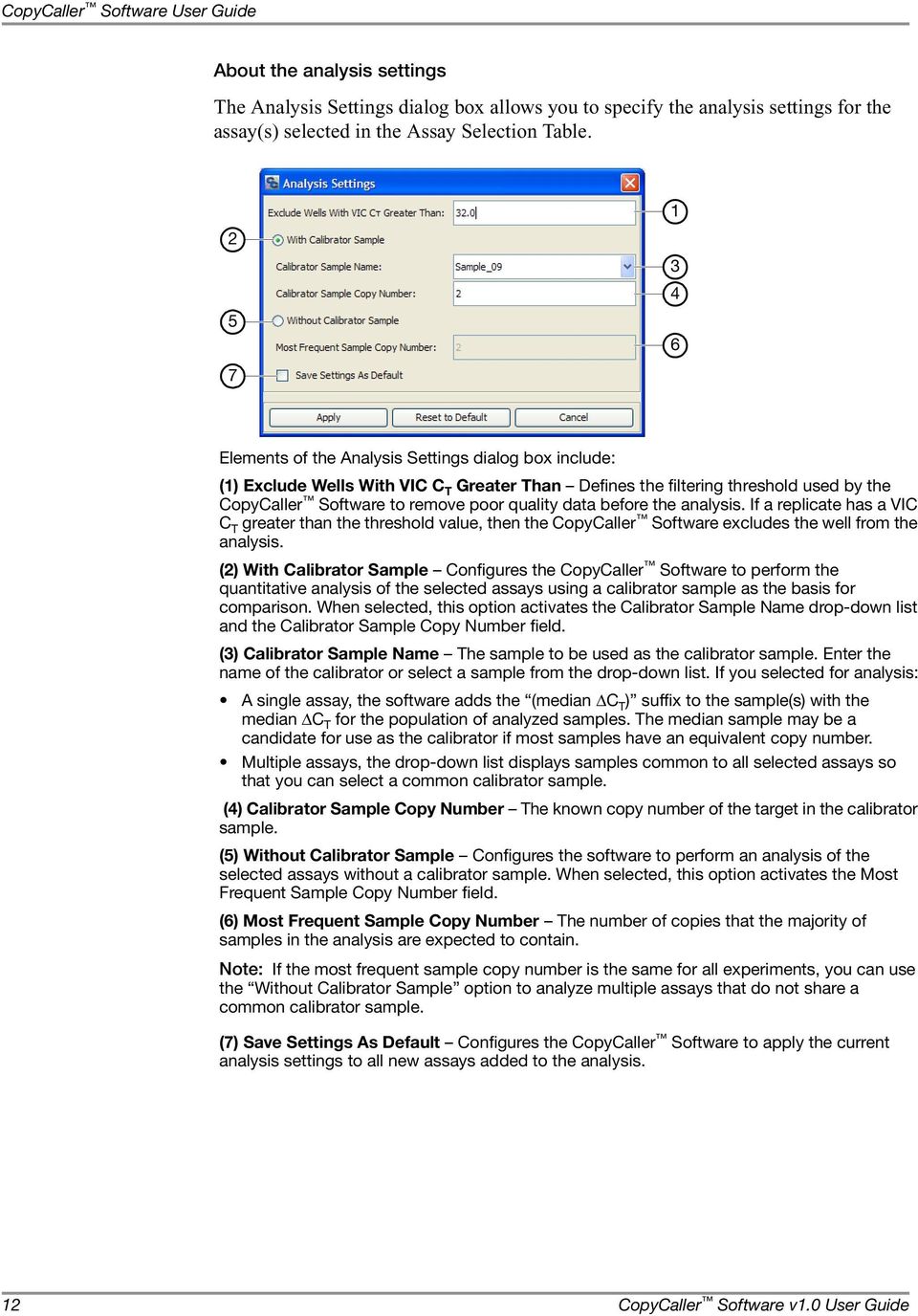
20 CopyCaller Software User Guide About the analysis settings The Analysis Settings dialog box allows you to specify the analysis settings for the assay(s) selected in the Assay Selection Table Elements of the Analysis Settings dialog box include: (1) Exclude Wells With VIC C T Greater Than Defines the filtering threshold used by the CopyCaller Software to remove poor quality data before the analysis. If a replicate has a VIC C T greater than the threshold value, then the CopyCaller Software excludes the well from the analysis. (2) With Calibrator Sample Configures the CopyCaller Software to perform the quantitative analysis of the selected assays using a calibrator sample as the basis for comparison. When selected, this option activates the Calibrator Sample Name drop-down list and the Calibrator Sample Copy Number field. (3) Calibrator Sample Name The sample to be used as the calibrator sample. Enter the name of the calibrator or select a sample from the drop-down list. If you selected for analysis: A single assay, the software adds the (median ΔC T ) suffix to the sample(s) with the median ΔC T for the population of analyzed samples. The median sample may be a candidate for use as the calibrator if most samples have an equivalent copy number. Multiple assays, the drop-down list displays samples common to all selected assays so that you can select a common calibrator sample. (4) Calibrator Sample Copy Number The known copy number of the target in the calibrator sample. (5) Without Calibrator Sample Configures the software to perform an analysis of the selected assays without a calibrator sample. When selected, this option activates the Most Frequent Sample Copy Number field. (6) Most Frequent Sample Copy Number The number of copies that the majority of samples in the analysis are expected to contain. Note: If the most frequent sample copy number is the same for all experiments, you can use the Without Calibrator Sample option to analyze multiple assays that do not share a common calibrator sample. (7) Save Settings As Default Configures the CopyCaller Software to apply the current analysis settings to all new assays added to the analysis. 12 CopyCaller Software v1.0 User Guide

21 Select assays and analyze the data Select and analyze the assay data 1. In the Assay Selection Table, select one or more assays to analyze. To select an assay, click anywhere in a row of the Assay Selection Table (the software highlights the selected row in blue). To select more than one assay in the Assay Selection Table, press Ctrl or Shift while you select individual assays, or click and drag across the list of assays. Note: If you select multiple assays, the selected assays are analyzed using identical analysis settings. 2. In the toolbar, click (Analysis Settings). Note: See About the analysis settings on page 12 for a complete description of the analysis settings. 3. In the Analysis Settings dialog box: a. In the Exclude Wells With VIC C T Greater Than field, enter a cycle number (between 20 and 40) to specify the threshold above which the CopyCaller Software excludes samples from the analysis. Note: Applied Biosystems recommends a VIC threshold of 32 as a general guideline. b. Specify the calibrator sample settings for the selected assay(s) depending on whether or not a calibrator sample of known copy number is available. CopyCaller Software v1.0 User Guide 13
22 CopyCaller Software User Guide Calibrator present? Yes No Action 1. Select With Calibrator Sample. 2. In the Calibrator Sample Name drop-down list, select or enter a sample to use as the calibrator for the analysis. 3. In the Calibrator Sample Copy Number field, enter the number of copies of the target sequence that are in the calibrator sample. The number of copies must be a whole number greater than zero. 1. Select Without Calibrator Sample. 2. In the Most Frequent Sample Copy Number field, enter the number of copies of the target sequence expected in the majority of samples. The number of copies must be a whole number greater than zero. 4. Click Apply to apply the analysis settings and perform copy number analysis using the revised analysis settings. After the analysis is complete, the CopyCaller Software displays Y in the (Analysis Status) column of the Assay Selection Table for each analyzed assay. 5. Repeat steps 1 through 4 as necessary to analyze any remaining assays. 6. Display the results of the analysis: a. In the Assay Selection Table, verify that the assays that you want to add to the analysis show Y in the (Analysis Status) column. If not, analyze the unanalyzed assay(s) as explained above. b. In the (Display Analysis Results) column, select the check boxes for up to 10 analyzed assays that you want to display. 7. Go to Review the Copy Number Plot on page 15. Remove an assay Removing a copy number assay from the Assay Selection Table removes the assay results from the current display and the analysis. 1. In the Assay Selection Table, select the row corresponding to the assay that you want to remove. 2. Right-click the selected row, then select Remove from analysis (or press Delete). The selected assay is deleted from the current session of CopyCaller Software. Note: Deleting an assay from the CopyCaller Software does not delete the associated exported real-time PCR file from the computer drive. 14 CopyCaller Software v1.0 User Guide

23 Review the Copy Number Plot Review the Copy Number Plot After you select one or more assays for display, perform an initial review of the Copy Number Plot. For each selected copy number assay, the plot displays the calculated or predicted copy number of each sample, and bars that indicate the copy number range for the associated replicate group. You can view the copy number data in the Copy Number Plot (see page 16), edit the plot settings from the Plot Settings dialog box (see page 17), and print or save the plot (see page 17). About the Copy Number Plot The Copy Number Plot displays a bar graph of the data in the Copy Number Calculated column of the Results Table. The software displays one bar for each analyzed sample. Within each bar, the software displays a red line (bar) that represents the minimum and maximum copy number calculated for the sample replicate group. To compare the results from several copy number assays, select multiple assays in the Assay Selection Table. See Select and analyze the copy number assays on page 11 for more information. Note: To view a large version of the plot, click (View enlarged plot) Elements of the Copy Number Plot include: (1) Legend The assays that are analyzed by the software and displayed by the plot. (2) y-axis (Copy Number) Displays the copy number for each sample associated with the assays selected in the Assay Selection Table. (3) x-axis (Samples) Displays the samples associated with the assays selected in the Assay Selection Table. Note: The Copy Number Plot does not display data for Undetermined samples, where the copy numbers for the associated samples cannot be calculated. For example, a sample could be Undetermined if it shows no amplication for the reference assay (a VIC C T greater than the threshold that is specified in the Analysis Settings dialog box). The software displays the names of Undetermined samples in red. (4) Copy Number Range Bars Indicates the minimum and maximum copy number (CN) calculated for the sample replicate group. (5) Tooltip For the bar of interest, displays the sample name, target assay name, and copy number data (predicted, calculated, maximum, and minimum values). CopyCaller Software v1.0 User Guide 15
24 CopyCaller Software User Guide About the assay colors The CopyCaller Software automatically assigns a unique color to each assay that you open for analysis. After you select an assay to be displayed, the software uses the same color to identify data for the assay in the Well Table, the Results Table, and the Copy Number Plot. The CopyCaller Software uses only ten colors to display assay data. The software assigns colors to assays as they are selected for display. When an assay is removed from display (by deselecting the associated checkbox in the Assay Selection Table), then the color assigned to the assay becomes available for the software to reassign to another assay. Note: You can change the colors that the software assigns to assays. For more information, see View or edit the plot settings on page 17. Guidelines for reviewing the plot Review the Copy Number Plot for the following: Samples should have calculated copy number values close to integers and small range bars. Review the plot for intermediate copy numbers. The presence of intermediate, calculated copy number values (such as 1.5) can indicate that the calibrator or copy number was specified incorrectly, or a potential problem exists with the associated test sample or calibrator sample. See Troubleshooting CopyCaller Software analysis results on page 36 for more information. Review the copy number range bars for each sample. Large bars may indicate that the technical replicates of the associated sample exhibit a broad range of ΔC T values, possibly indicating that sample data quality is suboptimal. To examine the individual ΔC T values for the technical replicates, see Review the Well Table on page 21. Note: The copy number range of replicates is frequently larger for samples that have high target copy numbers (>3) as a result of their smaller ΔC T values. View the plot To view data in the Copy Number Plot: Display copy number tooltips In the Copy Number Plot, mouse over a bar or a sample name of interest. A tooltip displays the sample name, target assay name, and copy number data (predicted, calculated, maximum, and minimum values). Select sample bars in the copy number plot In the Copy Number Plot, select a bar of interest. The CopyCaller Software automatically: Displays the bar and the sample name on the x-axis in blue. Selects the assay(s) in the Assay Selection Table, and the related data in the Well Table tab and the Results Table. After you review the Copy Number Plot, review the results of the analysis in the Result Table. Go to Review the Results Table on page CopyCaller Software v1.0 User Guide

25 Review the Copy Number Plot View or edit the plot settings About the Plot Settings Elements of the Plot Settings dialog box include: (1) Show Copy Number As Changes the data 1 displayed by the Copy Number Plot, where: 2 Calculated Copy Number Configures the plot to display the data shown in the Copy Number Calculated column of the Results 3 Table (see page 18). Predicted Copy Number Configures the plot to display the data shown in the Copy Number Predicted column of the Results Table (see page 18). 4 (2) Sort Plot By Changes the sequence of the samples in the plot, where: Sample Name Sorts the samples in the plot by name. Assay Sorts the samples in the plot by assay ID. Copy Number Sorts the samples in the plot by target copy number in the sample. (3) Color indicates Changes the way the software applies color to the bars, where: Assay Configures the plot to display each assay in a different color. Predicted Copy Number Configures the plot to display each predicted copy number (up to copy number 10) in a different color. (4) Colors Change the colors used for the assay color or for the copy number color. Note: To change a color, click a color bar, use the color picker utility to select a color, then click OK to apply the color. To view or edit the plot settings: 1. In the toolbar, click (Plot Settings). 2. In the Plot Settings dialog box, change the plot and color settings as desired. 3. Click Apply to apply the settings and close the dialog box. Print or save the plot You can print or save the Copy Number Plot for use in documents or presentations. For instructions, see Save or print the Copy Number Plot or statistics chart on page 28. CopyCaller Software v1.0 User Guide 17
26 CopyCaller Software User Guide Review the Results Table Review the Results Table for information about the assay, reaction plate, and realtime PCR for each assay that you selected in the Assay Selection Table. About the Results Table The Results Table displays the results of the copy number analysis of individual samples. Each row of the table represents the combined values of the technical replicates for a single sample Columns of the Results Table include: (1) Hide Includes or excludes the data of the associated sample in or from the Copy Number Plot. (2) # (Assay ID) A sequential identifier that is assigned by the CopyCaller Software to each copy number assay that is opened by the software. The CopyCaller Software uses the Assay IDs to identify related data in the Assay Selection Table, Copy Number Plot, Results Table, Well Table tab, and Statistics Chart tab. (3) Sample The sample whose data are associated with the row. (4) Target The TaqMan Copy Number Assay used to detect and quantify the genomic region of interest. (5) Reference The TaqMan Copy Number Reference Assay used to normalize the genomic DNA input. (6) Plate ID The bar code of the plate used to run the assay. (7) Copy Number Calculated The copy number for the associated sample calculated by the relative quantitation method as: cn sample = RQ sample cn calibrator where RQ = relative quantity of the associated sample; and cn = copy number. (8) Copy Number Predicted The predicted copy number of the associated sample. (9) Confidence The confidence value of the associated predicted copy number. (10) Z-Score The absolute z-score value of the associated copy number integer. See Deviation (z-score) estimate on page 54 for more information. (11) Replicate Count/Replicates Analyzed For the associated sample, the number of technical replicates for the sample and the number of replicates included in the analysis. Note: The Replicates Count and Replicates Analyzed values differ when replicate well data are omitted from the analysis. (12) FAM/VIC C T Mean The arithmetic mean of the C T that is calculated for the technical replicates of the associated sample, where the: FAM column displays the mean C T for the signal associated with the FAM dye-labeled probe of the copy number assay. VIC column displays the mean C T for the signal associated with the VIC dye-labeled probe of the reference assay. (13) ΔC T Mean The arithmetic mean of the ΔC T of the technical replicates for the associated sample. (14) σ(δc T ) The standard deviation of the ΔC T of the technical replicate population for the associated sample. (15) ΔΔC T The ΔΔC T value for the associated sample, which is calculated as: (ΔΔC T ) s,t = µ(δc T ) s,t µ(δc T ) calibrator where: s = sample; t = target copy number assay. (16) RQ The relative quantity for the associated sample, which is calculated as: where: s = sample; t = target copy number assay. (17) Min CN/Max CN/CN Range The limits and the range for the calculated copy numbers (CN) of the technical replicates for the associated sample. (18) Comments Any comments that you want to include with the associated sample. 18 CopyCaller Software v1.0 User Guide
27 Review the Results Table Guidelines for reviewing the Results Table Review the Results Table for the following: Compare the calculated and predicted copy number values to the related data in the Copy Number Plot and the Well Table (see Review the Well Table on page 21 for more information). Examine the confidence values and absolute z-score values to assess the reliability of each copy number call. Review samples having a predicted copy number of Undetermined. A sample is Undetermined if the CopyCaller Software cannot analyze the sample because the: Reference assay did not amplify sufficiently, possibly indicating low sample quality. Replicate data for a sample were conflicting. Review samples having a predicted copy number of 0 (zero-copy samples). Zero-copy samples produce reference assay amplification (passing VIC C T values) and weak or nonexistent target amplification (generating the NOFAM or DCTET QC flags respectively). If a sample replicate group does not produce FAM amplification (an undetermined C T ), then the software calculates only the mean VIC C T for the samples. If a sample replicate group produces measurable but weak FAM amplification, the software calculates a copy number that is approximately zero. (For more information on quality flags, see Quality flags of the Well Table tab on page 22.) Note: The CopyCaller Software cannot calculate confidence values for zerocopy-number samples. However, samples that produce no FAM signal are, by definition, high-confidence calls because no target DNA was amplified. Review samples having a predicted copy number that is greater than or equal to 1. The CopyCaller Software calculates confidence and absolute z-score values for each sample set that has a non-zero predicted copy number value and sufficient data for the estimation. The software cannot calculate the confidence and absolute z-score values for sample sets that have fewer than seven samples of a single copy number because the algorithm requires a minimum number of data points (see About the quality metrics on page 53 for more information). Under optimal experimental conditions where samples are of high quality, copy number and reference assays have amplified, and sample replicates have similar C T and ΔC T values: Samples that have low copy numbers (1, 2, or 3) commonly have confidence values greater than 95%. As copy numbers increase, confidence progressively decreases due to the decreased separation of ΔC T subdistribution values of copy numbers (see Confidence estimate on page 53 for more information). CopyCaller Software v1.0 User Guide 19
28 CopyCaller Software User Guide Review samples that have confidence values greater than 95%. Samples that have high confidence values can sometimes deviate significantly from the mean copy number for the copy number subdistribution. For sample copy number calls having confidence values greater than 95%, look at the absolute z-scores, then consider accepting or rejecting the copy number call based on the following: Z-Score Status < 1.75 Pass 2.65 > z 1.75 Pass with caution 2.65 Fail Note: The thresholds in the table above are based on empirical observations and are provided only as guidelines. Note: For more information on troubleshooting Results Table data, see Troubleshooting CopyCaller Software analysis results on page 36. When you finish reviewing the Results Table, adjust the analysis settings as explained below, or go to Review the Well Table on page 21. Print or save the Results Table data You can print or save the Results Table data for use in documents, presentations, or downstream analysis. For specific instructions, see Save and print the analysis on page 27. Note: If you select more than one assay in the Assay Selection Table, the data for the assays are displayed vertically. (Optional) Edit the analysis settings After you perform an initial review of the analyzed data in the Copy Number Plot and the Results Table, you can optimize the analysis settings if necessary. View or edit analysis settings 1. Select one or more assays in the Assay Selection Table, then click (View Analysis Settings) in the toolbar. 2. Revise the analysis settings as needed. For example, if the quality of the calibrator data is poor, you can select a different calibrator sample and reanalyze the data. 3. Click Apply to perform the copy number analysis using the revised analysis settings. 20 CopyCaller Software v1.0 User Guide

29 Review the Well Table Review the Well Table Use the Well Table tab to review and manage the well data of the analyzed results files. After you analyze and display one or more assays, use the Well Table tab to review the sample replicate data (including quality flags that were generated during the analysis; see page 22), and to omit or include well data (see page 22). About the Well Table tab The Well Table tab displays the well-level data for the assays selected in the Assay Selection Table. You can arrange data by selecting the column headers of the table. Click a table column header once to arrange the data in ascending order ( ), click it again to arrange in descending order ( ), then click it again to reset the column Columns of the Well Table include: (1) Omit A check box that includes or excludes the data of the associated well in or from the copy number analysis. When a check box is selected, the CopyCaller Software omits the associated well data from the analysis. (2) # (Assay ID) A sequential identifier that is assigned by the CopyCaller Software to each copy number assay that is opened by the software. The CopyCaller Software uses the Assay IDs to identify related data in the Assay Selection Table, Copy Number Plot, Results Table, Well Table tab, and Statistics Chart tab. (3) Well The position of the well on the associated plate. Note: For 7900HT Fast system data, the well column displays numbered positions instead of coordinate positions. The wells on the plate are numbered sequentially left to right, top to bottom (for example, the well A1 is 1 and the well H12 is 96 ). (4) Sample The name of the sample that is in the well. (5) Flag The quality flags that are generated by the associated well data. See Quality flags of the Well Table tab on page 22 for more information. (6) FAM C T The C T for the TaqMan Copy Number Assay. (7) VIC C T The C T for the TaqMan Copy Number Reference Assay. (8) ΔC T The difference between the FAM C T and the VIC C T. (9) Comments Any comments that you want to add to the associated well. CopyCaller Software v1.0 User Guide 21
30 CopyCaller Software User Guide Quality flags of the Well Table tab The CopyCaller Software assigns nine quality flags that indicate the quality status (not error) for a sample replicate (or well). Category Flag Assigned when the associated well Undetermined wells/samples Zero-copy number wells/ samples NOVIC VICET UNDET NOFAM DCTET VIC C T value is undetermined (not measurable by the realtime PCR system). ΔC T exceeds the Exclude Wells With VIC C T Greater Than threshold defined in the Analysis Settings dialog box (see About the analysis settings on page 12). Is associated with a replicate group where half of the replicates are zero-copy (as determined by NOFAM or DCTET rules) and half of the replicates have nonzero-copy number values (assigned the UNDET flag). FAM C T value is undetermined (not measurable by the realtime PCR system). ΔC T exceeds the threshold of 4.0 (the software default). Outlier wells OZERO Is an outlier in a replicate group where the majority are zerocopy. No Template Control OCONF OUSER NTC Exceeds the outlier confidence determined by the software (see About the quality metrics on page 53). Is manually omitted by the user. Is assigned as a no-template control. Guidelines for reviewing the Well Table Review the Wells Table for the following: Compare the Well Table data to the related data in the Copy Number Plot and the Results Table (see Review the Results Table on page 18 for more information). For each replicate group, review the Flag column for any quality flags generated during the analysis, and determine the source of the warning. Some quality flags indicate potential issues with wells or samples. For example, wells that generate NOVIC or VICET flags did not amplify the reference assay target properly and may contain low-quantity or poor-quality DNA. Note: For more information on troubleshooting the Wells Table data, see Troubleshooting CopyCaller Software analysis results on page 36. Omit wells You can use the Well Table tab to omit wells from the copy number analysis. For information on removing outliers, see (Optional) Remove outliers and reanalyze on page CopyCaller Software v1.0 User Guide
31 (Optional) Remove outliers and reanalyze (Optional) Remove outliers and reanalyze After reviewing the results of the copy number analysis, you can use the Well Table tab to review well quality flags and sample replicate consistency, and to manually omit well data from the analysis, if necessary. About outliers Outliers occur when a factor other than initial sample quantity affects the PCR amplification and the measured C T value. Outliers can result from either random experimental error or a number of laboratory errors, such as contamination, plate seal leaks, pipetting inaccuracies, or instrument issues. In the context of relative quantitation for duplex PCR, the range of the ΔC T of the technical replicates is used as the basis for outlier removal. The CopyCaller Software uses an automatic outlier removal algorithm to remove erroneous data values. The algorithm first estimates plate-level variance by calculating the ΔC T standard deviation. The algorithm then eliminates technical replicates with ΔC T values that deviate from the mean of the sample replicates by more than four standard deviations. The outlier removal method used by the CopyCaller Software is conservative; Applied Biosystems does not recommend a more aggressive approach. Subjective removal of too many data points can change the copy number prediction or confidence for a sample. For analyses that do not use a calibrator sample, outlier removal can affect the copy number of multiple samples. Applied Biosystems recommends manually removing outliers only when the rationale to remove a technical replicate well is objective and obvious. Note: For more information on the outlier removal algorithm, see Outlier detection on page 50. Guidelines for identifying and removing outliers Use the following guidelines to identify outliers: Review the Well Table for QC flags. If any wells have generated QC flags: Click the Sample header of the Well Table to arrange the wells by sample, then review the C T values for the associated sample replicates. Use your real-time PCR system software to view and troubleshoot the raw data. Review the calculated copy number values. The presence of copy number values between integers and large copy number ranges may (but not necessarily) indicate the presence of one or more replicate outliers. Review the standard deviation of ΔC T displayed in the σ(δc T ) column of the Results Table. In general, an acceptable standard deviation of ΔC T is less than Note: For more information on troubleshooting outliers, see Troubleshooting CopyCaller Software analysis results on page 36. CopyCaller Software v1.0 User Guide 23
32 CopyCaller Software User Guide Remove outliers 1. Select the Well Table tab. 2. Locate the well(s) that you want to omit from the copy number analysis. 3. For each outlier well, select its corresponding check box in the Omit column. Note: After omitting a well, the analysis status of the associated assay in the Assay Selection Table changes from Y to R, indicating that the assay must be reanalyzed. 4. Click (Analyze) to perform copy number analysis for the assay without using the data from the outlier well(s). 24 CopyCaller Software v1.0 User Guide

33 Review the Analysis Summary Review the Analysis Summary Review the Analysis Summary tab for the summarized results of the copy number analysis. While viewing the summary, you can copy and paste the data into other applications. About the analysis summary The Analysis Summary tab displays a summary of the results from the copy number analysis of the assays selected in the Assay Selection Table. If multiple assays are selected, then the Analysis Summary tab displays the additional summaries horizontally. Elements of the Analysis Summary tab include: 1 (1) # (Assay ID) A sequential 2 identifier that is assigned by the 3 4 CopyCaller Software to each copy number assay that is opened by the 5 software. The CopyCaller Software 6 uses the Assay IDs to identify related data in the Assay Selection Table, Copy Number Plot, Results Table, 7 Well Table tab, and Statistics Chart tab. 8 (2) File name The name of the file opened by the CopyCaller Software. (3) Plate ID The bar code of the 9 plate(s) used to run the samples associated with the assay. (4) Target name The copy number assay that is used to detect and quantify the genomic region of interest. (5) Reference name The reference assay that is used to normalize the genomic DNA input. (6) Analysis Parameters A summary of the analysis settings used to analyze the assay. (7) Warnings Summary A summary of warnings and quality flags generated during the analysis of the assay. (7) Copy Number Summary A summary of the copy number assignments, including the total number of analyzed samples, negative controls (NTC), and samples according to predicted copy number. (9) Omitted Well Summary A summary of the wells omitted from the analysis (wells identified as outliers and no-template [negative] controls). Copying and pasting the Analysis Summary 1. In the Analysis Summary tab, select the text that you want to copy. 2. Press Ctrl+C to copy the text. 3. Create or open a document in a word processing application (for example, Microsoft Word), then press Ctrl+V to paste the text from the Analysis Summary tab into your document. CopyCaller Software v1.0 User Guide 25

34 CopyCaller Software User Guide Review the Statistics Chart Review the Statistics Chart tab for information about the distribution of copy numbers among the samples in a copy number assay. While viewing the Statistics Chart, you can print or save it. About the Statistics Chart The Statistics Chart tab displays the range of predicted copy numbers (in integers), the number of samples with a particular copy number, and the percentage of samples for each copy number. You can view the copy number statistics in a pie chart or in a histogram. 1 1 Elements of the Statistics Chart tab include the: (1) Chart type drop-down list Changes the plot type displayed in the Statistics Chart. Print or save the pie chart or histogram You can print or save the statistics chart for use in documents or presentations. For specific instructions, see Save or print the Copy Number Plot or statistics chart on page CopyCaller Software v1.0 User Guide

35 Save and print the analysis Save and print the analysis After completing the copy number analysis, you can save the analysis for later use by CopyCaller Software. You can also save or print the results for use in documents, presentations, or downstream analysis. Save the results to a file The CopyCaller Software provides two settings for saving an analysis: Copy Number Results With Raw C T Data Saves the entire analysis to a CopyCaller file that includes the raw data for the analysis session. You can use the CopyCaller Software to open the saved file later to resume the analysis. Copy Number Results Without Raw C T Data (Optional) Saves only the processed data in the Results Table, which are suitable for use in documents, presentations, and downstream analysis by third-party applications. IMPORTANT! The CopyCaller Software saves the results for all assays selected in the Assay Selection Table. The software saves the data to the exported file in the order that the assays appear in the Assay Selection Table. To save the analysis: 1. Click (Save analysis results). 2. In the Save Analysis Results dialog box, configure the settings as follows: To save a results file that You can open later to resume the analysis (a CopyCaller file). Contains the analyzed data only (a Results file). Action 1. In the File name field of the Copy Number Results With Raw C T Data group box, enter a path and name for the exported file. 2. In the File type drop-down list, select the format of the file that you want to export (.txt or.csv). 1. Select Save the copy number results without raw CT data in a separate file. 2. In the File name field of the Copy Number Results Without Raw C T Data group box, enter a path and name for the exported file. 3. In the File type drop-down list, select the format of the file that you want to export (.txt or.csv). 3. Click Save. CopyCaller Software v1.0 User Guide 27
36 CopyCaller Software User Guide Open the saved results using the CopyCaller Software After saving an analysis as a CopyCaller file, you can resume the saved analysis by opening the file as you would any exported file: click (Open), select the file in the Open dialog box, then click Open. Note: If you open a CopyCaller file that contains the analyzed results of multiple assays, the CopyCaller Software displays the individual analyzed assays in the Assay Selection Table. Save or print the Copy Number Plot or statistics chart You can save the Copy Number Plot or the statistics chart as a Portable Net Graphic file (PNG) or a Joint Photographic Experts Group file (JPG) for use in documents or presentations. You can also print the Copy Number Plot or the statistics chart. To save the plot or chart: 1. Right-click the pie chart or histogram, then select Save as. 2. Navigate to the folder where you want to save the file. 3. In the Files of type drop-down list, select the file format of the exported file. 4. Enter a file name, then click Save. To print the plot or chart: 1. Right-click the Copy Number Plot or the statistics chart, then select Print. 2. In the Page Setup dialog box, select page setup options, then click OK. 3. In the Print dialog box, click OK. 28 CopyCaller Software v1.0 User Guide
37 Troubleshooting A This appendix covers: Troubleshooting real-time PCR data Troubleshooting CopyCaller Software analysis results Troubleshooting CopyCaller Software error messages CopyCaller Software v1.0 User Guide 29
38 Appendix A Troubleshooting Troubleshooting real-time PCR data This section contains information for troubleshooting TaqMan Copy Number Assay experiments using the Applied Biosystems real-time PCR system software (such as the SDS software or the StepOne software). Overview The table below summarizes the symptoms that are covered in this section, and indicates the relevant troubleshooting pages. The table organizes the information by the interface elements (plots) in which the symptoms are observed. Plot Observation See page Amplification Plot: R n vs. Cycle Amplification Plot: ΔR n vs. Cycle Multicomponent Plot R n value in the R n versus Cycle plot is very high. 35 R n value shifts during the early cycles of the PCR (cycles 0 to 5). ΔR n is small. 35 Amplification curve shows abnormal plot and/or low ΔR n values. Amplification curve shows a rising baseline. 31 Amplification curve shows weak amplification. 32 Amplification curve shows samples within the same assay that have differently shaped curves. Amplification curve shows no amplification of the sample (C T is undetermined). No template control (NTC) shows amplification. 34 High level of variation exists between replicates 34 (inconsistent data, C T value varies). Signal above the threshold is noisy. 35 ROX dye fluorescence (passive reference dye) is low. 34 Fluorescence from both the passive reference (ROX ) dye and the reporter dye(s) increase simultaneously. Multicomponent signal for ROX dye is not linear. 35 Other Reference assay (VIC dye) C T values vary CopyCaller Software v1.0 User Guide
39 Troubleshooting real-time PCR data Observation Possible cause Recommended action Amplification curve shows abnormal plot and/or low ΔR n values. Linear view: Amplification Plot Baseline set incorrectly (some samples have C T values lower than the baseline stop value) Enable automatic baselining, or manually move the baseline stop value to a lower C T (2 cycles before the point at which the amplification curve for the sample crosses the threshold). Note: Refer to your real-time PCR system user guide for procedures on setting the baseline. Corrected log view: E+1 Amplification Plot Rn E E1 Rn E Cycle Log view: E E E+1 Amplification Plot Rn E E E E-4 Amplification detected in the early cycles of the PCR (prevents the software from setting the baseline automatically) E Cycle Verify that the concentration of the sample is within the recommended range. Dilute the sample to increase the C T value E Cycle Amplification curve shows a rising baseline. Linear view: Amplification Plot Primer and probe interaction Bubble in a well Adjust the threshold and/or baseline manually. Select another assay from the same genomic region. Before thermocycling, verify that the reaction plate does not contain bubbles Rn Cycle Log view: Amplification Plot E E-1 Rn E E Cycle CopyCaller Software v1.0 User Guide 31
40 Appendix A Troubleshooting Observation Possible cause Recommended action Amplification curve shows weak amplification. Amplification curve shows samples within the same assay that have differently shaped curves. Sequence mismatch between target region and the copy number assay Degraded reagents and/or assays Degraded or contaminated template Inhibitors present in the reaction Poor sample quality Imprecise pipetting (different concentrations) Contamination Precipitation in the TaqMan buffer Incorrect baseline and/or threshold setting Perform bioinformatics. For example, verify the presence of SNPs in the target region. Select another assay from the same genomic region. Verify that the reagents have not expired. Follow the correct handling and storage conditions. Avoid excessive freeze-thaw cycles. Consider diluting the 60 TaqMan Copy Number Assay to a 20 working stock. Improve sample integrity (extraction methods). Verify each template preparation by agarose gel electrophoresis or bioanalyzer to determine the: Purity Level of degradation Use DNase-free, sterile, filtered water. Verify the presence of an inhibitor: 1. Create a serial dilution of your sample. 2. Run the serial dilution with an assay known to detect a target in the sample (for example, the reference assay). If a PCR inhibitor is present, dilute DNA samples yield higher-than-expected C T values in comparison to higher-concentration samples. 3. Rerun the assay with repurified template. 1. Verify the quality of the sample. 2. If necessary, reextract the sample. Follow accurate pipetting practices. Verify that your workspace and equipment are cleaned correctly. Perform the copy number experiments using TaqMan Genotyping Master Mix. Be sure to mix the solution thoroughly to produce a homogenous solution. Note: TaqMan Gene Expression Master Mix or TaqMan Universal Master Mix are acceptable alternatives. Refer to your real-time PCR system user guide for procedures on setting the baseline: Change the method used to set the baseline or threshold. If you set them: Manually, enable automatic baselining and/or thresholding. Automatically, set the baseline and/or threshold manually. Increase the upper or lower value of the baseline range. 32 CopyCaller Software v1.0 User Guide
41 Troubleshooting real-time PCR data Observation Possible cause Recommended action Amplification curve shows no amplification of the sample (C T is undetermined). Copy number sequence not present in the test sample(s) (for example, the copy number variation region is deleted) Assay/target sequence mismatch Missing PCR component(s) Dye components specified incorrectly Annealing temperature too high for the primers and/or probes Verify that the reference assay (VIC dye) C T values are normal in samples lacking the copy number assay (FAM dye) signal. Verify the result by: Rerunning the sample using the same assay. Running the sample using an alternative assay in the same genomic region. Verify the known copy number variation of the target genomic region. For custom assays, perform bioinformatics. For example, verify that the sequence submitted to assay design contains the correct target sequence. Select an alternative target region for assay design or select another assay from the same genomic region. Verify that gdna, TaqMan Copy Number Assay, TaqMan Copy Number Reference Assay, and TaqMan Master Mix were added to the reaction plate. Note: If the master mix was not added to the reaction, the passive reference also fails. Verify the dye components settings (reporter, quencher, and passive reference dyes). Verify that the thermal cycler is set to the correct annealing and extension temperatures. Ensure that the thermal cycler is calibrated and maintained regularly. Degraded template Determine the quality of the template. Rerun the assay with fresh template. Use DNase-free, sterile, filtered water. Inhibitors present Verify the presence of an inhibitor: 1. Create a serial dilution of your sample. 2. Run the serial dilution with an assay known to detect a target in the sample (for example, the reference assay). If a PCR inhibitor is present, dilute DNA samples yield higher-than-expected C T values in comparison to higher-concentration samples. 3. Rerun the assay with purified template. Incorrect baseline and/or threshold setting Change the method used to set the baseline or threshold. If you set them: Manually, enable automatic baselining and/or thresholding. Automatically, set the baseline and/or threshold manually. Lower the threshold value to within the appropriate range. Note: Refer to your real-time PCR system user documentation for information on setting the baseline and threshold. CopyCaller Software v1.0 User Guide 33
42 Appendix A Troubleshooting Observation Possible cause Recommended action No template control (NTC) shows amplification. Reference assay (VIC dye) C T values vary. Reagent contamination (gdna, amplicon, or plasmid clones) Template or amplicon contamination Reference sequence not present or contains polymorphisms in test sample(s) High variation in sample concentrations Rerun the assay using new reagents. Be sure your workspace and equipment are cleaned correctly. Use AmpErase UNG (in TaqMan Gene Expression or Universal Master Mixes) and adjust the protocol to include the UNG activation step (50 C/10 min HOLD before the standard PCR protocol steps). Follow good laboratory practices for preventing PCR contamination. Use an alternate TaqMan Copy Number Reference Assay. Quantitate and normalize samples before running them. High level of variation exists between replicates (inconsistent data, C T value varies). ROX dye fluorescence (passive reference dye) is low. Fluorescence from both the passive reference (ROX ) dye and the reporter dye(s) increase simultaneously. Pipetting inaccuracy Note: In general, the calculation of sample-level ΔC T accounts for variability in sample concentration. Verify that your pipettors and/or liquid transfer robot(s) are calibrated and working correctly. Insufficient mixing Increase the time spent mixing the reagents. Validate your mixing process by running a replicate plate. Pipetting inaccuracy Incorrect threshold setting Low concentration of one or more reaction components Verify that your pipettors and/or liquid transfer robot(s) are calibrated and working correctly. Using your real-time PCR system software, set the threshold above the noise and within the region where the amplification curves for the technical replicates are clustered tightly. Note: Refer to your real-time PCR system user documentation for information on setting the threshold. Verify that correct amounts of copy number assay, reference assay, and master mix were added to the reaction plate. Low target concentration Rerun the reaction using more sample. High sample concentration Reduce the amount of sample. Quantitate and normalize the sample. Template or amplicon contamination Degraded TaqMan buffers Pipetting inaccuracy (insufficient master mix) Evaporation Follow good laboratory practices for preventing PCR contamination. Verify that the assays have not expired and that they have been stored according to the instructions on the packaging. Follow accurate pipetting practices. Verify that the seal of the optical adhesive cover is intact (no leaks). 34 CopyCaller Software v1.0 User Guide
43 Troubleshooting real-time PCR data Observation Possible cause Recommended action Multicomponent signal for ROX dye is not linear. R n value in the R n versus Cycle plot is very high. R n value shifts during the early cycles of the PCR (cycles 0 to 5). Note: This condition does not affect PCR or the results. Incorrect pure dye components spectra Dye components specified incorrectly Incorrect passive reference setting Fluorescence did not stabilize to the buffer conditions of the reaction mix Perform a pure dye calibration, then reanalyze the plate document/experiment using the new dye spectra. Select the correct dyes for the plate document/experiment. Select the ROX dye as the passive reference for the plate document/experiment. Manually set the lower value of the baseline range. or Enable automatic baselining. ΔR n is small. Poor PCR efficiency Verify that the concentrations of reagents and assay are correct. Low copy number of target Increase the quantity of the sample. Signal above the threshold is noisy. Evaporation Empty well (pipetting inaccuracy) Detector/target incorrectly applied to an empty well (The empty well is labeled with a detector in the plate document/experiment.) Verify the seal of the optical adhesive cover (no leaks). Verify that your pipettors and/or liquid transfer robot(s) are calibrated and working correctly. 1. Verify that the detector/target settings for the well in the plate document/experiment are correct. 2. Exclude the well, then reanalyze the data. CopyCaller Software v1.0 User Guide 35
44 Appendix A Troubleshooting Troubleshooting CopyCaller Software analysis results This section contains information for troubleshooting TaqMan Copy Number Assay experiments using the CopyCaller Software. Overview The table below summarizes the symptoms covered in this section and indicates the relevant troubleshooting page. The table organizes the information by the interface elements in which the symptoms are observed. Interface element Observation See page Copy Number Plot Results Table Wells Table Large copy number range bars in the Copy Number Plot (technical replicates exhibit a broad range of ΔC T values). Calculated copy numbers are between integers (for example, 1.5 copies). Calculated copy numbers are between integers (for example, 1.5 copies). Copy number confidence values are high (>95%), but the absolute z-scores are also high (>2.65). Confidence value for a sample changes after one or more outliers are manually omitted from the analysis. Copy number confidence calls are very low. 38 Predicted copy number call for a sample changes after one or more outliers are manually omitted from the analysis. No confidence values are assigned. 39 ΔC T of a technical replicate deviates significantly from the replicate group, but is not identified as an outlier CopyCaller Software v1.0 User Guide
45 Troubleshooting CopyCaller Software analysis results Observation Possible cause Recommended action Large copy number range bars in the Copy Number Plot (technical replicates exhibit a broad range of ΔC T values). Calculated copy numbers are between integers (for example, 1.5 copies). Inefficient mixing of reagents Increase the time that you mix the reagents. Validate the mixing process by running a replicate plate or by repeating the experiment. Inaccurate pipetting Threshold set incorrectly Concentration of one or more reaction components is low Target concentration is low C T values are high (>32.0) Template or amplicon contamination Calibrator sample ΔC T mean does not accurately represent other samples having the same target copy number When many samples are affected, an incorrect calibrator sample or copy number was selected Sequence mismatch between the copy number target region and the assay sequences in the sample. Reference gene contains polymorphisms in the sample Verify that your pipettors and/or liquid transfer robot(s) are calibrated and working correctly. Using your real-time PCR system software, set the threshold above the noise and within the region where the amplification curves for the technical replicates are clustered tightly. Note: Refer to your real-time PCR system user documentation for procedures on setting the threshold. Verify that the correct amounts of copy number assay, reference assay, and master mix were added to the reaction plate. Quantitate the sample DNA. Rerun the assay using more template. Follow good laboratory practices for preventing PCR contamination. Select a different calibrator sample, then reanalyze the data. Reanalyze the data without a calibrator sample. Note: For more information on selecting a calibrator sample, see Select assays and analyze the data on page 11. Select a different copy number, then reanalyze the data. Select a different calibrator sample, then reanalyze the data. Reanalyze the data without a calibrator sample. Verify the result by rerunning the sample using: The same assay. An alternative assay in the same genomic region. Perform bioinformatics. For example, verify the presence of SNPs in the target region. Use an alternate TaqMan Copy Number Reference Assay. Sample quality is poor Verify the sample quality. If necessary, reextract the sample. CopyCaller Software v1.0 User Guide 37
46 Appendix A Troubleshooting Observation Possible cause Recommended action Copy number confidence calls are very low. Copy number confidence values are high (>95%), but the absolute z-scores are also high (>2.65). ΔC T of a technical replicate deviates significantly from the replicate group, but is not identified as an outlier. ΔC T variance across the plate is too high (such as, large copy number range bars and high standard deviations are observed for all samples) Number of sample replicates are too low for high confidence calls Sample copy number is high (>3) Target assay is not robust ΔC T variance across the plate is too high (such as, large copy number range bars and high standard deviations are observed for all samples) Poor sample quality Assay/target mismatches ΔC T of the well is not significantly different from the wells of the plate Symptom may be normal and within the expected mathematical distribution for sample replicates Replicate well data are of low quality when compared to other replicate wells Repeat the experiment using good laboratory practices to reduce the sample replicate variability. Repeat the experiment using at least four replicates per sample. The confidence values are often lower for highcopy-number samples even under optimal experimental conditions due to the compression of the ΔC T subdistributions at higher copy numbers. Follow best laboratory practices to minimize the experimental variance. Select another target for assay design or another assay from the same genomic region. Repeat the experiment using good laboratory practices to reduce the sample replicate variability. Verify that the sample preparation is of high quality, then rerun the sample. 1. Verify the quality of the sample. 2. If necessary, reextract the sample. 1. Select the correct calibrator sample. 2. Verify the sequence information for copy number assay. 3. If the experiment fails again, reorder the assay. In the Well Table of the software, manually omit the outlier, then reanalyze the data. Do not remove outliers unless you are sure that the replicate data are of poor quality. Note: Subjective removal of data points can erroneously change the copy number of a sample or decrease the confidence of a call. The copy number of many samples may be affected if you use the Without Calibrator Sample analysis method. Determine the quality of the wells by reviewing the data for the entire sample replicate group using both the real time PCR system software and the CopyCaller Software. (An acceptable sample ΔC T standard deviation for a replicate group is generally less than 0.15.) If the well data are poor, omit the outlier well and reanalyze the assay data. 38 CopyCaller Software v1.0 User Guide
47 Troubleshooting CopyCaller Software analysis results Observation Possible cause Recommended action Predicted copy number call for a sample changes after one or more outliers are manually omitted from the analysis. Confidence value for a sample changes after one or more outliers are manually omitted from the analysis. No confidence values are assigned. Omitting the outlier changed the calculated ΔC T value of the sample Can occur for multiple samples when the Without calibrator sample analysis method is used Omitting the outlier changed the ΔC T value for the replicate group Samples are zero-copy for the target of interest Number of samples tested is too low (The confidence algorithm needs at least 7 samples of the same copy number to calculate confidence values.) Determine the quality of the well data and whether or not the data point should have been removed by reviewing the data for the entire sample replicate group. Review the data using both the real-time PCR system software and the CopyCaller Software. (An acceptable sample ΔC T standard deviation for a replicate group is generally less than 0.15.) Verify the sample copy number by rerunning the copy number experiment and/or by selecting another assay from the same genomic region. Rerun the copy number experiment. Remove the outliers cautiously. Omit only those wells that contain poor quality C T values for experimental reasons. Reinstate outliers that have been removed subjectively and reanalyze. Verify the copy number results by repeating the experiment using recommended practices to reduce sample variability. Verify the copy number results by selecting another assay from the same genomic region. No action is required. The CopyCaller Software cannot assign confidence values to zero-copy samples because ΔC T values are required for the calculations. However, samples that have strong reference assay amplification and no or very weak copy number assay amplification are assigned as zero-copy number samples with highest confidence. Increase the number of samples used in the experiment. CopyCaller Software v1.0 User Guide 39
48 Appendix A Troubleshooting Troubleshooting CopyCaller Software error messages This section contains information for troubleshooting error messages produced by the CopyCaller Software. Overview The table below summarizes the error messages covered in this section and indicates the relevant troubleshooting pages. Error Message <file> contains data from an unknown detector dye and cannot be added to the analysis. Verify that the detector dye setting used in the experiment are spelled and set correctly. <file> contains data from an unknown reporter dye and cannot be added to the analysis. Verify that the reporter dye setting used in the experiment are spelled and set correctly. <file> does not contain sample raw C T data. <file> is missing column data and cannot be added to the analysis. <file> is not is not a compatible file and cannot be added to the analysis. Verify that the file format is compatible with the software. <sample> cannot be used as the calibrator sample because it is predicted to have a zero-copy number. All the samples have replicates with undetermined FAM C T and/or ΔC T > 4.0 in <assay>. Insufficient data points to estimate confidence and z-score values for <assay>. No calibrator sample has been set. The calibrator sample <sample> is not present in <assay>. Verify that the calibrator sample is present and that the sample name is spelled correctly. The most frequent sample copy number must be greater than 0. Unable to load the export file to CopyCaller Software. See page CopyCaller Software v1.0 User Guide
49 Troubleshooting CopyCaller Software error messages Error Message Possible cause Recommended action <file> contains data from an unknown detector dye and cannot be added to the analysis. Verify that the detector dye setting used in the experiment are spelled and set correctly. <file> contains data from an unknown reporter dye and cannot be added to the analysis. Verify that the reporter dye setting used in the experiment are spelled and set correctly. <file> is missing column data and cannot be added to the analysis. <file> does not contain sample raw C T data. <file> is not is not a compatible file and cannot be added to the analysis. Verify that the file format is compatible with the software. <sample> cannot be used as the calibrator sample because it is predicted to have a zerocopy number. All the samples have replicates with undetermined FAM C T and/or ΔC T > 4.0 in <assay>. The incorrect reporter dye was applied to the detector/assay using the real-time PCR system software Results file is missing one or more columns of data Results file is missing the raw C T data Exported.csv file is not a result or Results Table Exported.xls file was exported using the StepOne software The sample used as the calibrator to analyze the assay has: A copy number of 0 or An undetermined copy number FAM C T values are absent or insignificant for all samples associated with the assay FAM C T values for all the test samples are significantly lower than the VIC C T values Copy number assay is designed for a sequence on the Y chromosome Verify that the results file contains the correct dye assignments (FAM and VIC). If necessary, use the real-time PCR system software to correct the dye assignments, then export the file again using the correct settings. Recreate the CopyCaller file and raw data by exporting the data again using your real-time PCR system software. Verify that the file contains only exported results created by the real-time PCR system software. Export the results as a.txt file. For the sample selected as the calibrator, verify that: The copy number is greater than 0. No more than two technical replicates have undermined FAM C T values or ΔC T values greater than 4. The sample has more than one replicate included in the analysis. Add additional test samples to the analysis. Verify that the exported results table contains the information required by the CopyCaller Software. For custom assays, perform bioinformatics. For example, verify that the sequence submitted to target design is correct. Avoid testing all female samples with copy number assays designed from the Y chromosome. CopyCaller Software v1.0 User Guide 41
50 Appendix A Troubleshooting Error Message Possible cause Recommended action Insufficient data points to estimate confidence and z-score values for <assay>. No calibrator sample has been set. The calibrator sample <sample> is not present in <assay>. Verify that the calibrator sample is present and that the sample name is spelled correctly. The most frequent sample copy number must be greater than 0. Unable to load the export file to CopyCaller Software. The assay was evaluated using less than 7 samples of 4 technical replicates each All samples generated a copy number of 0 All samples generated an undetermined copy number A sample has not been assigned in the Analysis Settings dialog box If analyzing a single assay, the sample selected as the calibrator is not present among the imported data If analyzing multiple assays, the sample selected as the calibrator is not present in at least one assay In the Analysis Settings dialog box, the Most Frequent Sample Copy Number field contains a value of 0 Results file was exported using the incorrect file format Results file contains the incorrect data tables Add additional test samples to the analysis. Verify that the exported results table contains the information required by the CopyCaller Software. For custom assays, perform bioinformatics. For example, verify that the sequence submitted to target design is correct. Select an alternate target region for assay design or select another assay from the same genomic region. Select the correct calibrator sample as explained in Select assays and analyze the data on page 11. In the Analysis Settings dialog box, select the correct calibrator sample. See Select assays and analyze the data on page 11 for more information. In the Analysis Settings dialog box, select a calibrator sample common to all assays, or analyze the assays without the use of a calibrator. See Select assays and analyze the data on page 11 for more information. Enter a value greater than 0 in the Most Frequent Sample Copy Number field as explained in Select assays and analyze the data on page 11. Verify that the file is exported by the realtime system software contains the Results Table and that the file is exported in the correct format. If necessary, export the file again using the correct settings. 42 CopyCaller Software v1.0 User Guide
51 Background Information B This appendix covers: About the TaqMan Copy Number Assays Overview of the analysis algorithm About the theoretical model Data preprocessing Copy number assignment About the quality metrics Miscellaneous information CopyCaller Software v1.0 User Guide 43
52 Appendix B Background Information About the TaqMan Copy Number Assays The CopyCaller Software analyzes data generated by TaqMan Copy Number Assay experiments that are run on Applied Biosystems real-time PCR systems. This section describes the mechanics of the TaqMan Copy Number Assay and how realtime PCR data are generated from the reactions. About duplex reactions In a copy-number quantitation experiment, TaqMan Copy Number assays are run together with a TaqMan Copy Number Reference assay in a duplex real-time polymerase chain reaction (PCR). The Copy Number assay detects the target gene or genomic sequence of interest, and the Reference assay detects a sequence that is known to exist in two copies in a diploid genome. This method of relative quantitation is used to determine the relative copy number of the target of interest in a gdna sample, normalized to the known copy number of the reference sequence. About the reaction components In a copy-number quantitation experiment, there are four reaction components: TaqMan Copy Number Assay (see below) TaqMan Copy Number Reference Assay (see below) Genotyping Master Mix, containing AmpliTaq Gold DNA Polymerase, UP (Ultra Pure), and dntps required for the PCR reactions (can substitute TaqMan Gene Expression Master Mix or TaqMan Universal Master Mix) Purified genomic DNA (gdna) sample Components of TaqMan Copy Number Assays Each Copy Number Assay contains: Two unlabeled primers for amplifying the target sequence of interest. One TaqMan MGB probe for detecting the target sequence of interest. The probe includes: FAM reporter dye, attached to the 5 end. A nonfluorescent quencher (NFQ) and a minor groove binder (MGB), attached to the 3 end. MGBs increase the melting temperature (T m ) without increasing probe length. They allow for the design of shorter probes. Components of TaqMan Copy Number Reference Assays Each Copy Number Reference Assay contains: Two unlabeled primers for amplifying the reference sequence. One TaqMan TAMRA probe for detecting the reference sequence. The probe includes: VIC reporter dye, attached to the 5 end TAMRA quencher, attached to the 3 end 44 CopyCaller Software v1.0 User Guide
53 About the TaqMan Copy Number Assays About the 5 nuclease assay The figure below shows the steps in a duplex PCR reaction containing copy-number target and reference assays, both of which are 5 nuclease assays. During PCR: A TaqMan Copy Number Assay, a TaqMan Copy Number Reference Assay, Genotyping Master Mix, and a gdna sample are mixed together in a single well or tube. The gdna template is denatured and each set of assay primers anneals to its specific target sequences. Each TaqMan probe anneals specifically to its complementary sequence between forward and reverse primer binding sites. When each oligonucleotide probe is intact, the proximity of the quencher dye to the reporter dye causes the reporter dye signal to be quenched. During each round of PCR, the target and reference sequences are simultaneously amplified by AmpliTaq Gold DNA Polymerase. This enzyme has a 5 nuclease activity that cleaves the probes that are hybridized to each amplicon sequence. When an oligonucleotide probe is cleaved by the AmpliTaq Gold DNA Polymerase 5 nuclease activity, the quencher is separated from the reporter dye, increasing the fluorescence of the reporter. Accumulation of PCR products can be detected in real time by monitoring the increase in fluorescence of each reporter dye at each PCR cycle. a. Copy Number Assay Components Reference Assay Components Forward primer F Probe Q MGB Reverse primer Forward primer V Probe T Reverse primer 3' gdna Template 5' 3' gdna Template 5' 3' 5' 3' 5' b. Denatured Template and Annealing of Assay Components 3' 5' 3' 5' Forward primer F Probe Q MGB Reverse primer Forward primer V Probe T Reverse primer 3' 5' 3' 5' c. Signal Generation 3' 5' 3' 5' Forward primer 5' F Reverse primer MGB 3' Q Forward primer 5' V Reverse primer 3' T 3' 5' 3' 5' LEGEND RP Random Primer F FAM dye Minor Groove V VIC dye MGB Probe Template Binder Q Nonfluorescent Quencher T TAMRA Quencher AmpliTaq Gold DNA Polymerase Primer Extended Primer For more information For more information about copy number experiments or real-time PCR using TaqMan probes, see Related documentation on page 69. CopyCaller Software v1.0 User Guide 45
54 Appendix B Background Information Overview of the analysis algorithm The algorithms used by the CopyCaller Software assume that: Instrument readings are proportional to the underlying PCR reactions of the target genetic material. and multiple sources of variability combine to result in measurements being normally distributed about nominal values. Analysis workflow The CopyCaller Software calculates copy number assignments from the data of copy number experiments using the following series of steps: Start (Data imported) Data validation and filtration Exclusion of failed PCR data ΔΔC T calculation Copy number calculation with a calibrator ΔC T calculation Outlier detection and removal Yes Calibrator sample present? Parameter estimation Copy number calculation without a calibrator Quality metric calculation No (1) Preprocessing. The software detects invalid data, removes outlier(s), and calculates values for independent variables (such as ΔC T values). (2) Sample copy number assignment. The software calculates copy numbers using one of two algorithms. If a calibrator sample is present, the software applies a relative quantitation algorithm similar to the algorithm that is used by the software of your real-time PCR system. If a calibrator sample is not present, the software applies an algorithm that calculates copy number assignments that maximize the likelihood of the observed data with respect to a theoretical model (see About the theoretical model on page 47). (3) Quality metric assignment. For each sample, the software calculates two quality metrics: Confidence metric An estimate of the confidence that the assigned copy number is the true copy number relative to any of the other possible assigned copy numbers for the group of analyzed samples. For example, a confidence value of 90% indicates a 10% chance that the actual copy number differs from the called copy number. Absolute z-score metric An estimate of how much the ΔC T value of a sample deviates from the mean ΔC T value of the assigned copy number category. For example, a copy number of 2 and an absolute z-score of 1 indicate that the ΔC T for the sample is ±1 standard deviation from the mean ΔC T for copy number 2. For more information For more information about the copy number analysis or relative quantitation using the Comparative C T, see Related documentation on page CopyCaller Software v1.0 User Guide
55 About the theoretical model About the theoretical model The CopyCaller Software determines copy numbers from real-time PCR data and related confidence measures using a theoretical model that is taken to adequately describe the data. Biochemical basis About the statistical model The data generated by the copy number assay experiment is a ΔC T value. The value is the difference in cycle threshold (C T ) values between a genomic target sequence of unknown copy number and an endogenous reference sequence of known and invariant copy number. A C T value is associated with the PCR cycle at which the concentration of free emitter dye of the TaqMan probe is high enough such that its fluorescence can be detected by the real-time PCR instrument. Samples with more copies of the target sequence achieve C T earlier (at lower cycle numbers) because the PCR has more genetic material. The endogenous reference gene is presumably a gene that has been observed to have little, if any, variation in copy number. Hence, if an unknown target C T value is the same as the endogenous reference C T, presumably, the unknown target has the same copy number. Because the PCR process doubles the amount of genetic material at each cycle, if the unknown C T is one cycle higher, the unknown must have half the number of copies relative to the endogenous reference. If the unknown C T is one cycle lower, it must have double the number of the endogenous reference. In practice, the relationship between C T values and target copy number that is described above can be modified because the PCR process does not exactly double the concentration of genetic material at each cycle. The unknown and endogenous reference genes are monitored by different dyes that can differ in levels of delectability by the real-time PCR instrument. In general, the sequence context of the unknown and endogenous reference genes is not the same, and therefore may differentially influence the PCR process. Furthermore, mutations in the unknown and endogenous reference genes may also influence the PCR process. The net result is that the actual relationship between C T values and gene copy number deviates from the ideal described above. A statistical model that can account for this deviation is described in the next section. The exponential nature of the PCR process determines the main feature of the model: as the number of gene copies increases, the difference between successive ΔC T values decreases. The following equation expresses this behavior: ΔC T = K log 1+E cn where K is a constant, E is the PCR efficiency of the assay of interest, and cn is copy number with the range [1, ). If the biochemical processes and instrumentation behaved perfectly as described in the previous section, then K = 0 and E = 1. In practice, however, K 0 and E < 1. The previous section cited several possible causes for this deviation from the ideal. There are many other causes, such as thermal fluctuations, the binding behaviors of PCR primers and TaqMan probes, and the starting concentration of a sample. The use of the endogenous reference presumably handles the main effect of starting concentration, but this probably does not nullify all its contributions to variation. The net effect is that, even if all samples have the same copy number, the ΔC T values are not necessarily the same. To model this CopyCaller Software v1.0 User Guide 47
56 Appendix B Background Information variation, it is assumed that ΔC T values for samples of a given copy number are normally distributed around a mean that is calculated by the equation above. An additional simplifying assumption is that the variance of the normal distribution, σ 2, for a given copy number is the same as that for all other copy numbers. Different copy numbers have different probabilities of occurring within the sampled population, and these probabilities are determined by the characteristics of the genes in question. Consequently, the total probability covered by the normal distribution for a given copy number is modulated by the probability of that copy number within the sampled population. This completes the statistical model relating ΔC T values to cn. The upper plot (below) shows an example model in which 20% of the samples have a cn = 1, 54% have a cn = 2, 13% have a cn = 3, and 13% are distributed among cn >3; K is set at 1; E is set at 0.9; and σ is set at 0.1. The subdistributions for each copy number are shown separately to make it easier to see the component distributions. The lower plot shows the same model where the sub-distributions have been combined to show the actual probability density function. 48 CopyCaller Software v1.0 User Guide
57 Data preprocessing Data preprocessing Data validation Before analyzing the data to assign copy number calls, the CopyCaller Software excludes wells in which the PCR reaction has failed. The software omits data from wells with VIC C T values greater than the threshold defined in the Analysis Settings dialog box (see About the analysis settings on page 12). If all replicates of a sample have VIC C T values greater than the threshold, the CopyCaller Software does not generate a copy number call for the associated sample. Note: In general, wells with a VIC C T greater than 32 (default) are defined as having failed amplification, possibly due to an insufficient quantity of gdna. The CopyCaller Software analyzes zero-copy samples differently from nonzerocopy samples. Wells in which sufficient gdna is present (where the well has a VIC C T 32) but in which no FAM target is detected (FAM C T = undetermined) may indicate either a failed copy number assays reaction or a zero-copy sample. If all replicates of a particular sample have VIC 32 and undetermined FAM C T, the sample is assumed to be a zero-copy sample. Additionally, samples having extremely weak FAM signal relative to the VIC signal (ΔC T > 4.0) are also predicted to be zerocopy for the target sequence. The weak signal is assumed to be nonspecific. ΔC T calculations After filtering the well data, the CopyCaller Software: 1. Calculates (ΔC T ) w, the well-level ΔC T, for each target/reference combination in each well. The software begins by normalizing the C T of each target assay in each well with the C T of the corresponding reference assay in that well: (ΔC T ) w = (C T ) t,w (C T ) r,w where: t = target assay; w = well; r = reference assay. Note: This step helps negate variations in volume and pipetting inconsistencies in the experiment. 2. Calculates µ(δc T ), the sample-level ΔC T arithmetic mean of the replicates, for each target/reference combination in the analysis. This gives an estimate of the actual ΔC T values and can help reduce experimental error. For each replicate group of n wells representing a specific target/reference combination, a µ(δc T ) value is calculated as: µ(δc T ) = Σ w = 1( ΔC T ) w n n CopyCaller Software v1.0 User Guide 49
58 Appendix B Background Information Outlier detection After calculating ΔC T values, the CopyCaller Software removes from the analysis data outlier wells that produce ΔC T values that differ significantly from the mean of all applicable wells (such as pre-filtered wells). The differences in the ΔC T values of outlier wells is commonly attributed to samples that amplify insufficiently or not at all due to experimental error (such as pipetting inaccuracy or contamination). To identify outliers among the replicate groups, the software: 1. Estimates the plate level standard deviation. 2. Excludes data points greater than four standard deviations from the mean ΔC T of the replicate group. To estimate the standard deviation, the software excludes replicates that deviate from the replicate median by more than the distance between the one- and two-copy distributions, using a conservative value of 0.8 for PCR efficiency. Note: Applied Biosystems does not recommend a more aggressive approach to outlier removal. The validity of the statistical analyses for copy number determination and sample quality metrics assume that the data are distributed as described in About the theoretical model on page CopyCaller Software v1.0 User Guide
59 Copy number assignment Copy number assignment The way that the CopyCaller Software calculates copy number varies depending on the availability of a calibrator sample that has a known copy number for the target of interest. Copy number assignment with a calibrator sample When a calibrator sample that has a known copy number is available, the CopyCaller Software: 1. Calculates ΔΔC T for each sample/target combination in the analysis. The software calculates ΔΔC T values for each target assay and each sample by subtracting the µ(δc T ) of the calibrator sample from the corresponding µ(δc T ) of each test sample (including the calibrator sample) for each target assay. (ΔΔC T ) s,t = µ(δc T ) s,t µ(δc T ) c,t where: s = sample; t = target assay; c = calibrator. 2. Calculates copy number for each sample/target combination in the analysis. When a calibrator sample with a known copy number is available, the CopyCaller Software calculates copy number by rounding the product of the following equation to the nearest integer: Copy number = cn c 2 ΔΔCt where cn c is the copy number of the target sequence in the calibrator sample, and ΔΔC T is the difference between ΔC T for the unknown sample and the calibrator sample. Note: The calibrator sample is specified in the analysis settings (see Select assays and analyze the data on page 11). CopyCaller Software v1.0 User Guide 51
60 Appendix B Background Information Copy number assignment without a calibrator sample When a calibrator sample is not specified for analysis, the CopyCaller Software finds the parameter values using the model described in About the theoretical model on page 47. The software uses the model to estimate K, which is an estimate of the mean ΔC T for copy number 1. Using the calculated estimate, the software then employs the same copy number assignment described in Copy number assignment with a calibrator sample on page 51. The software calculates the parameter values for the model as follows: Efficiency Assumed to be 100%. K Determined by maximizing the likelihood of the observed ΔC T replicate means as a function of this parameter. The likelihood of the observations is taken to be the sum of probability density across all samples for a given model. For each candidate value for K, the following initial model is assumed, then refined: Probability of a copy number Calculated as the range of copy numbers with non-zero probability, where the limits are from 1 copy to the copy number that could be assigned to the sample with the lowest value for the replicate mean ΔC T, given the candidate value for K. Initially, the software assumes that all copy numbers with non-zero probability have the same probability. Standard deviation of the sub-distributions The software assigns an initial value. Note: When using the Without calibrator sample likelihood analysis method, the asymmetry of the statistical model around the mean ΔC T value for each copy number may cause the predicted copy number value for a sample to be higher (or lower) than expected if the calculated copy number was rounded up (for example, a calculated value of 2.4 may correspond to a predicted value of 3). The CopyCaller Software uses the initial model to calculate the proximity of the samples to the means of each copy number sub-distribution. The proximity measure for a given sample is the probability density at the replicate mean ΔC T value divided by the total probability density for the sample. Using this proximity measure, the software updates the model as follows: Probability of a copy number The software calculates the sum of the proximity measures over samples as an estimate of the number of samples associated with a given copy number. The software then divides the sum by the total number of samples to calculate a revised estimate of the copy number probability. Standard deviation of the sub-distributions Using the proximity measures as the weightings, the software calculates a weighted sum of squared deviations between the replicate means and the means of the copy number subdistributions. The software calculates the square root of the average value of the weighted sum over the samples as a revised estimate of the standard deviation of the sub-distributions. The software applies the revised model to calculate likelihood for a given value of K. 52 CopyCaller Software v1.0 User Guide
61 About the quality metrics About the quality metrics The CopyCaller Software generates two quality metrics for each analyzed sample: a confidence estimate and a deviation estimate. Confidence estimate The confidence estimate for a given sample is the probability that the calculated copy number is the correct assignment compared to other copy numbers that have nonzero probability of occurring. The CopyCaller Software uses the copy number and observed ΔC T values of a sample to calculate the confidence estimate for the sample relative to the theoretical model described in About the theoretical model on page 47. The confidence estimate model is identical to that used for estimating copy number except that amplification efficiency is not assumed to be 100%, and the parameter values are estimated differently. The software calculates the model parameters as follows: K and E Using the two most frequently assigned copy numbers and the equation describing means of the copy number sub-distributions as a function of copy number (see About the theoretical model on page 47), the software forms two linearly independent equations that can be solved for K and E. The maximum likelihood estimate for the means of the copy number subdistributions completes the estimate for the parameters. When all samples are assigned the same copy number, E is assumed to be 1. Standard deviation of the sub-distributions Using K, E, and copy numbers to estimate means of the copy number sub-distributions, the software calculates the maximum likelihood estimate for this parameter for all samples with non-zero assigned copy numbers. The calculation reduces the degrees of freedom by two because K and E are estimated from the data. Probability of a copy number For each nonzero-copy number, the software estimates the probability by dividing the number of samples assigned the copy number by the total number of samples.the software modifies the estimate slightly by assigning a small amount of probability to copy numbers for which there are no samples, and then normalizing the total probability to 1. The estimate of confidence as a function of assigned copy number and replicate mean is calculated as: Confidence(µ r, cn assigned ) = 1 + cn where a (subscripted) = assigned, µ r = replicate mean for the sample, cn assigned = copy number assigned to the sample, Π cn = probability of copy number cn, Ω is calculated as: Ω = 2 σ 1 log(1 Π Π cn cn a cn a where σ = standard deviation of the sub-distributions, E = PCR efficiency of the target assay, K = constant in the function relating the sub-distribution mean (µ cn ) to copy number (cn) calculated as: e Ω 1 cn log( cnacn) log( ) ( ˆ μr K) + + E) cna 2log(1 + E) CopyCaller Software v1.0 User Guide 53
62 Appendix B Background Information µ cn = 1 K log( cn) log(1 + E) Using bootstrap techniques, the software calculates an estimate of a 5% lower bound for confidence. For example, the software estimates the value for which there is only a 5% chance that the actual value for confidence is lower than that reported. A consequence of this approach is that there will be some variation in the values reported. Deviation (z-score) estimate The deviation estimate is the absolute z-score the absolute value of the number of standard deviations separating the replicate mean ΔC T,µr of a sample from the mean subdistribution, µ enr, of the assigned copy number. The deviation estimate uses the model estimated for the confidence metric and is calculated as: μ absolutezscore(µ r, cn assigned ) = μcn σ r a Using bootstrap techniques, the software calculates an estimate of a 5% lower bound for the deviation. A consequence of this approach is that there will be some variation in the values reported. Note: The absolute value of the z-score and the confidence value are estimated numerically. Consequently, when the data is reanalyzed, different values can be generated for these quantities. Lower confidence values tend to show greater variation from analysis to analysis. 54 CopyCaller Software v1.0 User Guide
63 Miscellaneous information Miscellaneous information Recommended minimum data requirements The table below illustrates the relationship between the number of data points used in an analysis and the accuracy of the analysis. The table shows the accuracy of estimates of the mean and standard deviation of a normal random variate as a function of the number of points used to make the estimate. For estimates of the mean and standard deviation, the table shows half point percent deviations from actual values as a function of the number of points used to make the estimates. Note: The term half point describes the deviation at which half the estimates would have lower deviations, and half would have higher deviations from actual values. For the mean, the percentage is relative to the standard deviation of the underlying distribution. The values in the table show that, for the number of replicates or samples typically used in copy number studies, estimates of mean and variance deviate considerably from actual values. Note that the gains in accuracy (estimate of the mean and standard deviation) decrease rapidly as the number of data points increases. Number of points used in estimation Percent deviation from the actual for the estimate of the Mean (%) Standard deviation (%) Percent deviation from the actual mean (relative to the standard deviation of the distribution) exceeds the listed value for 50% of the estimates. Percent deviation from the actual standard deviation exceeds the listed value for 50% of the estimates. CopyCaller Software v1.0 User Guide 55
64 Appendix B Background Information Selecting the number of replicates When selecting the number of replicates to use in a copy number study, one possible method is to select the number at which the benefit of adding one more replicate falls below a target percentage. For example, if you choose 5% as the minimum percentage of improvement, the optimum number of replicates is: Four data points if estimating standard deviation. (The difference in the estimate of standard deviation between 4 and 5 replicates is = 4.53.) or Three data points if estimating the mean. (The difference in the estimate of the mean between 3 and 4 replicates is = 4.2.) In the example above, because the copy-number problem involves estimating many types of parameters, using four replicates may be preferable. For the copy-number problem, the mean for each sample (replicate mean) must be estimated. Also, four more parameters must be estimated from the data when there are two unique copy numbers among the samples. One parameter must be added for each additional unique copy number beyond the first two. Given the example above, where four replicates are used per parameter, four replicates would be needed to estimate the replicate means, and 4 (2 + N cn ) samples are needed to estimate the other parameters, where N cn is the number of unique copy numbers among the samples. 56 CopyCaller Software v1.0 User Guide
65 Miscellaneous information Interaction of copy number and the confidence metric The tables below show that for the theoretical models described in page 47, the ability to distinguish between adjacent copy numbers decreases as copy number increases. Consequently, the confidence metric is generally lower at high copy numbers. The interaction of several parameters in the model influences the severity of the effect. For this reason, several models, selected by examining the variation in data over a database of 282 assays, are used to show the effect. The table below lists models used to show the relationship between copy number and confidence metric. For this table, standard deviations of ΔC T values were obtained from an analysis of 282 assays, each applied to 91 samples. Model Copy number subdistribution standard deviation Optimal 0.05 Typical 0.09 Poor 0.2 Rated by ability to resolve copy numbers. The table below shows the confidence metric value at which 95% of the probability for a given copy number is captured. Consequently, 95% of the samples with the given copy number should have a confidence value of that shown in the table or greater. Model Copy number (CN) Optimal Typical Poor CopyCaller Software v1.0 User Guide 57
66 Appendix B Background Information 58 CopyCaller Software v1.0 User Guide
67 Safety C This appendix covers: Instrumentation safety General instrument safety Workstation safety Safety and electromagnetic compatibility (EMC) standards Chemical safety General chemical safety MSDSs Chemical waste safety CopyCaller Software v1.0 User Guide 59
68 Appendix C Safety Instrumentation safety General instrument safety Moving and lifting stand-alone computers and monitors WARNING! Do not attempt to lift or move the computer or the monitor without the assistance of others. Depending on the weight of the computer and/or the monitor, moving them may require two or more people. Things to consider before lifting the computer and/or the monitor: Make sure that you have a secure, comfortable grip on the computer or the monitor when lifting. Make sure that the path from where the object is to where it is being moved is clear of obstructions. Do not lift an object and twist your torso at the same time. Keep your spine in a good neutral position while lifting with your legs. Participants should coordinate lift and move intentions with each other before lifting and carrying. Instead of lifting the object from the packing box, carefully tilt the box on its side and hold it stationary while someone slides the contents out of the box. Workstation safety Correct ergonomic configuration of your workstation can reduce or prevent effects such as fatigue, pain, and strain. Minimize or eliminate these effects by configuring your workstation to promote neutral or relaxed working positions. CAUTION! MUSCULOSKELETAL AND REPETITIVE MOTION HAZARD. These hazards are caused by potential risk factors that include but are not limited to repetitive motion, awkward posture, forceful exertion, holding static unhealthy positions, contact pressure, and other workstation environmental factors. To minimize musculoskeletal and repetitive motion risks: Use equipment that comfortably supports you in neutral working positions and allows adequate accessibility to the keyboard, monitor, and mouse. Position the keyboard, mouse, and monitor to promote relaxed body and head postures. 60 CopyCaller Software v1.0 User Guide
69 Instrumentation safety Safety and electromagnetic compatibility (EMC) standards This section provides information on: U.S. and Canadian safety standards Canadian EMC standard European safety and EMC standards Australian EMC Standards U.S. and Canadian safety standards The CopyCaller Software has been tested to and complies with standard: UL /CSA , Safety Requirements for Electrical Equipment for Measurement, Control, and Laboratory Use, Part 1: General Requirements. UL /CSA C22.2 No , Safety Requirements for Electrical Equipment for Measurement, Control, and Laboratory Use, Part 1: General Requirements. UL , Particular Requirements for Laboratory Equipment for the Heating of Materials. FDA Radiation Control for Health and Safety Act of 1968 Performance Standard 21 CFR and , as applicable. The CopyCaller Software has been tested to and complies with the Radiation Control for Health and Safety Act of 1968 Performance Standard 21 CFR and , as applicable. The CopyCaller Software has been tested to and complies with standard EN , Radiation Safety of Laser Products, Equipment Classification, Requirements, and User s Guide. Canadian EMC standard This instrument has been tested to and complies with ICES-001, Issue 3: Industrial, Scientific, and Medical Radio Frequency Generators. European safety and EMC standards Safety This instrument meets European requirements for safety (Low Voltage Directive 73/23/EEC). This instrument has been tested to and complies with standards EN :2001, Safety Requirements for Electrical Equipment for Measurement, Control and Laboratory Use, Part 1: General Requirements. EN , Particular Requirements for Laboratory Equipment for the Heating of Materials. EN , Particular Requirements for Automatic and Semi-Automatic Laboratory Equipment for Analysis and Other Purposes. EN , Radiation Safety of Laser Products, Equipment Classification, Requirements, and User s Guide. CopyCaller Software v1.0 User Guide 61
70 Appendix C Safety EMC This instrument meets European requirements for emission and immunity (EMC Directive 89/336/EEC). This instrument has been tested to and complies with standard EN (Group 1, Class B), Electrical Equipment for Measurement, Control and Laboratory Use EMC Requirements. Australian EMC Standards This instrument has been tested to and complies with standard AS/NZS 2064, Limits and Methods Measurement of Electromagnetic Disturbance Characteristics of Industrial, Scientific, and Medical (ISM) Radio-frequency Equipment. 62 CopyCaller Software v1.0 User Guide
71 Chemical safety Chemical safety General chemical safety Chemical hazard warning WARNING! CHEMICAL HAZARD. Before handling any chemicals, refer to the Material Safety Data Sheet (MSDS) provided by the manufacturer, and observe all relevant precautions. WARNING! CHEMICAL HAZARD. All chemicals in the instrument, including liquid in the lines, are potentially hazardous. Always determine what chemicals have been used in the instrument before changing reagents or instrument components. Wear appropriate eyewear, protective clothing, and gloves when working on the instrument. WARNING! CHEMICAL HAZARD. Four-liter reagent and waste bottles can crack and leak. Each 4-liter bottle should be secured in a low-density polyethylene safety container with the cover fastened and the handles locked in the upright position. Wear appropriate eyewear, clothing, and gloves when handling reagent and waste bottles. WARNING! CHEMICAL STORAGE HAZARD. Never collect or store waste in a glass container because of the risk of breaking or shattering. Reagent and waste bottles can crack and leak. Each waste bottle should be secured in a low-density polyethylene safety container with the cover fastened and the handles locked in the upright position. Wear appropriate eyewear, clothing, and gloves when handling reagent and waste bottles. Chemical safety guidelines To minimize the hazards of chemicals: Read and understand the Material Safety Data Sheets (MSDSs) provided by the chemical manufacturer before you store, handle, or work with any chemicals or hazardous materials. (See About MSDSs on page 64.) Minimize contact with chemicals. Wear appropriate personal protective equipment when handling chemicals (for example, safety glasses, gloves, or protective clothing). For additional safety guidelines, consult the MSDS. Minimize the inhalation of chemicals. Do not leave chemical containers open. Use only with adequate ventilation (for example, fume hood). For additional safety guidelines, consult the MSDS. Check regularly for chemical leaks or spills. If a leak or spill occurs, follow the manufacturer s cleanup procedures as recommended in the MSDS. Comply with all local, state/provincial, or national laws and regulations related to chemical storage, handling, and disposal. CopyCaller Software v1.0 User Guide 63
72 Appendix C Safety MSDSs About MSDSs Chemical manufacturers supply current Material Safety Data Sheets (MSDSs) with shipments of hazardous chemicals to new customers. They also provide MSDSs with the first shipment of a hazardous chemical to a customer after an MSDS has been updated. MSDSs provide the safety information you need to store, handle, transport, and dispose of the chemicals safely. Each time you receive a new MSDS packaged with a hazardous chemical, be sure to replace the appropriate MSDS in your files. Obtaining MSDSs The MSDS for any chemical supplied by Applied Biosystems is available to you free 24 hours a day. To obtain MSDSs: 1. Go to click Support, then select MSDS. 2. In the Keyword Search field, enter the chemical name, product name, MSDS part number, or other information that appears in the MSDS of interest. Select the language of your choice, then click Search. 3. Find the document of interest, right-click the document title, then select any of the following: Open To view the document Print Target To print the document Save Target As To download a PDF version of the document to a destination that you choose Note: For the MSDSs of chemicals not distributed by Applied Biosystems, contact the chemical manufacturer. 64 CopyCaller Software v1.0 User Guide
73 Chemical safety Chemical waste safety Chemical waste hazards CAUTION! HAZARDOUS WASTE. Refer to Material Safety Data Sheets and local regulations for handling and disposal. WARNING! CHEMICAL WASTE HAZARD. Wastes produced by Applied Biosystems instruments are potentially hazardous and can cause injury, illness, or death. WARNING! CHEMICAL STORAGE HAZARD. Never collect or store waste in a glass container because of the risk of breaking or shattering. Reagent and waste bottles can crack and leak. Each waste bottle should be secured in a low-density polyethylene safety container with the cover fastened and the handles locked in the upright position. Wear appropriate eyewear, clothing, and gloves when handling reagent and waste bottles. Chemical waste safety guidelines To minimize the hazards of chemical waste: Read and understand the Material Safety Data Sheets (MSDSs) provided by the manufacturers of the chemicals in the waste container before you store, handle, or dispose of chemical waste. Provide primary and secondary waste containers. (A primary waste container holds the immediate waste. A secondary container contains spills or leaks from the primary container. Both containers must be compatible with the waste material and meet federal, state, and local requirements for container storage.) Minimize contact with chemicals. Wear appropriate personal protective equipment when handling chemicals (for example, safety glasses, gloves, or protective clothing). For additional safety guidelines, consult the MSDS. Minimize the inhalation of chemicals. Do not leave chemical containers open. Use only with adequate ventilation (for example, fume hood). For additional safety guidelines, consult the MSDS. Handle chemical wastes in a fume hood. After emptying a waste container, seal it with the cap provided. Dispose of the contents of the waste tray and waste bottle in accordance with good laboratory practices and local, state/provincial, or national environmental and health regulations. Waste disposal If potentially hazardous waste is generated when you operate the instrument, you must: Characterize (by analysis if necessary) the waste generated by the particular applications, reagents, and substrates used in your laboratory. Ensure the health and safety of all personnel in your laboratory. CopyCaller Software v1.0 User Guide 65
74 Appendix C Safety Ensure that the instrument waste is stored, transferred, transported, and disposed of according to all local, state/provincial, and/or national regulations. IMPORTANT! Radioactive or biohazardous materials may require special handling, and disposal limitations may apply. 66 CopyCaller Software v1.0 User Guide
75 Bibliography Livak, K., Schmittgen, T., Analysis of Relative Gene Expression Data Using Real- Time Quantitation PCR and the 2 ΔΔCt Method, Methods 25: (2001). National Institute of Standards and Technology: CopyCaller Software v1.0 User Guide 67
76 Bibliography 68 CopyCaller Software v1.0 User Guide
77 Documentation Related documentation This section provides references that can provide more information on copy number experiments and analysis. For additional documentation, see How to obtain support on page vi. Portable document format (PDF) versions of this guide and the documents listed below are also available at Note: To open the documentation available from the Applied Biosystems web site, use the Adobe Acrobat Reader software available from Copy number analysis For more information on TaqMan Copy Number Assays experiments, refer to the Applied Biosystems TaqMan Copy Number Assays Protocol (PN ). To view and order TaqMan Copy Number Assays, Custom TaqMan Copy Number Assays, and TaqMan Copy Number Reference Assays, go to For general information about relative quantitation using the Comparative C T method, refer to: Applied Biosystems Real-Time PCR Systems User Bulletin: Relative Quantitation (RQ) Algorithms in Applied Biosystems Real-Time PCR Systems Software (PN ). Applied Biosystems Real-Time PCR Systems Getting Started Guides listed in Instrument operation on page 70. CopyCaller Software v1.0 User Guide 69
78 Documentation Instrument operation For more information, refer to the documents that are shipped with your Applied Biosystems Real-Time PCR System: User guide Procedures for using and maintaining the instrument, including performing instrument calibrations Getting started guides for quantitation experiments Background information on real-time PCR, experiment examples, and guidelines for experiment design, setup, run, and analysis Real-time system 7900HT Fast system 7300/7500/7500 Fast system Software SDS Software SDS Software For more information, refer to the Applied Biosystems 7900/7900HT Fast Real-Time PCR Systems Getting Started Guide for Absolute Quantitation Applied Biosystems 7300, 7500, 7500 Fast Real-Time PCR Systems Getting Started Guide for Absolute Quantitation 7500/7500 Fast system 7500 Software Applied Biosystems 7500/7500 Fast Real-Time PCR Systems Getting Started Guide for Standard Curve Experiments StepOnePlus system StepOne Software Applied Biosystems StepOne and StepOnePlus Real-Time PCR Systems Getting Started Guide for Standard Curve Experiments Chemistry guide or reagent guide Information on real-time PCR experiments, PCR options, and reagents that are supported on your real-time PCR system Send us your comments Applied Biosystems welcomes your comments and suggestions for improving its user documents. You can your comments to: IMPORTANT! The address above is for submitting comments and suggestions relating only to documentation. To order documents, download PDF files, or for help with a technical question, see How to obtain support on page vi. 70 CopyCaller Software v1.0 User Guide
79 Glossary Δ ΔΔC T method ΔR n Delta. A symbol indicating a normalized value. Also known as the Comparative C T method. A quantitative PCR method used to determine the quantity of a nucleic acid sequence (target) in a test sample relative to the same sequence in a calibrator sample. Relative quantity units are abbreviated as RQ. Abbreviation for baseline-corrected normalized reporter. µ See arithmetic mean (µ). σ SD See standard deviation (σ SD ). amplicon amplification amplification plot arithmetic mean (µ) assay assay ID automatic baseline automatic C T A segment of DNA amplified during PCR. Part of the instrument run during which PCR amplifies the target. For quantitation experiments, fluorescence data collected during amplification are displayed in an amplification plot and used to calculate results. Display of data collected during the cycling stage of PCR amplification. Can be viewed as: Baseline-corrected normalized reporter (ΔR n ) vs. cycle Normalized reporter (R n ) vs. cycle Threshold cycle (C T ) vs. well A measure of the central tendency of a sample. Calculated as the sum of the individual values in the sample divided by the number of elements in the sample. A PCR reagent that contains primers to amplify a target, and a probe to detect amplified target. Value assigned by the CopyCaller Software to TaqMan Copy Number Assays. Analysis setting in which the software calculates the baseline start and end values for the amplification plot. The software uses the baseline and threshold to calculate the threshold cycle (C T ). Analysis setting in which the software calculates the threshold and baseline in the amplification plot automatically. The software uses the threshold and baseline to calculate the threshold cycle (C T ). CopyCaller Software v1.0 User Guide 71
80 Glossary baseline baseline-corrected normalized reporter (ΔR n ) bootstrapping calibrator The initial cycles of PCR in which little change in fluorescence occurs. In the amplification plot, a line fit to the fluorescence levels for a defined range of cycles. If you use the manual baseline analysis setting, Applied Biosystems recommends that you select early cycles of PCR to determine the baseline. The magnitude of normalized fluorescence generated by the reporter during PCR amplification, calculated as: ΔR n = R n (endpoint) R n (baseline), where R n = normalized reporter. A statistical resampling method used to estimate the precision of sample statistics by drawing randomly, with replacement, from a set of data points. Bootstrapping is often used to derive robust estimates of standard errors and confidence intervals of a population parameter like a mean, median, proportion, odds ratio, correlation coefficient, or regression coefficient. A sample with a known copy number for the target of interest used in the ΔΔC T method to compare the quantity of a nucleic acid sequence in all samples in the same study. Also known as the calibrator sample. Note: The CopyCaller Software can perform a quantitative analysis of experiments that do not contain a calibrator sample. comparative C T (ΔΔC T ) method C T Quantitation method for quantitation experiments. With the comparative C T (ΔΔC T ) method, results from a calibrator sample and a reference genomic sequence are used to determine relative quantities of a target in samples. Abbreviation for threshold cycle. The fractional cycle number at which the fluorescence exceeds the threshold. cycle threshold See threshold cycle (C T ). cycling stage detector EFF% experiment experiment name Stage in a thermal profile that is repeated. If the cycling stage is used to perform PCR, it is called an amplification stage. A virtual representation of a nucleic acid primer and probe combination used in assays. The user specifies which detector to use for each target sequence. See amplification efficiency (EFF%). The entire process of performing a run using the real-time PCR system, including setup, run, and analysis. Entered during experiment setup, the name that is used to identify the experiment. Experiment names cannot exceed 100 characters and cannot include any of the following characters: forward slash (/), backslash (\), greater than sign (>), less than sign (<), asterisk (*), question mark (?), quotation mark ("), vertical line ( ), colon (:), or semicolon (;). 72 CopyCaller Software v1.0 User Guide
81 flag forward primer holding stage manual baseline manual C T maximum likelihood estimation (MLE) mean difference (µ D ) multicomponent plot negative control (NC) no template control (NTC) nonfluorescent quencher-minor groove binder (NFQ-MGB) normalized reporter (R n ) In the real-time system or CopyCaller Software, a indicator that the data from a well did not pass a specific quality control parameter. Oligonucleotide that flanks the 5 end of the target. The reverse primer and the forward primer are used together in PCR reactions to amplify the target. Stage in the thermal profile that includes one or more steps. For example, you can add a holding stage to the thermal profile to activate enzymes, to inactivate enzymes, or to incubate a reaction. Analysis setting in which you enter the baseline start and baseline end values for the amplification plot. The software uses the baseline and the threshold to calculate C T values. Analysis setting in which you enter the threshold value and select whether to use automatic baseline or manual baseline calculations. The software uses the threshold value that you enter and the baseline to calculate the threshold cycle (C T ). A statistical method used to fit a mathematical model to real world data. For a fixed set of data paired with a probability model, maximum likelihood estimates for parameters of the model are those estimates that result in a statistical model for which the observed data are maximally probable under that model compared to other configurations of that model. The difference between two calculated mean values. Note that ΔΔC T is a mean difference. Display of data collected during the cycling stage of real-time PCR. The multicomponent plot shows fluorescence for all cycles in the run. The task assigned to targets assays in wells that contain water or buffer instead of sample template. No amplification of the target should occur in negative control wells. Negative control wells show background fluorescence and allow for the detection of contamination. See negative control (NC). Molecules that are attached to the 3 end of TaqMan probes. When the probe is intact, the nonfluorescent quencher (NFQ) prevents the reporter dye from emitting fluorescence. Because the NFQ does not fluoresce, it produces lower background, resulting in better precision in quantitation. The minor groove binder (MGB) increases the melting temperature (T m ) without increasing probe length. It also allows the design of shorter probes. Fluorescence from the reporter dye normalized to the fluorescence signal of the passive reference. CopyCaller Software v1.0 User Guide 73
82 Glossary omit well outlier passive reference PCR probability density function pure dye quantitation method quantitative PCR quantity quencher raw data plot real-time PCR [1] Action performed after an analysis to exclude one or more wells from a reanalysis. [2] Action that the software performs during analysis to remove one or more wells from further analysis if a specific flag is applied to the well. For a set of data, a datapoint that is significantly smaller or larger than the others. For PCR, a well that amplifies insufficiently or not at all due to experimental error. Outliers typically produce C T values that differ significantly from the average for the associated replicate wells. These values may not be included in the calculations for a ΔΔC T study. Dye that produces fluorescence. Because the passive reference signal should be consistent across all wells, it is used to normalize the reporter dye signal to account for fluorescence fluctuations caused by minor well-to-well differences in concentrations or volume. Normalization to the passive reference signal allows for high data precision. Polymerase chain reaction. A method to amplify specific genetic sequences. A function that describes the distribution of probability over the possible values of a variable. Reagent that contains the fluorescent dye. Pure dyes are used to perform a pure dye calibration on the real-time system. Also see system dye. With quantitation experiments, the method used to determine the quantity of target in the samples. For quantitation experiments, there are three types of quantitation methods are available: standard curve, comparative C T (ΔΔC T ), and relative standard curve. A PCR method used to measure the quantity of a nucleic acid sequence within samples. In quantitation experiments, the amount of target in the samples. Absolute quantity can refer to copy number, mass, molarity, or viral load. Relative quantity refers to the fold-difference between normalized quantity of target in the sample and normalized quantity of target in the calibrator sample. Molecule attached to the 3 end of TaqMan probes to prevent the reporter from emitting fluorescence while the probe is intact. With TaqMan reagents, nonfluorescent quencher-minor groove binder (NFQ-MGB) can be used as the quencher. Display of fluorescence amplitude for the selected wells for all filters. Displays fluorescence amplitude from all data collection points in the run. A polymerase chain reaction (PCR) technology in which the progress of the PCR is monitored as the amplification occurs. Real-time PCR data are used to calculate results for quantitation experiments. 74 CopyCaller Software v1.0 User Guide
83 reference sample reference sequence relative quantitation replicates reporter reverse primer R n samples SDS standard curve method standard deviation (σ SD ) statistical variability (σ SV ) subdistributions of ΔC T TaqMan reagents See the calibrator sample. Target is present in two copies in all samples, used in comparative C T (ΔΔC T ) experiments to normalize fluorescence signals for the copy number target you are quantifying. A type of quantitation used to analyze the quantity of a nucleic acid sequence (target) in a given sample relative to another calibrator sample. Relative quantity units are often abbreviated as RQ. A set of identical reactions containing identical components and identical volumes. Fluorescent dye used to detect amplification. In reference to TaqMan probes, the reporter dye is attached to the 5 end. Oligonucleotide that flanks the 3 end of the target. The reverse primer and the forward primer are used together in PCR reactions to amplify the target. Abbreviation for normalized reporter. gdna samples in which the copy number of the target is unknown. See also unknown. Sequence Detection System. Quantitation method for quantitation experiments. With the standard curve method, results from standards are used to determine absolute quantities of a target in samples. A measure of statistical variability representing the deviation of measured values from the arithmetic mean of the measured values. Calculated as the square root of the mean of squared deviations from the sample mean. All standard deviations described in this document are sample estimates and, therefore, use unbiased (or N 1 type) calculations. A statistic (calculated value) used to estimate the variability associated with measured or calculated values. In relative quantitative (RQ) analysis, statistical variability depends both on the chosen control method (internal or external) and on the analysis method (advanced or basic). Consequently, in this document, statistical variability is the generic term used for calculating RQ Min and Max intervals. A distribution of ΔC T values for a specific copy number value in isolation. By contrast, the total distribution of ΔC T values is a weighted sum of the subdistributions. PCR components that consist of primers designed to amplify the target and a TaqMan probe designed to detect amplification of the target. CopyCaller Software v1.0 User Guide 75
84 Glossary target task template thermal profile threshold threshold cycle (C T ) unknown variance z-score The nucleic acid sequence that you want to amplify and detect. Specifies how the software uses the data collected from a well during analysis. Available tasks in copy number experiments are: Unknown Negative Control Standard (standard curve and relative standard curve experiments) Type of nucleic acid to add to the PCR reaction. Genomic DNA templates are used in copy number analysis experiments. Part of the run method that specifies the temperature, time, ramp, and data collection points for all steps and stages of the instrument run. A level of ΔR n (automatically determined by the software or manually set) used for C T determination in real-time PCR. The level is set to be above the baseline and sufficiently low to be within the exponential growth region of the amplification curve. The threshold is the line whose intersection with the amplification curve defines the C T. The threshold can be determined automatically (see automatic C T ) or can be set manually (see manual C T ). The PCR cycle number at which the ΔR n meets the threshold in the amplification plot. The task for the target in wells that contain sample template with unknown target quantities. The square of the standard deviation, where the standard deviation is a measure of the spread of a quantity of interest (for example, the ΔC T value for a specific copy number) about the mean of that quantity. A statistical measure that indicates the number of standard deviations an observation is above or below the (absolute) mean of a normally distributed population. 76 CopyCaller Software v1.0 User Guide
85 Index Symbols # column 18, 21 column 11 Δ 71 ΔC T calculation 49 ΔC T column 21 ΔC T Mean column 18 DCTET quality flag 22 ΔΔC T column 18 ΔΔC T method 71 ΔR n 71 σ(δc T ) column 18 σ SD 71 µ 71 Numerics 5 nuclease assay software. See real-time PCR system software. A about this guide 1 adding assays to an analysis 11 algorithm, analysis ΔC T calculation 49 automatic outlier removal 23 biological basis 47 confidence estimate 53 confidence metric 57 copy number assignment with calibrator 51 without calibrator 52 data validation 49 deviation (z-score) estimate 54 minimum data requirements 55 outlier detection 50 replicates 56 statistical model 47 amplicon 71 amplification 71 amplification curves, guidelines for review 8 amplification plot 71 analysis about 2, 44 adding assays 11 file, opening 10 removing assays 14 settings 11 workflow 5 Analysis Settings dialog box 12 Analysis Summary tab 3, 25 analysis workflow 46 Applied Biosystems customer feedback on documentation 70 Information Development department 70 arithmetic mean 71 assay 71 adding to an analysis 11 colors 16 removing from an analysis 14 assay ID 71 Assay ID column 11 Assay Selection Table about 3, 11 adding assays to an analysis 11 assays adding to an analysis 11 removing from an analysis 14 See TaqMan Copy Number Assay See TaqMan Copy Number Reference Assay automatic baseline 71 automatic C T 71 automatic outlier removal algorithm 23 B baseline 72 baseline setting, recommended 8 baseline-corrected normalized reporter (ΔR n ) 72 bold text, convention vi bootstrapping 72 CopyCaller Software v1.0 User Guide 77
86 Index C calibrator 72 Calibrator Sample Copy Number field 12 Calibrator Sample Name drop-down list 12 CAUTION, description v chemical safety 63 waste safety 65 chemical safety 63 chemical waste safety 65 CN Range column 18 colors, assay about 16 setting 17 column # 18, Assay ID 11 CN Range 18 Comments 18, 21 Confidence 18 Copy Number Calculated 18 Copy Number Predicted 18 ΔC T 21 ΔC T Mean 18 ΔΔC T 18 Display Analysis Results 11 FAM C T Mean 18, 21 File Name 11 Flag 21 Hide 18 Max CN 18 Min CN 18 Omit 21 Plate ID 11, 18 Reference 11, 18 Replicate Count 18 Replicates Analyzed 18 RQ 18 σ(δc T ) 18 Sample 18, 21 Target 11, 18 VIC C T Mean 18, 21 Well 21 Z-Score 18 Comments column 18, 21 comparative C T (ΔΔC T ) method 72 Confidence column 18 conventions bold text vi for describing menu commands vi IMPORTANTS! vi italic text vi Notes vi user attention words vi Copy Number Calculated column 18 Copy Number Plot about 3, 15 exporting 17 printing 17 settings 17 viewing 16 Copy Number Predicted column 18 Copy Number Results With Raw C T Data option 27 Copy Number Results Without Raw C T Data option 27 CopyCaller Software about 1 adding assays to an analysis 11 analysis, about 2, 44 features 1 installation 4 interface 3 opening experiments 10 removing assays from an analysis 14 setting analysis settings 11 system requirements 4 C T 72 customer feedback, on Applied Biosystems documents 70 cycle threshold 72 cycling stage 72 D DANGER, description v data validation, analysis algorithm 49 detector 72 naming convention 6 deviation estimate (z-score) 54 dialog box Analysis Settings 12 Plot Settings 17 Save As 27 disk space requirements 4 Display Analysis Results column 11 documentation, related 69 duplex reactions CopyCaller Software v1.0 User Guide
87 Index E EFF% 72 electromagnetic compatibility standards. See EMC standards EMC standards 61 ergonomics, safety 60 error messages, troubleshooting 40 Exclude Wells With VIC CT Greater Than field 12 experiment 72 analysis 8 exporting 9 name 72 opening 10 setup 6 exporting Analysis Summary tab 25 Copy Number Plot 17 data 28 experiments, guidelines for 9 histogram plot 26 pie chart plot 26 Results Table 20 Statistics Chart tab 26 F FAM C T Mean column 18, 21 features of the CopyCaller Software 1 File menu 3 File Name column 11 Flag column 21 flag, quality 22, 73 forward primer 73 G guidelines amplification curves, reviewing 8 chemical safety 63 chemical waste disposal 65 chemical waste safety 65 Copy Number Plot, reviewing 16 experiment file analyzing 8 exporting 9 opening 10 experiment setup 6 minimum data requirements 55 outliers, removing 23 replicates 56 Results Table, reviewing 19 Well Table tab, reviewing 22 H hazards. See safety Help menu 3 Hide column 18 histogram plot about 26 exporting 26 printing 26 holding stage 73 I IMPORTANT, description v Information Development department, contacting 70 installation requirements 4 installing, CopyCaller Software 4 interface about 3 Analysis Settings dialog box 12 Analysis Summary tab 25 Assay Selection Table 11 Copy Number Plot 15 exporting 28 histogram 26 pie chart plot 26 Plot Settings dialog box 17 printing 28 Results Table 18 Save As dialog box 27 Statistics Chart tab 26 Well Table 21 italic text, when to use vi M manual baseline 73 manual C T 73 master mix TaqMan Gene Expression Master Mix 2, 44 TaqMan Universal Master Mix 2, 44 MATLAB software, requirement 4 Max CN column 18 maximum likelihood estimation (MLE) 73 mean difference 73 memory requirements 4 menu bar 3 menu commands, conventions for describing vi menus, File, Tools, Help 3 Min CN column 18 MLE. See maximum likelihood estimation Most Frequent Sample Copy Number field 12 CopyCaller Software v1.0 User Guide 79
88 Index moving and lifting safety computers and monitors 60 MSDSs about v description 64 obtaining vi, 64 multicomponent plot 73 N negative control (NC) 73 no template control (NTC) 73 NOFAM quality flag 22 nonfluorescent quencher-minor groove binder (NFQ- MGB) 73 normalized reporter (R n ) 73 NOVIC quality flag 22 NTC quality flag 22 O OCONF quality flag 22 Omit column 21 omit well 74 omitting wells 24 opening, experiments 10 OUSER quality flag 22 outlier 74 about 23 detection algorithm 50 removing 24 OZERO quality flag 22 P passive reference 74 PCR 74 pie chart plot about 26 exporting 26 printing 26 Plate ID column 11, 18 Plot Settings dialog box 17 plots See histogram See pie chart See Copy Number Plot See Statistics Chart Plot printing Copy Number Plot 17 data 28 histogram plot 26 pie chart plot 26 Results Table 20 Statistics Chart tab 26 probability density function 74 processor requirements 4 pure dye 74 Q quality flags 22 quality metric confidence estimate 53 z-score estimate 54 quantitation method 74 quantitative PCR 74 quantity 74 quencher 74 R radioactive waste, handling 66 raw data plot 74 real-time PCR 74 real-time PCR system software analysis 8 exporting experiments 9 setup 6 troubleshooting 30 Reference column 11, 18 reference sample 75 reference sequence 75 relative quantitation 75 removing assays to an analysis 14 outliers 24 outliers, guidelines 23 repetitive motion, safety 60 Replicate Count column 18 replicates 75 experiment setup 6 Replicates Analyzed column 18 reporter 75 requirements. See system requirements Results Table about 3, 18 exporting 20 printing 20 reverse primer CopyCaller Software v1.0 User Guide
89 Index reviewing Copy Number Plot 16 Results Table 19 Well Table tab 22 R n 75 RQ column 18 S safety before operating the instrument 60 chemical 63 chemical waste 65 ergonomic 60 guidelines 63, 65 moving and lifting computers and monitors 60 repetitive motion 60 standards 61 workstation 60 safety standards 61 Sample column 18, 21 sample, naming convention 6 samples 75 Save As dialog box 27 Save Settings As Default check box 12 SDS 75 SDS file analysis 8 exporting 9 opening 10 setup 6 SDS software. See real-time PCR system software. setting analysis settings 11 Copy Number Plot settings 17 standard curve method 75 standard deviation 75 standards EMC 61 safety 61 statistical model, analysis algorithm 47 statistical variability 75 Statistics Chart tab 3 about 26 exporting 26 printing 26 StepOne Software. See real-time PCR system software. subdistributions of ΔC T 75 system requirements 4 T tab Analysis Summary 25 Statistics Chart 26 Well Table 21 table Assay Selection 11 Results 18 See Assay Selection Table. See Results Table. See Well Table. Well 21 TaqMan Copy Number Assay 2, 44 TaqMan Copy Number Reference Assay 2, 44 TaqMan Gene Expression Master Mix 2, 44 TaqMan reagents 75 TaqMan Universal Master Mix 2, 44 target 76 naming convention 6 Target column 11, 18 task 76 template 76 thermal profile 76 threshold 76 cycle (C T ) 76 setting, recommended 8 threshold cycle 72 toolbar 3 Tools menu 3 training, information on vi troubleshooting CopyCaller Software analysis 36 CopyCaller Software error messages 40 real-time PCR data 30 U UNDET quality flag 22 unknown 76 user attention words, described vi user guide, about 1 V variance 76 VIC C T Mean column 18, 21 VICET quality flag 22 CopyCaller Software v1.0 User Guide 81
90 Index W WARNING, description v waste disposal, guidelines 65 waste profiles, description 65 Well column 21 Well Table tab 3 about 21 omitting wells 22 reviewing 22 wells, omit 24 With Calibrator Sample option 12 Without Calibrator Sample option 12 workflow, analysis 5, 46 workstation safety 60 Z z-score 54, 76 Z-Score column CopyCaller Software v1.0 User Guide
91
92 Worldwide Sales and Support Applied Biosystems vast distribution and service network, composed of highly trained support and applications personnel, reaches 150 countries on six continents. For sales office locations and technical support, please call our local office or refer to our Web site at Applied Biosystems is committed to providing the world s leading technology and information for life scientists. 850 Lincoln Centre Drive Foster City, CA USA Phone: Toll Free (In North America): Fax: / Part Number Rev. B
QuantStudio 3D AnalysisSuite Software
 USER GUIDE QuantStudio 3D AnalysisSuite Software for use with QuantStudio 3D Digital PCR System Publication Number MAN0008161 Revision 1.0 For Research Use Only. Not for use in diagnostic procedures. For
QuantStudio 3D AnalysisSuite Software: Relative Quantification
 HELP QuantStudio 3D AnalysisSuite Software: Relative Quantification for use with QuantStudio 3D Digital PCR System and QuantStudio 3D AnalysisSuite Server System Publication Number MAN0009636 Revision
ProteinAssist Software Data analysis software for TaqMan Protein Assays. Getting Started Guide
 ProteinAssist Software Data analysis software for TaqMan Protein Assays Getting Started Guide For Research Use Only. Not intended for any animal or human therapeutic or diagnostic use. Information in this
User Guide for the 21 CFR Part 11 Module in SDS Software v1.4
 Applied Biosystems 7500/7500 Fast Real-Time PCR System User Guide for the 21 CFR Part 11 Module in SDS Software v1.4 Introduction Installation Logging in to the SDS Software Configuring the 21CFR11 Module
Protocol. Introduction to TaqMan and SYBR Green Chemistries for Real-Time PCR
 Protocol Introduction to TaqMan and SYBR Green Chemistries for Real-Time PCR Copyright 2008, 2010 Applied Biosystems. All rights reserved. Ambion and Applied Biosystems products are for Research Use Only.
TaqMan Copy Number Assays. Protocol
 TaqMan Copy Number Assays Protocol For Research Use Only. Not intended for any animal or human therapeutic or diagnostic use. Information in this document is subject to change without notice. Life Technologies
Getting Started Guide
 Primer Express Software Version 3.0 Getting Started Guide Before You Begin Designing Primers and Probes for Quantification Assays Designing Primers and Probes for Allelic Discrimination Assays Ordering
GeneMapper ID-X Software Version 1.0
 Administrator s Guide GeneMapper ID-X Software Version 1.0 Note: To improve the clarity of graphics in this PDF file, use the zoom tool to increase magnification to 150% or greater. Administrator s Guide
TaqMan Fast Advanced Master Mix. Protocol
 TaqMan Fast Advanced Master Mix Protocol For Research Use Only. Not intended for any animal or human therapeutic or diagnostic use. Information in this document is subject to change without notice. APPLIED
Applied Biosystems 7500/7500 Fast Real-Time PCR Systems. SUBJECT: Memory Upgrade Requirements for 7500 Software v2.0
 User Bulletin Applied Biosystems 7500/7500 Fast Real-Time PCR Systems February 2008 SUBJECT: Memory Upgrade Requirements for 7500 Software v2.0 In This User Bulletin Summary This user bulletin covers:
TaqMan Mutation Detection Assay
 PROTOCOL TaqMan Mutation Detection Assay Competitive Allele-Specific TaqMan PCR Publication Part Number 4467011 Rev. B Revision Date April 2012 For Research Use Only. Not intended for any animal or human
How To Set Up A Thermal Cycler With Veritilink Remote Management Software
 Installation Guide VeritiLink Remote Management Software Version 1.0 Installation Guide Getting Started VeritiLink Remote Management Software Version 1.0 Setting Up the Veriti Thermal Cyclers Setting
SUBJECT: New Features in Version 5.3
 User Bulletin Sequencing Analysis Software v5.3 July 2007 SUBJECT: New Features in Version 5.3 This user bulletin includes the following topics: New Features in v5.3.....................................
OpenArray Sample Tracker Software
 QUICK REFERENCE OpenArray Sample Tracker Software For QuantStudio 12K Flex OpenArray Sample Block and the OpenArray Real-Time PCR System Publication Part Number 4460657 Rev. C Revision Date May 2012 Contents
Replacing TaqMan SNP Genotyping Assays that Fail Applied Biosystems Manufacturing Quality Control. Begin
 User Bulletin TaqMan SNP Genotyping Assays May 2008 SUBJECT: Replacing TaqMan SNP Genotyping Assays that Fail Applied Biosystems Manufacturing Quality Control In This Bulletin Overview This user bulletin
TaqMan Genotyper Software v1.0.1 TaqMan Genotyping Data Analysis Software
 TaqMan Genotyper Software v1.0.1 TaqMan Genotyping Data Analysis Software March 2011 Product Overview TaqMan Genotyper Software TaqMan Genotyper Software Standalone data analysis software for Applied Biosystems
Installation and Administration Guide
 GeneMapper Software Version 4.0 Installation and Administration Guide Getting Started Installation Requirements and Software Compatibility Performing a New Installation of the GeneMapper Software Upgrading
Data Analysis on the ABI PRISM 7700 Sequence Detection System: Setting Baselines and Thresholds. Overview. Data Analysis Tutorial
 Data Analysis on the ABI PRISM 7700 Sequence Detection System: Setting Baselines and Thresholds Overview In order for accuracy and precision to be optimal, the assay must be properly evaluated and a few
User Bulletin. GeneMapper Software Version 4.0. Installation Options. In This User Bulletin. Overview
 User Bulletin Software Version 4.0 February 2006 SUBJECT: Installation Options In This User Bulletin Overview This user bulletin covers:............................... 2 Installation Options for the........
Real-time PCR: Understanding C t
 APPLICATION NOTE Real-Time PCR Real-time PCR: Understanding C t Real-time PCR, also called quantitative PCR or qpcr, can provide a simple and elegant method for determining the amount of a target sequence
Avaya Network Configuration Manager User Guide
 Avaya Network Configuration Manager User Guide May 2004 Avaya Network Configuration Manager User Guide Copyright Avaya Inc. 2004 ALL RIGHTS RESERVED The products, specifications, and other technical information
Reference Manual. IQ System Database Manager Software
 Reference Manual IQ System Database Manager Software Honeywell Analytics, Inc. 405 Barclay Blvd Lincolnshire, IL 60069 (800) 711-6776 (847) 955-8200 Fax (800) 995-4992 P/N 13-241 Version 6 27AUG2012 Note:
HID Real-Time PCR Analysis Software
 USER GUIDE HID Real-Time PCR Analysis Software Version 1.2 for use with: 7500 Real-Time PCR Instruments Quantifiler DNA Quantification Kits Publication Number MAN0009819 Revision C.0 For Research, Forensic,
Excel Companion. (Profit Embedded PHD) User's Guide
 Excel Companion (Profit Embedded PHD) User's Guide Excel Companion (Profit Embedded PHD) User's Guide Copyright, Notices, and Trademarks Copyright, Notices, and Trademarks Honeywell Inc. 1998 2001. All
LEGENDplex Data Analysis Software
 LEGENDplex Data Analysis Software Version 7.0 User Guide Copyright 2013-2014 VigeneTech. All rights reserved. Contents Introduction... 1 Lesson 1 - The Workspace... 2 Lesson 2 Quantitative Wizard... 3
Essentials of Real Time PCR. About Sequence Detection Chemistries
 Essentials of Real Time PCR About Real-Time PCR Assays Real-time Polymerase Chain Reaction (PCR) is the ability to monitor the progress of the PCR as it occurs (i.e., in real time). Data is therefore collected
Path-ID Multiplex One-Step RT-PCR Kit
 USER GUIDE Path-ID Multiplex One-Step RT-PCR Kit TaqMan probe-based multiplex one-step real-time RT-PCR detection of RNA targets Catalog Numbers 4428206, 4428207, 4440022 Publication Part Number 4440907
Data Analysis Software
 Data Analysis Software for VISION, BioCAD 700E, SPRINT, and INTEGRAL Workstations Version 3 Series Software Getting Started Guide DRAFT August 10, 2001 2:47 pm DASgsg_Title.fm Copyright 1998, 2001, Applied
TimeValue Software Due Date Tracking and Task Management Software
 User s Guide TM TimeValue Software Due Date Tracking and Task Management Software File In Time Software User s Guide Copyright TimeValue Software, Inc. (a California Corporation) 1992-2010. All rights
Factors Influencing Multiplex Real-Time PCR
 APPLICATION NOTE Multiplex Real-Time PCR Factors Influencing Multiplex Real-Time PCR Introduction Multiplex PCR is the simultaneous amplification of more than one target sequence in a single reaction [1].
Security, Audit, and e-signature Administrator Console v1.2.x
 Security, Audit, and e-signature Administrator Console v1.2.x USER GUIDE SAE Admin Console for use with: QuantStudio Design and Analysis desktop Software Publication Number MAN0010410 Revision A.0 For
Charter Business Desktop Security Administrator's Guide
 Charter Business Desktop Security Administrator's Guide Table of Contents Chapter 1: Introduction... 4 Chapter 2: Getting Started... 5 Creating a new user... 6 Recovering and changing your password...
MassARRAY Typer 3.4 Software User s Guide for iplex and hme
 MassARRAY Typer 3.4 Software User s Guide for iplex and hme Document Number: 11546 Doc 11546, R03 CO 060094 Dear Customer, Thank you for purchasing MassARRAY from SEQUENOM. This software was created specifically
BLUECIELO MERIDIAN ASSET MANAGEMENT MODULE 2014
 BLUECIELO MERIDIAN ASSET MANAGEMENT MODULE 2014 User's Guide Manual BlueCielo ECM Solutions bluecieloecm.com December 09 2014 LEGAL NOTICE 2014 BlueCielo ECM Solutions B. V. Polarisavenue 1 2132 JH Hoofddorp
Generating ABI PRISM 7700 Standard Curve Plots in a Spreadsheet Program
 Generating ABI PRISM 7700 Standard Curve Plots in a Spreadsheet Program Overview The goal of this tutorial is to demonstrate the procedure through which analyzed data generated within an ABI PRISM 7700
Quick Start Using DASYLab with your Measurement Computing USB device
 Quick Start Using DASYLab with your Measurement Computing USB device Thank you for purchasing a USB data acquisition device from Measurement Computing Corporation (MCC). This Quick Start document contains
13 Managing Devices. Your computer is an assembly of many components from different manufacturers. LESSON OBJECTIVES
 LESSON 13 Managing Devices OBJECTIVES After completing this lesson, you will be able to: 1. Open System Properties. 2. Use Device Manager. 3. Understand hardware profiles. 4. Set performance options. Estimated
Sequencing Analysis Software Version 5.1
 Applied Biosystems DNA Sequencing Analysis Software Sequencing Analysis Software Version 5.1 The Applied Biosystems DNA Sequencing Analysis Software v5.1 is designed to analyze, display, edit, save, and
Microsoft Access 2010 handout
 Microsoft Access 2010 handout Access 2010 is a relational database program you can use to create and manage large quantities of data. You can use Access to manage anything from a home inventory to a giant
Plexor Systems Instrument Setup and Data Analysis for the Applied Biosystems 7300 and 7500 Real-Time PCR Systems
 Technical Manual Plexor Systems Instrument Setup and Data Analysis for the Applied Biosystems 7300 and 7500 Real-Time PCR Systems INSTRUCTIONS FOR USE OF PRODUCTS A4011, A4021, A4031, A4041, A4051 AND
Corrosion Data Management Software Version 3.1.3
 Corrosion Data Management Software Version 3.1.3 Metal Samples Corrosion Monitoring Systems A Division of Alabama Specialty Products, Inc. 152 Metal Samples Road, Munford, AL 36268 Phone: 256-358-4202
Absolute Quantification Getting Started Guide
 5 cdna Reverse Primer Oligo d(t) or random hexamer Synthesis of 1st cdna strand 3 5 cdna Applied Biosystems 7300/7500/7500 Fast Real-Time PCR System Absolute Quantification Getting Started Guide Introduction
Excel Database Management Microsoft Excel 2003
 Excel Database Management Microsoft Reference Guide University Technology Services Computer Training Copyright Notice Copyright 2003 EBook Publishing. All rights reserved. No part of this publication may
Automation License Manager
 s Contents Product Overview 1 Installation 2 Working with the Automation License Manager 3 Glossary Manual Index 12/2008 A5E02389428-01 Legal information Warning notice system This manual contains notices
Ad-hoc Reporting Report Designer
 Ad-hoc Reporting Report Designer AD- H O C R E P O R T D E S I G N E R M A N U A L 2012 NonProfit Technologies, Inc. All Rights Reserved. This document contains proprietary information which is protected
Getting Started with Vision 6
 Getting Started with Vision 6 Version 6.9 Notice Copyright 1981-2009 Netop Business Solutions A/S. All Rights Reserved. Portions used under license from third parties. Please send any comments to: Netop
User Guide for TASKE Desktop
 User Guide for TASKE Desktop For Avaya Aura Communication Manager with Aura Application Enablement Services Version: 8.9 Date: 2013-03 This document is provided to you for informational purposes only.
2.500 Threshold. 2.000 1000e - 001. Threshold. Exponential phase. Cycle Number
 application note Real-Time PCR: Understanding C T Real-Time PCR: Understanding C T 4.500 3.500 1000e + 001 4.000 3.000 1000e + 000 3.500 2.500 Threshold 3.000 2.000 1000e - 001 Rn 2500 Rn 1500 Rn 2000
Power Log PC Application Software
 Power Log PC Application Software Users Manual May 2007 Rev. 1, 5/08 2007-2008 Fluke Corporation. All rights reserved. Specifications are subject to change without notice. All product names are trademarks
Event Record Monitoring and Analysis Software. Software Rev. 3.0 and Up. User s Guide
 Event Record Monitoring and Analysis Software Software Rev. 3.0 and Up User s Guide 2 Contents Contents Chapter 1: About ERMAWin 4 Chapter 2: Overview 5 About this Manual 5 System Requirements 5 Installing
FOR WINDOWS FILE SERVERS
 Quest ChangeAuditor FOR WINDOWS FILE SERVERS 5.1 User Guide Copyright Quest Software, Inc. 2010. All rights reserved. This guide contains proprietary information protected by copyright. The software described
Power Monitoring Expert 7.2
 Power Monitoring Expert 7.2 PDF version of the Web Applications online help 7ENxx-00xx-00 07/2013 PDF version of the Web Applications online help Safety information Safety information Important information
AXIS Camera Station Quick Installation Guide
 AXIS Camera Station Quick Installation Guide Copyright Axis Communications AB April 2005 Rev. 3.5 Part Number 23997 1 Table of Contents Regulatory Information.................................. 3 AXIS Camera
Dell Statistica 13.0. Statistica Enterprise Installation Instructions
 Dell Statistica 13.0 2015 Dell Inc. ALL RIGHTS RESERVED. This guide contains proprietary information protected by copyright. The software described in this guide is furnished under a software license or
Software Getting Started Guide
 Software Getting Started Guide For Research Use Only. Not for use in diagnostic procedures. P/N 001-097-569-03 Copyright 2010-2013, Pacific Biosciences of California, Inc. All rights reserved. Information
Release Information. Copyright. Limit of Liability. Trademarks. Customer Support
 Release Information Document Version Number GeneticistAsst-1.1.6-UG002 Software Version 1.1.6 Document Status Final Copyright 2015. SoftGenetics, LLC, All rights reserved. The information contained herein
Plexor Systems Instrument Setup and Data Analysis for the Roche LightCycler 2.0 and LightCycler 1.5 Systems using LightCycler Software Version 4.
 TECHNICAL MANUAL Plexor Systems Instrument Setup and Data Analysis for the Roche LightCycler 2.0 and LightCycler 1.5 Systems using LightCycler Software Version 4.0 Instruc ons for use of Products A4011,
2002 Blackbaud, Inc. This publication, or any part thereof, may not be reproduced or transmitted in any form or by any means, electronic, or
 041902 2002 Blackbaud, Inc. This publication, or any part thereof, may not be reproduced or transmitted in any form or by any means, electronic, or mechanical, including photocopying, recording, storage
MicroStrategy Desktop
 MicroStrategy Desktop Quick Start Guide MicroStrategy Desktop is designed to enable business professionals like you to explore data, simply and without needing direct support from IT. 1 Import data from
Installation and Operation Manual Portable Device Manager, Windows version
 Installation and Operation Manual version version About this document This document is intended as a guide for installation, maintenance and troubleshooting of Portable Device Manager (PDM) and is relevant
User Manual. Transcriptome Analysis Console (TAC) Software. For Research Use Only. Not for use in diagnostic procedures. P/N 703150 Rev.
 User Manual Transcriptome Analysis Console (TAC) Software For Research Use Only. Not for use in diagnostic procedures. P/N 703150 Rev. 1 Trademarks Affymetrix, Axiom, Command Console, DMET, GeneAtlas,
Advanced Analytics for Project Tracking 2013
 Advanced Analytics for Project Tracking 2013 An application for Microsoft Business Solutions - Microsoft Dynamics TM GP 2013 Furthering your success through innovative business solutions Copyright Manual
Creating Custom Crystal Reports Tutorial
 Creating Custom Crystal Reports Tutorial 020812 2012 Blackbaud, Inc. This publication, or any part thereof, may not be reproduced or transmitted in any form or by any means, electronic, or mechanical,
SAP Business Intelligence (BI) Reporting Training for MM. General Navigation. Rick Heckman PASSHE 1/31/2012
 2012 SAP Business Intelligence (BI) Reporting Training for MM General Navigation Rick Heckman PASSHE 1/31/2012 Page 1 Contents Types of MM BI Reports... 4 Portal Access... 5 Variable Entry Screen... 5
Accounts Payable Workflow Guide. Version 11.2
 Accounts Payable Workflow Guide Version 11.2 Copyright Information Copyright 2013 Informa Software. All Rights Reserved. No part of this publication may be reproduced, transmitted, transcribed, stored
Abbott Diabetes Care Inc. www.abbottdiabetescare.com. ART20494 Rev. B 02/11
 Abbott Diabetes Care Inc. www.abbottdiabetescare.com ART20494 Rev. B 02/11 Table of Contents Contents Preface...vi Overview of the CoPilot Health Management System...vi Intended Use and Application...vi
Personal Call Manager User Guide. BCM Business Communications Manager
 Personal Call Manager User Guide BCM Business Communications Manager Document Status: Standard Document Version: 04.01 Document Number: NN40010-104 Date: August 2008 Copyright Nortel Networks 2005 2008
Custom Reporting System User Guide
 Citibank Custom Reporting System User Guide April 2012 Version 8.1.1 Transaction Services Citibank Custom Reporting System User Guide Table of Contents Table of Contents User Guide Overview...2 Subscribe
Strategic Asset Tracking System User Guide
 Strategic Asset Tracking System User Guide Contents 1 Overview 2 Web Application 2.1 Logging In 2.2 Navigation 2.3 Assets 2.3.1 Favorites 2.3.3 Purchasing 2.3.4 User Fields 2.3.5 History 2.3.6 Import Data
Reagent Guide. Applied Biosystems StepOne and StepOnePlus Real-Time PCR Systems
 Reagent Guide Applied Biosystems StepOne and StepOnePlus Real-Time PCR Systems Applied Biosystems StepOne and StepOnePlus Real-Time PCR Systems Reagent Guide Copyright 2008, 2010 Applied Biosystems. All
Keeper Care System Data Manager Version 1.2.6
 Automated Inventory Solutions, Inc. User Manual Keeper Care System Data Manager Version 1.2.6 Automated Inventory Solutions Phone: (304)725-4801 Fax: (304)725-6983 www.aisvendors.com Email: [email protected]
NETWORK PRINT MONITOR User Guide
 NETWORK PRINT MONITOR User Guide Legal Notes Unauthorized reproduction of all or part of this guide is prohibited. The information in this guide is subject to change without notice. We cannot be held liable
QAD Usability Customization Demo
 QAD Usability Customization Demo Overview This demonstration focuses on one aspect of QAD Enterprise Applications Customization and shows how this functionality supports the vision of the Effective Enterprise;
NDA-30141 ISSUE 1 STOCK # 200893. CallCenterWorX-Enterprise IMX MAT Quick Reference Guide MAY, 2000. NEC America, Inc.
 NDA-30141 ISSUE 1 STOCK # 200893 CallCenterWorX-Enterprise IMX MAT Quick Reference Guide MAY, 2000 NEC America, Inc. LIABILITY DISCLAIMER NEC America, Inc. reserves the right to change the specifications,
GUIDE. Web Client Application. Model: ER 4.0. Release 4.0.00 / Version No.: 1.01
 8e6R Enterprise Reporter USER GUIDE Web Client Application Model: ER 4.0 Release 4.0.00 / Version No.: 1.01 ii 8E6 TECHNOLOGIES, ENTERPRISE REPORTER WEB CLIENT USER GUIDE 8E6 ENTERPRISE REPORTER WEB CLIENT
Multicurrency Bank Reconciliation 9.0
 Multicurrency Bank Reconciliation 9.0 An application for Microsoft Dynamics ΤΜ GP 9.0 Furthering your success through innovative business solutions Copyright Manual copyright 2006 Encore Business Solutions,
Snapshot Reports for 800xA User Guide
 Snapshot Reports for 800xA User Guide System Version 5.1 Power and productivity for a better world TM Snapshot Reports for 800xA User Guide System Version 5.1 NOTICE This document contains information
How To Set Up Total Recall Web On A Microsoft Memorybook 2.5.2.2 (For A Microtron)
 Total Recall Web Web Module Manual and Customer Quick Reference Guides COPYRIGHT NOTICE Copyright 1994-2009 by DHS Associates, Inc. All Rights Reserved. All TOTAL RECALL, TOTAL RECALL SQL, TOTAL RECALL
Accounts Payable Workflow Guide. Version 12.0
 Accounts Payable Workflow Guide Version 12.0 Copyright Information Copyright 2014 Informa Software. All Rights Reserved. No part of this publication may be reproduced, transmitted, transcribed, stored
Real-Time PCR Vs. Traditional PCR
 Real-Time PCR Vs. Traditional PCR Description This tutorial will discuss the evolution of traditional PCR methods towards the use of Real-Time chemistry and instrumentation for accurate quantitation. Objectives
Legal Notes. Regarding Trademarks. 2012 KYOCERA Document Solutions Inc.
 Legal Notes Unauthorized reproduction of all or part of this guide is prohibited. The information in this guide is subject to change without notice. We cannot be held liable for any problems arising from
Tutorial for proteome data analysis using the Perseus software platform
 Tutorial for proteome data analysis using the Perseus software platform Laboratory of Mass Spectrometry, LNBio, CNPEM Tutorial version 1.0, January 2014. Note: This tutorial was written based on the information
Instruction manual. testo easyheat Configuration and Analysis software
 Instruction manual testo easyheat Configuration and Analysis software en 2 General Information General Information This documentation includes important information about the features and application of
Microsoft Dynamics GP. Pay Steps for Human Resources Release 9.0
 Microsoft Dynamics GP Pay Steps for Human Resources Release 9.0 Copyright Copyright 2006 Microsoft Corporation. All rights reserved. Complying with all applicable copyright laws is the responsibility of
Model 288B Charge Plate Graphing Software Operators Guide
 Monroe Electronics, Inc. Model 288B Charge Plate Graphing Software Operators Guide P/N 0340175 288BGraph (80207) Software V2.01 100 Housel Ave PO Box 535 Lyndonville NY 14098 1-800-821-6001 585-765-2254
AFLP System Analysis Getting Started Guide
 GeneMapper Software Version 4.1 AFLP System Analysis Getting Started Guide Getting Started Setting Up the Analysis Analyzing and Examining the Data Exporting and Printing the Analyzed Data GeneMapper
Empower AutoArchive Software
 Empower AutoArchive Software Installation and Configuration Guide 34 Maple Street Milford, MA 01757 71500044207, Revision A NOTICE The information in this document is subject to change without notice and
Time & Expense Entry WalkThrough
 PRACTICE CS Time & Expense Entry WalkThrough Version 2014.x.x TL 27573a (01/16/2015) Copyright Information Text copyright 2004-2015 by Thomson Reuters. All rights reserved. Video display images copyright
Custom TaqMan Assays For New SNP Genotyping and Gene Expression Assays. Design and Ordering Guide
 Custom TaqMan Assays For New SNP Genotyping and Gene Expression Assays Design and Ordering Guide For Research Use Only. Not intended for any animal or human therapeutic or diagnostic use. Information in
How To Write Tvalue Amortization Software
 TimeValue Software Amortization Software Version 5 User s Guide s o f t w a r e User's Guide TimeValue Software Amortization Software Version 5 ii s o f t w a r e ii TValue Amortization Software, Version
ArchestrA Log Viewer User s Guide Invensys Systems, Inc.
 ArchestrA Log Viewer User s Guide Invensys Systems, Inc. Revision A Last Revision: 7/3/07 Copyright 2007 Invensys Systems, Inc. All Rights Reserved. All rights reserved. No part of this documentation shall
Using Spreadsheets, Selection Sets, and COGO Controls
 Using Spreadsheets, Selection Sets, and COGO Controls Contents About this tutorial... 3 Step 1. Open the project... 3 Step 2. View spreadsheets... 4 Step 3. Create a selection set... 10 Step 4. Work with
Polynomial Neural Network Discovery Client User Guide
 Polynomial Neural Network Discovery Client User Guide Version 1.3 Table of contents Table of contents...2 1. Introduction...3 1.1 Overview...3 1.2 PNN algorithm principles...3 1.3 Additional criteria...3
Basic Excel Handbook
 2 5 2 7 1 1 0 4 3 9 8 1 Basic Excel Handbook Version 3.6 May 6, 2008 Contents Contents... 1 Part I: Background Information...3 About This Handbook... 4 Excel Terminology... 5 Excel Terminology (cont.)...
StruxureWare Power Monitoring 7.0.1
 StruxureWare Power Monitoring 7.0.1 Installation Guide 7EN02-0308-01 07/2012 Contents Safety information 5 Introduction 7 Summary of topics in this guide 7 Supported operating systems and SQL Server editions
USER MANUAL APPLICATION MONITOR. Version 1.5 - March 2015
 USER MANUAL APPLICATION MONITOR Version 1.5 - March 2015 USER MANUAL IP2Archive 1.5 Application Monitor Disclaimer This manual and the information contained herein are the sole property of EVS Broadcast
email-lead Grabber Business 2010 User Guide
 email-lead Grabber Business 2010 User Guide Copyright and Trademark Information in this documentation is subject to change without notice. The software described in this manual is furnished under a license
Smart Services StepOne and StepOnePlus Real- Time PCR System Agent Installation Notes
 Smart Services Smart Services StepOne and StepOnePlus Real- Time PCR System Agent Installation Notes Release Description We are pleased to provide the Smart Services StepOne and StepOnePlus Real-Time PCR
Korosi Monitoring System (KMS) Software Manual
 PT. KOROSI SPECINDO Corrosion Monitoring System Eng. Doc. No.: KS-MNL-KMS Korosi Monitoring System (KMS) Software Manual Revision Date Prepared Approved Description 0 23/05/2008 ES JH Issued for approval
Viewing and Troubleshooting Perfmon Logs
 CHAPTER 7 To view perfmon logs, you can download the logs or view them locally. This chapter contains information on the following topics: Viewing Perfmon Log Files, page 7-1 Working with Troubleshooting