
Blackbaud StudentInformationSystem. Reports Guide for Admissions Office
|
|
|
- Norma Cummings
- 10 years ago
- Views:
Transcription
1 Blackbaud StudentInformationSystem Reports Guide for Admissions Office

2 Blackbaud, Inc. This publication, or any part thereof, may not be reproduced or transmitted in any form or by any means, electronic, or mechanical, including photocopying, recording, storage in an information retrieval system, or otherwise, without the prior written permission of Blackbaud, Inc. The information in this manual has been carefully checked and is believed to be accurate. Blackbaud, Inc., assumes no responsibility for any inaccuracies, errors, or omissions in this manual. In no event will Blackbaud, Inc., be liable for direct, indirect, special, incidental, or consequential damages resulting from any defect or omission in this manual, even if advised of the possibility of damages. In the interest of continuing product development, Blackbaud, Inc., reserves the right to make improvements in this manual and the products it describes at any time, without notice or obligation. All Blackbaud product names appearing herein are trademarks or registered trademarks of Blackbaud, Inc. All other products and company names mentioned herein are trademarks of their respective holder. SIS-ReportsGuideforAdmissionsOffice

3 Contents REPORT BASICS Basic Reporting ACTION REPORTS Action by Assignment Report Action by Record Report APPLICANT REPORTS Activities Report Applicant Profile Report Applicant Status Report Financial Aid Detail Report Financial Aid Summary Report Medical Report Past/Future School Report Test Score Report CHECKLIST REPORTS Checklist Report Track Status Report CUSTOM REPORTS Creating Custom Reports Editing an Export for a Custom Report DIRECTORIES AND LISTS Duplicate Addresses Report Faculty/Staff Directory Family Directory Room List Report Student Directory
4 STATISTICAL REPORTS Applicant Summary Report Status History Summary Report INDEX

5 chapter 1 Report Basics Basic Reporting Accessing Reports Tabs Report Categories Reporting Procedures Creating Reports Printing Reports Previewing Reports Exporting Reports Sending Reports as
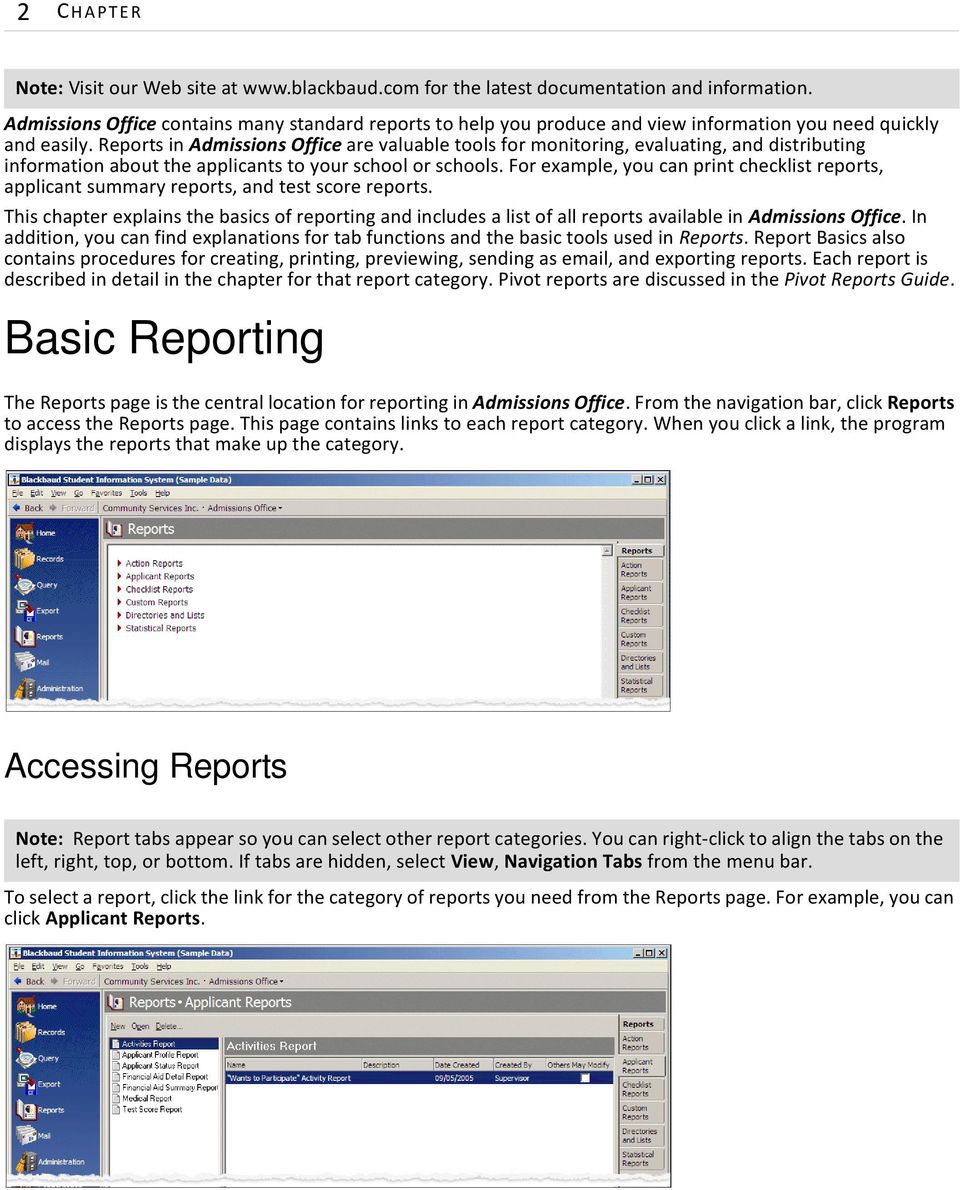
6 2 C HAPTER Note: Visit our Web site at for the latest documentation and information. Admissions Office contains many standard reports to help you produce and view information you need quickly and easily. Reports in Admissions Office are valuable tools for monitoring, evaluating, and distributing information about the applicants to your school or schools. For example, you can print checklist reports, applicant summary reports, and test score reports. This chapter explains the basics of reporting and includes a list of all reports available in Admissions Office. In addition, you can find explanations for tab functions and the basic tools used in Reports. Report Basics also contains procedures for creating, printing, previewing, sending as , and exporting reports. Each report is described in detail in the chapter for that report category. Pivot reports are discussed in the Pivot Reports Guide. Basic Reporting The Reports page is the central location for reporting in Admissions Office. From the navigation bar, click Reports to access the Reports page. This page contains links to each report category. When you click a link, the program displays the reports that make up the category. Accessing Reports Note: Report tabs appear so you can select other report categories. You can right-click to align the tabs on the left, right, top, or bottom. If tabs are hidden, select View, Navigation Tabs from the menu bar. To select a report, click the link for the category of reports you need from the Reports page. For example, you can click Applicant Reports.
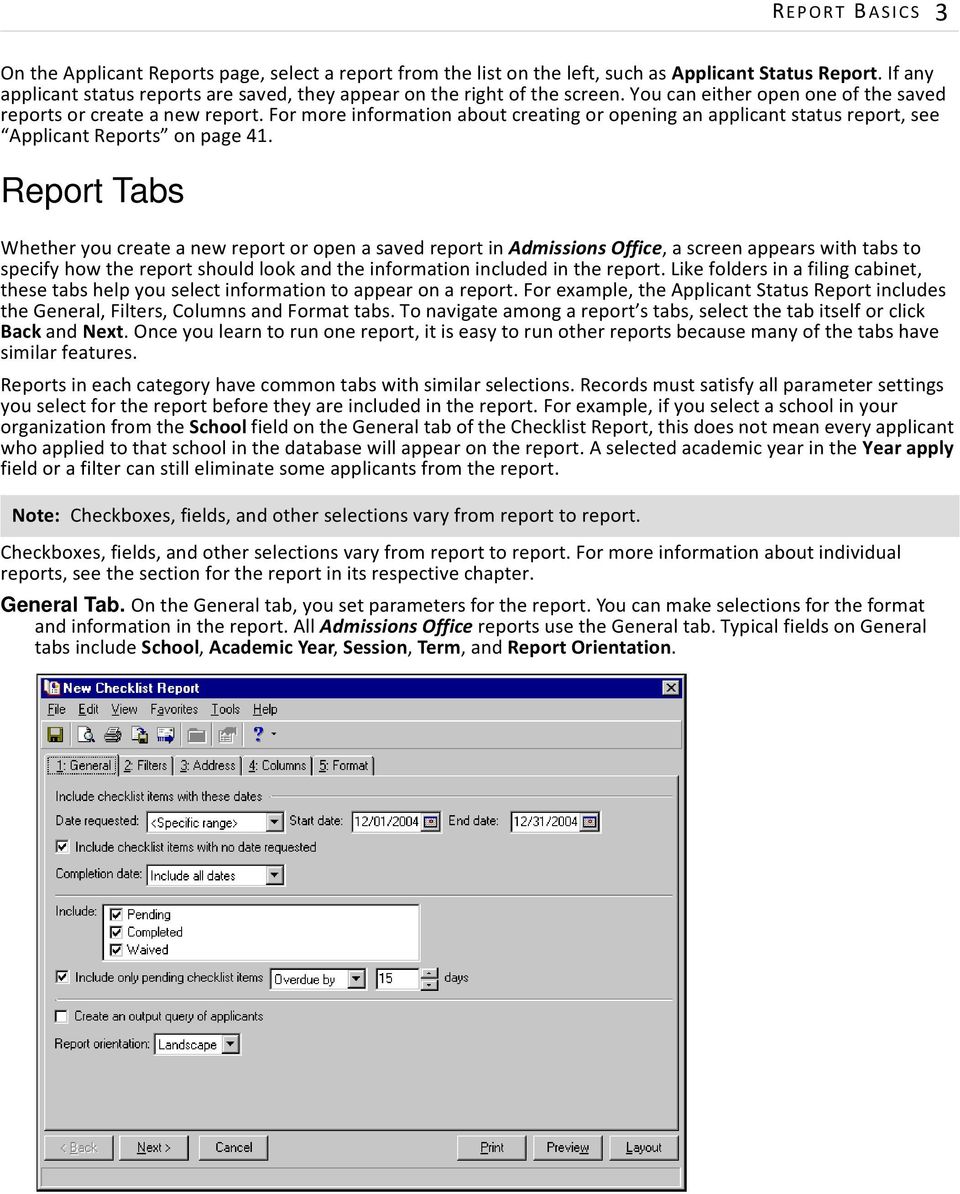
7 REPORT BASICS 3 On the Applicant Reports page, select a report from the list on the left, such as Applicant Status Report. If any applicant status reports are saved, they appear on the right of the screen. You can either open one of the saved reports or create a new report. For more information about creating or opening an applicant status report, see Applicant Reports on page 41. Report Tabs Whether you create a new report or open a saved report in Admissions Office, a screen appears with tabs to specify how the report should look and the information included in the report. Like folders in a filing cabinet, these tabs help you select information to appear on a report. For example, the Applicant Status Report includes the General, Filters, Columns and Format tabs. To navigate among a report s tabs, select the tab itself or click Back and Next. Once you learn to run one report, it is easy to run other reports because many of the tabs have similar features. Reports in each category have common tabs with similar selections. Records must satisfy all parameter settings you select for the report before they are included in the report. For example, if you select a school in your organization from the School field on the General tab of the Checklist Report, this does not mean every applicant who applied to that school in the database will appear on the report. A selected academic year in the Year apply field or a filter can still eliminate some applicants from the report. Note: Checkboxes, fields, and other selections vary from report to report. Checkboxes, fields, and other selections vary from report to report. For more information about individual reports, see the section for the report in its respective chapter. General Tab. On the General tab, you set parameters for the report. You can make selections for the format and information in the report. All Admissions Office reports use the General tab. Typical fields on General tabs include School, Academic Year, Session, Term, and Report Orientation.
8 4 C HAPTER Filters Tab. On the Filters tab, you include records based on selected criteria such as Applicant Statuses or Applicant Attributes. Relationship Filters tab. On the Relationship Filters tab, you can filter the types of student relations to include in a report. The Student Directory has a Relationship Filters tab.

9 REPORT BASICS 5 Address tab. On the Address tab, you determine what address to use in the directory. The Faculty/Staff Directory and Student Directory have Address tabs. Relation Address tab. On the Relation Address tab, you determine what address to use when printing student relation information in the directory. The Student Directory has a Relation Address tab.

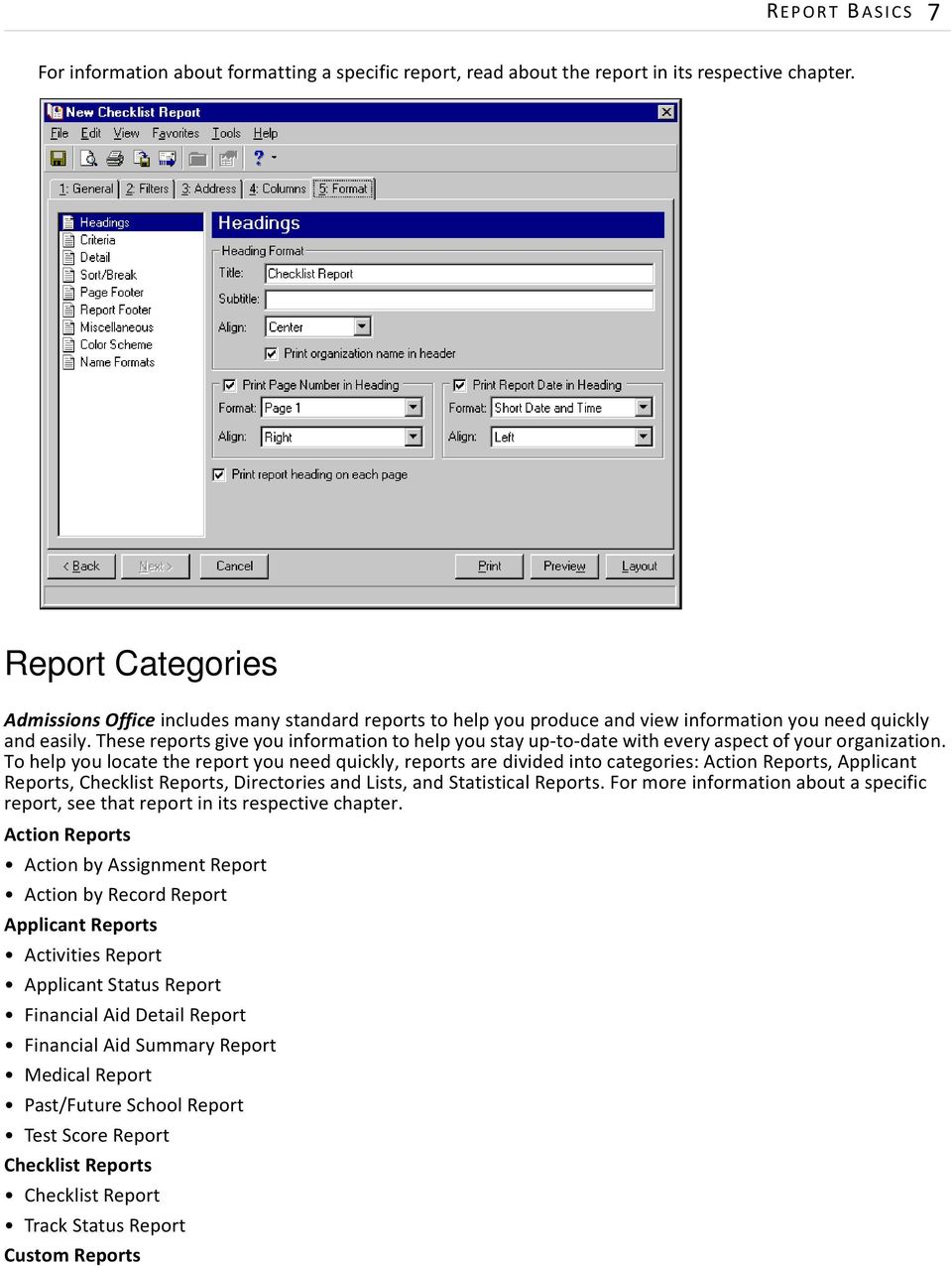
10 6 C HAPTER Columns Tab. On the Columns tab, you select the columns to appear on the report and the order in which they appear. In the Width column, you can set the width of each column, in inches. The Report Width label below the grid shows the total width of the columns plus their margins. If the label is red, it indicates that the width of the columns exceeds the page width. Format Tab. On the Format tab, you select settings that determine the appearance of the report. You can create headings, page footers, and report footers. You can select details and the criteria used to create the report and include the criteria list with the report. On some reports you can sort or break the report according to selections you make. You can select the format for displaying monetary amounts and select colors for the report. All Admissions Office reports use the Format tab. The list on the left of the screen displays formatting options for the report, which can include: Headings, Criteria, Detail, Sort/Break, Page Footer, Report Footer, Miscellaneous, Color Scheme, and Name Formats. When you select an item in the list, the right side of the screen changes to present selections for that section of the report.

11 REPORT BASICS 7 For information about formatting a specific report, read about the report in its respective chapter. Report Categories Admissions Office includes many standard reports to help you produce and view information you need quickly and easily. These reports give you information to help you stay up-to-date with every aspect of your organization. To help you locate the report you need quickly, reports are divided into categories: Action Reports, Applicant Reports, Checklist Reports, Directories and Lists, and Statistical Reports. For more information about a specific report, see that report in its respective chapter. Action Reports Action by Assignment Report Action by Record Report Applicant Reports Activities Report Applicant Status Report Financial Aid Detail Report Financial Aid Summary Report Medical Report Past/Future School Report Test Score Report Checklist Reports Checklist Report Track Status Report Custom Reports
12 8 C HAPTER Directories and Lists Duplicate Addresses Report Faculty/Staff Directory Family Directory Room List Report Student Directory Statistical Reports Applicant Summary Report Status History Summary Report Reporting Procedures You can use a variety of parameters to define the output for reports in Admissions Office. Saving these parameters makes future reporting easier. You can create, print, preview, send as , and export reports. While these procedures are written specifically for the Checklist Report, you can use these same basic steps as a model for all reporting in Admissions Office. For specific information about tabs, fields, and checkboxes for a particular report, see the chapter for that category of reports. Creating Reports In this procedure, we create a Checklist Report. The report includes all checklist items that have not yet been completed, that are 15 days or more overdue, and that are for applicants who have not been accepted to the school yet. The report content is organized by applicant name, and then by checklist item status. The selections we make and data we enter is for the purpose of this example only, and does not provide information on how to use all of the features of this report. For more information about the Checklist Report, see Checklist Report on page 110. Creating a report in Admissions Office Note: An action bar containing links for creating a new report, opening a report, and deleting a report appears above the list of reports. These links are common to all Reports pages. 1. From the Reports page, click Checklist Reports. The Checklist Reports page appears with reports on the left. 2. In the list on the left, select Checklist Report.

13 REPORT BASICS 9 3. On the action bar, click New. The New Checklist Report screen appears with the General tab showing. 4. In the School field, select the school to which this report applies. If your organization has only one school, this field does not appear. 5. In the Year apply field, select a date or date range to limit the checklist items included in the report to those that are associated with applicants who applied for admission for the selected year(s). 6. In the Date requested field of the Include tracks with these dates frame, you select a date or date range to limit the checklist items included in the report to those that were requested to be completed by the date or within the selected date range. So that the report includes all checklist items that are 15 days or more overdue regardless of the requested completion date, leave this set to Include all dates. 7. Marking Include checklist items with no date requested includes checklist items in the report that have no requested date. So that this report only lists checklist items that are 15 days overdue, leave this checkbox unmarked. 8. In the Completion date field, you can select a date or date range to limit the checklist items included in the report to those that were completed by the date or within the date range. Because this report only includes checklist items that have not been completed, leave this set to Include all dates. 9. In the Include list, you mark the checkboxes for the statuses of checklist items to include in the report. So that the report only includes overdue checklist items that are incomplete, leave Pending marked, but unmark the other two checkboxes. 10. In the Include only pending checklist items [ ] [ ] field, you mark the checkbox and set the corresponding values to restrict the checklist items included in the report to those that are overdue by, or due within, a specific number of days. So that this report includes only checklist items overdue by 15 days or more, mark the checkbox and set the fields to Overdue by 15 days.

14 10 C HAPTER 11. Click Next or select the Filters tab. 12. We want this report to only include checklist items for applicants who have not yet been accepted to the school. In the Include column for the Applicant Statuses filter, choose Selected. The Selected Applicant Statuses screen appears.

15 REPORT BASICS Double-click Applied and In Process to move the statuses to the Include these applicant statuses list. Click OK. You return to the Filters tab. 14. Click Next or select the Columns tab. The Columns tab appears. By default, columns will already be present on this tab. You can add, delete, and reorder columns, change headings, and change column widths. 15. Comments added to a checklist item are the most likely to extend beyond a single column. Mark the checkbox in the Wrap Heading? column for the Comments row. 16. Click Next or select the Format tab. The Format tab appears.

16 12 C HAPTER On the Format tab, the right side of the screen changes as you make selections in the list on the left. 17. From the list, select Headings. The program assigns a name in the Title field based on the record type; in this case, Checklist Report. You can change this title. 18. In the Subtitle field, enter Overdue checklist items for in-process applicants. 19. Click Sort/Break. The Sort/Break panel appears.

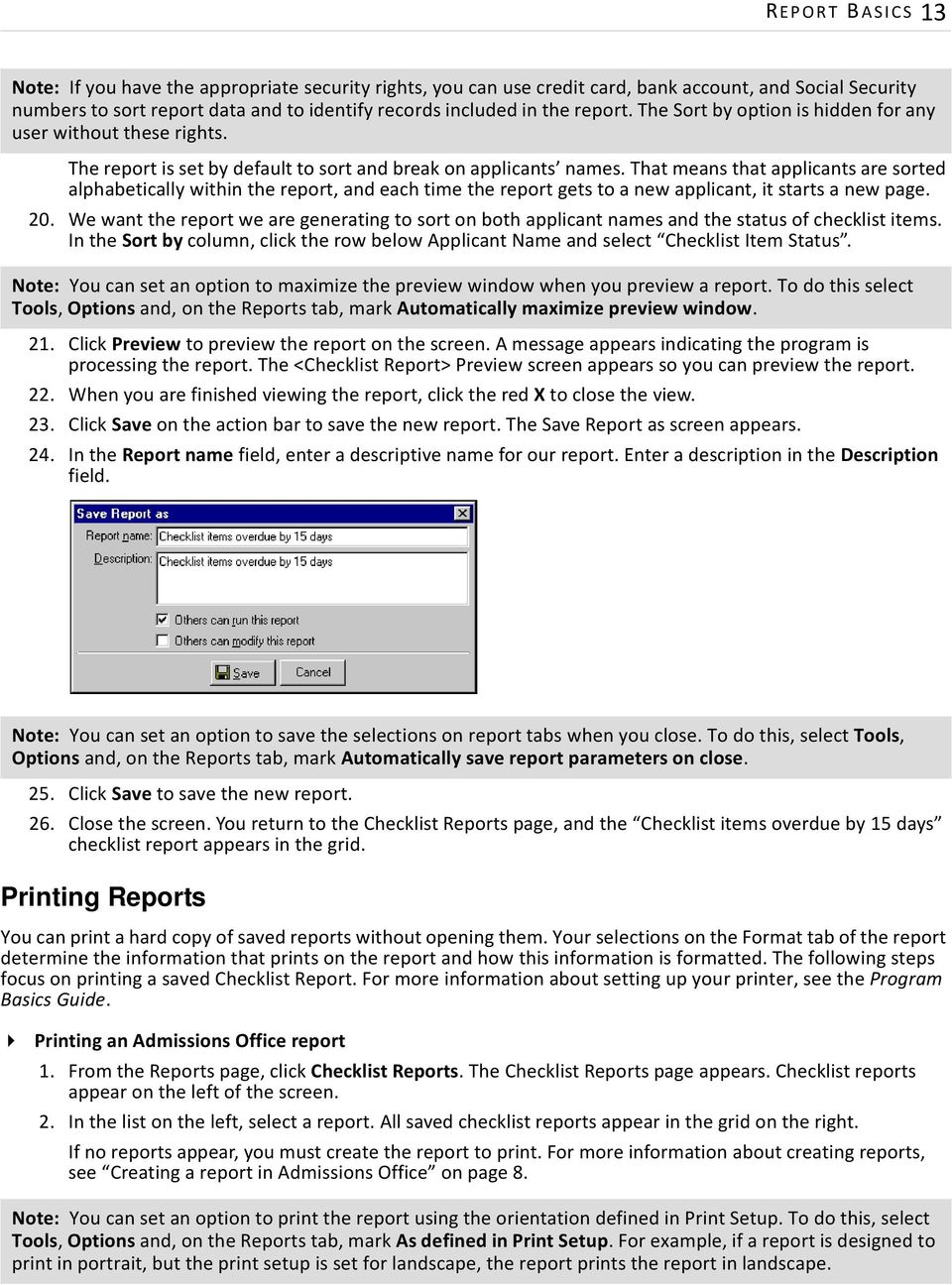
17 REPORT BASICS 13 Note: If you have the appropriate security rights, you can use credit card, bank account, and Social Security numbers to sort report data and to identify records included in the report. The Sort by option is hidden for any user without these rights. The report is set by default to sort and break on applicants names. That means that applicants are sorted alphabetically within the report, and each time the report gets to a new applicant, it starts a new page. 20. We want the report we are generating to sort on both applicant names and the status of checklist items. In the Sort by column, click the row below Applicant Name and select Checklist Item Status. Note: You can set an option to maximize the preview window when you preview a report. To do this select Tools, Options and, on the Reports tab, mark Automatically maximize preview window. 21. Click Preview to preview the report on the screen. A message appears indicating the program is processing the report. The <Checklist Report> Preview screen appears so you can preview the report. 22. When you are finished viewing the report, click the red X to close the view. 23. Click Save on the action bar to save the new report. The Save Report as screen appears. 24. In the Report name field, enter a descriptive name for our report. Enter a description in the Description field. Note: You can set an option to save the selections on report tabs when you close. To do this, select Tools, Options and, on the Reports tab, mark Automatically save report parameters on close. 25. Click Save to save the new report. 26. Close the screen. You return to the Checklist Reports page, and the Checklist items overdue by 15 days checklist report appears in the grid. Printing Reports You can print a hard copy of saved reports without opening them. Your selections on the Format tab of the report determine the information that prints on the report and how this information is formatted. The following steps focus on printing a saved Checklist Report. For more information about setting up your printer, see the Program Basics Guide. Printing an Admissions Office report 1. From the Reports page, click Checklist Reports. The Checklist Reports page appears. Checklist reports appear on the left of the screen. 2. In the list on the left, select a report. All saved checklist reports appear in the grid on the right. If no reports appear, you must create the report to print. For more information about creating reports, see Creating a report in Admissions Office on page 8. Note: You can set an option to print the report using the orientation defined in Print Setup. To do this, select Tools, Options and, on the Reports tab, mark As defined in Print Setup. For example, if a report is designed to print in portrait, but the print setup is set for landscape, the report prints the report in landscape.
18 14 C HAPTER 3. Select a saved report from the grid. 4. From the menu bar, select File, Print. A message appears indicating the report is printing. After the report prints, you return to the Checklist Reports page. Previewing Reports You can preview the format and information in a report without opening the report. We recommend previewing a report before printing or sending it to another person. By previewing, you can make sure you included the required information and that the report is formatted correctly. The following steps focus on previewing a saved Checklist Report. Previewing an Admissions Office report 1. From the Reports page, click Checklist Reports. The Checklist Reports page appears. Checklist reports appear on the left of the screen. 2. In the list on the left, select Checklist Report. All saved reports appear in the grid on the right. If no reports appear, you must create the report to preview. For more information about creating reports, see Creating a report in Admissions Office on page Select a report from the grid. 4. From the menu bar, select File, Preview. A message appears indicating that the report is being processed. When processing is complete, the Checklist Report preview screen appears. Note: You can set an option to maximize the preview window when you preview a report. To do this select Tools, Options and, on the Reports tab, mark Automatically maximize preview window. 5. When finished previewing the report, click the red X to close the screen. You return to the Checklist Reports page.

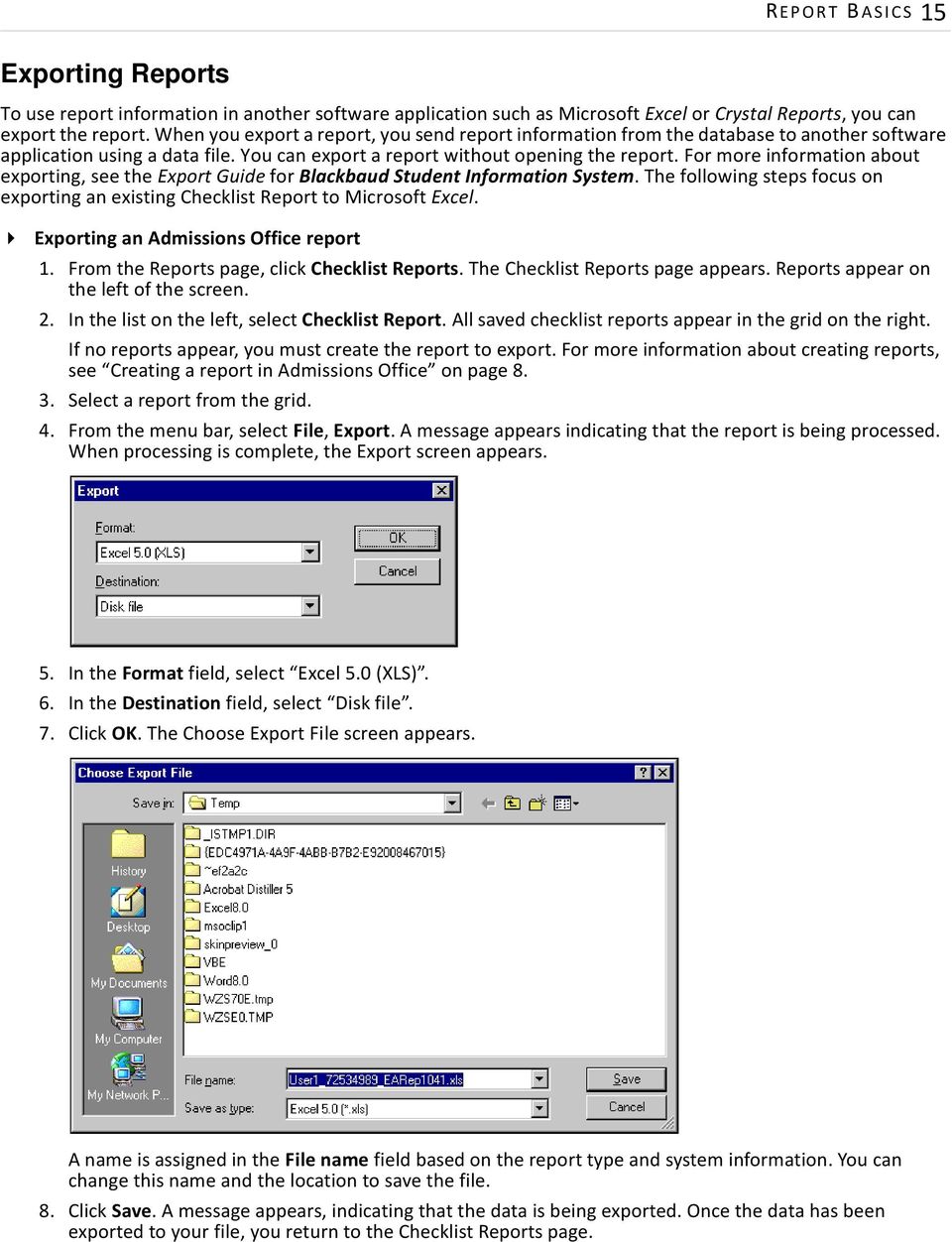
19 REPORT BASICS 15 Exporting Reports To use report information in another software application such as Microsoft Excel or Crystal Reports, you can export the report. When you export a report, you send report information from the database to another software application using a data file. You can export a report without opening the report. For more information about exporting, see the Export Guide for Blackbaud Student Information System. The following steps focus on exporting an existing Checklist Report to Microsoft Excel. Exporting an Admissions Office report 1. From the Reports page, click Checklist Reports. The Checklist Reports page appears. Reports appear on the left of the screen. 2. In the list on the left, select Checklist Report. All saved checklist reports appear in the grid on the right. If no reports appear, you must create the report to export. For more information about creating reports, see Creating a report in Admissions Office on page Select a report from the grid. 4. From the menu bar, select File, Export. A message appears indicating that the report is being processed. When processing is complete, the Export screen appears. 5. In the Format field, select Excel 5.0 (XLS). 6. In the Destination field, select Disk file. 7. Click OK. The Choose Export File screen appears. A name is assigned in the File name field based on the report type and system information. You can change this name and the location to save the file. 8. Click Save. A message appears, indicating that the data is being exported. Once the data has been exported to your file, you return to the Checklist Reports page.
20 16 C HAPTER Sending Reports as In Admissions Office, you can share report information with other users through electronic mail. For example, you can send the results of a report to another user for further analysis or to use in other applications. To send report information through , you change the format of the information to a data file and send the data file to the recipient. Before you can send a report to another user, you must first select a format (such as Microsoft Excel, Crystal Reports, or Adobe Acrobat) for the data file. The format determines the appearance of the report and the software applications in which you can open the data file. Sending report results by can be particularly useful when an individual needs to quickly reference report results but does not have access to Admissions Office. You can send report information by without opening the report. The following steps focus on sending a saved Checklist Report. Sending an Admissions Office report as 1. From the Reports page, click Checklist Reports. The Checklist Reports page appears. Checklist reports appear on the left of the screen. 2. In the list on the left, select Checklist Report. All saved reports appear in the grid on the right. If no reports appear, you must create the report to send. For more information about creating reports, see Creating a report in Admissions Office on page Select a report from the grid. 4. From the menu bar, select File, Send as Mail. A message appears indicating the program is processing the report. The Export Screen appears. 5. In the Format field, select Excel 5.0 (XLS). 6. In the Destination field, select Microsoft Mail (MAPI). 7. Click OK. The Send Mail screen appears. 8. In the To field, enter an address, such as [email protected]. 9. In the Subject field, enter Checklist Report.

21 REPORT BASICS In the Message box, enter a message to the recipient, such as Here s the checklist report you requested. 11. Click Send. The report is sent as an attachment to your message. You return to the Checklist Reports page.
22 18 C HAPTER
23 chapter 2 Action Reports Action by Assignment Report General Tab Filters Tab Columns Tab Format Tab Action by Record Report General Tab Filters Tab Columns Tab Format Tab
24 20 C HAPTER Note: Visit our Web site at for the latest documentation and information. Reporting categories in Admissions Office include Action Reports, Applicant Reports, Checklist Reports, Directories and Lists, and Statistical Reports. This chapter covers Admissions Office Action Reports. For information about other report categories, see the chapter for that category. Actions are used to record responsibility and assignment of tasks, such as interviews with students, giving campus tours, and proctoring tests. You can create actions and assign them to any record type except organizations. Action Reports in Admissions Office include: Action by Assignment Report Action by Record Report Action by Assignment Report Glossary: An action is a task or activity that needs to be completed for an applicant. Actions, for example, can include mailings, phone calls, and interviews. You use the Action by Assignment Report to view actions that each record has been assigned to complete. If you do not need to include unassigned actions on the report, you can use the Action by Record Report, instead. For more information, see Action by Record Report on page 30. You can include actions that have not been assigned in the report, can limit the actions included in the report to those with a specific action priority, and can limit the actions included to incomplete or complete actions. The Action by Assignment Report has tabs on which you set parameters: General, Filters, Columns, and Format. To move among the tabs in a report, use Next and Back at the bottom of the screen or select the tab itself. On these tabs you select the records to include in the report and how the report should look. For more information about creating a report, see Creating a report in Admissions Office on page 8. General Tab Glossary: A parameter is any field, option, or filter that narrows information in a report and determines the appearance of the report s output. By setting parameters, you customize the output results of your report. For example, you can apply filters, create a header and footer, or select a color scheme for the report s results.
25 A CTION REPORTS 21 On the General tab, you set parameters for the report and make selections about the information to include in the report. Include actions with these dates. In the Start date field of the Include actions with these dates frame, select a date or date range for actions to include in the report. If you select <Specific range>, you can select a range of dates in the From date and To date fields. Only actions with a start date that falls on the selected date or within the selected date range are included. Include unassigned actions. Mark this checkbox to include in the report actions that have not been assigned to anyone. Include actions with these action priorities. You can mark High, Normal, and Low to select actions to include in the report. You must mark at least one priority. Include [ ] actions. Select whether to include complete, incomplete, or both complete and incomplete actions in the report. Create an output query of. You can mark this checkbox and select Applicants, Faculty/Staff, Students, Individuals, Persons, or Records to create a query of the records included in the report. You can use the query later in other areas of the program. A query of persons includes all record types except organizations. A query of records includes all record types. Note: Click Preview to view the report as it will print using your selections and filters. Click Layout to view a sample layout of the report without data. Report orientation. In the Report orientation field, select Portrait or Landscape.
26 22 C HAPTER Filters Tab On the Filters tab, you can filter the actions that are included in the report based on different criteria. For more information about filtering reports, see the Program Basics chapter of the Program Basics Guide. Open. Once you select a filter in the grid, click Open to access the Selected <Filter> screen on which you select specific filters. Clear All Filters. Click Clear All Filters to remove all previously selected filters from the report. Glossary: A filter is criteria records must meet to be included in a report. Filters. The Filters column lists all the available filters for this report. You cannot edit this column. Include. In the Include column, if you choose Selected, the Selected <Filter> screen appears for you to designate specific filters. Selected Filters. Filters you specify appear in the Selected Filters column. If you choose Selected in the Include column or click a filter and then click Open, the Selected <Filter> screen appears. If you mark Selected or Query, a selection screen appears so you can specify filters. Note: Mark Selected or Query to include a selected filter or a previously created query of filters. Depending on your selection, different options appear on the screen. If you mark All, you cannot define filters. Query name. The Query name field appears if you select Query. Enter the name of the query to use to filter the report or click the binoculars to search for a query. To create a new query, click the binoculars and click Add a New Query on the Open Query screen. For more information about creating queries, see the Query Guide for Blackbaud Student Information System. Previous Filter. To view or edit the previous filter without returning to the Filters tab, click Previous Filter on the toolbar. Next Filter. To view or edit the next filter without returning to the Filters tab, click Next Filter on the toolbar.
27 A CTION REPORTS 23 Columns Tab On the Columns tab, you select the columns to appear on a report. Field Name. Select the fields to appear as columns on the report. To remove a column from the report, click the column entry and select the blank item. To add a column, click the Field Name column of the empty row and select the data to display in the new column. To change the order that the columns print on the report, select a row in the grid and click the up or down arrow buttons on the action bar. Field Align. Select the alignment for the text within the column. This only affects the alignment of the data; you set the alignment for the headings in the Heading Align field Heading. You can enter a different heading for the column. Heading Align. Select the alignment for the column heading. Wrap Heading? Mark this checkbox for the header for the column to wrap to the next line when it reaches the right edge of the column. If you leave this checkbox unmarked, column headers are cut off when they reach the right edge of the column. Content is always truncated when it reaches the right edge of the column. Width. Set the width of each column. The Report Width label, on the bottom right corner of the screen, indicates the total width of the combined columns. If this value exceeds the page width, it turns red. Wrap Field? Mark this checkbox for the content of the column to wrap to the next line when it reaches the right edge of the column. If you leave this checkbox unmarked, column content is cut off when it reaches the right edge of the column. Format Tab On the Format tab, you determine how the report appears. A description of each formatting option is provided.
28 24 C HAPTER Note: The heading defaults to Action by Assignment Report in the Title field. You can leave this as the title for the report or enter your own. Headings. Use Headings to enter a maximum of 60 characters in the Title and Subtitle fields. The title and subtitle appear at the top of the report. You can select how to align the heading and whether to include your organization s name in the header. You can include the page number and date in the heading. You can also include the heading on every page of the report. Note: The program automatically selects all criteria. Unmark the checkbox for any to not print with the report.
29 A CTION REPORTS 25 Criteria. Use Criteria to edit criteria used to create the report. Mark Print these criteria on and select a separate page or the first page. All selected items print in the criteria section of the report. Mark Include description to print the description of each action on a separate row under the other details. Mark Include notes to print any note(s) assigned to the item. The report prints up to 1,000 characters of the note(s).
30 26 C HAPTER Detail. Mark Include description to print the description of each action on a separate row under the other details. Mark Include notes to print any note(s) assigned to the item. The report prints up to 1,000 characters of the note(s). Sort/Break. Use Sort/Break to select the order for information to appear on the report and where breaks fall between sets of information. To order the information, you can select a sorting category in the Sort by column and select Ascending or Descending in the Order by column. To create breaks, you can mark the checkbox in the Break? column for a sorting category. If you mark Break? for a category, fields are enabled for you to enter more information about the break for the selected sorting category. In the Text before value and Text after value fields, you can enter up to 30 characters to print directly before and after the value for the selected sorting category.
31 A CTION REPORTS 27 To print the number or percentage of total records in the report for each breakdown of records in the footer, mark Print count per or Print count as a percentage of total for the groups created by the specified breaks. To start a new page each time a new value for the selected field is encountered, mark Page break on each new. Page Footer. Use Page Footer to enter up to 254 characters in the page footer. You can include other text, such as the page number and date. The page footer is printed at the bottom of each page of the report.
32 28 C HAPTER Report Footer. Use Report Footer to create a footer to appear at the bottom of the last page of the report. You can enter a maximum of 254 characters in the Text field for the report footer and select how to align the text. Miscellaneous. Use Miscellaneous to select how numbers appear on the report and set the font size. We recommend you leave the font size set to 8, as larger font sizes can cause text to be cut off.
33 A CTION REPORTS 29 Color Scheme. Use Color Scheme to select colors for report headings. When you click in the color box next to the selection, the Color screen appears so you can select a standard color or define a custom color. If you leave the Apply a Color Scheme checkbox unmarked, the report prints in black and white. Name Formats. You can select the name format for the person for whom the action was created and the person to whom the action was assigned. If you select Configuration in the Select addressee/salutation from field, the Use field contains name formats defined on the Addressee/Salutations page of Configuration. If you select Record in the Select addressee/salutation from field, the Use field contains the name formats <Full name>, Primary addressee, Primary salutation, and any defined addressee/salutation formats. These name formats are drawn from each record included in the report. For example, if you select Primary salutation, the primary salutation defined on the Addressees/Salutations tab of a student record is used in the report. Selecting Full name in the Use field disables the If not present... section of the panel.
34 30 C HAPTER In the If not present... section of the panel, you can select a backup name format. The backup is used if a record does not contain the data referenced by the primary name format. Action by Record Report The Action by Record report provides details of actions during the selected date range based on whom the action is for. You can include actions of different priorities, and select whether to include incomplete actions, complete actions, or both. The Action by Record Report has tabs on which you set parameters: General, Filters, Columns, and Format. To move between the tabs in a report, use Next and Back at the bottom of the screen or select the tab itself. On these tabs you select the records to include in the report and how the report should look. For more information about creating a report, see Creating a report in Admissions Office on page 8. General Tab Glossary: A parameter is any field, option, or filter that narrows information in a report and determines the appearance of the report s output. By setting parameters, you customize the output results of your report. For example, you can apply filters, create a header and footer, or select a color scheme for the report s results.
35 A CTION REPORTS 31 On the General tab, you set parameters specific to the report and make selections about the information to include in the report. Include actions with these dates. In the Start date field of the Include actions with these dates frame, select a date or date range for actions to include in the report. If you select <Specific range>, you can select a range of dates in the From date and To date fields. Only actions with a start date that falls on the selected date or within the selected date range are included. Include actions with these action priorities. You can mark High, Normal, and Low to select actions to include in the report. You must select at least one priority. Include [ ] actions. Select whether to include complete, incomplete, or both complete and incomplete actions in the report. Include only actions marked as First contact. Mark this checkbox to include actions with the First contact? checkbox marked. Only one action can be marked as the first contact for an applicant record. Create an output query of. You can mark this checkbox and select Applicants, Faculty/Staff, Individuals, Organizations, Persons, Records, or Students to create a query of the records included in the report. You can use the query later in other areas of the program. A query of persons includes all record types except organizations. A query of records includes all record types. Note: Click Preview to view the report as it will print using your selections and filters. Click Layout to view a sample layout of the report without data. Report orientation. In the Report orientation field, select Portrait or Landscape. Filters Tab Glossary: A filter is criteria records must meet to be included in a report.
36 32 C HAPTER On the Filters tab, you can filter the types of actions that are included in the report. For more information about filtering reports, see the Program Basics chapter of the Program Basics Guide. Open. Once you select a filter in the grid, click Open to access the Selected <Filter> screen on which you select specific filters. Clear All Filters. Click Clear All Filters to remove all previously selected filters from the report. Filters. The Filters column lists all the available filters for this report. You cannot edit this column. Include. In the Include column, if you choose Selected, the Selected <Filter> screen appears for you to designate specific filters. Selected Filters. Filters you specify appear in the Selected Filters column. If you choose Selected in the Include column or click a filter and then click Open, the Selected <Filter> screen appears. If you mark Selected or Query, a selection screen appears so you can specify filters. Note: Mark Selected or Query to include a selected filter or a previously created query of filters. Depending on your selection, different options appear on the screen. If you mark All, you cannot define filters. Query name. The Query name field appears if you select Query. Enter the name of the query to use to filter the report or click the binoculars to search for a query. To create a new query, click the binoculars and click Add a New Query on the Open Query screen. For more information about creating queries, see the Query Guide for Blackbaud Student Information System. Previous Filter. To view or edit the previous filter without returning to the Filters tab, click Previous Filter on the toolbar. Next Filter. To view or edit the next filter without returning to the Filters tab, click Next Filter on the toolbar.
37 A CTION REPORTS 33 Columns Tab On the Columns tab, you select the columns to appear on a report. Field Name. Select the fields to appear as columns on the report. To remove a column from the report, click the column entry and select the blank item. To add a column, click the Field Name column of the empty row and select the data to display in the new column. To change the order that the columns print on the report, select a row in the grid and click the up or down arrow buttons on the action bar. Field Align. Select the alignment for the text within the column. This only affects the alignment of the data; you set the alignment for the headings in the Heading Align field. Heading. You can enter a different heading for the column. Heading Align. Select the alignment for the column heading. Wrap Heading? Mark this checkbox for the header for the column to wrap to the next line when it reaches the right edge of the column. If you leave this checkbox unmarked, column headers are cut off when they reach the right edge of the column. Content is always truncated when it reaches the right edge of the column. Width. Set the width of each column. The Report Width label, on the bottom right corner of the screen, indicates the total width of the combined columns. If this value exceeds the page width, it turns red. Wrap Field? Mark this checkbox for the content of the column to wrap to the next line when it reaches the right edge of the column. If you leave this checkbox unmarked, column content is cut off when it reaches the right edge of the column. Format Tab On the Format tab, you determine how the report appears. A description of each formatting option is provided.
38 34 C HAPTER Note: The heading defaults to Action by Record Report in the Title field. You can leave this as the title for the report or enter your own. Headings. Use Headings to enter a maximum of 60 characters in the Title and Subtitle fields. The title and subtitle appear at the top of the report. You can select how to align the heading and whether to include your organization s name in the header. You can include the page number and date in the heading. You can also include the heading on every page of the report. Note: The program automatically selects all criteria. Unmark the checkbox for any to not print with the report.
39 A CTION REPORTS 35 Criteria. Use Criteria to edit criteria used to create the report. Mark Print these criteria on and select a separate page or the first page. All selected items print in the criteria section of the report. Detail. To print the description of each action on a separate row under the other details, mark Include description. To display up to 1,000 characters of the item note(s) below the other details, mark Include notes.
40 36 C HAPTER Sort/Break. Use Sort/Break to select the order for information to appear on the report and where breaks fall between sets of information. To order the information, you can select a field by which to sort in the Sort by column and select Ascending or Descending in the Order by column. To create breaks, you can mark the checkbox in the Break? column for a field. If you mark Break? for a field, other fields on the screen are enabled for you to enter more information about the break. In the Text before value and Text after value fields, you can enter up to 30 characters to print directly before and after each breakdown of records. To print the number or percentage of total records in the report for each breakdown of records in the footer, mark Print count per or Print count as a percentage of total for the selected field. To start a new page each time a new value for the selected field is encountered, mark Page break on each new.
41 A CTION REPORTS 37 Page Footer. Use Page Footer to enter up to 254 characters in the page footer. You can include other text, such as the page number and date. The page footer is printed at the bottom of each page of the report. Report Footer. Use Report Footer to create a footer to appear at the bottom of the last page of the report. You can enter a maximum of 254 characters in the Text field for the report footer and select how to align the text.
42 38 C HAPTER Miscellaneous. Use Miscellaneous to select how numbers appear on the report and set the font size. We recommend you leave the font size set to 8, as larger font sizes can cause text to be cut off. Color Scheme. Use Color Scheme to select colors for report headings. When you click in the color box next to the selection, the Color screen appears so you can select a standard color or define a custom color. If you leave the Apply a Color Scheme checkbox unmarked, the report prints in black and white.
43 A CTION REPORTS 39 Name Formats. You can select the name format for the person for whom the action was created and the person to whom the action was assigned. If you select Configuration in the Select addressee/salutation from field, the Use field contains name formats defined on the Addressee/Salutations page of Configuration. If you select Record in the Select addressee/salutation from field, the Use field contains the name formats <Full name>, Primary addressee, Primary salutation, and any defined addressee/salutation formats. These name formats are drawn from each record included in the report. For example, if you select Primary salutation, the primary salutation defined on the Addressees/Salutations tab of a student record is used in the report. Selecting Full name in the Use field disables the If not present... section of the panel. In the If not present... section of the panel, you can select a backup name format. The backup is used if a record does not contain the data referenced by the primary name format.
44 40 C HAPTER
45 chapter 3 Applicant Reports Activities Report General Tab Filters Tab Columns Tab Format Tab Applicant Profile Report General Tab Filters Tab Format Tab Applicant Status Report General Tab Filters Tab Columns Tab Format Tab Financial Aid Detail Report General Tab Filters Tab Columns Tab Format Tab Financial Aid Summary Report General Tab Filters Tab Address Tab Format Tab Medical Report General Tab Filters Tab Format Tab Past/Future School Report General Tab Filters Tab Address Tab Columns Tab Format Tab Test Score Report General Tab Filters Tab Columns Tab Format Tab
46 42 C HAPTER Reporting categories in Admissions Office include Action Reports, Applicant Reports, Checklist Reports, Directories and Lists, and Statistical Reports. This chapter covers Applicant Reports. For information about other report categories, see the chapter for that category. Applicant Reports in Admissions Office include: Activities Report on page 42 Applicant Profile Report on page 51 Applicant Status Report on page 58 Financial Aid Detail Report on page 66 Financial Aid Summary Report on page 75 Medical Report on page 83 Past/Future School Report on page 90 Test Score Report on page 99 Activities Report The Activities Report displays all activities for a selected set of applicants or all the applicants for each selected activity. You can restrict the activities for each applicant included in the report by the date of participation or the grade levels of those who participated. You can also select whether to include only those who participated in the activity or also those who were interested in an activity. The Activities Report has tabs on which you set parameters: General, Filters, Columns, and Format. To move among the tabs in a report, use Next and Back at the bottom of the screen or select the tab itself. On these tabs you select the records to include in the report and how the report should look. For more information about creating a report, see Creating Reports on page 8. General Tab Glossary: A parameter is any field, option, or filter that narrows information in a report and determines the appearance of the report s output. By setting parameters, you customize the output results of your report. For example, you can apply filters, create a header and footer, or select a color scheme for the report s results.
47 A PPLICANT REPORTS 43 On the General tab, you set parameters for the report and make selections about the information to include in the report. Include activities based on. Select whether to restrict data on the report to activity participation that occurred within a set range of time, or to activities that include selected grade levels in their participation grid. Include activities for the following grade levels. Mark the grade levels for which to report activity participation. Activity date. This field only appears when you select Activity date from in the Include activities based on field. Select the date range to search for activity participation. Include. Select whether to include only those who actually participated in an activity, only those who wanted to participate in an activity, or both. Create an output query of. You can mark this checkbox to create a query of the records included in the report. This query is available for use in other areas of the program. Report orientation. In the Report orientation field, select Portrait or Landscape.
48 44 C HAPTER Filters Tab On the Filters tab, you can filter the types of applicants, students, and activities that are included in the report. For more information about filtering reports, see the Program Basics chapter of the Program Basics Guide. Open. Once you select a filter in the grid, click Open to access the Selected <Filter> screen on which you select specific filters. You can also double-click a filter in the grid to open the screen. Clear All Filters. Click Clear All Filters to remove all previously selected filters from the report. Glossary: A filter is criteria records must meet to be included in a report. Filters. The Filters column lists all the available filters for this report. You cannot edit this column. Include. In the Include column, if you choose Selected, the Selected <Filter> screen appears for you to designate specific filters. Selected Filters. Filters you specify appear in the Selected Filters column. If you choose Selected in the Include column or click a filter and then click Open, the Selected <Filter> screen appears. If you mark Selected or Query, a selection screen appears so you can specify filters. Note: Mark Selected or Query to include a selected filter or a previously created query of filters. Depending on your selection, different options appear on the screen. If you mark All, you cannot define filters. Query name. The Query name field appears if you select Query. Enter the name of the query to use to filter the report or click the binoculars to search for a query. To create a new query, click the binoculars and click Add a New Query on the Open Query screen. For more information about creating queries, see the Query Guide for Blackbaud Student Information System. Previous Filter. To view or edit the previous filter without returning to the Filters tab, click Previous Filter on the toolbar. Next Filter. To view or edit the next filter without returning to the Filters tab, click Next Filter on the toolbar.
49 A PPLICANT REPORTS 45 Columns Tab On the Columns tab, you select the columns to appear on a report. Field Name. Select the fields to appear as columns on the report. To remove a column from the report, click the Field Name column entry and select the blank item. To add a column, click the empty Field Name column cell at the bottom of the grid and select the data to display in the new column. To change the order that the columns print on the report, select a row in the grid and click the up or down arrow buttons on the action bar. Field Align. Select the alignment for the text within the column. This only affects the alignment of the data; you set the alignment for the headings in the Heading Align field. Heading. You can enter a different heading for the column. Heading Align. Select the alignment for the column heading. Wrap Heading? Mark this checkbox for the content of the column to wrap to the next line when it reaches the right edge of the column. If you leave this checkbox unmarked, text is cut off when it reaches the right edge of the column. Width. Set the width of each column. The Report Width label, on the bottom right corner of the screen, indicates the total width of the combined columns. If this value exceeds the page width, it turns red. Wrap Field? Mark this checkbox for the content of the column to wrap to the next line when it reaches the right edge of the column. If you leave this checkbox unmarked, column content is cut off when it reaches the right edge of the column. Format Tab On the Format tab, you determine how the report appears. A description of each formatting option is provided.
50 46 C HAPTER Headings. Use Headings to enter a maximum of 60 characters in the Title and Subtitle fields. The title field defaults to the name of the report. The title and subtitle appear at the top of the report. You can select how to align the heading and whether to include your organization s name in the header. You can include the page number and date in the heading. You can also include the heading on every page of the report. Note: The program automatically selects all criteria. Unmark the checkbox for any to not print with the report.
51 A PPLICANT REPORTS 47 Criteria. Use Criteria to edit criteria used to create the report. Mark Print these criteria on and select a separate page or the first page. All selected items print in the criteria section of the report. Sort/Break. Use Sort/Break to select the order for information to appear on the report and where breaks fall between sets of information. To order the information, you can select a sorting category in the Sort by column and select Ascending or Descending in the Order by column. To create breaks, you can mark the checkbox in the Break? column for a sorting category. If you mark Break? for a category, fields are enabled for you to enter more information about the break for the selected sorting category. In the Text before value and Text after value fields, you can enter up to 30 characters to print directly before and after the value for the selected sorting category.
52 48 C HAPTER To print the number or percentage for the selected category in the footer, mark Print count per or Print count as a percentage of total for the selected sorting category. To start the selected sorting category on a new page, mark Page break on each new. Page Footer. Use Page Footer to enter up to 254 characters in the page footer. You can include other text, such as the page number and date. The page footer is printed at the bottom of each page of the report.
53 A PPLICANT REPORTS 49 Report Footer. Use Report Footer to create a footer to appear at the bottom of the last page of the report. You can enter a maximum of 254 characters in the Text field for the report footer and select how to align the text. Miscellaneous. Use Miscellaneous to select how numbers appear on the report and set the font size.
54 50 C HAPTER Color Scheme. Use Color Scheme to select colors for report headings. When you click in the color box next to the selection, the Color screen appears so you can select a standard color or define a custom color. If you leave the Apply a Color Scheme checkbox unmarked, the report prints in black and white. Name Formats. You can select the name format for applicants. If you select Configuration in the Select addressee/salutation from field, the Use field contains name formats defined on the Addressee/Salutations page of Configuration. If you select Record in the Select addressee/salutation from field, the Use field contains the name formats: <Full name>, Primary addressee, Primary salutation, and any defined name formats. These name formats are drawn from each individual record included in the report. For example, if you select Primary salutation, the primary salutation defined on the Addressees/Salutations tab of an applicant s record is used in the report.
55 A PPLICANT REPORTS 51 In the If not present... section of the panel, you can select a backup name format. The backup is used if a record does not contain the data referenced by the primary name format. Selecting Full name in the Use field disables the If not present... section of the panel. Applicant Profile Report The Applicant Profile Report displays all current information for a selected set of applicants. You can select the profile information for each applicant included in the report by Biographical Information, Address Information, Relationships, Checklists, Financial Aid, Education, Tests, Medical, Actions, Activities, Attributes, and Notes. The Applicant Profile Report has tabs on which you set parameters: General, Filters, and Format. To move among the tabs in a report, use Next and Back at the bottom of the screen or select the tab itself. On these tabs you select the records to include in the report and how the report should look. For more information about creating a report, see Creating Reports on page 8. General Tab Glossary: A parameter is any field, option, or filter that narrows information in a report and determines the appearance of the report s output. By setting parameters, you customize the output results of your report. For example, you can apply filters, create a header and footer, or select a color scheme for the report s results.
56 52 C HAPTER On the General tab, you set parameters for the report and make selections about the information to include in the report. Show these report sections. Mark the checkboxes for the sections to include in the report. Show these details. Mark the details to include for specific sections. Create an output query of. You can mark this checkbox to create a query of the records included in the report. This query is available for use in other areas of the program. Report orientation. In the Report orientation field, select Portrait or Landscape.
57 A PPLICANT REPORTS 53 Filters Tab On the Filters tab, you can restrict the output on the report to selected applicants. For more information about filtering reports, see the Program Basics chapter of the Program Basics Guide. Open. Once you select a filter in the grid, click Open to access the Selected <Filter> screen on which you select specific filters. You can also double-click a filter in the grid to open the screen. Clear All Filters. Click Clear All Filters to remove all previously selected filters from the report. Glossary: A filter is criteria records must meet to be included in a report. Filters. The Filters column lists all the available filters for this report. You cannot edit this column. Include. In the Include column, if you choose Selected, the Selected <Filter> screen appears for you to designate specific filters. Selected Filters. Filters you specify appear in the Selected Filters column. If you choose Selected in the Include column or click a filter and then click Open, the Selected <Filter> screen appears. If you mark Selected or Query, a selection screen appears so you can specify filters. Note: Mark Selected or Query to include a selected filter or a previously created query of filters. Depending on your selection, different options appear on the screen. If you mark All, you cannot define filters. Query name. The Query name field appears if you select Query. Enter the name of the query to use to filter the report or click the binoculars to search for a query. To create a new query, click the binoculars and click Add a New Query on the Open Query screen. For more information about creating queries, see the Query Guide for Blackbaud Student Information System. Previous Filter. To view or edit the previous filter without returning to the Filters tab, click Previous Filter on the toolbar. Next Filter. To view or edit the next filter without returning to the Filters tab, click Next Filter on the toolbar.
58 54 C HAPTER Format Tab On the Format tab, you determine how the report appears. A description of each formatting option is provided. Headings. Use Headings to enter a maximum of 60 characters in the Title and Subtitle fields. The title field defaults to the name of the report. The title and subtitle appear at the top of the report. You can select how to align the heading and whether to include your organization s name in the header. You can include the page number and date in the heading. You can also include the heading on every page of the report. Note: The program automatically selects all criteria. Unmark the checkbox for any to not print with the report. Criteria. Use Criteria to edit criteria used to create the report. Mark Print these criteria on and select a separate page or the first page. All selected items print in the criteria section of the report.
59 A PPLICANT REPORTS 55 Sort. Use Sort to select the order for information to appear on the report. To order the information, you can select a sorting category in the Sort by column and select Ascending or Descending in the Order by column. To have the report start a new page each time a new applicant is encountered, mark Page break on each new Applicant Name.
60 56 C HAPTER Page Footer. Use Page Footer to enter up to 254 characters in the page footer. You can include other text, such as the page number and date. The page footer is printed at the bottom of each page of the report. Report Footer. Use Report Footer to create a footer to appear at the bottom of the last page of the report. You can enter a maximum of 254 characters in the Text field for the report footer and select how to align the text.
61 A PPLICANT REPORTS 57 Miscellaneous. Use Miscellaneous to select how numbers appear on the report and set the font size. Name Formats. You can select the name format for applicants. If you select Configuration in the Select addressee/salutation from field, the Use field contains name formats defined on the Addressee/Salutations page of Configuration. If you select Record in the Select addressee/salutation from field, the Use field contains the name formats: <Full name>, Primary addressee, Primary salutation, and any defined name formats. These name formats are drawn from each individual record included in the report. For example, if you select Primary salutation, the primary salutation defined on the Addressees/Salutations tab of an applicant s record is used in the report.
62 58 C HAPTER In the If not present... section of the panel, you can select a backup name format. The backup is used if a record does not contain the data referenced by the primary name format. Selecting Full name in the Use field disables the If not present... section of the panel. Applicant Status Report The Applicant Status Report provides status information for selected applicants. You can restrict the status entries based on the date they were entered. The report can include a history of status log entries. The Applicant Status Report has tabs on which you set parameters: General, Filters, Columns, and Format. To move among the tabs in a report, use Next and Back at the bottom of the screen or select the tab itself. On these tabs you select the records to include in the report and how the report should look. For more information about creating a report, see Creating Reports on page 8. General Tab Glossary: A parameter is any field, option, or filter that narrows information in a report and determines the appearance of the report s output. By setting parameters, you customize the output results of your report. For example, you can apply filters, create a header and footer, or select a color scheme for the report s results.
63 A PPLICANT REPORTS 59 On the General tab, you set parameters for the report and make selections about the information to include in the report. Include status information from. Select whether to include information from both active and inactive applications, or only active applications. Include status entries with these dates. In the Date changed field in the Include status entries with these dates frame, you can limit the applicants included in the report to those whose application status changed during the selected date range. In the Status date field, you can limit the applicants included in the report to those whose status entries have a date specified, and which fall within a selected date range. To include status log entries other than the current status log entry in the report, mark the Include status history checkbox. Create an output query of applicants. You can mark this checkbox to create a query of the records included in the report. This query is available for use in other areas of the program. Report orientation. In the Report orientation field, select Portrait or Landscape.
64 60 C HAPTER Filters Tab On the Filters tab, you can filter the types of applicants that are included in the report. For more information about filtering reports, see the Program Basics chapter of the Program Basics Guide. Open. Once you select a filter in the grid, click Open to access the Selected <Filter> screen on which you select specific filters. Clear All Filters. Click Clear All Filters to remove all previously selected filters from the report. Glossary: A filter is criteria records must meet to be included in a report. Filters. The Filters column lists all the available filters for this report. You cannot edit this column. Include. In the Include column, if you choose Selected, the Selected <Filter> screen appears for you to designate specific filters. Selected Filters. Filters you specify appear in the Selected Filters column. If you choose Selected in the Include column or click a filter and then click Open, the Selected <Filter> screen appears. If you mark Selected or Query, a selection screen appears so you can specify filters. Note: Mark Selected or Query to include a selected filter or a previously created query of filters. Depending on your selection, different options appear on the screen. If you mark All, you cannot define filters. Query name. The Query name field appears if you select Query. Enter the name of the query to use to filter the report or click the binoculars to search for a query. To create a new query, click the binoculars and click Add a New Query on the Open Query screen. For more information about creating queries, see the Query Guide for Blackbaud Student Information System. Previous Filter. To view or edit the previous filter without returning to the Filters tab, click Previous Filter on the toolbar. Next Filter. To view or edit the next filter without returning to the Filters tab, click Next Filter on the toolbar.
65 A PPLICANT REPORTS 61 Columns Tab On the Columns tab, you select the columns to appear on a report. Field Name. Select the fields to appear as columns on the report. To remove a column from the report, click the Field Name column entry and select the blank item. To add a column, click the empty Field Name column cell at the bottom of the grid and select the data to display in the new column. To change the order that the columns print on the report, select a row in the grid and click the up or down arrow buttons on the action bar. Field Align. Select the alignment for the text within the column. This only affects the alignment of the data; you set the alignment for the headings in the Heading Align field. Heading. You can enter a different heading for the column. Heading Align. Select the alignment for the column heading. Wrap Heading? Mark this checkbox for the content of the column to wrap to the next line when it reaches the right edge of the column. If you leave this checkbox unmarked, text is cut off when it reaches the right edge of the column. Width. Set the width of each column. The Report Width label, on the bottom right corner of the screen, indicates the total width of the combined columns. If this value exceeds the page width, it turns red. Wrap Field? Mark this checkbox for the content of the column to wrap to the next line when it reaches the right edge of the column. If you leave this checkbox unmarked, column content is cut off when it reaches the right edge of the column. Format Tab On the Format tab, you determine how the report appears. A description of each formatting option is provided.
66 62 C HAPTER Headings. Use Headings to enter a maximum of 60 characters in the Title and Subtitle fields. The title field defaults to the name of the report. The title and subtitle appear at the top of the report. You can select how to align the heading and whether to include your organization s name in the header. You can include the page number and date in the heading. You can also include the heading on every page of the report. Note: The program automatically selects all criteria. Unmark the checkbox for any to not print with the report. Criteria. Use Criteria to edit criteria used to create the report. Mark Print these criteria on and select a separate page or the first page. All selected items print in the criteria section of the report.
67 A PPLICANT REPORTS 63 Sort/Break. Use Sort/Break to select the order for information to appear on the report and where breaks fall between sets of information. To order the information, you can select a sorting category in the Sort by column and select Ascending or Descending in the Order by column. To create breaks, you can mark the checkbox in the Break? column for a sorting category. If you mark Break? for a category, fields are enabled for you to enter more information about the break for the selected sorting category. In the Text before value and Text after value fields, you can enter up to 30 characters to print directly before and after the value for the selected sorting category. To print the number or percentage for the selected category in the footer, mark Print count per or Print count as a percentage of total for the selected sorting category. To start the selected sorting category on a new page, mark Page break on each new.
68 64 C HAPTER Page Footer. Use Page Footer to enter up to 254 characters in the page footer. You can include other text, such as the page number and date. The page footer is printed at the bottom of each page of the report. Report Footer. Use Report Footer to create a footer to appear at the bottom of the last page of the report. You can enter a maximum of 254 characters in the Text field for the report footer and select how to align the text.
69 A PPLICANT REPORTS 65 Miscellaneous. Use Miscellaneous to select how numbers appear on the report and set the font size. We recommend you leave the font size set to 8, as larger font sizes can cause text to be cut off. Color Scheme. Use Color Scheme to select colors for report headings. When you click in the color box next to the selection, the Color screen appears so you can select a standard color or define a custom color. If you leave the Apply a Color Scheme checkbox unmarked, the report prints in black and white.
70 66 C HAPTER Name Formats. You can select the name format for applicants. If you select Configuration in the Select addressee/salutation from field, the Use field contains name formats defined on the Addressee/Salutations page of Configuration. If you select Record in the Select addressee/salutation from field, the Use field contains the name formats: <Full name>, Primary addressee, Primary salutation, and any defined name formats. These name formats are drawn from each individual record included in the report. For example, if you select Primary salutation, the primary salutation defined on the Addressees/Salutations tab of an applicant s record is used in the report. In the If not present... section of the panel, you can select a backup name format. The backup is used if a record does not contain the data referenced by the primary name format. Selecting Full name in the Use field disables the If not present... section of the panel. Financial Aid Detail Report The Financial Aid Detail Report displays financial aid information for those applicants that have financial aid for a selected academic year. The Financial Aid Detail Report has tabs on which you set parameters: General, Filters, Columns, and Format. To move among the tabs in a report, use Next and Back at the bottom of the screen or select the tab itself. On these tabs you select the records to include in the report and how the report should look. For more information about creating a report, see Creating Reports on page 8. General Tab Glossary: A parameter is any field, option, or filter that narrows information in a report and determines the appearance of the report s output. By setting parameters, you customize the output results of your report. For example, you can apply filters, create a header and footer, or select a color scheme for the report s results.
71 A PPLICANT REPORTS 67 On the General tab, you set parameters for the report and make selections about the information to include in the report. Academic year to include. Select an academic year. Financial aid data for the selected academic year are included in the report. Note: Click Preview to view the report as it will print using your selections and filters. Click Layout to view a sample layout of the report without data. Create an output query of. You can mark this checkbox and select Students, Applicants, or Persons to create a query of the records included in the report. If you do not have the security rights to create a Financial Aid Detail Report for both students and applicants, this checkbox will let you create a query for only the type of individual for which you have security rights. You can use the query later in other areas of the program. Report orientation. In the Report orientation field, select Portrait or Landscape. Filters Tab You use the Filters tab to restrict the output on the report based on the applicants, students, and financial aid types you select. This tab only includes both applicant- and student-related filters when you have both Admissions Office and Registrar s Office installed and have security rights for both. The Applicants and Students filters both have a None selection in the Include column so that you can limit the report to only applicants or students.
72 68 C HAPTER For more information about filtering reports, see the Program Basics chapter of the Program Basics Guide. Open. Once you select a filter in the grid, click Open to access the Selected <Filter> screen on which you select specific filters. Clear All Filters. Click Clear All Filters to remove all previously selected filters from the report. Glossary: A filter is criteria records must meet to be included in a report. Filters. The Filters column lists all the available filters for this report. You cannot edit this column. Include. In the Include column, if you choose Selected, the Selected <Filter> screen appears for you to designate specific filters. Selected Filters. Filters you specify appear in the Selected Filters column. If you choose Selected in the Include column or click a filter and then click Open, the Selected <Filter> screen appears. If you mark Selected or Query, a selection screen appears so you can specify filters. Note: Mark Selected or Query to include a selected filter or a previously created query of filters. Depending on your selection, different options appear on the screen. If you mark All, you cannot define filters. Query name. The Query name field appears if you select Query. Enter the name of the query to use to filter the report or click the binoculars to search for a query. To create a new query, click the binoculars and click Add a New Query on the Open Query screen. For more information about creating queries, see the Query Guide for Blackbaud Student Information System. Previous Filter. To view or edit the previous filter without returning to the Filters tab, click Previous Filter on the toolbar. Next Filter. To view or edit the next filter without returning to the Filters tab, click Next Filter on the toolbar.
73 A PPLICANT REPORTS 69 Columns Tab On the Columns tab, you select the columns to appear on a report. Below each applicant s row in the report appears a sub-report that displays additional details for the financial aid awarded if they exist in the applicant s record: Category, Type, Date, Amount Qualify, Date Granted, Amount Granted, Accepted, and if the report orientation is set to Landscape, a Comments column. Field Name. Select the fields to appear as columns on the report. To remove a column from the report, click the Field Name column entry and select the blank item. To add a column, click the empty Field Name column cell at the bottom of the grid and select the data to display in the new column. To change the order that the columns print on the report, select a row in the grid and click the up or down arrow buttons on the action bar. Field Align. Select the alignment for the text within the column. This only affects the alignment of the data; you set the alignment for the headings in the Heading Align field. Heading. You can enter a different heading for the column. Heading Align. Select the alignment for the column heading. Wrap Heading? Mark this checkbox for the content of the column to wrap to the next line when it reaches the right edge of the column. If you leave this checkbox unmarked, text is cut off when it reaches the right edge of the column. Width. Set the width of each column. The Report Width label, on the bottom right corner of the screen, indicates the total width of the combined columns. If this value exceeds the page width, it turns red. Wrap Field? Mark this checkbox for the content of the column to wrap to the next line when it reaches the right edge of the column. If you leave this checkbox unmarked, column content is cut off when it reaches the right edge of the column.
74 70 C HAPTER Format Tab On the Format tab, you determine how the report appears. A description of each formatting option is provided. Note: The heading defaults to Financial Aid Detail Report in the Title field. You can leave this as the title for the report or enter your own. Headings. Use Headings to enter a maximum of 60 characters in the Title and Subtitle fields. The title field defaults to the name of the report. The title and subtitle appear at the top of the report. You can select how to align the heading and whether to include your organization s name in the header. You can include the page number and date in the heading. You can also include the heading on every page of the report. Note: The program automatically selects all criteria. Unmark the checkbox for any to not print with the report.
75 A PPLICANT REPORTS 71 Criteria. Use Criteria to edit criteria used to create the report. Mark Print these criteria on and select a separate page or the first page. All selected items print in the criteria section of the report. Detail. Mark Include financial aid notes for each applicant to include a row below each applicant in the report to provide financial aid notes for the applicant. Mark Include financial aid types to include a row below each applicant in the report to provide financial aid types received by the applicant.
76 72 C HAPTER Sort/Break. Use Sort/Break to select the order for information to appear on the report and where breaks fall between sets of information. To order the information, you can select a sorting category in the Sort by column and select Ascending or Descending in the Order by column. To create breaks, you can mark the checkbox in the Break? column for a sorting category. If you mark Break? for a category, fields are enabled for you to enter more information about the break for the selected sorting category. In the Text before value and Text after value fields, you can enter up to 30 characters to print directly before and after the value for the selected sorting category. To print the number or percentage for the selected category in the footer, mark Print count per or Print count as a percentage of total for the selected sorting category. To start the selected sorting category on a new page, mark Page break on each new.
77 A PPLICANT REPORTS 73 Page Footer. Use Page Footer to enter up to 254 characters in the page footer. You can include other text, such as the page number and date. The page footer is printed at the bottom of each page of the report. Report Footer. Use Report Footer to create a footer to appear at the bottom of the last page of the report. You can enter a maximum of 254 characters in the Text field for the report footer and select how to align the text.
78 74 C HAPTER Miscellaneous. Use Miscellaneous to select how numbers appear on the report and set the font size. We recommend you leave the font size set to 8, as larger font sizes can cause text to be cut off. Color Scheme. Use Color Scheme to select colors for report headings. When you click in the color box next to the selection, the Color screen appears so you can select a standard color or define a custom color. If you leave the Apply a Color Scheme checkbox unmarked, the report prints in black and white.
79 A PPLICANT REPORTS 75 Name Formats. You can select the name format for applicants. If you select Configuration in the Select addressee/salutation from field, the Use field contains name formats defined on the Addressee/Salutations page of Configuration. If you select Record in the Select addressee/salutation from field, the Use field contains the name formats: <Full name>, Primary addressee, Primary salutation, and any defined name formats. These name formats are drawn from each individual record included in the report. For example, if you select Primary salutation, the primary salutation defined on the Addressees/Salutations tab of an applicant s record is used in the report. In the If not present... section of the panel, you can select a backup name format. The backup is used if a record does not contain the data referenced by the primary name format. Selecting Full name in the Use field disables the If not present... section of the panel. Financial Aid Summary Report The Financial Aid Summary Report displays an overview of applicants for whom financial aid data exists for a selected academic year. You can select how to summarize the information and the information to include. You can break down the data in the report by ZIP Code to generate a geographical representation of financial aid data. You can also summarize data by student attributes. The Financial Aid Summary Report has tabs on which you set parameters: General, Filters, and Format. To move among the tabs in a report, use Next and Back at the bottom of the screen or select the tab itself. On these tabs you select the records to include in the report and how the report should look. For more information about creating a report, see Creating Reports on page 8.
80 76 C HAPTER General Tab Glossary: A parameter is any field, option, or filter that narrows information in a report and determines the appearance of the report s output. By setting parameters, you customize the output results of your report. For example, you can apply filters, create a header and footer, or select a color scheme for the report s results. On the General tab, you set parameters for the report and make selections about the information to include in the report. Academic year to include. Select an academic year. Financial aid data for the selected academic year are included in the report. Summarize by. Select the common element to summarize by. For example, to see how financial aid was distributed geographically, you can select ZIP Code. Each ZIP Code is included with the amount of financial aid that was granted to the applicants who live within that area. If you select Activities or Activity Categories, the Include based on field appears so you can select to include the academic year for those activities or activity categories or a specific date range. If you choose Selected academic year, a field appears so you can select the academic year during which applicants participated in an activity or activity category. If you select Activity dates, you can select the date range. For example, to create a report that lists the financial aid granted to students who played in competitive sports during the academic year , select Activity Categories in the Summarize by field, Selected academic year in the Include based on field, and in the Include field. If you select ZIP Code, the Number of digits field appears so you can enter the number of digits in the ZIP Code to use when breaking down the information. For example, if you enter 3, then the financial aid information for applicants who live within the ZIP Codes 29483, 29495, and is combined because their ZIP Codes all start with 294. If you select Applicant Attribute, the Attribute field appears so you can select the attribute to summarize by.
81 A PPLICANT REPORTS 77 Include based on. This field appears when you select Activity Categories in the Summarize by field. Select whether to include financial aid data based on activity participation during the selected academic year or during a selected date range. Include. This field appears when you select Activities or Activity Categories in the Summarize by field and Selected academic year in the Include based on field. Select an academic year in which to find applicants who participated in the activity or activity category. Note that the year selected in this field specifies the year the applicant participated in the activity. The year you select in the Academic year to include field determines in which year to look for a financial aid award. For example, if you select in the Academic year to include field and in the Include field, the report lists all the financial aid grants awarded in the school year to applicants who participated in an activity in the school year. Start date. his field appears when you select Activity Categories in the Summarize by field and you select Activity dates in the Include field. Select the start date for activity participation. Leaving this field blank includes all dates up to the date selected in the End date field. End date. his field appears when you select Activity Categories in the Summarize by field and you select Activity dates in the Include field. Select the end date for activity participation. Leaving this field blank includes all dates after the date selected in the Start date field Attribute. This field appears when you select Applicant Attributes in the Summarize by field. Select the applicant attribute by which to summarize financial aid data. Number of digits. This field appears when you select ZIP Code in the Summarize by field. Enter the number of ZIP Code digits to use when grouping together applicant financial aid data. For example, to group applicants who have the same first three digits in their ZIP Codes, enter 3 in this field. Report orientation. In the Report orientation field, select Portrait or Landscape. Filters Tab On the Filters tab, you can filter the types of applicants that are included in the report. For more information about filtering reports, see the Program Basics chapter of the Program Basics Guide.
82 78 C HAPTER Open. Once you select a filter in the grid, click Open to access the Selected <Filter> screen on which you select specific filters. Clear All Filters. Click Clear All Filters to remove all previously selected filters from the report. Glossary: A filter is criteria records must meet to be included in a report. Filters. The Filters column lists all the available filters for this report. You cannot edit this column. Include. In the Include column, if you choose Selected, the Selected <Filter> screen appears for you to designate specific filters. Selected Filters. Filters you specify appear in the Selected Filters column. If you choose Selected in the Include column or click a filter and then click Open, the Selected <Filter> screen appears. If you mark Selected or Query, a selection screen appears so you can specify filters. Note: Mark Selected or Query to include a selected filter or a previously created query of filters. Depending on your selection, different options appear on the screen. If you mark All, you cannot define filters. Query name. The Query name field appears if you select Query. Enter the name of the query to use to filter the report or click the binoculars to search for a query. To create a new query, click the binoculars and click Add a New Query on the Open Query screen. For more information about creating queries, see the Query Guide for Blackbaud Student Information System. Previous Filter. To view or edit the previous filter without returning to the Filters tab, click Previous Filter on the toolbar. Next Filter. To view or edit the next filter without returning to the Filters tab, click Next Filter on the toolbar. Address Tab On the Address tab, you determine what address to use when tallying applicant address information in the report. The Address tab appears when you select an Country, County, Region, State, or ZIP Code in the Summarize by field on the General tab.
83 A PPLICANT REPORTS 79 The report tallies the number of applicants for whom financial aid data exists for each value in the summarize by category. For example, you can create a report to break down financial aid data by each county by selecting County in the Summarize by column on the General tab. The report creates a row for each county stored in the database. You use the Address tab to define which applicant addresses to consider when breaking down the number of applicants living in each county. Validate addresses as of. Select the date to use when determining which address to consider. If there is an address that is valid for the applicant on the date you select, the report uses it when calculating totals for the selected breakdown category values. Consider seasonal addresses. To include seasonal addresses in report calculations, mark this checkbox. If a seasonal address matches the date selected in Validate address as of, the report uses that address when calculating totals for the breakdown category values. If there are no matches, or if you leave the checkbox unmarked, selections you make in the If no seasonal addresses are found, consider these addresses frame are used. If no seasonal addresses are found, consider these addresses. If no addresses are valid on the date selected in Validate addresses as of, then the addresses in the Addresses to consider, in order of importance box in the If no seasonal addresses are found, consider these addresses frame are considered. To select the address types to consider when no addresses are valid on the selected date, select them in the Addresses box and click the right arrow. The first address type in the Addresses to consider, in order of importance box that the applicant has is used when calculating totals. If you add multiple address types in the Addresses to consider, in order of importance box, arrange them in order of preference using the up and down arrows. Attribute grid. In the grid below the Addresses and Addresses to consider, in order of importance boxes, you can explicitly include or exclude an address based on its attributes. In the Action column, select whether to include or exclude an address. In the Attribute Type column, select the type of attribute to use, and in the Value column, select the attribute value that an address must have to include or exclude it from the report.
84 80 C HAPTER If no address is found. In the If no address is found field, you set in what row to tally a applicant when no address matches the entries in the other fields. The report has a row labeled <unknown> in which it tallies applicants for whom there is no address match. If you select Print with no address, the report tallies the applicant in that row of the report. If you select Print specific address, the Use field appears. In the Use field, you select the address type to use if the report finds no other address matches. If the applicant has an address of the selected type, the report tallies him in the corresponding row of the report; otherwise, he is tallied in the <unknown> row. Format Tab On the Format tab, you determine how the report appears. A description of each formatting option is provided. Headings. Use Headings to enter a maximum of 60 characters in the Title and Subtitle fields. The title field defaults to the name of the report. The title and subtitle appear at the top of the report. You can select how to align the heading and whether to include your organization s name in the header. You can include the page number and date in the heading. You can also include the heading on every page of the report. Note: The program automatically selects all criteria. Unmark the checkbox for any to not print with the report.
85 A PPLICANT REPORTS 81 Criteria. Use Criteria to edit criteria used to create the report. Mark Print these criteria on and select a separate page or the first page. All selected items print in the criteria section of the report. Page Footer. Use Page Footer to enter up to 254 characters in the page footer. You can include other text, such as the page number and date. The page footer is printed at the bottom of each page of the report.
86 82 C HAPTER Report Footer. Use Report Footer to create a footer to appear at the bottom of the last page of the report. You can enter a maximum of 254 characters in the Text field for the report footer and select how to align the text. Miscellaneous. Use Miscellaneous to select how numbers appear on the report and set the font size.
87 A PPLICANT REPORTS 83 Color Scheme. Use Color Scheme to select colors for report headings. When you click in the color box next to the selection, the Color screen appears so you can select a standard color or define a custom color. If you leave the Apply a Color Scheme checkbox unmarked, the report prints in black and white. Medical Report The Medical Report displays medical information for a selected set of records. You can select the sections to include and can limit the data included in the report by date. The Medical Report has tabs on which you set parameters.: General, Filters, and Format. To move between the tabs in a report, use Next and Back at the bottom of the screen or select the tab itself. On these tabs you select the records to include in the report and how the report should look. For more information about creating a report, see Creating Reports on page 8. General Tab Glossary: A parameter is any field, option, or filter that narrows information in a report and determines the appearance of the report s output. By specifying parameters, you customize the output results of your report. For example, you can apply filters, create a header and footer, or select a color scheme for the report s results.
88 84 C HAPTER On the General tab, you set parameters specific to the report and make selections about the information to include in the report. Show these report sections. Mark the checkboxes for the sections to include in the report. Include medical information with these dates. In the Date field in the Include medical information with these dates frame, select a date or date range. Only medical information that occurred on the selected date or within the selected date range is included in the report. If you select <Specific range>, two fields appear in which you can enter the start and end date for the report. If you leave the Start date field blank, all medical data are included up to the end date. If you leave the End date field blank, all medical data from the start date forward are included. If both fields are left blank, all medical data are included. Note: Click Preview to view the report as it will print using your selections and filters. Click Layout to view a sample layout of the report without data. Create an output query of. You can mark this checkbox and select Students, Applicants or Persons to create a query of the records included in the report. You can use the query later in other areas of the program. Report orientation. In the Report orientation field, select Portrait or Landscape.
89 A PPLICANT REPORTS 85 Filters Tab You use the Filters tab to restrict the output on the report to selected students or applicants. Open. Once you select a filter in the grid, click Open to access the Selected <Filter> screen on which you select specific filters. Clear All Filters. Click Clear All Filters to remove all previously selected filters from the report. Glossary: A filter is criteria records must meet to be included in a report. For example, to include in the report medical data for only applicants with a specific status, apply the Applicant Statuses filter. Filters. The Filters column lists all the available filters for this report. You cannot edit this column. Include. In the Include column, if you choose Selected, the Selected <Filter> screen appears for you to designate specific filters. Selected Filters. Filters you specify appear in the Selected Filters column. If you choose Selected in the Include column or click a filter and then click Open, the Selected <Filter> screen appears. If you mark Selected or Query, a selection screen appears so you can specify filters. Note: Mark Selected or Query to include a selected filter or a previously created query of filters. Depending on your selection, different options appear on the screen. If you mark All, you cannot define filters. Query name. The Query name field appears if you select Query. Enter the name of the query to use to filter the report or click the binoculars to search for a query. To create a new query, click the binoculars and click Add a New Query on the Open Query screen. For more information about creating queries, see the Query Guide for Blackbaud Student Information System. Previous Filter. To view or edit the previous filter without returning to the Filters tab, click Previous Filter on the toolbar. Next Filter. To view or edit the next filter without returning to the Filters tab, click Next Filter on the toolbar.
90 86 C HAPTER Format Tab On the Format tab, you determine how the report appears. A description of each formatting option is provided. Note: The heading defaults to Medical Report in the Title field. You can leave this as the title for the report or enter your own. Headings. Use Headings to enter a maximum of 60 characters in the Title and Subtitle fields. The title and subtitle appear at the top of the report. You can select how to align the heading and whether to include your organization s name in the header. You can include the page number and date in the heading. You can also include the heading on every page of the report. Note: The program automatically selects all criteria. Unmark the checkbox for any you do not want to print with the report.
91 A PPLICANT REPORTS 87 Criteria. Use Criteria to print data to help you remember the criteria you used to create the report. Mark Print these criteria on and select a separate page or the first page. Your selections print in the criteria section of the report. Sort. Use Sort to select the order for information to appear on the report. To order the information, you can select a field by which to sort in the Sort by column and select Ascending or Descending in the Order by column. To have the report start a new page each time a new student or applicant is encountered, mark Page break on each new Name.
92 88 C HAPTER Page Footer. Use Page Footer to enter up to 254 characters in the page footer. You can include other text, such as the page number and date. The page footer is printed at the bottom of each page of the report. Report Footer. Use Report Footer to create a footer to appear at the bottom of the last page of the report. You can enter a maximum of 254 characters in the Text field for the report footer and select how to align the text.
93 A PPLICANT REPORTS 89 Miscellaneous. You can use Miscellaneous to enter number formats and a font size for the report. We recommend you leave the font size set to 8, as larger font sizes can cause text to be cut off. Color Scheme. Use Color Scheme to select colors for report headings. When you click in the color box next to the selection, the Color screen appears so you can select a standard color or define a custom color. If you leave the Apply a Color Scheme checkbox unmarked, the report prints in black and white.
94 90 C HAPTER Name Formats. You can select the name format for students and applicants. If you select Configuration in the Select addressee/salutation from field, the Use field contains name formats defined on the Addressee/Salutations page of Configuration. If you select Record in the Select addressee/salutation from field, the Use field contains the name formats <Full name>, Primary addressee, Primary salutation, and any defined addressee/salutation formats. These name formats are drawn from each record included in the report. For example, if you select Primary salutation, the primary salutation defined on the Addressees/Salutations tab of a student s record is used in the report. In the If not present... section of the panel, you can select a backup name format. The backup is used if a record does not contain the data specified by the primary name format. Selecting Full name in the Use field disables the If not present... section of the panel. Past/Future School Report The Past/Future School Report displays information on schools previously attended or schools applied to for attendance after graduation. The Past/Future School Report has tabs on which you set parameters: General, Filters, Address, Columns, and Format. To move among the tabs in a report, use Next and Back at the bottom of the screen or select the tab itself. On these tabs you select the records to include in the report and how the report should look. For more information about creating a report, see Creating Reports on page 8. General Tab Glossary: A parameter is any field, option, or filter that narrows information in a report and determines the appearance of the report s output. By setting parameters, you customize the output results of your report. For example, you can apply filters, create a header and footer, or select a color scheme for the report s results.
95 A PPLICANT REPORTS 91 On the General tab, you set parameters for the report and make selections about the information to include in the report. Include only schools attended as of. Mark this checkbox if you want to specify a time period for the schools listed as attended on the report. Include only feeder schools. Mark this checkbox to include only feeder schools in the report. You can identify schools as feeder schools on the applicant s education record. Include only education for grade levels from [ ] to [ ]. Mark this checkbox if you want to specify grade levels for the education listed on the report. Create an output query of applicants. You can mark this checkbox to create a query of the applicants included in the report. This query is available for use in other areas of the program. Report orientation. In the Report orientation field, select Portrait or Landscape.
96 92 C HAPTER Filters Tab On the Filters tab, you can filter the information you want included in the report. For more information about filtering reports, see the Program Basics chapter of the Program Basics Guide. Open. Once you select a filter in the grid, click Open to access the Selected <Filter> screen on which you select specific filters. You can also double-click a filter in the grid to open the screen. Clear All Filters. Click Clear All Filters to remove all previously selected filters from the report. Filters. The Filters column lists all the available filters for this report. You cannot edit this column. Include. In the Include column, if you choose Selected, the Selected <Filter> screen appears for you to designate specific filters. Selected Filters. Filters you specify appear in the Selected Filters column. If you choose Selected in the Include column or click a filter and then click Open, the Selected <Filter> screen appears. If you mark Selected or Query, a selection screen appears so you can specify filters. Note: Mark Selected or Query to include a selected filter or a previously created query of filters. Depending on your selection, different options appear on the screen. If you mark All, you cannot define filters. Query name. The Query name field appears if you select Query. Enter the name of the query to use to filter the report or click the binoculars to search for a query. To create a new query, click the binoculars and click Add a New Query on the Open Query screen. For more information about creating queries, see the Query Guide for Blackbaud Student Information System. Previous Filter. To view or edit the previous filter without returning to the Filters tab, click Previous Filter on the toolbar. Next Filter. To view or edit the next filter without returning to the Filters tab, click Next Filter on the toolbar.
97 A PPLICANT REPORTS 93 Address Tab On the Address tab, you determine what address to use in the report. Validate addresses as of. Select the date to use when determining which address to consider. Consider seasonal addresses. To include seasonal addresses in the report, mark this checkbox. If a seasonal address matches the date selected in Validate address as of, the report will consider that address. If there are no matches, or if you leave the checkbox unmarked, selections you make in the If no seasonal addresses are found, consider these addresses frame are used. If no seasonal addresses are found, consider these addresses. If no addresses are valid on the date selected in Validate addresses as of, then the addresses in the Addresses to consider, in order of importance box in the If no seasonal addresses are found, consider these addresses frame are considered. To select the address types to consider when no addresses are valid on the selected date, select them in the Addresses box and click the right arrow. The report uses the first address type in the Addresses to consider, in order of importance box. If you add multiple address types in the Addresses to consider, in order of importance box, arrange them in order of preference using the up and down arrows. Attribute grid. In the grid below the Addresses and Addresses to consider, in order of importance boxes, you can explicitly include or exclude an address based on its attributes. In the Action column, select whether to include or exclude an address. In the Attribute Type column, select the type of attribute to use, and in the Value column, select the attribute value that an address must have to include or exclude it from the report. If no address is found. In the If no address is found field, you define what the report does when no address matches the entries in the other fields. If you select Print specific address, the Use field appears. In the Use field, you select the address type to use if the report finds no other address matches.
98 94 C HAPTER Columns Tab On the Columns tab, you select the columns to appear on a report. Field Name. Select the fields to appear as columns on the report. To remove a column from the report, click the Field Name column entry and select the blank item. To add a column, click the empty Field Name column cell at the bottom of the grid and select the data to display in the new column. To change the order that the columns print on the report, select a row in the grid and click the up or down arrow buttons on the action bar. Field Align. Select the alignment for the text within the column. This only affects the alignment of the data; you set the alignment for the headings in the Heading Align field. Heading. You can enter a different heading for the column. Heading Align. Select the alignment for the column heading. Wrap Heading? Mark this checkbox for the content of the column to wrap to the next line when it reaches the right edge of the column. If you leave this checkbox unmarked, text is cut off when it reaches the right edge of the column. Width. Set the width of each column. The Report Width label, on the bottom right corner of the screen, indicates the total width of the combined columns. If this value exceeds the page width, it turns red. Wrap Field? Mark this checkbox for the content of the column to wrap to the next line when it reaches the right edge of the column. If you leave this checkbox unmarked, column content is cut off when it reaches the right edge of the column. Format Tab On the Format tab, you determine how the report appears. A description of each formatting option is provided.
99 A PPLICANT REPORTS 95 Headings. Use Headings to enter a maximum of 60 characters in the Title and Subtitle fields. The title field defaults to the name of the report. The title and subtitle appear at the top of the report. You can select how to align the heading and whether to include your organization s name in the header. You can include the page number and date in the heading. You can also include the heading on every page of the report. Note: The program automatically selects all criteria. Unmark the checkbox for any to not print with the report. Criteria. Use Criteria to edit criteria used to create the report. Mark Print these criteria on and select a separate page or the first page. All selected items print in the criteria section of the report.
100 96 C HAPTER Sort/Break. Use Sort/Break to select the order for information to appear on the report and where breaks fall between sets of information. To order the information, you can select a sorting category in the Sort by column and select Ascending or Descending in the Order by column. To create breaks, you can mark the checkbox in the Break? column for a sorting category. If you mark Break? for a category, fields are enabled for you to enter more information about the break for the selected sorting category. In the Text before value and Text after value fields, you can enter up to 30 characters to print directly before and after the value for the selected sorting category. To print the number or percentage for the selected category in the footer, mark Print count per <break option> or Print count as a percentage of total for the selected sorting category. To start the selected sorting category on a new page, mark Page break on each new <break option>.
101 A PPLICANT REPORTS 97 Page Footer. Use Page Footer to enter up to 254 characters in the page footer. You can include other text, such as the page number and date. The page footer is printed at the bottom of each page of the report. Report Footer. Use Report Footer to create a footer to appear at the bottom of the last page of the report. You can enter a maximum of 254 characters in the Text field for the report footer and select how to align the text.
102 98 C HAPTER Miscellaneous. Use Miscellaneous to select how numbers appear on the report and set the font size. Color Scheme. Use Color Scheme to select colors for report headings. When you click in the color box next to the selection, the Color screen appears so you can select a standard color or define a custom color. If you leave the Apply a Color Scheme checkbox unmarked, the report prints in black and white. Name Formats. You can select the name format for applicants. If you select Configuration in the Select addressee/salutation from field, the Use field contains name formats defined on the Addressee/Salutations page of Configuration.
103 A PPLICANT REPORTS 99 If you select Record in the Select addressee/salutation from field, the Use field contains the name formats: <Full name>, Primary addressee, Primary salutation, and any defined name formats. These name formats are drawn from each individual record included in the report. For example, if you select Primary salutation, the primary salutation defined on the Addressees/Salutations tab of an applicant s record is used in the report. In the If not present... section of the panel, you can select a backup name format. The backup is used if a record does not contain the data referenced by the primary name format. Selecting Full name in the Use field disables the If not present... section of the panel. Test Score Report The Test Score Report provides test information for the selected time period. You can limit the tests included to the highest or lowest scores, and can group them in different ways. The Test Score Report has tabs on which you set parameters: General, Filters, Columns, and Format. To move among the tabs in a report, use Next and Back at the bottom of the screen or select the tab itself. On these tabs you select the records to include in the report and how the report should look. For more information about creating a report, see Creating Reports on page 8. General Tab Glossary: A parameter is any field, option, or filter that narrows information in a report and determines the appearance of the report s output. By setting parameters, you customize the output results of your report. For example, you can apply filters, create a header and footer, or select a color scheme for the report s results. On the General tab, you set parameters for the report and make selections about the information to include in the report.
104 100 C HAPTER The Test date field and criteria grid both filter the tests that are included on the report. So, a report must both fall within the selected date range and meet the criteria selected in the criteria grid for it to be included. Test date. Select the date or date range for the tests to include in the report. If you select <Specific range>, two fields appear in which you can enter the start and end date for the report. If you leave the Start date field blank, all tests are included up to the end date. If you leave the End date field blank, all tests from the start date forward are included. If both fields are left blank, all test are included. Group by. Select how to group the results. For example, to see how a particular applicant tested during the selected period of time, group by Name. To find out how different applicants scored on a particular test, group by Test. Sort by. Select how to sort results within each group. For example, if you select Name from the Group by field, then selecting Test Date from this field causes the report to list the tests taken by each applicant in the order in which they were taken. Note: The Total row appears when Include only test scores considered the best scores and Break on each test type are selected.
105 A PPLICANT REPORTS 10 Break on each test type. If you select Name in the Group by field and Test/Subtest in the Sort by field, the Break on each test type option appears. Marking this checkbox adds an additional break within each student section based on test type. Include only tests that meet the following criteria. Mark this checkbox and enter values in the corresponding grid to limit the tests included in the report to those with a specific value or range of values for score, stanine, percentile1, or percentile2. Limit results to. Mark this checkbox and select whether to limit the tests included in the report to the highest or lowest scores, and how many tests or what percentage of tests to include. Include only scores considered best scores. Mark this checkbox to include only the best test scores based on the calculation selected in the Show best score/test equivalent information for field on the Tests tab of applicant or student records. Create an output query of. You can mark this checkbox to create a query of the records included in the report. This query is available for use in other areas of the program. Report orientation. In the Report orientation field, select Portrait or Landscape.
106 102 C HAPTER Filters Tab On the Filters tab, you can filter the types of tests, students, and applicants that are included in the report. For more information about filtering reports, see the Program Basics chapter of the Program Basics Guide. Open. Once you select a filter in the grid, click Open to access the Selected <Filter> screen on which you select specific filters. You can also double-click a filter in the grid to open the screen. Clear All Filters. Click Clear All Filters to remove all previously selected filters from the report. Glossary: A filter is criteria records must meet to be included in a report. Filters. The Filters column lists all the available filters for this report. You cannot edit this column. Include. In the Include column, if you choose Selected, the Selected <Filter> screen appears for you to designate specific filters. Selected Filters. Filters you specify appear in the Selected Filters column. If you choose Selected in the Include column or click a filter and then click Open, the Selected <Filter> screen appears. If you mark Selected or Query, a selection screen appears so you can specify filters. Note: Mark Selected or Query to include a selected filter or a previously created query of filters. Depending on your selection, different options appear on the screen. If you mark All, you cannot define filters. Query name. The Query name field appears if you select Query. Enter the name of the query to use to filter the report or click the binoculars to search for a query. To create a new query, click the binoculars and click Add a New Query on the Open Query screen. For more information about creating queries, see the Query Guide for Blackbaud Student Information System. Previous Filter. To view or edit the previous filter without returning to the Filters tab, click Previous Filter on the toolbar. Next Filter. To view or edit the next filter without returning to the Filters tab, click Next Filter on the toolbar.
107 A PPLICANT REPORTS 10 Columns Tab On the Columns tab, you select the columns to appear on a report. Field Name. Select the fields to appear as columns on the report. To remove a column from the report, click the Field Name column entry and select the blank item. To add a column, click the empty Field Name column cell at the bottom of the grid and select the data to display in the new column. To change the order that the columns print on the report, select a row in the grid and click the up or down arrow buttons on the action bar. Field Align. Select the alignment for the text within the column. This only affects the alignment of the data; you set the alignment for the headings in the Heading Align field. Heading. You can enter a different heading for the column. Heading Align. Select the alignment for the column heading. Wrap Heading? Mark this checkbox for the content of the column to wrap to the next line when it reaches the right edge of the column. If you leave this checkbox unmarked, text is cut off when it reaches the right edge of the column. Width. Set the width of each column. The Report Width label, on the bottom right corner of the screen, indicates the total width of the combined columns. If this value exceeds the page width, it turns red. Wrap Field? Mark this checkbox for the content of the column to wrap to the next line when it reaches the right edge of the column. If you leave this checkbox unmarked, column content is cut off when it reaches the right edge of the column. Format Tab On the Format tab, you determine how the report appears. A description of each formatting option is provided.
108 104 C HAPTER Headings. Use Headings to enter a maximum of 60 characters in the Title and Subtitle fields. The title field defaults to the name of the report. The title and subtitle appear at the top of the report. You can select how to align the heading and whether to include your organization s name in the header. You can include the page number and date in the heading. You can also include the heading on every page of the report. Note: The program automatically selects all criteria. Unmark the checkbox for any to not print with the report. Criteria. Use Criteria to edit criteria used to create the report. Mark Print these criteria on and select a separate page or the first page. All selected items print in the criteria section of the report.
109 A PPLICANT REPORTS 10 Page Footer. Use Page Footer to enter up to 254 characters in the page footer. You can include other text, such as the page number and date. The page footer is printed at the bottom of each page of the report. Report Footer. Use Report Footer to create a footer to appear at the bottom of the last page of the report. You can enter a maximum of 254 characters in the Text field for the report footer and select how to align the text.
110 106 C HAPTER Miscellaneous. Use Miscellaneous to select how numbers appear on the report and set the font size. Color Scheme. Use Color Scheme to select colors for report headings. When you click in the color box next to the selection, the Color screen appears so you can select a standard color or define a custom color. If you leave the Apply a Color Scheme checkbox unmarked, the report prints in black and white.
111 A PPLICANT REPORTS 10 Name Formats. You can select the name format for students and applicants. If you select Configuration in the Select addressee/salutation from field, the Use field contains name formats defined on the Addressee/Salutations page of Configuration. If you select Record in the Select addressee/salutation from field, the Use field contains the name formats: <Full name>, Primary addressee, Primary salutation, and any defined name formats. These name formats are drawn from each individual record included in the report. For example, if you select Primary salutation, the primary salutation defined on the Addressees/Salutations tab of an applicant s record is used in the report. In the If not present... section of the panel, you can select a backup name format. The backup is used if a record does not contain the data referenced by the primary name format. Selecting Full name in the Use field disables the If not present... section of the panel.
112 108 C HAPTER
113 chapter 4 Checklist Reports Checklist Report General Tab Filters Tab Address Tab Columns Tab Format Tab Track Status Report General Tab Filters Tab Columns Tab Format Tab
114 110 C HAPTER Reporting categories in Admissions Office include Action Reports, Applicant Reports, Checklist Reports, Directories and Lists, and Statistical Reports. This chapter covers Checklist Reports. For information about other report categories, see the chapter for that category. Checklist Reports in Admissions Office include: Checklist Report Track Status Report Checklist Report The Checklist Report shows the details and status of applicant checklist items. You can restrict the data included in the report by: the year that applicants applied for admission the date checklists were requested or completed whether the checklist has a completion date requested the checklist status whether or not the checklist items are overdue The Checklist Report has tabs on which you set parameters: General, Filters, Address, Columns, and Format. To move between the tabs in a report, click Next and Back at the bottom of the screen or select the tab, itself. On these tabs you select the records to include in the report and how the report should look. For more information about creating a report, see Creating a report in Admissions Office on page 8. General Tab Glossary: A parameter is any field, option, or filter that narrows information in a report and determines the appearance of the report s output. By setting parameters, you customize the output results of your report. For example, you can apply filters, create a header and footer, or select a color scheme for the report s results.
115 C HECKLIST REPORTS 11 On the General tab, you set parameters for the report and make selections about the information to include in the report. Include checklist items with these dates. In the Date requested field, limit the checklist items to include in the report. Include checklist items with no date requested. Mark this checkbox to include checklist items in the report that have no completion date. Completion date. Select a date or date range to include only checklist items that were completed on the date or within the date range. Include. Mark the checkboxes to select the checklist item status to include in the report. You can include checklist items based on how soon they are due or how long overdue they are. Include only pending checklist items [ ] [ ] days. Mark this checkbox to limit the checklist items included in the report to those that are overdue or due within a selected number of days. Create an output query of applicants. You can mark this checkbox to create a query of the records included in the report. This query is available for use in other areas of the program. Report orientation. In the Report orientation field, select Portrait or Landscape.
116 112 C HAPTER Filters Tab On the Filters tab, you can filter the applicants and checklist items included in the report. For more information about filtering reports, see the Program Basics chapter of the Program Basics Guide. Open. Once you select a filter in the grid, click Open to access the Selected <Filter> screen on which you select specific filters. You can also double-click a filter in the grid to open the screen. You can also double-click a filter in the grid to open the screen. Clear All Filters. Click Clear All Filters to remove all previously selected filters from the report. Glossary: A filter is criteria records must meet to be included in a report. Filters. The Filters column lists all the available filters for this report. You cannot edit this column. Include. In the Include column, if you choose Selected, the Selected <Filter> screen appears for you to designate specific filters. Selected Filters. Filters you specify appear in the Selected Filters column. If you choose Selected in the Include column or click a filter and then click Open, the Selected <Filter> screen appears. If you mark Selected or Query, a selection screen appears so you can specify filters. Note: Mark Selected or Query to include a selected filter or a previously created query of filters. Depending on your selection, different options appear on the screen. If you mark All, you cannot define filters. Query name. The Query name field appears if you select Query. Enter the name of the query to use to filter the report or click the binoculars to search for a query. To create a new query, click the binoculars and click Add a New Query on the Open Query screen. For more information about creating queries, see the Query Guide for Blackbaud Student Information System. Previous Filter. To view or edit the previous filter without returning to the Filters tab, click Previous Filter on the toolbar. Next Filter. To view or edit the next filter without returning to the Filters tab, click Next Filter on the toolbar.
117 C HECKLIST REPORTS 11 Address Tab On the Address tab, you determine what address to provide for each student in the report. Validate addresses as of. Select the date to use when determining which address to include in the report. The address at which the student lives on the date you select will be included. Consider seasonal addresses. To include seasonal addresses for students in the report, mark this checkbox. If no seasonal addresses are found, consider these addresses. The Addresses list in the If no seasonal addresses are found, consider these addresses frame shows the address types from which you can select. Select an address and click the right-pointing arrow to move it to the Addresses to consider, in order of importance list. Address types that you move to the Addresses to consider, in order of importance list are considered for inclusion in the report. The first address type in the list that matches the date selected in the Validate addresses as of field is included. You can change the order of addresses in the Addresses to consider, in order of importance list by selecting an address type and clicking the up and down arrows next to the list. In the If no address is found field of the If no seasonal addresses are found, consider these addresses frame, select what to do if there are no addresses that match the address types you moved to the Addresses to consider, in order of importance list. You can print students without an address or select an address type to use. The Use field appears if you select Print specific address in the If no address is found field. Select the address type to use when a student does not have an address of the types you added to the Addresses to consider, in order of importance list.
118 114 C HAPTER Columns Tab On the Columns tab, you select the columns to appear on a report. Field Name. Select the fields to appear as columns on the report. To remove a column from the report, click the Field Name column entry and select the blank item. To add a column, click the empty Field Name column cell at the bottom of the grid and select the data to display in the new column. To change the order that the columns print on the report, select a row in the grid and click the up or down arrow buttons on the action bar. Field Align. Select the alignment for the text within the column. This only affects the alignment of the data; you set the alignment for the headings in the Heading Align field. Heading. You can enter a different heading for the column. Heading Align. Select the alignment for the column heading. Wrap Heading? Mark this checkbox for the content of the column to wrap to the next line when it reaches the right edge of the column. If you leave this checkbox unmarked, text is cut off when it reaches the right edge of the column. Width. Set the width of each column. The Report Width label, on the bottom right corner of the screen, indicates the total width of the combined columns. If this value exceeds the page width, it turns red. Wrap Field? Mark this checkbox for the content of the column to wrap to the next line when it reaches the right edge of the column. If you leave this checkbox unmarked, column content is cut off when it reaches the right edge of the column. Format Tab On the Format tab, you determine how the report appears. A description of each formatting option is provided.
119 C HECKLIST REPORTS 11 Headings. Use Headings to enter a maximum of 60 characters in the Title and Subtitle fields. The title field defaults to the name of the report. The title and subtitle appear at the top of the report. You can select how to align the heading and whether to include your organization s name in the header. You can include the page number and date in the heading. You can also include the heading on every page of the report. Note: The program automatically selects all criteria. Unmark the checkbox for any to not print with the report.
120 116 C HAPTER Criteria. Use Criteria to edit criteria used to create the report. Mark Print these criteria on and select a separate page or the first page. All selected items print in the criteria section of the report. Detail. In the Contact Types to Include with Address grid, select the types of contact information to include in the report. Sort/Break. Use Sort/Break to select the order for information to appear on the report and where breaks fall between sets of information.
121 C HECKLIST REPORTS 11 To order the information, you can select a sorting category in the Sort by column and select Ascending or Descending in the Order by column. The Category column is available when you select Applicant Attribute in the Sort by column. Select the attribute on which to sort in the Category column. To create breaks, you can mark the checkbox in the Break? column for a sorting category. If you mark Break? for a category, fields are enabled for you to enter more information about the break for the selected sorting category. In the Text before value and Text after value fields, you can enter up to 30 characters to print directly before and after the value for the selected sorting category. To print the number or percentage for the selected category in the footer, mark Print count per or Print count as a percentage of total for the selected sorting category. To start the selected sorting category on a new page, mark Page break on each new.
122 118 C HAPTER Page Footer. Use Page Footer to enter up to 254 characters in the page footer. You can include other text, such as the page number and date. The page footer is printed at the bottom of each page of the report. Report Footer. Use Report Footer to create a footer to appear at the bottom of the last page of the report. You can enter a maximum of 254 characters in the Text field for the report footer and select how to align the text.
123 C HECKLIST REPORTS 11 Miscellaneous. Use Miscellaneous to select how numbers appear on the report and set the font size. Color Scheme. Use Color Scheme to select colors for report headings. When you click in the color box next to the selection, the Color screen appears so you can select a standard color or define a custom color. If you leave the Apply a Color Scheme checkbox unmarked, the report prints in black and white.
124 120 C HAPTER Name Formats. You can select the name format for applicants. If you select Configuration in the Select addressee/salutation from field, the Use field contains name formats defined on the Addressee/Salutations page of Configuration. If you select Record in the Select addressee/salutation from field, the Use field contains the name formats: <Full name>, Primary addressee, Primary salutation, and any defined name formats. These name formats are drawn from each individual record included in the report. For example, if you select Primary salutation, the primary salutation defined on the Addressees/Salutations tab of an applicant s record is used in the report. In the If not present... section of the panel, you can select a backup name format. The backup is used if a record does not contain the data referenced by the primary name format. Selecting Full name in the Use field disables the If not present... section of the panel. Track Status Report The Track Status Report shows the details and status of tracks assigned to the applicant. You can restrict the data included on the report by the year applicants applied for admission and by the date tracks were added or completed. You can select whether to include incomplete tracks, complete tracks, or both. The Track Status Report has tabs on which you set parameters: General, Filters, Columns, and Format. To move among the tabs in a report, use Next and Back at the bottom of the screen or select the tab itself. On these tabs you select the records to include in the report and how the report should look. For more information about creating a report, see Creating a report in Admissions Office on page 8. General Tab Glossary: A parameter is any field, option, or filter that narrows information in a report and determines the appearance of the report s output. By setting parameters, you customize the output results of your report. For example, you can apply filters, create a header and footer, or select a color scheme for the report s results.
125 C HECKLIST REPORTS 12 On the General tab, you set parameters for the report and make selections about the information to include in the report. Include tracks with these dates. In the Date added field in the Include tracks with these dates frame, select a date to limit the tracks included in the report to those added on the selected date. In the Date completed field, select a date to limit the tracks included in the report to those completed on the selected date. Include. Select whether to include both completed and incomplete tracks, only completed tracks, or only incomplete tracks. Create an output query of applicants. You can mark this checkbox to create a query of the records included in the report. This query is available for use in other areas of the program. Report orientation. In the Report orientation field, select Portrait or Landscape.
126 122 C HAPTER Filters Tab On the Filters tab, you can filter the applicants and tracks that are included in the report. For more information about filtering reports, see the Program Basics chapter of the Program Basics Guide. Open. Once you select a filter in the grid, click Open to access the Selected <Filter> screen on which you select specific filters. You can also double-click a filter in the grid to open the screen. Clear All Filters. Click Clear All Filters to remove all previously selected filters from the report. Glossary: A filter is criteria records must meet to be included in a report. Filters. The Filters column lists all the available filters for this report. You cannot edit this column. Include. In the Include column, if you choose Selected, the Selected <Filter> screen appears for you to designate specific filters. Selected Filters. Filters you specify appear in the Selected Filters column. If you choose Selected in the Include column or click a filter and then click Open, the Selected <Filter> screen appears. If you mark Selected or Query, a selection screen appears so you can specify filters. Note: Mark Selected or Query to include a selected filter or a previously created query of filters. Depending on your selection, different options appear on the screen. If you mark All, you cannot define filters. Query name. The Query name field appears if you select Query. Enter the name of the query to use to filter the report or click the binoculars to search for a query. To create a new query, click the binoculars and click Add a New Query on the Open Query screen. For more information about creating queries, see the Query Guide for Blackbaud Student Information System. Previous Filter. To view or edit the previous filter without returning to the Filters tab, click Previous Filter on the toolbar. Next Filter. To view or edit the next filter without returning to the Filters tab, click Next Filter on the toolbar.
127 C HECKLIST REPORTS 12 Columns Tab On the Columns tab, you select the columns to appear on a report. Field Name. Select the fields to appear as columns on the report. To remove a column from the report, click the Field Name column entry and select the blank item. To add a column, click the empty Field Name column cell at the bottom of the grid and select the data to display in the new column. To change the order that the columns print on the report, select a row in the grid and click the up or down arrow buttons on the action bar. Field Align. Select the alignment for the text within the column. This only affects the alignment of the data; you set the alignment for the headings in the Heading Align field. Heading. You can enter a different heading for the column. Heading Align. Select the alignment for the column heading. Wrap Heading? Mark this checkbox for the content of the column to wrap to the next line when it reaches the right edge of the column. If you leave this checkbox unmarked, text is cut off when it reaches the right edge of the column. Width. Set the width of each column. The Report Width label, on the bottom right corner of the screen, indicates the total width of the combined columns. If this value exceeds the page width, it turns red. Wrap Field? Mark this checkbox for the content of the column to wrap to the next line when it reaches the right edge of the column. If you leave this checkbox unmarked, column content is cut off when it reaches the right edge of the column. Format Tab On the Format tab, you determine how the report appears. A description of each formatting option is provided.
128 124 C HAPTER Headings. Use Headings to enter a maximum of 60 characters in the Title and Subtitle fields. The title field defaults to the name of the report. The title and subtitle appear at the top of the report. You can select how to align the heading and whether to include your organization s name in the header. You can include the page number and date in the heading. You can also include the heading on every page of the report. Note: The program automatically selects all criteria. Unmark the checkbox for any to not print with the report.
129 C HECKLIST REPORTS 12 Criteria. Use Criteria to edit criteria used to create the report. Mark Print these criteria on and select a separate page or the first page. All selected items print in the criteria section of the report. Sort/Break. Use Sort/Break to select the order for information to appear on the report and where breaks fall between sets of information. To order the information, you can select a sorting category in the Sort by column and select Ascending or Descending in the Order by column. To create breaks, you can mark the checkbox in the Break? column for a sorting category. If you mark Break? for a category, fields are enabled for you to enter more information about the break for the selected sorting category. In the Text before value and Text after value fields, you can enter up to 30 characters to print directly before and after the value for the selected sorting category.
130 126 C HAPTER To print the number or percentage for the selected category in the footer, mark Print count per or Print count as a percentage of total for the selected sorting category. To start the selected sorting category on a new page, mark Page break on each new. Page Footer. Use Page Footer to enter up to 254 characters in the page footer. You can include other text, such as the page number and date. The page footer is printed at the bottom of each page of the report.
131 C HECKLIST REPORTS 12 Report Footer. Use Report Footer to create a footer to appear at the bottom of the last page of the report. You can enter a maximum of 254 characters in the Text field for the report footer and select how to align the text. Miscellaneous. Use Miscellaneous to select how numbers appear on the report and set the font size.
132 128 C HAPTER Color Scheme. Use Color Scheme to select colors for report headings. When you click in the color box next to the selection, the Color screen appears so you can select a standard color or define a custom color. If you leave the Apply a Color Scheme checkbox unmarked, the report prints in black and white. Name Formats. You can select the name format for applicants. If you select Configuration in the Select addressee/salutation from field, the Use field contains name formats defined on the Addressee/Salutations page of Configuration. If you select Record in the Select addressee/salutation from field, the Use field contains the name formats: <Full name>, Primary addressee, Primary salutation, and any defined name formats. These name formats are drawn from each individual record included in the report. For example, if you select Primary salutation, the primary salutation defined on the Addressees/Salutations tab of an applicant s record is used in the report.
133 C HECKLIST REPORTS 12 In the If not present... section of the panel, you can select a backup name format. The backup is used if a record does not contain the data referenced by the primary name format. Selecting Full name in the Use field disables the If not present... section of the panel.
134 130 C HAPTER
135 chapter 5 Custom Reports Creating Custom Reports Editing an Export for a Custom Report
136 132 C HAPTER Custom Reports make it easy for you to access and share reports you create using Crystal Reports. Using Custom Reports, you can link a Crystal report file with an export file and save the linked report in your Blackbaud Student Information System database. Once the files are linked, you and other users can easily view or print custom Crystal reports directly from within the program without having to open Crystal Reports. Note: We recommend you read the documentation thoroughly. Information presented here provides you with basic information about custom reports. Hands-on experience is the best way to learn, so we encourage you to try various program features using your sample database. Blackbaud Student Information System includes one license for Crystal Reports XI. Clients creating custom reports using Export in Blackbaud Student Information System with Crystal Reports will need a license for each person creating custom reports. In addition, each license is associated with a particular product, which means if one person is reporting for both Blackbaud Student Information System and The Raiser s Edge, that individual needs two Crystal Reports XI licenses. For information about purchasing additional Crystal Reports XI licenses, send an request to [email protected] or contact your account representative. Creating Custom Reports When setting up the Crystal report and the export file, remember that you can add as many or as few fields as you want to the Crystal report as long as those fields are also contained in the export file. You can add additional fields to the export file that are not included in the Crystal report, but you cannot add fields to the Crystal report that are not included in the export file. Make sure to format the export file in one of these *.mdb formats: Blackbaud Report Writer Database, Microsoft Access 2.x Database, Microsoft Access 95 Database, Microsoft Access 97 Database, or Microsoft Access 2000 Database. For more information about creating export files, see the Export Guide for Blackbaud Student Information System. For more information about creating Crystal reports, see the Crystal Reports help file. Custom reports can use static data so that they have the same output each time you print them, or they can refresh the data each time they are printed, which generates current output. If you set up a report to use static data, the program must be able to find the export file saved on your machine. If it does not find the export file, it will generate a new export file, which will include current data from the database. Creating a custom report 1. From the Reports page, click Custom Reports. The Custom Reports page appears.
137 C USTOM REPORTS Click New. The Custom Report screen appears. 3. In the Select Export field, click the binoculars to locate the export file to use as a data source for your custom report. The Open screen appears. Note: Only exports saved in a Microsoft Access database file format (*.MDB) appear on the Open screen. 4. From this screen you can select an existing export file or create a new export file. To select a file, select the file name and click Open. You return to the Custom Report screen and the selected export file name appears in the Select Export field.
138 134 C HAPTER Note: Make sure to format the export file in one of these *.MDB formats: Blackbaud Report Writer Database, Microsoft Access 2.x Database, Microsoft Access 95 Database, Microsoft Access 97 Database, or Microsoft Access 2000 Database. To create a new export file, click Add a New Export. The Create a New Export screen appears, in which you can create an export file to use with Custom Reports. After you create and save your export file, you return to the Custom Report screen and the selected export file name appears in the Select Export field. For more information about creating export files, see the Export Guide for Blackbaud Student Information System. 5. In the Select Crystal Report field, browse to the Crystal report file to link to the selected export file. The Open screen appears. 6. Select the Crystal report and click Open. You return to the Custom Report screen and the selected report name appears in the Select Crystal Report field. 7. To automatically refresh the export file every time you view the report, mark Refresh Export. If you do not mark this checkbox, when you run the report the program checks to see if the export file is saved on your machine. If it is, the program uses the existing export file and does not update the data each time you run the report. If the export file is not saved to your machine, the program generates a new export file and includes current data from the database. Note: If you marked the Save Data with Report checkbox when you created the Crystal report, it has no effect when you run the report from Blackbaud Student Information System the program simply ignores it. To make the custom report static, so that the data does not update each time the report is run, unmark the Refresh Export checkbox. 8. Click Preview to view a copy of the report on your screen before printing. 9. A copy of the report appears on your screen. If the report is okay, click the Print button at the top of the preview screen to print the report.
139 C USTOM REPORTS To save the report parameter file, click File, Save from the menu bar. The Save report as screen appears. 11. Enter a Report name and a Description. You can also mark checkboxes to allow other users to run or modify this report. 12. Click Save. You return to the Custom Reports screen. 13. To return to the Reports page, select File, Close from the menu bar. Editing an Export for a Custom Report Warning: You cannot delete fields from an export file if the export is linked with a Custom Report. The Remove button is disabled in Export. You also cannot delete an export file linked with a Custom Report. You can edit an export file directly from the Custom Reports screen by clicking the Click to edit export button. You can add additional fields to the export file that are not included in the Crystal report, but you cannot add fields to the Crystal report that are not included in the export file. Each time you run a saved Custom Report, the program checks to make sure the fields selected for the Crystal report are still included in the export file. Editing an export file from an open Custom Report 1. Open the saved Custom Report to edit. The report opens displaying the General tab. 2. In the Select Export field, click the Click to edit export button next to the binoculars. A message box appears, informing you that you cannot remove output fields from the export, nor delete the report. 3. Click OK. The export file appears, displaying the Filters tab. 4. Make any necessary changes on the Filters and Output tabs, and click Save and Close. You return to the Custom Report screen. 5. Click Print to print the report or save and close the updated report.
140 136 C HAPTER
141 chapter 6 Directories and Lists Duplicate Addresses Report General Tab Filters Tab Columns Tab Format Tab Faculty/Staff Directory General Tab Filters Tab Address Tab Columns Tab Format Tab Family Directory General Tab Filters Tab Relationship Filters Tab Address Tab Relation Address Tab Columns Tab Format Tab Room List Report General Tab Filters Tab Columns Tab Format Tab Student Directory General Tab Filters Tab Relationship Filters Tab Address Tab Relation Address Tab Columns Tab Format Tab
142 138 C HAPTER Reporting categories in Admissions Office include Action Reports, Applicant Reports, Checklist Reports, Directories and Lists, and Statistical Reports. This chapter covers Directories and Lists. For information about other report categories, see the chapter for that category. Directories and Lists in Admissions Office include: Duplicate Addresses Report Faculty/Staff Directory Family Directory Room List Report Student Directory Duplicate Addresses Report The Duplicate Addresses Report displays a list of all the records with potential duplicate addresses. Before you merge addresses, we recommend you review the Duplicate Addresses Report and verify the address information. On the General tab, you determine the criteria for what addresses qualify as matching. The Duplicate Addresses Report has tabs on which you set parameters: General, Filters, Columns, and Format. To move between the tabs in a report, use Next and Back at the bottom of the screen or select the tab itself. On these tabs you select the records to include in the report and how the report should look. For more information about creating a report, see Creating a report in Admissions Office on page 8. General Tab Glossary: A parameter is any field, option, or filter that narrows information in a report and determines the appearance of the report s output. By specifying parameters, you customize the output results of your report. For example, you can apply filters, create a header and footer, or select a color scheme for the report s results.
143 D IRECTORIES AND LISTS 13 On the General tab, you set parameters specific to the report and make selections about the information to include in the report. Match addresses using the following criteria. To choose the criteria to use when determining duplicate addresses, mark the checkboxes. Use [ ] characters of the address lines. Enter the number of characters in the address lines to check for duplicates. Use [ ] characters of the ZIP/postcode. If you selected to check the ZIP/Postcode for matching addresses, in the Use [ ] characters of the ZIP/postcode field, enter the number of characters in the ZIP/Postcode to check. Note: Click Preview to view the report as it will print using your selections and filters. Click Layout to view a sample layout of the report without data. Create an output query of records. To create a query of the records included in the report, mark Create an output query of records. This query is available for use in other areas of the program. Report orientation. In the Report orientation field, select Portrait or Landscape.
144 140 C HAPTER ilters Tab On the Filters tab, you can filter the records appearing in the report. For more information about filtering, see the Program Basics chapter of the Program Basics Guide. Tip: You can double-click a filter to open the Selected <Filter> screen. Open. Once you select a filter in the grid, click Open to access the Selected <Filter> screen on which you select specific filters. Clear All Filters. Click Clear All Filters to remove all previously selected filters from the report. Glossary: A filter is criteria records must meet to be included in a report. For example, to include in the directory only faculty and staff who have a specific attribute, apply the Faculty/Staff Attribute filter. Filters. The Filters column lists all the available filters for this report. You cannot edit this column. Include. In the Include column, if you choose Selected, the Selected <Filter> screen appears for you to designate specific filters. Selected Filters. Filters you specify appear in the Selected Filters column. If you choose Selected in the Include column or click a filter and then click Open, the Selected <Filter> screen appears. If you mark Selected or Query, a selection screen appears so you can specify filters. Note: Mark Selected or Query to include a selected filter or a previously created query of filters. Depending on your selection, different options appear on the screen. If you mark All, you cannot define filters. Query name. The Query name field appears if you select Query. Enter the name of the query to use to filter the report or click the binoculars to search for a query. To create a new query, click the binoculars and click Add a New Query on the Open Query screen. For more information about creating queries, see the Query Guide for Blackbaud Student Information System.
145 D IRECTORIES AND LISTS 14 Previous Filter. To view or edit the previous filter without returning to the Filters tab, click Previous Filter on the toolbar. Next Filter. To view or edit the next filter without returning to the Filters tab, click Next Filter on the toolbar. Columns Tab You select the columns to appear on a report using the Columns tab. Field Name. Select the fields to appear as columns on the report. To remove a column from the report, click the column entry and select the blank item. To add a column, click the Field Name column of the empty row and select the data to display in the new column. To change the order that the columns print on the report, select a row in the grid and click the up or down arrow buttons on the action bar. Field Align. Select the alignment for the text within the column. This only affects the alignment of the data; you set the alignment for the headings in the Heading Align field. Heading. You can enter a different heading for the column. Heading Align. Select the alignment for the column heading. Wrap Heading? Mark this checkbox for the header for the column to wrap to the next line when it reaches the right edge of the column. If you leave this checkbox unmarked, column headers are cut off when they reach the right edge of the column. Content is always truncated when it reaches the right edge of the column. Width. Enter the width of each column. The Report Width label, on the bottom right corner of the screen, indicates the total width of the combined columns. If this value exceeds the page width, it turns red. Wrap Field? Mark this checkbox for the content of the column to wrap to the next line when it reaches the right edge of the column. If you leave this checkbox unmarked, column content is cut off when it reaches the right edge of the column.
146 142 C HAPTER Format Tab On the Format tab, you determine how the report appears. A description of each formatting option is provided. Note: The heading defaults to Faculty/Staff Directory in the Title field. You can leave this as the title for the report or enter your own. Headings. Use Headings to enter a maximum of 60 characters in the Title and Subtitle fields. The title and subtitle appear at the top of the report. You can select how to align the heading and whether to include your organization s name in the header. You can include the page number and date in the heading. You can also include the heading on every page of the report. Note: The program automatically selects all criteria. Unmark the checkbox for any you do not want to print with the report.
147 D IRECTORIES AND LISTS 14 Criteria. Use Criteria to print data to help you remember the criteria you used to create the report. Mark Print these criteria on and select a separate page or the first page. Your selections print in the criteria section of the report. Sort/Break. Use Sort/Break to select the order for information to appear on the report and where breaks fall between sets of information. To order the information, you can select a field by which to sort in the Sort by column and select Ascending or Descending in the Order by column. To create breaks, you can mark the checkbox in the Break? column for a field. If you mark Break? for a field, other fields on the screen are enabled for you to specify more information about the break. In the Text before value and Text after value fields, you can enter up to 30 characters to print directly before and after each breakdown of records.
148 144 C HAPTER To print the number or percentage of total records in the report for each breakdown of records in the footer, mark Print count per or Print count as a percentage of total for the selected field. To start a new page each time a new value for the selected field is encountered, mark Page break on each new. Page Footer. Use Page Footer to enter up to 254 characters in the page footer. You can include other text, such as the page number and date. The page footer is printed at the bottom of each page of the report.
149 D IRECTORIES AND LISTS 14 Report Footer. Use Report Footer to create a footer to appear at the bottom of the last page of the report. You can enter a maximum of 254 characters in the Text field for the report footer and select how to align the text. Miscellaneous. You can use Miscellaneous to enter number formats and a font size for the report. We recommend you leave the font size set to 8, as larger font sizes can cause text to be cut off.
150 146 C HAPTER Color Scheme. Use Color Scheme to select colors for report headings. When you click in the color box next to the selection, the Color screen appears so you can select a standard color or define a custom color. If you leave the Apply a Color Scheme checkbox unmarked, the report prints in black and white. Name Formats. You can select the name format for faculty/staff and spouses. If you select Configuration in the Select addressee/salutation from field, the Use field contains name formats defined on the Addressee/Salutations page of Configuration. If you select Record in the Select addressee/salutation from field, the Use field contains the name formats <Full name>, Primary addressee, Primary salutation, and any defined addressee/salutation formats. These name formats are drawn from each record included in the report. For example, if you select Primary salutation, the primary salutation defined on the Addressees/Salutations tab of a spouse s record is used in the report.
151 D IRECTORIES AND LISTS 14 In the If not present... section of the panel, you can select a backup name format. The backup is used if a record does not contain the data specified by the primary name format. Selecting Full name in the Use field disables the If not present... section of the panel. Faculty/Staff Directory Faculty/Staff directory provides address information for faculty and staff members. You can enter the number of columns to include in the report. If you have a printer that supports printing booklets, you can print this report as a booklet. Booklets are formatted so the pages can be folded and stapled along the fold. For more information about printing booklets on your printer, see the documentation for your printer. Faculty/Staff Directory has tabs on which you set parameters: General, Filters, Address, Columns, and Format. To move among the tabs in a report, use Next and Back at the bottom of the screen or select the tab itself. On these tabs you select the records to include in the report and how the report should look. For more information about creating a report, see Creating a report in Admissions Office on page 8. General Tab Glossary: A parameter is any field, option, or filter that narrows information in a report and determines the appearance of the report s output. By setting parameters, you customize the output results of your report. For example, you can apply filters, create a header and footer, or select a color scheme for the report s results.
152 148 C HAPTER On the General tab, you set parameters for the report and make selections about the information to include in the report. Show in [ ] columns. Select how many column groups to print in the directory. If you print on standard pages to be bound on the long side, you can select one or two column groups. If your printer supports printing booklets and you are printing in landscape mode to saddle-stitch the directory, you can select two or four column groups. Create an output query of faculty/staff. You can mark this checkbox to create a query of the records included in the report. This query is available for use in other areas of the program. Report orientation. In the Report orientation field, select Portrait or Landscape.
153 D IRECTORIES AND LISTS 14 Filters Tab On the Filters tab, you can filter the types of faculty and staff that are included in the report. For more information about filtering reports, see the Program Basics chapter of the Program Basics Guide. Open. Once you select a filter in the grid, click Open to access the Selected <Filter> screen on which you select specific filters. You can also double-click a filter in the grid to open the screen. Clear All Filters. Click Clear All Filters to remove all previously selected filters from the report. Glossary: A filter is criteria records must meet to be included in a report. For example, to include in the directory only faculty and staff from a specific department, apply the Faculty/Staff Departments filter. Filters. The Filters column lists all the available filters for this report. You cannot edit this column. Include. In the Include column, if you choose Selected, the Selected <Filter> screen appears for you to designate specific filters. Selected Filters. Filters you specify appear in the Selected Filters column. If you choose Selected in the Include column or click a filter and then click Open, the Selected <Filter> screen appears. If you mark Selected or Query, a selection screen appears so you can specify filters. Note: Mark Selected or Query to include a selected filter or a previously created query of filters. Depending on your selection, different options appear on the screen. If you mark All, you cannot define filters. Query name. The Query name field appears if you select Query. Enter the name of the query to use to filter the report or click the binoculars to search for a query. To create a new query, click the binoculars and click Add a New Query on the Open Query screen. For more information about creating queries, see the Query Guide for Blackbaud Student Information System. Previous Filter. To view or edit the previous filter without returning to the Filters tab, click Previous Filter on the toolbar. Next Filter. To view or edit the next filter without returning to the Filters tab, click Next Filter on the toolbar.
154 150 C HAPTER Address Tab On the Address tab, you determine what address to use when printing faculty and staff member information in the directory. Validate addresses as of. Select the date to use when determining which address to include in the directory. The address at which the faculty or staff member lives on the date you select will be included. Consider seasonal addresses. To include seasonal addresses for faculty and staff members in the directory, mark this checkbox. If no seasonal addresses are found, consider these addresses. The Addresses list in the If no seasonal addresses are found, consider these addresses frame shows the address types from which you can select. Select an address and click the right-pointing arrow to move it to the Addresses to consider, in order of importance list. Address types that you move to the Addresses to consider, in order of importance list are considered for inclusion in the directory. The first address type in the list that matches the date selected in the Validate addresses as of field is included. You can change the order of addresses in the Addresses to consider, in order of importance list by selecting an address type and clicking the up and down arrows next to the list. In the If no address is found field of the If no seasonal addresses are found, consider these addresses frame, select what to do if there are no addresses that match the address types you moved to the Addresses to consider, in order of importance list. You can print faculty and staff members without an address or select an address type to use. The Use field appears if you select Print specific address in the If no address is found field. Select the address type to use when a faculty or staff member does not have an address of the types you added to the Addresses to consider, in order of importance list.
155 D IRECTORIES AND LISTS 15 Columns Tab On the Columns tab, you select the columns to appear on a report. Field Name. Select the fields to appear as columns on the report. To remove a column from the report, click the Field Name column entry and select the blank item. To add a column, click the empty Field Name column cell at the bottom of the grid and select the data to display in the new column. To change the order that the columns print on the report, select a row in the grid and click the up or down arrow buttons on the action bar. Field Align. Select the alignment for the text within the column. This only affects the alignment of the data; you set the alignment for the headings in the Heading Align field. Heading. You can enter a different heading for the column. Heading Align. Select the alignment for the column heading. Wrap Heading? Mark this checkbox for the content of the column to wrap to the next line when it reaches the right edge of the column. If you leave this checkbox unmarked, text is cut off when it reaches the right edge of the column. Width. Set the width of each column. The Report Width label, on the bottom right corner of the screen, indicates the total width of the combined columns. If this value exceeds the page width, it turns red. Wrap Field? Mark this checkbox for the content of the column to wrap to the next line when it reaches the right edge of the column. If you leave this checkbox unmarked, column content is cut off when it reaches the right edge of the column. Format Tab On the Format tab, you determine how the report appears. A description of each formatting option is provided.
156 152 C HAPTER Headings. Use Headings to enter a maximum of 60 characters in the Title and Subtitle fields. The title field defaults to the name of the report. The title and subtitle appear at the top of the report. You can select how to align the heading and whether to include your organization s name in the header. You can include the page number and date in the heading. You can also include the heading on every page of the report. Note: The program automatically selects all criteria. Unmark the checkbox for any to not print with the report.
157 D IRECTORIES AND LISTS 15 Criteria. Use Criteria to edit criteria used to create the report. Mark Print these criteria on and select a separate page or the first page. All selected items print in the criteria section of the report. Detail. In the Contact Types to Include with Address grid, select the types of contact information to include in the report.
158 154 C HAPTER Sort/Break. Use Sort/Break to select the order for information to appear on the report and where breaks fall between sets of information. To order the information, you can select a sorting category in the Sort by column and select Ascending or Descending in the Order by column. To create breaks, you can mark the checkbox in the Break? column for a sorting category. If you mark Break? for a category, fields are enabled for you to enter more information about the break for the selected sorting category. In the Text before value and Text after value fields, you can enter up to 30 characters to print directly before and after the value for the selected sorting category. To print the number or percentage for the selected category in the footer, mark Print count per or Print count as a percentage of total for the selected sorting category. To start the selected sorting category on a new page, mark Page break on each new.
159 D IRECTORIES AND LISTS 15 Page Footer. Use Page Footer to enter up to 254 characters in the page footer. You can include other text, such as the page number and date. The page footer is printed at the bottom of each page of the report. Report Footer. Use Report Footer to create a footer to appear at the bottom of the last page of the report. You can enter a maximum of 254 characters in the Text field for the report footer and select how to align the text.
160 156 C HAPTER Miscellaneous. Use Miscellaneous to select how numbers appear on the report and set the font size. Color Scheme. Use Color Scheme to select colors for report headings. When you click in the color box next to the selection, the Color screen appears so you can select a standard color or define a custom color. If you leave the Apply a Color Scheme checkbox unmarked, the report prints in black and white.
161 D IRECTORIES AND LISTS 15 Name Formats. You can select the name format for faculty/staff and spouses. If you select Configuration in the Select addressee/salutation from field, the Use field contains name formats defined on the Addressee/Salutations page of Configuration. If you select Record in the Select addressee/salutation from field, the Use field contains the name formats: <Full name>, Primary addressee, Primary salutation, and any defined name formats. These name formats are drawn from each individual record included in the report. For example, if you select Primary salutation, the primary salutation defined on the Addressees/Salutations tab of a spouse s record is used in the report. In the If not present... section of the panel, you can select a backup name format. The backup is used if a record does not contain the data referenced by the primary name format. Selecting Full name in the Use field disables the If not present... section of the panel. Family Directory The Family Directory provides a list of students, applicants, and relations with address information. You can select how many columns to use on the report and can combine entries for spouses (such as a student s mother and father). The Family Directory has tabs on which you set parameters: General, Filters, Relationship Filters, Address, Relation Address, Columns, and Format. To move between the tabs in a report, use Next and Back at the bottom of the screen or select the tab itself. On these tabs you select the records to include in the report and how the report should look. For more information about creating a report, see Creating a report in Admissions Office on page 8.
162 158 C HAPTER General Tab Glossary: A parameter is any field, option, or filter that narrows information in a report and determines the appearance of the report s output. By setting parameters, you customize the output results of your report. For example, you can apply filters, create a header and footer, or select a color scheme for the report s results. On the General tab, you set parameters specific to the report and make selections about the information to include in the report. Show in [ ] column(s). Select how many column groups to print in the directory. If you print on standard pages to be bound on the long side, you can select one or two column groups. If your printer supports printing booklets and you are printing in landscape mode to saddle-stitch the directory, you can select two or four column groups. Combine entries for each spouse pair. To combine entries for spouses, mark this checkbox. For example, if a husband and wife have separate records, marking this checkbox combines their contact information into a single entry in the directory, for example Mr. & Mrs. William Smith. Note: Click Preview to view the report as it will print using your selections and filters. Click Layout to view a sample layout of the report without data. Create an output query of students. You can mark this checkbox to create a query of the records included in the report. This query is available for use in other areas of the program. Report orientation. In the Report orientation field, select Portrait or Landscape.
163 D IRECTORIES AND LISTS 15 Filters Tab On the Filters tab, you can filter the output included in the report based on the family members to include. For more information about filtering reports, see the Program Basics chapter of the Program Basics Guide. Open. Once you select a filter in the grid, click Open to access the Selected <Filter> screen on which you select specific filters. Clear All Filters. Click Clear All Filters to remove all previously selected filters from the report. Glossary: A filter is criteria records must meet to be included in a report. Filters. The Filters column lists all the available filters for this report. You cannot edit this column. Include. In the Include column, if you choose Selected, the Selected <Filter> screen appears for you to designate specific filters. Selected Filters. Filters you specify appear in the Selected Filters column. If you choose Selected in the Include column or click a filter and then click Open, the Selected <Filter> screen appears. If you mark Selected or Query, a selection screen appears so you can specify filters. Note: Mark Selected or Query to include a selected filter or a previously created query of filters. Depending on your selection, different options appear on the screen. If you mark All, you cannot define filters. Query name. The Query name field appears if you select Query. Enter the name of the query to use to filter the report or click the binoculars to search for a query. To create a new query, click the binoculars and click Add a New Query on the Open Query screen. For more information about creating queries, see the Query Guide for Blackbaud Student Information System. Previous Filter. To view or edit the previous filter without returning to the Filters tab, click Previous Filter on the toolbar. Next Filter. To view or edit the next filter without returning to the Filters tab, click Next Filter on the toolbar.
164 160 C HAPTER Relationship Filters Tab On the Relationship Filters tab, you can filter the types of student relations to include in the report. For more information about filtering reports, see the Program Basics chapter of the Program Basics Guide. Tip: You can double-click a filter to open the Selected <Filter> screen. Open. Once you select a filter in the grid, click Open to access the Selected <Filter> screen on which you select specific filters. You can also double-click a filter in the grid to open the screen. Clear All Filters. Click Clear All Filters to remove all previously selected filters from the report. Glossary: A filter is criteria records must meet to be included in a report. For example, to include in the directory only family members of selected types, apply the Relationship Types filter. Filters. The Filters column lists all the available filters for this report. You cannot edit this column. Include. In the Include column, if you choose Selected, the Selected <Filter> screen appears for you to designate specific filters. Selected Filters. Filters you specify appear in the Selected Filters column. If you choose Selected in the Include column or click a filter and then click Open, the Selected <Filter> screen appears. If you mark Selected or Query, a selection screen appears so you can specify filters. Note: Mark Selected or Query to include a selected filter or a previously created query of filters. Depending on your selection, different options appear on the screen. If you mark All, you cannot define filters. Query name. The Query name field appears if you select Query. Enter the name of the query to use to filter the report or click the binoculars to search for a query. To create a new query, click the binoculars and click Add a New Query on the Open Query screen. For more information about creating queries, see the Query Guide for Blackbaud Student Information System.
165 D IRECTORIES AND LISTS 16 Previous Filter. To view or edit the previous filter without returning to the Filters tab, click Previous Filter on the toolbar. Next Filter. To view or edit the next filter without returning to the Filters tab, click Next Filter on the toolbar. Include only relationships that are emergency contacts. To include only relations who are emergency contacts for students in the directory, mark Include only relationships that are emergency contacts. Include only relationships receiving report cards. To include only relations who receive report cards for students in the directory, mark Include only relationships receiving report cards. Warning: Marking more than one checkbox on the Filters tab requires that a relation meet all marked criteria for inclusion in the directory. Include only relationships the applicant/student lives with. To include only relations with whom the students in the directory live, mark Include only relationships the applicant/student lives with. Include only relationships that show on transcripts. To include only relations who appear on the transcripts of students in the directory, mark Include only relationships that show on transcripts. Address Tab On the Address tab, you determine what address to use when printing student information in the directory. Validate addresses as of. Select the date to use when determining which address to include in the directory. The address at which the student lives on the date you select will be included. Consider seasonal addresses. To include seasonal addresses for students in the directory, mark this checkbox.
166 162 C HAPTER If no seasonal addresses are found, consider these addresses. The Addresses list in the If no seasonal addresses are found, consider these addresses frame shows the address types from which you can select. Select an address and click the right arrow to move it to the Addresses to consider, in order of importance list. Address types that you move to the Addresses to consider, in order of importance list are considered for inclusion in the directory. The first address type in the list that matches the date selected in the Validate addresses as of field is included. You can change the order of addresses in the Addresses to consider, in order of importance list by selecting an address type and clicking the up and down arrows next to the list. In the attribute grid of the If no seasonal addresses are found, consider these addresses frame, you can specify the type of mailing you are sending, so that only addresses that are configured to receive that kind of mailing are considered. For example, if you are generating a directory to use when mailing seasonal greetings, choose Include in the Action column, Mailings in the Attribute Type column, and select the value Seasonal Greetings for the Value column. In the If no address is found field of the If no seasonal addresses are found, consider these addresses frame, select what to do if there are no addresses that match the address types you moved to the Addresses to consider, in order of importance list. You can print students without an address or select an address type to use. The Use field appears if you select Print specific address in the If no address is found field. Select the address type to use when a student does not have an address of the types you added to the Addresses to consider, in order of importance list. Relation Address Tab On the Relation Address tab, you determine what address to use when printing student relation information in the directory. Validate addresses as of. Select the date to use when determining which address to include in the directory. The address at which the relation lives on the date you select will be included.
167 D IRECTORIES AND LISTS 16 Consider seasonal addresses. To include seasonal addresses for relations in the directory, mark this checkbox. If no seasonal addresses are found, consider these addresses. The Addresses list in the If no seasonal addresses are found, consider these addresses frame shows the address types from which you can select. Select an address and click the right arrow to move it to the Addresses to consider, in order of importance list. Address types that you move to the Addresses to consider, in order of importance list are considered for inclusion in the directory. The first address type in the list that matches the date selected in the Validate addresses as of field is included. You can change the order of addresses in the Addresses to consider, in order of importance list by selecting an address type and clicking the up and down arrows next to the list. In the attribute grid of the If no seasonal addresses are found, consider these addresses frame, you can specify the type of mailing you are sending, so that only addresses that are configured to receive that kind of mailing are considered. For example, if you are generating a directory to use when mailing seasonal greetings, choose Include in the Action column, Mailings in the Attribute Type column, and select the value Seasonal Greetings for the Value column. In the If no address is found field of the If no seasonal addresses are found, consider these addresses frame, select what to do if there are no addresses that match the address types you moved to the Addresses to consider, in order of importance list. You can print relations without an address or select an address type to use. The Use field appears if you select Print specific address in the If no address is found field. Select the address type to use when a relation does not have an address of the types you added to the Addresses to consider, in order of importance list. Columns Tab You select the columns to appear on a report using the Columns tab. Field Name. Select the fields to appear as columns on the report.
168 164 C HAPTER To remove a column from the report, click the column entry and select the blank item. To add a column, click the Field Name column of the empty row and select the data to display in the new column. To change the order that the columns print on the report, select a row in the grid and click the up or down arrow buttons on the action bar. Field Align. Select the alignment for the text within the column. This only affects the alignment of the data; you set the alignment for the headings in the Heading Align field. Heading. You can enter a different heading for the column. Heading Align. Select the alignment for the column heading. Wrap Heading? Mark this checkbox for the header for the column to wrap to the next line when it reaches the right edge of the column. If you leave this checkbox unmarked, column headers are cut off when they reach the right edge of the column. Content is always truncated when it reaches the right edge of the column. Width. Enter the width of each column. The Report Width label, on the bottom right corner of the screen, indicates the total width of the combined columns. If this value exceeds the page width, it turns red. Wrap Field? Mark this checkbox for the content of the column to wrap to the next line when it reaches the right edge of the column. If you leave this checkbox unmarked, column content is cut off when it reaches the right edge of the column. Format Tab On the Format tab, you determine how the report appears. A description of each formatting option is provided. Note: The heading defaults to Family Directory in the Title field. You can leave this as the title for the report or enter your own. Headings. Use Headings to enter a maximum of 60 characters in the Title and Subtitle fields. The title and subtitle appear at the top of the report. You can select how to align the heading and whether to include your organization s name in the header. You can include the page number and date in the heading. You can also include the heading on every page of the report.
169 D IRECTORIES AND LISTS 16 Note: The program automatically selects all criteria. Unmark the checkbox for any to not print with the report. Criteria. Use Criteria to print data to help you remember the criteria you used to create the report. Mark Print these criteria on and select a separate page or the first page. Your selections print in the criteria section of the report.
170 166 C HAPTER Detail. In the Contact Types to Include with Address grid, select the types of contact information to include in the report. Sort/Break. Use Sort/Break to select the order for information to appear on the report and where breaks fall between sets of information. To order the information, you can select a field by which to sort in the Sort by column and select Ascending or Descending in the Order by column. To create breaks, you can mark the checkbox in the Break? column for a field. If you mark Break? for a field, other fields on the screen are enabled for you to enter more information about the break. In the Text before value and Text after value fields, you can enter up to 30 characters to print directly before and after each breakdown of records.
171 D IRECTORIES AND LISTS 16 To print the number or percentage of total records in the report for each breakdown of records in the footer, mark Print count per or Print count as a percentage of total for the selected field. To start a new page each time a new value for the selected field is encountered, mark Page break on each new. Page Footer. Use Page Footer to enter up to 254 characters in the page footer. You can include other text, such as the page number and date. The page footer is printed at the bottom of each page of the report.
172 168 C HAPTER Report Footer. Use Report Footer to create a footer to appear at the bottom of the last page of the report. You can enter a maximum of 254 characters in the Text field for the report footer and select how to align the text. Miscellaneous. You can use Miscellaneous to enter number formats and a font size for the report. We recommend you leave the font size set to 8, as larger font sizes can cause text to be cut off.
173 D IRECTORIES AND LISTS 16 Color Scheme. Use Color Scheme to select colors for report headings. When you click in the color box next to the selection, the Color screen appears so you can select a standard color or define a custom color. If you leave the Apply a Color Scheme checkbox unmarked, the report prints in black and white. Name Formats. You can select the name format for students and student relations. If you select Configuration in the Select addressee/salutation from field, the Use field contains name formats defined on the Addressee/Salutations page of Configuration. If you select Record in the Select addressee/salutation from field, the Use field contains the name formats <Full name>, Primary addressee, Primary salutation, and any defined addressee/salutation formats. These name formats are drawn from each record included in the report. For example, if you select Primary salutation, the primary salutation defined on the Addressees/Salutations tab of a student s record is used in the report.
174 170 C HAPTER In the If not present... section of the panel, you can select a backup name format. The backup is used if a record does not contain the data specified by the primary name format. Selecting Full name in the Use field disables the If not present... section of the panel. Room List Report The Room List Report prints the rooms and residences available in schools within your organization and provides details about the rooms such as the type of room, the capacity, and the telephone number. You can limit the report to include only active rooms. The Room List Report has tabs on which you set parameters: General, Filters, Columns, and Format. To move among the tabs in a report, use Next and Back at the bottom of the screen or select the tab itself. On these tabs you select the records to include in the report and how the report should look. For more information about creating a report, see Creating a report in Admissions Office on page 8. General Tab Glossary: A parameter is any field, option, or filter that narrows information in a report and determines the appearance of the report s output. By setting parameters, you customize the output results of your report. For example, you can apply filters, create a header and footer, or select a color scheme for the report s results.
175 D IRECTORIES AND LISTS 17 On the General tab, you set parameters for the report and make selections about the information to include in the report. Include. Select whether to restrict data on the report to include rooms and residences, rooms only, or residences only. Include inactive rooms and residences. Mark this checkbox to include inactive rooms and residences in the report. Show residence occupants and resident assistants for. In the School field, select the school to which this report applies. If you have only one school in your organization, this field does not appear. Your selection in this field determines the records to include on the report. In the Academic year field, select the academic year for the report. The rooms occupants during only the selected academic year are included in the report. In the Session field, select the session for the report. The rooms occupants during only the selected session are included in the report. Include residences that are. Mark the residence statuses to include in the report. Create an output query of rooms. You can mark this checkbox to create a query of the records included in the report. This query is available for use in other areas of the program. Report orientation. In the Report orientation field, select Portrait or Landscape.
176 172 C HAPTER Filters Tab On the Filters tab, you can filter the types of rooms that are included in the report. For more information about filtering reports, see the Program Basics chapter of the Program Basics Guide. Open. Once you select a filter in the grid, click Open to access the Selected <Filter> screen on which you select specific filters. You can also double-click a filter in the grid to open the screen. Clear All Filters. Click Clear All Filters to remove all previously selected filters from the report. Glossary: A filter is criteria records must meet to be included in a report. For example, to include in the report only rooms at a specific school, apply the Schools filter. Filters. The Filters column lists all the available filters for this report. You cannot edit this column. Include. In the Include column, if you choose Selected, the Selected <Filter> screen appears for you to designate specific filters. Selected Filters. Filters you specify appear in the Selected Filters column. If you choose Selected in the Include column or click a filter and then click Open, the Selected <Filter> screen appears. If you mark Selected or Query, a selection screen appears so you can specify filters. Note: Mark Selected or Query to include a selected filter or a previously created query of filters. Depending on your selection, different options appear on the screen. If you mark All, you cannot define filters. Query name. The Query name field appears if you select Query. Enter the name of the query to use to filter the report or click the binoculars to search for a query. To create a new query, click the binoculars and click Add a New Query on the Open Query screen. For more information about creating queries, see the Query Guide for Blackbaud Student Information System. Previous Filter. To view or edit the previous filter without returning to the Filters tab, click Previous Filter on the toolbar. Next Filter. To view or edit the next filter without returning to the Filters tab, click Next Filter on the toolbar.
177 D IRECTORIES AND LISTS 17 Columns Tab On the Columns tab, you select the columns to appear on a report. Field Name. Select the fields to appear as columns on the report. To remove a column from the report, click the Field Name column entry and select the blank item. To add a column, click the empty Field Name column cell at the bottom of the grid and select the data to display in the new column. To change the order that the columns print on the report, select a row in the grid and click the up or down arrow buttons on the action bar. Field Align. Select the alignment for the text within the column. This only affects the alignment of the data; you set the alignment for the headings in the Heading Align field. Heading. You can enter a different heading for the column. Heading Align. Select the alignment for the column heading. Wrap Heading? Mark this checkbox for the content of the column to wrap to the next line when it reaches the right edge of the column. If you leave this checkbox unmarked, text is cut off when it reaches the right edge of the column. Width. Set the width of each column. The Report Width label, on the bottom right corner of the screen, indicates the total width of the combined columns. If this value exceeds the page width, it turns red. Wrap Field? Mark this checkbox for the content of the column to wrap to the next line when it reaches the right edge of the column. If you leave this checkbox unmarked, column content is cut off when it reaches the right edge of the column. Format Tab On the Format tab, you determine how the report appears. A description of each formatting option is provided.
178 174 C HAPTER Headings. Use Headings to enter a maximum of 60 characters in the Title and Subtitle fields. The title field defaults to the name of the report. The title and subtitle appear at the top of the report. You can select how to align the heading and whether to include your organization s name in the header. You can include the page number and date in the heading. You can also include the heading on every page of the report. Note: The program automatically selects all criteria. Unmark the checkbox for any to not print with the report.
179 D IRECTORIES AND LISTS 17 Criteria. Use Criteria to edit criteria used to create the report. Mark Print these criteria on and select a separate page or the first page. All selected items print in the criteria section of the report. Sort/Break. Use Sort/Break to select the order for information to appear on the report and where breaks fall between sets of information. To order the information, you can select a sorting category in the Sort by column and select Ascending or Descending in the Order by column. To create breaks, you can mark the checkbox in the Break? column for a sorting category. If you mark Break? for a category, fields are enabled for you to enter more information about the break for the selected sorting category. In the Text before value and Text after value fields, you can enter up to 30 characters to print directly before and after the value for the selected sorting category.
180 176 C HAPTER To print the number or percentage for the selected category in the footer, mark Print count per or Print count as a percentage of total for the selected sorting category. To start the selected sorting category on a new page, mark Page break on each new. Page Footer. Use Page Footer to enter up to 254 characters in the page footer. You can include other text, such as the page number and date. The page footer is printed at the bottom of each page of the report.
181 D IRECTORIES AND LISTS 17 Report Footer. Use Report Footer to create a footer to appear at the bottom of the last page of the report. You can enter a maximum of 254 characters in the Text field for the report footer and select how to align the text. Miscellaneous. Use Miscellaneous to specify how numbers appear on the report and set the font size.
182 178 C HAPTER Color Scheme. Use Color Scheme to select colors for report headings. When you click in the color box next to the selection, the Color screen appears so you can select a standard color or define a custom color. If you leave the Apply a Color Scheme checkbox unmarked, the report prints in black and white. Student Directory This report is available in Admissions Office only if you have Registrar s Office. Student Directory provides address information for students and their relationships. You can enter the number and select types of columns to include in the report and combine entries for spouses (such as a student s mother and father). If you have a printer able to print booklets, you can print this report as a booklet. Booklets are formatted so the pages can be folded and stapled along the fold. For more information about printing booklets on your printer, see the documentation for your printer. Student Directory has tabs on which you set parameters: General, Filters, Relationship Filters, Address, Relation Address, Columns, and Format. To move among the tabs in a report, use Next and Back at the bottom of the screen or select the tab itself. On these tabs you select the records to include in the report and how the report should look. For more information about creating a report, see Creating a report in Admissions Office on page 8. General Tab Glossary: A parameter is any field, option, or filter that narrows information in a report and determines the appearance of the report s output. By setting parameters, you customize the output results of your report. For example, you can apply filters, create a header and footer, or select a color scheme for the report s results.
183 D IRECTORIES AND LISTS 17 On the General tab, you set parameters for the report and make selections about the information to include in the report. Show in [ ] columns. Select how many column groups to print in the directory. If you print on standard pages to be bound on the long side, you can select one or two column groups. If your printer supports printing booklets and you are printing in landscape mode to saddle-stitch the directory, you can select two or four column groups. Combine entries for each spouse pair. Mark this checkbox to combine information for a student s relations who are married. This combines relations only if both relations are included in the report. For example, if a husband and wife have separate records, marking this checkbox combines their contact information into a single entry in the directory, for example Mr. & Mrs. William Smith. Create an output query of students. You can mark this checkbox to create a query of the records included in the report. This query is available for use in other areas of the program. Report orientation. In the Report orientation field, select Portrait or Landscape.
184 180 C HAPTER Filters Tab On the Filters tab, you can filter the types of students that are included in the report. For more information about filtering reports, see the Program Basics chapter of the Program Basics Guide. Open. Once you select a filter in the grid, click Open to access the Selected <Filter> screen on which you select specific filters. You can also double-click a filter in the grid to open the screen. Clear All Filters. Click Clear All Filters to remove all previously selected filters from the report. Glossary: A filter is criteria records must meet to be included in a report. For example, to include in the report only students who attend a specific school, apply the Student Schools filter. Filters. The Filters column lists all the available filters for this report. You cannot edit this column. Include. In the Include column, if you choose Selected, the Selected <Filter> screen appears for you to designate specific filters. Selected Filters. Filters you specify appear in the Selected Filters column. If you choose Selected in the Include column or click a filter and then click Open, the Selected <Filter> screen appears. If you mark Selected or Query, a selection screen appears so you can specify filters. Note: Mark Selected or Query to include a selected filter or a previously created query of filters. Depending on your selection, different options appear on the screen. If you mark All, you cannot define filters. Query name. The Query name field appears if you select Query. Enter the name of the query to use to filter the report or click the binoculars to search for a query. To create a new query, click the binoculars and click Add a New Query on the Open Query screen. For more information about creating queries, see the Query Guide for Blackbaud Student Information System. Previous Filter. To view or edit the previous filter without returning to the Filters tab, click Previous Filter on the toolbar. Next Filter. To view or edit the next filter without returning to the Filters tab, click Next Filter on the toolbar.
185 D IRECTORIES AND LISTS 18 Relationship Filters Tab On the Relationship Filters tab, you can filter the types of student relationships to include in the report. For more information about filtering reports, see the Program Basics chapter of the Program Basics Guide. Open. Once you select a filter in the grid, click Open to access the Selected <Filter> screen on which you select specific filters. You can also double-click a filter in the grid to open the screen. Clear All Filters. Click Clear All Filters to remove all previously selected filters from the report. Glossary: A filter is criteria records must meet to be included in a report. For example, to include in the directory only parents who have a specific relationship type with students, apply the Parent Relationship Types filter. Filters. The Filters column lists all the available filters for this report. You cannot edit this column. Include. In the Include column, if you choose Selected, the Selected <Filter> screen appears for you to designate specific filters. Selected Filters. Filters you specify appear in the Selected Filters column. If you choose Selected in the Include column or click a filter and then click Open, the Selected <Filter> screen appears. If you mark Selected or Query, a selection screen appears so you can specify filters. Note: Mark Selected or Query to include a selected filter or a previously created query of filters. Depending on your selection, different options appear on the screen. If you mark All, you cannot define filters. Query name. The Query name field appears if you select Query. Enter the name of the query to use to filter the report or click the binoculars to search for a query. To create a new query, click the binoculars and click Add a New Query on the Open Query screen. For more information about creating queries, see the Query Guide for Blackbaud Student Information System.
186 182 C HAPTER Previous Filter. To view or edit the previous filter without returning to the Filters tab, click Previous Filter on the toolbar. Next Filter. To view or edit the next filter without returning to the Filters tab, click Next Filter on the toolbar. Additional Parent filters. Mark the checkboxes in the Additional Parent filters frame to restrict the parents that are included in the directory to those who are emergency contacts, those who receive report cards, those with whom the student lives, and those who show up on transcripts. Additional Sibling filters. Mark the checkboxes in the Additional Sibling filters frame to restrict the siblings that are included in the directory to those who are emergency contacts, those who receive report cards, those with whom the student lives, and those who show up on transcripts. Address Tab On the Address tab, you determine what address to use when printing student information in the directory. Validate addresses as of. Select the date to use when determining which address to include in the directory. The address at which the student lives on the date you select will be included. Consider seasonal addresses. To include seasonal addresses for students in the directory, mark this checkbox. If no seasonal addresses are found, consider these addresses. The Addresses list in the If no seasonal addresses are found, consider these addresses frame shows the address types from which you can select. Select an address and click the right-pointing arrow to move it to the Addresses to consider, in order of importance list. Address types that you move to the Addresses to consider, in order of importance list are considered for inclusion in the directory. The first address type in the list that matches the date selected in the Validate addresses as of field is included. You can change the order of addresses in the Addresses to consider, in order of importance list by selecting an address type and clicking the up and down arrows next to the list.
187 D IRECTORIES AND LISTS 18 In the If no address is found field of the If no seasonal addresses are found, consider these addresses frame, select what to do if there are no addresses that match the address types you moved to the Addresses to consider, in order of importance list. You can print students without an address or select an address type to use. The Use field appears if you select Print specific address in the If no address is found field. Select the address type to use when a student does not have an address of the types you added to the Addresses to consider, in order of importance list. Relation Address Tab On the Relation Address tab, you determine what address to use when printing student relation information in the directory. Validate addresses as of. Select the date to use when determining which address to include in the directory. The address at which the student lives on the date you select will be included. Consider seasonal addresses. To include seasonal addresses for students in the directory, mark this checkbox. If no seasonal addresses are found, consider these addresses. The Addresses list in the If no seasonal addresses are found, consider these addresses frame shows the address types from which you can select. Select an address and click the right-pointing arrow to move it to the Addresses to consider, in order of importance list. Address types that you move to the Addresses to consider, in order of importance list are considered for inclusion in the directory. The first address type in the list that matches the date selected in the Validate addresses as of field is included. You can change the order of addresses in the Addresses to consider, in order of importance list by selecting an address type and clicking the up and down arrows next to the list.
188 184 C HAPTER In the If no address is found field of the If no seasonal addresses are found, consider these addresses frame, select what to do if there are no addresses that match the address types you moved to the Addresses to consider, in order of importance list. You can print students without an address or select an address type to use. The Use field appears if you select Print specific address in the If no address is found field. Select the address type to use when a student does not have an address of the types you added to the Addresses to consider, in order of importance list. Columns Tab On the Columns tab, you select the columns to appear on a report. Field Name. Select the fields to appear as columns on the report. To remove a column from the report, click the Field Name column entry and select the blank item. To add a column, click the empty Field Name column cell at the bottom of the grid and select the data to display in the new column. To change the order that the columns print on the report, select a row in the grid and click the up or down arrow buttons on the action bar. Field Align. Select the alignment for the text within the column. This only affects the alignment of the data; you set the alignment for the headings in the Heading Align field. Heading. You can enter a different heading for the column. Heading Align. Select the alignment for the column heading. Wrap Heading? Mark this checkbox for the content of the column to wrap to the next line when it reaches the right edge of the column. If you leave this checkbox unmarked, text is cut off when it reaches the right edge of the column. Width. Set the width of each column. The Report Width label, on the bottom right corner of the screen, indicates the total width of the combined columns. If this value exceeds the page width, it turns red.
189 D IRECTORIES AND LISTS 18 Wrap Field? Mark this checkbox for the content of the column to wrap to the next line when it reaches the right edge of the column. If you leave this checkbox unmarked, column content is cut off when it reaches the right edge of the column. Format Tab On the Format tab, you determine how the report appears. A description of each formatting option is provided. Headings. Use Headings to enter a maximum of 60 characters in the Title and Subtitle fields. The title field defaults to the name of the report. The title and subtitle appear at the top of the report. You can select how to align the heading and whether to include your organization s name in the header. You can include the page number and date in the heading. You can also include the heading on every page of the report. Note: The program automatically selects all criteria. Unmark the checkbox for any to not print with the report.
190 186 C HAPTER Criteria. Use Criteria to edit criteria used to create the report. Mark Print these criteria on and select a separate page or the first page. All selected items print in the criteria section of the report. Detail. In the Contact Types to Include with Address grid, select the types of contact information to include in the report. Sort/Break. Use Sort/Break to select the order for information to appear on the report and where breaks fall between sets of information.
191 D IRECTORIES AND LISTS 18 To order the information, you can select a sorting category in the Sort by column and select Ascending or Descending in the Order by column. To create breaks, you can mark the checkbox in the Break? column for a sorting category. If you mark Break? for a category, fields are enabled for you to enter more information about the break for the selected sorting category. In the Text before value and Text after value fields, you can enter up to 30 characters to print directly before and after the value for the selected sorting category. To print the number or percentage for the selected category in the footer, mark Print count per or Print count as a percentage of total for the selected sorting category. To start the selected sorting category on a new page, mark Page break on each new.
192 188 C HAPTER Page Footer. Use Page Footer to enter up to 254 characters in the page footer. You can include other text, such as the page number and date. The page footer is printed at the bottom of each page of the report. Report Footer. Use Report Footer to create a footer to appear at the bottom of the last page of the report. You can enter a maximum of 254 characters in the Text field for the report footer and select how to align the text.
193 D IRECTORIES AND LISTS 18 Miscellaneous. Use Miscellaneous to specify how numbers appear on the report and set the font size. Color Scheme. Use Color Scheme to select colors for report headings. When you click in the color box next to the selection, the Color screen appears so you can select a standard color or define a custom color. If you leave the Apply a Color Scheme checkbox unmarked, the report prints in black and white.
194 190 C HAPTER Name Formats. You can select the name format for students and relations. If you select Configuration in the Select addressee/salutation from field, the Use field contains name formats defined on the Addressee/Salutations page of Configuration. If you select Record in the Select addressee/salutation from field, the Use field contains the name formats: <Full name>, Primary addressee, Primary salutation, and any defined name formats. These name formats are drawn from each individual record included in the report. For example, if you select Primary salutation, the primary salutation defined on the Addressees/Salutations tab of an student s record is used in the report. In the If not present... section of the panel, you can select a backup name format. The backup is used if a record does not contain the data referenced by the primary name format. Selecting Full name in the Use field disables the If not present... section of the panel.
195 chapter 7 Statistical Reports Applicant Summary Report General Tab Filters Tab Columns Tab Format Tab Status History Summary Report General Tab Filters Tab Columns Tab Format Tab
196 192 C HAPTER Reporting categories in Admissions Office include Action Reports, Applicant Reports, Checklist Reports, Directories and Lists, and Statistical Reports. This chapter covers Statistical Reports. For information about other report categories, see the chapter for that category. Statistical Reports in Admissions Office include: Applicant Summary Report Status History Summary Report Applicant Summary Report The Applicant Summary Report summarizes the number of records in selected statuses based on selected breakdown categories. You can use this report to see a snapshot of the current state of the application pool, for example how many people have inquired, have applied, and are accepted. The Applicant Summary Report has tabs on which you set parameters: General, Filters, Columns, and Format. To move among the tabs in a report, use Next and Back at the bottom of the screen or select the tab itself. On these tabs you select the records to include in the report and how the report should look. For more information about creating a report, see Creating a report in Admissions Office on page 8. General Tab Glossary: A parameter is any field, option, or filter that narrows information in a report and determines the appearance of the report s output. By setting parameters, you customize the output results of your report. For example, you can apply filters, create a header and footer, or select a color scheme for the report s results. On the General tab, you set parameters for the report and make selections about the information to include in the reports.
197 S TATISTICAL REPORTS 19 In the grid on the General tab, you can set up to three categories to break down the data in the report. Breakdown. Select how to break down the applicants included in the report. You can select up to three levels to break down. If you select ZIP Code in the Breakdown field and choose Selected in the Include field, the Breakdown by ZIP Code screen appears. To include applicants in the report whose ZIP Codes are not recorded, mark the Include applicants with blank ZIP Codes checkbox. To combine results based on a portion of a ZIP Code, mark the Summarize using first [ ] digits checkbox and enter a number between 1 and 12. The higher the number, the more ZIP Code categories are created in the report. Setting this value equal to or greater than the longest ZIP Code in the report has no effect in the report. For example, if you set the field value to 3, then applicants who have ZIP Codes that have the same first three digits are combined. To include only the top specified number of ZIP Codes in the report, mark the Show specific totals for the top [] ZIP Code groups checkbox and set the value between 1 and 99. If you mark this checkbox, the report is sorted by the number of applicants per ZIP Code, instead of being sorted alphabetically. If you marked the Show specific totals for the top [] ZIP Codes checkbox, you can mark the Summarize remaining ZIP Codes in one row checkbox to include a row that includes all the ZIP Codes not included in the top ZIP Codes. Include. In this column, you select whether to break down data by all or by selected values of the selected breakdown category. If you choose Selected, the standard filter screen appears and you select which values for the data type you selected in Breakdown to include. For example, if you select Age in Breakdown and Selected in this column, then when the filter screen appears you can select which ages to include in the breakdown. The applicants who are within the age range you select are tallied on one line in the report. Specific Totals to Show. Shows the values to include in the report. To enter values into this column, click Open to open the standard filter screen.
198 194 C HAPTER Summarize Others. Mark this checkbox to include a summary of all values not included in the breakdown category on a separate line in the report. This checkbox is only markable when you set the Include column to Selected. Suppress Zeros. To not include rows in the report that have zero matches, mark this checkbox. When you do mark this checkbox, if you define date ranges on your report and select same date from previous year in the Show percent change based on field on the Columns tab, it is possible that status groups will display as 0. Report orientation. In the Report orientation field, select Portrait or Landscape. Paper Size. Select the size paper on which you will print the report. Filters Tab On the Filters tab, you can filter the applicants that are included in the report. For more information about filtering reports, see the Program Basics chapter of the Program Basics Guide. Open. Once you select a filter in the grid, click Open to access the Selected <Filter> screen on which you select specific filters. You can also double-click a filter in the grid to open the screen. Clear All Filters. Click Clear All Filters to remove all previously selected filters from the report. Glossary: A filter is criteria records must meet to be included in a report. Filters. The Filters column lists all the available filters for this report. You cannot edit this column. Include. In the Include column, if you choose Selected, the Selected <Filter> screen appears for you to designate specific filters. Selected Filters. The values you selected to filter appear in the Selected Filters column. If you have not set values for a filter, <All filter name> appears in this column. When you choose Selected in the Include column or click a filter and then click Open, the Selected <Filter> screen appears, on which you can select filter values. Note: Mark Selected or Query to include a selected filter or a previously created query of filters. Depending on your selection, different options appear on the screen. If you mark All, you cannot define filters. Query name. The Query name field appears if you select Query. Enter the name of the query to use to filter the report or click the binoculars to search for a query. To create a new query, click the binoculars and click Add a New Query on the Open Query screen. For more information about creating queries, see the Query Guide for Blackbaud Student Information System.
199 S TATISTICAL REPORTS 19 Previous Filter. To view or edit the previous filter without returning to the Filters tab, click Previous Filter on the toolbar. Next Filter. To view or edit the next filter without returning to the Filters tab, click Next Filter on the toolbar. Columns Tab You select the statuses to include in their own columns on the report. You can enter a heading for each column, whether to wrap the contents, and how to align the heading. Heading. Enter a heading for the column. Heading Wrap. Mark this checkbox for the heading of the column to wrap to the next line when it reaches the right edge of the column. If you leave this checkbox unmarked, text is cut off when it reaches the right edge of the column. Include. Leave this set to All for a column that includes a count of all statuses. To include a column that counts only specific statuses, change it to Selected. Statuses to include in total. The statuses you selected when you changed the Include column from All to Selected appear here. You cannot change the text in this column directly. To change the statuses included in this column, click in the row and click Open. Format. Select how to represent the data. You can show the data as a percentage of total, as the actual number, or a combination of the two. Break down each column by gender. Mark this to split each column into three sub-columns: M, F, and Total. Note that the count in column M plus the count in column F may not equal Total due to applicant records that do not have the applicant s gender.
200 196 C HAPTER Format Tab On the Format tab, you determine how the report appears. A description of each formatting option is provided. Headings. Use Headings to enter a maximum of 60 characters in the Title and Subtitle fields. The title field defaults to the name of the report. The title and subtitle appear at the top of the report. You can select how to align the heading and whether to include your organization s name in the header. You can include the page number and date in the heading. You can also include the heading on every page of the report. Note: The program automatically selects all criteria. Unmark the checkbox for any to not print with the report.
201 S TATISTICAL REPORTS 19 Criteria. Use Criteria to edit criteria used to create the report. Mark Print these criteria on and select a separate page or the first page. All selected items print in the criteria section of the report. Detail. Use Detail to set the column widths for the report. In the Breakdown column width: [ ] inches field, set the width of the left column on the report, in which the breakdown categories are listed. In the Totals column width: [ ] inches field, set the width of the totals columns.
202 198 C HAPTER Page Footer. Use Page Footer to enter up to 254 characters in the page footer. You can include other text, such as the page number and date. The page footer is printed at the bottom of each page of the report. Report Footer. Use Report Footer to create a footer to appear at the bottom of the last page of the report. You can enter a maximum of 254 characters in the Text field for the report footer and select how to align the text.
203 S TATISTICAL REPORTS 19 Miscellaneous. Use Miscellaneous to specify how numbers appear on the report and set the font size. Color Scheme. Use Color Scheme to select colors for report headings. When you click in the color box next to the selection, the Color screen appears so you can select a standard color or define a custom color. If you leave the Apply a Color Scheme checkbox unmarked, the report prints in black and white.
204 200 C HAPTER Status History Summary Report The Status History Summary lists the number of applicant status log entries for different date ranges and breaks them down by selected fields. You can use this report to find trends in the application process, such as how many of those who made inquiries applied during a selected academic year. The Status History Summary Report has tabs on which you set parameters: General, Filters, Columns, and Format. To move among the tabs in a report, use Next and Back at the bottom of the screen or select the tab itself. On these tabs you select the records to include in the report and how the report should look. For more information about creating a report, see Creating a report in Admissions Office on page 8. General Tab Glossary: A parameter is any field, option, or filter that narrows information in a report and determines the appearance of the report s output. By setting parameters, you customize the output results of your report. For example, you can apply filters, create a header and footer, or select a color scheme for the report s results. On the General tab, you set parameters for the report and make selections about the information to include in the report. In the top grid on the General tab, you can set up to three categories to break down the data in the report. In the bottom grid on the General tab, you can select date ranges for status log entries to include in the report. Status log entries that have a status date within each date range selected are tallied as separate columns in the report. You specify the heading to use for each date range selected. Breakdown. Select an aspect to break down results by. For example, to generate a report that breaks down data to display subtotals for certain ages, select Age in this column. When using action fields to break down reporting results, the action must have a value in the Contact for field on the action record that matches the value for the Include entries using field on the General tab of the report in order for the specific date range to be included.
205 S TATISTICAL REPORTS 20 If you select ZIP Code in the Breakdown column and choose Selected in the Include column, the Breakdown by ZIP Code screen appears. To include applicants in the report whose ZIP Codes are not recorded, mark the Include applicants with blank ZIP Codes checkbox. To combine results based on a portion of a ZIP Code, mark the Summarize using first [ ] digits checkbox and enter a number between 1 and 12. The higher the number, the more ZIP Code categories are created in the report. Setting this value equal to or greater than the longest ZIP Code in the report has no effect in the report. For example, if you set the field value to 3, then applicants who have ZIP Codes that have the same first three digits are combined. To include only the top specified number of ZIP Codes in the report, mark the Show specific totals for the top [ ] ZIP Code groups checkbox and set the value between 1 and 99. If you mark this checkbox, the report is sorted by the number of applicants per ZIP Code, instead of being sorted alphabetically. If you marked the Show specific totals for the top [] ZIP Codes checkbox, you can mark the Summarize remaining ZIP Codes in one row checkbox to include a row that includes all the ZIP Codes not included in the top ZIP Codes. Include. In this column, you select whether to break down data by all or select values of the breakdown category selected in the Breakdown column. If you choose Selected, the standard filter screen appears and you select which values for the breakdown category you selected in Breakdown to include. For example, if you select Age in Breakdown and Selected in this column, then when the filter screen appears you can select the ages by which to break down information. The log entries associated with applicants who are within the age range you select are included in the report. Specific Totals to Show. This column displays the specific values of the Breakdown category to include in the report. To enter these values, click Open to open the standard filter screen. Summarize Others. To include a summary of status logs for all applicants not included by the Specific Totals to Show column, mark this checkbox. This information is printed on a separate row below the rest of the breakdowns. This checkbox is only available when you set the Include column to Selected. Suppress Rows If Zero. To not include rows in the report that have zero matches, mark this checkbox. When you mark this checkbox and define date ranges on your report, if you selected same dates from previous year in the Show percent change based on field on the Columns tab, status groups may display as 0. Date Range. Select a date range for which to include a tally. Your selection in this column determines which other columns are available in the grid. For example, if you select <Specific range> in this column, the Start Date and End Date columns are enabled. Start Date. Select the start of the date range to which to restrict the data included on the report. This field is only available if you select <Specific Range> in Date Range. End Date. Select the end of the date range to which to restrict the data included on the report. This field is only available if you select <Specific Range> in Date Range. Heading. Enter a heading to use for this column. Include entries using. Your selection in this field determines whether or not status log entries included for a specific date range should be filtered by the application year for an applicant. For example, you want to compare admission statistics for the admissions year to the admissions year. On the General tab, include all dates in the Date Range field. In the Include entries using field, select Select a second date range to include all dates. In the corresponding Include entries using field, select This filters based on the year apply of the applicants. Report orientation. In the Report orientation field, select Portrait or Landscape. Paper Size. Select the size paper on which you will print the report.
206 202 C HAPTER Filters Tab On the Filters tab, you can filter the applicants that are included in the report. For more information about filtering reports, see the Program Basics chapter of the Program Basics Guide. Open. Once you select a filter in the grid, click Open to access the Selected <Filter> screen on which you select specific filters. You can also double-click a filter in the grid to open the screen. Clear All Filters. Click Clear All Filters to remove all previously selected filters from the report. Glossary: A filter is criteria records must meet to be included in a report. Filters. The Filters column lists all the available filters for this report. You cannot edit this column. Include. In the Include column, if you choose Selected, the Selected <Filter> screen appears for you to designate specific filters. Selected Filters. The values you selected to filter appear in the Selected Filters column. If you have not set values for a filter, <All filter name> appears in this column. When you choose Selected in the Include column or click a filter and then click Open, the Selected <Filter> screen appears, on which you can select filter values. Note: Mark Selected or Query to include a selected filter or a previously created query of filters. Depending on your selection, different options appear on the screen. If you mark All, you cannot define filters. Query name. The Query name field appears if you select Query. Enter the name of the query to use to filter the report or click the binoculars to search for a query. To create a new query, click the binoculars and click Add a New Query on the Open Query screen. For more information about creating queries, see the Query Guide for Blackbaud Student Information System. Previous Filter. To view or edit the previous filter without returning to the Filters tab, click Previous Filter on the toolbar. Next Filter. To view or edit the next filter without returning to the Filters tab, click Next Filter on the toolbar.
207 S TATISTICAL REPORTS 20 Columns Tab On the Columns tab, you select the columns to appear on a report with the breakdown column, for which you specify details on the General tab. Heading. Enter a heading for the column. Heading Wrap. Mark this checkbox for the heading of the column to wrap to the next line when it reaches the right edge of the column. If you leave this checkbox unmarked, text is cut off when it reaches the right edge of the column. Include. Leave this set to All for a column that includes a count of all statuses. To include a column that counts only specific statuses, change it to Selected. For example, to compare the number of inquiries to the number of applications, add two entries to the grid on the Columns tab. For the first, enter the heading Inquiries and set it to include the status Inquiry. For the second, enter the heading Applications and set it to include the status Applied. Statuses to include in total. The statuses you selected when you changed the Include column from All to Selected appear here. You cannot change the text in this column directly. To change the statuses included in this column, click in the row and click Open. Format. Select how you to represent the data. You can show the data as a percentage of total, as the actual number, or a combination of the two. Show percent change based on [ ]. Mark this checkbox to display percent change columns throughout the report. You can base the comparison on same dates from the previous year or you can use predefined dates. When you mark this checkbox and select same dates from previous year, the using entries from field is enabled. Using entries from. Your selection in this field determines whether or not status log entries included for a specific date range should be filtered by the application year for an applicant.
208 204 C HAPTER For example, you want to compare admission statistics for the admissions year to the previous year. On the General tab in the Date Range field, select one date range of 01/01/2006 to 08/15/2007. In the Include entries using field, select On the Columns tab mark Show percent change based on [ ] and select same dates from previous year. In the using entries from field, select This filters each date range based on the year apply of the applicant. Show change columns between defined status groups. When you mark this checkbox, a set of columns displays at the end of the date range on the report showing the comparison from one status group to the next. For example, your school may want to determine the percentage of applicants moving from inquiry status to applied status as well as applied status to accepted status. Column grouping. Select how to group columns. To display the columns you added to the grid on this tab side-by-side for each date range that you added on the General tab, select Repeat date ranges for each column. To display the date ranges you added on the General tab side-by-side under the columns you added to the grid on this tab, select Repeat columns for each date range. Break down each column by gender. Mark this to split each column into three sub-columns: M, F, and Total. Note that the count in column M plus the count in column F may not equal Total due to applicant records that do not have the applicant s gender. Format Tab On the Format tab, you determine how the report appears. A description of each formatting option is provided.
209 S TATISTICAL REPORTS 20 Headings. Use Headings to enter a maximum of 60 characters in the Title and Subtitle fields. The title field defaults to the name of the report. The title and subtitle appear at the top of the report. You can select how to align the heading and whether to include your organization s name in the header. You can include the page number and date in the heading. You can also include the heading on every page of the report. Note: The program automatically selects all criteria. Unmark the checkbox for any to not print with the report.
210 206 C HAPTER Criteria. Use Criteria to edit criteria used to create the report. Mark Print these criteria on and select a separate page or the first page. All selected items print in the criteria section of the report. Detail. Use Detail to set the column widths for the report. In the Breakdown column width: [ ] inches field, set the width of the left column on the report, in which the breakdown categories are listed. In the Totals column width: [ ] inches field, set the width of the totals columns.
211 S TATISTICAL REPORTS 20 Page Footer. Use Page Footer to enter up to 254 characters in the page footer. You can include other text, such as the page number and date. The page footer is printed at the bottom of each page of the report. Report Footer. Use Report Footer to create a footer to appear at the bottom of the last page of the report. You can enter a maximum of 254 characters in the Text field for the report footer and select how to align the text.
212 208 C HAPTER Miscellaneous. Use Miscellaneous to specify how numbers appear on the report and set the font size. Color Scheme. Use Color Scheme to select colors for report headings. When you click in the color box next to the selection, the Color screen appears so you can select a standard color or define a custom color. If you leave the Apply a Color Scheme checkbox unmarked, the report prints in black and white.
213 Index A accessing reports 2 action by assignment report overview 20 tabs columns 23 filters 22 format 23 general 20 action by record report overview 30 tabs columns 33 filters 31 format 33 general 30 activities report overview 42 tabs columns 45 filters 44 format 45 general 42 adding custom reports 132 reports 8 address tab 5 applicant profile report overview 51 tabs filters 53 format 54 general 51 applicant reports applicant status report 58 applicant status report overview 58 tabs columns 61 filters 60 format 61 general 58 applicant summary report overview 192 tabs columns 195 filters 194 format 196 C general 192 checklist report overview 110 tabs address 113 columns 114 filters 112 format 114 general 110 checklist reports checklist report 110 track status report 120 columns tab 6 creating, see adding Crystal Reports 132 custom report creating 132 Crystal Reports 132 editing export files from open custom report 135 overview 135 overview 132 D duplicate addresses report overview 138 tabs columns 141 filters 140 format 142 duplicate addresses report tabs general 138 E editing exports for custom reports 135 from open custom reports 135 Excel, exporting reports 15 export file, editing for custom reports from open custom report 135 overview 135
214 210 exporting reports overview 15 to Excel 15 F faculty/staff directory overview 147 tabs address 150 columns 151 filters 149 format 151 general 147 family directory overview 157 tabs address 161 columns 163 filters 159 format 164 general 158 relation address 162 relationship filters 160 filters tab 4 financial aid detail report overview 66 tabs columns 69 filters 67 format 70 general 66 financial aid summary report overview 75 tabs address 78 filters 77 format 80 general 76 format tab 6 P past/future school report overview 90 tabs address 93 columns 94 filters 92 format 94 general 90 previewing reports 14 printing reports 13 R relation address tab 5 relationship filters tab 4 report categories 7 report category action reports 19 applicant reports 41 checklist reports 109 custom reports 131 directories and lists 137 statistical reports 191 reporting procedure creating reports 8 exporting 15 overview 8 sending as 16 reporting, overview 2 Reports, overview 2 room list report overview 170 tabs columns 173 filters 172 format 173 general 170 G general tab 3 M medical report overview 83 tabs filters 85 format 86 general 83 S sending reports as 16 status history summary report overview 200 tabs columns 203 filters 202 format 204 general 200 student directory overview 178 tabs address 182 columns 184
215 I NDEX211 filters 180 format 185 general 178 relation address 183 relationship filters 181 T tabs, overview 3 test score report overview 99 tabs columns 103 filters 102 format 103 general 99 track status report overview 120 tabs columns 123 filters 122 format 123 general 120
216 212
TheFinancialEdge. Reports Guide for Accounts Receivable
 TheFinancialEdge Reports Guide for Accounts Receivable 041813 2013 Blackbaud, Inc. This publication, or any part thereof, may not be reproduced or transmitted in any form or by any means, electronic, or
How To Create A Report On A Pc Or Macbook
 TheFinancialEdge Reports Guide for Accounts Payable 041813 2013 Blackbaud, Inc. This publication, or any part thereof, may not be reproduced or transmitted in any form or by any means, electronic, or mechanical,
TheFinancialEdge. Reports Guide for General Ledger
 TheFinancialEdge Reports Guide for General Ledger 101514 2014 Blackbaud, Inc. This publication, or any part thereof, may not be reproduced or transmitted in any form or by any means, electronic, or mechanical,
TheEducationEdge. Export Guide
 TheEducationEdge Export Guide 102111 2011 Blackbaud, Inc. This publication, or any part thereof, may not be reproduced or transmitted in any form or by any means, electronic, or mechanical, including photocopying,
020112 2008 Blackbaud, Inc. This publication, or any part thereof, may not be reproduced or transmitted in any form or by any means, electronic, or
 Point of Sale Guide 020112 2008 Blackbaud, Inc. This publication, or any part thereof, may not be reproduced or transmitted in any form or by any means, electronic, or mechanical, including photocopying,
Creating Custom Crystal Reports Tutorial
 Creating Custom Crystal Reports Tutorial 020812 2012 Blackbaud, Inc. This publication, or any part thereof, may not be reproduced or transmitted in any form or by any means, electronic, or mechanical,
TheFinancialEdge. Dashboard Guide
 TheFinancialEdge Dashboard Guide 101911 2011 Blackbaud, Inc. This publication, or any part thereof, may not be reproduced or transmitted in any form or by any means, electronic, or mechanical, including
TheFinancialEdge. Records Guide for Accounts Payable
 TheFinancialEdge Records Guide for Accounts Payable 101212 2012 Blackbaud, Inc. This publication, or any part thereof, may not be reproduced or transmitted in any form or by any means, electronic, or mechanical,
TheFinancialEdge. Fast! Guide
 TheFinancialEdge Fast! Guide 101811 2011 Blackbaud, Inc. This publication, or any part thereof, may not be reproduced or transmitted in any form or by any means, electronic, or mechanical, including photocopying,
The Raiser s Edge & Microsoft Office Integration Guide
 The Raiser s Edge & Microsoft Office Integration Guide 013112 2012 Blackbaud, Inc. This publication, or any part thereof, may not be reproduced or transmitted in any form or by any means, electronic, or
TheFinancialEdge. Administration Guide
 TheFinancialEdge Administration Guide 102011 2011 Blackbaud, Inc. This publication, or any part thereof, may not be reproduced or transmitted in any form or by any means, electronic, or mechanical, including
EA6-Registrar sofficecourses,courserequests,andschedulingguide-100103
 100103 2003 Blackbaud, Inc. This publication, or any part thereof, may not be reproduced or transmitted in any form or by any means, electronic, or mechanical, including photocopying, recording, storage
Batch and Import Guide
 Batch and Import Guide 020411 Enterprise CRM, version 2.9 US 2011 Blackbaud, Inc. This publication, or any part thereof, may not be reproduced or transmitted in any form or by any means, electronic, or
TheFinancialEdge. Crystal Reports Tutorial
 TheFinancialEdge Crystal Reports Tutorial 101911 2011 Blackbaud, Inc. This publication, or any part thereof, may not be reproduced or transmitted in any form or by any means, electronic, or mechanical,
TheFinancialEdge. Configuration Guide for Accounts Payable
 TheFinancialEdge Configuration Guide for Accounts Payable 102312 2012 Blackbaud, Inc. This publication, or any part thereof, may not be reproduced or transmitted in any form or by any means, electronic,
Data Enrichment Services Guide for Canada
 Data Enrichment Services Guide for Canada 032708 2008 Blackbaud, Inc. This publication, or any part thereof, may not be reproduced or transmitted in any form or by any means, electronic, or mechanical,
2002 Blackbaud, Inc. This publication, or any part thereof, may not be reproduced or transmitted in any form or by any means, electronic, or
 041902 2002 Blackbaud, Inc. This publication, or any part thereof, may not be reproduced or transmitted in any form or by any means, electronic, or mechanical, including photocopying, recording, storage
Query and Export Guide
 Query and Export Guide 011712 2012 Blackbaud, Inc. This publication, or any part thereof, may not be reproduced or transmitted in any form or by any means, electronic, or mechanical, including photocopying,
TheFinancialEdge. Consolidation Management Guide
 TheFinancialEdge Consolidation Management Guide 102011 2011 Blackbaud, Inc. This publication, or any part thereof, may not be reproduced or transmitted in any form or by any means, electronic, or mechanical,
TheFinancialEdge. Administration Guide
 TheFinancialEdge Administration Guide 110309 2009 Blackbaud, Inc. This publication, or any part thereof, may not be reproduced or transmitted in any form or by any means, electronic, or mechanical, including
TheFinancialEdge. Records Guide for Fixed Assets
 TheFinancialEdge Records Guide for Fixed Assets 101811 2011 Blackbaud, Inc. This publication, or any part thereof, may not be reproduced or transmitted in any form or by any means, electronic, or mechanical,
TheFinancialEdge. Records Guide for Accounts Receivable
 TheFinancialEdge Records Guide for Accounts Receivable 102511 2011 Blackbaud, Inc. This publication, or any part thereof, may not be reproduced or transmitted in any form or by any means, electronic, or
AFN-SchoolStoreManagerGuide-032703
 032703 2003 Blackbaud, Inc. This publication, or any part thereof, may not be reproduced or transmitted in any form or by any means, electronic, or mechanical, including photocopying, recording, storage
TheFinancialEdge. Records Guide for General Ledger
 TheFinancialEdge Records Guide for General Ledger 061015 2015 Blackbaud, Inc. This publication, or any part thereof, may not be reproduced or transmitted in any form or by any means, electronic, or mechanical,
How To Use The Bankbook On A Pc Or Macbook
 TheFinancialEdge Banks Guide 080714 2014 Blackbaud, Inc. This publication, or any part thereof, may not be reproduced or transmitted in any form or by any means, electronic, or mechanical, including photocopying,
How To Import A File Into The Raise S Edge
 Import Guide 021312 2009 Blackbaud, Inc. This publication, or any part thereof, may not be reproduced or transmitted in any form or by any means, electronic, or mechanical, including photocopying, recording,
Marketing and Query Guide
 Marketing and Query Guide 111011 2011 Blackbaud, Inc. This publication, or any part thereof, may not be reproduced or transmitted in any form or by any means, electronic, or mechanical, including photocopying,
TheFinancialEdge. Journal Entry Guide
 TheFinancialEdge Journal Entry Guide 101811 2011 Blackbaud, Inc. This publication, or any part thereof, may not be reproduced or transmitted in any form or by any means, electronic, or mechanical, including
Reports and KPIs Guide
 Reports and KPIs Guide 012511 Enterprise CRM, version 2.9 US 2011 Blackbaud, Inc. This publication, or any part thereof, may not be reproduced or transmitted in any form or by any means, electronic, or
Target Analytics Guide
 Target Analytics Guide 020212 2007 Blackbaud, Inc. This publication, or any part thereof, may not be reproduced or transmitted in any form or by any means, electronic, or mechanical, including photocopying,
TheFinancialEdge. Configuration Guide for General Ledger
 TheFinancialEdge Configuration Guide for General Ledger 071012 2012 Blackbaud, Inc. This publication, or any part thereof, may not be reproduced or transmitted in any form or by any means, electronic,
012612 2012 Blackbaud, Inc. This publication, or any part thereof, may not be reproduced or transmitted in any form or by any means, electronic, or
 Gift Records Guide 012612 2012 Blackbaud, Inc. This publication, or any part thereof, may not be reproduced or transmitted in any form or by any means, electronic, or mechanical, including photocopying,
Client Relationship Management (CRM) Guide
 Client Relationship Management (CRM) Guide 110911 2011 Blackbaud, Inc. This publication, or any part thereof, may not be reproduced or transmitted in any form or by any means, electronic, or mechanical,
Contents GIFT AID...1 INDEX...37
 Gift Aid Guide 051512 2012 Blackbaud, Inc. This publication, or any part thereof, may not be reproduced or transmitted in any form or by any means, electronic, or mechanical, including photocopying, recording,
AFN-FixedAssets-062502
 062502 2002 Blackbaud, Inc. This publication, or any part thereof, may not be reproduced or transmitted in any form or by any means, electronic, or mechanical, including photocopying, recording, storage
TheFinancialEdge. Payroll Processing Guide
 TheFinancialEdge Payroll Processing Guide 101811 2011 Blackbaud, Inc. This publication, or any part thereof, may not be reproduced or transmitted in any form or by any means, electronic, or mechanical,
TheFinancialEdge. Configuration Guide for Accounts Receivable
 TheFinancialEdge Configuration Guide for Accounts Receivable 101711 2011 Blackbaud, Inc. This publication, or any part thereof, may not be reproduced or transmitted in any form or by any means, electronic,
12/16/2015 Blackbaud Altru 4.6 Merchandise US
 Merchandise Guide 12/16/2015 Blackbaud Altru 4.6 Merchandise US 2015 Blackbaud, Inc. This publication, or any part thereof, may not be reproduced or transmitted in any form or by any means, electronic,
Contents PAYMENTS...1 PAYMENT TABLES...67
 Payments Guide 062212 2012 Blackbaud, Inc. This publication, or any part thereof, may not be reproduced or transmitted in any form or by any means, electronic, or mechanical, including photocopying, recording,
Crystal Reports Payroll Exercise
 Crystal Reports Payroll Exercise Objective This document provides step-by-step instructions on how to build a basic report on Crystal Reports XI on the MUNIS System supported by MAISD. The exercise will
Contents INDEX...61 ECRM...1
 ecrm Guide 111011 2011 Blackbaud, Inc. This publication, or any part thereof, may not be reproduced or transmitted in any form or by any means, electronic, or mechanical, including photocopying, recording,
PostalSaver Guide for Australia
 PostalSaver Guide for Australia 022608 2008 Blackbaud, Inc. This publication, or any part thereof, may not be reproduced or transmitted in any form or by any means, electronic, or mechanical, including
Merging Labels, Letters, and Envelopes Word 2013
 Merging Labels, Letters, and Envelopes Word 2013 Merging... 1 Types of Merges... 1 The Merging Process... 2 Labels - A Page of the Same... 2 Labels - A Blank Page... 3 Creating Custom Labels... 3 Merged
TheFinancialEdge. Subsidiary Ledger Reconciliation Guide
 TheFinancialEdge Subsidiary Ledger Reconciliation Guide 101811 2011 Blackbaud, Inc. This publication, or any part thereof, may not be reproduced or transmitted in any form or by any means, electronic,
Blackbaud Sphere & The Raiser s Edge Integration Guide
 Blackbaud Sphere & The Raiser s Edge Integration Guide 101311 Blackbaud Sphere 2011 Blackbaud, Inc. This publication, or any part thereof, may not be reproduced or transmitted in any form or by any means,
Configuration & Security Guide
 Configuration & Security Guide 042512 2012 Blackbaud, Inc. This publication, or any part thereof, may not be reproduced or transmitted in any form or by any means, electronic, or mechanical, including
Data Health Center Guide
 Data Health Center Guide 102215 2015 Blackbaud, Inc. This publication, or any part thereof, may not be reproduced or transmitted in any form or by any means, electronic, or mechanical, including photocopying,
AFN-StudentBillingEFTGuide-040904
 040904 2004 Blackbaud, Inc. This publication, or any part thereof, may not be reproduced or transmitted in any form or by any means, electronic, or mechanical, including photocopying, recording, storage
Friends Asking Friends 2.94. New Features Guide
 Friends Asking Friends 2.94 New Features Guide 8/10/2012 Friends Asking Friends 2.94 Friends Asking Friends US 2012 Blackbaud, Inc. This publication, or any part thereof, may not be reproduced or transmitted
DIRECTIONS FOR SETTING UP LABELS FOR MARCO S INSERT STOCK IN WORD PERFECT, MS WORD AND ACCESS
 DIRECTIONS FOR SETTING UP LABELS FOR MARCO S INSERT STOCK IN WORD PERFECT, MS WORD AND ACCESS WORD PERFECT FORMAT MARCO ITEM #A-3LI - 2.25 H x 3W Inserts First create a new document. From the main page
092413 2013 Blackbaud, Inc. This publication, or any part thereof, may not be reproduced or transmitted in any form or by any means, electronic, or
 7.93 Update Guide 092413 2013 Blackbaud, Inc. This publication, or any part thereof, may not be reproduced or transmitted in any form or by any means, electronic, or mechanical, including photocopying,
Data Enrichment Services Guide for Canada
 Data Enrichment Services Guide for Canada 032708 2008 Blackbaud, Inc. This publication, or any part thereof, may not be reproduced or transmitted in any form or by any means, electronic, or mechanical,
Workplace Giving Guide
 Workplace Giving Guide 042612 2012 Blackbaud, Inc. This publication, or any part thereof, may not be reproduced or transmitted in any form or by any means, electronic, or mechanical, including photocopying,
MICROSOFT OFFICE ACCESS 2007 - NEW FEATURES
 MICROSOFT OFFICE 2007 MICROSOFT OFFICE ACCESS 2007 - NEW FEATURES Exploring Access Creating and Working with Tables Finding and Filtering Data Working with Queries and Recordsets Working with Forms Working
Contents COMBO SCREEN FOR THEPATRON EDGE ONLINE...1 TICKET/EVENT BUNDLES...11 INDEX...71
 Combo Screen Guide 092311 2011 Blackbaud, Inc. This publication, or any part thereof, may not be reproduced or transmitted in any form or by any means, electronic, or mechanical, including photocopying,
Introduction to Microsoft Access 2007
 Introduction to Microsoft Access 2007 Introduction A database is a collection of information that's related. Access allows you to manage your information in one database file. Within Access there are four
StudentInformationSystem
 Blackbaud StudentInformationSystem Scheduling Guide 102411 2011 Blackbaud, Inc. This publication, or any part thereof, may not be reproduced or transmitted in any form or by any means, electronic, or mechanical,
Microsoft Access 2010 handout
 Microsoft Access 2010 handout Access 2010 is a relational database program you can use to create and manage large quantities of data. You can use Access to manage anything from a home inventory to a giant
AFN-StudentBillingTuitionManagementGuide-022205
 022205 2005 Blackbaud, Inc. This publication, or any part thereof, may not be reproduced or transmitted in any form or by any means, electronic, or mechanical, including photocopying, recording, storage
MODIFYING QUICKBOOKS REPORTS
 MODIFYING QUICKBOOKS REPORTS Included with the QuickBooks (QBs) software are standardized reports that have been configured with standard formatting, filters and selections. This procedure is being written
Introduction to Microsoft Access 2013
 Introduction to Microsoft Access 2013 A database is a collection of information that is related. Access allows you to manage your information in one database file. Within Access there are four major objects:
020112 2009 Blackbaud, Inc. This publication, or any part thereof, may not be reproduced or transmitted in any form or by any means, electronic, or
 Reports Guide 020112 2009 Blackbaud, Inc. This publication, or any part thereof, may not be reproduced or transmitted in any form or by any means, electronic, or mechanical, including photocopying, recording,
Constituent Data Entry Guide
 Constituent Data Entry Guide 011712 2012 Blackbaud, Inc. This publication, or any part thereof, may not be reproduced or transmitted in any form or by any means, electronic, or mechanical, including photocopying,
Ohio University Computer Services Center August, 2002 Crystal Reports Introduction Quick Reference Guide
 Open Crystal Reports From the Windows Start menu choose Programs and then Crystal Reports. Creating a Blank Report Ohio University Computer Services Center August, 2002 Crystal Reports Introduction Quick
Using an Access Database
 A Few Terms Using an Access Database These words are used often in Access so you will want to become familiar with them before using the program and this tutorial. A database is a collection of related
Loyalty Program Guide
 Loyalty Program Guide 110911 2011 Blackbaud, Inc. This publication, or any part thereof, may not be reproduced or transmitted in any form or by any means, electronic, or mechanical, including photocopying,
Decision Support AITS University Administration. Web Intelligence Rich Client 4.1 User Guide
 Decision Support AITS University Administration Web Intelligence Rich Client 4.1 User Guide 2 P age Web Intelligence 4.1 User Guide Web Intelligence 4.1 User Guide Contents Getting Started in Web Intelligence
Introduction to Microsoft Access 2010
 Introduction to Microsoft Access 2010 A database is a collection of information that is related. Access allows you to manage your information in one database file. Within Access there are four major objects:
Sage Abra SQL HRMS Reports. User Guide
 Sage Abra SQL HRMS Reports User Guide 2010 Sage Software, Inc. All rights reserved. Sage, the Sage logos, and the Sage product and service names mentioned herein are registered trademarks or trademarks
AFN-AccountsPayableEFTGuide-120506
 120506 2006 Blackbaud, Inc. This publication, or any part thereof, may not be reproduced or transmitted in any form or by any means, electronic, or mechanical, including photocopying, recording, storage
User Guide. Trade Finance Global. Reports Centre. October 2015. nordea.com/cm OR tradefinance Name of document 8/8 2015/V1
 User Guide Trade Finance Global Reports Centre October 2015 nordea.com/cm OR tradefinance Name of document 2015/V1 8/8 Table of Contents 1 Trade Finance Global (TFG) Reports Centre Overview... 4 1.1 Key
Word 2007: Mail Merge Learning Guide
 Word 2007: Mail Merge Learning Guide Getting Started Mail merge techniques allow you to create a document which combines repetitive text elements with data drawn from an external data document. To perform
Administration Guide
 Administration Guide 021411 Blackbaud Hosting Services 2011 Blackbaud, Inc. This publication, or any part thereof, may not be reproduced or transmitted in any form or by any means, electronic, or mechanical,
Gift Card Guide GIFT CARDS...1
 Gift Card Guide 110911 2011 Blackbaud, Inc. This publication, or any part thereof, may not be reproduced or transmitted in any form or by any means, electronic, or mechanical, including photocopying, recording,
AFN-AccountsPayableGuide-111506
 111506 2006 Blackbaud, Inc. This publication, or any part thereof, may not be reproduced or transmitted in any form or by any means, electronic, or mechanical, including photocopying, recording, storage
TheEducationEdge. Scheduling Guide
 TheEducationEdge Scheduling Guide 102111 2011 Blackbaud, Inc. This publication, or any part thereof, may not be reproduced or transmitted in any form or by any means, electronic, or mechanical, including
Single Sign-On Guide for Blackbaud NetCommunity and The Patron Edge Online
 Single Sign-On Guide for Blackbaud NetCommunity and The Patron Edge Online 062212 2012 Blackbaud, Inc. This publication, or any part thereof, may not be reproduced or transmitted in any form or by any
Database Administration Guide
 Database Administration Guide 092211 2011 Blackbaud, Inc. This publication, or any part thereof, may not be reproduced or transmitted in any form or by any means, electronic, or mechanical, including photocopying,
7.95 New Features Guide
 7.95 New Features Guide 092415 2015 Blackbaud, Inc. This publication, or any part thereof, may not be reproduced or transmitted in any form or by any means, electronic, or mechanical, including photocopying,
TOPS v3.2.1 Calendar/Scheduler User Guide. By TOPS Software, LLC Clearwater, Florida
 TOPS v3.2.1 Calendar/Scheduler User Guide By TOPS Software, LLC Clearwater, Florida Document History Version Edition Date Document Software Trademark Copyright First Edition Second Edition 02 2007 09-2007
MicroStrategy Desktop
 MicroStrategy Desktop Quick Start Guide MicroStrategy Desktop is designed to enable business professionals like you to explore data, simply and without needing direct support from IT. 1 Import data from
Microsoft Dynamics GP. Audit Trails
 Microsoft Dynamics GP Audit Trails Copyright Copyright 2007 Microsoft Corporation. All rights reserved. Complying with all applicable copyright laws is the responsibility of the user. Without limiting
MICROSOFT ACCESS 2007 BOOK 2
 MICROSOFT ACCESS 2007 BOOK 2 4.1 INTRODUCTION TO ACCESS FIRST ENCOUNTER WITH ACCESS 2007 P 205 Access is activated by means of Start, Programs, Microsoft Access or clicking on the icon. The window opened
MICROSOFT OUTLOOK 2010 WORK WITH CONTACTS
 MICROSOFT OUTLOOK 2010 WORK WITH CONTACTS Last Edited: 2012-07-09 1 Access to Outlook contacts area... 4 Manage Outlook contacts view... 5 Change the view of Contacts area... 5 Business Cards view... 6
All Blackbaud product names appearing herein are trademarks or registered trademarks of Blackbaud, Inc.
 Tickets Guide 12/16/2015 Blackbaud Altru 4.6 Tickets US 2015 Blackbaud, Inc. This publication, or any part thereof, may not be reproduced or transmitted in any form or by any means, electronic, or mechanical,
Database Administration Guide
 Database Administration Guide 013008 2008 Blackbaud, Inc. This publication, or any part thereof, may not be reproduced or transmitted in any form or by any means, electronic, or mechanical, including photocopying,
Designing Reports in Access
 Designing Reports in Access This document provides basic techniques for designing reports in Microsoft Access. Opening Comments about Reports Reports are a great way to organize and present data from your
Business Objects 4.1 Quick User Guide
 Business Objects 4.1 Quick User Guide Log into SCEIS Business Objects (BOBJ) 1. https://sceisreporting.sc.gov 2. Choose Windows AD for Authentication. 3. Enter your SCEIS User Name and Password: Home Screen
USER MANUAL APPLICATION MONITOR. Version 1.5 - March 2015
 USER MANUAL APPLICATION MONITOR Version 1.5 - March 2015 USER MANUAL IP2Archive 1.5 Application Monitor Disclaimer This manual and the information contained herein are the sole property of EVS Broadcast
Planned Gift Tracking Guide
 Planned Gift Tracking Guide 020112 2012 Blackbaud, Inc. This publication, or any part thereof, may not be reproduced or transmitted in any form or by any means, electronic, or mechanical, including photocopying,
Query 4. Lesson Objectives 4. Review 5. Smart Query 5. Create a Smart Query 6. Create a Smart Query Definition from an Ad-hoc Query 9
 TABLE OF CONTENTS Query 4 Lesson Objectives 4 Review 5 Smart Query 5 Create a Smart Query 6 Create a Smart Query Definition from an Ad-hoc Query 9 Query Functions and Features 13 Summarize Output Fields
MICROSOFT ACCESS 2003 TUTORIAL
 MICROSOFT ACCESS 2003 TUTORIAL M I C R O S O F T A C C E S S 2 0 0 3 Microsoft Access is powerful software designed for PC. It allows you to create and manage databases. A database is an organized body
Lesson 07: MS ACCESS - Handout. Introduction to database (30 mins)
 Lesson 07: MS ACCESS - Handout Handout Introduction to database (30 mins) Microsoft Access is a database application. A database is a collection of related information put together in database objects.
Event Management Data Entry Guide
 Event Management Data Entry Guide 011712 2012 Blackbaud, Inc. This publication, or any part thereof, may not be reproduced or transmitted in any form or by any means, electronic, or mechanical, including