
This process contains five steps. You only need to complete those sections you feel are relevant.
|
|
|
- Richard Skinner
- 10 years ago
- Views:
Transcription
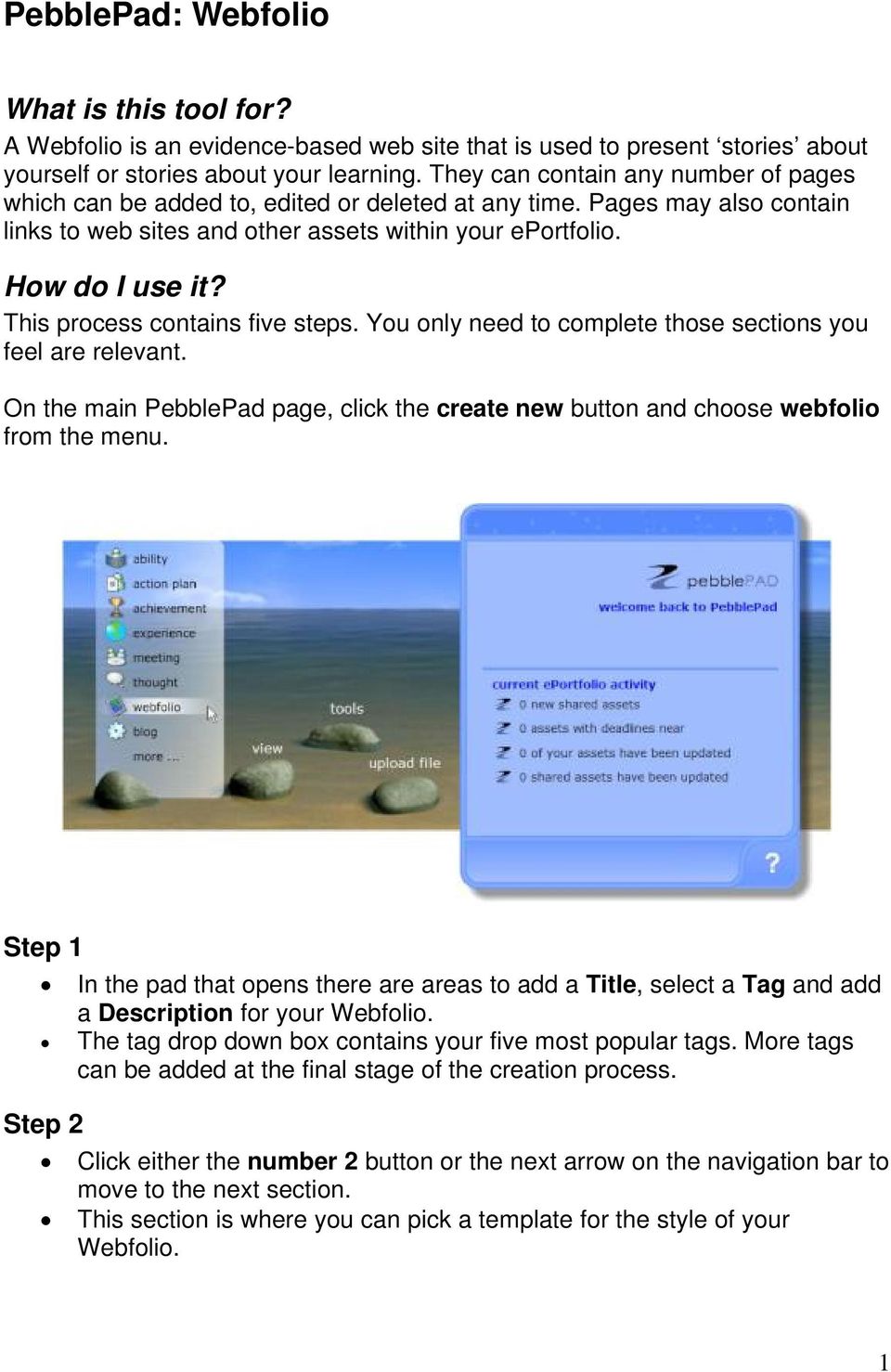
1 PebblePad: Webfolio What is this tool for? A Webfolio is an evidence-based web site that is used to present stories about yourself or stories about your learning. They can contain any number of pages which can be added to, edited or deleted at any time. Pages may also contain links to web sites and other assets within your eportfolio. How do I use it? This process contains five steps. You only need to complete those sections you feel are relevant. On the main PebblePad page, click the create new button and choose webfolio from the menu. Step 1 In the pad that opens there are areas to add a Title, select a Tag and add a Description for your Webfolio. The tag drop down box contains your five most popular tags. More tags can be added at the final stage of the creation process. Step 2 Click either the number 2 button or the next arrow on the navigation bar to move to the next section. This section is where you can pick a template for the style of your Webfolio. 1
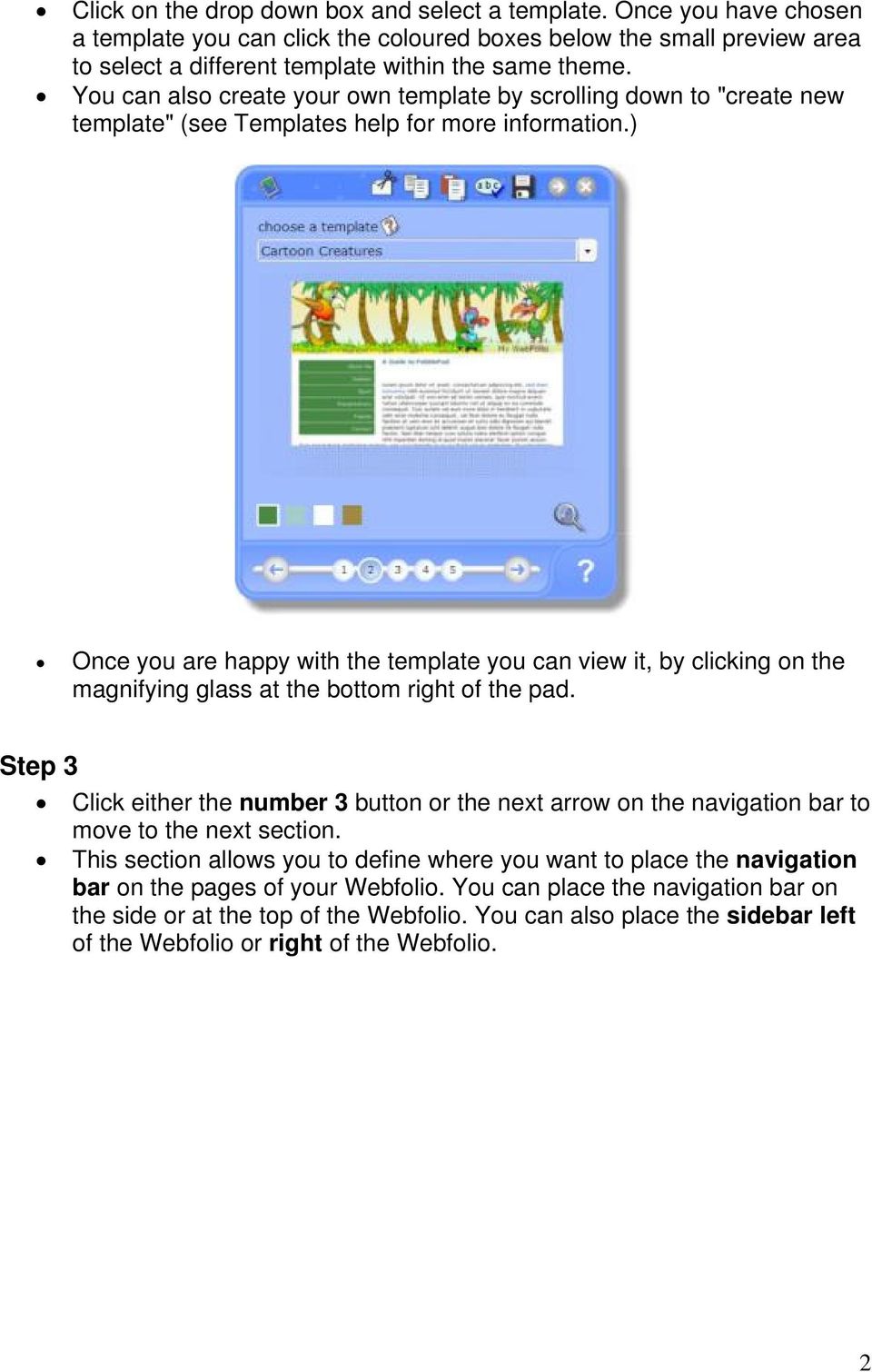
2 Click on the drop down box and select a template. Once you have chosen a template you can click the coloured boxes below the small preview area to select a different template within the same theme. You can also create your own template by scrolling down to "create new template" (see Templates help for more information.) Once you are happy with the template you can view it, by clicking on the magnifying glass at the bottom right of the pad. Step 3 Click either the number 3 button or the next arrow on the navigation bar to move to the next section. This section allows you to define where you want to place the navigation bar on the pages of your Webfolio. You can place the navigation bar on the side or at the top of the Webfolio. You can also place the sidebar left of the Webfolio or right of the Webfolio. 2
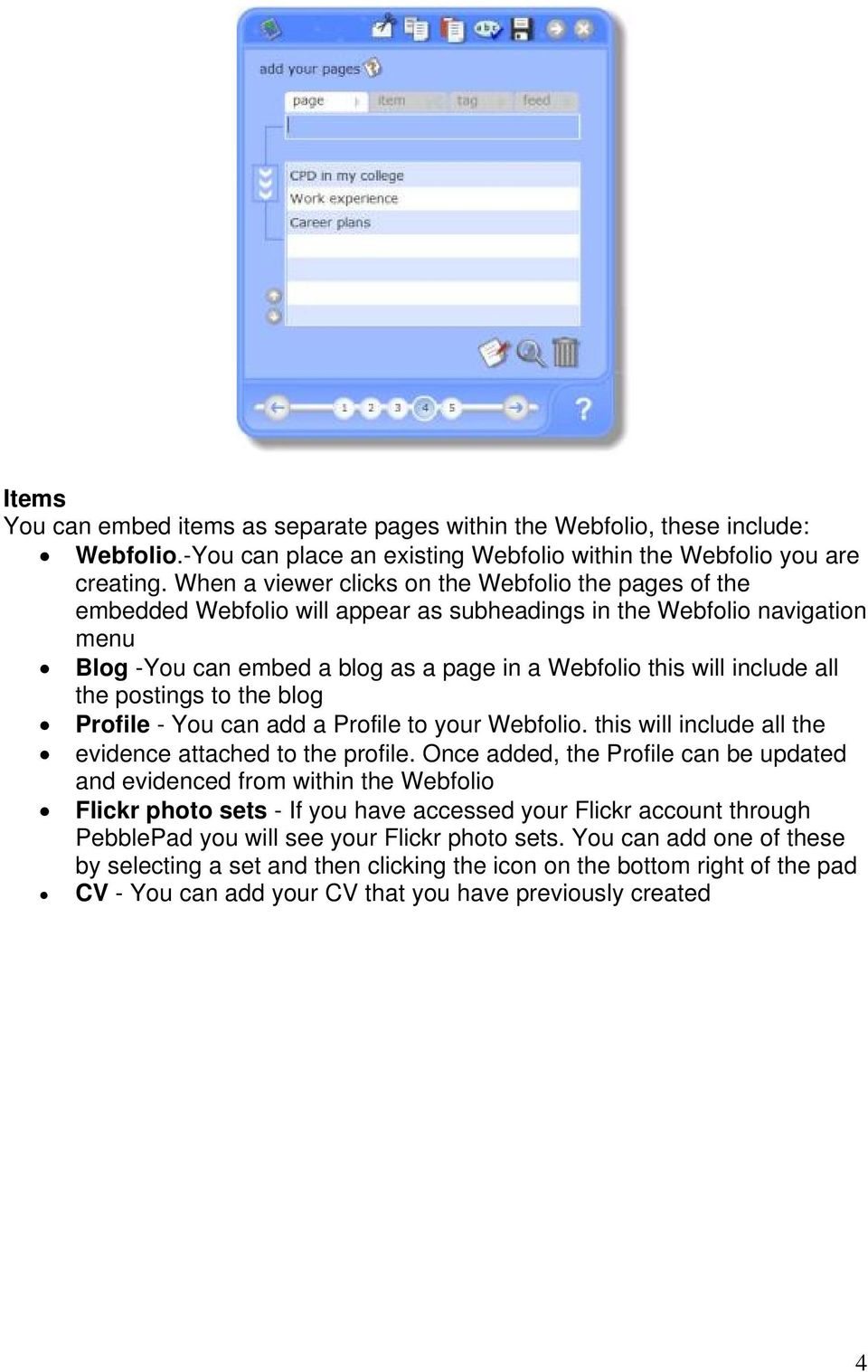
3 You can preview your selection by clicking on the magnifying glass at the bottom right of the pad. Step 4 Click either the number 4 button or the next arrow on the navigation bar to move to the next section. This section is where you can add pages, items, tags and feeds to your Webfolio. Page To add a page, click in the box which says [Enter Page Title Here] and type in a title for your page Click the downward chevrons to added to the new page to the Webfolio Repeat this process for as many pages are you want to add to your Webfolio You can re-position the pages, by clicking on the page title in the list and using the up and down arrows, on the left of the box You can edit the content of a page by clicking on the edit page icon at the bottom of the pad 3
![Page To add a page, click in the box which says [Enter Page Title Here] and type in a title for your page Click the downward chevrons to added to the new page to the Webfolio Repeat this](/docs-images/56/7763732/images/page_3.jpg "process for as many pages are you want to add to your Webfolio You can re-position the pages, by clicking on the page title in the list and using the up and down arrows, on the left of the")
4 Items You can embed items as separate pages within the Webfolio, these include: Webfolio.-You can place an existing Webfolio within the Webfolio you are creating. When a viewer clicks on the Webfolio the pages of the embedded Webfolio will appear as subheadings in the Webfolio navigation menu Blog -You can embed a blog as a page in a Webfolio this will include all the postings to the blog Profile - You can add a Profile to your Webfolio. this will include all the evidence attached to the profile. Once added, the Profile can be updated and evidenced from within the Webfolio Flickr photo sets - If you have accessed your Flickr account through PebblePad you will see your Flickr photo sets. You can add one of these by selecting a set and then clicking the icon on the bottom right of the pad CV - You can add your CV that you have previously created 4
5 Tag Adding a tag as a Webfolio page simply adds all assets with the chosen tag to a page as a date ordered list. If a tag contains only images the page will be displayed as a gallery. 5

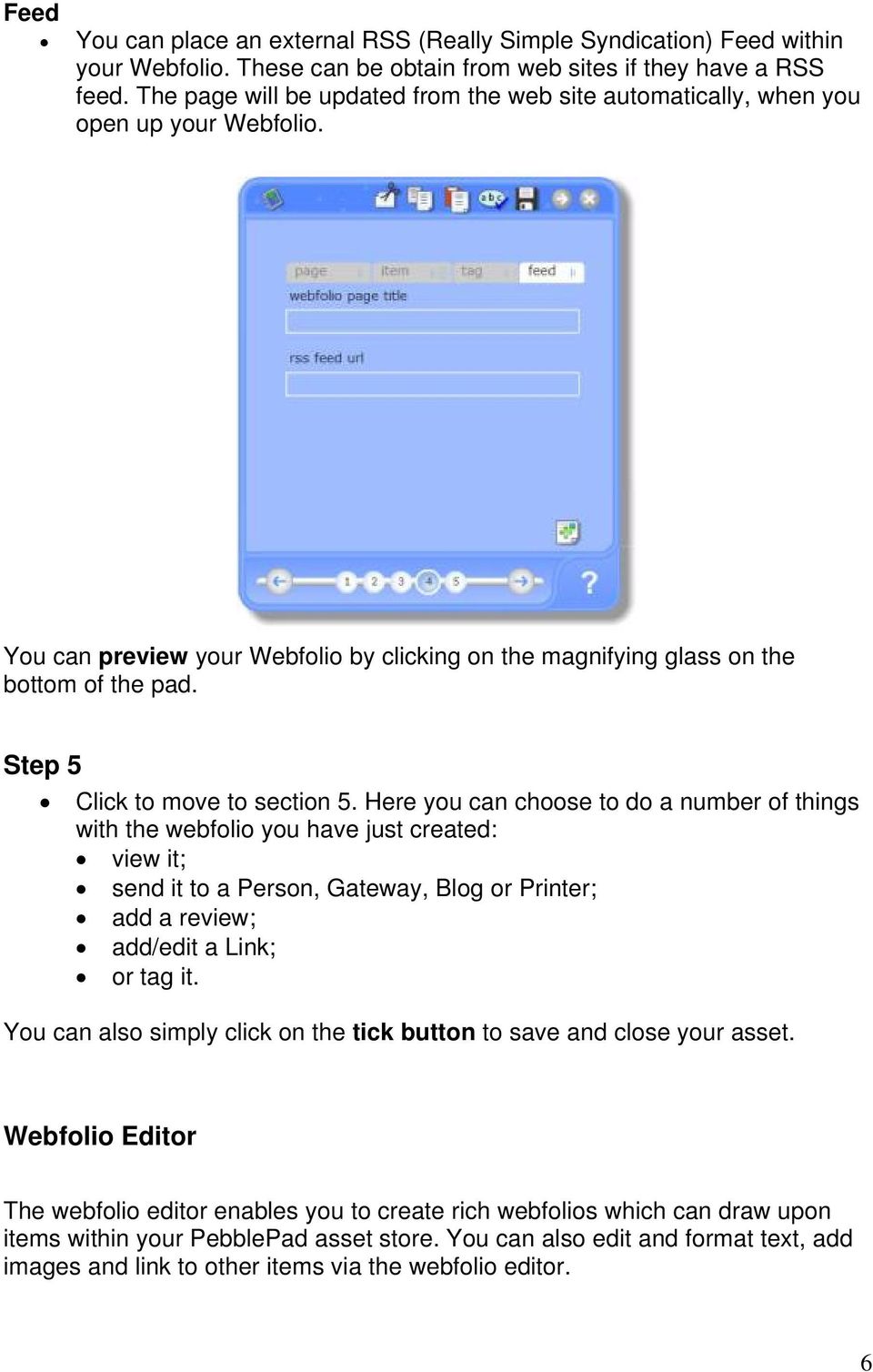
6 Feed You can place an external RSS (Really Simple Syndication) Feed within your Webfolio. These can be obtain from web sites if they have a RSS feed. The page will be updated from the web site automatically, when you open up your Webfolio. You can preview your Webfolio by clicking on the magnifying glass on the bottom of the pad. Step 5 Click to move to section 5. Here you can choose to do a number of things with the webfolio you have just created: view it; send it to a Person, Gateway, Blog or Printer; add a review; add/edit a Link; or tag it. You can also simply click on the tick button to save and close your asset. Webfolio Editor The webfolio editor enables you to create rich webfolios which can draw upon items within your PebblePad asset store. You can also edit and format text, add images and link to other items via the webfolio editor. 6
7 Help movies are also available on this topic called Creating a webfolio and Special Pages. If you want to edit a certain page within the chosen webfolio, select the page and click on the edit button at the bottom of the pad. This will open up a new double sized pad for you to edit your page. If the webfolio has just been created there will be no text in the dialogue box, however if you are editing a page you will see the content of that page. This pad will help you edit text, add photos and add media to the content of a webfolio page. At the very top of the pad, there is a drop down box that contains all the pages that are within the webfolio. This is so you can quickly flick between pages that you want to modify. You can type or paste text into your blank pages. You can also add images, multimedia, links or info tips within your pages and against specific words or phrases. To change the style of text in the pad is similar to editing text in a word document. First you need to highlight the text you want to edit and then using the options at the top of the pad you can change certain aspects. Working from left to right the icons are: 7

8 Font - select a font by clicking on the drop down box. Size - change the size of your text by clicking on the drop down box. Colour - To change the colour of the text click the icon with 'A' marked on it. This will open up colour swatches you can use. Bold - You can make the text bold by clicking the icon marked with a 'B'. This will change the thickness of your text. Italic - You can make the text italic by clicking the icon marked with a 'I'. The next sequence of icons are to help you align and format your text. The first icon aligns text left. The second icon centre aligns text on the webfolio page. The third icon aligns text right. The forth icon adds bullet points to the text you have selected. The next two icons enable you to add an image or a multimedia element to the side bar. Add an image to the sidebar When you click on add an image a new pad will open. Firstly choose an image you want to use by clicking on the small photo icon, this will bring up a new pad that will have any images you have uploaded to PebblePad. Once this has opened, select an image and click the green tick, this will take you back to the previous pad. If at a later stage you want to remove the image, click on the image when you are in the webfolio editor. This will open up the previous options in the pad. Click on the dustbin to remove the image from your webfolio. Add multimedia element to the sidebar. When you click on this icon a new pad will open up that has all your images and video files you have uploaded into PebblePad. You can 8

9 also access your Flickr and YouTube account by clicking on the icons at the bottom left of the pad. When accessing these two separate accounts you will be asked to login in using your username and password. These login details are for the accounts held by Flickr and YouTube not by PebblePad. Please note. It may take a few seconds to load the files from these external sites. Once you have chosen your image or video from Flickr or YouTube, click on the green tick to add it to the page. The next two icons will enable you to add a link or an info tip. When creating these you first need to highlight the text you wish to be changed. Adding links/evidence in your webfolio First you need to highlight the text you wish link to and then click on the link icon, this will open up a new pad listing your PebblePad assets. At the top of the pad you will see the text you have selected. You can link the selected text to one of three things. You can firstly link the text to an asset that you have already created. To do this click on the asset and then click on the green tick to confirm your selection. NB To check you have linked the correct record, click on the magnifying glass to view your page. Hovering over the hyperlinked word or phrase will show the title and description of the asset you have linked. NB hovering over or clicking on the word or phrase in the webfolio editor page will not show the linked record. You can also see all the records, images or multimedia elements linked to your entire webfolio by showing the Tree View when you view your webfolio. This will also show any additional links between records you have already created. You can also link the text to a Website. Click on web link tab at the top of the pad and you will be given a place to type in the web address. You can also copy and paste a web address into the box if you first copy it from an appropriate source. The last option is the ability to link the selected text to an address. Click on link and there will be a place to type out an address. When the viewer then clicks on the selected text it will open up the provider with the desired address all ready in place. Info tip 9
10 An info tip allows you to add more details or make a comment as part of the content of a webfolio page. When a person is viewing your webfolio, they can place the mouse over the selected text and the info tip will appear. This is similar to adding comments to an area of text in Microsoft Word or Excel. To add an info tip highlight the desired text and click on the info tip icon. A new pad will open with the highlighted text at the top. You can write your additional information or comments in the box marked info tip. Once you are happy with the content of the info tip click the green tick icon to save. The last 6 icons are: Spell check Cut Paste Undo View this page Save this page. Remember to save your work using the save icon on a regular basis as you create a webfolio page so you do not lose your work: Note: Whilst the webfolio page editor provides a really easy means of creating web pages. It is not a complex text editor and so does not contain the kinds of Tools associated with word processors. You cannot insert graphics, tables or other components into the text. 10

Student guide to creating and sharing a webfolio
 Student guide to creating and sharing a webfolio This guide includes: An introduction to webfolios Reasons why you might choose to develop a webfolio Instructions on how to create, edit and add content
Index. Page 1. Index 1 2 2 3 4-5 6 6 7 7-8 8-9 9 10 10 11 12 12 13 14 14 15 16 16 16 17-18 18 19 20 20 21 21 21 21
 Index Index School Jotter Manual Logging in Getting the site looking how you want Managing your site, the menu and its pages Editing a page Managing Drafts Managing Media and Files User Accounts and Setting
Creating a eportfolio using
 Creating a eportfolio using A key part of the process of personal development is the recording of and reflection upon time in the workplace and any development activities undertaken. There are many platforms
NDSU Technology Learning & Media Center. Introduction to Google Sites
 NDSU Technology Learning & Media Center QBB 150C 231-5130 www.ndsu.edu/its/tlmc Introduction to Google Sites Get Help at the TLMC 1. Get help with class projects on a walk-in basis; student learning assistants
WORDPRESS MANUAL WEBSITEDESIGN.CO.ZA
 WORDPRESS MANUAL WEBSITEDESIGN.CO.ZA All information presented in the document has been acquired from http://easywpguide.com/wordpress-manual/ to assist you with your website 1 WORDPRESS MANUAL WEBSITEDESIGN.CO.ZA
collab.virginia.edu UVACOLLAB ECLPS: BUILDING COURSE PORTALS UVaCollab User Guide Series [email protected]
 UVACOLLAB ECLPS: BUILDING COURSE PORTALS UVaCollab User Guide Series [email protected] Revised 4/28/2014 CONTENTS The eclps Overview... 3 Objectives... 3 Adding the Syllabus or Lessons Tool to
Where do I start? DIGICATION E-PORTFOLIO HELP GUIDE. Log in to Digication
 You will be directed to the "Portfolio Settings! page. On this page you will fill out basic DIGICATION E-PORTFOLIO HELP GUIDE Where do I start? Log in to Digication Go to your school!s Digication login
css href title software blog domain HTML div style address img h2 tag maintainingwebpages browser technology login network multimedia font-family
 technology software href browser communication public login address img links social network HTML div style font-family url media h2 tag handbook: id domain TextEdit blog title PORT JERVIS CENTRAL SCHOOL
css href title software blog domain HTML div style address img h2 tag maintainingwebpages browser technology login network multimedia font-family
 technology software href browser communication public login address img links social network HTML div style font-family url media h2 tag handbook: id domain TextEdit blog title CANAJOHARIE CENTRAL SCHOOL
WEBSITE CONTENT MANAGEMENT SYSTEM USER MANUAL CMS Version 2.0 CMS Manual Version 1.0 2-25-13
 WEBSITE CONTENT MANAGEMENT SYSTEM USER MANUAL CMS Version 2.0 CMS Manual Version 1.0 2-25-13 CONTENTS Things to Remember... 2 Browser Requirements... 2 Why Some Areas of Your Website May Not Be CMS Enabled...
Ingeniux 8 CMS Web Management System ICIT Technology Training and Advancement ([email protected])
 Ingeniux 8 CMS Web Management System ICIT Technology Training and Advancement ([email protected]) Updated on 10/17/2014 Table of Contents About... 4 Who Can Use It... 4 Log into Ingeniux... 4 Using Ingeniux
Creating a Website with Google Sites
 Creating a Website with Google Sites This document provides instructions for creating and publishing a website with Google Sites. At no charge, Google Sites allows you to create a website for various uses,
University of Derby. Technology Enhanced Learning. Help and Support Information. What is a Webfolio. Author: Charlie Davies. Last reviewed: 25/03/14
 University of Derby Technology Enhanced Learning What is a Webfolio Author: Charlie Davies Last reviewed: 25/03/14 Help and Support Information Admin and setting up PebblePad accounts Richard Harris (LEI)
Personal Portfolios on Blackboard
 Personal Portfolios on Blackboard This handout has four parts: 1. Creating Personal Portfolios p. 2-11 2. Creating Personal Artifacts p. 12-17 3. Sharing Personal Portfolios p. 18-22 4. Downloading Personal
User Guide. Chapter 6. Teacher Pages
 User Guide Chapter 6 s Table of Contents 1. Introduction... 4 I. Enhancements... 5 II. Tips... 6 2. Key Information... 7 3. How to Add a... 8 4. How to Edit... 10 I. SharpSchool s WYSIWYG Editor... 11
Quick Guide to the Cascade Server Content Management System (CMS)
 Quick Guide to the Cascade Server Content Management System (CMS) Waubonsee Community College Cascade Server Content Administration January 2011 page 1 of 11 Table of Contents Requirements...3 Logging
Constant Contact User Manual
 Constant Contact User Manual TIP: Check out Constant Contact s video tutorial on how to develop an email campaign: http://tinyurl. com/3nvrv7l How to use this guide To use this guide, you must first be
Content Management System User Guide
 CWD Clark Web Development Ltd Content Management System User Guide Version 1.0 1 Introduction... 3 What is a content management system?... 3 Browser requirements... 3 Logging in... 3 Page module... 6 List
Introduction to Microsoft PowerPoint
 Introduction to Microsoft PowerPoint By the end of class, students should be able to: Identify parts of the work area. Create a new presentation using PowerPoint s design templates. Navigate around a presentation.
If you have any questions or problems along the way, please don't hesitate to call, e-mail, or drop in to see us. We'd be happy to help you.
 If you have any questions or problems along the way, please don't hesitate to call, e-mail, or drop in to see us. We'd be happy to help you. Phone: (807)-274-5373 E-mail: [email protected] Physical
Glogster.com. Type code from box above
 Glogster.com A glog is like a poster, only better. Glogs allow you to create an online poster using photographs, images, graphics, video files and sound files. Glogs allow you to add hyperlinks to other
How to Build a SharePoint Website
 How to Build a SharePoint Website Beginners Guide to SharePoint Overview: 1. Introduction 2. Access your SharePoint Site 3. Edit Your Home Page 4. Working With Text 5. Inserting Pictures 6. Making Tables
Creating a Website with Google Sites
 Creating a Website with Google Sites This document provides instructions for creating and publishing a website with Google Sites. At no charge, Google Sites allows you to create a website for various uses,
Teacher Training Session 1. Adding a Sub-Site (New Page) Editing a page and page security. Adding content cells. Uploading files and creating folders
 Teacher Training Session 1 Adding a Sub-Site (New Page) Editing a page and page security Adding content cells Uploading files and creating folders Adding Sub Sites Sub Sites are the same as Sub Groups
How to - Newsletter & Memo Section
 How to - Newsletter & Memo Section In the Newsletter section, you can create, edit and send newsletters and Memos to different Groups of members. For example you may have Staff as a group, and Clients
Content Author's Reference and Cookbook
 Sitecore CMS 6.2 Content Author's Reference and Cookbook Rev. 091019 Sitecore CMS 6.2 Content Author's Reference and Cookbook A Conceptual Overview and Practical Guide to Using Sitecore Table of Contents
Google Docs Basics Website: http://etc.usf.edu/te/
 Website: http://etc.usf.edu/te/ Google Docs is a free web-based office suite that allows you to store documents online so you can access them from any computer with an internet connection. With Google
MailChimp Instruction Manual
 MailChimp Instruction Manual Spike HQ This manual contains instructions on how to set up a new email campaign, add and remove contacts and view statistics on completed email campaigns from within MailChimp.
Module One: Getting Started... 6. Opening Outlook... 6. Setting Up Outlook for the First Time... 7. Understanding the Interface...
 2 CONTENTS Module One: Getting Started... 6 Opening Outlook... 6 Setting Up Outlook for the First Time... 7 Understanding the Interface...12 Using Backstage View...14 Viewing Your Inbox...15 Closing Outlook...17
Introducing our new Editor: Email Creator
 Introducing our new Editor: Email Creator To view a section click on any header below: Creating a Newsletter... 3 Create From Templates... 4 Use Current Templates... 6 Import from File... 7 Import via
How to Build a Web Site using your Web Host s Web Site Builder
 How to Build a Web Site using your Web Host s Web Site Builder The actual how to of building your web site depends on which site builder you decide to use. This tutorial shows you how to set up and build
Raffle tickets How to set up the ticket body
 Raffle tickets How to set up the ticket body Video: http://raffleticketsoftware.com/help/video_ticketbody.asp After downloading and installing Raffle Ticket Software, just click on the desktop icon to
SiteBuilder User Guide
 SiteBuilder User Guide Page 1 of 41 SiteBuilder Manual Table of contents SiteBuilder Manual... 2 Table of contents... 2 What is SiteBuilder?... 4 Tips for building a great site... 4 Getting started...
Joomla! 2.5.x Training Manual
 Joomla! 2.5.x Training Manual Joomla is an online content management system that keeps track of all content on your website including text, images, links, and documents. This manual includes several tutorials
How to Use the Text Editor in Blackboard
 How to Use the Text Editor in Blackboard The image below is the text editor in Blackboard. No matter you add an item or discussion forum for your course as an instructor, post threads and replies on a
Build a New Website Using the UB Content Management System (UBCMS)
 Build a New Website Using the UB Content Management System (UBCMS) Support Website Online training, help and support, UBCMS status and more. ubcms.buffalo.edu Training Feedback Survey https://www.surveymonkey.com/s/mm-dd-yyyy
Terminal Four (T4) Site Manager
 Terminal Four (T4) Site Manager Contents Terminal Four (T4) Site Manager... 1 Contents... 1 Login... 2 The Toolbar... 3 An example of a University of Exeter page... 5 Add a section... 6 Add content to
Making a Web Page with Microsoft Publisher 2003
 Making a Web Page with Microsoft Publisher 2003 The first thing to consider when making a Web page or a Web site is the architecture of the site. How many pages will you have and how will they link to
Managing your Joomla! 3 Content Management System (CMS) Website Websites For Small Business
 2015 Managing your Joomla! 3 Content Management System (CMS) Website Websites For Small Business This manual will take you through all the areas that you are likely to use in order to maintain, update
Advanced Presentation Features and Animation
 There are three features that you should remember as you work within PowerPoint 2007: the Microsoft Office Button, the Quick Access Toolbar, and the Ribbon. The function of these features will be more
MICROSOFT WORD TUTORIAL
 MICROSOFT WORD TUTORIAL G E T T I N G S T A R T E D Microsoft Word is one of the most popular word processing programs supported by both Mac and PC platforms. Microsoft Word can be used to create documents,
Frog VLE Update. Latest Features and Enhancements. September 2014
 1 Frog VLE Update Latest Features and Enhancements September 2014 2 Frog VLE Update: September 2014 Contents New Features Overview... 1 Enhancements Overview... 2 New Features... 3 Site Backgrounds...
SoftChalk. Level 1. University Information Technology Services. Training, SoftChalk Level Outreach, 1 Learning Technologies and Video Production
 SoftChalk Level 1 University Information Technology Services Training, SoftChalk Level Outreach, 1 Learning Technologies and Video Production Page 1 of 49 Copyright 2013 KSU Department of University Information
Blackboard 1: Course Sites
 Blackboard 1: Course Sites This handout outlines the material covered in the first of four workshops on teaching with Blackboard. It will help you begin building your Blackboard course site. You will learn
Go Kiwi Internet Content Management System Version 5.0 (K5) TRAINING MANUAL
 Go Kiwi Internet Content Management System Version 5.0 (K5) TRAINING MANUAL K5 CMS The K5 Content Management System (CMS), previously known as Kwik-Az Updating, is a small downloadable program that permits
A quick guide to setting up your new website
 A quick guide to setting up your new website Hi there. Welcome to MrSite we re really happy you chose to build your brand new website with us and look forward to seeing what you create! We re sure you
NJCU WEBSITE TRAINING MANUAL
 NJCU WEBSITE TRAINING MANUAL Submit Support Requests to: http://web.njcu.edu/its/websupport/ (Login with your GothicNet Username and Password.) Table of Contents NJCU WEBSITE TRAINING: Content Contributors...
THE TOP TEN TIPS FOR USING QUALTRICS AT BYU
 THE TOP TEN TIPS FOR USING QUALTRICS AT BYU TIP #1: CREATING A SURVEY FROM A COPY AND COLLABORATING ON SURVEYS TIP #2: CREATING AND USING PANELS TIP #3: LIBRARIES AND HOW TO USE THEM TIP #4: BASIC SKIP
Using MindManager 14
 Using MindManager 14 Susi Peacock, Graeme Ferris, Susie Beasley, Matt Sanders and Lindesay Irvine Version 4 September 2014 2011 Queen Margaret University 1. Navigating MindManager 14... 3 Tool Bars and
User Guide. Chapter 6. Teacher Pages
 User Guide Chapter 6 s Table of Contents Introduction... 6 Tips for s... 7 Pitfalls... 8 Key Information... 9 I. Adding a... 10 II. Editing a... 12 SharpSchool s WYSIWYG Editor... 13 1) Uploading Images
Microsoft PowerPoint 2010 Computer Jeopardy Tutorial
 Microsoft PowerPoint 2010 Computer Jeopardy Tutorial 1. Open up Microsoft PowerPoint 2010. 2. Before you begin, save your file to your H drive. Click File > Save As. Under the header that says Organize
Content Management System (CMS) Training Document for LexisNexis Web Visibility Websites. October 6, 2013
 Content Management System (CMS) Training Document for LexisNexis Web Visibility Websites October 6, 2013 1 Overview This document provides an overview of the process for editing your website and managing
Terminal 4 Content Types. Need help? Call the ITD Lab, x7471
 Terminal 4 Content Types Need help? Call the ITD Lab, x7471 1 Terminal 4 Content Types Contents Introduction...2 Terminology...2 Content Types...3 Ad Banner...4 Ad Banner Full...5 Alert Text...6 Banner
UHR Training Services Student Manual
 UHR Training Services Student Manual October 2012 1 Logging in to CareWorks Clicking the copyright symbol on the bottom left of the footer takes you to the sign-in screen and then to the control panel.
Introduction to OpenOffice Writer 2.0 Jessica Kubik Information Technology Lab School of Information University of Texas at Austin Fall 2005
 Introduction to OpenOffice Writer 2.0 Jessica Kubik Information Technology Lab School of Information University of Texas at Austin Fall 2005 Introduction: OpenOffice Writer is a word processing application
Create a Simple Website. Intel Easy Steps 1 2012 Intel Corporation All rights reserved.
 Create a Simple Website Intel Easy Steps 1 2012 Intel Corporation Website Creating a Simple Website As more and more people are using the Internet to get information, it has become very important for businesses
PowerPoint 2013 Basics of Creating a PowerPoint Presentation
 Revision 4 (01-31-2014) PowerPoint 2013 Basics of Creating a PowerPoint Presentation MICROSOFT POWERPOINT PowerPoint is software that lets you create visual presentations. PowerPoint presentations are
RIT Message Center Compose and Send Messages
 RIT Message Center Compose and Send Messages Table of Contents Table of Contents... 2 Logging into Message Center... 3 Category Display... 3 Message Center: Create a Message... 4 Create a New Message without
Microsoft PowerPoint 2010 Handout
 Microsoft PowerPoint 2010 Handout PowerPoint is a presentation software program that is part of the Microsoft Office package. This program helps you to enhance your oral presentation and keep the audience
Microsoft Word 2013 Tutorial
 Microsoft Word 2013 Tutorial GETTING STARTED Microsoft Word is one of the most popular word processing programs supported by both Mac and PC platforms. Microsoft Word can be used to create documents, brochures,
User Guide. User Guide Title Page Page i
 User Guide User Guide Title Page Page i Table of Contents Welcome 1 Welcome to Avvo Websites 1 Getting Started 2 Accessing your Avvo Website Dashboard 2 Dashboard Features 3 Screen Options 4 Submitting
Windows 10: A Beginner s Guide
 Windows 10: A Beginner s Guide Copyright 2014 Conceptual Kings. All are rights reserved. This book or any portion thereof may not be reproduced or used in any manner whatsoever without the express written
DRUPAL WEB EDITING TRAINING
 LOGIN AND VIEW CONTENT Work in Firefox DRUPAL WEB EDITING TRAINING the black logo in the upper right corner to log into Drupal The User Work Area will come up: General Information My Recent Edits the content
If you want to upload media files to Moodle, please refer to the alternative documentation in Moodle help How to add video and audio in Moodle
 Using MediaSpace MediaSpace is a service that allows you to easily upload and share media files. All University staff at all campuses can upload, browse and search for media, and create their own media
Content Author's Reference and Cookbook
 Sitecore CMS 6.5 Content Author's Reference and Cookbook Rev. 110621 Sitecore CMS 6.5 Content Author's Reference and Cookbook A Conceptual Overview and Practical Guide to Using Sitecore Table of Contents
Outlook Email. User Guide IS TRAINING CENTER. 833 Chestnut St, Suite 600. Philadelphia, PA 19107 215-503-7500
 Outlook Email User Guide IS TRAINING CENTER 833 Chestnut St, Suite 600 Philadelphia, PA 19107 215-503-7500 This page intentionally left blank. TABLE OF CONTENTS Getting Started... 3 Opening Outlook...
UNPAN Portal Content Management System (CMS) User Guide
 UNPAN Portal Content Management System (CMS) User Guide www.unpan.org User Manual Version 1.0 260309 Page 1 of 36 Table of Contents A. UNPAN Sitemap... 3 B. DPADM Sitemap... 4 C. Introduction to UNPAN
Microsoft Office Publisher 2010
 1 Microsoft Office Publisher 2010 Microsoft Publisher is a desktop publishing application which allows you to create artistic documents as brochures, flyers, and newsletters. To open Microsoft Office Publisher:
Sage Accountants Business Cloud EasyEditor Quick Start Guide
 Sage Accountants Business Cloud EasyEditor Quick Start Guide VERSION 1.0 September 2013 Contents Introduction 3 Overview of the interface 4 Working with elements 6 Adding and moving elements 7 Resizing
Website Editor User Guide
 CONTENTS Minimum System Requirements... 3 Design Your Website... 3 Choosing your Theme... 4 Choosing your Header Style... 4-5 Website Content Editor... 6 Text Editor Toolbar features... 6 Main Menu Items...
Weebly.com First Steps
 Weebly.com First Steps Weebly is the easiest way to build your own website. The first thing you need to do is go to www.weebly.com to create an account. Then you will begin with the next steps. The Site
Beginning PowerPoint: Hands-On Exercise (Windows XP) Regent University
 Beginning PowerPoint: Hands-On Exercise (Windows XP) 10/1/02 (Creation Date) 01/08/2004 Regent University The Center for Teaching & Learning 1 Beginning PowerPoint: Hands-On Exercise (Windows XP) 1. Open
Using JCPS Online for Websites
 Getting Started Before you begin, an Online Group must be created for you. Send an email requesting the group along with the username of anyone you want added as an editor to [email protected].
Contents. SiteBuilder User Manual
 Contents Chapter 1... 3 Getting Started with SiteBuilder... 3 What is SiteBuilder?... 3 How should I use this manual?... 3 How can I get help if I m stuck?... 3 Chapter 2... 5 Creating Your Website...
Elementary Website Management December 2013
 Elementary Website Management December 2013 1 Table of Contents What is WordPress? 3 What is the Website Manager App? 3 What is Google Calendars? 3 What do I use for what? 3 WordPress 4 Logging into the
Weebly Step-by-Step Instructions
 Weebly Step-by-Step Instructions Go to http://weebly.com/ Follow instructions to create site. Write your username, password, email address, and website URL down and send this information to yourself in
Support/ User guide HMA Content Management System
 Support/ User guide HMA Content Management System 1 Contents: Access Page 3 Editing Pages Page 4 Adding/Editing Text Page 7 Adding/Editing Images Page 9 Adding/Editing Files Page 11 Adding a Page Page
RADFORD UNIVERSITY. Radford.edu. Content Administrator s Guide
 RADFORD UNIVERSITY Radford.edu Content Administrator s Guide Contents Getting Started... 2 Accessing Content Administration Tools... 2 Logging In... 2... 2 Getting Around... 2 Logging Out... 3 Adding and
Editing your Website User Guide
 User Guide Adding content to your Website To add or replace content on your website you will need to log in to your Content Management System (Joomla) using your username and password. If you do not already
Using Twitter for Higher Education
 Using Twitter for Higher Education Faculty Summer Institute 2010 Tip: Step-by-step instructions for all demonstrated tasks in Help menu of your Twitter account. What is Twitter? Service for people to communicate
If you are interested in only one mode of sharing, click on your desired logo below for precise instructions for your specified choice:
 SHARE YOUR AACE DIGITAL BADGES WITH AACE IMAGE(s) Note: this lengthy document contains complete instructions for all sharing options via E-mail, Facebook, Twitter and LinkedIn If you are interested in
Microsoft Expression Web
 Microsoft Expression Web Microsoft Expression Web is the new program from Microsoft to replace Frontpage as a website editing program. While the layout has changed, it still functions much the same as
DRUPAL BASICS WEBSITE DESIGN & DEVELOPMENT. digital.uoregon.edu/drupal-basics
 DRUPAL BASICS WEBSITE DESIGN & DEVELOPMENT digital.uoregon.edu/drupal-basics Page 1 LOGGING IN To log in to your Drupal website: Type in the web address followed by /user - Example: https://ugs.uoregon.edu/user
Access Edit Menu... 2. Edit Existing Page... 3. Auto URL Aliases... 5. Page Content Editor... 7. Create a New Page... 17. Page Content List...
 DRUPAL EDITOR Content Management Instructions TABLE OF CONTENTS Access Edit Menu... 2 Edit Existing Page... 3 Auto URL Aliases... 5 Page Content Editor... 7 Create a New Page... 17 Page Content List...
Google Sites From the Ground Up
 Table of Contents Web Publishing Basics...3 Parental Permission...3 Protection...3 Creating a Google Site...4 Basic Page Content...6 Update Content...6 Previewing the Page...6 Email Contact Link...7 Sidebar
Website Creation Service: User s Guide
 Service: User s Guide 1 Table of Contents 1) Connecting to Your Online Interface 2) Start Creating Your Website 3) Managing Website Pages 4) Managing Website Content 5) Integrating Widgets and Other Content
Traffic Management App. User Guide
 Traffic Management App User Guide content section one Introduction 2 Logging In 2 section two Creating a new Traffic Management Plan 4 Identifying the location 4 Associating with a non-streetworks or unplanned
Saving work in the CMS... 2. Edit an existing page... 2. Create a new page... 4. Create a side bar section... 4
 CMS Editor How-To Saving work in the CMS... 2 Edit an existing page... 2 Create a new page... 4 Create a side bar section... 4 Upload an image and add to your page... 5 Add an existing image to a Page...
CMS Training Manual. A brief overview of your website s content management system (CMS) with screenshots. CMS Manual
 Training A brief overview of your website s content management system () with screenshots. 1 Contents Logging In:...3 Dashboard:...4 Page List / Search Filter:...5 Common Icons:...6 Adding a New Page:...7
JOOMLA 2.5 MANUAL WEBSITEDESIGN.CO.ZA
 JOOMLA 2.5 MANUAL WEBSITEDESIGN.CO.ZA All information presented in the document has been acquired from http://docs.joomla.org to assist you with your website 1 JOOMLA 2.5 MANUAL WEBSITEDESIGN.CO.ZA BACK
How to Edit an Email. Here are some of the things you can do to customize your email:
 How to Edit an Email Editing a new email created during the Create an Email wizard or editing an existing email in the Edit Email section of the Manage Emails tab is easy, using editing tools you re probably
Ross University s Content Management System (CMS) Training Manual
 Ross University s Content Management System (CMS) Training Manual Version 1.0 This is the Ross University Content Management System (CMS) training manual. This manual is intended for Ross University content
+ Create, and maintain your site
 T4 Basics Version 1.0 + Create, and maintain your site With T4, you are in control of the content of your website. Feel free to be creative, and keep your site up to date. Few of T4 Features Media Library
Creating Online Surveys with Qualtrics Survey Tool
 Creating Online Surveys with Qualtrics Survey Tool Copyright 2015, Faculty and Staff Training, West Chester University. A member of the Pennsylvania State System of Higher Education. No portion of this
WordPress 101 Tutorial
 WordPress 0 Tutorial This document is meant to give a general overview of the content management functionality of the Word- Press Content Management System. The intention is to cover the basics (what you
Redback Solutions. Visionscape Manual
 Redback Solutions Visionscape Manual Updated 31/05/2013 1 Copyright 2013 Redback Solutions Pty Ltd. All rights reserved. The Visionscape Content Management System (CMS) may not be copied, reproduced or
Microsoft Word 2010 Tutorial
 Microsoft Word 2010 Tutorial GETTING STARTED Microsoft Word is one of the most popular word processing programs supported by both Mac and PC platforms. Microsoft Word can be used to create documents, brochures,