
Technical Reference QAD Mobile Field Service. QAD Mobile FS Overview Installing QAD Mobile FS Using QAD Mobile FS
|
|
|
- Thomasina Turner
- 10 years ago
- Views:
Transcription
1 Technical Reference QAD Mobile Field Service QAD Mobile FS Overview Installing QAD Mobile FS Using QAD Mobile FS D QAD Mobile Field Service 2.0 November 2007

2 This document contains proprietary information that is protected by copyright and other intellectual property laws. No part of this document may be reproduced, translated, or modified without the prior written consent of QAD Inc. The information contained in this document is subject to change without notice. QAD Inc. provides this material as is and makes no warranty of any kind, expressed or implied, including, but not limited to, the implied warranties of merchantability and fitness for a particular purpose. QAD Inc. shall not be liable for errors contained herein or for incidental or consequential damages (including lost profits) in connection with the furnishing, performance, or use of this material whether based on warranty, contract, or other legal theory. QAD and MFG/PRO are registered trademarks of QAD Inc. The QAD logo is a trademark of QAD Inc. Designations used by other companies to distinguish their products are often claimed as trademarks. In this document, the product names appear in initial capital or all capital letters. Contact the appropriate companies for more information regarding trademarks and registration. Copyright 2007 by QAD Inc. QAD Inc. 100 Innovation Place Santa Barbara, California Phone (805) Fax (805)

3 Contents About This Guide Other Documentation Online Help QAD Web Site Conventions Screen Illustrations Menu References Typographic Product Versions Chapter 1 QAD Mobile FS Overview QAD Mobile Field Service Overview Installing QAD Mobile FS Deploying QAD Mobile FS OneBridge QDocs Client Components Using QAD Mobile FS Set Up QAD Mobile FS Data Perform an Initial Synchronization View and Update Calls Report Call Activity Order Parts Synchronization Data Flow

4 iv Technical Reference QAD Mobile Field Service Section 1 Installing QAD Mobile FS Chapter 2 QAD Mobile FS Requirements General Requirements MFG/PRO Database Server Hardware Requirements Software Prerequisites Synchronization Server Hardware Requirements Supported Operating Systems Software Requirements Client Devices Hardware Requirements Software Requirements Network Requirements Unicode Requirements Chapter 3 Installing QAD Mobile FS Components Overview Install and Configure QXtend Inbound Update MFG/PRO Update MFG/PRO Databases Load Field Help Install Progress ODBC Driver Install OneBridge Sync Server Install OneBridge Sync Server Files Set Up Authentication Configuration Configure OneBridge Sync Server Install Client Components Install Client Components on Laptops Install Client Components on Pocket PC Devices Complete the Setup Upgrading MFG/PRO After Installing QAD Mobile FS Security Setup

5 Contents v QDoc Envelope Configuration Chapter 4 Setting Up QAD Mobile FS Set Up User Accounts QAD Mobile FS User Accounts MFG/PRO User Accounts MFG/PRO Database User Accounts Set Up SSM Data in MFG/PRO Define QAD Mobile FS Users in MFG/PRO Suppress QAD Mobile API Warnings in MFG/PRO Set Up Client Devices Perform Initial Full Sync Recreating the Device Database Understanding Synchronized Data Develop Engineer Report Section 2 Using QAD Mobile FS Chapter 5 Using QAD Mobile FS Overview Features of the User Interface Differences on Pocket PCs Synchronizing QAD Mobile FS Creating and Updating Calls Reporting Call Activity Ordering Parts Viewing Inventory Viewing Installed Base Details Index

6 vi Technical Reference QAD Mobile Field Service

7 About This Guide Other Documentation 2 Online Help 3 QAD Web Site 3 Conventions 4

8 2 Technical Reference QAD Mobile Field Service This guide covers the installation, use, and administration of the QAD Mobile Field Service (FS) product. QAD Mobile FS lets field engineers or technicians access and enter service call information remotely from devices such as a personal digital assistant (PDA) or laptop. This information is automatically synchronized with your production field service data. QAD Mobile FS remote access and updates let field personnel: Review and update assigned calls. Create new calls. Report call activity. Order spare parts. Other Documentation For an overview of new features and software updates, see the Release Notes. For detailed information on installing and using Sybase ianywhere OneBridge Mobile Data Suite, see the documentation from Sybase. For software installation instructions, refer to the appropriate installation guide for your system. For information on using the application, refer to the User Guides. Information about Service/Support Management can be found in the Service Support Management user guide. To view documents in PDF format, see the Documents on CD and Supplemental Documents on CD. Note Installation guides are not included on a CD. Printed copies are packaged with your software. Electronic copies of the latest versions are available on the QAD Web site. For a complete list of QAD Documentation, visit the QAD Support site.

9 About This Guide 3 Online Help There is an extensive online help system. Help is available for most fields found on a screen. Procedure help is available for most programs that update the database. Most inquiries, reports, and browses do not have procedure help. For information on using the help system in the different environments, refer to User Guide: QAD User Interfaces. QAD Web Site The QAD Web site provides a wide variety of information about the company and its products. You can access the Web site at: For users with a QAD Web account, product documentation is available for viewing or downloading on ServiceLinQ: You can register for a QAD Web account by accessing the Web site and clicking the Accounts link at the top of the screen. Your customer ID number is required. Access to certain areas is dependent on the type of agreement you have with QAD. Most user documentation is available in two formats: Portable document format (PDF) files can be downloaded from the QAD Web site to your computer. You can view and print them with the free Adobe Acrobat Reader. HTML files let you view user documentation through your Web browser and use search tools for easily locating topics of interest. Features of ServiceLinQ also include an online searchable solution database to help answer questions about setting up and using QAD products. Additionally, the site has information about training classes and other services that can help you learn about QAD products.
10 4 Technical Reference QAD Mobile Field Service Conventions Screen Illustrations System functions are available in several interfaces: the.net User Interface, Desktop (Web browser), Windows, and character. To standardize presentation, the documentation uses the following conventions: MFG/PRO screen captures show the Desktop interface. References to keyboard commands are generic. For example, choose Go refers to: The Next button in.net UI The forward arrow in Desktop F2 in the Windows interface F1 in the character interface In the character and Windows interfaces, the Progress status line at the bottom of a program window lists the main UI-specific keyboard commands used in that program. In Desktop, alternate commands are listed in the right-click context menu. In the.net UI, alternate commands are listed in the Actions menu. For complete keyboard command summaries for each interface, refer to the appropriate chapters of User Guide: QAD.NET User Interface, User Guide: QAD Desktop and User Guide Volume 1: Introduction. Menu References QAD Mobile Field Service is available for several MFG/PRO and QAD Enterprise Applications releases. Most of the features referenced in this guide are the same in each release. However, some menu items have changed. In these cases, the first reference is the number in MFG/PRO eb2 followed by the menu reference in MFG/PRO eb2.1 or later, as in the following example: User Maintenance ( , in MFG/PRO (eb2.1 or later)

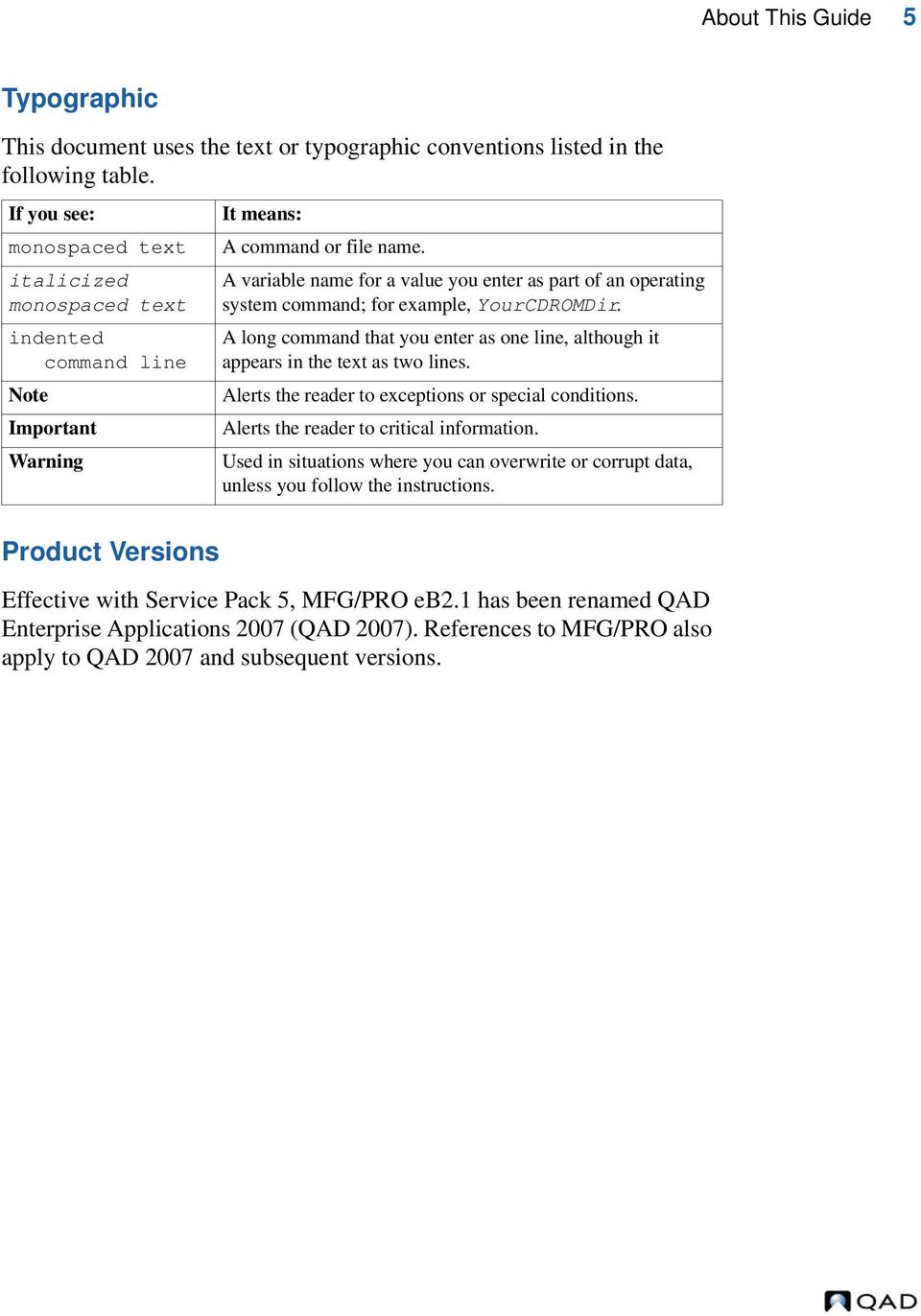
11 About This Guide 5 Typographic This document uses the text or typographic conventions listed in the following table. If you see: monospaced text italicized monospaced text indented command line Note Important Warning Product Versions It means: A command or file name. A variable name for a value you enter as part of an operating system command; for example, YourCDROMDir. A long command that you enter as one line, although it appears in the text as two lines. Alerts the reader to exceptions or special conditions. Alerts the reader to critical information. Used in situations where you can overwrite or corrupt data, unless you follow the instructions. Effective with Service Pack 5, MFG/PRO eb2.1 has been renamed QAD Enterprise Applications 2007 (QAD 2007). References to MFG/PRO also apply to QAD 2007 and subsequent versions.
12 6 Technical Reference QAD Mobile Field Service

13 Chapter 1 QAD Mobile FS Overview QAD Mobile Field Service (QAD Mobile FS) is a set of programs to enable engineers and technicians to review and create data in the field using PDAs or laptops. This chapter summarizes the product deployment, installation, use, and administration. QAD Mobile Field Service Overview 8 Installing QAD Mobile FS 8 Deploying QAD Mobile FS 9 Using QAD Mobile FS 12

14 8 Technical Reference QAD Mobile Field Service QAD Mobile Field Service Overview This guide covers the installation, use, and administration of the QAD Mobile Field Service product (QAD Mobile FS). QAD Mobile FS lets field engineers or technicians access and enter service call information remotely from devices such as a personal digital assistant (PDA) or laptop. QAD Mobile FS is a store-and-forward application. Users run the application on mobile devices independent of a connection to a central server. This requires periodic synchronization of the client and server data stores. QAD Mobile FS remote access and updates let field personnel: Review and update assigned calls. Create new calls. Report call activity. Order spare parts and parts to use for a call. This book is divided into two sections: installation and user information. The installation section covers server and client installs. User information describes the use of the QAD Mobile FS application and details the data flow between MFG/PRO and QAD Mobile FS. Installing QAD Mobile FS QAD Mobile FS assumes a production installation of MFG/PRO and the QXtend Inbound product. For more information on these installations, see the installation guide for your MFG/PRO version and Technical Reference: QXtend Inbound. Additional components that must be installed are: ODBC Driver. The ODBC driver exposes MFG/PRO APIs to enable access to MFG/PRO. OneBridge Server. This product ensures the currency of the mobile application and provides the means of synchronizing programs and data between the host and the clients. OneBridge Windows Client. QAD Mobile FS runs the OneBridge client to synchronize data from MFG/PRO to the client database. It is also used to transfer QDocs from the client to the OneBridge Server.

15 QAD Mobile FS Overview 9 Deploying QAD Mobile FS QAD Mobile FS is a set of field service programs installed to field devices. It requires the MFG/PRO Service/Support Management module (SSM) as the base application. SSM serves as the source of QAD Mobile FS data and the target for QAD Mobile FS updates. Between the QAD Mobile FS field devices and the MFG/PRO SSM server is a synchronization server. The synchronization server delivers the QAD Mobile FS application and application updates to the field devices. It also synchronizes the MFG/PRO server and the field device data. Note On a Windows platform, the MFG/PRO server and synchronization server could be installed on the same physical machine. However, since the OneBridge synchronization server only runs on Windows, two machines are required when MFG/PRO is running in a UNIX environment. The software required to synchronize the data are OneBridge server, the Progress ODBC driver, and QAD s QXtend Inbound. On the client, the OneBridge client and the QAD Mobile FS application are required. Field Devices Synchronization Server MFG/PRO SSM Server Fig. 1.1 QAD Mobile FS Architecture Launch Sync Connection created OneBridge Server QXtend Inbound Server OneBridge Client QAD Mobile FS Client QDocs New/updated calls CARs Part orders MFG/PRO SSM Client Database Progress ODBC Driver Database queries MFG/PRO Database Update client database with new and modified records

16 10 Technical Reference QAD Mobile Field Service During a synchronization, the QAD Mobile FS client on the device first generates data to be sent to MFG/PRO of any new or changed calls, call reports, or parts orders. This data is formatted as QDocs. The OneBridge server checks the directory on the mobile device for updated QDocs. When these are found, they are moved to a directory on the MFG/PRO server that QXtend Inbound has been configured to monitor. QXtend Inbound then updates the appropriate tables in the MFG/PRO database with changes made on the device. OneBridge then runs SQL queries to identify MFG/PRO data needed for QAD Mobile FS client. OneBridge compares the MFG/PRO data with the client database based on previous sync history. It then rebuilds each table on the client with the data that should be there. The ODBC driver allows read access to MFG/PRO so that OneBridge can retrieve the data it needs to check for changes. Note Because data is brought to MFG/PRO from the device first, data coming back from MFG/PRO in most cases will include changes from the device. However, it is possible that because of network traffic or bandwidth problems, not all the data will be updated in MFG/PRO before it is sent to the device. In this case it may be necessary to repeat the synchronization. OneBridge The OneBridge server is a third-party product that provides connectivity and synchronization between data servers such as MFG/PRO SSM and field devices such as Windows Mobile-based PDAs or laptops. The OneBridge server provides the following services for QAD Mobile FS: Establishing connectivity between devices and the SSM server Authenticating users during synchronization Moving QDocs from the device to a directory queue on the synchronization server Maintaining filters and selection criteria for SSM server data The filtering ensures, for example, that field engineers only receive calls assigned to them, and that the call status on those calls is not closed, cancelled, or hold.

17 QAD Mobile FS Overview 11 QDocs Data sent from the field devices to the MFG/PRO server or other destinations is managed using the QAD QXtend Inbound product. QXtend Inbound provides a Web- and network-assured means of importing data to MFG/PRO from other applications. The data document that is imported is a proprietary, XML format called a QDoc. See Technical Reference: QXtend Inbound for more detailed information. Four QDocs templates are required for QAD Mobile FS: maintaincall maintainmaterialorder recordcallactivity mfgauthentication The actual QDoc file name is built from a three-digit number that uniquely identifies the device or engineer, plus a five-digit incremental number that identifies the QDoc. This numbering scheme ensures that all records imported from field devices are unique. The QDocs in turn receive a response from MFG/PRO. These have the same file name, but have an extension of.ok for a successful transmission,.err for an error, or.wrn for a warning, depending on the processing result. The response documents are stored in the \response directory of the QXtend Inbound queue manager. Client Components Two client components are installed on the device: a QAD Mobile FS client and a OneBridge client. The components required to create the client database are included with the QAD Mobile FS client. QAD Mobile FS runs the OneBridge client to synchronize data from MFG/PRO to the client database. It is also used to transfer QDocs from the client to the OneBridge Server.

18 12 Technical Reference QAD Mobile Field Service Using QAD Mobile FS The production MFG/PRO application serves as the source database and application for your service and support operations. Additional tables and several additional programs in MFG/PRO are required to support QAD Mobile FS. Each user must be configured in QAD Mobile User Maintenance ( ). You can use QAD Mobile FS from either a pocket PC (PDA) or laptop. The user interface is almost identical on both types of devices. The chapter on using QAD Mobile FS includes a description of the differences. See Differences on Pocket PCs on page 82. See Define QAD Mobile FS Users in MFG/PRO on page 60. Set Up QAD Mobile FS Data Before beginning synchronization with devices, each device user must be defined in MFG/PRO using QAD Mobile User Maintenance ( ). Settings in this program are used to authenticate the device user and also determine how data is replicated and updated on the device. Admin settings are also provided on the device. Before you can begin the synchronization process, you must define settings such as the Windows domain for log on. Perform an Initial Synchronization The initial synchronization validates user credentials and creates a local database on the device that contains records related to each engineer. After the initial sync, users can perform full or partial synchronizations to keep the device up-to-date and send data back to MFG/PRO. See Perform Initial Full Sync on page 70. View and Update Calls When calls are entered in Call Maintenance ( ) in MFG/PRO, field personnel can launch QAD Mobile FS, synchronize with the server, and view a listing of the calls assigned to them and then drill down to see additional call detail. Calls of one line can also be created in the device.

19 QAD Mobile FS Overview 13 The call listing is sorted by customer end user, service item, severity, and call ID number. The field engineer can make limited updates to existing calls on the device and create new calls if necessary. They can reassign the engineer and modify call status, service items, and work codes. However, they cannot add call lines or change the call ID. See Creating and Updating Calls on page 85. Report Call Activity After the field work is completed, the engineer records the activity on the call. Reporting includes labor hours, expenses, inventory and service parts, parts returned, and any relevant notes. The next time the field device is synchronized with the server, the call activity is reported back to MFG/PRO. See Reporting Call Activity on page 91. Order Parts Field engineers can also enter parts orders for required parts. When the device is synchronized with the server, the order is created in MFG/PRO. Service parts can be shipped to either the call end user address or to the field engineer; inventory parts can only be shipped to the field engineer. See Ordering Parts on page 99. Synchronization Data Flow Data may originate at either the SSM server or the field device. The synchronization process is initiated at the client device. It proceeds through the following steps: 1 Launch synchronization in the QAD Mobile FS application. 2 The user is authenticated. The user must be a valid user on the sync server. They must also be a valid MFG/PRO user. The validation is done through the OneBridge software. 3 Send new or updated calls, call activity reports (CARs), and parts orders from the device to SSM. Each record on the device is checked and sent or resent if one or more fields have changed on the record.

20 14 Technical Reference QAD Mobile Field Service The import of data documents into MFG/PRO is accomplished using QAD s QXtend Inbound product. 4 Process records from device on the SSM server. Record ID numbers are changed or accepted: Temporary ID numbers may be given to calls and parts orders created on the field device based on implementation setup. When these records are synchronized, they are given permanent ID numbers in SSM. If they are synchronized back to the device for example, when the call remains assigned to the originating field engineer the permanent ID appears on the device and cannot be modified. When permanent ID numbers are given on the device, these are accepted as is in SSM. Time zones are entered: If multiple time zones (MTZ) is turned on in SSM, data is entered in the device end user s time zone and displays in that time zone on the device and in MFG/PRO after synchronization. 5 Send new and updated calls or orders from SSM to the device. CARs are not sent from SSM to the device. The calls and orders to be synchronized are determined by the SQL queries in OneBridge. Conflicts in data are handled on a field-by-field basis. Static data is assumed to be more correct on the server and is, therefore, overwritten on the device. Transactional data related to service activity is assumed to be more reliable in the field device and this data is left on the device as is. The server will eventually be updated with the device data when the QDoc is processed. The export of data documents from SSM is accomplished using the ODBC driver. 6 Update the device database. Calls are deleted from the device database if: The status is cancel, complete, close, or hold. The call is reassigned to another engineer. Calls are updated: With new calls originating in SSM assigned to the field engineer

21 QAD Mobile FS Overview 15 With new call information With the permanent call ID for calls originating on the device when temporary IDs are assigned With service item coverage information (if no service item change occurred on the device call) Parts orders are deleted if: All quantities are consumed in call activity recording. The associated call is reassigned to another engineer. Parts orders are updated: With new orders originating in SSM assigned to the field engineer With new order information With the permanent order ID for orders originating on the device when temporary IDs are assigned
22 16 Technical Reference QAD Mobile Field Service
23 Section 1 Installing QAD Mobile FS This section covers the QAD Mobile FS installation. QAD Mobile FS Requirements 19 Installing QAD Mobile FS Components 27 Setting Up QAD Mobile FS 57
24 18 Technical Reference QAD Mobile Field Service
25 Chapter 2 QAD Mobile FS Requirements This chapter provides system requirements and software prerequisites for the QAD Mobile FS server and clients: General Requirements 20 MFG/PRO Database Server 20 Synchronization Server 21 Client Devices 22 Network Requirements 24 Unicode Requirements 24
26 20 Technical Reference QAD Mobile Field Service General Requirements Before installing QAD Mobile, Progress, MFG/PRO, and QXtend Inbound must be installed correctly. The Progress install for each platform may include UNIX kernel changes and patches. MFG/PRO Database Server The database server contains Progress, MFG/PRO, and Progress Client Networking. The requirements listed are only for the incremental QAD Mobile FS requirements beyond those of Progress and MFG/PRO. Hardware Requirements 1 MB of free disk space High-speed 100 Mbps network card ISO9660 CD-ROM 2 disk controller channels (minimum) Software Prerequisites Operating system patches. Progress 9.1D, Service Pack 5 or later, Progress 9.1E, with Client Networking and SQL-92 Client Access, or OpenEdge 10.1A or later. If you are using MFG/PRO eb2.1 Service Pack 4 or later, you must install OpenEdge 10.1A or later. MFG/PRO eb2 at any service pack level, MFG/PRO eb2.1, Service Pack 3 or later, QAD 2007, or QAD QXtend Inbound version or later (1.4 or later to support Unicode). This maintenance release of QXtend Inbound includes some updates that are required by QAD Mobile FS 2.0. Since the MFG/PRO database must allow Progress 4GL and SQL client access, you may need to change your database startup scripts. See Update MFG/PRO on page 30.
27 QAD Mobile FS Requirements 21 Upgrading MFG/PRO after Installing QAD Mobile If you decide to upgrade your underlying version of MFG/PRO after installing QAD Mobile, you will need to take special steps to preserve the data set up in the MFG/PRO database. The exact steps you need to take vary depending on the specific upgrade path you choose. See Upgrading MFG/PRO After Installing QAD Mobile FS on page 52 for details. Before beginning such an upgrade, contact QAD Support for specific instructions relevant to your implementation. Synchronization Server The synchronization server is a Windows machine that contains the OneBridge server and the ODBC driver client. QXtend Inbound can reside either on this machine or the database server. However, QAD recommends it reside on the database server to have more direct access to the MFG/PRO code and database. Important Review the QXtend Inbound and ODBC driver documentation for version-specific requirements. Hardware Requirements Pentium III, 1 GHz minimum processor or higher server-class machine faster processor (2 GHz recommended) is required for larger installations. Dual processors enhance performance. A server-class machine that supports industry standards for hard drive redundancy/fail-over with sufficient storage space. Memory: 512 MB for up to 250 users (1 GB recommended), 1 GB for users, 2 GB for users. Application disk space: 3 GB for 100 users, 15 GB for 500 users, 30 GB for 1000 users. Data/log storage: GB. TCP/IP LAN connection.
28 22 Technical Reference QAD Mobile Field Service Supported Operating Systems Windows Server 2003 Windows 2000 Server with Service Pack 2 or higher Windows NT Server 4.0 with Service Pack 6a or higher Additional information is available from ianywhere regarding failover/redundancy provision and layering/clustering of multiple synchronization servers and/or database sync adapters. A single machine with the above recommendations should support up to 1000 users with 10% concurrency. Software Requirements Sybase ianywhere OneBridge Mobile Data Suite 5.5. ODBC driver. The Progress SQL-92 ODBC driver for Progress Version 9 is purchased separately. Progress OpenEdge 10 ODBC driver ships with the OpenEdge 10 product. Obtain OneBridge Mobile Data Suite 5.5 Perform the following steps to obtain OneBridge Mobile Data Suite 5.5: Run OneBridge\omds.exe from the QAD MObile FS CD to install OneBridge Mobile Data Suite. For installing OneBridge server and client components, see Install OneBridge Sync Server Files on page 36 and Install Client Components on page 47. Client Devices There are two possible types of client devices: Pocket PC PDA Personal computer, such as a laptop
29 QAD Mobile FS Requirements 23 Hardware Requirements PDA 624 MHz or faster processor 64 MB or more of RAM The QAD Mobile FS application and database requires 3 4 MB in storage, and an additional 3 4 MB in resources when executing. For supported Pocket PC devices, see the following Web sites: ianywhere ( Laptop Intel Pentium (or compatible) processor Minimum OS required disk space and memory Software Requirements PDA Windows Mobile 2003 Second Edition or Windows Mobile 5 operating system Sybase ianywhere OneBridge Windows CE Client version 5.5 Microsoft.NET Compact Framework 2.0 Service Pack 2 Microsoft SQL Server 2005 Compact Edition QAD Mobile FS Microsoft ActiveSync (if installing from a connected PC) You can download the latest ActiveSync version for no charge from the Microsoft download center: Laptop Windows XP operating system Sybase ianywhere OneBridge Windows Client version 5.5
30 24 Technical Reference QAD Mobile Field Service Microsoft.NET Framework 2.0 QAD Mobile FS Network Requirements Set up your network to support Progress networking specifications. See the Progress Networking Guide for details. Minimum requirements for QAD Mobile FS are: 10 Megabit (Mb) Ethernet or faster network Proper NFS access from the sync server to the QXtend Inbound server is also needed for file transfers. A single user must have administrative rights to run the OneBridge service on the synchronization server and access to the QXtend Inbound queue directory on the QXtend server. Unicode Requirements The Unicode environment requires Unicode enabled versions of other products that QAD Mobile FS works with. The minimum requirements of all products for the Unicode support are as follows: The QAD MFG/PRO version you use must support Unicode. QAD QXtend Inbound 1.4 Perform the following configurations: To support Unicode, append the following parameters to the command starting a QXtend session: -ucc -cpinternal UTF-8 -cpterm UTF-8 On the Tomcat server where QXtend Inbound resides, include the following values for the server CATALINA-OPTS option: -server -Djava.awt.headless=true -Dfileencoding=utf-8 ODBC driver for OpenEdge 10.1A SP2 Sybase ianywhere OneBridge Mobile Data Suite
31 The latest release of OneBridge does not support Unicode. As an alternative, on the synchronization server, set the default of the Windows system language as the language you intend to use with QAD Mobile FS. QAD Mobile FS Requirements 25
32 26 Technical Reference QAD Mobile Field Service
33 Chapter 3 Installing QAD Mobile FS Components QAD Mobile FS is a set of programs to enable engineers and technicians to review and create data in the field using PDAs or laptops. This chapter describes installation of those components required to connect and synchronize the field devices with the MFG/PRO SSM server. Overview 28 Install and Configure QXtend Inbound 28 Update MFG/PRO 30 Install Progress ODBC Driver 32 Install OneBridge Sync Server 36 Install Client Components 47 Complete the Setup 52 Upgrading MFG/PRO After Installing QAD Mobile FS 52 Security Setup 53
34 28 Technical Reference QAD Mobile Field Service Overview See page 57. This chapter guides you through the steps required to install and configure QAD Mobile FS. After completing these steps, you must then set up data required by the application before you can sync the devices and begin to use the product. These additional steps are described in Chapter 4. This chapter covers the following steps: Configure QXtend Inbound to recognize the QDocs needed to pass information from the device to MFG/PRO. Update MFG/PRO by loading schema and data files, compiling code, and loading field help. Note This is not needed for MFG/PRO eb2 Service Pack 12 or later, QAD 2007, or QAD Install the required ODBC driver. Install the OneBridge Sync Server product. Install the required components on the client devices. Install and Configure QXtend Inbound 1 Install QXtend Inbound following the QXtend Inbound installation instructions as detailed in Technical Reference: QXtend Inbound. 2 Access the QXtend Manager at: 3 Use the QXtend Connection Pool Manager to set up a connection pool for QAD Mobile FS following the QXtend Inbound instructions. 4 Copy the following QXtend QDoc schemas and events file from the \Server\QXtend\Template directory on the QAD Mobile FS CD into a folder on a PC that has browser access to the QXtend UI: mfgauthentication-eb2_1.xsd authenticationtype-eb2_1.xsd utauth.xml
35 Installing QAD Mobile FS Components 29 5 From the QXtend Configuration Manager, choose Schemas and then choose Add to add mfgauthentication as a custom schema. Enter the following values in the Add Schema screen: Request Path: mfgauthentication-eb2_1.xsd Request Type Path: authenticationtype-eb2_1.xsd Response Path: Leave blank Response Type Path: Leave blank Events Path: utauth.xml Direction: in Route: UI API Adapter Procedure: utauth.p 6 In the Configuration Manager screen, choose Receivers and set up an MFG/PRO receiver that supports the following QDocs: maintaincall maintainmaterialorder recordcallactivity mfgauthentication 7 Copy the following events files from the \Server\QXtend\mfgpro_version directory on the QAD Mobile FS CD to the WEB-INF\events\mfgpro_version folder within your QXtend Inbound install directory, overwriting the existing files: fscarmt.xml fscamt.xml 8 Use the QXtend Queue Manager to set up a queue for QAD Mobile FS. The \requests directory must be accessible by the user who starts the OneBridge service on the sync engine Windows server. 9 Restart the QXtend Inbound server.
36 30 Technical Reference QAD Mobile Field Service Update MFG/PRO You must complete two steps to configure MFG/PRO for use with QAD Mobile FS: Load schema and data files (not required for MFG/PRO eb2 SP11) and compile code. Load field help for the new MFG/PRO program. Update MFG/PRO Databases In the following steps, use Progress tools to load new schema and data files and compile installed code. Refer to the Progress documentation for details. 1 Modify any MFG/PRO database startup scripts to use the Progress proserve command instead of _mprosrv. This allows database access from the Progress ODBC driver. See your Progress Database documentation on how to improve performance of SQL clients by starting multiple servers to support SQL client access. 2 Skip this step if you are using MFG/PRO eb2, Service Pack 11. Load the QADMobile.df schema file from the \MFGPRO\DBdef\mfgpro_version directory on the QAD Mobile FS CD into your MFG/PRO production database (qaddb). 3 Load the lbld_det.d, lbl_mstr.d, and pgmi_mst.d data files from the \MFGPRO\mfgpro_version\data directory on the QAD Mobile FS CD into your MFG/PRO administration database (qadadm). 4 Load the remaining table.d data files from the \MFGPRO\mfgpro_version\data directory on the QAD Mobile FS CD into your MFG/PRO production database (qaddb). 5 Install and compile the programs from the \MFGPRO\mfgpro_version\YourSP directory on the QAD Mobile FS CD to a \qadmobile directory in your MFG/PRO PROPATH: Note The PROPATH for QXtend Inbound connections must also include this new \qadmobile directory.
37 Installing QAD Mobile FS Components 31 6 From the Progress SQL Explorer, connect to the MFG/PRO database and execute the following SQL command: grant select on pub.mfsd_det to public; commit; Load Field Help Perform the following steps to add new procedure and field help to the MFG/PRO help database: 1 Log in to MFG/PRO. 2 Choose the Field Help Load ( ) menu option. 3 Leave Field, Procedure, Status, and Text Type blank. 4 Complete the other fields: Enter an appropriate two-letter code, such as US for US English. In the Load File field, enter: QADMobileInstallDir/MFGPRO/mfgpro_version/data/ qadmobilefs.fhd In the Skip loading help with lower status field, enter Yes. 5 Press Go to start the loading. 6 Exit Field Help Load when the load is finished. 7 Skip this step if you are using MFG/PRO eb2.1 or later. Use User Maintenance ( ) to update user profiles to access character-format help. a b c Leave User ID blank; this updates the profile for all users who do not have individual profiles. Press Go. To set the profile for character-format help, ensure that WinHelp is cleared. Press Go to save the changes.
38 32 Technical Reference QAD Mobile Field Service Install Progress ODBC Driver The Progress ODBC driver allows the MFG/PRO database to communicate with the field devices. The following steps assume that you are installing the Progress SQL-92 ODBC driver. 1 You can optionally add an entry for the ODBC driver to your services file, located at C:\winnt\system32\drivers\etc. You can also reference the port number directly in step 4. 2 Open the Windows Control Panel and select Admin Tools. Launch the Data Sources program and select the System DSN tab.
39 Installing QAD Mobile FS Components 33 3 Click Add. In the Create a New Data Source screen, select the MERANT driver. 4 Click Finish. Enter the values as shown in the following graphic and field descriptions. Data Source Name. Enter a name to identify this connection record. This name can be used to distinguish connection records when using multiple MFG/PRO databases or to distinguish domains within an MFG/PRO eb2.1, QAD 2007, or QAD 2008 database. Description. Specify a description of the data source. Host Name. Enter the server machine name where MFG/PRO is located.
40 34 Technical Reference QAD Mobile Field Service Port Number. If you updated your services file in step 1, enter the service reference. Otherwise, enter the specific port number. Database Name. Specify the physical MFG/PRO database you are connecting to. User ID. Leave this field blank. The system will get the user ID from the connection string of the database adapter that you specify later. For information about specifying the database adapter, see Configure OneBridge Sync Server on page Click the Advanced tab and modify the following field. Default Isolation Level. Select READ UNCOMMITED to set read-only access to database. 6 Make sure the MFG/PRO source database is running. 7 Choose Test Connect. The log-in screen displays with the connection information displayed. 8 Enter proper MFG/PRO user ID and password, and click OK. A message indicates the connection status. 9 Click OK to display the ODBC Database Administration console.
41 Installing QAD Mobile FS Components 35 ODBC Connection Security To secure the ODBC connection when you set up the ODBC data source on the synchronization server, do not use an administrative account for the ODBC connection. Instead, create a specific database account that is granted with the SELECT privilege on the following QAD tables. The tables are only those required for data exchange with QAD Mobile FS. Note Once a user is set up in the Progress database, any client accessing the database must provide a user ID and password, including MFG/PRO clients. You can use the following sample SQL script to create the database account: create user 'mfg', ''; grant select on pub.ca_mstr to mfg; grant select on pub.itm_det to mfg; grant select on pub.svc_ctrl to mfg; grant select on pub.so_mstr to mfg; grant select on pub.sod_det to mfg; grant select on pub.sad_det to mfg; grant select on pub.cmt_det to mfg; grant select on pub.eu_mstr to mfg; grant select on pub.ad_mstr to mfg; grant select on pub.fsd_det to mfg; grant select on pub.ld_det to mfg; grant select on pub.isb_mstr to mfg;
42 36 Technical Reference QAD Mobile Field Service grant select on pub.ib_det to mfg; grant select on pub.code_mstr to mfg; grant select on pub.fsc_mstr to mfg; grant select on pub.cas_mstr to mfg; grant select on pub.fwk_mstr to mfg; grant select on pub.eng_mstr to mfg; grant select on pub.fpst_mstr to mfg; grant select on pub.sv_mstr to mfg; grant select on pub.opm_mstr to mfg; grant select on pub.mfsd_det to mfg; grant select on pub.pt_mstr to mfg; commit; Install OneBridge Sync Server The user account that starts the OneBridge service should have full administrative access to the sync engine server and the QXtend \requests directory. Note QAD provides a serial number for OneBridge. This license allows you to use the required OneBridge Mobile Data Suite components. Install OneBridge Sync Server Files 1 Run OMDSCDDir\Server\Setup.exe to install the Sync Server, where OMDSCDDir is the folder where you saved the OneBridge Mobile Data Suite 5.5 CD files. See Obtain OneBridge Mobile Data Suite 5.5 on page Review and accept the defaults for each of the prompts to install the server. Note the installation directory; you specify it during other installation and configuration steps. Note The Notes/Exchange Adapters and Listeners are not needed for QAD Mobile. You do not need to run any of the Sync Wizards during the OneBridge server installation. The configuration data supplied with QAD Mobile FS provides the required information. Important Do not start the OneBridge service when prompted at the end of the installation.
43 Installing QAD Mobile FS Components 37 3 Optionally install the Client Deployment Wizard if you intend to use Windows Mobile 2003 Second Edition or Windows Mobile 5 devices. 4 Run setup.exe from the \Server\Setup directory on the QAD Mobile FS CD. Accept the default directory locations. The install directory should be the OneBridge server directory; for example: C:\Program Files\Extended Systems\OneBridge Sync Server Set Up Authentication Configuration 1 From the OneBridge server installation \bin directory, run QADMobileConfig.exe to set up the authentication configuration. The QAD Mobile Configuration console displays. 2 Click Add to create a new data source. Enter your environment settings using the following field descriptions: QAD Mobile Root Directory. Enter the root directory where QAD Mobile is installed. QXtend Options QXtend Version. Choose the QXtend version you are using.
44 38 Technical Reference QAD Mobile Field Service Data Source. For MFG/PRO eb2, enter the database name you will configure in the OneBridge database adapter later; for MFG/PRO eb2.1 or later, enter the MFG/PRO domain name. Server URL. Enter the QXtend Inbound server URL. Note Do not include \services\qdocwebservice. Receiver. Enter the Receiver name set up in QXtend Inbound. Requests Directory. Enter the requests directory set up in QXtend Inbound. See Technical Reference: QXtend Inbound for detailed information on configuring QXtend Inbound. QDoc Envelope Settings Sender ID. This identifies the QDoc source application. It is defined as a URL so that future QAD product releases can more easily use Internet-based industry standards for organizational identification. Most of the URL is not yet used; however, at a minimum the Sender ID must include the sender parameter. To specify this field, you can copy the Sender ID set up in QXtend Inbound. Receiver ID. This identifies the QDoc recipient, which is by definition an MFG/PRO instance. It is defined as a URL so that future QAD product releases can more easily use Internet-based industry standards for organizational identification. Most of the URL is not yet used; however, at a minimum the Receiver ID must include the receiver parameter. To specify this field, you can copy the Receiver ID set up in QXtend Inbound. Template Location. Specify the path of the QDoc envelope template file. If this field is blank, the default EnvelopTemplate.xml template is used. The default template is under the \Bin folder of the OneBridge installation directory. The template will be populated with data sent from QAD Mobile FS for synchronizing with the MFG/PRO database.
45 Installing QAD Mobile FS Components 39 Add Envelope by QXI. If selected, QDoc envelops will be added by QAD QXtend Inbound. When you select this field, make sure the Add Envelope option in QXtend Queue Manager is also selected. By default, this field is selected. For the purpose of tracking user activities in the MFG/PRO database, it is recommended to keep this option unselected. For more information, see QDoc Envelope Configuration on page 54. Click Save to save the settings and the data source name appears in the Data Source List. You can select a data source from the list to modify its settings. To delete a data source, select it from the list and click Delete. 3 Enable MFG/PRO Authentication if you want. Configure OneBridge Sync Server 1 Copy QADMobileFS.xcf from the QAD Mobile FS CD to Data\Config Data in the OneBridge installation folder. 2 Launch OneBridge Sync Admin and select QADMobileFS.xcf as the configuration file from the More Files... option. The OneBridge Sync Admin screen displays. 3 Right-click Database Adapters Database Adapter under the Connect Configuration General folder and select Configure to configure the Database Adapter. Answer Yes when prompted to start the OneBridge service.
46 40 Technical Reference QAD Mobile Field Service Note If you installed the OneBridge sync server using a port other than the default 80, you must first change the Database Adapter to use your new port also. To do this, enter your port number for the adapter and then continue with the MFG/PRO database updates. 4 Right-click QADDB under Database Adapter and select Configure to configure the database adapter for your MFG/PRO database. The Database window displays. 5 Edit the database connection to point to the MFG/PRO database. a b In the Display Name field, enter the same database or domain name you entered as data source in the QAD Mobile Configuration console when you set up the authentication configuration. In the Connection String field, specify the parameters that are used to connect to the ODBC data source for the MFG/PRO database, which you set up previously.
47 Installing QAD Mobile FS Components 41 Do not use an administrator account in the connection string. For more information, see ODBC Connection Security on page 35. Provider=MSDASQL.1;Password="<Password>";Persist Security Info=True;User ID=<userID>;Data Source= <datasource> Note When leaving the Database Adapter dialog, answer No when prompted to check the System Variable Table. Answer Yes when prompted to force a full synchronization. 6 If you are configuring the sync server to synchronize with multiple MFG/PRO databases, right-click Database Adapter and select New Database Connection to add a database connection and repeat step 4 to configure it for each MFG/PRO database. 7 Expand the Action Sets folder to view action sets. For Windows Mobile-based devices, action sets are located under the Connect Configuration Windows CE Connection Action Sets folder; for laptops, action sets are located under the Connect Configuration Windows Connection Action Sets folder in the configuration tree. 8 Edit database sync actions under these action sets.
48 42 Technical Reference QAD Mobile Field Service MFG/PRO Release Mobile Device Action Sets Laptop Action Sets MFG/PRO eb2 MFG/PRO eb2.1, QAD 2007, QAD 2008 SQLCEStaticEB2 SQLCETransactionEB2 SQLCEControlEB2 SQLCEStaticDom SQLCETransactionDom SQLCEControlDom To Edit a database sync action: Win32StaticEB2 Win32TransactionEB2 Win32ControlEB2 Win32Static Win32Transaction Win32Control a b Right-click the database sync action under the action set and select Configure. The Database Sync Action window displays. Click the Configure button. c The Database Sync Action Data Source window displays. Select the database adapter and click Edit.
49 Installing QAD Mobile FS Components 43 d The Edit Data Source window displays. Change the Display Name to the data source you configured for the MFG/PRO database in the previous steps. Click OK when finished. e Repeat steps a through d for each action you need to configure. 9 If you are configuring the sync server to synchronize with multiple MFG/PRO databases, duplicate the following action sets and repeat step 7 to edit the new action sets. To duplicate an action set, click it and select Duplicate. A copy of the action set appears at the bottom. MFG/PRO Release Mobile Device Action Sets Laptop Action Sets MFG/PRO eb2 MFG/PRO eb2.1, QAD 2007, QAD 2008 SQLCEStaticEB2 SQLCETransactionEB2 SQLCEControlEB2 SQLCEStatic SQLCETransaction SQLCEControl Win32StaticEB2 Win32TransactionEB2 Win32ControlEB2 Win32Static Win32Transaction Win32Control
50 44 Technical Reference QAD Mobile Field Service 10 Expand the Connect Configuration General Groups folder to view user groups. For MFG/PRO eb2, the group is QADMobileEB2; for MFG/PRO eb2.1 and later, the group is QADMobile. 11 If you are configuring the sync server to synchronize with multiple MFG/PRO databases, create a group for each MFG/PRO database by right-clicking the existing group and selecting Duplicate. The new group appears at the bottom. 12 Configure the new groups you created. a b Right-click the group and select Configure. The Group Properties window displays. Click on the Triggers tab to display triggers.
51 Installing QAD Mobile FS Components 45 c Modify the following triggers to hold the new action sets. Mobile Devices SQLCEStatic SQLCETransaction SQLCEControl Laptops Win32Static Win32Transaction Win32Control To modify a trigger, select the trigger and click Edit; then select the correct action set in the Modify Trigger window. Click OK to save. d Repeat steps a through c for each group you created. 13 Right-click Authentication on the configuration tree, select New, and then click Windows NT Authentication. The Windows NT Authentication window displays. Select a user group and click Add to set up authentication for sync users. If you are using MFG/PRO eb2, select QADMobileEB2 in the OneBridge Group drop-down list; if you are using MFG/PRO eb2.1 or later, select QADMobile.
52 46 Technical Reference QAD Mobile Field Service 14 Double-click Variables under the Connect Configuration General Server Settings folder and verify the variables. SERVER_APP_PATH should be the QAD Mobile FS file location on the server to hold user files transferred back and forth. SERVER_DRIVE should be the drive location where QAD Mobile FS was installed.
53 Installing QAD Mobile FS Components 47 CLIENT_APP_PATH should be the QAD Mobile FS file location on the client where the application is installed. CLIENT_DRIVE should be the drive location for the Windows QAD Mobile FS client. Note These values are set during installation and typically do not need to be changed. 15 Restart the OneBridge service using File Restart Service. 16 If you are using mobile devices, run the Client Deployment Wizard to create a deployment executable. This file is then copied to a laptop and used to install required updates on client devices, as described in Install on Device from a Laptop on page 49. See the OneBridge documentation for details about using the Client Deployment Wizard. Install Client Components The steps you take to install components on your devices depend on whether you are using laptops or PDAs. Choose the appropriate section. Install Client Components on Laptops Install Microsoft.NET Framework 2.0 on a Laptop Run \Redistribute\Microsoft.NET\dotnetfx.exe from the QAD Mobile FS 2.0 CD to install Microsoft.NET Framework 2.0. Install the OneBridge Client on a Laptop 1 Copy the OneBridge Mobile Data Suite 5.5 files from the QAD Mobile FS CD to the client machine and run \Clients\Windows\Setup.exe to install the OneBridge Windows Client. 2 When prompted for server-to-server synchronization, click No. Then when prompted to continue with loss of client data on initial sync, click Yes.
54 48 Technical Reference QAD Mobile Field Service 3 From the start menu, choose Programs Extended Systems OneBridge Windows Client. 4 Select Server on the Settings menu. Enter SyncServerName and PortNumber. Choose Close. 5 Select Connect to accept the public key and retrieve an action list from the server. Enter your credentials when prompted. 6 Choose Options Exit. Note See OneBridge documentation for details on installing OneBridge Client. Install the QAD Mobile FS Client on a Laptop 1 Run Client\Installation.exe from the QAD Mobile FS CD. 2 Choose QAD Mobile FS 2.0 Client for Windows and click Install Now. 3 The QAD Mobile FS client for Windows Setup screen displays. Follow the on-screen instructions to complete the installation of QAD Mobile FS client. 4 Continue with the activities described in Set Up Client Devices on page 68. Install Client Components on Pocket PC Devices Your can install components on a pocket PC device in two ways: Use ActiveSync to connect to a laptop and install from the laptop to the device. This method assumes you created a deployment executable as described in step 16 on page 47. Use the device to download files from an intranet or Internet site and install them locally. QAD recommends the first approach because it is the most straightforward. However, the other approach is documented in case it is needed.
55 Installing QAD Mobile FS Components 49 Install on Device from a Laptop Prior to running these steps, make sure ActiveSync is working on the client device. Then, connect the client device to a local PC that is connected to the company network and make sure ActiveSync establishes a connection with the device. The following steps involve installing several components to a working directory on the PC, then copying them them to the device. Install the OneBridge Client 1 Make sure that you completed step 16 on page 47 to create an executable with the Client Deployment Wizard and that you downloaded it from the server to a working directory on your local PC. These steps assume the executable is named setup.exe. 2 From the working directory on your local PC, launch setup.exe to install the OneBridge client files on the device. Enter credentials of the user associated with the device and follow the prompts to complete the installation. Note See OneBridge documentation for details on installing OneBridge Client. 3 Copy the data driver XDBOleCE from the OneBridgeSyncSvrInstallDir\Bin\DataDrivers directory to either the \windows directory or the OneBridge Client installation directory on your device, where OneBridgeSyncSvrInstallDir is the OneBridge Sync Server installation directory on the synchronization server. 4 From the start menu on the device, choose OneBridge. 5 Choose Server on the Settings menu. Accept the default values for the server and port number. Choose Close. 6 Choose Connect to accept the public key and retrieve an action list from the server. Enter your credentials when prompted. 7 Choose Options Exit.
56 50 Technical Reference QAD Mobile Field Service Install the QAD Mobile FS Client 1 Run Client\installation.exe from QAD Mobile FS CD. 2 Choose QAD Mobile FS 2.0 Client for Windows Mobile 2003 or QAD Mobile FS 2.0 Client for Windows Mobile 5.0 depending on your device operating system and click Install Now. 3 At the QAD Mobile FS Client setup welcome and confirmation screens, click Next. 4 Installation of Microsoft.NET Compact Framework 2.0 begins. Wait until the end of the installation. 5 If your mobile device operating system is Windows Mobile 5, you will be prompted on your device to restart the device to complete the installation of Microsoft.NET Compact Framework 2.0. Do not restart now and select Cancel to continue. 6 On your laptop, click OK at the Application Downloading Complete prompt message: Please check your mobile device screen to see if additional steps are necessary to complete this installation. 7 Installation of Microsoft SQL Server 2005 Compact Edition begins. During the installation of its three installation packages, you may see the Application Downloading Complete prompt message on your laptop for three times. Each time, click OK to continue with the installation. 8 QAD Mobile FS client installation begins. When this is complete, the Installation Complete window displays on the laptop. Click Close to close exit. 9 Restart your mobile device to complete the installation. 10 Continue with the activities described in Set Up Client Devices on page 68.
57 Installing QAD Mobile FS Components 51 Install on Device from the Server Complete these steps if your device cannot connect to a PC. These steps assume that a CD image is available on an intranet or Internet site. Follow the steps below to install the two clients. Install OneBridge Client 1 Locate setup.arm.cab on the device using File Explorer and execute it. 2 From the start menu, choose OneBridge. 3 Select Server on the Settings menu. Enter SyncServerName and PortNumber. 4 Select Connect to accept the public key and retrieve an action list from the server. Enter your credentials when prompted. 5 Click OK on the log screen. 6 Choose Options Exit. Install the QAD Mobile FS Client 1 Copy the following files from the \Client\wce400\CABFiles (Windows Mobile 2003) or \Client\wce500\CABFiles (Windows Mobile 5) directory in the CD image to the My Documents folder on your device: NETCFv2.ppc.armv4.cab QADMobile.CAB sqlce30.dev.enu.ppc.wce4.armv4.cab sqlce30.ppc.wce4.armv4.cab sqlce30.repl.ppc.wce4.armv4.cab 2 Execute these files on the device from My Documents. 3 Continue with the activities described in Set Up Client Devices on page 68.
58 52 Technical Reference QAD Mobile Field Service Complete the Setup Continue with the steps outlined in the next chapter to set up data required before you can sync the devices. Upgrading MFG/PRO After Installing QAD Mobile FS When you install QAD Mobile FS 2.0, updates to your database schema may be applied, depending on the release and service pack of your underlying MFG/PRO system. If you later upgrade your MFG/PRO system, you may need to take additional steps to preserve your QAD Mobile data. The steps differ for different upgrade paths. If you are upgrading to MFG/PRO eb2 Service Pack 10 or below, no additional steps are required. However, when you dump/load data to a new database, you must apply the QADMobile.df to the target database. If your upgrade target release is MFG/PRO eb2, Service Pack 11, you must use the following steps to convert the QAD Mobile FS data. Note You can use Progress tools to dump data from a table, drop the table, and load new schema and data files. Refer to the Progress documentation for details. 1 Dump data from the mfsd_det table in your MFG/PRO production database (qaddb) into mfsd_det.d using the dump.sh utility. a b c d Copy the conversion utility files from the /MFGPRO/Conversion directory on the QAD Mobile FS CD to a temporary directory on the UNIX MFG/PRO data server and unset the read-only attribute of the dump.pf and load.pf files. Use a text editor to open the dump.pf file. Replace <MFGPRODatabaseConnectionParameters> with your MFG/PRO database connection parameters and save the file. Use the sample parameters provided in this configuration file. Use a text editor to open the dump.sh file.
59 Installing QAD Mobile FS Components 53 e f g Replace <ProgressInstallDir> with your Progress installation directory path and save the file. Execute the dump.sh program. Check dump.log for errors. The log file is in the directory from which dump.sh was launched. 2 Use Progress tools to load the delta_qadmobile.df delta schema file into your MFG/PRO production database (qaddb) to drop the mfsd_det table and the pt_svc_group index. 3 Load the data you dumped in step 1 (mfsd_det.d) back into the mfsd_det table using the load.sh utility. a b c d e f Use a text editor to open the load.pf file under the temporary directory you created in step 1. Replace <MFGPRODatabaseConnectionParameters> with your MFG/PRO database connection parameters and save the file. Use the sample parameters provided in this configuration file. Use a text editor to open the load.sh file. Replace <ProgressInstallDir> with the Progress installation directory path and save the file. Execute the load.sh program. Check load.log for errors. The log file is in the directory from which load.sh was launched. Security Setup QAD Mobile FS comes with some options to enhance securities. The enhanced security provides the basis for the QAD product to comply with government regulations and international security standards of software computing. For example, the Food and Drug Administration (FDA) of USA imposes a rule relating to the use of electronic records and electronic signatures (21 CFR Part 11), which is a significant legislation to affect the pharmaceutical manufacturing industry.
60 54 Technical Reference QAD Mobile Field Service To satisfy the provisions of 21 CFR Part 11, you need to set up security during QAD Mobile FS installation and implementation. QDoc Envelope Configuration When QAD Mobile FS needs to update SSM, the updates are sent in QDocs to the synchronization server that submits the QDocs via QAD QXtend Inbound. The QDoc document is packaged in a SOAP message. The message has an envelope header that contains the user credentials used to log in to MFG/PRO for data synchronization. QAD recommends you configure QDoc envelope settings in the QAD Mobile FS server extension to OneBridge, so that you can have the synchronization server add envelope headers to QDoc SOAP messages. The envelope header contains information about the user who sends synchronization requests from the QAD Mobile FS client. The client user should be associated with an MFG/PRO user for MFG/PRO authentication. Note The envelope headers can also be added by the QXtend Inbound server by enabling the Add Envelope option in the QXtend Inbound server administration tool. However, this is not recommended. Doing so makes it impossible to track synchronization requestors since the envelope header is configured at the QXtend queue level and all the QDocs processed by the same queue use a general MFG/PRO user name and password. Perform the following steps to enable QAD Mobile FS user traceability of database activities: 1 Make sure that the accounts used by field engineers in QAD Mobile FS clients are also valid MFG/PRO user accounts. 2 Configure the QDoc envelope settings on the synchronization server. For more information, see Set Up Authentication Configuration on page Disable QDoc envelope generation on the QAD QXtend Inbound server.
61 Installing QAD Mobile FS Components 55 In QXtend Queue Manager, make sure the Add Envelope check box is cleared. 4 Locate the qxtendconfig.xml file under the WEB-INF/conf folder of the QXtend Inbound server. Modify the following line: to: <useqdocrequestor label="use QDoc Requestor" value= "false"/> <useqdocrequestor label="use QDoc Requestor" value= "true"/>
62 56 Technical Reference QAD Mobile Field Service
63 Chapter 4 Setting Up QAD Mobile FS Before you can begin to use QAD Mobile FS, you must complete some setup steps in MFG/PRO as well as on the mobile device. This chapter covers those steps. Set Up User Accounts 58 Set Up SSM Data in MFG/PRO 59 Set Up Client Devices 68 Perform Initial Full Sync 70 Develop Engineer Report 73
64 58 Technical Reference QAD Mobile Field Service Set Up User Accounts There are several types of user accounts used in QAD Mobile FS. As a system administrator, you need to set up these accounts before field engineers can use QAD Mobile FS properly. QAD Mobile FS User Accounts These accounts are specified on the synchronization server and also stored in SSM. In a synchronization request, field engineers provide the account credentials to pass the synchronization server authentication and to identify themselves in SSM. 1 On the synchronization server, create a synchronization account for each field engineer. For more information, refer to OneBridge Mobile Data Suite documentation. 2 In MFG/PRO, specify the accounts you created in the previous step in QAD Mobile User Maintenance ( ). For more information, see Define QAD Mobile FS Users in MFG/PRO on page 60. MFG/PRO User Accounts See QAD Mobile FS User Accounts. MFG/PRO user accounts are used in the synchronization process for logging in to MFG/PRO and updating data in SSM. You can use a general MFG/PRO user account for all synchronization requests from different QAD Mobile FS users. However, it does not let you track QAD Mobile FS user activities in terms of manipulating the SSM data. In order to track the QAD Mobile FS user activities, you need to have each QAD Mobile FS user account associated with an MFG/PRO user account. 1 For each QAD Mobile FS user, create a corresponding MFG/PRO user in User Maintenance. 2 Configure QDoc envelope settings on the synchronization server. For more information, see QDoc Envelope Configuration on page 54.
65 Setting Up QAD Mobile FS 59 MFG/PRO Database User Accounts If field engineers launch QAD Mobile FS for the first time, they need to perform a full synchronization with the MFG/PRO database server. This initial synchronization requires the field engineer to enter an MFG/PRO database account for validation. After the initial synchronization, the account information is saved on the client for subsequent synchronizations. MFG/PRO database administrators should create a database account for every field engineer. For security considerations, the account should not be granted with any database privileges. For steps on how to perform the initial synchronization, see Perform Initial Full Sync on page 70. Set Up SSM Data in MFG/PRO Before you can use QAD Mobile FS, you must set up all of the required data to support call tracking in the Service/Support Management (SSM) module. This includes data such as call statuses, types, queues, work codes, severity codes, and default call information. Setting up call defaults helps to reduce data entry errors and ensure that the synchronization is error free. See the Setting Up Call Defaults section in MFG/PRO eb2 User Guide Volume 8A: Service/Support Management for details. You must also define the end users you plan to support and the types of service coverage you offer. To help streamline the synchronization of item data between MFG/PRO and the remote devices, you can associate service groups with items in Service Item Maintenance (11.3.7). You can then specify a range of service groups in QAD Mobile User Maintenance ( ) to limit records to synchronize. There are several steps to setting up users in MFG/PRO: 1 Define remote users as MFG/PRO users in User Maintenance ( , in MFG/PRO eb2.1 or later). This step is required if you are using MFG/PRO authentication. For ease of administration, you should use the same user IDs as those defined for the synchronization server.
66 60 Technical Reference QAD Mobile Field Service 2 Define the remote users as employees in Employee Maintenance (2.17.1). 3 Define the remote users as engineers in the Service/Support Management (SSM) module using Engineer Maintenance ( ). 4 Optionally, move inventory in each engineer s site and location to be available for assigned calls using functions on the Inventory Control menu (3). 5 Optionally, associate the engineer with end users that they will regularly support by specifying their ID as the Engineer Code field of the Service Office Detail frame of End User Address Maintenance (11.9.1). 6 Define data required for the remote users in QAD Mobile User Maintenance ( ). See the next section for details. Fig. 4.1 QAD Mobile User Maintenance ( ) Define QAD Mobile FS Users in MFG/PRO When you configure MFG/PRO, a new program is installed that lets you define the users that will access MFG/PRO from remote devices and specify settings that manage how information is updated on their devices. Note If you are using MFG/PRO eb2, the MFG/PRO Domain field will not display.
67 Setting Up QAD Mobile FS 61 Use QAD Mobile User Maintenance ( ) to: Specify settings that determine how information is updated on remote devices. For MFG/PRO eb2, these settings apply to all users; for MFG/PRO eb2.1 or later, you can choose to apply these settings to users in all domains or the current domain. Create records for individual users that access MFG/PRO through mobile devices. The program lets you link a remote user ID with an engineer defined in MFG/PRO and specify values that determine how MFG/PRO records are replicated on the device. In MFG/PRO eb2.1 or later, the program lets you specify an MFG/PRO domain with which the engineer synchronizes data with through the sync engine user ID. You must also create a record in QAD Mobile User Maintenance for the user ID that created your MFG/PRO database. In most cases, this user is root on UNIX systems or some other administrator user ID. This ID is needed if you plan to edit any of the field mappings in OneBridge, since OneBridge uses this user to evaluate certain values used in the synchronization queries. When users attempt to sync from a remote device, a configuration option lets two sets of authentications take place: one for the sync engine and the other for MFG/PRO. To streamline synchronization, you can define the same IDs in the sync engine and in MFG/PRO User Maintenance ( , in MFG/PRO eb2.1 or later). You can then use the Single Sign-On for Sync Engine option to authenticate users. However, for this feature to work correctly, you must ensure that the IDs set up for the sync engine and those created in User Maintenance in MFG/PRO are exactly the same. You also define whether data at the call header or call line level determines what displays on remote devices. Other values defined in this program affect which item and inventory records are available on a specific engineer s device: The domain in MFG/PRO eb2.1 or later restricts all data access to a specified domain. The site and location determine the inventory detail records (ld_det) available during call activity recording for service item usage and returns as well as the records listed on the Inventory List screen.
68 62 Technical Reference QAD Mobile Field Service The start and end service group filter the items (pt_mstr) replicated from the item master that can be selected for a call or for a parts order. In addition to these records, the following item data is also available on the device: Installed base records belonging to an end user on a call sent to the device Installed base records belonging to an end user whose primary engineer is the engineer associated with the device Items that do not match the service group but that are on a call or parts order sent to the device Installed base records can be accessed when creating or updating a call, when returning an item while recording call activity, and when viewing the Installed Base Item List. Configure General Sync Settings Use the following field definitions to help you as you set up your users: Single Sign-On For Sync Engine. Indicate how you want the system to authenticate users when they attempt to synchronize data with MFG/PRO from remote devices. No: The remote user may be prompted twice for credentials: first for MFG/PRO and then for the sync engine. Yes: The remote user is prompted for one set of credentials only. The system uses those credentials to also validate against the sync engine. The setting defined here sets the default for each remote user. Individual users can modify the default setting in the Admin Settings screen, but this will only be retained for the next synchronization executed. Important If you specify Yes and you have enabled MFG/PRO authentication in QAD Mobile FS, you must establish procedures to ensure that exactly the same IDs are set up in MFG/PRO User Maintenance and in the synchronization engine.
69 Setting Up QAD Mobile FS 63 Even if you specify No to Single Sign-On, it is possible for the user to be prompted for credentials only once. To do this, the user must save the sync engine credentials on the device. In this case, the second prompt for credentials does not display. This setting applies to all records you define in this program. It defaults to No until you create a record for a user. Then it defaults to the value for the first detail record. If you change the value for this field, the system prompts you to update all currently defined records with the new value. If you respond No, none of the records are updated. Prioritize Call Header on Client. Indicate whether you want values associated with the call header or the call line to determine the work code and status displayed on the mobile device and updated in MFG/PRO. No: The call line values display on the device. When changes are made on the device, only the call line in MFG/PRO is changed. Yes: The call header values display on the device. When changes are made on the device, the call line value is updated in MFG/PRO and the call header value is updated as well. Note You cannot use a device to change the status of a call or call line to the close status as defined in Call Management Control. Calls can only be closed in MFG/PRO. This setting is typically set to Yes only when you normally create calls with a single line item. When Prioritize Call Header on Client is Yes and two call lines have different statuses, the call list on the device displays the call header status for both lines. This setting applies to all records you define in this program. It defaults to No until you create a record for a user. Then it defaults to the value for the first detail record. If you change the value for this field, the system prompts you to update all currently defined records with the new value. If you respond No, none of the records are updated. Nonexisting End User. Indicate whether end user IDs are validated during call entry on a QAD Mobile FS device: No: The end user ID entered on a call in QAD Mobile must exist on the client.
70 64 Technical Reference QAD Mobile Field Service Yes: The mobile user can enter the ID of an end user that does not already exist on their device. When the device is synchronized, this end user record must exist in MFG/PRO or an error is generated. Note See Understanding Synchronized Data on page 72 for a description of which end user records exist on the device. Setting this field to Yes lets your remote engineer create a call for an end user for whom they have not previously provided service. This might be useful in an emergency when the regular engineer is not available. Nonexisting Item. Indicate whether item numbers are validated during data entry on a QAD Mobile FS device: No: The item number entered on a call or parts order in QAD Mobile must exist on the client. Yes: The mobile user can enter an item number that does not exist on their device. For parts orders, this item must exist in MFG/PRO or an error is generated during synchronization. For calls, if the item does not exist, it is treated like a memo item in MFG/PRO when the data is synchronized. Note See Understanding Synchronized Data on page 72 for a description of which item records exist on the device. Print System Comment on Invoices/Reports. Indicate how you want the system to display comments that are automatically generated when a call is created on a QAD Mobile device. Call comments are always associated with the call header. No: The generated comment is placed on its own page and marked to be included on internal reports only. Yes: The generated comment is placed on the first page of comments along with the other notes. By default these print on both internal and external invoices and reports. Note Each time the device is synchronized, any new comments created on the device create a new page of comments in MFG/PRO. Generate Doc IDs on Client. Indicate whether you want to generate temporary or permanent record IDs on the device for calls and parts orders.
71 Setting Up QAD Mobile FS 65 No: Temporary record IDs are created on the client for new calls and parts orders. These are prefixed with three asterisks (***). New calls must be synchronized with the server to receive a permanent ID before activity can be recorded for them. Yes: Permanent IDs are created on the client. The IDs are created using the value of Call/MO Unique Prefix entered in this program and the next sequential number maintained on the device. When this field is Yes, you can update activity reports for a new call created on the device and not yet synchronized with your production database. If you are using MFG/PRO eb2.1 or later, when you change the sync settings and press Go, the system prompts you to determine how to apply the new sync settings. Apply the settings to all domains? Enter Yes to apply the new sync settings to all domains. Enter No and the system prompts you whether to apply the sync settings to the current domain. Yes: The new sync settings are applied to the current domain. No: Changes to the sync settings are not applied or saved. Configure Sync Settings for Individual Users Use the following field definitions to create records for individual users that access MFG/PRO through mobile devices: Sync Engine User ID. Enter the ID that a field service engineer uses when connecting to the synchronization server. This value must be defined for the OneBridge server. This field does not have to be the same as the MFG/PRO user ID for the engineer as defined in MFG/PRO User Maintenance, if used. However, if Single Sign-On for Sync Engine is Yes, the users defined for the synchronization engine should be the same as MFG/PRO user IDs or errors may occur during synchronization. Note Each user can determine during synchronization if single sign-on is to be used.
72 66 Technical Reference QAD Mobile Field Service See page 70. MFG/PRO Domain. Enter the code identifying an active domain that a field engineer synchronizes with from remote devices through this sync engine user ID. The domain name displays next to the code. Engineer code, site, location, and start/end service group you enter in the User Detail frame must be defined in this domain. Engineer unique ID and Call/MO unique prefix you define in the User Detail frame are also associated with the domain. If you change the domain for an existing sync engine user ID and confirm the update, all entries in the User Detail frame are cleared and you must re-enter the user detail information. A domain represents a business operation with a single currency and chart of accounts. Each database can have one or more domains. Each domain can include one or more entities, one of which is designated as the primary entity. Note This field does not display if you are using MFG/PRO eb2. Engineer. Enter the engineer code defined in Engineer Maintenance ( ) associated with this QAD Mobile user ID. The system uses this value to determine which calls and parts orders should be returned for a particular sync engine user ID and how calls and orders should be created in MFG/PRO. Site and location default from the engineer record if they are defined. You can delete a record when your cursor is in this field. Engineer Unique ID. Enter a unique ID (1 3 alphanumeric characters) to associate with call reports created for this engineer. The system uses this ID as a prefix for call activity reports and QDocs. The prefix ensures that record values coming from many devices are unique when created in MFG/PRO. This value and Call/MO Unique Prefix display in the Unique Prefix field in the Settings page on the Admin menu on the mobile device. Call/MO Unique Prefix. Enter a unique prefix (1 3 alphanumeric characters) to associate with calls and parts orders created for this engineer when Generate Doc IDs on Client is Yes. The system uses this ID as a prefix for calls and parts orders, similar to the Engineer Unique ID. The prefix ensures that record values coming from many devices are unique when created in MFG/PRO. This value displays in the mobile device on the Settings page on the Admin menu.
73 Setting Up QAD Mobile FS 67 Site/Location. Optionally, enter the site and location from which this engineer normally obtains parts and supplies used in completing call activity. Site must be defined in Site Maintenance (1.1.13) and location defined in Location Maintenance (1.1.18). These fields default from the site and location associated with the engineer in Engineer Maintenance. The list of inventory records available for usage or return in CAR and the Inventory List screen on the device are based on inventory detail records at the site and location. If site or location is blank, no inventory data displays on the engineer s mobile device for the activity recording screens. Note The list of items that displays in the Call screen, Parts Order screen, and in the drop-down for the Item field in Call Activity on the mobile device is based on records from the MFG/PRO item master, filtered by service group, not by site and location. Start and End Service Group. Enter a range of service group values for limiting item data to be synchronized with the mobile device for this engineer. Associate service groups with items in Service Item Maintenance (11.3.7). This field can be left blank. If specified, it is validated against values defined in Generalized Codes Maintenance for field pt_svc_group. Only item master records with a non-blank service group that falls within the range defined by start and end service group are synchronized with the device. Use this to prevent overloading the storage space on the device. The list of items that displays in the Call screen, Parts Order screen, and in the drop-down for the Item field in Call Activity on the mobile device is based on records from the MFG/PRO item master, filtered by service group. The item lists that display in Call Activity for parts and returns and the Inventory List screen are based on inventory detail records at the engineer site and location.
74 68 Technical Reference QAD Mobile Field Service Fig. 4.2 QAD Mobile FS Settings Suppress QAD Mobile API Warnings in MFG/PRO You can specify in Service Management Control (11.24) in MFG/PRO whether you want the system to suppress some less important QAD Mobile API warning messages returned by MFG/PRO to QXtend and displayed in the QXtend Queue Manager. Suppressing these warnings may help you to identify more important warning messages. Set Suppress API Warnings to Yes to suppress QAD Mobile API warning messages that are considered not important. Set Up Client Devices QAD Mobile FS administration includes a page of control settings. You may need to define the Windows Domain setting before you can synchronize with the MFG/PRO database. The other settings in the Admin page are populated after synchronization. From the QAD Mobile FS main menu page, select Admin from the menu. A submenu displays. Select Settings. The Settings page displays.
75 Setting Up QAD Mobile FS 69 Next Activity Report ID. Specify the value the device uses to create the numeric portion of the next activity report ID, combined with first portion of the string displayed for Unique Prefix (before the /). This value is incremented each time a CAR is created. In general, set this during implementation and leave it unchanged. It can be modified later if needed. Next Call/MO ID. Specify the value the device uses to create the next call or parts order ID. This value is incremented each time a call or parts order is created. Set this during implementation; if you reset it after this, you must specify a number greater than the last used value. How call and parts order IDs are generated depends on the value of Generate Doc IDs on Client in QAD Mobile User Maintenance. If this is No, the number is preceded by three asterisks (***) and leading zeroes in the call or parts order ID fields to show that the value is temporary. If this is Yes, the Call/MO Unique Prefix is prefixed to the number. This value displays in the Unique Prefix field, after the /. Next QDoc ID. Specify the value the device uses to create the next QDoc ID. QDoc ID is a five-digit incremental number that identifies the QDoc. This value defaults to the first time you generate a QDoc on the client device and is not initialized after you recreate the client database. This ensures the uniqueness of all records imported from the client device. Note If you specify an ID that results in a duplicate QDoc, the QDoc generated earlier will be overwritten. MFG/PRO Domain. Displays the value of the MFG/PRO Domain you synchronize data with as defined in MFG/PRO QAD Mobile User Maintenance following the initial synchronization. This field displays only if the local QAD Mobile FS database you created supports MFG/PRO domains. See step 3 of Recreating the Device Database on page 71 for details. Engineer. Displays the value of the engineer defined in MFG/PRO QAD Mobile User Maintenance following the initial synchronization. See Generate Doc IDs on Client on page 64.
76 70 Technical Reference QAD Mobile Field Service Unique Prefix. Displays the value of the Engineer Unique ID field followed by the Call/MO Unique Prefix as defined in QAD Mobile User Maintenance. The system uses Engineer Unique ID when creating CAR IDs and for naming QDocs to ensure uniqueness of records from multiple devices. The system uses CALL/MO Unique Prefix for calls and parts orders when Generate Doc IDs on Client is Yes. Site, Location. Displays the values defined in QAD Mobile User Maintenance following the initial synchronization. Single Sign-On For Sync Engine. Indicate how you want the system to authenticate your user ID during the next synchronization. This field defaults from MFG/PRO QAD Mobile User Maintenance. You can change it in the Admin change, but it will be reset to the MFG/PRO default after the synchronization. Sync Windows Domain. If your network uses domain names, specify the domain that identifies the administrative group that your device belongs to. Depending on your network administration, the domain name can also be defined on the server so that it is not needed on the client. Language. Specify the language used for the QAD Mobile FS client user interface. Log Level. Choose whether to generate system logs and select from five log detail levels: all, debug, information, warning, and error. Perform Initial Full Sync 1 From the Start menu, choose Programs QAD Mobile FS 2.0 QAD Mobile. 2 Perform an initial full sync to set up the client data. The initial sync creates the required database on the client device.
77 Setting Up QAD Mobile FS 71 3 Since this is the first synchronization for this user, the system prompts for sync server credentials. You may be prompted more than once to enter the user ID. After the initial sync, the credentials can be stored on the client and the prompt no longer displays if the single sign-on option is selected. 4 If prompted, enter database adapter credentials. The credentials are for onetime MFG/PRO database user validation. Subsequent synchronizations do not need the validation. If you do not know your database credentials, ask your database administrator. 5 The synchronization process begins. See Synchronizing QAD Mobile FS on page 83 for more information. Recreating the Device Database The Admin menu provides an option to Create DB. This option should rarely if ever be needed. It is provided in the event that the client database is corrupted for some reason and needs to be recreated. Warning This function completely overwrites the local QAD Mobile FS database. To execute this function, follow these steps. 1 Select Create DB from the Admin menu. When you select the Create DB option, an informational message displays. Option should only be performed after first consulting with your system administrator. Some data will not be recoverable after resynchronizing with MFG/PRO such as call activity reports Click Ok to continue. 2 A confirmation message displays. Overwrite database QADMobileFSInstalldir\QADMobileFS.mdb? Note On a PDA, the database extension is.sdf. Choose Yes.
78 72 Technical Reference QAD Mobile Field Service Overwriting the database is not allowed if you have data on the device that has not been synchronized. In this case, a message displays informing you that the database cannot be recreated. Data has been changed on the client but not synchronized to the server. Cannot create database. 3 Another confirmation message displays. Do you want the database to support MFG/PRO domains? Choose Yes if you are using MFG/PRO eb2.1 or later. Understanding Synchronized Data Your MFG/PRO database may include a large number of records. Each engineer typically interacts with only a subset of the items, end users, and calls that exist in MFG/PRO. QAD Mobile FS has been designed to enhance performance and streamline data entry by presenting only the information that the engineer needs to have on the device. See page 63. To accomplish this, records are synchronized to the device only when they meet certain criteria. Table 4.1 lists some of the data types that can be displayed in lookups and screens in QAD Mobile FS and the criteria used for selecting relevant records. Note Because the records on the device are a subset of all records in MFG/PRO, engineers may need to be able to enter items and end users that do not exist on their device. This is controlled by settings in QAD Mobile User Maintenance. See Nonexisting End User on page 63 and Nonexisting Item on page 64. Table 4.1 Data Selected for Synchronization Data Type Item Master Records Inventory Detail Records Selected Items on any call line in MFG/PRO with the engineer s ID in the Assigned field Items on any material order in MFG/PRO associated with one of the call lines selected by the previous criteria Items belonging to a service group within the range specified for the engineer in QAD Mobile User Maintenance Records in the site and location specified for the engineer in QAD Mobile User Maintenance
79 Setting Up QAD Mobile FS 73 Data Type End Users Installed Base Item Detail Records Selected End user records where the engineer is designated as Primary in End User Address Maintenance (11.9.1) (full sync only) End user records associated with a call line that the engineer is assigned to (quick sync and full sync) Items and any associated installed base structure associated with any of the end users replicated to the device Develop Engineer Report As part of your service engagements with end users, your engineers may want to leave a statement of work or generate some other kind of report to be left at the end user site. If you are using laptops as your mobile devices, these reports can be generated using standard Microsoft Access features. The QAD Mobile FS database includes a set of sample queries for generating a statement of work. A sample HTML page based on these queries is also provided in: QADMobileInstallDir\WinClient\LanguageDir\SOW Print\sow.htm You can install this HTML file on the PC desktop. When an engineer needs to print the statement, clicking the document icon displays the report in a browser. It can be printed using the browser print functions. You can use this sample as provided or tailor it for your own requirements using features of Microsoft Access.
80 74 Technical Reference QAD Mobile Field Service
81 Section 2 Using QAD Mobile FS This section describes how to configure and use the QAD Mobile FS application. Using QAD Mobile FS 77
82 76 Technical Reference QAD Mobile Field Service
83 Chapter 5 Using QAD Mobile FS This chapter covers the use of QAD Mobile FS on field devices: Overview 78 Synchronizing QAD Mobile FS 83 Creating and Updating Calls 85 Reporting Call Activity 91 Ordering Parts 99 Viewing Inventory 104 Viewing Installed Base Details 105
84 78 Technical Reference QAD Mobile Field Service Overview The focal component of QAD Mobile FS is the device user interface. This chapter explains how to use the QAD Mobile FS product on a field device, and details the process flows that occur under each sequence of device interfaces. There are six basic scenarios in using QAD Mobile FS: Synchronizing QAD Mobile FS Reviewing, creating, and updating calls Reporting call activity Ordering parts Viewing inventory and installed base items Administering QAD Mobile FS The administration functions are discussed in Set Up Client Devices on page 68. This chapter discusses the functions that are used on a daily basis. See Define QAD Mobile FS Users in MFG/PRO on page 60. The information that displays on your device is affected by general settings and settings associated with your user ID in QAD Mobile User Maintenance ( ) in MFG/PRO. These settings affect the following aspects of a call: Whether you see status and work code details related to the call header or call lines Whether you can enter item and end user IDs that do not exist in the device database Whether temporary or permanent IDs are given to new calls and parts orders How various item lists on the device are generated Features of the User Interface The QAD Mobile FS user interface is designed to be easy to use and navigate. This section provides some details on special features that will help maximize your effectiveness in finding information and entering data.
85 Using QAD Mobile FS 79 Working with Lists Most screens in QAD Mobile FS provide lists for selecting records. The following lists share common features, described here. Call List Installed Base List Parts Order List End User Lookup Call Activity List Item Lookup Inventory List Parts Grid in Call Activity End User List Return Grid in Call Activity Figure 5.1 illustrates a typical list. Fig. 5.1 Using Lists Click a column to sort by it Currently selected row Enter search text Active sort column Sorting Most lists have Search and In fields. The drop-down list associated with the field labeled In lets you select the column for data sorting. The first time you select a column heading, sort is in ascending order. Selecting the same heading again sorts in descending order.
86 80 Technical Reference QAD Mobile Field Service You can also click in the header of any column to sort the rows based on the values of that column. The column displayed in the In field is updated to reflect the active sort. Searching Any text you enter in the Search field acts on the currently active sort column. Entering text in the Search field repositions the list at the record starting with that text value. The Arrow in the left column indicates the active row. You can also search for records that contain a value by preceding the value with a wildcard (*). For example, entering *cr finds Monterey Credit Union and Creative Studios. Resizing Columns To resize a column, select the boundary on either side of the column heading and drag it until the column is the width you want. Using Lookups Some fields have a lookup icon. Clicking this icon displays a list with similar features to other lists. You can search and sort to find an appropriate record.
87 Using QAD Mobile FS 81 Fig. 5.2 Using Lookups Click the lookup icon......to display and find records. Working with Dates Date fields include a drop-down list icon. Clicking the icon displays a calendar for selecting dates. You can also use the up and down arrows on the keyboard to increment the value in date fields. Fig. 5.3 Using Calendars Click to display a calendar. Double-click in field to clear the date.
88 82 Technical Reference QAD Mobile Field Service To clear a value from a date field, type a question mark (?) in the field or double-click in the field. Differences on Pocket PCs This chapter illustrates using QAD Mobile FS on a laptop. When using a pocket PC, most of the functions are identical. However, a few variations exist because of limitations imposed by the smaller display area on the pocket device. The following list details these differences: The Synchronize label cannot be used to initiate synchronization; you must use the button. You cannot click in column headings to sort lists; use the In dropdown list instead. Sorting only occurs in ascending order. When you search in a list on a pocket device, the list is rebuilt starting at the first record that matches your sort criteria. You cannot scroll up to previous records. In lists, you cannot use the wildcard (*) to search for records containing a value. To clear a date field, display the calendar and click on an area in the calendar that does not display a date value. Double-clicking or entering a question mark does not clear the field. Because of smaller display area on pocket PCs, Call Activity labor and expense screens have a different format. Instead of fields displayed in horizontal grids, fields are arranged in vertical columns with Add, Update, and Delete buttons. In some cases, fields such as description are not accessible from the PDA. The Current Time button is not available from the Call Activity screen. QAD Mobile FS client is best used in 240 x 320 screen resolution on the PDA. QAD Mobile FS client supports both portrait and landscape displays on the PDA.
89 Using QAD Mobile FS 83 Synchronizing QAD Mobile FS Synchronization is the process of transferring new and changed data from the field device to MFG/PRO, and transferring new and changed data from MFG/PRO to the field device. If application code or data changes have occurred, these are queued in the OneBridge application on the synchronization server and are also transferred to the remote device. Synchronization should be done before the field engineer schedules the next period of work. The process requires that the device have network, USB, or wireless access to the synchronization server. Both full and partial synchronization are supported. During a full synchronization, all data required on the device is updated. This includes static data that does not change frequently, such as work codes, severity codes, and end user data. The partial (quick) synchronization only updates transaction data such as calls, parts orders, and call reports. After an initial full synchronization, you can use the quick sync on a regular basis to see the calls assigned to you and the status of items you have ordered. You may want to do a full sync over weekends. Follow these steps to complete a synchronization: 1 On the device, click the QAD Mobile FS icon. The Main QAD Mobile FS menu displays. 2 Select full or quick in the drop-down list: Full synchronization updates all data on the device, including static data that does not change frequently. Quick synchronization updates only the transaction data changes since the last synchronization. 3 Click the Synchronize label or the button to begin the process.
90 84 Technical Reference QAD Mobile Field Service 4 The server log-in screen displays. Enter your user ID and password; then click OK. The user is authenticated on the server and the synchronization process starts. See Synchronization Data Flow on page 13 for more detail. The process can take 1 to 5 minutes or more depending on the amount of data to transfer and the number of concurrent users on the synchronization server. After synchronization is complete, a status screen displays indicating success or failure.
91 Using QAD Mobile FS 85 Creating and Updating Calls The outstanding call list lets field engineers review a listing of all call lines currently assigned to them and obtain detailed information about each line.this includes the end user address, service coverage detail, call information, item detail, and call comments (notes). Some data fields can be updated for an existing call; others are display only. You can also create new calls on the device. When creating a new call, you can create only a single call line. This is unlike a call created in MFG/PRO, which can include multiple call lines with different detail information. When these calls are synchronized from MFG/PRO onto the device, only lines assigned to your engineer code display. 1 From the QAD Mobile FS main menu, click Call List. The list of calls assigned to the field engineer displays by call line. 2 Select a call line from the list to access the call line information or choose New Call from the menu to create a new single-line call. Detail tabs appear at the top of the screen. Which fields you can edit depend on whether you are creating a new call or editing an existing one. The following screen illustrates editing an existing call.
92 86 Technical Reference QAD Mobile Field Service See Reporting Call Activity on page 91 for information on reporting call activity from this form. See Call/MO Unique Prefix on page 66. When you create a new call, the system generates either a temporary or permanent ID based on the setting of Generate Doc IDs on Client in QAD Mobile User Maintenance. If this is No, the call is assigned a temporary number starting with three asterisks (***) and followed by the five-digit sequence specified in the Admin Settings field Next Call/MO ID. After a call has been synchronized, it receives a permanent ID from MFG/PRO. If this is Yes, it is given a permanent ID prefixed with the value of Call/MO Unique Prefix defined in QAD Mobile User Maintenance in MFG/PRO. You can record activity for calls only when they have a permanent ID. 3 For a new call, update the following fields; they are display only for an existing call: End User. Enter an end user ID or select an end user to associate with the call from the lookup. End users display sorted by name. Use the search and sort features to find the record you want.
93 Using QAD Mobile FS 87 Note If Nonexisting End User is Yes in QAD Mobile User Maintenance, the field is not validated; you can enter an ID that does not exist on your device. See Nonexisting End User on page 63. Contact and Phone. Specify the individual at the end user address to contact regarding this call and a phone number where this individual can be reached. Open Date. This defaults to the current system date, but you can modify it, for example, when you are recording a call taken on an earlier date. The system uses the call open date to determine valid coverage sources (warranty or contract), price lists, and service BOMs and routings. This field is required. Desc. Enter a brief description of the call to display on reports and inquiries. 4 For a new or existing call, modify values for the following fields: PO Number. This field is required if the end user associated with the call requires a PO number. If so, you must enter a valid customer PO number. Status. Select a valid status code from the drop-down list. If you select a status that equates with cancel or hold in MFG/PRO, this call is removed from the device during the next synchronization. You cannot change the status to the close or complete status. For a new call, status defaults to the call open status, as defined in MFG/PRO in Call Management Control ( ). Note The setting of Prioritize Call Header on Client in QAD Mobile User Maintenance determines whether this field value reflects the call header or the call line. Next Date. Enter the next service date. Click the drop-down to display a calendar for selecting dates. To clear the field, enter a question mark (?) or double-click in it. Work Code. The work code records the type of work performed and how the work is billed. Select a valid work code from the list. Work Codes are defined in Work Code Maintenance ( ). Note The setting of Prioritize Call Header on Client in QAD Mobile User Maintenance determines whether this field value reflects the call header or the call line.
94 88 Technical Reference QAD Mobile Field Service Severity. Select a valid severity code from the drop-down list. Severity codes are defined as generalized codes in Generalized Codes Maintenance ( ) for field ca_severity. 5 Click the Detail tab to view call line information. Item and quantity can be modified only when a call activity report is not associated with the call line on the device and the call status is not hold or cancel. Item. Enter an item number or select a valid item from the lookup. The lookup lets you toggle between viewing items in the end user s installed base and item master records. If you display items, the lookup shows the item master records on your device. This is created when you sync the device based on information associated with your record in QAD Mobile User Maintenance ( ). If you display installed base items, you initially see all the toplevel items in the end user s installed base. If an item has been added to the installed base with a product structure, selecting it from the lookup displays all of the lower-level items in the structure. You can select either the parent item or a lower-level item for this call line detail. Note If Nonexisting Item is Yes in QAD Mobile User Maintenance, the field is not validated; you can also enter an item number that does not exist on your device. 6 Complete the call line detail by filling in the remaining fields.
95 Using QAD Mobile FS 89 Quantity. Enter or scroll to the quantity required. For a serial-number controlled item, quantity must be 1. Engineer. For existing and new calls, this field displays your field engineer code by default. If you change this value, the call is reassigned during the next synchronization and deleted from your device. To leave blank, select the blank value from the list. 7 Click the Address tab to view the end-user address information. 8 For existing calls, click the Coverage tab to review contract or warranty details.
96 90 Technical Reference QAD Mobile Field Service For a new call, this tab is blank until after synchronization occurs. 9 Click the Notes tab to enter new comments or review existing comments for this call. You cannot modify comments that have been synchronized.
97 Using QAD Mobile FS 91 For unsynchronized calls, enter new comments as needed. For synchronized calls, any existing comments display. Click the Update button to add new comments. After you save the comments, they can no longer be modified. Any new comments are added as a new page in MFG/PRO when the call is synchronized. Note When you click Update, its label changes to Show All. After entering your comments, click Show All to view any pre-existing comments in addition to any comments you just entered. If you are creating a new call, the system automatically adds a comment indicating that the call was generated from QAD Mobile FS and places it at the beginning of other comments or on its own page depending on the setting of Print System Comments on Invoices/Reports in QAD Mobile User Maintenance. 10 Choose Save to save and exit the call line. You return to the call list. 11 To cancel call updates or to delete a call, choose the Edit menu from any call screen. Choose Cancel to cancel or Delete to delete the call. Only unsynchronized calls can be deleted. You can cancel updates to both synchronized and unsynchronized calls. Note You can also cancel by clicking on the window close button and responding Yes when prompted to cancel changes. Reporting Call Activity You can access call reporting from the main menu by clicking Call Activity and selecting a call line to report against. You can also choose Call Activity from the GoTo menu in the call maintenance screens. The following instructions assume that you started from the main menu, which displays all calls. The GoTo option displays only the current call line, but uses the same screens for modifications.
98 92 Technical Reference QAD Mobile Field Service Note Synchronized call activity reports (CARs) are view-only: no changes are allowed. 1 From the QAD Mobile FS main menu, click Call Activity. At the top of the pane, a list of call lines currently assigned to you displays. 2 Select a call line from the Call List. If any activity reports exist for the line, they display in the lower Report List. Call activity cannot be reported against calls with a cancel or hold status. It is also not allowed if the call s end user requires a purchase order number and none has been specified. See page 64. You can only report activity for new, unsynchronized calls created on the device when Generate Doc IDs on Client is Yes in QAD Mobile User Maintenance. The report number is generated from the Next Activity Report ID field, defined in the Settings form on the Admin menu combined with the Engineer Unique ID value defined in QAD Mobile User Maintenance in MFG/PRO. 3 Select a call line and then either select an existing call report from the list to edit or choose Call Activity Report from the New menu to create a new report. The Labor tab displays.
99 Using QAD Mobile FS 93 Date. This field defaults to the system date; change it to the correct date when the labor activity occurred if necessary. Click the dropdown to display a calendar for selecting dates. To clear the field, enter a question mark (?) or double-click in it. Std Op. Optionally specify a standard operation code defined with Service Std Operation Maint ( ) in MFG/PRO. If specified, the system displays the associated service category and description. After you record a line, you can change the operation only by deleting the line and reentering it. Work Code. This field defaults from the selected call line; you can change it if needed. Work code affects coverage and pricing. Category. Select a labor service category from the drop-down list. For standard operations and operations in service routings, the service category defaults from the operation. Start Time and End Time. Specify the time of day you began and finished the work. These values default to 12 AM. Click Current Time to update a field with the current time.
100 94 Technical Reference QAD Mobile Field Service Duration. Manually enter the number of hours worked or click Update Duration to populate this field based on the start and end times entered. Description. Specify a brief description of this operation to print on the customer invoice. Description defaults from a standard operation if specified. 4 Click Expense to enter expenses for the call. The Expense tab is similar to the Labor tab and the fields are the same, except that for expenses you enter a quantity and cost. Quantity. Enter the number of units of the service category that you used. This defaults from the standard operation, if one is specified. Cost. Specify the cost of 1 unit of the service category. 5 Click the Parts tab to enter the items used for this call line.
101 Using QAD Mobile FS 95 The bottom grid displays: Inventory detail records for items found in the site and location associated with your record in QAD Mobile User Maintenance Inventory detail for items ordered on parts orders for the call line. Items from parts orders display a value in the Order column. When you select a row in the bottom grid, it is added to the top grid with a quantity of 0, unless only a single item exists; then quantity defaults to 1. You can then edit quantity, site, and location in the upper grid. Quantity can be greater than the quantity available. You can also click the Item field in the upper grid on the blank line to open a drop-down list of all item master records on your device. Select an item and then update quantity, lot/serial, site, and location. Note If Nonexisting Item is Yes in QAD Mobile User Maintenance, the field is not validated; you can also enter an item number that does not exist on your device.
102 96 Technical Reference QAD Mobile Field Service 6 Click the Return tab to enter information on returned items. The bottom grid displays items that are available to be returned for this call, including: Inventory detail records found in the site and location associated with your record in QAD Mobile User Maintenance. Items ordered on parts orders for the call line. Items from parts orders display a value in the Order column Items in the end-user s installed base. These display with <ISB> in the Order column. When you select a row in the bottom grid, it is added to the top grid with a quantity of 0, unless only a single item exists; then quantity defaults to 1. You can then edit quantity, site, and location in the upper grid. Quantity must be a positive, numeric value and can be greater than the quantity available. You can also click the Item field in the upper grid on the blank line to open a drop-down list of all item master records on your device. Select an item and then update quantity, status, lot/serial, and reference. The return status is a required field. Note If Nonexisting Item is Yes in QAD Mobile User Maintenance, the field is not validated; you can also enter an item number that does not exist on your device.
103 Using QAD Mobile FS 97 7 Click the Fault tab to enter codes reflecting the specific failure and resolution for the item on the call line. The item associated with the call line displays and cannot be edited. Select the Problem, Cause, and Resolution codes from the lists. This enables the Add button. Click Add to add the fault codes to the item, as shown in the screen example. You can add multiple sets of fault codes for an item. To modify or remove a set of fault codes, select a row in the lower grid and click Update or Delete. 8 Click the Notes tab to enter comments for the call.
104 98 Technical Reference QAD Mobile Field Service These update the same comment records that are updated in the Call screen. 9 Choose Save to save and exit the CAR and return to the call list. You are prompted with the following message: Is activity for this report complete? If you choose Yes, the call line status will be set to the complete or close status depending on how you set the Close on Recording field value in Call Management Control ( ). If all lines on the call are closed or complete, the call status is also changed after synchronization and the call is removed from the device database. These calls will no longer display on the device. 10 To cancel CAR updates or to delete a CAR, choose the Edit menu from any CAR screen. Choose Cancel to cancel or Delete to delete the activity report. Note You can also cancel by clicking on the window close button and responding Yes when prompted to cancel changes.
105 Using QAD Mobile FS 99 Ordering Parts Parts can be ordered to complete activity for an SSM call. You can also order parts without referencing a call to replenish your general service inventory. Note You can order parts only for calls that have been synchronized with MFG/PRO. A call created on the device and not yet synchronized is not available for selection. When you create a new parts order, the system generates either a temporary or permanent ID based on the setting of Generate Doc IDs on Client in QAD Mobile User Maintenance. If this is No, the parts order is assigned a temporary number starting with three asterisks (***) and followed by the five-digit sequence specified in the Admin Settings field Next Call/MO ID. After an order has been synchronized, it receives a permanent ID from MFG/PRO. If this is Yes, it is given a permanent ID prefixed with the value of Call/MO Unique Prefix defined in QAD Mobile User Maintenance in MFG/PRO. See Define QAD Mobile FS Users in MFG/PRO on page 60. Parts orders can also be created on the MFG/PRO server; these are received on the device with permanent IDs. After a parts order is synchronized, you can no longer update the order data. If Nonexisting Item is Yes in QAD Mobile User Maintenance, you can order any item. Otherwise, items ordered on the device must exist in the device database. These items are synchronized from the MFG/PRO item master based on the range of service groups associated with your record in QAD Mobile User Maintenance.
106 100 Technical Reference QAD Mobile Field Service For items not associated with calls, the delivery must be to the engineer. Items associated with calls can be delivered to the end user or the engineer. 1 From the QAD Mobile FS main menu, click Parts Order. The list of existing orders displays. Three types of orders may appear: Orders entered in or synchronized from MFG/PRO. The parts order has been confirmed; the order ID is permanent, as indicated by the order prefix, such as MO You cannot update data on these orders. Device orders for confirmed calls. Device orders for items not associated with a call. 2 Click an existing order to view or update it. To create a new order, choose New from the menu. The order header displays.
107 Using QAD Mobile FS The parts order screen displays. Detail tabs appear at the top of the screen. Order Date. Enter the date this order was created. This defaults to today s date. Click the drop-down to display a calendar for selecting dates. To clear the field, enter a question mark (?) or double-click in it. Call. Optional. Open the list to select from available calls. Ship-To. Select the ship-to location, either End User or Engineer. End User is not available for orders without a call. Ship Via. Select the shipping method from the drop-down list. Required By. Enter the date by which the item is needed. Click the drop-down to display a calendar for selecting dates. To clear the field, enter a question mark (?) or double-click in it.
108 102 Technical Reference QAD Mobile Field Service 4 Click the Order Line tab to enter item detail. Call Line. If this order is related to a call, specify the line on the call for which this item is required. When only one line exists on the call, the line number defaults; otherwise, you must select the line from the drop-down list. A parts order must contain at least one order line. Item. Select the item you want to order from the lookup, which displays all item master records on your device. Note If Nonexisting Item is Yes in QAD Mobile User Maintenance, you can order any item, regardless of whether it exists in the device database. Quantity. Specify how many of the item you need. Click Add to add the item to the order. To modify an item or delete an item from the order, select the item from the order list and choose Update or Delete. Important The lines on the order are not saved until you choose Save.
109 Using QAD Mobile FS Click the Notes tab to enter comments on the order. 6 Choose Save to save the parts order and exit to the order list. 7 To delete a device parts order, return to the parts order list, select the order, and choose Edit Delete from the menu. You are asked to confirm the delete. The order, all order lines, and any order comments are deleted. You cannot delete an order that has been synchronized.
110 104 Technical Reference QAD Mobile Field Service Viewing Inventory Each device contains an item inventory from MFG/PRO in the local database. The records that you view in this screen are synchronized from MFG/PRO based on the inventory detail associated with the site and location specified for your user record in QAD Mobile User Maintenance. 1 From the QAD Mobile FS main menu, click Inventory. The list of items displays. Scroll across to view item detail. Scroll down to view additional items.
111 Using QAD Mobile FS 105 Viewing Installed Base Details You can use QAD Mobile FS to view the items that have been purchased or installed by the end users you service. If the end item sold to the user was added to the end user s installed base with subcomponents, you can view this configuration detail also. 1 From the QAD Mobile FS main menu, click Installed Base. The list of end users displays. 2 Select an end user to display the associated items. Indicates level in the installed base product structure
112 106 Technical Reference QAD Mobile Field Service The level column indicates the level in the installed base product structure that you are viewing. Level 1 items are top-level or parent items. If an item has components in the installed base, selecting it displays details about them. 3 Click an item with subcomponents to display its details. Level 2 items are immediately below the parent.
113 Index A Admin functions 68 architecture 8 C Call List option 85 Call Management Control 87 calls comments 90, 97 coverage 89 expenses 94 fault codes 97 items 88 parts for 94 reporting activity 91 returned items 96 status 87 updating 85 D database server requirements 20 domain MFG/PRO 66, 69 sync Windows 70 E Engineer Maintenance 66 expenses, call 94 F fault codes 97 field help, loading 31 G Generalized Codes Maintenance 88 H hardware requirements 20, 21 network 24 I installation define QAD Mobile users 60, 68 field help 31 MFG/PRO updates 30 ODBC driver 32 OneBridge 36 QAD Mobile FS Client 48 QXtend Inbound 28 installed base detail viewing 105 inventory viewing 104 L laptops installation 47 requirements 23 Location Maintenance 67 M MFG/PRO Domain 66, 69 MFG/PRO users 60, 68 N network requirements 24 notes call 90, 97 O ODBC driver 22 installing 32 OneBridge Sync Server 36
114 108 Technical Reference QAD Mobile Field Service overview 10 ordering parts 99 P parts ordering 99 Parts Order option 100 PDAs installation on 49 requirements 23 prefix engineer 70 Progress versions 20 Progress ODBC driver 32 Q QAD Mobile User Maintenance 61, 88 QDocs overview 11 QXtend Inbound installation 28 R requirements database server 20 network 24 server 20, 21 synchronization server 21 returned call items 96 S setup Single Sign-On For Sync Engine option 62, 70 Site Maintenance 67 software prerequisites 20 Sync Windows Domain 70 synchronization 83 overview 13 synchronization server installation 36 requirements 21 system requirements network 24 U User Maintenance 65 users defining in MFG/PRO 60, 68 W Work Code Maintenance 87
How To Use Qad Mobile Fs On A Mobile Device
 Technical Reference QAD Mobile Field Service QAD Mobile FS Overview Installing QAD Mobile FS Using QAD Mobile FS 78-0621C QAD Mobile Field Service 1.5.1 September 2006 This document contains proprietary
QAD Mobile Field Service Release Notes
 September 2011 These release notes include information about the latest QAD Mobile Field Service fixes and changes. These changes may affect the way you implement and use QAD Mobile Field Service. Review
QAD Mobile Field Service Release Notes
 September 2012 These release notes include information about the latest QAD Mobile Field Service fixes and changes. These changes may affect the way you implement and use QAD Mobile Field Service. Review
User Guide MFG/PRO eb2.1 New Features
 User Guide MFG/PRO eb2.1 New Features Release Overview Setting Up and Using Domains General Ledger Consolidation Using Q/LinQ with Multiple Domains EDI ECommerce and Multiple Domains Domain Reference Users
MGC WebCommander Web Server Manager
 MGC WebCommander Web Server Manager Installation and Configuration Guide Version 8.0 Copyright 2006 Polycom, Inc. All Rights Reserved Catalog No. DOC2138B Version 8.0 Proprietary and Confidential The information
VERITAS Backup Exec TM 10.0 for Windows Servers
 VERITAS Backup Exec TM 10.0 for Windows Servers Quick Installation Guide N134418 July 2004 Disclaimer The information contained in this publication is subject to change without notice. VERITAS Software
Installation Guide QAD Business Intelligence. QAD BI OpenEdge 10 Edition QAD BI Progress 9 Edition
 Installation Guide QAD Business Intelligence QAD BI OpenEdge 10 Edition QAD BI Progress 9 Edition 78-0703A MFG/PRO 9.0 through QAD 2008 Standard and Enterprise March 2008 This document contains proprietary
Symantec Backup Exec TM 11d for Windows Servers. Quick Installation Guide
 Symantec Backup Exec TM 11d for Windows Servers Quick Installation Guide September 2006 Symantec Legal Notice Copyright 2006 Symantec Corporation. All rights reserved. Symantec, Backup Exec, and the Symantec
VERITAS Backup Exec 9.1 for Windows Servers Quick Installation Guide
 VERITAS Backup Exec 9.1 for Windows Servers Quick Installation Guide N109548 Disclaimer The information contained in this publication is subject to change without notice. VERITAS Software Corporation makes
QAD Enterprise Applications. Training Guide Demand Management 6.1 Technical Training
 QAD Enterprise Applications Training Guide Demand Management 6.1 Technical Training 70-3248-6.1 QAD Enterprise Applications February 2012 This document contains proprietary information that is protected
Interworks. Interworks Cloud Platform Installation Guide
 Interworks Interworks Cloud Platform Installation Guide Published: March, 2014 This document contains information proprietary to Interworks and its receipt or possession does not convey any rights to reproduce,
Server Installation Guide ZENworks Patch Management 6.4 SP2
 Server Installation Guide ZENworks Patch Management 6.4 SP2 02_016N 6.4SP2 Server Installation Guide - 2 - Notices Version Information ZENworks Patch Management Server Installation Guide - ZENworks Patch
Web Filter. SurfControl Web Filter 5.0 Installation Guide. www.surfcontrol.com. The World s #1 Web & E-mail Filtering Company
 Web Filter SurfControl Web Filter 5.0 Installation Guide www.surfcontrol.com The World s #1 Web & E-mail Filtering Company NOTICES NOTICES Copyright 2005 SurfControl plc. All rights reserved. No part
HYPERION SYSTEM 9 N-TIER INSTALLATION GUIDE MASTER DATA MANAGEMENT RELEASE 9.2
 HYPERION SYSTEM 9 MASTER DATA MANAGEMENT RELEASE 9.2 N-TIER INSTALLATION GUIDE P/N: DM90192000 Copyright 2005-2006 Hyperion Solutions Corporation. All rights reserved. Hyperion, the Hyperion logo, and
InventoryControl for use with QuoteWerks Quick Start Guide
 InventoryControl for use with QuoteWerks Quick Start Guide Copyright 2013 Wasp Barcode Technologies 1400 10 th St. Plano, TX 75074 All Rights Reserved STATEMENTS IN THIS DOCUMENT REGARDING THIRD PARTY
Core Protection for Virtual Machines 1
 Core Protection for Virtual Machines 1 Comprehensive Threat Protection for Virtual Environments. Installation Guide e Endpoint Security Trend Micro Incorporated reserves the right to make changes to this
Symantec Backup Exec 2010 R2. Quick Installation Guide
 Symantec Backup Exec 2010 R2 Quick Installation Guide 20047221 The software described in this book is furnished under a license agreement and may be used only in accordance with the terms of the agreement.
Portions of this product were created using LEADTOOLS 1991-2009 LEAD Technologies, Inc. ALL RIGHTS RESERVED.
 Installation Guide Lenel OnGuard 2009 Installation Guide, product version 6.3. This guide is item number DOC-110, revision 1.038, May 2009 Copyright 1992-2009 Lenel Systems International, Inc. Information
Installation Instruction STATISTICA Enterprise Server
 Installation Instruction STATISTICA Enterprise Server Notes: ❶ The installation of STATISTICA Enterprise Server entails two parts: a) a server installation, and b) workstation installations on each of
Sharp Remote Device Manager (SRDM) Server Software Setup Guide
 Sharp Remote Device Manager (SRDM) Server Software Setup Guide This Guide explains how to install the software which is required in order to use Sharp Remote Device Manager (SRDM). SRDM is a web-based
Installation Guide QAD Customer Relationship Management
 Installation Guide QAD Customer Relationship Management Overview Installation Post-Installation Configuration Upgrade Compilation with Progress 64 Bit 78-0818A QAD CRM 6.3B1 January 2010 This document
User Guide QAD Field Service Scheduler
 User Guide QAD Field Service Scheduler Introduction to QAD FSS All Calls Browse Gantt Chart Scheduling Tab Call Details Tab List of Engineers Tab Geography Map Tab Part Details Tab 78-0698-3.3.1 QAD Field
Archive One Policy V4.2 Quick Start Guide October 2005
 Archive One Policy V4.2 Quick Start Guide October 2005 Archive One Policy Quick Start Guide V4.2 Page 1 of 33 CONTENTS Introduction... 3 Components...3 Before You Start...4 System Requirements...5 Prerequisites...7
Symantec Backup Exec 12.5 for Windows Servers. Quick Installation Guide
 Symantec Backup Exec 12.5 for Windows Servers Quick Installation Guide 13897290 Installing Backup Exec This document includes the following topics: System requirements Before you install About the Backup
XenClient Enterprise Synchronizer Installation Guide
 XenClient Enterprise Synchronizer Installation Guide Version 5.1.0 March 26, 2014 Table of Contents About this Guide...3 Hardware, Software and Browser Requirements...3 BIOS Settings...4 Adding Hyper-V
Quick Start Guide for VMware and Windows 7
 PROPALMS VDI Version 2.1 Quick Start Guide for VMware and Windows 7 Rev. 1.1 Published: JULY-2011 1999-2011 Propalms Ltd. All rights reserved. The information contained in this document represents the
enicq 5 System Administrator s Guide
 Vermont Oxford Network enicq 5 Documentation enicq 5 System Administrator s Guide Release 2.0 Published November 2014 2014 Vermont Oxford Network. All Rights Reserved. enicq 5 System Administrator s Guide
026-1010 Rev 7 06-OCT-2011. Site Manager Installation Guide
 026-1010 Rev 7 06-OCT-2011 Site Manager Installation Guide Retail Solutions 3240 Town Point Drive NW, Suite 100 Kennesaw, GA 30144, USA Phone: 770-425-2724 Fax: 770-425-9319 Table of Contents 1 SERVER
Crystal Reports Installation Guide
 Crystal Reports Installation Guide Version XI Infor Global Solutions, Inc. Copyright 2006 Infor IP Holdings C.V. and/or its affiliates or licensors. All rights reserved. The Infor word and design marks
AMS Suite: Machinery Health Manager
 AMS Suite: Machinery Health Manager Version 5.61 Software Installation Guide User Guide MHM-97402, Rev 23 November 2014 Copyright 2014 by Emerson Process Management. All rights reserved. No part of this
Installation Guide for Workstations
 Installation Guide for Workstations Copyright 1998-2005, E-Z Data, Inc. All Rights Reserved. No part of this documentation may be copied, reproduced, or translated in any form without the prior written
Universal Management Service 2015
 Universal Management Service 2015 UMS 2015 Help All rights reserved. No parts of this work may be reproduced in any form or by any means - graphic, electronic, or mechanical, including photocopying, recording,
Imaging Computing Server User Guide
 Imaging Computing Server User Guide PerkinElmer, Viscount Centre II, University of Warwick Science Park, Millburn Hill Road, Coventry, CV4 7HS T +44 (0) 24 7669 2229 F +44 (0) 24 7669 0091 E [email protected]
User Manual. Onsight Management Suite Version 5.1. Another Innovation by Librestream
 User Manual Onsight Management Suite Version 5.1 Another Innovation by Librestream Doc #: 400075-06 May 2012 Information in this document is subject to change without notice. Reproduction in any manner
http://docs.trendmicro.com
 Trend Micro Incorporated reserves the right to make changes to this document and to the products described herein without notice. Before installing and using the product, please review the readme files,
QAD Enterprise Applications 2009.1 Enterprise Edition. Installation Guide Progress Database
 QAD Enterprise Applications 2009.1 Enterprise Edition Installation Guide Progress Database 78-0805A QAD 2009.1 Enterprise Edition September 2009 This document contains proprietary information that is protected
Portions of this product were created using LEADTOOLS 1991-2010 LEAD Technologies, Inc. ALL RIGHTS RESERVED.
 Installation Guide Lenel OnGuard 2010 Installation Guide, product version 6.4. This guide is item number DOC-110, revision 1.045, May 2010 Copyright 1995-2010 Lenel Systems International, Inc. Information
MGC WebCommander Web Server Manager
 MGC WebCommander Web Server Manager Installation and Configuration Guide Version 9.0 Copyright 2007 Polycom, Inc. All Rights Reserved Catalog No. DOC2138C Version 9.0 Proprietary and Confidential The information
WhatsUp Gold v16.2 Installation and Configuration Guide
 WhatsUp Gold v16.2 Installation and Configuration Guide Contents Installing and Configuring Ipswitch WhatsUp Gold v16.2 using WhatsUp Setup Installing WhatsUp Gold using WhatsUp Setup... 1 Security guidelines
AXIS Camera Station Quick Installation Guide
 AXIS Camera Station Quick Installation Guide Copyright Axis Communications AB April 2005 Rev. 3.5 Part Number 23997 1 Table of Contents Regulatory Information.................................. 3 AXIS Camera
NTP Software File Auditor for Windows Edition
 NTP Software File Auditor for Windows Edition An NTP Software Installation Guide Abstract This guide provides a short introduction to installation and initial configuration of NTP Software File Auditor
Dell Statistica 13.0. Statistica Enterprise Installation Instructions
 Dell Statistica 13.0 2015 Dell Inc. ALL RIGHTS RESERVED. This guide contains proprietary information protected by copyright. The software described in this guide is furnished under a software license or
DameWare Server. Administrator Guide
 DameWare Server Administrator Guide About DameWare Contact Information Team Contact Information Sales 1.866.270.1449 General Support Technical Support Customer Service User Forums http://www.dameware.com/customers.aspx
System Administration Training Guide. S100 Installation and Site Management
 System Administration Training Guide S100 Installation and Site Management Table of contents System Requirements for Acumatica ERP 4.2... 5 Learning Objects:... 5 Web Browser... 5 Server Software... 5
LifeSize Control Installation Guide
 LifeSize Control Installation Guide April 2005 Part Number 132-00001-001, Version 1.0 Copyright Notice Copyright 2005 LifeSize Communications. All rights reserved. LifeSize Communications has made every
Xcalibur Global Version 1.2 Installation Guide Document Version 3.0
 Xcalibur Global Version 1.2 Installation Guide Document Version 3.0 December 2010 COPYRIGHT NOTICE TRADEMARKS 2010 Chip PC Inc., Chip PC (Israel) Ltd., Chip PC (UK) Ltd., Chip PC GmbH All rights reserved.
Enterprise Vault Installing and Configuring
 Enterprise Vault Installing and Configuring Enterprise Vault 6.0 Legal Notice Copyright 2005 Symantec Corporation. All rights reserved. Symantec, the Symantec Logo, VERITAS, the VERITAS Logo, and Enterprise
FileMaker 12. ODBC and JDBC Guide
 FileMaker 12 ODBC and JDBC Guide 2004 2012 FileMaker, Inc. All Rights Reserved. FileMaker, Inc. 5201 Patrick Henry Drive Santa Clara, California 95054 FileMaker and Bento are trademarks of FileMaker, Inc.
Bosch ReadykeyPRO Unlimited Installation Guide, product version 6.5. This guide is item number DOC-110-2-029, revision 2.029, May 2012.
 Bosch ReadykeyPRO Unlimited Installation Guide, product version 6.5. This guide is item number DOC-110-2-029, revision 2.029, May 2012. Copyright 1995-2012 Lenel Systems International, Inc. Information
intertrax Suite resource MGR Web
 intertrax Suite resource MGR Web Resource Management Installation Guide Version 4 2012 Copyright 2003-2012 by Salamander Technologies, Inc. Protected by US Patents 5,573,278; 5,596,652; 5,793,882; 6,761,312;
Matisse Installation Guide for MS Windows. 10th Edition
 Matisse Installation Guide for MS Windows 10th Edition April 2004 Matisse Installation Guide for MS Windows Copyright 1992 2004 Matisse Software Inc. All Rights Reserved. Matisse Software Inc. 433 Airport
FileMaker 11. ODBC and JDBC Guide
 FileMaker 11 ODBC and JDBC Guide 2004 2010 FileMaker, Inc. All Rights Reserved. FileMaker, Inc. 5201 Patrick Henry Drive Santa Clara, California 95054 FileMaker is a trademark of FileMaker, Inc. registered
FAS Asset Accounting FAS CIP Accounting FAS Asset Inventory SQL Server Installation & Administration Guide Version 2011.1
 FAS Asset Accounting FAS CIP Accounting FAS Asset Inventory SQL Server Installation & Administration Guide Version 2011.1 2011 Sage Software, Inc. All rights reserved. Published by Sage 2325 Dulles Corner
Setting Up a Unisphere Management Station for the VNX Series P/N 300-011-796 Revision A01 January 5, 2010
 Setting Up a Unisphere Management Station for the VNX Series P/N 300-011-796 Revision A01 January 5, 2010 This document describes the different types of Unisphere management stations and tells how to install
Embarcadero Performance Center 2.7 Installation Guide
 Embarcadero Performance Center 2.7 Installation Guide Copyright 1994-2009 Embarcadero Technologies, Inc. Embarcadero Technologies, Inc. 100 California Street, 12th Floor San Francisco, CA 94111 U.S.A.
Introduction 1-1 Installing FAS 500 Asset Accounting the First Time 2-1 Installing FAS 500 Asset Accounting: Upgrading from a Prior Version 3-1
 Contents 1. Introduction 1-1 Supported Operating Environments................ 1-1 System Requirements............................. 1-2 Security Requirements........................ 1-3 Installing Server
Quick Start Guide for Parallels Virtuozzo
 PROPALMS VDI Version 2.1 Quick Start Guide for Parallels Virtuozzo Rev. 1.1 Published: JULY-2011 1999-2011 Propalms Ltd. All rights reserved. The information contained in this document represents the current
INSTALL AND CONFIGURATION GUIDE. Atlas 5.1 for Microsoft Dynamics AX
 INSTALL AND CONFIGURATION GUIDE Atlas 5.1 for Microsoft Dynamics AX COPYRIGHT NOTICE Copyright 2012, Globe Software Pty Ltd, All rights reserved. Trademarks Dynamics AX, IntelliMorph, and X++ have been
Getting Started with ESXi Embedded
 ESXi 4.1 Embedded vcenter Server 4.1 This document supports the version of each product listed and supports all subsequent versions until the document is replaced by a new edition. To check for more recent
Backup Exec 15. Quick Installation Guide
 Backup Exec 15 Quick Installation Guide 21344987 Documentation version: 15 PN: 21344987 Legal Notice Copyright 2015 Symantec Corporation. All rights reserved. Symantec, the Symantec Logo, the Checkmark
SC-T35/SC-T45/SC-T46/SC-T47 ViewSonic Device Manager User Guide
 SC-T35/SC-T45/SC-T46/SC-T47 ViewSonic Device Manager User Guide Copyright and Trademark Statements 2014 ViewSonic Computer Corp. All rights reserved. This document contains proprietary information that
Getting Started with. Ascent Capture Internet Server 5. 10300260-000 Revision A
 Ascent Capture Internet Server 5 Getting Started with Ascent Capture Internet Server 5 10300260-000 Revision A Copyright Copyright 2001 Kofax Image Products. All Rights Reserved. Printed in USA. The information
Quick Start Guide 0514US
 Quick Start Guide Copyright Wasp Barcode Technologies 2014 No part of this publication may be reproduced or transmitted in any form or by any means without the written permission of Wasp Barcode Technologies.
User Guide QAD Business Intelligence. Using QAD BI, OpenEdge 10 Edition Using QAD BI, Progress 9 Edition Reference
 User Guide QAD Business Intelligence Using QAD BI, OpenEdge 10 Edition Using QAD BI, Progress 9 Edition Reference 78-0704A Business Intelligence 2.7 MFG/PRO 9.0 through QAD 2008 Standard and Enterprise
PRECISION v16.0 MSSQL Database. Installation Guide. Page 1 of 45
 Installation Guide PRECISION v16.0 MSSQL Database Page 1 of 45 2015 Precision Software, a division of QAD Inc. Precision Software products are copyrighted and all rights are reserved by Precision Software,
WhatsUp Gold v16.1 Installation and Configuration Guide
 WhatsUp Gold v16.1 Installation and Configuration Guide Contents Installing and Configuring Ipswitch WhatsUp Gold v16.1 using WhatsUp Setup Installing WhatsUp Gold using WhatsUp Setup... 1 Security guidelines
Pearl Echo Installation Checklist
 Pearl Echo Installation Checklist Use this checklist to enter critical installation and setup information that will be required to install Pearl Echo in your network. For detailed deployment instructions
About Recovery Manager for Active
 Dell Recovery Manager for Active Directory 8.6.1 May 30, 2014 These release notes provide information about the Dell Recovery Manager for Active Directory release. About Resolved issues Known issues System
Reporting for Contact Center Setup and Operations Guide. BCM Contact Center
 Reporting for Contact Center Setup and Operations Guide BCM Contact Center Document Number: NN40040-302 Document Status: Standard Document Version: 04.00 Part Code: N0060637 Date: June 2006 Copyright 2005
Upgrading from Call Center Reporting to Reporting for Contact Center. BCM Contact Center
 Upgrading from Call Center Reporting to Reporting for Contact Center BCM Contact Center Document Number: NN40010-400 Document Status: Standard Document Version: 02.00 Date: June 2006 Copyright Nortel Networks
Table of Contents. CHAPTER 1 About This Guide... 9. CHAPTER 2 Introduction... 11. CHAPTER 3 Database Backup and Restoration... 15
 Table of Contents CHAPTER 1 About This Guide......................... 9 The Installation Guides....................................... 10 CHAPTER 2 Introduction............................ 11 Required
Quick Install Guide. Lumension Endpoint Management and Security Suite 7.1
 Quick Install Guide Lumension Endpoint Management and Security Suite 7.1 Lumension Endpoint Management and Security Suite - 2 - Notices Version Information Lumension Endpoint Management and Security Suite
Nexio Connectus with Nexio G-Scribe
 Nexio Connectus with Nexio G-Scribe 2.1.2 3/20/2014 Edition: A 2.1.2 Publication Information 2014 Imagine Communications. Proprietary and Confidential. Imagine Communications considers this document and
ArcGIS 9. Installation Guide: Workgroup for Microsoft SQL Server Express
 ArcGIS 9 Installation Guide: Workgroup for Microsoft SQL Server Express Copyright 2006 ESRI All Rights Reserved. Printed in the United States of America. The information contained in this document is the
Sage 100 ERP. Installation and System Administrator s Guide
 Sage 100 ERP Installation and System Administrator s Guide This is a publication of Sage Software, Inc. Version 2014 Copyright 2013 Sage Software, Inc. All rights reserved. Sage, the Sage logos, and the
Centran Version 4 Getting Started Guide KABA MAS. Table Of Contents
 Page 1 Centran Version 4 Getting Started Guide KABA MAS Kaba Mas Welcome Kaba Mas, part of the world-wide Kaba group, is the world's leading manufacturer and supplier of high security, electronic safe
Server & Workstation Installation of Client Profiles for Windows
 C ase Manag e m e n t by C l i e n t P rofiles Server & Workstation Installation of Client Profiles for Windows T E C H N O L O G Y F O R T H E B U S I N E S S O F L A W General Notes to Prepare for Installing
Web VTS Installation Guide. Copyright 2006-2010 SiiTech Inc. All rights reserved.
 Web VTS Installation Guide Copyright 2006-2010 SiiTech Inc. All rights reserved. Table of Contents Overview of Web VTS... 1 System Requirements... 2 Installation Sequence... 3 Installing Web VTS... 6 ii
NSi Mobile Installation Guide. Version 6.2
 NSi Mobile Installation Guide Version 6.2 Revision History Version Date 1.0 October 2, 2012 2.0 September 18, 2013 2 CONTENTS TABLE OF CONTENTS PREFACE... 5 Purpose of this Document... 5 Version Compatibility...
INSTALLATION GUIDE. AXIS Camera Station
 INSTALLATION GUIDE AXIS Camera Station About this Guide This guide is intended for administrators and users of the AXIS Camera Station, and is applicable for software release 3.50 and later. It covers
4cast Client Specification and Installation
 4cast Client Specification and Installation Version 2015.00 10 November 2014 Innovative Solutions for Education Management www.drakelane.co.uk System requirements The client requires Administrative rights
Sage 300 ERP 2012. Installation and Administration Guide
 Sage 300 ERP 2012 Installation and Administration Guide This is a publication of Sage Software, Inc. Version 2012 Copyright 2012. Sage Software, Inc. All rights reserved. Sage, the Sage logos, and the
Guide to Installing BBL Crystal MIND on Windows 7
 Guide to Installing BBL Crystal MIND on Windows 7 Introduction The BBL Crystal MIND software can not be directly installed on the Microsoft Windows 7 platform, however it can be installed and run via XP
Installation Guide for Pulse on Windows Server 2012
 MadCap Software Installation Guide for Pulse on Windows Server 2012 Pulse Copyright 2014 MadCap Software. All rights reserved. Information in this document is subject to change without notice. The software
Web Enabled Software for 8614xB-series Optical Spectrum Analyzers. Installation Guide
 for 8614xB-series Optical Spectrum Analyzers Installation Guide Copyright Agilent Technologies Company 2001 All Rights Reserved. Reproduction, adaptation, or translation without prior written permission
Installation Guide v3.0
 Installation Guide v3.0 Shepherd TimeClock 4465 W. Gandy Blvd. Suite 800 Tampa, FL 33611 Phone: 813-882-8292 Fax: 813-839-7829 http://www.shepherdtimeclock.com The information contained in this document
Upgrading to Document Manager 2.7
 Upgrading to Document Manager 2.7 22 July 2013 Trademarks Document Manager and Document Manager Administration are trademarks of Document Logistix Ltd. TokOpen, TokAdmin, TokImport and TokExRef are registered
Installing and Configuring WhatsUp Gold
 Installing and Configuring WhatsUp Gold This guide provides information about installing and configuring WhatsUp Gold v14.2, including instructions on how to run the WhatsUp web interface through an Internet
BUILDER 3.0 Installation Guide with Microsoft SQL Server 2005 Express Edition January 2008
 BUILDER 3.0 Installation Guide with Microsoft SQL Server 2005 Express Edition January 2008 BUILDER 3.0 1 Table of Contents Chapter 1: Installation Overview... 3 Introduction... 3 Minimum Requirements...
Installation Guide. Novell Storage Manager 3.1.1 for Active Directory. Novell Storage Manager 3.1.1 for Active Directory Installation Guide
 Novell Storage Manager 3.1.1 for Active Directory Installation Guide www.novell.com/documentation Installation Guide Novell Storage Manager 3.1.1 for Active Directory October 17, 2013 Legal Notices Condrey
Altiris Helpdesk Solution 6.0 SP5 Product Guide
 Altiris Helpdesk Solution 6.0 SP5 Product Guide Notice Helpdesk Solution 6.0 SP5 2000-2007 Altiris, Inc. All rights reserved. Document Date: August 29, 2007 Information in this document: (i) is provided
Installation Guide for Pulse on Windows Server 2008R2
 MadCap Software Installation Guide for Pulse on Windows Server 2008R2 Pulse Copyright 2014 MadCap Software. All rights reserved. Information in this document is subject to change without notice. The software
Sage 300 ERP 2014. Installation and Administration Guide
 Sage 300 ERP 2014 Installation and Administration Guide This is a publication of Sage Software, Inc. Copyright 2013. Sage Software, Inc. All rights reserved. Sage, the Sage logos, and the Sage product
Dell MessageStats for Lync and the MessageStats Report Pack for Lync & OCS 7.3. User Guide
 Dell MessageStats for Lync and the MessageStats Report Pack for Lync & OCS 7.3 User Guide 2014 Dell Inc. ALL RIGHTS RESERVED. This guide contains proprietary information protected by copyright. The software
Microsoft BackOffice Small Business Server 4.5 Installation Instructions for Compaq Prosignia and ProLiant Servers
 Integration Note October 2000 Prepared by OS Integration Engineering Compaq Computer Corporation Contents Introduction...3 Requirements...3 Minimum Requirements...4 Required Information...5 Additional
Enterprise Manager. Version 6.2. Installation Guide
 Enterprise Manager Version 6.2 Installation Guide Enterprise Manager 6.2 Installation Guide Document Number 680-028-014 Revision Date Description A August 2012 Initial release to support version 6.2.1
National Fire Incident Reporting System (NFIRS 5.0) NFIRS Data Entry/Validation Tool Users Guide
 National Fire Incident Reporting System (NFIRS 5.0) NFIRS Data Entry/Validation Tool Users Guide NFIRS 5.0 Software Version 5.3 Prepared for: Directorate of Preparedness and Response (FEMA) Prepared by:
Metalogix SharePoint Backup. Advanced Installation Guide. Publication Date: August 24, 2015
 Metalogix SharePoint Backup Publication Date: August 24, 2015 All Rights Reserved. This software is protected by copyright law and international treaties. Unauthorized reproduction or distribution of this
User Document. Adobe Acrobat 7.0 for Microsoft Windows Group Policy Objects and Active Directory
 Adobe Acrobat 7.0 for Microsoft Windows Group Policy Objects and Active Directory Copyright 2005 Adobe Systems Incorporated. All rights reserved. NOTICE: All information contained herein is the property
WebSpy Vantage Ultimate 2.2 Web Module Administrators Guide
 WebSpy Vantage Ultimate 2.2 Web Module Administrators Guide This document is intended to help you get started using WebSpy Vantage Ultimate and the Web Module. For more detailed information, please see