
Netmail Search for Outlook 2010
|
|
|
- Bryan Benson
- 10 years ago
- Views:
Transcription
1 Netmail Search for Outlook 2010 Quick Reference Guide Netmail Search is an easy-to-use web-based electronic discovery tool that allows you to easily search, sort, retrieve, view, and manage your archived items. The tool offers advanced search features and allows you to build your own customized searches, meaning you re never limited to default search criteria. Accessing Netmail Search Netmail Search can be accessed through your Outlook client or Outlook Web App account. To access Netmail Search through your Outlook client: 1. Log in to your Outlook client. Add-Ins tab 2. In Outlook, click the Add-Ins tab. 3. On the Add-Ins tab, select Netmail Archive from the dropdown. The Netmail Search archive overview screen is displayed directly in your Outlook client. To return to your mailbox, simply click the Inbox folder. Netmail Archive dropdown To access Netmail Search through Web App: 1. In your web browser, navigate to your Outlook Web App login screen, and log in to your Outlook Web App account. 2. In your Outlook Web App mailbox, click the Netmail Archive link located in the lower left-hand side of your screen. You re redirected to Netmail Search, and your archive overview is displayed. To return to Outlook Web App, simply log out of Netmail Search, and you ll be redirected back to Outlook Web App. Netmail Archive link Netmail Search Archive Overview The main Netmail Search screen presents an overview of your archived messages. From here, you can select, view, and manage your archived messages. By default, three mail window panes appear on the screen: Folder view, Filter view, and Message view. Folder view Lists the archive stores in which your archived data is located. Filter view Lists the available filters you can use to narrow down the data shown in your message view. When you apply these filters, only those messages selected through the filters are shown in the message view. Message view Is the main portion of the archive overview. It provides a list of all your archived messages. Page 1

2 Previewing Messages The default message view simply lists the messages located in your archive. You can, however, choose to preview individual messages within the message view. To preview messages, click Preview, and select either Bottom pane or Side pane from the dropdown list. Side pane displays the contents of a selected message on the right side of the screen. Bottom pane displays the contents of a selected message at the bottom of the screen. Both the Bottom pane and Side pane views display two tabs: the Preview tab and the Properties tab. Properties tab displays the main properties of the selected message, such as the message ID, the message type, the sender s name, the message subject, the number of attachments, etc. Preview tab displays information about the selected message, such as who it s from, to whom it was sent, when it was received, the message subject, if there are any attachments, and the message contents. Sorting Messages To sort your displayed messages in alphabetically ascending or descending order, position your mouse over a column heading, click the arrow, and select either Sort Ascending or Sort Descending from the dropdown list. Alternatively, you can simply click the column heading to toggle between sorting the messages in ascending order or descending order. Displaying Columns To select what columns you want displayed in the message view, position your mouse over a column heading, click the arrow, select Columns, and choose the columns you want displayed in the message view. Expander: Adds a + icon next to each message. Click the icon to expand the message to reveal its contents. From: Displays who sent the message. To: Displays to whom the message was sent. Sent: Displays the date and time when the message was sent. Received: Displays the date and time the message was received. Page 2

3 Selecting Page Size To select the number of messages displayed on each page in the message view, click Preferences > Page Size, and select the number of messages you want displayed per page. Navigate to the first page. Navigate to the previous page. Navigate to the next page. Navigate to the last page. Shows the range of messages currently being displayed and the number of messages there are in all. Shows which page of messages is being displayed and the total number of pages. Refresh the current page view. Performing Actions on Messages Once you have populated the message view with the list of messages you want to view, you can perform specific actions on the messages. More specifically, you can open, forward, and print messages. Opening a Message To open a message and view its contents in a separate dialog box, simply double-click it. Just as with the Bottom pane and Side pane views, the Preview and Properties tabs are available. You also have the option of forwarding and/or printing the message. Forwarding Messages To forward one or more selected messages, click Forward in the top left-hand corner of the message view. In the Forward selected messages dialog box, enter the address(es) of the person(s) to whom you re forwarding the message, and click Forward. You can also simply double-click a message to open it, and click Forward. Printing Messages To print a message to PDF, double-click the message to open it, and then click Print in the top left-hand corner of the message window. A Print Options dialog box opens. Select any additional message information that you want to include in the PDF, including attachments, audit file information, and metadata. Click Print. A new window in Netmail Search opens. The selected message, along with any optional information you selected, is printed in PDF format. The PDF file can also be saved for future use. Page 3
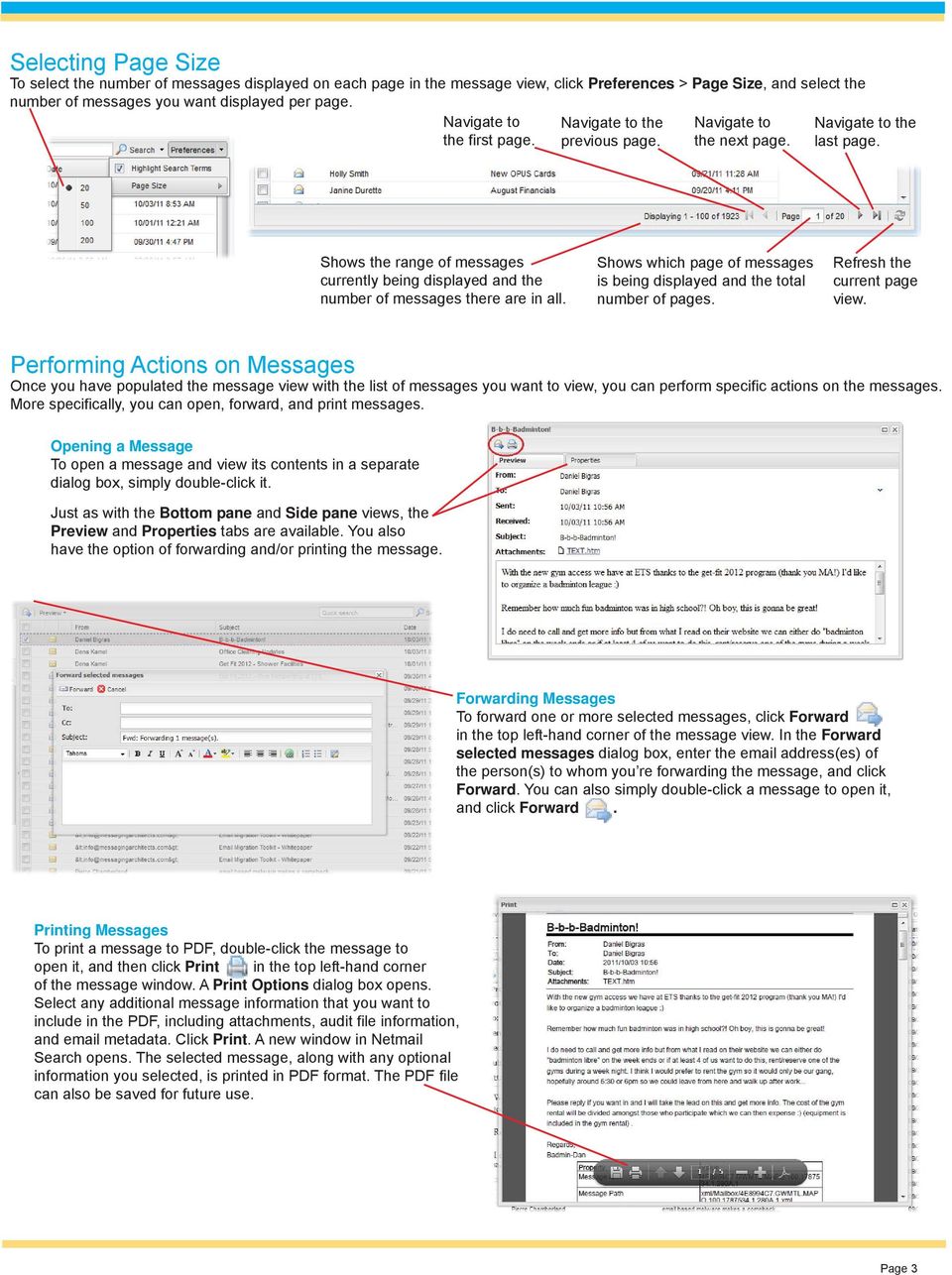
4 Calendar View The calendar view allows you to display archived calendar items, such as appointments, notes, and tasks, in a calendar. To do so, click on the Calendar folder located in the folder view. There are four modes in which calendar items may be viewed: Day view, Week view, Month view, and List view. It s possible to preview your calendar items. To quickly preview a calendar item, simply hover your mouse over the item. A popup appears, showing the time, subject, location (if any), and part of the message body (if any) of the item. Just as in message view, you can also preview calendar items in Bottom pane or Side pane view. To fully view the details of a specific calendar item, double-click the item to open it and view its contents in a separate dialog box. Filters Netmail Search has an advanced set of filters that make it easy for you to locate the precise information you are looking for. The search tab on the left-hand side of the archive overview screen lets you apply filters to your archived items. Filtering by Archive Folder The Folder filter lists the folders located in your archive. Using Filters There are a number of filters you can use to help you quickly sort through data. You can enable any of the following filter components for your search: Language, Item Type, Opened, Read, Created Date, and Received Date. Conducting Multiple Filtered Searches By default, one search pane is open on the main archive overview screen. You can open additional search panes to run multiple searches with different filters applied to each search. Adding Searches: To add another search pane, click the + icon to the right of the Search tab. Deleting Searches: To delete a search, click the x on the Search tab of the search you want to delete, or right-clickthe Search tab, and select Close. To keep only one search and delete all others, select Close Other Tabs. Renaming Searches: To rename a search, right-click its Search tab, and select Rename. Enter the new name for your search, and click OK. Cloning Searches: To replicate the results of an existing search in a new search pane, right-click on the tab of the search you want to replicate, and select Clone. Page 4
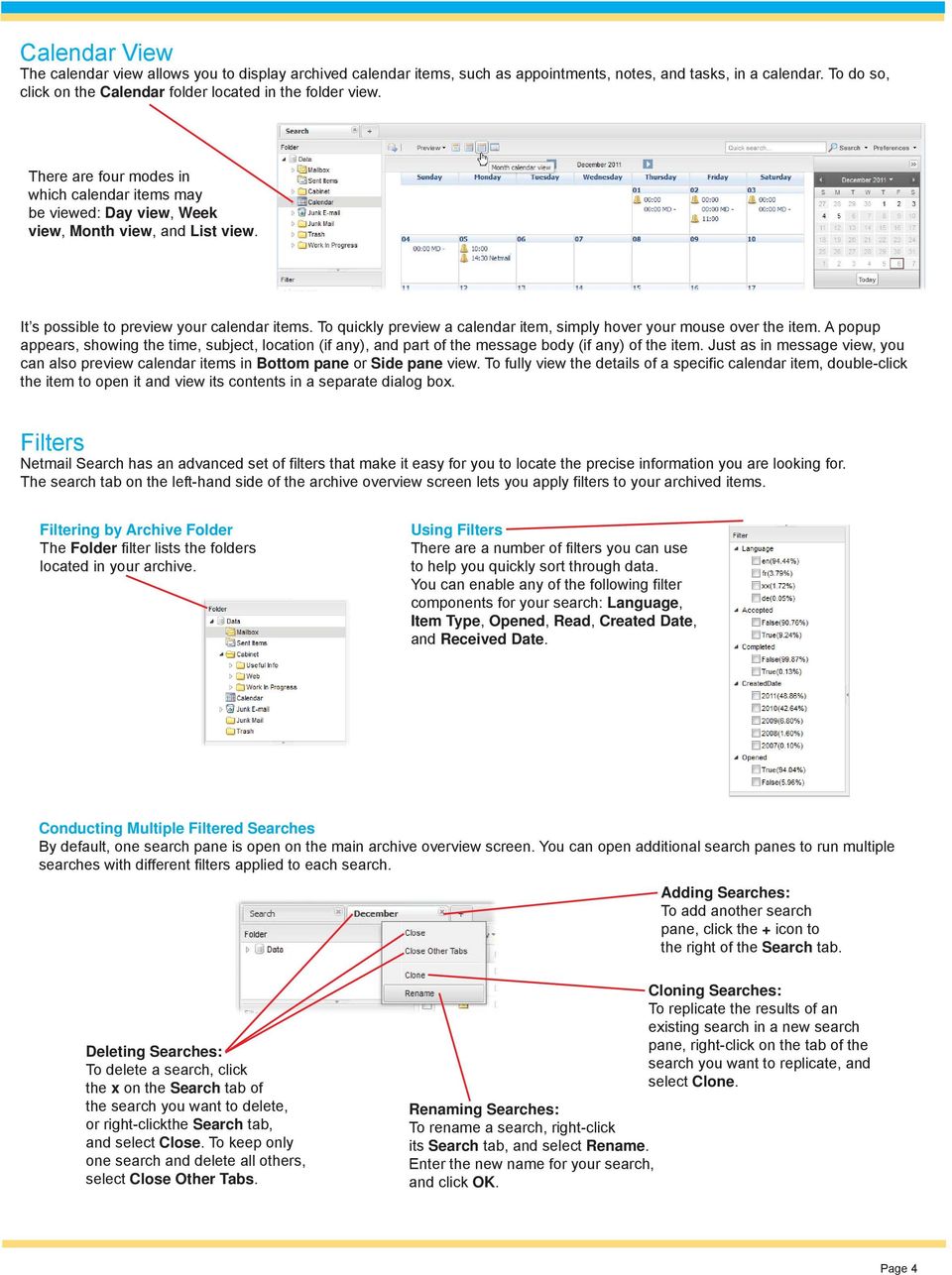
5 Advanced Searching Netmail Search allows you to perform keyword searches as well as advanced searches on messages and attachments. Advanced searching allows you to apply various search criteria to help you narrow down your search and cull through your data quickly and efficiently. Keyword Search The top right-hand side of the archive overview features a Quick search box, which allows you to apply a specific keyword filter to the messages displayed in the message view. Message Search To conduct a message search, click the arrow to the right of the Search button, and select Messages. The Advanced Search dialog box opens, displaying the Message tab. Here, you can search through your messages by subject, sender, recipient, body contents, date range, and item type. You can also apply your search to embedded messages. The Netmail Search tab allows you to build custom search queries. You can apply one or more of the following attributes: Exact phrase, Forbidden terms, Words starting with, Approximate spelling, and Proximity search. You can also build custom search queries. To do so, select an attribute, enter a word(s) you want to include in your query, and click Apply. Use the AND and OR Boolean operators to add more attributes to your query. Attachment Search To conduct an attachment search, click the arrow to the right of the Search button, and select Attachments from the dropdown list. The Advanced Search dialog box opens, displaying the Attachment tab. An Attachment search allows you to search through your attachments by filename, file size, and attachment body contents. Viewing Search Terms Netmail Search s highlighting tool makes it easy for you to quickly locate your search terms in your search results. When enabled, the highlighting tool highlights your search terms in yellow in the list of search results. This tool is enabled by default. To disable it, click Preferences > Highlight Search Terms to remove the checkmark next to it. Note that the highlighting tool applies only to message searches, not to attachment searches Messaging Architects. All rights reserved.outlook is a registered trademark of Microsoft, Inc. Page 5
The LSUHSC N.O. Email Archive
 The LSUHSC N.O. Email Archive Introduction The LSUHSC N.O. email archive permanently retains a copy of all email items sent and received by LSUHSC N.O. Academic email users. Email items will be accessible
Don't have Outlook? Download and configure the Microsoft Office Suite (which includes Outlook)!
 UVa Exchange Service Outlook 2013 Quickstart Guide Don't have Outlook? Download and configure the Microsoft Office Suite (which includes Outlook)! In this Quickstart Guide, you will learn to: Send and
OUTLOOK 2013 - GETTING STARTED
 OUTLOOK 2013 - GETTING STARTED Information Technology September 1, 2014 1 GETTING STARTED IN OUTLOOK 2013 Backstage View Ribbon Navigation Pane View Pane Navigation Bar Reading Pane 2 Backstage View contains
Archive Attender Version 3.5
 Archive Attender Version 3.5 End User Quick Guide Sherpa Software (800) 255-5155 www.sherpasoftware.com End User Quick Guide Table of Contents What is Archive Attender?... 3 How it Works... 3 What happens
Email User Manual. [Outlook Web App 2013]
![Email User Manual. [Outlook Web App 2013]](/thumbs/30/14055838.jpg "Email User Manual. [Outlook Web App 2013]") [Outlook Web App 2013] Central Information Systems Division March 2014 Table of Contents 1. To Login... 4 2. To Logout... 5 3. Change Password... 5 4. Email Messaging... 6 4.1 Create a New Mail... 6 4.2
[Outlook Web App 2013] Central Information Systems Division March 2014 Table of Contents 1. To Login... 4 2. To Logout... 5 3. Change Password... 5 4. Email Messaging... 6 4.1 Create a New Mail... 6 4.2
How to access your email via Outlook Web Access
 How to access your email via Outlook Web Access 1) Open your internet browser and type in the following address: www.law.miami.edu * Aol users must minimize their browser and use Internet Explorer 6.0+
Outlook Web App. in Office 365. The Outlook Window. Signing In. (Outlook Exchange Faculty & Staff) Getting Started
 Outlook Web App in Office 365 (Outlook Exchange Faculty & Staff) Getting Started The Outlook Window Navigation Bar Settings Navigation Pane View Pane Reading Pane Navigation Bar switch between Outlook,
Getting Started with the Outlook Web App
 In your browser, enter exchange.msstate.edu to access the Mississippi State University Outlook Web App. Login with your NetID and NetPassword. After a successful login, your Outlook account opens. At the
Managing Contacts in Outlook
 Managing Contacts in Outlook This document provides instructions for creating contacts and distribution lists in Microsoft Outlook 2007. In addition, instructions for using contacts in a Microsoft Word
Microsoft Exchange Hosted Archive (MEHA)
 Microsoft Exchange Hosted Archive (MEHA) All the Features of NYSeMAIL Archiving including Using for Business Continuity Using MEHA Using MEHA The Microsoft Exchange Hosted Archive (MEHA) can be accessed
Webmail Instruction Guide
 Webmail Instruction Guide This document is setup to guide your through the use of the many features of our Webmail system. You may either visit www.safeaccess.com or webmail.safeaccess.com to login with
How to access your email from WORK & HOME
 How to access your email from WORK & HOME 1. Open your browser and go to the district website by typing in the following address: http://www.islandtrees.org 2. Click on Staff Resources 3. Click on the
Outlook Web Access E-mail
 Outlook Web Access E-mail A. Accessing the mailbox via the Internet 1. Open your browser Firebox or Internet Explorer 2. In the URL address location box, key mail.asbury.edu for students and mail2.asbury.edu
Module One: Getting Started... 6. Opening Outlook... 6. Setting Up Outlook for the First Time... 7. Understanding the Interface...
 2 CONTENTS Module One: Getting Started... 6 Opening Outlook... 6 Setting Up Outlook for the First Time... 7 Understanding the Interface...12 Using Backstage View...14 Viewing Your Inbox...15 Closing Outlook...17
2010 Outlook Web App Client Overview
 2010 Outlook Web App Client Overview The upgrade to Microsoft Exchange 2010 includes an updated web-based e-mail client, OWA. OWA stands for Outlook Web App and gives you access to your district e-mail
Help Desk Web User Guide
 Help Desk Web User Guide 1 P age Contents Create an Incident... 3 Classifying Category... 3 Describe Incident Request... 3 Add Attachments to the Request... 4 Requests... 4 Request List View... 5 Modes
Outlook Managing Your Items
 Course Description Managing your items is essential if you want Outlook to run as efficiently and effectively as possible. As with any filing system the longer you put off doing anything the larger the
Outlook Web Access (OWA) 2010 Email Cheat Sheet
 June 9, 2014 Outlook Web Access (OWA) 2010 Email Cheat Sheet Outlook Web Access 2010 allows you to gain access to your messages, calendars, contacts, tasks and public folders from any computer with internet
Outlook Email. User Guide IS TRAINING CENTER. 833 Chestnut St, Suite 600. Philadelphia, PA 19107 215-503-7500
 Outlook Email User Guide IS TRAINING CENTER 833 Chestnut St, Suite 600 Philadelphia, PA 19107 215-503-7500 This page intentionally left blank. TABLE OF CONTENTS Getting Started... 3 Opening Outlook...
Outlook Web App Quick Start Guide
 Login and first time setup 1) Go to http://mail.office365.com 2) Login with your email address (ie [email protected]) 3) First time you login, you will get prompted for Language and Time Zone. Language
Outlook Live Basics. for Students
 Outlook Live Basics for Students 2 Outlook Live for Support Staff Outlook Live for Support Staff 3 Getting Started... 6 Signing into your Outlook Account... 6 Migrating your Account... 8 Address Book...
Hosted Mail Archiving (HMA) User Guide
 Log in to Personal Archive To log in to Personal Archive Hosted Mail Archiving (HMA) User Guide 1. Please click on the archive link in your HMA activation confirmation email to access your archive. Once
You can also get to OWA by typing https://mymail.saisd.net. You have now entered the new and improved Web Outlook.
 Access E-Mail from Anywhere through the Internet Start your Internet Browser i.e. Internet Explorer Go to www.saisd.net Refer to Quick Links on the right side of the page Click on Web Outlook Were it shows
CONTENTS. Introduction... 3. Outlook at a glance... 3. Configure Outlook 2010 on-campus... 3. Creating Folders... 4. Sorting Emails...
 OFFICE OF INFORMATION TECHNOLOGY Academic Technology Unit Microsoft Outlook 2010 Basics Workbook CONTENTS Introduction... 3 Outlook at a glance... 3 Configure Outlook 2010 on-campus... 3 Creating Folders...
EMAIL QUICK START GUIDE
 IT Services Microsoft Outlook 2010 EMAIL QUICK START GUIDE Contents What is Outlook?...2 Quick Guide to Email...2 Create a new e-mail message...2 Forward or reply to an e-mail message...2 Creating new
OWA - Outlook Web App
 OWA - Outlook Web App Olathe Public Schools 0 Page MS Outlook Web App OPS Technology Department Last Revised: May 1, 2011 Table of Contents MS Outlook Web App... 1 How to Access the MS Outlook Web App...
Microsoft Outlook Web App (OWA)
 im Microsoft Outlook Web App (OWA) CSULB 1 Information Technology Services CSULB 2 Information Technology Services Table of Contents Introduction... 4 Logging In... 4 The OWA Interface... 5 Feature Differences...
Allowing other users to view email and/or folders in Outlook (i.e., proxy access)
 Allowing other users to view email and/or folders in Outlook (i.e., proxy access) There are two ways to work with another person's Microsoft Outlook folders folder sharing and Delegate Access. 1. Folder
MICROSOFT OUTLOOK 2011 ORGANIZE E-MAIL MESSAGES
 MICROSOFT OUTLOOK 2011 ORGANIZE E-MAIL MESSAGES Lasted Edited: 2012-07-10 1 Mark Message as Read... 4 Categorize Messages... 5 Categorize an incoming e-mail... 5 Rename a category... 6 Place an e-mail
Outlook Web Access Tipsheets
 You can use a Web browser to access your Outlook mailbox from any computer with an Internet connection. You can use Outlook Web Access with Microsoft Internet Explorer, Mozilla Firefox and many other browsers.
Advanced Outlook Tutorials
 Advanced Outlook Tutorials Filtering: Create a filter to send email directly to a specific folder from a certain sender: 1. Right click on the sender s email. 2. Choose Rules. 3. Click on Create Rule.
How to Guide Outlook Web Access 2010
 How to Guide Outlook Web Access 2010 If you have questions about any of the items in this guide, contact the IS Service Desk at 85-2400 or 414-326-2400. Outlook Web Access (OWA) provides Web-based email
Outlook Web App The Basics
 Outlook Web App (OWA) is accessible from any compatible web browser, on or off campus. It is available to all users of the UR Exchange 2010 email service. These basic instructions will get you started.
Faculty & Staff Guide for Outlook Web App (OWA) Prepared by Information Technology Division Lehman College July 11, 2013
 im Faculty & Staff Guide for Outlook Web App (OWA) Prepared by Information Technology Division Lehman College July 11, 2013 Lehman College, CUNY 1 Information Technology Division Table of Contents Introduction...
Wilkes University Information & Instructions for Students using Outlook 2003
 Outlook 2003 Wilkes University These tips are for how use some of the features of Outlook 2003. You will first have to install Outlook 2003 on your personal computer. After installing Outlook follow the
Connecting to LUA s webmail
 Connecting to LUA s webmail Effective immediately, the Company has enhanced employee remote access to email (Outlook). By utilizing almost any browser you will have access to your Company e-mail as well
Using Outlook Web App
 Using Outlook Web App About Outlook Web App Using a web browser and the Internet, Outlook Web App (OWA) provides access to your Exchange mailbox from anywhere in the world at any time. Outlook Web App
Microsoft Office 365 Outlook Web App (OWA)
 CALIFORNIA STATE UNIVERSITY, LOS ANGELES INFORMATION TECHNOLOGY SERVICES Microsoft Office 365 Outlook Web App (OWA) Winter 2015, Version 2.0 Table of Contents Introduction...3 Logging In...3 Navigation
Using the City of Stamford / Stamford Public Schools. Web Email System
 Using the City of Stamford / Stamford Public Schools Web Email System Open the Login Screen: Go to the following site: www.stamfordct.gov/mail and choose the login link. The login screen will look like
Outlook Web Access Tutorial
 1 Outlook Web Access Tutorial Outlook Web Access 2010 allows you to gain access to your messages, calendars, contacts, tasks and public folders from any computer with internet access. How to access your
BCSD WebMail Documentation
 BCSD WebMail Documentation Outlook Web Access is available to all BCSD account holders! Outlook Web Access provides Webbased access to your e-mail, your calendar, your contacts, and the global address
INET1005 May 2009 Getting Started with MyUH Email
 INET1005 May 2009 Getting Started with MyUH Email Introduction Introduction... 1 Overview... 1 My E-mail Inbox Channel... 2 MyUH E-mail Center... 3 Address Book... 5 Email Options... 6 Help... 6 Exit...
Outlook Web App McKinney ISD 5/27/2011
 Outlook Web App McKinney ISD 5/27/2011 Outlook Web App Tutorial Outlook Web Access allows you to gain access to your messages, calendars, contacts, tasks and public folders from any computer with internet
Table of Contents. 1. Introduction to the Outlook Mail Client
 M icrosoft Outlook is the Microsoft s flagship messaging tool for email, calendaring and information sharing for Microsoft Exchange Server and is the supported client at. This manual will provide an introduction
Colligo Email Manager 5.1. User Guide
 5.1 User Guide Contents Enterprise Email Management for SharePoint 2010 1 Benefits 1 Key Features 1 Platforms Supported 1 Installing and Activating Colligo Email Manager 2 Managing SharePoint Sites 5 Adding
Microsoft Outlook 2010. Reference Guide for Lotus Notes Users
 Microsoft Outlook 2010 Reference Guide for Lotus Notes Users ContentsWelcome to Office Outlook 2010... 2 Mail... 3 Viewing Messages... 4 Working with Messages... 7 Responding to Messages... 11 Organizing
Microsoft Office Outlook 2013
 Microsoft Office Outlook 2013 Navigating the Outlook Interface The Components of the Outlook 2013 Interface Component Title bar Quick Access Toolbar The ribbon Ribbon tabs Folder pane Content pane Sort
Searching your Archive in Outlook (Normal)
 Searching your Archive in Outlook (Normal) 1. View the Archive Add in toolbar. In Outlook 2007, the toolbar displays below the standard Outlook toolbars. In Outlook 2010, select the McAfee tab. 2. In the
Using Webmail. Technical Manual: User Guide. Document Updated: 1/07. The Webmail Window. Displaying and Hiding the Full Header.
 Using Webmail Technical Manual: User Guide The Webmail Window To save an attachment: 1. Click once on the attachment name. Or, if there are multiple attachments, click the Save icon to save all attachments
Working with Calendars
 Working with Calendars Add an Appointment or Meeting to a Calendar You can add appointments and meetings to your calendar. Appointments are those items that you schedule only for yourself. For example,
Using Outlook WebAccess
 Using Outlook WebAccess Outlook Toolbars - Terminology Update all folders New Move/Copy Reply Forward Check for New Messages Help Show/Hide Folders Delete Reply to All Show/Hide Reading Pain Search Address
NearPoint email Archive and Retrieval System
 NearPoint email Archive and Retrieval System Welcome to our email archive system, NearPoint from Mimosa. With this RPS Archive system keep in mind, you will still be using Outlook as you always have. Here
Training Manual. Version 6
 Training Manual TABLE OF CONTENTS A. E-MAIL... 4 A.1 INBOX... 8 A.1.1 Create New Message... 8 A.1.1.1 Add Attachments to an E-mail Message... 11 A.1.1.2 Insert Picture into an E-mail Message... 12 A.1.1.3
Outlook 2010 Desk Reference Guide
 Outlook 2010 Desk Reference Guide Version 1.0 Developed by OR/WA IRM Please remember to print back-to-back. July 12, 2011 Microsoft Outlook 2010 This document has been developed by OR/WA IRM staff to provide
Sonian Cloud-Powered Archive Service. End User (My Archive) Guide
 Sonian Cloud-Powered Archive Service End User (My Archive) Guide Software Release Date: April 2012 Legal Notices Warranty The only warranties for Sonian products and services are set forth in the express
CITY OF BURLINGTON PUBLIC SCHOOLS MICROSOFT EXCHANGE 2010 OUTLOOK WEB APP USERS GUIDE
 CITY OF BURLINGTON PUBLIC SCHOOLS MICROSOFT EXCHANGE 2010 OUTLOOK WEB APP USERS GUIDE INTRODUCTION You can access your email account from any workstation at your school using Outlook Web Access (OWA),
Entourage - an Introduction to E-mail
 Entourage - an Introduction to E-mail Version 2004 for Macintosh Table of Contents What is Entourage Starting Entourage The Navigation Pane Getting Help Creating and Sending a Message Using the UI Exchange
Microsoft Outlook 2013 - Email. Sorting, searching and filtering emails. Sorting your messages
 Sorting, searching and filtering emails When handling emails it is often necessary to find a certain message or type of message from your mail. As your inbox fills up, it can become more difficult to pick
For example, you might want to create a folder to collect together all emails relating to a particular project or subject.
 Email folders Outlook uses a series of folders such as the inbox, outbox, drafts and sent items to sort your email into collections according to the status of the message. If the folders which are already
Outlook Web Access -User Guides-
 Nilai University College (Nilai Education Sdn. Bhd) Outlook Web Access -User Guides- Prepared By IT Department (Infrastructure Team) VERSION: 1.0 All rights reserved. This document is a proprietary product
Microsoft Outlook 2007: Advanced Topics
 Microsoft Outlook 2007: Advanced Topics Arizona Board of Regents, 2010 THE UNIVERSITY OF ARIZONA 10.11.2010 v.1.00 For information and permission to use our PDF manuals, please contact [email protected]
MS OUTLOOK 2007 E-MAIL
 MS OUTLOOK 2007 E-MAIL CREATE, SEND, READ, AND RESPOND TO E-MAIL MESSAGES An e-mail address consists of a user ID and a host name, separated by the @ symbol (userid@host name). You can SEND AND RECEIVE
Microsoft Outlook 2013 -And- Outlook Web App (OWA) Using Office 365
 1 C H A P T E R Microsoft Outlook 2013 -And- Outlook Web App (OWA) Using Office 365 1 MICROSOFT OUTLOOK 2013 AND OUTLOOK WEB ACCESS (OWA) Table of Contents Chapter 1: Signing Into the Microsoft Email System...
OUTLOOK WEB APP 2013 ESSENTIAL SKILLS
 OUTLOOK WEB APP 2013 ESSENTIAL SKILLS CONTENTS Login to engage365 Web site. 2 View the account home page. 2 The Outlook 2013 Window. 3 Interface Features. 3 Creating a new email message. 4 Create an Email
MICROSOFT OUTLOOK 2010 WORK WITH CONTACTS
 MICROSOFT OUTLOOK 2010 WORK WITH CONTACTS Last Edited: 2012-07-09 1 Access to Outlook contacts area... 4 Manage Outlook contacts view... 5 Change the view of Contacts area... 5 Business Cards view... 6
Outlook Web App OWA Quick Guide. Getting you up to speed quickly.
 Outlook Web App OWA Quick Guide Getting you up to speed quickly. Information Services 8-1-2014 Contents Exploring the OWA (Outlook Web App) User Interface... 2 Getting Started... 2 Mail... 6 Creating and
Webmail with. Sun Convergence
 Webmail with 09 08 1 TABLE OF CONTENTS TABLE OF CONTENTS 1 2 1.1 Getting started 2 1.2 Reading E-mail 4 Sorting 4 Searching 4 Opening a message 5 Writing a message 6 1.3 Sending E-mail 6 Message with an
Outlook Web App User Guide
 Outlook Web App Table of Contents QUICK REFERENCE... 2 OUTLOOK WEB APP URL... 2 Imagine! Help Desk...... 2 OUTLOOK WEB APP MAIN WINDOW... 2 KEY NEW FEATURES... 3 GETTING STARTED WITH OUTLOOK... 4 LOGGING
Microsoft Outlook Web App Quick Reference Card
 Microsoft Outlook Web App Quick Reference Card Accessing Outlook Web App You can access your mailbox through any browser that supports HTML 3.2 and ECMA. To access your mailbox, enter your OWA web address/url
Microsoft Access 2010 handout
 Microsoft Access 2010 handout Access 2010 is a relational database program you can use to create and manage large quantities of data. You can use Access to manage anything from a home inventory to a giant
Colligo Email Manager 6.0. Connected Mode - User Guide
 6.0 Connected Mode - User Guide Contents Colligo Email Manager 1 Benefits 1 Key Features 1 Platforms Supported 1 Installing and Activating Colligo Email Manager 2 Checking for Updates 3 Updating Your License
Smart Web. User Guide. Amcom Software, Inc.
 Smart Web User Guide Amcom Software, Inc. Copyright Version 4.0 Copyright 2003-2005 Amcom Software, Inc. All Rights Reserved. Information in this document is subject to change without notice. The software
Bare Bones Guide to Using Outlook 2010 for Email
 Bare Bones Guide to Using Outlook 2010 for Email July 10, 2013 Alternative Format Statement This publication is available in alternative media upon request. Statement of Non-Discrimination The Pennsylvania
1) Important browser information New 2) Why is my browser so slow? 3) How can I view more than one screen without the other disappearing?
 Known/Unresolved issues: Browser Scan to e-mail Creating Help Desk tickets for the scan-to-email issue is no longer necessary. A member of MIS will follow up with each office to determine scan-to-email
Introduction to Microsoft Access 2010
 Introduction to Microsoft Access 2010 A database is a collection of information that is related. Access allows you to manage your information in one database file. Within Access there are four major objects:
Web Mail Guide... Error! Bookmark not defined. 1 Introduction to Web Mail... 4. 2 Your Web Mail Home Page... 5. 3 Using the Inbox...
 Powered by Table of Contents Web Mail Guide... Error! Bookmark not defined. 1 Introduction to Web Mail... 4 1.1 Requirements... 4 1.2 Recommendations for using Web Mail... 4 1.3 Accessing your Web Mail...
Welcome to NETVIGATOR Email
 About NETVIGATOR Email Welcome to NETVIGATOR Email NETVIGATOR Email service is a full-featured messaging and collaboration application offering reliable, high-performance email, contact lists, calendaring,
Organizing and Managing Email
 Organizing and Managing Email Outlook provides several tools for managing email, including folders, rules, and categories. You can use these tools to help organize your email. Using folders Folders can
WHAT S NEW IN OUTLOOK 2010 & HOW TO CUSTOMIZE IT
 WHAT S NEW IN OUTLOOK 2010 & HOW TO CUSTOMIZE IT THE RIBBON... 2 CONTEXTUAL TABS... 4 THE FILE TAB... 4 DIALOG BOXES... 5 MINIMIZING THE RIBBON... 5 CUSTOMIZING THE RIBBON... 6 CUSTOMIZING THE QUICK ACCESS
Office 365 Outlook Web App: Advanced Quick Reference Guide
 Office 365 Outlook Web App: Advanced DRAFT 2015. All Rights Reserved. California State University, Bakersfield June 24, 2015 REVISION CONTROL Document Title: Author: File Reference:.docx Campus Training
Hamline University Administrative Computing Page 1
 User Guide Banner Handout: BUSINESS OBJECTS ENTERPRISE (InfoView) Document: boxi31sp3-infoview.docx Created: 5/11/2011 1:24 PM by Chris Berry; Last Modified: 8/31/2011 1:53 PM Purpose:... 2 Introduction:...
Initial Setup of Microsoft Outlook with Google Apps Sync for Windows 7. Initial Setup of Microsoft Outlook with Google Apps Sync for Windows 7
 Microsoft Outlook with Initial Setup of Concept This document describes the procedures for setting up the Microsoft Outlook email client to download messages from Google Mail using Internet Message Access
Decision Support AITS University Administration. Web Intelligence Rich Client 4.1 User Guide
 Decision Support AITS University Administration Web Intelligence Rich Client 4.1 User Guide 2 P age Web Intelligence 4.1 User Guide Web Intelligence 4.1 User Guide Contents Getting Started in Web Intelligence
The online email environment
 The online email environment These are the options for the selected application. Navigation Pane is comprised of a folders list and oneclick access to your Inbox, Calendar, Contacts, and Tasks folders
Introduction to Microsoft Access 2013
 Introduction to Microsoft Access 2013 A database is a collection of information that is related. Access allows you to manage your information in one database file. Within Access there are four major objects:
Outlook Web Access (OWA) User Guide
 Outlook Web Access (OWA) User Guide September 2010 TABLE OF CONTENTS TABLE OF CONTENTS... 2 1.0 INTRODUCTION... 4 1.1 OUTLOOK WEB ACCESS SECURITY CONSIDERATIONS... 4 2.0 GETTING STARTED... 5 2.1 LOGGING
IT HELP Desk Dashboard ManageEngine Service Desk Plus User Guide
 Create an Incident When you need to report a failure or problem of your system to the IT help desk team, then send a request to the team. There are different modes of placing a request, such as submitting
Novell ZENworks Asset Management 7.5
 Novell ZENworks Asset Management 7.5 w w w. n o v e l l. c o m October 2006 USING THE WEB CONSOLE Table Of Contents Getting Started with ZENworks Asset Management Web Console... 1 How to Get Started...
Mimecast Services for Outlook (MSO4)
 Mimecast Services for Outlook (MSO4) End User Quick Start Guide for Outlook 2010/2013 Mimecast Services for Outlook (MSO 4) is a software application that integrates with your Microsoft Outlook. Once installed,
Titan Apps. Drive (Documents)
 Titan Apps Drive (Documents) University of Wisconsin Oshkosh 7/11/2012 0 Contents What is Titan Apps?... 1 Need Help with Titan Apps?... 1 What other resources can I use to help me with Titan Apps?...
Microsoft Office 365 Outlook Web App (OWA)
 CALIFORNIA STATE UNIVERSITY, LOS ANGELES INFORMATION TECHNOLOGY SERVICES Microsoft Office 365 Outlook Web App (OWA) Spring 2013, Version 1.0 Table of Contents Introduction...3 Signing In...3 Navigation
Beginners Guide. Entourage 2004
 Beginners Guide to Entourage 2004 Table of Contents Computer Services Introduction... 2 New e-mail service at NUI, Galway... 2 Online Documentation... 2 The Entourage Window... 3 Creating a Signature File...
USING MICROSOFT OUTLOOK 2013
 USING MICROSOFT OUTLOOK 2013 Staff Development Technology 0 P a g e TABLE OF CONTENTS Outlook 2013 Ribbon... 1 Viewing Inbox... 1 Background Color and Themes... 2 INBOX... 3 Reading Pane... 3 Turn off/on
Outlook Web Application (OWA) Basic Training
 Outlook Web Application (OWA) Basic Training Requirements to use OWA Full Version: You must use at least version 7 of Internet Explorer, Safari on Mac, and Firefox 3.X (these two achieve 99 percent feature
Cloud Services. Email Archiving. End User Guide
 Cloud Services Email Archiving End User Guide 10/17/2014 CONTENTS Introduction... 2 Intended Audience... 2 Prerequisites... 2 Email Client Integration... 2 Supported Web Browsers... 3 My Archive... 4 Overview...
NearPoint for Microsoft Exchange Server
 Information Immediacy, Discovery, & Continuity 4.2 NearPoint for Microsoft Exchange Server Archive Self-Service Retrieve (SSR) Client User s Guide 4.2 Copyright 2003-2010, Mimosa Systems, Inc. All Rights
Stores copies of items you sent to others, by default. Stores items created offline that you want to send the next time you are online
 Outlook Folders: All new messages are stored in Inbox unless rules are created. Stores copies of items you sent to others, by default Stores temporarily deleted items until you permanently delete or retrieve
User Guide. Trade Finance Global. Reports Centre. October 2015. nordea.com/cm OR tradefinance Name of document 8/8 2015/V1
 User Guide Trade Finance Global Reports Centre October 2015 nordea.com/cm OR tradefinance Name of document 2015/V1 8/8 Table of Contents 1 Trade Finance Global (TFG) Reports Centre Overview... 4 1.1 Key