
COMOS. Lifecycle COMOS Snapshots. "COMOS Snapshots" at a glance 1. System requirements for installing "COMOS Snapshots" Database management 3
|
|
|
- Garry Boyd
- 10 years ago
- Views:
Transcription
1 "" at a glance 1 System requirements for installing "COMOS Snapshots" 2 COMOS Lifecycle Operating Manual Database management 3 Configuring "COMOS Snapshots" 4 Default settings for "COMOS Snapshots" 5 Starting "COMOS Snapshots" 6 Creating Snapshots 7 Using Snapshots 8 10/2015 A5E AA


2 Legal information Warning notice system This manual contains notices you have to observe in order to ensure your personal safety, as well as to prevent damage to property. The notices referring to your personal safety are highlighted in the manual by a safety alert symbol, notices referring only to property damage have no safety alert symbol. These notices shown below are graded according to the degree of danger. DANGER indicates that death or severe personal injury will result if proper precautions are not taken. WARNING indicates that death or severe personal injury may result if proper precautions are not taken. CAUTION indicates that minor personal injury can result if proper precautions are not taken. NOTICE indicates that property damage can result if proper precautions are not taken. If more than one degree of danger is present, the warning notice representing the highest degree of danger will be used. A notice warning of injury to persons with a safety alert symbol may also include a warning relating to property damage. Qualified Personnel The product/system described in this documentation may be operated only by personnel qualified for the specific task in accordance with the relevant documentation, in particular its warning notices and safety instructions. Qualified personnel are those who, based on their training and experience, are capable of identifying risks and avoiding potential hazards when working with these products/systems. Proper use of Siemens products the following: Trademarks WARNING Siemens products may only be used for the applications described in the catalog and in the relevant technical documentation. If products and components from other manufacturers are used, these must be recommended or approved by Siemens. Proper transport, storage, installation, assembly, commissioning, operation and maintenance are required to ensure that the products operate safely and without any problems. The permissible ambient conditions must be complied with. The information in the relevant documentation must be observed. All names identified by are registered trademarks of Siemens AG. The remaining trademarks in this publication may be trademarks whose use by third parties for their own purposes could violate the rights of the owner. Disclaimer of Liability We have reviewed the contents of this publication to ensure consistency with the hardware and software described. Since variance cannot be precluded entirely, we cannot guarantee full consistency. However, the information in this publication is reviewed regularly and any necessary corrections are included in subsequent editions. Siemens AG Division Process Industries and Drives Postfach NÜRNBERG GERMANY A5E AA P 09/2015 Subject to change Copyright Siemens AG All rights reserved

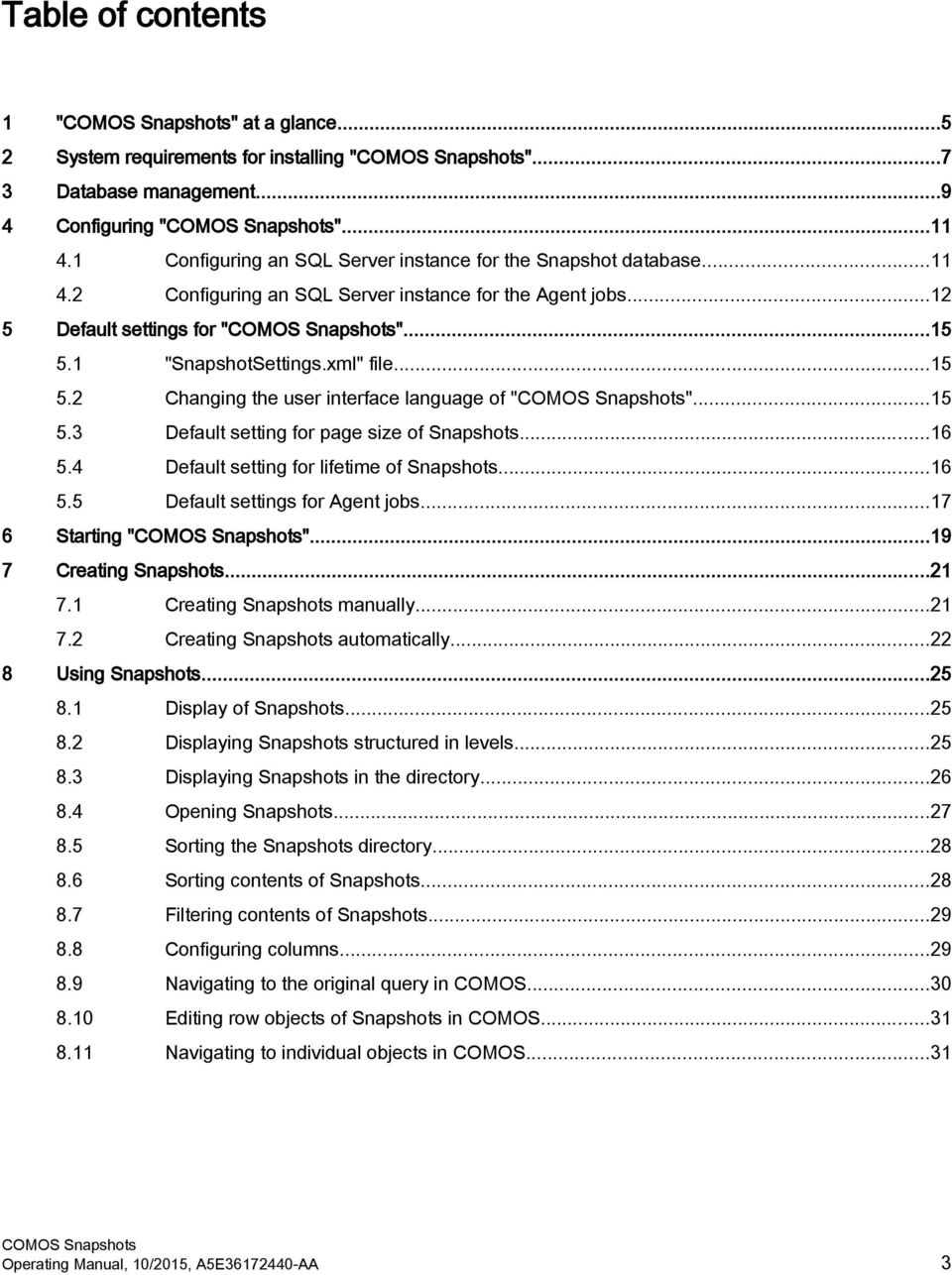
3 Table of contents 1 "" at a glance System requirements for installing "" Database management Configuring "" Configuring an SQL Server instance for the Snapshot database Configuring an SQL Server instance for the Agent jobs Default settings for "" "SnapshotSettings.xml" file Changing the user interface language of "" Default setting for page size of Snapshots Default setting for lifetime of Snapshots Default settings for Agent jobs Starting "" Creating Snapshots Creating Snapshots manually Creating Snapshots automatically Using Snapshots Display of Snapshots Displaying Snapshots structured in levels Displaying Snapshots in the directory Opening Snapshots Sorting the Snapshots directory Sorting contents of Snapshots Filtering contents of Snapshots Configuring columns Navigating to the original query in COMOS Editing row objects of Snapshots in COMOS Navigating to individual objects in COMOS...31 Operating Manual, 10/2015, A5E AA 3
4 Table of contents 4 Operating Manual, 10/2015, A5E AA

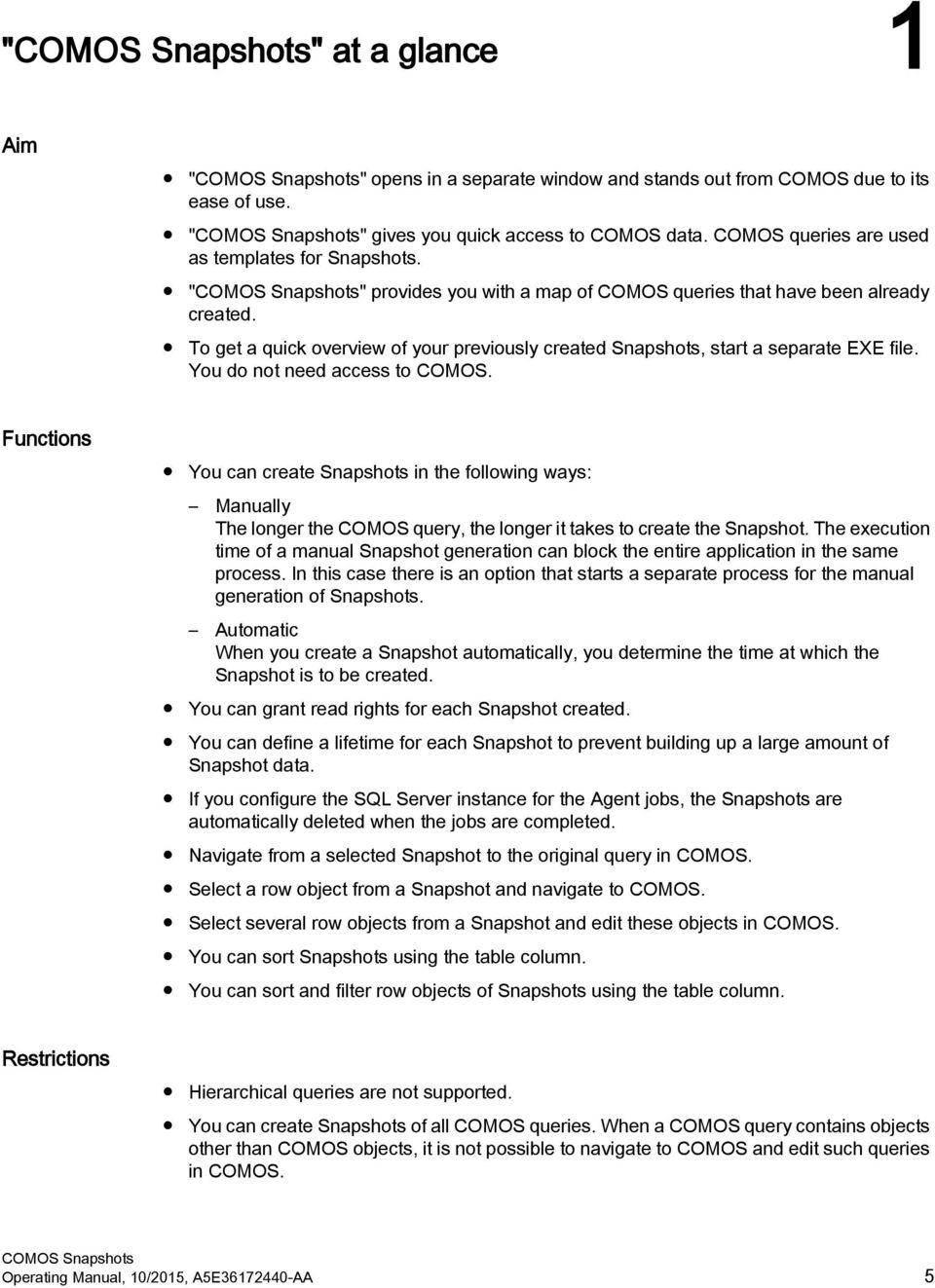
5 "" at a glance 1 Aim "" opens in a separate window and stands out from COMOS due to its ease of use. "" gives you quick access to COMOS data. COMOS queries are used as templates for Snapshots. "" provides you with a map of COMOS queries that have been already created. To get a quick overview of your previously created Snapshots, start a separate EXE file. You do not need access to COMOS. Functions You can create Snapshots in the following ways: Manually The longer the COMOS query, the longer it takes to create the Snapshot. The execution time of a manual Snapshot generation can block the entire application in the same process. In this case there is an option that starts a separate process for the manual generation of Snapshots. Automatic When you create a Snapshot automatically, you determine the time at which the Snapshot is to be created. You can grant read rights for each Snapshot created. You can define a lifetime for each Snapshot to prevent building up a large amount of Snapshot data. If you configure the SQL Server instance for the Agent jobs, the Snapshots are automatically deleted when the jobs are completed. Navigate from a selected Snapshot to the original query in COMOS. Select a row object from a Snapshot and navigate to COMOS. Select several row objects from a Snapshot and edit these objects in COMOS. You can sort Snapshots using the table column. You can sort and filter row objects of Snapshots using the table column. Restrictions Hierarchical queries are not supported. You can create Snapshots of all COMOS queries. When a COMOS query contains objects other than COMOS objects, it is not possible to navigate to COMOS and edit such queries in COMOS. Operating Manual, 10/2015, A5E AA 5
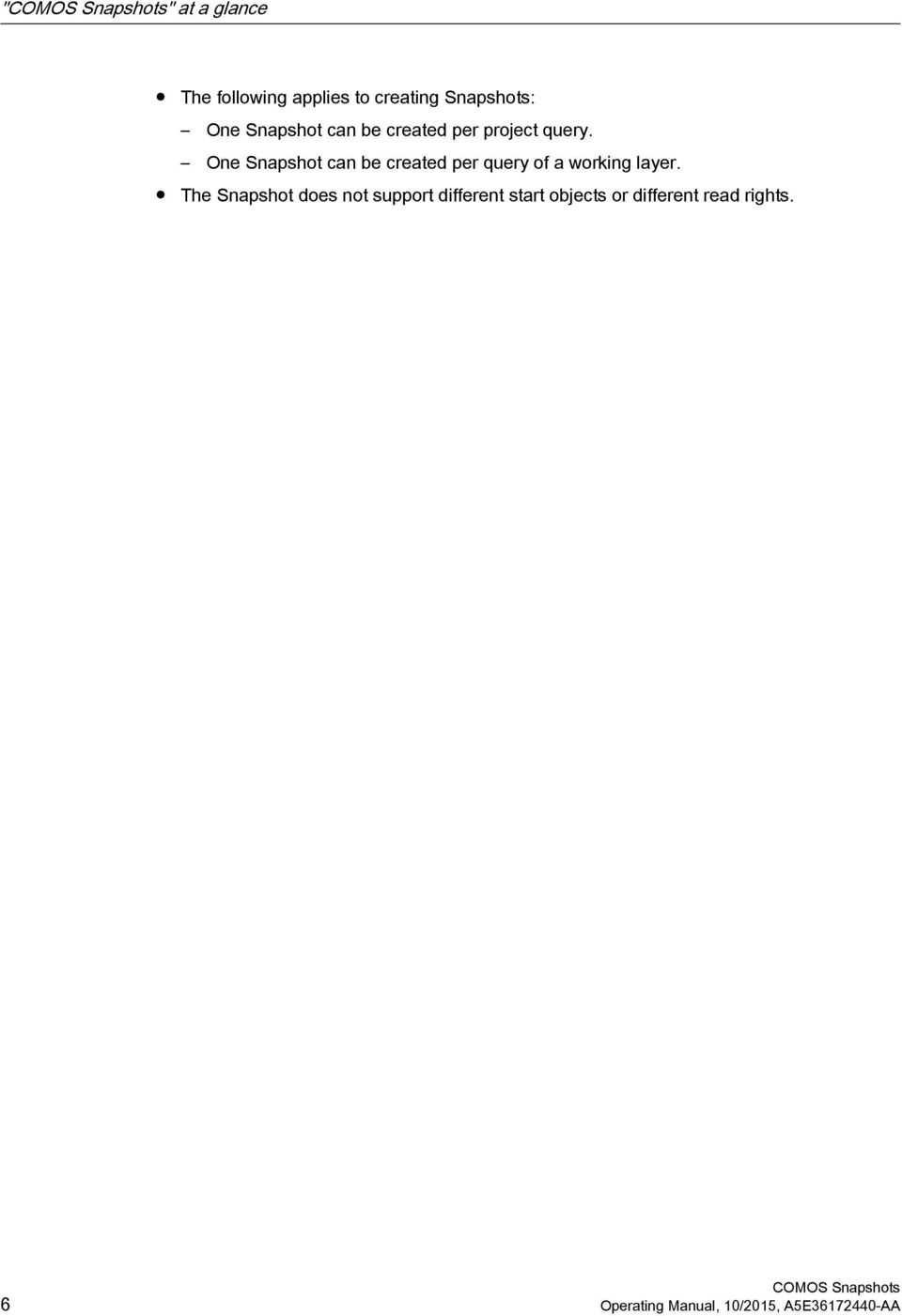
6 "" at a glance The following applies to creating Snapshots: One Snapshot can be created per project query. One Snapshot can be created per query of a working layer. The Snapshot does not support different start objects or different read rights. 6 Operating Manual, 10/2015, A5E AA
7 System requirements for installing "COMOS Snapshots" 2 To install "", the following minimum system requirements must be met: Microsoft SQL Server 2012 Microsoft SQL Server 2008 R2 (for Agent jobs only) Microsoft.NET Framework 4.5 Windows 7 Microsoft.NET Framework 4.5 requires the Windows 7 operating system or higher From the Microsoft SQL Server 2012 SP1 Feature Pack: Microsoft SQL Server Shared Management Objects 2012 SP1 (SharedManagementObjects.msi) Microsoft System CLR Types for SQL Server 2012 SP1 (SQLSysClrTypes.msi) You can find additional information on Microsoft products on the Internet at Microsoft ( Operating Manual, 10/2015, A5E AA 7

8 System requirements for installing "" 8 Operating Manual, 10/2015, A5E AA
9 Database management 3 Overview SQL Server instances Use the two SQL Server instances: The first SQL Server instance for the Snapshot data. The second SQL Server instance for the Agent jobs. The administration and preparation of instances requires administration rights in the corresponding SQL Server instances. Creating a Snapshot database A database for the Snapshot data must be created in the SQL Server instance. Operating Manual, 10/2015, A5E AA 9

10 Database management Data storage in the SQL Server instance for the Snapshot database The following objects are created for the Snapshot database in the SQL Server instance: COMOS system tables s User logons Roles Data storage in the SQL Server instance for the Agent jobs The following objects are created for the Agent jobs in the SQL Server instance: User logons User logon information Proxies for the SQL Server Agent 10 Operating Manual, 10/2015, A5E AA

11 Configuring "" Configuring an SQL Server instance for the Snapshot database Workflow To prepare the SQL Server instance with the Snapshot database, follow these steps: Step 1: Connect to the Snapshot database Step 2: Prepare database Step 3: Prepare data for use You are logged in as the SQL Server administrator. The Snapshot database has been created as database in an SQL Server instance. See section Database management (Page 9). "" was opened via the COMOS menu. See section Starting "COMOS Snapshots" (Page 19). 1. Select the category "Administration > SNAPSHOT DATABASE". 2. Fill in the fields in the "1. Connection to Snapshot database" area. 3. Click "Check connection". The test result is displayed. 4. Click "Next >". "< Back" or "Next >" buttons Use the "<Back" or "Next >" buttons to navigate between the individual steps. 5. Fill in the fields in the "2. Database preparation" area. If the logon with the entered name already exists, it will not be overwritten. This logon information can be changed on the SQL Server at any time. "SETTINGS" menu command You can store the information about the database connection in the "SETTTINGS" as default setting. 6. To prepare the database, click "Prepare". A note text is displayed. Operating Manual, 10/2015, A5E AA 11
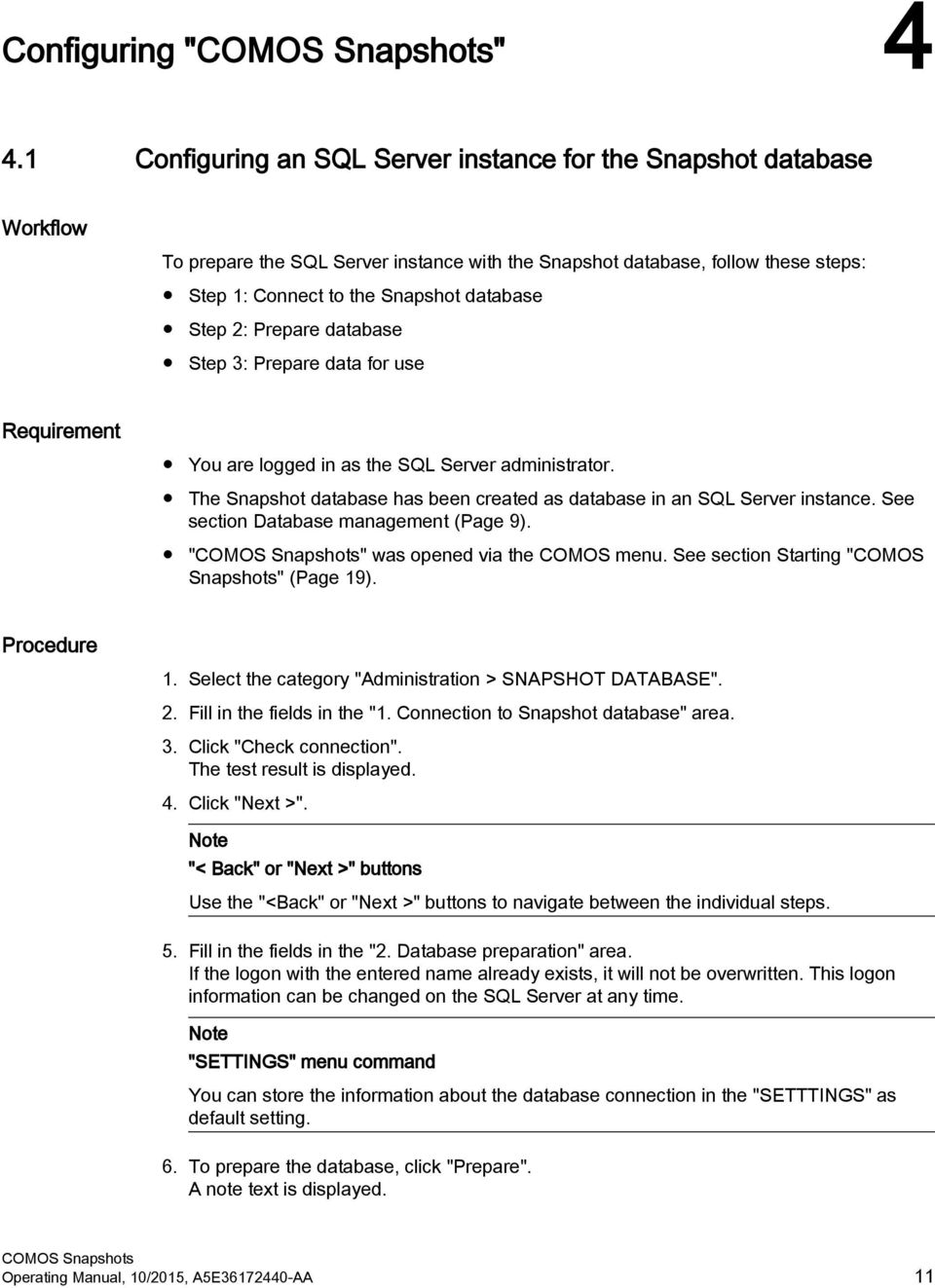
12 Configuring "" 4.2 Configuring an SQL Server instance for the Agent jobs 7. Click "Next >". The "3. Data preparation" area is displayed. 8. To complete the configuration, click "Prepare". A note text is displayed. 4.2 Configuring an SQL Server instance for the Agent jobs Workflow To prepare the SQL Server instance for the Agent jobs, follow these steps: Step 1: Connect to the Agent instance Step 2: Connect to the Snapshot database Step 3: Select the users for Agent jobs Step 4: Create maintenance jobs under your user account You are logged in as the SQL Server administrator. The Snapshot database has been created as database in an SQL Server instance. See section Database management (Page 9). "" was opened via the COMOS menu. See section Starting "COMOS Snapshots" (Page 19). 1. Select the category "Administration > PROCESS SCHEDULER". 2. Fill in the fields in the "1. Connection to Agent instance" area. "SETTINGS" menu command You can store the information for the Agent in the "SETTTINGS". See also section Default settings for Agent jobs (Page 17). 3. Click "Check connection". The test result is displayed. 4. Click "Next >". "< Back" or "Next >" buttons Use the "<Back" or "Next >" buttons to navigate between the individual steps. 5. Fill in the fields in the "2. Connection to Snapshot database" area. See also section Configuring an SQL Server instance for the Snapshot database (Page 11). 12 Operating Manual, 10/2015, A5E AA

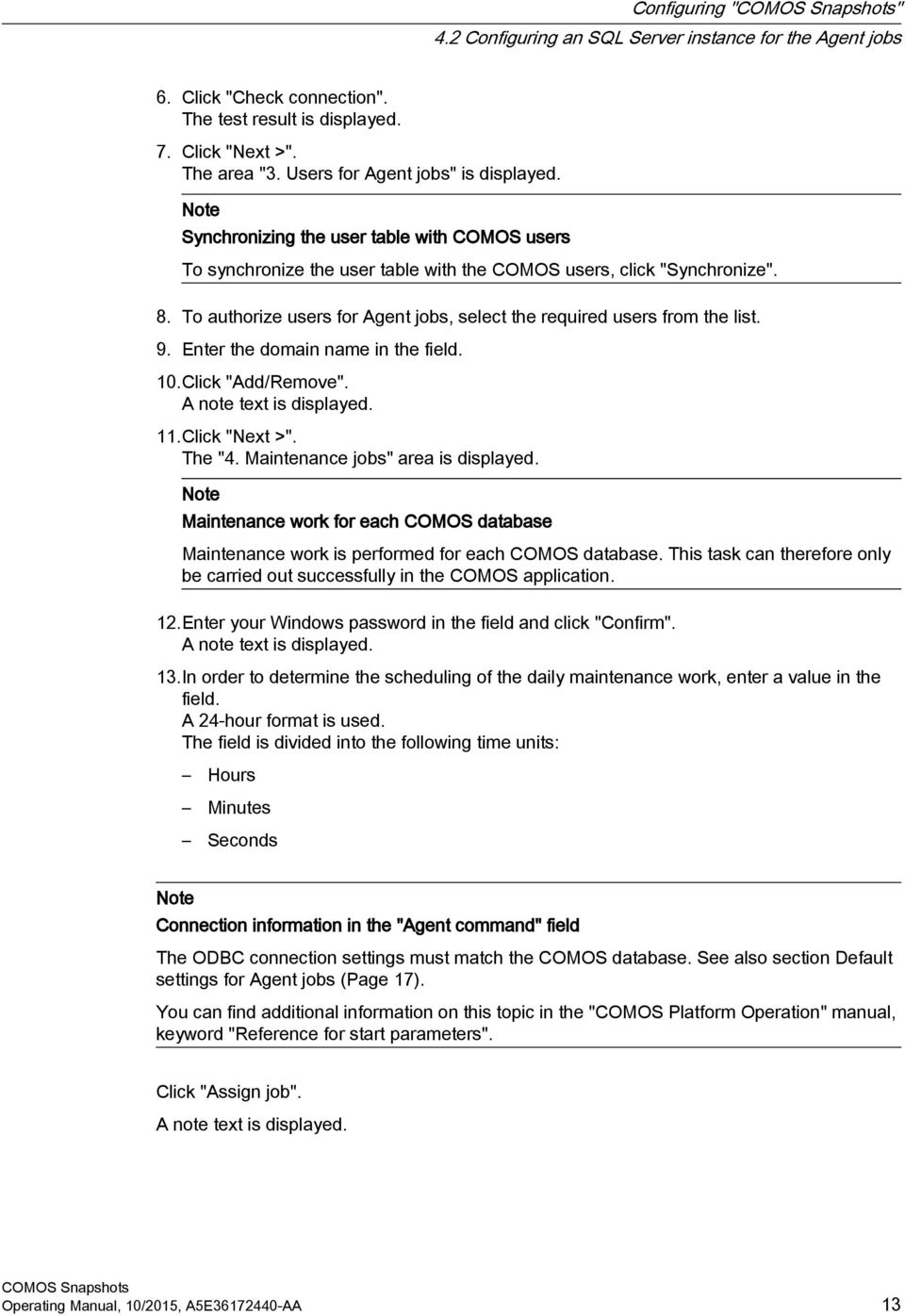
13 Configuring "" 4.2 Configuring an SQL Server instance for the Agent jobs 6. Click "Check connection". The test result is displayed. 7. Click "Next >". The area "3. Users for Agent jobs" is displayed. Synchronizing the user table with COMOS users To synchronize the user table with the COMOS users, click "Synchronize". 8. To authorize users for Agent jobs, select the required users from the list. 9. Enter the domain name in the field. 10.Click "Add/Remove". A note text is displayed. 11.Click "Next >". The "4. Maintenance jobs" area is displayed. Maintenance work for each COMOS database Maintenance work is performed for each COMOS database. This task can therefore only be carried out successfully in the COMOS application. 12.Enter your Windows password in the field and click "Confirm". A note text is displayed. 13.In order to determine the scheduling of the daily maintenance work, enter a value in the field. A 24-hour format is used. The field is divided into the following time units: Hours Minutes Seconds Connection information in the "Agent command" field The ODBC connection settings must match the COMOS database. See also section Default settings for Agent jobs (Page 17). You can find additional information on this topic in the "COMOS Platform Operation" manual, keyword "Reference for start parameters". Click "Assign job". A note text is displayed. Operating Manual, 10/2015, A5E AA 13
14 Configuring "" 4.2 Configuring an SQL Server instance for the Agent jobs 14 Operating Manual, 10/2015, A5E AA
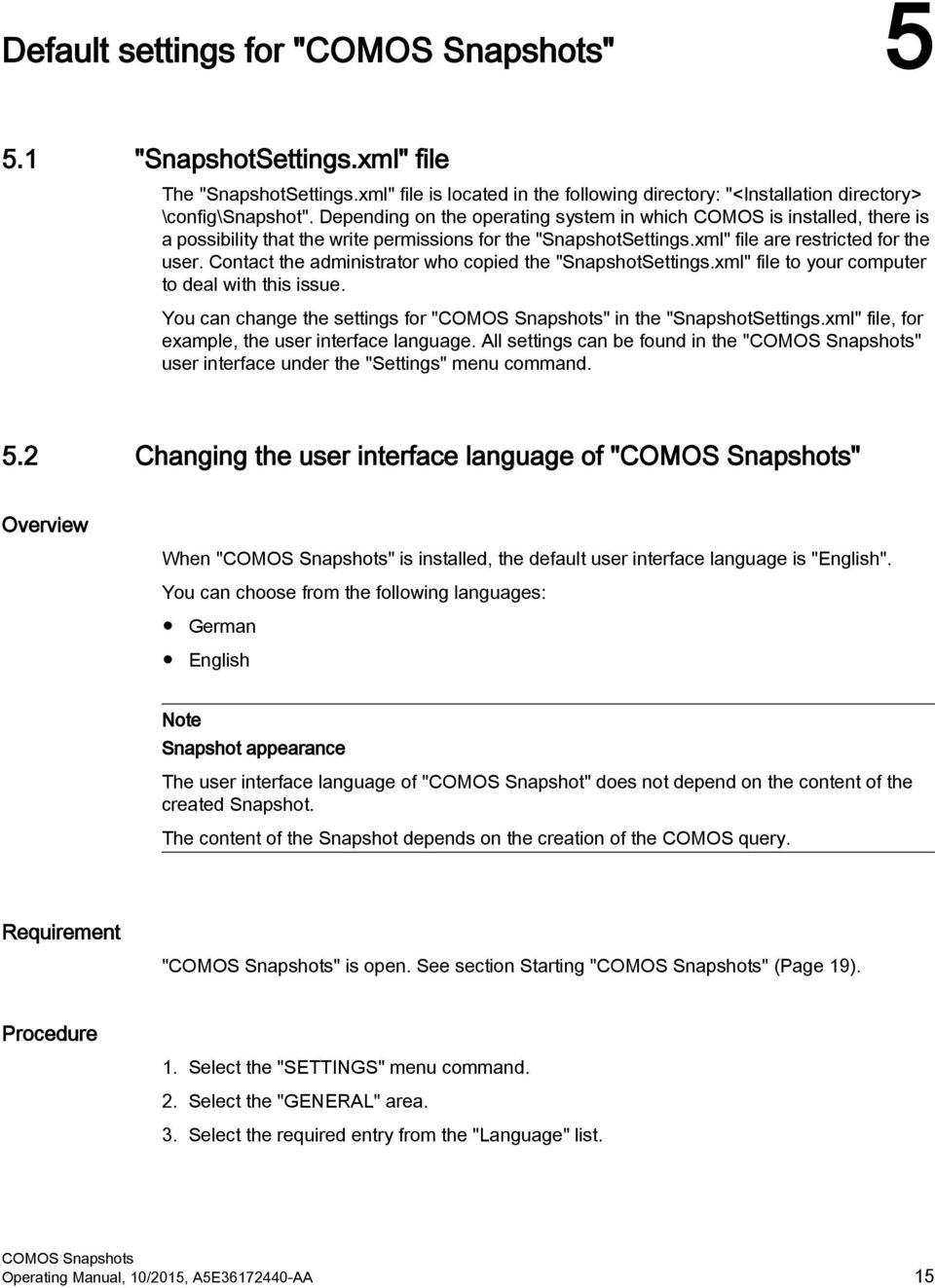
15 Default settings for "" "SnapshotSettings.xml" file The "SnapshotSettings.xml" file is located in the following directory: "<Installation directory> \config\snapshot". Depending on the operating system in which COMOS is installed, there is a possibility that the write permissions for the "SnapshotSettings.xml" file are restricted for the user. Contact the administrator who copied the "SnapshotSettings.xml" file to your computer to deal with this issue. You can change the settings for "" in the "SnapshotSettings.xml" file, for example, the user interface language. All settings can be found in the "" user interface under the "Settings" menu command. 5.2 Changing the user interface language of "" Overview When "" is installed, the default user interface language is "English". You can choose from the following languages: German English Snapshot appearance The user interface language of "COMOS Snapshot" does not depend on the content of the created Snapshot. The content of the Snapshot depends on the creation of the COMOS query. "" is open. See section Starting "" (Page 19). 1. Select the "SETTINGS" menu command. 2. Select the "GENERAL" area. 3. Select the required entry from the "Language" list. Operating Manual, 10/2015, A5E AA 15
16 Default settings for "" 5.4 Default setting for lifetime of Snapshots 4. Click "Save". 5. Start "" again. 5.3 Default setting for page size of Snapshots Introduction You can preset the number of rows per page. The maximum value is 1000 rows per page. Applies only to the contents of a Snapshot The default only applies to the contents of a Snapshot. The Snapshot directory is displayed as a one-page list. "" is open. See section Starting "" (Page 19). 1. Select the "SETTINGS" menu command. 2. Select the "GENERAL" area. 3. Enter the required value in the "Page size" field. 4. Click "Save". Result All future Snapshots get the default setting for the required row count per page. The following characteristics may change in the appearance of a Snapshot: The number of rows The number of pages 5.4 Default setting for lifetime of Snapshots Introduction You can set the default lifetime of Snapshots. The maximum lifetime is 365 days. 16 Operating Manual, 10/2015, A5E AA
17 Default settings for "" 5.5 Default settings for Agent jobs "" is open. See section Starting "" (Page 19). 1. Select the "SETTINGS" menu command. 2. Select the "General" area. 3. Enter the required value in the "Default lifetime of Snapshot" field. 4. Click the "Save" button. Result All future Snapshots get the default setting for the required lifetime. The default setting under the category "Preparation > CREATE / UPDATE" is applied in the following areas: "MANUALLY" "ON SCHEDULE" 5.5 Default settings for Agent jobs "" is open. See section Starting "" (Page 19). 1. Select the "SETTINGS" menu command. 2. Select the "SETTINGS FOR AGENT" area. 3. To preset the "Agent server name, enter the "Agent server name" in the field. The default setting is applied to the "1. Connection to Agent instance" area under the "Administration > PROCESS SCHEDULER" category. See also section Configuring an SQL Server instance for the Agent jobs (Page 12). The default setting is applied to the "ON SCHEDULE" area under the "Preparation > CREATE / UPDATE" category. See also section Creating Snapshots automatically (Page 22). Operating Manual, 10/2015, A5E AA 17

18 Default settings for "" 5.5 Default settings for Agent jobs 4. Optionally: To preset the Windows password for Agent jobs, enter the password in the "Current user: <current_user>" field. You only make this setting when you have not yet confirmed your password or your Windows logon information has changed. The default setting is applied to the "4. Maintenance jobs" area under the "Administration > PROCESS SCHEDULER" category. See also section Configuring an SQL Server instance for the Agent jobs (Page 12). 5. To preset the directory path for the "Comos.Snapshot.AgentJobs.exe" file, enter the directory path for the "Comos.Snapshot.AgentJobs.exe" file in the field from the point of view of the SQL Server Agent. Example: "C:\Comos\Bin\" The default setting is applied to the "4. Maintenance jobs" area under the "Administration > PROCESS SCHEDULER" category. See also section Configuring an SQL Server instance for the Agent jobs (Page 12). The default setting is applied to the "ON SCHEDULE" area under the "Preparation > CREATE / UPDATE" category. See also section Creating Snapshots automatically (Page 22). Directory path is empty If the field is empty, the installation path of COMOS is used. 18 Operating Manual, 10/2015, A5E AA

19 Starting "" 6 Overview The following options are available for starting "": From the BIN directory of the installation Via the COMOS menu is installed. Select one of the following options: Start the "Comos.Snapshot.App.exe" file from the BIN directory of the installation. Start "Comos.exe" file form the BIN directory of the installation and select the "Plugins > Basic > Snapshots" command in the menu bar. Result: "" opens in View mode. Result When you start from the BIN directory of the installation, COMOS Snapshots opens in View mode. If you have started via the COMOS menu, COM Snapshots opens in a separate window. See also "" at a glance (Page 5) Default settings for "" (Page 15) Creating Snapshots (Page 21) Using Snapshots (Page 25) Operating Manual, 10/2015, A5E AA 19

20 Starting "" 20 Operating Manual, 10/2015, A5E AA

21 Creating Snapshots Creating Snapshots manually "" was opened via the COMOS menu. See section Starting "COMOS Snapshots" (Page 19). A project is open. You can find more information on this topic in the "COMOS Platform Operation" manual, keyword "Opening a project or the released area of a project". Objects have been created in the project. You can find more information on this topic in the "COMOS Platform Operation" manual, keyword "Creating engineering objects". A query has been created in the Navigator. You can find more information on this topic in the "COMOS Platform Operation" manual, keyword "Creating queries". 1. Select the category "Preparation > CREATE / UPDATE" in "". You will see the "MANUALLY" area. 2. Select the query in the Navigator of COMOS. 3. Drag&drop the query to the reference field. 4. Enter the required value in the "Lifetime for Snapshot" field. See also section Default setting for lifetime of Snapshots (Page 16). 5. To set the read rights for the created Snapshot, select one of the following entries from the "Type" list: Public: The Snapshot created can be read by any COMOS user. Private: The Snapshot created can only be read by the COMOS user who created the Snapshot. Local: The Snapshot created can only be read under the local COMOs installation and only by the COMOS user who has read rights for the query. Read rights for each Snapshot Read rights are not evaluated for individual row objects or cell objects. Operating Manual, 10/2015, A5E AA 21
22 Creating Snapshots 7.2 Creating Snapshots automatically 6. To start the Snapshot creation in a separate process, select the "Execute in separate process" option. the time required for the Snapshot creation The larger a query, the more time it takes to create a Snapshot. The processing time of the action in the same process causes a blocking of the application. To avoid this, select the "Execute in separate process" option. 7. Click "Create Snapshot". A note text is displayed. Result The Snapshot appears in the following categories: "Welcome > OVERVIEW" "Welcome > DIRECTORY" The original query in COMOS can be opened as a Snapshot. See also section Opening Snapshots (Page 27). See also "" at a glance (Page 5) 7.2 Creating Snapshots automatically "" was opened via the COMOS menu. See section Starting "COMOS Snapshots" (Page 19). You have the necessary rights for the Agent jobs at the SQL Server instance. A project is open. You can find more information on this topic in the "COMOS Platform Operation" manual, keyword "Opening a project or the released area of a project". Objects have been created in the project. You can find more information on this topic in the "COMOS Platform Operation" manual, keyword "Creating engineering objects". A query has been created in the Navigator. You can find more information on this topic in the "COMOS Platform Operation" manual, keyword "Creating queries". 1. Select the category "Preparation > CREATE / UPDATE" in "". 2. Select the "ON SCHEDULE" area. 3. Select the query in the Navigator of COMOS. 22 Operating Manual, 10/2015, A5E AA
23 Creating Snapshots 7.2 Creating Snapshots automatically 4. Drag&drop the query to the reference field. 5. Enter the required value in the "Lifetime for Snapshot" field. See also section Default setting for lifetime of Snapshots (Page 16). 6. To set the read rights for the created Snapshot, select one of the following entries from the "Type" list: Public: The Snapshot created can be read by any COMOS user. Private: The Snapshot created can only be read by the COMOS user who created the Snapshot. Local: The Snapshot created can only be read under the local COMOs installation and only by the COMOS user who has read rights for the query. Read rights for each Snapshot Read rights are not evaluated for individual row objects or cell objects. The read rights apply for the entire Snapshot. 7. Enter the server name in the field. See also section Default settings for Agent jobs (Page 17). 8. Enter a unique name for the Agent job in the "Agent job name" field. 9. To set automatic creation of Snapshots each day, select one of the following options: "Non-recurring at" A 24-hour format is used. The field is divided into the following time units: Hours, Minutes, Seconds. "All" Enter a value in the field. Select a time unit from the list. "Agent command" field The "Agent command" field is write-protected. Store the directory path in the "SETTINGS" menu command. See also section Default settings for Agent jobs (Page 17). 10.Click "Create Agent job". A note text is displayed. Result The Agent job is created in the SQL Server tool. Managing Agent jobs To manage Agent jobs, use the SQL Server tools. Operating Manual, 10/2015, A5E AA 23
24 Creating Snapshots 7.2 Creating Snapshots automatically As soon as the Agent job has been performed, the Snapshot is displayed in the following categories: "Welcome > OVERVIEW" "Welcome > DIRECTORY" The original query in COMOS can be opened as a Snapshot. See also section Opening Snapshots (Page 27). See also "" at a glance (Page 5) 24 Operating Manual, 10/2015, A5E AA
25 Using Snapshots Display of Snapshots Overview The following options are available to display Snapshots: Structured in levels See section Displaying Snapshots structured in levels (Page 25). In the directory: See section Displaying Snapshots in the directory (Page 26). 8.2 Displaying Snapshots structured in levels "" is open. See section Starting "" (Page 19). A Snapshot has been created. See section Creating Snapshots manually (Page 21). 1. Select the category "Welcome > OVERVIEW" in "". On the first level, you can see the projects in which Snapshots have already been created. A rectangle contains the following information: Name Description Number of Snapshots already created in the project 2. Select the required project. On the second level, you can see the released area and all working layers from the selected project. A rectangle contains the following information: Name Description Number of Snapshots already created in the released area or in the working layer Operating Manual, 10/2015, A5E AA 25
26 Using Snapshots 8.3 Displaying Snapshots in the directory 3. Select the required released area or the required working layer. On the third level, you can see all query types from the released area or from the selected working layer. A rectangle contains the following information: Query type Number of Snapshots already created in the query type. 4. Select the required query type. Result You can see the Snapshot directory with all Snapshots of the required query type. The layout of the user interface is similar to the directory of Snapshots. See also section Displaying Snapshots in the directory (Page 26). 8.3 Displaying Snapshots in the directory "" is open. See section Starting "" (Page 19). A Snapshot has been created. See section Creating Snapshots manually (Page 21). Select the category "Welcome > DIRECTORY" in "". Result The Snapshot directory is displayed as a one-page list. You have the following options: Update the Snapshot directory. Sort the Snapshots using the table column. See also section Sorting the Snapshots directory (Page 28). Navigate from a selected Snapshot to the original query in COMOS. See also section Navigating to the original query in COMOS (Page 30). Open Snapshots. See also section Opening Snapshots (Page 27). 26 Operating Manual, 10/2015, A5E AA
27 Using Snapshots 8.4 Opening Snapshots 8.4 Opening Snapshots Snapshot appearance The content of the Snapshot depends on the creation of the COMOS query. When you open the Snapshot with a query in the Navigator: COMOS is open. See also section Starting "" (Page 19). A query has been created in the Navigator. You can find more information on this topic in the "COMOS Platform Operation" manual, keyword "Creating queries". A Snapshot was created of the query. See also section Creating Snapshots (Page 21). When you open the Snapshot via the directory: A Snapshot is listed in the Snapshot directory. See section Display of Snapshots (Page 25). Choose one of the following options: To open the Snapshot in COMOS with a query created in the Navigator, select the "Open (snapshot)" command in the context menu of the query. To open the Snapshot via the Snapshot directory, double-click the desired Snapshot in the Snapshot directory. Result If you have opened the Snapshot via the query, the "Snapshot for query" tab is opened in the working area of COMOS in the Snapshot representation. All row objects of the Snapshot are listed in a table. If you have opened the Snapshot via the Snapshot directory, all row objects of the Snapshot are listed in a table. Additional procedures You have the following options: Update the list of row objects. When the number of rows per page is reached, scroll between the pages. Sort the row objects using the table column. See also chapters Sorting contents of Snapshots (Page 28) and Filtering contents of Snapshots (Page 29). Operating Manual, 10/2015, A5E AA 27
28 Using Snapshots 8.6 Sorting contents of Snapshots Select and edit row objects in COMOS. See also section Editing row objects of Snapshots in COMOS (Page 31). Highlight a row object and navigate to COMOS. See also section Navigating to individual objects in COMOS (Page 31). See also Sorting contents of Snapshots (Page 28) 8.5 Sorting the Snapshots directory The Snapshot directory is open. See section Display of Snapshots (Page 25). 1. Click the required column header. The table is sorted in ascending order. 2. To sort the table in descending order, click in the same column header a second time. Multiple sorting factors If you want to sort multiple columns, keep the <Shift> key pressed and select the required columns. Result The selected column is displayed with a triangle highlighted in gray. 8.6 Sorting contents of Snapshots A Snapshot is open. 1. Click the required column header. The table is sorted in ascending order. 2. To sort the table in descending order, click in the same column header a second time. 28 Operating Manual, 10/2015, A5E AA
29 Using Snapshots 8.8 Configuring columns Multiple sorting factors If you want to sort multiple columns, keep the <Shift> key pressed and select the required columns. Result The selected column is displayed with a triangle highlighted in gray. The current page is sorted. 8.7 Filtering contents of Snapshots A Snapshot is open. 1. Click on the "<< not entered >>" list in the required column header. The list opens with all filter values of the column. 2. Select a filter value from the list. The filter value with the number of the filter value is displayed in the list in the column header. AND-gate An AND-gate is used to filter the columns. If you want to filter for other values in addition to filtering, select a value from the list of the required column that has already been filtered. Result The table is filtered according to the value. The representation of the number of rows is adapted to the filtered row objects. 8.8 Configuring columns A Snapshot is open. See section Opening Snapshots (Page 27). Operating Manual, 10/2015, A5E AA 29
30 Using Snapshots 8.9 Navigating to the original query in COMOS Changing the column width 1. Move the move between two column headers. The mouse pointer will change to a slider arrow. 2. Keep the mouse button pressed and move the mouse to the right or left. Changing the column order 1. Select a column. 2. Keep the left mouse button pressed and move a column header to the right or left. A blue bar indicates where the column is to be positioned. 8.9 Navigating to the original query in COMOS "" was opened via the COMOS menu. See section Starting "COMOS Snapshots" (Page 19). The Snapshot directory is open. See section Display of Snapshots (Page 25). The original query is located in the open COMOS project. 1. Select the required Snapshot in the directory. 2. Click the "Navigate" button. "Navigate" button is gray Open the COMOS project or the working layer containing the original query. Result The original query is selected in the Navigator. 30 Operating Manual, 10/2015, A5E AA
31 Using Snapshots 8.11 Navigating to individual objects in COMOS 8.10 Editing row objects of Snapshots in COMOS "" was opened via the COMOS menu. See section Starting "COMOS Snapshots" (Page 19). A Snapshot is open. See section Opening Snapshots (Page 27). The object is located in the open COMOS project. 1. Click the "mark" button. 2. Select the required objects in the table. 3. Click the "edit" button. "Navigate" button is gray Open the COMOS project or the working layer containing the object. The "" window is minimized. The "SnapshotData Edit" tab opens with the selected objects in the working area of COMOS. 4. To edit the data in COMOS, select a required cell. 5. Select the required command in the context menu Navigating to individual objects in COMOS "" was opened via the COMOS menu. See section Starting "COMOS Snapshots" (Page 19). A Snapshot is open. See section Opening Snapshots (Page 27). The object is located in the open COMOS project. 1. Select the required row object in the table. 2. Click the "Navigate" button. "Navigate" button is gray Open the COMOS project or the working layer containing the object. Operating Manual, 10/2015, A5E AA 31
32 Using Snapshots 8.11 Navigating to individual objects in COMOS Result The object is selected in the Navigator. 32 Operating Manual, 10/2015, A5E AA
Validity 1. Installation 2 SIMATIC. WinCC flexible Tag simulator Update 1. Readme
 Validity 1 Installation 2 SIMATIC WinCC flexible Readme 05/2011 Legal information Warning notice system This manual contains notices you have to observe in order to ensure your personal safety, as well
Validity 1. Improvements in STEP 7 2. Improvements in WinCC 3 SIMATIC. Readme. Programming and Operating Manual
 Validity 1 Improvements in STEP 7 2 SIMATIC Improvements in WinCC 3 Readme Programming and Operating Manual 07/2013 Legal information Warning notice system This manual contains notices you have to observe
Information Server Documentation SIMATIC. Information Server V8.0 Update 1 Information Server Documentation. Introduction 1. Web application basics 2
 Introduction 1 Web application basics 2 SIMATIC Information Server V8.0 Update 1 System Manual Office add-ins basics 3 Time specifications 4 Report templates 5 Working with the Web application 6 Working
DB Administration COMOS. Platform DB Administration. Trademarks 1. Prerequisites. MS SQL Server 2005/2008 3. Oracle. Operating Manual 09/2011
 Trademarks 1 Prerequisites 2 COMOS Platform MS SQL Server 2005/2008 3 Oracle 4 Operating Manual 09/2011 A5E03638301-01 Legal information Legal information Warning notice system This manual contains notices
Visualization SIMATIC. Visualization. Present sample project. HMI configuration. Insert HMI device from libraries 3. Configuring HMI connection 4
 Present sample project 1 HMI configuration 2 SIMATIC Getting Started Insert HMI device from libraries 3 Configuring HMI connection 4 Configuring system diagnostics 5 Simulating an HMI device 6 05/2014
WinCC Runtime Professional Readme SIMATIC HMI. WinCC V11 SP1. Readme WinCC Runtime Professional. Special considerations for Windows 7.
 WinCC Runtime Professional Readme SIMATIC HMI WinCC V11 SP1 Special considerations for Windows 7 1 Installation 2 Runtime 3 Options 4 HMI devices 5 Readme WinCC Runtime Professional System Manual Online
DANGER indicates that death or severe personal injury will result if proper precautions are not taken.
 Basic Settings 1 Configuring the firewall 2 SIMATIC HMI Configuring DCOM 3 Configuring DCOM Machine Default 4 Using OPC via DCOM with Windows XP SP3 Readme 01/2010 Safety Guidelines This manual contains
Automation License Manager
 s Contents Product Overview 1 Installation 2 Working with the Automation License Manager 3 Glossary Manual Index 12/2008 A5E02389428-01 Legal information Warning notice system This manual contains notices
Performing an automated installation
 Principles of an automated installation 1 Automated installation using the record / play mode 2 Automated installation via the command line 3 Parameter list 4 Return values from the installation process
Validity 1. Improvements in STEP 7 2. Improvements in WinCC 3. Simatic. Readme. Readme
 Validity 1 Improvements in STEP 7 2 Simatic Improvements in WinCC 3 2012 Legal information Warning notice system This manual contains notices you have to observe in order to ensure your personal safety,
Creating the program. TIA Portal. SIMATIC Creating the program. Loading the block library. Deleting program block Main [OB1] Copying program blocks
![Creating the program. TIA Portal. SIMATIC Creating the program. Loading the block library. Deleting program block Main [OB1] Copying program blocks](/thumbs/37/17675850.jpg "Creating the program. TIA Portal. SIMATIC Creating the program. Loading the block library. Deleting program block Main [OB1] Copying program blocks") Loading the block library 1 Deleting program block Main [OB1] 2 TIA Portal SIMATIC Getting Started Copying program blocks 3 Cyclic interrupt OB 4 Copying tag tables 5 Compiling a project 6 Load project
Loading the block library 1 Deleting program block Main [OB1] 2 TIA Portal SIMATIC Getting Started Copying program blocks 3 Cyclic interrupt OB 4 Copying tag tables 5 Compiling a project 6 Load project
SIMATIC HMI. WinCC V7.3. WinCC/DataMonitor. WinCC/DataMonitor. Installation Notes 1. WinCC/DataMonitor Release Notes 2
 Installation Notes 1 Release Notes 2 SIMATIC HMI WinCC V7.3 Getting Started 3 Documentation 4 System Manual Print of the Online Help 06/2014 A5E34330046-AA Legal information Warning notice system This
DANGER indicates that death or severe personal injury will result if proper precautions are not taken.
 Multi-User Systems 1 ArchiveServer 2 SIMATIC HMI WinCC V7.0 SP1 File Server 3 WinCC ServiceMode 4 Redundant Systems 5 System Manual Print of the Online Help 11/2008 Legal information Warning notice system
COMOS. Platform COMOS Platform Interfaces. Importing and exporting data 1. XML connectors 2. Standard import "Blank XML" 3
 COMOS Platform Operating Manual Importing and exporting data 1 XML connectors 2 Standard import "Blank XML" 3 Standard import "Blank table" 4 Engineering projects 5 Data exchange with NOXIE 6 COMOS document
SIMATIC. SIMATIC Logon. User management and electronic signatures. Hardware and Software Requirements. Scope of delivery 3.
 SIMATIC SIMATIC SIMATIC User management and electronic signatures 1 Hardware and Software Requirements 2 Scope of delivery 3 Installation 4 5 Configuration Manual 08/2008 A5E00496669-05 Legal information
LOGO! LOGO! App V.10. LOGO! app 1. Making basic settings and establishing a connection to LOGO! Using the device overview 3. Creating controls 4
 LOGO! app 1 Making basic settings and establishing a connection to LOGO! 2 LOGO! Using the device overview 3 Creating controls 4 Settings and project information 5 Operating Manual 04/2016 A5E38071463-AA
SIMATIC. WinCC V7.0. Getting started. Getting started. Welcome 2. Icons 3. Creating a project 4. Configure communication 5
 SIMATIC WinCC V7.0 SIMATIC WinCC V7.0 Printout of the Online Help 1 Welcome 2 Icons 3 Creating a project 4 Configure communication 5 Configuring the Process Screens 6 Archiving and displaying values 7
SIMATIC. Process Control System PCS 7 Configuration Symantec Endpoint Protection (V12.1) Preface 1. Virus scanner administration 2.
 Preface 1 Virus scanner administration 2 SIMATIC Configuration 3 Process Control System PCS 7 Configuration Symantec Endpoint Protection (V12.1) Commissioning Manual 04/2013 A5E03874574-02 Legal information
Patch management and security. updates SIMATIC. Process Control System PCS 7 Patch management and security updates. Preface 1
 Patch management and security updates SIMATIC Preface 1 Patch management and security updates 2 Practical information 3 Process Control System PCS 7 Patch management and security updates Commissioning
Utilities. 2003... ComCash
 Utilities ComCash Utilities All rights reserved. No parts of this work may be reproduced in any form or by any means - graphic, electronic, or mechanical, including photocopying, recording, taping, or
File Share Navigator Online 1
 File Share Navigator Online 1 User Guide Service Pack 3 Issued November 2015 Table of Contents What s New in this Guide... 4 About File Share Navigator Online... 5 Components of File Share Navigator Online...
Microsoft Access 2010 handout
 Microsoft Access 2010 handout Access 2010 is a relational database program you can use to create and manage large quantities of data. You can use Access to manage anything from a home inventory to a giant
2. Unzip the file using a program that supports long filenames, such as WinZip. Do not use DOS.
 Using the TestTrack ODBC Driver The read-only driver can be used to query project data using ODBC-compatible products such as Crystal Reports or Microsoft Access. You cannot enter data using the ODBC driver;
Security Explorer 9.5. User Guide
 2014 Dell Inc. ALL RIGHTS RESERVED. This guide contains proprietary information protected by copyright. The software described in this guide is furnished under a software license or nondisclosure agreement.
The software shall provide the necessary tools to allow a user to create a Dashboard based on the queries created.
 IWS BI Dashboard Template User Guide Introduction This document describes the features of the Dashboard Template application, and contains a manual the user can follow to use the application, connecting
ORACLE USER PRODUCTIVITY KIT USAGE TRACKING ADMINISTRATION & REPORTING RELEASE 3.6 PART NO. E17087-01
 ORACLE USER PRODUCTIVITY KIT USAGE TRACKING ADMINISTRATION & REPORTING RELEASE 3.6 PART NO. E17087-01 FEBRUARY 2010 COPYRIGHT Copyright 1998, 2009, Oracle and/or its affiliates. All rights reserved. Part
Business Portal for Microsoft Dynamics GP 2010. User s Guide Release 5.1
 Business Portal for Microsoft Dynamics GP 2010 User s Guide Release 5.1 Copyright Copyright 2011 Microsoft. All rights reserved. Limitation of liability This document is provided as-is. Information and
IP Phone Services Configuration
 CHAPTER 96 Using Cisco Unified Communications Manager Administration, you define and maintain the list of IP phone services to which users can subscribe at their site. IP phone services comprise XML applications
Getting Started Guide. Trimble Accubid Enterprise Software
 Getting Started Guide Trimble Accubid Enterprise Software Revision A August 2013 F Toronto Office Trimble Canada Ltd. 7725 Jane Street Concord, Ontario L4K 1X4 Copyright and Trademarks 2005-2013 Trimble
Applicant Tracking System Job Aids. Prepared by:
 Applicant Tracking System Job Aids Prepared by: Contents System Navigation and My Setup Information for Users... 1 Creating Requisitions... 4 Duplicating Requisitions... 6 Requesting an Approval... 7 Viewing
Getting Started with Tableau Server 6.1
 Getting Started with Tableau Server 6.1 Welcome to Tableau Server. This guide will walk you through the basic steps to install and configure Tableau Server. Then follow along using sample data and users
Decision Support AITS University Administration. Web Intelligence Rich Client 4.1 User Guide
 Decision Support AITS University Administration Web Intelligence Rich Client 4.1 User Guide 2 P age Web Intelligence 4.1 User Guide Web Intelligence 4.1 User Guide Contents Getting Started in Web Intelligence
InfoView User s Guide. BusinessObjects Enterprise XI Release 2
 BusinessObjects Enterprise XI Release 2 InfoView User s Guide BusinessObjects Enterprise XI Release 2 Patents Trademarks Copyright Third-party contributors Business Objects owns the following U.S. patents,
BusinessObjects Enterprise InfoView User's Guide
 BusinessObjects Enterprise InfoView User's Guide BusinessObjects Enterprise XI 3.1 Copyright 2009 SAP BusinessObjects. All rights reserved. SAP BusinessObjects and its logos, BusinessObjects, Crystal Reports,
Sartorius ProControl@Informer
 Operating Instructions Sartorius ProControl@Informer Evaluation Software for SPCfWin (Sartorius ProControl for Windows) 98646-002-87 Intended Use Sartorius ProControl@Informer (SPC@Informer) is a software
Corporate Telephony Toolbar User Guide
 Corporate Telephony Toolbar User Guide 1 Table of Contents 1 Introduction...6 1.1 About Corporate Telephony Toolbar... 6 1.2 About This Guide... 6 1.3 Accessing The Toolbar... 6 1.4 First Time Login...
http://docs.trendmicro.com/en-us/smb/hosted-email-security.aspx
 Trend Micro Incorporated reserves the right to make changes to this document and to the product described herein without notice. Before installing and using the product, review the readme files, release
Display Options in Transaction SE16
 Display Options in Transaction SE16 Applies to: SAP-HCM. For more information, visit the Enterprise Resource Planning homepage. Summary This document deals with the various data display options available
Lab 2: MS ACCESS Tables
 Lab 2: MS ACCESS Tables Summary Introduction to Tables and How to Build a New Database Creating Tables in Datasheet View and Design View Working with Data on Sorting and Filtering 1. Introduction Creating
Creating a Content Group and assigning the Encrypt action to the Group.
 Product Guide Revision A SaaS Email Encryption Enablement for Customers, Domains, and Users Email Encryption Customers who are provisioned for SaaS Email Encryption can easily configure their Content Policies
Check out our website!
 Check out our website! www.nvcc.edu/woodbr idge/computer-lab Contact Us Location: Open Computer Lab Seefeldt Building #336 NOVA Woodbridge Campus Hussna Azamy (OCL Supervisor) Phone: 703-878-5714 E-mail:
Houston Region Diesel Engine Database Minimum System Requirements Installation Instructions Quick Start Guide version 0.1
 Houston Region Diesel Engine Database Minimum System Requirements Installation Instructions Quick Start Guide version 0.1 Recommended System Specifications 1 Hardware: Intel Pentium-4 Class CPU 512 MB
Microsoft Access 2007
 How to Use: Microsoft Access 2007 Microsoft Office Access is a powerful tool used to create and format databases. Databases allow information to be organized in rows and tables, where queries can be formed
Cre-X-Mice Database. User guide
 Cre-X-Mice Database User guide Table of Contents Table of Figure... ii Introduction... 1 Searching the Database... 1 Quick Search Mode... 1 Advanced Search... 1 Viewing Search Results... 2 Registration...
Microsoft Dynamics GP Release
 Microsoft Dynamics GP Release Workflow Installation and Upgrade Guide February 17, 2011 Copyright Copyright 2011 Microsoft. All rights reserved. Limitation of liability This document is provided as-is.
Microsoft Dynamics CRM 4.0 User s Guide
 Microsoft Dynamics CRM 4.0 User s Guide i Microsoft Dynamics CRM 4.0 User s Guide Copyright Information in this document, including URL and other Internet Web site references, is subject to change without
CONFIGURING TARGET ACTIVE DIRECTORY DOMAIN FOR AUDIT BY NETWRIX AUDITOR
 CONFIGURING TARGET ACTIVE DIRECTORY DOMAIN FOR AUDIT BY NETWRIX AUDITOR TECHNICAL ARTICLE Product Version: 5.0 July 2013. Legal Notice The information in this publication is furnished for information use
USER MANUAL APPLICATION MONITOR. Version 1.5 - March 2015
 USER MANUAL APPLICATION MONITOR Version 1.5 - March 2015 USER MANUAL IP2Archive 1.5 Application Monitor Disclaimer This manual and the information contained herein are the sole property of EVS Broadcast
Creating tables in Microsoft Access 2007
 Platform: Windows PC Ref no: USER 164 Date: 25 th October 2007 Version: 1 Authors: D.R.Sheward, C.L.Napier Creating tables in Microsoft Access 2007 The aim of this guide is to provide information on using
SAS BI Dashboard 3.1. User s Guide
 SAS BI Dashboard 3.1 User s Guide The correct bibliographic citation for this manual is as follows: SAS Institute Inc. 2007. SAS BI Dashboard 3.1: User s Guide. Cary, NC: SAS Institute Inc. SAS BI Dashboard
Polar Help Desk 4.1. User s Guide
 Polar Help Desk 4.1 User s Guide Copyright (legal information) Copyright Polar 1995-2005. All rights reserved. The information contained in this document is proprietary to Polar and may not be used or
TROUBLESHOOTING INCORRECT REPORTING OF THE WHO CHANGED PARAMETER
 TROUBLESHOOTING INCORRECT REPORTING OF THE WHO CHANGED PARAMETER TECHNICAL ARTICLE Product Version: 3.0 December/2011. Legal Notice The information in this publication is furnished for information use
Using an Access Database
 A Few Terms Using an Access Database These words are used often in Access so you will want to become familiar with them before using the program and this tutorial. A database is a collection of related
Lepide Software. LepideAuditor for File Server [CONFIGURATION GUIDE] This guide informs How to configure settings for first time usage of the software
![Lepide Software. LepideAuditor for File Server [CONFIGURATION GUIDE] This guide informs How to configure settings for first time usage of the software](/thumbs/33/16328811.jpg "Lepide Software. LepideAuditor for File Server [CONFIGURATION GUIDE] This guide informs How to configure settings for first time usage of the software") Lepide Software LepideAuditor for File Server [CONFIGURATION GUIDE] This guide informs How to configure settings for first time usage of the software Lepide Software Private Limited, All Rights Reserved
Lepide Software LepideAuditor for File Server [CONFIGURATION GUIDE] This guide informs How to configure settings for first time usage of the software Lepide Software Private Limited, All Rights Reserved
Dell InTrust 11.0. Preparing for Auditing Microsoft SQL Server
 2014 Dell Inc. ALL RIGHTS RESERVED. This guide contains proprietary information protected by copyright. The software described in this guide is furnished under a software license or nondisclosure agreement.
MGC WebCommander Web Server Manager
 MGC WebCommander Web Server Manager Installation and Configuration Guide Version 8.0 Copyright 2006 Polycom, Inc. All Rights Reserved Catalog No. DOC2138B Version 8.0 Proprietary and Confidential The information
Using ELM Reports in WhatsUp Gold. This guide provides information about configuring ELM reports in WhatsUp Gold v15.0
 Using ELM Reports in WhatsUp Gold This guide provides information about configuring ELM reports in WhatsUp Gold v15.0 Using Event Log Management (ELM) Reports in WhatsUp Gold In This Chapter Event Log
SmartConnect Users Guide
 eone Integrated Business Solutions SmartConnect Users Guide Copyright: Manual copyright 2003 eone Integrated Business Solutions All rights reserved. Your right to copy this documentation is limited by
Dell SupportAssist Version 2.0 for Dell OpenManage Essentials Quick Start Guide
 Dell SupportAssist Version 2.0 for Dell OpenManage Essentials Quick Start Guide Notes, Cautions, and Warnings NOTE: A NOTE indicates important information that helps you make better use of your computer.
Managed Security Web Portal USER GUIDE
 Managed Security Web Portal USER GUIDE CONTENTS 1.0 Introduction 4 2.0 Login 4 3.0 Portal Layout 4 3.1 Home Tab 5 3.2 Web Filtering Tab 5 3.3 SSL VPN Users Tab 6 4.0 Web Filtering Administration 7 4.1
Server Installation Guide ZENworks Patch Management 6.4 SP2
 Server Installation Guide ZENworks Patch Management 6.4 SP2 02_016N 6.4SP2 Server Installation Guide - 2 - Notices Version Information ZENworks Patch Management Server Installation Guide - ZENworks Patch
VERITAS Backup Exec 9.1 for Windows Servers Quick Installation Guide
 VERITAS Backup Exec 9.1 for Windows Servers Quick Installation Guide N109548 Disclaimer The information contained in this publication is subject to change without notice. VERITAS Software Corporation makes
Business Portal for Microsoft Dynamics GP. Key Performance Indicators Release 10.0
 Business Portal for Microsoft Dynamics GP Key Performance Indicators Release 10.0 Copyright Copyright 2007 Microsoft Corporation. All rights reserved. Complying with all applicable copyright laws is the
System 800xA Tools. System Version 6.0. Power and productivity for a better world TM
 System 800xA Tools System Version 6.0 Power and productivity for a better world TM System 800xA Tools System Version 6.0 NOTICE This document contains information about one or more ABB products and may
Software Version 5.1 November, 2014. Xerox Device Agent User Guide
 Software Version 5.1 November, 2014 Xerox Device Agent User Guide 2014 Xerox Corporation. All rights reserved. Xerox and Xerox and Design are trademarks of Xerox Corporation in the United States and/or
Matisse Installation Guide for MS Windows. 10th Edition
 Matisse Installation Guide for MS Windows 10th Edition April 2004 Matisse Installation Guide for MS Windows Copyright 1992 2004 Matisse Software Inc. All Rights Reserved. Matisse Software Inc. 433 Airport
Dell One Identity Manager 7.0. Help Desk Module Administration Guide
 Dell 2015 Dell Inc. ALL RIGHTS RESERVED. This guide contains proprietary information protected by copyright. The software described in this guide is furnished under a software license or nondisclosure
SIMATIC HMI. WinCC V7.0 SP1 MDM - WinCC/DataMonitor. WinCC/DataMonitor Installation Notes 1. WinCC/DataMonitor Release Notes 2
 WinCC/DataMonitor Installation Notes 1 WinCC/DataMonitor Release Notes 2 SIMATIC HMI WinCC V7.0 SP1 WinCC/DataMonitor Getting Started 3 WinCC/DataMonitor Documentation 4 System Manual Print of the Online
Microsoft Query, the helper application included with Microsoft Office, allows
 3 RETRIEVING ISERIES DATA WITH MICROSOFT QUERY Microsoft Query, the helper application included with Microsoft Office, allows Office applications such as Word and Excel to read data from ODBC data sources.
Business Portal for Microsoft Dynamics GP 2010. Key Performance Indicators
 Business Portal for Microsoft Dynamics GP 2010 Key Performance Indicators April 2, 2012 Copyright Copyright 2012 Microsoft. All rights reserved. Limitation of liability This document is provided as-is.
EMC Smarts Network Configuration Manager
 EMC Smarts Network Configuration Manager Version 9.4.1 Advisors User Guide P/N 302-002-279 REV 01 Copyright 2013-2015 EMC Corporation. All rights reserved. Published in the USA. Published October, 2015
TimeValue Software Due Date Tracking and Task Management Software
 User s Guide TM TimeValue Software Due Date Tracking and Task Management Software File In Time Software User s Guide Copyright TimeValue Software, Inc. (a California Corporation) 1992-2010. All rights
System 800xA Tools. System Version 5.1. Power and productivity for a better world TM
 System 800xA Tools System Version 5.1 Power and productivity for a better world TM System 800xA Tools System Version 5.1 NOTICE This document contains information about one or more ABB products and may
Business Reports. ARUP Connect
 Business Reports ARUP Connect User Manual November 2015 Table of Contents Business Reports... 4 Quick Reference... 4 View Reports... 5 My Reports Tab... 5 Open a Report... 5 Save a Report... 5 Modify My
SIMATIC. Process Control System PCS 7 SIMATIC BATCH. Preface, Contents
 s Preface, Contents SIMATIC Process Control System PCS 7 Manual What's New in SIMATIC BATCH? Product introduction and installation 2 Technological basics in accordance with ISA S88.01 3 1 Introduction
ImageNow Interact for Microsoft SharePoint Installation, Setup, and User Guide
 ImageNow Interact for Microsoft SharePoint Installation, Setup, and User Guide Version: 6.6.x Written by: Product Documentation, R&D Date: March 2012 ImageNow and CaptureNow are registered trademarks of
How to Create Database in Microsoft Excel 2003
 Step 1: Getting start How to Create Database in Microsoft Excel 2003 Install Microsoft Excel 2000 or 2003 in your computer, press start program files click Microsoft Excel 2003 After click MS-Excel it
Galaxy Software Addendum
 Galaxy Software Addendum for Importing Users from Active Directory Includes Encryption of Connection Strings Page 1 of 9 System Galaxy Version 10.3 How to Guide For Importing users from Active Directory
Business Portal for Microsoft Dynamics GP. Project Time and Expense Administrator s Guide Release 10.0
 Business Portal for Microsoft Dynamics GP Project Time and Expense Administrator s Guide Release 10.0 Copyright Copyright 2007 Microsoft Corporation. All rights reserved. Complying with all applicable
Camera Management Tool User Manual
 Network Camera Camera Management Tool User Manual The Operation Guide should be read before using the network camera. ENGLISH Introduction This manual describes how to configure and operate Camera Management
The New Dataroom Center Administration in. Brainloop Secure Dataroom Service Version 8.30. Administrative Guide for Dataroom Center Managers
 The New Dataroom Center Administration in Brainloop Secure Dataroom Service Version 8.30 Administrative Guide for Dataroom Center Managers Copyright Brainloop AG, 2004-2014. All rights reserved. Document
Short-circuit current rating (SCCR) of. industrial control panels. NEC Article 409 and UL 508A
 Short-circuit current rating (SCCR) of industrial control panels NEC Article 409 and UL 508A Short-circuit current rating (SCCR) of industrial control panels 1 Introduction 2 Overview of NEC Article 409
Working with SQL Server Integration Services
 SQL Server Integration Services (SSIS) is a set of tools that let you transfer data to and from SQL Server 2005. In this lab, you ll work with the SQL Server Business Intelligence Development Studio to
Vector HelpDesk - Administrator s Guide
 Vector HelpDesk - Administrator s Guide Vector HelpDesk - Administrator s Guide Configuring and Maintaining Vector HelpDesk version 5.6 Vector HelpDesk - Administrator s Guide Copyright Vector Networks
Infinity Web Viewer Reference Guide
 Infinity Web Viewer Reference Guide Table of Contents Overview... 1 Security Considerations... 1 System Setup... 1 Infinity Configuration... 1 Workstation Prerequisites... 2 Configuring Internet Security...
Microsoft Dynamics GP. Workflow Installation Guide Release 10.0
 Microsoft Dynamics GP Workflow Installation Guide Release 10.0 Copyright Copyright 2008 Microsoft Corporation. All rights reserved. Complying with all applicable copyright laws is the responsibility of
Telephony Toolbar Corporate. User Guide
 Telephony Toolbar Corporate User Guide Release 7.1 March 2011 Table of Contents 1 About This Guide...7 1.1 Open Telephony Toolbar - Corporate... 7 1.2 First Time Login... 8 1.3 Subsequent Use... 11 2 Using
A database is a collection of data organised in a manner that allows access, retrieval, and use of that data.
 Microsoft Access A database is a collection of data organised in a manner that allows access, retrieval, and use of that data. A Database Management System (DBMS) allows users to create a database; add,
Merging Labels, Letters, and Envelopes Word 2013
 Merging Labels, Letters, and Envelopes Word 2013 Merging... 1 Types of Merges... 1 The Merging Process... 2 Labels - A Page of the Same... 2 Labels - A Blank Page... 3 Creating Custom Labels... 3 Merged
Virto SharePoint Gantt Chart App for Office 365 Release 1.0.3. User and Installation Guide
 Virto SharePoint Gantt Chart App for Office 365 Release 1.0.3 User and Installation Guide 2 Table of Contents OVERVIEW... 3 FEATURES LIST... 3 SYSTEM/DEVELOPER REQUIREMENTS... 3 OPERATING SYSTEM... 3 SERVER...
Sophos SafeGuard File Encryption for Mac Quick startup guide. Product version: 6.1
 Sophos SafeGuard File Encryption for Mac Quick startup guide Product version: 6.1 Document date: January 2014 Contents 1 About SafeGuard File Encryption for Mac...3 2 First use...4 3 Working with SafeGuard
Snapshot Reports for 800xA User Guide
 Snapshot Reports for 800xA User Guide System Version 5.1 Power and productivity for a better world TM Snapshot Reports for 800xA User Guide System Version 5.1 NOTICE This document contains information
Sign in. Select Search Committee View
 Applicant Tracking for Search Committees Thank you for agreeing to serve on a search committee at Youngstown State University. The following information will enable you to utilize our online applicant
Using the SimNet Course Manager
 Using the SimNet Course Manager Using the SimNet Course Manager Contents Overview...3 Requirements...3 Navigation...3 Action Menus...3 Sorting Lists...4 Expanding and Collapsing Sections...4 Instructor
Symantec Backup Exec TM 11d for Windows Servers. Quick Installation Guide
 Symantec Backup Exec TM 11d for Windows Servers Quick Installation Guide September 2006 Symantec Legal Notice Copyright 2006 Symantec Corporation. All rights reserved. Symantec, Backup Exec, and the Symantec
Using SQL Reporting Services with Amicus
 Using SQL Reporting Services with Amicus Applies to: Amicus Attorney Premium Edition 2011 SP1 Amicus Premium Billing 2011 Contents About SQL Server Reporting Services...2 What you need 2 Setting up SQL
Deleting the User Personalization done on Enterprise Portal
 Deleting the User Personalization done on Enterprise Portal Applies to: SRM 7.0 with EP 6.0. For more information, visit the Supplier Relationship Management homepage Summary This document explains the
Introduction to Microsoft Access 2003
 Introduction to Microsoft Access 2003 Zhi Liu School of Information Fall/2006 Introduction and Objectives Microsoft Access 2003 is a powerful, yet easy to learn, relational database application for Microsoft
INTEGRATION WITH THIRD PARTY SIEM SYSTEMS
 INTEGRATION WITH THIRD PARTY SIEM SYSTEMS TECHNICAL ARTICLE November 2012. Legal Notice The information in this publication is furnished for information use only, and does not constitute a commitment from
Database Forms and Reports Tutorial
 Database Forms and Reports Tutorial Contents Introduction... 1 What you will learn in this tutorial... 2 Lesson 1: Create First Form Using Wizard... 3 Lesson 2: Design the Second Form... 9 Add Components