
Zebra ZT210 /ZT220 /ZT230. User Guide. P Rev. A
|
|
|
- Ira McCormick
- 10 years ago
- Views:
Transcription
1 Zebra ZT210 /ZT220 /ZT230 User Guide P Rev. A
2 2012 ZIH Corp. The copyrights in this manual and the software and/or firmware in the printer described therein are owned by ZIH Corp. and Zebra s licensors. Unauthorized reproduction of this manual or the software and/or firmware in the printer may result in imprisonment of up to one year and fines of up to $10,000 (17 U.S.C.506). Copyright violators may be subject to civil liability. This product may contain ZPL, ZPL II, and ZebraLink programs; Element Energy Equalizer Circuit; E 3 ; and Monotype Imaging fonts. Software ZIH Corp. All rights reserved worldwide. ZebraLink and all product names and numbers are trademarks, and Zebra, the Zebra logo, ZPL, ZPL II, Element Energy Equalizer Circuit, and E 3 Circuit are registered trademarks of ZIH Corp. All rights reserved worldwide. All other brand names, product names, or trademarks belong to their respective holders. For additional trademark information, please see Trademarks on the product CD. Proprietary Statement This manual contains proprietary information of Zebra Technologies Corporation and its subsidiaries ( Zebra Technologies ). It is intended solely for the information and use of parties operating and maintaining the equipment described herein. Such proprietary information may not be used, reproduced, or disclosed to any other parties for any other purpose without the express, written permission of Zebra Technologies. Product Improvements Continuous improvement of products is a policy of Zebra Technologies. All specifications and designs are subject to change without notice. Liability Disclaimer Zebra Technologies takes steps to ensure that its published Engineering specifications and manuals are correct; however, errors do occur. Zebra Technologies reserves the right to correct any such errors and disclaims liability resulting therefrom. Limitation of Liability In no event shall Zebra Technologies or anyone else involved in the creation, production, or delivery of the accompanying product (including hardware and software) be liable for any damages whatsoever (including, without limitation, consequential damages including loss of business profits, business interruption, or loss of business information) arising out of the use of, the results of use of, or inability to use such product, even if Zebra Technologies has been advised of the possibility of such damages. Some jurisdictions do not allow the exclusion or limitation of incidental or consequential damages, so the above limitation or exclusion may not apply to you. Part Number: P Rev. A

3 Declaration of Conformity 3 Declaration of Conformity We have determined that the Zebra printers identified as the ZT210, ZT220, and ZT230 manufactured by: Zebra Technologies Corporation 333 Corporate Woods Parkway Vernon Hills, Illinois U.S.A. Have been shown to comply with the applicable technical standards of the FCC For Home, Office, Commercial, and Industrial use If no unauthorized change is made in the equipment, and if the equipment is properly maintained and operated. 8/22/12 P
4 4 Declaration of Conformity Compliance Information Compliance Information FCC Compliance Statement This device complies with Part 15 of the FCC Rules. Operation is subject to the following two conditions: 1. This device may not cause harmful interference, and 2. This device must accept any interference received, including interference that may cause undesired operation. Note This equipment has been tested and found to comply with the limits for a Class B digital device, pursuant to part 15 of the FCC Rules. These limits are designed to provide reasonable protection against harmful interference in a residential installation. This equipment generates, uses, and can radiate radio frequency energy and, if not installed and used in accordance with the instructions, may cause harmful interference to radio communications. However, there is no guarantee that interference will not occur in a particular installation. If this equipment does cause harmful interference to radio or television reception, which can be determined by turning the equipment off and on, the user is encouraged to try to correct the interference by one or more of the following measures: Reorient or relocate the receiving antenna. Increase the separation between the equipment and receiver. Connect the equipment into an outlet on a circuit different from that to which the receiver is connected. Consult the dealer or an experienced radio/tv technician for help. Canadian DOC Compliance Statement This Class B digital apparatus complies with Canadian ICES-003. Cet appareil numérique de la classe B est conforme à la norme NMB-003 du Canada. P /22/12

5 Contents Declaration of Conformity Compliance Information About This Document Who Should Use This Document How This Document Is Organized Contacts Document Conventions Introduction Printer Components Control Panel ZT230 Printer Control Panel Display Navigating through Screens in the Display SETTINGS Menu TOOLS Menu NETWORK Menu LANGUAGE Menu SENSORS Menu PORTS Menu Types of Media Ribbon Overview When to Use Ribbon Coated Side of Ribbon /22/12 P

6 6 Contents 2 Printer Setup and Operation Handling the Printer Unpack and Inspect the Printer Store the Printer Ship the Printer Select a Location for the Printer Select a Data Communication Interface Data Cables Connect the Printer to a Power Source Power Cord Specifications Select a Print Mode Load the Ribbon Load the Media Printer Configuration and Adjustment Changing Printer Settings Print Settings Calibration and Diagnostic Tools Network Settings Language Settings Sensor Settings Port Settings Calibrate the Ribbon and Media Sensors Adjust the Printhead Pressure Adjust Ribbon Tension Remove Used Ribbon Routine Maintenance Cleaning Schedule and Procedures Clean the Exterior, the Media Compartment, and the Sensors Clean the Printhead and Platen Roller Clean the Peel Assembly Clean the Cutter Module Replacing Printer Components Ordering Replacement Parts Recycling Printer Components Lubrication Troubleshooting Troubleshooting Checklist Meaning of Indicator Lights Printing Issues Ribbon Problems P /22/12

7 Contents 7 Error Messages Communications Problems Miscellaneous Issues Printer Diagnostics Power-On Self Test CANCEL Self Test PAUSE Self Test FEED Self Test FEED + PAUSE Self Test CANCEL + PAUSE Self Test Communication Diagnostics Test Sensor Profile Specifications General Specifications Printing Specifications Ribbon Specifications Media Specifications Glossary Index /22/12 P

8 8 Contents Notes P /22/12

9 About This Document This section provides you with contact information, document structure and organization, and additional reference documents. Contents Who Should Use This Document How This Document Is Organized Contacts Document Conventions /22/12 P

10 10 About This Document Who Should Use This Document Who Should Use This Document This User Guide is intended for use by any person who needs to perform routine maintenance, upgrade, or troubleshoot problems with the printer. How This Document Is Organized The User Guide is set up as follows: Section Introduction on page 13 Printer Setup and Operation on page 43 Printer Configuration and Adjustment on page 77 Routine Maintenance on page 109 Troubleshooting on page 125 Specifications on page 151 Glossary on page 155 Description This section provides a high-level overview of the printer and its components. This section assists the technician with initial setup and operation of the printer. This section assists you with configuration of and adjustments to the printer. This section provides routine cleaning and maintenance procedures. This section provides information about errors that you might need to troubleshoot. Assorted diagnostic tests are included. This section lists general printer specifications, printing specifications, ribbon specifications, and media specifications. The glossary provides a list of common terms. P /22/12

11 About This Document Contacts 11 Contacts Technical Support via the Internet is available 24 hours per day, 365 days per year. Web Site: Back Technical Library: address: Subject line: list Self Service Knowledge Base: Online Case Registration: Which Department Do You Need? The Americas Europe, Middle East, and Africa Asia Pacific and India Regional Headquarters Zebra Technologies Corporation 475 Half Day Road, Suite 500 Lincolnshire, IL USA T: Toll-free F: Zebra Technologies Europe Limited Dukes Meadow Millboard Road Bourne End Buckinghamshire, SL8 5XF United Kingdom T: +44 (0) F: +44 (0) Zebra Technologies Asia Pacific Pte. Ltd. 120 Robinson Road #06-01 Parakou Building Singapore T: F: Technical Support For questions on the operation of Zebra equipment and software, please call your distributor. For additional assistance, contact us. Please have your model and serial numbers available. T: ASK ZEBRA ( ) F: Hardware: [email protected] Software: [email protected] Kiosk printers: T: E: [email protected] T: +44 (0) F: +44 (0) E: [email protected] T: F: E: China: [email protected] All other areas: [email protected] Repair Service Department For back-to-base service and repair. T: ASK ZEBRA ( ) F: E: [email protected] To request a repair in the U.S., go to T: +44 (0) F: +44 (0) New requests: [email protected] Status updates: [email protected] T: F: E: China: [email protected] All other areas: [email protected] Technical Training Department For Zebra product training courses. T: T: F: E: [email protected] T: +44 (0) F: +44 (0) E: [email protected] T: F: E: China: [email protected] All other areas: [email protected] Inquiry Department For product literature and distributor and dealer information. T: ASK ZEBRA ( ) E: [email protected] T: +44 (0) F: +44 (0) E: [email protected] E: China: [email protected] All other areas: [email protected] Customer Service Department (US) Internal Sales Department (UK) For printers, parts, media, and ribbon, please call your distributor or contact us. T: ASK ZEBRA ( ) E: [email protected] T: +44 (0) F: +44 (0) E: [email protected] T: F: E: China: [email protected] All other areas: [email protected] Key: T: Telephone F: Facsimile E: 8/22/12 P

12 12 About This Document Document Conventions Document Conventions Table 1 shows the way that certain information is conveyed in this document. Table 1 Document Conventions Alternate Color If you are viewing this guide online, you can click the blue text used for cross-references or hyperlinks to jump directly to other sections in the guide or to web sites on the internet. LCD Display Examples Text from a printer s Liquid Crystal Display (LCD) appears in Arial font. Command Line Examples, File Names, and Directories Command line examples, file names, and directories appear in Courier New font. For example: Type ZTools to get to the Post-Install scripts in the /bin directory. Open the Zebra<version number>.tar file in the /root directory. Icons and Advisory Words The following icons and advisory words are used to draw your attention to certain areas of text. Caution Warns you of the potential for electrostatic discharge. Caution Warns you of a potential electric shock situation. Caution Warns you of a situation where excessive heat could cause a burn. Caution Advises you that failure to take or avoid a specific action could result in physical harm to you. (No icon) Caution Advises you that failure to take or avoid a specific action could result in physical harm to the hardware. Important Advises you of information that is essential to complete a task. Note Indicates neutral or positive information that emphasizes or supplements important points of the main text. Example Provides an example, often a scenario, to better clarify a section of text. P /22/12

13 1 Introduction This section provides a high-level overview of the printer and its components. Contents Printer Components Control Panel ZT230 Printer Control Panel Display Navigating through Screens in the Display SETTINGS Menu TOOLS Menu NETWORK Menu LANGUAGE Menu SENSORS Menu PORTS Menu Types of Media Ribbon Overview When to Use Ribbon Coated Side of Ribbon /22/12 P

14 14 Introduction Printer Components Printer Components Note The components inside your printer are color-coded. The touch points that you will need to handle are colored gold inside the printers and are highlighted in gold in the illustrations in this manual. The components associated with the ribbon system are made of black plastic, while the components associated with media are made of gray plastic. Those components and others are highlighted in light blue in the illustrations in this manual as needed. Figure 1 shows the components inside the media compartment of your printer. Depending on the printer model and the installed options, your printer may look slightly different. The components that are labeled are mentioned in procedures throughout this manual. Figure 1 Printer Components ZT ZT210 ZT Control panel 6 Media supply guide 2 Media door 7 Media dancer assembly 3 Ribbon take-up spindle* 8 Printhead-open lever 4 Ribbon supply spindle* 9 Print mechanism 5 Media supply hanger 10 Platen roller * This component appears only in printers that have the Thermal Transfer option installed. P /22/12

15 Introduction Control Panel 15 Control Panel The control panel indicates the printer s current status and allows the user to control basic printer operation. Figure 2 ZT230 Printer Control Panel STATUS light These indicator lights 2 PAUSE light show the current status of the printer. For more 3 DATA light information, see 4 SUPPLIES light Table 14 on page NETWORK light 6 The display shows the printer s current status and allows the user to navigate the menu system. 7 8 RIGHT SELECT button LEFT SELECT button These buttons execute the commands shown directly above them in the display. 9 The UP ARROW button changes the parameter values. Common uses are to increase a value or to scroll through choices. 10 The OK button selects or confirms what is shown on the display. 11 The LEFT ARROW button, which is active only in the menu system, navigates to the left. 12 The RIGHT ARROW button, which is active only in the menu system, navigates to the right. 13 The DOWN ARROW button changes the parameter values. Common uses are to decrease a value or to scroll through choices. 14 The PAUSE button starts or stops printer operation when pressed. 15 The FEED button forces the printer to feed one blank label each time the button is pressed. 16 The CANCEL button cancels label formats when the printer is paused. Press once to cancel the next label format. Press and hold for 2 seconds to cancel all label formats /22/12 P

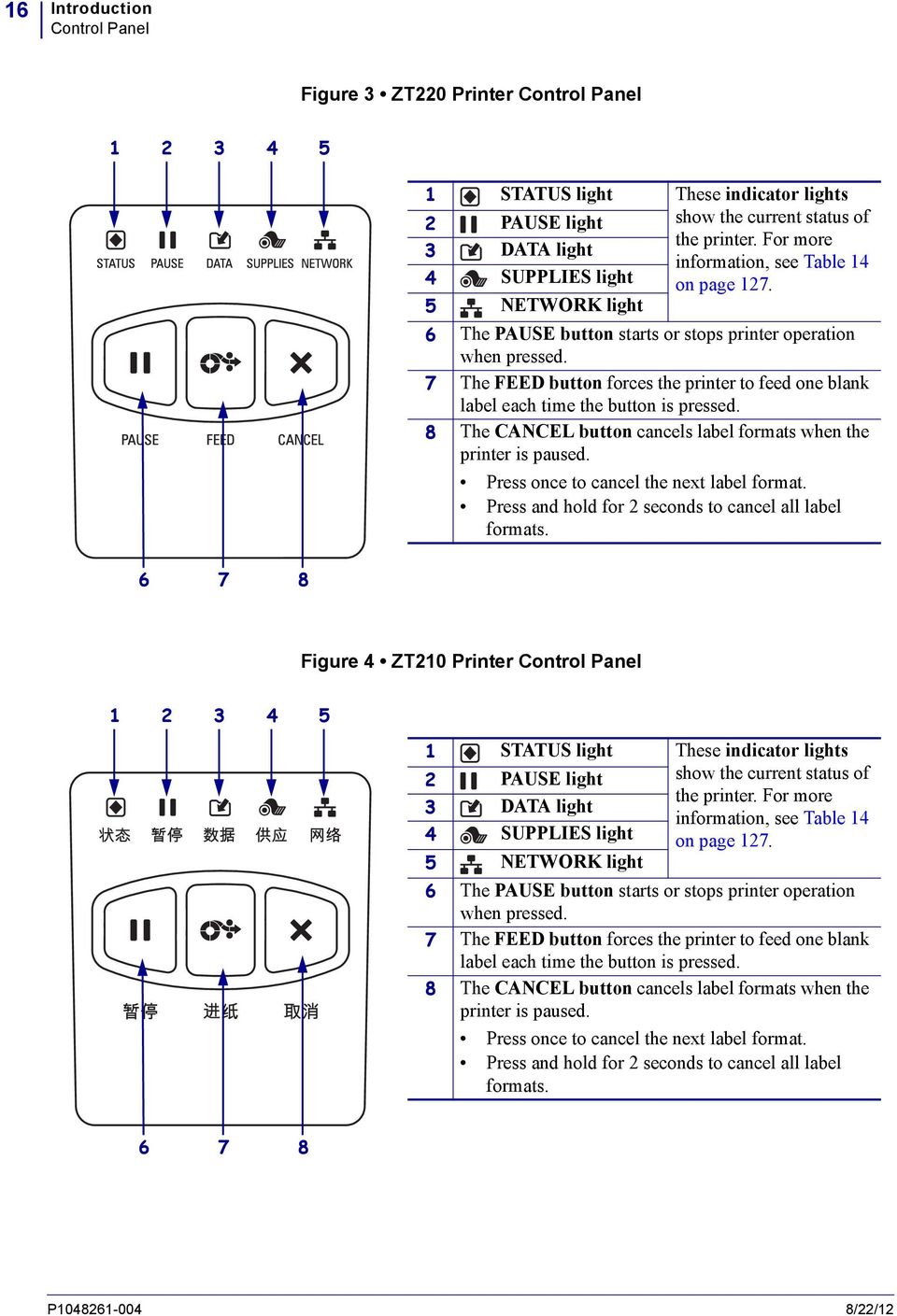
16 16 Introduction Control Panel Figure 3 ZT220 Printer Control Panel STATUS light These indicator lights 2 PAUSE light show the current status of the printer. For more 3 DATA light information, see Table 14 4 SUPPLIES light on page NETWORK light 6 The PAUSE button starts or stops printer operation when pressed. 7 The FEED button forces the printer to feed one blank label each time the button is pressed. 8 The CANCEL button cancels label formats when the printer is paused. Press once to cancel the next label format. Press and hold for 2 seconds to cancel all label formats. Figure 4 ZT210 Printer Control Panel STATUS light These indicator lights 2 PAUSE light show the current status of the printer. For more 3 DATA light information, see Table 14 4 SUPPLIES light on page NETWORK light 6 The PAUSE button starts or stops printer operation when pressed. 7 The FEED button forces the printer to feed one blank label each time the button is pressed. 8 The CANCEL button cancels label formats when the printer is paused. Press once to cancel the next label format. Press and hold for 2 seconds to cancel all label formats P /22/12
17 Introduction ZT230 Printer Control Panel Display 17 ZT230 Printer Control Panel Display The ZT230 printer s control panel includes a display, where you can view the printer s status or change its operating parameters. In this section, you will learn how to navigate through the printer s menu system and change values for menu items. After the printer completes the power-up sequence, it moves to the Idle Display (Figure 5). If a print server is installed, the printer cycles through the information shown and the printer s IP address. Figure 5 Idle Display PRINTER READY V Z The printer s current status 2 Information that you set through Idle Display on page 84 Home menu shortcut The printer s operating parameters are sorted into six user menus, which you can access through the printer s Home menu (Figure 6). For detailed information about changing the printer settings, see Changing Printer Settings on page 78. Figure 6 Home Menu HOME MENU SETTINGS See SETTINGS Menu on page 20. See LANGUAGE Menu on page 32. See TOOLS Menu on page 24. See SENSORS Menu on page 34. See NETWORK Menu on page 28. Exit and return to the Idle Display (Figure 5). See PORTS Menu on page 36. 8/22/12 P

18 18 Introduction ZT230 Printer Control Panel Display Navigating through Screens in the Display Table 2 shows the options available for navigating through the screens in the control panel display. Idle Display Table 2 Navigation XXXXXXX XXXXXXX HOME MENU SETTINGS Home Menu At the Idle Display (Figure 5 on page 17), press LEFT SELECT to go to the printer s Home menu (Figure 6 on page 17). To move from icon to icon in the Home menu, press any of the ARROW buttons. When an icon is selected, its colors are reversed to highlight it. SETTINGS menu icon To select the highlighted menu icon and enter the menu, press OK. Press LEFT SELECT to exit the Home menu and return to the Idle Display. The printer automatically returns to the Idle Display after 15 seconds of inactivity in the Home menu. SETTINGS menu icon highlighted P /22/12

19 Introduction ZT230 Printer Control Panel Display 19 Table 2 Navigation (Continued) User Menus XXXXXXX XXXXXXX Press LEFT SELECT to return to the Home menu. The printer automatically returns to the Home menu after 15 seconds of inactivity in a user menu. and indicate that a value can be changed. Any changes that you make are saved immediately. Press the UP ARROW or DOWN ARROW to scroll through accepted values. XXX To scroll through the items in a user menu, press the LEFT ARROW or RIGHT ARROW. A word in the bottom-right corner of the display indicates an available action. Press OK or press RIGHT SELECT to perform the action shown. 8/22/12 P

20 20 Introduction ZT230 Printer Control Panel Display SETTINGS Menu Items in this menu are shown in the order in which they appear when you press the RIGHT ARROW. For more information about these settings, see Print Settings on page 79. DARKNESS 10 Adjust the Print Darkness Set the darkness to the lowest setting that provides good print quality. If you set the darkness too high, the label image may print unclearly, bar codes may not scan correctly, the ribbon may burn through, or the printhead may wear prematurely. See Print Darkness on page 79 for more information. PRINT SPEED 4.0 Select the Print Speed Select the speed for printing a label (given in inches per second). Slower print speeds typically yield better print quality. See Print Speed on page 79 for more information. Set the Media Type MEDIA TYPE GAP/NOTCH Select the type of media that you are using. See Media Type on page 79 for more information. Select the Print Method PRINT METHOD THERMAL TRANS Specify if the printer is to use Direct Thermal mode (no ribbon) or Thermal Transfer mode (using thermal transfer media and ribbon). See Print Method on page 80 for more information. P /22/12

21 Introduction ZT230 Printer Control Panel Display 21 SETTINGS Menu (continued) Items in this menu are shown in the order in which they appear when you press the RIGHT ARROW. For more information about these settings, see Table 7, Print Settings on page 79. TEAR OFF 0 Adjust the Tear-Off Position If necessary, adjust the position of the media over the tear-off bar after printing. See Tear-Off Position on page 80 for more information. PRINT WIDTH 0000 Adjust the Print Width Specify the width of the labels being used. The default value is the maximum width for the printer, based on the printhead s DPI value. See Print Width on page 81 for more information. Select the Print Mode PRINT MODE TEAR OFF Select a print mode that is compatible with your printer options. See Print Mode on page 81 for more information. LEFT POSITION 0000 Adjust the Label Left Position If necessary, shift the print position horizontally on the label. Positive numbers move the left edge of the image toward the center of the label by the number of dots selected, while negative numbers move the left edge of the image toward the left edge of the label. See Label Left Position on page 81 for more information. 8/22/12 P
22 22 Introduction ZT230 Printer Control Panel Display SETTINGS Menu (continued) Items in this menu are shown in the order in which they appear when you press the RIGHT ARROW. For more information about these settings, see Table 7, Print Settings on page 79. Set the Reprint Mode REPRINT MODE OFF When reprint mode is enabled, you can reprint the last label printed either by issuing certain commands or by pressing the LEFT ARROW on the control panel. See Reprint Mode on page 82 for more information. LABEL LENGTH MAX 39 Set the Maximum Label Length Set the maximum label length to a value that is at least 1.0 in. (25.4 mm) greater than the actual label length plus the interlabel gap. If you set the value to one that is smaller than the label length, the printer assumes that continuous media is loaded, and the printer cannot calibrate. See Maximum Label Length on page 82 for more information. Select the Display Language LANGUAGE ENGLISH If necessary, change the language that the printer displays. See Language on page 92 for more information. Note The selections for this parameter are displayed in the actual languages to make it easier for you to find one that you are able to read. P /22/12
23 Introduction ZT230 Printer Control Panel Display 23 SETTINGS Menu (continued) TOOLS MENU Tools Menu Shortcut To be taken to the next user menu, press OK or press RIGHT SELECT to select GO. GO GO PRINT INFORMATION SETTINGS START To continue to navigate in the same user menu, press the LEFT ARROW or RIGHT ARROW. GO LANGUAGE ENGLISH DARKNESS 10 START 8/22/12 P
24 24 Introduction ZT230 Printer Control Panel Display TOOLS Menu Items in this menu are shown in the order in which they appear when you press the RIGHT ARROW. For more information about these settings, see Table 8, Calibration and Diagnostic Tools on page 83. List the Printer Information* PRINT INFORMATION SETTINGS Prints a printer configuration label. See Print Information on page 83 for more information. * Other options are available by scrolling. PRINT LCD CONTRAST 13 Set the Display Contrast Change the contrast on the printer s display. See LCD Contrast on page 84 for more information. Select the Idle Display IDLE DISPLAY FW VERSION Select the information shown on the printer s display when the printer is idle. See Idle Display on page 84 for more information. Set the Power-Up Action POWER UP ACTION CALIBRATE Set the action for the printer to take during the power-up sequence. See Power-Up Action on page 84 for more information. P /22/12
25 Introduction ZT230 Printer Control Panel Display 25 TOOLS Menu (continued) Items in this menu are shown in the order in which they appear when you press the RIGHT ARROW. For more information about these settings, see Table 8, Calibration and Diagnostic Tools on page 83. Set the Head-Close Action HEAD CLOSE ACTION CALIBRATE Set the action for the printer to take when you close the printhead. See Head-Close Action on page 85 for more information. Load Printer Defaults* LOAD DEFAULTS FACTORY Use this menu item to restore all settings other than the network settings back to the factory defaults. Use care when loading defaults because you will need to reload all settings that you changed manually. LOAD See Load Defaults on page 86 for more information. * Other options are available by scrolling. MEDIA/RIBBON CAL START Calibrate the Media and Ribbon Sensors Use this menu item to adjust the sensitivity of the media and ribbon sensors. See Media and Ribbon Sensor Calibration on page 87 for more information. For instructions on how to perform a calibration procedure, see Calibrate the Ribbon and Media Sensors on page 98. Enable Communication Diagnostics Mode DIAGNOSTIC MODE DISABLED Use this diagnostics tool to cause the printer to output the hexadecimal values for all data received by the printer. See Communication Diagnostics Mode on page 87 for more information. 8/22/12 P
26 26 Introduction ZT230 Printer Control Panel Display TOOLS Menu (continued) Items in this menu are shown in the order in which they appear when you press the RIGHT ARROW. For more information about these settings, see Table 8, Calibration and Diagnostic Tools on page 83. Is ZBI Enabled? ZBI ENABLED? NO This menu item indicates if the Zebra Basic Interpreter (ZBI 2.0 ) option is enabled on your printer. If you would like to purchase this option, contact your Zebra reseller for more information. See Enable ZBI on page 88 for more information. Run a ZBI Program* RUN ZBI PROGRAM (*NONE*) RUN If ZBI programs exist on your printer, they are listed. If no program exists, NONE is listed. If you wish to run a ZBI program that you have downloaded to your printer, select it from this menu, and then press RIGHT SELECT to select RUN. If no program exists, the RUN option does not perform an action. See Run a ZBI Program on page 88 for more information. * This menu item appears only if ZBI is enabled on your printer and no ZBI program is running. Stop a ZBI Program* STOP ZBI PROGRAM (*NONE*) If a ZBI program is running, the printer lists it. If you wish to stop the program, press RIGHT SELECT to select STOP. See Stop a ZBI Program on page 88 for more information. STOP * This menu item appears only if ZBI is enabled on your printer and a ZBI program is running. P /22/12
27 Introduction ZT230 Printer Control Panel Display 27 TOOLS Menu (continued) Network Menu Shortcut NETWORK MENU To be taken to the next user menu, press OK or press RIGHT SELECT to select GO. GO GO NO PRINT SERVER INSTALLED IP ADDRESS NEXT To continue to navigate in the same user menu, press the LEFT ARROW or RIGHT ARROW. ZBI ENABLED? NO GO RUN ZBI PROGRAM (*NONE*) PRINT INFORMATION SETTINGS NEXT START STOP ZBI PROGRAM (*NONE*) 8/22/12 P
28 28 Introduction ZT230 Printer Control Panel Display NETWORK Menu Items in this menu are shown in the order in which they appear when you press the RIGHT ARROW. For more information about these settings, see Table 9, Network Settings on page 89. No Print Server Message* NO PRINT SERVER INSTALLED * If no print server is installed, this message displays in place of the print server menu items. IP ADDRESS NEXT Set the Printer s IP Address* View and, if necessary, change the printer s IP address. Changes are saved only if IP PROTOCOL on page 29 is set to PERMANENT. To allow any saved changes to take effect, use RESET NETWORK on page 30 to reset the print server. See IP Address on page 89 for more information. * This menu item appears only if a wired or wireless print server is installed in your printer. SUBNET MASK NEXT Set the Subnet Mask* View and, if necessary, change the subnet mask. Changes are saved only if IP PROTOCOL on page 29 is set to PERMANENT. To allow any saved changes to take effect, use RESET NETWORK on page 30 to reset the print server. See Subnet Mask on page 89 for more information. * This menu item appears only if a wired or wireless print server is installed in your printer. GATEWAY NEXT Set the Default Gateway* View and, if necessary, change the default gateway. Changes are saved only if IP PROTOCOL on page 29 is set to PERMANENT. To allow any saved changes to take effect, use RESET NETWORK on page 30 to reset the print server. See Gateway on page 89 for more information. * This menu item appears only if a wired or wireless print server is installed in your printer. P /22/12
29 Introduction ZT230 Printer Control Panel Display 29 NETWORK Menu (continued) Items in this menu are shown in the order in which they appear when you press the RIGHT ARROW. For more information about these settings, see Table 9, Network Settings on page 89. Set the IP Resolution Method* This parameter tells if the user (permanent) or the server (dynamic) selects the IP address. If a dynamic option is chosen, this parameter tells the method(s) by which the wired or wireless print server receives the IP address from the server. See IP Protocol on page 90 for more information. IP PROTOCOL ALL * This menu item appears only if a wired or wireless print server is installed in your printer. View the Active Print Server* Only one print server (wired or wireless) can be installed at a time. Therefore, the print server installed is the active print server. ACTIVE PRINT SERVER INTERNAL WIRED * This menu item, which cannot be modified from the control panel, appears only if a wired or wireless print server is installed in your printer. View the MAC Address* View the Media Access Control (MAC) address of the print server that is installed in the printer (wired or wireless). See MAC Address on page 90 for more information. MAC ADDRESS A-3C * This menu item, which cannot be modified from the control panel, appears only if a wired or wireless print server is installed in your printer. View the ESSID Value* The Extended Service Set Identification (ESSID) is an identifier for your wireless network. This setting, which cannot be modified from the control panel, gives the ESSID for the current wireless configuration. See ESSID on page 90 for more information. ESSID 125 * This menu item, which cannot be modified from the control panel, appears only if a wireless print server is installed in your printer. 8/22/12 P
30 30 Introduction ZT230 Printer Control Panel Display NETWORK Menu (continued) Items in this menu are shown in the order in which they appear when you press the RIGHT ARROW. For more information about these settings, see Table 9, Network Settings on page 89. Print the Network Settings* PRINT INFORMATION NETWORK This option prints a network configuration label, which lists the settings for any print server that is installed. See Print Information on page 83 for more information. PRINT * Other options are available by scrolling. Reset the Network Settings* RESET NETWORK This option resets the wired or wireless print server. You must reset the print server to allow any changes to the network settings to take effect. See Reset Network on page 91 for more information. RESET * This menu item appears only if a wired or wireless print server is installed in your printer. Load Network Defaults* LOAD DEFAULTS NETWORK Use this menu item to restore all print server and network settings back to the factory defaults. Use care when loading defaults because you will need to reload all settings that you changed manually. LOAD See Load Defaults on page 86 for more information. * This menu item appears only if a wired or wireless print server is installed in your printer. Other options are available by scrolling. P /22/12
31 Introduction ZT230 Printer Control Panel Display 31 NETWORK Menu (continued) Language Menu Shortcut LANGUAGE MENU To be taken to the next user menu, press OK or press the RIGHT SELECT to select GO. GO GO LANGUAGE ENGLISH To continue to navigate in the same user menu, press the LEFT ARROW or RIGHT ARROW. GO LOAD DEFAULTS NETWORK IP ADDRESS NEXT 8/22/12 P
32 32 Introduction ZT230 Printer Control Panel Display LANGUAGE Menu Items in this menu are shown in the order in which they appear when you press the RIGHT ARROW. For more information about these settings, see Table 10, Language Settings on page 92. Select the Display Language LANGUAGE ENGLISH If necessary, change the language that the printer displays. See Language on page 92 for more information. Note The selections for this parameter are displayed in the actual languages to make it easier for you to find one that you are able to read. Enable ZPL Override ZPL OVERRIDE ENABLED Enable this menu item to allow certain ZPL commands to override the printer s current settings. See ZPL Override on page 92 for more information. Set the Command Character Value COMMAND CHAR ^ (5E) Set the format command character to match what is used in your label formats. See Command Character on page 93 for more information. CONTROL CHAR ~ (7E) Set the Control Character Value Set the control prefix character to match what is used in your label formats. See Control Character on page 93 for more information. P /22/12
33 Introduction ZT230 Printer Control Panel Display 33 LANGUAGE Menu (continued) Items in this menu are shown in the order in which they appear when you press the RIGHT ARROW. For more information about these settings, see Table 10, Language Settings on page 92. DELIMITER CHAR, (2C) Set the Delimiter Character Value Set the delimiter character to match what is used in your label formats. See Delimiter Character on page 93 for more information. Set the ZPL Mode ZPL MODE ZPL II Select the mode that matches what is used in your label formats. See ZPL Mode on page 94 for more information. Sensors Menu Shortcut SENSORS MENU To be taken to the next user menu, press OK or press RIGHT SELECT to select GO. GO GO SENSOR TYPE TRANSMISSIVE To continue to navigate in the same user menu, press the LEFT ARROW or RIGHT ARROW. GO ZPL MODE ZPL II LANGUAGE ENGLISH 8/22/12 P
34 34 Introduction ZT230 Printer Control Panel Display SENSORS Menu Items in this menu are shown in the order in which they appear when you press the RIGHT ARROW. For more information about these settings, see Table 11, Sensor Settings on page 95. Select the Media Sensor SENSOR TYPE REFLECTIVE Select the media sensor that is appropriate for the media that you are using. The reflective sensor can be used with all media types. The transmissive sensor should be used only for simple gap media. See Sensor Type on page 95 for more information. Calibrate the Media and Ribbon Sensors MEDIA/RIBBON CAL Use this menu item to adjust the sensitivity of the media and ribbon sensors. For instructions on how to perform a calibration procedure, see Calibrate the Ribbon and Media Sensors on page 98. START Print a Sensor Profile* PRINT INFORMATION SENSOR PROFILE Use this menu item to print a sensor profile. See Print Information on page 83 or Sensor Profile on page 149 for more information. PRINT * Other options are available by scrolling. Set the Sensitivity of the Label Sensor LABEL SENSOR 000 Important This value is set during sensor calibration. Do not change this setting unless you are told to do so by Zebra Technical Support or by an authorized service technician. See Label Sensor on page 95 for more information. P /22/12
35 Introduction ZT230 Printer Control Panel Display 35 SENSORS Menu (continued) Items in this menu are shown in the order in which they appear when you press the RIGHT ARROW. For more information about these settings, see Table 11, Sensor Settings on page 95. Set the Intensity of the Take Label LED TAKE LABEL 000 Important This value is set during sensor calibration. Do not change this setting unless you are told to do so by Zebra Technical Support or by an authorized service technician. See Take Label on page 95 for more information. PORTS MENU Ports Menu Shortcut To be taken to the next user menu, press OK or press RIGHT SELECT to select GO. GO GO BAUD RATE 9600 To continue to navigate in the same user menu, press the LEFT ARROW or RIGHT ARROW. GO TAKE LABEL 000 SENSOR TYPE TRANSMISSIVE 8/22/12 P
36 36 Introduction ZT230 Printer Control Panel Display PORTS Menu Items in this menu are shown in the order in which they appear when you press the RIGHT ARROW. For more information about these settings, see Table 12, Port Settings on page 96. BAUD RATE 9600 Set the Baud Rate Select the baud value that matches the one being used by the host computer. See Baud Rate on page 96 for more information. DATA BITS 8 Set the Data Bits Value Select the data bits value that matches the one being used by the host computer. See Data Bits on page 96 for more information. Set the Parity Value PARITY NONE Select the parity value that matches the one being used by the host computer. See Parity on page 96 for more information. Set the Host Handshake Protocol Value HOST HANDSHAKE XON/XOFF Select the handshake protocol that matches the one being used by the host computer. See Host Handshake on page 97 for more information. P /22/12
37 Introduction ZT230 Printer Control Panel Display 37 PORTS Menu (continued) SETTINGS MENU Settings Menu Shortcut To be taken to the next user menu, press OK or press RIGHT SELECT to select GO. GO GO DARKNESS 10 START To continue to navigate in the same user menu, press the LEFT ARROW or RIGHT ARROW. GO HOST HANDSHAKE XON/XOFF BAUD RATE /22/12 P
38 38 Printer Setup and Operation Types of Media Types of Media Important Zebra strongly recommends the use of Zebra-brand supplies for continuous high-quality printing. A wide range of paper, polypropylene, polyester, and vinyl stock has been specifically engineered to enhance the printing capabilities of the printer and to prevent premature printhead wear. To purchase supplies, go to Your printer can use various types of media: Standard media Most standard media uses an adhesive backing that sticks individual labels or a continuous length of labels to a liner. Standard media can come on rolls or in a fanfold stack (Table 3). Tag stock Tags are usually made from a heavy paper. Tag stock does not have adhesive or a liner, and it is typically perforated between tags. Tag stock can come on rolls or in a fanfold stack (Table 3). Table 3 Roll and Fanfold Media Media Type How It Looks Description Non-Continuous Roll Media Roll media is wound on a core that can be 1 in. to 3 in. (25 to 76 mm) in diameter. Individual labels or tags are separated by one or more of the following methods: Web media separates labels by gaps, holes, or notches. Black mark media uses pre-printed black marks on the back side of the media to indicate label separations. Perforated media has perforations that allow the labels or tags to be separated from each other easily. The media may also have black marks or other separations between labels or tags. P /22/12
39 Printer Setup and Operation Types of Media 39 Table 3 Roll and Fanfold Media (Continued) Media Type How It Looks Description Non-Continuous Fanfold Media Fanfold media is folded in a zigzag pattern. Fanfold media can have the same label separations as non-continuous roll media. The separations would fall on or near the folds. Continuous Roll Media Roll media is wound on a core that can be 1 in. to 3 in. (25 to 76 mm) in diameter. Continuous roll media does not have gaps, holes, notches, or black marks to indicate label separations. This allows the image to be printed anywhere on the label. Sometimes a cutter is used to cut apart individual labels. 8/22/12 P
40 40 Printer Setup and Operation Ribbon Overview Ribbon Overview Ribbon is a thin film that is coated on one side with wax, resin, or wax resin, which is transferred to the media during the thermal transfer process. The media determines whether you need to use ribbon and how wide the ribbon must be. When ribbon is used, it must be as wide as or wider than the media being used. If the ribbon is narrower than the media, areas of the printhead are unprotected and subject to premature wear. When to Use Ribbon Thermal transfer media requires ribbon for printing while direct thermal media does not. To determine if ribbon must be used with a particular media, perform a media scratch test. To perform a media scratch test, complete these steps: 1. Scratch the print surface of the media rapidly with your fingernail. 2. Did a black mark appear on the media? If a black mark... Does not appear on the media Appears on the media Then the media is... Thermal transfer. A ribbon is required. Direct thermal. No ribbon is required. Coated Side of Ribbon Ribbon can be wound with the coated side on the inside or outside (Figure 7). This printer can only use ribbon that is coated on the outside. If you are unsure which side of a particular roll of ribbon is coated, perform an adhesive test or a ribbon scratch test to determine which side is coated. Figure 7 Ribbon Coated on Outside or Inside Outside Inside P /22/12
41 Printer Setup and Operation Ribbon Overview 41 Adhesive Test If you have labels available, perform the adhesive test to determine which side of a ribbon is coated. This method works well for ribbon that is already installed. To perform an adhesive test, complete these steps: 1. Peel a label from its liner. 2. Press a corner of the sticky side of the label to the outer surface of the roll of ribbon. 3. Peel the label off of the ribbon. 4. Observe the results. Did flakes or particles of ink from the ribbon adhere to the label? If ink from the ribbon... Adhered to the label Did not adhere to the label Then... The ribbon is coated on the outside and can be used in this printer. The ribbon is coated on the inside and cannot be used in this printer. To verify this, repeat the test on the other surface of the roll of ribbon. Ribbon Scratch Test Perform the ribbon scratch test when labels are unavailable. To perform a ribbon scratch test, complete these steps: 1. Unroll a short length of ribbon. 2. Place the unrolled section of ribbon on a piece of paper with the outer surface of the ribbon in contact with the paper. 3. Scratch the inner surface of the unrolled ribbon with your fingernail. 4. Lift the ribbon from the paper. 5. Observe the results. Did the ribbon leave a mark on the paper? If the ribbon... Left a mark on the paper Did not leave a mark on the paper Then... The ribbon is coated on the outside and can be used in this printer. The ribbon is coated on the inside and cannot be used in this printer. To verify this, repeat the test on the other surface of the roll of ribbon. 8/22/12 P
42 42 Printer Setup and Operation Ribbon Overview Notes P /22/12
43 2 Printer Setup and Operation This section assists the technician with initial setup and operation of the printer. Contents Handling the Printer Unpack and Inspect the Printer Store the Printer Ship the Printer Select a Location for the Printer Select a Data Communication Interface Data Cables Connect the Printer to a Power Source Power Cord Specifications Select a Print Mode Load the Ribbon Load the Media /22/12 P
44 44 Printer Setup and Operation Handling the Printer Handling the Printer This section describes how to handle your printer. Unpack and Inspect the Printer When you receive the printer, immediately unpack it and inspect for shipping damage. Save all packing materials. Check all exterior surfaces for damage. Raise the media door, and inspect the media compartment for damage to components. If you discover shipping damage upon inspection: Immediately notify the shipping company and file a damage report. Keep all packaging material for shipping company inspection. Notify your authorized Zebra reseller Important Zebra Technologies is not responsible for any damage incurred during the shipment of the equipment and will not repair this damage under warranty. Store the Printer If you are not placing the printer into immediate operation, repackage it using the original packing materials. You may store the printer under the following conditions: Temperature: 40 F to 140 F ( 40 to 60 C) Relative humidity: 5% to 85% non-condensing Ship the Printer If you must ship the printer: Turn off (O) the printer, and disconnect all cables. Remove any media, ribbon, or loose objects from the printer interior. Close the printhead. Carefully pack the printer into the original container or a suitable alternate container to avoid damage during transit. A shipping container can be purchased from Zebra if the original packaging has been lost or destroyed. P /22/12
45 Printer Setup and Operation Select a Location for the Printer 45 Select a Location for the Printer Select a location for the printer that meets these conditions: Surface: The surface where the printer will be located must be solid, level, and of sufficient size and strength to hold the printer. Space: The area where the printer will be located must include enough space for ventilation and for accessing the printer components and connectors. To allow for proper ventilation and cooling, leave open space on all sides of the printer. Caution Do not place any padding or cushioning material behind or under the printer because this restricts air flow and could cause the printer to overheat. Power: The printer should be within a short distance of an appropriate power outlet that is easily accessible. Data communication interfaces: The printer must be within range of your WLAN radio (if applicable) or within an acceptable range for other connectors to reach your data source (usually a computer). For more information on maximum cable lengths and configuration, see Table 5 on page 47. Operating conditions: Your printer is designed to function in a wide range of environmental and electrical conditions, including a warehouse or factory floor. Table 4 shows the temperature and relative humidity requirements for the printer when it is operating. Table 4 Operating Temperature and Humidity Mode Temperature Relative Humidity Thermal Transfer 41 to 104 F (5 to 40 C) 20 to 85% non-condensing Direct Thermal 32 to 104 F (0 to 40 C) 8/22/12 P
46 46 Printer Setup and Operation Select a Data Communication Interface Select a Data Communication Interface You may connect your printer to a computer using one or more of the available connections. The standard connections are shown in Figure 8. A ZebraNet wired or wireless print server option or a parallel port may also be present on your printer. Figure 8 Communication Interfaces Serial port USB 2.0 port Table 5 on page 47 provides basic information about data communication interfaces that you can use to connect your printer to a computer. You may send label formats to the printer through any data communication interface that is available. Select an interface that is supported by both your printer and your computer or your Local Area Network (LAN). Caution Ensure that the printer power is off (O) before connecting data communications cables. Connecting a data communications cable while the power is on (I) may damage the printer. P /22/12
47 Printer Setup and Operation Select a Data Communication Interface 47 Table 5 Data Communication Interfaces Interface Standard or Option Description RS-232 Serial Standard Limitations and Requirements Maximum cable length of 50 ft (15.24 m). You may need to change printer parameters to match the host computer. You need to use a null-modem adaptor to connect to the printer if using a standard modem cable. Connections and Configuration The baud rate, number of data and stop bits, the parity, and the XON/XOFF or DTR control must match those of the host computer. USB Standard Limitations and Requirements Maximum cable length of 16.4 ft (5 m). No printer parameter changes required to match the host computer. Connections and Configuration No additional configuration is necessary. 8-bit Parallel data interface Wired Ethernet print server Option Option Limitations and Requirements Maximum cable length of 10 ft (3 m). Recommended cable length of 6 ft (1.83 m). No printer parameter changes required to match the host computer. A wired or wireless print server (if installed) takes up this port on the printer. Connections and Configuration No additional configuration is necessary. Limitations and Requirements Can print to the printer from any computer on your LAN. Can communicate with the printer through the printer s web pages. The printer must be configured to use your LAN. A parallel connection or a wireless print server (if installed) takes up this port on the printer. Caution Be careful not to plug a USB cable into a wired Ethernet print server connector on the printer because doing so will damage the Ethernet connector. Connections and Configuration Refer to the ZebraNet Wired and Wireless Print Servers User Guide for configuration instructions. A copy of this manual is available at or on the user CD that came with your printer. Note To use this connection, you may need to remove a factory-installed plug that is designed to keep someone from accidentally plugging a USB connector into this port. 8/22/12 P
48 48 Printer Setup and Operation Select a Data Communication Interface Interface Table 5 Data Communication Interfaces (Continued) Standard or Option Description Wireless print server Option Limitations and Requirements Can print to the printer from any computer on your Wireless Local Area Network (WLAN). Can communicate with the printer through the printer s web pages. The printer must be configured to use your WLAN. A parallel connection or a wired print server (if installed) takes up this port on the printer. Configuration Refer to the ZebraNet Wired and Wireless Print Servers User Guide for configuration instructions. A copy of this manual is available at or on the user CD that came with your printer. Data Cables You must supply all data cables for your application. Ethernet cables do not require shielding, but all other data cables must be fully shielded and fitted with metal or metallized connector shells. Unshielded data cables may increase radiated emissions above the regulated limits. To minimize electrical noise pickup in the cable: Keep data cables as short as possible. Do not bundle the data cables tightly with the power cords. Do not tie the data cables to power wire conduits. P /22/12
49 Printer Setup and Operation Connect the Printer to a Power Source 49 Connect the Printer to a Power Source The AC power cord must have a three-prong female connector on one end that plugs into the mating AC power connector at the rear of the printer. If a power cable was not included with your printer, refer to Power Cord Specifications on page 50. Caution For personnel and equipment safety, always use an approved three-conductor power cord specific to the region or country intended for installation. This cord must use an IEC 320 female connector and the appropriate region-specific three-conductor grounded plug configuration. To connect the printer to a power source, complete these steps: 1. Plug the female end of the A/C power cord into the A/C power connector on the back of the printer. 2. Plug the male end of the A/C power cord into an appropriate power outlet. 115 V AC 230 V AC 8/22/12 P
50 50 Printer Setup and Operation Connect the Printer to a Power Source 3. Turn on (I) the printer. The printer boots up and performs a self-test. The printer reports its status through the indicator lights on the control panel (see Table 14 on page 127 for the meaning of the light colors and combinations). Power Cord Specifications Caution For personnel and equipment safety, always use an approved three-conductor power cord specific to the region or country intended for installation. This cord must use an IEC 320 female connector and the appropriate region-specific, three-conductor grounded plug configuration. Depending on how your printer was ordered, a power cord may or may not be included. If one is not included or if the one included is not suitable for your requirements, see Figure 9 and refer to the following guidelines: The overall cord length must be less than 9.8 ft. (3 m). The cord must be rated for at least 10 A, 250 V. The chassis ground (earth) must be connected to ensure safety and reduce electromagnetic interference. P /22/12
51 Printer Setup and Operation Connect the Printer to a Power Source 51 Figure 9 Power Cord Specifications AC power plug for your country This should bear the certification mark of at least one of the known international safety organizations (Figure 10). 2 3-conductor HAR cable or other cable approved for your country. 3 IEC 320 connector This should bear the certification mark of at least one of the known international safety organizations (Figure 10). 4 Length 9.8 ft. (3 m). Rating 10 Amp, 250 VAC. Figure 10 International Safety Organization Certification Symbols 8/22/12 P
52 52 Printer Setup and Operation Select a Print Mode Select a Print Mode Use a print mode that matches the media being used and the printer options available (Table 6). Table 6 Print Modes and Printer Options Print Mode When to Use/Printer Options Required Printer Actions Tear-Off (default setting) Use for most applications. This mode can be used with any printer options and most media types. The printer prints label formats as it receives them. The printer operator can tear off the printed labels any time after they print. Roll media in Tear-Off mode (shown using thermal transfer media with ribbon loaded) Fanfold media in Tear-Off mode (shown using direct thermal media and no ribbon) P /22/12
53 Printer Setup and Operation Select a Print Mode 53 Table 6 Print Modes and Printer Options Print Mode When to Use/Printer Options Required Printer Actions Peel-Off Use if the printer has the Peel-Off option or the Liner Take-Up option.* * The Liner Take-Up option is available only on the ZT230 printer. Peel-Off mode (shown without a ribbon system) The printer peels the label from the liner during printing and then pauses until the label is removed. The liner exits the front of the printer. In Peel-Off mode, the liner exits the front of the printer. In Peel-Off mode with Liner Take-Up, the liner winds onto the liner take-up spindle or the rewind spindle. Peel-Off mode with Liner Take-Up* (shown using direct thermal media and no ribbon) 8/22/12 P
54 54 Printer Setup and Operation Select a Print Mode Cutter Table 6 Print Modes and Printer Options Print Mode When to Use/Printer Options Required Printer Actions Use if the printer has a cutter option when you want the labels to be cut apart. The printer prints a label and then cuts it free. Cutter mode (shown using direct thermal media and no ribbon) P /22/12
55 Printer Setup Load the Ribbon 55 Load the Ribbon Note This section applies only to printers that have the Thermal Transfer option installed. Ribbon is used only with thermal transfer labels. For direct thermal labels, do not load ribbon in the printer. To determine if ribbon must be used with a particular media, see When to Use Ribbon on page 40. Caution While performing any tasks near an open printhead, remove all rings, watches, hanging necklaces, identification badges, or other metallic objects that could touch the printhead. You are not required to turn off the printer power when working near an open printhead, but Zebra recommends it as a precaution. If you turn off the power, you will lose all temporary settings, such as label formats, and you must reload them before you resume printing. Important Use ribbon that is wider than the media to protect the printhead from wear. Ribbon must be coated on the outside. To load ribbon, complete these steps: 1. Raise the media door. 8/22/12 P
56 56 Printer Setup Load the Ribbon 2. Caution The printhead may be hot and could cause severe burns. Allow the printhead to cool. Rotate the printhead-open lever (1) counterclockwise to release the print mechanism (2) Position the ribbon with the loose end unrolling clockwise. 4. Place the roll of ribbon on the ribbon supply spindle. Push the roll back as far as it will go. P /22/12
57 Printer Setup Load the Ribbon Your printer shipped with an empty ribbon core on the ribbon take-up spindle. If this core is no longer there, place an empty ribbon core on the ribbon take-up spindle. Push the core back as far as it will go. 6. Slide the ribbon under the print mechanism. 8/22/12 P
58 58 Printer Setup Load the Ribbon 7. Wind the ribbon clockwise around the core on the ribbon take-up spindle. Turn the spindle enough to wind the ribbon around it several times. 8. If media is already loaded, rotate the printhead-open lever clockwise until it locks the printhead in place. Otherwise, continue with Load the Media on page 60. P /22/12
59 Printer Setup Load the Ribbon Close the media door. 10. If necessary, press PAUSE to enable printing. 8/22/12 P
60 60 Printer Setup Load the Media Load the Media Use the instructions in this section for loading roll or fanfold media in any print mode. Caution While performing any tasks near an open printhead, remove all rings, watches, hanging necklaces, identification badges, or other metallic objects that could touch the printhead. You are not required to turn off the printer power when working near an open printhead, but Zebra recommends it as a precaution. If you turn off the power, you will lose all temporary settings, such as label formats, and you must reload them before you resume printing. To load media, complete these steps: 1. Raise the media door. 2. Caution The printhead may be hot and could cause severe burns. Allow the printhead to cool. Rotate the printhead-open lever (1) counterclockwise to release the printhead mechanism (2). 1 2 P /22/12
61 Printer Setup Load the Media Insert media into the printer. Follow the instructions for roll or fanfold media, as appropriate. Roll Media Fanfold Media a. Remove and discard any tags or labels that are dirty or that are held by adhesives or tape. a. Slide out and flip down the media supply guide. b. Slide out and flip down the media supply guide. b. Insert the fanfold media through the rear of the printer. 8/22/12 P
62 62 Printer Setup Load the Media Roll Media (Continued) Fanfold Media (Continued) c. Place the roll of media on the media supply hanger. Push the roll back as far as it will go. c. Drape the media over the media supply hanger. d. Flip up the media supply guide. d. Flip up the media supply guide. e. Slide in the media supply guide until it touches the edge of the roll. e. Slide in the media supply guide until it touches the edge of the media. f. Continue with the remaining steps as shown for roll media. P /22/12
63 Printer Setup Load the Media Slide the outer media guide all the way out. 5. Slide the media under the media dancer assembly and the print mechanism. Allow the end of the media to extend out of the front of the printer. 8/22/12 P
64 64 Printer Setup Load the Media 6. Make sure that the media passes through the slot in the transmissive media sensor (1) and under the inner media guide (2). The media should just touch the back of the transmissive media sensor slot In which print mode will your printer be operating? (For more information on print modes, see Select a Print Mode on page 52.) If using Tear-Off mode Then Continue with Final Steps for Tear-Off Mode on page 66. P /22/12
65 Printer Setup Load the Media 65 If using Peel-Off mode (with or without Liner Take-Up) Then Continue with Final Steps for Peel-Off Mode (with or without Liner Take-Up) on page 68. Cutter mode Continue with Final Steps for Cutter Mode on page 74. 8/22/12 P
66 66 Printer Setup Load the Media Final Steps for Tear-Off Mode 8. Slide in the outer media guide until it just touches the edge of the media. P /22/12
67 Printer Setup Load the Media Rotate the printhead-open lever clockwise until it locks the printhead in place. 10. Set the printer to Tear-Off mode (for more information, see Print Mode on page 81). 11. Close the media door. 12. Press PAUSE to exit pause mode and enable printing. The printer may perform a label calibration or feed a label, depending on your settings. 13. If desired, perform the CANCEL Self Test on page 142 to verify that your printer is able to print. Media loading in Tear-Off mode is complete. 8/22/12 P
68 68 Printer Setup Load the Media Final Steps for Peel-Off Mode (with or without Liner Take-Up) 14. Push down the peel-off mechanism release lever to open the peel assembly. P /22/12
69 Printer Setup Load the Media Extend the media approximately 18 in. (500 mm) out of the printer. 16. Remove the exposed labels so that only the liner remains. 8/22/12 P
70 70 Printer Setup Load the Media 17. Feed the liner behind the peel assembly. Make sure that the end of the liner falls outside of the printer. 18. Complete this step only if you want to use Peel-Off mode with Liner Take-Up. Your printer must have the Liner Take-Up option installed. 18-a. Slide the liner into the slot in the liner take-up spindle (1) b. Push the liner back until it touches the back plate of the liner take-up spindle assembly. P /22/12
71 Printer Setup Load the Media c. Wrap the liner around the liner take-up spindle and turn the spindle counterclockwise to tighten the liner. 19. Caution Use the peel release lever and your right hand to close the peel assembly. Do not use your left hand to assist in closing. The top edge of the peel roller/assembly could pinch your fingers. Close the peel assembly using the peel-off mechanism release lever. 8/22/12 P
72 72 Printer Setup Load the Media 20. Slide in the outer media guide until it just touches the edge of the media. 21. Rotate the printhead-open lever clockwise until it locks the printhead in place. 22. Set the printer to Peel-Off mode (for more information, see Print Mode on page 81). P /22/12
73 Printer Setup Load the Media Close the media door. 24. Press PAUSE to exit pause mode and enable printing. The printer may perform a label calibration or feed a label, depending on your settings. 25. If desired, perform the CANCEL Self Test on page 142 to verify that your printer is able to print. Media loading in Peel-Off mode is complete. 8/22/12 P
74 74 Printer Setup Load the Media Final Steps for Cutter Mode 26. Caution The cutter blade is sharp. Do not touch or rub the blade with your fingers. Feed the media through the cutter. P /22/12
75 Printer Setup Load the Media Slide in the outer media guide until it just touches the edge of the media. 28. Rotate the printhead-open lever clockwise until it locks the printhead in place. 29. Set the printer to Cutter mode (for more information, see Print Mode on page 81). 8/22/12 P
76 76 Printer Setup Load the Media 30. Close the media door. 31. Press PAUSE to exit pause mode and enable printing. The printer may perform a label calibration or feed a label, depending on your settings. 32. If desired, perform the CANCEL Self Test on page 142 to verify that your printer is able to print. Media loading in Cutter mode is complete. P /22/12
77 3 Printer Configuration and Adjustment This section assists you with configuration of and adjustments to the printer. Contents Changing Printer Settings Print Settings Calibration and Diagnostic Tools Network Settings Language Settings Sensor Settings Port Settings Calibrate the Ribbon and Media Sensors Adjust the Printhead Pressure Adjust Ribbon Tension Remove Used Ribbon /22/12 P
78 78 Printer Configuration and Adjustment Changing Printer Settings Changing Printer Settings This section presents the printer settings that you can change and identifies the tools for changing them. These tools include the following: ZPL and Set/Get/Do (SGD) commands (See the Zebra Programming Guide for more information.) For ZT230 printers only, the printer s control panel display (See ZT230 Printer Control Panel Display on page 17 for more information.) The printer s web pages when the printer has an active wired or wireless print server connection (See the ZebraNet Wired and Wireless Print Servers User Guide for more information.) Copies of the referenced manuals are available at or on the user CD that came with your printer. This section contains the following subsections: Print Settings on page 79 Calibration and Diagnostic Tools on page 83 Network Settings on page 89 Language Settings on page 92 Sensor Settings on page 95 Port Settings on page 96 P /22/12
79 Printer Configuration and Adjustment Changing Printer Settings 79 Print Settings Table 7 Print Settings Print Darkness Set the darkness to the lowest setting that provides good print quality. If you set the darkness too high, the label image may print unclearly, bar codes may not scan correctly, the ribbon may burn through, or the printhead may wear prematurely. If desired, use the FEED Self Test on page 144 to determine the best darkness setting. Accepted values: Related ZPL command(s): ^MD, ~SD SGD command used: print.tone Control panel menu item: DARKNESS on page 20 Printer web page: View and Modify Printer Settings > General Setup > Darkness Print Speed Select the speed for printing a label (given in inches per second). Slower print speeds typically yield better print quality. Accepted values: 2, 3, 4, 5, 6 Related ZPL command(s): ^PR SGD command used: media.speed Control panel menu item: PRINT SPEED on page 20 Media Type Printer web page: N/A Select the type of media that you are using. If you select CONTINUOUS, you must include a label length in your label format (^LL if you are using ZPL). If you select GAP/NOTCH or MARK for various non-continuous media, the printer feeds media to calculate the label length. See Types of Media on page 38 for more information. Accepted values: CONTINUOUS GAP/NOTCH MARK Related ZPL command(s): ^MN SGD command used: ezpl.media_type Control panel menu item: MEDIA TYPE on page 20 Printer web page: View and Modify Printer Settings > Media Setup > Media Type 8/22/12 P
80 80 Printer Configuration and Adjustment Changing Printer Settings Table 7 Print Settings (Continued) Print Method Specify if the printer is to use Direct Thermal mode (no ribbon) or Thermal Transfer mode (using thermal transfer media and ribbon). Accepted values: THERMAL TRANS DIRECT THERMAL Related ZPL command(s): ^MT SGD command used: ezpl.print_method Control panel menu item: PRINT METHOD on page 20 Tear-Off Position Printer web page: View and Modify Printer Settings > Media Setup > Print Method If necessary, adjust the position of the media over the tear-off bar after printing. Higher numbers move the media out (the tear line moves closer to the leading edge of the next label). Lower numbers move the media in (the tear line moves closer to the edge of the label just printed) Media direction 2 Factory-set tear line location at position 000 Accepted values: 120 to 120 Related ZPL command(s): SGD command used: ~TA ezpl.tear_off Control panel menu item: TEAR OFF on page 21 Printer web page: View and Modify Printer Settings > General Setup > Tear Off P /22/12
81 Printer Configuration and Adjustment Changing Printer Settings 81 Table 7 Print Settings (Continued) Print Width Specify the width of the labels being used. The default value is the maximum width for the printer, based on the printhead s DPI value. Note Setting the width too narrow can result in portions of a label format not being printed on the media. Setting the width too wide wastes formatting memory and can cause the printer to print off of the label and onto the platen roller. This setting can affect the horizontal position of the label format if the image was inverted using the ^POI ZPL II command. Accepted values: 0000 to 1248 dots Related ZPL command(s): ^PW SGD command used: ezpl.print_width Control panel menu item: PRINT WIDTH on page 21 Printer web page: View and Modify Printer Settings > Media Setup > Print Width Print Mode Select a print mode that is compatible with your printer options. For information about how the print mode selections work with different printer options, see Select a Print Mode on page 52. Accepted values: TEAR OFF CUTTER PEEL (use this value for peel-off or liner take-up printing) Related ZPL command(s): ^MM SGD command used: media.printmode Control panel menu item: PRINT MODE on page 21 Printer web page: View and Modify Printer Settings > General Setup > Print Mode Label Left Position If necessary, shift the print position horizontally on the label. Positive numbers move the left edge of the image toward the center of the label by the number of dots selected, while negative numbers move the left edge of the image toward the left edge of the label. Accepted values: 9999 to 9999 Related ZPL command(s): SGD command used: ^LS zpl.left_position Control panel menu item: LEFT POSITION on page 21 Printer web page: View and Modify Printer Settings > Advanced Setup > Left Position 8/22/12 P
82 82 Printer Configuration and Adjustment Changing Printer Settings Table 7 Print Settings (Continued) Reprint Mode When reprint mode is enabled, you can reprint the last label printed by pressing and holding PAUSE + CANCEL on the printer s control panel. Accepted values: ON OFF Related ZPL command(s): ^JZ SGD command used: ezpl.reprint_mode Control panel menu item: REPRINT MODE on page 22 Maximum Label Length Printer web page: N/A Set the maximum label length to a value that is at least 1.0 in. (25.4 mm) greater than the actual label length plus the interlabel gap. If you set the value to one that is smaller than the label length, the printer assumes that continuous media is loaded, and the printer cannot calibrate. For example, if the label length is 6.0 inches (152 mm) including the interlabel gap, set the parameter for at least 7.0 inches (178 mm) Label length (including interlabel gap) 2 Interlabel gap 3 Set the maximum label length to approximately this value Accepted values: Related ZPL command(s): 0 to the maximum label length supported by the printer ^ML SGD command used: ezpl.label_length_max Control panel menu item: LABEL LENGTH MAX on page 22 Printer web page: View and Modify Printer Settings > Media Setup > Maximum Length P /22/12
83 Printer Configuration and Adjustment Changing Printer Settings 83 Calibration and Diagnostic Tools Table 8 Calibration and Diagnostic Tools Print Information Print the specified information on one or more labels. Accepted values: SETTINGS prints the printer configuration label. NETWORK prints the settings for any print server that is installed. FORMATS prints the available formats stored in the printer s RAM, Flash memory, or optional memory card. IMAGES prints the available images stored in the printer s RAM, Flash memory, or optional memory card. FONTS prints the available fonts in the printer, including standard printer fonts plus any optional fonts. Fonts may be stored in RAM or Flash memory. BARCODES prints the available bar codes in the printer. Bar codes may be stored in RAM or Flash memory. ALL prints the previous six labels. SENSOR PROFILE shows the sensor settings compared to actual sensor readings. To interpret the results of the sensor profile, see Sensor Profile on page 149. Related ZPL command(s): SGD command used: Settings: ~WC Network: ~WL Sensor profile: ~JG Others: ^WD none Control panel menu item: Settings: PRINT INFORMATION on page 24 Network: PRINT INFORMATION on page 30 Sensor profile: PRINT INFORMATION on page 34 Control panel key(s): Settings and Network: Do one of the following: Hold CANCEL during printer power-up. Hold FEED + CANCEL for 2 seconds when the printer is in the Ready state. Sensor profile: Hold FEED + CANCEL during printer power-up. Printer web page: View and Modify Printer Settings > Print Listings on Label 8/22/12 P
84 84 Printer Configuration and Adjustment Changing Printer Settings Table 8 Calibration and Diagnostic Tools (Continued) LCD Contrast Change the contrast on the printer s display. (ZT230 only) Accepted values: 3 to 15 Related ZPL command(s): SGD command used: none display.contrast Control panel menu item: LCD CONTRAST on page 24 Idle Display Printer web page: N/A Select the information shown on the printer s display when the printer is idle. (ZT230 only) Accepted values: FW VERSION IP ADDRESS MM/DD/YY 24 HR M/DD/YY 12 HR DD/MM/YY 24 HR DD/MM/YY 12 HR Related ZPL command(s): none SGD command used: device.idle_display_format Control panel menu item: IDLE DISPLAY on page 24 Power-Up Action Printer web page: N/A Set the Power-Up Action Set the action for the printer to take during the power-up sequence. CALIBRATE adjusts sensor levels and thresholds, determines the label length, and feeds the media to the next web. FEED feeds the labels to the first registration point. LENGTH determines the label length using current sensor values, and feeds the media to the next web. NO MOTION tells the printer not to move the media. You must manually ensure that the web is positioned correctly, or press feed to position the next web. SHORT CAL sets the media and web thresholds without adjusting sensor gain, determines the label length, and feeds the media to the next web. Accepted values: CALIBRATE FEED LENGTH NO MOTION SHORT CAL Related ZPL command(s): ^MF SGD command used: ezpl.power_up_action Control panel menu item: POWER UP ACTION on page 24 Printer web page: View and Modify Printer Settings > Calibration P /22/12
85 Printer Configuration and Adjustment Changing Printer Settings 85 Table 8 Calibration and Diagnostic Tools (Continued) Head-Close Action Set the Head-Close Action Set the action for the printer to take when you close the printhead. CALIBRATE adjusts sensor levels and thresholds, determines the label length, and feeds the media to the next web. FEED feeds the labels to the first registration point. LENGTH determines the label length using current sensor values, and feeds the media to the next web. NO MOTION tells the printer not to move the media. You must manually ensure that the web is positioned correctly, or press feed to position the next web. SHORT CAL sets the media and web thresholds without adjusting sensor gain, determines the label length, and feeds the media to the next web. Accepted values: CALIBRATE FEED LENGTH NO MOTION SHORT CAL Related ZPL command(s): ^MF SGD command used: ezpl.head_close_action Control panel menu item: HEAD CLOSE ACTION on page 25 Printer web page: View and Modify Printer Settings > Calibration 8/22/12 P
86 86 Printer Configuration and Adjustment Changing Printer Settings Table 8 Calibration and Diagnostic Tools (Continued) Load Defaults Load Printer or Print Server Defaults FACTORY Restores all printer settings other than the network settings back to the factory defaults. Use care when loading defaults because you will need to reload all settings that you changed manually. NETWORK Reinitializes the printer s wired or wireless print server. With a wireless print server, the printer will also reassociate with your wireless network. LAST SAVED Loads settings from the last permanent save. Accepted values: FACTORY NETWORK LAST SAVED Related ZPL command(s): Factory: ^JUF Network: ^JUN Last saved: ^JUR SGD command used: none Control panel menu item: LOAD DEFAULTS on page 30 Control panel key(s): Factory: Hold FEED + PAUSE during printer power-up to reset the printer parameters to factory values. Network: Hold CANCEL + PAUSE during printer power-up to reset the network parameters to factory values. Last saved: N/A Printer web page: Factory: View and Modify Printer Settings > Restore Default Configuration Network: Print Server Settings > Reset Print Server Last saved: View and Modify Printer Settings > Restore Saved Configuration P /22/12
87 Printer Configuration and Adjustment Changing Printer Settings 87 Table 8 Calibration and Diagnostic Tools (Continued) Media and Ribbon Sensor Calibration Calibrate the printer to adjust the sensitivity of the media and ribbon sensors. For complete instructions on how to perform a calibration procedure, see Calibrate the Ribbon and Media Sensors on page 98. Accepted values: N/A Related ZPL command(s): ~JC SGD command used: ezpl.manual_calibration Control panel menu item: MEDIA/RIBBON CAL on page 25 Control panel key(s): Hold PAUSE + FEED + CANCEL for 2 seconds to initiate calibration. Printer web page: The calibration procedure cannot be initiated through the web pages. See the following web page for settings that are set during sensor calibration: View and Modify Printer Settings > Calibration Important Do not change these settings unless you are told to do so by Zebra Technical Support or by an authorized service technician. Communication Diagnostics Mode Use this diagnostics tool to cause the printer to output the hexadecimal values for all data received by the printer. For more information, see Communication Diagnostics Test on page 148. Accepted values: DISABLED ENABLED Related ZPL command(s): ~JD to enable, ~JE to disable SGD command used: device.diagnostic_print Control panel menu item: DIAGNOSTIC MODE on page 25 Control panel key(s): Printer web page: Hold PAUSE + FEED for 2 seconds when the printer is in the Ready state. N/A 8/22/12 P
88 88 Printer Configuration and Adjustment Changing Printer Settings Table 8 Calibration and Diagnostic Tools (Continued) Enable ZBI Run a ZBI Program Stop a ZBI Program Zebra Basic Interpreter (ZBI 2.0 ) is a programming option that may be purchased for your printer. If you would like to purchase this option, contact your Zebra reseller for more information. Accepted values: N/A Related ZPL command(s): none SGD command used: zbi.key (identifies if the ZBI 2.0 option is enabled or disabled on the printer) Control panel menu item: ZBI ENABLED? on page 26 Printer web page: N/A If you have ZBI installed, you may choose to run a ZBI program that you have downloaded to your printer. Accepted values: N/A Related ZPL command(s): ^JI, ~JI SGD command used: zbi.control.run Control panel menu item: RUN ZBI PROGRAM on page 26 Printer web page: Directory Listing If your printer is running a ZBI program, you may stop that program. Accepted values: N/A Related ZPL command(s): ~JQ SGD command used: zbi.control.terminate Control panel menu item: STOP ZBI PROGRAM on page 26 Printer web page: Directory Listing P /22/12
89 Printer Configuration and Adjustment Changing Printer Settings 89 Network Settings Table 9 Network Settings IP Address View or Set the Printer s IP Address View and, if necessary, change the printer s IP address. Changes to this setting are saved only if IP PROTOCOL is set to PERMANENT. To allow any saved changes to take effect, reset the print server (see Reset Network on page 91). Accepted values: 000 to 255 for each field Related ZPL command(s): ^ND SGD command used: Wired: internal_wired.ip.addr Wireless: ip.addr, wlan.ip.addr Control panel menu item: IP ADDRESS on page 28 Printer web page: View and Modify Printer Settings > Network Communications Setup > TCP/IP Settings Subnet Mask View or Set the Subnet Mask View and, if necessary, change the subnet mask. This menu item appears only if a wired or wireless print server is installed on your printer. To save changes to this setting, set IP PROTOCOL to PERMANENT, and then reset the print server (see Reset Network on page 91). Accepted values: 000 to 255 for each field Related ZPL command(s): ^ND SGD command used: Wired: internal_wired.ip.netmask Wireless: wlan.ip.netmask Control panel menu item: SUBNET MASK on page 28 Printer web page: View and Modify Printer Settings > Network Communications Setup > TCP/IP Settings Gateway View or Set the Default Gateway View and, if necessary, change the default gateway. This menu item appears only if a wired or wireless print server is installed on your printer. To save changes to this setting, set IP PROTOCOL to PERMANENT, and then reset the print server (see Reset Network on page 91). Accepted values: 000 to 255 for each field Related ZPL command(s): ^ND SGD command used: Wired: internal_wired.ip.gateway Wireless: wlan.ip.gateway Control panel menu item: GATEWAY on page 28 Printer web page: View and Modify Printer Settings > Network Communications Setup > TCP/IP Settings 8/22/12 P
90 90 Printer Configuration and Adjustment Changing Printer Settings Table 9 Network Settings (Continued) IP Protocol Set the IP Resolution Method This parameter tells if the user (permanent) or the server (dynamic) selects the IP address. If a dynamic option is chosen, this parameter tells the method(s) by which the wired or wireless print server receives the IP address from the server. Accepted values: ALL GLEANING ONLY RARP BOOTP DHCP DHCP & BOOTP PERMANENT Related ZPL command(s): ^ND SGD command used: Wired: internal_wired.ip.protocol Wireless: wlan.ip.protocol Control panel menu item: IP PROTOCOL on page 29 Printer web page: View and Modify Printer Settings > Network Communications Setup > TCP/IP Settings MAC Address View the MAC Address View the Media Access Control (MAC) address of the print server that is installed in the printer (wired or wireless). Accepted values: N/A Related ZPL command(s): none SGD command used: Wired: internal_wired.mac_addr Wireless: wlan.mac_addr Control panel menu item: MAC ADDRESS on page 29 Printer web page: View and Modify Printer Settings > Network Communications Setup > Wireless Setup ESSID View the ESSID Value The Extended Service Set Identification (ESSID) is an identifier for your wireless network. This setting, which cannot be modified from the control panel, gives the ESSID for the current wireless configuration. Accepted values: 32-character alphanumeric string (default 125) Related ZPL command(s): none SGD command used: wlan.essid Control panel menu item: MAC ADDRESS on page 29 Printer web page: View and Modify Printer Settings > Network Communications Setup > Wireless Setup P /22/12
91 Printer Configuration and Adjustment Changing Printer Settings 91 Table 9 Network Settings (Continued) Reset Network This option resets the wired or wireless print server. You must reset the print server to allow any changes to the network settings to take effect. Accepted values: N/A Related ZPL command(s): ~WR SGD command used: device.reset Control panel menu item: RESET NETWORK on page 30 Printer web page: Print Server Settings > Factory Print Server Settings 8/22/12 P
92 92 Printer Configuration and Adjustment Changing Printer Settings Language Settings Table 10 Language Settings Language If necessary, change the language that the printer displays. This change affects the words shown on the following: the Home menu the user menus error messages the printer configuration label, the network configuration label, and other labels that you can select to print through the user menus Note The selections for this parameter are displayed in the actual languages to make it easier for you to find one that you are able to read. Accepted values: Related ZPL command(s): SGD command used: ENGLISH, SPANISH, FRENCH, GERMAN, ITALIAN, NORWEGIAN, PORTUGUESE, SWEDISH, DANISH, SPANISH 2, DUTCH, FINNISH ^KL display.language Control panel menu item: (SETTINGS menu) LANGUAGE on page 22 (LANGUAGE menu) LANGUAGE on page 32 Printer web page: View and Modify Printer Settings > General Setup > Language ZPL Override Enable ZPL Override Enable this menu item to prevent the following ZPL commands from changing the printer s current settings: ^MM (print mode) ^MT (Direct Thermal or Thermal Transfer print method) ^MN (media type non-continuous or continuous) When this menu item is disabled, these commands override the printer s settings. Accepted values: DISABLED ENABLED Related ZPL command(s): SGD command used: none zpl.zpl_override Control panel menu item: ZPL OVERRIDE on page 32 Printer web page: none P /22/12
93 Printer Configuration and Adjustment Changing Printer Settings 93 Table 10 Language Settings (Continued) Command Character Set the Format Command Prefix Value The format command prefix is a two-digit hex value used as a parameter place marker in ZPL/ZPL II format instructions. The printer looks for this hex character to indicate the start of a ZPL/ZPL II format instruction. Set the format command character to match what is used in your label formats. Important You cannot use the same hex value for the format command prefix, control character, and delimiter characters. The printer must see different characters to work properly. If you are setting the value through the control panel, the printer will skip any value that is already in use. Accepted values: 00 to FF Related ZPL command(s): SGD command used: ^CC or ~CC zpl.caret Control panel menu item: COMMAND CHAR on page 32 Printer web page: View and Modify Printer Settings > ZPL Control Control Character Set the Control Prefix Character Value The printer looks for this two-digit hex character to indicate the start of a ZPL/ZPL II control instruction. Set the control prefix character to match what is used in your label formats. Accepted values: 00 to FF Related ZPL command(s): SGD command used: ^CT or ~CT zpl.control_character Control panel menu item: CONTROL CHAR on page 32 Printer web page: View and Modify Printer Settings > ZPL Control Delimiter Character Set the Delimiter Character Value The delimiter character is a two-digit hex value used as a parameter place marker in ZPL/ZPL II format instructions. Set the delimiter character to match what is used in your label formats. Accepted values: 00 to FF Related ZPL command(s): SGD command used: ^CD or ~CD zpl.delimiter Control panel menu item: DELIMITER CHAR on page 33 Printer web page: View and Modify Printer Settings > ZPL Control 8/22/12 P
94 94 Printer Configuration and Adjustment Changing Printer Settings Table 10 Language Settings (Continued) ZPL Mode Set the ZPL Mode Select the mode that matches what is used in your label formats. This printer accepts label formats written in either ZPL or ZPL II, eliminating the need to rewrite any ZPL formats that already exist. The printer remains in the selected mode until it is changed in one of the ways listed here. Accepted values: ZPL II ZPL Related ZPL command(s): ^SZ SGD command used: zpl.zpl_mode Control panel menu item: ZPL MODE on page 33 Printer web page: View and Modify Printer Settings > ZPL Control P /22/12
95 Printer Configuration and Adjustment Changing Printer Settings 95 Sensor Settings Table 11 Sensor Settings Sensor Type Select the Media Sensor Select the media sensor that is appropriate for the media that you are using. The reflective sensor can be used with all media types. The transmissive sensor should be used only for simple gap media. Accepted values: TRANSMISSIVE REFLECTIVE Related ZPL command(s): ^JS SGD command used: device.sensor_select Control panel menu item: SENSOR TYPE on page 34 Printer web page: View and Modify Printer Settings > Media Setup Label Sensor Set the Sensitivity of the Label Sensor Important This value is set during sensor calibration. Do not change this setting unless you are told to do so by Zebra Technical Support or by an authorized service technician. Accepted values: Related ZPL command(s): none SGD command used: ezpl.label_sensor Control panel menu item: LABEL SENSOR on page 34 Printer web page: View and Modify Printer Settings > Calibration Take Label Set the Intensity of the Take Label LED Important This value is set during sensor calibration. Do not change this setting unless you are told to do so by Zebra Technical Support or by an authorized service technician. Accepted values: Related ZPL command(s): none SGD command used: ezpl.take_label Control panel menu item: TAKE LABEL on page 35 Printer web page: View and Modify Printer Settings > Calibration 8/22/12 P
96 96 Printer Configuration and Adjustment Changing Printer Settings Port Settings Table 12 Port Settings Baud Rate Set the Baud Rate Select the baud value that matches the one being used by the host computer. Accepted values: Related ZPL command(s): ^SC SGD command used: comm.baud Control panel menu item: BAUD RATE on page 36 Printer web page: View and Modify Printer Settings > Serial Communications Setup Data Bits Set the Data Bits Value Select the data bits value that matches the one being used by the host computer. Accepted values: 7 8 Related ZPL command(s): ^SC SGD command used: comm.data_bits Control panel menu item: DATA BITS on page 36 Printer web page: View and Modify Printer Settings > Serial Communications Setup Parity Set the Parity Value Select the parity value that matches the one being used by the host computer. Accepted values: NONE EVEN ODD Related ZPL command(s): ^SC SGD command used: comm.parity Control panel menu item: PARITY on page 36 Printer web page: View and Modify Printer Settings > Serial Communications Setup P /22/12
97 Printer Configuration and Adjustment Changing Printer Settings 97 Table 12 Port Settings (Continued) Host Handshake Set the Host Handshake Protocol Value Select the handshake protocol that matches the one being used by the host computer. Accepted values: XON/XOFF RTS/CTS DSR/DTR Related ZPL command(s): ^SC SGD command used: comm.handshake Control panel menu item: HOST HANDSHAKE on page 36 Printer web page: View and Modify Printer Settings > Serial Communications Setup 8/22/12 P
98 98 Printer Configuration and Adjustment Calibrate the Ribbon and Media Sensors Calibrate the Ribbon and Media Sensors Use the procedure in this section to calibrate the printer, which adjusts the sensitivity of the media and ribbon sensors. For issues that may be resolved by sensor calibration, see Printing Issues on page 129. For a summary of the options for initiating calibration, see Media and Ribbon Sensor Calibration on page 87. Important Follow the calibration procedure exactly as presented. All of the steps must be performed even if only one of the sensors requires adjustment. You may press and hold CANCEL at any step in this procedure to cancel the process. To perform sensor calibration, complete these steps: 1. With the printer in the Ready state, initiate media and ribbon calibration in one of these ways: Press and hold PAUSE + FEED + CANCEL for 2 seconds. Send the ezpl.manual_calibration SGD command to the printer. See the Zebra Programming Guide for more information about this command. ZT230 printer only: a. Navigate to the following menu item on the control panel display. This item is located under the TOOLS menu and the SENSORS menu. See ZT230 Printer Control Panel Display on page 17 for information about using the control panel and accessing the menus. MEDIA/RIBBON CAL START b. Press RIGHT SELECT to select START. P /22/12
99 Printer Configuration and Adjustment Calibrate the Ribbon and Media Sensors 99 The printer does the following: The STATUS light and SUPPLIES light flash yellow once. The PAUSE light blinks yellow. The control panel (ZT230 printer only) displays: MEDIA/RIBBON CAL LOAD BACKING REMOVE RIBBON 2. Caution The printhead may be hot and could cause severe burns. Allow the printhead to cool. Rotate the printhead-open lever (1) counterclockwise to release the print mechanism (2) Extend the media approximately 8 in. (203 mm) out of the printer. 8/22/12 P
100 100 Printer Configuration and Adjustment Calibrate the Ribbon and Media Sensors 4. Remove the exposed labels so that only the liner remains. 5. Pull the media into the printer so that only the backing is between the media sensors. 6. Remove the ribbon (if used). 7. Rotate the printhead-open lever clockwise until it locks the printhead in place. P /22/12
101 Printer Configuration and Adjustment Calibrate the Ribbon and Media Sensors Press PAUSE to begin the media calibration process. The PAUSE light turns off. The SUPPLIES light flashes. The control panel (ZT230 printer only) displays: MEDIA/RIBBON CAL CALIBRATING PLEASE WAIT When the process is complete: The SUPPLIES light stops flashing. The PAUSE light flashes yellow. The control panel (ZT230 printer only) displays: MEDIA/RIBBON CAL RELOAD ALL CONTINUE 9. Rotate the printhead-open lever (1) counterclockwise to release the print mechanism (2) /22/12 P
102 102 Printer Configuration and Adjustment Calibrate the Ribbon and Media Sensors 10. Pull the media forward until a label is positioned under the media sensors. 11. Reload the ribbon (if used). 12. Close the printhead. 13. Close the media door. 14. Press PAUSE to enable printing. P /22/12
103 Printer Configuration and Adjustment Adjust the Printhead Pressure 103 Adjust the Printhead Pressure You may need to adjust printhead pressure if printing is too light on one side, if you use thick media, or if the media drifts from side to side during printing. Use the lowest printhead pressure necessary to produce good print quality. See Figure 11. The printhead pressure adjustment dials have setting marks from 1 to 4 in half-mark increments. Figure 11 Printhead Pressure Adjustment Dials Inside dial 2 Outside dial If necessary, adjust the printhead pressure adjustment dials as follows: If the media... Requires higher pressure to print well Then... Increase both dials one position. 8/22/12 P
104 104 Printer Configuration and Adjustment Adjust the Printhead Pressure If the media... Shifts left while printing Then... Increase the outside dial setting one position. OR Decrease the inside dial setting one position. Shifts right while printing Increase the inside dial setting one position. OR Decrease the outside dial setting one position. P /22/12
105 Printer Configuration and Adjustment Adjust the Printhead Pressure 105 If the media... Prints too lightly on the left side of the label. Then... Increase the inside dial setting one position. Prints too lightly on the right side of the label. Increase the outside dial setting one position. 8/22/12 P
106 106 Printer Configuration and Adjustment Adjust Ribbon Tension Adjust Ribbon Tension For the printer to operate correctly, the ribbon supply spindle and ribbon take-up spindle must use the same tension setting (normal or low tension). Use the normal tension setting (Figure 12) for most applications. If you are using narrow ribbon or experience certain ribbon issues, you may need to lower the ribbon tension (Figure 13). Normal Tension Setting To place the ribbon spindles in the normal position, firmly pull out each spindle end cap until it extends and clicks in place, as shown in Figure 12. Use this setting for most applications. Figure 12 Normal Tension Setting (Spindle End Caps Pulled Out) Low Tension Setting To place a spindle in the low-tension position, firmly push in the end cap until it retracts and clicks in place, as shown in Figure 13. Use this setting only when necessary, such as if the ribbon causes scuff marks at the beginning of a roll or if normal tension causes the ribbon to stall at the end of the roll. Figure 13 Ribbon Spindles Low Tension Setting (Spindle End Caps Pushed In) P /22/12
107 Printer Configuration and Adjustment Remove Used Ribbon 107 Remove Used Ribbon Remove used ribbon from the ribbon take-up spindle each time you change the roll of ribbon. To remove used ribbon, complete these steps: 1. Has the ribbon run out? If the ribbon... Ran out Did not run out Then Continue with the next step. a. Cut or break the ribbon before the ribbon take-up spindle. b. Continue with the next step. 2. Slide the core with the used ribbon off of the ribbon take-up spindle. 3. Discard the used ribbon. You may reuse the empty core from the ribbon supply spindle by moving it to the ribbon take-up spindle. 4. Reload the ribbon following the instructions in Load the Ribbon on page 55. 8/22/12 P
108 108 Printer Configuration and Adjustment Remove Used Ribbon Notes P /22/12
109 Routine Maintenance This section provides routine cleaning and maintenance procedures. Contents Cleaning Schedule and Procedures Clean the Exterior, the Media Compartment, and the Sensors Clean the Printhead and Platen Roller Clean the Peel Assembly Clean the Cutter Module Replacing Printer Components Ordering Replacement Parts Recycling Printer Components Lubrication /22/12 P
110 . 110 Routine Maintenance Cleaning Schedule and Procedures Cleaning Schedule and Procedures Routine preventive maintenance is a crucial part of normal printer operation. By taking good care of your printer, you can minimize the potential problems that you might have with it and help to achieve and to maintain your standards for print quality. Over time, the movement of media or ribbon across the printhead wears through the protective ceramic coating, exposing and eventually damaging the print elements (dots). To avoid abrasion: Clean the printhead frequently. Minimize printhead pressure and burn temperature (darkness) settings by optimizing the balance between the two. When using Thermal Transfer mode, ensure that the ribbon is as wide or wider than the media to prevent exposing the printhead elements to the more abrasive label material. Important Zebra is not responsible for damage caused by the use of cleaning fluids on this printer. Specific cleaning procedures are provided on the following pages. Table 13 shows the recommended cleaning schedule. These intervals are intended as guidelines only. You may have to clean more often, depending upon your application and media. Table 13 Recommended Cleaning Schedule Area Method Interval Printhead Solvent* Direct Thermal Mode: After every roll of Platen roller Solvent* media (or 500 feet of fanfold media). Media sensors Air blow Thermal Transfer Mode: After every roll of ribbon. Ribbon sensor Air blow Media path Solvent* Ribbon path Solvent* Pinch roller (part of Peel-Off option) Solvent* Cutter module If cutting continuous, pressure-sensitive media If cutting tag stock or label liner material Solvent* Solvent* and air blow After every roll of media (or more often, depending upon your application and media). After every two or three rolls of media. Tear-off/peel-off bar Solvent* Once a month. Take-label sensor Air blow Once every six months. * Zebra recommends using Preventive Maintenance Kit (part number 47362). In place of this kit, you may use a clean swab dipped in a solution of isopropyl alcohol (minimum 90%) and deionized water (maximum 10%). P /22/12
111 Routine Maintenance Cleaning Schedule and Procedures 111 Clean the Exterior, the Media Compartment, and the Sensors Over time, dust, grime, and other debris may build up on the outside and inside of your printer, particularly in a harsh operating environment. Printer Exterior You may clean the exterior surfaces of the printer with a lint-free cloth and a small amount of a mild detergent, if necessary. Do not use harsh or abrasive cleaning agents or solvents. Important Zebra is not responsible for damage caused by the use of cleaning fluids on this printer. Media Compartment and Sensors To clean the sensors, complete these steps: 1. Brush, air blow, or vacuum any accumulated paper lint and dust away from the media and ribbon paths. 2. Brush, air blow, or vacuum any accumulated paper lint and dust away from the sensors (1). 1 8/22/12 P
112 112 Routine Maintenance Cleaning Schedule and Procedures Clean the Printhead and Platen Roller Inconsistent print quality, such as voids in the bar code or graphics, may indicate a dirty printhead. For the recommended cleaning schedule, see Table 13 on page 110. Caution While performing any tasks near an open printhead, remove all rings, watches, hanging necklaces, identification badges, or other metallic objects that could touch the printhead. You are not required to turn off the printer power when working near an open printhead, but Zebra recommends it as a precaution. If you turn off the power, you will lose all temporary settings, such as label formats, and you must reload them before you resume printing. - Note For printers with a peel assembly, keep the peel assembly closed while cleaning the platen roller to reduce the risk of bending the tear-off/peel-off bar. Figure 14 Location of the Printhead and Platen Roller Printhead assembly 2 Platen roller P /22/12
113 Routine Maintenance Cleaning Schedule and Procedures 113 Caution The printhead may be hot and could cause severe burns. Allow the printhead to cool. Caution Before touching the printhead assembly, discharge any built-up static electricity by touching the metal printer frame or by using an antistatic wriststrap and mat. To clean the printhead and platen roller, complete these steps: 1. Raise the media door. 2. Caution The printhead may be hot and could cause severe burns. Allow the printhead to cool. Rotate the printhead-open lever (1) upward to release the print mechanism (2) Remove the ribbon (if used) and the media. 8/22/12 P
114 114 Routine Maintenance Cleaning Schedule and Procedures 4. Using the swab from a Zebra Preventive Maintenance Kit, wipe along the brown strip on the printhead assembly from end to end. In place of the Preventive Maintenance Kit, you may use a clean swab dipped in a solution of isopropyl alcohol (minimum 90%) and deionized water (maximum 10%). Allow the solvent to evaporate. 5. While manually rotating the platen roller, clean it thoroughly with the swab. Allow the solvent to evaporate. 6. Reload the ribbon (if used) and the media. For instructions, see Load the Ribbon on page 55 or Load the Media on page 60. P /22/12
115 Routine Maintenance Cleaning Schedule and Procedures Rotate the printhead-open lever downward until it locks the printhead in place. 8. Close the media door. The printer is ready to operate. 9. Press PAUSE to exit pause mode and enable printing. The printer may perform a label calibration or feed a label, depending on your settings. Note If performing this procedure does not improve print quality, try cleaning the printhead with Save-A-Printhead cleaning film. This specially coated material removes contamination buildup without damaging the printhead. Call your authorized Zebra reseller for more information. 8/22/12 P
116 116 Routine Maintenance Cleaning Schedule and Procedures Clean the Peel Assembly The peel assembly, which is part of the Peel-Off and Liner Take-Up options, consists of several spring-loaded rollers to ensure the proper roller pressure. Clean the pinch roller and tear-off/peel-off bar if adhesive buildup begins to affect peel performance. Caution Do not use your left hand to assist in closing the Peel assembly. The top edge of the Peel roller/assembly could pinch your fingers. If adhesive buildup affects peel-off performance, complete these steps: 1. Raise the media door. 2. Caution The printhead may be hot and could cause severe burns. Allow the printhead to cool. Rotate the printhead-open lever (1) counterclockwise to release the print mechanism (2). 1 2 P /22/12
117 Routine Maintenance Cleaning Schedule and Procedures Push down the peel-off mechanism release lever to open the peel assembly. 4. Remove any media liner to expose the pinch roller. 5. While manually rotating the pinch roller, clean it thoroughly with the swab from the Preventive Maintenance Kit (part number 47362). In place of the Preventive Maintenance Kit, you may use a clean swab dipped in a solution of isopropyl alcohol (minimum 90%) and deionized water (maximum 10%). Allow the solvent to evaporate. 6. Use the swab to remove excess adhesive from the tear-off/peel-off bar. Allow the solvent to evaporate. Important Apply minimum force when cleaning the tear-off/peel-off bar. Excessive force can cause the tear-off/peel-off bar to bend, which could have a negative effect on peel performance. 7. Reload the media liner through the peel mechanism. For instructions, see Final Steps for Peel-Off Mode (with or without Liner Take-Up) on page 68. 8/22/12 P
118 118 Routine Maintenance Cleaning Schedule and Procedures 8. Caution Use the peel release lever and your right hand to close the peel assembly. Do not use your left hand to assist in closing. The top edge of the peel roller/assembly could pinch your fingers. Close the peel assembly using the peel-off mechanism release lever. 9. Rotate the printhead-open lever clockwise until it locks the printhead in place. P /22/12
119 Routine Maintenance Cleaning Schedule and Procedures Close the media door. The printer is ready to operate. 11. Press PAUSE to exit pause mode and enable printing. The printer may perform a label calibration or feed a label, depending on your settings. 8/22/12 P
120 120 Routine Maintenance Cleaning Schedule and Procedures Clean the Cutter Module If the cutter is not cutting the labels cleanly or if it jams with labels, clean the cutter. Caution For personnel safety, always power off and unplug the printer before performing this procedure. To clean the cutter module, complete these steps: 1. Raise the media door. 2. Turn the printer off (O), and unplug the printer from its power source. 3. Remove media that is loaded through the cutter module. 4. Loosen and remove the thumbscrew and lock washer on the cutter shield. P /22/12
121 Routine Maintenance Cleaning Schedule and Procedures Caution The cutter blade is sharp. Do not touch or rub the blade with your fingers. Remove the cutter shield. 6. If necessary, rotate the cutter motor thumbscrew to fully expose the V-shaped cutter blade (1). 1 8/22/12 P
122 122 Routine Maintenance Cleaning Schedule and Procedures 7. Using the swab from the Preventive Maintenance Kit (part number 47362), wipe along the upper cutting surface (1) and the cutter blade (2). In place of the Preventive Maintenance Kit, you may use a clean swab dipped in a solution of isopropyl alcohol (minimum 90%) and deionized water (maximum 10%). Allow the solvent to evaporate Caution The cutter blade is sharp. For operator safety, replace the cutter shield. Replace the cutter shield (1) and secure it with the thumbscrew and lock washer that you removed earlier (2). 1 2 P /22/12
123 Routine Maintenance Cleaning Schedule and Procedures Close the media door. 10. Plug the printer into its power source, and then turn on (I) the printer. The cutter blade returns to its operating position. 11. If the cutter continues to perform unsatisfactorily, contact an authorized service technician. 8/22/12 P
124 124 Routine Maintenance Replacing Printer Components Replacing Printer Components Some printer components, such as the printhead and platen roller, may wear out over time and can be replaced easily. Regular cleaning may extend the life of some of these components. See Table 13 on page 110 for the recommended cleaning intervals. Ordering Replacement Parts For optimal printing quality and proper printer performance across our product line, Zebra strongly recommends the use of genuine Zebra supplies as part of the total solution. Specifically, the ZT210, ZT220, and ZT230 printers are designed to work only with genuine Zebra printheads, thus maximizing safety and print quality. Contact your authorized Zebra reseller for part ordering information, or see Contacts on page 11 for contact addresses and telephone numbers. Recycling Printer Components The majority of this printer s components are recyclable. The printer s main logic board may include a battery that you should dispose of properly. Do not dispose of any printer components in unsorted municipal waste. Please dispose of the battery according to your local regulations, and recycle the other printer components according to your local standards. For more information, see Lubrication No lubrication is needed for this printer. Caution Some commercially available lubricants will damage the finish and the mechanical parts if used on this printer. P /22/12
125 5 Troubleshooting This section provides information about errors that you might need to troubleshoot. Assorted diagnostic tests are included. Contents Troubleshooting Checklist Meaning of Indicator Lights Printing Issues Ribbon Problems Error Messages Communications Problems Miscellaneous Issues Printer Diagnostics Power-On Self Test CANCEL Self Test PAUSE Self Test FEED Self Test FEED + PAUSE Self Test CANCEL + PAUSE Self Test Communication Diagnostics Test Sensor Profile /22/12 P
126 126 Troubleshooting Troubleshooting Checklist Troubleshooting Checklist If an error condition exists with the printer, review this checklist: Are noncontinuous labels being treated as continuous labels? If yes, calibrate the printer. Is the printer reporting a ribbon error when ribbon is loaded properly? If yes, calibrate the printer. Are you experiencing problems with print quality? If yes, see Printing Issues on page 129. Are you experiencing communications problems? If yes, see Communications Problems on page 138. If the labels are not printing or advancing correctly, review this checklist: Are you using the correct type of labels? Review the types of label in Types of Media on page 38. Are you using a label that is narrower than the maximum print width? Adjust the print width, if necessary. Review the ribbon- and media-loading illustrations in Load the Ribbon on page 55 and Load the Media on page 60. Does the printhead need to be adjusted? If yes, adjust the toggle pressure on the printhead. Do the sensors need to be calibrated? If yes, calibrate the printer. If none of the above suggestions correct the problem, review this checklist: Perform one or more of the self-tests given in Printer Diagnostics on page 141. Use the results to help identify the problem. If you are still having problems, see Contacts on page 11 for customer support information. P /22/12
127 Troubleshooting Meaning of Indicator Lights 127 Meaning of Indicator Lights The indicator lights on the control panel show the current status of the printer (Table 14 on page 127). Table 14 Status of Printer As Shown by Indicator Lights STATUS light steady green (other lights steady yellow for 2 seconds during printer power-up) The printer is ready. PAUSE light steady yellow. The printer is paused. STATUS light steady red SUPPLIES light steady red The media supply is out. The printer needs attention and cannot continue without user intervention. STATUS light steady red SUPPLIES light flashing red The ribbon supply is out. The printer needs attention and cannot continue without user intervention. STATUS light steady yellow SUPPLIES light flashing yellow The printer is in Direct Thermal mode, which does not require ribbon; however, ribbon is installed in the printer. STATUS light steady red PAUSE light steady yellow The printhead is open. The printer needs attention and cannot continue without user intervention. STATUS light steady yellow The printhead is over temperature. Caution The printhead may be hot and could cause severe burns. Allow the printhead to cool. STATUS light flashing yellow This indicator light flashing indicates one of the following: The printhead is under temperature. The power supply is over temperature. The main logic board (MLB) is over temperature. STATUS light steady red PAUSE light steady red DATA light steady red The printhead was replaced with one that is not a genuine Zebra printhead. Install a genuine Zebra printhead to continue. 8/22/12 P
128 128 Troubleshooting Meaning of Indicator Lights Table 14 Status of Printer As Shown by Indicator Lights (Continued) Printers with a ZebraNet wired Ethernet option Printers with a ZebraNet wireless option STATUS light flashing red The printer is unable to read the dpi setting of the printhead. NETWORK light off No Ethernet link is available. NETWORK light steady green A 100 Base link was found. NETWORK light steady yellow A 10 Base link was found. NETWORK light steady red An Ethernet error condition exists. The printer is not connected to your network. NETWORK light off A radio was found during power-up. The printer is attempting to associate with the network. The light flashes red while the printer associates with the network. The light then flashes yellow while the printer is authenticating with the network. NETWORK light steady green The radio is associated with your network and authenticated, and the WLAN signal is strong. NETWORK light flashing green WLAN The radio is associated with your network and authenticated, but the WLAN signal is weak. NETWORK light steady red A WLAN error condition exists. The printer is not connected to your network. P /22/12
129 Troubleshooting Printing Issues 129 Printing Issues Table 15 identifies possible issues with printing or print quality, the possible causes, and the recommended solutions. Table 15 Printing Issues Issue Possible Cause Recommended Solution General print quality issues Loss of printing registration on labels. Excessive vertical drift in top-of-form registration. Long tracks of missing print on several labels The printer is set at the incorrect print speed. You are using an incorrect combination of labels and ribbon for your application. The printer is set at an incorrect darkness level. The printhead is dirty. Incorrect or uneven printhead pressure. The platen roller is dirty. Media guides are positioned improperly. The media type is set incorrectly. The media is loaded incorrectly. Print element damaged. Wrinkled ribbon. For optimal print quality, set the print speed to the lowest possible setting for your application via control panel, the driver, or the software. You may want to perform the FEED Self Test on page 144 to determine the optimal settings for your printer. See Print Speed on page 79 for how to change the print speed. 1. Switch to a different type of media or ribbon to try to find a compatible combination. 2. If necessary, consult your authorized Zebra reseller or distributor for information and advice. For optimal print quality, set the darkness to the lowest possible setting for your application. You may want to perform the FEED Self Test on page 144 to determine the ideal darkness setting. See Print Darkness on page 79 for how to change the darkness setting. Clean the printhead and platen roller. See Clean the Printhead and Platen Roller on page 112. Set the printhead pressure to the minimum needed for good print quality. See Adjust the Printhead Pressure on page 103. Clean the printhead and platen roller. See Clean the Printhead and Platen Roller on page 112. Ensure that the media guides are properly positioned. See Load the Media on page 60. Set the printer for the correct media type (gap/notch, continuous, or mark). See Media Type on page 79. Load media correctly. See Load the Media on page 60. Call a service technician. See wrinkled ribbon causes and solutions in Ribbon Problems on page /22/12 P
130 130 Troubleshooting Printing Issues Fine, angular gray lines on blank labels Printing too light or too dark over the entire label Smudge marks on labels Misregistration/skips labels Misregistration and misprint of one to three labels Vertical drift in top-of-form position Table 15 Printing Issues (Continued) Issue Possible Cause Recommended Solution Wrinkled ribbon. The media or ribbon is not designed for high-speed operation. You are using an incorrect combination of media and ribbon for your application. You are using ribbon with direct thermal media. Incorrect or uneven printhead pressure. The media or ribbon is not designed for high-speed operation. The printer is not calibrated. Improper label format. The platen roller is dirty. Media does not meet specifications. The printer is out of calibration. The platen roller is dirty. See wrinkled ribbon causes and solutions in Ribbon Problems on page 132. Replace supplies with those recommended for high-speed operation. 1. Switch to a different type of media or ribbon to try to find a compatible combination. 2. If necessary, consult your authorized Zebra reseller or distributor for information and advice. Direct thermal media does not require ribbon. To determine if you are using direct thermal media, perform the label scratch test in When to Use Ribbon on page 40. Set the printhead pressure to the minimum needed for good print quality. See Adjust the Printhead Pressure on page 103. Replace supplies with those recommended for high-speed operation. Calibrate the printer. See Calibrate the Ribbon and Media Sensors on page 98. Check your label format and correct it as necessary. Clean the printhead and platen roller. See Clean the Printhead and Platen Roller on page 112. Use media that meets specifications. See Media Specifications on page 154. Calibrate the printer. See Calibrate the Ribbon and Media Sensors on page 98. Clean the printhead and platen roller. See Clean the Printhead and Platen Roller on page 112. P /22/12
131 Troubleshooting Printing Issues 131 Vertical image or label drift The bar code printed on a label does not scan. Auto Calibrate failed. Table 15 Printing Issues (Continued) Issue Possible Cause Recommended Solution The printer is using non-continuous labels but is configured in continuous mode. The media sensor is calibrated improperly. The platen roller is dirty. Improper printhead pressure settings (toggles). The media or ribbon is loaded incorrectly. Incompatible media. The bar code is not within specifications because the print is too light or too dark. There is not enough blank space around the bar code. The media or ribbon is loaded incorrectly. The sensors could not detect the media or ribbon. The sensors are dirty or positioned improperly. The media type is set incorrectly. Set the printer for the correct media type (gap/notch, continuous, or mark see Media Type on page 79) and calibrate the printer, if necessary (see Calibrate the Ribbon and Media Sensors on page 98). Calibrate the printer. See Calibrate the Ribbon and Media Sensors on page 98. Clean the printhead and platen roller. See Clean the Printhead and Platen Roller on page 112. Adjust the printhead pressure to ensure proper functionality. See Adjust the Printhead Pressure on page 103. Ensure that the media and ribbon are loaded correctly. See Load the Ribbon on page 55 and Load the Media on page 60. You must use media that meets the printer specifications. Ensure that the interlabel gaps or notches are 2 to 4 mm and consistently placed (see Media Specifications on page 154). Perform the FEED Self Test on page 144. Adjust the darkness or print speed settings as necessary. Leave at least 1/8 in. (3.2 mm) between the bar code and other printed areas on the label and between the bar code and the edge of the label. Ensure that the media and ribbon are loaded correctly. See Load the Ribbon on page 55 and Load the Media on page 60. Calibrate the printer. See Calibrate the Ribbon and Media Sensors on page 98. Ensure that the sensors are clean and properly positioned. Set the printer for the correct media type (gap/notch, continuous, or mark). See Media Type on page 79. 8/22/12 P
132 132 Troubleshooting Ribbon Problems Ribbon Problems Table 16 identifies problems that may occur with ribbon, the possible causes, and the recommended solutions. Table 16 Ribbon Problems Problem Possible Cause Recommended Solution Broken or melted ribbon Ribbon slips or does not advance correctly Darkness setting too high. 1. Reduce the darkness setting. See Print Darkness on page 79 for how to change the darkness setting. 2. Clean the printhead thoroughly. See Clean the Printhead and Platen Roller on page 112. The ribbon is coated on the wrong side and cannot be used in this printer. Ribbon tension is set incorrectly. Replace the ribbon with one coated on the correct side. For more information, see Coated Side of Ribbon on page 40. Change the tension settings on the ribbon spindles. See Adjust Ribbon Tension on page 106. Wrinkled ribbon Ribbon was loaded incorrectly. Load the ribbon correctly. See Load the Ribbon on page 55. Incorrect burn temperature. For optimal print quality, set the darkness to the lowest possible setting for your application. You may want to perform the FEED Self Test on page 144 to determine the ideal darkness setting. See Print Darkness on page 79 for how to change the darkness setting. Incorrect or uneven printhead pressure. Media not feeding properly; walking from side to side. The printhead or platen roller may be installed incorrectly. Set the printhead pressure to the minimum needed for good print quality. See Adjust the Printhead Pressure on page 103. Make sure that media is snug by adjusting the media guide, or call a service technician. Call a service technician. P /22/12
133 Troubleshooting Ribbon Problems 133 The printer does not detect when the ribbon runs out. In thermal transfer mode, the printer did not detect the ribbon even though it is loaded correctly. The printer indicates that ribbon is out, even though ribbon is loaded correctly. Table 16 Ribbon Problems (Continued) Problem Possible Cause Recommended Solution The printer may have been calibrated without ribbon. Later, ribbon was inserted without the user recalibrating the printer or loading printer defaults. The printer was not calibrated for the label and ribbon being used. Calibrate the printer, this time using ribbon, or load printer defaults. See Calibrate the Ribbon and Media Sensors on page 98 or Load Defaults on page 86. Calibrate the printer. See Calibrate the Ribbon and Media Sensors on page 98. 8/22/12 P
134 134 Troubleshooting Error Messages Error Messages The ZT230 control panel displays messages when there is an error. See Table 17 for errors, the possible causes, and the recommended solutions. Table 17 Error Messages Display/ Indicator Lights HEAD OPEN CLOSE HEAD STATUS light steady red PAUSE light steady yellow MEDIA OUT LOAD MEDIA STATUS light steady red SUPPLIES light steady red WARNING RIBBON IN STATUS light steady yellow SUPPLIES light flashing yellow Possible Cause The printhead is not fully closed. The printhead open sensor is not working properly. The media is not loaded or is loaded incorrectly. Misaligned media sensor. The printer is set for noncontinuous media, but continuous media is loaded. Ribbon is loaded, but the printer is set for direct thermal mode. Recommended Solution Close the printhead completely. Call a service technician to replace the sensor. Load media correctly. Check the position of the media sensor. 1. Install the proper media type, or reset printer for the current media type. 2. Calibrate the printer. See Media and Ribbon Sensor Calibration on page 87. Ribbon is not required with direct thermal media. If you are using direct thermal media, remove the ribbon. This error message will not affect printing. If you are using thermal transfer media, which requires ribbon, set the printer for Thermal Transfer mode. See Print Method on page 80. P /22/12
135 Troubleshooting Error Messages 135 Display/ Indicator Lights Table 17 Error Messages (Continued) Possible Cause Recommended Solution ALERT RIBBON OUT STATUS light steady yellow SUPPLIES light flashing yellow In thermal transfer mode: ribbon is not loaded ribbon is loaded incorrectly the ribbon sensor is not detecting ribbon media is blocking the ribbon sensor In thermal transfer mode, the printer did not detect the ribbon even though it is loaded correctly. 1. Load ribbon correctly. See Load the Ribbon on page Calibrate the printer. See Media and Ribbon Sensor Calibration on page Print a sensor profile (see Print Information on page 83). The ribbon out threshold (2) is likely too high, above the line that indicates where the ribbon is detected (1). 1 2 PH NOT AUTHENTICATED REPLACE PRINTHEAD STATUS light steady red PAUSE light steady red DATA light steady red If you are using direct thermal media, the printer is waiting for ribbon to be loaded because it is incorrectly set for thermal transfer mode. The printhead was replaced with one that is not a genuine Zebra printhead. 2. Calibrate the printer (see Media and Ribbon Sensor Calibration on page 87) or load printer defaults (see Load Defaults on page 86). Set the printer for Direct Thermal mode. Refer to the User Guide for information about changing the print method. Install a genuine Zebra printhead. 8/22/12 P
136 136 Troubleshooting Error Messages Display/ Indicator Lights Table 17 Error Messages (Continued) Possible Cause Recommended Solution PRINT HEAD OVERTEMP PRINTING HALTED Caution The printhead may be hot enough to cause severe burns. Allow the printhead to cool. STATUS light steady yellow The printhead is over temperature. Allow the printer to cool. Printing automatically resumes when the printhead elements cool to an acceptable operating temperature. If this error persists, consider changing where the printer is located or using a slower print speed. HEAD COLD PRINTING HALTED THERMISTOR REPLACE PRINTHEAD STATUS light steady yellow The printer shows one of these messages or cycles between them. HEAD COLD PRINTING HALTED STATUS light flashing yellow Caution An improperly connected printhead data or power cable can cause these error messages. The printhead may be hot enough to cause severe burns. Allow the printhead to cool. The printhead data cable is not properly connected. The printhead has a faulty thermistor. Call a service technician to hook up the printhead properly. Call a service technician to replace the printhead. Caution An improperly connected printhead data or power cable can cause this error message. The printhead may be hot enough to cause severe burns. Allow the printhead to cool. The printhead temperature is approaching its lower operating limit. The printhead data cable is not properly connected. The printhead has a faulty thermistor. Continue printing while the printhead reaches the correct operating temperature. If the error remains, the environment may be too cold for proper printing. Relocate the printer to a warmer area. Call a service technician to hook up the printhead properly. Call a service technician to replace the printhead. P /22/12
137 Troubleshooting Error Messages 137 Display/ Indicator Lights Table 17 Error Messages (Continued) Possible Cause Recommended Solution CUT ERROR Caution The cutter blade is sharp. Do not touch or rub the blade with your fingers. STATUS light steady red PAUSE light steady yellow OUT OF MEMORY STORING GRAPHIC OUT OF MEMORY STORING FORMAT OUT OF MEMORY STORING BITMAP OUT OF MEMORY STORING FONT The cutter blade is in the media path. There is not enough memory to perform the function specified on the second line of the error message. Turn off the printer power and unplug the printer. Inspect the cutter module for debris and clean as needed following the cleaning instructions in Clean the Cutter Module on page 120. Free up some of the printer s memory by adjusting the label format or printer parameters. One way to free up memory is to adjust the print width to the actual width of the label instead of leaving the print width set to the default. See Print Width on page 81. Ensure that the data is not directed to a device that is not installed or is unavailable. If the problem persists, call a service technician. 8/22/12 P
138 138 Troubleshooting Communications Problems Communications Problems Table 18 identifies problems with communications, the possible causes, and the recommended solutions. Table 18 Communications Problems Problem Possible Cause Recommended Solution A label format was sent to the printer but was not recognized. The DATA light does not flash. A label format was sent to the printer. Several labels print, then the printer skips, misplaces, misses, or distorts the image on the label. A label format was sent to the printer but was not recognized. The DATA light flashes but no printing occurs. The communication parameters are incorrect. The serial communication settings are incorrect. The prefix and delimiter characters set in the printer do not match the ones in the label format. Incorrect data is being sent to the printer. Check the printer driver or software communications settings (if applicable). If you are using serial communication, check the serial port settings. See PORTS Menu on page 36. If you are using serial communication, make sure that you are using a null modem cable or a null modem adapter. Check the printer s handshake protocol setting. The setting used must match the one being used by the host computer. See Set the Host Handshake Protocol Value on page 97. If a driver is used, check the driver communication settings for your connection. Ensure that the flow control settings match. Check the communication cable length. See Table 5 on page 47 for requirements. Check the printer driver or software communications settings (if applicable). Verify the prefix and delimiter characters. See Set the Control Prefix Character Value on page 93 and Set the Delimiter Character Value on page 93. Check the communication settings on the computer. Ensure that they match the printer settings. If the problem continues, check the label format. P /22/12
139 Troubleshooting Miscellaneous Issues 139 Miscellaneous Issues Table 19 identifies miscellaneous issues with the printer, the possible causes, and the recommended solutions. Table 19 Miscellaneous Printer Problems Problem Possible Cause Recommended Solution The control panel display shows a language that I cannot read The display is missing characters or parts of characters Changes in parameter settings did not take effect Non-continuous labels are being treated as continuous labels. The language parameter was changed through the control panel or a firmware command. The display may need replacing. Some parameters are set incorrectly. A firmware command turned off the ability to change the parameter. A firmware command changed the parameter back to the previous setting. If the problem persists, there may be a problem with the main logic board. The printer was not calibrated for the media being used. The printer is configured for continuous media. 1. On the control panel display, scroll to LANGUAGE Menu. 2. Press OK to access the items in this menu. 3. Use the UP ARROW or DOWN ARROW to scroll through the language selections. The selections for this parameter are displayed in the actual languages to make it easier for you to find one that you are able to read. 4. Select the language that you want to display. Call a service technician. 1. Check the parameters and change or reset if necessary. 2. Turn the printer off (O) and then on (I). Refer to the Programming Guide for ZPL, ZBI, Set-Get-Do, Mirror, and WML or call a service technician. Call a service technician. Calibrate the printer. See Calibrate the Ribbon and Media Sensors on page 98. Set the printer for the correct media type (gap/notch, continuous, or mark). See Media Type on page 79. 8/22/12 P
140 140 Troubleshooting Miscellaneous Issues All indicator lights are on, nothing is on the display (if the printer has a display), and the printer locks up. The printer locks up while running the Power-On Self Test. Table 19 Miscellaneous Printer Problems (Continued) Problem Possible Cause Recommended Solution Internal electronic or firmware failure. Main logic board failure. Call a service technician. Call a service technician. P /22/12
141 Troubleshooting Printer Diagnostics 141 Printer Diagnostics Self tests and other diagnostics provide specific information about the condition of the printer. The self tests produce sample printouts and provide specific information that helps determine the operating conditions for the printer. Important Use full-width media when performing self tests. If your media is not wide enough, the test labels may print on the platen roller. To prevent this from happening, check the print width, and ensure that the width is correct for the media that you are using. Each self test is enabled by pressing a specific control panel key or combination of keys while turning on (I) the printer power. Keep the key(s) pressed until the first indicator light turns off. The selected self test automatically starts at the end of the Power-On Self Test. Note When performing these self tests, do not send data to the printer from the host. If your media is shorter than the label to be printed, the test label continues on the next label. When canceling a self test prior to its actual completion, always reset the printer by turning it off (O) and then on (l). Power-On Self Test A Power-On Self Test (POST) is performed each time the printer is turned on (l). During this test, the control panel lights (LEDs) turn on and off to ensure proper operation. At the end of this self test, only the STATUS LED remains lit. When the Power-On Self Test is complete, the media is advanced to the proper position. To initiate the Power-On Self Test, complete these steps: 1. Turn on (I) the printer. The POWER LED illuminates. The other control panel LEDs and the LCD monitor the progress and indicate the results of the individual tests. All messages during the POST display in English; however, if the test fails, the resulting messages cycle through the international languages as well. 8/22/12 P
142 142 Troubleshooting Printer Diagnostics CANCEL Self Test The CANCEL self test prints a printer configuration label and a network configuration label. For other ways to print these labels, see Print Information on page 83. To perform the CANCEL Self Test, complete these steps: 1. Turn off (O) the printer. 2. Press and hold CANCEL while turning on (I) the printer. Hold CANCEL until the first control panel light turns off. The printer prints a printer configuration label (Figure 15) and then a network configuration label (Figure 16). Figure 15 Sample Printer Configuration Label Figure 16 Sample Network Configuration Label P /22/12
143 Troubleshooting Printer Diagnostics 143 PAUSE Self Test This self test can be used to provide the test labels required when making adjustments to the printer s mechanical assemblies or to determine if any printhead elements are not working. Figure 17 shows a sample printout. To perform a PAUSE self test, complete these steps: 1. Turn off (O) the printer. 2. Press and hold PAUSE while turning on (I) the printer. Hold PAUSE until the first control panel light turns off. The initial self test prints 15 labels at the printer s slowest speed, and then automatically pauses the printer. Each time PAUSE is pressed, an additional 15 labels print. Figure 17 shows a sample of the labels. Figure 17 PAUSE Test Label While the printer is paused, pressing CANCEL alters the self test. Each time PAUSE is pressed, 15 labels print at 6 in. (152 mm) per second. While the printer is paused, pressing CANCEL again alters the self test a second time. Each time PAUSE is pressed, 50 labels print at the printer s slowest speed While the printer is paused, pressing CANCEL again alters the self test a third time. Each time PAUSE is pressed, 50 labels print at 6 in. (152 mm) per second. While the printer is paused, pressing CANCEL again alters the self test a fourth time. Each time PAUSE is pressed, 15 labels print at the printer s maximum speed. 3. To exit this self test at any time, press and hold CANCEL. 8/22/12 P
144 144 Troubleshooting Printer Diagnostics FEED Self Test Different types of media may require different darkness settings. This section contains a simple but effective method for determining the ideal darkness for printing bar codes that are within specifications. During the FEED self test, labels are printed at different darkness settings at two different print speeds. The relative darkness and the print speed are printed on each label. The bar codes on these labels may be ANSI-graded to check print quality. During this test, one set of labels is printed at 2 ips, and another set is printed at 6 ips. The darkness value starts at three settings lower than the printer s current darkness value (relative darkness of 3) and increase until the darkness is three settings higher than the current darkness value (relative darkness of +3). To perform a FEED self test, complete these steps: 1. Print a configuration label to show the printer s current settings. 2. Turn off (O) the printer. 3. Press and hold FEED while turning on (I) the printer. Hold FEED until the first control panel light turns off. The printer prints a series of labels (Figure 18) at various speeds and at darkness settings higher and lower than the darkness value shown on the configuration label. Figure 18 FEED Test Label 4. See Figure 19 and Table 20. Inspect the test labels and determine which one has the best print quality for your application. If you have a bar code verifier, use it to measure bars/spaces and calculate the print contrast. If you do not have a bar code verifier, use your eyes or the system scanner to choose the optimal darkness setting based on the labels printed in this self test. P /22/12
145 Troubleshooting Printer Diagnostics 145 Figure 19 Bar Code Darkness Comparison Table 20 Judging Bar Code Quality Print Quality Too dark Slightly dark Description Labels that are too dark are fairly obvious. They may be readable but not in-spec. The normal bar code bars increase in size. The openings in small alphanumeric characters may fill in with ink. Rotated bar code bars and spaces run together. Slightly dark labels are not as obvious. The normal bar code will be in-spec. Small character alpha numerics will be bold and could be slightly filled in. The rotated bar code spaces are small when compared to the in-spec code, possibly making the code unreadable. 8/22/12 P
146 146 Troubleshooting Printer Diagnostics Table 20 Judging Bar Code Quality (Continued) Print Quality In-spec Slightly light Too light Description The in-spec bar code can only be confirmed by a verifier, but it should exhibit some visible characteristics. The normal bar code will have complete, even bars and clear, distinct spaces. The rotated bar code will have complete, even bars and clear, distinct spaces. Although it may not look as good as a slightly dark bar code, the bar code will be in-spec. In both normal and rotated styles, small alphanumeric characters look complete. Slightly light labels are, in some cases, preferred to slightly dark ones for in-spec bar codes. Both normal and rotated bar codes will be in spec, but small alphanumeric characters may not be complete. Labels that are too light are obvious. Both normal and rotated bar codes have incomplete bars and spaces. Small alphanumeric characters are unreadable. 5. Note the relative darkness value and the print speed printed on the best test label. 6. Add or subtract the relative darkness value from the darkness value specified on the configuration label. The resulting numeric value is the best darkness value for that specific label/ribbon combination and print speed. 7. If necessary, change the darkness value to the darkness value on the best test label. 8. If necessary, change the print speed to the same speed as on the best test label. P /22/12
147 Troubleshooting Printer Diagnostics 147 FEED + PAUSE Self Test Performing this self test resets the printer configuration to the factory default values. Perform a sensor calibration after this self test. (See Calibrate the Ribbon and Media Sensors on page 98.) To perform a FEED and PAUSE self test, complete these steps: 1. Turn off (O) the printer. 2. Press and hold FEED + PAUSE while turning on (I) the printer. 3. Hold FEED + PAUSE until the first control panel light turns off. The printer configuration is reset to the factory default values. No labels print at the end of this test. CANCEL + PAUSE Self Test Performing this self test resets the network configuration to the factory default values. To perform a CANCEL and PAUSE self test, complete these steps: 1. Turn off (O) the printer. 2. Press and hold CANCEL + PAUSE while turning on (I) the printer. 3. Hold CANCEL + PAUSE until the first control panel light turns off. The printer s network configuration is reset to the factory default values. No labels print at the end of this test. 8/22/12 P
148 148 Troubleshooting Printer Diagnostics Communication Diagnostics Test The communication diagnostics test is a troubleshooting tool for checking the interconnection between the printer and the host computer. When the printer is in diagnostics mode, it prints all data received from the host computer as straight ASCII characters with the hex values below the ASCII text. The printer prints all characters received, including control codes such as CR (carriage return). Figure 20 shows a typical test label from this test. Note The test label prints upside-down. Figure 20 Communications Diagnostics Test Label To use communications diagnostics mode, complete these steps: 1. Set the print width equal to or less than the label width being used for the test. See Print Width on page 81 for more information. 2. Set the DIAGNOSTICS MODE option to ENABLED. For methods, see Communication Diagnostics Mode on page 87. The printer enters diagnostics mode and prints any data received from the host computer on a test label 3. Check the test label for error codes. For any errors, check that your communication parameters are correct. Errors show on the test label as follows: FE indicates a framing error. OE indicates an overrun error. PE indicates a parity error. NE indicates noise. 4. Turn the printer off (O) and then back on (I) to exit this self test and return to normal operation. P /22/12
149 Troubleshooting Printer Diagnostics 149 Sensor Profile Use the sensor profile image (which will extend across several actual labels or tags) to troubleshoot the following situations: The printer experiences difficulty in determining gaps (web) between labels. The printer incorrectly identifies preprinted areas on a label as gaps (web). The printer cannot detect ribbon. With the printer in the Ready state, print a sensor profile in one of these ways: Using the buttons on the control panel Using ZPL ZT230 printer only a. Turn off (O) the printer. b. Press and hold FEED + CANCEL while turning on (I) the printer. c. Hold FEED + CANCEL until the first control panel light turns off. a. Send the ~JG command to the printer. See the Zebra Programming Guide for more information about this command. a. On the control panel display, navigate to the following item under the SENSORS menu. See ZT230 Printer Control Panel Display on page 17 for information about using the control panel and accessing the menus.? PRINT INFORMATION SENSOR PROFILE? b. Press RIGHT SELECT to select PRINT. PRINT Compare your results to the examples shown in this section. If the sensitivity of the sensors must be adjusted, calibrate the printer (see Calibrate the Ribbon and Media Sensors on page 98). 8/22/12 P
150 150 Troubleshooting Printer Diagnostics Ribbon Sensor Profile (Figure 21) The line labeled RIBBON (1) on the sensor profile indicates the ribbon sensor readings. The ribbon sensor threshold setting is indicated by OUT (2). If the ribbon readings are below the threshold value, the printer does not acknowledge that ribbon is loaded. Figure 21 Sensor Profile (Ribbon Section) 1 2 Media Sensor Profile (Figure 22) The line labeled MEDIA (1) on the sensor profile indicates the media sensor readings. The media sensor threshold settings is indicated by WEB (2). The media out threshold is indicated by OUT (3).The downward spikes (4) indicate gaps between labels (the web), and the lines between the spikes (5) indicate where labels are located. If you compare the sensor profile printout to a length of your media, the spikes should be the same distance apart as the gaps on the media. If the distances are not the same, the printer may be having difficulty determining where the gaps are located. Figure 22 Sensor Profile (Media Section) P /22/12
151 6 Specifications This section lists general printer specifications, printing specifications, ribbon specifications, and media specifications. Contents General Specifications Printing Specifications Ribbon Specifications Media Specifications /22/12 P
152 152 Specifications General Specifications General Specifications Model ZT230 ZT220 ZT210 Height 10.9 in. (277 mm) 11.0 in. (280 mm) 10.9 in. (277 mm) Weight 9.5 in. (242 mm) 9.4 in. (239 mm) 9.5 in. (242 mm) Depth 17 in. (432 mm) 17 in. (432 mm) 17 in. (432 mm) Weight 20 lb (9.1 kg) 17 lb (7.8 kg) 20 lb (9.1 kg) Electrical VAC, Hz, 3 Amps (100 W) Temperature Operating Thermal Transfer: 41 to 104 F (5 to 40 C) Direct Thermal: 32 to 104 F (0 to 40 C) Storage 40 to 140 F ( 40 to 60 C) Relative Operating 20% to 85%, non-condensing Humidity Storage 5% to 85%, non-condensing Communication Interfaces RS-232/CCITT V.24 serial data interface; 2400 to baud, parity, bits/character, 7 or 8 data bit, and XON-XOFF, RTS/CTS or DTR/DSR handshake protocol required. 750mA at 5 V from pins 1 and 9. USB 1.1 data interface Optional interface (one of the following): 8-bit parallel data interface; nibble mode compliant 10/100 internal Ethernet a/b/g/n wireless card support P /22/12
153 Specifications Printing Specifications 153 Printing Specifications Print resolution Dot size (nominal) (width x length) 203 dpi (dots per inch) (8 dots/mm) 300 dpi (12 dots/mm) 203 dpi in. x in. (0.110 mm x mm) 300 dpi in. x in. (0.110 mm x mm) Maximum print width 203 dpi 4.25 in. (108 mm) 300 dpi 4.16 in. (105.7 mm) Bar code modulus (X) 203 dpi 5 mil to 50 mil dimension 300 dpi 3.3 mill to 33 mil Programmable constant print speeds 203 dpi and 300 dpi Per second: 2 in. (51 mm) 3 in. (76 mm) 4 in. (102 mm) 5 in. (127 mm) 6 in. (152 mm) Ribbon Specifications Model ZT230 ZT220 ZT210 Ribbon Minimum > 2 in.** (>51 mm**) width* Maximum 4.3 in. (110 mm) Maximum ribbon length 1476 ft (450 m) 984 ft (300 m) 984 ft (300 m) 3:1 media to ribbon roll ratio 1 in. (25 mm) 2:1 media to ribbon roll ratio Ribbon core inside diameter * Zebra recommends using ribbon that is at least as wide as the media to protect the printhead from wear. 2:1 media to ribbon roll ratio ** Depending on your application, you may be able to use ribbon narrower than 2 in. (51 mm), as long as the ribbon is wider than the media being used. To use a narrower ribbon, test the ribbon s performance with your media to assure that you get the desired results. 8/22/12 P
154 154 Specifications Media Specifications Media Specifications Label length Minimum (Tear-Off) 0.7 in. (17.8 mm) Minimum (Peel-Off) 0.8 in (20.3 mm) Minimum (Cutter) 1.0 in. (25.4 mm) Maximum 39 in. (991 mm) Label width Minimum 0.75 in. (19 mm) Maximum 4.5 in. (114 mm) Total thickness Minimum in (0.076 mm) (includes liner, if any) Maximum in. (0.25 mm) Maximum roll outside 3-in. (76 mm) core 8 in. (203 mm) diameter 1-in. (25 mm) core 6 in. (152 mm) Inter-label gap Minimum in. (2 mm) Preferred in. (3 mm) Maximum in. (4 mm) Ticket/tag notch size (width x length) 0.25 in. x 0.12 in. (6 mm x 3 mm) Hole diameter in. (3.18 mm) Notch or hole position Minimum 0.15 in. (3.8 mm) (centered from inner media edge) Maximum 2.25 in. (57 mm) Density, in Optical Density Units (ODU) > 1.0 ODU (black mark) Maximum media density 0.5 ODU Transmissive media sensor (fixed position) 7/16 in. (11 mm) from inside edge P /22/12
155 Glossary alphanumeric Indicating letters, numerals, and characters such as punctuation marks. backfeed When the printer pulls the media and ribbon (if used) backward into the printer so that the beginning of the label to be printed is properly positioned behind the printhead. Backfeed occurs when operating the printer in Tear-Off and Applicator modes. bar code A code by which alphanumeric characters can be represented by a series of adjacent stripes of different widths. Many different code schemes exist, such as the universal product code (UPC) or Code 39. black mark A registration mark found on the underside of the print media that acts as a startof-label indication for the printer. (See non-continuous media.) calibration (of a printer) A process in which the printer determines some basic information needed to print accurately with a particular media and ribbon combination. To do this, the printer feeds some media and ribbon (if used) through the printer and senses whether to use the direct thermal or thermal transfer print method, and (if using non-continuous media) the length of individual labels or tags. configuration The printer configuration is a group of operating parameters specific to the printer application. Some parameters are user selectable, while others are dependent on the installed options and mode of operation. Parameters may be switch selectable, control panel programmable, or downloaded as ZPL II commands. A configuration label listing all the current printer parameters may be printed for reference. continuous media Label or tag-stock media that has no notch, gap, or web (media liner only) to separate the labels or tags. The media is one long piece of material. core diameter The inside diameter of the cardboard core at the center of a roll of media or ribbon. diagnostics Information about which printer functions are not working that is used for troubleshooting printer problems. 8/22/12 P
156 156 Glossary die-cut media A type of label stock that has individual labels stuck to a media liner. The labels may be either lined up against each other or separated by a small distance. Typically the material surrounding the labels has been removed. (See non-continuous media.) direct thermal A printing method in which the printhead presses directly against the media. Heating the printhead elements causes a discoloration of the heat-sensitive coating on the media. By selectively heating the printhead elements as the media moves past, an image is printed onto the media. No ribbon is used with this printing method. Contrast this with thermal transfer. direct thermal media Media that is coated with a substance that reacts to the application of direct heat from the printhead to produce an image. dynamic RAM The memory devices used to store the label formats in electronic form while they are being printed. The amount of DRAM memory available in the printer determines the maximum size and number of label formats that can be printed. This is volatile memory that loses the stored information when power is turned off. fanfold media Media that comes folded in a rectangular stack. Contrast this with roll media. firmware This is the term used to specify the printer s operating program. This program is downloaded to the printer from a host computer and stored in FLASH memory. Each time the printer power is turned on, this operating program starts. This program controls when to feed the media forward or backward and when to print a dot on the label stock. FLASH memory FLASH memory is non-volatile and maintains the stored information intact when power is off. This memory area is used to store the printer s operating program. In addition, this memory can be used to store optional printer fonts, graphic formats, and complete label formats. Font A complete set of alphanumeric characters in one style of type. Examples include CG Times, CG Triumvirate Bold Condensed. ips (inches-per-second) The speed at which the label or tag is printed. Many Zebra printers can print from 1 ips to 12 ips. label An adhesive-backed piece of paper, plastic, or other material on which information is printed. label backing (liner) The material on which labels are affixed during manufacture and which is discarded or recycled by the end-users. light emitting diode (LED) Indicators of specific printer status conditions. Each LED is either off, on, or blinking depending on the feature being monitored. liquid crystal display (LCD) The LCD is a back-lit display that provides the user with either operating status during normal operation or option menus when configuring the printer to a specific application. media Material onto which data is printed by the printer. Types of media include: tag stock, die-cut labels, continuous labels (with and without media liner), non-continuous media, fanfold media, and roll media. P /22/12
157 Glossary 157 media sensor This sensor is located behind the printhead to detect the presence of media and, for non-continuous media, the position of the web, hole, or notch used to indicate the start of each label. media supply hanger The stationary arm that supports the media roll. non-continuous media Media that contains an indication of where one label/printed format ends and the next one begins. Examples are die-cut labels, notched tag-stock, and stock with black mark registration marks. non-volatile memory Electronic memory that retains data even when the power to the printer is turned off. notched media A type of tag stock containing a cutout area that can be sensed as a start-oflabel indicator by the printer. This is typically a heavier, cardboard-like material that is either cut or torn away from the next tag. (See non-continuous media.) peel-off A mode of operation in which the printer peels a printed label away from the backing and allows the user to remove it before another label is printed. Printing pauses until the label is removed. print speed The speed at which printing occurs. For thermal transfer printers, this speed is expressed in terms of ips (inches per second). printhead wear The degradation of the surface of the printhead and/or the print elements over time. Heat and abrasion can cause printhead wear. Therefore, to maximize the life of the printhead, use the lowest print darkness setting (sometimes called burn temperature or head temperature) and the lowest printhead pressure necessary to produce good print quality. In the thermal transfer printing method, use ribbon that is as wide or wider than the media to protect the printhead from the rough media surface. registration Alignment of printing with respect to the top (vertical) or sides (horizontal) of a label or tag. ribbon A band of material consisting of a base film coated with wax or resin ink. The inked side of the material is pressed by the printhead against the media. The ribbon transfers ink onto the media when heated by the small elements within the printhead. Zebra ribbons have a coating on the back that protects the printhead from wear. ribbon wrinkle A wrinkling of the ribbon caused by improper alignment or improper printhead pressure. This wrinkle can cause voids in the print and/or the used ribbon to rewind unevenly. This condition should be corrected by performing adjustment procedures. roll media Media that comes supplied rolled onto a core (usually cardboard). Contrast this with fanfold media. supplies A general term for media and ribbon. symbology The term generally used when referring to a bar code. tag A type of media having no adhesive backing but featuring a hole or notch by which the tag can be hung on something. Tags are usually made of cardboard or other durable material. 8/22/12 P
158 158 Glossary tear-off A mode of operation in which the user tears the label or tag stock away from the remaining media by hand. thermal transfer A printing method in which the printhead presses an ink or resin coated ribbon against the media. Heating the printhead elements causes the ink or resin to transfer onto the media. By selectively heating the printhead elements as the media and ribbon move past, an image is printed onto the media. Contrast this with direct thermal. void A space on which printing should have occurred, but did not due to an error condition such as wrinkled ribbon or faulty print elements. A void can cause a printed bar code symbol to be read incorrectly or not at all. P /22/12
159 Index A active print server user menu item, 29 adhesive test for ribbon coating, 41 adjustments display contrast LCD contrast user menu item, 24 ways to adjust, 84 label left position, 81 maximum label length, 82 print darkness, 79 print width, 81 printhead pressure, 103 ribbon spindle tension, 106 tear-off position, 80 B bar codes bar code does not scan, 131 bar codes label, 83 darkness comparison during FEED self test, 144 battery disposal, 124 baud rate user menu item, 36 ways to set, 96 black mark media described, 38 selecting media type, 79 setting media type through user menu, 20 broken ribbon, 132 buttons on control panel, 15 C calibration Auto Calibrate failed, 131 how to set as head-close action, 85 how to set as power-up action, 84 media/ribbon cal user menu item SENSORS menu, 34 TOOLS menu, 25 procedure, 98 SHORT CAL how to set for head-close action, 85 how to set for power-up action, 84 ways to initiate, 87 Canadian DOC compliance, 4 cancel a label format ZT210 printer, 16 ZT220 printer, 16 ZT230 printer, 15 CANCEL button CANCEL self test, 142 ZT210 printer control panel, 16 ZT220 printer control pane, 16 ZT230 printer control panel, 15 checklist for troubleshooting, 126 cleaning cutter module, 120 exterior of printer, 111 media compartment, 111 peel-off assembly, 116 printhead and platen roller, 112 recommended cleaning schedule, 110 sensors, 111 8/22/12 P
160 160 Index command character user menu item, 32 ways to set, 93 communication diagnostics mode how to initiate, 87 overview, 148 user menu item, 25 communication interfaces, 46 communications problems, 138 configuration label network printing using CANCEL self test, 142 user menu item, 30 ways to print, 83 printer printing from TOOLS menu, 24 printing using CANCEL self test, 142 ways to print, 83 conformity declaration, 3 connect printer to computer or network, 46 connect printer to power source, 49 contacts, 11 continuous media described, 39 selecting media type, 79 setting media type through user menu, 20 control character user menu item, 32 ways to set, 93 control panel button function, 15 display, 17 error messages, 134 location, 14 navigation, 18 customer service, 11 CUT ERROR message, 137 Cutter mode cleaning the cutter module, 120 CUT ERROR message, 137 description and media path, 54 how to select, 81 select print mode through user menu, 21 D darkness how to make adjustments, 79 print quality too light or too dark, 130 user menu item, 20 data bits user menu item, 36 ways to set, 96 data cables, 48 data source connections, 46 site selection considerations, 45 declaration of conformity, 3 default gateway user menu item, 28 ways to view or set, 89 default reset, 86 delimiter character user menu item, 33 ways to set, 93 diagnostic mode how to initiate, 87, 148 user menu item, 25 diagnostics, 141 Direct Thermal mode how to specify, 80 media scratch test, 40 display contrast LCD contrast user menu item, 24 ways to adjust, 84 missing characters, 139 user menus, 17 ZT230 printer control panel, 15 display language how to change from unfamiliar language, 139 user menu item LANGUAGE menu, 32 SETTINGS menu, 22 ways to change, 92 disposal of printer parts, 124 E electronics cover, 14 enable ZBI ways to tell if ZBI is enabled, 88 ZBI enabled user menu item, 26 error messages, 134 ESSID user menu item, 29 ways to view, 90 Ethernet characteristics of a wired connection, 47 characteristics of wireless connection, 48 external view of printer, 14 P /22/12
161 Index 161 F fanfold media described, 39 loading, 61 FCC compliance, 4 feed a label how to set as head-close action, 85 how to set as power-up action, 84 ZT210 printer, 16 ZT220 printer, 16 ZT230 printer, 15 FEED button FEED and PAUSE self test, 147 FEED self test, 144 ZT210 printer control panel, 16 ZT220 printer control panel, 16 ZT230 printer control panel, 15 fonts label, 83 formats label, 83 G gap/notch illustrations, 38 selecting media type, 79 sensor selection through user menu, 34 setting media type through user menu, 20 ways to select media sensor type, 95 gateway user menu item, 28 ways to view or set, 89 H HEAD COLD message, 136 HEAD COLD message cycling with other messages, 136 displaying alone, 136 HEAD OPEN message, 134 head-close action how to change, 85 user menu item, 25 Home menu, 17 host handshake user menu item, 36 ways to set, 97 I idle display described, 17 how to change what displays, 84 user menu item, 24 images distorted on labels, 138 images label, 83 indicator lights combined with error message on ZT230, 134 troubleshooting, 127 ZT210 printer control panel, 16 ZT220 printer control panel, 16 ZT230 printer control panel, 15 initiate manual calibration, 87 inspect for shipping damage, 44 IP address user menu item, 28 ways to view or set, 89 IP protocol user menu item, 29 ways to select IP protocol, 90 IP resolution IP protocol user menu item, 29 ways to select IP protocol, 90 L label left position how to adjust, 81 user menu item, 21 label length how to adjust maximum value, 82 user menu item, 22 label sensor user menu item, 34 ways to set sensitivity of sensor, 95 label shift, 81 label width, 81 labels did not print, 138 labels not printing, 138 language how to change from unfamiliar language, 139 user menu item LANGUAGE menu, 32 SETTINGS menu, 22 ways to change display language, 92 last saved settings, 86 LCD contrast how to adjust, 84 user menu item, 24 LCD error messages, 134 8/22/12 P
162 162 Index LENGTH how to set as head-close action, 85 how to set as power-up action, 84 liability, 2 Liner Take-Up mode description and media path, 53 how to select, 81 select print mode through user menu, 21 load defaults how to load printer or print server defaults, 86 network user menu item, 30 ways to initiate, 86 user menu item, 25 location for printer, 45 lubrication, 124 M MAC address user menu item, 29 ways to view, 90 manual calibration media/ribbon cal user menu item SENSORS menu, 34 TOOLS menu, 25 procedure, 98 ways to initiate, 87 maximum label length, 82 media black mark, 38 continuous roll media, 39 fanfold, 39 non-continuous roll media, 38 ordering, 11 perforated, 38 tag stock, 38 types of media, 38 web, 38 media door, 14 MEDIA OUT message, 134 media scratch test, 40 media sensor sensor type user menu item, 34 ways to select, 95 media sensor calibration media/ribbon cal user menu item SENSORS menu, 34 TOOLS menu, 25 procedure, 98 ways to initiate, 87 media type how to select, 79 user menu item, 20 melted ribbon, 132 misregistration of labels, 130 missing print on labels, 129 N navigation, 18 network configuration label user menu item, 30 ways to print, 83 network settings load defaults user menu item, 30 ways to initiate, 86 reset network user menu item, 30 ways to reset, 91 NO MOTION how to set as head-close action, 85 how to set as power-up action, 84 non-continuous media described, 38 problem with labels, 139 selecting media type, 79 O operating conditions, 45 ordering replacement parts, 124 ordering ribbon and media, 11 OUT OF MEMORY message, 137 P parallel port characteristics of parallel connection, 47 specifications, 152 parity user menu item, 36 ways to set, 96 PAUSE button FEED and PAUSE self test, 147 PAUSE self test, 143 ZT210 printer control panel, 16 ZT220 printer control panel, 16 ZT230 printer control panel, 15 Peel-Off mode cleaning peel-off assembly, 116 description and media path, 53 how to select, 81 select print mode through user menu, 21 P /22/12
163 Index 163 perforated media, 38 PH NOT AUTHENTICATED message, 135 power connect to power source, 49 power cord specifications, 50 site selection, 45 Power-On Self Test (POST), 141 power-up action how to change, 84 user menu item, 24 print darkness setting, 79 PRINT HEAD OVERTEMP message, 136 print information how to print various printer information, 83 NETWORK MENU (network configuration label), 30 SENSORS menu (sensor profile), 34 TOOLS menu (printer configuration label), 24 print method how to specify, 80 user menu item, 20 print mode how to select, 81 user menu item, 21 print quality bar code does not scan, 131 darkness comparison during FEED self test, 144 printhead pressure adjustment, 103 troubleshooting, 129 print server active print server user menu item, 29 characteristics of wired connection, 47 characteristics of wireless connection, 48 default gateway user menu item, 28 ways to view or set, 89 ESSID user menu item, 29 ways to view, 90 IP address user menu item, 28 ways to view or set, 89 IP protocol user menu item, 29 ways to select IP protocol, 90 MAC address user menu item, 29 ways to view, 90 network configuration label user menu item, 30 ways to print, 83 no print server message, 28 print server (continued) reset network settings user menu item, 30 ways to reset, 91 subnet mask user menu item, 28 ways to view or set, 89 print speed how to select, 79 selection, 79 user menu item, 20 print width how to adjust, 81 user menu item, 21 printer configuration label, 83 printer diagnostics, 141 printer locks up, 140 printer settings darkness, 79 label left position, 81 maximum label length, 82 media type, 79 print method, 80 print mode, 81 print speed, 79 print width, 81 reprint mode, 82 settings not taking effect, 139 tear-off position, 80 printhead, 136 adjust printhead pressure, 103 HEAD COLD message, 136 how to clean, 112 PH NOT AUTHENTICATED message, 135 PRINT HEAD OVERTEMP message, 136 R recycling printer parts, 124 reflective sensor selecting through user menu, 34 ways to select, 95 registration loss during printing, 129 relative humidity operating, 45 operating and storage, 152 reload last saved settings, 86 replacement parts, 124 report shipping damage, 44 reprint mode how to set and use, 82 user menu item, 22 8/22/12 P
164 164 Index reset network settings user menu item, 30 ways to reset, 91 reset printer to default values, 86 ribbon adhesive test, 41 broken or melted ribbon, 132 determining coated side, 40 ordering, 11 removal, 107 ribbon not detected correctly, 133 ribbon slips or does not advance, 132 scratch test, 41 setting print method to Thermal Transfer mode, 80 when to use, 40 wrinkled ribbon, 132 RIBBON IN message, 134 RIBBON OUT message, 135 ribbon sensor calibration media/ribbon cal user menu item SENSORS menu, 34 TOOLS menu, 25 procedure, 98 ways to initiate, 87 ribbon spindle tension adjustment, 106 roll media described, 38 loading, 61 routine cleaning schedule, 110 run a ZBI program user menu item, 26 ways to run, 88 S sales, 11 scratch test media type, 40 ribbon coated side, 41 self tests, 141 CANCEL, 142 communication diagnostics, 148 FEED, 144 FEED and PAUSE, 147 PAUSE, 143 Power-On Self Test (POST), 141 sensor profile, 83 print from user menu, 34 sensor type user menu item, 34 ways to select, 95 sensors interpreting sensor profile, 149 serial port characteristics of serial connection, 47 specifications, 152 SETTINGS menu, 20 setup unpack the printer, 44 shipping report damage, 44 reshipping the printer, 44 SHORT CAL how to set as power-up action, 84 how to set for head-close action, 85 site selection for printer, 45 smudge marks on labels, 130 spacing requirements, 45 specifications power cord, 50 stop a ZBI program user menu item, 26 ways to stop, 88 storing the printer, 44 subnet mask user menu item, 28 ways to view or set, 89 surface for printer, 45 T tag stock described, 38 take label user menu item, 35 ways to set intensity of sensor, 95 Tear-Off mode description and media path, 52 how to select, 81 select print mode through user menu, 21 tear-off position how to adjust, 80 user menu item, 21 technical support, 11 temperature operating, 45 operating and storage, 152 tension setting for ribbon, 106 Thermal Transfer mode how to specify, 80 media scratch test, 40 THERMISTOR PREPLACE PRINTHEAD message, 136 THERMISTOR REPLACE PRINTHEAD message, 136 TOOLS menu, 24 P /22/12
165 Index 165 transmissive sensor selecting through user menu, 34 ways to select, 95 troubleshooting checklist, 126 communications problems, 138 diagnostic tests, 141 error messages, 134 indicator lights, 127 print quality problems, 129 ribbon problems, 132 types of media black mark media, 38 continuous roll media, 39 fanfold media, 39 non-continuous roll media, 38 perforated media, 38 tag stock, 38 web media, 38 U unpack the printer, 44 USB port characteristics of USB connection, 47 specifications, 152 user menus, 17 V ventilation requirements, 45 vertical drift top-of-form position, 130 W web media described, 38 wired print server characteristics, 47 specifications, 152 wireless print server characteristics, 48 specifications, 152 wrinkled ribbon causes, 132 Z Zebra Basic Interpreter (ZBI) run a ZBI program user menu item, 26 ways to run, 88 stop a ZBI program user menu item, 26 ways to stop, 88 ways to tell if ZBI is enabled, 88 ZBI enabled user menu item, 26 ZPL mode user menu item, 33 ways to select, 94 ZPL override how to enable and commands affected, 92 user menu item, 32 8/22/12 P
166 166 Index Notes P /22/12
167
168 Zebra Technologies Corporation Zebra Technologies Corporation 475 Half Day Road, Suite 500 Lincolnshire, IL USA T: Toll-free F: Zebra Technologies Europe Limited Dukes Meadow Millboard Road Bourne End Buckinghamshire, SL8 5XF, UK T: +44 (0) F: +44 (0) Zebra Technologies Asia Pacific, LLC 120 Robinson Road #06-01 Parakou Building Singapore T: F: ZIH Corp. P
ZebraDesigner Fonts and Graphics Downloader. User Guide 13859L-002
 ZebraDesigner Fonts and Graphics Downloader User Guide 13859L-002 2 2009 ZIH Corp. The copyrights in this manual and the software and/or firmware in the printer described therein are owned by ZIH Corp.
Zebra ZE500. User Guide. P1051584-002 Rev. A
 Zebra ZE500 User Guide P1051584-002 Rev. A 2012 ZIH Corp. The copyrights in this manual and the software and/or firmware in the print engine described therein are owned by ZIH Corp. and Zebra s licensors.
Zebra 105SL Industrial/Commercial Printer. User Guide
 Zebra 105SL Industrial/Commercial Printer User Guide 2007 ZIH Corp. The copyrights in this manual and the software and/or firmware in the label printer described therein are owned by ZIH Corp. Unauthorized
Zebra. XiIIIPlus /R110Xi /R170Xi. User Guide
 Zebra XiIIIPlus /R110Xi /R170Xi User Guide 2007 ZIH Corp. The copyrights in this manual and the software and/or firmware in the label printer described therein are owned by Brady Corp. Unauthorized reproduction
Zebra ZT400 Series. User Guide. P1066582-002 Rev. B
 Zebra ZT400 Series User Guide P1066582-002 Rev. B 2014 ZIH Corp. The copyrights in this manual and the software and/or firmware in the printer described therein are owned by ZIH Corp. and Zebra s licensors.
Zebra 105SL Industrial/Commercial Printer. User Guide
 Zebra 105SL Industrial/Commercial Printer User Guide 2006 ZIH Corp. The copyrights in this manual and the software and/or firmware in the label printer described therein are owned by ZIH Corp. Unauthorized
Z4Mplus/Z6Mplus. Industrial/Commercial Printer. User Guide
 Z4Mplus/Z6Mplus Industrial/Commercial Printer User Guide 2007 ZIH Corp. The copyrights in this manual and the software and/or firmware in the label printer described therein are owned by ZIH Corp. Unauthorized
Zebra. Xi4 /RXi4. User Guide P1009874-003
 Zebra Xi4 /RXi4 User Guide P1009874-003 2013 ZIH Corp. The copyrights in this manual and the software and/or firmware in the printer described therein are owned by ZIH Corp. and Zebra s licensors. Unauthorized
ZM400/ZM600 Quick Reference Guide
 ZM400/ZM600 Quick Reference Guide Use this guide to operate your printer on a daily basis. For more detailed information, refer to the User Guide. Contents External View...........................................................
ZQ110. Mobile Printer Bluetooth Connection Manual. P1069089-001 Rev. A
 Bluetooth Connection Manual P1069089-001 Rev. A Table of Contents 1. Manual Information... 6 2. Precautions... 6 3. Made For ios (MFi) Mode Change... 6 4. Bluetooth Connection Instructions... 7 5. Troubleshooting...
ZM400/ZM600. Industrial/Commercial Printer. User Guide
 ZM400/ZM600 Industrial/Commercial Printer User Guide 2007 ZIH Corp. The copyrights in this manual and the software and/or firmware in the label printer described therein are owned by ZIH Corp. Unauthorized
ZebraNet Bridge Enterprise. User Guide 13743L-004
 ZebraNet Bridge Enterprise User Guide 13743L-004 2009 ZIH Corp. The copyrights in this manual and the software and/or firmware in the label printer described therein are owned by ZIH Corp. Unauthorized
Zebra GC420d. Desktop Thermal Printer. User Guide
 Zebra GC420d Desktop Thermal Printer User Guide ii P1052685-001 GC420d User Guide 5/23/2012 iii 2012 ZIH Corp. GC420,GC420d, ZBI, ZBI 2.0, ZBI-Developer, Uni-Ribbon, ZebraDesigner, ZebraNet, EPL, EPL2,
Z4Mplus/Z6Mplus. Industrial/Commercial Printer. User Guide
 Z4Mplus/Z6Mplus Industrial/Commercial Printer User Guide 2006 ZIH Corp. The copyrights in this manual and the software and/or firmware in the label printer described therein are owned by ZIH Corp. Unauthorized
S4M Quick Reference Guide
 S4M Quick Reference Guide Use this guide to operate your printer on a daily basis. For more detailed information, refer to the S4M User Guide. External View Figure Exterior of Printer Front Rear 4 Control
ZebraNet. Wireless Print Server. User Guide. for firmware versions V50.14 and earlier and V60.14 and earlier
 ZebraNet Wireless Print Server User Guide for firmware versions V50.14 and earlier and V60.14 and earlier 2006 ZIH Corp. The copyrights in this manual and the label print engine described therein are owned
Zebra ZP 450. Desktop Thermal Printer. User Guide
 Zebra ZP 450 Desktop Thermal Printer User Guide ii P1031442-001 ZP 450 User Guide 12/8/2010 iii 2010 ZIH Corp. ZP-Series,ZP 450, ZBI, ZBI 2.0, ZBI-Developer, Uni-Ribbon, ZebraDesigner, ZebraNet, EPL, EPL2,
Zebra GX420t / GX430t. Desktop Thermal Printer. User Guide
 Zebra GX420t / GX430t Desktop Thermal Printer User Guide ii 980612-001 Rev. C GX420t / GX430t User Guide 8/4/10 iii 2010 ZIH Corp. G-Series,GX420t, GX430t, ZBI, ZBI 2.0, ZBI-Developer, ZebraDesigner, Uni-Ribbon,
Zebra GC420t. Desktop Thermal Printer. User Guide
 Zebra GC420t Desktop Thermal Printer User Guide ii P1039498-001 GC420t User Guide 8/15/2011 iii 2011 ZIH Corp. GC420, GC420t, ZBI, ZBI 2.0, ZBI-Developer, Uni-Ribbon, ZebraDesigner, ZebraNet, EPL, EPL2,
Zebra GX420d. Desktop Thermal Printer. User Guide
 Zebra GX420d Desktop Thermal Printer User Guide ii 2008 ZIH Corp. The copyrights in this manual and the software and/or firmware in the label printer described therein are owned by ZIH Corp. Unauthorized
Zebra GK420t. Desktop Thermal Printer. User Guide
 Zebra GK420t Desktop Thermal Printer User Guide ii 980610-001 Rev. C GK420t User Guide 8/4/10 iii 2010 ZIH Corp. G-Series, GK420t, ZBI, ZBI 2.0, ZBI-Developer, Uni-Ribbon, ZebraDesigner, ZebraNet, EPL,
Zebra GT-Series. Desktop Thermal Printer. User Guide
 Zebra GT-Series Desktop Thermal Printer User Guide ii P1032729-001 GT-Series User Guide 1/5/2011 iii 2010 ZIH Corp. GT-Series, GT800, ZBI, ZBI 2.0, ZBI-Developer, Uni-Ribbon, ZebraDesigner, ZebraNet, EPL,
Zebra. Quick Start Guide. Wireless Configuration for 802.11n and Bluetooth Radios for. Link-OS Mobile Printers. P1048352-001 Rev.
 Zebra Wireless Configuration for 802.11n and Bluetooth Radios for Link-OS Mobile Printers Quick Start Guide Table of Contents Proprietary Statement...2 Introduction...3 Applicable Printers...3 Utilities
Desktop Thermal Printer User s Manual
 Desktop Thermal Printer User s Manual 2722 2742 3742 User s Manual No. 980344-001 Rev. A 2001 Zebra Technologies Corporation COPYRIGHT NOTICE This document contains information proprietary to Zebra Technologies
Zebra 105SL. User Guide. Customer order # 11342L Rev. 4 Manufacturer part # 11342LB Rev. 7
 Zebra 105SL User Guide Customer order # 11342L Rev. 4 Manufacturer part # 11342LB Rev. 7 Proprietary Statement This manual contains proprietary information of Zebra Technologies. It is intended solely
ZebraNet 10/100 Internal Print Server. for ZM400, ZM600, G-Series, ZP Series, HC100, Xi4, LP 2824 Plus, and TLP 2824 Plus. User Guide 14197L-005
 ZebraNet 10/100 Internal Print Server for ZM400, ZM600, G-Series, ZP Series, HC100, Xi4, LP 2824 Plus, and TLP 2824 Plus User Guide 14197L-005 2009 ZIH Corp. The copyrights in this manual and the software
User s Guide. For Models S-300 and S-500. Zebra Technologies Corporation 333 Corporate Woods Parkway Vernon Hills, Illinois 60061-3109
 User s Guide For Models S-300 and S-500 Zebra Technologies Corporation 333 Corporate Woods Parkway Vernon Hills, Illinois 60061-3109 Phone Number: (847) 634-6700 Telefax Number: (847) 913-8766 Zebra Technologies
Zebra ZM400 Printer. External View. 1-800-295-5510 uline.com. Media Door. Control Panel. Wireless Print Server Card Slot (Ethernet)
 π Zebra ZM400 Printer 1-800-295-5510 uline.com External View Front of printer Media Door REAr of printer Wireless Print Server Card Slot (Ethernet) Wireless Card Ejector Button Serial Port Internal Wired
Disclaimers. Important Notice
 Disclaimers Disclaimers Important Notice Copyright SolarEdge Inc. All rights reserved. No part of this document may be reproduced, stored in a retrieval system, or transmitted, in any form or by any means,
OPERATOR S Manual All specifications are subject to change without notice
 OPERATOR S Manual All specifications are subject to change without notice Warning - U.S. This equipment has been tested and founded to comply with the limits for a Class A digital device pursuant to Part
Wireless Internet Keyboard and Laser Mouse
 Wireless Internet Keyboard and Laser Mouse User s Manual Model KB1045LSR FCC STATEMENT KB1045LSR This device complies with part 15 of FCC Rules. Operation is subject to the following two conditions: (1)
LabelWriter. Print Server. User Guide
 LabelWriter Print Server User Guide Copyright 2010 Sanford, L.P. All rights reserved. 08/10 No part of this document or the software may be reproduced or transmitted in any form or by any means or translated
ZebraLink BlackBerry smartphone & Windows Mobile Utility. Tutorial & Users Guide
 ZebraLink BlackBerry smartphone & Windows Mobile Utility Tutorial & Users Guide 2010 ZIH Corp. The copyrights in this manual and the software and/or firmware in the label printer described therein are
Network Management Card. Installation and Quick Start Manual
 Network Management Card Installation and Quick Start Manual Radio frequency interference Changes or modifications to this unit not expressly approved by the party responsible for compliance could void
WLAN600 Wireless IP Phone Administrator s Guide
 WLAN600 Wireless IP Phone Administrator s Guide Trademark Acknowledgement All brand names are trademarks or registered trademarks of their respective companies. Disclaimer This document is supplied by
TL-PS310U Single USB 2.0 Port MFP and Storage Server
 TL-PS310U Single USB 2.0 Port MFP and Storage Server Rev: 2.0.0 1910010313 Contents Chapter 1 Introduction... 1 1.1 Product Overview...1 1.2 Network Management...1 1.3 Components and Features...1 1.4 Hardware
P3000 Printer Guide. 566372-001 Rev A. January 2006
 P3000 Printer Guide 566372-001 Rev A January 2006 Information resources for the P3000 ID Card Printer Installation Message Help To install one printer to a PC using a USB cable, see the Installation Map,
AastraLink RP 500. Installation Guide. 41-001244-00 Rev 03
 AastraLink RP 500 Installation Guide 41-001244-00 Rev 03 Software License Agreement Aastra Telecom Inc., hereinafter known as "Seller", grants to Customer a personal, worldwide, non-transferable, non-sublicenseable
ZT400 Series Parts Catalog
 Outer Casing Components 1 Control Panel ZT410 P1058930-001 1 1 Control Panel ZT420 P1058930-041 1 2 Electronics Cover ZT400 Series P1058930-003 1 3 Media Cover (includes window) ZT410 P1058930-004 1 3
Energy Smart Electric Water Heater Controller
 Installation, Operation and Troubleshooting Instructions Energy Smart Electric Water Heater Controller Table of Contents Installation and Setup, 2 Operation, 5 Troubleshooting, 7 Regulatory Notices, 11
Zebra Printers and SAP Smart Forms. Solution Guide. Bar Code Label Design and Printing from mysap Business Suite 13760L-001
 Zebra Printers and SAP Smart Forms Bar Code Label Design and Printing from mysap Business Suite Solution Guide 13760L-001 2 2010 ZIH Corp. The copyrights in this manual and the software and/or firmware
Wireless Optical Mouse
 Wireless Optical Mouse User s Manual Model PD950P FCC STATEMENT PD950P This device complies with part 15 of FCC Rules. Operation is subject to the following two conditions: (1) this device may not cause
FCC COMPLIANCE STATEMENT FOR AMERICAN USERS
 FCC COMPLIANCE STATEMENT FOR AMERICAN USERS This equipment has been tested and found to comply with the limits for a CLASS A digital device, pursuant to Part 15 of the FCC Rules. These limits are designed
HP-1000E v2. User s Manual. Powerline Ethernet Adapter. HP1000E v2 User s Manual
 HP-1000E v2 Powerline Ethernet Adapter User s Manual HP1000E v2 User s Manual Table of Contents Chapter 1: Introduction...1 Chapter 2: Planning your Powerline Network...1 Network Topology...1 Chapter 3:
4 Port PCI Express Gigabit Ethernet PoE PSE Network Card
 4 Port PCI Express Gigabit Ethernet PoE PSE Network Card ST4000PEXPSE *actual product may vary from photos DE: Bedienungsanleitung - de.startech.com FR: Guide de l'utilisateur - fr.startech.com ES: Guía
MZ Series Overview. Introduction. (MZ 220 Illustrated)
 Thank you for choosing one of our Zebra MZ Series Mobile s. These rugged printers will become productive and efficient additions to your workplace thanks to their innovative design. Because they are made
Zebra Real Time Clock Guide
 Zebra Real Time Clock Guide S600, Xi II, XiIII, XiIIIPlus, LP2844-Z, TLP2844-Z, TLP3844-Z, Z4Mplus, Z6Mplus, 170PAX, 170PAX2, 170PAX3, 170PAX4, 110PAX3, and 110PAX4 2005 ZIH Corp. The copyrights in this
Thermal Transfer G-SeriesTM. Desktop Thermal Printer. Printer Service Manual
 Thermal Transfer G-SeriesTM Desktop Thermal Printer Printer Service Manual ii 2008 ZIH Corp. The copyrights in this manual and the software and/or firmware in the label printer described therein are owned
WLAN660 Wireless IP Phone Administrator s Guide
 FEDERAL COMMUNICATIONS COMMISSION This device complies with Part 15 of the FCC Rules. Operation is subject to the following two conditions: (1) this device may not cause harmful interference, and (2) this
USB 3.0 to M.2 NGFF SSD Enclosure with UASP
 USB 3.0 to M.2 NGFF SSD Enclosure with UASP SM2NGFFMBU33 *actual product may vary from photos DE: Bedienungsanleitung - de.startech.com FR: Guide de l'utilisateur - fr.startech.com ES: Guía del usuario
Printer Support Guide. FedEx Ship Manager Software
 Printer Support Guide FedEx Ship Manager Software Printer FAQs Installing Printer Drivers How do I download and install the Zebra printer drivers? To download and install the current Zebra printer drivers
OC-3 SERIES OF PRINTERS
 110204-003 OC-3 SERIES OF PRINTERS User Guide TABLE OF CONTENTS OC-3 Printer Views... 1 Front and back view... 1 Side views... 1 Setting up your printer... 2 Unpacking your printer... 2 Installing/removing
Ethernet Radio Configuration Guide
 Ethernet Radio Configuration Guide for Gateway, Endpoint, and Repeater Radio Units April 20, 2015 Customer Service 1-866-294-5847 Baseline Inc. www.baselinesystems.com Phone 208-323-1634 FAX 208-323-1834
SP55 Printer Guide 554733-001. August 2004
 SP55 Printer Guide 554733-001 August 2004 Information resources for the SP55 Printer Installation Message Help To install the printer: To install one printer on a PC using a USB cable, see the Installation
Intelli-Time Alarm Clock model 13027
 Instruction Manual Intelli-Time Alarm Clock model 13027 CONTENTS Unpacking Instructions... 2 Package Contents... 2 Product Registration... 2 Features & Benefits... 3 Clock Setup... 4 Intelli-Time Clock...
Wireless Mouse USER GUIDE. for Mac. www.targus.com/us/formac ONE YEAR LIMITED WARRANTY N2953
 AMW43US / 410-1514-001C N2953 www.targus.com/us/formac 2008 Manufactured or imported by Targus Group International, Inc. (for U.S. sales: 1211 North Miller Street, Anaheim, CA 92806 USA, for Australia
User Manual. PePWave Surf / Surf AP Indoor Series: Surf 200, E200, AP 200, AP 400. PePWave Mesh Connector Indoor Series: MC 200, E200, 400
 User Manual PePWave Surf / Surf AP Indoor Series: Surf 200, E200, AP 200, AP 400 PePWave Mesh Connector Indoor Series: MC 200, E200, 400 PePWave Surf AP Series: Surf AP 200-X, E200-X, 400-X PePWave Surf
Congratulations on your HomePortal purchase. To install your HomePortal and configure your home network, follow these steps.
 Notice to Users 2003 2Wire, Inc. All rights reserved. This manual in whole or in part, may not be reproduced, translated, or reduced to any machine-readable form without prior written approval. 2WIRE PROVIDES
HDMI or Component Standalone Capture Device 1080p
 HDMI or Component Standalone Capture Device 1080p USB2HDCAPS *actual product may vary from photos DE: Bedienungsanleitung - de.startech.com FR: Guide de l'utilisateur - fr.startech.com ES: Guía del usuario
WPL305 Thermal Label Printer User s Guide
 WPL305 Thermal Label Printer User s Guide For Wasp Technologies DT/TT Printer Copyright Wasp Bar Code Technologies 2004. All rights reserved. No part of this publication may be reproduced or transmitted
Network Monitor - ZXP
 san A Zebra Technologies White Paper Network Monitor - ZXP Overview ZXP Network Monitor is an application that monitors the status of ZXP printers on a network via SNMP, and displays the results in a table
Docking station for two laptops
 Docking station for two laptops USB3DDOCKFT DE: Bedienungsanleitung - de.startech.com FR: Guide de l'utilisateur - fr.startech.com ES: Guía del usuario - es.startech.com IT: Guida per l'uso - it.startech.com
PCI Express 10GBase-LR/SR/LRM Fiber Network Card with Open SFP Slot
 PCI Express 10GBase-LR/SR/LRM Fiber Network Card with Open SFP Slot PEX10000SFP *actual product may vary from photos DE: Bedienungsanleitung - de.startech.com FR: Guide de l'utilisateur - fr.startech.com
iosafe Solo External Hard Drive
 Users Manual & Limited Warranty iosafe Solo External Hard Drive USB 2.0 Fireproof Waterproof FloSafe Cooling Technology Data Recovery Service 910-10841-00 REV 7.1 2 COPYRIGHTS Copyright iosafe, Inc. 2009.
USB 2.0 Peripheral Switch USER MANUAL US221A / US421A
 USB 2.0 Peripheral Switch USER MANUAL US221A / US421A FCC Information This equipment has been tested and found to comply with the limits for a Class B digital device, pursuant to Part 15 of the FCC Rules.
HLWLAN 802.11b/g/n Transceiver Kit
 092524 RevB HLWLAN 802.11b/g/n Transceiver Kit Wireless Communications for OmniLogic Owner s Manual Contents Introduction...1 Installation...2 Configuration...6 Operation...8 Troubleshooting...9 HLWLAN
WBSn Family. FW Upgrade
 WBSn Family FW Upgrade WBSn-2400 and WBSn-2450 Software Version: 1.3.2 Doc version: v1 Jan 2013 WBSn Family FW Upgrade Procedure Copyright 2013 Alvarion All rights reserved. FCC Statement Federal Communication
EPSON Network Image Express Card User s Guide
 Network Scan Server English EPSON Network Image Express Card User s Guide All rights reserved. No part of this publication may be reproduced, stored in a retrieval system, or transmitted in any form or
How To Use A Fortivoice Phone On A Cell Phone On An Ipad Or Ipad (For A Sim Sim) On A Simplon (For An Ipod) On An Iphone Or Ipod (For Ipad)
 FortiFone QuickStart Guide for FON-260i FortiFone QuickStart Guide for FON-260i Revision 3 27-400-195511-20130729 Copyright 2013 Fortinet, Inc. All rights reserved. Fortinet, FortiGate, and FortiGuard,
Gigabit Ethernet Switch 10/100/1000 Mbps GS605 / GS608. Installation Guide
 Gigabit Ethernet Switch 10/100/1000 Mbps GS605 / GS608 Installation Guide Introduction The NETGEAR 5/8-Port Gigabit Ethernet Switch Model GS605 / GS608 provides you with a high-speed, reliable, easy-to-use
reflecta Super 8 Scanner
 reflecta Super 8 Scanner User Manual 1 FEDERAL COMMUNICATIONS COMMISSION (FCC) STATEMENT This Equipment has been tested and found to comply with the limits for a class B digital device, pursuant to Part
ASUS GX900 Gaming Mouse
 ASUS GX900 Gaming Mouse User Manual 15G06S002000 E5887 First Edition (V1) July 20 Copyright 20 ASUSTeK Computer Inc. All Rights Reserved. No part of this manual, including the products and software described
AXIS 5810 A Bluetooth Print Plug. Quick Start
 AXIS 5810 AXIS 5810 A Bluetooth Print Plug Quick Start BLUETOOTH is a trademark owned by its proprietor and used by Axis Communications AB under license 1 AXIS 5810 Regulatory Information Regulatory Information
User s Manual. 2010 VTECH Printed in China 91-002395-025-000
 User s Manual 2010 VTECH Printed in China 91-002395-025-000 INTRODUCTION When Skipper overhears King Julien insulting the penguins, a contest is proposed. Who is more popular, the penguins or the lemurs?
IEEE 802.11b WLAN PC Card
 IEEE 802.11b WLAN PC Card User s Guide Version: 1.3 August 2001 Please install the Utility/Driver first before inserting the PCMCIA Card. FCC Class B Radio Frequency Interference Statement The manufacturer
Zebra TLP 2824-Z. User Guide
 Zebra TLP 2824-Z User Guide 2004 ZIH Corp. The copyrights in this manual and the label printer described therein are owned by Zebra Technologies. Unauthorized reproduction of this manual or the software
In-Site Motion Webcam
 In-Site Motion Webcam User s Manual Model IC825C FCC STATEMENT IC825C This device complies with part 15 of FCC Rules. Operation is subject to the following two conditions: (1) this device may not cause
TL-PS310U Single USB 2.0 Port MFP and Storage Server
 Single USB 2.0 Port MFP and Storage Server REV3.0.0 1910010947 COPYRIGHT & TRADEMARKS Specifications are subject to change without notice. is a registered trademark of TP-LINK TECHNOLOGIES CO., LTD. Other
EPSON USB/Parallel Adapter User s Guide
 EPSON USB/Parallel Adapter User s Guide EPSON Stylus COLOR 440 EPSON Stylus COLOR 800 EPSON Stylus COLOR 600 EPSON Stylus COLOR 850 EPSON Stylus COLOR 640 EPSON Stylus COLOR 1520 EPSON Stylus Photo EX
MAGPOWR Spyder Firmware Update Instruction Manual
 MAGPOWR TENSION CONTROL MAGPOWR Spyder Firmware Update Instruction Manual EN Spyder and Spyder-Plus MI 850A324 B COPYRIGHT All of the information herein is the exclusive proprietary property of Maxcess
N600 WiFi USB Adapter
 Model WNDA3100v3 User Manual December 2014 202-11470-01 350 East Plumeria Drive San Jose, CA 95134 USA Support Thank you for selecting NETGEAR products. After installing your device, locate the serial
PEARL Portable Reading Camera
 PEARL Portable Reading Camera Quick Start Guide Freedom Scientific, Inc. 440528-001 Rev. D Freedom Scientific, Inc., 11800 31 st Court North, St. Petersburg, Florida 33716-1805, USA www.freedomscientific.com
USER GUIDE. Compatible with most Bluetooth phones & Bluetooth enabled computers (Windows or Macintosh )
 USER GUIDE Compatible with most Bluetooth phones & Bluetooth enabled computers (Windows or Macintosh ) TABLE OF CONTENTS 4 Package Contents 5 Safety Instructions/ Glossary 6 Charging the Headset 7 Battery
BPM Series. Metered Rack Mount PDUs. Quick Start Guide. Models Covered:
 WTI Part No.: 13963 Rev.: PM Series Metered Rack Mount PDUs Models Covered: PM-8HS20-1 PM-16VS30-1 PM-24VS30-1 PM-24VS30-D PM-8HS20-2 PM-16VS30-2 PM-24VS30-2 PM-24VS30-Y PM-16VS20-1 PM-24VS20-1 PM-24VS20-D
Getting Started. Table of Contents. Quick User Guide - English
 Getting Started This Quick User Guide helps you get started with the IRIScan TM Anywhere Wifi. Please read this guide before operating this scanner and its software. All information is subject to change
USB to IDE or SATA Adapter
 USB to IDE or SATA Adapter USB 2.0 to IDE or SATA Adapter Cable USB2SATAIDE Instruction Manual Actual product may vary from photo FCC Compliance Statement This equipment has been tested and found to comply
User guide. Miracast Wireless Display IM10
 User guide Miracast Wireless Display IM10 Contents Miracast Wireless Display User guide...3 Setting up the Miracast Wireless Display...4 Hardware overview...4 Turning on and connecting the Miracast Wireless
PCI Express USB 2.0 Adapter Card
 PEXUSB400 Instruction Manual PCI Express USB 2.0 Adapter Card 4-Port (Independent) PCI Express to High Speed USB 2.0 Adapter Card FCC Compliance Statement This equipment has been tested and found to comply
500/600/1000. User Manual June 2011 Rev. 061311. 1 v061311
 500/600/1000 User Manual June 2011 Rev. 061311 1 v061311 http://shopping.netsuite.com/digitalcheck TABLE OF CONTENTS Contents Radio Frequency Interference... 3 About the SB Scanner... 3 SB Scanner Equipment...
EMEA Printer Price List August 2011 Euro
 EMEA Printer Price List August 2011 Euro Page Page High End Printers RFID Printers 110Xi4 1 R110Xi4 26 110Xi4 600dpi 2 R110PAX4 27 140Xi4 3 RZ400 28 170Xi4 4 RZ600 29 220Xi4 5 R2844-Z 30 110PAX4 6 Other
User s Manual Model KB990W
 Wireless Internet Keyboard & Optical Mouse User s Manual Model KB990W FCC Statement This device complies with part 15 of FCC Rules. Operation is subject to the following two conditions: (1) this device
A Zebra Technologies White Paper. Bar Code Printing from Oracle WMS and MSCA
 A Zebra Technologies White Paper Bar Code Printing from Oracle WMS and MSCA 2 A Zebra Technologies White Paper Executive Summary Bar code output from the Oracle E-Business Suite environment is traditionally
USB Mini Print Server PS121. Installation Guide
 USB Mini Print Server PS121 Installation Guide Introduction Thank you for purchasing a NETGEAR PS121 USB Mini Print Server. With this print server you can share your printer with all the computers in your
User Guide. BLUETOOTH WIRELESS KEYBOARD for ipad
 BLUETOOTH WIRELESS KEYBOARD for ipad 410-2119-001A / AKB32US 1 YEAR LIMITED WARRANTY: We pride ourselves on the quality of our products. For complete warranty details and a list of our worldwide offices,
PCI Express USB 3.0 Controller Adapter Card
 PEXUSB3S2 Instruction Manual PCI Express USB 3.0 Controller Adapter Card 2-Port PCI Express SuperSpeed USB 3.0 Controller Adapter Card FCC Compliance Statement This equipment has been tested and found
Wolverine 35mm Film to Digital Converter. Model F2D USER MANUAL
 Wolverine 35mm Film to Digital Converter Model F2D USER MANUAL Version 1.01 December 2008 TABLE OF CONTENTS DESCRIPTION PAGE Table of Contents 1 Before Using the F2D Converter 3 FCC Certifications 3 Warning
User Guide USB 2.0 LAPTOP DOCKING STATION WITH VIDEO N2953
 USB 2.0 LAPTOP DOCKING STATION WITH VIDEO 410-1864-001B / ACP51US 1 YEAR LIMITED WARRANTY: We pride ourselves on the quality of our products. For complete warranty details and a list of our worldwide offices,