
Do not connect the printer to your computer s USB port until step #10
|
|
|
- Alison Walters
- 10 years ago
- Views:
Transcription


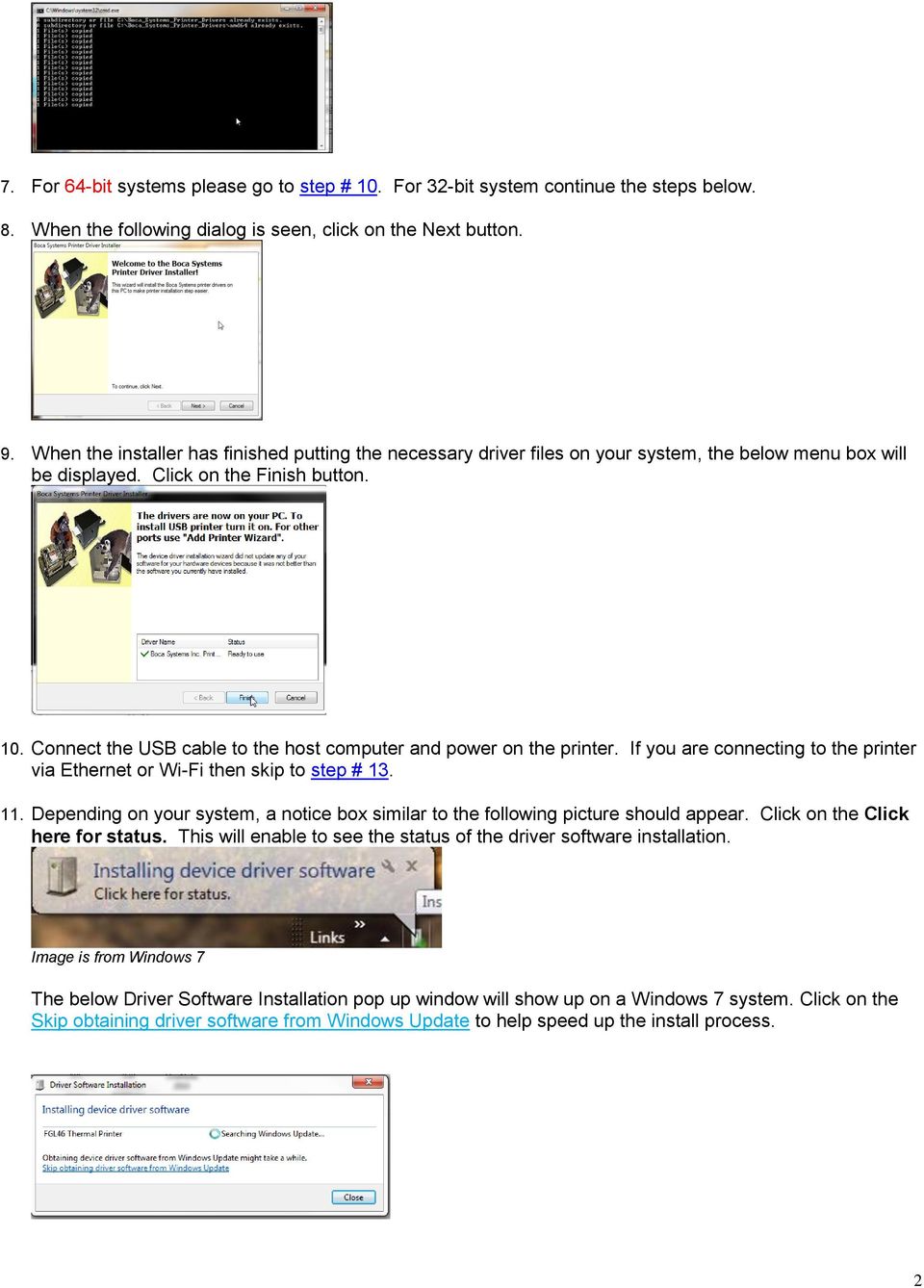
1 1065 South Rogers Circle Boca Raton, FL Phone (561) Fax (561) Windows Driver Installation Guide Do not connect the printer to your computer s USB port until step #10 Please contact your software provider to confirm if the use of our driver is required for their ticketing software. We recommend that the print driver is installed by either your system administrator or IT support staff. If you previously connected the printer or tried to install the print driver, take a screenshot of the printers and drivers dialog and attach it to the support form located at 1. Click on one of the two links below. Please contact your software provider to confirm which driver is required for their system. Standard Drivers (released 2010) New Drivers With print monitor (Beta released June-2014). If this driver does not work properly with your software application then please see page 14 for driver adjustment. 2. Windows will ask if you want to run or save the program. You will need to save the file using Save as. Please save the file into an easy to locate directory. Above image is from your menu box may vary 3. If you have a Windows 8 system then go to page 8 for install guide, otherwise continue following the steps. 4. On 32-bit systems go to the directory where you saved the printer_drivers.exe file for Legacy Driver or printer_drivers bidi.exe for New Driver, and double left click on the file. On 64-bit systems you will need to right click on the file and then click on Run as administrator. The directory where you saved your file will differ than what is shown in above 64-bit image 5. You may get a security warning asking Do you want to run this file? or something similar. Click on the Run icon. 6. You may see the below screen show up and then disappear from your desktop screen. This is normal. If the screen shows Press any key to continue then press any key. 1


2 7. For 64-bit systems please go to step # 10. For 32-bit system continue the steps below. 8. When the following dialog is seen, click on the Next button. 9. When the installer has finished putting the necessary driver files on your system, the below menu box will be displayed. Click on the Finish button. 10. Connect the USB cable to the host computer and power on the printer. If you are connecting to the printer via Ethernet or Wi-Fi then skip to step # Depending on your system, a notice box similar to the following picture should appear. Click on the Click here for status. This will enable to see the status of the driver software installation. Image is from The below Driver Software Installation pop up window will show up on a system. Click on the Skip obtaining driver software from Windows Update to help speed up the install process. 2

3 When the below window shows up just click on the Yes button 12. The correct USB Printing Support and drivers will automatically install. The image below is of a 200dpi driver being installed on a system. The driver name may vary due to the printer s DPI and logic board level. Go to Page 6. Above image will vary based on DPI and software level of printer Steps 13 through 24 are for Ethernet or Wi-Fi connection only. 13. The self-test ticket that is printed when the TEST button will show the IP address that the printer has. 14. Open up the Printer and Faxes (XP) or Devices and Printer (Widows 7) Menu. 15. Click on Add a Printer. In XP the Add Printer Wizard show up, click on the Next button. a. XP Click on Local printer attached to this computer. b. Click on Add a local printer 16. When the printer port menu comes up. Click on Create a new port: choose Standard TCP/IP Port. Click on the Next button. XP When the TCP/IP Port Wizard menu comes up, click on the Next button 3


4 Type in the IP address that is shown on the self-test ticket in the Hostname or IP address: field. When tying in the address don t include the leading zeroes (If IP= then type in ). You also have the option of typing in a specific Port name or leave as the IP address. Click on the Next button. system will show the below screen (no action is needed). For both XP and Windows is may take a few minutes for the system to move on to the next screen. This will vary depending on system and Network speeds. 17. When the Additional Port information menu comes up click on the Next button. XP When the Wizard menu comes up click on Finish. 18. When the Install print driver menu comes up: Under Manufacturer select Boca. Under Printers select the driver that matches your printer s protocol (FGL or PCL) and DPI. Click on the Next button. Your selection of drivers will vary from what is shown in above images 4


5 19. When the version driver menu comes up click on the Next button. Your driver name will vary from what is shown in above images 20. When the printer name menu comes up you may keep the default name or type in a different name. Click on the Next button. Your driver name will vary from what is shown in above images 21. When the Printer Sharing menu comes up you may choose to share this printer or not. Click on the Next button. 22. On the last menu you have the option to choice if you want to make the BOCA your default printer. a. XP Click on the Next button. b. - Do not click on Print a test page. Click on the Finish button. 23. XP - When the completing Add Printer Wizard menu comes up click on Finish button. 5


6 Windows Test Page The following will guide you through doing a Windows test page to confirm the driver is communicating with the printer. You will want to make sure the printer has stock loaded and is able to print a self-test ticket when the TEST button is pressed. The printing of this ticket confirms that the printer is working properly mechanically. If the printer is not able to print a self-test ticket, then consult the 4.0 Installation section of the user manual ( ). 1. On a system, go to the Printer and Faxes page and on a system go to the Devices and Printers page. 2. When the Printer and Faxes or Devices and Printers page comes up, right-click on the BOCA driver that is being used. When the drop down window pops up, left click on Properties (XP) or Printer properties (). Your selection of driver may vary from what is shown in the below images. 3. Once the driver s properties menu comes up click on the Print Test Page button. Your drive properties may vary from what is shown in the bel 6

7 4. The printer should proceed with printing out a Windows Test page. The printing of this ticket confirms the print driver is communicating with the printer. Below are some samples printouts for reference only and your test page may look different. Above is from a 200DPI FGL printer with 2 x 5.5 stock Above is from a 300DPI FGL printer with 3.25 x 6.5 stock If you were not able to install the BOCA print driver using the above steps, please take a screenshot of the printers and drivers dialog and attach it to the support form located at 7

8 Windows 8 Install Guide Do not connect the printer to your computer s USB port until step #3 1. Go to the directory where you saved the printer_drivers.exe file for Legacy Driver or printer_drivers bidi.exe for New Driver and right click on the file. Click on Run as administrator. The directory where you saved your file will differ than what is shown in above image 2. You may see the below screen show up your desktop screen. This is normal. If the screen shows Press any key to continue then press any key. 3. Connect the USB cable to the host computer and power on the printer. If you are connecting to the printer via Ethernet or Wi-Fi then skip to step # Click on the device icon that shows up on your desktop task bar. Click on this icon 5. The correct USB Printing Support and drivers will automatically install. The image below is of a 300dpi driver being installed. The driver name may vary due to the printer s DPI and logic board level. 8


9 6. The above screens will disappear once the driver is installed. Go to page 12. Steps 7 through 18 are for Ethernet or Wi-Fi connection only 7. The self-test ticket that is printed when the TEST button will show the IP address that the printer has Right-click the bottom corner of the Start screen. 2- Click All apps icon. 3 Click Control Panel. 9. When the Control Panel menu comes up, click on View devices and printers located under Hardware and Sound. 10. When the Devices and Printers page comes up click on Add Printer. When the below menu comes up click on The printer that I want isn t listed. 9

10 11. Click on Add a printer using a TCP/IP address or hostname radio button. Click on the Next button 12. Under Device type: select TCP/IP Devices. Type in the IP address that is shown on the self-test ticket in the Hostname or IP address: field. When tying in the address don t include the leading zeroes (If IP= then type in ). You also have the option of typing in a specific Port name or leave as the IP address. Click on the Next button. 13. The below screen will be displayed (no action is needed). It may take a few minutes for the system to move on to the next screen. This will vary depending on system and Network speeds. 14. When the Additional Port Information menu comes up click on the Next button. 10

11 15. When the Install print driver menu comes up: Under Manufacturer select Boca. Under Printers select the driver that matches your printer s protocol (FGL or PCL) and DPI. Click on the Next button. Your selection of drivers will vary from what is shown in above images 16. When the version driver menu comes up click on the Next button. 17. When the printer name menu comes up you may keep the default name or type in a different name. Click on the Next button. Your driver name will vary from what is shown in above images 18. On the last menu you have the option to choice if you want to make the BOCA your default printer. Do not click on the Print a test button. Click on the Finish button. 11

12 Windows Test Page The following will guide you through doing a Windows test page to confirm the driver is communicating with the printer. You will want to make sure the printer has stock loaded and is able to print a self-test ticket when the TEST button is pressed. The printing of this ticket confirms that the printer is working properly mechanically. If the printer is not able to print a self-test ticket, then consult the 4.0 Installation section of the user manual ( ) Right-click the bottom corner of the Start screen. 2- Click All apps icon. 3 Click Control Panel. 20. When the Control Panel menu comes up, click on View devices and printers located under Hardware and Sound. 21. When the Devices and Printers page comes up, right-click on the BOCA driver that is being used. When the drop down window pops up, click on Printer properties. Your selection of driver may vary from what is shown in the below images. 12

13 22. Once the driver s properties menu comes up click on the Print Test Page button. Your drive properties may vary from what is shown in the below images. 23. The printer should proceed with printing out a Windows Test page. The printing of this ticket confirms the print driver is communicating with the printer. Below are some samples printouts for reference only and your test page may look different. Above is from a 200DPI FGL printer with 2 x 5.5 stock Above is from a 300DPI FGL printer with 3.25 x 6.5 stock If you were not able to install the BOCA print driver using the above steps, please take a screenshot of the printers and drivers dialog and attach it to the support form located at 13


14 New Driver Adjustments Our new drivers allow both bidirectional communication and the use of the spooler, while our old drivers were limited to unidirectional, direct communication. These new features place additional overhead on the driver and result in somewhat slower response times. A software application that is not compatible with the new driver may lock up after one ticket. The following action may be taken: Disable bidirectional support 1. Go to the Devices and Drivers page. 2. Right click on the Boca BIDI print driver in question and click on Printer properties. 3. Click on the Port tab and uncheck the Enable bidirectional support box (as shown below). Your driver name will vary from what is shown in above images 4. Click on the OK button and try your application again. Make the below additional change if you are still having an issue. Print directly to the printer 1. Go to the Devices and Drivers page. 2. Right click on the Boca BIDI print driver in question and click on Printer properties. 3. Click on the Advanced tab and click on the Print directly to the printer radio button (as shown below). Your driver name will vary from what is shown in above images 4. Click on the OK button and try your application again. If driver is still not working properly after making the above adjustments then please fill out an online support form so we may assist you further

Virtual Office Remote Installation Guide
 Virtual Office Remote Installation Guide Table of Contents VIRTUAL OFFICE REMOTE INSTALLATION GUIDE... 3 UNIVERSAL PRINTER CONFIGURATION INSTRUCTIONS... 12 CHANGING DEFAULT PRINTERS ON LOCAL SYSTEM...
A browser must be open and connected through Jeffco s network How to set up network printing over WI-FI
 Windows XP 1. From the Start menu, select Printers and Faxes. 2. On the left side of the window, in the Printer Tasks section, click on the link for Add a Printer. 3. In the Add Printer Wizard window,
October, 2015. Install/Uninstall Xerox Print Drivers & Apps Best Practices for Windows 8, 8.1, and 10 Customer Tip
 October, 2015 Install/Uninstall Xerox Print Drivers & Apps Best Practices for Windows 8, 8.1, and 10 Customer Tip 2015 Xerox Corporation. All rights reserved. Xerox, Xerox and Design, ColorQube, and WorkCentre
August 13, 2014. Install/Uninstall/Share Xerox Print Drivers Best Practices for Windows Server 2012 R2 Customer Tip
 August 13, 2014 Install/Uninstall/Share Xerox Print Drivers Best Practices for Windows Server 2012 R2 Customer Tip 2014 Xerox Corporation. All rights reserved. Xerox, Xerox and Design, ColorQube, and WorkCentre
Installing Remote Desktop Connection
 SETTING UP YOUR REMOTE DESKTOP This section will assist you in setting you Remote Desktop Connection. This will allow you to create an icon for easy access to your virtual desktop. DISCLAIMER: All images
Internet Guide. Prepared for 55 John Street
 Internet Guide Prepared for 55 John Street I. Internet Service How do I connect to the Internet? WiFi (Wireless Connectivity) is available throughout the building. In order to connect, you will need a
Select Correct USB Driver
 Select Correct USB Driver Windows often installs updated drivers automatically, and defaults to this latest version. Not all of these drivers are compatible with our software. If you are experiencing communications
SATO Network Interface Card Configuration Instructions
 SATO Network Interface Card Configuration Instructions Table of Contents 1. Reset of wired/wireless interface card... 3 2. Installing the All-In-One Utility (recommended)... 4 3. Configuring wired/wireless
Option nv, Gaston Geenslaan 14, B-3001 Leuven Tel +32 16 317 411 Fax +32 16 207 164 http://www.option.com Page 1 of 14
 Page 1 of 14 ! " #!"#$ % &&' Page 2 of 14 1 INTRODUCTION One of the highly desirable features of the GlobeSurfer III device is the ability to network together Printers and External Hard Disk drives (aka
Downloading Driver Files
 The following instructions are for all DPAS supported Intermec printers. The Intermec InterDriver EasyCoder PD42 (203 dpi) - IPL driver has been tested and recommended for DPAS use. This driver will support
USB Driver Installation for Windows XP
 USB Driver Installation for Windows XP USB Serial Converter Driver Installation for Windows XP CAUTION: You must use the drivers on the CD-ROM supplied with your USB Device. DO NOT download drivers from
How to install USB driver (MICRO/I)
 How to install USB driver (MICRO/I) Install on Windows XP 1. Connect the USB port on HG3G series and the USB port on PC. 2. Windows displays Found new Hardware Wizard. Select No, not this time and press
Business Plus Accounting Hardware Setup Guide For Windows XP
 Business Plus Accounting Hardware Setup Guide For Windows XP 1 Contents Chapter 1 - Description of Computer Ports...3 Chapter 2 - Connecting Your Touch Screen...4 Chapter 3 Setting Up Your Printers In
How to install USB driver (MICRO/I)
 How to install USB driver (MICRO/I) HG2G-5S 1. The HG2G-5S USB driver installation wizard will start when Automation Organizer installation is complete. Click the Next button. 2. Read the license agreement
How to setup a VPN on Windows XP in Safari.
 How to setup a VPN on Windows XP in Safari. If you want to configure a VPN connection from a Windows XP client computer you only need what comes with the Operating System itself, it's all built right in.
TE100-P21/TEW-P21G Windows 7 Installation Instruction
 Hardware Installation TE100-P21/TEW-P21G Windows 7 Installation Instruction 1. Go to http://www.trendnet.com/downloads/ to download the Windows 7 Utility. Save the file to your desktop. 2. Right click
Install MS SQL Server 2012 Express Edition
 Install MS SQL Server 2012 Express Edition Sohodox now works with SQL Server Express Edition. Earlier versions of Sohodox created and used a MS Access based database for storing indexing data and other
Downloading Driver Files
 The following instructions are for all DPAS supported Zebra printers except the Zebra GK420t. The ZDesigner R110Xi4 203 dpi driver has been tested and recommended for DPAS use. This driver will support
LPR for Windows 95/98/Me/2000/XP TCP/IP Printing User s Guide. Rev. 03 (November, 2001)
 LPR for Windows 95/98/Me/2000/XP TCP/IP Printing User s Guide Rev. 03 (November, 2001) Copyright Statement Trademarks Copyright 1997 No part of this publication may be reproduced in any form or by any
How to setup a network printer using HP Universal Printer Driver
 How to setup a network printer using HP Universal Printer Driver This patch is only usable on HP T5730 Thin Client and up. The Printer also has to be networked and be PCL6 driver compatible in order to
Guide to Installing BBL Crystal MIND on Windows 7
 Guide to Installing BBL Crystal MIND on Windows 7 Introduction The BBL Crystal MIND software can not be directly installed on the Microsoft Windows 7 platform, however it can be installed and run via XP
Setting up your laptop to print to the student lounge printer
 Setting up your laptop to print to the student lounge printer Click on the system you are using: 1) MacOS X 10.2 2) MacOS X 10.3/10.4 3) Windows 2000/XP 4) Windows 7/Vista 1) MacOS X 10.2 In order to print
64-Bit Compatibility with Micromeritics Applications
 Tech Tip 7 64-Bit Compatibility with Micromeritics Applications Micromeritics products are designed to operate in most Microsoft Windows environments. However, more current versions of Microsoft Windows,
For paid computer support call 604-518-6695 http://www.netdigix.com [email protected]
 Setting up your vpn connection on windows 2000 or XP in continuation from installing x.509 certificate on windows (please do not continue if you have not installed your x.509 certificate): Instructions
CANON FAX L360 SOFTWARE MANUAL
 CANON FAX L360 SOFTWARE MANUAL Before You Begin the Installation: a Checklist 2 To ensure a smooth and successful installation, take some time before you begin to plan and prepare for the installation
8.5 Using Your Phone As a Modem (Internet Sharing)
 Getting Connected 61 Using Windows Live Messenger With this mobile version of Windows Live Messenger, you can send and receive instant messages. To sign in to Windows Live Messenger and start a conversation
Configuring the WT-4 for ftp (Ad-hoc Mode)
 En Configuring the WT-4 for ftp (Ad-hoc Mode) Windows XP Introduction This document provides basic instructions on configuring the WT-4 wireless transmitter and a Windows XP Professional SP2 ftp server
1. TIB388 about the Windows compatibility of all Mutoh devices subdivided in
 WINDOWS Windows compatibility COMPATIBILITY overview OVERVIEW Dear Customer, The questions are rising regarding the compatibility of our Mutoh products with Windows 7. We would like to take the advantage
EASE Scan Tool Customers. SECTION I - Installation
 Please Install Your EASE Scan Tool DVD Before Installing Any Other Software That Came With Your Package. SECTION I - Installation ATTENTION: Do NOT connect an EASE Vehicle Interface Device to your Computer
Operating Instructions Driver Installation Guide
 Operating Instructions Driver Installation Guide For safe and correct use, be sure to read the Safety Information in "Read This First" before using the machine. TABLE OF CONTENTS 1. Introduction Before
LPT1 Printer Connector. External Power Supply Connector Power Indicator
 AXIS 1650 Set-up Instructions Page 3 Unpack box Verify that you have all the items listed below: LPT1 Printer Connector Network Indicator Ethernet Connector External Power Supply Connector Power Indicator
CLEARONE DOCUMENT 801-000-002 (REVISION 1.0) October, 2008. with Converge Pro Units
 APPLICATION NOTES Converge Pro Products CLEARONE DOCUMENT 801-000-002 (REVISION 1.0) October, 2008. Troubleshooting USB Connections with Converge Pro Units Description This document explains how to connect
Installing the Driver of your Plotter- / Engraver
 Installing the Driver of your Plotter- / Engraver By installing your plotter / engraver software the driver for your device will be pre-installed. When the device is switched on after the software setup,
Status Monitoring. Using Drivers by Seagull to Display Printer Status Information WHITE PAPER
 Status Monitoring Using Drivers by Seagull to Display Printer Status Information WHITE PAPER Contents Printer Communications 3 Drivers by Seagull 3 The Seagull Status Monitor 4 Important Benefits 4 Viewing
Printing Options. Netgear FR114P Print Server Installation for Windows XP
 Netgear FR114P Print Server Installation for Windows XP January 2007 This chapter describes how to install and configure the print server in your Netgear Firewall/Print Server Model FR114P. Below, the
How to Program a Commander or Scout to Connect to Pilot Software
 How to Program a Commander or Scout to Connect to Pilot Software Commander and Scout are monitoring and control products that can transfer physical environmental conditions and alarm sensor electrical
B.11 Quick Guide #11: Installing a Printer (Refer to CAREpoint Users Manual Section 6 for more information)
 B.11 Quick Guide #11: Installing a Printer (Refer to CAREpoint Users Manual Section 6 for more information) Note: Before you start this procedure, you want to make sure that you have the driver for the
HYPERLINK Internet PC setup guide. HYPERLINK Internet support helpdesk at 1-866-302-5525.
 HYPERLINK Internet support helpdesk at 1-866-302-5525. Congratulations on your new residence and welcome to HYPERLINK Internet service. In a few short moments you will be connected to one of the fastest
Section 5: Installing the Print Driver
 Section 5: Installing the Print Driver In This Section Print Driver Installation for USB Connection Using the Ethernet Connection and a Crossover Cable Print Driver: The Epilog print driver is the software
Welch Allyn PCH100 and PCH200 Installation Guide
 Welch Allyn PCH100 and PCH200 Installation Guide Copyright 2006-2013 Welch Allyn. All rights are reserved. No one is permitted to reproduce or duplicate, in any form, this manual or any part thereof without
Windows 7 Printer Driver Installation procedure
 Windows 7 Printer Driver Installation procedure This is to explain how to install Windows Vista printer driver for Mitsubishi digital printer to Windows 7. * Although CP9550D/DW is shown through this document,
Configuring Windows 7 64 bit for AutoVISION
 This document will describe how to configure a 64 bit version of Windows 7 Professional, Ultimate or Enterprise to utilize the Windows XP Mode (Virtual PC) capabilities to allow AutoVISION to be used in
PCLinq2 Hi-Speed USB Bridge-Network Cable. Quick Network Setup Guide
 PCLinq2 Hi-Speed USB Bridge-Network Cable Congratulations! Quick Network Setup Guide For Windows 98/ME/2000/XP Congratulations for installing the PCLinq2 Hi-Speed USB Bridge-Network Cable. This Quick Network
USB Driver. Installation Manual
 USB Driver Installation Manual Issue 1.00 Detailed guide for the installation of Actisense USB Drivers under the following operating systems: Windows XP / 2000 Windows Vista USB Driver Installation Manual
Windows Firewall Configuration with Group Policy for SyAM System Client Installation
 with Group Policy for SyAM System Client Installation SyAM System Client can be deployed to systems on your network using SyAM Management Utilities. If Windows Firewall is enabled on target systems, it
Eye-Fi Ad-Hoc network set-up instructions
 Eye-Fi Ad-Hoc network set-up instructions The Eye-Fi Pro Card gives you the option to upload with an Ad Hoc connection directly to your computer. This document provides instructions for setting up an Ad
Database Program Instructions
 Database Program Instructions 1) Start your Comparative Rating software by double-clicking the icon on your desktop. 2) Click on the button on the Comparative Rating Software Main Menu. 3) A message Loading
Using Web Services for scanning on your network (Windows Vista SP2 or greater, Windows 7 and Windows 8)
 Using Web Services for scanning on your network (Windows Vista SP2 or greater, Windows 7 and Windows 8) The Web Services protocol allows Windows Vista (SP2 or greater), Windows 7 and Windows 8 users to
Configuring TCP/IP Networking for Windows Me:
 Configuring TCP/IP Networking for Windows Me: Configuration setup - Point and then right-click on the My Network Places icon on the desktop (see image below). Click/Select properties from the quick menu
Brady IP Printer Installation Instructions
 Brady IP Printer Installation Instructions Ensure the following are available before commencing installation: The IP Printer and accessories (Printer, power cable, Product CD including Windows printer
To add Citrix XenApp Client Setup for home PC/Office using the 32bit Windows client.
 I. PURPOSE To add Citrix XenApp Client Setup for home PC/Office using the 32bit Windows client. II. POLICY: Network Request form must be sent from MIS staff to HCN Hardware Support requesting Citrix XenApp
PIGCHAMP MOBILE. PigCHAMP Knowledge Software. Installation Guide for Mobile Units
 PIGCHAMP MOBILE PigCHAMP Knowledge Software Installation Guide for Mobile Units Table of Contents: Important Note:... 4 Chapter 1: PC Setup... 5 A. Install PigCHAMP Mobile Manager on Windows XP...5 B.
Installation Instructions for 9555 USB Driver
 Prior to using the data modem features of your 9555 handset; you must first install the VCOMPORT 9555 USB Driver. This driver is compatible with: Windows XP Service Pack 2, Windows 2000 Service Pack 4,
Installing PowerLink on Windows 7 64-bit
 Instruction Manual Version 1.0, Code No. 20 751 806 1 Introduction... 3 2 Installing Virtual PC... 3 3 Configuring Windows XP Mode... 5 4 Installing Powerlink to Virtual XP... 8 5 Run PowerLink software
Procedure to Install Printer to the LifeWindow 6000 Rev 3.
 Procedure to Install Printer to the LifeWindow 6000 Rev 3. The LifeWindow OS is Windows XP embedded. Printers with driver to XPe are supported. Some printers with driver to XP can also be installed. Please
CMP-102U. Quick Installation Guide
 CMP-102U Quick Installation Guide V1.0 http://www.cnet.com.tw 1 CMP-102U Supports One High-speed USB2.0 Port MFP Server Supports 10/100Mbps Fast Ethernet Network Quick Installation Guide 1 Package Contents:
XConsole GUI setup communication manual September 2010.
 XConsole GUI setup communication manual September 2010. XConsole is compatible with Microsoft XP, Vista and Windows 7. The software will also work if using Boot camp on a Mac. IMPORTANT NOTES: - Do NOT
Java. How to install the Java Runtime Environment (JRE)
 Java How to install the Java Runtime Environment (JRE) Install Microsoft Virtual Machine (VM) via System Check Install Sun Java Runtime Environment (JRE) via System Check Loading Java Applet Failed How
Printer Sharing of the PT-9500pc in a Windows Environment
 Printer Sharing of the PT-9500pc in a Windows Environment This procedure is for configuring the PT-9500pc as a shared printer in Microsoft Windows. For printer sharing to operate correctly, please be sure
User Manual. Thermo Scientific Orion
 User Manual Thermo Scientific Orion Orion Star Com Software Program 68X637901 Revision A April 2013 Contents Chapter 1... 4 Introduction... 4 Star Com Functions... 5 Chapter 2... 6 Software Installation
DP-313 Wireless Print Server
 DP-313 Wireless Print Server Quick Installation Guide TCP/IP Printing (LPR for Windows 95/98/Me/2000) Rev. 03 (August, 2001) Copyright Statement Trademarks Copyright 1997 No part of this publication may
DUKANE Intelligent Assembly Solutions
 PC Configuration Requirements: Configuration Requirements for ipc Operation The hardware and operating system of the PC must comply with a list of minimum requirements for proper operation with the ipc
Installing the Gerber P2C Plotter USB Driver
 Installing the Gerber P2C Plotter USB Driver 1 You can install a Gerber P2C plotter using a USB connection and communicate with it using compatible design software. The following procedures describe installing
Omni 56K USB Lite Quick Start Guide
 Omni 56K USB Lite Quick Start Guide ZyXEL TOTAL INTERNET ACCESS SOLUTION 1. Hardware Installation Connect your modem to your analog phone or fax. Use the phone cord included to connect to the phone jack
Installing S500 Power Monitor Software and LabVIEW Run-time Engine
 EigenLight S500 Power Monitor Software Manual Software Installation... 1 Installing S500 Power Monitor Software and LabVIEW Run-time Engine... 1 Install Drivers for Windows XP... 4 Install VISA run-time...
The Wireless LAN (Local Area Network) USB adapter can be operated in one of the two following networking configurations :
 SAGEM Wi-Fi 11g USB ADAPTER Quick Start Guide About this guide This Quick Start Guide describes how to install and operate your SAGEM Wi-Fi 11g USB ADAPTER. Please read this manual before you install the
USB DRIVER INSTALLATION GUIDE
 USB DRIVER INSTALLATION GUIDE Use these instructions to install the USB drivers and Microsoft synchronization software for your Pathfinder 6057 printer. You need these utilities for your printer and computer
TRENDnet. <a href="mailto:webmaster@ trendnet.com"> www.trendnet.com. Quick Installation Guide. Product Warranty Registration
 Quick Installation Guide Product Warranty Registration website at http://www.trendnet.com www.trendnet.com Please take a moment to register your product online.
Setting Up VPN Connection to use Internet Access. 2. Right click on the appropriate VPN connection and click properties
 Setting Up VPN Connection to use Internet Access 1. Right click on My Network Places and click on Properties 2. Right click on the appropriate VPN connection and click properties 3. Click on the Networking
Network FAX Driver. Operation Guide
 Network FAX Driver Operation Guide About this Operation Guide This Operation Guide explains the settings for the Network FAX driver as well as the procedures that are required in order to use the Network
Configuring Windows & Installing the Melco Software
 Configuring Windows & Installing the Melco Software Table of Contents Configuring the Windows Environment... Error! Bookmark not defined. Configuring the Windows Environment... 1 Configuring the Windows
1 Installation. Note: In Windows operating systems, you must be logged in with administrator rights to install the printer driver.
 Installation A printer driver is an application that manages communication between a printer and your computer. Once installed, the printer driver settings must be configured in the printer Properties
Software Installation Requirements
 Software Installation Guide PrintIQ TM Software Installation Requirements Please use the following guide to ensure that you're meeting all requirements prior to installing the PrintIQ TM Xerox Device Agent
Network Printing In Windows 95/98/ME
 Network Printing In Windows 95/98/ME If you are using Windows 2000/ XP: To install a printer on your network using D-Link Print Server or DI-series router with built-in print server you do not need to
BSDI Advanced Fitness & Wellness Software
 BSDI Advanced Fitness & Wellness Software 6 Kellie Ct. Califon, NJ 07830 http://www.bsdi.cc SOFTWARE BACKUP/RESTORE INSTRUCTION SHEET This document will outline the steps necessary to take configure the
This document details the following four steps in setting up a Web Server (aka Internet Information Services -IIS) on Windows XP:
 Wazza s QuickStart: Setting up a Web Server (IIS) Windows XP This document details the following four steps in setting up a Web Server (aka Internet Information Services -IIS) on Windows XP: Configuring
Setting Up Your FTP Server
 Requirements:! A computer dedicated to FTP server only! Linksys router! TCP/IP internet connection Steps: Getting Started Configure Static IP on the FTP Server Computer: Setting Up Your FTP Server 1. This
Iridium Extreme TM Satellite Phone. Data Services Manual
 Iridium Extreme TM Satellite Phone Data Services Manual Table of Contents 1 OVERVIEW... 1 2 HOW IT WORKS... 1 3 BEFORE INSTALLING... 2 4 USB DRIVER INSTALLATION... 3 5 MODEM INSTALLATION AND CONFIGURATION...
Installation Guide for Windows May 2016
 Installation Guide for Windows May 2016 1 Welcome to KITE Client Software for Windows Note: The KITE Client software is supported for both 32-bit and 64-bit Windows computers. The Kansas Interactive Testing
Installing the KX-P8420 or KX-PS8100 on Windows NT 4.0.
 Installing the KX-P8420 or KX-PS8100 on Windows NT 4.0. Overview The KX-P8420 and KX-PS8100 can be set up using 2 methods. METHOD 1 The printer can be installed on the NT server and setup as a shared device.
Addendum Advanced POS Printer Drivers
 Addendum Advanced POS Printer Drivers Overview With the introduction of version 4.0, The General Store now supports the use of advanced, manufacturer s printer drivers for certain point of sale printers.
1. Installing The Monitoring Software
 SD7000 Digital Microphone Monitor Software manual Table of Contents 1. Installing The Monitor Software 1.1 Setting Up Receivers For Monitoring 1.2 Running The Application 1.3 Shutdown 2. The Detail Monitoring
Section 5: Connecting the Laser to Your Computer
 Section 5: Connecting the Laser to Your Computer In This Section Connecting the Laser to your Computer USB Port Ethernet Port Connecting the Laser to Your Computer All Epilog systems are designed to be
Initial Setup of Mozilla Thunderbird with IMAP for OS X Lion
 Initial Setup of Mozilla Thunderbird Concept This document describes the procedures for setting up the Mozilla Thunderbird email client to download messages from Google Mail using Internet Message Access
support HP MFP Scan Setup Wizard 1.1
 support HP MFP Scan Setup Wizard 1.1 Security Level: Customer Verbal Use Date Written/Updated: October 11, 2007 Document Summary a The Scan Setup Wizard is a Windows utility that end users can download
Metasys System Direct Connection and Dial-Up Connection Application Note
 Metasys System Direct Connection and Dial-Up Connection Application Note Code No. LIT-1201639 Software Release 5.1 Issued August 27, 2013 Supersedes October 4 2010 Refer to the QuickLIT website for the
How To Upgrade A Yarvik Gotab Tablet To Android 4.0 (For Android) 4.2.2 (For Ipad) 4Th Generation (For Microsoft) 4S) 4G (For Zemmer) 4
 TAB420/424/460/461/464 GOTAB XERIOS 10 TABLET ANDROID 4.0 UPGRADE INSTRUCTIONS Page 1 of 9 BEFORE YOU START: BACKUP IMPORTANT DATA! Upgrading your Yarvik tablet to Android 4.0 will erase all user settings,
Guest PC. for Mac OS X. User Guide. Version 1.6. Copyright 1996-2005 Lismore Software Systems, Ltd. All rights reserved.
 Guest PC for Mac OS X Version 1.6 User Guide Copyright 1996-2005 Lismore Software Systems, Ltd. All rights reserved. Table of Contents About Guest PC... 1 About your Virtual Computer... 1 Creating a Virtual
Setting up Your Acusis Email Address. Microsoft Outlook
 Setting up Your Acusis Email Address in Microsoft Outlook Click on your Microsoft Outlook Version you are using: Microsoft Outlook 2002/XP Microsoft Outlook 2003 Microsoft Outlook 2007 Microsoft Outlook
How to Remotely View Security Cameras Using the Internet
 How to Remotely View Security Cameras Using the Internet Introduction: The ability to remotely view security cameras is one of the most useful features of your EZWatch Pro system. It provides the ability
Table of Contents. 1. Overview... 3. 1.1 Materials Required. 3 1.2 System Requirements. 3 1.3 User Mode 3. 2. Installation Instructions..
 Table of Contents 1. Overview..... 3 1.1 Materials Required. 3 1.2 System Requirements. 3 1.3 User Mode 3 2. Installation Instructions.. 4 2.1 Installing the On Call Diabetes Management Software. 4 2.2
Before installing the Zebra printer with USB connector, download the drivers from www.zebra.com.
 Download the Zebra Drivers 1 Download the Zebra Drivers Before installing the Zebra printer with USB connector, download the drivers from www.zebra.com. Note: You must first create an account on Zebra.com
Use this guide if you are no longer able to scan to Sharpdesk. Begin with section 1 (easiest) and complete all sections only if necessary.
 Use this guide if you are no longer able to scan to Sharpdesk Instructions: Begin with section 1 (easiest) and complete all sections only if necessary. 1 Section 1 Complete pages 3-5. Scan to the desired
Title: ZOLL USB Direct Connect Cable Installation Instructions
 ZOLL USB Direct Connect Cable Installation Instructions Document Status: Released Document #: 48x126-ZOLL-003 Page 1 of 7 Revision History DATE REV REASON January 9, 2008 A Initial Release August 12, 2008
Supplemental USB Driver Installation Guide
 Windows 2000/XP/Vista/7 Installation Supplemental USB Driver Installation Guide 1) Do not plug in your Auterra USB OBD Adapter until after the driver is installed. 2) The USB driver is located on the your
Self Help Guide IMPORTANT! Configuring Your Router With Your Modem. Please read the following carefully; This Guide refers to the following Products:
 IMPORTANT! This Guide refers to the following Products: Configuring Your Router With Your Modem Please read the following carefully; Synopsis: A standard (Wireless) Router does not come equipped with the
Configuring the WT-4 for Upload to a Computer (Ad-hoc Mode)
 En Configuring the WT-4 for Upload to a Computer (Ad-hoc Mode) Windows XP This document provides basic instructions on configuring the WT-4 wireless transmitter and a Windows XP Professional SP2 computer
Dial Up Config & Connecting Instructions with Graphics
 Dial Up Config & Connecting Instructions with Graphics Dial Up Config & Connecting Below are the Basic Manual Configurations Connecting to the Internet for the following operating systems: Windows 2000
Printer Driver Manual for Windows 7
 Digital Photo Printer DS40/DS80 Printer Driver Manual for Windows 7 Before operating the unit, please read this manual thoroughly and retain it for future reference. Dai Nippon Printing, 2011 v. 3.20 DNP