
INSTALLATION GUIDE. CalculiX Solver ccx 2.8 on Mac OS X Mavericks. 1 B. Graf
|
|
|
- Agatha Reed
- 10 years ago
- Views:
Transcription
1 CalculiX ccx INSTALLATION GUIDE CalculiX Solver ccx 2.8 on Mac OS X Mavericks 1 B. Graf Abstract. CalculiX comprises the solver ccx (CalculiX CrunchiX) and the graphical pre- and postprocessor cgx (CalculiX GraphiX). A step by step installation guide for ccx 2.8 on Mac OS X Mavericks is provided. Installation from source is considered. The present guide is based on the general installation instructions for Unix/Linux which come with the ccx package. A basic installation of ccx is considered which is defined as follows: ccx 2.8 for multi-threading (MT), external solvers SPOOLES (serial and MT) and ARPACK (serial). The optional installation of the solvers POSIX and TAUCH, of the SGI Library as well as of a 8 byte version of ccx for large CFD problems is not subject of the present installation. Besides the aforementioned basic installation of ccx also the installation of required Mac-specific software is considered (Xcode, compilers GCC and gfortran). Except of html-help files and the installation path the installation of ccx is independent from the installation of cgx. Tests of the functionality of the installation are provided. Acknowledgement. Special thanks to G. Dhondt (developer of ccx, MTU Aero Engines Munich, Germany) for his support. 1 Prepared by B. Graf, based on the general installation instructions for Unix/Linux by G. Dhondt (developer of ccx, MTU Aeoro Engines, Munich, Germany). Dr. B. Graf Consulting Engineer Zurich [email protected] February 10, 2015

2 i RELEASE NOTES Revision Draft, June 18, 2014 February 10, 2015 Remarks Installation of ccx 2.7 on Mac OS X Mavericks. Installation of ccx 2.8 on Mac OS X Mavericks. Changes: - GCC 4.9 (g++) used for compilation of ccx c-routines instead of previously used GCC Editorial changes.

3 ii CONTENTS RELEASE NOTES... i 1. INTRODUCTION General Basic Installation of ccx and Optional Additional Software SOFTWARE REQUIREMENTS Software Releases Mac OS X Specific OS X Mavericks Xcode Provides Command Line Tools (Terminal) and Associated Modified GCC 5.1 (GNU Compiler Collection) GCC Unmodified GCC (GNU Compiler Collection) for OS X Mavericks Fortran Compiler gfortran 4.9 for OS X Mavericks ccx CalculiX ChrunchiX, Version External Solvers SPOOLES 2.2 and ARPACK PRE-ARRANGEMENTS FOR INSTALLATION Default Compilers GCC 5.1 and Compilers GCC 4.9 and gfortran Terminal, Terminal Commands, HOME, LOGNAME, Login and Permissions Editors,.bash_profile, Editing of Hidden File.bash_profile and Usage of.bash_profile to Set Paths and Export Paths INSTALLATION path and installation OF CCX FILES General Installation Path calculix_inst_path and File System Install ccx Files INSTALL MAC-SPECIFIC SOFTWARE Xcode and Associated Modified GCC Unmodified GCC Fortran Compiler gfortran INSTALL EXTERNAL SOLVERS General SPOOLES ARPACK

4 iii 7. INSTALL AND LAUNCH CCX, TEST INSTALLATION, GETTING STARTED AND TEST EXAMPLES Install ccx Launch ccx and Test Installation Getting Started With ccx Test Examples TESTS - TEST EXAMPLES, NUMERICAL ACCURACY AND MULTI- THREADING Test Examples and Numerical Accuracy Invoke and Test Multi-Threading (MT) for Spooles HINTS AND MAC-SPECIFIC PROBLEMS Hints Mac-Specific Problems REFERENCES

5 1 1. INTRODUCTION 1.1 General CalculiX comprises the solver ccx (CalculiX CrunchiX) and the graphical pre- and postprocessor cgx (CalculiX GraphiX). The present guide covers the installation of ccx on Mac OS X Mavericks (cf. [4] for the installation of cgx). Except of html-help files and the installlation path the installation of ccx is independent from the installation of cgx. Accordingly, the sequence of the installation of ccx and cgx may be chosen freely. For a brief introduction to the installation of ccx on Unix/Linux, please read the instructions by G. Dhondt [1], Section A. Based on the aforementioned reference [1] in the present document a step by step installation guide for ccx on Mac OS X is provided. Installation from source is considered. Furthermore, the installation of ccx requires the pre-installation of Mac-specific software like Xcode and compilers GCC (GNU compiler collection) and gfortran. The present guide covers the installation of Mac-specific software as well as of the so called basic installation of ccx which according to Section 1.2 is defined as follows: installlation of ccx and optional external solvers SPOOLES and ARPACK. Furthermore, in Section 1.2 also the installation of 2 additional (in addition to the basic installation) optional software is briefly addressed. The installation of the aforementioned additional software, however, is not subject of the present installation instructions. Accordingly, the present instructions are restricted on the installation of the aforementioned Mac-specific software as well as on the afore defined basic installation of ccx. Section 2 contains an overview of the required software and Section a summary of pre-arrangements which are required for the installation of ccx. The installation instructions are contained in Sections 4 to 7. The installation should follow the sequence as given by Sections 4 to 7. First of all, in Section 4 the installation path and the file system are explained as well as the installation of the ccx source code and html-help files. In Section 5 Mac-specific software is installed (Xcode, compilers GCC and gfortran). The external solvers SPOOLES and ARPACK are installed in the subsequent Section 6. Finally, the installation of ccx is completed in Section 7. Furthermore, Section 7 covers the following subjects: launch of ccx and test of installation, how to get started with ccx, test examples. In Section 8 the functionality of ccx is tested, in particular the multi-threading capability of ccx as well as the functionality of the external solvers SPOOLES and ARPACK. The final Section 9 is provided for the future documentation of hints and known Mac-specific problems. The references are provided on page 29. The release notes are provided on page i. 2 Installation of the additional external solvers POSIX and TAUCH, of the SGI Library as well as of a 8 byte version of ccx for large CFD problems.

6 2 1.2 Basic Installation of ccx and Optional Additional Software Basic installation of ccx. The so called basic installation of ccx is subject of the present instructions and comprises the following installations: ccx 2.8 for multi-threading (MT), external solvers SPOOLES (serial and MT version) and ARPACK (serial). Note. As further outlined in Section 4 below, the installation of Arpack in addition requires the installation of BLAS (Basic Linear Algebra Subprograms) and LAPACK (Linear Algebra PACKage). Optional additional software. In references [1], [2] the installation as well as the capabilities of the following additional software is explained: external solvers POSIX and TAUCH, SGI Library, 8 byte version of ccx for large CFD problems. The installation of the aforementioned additional software, however, is not subject of the present installation guide.

7 3 2. SOFTWARE REQUIREMENTS 2.1 Software Releases Unless otherwise noted, the installation has been tested for the software releases as specified below (cf. titles of subsections below for the releases). 2.2 Mac OS X Specific OS X Mavericks The installation was tested for version of OS X Mavericks. Among others, the Unixlike Darwin OS is an inherent part of Mac OS X. The command-line interface to OS X is provided by the Terminal App (cf. Section and Section 3.2 for details) Xcode Provides Command Line Tools (Terminal) and Associated Modified GCC 5.1 (GNU Compiler Collection) Xcode is a broad suit for software development on Mac and is provided by Apple. Several capabilities of Xcode are required for the present installation as further outlined below. However, because Xcode is not an inherent part of OS X, it needs to be installed separately from OS X (cf. Section 5.1 for the installation). The following capabilities of Xcode are required for the present installation: (1) commandline tools (CLTs) for OS X, respectively the Terminal App, (2) modified (by Apple) version 5.1 of the GCC (GNU compiler collection). The aforementioned CLTs are provided by the Terminal App (cf. Section 3.2 for details), also denoted as Terminal or Terminal window. As will be shown below, Unix commands for software installation will be entered via Terminal. Furthermore, ccx will be launched via Terminal. Except of the c-routines of ccx, the aforementioned modified GCC 5.1 will be applied for the compilation of c-routines. For the compilation of the c-routines of ccx the unmodified GCC 4.9 is required (cf. Section and Section 3.1 for details). The aforementioned CLTs and GCC 5.1 are installed together with Xcode in Section 5.1 below. Notes. Xcode is a broad suite for software development on OS X. For the installation of cgx, however, only the so called Command Line Tools (CLTs) of Xcode are required (installation of Xcode requires 5 GB, whereas the installation of the CLTs requires only ca. 300 MB). Amongst others, the CLTs include the already aforementioned version 5.1 of the modified GCC. The CLTs provide commands like make, whereas the latter is required to build executables from source. Alternatively to Xcode, only the CLTs may be installed. The installation of the CLTs, however, is not subject of the present installation instructions. Link for download of the CLTs:

8 GCC Unmodified GCC (GNU Compiler Collection) for OS X Mavericks The unmodified GCC 4.9 is required for the compilation of the c-routines of ccx and is not identical with the modified GCC 5.1 from Section above (cf. also explanation of Xcode in Section above and Section 3.1 below for details). GCC 4.9 will be installed in Section 5.2 below Fortran Compiler gfortran 4.9 for OS X Mavericks The Fortran compiler: gfortran is required for the compilation of the Fortran-routines of ccx and ARPACK. For the present installation gfortran is considered as the default Fortran compiler (cf. also Section 3.1 for details). The installation of gfortran is subject of Section 5.3 below. 2.3 ccx CalculiX ChrunchiX, Version 2.8 The installation instructions for ccx are provided in Section 4 and Section 7 below. First of all, the source code of ccx is installed in Section 4. Furthermore, in Section 4 also the installation path and the file system of ccx is explained. The installation will be completed in Section 7 with the build of the binary of ccx. 2.4 External Solvers SPOOLES 2.2 and ARPACK 2.1 SPOOLES 2.2. SPOOLES is an established linear equation solver and among others, provides the following capabilities: (a) single-threading, respectively serial processing, (b) MT (multi-threading), (c) MP (multi-processing for several separate CPU s). For the present basic installation of ccx (cf. Section 1.2) the aforementioned capabilities (a) and (b) for single- and multi-threading are considered. Single- and multi-threading may be invoked with the help of user defined environment variables (cf. Section 8.2 for examples). SPOOLES will be installed for the aforementioned capabilities in Section 6.2 below. ARPACK 2.1. ARPACK (ARnoldi PACKAGE) is a collection of Fortran routines for the solution of large-scale eigenvalue problems (for details consider the link in footnote 3 below). For the considered basic installation of ccx (cf. Section 1.2) a serial version of ARPACK will be installed. The dependencies of ARPACK on BLAS and LAPACK will be further discussed in context with the installation of ARPACK in Section 6.3 below. 3 Link for details of ARPACK:

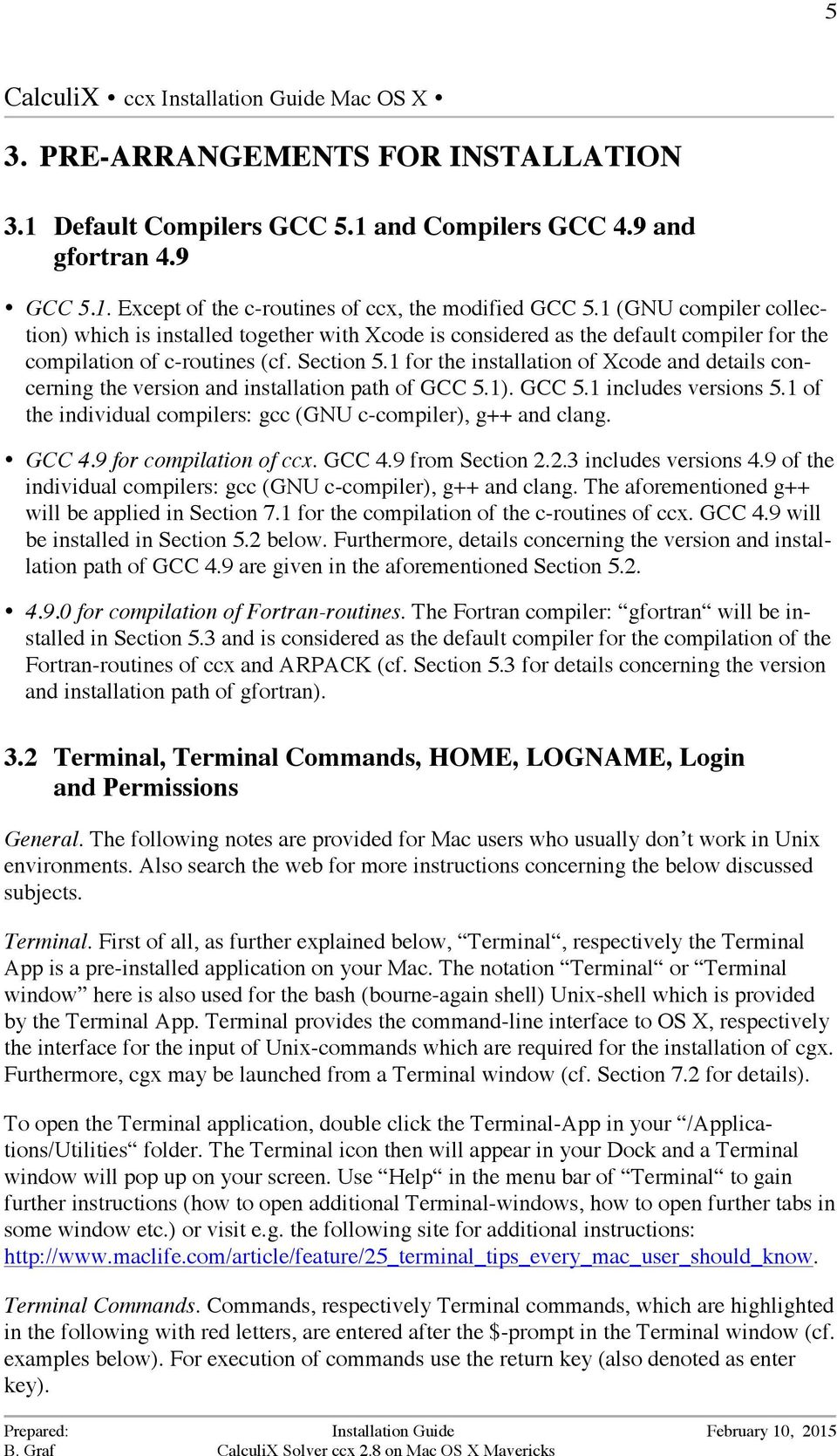
9 5 3. PRE-ARRANGEMENTS FOR INSTALLATION 3.1 Default Compilers GCC 5.1 and Compilers GCC 4.9 and gfortran 4.9 GCC 5.1. Except of the c-routines of ccx, the modified GCC 5.1 (GNU compiler collection) which is installed together with Xcode is considered as the default compiler for the compilation of c-routines (cf. Section 5.1 for the installation of Xcode and details concerning the version and installation path of GCC 5.1). GCC 5.1 includes versions 5.1 of the individual compilers: gcc (GNU c-compiler), g++ and clang. GCC 4.9 for compilation of ccx. GCC 4.9 from Section includes versions 4.9 of the individual compilers: gcc (GNU c-compiler), g++ and clang. The aforementioned g++ will be applied in Section 7.1 for the compilation of the c-routines of ccx. GCC 4.9 will be installed in Section 5.2 below. Furthermore, details concerning the version and installation path of GCC 4.9 are given in the aforementioned Section for compilation of Fortran-routines. The Fortran compiler: gfortran will be installed in Section 5.3 and is considered as the default compiler for the compilation of the Fortran-routines of ccx and ARPACK (cf. Section 5.3 for details concerning the version and installation path of gfortran). 3.2 Terminal, Terminal Commands, HOME, LOGNAME, Login and Permissions General. The following notes are provided for Mac users who usually don t work in Unix environments. Also search the web for more instructions concerning the below discussed subjects. Terminal. First of all, as further explained below, Terminal, respectively the Terminal App is a pre-installed application on your Mac. The notation Terminal or Terminal window here is also used for the bash (bourne-again shell) Unix-shell which is provided by the Terminal App. Terminal provides the command-line interface to OS X, respectively the interface for the input of Unix-commands which are required for the installation of cgx. Furthermore, cgx may be launched from a Terminal window (cf. Section 7.2 for details). To open the Terminal application, double click the Terminal-App in your /Applications/Utilities folder. The Terminal icon then will appear in your Dock and a Terminal window will pop up on your screen. Use Help in the menu bar of Terminal to gain further instructions (how to open additional Terminal-windows, how to open further tabs in some window etc.) or visit e.g. the following site for additional instructions: Terminal Commands. Commands, respectively Terminal commands, which are highlighted in the following with red letters, are entered after the $-prompt in the Terminal window (cf. examples below). For execution of commands use the return key (also denoted as enter key).
10 6 HOME, LOGNAME. After a new Terminal window was opened, the shell wakes up in your home directory, denoted as HOME (shortcut ~; use keystrokes: alt + N for tilde ~). Use command env (for environment): $ env <return> to display the path to your HOME (usually: HOME=~=/Users/LOGNAME). The envcommand also displays your LOGNAME as well as the path: PWD to your current (private) working directory. The path to your current working directory, respectively current folder, also may be displayed with command: $ pwd <return> (pwd for print working directory ). Login. If you are not already logged in with your LOGNAME, use command: $ login <return> in Terminal. Afterwards, you will be asked for your LOGNAME and password to login. Permissions. For several installation steps you need expanded access rights to the file system. To gain these rights, here the sudo-command will be used; syntax (examples are given below): $ sudo command <return>. Afterwards, the OS will ask you first for your password before the command is executed. If required, in the present instruction the sudo-command is set for installation commands. However, if you run into any permission-problems, first try to use sudo as specified above. If sudo doesn t work, you must login as root. 3.3 Editors,.bash_profile, Editing of Hidden File.bash_profile and Usage of.bash_profile to Set Paths and Export Paths General. The following notes are provided for Mac users who usually don t work in Unix environments. Also search the web for more instructions concerning the below discussed subjects. Editors. The Finder App, respectively the Finder is a convenient tool for file handling on your Mac. However, many of the files on your Mac are hidden in 4 Finder windows, among others the file:.bash_profile which is required later for the cgx installation. In the following it will be explained how hidden files may be created, opened and edited. Furthermore, the path setting in file:.bash_profile is briefly explained. File.bash-profile. The file.bash-profile is located in your HOME and amongst other settings contains path settings, respectively is used to 5 export paths. The dot in the first place 4 Note. Commands for displaying hidden files in Finder are available, but for several reasons will be not used here. 5 Note. If you open a Terminal window, the OS exports the path settings found in.bash_profile and then uses these paths to search for executables. Furthermore, amongst others, the path: /usr/bin is a default path which the OS uses to search for executables.

11 7 of the file name marks file.bash_profile as a hidden file which, therefore, is not displayed in the Finder window. A simple example for a.bash_profile with path settings is given below. Editing of hidden files, respectively of file.bash_profile. The editing will be demonstrated for setting, respectively exporting paths with.bash_profile. First, execute the following commands in Terminal (don't type in green # comment; shortcut ~ for your HOME is used; keystrokes for typing tilde ~: + n): $ cd ~ <return> # Change directory (cd) to your home directory ~ (Home), # where your.bash_profile is located. $ ls -l <return> # Long (option -l) list (command ls) displays visible files in ~. # Note that file.bash_profile is not displayed. Command ls l, # therefore, displays all visible files. $ ls -la <return> # Long (option l ) list (ls) for all (option a for all visible and # invisible) files in ~. Now,.bash_profile is contained in the list # of files. Command ls la, therefore, displays all visible and # invisible files. If.bash_profile is not listed after the execution of the last command: ls -la, then create it now with the following commands: $ cd ~ <return> # Change directory (cd) to your home directory HOME. $ touch.bash_profile <return> # Create.bash_profile. $ ls -la <return> # Verify, if.bash_profile has been created. Next, open.bash_profile with editor TextEdit with commands: $ cd ~ <return> # Set home directory as your working directory. $ open -e.bash_profile <return> # Opens.bash_profile in TextEdit. Set paths in file.bash_profile and export paths. Now, we are ready for editing of the.bash_profile, respectively to enter a new path-setting in.bash_profile. Next an example is given, how paths may be set in.bash_profile. For path setting you may add the following lines in your.bash_profile: #!/bin/bash export PATH=$PATH export PATH=$PATH:/Users/LOGNAME/NETGEN_INSTALL/bin In the above lines, export is a Unix command, PATH an environment variable, $PATH the value of that variable, colon : is used as separator between paths. The first line up-

12 8 dates the PATH variable, the second line sets the added path: /Users/LOGNAME/NETGEN_INSTALL/bin to some executable which is contained in directory bin. Add as any many paths as you need. Finally, save file.bash_profile and quit TextEdit. The required path settings for the considered software are specified in the installation instructions below. To activate the changes, respectively to export the new paths in.bash_profile use commands: $ cd ~ <return> # Set home directory. $ source.bash_profile <return> in current Terminal window. Alternatively, you may open a new Terminal window, because as soon as a new Terminal window is opened the OS will automatically execute the commands in.bash_profile, i.e. export path settings etc.). Control the path settings with the following command: $ echo $PATH <return>. Notes. The OS also automatically searches the default paths: /usr/bin as well as /usr/local/bin for executables. Instead of TextEdit, also one of the command line editors may be used (vim-editor etc.).

13 9 4. INSTALLATION PATH AND INSTALLATION OF CCX FILES 4.1 General In the present section the ccx source code and html-help files will be downloaded. The installation path may be chosen according to Section 4.2. Furthermore, the file system for the installation of cgx and ccx as well of the external solvers is explained in Section 4.2. After the installation of ccx files continue installation in the sequence of Section 5 to Section Installation Path calculix_inst_path and File System Installation Path Both ccx and cgx as well as the external solvers are installed for the same installation path. Choose option A or option B for the installation 6 path calculix_inst_path : - Option A (default installation path): calculix_inst_path =/usr/local - Option B (example for user defined path): calculix_inst_path =~/Applications=/Users/LOGNAME/Applications Option A is in compliance with the Unix file system hierarchy standard and also is the default path for the installation of ccx. For option B the path may be chosen freely. For option B an example is given above, for which ccx will be installed in directory Applications under your home directory ~ (cf. Section 3.2 for the home directory). Because in ccx the paths are set relative to directory src of ccx_2.8 (cf. file system in Fig. 1), neither for option A nor for option B paths must be set for the installation of ccx in Section 7.1. Prior to the installation the directories of the path calculix_inst_path must exist. Create them now, if necessary. Use the Finder to create directories or the sequence of Unix commands: $ cd path_to_directory <return> (change to directory: path_to_directory under which a subdirectory has to be created), then type: $ mkdir dir_name <return> to create the subdirectory dir_name. Furthermore, use: $ ls l <return> to list contents of some directory, use sudo before commands (e.g. sudo mkdir) if the permission for making of directories is denied. 6 Note. The notation calculix_inst_path here is used for documentation reasons only and, therefore, is not an environment variable for the installation of cgx. Otherwise stated, replace calculix_inst_path in commands with full path specification according to options A, B.

14 10 calculix_inst_path (chosen installation path according to Section 4.2 for installation of directory CalculiX with source code and help files of cgx and ccx) CalculiX (downloaded source code and html-help files stored in directories CalculiX ) cgx file system cgx_2.8 glut-3.5 libsnl ARPACK Libarpack_Mac.a (library libarpack_mac.a) external solvers ccx file system ccx_2.8 SPOOLES.2.2 spooles.a (library spooles.a) doc examples netgen src doc src test cgx (html- help files) ccx (html- help files) Figure 1 File system after installation of source code and html-help files of ccx and cgx as well as of external solvers SPOOLES and ARPACK. Directories printed in bold. File System After the installation of the ccx source code and the external solvers the file system for the present ccx installation looks as depicted in Fig. 1. Calculix (ccx and cgx) and the external solvers, therefore, must be installed for the installation path calculix_inst_path from Section 4.2. The ccx source code is contained in directory src, the html-help files in directory ccx and the test examples in directory test. Furthermore, the libraries of the external solvers are build in directories SPOOLES.2.2 and ARPACK as depicted in Fig Install ccx Files Steps a, b: (a) Download the following packages from Calculix site - the source code ccx_2.8.src.tar.bz2, - the documentation html ccx_2.8.htm.tar.bz2, - test examples ccx_2.8.test.tar.bz2. The files will be downloaded on your Desktop. The links for the download of the Installation Guide [1] and User s Guide [2] are provided together with the list of references on page 29.

15 11 (b) Next, install downloaded packages. First drag packages: ccx_2.8.src.tar.bz2, ccx_2.8.htm.tar.bz2 and ccx_2.8.test.tar.bz2 from Desktop to the installation directory: calculix_inst_path from Section 4.2 (cf. also the file system in Fig. 1). Then use Terminal commands (without comments) to extract the files from the packages one by 7 one as follows: $ cd calculix_inst_path <return> # Set directory for installation of ccx. $ bunzip2 ccx_2.8.src.tar.bz2 <return> # Unzip package with source code. $ tar -xvf ccx_2.8.src.tar <return> # Installs directory src with source code. Path: # calculix_install_path /CalculiX/ccx_2.8/src # (cf. file system in Fig. 1). $ bunzip2 ccx_2.8.test.tar.bz2 <return> # Unzip package with test examples. $ tar -xvf ccx_2.8.test.tar <return> # Installs directory test with examples. Path: # calculix_install_path /CalculiX/ccx_2.8/test # (cf. file system in Fig. 1). $ bunzip2 ccx_2.8.htm.tar.bz2 <return> # Unzip package with html-help files. $ tar -xvf ccx_2.8.htm.tar <return> # Installs directory ccx with html-help files. Path: # Path: calculix_install_path /CalculiX/ccx_2.8/doc/ccx # (cf. file system in Fig. 1). The directories: src with the source code, doc with the html-documentation and test with the test examples now are installed under the path (cf. also Fig. 1 for the file system): calculix_install_path /CalculiX/ccx_ Note. Wildcards don t work for tar-command.

16 12 5. INSTALL MAC-SPECIFIC SOFTWARE 5.1 Xcode and Associated Modified GCC 5.1 Xcode may be downloaded for free from Categories in the App Store. Follow installer instructions. The Xcode App will be installed in your Applications folder. As already mentioned before in Section 2.2.2, the modified GCC 5.1 (GNU compiler collection) comes together with Xcode and is installed under the default path: /usr/bin. The modified GCC 5.1 includes the individual compilers: gcc (GNU c-compiler), g++, Clang. GCC 5.1 will be applied according to Section 3.1. The installation of GCC 5.1 now will be tested exemplarily for g++. If the installation was successful, after the execution of the Terminal command: $ which g++ <return> the path to the default g++ compiler is displayed as follows: /usr/bin/g++ After execution of Terminal command: $ g++ -v <return> (option -v for version) the screen output for the version of g++ should look as follows: Configured with: --prefix=/applications/xcode.app/contents/developer/usr --with-gxx-include-dir=/usr /include/c++/4.2.1 Apple LLVM version 5.1 (clang ) (based on LLVM 3.4svn) Target: x86_64-apple-darwin Thread model: posix 5.2 Unmodified GCC 4.9 The unmodified GCC 4.9 (GNU compiler collection) will be applied according to Section 3.1. GCC 4.9 for OS X will be installed according to point 2 of the instructions: Installation steps 1 4: (1) Download pre-build GCC 4.9, respectively gunzipped file gcc-4.9-bin.tar.gz from site: (2) Open Terminal window and change to download directory (usually directory "Downloads" or directory "Desktop") of gcc-4.9-bin.tar.gz. If for example gcc was downloaded on your Desktop use terminal command: $ cd ~/Desktop <return>. (3) If gcc-4.9-bin.tar.gz was not automatically unzipped, then unzip file with Terminal command: $ gunzip gcc-4.9-bin.tar.gz <return>

17 13 (4) For installation of GCC 4.9 use terminal command (without comment): $ sudo tar xvf gcc-4.9-bin.tar -C / <return> # Installs GCC 4.9 under default directory: # /usr/local/bin. After step 4, among others the compilers gcc and g++ are installed in /usr/local/bin. The test of the installation will be explained exemplarily for g++. If the installation was successful the Terminal command: $ which /usr/local/bin/g++ <return> will display the path to the unmodified GNU g++ compiler as follows (screen output): /usr/local/bin/g++ Furthermore, after execution of Terminal command: $ /usr/local/bin g++ -v <return> (option -v for version) the screen output for the version of g++ should look as follows: Using built-in specs. COLLECT_GCC=/usr/local/bin/g++ COLLECT_LTO_WRAPPER=/usr/local/libexec/gcc/x86_64-apple-darwin14.0.0/4.9.2/lto-wrapper Target: x86_64-apple-darwin Configured with:../gcc /configure --enable-languages=c++,fortran Thread model: posix gcc version (prerelease) (GCC) As already explained in Section 3.1 above, the unmodified g will be applied only for the compilation of the c-routines of ccx in Section 7.1 below. The path for g++: /usr/local/ bin/g++ will be set in the Makefile of ccx (cf. Section 7.1 for details). 5.3 Fortran Compiler gfortran 4.9 The Fortran compiler gfortran 4.9 will be applied according to Section 3.1. Download the pre-built binary of gfortran 4.9 for OS X Mavericks from site: The zipped tar-file gfortran-4.9-bin.tar.gz will be downloaded on your Desktop. Install compiler with the following Terminal commands (without comments): $ cd ~/Desktop <return> # Change to directory Desktop. $ gunzip gfortran-4.9-bin.tar.gz <return> # Unzip gfortran-4.9-bin.tar.gz to # gfortran-4.9-bin.tar. $ sudo tar -xvf gfortran-4.9-bin.tar -C / <return> # Installs gfortran for default path: # /usr/local. Binary gfortran, therefore, # located under directory: # /usr/local/bin/gfortran. After the execution of the last command the binary gfortran will be installed under the default path: /usr/local/bin/gfortran. No additional path settings required.

18 14 Next, test the installation of binary gfortran and the installed version. Change to some working directory and use Terminal commands (without comments): $ which gfortran <return> # Displays path to binary gfortran. $ gfortran -v <return> # Display version (option -v ) of gfortran. The installation of gfortran was successful if the path is displayed as follows: /usr/local/bin/gfortran and the version of gfortran as follows: Using built-in specs. COLLECT_GCC=gfortran COLLECT_LTO_WRAPPER=/usr/local/libexec/gcc/x86_64-apple-darwin14.0.0/4.9.2/lto-wrapper Target: x86_64-apple-darwin Configured with:../gcc /configure --enable-languages=c++,fortran Thread model: posix

19 15 6. INSTALL EXTERNAL SOLVERS 6.1 General According to the definition of the basic installation of ccx from Section 1.2, the external solvers SPOOLES and ARPACK will be installed. 6.2 SPOOLES 2.2 General. SPOOLES is an linear equation solver (cf. Section 2.4 for details). For the basic installation of ccx the library spooles.a with the single- and multi-threading (MT) routines of SPOOLES is required. SPOOLES will be installed for the chosen installation path from Section 4.2 and the library spooles.a will be build in directory spooles.2.2 (cf. Fig. 1 for the file system): calculix_inst_path /spooles.2.2/spooles.a. The present installation instruction of SPOOLES is based on the instruction: Install which may be downloaded from site: Installation. Steps a to f: (a) Download SPOOLES package spooles.2.2.tgz from site: The package: spools.2.2.tgz will be downloaded on your Desktop. (b) Install source files. Double click icon: spooles.2.2.tgz to unzip package, then drag unzipped directory: spooles.2.2 from Desktop to the installation directory according to your installation path: calculix_inst_path. The file system for the installation of SPOOLES now should look as depicted in Fig. 1. (c) Modify files Lock.h, drawtree.c, Make.inc: - Backup files prior to modifications. - File Lock.h set thread type to POSIX. Location of file: calculix_inst_path / spooles.2.2/lock/lock.h. Open file with an editor of your choice and then check, if after line (without quotes): #define TT_POSIX 2 the line: #define THREAD_TYPE TT_POSIX is already set for the required thread type POSIX. If not, insert line (without quotes): #define THREAD_TYPE TT_POSIX after existing line #define TT_POSIX 2. Save file and quit editor. - File makegloballib replace file name drawtree.c in considered file with drawtree.c (cf. [1]). Location of file: calculix_inst_path /spooles.2.2/tree/src /makegloballib. Open file makegloballib with an editor of your choice. Then find drawtree.c and replace it with tree.c (without quotes). Save file. Note. File drawtree.c does not exist under path: calculix_inst_path /spooles.2.2/tree/src.

20 16 - File Make.inc modify code. Location of file: calculix_inst_path /spooles.2.2/make.inc. Open file with an editor of your choice, then activate green lines (remove # at first place) and deactivate red lines (add # at first place) as depicted below: # place your favorite compiler here # # for solaris # CC = gcc # CC = /usr/lang-4.0/bin/cc # # for sgi # # CC = cc # # for hp # # CC = /opt/mpi/bin/mpicc # # # # set the compiler flags # # OPTLEVEL = # OPTLEVEL = -g -v # OPTLEVEL = -O # OPTLEVEL = -xo5 -v OPTLEVEL = -O3 # OPTLEVEL = -O4 # CFLAGS = -Wall -g # CFLAGS = -Wall -pg # CFLAGS = $(OPTLEVEL) -D_POSIX_C_SOURCE=199506L # CFLAGS = $(OPTLEVEL) CFLAGS = -Wall $(OPTLEVEL) # # Save file and quit editor. (d) Build serial library spools.a. Use Terminal commands (without comments): $ cd calculix_inst_path /spooles.2.2 <return> # Set directory. $ make lib <return> # Create serial library spooles.a. Location: # calculix_inst_path /spooles.2.2/spooles.a. Note. The last command generates several warnings which may be ignored. (e) Build multi-threading (MT) library and merge library in spools.a. Use Terminal commands (without comments): $ cd calculix_inst_path/spooles.2.2/mt/src <return> # Set directory.

21 17 # Consider that the next command makelib is case sensitive: $ make makelib <return> # Creates library and merges MT library in library # spooles.a from previous step (d). Note. The last command automatically removes all object files. Warnings may be ignored. (f) Repeat installation of libraries. If you want to repeat the installation for some reason, first make the installation clean. Use Terminal commands (without comments): $ cd calculix_inst_path /spooles.2.2 <return> # Set directory. $ make clean <return> # Removes object files and file library.a Test installation. The installation of SPOOLES will be tested in Section 8.2 below. 6.3 ARPACK 2.1 General. ARPACK (ARnoldi PACKAGE) is a collection of Fortran routines for the solution of large-scale eigenvalue problems (cf. Section 2.4 for details). For the considered basic installation of ccx (cf. Section 1.2) a serial version of ARPACK will be installed. ARPACK will be installed for the chosen installation path from Section 4.2 and the library Libarpack_Mac.a will be build in directory ARPACK (cf. Fig. 1 for the file system): calculix_inst_path /ARPACK/libarpack_Mac.a. According to Section 1.2 above, libraries for BLAS (Basic Linear Algebra Subprograms) and LAPACK (Linear Algebra PACKage) are required for the installation of ARPACK. Basically, the following two options a, b exist to provide the aforementioned libraries: (a) compile ARPACK with the routines for BLAS and LAPACK which come with the ARPACK-package, (b) link ARPACK to libraries for BLAS and LAPACK. For the reasons outlined in the note below, option (a) has been chosen, i.e. build of a selfcontained library for ARPACK which includes the required routines for BLAS and LAPAC. The present installation instruction of ARPACK is based on the README which is downloaded with the ARPACK-package. Note. As already outlined above, alternatively to option (a) ARPACK may be installed according to option (b) with links to libraries of BLAS and LAPACK. Options for links: (1) link against libraries which come with OS X, (2) Install source for BLAS and LAPACK separately, build libraries, then link against these libraries, (3) build libraries with the routines of BLAS and LAPACK which come with ARPACK, then link against these libraries. The aforementioned option (1) was tested only with links to the libraries: /usr/lib/ libf77lapack.dylib, /usr/lib/libblas.dylib which come with OS X. Benchmark tests revealed that for option (1) the errors of calculated eigenvalues are larger if compared to the results which are derived with the aforementioned self-contained libraries according to option (a). The latter indicates that the calculated eigenvalues may be sensitive with respect to the versions of the libraries of BLAS and LAPACK. The aforementioned sensitivity is also in accordance with the following note in the README which is provided with the ARPACK-package: *** NOTE *** Unless the LAPACK library on your system is version 2.0, we strongly recom-
22 18 mend that you install the LAPACK routines provided with ARPACK. Accordingly, for the present installation, the LAPACK and BLAS routines have been used which come with the ARPACKpackage. Otherwise stated, calculated eigenvalues should be carefully tested against benchmark calculations if ARPACK is installed with links to BLAS and LAPACK according to options (1) to (2) above. Exception: link according to option (3) above. Installation. Steps a to f: (a) Download GNU-zipped tar-files: arpack96.tar.gz and patch.tar.gz from site: The tar-files will be downloaded on your Desktop. (b) Install source files. Drag tar-files: arpack96.tar.gz and patch.tar.gz from Desktop to the installation directory according to your installation path: calculix_inst_path. The tar-files, therefore, now should be located on the same directory level as directory CalculiX from Fig. 1. Next, install files with Terminal commands (without comments): $ cd calculix_inst_path <return> # Set working directory. $ tar -xzf arpack96.tar.gz <return> # Creates directory ARPACK and installs # source files under directory ARPACK. $ tar -xzf patch.tar.gz <return> # Installs patch of source code under # directory ARPACK. The source files of BLAS and LAPACK are installed in directories BLAS and LAPACK (cf. calculix_inst_path /ARPACK/BLAS and calculix_inst_path / ARPACK/LAPACK for the aforementioned source files). (c) Modify files second.f, ARmake.inc: - Backup files prior to modifications. - File second.f modify code. Location: calculix_inst_path /ARPACK/UTIL/second.f. Open file second.f with an editor of your choice and replace the following two existing lines: * REAL ETIME EXTERNAL ETIME with the following two lines: * Modified June, 2014 for gfortran external real etime Save file and quit editor.
23 19 - File ARmake.inc modify code. Location of file: calculix_inst_path / ARPACK/ARmake.inc. Open file with an editor of your choice. Then replace red code to the left of arrows with green code to the right of arrows and in addition replace: calculix_install_path in the first line below with the full path to the chosen installation directory (cf. Section 4.2 for the installation path): home = $(HOME)/ARPACK home = calculix_inst_path /ARPACK PLAT = SUN4 PLAT = MAC LAPACKLIB = # LAPACKLIB = BLASLIB = # BLASLIB = ALIBS = $(ARPACKLIB) $(LAPACKLIB) $(BLASLIB) ALIBS = $(ARPACKLIB) FC = f77 FC = gfortran FFLAGS = -O -cg89 FFLAGS = -c -O -v### -dumpmachine MAKE = /bin/make MAKE = make SHELL = /bin/sh SHELL = /bin/bash Save file and quit editor. (d) Build serial library libarpack_mac.a. Use Terminal commands (without comments): $ cd calculix_inst_path /arpack <return> # Set directory. $ make lib <return> # Create serial library libarpack_mac.a. Location: # calculix_inst_path /ARPACK/ libarpack _MAC.a. Note. The last command generates several warnings which may be ignored. (e) Remove object files. Use Terminal commands (without comments): $ cd calculix_inst_path/arpack <return> # Set working directory. $ make clean <return> # Removes object files. (f) Repeat installation of library. If you want to repeat the installation for some reason, first remove object files according to previous step (e). Test installation. The installation of ARPACK will be tested in Section 8.1 below (solver ARPACK invoked for solution of eigenvalue problems amongst test examples).
24 20 7. INSTALL AND LAUNCH CCX, TEST INSTALLATION, GETTING STARTED AND TEST EXAMPLES 7.1 Install ccx The source files of ccx as well as the libraries of the external solvers already have been installed in Section 4 and Section 6 for the installation path: calculix_install_path (cf. Section 4.2 for details). In the present section the basic installation of ccx according to Section 1.2 will be completed; i.e. the installation of ccx for multi-threading (MT) together with the additional external solvers SPOOLES (single- and multi-threading) and ARPACK (single threading). The installation first requires some minor modifications of files and finally to build and install ccx. The location of the external solver libraries is already set relative to the build-directory src of ccx with path (cf. Fig. 1): calculix_install_path /CalculiX/ ccx_2.8/src. Furthermore, the binary ccx_2.8 of ccx will be copied to the default search path: /User/ local/bin for executables. Accordingly, no explicit path setting is required for the installlation of ccx. Installation steps (1) to (4): (1) Modify file calculix.h. Location: calculix_install_path /calculix/ccx_2.8/ src/calculix.h. Open file with an editor of your choice. Then find line (located close top of file): #define Linux 1 and insert the following two lines before existing line #define Linux 1 : /* mac include pthread_t.h */ #include <pthread.h> Save file and quit editor. (2) Modify file Makefile. Location: calculix_install_path /calculix/ccx_2.8/ src/makefile. Open file with an editor of your choice. Then replace the following existing red code to the left of arrows with new green code to the right of arrows: CFLAGS = -Wall -O3 -I../../../SPOOLES.2.2 -DARCH="Linux" -DSPOOLES -DARPACK DMATRIXSTORAGE CFLAGS = -Wall -O3 -pthread -I../../../SPOOLES.2.2 -DARCH="Linux" -DSPOOLES -DARPACK - DMATRIXSTORAGE -DUSE_MT CC=cc CC=/usr/local/bin/g++
25 21 LIBS = \ $(DIR)/spooles.a \../../../ARPACK/libarpack_INTEL.a \ -lpthread -lm lc LIBS = \ $(DIR)/spooles.a \../../../ARPACK/libarpack_MAC.a Save file and quit editor. (3) Build and install cgx. Use below specified Terminal commands (without comments) and replace calculix_install_path in commands with full path specification according to Section 4.2: $ cd calculix_install_path /calculix/ccx_2.8/src <return> # Change to directory with # source code and makefile. $ rm *.o <return> # Remove object files. Use command always before # re-build of ccx. $ make <return> # Build binary ccx_2.8 of cxx. Some warnings will appear # which are not relevant for the functionality of ccx. Command make builds the binary ccx_2.8 of ccx in directory src (cf. also the file system in Fig. 1): calculix_install_path /calculix/ccx_2.8/src/ccx_2.8. Before re-build of ccx, remove object files with Terminal command: $ rm *.o <return> as already specified above. (4) Install binary of ccx in: /usr/local/bin. First, check if: /usr/local/bin already exists with Terminal command: $ cd /usr/local/bin <return>. If directory bin already exists, then continue with: Further steps below. Otherwise, i.e. if the screen message: No such file or directory appears, then create: /usr/local/bin now with Terminal command: $ sudo mkdir /usr/local/bin <return>. Further steps: $ cd calculix_install_path /calculix/ccx_2.8/src <return> # Change to directory with # binary of ccx. $ sudo cp cgx_2.8 /usr/local/bin <return> # Copy binary ccx_2.8 in /usr/local/bin. The copy ccx_2.8 of the binary of ccx in /usr/local/bin/ccx_2.8 enables to launch ccx from working directories. You also might change the protection with command: $ sudo chmod ao+rx /usr/local/bin/ccx_2.8 <return>.
26 22 Alternatively, instead of copying the binary of ccx in: /usr/local/bin as explained above, you may set the path: calculix_install_path /calculix/ccx_2.8/src to the binary of ccx in your.bash_profile (cf. Section 3.3 for instructions and examples). 7.2 Launch ccx and Test Installation For the launch and test of the installation of ccx the example: beamp.inp will be considered. The input file beamp.inp is provided in directory test : calculix_install_path / calculix/ccx_2.8/test/beamp.inp. Use Terminal commands (without comments): $ cd calculix_inst_path/calculix/ccx_2.8/test <return> # Set working directory test. $ ccx_2.8 beamp <return> # Run ccx with input file beamp.inp. The installation basically works, if after the last command the message: Job finished is displayed on your screen and if in directory test the files beam.dat (contains user-directed output) and beam.frd (contains plot data for cgx) have been created (cf. also the ccx User s Guide [2] for further explanation of the file types:.inp,.dat and.frd). The tests are continued in Section 8 below. See the ccx manual [2] and also the subsequent Section 7.3 below how to get started with ccx. 7.3 Getting Started With ccx Consider the html-help files of cxx which are provided by cgx (cf. cgx installation guide [4] for details) and references: - User s guide [2]. - Tutorial [3]: Getting Started With CalculiX. 7.4 Test Examples Test examples are provided in the ccx manual [2]. Furthermore, the functionality of ccx will be tested for several test examples in Section 8 below.
27 23 8. TESTS - TEST EXAMPLES, NUMERICAL ACCURACY AND MULTI-THREADING 8.1 Test Examples and Numerical Accuracy The test examples in directory test : calculix_install_path /calculix/ccx_2.8/test will be considered (cf. also [2], Section 10 for details). For the aforementioned examples the following files are provided in directory test : (cf. also the ccx manual [2] for the file extensions:.inp,.dat,.frd): <filename>.inp: input files for ccx. <filename>.dat.ref: files with reference data for user-directed output. <filename>.frd.ref: files with reference data for cgx-directed plot data. If you run one of the test examples, ccx provides the output files: <filename>.dat and <filename>.frd which may be compared with aforementioned reference output files. In directory test the script: compare is provided which automatically runs all examples and also automatically compares the computational results with the aforementioned reference data. Run script compare with Terminal commands (without comments): $ cd calculix_inst_path /calculix/ccx_2.8/test # Set working directory test. $./compare # Run script compare. During runtime of compare screen output is provided with a brief list of executed examples and general error messages. If for the aforementioned comparison errors exceed prespecified values, then a message is written to file (cf. example below): error.<random number> in directory test. Accordingly, file error.<random number> is empty, if all errors are within the pre-specified ranges. Otherwise, follow the instructions given in references [1], [2]. For the present installation the execution of compare finished with the following three lines of screen output: check the existence of file error if this file does not exist, the present results agree with the reference results and in file error the following errors are reported: deviation in file beamptied6.dat line: 14 reference value: e+06 value: e+06 absolute error: e+05 largest value within same block: e+06 relative error w.r.t. largest value within same block: %
28 24 beamread.dat and beamread.dat.ref do not have the same size!!!!!!!!!! deviation in file cubef2f1.frd line: 7502 reference value: e+01 value: e+01 absolute error: e-01 largest value within same block: e+02 relative error w.r.t. largest value within same block: % deviation in file cubef2f2.frd line: 7468 reference value: e+01 value: e+06 absolute error: e+06 largest value within same block: e+02 relative error w.r.t. largest value within same block: % deviation in file segment.frd line: reference value: e+04 value: e+04 absolute error: e+04 largest value within same block: e+05 relative error w.r.t. largest value within same block: % deviation in file simplebeampipe3.dat line: 50 reference value: e+03 value: e+04 absolute error: e+03 largest value within same block: e+04 relative error w.r.t. largest value within same block: % For totally six test examples, therefore, the errors exceed the pre-specified values. The reported errors are currently subject of further investigations. 8.2 Invoke and Test Multi-Threading (MT) for Spooles General. According to Section 2 in the ccx manual [2] several MT-capabilities are available for ccx and external solvers. According to Section 2 in [2] MT may be invoked with the help of user defined ENVs (environment variables), whereas prior to the execution of ccx one or more ENVs may be set with Terminal command: $ export ENV=value <return>. General procedure to invoke MT according to the following steps 1-3 (cf. also Section 2 in [2] for details): (1) If required, set number of available logical cores for MT. The notation logical cores, respectively logical CPUs is explained in subsection: Physical Cores and Logical Cores below. Use: NUMBER_OF_CPUS=ncpu to set number ncpu of logical CPUs which are available for MT. For the present Mac-installation ccx detects the number ncpu automatically. Accordingly, for the present Mac-version of ccx the ENV: NUMBER_OF_CPUS is not required.
29 25 (2) Set optional global switch for MT. The ENV: OMP_NUM_THREADS=nthreads invokes all MT-capabilities which are available for ccx and the considered external solvers (cf. Section 2 in [2] for details), whereas the number nthreads sets the number of threads for MT. Additional ENVs may be necessary for fine-tuning of specific MT-capabilities, for example if user subroutines for materials are used (cf. Section 2 in [2] for details). (3) Set optional switches for specific MT-capability. For example the ENV: CCX_NPROC_EQUATION_SOLVEROMP_NUM_THREADS=nthreads invokes MT for solvers only, whereas the number nthreads sets the number of threads for MT. Further ENVs for specific MT-capabilities are available (cf. Section 2 in [2] for details). The further explanations are restricted on the above introduced ENVs which may be set to invoke MT for Spooles: - NUMBER_OF_CPUS, - OMP_NUM_THREADS, - CCX_NPROC_EQUATION_SOLVEROMP_NUM_THREADS. Furthermore, according to steps 1 3 above for the present Mac-version of ccx basically the ENV: CCX_NPROC_EQUATION_SOLVEROMP_NUM_THREADS is sufficient to invoke MT for solvers, respectively for Spooles. Physical Cores and Logical Cores. The CPU on your Mac (for OS X) has a certain number of physical cores, respectively physical CPUs. The number of available logical cores (addressable from OS and, therefore, relevant for parallel-processing), however, in general is different from the number of physical cores if hyper-threading is supported. Use Terminal commands (without comments) to display the number of available physical and logical cores: $ sysctl hw.physicalcpu <return> # Display number of physical cores. $ sysctl hw.ncpu <return> # Display number of logical cores. For the further explanation of MT the number: ncpu of available logical cores is relevant. Default Threading-Mode. If none of the below specified environment variables is set, single-threading for Spooles (and ccx) is invoked. MT for Spooles. For MT (parallel-processing) the max number: nthreads of threads for MT may be set as explained below. The upper bound for nthreads is determined by the number: ncpu of available logical cores: 0 < nthread ncpu; display ncpu with previously explained Terminal command: $ sysctl hw.ncpu <return>. As already outlined in subsection General above, MT may be invoked by setting one or more of the following environment variables ENVs:
30 26! NUMBER_OF_CPUS=ncpu. With the ENV: NUMBER_OF_CPUS the number: ncpu of available logical CPUs may be set manually. For the considered installation of ccx on Mac OS X, however, NUMBER_OF_CPUS is not required because ccx determines the number of available logical CPUs automatically (cf. also Section 2 in [2]).! OMP_NUM_THREADS=nthreads. The ENV: OMP_NUM_THREADS invokes MT for both Spooles and ccx. The number: nthreads for max number of threads may be set. MT for ccx may be controlled with further environment variables as explained in Section 2 in [2].! CCX_NPROC_EQUATION_SOLVER=nthreads. The ENV: CCX_NPROC_EQUA- TION_SOLVER invokes MT for Spooles only. The number: nthreads for max number of threads may be set.! OMP_NUM_THREADS and CCX_NPROC_EQUATION_SOLVER. If both of the latter ENVs are set, ENV: CCX_NPROC_EQUATION_SOLVER is relevant for MT. Accordingly, MT will be invoked for Spooles only as already explained above. If in the above statements the number: nthreads is set larger than the number: ncpu of available logical CPUs, then ccx automatically resets nthreads to ncpu. MT for Spooles only, therefore, may be invoked by setting the environment variable: CCX_NPROC_EQUATION_SOLVER=nthreads and MT for both Spooles and ccx by setting the variable: OMP_NUM_THREADS=nthreads (cf. also example below). The ENVs may be set with the following Terminal command: $ export <name environment variable>=nthreads <return> with: <name environment variable>= OMP_NUM_THREADS, <name environment variable>= CCX_NPROC_EQUATION_SOLVER, nthreads: max number of threads for MT. From Spooles output is provided for the actually used number of threads (which may differ from nthreads) in file spooles.out (cf. example below). For single-threading the file spools.out is empty. Test of MT for ccx and Spooles. MT for ccx and Spooles will be tested for the test example: rotor from directory test of ccx, a CPU with ncpu = 4 logical CPUs, OMP_NUM_THREADS=10, and, therefore, for nthread = 10 > ncpu=4. As already explained above, the ENV: OMP_NUM_THREADS invokes MT for both Spooles and ccx (to invoke MT for Spooles only use ENV: CCX_NPROC_EQUATION_SOLVER). Run test with Terminal commands (without comments): $ cd calculix_inst_path/claculix/ccx_2.8/test <return> # Set working directory test. $ export OMP_NUM_THREADS=10 <return> # Set environment variable.
31 27 $ ccx_2.8 rotor <return> # Run example rotor. Extract of screen output: Using up to 4 cpu(s) for spooles. Using up to 4 cpu(s) for the stress calculation. According to the screen output above up to 4 CPUs, respectively threads are used for MT of Spooles and ccx. The input nthread=10, therefore, has been reset to nthread=4=ncpu and, therefore, (correct) to the number ncpu=4 of available logical CPUs. Output for the number of threads which Spooles actually has used for MT is provided in file spools.out. For the present example file spools.out contains the output: Using 4 threads. Spooles, therefore, actually has used 4 threads. The number of threads given in file spooles.out may be less than nthreads (according to [1], actually used number of threads set by optimization routines which are implemented in Spooles). Furthermore, the above screen output reveals that ccx used up to 4 threads (CPUs) for the stress calculation. As already mentioned above, MT of ccx may be controlled with further environment variables as explained in Section 2 in [2]. If CCX_NPROC_EQUATION_SOLVER=10 is used for the aforementioned test example, then MT is invoked for Spooles only. For ccx, then single-threading is invoked (Terminal output now: Using up to 1 cpu(s) for the stress calculation ), whereas MT for Spooles is the same as explained above for the usage of ENV: OMP_NUM_THREADS=10. Tests with various other settings for the above specified environment variables also revealed that MT works.
32 28 9. HINTS AND MAC-SPECIFIC PROBLEMS 9.1 Hints Provided for later use. 9.2 Mac-Specific Problems Provided for later use.
33 29 REFERENCES [1] README.INSTALL. G. Dhondt, February 3, Short overview of installation of ccx 2.8 for Unix/Linux. Download: [2] CalculiX CrunchiX USERS S MANUAL version 2.8. G. Dhondt, January 17, Download of PDF: [3] Getting Started With CalculiX. Tutorial. J. Baylor. Download of PDF: [4] Installation Guide CalculiX cgx 2.8 Graphical Pre- and Postprocessor on Mac OS X Mavericks. B. Graf, February 10, 2015.
Installing (1.8.7) 9/2/2009. 1 Installing jgrasp
 1 Installing jgrasp Among all of the jgrasp Tutorials, this one is expected to be the least read. Most users will download the jgrasp self-install file for their system, doubleclick the file, follow the
Introduction to Linux and Cluster Basics for the CCR General Computing Cluster
 Introduction to Linux and Cluster Basics for the CCR General Computing Cluster Cynthia Cornelius Center for Computational Research University at Buffalo, SUNY 701 Ellicott St Buffalo, NY 14203 Phone: 716-881-8959
Introduction to Mac OS X
 Introduction to Mac OS X The Mac OS X operating system both a graphical user interface and a command line interface. We will see how to use both to our advantage. Using DOCK The dock on Mac OS X is the
Documentation Installation of the PDR code
 Documentation Installation of the PDR code Franck Le Petit mardi 30 décembre 2008 Requirements Requirements depend on the way the code is run and on the version of the code. To install locally the Meudon
Code::Block manual. for CS101x course. Department of Computer Science and Engineering Indian Institute of Technology - Bombay Mumbai - 400076.
 Code::Block manual for CS101x course Department of Computer Science and Engineering Indian Institute of Technology - Bombay Mumbai - 400076. April 9, 2014 Contents 1 Introduction 1 1.1 Code::Blocks...........................................
RecoveryVault Express Client User Manual
 For Linux distributions Software version 4.1.7 Version 2.0 Disclaimer This document is compiled with the greatest possible care. However, errors might have been introduced caused by human mistakes or by
Application. 1.1 About This Tutorial. 1.1.1 Tutorial Requirements. 1.1.2 Provided Files
 About This Tutorial 1Creating an End-to-End HL7 Over MLLP Application 1.1 About This Tutorial 1.1.1 Tutorial Requirements 1.1.2 Provided Files This tutorial takes you through the steps of creating an end-to-end
Using a login script for deployment of Kaspersky Network Agent to Mac OS X clients
 Using a login script for deployment of Kaspersky Network Agent to Mac OS X clients EXECUTIVE SUMMARY This document describes how an administrator can configure a login script to deploy Kaspersky Lab Network
1. Product Information
 ORIXCLOUD BACKUP CLIENT USER MANUAL LINUX 1. Product Information Product: Orixcloud Backup Client for Linux Version: 4.1.7 1.1 System Requirements Linux (RedHat, SuSE, Debian and Debian based systems such
Online Backup Client User Manual Linux
 Online Backup Client User Manual Linux 1. Product Information Product: Online Backup Client for Linux Version: 4.1.7 1.1 System Requirements Operating System Linux (RedHat, SuSE, Debian and Debian based
Online Backup Client User Manual
 For Linux distributions Software version 4.1.7 Version 2.0 Disclaimer This document is compiled with the greatest possible care. However, errors might have been introduced caused by human mistakes or by
An Introduction to the Linux Command Shell For Beginners
 An Introduction to the Linux Command Shell For Beginners Presented by: Victor Gedris In Co-Operation With: The Ottawa Canada Linux Users Group and ExitCertified Copyright and Redistribution This manual
NVIDIA CUDA GETTING STARTED GUIDE FOR MAC OS X
 NVIDIA CUDA GETTING STARTED GUIDE FOR MAC OS X DU-05348-001_v6.5 August 2014 Installation and Verification on Mac OS X TABLE OF CONTENTS Chapter 1. Introduction...1 1.1. System Requirements... 1 1.2. About
AES Crypt User Guide
 AES Crypt User Guide Publication Date: 2013-12-26 Original Author: Gary C. Kessler ([email protected]) Revision History Date Contributor Changes 2012-01-17 Gary C. Kessler First version 2013-03-03 Doug
Chapter 2 Text Processing with the Command Line Interface
 Chapter 2 Text Processing with the Command Line Interface Abstract This chapter aims to help demystify the command line interface that is commonly used in UNIX and UNIX-like systems such as Linux and Mac
An Introduction to Using the Command Line Interface (CLI) to Work with Files and Directories
 An Introduction to Using the Command Line Interface (CLI) to Work with Files and Directories Mac OS by bertram lyons senior consultant avpreserve AVPreserve Media Archiving & Data Management Consultants
CS 103 Lab Linux and Virtual Machines
 1 Introduction In this lab you will login to your Linux VM and write your first C/C++ program, compile it, and then execute it. 2 What you will learn In this lab you will learn the basic commands and navigation
Command Line - Part 1
 Command Line - Part 1 STAT 133 Gaston Sanchez Department of Statistics, UC Berkeley gastonsanchez.com github.com/gastonstat Course web: gastonsanchez.com/teaching/stat133 GUIs 2 Graphical User Interfaces
Online Backup Client User Manual
 For Mac OS X Software version 4.1.7 Version 2.2 Disclaimer This document is compiled with the greatest possible care. However, errors might have been introduced caused by human mistakes or by other means.
Online Backup Linux Client User Manual
 Online Backup Linux Client User Manual Software version 4.0.x For Linux distributions August 2011 Version 1.0 Disclaimer This document is compiled with the greatest possible care. However, errors might
Lab 1 Beginning C Program
 Lab 1 Beginning C Program Overview This lab covers the basics of compiling a basic C application program from a command line. Basic functions including printf() and scanf() are used. Simple command line
Online Backup Client User Manual Mac OS
 Online Backup Client User Manual Mac OS 1. Product Information Product: Online Backup Client for Mac OS X Version: 4.1.7 1.1 System Requirements Operating System Mac OS X Leopard (10.5.0 and higher) (PPC
Online Backup Client User Manual Mac OS
 Online Backup Client User Manual Mac OS 1. Product Information Product: Online Backup Client for Mac OS X Version: 4.1.7 1.1 System Requirements Operating System Mac OS X Leopard (10.5.0 and higher) (PPC
Projektseminar aus Wirtschaftsinformatik
 Projektseminar aus Wirtschaftsinformatik Creation and Installation of BSF4ooRexx on MacOSX Seminararbeit 26.01.2011 Jürgen Hesse Manuel Paar Table of contents 1 Introduction... 4 1.1 oorexx... 4 1.2 BSF4ooRexx...
Installation Guide for FTMS 1.6.0 and Node Manager 1.6.0
 Installation Guide for FTMS 1.6.0 and Node Manager 1.6.0 Table of Contents Overview... 2 FTMS Server Hardware Requirements... 2 Tested Operating Systems... 2 Node Manager... 2 User Interfaces... 3 License
Future Technology Devices International Ltd. Mac OS X Installation Guide
 Future Technology Devices International Ltd. Mac OS X Installation Guide I Mac OS X Installation Guide Table of Contents Part I Welcome to the Mac OS X Installation Guide 2 Part II VCP Drivers 3 1 Installing
Building graphic-rich and better performing native applications. Pro. Android C++ with the NDK. Onur Cinar
 Building graphic-rich and better performing native applications Pro Android C++ with the NDK Onur Cinar For your convenience Apress has placed some of the front matter material after the index. Please
MatrixSSL Getting Started
 MatrixSSL Getting Started TABLE OF CONTENTS 1 OVERVIEW... 3 1.1 Who is this Document For?... 3 2 COMPILING AND TESTING MATRIXSSL... 4 2.1 POSIX Platforms using Makefiles... 4 2.1.1 Preparation... 4 2.1.2
University of Toronto
 1 University of Toronto APS 105 Computer Fundamentals A Tutorial about UNIX Basics Fall 2011 I. INTRODUCTION This document serves as your introduction to the computers we will be using in this course.
INTEGRAL OFF-LINE SCIENTIFIC ANALYSIS
 I N T E G R A L C S E C N I T E R N E C E D A INTEGRAL OFF-LINE SCIENTIFIC ANALYSIS INSTALLATION GUIDE Issue 10.2 December 2015 INTEGRAL Science Data Centre Chemin d Ecogia 16 CH-1290 Versoix isdc.unige.ch
CONNECTING TO DEPARTMENT OF COMPUTER SCIENCE SERVERS BOTH FROM ON AND OFF CAMPUS USING TUNNELING, PuTTY, AND VNC Client Utilities
 CONNECTING TO DEPARTMENT OF COMPUTER SCIENCE SERVERS BOTH FROM ON AND OFF CAMPUS USING TUNNELING, PuTTY, AND VNC Client Utilities DNS name: turing.cs.montclair.edu -This server is the Departmental Server
Attix5 Pro Server Edition
 Attix5 Pro Server Edition V7.0.3 User Manual for Linux and Unix operating systems Your guide to protecting data with Attix5 Pro Server Edition. Copyright notice and proprietary information All rights reserved.
Stata R Release 13 Installation Guide
 i Stata R Release 13 Installation Guide Contents Simple installation........................................ 1 Installing Stata for Windows................................ 3 Installing Stata for Mac....................................
Local Caching Servers (LCS): User Manual
 Local Caching Servers (LCS): User Manual Table of Contents Local Caching Servers... 1 Supported Browsers... 1 Getting Help... 1 System Requirements... 2 Macintosh... 2 Windows... 2 Linux... 2 Downloading
Getting Started using the SQuirreL SQL Client
 Getting Started using the SQuirreL SQL Client The SQuirreL SQL Client is a graphical program written in the Java programming language that will allow you to view the structure of a JDBC-compliant database,
TNM093 Practical Data Visualization and Virtual Reality Laboratory Platform
 October 6, 2015 1 Introduction The laboratory exercises in this course are to be conducted in an environment that might not be familiar to many of you. It is based on open source software. We use an open
Tutorial 0A Programming on the command line
 Tutorial 0A Programming on the command line Operating systems User Software Program 1 Program 2 Program n Operating System Hardware CPU Memory Disk Screen Keyboard Mouse 2 Operating systems Microsoft Apple
Moxa Device Manager 2.0 User s Guide
 First Edition, March 2009 www.moxa.com/product 2009 Moxa Inc. All rights reserved. Reproduction without permission is prohibited. Moxa Device Manager 2.0 User Guide The software described in this manual
Tutorial Guide to the IS Unix Service
 Tutorial Guide to the IS Unix Service The aim of this guide is to help people to start using the facilities available on the Unix and Linux servers managed by Information Services. It refers in particular
Cincom Smalltalk. Installation Guide P46-0105-17 SIMPLIFICATION THROUGH INNOVATION
 Cincom Smalltalk Installation Guide P46-0105-17 SIMPLIFICATION THROUGH INNOVATION 1995 2011 by Cincom Systems, Inc. All rights reserved. This product contains copyrighted third-party software. Part Number:
Software Delivery Integration and Source Code Management. for Suppliers
 Software Delivery Integration and Source Code Management for Suppliers Document Information Author Version 1.0 Version Date 8/6/2012 Status final Approved by Reference not applicable Subversion_for_suppliers.doc
10 STEPS TO YOUR FIRST QNX PROGRAM. QUICKSTART GUIDE Second Edition
 10 STEPS TO YOUR FIRST QNX PROGRAM QUICKSTART GUIDE Second Edition QNX QUICKSTART GUIDE A guide to help you install and configure the QNX Momentics tools and the QNX Neutrino operating system, so you can
Recommended File System Ownership and Privileges
 FOR MAGENTO COMMUNITY EDITION Whenever a patch is released to fix an issue in the code, a notice is sent directly to your Admin Inbox. If the update is security related, the incoming message is colorcoded
Student installation of TinyOS
 Jan.12, 2014 Author: Rahav Dor Student installation of TinyOS TinyOs install Automatic installation... 1 Get Linux... 2 Install Ubuntu on a Virtual Machine... 2 Install Ubuntu on VMware... 2 Installing
Murus Logs Visualizer. User Manual
 Murus Logs Visualizer User Manual INDEX Introduction 3 Welcome to Murus Logs Visualizer 4 How to install Murus Logs Visualizer 4 How to start Murus Logs Visualizer 4 How Murus Logs Visualizer works 5 How
YubiKey OSX Login. yubico. Via Yubico-PAM Challenge-Response. Version 1.6. October 24, 2015
 YubiKey OSX Login Via Yubico-PAM Challenge-Response Version 1.6 October 24, 2015 YubiKey OSX Login 2015 Yubico. All rights reserved. Page 1 of 18 About Yubico Disclaimer As the inventors of the YubiKey,
Unix Sampler. PEOPLE whoami id who
 Unix Sampler PEOPLE whoami id who finger username hostname grep pattern /etc/passwd Learn about yourself. See who is logged on Find out about the person who has an account called username on this host
Sophos SafeGuard Native Device Encryption for Mac Administrator help. Product version: 7
 Sophos SafeGuard Native Device Encryption for Mac Administrator help Product version: 7 Document date: December 2014 Contents 1 About SafeGuard Native Device Encryption for Mac...3 1.1 About this document...3
Version Control with Subversion and Xcode
 Version Control with Subversion and Xcode Author: Mark Szymczyk Last Update: June 21, 2006 This article shows you how to place your source code files under version control using Subversion and Xcode. By
Running your first Linux Program
 Running your first Linux Program This document describes how edit, compile, link, and run your first linux program using: - Gnome a nice graphical user interface desktop that runs on top of X- Windows
Simulation of wireless ad-hoc sensor networks with QualNet
 Advanced Seminar Embedded Systems 2008/2009 Simulation of wireless ad-hoc sensor networks with QualNet Documentation by Tobias Doerffel Chemnitz, April 9, 2009 Contents Contents 1 Introduction 3 1.1 The
How to upload - copy PowerChute Network Shutdown installation files to VMware VMA from a PC
 How to upload - copy PowerChute Network Shutdown installation files to VMware VMA from a PC First download the install files from APC.com to your PC. http://www.apc.com/products/family/index.cfm?id=127
Creating a Java application using Perfect Developer and the Java Develo...
 1 of 10 15/02/2010 17:41 Creating a Java application using Perfect Developer and the Java Development Kit Introduction Perfect Developer has the facility to execute pre- and post-build steps whenever the
HammerDB Metrics. Introduction. Installation
 HammerDB Metrics This guide gives you an introduction to monitoring system resources with HammerDB metrics. With HammerDB v2.18 metrics are available for monitoring CPU utilisation. Introduction... 1 Installation...
Installation of PHP, MariaDB, and Apache
 Installation of PHP, MariaDB, and Apache A few years ago, one would have had to walk over to the closest pizza store to order a pizza, go over to the bank to transfer money from one account to another
Reflection DBR USER GUIDE. Reflection DBR User Guide. 995 Old Eagle School Road Suite 315 Wayne, PA 19087 USA 610.964.8000 www.evolveip.
 Reflection DBR USER GUIDE 995 Old Eagle School Road Suite 315 Wayne, PA 19087 USA 610.964.8000 www.evolveip.net Page 1 of 1 Table of Contents Overview 3 Reflection DBR Client and Console Installation 4
Installing Java 5.0 and Eclipse on Mac OS X
 Installing Java 5.0 and Eclipse on Mac OS X This page tells you how to download Java 5.0 and Eclipse for Mac OS X. If you need help, Blitz [email protected]. You must be running Mac OS 10.4 or later
Linux command line. An introduction to the Linux command line for genomics. Susan Fairley
 Linux command line An introduction to the Linux command line for genomics Susan Fairley Aims Introduce the command line Provide an awareness of basic functionality Illustrate with some examples Provide
Waspmote IDE. User Guide
 Waspmote IDE User Guide Index Document Version: v4.1-01/2014 Libelium Comunicaciones Distribuidas S.L. INDEX 1. Introduction... 3 1.1. New features...3 1.2. Other notes...3 2. Installation... 4 2.1. Windows...4
The Build Process. of (GNU Tools for ARM Embedded Processors) 2016-03
 The Build Process of (GNU Tools for ARM Embedded Processors) 2016-03 Copyright c 2012-2016 ARM Ltd. i Table of Contents Preface.............................................. 1 1 Build GNU Tools on Ubuntu
How to Install Applications (APK Files) on Your Android Phone
 How to Install Applications (APK Files) on Your Android Phone Overview An Android application is stored in an APK file (i.e., a file named by {Application Name}.apk). You must install the APK on your Android
Oracle Applications Release 10.7 NCA
 February 1998 Oracle Applications Release 10.7 NCA Release Notes UNIX Server Edition We are pleased to introduce Oracle Applications Release 10.7 NCA. This NCA release provides a web deployed user interface
Accessing vlabs using the VMware Horizon View Client for OSX
 Accessing vlabs using the VMware Horizon View Client for OSX This document will demonstrate how to download, install, and connect to a virtual lab desktop from a personal Mac OSX computer using the VMware
Online Backup Client User Manual
 Online Backup Client User Manual Software version 3.21 For Linux distributions January 2011 Version 2.0 Disclaimer This document is compiled with the greatest possible care. However, errors might have
HP Operations Manager Software for Windows Integration Guide
 HP Operations Manager Software for Windows Integration Guide This guide documents the facilities to integrate EnterpriseSCHEDULE into HP Operations Manager Software for Windows (formerly known as HP OpenView
USEFUL UNIX COMMANDS
 cancel cat file USEFUL UNIX COMMANDS cancel print requested with lp Display the file cat file1 file2 > files Combine file1 and file2 into files cat file1 >> file2 chgrp [options] newgroup files Append
EVault for Data Protection Manager. Course 361 Protecting Linux and UNIX with EVault
 EVault for Data Protection Manager Course 361 Protecting Linux and UNIX with EVault Table of Contents Objectives... 3 Scenario... 3 Estimated Time to Complete This Lab... 3 Requirements for This Lab...
Q N X S O F T W A R E D E V E L O P M E N T P L A T F O R M v 6. 4. 10 Steps to Developing a QNX Program Quickstart Guide
 Q N X S O F T W A R E D E V E L O P M E N T P L A T F O R M v 6. 4 10 Steps to Developing a QNX Program Quickstart Guide 2008, QNX Software Systems GmbH & Co. KG. A Harman International Company. All rights
Mac System Setup Guide (Pre-Class)
 Mac System Setup Guide (Pre-Class) Objectives Download Prep File Located here: http://dfir.to/for518-prep Install required software for FOR518 Mac Forensic Analysis Class Preparation This exercise should
Using the Synchronization Client
 Using the Synchronization Client The owncloud Desktop Client remains in the background and is visible as an icon in the system tray (Windows, KDE), status bar (Mac OS X), or notification area (Linux).
Network Probe User Guide
 Network Probe User Guide Network Probe User Guide Table of Contents 1. Introduction...1 2. Installation...2 Windows installation...2 Linux installation...3 Mac installation...4 License key...5 Deployment...5
Setting up PostgreSQL
 Setting up PostgreSQL 1 Introduction to PostgreSQL PostgreSQL is an object-relational database management system based on POSTGRES, which was developed at the University of California at Berkeley. PostgreSQL
Installation Guide for Basler pylon 2.3.x for Linux
 Installation Guide for Basler pylon 2.3.x for Linux Version 2.3.x Document ID Number: AW00100401000 Revision Date: May 27, 2011 Subject to Change Without Notice Basler Vision Technologies Installation
Signiant Agent installation
 Signiant Agent installation Release 11.3.0 March 2015 ABSTRACT Guidelines to install the Signiant Agent software for the WCPApp. The following instructions are adapted from the Signiant original documentation
MarkLogic Server. Installation Guide for All Platforms. MarkLogic 8 February, 2015. Copyright 2015 MarkLogic Corporation. All rights reserved.
 Installation Guide for All Platforms 1 MarkLogic 8 February, 2015 Last Revised: 8.0-4, November, 2015 Copyright 2015 MarkLogic Corporation. All rights reserved. Table of Contents Table of Contents Installation
Code::Blocks Student Manual
 Code::Blocks Student Manual Lawrence Goetz, Network Administrator Yedidyah Langsam, Professor and Theodore Raphan, Distinguished Professor Dept. of Computer and Information Science Brooklyn College of
École des Ponts Paristech DSI. Installing OpenVPN
 École des Ponts Paristech DSI Installing OpenVPN Introduction... 3 Windows... 3 Preamble... 3 Installation of OpenVPN... 3 Use... 11 Linux... 13 Install... 13 Use... 14 Mac OS X... 14 Install... 14 Use...
Command-Line Operations : The Shell. Don't fear the command line...
 Command-Line Operations : The Shell Don't fear the command line... Shell Graphical User Interface (GUI) Graphical User Interface : displays to interact with the computer - Open and manipulate files and
Parallels Panel. Parallels Small Business Panel 10.2: User's Guide. Revision 1.0
 Parallels Panel Parallels Small Business Panel 10.2: User's Guide Revision 1.0 Copyright Notice ISBN: N/A Parallels 660 SW 39 th Street Suite 205 Renton, Washington 98057 USA Phone: +1 (425) 282 6400 Fax:
Using Free PGI and Xcode
 Using Free PGI and Xcode Free PGI relies on several Xcode components such as system header files, assembler, linker, and system libraries. For this reason, you must install Xcode and the Xcode command
ML310 Creating a VxWorks BSP and System Image for the Base XPS Design
 ML310 Creating a VxWorks BSP and System Image for the Base XPS Design Note: Screen shots in this acrobat file appear best when Acrobat Magnification is set to 133.3% Outline Software Requirements Software
A Crash Course in OS X D. Riley and M. Allen
 Objectives A Crash Course in OS X D. Riley and M. Allen To learn some of the basics of the OS X operating system - including the use of the login panel, system menus, the file browser, the desktop, and
SendMIME Pro Installation & Users Guide
 www.sendmime.com SendMIME Pro Installation & Users Guide Copyright 2002 SendMIME Software, All Rights Reserved. 6 Greer Street, Stittsville, Ontario Canada K2S 1H8 Phone: 613-831-4023 System Requirements
Instructions to connect to GRCC Remote Access using a Macintosh computer
 Instructions to connect to GRCC Remote Access using a Macintosh computer 1. Install client: Download and install the Citrix ICA Client for Mac. 2. Import certificates: Download the current GlobalSign root
Lab 0: Preparing your laptop for the course OS X
 Lab 0: Preparing your laptop for the course OS X Four pieces of software are needed to complete this course: 1. VMD Views and analyses molecular models. 2. NAMD Performs molecular dynamics simulations.
Virtual Office Remote Installation Guide
 Virtual Office Remote Installation Guide Table of Contents VIRTUAL OFFICE REMOTE INSTALLATION GUIDE... 3 UNIVERSAL PRINTER CONFIGURATION INSTRUCTIONS... 12 CHANGING DEFAULT PRINTERS ON LOCAL SYSTEM...
Code Estimation Tools Directions for a Services Engagement
 Code Estimation Tools Directions for a Services Engagement Summary Black Duck software provides two tools to calculate size, number, and category of files in a code base. This information is necessary
Extending Remote Desktop for Large Installations. Distributed Package Installs
 Extending Remote Desktop for Large Installations This article describes four ways Remote Desktop can be extended for large installations. The four ways are: Distributed Package Installs, List Sharing,
1 Basic commands. 2 Terminology. CS61B, Fall 2009 Simple UNIX Commands P. N. Hilfinger
 CS61B, Fall 2009 Simple UNIX Commands P. N. Hilfinger 1 Basic commands This section describes a list of commonly used commands that are available on the EECS UNIX systems. Most commands are executed by
Getting Started with Command Prompts
 Getting Started with Command Prompts Updated March, 2013 Some courses such as TeenCoder : Java Programming will ask the student to perform tasks from a command prompt (Windows) or Terminal window (Mac
Setting up Radmind For an OSX Public Lab
 Setting up Radmind For an OSX Public Lab Radmind consists of a set of about ten Unix Commands installed on both the client and server machines. A GUI application, called Radmind Assistant, provides a simplified
User Manual for Data Backups
 User Manual for Data Backups 1 Accepted formats are: EXT3, EXT4, NTFS, FAT32 and HFS+ (Mac OS). Recommended format: EXT3 and EXT4 Mac OS formatted disks will work only on workstations 4 and 7. Keep in
GeBro-BACKUP. Die Online-Datensicherung. Manual Pro Backup Client on a NAS
 GeBro-BACKUP Die Online-Datensicherung. Manual Pro Backup Client on a NAS Created and tested on a QNAP TS-559 Pro Firmware 4.0.2 Intel x86 Architecture Default hardware configuration OBM v6.15.0.0 Last
Basic C Shell. [email protected]. 11th August 2003
 Basic C Shell [email protected] 11th August 2003 This is a very brief guide to how to use cshell to speed up your use of Unix commands. Googling C Shell Tutorial can lead you to more detailed information.
PowerPanel Business Edition Installation Guide
 PowerPanel Business Edition Installation Guide For Automatic Transfer Switch Rev. 5 2015/12/2 Table of Contents Introduction... 3 Hardware Installation... 3 Install PowerPanel Business Edition Software...
SIMIAN systems. Sitellite Desktop User Manual. Sitellite Professional Edition
 Sitellite Desktop User Manual Sitellite Professional Edition Introduction The Sitellite Desktop is a cross-platform desktop application that can manage one or more Sitellite 5-powered websites in a more
Installing Java. Table of contents
 Table of contents 1 Jargon...3 2 Introduction...4 3 How to install the JDK...4 3.1 Microsoft Windows 95... 4 3.1.1 Installing the JDK... 4 3.1.2 Setting the Path Variable...5 3.2 Microsoft Windows 98...
LAE 4.6.0 Enterprise Server Installation Guide
 LAE 4.6.0 Enterprise Server Installation Guide 2013 Lavastorm Analytics, Inc. Rev 01/2013 Contents Introduction... 3 Installing the LAE Server on UNIX... 3 Pre-Installation Steps... 3 1. Third-Party Software...
VX Search File Search Solution. VX Search FILE SEARCH SOLUTION. User Manual. Version 8.2. Jan 2016. www.vxsearch.com [email protected]. Flexense Ltd.
 VX Search FILE SEARCH SOLUTION User Manual Version 8.2 Jan 2016 www.vxsearch.com [email protected] 1 1 Product Overview...4 2 VX Search Product Versions...8 3 Using Desktop Product Versions...9 3.1 Product